Getting Started with SmartFabric Services
Dell SmartFabric OS10 includes SmartFabric Services (SFS) at no additional cost. SFS automatically configures a BGP EVPN leaf-spine topology in your data center and provides a web-based user interface for management of the SmartFabric.
A SmartFabric can be as small as two leaf switches in a single rack, or as large as 16 leafs in eight racks with up to four spine switches connecting the leafs between racks.
This article shows you how to quickly build a two-leaf SmartFabric.
Make the VLTi connections
With SFS, you use two leaf switches in each rack for redundancy and performance. SFS automatically configures the leafs as Virtual Link Trunking (VLT) peers. They are connected to each other with physical links that function as the VLT interconnect (VLTi). Be sure to use at least two links for the VLTi to provide fault tolerance. Both leafs in the VLT pair must be the same model. See the Dell Networking Support & Interoperability Matrix for a list of Dell PowerSwitch models that support SFS.
High-bandwidth ports available on the switches are typically used for the VLTi, because the VLTi may be used to carry data traffic in certain failure scenarios. The example shown in this article uses the two QSFP28 2x100GbE Double Density ports available on the Dell PowerSwitch S5248F-ON. These ports are numbered 1/1/49-1/1/52.
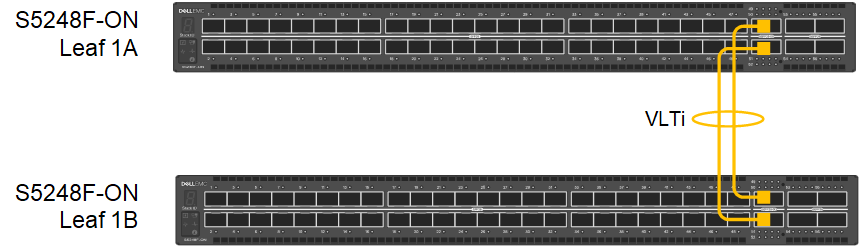 Figure 1 Leaf switch VLTi connections
Make the OOB Connections
The out-of-band (OOB) management network is an isolated network for remote management of hardware including servers, switches, storage arrays, and other devices using their dedicated management ports. For example, PowerEdge server iDRACs are typically connected to this network.
The OOB management network is required to access the SFS web UI. It also enables switch console access using SSH and is used to carry heartbeat messages between switches that are configured as VLT peers.
At least one switch supporting 1 GbE (1000BASE-T) is required for these connections. Dell Technologies recommends using one N3248TE-ON or S3048-ON in each rack for OOB management connections. The OOB management switch is not part of the SmartFabric.
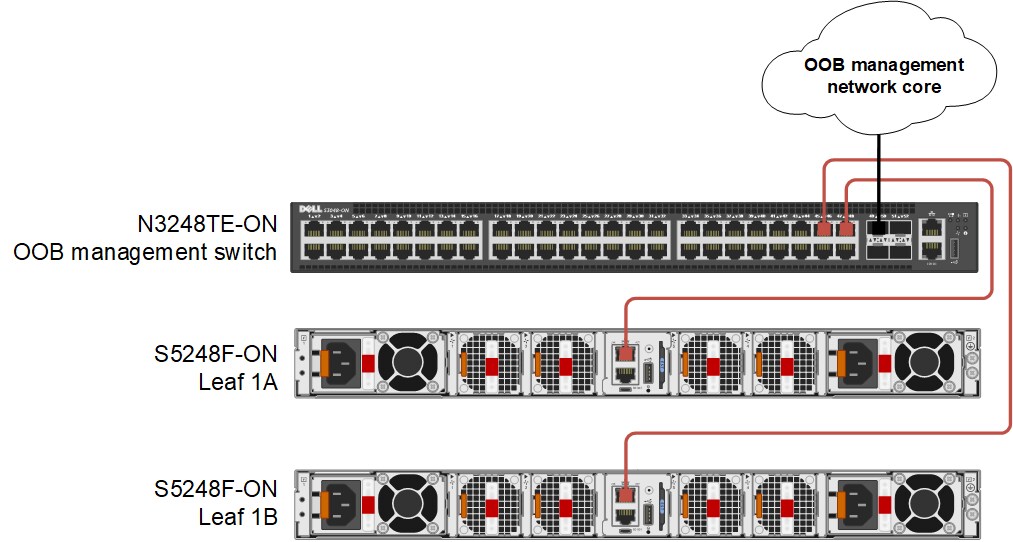 Figure 2 Leaf switch OOB management connections
Change the default passwords
For security, change the passwords of the built-in accounts, admin and linuxadmin, on each switch. The default passwords of these two accounts are admin and linuxadmin respectively. You can use the admin account to log in to the OS10 CLI, the Linux shell, and the SFS UI. You can use the linuxadmin account to log in to the Linux shell.
To change the admin password, connect to the switch console and log in as admin. Run the following commands:
OS10# configure terminal
OS10(config)# username admin password new-password role sysadmin
OS10(config)# exit
OS10# write memory
To change the linuxadmin password, connect to the switch console and log in as admin. Run the following commands:
OS10# configure terminal
OS10(config)# system-user linuxadmin password new-password
OS10(config)# exit
OS10# write memory
Repeat the above steps on the remaining switches.
For additional security best practices, see the Dell SmartFabric OS10 and SmartFabric Services Security Best Practices Guide.
Configure the OOB management IP address
If you don’t use a DHCP server on your OOB management network, configure a unique IP address on the management interface on each switch in the SmartFabric. If you use routing on the OOB management network, you can also configure a management route as shown in this example.
To configure the OOB management IP address, run the following commands on each switch:
OS10# configure terminal
OS10(config)# interface mgmt 1/1/1
OS10(conf-if-ma-1/1/1)# no ip address dhcp
OS10(conf-if-ma-1/1/1)# ip address 100.67.76.12/24
OS10(conf-if-ma-1/1/1)# no shutdown
OS10(conf-if-ma-1/1/1)# exit
OS10(config)# management route 100.67.0.0/16 100.67.76.254
OS10(config)# end
OS10# write memory
Put the switches in SmartFabric mode
Dell PowerSwitches running OS10 are in Full Switch mode by default. All leaf and spine switches in a SmartFabric must be running in SmartFabric mode. The command used to put a leaf switch in SmartFabric mode is in the following format:
smartfabric l3fabric enable role LEAF vlti ethernet VLTi_port_range
When a switch is placed in SmartFabric mode, most of the existing switch configuration is deleted. Some global settings such as the management IP address, management route, and hostname are retained. Be sure the physical VLTi connections are made before running the command.
The leaf switches in Figure 1are put in SmartFabric mode by running the following commands on each switch:
OS10# configure terminal
OS10(config)# smartfabric l3fabric enable role LEAF vlti ethernet 1/1/49-1/1/52
Reboot to change the personality? [yes/no]:y
The configuration is applied, and the switch reloads.
After reloading, you can run the following command on each switch to verify they are each in SmartFabric mode:
OS10# show switch-operating-mode
Switch-Operating-Mode : Smart Fabric Mode
Connect to the SFS UI
From a workstation with access to the OOB management network, use a browser to connect to the management IP address of either leaf switch by going to https://OOB_mgmt_ip_address. Log in as admin.
(After reloading the switches, it will take a few minutes before the UI is accessible.)
All SFS UI configuration is performed on the leader switch. If you connect to a switch in SmartFabric mode that is not the leader, a link to the leader is provided, outlined in red below.
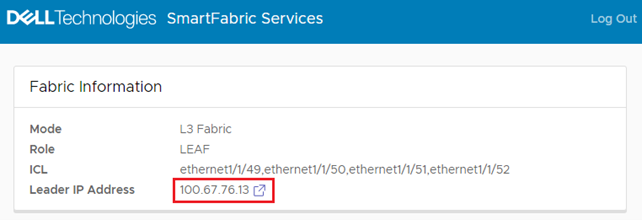 Figure 3 Connected to a switch that is not the leader
If applicable, click the link that is provided to go to the leader switch, and log in as admin.
(You can also find the IPv4 address of the leader switch by running the show smartfabric cluster command from the CLI of any switch in the SmartFabric.)
When connected to the SFS leader switch, the Summary > Overview page displays.
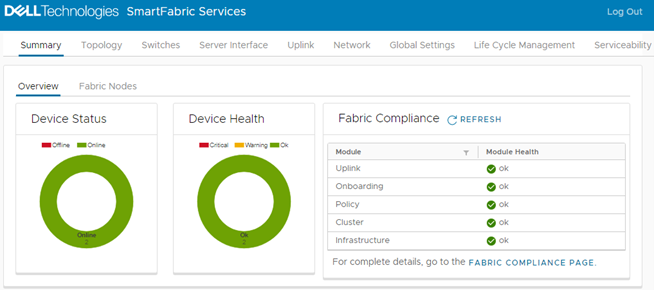 Figure 4 SFS user interface on leader switch
The Device Status box shows that there are two switches in the SmartFabric, and both are Online. The Device Health box shows that both switches are Ok.
You can perform the following tasks in the SFS UI:
- View the fabric status, health, and topology.
- Modify port settings: Set administrative state (up or down), configure MTU, enable or disable auto negotiation, configure breakout ports, and configure a jump port.
- Create server interface profiles and assign ports to networks.
- Create uplinks, including the new multisite fabric interconnect.
- Create networks and configure routing.
- Configure SmartFabric switch global settings: Configure NTP, DNS, SNMP, and Syslog servers, and modify default fabric settings such as ASNs and fabric IP addresses.
- Restore the fabric from a backup.
- Monitor fabric compliance.
The next steps are to onboard your server and storage devices to the SmartFabric, configure uplinks to your existing data center network, and deploy OpenManage Network Integration (OMNI). You can also expand your SmartFabric to additional racks by adding spines and additional leaf pairs as needed.
These tasks and others are covered in the deployment guides and user guides that are listed in the Resources section below.
Resources
SmartFabric Services: Onboarding Devices Using the Import From Fabric Method
SmartFabric Services: Static Onboarding
Dell EMC Networking SmartFabric Services Deployment with VxRail 7.0.240