Integrate Dell ECS with FileCloud Enterprise Server
Executive summary
Overview
Audience
Revisions
We value your feedback
Architecture
Architecture
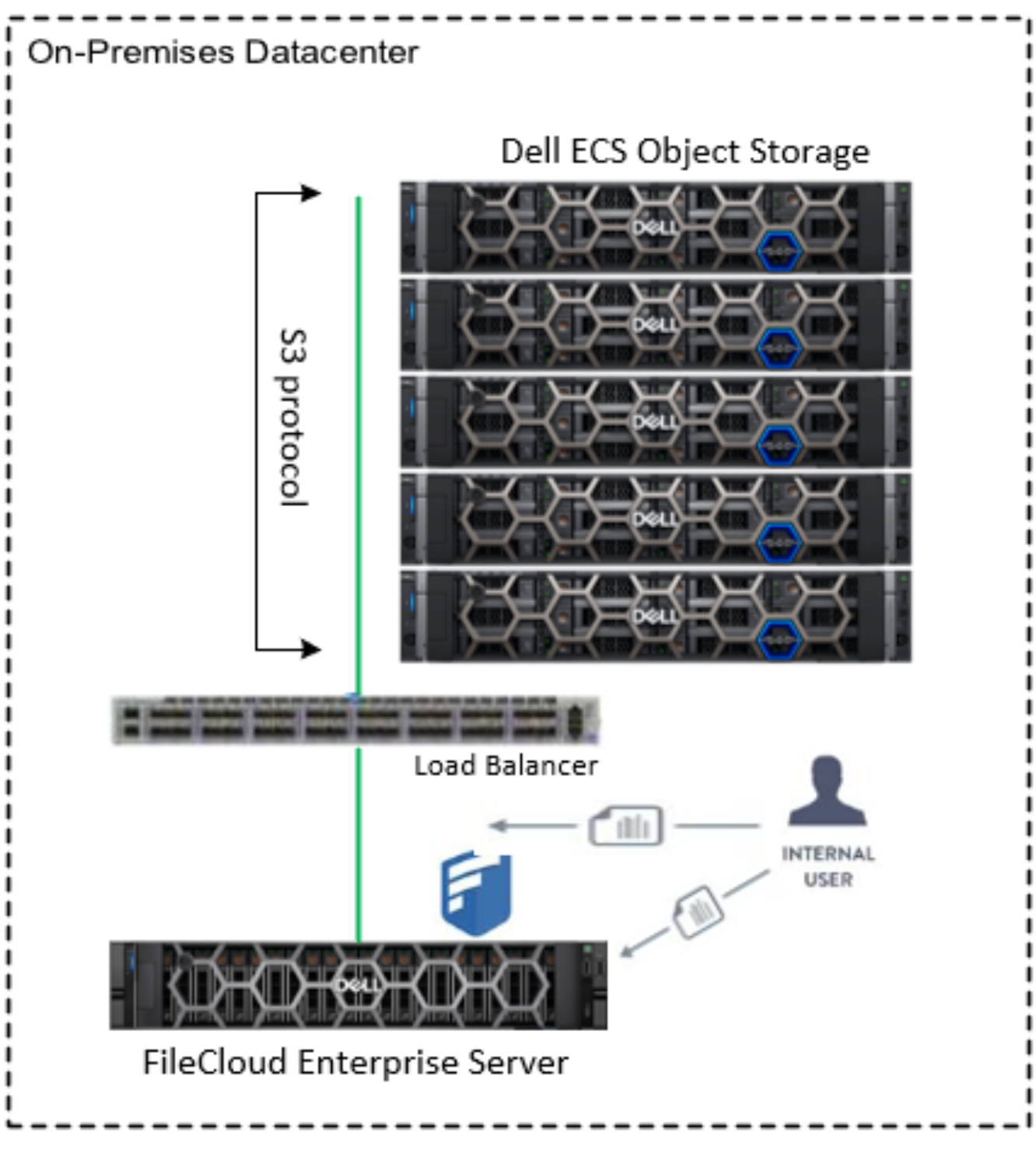
The following figure illustrates the logical layout of the architecture used for the validation.
Figure 1. Dell ECS and FileCloud Enterprise Server logical architecture
Configure Dell ECS as the primary storage platform
Configure Dell ECS as the primary storage platform
External IP load balancer
Dell ECS Configuration
Enable and Configure S3 in FileCloud
Amazon S3 must be enabled in FileCloud as the backend server to use ECS S3 for Cloud Storage.
Note: In Windows, WWWROOT is typically ‘c:\xampp\htdocs’; in Linux, it is ‘/var/www/html’.
Step 1: Edit the file WWWROOT/config/cloudconfig.php and change the line:
define("TONIDOCLOUD_STORAGE_IMPLEMENTATION", "local");
to read as:
define("TONIDOCLOUD_STORAGE_IMPLEMENTATION", "amazons3");
Step 2: Rename the file WWWROOT/config/amazons3storageconfig-sample.php to WWWROOT/config/amazons3storageconfig.php.
Note: Nothing typically needs to be added or edited in amazons3storageconfig.php.
Step 3: Log in to the FileCloud Admin Portal and select Settings > Storage. Enter the S3 Object User or IAM credentials, which were created in ECS, as well as the ECS S3 endpoint. The following figure shows information from Dell ECS to use in the FileCloud Admin Portal when configuring S3 Storage.
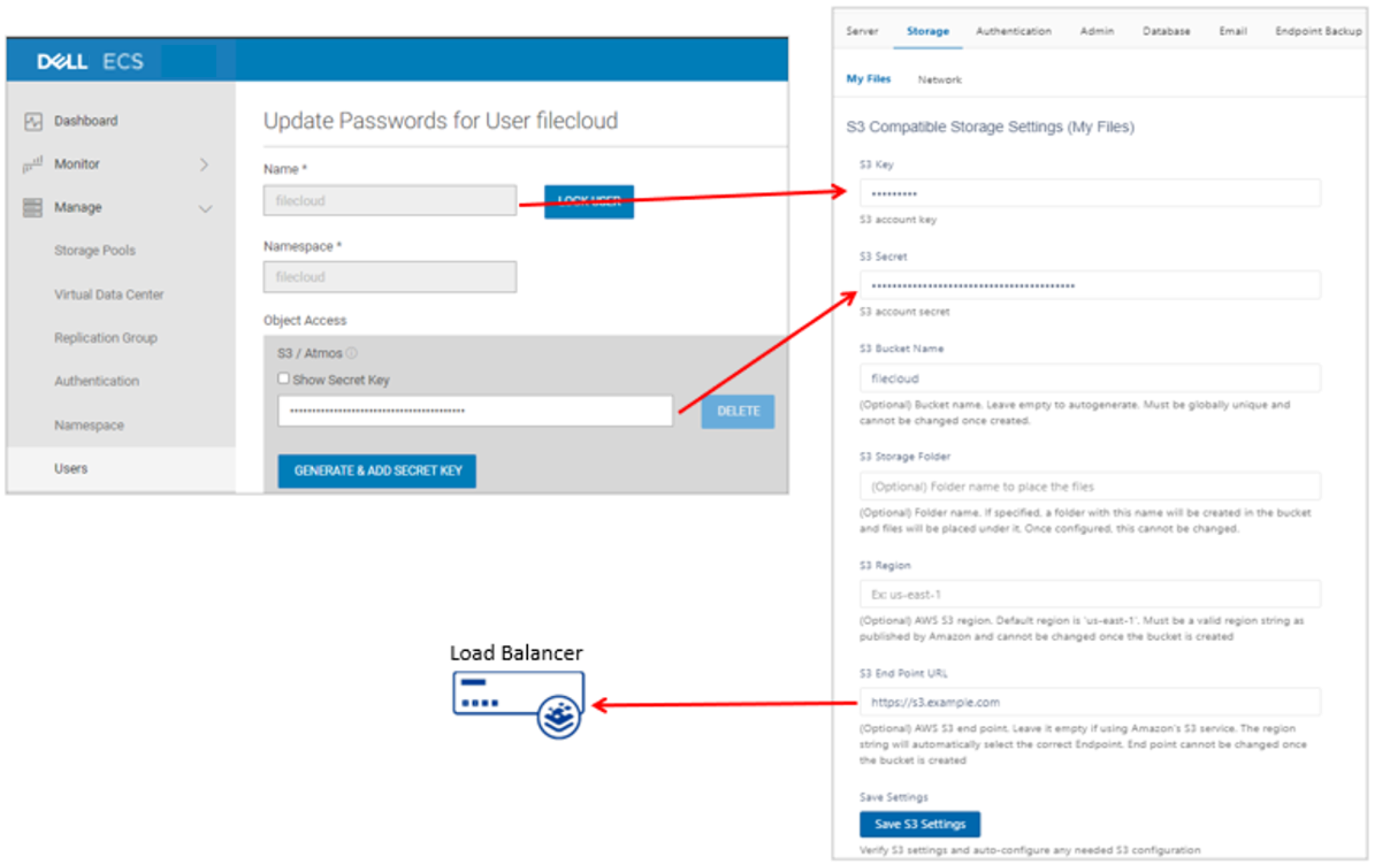
Figure 2. Configure FileCloud Storage to use Dell ECS
Table 1. FileCloud S3 Storage field definitions
|
Field |
Description |
|
S3 Key |
The ECS Object User or IAM Access Key |
|
S3 Secret |
The ECS Secret Key |
|
S3 Bucket Name |
Specify the bucket name in which to store data. (The bucket will be created if it does not exist). This field is optional. FileCloud will auto-generate a bucket if left blank. |
|
S3 Storage Folder |
A folder with this name will be created in the bucket where files will reside. This field is optional. |
|
S3 Region |
ECS does not use regions; however, ECS can be configured to specify a region for compatibility. |
|
S3 End Point URL |
The ECS endpoint URL. The example in Figure 2 is using the VIP of the Load Balancer in front of ECS. |
Step 4: Save the storage settings. Click OK to acknowledge that the bucket must be empty and only managed by FileCloud.
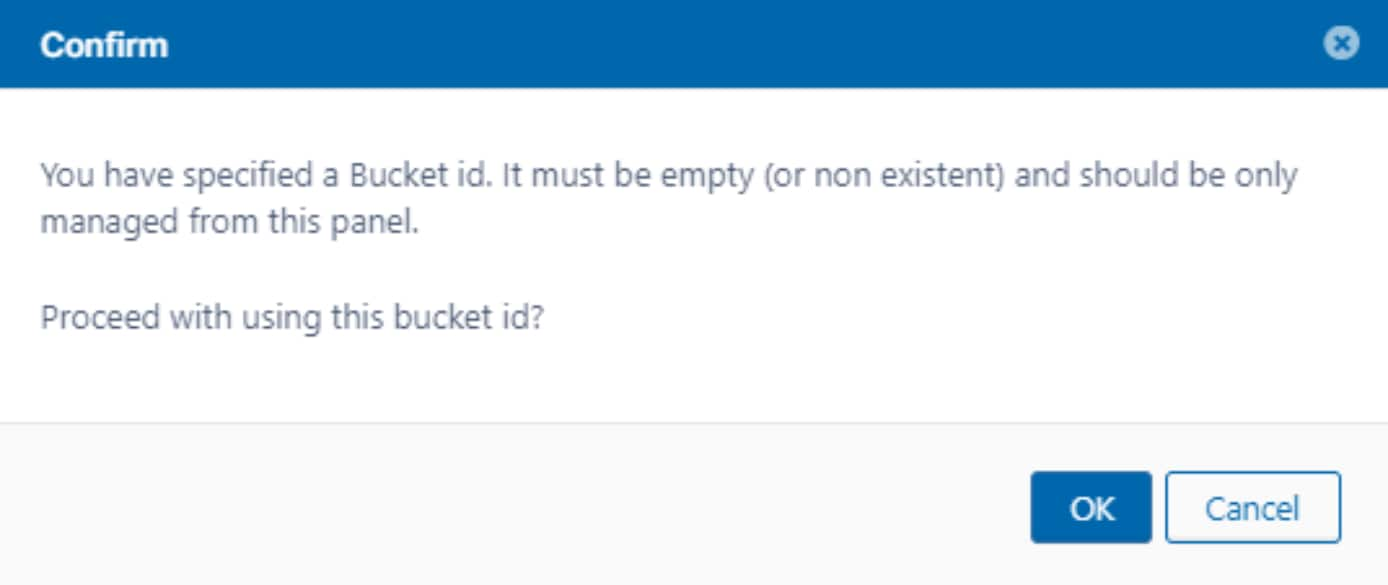
Figure 3. Save the FileCloud storage settings
If the SUCCESS dialog appears, then FileCloud can communicate with ECS.
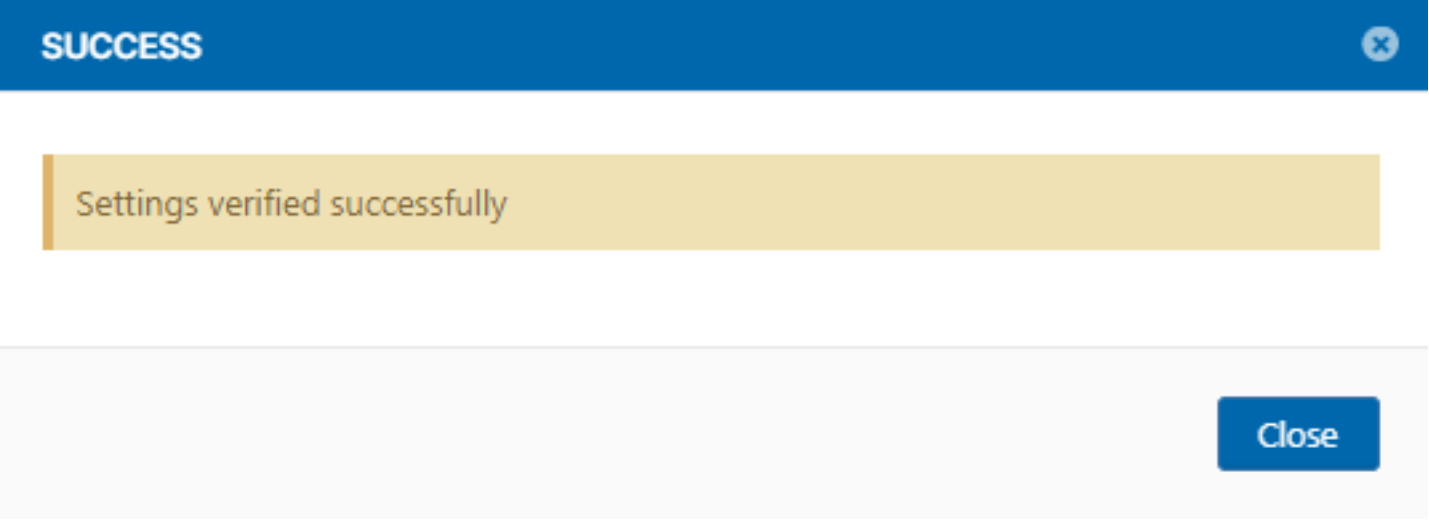
Figure 4. FileCloud can communicate with Dell ECS
Access Files from the FileCloud User Portal
Access Files from the FileCloud User Portal
Upload files from the User Portal
User One would like to upload a file from their system to FileCloud, so they click the Upload Files link after logging into the User Portal.
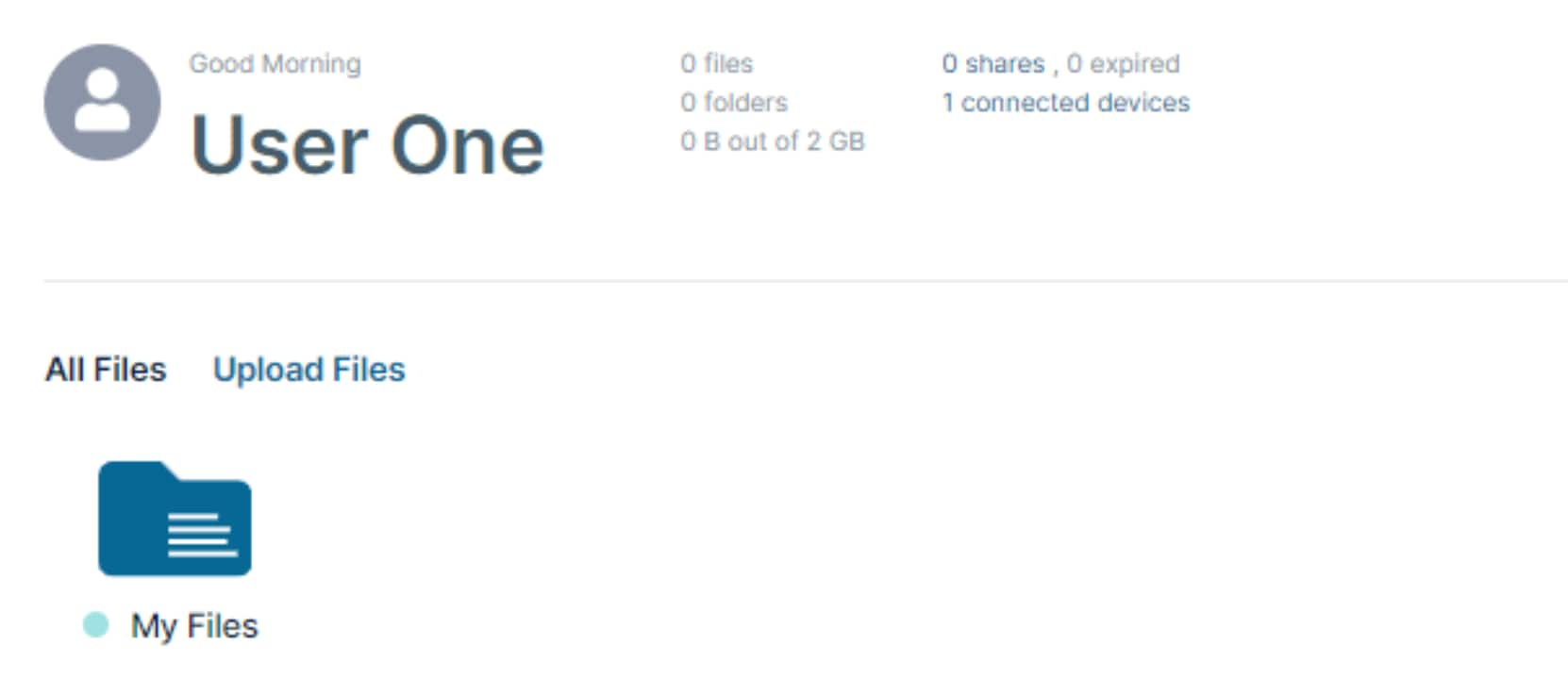
Figure 5. Upload Files from the User Portal
Then User One selects the file to upload from their local file system. Here we can see that the file was successfully uploaded.
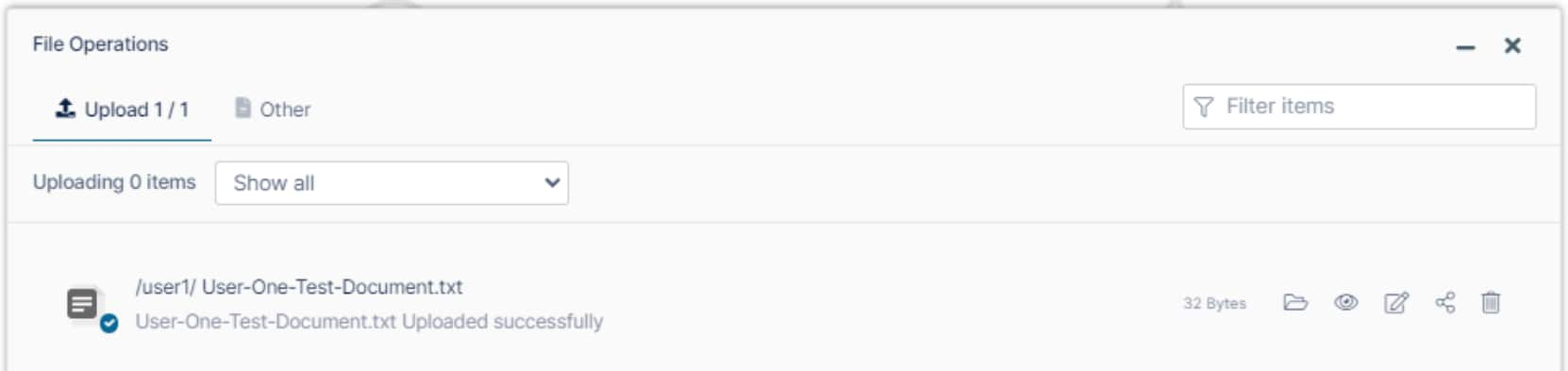
Figure 6. File successfully uploaded to FileCloud
When we list the files in the ECS bucket, we see that an object now exists, which is 32 bytes in size.
aws --profile filecloud --endpoint-url https://s3.example.com s3 ls s3://filecloud
2023-11-09 10:57:14 32 654d2b79957c0801641753
View a file’s content from the User Portal
User One would like to view the content of a file they stored in FileCloud, so they navigate to the file they want to view and either click the filename or click the eye icon to preview it. This performs a GET REST API call to ECS to retrieve the file.

Figure 7. Preview a file from the FileCloud User Portal
User One could also download the file locally from this web page.
Delete files from the User Portal
User One would like to delete a file from their system from FileCloud, so they click the folder (in this case My Files) and can either click the trashcan icon or click the ellipsis and select Delete.
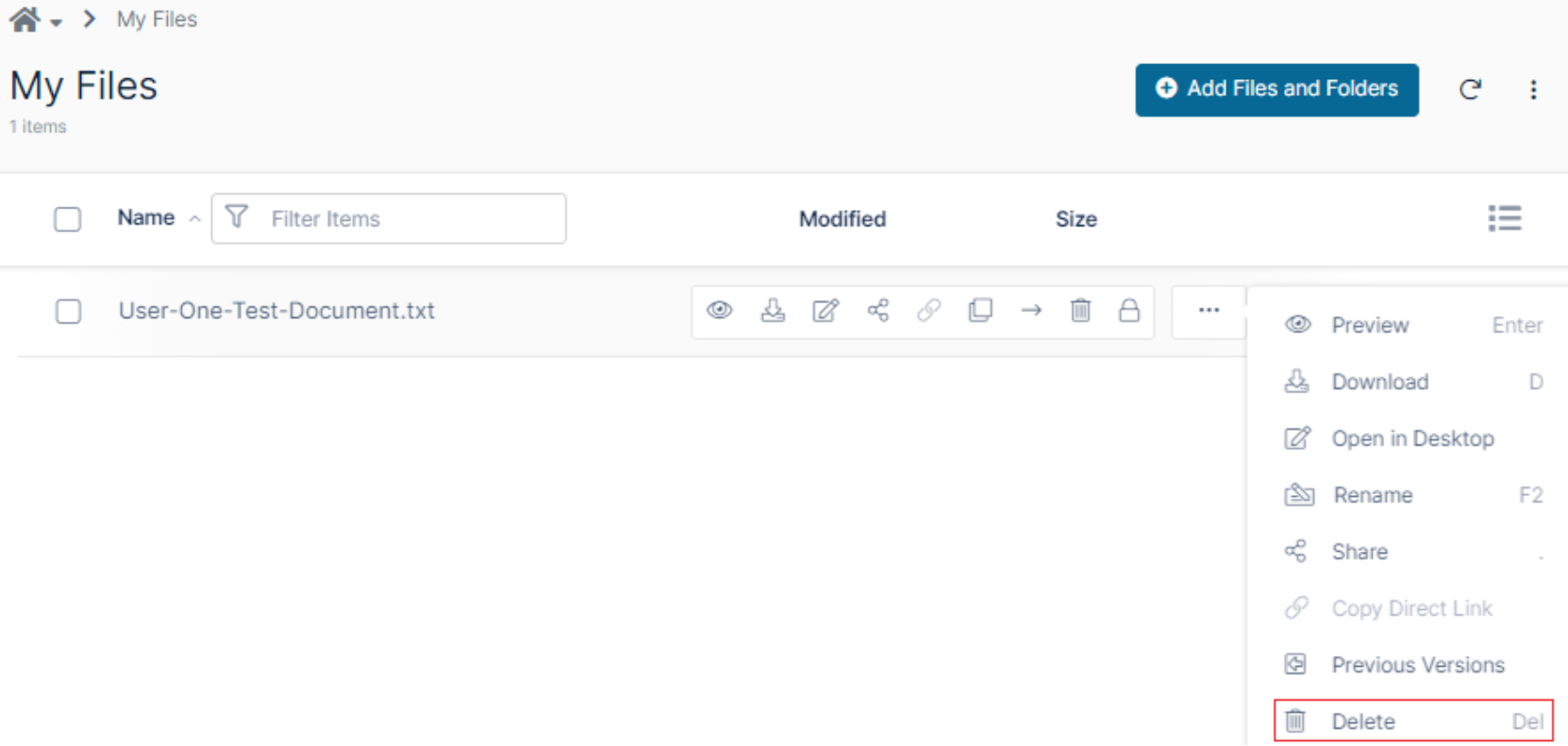
Figure 8. Delete a file from FileCloud
Click Delete from the dialog to delete the selected item.
File Operations (as well as Activity) show that the file has been deleted and no longer exists in the folder. Note that by default the file will still be accessible until permanently deleted. We can verify this by listing the ECS bucket:
aws –profile filecloud –endpoint-url https://s3.example.com s3 ls s3://filecloud
2023-11-09 10:57:14 32 654d2b79957c0801641753
The user can permanently delete the file (if they have that permission) by selecting Delete Files in the left pane of the User Portal, hovering over the deleted file, and clicking the trashcan.
FileCloud will ask if you are sure you want to delete the file.
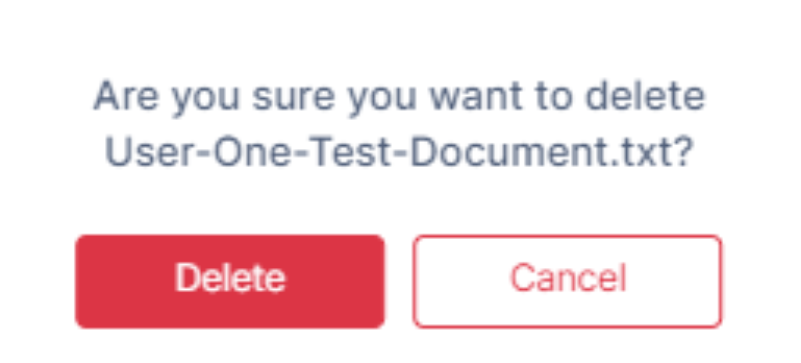
Figure 9. Confirm deletion of the file
Clicking Delete permanently deletes the file from ECS.
We can verify that it was deleted from the ECS bucket by listing the objects. No objects will be returned.
aws --profile filecloud --endpoint-url https://s3.example.com s3 ls s3://filecloud
FileCloud Sync and Drive clients
FileCloud Sync and Drive clients
FileCloud Drive
FileCloud Drive allows users to mount ECS on Windows and Mac to manage files in the Cloud as easily as you manage files directly on the local filesystem.
Create a tmp folder under the My Files folder that FileCloud Drive created. Copy 199 test files, each with a size of 1MB to the tmp folder.
Activity shows that all 199 files have been successfully uploaded to ECS.
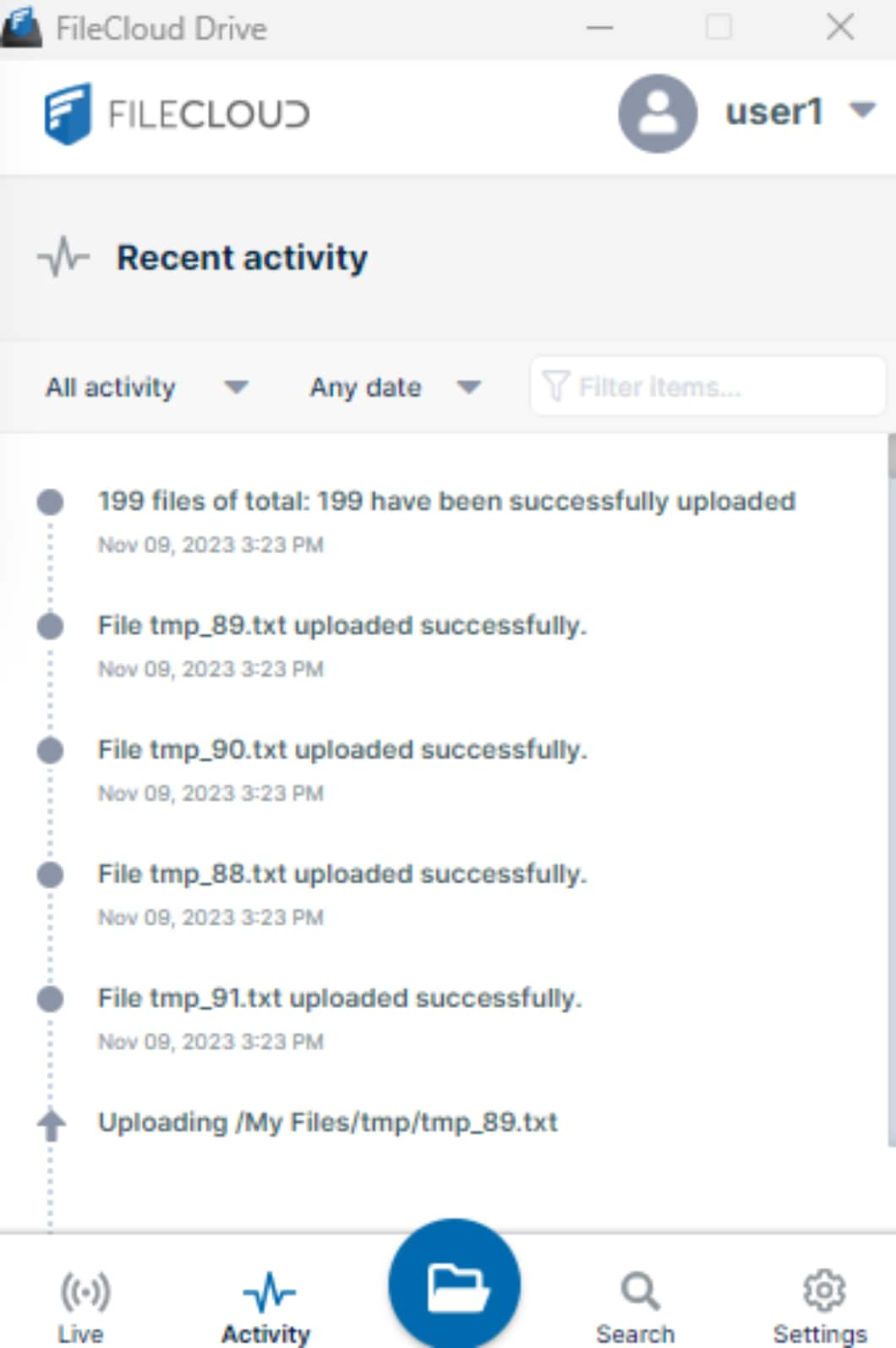
Figure 10. FileCloud Drive Activity
When we list the size and number of files in the ECS bucket, we can see that the size of the files in the bucket coincides with the size of the files that were uploaded.
aws --profile filecloud --recursive --endpoint-url https://s3.example.com s3 ls s3://filecloud | awk 'BEGIN {total=0}{total+=$3}END{print total/1024/1024" MB"}'
199 MB
FileCloud Sync
FileCloud Sync automatically syncs selective files and folders to the Cloud.
Note: The Endpoint Backup Settings ‘Click to enable user to backup files using CloudSync client application’ must be enabled to configure backups.
Add a backup folder by clicking Settings > Backup folders from the Sync client and add a folder to be backed up to ECS.
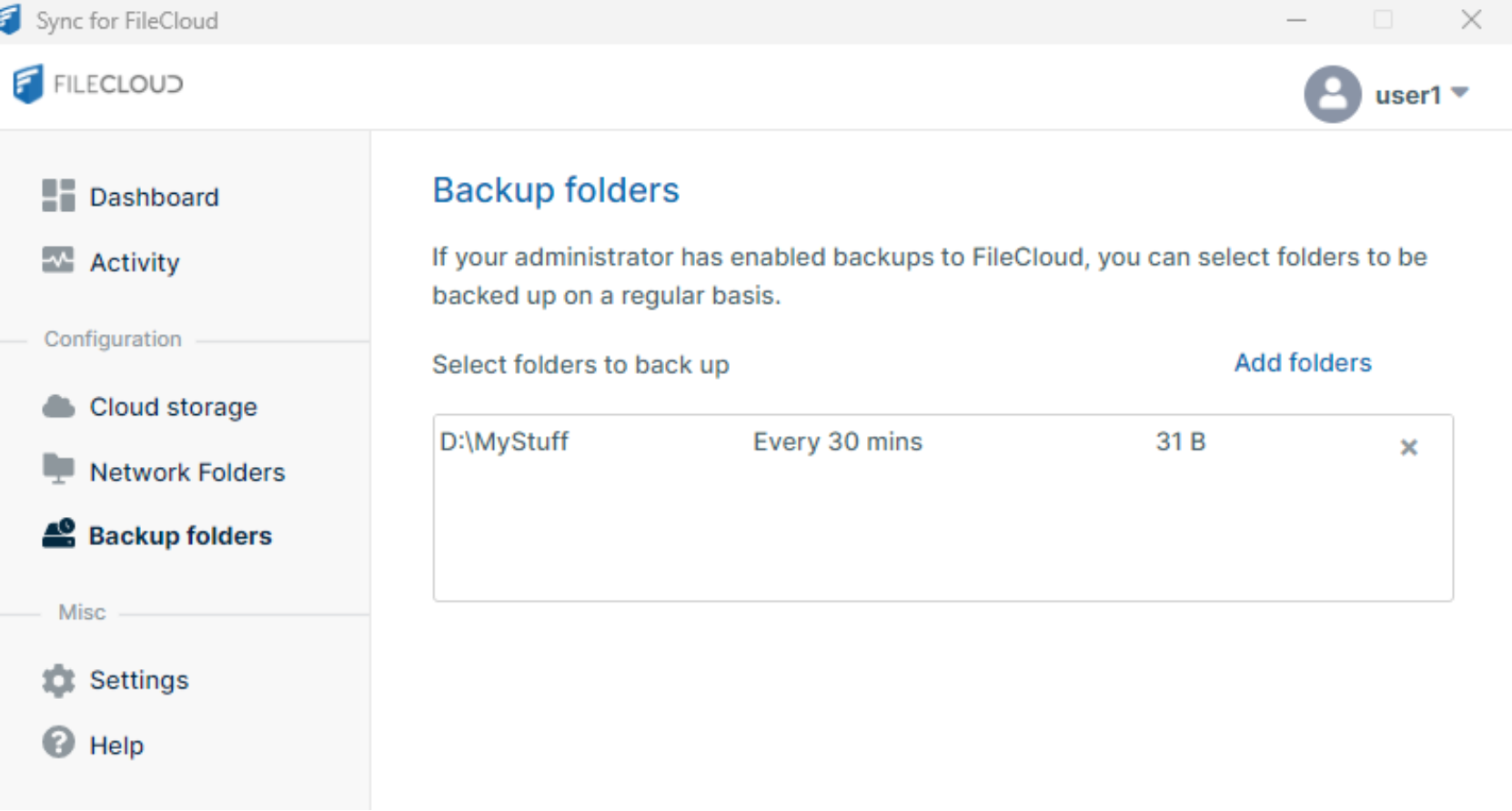
Figure 11. Add a backup folder to FileCloud Sync
You can configure the schedule for how often to back up files. Next, drop a file in D:\MyStuff, then click the Sync now button on the Sync client.
Check the Activity to verify that the backup ran and is successful.
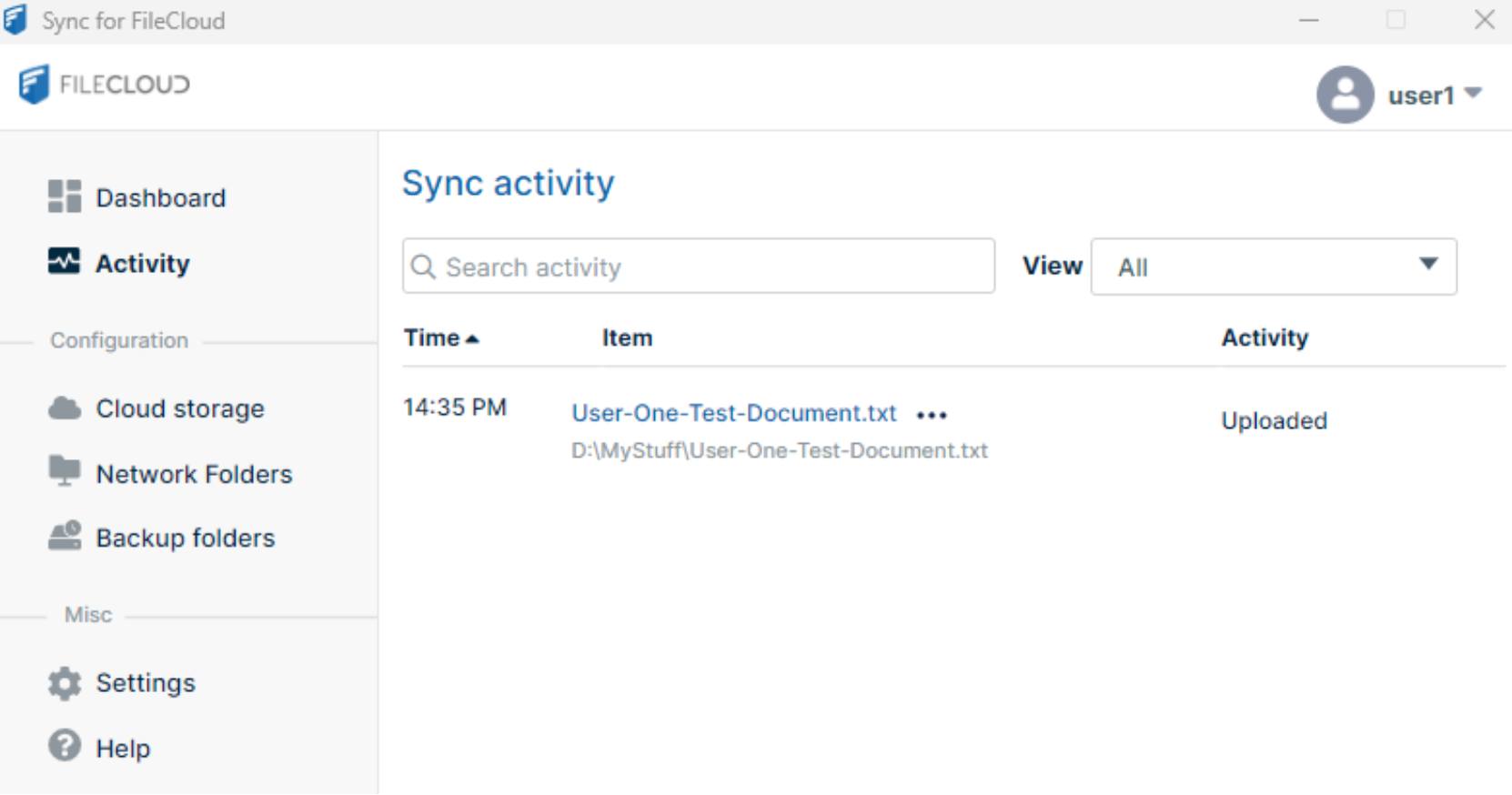
Figure 12. Verify FileCloud synchronized the backup folder to ECS
When we list the bucket on ECS, we see that our file was indeed uploaded.
aws --profile filecloud --endpoint-url https://s3.example.com s3 ls s3://filecloud
2023-11-09 14:35:38 32 654d5eaacef49218198586