Microsoft SQL Server Data Protection using Dell PowerFlex Snapshots
Executive Summary
Objective
Audience
Terminology
We value your feedback
Product overview
PowerFlex family
PowerFlex software-defined infrastructure enables broad consolidation across the data center, encompassing almost any type of workload and architecture. The software-defined architecture offers automation and programmability of the complete infrastructure and provides scalability, performance, and resiliency to enable effortless adherence to stringent workload Service Level Agreements (SLAs).
The PowerFlex family provides a foundation that combines compute and high-performance storage resources in a managed unified fabric. PowerFlex comes in flexible deployment options (rack, appliance, or custom nodes and in the public cloud) that enables independent (two-layer), HCI (single-layer), or mixed architectures. PowerFlex is ideal for high-performance applications and databases, building an agile private or hybrid cloud, or consolidating resources in heterogeneous environments.
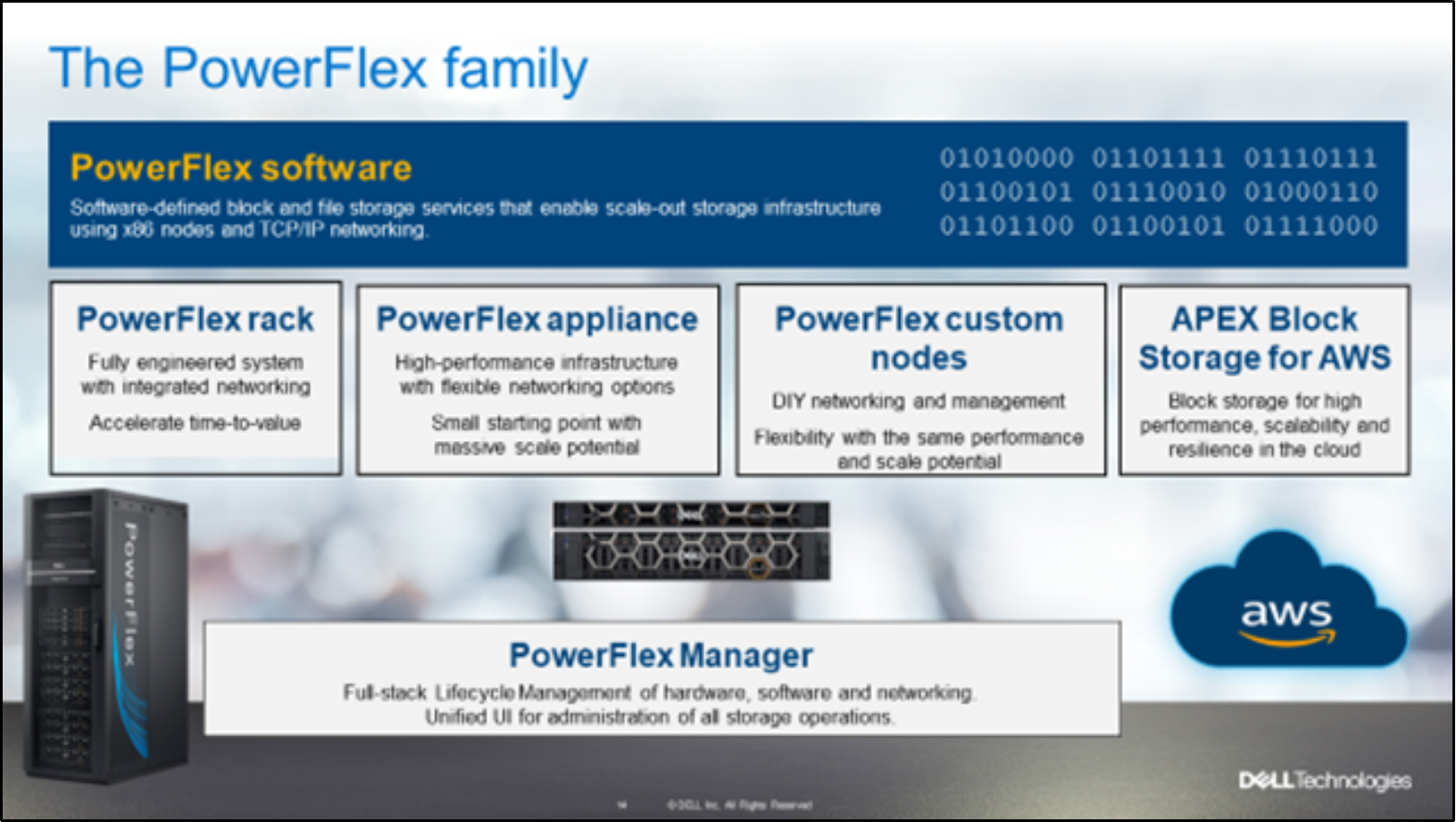
Figure 1. PowerFlex family
PowerFlex software components
Software is the key differentiator in the PowerFlex offering. PowerFlex software components provide software-defined storage services and help simplify infrastructure management and orchestration. This software enables comprehensive IT Operational Management (ITOM) and Life Cycle Management (LCM) capabilities that span compute and storage infrastructure, from BIOS and Firmware to nodes, software, and networking.
PowerFlex
PowerFlex is the software foundation of PowerFlex software-defined infrastructure. It is a scale-out block and file storage service that is designed to deliver flexibility, elasticity, and simplicity with predictable high performance and resiliency at scale.
PowerFlex Manager
PowerFlex Manager is the software component in the PowerFlex family that enables ITOM automation and LCM capabilities for PowerFlex systems. Starting with PowerFlex 4.0, the unified PowerFlex Manager brings together three separate components that are used in previous releases: PowerFlex Manager, the core PowerFlex UI, and the PowerFlex gateway. The new PowerFlex UI runs in Kubernetes and embraces a modern development framework.
PowerFlex File Services
PowerFlex File Controllers, also known as File Nodes, are physical nodes that enable PowerFlex software-defined File Services. They host the Network-Attached Storage (NAS) Servers, which in turn host the tenant namespaces and file systems, mapping PowerFlex volumes to the file systems presented by the NAS Servers. All major protocols are supported, such as NFS, SMB/CIFS, FTP, and NDMP.
PowerFlex deployment architectures
PowerFlex software-defined infrastructure excels in deployment flexibility. PowerFlex can be deployed in a two-layer (independent compute and storage layers), single-layer (Hyperconverged Infrastructure, or HCI), or a mixture of the two architectures (Mixed).
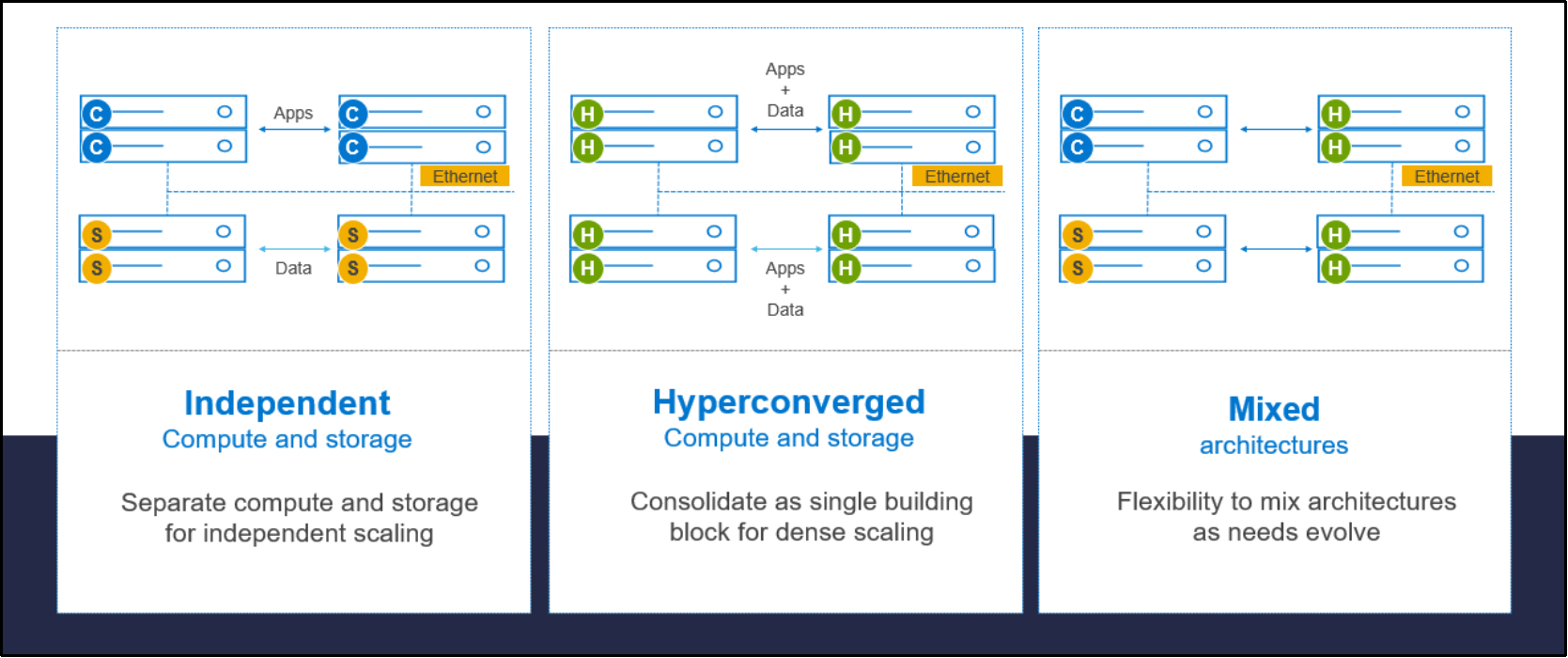
Figure 2. PowerFlex deployment architectures
Independent architecture
In an independent architecture, or two-layer architecture, some nodes provide storage capacity for applications data while other separate and independent nodes provide compute resources for applications and workloads. Compute and storage resources can be scaled independently by adding nodes to the cluster while it remains active. This separation of compute and storage resources can help minimize software licensing costs in certain situations. This architecture is ideal for high-performance databases and application workloads.
Hyperconverged architecture
In an HCI architecture, each node in the cluster contributes storage and compute resources simultaneously to the applications and workloads. This architecture allows you to scale your infrastructure uniformly with building blocks that add both storage and compute resources. This architecture is appropriate for data center and workload consolidation.
Mixed architecture
A mixed architecture is a combination of both the HCI and Independent architectures. As shown in Figure 2 there are some storages only nodes, compute only nodes, and HCI nodes that are part of the same PowerFlex cluster. This architecture is used when you work with an existing compute infrastructure and add high-performance software-defined infrastructure. This is also a starting point for a two-layer deployment design when external workloads are migrated to PowerFlex.
PowerFlex consumption options
PowerFlex rack
PowerFlex rack is a software-defined infrastructure platform that delivers flexibility, elasticity, and simplicity with predictable performance and resiliency at scale by combining compute as well as high-performance storage resources in a managed unified network. This rack-based engineered system, with integrated networking, enables customers to achieve the scalability and management requirements of a modern data center.
PowerFlex appliance
PowerFlex appliance is a PowerEdge server which has been configured as a node in a software-defined infrastructure deployment that runs PowerFlex software components. This offering allows customers the flexibility and savings to bring their own compatible networking.
PowerFlex custom nodes
PowerFlex Custom Nodes are validated server building-blocks that are configured for use with PowerFlex. Custom nodes are available with thousands of configuration options and are available for customers who want to build their own environments.
Dell APEX Block Storage for AWS
PowerFlex software can also be deployed in the public cloud and is available in the Amazon Marketplace as Dell APEX Block Storage for AWS (formerly known as PowerFlex cloud storage on AWS) offering the same on-premises benefits of high-performance, linear scalability, and high resilience as in cloud. In addition to larger volume sizes, higher performance, predictable scalability, and high performance with low latency you can also get higher resilience when PowerFlex Fault sets are automatically distributed across multiple AWS Availability Zones. You can migrate data from an on-premises PowerFlex deployment to Dell APEX Block Storage for AWS deployment, or from public cloud back to on-premises, by using the PowerFlex native replication technology.
PowerFlex CSI/CSM
An important component outside of PowerFlex that enables a flexible consumption model for Kubernetes is the PowerFlex CSI driver. The CSI driver is developed as a part of the Dell Kubernetes strategy. When you load the CSI driver for PowerFlex into Kubernetes, it can be used to provision persistent volumes from the underlying PowerFlex storage resource. If the Kubernetes deployment is running low on PowerFlex storage resources, you can add PowerFlex storage nodes to increase the system capacity and performance.
The CSI driver connects the PowerFlex system and Kubernetes deployments. It is a storage broker which dynamically provisions volumes from PowerFlex through the PowerFlex API gateway to the Kubernetes cluster. Once the volume is available on PowerFlex, it is immediately mapped to the requesting pod. If a pod is destroyed or rescheduled, the CSI plug-in ensures that the volumes are remapped upon rescheduling of that pod.
- Customers running Kubernetes clusters on PowerFlex use the Dell Container Storage Modules (CSM), which extend the CSI driver capabilities. These modules:
- Provide enterprise storage capabilities to Kubernetes for cloud-native stateful applications.
- Reduce management complexity, so that developers can independently use enterprise storage with ease and automate daily operations.
- Extends storage functionality and capabilities beyond using the CSI driver alone.
These modules include snapshot, observability, authorization, application mobility, and resiliency.
PowerFlex supports multiple operating systems, different deployment options on-premises and public cloud deployment models (available in AWS). PowerFlex is validated with the leading Kubernetes distributions as shown in Figure 3.
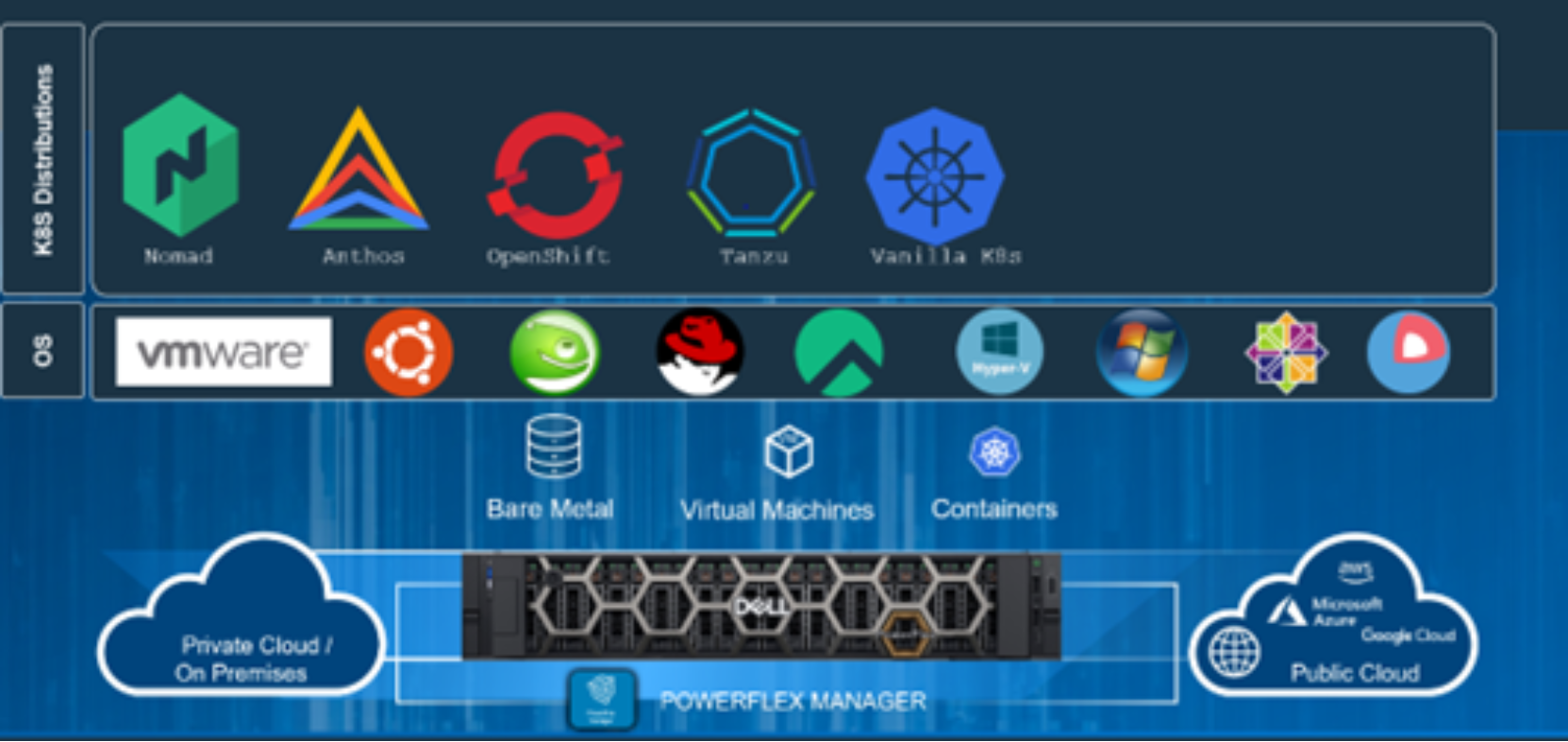
Figure 3. PowerFlex for different Kubernetes distributions
PowerFlex snapshots and SQL Server considerations
Overview of PowerFlex snapshots
Snapshots are a block image in the form of a storage volume or LUN used to instantaneously capture the state of a volume (or a group of volumes) at a specific point in time. PowerFlex snapshots are thin-provisioned and writable. That means that snapshots only consume capacity when changes are made to the original volume. Subsequent changes to the same data do not consume additional capacity. Once a snapshot is taken, it becomes a new unmapped volume in the system. It can be manipulated like any other volume that is exposed by the storage system: mapped, unmapped, renamed, resized, and so on. Writable snapshots mean that the snapshot volumes can be mounted to a server and used like other PowerFlex volumes for data read and write operations.
PowerFlex snapshots can be initiated manually through any of the clients including PowerFlex Manager UI, CLI, or REST API. The snapshots include the ability to create snapshot policies, which automate the creation and deletion of snapshots according to a predefined schedule of your own choosing.
Snapshots and their source volume are organized into a Volume Tree (V-Tree). The V-Tree includes the root volume and all descendant snapshots resulting from that volume. A V-Tree includes not only snapshots that are taken of the root volume at different points in time, but also descendants that are snapshots of snapshots. The following figure shows a small V-tree snapshot with all its descendant snapshots where S111 and S112 are snapshot of the root volume V1 at different times and S121 is the snapshot of S111 at some other time.
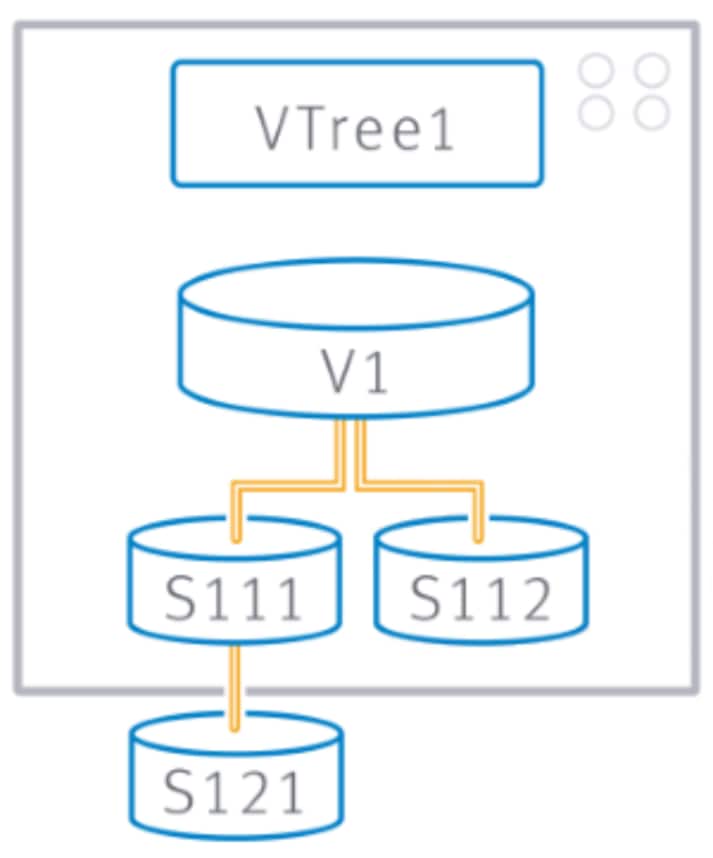
Figure 4. Volume tree of root volume V1 with all its descendant snapshots
PowerFlex snapshots and data consistency
When to use storage snapshots for SQL Server backups
SQL Server 2022 T-SQL snapshot backup feature
SQL Server snapshots and database file location
SQL Server Storage Snapshot feature use cases
SQL Server Storage Snapshot feature use cases
System architecture
SQL Server setup and configuration
This section describes the Microsoft SQL Server lab setup and design that is used for the backup and recovery use cases:
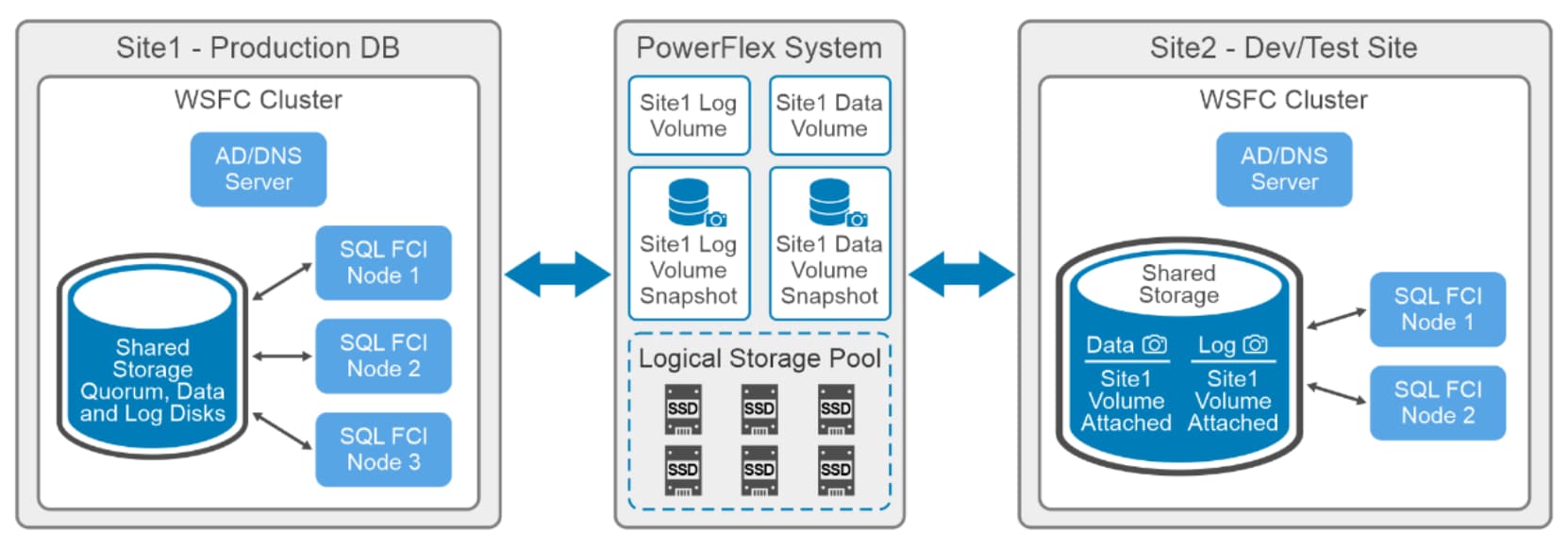
Figure 5. Windows Failover Cluster (WSFC) and SQL Server Failover Cluster instances (FCI)
The production site (Site 1) is deployed with a three node Windows Failover cluster (WSFC) that has one active directory and DNS server and two cluster shared volumes attached. WSFC is a group of independent Windows servers (cluster nodes) that work together to increase the availability of cluster roles, which are typically applications (such as SQL Server) and services (such as networking and storage). WSFC acts as a high availability solution that automatically makes the cluster role easily available on the healthy node in the cluster.
WSFC leverages Cluster Shared Volume (CSV) functionality to share the storage from any node in the cluster. This improves the speed of the cluster role availability from one node to other easily because of shared storage. In this setup, the data and log volumes are configured as cluster-shared volumes (CSV) for WSFC. These volumes are provisioned from PowerFlex storage.
Microsoft SQL Server FCI uses WSFC to provide a high availability database solution. This helps SQL Server instances to be intentionally moved or automatically failed over between WSFC nodes. If there was a failure of any resources on one node, the SQL FCI is moved to a healthy node in which the SQL instances can resume database operations smoothly.
In the following example of Database refresh, the Dev/Test site (Site 2) has a smaller setup that is deployed with two node Windows Failover Cluster (WSFC) along with one Active Directory (AD)/DNS server and two volumes that are configured as a cluster shared volume. These volumes are the snapshots of the data and log volume from Site 1.
Microsoft SQL Server FCI is configured across WSFC nodes to provide a high availability database solution. On the network, a failover cluster instance (FCI) appears to be an instance of SQL Server running on a single system, but the SQL Server FCI provides failover from one WSFC node to another if the current node becomes unavailable. SQL Server FCI leverages solutions like WSFC cluster disks and server message block (SMB) to run its database operations as a high availability system.
As shown in the above figure, both Site 1 and Site 2 are using the same PowerFlex cluster to provision shared storage for WSFC and in turn, to the database and log volumes that are deployed as SQL Server FCI.
Lab setup and design that is used to demonstrate the T-SQL snapshot backup feature is a good example of HA production, but this feature can also be used with the simple stand-alone SQL server deployment.
Use Case 1: Database refresh using PowerFlex Snapshot
A database refresh involves overwriting an existing database environment from production such as for purposes of creating development, testing (QA), and reporting database environments. An administrator typically performs this task on demand or automates it by job scheduling. Database refresh is required:
- To verify backups
- To sync stage/dev environments with production data
- To troubleshoot any database issue
- Test application with the production data
The following figure shows the details of production cluster SQL CLUSTER.BR.SQL. Three databases TPCC1, TPCC2, and TPCC3 are running on the production environment (Site 1). All the database files are stored on the data volume and the transaction log files are stored on the log volume. These volumes provide cluster shared volume functionality for the SQL FCI cluster (TPCC_data_volume and TPCC_log_volume below).
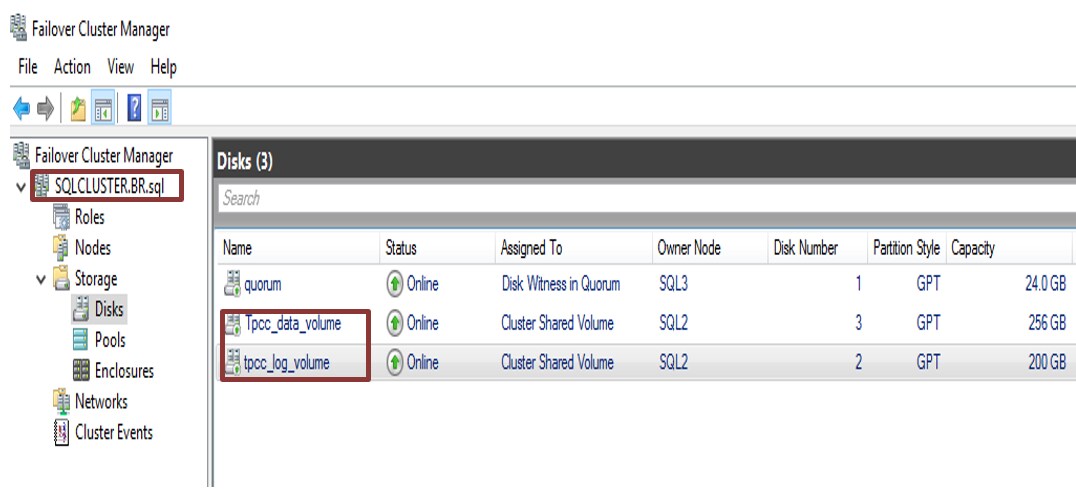
Figure 6. Production environment details
Microsoft SQL Server FCI role is configured with three SQL nodes running as shown in Figure 7. As a result, if any node/role failure happens, the database cluster role automatically gets failed over to the healthy nodes.
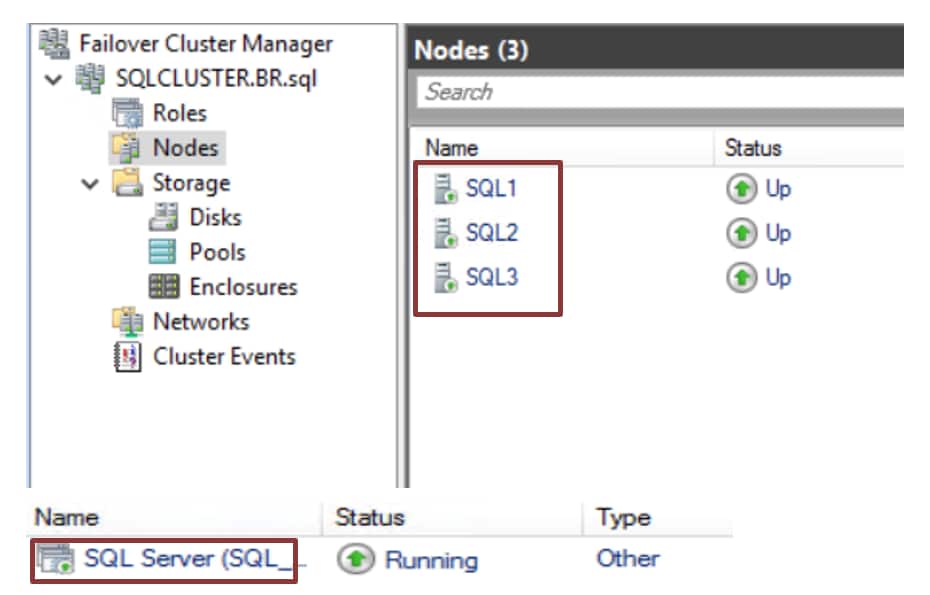
Figure 7. Cluster details
The database can be refreshed using PowerFlex snapshot by following the below documented steps.
- Verify the database object counts on production environment using SQL Server Management Studio (SSMS). The following figure shows the row count of customer and order table on TPCC1, TPCC2, and TPCC3 databases.
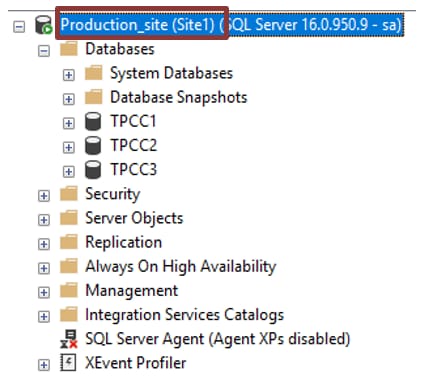
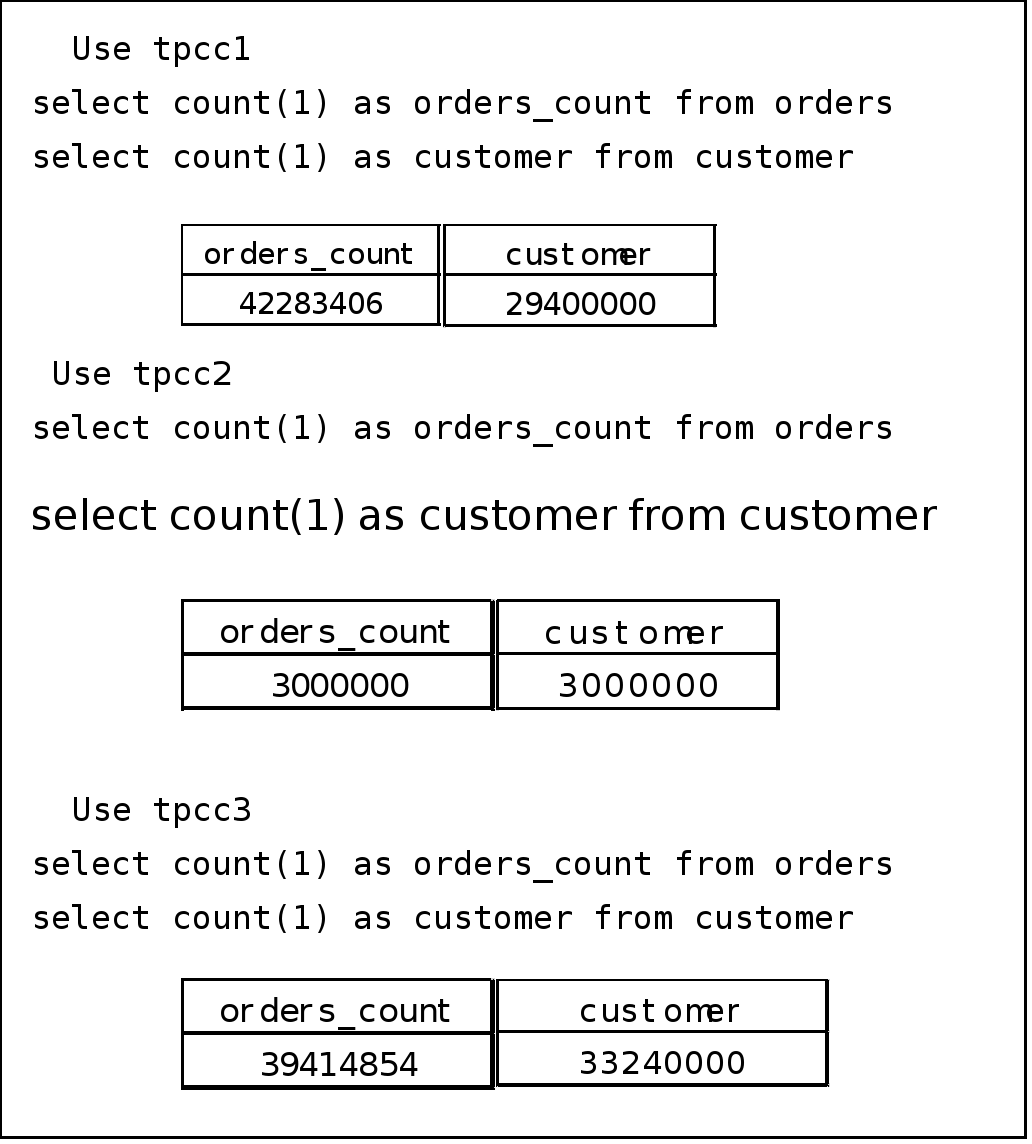
Figure 8. Database and row count on production environment
- Take a data and log volume snapshot together using the PowerFlex Manager GUI, CLI, or REST API. All snapshots that are taken together as shown in the below image forms a consistency group.
Snapshots can be created manually or using snapshot policies. The following steps show an example of creating manual PowerFlex snapshots of the database volumes using the PowerFlex Manager UI:
- Identify the name of the data and log volume and select those volumes for taking a snapshot. For example, the name of the data and log volume in this example is CSV_data and CSV_log respectively. These volumes store all the necessary data and transaction log files of the TPCC1, TPCC2, and TPCC3 database.
- Select the Create Snapshot option from the More Actions menu.
- Enter the snapshot name and clear the check box if you want the snapshot to be writable. By default, the snapshots are read-only.
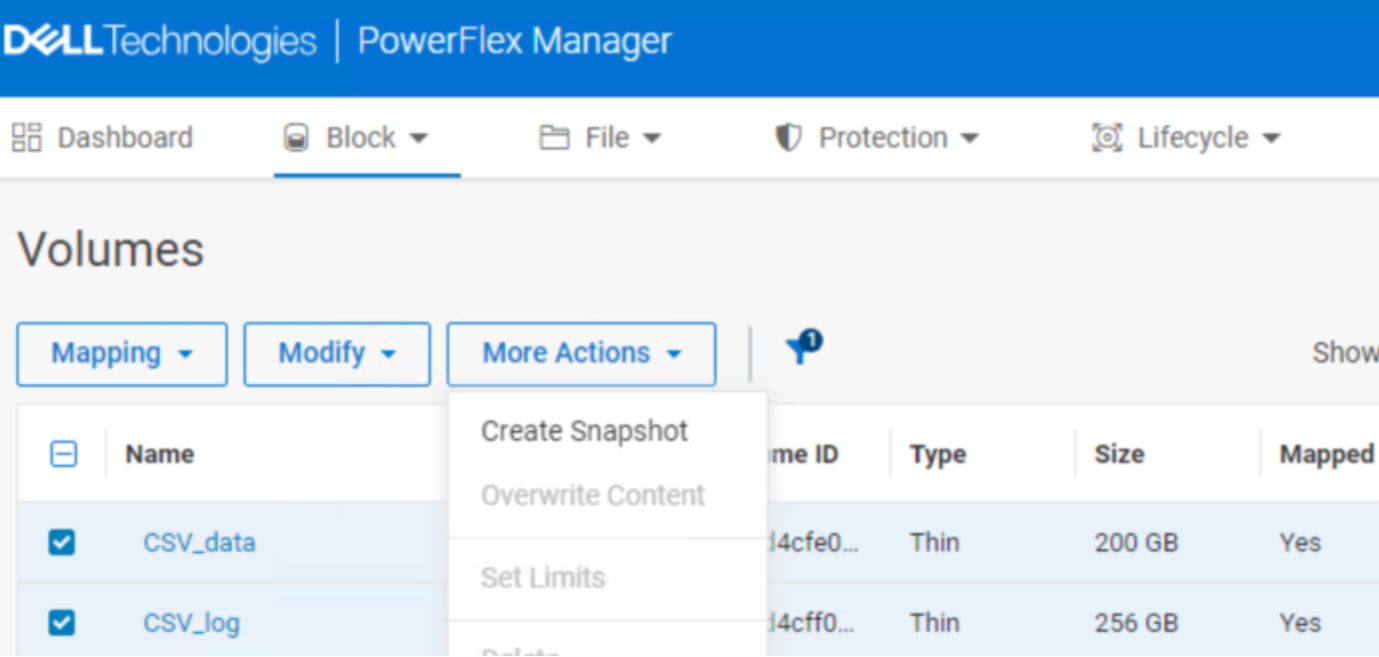
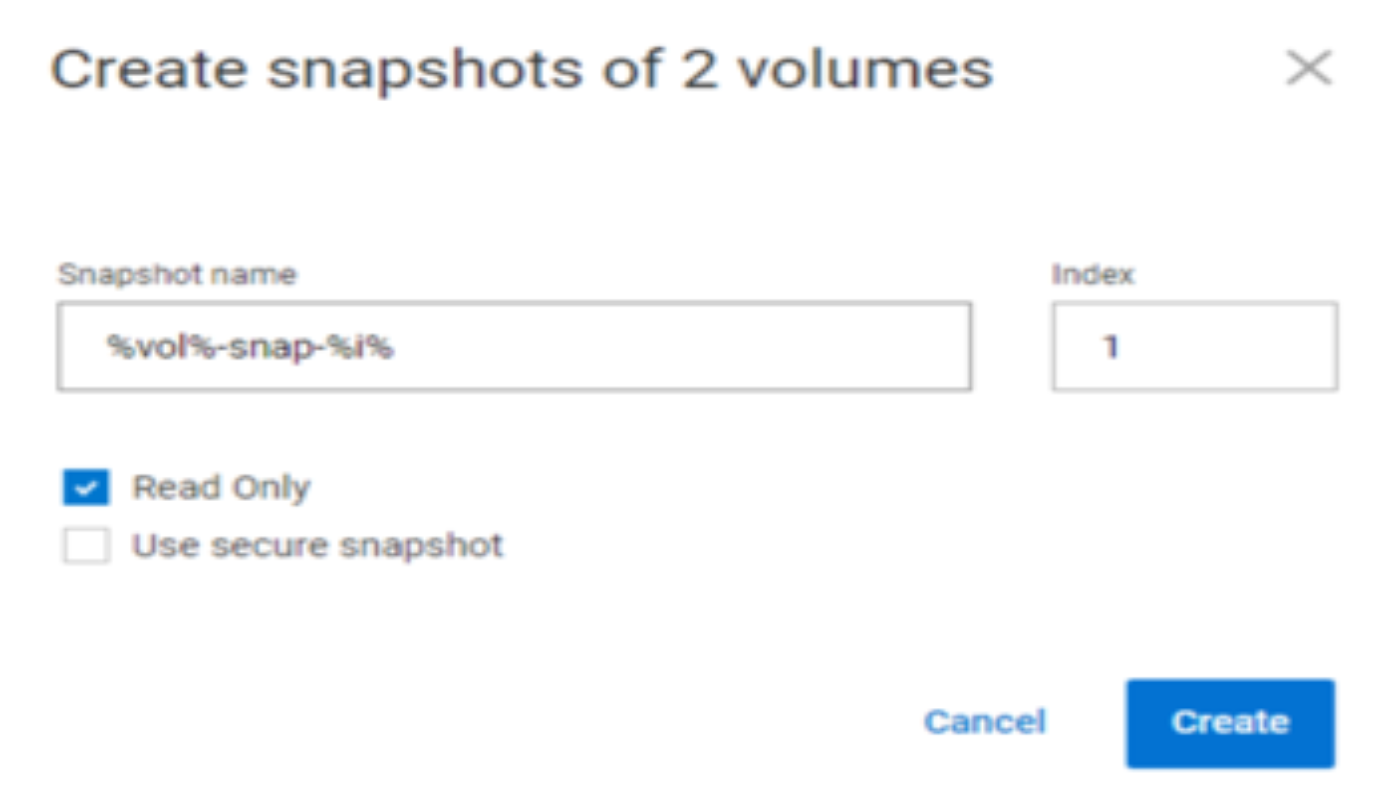
Figure 9. Volume snapshot steps
CSV_data-snap-1 and CSV_log-snap-1 are the snapshots of data and log volumes as shown in the following figure:
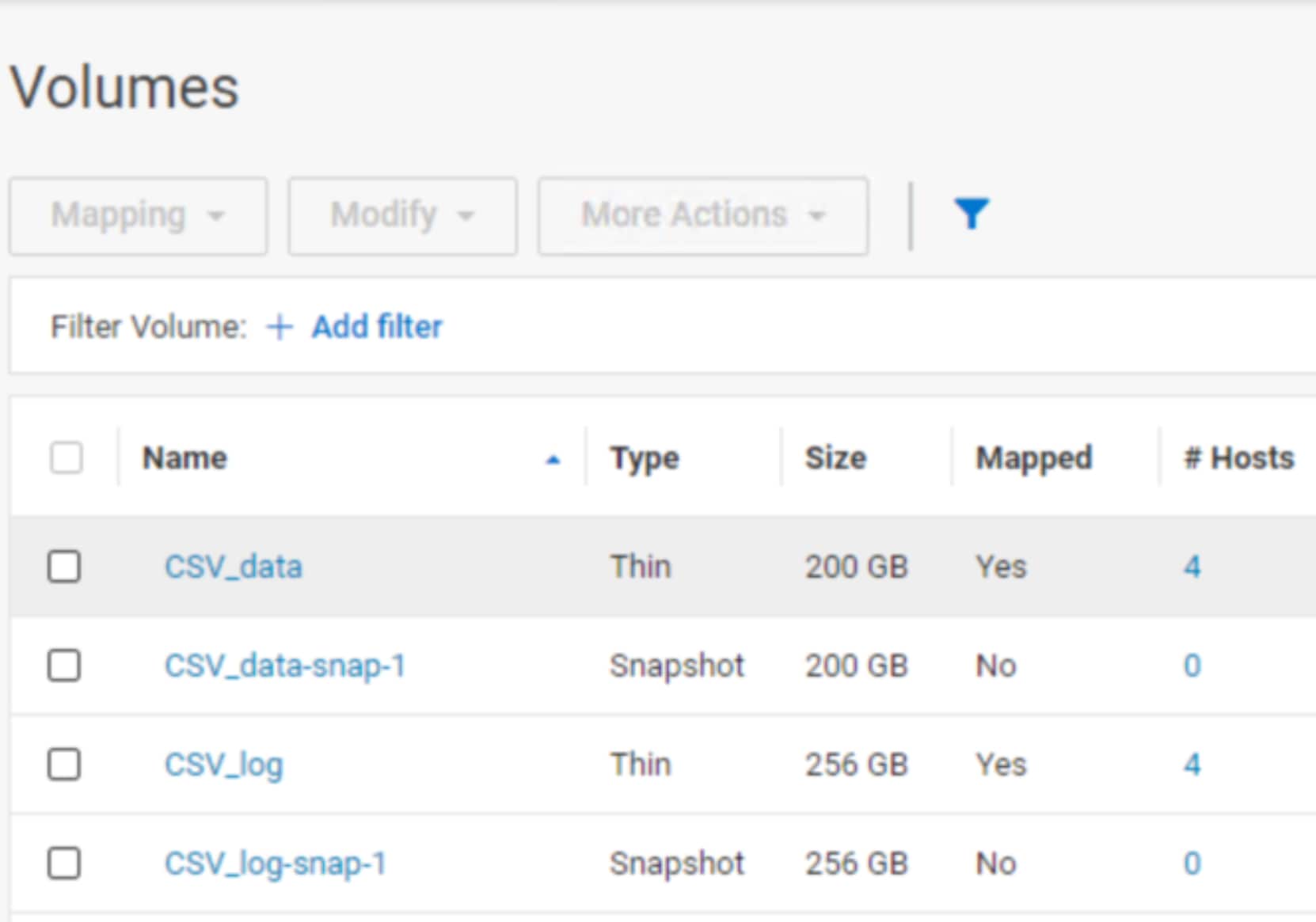
Figure 10. Storage snapshot of database and log volume
Note: PowerFlex snapshots in a consistency group are guaranteed to be from precisely the same point in time. Hence, it is important to take the snapshot of the data and log volume together to restore and recover the database in a consistent state.
- Restoring a database volume snapshot on dev/test environment is a three-step process:
- Map the volume snapshot to the correct SDC host where the dev/test environment is deployed. In this example, data and log volume snapshots that are named as CSV_data-snap-1 and CSV_log-snap1 are mapped to three SDC hosts which are hosted on VMware environment as shown in the below image.
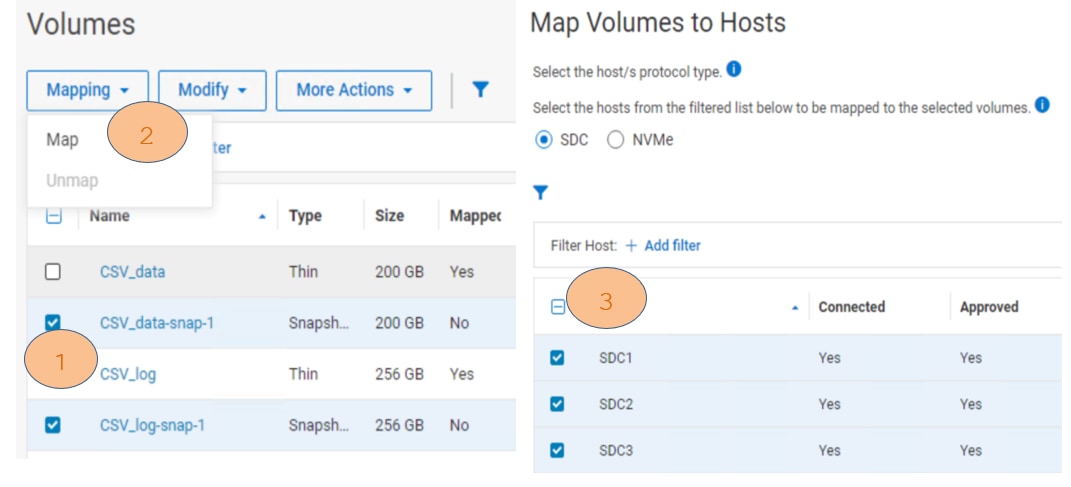
Figure 11. Map snapshot volumes to the SDC hosts
- Discover the new storage devices on the dev/test VMware environment and add the disk as an RDM disk to all the WSFC VMs.
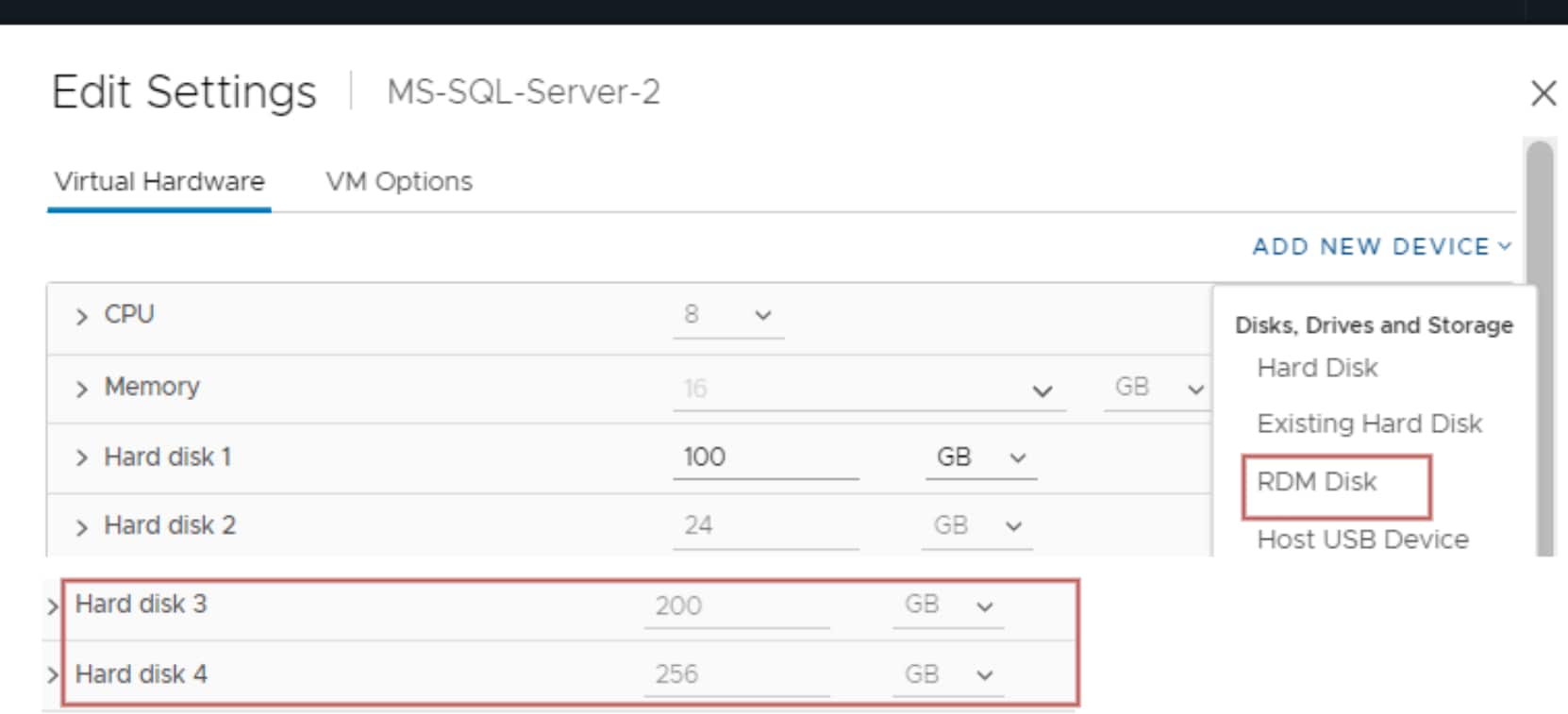
Figure 12. Attach snapshot volumes to the dev/test VMs.
- Add the newly attached RDM disk to the cluster shared volume group of the dev/test WSFC cluster.
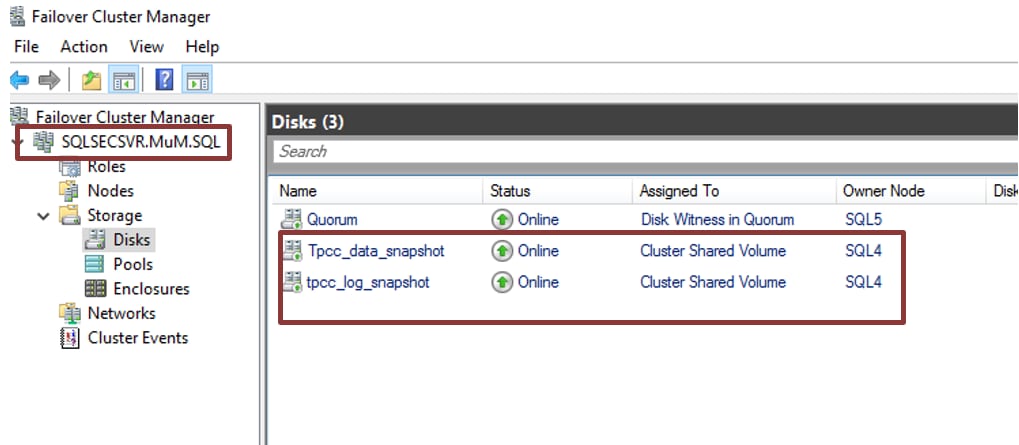
Figure 13. Attaching the disk to the secondary cluster
As seen in the above figure, the secondary cluster that is, dev/test environment SQLSECSVR.MuM.SQL with two nodes is up and running. The data and log volume snapshots of the production site is configured as cluster shared volumes in the secondary cluster.
- Attach the database files and verify the database objects and the table row count.
- Once the cluster shared volume is ready on the WSFC cluster, use SSMS to browse data and log files of the database stored-on cluster storage path and attach the database as shown below. Repeat the same steps for all the database that is, TPCC1, TPCC2, and TPCC3.
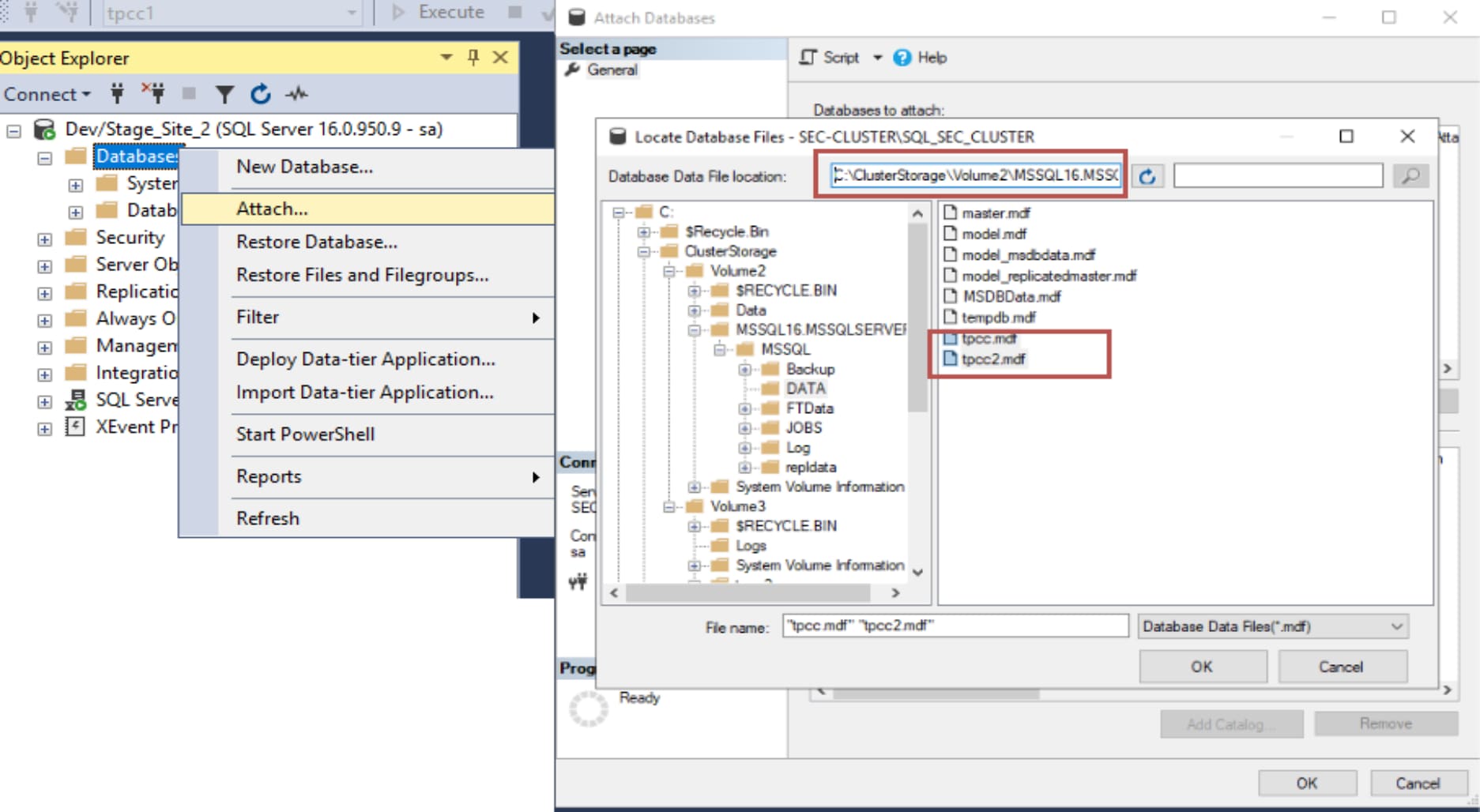
Figure 14. Production environment database attached to dev/test environment
- Verify the database object and row count of each database by query database through SSMS on a secondary cluster.
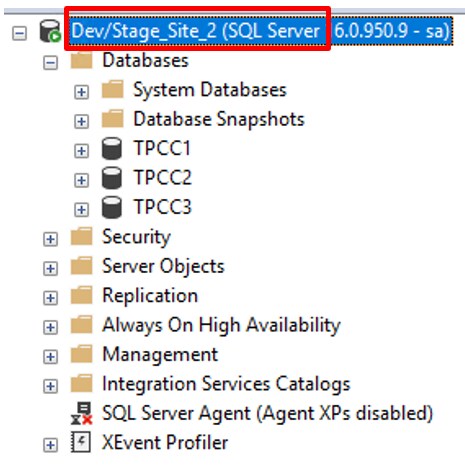
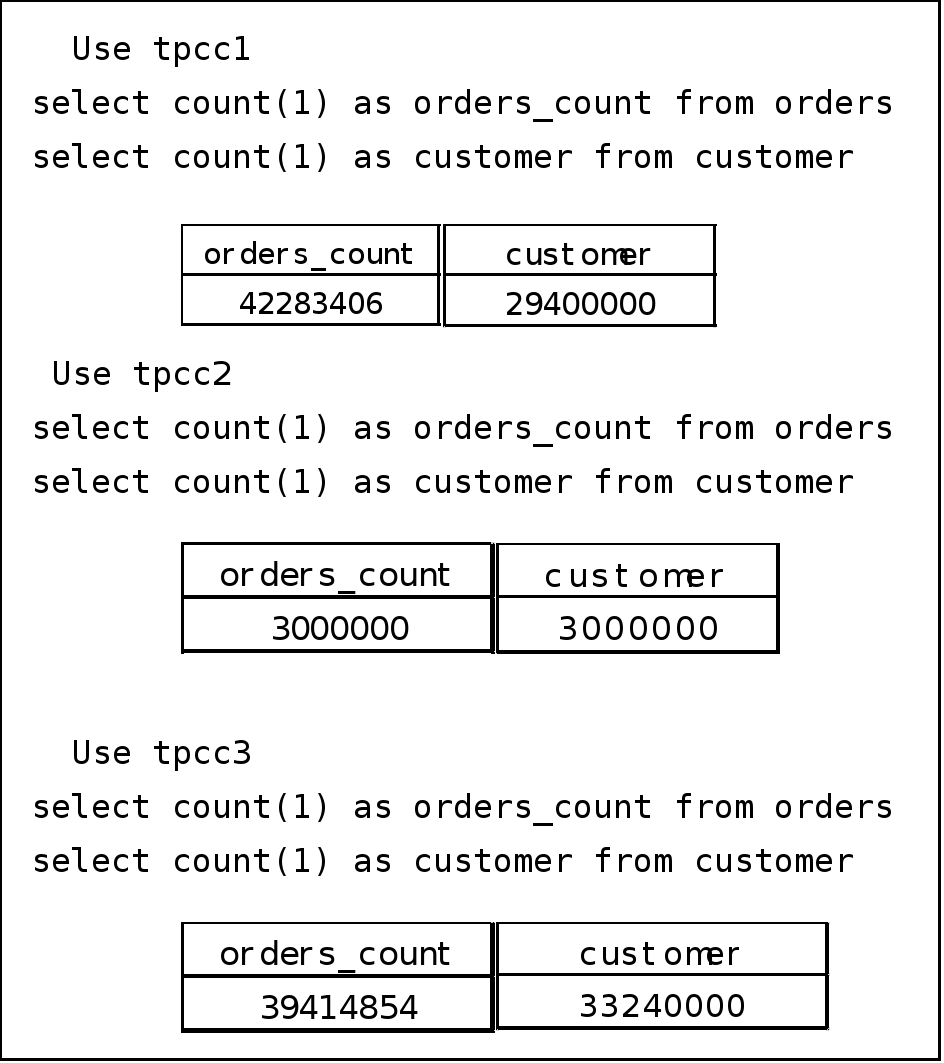
Figure 15. Database restored and verified on Site2
As seen in the above figure, Dev/Stage_Site2 of the Microsoft SQL Server FCI cluster has been successfully refreshed with the production data. The object counts and row count match with the production database for all the three databases.
Use Case 2: Complete database recovery
In the previous use case of database refresh, storage snapshots are used to create a consistent point-in-time image of the database in seconds. That image is then used to refresh a database environment such as test, development, or reporting. However, the data in the database is only as-of the time the snapshot was taken. This use case demonstrates a snapshot image that is valid for database recovery. In a database recovery, database transactions from the SQL Server transaction logs are used to progress the database data beyond the point of time of the snapshot. The more transactions are applied to the snapshot image of the database, the more up to date is the database.
A snapshot copy that is a valid backup image can be created using special Microsoft APIs called VSS and implemented by backup software applications such as Dell AppSync or Dell PowerProtect. These APIs shortly freezes the database operations while the snapshot is created. SQL Server 2022 can create valid snapshot backup images using a feature called T-SQL snapshot backup. This feature still uses a short freeze of database operations, but initiate it using SQL Server T-SQL commands and does not require a third-party backup application integration with VSS.
You can achieve complete database recovery, by doing a regular T-SQL storage snapshot in collaboration with PowerFlex storage snapshots. The following steps explain the complete database recovery in the lab. Lab setup details are described here.
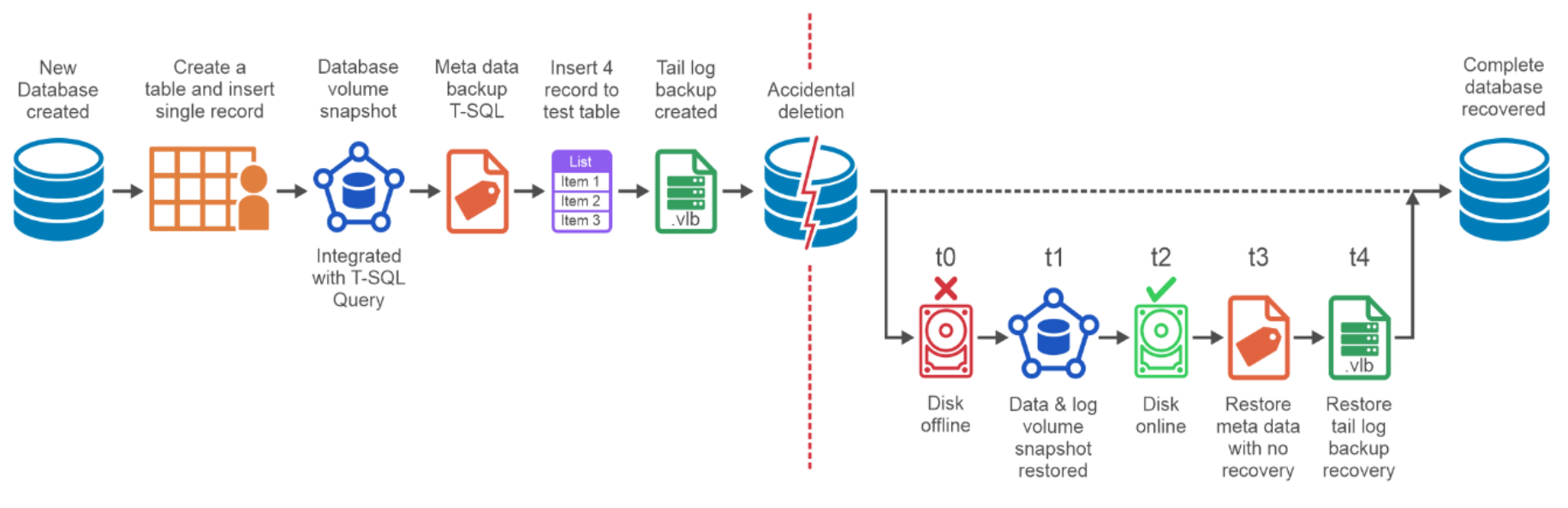
Figure 16. Database recovery time
Steps for complete database recovery:
- Create a table, insert a single record, and check the table values in the OLTP database.
create table returns (returnID int, returnName varchar (255));
insert into returns values (1,'sampleValue');
Table 2. Return table with single entry
|
returnID |
returnName |
|
1 |
sampleValue |
- Quiesce the OLTP database with the following T-SQL query to freeze the database transactions.
ALTER DATABASE OLTP SET SUSPEND_FOR_SNAPSHOT_BACKUP = ON;
The Microsoft SQL Server now halts the operation and is ready for the storage snapshot.
- Create a snapshot of database and log volume using the PowerFlex GUI as shown in the following figure. The name of the database and log volume is CSV_data and CSV_log
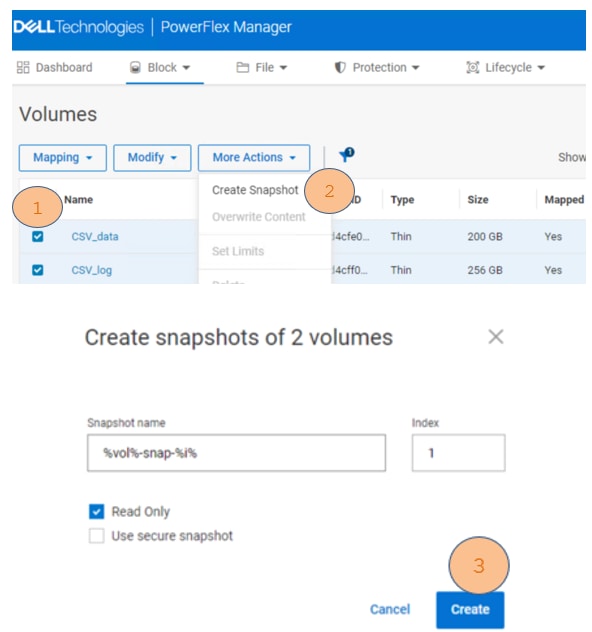
Figure 17. Storage Snapshot method
Alternatively, a snapshot can be taken using PowerFlex CLI.
scli --snapshot_volume --volume_name CSV_data, CSV_LOG --snapshot_name CSV_data-snap-1, CSV_LOG-snap-1
Sample output:
Snapshots on 2 volumes created successfully
Consistency group ID: b10f52c800000002
- Take T-SQL metadata backup of the database.
After the snapshot is created, use the following command to create the metadata backup file.
BACKUP DATABASE OLTP TO DISK = 'C:\mssql_metadata_backup\OLTP_metadata.bkm' WITH METADATA_ONLY, MEDIANAME='PowerFlex-MSSQL_DATA-Log-Snapshot-backup';
In this step, the metadata backup file of the OLTP database is stored in the specified path. This command also releases the database lock and allows the database operations to resume. Notice the name given for the media name to identify the storage system and the purpose of the snapshot operation.
- Insert four more records in the table.
insert into returns values (2, 'Item 1');
insert into returns values (3, 'Item 2');
insert into returns values (4, 'Item 3');
insert into returns values (5,'Item 4');
Table 3. Return table with four new records populated
|
returnID |
returnName |
|
1 |
sampleValue |
|
2 |
Item 1 |
|
3 |
Item 2 |
|
4 |
Item 3 |
|
5 |
Item 4 |
- Take a transaction log backup.
The following command creates a transaction log backup which includes the latest inserted four records of the returns table. Transaction log backup is required for the database recovery.
BACKUP LOG OLTP TO DISK = 'C:\mssql_tail_log_backup\OLTP-tail-log-before-disaster.bkm’;
Note: It is a best practice to create periodic transaction log backups for the complete database recovery, as demonstrated above.
- Database corruption.
There could be different reasons for a database to require recovery, such as due to datafiles deletion, disks being formatted or overwritten, physical or logical block corruptions, and so on.
- Recovery
The high-level steps for recovery process require restoring the last PowerFlex snapshot with SQL Server metadata backup restored. Apply all the transaction log backups taken post storage snapshot to achieve point-in-time database recovery.
The following recovery steps apply to all the above-mentioned database corruption scenarios:
- Bring the database offline.
Before restoring the database, if it is still up (depends on the type of corruption), set the database offline by running the following command:
alter database OLTP set offline;
- Bring the database disks offline.
Before restoring the storage snapshot of the database disks, set the disks offline to avoid any leftover locks. You can use either disk management or PowerShell commands.
Set-Disk -Number 1 -isOffline $True
Set-Disk -Number 2 -isOffline $True
Note: Offline both data and log volume disk to restore both volume snapshot.
- Restore the database data volume snapshot.
Restore the PowerFlex database data volumes using the snapshot. This can be done from the PowerFlex UI, REST APIs, or PowerFlex CLI. Steps for restoring the PowerFlex snapshot is explained above.
The following is an example of restoring the snapshot using PowerFlex CLI:
scli --overwrite_volume_content --source_vol_name CSV_data-snap-1, CSV_LOG-snap-1--destination_vol_name ‘CSV_data’ ‘CSV_LOG’
Sample output
Overwrite volume content can remove data and should not be called during I/O operations or on mounted volumes. Press 'y' and then Enter to confirm:
Overwrite volume content was completed successfully.
- Bring the database disks online.
Bring the database volumes back online either using disk management or PowerShell commands.
Set-Disk -Number 1 -isOffline $False
Set-Disk -Number 2 -isOffline $False
- Bring the database online.
Bring the OLTP database back online by using following command:
alter database OLTP set online;
- Restore the snapshot backup metadata.
Use the metadata file captured during the snapshot backup to make the SQL Server aware of the restored snapshot.
Note: Before this can be done, SQL Server requires to perform a backup of active transaction log content. Do this first, followed by the database restore command.
Take a T-SQL backup of the active transaction log by running the following command:
BACKUP LOG OLTP TO DISK = 'C:\mssql_tail_log_backup\OLTP-tail_log_after_disaster.bkm' WITH NORECOVERY;
Restore the snapshot backup metadata by running the following command:
RESTORE DATABASE OLTP FROM DISK = 'C:\mssql_metadata_backup\OLTP_metadata.bkm' WITH METADATA_ONLY, NORECOVERY;
Note: Since the command specifies METADATA_ONLY, SQL Server knows that the database data was restored from a storage snapshot. If NORECOVERY is used, the database goes to a restoring state, and it is waiting to apply transaction log backups to make it consistent.
- Apply transaction log backups.
Restore all the transaction log backups to completely recover the database. We recovered the database till the last tail backup that has the last four records that are inserted into the table.
RESTORE LOG OLTP FROM DISK = C:\mssql_tail_log_backup\OLTP_tail_log_before_disaster.bkm' WITH RECOVERY.
Note: If there are multiple transaction logs to restore, use the WITH NORECOVERY option with all but not with the last one. The last RESTORE LOG command uses WITH RECOVERY, signifying that no more recovery is needed.
When this operation is complete, the database is operational and contains all the restored transactions (including the default OLTP database, newly created returns table along with its values) as shown in the following figure:
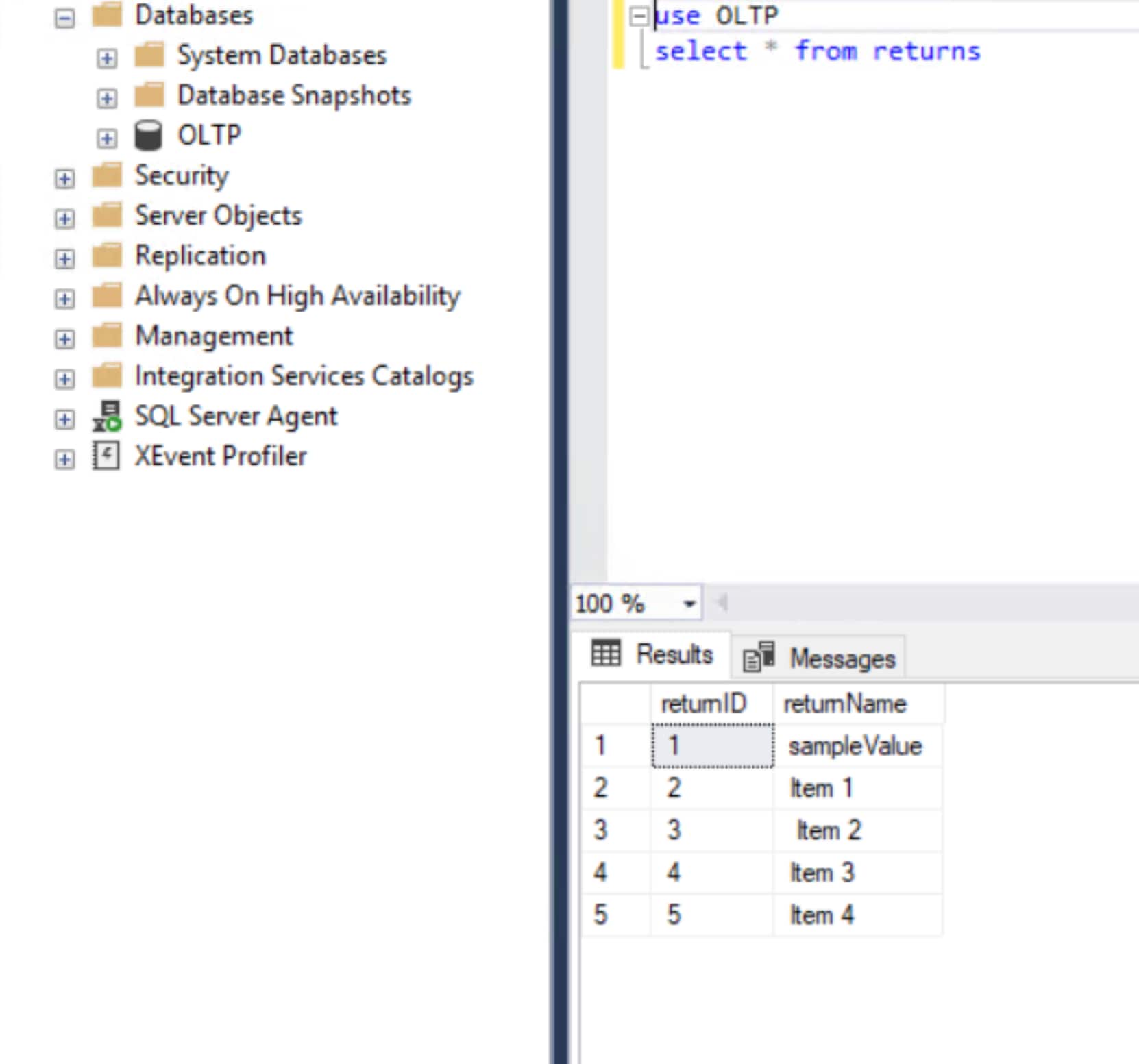
Figure 18. Complete database recovery from the corruption
The scenario mentioned in this use case is an example of RTO (Recovery time objective). Recovery time objective (RTO) is a maximum amount of time a system required to recover after a disaster or outage. In the above figure, t0-t4 is the total time that is required to recover the database post corruption. This time is the recovery time in this use case.
The time that is required in this example took only a few minutes to recover, but in real time database outages duration depends on the number of transaction logs that needs to be applied, which depends on the frequency of the storage snapshot and transaction log backup interval.
Use Case 3: Incomplete database recovery
Incomplete database recovery means not all the committed transactions are recovered. Incomplete recoveries restore and recovers the database at certain point-in-time in the past that is, not all the transaction log backups are restored. Typically, incomplete recoveries are performed for one of the following scenarios:
- No transaction logs available to perform complete recovery database to be restored and recovered to the last available transaction log.
- Restoring and recovering from accidental database corruption. Database needs to be rolled back to the point-in-time in the past.
This use case demonstrated the first scenario.
The following steps are followed to simulate the first use case:
1. Create a table in the OLTP database and insert one record into it.
Use OLTP
create table returns (returnID int, returnName varchar (255));
insert into returns values (1,'sampleValue');
select * from returns;
Table 4. OLTP table
|
returnID |
returnName |
|
1 |
sampleValue |
2. Quiesce the OLTP database with the following T-SQL query to freeze the database transactions.
ALTER DATABASE OLTP SET SUSPEND_FOR_SNAPSHOT_BACKUP = ON;
SQL Server has now halted the database operation and ready for storage snapshot.
3. Create snapshot of database and log volume using PowerFlex GUI as shown below
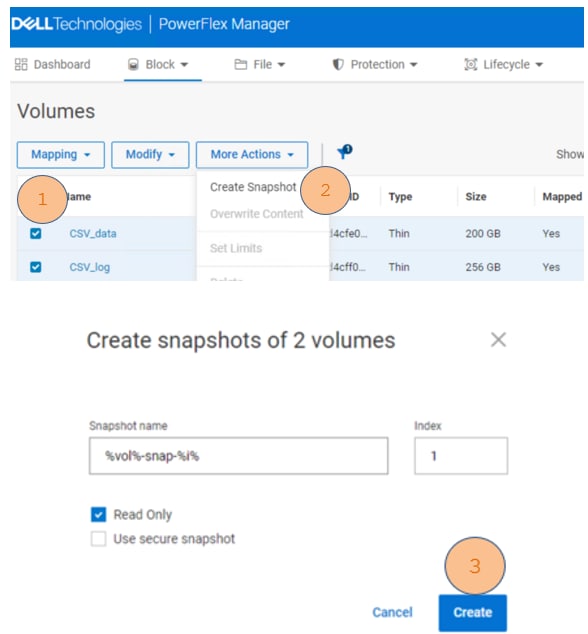
Figure 19. Database and log volume snapshot
Run the following command to create a snapshot using PowerFlex CLI:
scli --snapshot_volume --volume_name CSV_data –snapshot_name CSV_data-snap-1
Sample output:
Snapshots on two volumes created successfully
Consistency group ID: b10f52c800000002.
4. Take T-SQL metadata backup of the database.
After the snapshot is created, use the following command to create the metadata file and resume database write operations:
BACKUP DATABASE OLTP TO DISK = 'D:\mssql_metadata_backup\OLTP_metadata.bkm' WITH METADATA_ONLY, MEDIANAME='PowerFlex-MSSQL_DATA-Log-Snapshot-backup';
In this step, the metadata backup file of the OLTP database is stored in the specified path. This command also releases the database lock and allows the database operations to resume.
5. Insert two more records in the table with the following query:
insert into returns values (2, 'Item 1');
insert into returns values (3, ' Item 2');
select * from returns;
Table 5. return table values
|
returnID |
returnName |
|
1 |
sampleValue |
|
2 |
Item 1 |
|
3 |
Item 2 |
6. Take a transaction log backup.
The following command creates a log backup which includes the latest inserted records of the returns table. The database recovery uses this log backup.
BACKUP LOG OLTP TO DISK = 'C:\mssql_tail_log_backup\OLTP-tail-log-before-disaster.bkm’
7. Insert another record in the returns table.
insert into returns values (4, 'Item 3');
select * from returns;
Table 6. Returns table
|
returnID |
returnName |
|
1 |
sampleValue |
|
2 |
Item 1 |
|
3 |
Item 2 |
|
4 |
Item 3 |
The return table now has four records as shown in the above table.
8. Simulate the database corruption by dropping the customer table from the OLTP database as shown in the following table:
USE OLTP
SELECT * FROM INFORMATION_SCHEMA.TABLES WHERE TABLE_TYPE='BASE TABLE';
Table 7. Customer table details
|
TABLE_CATALOG |
TABLE_SCHEMA |
TABLE_NAME |
TABLE_TYPE |
|
OLTP |
dbo |
customer |
BASE TABLE |
|
OLTP |
dbo |
district |
BASE TABLE |
|
OLTP |
dbo |
history |
BASE TABLE |
|
OLTP |
dbo |
item |
BASE TABLE |
|
OLTP |
dbo |
new_order |
BASE TABLE |
|
OLTP |
dbo |
orders |
BASE TABLE |
|
OLTP |
dbo |
order_line |
BASE TABLE |
|
OLTP |
dbo |
stock |
BASE TABLE |
|
OLTP |
dbo |
warehouse |
BASE TABLE |
|
OLTP |
dbo |
returns |
BASE TABLE |
Use OLTP;
Drop table dbo.customer;
SELECT * FROM INFORMATION_SCHEMA.TABLES WHERE TABLE_TYPE='BASE TABLE';
As shown in the following table, the customer table has been dropped and is missing from the table list of the database OLTP.
Table 8. Customer details
|
TABLE_CATALOG |
TABLE_SCHEMA |
TABLE_NAME |
TABLE_TYPE |
|
OLTP |
dbo |
district |
BASE TABLE |
|
OLTP |
dbo |
history |
BASE TABLE |
|
OLTP |
dbo |
item |
BASE TABLE |
|
OLTP |
dbo |
new_order |
BASE TABLE |
|
OLTP |
dbo |
orders |
BASE TABLE |
|
OLTP |
dbo |
order_line |
BASE TABLE |
|
OLTP |
dbo |
stock |
BASE TABLE |
|
OLTP |
dbo |
warehouse |
BASE TABLE |
|
OLTP |
dbo |
returns |
BASE TABLE |
The database corruption has happened post data insertion of the last row to the return table, but transaction log backup has an entry of the two records that got inserted after the storage snapshot.
The following steps restore the database volume snapshot and then recover the database with the last available transaction log backup.
- Bring the database offline.
Before restoring the database, if it is still up (depends on the type of corruption), set the database offline by running the following command:
alter database OLTP set offline;
- Bring the database disk and log disk offline.
- Before restoring the storage snapshot of the database volume, set the disks offline to avoid any leftover locks. You can use either disk management or PowerShell commands.
Set-Disk -Number 1 -is Offline $True
- Disk number 1 is the data disk on the node.
Note: In this example only the data disk is set to offline, as the active transaction log remained intact and there is no reason to overwrite it with the log snapshot.
- Restore the database data volume snapshot.
- Restore the PowerFlex database data volumes using the snapshot. This can be done from the PowerFlex UI, REST APIs, or PowerFlex CLI. Steps for restoring the PowerFlex snapshot using PowerFlex GUI is explained here.
The following is an example of restoring the snapshot using PowerFlex CLI:
scli --overwrite_volume_content --source_vol_name CSV_data-snap-1 --destination_vol_name ‘CSV_data’
Sample output
Overwrite volume content can remove data and should not be called during I/O operations or on mounted volumes. Press 'y' and then Enter to confirm:
Overwrite volume content was completed successfully.
- Bring the database disks online.
Bring the database volumes back online either using Disk management or PowerShell commands.
Set-Disk -Number 1 -is Offline $False
- Bring the database online.
Bring the OLTP database back online by using following command:
alter database OLTP set online;
- Restore the snapshot backup metadata.
Use the metadata file captured during the snapshot backup to make the SQL Server aware of the restored snapshot.
Note: SQL Server requires to perform a backup of active transaction log content before the metadata restore.
- Take a T-SQL backup of the active transaction log by running the following command:
BACKUP LOG OLTP TO DISK = 'C:\mssql_tail_log_backup\OLTP-tail_log_after_disaster.bkm' WITH NORECOVERY;
- Restore the snapshot backup metadata by running the following command:
RESTORE DATABASE OLTP FROM DISK = 'C:\mssql_metadata_backup\OLTP_metadata.bkm' WITH METADATA_ONLY, NORECOVERY;
Note: Since the command specifies METADATA_ONLY, SQL Server knows that the database was restored from a storage snapshot. If NORECOVERY is used, the database goes to a restoring state, as it is waiting to apply transaction log backups to make it consistent.
- Apply transaction log backups.
Restore the appropriate transaction log backup or backups to recover the database till point in time. In the following example, you are restoring the last log backup taken. The last transaction log contains three records of the return table.
RESTORE LOG OLTP FROM DISK = 'C:\mssql_tail_log_backup\OLTP-tail-log-before-disaster.bkm’ WITH RECOVERY;
- Verify the database objects and the row count.
- Connect the database through SSMS and check the table list post restore with the following query:
USE OLTP
SELECT * FROM INFORMATION_SCHEMA.TABLES WHERE TABLE_TYPE=’BASE TABLE’;
Table 9. Customer table list
|
TABLE_CATALOG |
TABLE_SCHEMA |
TABLE_NAME |
TABLE_TYPE |
|
OLTP |
dbo |
customer |
BASE TABLE |
|
OLTP |
dbo |
district |
BASE TABLE |
|
OLTP |
dbo |
history |
BASE TABLE |
|
OLTP |
dbo |
item |
BASE TABLE |
|
OLTP |
dbo |
new_order |
BASE TABLE |
|
OLTP |
dbo |
orders |
BASE TABLE |
|
OLTP |
dbo |
order_line |
BASE TABLE |
|
OLTP |
dbo |
stock |
BASE TABLE |
|
OLTP |
dbo |
warehouse |
BASE TABLE |
|
OLTP |
dbo |
returns |
BASE TABLE |
- Also, verify the content of the returns table with the following query:
select * from returns;
Table 10. Returns table
|
returnID |
returnName |
|
1 |
sampleValue |
|
2 |
Item 1 |
|
3 |
Item 2 |
The above table output confirms that the database has been recovered with the customer table and the database was rolled forwarded to the last committed transaction recorded in the transaction log backup that is last three records of the return table.
The last entry with returnID 4 is missing because of no transaction log backup available post entry of the record. This is a scenario of incomplete recovery or database point-in-time recovery because database got recovered at a specific time in the past and not before the actual database corruption time.
This is an example of recovery point objective (RPO) where the RPO is defined at half an hour that is earliest possible data recovery post disaster is half an hour before and if the snapshots and transaction log backups are taken half an hour ago then it is within the defined RPO. The recovery point objective is the maximum amount of data measured by time that can be recovered from a disaster or failure. It also determines the maximum age of the data or files in the backup.
Database administrators and infrastructure teams should collaborate to achieve the Recovery point objective (RPO) of the organization by planning the correct backup schedule. Restore and recovery exercises should also be performed periodically to avoid any surprises while recovering the databases in a real time disaster or outage situation.
Use Case 4: Enterprise data protection using PowerFlex snapshot policies
Modern enterprise applications are often integrated by different components like front end services and application logic, message queues like RabbitMQ or Apache Kafka, a combination of SQL and NOSQL databases, external data that is tied to the database indexing, and more. These components work together and are critical for business operations. Data loss or system fault in any of these components may lead to interrupted business operations.
Maintaining uninterrupted IT operations under the constant threat of equipment failures, ransomware and site outages requires new business continuity measures – particularly as the number, types and locations of data storage devices that are involved grows, and their importance escalates.
Backup of each such database component separately protects the components, but rarely preserves the point of consistency across databases, message queues, and external data. Even if the business can recover each component separately after a disaster, they cannot regain normal operations until the enterprise point of consistency is regained, which can take additional hours to resolve while the business is down.
Storage snapshot policies are an effective business continuity measure that help business to quickly recover from any disaster, while maintaining an enterprise point of consistency for storage volumes across applications, databases, message queues and external data. This use case describes how the PowerFlex snapshot policy is helpful in creating enterprise consistency across a set of PowerFlex volumes and how to set up a protection policy.
The following steps describe the implementation of the snapshot policy using the PowerFlex UI.
- From the PowerFlex Manager UI, click the Protection tab, then click Create Snapshot Policy to open the policy wizard.
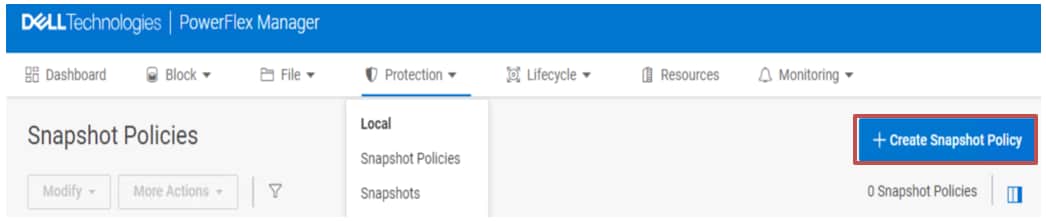
Figure 20. Creating a snapshot policy
2. In the wizard, enter the policy name, interval, and desired retention period as per the business need. First the rule is created that defines the interval between the snapshots and the retention to keep the number of snapshots.
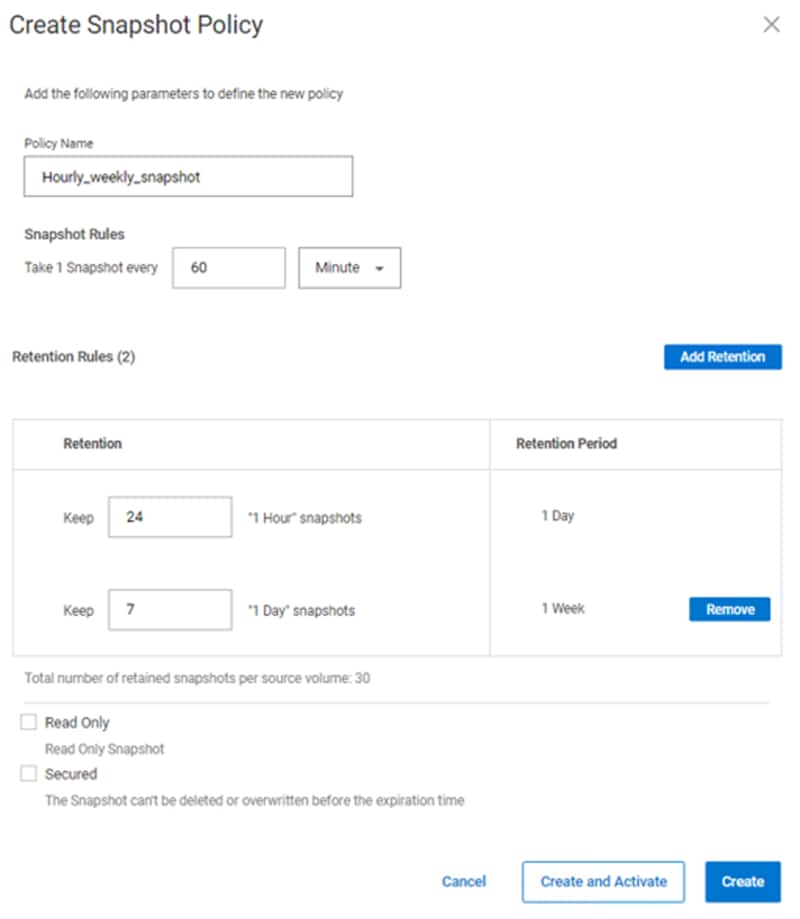
Figure 21. Snapshot policy wizard
In the above example, the name of the policy is Hourly_Weekly_snapshot that takes the snapshot every 60 minutes and keep 24 of them, making sure that the snapshot is available of every hour for the past 24 hours.
The rule can also be created in a multilevel retention structure to retain the snapshots in minutes/hours/days or weeks. The above policy also describes another level of retention to keep one daily copy of the snapshot for a week.
3. After creating the policy, to add the source volumes, select the policy, then click More Actions and Assign volumes.
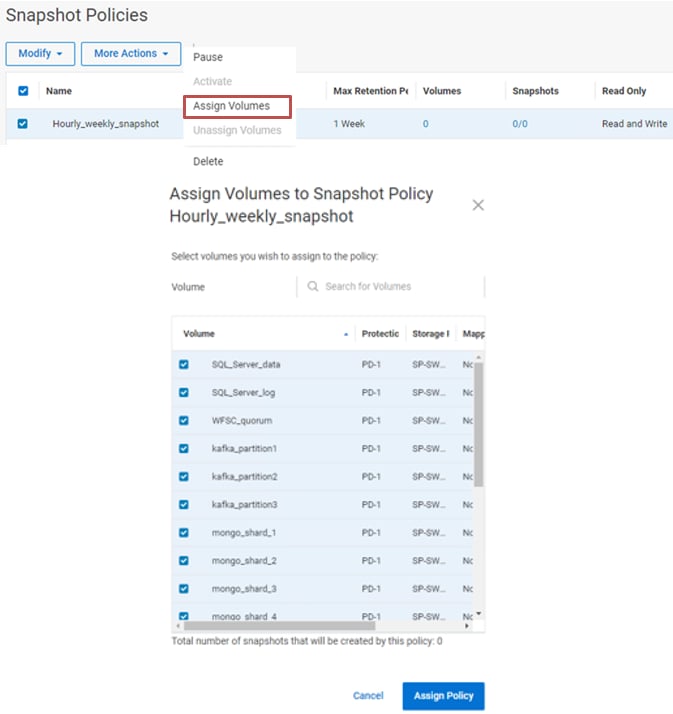
Figure 22. Assign Volumes to the snapshot policy
In this example, different application volumes are selected for an hourly snapshot with the different retention levels considering enterprise point of consistency.
This approach helps organizations to streamline the data protection process and guarantees faster recovery from the disaster. Organization may create multiple snapshot policies for different application volumes as per the SLAs defined for it.
The following image shows the newly created snapshot policy once the wizard is finished.

Figure 23. Policy state
Alternatively, the same policy that is described above can be created by using the following CLI command:
scli --add_snapshot_policy --snapshot_policy_name Hourly_Weekly_snapshot snapshot_creation_cadence 60 -- number_of_snapshots_per_retention_level 24,7
Note: The snapshot_creation_cadence is set in minutes.
Add the source volumes to the policy by running the following CLI command:
scli --add_source_volume_to_snapshot_policy --snapshot_policy_name Hourly_Weekly_snapshot --source_vol_name SQL_Server_log WFSC_quorum kafka_partition1 kafka_partition2 kafka_partition3 mongo_shard_1 mongo_shard_2 mongo_shard_3 mongo_shard_4