Microsoft SQL Server Disaster Protection with Dell PowerFlex Replication

Oct 20, 2026
Microsoft SQL Server Disaster Protection with Dell PowerFlex Replication This white paper describes the Microsoft SQL Server disaster protection using PowerFlex asynchronous replication and remote snapshots.

Executive summary

Executive summary

In modern enterprise database environments such as Microsoft SQL Server 2019, organizations demand uninterrupted operations with minimum downtime and SLAs. Using a software defined infrastructure platform facilitates improved flexibility, productivity, performance, protection, and ease of infrastructure management.

PowerFlex family (previously VxFlex) is a rack-scale, hyperconverged engineered system that delivers flexibility, scalability, and performance for modern data center workloads. The PowerFlex family is powered by PowerFlex software defined storage, a widely adopted enterprise-grade storage virtualization technology, running on enterprise class Dell PowerEdge servers.

This white paper describes SQL Server 2019 Data Protection solution using the PowerFlex Asynchronous Replication feature, integrated into a solution that also uses the VMware vSphere, Windows Server Failover Cluster (WSFC), and SQL Server Always On Failover Cluster Instance (FCI) features. This feature offers comprehensive high availability and disaster recovery solutions at the cluster level.

Document Purpose

This white paper describes guidelines for the disaster protection of SQL Server 2019 databases that are deployed on PowerFlex.

Audience

This white paper is intended for sales engineers, field consultants, customers, and partners who must configure and deploy PowerFlex arrays as a primary storage.

Terminology

The following table provides definitions for some of the terms that are used in this document:

Table 1.      Terminology

Term

Description

DR

Disaster Recovery

DNS

Domain Name System

FCI

Failover Cluster Instance

GUID

Globally Unique Identifier

HCI

Hyper Converged Infrastructure

ITOM

IT Operations Management

LCM

Life Cycle Management

LUN

Logical Unit Number

MDM

Meta Data Manager

MTU

Maximum Transmission Unit

NIC

Network Interface Card

NTP

Network Time Protocol

RCG

Replication Consistency Group

RCM

Release Certification Matrix

RPO

Recovery Point Objective

RDM

Raw Device Mapping

SDC

Storage Data Client

SDR

Storage Data Replicator

SDS

Storage Data Server

SSD

Solid-StateDrive

SSMS

SQL Server Management Studio

SVM

Storage Virtual Machine

VMDK

VMware Virtual Machine Disk

WSFC

Windows Server Failover Cluster

We value your feedback

Dell Technologies and the authors of this document welcome your feedback on the solution and the solution documentation. Contact the Dell Technologies Solutions team by email.

Author: Sushil Kumar Suvarna

Contributors: Robert Sonders, Yaron Dar, Ripa Bhagawati

Note: For links to additional documentation for this solution, see Dell Technologies Solutions Info Hub for PowerFlex.

PowerFlex product overview

PowerFlex family

PowerFlex is a software-defined infrastructure platform that is built to reduce operational and infrastructure complexity. PowerFlex empowers organizations to move faster by delivering flexibility, elasticity, and simplicity with extraordinary predictable performance for mission-critical workloads, while also providing resiliency at scale. The PowerFlex family provides a foundation that combines compute and high-performance storage resources in a managed, unified fabric.

PowerFlex delivers transformational value

Delivers stringent SLAs effortlessly

PowerFlex leverages software to unlock the full potential of rapid advances in industry-standard hardware and deliver extreme SLA outcomes. PowerFlex aggregates resources across a broad set of nodes unlocking massive I/O and throughput performance while minimizing latency. Its self-balancing architecture eliminates any hotspots and ensures consistency and simplicity over time. You can scale the system while linearly scaling performance from a minimum of four nodes to thousands of nodes, on-demand and nondisruptively. With its self-healing architecture, PowerFlex can handle outages, upgrades, and maintenance without downtime resulting in 99.9999 percent availability.

Flexible and dynamic architecture

PowerFlex delivers transformational agility that enables organizations to rapidly respond to changing business needs. PowerFlex offers flexibility to mix and match storage, compute, and HCI nodes in a dynamic deployment, allowing you to scale storage and compute resources together or independently, one node at a time as per your requirements.

Shared platform for heterogeneous workloads

The platform can support a broad range of operating environments simultaneously such as, bare metal operating systems, hypervisors, and container platforms with a unified underlying infrastructure platform and management. You can also support heterogeneous workloads with varying requirements on a flexible shared infrastructure platform and modernize your application architectures on your schedule.

Extensive automation for predictability and simpler workflows

PowerFlex offers full-stack IT Operations Management (ITOM) and Life Cycle Management (LCM) with PowerFlex Manager. It provides extensive automation capabilities with PowerFlex Manager REST APIs and custom Ansible modules to integrate with your infrastructure, application, and DevOps workflows. PowerFlex Manager enables automated deployments and expansions with minimal firsthand time for the IT team, letting them focus on other strategic initiatives.

Broad ecosystem of workload solutions

PowerFlex is designed from the ground up to deliver superior outcomes at any scale for the most-demanding mission-critical environments. It is optimized for a wide range of validated workload solutions ranging from traditional relational databases and modern cloud-native NoSQL databases to throughput-intensive analytics workloads.
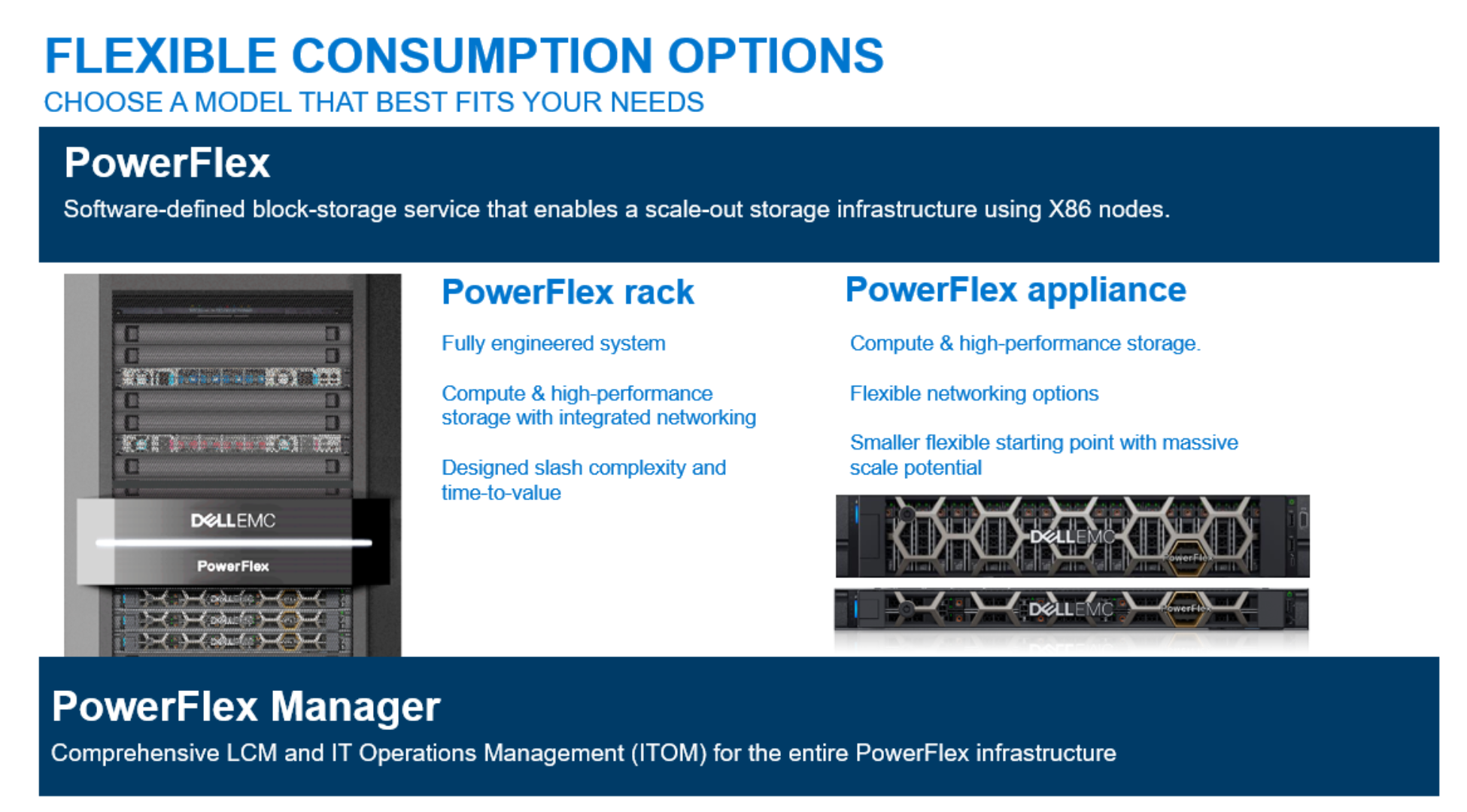
Figure 1.                        PowerFlex family

PowerFlex software components

Software is the key factor of success in the PowerFlex offering. PowerFlex software components provide software-defined storage services. The software components help to simplify the infrastructure management and orchestration with comprehensive IT Operations Management (ITOM) and life cycle management (LCM) capabilities that span compute and storage infrastructure, from BIOS and firmware to nodes, software, and networking.

PowerFlex

PowerFlex is the software foundation of the PowerFlex platform. It delivers high performance, highly resilient block storage service that can scale to thousands of nodes.

PowerFlex Manager

PowerFlex Manager is the software component in PowerFlex family that enables ITOM automation and LCM capabilities while enabling flexible APIs and extensive automation.

PowerFlex consumption options

PowerFlex is available in multiple consumption options to help customers meet their project and data center requirements. PowerFlex appliance and PowerFlex rack provide customers the flexibility to choose a deployment option to meet their exact requirements.

PowerFlex rack

PowerFlex rack is a fully engineered system, with integrated networking that enables the customers to simplify deployments and accelerate time to value. PowerFlex appliance allows customers the flexibility and savings to bring their own compatible networking.

PowerFlex appliance

PowerFlex appliance offers customers a smaller starting point of four nodes, while enabling them to use their existing network infrastructure. 

With PowerFlex, the customers deploy to match their initial needs and easily expand with massive scale potential, without having to compromise on performance and resiliency.

Flexible consumption-based billing options

PowerFlex is available through APEX custom solutions using the APEX Flex on Demand and APEX Datacenter Utility for customers looking to adopt consumption-based OpEx models. 

APEX Flex on Demand 

APEX Flex on Demand allows you to pay for technology as you use it and provides immediate access to buffer capacity. Your payment adjusts to match your usage.

APEX Datacenter Utility

APEX Datacenter Utility provides leading product portfolio of Dell coupled with your choice of professional services and support to manage your data center and its operations. A simple and single invoice provides monthly payments that are based on a predictable rate and vary based on the usage.


PowerFlex replication architecture

Introduction to replication

Replication Consistency Groups

Replication Consistency Groups (RCG), establish the attributes and behavior of the replication of one or more volume pairs. The replication consistency, or write-order fidelity, is maintained for the remote volumes in an RCG.

Before creating RCGs, the replication volumes must exist on both the source and target systems, and they must be of the same size. However, they are not required to reside in a storage pool of the same type, and are not required to have the same properties (such as thick, thin, compressed, or non-compressed). If volumes must be resized, the target volume should be expanded first to prevent disruption in replication.

Since consistency is maintained across volumes of an RCG, it is important to create the RCGs in such a way that they contain either the whole application, or independent components of the application. For example: A complete SQL Server database, including all its data and transaction log disks.

For more information about RCG, see Replication consistency group.

RPO versus lag

The Recovery Point Objective (RPO) is the maximum acceptable data (in terms of time units), that would be lost in a disaster. RPO is a parameter set by the user, with a value from 15 seconds to 60 minutes. PowerFlex measures the replication lag against the RPO for compliance. While the RPO is set by the user, the replication lag represents the real-time information about how long it took for complete journal-intervals (checkpoints) to arrive to the remote SDR, tracked independently for each RCG. Since each journal internal represents a point of data consistency for that RCG, the lag represents in real-time the potential data loss if there is a disaster, while the RPO is measured against it for compliance.

For more information about replication and its configuration and setup, see PowerFlex Introduction to replication.

Replication process

PowerFlex replication can be used to quickly resume operations remotely after a disaster at the local site: To test data at a remote site, to create remote crash-consistent snapshots, or to offload backup operations. PowerFlex replication is designed to allow a subminute RPO, reducing the data-loss to a minimum if there is a disaster. Replication occurs between two PowerFlex systems designated as peer systems, which are connected by local network or a WAN. PowerFlex achieves replication using a storage software component called the Storage Data Replicator (SDR). 

The role of the SDR is to proxy the I/O of replicated volumes between the Storage Data Client (SDC) and the Storage Data Servers (SDSs) where data is ultimately stored. The SDR splits the write I/O, sending one copy to the SDS nodes in local system and another to a replication journal volume. As it sits between the SDS and SDC, from the point-of view of the SDS, the SDR appears and behaves as an SDC, that is to say, the SDR is sending incoming writes to the SDS and then receiving write acknowledgments from the SDS. Conversely, to the SDC, the SDR appears as, and behaves as, an SDS, to which writes can be sent.

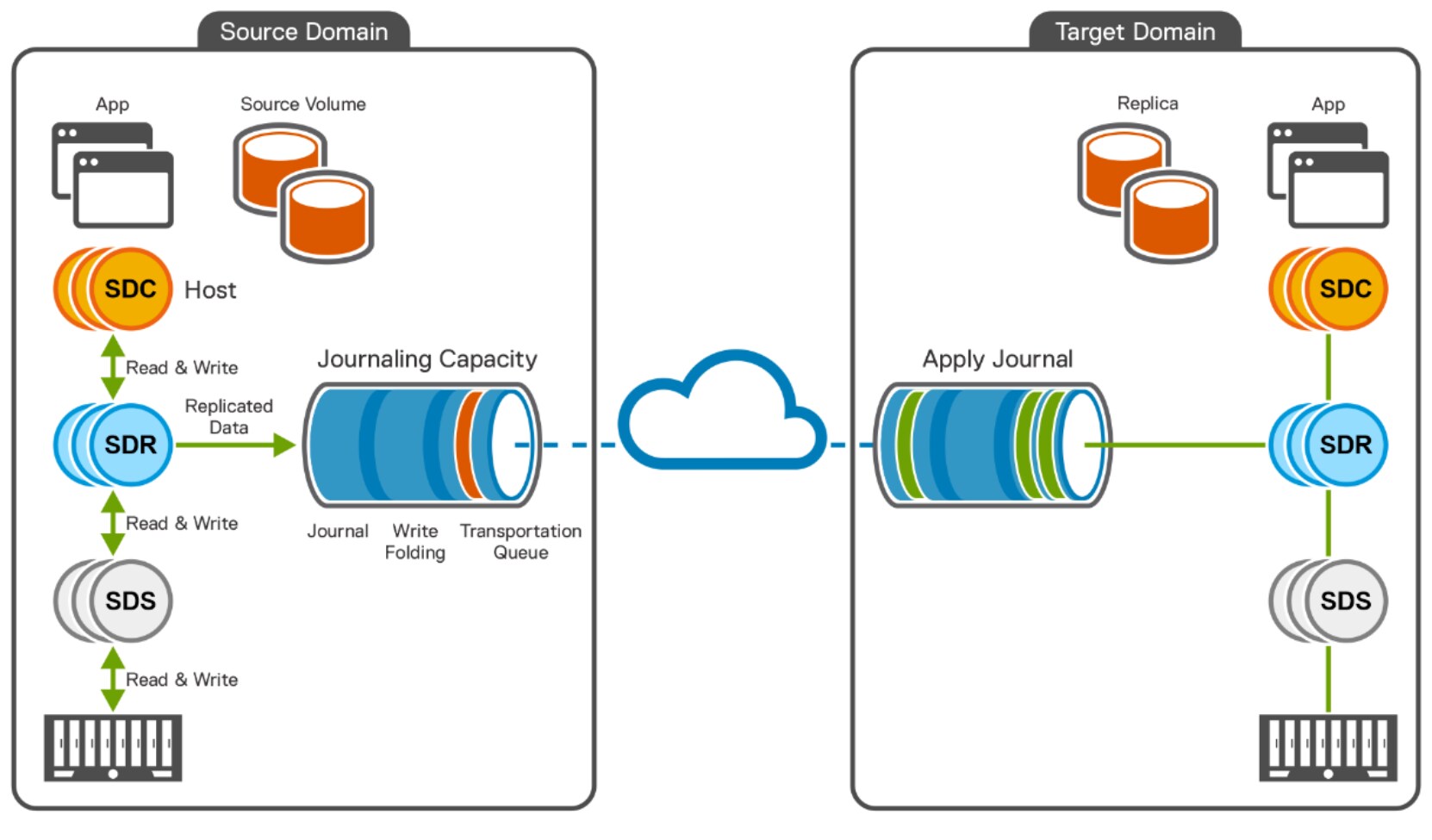
The following figure shows the architecture of PowerFlex asynchronous replication:
DiagramDescription automatically generated

Figure 2.   PowerFlex asynchronous replication between two PowerFlex systems

As shown in the preceding figure there are two PowerFlex clusters, namely the source domain and the target domain. Both systems are distributed using the network. Each cluster can act as a replication source and as a target. 

All application I/O of replicated volumes are processed by the source SDRs. The source SDC sends the write I/O traffic to the SDR. And then, the SDR splits the I/O and forwards it to both the local SDS and the replication journal volume. 

The local multiple SDS processes these write I/Os, while the SDR assembles the journal data into checkpoints that each represent a point of consistency preserving the write order fidelity. 

Write I/O traffic of non-replicated volumes passes directly from SDC to SDS. The journal is a component of the SDR which stores data at source before it is sent to the target and at the target, journal stores the data before it is applied to target volumes.

On the source system, journals are accumulated in journal-intervals or checkpoints. At the end of the collection interval, the checkpoint is closed, and a new journal-interval opens (a new checkpoint). As the journals reach close to the top of the queue, the journal-intervals are scanned, and writes to the same blocks are consolidated (a process called write folding) to minimize the amount of data sent. And then, these journal-intervals are sent continuously to the target journal buffer of the remote system over dedicated networks assigned to replication.

On the target system, the journal-intervals are processed by the SDRs residing in the target system. After all the data for a journal-interval  or checkpoint is received, the data is applied to the target volume by the relevant SDS. After all writes to the target volume is complete by remote SDS, the SDS sends an acknowledgment back to the SDR, and then sends the next complete journal-interval.

PowerFlex replication and Microsoft SQL Server

Microsoft SQL Server high-availability

Microsoft SQL Server gains high availability by integrating with Windows Server Failover Cluster (WSFC), and Always On Failover Cluster Instances (FCI).

WSFC is a group of independent servers working together to increase the availability of cluster roles, which are typically applications (such as SQL Server) and services (such as networking and storage). In the case of a node failure, WSFC automatically makes the cluster roles available on a healthy node in the cluster.

WSFC also provides the Cluster Shared Volume (CSV) functionality, allowing access to shared storage from any node in the cluster, therefore improving the speed in which cluster roles are moved between nodes as the storage is already available on all nodes.

FCI leverages WSFC in such a way that a SQL Server instance can be intentionally moved, or automatically failed over between nodes in WSFC. As a result, a failure of one of the resources required for the SQL Server instance on one node in the cluster causes the instance to failover to a healthy node in which the resources and database can resume operations.

While WSFC and FCI provide high-availability for SQL Server instances within the data center across a cluster of servers, PowerFlex replication provides the ability to failover across PowerFlex systems located at greater distances, such as two data centers. In such a case a WSFC and FCI are configured at each site on a different PowerFlex system, and user databases can be replicated between the sites with PowerFlex replication.

As explained in the next section, all the databases can be replicated from a single source site to a target site, or some databases can be active on the first site, and replicated to the second, while other databases can be active on the second site, and replicated to first, therefore, allowing resources on both sites to be used and protected simultaneously.

PowerFlex consistent replication

PowerFlex replication uses Replication Consistency Group (RCG) to maintain write-order fidelity across groups of replicated volumes. Therefore, PowerFlex replication forms a restart solution when the remote volumes of an RCG are consistent with each other.

Note: Note the difference between a restart solution and a backup solution. In a restart solution, the target volumes are consistent, allowing the database to restart. During database restart, committed transactions that are still in the active transaction log are rolled forward and uncommitted transactions are rolled back. A backup solution uses special Microsoft VSS APIs, such as the ones used in Dell AppSync. In a backup solution, transaction logs are applied to an older backup image of the database, to roll the operation forward in time by applying additional transactions. PowerFlex replication does not use VSS APIs, does not require quiescing of the SQL Server operations, and forms a restart solution and not a backup solution.

Microsoft SQL Server replication granularity

An instance of Microsoft SQL Server contains a group of databases. Some are called system databases created during the SQL Server installation. Others are called user databases that are added later to store the data of business applications. Each SQL Server database is self-contained, which means that when using PowerFlex replication, the RCG can contain a single database, multiple databases, or all the databases.

In general, it is recommended to only replicate user databases, and have the SQL Server instance with the system databases preinstalled at the target site. In that way, in a case of a disaster at the source site, the replicated user databases can be quickly added to the pre-existing SQL Server instance at the target site.

An alternative solution is to replicate both user and the system databases in either single, or multiple RCGs. By replicating the system databases any updating or modifications that took place at the source site are reflected in the replicated databases at the target. A disadvantage of this strategy is that since the SQL Server instance is not already running at the target, it takes a while to resume operations after a disaster at the source.

A key design consideration when deciding on databases to include in each RCG, is that when using remote snapshots while the PowerFlex replication is active, the snapshot granularity has to contain all the volumes of an RCG.

If remote snapshots are used to create database copies for purposes such as test, development, and reporting. The design decision of which databases to include in the RCG, determines the databases that are available while using remote snapshots of these RCGs.

For example, While replicating two user databases remotely, and using the remote snapshots to provide database copies for testing groups:

  • If the remote snapshots are always created together for both databases, they can share the RCG.
  • If the remote snapshots need to be refreshed at different times, then they should use different RCGs.

Asynchronous replications and RPO

As explained earlier, PowerFlex uses asynchronous replications and reports the replication lag and RPO compliance. The replication lag signifies how far behind (in seconds) the remote target data is from the source, while the RPO provides a compliance measurement for the lag to comply with. 

Since the target is a few seconds behind the source volumes data, after an unplanned outage at the source and failover of operations at the target, the database at the target opens with data as-of the last journal update. For PowerFlex replication, this update is typically a few seconds behind the replication source, based on the replication lag.

Note: Typically, a planned failover scenario is different than the unplanned because, in a planned failover the database is first shut down on the replication source, the replication synchronizes the latest changes, and then either a failover is performed (making the target read-writable), or switch-over (swapping the roles of the replication source and target). In either case, there is no loss of data because the database was shut down first.

PowerFlex replication creates a full disaster protection solution for the replicated database. Replicating user databases is often sufficient, but, by replicating the system databases, all database patches and changes from the source site are replicated to the target. In addition, PowerFlex snapshots can be taken at the remote site to provide additional copies of the replicated data for testing, development, and reporting.  

See the use cases in the next section for deployment examples.

PowerFlex replication use cases

The following use cases demonstrate the strategy of replicating both system and user databases:

PowerFlex replication disaster restart solution

PowerFlex provides native asynchronous consistent replication for disaster restart solution. Ensure that the following prerequisites are met for the disaster restart solution:

  • All the database datafile and transaction log storage volumes must be in a single RCG. It is possible to include more than a single database in an RCG.
  • The replication is in a consistent state.

The following are additional considerations and recommended best practices:

  • For restart solution alone, It is not required to separate the datafiles from transaction logs of each database. They need to be replicated in a single RCG. However, it is still recommended to separate data and transaction logs to their own volumes for ease of performance monitoring and controls.
  • During active replication, the remote volumes are not accessible to the remote servers. To ensure that the remote servers are aware of them, or even more importantly, to test the disaster restart strategy, it is recommended to use the PowerFlex Test Failover feature. This feature does not stop the replication, Instead, it automatically creates a remote snapshot and maps it to the same target volumes of the replication, making them read-writable. Therefore, one or more remote servers can discover the remote volume and disaster restart testing can be performed. When the Test Failover is finished, the snapshot is discarded.

By following these requirements and best practices, PowerFlex replication offers an easy to use, comprehensive restart solution including a stand-alone SQL Server instance, or a SQL Server instance that is part of WSFC and FCI.

Note: PowerFlex replication can include additional databases, message queues, and external data in the RCG containing the SQL Server databases, keeping all of them consistent.

PowerFlex replication remote instance creation

PowerFlex replication can be extended to create remote database copies for purposes such as to run database reports, create test and development environments, performance testing, and so on. This is done without disturbing the PowerFlex replication by using remote PowerFlex snapshots. PowerFlex snapshots are coordinated with PowerFlex asynchronous replication to ensure that the remote snapshot data is consistent. Ensure that the following prerequisites are met for the remote instance creation solution:

  • Remote PowerFlex snapshots must be taken at an RCG granularity.
  • Since all the transaction log and datafiles of one or more databases are fully contained within the RCG, and since PowerFlex snapshots are consistent across their volumes, the remote snapshots satisfy the requirements for a restart solution.

Solution architecture

Solution architecture

This solution architecture combines PowerFlex Async Replication, VMware vSphere, Windows Failover Cluster Services, and a SQL Server Failover Cluster to provide disaster recovery at the cluster level rather than a stand alone service.

Logical architecture

The following figure illustrates a logical view of the disaster recovery setup using PowerFlex asynchronous replication feature.
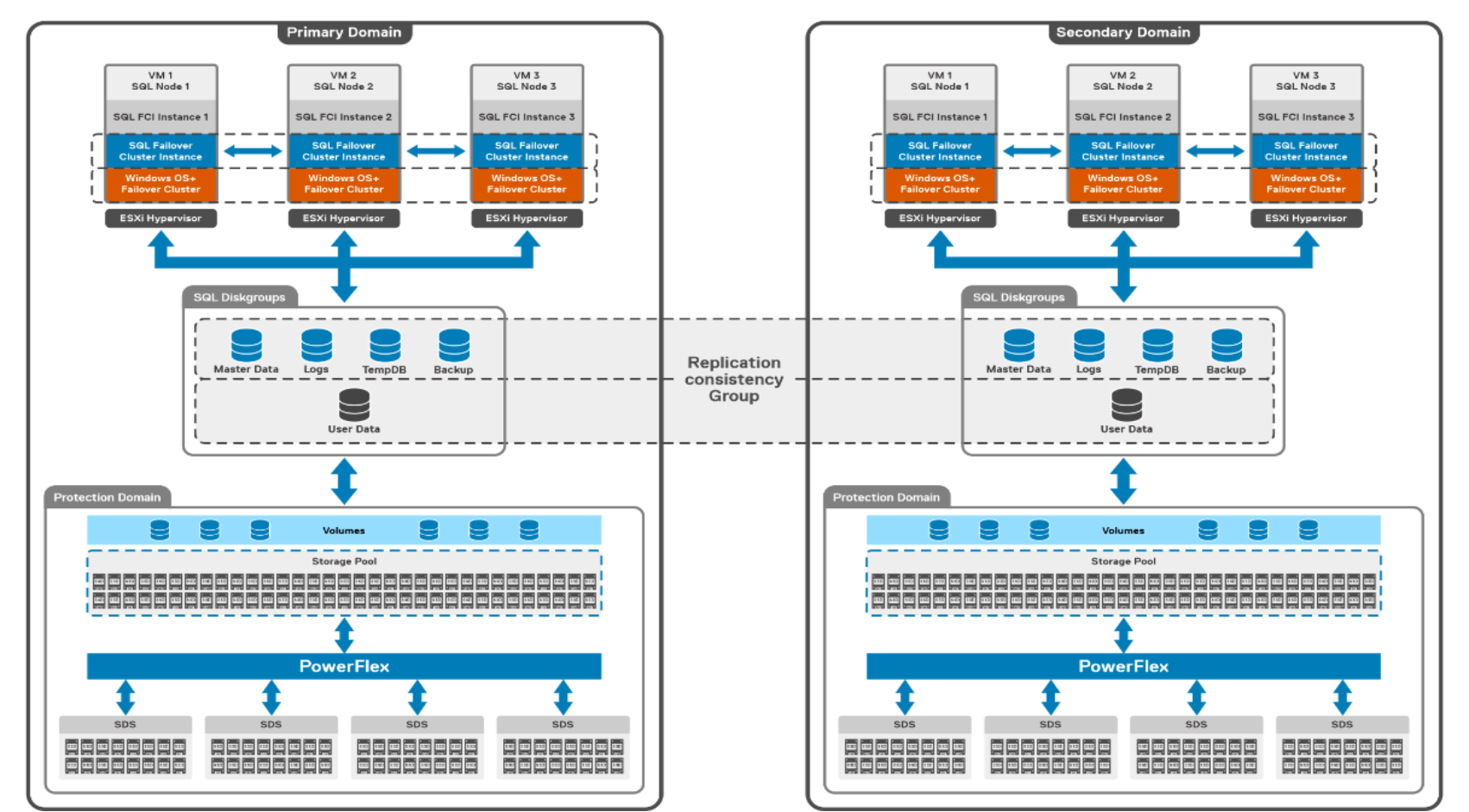
Figure 3.   Logical architecture of PowerFlex asynchronous replication

In a PowerFlex HCI-based system, both the SDC and the SDS components (and optionally, the MDM component) are installed on every node in the cluster, creating hyperconverged (HCI) nodes that handle both application compute and storage needs . The SDS aggregates and serves raw local storage in each node and shares that storage as a part of the PowerFlex cluster. A single protection domain is carved out of the drives on these SDS systems. A single storage pool is configured, and multiple volumes are carved out from the Protection Domain to meet the SQL Server FCI disk groups. These volumes are mapped to the HCI nodes and later mapped to the Windows virtual machine as RDMs.

Note: The solution is demonstrated in engineering lab using HCI PowerFlex deployment model with VMware vSphere environment, however, the PowerFlex replication and snapshot strategy and the best practices demonstrated in this paper are applicable for both virtualized and bare metal configurations and for both HCI and two-Layer deployments.

Network architecture

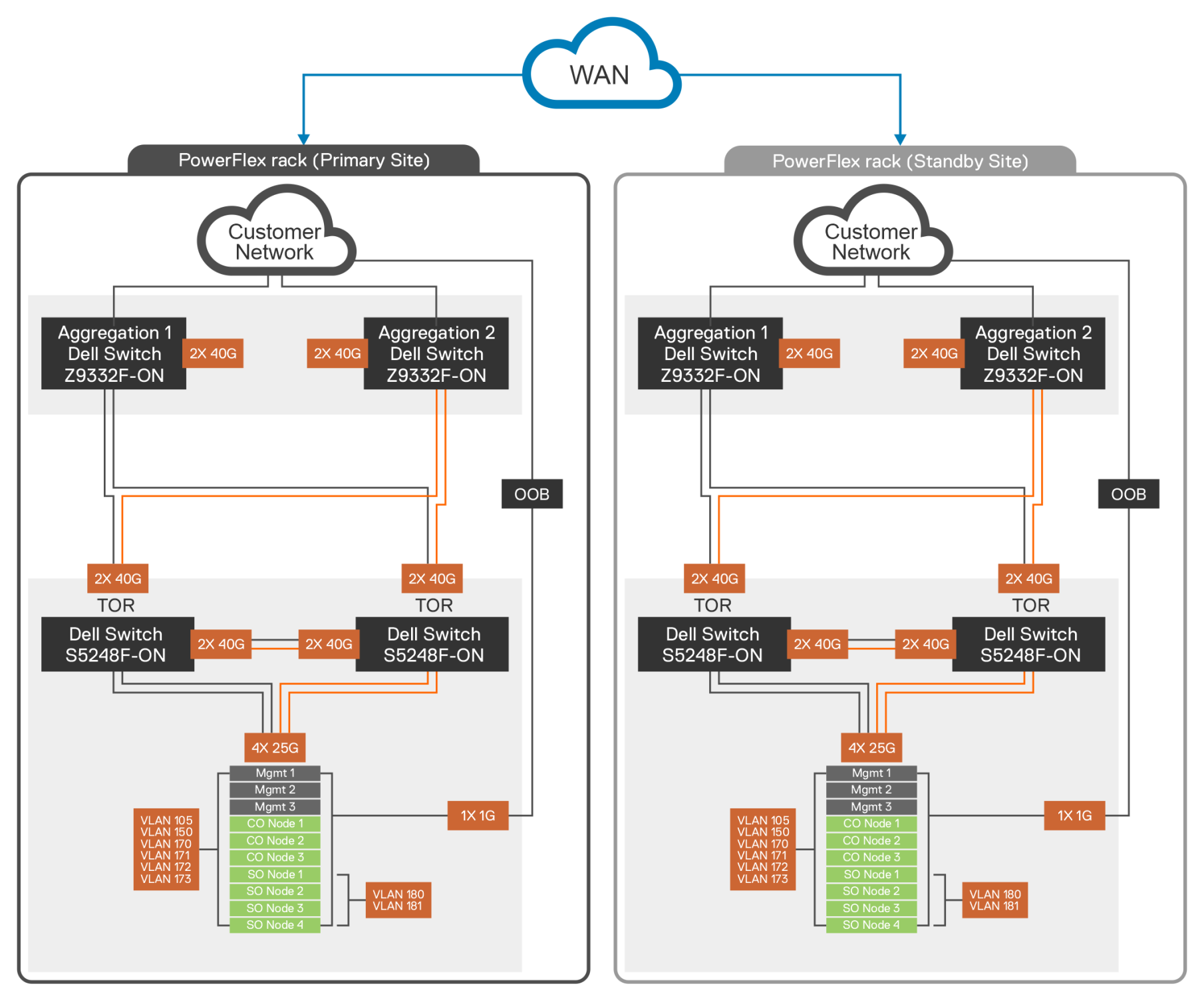
The following network diagram provides an overview of the architecture when a PowerFlex rack is deployed at both the source and target site, using PowerFlex asynchronous replication.
A picture containing chartDescription automatically generated

Figure 4.   Network architecture of PowerFlex asynchronous replication

The following table contains the network details of each PowerFlex rack:

Table 2.      PowerFlex networking details

Components

Description

Application Traffic

2 x 25 Gbps links

PowerFlex Storage Traffic

2 x 25 Gbps links

VLAN 105

Hypervisor Management

VLAN 150

PowerFlex Management

VLAN 151, 152, 153, 154

Data1 Network, Data2 Network, Data3 Network, Data4 Network

VLAN 160, 161

Replication Traffic Network

Solution configuration

Prerequisites

Before starting the configuration of PowerFlex storage volumes for replication, ensure that the following prerequisites are configured and verified:

  • PowerFlex Version should be 3.5.x or higher (for HCI deployments running on VMware, the PowerFlex version should be 3.6.x or higher).
  • DNS and NTP IP Addresses are acquired as a part of the infrastructure requirement.
  • vCenter is up and running with an appropriate license and data center name configured.
  • PowerFlex is deployed in HCI mode, following the Deployment Procedure On HCI Nodes.
  • PowerFlex gateway and presentation server (PowerFlex GUI) are configured and deployed as a part of the PowerFlex setup.

PowerFlex best practices

PowerFlex requires that the volumes should be of the same size in both source and target system, in order for the volumes to participate in replication.

PowerFlex volume requirements

The following steps show how to setup a Microsoft SQL Server disaster recovery with PowerFlex replication:

  1. Create three Windows Server 2019 virtual machines in both source and target PowerFlex clusters.
  1. The volumes at both Source and destination should be of the same sizes.

Table 3.      Total number and size of PowerFlex volumes carved out of storage pool

SQL disk name

Source Cluster

Target Cluster

Quorum Discs

1 x 120 GB

 1 x 120 GB

Master Data

1 x 200 GB

1 x 200 GB

Logs

1 x 176 GB

1 x 176 GB

TempDB

1 x 136 GB

1 x 136 GB

Backup

1 x 128 GB

1 x 128 GB

  1. Create a replication consistency group (RCG), containing the PowerFlex source and matching target volumes of all the system and data in user databases, logs, backup, and tempdb.

Note: In this configuration, OS Volume and Quorum Volumes are not a part of the replication. The Windows Failover Cluster software is running independently in both the source and target systems.

  1. Map the volumes that are created in the source and target PowerFlex systems to their respective WSFC hosts. Essentially, the volumes at the source system must be mapped to the SDCs of the WSFC hosts connected to the source system, and all volumes at the target system must be mapped to the SDCs of the WSFC hosts connected to the target system.

VMware VM requirements

To deploy the VMs for the WSFC, see the best practices suggested by VMware, and perform the following steps.

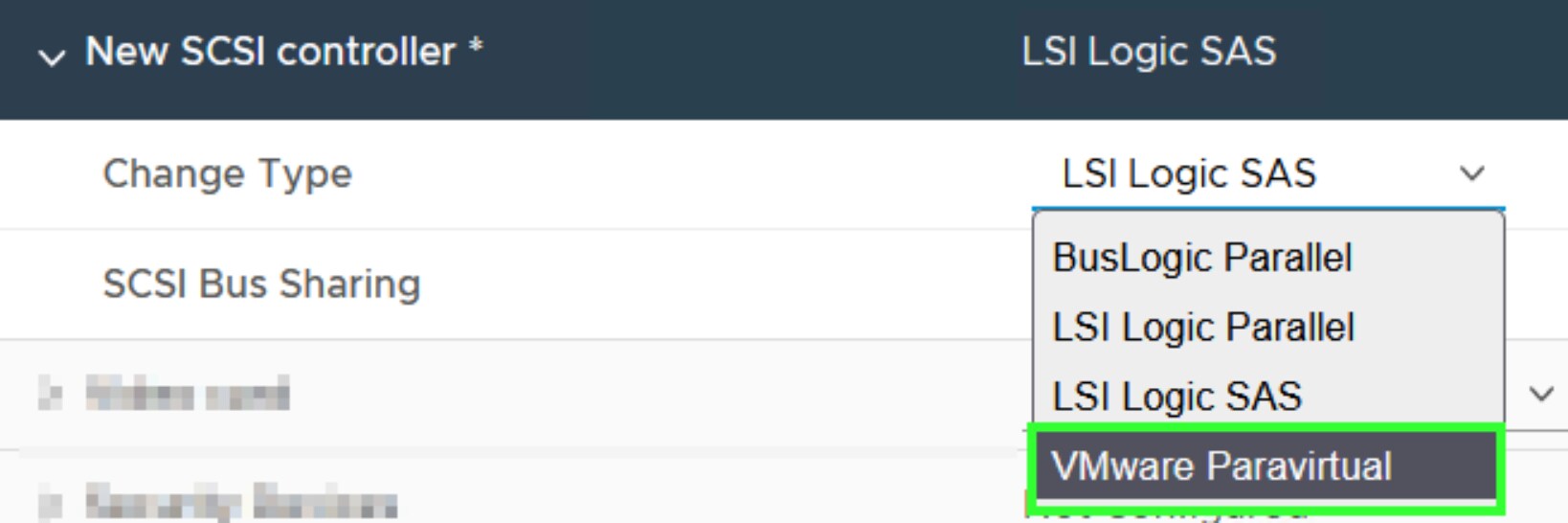
 1. Every WSFC VM needs a dedicated SCSI adapter for SQL Server RDM Mapped Volumes.

 2. In the newly added SCSI Controller set the Change Type to VMware Paravirtual.
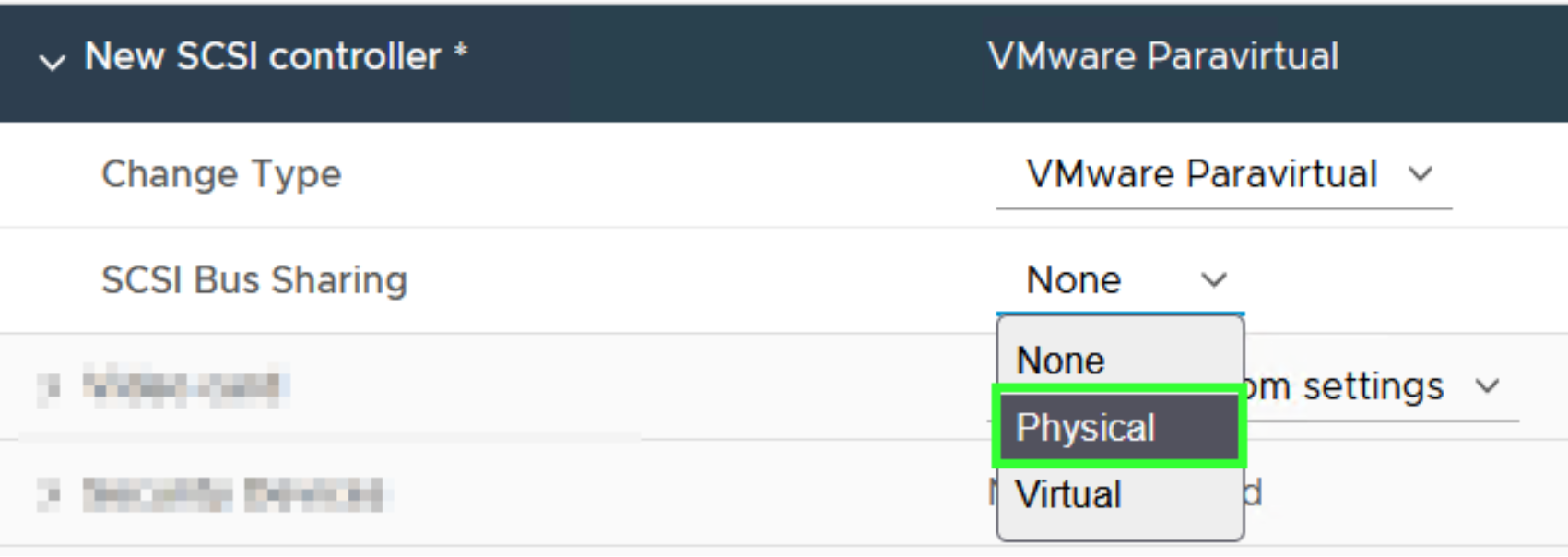
  1.    In the newly added SCSI Controller, set the SCSI Bus Sharing option to Physical.
 

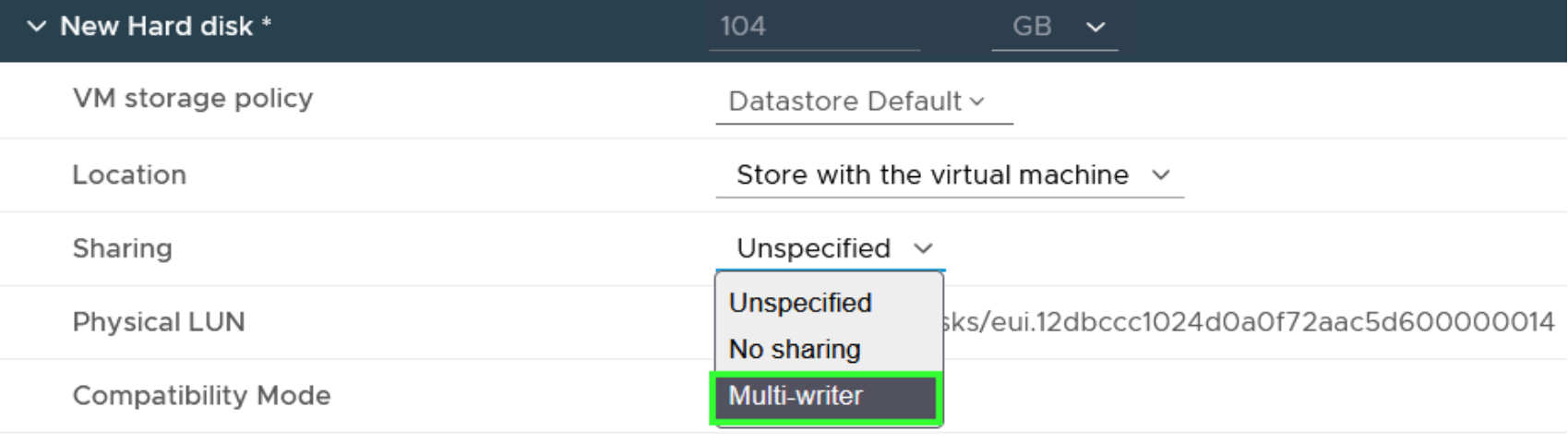
  1.   In the newly added RDM hard disks, set the Sharing option to Multi-writer. 
Virtual machine configuration

Log in to vCenter and make the following configuration changes to the Virtual Machines that are a part of Failover Cluster.

  1. Create three virtual machines on both the source and target cluster and install Windows Server 2019 operating system on each virtual machine.

Note: Follow the best practices that are mentioned by VMware and Microsoft and configure the VMs accordingly for Windows Cluster Creation.

 2. In the Virtual Machine settings, add the dedicated SCSI Adapter to be used by the SQL Server FCI RDMs as mentioned in the VMware Virtual Machine Requirements.

 3. Adding the RDMs to the Virtual Machine:

  1. Click Browse and select a dedicated Volume to place the VMDKs created for each RDM disk added.
  2. Change the SCSI Adapter for the RDM to SCSI 1:0 for Qurorum and SQL Server FCI RDMs.
  3. Set the Sharing option as Multi for each of the RDMs added.

 4. The attached volumes should be visible to each virtual machine.

Windows Failover Cluster requirements

To deploy, configure and set up the Windows Server 2019 VM, see the best practices by Microsoft for the Windows Failover Cluster.

The minimum requirements for WSFC are as follows:

  1. Windows Server should be able to ping the DNS and NTP servers.
  2. Appropriate admin credentials should be set up with access for creation of Windows Failover Cluster Computer Object.
  3. RDM Disks added to the Windows Servers should be accessible by all the servers in the cluster.

Windows Failover Cluster configuraiton

  1. Launch the Windows Failover Cluster configuration tool. 
  2. Run the validation tests to check if all the RDMs that have been added are accessible by the Failover cluster that are used for SQL Server FCI.
  3. The Source SQL Server and Cluster User or Admin user should have AD write access for creating computer objects.
  4. Once the Source Windows Server Failover Cluster configuration is complete, repeat steps a to d on the target site.
  5. Shut down the virtual machines on the target site and unmount the volumes presented to the SDCs.

Stop and start a Windows Server Failover Cluster and Microsoft SQL Server roles

Perform the following steps to stop a cluster:

  1. Stop all the activities on the SQL Server database.
  2. Open Failover Cluster Manager, click Windows Start > Server Manager > Tools > Failover Cluster Manager.
  3. In the Failover Cluster Manger, click Roles > Stop Role to stop the SQL Server FCI role. 
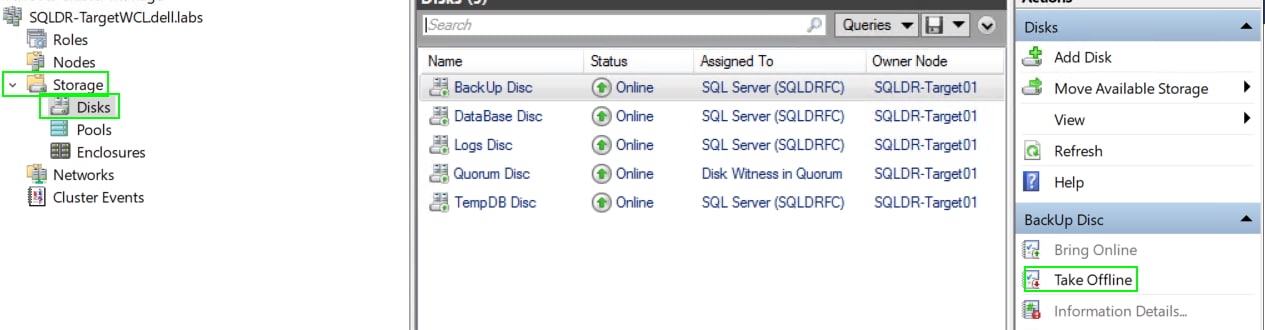
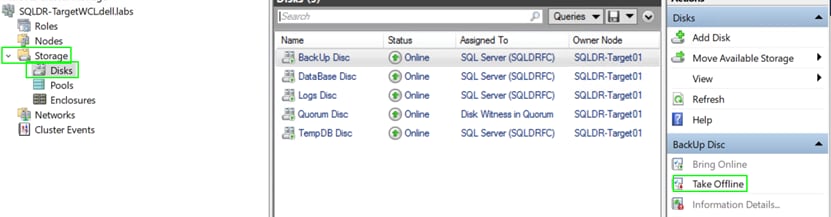
4. If the statuses of the disks are still showing click Storage > Disks, select the disks and click Take Offline.
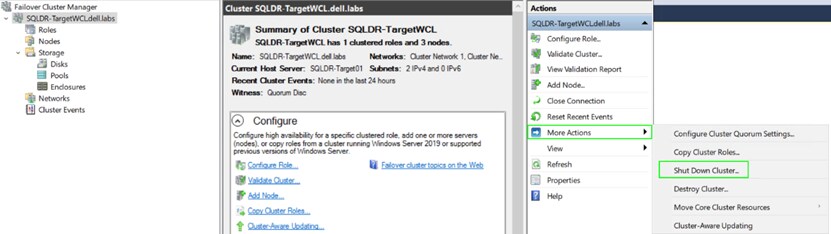
5. After the SQL Server Roles and Disks are taken offline shutdown the Windows Server Failover Cluster, click Cluster > More Actions > Shut Down Cluster.
6. Shut down the Windows Server that is a part of the cluster to complete the process of clean shutdown.

Perform the following steps to start a cluster:

  1. Power on the Windows Server that is a part of the WSFC.
  2. Open Failover Cluster Manager, click Windows Start > Server Manager > Tools > Failover Cluster Manager.
  3. Select the cluster and click Start Cluster. 

4. Wait for the cluster to start and the Cluster Status should show as up without errors. 

5. In the Failover Cluster manager, Click Roles > Start Role.

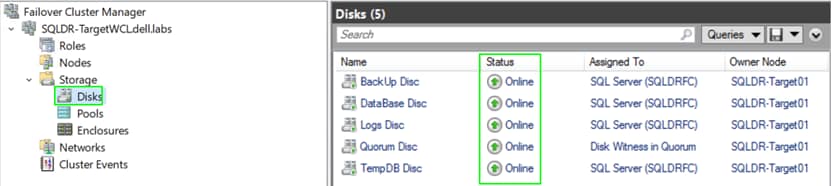
6. Ensure that all the disks that are a part of the WSFC are online.
7. Start the SQL Server Management Studio (SSMS) to check if the SQL Server Database is accessible.

For a more information about the process to stop and start WSFC, Shutdown a Failover Cluster.


Microsoft SQL Server FCI Requirements

Perform the following steps to setup the Microsoft SQL Server FCI disaster protection with PowerFlex replication, based on best practices suggested by Microsoft for

 SQL Server FCI:

1. Install SQL Server Management Studio software on the source site.

2. Install SQL Server FCI on the configured Windows Failover Cluster Servers on the source site.

3. Create the SQL Server database only on the Source Site.

4. New SQL Server Roles are automatically created on the Source Cluster by WSFC and are visible in the Roles section of the Windows Failover Cluster application.

5. Go to Computer Management > Disk at the source site and add the volumes on one WSFC server and configure the drive names and letters.

6. Repeat steps 1 and 2 at the target site:

  1. Disk mapping must be the same as source site.
  2. SQL Server FCI disk mapping for database must be the same as the source site databases mapping.

Note: Since WSFC and SQL Server are deployed independently at both the source and target sites, in Active Directory, the WSFC Computer Objects at each site is having different names. 

 7. SQL Server FCI Target Cluster should be configured in the same way as configured at Source, with an exception for WSFC and SQL Server FCI AD Computer Object names.

 8. The Windows Server on the target site should be shut down after the installation of SQL Server FCI is complete, for volume discovery.

Failure scenarios

Failure scenarios

This section provides the use cases for disaster recovery.

Workload description

A Workload is started on the source cluster to generate database transactions during the test cases. If this activity is a planned failover, the data on the source can be noted and can be verified on the target after a failover.

Workload scenario

For a sample set of data, the Stack overflow public available dataset for SQL Server is used. The inserts are focused against the comments table within the dataset.

A T-SQL test harness is constructed for the workload scenario. The test harness, consisting of T-SQL tables and dynamic SQL procedures is added into the Stack overflow database. 

A random load SQL Server table is constructed and populated by T-SQL storage procedures, to be the source for the insert statements. This random data load generator provides real-life randomized attribute results and the associated data types. A separate row count audit table is created with the following attributes:

  • Host name
  • Table name
  • Record count
  • Current Identity value
  • Server date time
  • Server name

This audit table is also added to the Stack overflow database. This SQL table allows us to confirm that the newly inserted records are properly committed at the source and target, before and after the failover.

The entire T-SQL test harness engine and associated logging failed over and failed back as shown in the following tests.


Scenario 1: Test failover

This scenario is used to test and validate the failover procedures without stopping the application on the source site or  data replication. PowerFlex creates a snapshot at the target site, maps it to the target volumes and therefore does not stop the replication of the source volumes. This process makes the target volumes read-writable, and allows the operator to use the target volumes to test their disaster protection steps.

1. Start the workload.

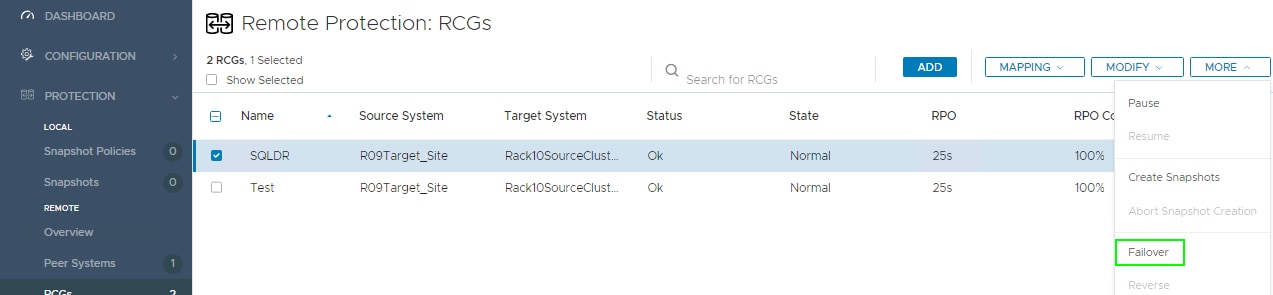
2. Log in to the PowerFlex Presentation Server UI on the source site. From this screen, click RCG and select the replication RCG group that contains the SQL Server database volumes. The following figure shows the replication group:
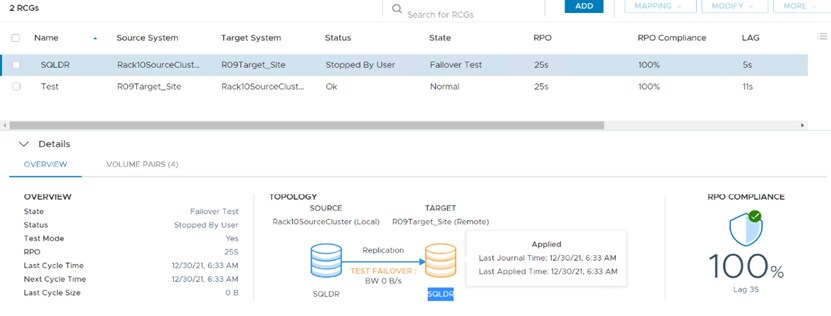
Figure 5. RCG window showing the replication group

 3. While the workload is being generated at the source site, select Failover Test. The workload data is still being generated on the source system. 

Note: The database running on the source cluster is not affected and continues to be up and running. Journals are still getting transferred from the source system to the target system.

4. Turn on all the virtual machines in the target cluster at the target site.

5. Start the Windows Server Failover Cluster as mentioned in Stop and Start a Windows Server Failover Cluster and SQL Server Roles.

6. Log in to the SQL Server Management Studio (SSMS) and verify that the database is accessible.

Scenario 2: Target site snapshots

This scenario is useful to create database copies at the remote site for test and development. To do so, a remote snapshot is created at the target site, based on the RCG volumes.

The PowerFlex remote snapshot feature enables the users to take snapshots of a target site RCG, that creates a set of volumes in the target system. And then, the new volumes can be mounted on the SQL Server instance and the databases can be attached, optionally with new names.

Steps to get the target site snapshots:

1. Start the workload.

2. Log in to the PowerFlex presentation server UI on the target site and select the RCG that has the volumes that are used in SQL Server FCI. 
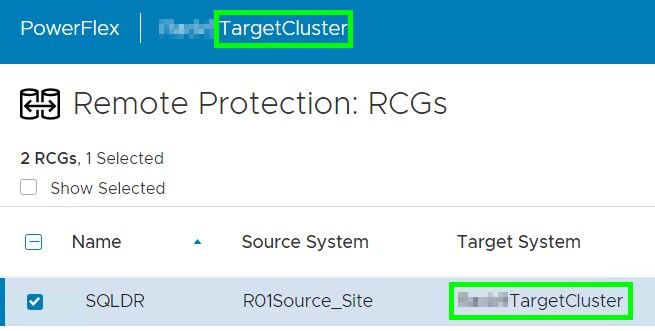
3. Click MORE and select Create Snapshots.

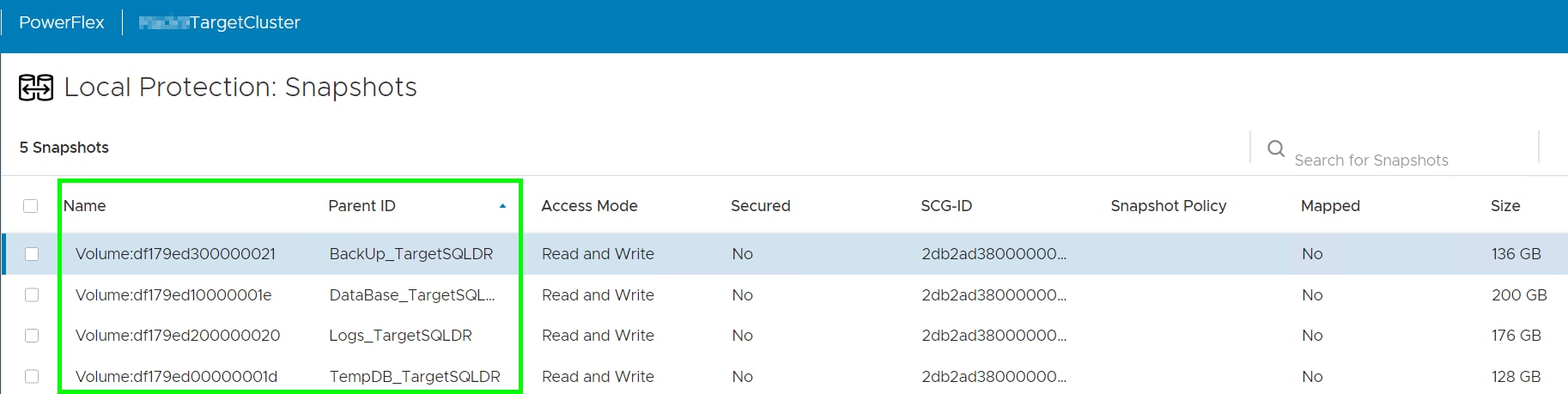
4. The new volumes appear in the PowerFlex UI Protection > Snapshots.
5. The snapshot volumes appear in the Configuration: Volumes window in an unmapped state.
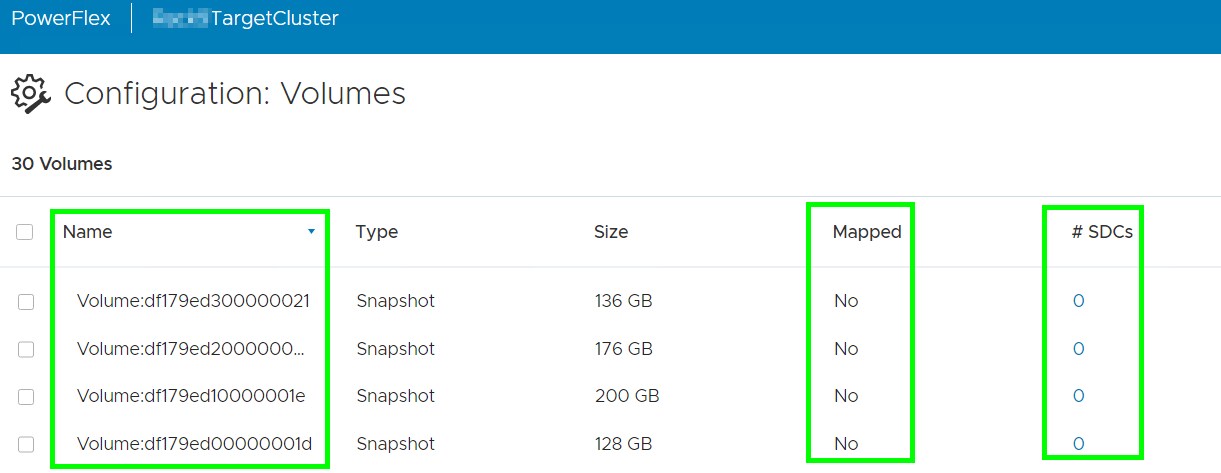
Note: There is no performance impact during the remote snapshot creation process.

6. The snapshot volumes should be mapped to all SDCs that are part of the WSFC hosts.

7. The mapped snapshot volumes must be added as RDMs to the target site WSFC VMs, so that the databases data and transaction log files can be added to the SQL Server instance.

Result: A separate instance of an SQL Server FCI or Standalone database can be used for running test on the target VM or cluster.

Note: A new virtual machine must be created with SQL Server FCI installed as is in source site and target site if all master data, user data, Logs, TempDB, and Backup volumes are to be used. If a test or dev SQL server exists, only then, the user data volume can be attached to the SQL Server.

Scenario 3: Complete failover and reverse replication

This scenario shows a complete failover and reverse replication.

Steps for the complete failover and reverse replication:

1. Start the workload.

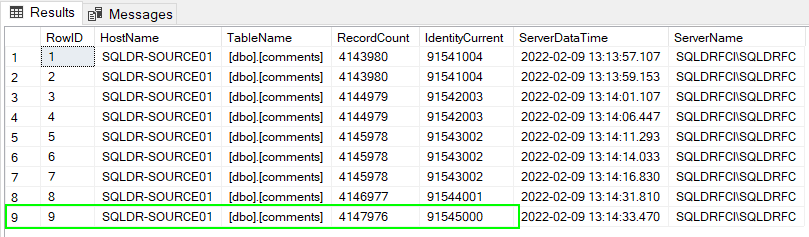
2. Check the Source Site SQL Server database record count before failover.

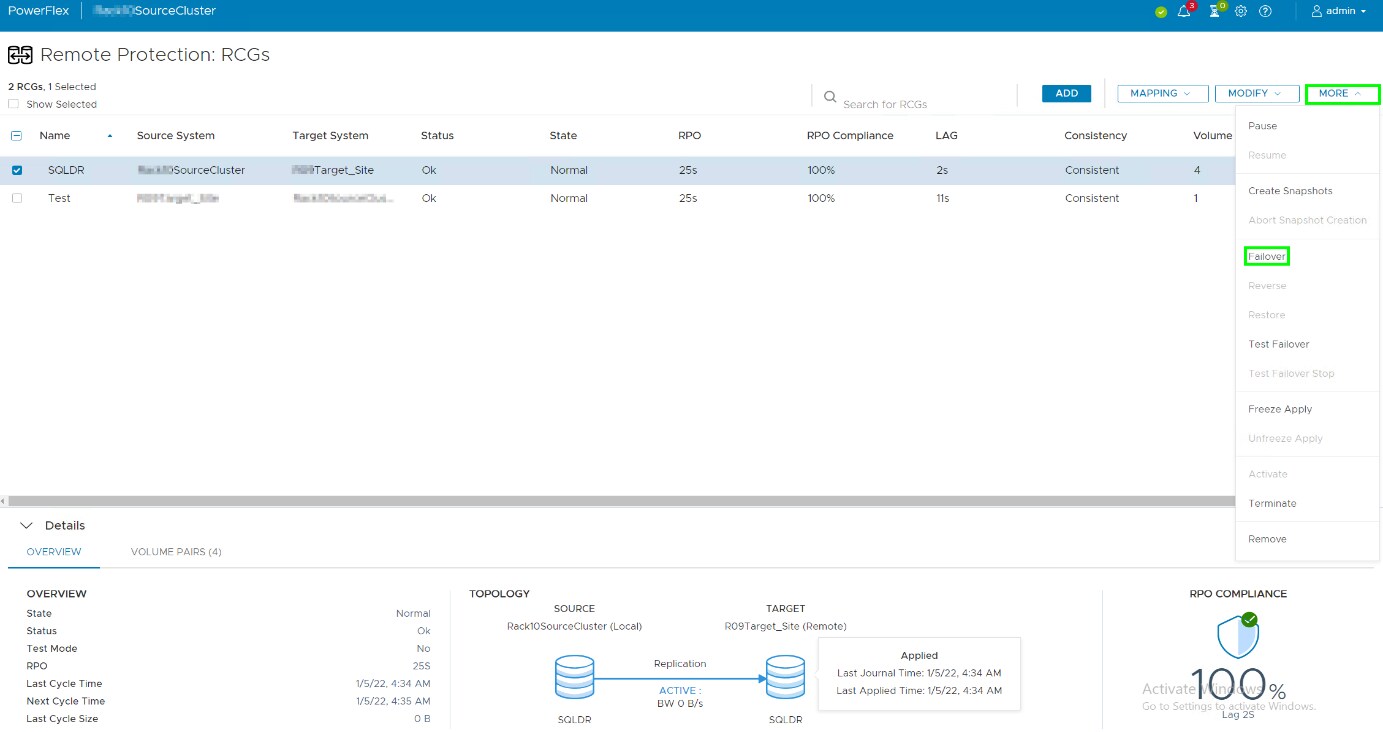
3. In the PowerFlex GUI, click Protection > RCGs > More > Failover.

 4. Log in to the PowerFlex presentation UI, and select the RCG containing the volumes used for SQL Server FCI.
5. Mount the volumes to the SDCs if they are not mounted already.

6. Start the Windows Server Failover Cluster as mentioned in Stop and Start a Windows Server Failover Cluster and SQL Server Roles.

7. Log in to the SSMS to access the SQL Server Database.

8. Check for consistency as the per the RPO set. Also check the target site record count before running any load as it should be the same as seen in the source site.


Scenario 4: Fail back to wanted state configuration

This scenario shows that after a failover, you failback to the source site. Once the source site is up and running, you revert to the original state as before the failover was initiated.

1. Log in to PowerFlex UI at the target site.

2. Log in to the PowerFlex presentation UI, select the RCG containing the Volumes used for SQL Server FCI.

3. At the source site, run the load test to capture the data for validation during failover test.
 

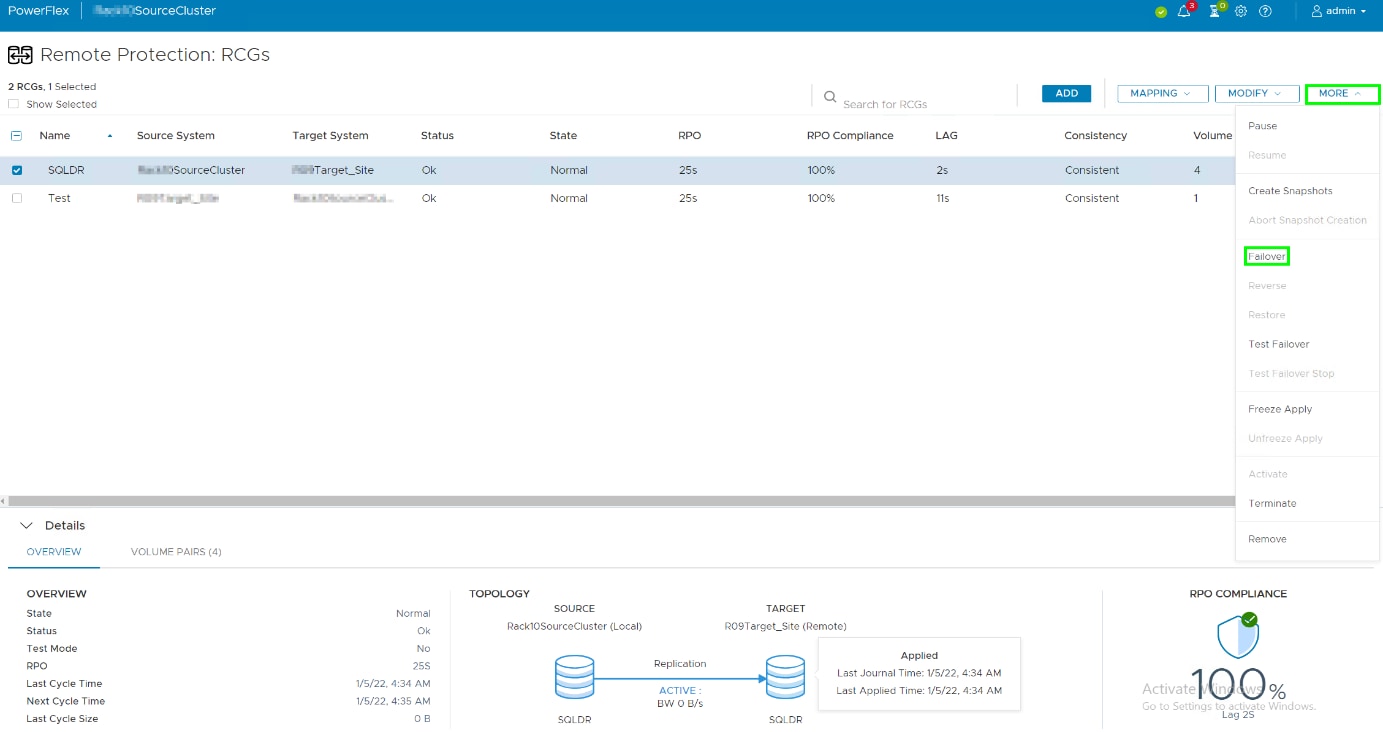
4. In the PowerFlex GUI, click Protection > RCGs > More > Failover.
5. After the failover is completed at the target site, map the volumes to the SDCs if they are not mapped.

6. Start the Windows Server Failover Cluster as mentioned in Stop and Start a Windows Server Failover Cluster and SQL Server Roles.

7. Log in to the SSMS to access the SQL Server database.

8. Check for consistency as per the RPO set. We can also check target site record count before running any load as it should be the same as seen in the source site.

9. At the target site, run the load test to generate some data in the SQL Server database.

10. When the load test is running at the target site, select the RCG of the SQL Server FCI disks to initiate reverse replication.

11. Log in to the PowerFlex UI at the target site.

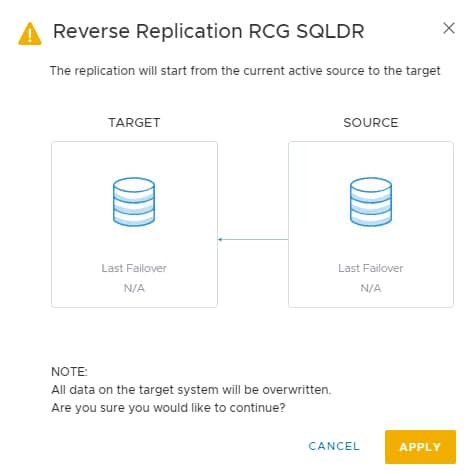
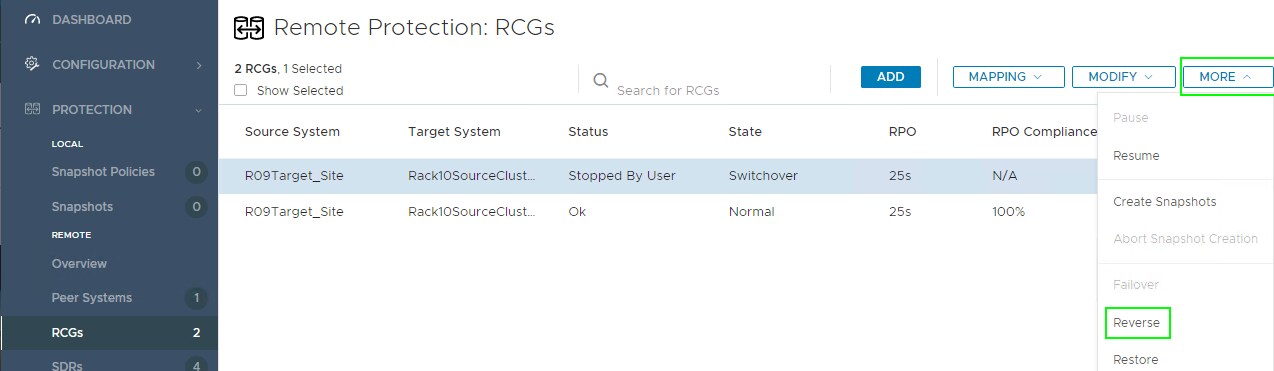
12. In the PowerFlex GUI, click Protection > RCGs > More > Reverse to initiate the reverse replication that is, the replication from target site to source site.
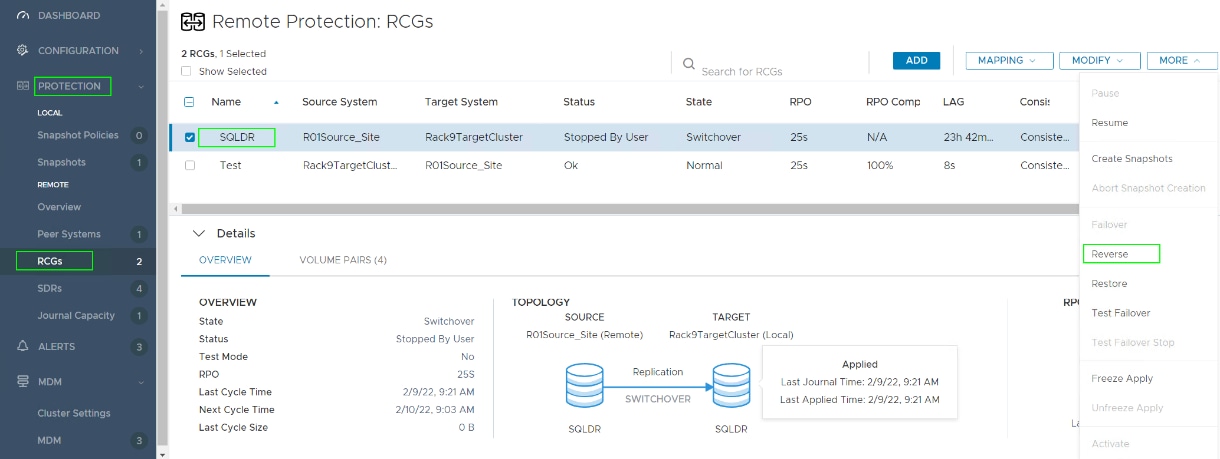
13. Click Apply in the next screen.
14. Wait until the status RPO Compliance and Consistency is seen.

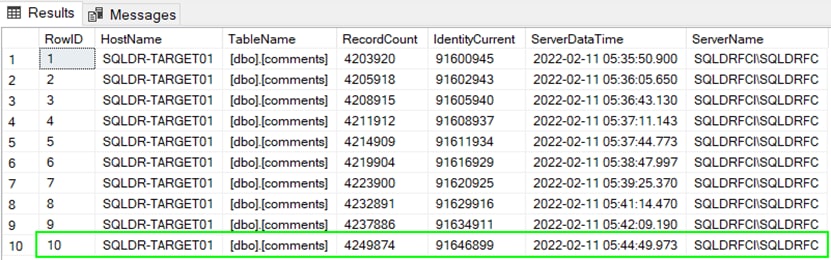
15. Check the SQL Sever Data base record count at target Site.

16. For more information about gracefully shutting down the SQL Server FCI at the target site, see Stop and Start a Windows Server Failover Cluster and SQL Server Roles.

17. Click More > Failover to failback to the source site. 

 

18. Turn on the Windows Server at the source site that is part of the SQL Server FCI.
19. Start the cluster safely as in Stop and Start a Windows Server Failover Cluster and SQL Server Roles.

20. Check for SQL Server database consistency by logging in to SSMS and running the record count at Source site. 

21. Log in to the PowerFlex UI at the source site.

22. In the PowerFlex GUI, click Protection > RCGs > More > Reverse to initiate the reverse replication to make the source site as the primary site or production site. 
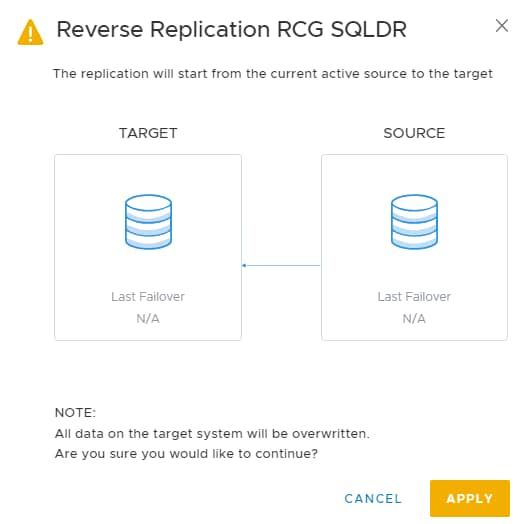
23. Click Apply on the next screen to complete the process of failback. 

Conclusion

Conclusion

This white paper describes the Microsoft SQL Server disaster protection using PowerFlex asynchronous replication and remote snapshots. The scenarios that are described in this paper demonstrate that SQL Server data is consistent on replicated target systems and is within the prescribed RPO. Therefore, it is shown that the asynchronous replication capabilities of PowerFlex ensures the protection of SQL Server databases in both planned and unplanned outage scenarios, helping the enterprises to meet their Service Level Agreements and ensuring business continuity.

Appendix

Configuration details

The following table describes the hardware and software components of the infrastructure that is used for the solution:

Table 4.      Software configuration details

Components

Source Site

Target Site

Server Model

PowerFlex R640

PowerFlex R640

Number of Nodes that are used as Compute-Only

Three

Three

CPU

Intel(R) Xeon(R) Gold 6134 CPU @ 3.20 GHz

Intel(R) Xeon(R) Silver 4114 CPU @ 2.20 GHz

Sockets and Cores

Two Socket 16 Physical Cores

Two Socket 20 Physical Cores

Hyperthreading

Enabled

Enabled

Memory

382.62 GB @ 2933 MHz per host

63.62 GB @ 2666 MHz per host

Storage

8 x 1.64 TB

4 x 3.49 TB

PCIe

Mellanox Technologies MT27710 Family [ConnectX-4 Lx]

Mellanox Technologies MT27710 Family [ConnectX-4 Lx]

PowerFlex

R3_6.0.355

R3_6.0.355

ESXi Hypervisor

vSphere ESXi 7.0.2 U2a

vSphere ESXi 7.0.2 U2a

SQL Server Database

SQL Server 2019

SQL Server 2019

VM OS

Windows 2019

Windows 2019

Number of Virtual Machines

Three

Three

VM configuration

Eight  vCPU, 64G Memory

Eight vCPU, 64G Memory

References

VMware documentation

The following VMware documentation provides additional and relevant information:

Tags: