Multi-Agent Q&A Application
A sophisticated multi-agent Q&A application featuring intelligent task delegation to specialized agents with enterprise inference integration.
The Multi-Agent Q&A Application is a sophisticated, enterprise-ready system that processes user queries through a coordinated set of specialized agents. Its primary purpose is to analyze incoming questions, determine their intent, and route them to the most capable agent, ensuring accurate, context-aware responses. Built on a multi-agent architecture, the system employs an orchestration layer that performs keyword-based intent detection and delegates requests to one of three agents: a Code Agent for programming-related tasks, a RAG (Retrieval-Augmented Generation) Agent for document-based questions, and a Normal Agent for general inquiries.
The architecture integrates seamlessly with enterprise inference APIs, enabling high-performance interactions with LLMs. The system uses a FastAPI backend responsible for orchestration, FAISS vector store management for document retrieval, and communication with enterprise inference endpoints. A modern React-based frontend provides a ChatGPT-style interface that allows users to ask questions, view agent-attributed responses, and configure agent behavior, including roles, goals, and backstories.
The application supports multiple enterprise inference deployment patterns, including GenAI Gateway and APISIX Gateway, both of which require appropriate API endpoint configuration and authentication tokens. Detailed environment setup instructions include creating two .env files (root and API-specific) that specify keys, model names, gateway URLs, SSL settings, and optional local development domain mappings.
Deployment is streamlined through Docker Compose, which manages both backend and frontend services. Users can monitor service health, inspect logs, and interact with the system via a browser at http://localhost:3000. The UI enables chat interaction, document uploading for RAG-based retrieval, and agent configuration.
A troubleshooting guide and model compatibility notes are provided, confirming support for models such as Llama3.18BInstruct, Qwen34BInstruct, and bge-baseenv1.5 for embeddings.
Link to download the code: https://github.com/opea-project/Enterprise-Inference/tree/main/sample_solutions/MultiAgentQnA
Project Overview
The multiagent-qna project is a sophisticated Question & Answer application built on a multi-agent architecture. Its core function is to receive a user's query, intelligently determine the nature of the question, and delegate it to the most suitable specialized agent for generating a high-quality response. The system is designed for enterprise environments, integrating with enterprise-grade inference APIs for its language model interactions.
Features
- Multi-Agent Architecture: Orchestration agent that intelligently routes queries to specialized agents
- Specialized Agents:
- Code Agent: Handles code-related questions and programming queries
- RAG Agent: Retrieves and answers questions from documents
- Normal Agent: Handles general questions and conversations
- Modern UI: ChatGPT-like interface with settings management
- Enterprise Integration: Uses enterprise-inference API for LLM interactions
- Configurable: Easily configure agent roles, goals, and behavior via UI
Architecture
Below is the multi-agent system architecture showing how user queries are intelligently routed to specialized agents. The orchestration layer analyzes incoming queries using keyword detection and delegates them to the appropriate agent (Code, RAG, or Normal) for processing, ensuring each query is handled by the most qualified specialist.
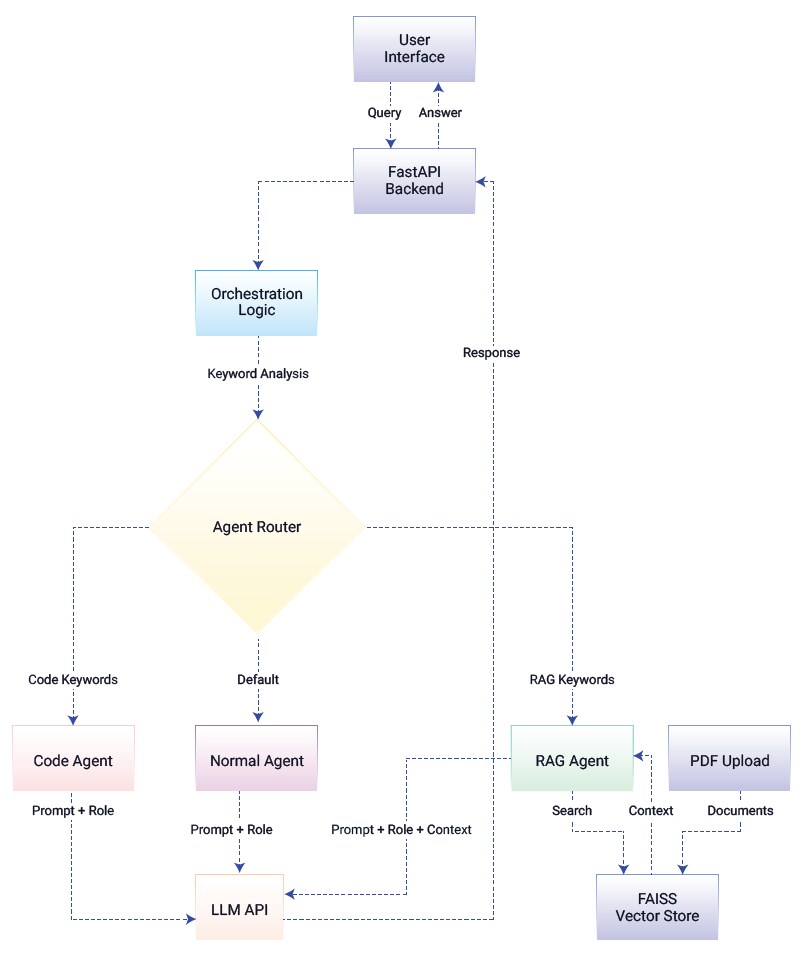
The application consists of:
- Orchestration Agent: Analyzes user queries and delegates to appropriate specialized agents
- Specialized Agents: Each handles a specific domain (code, RAG, general)
- API Layer: FastAPI backend with enterprise-inference integration
- UI: React-based chat interface with settings management
Service Components:
React Web UI (Port 3000)
Provides ChatGPT-like interface with settings management for configuring agent roles, goals, and behavior
FastAPI Backend (Port 5001)
Orchestrates multi-agent system, analyzes queries using keyword detection, delegates to specialized agents (Code, RAG, Normal), and manages FAISS vector store for document retrieval
Typical Flow:
- User submits a query through the chat interface.
- The FastAPI backend receives the query and passes it to the orchestration logic.
- The orchestration logic analyzes the query using keyword detection to determine intent.
- The agent router delegates the query to the appropriate specialized agent:
- Code-related queries (keywords: code, function, debug, etc.) → Code Agent
- Document-based queries (keywords: document, PDF, search, etc.) → RAG Agent
- General queries → Normal Agent
- If RAG Agent is selected:
- Searches the FAISS vector store for relevant document context
- Retrieves matching chunks to augment the prompt
- The selected agent constructs a specialized prompt with its role, goal, and context.
- The agent calls the enterprise LLM API with the pre-configured token and specialized prompt.
- The LLM generates a response tailored to the agent's expertise.
- The response is returned to the user via the UI with agent attribution showing which specialist handled the query.
Prerequisites
System Requirements
Before you begin, ensure you have the following installed:
- Docker and Docker Compose
- Enterprise inference endpoint access
(token-based authentication)
Required API Configuration
For Inference Service:
This application supports multiple inference deployment patterns:
GenAI Gateway: Provide your GenAI Gateway URL and API key
- URL format: https://api.example.com
- To generate the GenAI Gateway API key, use the generate-vault-secrets.sh script
- The API key is the litellm_master_key value from the generated vault.yml file
APISIX Gateway: Provide your APISIX Gateway URL and authentication token
- URL format: https://api.example.com/bge-base-en-v1.5 (for embedding) and https://api.example.com/Llama-3.1-8B-Instruct (for inference)
- Note: APISIX requires the model name in the URL path
- To generate the APISIX authentication token, use the generate-token.sh script
- The token is generated using Keycloak client credentials
Configuration requirements:
- INFERENCE_API_ENDPOINT: URL to your inference service (example: https://api.example.com)
- INFERENCE_API_TOKEN: Authentication token/API key for your chosen service
- EMBEDDING_MODEL_NAME: Embedding model name (default: BAAI/bge-base-en-v1.5)
- INFERENCE_MODEL_NAME: Inference model name (default: meta-llama/Llama-3.1-8B-Instruct)
- EMBEDDING_API_ENDPOINT: (Optional, for APISIX only) URL with embedding model in path
- INFERENCE_MODEL_ENDPOINT: (Optional, for APISIX only) URL with inference model in path
Local Development Configuration
For Local Testing Only
If you're testing with a local inference endpoint using a custom domain (e.g., api.example.com mapped to localhost in your hosts file):
- Edit api/.env and set:
LOCAL_URL_ENDPOINT=inference.example.com
(Use the domain name from your INFERENCE_API_ENDPOINT without https://) - This allows Docker containers to resolve your local domain correctly.
Note: For public domains or cloud-hosted endpoints, leave the default value not-needed.
Verify Docker Installation
# Check Docker version docker --version

# Check Docker Compose version docker compose version

# Verify Docker is running docker ps
Quick Start Deployment
Clone the Repository
git clone https://github.com/opea-project/Enterprise-Inference.git
cd Enterprise-Inference/sample_solutions/MultiAgentQnA
Set up the Environment
This application requires two .env files for proper configuration:
- Root .env file (for Docker Compose variables)
- api/.env file (for backend application configuration)
Step 1: Create Root .env File
# From the MultiAgentQnA directory
cat > .env << EOF
# Docker Compose Configuration
LOCAL_URL_ENDPOINT=not-needed EOF
Note: If using a local domain (e.g., api.example.com mapped to localhost), replace not-needed with your domain name (without https://).
Step 2: Create api/.env File
This application requires an api/.env file for proper configuration.
Create it with the commands below:
# Create the api/.env file cat > api/.env << EOF
# Inference API Configuration
# INFERENCE_API_ENDPOINT: URL to your inference service (without /v1 suffix) #
# **GenAI Gateway**: Provide your GenAI Gateway URL and API key #    - URL format: https://genai-gateway.example.com
#    - To generate the GenAI Gateway API key, use the [generate-vault-secrets.sh] script #    - The API key is the litellm_master_key value from the generated vault.yml file
#
# **APISIX Gateway**: Provide your APISIX Gateway URL and authentication token #    - For APISIX, include the model name in the INFERENCE_API_ENDPOINT path
#    - Example: https://apisix-gateway.example.com/Llama-3.1-8B-Instruct #    - Set EMBEDDING_API_ENDPOINT separately for the embedding model
#    - Example: https://apisix-gateway.example.com/bge-base-en-v1.5
#    - To generate the APISIX authentication token, use the [generate-token.sh] script #    - The token is generated using Keycloak client credentials
#
# INFERENCE_API_TOKEN: Authentication token/API key for the inference service INFERENCE_API_ENDPOINT=https://your-api.example.com/
INFERENCE_API_TOKEN=your-pre-generated-token-here

# Model Configuration EMBEDDING_MODEL_NAME=BAAI/bge-base-en-v1.5
INFERENCE_MODEL_NAME=meta-llama/Llama-3.1-8B-Instruct

# APISIX Gateway Endpoints
# Uncomment and set these when using APISIX Gateway: # IMPORTANT: Use exact APISIX route paths:
# Example routes: /bge-base-en-v1.5/* and /Llama-3.1-8B-Instruct/*
# INFERENCE_API_ENDPOINT=https://api.example.com/Llama-3.1-8B-Instruct # EMBEDDING_API_ENDPOINT=https://api.example.com/bge-base-en-v1.5

# Local URL Endpoint (only needed for non-public domains)
# If using a local domain like api.example.com mapped to localhost: #    Set this to: api.example.com (domain without https://)
# If using a public domain, set any placeholder value like: not-needed LOCAL_URL_ENDPOINT=not-needed

# SSL Verification Settings
# Set to false only for dev with self-signed certs VERIFY_SSL=true
EOF
Or manually create api/.env with:
# Inference API Configuration
# INFERENCE_API_ENDPOINT: URL to your inference service (without /v1 suffix) #
# **GenAI Gateway**: Provide your GenAI Gateway URL and API key #    - URL format: https://genai-gateway.example.com
#    - To generate the GenAI Gateway API key, use the [generate-vault-secrets.sh] script #    - The API key is the litellm_master_key value from the generated vault.yml file
#
# **APISIX Gateway**: Provide your APISIX Gateway URL and authentication token #    - For APISIX, include the model name in the INFERENCE_API_ENDPOINT path
#    - Example: https://apisix-gateway.example.com/Llama-3.1-8B-Instruct #    - Set EMBEDDING_API_ENDPOINT separately for the embedding model
#    - Example: https://apisix-gateway.example.com/bge-base-en-v1.5
#    - To generate the APISIX authentication token, use the [generate-token.sh] script #    - The token is generated using Keycloak client credentials
#
# INFERENCE_API_TOKEN: Authentication token/API key for the inference service INFERENCE_API_ENDPOINT=https://your-api.example.com/
INFERENCE_API_TOKEN=your-pre-generated-token-here

# Model Configuration EMBEDDING_MODEL_NAME=BAAI/bge-base-en-v1.5
INFERENCE_MODEL_NAME=meta-llama/Llama-3.1-8B-Instruct

# APISIX Gateway Endpoints
# Uncomment and set these when using APISIX Gateway:
# IMPORTANT: Use exact APISIX route paths:
# Example routes: /bge-base-en-v1.5/* and /Llama-3.1-8B-Instruct/*
# INFERENCE_API_ENDPOINT=https://your-api-endpoint.com/Llama-3.1-8B-Instruct # EMBEDDING_API_ENDPOINT=https://your-api-endpoint.com/bge-base-en-v1.5

# Local URL Endpoint (only needed for non-public domains)
# If using a local domain like api.example.com mapped to localhost: #    Set this to: api.example.com (domain without https://)
# If using a public domain, set any placeholder value like: not-needed LOCAL_URL_ENDPOINT=not-needed

# SSL Verification Settings
# Set to false only for dev with self-signed certs VERIFY_SSL=true
Important Configuration Notes:
- INFERENCE_API_ENDPOINT: Your actual inference service URL (replace https://your-api-endpoint.com/deployment)
- For APISIX/Keycloak deployments, the model name must be included in the endpoint URL (e.g., https://apisix-gateway.example.com/Llama-3.1-8B-Instruct)
- INFERENCE_API_TOKEN: Your actual pre-generated authentication token
- LOCAL_URL_ENDPOINT: Only needed if using local domain mapping (see Local Development Configuration)
Note: The docker-compose.yml file automatically loads environment variables from both .env (root) and ./api/.env (backend) files.
Running the Application
Start both API and UI services together with Docker Compose:
# From the MultiAgentQnA directory docker compose up --build
# Or run in detached mode (background) docker compose up -d --build
The API will be available at: http://localhost:5001
The UI will be available at: http://localhost:3000
View logs:
# All services
docker compose logs -f

# Backend only
docker compose logs -f multiagent-qna-backend

# Frontend only
docker compose logs -f multiagent-qna-frontend
Verify the services are running:
# Check API health
curl http://localhost:5001/health

# Check if containers are running docker compose ps
User Interface
Using the Application
Make sure you are at the http://localhost:3000 URL.
You will be directed to the main page which has each feature.
Chat Interface
- Navigate to the chat interface
- Type your question in the input box
- The orchestration agent will analyze your query and route it to the appropriate specialized agent
- View the response with agent attribution
Settings Page
Configure agents:
- Orchestration Agent: Role, goal, and backstory
- Code Agent: Code-specific configuration
- AG Agent: Document retrieval settings
- Normal Agent: General conversation settings
UI Configuration
When running with Docker Compose, the UI automatically connects to the backend API. The frontend is available at http://localhost:3000 and the API at http://localhost:5001.
For production deployments, you may want to configure a reverse proxy or update the API URL in the frontend configuration.
Stopping the Application
docker compose down
Troubleshooting
For comprehensive troubleshooting guidance, common issues, and solutions, refer to: TROUBLESHOOTING.md
Additional Info
The following models have been validated with MultiAgentQnA:
| Model | Hardware |
|---|---|
| meta-llama/Llama-3.1-8B-Instruct | Gaudi |
| Qwen/Qwen3-4B-Instruct-2507 | Xeon |
| BAAI/bge-base-en-v1.5 (embeddings) | Gaudi |