OneFS Diagnostics
In addition to the /usr/bin/isi_gather_info tool, OneFS also provides both a GUI and a common ‘isi’ CLI version of the tool – albeit with slightly reduced functionality. This means that a OneFS log gather can be initiated either from the WebUI, or by using the ‘isi diagnostics’ CLI command set with the following syntax:
# isi diagnostics gather start
The diagnostics gather status can also be queried as follows:
# isi diagnostics gather status
Gather is running.
When the command has completed, the gather tarfile can be found under /ifs/data/Isilon_Support.
You can also view and modify the ‘isi diagnostics’ configuration as follows:
# isi diagnostics gather settings view
                Upload: Yes
                  ESRS: Yes
         Supportassist: Yes
           Gather Mode: full
  HTTP Insecure Upload: No
      HTTP Upload Host:
      HTTP Upload Path:
     HTTP Upload Proxy:
HTTP Upload Proxy Port: -
            Ftp Upload: Yes
       Ftp Upload Host: ftp.isilon.com
       Ftp Upload Path: /incoming
      Ftp Upload Proxy:
 Ftp Upload Proxy Port: -
       Ftp Upload User: anonymous
   Ftp Upload Ssl Cert:
   Ftp Upload Insecure: No
The configuration options for the ‘isi diagnostics gather’ CLI command include:
|
Option |
Description |
|
–upload <boolean> |
Enable gather upload. |
|
–esrs <boolean> |
Use ESRS for gather upload. |
|
–gather-mode (incremental | full) |
Type of gather: incremental, or full. |
|
–http-insecure-upload <boolean> |
Enable insecure HTTP upload on completed gather. |
|
–http-upload-host <string> |
HTTP Host to use for HTTP upload. |
|
–http-upload-path <string> |
Path on HTTP server to use for HTTP upload. |
|
–http-upload-proxy <string> |
Proxy server to use for HTTP upload. |
|
–http-upload-proxy-port <integer> |
Proxy server port to use for HTTP upload. |
|
–clear-http-upload-proxy-port |
Clear proxy server port to use for HTTP upload. |
|
–ftp-upload <boolean> |
Enable FTP upload on completed gather. |
|
–ftp-upload-host <string> |
FTP host to use for FTP upload. |
|
–ftp-upload-path <string> |
Path on FTP server to use for FTP upload. |
|
–ftp-upload-proxy <string> |
Proxy server to use for FTP upload. |
|
–ftp-upload-proxy-port <integer> |
Proxy server port to use for FTP upload. |
|
–clear-ftp-upload-proxy-port |
Clear proxy server port to use for FTP upload. |
|
–ftp-upload-user <string> |
FTP user to use for FTP upload. |
|
–ftp-upload-ssl-cert <string> |
Specifies the SSL certificate to use in FTPS connection. |
|
–ftp-upload-insecure <boolean> |
Whether to attempt a plain text FTP upload. |
|
–ftp-upload-pass <string> |
FTP user to use for FTP upload password. |
|
–set-ftp-upload-pass |
Specify the FTP upload password interactively. |
As mentioned above, ‘isi diagnostics gather’ does not present quite as broad an array of features as the isi_gather_info utility. This is primarily for security purposes, because ‘isi diagnostics’ does not require root privileges to run. Instead, a user account with the ‘ISI_PRIV_SYS_SUPPORT’ RBAC privilege is needed in order to run a gather from either the WebUI or ‘isi diagnostics gather’ CLI interface.
When a gather is running, a second instance cannot be started from any other node until that instance finishes. Typically, a warning similar to the following appears:
"It appears that another instance of gather is running on the cluster somewhere. If you would like to force gather to run anyways, use the --force-multiple-igi flag. If you believe this message is in error, you may delete the lock file here: /ifs/.ifsvar/run/gather.node."
You can remove this lock as follows:
# rm -f /ifs/.ifsvar/run/gather.node
You can also initiate a log gather from the OneFS WebUI by navigating to Cluster management > Diagnostics > Gather:
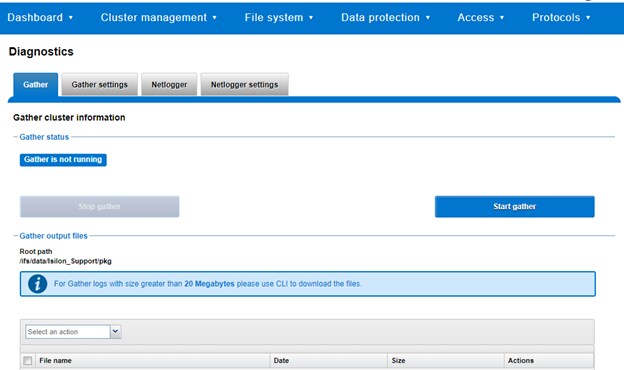
The WebUI also uses the ‘isi diagnostics’ platform API handler and so, like the CLI command, also offers a subset of the full isi_gather_info functionality.
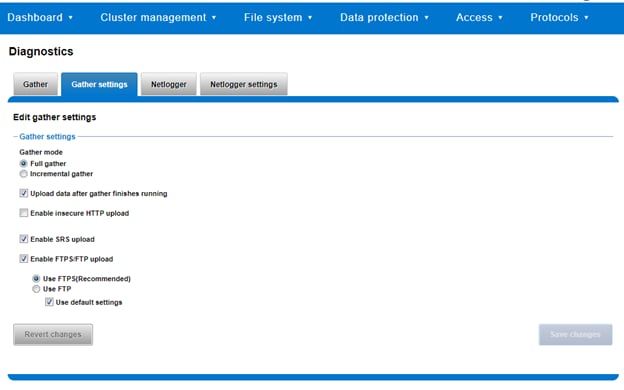
A limited menu of configuration options is also available in the WebUI, under Cluster management > Diagnostics > Gather settings:
Also contained within the OneFS diagnostics command set is the ‘isi diagnostics netlogger’ utility. Netlogger captures IP traffic over a period of time for network and protocol analysis.
Under the hood, netlogger is a Python wrapper around the ubiquitous tcpdump utility, and can be run either from the OneFS command line or WebUI.
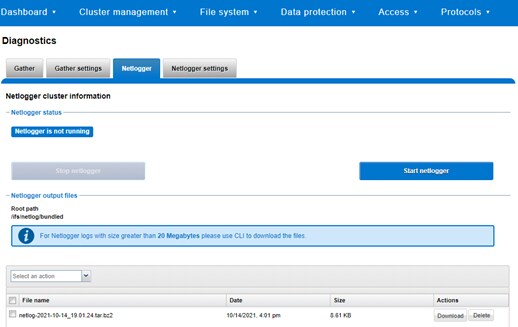
For example, from the WebUI, browse to Cluster management > Diagnostics > Netlogger:
Alternatively, from the OneFS CLI, the isi_netlogger command captures traffic on the interface (‘–interfaces’) over a timeout period of minutes (‘–duration’), and stores a specified number of log files (‘–count’).
Here’s the basic syntax of the CLI utility:
 # isi diagnostics netlogger start
        [--interfaces <str>]
        [--count <integer>]
        [--duration <duration>]
        [--snaplength <integer>]
        [--nodelist <str>]
        [--clients <str>]
        [--ports <str>]
        [--protocols (ip | ip6 | arp | tcp | udp)]
        [{--help | -h}]
Note that using the ‘-b’ bpf buffer size option will temporarily change the default buffer size while netlogger is running.
To display help text for netlogger command options, specify 'isi diagnostics netlogger start -h'. The command options include:
|
Netlogger Option |
Description |
|
–interfaces <str> |
Limit packet collection to specified network interfaces. |
|
–count <integer> |
The number of packet capture files to keep after they reach the duration limit. Defaults to the latest 3 files. 0 is infinite. |
|
–duration <duration> |
How long to run the capture before rotating the capture file. Default is 10 minutes. |
|
–snaplength <integer> |
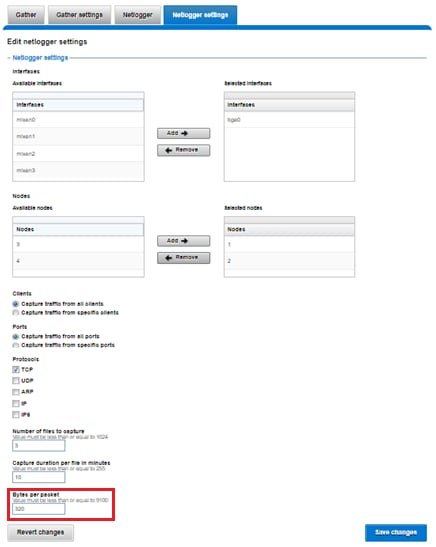
The maximum amount of data for each packet that is captured. Default is 320 bytes. Valid range is 64 to 9100 bytes. |
|
–nodelist <str> |
List of nodes specified by LNN on which to run the capture. |
|
–clients <str> |
Limit packet collection to specified Client hostname / IP addresses. |
|
–ports <str> |
Limit packet collection to specified TCP or UDP ports. |
|
–protocols (ip | ip6 | arp | tcp | udp) |
Limit packet collection to specified protocols. |
Netlogger’s log files are stored by default under /ifs/netlog/<node_name>.
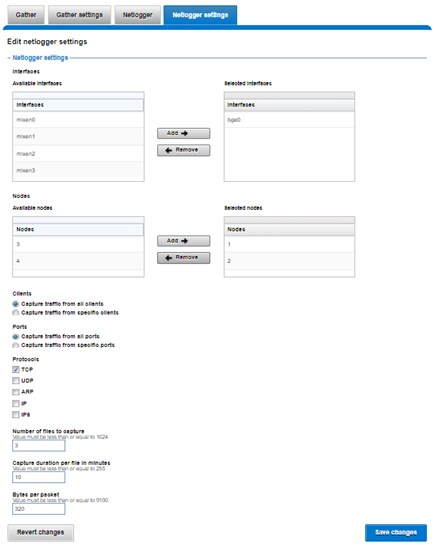
You can also use the WebUI to configure the netlogger parameters under Cluster management > Diagnostics > Netlogger settings:
Be aware that specifying ‘isi diagnostics netlogger’ can consume significant cluster resources. When running the tool on a production cluster, be aware of the effect on the system.
When the command has completed, the capture file(s) are stored under:
# /ifs/netlog/[nodename]
You can also use the following command to incorporate netlogger output files into a gather_info bundle:
# isi_gather_info -n [node#] -f /ifs/netlog
To capture on multiple nodes of the cluster, you can prefix the netlogger command by the versatile isi_for_array utility. For example:
# isi_for_array –s ‘isi diagnostics netlogger --nodelist 2,3 --timeout 5 --snaplength 256’
This command syntax creates five minute incremental files on nodes 2 and 3, using a snaplength of 256 bytes, which captures the first 256 bytes of each packet. These five-minute logs are kept for about three days. The naming convention is of the form netlog-<node_name>-<date>-<time>.pcap. For example:
# ls /ifs/netlog/tme_h700-1
netlog-tme_h700-1.2022-09-02_10.31.28.pcap
When using netlogger, set the ‘–snaplength’ option appropriately, depending on the protocol, in order to capture the right amount of detail in the packet headers and/or payload. Or, if you want the entire contents of every packet, use a value of zero (‘–snaplength 0’).
The default snaplength for netlogger is to capture 320 bytes per packet, which is typically sufficient for most protocols.
However, for SMB, a snaplength of 512 is sometimes required. Note that depending on a node’s traffic quantity, a snaplength of 0 (that is: capture whole packet) can potentially overwhelm the network interface driver.
All the output gets written to files under /ifs/netlog directory, and the default capture time is ten minutes (‘–duration 10’).
You can apply filters to constrain traffic to/from certain hosts or protocols. For example, to limit output to traffic between client 10.10.10.1 and the cluster node:
# isi diagnostics netlogger --duration 5 --snaplength 256 --clients 10.10.10.1
Or to capture only NFS traffic, filter on port 2049:
# isi diagnostics netlogger --ports 2049
Author: Nick Trimbee