OneFS Signed Upgrades
Introduced as part of the OneFS security enhancements, signed upgrades help maintain system integrity by preventing a cluster from being compromised by the installation of maliciously modified upgrade packages. This is required by several industry security compliance mandates, such as the DoD Network Device Management Security Requirements Guide, which stipulates “The network device must prevent the installation of patches, service packs, or application components without verification the software component has been digitally signed using a certificate that is recognized and approved by the organization”.
With this signed upgrade functionality, all packages must be cryptographically signed before they can be installed. This applies to all upgrade types, including core OneFS, patches, cluster firmware, and drive firmware. The underlying components that comprise this feature include an updated .isi format for all package types, plus a new OneFS Catalog to store the verified packages. In OneFS 9.4 and later, the actual upgrades themselves are still performed using either the CLI or WebUI, and are very similar to previous versions.
Under the hood, the signed upgrade process works as follows:
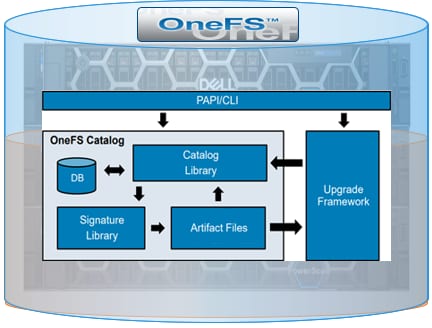
Everything goes through the catalog, which comprises four basic components. There’s a small SQLite database that tracks metadata, a library which has the basic logic for the catalog, the signature library based around OpenSSL which handles all of the verification, and a couple of directories in which to store the verified packages.
With signed upgrades, there’s a single file to download that contains the upgrade package, README text, and all signature data. No file unpacking is required.
The .isi file format is a follows:

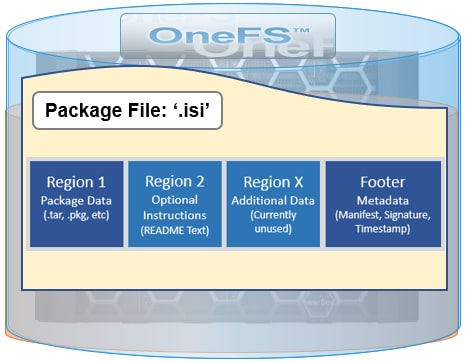
In the second region of the package file, you can directly incorporate a ‘readme’ text file that provides instructions, version compatibility requirements, and so on.
The first region, which contains the main package data, is also compatible with previous OneFS versions that don’t support the .isi format. This allows a signed firmware of the DSP package to be installed on OneFS 9.3 and earlier.
The new OneFS catalog provides a secure place to store verified .isi packages, and only the root account has direct access. The catalog itself is stored at /ifs/,ifsvar/catalog and all maintenance and interaction is performed using the isi upgrade catalog CLI command set. The contents, or artifacts, of the catalog each have an ID that corresponds to the SHA256 hash of the file.
Any user account with the ISI_PRIV_SYS_UPGRADE privilege can perform the following catalog-related actions, expressed as flags to the isi upgrade catalog command:
|
Action |
Description |
|
Clean |
List packages in the catalog |
|
Export |
Save a catalog item to a user specified file location |
|
Import |
Verify and add a new .isi package file into the catalog |
|
List |
List packages in the catalog |
|
Readme |
Display the README text from a catalog item or .isi package file |
|
Remove |
Manually remove a package from the catalog |
|
Repair |
Re-verify all catalog packages an rebuild the database |
|
Verify |
Verify the signature of a catalog item or .isi package file |
Package verification leverages the OneFS OpenSSL library, which enables a SHA256 hash of the manifest to be verified against the certificate. As part of this process, the chain-of-trust for the included certificate is compared with contents of the /etc/ssl/certs directory, and the distinguished name on the manifest checked against /etc/upgrade/identities file. Finally, the SHA256 hash of the data regions is compared against values from the manifest.
To check the signature, use the isi upgrade catalog verify command. For example:
# isi upgrade catalog verify --file /ifs/install.isi
Item             Verified
--------------------------
/ifs/install.isi True
--------------------------
Total: 1
To display additional install image details, use the isi_packager view command:
# isi_packager view --package /ifs/install.isi
== Region 1 ==
Type: OneFS Install Image
Name: OneFS_Install_0x90500B000000AC8_B_MAIN_2760(RELEASE)
Hash: ef7926cfe2255d7a620eb4557a17f7650314ce1788c623046929516d2d672304
Size: 397666098

== Footer Details ==
Format Version: 1
 Manifest Size: 296
Signature Size: 2838
Timestamp Size: 1495
 Manifest Hash: 066f5d6e6b12081d3643060f33d1a25fe3c13c1d13807f49f51475a9fc9fd191
Signature Hash: 5be88d23ac249e6a07c2c169219f4f663220d4985e58b16be793936053a563a3
Timestamp Hash: eca62a3c7c3f503ca38b5daf67d6be9d57c4fadbfd04dbc7c5d7f1ff80f9d948

== Signature Details ==
Fingerprint:     33fba394a5a0ebb11e8224a30627d3cd91985ccd
Issuer:          ISLN
Subject:         US / WA / Sea / Isln OneFS.
Organization:    Isln Powerscale OneFS
Expiration:      2022-09-07 22:00:22
Ext Key Usage:   codesigning
You can list the packages in the catalog, as follows:
# isi upgrade catalog list
ID    Type  Description                                              README
-----------------------------------------------------------------------------
cdb88 OneFS OneFS 9.4.0.0_build(2797)style(11) / B_MAIN_2797(RELEASE) -
3a145 DSP   Drive_Support_v1.39.1                                    Included
840b8 Patch HealthCheck_9.2.1_2021-09                                Included
aa19b Patch 9.3.0.2_GA-RUP_2021-12_PSP-1643                          Included
-----------------------------------------------------------------------------
Total: 4
Note that the package ID is comprised of the first few characters of SHA256 hash.
Packages are automatically imported when used, and verified upon import. You can also perform verification and import manually, if desired:
# isi upgrade catalog verify --file Drive_Support_v1.39.1.isi
Item                                      Verified
-------------------------------------------------
/ifs/packages/Drive_Support_v1.39.1.isi True
-------------------------------------------------
# isi upgrade catalog import Drive_Support_v1.39.1.isi
You can also export packages from the catalog and copy them to another cluster, for example. Generally, exported packages can be re-imported, too.
# isi upgrade catalog list
ID    Type  Description                                               README
-----------------------------------------------------------------------------
00b9c OneFS OneFS 9.5.0.0_build(2625)style(11) / B_MAIN_2625(RELEASE) –
3a145 DSP Drive_Support_v1.39.1 Included
-----------------------------------------------------------------------------
Total: 5
# isi upgrade catalog export --id 3a145 --file /ifs/Drive_Support_v1.39.1.isi
However, auto-generated OneFS images cannot be reimported.
The README column of the isi upgrade catalog list output indicates whether release notes are included for a .isi file or catalog item. If available, you can view them as follows:
# isi upgrade catalog readme --file HealthCheck_9.2.1_2021-09.isi | less Updated: September 02, 2021 *****************************************************************************
HealthCheck_9.2.1_2021-09: Patch for OneFS 9.2.1.x.
This patch contains the 2021-09 RUP for the Isilon HealthCheck System
*****************************************************************************
This patch can be installed on clusters running the following OneFS version:
* 9.2.1.x
:
Within a readme file, details typically include a short description of the artifact, and which minimum OneFS version the cluster is required to be running for installation.
Cleanup of patches and OneFS images is performed automatically upon commit. Any installed packages require the artifact to be present in the catalog for a successful uninstall. Similarly, the committed OneFS image is required when removing a patch or when expanding the cluster by adding a node.
You can remove artifacts manually, as follows:
# isi upgrade catalog remove --id 840b8
This will remove the specified artifact and all related metadata.
Are you sure? (yes/[no]): yes
However, always use caution if attempting to manually remove a package.
When it comes to catalog housekeeping, the ‘clean’ function removes any catalog artifact files without database entries, although normally this happens automatically when an item is removed.
# isi upgrade catalog clean
This will remove any artifacts that do not have associated metadata in the database.
Are you sure? (yes/[no]): yes
Additionally, the catalog ‘repair’ function rebuilds the database, re-imports all valid items, and re-verifies their signatures:
# isi upgrade catalog repair
This will attempt to repair the catalog directory. This will result in all stored artifacts being re-verified. Artifacts that fail to be verified will be deleted. Additionally, a new catalog directory will be initialized with the remaining artifacts.
Are you sure? (yes/[no]): yes
When installing a signed upgrade, patch, firmware, or drive support package (DSP) on a cluster running OneFS 9.4 or later, the command syntax used is fundamentally the same as in prior OneFS versions, with only the file extension itself having changed. The actual install file will have the ‘.isi’ extension, and the file containing the hash value for download verification will have a ‘.isi.sha256’ suffix. For example, take the OneFS install files:
- OneFS_v9.5.0.0_Install.isi
- OneFS_v9.5.0.0_Install.isi.sha256
You can use the following syntax to initiate a parallel OneFS signed upgrade:
# isi upgrade start --install-image-path /ifs/install.isi -–parallel
Or, if the desired upgrade image package is already in the catalog, you can instead use the —install-image-id flag to install it:
# isi upgrade start --install-image-id 00b9c –parallel
Or to upgrade a cluster’s firmware:
# isi upgrade firmware start --fw-pkg /ifs/IsiFw_Package_v10.3.7.isi –-rolling
To upgrade a cluster’s firmware using the ID of a package that’s in the catalog:
# isi upgrade firmware start --fw-pkg-id cf01b -–rolling
To initiate a simultaneous upgrade of a patch:
# isi upgrade patches install --patch /ifs/patch.isi -–simultaneous
And finally, to initiate a simultaneous upgrade of a drive firmware package:
# isi_dsp_install Drive_Support_v1.39.1.isi
Note that patches and drive support firmware are not currently able to be installed by their package IDs.
A committed upgrade image from the previous OneFS upgrade is automatically saved in the catalog, and also created automatically when a new cluster is configured. This image is required for new node joins, as well as when uninstalling patches. However, it’s worth noting that auto-created images will not have a signature and, although you can export them, they cannot be re-imported back into the catalog.
If the committed upgrade image is somehow missing, CELOG events are generated and the isi upgrade catalog repair command output displays an error. Additionally, when it comes to troubleshooting the signed upgrade process, it can pay to check the /var/log/messages and /var/log/isi_papi_d.log files, and the OneFS upgrade logs.
Author: Nick Trimbee