PowerFlex Historical Reporting
Executive summary
Introduction
Revisions
We value your feedback
Terminology
Introduction
Overview
PowerFlex support
Advantages
SRM Architecture
Architecture
A Dell SRM installation consists of a set of servers or vApps to host the various SRM services. The services consist of the frontend, backend, and data collectors (Figure 1).
Frontend
The frontend hosts the services required for the user interface. The services include the web server, reports, alerting frontend, and compliance frontend.
Primary backend
The primary backend hosts system services that support functions such as the alerting backend, compliance backend, and the topology backend. A single time series database (TSDB) is also installed on the primary backend.
Additional backend
An additional backend hosts four TSDBs.
Data collectors
Data collectors are device-specific services that connect to and collect data from applications, hosts, storage network devices, and storage systems, including PowerFlex clusters.
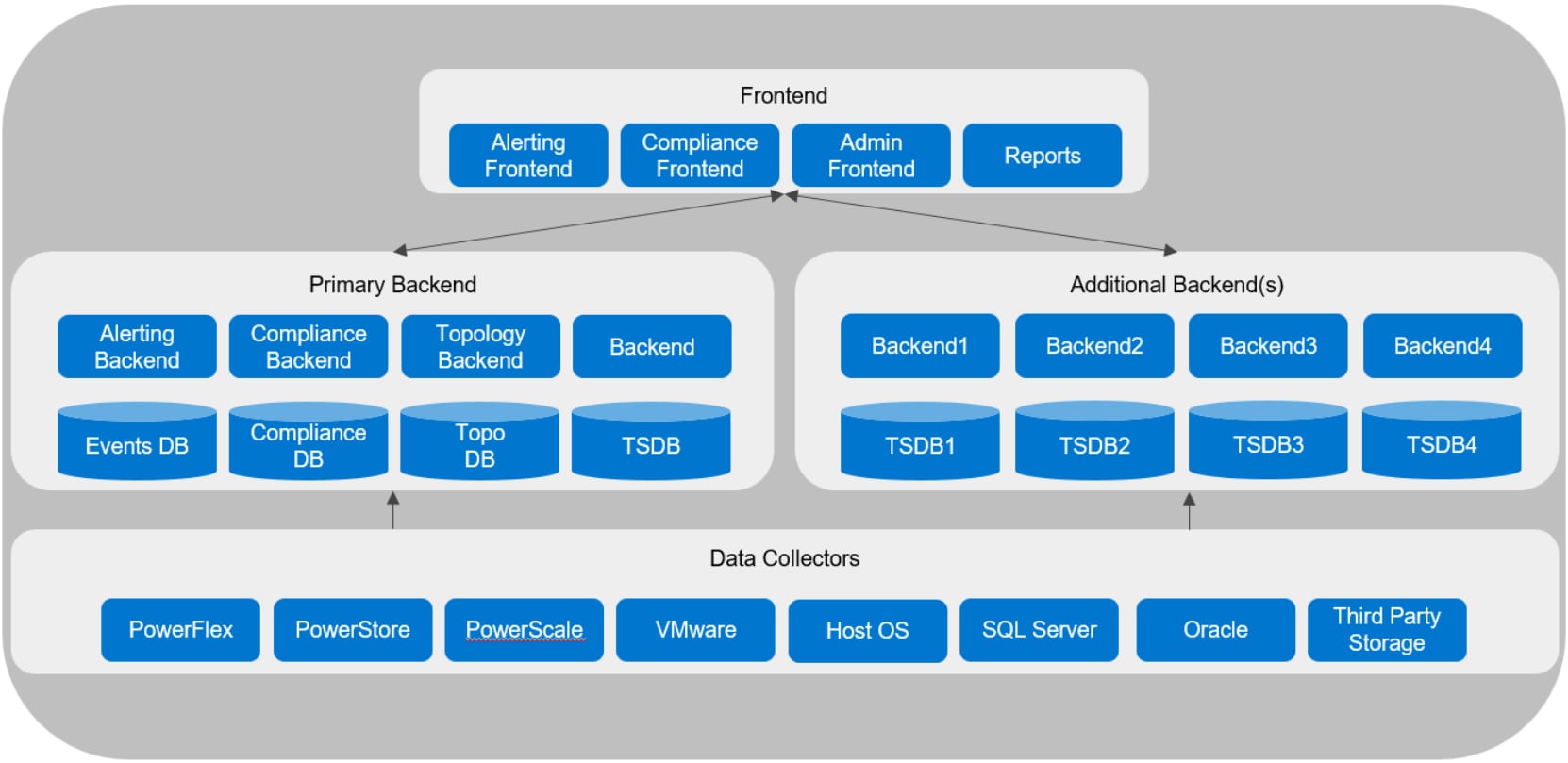
Figure 1. SRM architecture
SolutionPack
SRM is modular in design, making it simple to add support for hosts, storage, and applications. Support for a device or application is enabled by installing a SolutionPack. A SolutionPack consists of a set of modules, including reports, preconfigured alert definitions, alert consolidation services, and data collection.
Data collection
Data collection modules collect performance, capacity, and alerts at predefined intervals. The default data collection intervals for PowerFlex are five minutes for performance, fifteen minutes for capacity metrics, and five minutes for alerts. The collection intervals are user configurable (Figure 2).
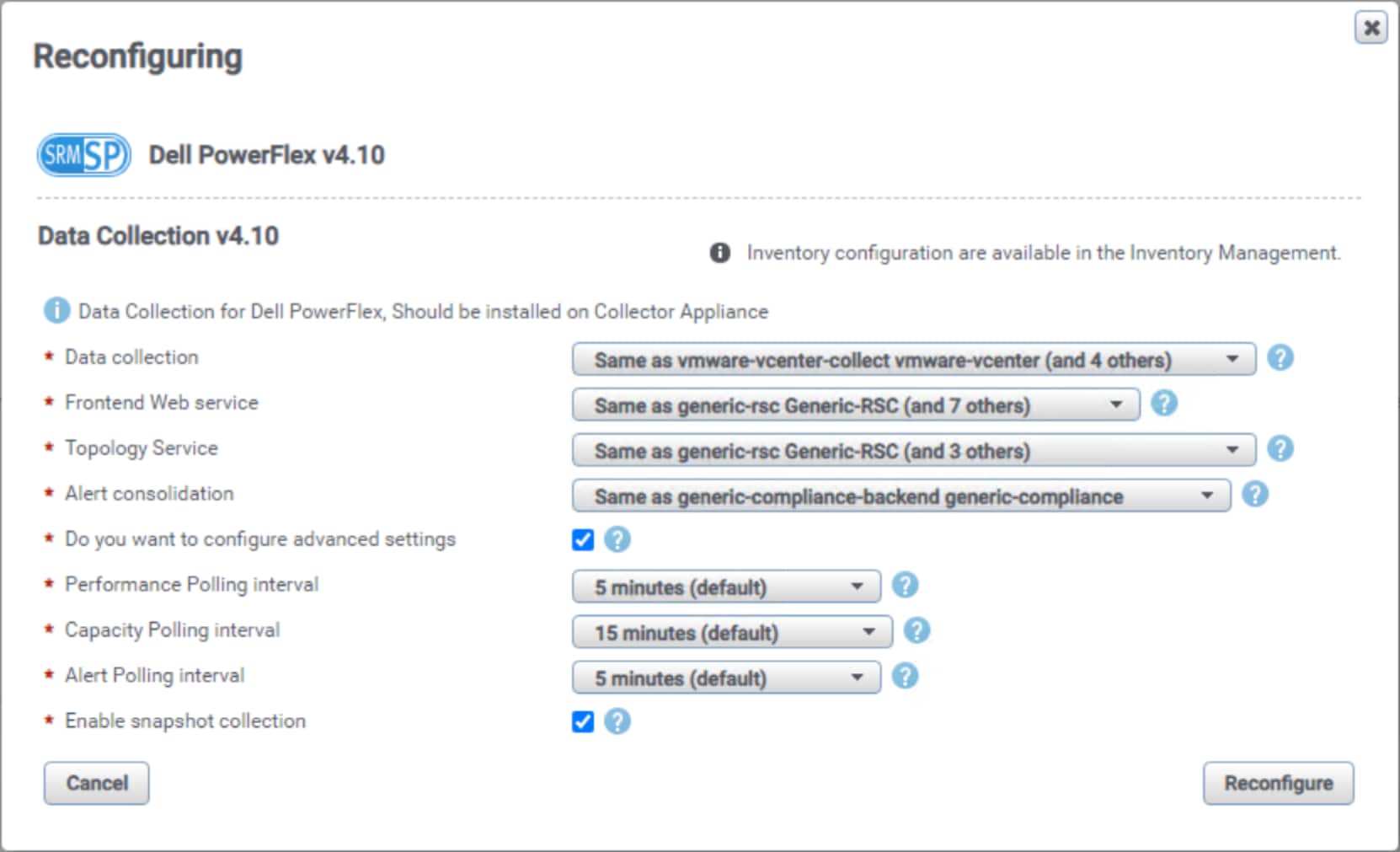
Figure 2. PowerFlex collection intervals
Collectors are installed in the SRM system and require network connectivity to each PowerFlex cluster to be monitored. The collector uses REST API calls to the PowerFlex Gateway (PowerFlex v3.6 and earlier) or PowerFlex Manager (PowerFlex v4.x and later). Because SRM does not monitor the PowerFlex nodes, access to the iDRACs is not required.
Note: A PowerFlex account with the monitor role is required to discover and monitor PowerFlex in SRM.
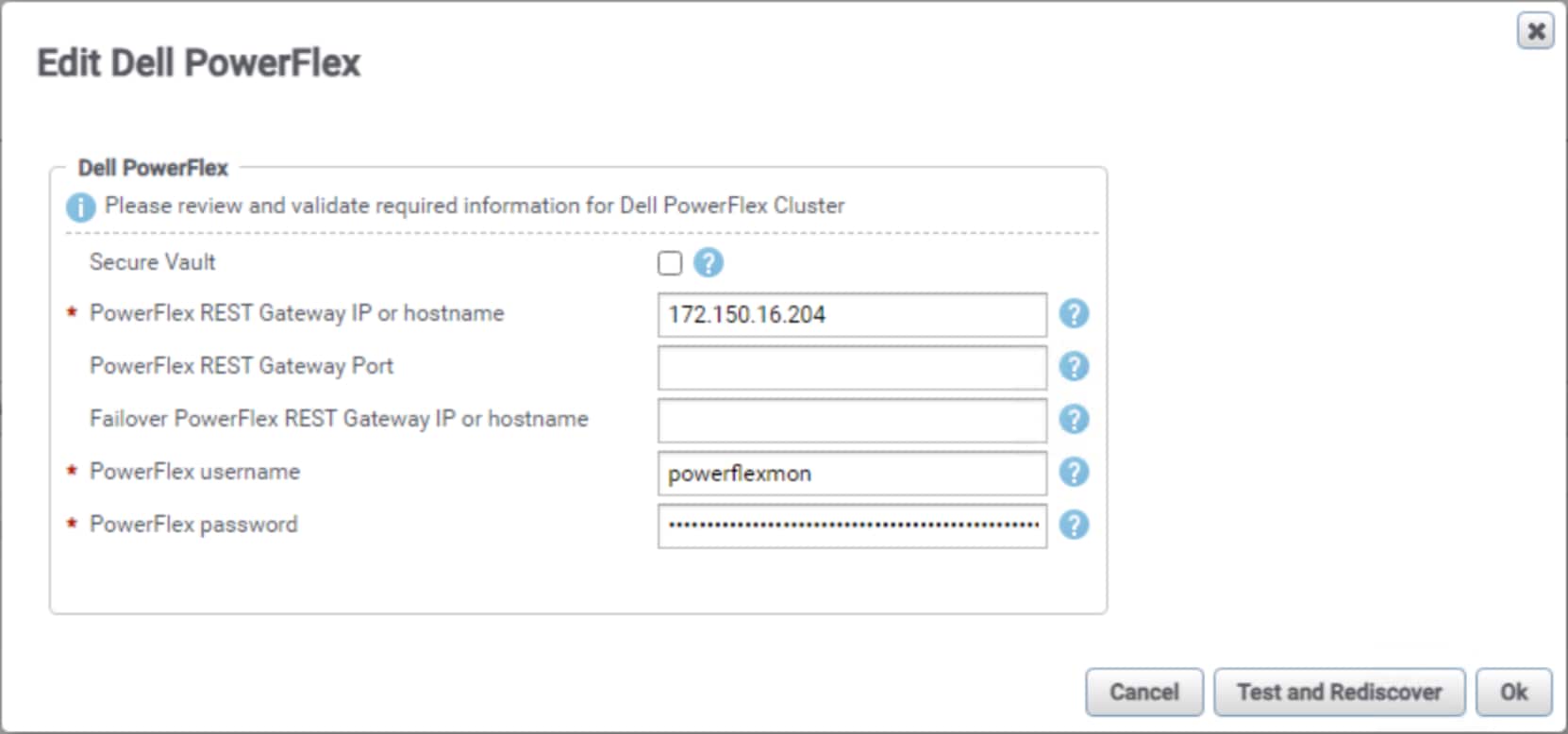
Figure 3. PowerFlex discovery
The number of PowerFlex clusters monitored by a single SRM implementation depends on the number and size of all devices monitored by SRM. The default SRM installation consists of a single collector virtual machine that supports up to 14 storage systems. A scaled-out SRM deployment can monitor up to 72 storage systems.
Note: Contact your Dell account team for assistance in proper sizing of SRM.
Reports
SRM includes a comprehensive set of global reports that you can use with all devices, including PowerFlex clusters that have been discovered. The global reports are based on key use cases, such as capacity planning, configuration compliance, performance troubleshooting, workload analysis, and chargeback. The PowerFlex SolutionPack reports are installed in the report library and organized into the following (Figure 4):
- Summary - A collection of card and table reports showing performance and capacity metrics for PowerFlex clusters.
- Inventory – A list of all PowerFlex components, physical or logical, such as storage pools, SDSs, volumes, and snapshots.
- Capacity – Contains PowerFlex cluster level capacity reports.
- Performance – PowerFlex performance reports.
- Operations - Spot health issues and identify areas for improving efficiencies.
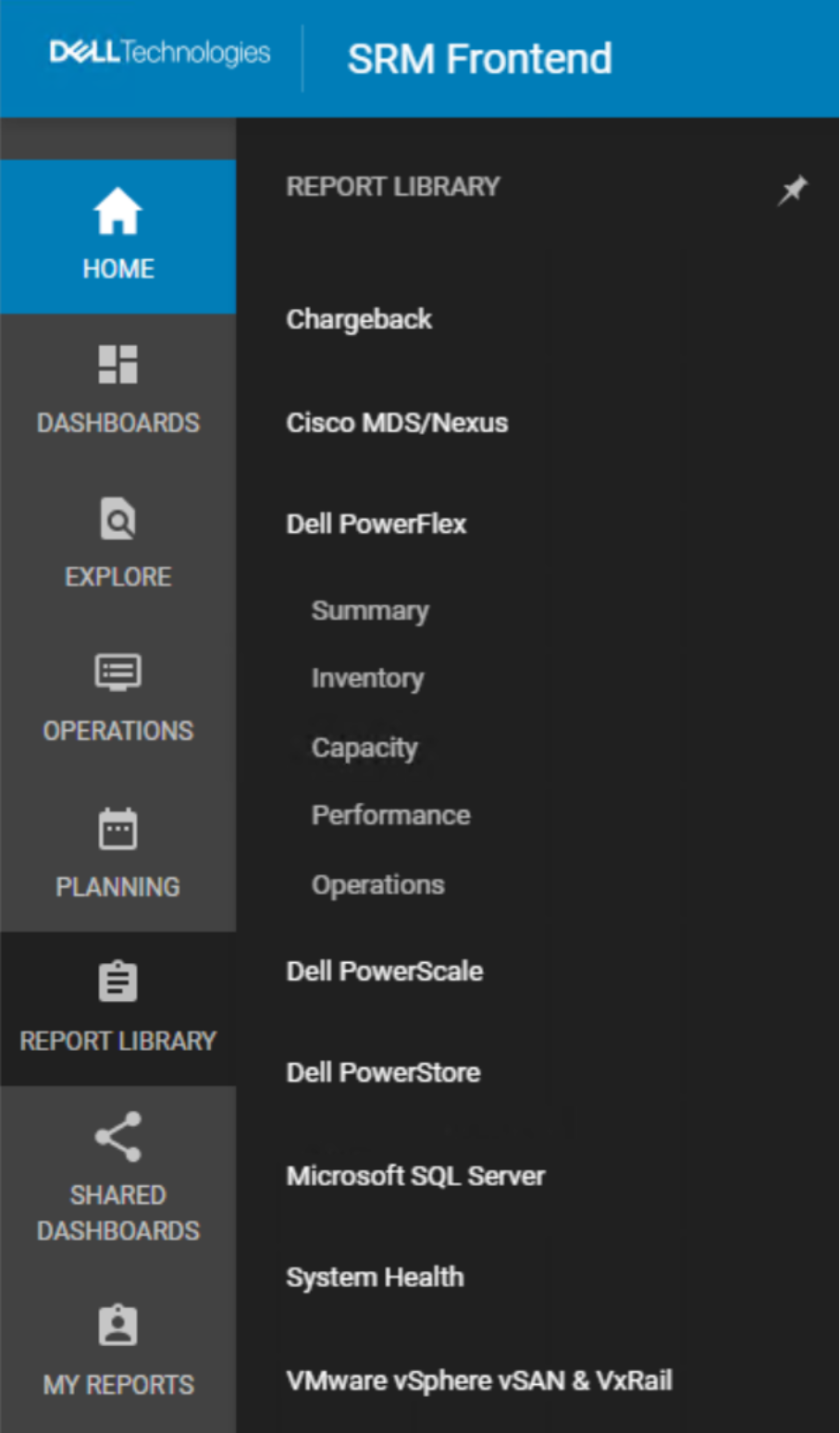
Figure 4. Report library
Alerts
The SRM alerting subsystem consolidates alerts from many different devices and normalizes them so that they can be displayed in the SRM UI. PowerFlex events can be sent to an alert consolidation event listener installed in SRM where they are normalized (Figure 5). The event data is evaluated against a set of rules by the alerting backend, and if true, an alert is triggered.
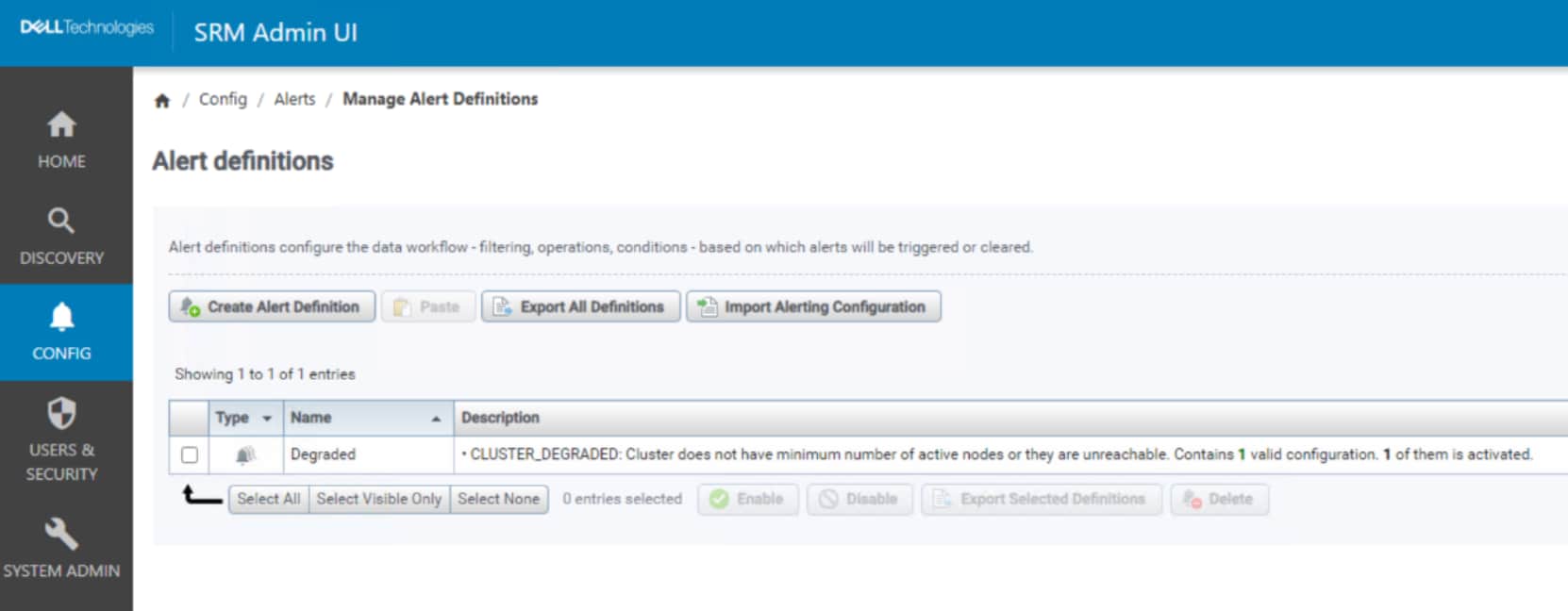
Figure 5. Event-based alert
Alerts can also be triggered using metric-based thresholds (Figure 6). Threshold alerts do not originate from the PowerFlex cluster. Instead, they are based on metrics collected by SRM. An alert is created when the metric exceeds the user-defined threshold.
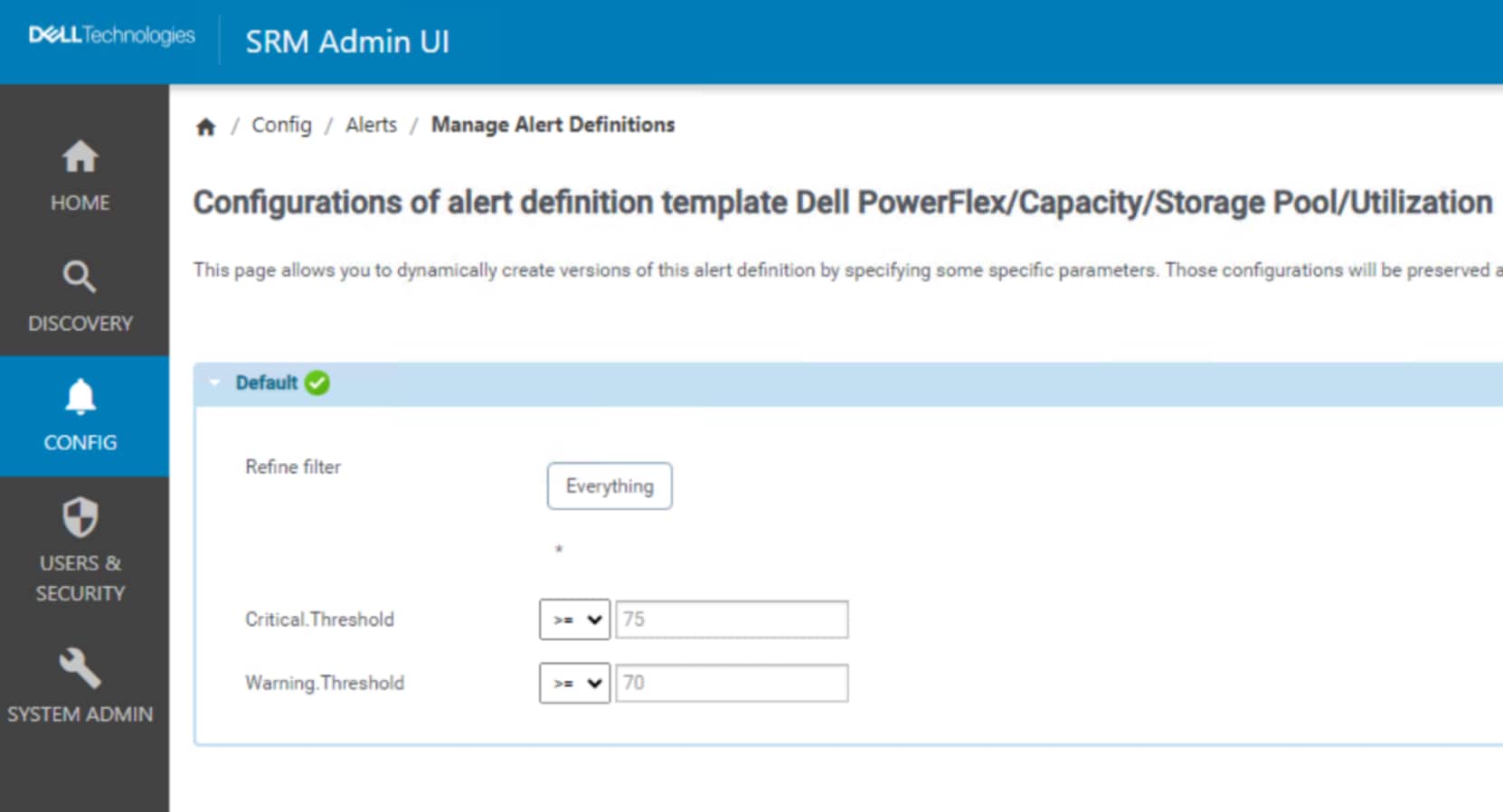
Figure 6. Metric-based threshold alert
SRM can receive SNMP trap events from supported devices. After it is normalized, SRM evaluates the SNMP trap event to determine whether it matches an alert condition. The last method of creating an alert is with a scheduled report. When the report is scheduled, the administrator creates an alert definition to alert on the wanted value in the report (Figure 7).
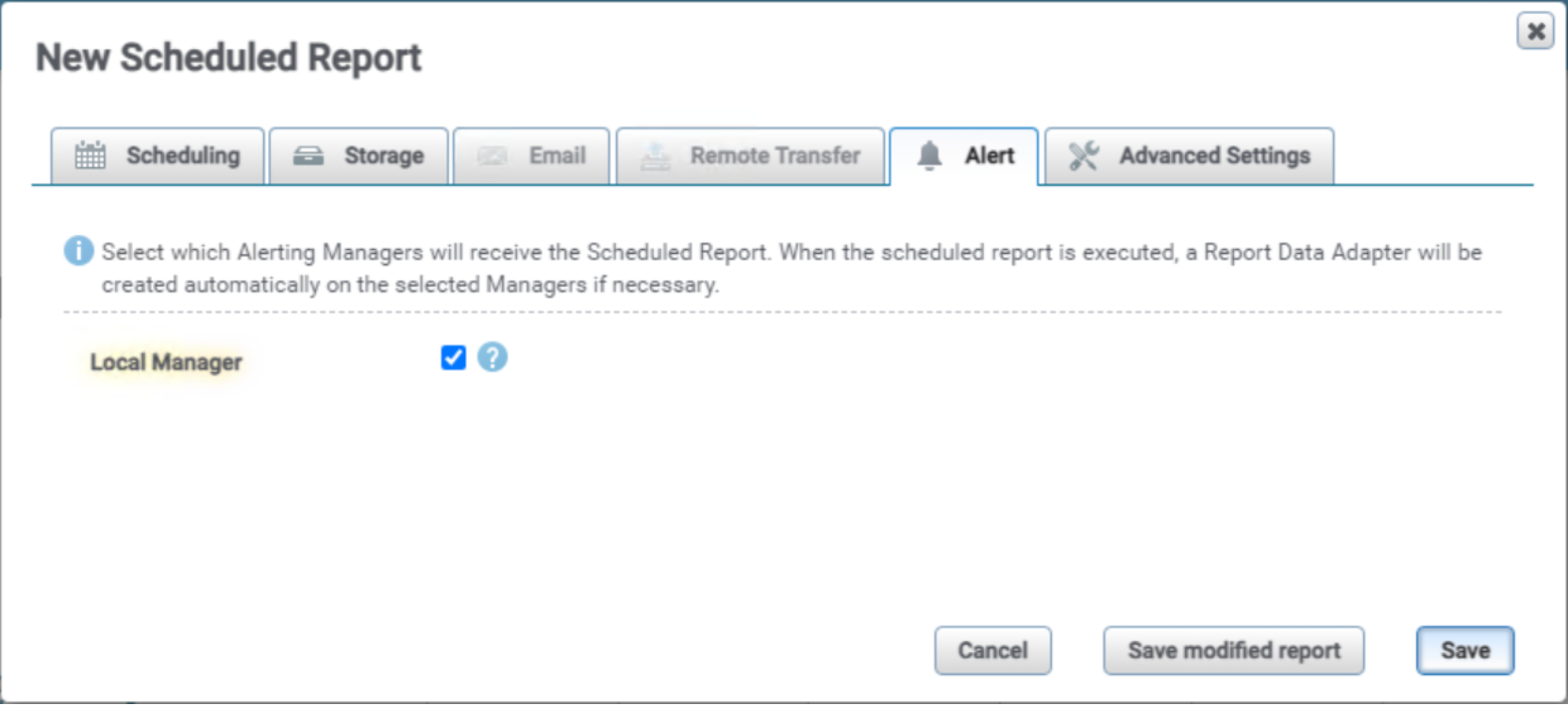
Figure 7. Alert - report schedule
Alerting
PowerFlex Manager
Configuring SRM as a destination for PowerFlex events is configured in PowerFlex Manager. The required information is the IP address for the SRM primary backend and the event listener port, which is 2041. Log in to PowerFlex Manager and navigate to Settings > Events & Alerts > Notification Policies and add a destination (Figure 8).

Figure 8. Create a destination
Enter the IP Address of the primary backend, port 2041, and the community string for the SRM primary backend (Figure 9).
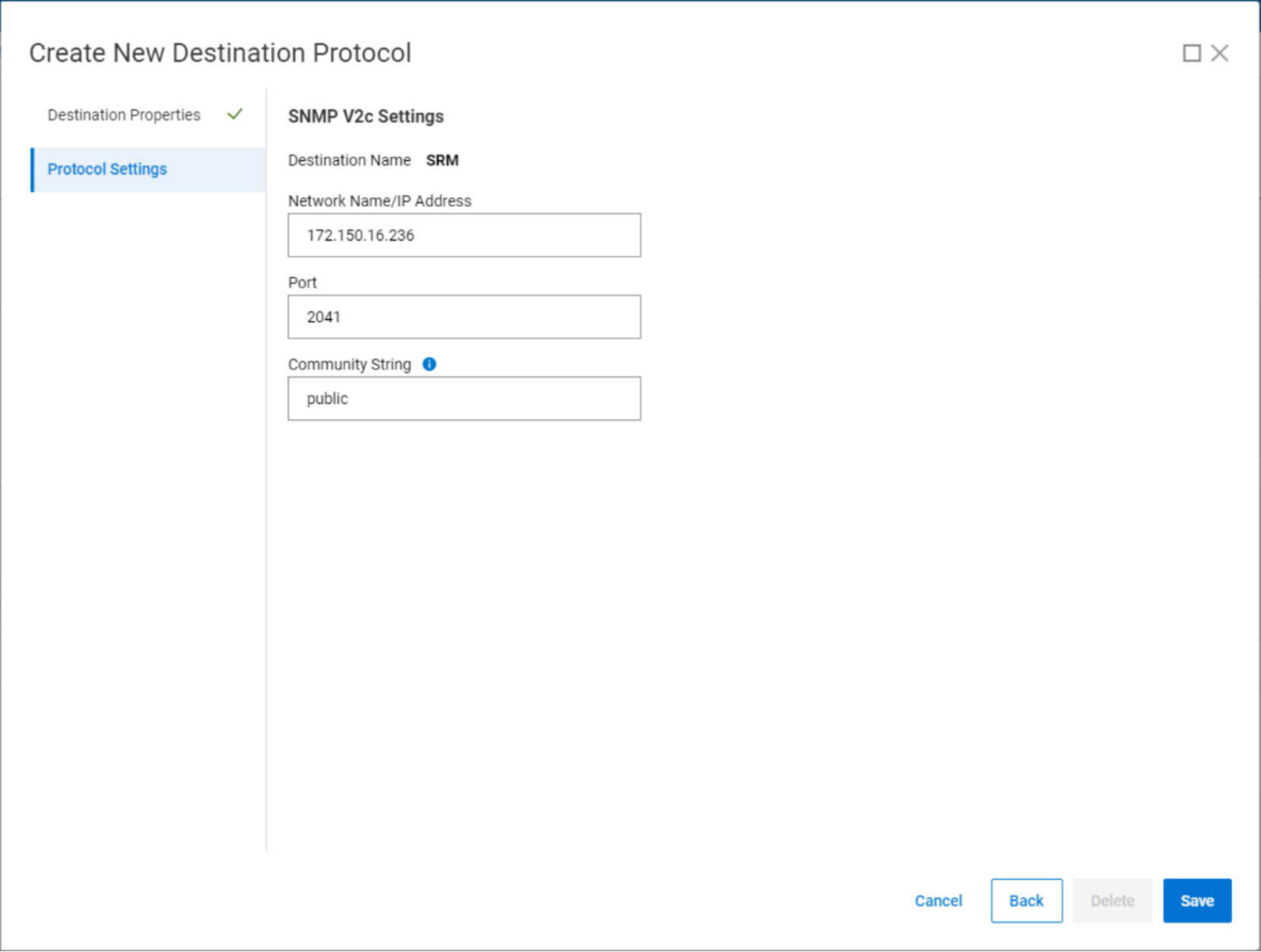
Figure 9. Alert destination
PowerFlex Manager automatically creates a notification policy after the destination is saved.. Select the new policy and modify the name and description (Figure 10). The default severity levels are Critical and Major. Select Minor and Info if needed and click Submit.
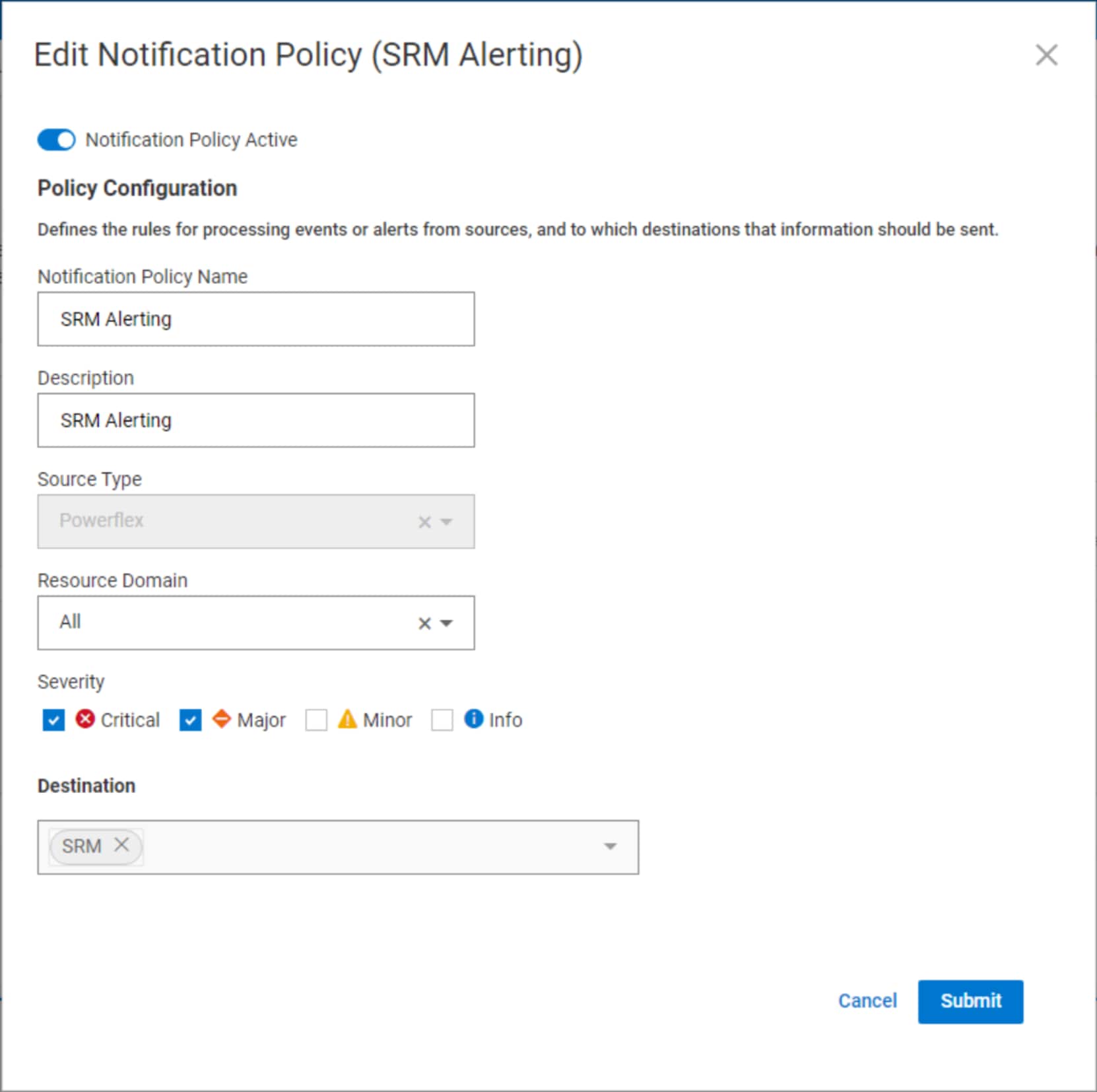
Figure 10. Modify the notification policy
SRM
The SolutionPack for PowerFlex includes more than 100 predefined alert definitions. Most alert definitions are disabled by default. Creating custom alerts is also possible in SRM but not covered in this document. You can create a custom alert from scratch or customize a copy of a predefined alert definition. Alerts are organized into folders making it simple to locate alerts by category (Table 2) and by PowerFlex component, such as a storage pool.
Table 3. Alert categories
|
Category |
Source |
Example |
|
Availability |
PowerFlex event |
SDS and SDC Disconnected |
|
Capacity |
PowerFlex event Metric based |
Storage Pool Capacity threshold reached |
|
Compliance |
PowerFlex event |
Configured spare capacity smaller than largest fault unit |
|
Configuration |
PowerFlex event |
SDS in maintenance mode |
|
Environment |
PowerFlex event |
Cluster degraded |
|
Error |
PowerFlex event |
Physical drive in bad state |
|
Performance |
PowerFlex event |
RPO Lag |
The life cycle of an alert partially depends on whether it is a momentary or durable alert. A momentary alert occurs once and is automatically cleared after seven days. Most momentary alerts are informational, such as a user logging into the system. Durable alerts remain active until a clearing event is received from the source, at which point the alert becomes inactive. Users with the administrator role can manually clear alerts.
All alerts enter the alerting backend with the same life cycle. An alert starts in an active state. An active alert is stored in the alerts table in the alerting backend database. Active alerts can be viewed in the All Alerts global report or the PowerFlex Operations report. Alerts that have transitioned to an inactive state are maintained for historical purposes but are no longer visible in reports.
Inactive alerts are moved to an archive table in the alerting database after the user-configurable retention period expires. Archived alerts are available for historical purposes. The final stage in the alert life cycle is the purging of inactive alerts after a configurable period. Purged alerts are deleted from the archive table and are no longer available.
There are several user-initiated actions in SRM that make it simple to manage the alert life cycle (Figure 11). Users with the appropriate role can assign alerts to SRM users or take ownership. The user can attach a ticket id from an external ITSM system to the alert for tracking and auditing purposes.
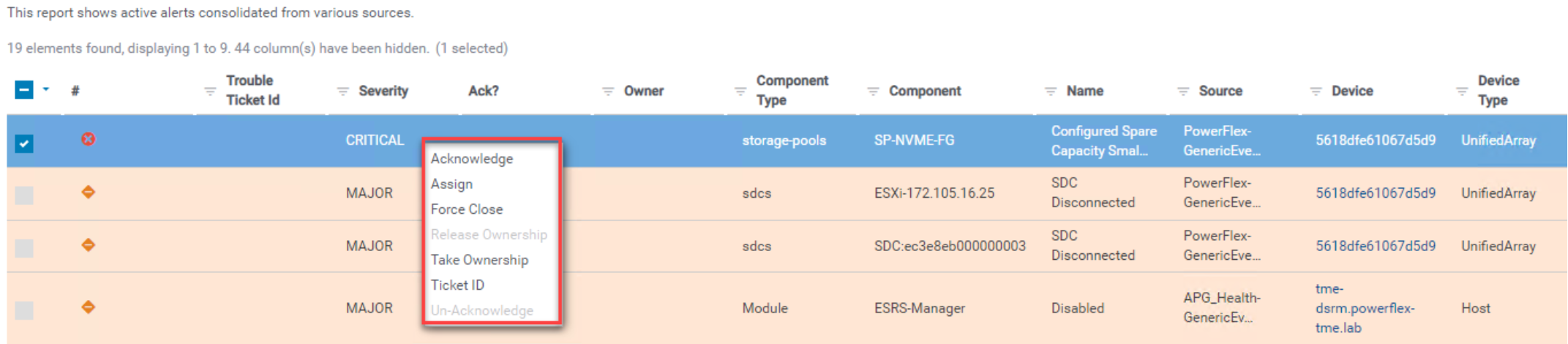
Figure 11. Alert operations
Alert management
SRM enables a simple and consistent alert management workflow. Figure 12 shows an example of one such workflow.
-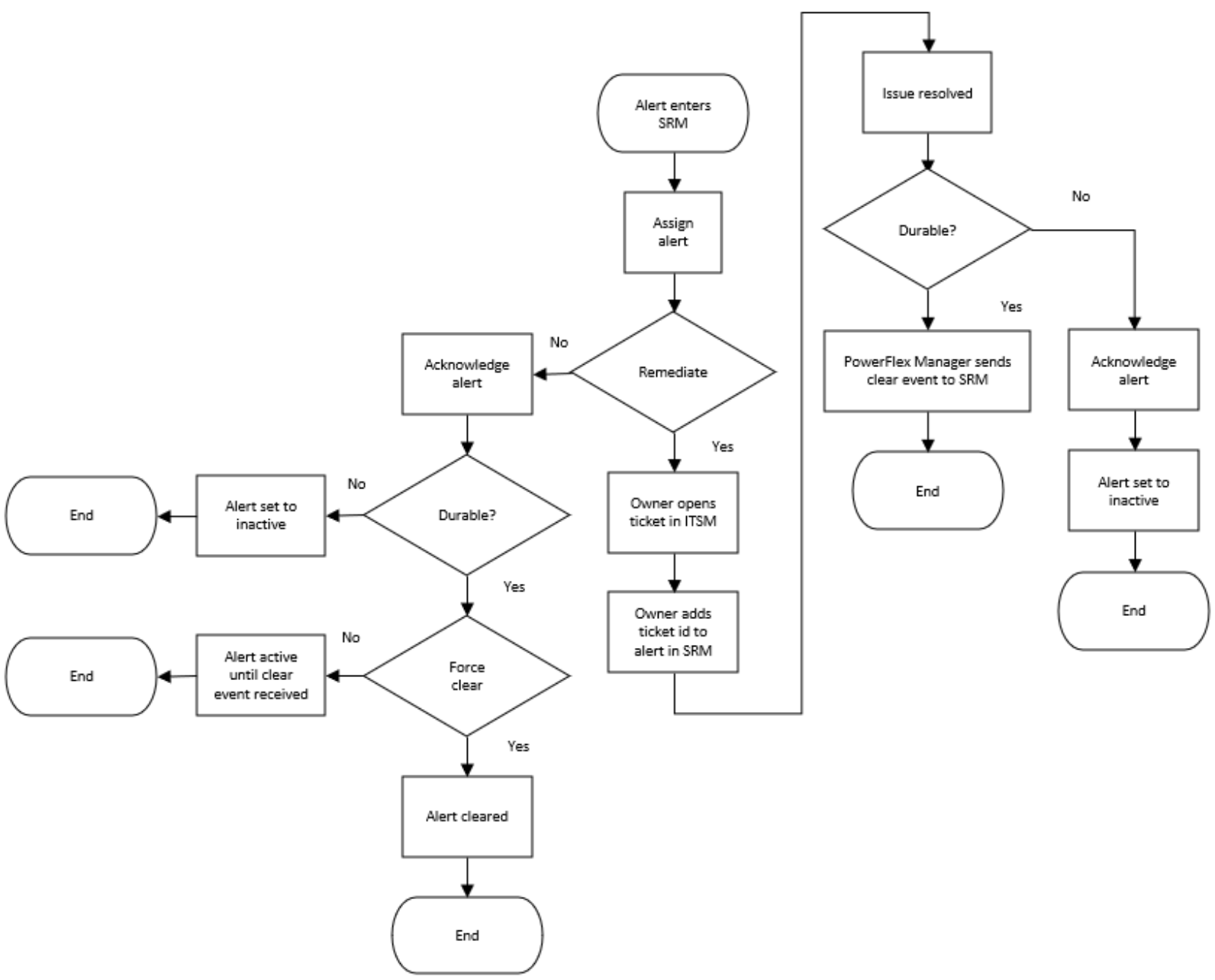
Figure 12. Alert remediation workflow example
Users can view alerts in the Operations > All Alerts report or the Report Library > Dell PowerFlex > Operations > Alerts report. A user with administrator privileges can take ownership of the alert or assign it to another user for remediation (Figure 13). Alternatively, for durable alerts, the user who acknowledges the alert is automatically assigned as the owner.
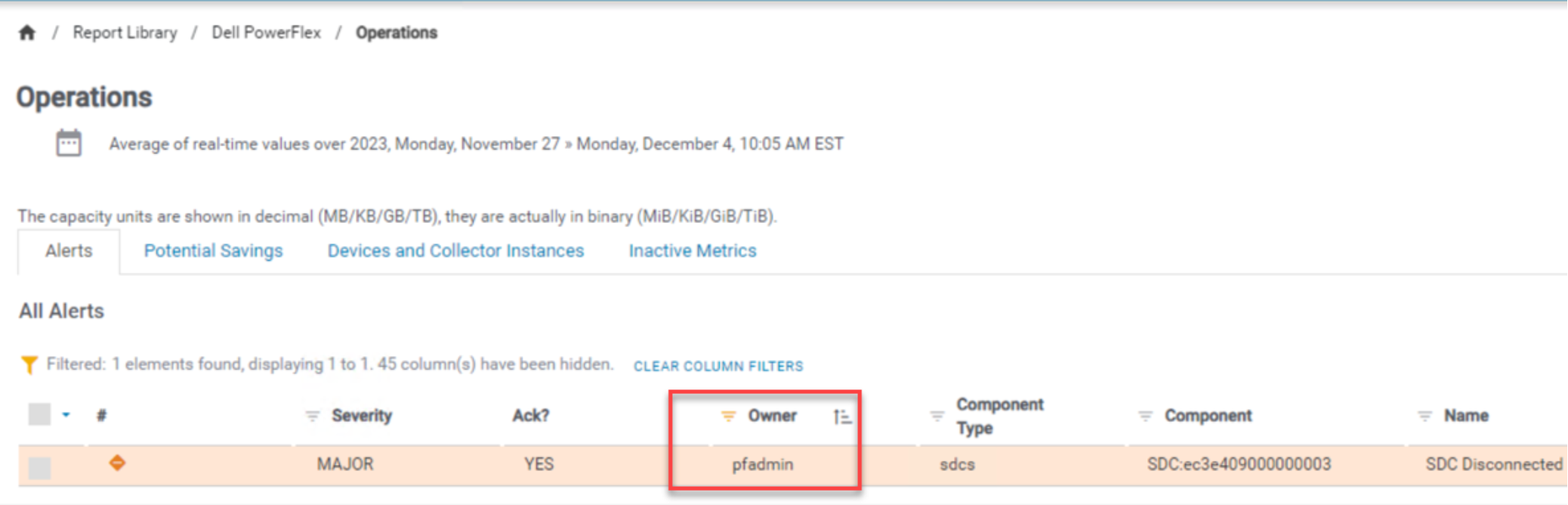
Figure 13. Alert Ownership
The owner starts remediation by opening a ticket in their ITSM system and adding the ticket id to the alert in SRM (Figure 14).
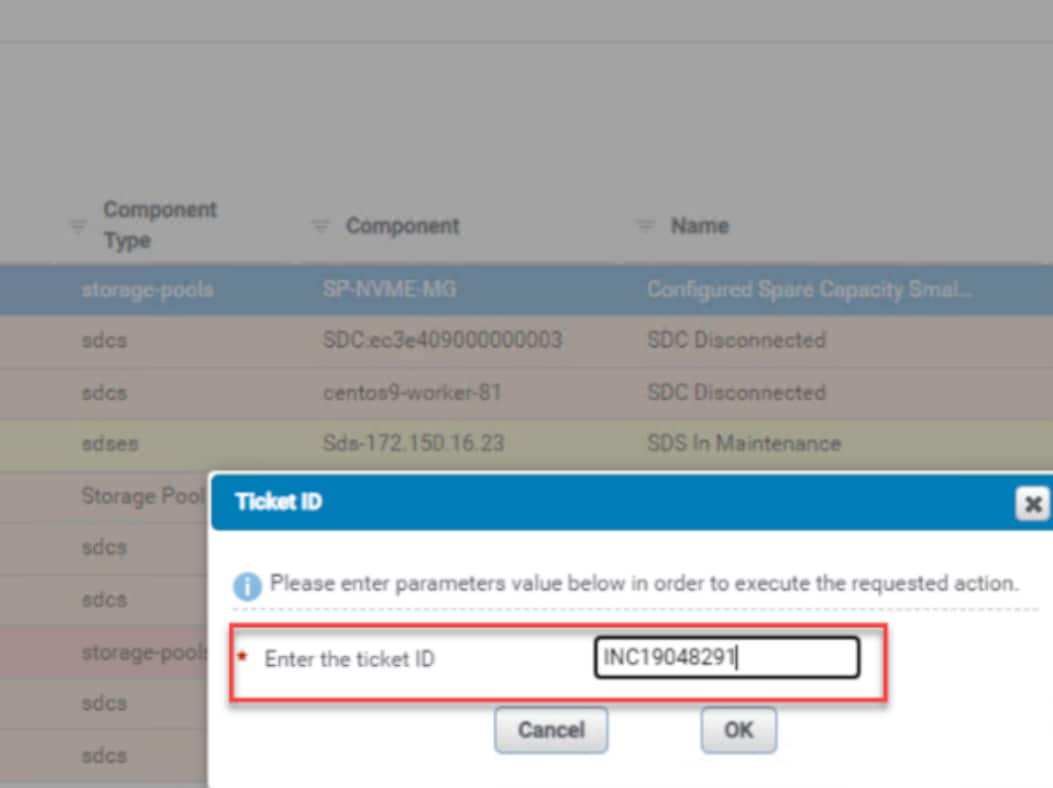
Figure 14. Ticket ID
When the owner resolves the issue that caused the durable alert, a corresponding event trap is sent from PowerFlex Manager to SRM, changing the alert to an inactive state. The inactive alert is automatically filtered from the alerts report.
A momentary alert that does not require intervention can either be left to age out after seven days or the owner can acknowledge it. Acknowledged momentary alerts are set to an inactive state and will no longer appear in the alerts report. For momentary alerts that require user intervention, the owner follows a similar workflow as a durable alert. After the issue that caused the momentary alert is resolved, the user acknowledges the alert and changes the state to inactive.
Metrics
Metrics
Retention
Report library
Summary
The summary reports are PowerFlex cluster level reports that summarize configuration, performance, and capacity information in an easy-to-read format. The summary reports are available as a card view and table view. The card reports have a similar look and feel to the capacity report on the PowerFlex Manager dashboard (Figure 15).
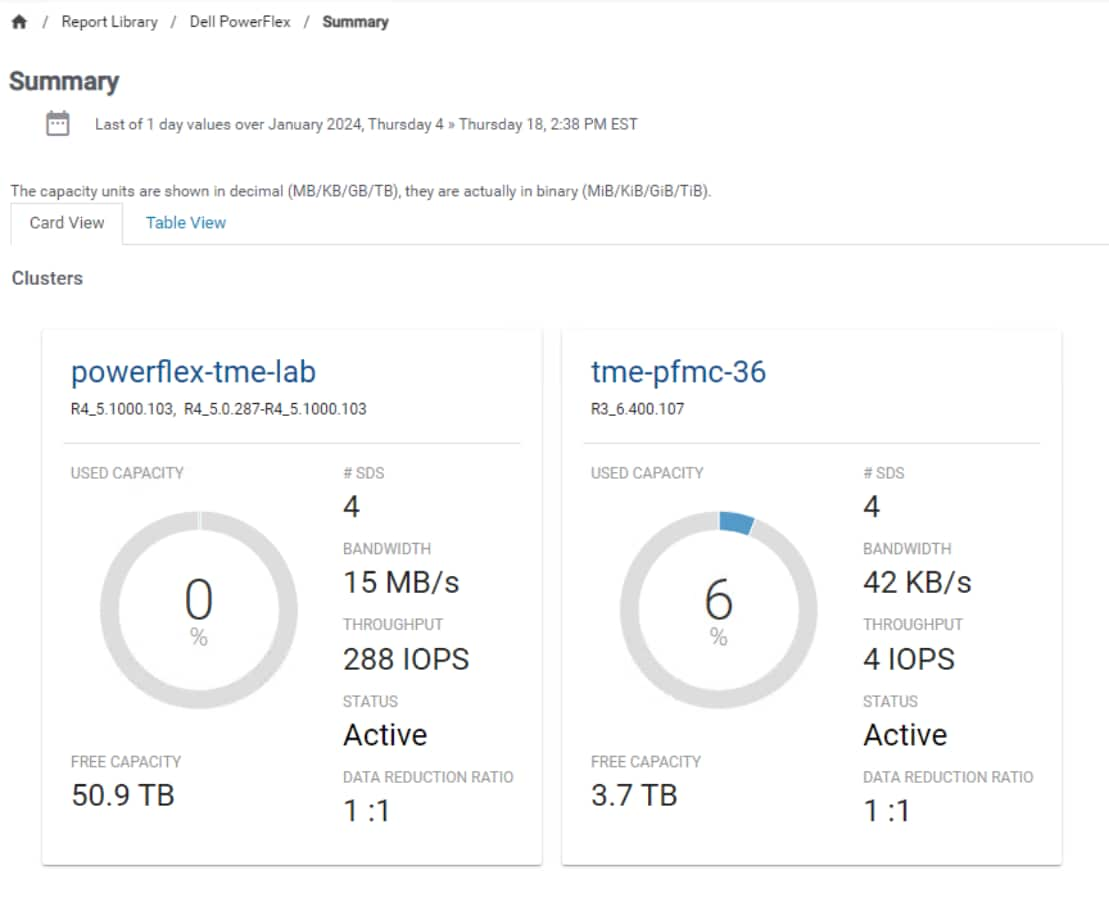
Figure 15. Summary report – card view
Switching to the table view provides more detailed information, such as the SDC count and a capacity summary for all PowerFlex clusters (Figure 16). Performance metrics include a trend line, to give administrators a quick historical reference to some metrics.
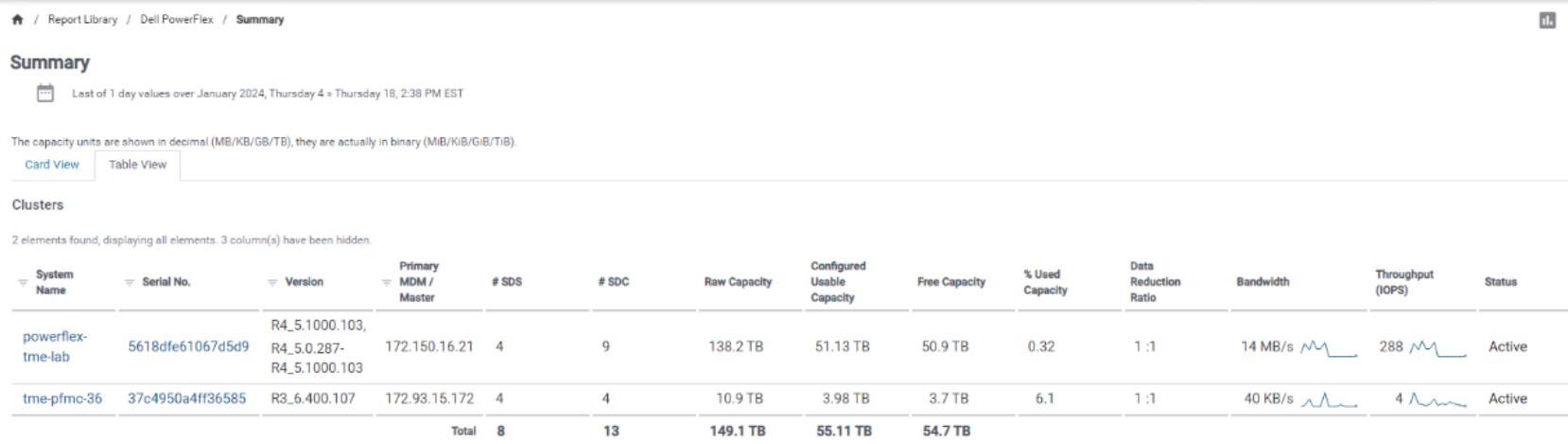
Figure 16. Summary report – table view
Inventory
Inventory reports are available from system level to component level. Some of the reports are simple table reports and others are interactive reports. An interactive report consists of a table and charts. The charts are updated based on the row selected in the table. Figure 17 shows an example of the SDC inventory..
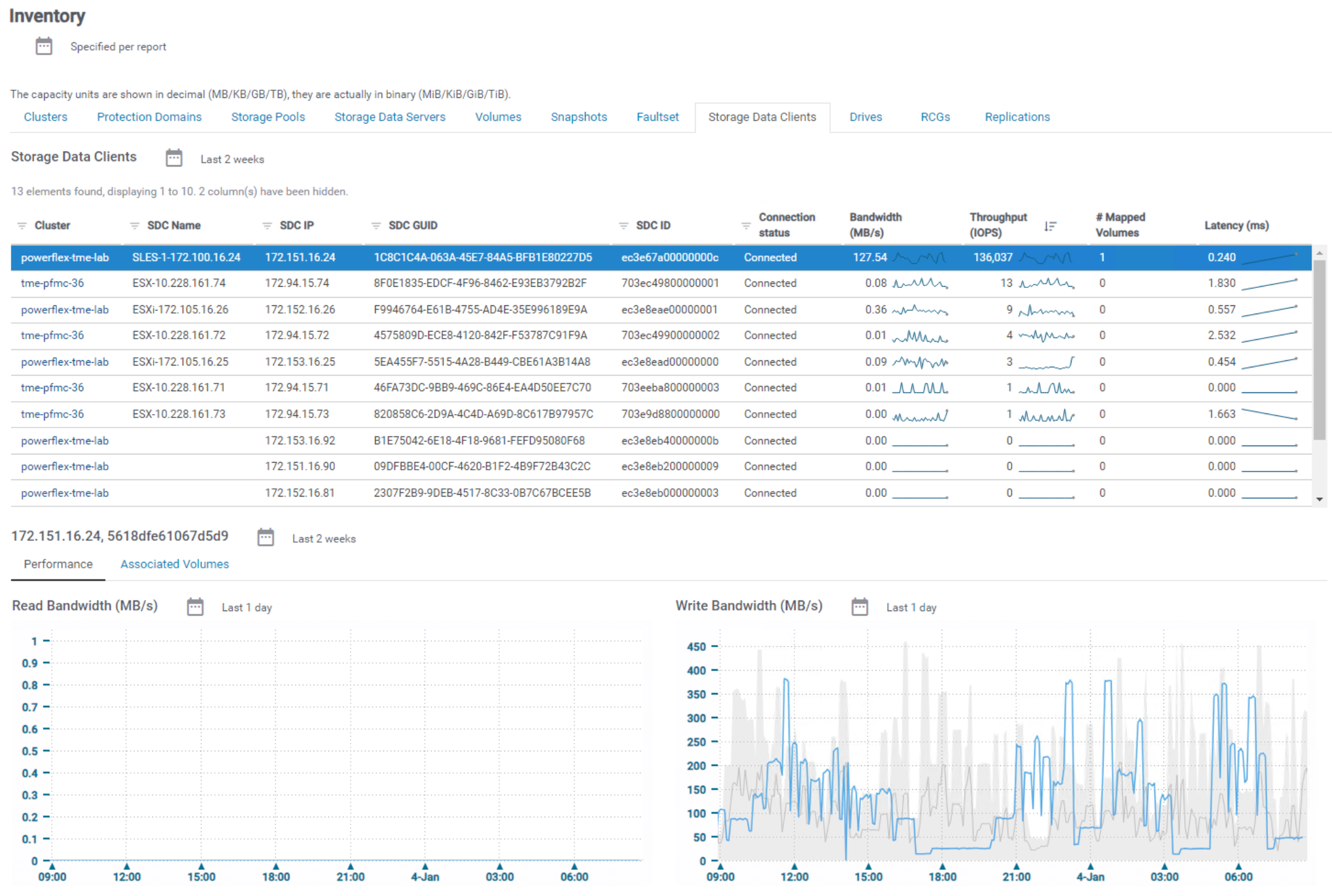
Figure 17. Inventory – SDC
Capacity
The enterprise capacity dashboard consists of five charts (Figure 18). The layout of the dashboard has a logical flow from left to right. The first bar chart is Raw Capacity Usage and normalizes the raw capacity of all PowerFlex clusters discovered in SRM. Details of the configured usable capacity are explained in the Usable Capacity chart. The used capacity is detailed in the Used Capacity by Type chart.
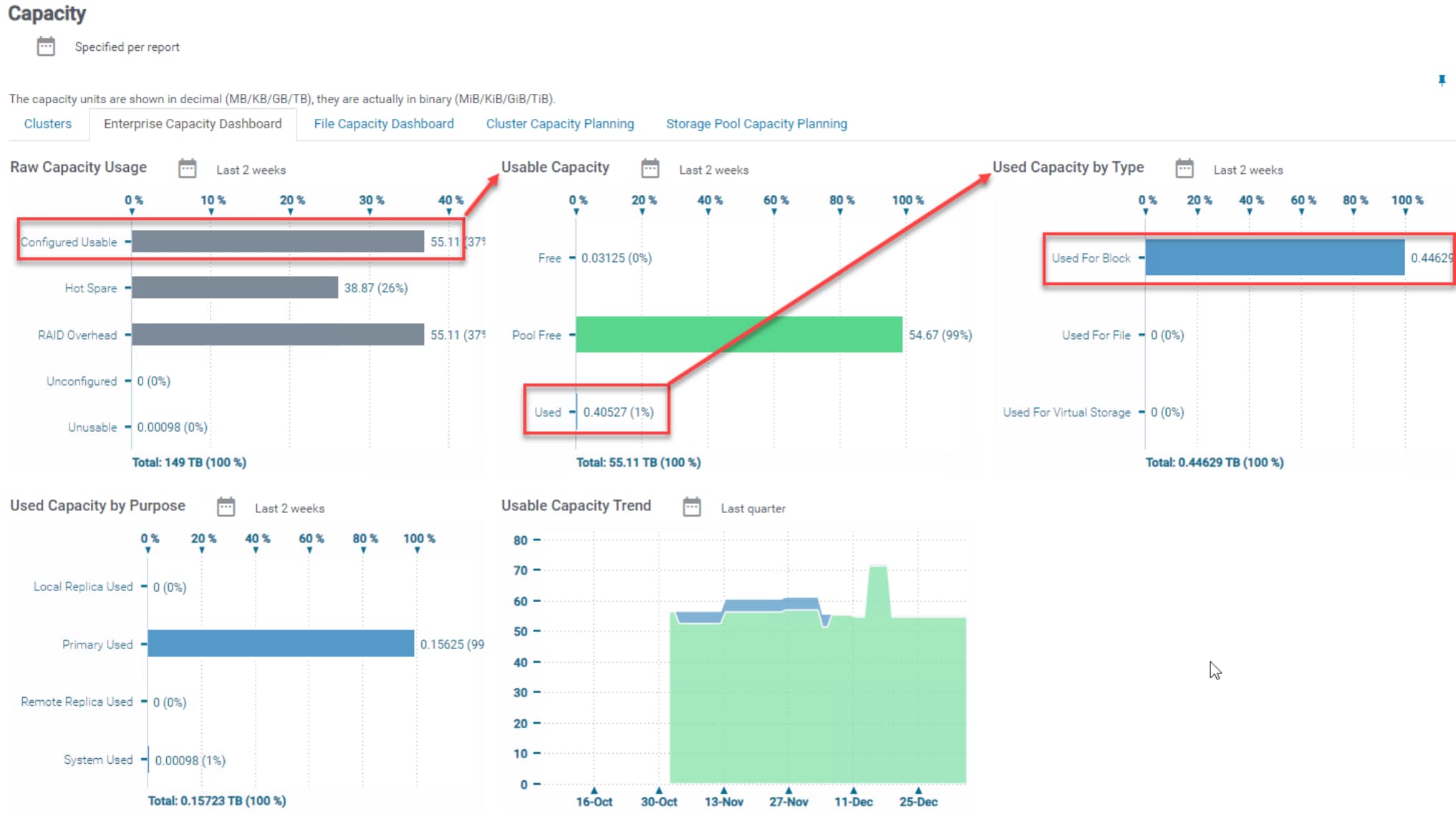
Figure 18. PowerFlex Enterprise Capacity
Performance
Performance reports are available for PowerFlex clusters and the components of a cluster. The clusters, SDSs, Protection Domains, and Storage Pool tabs are also useful for analyzing a data rebuild or rebalance process, in addition to I/O KPIs.
Some performance reports include baseline values that help administrators visualize a single metric over the last 24 hours in relation to the historical behavior of the same metric. SRM requires a minimum of two weeks of data collection before calculating the upper and lower baselines (Figure 19).
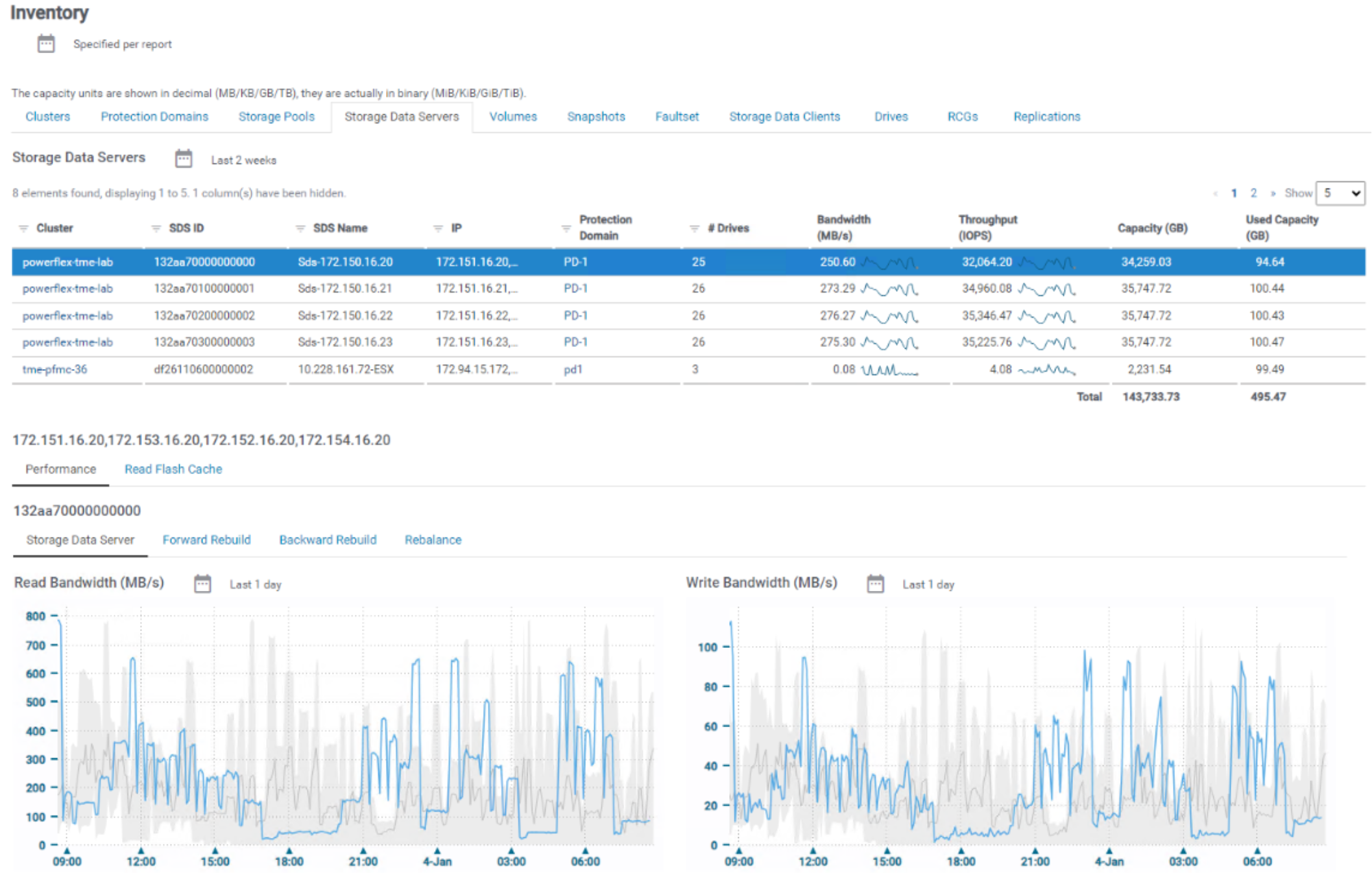
Figure 19. SDS performance report with baselines
The blue line in a baseline report is the last 24 hours of the selected metric. The gray line shows the average of the metric over the last four weeks for the same day and hours represented by the blue line. The shaded gray area shows the range of all values that are collected over the last four weeks for the same day and hours represented by the blue line (Figure 20).
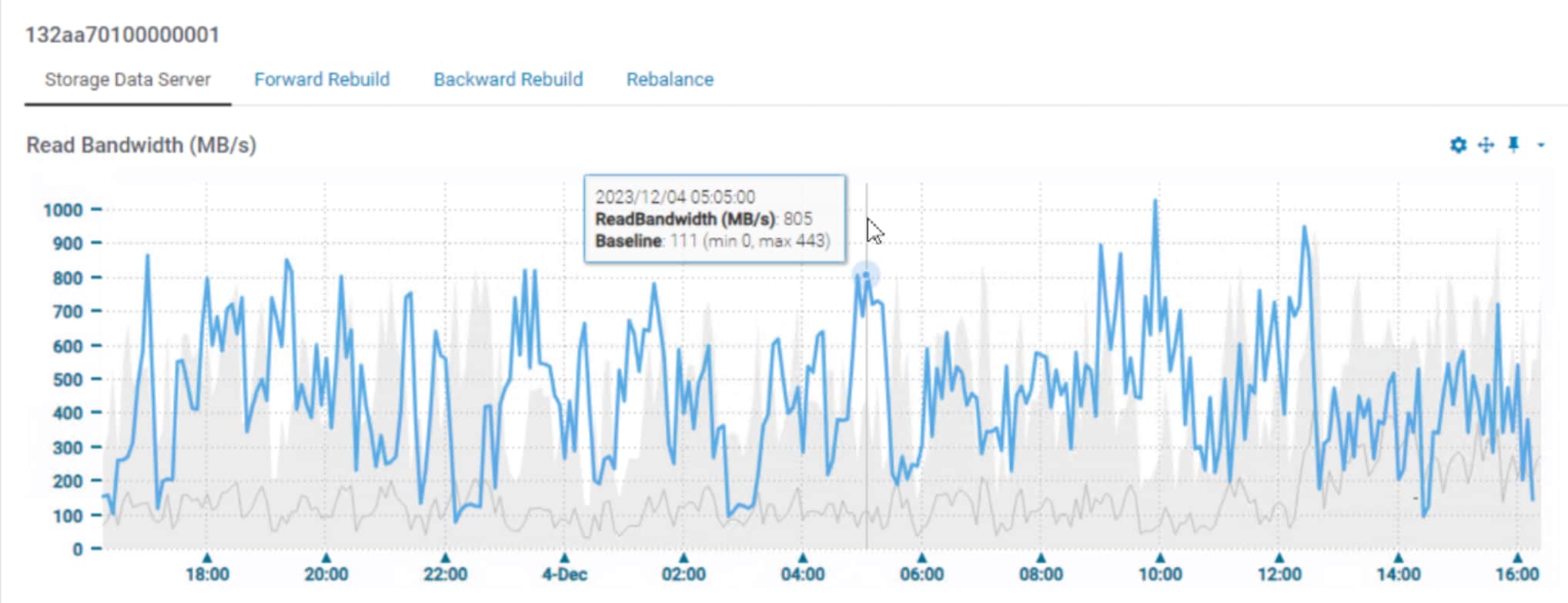
Figure 20. Baseline detail
Chargeback
Chargeback
The automated chargeback module maps storage to service levels based on storage characteristics. SRM tracks the consumption of primary storage (PowerFlex volumes), local replicas (PowerFlex snapshots), and remote replicas (target volumes) from remote PowerFlex clusters. The chargeback module enables administrators to track storage utilization by application or business unit, to provide the true cost of PowerFlex storage to the end user.
The block storage chargeback solution pack installs a chargeback report by host or hypervisor, chargeback by virtual machine, chargeback by hypervisor cluster, and chargeback by group. Each report has the following four use cases (Figure 21).
- Primary used chargeable – Is the sum of all thick volumes plus all used capacity of thin volumes. Local snapshots and target volumes on remote PowerFlex clusters are not factored in this calculation.
- Primary presented chargeable – Is the sum of all volumes as presented to the host. Local snapshots and target volumes on remote PowerFlex clusters are not factored in this calculation.
- Total used chargeable – Is the sum of all thick volumes plus all used capacity of thin volumes. It includes used capacity from local snapshots and target volumes on a remote PowerFlex cluster.
- Total presented chargeable – Is the sum of all volumes as presented to the host. It includes presented capacity from local snapshots and target volumes on a remote PowerFlex cluster.
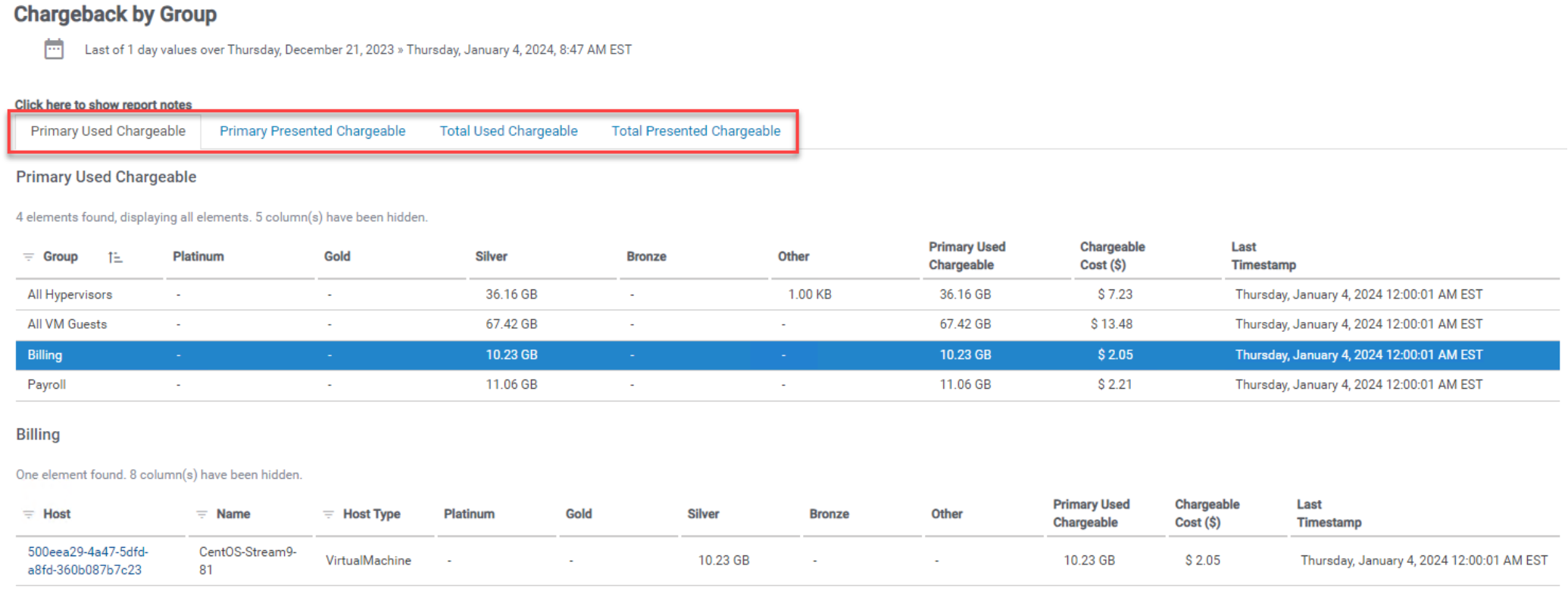
Figure 21. Chargeback by group