PowerFlex REST API Introduction
Sep 26, 2026
Executive summary
Introduction
With the accelerated adoption of virtualization technologies and cloud computing, the management of the IT infrastructure has undergone significant transformation. Gone are the days when administrators needed to install custom API libraries and code in languages like C. These heavyweight APIs had issues with managing cloud scale infrastructures, performed poorly, and required more resources to maintain.
Lightweight web APIs based on the RESTful architecture have simplified the automation of the data center. Web APIs are responsive, and scale to meet the demands of private and public cloud infrastructures. Tasks can easily be automated using simple shell scripts, high-level programming languages, and IT automation platforms.
This document introduces the PowerFlex REST API, provides use-case examples, and includes a brief introduction to the PowerFlex Ansible modules.
Revisions
|
Date |
Part number/ |
Description |
|
February 2023 |
H19515 |
Initial release |
We value your feedback
Dell Technologies and the authors of this document welcome your feedback on this document. Contact the Dell Technologies team by email.
Author: Roy Laverty
Note: For links to other documentation for this topic, see the References.
PowerFlex
Introduction
PowerFlex is a software-defined storage platform designed to reduce operational and infrastructure complexity. It empowers organizations to move faster by delivering flexibility, elasticity, and simplicity with predictable performance and resiliency at scale. The PowerFlex family of software-defined infrastructure provides a foundation that combines compute and high-performance storage resources in a managed unified fabric. Flexibility is offered because it comes in multiple hardware deployment options such as integrated rack, appliance, or ready nodes, all of which provide Server SAN, HCI, and storage only architectures.
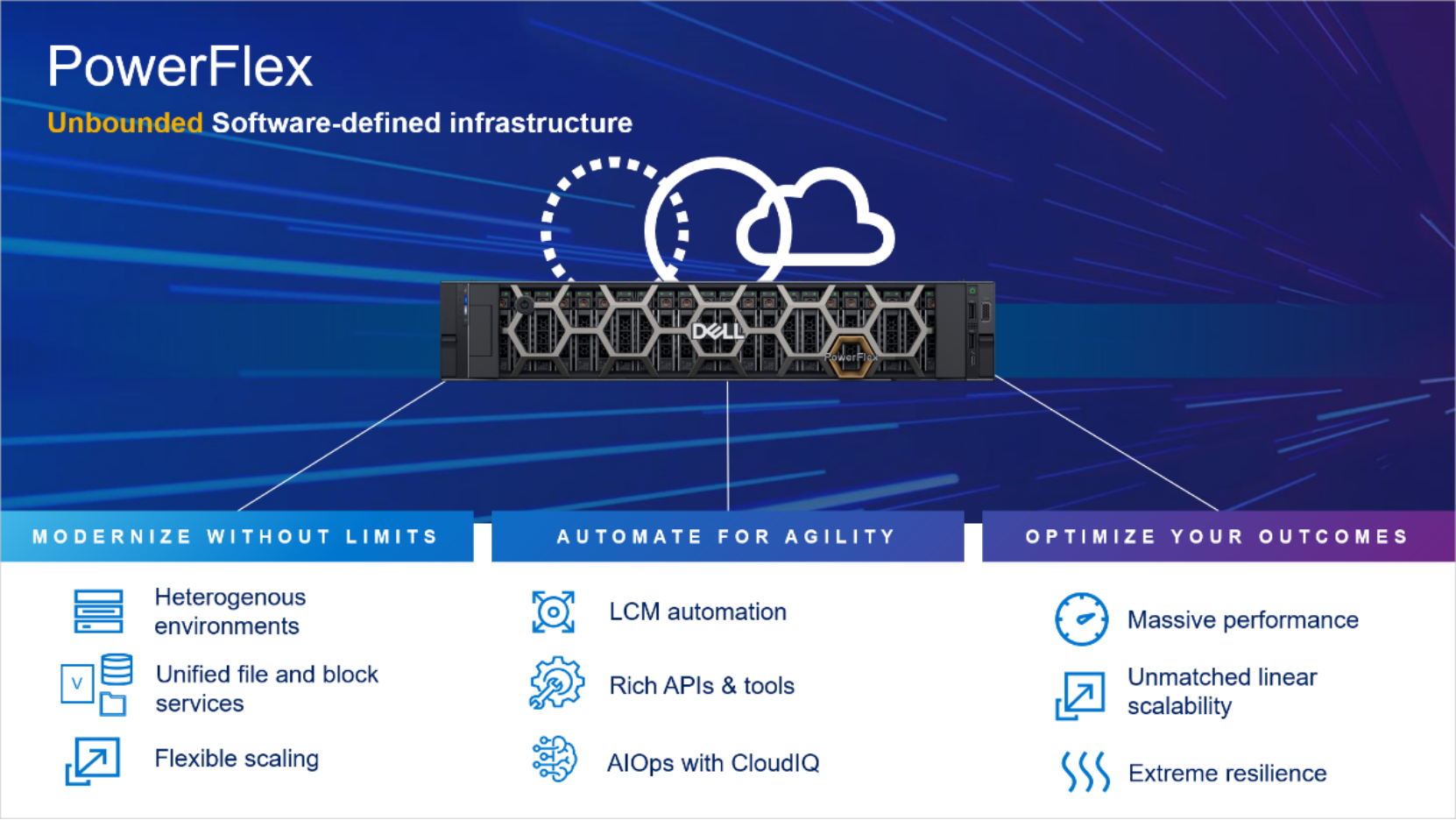
Figure 1. PowerFlex overview
PowerFlex provides the flexibility and scale demanded by a range of application deployments, whether they are on bare metal, virtualized, or containerized.
It provides the performance and resiliency required by the most demanding enterprises, demonstrating six nines or greater of mission-critical availability with stable and predictable latency[1].
Providing millions of IOPs at sub-millisecond latency, PowerFlex is ideal for high-performance applications. It works well in organizations with private clouds that want a flexible foundation with synergies into public and hybrid cloud. It is also great for organizations consolidating heterogeneous assets into a single system with a flexible, scalable architecture that provides the automation to manage both storage and compute infrastructure.
PowerFlex deployment options
PowerFlex is a software first design that runs on Dell PowerEdge servers. The Dell PowerEdge servers are optimized for PowerFlex to ensure best performance and resiliency. PowerFlex is available in the following deployment options:
- PowerFlex rack is a fully engineered rack-scale system with integrated networking and intelligent cabinet design. The software and hardware components of a PowerFlex rack are managed through PowerFlex Manager, a comprehensive management stack for all layers of the deployment. PowerFlex rack is designed to simplify deployments and accelerate time-to-value.
- PowerFlex appliance is a flexible node-oriented option and provides a modest starting point with a massive scale potential. It allows you to use a broader set of networking options, either fully or partially managed. Like the rack, PowerFlex appliance supports the full set of PowerFlex functionality, and is lifecycle managed with PowerFlex Manager.
- PowerFlex custom nodes are R650 and R750 based nodes that can be managed in PowerFlex Manager. PowerFlex custom nodes provide a flexible foundation with fully tested and optimized servers.
- PowerFlex on AWS is the latest deployment option for PowerFlex. PowerFlex on AWS is based on PowerFlex v3.6 which runs natively in the cloud. It has the same performance, scalability, and resiliency characteristics. PowerFlex on AWS has distinct multi-AZ resiliency not available in other block storage options. The multi-AZ resiliency on PowerFlex is achieved by mapping PowerFlex fault sets across availability zones.
Note: Older R640, R740, and R840 based VxFlex Ready Nodes were not branded as PowerFlex.
Terminology
The following table provides definitions for terms that are used in this document.
Table 1. Terminology
|
Term |
Definition |
|
Meta Data Manager (MDM) |
A tightly-coupled cluster within the cluster that loosely coordinates the SDS and SDC components and activities |
|
Storage Data Client (SDC) |
Kernel-level driver. Installs on host – like virtual HBA Maps and presents volumes to the OS or hypervisor |
|
Storage Data Server (SDS) |
Aggregates local disks and, together with other SDSs, makes a virtual storage pool A volume is a logical portion of a storage pool, and it uses every disk in the pool |
PowerFlex REST API
PowerFlex API operations
PowerFlex API operations are divided into three categories.
- The legacy API, which is called the block API. It is used to complete tasks related to block, protection, and operations on the core PowerFlex software.
- The PowerFlex Manager API, used for life cycle management of PowerFlex rack and appliance deployments, and PowerFlex core software.
- The PowerAPI, introduced in PowerFlex v4.0, is used to manage SSO, NAS, file, events, and alerts. It is based on a new Dell Technologies standard for product APIs.
Eventually, the block API and PowerFlex Manager API will be deprecated and their functions will be merged into the PowerAPI model. The web service for REST API is hosted on the PowerFlex management platform (PFMP), simplifying programmatic operations including authentication. We will look a little closer at each one of these models in the following sections.
PFMP uses the OAuth 2.0 industry standard protocol for authorization. In OAuth 2.0, a user authenticates with an authorization microservice in PFMP. Upon authentication, the user is passed an access (bearer) token. The bearer token enables the user to access protected resources and perform protected operations on all areas of the PowerFlex system.
PowerFlex block API
The legacy PowerFlex block API is hosted as a microservice in PFMP. The data model for this API is structurally the same as in versions before v4.x. When users issue block API calls to the PFMP cluster, an ingress microservice redirects the request to one of the Meta Data Manager services. The gateway connects to the Meta Data Manager (MDM) in the PowerFlex deployment. The MDM is a tightly coupled cluster that coordinates activities in the PowerFlex system. It is the brain of the PowerFlex system in that it monitors the system, coordinates rebalance operations and rebuilds, and coordinates changes to the storage configuration.
The PowerFlex gateway formats the response from the MDM in a RESTful manner and returns it to the API client. The API consumes and produces configuration details in JSON format (application/json).
The URLs are organized into two categories.
- Types – https://<PFMP>/api/types
- Instances – https://<PFMP>/api/instances
The /api/types URL applies to all instances for the given type. For example, GET /api/types/Sds/instances will return all instances of “type” SDS. The /api/instances URL will act on a specific object of the type specified in the URL. The ID of the object is typically a required part of the URL.
For example, /api/instances/StoragePool::{StoragePoolID} will return information for the storage pool ID specified in the URL.
PowerFlex Manager API
PowerFlex Manager API is used for life cycle management of PowerFlex rack and appliance deployments. It can be leveraged to automate deployment and expansion of a PowerFlex system, monitoring hardware health, and compliance with Dell certified release matrix.
The base URL for PowerFlex Manager API operations is https://<PFMP>/Api/V1.
PowerFlex PowerAPI
PowerFlex PowerAPI is based on a common Dell PowerAPI style guide. The PowerAPI style establishes guidelines so that Dell APIs look and behave in a consistent manner across all products. In PowerFlex v4.0, the PowerAPI endpoints are used to manage SSO, NAS, file, events, and alerts. The base URL for the PowerAPI is https://<PFMP>/rest/v1. The format for URIs that support the GET method are the collection query and the instance query:
- Collection query - https://<PFMP>/rest/v1/<resource>
- Instance query - https://<PFMP>/rest/v1/<resource/<id>
Optional URL parameters can be used with the collection queries. If a parameter is not in the collection URL, a 200 response will return all identifiers for the specified resource type. The optional parameters are select and filter.
Collection query examples
Collection query without optional parameters:
GET https://pfmp/rest/v1/nas-snapshot-rules
A 200 response:
[
{
"id": "23913393-3ce2-4203-929d-8b3163d60fca"
},
{
"id": "74df3a14-8f81-420e-b191-4dc7745325ad"
}
]
Collection with optional select statement:
GET https://pfmp/rest/v1/nas-snapshot-rules?select=id,name
A 200 response:
[
{
"id": "23913393-3ce2-4203-929d-8b3163d60fca",
"name": "Daily"
},
{
"id": "74df3a14-8f81-420e-b191-4dc7745325ad",
"name": "Weekly"
}
]
The select parameter also supports wildcards. You can select all parameters for an object by using the asterisk (select=*)
Example:
GET https://pfmp/rest/v1/nas-protection-policies?select=*
A 200 response:
[
{
"id": "86c83dd9-0899-4c65-adc8-c08d20ae5071",
"name": "ProdFS",
"description": null,
"snapshot_rule_ids": [
"23913393-3ce2-4203-929d-8b3163d60fca",
"74df3a14-8f81-420e-b191-4dc7745325ad"
]
}
]
An example of an instance query and selecting a set of properties:
GET https://pfmp/rest/v1/nas-snapshot-rules/23913393-3ce2-4203-929d-8b3163d60fca?select=name,interval,retention,type
A 200 response:
{
"name": "Daily",
"interval": "ONE_DAY",
"retention": 168,
"type": "PROTOCOL_READ_ONLY"
}
An example of using a collection query with the filter parameter:
Example:
GET https://pfmp/rest/v1/events?filter=id%20eq%200cd7750c33c064b0
A 200 response:
{
"results": [
{
"code": "70020001",
"name": "DEPLOYMENT",
"description": "The deployment job FG Storage-only with SDT failed for service template TME-Storage-LACP-with-SDT (8aaa3a1c85e5474d0186043cf635463b).",
"severity": "CRITICAL",
"category": "STATE_CHANGED",
"details": {
"code": "VXFM00213",
"message": "The deployment job FG Storage-only with SDT failed for service template TME-Storage-LACP-with-SDT (8aaa3a1c85e5474d0186043cf635463b)."
},
"domain": "MANAGEMENT",
"id": "0cd7750c33c064b0",
"timestamp": "2023-01-30T22:41:06.954Z",
"resource_type": "basic-system-config",
"resource_name": "asmmanager",
"resource_id": "asmcore",
"service_name": "ASMCORE",
"service_version": "1.0",
"service_instance_id": "504b0a60-45dd-4637-b34b-bcd4554bc39a",
"originating_application_name": null,
"request_id": null,
"related_events": null,
"job_id": null,
"is_internal": false
}
]
}
Authentication
Authentication
Access to the API is allowed according to the user role and permissions defined in PowerFlex Manager. All examples in this document use the PowerFlex Manager admin account. Consult the PowerFlex User Roles and LDAP Usage Technical Notes document for details about users and roles.
The following function prompts the user to enter the credentials for the PowerFlex Manager. The access_token is extracted from the response to be used in subsequent API calls defined in other functions.
Curl example
Example using curl to authenticate with a PowerFlex v3.6.x Gateway:
curl --location --request GET 'https://<PowerFlex_Gateway>/api/login' \
--header 'Accept: application/json' \
--header "Authorization: Basic $(echo -n '<Username>:<Password>' | base64)"
Example using curl to authenticate with PowerFlex Manager v4.x:
curl --location --request POST 'https://<pfxm>/rest/auth/login' --header 'Content-Type: application/json' --data-raw '{"username": "<username>", "password": "<password>"}'
Python example
import requests
import json
import getpass
import urllib3
#Authentication function saved as pfauth.py.
def authenticate(username, password):
url = 'https://pfxm.powerflex.lab/rest/auth/login'
payload = json.dumps({
'username': f'{username}',
'password': f'{password}'
})
headers = {
'Content-Type': 'application/json',
'Accept': 'application/json'
}
response = requests.post(url, headers=headers, data=payload, verify=False)
#Convert to json object and parse for access token
json_object = json.loads(response.text)
accessToken = str(json_object['access_token'])
return accessToken
PowerShell example
#Authentication
$Headers = New-Object "System.Collections.Generic.Dictionary[[String],[String]]"
$Headers.Add("Content-Type", "application/json")
$Headers.Add("Accept", "application/json")
$CredJson = "{`"username`": `"admin`", `"password`": `"Password`"}"
$Response = Invoke-RestMethod "https://$PFMPhost/rest/auth/login" -Method POST -Headers $Headers -Body $CredJson
$accessToken = $Response.access_token
#Create authentication header for use in API calls
$AuthHeader = New-Object "System.Collections.Generic.Dictionary[[String],[String]]"
$AuthHeader.Add("Content-Type", "application/json")
$AuthHeader.Add("Accept", "application/json")
$AuthHeader.Add("Authorization", "Bearer $accessToken")
Note: The token has two expiry timers. The first expires after 10 minutes of inactivity. The second is 8 hours after successfully authenticating with the PowerFlex gateway.
PowerFlex block API
Block API
The following are examples using the PowerFlex block API.
Python use cases
- Create and map volume to SDC
- Create snapshot policy and add volume to the policy
- Add a device to an SDS and expand storage pool
PowerShell use cases
- Migrate volume vTree
- Expand volume
- System information
Provision volume
This use case demonstrates the steps required to create and map a volume to an SDC. The user is prompted for the following:
- Storage pool name and protection domain name
- SDC IP address
- Volume attributes including the size, name, and volume type (thick/thin)
Each step of the process is divided into its own function.
- Use the friendly names of the storage pool and protection domain to query for the internal identifier for each.
- Using the IP address of the SDC query for the internal identifier of the SDC to which the volume will be mapped.
- Create the volume with the parameters entered by the user.
- Map the volume to the SDC.
To keep the code examples concise, input validation is not included. For example, when creating an NVMe host, the script does not check to ensure the host nqn is valid.
Get storage pool
After successfully authenticating with PowerFlex Manager, the next step is to get the internal identifier for the storage pool to be used. This function uses the authentication token returned by the authentication function, the user-entered storage pool name, and the user-entered protection domain name.
The response from this API call will contain the id of the storage pool returned by the function. The storage pool id is required when creating the volume.
import requests
import getpass
#Import our PFxM Authentication function
from pfauth import authenticate
import json
import urllib3
def getSPId(pfxm, accessToken, spname, pdname):
#Get Storage Pool id from Storage Pool name
url = f'https://{pfxm}/api/types/StoragePool/instances/action/queryIdByKey'
payload = json.dumps({
"protectionDomainName": f"{pdname}",
"name": f"{spname}"
})
headers = {
'Content-Type': 'application/json',
'Accept': 'application/json',
'Authorization': f'Bearer {accessToken}'
}
response = requests.post(url, headers=headers, data=payload, verify=False)
spid = response.text
spid = spid.replace('"','')
print(f'The id for storage pool {spname} is {spid}')
return spid
Get SDC
The SDC id can be retrieved using the IP address of the SDC. The SDC IP address is used as input to the function. The function returns the SDC id. The SDC id is required when we map the volume to the SDC.
def getSdcId(pfxm, accessToken, sdcip):
#Get SDC id from SDC IP address
url = f'https://{pfxm}/api/types/Sdc/instances/action/queryIdByKey'
payload = json.dumps({
"ip": f"{sdcip}",
})
headers = {
'Content-Type': 'application/json',
'Accept': 'application/json',
'Authorization': f'Bearer {accessToken}'
}
response = requests.post(url, headers=headers, data=payload, verify=False)
sdcid = response.text
sdcid = sdcid.replace('"','')
print(f'The id for SDC {sdcip} is {sdcid}')
return sdcid
Add volume
The input to the addVolume function includes user input and the spid variable returned from the getSPId function. In this example, some parameters are hard coded in the function. For example, the compression method is set to “None.” This function returns the id of the volume that has been created. The volume id is passed to the map volume function.
In this example, we are creating a volume from a medium granularity storage pool, which does not support compression. Therefore, we will set the compressionMethod parameter to None. If we were provisioning a volume from a fine granularity storage pool, which does support compression, we would need to know if compression was enabled on the pool.
def addVolume(pfxm, accessToken, volsize, volname, spid, provtype):
#Create volume API call using user entered information
url = f'https://{pfxm}/api/types/Volume/instances'
payload = json.dumps({
"volumeSizeInKb": f"{volsize}",
"storagePoolId": f"{spid}",
"name": f"{volname}",
"volumeType": f"{provtype}",
"compressionMethod": "None"
})
headers = {
'Content-Type': 'application/json',
'Accept': 'application/json',
'Authorization': f'Bearer {accessToken}'
}
response = requests.post(url, headers = headers, data = payload, verify = False)
json_object = json.loads(response.text)
volid = str(json_object["id"])
print(f"The id for volume {volname} is {volid}")
return volid
Map volume
The last function maps the volume using the volume id returned by the addVolume function and the SDC id returned by the getSdcId function.
def mapVolume(pfxm, accessToken, volid, sdcid):
#Map volume to SDC API call.
url = f'https://{pfxm}/api/instances/Volume::{volid}/action/addMappedSdc'
payload = json.dumps({
'sdcId': f'{sdcid}'
})
headers = {
'Content-Type': 'application/json',
'Accept': 'application/json',
'Authorization': f'Bearer {accessToken}'
}
response = requests.post(url, headers=headers, data=payload, verify=False)
return response
Main program
The main section contains the input variables and the calls to each function.
#Prompt user for PowerFlex Manager username and password.
username = input('Enter PowerFlex Manager username:')
password = getpass.getpass('Enter password:')
#Pass variables to the authenticate() function.
accessToken = authenticate(username, password)
#Variables
#PFxM host
pfxm = 'pfmp.powerflex.lab'
#Parameters required to create volume and map to SDC.
pdname = 'PD-1'
spname = 'SP-SSD-1'
volname = 'apivol01'
volsize = '83886080'
provtype = 'ThinProvisioned'
sdcip = '172.102.15.56'
#Call functions
#Pass username and password. Function returns encoded token to be used in other functions.
accessToken = authenticate(username, password)
#Pass storage pool name and protection domain name. Function returns storage pool id
spid = getSPId(spname, pdname)
#Pass size and name of volume, storage pool id, volume type. Function returns id of new volume
volid = addVolume(volsize, volname, spid, provtype)
#Pass ip address of target SDC. Function returns the SDC id
sdcid = getSdcId(sdcip)
#Pass volume id and SDC id to map volume function. Return success code.
mapcode = mapVolume(volid, sdcid)
print(f'Volume {volname} successfully created and mapped to SDC {sdcip}')
Create a snapshot policy
This use case demonstrates the steps required to create a snapshot policy and add a volume to the policy.
- Get ID of volume to be added to the snapshot policy
- Create the snapshot policy
- Add the volume to the snapshot policy
Get volume ID
We need to POST to the /api/types/Volume/instances/action/queryIdByKey endpoint and include the volume name in the payload. A successful response returns the volume id. Here we have defined a function called getVolID. The input to the function is the name of the volume. The output returned by the function is the volume ID.
import requests
import getpass
#Import our PFxM Authentication function
from pfauth import authenticate
import json
import urllib3
#Get volume id
def getVolID(pfxm, accessToken, volname):
#Get volume id from volume name
url = f'https://{pfxm} /api/types/Volume/instances/action/queryIdByKey'
payload = json.dumps({ "name": f"{volname}"
})
headers = {
'Content-Type': 'application/json',
'Accept': 'application/json',
'Authorization': f'Bearer {accessToken}'
}
response = requests.post(url, headers=headers, data=payload, verify=False)
volid = response.text
volid = volid.replace('"','')
print(f'The id for volume {volname} is {volid}')
return volid
Create snapshot policy
The create snapshot policy function takes the snapshot policy name as input and returns the snapshot policy id. The snapshot policy id is required when adding the volume.
#POST REST API call. Create an hourly snapshot policy. Retain 24 snapshots in a day,
# 7 daily snapshots per week, and 4 weekly snapshots per month.
def createPolicy(pfxm, accessToken, policyName):
url = f'https://{pfxm}/api/types/SnapshotPolicy/instances'
payload = json.dumps({
"name": f"{policyName}",
"numOfRetainedSnapshotsPerLevel": ['24','7','4'],
"autoSnapshotCreationCadenceInMin": "60",
"secureSnapshots": "FALSE",
"snapshotAccessMode": "ReadOnly"
})
headers = {
'Content-Type': 'application/json',
'Accept': 'application/json',
'Authorization': f'Bearer {accessToken}'
}
response = requests.post(url, headers=headers, data=payload, verify=False)
print(f'API response status code: {response.status_code}')
policyID = response.text
json_object = json.loads(response.text)
policyID = str(json_object["id"])
return policyID
Add volume to policy
The last function takes the volume ID and the policy ID as input and returns the HTTP code.
def addVoltoPolicy(pfxm, accesssToken, volid,policyID):
url = f'https://{pfxm}/api/instances/SnapshotPolicy::{policyID}/action/addSourceVolumeToSnapshotPolicy'
payload = json.dumps({
'sourceVolumeId': f'{volid}'
})
headers = {
'Content-Type': 'application/json',
'Accept': 'application/json',
'Authorization': f'Bearer {accessToken}'
}
response = requests.post(url, headers=headers, data=payload, verify=False)
print(f'API response status code: {response.status_code}')
return response
Main program
The main section contains the input variables for the volume name and policy name, followed by the calls to each function.
#Prompt user for PowerFlex Manager username and password.
username = input('Enter PowerFlex Manager username:')
password = getpass.getpass('Enter password:')
#Pass variables to the authenticate() function.
accessToken = authenticate(username, password)
#PFxM host
pfxm = 'pfmp.powerflex.lab'
#Name of volume and policy
volname = 'apivol01'
policyName = 'Hourly1'
#Call functions
volid = getVolID(volname)
policyID = createPolicy(policyName)
addvol = addVoltoPolicy(volid, policyID)
#Print HTTP response code
print(f'{addvol}')
Expand storage pool
This example shows the process of adding a device to an SDS and the expansion of a storage pool.
- Get the id for the storage pool to be expanded
- Get the id for the SDS to which the device will be added
- Add the device to the SDS and storage pool
Get storage pool id
The following function returns the storage pool id using the storage pool name and protection domain name.
import requests
import getpass
#Import our PFxM Authentication function
from pfauth import authenticate
import json
import urllib3
def getSPId(pfxm, accessToken, spname, pdname):
#Get Storage Pool id from Storage Pool name
url = 'https://{pfxm}/api/types/StoragePool/instances/action/queryIdByKey'
payload = json.dumps({
"protectionDomainName": f"{pdname}",
"name": f"{spname}"
})
headers = {
'Content-Type': 'application/json',
'Accept': 'application/json',
'Authorization': f'Bearer {accessToken}'
}
response = requests.post(url, headers=headers, data=payload, verify=False)
spid = response.text
spid = spid.replace('"','')
print(f'The id for storage pool {spname} is {spid}')
return spid
Get SDS id
The following function returns the SDS id, using the name of the SDS as input.
def getSDSId(pfxm, accessToken, sdsname):
#Get SDS id from SDS name
url = f'https://{pfxm}/api/types/Sds/instances/action/queryIdByKey'
payload = json.dumps({
"name": f"{sdsname}"
})
headers = {
'Content-Type': 'application/json',
'Accept': 'application/json',
'Authorization': f'Bearer {accessToken}'
}
response = requests.post(url, headers=headers, data=payload, verify=False)
sdsid = response.text
sdsid = sdsid.replace('"','')
print(f'The id for SDS {sdsname} is {sdsid}')
return sdsid
Add device to SDS and storage pool
The following function adds the device, using the device path to the designated SDS and storage pool.
def addDevice(pfxm, accessToken, devpath, sdsid, spid):
url = f'https://{pfxm}/api/types/Device/instances'
payload = json.dumps({
"deviceCurrentPathname": f"{devpath}",
"storagePoolId": f"{spid}",
"sdsId": f"{sdsid}"
})
headers = {
'Content-Type': 'application/json',
'Accept': 'application/json',
'Authorization': f'Bearer {accessToken}'
}
response = requests.post(url, headers=headers, data=payload, verify=False)
devicecode = response.text
return devicecode
Main program
The main program sets the variables and calls each function.
#PFxM host
pfxm = 'pfmp.powerflex.lab'
#Prompt user for PowerFlex Manager username and password.
username = input('Enter PowerFlex Manager username:')
password = getpass.getpass('Enter password:')
#Pass variables to the authenticate() function.
accessToken = authenticate(username, password)
#Variables
spname = 'sp1'
pdname = 'pd1'
sdsname = 'sds1'
devpath = '/dev/sdb'
#Call functions
accessToken = authenticate(username, password)
spid = getSPId(spname, pdname)
sdsid = getSDSId(sdsname)
devicecode = addDevice(devpath, sdsid, spid)
print(f'Device {devpath} successfully added to SDS {sdsname} and storage pool {spname}')
PowerShell
The following are examples using PowerShell to manage the PowerFlex software. The following PowerShell examples were completed using PowerShell v7.2.
Use cases
- Migrate a volume VTree to another storage pool
- Expand a volume
- Report on a PowerFlex system
Migrate VTree
This use case demonstrates using a PowerShell script to migrate an entire VTree from one storage pool to another. The volume in this example is a thin uncompressed volume. The storage pools are in the same protection domain, but this script can be modified to migrate between two different protection domains.
There are some restrictions when migrating volumes between storage pools with different layouts. For more information about the restrictions, consult the document Configure and Customize Dell PowerFlex.
Migrating a volume VTree consists of the following steps:
- Authentication
- Query volume id using the volume variable defined in the script
- Query for the current storage pool for a selected volume
- Set source and target pools
- Migrate volume
- Write output to a log and include the timestamp
There are two storage pools in this example and the storage pool ids are hard coded in the script.
Authentication
Use the following code to authenticate with PowerFlex Manager and initialize variables.
#PFMP ingress
$PFMPhost = "pfxm.powerflex.lab"
#Name of volume to be migrated
$Volume = "vol001"
#Initialize source and target storage pool variables
$SourceSP = ""
$TargetSP = ""
#Authentication
$Headers = New-Object "System.Collections.Generic.Dictionary[[String],[String]]"
$Headers.Add("Content-Type", "application/json")
$Headers.Add("Accept", "application/json")
$CredJson = "{`"username`": `"admin`", `"password`": `"Password`"}"
$Response = Invoke-RestMethod "https://$PFMPhost/rest/auth/login" -Method POST -Headers $Headers -Body $CredJson
$accessToken = $Response.access_token
#Create authentication header for use in API calls
$AuthHeader = New-Object "System.Collections.Generic.Dictionary[[String],[String]]"
$AuthHeader.Add("Content-Type", "application/json")
$AuthHeader.Add("Accept", "application/json")
$AuthHeader.Add("Authorization", "Bearer $accessToken")
Get volume id and storage pool id
The following code gets the identifiers for the volume to be migrated and the source storage pool. We also set the source and target storage pools.
#Query volume id from name
$VolJson = "{`"name`": `"$Volume`"}"
$VolumeID = (Invoke-RestMethod -Uri "https://$PFMPhost/api/types/Volume/instances/action/queryIdByKey" -Method POST -Body $VolJson -Headers $AuthHeader)
#Query for current storage pool
$SPJson = "{`"ids`": [`"$VolumeID`"]}"
$CurrentSP = (Invoke-RestMethod -Uri "https://$PFMPhost/api/types/Volume/instances/action/queryBySelectedIds" -Method POST -Body $SPJson -Headers $)
#Set source and target pools
$SourceSP = $CurrentSP.storagePoolId
if ($SourceSP -eq "c5d4313100000000")
{$TargetSP = "c5d4313200000001"}
else
{$TargetSP = "c5d4313100000000"}
Migrate volume VTree
The following code migrates the volume VTree to another storage pool and then records the action to a log file.
#Migrate volume from SourceSP to TargetSP
$TargetSPJson = "{`"destSPId`":`"$TargetSP`"}"
Invoke-RestMethod -Uri "https://$PFMPhost/api/instances/Volume::$VolumeID/action/migrateVTree" -Method POST -Body $TargetSPJson -Headers $AuthHeader
#Write to log file
#Format timestamp for logging
function Get-TimeStamp {
return "[{0:MM/dd/yy} {0:HH:mm:ss}]" -f (Get-Date)
}
#Write to log
Write-Output "$(Get-TimeStamp) Volume $Volume successfully migrated from storage pool $SourceSP to storage pool $TargetSP" | Out-File .\migratevolume.log -append
Expand volume
This use case shows the process of expanding a volume. PowerFlex volumes can only be expanded, and the size must be in increments of 8 GB. Expanding a volume consists of the following steps:
- Authentication
- Query volume id with user provided volume name
- Query the current size of the volume
- Prompt user for new volume size
- Expand volume
- Return success message
Authentication
The following code is used to authenticate with PowerFlex Manager and initialize variables.
#PFMP ingress
$PFMPhost = 'pfxm.powerflex.lab'
#Volume name
$Volume = 'vol001'
#Authentication
$Headers = New-Object "System.Collections.Generic.Dictionary[[String],[String]]"
$Headers.Add("Content-Type", "application/json")
$Headers.Add("Accept", "application/json")
$CredJson = "{`"username`": `"admin`", `"password`": `"Password`"}"
$Response = Invoke-RestMethod "https://$PFMPhost/rest/auth/login" -Method POST -Headers $Headers -Body $CredJson
$accessToken = $Response.access_token
#Create authentication header for use in API calls
$AuthHeader = New-Object "System.Collections.Generic.Dictionary[[String],[String]]"
$AuthHeader.Add("Content-Type", "application/json")
$AuthHeader.Add("Accept", "application/json")
$AuthHeader.Add("Authorization", "Bearer $accessToken")
Get volume id and current size of volume
Use the following endpoints to retrieve the id and current size of the volume to be expanded.
#Query volume id from name
$VolBody = "{`"name`": `"$Volume`"}"
$VolumeID = (Invoke-RestMethod -Uri "https://$PFMPhost/api/types/Volume/instances/action/queryIdByKey" -Method POST -Body $VolBody -Headers $AuthHeader)
#Get current volume size
$Volumeobject = (Invoke-RestMethod -Uri "https://$PFMPhost/api/instances/Volume::$VolumeID" -Method GET -Headers $AuthHeader)
$CurrentsizeGB = $Volumeobject.sizeInKb/1048576
Write-Output "Current volume size is $CurrentsizeGB GB"
Expand volume
The following code prompts the user for a new volume size, expands the volume, and displays the new size of the volume.
#Prompt user for expanded size of volume in GB
$Requestedsize = Read-Host 'Enter new volume size in multiples of 8 (GB)'
#Expand volume
$NewSize ="{`"sizeInGB`":`"$Requestedsize`"}"
Invoke-RestMethod -Uri "https://$PFMPhost/api/instances/Volume::$VolumeID/action/setVolumeSize" -Method POST -Body $NewSize -Headers $AuthHeader
#Get current volume size and display to user
$Newvolumeobject = (Invoke-RestMethod -Uri "https://$PFMPhost/api/instances/Volume::$VolumeID" -Method GET -Headers $AuthHeader)
$Newvolumesize = $Newvolumeobject.sizeInKb/1048576
Write-Output "New size of volume $Volume is $Newvolumesize GB"
System information
This section shows the process for displaying system level information. The process consists of the following steps:
- Authentication with PowerFlex Manager
- Set the PowerFlex system name variable
- Make a call to /api/types/System/instances/action/queryIdByKey endpoint using the PowerFlex system name variable in the body of the POST
- Make a call to the /api/instances/System endpoint and pass the System ID.
- Convert the output to JSON and write the output to a json file.
Authentication
Use the following code to authenticate with PowerFlex Manager and initialize variables.
#PFMP ingress
$PFMPhost = 'pfxm.powerflex.lab'
#System name
$SystemName = 'block-legacy-gateway'
#Authentication
$Headers = New-Object "System.Collections.Generic.Dictionary[[String],[String]]"
$Headers.Add("Content-Type", "application/json")
$Headers.Add("Accept", "application/json")
$CredJson = "{`"username`": `"admin`", `"password`": `"Password`"}"
$Response = Invoke-RestMethod "https://$PFMPhost/rest/auth/login" -Method POST -Headers $Headers -Body $CredJson
$accessToken = $Response.access_token
#Create authentication header for use in API calls
$AuthHeader = New-Object "System.Collections.Generic.Dictionary[[String],[String]]"
$AuthHeader.Add("Content-Type", "application/json")
$AuthHeader.Add("Accept", "application/json")
$AuthHeader.Add("Authorization", "Bearer $accessToken")
Get system id
The following code takes the PowerFlex system name defined in the $SystemName variable and queries for the system id.
#API Call for PowerFlex system id using the user entered system name
$SystemJson = "{`"name`":`"$SystemName`"}"
$SystemID = (Invoke-RestMethod -Uri "https://$PFMPhost/api/types/System/instances/action/queryIdByKey" -Method Post -Body $SystemJson -Headers $AuthHeader)
Get system information and write to file
Use the following code to get information for the PowerFlex system and save it to a file in JSON format.
#API call for PowerFlex system using the $SystemID variable
$SystemInfo = (Invoke-RestMethod -Uri "https://$PFMPhost/api/instances/System::$SystemID" -Headers $AuthHeader)
#Convert object to JSON and write to file.
$SystemInfo | ConvertTo-Json -Depth 4 | Set-Content -Path "C:\Users\Administrator\Desktop\PFsystem.json"
PowerFlex Manager API
Use cases
This section provides examples for the PowerFlex block API.
- Create an NVMe host
- Add a volume to a resource group
- Get deployment compliance report (PowerFlex Manager 3.x)
Create an NVMe host
This use case demonstrates how to create an NVMe host in PowerFlex Manager.
The following data is required for our JSON payload:
- Name of host
- The host nqn identifier
- The maximum number of paths
- The maximum number of target ports
#Import modules
import requests
import json
from pfauth import authenticate
import urllib3
def createHost(pfxm, accessToken, hostName, hostNqn, maxPaths, maxTargetPorts):
url = f'https://{pfxm}/api/types/Host/instances'
payload = json.dumps({
"name": f"{hostName}",
"nqn": f"{hostNqn}",
"maxNumPaths": f"{maxPaths}",
"maxNumSysPorts": f"{maxTargetPorts}"
})
headers = {
'Content-Type': 'application/json',
'Accept': 'application/json',
'Authorization': f'Bearer {accessToken}'
}
response = requests.post(url, headers=headers, data=payload, verify=False)
return response.content
#Prompt user for PowerFlex Manager username and password.
username = input('Enter PowerFlex Manager username:')
password = getpass.getpass('Enter password:')
#Pass variables to the authenticate() function.
accessToken = authenticate(username, password)
#PFxM host
pfxm = 'pfmp.powerflex.lab'
#Variables for JSON payload
hostName = 'host1'
hostNqn = 'nqn.2014-08.org.nvmexpress:uuid:4c1c111-0031-4710-8036-b8c04f425a32'
maxPaths = '4'
maxTargetPorts = '10'
#Call createHost function
response = createHost(hostName, hostNqn, maxPaths, maxTargetPorts)
Add volume to a resource group
This use case demonstrates the steps required to add a volume to a storage-only resource group.
import requests
import json
from pfauth import authenticate
import urllib3
#Expand resource group by adding volume
def addVolume(pfxm, accessToken, deploymentID, volName, volSize, spID, volType):
url = f'https
://{pfxm}/Api/V1/Deployment/{deploymentID}/addvolumes'
payload = json.dumps({
"volumeRequests": [{
"numAutoGenerateVolumes": 0,
"volumeActionType": "NEW",
"volume": {
"name":f'{volName}',
"compressionMethod": "false",
"sizeInKb": f'{volSize}',
"storagePoolId": f'{spID}',
"volumeType": f'{volType}'}
}]
})
headers = {
'Content-Type': 'application/json',
'Accept': 'application/json',
'Authorization': f'Bearer {accessToken}'
}
response = requests.post(url, headers=headers, data=payload, verify=False)
return response
#PFxM host
pfxm = 'pfmp.powerflex.lab'
#PowerFlex Manager username and password.
username = 'admin'
password = 'Password'
#Pass variables to the authenticate() function.
accessToken = authenticate(username, password)
#Target Deployment/Resource Group
deploymentID = '8aaa3a1c82c8df1a0182cc226f6b79d3'
#Variables for JSON payload
volName = 'restvol001'
volSize = '16777216'
spID = 'c5d4313100000000'
volType = 'thin'
#Call the addVolume function and pass required variables.
returnCode = addVolume(deploymentID,volName,volSize,spID,volType)
print (f'{returnCode}')
Get compliance report
This use case prints the compliance report for a specified deployment. This example uses PowerFlex Manager 3.x, which uses three custom headers for authentication.
Custom headers
- X-dell.auth-key
- X-dell-auth-signature
- X-dell-auth-timestamp
Authentication process:
- Call POST /Api/V1/Authenticate.
- Concatenate the five values returned from the authentication call.
- Compute a Base64 encoded SHA-256 HMAC digest of the concatenated request string using the apiSecret obtained from the POST to /Api/V1/Authenticate call.
- Compute the SHA-256 HMAC digest
- Encode the HMAC digest using Base64
- Set the three custom headers
import datetime
import hmac
import hashlib
import requests
import base64
import time
import sys
import getpass
# PFxM credentials
Usr = "admin"
Pwd = "password123"
Domain = "VXLOCAL"
# PFxM IP address
srv: str = "172.128.30.30"
loginUri = "https://{}/Api/V1/Authenticate".format(Srv)
# print("loginUri is: {}".format(loginUri))
hdr = {'content-type': 'application/json',
'Accept': 'application/json'}
Conn = requests.Session()
Conn.headers = hdr
Conn.verify = False
authCred = {
"username": Usr,
"domain": Domain,
"password": Pwd
}
# for item in authCred.items():
# print(item)
rAuth = Conn.post(loginUri, json=authCred)
# print(rAuth.text)
AuthJson = rAuth.json()
# for item in AuthJson:
# print(item)
fmApiKey = str.format(AuthJson.get('apiKey'))
fmApiKeyEnc = fmApiKey.encode()
print("the api key is : {}".format(fmApiKey))
# print(type(fmApiKey))
# print("the api keyenc is : {}".format(fmApiKeyEnc))
fmApiSecret = str.format(AuthJson.get('apiSecret'))
fmApiSecretEnc = fmApiSecret.encode()
print("the api secret is : {}".format(fmApiSecret))
# print(type(fmApiSecret))
# print("the api secret enc is : {}".format(fmApiSecretEnc))
timerightnow = str(int(datetime.datetime.now().timestamp()))
print("the time is : {}".format(timerightnow))
# print(type(timerightnow))
# uAgent = "PostmanRuntime/7.28.2"
uAgent = "My User Agent 1.0"
print("user agent is : {}".format(uAgent))
deployURI = "https://{}/Api/V1/Deployment/2c9e649e78d6b7c00178e2a59ff63f9a/firmware/compliancereport".format(Srv)
print("the uri is : {}".format(deployURI))
deployURIpath = "/Api/V1/Deployment/2c9e649e78d6b7c00178e2a59ff63f9a/firmware/compliancereport"
print("the uri path is : {}".format(deployURIpath))
reqString = fmApiKey + ":" + "GET" + ":" + deployURIpath + ":" + uAgent + ":" + timerightnow
reqStringEnc = reqString.encode()
print("reqString is : {}".format(reqString))
# print(type(reqString))
reqHeadHash = hmac.digest(fmApiSecretEnc, reqStringEnc, hashlib.sha256)
# print(type(reqHeadHash))
# print("the digest is : {}".format(reqHeadHash))
reqHeadHashb64 = base64.b64encode(reqHeadHash)
print("the base 64 encoded value is : {}".format(reqHeadHashb64))
reqHeaderNow = {
'content-type': 'application/json',
'Accept': 'application/json',
'User-Agent': uAgent,
'x-dell-auth-key': fmApiKey,
'x-dell-auth-signature': reqHeadHashb64,
'x-dell-auth-timestamp': timerightnow
}
Conn.headers = reqHeaderNow
rDeployments = Conn.get(deployURI)
print("status is : {}".format(rDeployments.status_code))
print(rDeployments.text)
PowerFlex PowerAPI
Use cases
The following are examples of using PowerFlex PowerAPI.
- Add file system tree quota
- Create a snapshot rule and protection policy
Add file system tree quota
This use case demonstrates the steps required to add a tree quota to a NAS file system.
Get file system id
We can obtain the file system id using the /rest/v1/file-systems endpoint. We need to include a select statement and select the file system id. This example assumes that there is a single file system and that quotas have already been enabled on the file system.
#Import modules
import json
import requests
import urllib3
from pfauth import authenticate
def getFsId(pfxm, accessToken):
#Get Sfile system id
url = f'https://{pfxm}/rest/v1/file-systems?select=id'
payload = {}
headers = {
'Content-Type': 'application/json',
'Accept': 'application/json',
'Authorization': f'Bearer {accessToken}'
}
response = requests.get(url, headers=headers, data=payload, verify=False)
responseJson = response.json()
responseStr = json.dumps(responseJson, indent=2)
jsonObject = json.loads(responseStr)
fsid = (jsonObject[0]['id'])
return fsid
Create tree quota
This function creates the file system tree quota. We need the following parameters as input to our function.
- The identifier of the target file system
- The file system path
- Enforcement of user quotas
- The quota hard limit
- The quota soft limit
- The grace period
def createTreequota(pfxm, accessToken, fsid, path, userQuota, treeHardlimit, treeSoftlimit, gracePeriod):
url = f'https://{pfxm}/rest/v1/file-tree-quotas'
payload = json.dumps({
"file_system_id": f"{fsid}",
"path": f"{path}",
"is_user_quotas_enforced": userQuota,
"hard_limit": treeHardlimit ,
"soft_limit": treeSoftlimit,
"grace_period": gracePeriod
})
headers = {
'Content-Type': 'application/json',
'Accept': 'application/json',
'Authorization': f'Bearer {accessToken}'
}
response = requests.post(url, headers = headers, data = payload, verify = False)
return response
Main program
The main program sets the variables and calls each function.
pfxm = 'pfmp.powerflex.lab'
#PFxM user
username = 'admin'
password = 'P@ssword123'
#Pass variables to the authenticate() function.
accessToken = authenticate(username, password)
#Get the id of the file system
fsid = getFsId(pfxm, accessToken)
path = '/share1'
userQuota = False
treeHardlimit = 314572800
treeSoftlimit = 209715200
gracePeriod = 604800
treeQuota = createTreequota(pfxm, accessToken, fsid, path, userQuota, treeHardlimit, treeSoftlimit, gracePeriod)
File system snapshot rule and protection policy
This use case demonstrates how to create a snapshot rule and a snapshot policy consisting of multiple rules. For example, we can create a rule that generates a snapshot once per day, and a second that creates a snapshot every week. When creating the snapshot policy, we include the snapshot rule identifiers for the two snapshots.
We need the following information to create each snapshot rule:
- Snapshot rule name
- Days to create a snapshot
- Frequency/Start Time
- Retention
- File snapshot access type
Create file system snapshot rule
The parameters required for the json payload will vary based on how the snapshot rule is defined. This example shows the creation of two snapshot rules. The first rule definition is for daily snapshots; the second rule definition is for weekly snapshots.
#Import modules
import json
import requests
import urllib3
from pfauth import authenticate
#Create snapshot rule code block
def createSnapshotrule(pfxm, accessToken, payload):
#Create snapshot rule
url = f'https://{pfxm}/rest/v1/nas-snapshot-rules'
payload
headers = {
'Content-Type': 'application/json',
'Accept': 'application/json',
'Authorization': f'Bearer {accessToken}'
}
response = requests.post(url, headers = headers, data = payload, verify = False)
responseJson = response.json()
ruleid = (responseJson['id'])
return ruleid
#PFxM host
pfxm = 'pfmp.powerflex.lab'
#PFxM user
username = 'admin'
password = 'P@ssword123'
#Pass variables to the authenticate() function.
accessToken = authenticate(username, password)
#Daily file system snapshot
ruleName = "Daily"
interval = "ONE_DAY"
retention = 168
ruleType = "PROTOCOL_READ_ONLY"
payload = json.dumps({
"name": f"{ruleName}",
"interval": f"{interval}",
"retention": retention,
"type": f"{ruleType}"
})
#Create Daily snapshot rule
ruleid1 = createSnapshotrule(pfxm, accessToken, payload)
#Weekly file system snapshot
ruleName = "Weekly"
timeDay = "05:00"
daysWeek = "SATURDAY"
retention = 168
ruleType = "PROTOCOL_READ_ONLY"
payload = json.dumps({
"name": f"{ruleName}",
"interval": None,
"time_of_day": f"{timeDay}",
"days_of_week": [f"{daysWeek}"],
"retention": retention,
"type": f"{ruleType}"
})
#Create Weekly snapshot rule
ruleid2 = createSnapshotrule(pfxm, accessToken, payload)
Create snapshot policy
We now need to create the snapshot policy and add the two rules we created in the previous step.
#File System snapshot policy code block
def createPolicy(pfxm, accessToken, payload):
#Create snapshot rule
url = f'https://{pfxm}/rest/v1/nas-protection-policies'
payload
headers = {
'Content-Type': 'application/json',
'Accept': 'application/json',
'Authorization': f'Bearer {accessToken}'
}
response = requests.post(url, headers = headers, data = payload, verify = False)
responseJson = response.json()
policyid = (responseJson['id'])
return policyid
policyName = "ProdFS"
#Snapshot policy payload
payload = json.dumps({
"name": f"{policyName}",
"snapshot_rule_ids": [
f"{ruleid1}",
f"{ruleid2}"
]
})
Assign policy to file system
Now we can assign the file system snapshot policy to a NAS file system.
#Assign protection policy to file system code block
def setPolicy(pfxm, accessToken, payload):
#Set protection policy
url = f'https://{pfxm}/rest/v1/file-systems/63b499a8-598a-e997-d311-ea32dfd5becd/set-protection-policy'
payload
headers = {
'Content-Type': 'application/json',
'Accept': 'application/json',
'Authorization': f'Bearer {accessToken}'
}
response = requests.post(url, headers = headers, data = payload, verify = False)
print (f"The response is {response.text}")
responseJson = response.json()
policyid = (responseJson['id'])
return assignPolicy
#Payload for assigning protection policy to file system
payload = json.dumps({
"protection_policy_id": f"{prodfsPolicy}"
})
#Assign the protection policy
assignPolicy = setPolicy(pfxm, accessToken, payload)
Ansible modules
Ansible overview
Ansible is an open-source IT automation project sponsored by Red Hat. It is a simple, yet powerful automation tool commonly used in DevOps workstreams for configuration management. Ansible comes with many modules and is extensible.
An understanding of a scripting language is not needed. The only requirement is a basic understanding of YAML, which is used in the Ansible playbooks. An Ansible playbook is like a recipe. They are simple text files written in YAML containing a list of ordered tasks. For a closer look at playbooks, see Playbook structure.
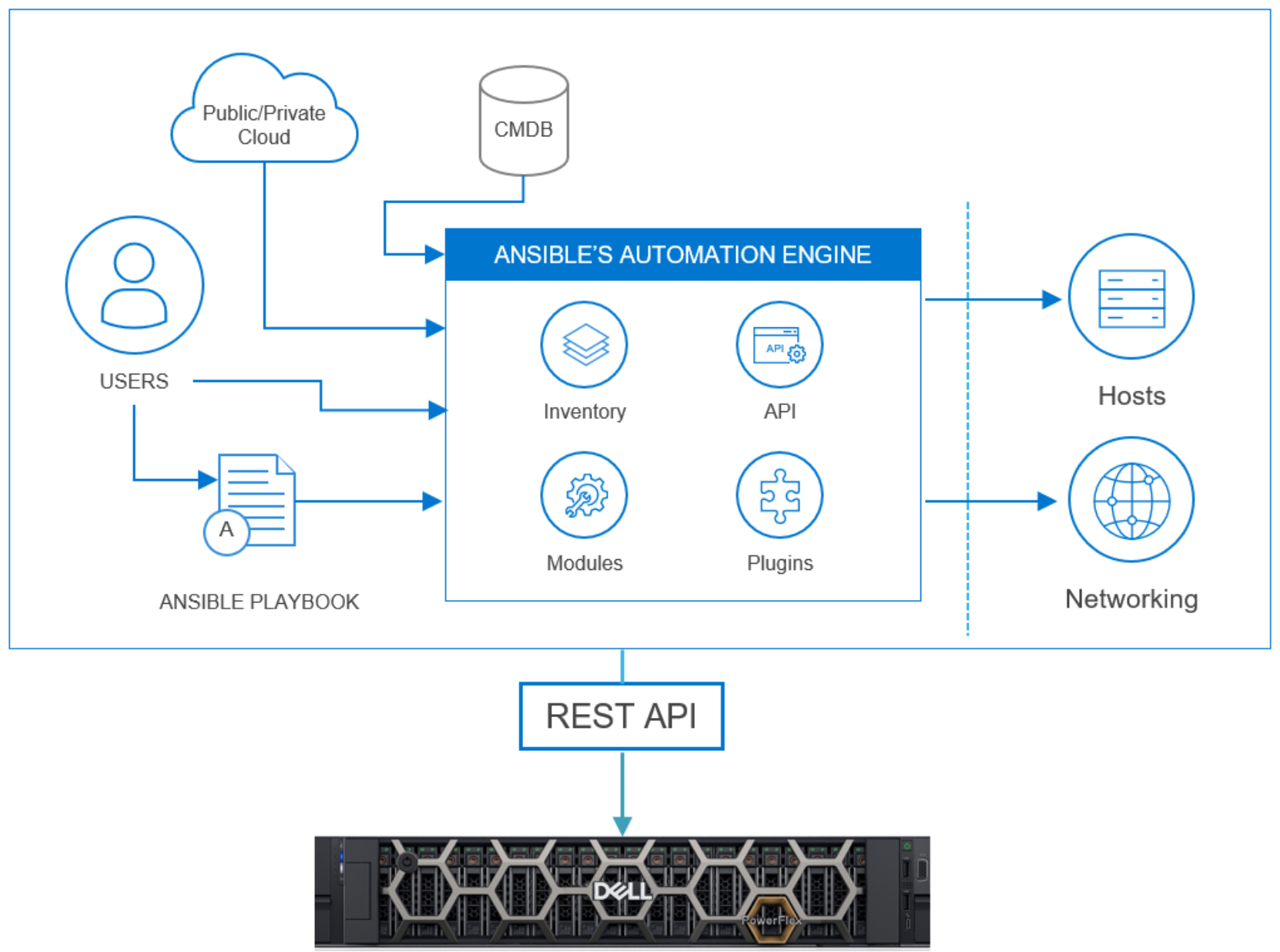
Figure 2. PowerFlex Ansible overview
Dell provides a Python SDK and Ansible modules for automated management of PowerFlex systems. The Ansible modules for Dell PowerFlex can be used to gather details from a PowerFlex system, and for managing SDCs, SDSs, volumes, snapshots, storage pools, protection domains, devices, and the MDM cluster. The operations include list, show, create, modify, and delete. The modules are written so that all requests are idempotent, meaning that no matter how many times it is executed the same result is achieved.
Playbook structure
Ansible playbooks are a list of tasks to be executed against a PowerFlex cluster. One or more tasks can be combined to make a play and two or more plays make a playbook. In the following example the playbook contains two plays. The first play uses the volume module and creates and maps a volume to an SDC in Site-A. The second play creates and maps a volume to an SDC, then creates a snapshot of the volume using the snapshot module.

Figure 3. Ansible playbook
Create and map volume to SDC
The following is an example of a play to create and map a volume to an SDC.
#Play to create 256GB volume and map to SDC sdc1a
- name: Create and map PowerFlex volume to SDC
hosts: localhost
connection: local
gather_facts: False
vars:
hostname: pfmp1
username: 'admin'
password: 'password'
validate_certs: False
protection_domain_name: "pd1"
storage_pool_name: "sp1"
vol_name: "vol001"
collections:
- dellemc.powerflex
tasks:
- name: Create a volume
register: result
dellemc_powerflex_volume:
hostname: "{{hostname}}"
username: "{{username}}"
password: "{{password}}"
validate_certs: "{{validate_certs}}"
vol_name: "{{vol_name}}"
storage_pool_name: "{{storage_pool_name}}"
protection_domain_name: "{{protection_domain_name}}"
sdc:
- sdc_name: "sdc1a"
allow_multiple_mappings: False
sdc_state: "mapped"
size: 256
state: "present"
Create volume and snapshot
The following is an example of two plays. The first play creates a 256GB volume and the second play creates a snapshot of the volume.
#Play to create 256GB volume
- name: Create volume and snapshot
hosts: localhost
connection: local
gather_facts: False
vars:
gateway_host: 'pfmp2'
username: 'admin'
password: 'password'
verifycert: False
collections:
- dellemc.powerflex
tasks:
- name: Create volume
dellemc_powerflex_volume:
gateway_host: "{{gateway_host}}"
username: "{{username}}"
password: "{{password}}"
verifycert: "{{verifycert}}"
vol_name: "vol002"
storage_pool_name: "sp1"
protection_domain_name: "pd1"
size: 256
state: "present"
#Play to create snapshot of vol002
- name: Create snapshot
register: result
dellemc_powerflex_snapshot:
gateway_host: "{{gateway_host}}"
username: "{{username}}"
password: "{{password}}"
verifycert: "{{verifycert}}"
snapshot_name: "snap1-vol002"
vol_name: "vol002"
state: "present"
Conclusion
Summary
This white paper provides an introduction to the PowerFlex REST API and Ansible modules for PowerFlex with real-world examples. For additional guidance, see the References section of this document.
References
Dell Technologies documentation
The following Dell Technologies documentation provides other information related to this document. Access to these documents depends on your login credentials. If you do not have access to a document, contact your Dell Technologies representative.