PowerProtect Data Manager: VMware Virtual Machine Protection Using Transparent Snapshots
Executive summary
Overview
Revisions
We value your feedback
Introduction
Introduction
The VMware virtual machine (VM) backup process transfers or exports data from a VM within a VMware environment to a secondary protection storage system. The Dell PowerProtect appliance can be on a primary or secondary site, or in the cloud. A backup engine or software such as PowerProtect Data Manager manages this process. PowerProtect Data Manager can perform data management and copy management operations on the backup copies and ensure that all data is cataloged properly. This function makes available a consistent VM copy as part of a restore requirement in a disaster scenario.
PowerProtect Data Manager can protect VMware VMs in a reliable and efficient manner using VMware vSphere Storage APIs - Data Protection (VADP) snapshots (see Figure 1). These VADP snapshots are reliable, proven, and certified by VMware, and can be used as part of backup operations.
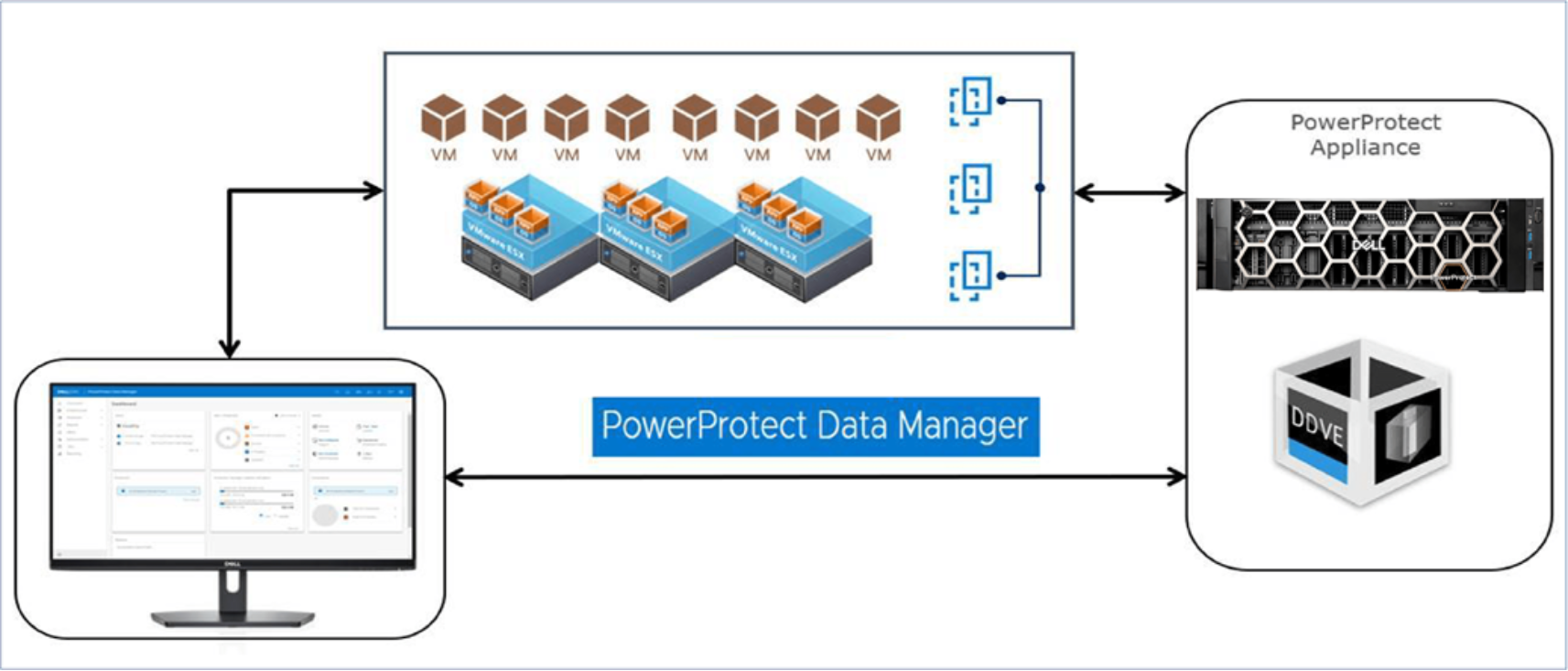
Figure 1. PowerProtect Data Manager for VMware
However, the VADP snapshot process pauses the execution of the VM and allows in-flight disk I/O operations to be completed. This action might increase the read and write latency and affect the snapshot and VM ecosystem life cycle. When the life cycle of a VADP snapshot is analyzed, the snapshot entry and exit points inflict a penalty on a VM. After a snapshot of a VM disk file is produced, requiring the VM to be stunned, a snapshot of the VM disk file is ingested. Then, the deltas must be consolidated into the base disk. When you create a snapshot of a high-transactional application, such as a database, there can be adverse effects. These effects include lengthy backup windows and application timeouts when the stun to ingest and consolidate the workflow is not efficiently managed.
Addressing these issues requires a solution that can deliver not only backup and restore capabilities but also an alternative way to reduce the adverse effects of the VM stun operation.
Transparent snapshots architecture
Transparent snapshots architecture
As shown in Figure 2, PowerProtect Data Manager transparent snapshots use the vSphere API for I/O (VAIO) Filtering framework. The transparent snapshots data mover (TSDM) is deployed in the VMware ESXi infrastructure through a PowerProtect Data Manager VIB. This deployment creates consistent VM backup copies and writes the copies to the protection storage (PowerProtect appliance).
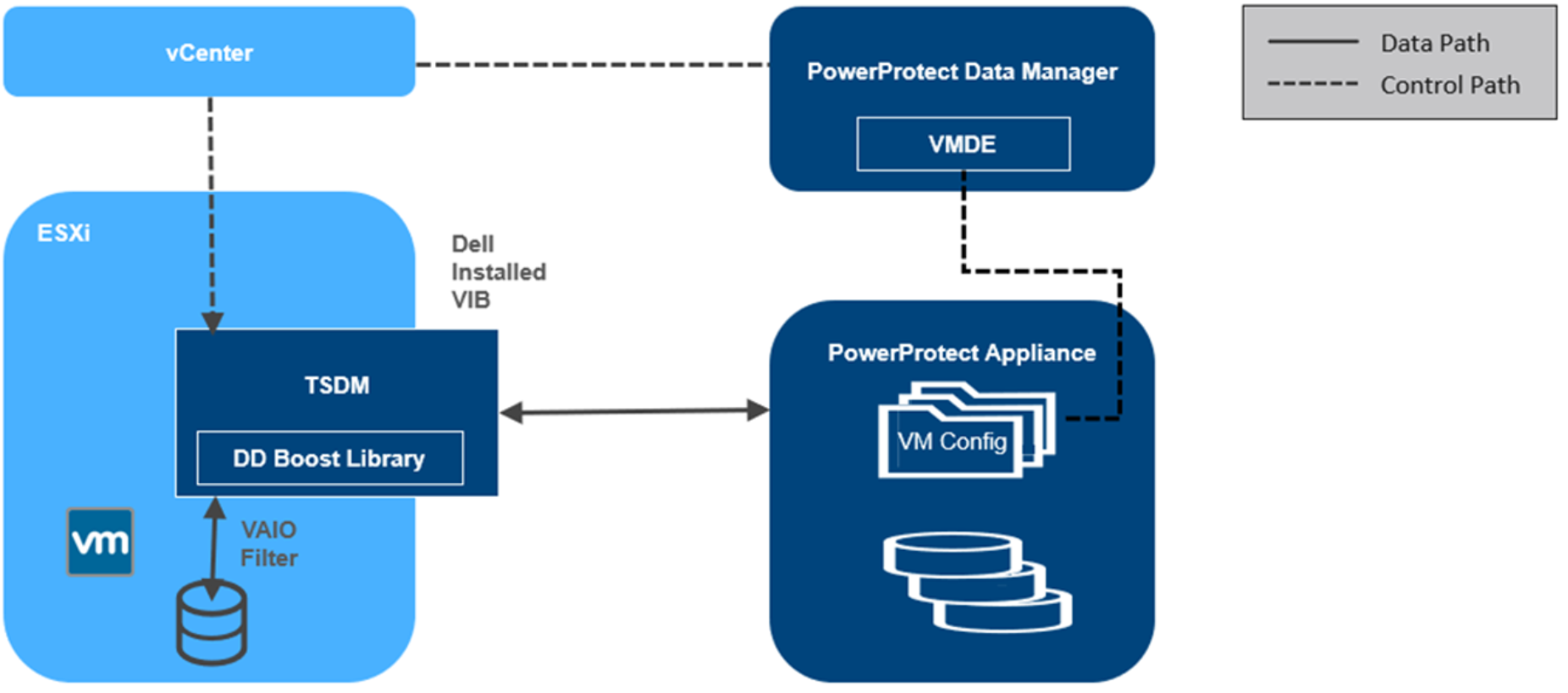
Figure 2. Transparent snapshots architecture
On the control and data paths:
- PowerProtect Data Manager assumes the role of an orchestrator where it identifies the VM assets in the VMware environment and provides scheduling capabilities.
- PowerProtect Data Manager uses VM Direct Engine (VMDE) to communicate with the VMware vCenter level APIs provided by VMware. The VM Direct Engine communicates with vCenter to achieve the following two key tasks:
- Creates and tracks the progress of the vCenter level tasks that are visible to the end users, such as sync, restore, and snapshot operations.
- Is responsible for locating the relevant ESXi host on which the operation (backup or restore) is to be performed, based on the placement of the VM asset to be protected.
- On each ESXi host, the protection-related APIs and workflows from VMware are facilitated using a VAIO filter.
- Each ESXi communicates with the Transparent Snapshot Data Mover (TSDM) component, which is responsible for the VM-backup data movement.
- The backup and restore processes transfer the transparent snapshots respectively to and from the PowerProtect appliance.
- TSDM also consists of the PowerProtect appliance SDK (DD Boost library), which helps the framework access the storage units on the PowerProtect appliance. It also helps write and read data from those storage units.
Note: PowerProtect Data Manager manages the TSDM component by using the VIB (VMware Certified) from Dell Technologies. This component is installed dynamically as part of the integration of PowerProtect Data Manager that requires protection of VMs using transparent snapshots. The APIs being used are supported in VMware ESXi 7.0 U3 and later.
Integration with PowerProtect Data Manager
Integration with PowerProtect Data Manager
This section examines the steps to integrate PowerProtect Data Manager within the VMware infrastructure, including deploying all necessary components and enabling VM protection using transparent snapshots.
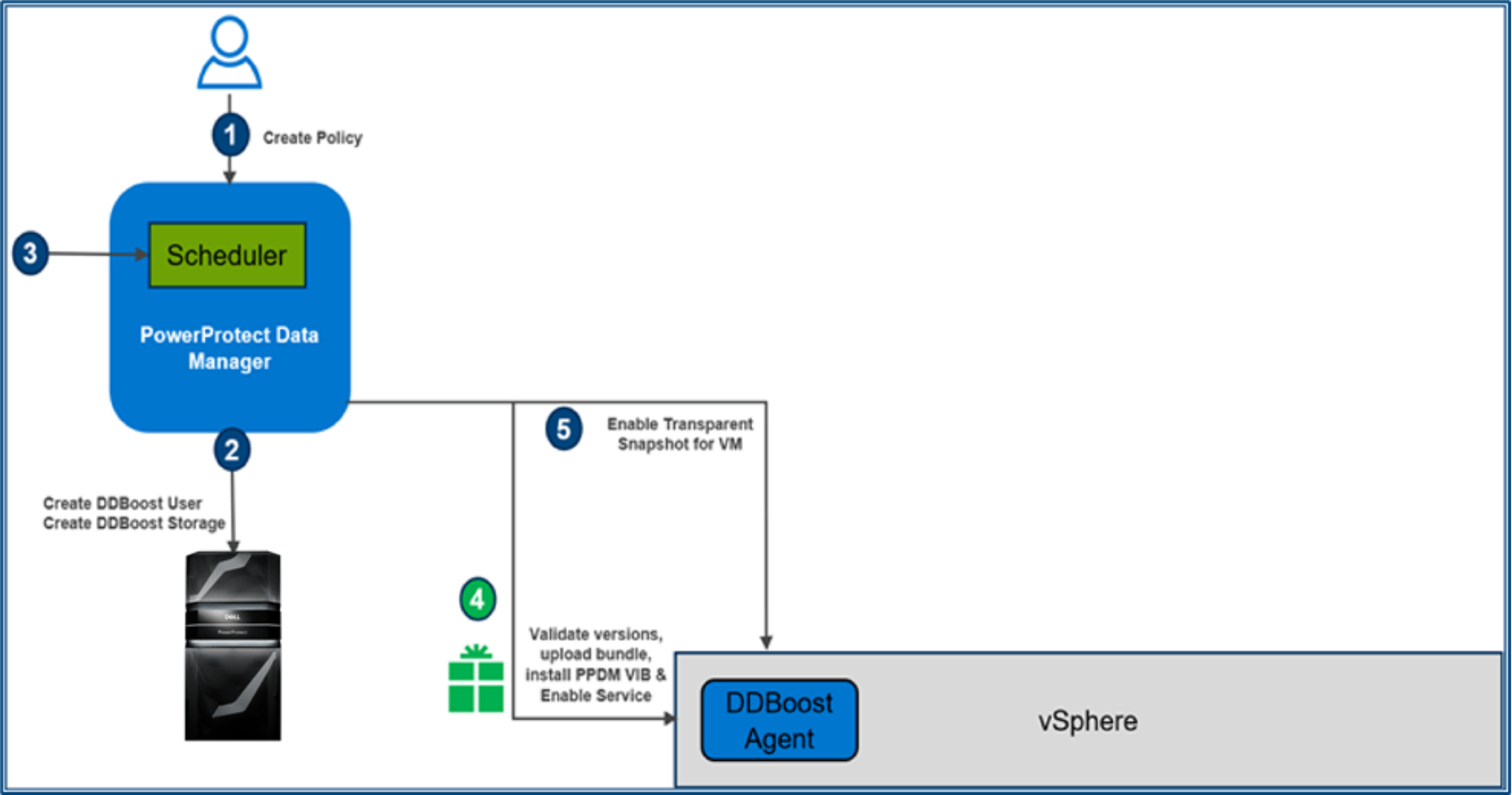
Figure 3. Integration with PowerProtect Data Manager
After VMware VMs are discovered as PowerProtect Data Manager assets, the next steps are creating a protection policy and adding the VM assets for protection.
Note: For information about the criteria for policies to be eligible for transparent snapshots, see Protection Criteria.
- PowerProtect Data Manager creates the storage unit in the PowerProtect appliance for storing backups.
- According to the schedule defined in the protection policy, the scheduler activates.
- As these steps occur, the PowerProtect Data Manager VM Direct Engine initiates API calls to vCenter. It then validates the ESXi version (7.0U3 and later), uploads and installs the PowerProtect Data Manager TSDM VIB, and enables the service. Then, the VAIO filter is attached to each VM disk. In this step, the TSDM component is created but remains idle (running but not used) because there is no data movement. You can see the VIB file installed on the ESXi host that houses the VM being protected (Figure 4).

Figure 4. The TSDM VIB file
Note: Installation or upgrade of the TSDM VIB does not require the target ESXi host to be in maintenance mode.
The VIB deployment process operates on the relevant ESXi hosts concurrently—25 ESXi hosts at a time.
The process skips ESXi hosts that are powered off or in maintenance mode. The mechanism also has integrated logic to detect and prevent upload of the VIB package to hosts that already have the package in one of their datastores.
- When vCenter acknowledges success, PowerProtect Data Manager marks the VM to be protected by transparent snapshots.
Note: Aside from the DEL_bootbank VIB file, Figure 4 shows a metadata.zip file that contains information related to the VIB, such as dependencies on the host, system requirements, summary, and version. The files are in the Datastore Files section of the ESXi host. This VIB installation is also shown in the PowerProtect Data Manager Policy Config Job summary.
Protection Criteria
PowerProtect Data Manager 19.10 enhancements
PowerProtect Data Manager 19.11 enhancements
Beginning with version 19.11, the PowerProtect Data Manager UI provides an option to override the automatic protection engine selection and manually select the VM Direct protection engine to be used. It also enables the option to migrate the protection engine being used on an asset basis. For example, VADP is being used to back up a certain VM and now the backup admin wants to leverage TSDM so the asset protection engine can be migrated to TSDM.
Limitations
As a precautionary measure, PowerProtect Data Manager does not support the following with transparent snapshots:
- Physical or virtual RDM disks.
- VMs with encrypted VMDKs.
- VMs with more than 64 disks (PowerProtect Data Manager ).
- VMs with Fault Tolerance (FT) enabled.
- Azure VMware Solution (AVS) on Microsoft Azure.
- VMware Cloud (VMC) on Amazon Web Services (AWS).
- VMware Live Site Recovery (VLSR, formerly known as VMware Site Recovery Manager (SRM)) cannot co-exist with TSDM on the same VMs. See the section PowerProtect Data Manager 19.17 enhancements for more information.
- Shared disks.
- VMs with VMware snapshots (see Protection of VMs with VMware Snapshots).
Override protection engine
The PowerProtect Data Manager UI provides an option to override the automatic protection engine selection and manually select the VM Direct protection engine to be used. It also enables the option to migrate the protection engine being used on an asset basis. For example, VADP is being used to back up a certain VM and now the backup administrator wants to leverage TSDM so that the asset protection engine can be migrated to TSDM.
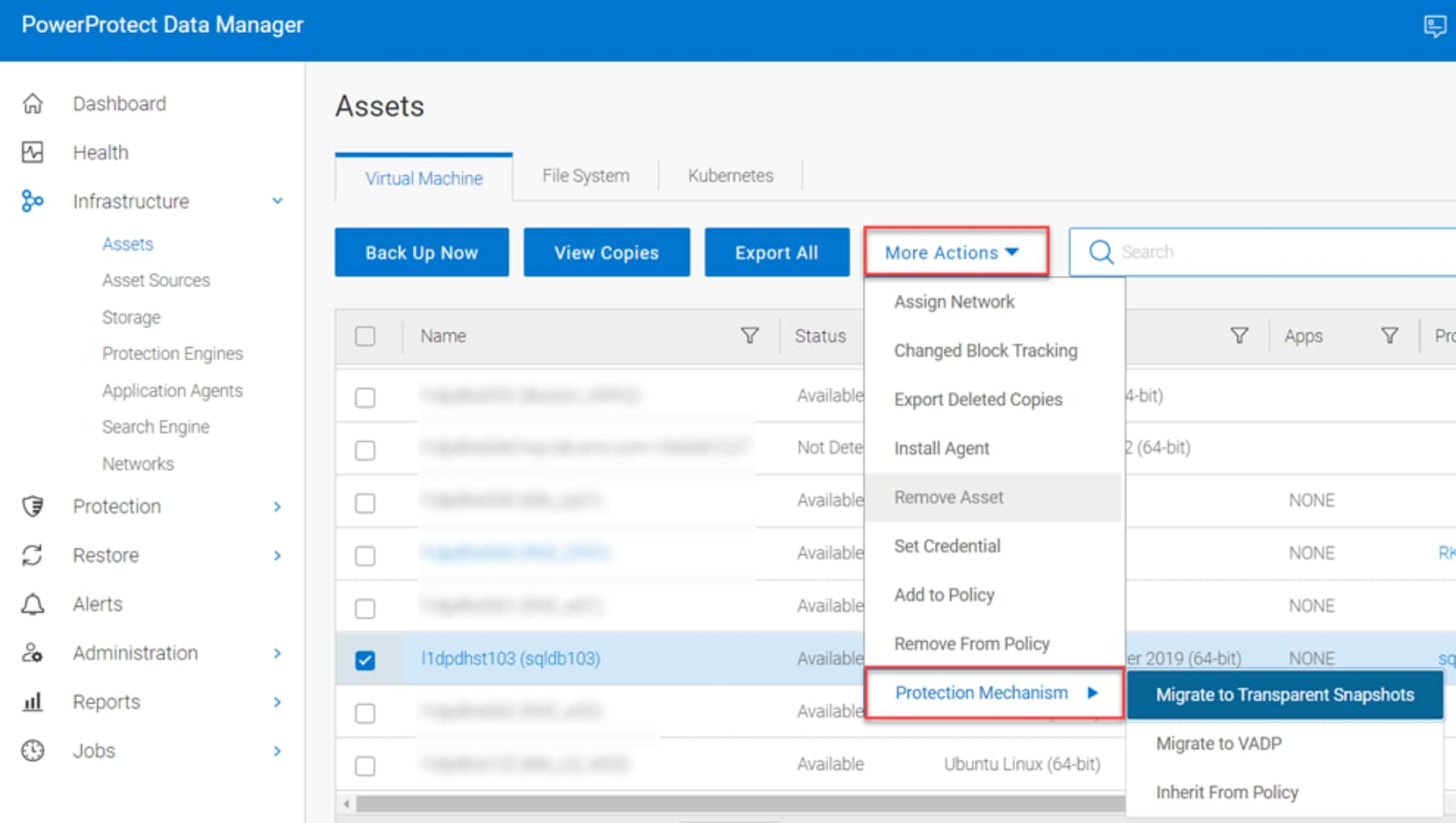
Figure 5. Protection mechanism override
PowerProtect Data Manager 19.12 enhancements
PowerProtect Data Manager 19.13 enhancements
PowerProtect Data Manager 19.14 enhancements
PowerProtect Data Manager 19.14 features many important transparent snapshots-related enhancements:
- Support for application consistency for Microsoft SQL Server using transparent snapshots - Application consistency for SQL Server with transparent snapshots is now supported, in addition to the Application Direct offering. SQL Server application-aware backups with TSDM are designed to operate with the embedded VM Direct Engine. Policies that feature SQL Server application-aware VM backups using VADP from previous PowerProtect Data Manager releases are not automatically migrated to TSDM. For more information, see Override protection engine.
- TSDM VIB life cycle improvements - The TSDM VIB life cycle had been greatly enhanced in this release. First, an upgrade option is now available in the PowerProtect Data Manager UI as well as through the PowerProtect Data Manager REST API. If an ESXi host is eligible for an upgrade, VIB status for the ESXi host is displayed as Ready for upgrade, and the Upgrade button is enabled. A message is also displayed to warn against performing upgrades while backups are running.
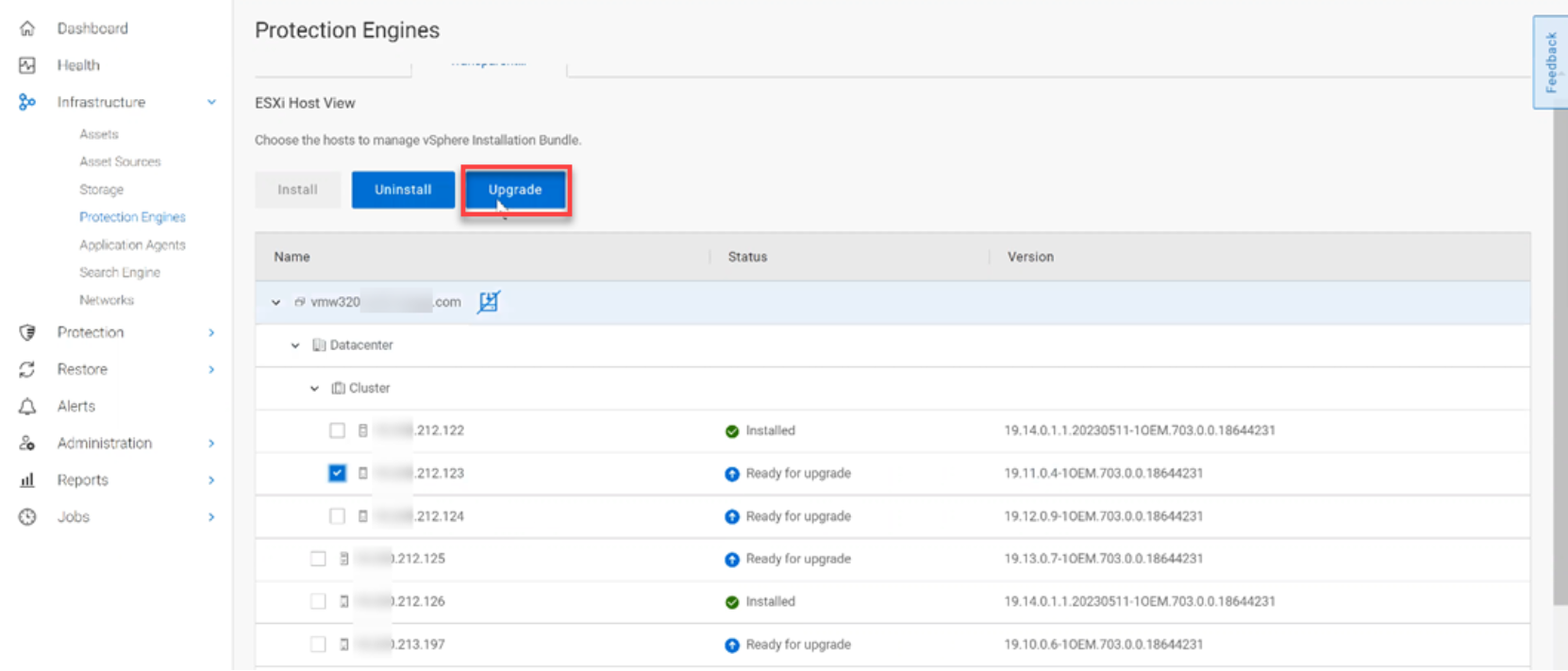
Figure 6. TSDM VIB upgrade option
- Support for TSDM VIBs with earlier PowerProtect Data Manager releases - Starting with PowerProtect Data Manager 19.14, TSDM VIBs can run earlier releases of PowerProtect Data Manager, unless stated differently in the PowerProtect Data Manager ESSM for your specific release.
- When automatic VIB management on a vCenter is disabled, ESXi hosts with VIB version N-4 and later will skip the VIB upgrade during the PowerProtect Data Manager upgrade. N-4 for PowerProtect Data Manager 19.14 means that PowerProtect Data Manager 19.10 and later releases will not be automatically upgraded.
- When automatic VIB management is enabled, all ESXi hosts with TSDM VIBs on that vCenter will be automatically upgraded.
- Support of VM image-based protection on Oracle Cloud VMware Solution (OCVS) - PowerProtect Data Manager 19.14 supports VM protection on OCVS. Both TSDM and VADP VM image-based protection is supported. PowerProtect Data Manager as well as PowerProtect DDVE can now be deployed on OCVS. Specifically, the PowerProtect Data Manager OVA was enhanced with an additional OCVS deployment option.
- Policy UI changes for TSDM - PowerProtect Data Manager 19.14 greatly enhances VM policy configuration by allowing you to explicitly select transparent snapshots (default) or the VADP protection mechanism. The protection mechanism changes are based on the selected backup options (see Criteria).
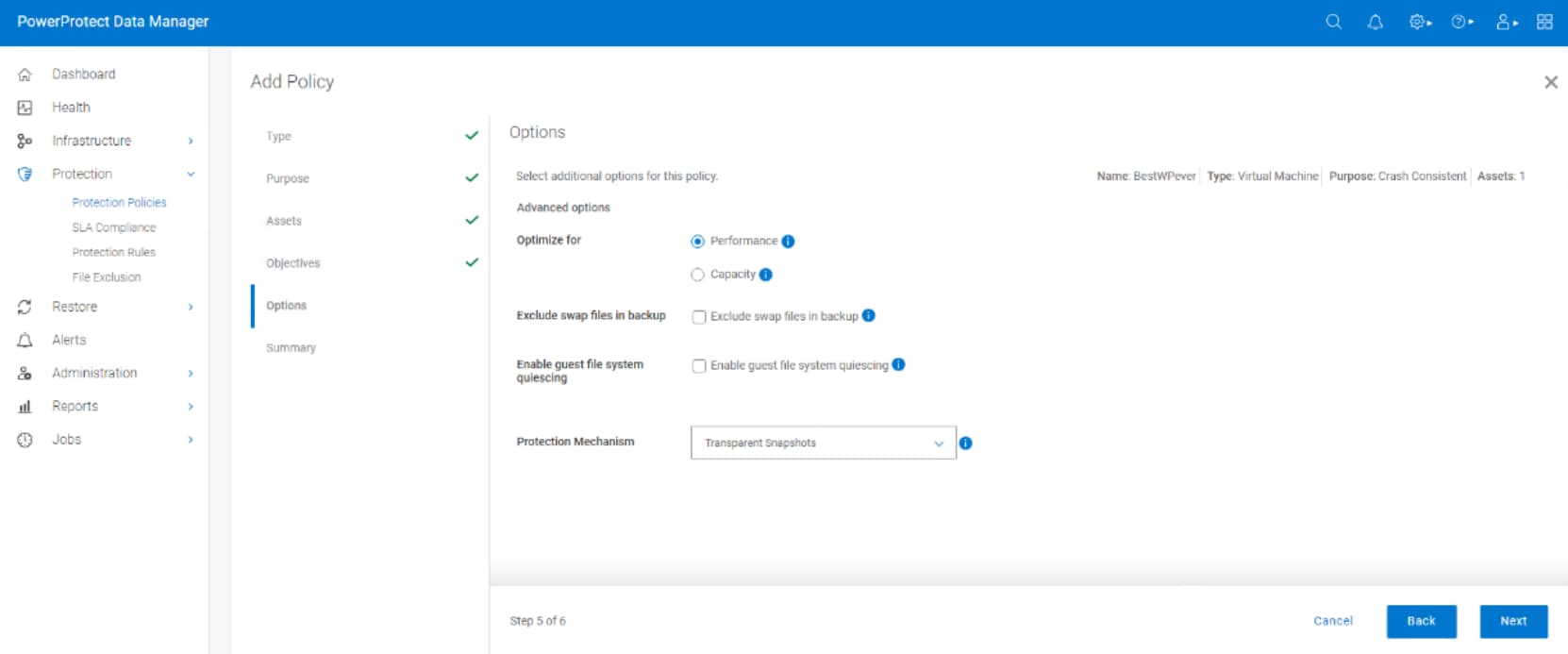
Figure 7. Policy creation flow improvements
- Restore plans - Restore plans can now be leveraged to orchestrate mass asset restore operations. Restore plans can be run ad hoc or can be scheduled and restore plans can be reused or repurposed. A restore plan includes one or more restore groups that represent the assets to be restored, by a specific policy, by rule, or by manual selection. The restore group definition also includes copy selection, restore method and location, and network mapping as well as configuration. Restore plan functionality is limited to VM assets in PowerProtect Data Manager 19.14 that were backed up using transparent snapshots or VADP. For more information about restore plans, see the PowerProtect Data Manager Virtual Machine User Guide.
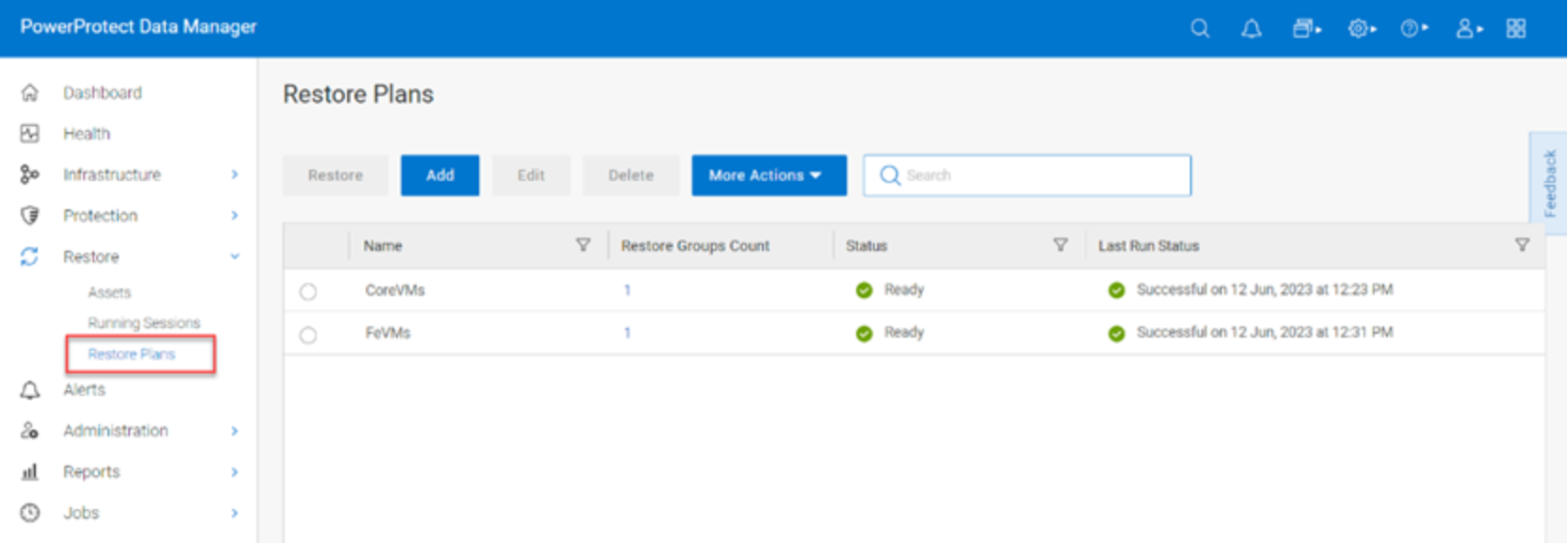
Figure 8. Restore Plans
PowerProtect Data Manager 19.15 enhancements
PowerProtect Data Manager 19.15 introduced the following capabilities:
- vCenter privileges validation - when a vCenter is added as an asset source or when an existing vCenter asset source is edited, with PPDM 19.15, it is possible to verify the configured vCenter credentials and meet the minimum required vCenter user account privileges. PowerProtect Data Manager Virtual Machine User Guide lists all vCenter privileges necessary for TSDM.
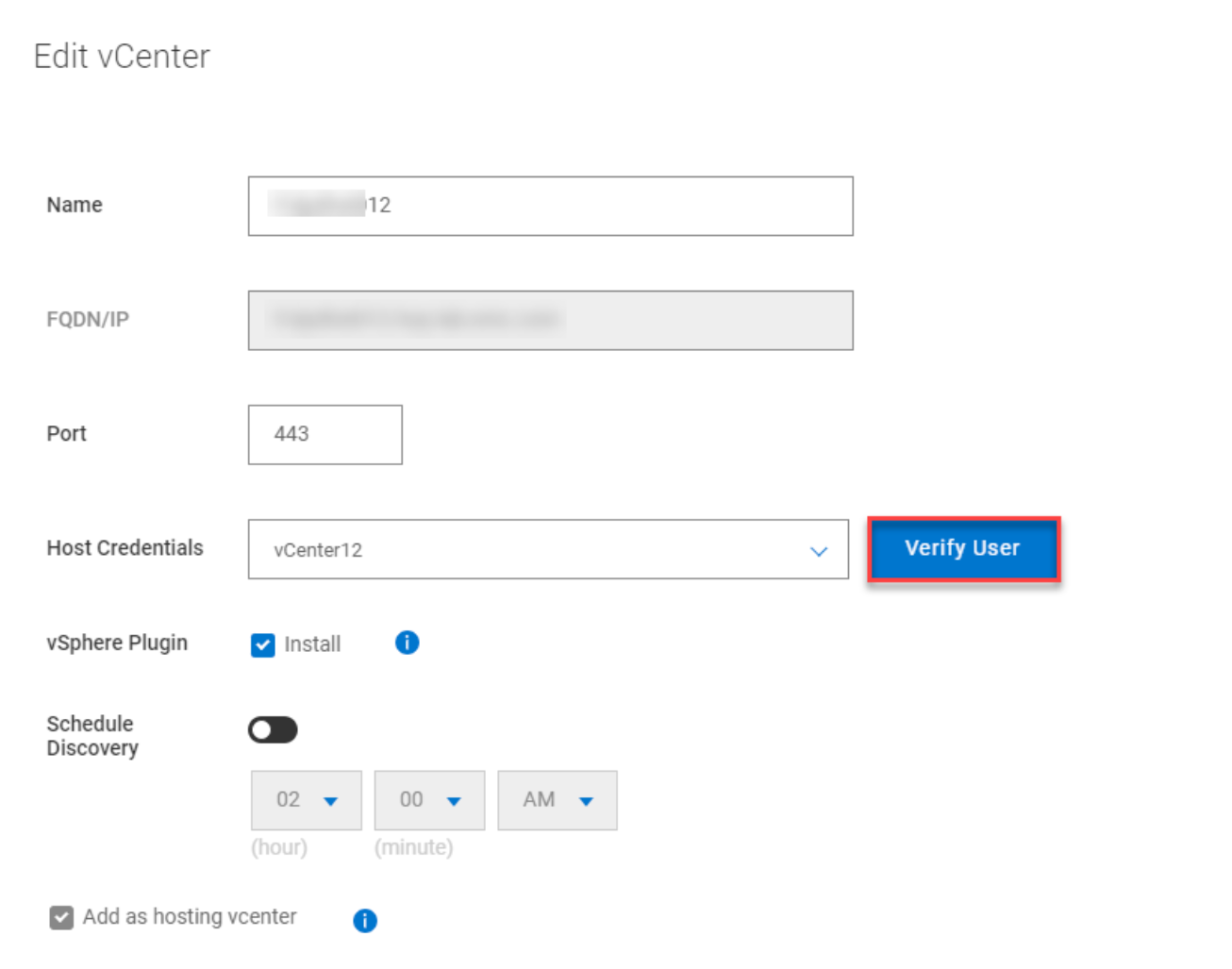
Figure 9. vCenter privileges validation for vCenter asset sources
- Clone protection policy - PPDM 19.15 offers the ability to clone an existing protection policy to a new one for simplification and automation. The new policy is created with no assets because only configuration is cloned.
PowerProtect Data Manager 19.16 enhancements
PowerProtect Data Manager 19.16 features these VM-related improvements:
- Distributed Resource Scheduler (DRS) Support for VM Restore - this capability enables the selection of an ESX cluster with DRS enabled as the target to run the recovered VM. This is available for all restore types and the ESX cluster selection is available through the PPDM UI and PPDM vSphere plugin.
Note: upon using restore, individual ESXi hosts must be selected to run the recovered VM. This applies only for clusters with DRS disabled as in previous releases.
- Copy Management UI - a brand-new UI screen located under Infrastructure which allows users to view and manage all copies through a single screen. This new capability not only allows users to view copy details, but also allows them to edit the copy retention, delete, or remove the copy from PPDM. Additionally, it enables search (including advanced search) for copies.
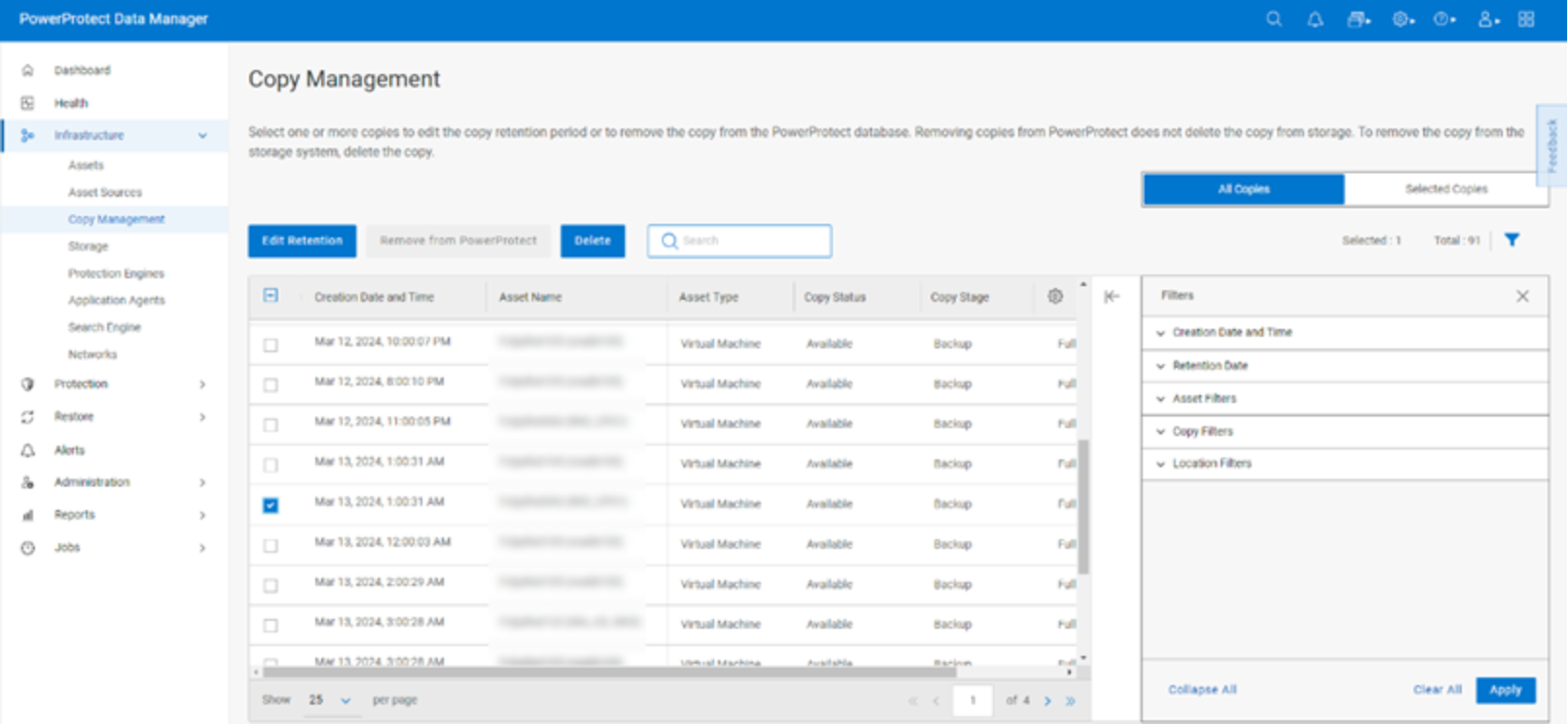
Figure 10. Copy Management UI
- Restore of Deleted VMs - VM restore to original has been enhanced to support vCenter, datacenter, ESX cluster, datastore, and others that no longer exist. The PPDM UI tries to pre-select previous existing locations if available; but in any case, the user can change any of these locations and ultimately restore the VM even if the original location is not available. That is done by preserving the VM instance UUID which is advantageous as the backup history is kept for the production or restored VM.
PowerProtect Data Manager 19.17 enhancements
PowerProtect Data Manager 19.18 enhancements
PowerProtect Data Manager 19.18 features the ability to configure auto-VIB management as part of the vCenter asset source registration or modification flows in the PowerProtect Data Manager UI and REST API. By default, auto VIB management is enabled. Auto-VIB management can be enabled or disabled either through the asset source registration/modification screen or through the Protection Engines -> Transparent Snapshots Data Movers screen (Figure 6).
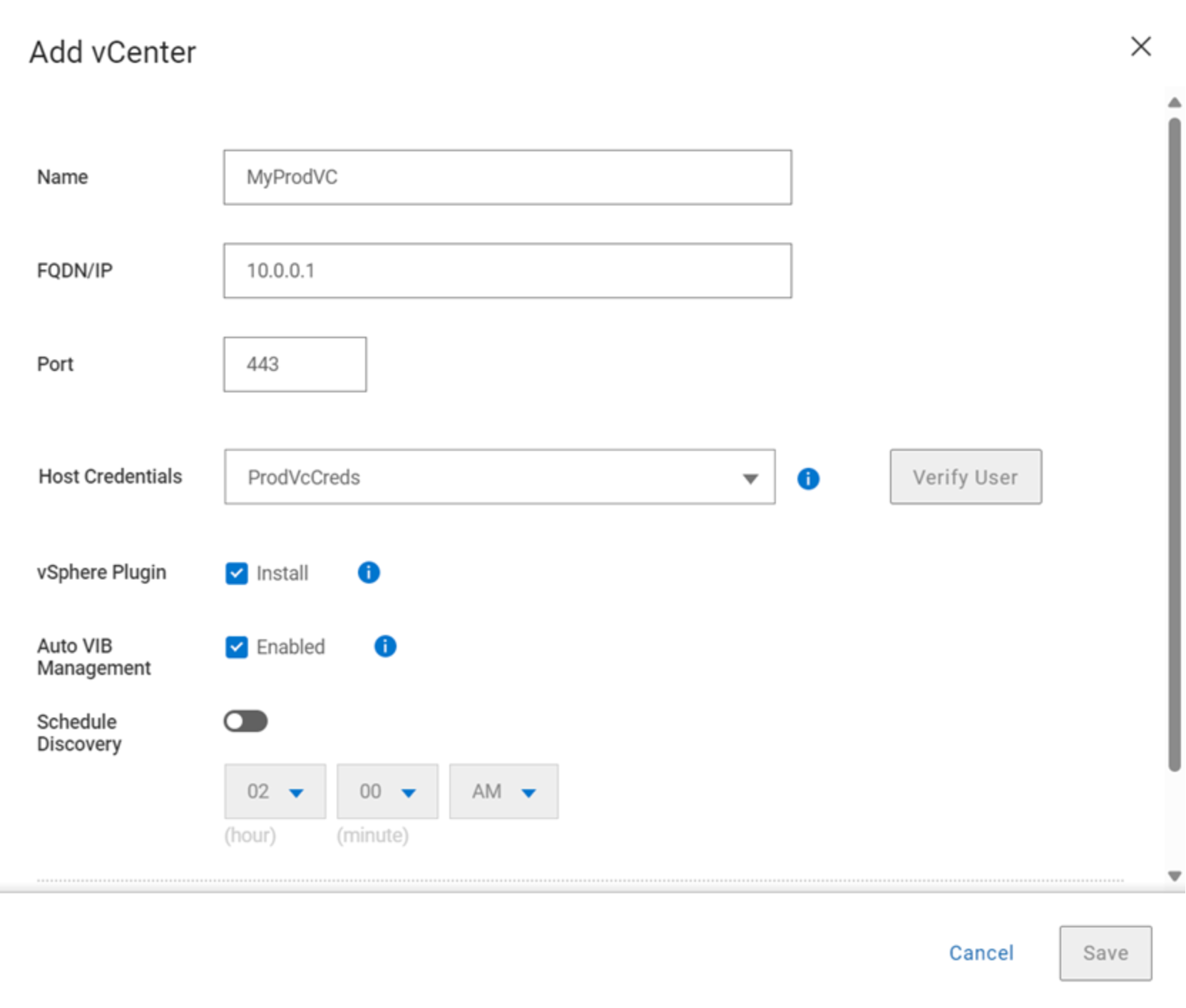
Figure 11. vCenter Asset Source Registration in the PPDM 19.18 UI
PowerProtect Data Manager 19.19 enhancements
- Manual VMDE Upgrade - PowerProtect Data Manager 19.19 introduces the ability to disable automatic upgrades for VMware VM Direct Engine (VMDE), allowing administrators to decouple the vProxy lifecycle management from Data Manager upgrades. Automatic VMDE updates can now be controlled on a per‑vCenter basis through the Protection Engine UI screen or API, with configuration supported only for vProxies that are on the same version as Data Manager or the previous release. When a VMDE becomes eligible for upgrade, Data Manager generates a system alert to raise awareness and let users plan their VMDE upgrade on their own schedule.
- Google Cloud VMware Engine (GCVE) Support - PowerProtect Data Manager 19.19 adds support for backing up and restoring virtual machines running on Google Cloud VMware Engine (GCVE) using Transparent Snapshots. This capability requires specific vCenter privileges for the service account used by Data Manager, which are documented in the PowerProtect Data Manager VMware VM User Guide. In this release, protection for GCVE workloads is limited to crash‑consistent copies.
- Anomaly Detection - PowerProtect Data Manager 19.19 features anomaly detection for vSphere VM workloads, generating reports when it identifies unusual patterns in backup metadata that may indicate security concerns. This capability requires the data to be indexed and the search engine to be deployed, since detection runs against indexed metadata rather than full backup content. When anomalies are found, the resulting reports can be used to quarantine or delete the affected backup copies to prevent potentially compromised data from being restored.
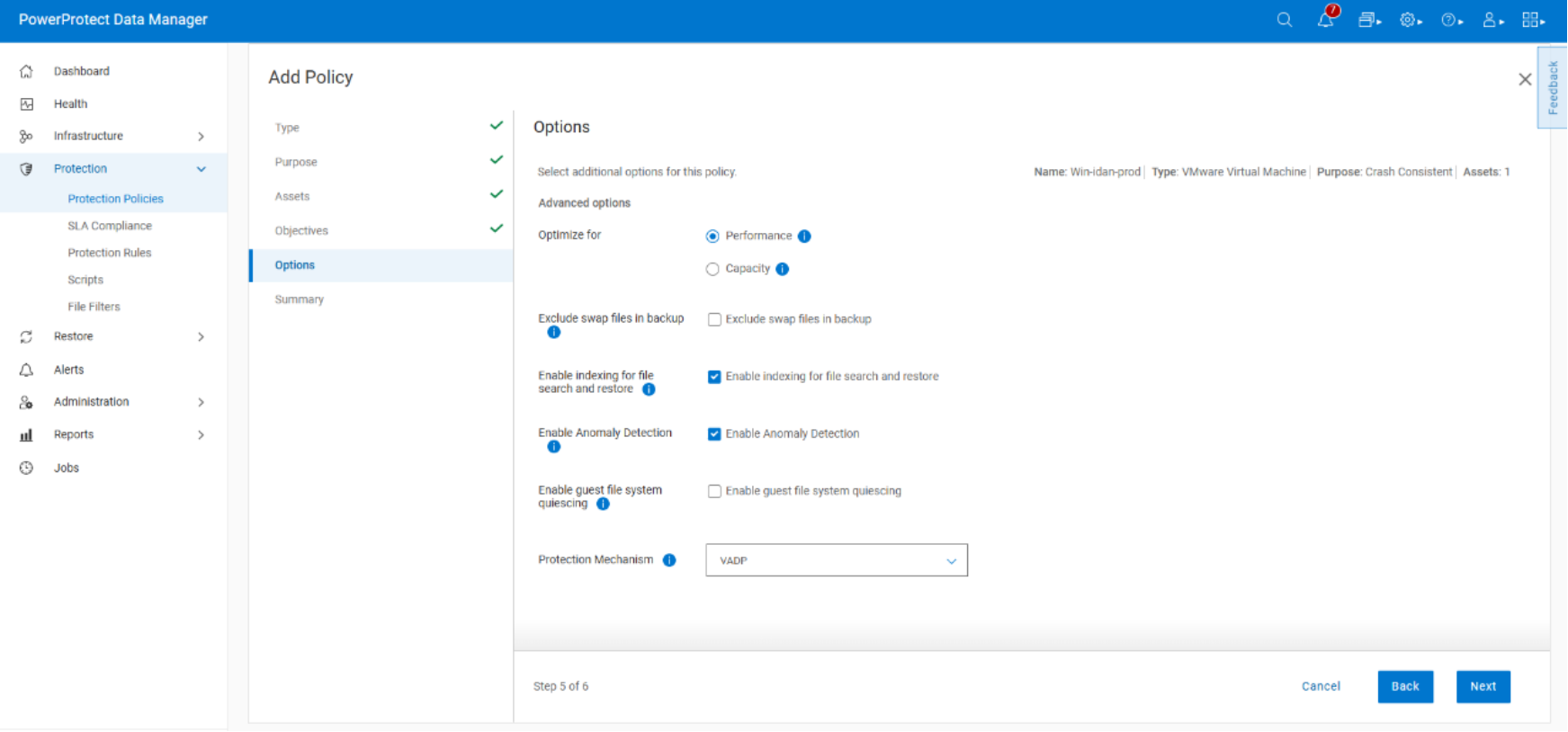
Figure 12. Updated Protection Policy options with Anomaly Detection
PowerProtect Data Manager 19.20 enhancements
PowerProtect Data Manager 19.21 enhancements
PowerProtect Data Manager 19.22 enhancements
PowerProtect Data Manager 20.1 enhancements
PowerProtect Data Manager 20.2 enhancements
- Disable/Enable Policy Objectives - PowerProtect Data Manager 20.2 introduces the ability to enable or disable individual policy objectives directly within a protection policy. This capability applies consistently across objective types, providing more granular control over protection workflows while preserving the overall policy structure.
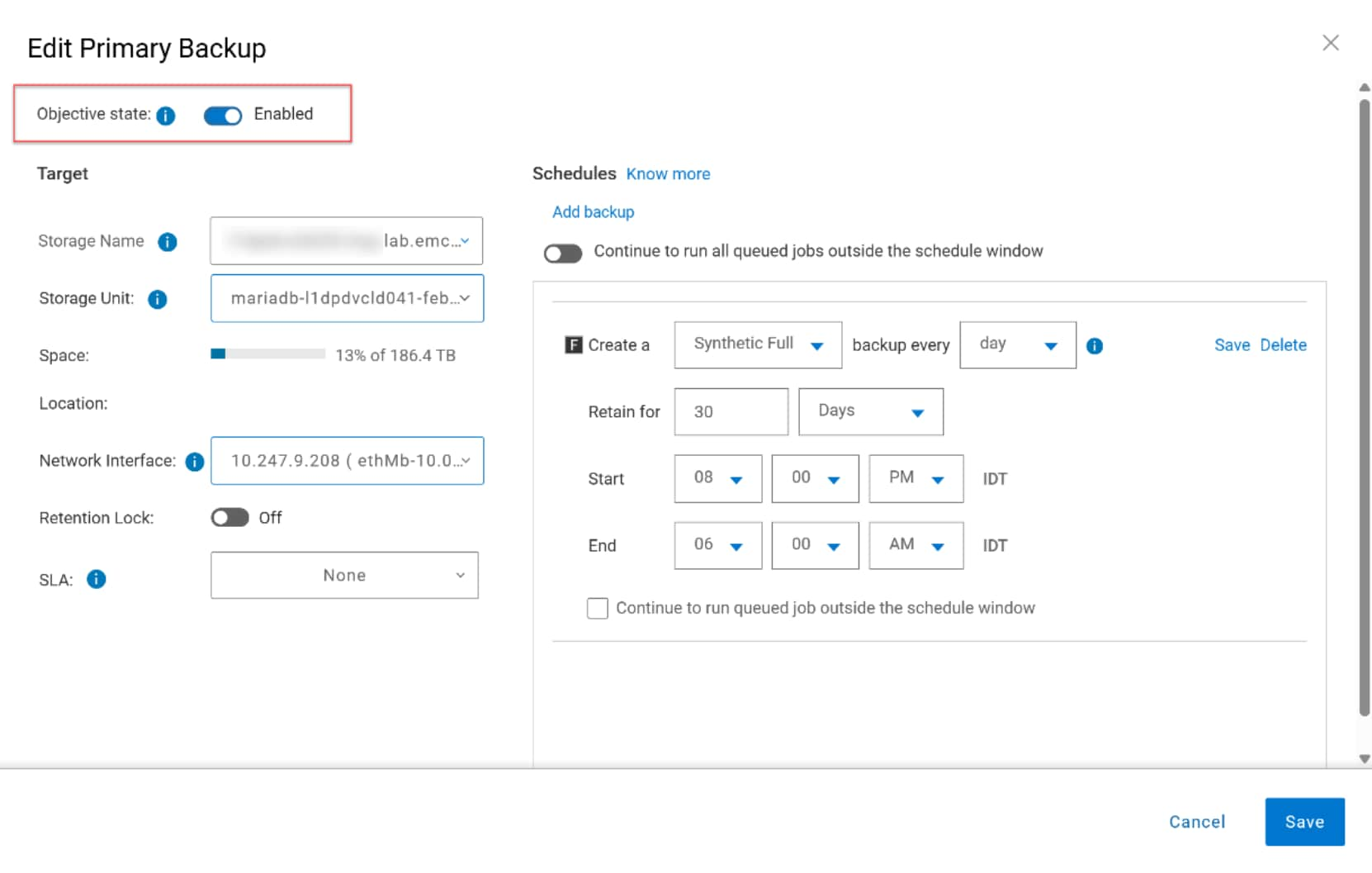
Figure 13. Policy objective enable/disable in the PowerProtect Data Manager UI
- TSDM Lifecycle Improvements for vSphere 9.1 - PowerProtect Data Manager 20.2 enhances lifecycle management of the TSDM VIB for vSphere 9.1 environments. With this release, TSDM lifecycle operations are largely automated through integration with the vSphere Lifecycle Manager (vLCM) framework with the only required manual step being the import of the TSDM package into vLCM after downloading it from the PowerProtect Data Manager UI.
The TSDM VIB supports both clustered and standalone ESXi hosts, with lifecycle operations applied at the cluster level for multi-host environments and directly to individual hosts for standalone deployments.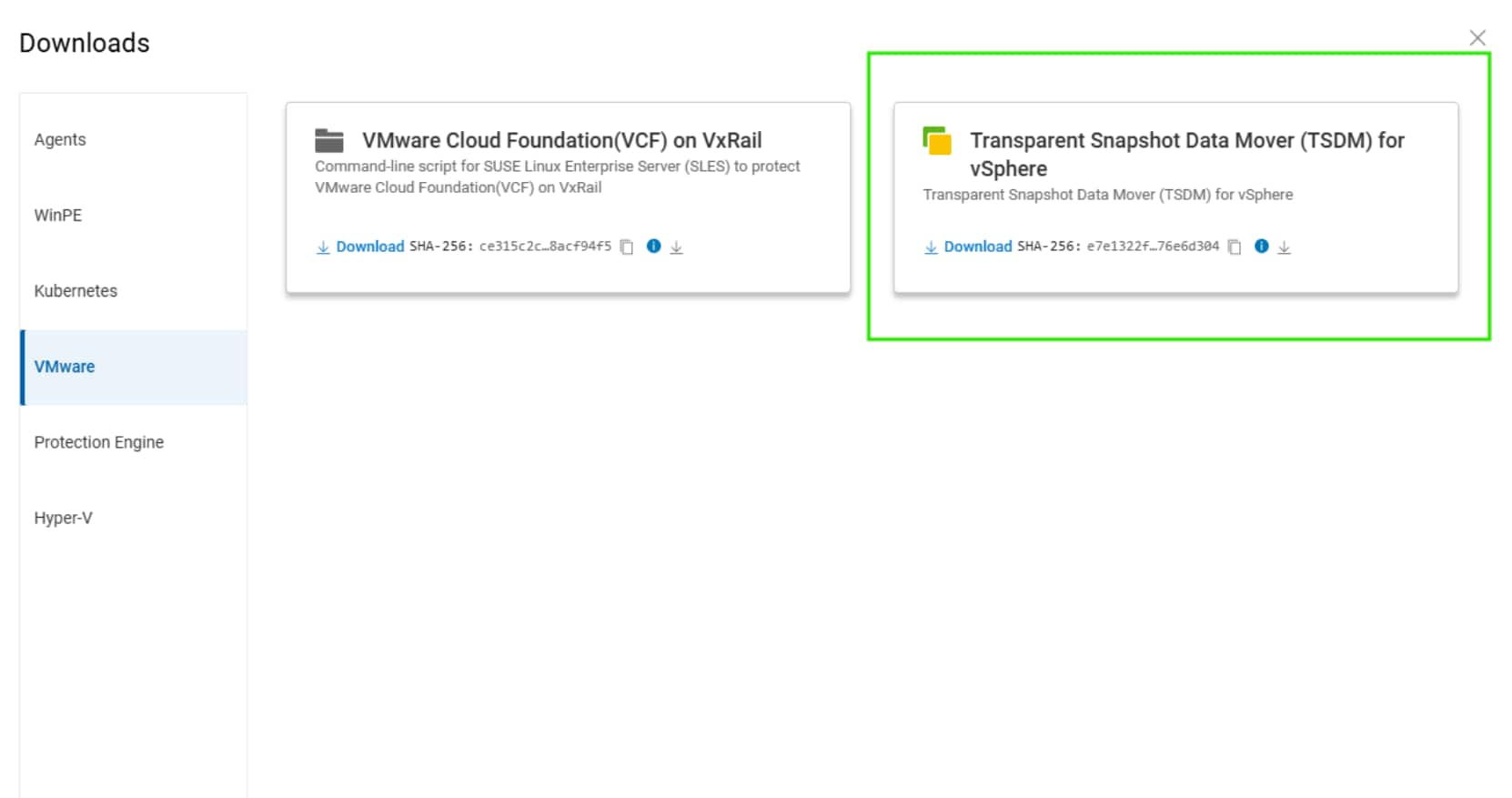
Figure 14. TSDM Package download from the PowerProtect Data Manager UI
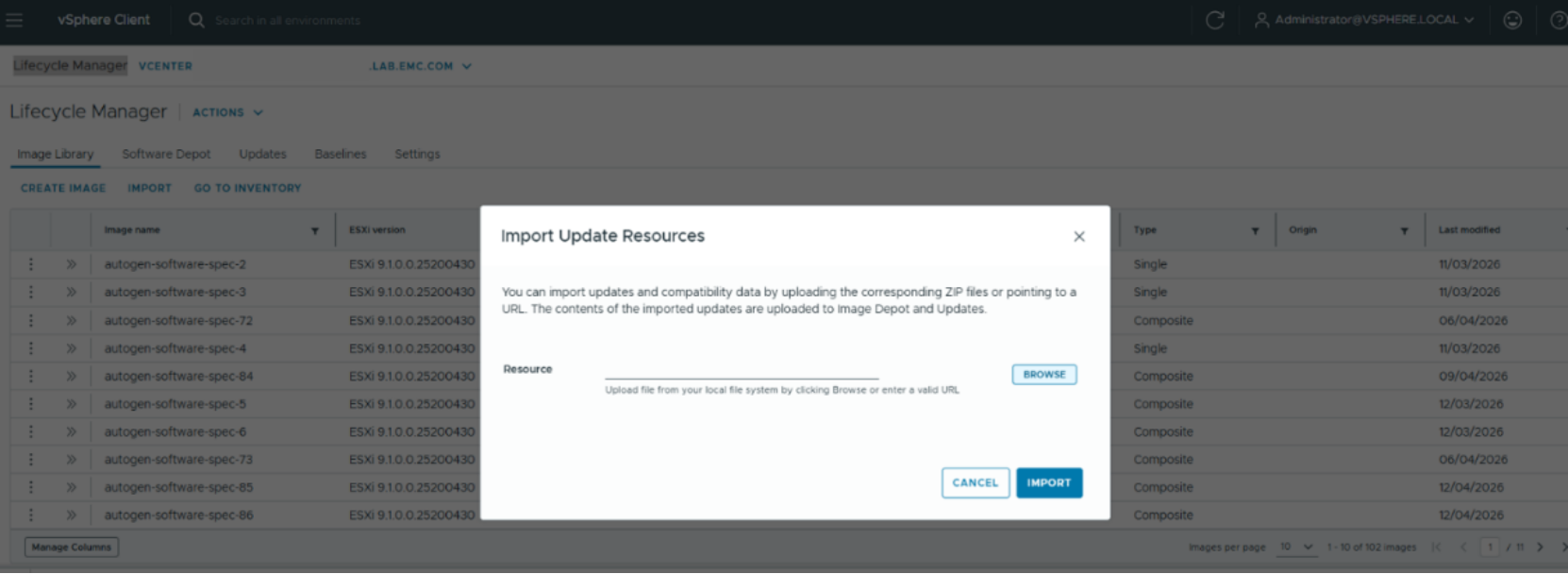
Figure 15. TSDM package import into Lifecycle Manager
Protection parallelism
Network considerations
Essential firewall ports
The following table outlines the main necessary firewall ports for Transparent Snapshots.
Table 1. Outline of TSDM required firewall ports
|
Source |
Destination |
Port |
Protocol |
Comments |
|
PowerProtect Data Manager |
vCenter |
443 |
TCP |
|
|
PowerProtect Data Manager |
vCenter |
7444 |
Proprietary |
|
|
PowerProtect Data Manager |
ESXi |
443 |
HTTPS |
|
|
PowerProtect Data Manager |
Protection Engine |
9613 |
Proprietary |
External VMDE only |
|
PowerProtect Data Manager |
Protection Engine |
22 |
TCP |
External VMDE only |
|
PowerProtect Data Manager |
Protection Engine |
9090 |
HTTPS |
External VMDE only |
|
PowerProtect Data Manager |
PowerProtect DD |
3009 |
HTTPS |
Embedded or external VMDE |
|
PowerProtect Data Manager |
PowerProtect DD |
111 |
TCP |
Embedded or external VMDE |
|
PowerProtect Data Manager |
PowerProtect DD |
2049 |
TCP |
Embedded or external VMDE |
|
PowerProtect Data Manager |
PowerProtect DD |
2052 |
TCP |
Embedded or external VMDE |
|
ESXi |
PowerProtect DD |
111 |
TCP |
Embedded or external VMDE |
|
ESXi |
PowerProtect DD |
2049 |
TCP |
Embedded or external VMDE |
|
ESXi |
PowerProtect DD |
2053 |
TCP |
Embedded or external VMDE |
Upon installation of the TSDM VIB, a service called daemon-tsdm is added to the ESXi firewall. This ruleset includes the following properties.
Table 2. TSDM firewall ruleset
|
Service Name |
Incoming Port |
Outgoing Port |
Protocol |
Allowed IP addresses |
|
daemon-tsdm |
N/A |
111 |
TCP |
All (default). Can be configured as needed |
|
daemon-tsdm |
N/A |
2049 |
TCP |
All (default). Can be configured as needed |
|
daemon-tsdm |
N/A |
2053 |
TCP |
All (default). Can be configured as needed |
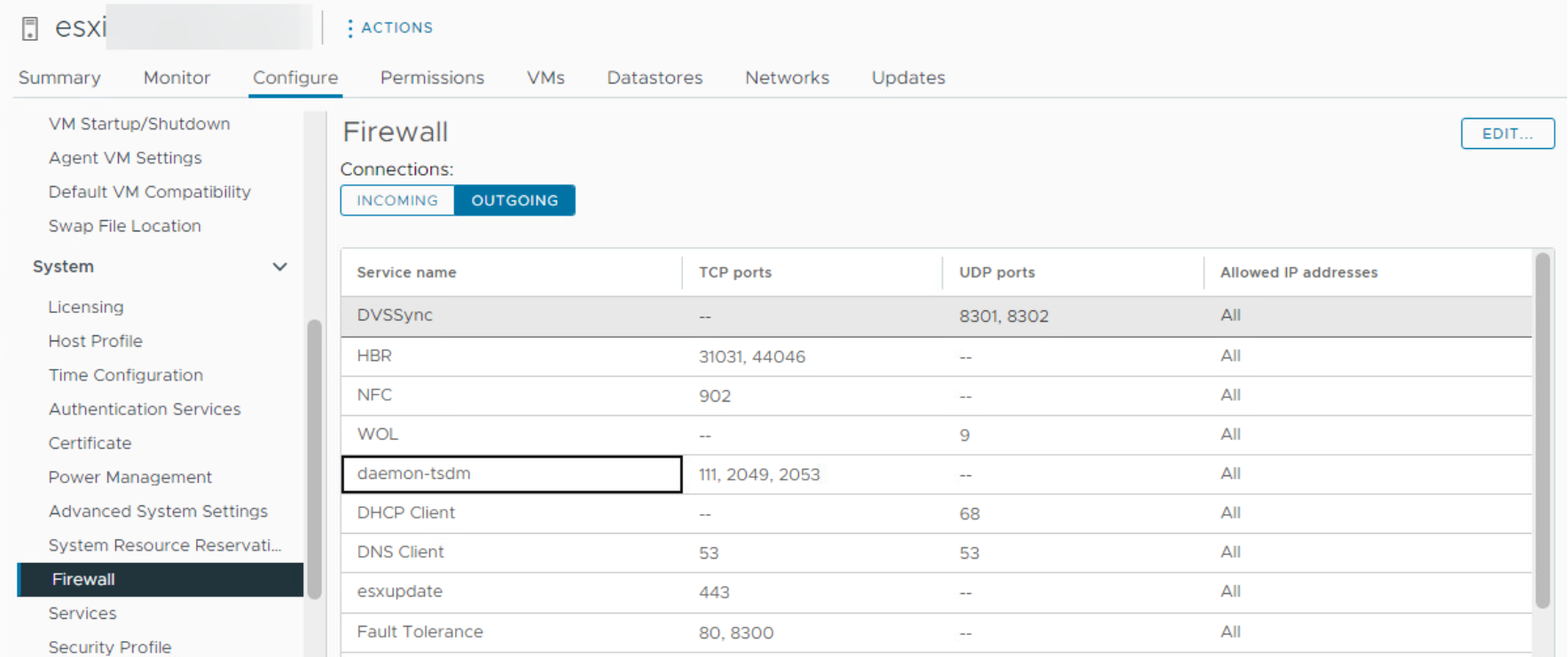
Figure 16. Outline of TSDM required firewall ports
TSDM supports ESXi Lockdown Mode. To ensure the successful creation of the daemon-tsdm firewall ruleset during VIB installation, it is required to add root as an exception user. As a matter of fact, in PPDM 19.17 and later, VIB installation would fail if Lockdown Mode is enabled without root as an exception user.
For additional security-related information, see the PowerProtect Data Manager Security Configuration Guide
VM Direct Engine considerations
Protection of VMs with VMware Snapshots
vSphere Interoperability
TSDM-specific REST API calls
Transparent snapshots life cycle
Transparent snapshots life cycle
Full sync operation
The full sync operation process, as shown in Figure 17, is as follows:
- PowerProtect Data Manager issues a full sync request. This request includes all required parameters such as VM information, disk inclusion details, and disk exclusion details.
- PowerProtect Data Manager queries vCenter to locate the relevant ESXi host, and the operation is transferred to the ESXi host.
- The ESXi host synchronizes with the TSDM component, leverages VAIO, and makes TSDM aware that a full sync should be performed on the specific asset.
- TSDM first uses VAIO to read and query the allocated areas of the disks. After resolving the allocated areas, the TSDM starts to read the data.
- TSDM also uses the DD Boost library to establish a connection to the PowerProtect appliance. Empty files are created in the secondary storage (each file corresponding to the flat VMDK file of the VM asset), and the data transfer begins. Eventually, all allocated areas are transferred and written to the PowerProtect appliance.
- When the full sync operation is complete, the TSDM sends an acknowledgment to the ESXi host. vCenter marks the task as complete.
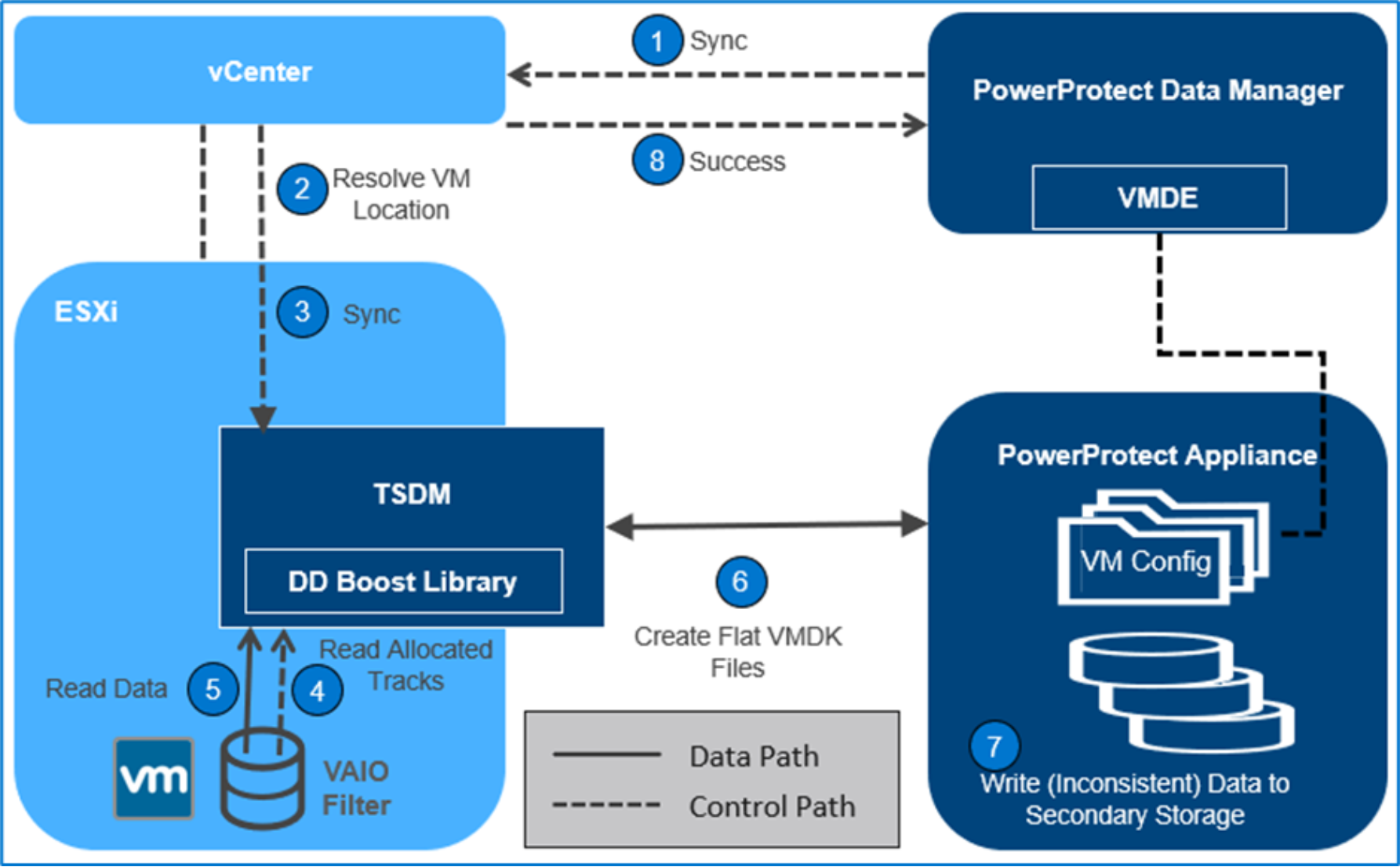
Figure 17. Full sync operation
Note: Because files created during the full sync flow are inconsistent, you cannot use them to restore the VM to a consistent point in time. During the full sync flow, the VM still serves I/O operations, and data in disks might change during the full sync operation itself. A delta sync operation must be performed right after the full sync operation, which creates a consistent point-in-time copy that can be used later for a restore operation.
Transparent snapshots creation
The transparent snapshots creation process (Figure 18) is as follows:
- After the full sync is complete, PowerProtect Data Manager issues a snapshot creation operation.
- PowerProtect Data Manager requests a sync operation against vCenter.
- The API calls are passed to the ESXi host after the location is resolved. In this step, the TSDM has no active role because no data transfer occurs.
- The ESXi host communicates with the relevant VM asset using VAIO, and the snapshot is persisted to the Snapshot Extent Store (SES).
Note: The Snapshot Extent Store (SES) is dynamically created during snapshot creation and is deleted when the snapshot is retired. The SES stores the bitmaps that correspond to the data in the disk at that time. The SES uses thin-allocated space across the overall datastore space and does not affect the specific VM quota.
- Using the SES, the VAIO filter takes the bitmap in memory and saves it. Because all of it is bitmap-based, creating the transparent snapshot is fast, which reduces the read/write latency.
- After the bitmap is persisted to disk, the filter can start tracking changes on the disk again, using a new bitmap.
- The snapshot operation is marked as finished. PowerProtect Data Manager can use the V M Direct Engine to access the vCenter level task completion and get the snapshot UUID that was created.
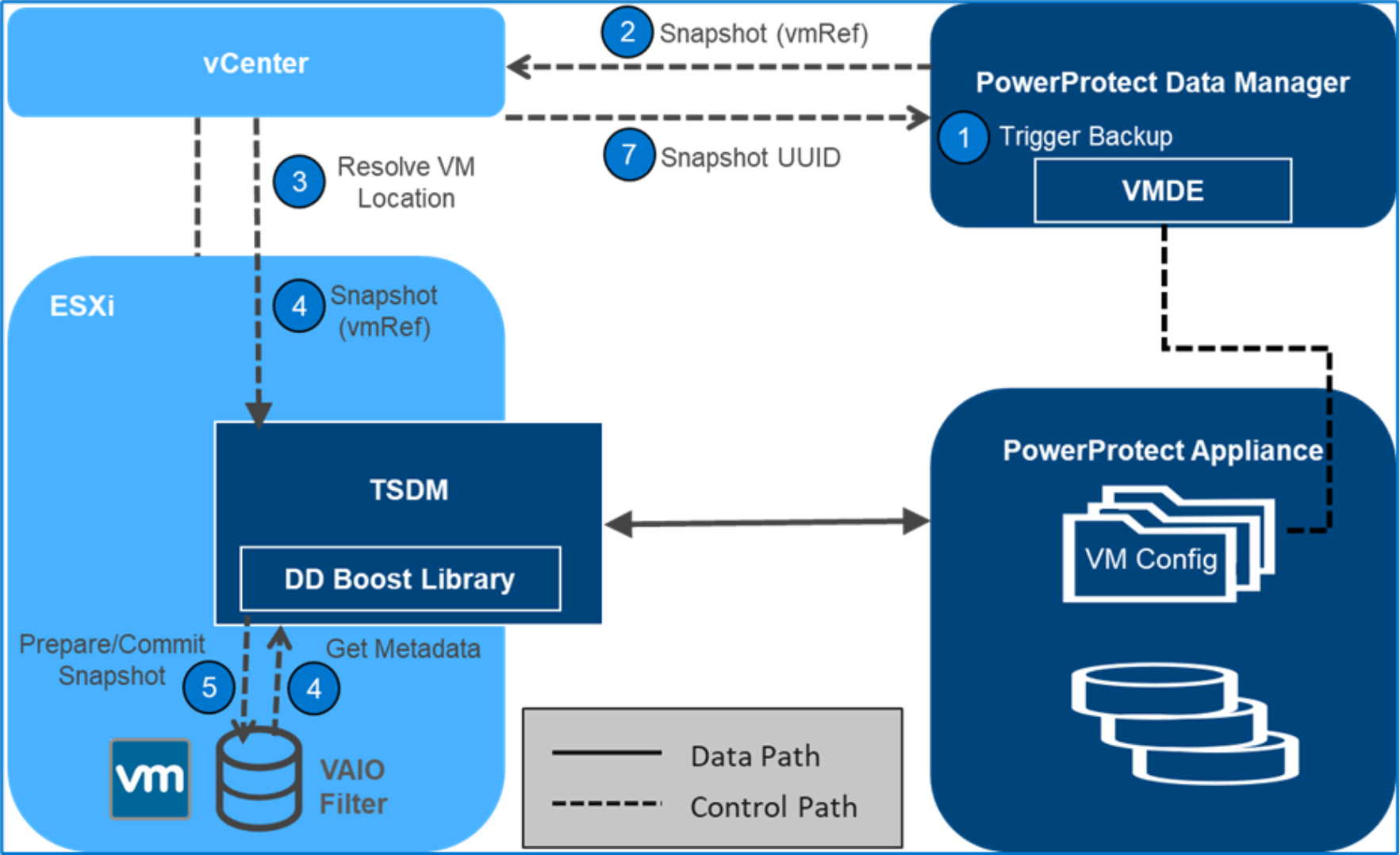
Figure 18. Transparent snapshot creation
Delta sync operation
After the transparent snapshot creation operation is complete, you can initiate a delta sync operation or an incremental operation (see Figure 19). The process is as follows:
- PowerProtect Data Manager issues API calls to vCenter for a delta sync operation and provides the previously created snapshot UUID.
- PowerProtect Data Manager signals TSDM to start the delta sync flow through vCenter API, which resolves the relevant ESXi host.
- The TSDM uses VAIO APIs to query and track the changed areas that the transparent snapshot bitmap represents.
- For each changed area, the data is read from the disk.
Note: The delta sync operation uses a Fast Copy overwrite approach. In this approach, the previous point-in-time files are first fast copied. The fast-copied files are partly overwritten with incremental data. Only the delta or changes that are represented by the currently synced snapshot are copied. These changes are copied in the Snapshot Extent Store (SES).
- The changed data or delta is read from the disks to create a consistent data flow.
- The read data is written to protection storage using the DD Boost library.
- The changed data write to protection or secondary storage is now complete.
- When all data has moved to protection storage, the TSDM sends an acknowledgment to the ESXi host that the operation is complete. The vCenter level task is marked as complete.
- The metadata is written to protection storage. In this step, the VM metadata (such as VMX files, manifest, and the last TSDM snapshot information) is transferred using the VM Direct Engine VMware APIs.
Note: From this point in time, the files on the PowerProtect appliance are crash consistent and can be used for recovery. For a full backup, both full sync and delta sync are performed. However, for an incremental backup, only delta sync is performed. A full sync can back up four VM disks in parallel; a delta sync can back up 10 VM disks in parallel.
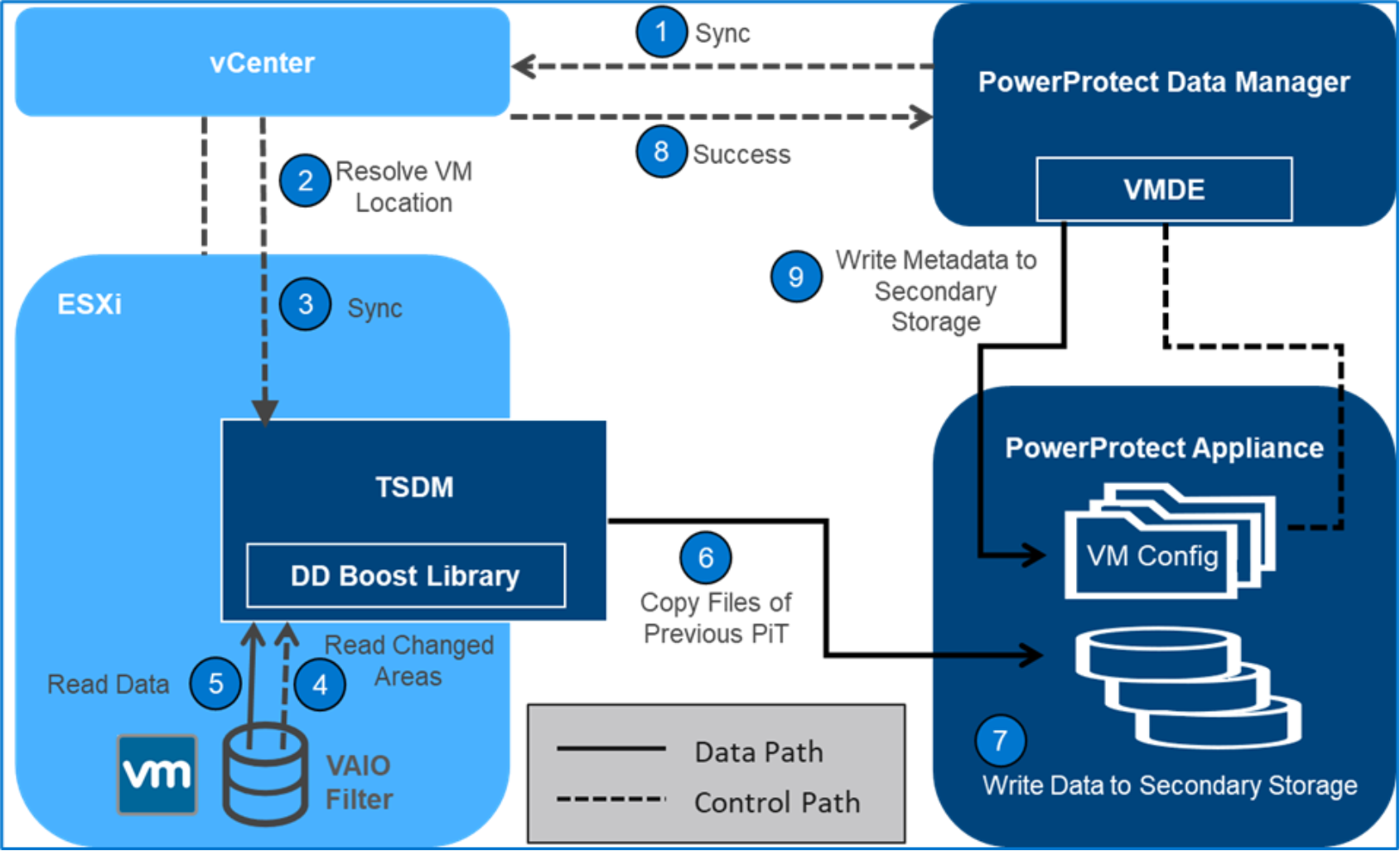
Figure 19. Delta sync operation
Snapshot retire operation
After the delta sync operation is complete, PowerProtect Data Manager ensures that the previously created snapshot is deleted. The snapshot retire operation process (Figure 20) is as follows:
- PowerProtect Data Manager calls on vCenter to invoke the retire snapshot API towards the relevant ESXi host.
- The ESXi host relays this information to all the relevant VAIO filters to delete all the bitmaps and copy-on-write data residue left from the snapshot creation and delta sync stages.
- The ESXi host sends an acknowledgment of the successful snapshot retire operation to vCenter and PowerProtect Data Manager.
- PowerProtect Data Manager records the backup copy set information in the PowerProtect Data Manager Catalog and informs the search node (if any) to start gathering metadata for indexing.
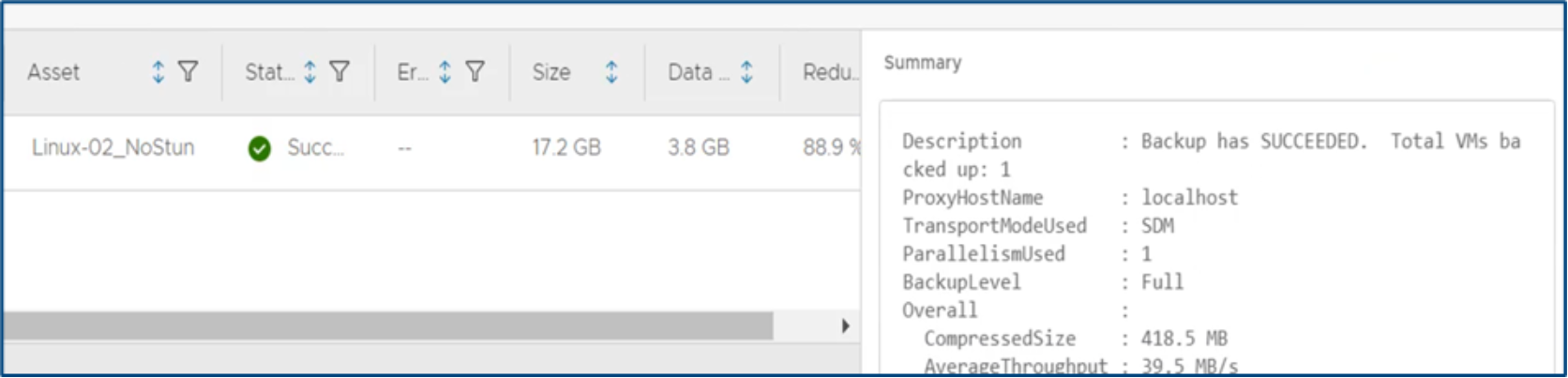
Notes:
- Transparent snapshots are supported on VMFS, NFS, and vSAN datastores, as well as vVols.
- Virtual and physical RDM volumes are not supported with transparent snapshots.
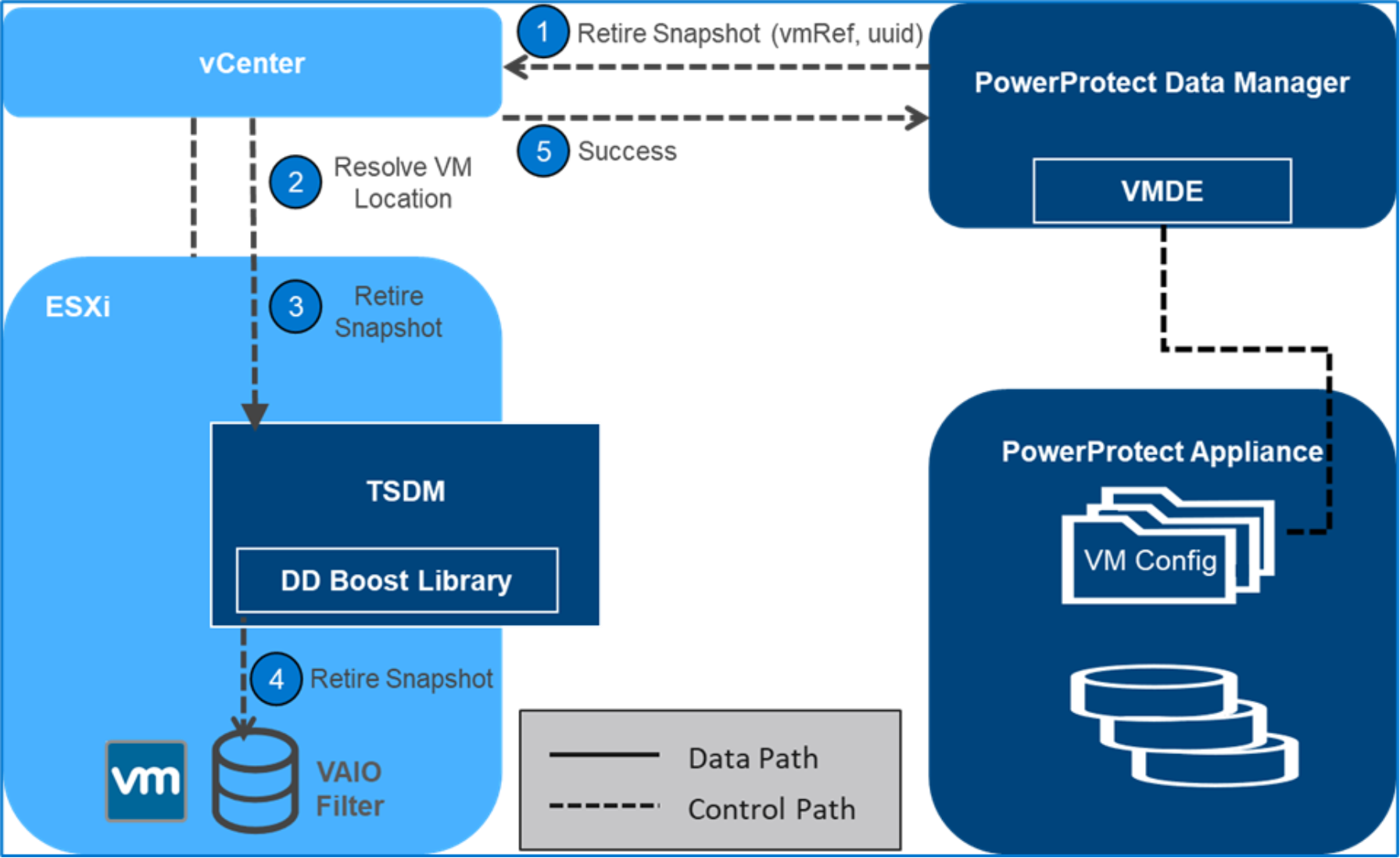
Figure 20. Snapshot retire operation
Restoring virtual machines
Restoring virtual machines
Before invoking any APIs from PowerProtect Data Manager to vCenter, PowerProtect Data Manager takes care of the configuration of the VM. For example, if a disk should be added or removed because the VM changed after the snapshot was taken, the disk might be added. For this reason, the reconfiguration part is performed before the virtual machine is restored.
The virtual machine restore process (Figure 21) is as follows:
- A metadata-only snapshot is taken using the same snapshot creation flow described in Transparent snapshots creation.
- PowerProtect Data Manager invokes the restore operation, directing which VM should be restored to what point in time.
- The VM is checked to determine whether it is in a powered off state. If it is not, the VM is powered off.
- PowerProtect Data Manager locates the relevant ESXi host through vCenter, and the ESXi host communicates with the TSDM daemon to initiate a restore operation.
- For a restore workflow, first reserve all the areas of the VM disks that should be reverted to the previous point in time, for the following reasons:
- To minimize the data you transfer from the protection storage back to the disk
- To identify which parts of each disk have changed since the point in time to which we are trying to revert to
- To resolve the previously described changes, the restore workflow leverages two Get Diff APIs, namely Get VAIO Diff API and DD Get Diff API.
- The ESXi host resolves the Get VAIO Diff API. This difference includes the changes that the VM has made to the disks since the last point in time that was previously synced or backed up to the PowerProtect appliance. The VAIO Diff uses the metadata only snapshot, taken before the VM was powered off, to get the details on what was never written to the PowerProtect appliance.
- The DD Get Diff API provides the delta details between the last sync point-in-time and the one to revert. It also merges the delta with the delta returned from the previous step. This step provides the complete set of extents that can now be read from the PowerProtect appliance.
- From the point-in-time copy to which the user wants to revert, data is read and then finally written on top of the VMDKs.
- After all the data movement is complete, the TSDM sends an acknowledgment to the ESXi host that the restore process has been completed.
- vCenter marks the task completed and sends an acknowledgment to PowerProtect Data Manager for catalog update.
- The VM can now be powered on and should have been successfully reverted to the previous point in time.
- The metadata only snapshot can now be retired, in the same manner as after every delta sync operation.
Notes:
- Multiple streams are opened on the TSDM (when ESXi receives the request) to achieve restore parallelism. You can achieve a higher level of parallelism if the VMs are spread across multiple ESXi hosts.
- Restore in parallel supports up to eight disks of a VM using transparent snapshots.
- Instant access and File Level Restore do not use a specific data mover; hence, they are supported for TSDM-based backups.
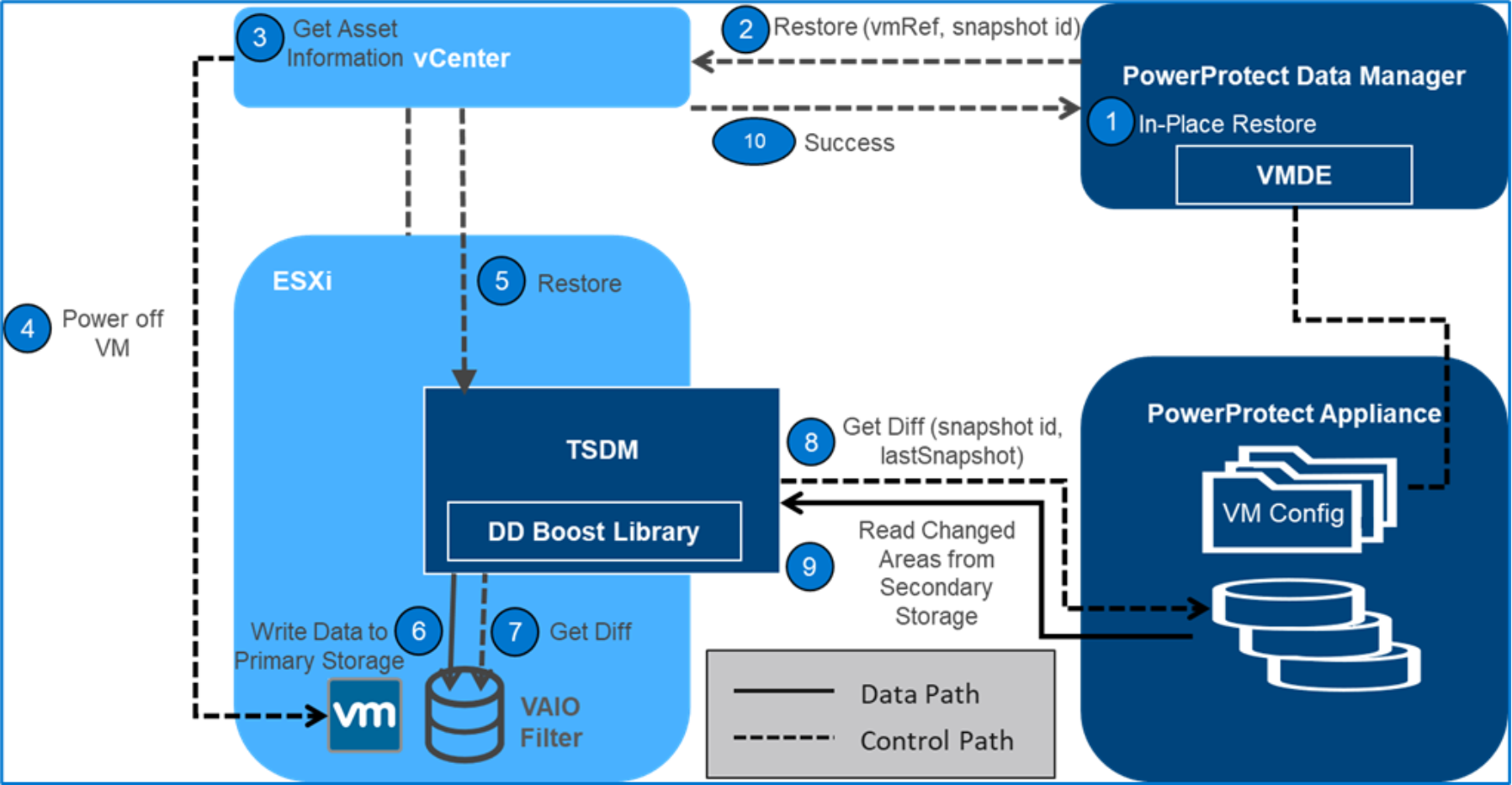
Figure 21. Restoring virtual machines
Performance test results
Performance test results
This section compares the I/O characterization between VMware vSphere Storage APIs - Data Protection (VADP) and transparent snapshots using PowerProtect Data Manager 19.9. You can infer from these results that with transparent snapshots, you overcome the penalties of the write and the read latencies. This result can reduce VM latency by up to five times and provide up to five times faster backups.
Disclaimer: These results compare PowerProtect Data Manager 19.9 with transparent snapshots backup performance (performance-optimized mode) to PowerProtect Data Manager with VADP backup performance. The results are based on Dell Technologies internal testing in August 2021.
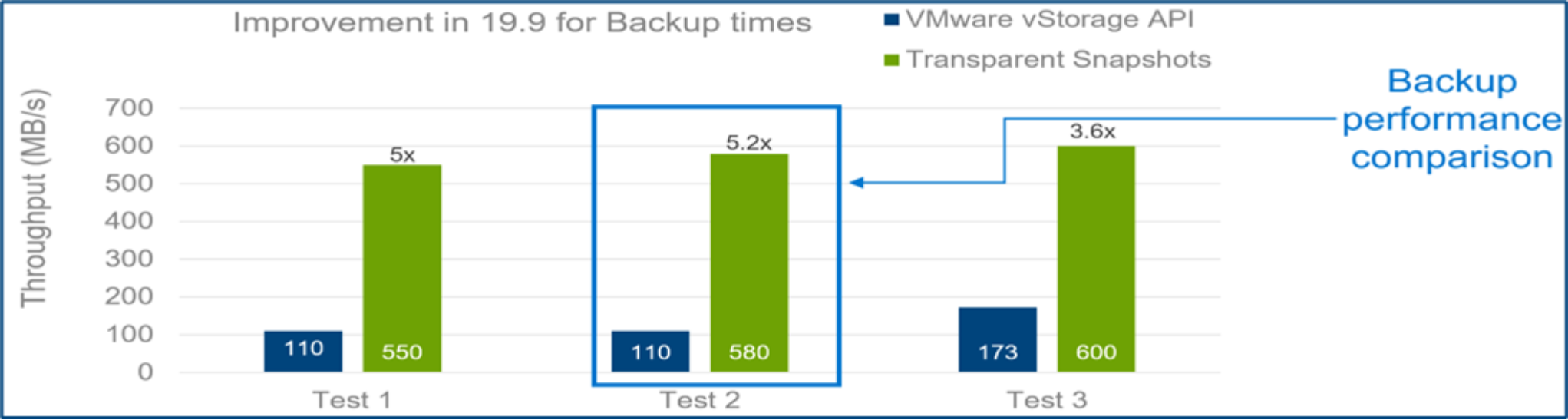
Figure 22. Backup performance comparison
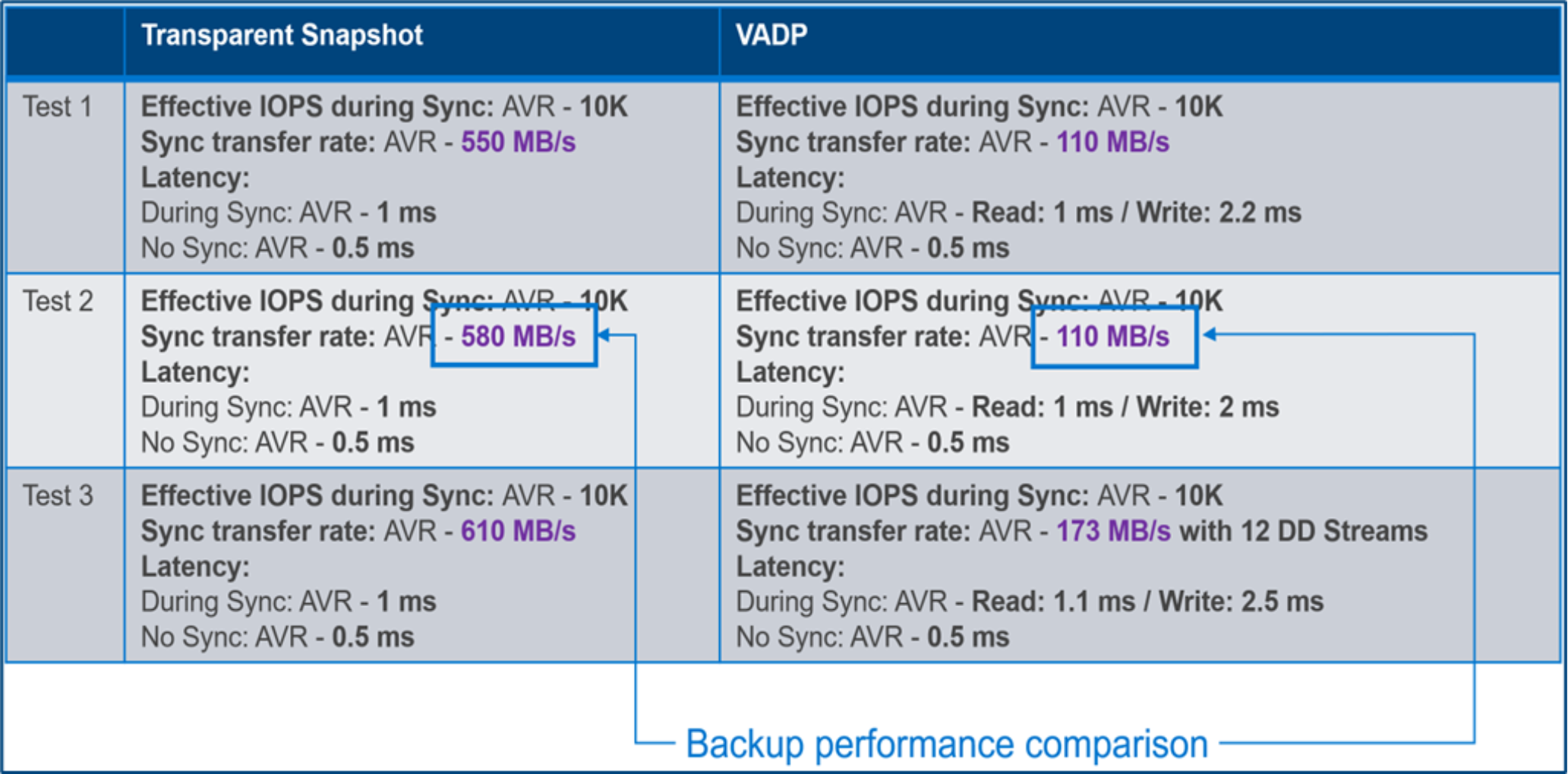
Figure 23. Backup performance comparison test details
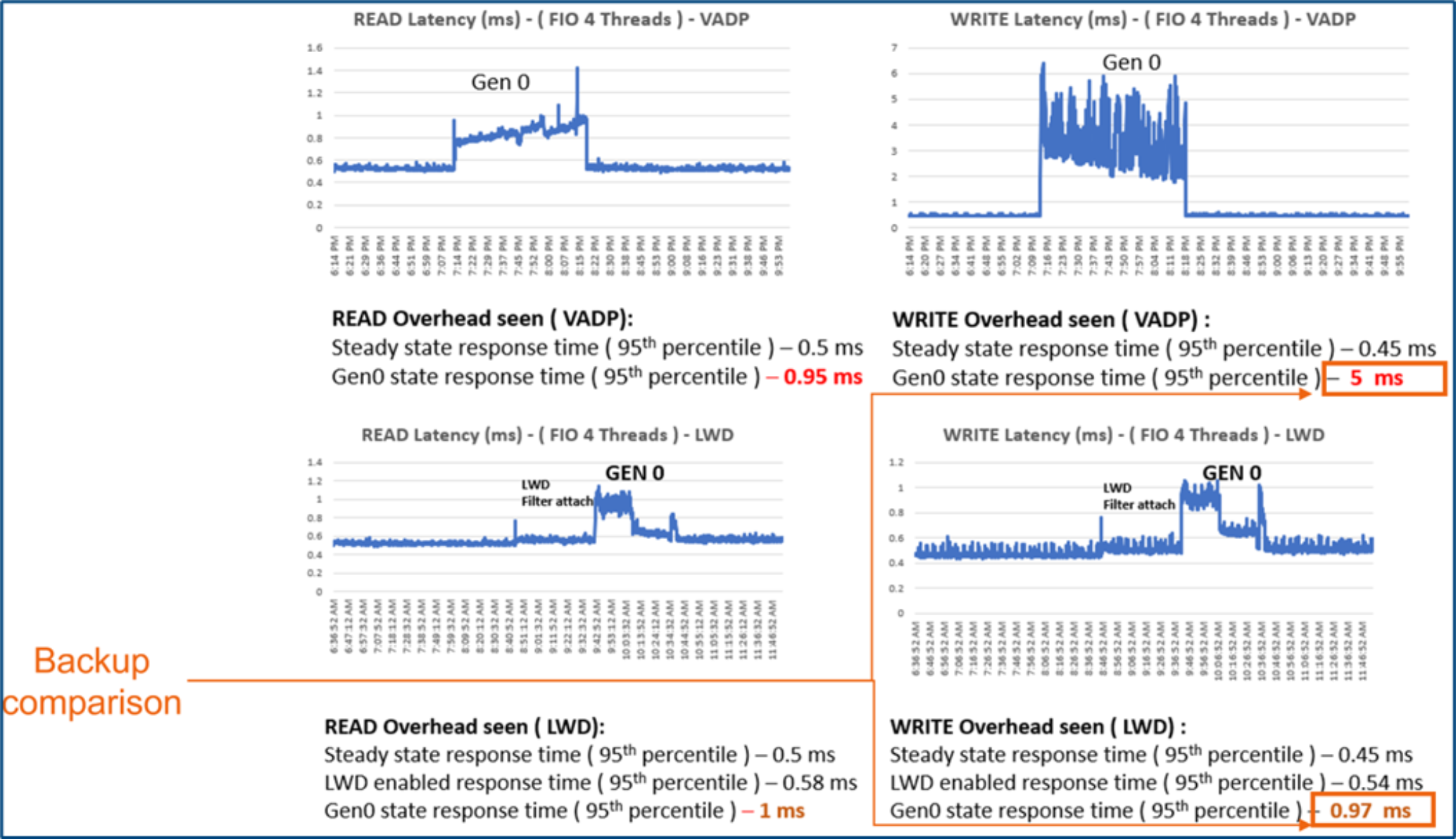
Figure 24. VM latency (read and write) performance comparison
Restore performance
The following results show the restore performance improvements of PowerProtect Data Manager 19.10, as compared to PowerProtect Data Manager 19.9.
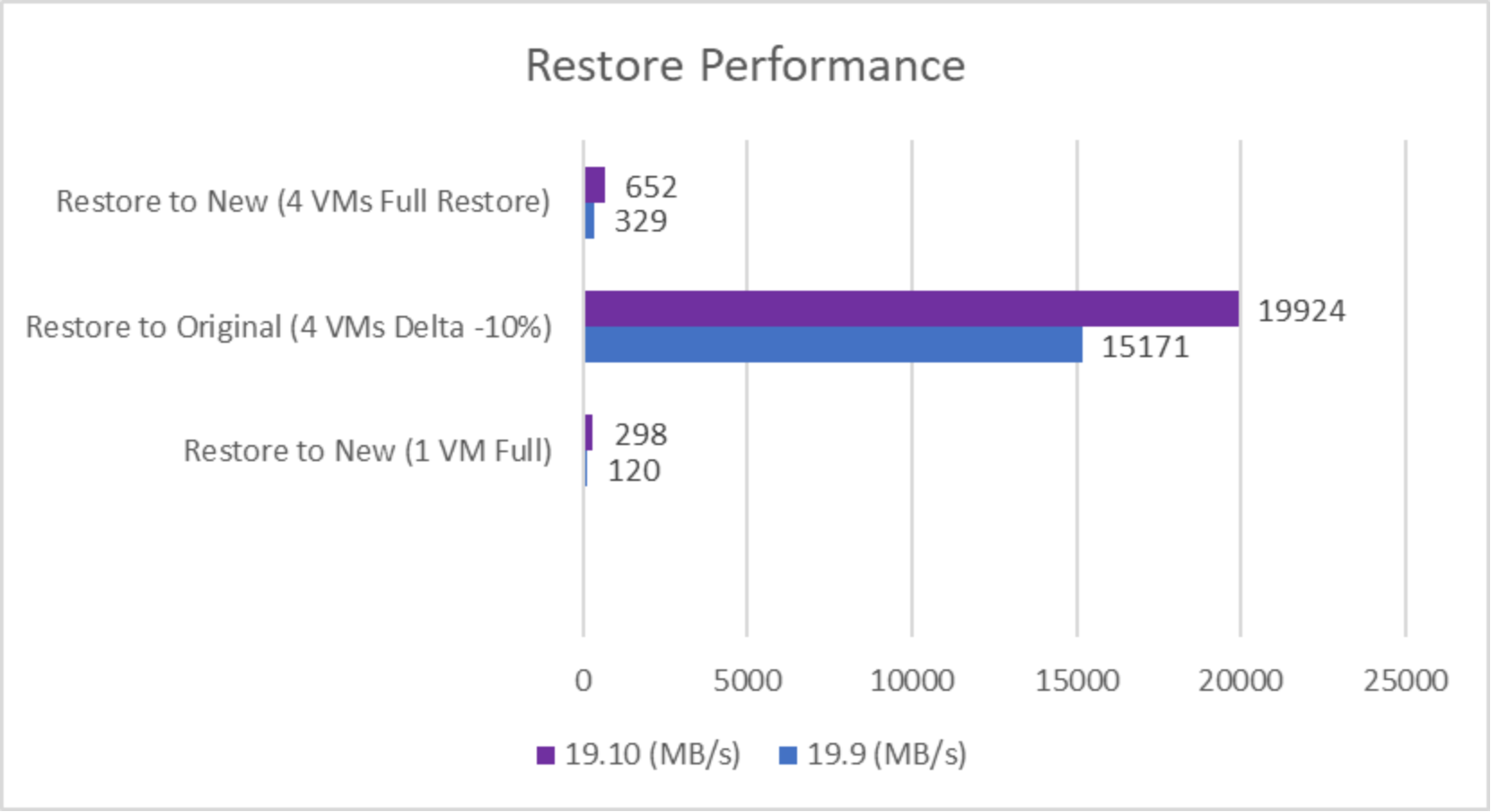
Figure 25. Restore performance comparison

Figure 26. Restore performance comparison test details