PowerScale: AntiVirus Solutions
Executive summary
Overview
Many enterprises have strict security policies in place to detect, clean (remove), or quarantine viruses. This is often performed at the individual user level with per-system antivirus (AV) solutions from third-party security vendors. Many of these same enterprises utilize large, centralized storage platforms to contain user home directories or group project repositories. Because these are the same file types that reside on end-user workstations, it is critical that viruses are not resident on the storage systems. Since end-user solutions do not work well for centralized storage depots, a different type of solution is required.
Third-party software is often used to scan the storage array itself during end-user access or based on manually scheduled policies from a central antivirus scan server. There are methods to do this using RPC or with SMB and NFS. However, there are drawbacks to these methods since they use proprietary solutions and non-centralized scanning through NAS protocols.
One common and simple alternative uses the Internet Content Adaptation Protocol (ICAP) (RFC 3507) which is ratified by the Internet Engineering Task Force (IETF) and is publicly accessible. Dell EMC PowerScale scale-out storage has incorporated ICAP in the OneFS operating system since version 5.0.4. The ICAP protocol is an off-box solution that is loosely based on the HTTP protocol. It is often used in web proxy applications to extend proxy server functionality. This protocol also works very well on NAS servers which allow PowerScale clusters to offload virus-scanning duties to antivirus servers.
There are two methods that PowerScale storage clusters can use to scan files for threats. One is the on access method in which a file is vectored to the ICAP antivirus scan engine when the file is requested by the end-user. It is scanned and appropriate actions are taken. The other method uses policy definitions on the storage array itself. These policies can be implemented manually, on a schedule, or using both methods. In this scenario, entire directories or the entire array itself can be proactively scanned by the scan engine. Most organizations use a combination of these two methods.
This document provides best practices for planning an PowerScale scale-out storage solution with antivirus capabilities using ICAP and an off-box scan engine from Dell Technologies technology partners.
Revisions
|
Date |
Description |
|
September 2019 |
Initial release |
|
May 2020 |
Update for Dell EMC PowerScale OneFS 9.0.0 |
|
March 2022 |
Template update |
We value your feedback
Dell Technologies and the authors of this document welcome your feedback on this document. Contact the Dell Technologies team by email.
Author: Vincent Shen
Note: For links to other documentation for this topic, see the PowerScale Info Hub.
Architecture and design
Architecture overview
OneFS enables file-system scanning for viruses, trojans, malware, and other security threats on an PowerScale cluster by integrating with third-party scanning services through ICAP. OneFS sends files through ICAP to a server running third-party antivirus scanning software. These servers are referred to as ICAP servers. Files are scanned for threats on ICAP servers, not the cluster itself.
The overall architecture and the data flow are shown in the following figure.
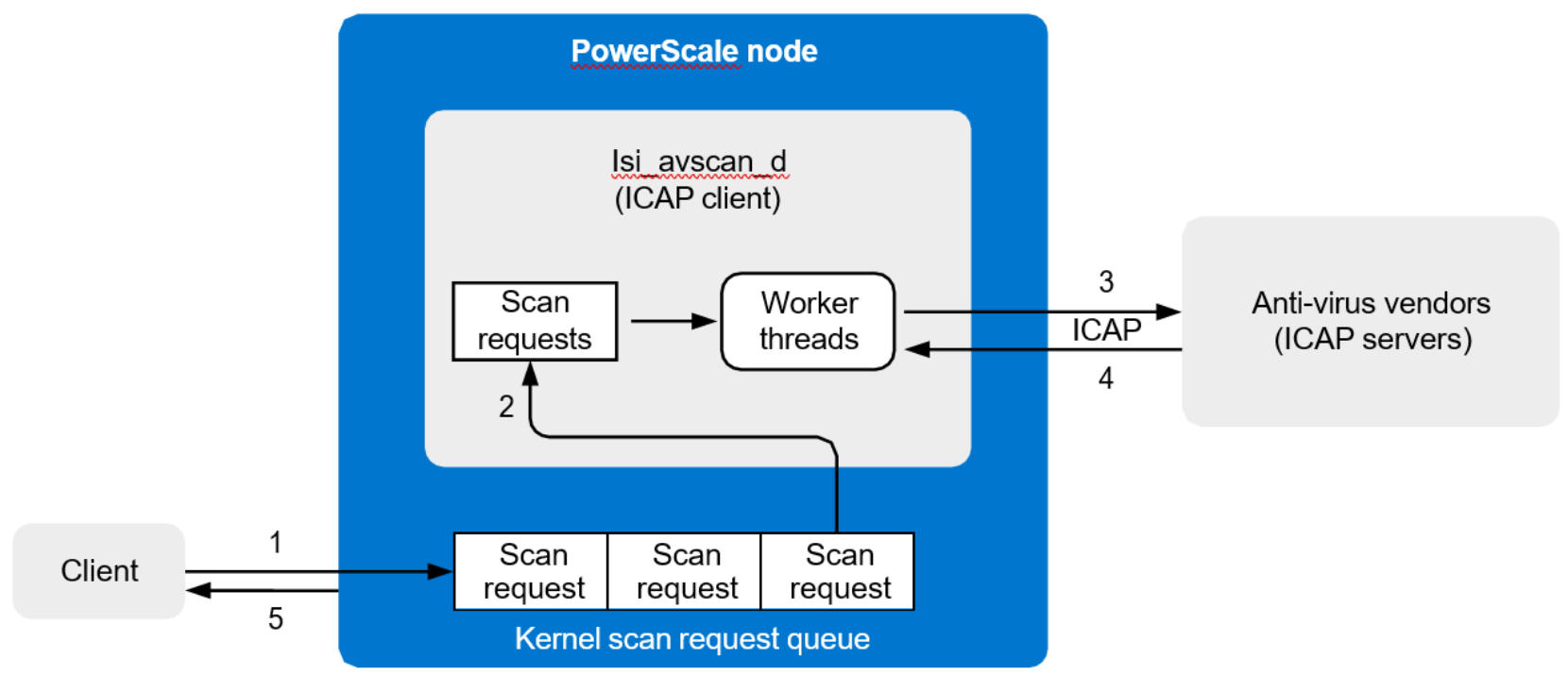
Figure 1. Architecture overview
The following steps occur when a file is scanned as it is opened:
- The end-user requests a file from the cluster.
- The kernel checks if the file scan can be skipped. For example, a file may be skipped if it has not been modified since the last scan, and if there are no updates for the antivirus definition file. If it cannot be skipped, it is placed in the kernel scan request queue.
- The isi_avscan_d process on each PowerScale node reads the kernel scan request queue. There is also filter in the user space. The isi_avscan_d process checks to see if the file should be excluded by path or by glob filter. If the scan request is not filtered out, it is assigned a worker thread which sends the file to an external ICAP server.
- The ICAP server examines the file and determines if it is clean or needs repair or quarantine. If clean, the server responds to isi_avscan_d and the file is marked as safe with metadata such as ISTag, the last scan date, and other attributes.
For more details on ISTag, refer to Updating the virus definition file.
- The PowerScale cluster serves the file to the end user.
Scan type
OneFS supports three types of scans:
- On-access scanning
- Antivirus policy scanning
- Individual file scanning
Refer to the following table for more details.
Table 1. Scan type
|
Scan type |
Details |
|
On-access scanning |
OneFS can be configured to send files to be scanned before they are opened, after they are closed, or in both instances. It is faster to send files to be scanned after they are closed, but less secure. Sending files to be scanned before they are opened is slower, but more secure. For a detailed discussion and recommendations for on-access scanning, refer to On-access scans. |
|
Antivirus policy scanning |
Using the OneFS Job Engine, you can create antivirus scanning policies that send files from a specified directory to be scanned. Antivirus policies can be run manually at any time or configured to run according to a schedule. |
|
Individual file scanning |
This type sends a specific file to the ICAP server to run the scan. Sometimes, this is also used to test the connection between the PowerScale cluster and the ICAP server. To perform an individual file scan, run the following CLI command: isi antivirus scan <file path> |
Supported vendors
PowerScale OneFS supports all antivirus software that follows the ICAP standard. The following list includes supported and widely used antivirus vendors:
- Symantec Scan Engine 5.2 and later
- Trend Micro Interscan Web Security Suite 3.1 and later
- Kaspersky Anti-Virus for Proxy Server 5.5 and later
- McAfee VirusScan Enterprise 8.7 and later with VirusScan Enterprise for Storage 1.0 and later
Note: We do not support McAfee Endpoint Security Storage Protection using ICAP. If you want to use McAfee Endpoint Security Storage Protection, use it in the CAVA deployment.
Performance
Performance: Introduction
This section discusses best practices related to the performance of ICAP servers and the performance impact on the PowerScale cluster. The following topics are discussed:
- NANON
- Updating the virus definition file
- File size
- Network bandwidth
- ICAP server threads
- On-access scan
- Number of files in a directory
NANON
The PowerScale policy scan does not work with a Not All Nodes on Network (NANON) configuration, also known as Not Every Node on Network (NENON). This is because not every PowerScale node can connect to an ICAP server and this causes the anti-virus job engine to fail.
However, the PowerScale on-access scan can work with NANON. For more details, refer to the KB article OneFS: AVScan fails if one or more nodes are unable to connect to an ICAP server.
Updating the virus definition file
Most antivirus vendors provide a mechanism to update their virus definition file at least once a day to eliminate the potential threats of a new virus. Through a scheduled job or a manual update, the updated virus definition files are pushed to all the ICAP servers. At the same time, the ICAP service tag (ISTag) is updated at the ICAP server level.
PowerScale maintains a timer job to synchronize the ISTags from ICAP servers every hour, which can result in a maximum wait of one hour for ISTags to be updated on the PowerScale cluster. Use the following command to view all the ISTags from PowerScale:
sysctl efs.bam.av.current_istags
The following example has only one node of McAfee VirusScan Enterprise for Storage deployed and integrated with PowerScale. In this case, its ISTag is 6000.8403.9327.0.
tme-sandbox-3# sysctl efs.bam.av.current_istags efs.bam.av.current_istags:
num istags: 2
6000.8403.9327.0,
NOSCAN:5d379f80:5d351fe4:fe47,
If a file has been scanned by isi_avscan_d, the ISTag will be applied to its metadata. Use the following command to check the ISTag of a file:
isi antivirus status -v <file path>
The following is an example where the ISTag for the file /ifs/audit/test/0.0.1 is 6000.8403.9327.0.
tme-sandbox-3# isi antivirus status -v /ifs/audit/test/0.0.1 File: /ifs/audit/test/0.0.1
Last Scan: 2019-07-24T07:15:59
Quarantined: No
Last Istag: 6000.8403.9327.0
Scan Status: Current
The file has been scanned by the ICAP server with ISTAG 6000.8403.9327.0. OneFS will not request a second scan to an unmodified file if the ISTag on the file matches any ISTag in the output of sysctl efs.bam.av.current_istags. This also means even if a file is not modified, it will still have a chance to be scanned due to the update of the virus definition file.
Dell Technologies recommends setting an interval for updating the virus definition file for ICAP servers which aligns with your scan policy, avoiding unnecessary scans which could impact overall performance.
For the details of ISTag, refer to the IETF article RFC3507.
File size
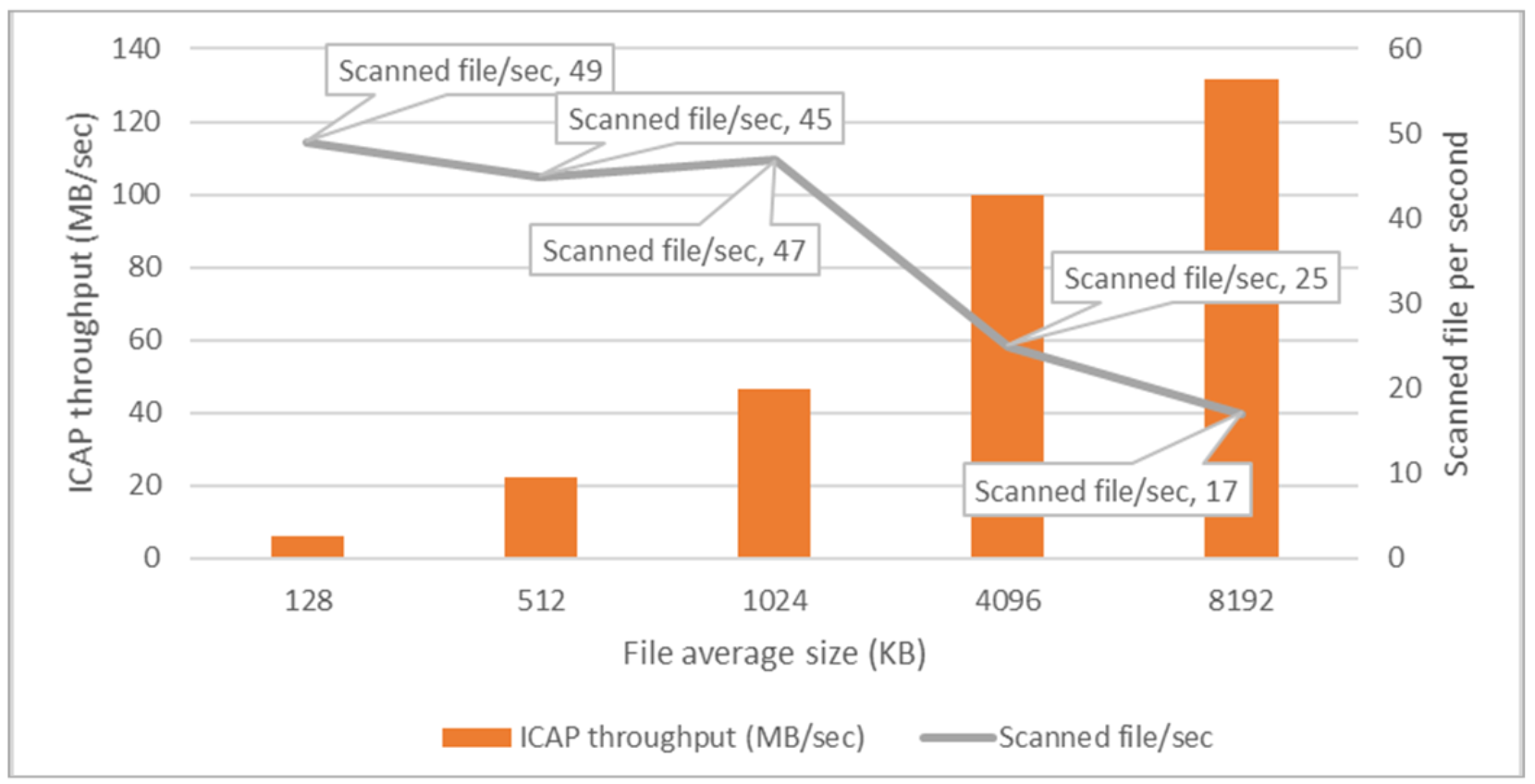
File size is a key performance factor for ICAP servers integrated with PowerScale.
- Less than 1 MB file size: This typically results in a very steady and gentle trend of the value for the scanned files per second.
Note: This number could vary depending on the PowerScale node type, node number, ICAP server vendors, ICAP server number, network bandwidth, and other factors. This number should remain steady for small files less than 1 MB.
- Greater than 1MB file size: This typically results in the value of the scanned files per second decreasing quickly.
The following figure shows an example where the number of scanned files per second remains within the range of 45 to 49 when the average file size is under 1 MB. After the average file size increases to 4 MB and 8 MB, the number of scanned files per second decreases to 25 and 17.
Network bandwidth
For optimal performance, Dell Technologies recommends the following best practices for the network bandwidth of ICAP servers, depending on the average file size:
- Less than 1 MB average file size: 1Gbps for ICAP servers
- More than 1 MB average file size: 10Gbps for ICAP servers
Refer to the example in Figure 2 for the relationship between ICAP throughput requirements and average file size.
ICAP server threads
The number of ICAP server threads is one of the most important configurations regarding the ICAP server. Vendors have different recommendations for numbers for threads, and within the same vendor there can be different versions with different thread recommendations. The following is a general recommendation to use as a starting point. Test different thread numbers to determine the best value for your environment.
- McAfee: 50 to 100
- Symantec: ~20
The following figure shows an example of how ICAP throughput changes with different thread configurations. In this example, the best value for thread number is 20.
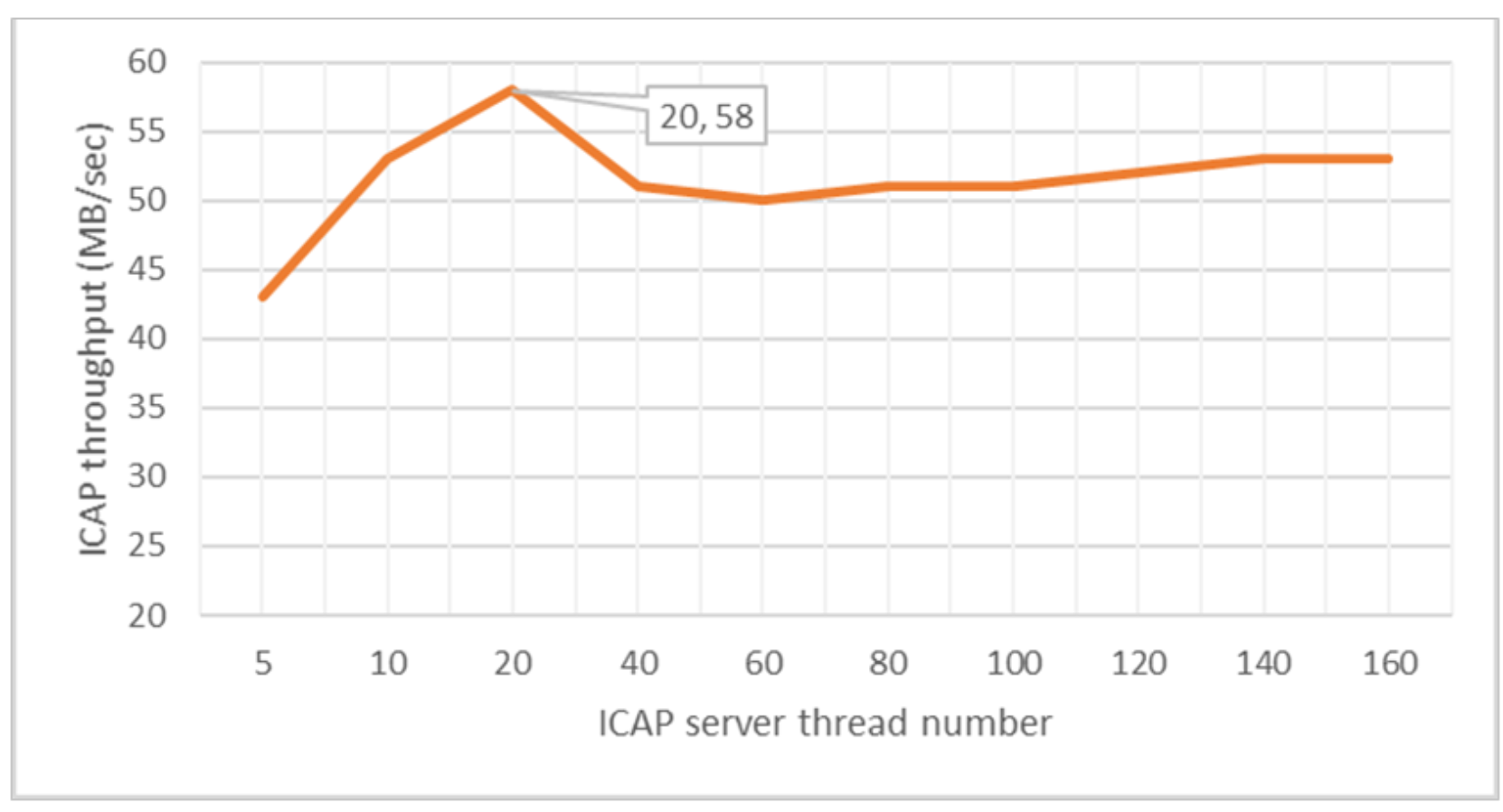
Figure 3. ICAP server threads and throughput
On-access scans
You can configure OneFS to send files to be scanned before they are opened, after they are closed, or both. This can be done through file access protocols such as SMB, NFS, and SSH. Sending files to be scanned after they are closed is faster but less secure, whereas sending files to be scanned before they are opened is slower but more secure.
If scanned after files are closed, the following applies:
- When a user creates or modifies a file on the cluster, OneFS queues the file to be scanned. OneFS sends the file to an ICAP server to be scanned when convenient.
- In this configuration, users can always access files without any delay.
If scanning before files are opened, the following applies:
- When a user attempts to download a file from the cluster, OneFS first sends the file to an ICAP server to be scanned. The file is not sent to the user until the scan is complete.
- Scanning files before they are opened is more secure than scanning files after they are closed because users can access only scanned files. However, scanning files before they are opened requires users to wait for files to be scanned.
- It is recommended to also configure OneFS to ensure that files are scanned after they are closed. Scanning files as they are both opened and closed provides more security checks and better performance.
Figure 4 shows an example of the performance impact using different on-access scanning options. In this example, seven files are modified simultaneously, and the performance impact is tracked in four scenarios: no scan (baseline), scan on open, scan on open and close, and scan on close.
The results show that scanning on open and close provides much better performance than only scanning on open. Furthermore, it provides better protection since the file is scanned twice.
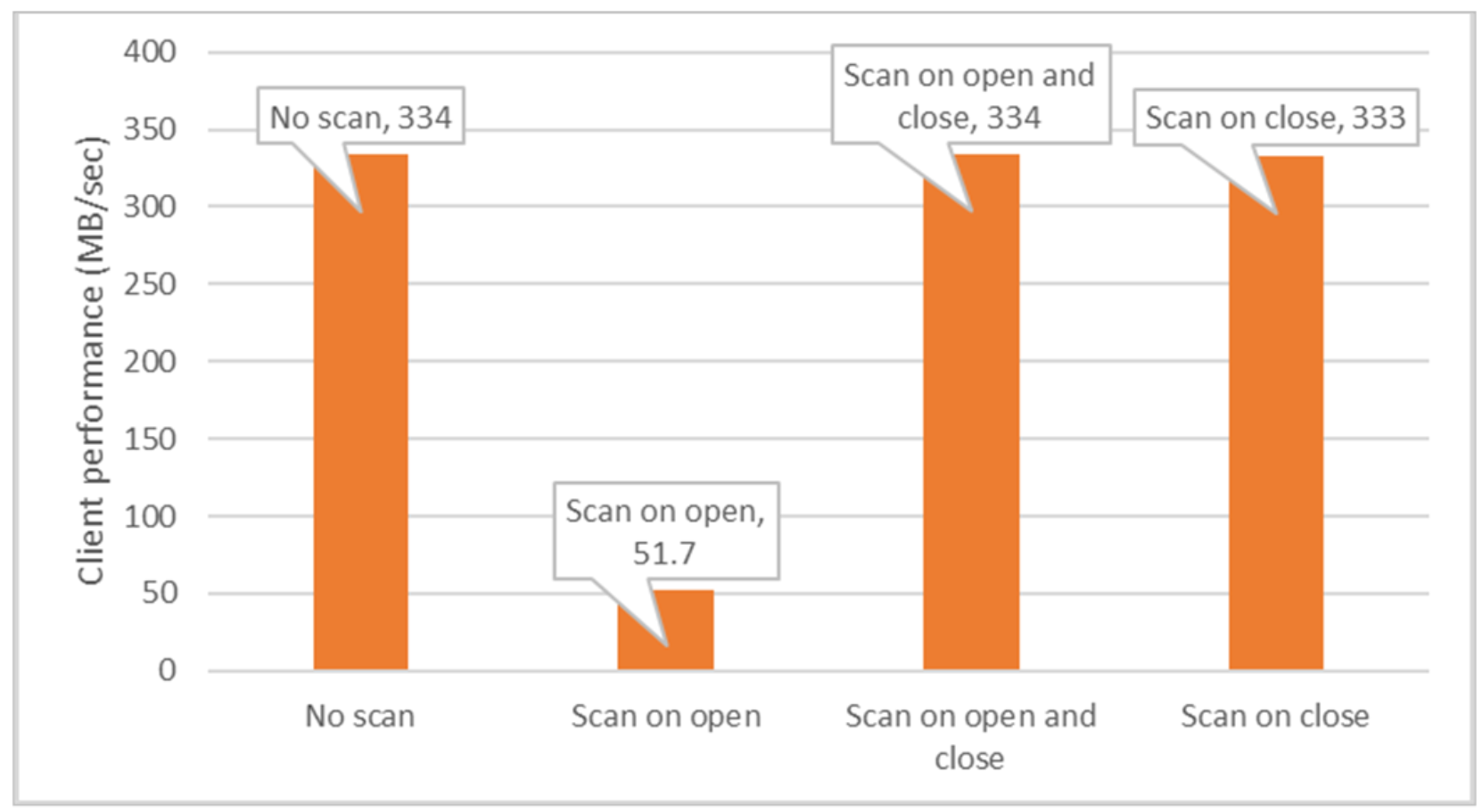
Figure 4. Client performance per scan method
The following figure shows an example of how scanning on both open and close provides optimal performance. After the file has been modified and closed, it is scanned upon close. Because the file is not modified again after close, the next time it is opened, the scan on open is skipped.
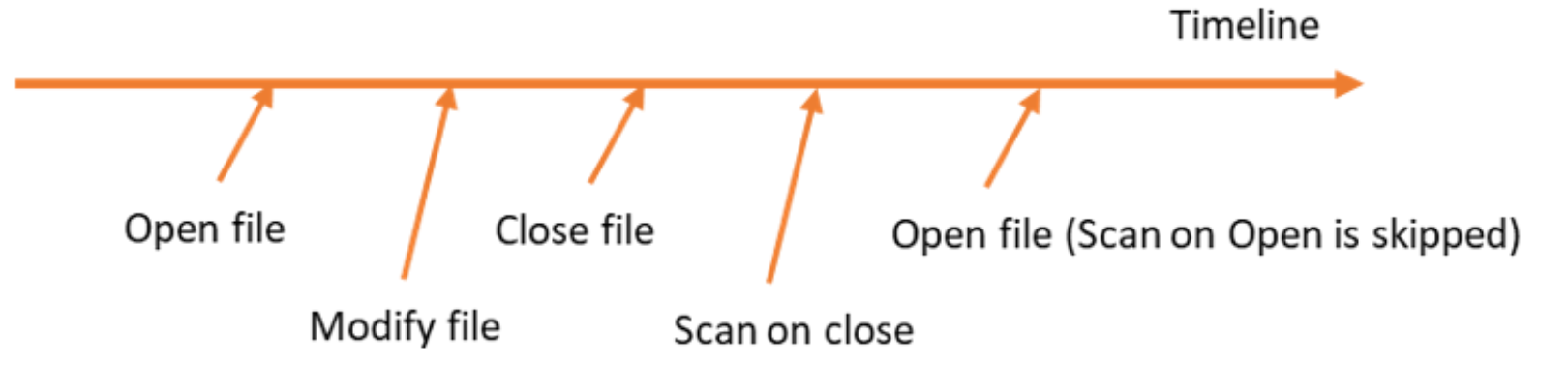
Figure 5. Timeline for file open and modify
However, in some marginal scenarios, scan on open will not be skipped which provides a better level of protection. In the example shown in the following figure, after the file is closed, the definition file for the antivirus software is updated, which makes the previous scan (scan on close) invalid. The next time the file is opened, the scan on open is not skipped.

Figure 6. Timeline for file modify and antivirus definition file update
For more information on how updating the antivirus definition file can trigger the change of ISTag, refer to Updating the virus definition file.
Number of files in a directory
The CPU utilization on the PowerScale node can be high when there are a large number of files in a directory to be scanned. At the same time, the overall scanning performance is degraded. For detailed recommendations per disk type, refer to the following:
- HDD: 20,000 files per directory
- SSD: 1,000,000 files per directory
For a detailed explanation, refer to the KB article isi_avscan_d process utilizes a lot of processor when accessing directories with a high number of files.
Sizing
Sizing: Introduction
There are many factors can impact the sizing results of ICAP servers in an PowerScale cluster. This section explains some key factors and how to measure the sizing results, addressing the following topics:
- General considerations
- Measuring the sizing results
Note: the following sizing considerations are general guidelines and should be vendor-independent. They should apply to any vendors using ICAP technologies.
General best practices
When sizing the ICAP servers for the PowerScale cluster, the number of ICAP servers deployed per PowerScale node (ICAP/node) is often used as a standard measurement.
If there is more than one ICAP server per cluster, OneFS distributes files to the ICAP servers in a round-robin basis and does not consider the processing power of the ICAP servers when distributing files. Because of this, it is important to ensure that the processing power of each ICAP server is relatively equal. If one server is significantly more powerful than another, OneFS does not send more files to the more powerful server.
Dell Technologies recommends the following general guidelines as a starting point for sizing:
- Policy scan: Minimum of two ICAP servers for a cluster
- On-access scan: At least one dedicated ICAP server for each PowerScale node (1 ICAP/node)
Note: The above guideline is a general starting point for sizing ICAP servers for PowerScale. Use the considerations in the following sections to further refine your sizing.
Measuring the sizing results
There are two angles to measure the sizing results, which can show if you are over-sizing or under-sizing the ICAP servers:
- Measure sizing results from ICAP servers
- Measure sizing results from the PowerScale cluster
The following sections explain both methods in detail. Dell Technologies recommends taking both guidelines into consideration when measuring the sizing results.
Measuring sizing results from ICAP servers
In general, the workload for ICAP servers is CPU intensive. If the CPU utilization of the ICAP servers is over 95%, it is recommended to either add more CPU to the ICAP servers or add more ICAP servers in the PowerScale cluster.
Measuring sizing results from PowerScale cluster
The following shows two key metrics which can be leveraged to check if the ICAP server is too busy:
- too_busy status
- fail to scan ratio
These two metrics are from the PowerScale cluster and indicate whether ICAP servers are too busy to handle further requests. The following sections provide a detailed explanation for both metrics.
too_busy state
PowerScale internally keeps a list of the status of ICAP servers connected to isi_avscan_d. Dump the status list using the following command:
kill -USR2 <PID of isi_avscan_d>
Once the above command has been run, all state information of isi_avscan_d including the status for the ICAP servers is recorded in the file /var/log/isi_avscan_d.log. To view the dumped information, use the following command:
cat /var/log/isi_avscan_d.log
The following figure shows an example of the dumped ICAP server status:
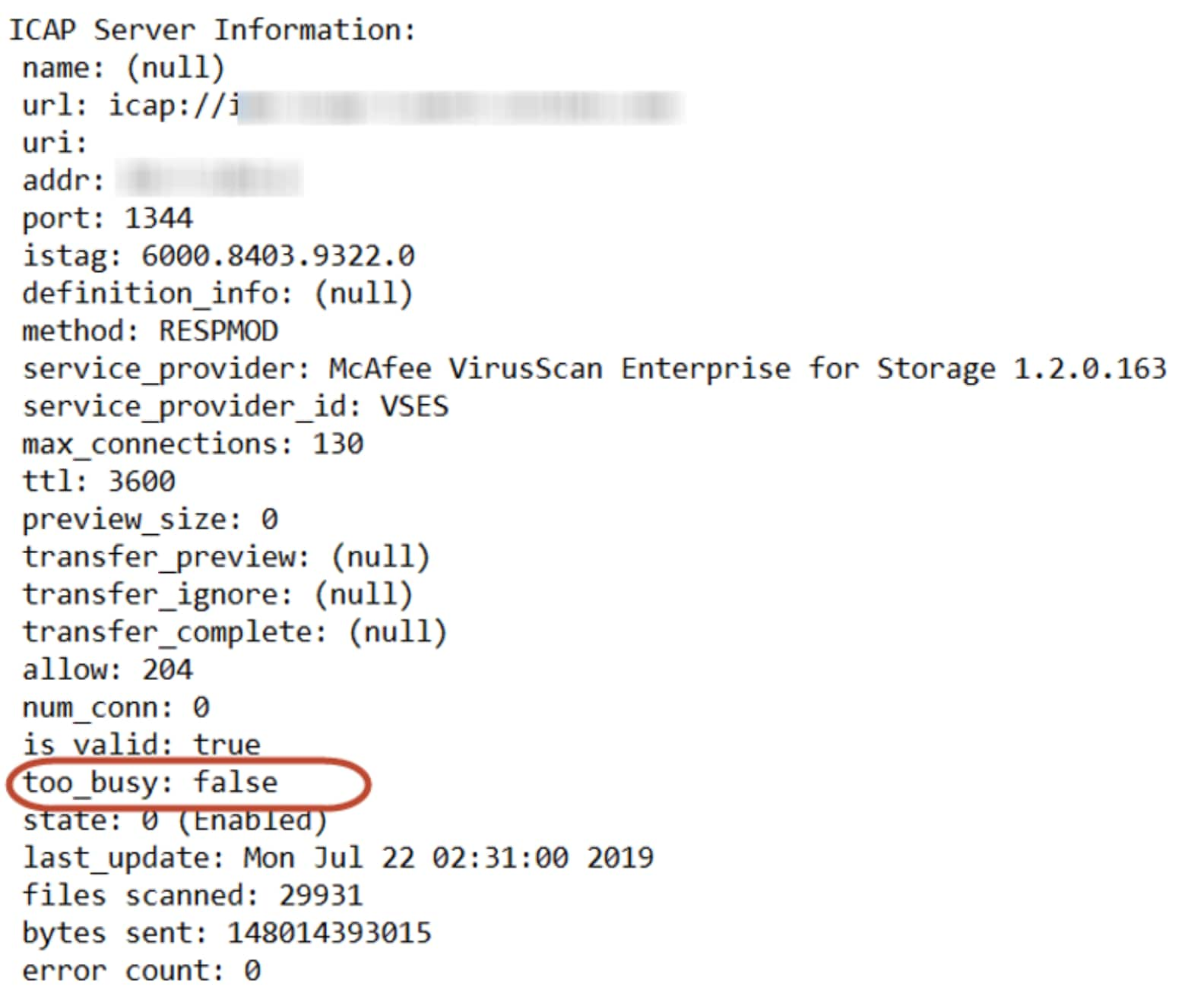
Figure 7. ICAP server information
If the too_busy state in Figure 7 is set to true, this means an ICAP server is busy and not able to respond with the expected reply. Typically, this indicates that there are not enough ICAP servers for the workload. Add more ICAP servers until the too_busy state is false for all ICAP servers.
Fail-to-scan ratio
To get the fail-to-scan ratio, use the following CLI command:
sysctl efs.bam.av.stats
The following shows example output from the above command:
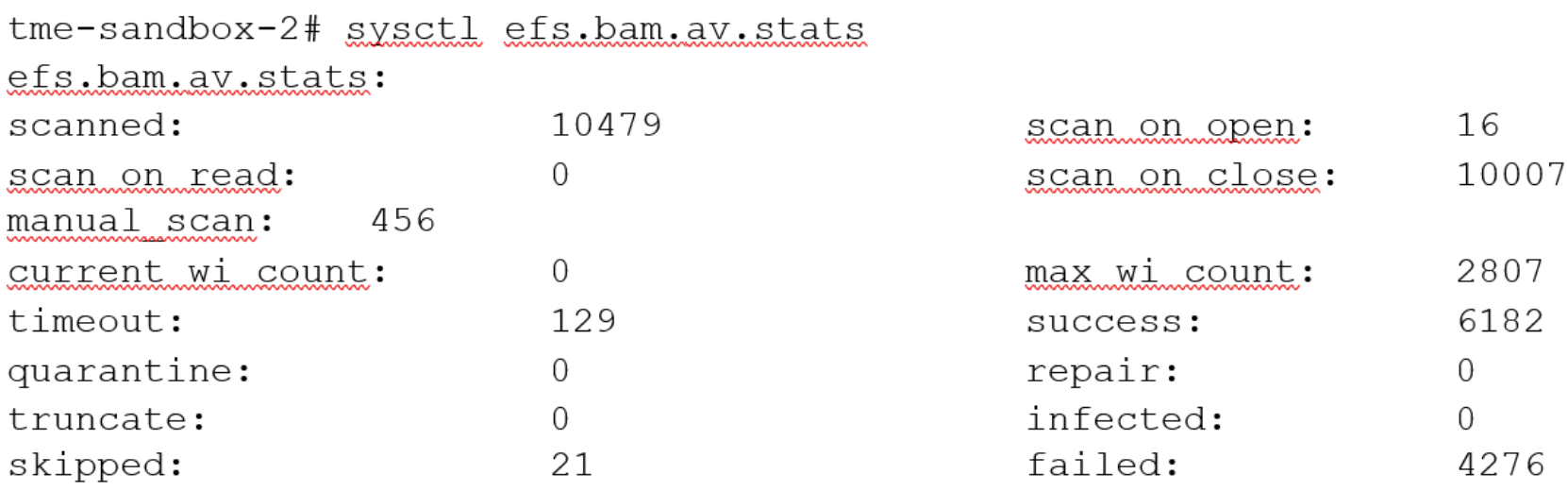
In the above example, the failed to scan ratio is as follows:

To obtain a more accurate fail-to-scan ratio, Dell Technologies recommends running the following command to clear the statistics before running the test workload:
sysctl efs.bam.av.clear_stats=0
Appendix: Technical support and resources
Dell.com/support is focused on meeting customer needs with proven services and support.
Storage technical documents and videos provide expertise that helps to ensure customer success on Dell EMC storage platforms.