PowerScale OneFS Job Engine

Oct 19, 2026
PowerScale OneFS Job Engine Dell PowerScale OneFS includes the Job Engine, a parallel scheduling and job management framework that enables data protection and storage management tasks to be distributed and run efficiently across the cluster.

Executive summary

Overview

IT managers across all industries are facing unprecedented rates of data growth, driving up the cost and complexity of managing their file storage environments. A Dell PowerScale cluster provides a linearly scalable storage resource pool that is efficient, safe, and simple to provision and operate. It focuses on the efficient management of the data itself, rather than the storage infrastructure.

Audience and scope

The target audience for this white paper is anyone configuring and managing a OneFS powered clustered storage environment. It is assumed that the reader has an understanding and working knowledge of the OneFS components, architecture, commands, and features.

This paper does not intend to provide a comprehensive background to the OneFS architecture. For more information about the OneFS architecture, see the OneFS Technical Overview white paper.

For more information about OneFS commands and feature configuration, see the OneFS Administration Guide.

Revisions

Date

Part number/
revision

Description

November 2013


Initial release for OneFS 7.1

June 2014


Updated for OneFS 7.1.1

November 2014


Updated for OneFS 7.2

June 2015


Updated for OneFS 7.2.1

November 2015


Updated for OneFS 8.0

September 2016


Updated for OneFS 8.0.1

April 2017


Updated for OneFS 8.1

November 2017


Updated for OneFS 8.1.1

February 2019


Updated for OneFS 8.1.3

April 2019


Updated for OneFS 8.2

August 2019


Updated for OneFS 8.2.1

December 2019


Updated for OneFS 8.2.2

June 2020


Updated for OneFS 9.0

September 2020


Updated for OneFS 9.1

April 2021


Updated for OneFS 9.2

September 2021


Updated for OneFS 9.3

April 2022


Updated for OneFS 9.4

January 2023

H12570.17

Updated for OneFS 9.5

April 2023

H12570.18

Minor updates

December 2023

H12570.19

Updated for OneFS 9.7

April 2024

H12570.20

Updated for OneFS 9.8

May 2024

H12570.21

Minor corrections

August 2024

H12570.22

Updated for OneFS 9.9

December 2024

H12570.23

Updated for OneFS 9.10

April 2025

H12570.24

Updated for OneFS 9.11

August 2025

H12570.25

Updated for OneFS 9.12

December 2025

H12570.26

Updated for OneFS 9.13

April 2026

H1257.27

Updated for OneFS 9.14

August 2026

H1257.28

Updated for OneFS 9.15

Job Engine

Overview

A Dell PowerScale cluster is a highly distributed network-attached storage (NAS) architecture that uses the power and efficiency of automation through parallelism wherever possible. Examples include multiple nodes participating in data reconstruction in the event of a hard drive failure, multiple workers and data streams accelerating replication and backup tasks, and so on. Such cluster tasks require a distributed scheduling, processing, and reporting framework to help manage them efficiently. This processing and scheduling framework is referred to as the OneFS Job Engine.

Job Engine architecture

The OneFS Job Engine runs across the entire cluster and is responsible for dividing and conquering large storage management and protection tasks. It reduces a task into smaller work items and then allocates, or maps, these portions of the overall job to multiple worker threads on each node. The Job Engine tracks and reports on progress as the job runs and provides a detailed report and status upon completion or termination.

The Job Engine includes a comprehensive check-pointing system that allows jobs to be paused and resumed, in addition to being stopped and started. The Job Engine framework also includes an adaptive impact management system, drive-sensitive impact control, and the ability to run multiple jobs at once.

The Job Engine typically runs jobs as background tasks across the cluster, using spare or specially reserved capacity and resources. The jobs themselves can be categorized into three primary classes:

  • File System Maintenance Jobs—These jobs perform background file system maintenance, and they typically require access to all nodes. These jobs are required to run in default configurations and often in degraded cluster conditions. Examples include file system protection and drive rebuilds.
  • Feature Support Jobs—The feature support jobs perform work that facilitates some extended storage management functions, and they typically run only when the feature has been configured. Examples include deduplication and anti-virus scanning.
  • User Action Jobs—These jobs are run directly by the storage administrator to accomplish some data management goal. Examples include parallel tree deletes and permissions maintenance.

Although the file system maintenance jobs are run by default, either on a schedule or in reaction to a particular file system event, any Job Engine job can be managed by configuring both its priority level in relation to other jobs (as discussed in Job priority) and its impact policy (as discussed in Job impact policies).
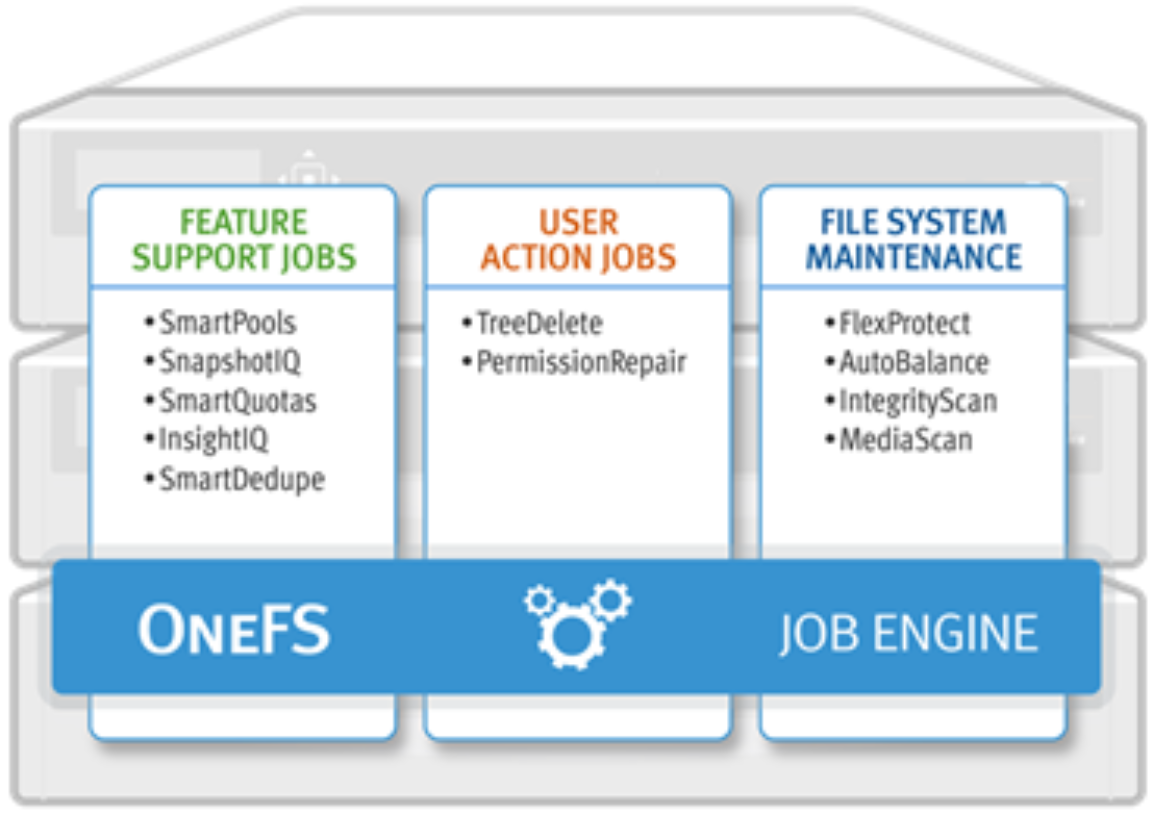
The figure shows the primary functions of the OneFS Job Engine, grouped into three categories: Feature Support Jobs, User Action Jobs, and File System Maintenance, with examples such as SmartPools, TreeDelete, and FlexProtect.

Figure 1.   OneFS Job Engine primary functions

Job hierarchy

Job Engine jobs often consist of several phases, with each proceeding in a predefined sequence. These run the gamut from jobs that have just a single phase, such as TreeDelete, to complex jobs, such as FlexProtect and MediaScan, which have multiple distinct phases.

A job phase must be completed in its entirety before the job can progress to the next phase. If any errors occur during processing, the job is marked “failed” at the end of that particular phase, and the job is terminated.

Each job phase is composed of a number of work chunks, or tasks. Tasks, which have multiple individual work items, are divided up and load balanced across the nodes within the cluster. Successful completion of a work item produces an item result, which might contain a count of the number of retries required to repair a file, plus any errors that occurred during processing.

Graphic showing the Job Engine job hierarchy of Job > Phase > Task > and Item.

Figure 2.   OneFS Job Engine job hierarchy

Job types

When a Job Engine job must work on a large portion of the file system, it uses one of the following primary methods:

  • Inode (LIN) scan
  • Tree walk
  • Drive scan
  • Changelist

Inode (LIN) scan

The most straightforward access method is through metadata, using a logical inode (LIN) scan. In addition to being simple to access in parallel, LIN scans also provide a useful way of accurately determining the amount of work required.

Tree walk

A directory tree walk is the traditional access method. It works similarly to common UNIX utilities, such as find—albeit in a far more distributed way. For parallelism, the various job tasks are each assigned a separate subdirectory tree. Unlike LIN scans, tree walks can prove to be heavily unbalanced, due to varying subdirectory depths and file counts.

Drive scan

Disk drives provide excellent linear read access, so a drive scan can deliver orders-of-magnitude better performance than a directory tree walk or LIN scan for jobs that do not require insight into file system structure. As such, drive scans are ideal for jobs such as MediaScan, which linearly traverses each node’s disks looking for bad disk sectors.

Changelist

Some Job Engine jobs use a changelist, rather than LIN-based scanning. The changelist approach analyzes two snapshots to find the LINs that changed (delta) between the snapshots and then proceeds to determine the exact changes.

Job Engine jobs

The following table provides a comprehensive list of the exposed jobs and operations that the OneFS Job Engine performs, and their file system access methods:

Table 1.      OneFS Job Engine job descriptions and access methods

Job name

Job description

Access method

AutoBalance

Balances free space in the cluster

Drive + LIN

AutoBalanceLin

Balances free space in the cluster

LIN

AVScan

Performs virus scanning (from anti-virus server or servers)

Tree

ChangelistCreate

Creates a list of changes between two consecutive SyncIQ snapshots

Changelist

CloudPoolsLin

Archives data out to a cloud provider according to a file pool policy

LIN

CloudPoolsTreewalk

Archives data out to a cloud provider according to a file pool policy

Tree

Collect

Reclaims disk space that could not be freed when a node or drive was unavailable due to various failure conditions

Drive + LIN

ComplianceStoreDelete

Runs SmartLock compliance mode garbage collection job

Tree

Dedupe

Deduplicates identical blocks in the file system

Tree

DedupeAssessment

Performs a dry-run assessment of the benefits of deduplication

Tree

DomainMark

Associates a path and its contents with a domain

Tree

DomainTag

Associates a path and its contents with a domain

Tree

EsrsMftDownload

Runs an ESRS managed file transfer job for license files


FilePolicy

Runs an efficient SmartPools file pool policy job

Changelist

FlexProtect

Rebuilds and reprotects the file system to recover from a failure scenario

Drive + LIN

FlexProtectLin

Reprotects the file system

LIN

FSAnalyze

Gathers file system analytics data that is used in conjunction with InsightIQ

Changelist

IndexUpdate

Creates and updates an efficient file system index for FilePolicy and FSAnalyze jobs

Changelist

IntegrityScan

Performs online verification and correction of any file system inconsistencies

LIN

LinCount

Scans and counts the file system logical inodes (LINs).

LIN

MediaScan

Scans drives for media-level errors

Drive + LIN

MultiScan

Runs Collect and AutoBalance jobs concurrently

LIN

PermissionRepair

Corrects permissions of files and directories

Tree

QuotaScan

Updates quota accounting for domains created on an existing directory path

Tree

S3Lifecycle

Manages S3 object lifecycle per bucket lifecycle policy.

LIN

SetProtectPlus

Applies the default file policy (This job is disabled if SmartPools is activated on the cluster.)

LIN

ShadowStoreDelete

Frees space associated with a shadow store.

LIN

ShadowStoreProtect

Protects shadow stores that are referenced by a LIN with higher requested protection

LIN

ShadowStoreRepair

Repair shadow stores

LIN

SmartPools

Runs and moves data between the tiers of nodes within the same cluster; also implements the CloudPools functionality if CloudPools is licensed and configured

LIN

SmartPoolsTree

Enforces SmartPools file policies on a subtree

Tree

SnapRevert

Reverts an entire snapshot back to head

LIN

SnapshotDelete

Frees disk space that is associated with deleted snapshots

LIN

TreeDelete

Deletes a path in the file system directly from the cluster itself

Tree

Undedupe

Removes deduplication of identical blocks in the file system

Tree

Upgrade

Upgrades the cluster to a later OneFS release

Tree

WormQueue

Scans the SmartLock LIN queue

LIN

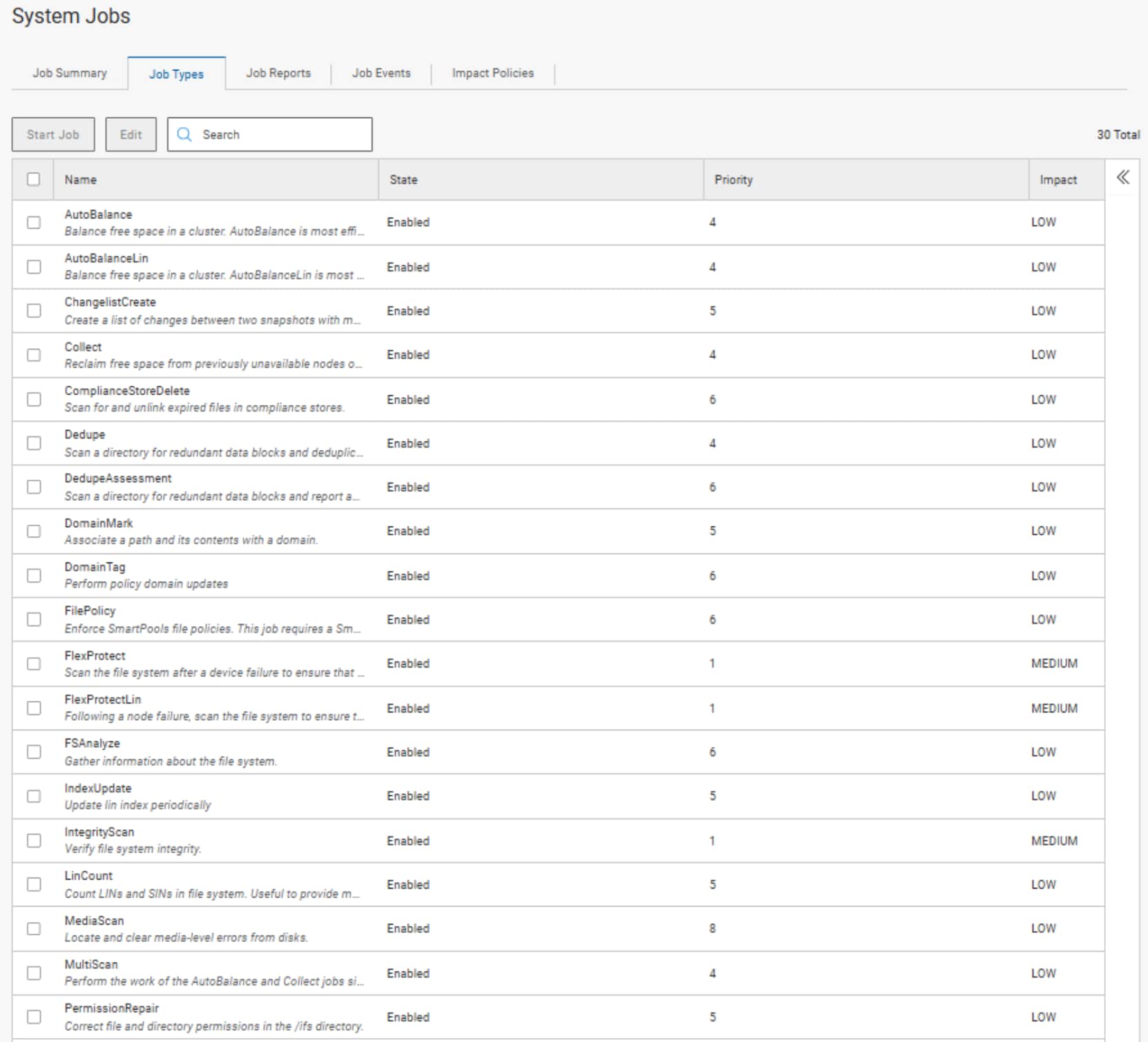
 The figure shows the OneFS WebUI job types view, listing job types with their state, priority, and impact levels, with most jobs enabled and assigned low impact.

Figure 3.   OneFS WebUI job types view

Note: There are also a few background Job Engine jobs, such as the Upgrade job, which are not exposed to administrative control.

Job impact policies

An impact policy can consist of one or many impact intervals, which are blocks of time within a given week. Each impact interval can be configured to use a single, predefined impact level that specifies the amount of cluster resources to use for a particular cluster operation. The available impact levels are:

  • Paused
  • Low
  • Medium
  • High

This degree of granularity allows impact intervals and levels to be configured per job to ensure smooth cluster operation. The resulting impact policies dictate when a job runs and the resources that a job can consume. The following table outlines the default Job Engine impact policies:

Table 2.      OneFS Job Engine default impact policies

Impact policy

Schedule

Impact level

LOW

Any time of day 

Low

MEDIUM

Any time of day 

Medium

HIGH

Any time of day 

High

OFF_HOURS

Outside of business hours (9 a.m. to 5 p.m., Monday to Friday), paused during business hours

Low

Note: These default impact policies cannot be modified or deleted.

You can create additional impact policies as well, either through Add an Impact Policy in the WebUI, as shown in the following figure, or by cloning a default policy and then modifying its settings as appropriate.

 The figure shows Job Engine impact policy management in the OneFS WebUI, displaying job names, descriptions, schedules, and impact levels, along with tabs for job summary, job types, job reports, job clients, and impact policies.

Figure 4.   Job Engine impact policy management through the OneFS WebUI

A mix of jobs with different impact levels results in resource sharing. Each job cannot exceed the impact level set for it, and the aggregate impact level cannot exceed the highest level of the individual jobs.

For example:

Job A (HIGH), job B (LOW)

  • The impact level of job A is HIGH.
  • The impact level of job B is LOW.
  • The total impact level of the two jobs combined is HIGH.

Job A (MEDIUM), job B (LOW), job C (MEDIUM)

  • The impact level of job A is MEDIUM.
  • The impact level of job B is LOW.
  • The impact level of job C is MEDIUM.
  • The total impact level of the three jobs combined is MEDIUM.

Job A (LOW), job B (LOW), job C (LOW), job D (LOW)

  • The impact level of job A is LOW.
  • The impact level of job B is LOW.
  • The impact level of job C is LOW.
  • The impact level of job D is LOW.
  • The job that was most recently queued/paused, or has the highest job ID value, will be paused.
  • The total impact level of the three running jobs, and one paused job, combined is LOW.

The following table shows the default impact policy and relative priority settings for the full range of Job Engine jobs. Typically, the elevated impact jobs are also run at an increased priority. Dell Technologies recommends keeping the default impact and priority settings, where possible, unless you have a valid reason to change them.

Table 3.      OneFS default job impact policies and priorities

Job name

Impact policy

Priority

AutoBalance

LOW

4

AutoBalanceLIN

LOW

4

AVScan

LOW

6

ChangelistCreate

LOW

5

Collect

LOW

4

ComplianceStoreDelete

LOW

6

Deduplication

LOW

4

DedupeAssessment

LOW

6

DomainMark

LOW

5

DomainTag

LOW

6

FilePolicy

LOW

6

FlexProtect

MEDIUM

1

FlexProtectLIN

MEDIUM

1

FSAnalyze

LOW

6

IndexUpdate

LOW

5

IntegrityScan

MEDIUM

1

MediaScan

LOW

8

MultiScan

LOW

4

PermissionRepair

LOW

5

QuotaScan

LOW

6

S3Lifecycle

LOW

6

SetProtectPlus

LOW

6

ShadowStoreDelete

LOW

2

ShadowStoreProtect

LOW

6

ShadowStoreRepair

LOW

6

SmartPools

LOW

6

SmartPoolsTree

MEDIUM

5

SnapRevert

LOW

5

SnapshotDelete

MEDIUM

2

TreeDelete

MEDIUM

4

WormQueue

LOW

6

The majority of Job Engine jobs are intended to run in the background with LOW impact. Notable exceptions are the FlexProtect jobs, which by default are set at MEDIUM impact. This setting allows FlexProtect to quickly and efficiently reprotect data without critically affecting other user activities.

Note: Dell Technologies recommends keeping the default priority and impact settings for each job.

Job priority

Job Engine jobs are prioritized on a scale of one to ten, with a lower value signifying a higher priority. This is similar in concept to the UNIX scheduling utility, nice.

Higher-priority jobs always cause lower-priority jobs to be paused. If a job is paused, it is returned to the back of the Job Engine priority queue. When the job reaches the front of the priority queue again, it resumes from where it left off. If the system schedules two jobs of the same type and priority level to run simultaneously, the job that was queued first runs first.

Priority takes effect when two or more queued jobs belong to the same exclusion set, or when, if exclusion sets are not a factor, four or more jobs are queued. The fourth queued job may be paused if it has a lower priority than the three other running jobs.

In contrast to priority, job impact policy only comes into play once a job is running and determines the amount of resources a job can use across the cluster. As such, a job’s priority and impact policy are orthogonal to one another.

The FlexProtect, FlexProtectLIN, and IntegrityScan jobs have the highest Job Engine priority level of 1, by default. Of these, the FlexProtect jobs, having the core role of reprotecting data, are the most important.

All Job Engine job priorities are configurable by the cluster administrator. The default priority settings are strongly recommended, particularly for the highest-priority jobs.
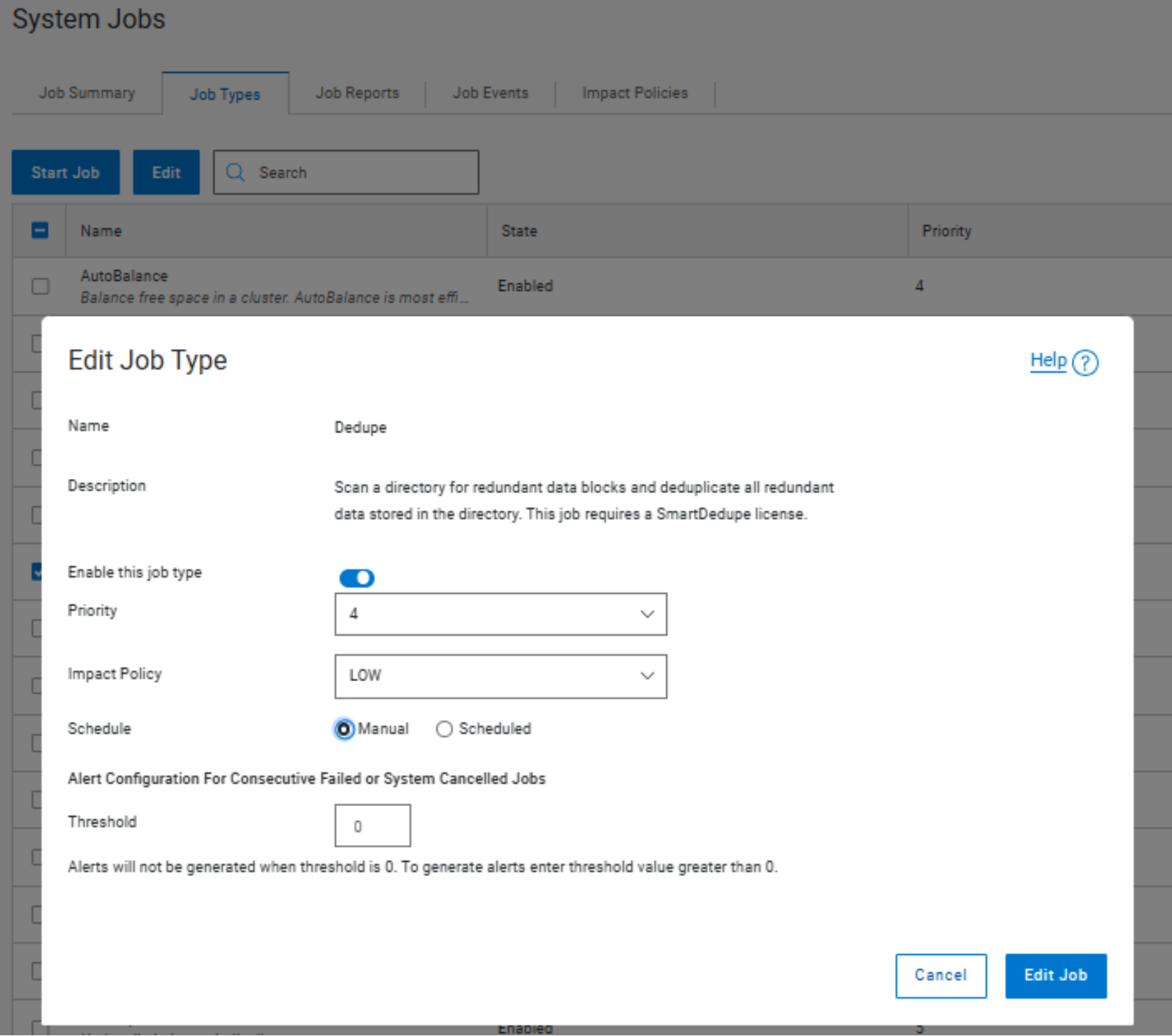
 The figure shows job impact and priority configuration in the OneFS WebUI, with an Edit Job Type dialog for the Dedupe job displaying settings for enablement, priority, impact policy, scheduling, and alert thresholds.

Figure 5.   Job impact and priority configuration in the OneFS WebUI

In OneFS 8.2 and later, jobs are no longer paused if there is only one temporarily unavailable device in each disk pool.

Multiple jobs processing

Multiple jobs processing

The OneFS Job Engine allows up to three jobs to be run simultaneously. This concurrent job processing is governed by the following criteria:

  • Job priority.
  • Exclusion sets—Jobs that cannot run together (for example, FlexProtect and AutoBalance).
  • Cluster health—Most jobs cannot run when the cluster is in a degraded state.

Job exclusion sets

Introduction

In addition to the per-job impact controls described in Job Engine, impact management is also provided by job exclusion sets, which are classes of similar jobs. For multiple concurrent job processing, exclusion sets determine which jobs can run simultaneously. A job is not required to be part of any exclusion set, and jobs may also belong to multiple exclusion sets. Currently, there are two exclusion sets that jobs can be part of; restripe and marking.

Restriping exclusion set

OneFS protects data by writing file blocks across multiple drives on different nodes. In the OneFS lexicon, this process is known as restriping. The Job Engine defines a restripe exclusion set that contains jobs that involve file system management, protection, and on-disk layout. The restripe exclusion set contains the following jobs:

  • AutoBalance
  • AutoBalanceLin
  • FlexProtect
  • FlexProtectLin
  • MediaScan
  • MultiScan
  • SetProtectPlus
  • ShadowStoreProtect
  • SmartPools
  • Upgrade

The restriping exclusion set is per phase instead of per job. This helps to parallelize more efficiently restripe jobs when they do not need to lock down resources.

Restriping jobs only block each other when the current phase might perform restriping. This is most evident with MultiScan, whose final phase only sweeps rather than restripes. Similarly, MediaScan, which rarely ever restripes, is can typically run to completion more without contending with other restriping jobs.

Note: MultiScan will only run the Collect job when needed, based upon calculations on the time a device was down and the used capacity of the device. In the following example, the two restripe jobs, MediaScan and AutoBalanceLin, are both running their respective first job phases. ShadowStoreProtect, also a restriping job, is in a Waiting state, blocked by AutoBalanceLin.

Running and queued jobs:

ID    Type               State       Impact  Pri  Phase  Running Time

----------------------------------------------------------------------

26850 AutoBalanceLin     Running     Low     4    1/3    20d 18h 19m 

26910 ShadowStoreProtect Waiting     Low     6    1/1    -           

28133 MediaScan          Running     Low     8    1/8    1d 15h 37m  

----------------------------------------------------------------------

MediaScan restripes in phases 3 and 5 of the job, and only if there are disk errors (ECCs) that require data reprotection. If MediaScan reaches phase 3 with ECCs, it will pause until AutoBalanceLin is no longer running. If MediaScan's priority was in the 1 through 3 range, it would cause AutoBalanceLin to pause instead.

If two jobs happen to reach their restriping phases simultaneously and the jobs have different priorities, the higher-priority job (the priority value closer to 1) will continue to run, and the other job will pause. If the two jobs have the same priority, the job that is already in its restriping phase will continue to run, and the job that is newly entering its restriping phase will pause.

Marking exclusion set

OneFS marks blocks that are actually in use by the file system. IntegrityScan, for example, traverses the live file system, marking every block of every LIN in the cluster to proactively detect and resolve any issues with the structure of data in a cluster. The jobs in the marking exclusion set are:

  • Collect
  • IntegrityScan
  • MultiScan

Jobs may also belong to both the restriping and marking exclusion sets. For example, MultiScan includes both AutoBalance (in the restriping exclusion set) and Collect (in the marking exclusion set).

Multiple jobs from the same exclusion set will not run at the same time. For example, Collect and IntegrityScan cannot be run simultaneously because they are both members of the marking exclusion set. Similarly, MediaScan and SetProtectPlus will not run concurrently because they are both part of the restriping exclusion set.

Non-exclusion jobs

Most jobs do not belong to an exclusion set. These are typically the feature support jobs, as previously described, and they can co-exist and contend with any of the other jobs.

These jobs include:

  • AVScan
  • ChangelistCreate
  • CloudPoolsLin/Treewalk
  • ComplianceStoreDelete
  • Dedupe
  • DedupeDryRun
  • DomainMark/Tag
  • FilePolicy
  • FSAnalyze
  • IndexUpdate
  • LinCount
  • PermissionRepair
  • QuotaScan
  • ShadowStoreDelete
  • SmartPoolsTree
  • SnapshotDelete
  • SnapRevert
  • TreeDelete
  • Undedupe
  • WormQueue

Exclusion sets do not change the scope of the individual jobs themselves, so any runtime improvements from parallelism are the result of job management and impact control. The Job Engine monitors node CPU load and drive I/O activity per worker thread every 20 seconds to ensure that maintenance jobs do not cause cluster performance problems.

If a job affects overall system performance, the Job Engine reduces the activity of maintenance jobs and yields resources to clients. Impact policies limit the system resources that a job can consume and when a job can run. You can associate jobs with impact policies, ensuring that certain vital jobs always have access to system resources.
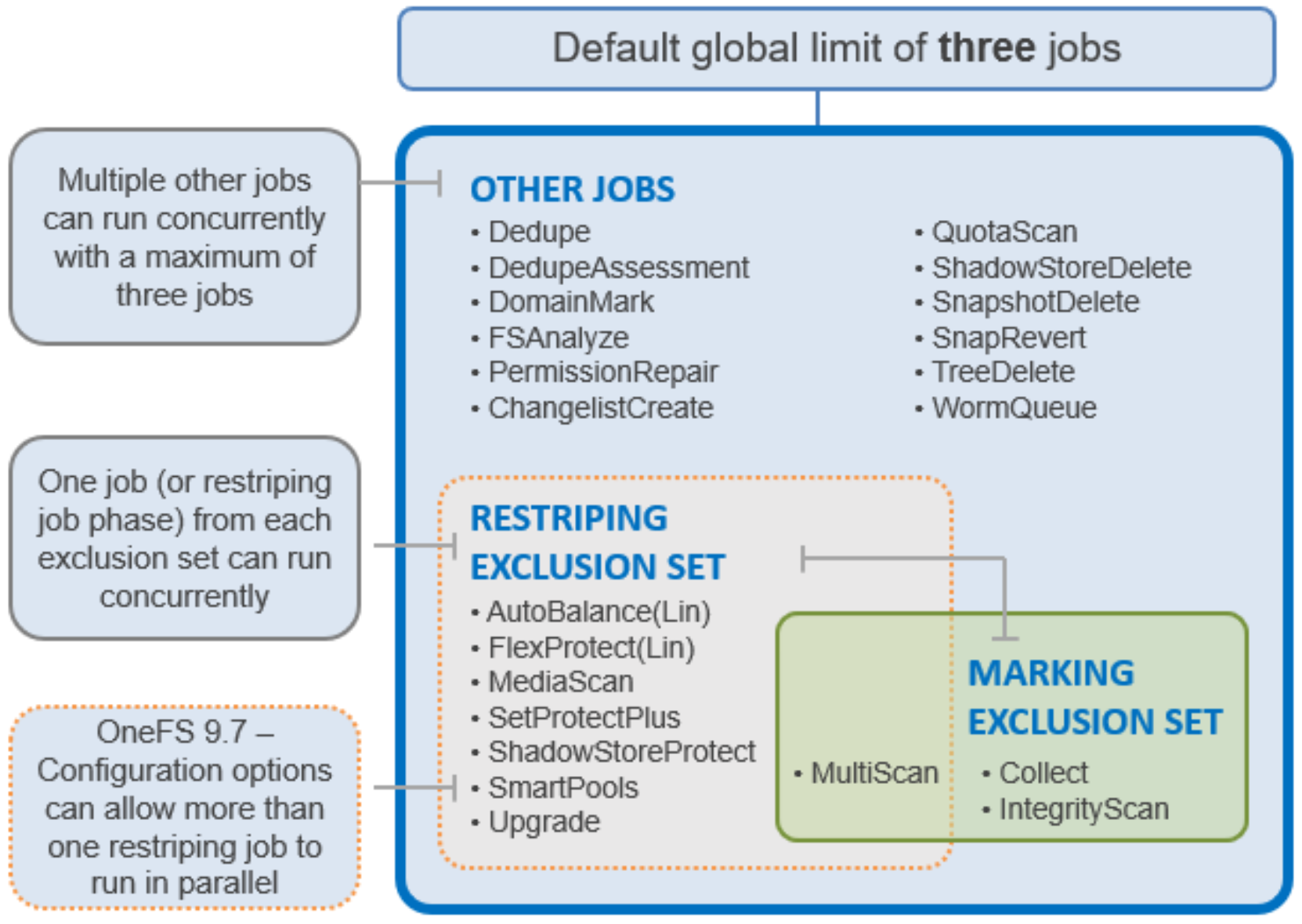
Venn diagram style graphic grouping the OneFS job engine jobs by their exclusion sets.

Figure 6.   Job Engine exclusion sets

Note: Job Engine exclusion sets are predefined and cannot be modified or reconfigured.

Parallel Restriping

OneFS 9.7 introduces support for parallel restriping jobs, and hence the removal of the restriping exclusion set and its associated restraints. Instead, up to three restriping jobs can run simultaneously, if desired. This can allow services like SmartPools tiering to continue unabated, even in degraded cluster situations, such as during a FlexProtect drive rebuild.

The following example shows the FlexProtectLin, MediaScan, and SmartPools restriping jobs running concurrently:

# isi job jobs list

ID   Type           State   Impact  Policy  Pri  Phase  Running Time

---------------------------------------------------------------------

2273 MediaScan      Running Low     LOW     8    1/8    7h 57m

2275 SmartPools     Running Low     LOW     6    1/2    9m 44s

2305 FlexProtectLin Running Medium  MEDIUM  1    1/4    10s

---------------------------------------------------------------------

Total: 3

Currently only available via the OneFS CLI and platform API, the ‘isi job settings’ CLI command set can be used to control the behavior of parallel restriping, which can be one of:

Table 4.      OneFS Job Engine parallel restripe settings

Setting

Description

Off

Default: Legacy restripe exclusion set behavior, with only one restripe job permitted.

Partial

FlexProtect/FlexProtectLin runs alone, but all other restripers can be run together.

All

No restripe job exclusions.

For example, the following CLI command can be used to configure ‘Partial’ parallel restring support:

# isi job settings modify --parallel_restriper_mode=partial

Similarly, the Job Engine can be easily reverted to its default restripe exclusion set behavior, with only one restripe job permitted, as follows:

 # isi job settings modify --parallel_restriper_mode=off

Note: A user account with the PRIV_JOB_ENGINE RBAC role is required to configure the parallel restripe settings.

Job Engine management

Manual job processing

Most of the Job Engine’s jobs have no default schedule and a cluster administrator can manually start them, either through the OneFS CLI or the WebUI.
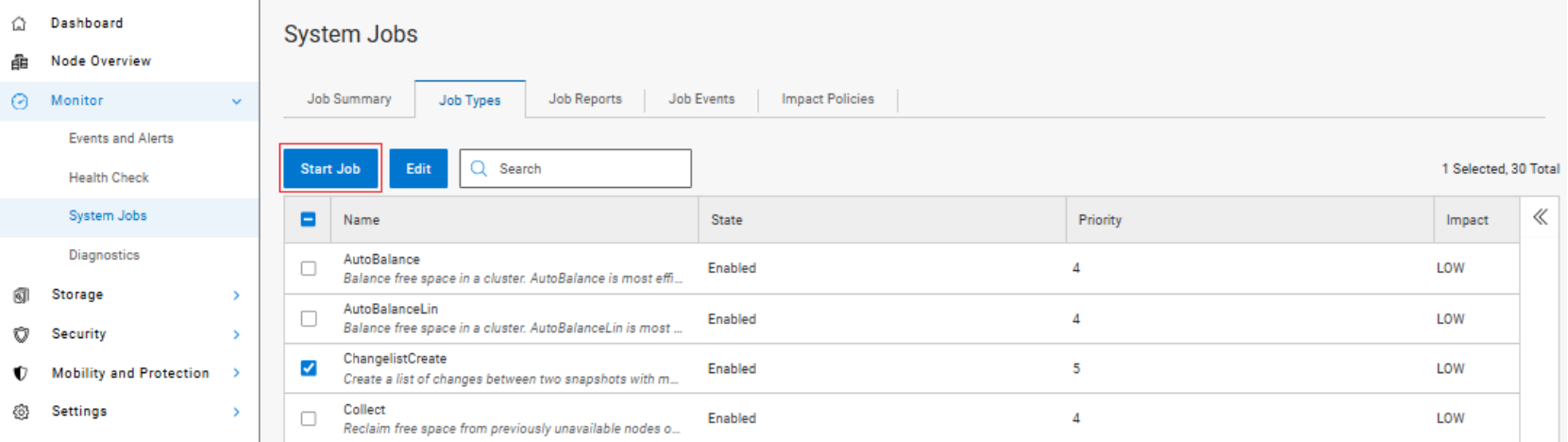
The figure shows the OneFS WebUI Jobs page, displaying a list of job types with their state, priority, and impact, along with controls for starting, editing, and searching for jobs.

Figure 7.   Starting jobs within the OneFS WebUI

Scheduled job processing

Jobs such as FSAnalyze, MediaScan, ShadowStoreDelete, and SmartPools are normally scheduled. The following table shows the default job schedules.

Table 5.      OneFS Job Engine default job schedules

Job name

Default job schedule

AutoBalance

Manual

AutoBalanceLIN

Manual

AVScan

Manual

ChangelistCreate

Manual

CloudPoolsLin/Treewalk

Manual

Collect

Manual

ComplianceStoreDelete

The 2nd Saturday of every month at 12 a.m.


Dedupe

Manual

DedupeAssessment

Manual

DomainMark/Tag

Manual

FilePolicy

Every day at 22:00

FlexProtect

Manual

FlexProtectLIN

Manual

FSAnalyze

Every day at 22:00


IndexUpdate

Manual

IntegrityScan

Manual

LinCount

Manual

MediaScan

The 1st Saturday of every month at 12 a.m.


MultiScan

Manual

PermissionRepair

Manual

QuotaScan

Manual

S3Lifecycle

Every day at 01:00

SetProtectPlus

Manual

ShadowStoreDelete

Every Sunday at 12:00 a.m.


SmartPools

Every day at 22:00

SmartPoolsTree

Manual

SnapRevert

Manual

SnapshotDelete

Manual

TreeDelete

Manual

WormQueue

Every day at 02:00

You can view the full list of jobs and schedules by running the CLI command isi job types list --verbose, or in the WebUI, by going to ‘Monitor > System Jobs. Job Types’, or ‘Cluster Management > Job Operations > Job Types’ in OneFS 9.14 and earlier releases.

To create or edit a job schedule, in the Actions column of the Job Types tab in the WebUI, click the job’s View / Edit button. Select the Scheduled radio button, and specify a Daily, Weekly, Monthly, or Yearly schedule. For each of these time period options, you may schedule the job to run either once or multiple times on each specified day.
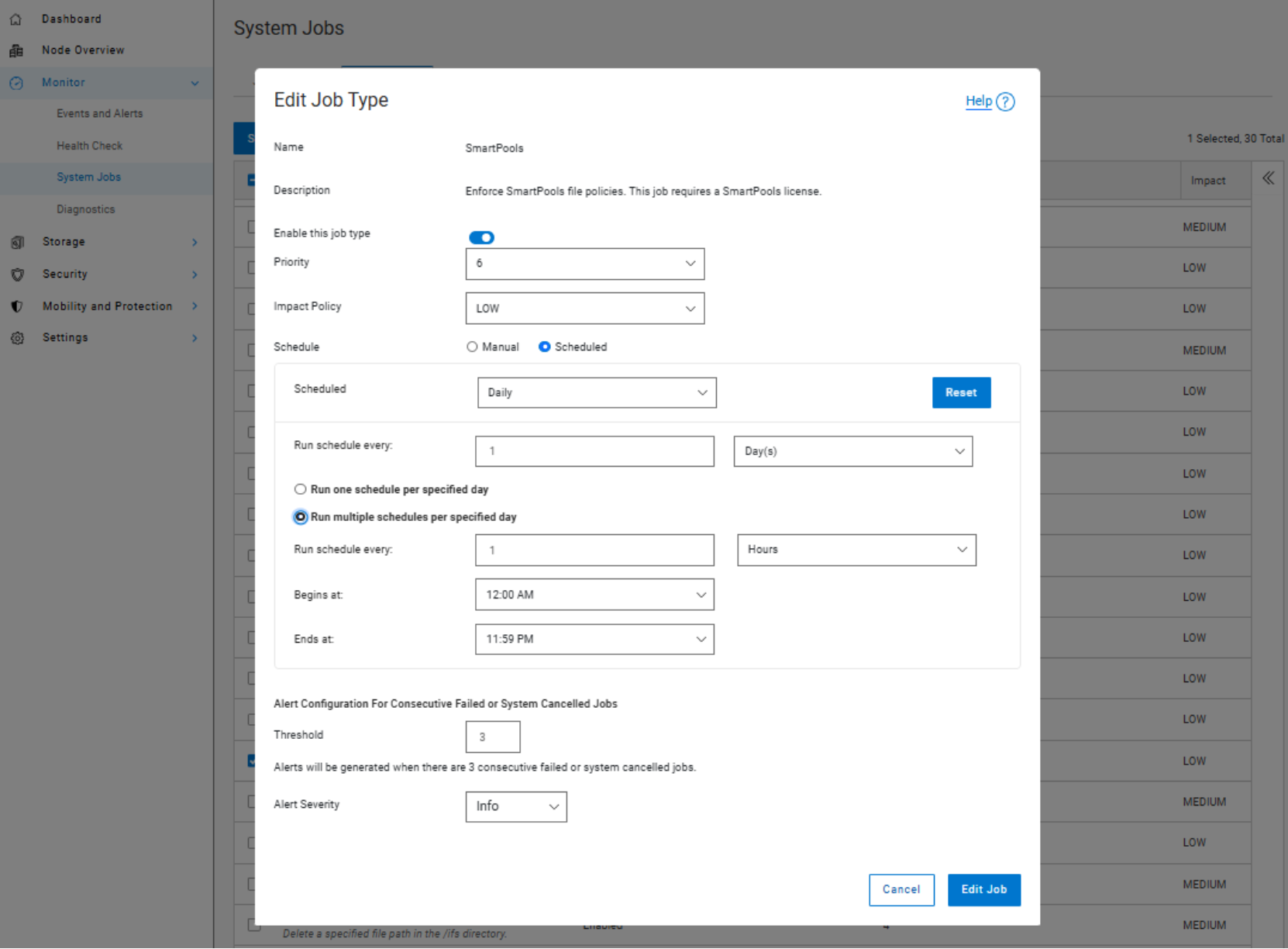
 

Figure 8.   OneFS Job Engine job scheduling

Note: The Job Engine schedule for certain feature-supporting jobs can be configured directly from the feature’s WebUI area, as well as from the Job Engine WebUI management pages. An example of this is Antivirus and the AVScan job.
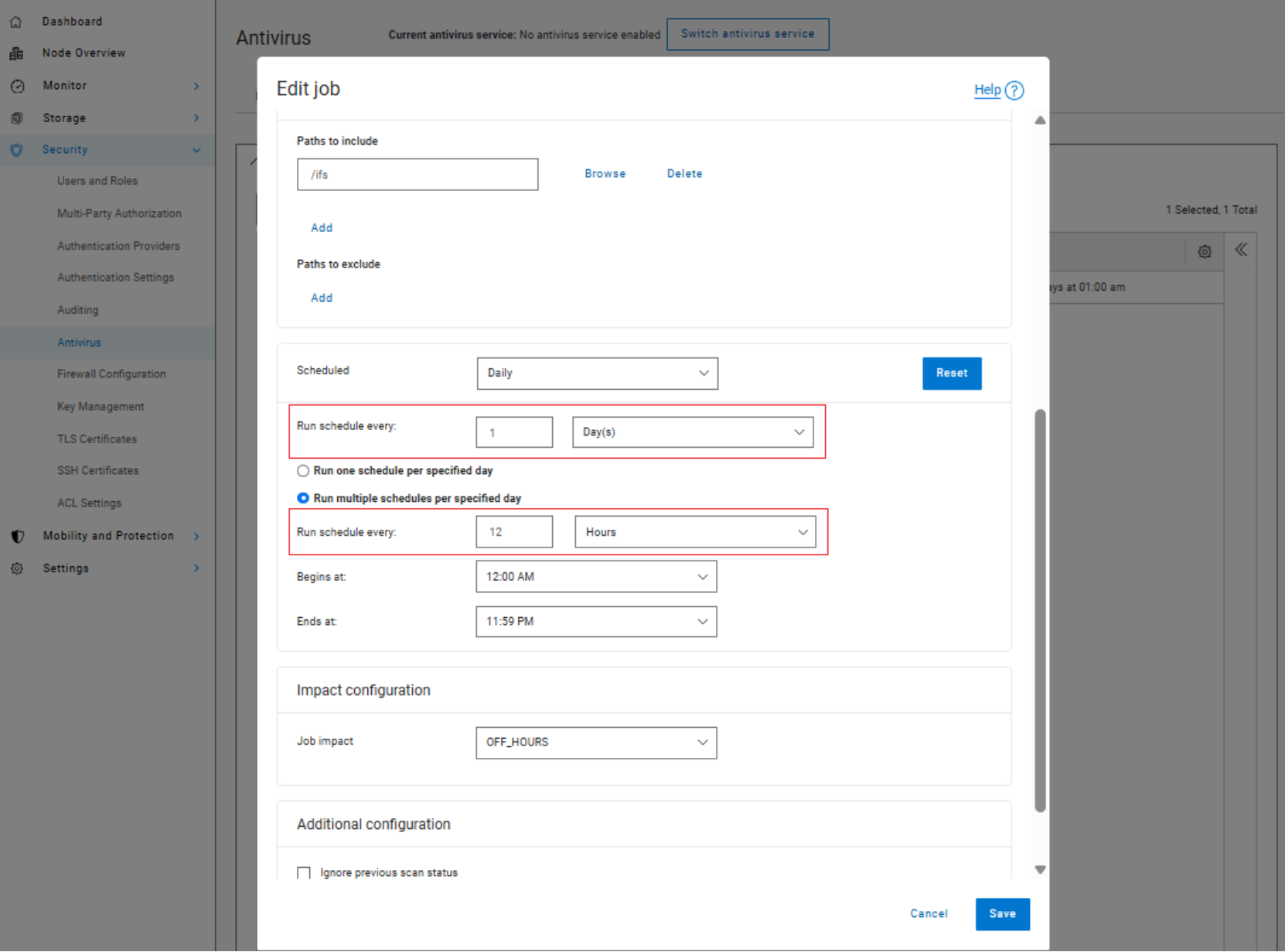
The figure shows the Antivirus WebUI job scheduling interface, with options to run jobs daily or every 12 hours, configure start and end times, specify inclusion and exclusion paths, and adjust job impact settings.

Figure 9.   Job schedule from the Antivirus WebUI

Proactive job processing

The Job Engine can also initiate certain jobs on its own. For example, if the SnapshotIQ process detects that a snapshot has been marked for deletion, it will automatically queue a SnapshotDelete job.

Reactive job processing

The Job Engine also runs jobs in response to certain system event triggers. In the case of a cluster group change—for example, the addition or subtraction of a node or drive—OneFS automatically informs the Job Engine, which responds by starting a FlexProtect job. The coordinator notices that the group change includes a newly smart-failed device and then initiates a FlexProtect job in response.

Job control

Job administration and processing can be controlled through the OneFS WebUI, the CLI, or the RESTful platform API. For each of these control methods, additional administrative security can be configured using Role Based Access Control (RBAC). By restricting access through the ISI_PRIV_JOB_ENGINE privilege, it is possible to allow only a subset of cluster administrators to configure, manage, and run Job Engine functionality, to meet the security requirements of a particular environment.

When a job is started through any of these job control methods, it can also be paused canceled.
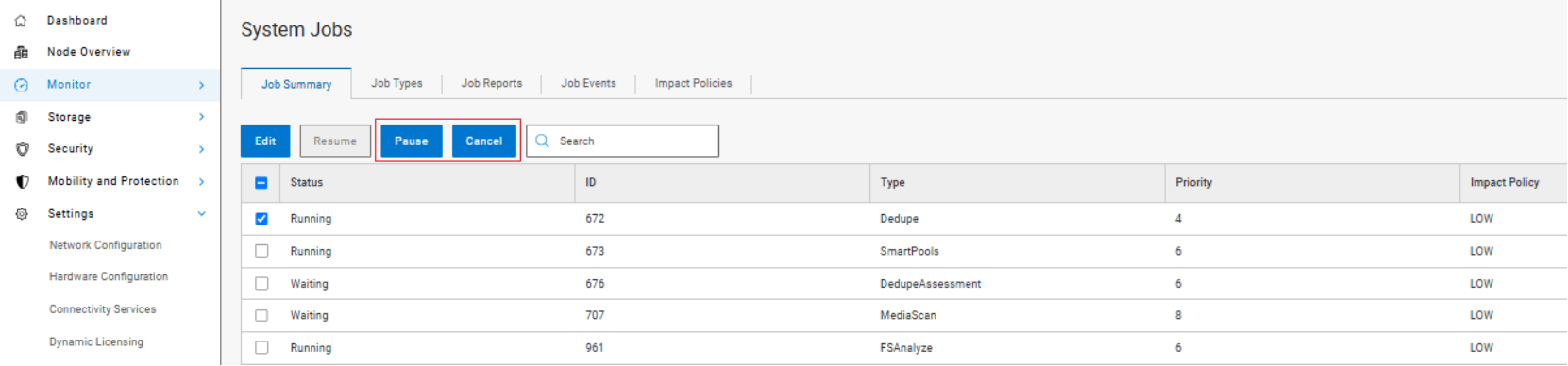
 The figure shows the OneFS WebUI Jobs dashboard, listing active and queued jobs with their status, job ID, type, priority, and impact policy, along with controls for pausing and canceling jobs.

Figure 10.    Pausing and canceling jobs from the WebUI

Once paused, the job can also easily be resumed, and processing continues from where the job left off when it was paused. Continued processing is managed through the check-pointing system, as described in Job Engine checkpoints.

Node exclusion

With OneFS 9.3 and later, you can exclude one or more nodes from participating in running a job. This ability allows the temporary exclusion of any nodes with high load, or other issues, so that jobs do not become stuck. Configuration is through the OneFS CLI and gconfig, applies to all jobs on startup, and can include the Job Engine coordinator among the excluded nodes. However, the exclusion configuration is not dynamic, and once a job is started with the final node set, further reconfiguration is not permitted.

The CLI syntax for configuring an excluded nodes list on a cluster is as follows (in this example, excluding nodes one through three):

# isi_gconfig –t job-config core.excluded_participants="{1,2,3}"

The excluded_participants are entered as a comma-separated devid value list with no spaces, specified within parentheses and double quotes.

Note: It is the node’s device ID (devid) which is required in the above command, and this is not always the same as the node number (LNN). The following command will report both the LNN and corresponding devid:   isi_nodes %{lnn}, %{id}

All excluded nodes must be specified in full because there is no aggregation. This configuration can be easily reset to avoid excluding any nodes by assigning the {} value.

# isi_gconfig –t job-config core.excluded_participants="{}"

A core.excluded_participant_percent_warn parameter defines the maximum percentage of removed nodes.

# isi_gconfig -t job-config core.excluded_participant_percent_warn

core.excluded_participant_percent_warn (uint) = 10

This parameter defaults to 10 percent, above which a CELOG event warning is generated. CELOG events also provide reminders to remove any exclusions when they are no longer required.

Job Engine orchestration and job processing

Job Engine orchestration and job processing

The Job Engine is based on a delegation hierarchy made up of coordinator, director, manager, and worker processes.
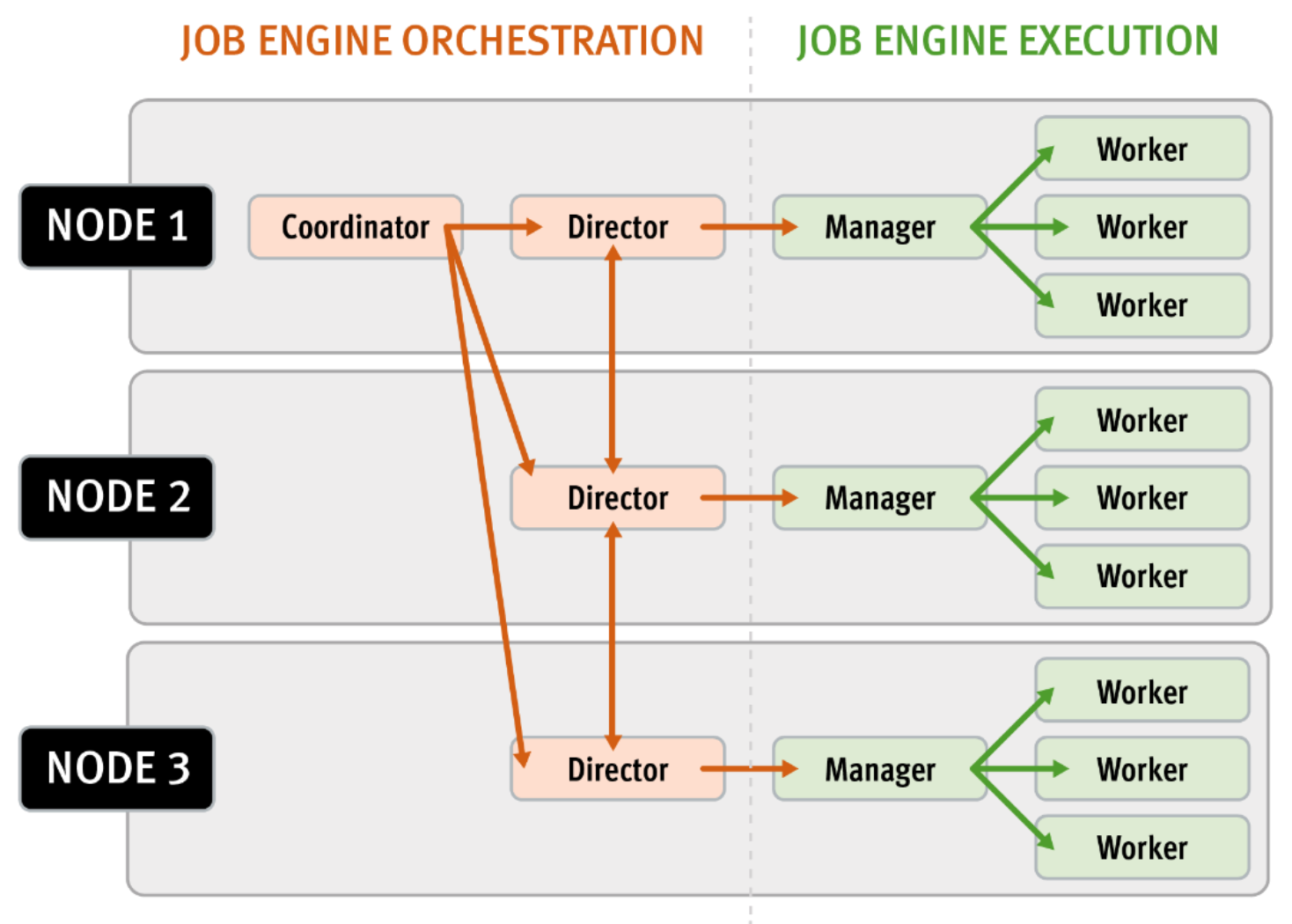
Architectural diagram of a three node cluster showing the job engine's distributed work allocation model with the coordinator, directors, managers and worker threads.

Figure 11.    OneFS Job Engine distributed work allocation model

Note: Additional threads that are not illustrated in the figure relate to internal functions, such as communication between the various JE daemons, and collection of statistics. Also, with three jobs running simultaneously, each node would have three manager processes, each with its own number of worker threads.

Once the work is initially allocated, the Job Engine uses a shared work distribution model to process the work, and a unique Job ID identifies each job. When a job is launched, whether it is scheduled, started manually, or responding to a cluster event, the Job Engine spawns a child process from the isi_job_d daemon running on each node. This Job Engine daemon is also known as the parent process.

Coordinator process

The entire Job Engine’s orchestration is handled by the coordinator, which is a process that runs on one of the nodes in a cluster. Any node can act as the coordinator, and the principal responsibilities include:

  • Monitoring workload and the constituent nodes' status
  • Controlling the number of worker threads per node and clusterwide
  • Managing and enforcing job synchronization and checkpoints

While the individual nodes manage the actual work item allocation, the coordinator node takes control, divides up the job, and evenly distributes the resulting tasks across the nodes in the cluster. For example, if the coordinator needs to communicate with a manager process running on node five, it first sends a message to node five’s director, which then passes it to the appropriate manager process under its control. The coordinator also periodically sends messages, through the director processes, instructing the managers to increment or decrement the number of worker threads.

The coordinator is also responsible for starting and stopping jobs, and for processing work results as they are returned during job processing. Should the coordinator process die for any reason, the coordinator responsibility automatically moves to another node.

The coordinator node can be identified through the following CLI command:

# isi job status --verbose | grep Coordinator

Director process

Each node in the cluster has a Job Engine director process, which runs continuously and independently in the background. The director process is responsible for monitoring, governing, and overseeing all Job Engine activity on a particular node, constantly waiting for instruction from the coordinator to start a new job. The director process serves as a central point of contact for all the manager processes running on a node and as a liaison with the coordinator process across nodes. These responsibilities include:

  • Manager process creation
  • Delegating to and requesting work from other peers
  • Sending and receiving status messages

Manager process

The manager process is responsible for arranging the flow of tasks and task results throughout the duration of a job. The manager processes request and exchange work with each other and supervise the worker threads assigned to them. At any time, each node in a cluster can have up to three manager processes, one for each job currently running. These managers are responsible for overseeing the flow of tasks and task results.

Each manager controls and assigns work items to multiple worker threads working on items for the designated job. Under direction from the coordinator and director, a manager process maintains the appropriate number of active threads for a configured impact level, and for the node’s current activity level. Once a job has been completed, the manager processes associated with that job, across all the nodes, are terminated. New managers are automatically spawned when the next job begins.

The manager processes on each node regularly send updates to their respective node’s director, which, in turn, informs the coordinator process of the status of the various worker tasks.

Worker threads

Each worker thread is given a task, if available, which it processes item-by-item until the task is complete or the manager unassigns the task. You can query the status of the nodes’ workers by running the CLI command isi job statistics view. In addition to the number of current worker threads per node, the query also provides a sleep-to-work (STW) ratio average, giving an indication of the worker thread activity level on the node.

Towards the end of a job phase, the number of active threads decreases as workers finish their allotted work and become idle. Nodes that have completed their work items remain idle, waiting for the last remaining node to finish its work allocation. When all tasks are done, the job phase is considered to be complete, and the worker threads are terminated.

Job Engine checkpoints

As jobs are processed, the coordinator consolidates the task status from the constituent nodes and periodically writes the results to checkpoint files. These checkpoint files allow jobs to be paused and resumed, either proactively or in the event of a cluster outage. For example, if the node on which the Job Engine coordinator is running goes offline for any reason, a new coordinator automatically starts on another node. This new coordinator reads the last consistency checkpoint file, job control and task processing resume across the cluster, and no work is lost.

Job Engine checkpoint files are stored in results and tasks subdirectories under the path /ifs/.ifsvar/modules/jobengine/cp/<job_id>/ for a given job. On large clusters or with a job running at HIGH impact, many checkpoint files can be accessed from all nodes, which might have resulted in contention. However, checkpoints are split into 16 subdirectories under both tasks and results to alleviate this potential bottleneck.

Job Engine resource utilization monitoring

The Job Engine resource monitoring and processing framework allows jobs to be throttled based on both CPU and disk I/O metrics. The granularity of the resource utilization monitoring data provides the coordinator process with visibility into exactly what is generating IOPS on any particular drive across the cluster. This level of insight allows the coordinator to make precise determinations about where and how impact control is best applied. The coordinator itself does not communicate directly with the worker threads, but rather with the director process, which in turn instructs a node’s manager process for a particular job to cut back threads.

For example, if the Job Engine is running a job with LOW impact and CPU utilization drops below the threshold, the worker thread count is gradually increased up to the maximum defined by the LOW impact policy threshold. If client load on the cluster suddenly spikes, the number of worker threads is gracefully decreased. The same principle applies to disk I/O, where the Job Engine throttles back in relation to both IOPS as well as the number of I/O operations waiting to be processed in any drive’s queue. Once client load has decreased again, the number of worker threads is correspondingly increased to the maximum LOW impact threshold.

In summary, detailed resource utilization telemetry allows the Job Engine to automatically tune its resource consumption to the preferred impact level and customer workflow activity.

Job Engine throttling and flow control

Certain jobs, if left unchecked, could consume vast quantities of a cluster’s resources, contending with and affecting client I/O. To counteract this issue, the Job Engine employs a comprehensive work throttling mechanism that can limit the rate at which individual jobs can run. Throttling is employed at a per-manager process level, so job impact can be managed both granularly and gracefully.

Every 20 seconds, the coordinator process gathers cluster CPU and individual disk I/O load data from all the nodes across the cluster. The coordinator uses this information, in combination with the job impact configuration, to determine how many threads may run on each cluster node to service each running job. This number can be fractional, and fractional thread counts are achieved by having a thread sleep for a given percentage of each second.

Using this CPU and disk I/O load data, every 60 seconds the coordinator evaluates how busy the various nodes are and makes a job throttling decision, instructing the various Job Engine processes as to the action they need to take. This enables throttling to be sensitive to workloads in which CPU and disk I/O load metrics yield different results. Additionally, separate load thresholds are tailored to the different classes of drives used in OneFS powered clusters, including high-speed SAS drives, lower-performance SATA disks, and flash-based solid state drives (SSDs). 

The Job Engine allocates a specific number of threads to each node by default, thereby controlling the impact of a workload on the cluster. If little client activity is occurring, more worker threads are spun up to allow more work, up to a predefined worker limit. For example, the worker limit for a LOW impact job might allow one or two threads per node to be allocated, a MEDIUM impact job from four to six threads, and a HIGH impact job a dozen or more. When this worker limit is reached (or before, if client load triggers impact management thresholds first), worker threads are throttled back or terminated.

For example, a node has four active threads, and the coordinator instructs it to cut back to three. The fourth thread is allowed to finish the individual work item it is currently processing, but then quietly exit, even though the task as a whole might not be finished. A restart checkpoint is taken for the exiting worker thread’s remaining work, and this task is returned to a pool of tasks requiring completion. This unassigned task is then allocated to the next worker thread that requests a work assignment, and processing continues from the restart checkpoint. This same mechanism applies in the event that multiple jobs are running simultaneously on a cluster.

SmartThrottling

OneFS 9.8 introduces SmartThrottling. This is an automatic impact control mechanism for the Job Engine that is built upon the OneFS partitioned performance framework. SmartThrottling functions as follows:

  • The OneFS Partitioned Performance (PP) framework directly monitors the cluster’s resource utilization, paying particular attention to the latencies of the client protocol load.
  • Next, the Job Engine uses the PP telemetry to maintain latencies within specified thresholds.
  • If the latencies approach those thresholds, PP directs the Job Engine to stop increasing the amount of work performed.
  • If the latencies exceed those thresholds, the Job Engine actively reduces the amount of work performed by quiescing job worker threads as necessary.

There is also a secondary throttling mechanism that uses drive IO statistics. This backup throttling is for situations when no protocol load exists, and attempts to maintain disk IO health within set thresholds in order to prevent the Job Engine from commandeering all the cluster resources.

The SmartThrottling thresholds, and their associated rate of ramping up or down the amount of work jobs can perform, differ based on the impact setting of a specific job. The legacy Job Engine impact configuration remains unchanged, and individual jobs can be set to Low, Medium, or High impact. Similarly, each job still has the same default impact level, which can be further adjusted if needed.

Note: The new SmartThrottling feature is disabled by default in OneFS 9.8 and can be manually enabled if needed. It is currently recommended for customers who have experienced challenges related to the impact that the Job Engine has on their workloads.

To enable SmartThrottling, use the following CLI command:

# isi job settings modify –-smartthrottling true

Similarly, to immediately disable SmartThrottling:

# isi job settings modify –-smartthrottling false

Running this command causes the Job Engine to restart, temporarily pausing and resuming any running jobs, after which they will continue where they left off and run to completion as normal.

To display the current state of throttling, use the following command:

# isi job settings view

Parallel Restriper Mode: All

        Smartthrottling: True

For advanced configuration, there are three main threshold options. These are the target read and write latency thresholds for protocol operations, and the disk IO time in queue threshold. These can be viewed with the following:

# isi performance settings view | grep -i in

                                Time In Queue Threshold (ms): 10.00

                         Target read latency in microseconds: 12000.0

                        Target write latency in microseconds: 12000.0

Medium impact job latency threshold modifier in microseconds: 12000.0

  High impact job latency threshold modifier in microseconds: 24000.0

The target read and write latency thresholds default to 12 milliseconds (ms) for low impact jobs and are the thresholds at which SmartThrottling begins to throttle the job engine’s work. There are also modifiers for both medium and high impact jobs, which are set to an additional 12 ms and 24 ms respectively by default. For medium impact jobs, throttling will start to activate around 20 ms, and then heavily throttle the job engine at 24 ms. Similarly, for the high impact jobs, throttling starts at 30 ms and ramps up at 36 ms.

Because SmartThrottling is currently configured globally and tuned for an average cluster, the job engine throttling thresholds can be adjusted for specific customer environments, if necessary. For example, powerful all-flash clusters usually respond well to setting thresholds lower than 12 ms. This can be performed using the ‘isi performance settings modify’ CLI command with the following options:

Table 6.      SmartThrottling configurable threshold parameters

Config Option

Threshold

Default
Value

--target-protocol-read-latency-usec

Target read latency

12ms

--target-protocol-write-latency-usec

Target write latency

12ms

--medium-impact-modifier-usec

Medium impact job latency modifier

12ms

--high-impact-modifier-usec

High impact job latency modifier

24ms

--target-disk-time-in-queue-ms

Time In Drive Queue

10ms

Job Engine low-space behavior

In situations where the available capacity on one or more disk pools falls below a low-space threshold, the Job Engine engages low-space mode. This mode enables space-saving jobs to run and reclaim space before the Job Engine or even the cluster becomes unusable. When the Job Engine is in low-space mode, new jobs are not started, and any jobs that are not space-saving are paused. Once free space returns above the low-space threshold, jobs that have been paused for space are resumed.

The space-saving jobs are:

  • AutoBalance(LIN)
  • Collect
  • MultiScan
  • ShadowStoreDelete
  • SnapshotDelete
  • TreeDelete

Once the cluster is no longer space-constrained, any paused jobs are automatically resumed.

Job performance

Not all Job Engine jobs run equally fast. For example, a job that is based on a file system tree walk runs slower on a cluster with a very large number of small files than on a cluster with a small number of large files. Jobs that compare data across nodes, such as Dedupe, run more slowly where there are many comparisons to be made. Many factors affect speed, and true linear scaling is not always possible. If a job is running slowly, the first step in troubleshooting the issue is to discover what the specific context of the job is.

The main methods by which jobs and their associated processes interact with the file system are through:

  • LIN scan of metadata—for example, IntegrityScan’s online file system verification
  • Tree walk that directly traverses the directory structure—for example, QuotaScan’s quota domain accounting
  • Linear drive scan that directly accesses the underlying cylinder groups and disk blocks—for example, MediaScan’s search for bad disk sectors

Each of these approaches has its pros and cons and suits particular jobs. The specific access method influences the runtime of a job. For instance, some jobs are unaffected by cluster size, while others slow down or accelerate based on the number of nodes in the cluster. Some jobs are highly influenced by file counts and directory depths.

For a number of jobs, particularly the LIN-based ones, the Job Engine provides an estimated percentage completion of the job during runtime (see Figure 15).

With LIN scans, even though the metadata is of variable size, the Job Engine can fairly accurately predict how much effort will be required to scan all LINs. The data, however, can be of widely variable size, and so estimates of how long it will take to process each task will be a best reasonable guess.

For example, the Job Engine might know that the highest LIN is 1:0009:0000. Assuming that the job will start with a single thread on each of three nodes, the coordinator evenly divides the LINs into nine ranges: 1:0000:0000-1:0000:ffff, 1:0001:0000-1:0001:ffff, and so on, through 1:0008:0000-1:0009:0000. These nine tasks are then divided between the three nodes. However, each range might take a different time to process. For example, the first range might have fewer actual LINs, as a result of old LINs having been deleted, so it might complete unexpectedly fast. Perhaps the third range contains a disproportional number of large files and so takes longer to process. And maybe the seventh range has heavy contention with client activity, also resulting in an increased runtime. Despite such variances, the splitting and redistribution of tasks across the node manager processes alleviates this issue, mitigating the need for perfectly fair divisions at the onset.

Priorities play a large role in job initiation, and it is possible for a high-priority job to significantly affect the running of other jobs. Job priority’s effect on job initiation is by design—FlexProtect could run with a greater level of urgency than SmartPools, for example. However, sometimes this effect can be an inconvenience, which is why the storage administrator has the ability to manually control the impact level and relative priority of jobs.

Certain jobs such as FlexProtect have a corresponding job provided with a name suffixed by Lin, for example FlexProtectLin. This indicates that the job will automatically use an SSD-based copy of metadata, where available, to scan the LIN tree, rather than the drives themselves. Depending on the workflow, this often significantly improves job runtime performance.

On large clusters with multiple jobs running at HIGH impact, the job coordinator can become bombarded by the volume of task results being sent directly from the worker threads. This effect is mitigated by certain jobs performing intermediate merging of results on individual nodes and batching delivery of their results to the coordinator. The jobs that support results merging include:

Table 7.      OneFS job types supporting intermediate results merging

AutoBalance(Lin)

MultiScan

AVScan

PermissionRepair

CloudPoolsLin

QuotaScan

CloudPoolsTreewalk

SnapRevert

Collect

SnapshotDelete

FlexProtect(Lin)

TreeDelete

LinCount

Upgrade

File system protection and management

Introduction

The fundamental purpose of the jobs within the restripe exclusion set is to ensure that the data on /ifs is:

  • Protected at the appropriate level
  • Balanced across nodes
  • Properly accounted for

To meet these objectives, the Job Engine runs various file system maintenance jobs either manually, through a predefined schedule, or based on a cluster event, such as a group change. These maintenance jobs include:

  • FlexProtect
  • MultiScan
  • AutoBalance
  • Collect
  • MediaScan
  • IntegrityScan

FlexProtect

FlexProtect is responsible for maintaining the appropriate protection level of data across the cluster. For example, it ensures that a file that is supposed to be protected at +2 is actually protected at that level.

Run automatically after a drive or node removal or failure, FlexProtect locates any unprotected files on the cluster and repairs them as quickly as possible. The FlexProtect job includes the following distinct phases:

  • Drive Scan.  FlexProtect scans the cluster’s drives, looking for files and inodes in need of repair. When such file or inode is found, the job opens the LIN and repairs it and the corresponding data blocks using the restripe process.
  • LIN Verification. Once the drive scan is complete, the LIN verification phase scans the inode (LIN) tree and verifies, reverifies, and resolves any outstanding reprotection tasks.
  • Device Removal. In this final phase, FlexProtect removes successfully repaired drives or nodes from the cluster.

In addition to FlexProtect, there is also a FlexProtectLin job. FlexProtectLin runs by default when a copy of file system metadata is available on SSD storage. FlexProtectLin typically offers significant runtime improvements over its conventional disk-based counterpart.

Note: Unlike previous releases, in OneFS 8.2 and later FlexProtect does not pause when there is only one temporarily unavailable device in a disk pool, when a device is smart failed or dead. 

MultiScan

The MultiScan job, which combines the functionality of AutoBalance and Collect, automatically runs after a group change that adds a device to the cluster. MultiScan is started when:

  • Data is unbalanced within one or more disk pools, which triggers MultiScan to start the AutoBalance phase only.
  • Drives have been unavailable for long enough to warrant a Collect job, which triggers MultiScan to start both its AutoBalance and Collect phases.

Note: AutoBalance(Lin) and/or Collect only run manually if MultiScan has been disabled.

AutoBalance

The goal of the AutoBalance job is to ensure that each node has the same amount of data on it so that data is evenly balanced across the cluster. AutoBalance, along with the Collect job, runs after any cluster group change, unless there are any storage nodes in a down state.

Upon visiting each file, AutoBalance performs the following two operations:

  • File-level rebalancing
  • Full-array rebalancing

For file-level rebalancing, AutoBalance evenly spreads data across the cluster’s nodes to achieve balance within a particular file. With full-array rebalancing, AutoBalance moves data between nodes to achieve an overall cluster balance within a 5 percent delta across nodes.

Also available is an AutoBalanceLin job, which can run in place of AutoBalance when the cluster has a metadata copy available on SSD. AutoBalanceLin provides an expedited job runtime.

Collect

The Collect job is responsible for locating unused inodes and data blocks across the file system. Collect runs by default after a cluster group change, in conjunction with AutoBalance, as part of the MultiScan job.

In its first phase, Collect performs a marking job, scanning all the inodes (LINs) and identifying their associated blocks. Collect marks all the blocks that are currently allocated and in use, and any unmarked blocks are identified as candidates to be freed for reuse, so that the disk space they occupy can be reclaimed and reallocated. All metadata must be completely read and marked in this phase to avoid freeing up, or sweeping, in-use blocks and introducing allocation corruption.

Collect’s second phase scans all the cluster’s drives and performs the sweeping of any unmarked blocks so that they can be reused.

MediaScan

MediaScan’s role within the file system protection framework is to periodically check for and resolve drive bit errors across the cluster. This proactive data integrity approach helps guard against a phenomenon known as “bit rot,” and the resulting specter of hardware-induced silent data corruption.

MediaScan runs as a LOW impact, low-priority background process, based on a predefined schedule (monthly, by default).

First, MediaScan’s search and repair phase checks the disk sectors across all the drives in a cluster and, where necessary, uses the OneFS dynamic sector repair (DSR) process to resolve any ECC sector errors that it encounters. For any ECC errors that cannot immediately be repaired, MediaScan first tries to read the disk sector again several times in case the issue is transient and the drive can recover. Failing that, MediaScan attempts to restripe files away from irreparable ECCs. Finally, the MediaScan summary phase generates a report of the ECC errors that were found and corrected.

IntegrityScan

The IntegrityScan job is responsible for examining the entire live file system for inconsistencies. It does this by systematically reading every block and verifying its associated checksum. Unlike traditional fsck style file system integrity checking tools, IntegrityScan is designed to run while the cluster is fully operational, thereby avoiding the need for any downtime. If IntegrityScan detects a checksum mismatch, it generates an alert, logs the error to the IDI logs, and provides a full report upon job completion.

IntegrityScan is typically run manually if the integrity of the file system is ever in doubt. Although the job itself might take several days or more to complete, the file system is online and completely available during this time. Additionally, like all phases of the OneFS Job Engine, IntegrityScan can be prioritized, paused, or stopped, depending on the impact to cluster operations.

Jobs and OneFS licensing

As previously described, the Job Engine includes a number of feature support jobs. These jobs are related to and support the operation of OneFS data and storage management modules, including SmartQuotas, SnapshotIQ, SmartPools, SmartDedupe, and so on. Each of these modules requires a clusterwide license to run. If a feature has not been licensed, attempts to start the associated supporting job will fail with the following warning.
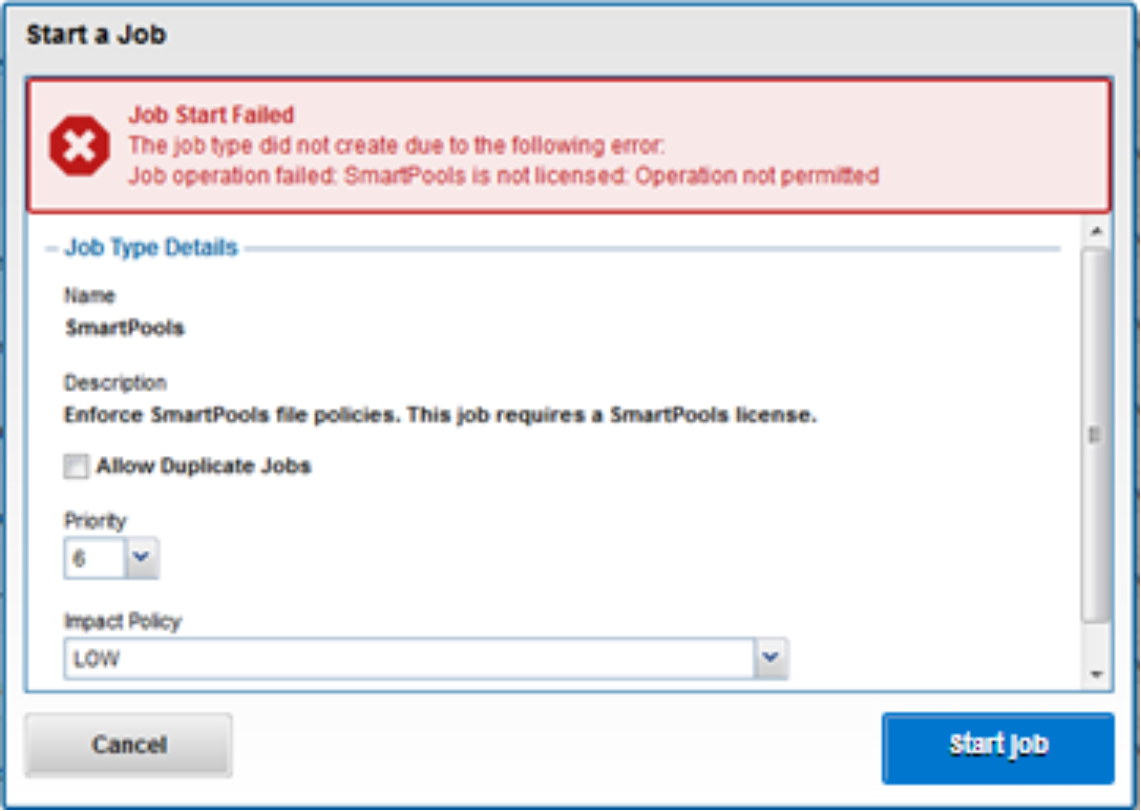
The figure shows the warning for an unlicensed SmartPools job.

Figure 12.    OneFS Job Engine unlicensed job warning

If the SmartPools data tiering product is unlicensed on a cluster, the SetProtectPlus job will run instead to apply the default file policy. SetProtectPlus is then automatically disabled if SmartPools is activated on the cluster.

Another principal consumer of the SmartPools job and file pool policies is OneFS Small File Storage Efficiency (SFSE). This feature maximizes the space utilization of a cluster by decreasing the amount of physical storage required to house the small files in a typical PACS medical dataset. Efficiency is achieved through scanning of the on-disk data for small files, which are protected by full copy mirrors, and packing them in shadow stores. These shadow stores are then parity-protected, rather than mirrored, and typically provide storage efficiency of 80 percent or greater.

If both SmartPools and CloudPools are licensed and have policies configured, the scheduled SmartPools job also triggers a CloudPools job when it is run. Only the SmartPools job will be visible from the Job Engine WebUI, but the following command can be run to view and control the associated CloudPools jobs:

# isi cloud job <action> <subcommand>

In addition to the standard CloudPools archive, recall, and restore jobs, four CloudPools jobs are typically involved with cache management and garbage collection, of which the first three are continuously running:

  • Cache-writeback
  • Cache-invalidation
  • Cloud-garbage-collection
  • Local-garbage-collection

Similarly, the SmartDedupe data efficiency product has two jobs associated with it. The first, DedupeAssessment, is an unlicensed job that can be run to determine the space savings available across a dataset. The second job, the SmartDedupe job, performs the data deduplication and requires a valid product license key.

Licenses for the full range of OneFS products can be purchased through your Dell account team. The license keys can be easily added through the OneFS WebUI’s license activation section, which is under ‘Settings > Dynamic Licensing’, or ‘Cluster Management > Licensing’ in OneFS 9.14 and earlier releases.

Job Engine monitoring and reporting

Introduction

The OneFS Job Engine provides detailed monitoring and statistics gathering, with insight into jobs and the Job Engine. A variety of Job Engine specific metrics, including per-job disk usage, are available through the OneFS CLI. For example, you can view worker statistics and job-level resource use by running the CLI command isi job statistics list. Additionally, you can see the status of the Job Engine workers by running the isi job statistics view command.

Job events

Job events, including pause/resume, waiting, phase completion, job success, job failure, and so on, are reported in the WebUI under ‘Monitor > System Jobs > Job Events’, or ‘Cluster Management > Job Operations > Job Events’ in OneFS 9.14 and earlier releases. Additional information for each event is available through the associated View Details button.
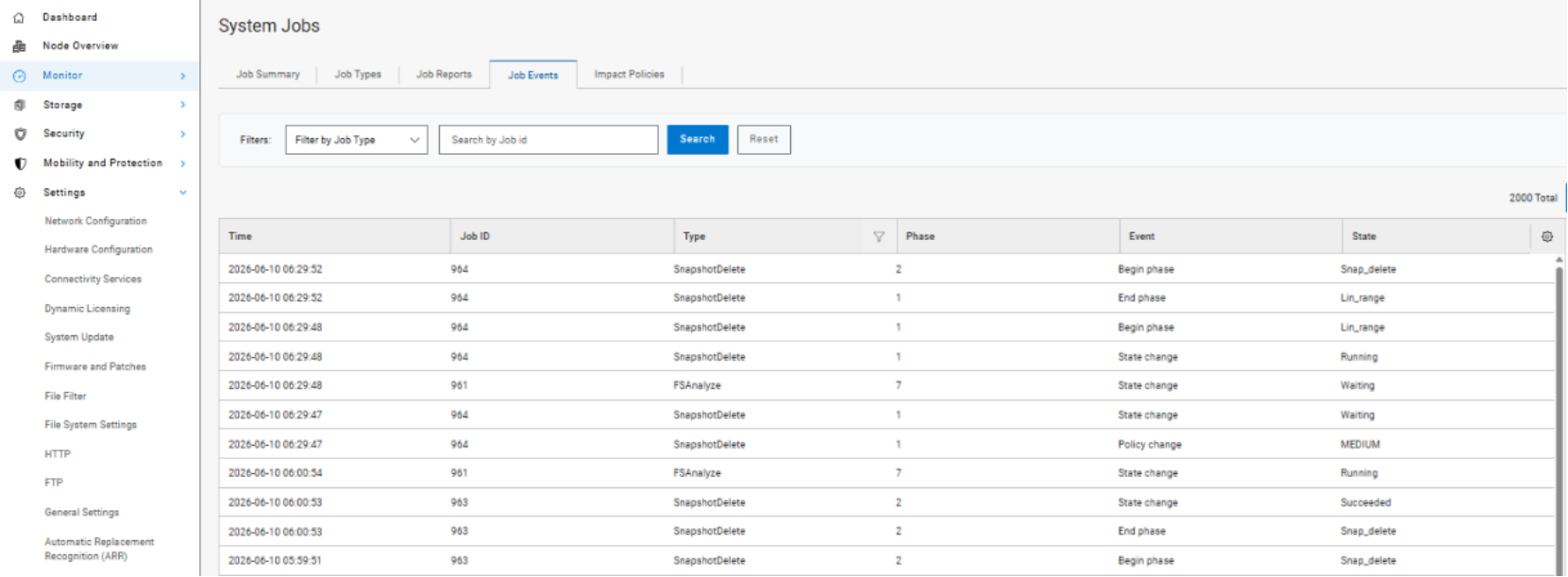
The figure shows OneFS Job Engine events in the WebUI, displaying job activity records with timestamps, job IDs, phases, and status changes, illustrating the progress and lifecycle of SnapDrive jobs.

Figure 13.    OneFS Job Engine events

Job reports

For each phase of a job, a comprehensive job report provides detailed information about runtime; CPU, drive, and memory utilization; the number of data and metadata objects scanned; and other work details or errors specific to the job type.
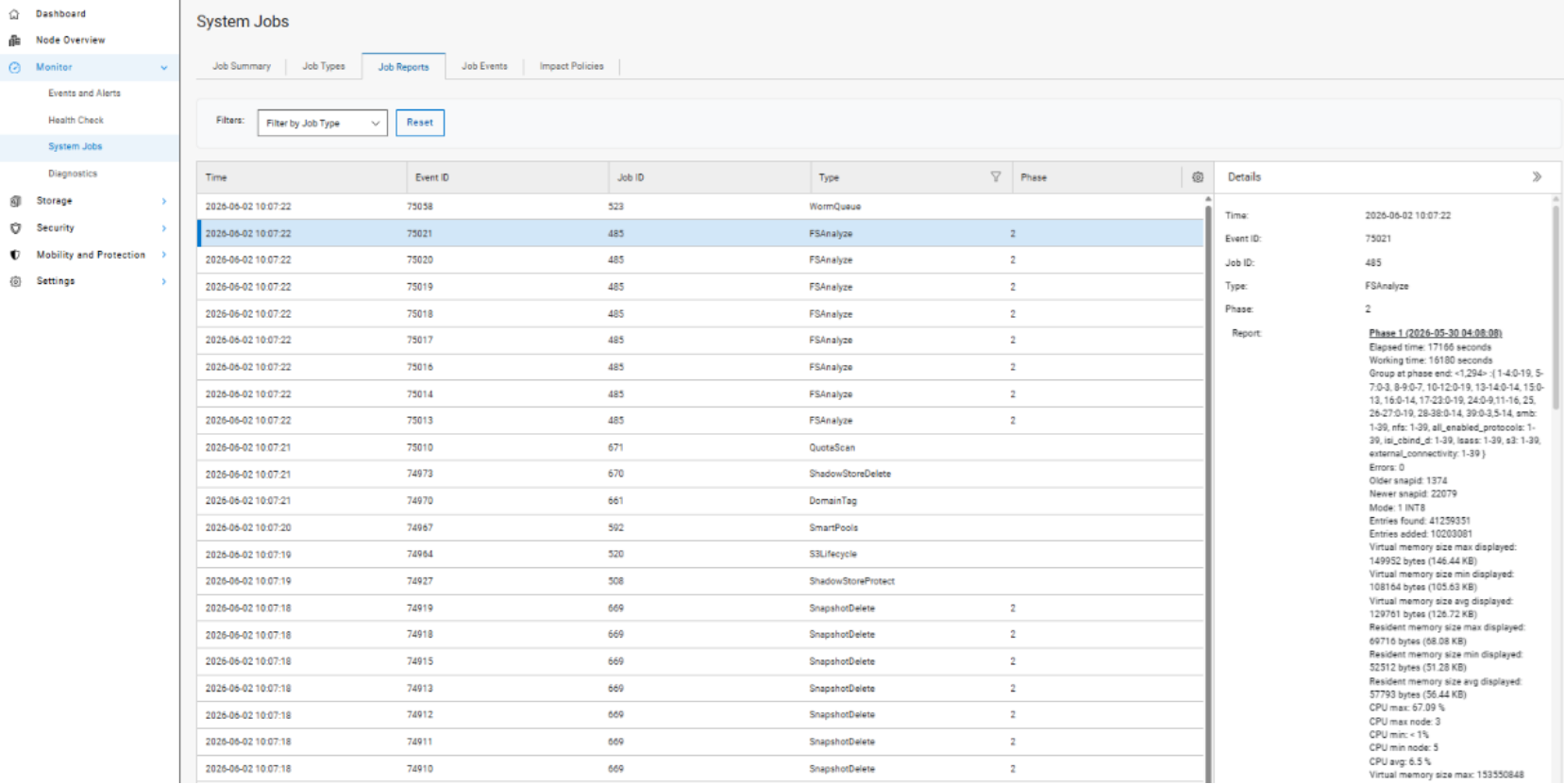
The figure shows a OneFS Job Engine job report in the WebUI, listing job events with date, event ID, job ID, type, phase, and details, alongside a pane displaying detailed status updates for a selected job.

Figure 14.    OneFS Job Engine job report

OneFS 9.15 introduces automated Job Engine Reports database trimming, allowing space allocation management of the SQLite-based Reports.db database. On each coordinator cycle, the engine evaluates whether any job type has accumulated more historical records than its configured retention limit (max_job_instances_history) and removes excess rows in chunked batches of 250 within a single atomic SQLite transaction, with automatic rollback on error to ensure parent job records and their child reports are always cleaned up consistently.

The feature activates automatically once a cluster is fully committed to OneFS 9.15, and can be enabled and disabled using the following CLI command:

# isi job settings modify --enable-trimming <boolean>

The retention setting is configured on a per-job-type basis. For example, the retention setting for the SmartPools job can be viewed and modified as follows:

# isi job types view SmartPools | grep -i history

                  Max Job Instances History: 10

# isi job types modify SmartPools --max-job-instances-history 5

Are you sure you want to modify the job type SmartPools? (yes/[no]): yes

Active job details

While a job is running, an Active Job Details report is also available. This report provides contextual information, including elapsed time, current job phase, job progress status, and so on.

For inode (LIN) based jobs, progress as an estimated percentage of completion is also displayed, based on processed LIN counts.
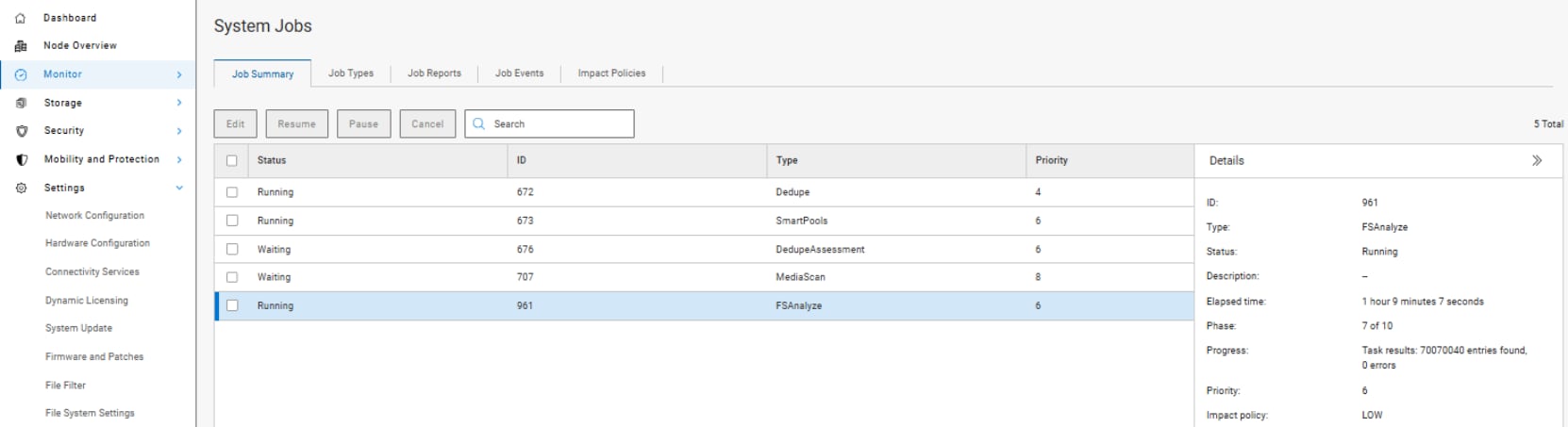
 The figure shows OneFS Job Engine active job details in the WebUI, listing active jobs with their status, job ID, type, priority, and details, with additional information displayed for a selected PSAnalytics job.

Figure 15.    OneFS Job Engine active job details

Note: A job’s report includes detailed job performance information and statistics, including per-job-phase CPU and memory utilization (including minimum, minimum, and average), and total read and write IOPS and throughput.

Performance resource management

OneFS performance resource management provides statistics for the resources used by jobs—both clusterwide and per-node. This information is available through the isi statistics workload CLI command. Available in a top format, this command displays the top jobs and processes, and periodically updates the information.

For example, the following syntax shows, and indefinitely refreshes, the top five processes on a cluster:
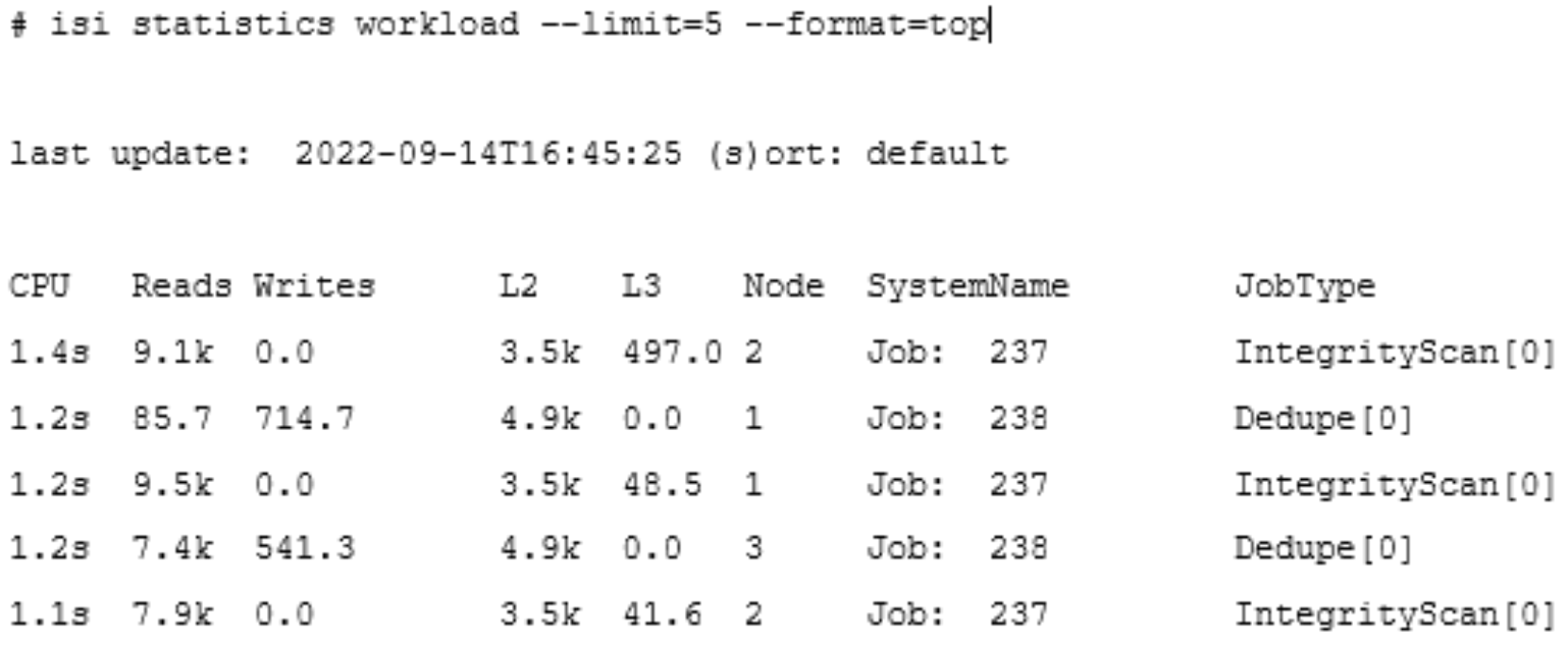
Sample command line output from the 'isi statistics workload' command showing the top five processes on a cluster.

Figure 16.    Sample output of the isi statistics workload Command

The resource statistics tracked per job, per job phase, and per node include CPU, reads, writes, and L2 and L3 read hits. Unlike the output from the top command, this makes it easier to diagnose individual job resource issues and similar issues.

Job Engine best practices and considerations

Job Engine best practices

For optimal cluster performance, Dell Technologies recommends observing the following OneFS Job Engine best practices:

  • Schedule jobs to run during the cluster’s low usage hours—such as overnight and on weekends.
  • Use the default priority, impact, and scheduling settings for each job, when possible.
  • To complement the four default impact profiles, create additional profiles such as daytime_medium, after_hours_medium, weekend_medium, and so on, to fit specific environment needs.
  • Ensure that the cluster, including any individual node pools, is less than 90 percent full, so performance is not affected and sufficient space is always available to reprotect data in case of drive failures. Also enable virtual hot spare (VHS) to reserve space in case you need to smartfail devices.
  • If SmartPools is licensed, ensure that spillover is enabled (default setting).
  • Configure and monitor alerts. Set up event notification rules so that you are notified of events—when the cluster begins to reach capacity thresholds, for example. Enter a current email address to ensure that you receive the notifications.
  • Do not disable the snapshot delete job. In addition to preventing unused disk space from being freed, disabling the snapshot delete job can cause performance degradation.
  • Delete snapshots in order, beginning with the oldest. Do not delete snapshots from the middle of a time range. Newer snapshots are mostly pointers to older snapshots, and they look larger than they really are.
  • If you need to delete snapshots and the cluster has down or smart failed devices, or the cluster is in an otherwise “degraded protection” state, contact Dell Technical Support for assistance.
  • Run the FSAnalyze job only if you are using InsightIQ. FSAnalyze creates data for the InsightIQ file system analytics tools, providing details about data properties and space usage within /ifs. Unlike SmartQuotas, FSAnalyze only updates its views when the FSAnalyze job runs. Since FSAnalyze is a fairly low-priority job, it can sometimes be preempted by higher-priority jobs and, therefore, take a long time to gather all the data.
  • Schedule deduplication jobs to run every 10 days or so, depending on the size of the dataset.
  • In a heterogeneous cluster, tune job priorities and impact policies to the level of the lowest performance tier.
  • Before running a major (non-rolling) OneFS upgrade, allow active jobs to complete, where possible, and cancel any outstanding running jobs.
  • TreeDelete can delete a directory to which a quota has been applied, with the use of the --delete-quotas flag. For example:

#isi job start TreeDelete --paths=/ifs/quota –-delete-quotas

  • If FlexProtect is running, allow it to finish completely before powering down any nodes or the entire cluster. While shutting down the cluster during restripe will not hurt anything directly, it does increase the risk of a second device failure before FlexProtect finishes reprotecting data.
  • In OneFS 9.3 and later, node exclusions allow, by default (but configurable), up to 10 percent of a cluster’s nodes to be removed from the job pool.
  • When enabling and using the FilePolicy job, continue running the SmartPools job at a reduced frequency.

Job Engine considerations

For optimal cluster performance, keep in mind the following OneFS Job Engine considerations:

  • When reconfiguring the default priority, schedule, and impact profile for a job, consider the following questions:
  • What resources will be affected?
  • What would I be gaining or losing if I reprioritized this job?
  • What are my impact options and their respective benefits and drawbacks?
  • How long will the job run and what other jobs will it contend with?
  • SyncIQ, the OneFS replication product, does not use Job Engine. However, it has both influenced and been strongly influenced by the Job Engine’s design. SyncIQ also terms its operations "jobs", and its processes and terminology bear some similarity to Job Engine. The Job Engine impact management framework is aware of the resources consumed by SyncIQ, in addition to client load, and throttles jobs accordingly.
  • A job with a name suffixed by Lin, for example FlexProtectLin, scans an SSD-based copy of the LIN tree metadata, rather than accessing the hard drives themselves. This process can significantly improve job performance, depending on the specific workflow.
  • OneFS 9.2 and later versions default to running the Lin-based version of the AutoBalance and FlexProtect jobs when these jobs start automatically, where appropriate.
  • When more than three jobs with the same priority level and no exclusion set restrictions are scheduled to run simultaneously, the three jobs with the lowest job ID value run, and the remainder are paused.
  • Only one mark cookie is available for jobs within the marking exclusion set. So, if marking job A is interrupted by marking job B, job A will be automatically canceled when it resumes after the completion of job B.
  • If mixed-node (heterogeneous) clusters do not have a license for the OneFS SmartPools data tiering module, the SetProtectPlus job will run instead and apply the default file policy. SetProtectPlus will be automatically disabled if a valid SmartPools license key is added to the cluster.
  • FlexProtect does not pause when there is only one temporarily unavailable device in a disk pool, or when a device is smart failed or dead. In OneFS versions earlier than 8.2, FlexProtect is the only job allowed to run on a cluster in degraded mode. Other jobs are automatically paused and do not resume until FlexProtect has completed and the cluster is healthy again.
  • Restriping jobs only block each other when the current phase might perform restriping, which is most evident with MultiScan, whose final phase only sweeps rather than restripes. Similarly, MediaScan, which rarely ever restripes, usually can run to completion more without contending with other restriping jobs.
  • MediaScan restripes in phases 3 and 5 of the job and only if there are disk errors (ECCs) that require data reprotection. If MediaScan reaches phase 3 with ECCs, it will pause until AutoBalanceLin is no longer running. If MediaScan's priority were in the range 1-3, it would cause AutoBalanceLin to pause instead.
  • Disabling default services such as MediaScan can result in potential file system integrity issues if the job is not allowed to complete a full scan for hardware errors and failures.
  • If two jobs reach their restriping phases simultaneously and the jobs have different priorities, the higher-priority job (that is, the one with a priority value closer to 1) will continue to run, and the other job will pause. If the two jobs have the same priority, the one already in its restriping phase will continue to run, and the job that is newly entering its restriping phase will pause.
  • During MediaScan’s verify and repair phases, attempts to re-read bad sectors can occasionally cause drives to stall briefly while trying to correct the error. This is typically only a very brief and limited interruption.
  • When a cluster is low on free space, new jobs are not started, and any jobs that are not space-saving are paused. Once the cluster is no longer space-constrained, any paused jobs are automatically resumed.
  • MultiScan starts when data is unbalanced within one or more disk pools or when drives have been unavailable for long enough to warrant a Collect job run.
  • The FilePolicy and FSAnalyze jobs automatically share the same snapshots and index, created and managed by the IndexUpdate job.
  • When a cluster running FSAnalyze is upgraded to OneFS 8.2 and later, the legacy FSAnalyze index and snapshots are removed and replaced by new snapshots the first time that IndexUpdate runs. The new index stores considerably more file and snapshot attributes than the old FSA index. Until the IndexUpdate job effects this change, FSA keeps running on the old index and snapshots.
  • OneFS uses the TreeDelete job to remove a writable snapshot and unlink all its contents. Running the isi snapshots writable delete CLI command automatically queues a TreeDelete instance, which the Job Engine runs asynchronously to remove and clean up a writable snapshot’s namespace and contents. However, the TreeDelete job processing, and hence the data deletion, is not instantaneous. Instead, the writable snapshot’s directories and files are moved to a temporary *.deleted directory.
  • The Job Engine and restriping jobs support writable snapshots In OneFS 9.3. In general, most jobs can be run from inside a writable snapshot’s path. However:
  • Jobs involving tree walks do not perform copy-on-read for LINs under writable snapshots.
  • The PermissionsRepair job cannot fix the files under a writable snapshot that has yet to be copy-on-read. Before starting the PermissionsRepair job, you can run the find CLI command (which searches for files in directory hierarchy) on the writable snapshot’s root directory to populate the writable snapshot’s namespace.
  • The TreeDelete job works for subdirectories under a writable snapshot. Running TreeDelete on or above a writable snapshot does not remove the root, or head, directory of the writable snapshot (unless scheduled through writable snapshot library).
  • The ChangeList, FileSystemAnalyze, and IndexUpdate jobs cannot see files in a writable snapshot. As such, the FilePolicy job, which relies on index update, cannot manage files in a writable snapshot.
  • OneFS 9.14 and later releases include an enhancement that improves the performance of the Job Engine reports database, which can be particularly beneficial for busy clusters.
  • OneFS 9.15 introduces automated, configurable trimming for the Job Engine Reports Database that integrates batch-based record purging into the coordinator to eliminate unbounded growth while maintaining NDU safety, backward compatibility, and system responsiveness.

Conclusion

Conclusion

To date, traditional clustered storage implementations have typically been expensive, limited in scale, and administratively complex.

The OneFS Job Engine powers the PowerScale scale-out NAS architecture, enabling PowerScale to deliver on the promise of simple data efficiency at scale, without sacrificing simplicity, performance, or data availability and protection.

With its parallel job processing framework and refined impact management controls, the Job Engine is easy to configure and manage, allowing PowerScale clusters to seamlessly expand from terabytes to multiple petabytes. Linear scaling of performance and capacity, plus the ability to consolidate applications on a single storage pool, while retaining older capacity in the same system, means strong investment protection. Integration with OneFS storage management functions eliminates data risks and gives the user control over what system resources are allocated to cluster management.

TAKE THE NEXT STEP

Contact your Dell sales representative or authorized reseller to learn more about how PowerScale NAS storage solutions can benefit your organization.

See Dell PowerScale to compare features and get more information.