PowerScale OneFS Large File Support
Executive summary
Overview
Audience and scope
Revisions
We value your feedback
Overview
Overview
Traditionally, OneFS has always supported files up to 4 TiB in size. However, an increasing number of customer workloads now incorporate significantly larger file sizes. To meet the needs of these expanding datasets, large file support was introduced in OneFS 8.2.2, delivering a four-fold increase in the maximum file size to support applications and workloads that involve large video captures, high definition media images, and other large file and object formats. Examples include:
- Clusters used as a destination or staging area for DR backups and database dumps, which combine target data into a large tar file
- Drone telemetry and other satellite and video surveillance projects involving files sizes greater than 10 TiB
- Upstream energy exploration workloads, requiring large file size support for seismic analysis
- The automotive industry and automated driver assist (ADAS) workloads
- Semiconductor manufacture and electronic design automation (EDA)-based solutions.
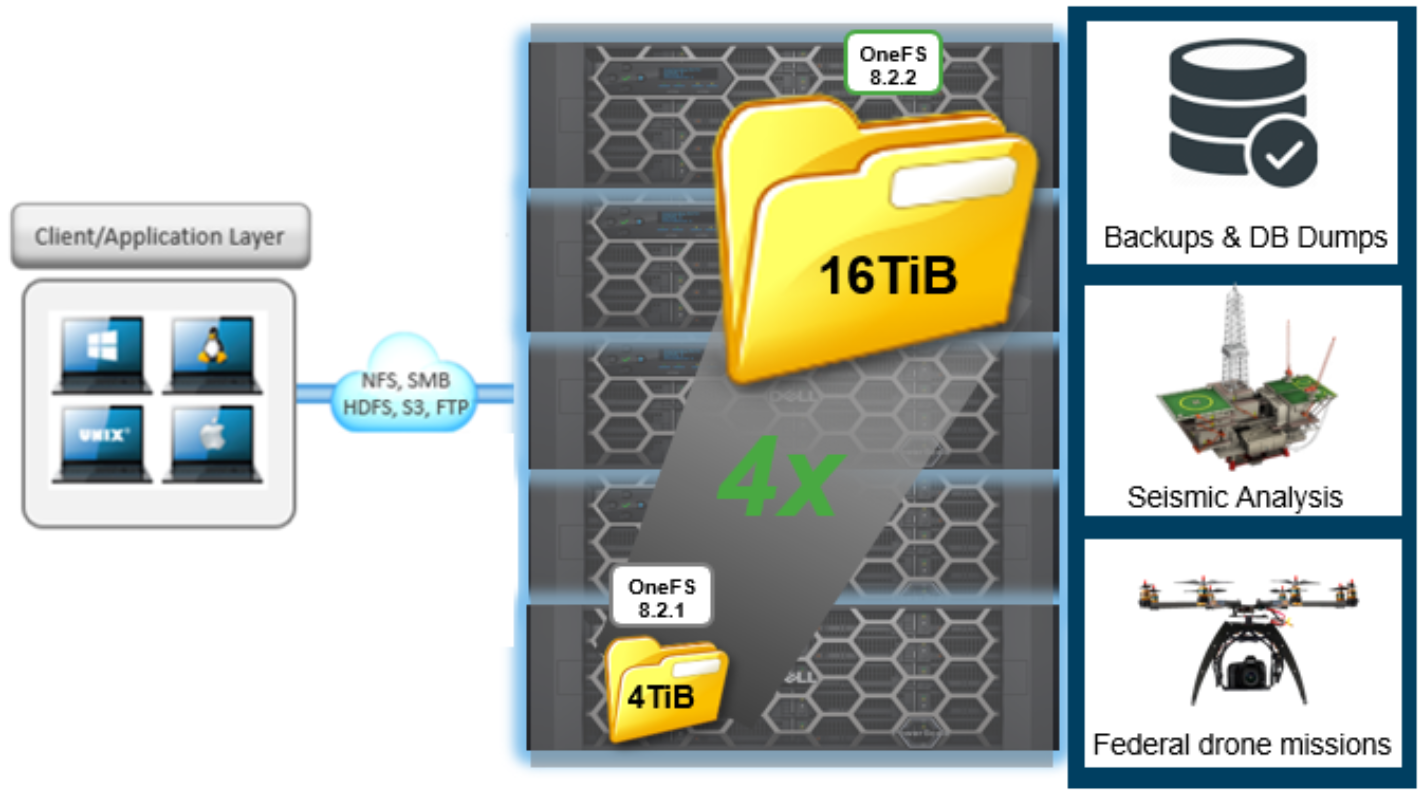
Figure 1. Large file applications and workloads
Architecture
Architecture
The way data is laid out across the nodes and their respective drives is fundamental to a cluster’s functionality, and this is particularly true for large files. Because OneFS consists of a single file system providing one vast, scalable namespace, a cluster can support datasets with hundreds of billions of small files, a smaller number of very large files, or some combination of the two—all within the same file system, free from multiple volume concatenations or single points of failure.
OneFS lays data out across multiple nodes, allowing files to benefit from the resources (drives and cache) of up to 20 nodes. This is significant not only for read and write performance but also for the rapid reconstruction of affected files in the event of a drive or node failure. OneFS uses Reed-Solomon erasure coding for protection at the file level, providing exceptional levels of storage utilization as well as enabling the cluster to recover data quickly and efficiently. OneFS provides protection against up to four simultaneous component failures respectively, and a single failure can be as little as an individual disk or an entire node.
Striped, distributed metadata coupled with continuous auto-balancing affords OneFS near-linear performance characteristics, regardless of the capacity utilization of the system. Both metadata and file data are spread across up to 20 nodes, keeping the cluster balanced at all times.
The OneFS file system employs a native block size of 8 KB, and 16 blocks are combined to create a 128 KB stripe unit. Files larger than 128 KB are protected with error-correcting code parity blocks (FEC) and striped across nodes. This allows files to use the combined resources of up to 20 nodes, based on the selected protection policy. For instance, a 16 TiB file stored on OneFS will use more than 134 million 128 KB stripe units, organized into data stripes and protected with parity according to the protection level.
In keeping with the goal of storage management simplicity, OneFS automatically calculates and partitions the cluster into node pools, consisting of three or more nodes, which are optimized for both protection and efficient space utilization.
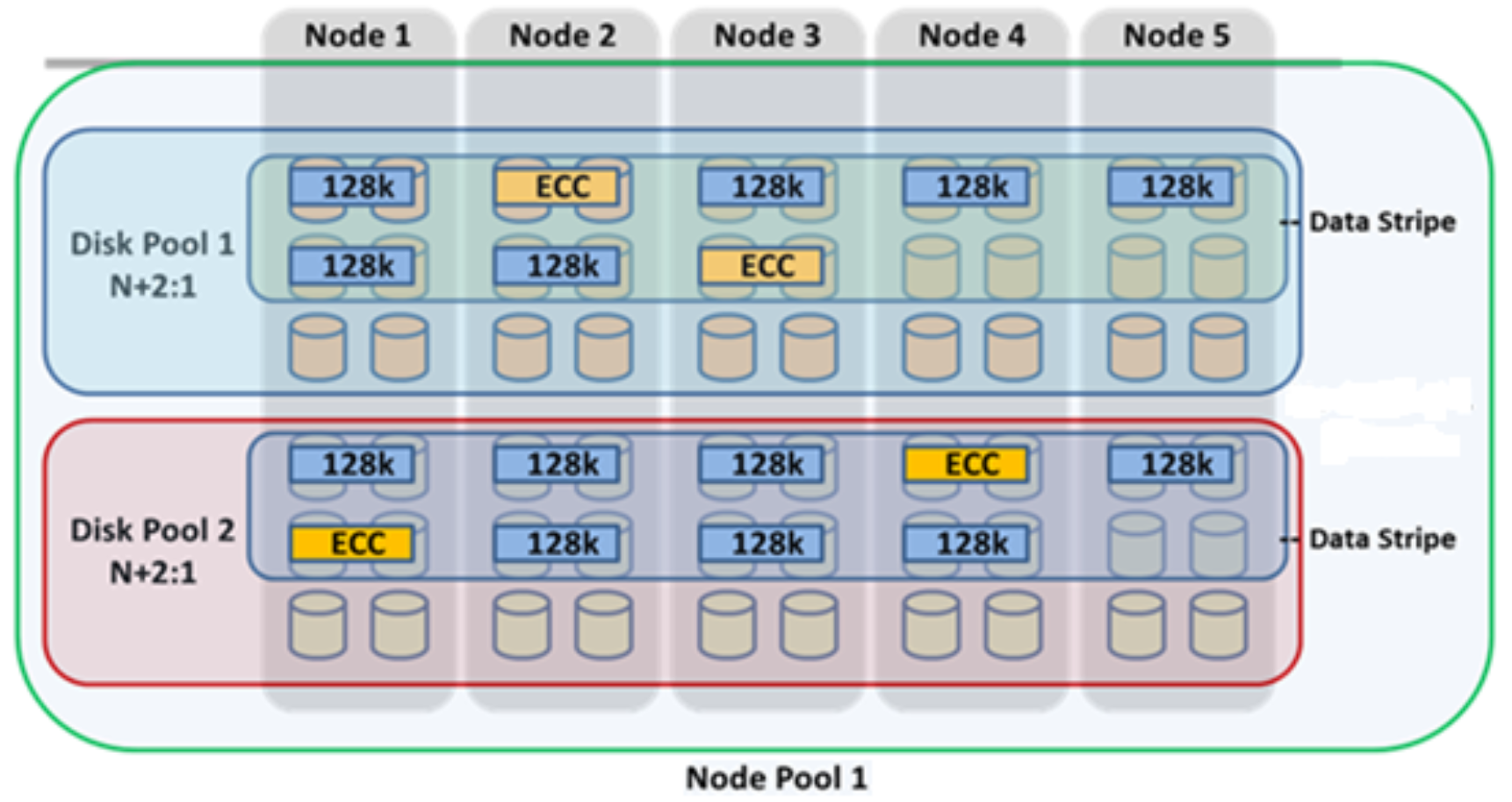
Figure 2. OneFS protection, striping, and pool hierarchy
Note: The best practice is to use the recommended protection level for a particular cluster configuration. This recommended level of protection is clearly marked as suggested in the OneFS WebUI storage pools configuration pages and is typically configured by default. In this example, the ubiquitous +2d:1n protection level guards against two drives or one node failure per node pool.
For more information about OneFS on-disk protection, see the High Availability and Data Protection white paper.
Each node pool is composed of one or mode disk pools from the same type of storage nodes, depending on the number of drives each node contains, and a disk pool may belong to exactly one node pool. Today, each node pool requires a minimum of three nodes.
Finally, OneFS neighborhoods are subdivisions of node pools that have been split into smaller groupings of nodes (fault domains) to increase reliability. Neighborhoods typically contain multiple disk pools and are a subgroup of a node pool and will not extend beyond the node pool bounds.
As described later in this paper, the large file compatibility checking command uses these pool and neighborhood concepts and references them in its output.
For more information on OneFS disk pools, node pools, neighborhoods, and tiers, see the SmartPools white paper.
Large file support prerequisites
Large file support prerequisites
Enabling large files
Introduction
Large file support is enabled on a cluster through the OneFS command-line interface (CLI), as shown in the following figure:
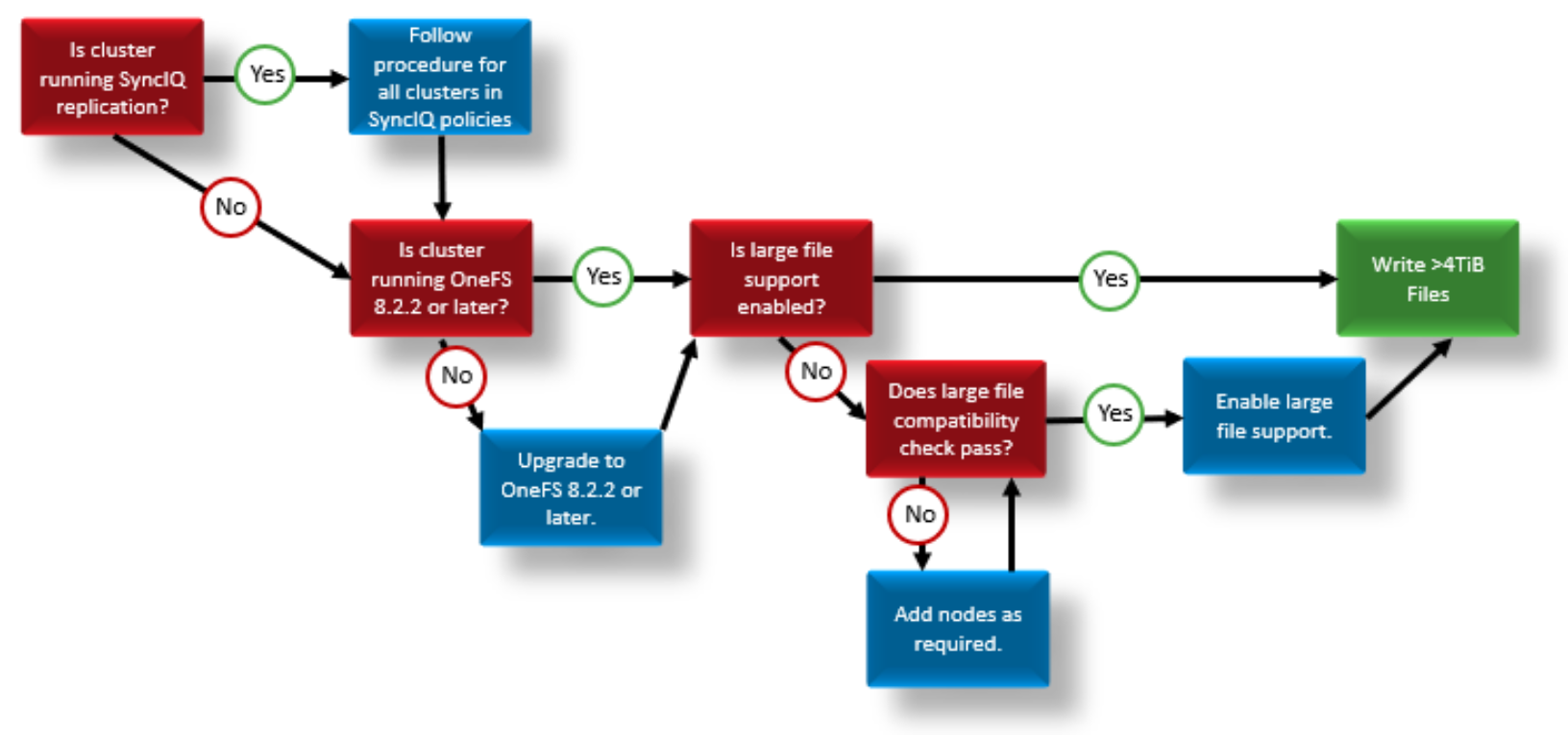
Figure 3. Large file support configuration flowchart
Note: Large file support is configured through the OneFS CLI. As of OneFS 9.4, the WebUI does not include a large file configuration option.
Configuring large file support
Step 1: Verify OneFS version
The uname CLI command output displays a cluster’s current OneFS version.
For example:
# uname -sr
Isilon OneFS v9.7.0.0
The current OneFS version information is also displayed at the upper right of any of the OneFS WebUI pages.
Step 2: Upgrade cluster’s OneFS version, if required
If the output from step 1 shows the cluster running a release earlier than OneFS 8.2.2, an upgrade is required. The upgrade can be accomplished either through the isi upgrade cluster CLI command or in the OneFS WebUI at ‘Settings > System Updates‘, or ‘Cluster Management > Upgrade’ in OneFS 9.14 and earlier releases.
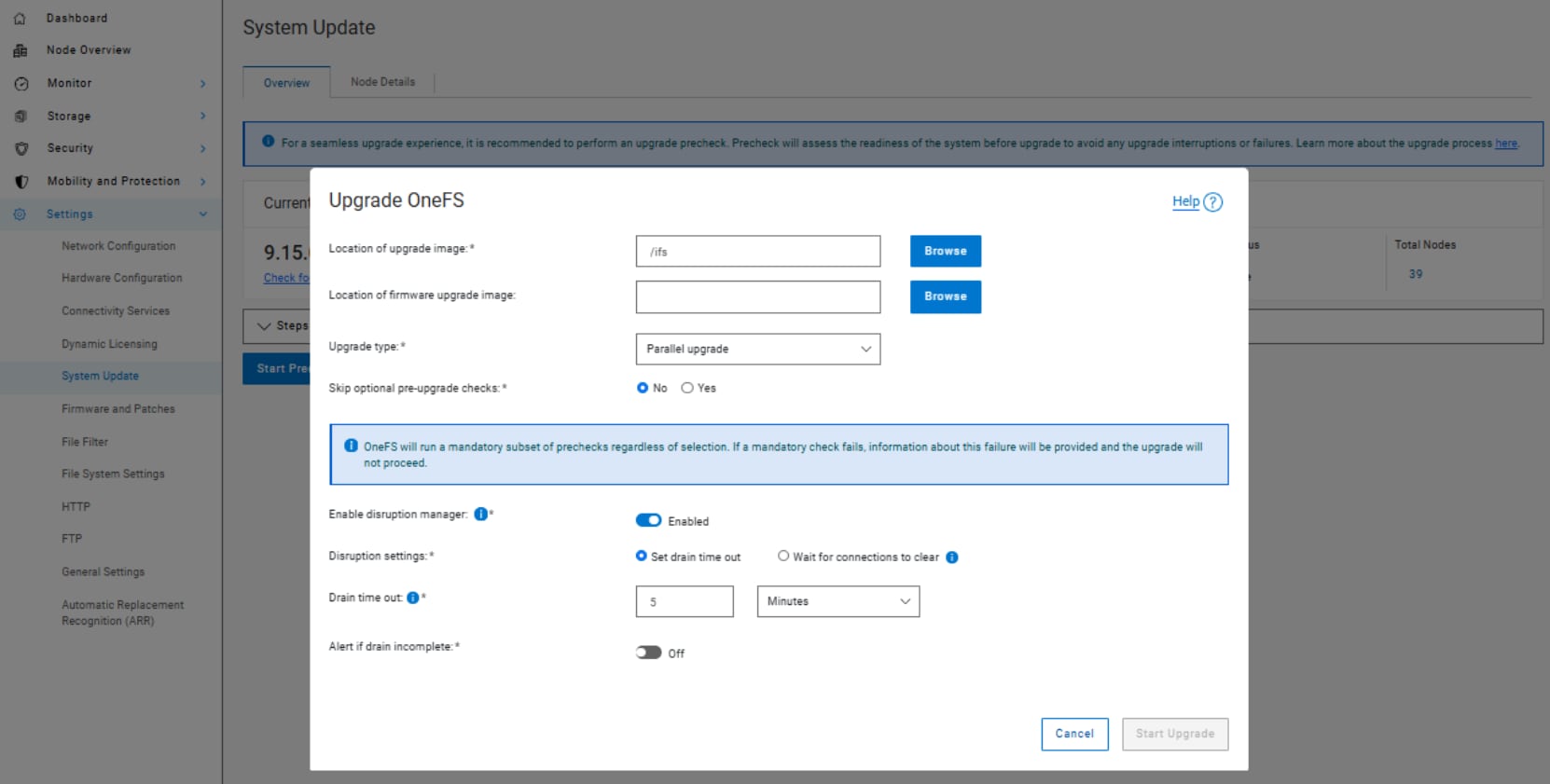
Figure 4. Upgrading OneFS through the WebUI
Once the upgrade has completed it must be committed, either by following the WebUI prompts, or through the isi upgrade cluster commit CLI command.
Step 3. Verify cluster’s large file support configuration
Run the isi_large_file -l CLI command to see a cluster’s large file support status. The following output example shows that the cluster already has large file support enabled:
# isi_large_file -l
System version: v9.7.0.0
Large file support ready: Yes
Large file support enabled: Yes
Current maximum file size: 16TB
Achievable maximum file size: 16TB
Conversely, the following example shows a cluster that does not have large file support enabled:
# isi_large_file -l
System version: v9.7.0.0
Large file support ready: Yes
Large file support enabled: No
Current maximum file size: 4.0TB
Achievable maximum file size: 16TB
Step 4. Confirm large file support compliance
To ensure that all node pools in the source cluster and any target clusters are compliant, run the following command:
# isi_large_file -c
The following table provides a description of the fields in the isi_large_file -c command output:
Table 1. Large file support compliance command output
|
Field |
Description |
|
Disk Pool Name |
Node pool name and this disk pool ID. |
|
Members |
Current nodes and drives that are part of this disk pool. |
|
Usable |
Current usable capacity of this disk pool. |
|
Required |
Usable capacity required for this disk pool to support large files. |
|
Potential |
The maximum usable capacity that this disk pool could support at the ideal neighborhood size (10 nodes for Isilon Gen6 platform, 20 nodes for PowerScale and earlier-generation Isilon hardware). Be aware that, as a cluster grows, disk pools might shrink in size to contain ideal neighborhood size members. |
|
Capable |
Whether this disk pool has the disk size and number per node to support large files. |
|
Add Nodes |
If this disk pool is capable, how many more nodes need to be added. |
Step 5: Resolve any compatibility check issues
If a cluster configuration does not meet the minimum criteria for large file support, the compatibility checking command output will indicate what the issue is and, where appropriate, what corrective action can be taken for a resolution. For example, consider the following output from a four-node PowerScale A3000 cluster:
# isi_large_file -c
Checking cluster compatibility with large file support...
NOTE:
Isilon requires ALL clusters in your data-center that are part of
any SyncIQ relationship to be running on versions of OneFS compatible with large file support before any of them can enable it. If any cluster requires upgrade to a compatible version, all SyncIQ policies in a SyncIQ relationship with the upgraded cluster will need to resync before you can successfully enable large file support.
* Checking SyncIQ compatibility...
- SyncIQ compatibility check passed
* Checking cluster disk space compatibility...
- The following disk pools do not have enough usable storage capacity to support large files:
Disk Pool Name Members Usable Required Potential Capable Add Nodes
-----------------------------------------------------------------------------------------------------------
a3000_200tb_800gb-ssd_16gb:2 1-4:bay3,7,11,15,19 175TB 213TB 439T Y 1
a3000_200tb_800gb-ssd_16gb:3 1-4:bay4,8,12,16,20 175TB 213TB 439T Y 1
a3000_200tb_800gb-ssd_16gb:4 1-4:bay5,9,13,17,21 175TB 213TB 439T Y 1
a3000_200tb_800gb-ssd_16gb:5 1-4:bay6,10,14,18,22 175TB 213TB 439T Y 1
Disk Pool Name - Node pool name and this disk pool id
Members - Current nodes and bays in this disk pool
Usable - Current usable capacity of this disk pool
Required - Usable capacity required for this disk pool to support large files
Potential - The max usable capacity this disk pool could support at the target node count
Capable - Whether this disk pool has the size of disk and number per node to support large files
Add Nodes - If this disk pool is capable, how many more nodes need to be added
The cluster is not compatible with large file support:
- Incompatible disk pool(s)
A3000-1# isi_large_file -c
Checking cluster compatibility with large file support...
NOTE:
Isilon requires ALL clusters in your data-center that are part of
any SyncIQ relationship to be running on versions of OneFS compatible
with large file support before any of them can enable it. If any
cluster requires upgrade to a compatible version, all SyncIQ policies
in a SyncIQ relationship with the upgraded cluster will need to resync
before you can successfully enable large file support.
* Checking SyncIQ compatibility...
- SyncIQ compatibility check passed
* Checking cluster disk space compatibility...
- The following disk pools do not have enough usable storage capacity to support large files:
Disk Pool Name Members Usable Required Potential Capable Add Nodes
-----------------------------------------------------------------------------------------------------------
a3000_200tb_800gb-ssd_16gb:2 1-4:bay3,7,11,15,19 175TB 213TB 439T Y 1
a3000_200tb_800gb-ssd_16gb:3 1-4:bay4,8,12,16,20 175TB 213TB 439T Y 1
a3000_200tb_800gb-ssd_16gb:4 1-4:bay5,9,13,17,21 175TB 213TB 439T Y 1
a3000_200tb_800gb-ssd_16gb:5 1-4:bay6,10,14,18,22 175TB 213TB 439T Y 1
Disk Pool Name - Node pool name and this disk pool id
Members - Current nodes and bays in this disk pool
Usable - Current usable capacity of this disk pool
Required - Usable capacity required for this disk pool to support large files
Potential - The max usable capacity this disk pool could support at the target node count
Capable - Whether this disk pool has the size of disk and number per node to support large files
Add Nodes - If this disk pool is capable, how many more nodes need to be added
The cluster is not compatible with large file support:
- Incompatible disk pool(s)
The most pertinent line of the output is last one, which states the fact that the cluster in its current configuration is unsuitable for supporting files larger than 4 TiB.
The summarized results of the two suitability checks are at the top of the output. In this case, the SyncIQ check passes, indicating that there are no uncompliant replication partner dependences. The second check of this cluster’s disk space (usable capacity) reports a failure. Beyond these checks, the following section of the output contains the bulk of the detail:
Disk Pool Name Members Usable Required Potential Capable Add Nodes
--------------------------------------------------------------------------------------------------
a3000_200tb_800gb-ssd_16gb:2 1-4:bay3,7,11,15,19 175TB 213TB 439T Y 1
a3000_200tb_800gb-ssd_16gb:3 1-4:bay4,8,12,16,20 175TB 213TB 439T Y 1
a3000_200tb_800gb-ssd_16gb:4 1-4:bay5,9,13,17,21 175TB 213TB 439T Y 1
a3000_200tb_800gb-ssd_16gb:5 1-4:bay6,10,14,18,22 175TB 213TB 439T Y 1
The following table displays this information about the first disk pool more clearly, with a description for each item:
Table 2. Compatibility checking command output
|
Item |
Result |
Description |
|
Disk Pool Name |
a3000_200tb_800gb-ssd_16gb:2 |
Node pool name and this disk pool ID (2 in this case) |
|
Members |
1-4:bay3,7,11,15,19 |
Current nodes and drives in this disk pool |
|
Usable |
175TB |
Current size (usable capacity) of this disk pool |
|
Required |
213TB |
The disk pool size (usable capacity) required to support large files |
|
Potential |
439T |
The largest this disk pool could be at the ideal neighborhood size (20 for PowerScale, 10 for Isilon Gen6, 30 for Isilon Gen5) |
|
Capable |
Y |
Whether this disk pool could support large files |
|
Add Nodes |
1 |
If this disk pool is capable of supporting large files, how many more nodes are required to support large files |
For this PowerScale A3000 cluster configuration, in each of the four disk pools, the delta between Usable and Required shows that each pool misses the minimum capacity requirement for large file support by 52 TiB. However, the Capable field indicates that this A3000 has the potential to be a viable configuration with the corrective action recommend in the Add Notes field. So, in this case, the addition of a second A3000 chassis (four nodes total, with one node per disk pool) to the cluster would meet the requirements for large file support.
Step 6: Configure large file support
Once you clear a stand-alone cluster, or all the clusters with replication dependencies, by running the compatibility checking script, enable large file support by running the following CLI command, which enables large file support on the source cluster and all associated target clusters:
# isi_large_file -e
Note: After large file support is enabled on a cluster, the ”cluster full” alert threshold is automatically lowered to 85 percent from the default of 95 percent. This reduction ensures that adequate space is available for large file creation, repair, and restriping.
Step 7: Confirm that large file support is enabled
Run the isi_large_file -l CLI command to confirm that the cluster is now configured to support large files:
# isi_large_file -l
System version: v9.7.0.0
Large file support ready: Yes
Large file support enabled: Yes
Current maximum file size: 16TB
Achievable maximum file size: 16TB
Note: Once large file support has been enabled on a cluster, it cannot be disabled.
Licensing requirements
Monitoring and reporting
Monitoring and reporting
Files larger than 4 TiB look, feel, and operate similarly to any other file under OneFS. As such, no special tools or flags are required to view performance or attributes of large files, beyond the regular file size commands (du, df, OneFS file explorer, and so on). For example, the following screenshot shows a 16 TiB file viewed from the OneFS file system explorer. You can access the file system explorer in the OneFS WebUI. Go to ‘Storage > File System Explorer’, or ‘File System > File System Explorer’ in OneFS 9.14 and earlier releases, and click View Property Details for the file system object of interest:
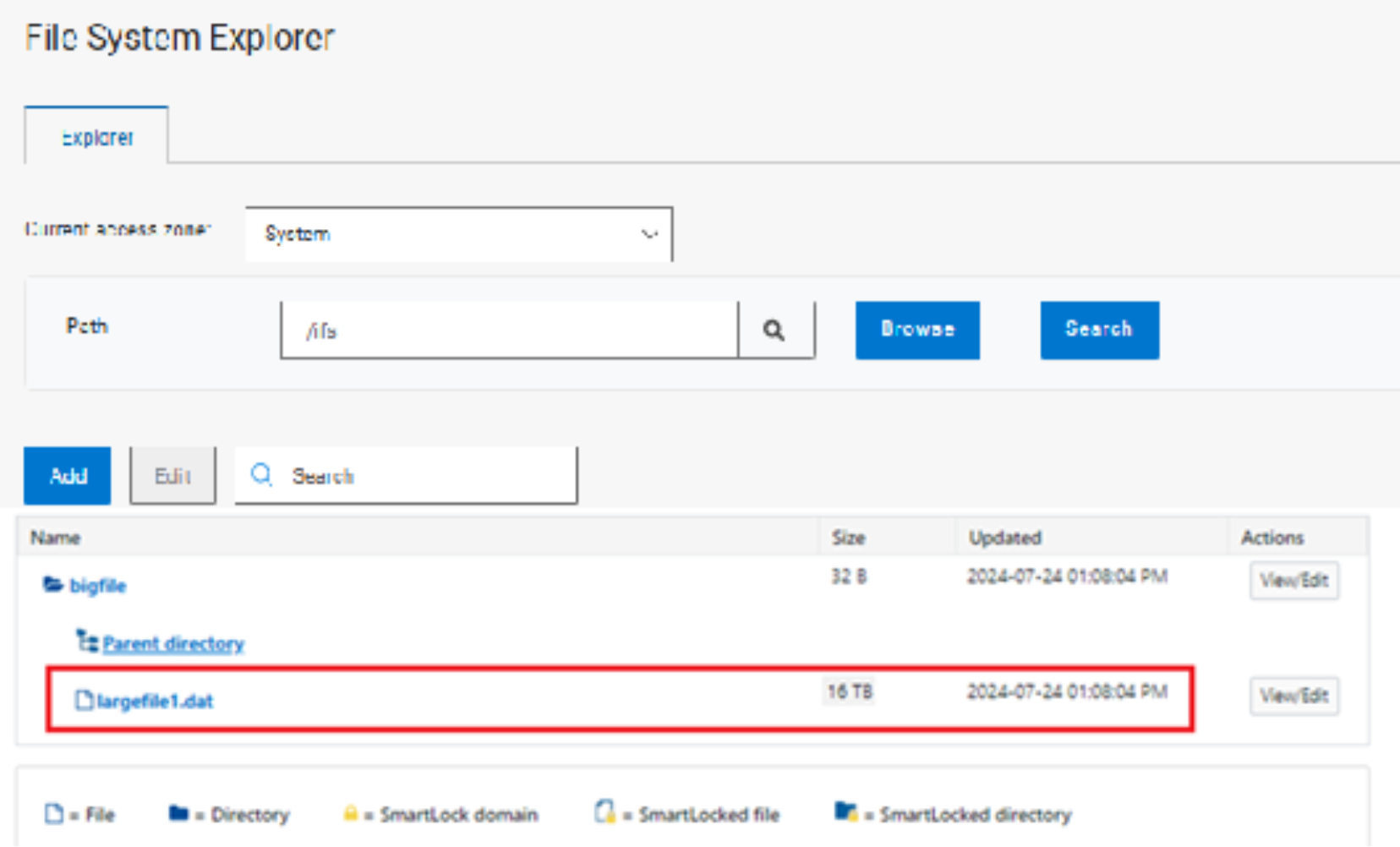
Figure 5. OneFS file system explorer
Here is a view of the same file from the OneFS CLI, reported both with and without protection overhead respectively:
# du -sh !$
18T largefile1.dat
# du -Ash l largefile1.dat
16T largefile1.dat
# ls -lsiah largefile1.dat
7721975847 19377986376 -rw-rw-rw- 1 root wheel 16T Apr 22 12:08 largefile1.dat
OneFS employs a unified permission model to ensure that authentication and data access control remains consistent, irrespective of the access protocol.
For more information about OneFS file permissions and access control, see the OneFS Authentication and Identity Management Guide.
For more granular file metadata information, the OneFS isi get CLI command provides several options to generate detailed output. Run without arguments, the command displays the data protection policy, stripe info (the number of disks that data and parity are written across), data access pattern, and write caching (coalescer) status.
# isi get largefile1.dat
POLICY LEVEL PERFORMANCE COAL FILE
+2d:1n 16+2 concurrency on largefile1.dat
The following table describes the basic output fields of the isi get command:
Table 3. isi get command output
|
Attribute |
Value |
Description |
|
Policy |
+2d:1n |
Displays the data protection policy, in this case the ability to survive two drive failures or one complete node failure. The color indicates the protection status of the file (green is healthy). |
|
Level |
16+2 |
Displays protection level or stripe information. This is the number of nodes a file’s data and parity blocks are written across, as illustrated in Figure 2. In this case, the file is striped across a total 18 nodes, containing 16 data blocks and 2 parity blocks. |
|
Performance |
concurrency |
Shows a file’s workflow-optimized layout strategy, which is essentially the number of drives per node a file is spread across. These strategies include:
OneFS also includes real-time adaptive prefetch, providing the optimal read performance for files with a recognizable access pattern, without any administrative intervention. |
|
Coal |
on |
Indicates whether the file is configured to use the OneFS coalescer, or write cache. This is an NVRAM-backed journal cache that buffers any pending writes to front-end files that have not been committed to disk. |
|
File |
largefile1.dat |
Displays the filename. |
For more information about file layout, optimization, and protection, see the OneFS Technical Overview white paper.
The isi get command offers additional flags and options for generating detailed contextual output, as shown in the following table
Table 4. Isi get command options
|
Command option |
Description |
|
-a |
Displays the hidden "." and ".." entries of each directory. |
|
-d |
Displays the attributes of a directory instead of the contents. |
|
-g |
Displays detailed information, including snapshot governance lists. |
|
-s |
Displays the protection status using words instead of colors. |
|
-D |
Displays more detailed information. |
|
-DD |
Includes information about protection groups and security descriptor owners and groups. |
|
-DDC |
Includes cyclic redundancy check (CRC) information. |
|
-L <LIN> |
Displays information about the specified file or directory. Specify as a file or directory LIN. |
|
-O |
Displays the logical overlay information and compressed block count when viewing a compressed file’s details. |
|
-R |
Displays information about the subdirectories and files of the specified directories. |
For example, the following syntax reports the location of a file's inodes on the cluster.
# isi get -D largefile1.dat | grep inode
* IFS inode: [ 23,1,13439049728:8192, 30,1,127052275712:8192, 38,13,158235410432:8192 ]
This shows the three inode locations, the first of which (23,1,13439049728:8192) is on node 23, drive 1 (logical drive number).
To complement the isi get command, the OneFS CLI also includes the isi set utility.
# isi set -h
usage: isi set [-fFLnvrR] [-p <policy>] [-w <width>] [-c on|off|endurant_all|coal_only] [-g <restripe_goal>] [-e <encoding>] [-d <@r drives>] [-a default|streaming|random|disabled|custom{1..5}] [-l concurrency|streaming|random] [--nodepool <id|name>] [--packing on|off] [--strategy|-s avoid|metadata|metadata-write|data] [--mm-access|-A on|off] [--mm-packing on|off] [--mm-protection|-P on|off] file_or_lin ...
For more information about OneFS commands and feature configuration, see the OneFS Administration Guide.
Large file performance
Large file performance
Large files and OneFS data services
Overview
SyncIQ requirements for large file replication
If large file support is enabled on a cluster with active SyncIQ replication policies, all source and target clusters with a remote replication dependency must satisfy the following prerequisites:
- OneFS 8.2.2 or later is installed and committed.
- Minimum requirements for disk pool size are met.
- Large file support is enabled.
Note: For any cluster not meeting these prerequisites, SyncIQ replication policies will fail upon an attempt to establish a connection.
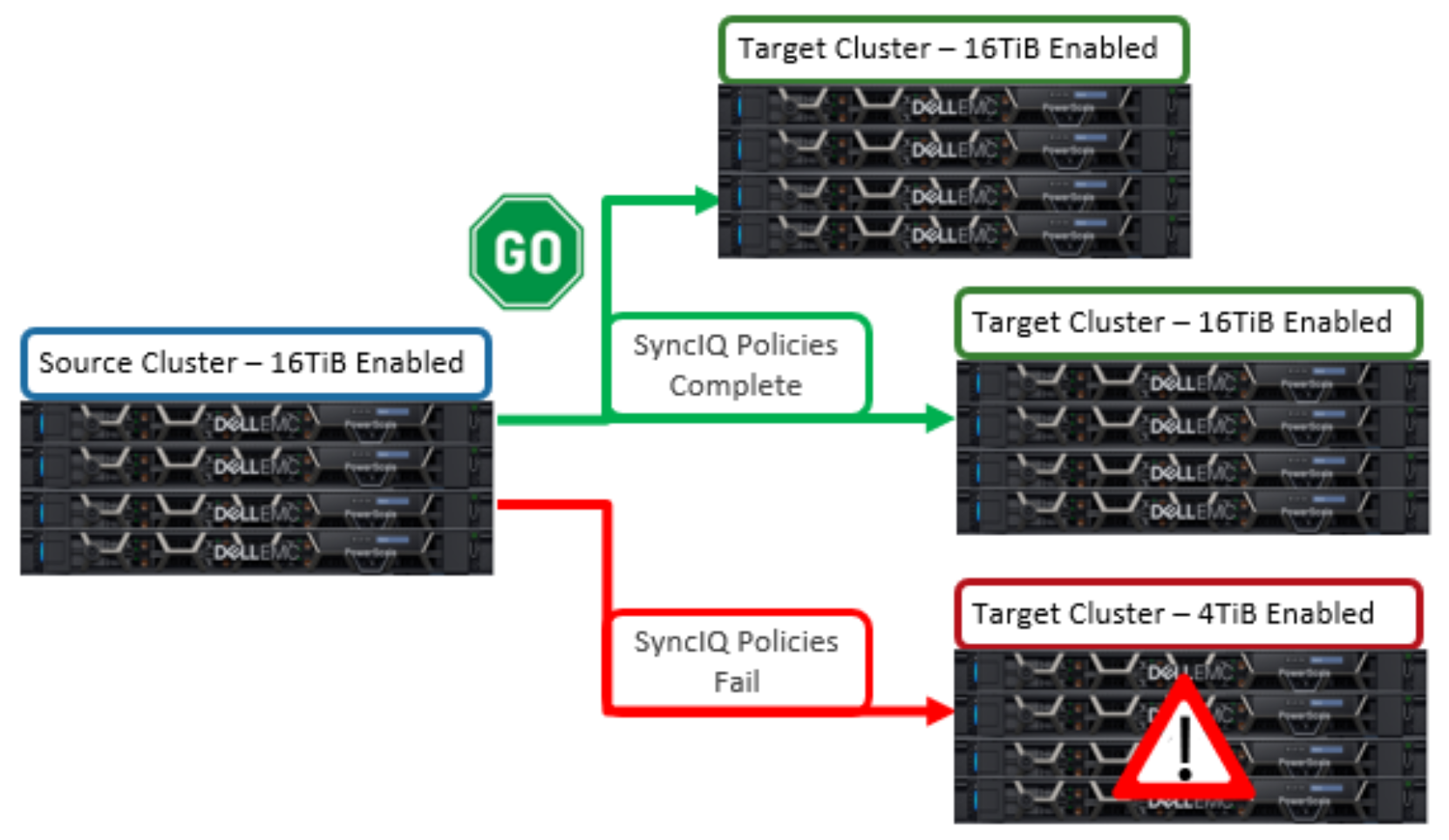
Figure 6. OneFS requirements for large file support within SyncIQ replication environments