PowerScale OneFS: macOS Client Performance and User Experience Optimization
Executive summary
OneFS and macOS
Apple systems running macOS are widely used in environments where PowerScale OneFS is the primary shared storage platform. This guide provides performance-tuning, and user-experience tweaks focused on macOS 11 (Big Sur), macOS 12 (Monterey), and macOS 13 (Ventura) when used with PowerScale OneFS 9.x.
The tunings in this guide provide advice for controlling macOS behavior when interacting with PowerScale storage. It is meant to allow administrators the ability squeeze the maximum performance out of the Apple client. Usually, the settings in this guide will not “fix” an environment where performance is unstable or unusable. In those cases, there are likely issues going on that are beyond the tuning advice in this guide. See troubleshooting advice in the section macOS network storage performance issues for some recommendations.
Historically, many optimizations were necessary on macOS to achieve maximum performance from network storage. These included adjustments such as Send and Receive Windows, Window Scaling, Inflight Bandwidth Calculation, TCP Slow Start, and others. Fortunately, many such optimizations are no longer necessary due to improvements in how macOS dynamically autotunes its network performance.
The following performance optimizations and user experience changes are covered in this document:
- Memory allocation to network stack, including changes to default nvram boot-args
- Settings in com.apple.desktopservices
- Preventing .DS_Store files
- • Edits to /etc/nsmb.conf
- SMB signing
- SMB session signing
- SMB notifications
- Force protocol version
- Alternate data streams (named Streams)
- Apple SMB extensions
- Force SMB multichannel to prefer wired connections
- • Spotlight search
- Why it is possible but a bad idea
- • Ethernet flow control
No single optimization is right for every environment. To take advantage of the tuning parameters outlined in this paper, testing is critical to determine how each change affects the performance of storage clients and their unique workloads.
Audience
This guide assumes the reader is proficient with macOS, the macOS command-line interface, OneFS, the OneFS command-line and UNIX style operating systems in general. It is written with storage and IT administrators in mind.
Revisions
|
Date |
Part number/ |
Description |
|
February 2019 |
|
Initial release |
|
March 2019 |
|
Minor updates |
|
April 2019 |
|
Updates on .DS Store and flow control |
|
June 2021 |
H17613 |
Updated for macOS 10.15 and 11. Added troubleshooting advice |
|
December 2022 |
H17613.1 |
Updated for macOS 11.7 and 12.6 |
|
June 2023 |
H17613.2 |
Updated for macOS 13 and Apple Silicon |
|
December 2023 |
H17613.3 |
Updated SMB credit recommendation |
|
June 2024 |
H17613.4 |
Minor updates |
We value your feedback
Dell Technologies and the authors of this document welcome your feedback on this document. Contact the Dell Technologies team by email.
Author: Gregory Shiff
Contributors: Simon Haywood, Rafal Szczesniak
Special Thanks: Thomas Berglund
Note: For links to other documentation for this topic, see PowerScale OneFS: Info Hubs.
Recommended Settings for PowerScale and macOS
On the PowerScale OneFS Cluster
It is counterintuitive, but the current state of Apple extensions causes large directory listings and opening of complex projects to be slow. Disabling Apple extensions in OneFS on the PowerScale cluster disables them for all clients, avoiding the individual operating system behavior.
The default SMB credit value in OneFS is 1024. Increasing this value to 8192 greatly improves macOS write performance.
This change assumes that the PowerScale cluster is on a private, secure network. This change is unnecessary for macOS 11+. However, when using the internal 10GBASE-T network interface on Apple hardware, failure to change this value can cause difficult to diagnose performance issues on older versions of macOS.
On the macOS client system
- Connect to the PowerScale cluster using the SMB protocol.
- Boot into Recovery Mode, enable ServerPerfMode (Intel Macs only) and increase network buffer allocation.
The default settings of the macOS network stack are not optimized for network storage performance. Making these changes means that the Apple system will devote more resources to networking.
- Use the defaults command to force macOS to ignore and not create DS_Store files on network shares.
Along with disabling Apple extensions on the PowerScale cluster, this optimization can greatly improve listing large directories in macOS Finder.
- If connecting by 10GbE or higher, change delayed_ack to 0
The default setting of 3 can degrade performance with networks greater than 1 GbE
- Configure the following changes to /etc/nsmb.conf
SMB signing is disabled by default, but given the performance implications, it is best to hard code this setting.
Reduce the incidence of password and connectivity problems.
SMB3 is the preferred protocol for macOS. If for some reason the client cannot connect by SMB3, it may be better to have the mount fail and trigger further investigation.
Having a macOS system try to connect by Wi-Fi when a wired connection is available will negatively impact performance.
Unless necessary, Spotlight search can lead to performance degradation on network shares with even small numbers of macOS clients.
On the network switches
- Enable flow control both RX and TX for all macOS clients and PowerScale front-end ports.
Lack of flow control can cause of out of order packets in macOS which can lead to performance problems for Apple clients.
Network storage protocols and macOS
Network storage protocols
macOS supports three network protocols: AFP, SMB, and NFS. There is some support for FTP in macOS, but that is out of scope for this document.
AFP is unsupported by PowerScale, and since macOS 10.9, AFP is not the default file-sharing protocol for macOS. As such, it is not covered in this document.
Historically, NFS was the protocol of choice for connecting macOS systems to PowerScale. NFS is no longer the best choice for macOS. Testing described in this paper concluded that SMB is as performant, and often more performant, than NFS on macOS.
SMB is the protocol of choice for macOS clients connecting to PowerScale storage. This paper shows that SMB consistently outperformed NFS on macOS, and describes additional topics:
- Alternate data streams (named streams) support
- PowerScale has robust support for macOS resource fork data stored through alternate data streams over SMB.
- OneFS does not support macOS clients writing resource fork data to alternate data streams over NFS.
- Full ACL support
- SMB fully supports file system ACLs for fine-grained control of file access permissions.
- OneFS supports NFSv4 ACLs which can be used on macOS, but because they can introduce further complexity, especially in multiprotocol, multiplatform environments, they are not recommended).
SMB3 Multichannel
SMB multichannel is a major advantage of SMB3. PowerScale OneFS 7.1.1+ supports SMB3 multichannel by default. Apple has introduced SMB3 multichannel support as of macOS 11.3+. Apple describes this functionality in the following KB article: Configure SMB Multichannel behavior.
SMB multichannel provides two features, failover between network links and additional throughput.
Testing for this paper indicates that failover works as expected in macOS 11.3+. A macOS client was configured with two 40GbE links to a OneFS file system (using an ATTO Thunderlink adapter). While the macOS client was playing back several streams of video from a OneFS storage volume, one of the network links was pulled from the switch. The video continued playing smoothly with few or no dropped frames.
However, when that network link was reestablished, the macOS client did not always recognize it. Usually, the network file system had to be unmounted, and the user had to log out and back into their account for the macOS client to reestablish the second link.
Multiple Ethernet connections to the storage only resulted in a small increase of aggregate throughput. Testing with 2x 10 GbE links to a OneFS file system showed approximately a 10% read improvement and a 20% write improvement. Testing with 2x 40 GbE links to the same file system showed little or no read and write throughput improvement. SMB multichannel support is new in macOS, and it is likely that over time the throughput benefits will improve.
The above Apple KB article on SMB multichannel behavior includes several /etc/nsmb.conf settings that impact how macOS uses this feature. Because SMB multichannel is enabled by default in OneFS, it is recommended to set macOS to use wired Ethernet links for SMB Multichannel. Using wireless connections for SMB multichannel could incur significant performance penalties.
To force macOS 11.3+ to prefer wired connections for SMB multichannel, add the following line to the /etc/nsmb.conf file:
mc_prefer_wired=yes
See Setting boot arguments in macOS in this document for more information about creating and editing /etc/nsmb.conf.
Using Apple internal 10GBASE-T NICs with PowerScale OneFS
Apple software driver problems
Before macOS 11, there were significant software driver issues with the integrated 10GBASE-T NICs in Apple hardware. A change in OneFS to protect against certain kinds of Denial of Service (DOS) attacks resulted in poor performance for Apple systems using integrated 10GBASE-T NICs. Fortunately, the macOS driver issues are resolved in macOS 11.
For users of older versions of macOS, there can be difficult to diagnose performance problems when using the internal 10GBASE-T NICs in Apple hardware. Fortunately, there is a change that can be made in OneFS that can improve performance for these older macOS systems.
Updating maxqueuelen
Updating the PowerScale cluster setting of net.inet.tcp.reass.maxqueulen to 2048 resolves these performance problems. This change is unnecessary for macOS 11+ users. The procedure for making the change is outlined in the following Dell KB article (login required): Sysctl Security Change Can Affect TCP Performance On Degraded Networks OneFS v8.1.0+.
Increasing net.inet.tcp.reass.maxqueulen can make the PowerScale cluster more vulnerable to certain DOS attacks, but if the PowerScale cluster is on a secure, private network, the risk is minimal.
To view the current setting of net.inet.tcp.reass.maxqueuelen, run the following CLI command (default value is 100) from OneFS:
sysctl net.inet.tcp.reass.maxqueuelen
Temporarily change the value on a particular PowerScale node:
sysctl net.inet.tcp.reass.maxqueuelen=2048
Have the clients check the network to confirm that the performance issue has been resolved. The change should be immediate: the macOS clients do not need to unmount/remount the volume.
If the issue is resolved, change the value for the whole cluster on reboot by editing the following file:
/etc/mcp/defaults/sysctl.conf
If the sysctl exists, edit that line. If it is not in the file, add these lines to the bottom of the file:
net.inet.tcp.reass.maxqueuelen=2048
Push the change to all nodes in the cluster:
isi_sysctl_cluster net.inet.tcp.reass.maxqueuelen=2048
Disabling Apple SMB extensions in OneFS
About Apple SMB extensions
Apple has added several macOS-specific features to their implementation of SMB. Primarily, these features address the handling of file metadata stored in alternate data streams as described previously. OneFS supports these features:
ReadDirAttr: This feature changes how macOS handles reads of file metadata stored in an alternate data stream when listing the contents of large directories. Finder info, access rights, and resource fork size are returned more efficiently for the files in the directory.
OsxCopyFile: With the SMB2 protocol, Microsoft implemented server-side optimizations when copying files between directories on the file share. The extension introduced by Apple ensures that all Apple-specific file metadata is properly copied along with the file itself. The copy process is also simplified because it is performed in one request, as opposed to splitting the requests into logical chunks. When performing a large server-side copy, the macOS Finder ignores updates from the server. During these copies, the Finder copy progress bar does not update and may appear to have stopped responding. When the copy finishes, the progress bar snaps to complete.
In versions 10.13+, macOS has changed how it interacts with SMB servers to pull directory file listings. Unintuitively, the Apple SMB extensions can slow performance in workflows that have directories with high file counts or elaborate project files (such as complicated video edit projects). Disabling Apple extensions in OneFS improves performance in those situations.
Disabling Apple extensions on the PowerScale cluster
It is not possible to disable Apple-specific SMB extensions from the Apple client in macOS 10.15 and later. Instead, the Apple extensions must be disabled on the OneFS storage cluster itself. To disable Apple SMB extensions in OneFS, run the following command from the OneFS CLI:
isi_gconfig \
registry.Services.lwio.Parameters.Drivers.srv.smb2.EnableAppleExtensions=0
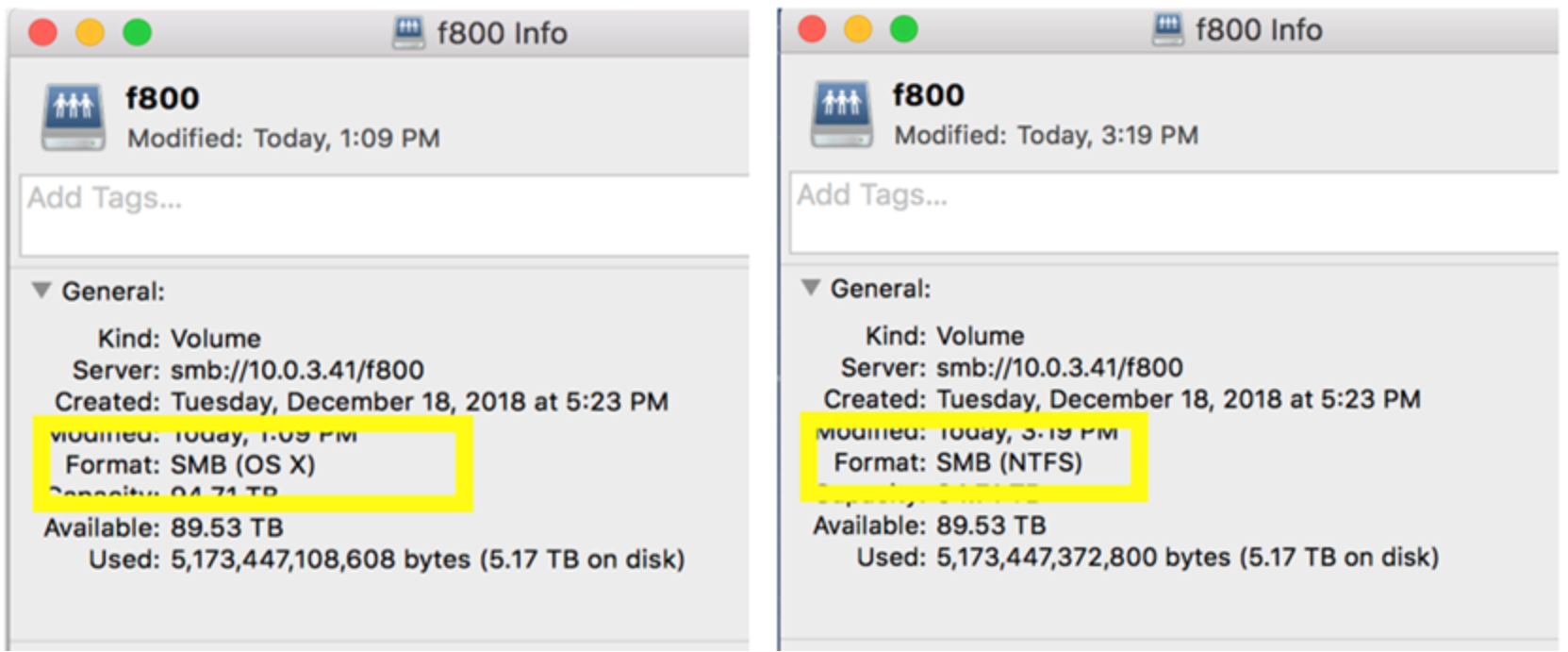
The following screen captures show the file share information before and after Apple extensions were disabled. Notice that before the extensions are disabled, macOS identifies PowerScale as a fully native file share, while afterwards, PowerScale shows up as an NTFS share. NTFS is the preferred setting.
Setting boot arguments in macOS
Boot arguments
Several boot arguments (boot-args) can be configured to increase the amount of system resources allocated to network performance in macOS. These include increasing network buffer size and enabling ServerPerfMode (Intel Macs only).
Configuring boot-args must be done from the macOS terminal while the system is booted into Recovery Mode. Apple describes the process of booting to recovery mode in the article Mac startup key combinations.
To view boot-args, run the following terminal command:
nvram boot-args
Setting boot-args explicitly from the command line will overwrite existing boot-args. Apple provides sample code in the KB article about ServerPerfMode that uses sed and cut to append existing boot-args to newly set ones. The example in that article is for ServerPerfMode and can be adapted for other settings such as ncl.
Client systems have a finite number of resources. Allocating additional system resources to the network stack means that there is less RAM and CPU available for other purposes. Administrators need to be aware of the implications of changing the defaults (as outlined below) and should be prepared to roll the changes back if the client systems become constrained.
Increase network memory allocation
In macOS Monterey and Ventura, the default network memory allocation has been increased making this optimization unnecessary. Before performing this optimization, check the current setting from the macOS command line:
sysctl -a | grep nmbclusters
This will return the setting for kern.ipc.nmbclusters which should be 242144 or higher. If the value of kern.ipc.nmbclusters is lower, proceed with this optimization to increase it.
On Intel based Apple hardware, after booting into recovery mode, launch the Terminal application and use the following commands to add a boot argument. This command will overwrite any existing boot-args:
nvram boot-args="ncl=262144"
This setting is the number of 2 KB clusters assigned to the network buffer and is calculated as follows:
(262,144 * 2) / 1,024 = 512 MB
After setting this nvram boot argument, reboot the macOS system for the changes to take effect. When the Mac has rebooted, run the following terminal command to verify the boot argument:
nvram boot-args
To remove boot-args settings, run the following terminal command:
nvram -d boot-args
Adding boot-args on Apple Silicon based machines requires an extra step. While booted into recovery mode, System Integrity Protection (SIP) needs to be disabled. Once SIP is disabled, reboot the machine into recovery mode a 2nd time and add the boot-args listed above. Once set, reboot the machine into recovery mode a 3rd time and re-enable SIP protection. Thankfully, this process is probably unnecessary as Apple has increased the default kern.ipc.nmbclusters value for Monterey and Ventura.
Configure ServerPerfMode (Intel Macs only)
ServerPerfMode updates various sysctl settings in macOS to increase system resources available to the network stack. While the name suggests that this setting is aimed at Apple systems being used as servers, testing has shown that client systems also benefit by enabling ServerPerfMode. In one example, a video file in the Canon C200 codec at 50 MBps (400mbps) would not play back smoothly until ServerPerfMode was enabled. The system dropped frames despite both the Apple hardware and PowerScale storage providing more than enough performance, and other heavier codecs playing fine.
Apple does not provide specific documentation about all the changes enabled by ServerPerfMode. The only documentation about how to enable it is: Turn on performance mode for macOS Server.
There is some discussion online about some of the sysctl changes that take place, such as this discussion on apple.stackexchange.com. The exact changes may largely depend on the total amount of RAM in the Apple system. One way to check would be to run the command sysctl -a from the CLI before and after the change, dumping the output to two text files to compare.
To enable ServerPerfMode, boot the Apple client system into Recovery Mode. When in Recovery Mode, run the following command from the Terminal application (existing boot arguments will be overwritten):
nvram boot-args=”serverperfmode=1”
Appending Boot Arguments
In this KB article about enabling ServerPerfMode, Apple provides terminal commands to add new boot-args without overwriting existing boot-args. Below are those commands adapted for both ServerPerfMode and ncl. All commands assume that the Apple system is booted into Recovery Mode.
To set both ServerPerfMode and ncl simultaneously, overwriting existing boot-args, run the following command from macOS Terminal:
nvram boot-args=”serverperfmode=1 ncl=262144”
To remove all boot-args simultaneously:
nvram -d boot-args
To enable ServerPerfMode and keep existing boot-args:
nvram boot-args="serverperfmode=1 $(nvram boot-args 2>/dev/null | cut -f 2-)"
To disable ServerPerfMode and keep existing boot-args:
nvram boot-args="$(nvram boot-args 2>/dev/null | sed -e \
$'s/boot-args\t//;s/serverperfmode=1//')"
To update the ncl setting and keep existing boot-args:
nvram boot-args="ncl=262144 $(nvram boot-args 2>/dev/null | cut -f 2-)"
To remove the ncl setting and keep existing boot args:
nvram boot-args="$(nvram boot-args 2>/dev/null | sed -e \
$'s/boot-args\t//;s/ncl=262144//')"
To update both ServerPerfMode and ncl simultaneously while keeping existing boot-args:
nvram boot-args="serverperfmode=1 ncl=262144 $(nvram boot-args 2>/dev/null \
| cut -f 2-)"
To remove both ServerPerfMode and ncl settings simultaneously while keeping other boot-args:
nvram boot-args="$(nvram boot-args 2>/dev/null | sed -e \
$'s/boot-args\t//;s/serverperfmode=1//;s/ncl=262144//')"
Increase SMB credits in OneFS
The default SMB credit value in OneFS is 1024. This is fine for most use cases, but it has been shown that macOS systems expect a higher value. Increasing this value to 8192 greatly improves write performance on macOS systems. This comes at the expense of increased load on the OneFS cluster, so care should be taken when increasing this value on clusters that already have a high workload.
Increasing SMB credits in OneFS
To increase SMB credits in OneFS, use the following CLI command from the OneFS cluster:
isi_gconfig registry.Services.lwio.Parameters.Drivers.srv.smb2.ClientCreditLimit=8192
The SMB service must be restarted on the OneFS cluster with these commands. Restarting the SMB service on the cluster will be disruptive to all SMB clients:
isi services smb disable
isi services smb enable
Preventing .DS_Store files on network shares
Defaults command
The way macOS Finder treats directories accessed through SMB can be changed by using the CLI defaults command to update preferences in com.apple.desktopservices.
Apple has outlined this behavior in the support article Adjust SMB browsing behavior in macOS High Sierra 10.13 and later.
Users must log out and log in again for changes to take effect.
.DS_Store files on network shares
The macOS Finder automatically creates .DS_Store files in every folder it accesses. This file stores metadata about how to display that directory’s contents. The reading and writing of these files can slow down performance when listing the contents of directories with high file counts.
It is possible to prevent macOS from creating .DS_Store files on network shares in macOS 10.13 and above. In the absence of a .DS_Store file, macOS will list the contents of a folder in alphanumeric order only upon initial open. Listing folders in this way has been shown to reduce the time for macOS to display the contents of directories with large numbers of files.
The following macOS CLI command prevents macOS 10.14 and higher from reading or creating .DS_Store files on network shares:
defaults write com.apple.desktopservices DSDontWriteNetworkStores -bool TRUE
After running this command, you must log out, and log in for the changes to take effect.
For more information about .DS_Store files, see the DS_Store Wikipedia article.
Viewing com.apple.desktop.services
The defaults command can also be used to view the contents of com.apple.desktopservices to see if DSDontWriteNetworkStores has been configured.
defaults read com.apple.desktopservices
With a macOS client configured to not create .DS_Store files, the output will look like this output:
ladmins-iMac-Pro:~ ladmin$ defaults read com.apple.desktopservices
{
DSDontWriteNetworkStores = 1;
}
Delayed acknowledgments in macOS
TCP delayed_ack
There are many explanations for TCP delayed acknowledgment (delayed_ack), as described in the article TCP Performance problems caused by interaction between Nagle’s Algorithm and Delayed ACK. For most uses of TCP, delayed acknowledgment is a good thing and makes network communication more efficient. TCP acknowledgments are added to subsequent data packets. However, in practice on macOS, particularly with network connections greater than 10 GbE, TCP delayed acknowledgment can cause performance degradation.
There are four options in macOS for setting the characteristics of delayed_ack:
- delayed_ack=0: Responds after every packet (OFF)
- delayed_ack=1: Always employs delayed_ack; 6 packets can get 1 ack
- delayed_ack=2: Immediate ack after 2nd packet; 2 packets per ack (Compatibility Mode)
- delayed_ack=3: Should auto-detect when to employ delayed ack; 3 packets per ack
Delayed ack
The default setting in macOS is delayed_ack=3. Testing has shown that in some environments, particularly where the client is reading and writing simultaneously, delayed_ack=0 improves performance. Rendering a video sequence is an example of such behavior.
Changing delayed_ack with sysctl
To query the current setting of the client, enter the following at the macOS command line:
$ sudo sysctl net.inet.tcp.delayed_ack
Example response:
net.inet.tcp.delayed_ack: 3
To temporarily change this setting, enter the following at the macOS command line:
$ sudo sysctl -w net.inet.tcp.delayed_ack=0
Example response:
net.inet.tcp.delayed_ack: 3 -> 0
Changing delayed_ack with sysctl will not persist across reboots.
/etc/sysct.conf
In previous versions of macOS it was possible to change the default delayed_ack value using /etc/sysctl.conf. MacOS now ignores delayed_ack settings in this file. As such, alternative methods such Launch Deamon plist files are required to make changes to delayed_ack persist across reboots. Creation of Launch Deamons is beyond the scope of this document.
Edits to /etc/nsmb.conf
/etc/nsmb.conf
The /etc/nsmb.conf file is a plain text file that offers configuration settings for how macOS treats SMB shares. If this file is not present on a system, create it with a text editor. The /etc/nsmb.conf file is divided into sections as outlined on its man page. For these edits, defaults for all SMB shares need to be set. The first line in the file should be [default], followed by the parameters and their values:
[default]
parameter=value
parameter2=value2
parameter3=value3
After updating /etc/nsmb.conf, unmount and remount SMB shares from the macOS system for the changes to take effect.
SMB signing
Packet signing increases the security of SMB connections by helping prevent man-in-the-middle attacks. Essentially, a digital signature attached to each packet helps the client system confirm that data has not been tampered with while in transit.
Packet signing is enabled by default in OneFS and is also the default behavior for SMB2 and SMB3 connections on macOS versions 10.11.5 through 10.13.3. Later versions of Apple’s documentation leave doubt as to when SMB signing is enabled. This archived KB article HT205926 states:
Packet signing for SMB 2 or SMB 3 connections turns on automatically when needed if the server offers it.
The extra overhead of packet signing can cause significant performance degradation on the latency-sensitive, high-performance workloads common to PowerScale OneFS. The security risks posed by man-in-the-middle attacks need to be assessed for each environment. When possible, it is recommended that these workflows take place on private, secure networks, and that packet signing is disabled on the macOS client.
Testing for this paper showed that SMB signing was automatically enabled on the macOS client when connecting to a native Apple file server. SMB signing did not get enabled automatically when connecting to PowerScale OneFS (which also offers SMB signing).
Given the inconsistent nature of the SMB signing behavior in macOS, it is recommended to manually disable the feature using the /etc/nsmb.conf file.
Apple outlines disabling SMB signing in the support article Turn off packet signing for SMB 2 and SMB 3 connections.
To disable SMB signing on macOS, add the following entry to /etc/nsmb.conf:
signing_required=no
After updating /etc/nsmb.conf, unmount and remount SMB shares from the macOS system for the changes to take effect.
SMB session signing
SMB3 introduces security enhancements that help prevent man-in-the-middle attacks during the initiation of an SMB client connection to an SMB server. SMB session Signing is different from SMB signing which adds a digital signature to each packet. SMB session signing can be described to protect an SMB session from being tampering with as it commences. When macOS client systems are bound anonymously to a directory server, SMB session signing may cause authentication errors when a system tries to connect to an SMB share.
In situations where proper network credentials are not working from macOS systems running version 10.13+, disabling SMB session signing may resolve the issue. As with disabling SMB signing, disabling SMB session signing reduces the security of an SMB connection and is recommended on systems running on private, secure networks.
Apple describes session signing and how to disable it in the support article If you can't mount SMB share hosted by a Mac bound to Open Directory.
Add the following line to the /etc/nsmb.conf file:
validate_neg_off=yes
After updating /etc/nsmb.conf, unmount and remount SMB shares from the macOS system for the changes to take effect.
SMB change notifications
SMB change notifications provide macOS with updates or changes to mounted file shares. SMB notifications provided by PowerScale provide the macOS client with this information in a OneFS environment. With a busy file share, the macOS Finder may refresh itself frequently. Users may notice their file listings fluctuating or Finder windows reset to the top-level directory while browsing. To avoid this behavior, it is possible to disable the Finder from requesting SMB change notifications.
Applying this setting can break workflows that require SMB notifications for folder listings to be current. For example, the collaborative Productions feature in Adobe Premiere Pro relies on change notifications to be active on all clients participating in the Production. Disabling change notifications can also lead to data corruption and other issues where multiple users are accessing the same files and directories. As with all macOS optimizations, great care and testing are required to ensure that enabling this setting does not cause workflow problems.
To disable SMB notification, add the following line to the /etc/nsmb.conf file:
notify_off=yes
After updating /etc/nsmb.conf, unmount and remount SMB shares from the macOS system for the changes to take effect.
Force SMB protocol version
Under certain circumstances, it may be desirable to force macOS to connect through a particular version of SMB. The following edits to /etc/nsmb.conf force a particular SMB version. macOS uses a binary bitmap to specify which version of SMB to use. Add protocol_vers_map= with the appropriate value to force protocol types, as in the following examples.
# Protocol version is specified using binary bitmap
# 1 => 0001 => SMB 1 only
# 2 => 0010 => SMB 2 only
# 3 => 0011 => SMB 1 or 2
# 4 => 0100 => SMB 3 only
# 6 => 0110 => SMB 2 or 3
# To Force SMB 3 only:
protocol_vers_map=4
# To Force SMB 2 or 3 only
protocol_vers_map=6
Enabling alternate data streams (named streams)
PowerScale OneFS supports storing Apple resource fork data transparently in an alternate data stream, also called a named stream. The named stream prevents creation of AppleDouble files, increases macOS performance when writing to OneFS, and helps prevent file corruption.
To better understand this feature, see the following background information.
When macOS stores a file, that file is composed of two forks. There is a resource fork which contains extended attributes about the file itself, such as the file’s icon. There is also a data fork which contains the file data. When macOS writes data to local file systems such as HFS+ or APFS-formatted volumes, the resource fork data is stored in an alternate data stream. The resource fork is not visible to users or systems accessing those files; only the file itself is shown with all its associated metadata.
When macOS writes to a storage system that does not support alternate data streams, the resource fork data still needs to be stored somewhere. In this case, macOS stores the resource fork data in AppleDouble files. These files begin with ._ followed by the file name. For example, saving a file called file.dat results in two files being created on the file system: file.dat and ._file.dat. These “extra” files degrade performance because it increases the file operations on the target storage system. File corruption can also become an issue if a non-macOS system overwrites or deletes the AppleDouble files.
As mentioned previously in this section, OneFS supports storing resource fork data in an alternate data stream, which prevents the creation of AppleDouble files. It is the default behavior of macOS 10.5+ to use an alternate data stream on an SMB server if the feature is available (as it is on OneFS). When writing through NFS, macOS will revert to storing resource fork data as AppleDouble files (another good reason always to use SMB with macOS).
OneFS intelligently manages resource fork data so that even non-Apple systems connected by NFS can interact with files created or used by SMB-connected macOS systems.
It is not necessary to force macOS to use alternate data streams (the default since macOS version 10.5). Nonetheless, some administrators feel more comfortable explicitly enabling this feature in /etc/nsmb.conf by adding the following line:
streams=yes
The following archived support document outlines this functionality: Mac OS X v10.5, v10.6: About named streams on SMB-mounted NAS, Mac OS X, and Windows servers; "-36" or "-50" alerts may appear.
Prefer wired connections for SMB multichannel
macOS 11.3 adds SMB3 multichannel support as described in Apple KB HT212277. Apple outlines a couple of settings to multichannel behavior that can be changed with /etc/nsmb.conf. One such setting is to force multichannel to prefer wired connections. Due to the possible negative performance impacts of using Wi-Fi with SMB multichannel, it is recommended to force macOS to prefer wired connections.
To force macOS 11.3 to prefer wired connections for SMB multichannel, add the following line to /etc/nsmb.conf.
mc_prefer_wired=yes
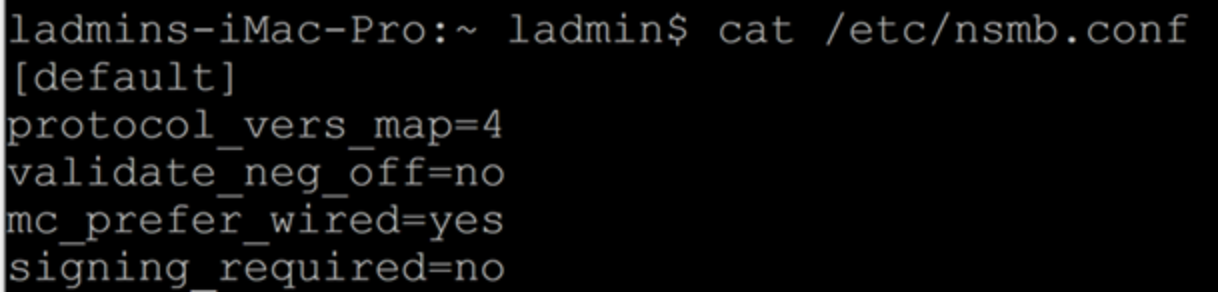
Example /etc/nsmb.conf
The following shows an example of the /etc/nsmb.conf file.
Spotlight search of network shares
Spotlight search
Spotlight search of network volumes (including PowerScale OneFS) is possible in macOS, but there are significant performance implications to consider. Each individual Apple client maintains its own local database of the network share. Having even a single Apple client update its index of a file system will degrade performance for all users until the index operation is complete. It is therefore recommended to disable Spotlight indexing of all network shares.
To verify the status of Spotlight search of the PowerScale OneFS volume, run the following terminal command from the Apple client:
mdutil -s /path/to/network/share/
Disable Spotlight index of a mounted volume
The macOS process that maintains the Spotlight index, mdworker, is aggressive in building its database. Mdworker will begin creating this database quickly after being enabled. Even a few macOS systems could cause significant storage traffic and degrade performance for other users.
When the OneFS file system is used for latency sensitive workflows, such as video editing, Spotlight search should be disabled on network storage. For fast file system search in those environments, alterative tools may be more appropriate.
You can disable Spotlight indexing of a network volume in several ways.
From the macOS UI, add the network volume to the list at:
System Preferences > Spotlight > Privacy
From the macOS command line, specify:
mdutil -i off /path/to/network/volume
or
mdutil -d /path/to/network/volume
Enabling Spotlight search
To enable Spotlight search on the network share, follow this process from the Apple client:
- From the macOS UI, verify that the network volume is not listed:
System Preferences > Spotlight > Privacy
- From the macOS terminal, disable Spotlight for the network share:
sudo mdutil -i off /path/to/network/share
- Erase any existing Spotlight index for that share:
sudo mdutil -E /path/to/network/share
- Reenable Spotlight indexing for the share:
sudo mdutil -i on /path/to/network/volume
If enabling Spotlight search on the network volume fails, examine the permissions on the share. They may need to be made more permissive.
When Spotlight indexing has begun, keep an eye on the mdworker process running on the Apple client.
The Apple client system stores a local index of the network volume on its internal storage. Separate indexes are maintained for each network storage login and IP address. As a result, it is conceivable that multiple indexes of the same network volume could reside on a single Apple client. These indexes can grow large depending on the size and complexity of the volume being scanned. The Spotlight index files for network storage are located here:
/var/db/Spotlight-V100/LocalVolumes/
Note: As of macOS 12, listing the contents of this directory is not allowed.
Occasionally, users may find that Spotlight search of a network volume stops returning fresh results. The only fix for a “broken” Spotlight index is to disable search, erase the database, and reenable search, as outlined above.
Performing Spotlight searches of network volumes
Spotlight search of network volumes is slightly different from how macOS users are used to using Spotlight.
- Spotlight search results for network volumes do not show up using the macOS key command “Command+Space bar”.
- Spotlight search results for network volumes do not show up in searches using the Magnifying Glass icon in the upper right corner of the macOS Desktop.
- Spotlight search results only show up when searching from the search field in the upper right corner of a macOS Finder window with the network share selected.
The following figure shows a Spotlight search for the term “autodesk” on the network volume “Space”.
Flow control and macOS
Ethernet flow control
Flow control is an Ethernet traffic management system. It is primarily designed to reduce packet loss due to network congestion. Flow control functions by introducing Ethernet pause frames into the network stream. The inner workings of flow control is a complex topic that is beyond the scope of this document.
Testing has shown that the macOS network stack can easily be overrun by high-performance network storage (such as PowerScale). This condition will result in a large number of out of order packets during reads. Out of order packets result in inconsistent read performance. Enabling flow control, both RX and TX, for the network switch ports to which both the PowerScale storage and the Apple client machines are connected alleviates this issue.
It is easy to diagnose if a lack of flow control is causing out of order packets on the macOS client. The nettop CLI command in macOS displays a column labeled rx_ooo that shows the number of out of order packets. Use of this command is covered in the section Observe macOS network statistics in this document. But to summarize, run the following command from the macOS CLI:
nettop -m tcp -p kernel_task -J interface,bytes_in,bytes_out,rx_dupe,rx_ooo,re-tx,rtt_avg,rcvsize,unacked,tx_win
While that command is running, initiate a large read from the PowerScale cluster on the macOS client, such as playing back a long video file. The rx_ooo value will increase rapidly, and the counter may even reset during the read.
Enable flow control on both client and storage switch network ports and rerun the test. The rx_ooo column will either stop increasing entirely or only by a few KiB.
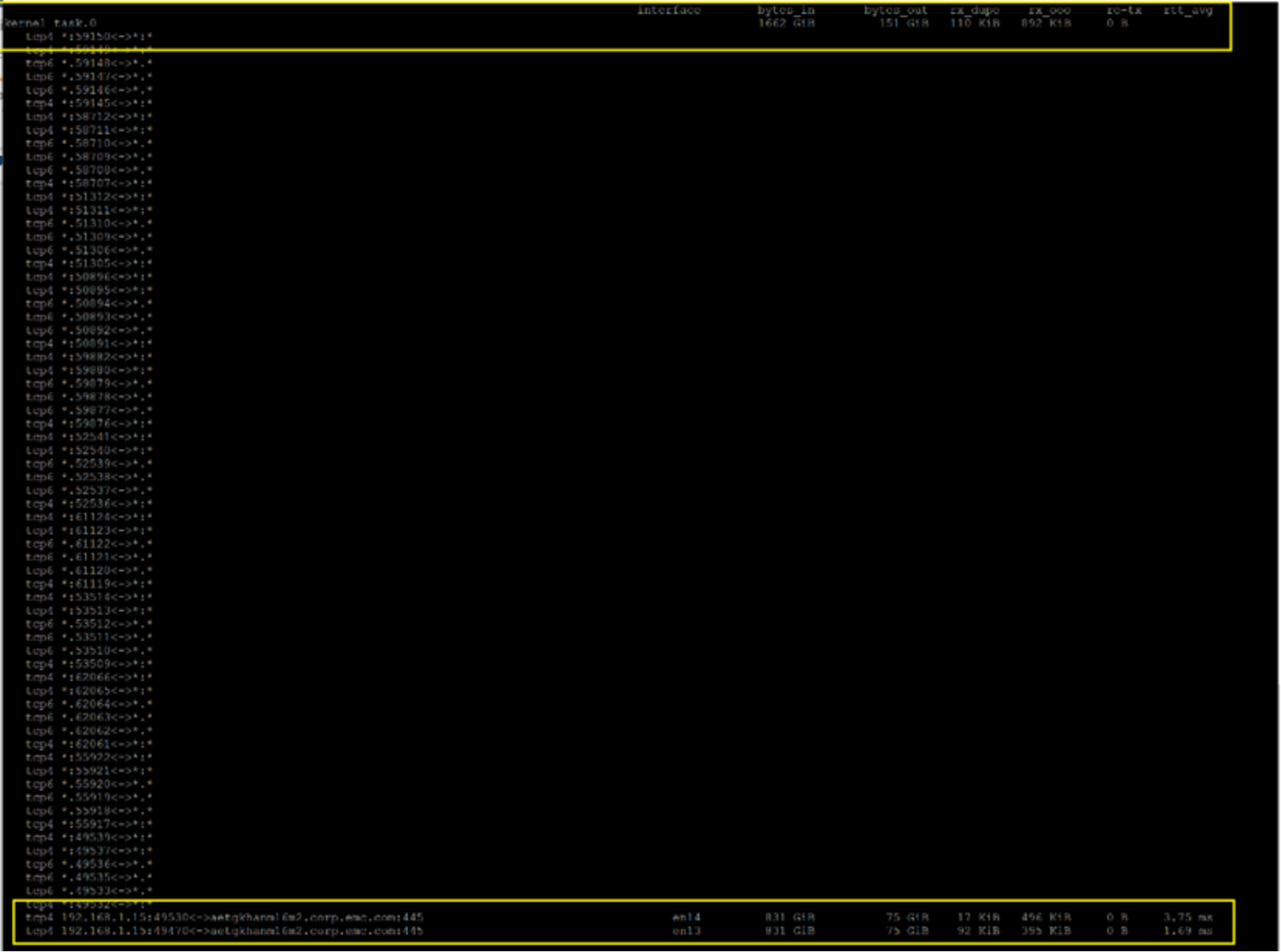
Here is a partial screen capture of the output of that command:

macOS network storage performance issues
Where to start?
Administrators often arrive at this tuning guide when trying to solve macOS performance problems. The settings outlined in this document can be the difference between average macOS performance and exceptional performance. However, the recommendations in this paper are not intended to “fix” environments where macOS systems are in an unusable state. An exception is the change of net.inet.tcp.reass.maxqueuelen for older versions of macOS, which does make a huge difference. Also enabling flow control on the network switch can greatly improve inconsistent performance.
The good news is that a fresh install of macOS 11+ connected to a PowerScale cluster works reasonably well with no tuning whatsoever. An untuned macOS client should be able to browse the file system, open, read, and write files.
The question arises of where to start when macOS systems are slow to browse the file system, will not open or save files, and video playback is dropping frames. The trick here is to reduce complexity in the system, get back to a known good state, and work backwards to the user’s end state. Determining where the problem lies (storage, network, client) is nontrivial in the best of circumstances. The following suggestions have helped administrators track down their problems and answer those challenging questions.
Reduce complexity
The network itself is often the biggest source of complexity in a production environment. Removing as much of the network as possible between the client and storage is a good first step.
- If possible, connect the macOS client directly into one of the PowerScale front-end network ports.
- Otherwise connect the macOS system into the same switch as the PowerScale front-end ports.
- If plugged through a switch, verify that flow control (RX and TX) is enabled for all macOS and storage ports.
- • Verify that the macOS system is on the same subnet and VLAN as the PowerScale and that no routing is required for the client system to access the storage.
- Use standard 1500 MTU size. Also, confirm that ping times between the macOS client and PowerScale are low (and conversely).
- 9000 MTU can provide extra performance in macOS for the most demanding workflows. Unfortunately, 9000 MTU often causes more problems than it solves due to MTU mismatch on the network. Having all devices work well using 1500 MTU first and then experimenting with 9000 MTU is the recommended path.
If good performance is achieved with these steps, try advancing one network hop at a time to determine where functionality breaks down and efforts must be focused.
Simplify the client
Did the system ever work as intended? Or did something change to “break” performance? Reimaging the macOS client back to a known good state is another thing to try:
- Using Recovery Mode, reimage the client back to a base install of macOS.
- Reinstall any third-party network drivers.
- Verify the latest driver version and macOS compatibility. Unfortunately, it is common for new versions of macOS to break compatibility.
- Verify speed of Thunderbolt cables and which Thunderbolt ports are in use.
- Thunderbolt 1 and Thunderbolt 2 cables look physically identical but provide different types of performance. Using Thunderbolt 1 cables with Thunderbolt 2 compatible devices will not realize the full performance capabilities of PowerScale or the Apple client.
Thunderbolt speeds can be checked from Apple menu > About this Mac > System Report > Thunderbolt.
- This ATTO technical bulletin shows which Thunderbolt ports to use on various types of Apple hardware to avoid disconnects and performance issues: ATTO Technical Bulletin January 2020.
Observe macOS network statistics
From the macOS terminal, the nettop command is an easy way to observe periodically updated network statistics (default interval 1 second). The feedback provided by nettop can be helpful to understand how the macOS client is communicating with network storage during certain application workloads. The following command shows macOS TCP behavior for the kernel_task process, which is the parent process for all SMB connections on TCP port 445:
nettop -m tcp -p kernel_task -J interface,bytes_in,bytes_out,rx_dupe,rx_ooo,re-tx,rtt_avg,rcvsize,unacked,tx_win
Key metrics to look at, when analyzing network statistics with nettop are:
- rtt_avg – Round-Trip Time average (latency)
Should be as low as possible. If there are spikes above 10 milliseconds, bandwidth and performance will be negatively impacted. TCP and especially SMB traffic over TCP are sensitive to latency.
- rx_ooo – Out of order TCP packets
Can be a sign of the client not being able to reassemble packets.
- re-tx – TCP Retransmits
Can be a sign of latency or packet loss.
- rx_dupe – TCP Duplicate ACKs
The higher the latency is, the more Duplicate ACKs will appear.
High latency or large amounts of out of order packets will degrade performance. Either of these issues could be the result of operating system or driver issues on the Apple client. Other causes could be network issues between the client and storage, or latency problems on a software or hardware-related layer such as intermittently busy or queued up disks.
To confirm if high latency is related to SMB read or write requests, you can try capturing Wireshark/tcpdump trace files with a capture filter for port 445. When the capture is stopped, look at Statistics > Service Response Time > SMB2, and look out for high MAX SRT values. Details about Wireshark and tcpdump are out of scope for this paper.
Before going down the rabbit hole of analyzing TCP packets, try to simplify the environment (as outlined above). Reducing the number of variables between the client and the storage system is a good starting point.
The following figure shows the output of the nettop command. (Note that the relevant output is well below the column headings.)
Examining SMB mounts with smbutil
smbutil output
The macOS CLI utility smbutil can provide useful information about what features are available and enabled on SMB-mounted file shares. The following command displays information about mounted SMB shares and their supported features:
smbutil statshares -a
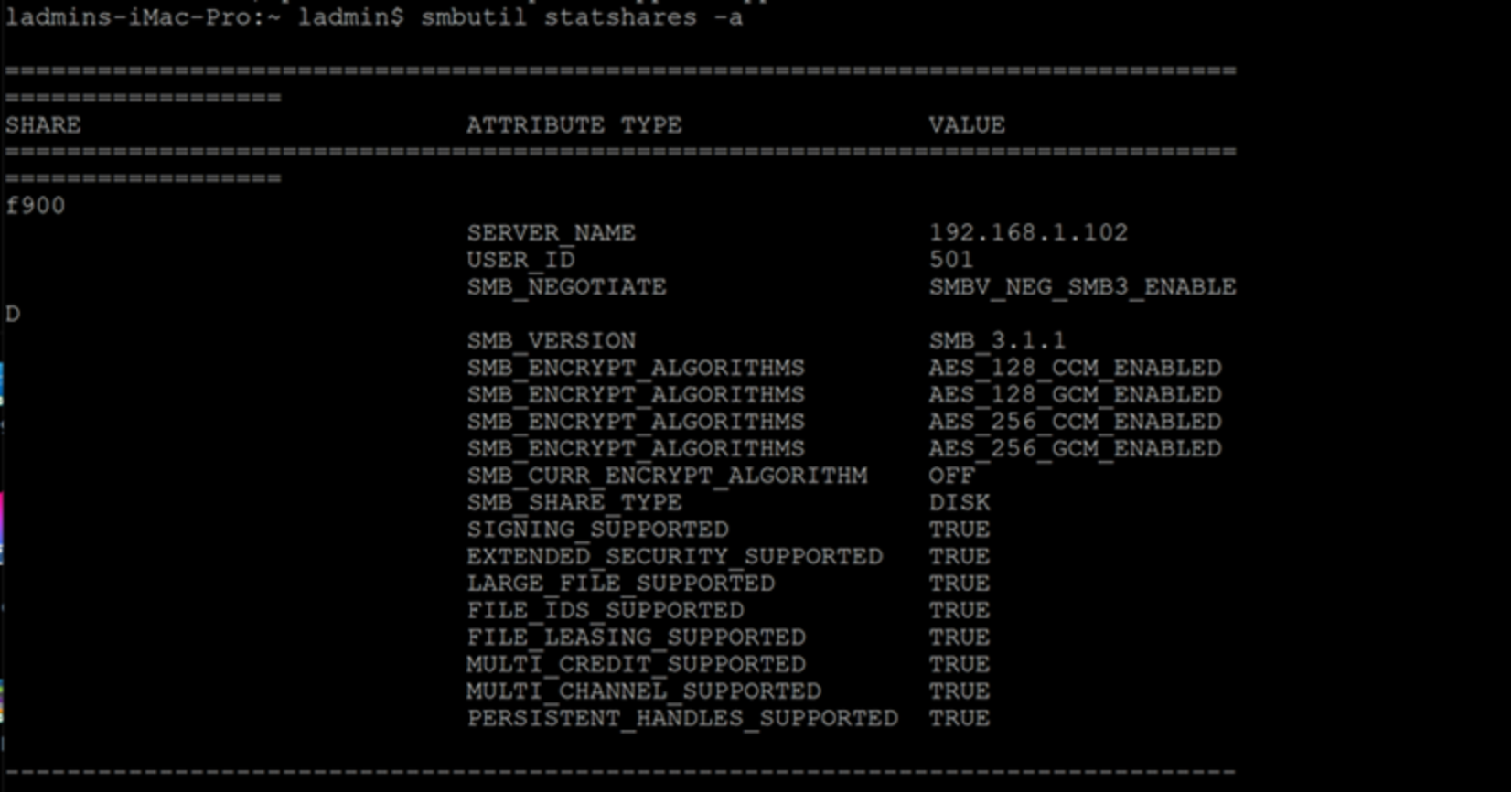
Running this command helps administrators verify that edits made to /etc/nsmb.conf have taken effect. It shows information about the SMB that is not available elsewhere in macOS.
The following shows sample output of this command on a macOS 11 system while connecting to a PowerScale cluster running OneFS 9.4. Apple Extensions have been disabled on the PowerScale cluster, and the macOS client has been forced to use SMB3.
Observe SMB3 multichannel
The smbutil command also has arguments for observing SMB3 multichannel operation. These commands can be used to verify that SMB multichannel is functional and that the appropriate NICs are involved in the multiple connections. Here is a sample command:
smbutil multichannel -m /path/to/network/share
The following is an example partial output. Notice that macOS is misreporting the speed of the links (they are 25GbE). This incorrect report does not impact the real network speed.

References
Dell Technologies documentation
The following Dell Technologies documentation provides other information related to this document. Access to these documents depends on your login credentials. If you do not have access to a document, contact your Dell Technologies representative.
Apple KB Articles
The following Apple documentation provides additional information: