PowerScale RAG Connector
Oct 6, 2026
Executive summary
Executive summary
Overview
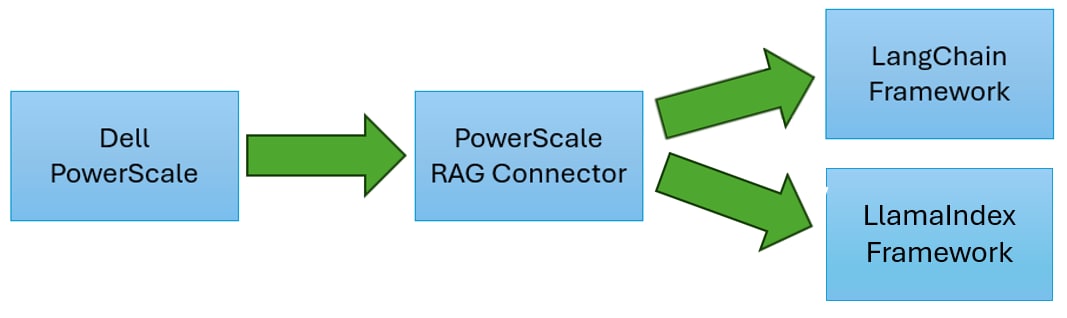
The PowerScale RAG Connector is an open-source Python library designed to enhance RAG application performance during data ingestion by skipping files that have already been processed. It leverages PowerScale's unique capability to identify changed files within its storage system and provides this information in an easily consumable format via MetadataIQ.
Developers can integrate the PowerScale RAG Connector directly within LangChain or LlamaIndex as supported document loaders, or use it independently as a generic Python class. Version 2 introduces stable file identity tracking using logical inode numbers (lin) to handle file modifications and prevent stale content in vector databases. This document demonstrates these integration options in the following sections.
Workflow of connector
Audience
The intended audience for this document includes software developers, machine learning scientists, and AI developers who will utilize files from PowerScale in the development of a RAG application.
This guide is divided into two sections: setting up the environment and using the connector. Note that system administration privileges are required for the initial configuration on PowerScale, which may need to be performed by PowerScale administrators.
Terminology
The following table provides definitions for some of the terms that are used in this document.
| Term | Definition |
| RAG | Retrieval Augmented Generation. A technique used to take an off the shelf large language model and provide the LLM context to data it has no knowledge of. |
| LangChain | LangChain is an open-source python and javascript framework used to help developers create RAG applications. |
| LlamaIndex | LlamaIndex is a data framework for building LLM applications that provides tools for data ingestion, indexing, and retrieval. |
| Nvidia NIM Services | Part of Nvidia AI Enterprise, a set of microservices that can optional be used to efficiently chunk and embed files with GPU. The output of this data can be stored in a vector database for a RAG framework to use. |
| NV-Ingest | An Nvidia NIM microservice that will ingest complex office documents files with tables, and figures, and produce chunks and embedding to be stored in a vector database. |
| Logical Inode Number (lin) | A unique, persistent identifier assigned by PowerScale OneFS to every file that does not change when a file is renamed, moved, or modified. Used in v2 to track file identity and handle modifications. |
| Chunking |
The process of splitting the source file into smaller context aware pieces that can be searched and converted into vectors. Example: a chunk could be every paragraph within a large office document |
| Embedding | Turning a chunk of data into a vector where vector operations such as similarity, can be performed. |
| MetadataIQ | A new feature in PowerScale OneFS 9.10 that will periodically save filesystem metadata to an external database such as Elasticsearch |
| PowerScale RAG Connector | An open-source connector that can integrate with LangChain or LlamaIndex to improve data ingestion when data resides on PowerScale. |
Revisions
| Date | Part number/ revision | Description |
| March 2025 | H04465 | Initial release |
| August 2026 | H04465.1 | Version 2 |
Note: This document may contain language from third-party content that is not under Dell Technologies’ control and is not consistent with current guidelines for Dell Technologies’ own content. When such third-party content is updated by the relevant third parties, this document will be revised accordingly.
We value your feedback
Dell Technologies and the authors of this document welcome your feedback on this document. Contact the Dell Technologies team by email.
- Author
- Adam Brenner
- Contributors
- Michael Horgan, Sanne Bloemsma
MetadataIQ Overview & Setup
MetadataIQ Overview & Setup
MetadataIQ Overview
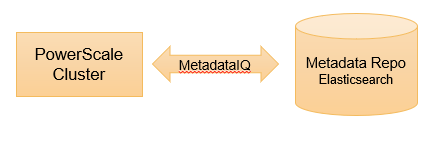
MetadataIQ is a new feature introduced in PowerScale OneFS 9.10 that copies filesystem metadata (such as file path, size, owner, type, etc.) to an external Elasticsearch database. MetadataIQ continuously updates the Elasticsearch index when files are added, modified, or deleted on OneFS. It can be configured to monitor the entire filesystem (/ifs) or specific portions of it, saving metadata to Elasticsearch.
MetadataIQ is highly optimized, utilizing internal OneFS features to quickly and efficiently detect modified files using OneFS snapshots and its changelist. It automatically manages the lifecycle of PowerScale snapshots without impacting performance, usage, cloud pools, or daily cluster operations.
The initial configuration of MetadataIQ is performed via the PowerScale command line interface and requires elevated administrative privileges. This one-time setup configures the connection to Elasticsearch. An automated job scheduler then runs continuously, requiring no user involvement to keep Elasticsearch updated with the latest filesystem changes.
Additionally, it is the customer's responsibility to deploy, configure, and monitor Elasticsearch. This guide will cover the basics of deploying Elasticsearch for development purposes only.
PowerScale and MetadataIQ Components
Deploy and Configure Elasticsearch
Elasticsearch can be deployed in various scenarios, including bare metal, virtual machines, containers, and as-a-service. All these deployment options are compatible with MetadataIQ. MetadataIQ requires HTTP or HTTPS connectivity to Elasticsearch with a specific API key. This guide will cover deploying Elasticsearch on Ubuntu, running either on bare metal or a virtual machine.
Note: The information about deploying and configuring Elasticsearch is for reference only. Further configuration and tuning for your environment should be done to ensure a secure and performant setup.
This information was obtained from Install Elasticsearch with a Debian package on March 2025. Please consult the webpage for the most up to date and accurate information.
Install Elasticsearch on Ubuntu
The recommend way to install Elasticsearch on Ubuntu by using built in package manager, apt.
First step is to download and install the Elasticsearch public signing key.
wget -qO - https://artifacts.elastic.co/GPG-KEY-elasticsearch | sudo gpg --dearmor -o /usr/share/keyrings/elasticsearch-keyring.gpgNext step is to install configure the package manager sources list to download the prebuild deb packages directly from Elastic
sudo apt-get install apt-transport-https

echo "deb [signed-by=/usr/share/keyrings/elasticsearch-keyring.gpg] https://artifacts.elastic.co/packages/8.x/apt stable main" | sudo tee /etc/apt/sources.list.d/elastic-8.x.list
Finally, we can install Elasticsearch using the apt package manager command
sudo apt-get update && sudo apt-get install elasticsearchIf no errors exist with the installation process, Elasticsearch should now be installed. To enable it on system startup, run the following command:
sudo systemctl daemon-reload && sudo systemctl enable elasticsearch.serviceStart the Elasticsearch manually and take careful note of the first-time deployment information such as the username and password. This information will be required to configure PowerScale to write filesystem information to Elasticsearch.
sudo systemctl start elasticsearch.service
Note: Elasticsearch will output administrator password to the terminal and its path to self-signed CA certificate. Take note of this information. If you need to reset the password, you may run the elasticsearch-reset-password command.
You can verify Elasticsearch is online by running the following command:
curl --cacert /etc/elasticsearch/certs/http_ca.crt -u elastic:${ELASTIC_PASSWORD} https://localhost:9200 Configure PowerScale for MetadataIQ
PowerScale administrators must perform an initial configuration of MetadataIQ to copy filesystem metadata to Elasticsearch. This requires using the root account on PowerScale via an SSH connection.
The first step is to find the PowerScale cluster name and unique ID. We can do this by running the following python code on PowerScale (all on one line):
python -c "from isi.config.arrcfg import config_load; c = config_load(); print(f'isi-metadataiq-index.{c.name}.{c.guid}'[:255].lower())"This command will output the index name PowerScale will use to write its metadata to. More importantly, we need to this index name to Elasticsearch in order to generate a unique API key for PowerScale to use.
Example value could be:
isi-metadataiq-index.ioflash.04bf1be5f95e87b4fa6512225f9ec530ca70
Note: Remember this name as we will use this value in the next step when we create the index in Elasticsearch. Replace the values with those specific to your cluster.
On your Ubuntu environment where Elasticsearch is installed, run the following REST API command using curl
curl -L 'https://localhost:9200/_security/api_key' \
-H 'Content-Type: application/json' \
-u elastic:${ELASTIC_PASSWORD} \
-d '{
  "name": "pscale_metadataiq",
  "role_descriptors": {
    "pscale_metadataiq_descriptors": {
      "cluster": ["all"],
      "indices": [
        {
          "names": ["isi-metadataiq-index.ioflash.04bf1be5f95e87b4fa6512225f9ec530ca70"],
          "privileges": ["all"]
        }
      ]
    }
  }
}'
This will return JSON response and the value we need to provide PowerScale is the encoded field. Example response below:
{
    "id": "Gm9yP5UBJofu5tMOYfOQ",
    "name": "pscale_metadataiq",
    "api_key": "-GUoFsMDSMOxLH_ooYhlGA",
    "encoded": "R205eVA1VUJKb2Z1NXRNT1lmT1E6LUdVb0ZzTURTTU94TEhfb29ZaGxHQQ=="
}
Note: Save the encoded field as we will use this information in the next setting when we configure PowerScale to copy filesystem metadata to Elasticsearch. Replace the values above with that from your environment.
On PowerScale, we need to run the following command:
isi metadataiq settings modify \
  --hostname https://ip-address-or-fqdn-of-elasticsearch/ \
  --verify-certificate true \
  --host-port 9200 \
  --path /ifs/ \
  --schedule "every day every 12 hours" \
  --ca-certificate-path "/ifs/es-http-ca-cert.crt" \
  --api-key "R205eVA1VUJKb2Z1NXRNT1lmT1E6LUdVb0ZzTURTTU94TEhfb29ZaGxHQQ==" \
  --verbose

isi services -a isi_metadataiq_producer_d enable
isi services -a isi_metadataiq_consumer_d enable
Note: You will need to replace the values from the above command with that of your environment. These fields include: hostname, ca-certificate-path and api-key
Remember: to use the encoded field from Elasticsearch as the value to the api-key on the PowerScale command to setup MetadataIQ
Using PowerScale RAG Connector
Using PowerScale RAG Connector
Connector Options
The PowerScale RAG connector can be used in four different use cases. Select the use case that best fits your needs
The four different use cases are:
- Integrated with LangChain
- Integrated with LlamaIndex
- Integrated with Nvidia AI Enterprise Software
- Example: nv-ingest, NeMo Retriever, and so forth
- Standalone using Generic Python Interfaces
Integrated with LangChain
Using the PowerScale RAG connector with Langchain is a drop in replacement to any other document loader from LangChain.
pip install –upgrade –quiet powerscale-rag-connector[langchain]Then in your python code add the import line:
from powerscale_rag_connector import PowerScaleUnstructuredLoaderWith the libraries installed and used in your LangChain RAG application, you can use the document loader like any other:
loader = PowerScaleUnstructuredLoader(
    es_host_url=”https://ip-address-or-fqdn-of-elasticsearch:9200/”,
    es_index_name="isi-metadataiq-index.ioflash.04bf1be5f95e87b4fa6512225f9ec530ca70", # replace
    es_api_key="-GUoFsMDSMOxLH_ooYhlGA", # replace
    folder_path="/ifs/", # replace
    force_scan=False,
    verify_ssl=True
)

# The loader returns a standard Document Loader following LangChain interface
for file in loader.lazy_load():
    # pass file to your LangChain pipeline to store in your chunk and vector store
	 # The file metadata includes: source, snapshot, lin (logical inode number), and change_types
Integrated with LlamaIndex
Using the PowerScale RAG connector with LlamaIndex is a drop in replacement to any other document reader from LlamaIndex.
pip install –upgrade –quiet powerscale-rag-connector[llamaindex]Then in your python code add the import line:
from powerscale_rag_connector import PowerScaleUnstructuredReaderWith the libraries installed and used in your LlamaIndex RAG application, you can use the reader like any other:
reader = PowerScaleUnstructuredReader(
    es_host_url="https://ip-address-or-fqdn-of-elasticsearch:9200/",
    es_index_name="isi-metadataiq-index.ioflash.04bf1be5f95e87b4fa6512225f9ec530ca70",  # replace
    es_api_key="-GUoFsMDSMOxLH_ooYhlGA",  # replace
    folder_path="/ifs/",  # replace
    force_scan=False,
    verify_ssl=True,
    mode="elements",  # 'single' for whole doc, 'elements' for granular chunks
)

# The reader returns standard LlamaIndex Document objects
for document in reader.load_data():
    # pass document to your LlamaIndex pipeline to store in your chunk and vector store
    # The document metadata includes: source, snapshot, lin (logical inode number), and change_types
Integrated with Nvidia NV-Ingest
We can use the PowerScale RAG connector with Nvidia AI Enterprise Software like nv-ingest, retriever, etc.
First step is to download our python package:
pip install –upgrade –quiet powerscale-rag-connectorNext is to import our python library in your code
from powerscale_rag_connector import PowerScalePathLoaderThen in your python code load our PowerScale RAG Connector library to feed the data to Nvidia AI Enterprise Software. In this example we are using nv-ingest but the same logic could apply to NeMo retriever.
def get_powerscale_files() -> Iterator[Path]:
  loader = PowerScalePathLoader(
    es_host_url="https://ip-address-or-fqdn-of-elasticsearch:9200/",
    es_index_name="isi-metadataiq-index.ioflash.04bf1be5f95e87b4fa6512225f9ec530ca70",  # replace
    es_api_key="-GUoFsMDSMOxLH_ooYhlGA",  # replace
    folder_path="/ifs/",  # replace
    force_scan=False,
    verify_ssl=True
  )

  # The loader returns tuples of (Path, snapshot_id, lin, change_types)
  for file_path, snapshot, lin, change_types in loader.lazy_load():
    yield file_path


for file_path in get_powerscale_files():

  ingestor = Ingestor(
    message_client_allocator=RestClient,
    message_client_hostname="ip-address-or-fqdn-of-nv-ingest",  # replace
    message_client_port=7670,
    message_client_kwargs={"api_version": "v2"},
  )

  # Extract text/tables/charts and split into chunks
  results = (
    ingestor.files([str(file_path)])
    .extract(
      extract_text=True,
      extract_tables=True,
      extract_charts=True,
      extract_images=False,
    )
    .pdf_split_config(pages_per_chunk=64)
    .ingest(return_full_response=True)
  )

  # use results in the rest of your code to generate embeddings
  # (e.g., NVIDIAEmbeddings) and store in a vector database
RAG Connector Standalone
Lastly, we can use the PowerScale RAG connector in a standalone python program for general use.
First step is to download our python package:
pip install –upgrade –quiet powerscale-rag-connectorNext is to import our python library in your code
from powerscale_rag_connector import PowerScalePathLoaderNext is to use call into our RAG connector:
def get_powerscale_files() -> Iterator[Path]:
  loader = PowerScalePathLoader(
    es_host_url=”https://ip-address-or-fqdn-of-elasticsearch:9200/”,
    es_index_name="isi-metadataiq-index.ioflash.04bf1be5f95e87b4fa6512225f9ec530ca70", # replace
    es_api_key="-GUoFsMDSMOxLH_ooYhlGA", # replace
    folder_path="/ifs/", # replace
    force_scan=False,
    verify_ssl=True
  )

  # The loader returns tuples of (Path, snapshot_id, lin, change_types), but we only need the Path
  for file_tuple in loader.lazy_load():
    # Use this tuple in your generic python code to create chunks and embeddings
    yield file_tuple[0]
Conclusion
From our python examples we were able to show four different methods of using our RAG Connector for PowerScale that loads data.
References
References
Dell Technologies documentation
The following Dell Technologies documentation provides other information related to this document. Access to these documents depends on your login credentials. If you do not have access to a document, contact your Dell Technologies representative.
PowerScale Documentation
The following documentation on the MetadataIQ provides additional and relevant information.
GitHub Source Code
All the examples listed in this document are also available on our GitHub project.