Red Hat OpenShift Virtualization with Dell PowerFlex
This document describes deployment and configuration best practices for a Red Hat OpenShift Virtualization environment using Dell PowerFlex storage. It also describes how to perform various virtualization tasks on virtual machines in this environment.
Application platforms that combine support for both traditional virtual machines (VMs) and lightweight technologies such as containers are of particular interest for organizations that want to get ahead. The transition to containerized network functions is an ongoing process. In the short term, deployment and management of workloads running on VMs is required. Red Hat OpenShift Virtualization unifies the operations and management of VMs and containers on the same platform, helping organizations to benefit from their existing investments in virtualization.
Dell PowerFlex is a software-defined infrastructure that is designed to reduce operational and infrastructure complexity, empowering organizations to move faster by delivering flexibility, elasticity, and simplicity with predictable performance and resiliency at scale. The PowerFlex family provides a foundation that combines compute and high-performance storage resources in a managed, unified fabric. PowerFlex also provides stable and predictable performance for all workloads, including high-performance databases.
This paper provides guidance for the deployment and configuration of a Red Hat OpenShift Virtualization solution using PowerFlex as the underlying software-defined infrastructure. The paper also describes cases such as cloning, live migration, and snapshots of VMs on OpenShift Virtualization along with Dell Container Storage Interface (CSI) for streamlined operations.
Revision history
Table 1. Revision history
Date
Part number
Description
June 2025
H04525
Initial release
Audience
This paper is intended for system engineers, field consultants, IT administrators, technical architects, and anyone else who is interested in configuring and deploying OpenShift Virtualization with PowerFlex as the underlying software-defined infrastructure.
Readers are expected to have a working knowledge of Kubernetes, Linux administration, OpenShift, and PowerFlex software-defined infrastructure.
Terminology
The following table provides definitions for some of the terms that are used in this document.
Table 1. Terminology
Term
Definition
Cgroup
Control Group
CSI
Container Storage Interface
CSM
Container Storage Module
DNS
Domain Name System
ITOM
IT Operational Management
LCM
Life Cycle Management
MDM
Meta Data Manager for PowerFlex
PV
Persistent Volume
SDC
Storage Data Client for PowerFlex
SDS
Storage Data Server for PowerFlex
SLA
Service Level Agreement
VM
Virtual Machine
NNCP
Node Network Configuration Policy
NAD
Network Attachment Definition
SR-IOV
Single Root I/O Virtualization
QEMU
Quick Emulator
We value your feedback
Dell Technologies and the authors of this document welcome your feedback on the solution and the solution documentation. Contact the Dell Technologies Solutions team by email.
Author: Kailas Goliwadekar
Product overview
PowerFlex family
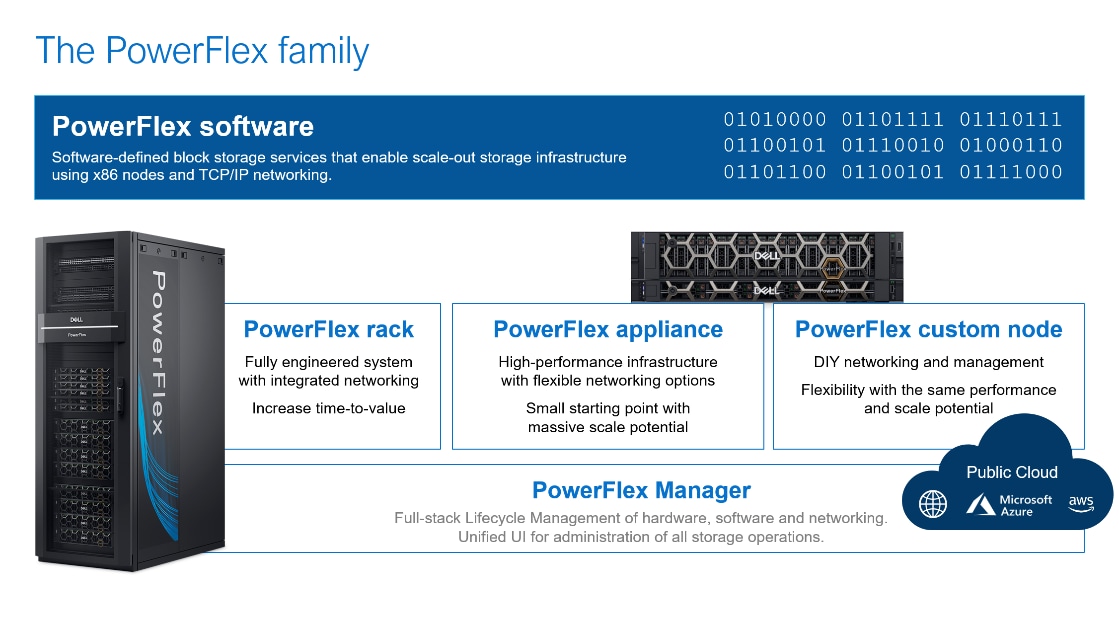
PowerFlex software-defined infrastructure enables broad consolidation across the data center, encompassing most workloads. The software-first architecture enables automation and programmability of the complete infrastructure stack. PowerFlex provides scalability, performance, and resiliency to enable effortless adherence to stringent workload SLAs.
The PowerFlex family provides a foundation that combines compute and high-performance storage resources in a managed unified fabric. PowerFlex comes in flexible consumption options (rack, appliance, custom nodes, or in the public cloud) that enable independent (disaggregated) architectures. PowerFlex is ideal for high-performance applications and databases, building an agile private/hybrid cloud, or consolidating resources in heterogeneous environments.
Figure 1. PowerFlex family
PowerFlex software components
Software is the key differentiation in the PowerFlex offering. PowerFlex software components not only provide the distributed software-defined storage services but also help simplify infrastructure management and orchestration. The management software enables comprehensive IT Operational Management (ITOM) and Life Cycle Management (LCM) capabilities that span compute as well as storage infrastructure, from BIOS and Firmware to nodes, software, and networking.
PowerFlex core software
PowerFlex is a software-defined scale-out block storage service that is designed to deliver flexibility, elasticity, and simplicity with predictable high performance and resiliency at scale.
PowerFlex Manager enables ITOM automation and LCM capabilities for PowerFlex systems. The unified PowerFlex Manager brings together three separate components used in previous releases – PowerFlex Manager, the core PowerFlex UI, and the PowerFlex gateway. The PowerFlex UI runs in Kubernetes and embraces a modern development framework.
PowerFlex deployment architectures
PowerFlex software-defined storage can be deployed in disaggregated (independent compute and storage layers) architectures.
Independent architecture
In an independent architecture, or disaggregated architecture, some nodes provide storage capacity for data in applications, while other separate and independent nodes provide compute resources for applications and workloads. Compute and storage resources can be scaled independently by adding nodes to the cluster while it remains active. This separation of compute and storage resources helps to minimize software licensing costs in certain situations. This architecture can be ideal for high-performance databases and application workloads.
Disaggregation gives organizations the freedom to choose different LCM options that best align with their operational models. Not only can PowerFlex Manager manage the LCM of the PowerFlex storage infrastructure, it can also manage LCM of PowerFlex compute nodes. With this freedom there is also the choice to manage compute estates that connect to PowerFlex with other tooling; for example, VxRail Dynamic Nodes connected to PowerFlex using VxRail Manager automation.
PowerFlex consumption options
PowerFlex rack
PowerFlex rack is a software-defined infrastructure platform that combines compute as well as high-performance storage resources in a managed unified network. This rack-based engineered system, with integrated networking, enables customers to achieve the scalability and management requirements of a modern data center.
PowerFlex appliance
PowerFlex appliance is a PowerEdge-based server which has been configured to be a node in a software-defined storage deployment that runs PowerFlex software components. This offering allows customers the flexibility and savings to bring their own compatible networking or make use of full network automation using a supported set of Dell or Cisco switches.
PowerFlex custom nodes
PowerFlex Custom Nodes are validated server building-blocks configured for use with PowerFlex. They are available with thousands of configuration options and are available for customers who prefer to build their own environments.
PowerFlex in the public cloud
PowerFlex software storage services can be deployed on recommended instances (with attached storage) in Amazon Web Services or Microsoft Azure. Only the MG data layout and Independent (disaggregated) architecture is supported. Fault Sets may be used to distribute the cluster across multiple Availability Zones (AZ), improving resiliency even during AZ disruptions. Native asynchronous replication may be used to migrate data between cloud and on-premises PowerFlex systems, or to establish cloud-based BC/DR data protection schemes.
PowerFlex CSI/CSM
An important component outside of PowerFlex that enables a flexible consumption model for Kubernetes is the PowerFlex CSI driver, developed as a part of the Dell Kubernetes strategy. After loading the CSI driver for PowerFlex into Kubernetes, it can be used to provision persistent volumes from the underlying PowerFlex storage resource. If the Kubernetes deployment is running low on PowerFlex storage resources, you can add PowerFlex storage nodes to increase the system capacity and performance.
The CSI driver connects the PowerFlex system and Kubernetes deployments. It is a storage broker which dynamically provisions volumes from PowerFlex through the PowerFlex API gateway to the Kubernetes cluster. Once the volume is available on PowerFlex, it is immediately mapped to the requesting pod. If a pod is destroyed or rescheduled, the CSI plug-in ensures that the volumes are remapped upon rescheduling of that pod.
Customers running Kubernetes clusters on PowerFlex use the Dell Container Storage Modules (CSM), which extend the CSI driver capabilities. These modules:
Provide enterprise storage capabilities to Kubernetes for cloud-native stateful applications.
Reduce management complexity, so that developers can independently use enterprise storage with ease and automate daily operations.
Extends storage functionality and capabilities beyond using the CSI driver alone.
These modules include replication, observability, authorization, application mobility, and resiliency.
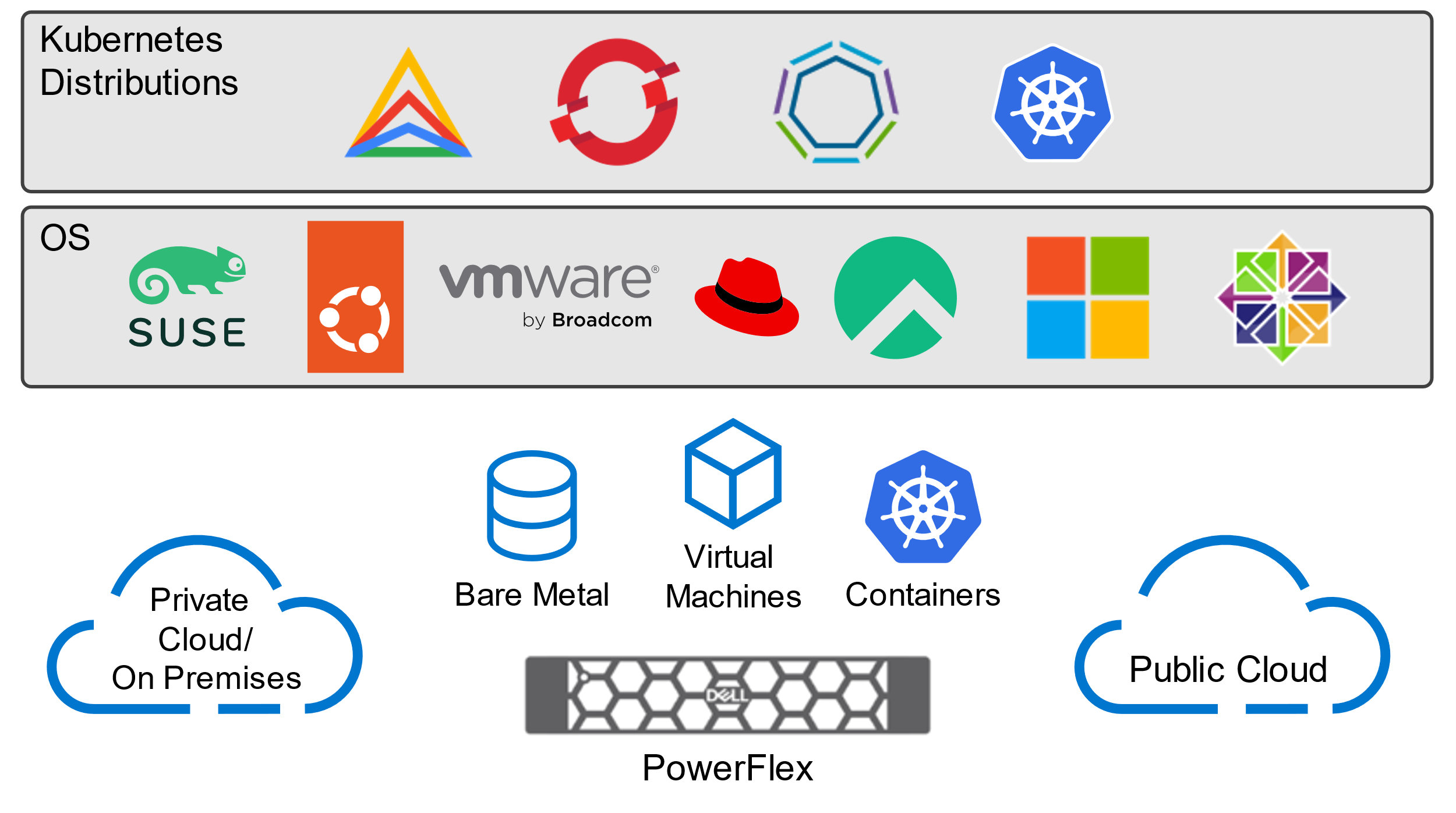
PowerFlex supports multiple operating systems. PowerFlex is validated with the leading Kubernetes distributions as shown in the following figure:
Figure 2. PowerFlex for different Kubernetes distributions
Red Hat OpenShift
OpenShift Container Platform
Red Hat OpenShift Container Platform provides developers and IT organizations with a hybrid cloud application platform for deploying both new and existing applications on secure, scalable resources with minimal configuration and management overhead. The OpenShift Container Platform provides an enterprise-grade Kubernetes environment for building, deploying, and managing container-based applications, alongside virtualized workloads, across any data center where Red Hat Enterprise Linux is supported.
OpenShift Assisted Installer provides a SaaS-based managed service to deploy OpenShift clusters in various configurations, including bare metal servers and on-premises nodes, from the Red Hat Hybrid Cloud Console. You do not require a dedicated bootstrap node before installing a cluster and you do not need to preinstall Red Hat CoreOS on the nodes. Cluster deployment parameters are populated within the web UI and nodes are booted with an ISO image that is downloaded to complete the cluster deployment.
OpenShift Virtualization, an included feature of Red Hat OpenShift, provides a modern platform for organizations to run and deploy their new and existing VM workloads. The solution allows for easy migration and management of traditional VMs onto a trusted, consistent, and comprehensive hybrid cloud application platform.
OpenShift Virtualization enables the following virtualization tasks:
Creating and managing Linux and Windows VMs
Connecting to VMs through a variety of consoles and CLI tools
Importing and cloning existing VMs
Managing network interface controllers and storage disks attached to VMs
Live migrating VMs between nodes
OpenShift Virtualization simplifies the migration of your VMs while offering a path for infrastructure modernization, taking advantage of the simplicity and speed of a cloud-native application platform. It aims to preserve existing virtualization investments while embracing modern management principles, and it is the foundation for Red Hat’s comprehensive virtualization solution.
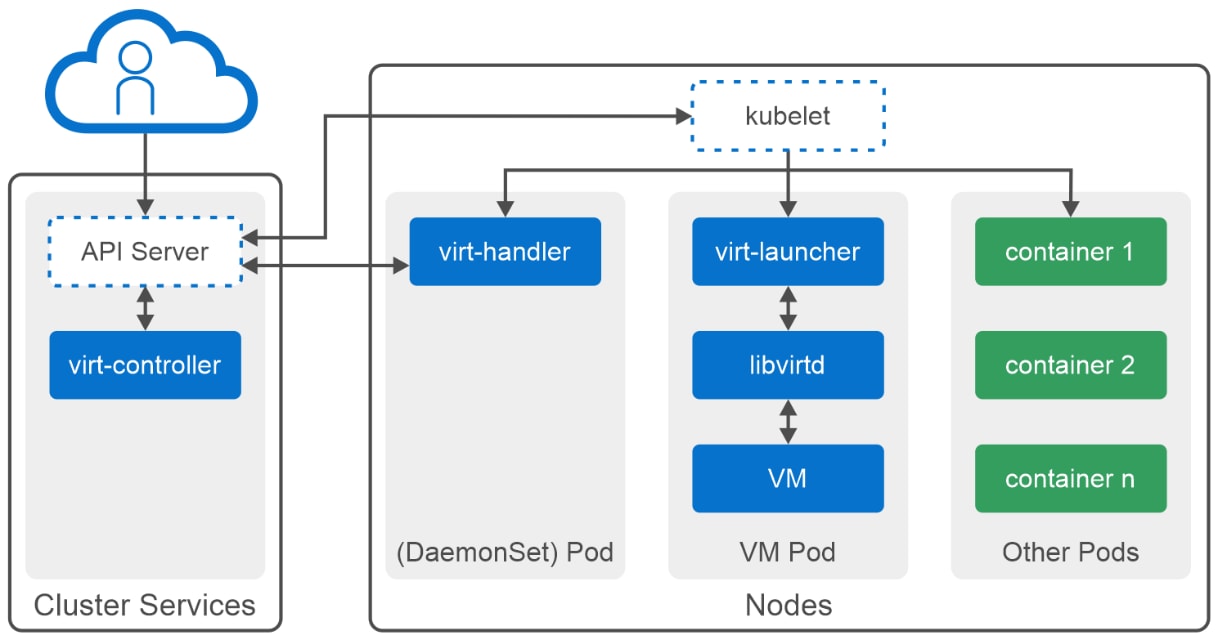
OpenShift Virtualization is an add-on to OpenShift Container Platform that allows you to run and manage VM workloads alongside container workloads. OpenShift Virtualization is based on upstream KubeVirt , which implements the deployment and management of VMs using Kubernetes constructs such as PVCs and pods. The following figure shows the KubeVirt components that are implemented in OpenShift Virtualization:
Figure 3. OpenShift Virtualization architecture
The KubeVirt components of OpenShift Virtualization are:
virt-controller: An operator that detects when new VM resources are created and creates the corresponding pod in which the VM will run. After the pod is scheduled to a node, virt-controller provides the VM object with the node name and hands off to the virt-handler.
virt-handler: A daemon set running on every compute node, which performs all the steps that are required to move a VM object to the p state. This task is performed by referencing the VM specification and then creating a libvirtd domain on the VM pod. In the context of VMs, "p-state" refers to a processor's performance state, which dictates its operating frequency and voltage, allowing for dynamic adjustments to power consumption and performance based on workload demands. Virt-handler turns off the corresponding domain after the VM object is deleted.
virt-launcher: As the primary container running on every VM pod, this component creates the necessary cgroups and namespaces to host a VM after it is provided with a VM object to deploy from virt-handler. An instance of libvirtd hosted within virt-launcher is used to create the VM. After the VM is created, virt-launcher waits until the VM process is completed and then terminates itself. Virt-launcher also attempts to prevent preemptive shutdowns from Kubernetes to ensure that the VM has exited before virt-launcher terminates.
libvirtd: An instance of libvirtd exists in every VM pod and is used by virt-launcher to manage the life cycle of the VM object.
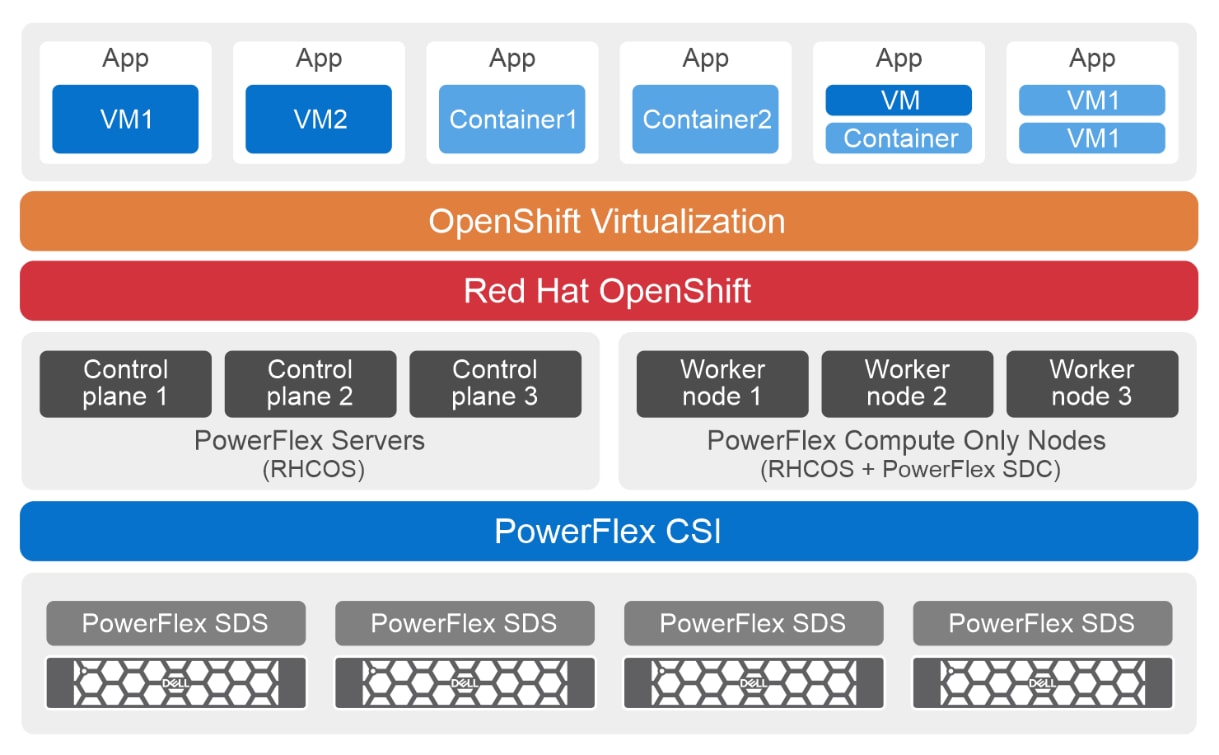
For this OpenShift Virtualization with PowerFlex solution, a two-layer Dell PowerFlex system provides both compute and storage resources.
Logical architecture
The following diagram shows the logical architecture of this solution:
Table 4. Logical design of OpenShift virtualization on Dell PowerFlex
PowerFlex Manager is used to deploy a PowerFlex storage-only (SO) cluster on four bare metal servers.
A single PowerFlex protection domain and a single storage pool are configured on PowerFlex. The PowerFlex storage pool topology consists of four SDSs with 10 SSD disks in each of the four SDS nodes.
An OpenShift cluster with three control nodes and three worker nodes is deployed using OpenShift Assisted Installer. After the cluster deployment, the required PowerFlex networks are configured on these OpenShift nodes.
Next, the PowerFlex CSI driver is installed. The PowerFlex Storage Data Client (SDC) is automatically installed by the CSI driver installation on the OpenShift worker nodes. The CSI driver for PowerFlex provides support for provisioning persistent storage using the PowerFlex storage cluster. For more information, see Installing the CSI Driver for PowerFlex.
Network architecture
Additional network configuration is required on the OpenShift nodes to enable the nodes to connect to the PowerFlex cluster. For example, you can add or remove network interfaces by applying a NodeNetworkConfigurationPolicy (NNCP) manifest to the cluster.
Note: The Kubernetes NMState Operator must be installed in the OpenShift cluster to enable use of the NNCP manifest. For more information, see Kubernetes NMState.
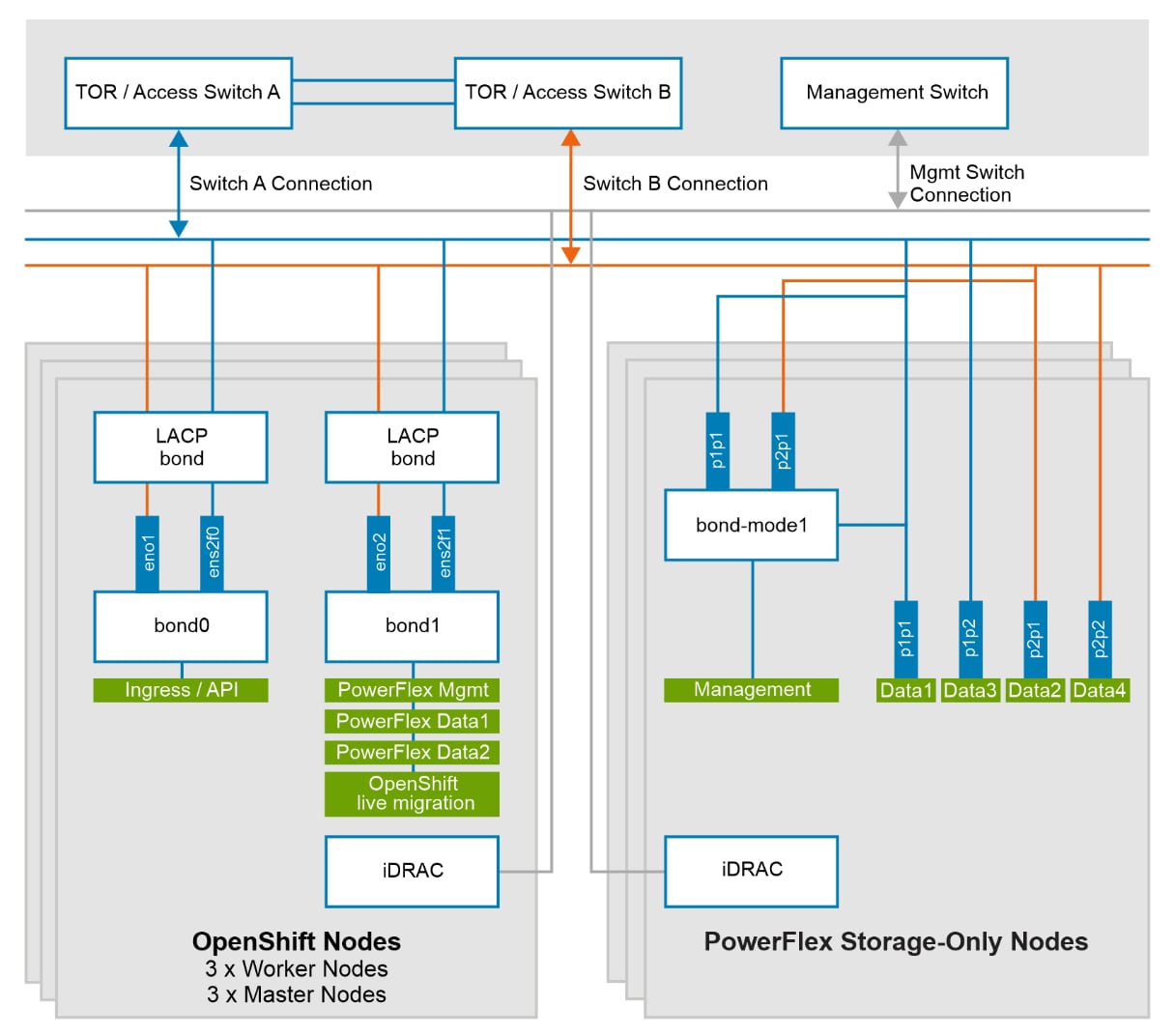
The following diagram shows the network architecture of this solution:
Figure 5. Network architecture
Each PowerFlex SO node is connected to the TOR switches. All nodes are equipped with dual-port NICs, and these network ports are trunked with the TOR switches. The NICs handle management, data1, data2, data3, and data4 network traffic for PowerFlex. The management network operates in active-backup (mode1) bonding with the data1 and data2 networks, while the data3 and data4 networks are dedicated SDS networks and are not bonded. This network configuration provides redundancy and fault tolerance, with two dedicated networks for PowerFlex data transfer.
Dedicated VLANs are used to separate management and data network traffic. The following table shows the different VLANs that are used for PowerFlex SO nodes along with their respective purposes:
Table 2. Network VLAN details of PowerFlex SO nodes
Network type
VLAN
Configurations
Management
150
Mode1 bond (interface1 port1 and interface2 port1)
PowerFlex Data 1
151
Interface1 port1
PowerFlex Data 2
152
Interface1 port2
PowerFlex Data 3
153
Interface2 port1
PowerFlex Data 4
154
Interface2 port2
The following table shows the network VLAN details of compute nodes:
Table 3. Network VLAN details of PowerFlex compute nodes
Network type
VLAN
Configurations
Ingress/API
105*
VLAN 105 for OpenShift API/Ingress management
PowerFlex Data 1
151
Interface1 port2
PowerFlex Data 2
152
Interface2 port2
VM Migration
154
OpenShift virtualization live VM migration
*The network that is required for the OpenShift Ingress/API. This network must have Internet connectivity.
Configure the networks on the compute nodes
To configure the preceding networks on the compute nodes, perform the following steps. After every step, verify that the configuration is applied successfully and is in the available state by running the oc get nncp command.
Create a second bond interface (bond1) using one port from each of the network cards.
The bond0 interface that you created during the cluster installation handles the OpenShift Ingress/API traffic, while the bond1 interface handles all the remaining traffic, including PowerFlex management and data traffic. The sample YAML file in Bond1 network configuration in Appendix B shows the configuration of bond1 on the nodes.
Create a VLAN interface for each of the required networks on the configured bond interfaces.
See the sample YAML file in VLAN tagging on the bond interface in Appendix B, which shows the configuration of the VLAN interface on bond1 for guidance. A VLAN interface must be defined for every node.
For more information, see the following documentation:
Note: Optionally consider placing a VM Migration VLAN on a separate NIC.
Installing OpenShift Virtualization
OpenShift deployment prerequisites
A healthy OpenShift cluster must be up and running before you install OpenShift Virtualization.
Ensure that the following requirements are met before deploying an OpenShift cluster:
DNS: Records for ingress and API Virtual IP addresses are required for accessing the cluster. However, because such Virtual IP addresses are managed by the cluster itself, no external load balancer is required.
SSH public key: Generate this key on the workstation from where the nodes will be accessed. This key will be used to authenticate SSH access to the nodes: for example, for troubleshooting during deployment or for longer-term maintenance post-deployment. For more information, see Generating a key pair for cluster node SSH access.
NTP server: This server is required for time synchronization among hosts.
For this architecture, as part of the network requirements and because this deployment is the “connected” type, all the OpenShift cluster nodes must have connectivity to the Internet.
Installing OpenShift Virtualization using the web console
To install OpenShift virtualization using the web console:
From the Administrator perspective, click Operators > OperatorHub.
In the Filter by keyword field, enter OpenShift Virtualization.
Select the OpenShift Virtualization tile.
Read the information about the Operator and click Install.
On the Install Operator page:
Select stable from the list of available Update Channel options. This ensures that you install the version of OpenShift Virtualization that is compatible with your OpenShift Container Platform version.
For Installed Namespace, ensure that the Operator recommended namespace option is selected. This installs the Operator in the mandatory openshift-cnv namespace, which is automatically created if it does not exist.
For Approval Strategy, it is highly recommended that you select the default value of Automatic so that OpenShift Virtualization automatically updates when a new version is available in the stable update channel.
Click Install to make the Operator available to the openshift-cnv namespace.
When the Operator installs successfully, click Create HyperConverged.
Click Create to launch OpenShift Virtualization.
Other installation methods
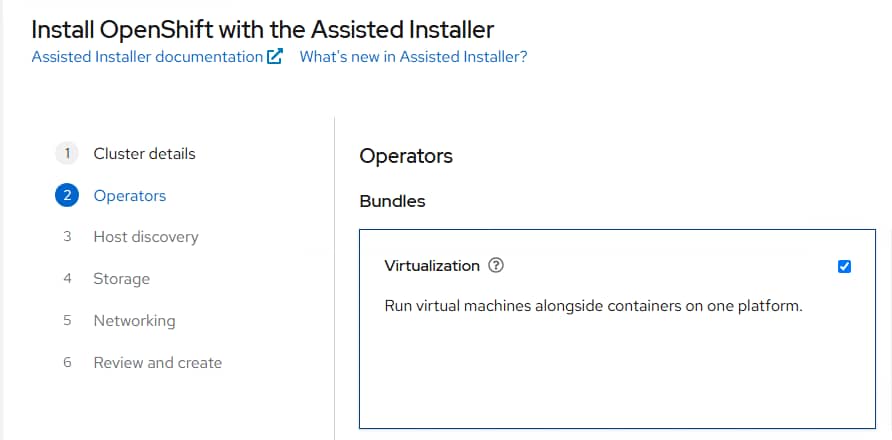
here are two alternative methods to install OpenShift Virtualization on the OpenShift cluster:
Another method is to use the Assisted Installer during cluster installation. To use this method, choose the option that is shown in the following figure:
Figure 6. Installation of OpenShift Virtualization
Postinstallation configuration
Postinstallation configuration
Perform the following steps after installing OpenShift Virtualization.
Node placement
It is recommended that you keep the default scheduling of VMs on the worker node. You can specify the nodes to which you want the workloads, operators, and controllers deployed by configuring node placement rules for the following tasks:
Deploy VMs only on nodes intended for virtualization workloads.
Deploy Operators only on infrastructure nodes.
Maintain separation between workloads.
This solution assumes use of the default scheduling of workloads and does not apply any changes to node placement configuration. If you want to perform node placement, ensure that you adhere to the node placement rules.
Network configuration
By default, OpenShift Virtualization is installed with a single internal pod network. For additional network configuration, the following operators are required:
Kubernetes NMState Operator: This operator is used to configure the Linux bridge network that can be used for live migration or for providing external access to VMs. Follow the steps in Installing the Kubernetes NMState Operator.
The SR-IOV Operator: This operator manages the SR-IOV network devices. To install the SR-IOV network operator, follow Installing the SR-IOV Network Operator.
The MetalLB Operator: This operator enables the creation of load balancing services by using the OpenShift Container Platform web console. To install the MetalLB operator, follow the steps in Installing the MetalLB Operator.
The bond1.154 interface: As described in Network configuration, the bond1.154interface is useful in VM live migration. To add this network for live migration to the VMs, perform the following steps:
Configure a bridge interface on the VLAN interfaces. See the sample YAML file showing the configuration of bridge interface on the VLAN interface.
Configure the Network Attachment Definition (NAD) file for each of the VLAN interfaces which will be used to configure the network on the VMs. See the sample YAML file showing the configuration of a NAD file using the bridge interface that you configured in the preceding step.
Virtual machines
Virtual machines
Use the operating system images provided by Red Hat to create VMs by one of the following methods:
A storage profile is allocated for each storage class. The storage profile provides recommended storage settings for the associated storage class.
The default StorageClass assigned to this solution is vxflexos, which is used for
.OpenShift virtualization disk creation. To assign vxflexos as the default storage class, follow the instructions provided in create storage class. Verify that the default storage class is set to vxflexos, as shown in the following figure: Figure 7. Storage class
To support VM snapshots, ensure that the Volume Snapshot Class is created. Follow the instructions provided in create snapshot class.
To specify default parameters
, edit the StorageProfile object for the provisioner’s storage class. These default parameters
only apply to the persistent volume claim (PVC) only if they are not configured in the DataVolume object.
You can use storage profiles to set a default cloning method for a storage class. Alternatively, you can edit the storage profile and setting the following attributes
:
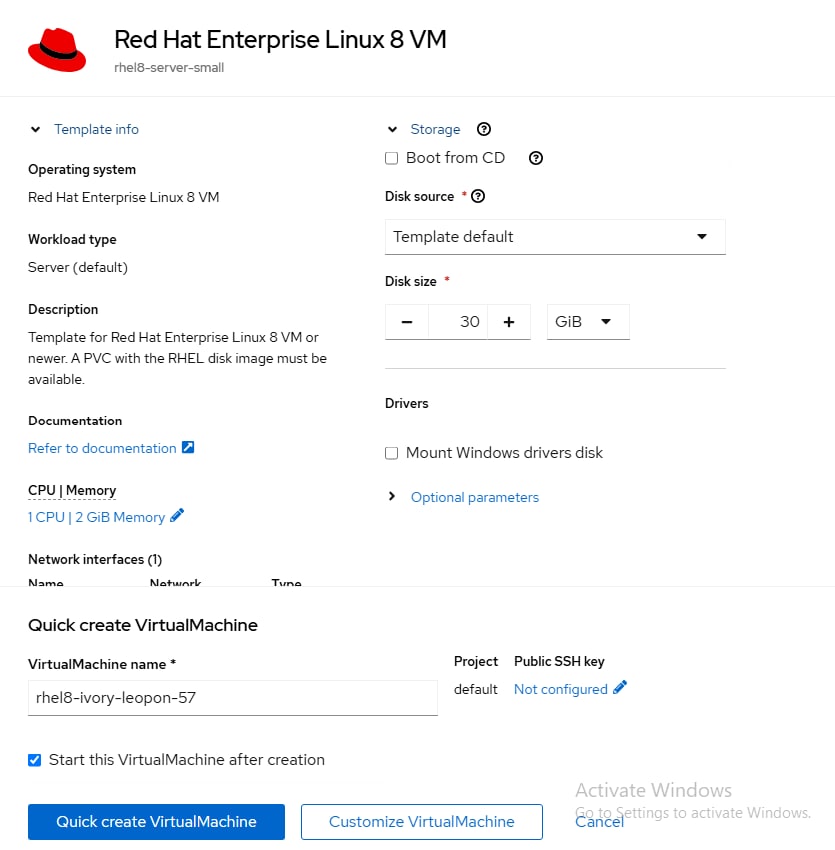
Select an operating system image for which a source is available, such as Red Hat Linux 8 VM.
Change the parameters as needed and click Quick create VirtualMachine, as shown in the following figure:
Figure 7. Creating a VM using a golden image
Creating a VM using an instance type
You can also upload your own custom operating system image and create VMs based on this custom image.
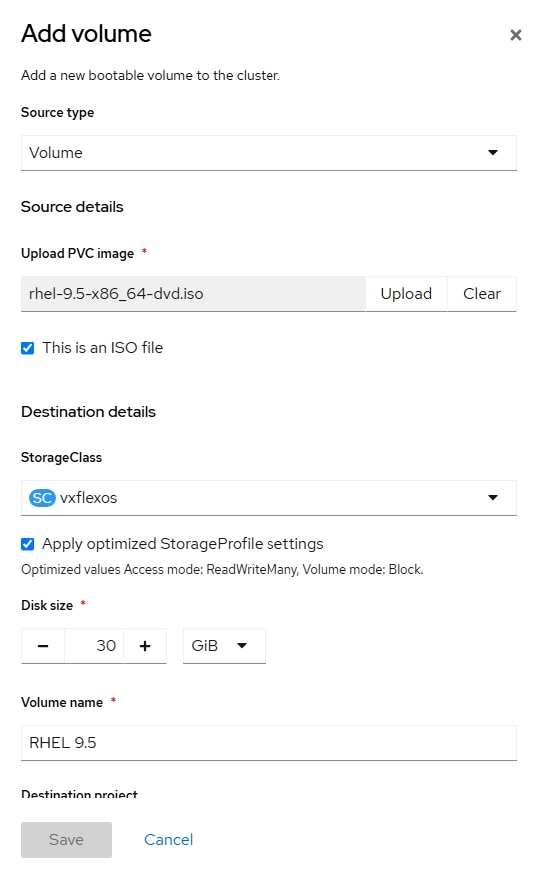
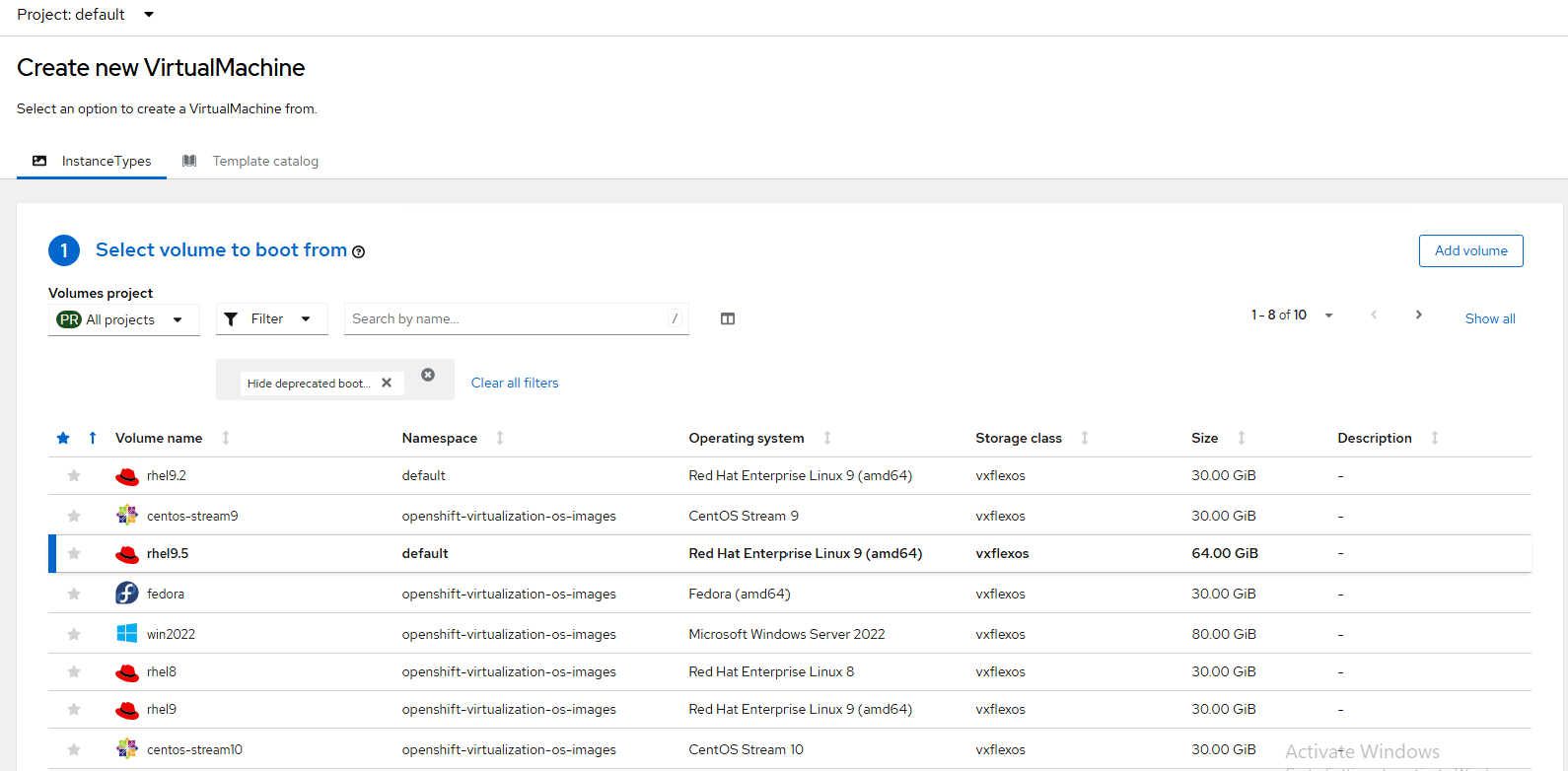
Go to Virtualization > Catalog > Instance Types > Add Volume.
In Add volume, select ‘vxflexos’ as the StorageClass so that the uploaded ISO resides in PowerFlex storage.
This storage acts like persistent storage to all the uploaded operating system images. Upload the custom operating system image, as shown in the following figure:
Once the operating system is uploaded into the template gallery, you can create a VM.
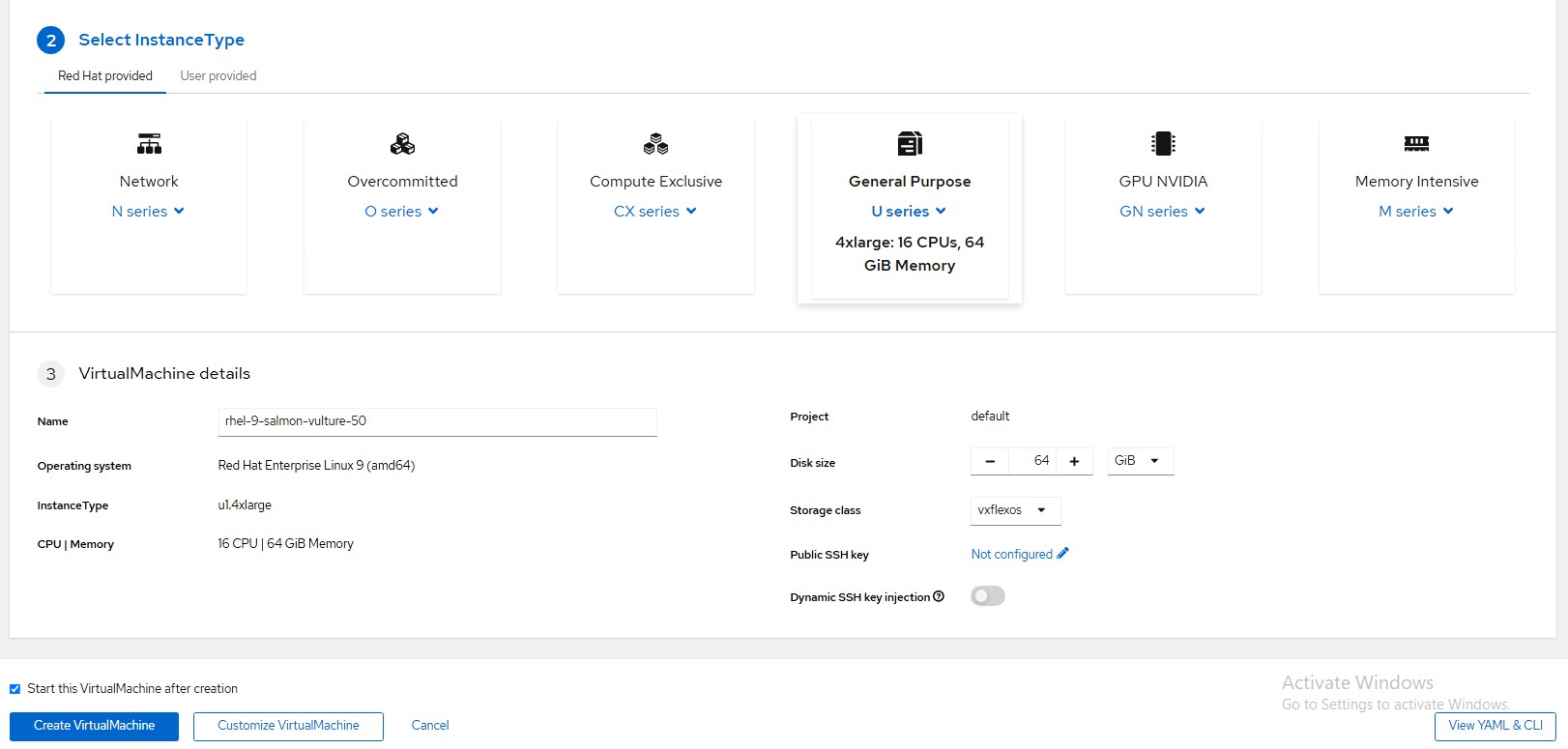
Go to Virtualization > VirtualMachines > Create > From Instance Type.
Select the volume to boot from the volume name you uploaded in the previous step.
Select the VM configuration and then click Create VM.
You also can create a VM using a YAML file. See the sample VM creationfile.
VM cloning
To clone an existing VM using the web console:
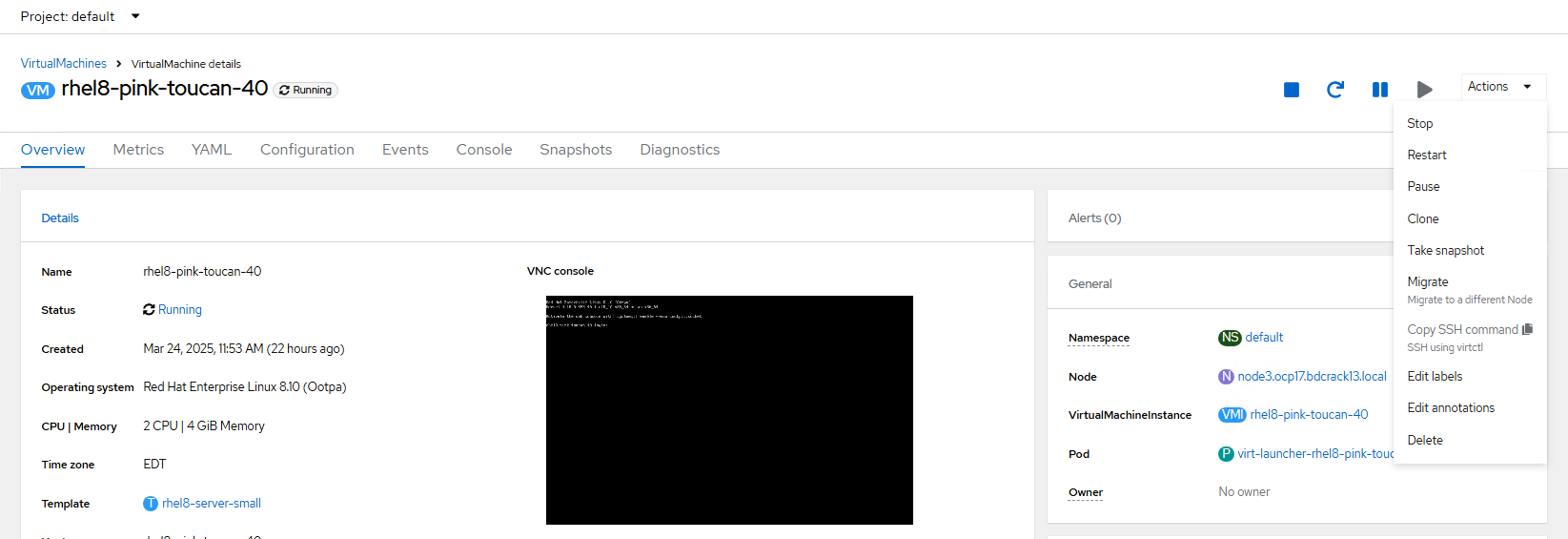
Go to Virtualization > VirtualMachines and select a VM to open the VirtualMachine details page.
Click Actions and select Clone.
On the Clone VirtualMachine page, enter the name of the new VM.
(Optional) Select the Start cloned VM checkbox to start the cloned VM.
Click Clone.
Taking VM snapshots
To take a snapshot of any existing VM using the web console:
Go to Virtualization > VirtualMachines and select a VM.
The VirtualMachine details page opens.
Click Actions and select Take Snapshot.
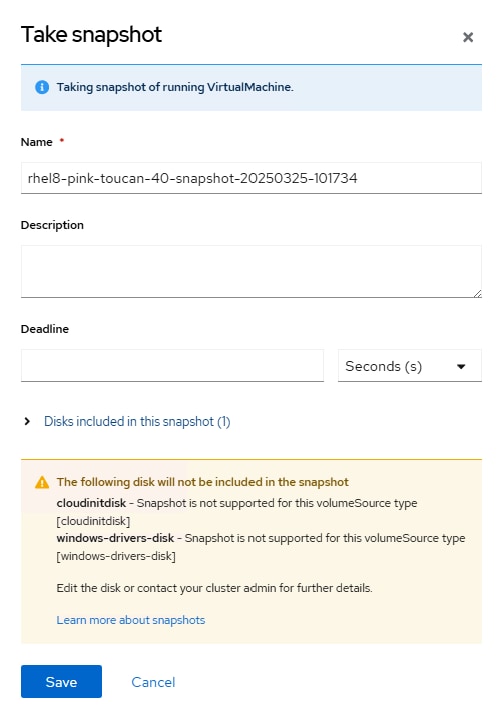
The Clone VirtualMachine page opens.
Enter the name of the new VM and click Save, as shown in the following figure:
Figure 14. taking VM snapshots
To create snapshots of a VM in the Running state with the highest integrity, install the QEMU guest agent on the VM. The QEMU guest agent takes a consistent snapshot by attempting to quiesce the VM file system. This task ensures that in-flight I/O is written to the disk before the snapshot is taken. For more information, see installing the QEMU guest agent.
VM live migration
Live migration is the process of moving a running VM to another node in the cluster without interrupting the virtual workload. Live migration enables smooth transitions during cluster upgrades or any time that a node needs to be drained for maintenance or configuration changes.
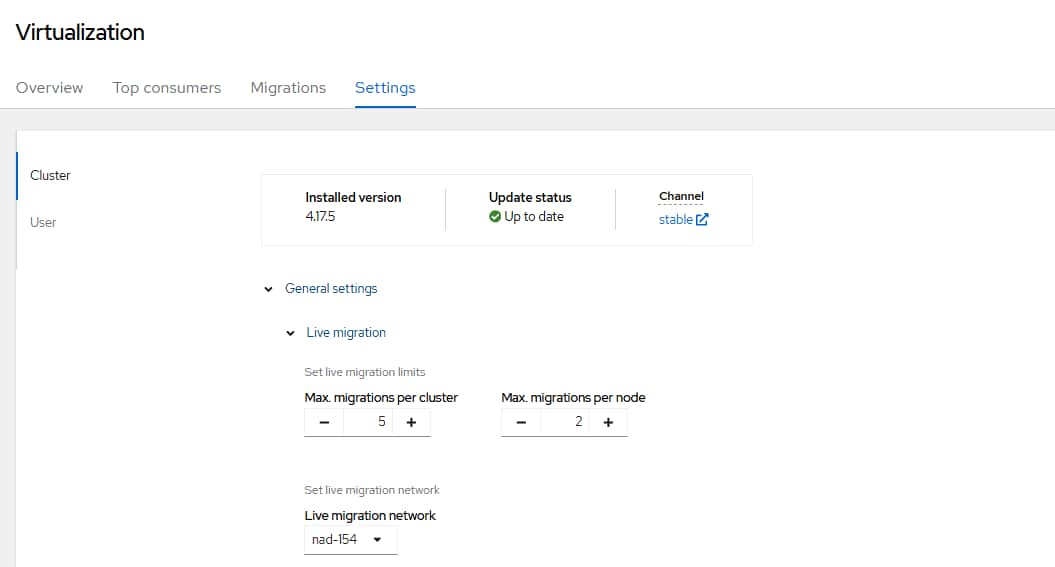
For live migration, it is recommended to configure a dedicated multus network. In this white paper, VLAN 154 is configured for live migration.
To configure live migration limits and timeouts, go to Virtualization Settings > General Settings > Live migration.
Figure 8. Live migration settings
You can perform the same configuration by editing the HyperConverged CR using the following code:
This solution uses the workload simulation tool Flexible I/O (FIO) to conduct performance testing on the VMs. The FIO tool measures and analyses the performance of storage media, such as SSD, HDD, or RAID, as well as software-defined storage, such as PowerFlex, by generating different I/O workloads. For more information, see fio tool.
Specifically, FIO measures:
Throughput
Latency
IOPS
Queue depth
Read/write performance
Based on user-defined settings, FIO can produce different types of I/O workloads, from sequential reads to random writes and a mixture of random reads/writes.
For the OpenShift virtualization solution, consider these use cases.
Use case 1
In this use case, the FIO tool is run with an 8 K block size and 100 percent read. This workload is often used as a standard benchmark size for assessing read performance, particularly when data is accessed randomly from a cache or storage device. FIO is run on every VM and these VMs are then linearly scaled across three different OpenShift worker nodes. For each VM, an additional disk of 120 GB is attached by editing VM properties.
The following FIO command is run on all the VMs simultaneously:
The following graph shows the results of running the FIO tool on OpenShift VMs that have been scaled linearly:
Figure 9. Linear scaling of OpenShift VMs
The graph shows that over a million IOPS with sub millisecond latency can be achieved on three worker nodes.
Use case 2
An 8K block size with a 70/30 read/write ratio (70 percent read, 30 percent write) is commonly used in Online Transaction Processing (OLTP) workloads and databases. This block size and workload profile are a standard for many OLTP applications, including those using database systems such as Oracle. In this case, FIO is run on one VM across each of the OpenShift worker node.
The following FIO command is run on all the VMs simultaneously:
The following table shows the results of running the FIO tool on OpenShift VMs that have been scaled linearly:
Table 4. 70/30 FIO performance on linearly scaled VMs
VMs
1 x VM
2 x VMs
3 x VMs
Read IOPS
123,362
225,456
319,456
Write IOPS
53,456
93,568
144,251
Read Latency (ms)
0.221
0.238
0.526
Write Latency (ms)
0.241
0.277
0.512
Read Bandwidth (GB/S)
0.966
1.766
2.52
Write Bandwidth (GB/S)
0.414
0.756
1.08
The table shows that over a 460,000 IOPS with sub millisecond latency can be achieved on three different VMs.
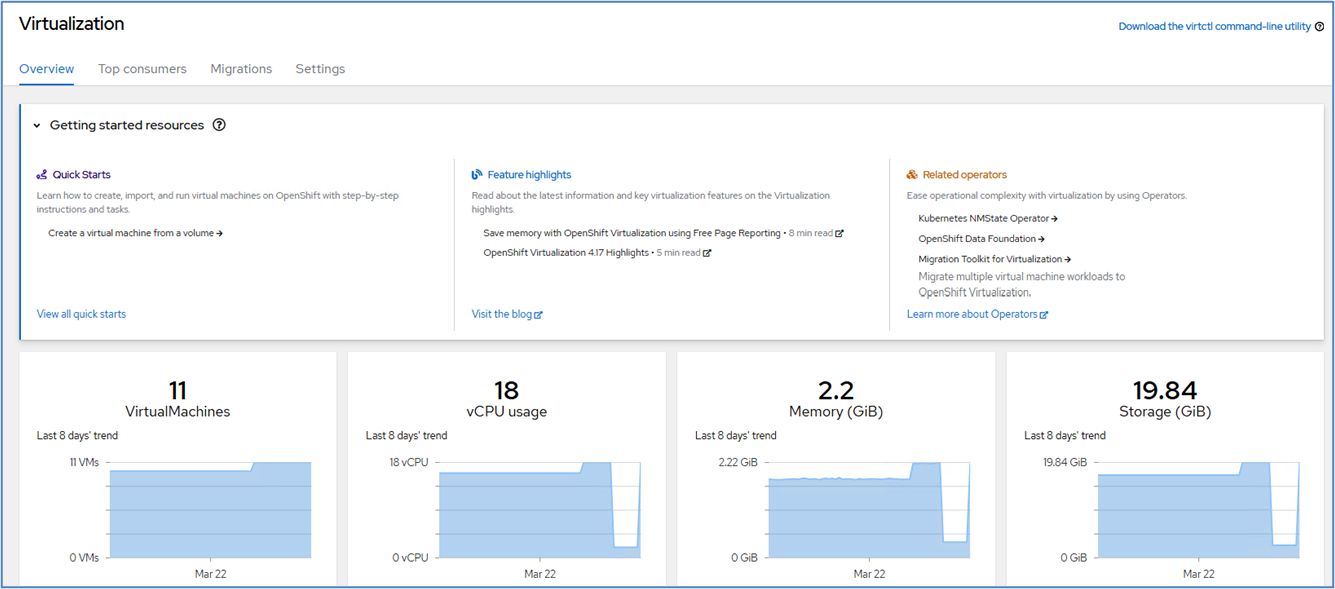
VM dashboard
The Virtualization Overview page in the dashboard provides a comprehensive view of virtualization resources, details, status, and top consumers, as shown in the following figure:
Figure 10. VIrtualization overview page
Best practices
Best practices
This section describes some guidelines and best practices to follow for your PowerFlex and OpenShift cluster.
PowerFlex cluster
For the PowerFlex cluster:
Verify that SDS threads is set to twelve. To check this value using PowerFlex CLI, run the following command on the primary MDM node: scli --set_performance_parameters --all_sds --tech --sds_number_os_threads 12
Separate the management and data traffic from production application traffic. This separation can be done using VLANs. For more information, see the following documentation:
If possible, use the golden images provided by Red Hat when creating VMs. These images are secure images that make the VM configuration process faster and more efficient. See Creating a VM using golden images.
Monitor VM CPU, memory, and storage consumption in the performance dashboard page to identify potential bottlenecks and optimize resource allocation if necessary.
Implement a backup and restore strategy for your provisioned VMs to ensure data protection.
Use the XFS file system for workloads if you want to run databases on OpenShift VMs. Set the default file system as XFS in the CSI values.yaml file and set the default CSI storage class as vxflexos-xfs.
If possible, configure VM live migration on a separate physical NIC.
Conclusion
Summary
This white paper describes the deployment and configuration of Red Hat OpenShift Virtualization using a two-layer Dell PowerFlex system. OpenShift Virtualization enables users to run VMs alongside containers on the same platform, simplifying management and reducing the complexity of maintaining separate infrastructure and management tools.
This paper also describes some VM use cases and demonstrates that over a million IOPS can be achieved in sub millisecond latency using just three OpenShift worker nodes on PowerFlex with the Dell CSI driver.
References
References
Dell Technologies documentation
The following Dell Technologies documentation provides additional information. Access to these documents depends on your login credentials. If you do not have access to a document, contact your Dell Technologies representative.
The following tables show the hardware and software configuration of the storage and compute nodes that are used for the PowerFlex two-layer mode of deployment:
This appendix provides sample YAML files for configuring the network.
Bond1 network configuration
The following YAML file is a Bond1 network configuration YAML file. Use this file to create and apply the configuration on the OpenShift cluster.
$ vi bond1-config.yaml
apiVersion: nmstate.io/v1
kind: NodeNetworkConfigurationPolicy
metadata:
  name: bond1-configurations-on-all-nodes
spec:
  desiredState:
    interfaces:
    - name: bond1
       description: Bond with ports ens3f0np0 and ens3f1np1
      type: bond
      state: up
      ipv4:
        dhcp: false
        enabled: false
       link-aggregation:
        mode: 802.3ad
        options:
          miimon: '100'
        port:
        - ens3f0np0
        - ens3f1np1
      mtu: 9000
$ oc apply -f bond1-config.yaml
VLAN tagging on the bond interface
The following sample YAML file is a VLAN tagging network configuration file. Use this file to create and apply the configuration on the OpenShift cluster
The following sample YAML file is a bridge interface network configuration on the VLAN interface on one of the nodes. Create and apply a similar configuration to all the nodes by changing the hostname in the kubernetes.io/hostname" parameter.
$ cat bridge_node1_config.yaml
apiVersion: nmstate.io/v1
kind: NodeNetworkConfigurationPolicy
metadata:
  name: node1-br1-eth1-policy
spec:
  nodeSelector:
     kubernetes.io/hostname: "node3.ocp18.bdcrack13.local"
  desiredState:
    interfaces:
      - name: node1.br154
         description: Linux bridge with bond1.154 as a port for VM live migration
        type: linux-bridge
        state: up
        ipv4:
        - ip: 192.168.154.244
           prefix-length: 24
           enabled: true
        bridge:
           options:
            stp:
               enabled: false
          port:
            - name: bond1.154
$ oc apply -f bridge_node1_config.yaml
NAD configuration
The following sample YAML file is a Network Attachment Definition (NAD) file on one of the bridge interfaces. This file will be used to configure the network on VMs. Create a similar configuration for each of the bridge interfaces and apply it to the cluster.