REST API and Dell Technologies Storage - Unity
In this post, we will discuss how you can use manage Dell Unity storage using REST API. We will use the Postman tool during the entire blog series. Feel free to download and install in your system to follow along. The first post in this series provides more details about Postman and the collections we will use in this article. So let’s get started with automating the Dell Unity storage system.
The Dell Unity REST API
Dell Unity is one of the most user-friendly storage systems. The most common management tools for Unity systems are
-
Unisphere UI (Embedded) –
-
Unisphere Command Line Interface (UEMCLI)
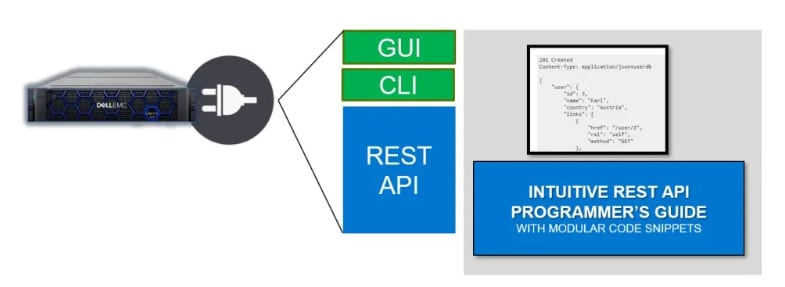
The Dell Unity includes complete REST API support, providing a developer-friendly way to manage Dell Unity systems and automate various tasks.
Dell Unity’s REST API fully supports all the management tasks that a user can perform in the Unisphere GUI. Dell Unity’s REST API response formats all communication in JSON notation. Users can send REST API requests using their favorite REST API tools to manage Dell Unity systems in their environment. This provides flexibility in management and opens possibilities for more complex operations.
https://{
{unisphere_management_address}}/api
-
{ {unisphere_management_address}}
Supported Dell Unity REST API Operations
Dell Unity’s REST API supports the following types of REST calls.
-
GET
-
POST
-
PUT
-
DELETE
Usually, the REST client (like Postman) can be used to help figure out what REST calls you want to run.
Building your REST API calls
Now let’s get started with creating REST API calls. In this example, we will create a sample REST API call to list all the available storage pools.
Before we get started make sure you’ve Postman installed and Unisphere is reachable.
-
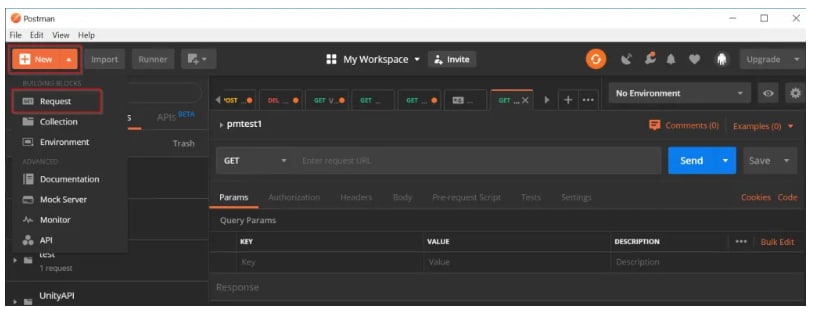
NewRequest
https://1.1.1.1/api/types/pool/instances
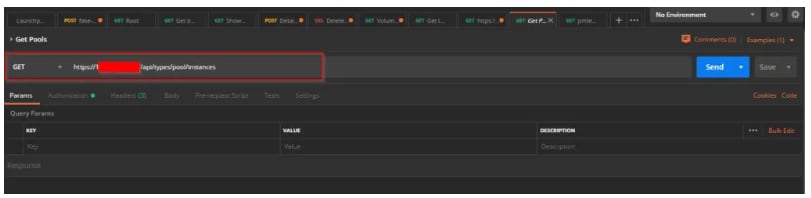
-
SendAccept: application/json
Content-type: application/json
X-EMC-REST-CLIENT: true -
Accept: application/json
-
Content-type: application/json
-
X-EMC-REST-CLIENT: true
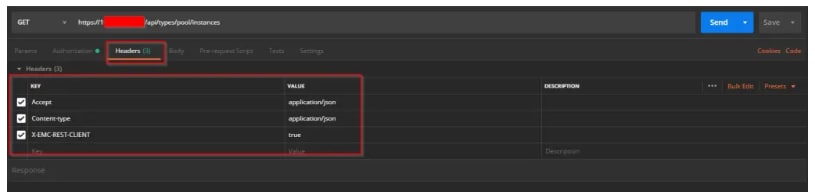
-
Response
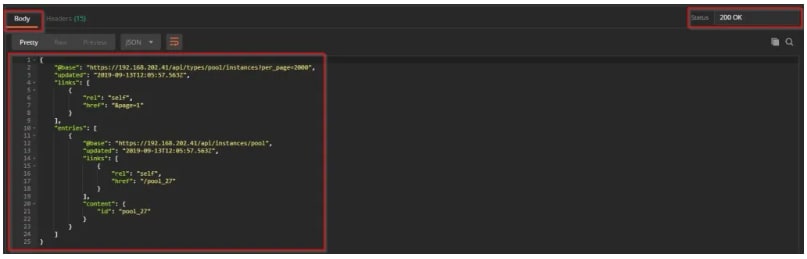
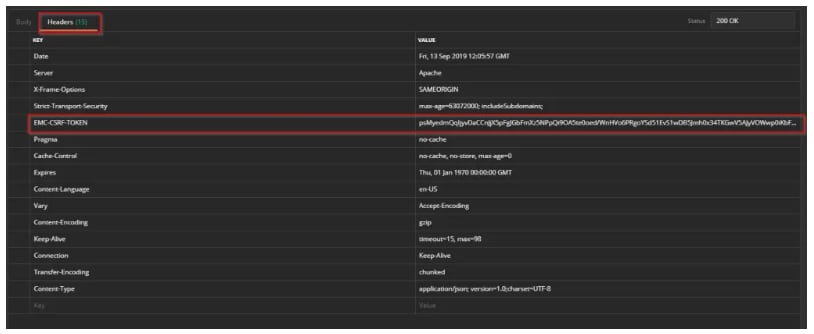
Additionally please note that POST/PUT/DELETE requests need one additional Header – EMC-CSRF-TOKEN. This token is generated as part of every GET request and it can be obtained from the Headers of the Response. CSRF stands for Cross-Site Request Forgery
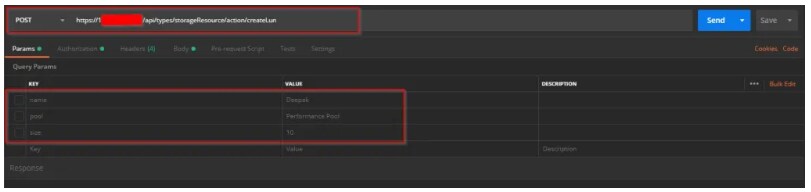
So, let’s create one POST request for creating a new LUN.
-
Headers ResponseEMC-CSRF-TOKENHeaders
-
NewRequest
-
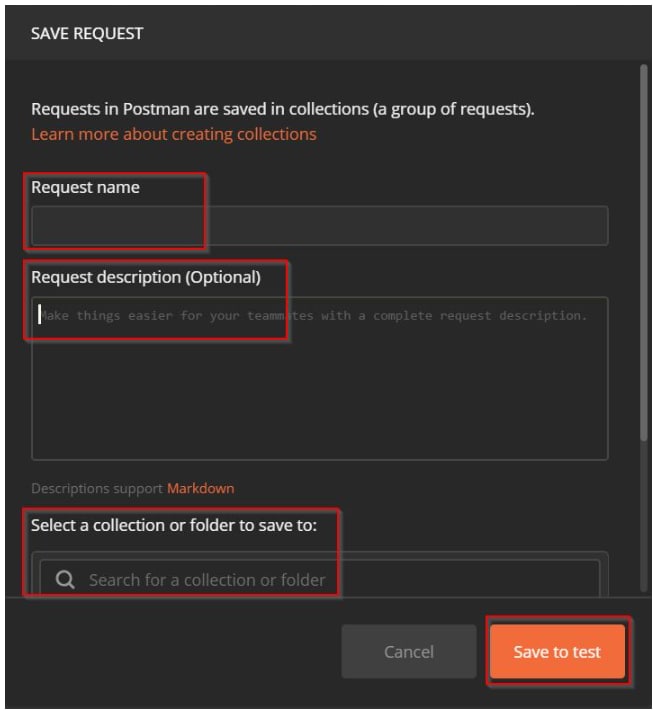
Request nameDescription CollectionSave
-
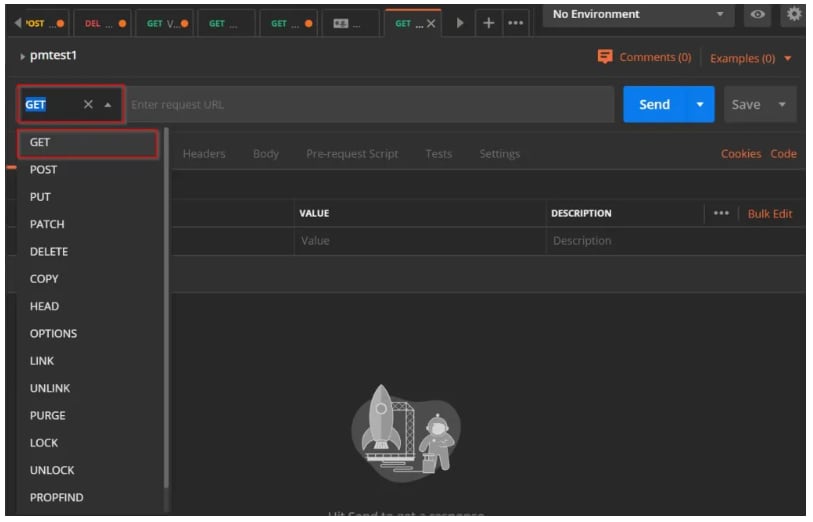
POSTPlease note that we are selecting POST because in this second example we are creating a REST API call to create a new LUN.
-
POST
-
UsernamePassword
-
Params Name – Name of the LUN
Pool – Storage Pool in which LUN will be created
Size – LUN size -
Name – Name of the LUN
-
Pool – Storage Pool in which LUN will be created
-
Size – LUN size
-
HeadersSendAccept – application/json
Content-type – application/json
X-EMC-REST-CLIENT – true
EMC-CSRF-TOKEN – Copied from GET response -
Accept – application/json
-
Content-type – application/json
-
X-EMC-REST-CLIENT – true
-
EMC-CSRF-TOKEN – Copied from GET response

Dell and REST API – Way Forward
I hope this clarifies many basics for getting started with REST API and Dell Unity storage. You might also have understood that creating valid URLs is a very important aspect of using REST API. Having this in mind we have created a ready Postman collection for Dell Unity storage. Here’s the GitHub link to the repository . Feel free to download and share.
Below are the additional resources available for taking REST API usage to next level.
I hope this post will get you started with your Dell Unity automation journey.