SmartFabric Services: Static Onboarding
SmartFabric Services (SFS) automates the configuration of a leaf-spine topology in your data center and provides a web-based user interface for SmartFabric configuration. If you have not built a SmartFabric, see Getting started with SmartFabric Services.
This article is intended to help you quickly onboard devices such as servers and storage arrays to your SmartFabric using the static onboarding method. This method is used if the NICs in the device being onboarded do not support LLDP. If your NICs support LLDP, see SmartFabric Services: Onboarding devices using the Import from Fabric Method.
Connect the device to the leaf switches
With SFS, two leaf switches are used in each rack. Each server or storage device in the rack should have at least one NIC port that is connected to each leaf for redundancy and performance. The NICs may be configured for LACP or a switch independent teaming method.
For the example in this article, a two-leaf SmartFabric has been deployed using a pair of Dell PowerSwitch S5248F-ON switches. A PowerEdge server is connected to port 1/1/11 on each switch, and two 25GbE NIC ports on the server are configured for LACP in the server’s operating system.
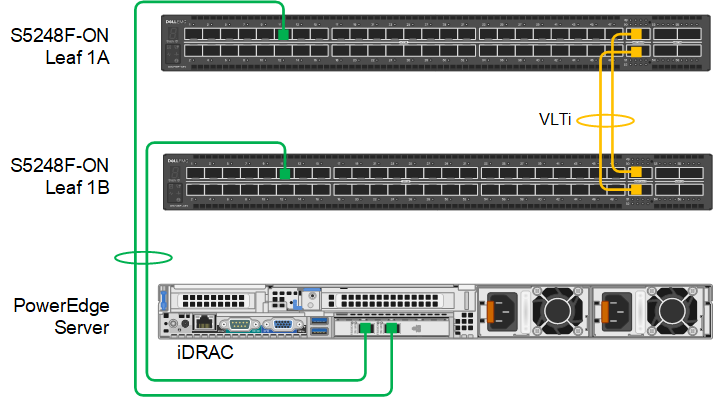 Figure 1 PowerEdge server connected to leaf switches
Dell Technologies recommends connecting dedicated device management ports, such as the PowerEdge server iDRAC, to the OOB management network. The OOB management network uses a separate switch and is required for SFS. See Getting started with SmartFabric Services for more information about the OOB management network.
SFS default networks
SFS has two default virtual networks, numbered 4091 and 3939. Virtual network 4091 is the “Client Management Network” in SFS and is available for general use. Virtual network 3939 is the “Client Control Network” and is used for VxRail node discovery.
You can run the show virtual-network command at the leaf switch CLI to view the existing networks and port assignments.
Create additional networks
As devices are statically onboarded to the SmartFabric, their network assignments are made.
To create one or more networks before onboarding devices:
- From a workstation with access to the OOB management network, use a browser to connect to the management IP address of the SmartFabric leader switch.
- Log in as admin.
- In the SFS UI, select Network > Networks and expand General Purpose Networks.
- Click +CREATE.
- Enter a Network ID, a Network Name, and a VLAN number for the network. The VLAN number can be in the range 1 through 3999, excluding 3939. The VLAN number is also configured as the virtual network number by SFS.
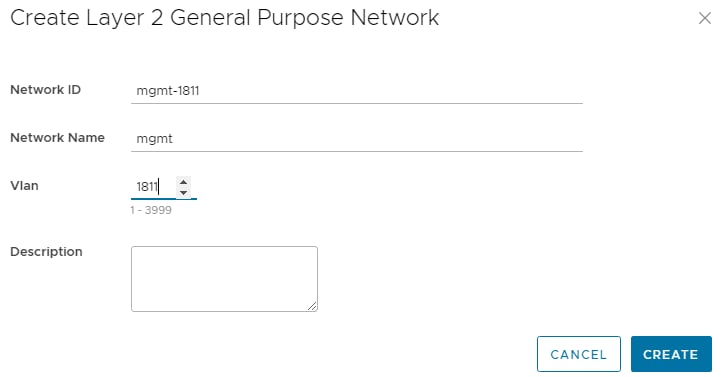 Figure 2 Creating a Layer 2 network
- Click CREATE.
When complete, a green Success message is displayed and the newly created virtual network appears in the General Purpose Networks list.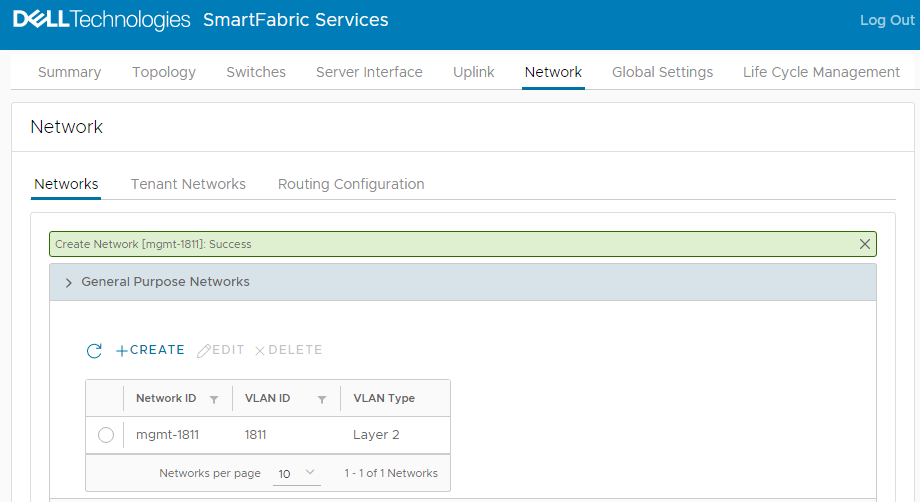 Figure 3 Virtual network 1811 created
To create additional networks as needed, repeat the steps above.
Onboard devices
If you will use OMNI vCenter integration with SFS, you will need the MAC address of each ESXi host NIC that is connected to the leaf switches. OMNI vCenter integration is a feature where ESXi hosts connected to the SmartFabric are automatically added to the correct networks as port groups are created in vCenter. See the OpenManage Network Integration User Guide Release 3.1 for more information. On PowerEdge servers, MAC addresses can be determined using the iDRAC.
If the device you are onboarding is running an operating system other than ESXi, or you will not be using OMNI vCenter integration, the MAC addresses are not required.
Ensure the device being onboarded is connected to the SmartFabric leaf switches and powered on. In this example, the server shown in Figure 1 is onboarded to the SmartFabric.
- In the SFS UI, select the Server Interface tab.
The Server Interface Profilepage displays.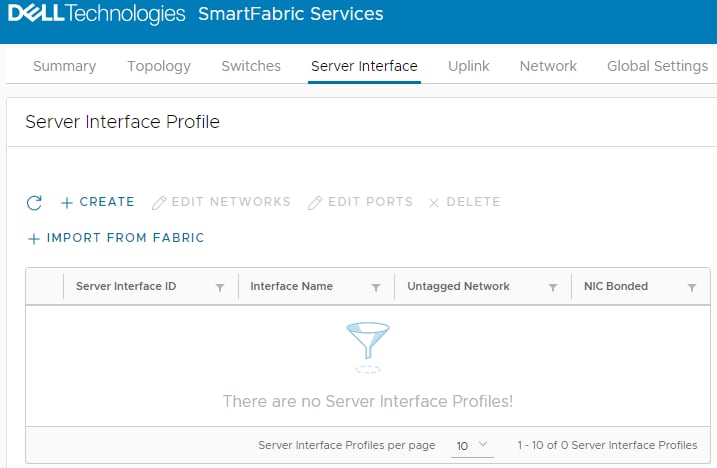 Figure 4 Server Interface Profile page
- Under Server Interface Profile, click +CREATE.
The Create Server Interface Profile page displays.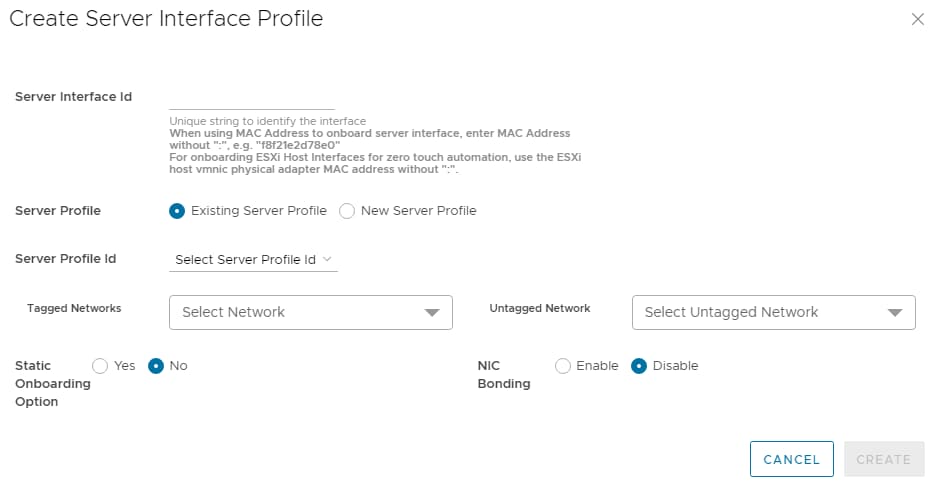 Figure 5 Create Server Interface Profile page
- Enter a Server Interface ID.
This ID can be a string that you create such as “Server1-NIC1” or the MAC address of the connected NIC. If the MAC address is used, enter it without colons or dashes, as shown in Figure 6. The MAC address is required if you are using OMNI vCenter integration. - Select New Server Profile.
- Next to Server Profile ID, enter a profile name, such as lacp-profile.
- Next to Server Profile Bonding Type, LACP is selected for this example.
- Next to Untagged Network, select the network created earlier, 1811.
You can also select one or more networks from the Tagged Networks as needed. This is not done in this example. - Next to Static Onboarding Option, select Yes.
- Next to NIC Bonding, select Enable since LACP is used in this example.
- Select the Leaf Node and the Interface that the NIC is connected to.
- Leave Routing Protocol set to None.
The page for the first interface appears as shown: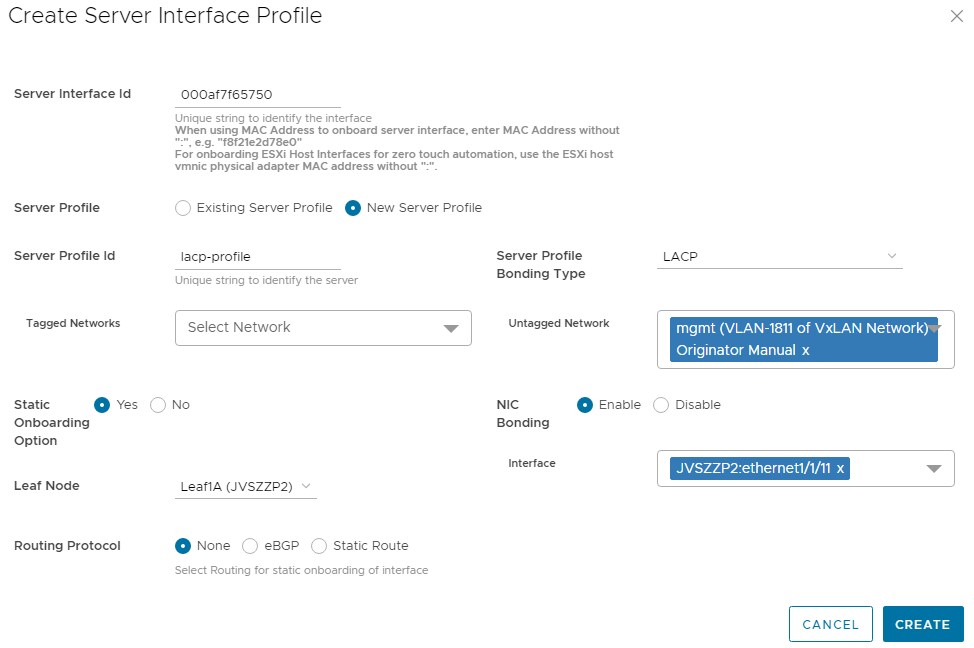 Figure 6 Server profile settings for the first interface
- Click CREATE.
The Server Interface Profilepage lists the interface.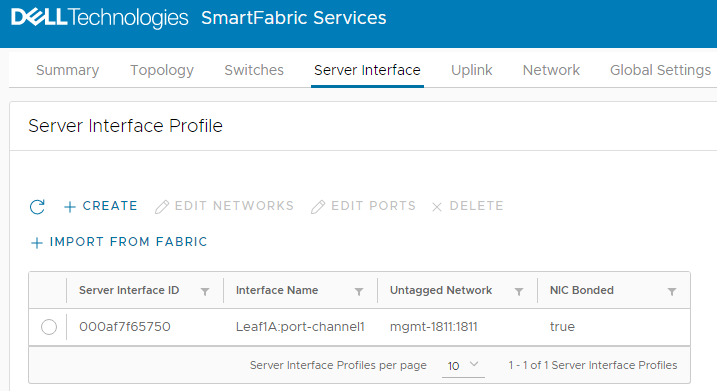 Figure 7 First interface onboarded
Because this example uses LACP, port-channel1 is automatically added to the interface name by SFS. (In SFS, port channels are automatically numbered and start with 1.) If the Server Interface Profile page still shows the interface name as ethernet1/1/port-number, allow a few seconds for the port channel to come up. Also ensure that LACP has also been configured on the server. Click the  icon to refresh as needed.
The second interface is onboarded as follows:
- Under Server Interface Profile, click +CREATE. The Create Server Interface Profile page displays.
- Enter a Server Interface ID.
- Select Existing Server Profile.
- Next to Server Profile ID, select the existing profile from the drop-down list (in this example, lacp-profile).
- Next to Untagged Network, select the network created earlier: 1811.
- Next to Static Onboarding Option, select Yes.
- Next to NIC Bonding, select Enable since LACP is used in this example.
- Select the Leaf Node and the Interface that the NIC is connected to.
- Leave Routing Protocol set to None.
The page for the second interface appears as shown:
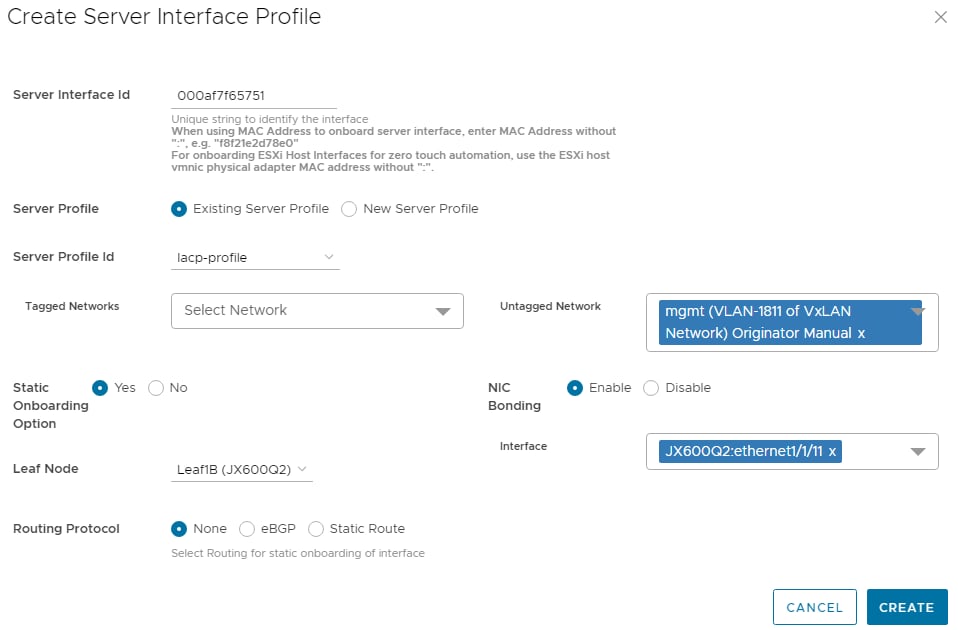 Figure 8 Server profile settings for the second interface
- Click CREATE.
When complete, the Server Interface Profile page lists both interfaces. Click the  icon to refresh the page if needed.
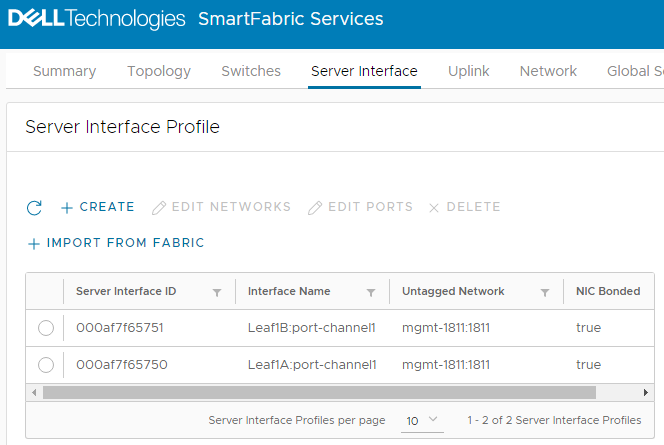 Figure 9 Interfaces onboarded
The server is now onboarded to the SmartFabric.
Resources
Dell EMC Networking SmartFabric Services Deployment with VxRail 7.0.240