SmartFabric Storage Software Deployment Guide
This guide demonstrates the planning and deployment of SmartFabric Storage Software (SFSS) for NVMe over TCP (NVMe/TCP). Example network topologies are provided, followed by the prerequisite network configuration steps.
This guide demonstrates the planning and deployment of an NVMe over TCP (NVMe/TCP) solution which includes Dell SmartFabric Storage Software (SFSS) and interoperable hosts and storage systems.
The Non-Volatile Memory Express (NVMe) family of specifications defines how host software communicates with nonvolatile memory across a PCI Express (PCIe) interface.
NVMe over Fabrics (NVMe-oF) extends the capabilities of NVMe by enabling NVMe commands to traverse multiple transports such as RDMA, TCP, FC and more. By using NVMe-oF, Hosts can access remote SAN storage, rather than being limited to local disks only.
Instructions and in depth information about configuring how operating systems for use with NVMe/TCP subsystems. Use these documents when deploying an NVMe/TCP solution without SFSS.
Provides guidelines and best practices on attaching and configuring external hosts to PowerStore systems. Use this document when deploying an NVMe/TCP solution without SFSS.
Provides a deeper understanding of the core technologies that form the basis of NVMe/TCP and SFSS. Delivers comprehensive information about these technologies while explaining their value and benefits.
This guide is intended for Storage Area Network (SAN) administrators. To use this guide, you must have a good knowledge of NVMe over Fabrics technology and data center deployments.
Dell Technologies
Our vision at Dell Technologies is to be the essential technology company for the data era. Dell ensures modernization for today's applications and for the emerging cloud-native world.
Dell is committed to disrupting the fundamental economics of the market with an open strategy that gives you the freedom of choice for networking operating systems and top-tier merchant silicon. Our strategy enables business transformations that maximize the benefits of collaborative software and standards-based hardware, including lowered costs, flexibility, freedom, and security. Dell provides further customer enablement through validated deployment guides that demonstrate these benefits while maintaining a high standard of quality, consistency, and support.
NVMe and NVMe-oF
Non-Volatile Memory Express (NVMe) over TCP is the latest protocol that enables hosts to connect to NVMe storage over a network. With SFSS, it provides a fibre channel-like experience at the cost of ethernet.
The NVMe family of specifications defines how host software communicates with nonvolatile memory across a PCI Express (PCIe) interface.
NVMe over Fabrics (NVMe-oF) extends the capabilities of NVMe by enabling NVMe commands to traverse multiple transports such as RDMA, TCP, FC and more. By using NVMe-oF, Hosts can access remote SAN storage, rather than being limited to local disks only.
NVMe provides superior performance to SCSI in devices such as servers and high-performance storage arrays. NVMe over TCP (NVMe/TCP) uses an Ethernet infrastructure, without the need for specialized network switches or Host Bus Adapters (HBAs). This is more cost effective when compared with an FC storage network. Since an Ethernet network is used, higher bandwidth such as 100 Gb can be leveraged. Compared to FC, the price for Ethernet hardware is also lower, which provides a significant advantage.
By adopting a standards-based approach to NVMe/TCP, customers can run NVMe/TCP over a standard Ethernet-based infrastructure without the need to configure lossless behavior from end-to-end, as required when using RoCE.
Table 1. Comparison of NVMe-oF features
Feature
NVMe/TCP
Fibre Channel
Ethernet iSCSI
NVMe/RoCEv2
High-Speed Performance
Software Defined Storage
Centralized Provisioning
State Change Notifications
Edge/Distributed System at Scale
Cloud Operating Model/Automation
CapEx Cost Advantage
SmartFabric Storage Software (SFSS)
Dell SmartFabric Storage Software (SFSS) provides Centralized Discovery Controllers (CDCs) for NVMe/TCP Endpoints. These CDCs facilitate endpoint discovery, registration, soft zoning, and event notifications.
Figure 3. The SFSS and NVMe/TCP ecosystem
With SFSS, Dell Technologies provides the industry's first comprehensive connectivity automation solution for NVMe/TCP endpoints such as Dell PowerEdge, Dell PowerStore and Dell PowerMax.
You can install SFSS on a VMware ESXi host by deploying an OVA, or on Linux KVM by deploying a Qcow2 image.
Note: To see the list of operating systems which are interoperable with SFSS, and to see links to information on hardware requirements, see the Networking Support and Interoperability Matrix.
Before the introduction of the CDC, NVMe/TCP was an end node-centric storage protocol where administrators would manually configure each host to connect to one or more Direct Discovery Controllers (DDCs) on the storage arrays. This manual configuration process was found to be error-prone and time consuming.
SFSS is designed to ensure that hosts can automatically connect to the appropriate NVM subsystem (array) interfaces by:
Using mDNS to discover the available NVMe Discovery Controllers
Using Get Log Pages to retrieve a list of IO interfaces that the host has been allowed to access.
Figure 4. Centralized Discovery messages (NVMe-oF specifications TP-8009 and TP8010)
Also, SFSS provides features that enable SFSS to provide a fibre channel-like user experience over the NVMe/TCP transport.
Table 2. Comparison of Fibre Channel and SFSS NVMe/TCP terminology
Fibre channel terminology
SFSS service name or function
Details of service and notifications
Name Server Database
Discovery Service
NVMe/TCP endpoints dynamically discover the CDC
Listen and respond to mDNS queries from endpoints in the fabric, where supported
Endpoint Registration Service
The host and subsystem register their information with the CDC by sending discovery information that includes NQNs, IPs, symbolic names, and other information.
Endpoint Query Service
NVMe/TCP Hosts query the CDC to discover the NVMe/TCP subsystems they can communicate with
Zone Server Database
Zone Service
Zone Service details the soft zoning configured in SFSS. Get Log Page responses only include subsystems zoned for the querying host
Registered State Change Notification (RSCN)
Asynchronous Event Notifications
Asynchronous Event Registration – subscribe to state change notifications from Endpoints
Asynchronous Event Notifications – send notifications to Endpoints for state changes
The following terms are used throughout this document.
Endpoints
Network interfaces on servers and storage platforms that are associated with an IP address and take part in the NVMe/TCP IP SAN.
Centralized Discovery Controller (CDC)
An NVMe Discovery Controller that typically runs in a centralized location and automates the discovery and registration of NVMe/TCP endpoints.
Note: For a brief description of CDC features and functionality, see The NVMe/TCP Dating App blog post.
Subsystems
Storage target identified by an NVMe Qualified Name (NQN) known as a SUBNQN.
Direct Discovery Controller (DDC)
An NVMe Discovery Controller that runs on a subsystem (storage array) and is used by hosts to perform Direct Discovery, or can interact with a CDC to assist with discovery automation.
CDC instance
A logical division of interfaces in the SFSS VM. CDCs provide administrative separation between groups of endpoints.
To help avoid the potential impact of a configuration error, SFSS VMs are not synchronized with each other and do not fail over to each other. Best practice is to deploy two SFSS VMs for administrative and operational resiliency. To protect the VMs, leverage the resiliency tools provided by the hypervisor. In ESXi, HA, DRS, and FT are available. In Linux, OpenNebula can be used.
Network Planning
Network design considerations
This section covers design considerations for the IP network carrying NVMe/TCP traffic. At a high-level, the network must provide connectivity between SFSS, hosts, and storage as follows:
Figure 5. NVMe/TCP and SFSS connectivity requirements
A key requirement of a storage network is to provide a minimum of two active paths between hosts and storage. This is achieved by creating multiple sources and multiple destinations across separate broadcast domains.
SFSS VM network requirements
A storage area network (SAN) is a group of interconnected hosts and storage. For resiliency, SANs must be deployed in pairs. Dell Technologies recommends that SFSS VMs are also deployed in pairs for full end-to-end operational resiliency and administrative separation. Each CDC instance maps to one SAN, which can consist of one or more VLANs.
Similar to Fibre Channel switch behavior, SFSS VMs work independently in Active/Active mode. They are not aware of each other and do not failover to each other. Configuration is not synchronized across SFSS VMs. Neither SFSS is redundant. This prevents administrative error from propagating across the SAN pair. For high availability, tools such as HA, DRS, FT on ESXI, and OpenNebula on Linux should be used to protect the virtual machines. SFSS VM pairs can reside on a single management host, but using different hosts for each SFSS VM is preferable.
When planning the SFSS deployment, consider the following prerequisites:
Optionally, SFSS VM interfaces can leverage teaming with link aggregation.
An SFSS VM should not be installed on endpoints which are controlled by that SFSS. For example, it is best practice to run it on a separate management host/cluster from the NVMe/TCP endpoints.
By default, the SFSS OVA file comes with 10 preconfigured NIC. The Linux Qcow2 image comes with one adapter pre-configured. Adapters can be added or removed as required.
Figure 6. Example of two SFSS VMs, each with one CDC instance
In the above example deployment, best practices have been used. As it is a dual SAN solution, there are two independent SFSS VMs, one for SAN A and one for SAN B.
Figure 7. Example of a single SFSS VM with two CDC instances
It might be preferable to have a single SFSS instance managing the SAN. This is suitable for a smaller, less critical environment. Each SAN should map to one CDC for administrative resiliency.
Figure 8. Example of Dual SAN with multiple VLANs in each instance.
A SAN may consist of multiple VLANs. For example, hosts might be on one VLAN, and Storage might be on another. By giving the CDC an interface in all the necessary VLANs, auto-discovery of these endpoints will work. The hosts and storage will need to route to each other directly for I/O connectivity.
Figure 9. Example of non-best practice use of SAN A and SAN B in the same CDC
To avoid human error impacting an entire solution, we recommend avoiding the use of a single CDC to manage more than one SAN. As in the previous example, a SAN can consist of multiple VLANs, but a CDC should only manage one SAN.
Figure 10. Example of non best-practice use of two CDCs in one broadcast domain.
The deployment of two CDCs with interfaces in the same VLAN is not supported. Resiliency is created by having SAN pairs, each with their own CDC. Endpoints would register with both, and could receive conflicting information. The above configuration results in unnecessary administration and more complex operations.
If a host learns about a storage endpoint from any source, it will attempt to connect to it, whether it’s from multiple CDCs or even direct discovery. For simplicity, each host endpoint should have a single source of truth.
SFSS ESXi host network requirements
For auto-discovery to work, CDCs require an IP address and interface on the same VLAN as the endpoints they will control. If this is not possible, the endpoints can still register from a different subnet, but some additional configuration is required. Teaming can be used on the SFSS host.
Figure 11. Example ESXi management host - dual SFSS.
Figure 12. Example ESXi management host - single SFSS.
SFSS Linux host network requirements
There are many ways to configure the networking on the SFSS virtual machine’s host. Here are two examples; one with dual-SFSS VMs, and one with a single SFSS VM:
Figure 13. Example Linux management host - dual SFSS.
Figure 14. Example Linux management host - single SFSS.
Table 3. Verified scalability limits for SAN topologies
Parameter
Verified limit
Maximum number of CDC instances per SFSS
16
Maximum number of endpoints (initiators and targets) per SFSS
Maximum number of hosts that can access a single subsystem interface
64
Maximum number of zone groups
500
Maximum number of zones per zone group
64
Maximum number of members per zone
65
1 Only one CDC instance is supported if the maximum endpoint limit is reached.
VMware ESXi NVMe/TCP host network requirements
Figure 15. ESXi Host Networking for NVMe/TCP with SFSS
A VMware ESXi host, including VxRail, has the follow virtual network requirements:
Two ports, preferably dedicated to NVMe/TCP storage traffic only
Two NVMe/TCP Software Storage Adapters (vmhbas)
Two NVMe/TCP VMKernel Ports (vmks) with IPs in separate subnets
Note: Two VMKernel ports are required since CDC registrations cannot fail over from one vmhba to another. This differs from iSCSI which does not involve registration and can leverage network port mapping.
Two Port Groups with different VLANs for the VMKernel ports.
Teaming should not be configured. Each Port Group must have only one Active Uplink because vmhbas cannot failover or load balance.
A subnet can only be used on one interface per host.
Before deploying a VxRail cluster on NVMe/TCP storage, review the Dynamic cluster section of the VxRail Network Planning Guide. After deploying the VxRail cluster, follow the steps pertaining to VMware ESXi NVMe/TCP hosts in this guide to configure the hosts for access to remote NVMe storage.
Figure 16. Dynamic cluster using remote VMFS for primary storage
Linux NVMe/TCP host network requirements
CDC discovery can be implemented with bare metal Linux hosts or Linux virtual machines.
Linux NVMe/TCP hosts require the following storage networking:
Two ports, preferably dedicated to NVMe/TCP storage traffic
Two IP addresses, one for SAN A and one for SAN B, each from different subnets.
While LACP is possible on ports carrying NVMe/TCP, best practice is to avoid bonding these ports.A subnet can only be used on one interface per host.
A subnet can only be used on one interface per host.
The preferred topology for PowerMax is the dedicated dual-SAN with air-gapped switches or fabrics. Cross connects between SAN switches and PowerMax nodes are not used. Fan-in/fan-out is not required for PowerMax. PowerMax supports up to 32 links per node. Other requirements for NVMe/TCP on PowerMax are described in IP network requirements.
Figure 20. PowerMax Networking requirements
Additional links can be added on the same subnets, or on different subnets.
Figure 21. PowerMax additional links.
Further PowerMax documentation can be found on the Dell Support site.
PowerPath
Dell PowerPath is a family of software products that ensures consistent application availability and performance across I/O paths on physical and virtual platforms.
It provides automated path management and tools that enable you to satisfy aggressive service-level agreements without investing in additional infrastructure. PowerPath includes PowerPath Migration Enabler for non-disruptive data migrations and PowerPath Viewer for monitoring and troubleshooting I/O paths.
Use Dell PowerPath to provide predictable application performance, higher reliability, and more resilience in your growing virtual data center.
For more details, visit the PowerPath product page on the Dell Support site.
IP network requirements
Special configuration is not required because the network transports NVMe/TCP the way it would transport any other TCP traffic, but there are some recommendations and best practices that will ensure optimal performance of an NVMe/TCP network.
The switches should meet the criteria listed in this KB Article. For a list of switches validated by Dell Technologies, see the NVMe/TCP Switch Interoperability Matrix on Dell's E-lab Interoperability Navigator.
Where PowerSwitch systems are used, additional automation can be leveraged:
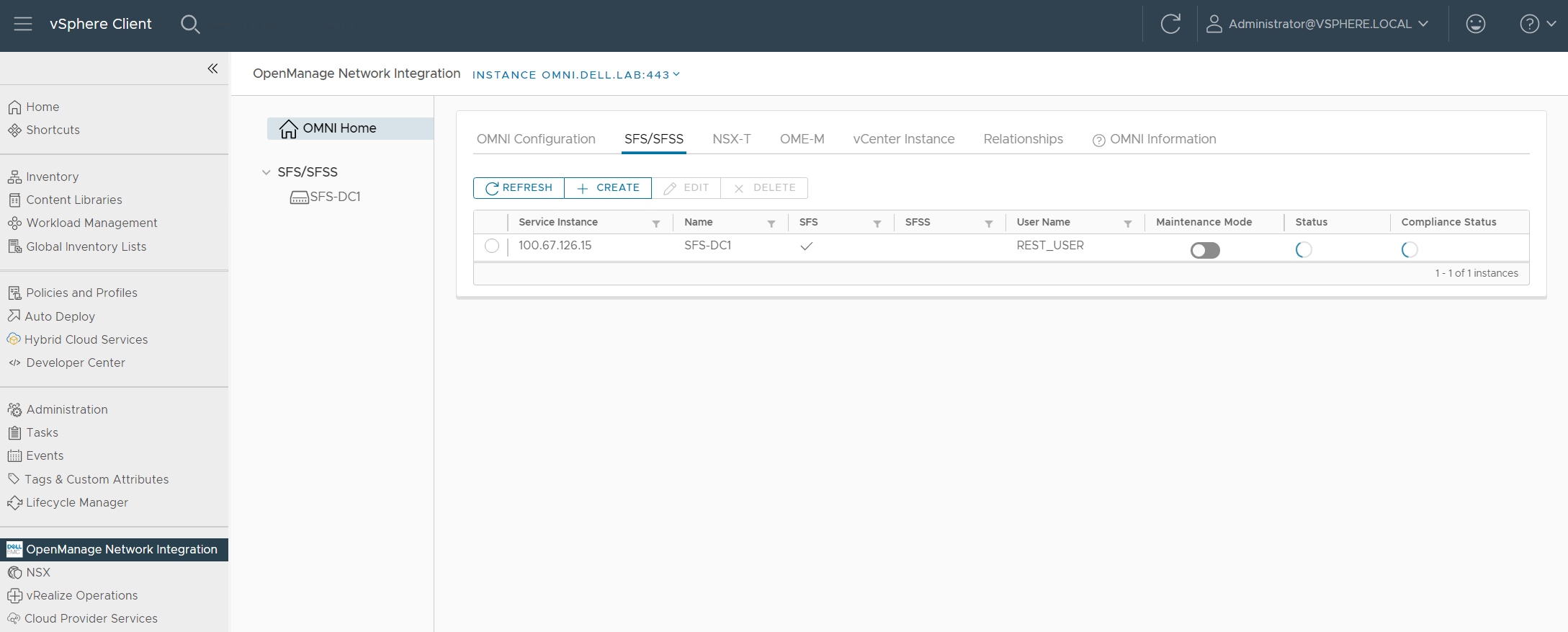
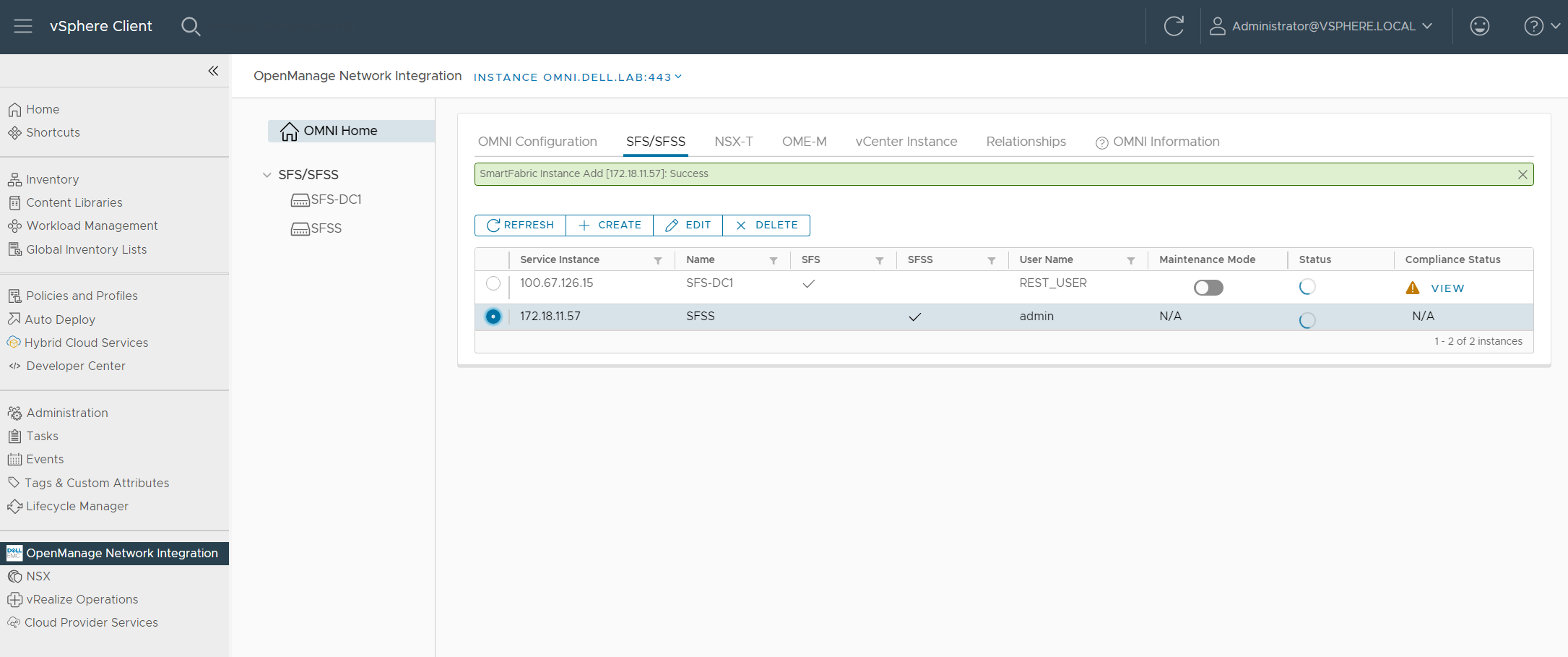
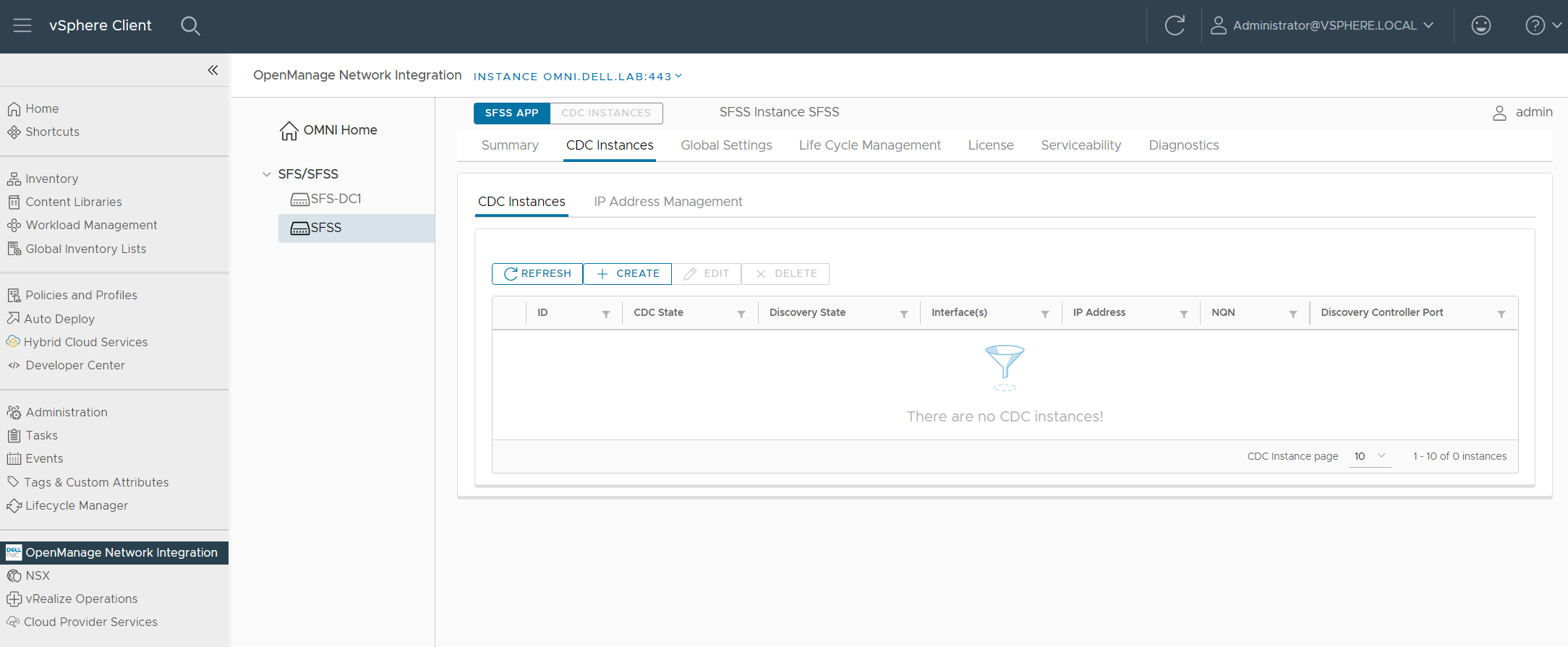
OpenManage Network Integration (OMNI) can provide a single pane of glass for multiple SFSS VMs. Within vCenter, the administrator can access multiple SFSS and SFS instances. For an introduction to OMNI, see the OpenManage Network Integration (OMNI) software section.
Maximum Transmission Unit (MTU)
In most solutions, the use of jumbo frames improves the performance of IP SAN traffic. In lieu of analyzing the application that will use NVMe/TCP storage, an MTU of 9000 is recommended on endpoints, with 9216 configured on switches. To compare MTU performance, see the NVMe Transport Performance Comparison White Paper.
CAUTION: The CDC registration fails if there is an MTU mismatch. If any of the devices in the end-to-end path has an MTU of 1500 and cannot be increased, use an MTU of 1500 in all components.
The following is a list of points where MTU may be configured and should be aligned. The default is 1500 on SFSS, vSphere, and PowerStore, and most switches.
Table 4. MTU configuration points
Component
Configuration point
SFSS
The global setting applies to all storage interfaces.
vSphere
vSwitch properties, vDS Advanced Settings, and VMkernels.
Switches
Interface and global level, depending on the vendor, model, and operating system.
PowerStore
Cluster level and storage network level.
PowerMax
IP interface level
Linux
Bond interfaces, bridge interfaces, and vlan interfaces. Depending on the Linux distribution and architecture, there may be other locations.
Multichassis Link Aggregation (MLAG)
The following are MLAG best practices for NVMe/TCP endpoints.
Table 5. MLAG recommendations
Port
Recommendation
Switch ports that connect to ESXi host ports used for accessing NVMe/TCP traffic (I/O)
The NVMe/TCP vmhba cannot fail over, therefore teaming is not used on these ports. Do not configure LAG or MLAG on the switch ports.
Switch ports that connect to Linux host ports used for NVMe/TCP traffic (I/O)
While these ports can be bonded, the best practice is that they are not bonded. Native multipathing, or other multipathing solutions should be leveraged.
Switch ports that connect to PowerStore ports used for NVMe/TCP traffic (I/O)
Depending on which ports are used for NVMe/TCP, MLAG may or may not be used. Follow the guidelines provided in the Networking Guide for PowerStore models on the PowerStore: Info Hub - Product Documentation and Videos page.
Switch ports that connect to PowerMax ports used for NVMe/TCP traffic (I/O)
Do not configure LAG/MLAG on the switch ports. Cross connects between switches and nodes is not recommended.
Switch ports that connect to ESXi or Linux host ports that host the SFSS VM and will not be used to transport NVMe/TCP traffic
These ports can be Active/Active or Active/Standby, with MLAG as optional.
Flow control
For ports connected to NVMe/TCP Endpoints, priority flow control (IEEE 802.1p) should be off for receive and transmit.
VLAN tagging
Table 6. VLAN tagging recommendations
Port
Recommendation
Switch ports that connect to NVMe/TCP host ports used for accessing NVMe storage on a subsystem
NVMe/TCP VLANs are tagged.
Switch ports that connect to PowerStore ports used for NVMe/TCP traffic
Note: Dropping packets by leveraging QoS configuration is not recommended as a solution for congestion. The cause of congestion should be discovered and rectified.
Note: Using advanced features like WRED/ECN requires careful tuning and coordination between host OS, host NIC, array OS, array NIC, and switch buffer settings. Without proper tuning, use of WRED/ECN has been shown to give worse performance than tail drop.
Network firewall
Storage traffic and SFSS control traffic must not be firewalled. Administrators may want to firewall administrator traffic to the SFSS management interface.
Table 7. Open Ports Required for SFSS
Port
Protocol
Purpose
Description
Source
Destination
22
SSH
ESXi console access through SSH
ESXi console access through SSH
Admin
SFSS Management Interface
49
TCP
TACACS+
Remote user authentication
SFSS Management
TACACS+ Server
443
HTTPS
HTTPS access to SFSS UI, RestAPI
User access to SFSS through web UI or RestAPI
Admin
SFSS Management Interface
1812
UDP
RADIUS
Remote user authentication
SFSS Management
RADIUS Server
4420
TCP
NVMe/TCP I/O Controller
Data traffic between the host and the subsystem
Host NVMe/TCP Interface
I/O controller on storage subsystems
5353
UDP
Automated Discovery using mDNS
Endpoints and CDC send mDNS queries to discover each other in a VLAN
Many network topologies work well for NVMe/TCP traffic. This section covers three of the most popular production topologies along with a fourth example topology used in the Deploy and configure SFSS section of this guide.
Dual SAN with dedicated air-gapped SAN switches
Figure 22. Dual SAN with dedicated air-gapped SAN switch - physical
The dual SAN with dedicated air-gapped SAN switch topology has two isolated SAN switches with two isolated Layer 2 networks dedicated to NVMe/TCP traffic. This is similar to a dual SAN FC topology. One switch carries SAN A, and the other carries SAN B.
Advantages
The following examples are advantages of this topology:
Dual SAN creates an Active/Active resilient solution.
This topology removes the risk of contention with LAN traffic by:
Dedicating ports on Hosts to NVMe/TCP traffic.
Dedicating ports on Subsystems to NVMe/TCP traffic.
Dedicating entire switches to NVMe/TCP traffic
Provides an additional level of security:
NVMe/TCP traffic is constrained within a single Layer 2 network, resulting in Layer 3 isolation from the rest of the network.
This topology is familiar to fibre channel SAN administrators.
Attributes
Taking a closer look at the dedicated dual SAN topology as shown in the figure below, the following should be noted:
There are two SFSS Virtual Machines, providing end-to-end administrative and operational resiliency.
Each SFSS has one CDC instance with one storage interface in each.
On the host endpoints in the workload cluster, ports 1 and 2 are for management and guest/application traffic only. Port 3 is dedicated to SAN A and port 4 is dedicated to SAN B.
LAG is not configured on the PowerStore or PowerMax NVMe/TCP storage ports.
The SAN switches are not connected to each other (air-gapped), therefore MLAG is not used on the SAN A or SAN B interfaces.
The SAN switches do not have uplinks to the rest of the network.
Figure 23. Dedicated dual SAN switch topology in a PowerStore and VMware environment
Figure 24. Dedicated dual SAN switch topology in a PowerMax and Linux environment
Some of the possible modifications to this topology include:
Though the presence of two SFSS VMs most closely emulates the services provided by physically separate switches in different SAN instances, the administrator can choose to deploy a single SFSS VM containing two CDC Instances instead.
There are many flavors of Linux and many ways in which each can be configured. Consult your Linux distribution's documentation for guest VM networking best practices.
SFSS is interoperable with Linux on bare metal and Linux VMs.
The number of physical ports used for NVMe/TCP on the storage arrays can be increased. See product documentation for scalability limits.
Converged LAN and SAN topology
Figure 25. Converged LAN and SAN Topology - physical
Advantages
The converged LAN/SAN topology uses the same switches for application (LAN) and storage (SAN) traffic. The advantages of this topology are as follows:
You can use Top-of-Rack switches for LAN and SAN traffic, so existing switches can be used.
This topology is ideal for smaller environments.
Note: See the Congestion section for converged LAN/SAN best practices.
Attributes
The converged LAN/SAN topology shown in the figure below, is a more detailed look at the topology. Note the following:
There is a single SFSS VM with two CDC instances, each with one storage interface.
On the NVMe/TCP hosts in the workload cluster, ports 1 and 2 are for management and guest/application traffic only. Port 3 is dedicated to SAN A, and port 4 is dedicated to SAN B.
LAG is configured on the PowerStore storage ports.
Figure 26. Converged LAN and SAN topology in a PowerStore and vSphere environment – Layer 1 through Layer 3
Figure 27. Converged LAN and SAN topology in a PowerMax and Linux environment - Layer 1 through Layer 3
Some of the possible modifications to this topology include
Replace the switch pair with a Spine/Leaf fabric, significantly increasing capacity.
Though not recommended, the ESXi host may use two ports to carry all traffic. Teaming cannot be configured on these ports. See the VMware ESXi requirements section for more information.
There are many flavors of Linux and many ways in which each can be configured. Consult your Linux distribution's documentation for guest VM networking best practices.
SFSS is interoperable with Linux on bare metal and Linux VMs.
The number of physical ports used for NVMe/TCP on the storage arrays can be increased. See product documentation for scalability limits.
Dual SAN with dedicated air-gapped SAN spine/leaf fabrics over Layer 3
Figure 28. Dedicated dual fabric SAN over Layer 3 - physical
Advantages
The dedicated, air-gapped, dual SAN fabric topology has a dedicated spine/leaf fabric for SAN A, and a separate dedicated spine/leaf fabric for SAN B. This example topology leverages Layer 3 between endpoints and SFSS. The advantages of this topology are as follows:
The environment can scale up to multiple racks.
SFSS, hosts, and subsystems can be on separate VLANs and separate subnets.
Multiple storage networks can be configured on the storage array.
Attributes
When looking at the dedicated dual SAN fabric topology example in the figure below, note the following:
To avoid the need for static or dynamic routing configuration in SFSS, each SFSS VM has only one network interface. The interface used for management in other topologies is inactive.
Note: A future release of SFSS allows you to configure static and dynamic routing on multiple interfaces.
There are two SFSS Virtual Machines, providing end-to-end administrative and operational resiliency.
Each SFSS has one CDC instance with one storage interface in each.
To access SFSS VMs with only one interface each, use OMNI or a jump box. Add Storage network interfaces to the OMNI or jump box.
On the ESXi hosts in the workload cluster, ports 1 and 2 are for management and guest traffic only. Port 3 is dedicated to SAN A, and port 4 is dedicated to SAN B.
Figure 29. Dedicated dual fabric topology in a PowerStore and ESXi environment- Layer 1 through Layer 3
Figure 30. Dedicated dual fabric topology in a PowerMax and Linux environment- Layer 1 through Layer 3
Initial configuration worksheet template
Before you proceed with the solution deployment, plan and record the necessary configuration values in the tables below. For a fully populated example, see the Topology overview section.
SFSS configuration data
Note: Duplicate this table for each SFSS instance.
7 Only required if Layer 3 routing is required to reach SFSS or subsystems.
8 Only required if Layer 3 routing is required for NVMe/TCP communication between SFSS and Endpoints
9 Only required if Layer 3 routing is required for NVMe/TCP communication between SFSS and Endpoints
Overview of Example Deployment
Steps to deploy SFSS for NVMe/TCP
The information below provides a high-level overview of the deployment of SFSS for NVMe/TCP.
Figure 31. High-level deployment steps
Configure NVMe/TCP interfaces on endpoints.
Deploy the SFSS virtual machine, configure the interfaces, and create the CDC instances.
Discovery of CDC instances by endpoints.
Discovery is automated in most scenarios. Some solutions require configuration in this step.
Configure the zoning.
Provision the storage.
Create the volume groups and volumes on the subsystem.
Add hosts and map to the volume.
Access the NVMe storage.
In ESXi, create datastore
In Linux, devices will be listed like local drives
The following quick start wizard is a summary of the SFSS configuration steps.
Figure 32. SFSS configuration Quick Start Wizard
Topology overview
The purpose of this section is to provide the set of configuration steps required to set up the below topology. To deploy your own customized solution, follow the steps using the values in your Initial Configuration Worksheet, adjusting the number of times to repeat steps accordingly. If the outcome of a step is not as expected, see the SmartFabric Storage Software Troubleshooting Guide Alerts and Events Reference on the SmartFabric Storage Software Download for NVMe/TCP SAN Documentation page for assistance.
The following table shows the switch interface configuration for a pair of dedicated, air-gapped SAN PowerSwitch systems running SmartFabric OS10 in full switch mode. Notice that there are no uplinks to the rest of the network, and there are no connections between the switches.
Table 33. Dedicated, air-gapped dual SAN example interface configuration in Dell OS10
SAN switch 1 - SAN A
SAN switch 2 - SAN B
default mtu 9216

interface vlan1821
 description SAN-A
 no shutdown
!
! Endpoint Interfaces
interface range ethernet1/1/1-1/1/10
 no shutdown
 switchport mode trunk
 switchport trunk allowed vlan 1821
 flowcontrol receive off
 flowcontrol transmit off
 spanning-tree port type edge
!
default mtu 9216

interface vlan1822
 description SAN-B
 no shutdown
!
! Endpoint Interfaces
interface range ethernet1/1/1-1/1/10
 no shutdown
 switchport mode trunk
 switchport trunk allowed vlan 1822
 flowcontrol receive off
 flowcontrol transmit off
 spanning-tree port type edge
!
Table 34. Dedicated, air-gapped dual SAN example interface configuration in Dell Enterprise SONiC Distribution
SAN switch 1 - SAN A
SAN switch 2 - SAN B
interface vlan1821
 description SAN-A
 no shutdown
!
! Endpoint Interfaces
interface range ethernet1/1/1-1/1/10
 no shutdown
 mtu 9216
 switchport trunk allowed vlan 1821
!
interface vlan1822
 description SAN-B
 no shutdown
!
! Endpoint Interfaces
interface range ethernet1/1/1-1/1/10
 no shutdown
 mtu 9216
 switchport trunk allowed vlan 1822
!
For IPv6 solutions, MLD snooping must be disabled to facilitate automated discovery of endpoints. Consult your switch vendor's documentation to determine if MLD snooping is enabled by default and requires configuration to disable.
Note: In a Cisco ACI EPG used for NVMe/TCP, configure Multi Destination Flooding to Flood in BD to facilitate automated discovery using mDNS.
Table 35. Additional configuration required when using IPv6
SAN A
SAN B
OS10(config)# interface vlan1821
OS10(conf-if-vl-1821)# no ipv6 mld snooping
In OS10, MLD snooping can be disabled globally
OS10(config)# no ipv6 mld snooping enable
OS10(config)# interface vlan1822
OS10(conf-if-vl-1822)# no ipv6 mld snooping
In OS10, MLD snooping can be disabled globally
OS10(config)# no ipv6 mld snooping enable
SmartFabric Services configuration
The network used in this guide is configured using SmartFabric Services (SFS) automation. SFS is included with SmartFabric OS10. With SFS, you can easily deploy and automate data center networking fabrics. SFS automatically builds an L3 leaf-spine fabric which accelerates time to production while being fully interoperable with the existing data center infrastructure.
The process for the SFS fabric build is performed as follows:
Rack and cable the leaf and spine switches.
Enable SFS from the OS10 command-line interface (CLI) using the smartfabric l3fabric enable command on each switch.
Specify Virtual Link Trunking interconnect (VLTi) ports on leafs.
Verify that the switches boot in SmartFabric mode.
Ensure that the switches discover each other using Link Layer Discovery Protocol (LLDP).
Check that the leaf and spine connections are established using private IP addresses and external Border Gateway Protocol (eBGP).
Confirm that leaf nodes are configured as hardware Virtual Tunnel End Points (VTEPs) for the infrastructure network overlay using BGP EVPN.
When configuring links to the external network, keep in mind that they can be Layer 2 or Layer 3.
After the deployment is complete, use the OpenManage Network Integration vCenter plugin to perform additional configurations.
OpenManage Network Integration software
The OMNI vCenter plugin makes vCenter a single pane of glass for administration of SFS and SFSS. For SFS, OpenManage Network Integration (OMNI) enables configuration and management of Dell PowerSwitch systems running Dell SmartFabric OS10 in VMware vCenter. With OMNI, networks created in vCenter are automatically configured in the fabric.
You can perform the following tasks in the OMNI plugin within vCenter:
View the leaf-spine topology
View switch status
Configure server-facing interfaces and port channels
Configure uplinks to external networks
Create networks (VLANs)
Configure routing
Upgrade SmartFabric OS10
Figure 34. View of SFS spine/leaf topology in OMNI vCenter plugin
This chapter applies to ESXi hosts, including VxRail.
After cluster deployment, perform the following steps:
Create a vSwitch or vDS for NVMe/TCP traffic.
Create NVMe/TCP port groups.
Create VMkernel ports.
Create NVMe/TCP storage adapters.
Discover SFSS.
VMware vSphere initial state
This guide begins with vSphere vCenter and hosts deployed with the data center, clusters, and management virtual networking in place. The screens below depict the settings used.
In vSphere, configure your clusters, hosts, and VMs before deploying SFSS. The figure below shows the configuration used for the example in this guide.
Warning:
Ensure that the hostname and domain are changed from their default values. They are used to form the NQN of the host. If you need to reform the NQN after changing the hostname or domain (FQDN), run the esxcli nvme info set --hostnqn=default command.
Figure 35. vSphere Clusters, hosts, and VMs before NVMe/TCP Deployment
Note: The OpenManage Network Integration (OMNI) software is optional. See the OpenManage Network Integration section for information about adding SFSS to the OMNI UI. See the OpenManage Network Integration section for an introduction to OMNI.
The figure below shows the topology of the virtual distributed switch of the Management Cluster. Hosts esxi01 to esxi04 connect to vDS C01-vDS-Management. Uplinks 1 and 2 connect to the network carrying management, vMotion, and SFSS control traffic. Uplink 3 is used to connect the OMNI virtual machine to the switches in our solution via an out-of-band network. To align with the network MTU settings, the vDS that's used for SFSS NVMe/TCP control traffic has an MTU of 9000.
Figure 36. Distributed switch of Management cluster
The figure below shows the configuration used for vDS for the workload cluster’s two management uplink ports. Hosts esxi05-esxi08 connect to C02-vDS-Workload for management, vmotion, and guest traffic. Uplinks 1 and 2 connect to the LAN. We will create a vDS for NVMe/TCP to connect to the SAN switches later.
Figure 37. Distributed switch for workload cluster LAN uplinks
Configure ESXi NVMe/TCP host virtual networking
The following steps prepare the ESXi hosts for NVMe/TCP connectivity.
Create and configure vDS for host NVMe/TCP storage I/O traffic
In this example, the C02-vDS-NVMeTCP distributed switch is created for NVMe/TCP host traffic. Alternatively, you can use an existing vDS or standard switches. A virtual switch per SAN port can be used, but this example uses a single vDS for both SAN ports with each SAN port group mapped to different uplinks.
You will configure two port groups on this vDS: one for SAN-A and one for SAN-B traffic.
To create a vDS:
From the vSphere client, locate the Networking listing, and then right-click the DC-NVMeTCP virtual data center.
Click Distributed Switch > New Distributed Switch.
Figure 38. Select New Distributed Switch
In the Name field, enter a name for the vDS.
Note: In this example, C02-vDS-NVMeTCP is used.
Figure 39. Provide Name for vDS
From the Select version option, select the version aligned to your environment.
Figure 40. Select ESXi version (7.0)
Figure 41. Select ESXi version (8.0)
Click Next.
Specify the number of uplinks. This example uses 2 of the four uplinks for this vDS.
Click to clear the check from Create a default port group.
Figure 42. Number of uplinks (7.0)
Figure 43. Number of uplinks (8.0)
Click Next.
Review the Ready to complete screen and then click FINISH.Figure 44. Ready to complete confirmation screen (7.0)
Figure 45. Ready to complete confirmation screen (8.0)
Right-click the new C02-vDS-NVMeTCP vDS and then click Settings > Edit Settings.
Figure 46. Edit Settings of new vDS
Click the Advanced tab and modify the following parameters:
MTU (Bytes) – Change the MTU to match the end-to-end network. In this example, 9000 is used.
Under Discovery protocol, change the Type and Operation to match the network switches.
Figure 47. Distributed Switch - Edit settings
Click OK.
From the Configure tab, verify that the Properties page displays the updated configuration.
Figure 48. vDS Properties
Add hosts to vDS
To add the hosts to the vDS, perform the following steps:
Right-click the new vDS and select Add and Manage Hosts.
Figure 49. Add and Manage hosts
Select Add hosts and click NEXT.
Figure 50. Add Hosts
From the listing, click to select the hosts that will participate in NVMe/TCP.
Figure 51. Select Hosts
In Manage physical adapters, click to select and assign which of the host vmnics will map to the vDS uplinks. In this example, Uplink 1 and Uplink 2 are assigned to vmnic 2 and vmnic3.
Figure 52. Manage physical adapters
Click NEXT.
From the Manage VMkernel adapters section, click NEXT. Note: The NVMe/TCP VMkernel adapters are created later in this process.
On the Migrate VM networking screen, click NEXT, and then click FINISH.
Figure 53. Ready to Complete host addition
Figure 54. New vDS Topology View
Create host NVMe/TCP storage I/O traffic port groups
In this section, two port groups for NVMe/TCP storage traffic are created on the virtual distributed switch. In this example, C02-NVMeTCP-SAN-A and C02-NVMeTCP-SAN-B are created on the C02-vDS-NVMeTCP distributed switch.
Configure SAN A Port Group for NVMe/TCP VMkernels
To configure the SAN A port group for the NVMe/TCP VMkernels, perform the following steps:
Right-click the distributed switch for NVMe/TCP traffic.
This example uses C02-vDS-NVMeTCP.
Select Distributed Port Group, and then click New Distributed Port Group.
Figure 55. Create Port Group
From the Name and location screen, enter a Name for the port group in the field provided.
Note: In this example, C02-NVMeTCP-SAN-A is used.
Figure 56. Specify name for port group
Click Next.
On the Configure settings screen, select VLAN as the VLAN type, and enter the VLAN ID in the field provided.
Note: This example uses 1821.
Click to select the Customize default policies configuration box.
Note: Other tasks display in the left column.
Click NEXT.
Figure 57. Configure settings for port group
Click Next to accept the Security screen defaults.
Click Next to accept the Traffic shaping defaults.
From the Teaming and Failover screen, set Notify switches to No, and the Failback option to No.
Note: Set only one Active uplink. Other Active or Standby links are not possible because the storage adapter cannot failover. In this example, Uplink 1 is the Active uplink for C02-NVMeTCP-SAN-A, Uplink 2 is moved to Unused uplinks and is active for SAN B.
From the Monitoring screen, leave the default settings as they are and click NEXT.
On the Miscellaneous screen, leave the default settings as they are and then click NEXT.
On the Ready to complete screen, review the information, and then click Finish.
Figure 59. Ready to complete confirmation screen
Configure SAN B Port Group for NVMe/TCP VMkernels
To configure the SAN A port group for the NVMe/TCP VMkernels, perform the following steps:
Right-click the distributed switch for NVMe/TCP traffic. In this example, C02-vDS-NVMeTCP is used.
Select Distributed Port Group > New Distributed Port Group.
On the Name and location screen, enter a Name for the Port Group. In this example, C02-NVMeTCP-SAN-B is used.
Click Next.
In the Configure settings screen, select VLAN type as VLAN, and set the VLAN ID.
This example uses 1822.
Click to select the Customize default policies configuration box.
Click Next to accept Security screen defaults.
Click Next to accept the Traffic shaping defaults.
On the Teaming and Failover screen, set Notify switches to No, and Failback to No.
Note: Set only one Active uplink. Other Active or Standby links are not possible because the storage adapter cannot failover. In this example, for C02-NVMeTCP-SAN-B, Uplink 2 is the Active uplink. In this example, move Uplink 1 to Unused uplinks.
Figure 60. Teaming and Failover settings on SAN B Port Group
Click Next to accept Monitoring screen defaults.
Click Next to accept the Miscellaneous defaults.
On the Ready to complete screen, review the information, and then click Finish.
To view the topology of the vDS, right-click the distributed switch, go to the configure tab, and click Topology.
Figure 61. New vDS with two new Port Groups for NVMe/TCP traffic
Create VMkernel ports for NVMe/TCP Storage I/O Traffic
Follow the steps to create VMkernel ports for NVMe/TCP on all hosts connected to the vDS.
The first set of steps provides instructions for port group C02-NVMeTCP-SAN-A. The steps are repeated using different IP settings for port group C02-NVMeTCP-SAN-B.
From the vSphere Client, select Networking.
Right-click the C02-NVMeTCP-SAN-A port group.
Select Add VMkernel Adapters.
Figure 62. Add VMkernel to Port Group
In the Add VMkernel Adapters dialog box, select the following options:
In the Select Member Hosts dialog box, select all the hosts listed and click Next.
Note: In this example, hosts esxi05 through esxi08 are selected.
Figure 63. Select host members
On the Configure VMkernel adapter page, set MTU to match the network.
Note: In this example, the MTU is learned from the switch and is 9000.
From the Available services listing, select NVMe over TCP.
On the IPv4 settings page, select Use static IPv4 settings.
Enter the IP and Subnet Mask for each host.
Use IP addresses from the SAN A NVMe/TCP Storage network. In this example, 172.18.21.105 through 172.18.21.108 are used.
In the Gateway section, select Do not configure from the drop-down.
Note: If Layer 3 connectivity is required to reach the hosts from SFSS or storage, add a default gateway as follows:
In the Gateway section, select the Configuration type as Configure on VMkernel adapters.
Enter the Gateway IP address.
Note: In this example, gateway 172.18.21.254 would be used.
Figure 66. IPv4 settings
Click NEXT.
On the Ready to complete page, review the information and click FINISH .
Figure 67. Ready to complete confirmation screen
Click C02-vDS-NVMeTCP > Configure > Topology to verify that the created VMkernel ports are on the hosts.
Click to expand the VMkernel ports section in the C02-NVMeTCP-SAN-B port group, and view the VMkernel details.
Figure 68. Verifying VMkernel ports for SAN A and SAN B
Create NVMe over TCP storage adapters on each host
CAUTION: If running ESXi 8.0, Dell Technologies recommends that the vmhbas are created after the CDC is online. ESXi 8.0 only attempts auto-discovery once, at the time of vmhba creation. If CDC is created after the vmhbas, trigger discovery with mDNS using the esxcli nvme fabrics discover -D -a [vmhbaXY] command on each vmhba.
You can create VM HBAs in the CLI or in the vCenter GUI.
To create the storage adapters using the CLI, use the following esxcli command: esxcli nvme fabrics enable -p TCP -d [vmnic].
To create storage adapters using the vCenter GUI:
From the vSphere client, select Hosts and clusters.
Click the host. Note: In this example, host esxi05.dell.lab is selected.
After a few seconds, verify that the newly created NVMe over TCP software storage adapter, vmhba64, was added.
Figure 71. NVMe/TCP storage adapter (vmhba64)
Repeat the steps in this section to create a second storage adapter for the host, however, the select the following options for the second uplink:
Click Add Software Adapter.
Select Add NVMe over TCP adapter.
Select the Physical Network Adapter for SAN B.
Note: In this example, vmnic3 is selected.
Figure 72. Add software adapter - SAN B
Click OK.
After a few seconds, verify that the second NVMe over TCP software storage adapter, vmhba65, was added.
Figure 73. NVMe/TCP storage adapters (vmhba64 and vmhba65)
Note: There is a limit of two NVMe/TCP vmhba per host.
Repeat the steps above to add two storage adapters on the remaining hosts in the cluster.
Note: For the topology in this example, hosts esxi05, esxi06, esxi07, and exsi08 will each have two NVMe/TCP storage adapters ( vmhba64 on physical adapter vmnic2, and vmhba65 on physical adapter vmnic3) added.
Figure 74. Two storage software adapters for each host
Configure SUSE Linux Enterprise Server NVMe/TCP hosts
Configure SUSE Linux Enterprise Server NVMe/TCP hosts
Using the Automated Connectivity Client (ACC) for Linux, nvme-stas (Storage Appliance Services), has the following advantages:
Automatic discovery of NVMe Discovery Controllers on the same subnet using mDNS. When nvme-stas discovers a Discovery Controller on the same subnet, it will automatically and persistently connect to it.
Asynchronous Event Notification (AEN) handling.
Many customizable parameters that control the TCP sessions and behavior of the Linux NVMe/TCP host.
Table 36. Features - comparing nvme-stas with nvme-cli
Feature
NVME-STAS
NVME-CLI
Prevent CDC connections on an IP protocol not used for NVMe/TCP. Use the IP address family filter
No – stas only displays data in JSON format (for now).
Use nvme list -v
Yes - nvme list -v
Configure Linux NVMe/TCP host virtual networking
This configuration example begins with a SUSE Linux Enterprise Server 15 SP4 installed.
The Linux virtual networking described in this guide is one of many ways to configure a Linux NVMe/TCP host and is intended to provide guidance only.
The following topology is used on the Linux host in this guide.
Figure 75. Linux environment used in this guide
The configuration files for the interfaces shown above are as follows:
Verify network connectivity for all interfaces using the ip a command:
lin02:/ # ip a
: eth0: <BROADCAST,MULTICAST,UP,LOWER_UP> mtu 1500 qdisc mq state UP group default qlen 1000
    link/ether e4:3d:1a:01:aa:20 brd ff:ff:ff:ff:ff:ff
    altname enp59s0f0np0
    inet 100.67.126.120/24 brd 100.67.126.255 scope global eth0
       valid_lft forever preferred_lft forever
    inet6 fe80::e63d:1aff:fe01:aa20/64 scope link
       valid_lft forever preferred_lft forever
: eth2: <BROADCAST,MULTICAST,UP,LOWER_UP> mtu 9000 qdisc mq state UP group default qlen 1000
    link/ether e4:3d:1a:03:14:60 brd ff:ff:ff:ff:ff:ff
    altname enp94s0f0np0
: eth3: <BROADCAST,MULTICAST,UP,LOWER_UP> mtu 9000 qdisc mq state UP group default qlen 1000
    link/ether e4:3d:1a:03:14:61 brd ff:ff:ff:ff:ff:ff
    altname enp94s0f1np1
. . .
: vlan1822@eth3: <BROADCAST,MULTICAST,UP,LOWER_UP> mtu 9000 qdisc noqueue state UP group default qlen 1000
    link/ether e4:3d:1a:03:14:61 brd ff:ff:ff:ff:ff:ff
    inet 172.18.22.110/24 brd 172.18.22.255 scope global vlan1822
       valid_lft forever preferred_lft forever
    inet6 fe80::e63d:1aff:fe03:1461/64 scope link
       valid_lft forever preferred_lft forever
: vlan1821@eth2: <BROADCAST,MULTICAST,UP,LOWER_UP> mtu 9000 qdisc noqueue state UP group default qlen 1000
    link/ether e4:3d:1a:03:14:60 brd ff:ff:ff:ff:ff:ff
    inet 172.18.21.110/24 brd 172.18.21.255 scope global vlan1821
       valid_lft forever preferred_lft forever
    inet6 fe80::e63d:1aff:fe03:1460/64 scope link
       valid_lft forever preferred_lft forever
Verify that mDNS is permitted through the firewall. If mDNS is not permitted through the firewall, enter firewall-cmd --permanent --add-service=mdns; firewall-cmd –reload/.
The best practice IO policy for NVMe/TCP is round robin. To ensure that any new and/or rebooted NVMe devices use round-robin, create udev rules for your Dell Technologies product.
For a host to connect to a CDC on a different subnet, and/or connect to a subsystem on a different subnet, static routing is required.
On the Linux host, configure static routing to the CDC IPs and any subsystems on other subnets. Use Yast, or add the routes to the /etc/sysconfig/network/routes configuration file.
Discovery of CDC IPs using nvme-stas
Using the ACC for Linux, nvme-stas, Linux hosts discover CDC instances automatically when on the same subnet. SLES 15 SP4 is used in this guide, which includes the nvme-stas package.
Note: nvme-stas is supported on SUSE Linux Enterprise 15, Service Pack 4 and later.
High level steps for automated discovery are as follows:
Install prerequisites and nvme-stas on the Linux host.
Optional: Identify any advanced settings that may need to be modified for your solution.
Configure CDC IPs manually if the host and CDC IP are not on the same subnet.
To configure discovery:
Install prerequisites and nvme-stas on the Linux host.
Ensure nvme-stas package dependencies are handled automatically by zypper using the steps recommended by SUSE to configure an OS repository: How to add SLES repository on SLES server
Install nvme-stas, avahi, and nvme-cli with the zypper in nvme-stas avahi nvme-cli command. Enter y when prompted to continue.
Note: nvme-cli is installed as it can be useful in troubleshooting scenarios.
Verify that stafd, stacd, and avahi-daemon are enabled with the systemctl status stafd stacd avahi-daemon command.
lin02:/ # systemctl status stafd stacd avahi-daemon
o stafd.service - STorage Appliance Finder (STAF)
     Loaded: loaded (/usr/lib/systemd/system/stafd.service; enabled; vendor preset: disabled)
     Active: active (running) since Mon 2022-07-18 07:23:30 CDT; 2min 45s ago
(…)
o stacd.service - STorage Appliance Connector (STAC)
     Loaded: loaded (/usr/lib/systemd/system/stacd.service; enabled; vendor preset: disabled)
     Active: active (running) since Mon 2022-07-18 07:23:30 CDT; 2min 45s ago
(…)
o avahi-daemon.service - Avahi mDNS/DNS-SD Stack
     Loaded: loaded (/usr/lib/systemd/system/avahi-daemon.service; enabled; vendor preset: enabled)
     Active: active (running) since Mon 2022-07-18 07:23:30 CDT; 2min 45s ago
(truncated)
Check advanced settings in the nvme-stas documentation, such as I/O controller connection management. Some parameters may need to be modified to better suit the solution. To see the full list of editable parameters in the stafd and stacd files, view the man pages, or select the documentation for your nvme-stas version here: https://nvme-stas.readthedocs.io.
If the Linux host and CDC IP are not on the same subnet, specify the CDC IP addresses in the /etc/stas/stafd.conf file using the controller command.
This section demonstrates the creation of NVMe/TCP storage networks in the PowerStore cluster.
Note: This example uses NVMeTCP-SAN-A and NVMeTCP-SAN-B.
From the Dell PowerStore UI, click the Settings icon.
Figure 81. Settings Menu in PowerStore UI
Under the Networking section, select Network IPs > STORAGE.
Figure 82. Storage Networks tab in PowerStoreOS 2.1.x
Figure 83. Storage Networks tab in PowerStoreOS 3.x
Click CREATE. In this example, the following options are selected:
Network Name:NVMeTCP-SAN-A
Click to select the Use VLAN tagging box
VLAN ID: 1821
Netmask/Prefix Length:255.255.255.0
Note: If leveraging Layer 3 routing for NVMe/TCP, enter a Gateway. For example, 172.18.21.254.
Do not enter a Global Storage Discovery IP.
From the Purposes option, click to clear the check from the iSCSI option. Note: Verify that NVMe/TCP is the only Purpose that is selected.
For Storage Network IPs, enter 172.18.21.191 and 172.18.21.192
Set the Network MTU Size to match the end-to-end network. This example uses 9000.
Figure 84. Create Storage Network for SAN A
Click NEXT.
Map the new SAN A storage network to physical ports. This example uses FEPort2. PowerStore will automatically map the new network to port 2 on both nodes.
Figure 85. Map PowerStore port to SAN A
Note: For air-gapped SAN switches, do not use FEPort0 and FEPort1 as they are in a bond. See the PowerStore Networking Guides page for more information.
Click FINISH.
Figure 86. Storage mapping completed successfully
Click Finish again.
Figure 87. New SAN-A Storage Network added
Repeat the steps above to add the second, NVMeTCP-SAN-B network, using the following criteria:
Network Name: NVMeTCP-SAN-B
VLAN ID: 1822
Netmask/Prefix Length: 255.255.255.0
Note: If leveraging Layer 3 for NVMe/TCP, enter a Gateway IP address. For example, 172.18.22.254.
Do not enter a Global Storage Discovery IP.
From the Purposes option, click to clear the check from the iSCSI option. Verify that NVMe-TCP is the only Purpose that is selected.
Storage Network IPs: 172.18.22.191-192
Set the Network MTU Size to match the end-to-end network. This example uses 9000.
Click Next.
Figure 88. Create Storage Network for SAN B
Map the new SAN B storage network to physical ports. This example uses FEPort3. PowerStore will automatically map the new network to port 3 on both nodes.
Figure 89. Map PowerStore port to SAN B
Click FINISH.
Figure 90. New SAN-B Storage Network added in PowerStoreOS 2.1.x
Figure 91. New SAN-B Storage Network added in PowerStoreOS 3.x
If PowerStore and CDC are on different subnets, the CDC IP must be set in PowerStore Manager or SFSS.
For PowerStoreOS 2.1.x, the DDCs are configured in SFSS. See the Manually add a DDC in SFSSsection after the SFSS has been deployed and CDCs are enabled.
If PowerStoreOS 3.x is installed and the CDC is on a different subnet to the storage network, click NVME DISCOVERY OPTIONS.
Figure 92. Click NVMe Discovery Options
Then change the selection from the default Automatic Discovery of CDC to Manual Configuration of CDC and enter the CDC IP address and port.
This chapter demonstrates the creation of NVMe/TCP storage networks in the PowerMax cluster.
The high-level steps are as follows:
Choose the appropriate discovery configuration method: automatic or manual.
Enable NVMe/TCP on physical ports.
Run the Endpoint Configuration Wizard for each port.
Verify discovery.
PowerMax discovery options
Based on your solution, select the appropriate method of discovery and apply the relevant configuration shown below.
Figure 94. PowerMax discovery options.
Configure PowerMax virtual networking and discovery
To configure PowerMax virtual networking and discovery, open Unisphere for PowerMax and complete the following steps.
To enable NVMe/TCP on physical ports:
Select the PowerMax system.
Select Hardware from the left menu.
Select the port that will be used for NVMe/TCP. In this example, port 4 on each node is used.
Repeat these steps for each port.
Figure 95. Select ports
In the Hardware page, select Manage Protocol.
Figure 96. Select Manage Protocol
In the Manage Protocol wizard, select the NVMe/TCP radio button and click Run Now.
Figure 97. Manage protocol
A green checkmark appears in the NVMe/TCP column for the configured ports.
To bring the ports online:
Select the NVMe/TCP ports again and click Online.
Figure 98. Ports enabled for NVMe/TCP
In the Set Port Online dialog box, click OK.Figure 99. Set port online
The port status changes from OFF, to PendOn, to On.Figure 100. Ports set to On
To open the NVMe/TCP configuration wizard:
Expand System in the left menu.
Select iSCSI + NVMe.
Select the NVME tab.
From the Actions menu on the right menu, click NVMe/TCP CONFIGURATION WIZARD.
Figure 101. Open the NVMe/TCP configuration wizard
To configure the Endpoints, on the NVMe/TCP Endpoint page, select the Director and then complete the following fields: using the NVMe/TCP configuration wizard:
Network ID
Note: The Network ID is an internal identifier, but Dell recommends entering the VLAN ID value for better supportability.
On the IP Interface page, complete the following fields:
IP Address
Prefix Length
VLAN ID
For Jumbo frames, select the Use Jumbo Frames checkbox or enter a Max Trans Unit of 9000 and click Next.
Choose one of the following options:
If the CDC and NVMe/TCP endpoint are in the same subnet, select Auto Discovery of CDC IP Address.
Figure 103. Auto Discovery of CDC from PowerMax
If the CDC and NVMe/TCP endpoint are in different subnets, select Manual Configuration of CDC IP address. Enter the CDC IP address in the IP Address field and click Next. This example uses 172.18.22.250.
Figure 104. Manual Configuration of CDC IP
On the Summary page, review the data and click Run Now.
Figure 105. Run the NVMe/TCP Configuration Wizard
Rerun the NVMe/TCP Configuration Wizard for each Endpoint, ensuring the correct Director is selected from the dropdown list.
Figure 106. NVMe/TCP Configuration Wizard – SAN B Endpoint
After the Endpoints are created, the total number are shown on the NVMe tab.
After cluster deployment and virtual switch configuration:
Create NVMe/TCP port groups.
Download SFSS.
Deploy the SFSS OVF template.
VMware vSphere initial state
This guide begins with vSphere vCenter and hosts deployed with the data center, clusters, and management virtual networking in place. The screens below depict the settings used.
In vSphere, configure your clusters, hosts, and VMs before deploying SFSS. The figure below shows the configuration used for the example in this guide.
Warning:
Ensure that the hostname and domain are changed from their default values. They are used to form the NQN of the host. If you need to reform the NQN after changing the hostname or domain (FQDN), run the esxcli nvme info set --hostnqn=default command.
Figure 108. vSphere Clusters, hosts, and VMs before NVMe/TCP Deployment
Note: The OpenManage Network Integration (OMNI) software is optional. See the OpenManage Network Integration section for information about adding SFSS to the OMNI UI. See the OpenManage Network Integration section for an introduction to OMNI.
The figure below shows the topology of the virtual distributed switch of the Management Cluster. Hosts esxi01 to esxi04 connect to vDS C01-vDS-Management. Uplinks 1 and 2 connect to the network carrying management, vMotion, and SFSS control traffic. Uplink 3 is used to connect the OMNI virtual machine to the switches in our solution via an out-of-band network. To align with the network MTU settings, the vDS that's used for SFSS NVMe/TCP control traffic has an MTU of 9000.
Figure 109. Distributed switch of Management cluster
The figure below shows the configuration used for vDS for the workload cluster’s two management uplink ports. Hosts esxi05-esxi08 connect to C02-vDS-Workload for management, vmotion, and guest traffic. Uplinks 1 and 2 connect to the LAN. We will create a vDS for NVMe/TCP to connect to the SAN switches later.
Figure 110. Distributed switch for workload cluster LAN uplinks
Configure ESXi SFSS host virtual networking
Create port groups for SFSS VM NVMe/TCP control traffic
This example uses distributed port groups, but standard port groups can also be used.
Log in to the vSphere web client.
Click the Networking option.
Select the vDS used for the SFSS VM’s NVMe/TCP Control traffic. This example uses the C01-vDS-Management vDS.
Right-click the vDS listing and select Distributed Port Group.
Click New Distributed Port Group.
Figure 111. Add New Distributed Port Group
Provide a name for the first port group. This example uses the C01-NVMeTCP-SAN-A-SFSS port group.
Figure 112. Provide a Name for the port group
Click NEXT.
On the Configure Settings page, select VLAN from the VLAN type field.
Enter the VLAN ID in the field provided. This example uses VLAN ID 1821.
From the Configure settings screen, click to select the box next to Customize default policies configuration, and then click NEXT.
Figure 113. Distributed Port Group Settings
From the Security page, click NEXT to accept the default options.
On the Traffic shaping page, click NEXT to accept the Disabled default options.
From the Teaming and failover page, select and move the uplinks individually so that there is one Active uplink, and one Standby uplink, as shown in the figure below.
Note: Port groups created for the SFSS VM can leverage teaming with Active/Standby or Active/Active uplinks. In this example, the teaming is configured for Active/Standby, Uplink 1 is active and Uplink 2 is the standby should there be a failover scenario. Uplink 3 is not used in this example.
Figure 114. Teaming and failover page for C01-NVMeTCP-SAN-A-SFSS port group
Click NEXT.
Click NEXT to accept the NetFlow – Disabled default setting on the Monitoring screen.
Click NEXT to accept the Block All Ports – No default setting on the Miscellaneous screen.
Review the Ready to complete screen, and then click FINISH.
Figure 115. Ready to complete confirmation screen
The new Distributed Port Group is configured and displays under the C01-vDS-Management vDS.
Figure 116. New Distributed Port Group created - SAN B
To create the SFSS VM SAN B Control Traffic distributed port group, perform the following steps:
Select the vDS. In this example, C01-vDS-Management is selected.
Right-click and select Distributed Port Group.
Click New Distributed Port Group.
Provide a name for the second port group. In this example, C01-NVMeTCP-SAN-B-SFSS is used.
Figure 117. Provide a Name for the Port Group
Click NEXT.
On the Configure Settings page, select VLAN from the VLAN type field.
Enter 1822 as the VLAN ID for this example.
Check the box next to Customize default policies configuration.
Figure 118. Distributed Port Group settings
Click NEXT.
On the Security page, leave the options at their default settings, and then click NEXT.
From the Traffic shaping page, leave the default Disabled settings, and then click NEXT.
On the Teaming and failover page, select and move the uplinks individually so that there is one Active uplink, and one Standby uplink, as MLAG is not used on the connected switch ports in this example.
Figure 119. Teaming and failover page
On the Monitoring screen, leave the Netflow option at its default Disabled setting, and then click NEXT.
From the Miscellaneous screen, leave the Block All Ports option at its default No setting, and then click NEXT.
Review the Ready to complete screen, and click FINISH.
Figure 120. Ready to complete confirmation screen
The second Distributed Port Group is configured and displays under the C01-vDS-Management vDS.
Figure 121. Configuration confirmation of Distributed Port Groups
Download the software from the Dell Technologies Support Page, or the Dell Digital Locker (DDL). For VMware ESXi, download the *.ova file. For Linux KVM installations, download the *.qcow2 file. The *.deb file is used for upgrades.
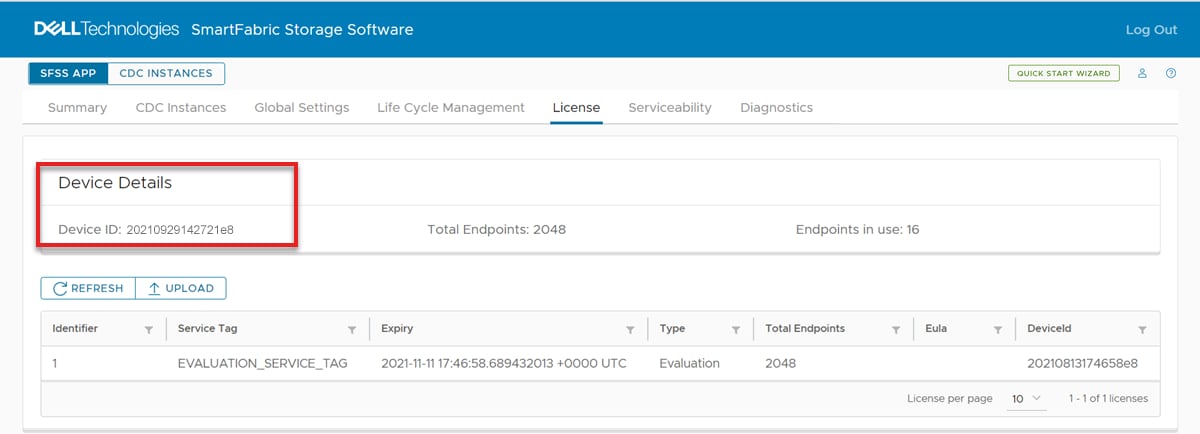
Note: Customers that try SFSS and then purchase the application do not need to download the software again. Simply apply the purchased license to the previously installed software. See the SFSS licenses section for more details.
Copy the downloaded file to a location accessible by vCenter for ESXi installations, or copy the file to the Linux host for Linux KVM installations.
Figure 122. Dell Technologies Support Page for SmartFabric Storage Software
Power on the Virtual Machine.
Deploy the SFSS vApp on ESXi
Here are the high-level steps for installing SFSS on ESXi:
Install the SFSS vApp.
Modify the adapters if necessary.
Power on the SFSS vApp.
Reset the admin user password.
From the vSphere client, select Hosts and Clusters, and then right-click and select the Deploy OVF Template option.
Figure 123. vCenter OVF template deployment
On the Select an OVF template page, point to the location of the SFSS OVA file and click NEXT.
Figure 124. SFSS OVF template installation
Select a name and folder for the VM, and then click NEXT.
Figure 125. SFSS virtual machine name
On the Select a compute resource page, select a compute resource.
Note: This example uses esxi01.
Click NEXT.
Figure 126. Host selection
Click NEXT on the Review details page.
Figure 127. Review details
On the License agreements page, accept the agreement and click NEXT.
On the Select storage page, first select the datastore, ensuring that Compatibility checks succeeded is displayed. Then, change Select virtual disk format to Thin Provision.
Note: You must select the datastore before selecting the Virtual disk format. If you select the disk format first, you may lose the setting after selecting the datastore.
Figure 128. SFSS storage selection
Click NEXT.
On the Select networks page, change the required Destination Networks to the values as planned in the initial configuration worksheet. In this example, three interfaces are required and the following Source and Destination networks are used:
Source network
Destination network
VM Network
C01-Management
SAN Network 1
C01-NVMeTCP-SAN-A-SFSS
SAN Network 2
C01-NVMeTCP-SAN-B-SFSS
Figure 129. First new screen.
Click NEXT.
In the Customize template section, the management interface settings information is provided. The following example data are used in this guide:
Hostname:sfss
Note: The VM’s internal hostname must not contain periods. For this reason, do not use the FQDN in this step as a period will be converted to a dash. For example, sfss.dell.lab changes to sfss-dell-lab. See the Modify Hostname in SFSS section in this guide for more information.
IP Address:172.18.11.57
This is the management IP address for SFSS.
Prefix Length: 24
Gateway: 172.18.11.254
If the default subnets assigned to internal networks are already in use elsewhere, change the default subnet to an unused subnet.
For security reasons, SSH is disabled by default but can be enabled later through the console if necessary.
Review the settings shown on the Ready to complete page and click FINISH to deploy the VM.
Figure 131. Review and finish the wizard
You can track the progress from the Recent Tasks section at the bottom of the vCenter page. The Import and Deploy tasks function may take several minutes to complete.
Continue to the next section once Status is Completed on each Task.
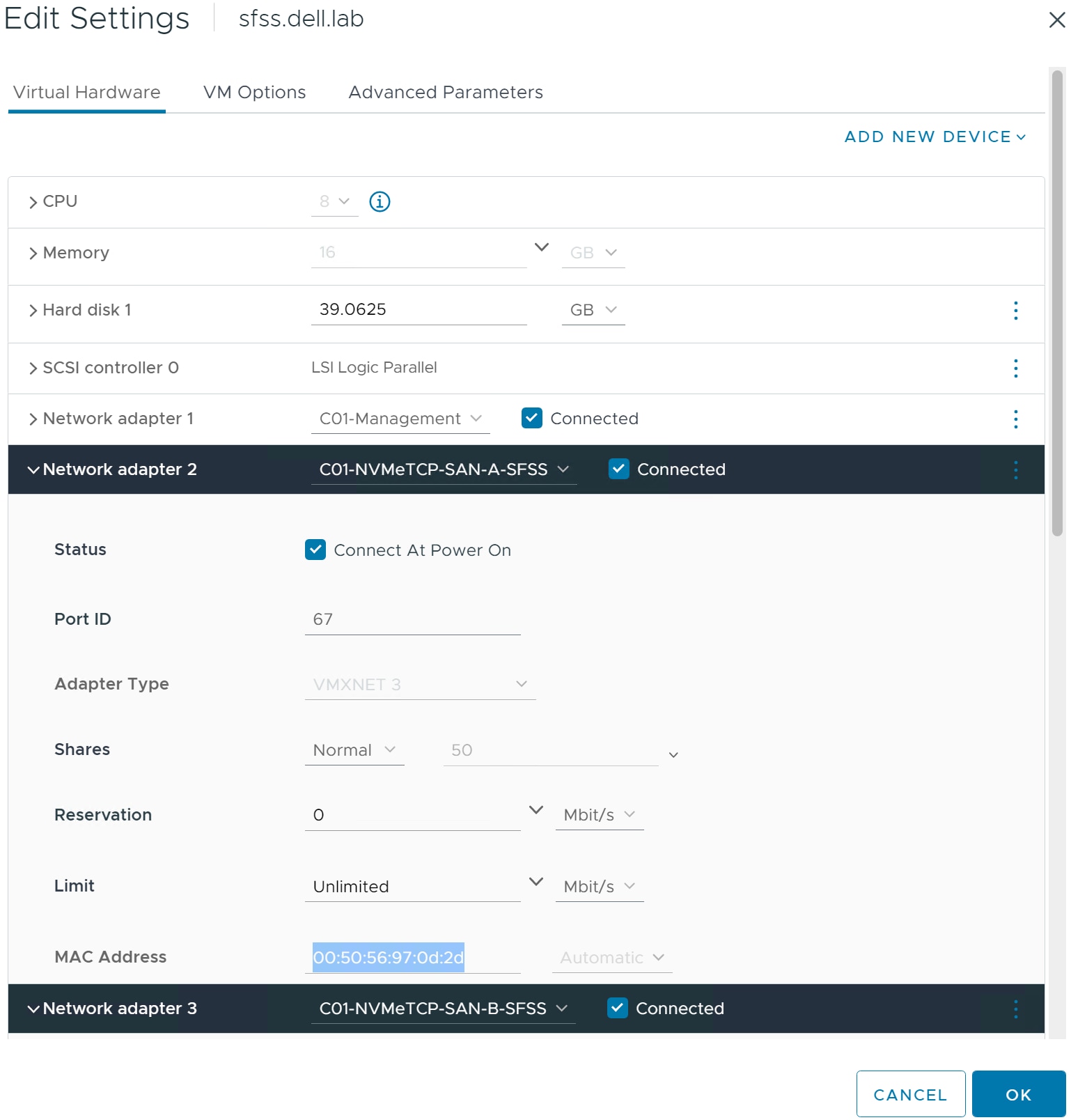
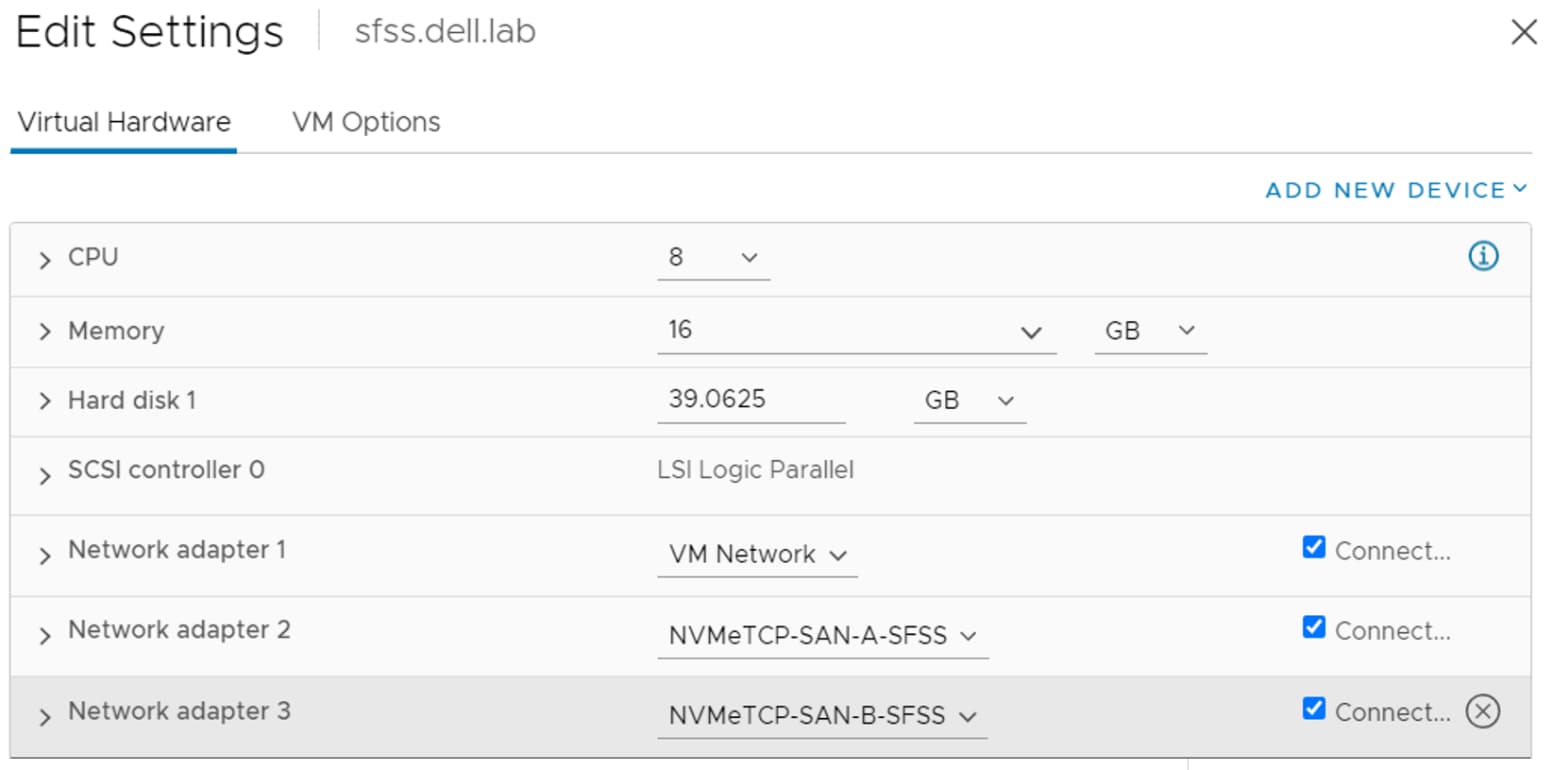
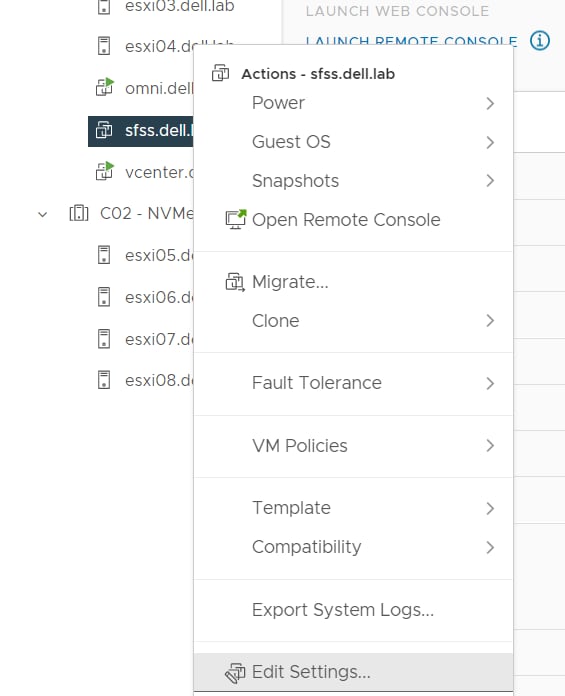
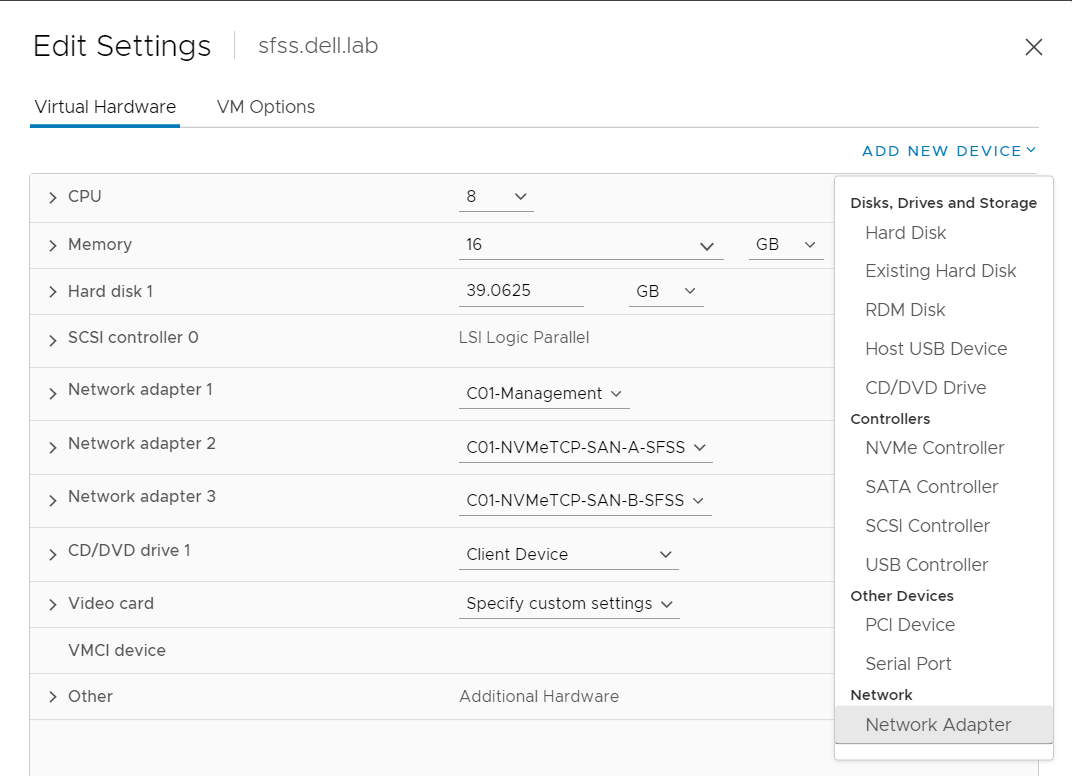
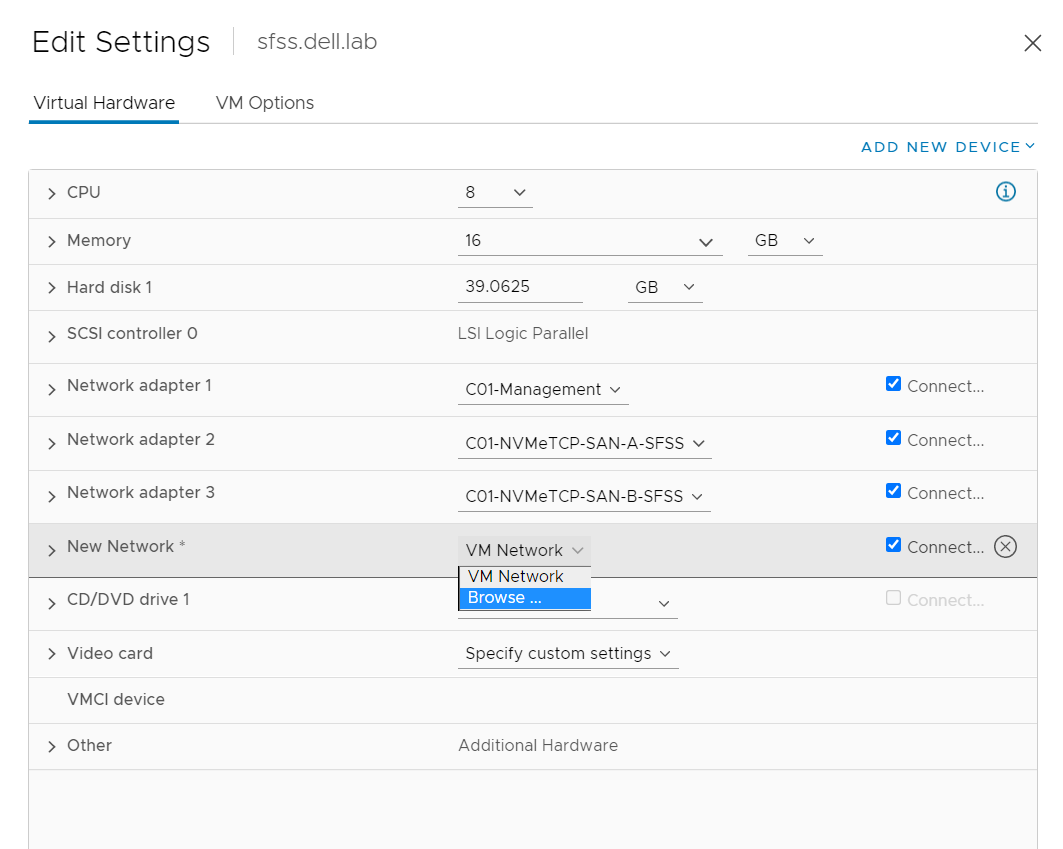
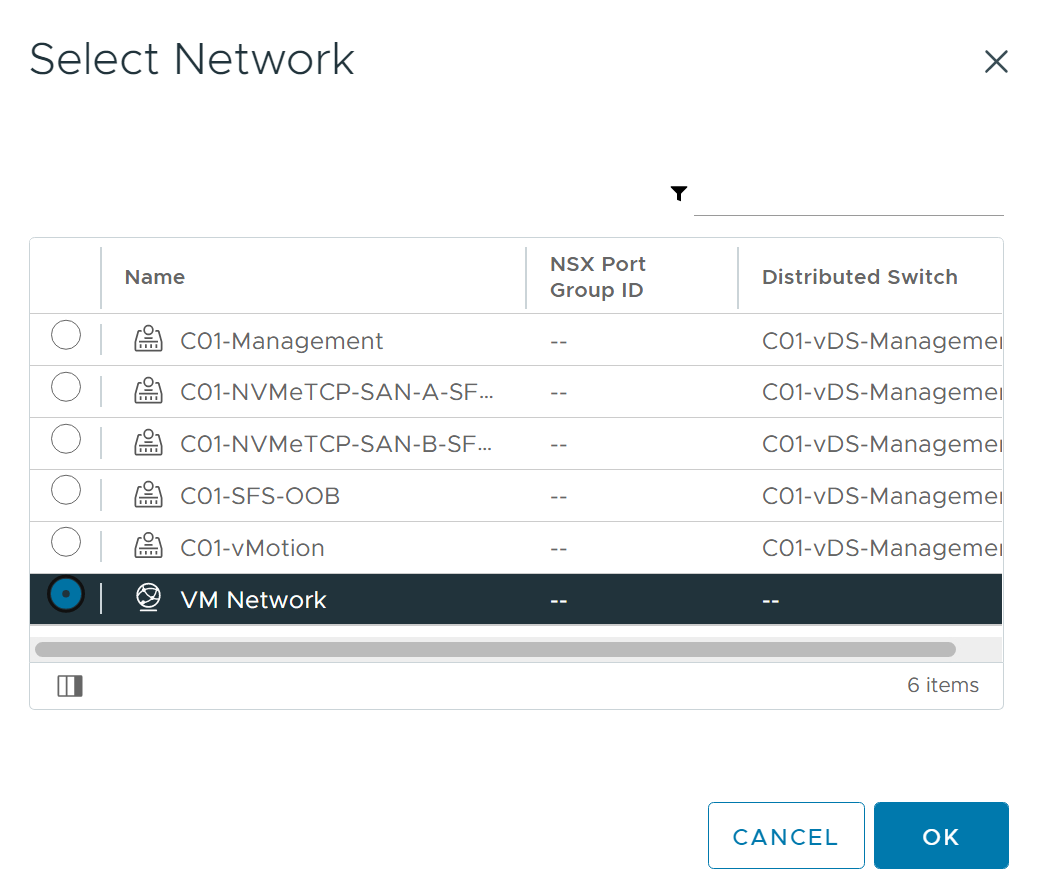
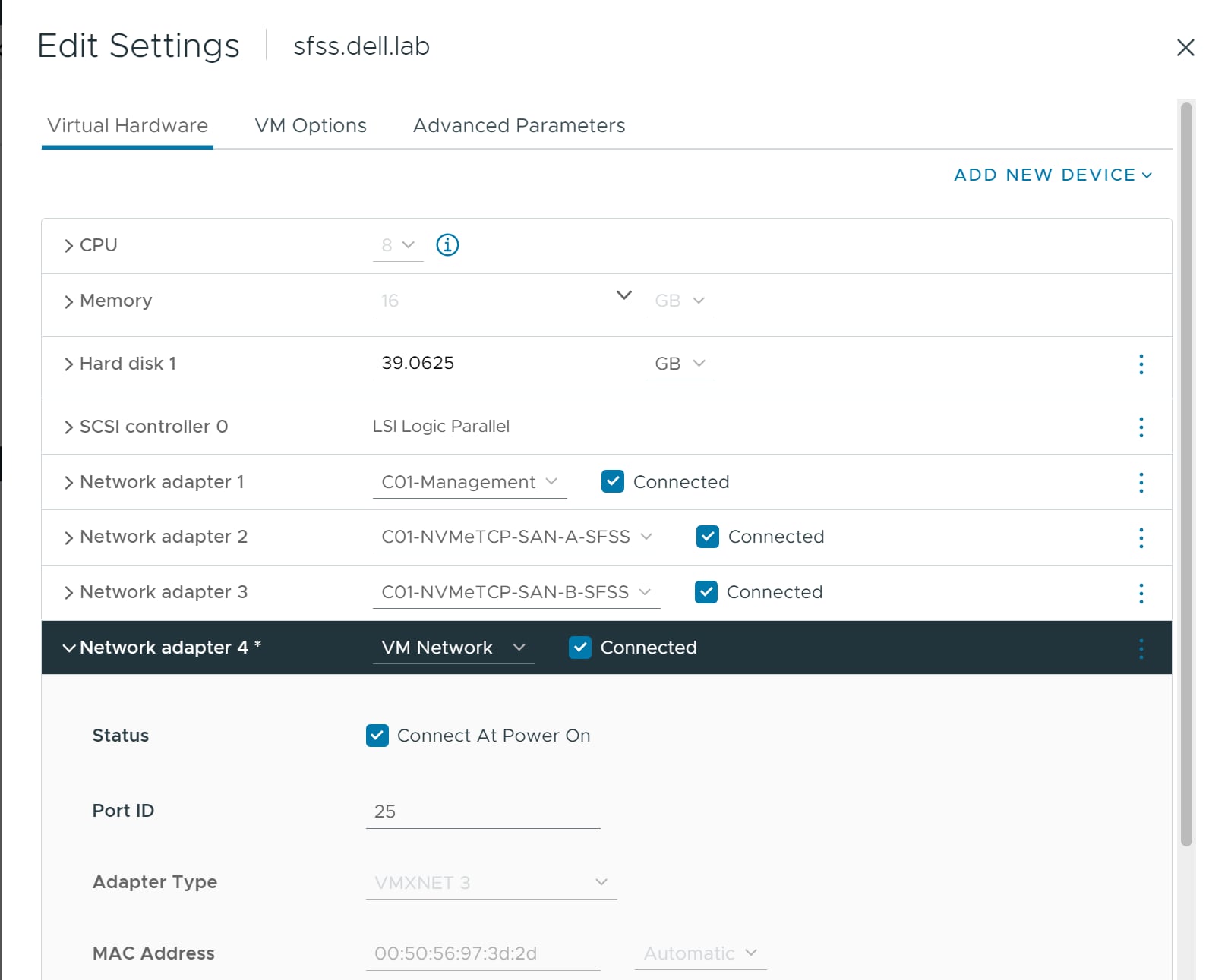
Dell Technologies recommends that you disconnect unused network adapters by clearing the Connected check box for each one. Right-click the sfss.dell.lab VM, select Edit Settings. In vSphere 7.0, deselect the Connected checkboxes for each unused adapter. In vSphere 7.0 and 8.0, expand each unused adapter and deselect the Connect at Power On checkbox.
From the vSphere Client, right-click the SFSS VM, and select Power > Power On.
Figure 134. Power on the SFSS virtual appliance
CAUTION: When powering on the VM, the vCenter Summary page for the VM may indicate a newer version of VMware Tools is available. Do not upgrade to a newer version.
Figure 135. Do not upgrade VMware Tools
Reset admin password
To reset the admin password, perform the following steps:
Launch the SFSS VM web console using the Launch Web Console button.
Authenticate using the default username (admin) and the default password (admin).
Enter the old password in the field provided, and then enter a new password and retype the new password in the fields provided to confirm.
After cluster deployment and virtual switch configuration:
Create NVMe/TCP port groups.
Download SFSS.
Deploy the SFSS OVF template.
Deploy SFSS on Linux KVM
Linux SFSS Host
After Linux installation and VLAN configuration:
Create bridge interfaces.
Download SFSS.
Deploy the SFSS KVM via CLI or VM Manager.
Configure management IP address.
The example Linux deployment in this guide is one of many ways to configure virtual networking on a Linux operating system that hosts a guest VM. The guidance is intended to help with configuration of Linux distributions running Kernel-based Virtual Machine and the libvirt Virtualization API, but may require adaptation in some solutions.
Figure 137. Example Linux mgmt host - single SFSS
This Linux environment begins with a Linux KVM Virtualization Host deployed, and with the libvirt package installed. The bond and vlan interfaces were created with the following configuration:
KVM can be enabled within the Linux operating system allowing it to work as a hypervisor. QEMU emulates the host's hardware. Libvirt is the API used to manage QEMU and KVM.
Configure bridge interfaces for SFSS VM NVMe/TCP control traffic
This example creates a bridge interface for each VLAN interface to connect to the SFSS VM's virtual ethernet interfaces. The method to configure bridge interfaces varies greatly across Linux distributions. The configuration files for the bridge interfaces in this example are as follows:
Download the software from the Dell Technologies Support Page, or the Dell Digital Locker (DDL). For VMware ESXi, download the *.ova file. For Linux KVM installations, download the *.qcow2 file. The *.deb file is used for upgrades.
Note: Customers that try SFSS and then purchase the application do not need to download the software again. Simply apply the purchased license to the previously installed software. See the SFSS licenses section for more details.
Copy the downloaded file to a location accessible by vCenter for ESXi installations, or copy the file to the Linux host for Linux KVM installations.
Figure 138. Dell Technologies Support Page for SmartFabric Storage Software
Power on the Virtual Machine.
Deploy SFSS on Linux KVM using CLI or Virtual Machine Manager
This section provides you with the steps to perform for the deployment of SFSS on a Linux server.
Install the SFSS KVM using virt-install, or using the Virtual Machine Manager UI.
Reset the admin user password
Configure the management IP address.
Install SFSS using CLI
To install SFSS using the CLI, perform the following steps:
Initialize a variable to store the location of the Qcow2 image. In this example, the variable is named DISK.
From the Linux terminal, initiate the installation using the virt-install command.
The programs included with the Debian GNU/Linux system are free software; the exact distribution terms for each program are described in the individual files in /usr/share/doc/*/copyright.
Debian GNU/Linux comes with ABSOLUTELY NO WARRANTY, to the extent permitted by applicable law. Updating the password from default value Password Requirements 1) At least 9 characters length 2) Must contain lowercase,uppercase,numbers and symbols 3) Should not contain a user name 4) Should not be the last 5 used passwords 5) Should not be the simplistic/systematic password Changing password for admin. Current password: New password: Retype new password: passwd: password updated successfully ############################################################################# Welcome to Dell Smart Fabric Storage Software (SFSS) management #############################################################################
Menu -------------------------------------------------------- 1. Show version 2. Debug 3. Password/SSL configuration menu 4. Show EULA 5. Interface configuration menu 6. Enable CLI 7. Reboot 8. Logout
To install SFSS using the Virtual Machine Manager UI:
Open the Virtual Machine Manager.
Figure 139. Virtual Machine Manager UI
Select New Virtual Machine.
Select Import existing disk image and select Forward.
Figure 140. Import qcow2 image
Select the qcow2 image previously copied to the Linux host, and select Choose Volume.
CAUTION: If this is the second SFSS CDC on the same Linux host, you must use a separate qcow2 file. You can do this by downloading the file again to a different filename.
CAUTION: Do not rename the first qcow2 file after installation. This contains configuration data used by the SFSS domain.
Figure 141. Selection of qcow2 image
In the Choose the operating system you are installing field, enter Generic OS and then click Forward.
Figure 142. Entering operating system name
For the Memory and CPU settings, enter 16384 in the Memory field, and in the CPUs field, enter 8.
Figure 143. Configure Memory and CPU settings
Click Forward.
Enter the Name of the SFSS virtual machine in the field provided.
Click to enable the Customize configuration before install box.
From the Network selection area, select Bridge device... and enter the name of the bridge device created for management traffic.
Note: This example shows br0-mgmt as the selected bridge device.
Figure 144. Selection of bridge device for first NIC
Click Finish.
From the sfss on QEMU/VKM screen, click to highlight the NIC in the left navigation menu.
Under the Details tab, click the Device model drop-down icon, select virtio, and then click Apply.
Figure 145. Change Device model
From the bottom of the sfss on QEMU/VKM screen, click Add Hardware. You can also right-click any of the items listed in the left navigation panel and select Add Hardware.
The Add New Virtual Hardware window displays.
Figure 146. Add more NICs
In the left navigation panel, click to highlight Network.
From the Details tab, click the Network source drop-down and select Bridge device....
In the Device name: field, enter the name of the bridged device that was created for SAN A.
Click the Device model drop-down icon, select virtio, and then click Apply.
Figure 147. Configure SAN-A NIC
Continue to add more storage interfaces where needed. In this example, a second storage interface is created for SAN B.
Figure 148. Configure SAN-B NIC
Click Finish.
The Add New Virtual Hardware window closes.
From the VM details screen, click Begin Installation.
Figure 149. Selection of Begin Installation button
The session moves to the SFSS VM console.
From the SFSS VM console, enter the default username (admin) and the default password (admin) in the fields provided.
Figure 150. SFSS VM QEMU/KVM console
Follow the prompts to change the default admin password.
Configure management IP address on SFSS KVM
To configure the management IP address on an SFSS KVM, perform the following steps:
From the Virtual Machine Manager or from the Linux CLI, use the virsh domiflist command to identify which MAC address is connected to the bridge you created for the management interface. This example shows br0-mgmt as the source.
localhost:/etc/sysconfig/network # virsh domiflist sfss
 Interface   Type     Source      Model    MAC
--------------------------------------------------------------
 vnet39      bridge   br0-mgmt    virtio   52:54:00:AD:CE:D2
 vnet40      bridge   br1-san-a   virtio   52:54:00:75:F4:1E
 vnet41      bridge   br2-san-b   virtio   52:54:00:2F:F7:4F
To configure SFSS using the CLI in the new SFSS KVM, enter 6 at the command prompt.
Menu -------------------------------------------------------- 1. Show version 2. Debug 3. Password/SSL configuration menu 4. Show EULA 5. Interface configuration menu 6. Enable CLI 7. Reboot 8. Logout
Enter selection [ 1 - 8 ] : 6 Enter admin password: SFSS-cli#
Enter the global configuration mode by entering configuration terminal.
From the SFSS CLI, enter the show sfss interfaces detailed command to see a list of the interfaces and their MAC addresses.
Note: If a DHCP server is available on the network, IP addresses may display.
SFSS-cli# show sfss interfaces detailed
No. of Interfaces    : 3

Interface                                     : ens2
Type                                          : ETHERNET
IPV4 Config                                   : AUTOMATIC
IPV6 Config                                   : AUTOMATIC
MAC Address                                   : 52:54:00:AD:CE:D2
MTU                                           : 0

Interface                                     : ens3
Type                                          : ETHERNET
IPV4 Config                                   : AUTOMATIC
IPV6 Config                                   : AUTOMATIC
MAC Address                                   : 52:54:00:75:F4:1E

Interface                                     : ens4
Type                                          : ETHERNET
IPV4 Config                                   : AUTOMATIC
IPV6 Config                                   : AUTOMATIC
MAC Address                                   : 52:54:00:2F:F7:4F
SFSS-cli#
Identify the management interface by comparing the MAC address found in step 1.
Run the sfss interface command to configure an IP address on the management interface. This example shows ens2.
From a browser, open the SFSS using the https://<SFSS_IP> address.
Note: This example uses the https://172.18.11.57 SFSS IP address.
Figure 151. SFSS UI
Log in with the username admin and the Password you created when configuring SFSS.
Note: The initialization could take several minutes from the moment of power on. During this time, the SFSS is almost ready title screen displayed.
Figure 152. SFSS is almost ready status screen
Upon successful login, the SFSS Home page displays. By default, the SFSS APP option is displays at the top of the home page.
Figure 153. SFSS Home page
On the top right, next to the User and Help icons, is a link to the Quick Start Wizard, which shows the SFSS UI configuration steps necessary to complete the deployment:
Note: For information on the installation of a license, see the SFSS Licenses section.
Configure a CDC
This guide will use the wizard to go through the configuration of a SAN. For each SAN required, repeat steps 2 to 5 of the Quick Start Wizard using the data from the initial configuration worksheet.
To view the related video, use the camera on your mobile device to scan this QR code, or click here to be taken to the video on this device.
In the SFSS Web UI, click Quick Start Wizard and in the 1. Modify MTU card, click Edit. This setting applies to all storage interfaces and is only set once.
Figure 156. Quick Start Wizard - Modify MTU
Change the MTU to match the network settings. The default is 1500.
Note: In this example, the MTU value is set to 9000.
Figure 157. Edit MTU in Global Settings
Note: MTU changes are only applied to storage interfaces after they have been applied to a CDC.
After the SFSS has rebooted, reopen the Quick Start wizard, and in the 2. Configure CDC Interface card, click Create/Edit.
To configure the interface, follow the steps below depending on whether SFSS is installed on ESXi or Linux.
For SFSS on ESXi, select an existing Interface and then click Edit. The VM adapters are assigned to the SFSS interfaces in the following order:
Table 37. ESXi Network Adapter to SFSS Interface correlation
ESXi Network Adapter
SFSS Interface
1
ens160 (Management)
2
ens192
3
ens224
4
ens256
5
ens161
6
ens193
7
ens225
8
ens257
9
ens162
10
ens194
In this example, ens192 is used for SAN A.
If more than 10 interfaces are required, add a VLAN interface by clicking CREATE. VLAN interfaces are subinterfaces on virtual adapters. When a VLAN interface is created under a parent interface, the parent interface is disabled. To allow multiple VLANs on the Port Group of the parent interface, right click on the port group and then click Edit Settings > Security > Promiscuous Mode > Accept
.
Note: If you are unsure of which interface to configure in the SFSS UI, see the Identifying interfaces in SFSS on ESXi section for instructions on how to locate the interface in vSphere using the MAC address.
Figure 159. Select the interface to be used for SAN A
For SFSS on Linux, use the interfaces created in the Configure management IP address on SFSS KVM section of this guide. Compare the MAC addresses seen in the SFSS GUI with those in the Linux CLI to identify the bridge interface in SFSS.
Note: In Linux, ens2 was configured via CLI during deployment.
From the Interface Details screen, enter a name in the Name field. This example uses SAN-A in the Name field.
Figure 160. SAN-A Interface Details screen
Click Next.
From the IPV4 Configuration screen, select Manual, enter a unique Address for the CDC instance, and a PrefixLength. This example uses 172.18.21.250 and 24.
Note: If any endpoints are not on the same subnet as the CDC interface, add static routes to those endpoints.
Figure 161. IPV4 Configuration screen
Click the Next.
Select an IPV6 configuration and click FINISH.
If using IPv6, configure IP details. Otherwise, disable the interface to avoid unwanted DHCP assignment.
Figure 162. IPV6 Configuration screen
The Quick Start Wizard reopens with a success message.
In the 4. Discover Endpoints card, click View. The CDC may take a few minutes to initialize after which it will announce its presence on the network. Endpoints capable of automated discovery will appear.
To see registered ESXi and Linux, see the Host tab. For PowerStore, see the Subsystem tab, and for PowerMax, see the DDC tab only. The following example shows ESXi and Linux hosts discovered and registered in the CDC.
Figure 167. Hosts automatically discovered
The following example shows PowerStore subsystems discovered and registered in the CDC.
Figure 168. PowerStore automatically discovered
The following example shows a PowerMax DDC discovered and registered in the CDC.
Figure 169. PowerMax was automatically discovered
Optionally, verify network connectivity by pinging NVMe/TCP SAN interfaces. Registration will fail if there is a connectivity issue. Endpoints will remain offline if there is an MTU mismatch.
If endpoints have not automatically discovered and registered with the CDC, ensure the following:
Ensure network connectivity has been verified using the steps below.
For endpoints on the same subnet as the CDC, ensure L2 multicast and port 5353 are not blocked on the network.
PowerMax DDCs are not listed in the DDC tab. SFSS supports endpoint registration through push and pull registrations. When the endpoint initiates the registration request with CDC, it is called a push registration. When CDC initiates the registration request, it is called a pull registration. PowerMax uses push registration, the result of which is that the CDC does not manage the DDC.
Figure 170. Verify network connectivity using ping
Ping from the hosts to the CDCs and subsystem interfaces. Specifying the source interface is not necessary as the host's routing table should choose the correct egress interface. The following command applies to ESXi and Linux hosts.
The programs included with the Debian GNU/Linux system are free software; the exact distribution terms for each program are described in the individual files in /usr/share/doc/*/copyright.
Debian GNU/Linux comes with ABSOLUTELY NO WARRANTY, to the extent permitted by applicable law. Last login: Tue Apr 26 10:28:17 2022 /usr/bin/xauth: file /root/.Xauthority does not exist root@sfss:~# ping 172.18.21.191 -s 9000 root@sfss:~# ping 172.18.21.192 -s 9000
Configure zoning
To view the related video, use the camera on your mobile device to scan this QR code, or click here to be taken to the video on this device. Zoning starts at 2:25 in the video.
To control which hosts can access which subsystems, SFSS allows the ability to soft-zone subsystems and hosts. NVMe IP SANs do not require single initiator or single target zoning. Similar to Cisco SmartZoning or Broadcom Peer Zoning, SFSS zones contain groups of host ports and the storage ports they access. The figure below shows four host ports accessing the same two storage ports. As a result, it is logical to put these hosts and storage ports in the same zone. To avoid wasting system resources on both the host and the storage subsystem, the number of storage ports accessible by a host should be minimized.
NVMe IP SANs do not require single initiator or single target zoning. Similar to Cisco SmartZoning or Broadcom Peer Zoning, SFSS zones contain groups of host ports and the storage ports they access. The figure below shows four host ports accessing the same two storage ports. As a result, it is logical to put these hosts and storage ports in the same zone. For more detail on zoning, see the SmartFabric Storage Software User Guide.
To avoid wasting system resources on both the host and the storage subsystem, only zone host interfaces to a limited number of storage ports. Each host interface will access two PowerStore interfaces - one on Node A, and one on Node B.
Note: Before zoning, hosts are denied access to all subsystems by default.
The high-level steps are as follows:
Create Zone Group
Create Zone
Add Members
Activate zoning
Verify
The steps below explain how to create a zone for Endpoints in SAN A. In this example, Zone Z-NVMe-SAN-A is in Zone Group ZG-NVMe-SAN-A in CDC Instance 1.
Note:
This example shows ESXi and PowerStore hosts, but the same configuration steps apply to all endpoints, including Linux and PowerMax.
Figure 171. Zone A - Z-NVMe-SAN-A
To create a Zone Group:
Reopen the Quick Start Wizard, click the 5. Zoning configuration card, and then click Configure Zoning Policy. The wizard will take you to the Zoning tab of the CDC most recently accessed.
Figure 173. Confirm that you are in the intended CDC
Click Configure > CREATE.
In the Create Zone Group window, provide a name for the zone group.
Note: This example uses ZG-NVMe-SAN-A.
Click SUBMIT.
Figure 174. Create Zone Group
The newly created zone group displays.
Figure 175. Created zone group
Under Zones of ZG-NVMe-SAN-A, click the + CREATE button.
In the Zone Name field, enter a zone name. This example uses Z-NVMe-SAN-A for the zone name.
Figure 176. Create Zone screen
Click SUBMIT.
The new zone displays under the Zones of ZG-NVMe-SAN-A.
Figure 177. Zone created for Zone Group
Click to select radio button next to the new zone.
Click UPDATE MEMBERS.
Figure 178. Update members in zone A.
In the Available Endpoints section, ensure that the default FullQualifiedName is selected in the drop-down. This option provides more information about the hosts listed. Both Host and Subsystems are selected by default.
Select all the SAN A Endpoints. In this example, five hosts and two subsystems for SAN-A (network 172.18.21.0/24) are selected.
Figure 179. Add endpoints to zone in SAN A
Click >. All the selected endpoints are shown in the Zone members list.
Figure 180. Zone members list
Click SUBMIT.
The Success message displays, and the state of the zone group is NotActive.
Figure 181. Zone in CDC instance 1
Click ACTIVATE.
Figure 182. Select zone group and click Activate
In the dialog box that opens, click ACTIVATE.
Figure 183. Activate a Zonegroup screen
The Success message displays, and the Status changes to Active.
Figure 184. Active Zone Group
Verify zoning in the Endpoints tab and the Topology tab.
Figure 185. Allowed Subsystems in the Hosts View.
Figure 186. Zone topology.
For each SAN, repeat steps 2 to 5 of the Quick Start Wizard until all zoning is complete.
Figure 187. Zone B - Z-NVMe-SAN-B.
Any future changes to zoning will require the Zone Group to be reactivated.
Figure 188. Zone members for SAN B
Establish NVMe/TCP between Endpoints
Establish NVMe/TCP between Endpoints
To view the related video, use the camera on your mobile device to scan this QR code, or click here to be taken to the video on this device.
The steps provided in this section help in establishing NVMe/TCP between Endpoints.
In the field provided, enter a Host Friendly Name for the host. In this example, the first initiator is esxi05.
Using the drop-down menu, select the operating system and click NEXT.
Figure 191. Add Host Details screen
Select the Protocol Type as NVMe and then click NEXT. The initiators are automatically discovered.
Figure 192. Select protocol type as NVMe
Note: If PowerStore 3.0 displays a warning that no initiators were auto-discovered. Ignore this warning and click next to see auto-discovered initiators.
Select the initiator for the new host. In this example, esxi05 only is used.
Note: Add one initiator per host instance. In this example, the host initiators for hosts esxi05 through esxi08 are listed since the controllers were added to the NVMe/TCP storage adapters on the ESXi host esxi05 through esxi08 and were automatically discovered.
Figure 193. Add host initiator
Review the host details and click the ADD HOST button.
Figure 194. Review Host Details and add host
Note: Both of the host NVMe/TCP IP addresses are listed as the host can access storage using SAN A and SAN B.
Observe the host in Hosts & Host Groups.
Figure 195. Host & Host Groups screen
Repeat the steps in this section to add more hosts. In this example, esxi06, esxi07, and esxi08 are added. The following image shows all four hosts.
Figure 196. Hosts & Host Groups added in PowerStore
View subsystem discovery in vSphere
Hosts NVMe/TCP storage adapters, or vmhba, are now able to access the direct discovery controllers in PowerStore. Verify this using the following steps.
Log in to vCenter.
Select a host. For this example, esxi05 is selected.
Click Configure > Storage > Storage Adapters.
Click the radio button next to the vmhba adapter. In this example, vmhba64 is selected.
Select Controllers. Note: Click REFRESH to see the controllers if they are not initially listed.
Figure 197. Controllers added for vmhba64 in vSphere 8.0.
Figure 198. Controllers added for vmhba64 in vSphere 7.0
View subsystem discovery in Linux
For a list of discovered subsystems, enter nvme list -v and see the Device table at the bottom of the output.
After zoning and adding hosts to PowerStore, storage volumes can be provisioned to hosts. The high-level steps are:
Create volume group(s).
Create NVMe volume(s).
Map NVMe volumes to hosts.
Create volume groups in PowerStore
To create the volume groups in PowerStore, perform the following steps:
Log in to PowerStore Manager.
Click CREATE.
In the Name field, provide a name for the volume group. This example uses VG1-NVMe.
Figure 199. Provide Volume Group details
Click CREATE.
Figure 200. Created Volume Groups
Create volume
To create the volume, perform the following steps:
Click Storage > Volumes > CREATE.
Figure 201. Create Volume
Provide a Name. This example uses V1-NVMe.
Select a Category and Application, as applicable. In this example, Other is selected.
Provide Quantity and Size. In this example, Quantity is 1, and Size is 500 GB.
Under Additional properties, for the Associated Volume Group, click SELECT.
Choose the Volume Group that was created.
Click SELECT.
Note: Other settings are left at their defaults.
Figure 202. Create Volumes Properties screen
Click NEXT.
For the Host Mappings, select the NVMe radio button. Hosts are populated.
Figure 203. Select NVMe in Host Mappings in 3.x.
Figure 204. Select NVMe in Host Mappings in PowerStoreOS 2.1.x
Click NEXT.
Review the selections and then click CREATE.
Figure 205. Review summary
Figure 206. Created Volume
Create datastore for ESXi host
From the vSphere client, right-click the Workload cluster.
Select Storage > New Datastore.
Figure 207. Select New Datastore
Select the datastore type. In this example, VMFS is selected.
Click NEXT.
Figure 208. Specify datastore type
Provide a name and select the LUN for provisioning the datastore. In this example, the NVMe TCP Disk on PowerStore is selected.
Select a host to view accessible LUNs. In this example, esxi05 is selected.
Figure 209. Select LUN
Click NEXT.
Specify the VMFS version for the datastore and then click NEXT.
Figure 210. Select VMFS version
Review the disk layout and specify partition configuration details. In this example, the datastore size is specified as 500 GB.
Figure 211. Provide partition configuration details
Click NEXT.
Review the settings and click FINISH.
Figure 212. Review settings
Verify the datastore that was newly created. From Inventory, click Datastores and select the new datastore. In this example PowerStore-V-NVMe is selected.
To verify that all hosts are connected, click the Configure tab, and select Connectivity and Multipathing.
Figure 213. Verify created datastore
If a host is missing from the list, click Hosts and Clusters, select the host, click Storage Adapters, and then click REFRESH.
Figure 214. Refresh storage adapter
NVMe/TCP Storage is now ready for use by all hosts in the cluster.
Configure guest virtual machines
Configure VMware guest virtual machines
In vSphere version 7.0U3f and later, set the guest VM virtual disks to the default, NVMe controller.
When creating a new virtual machine in vSphere 7.0U3f and later, in Customise hardware, click the ADD NEW DEVICE dropdown
Figure 215. New virtual machine
Under Controllers, select NVMe Controller.
Figure 216. Add NVMe controller
Expand New Hard Disk, next to Virtual Device Node, select New NVMe Controller from the dropdown, and select the appropriate NVMe New Hard Disk.
Figure 217. Set virtual device node
Confirm the settings in Ready to complete and click FINISH.
Figure 218. New virtual machine ready to complete
Note: In vSphere versions 7.0U3c to 7.0U3e, set the guest VM virtual disks to the default SCSI controller.
Figure 219. Settings of the guest VM with SCSI controller and hard disk
Hardware and Software Used in this Guide
Hardware and Software Used in this Guide
This section briefly describes the hardware used to validate the deployment examples in this Guide. For a full list of interoperable software, see the SFSS Support & Interoperability Matrix. There, you will also find links to validated hardware and KB articles on interoperable OS and hardware requirements.
PowerSwitch systems
Table 38. Switches and operating systems
Quantity
Item
Operating system version
2
PowerSwitch N3248TE-ON management switches
10.5.4.0
2
PowerSwitch S4148F-ON external switches
10.5.4.0
2
PowerSwitch S5232F-ON spine switches
10.5.4.0
4
PowerSwitch S5248F-ON leaf switches
10.5.4.0
Dell PowerSwitch N3248TE-ON
The Dell PowerSwitch N3248TE-ON is a 1U switch with 48x 1 GbE BASE-T ports, and 4x 10 GbE SFP+ ports.
The Dell PowerSwitch S4148F-ON is a 1U multilayer switch with 48x 10 GbE and 4x 100 GbE ports.
Figure 221. PowerSwitch S4148F-ON
Dell PowerSwitch S5232F-ON
The Dell PowerSwitch S5232F-ON is a 1U, multilayer switch with 32x 100 GbE QSFP28 ports and 2x 10 GbE SFP+ ports.
Figure 222. Dell PowerSwitch S5232F-ON
Dell PowerSwitch S5248F-ON
Dell PowerSwitch S5248F-ON is a 1-Rack Unit (1U), multilayer switch with 48x 25 GbE SFP28 ports, 4x 100 GbE QSFP28 ports, and 2x 200 GbE QFSP28-DD ports.
Figure 223. Dell PowerSwitch S5248F-ON
PowerEdge servers for ESXi
PowerEdge servers provide the highest performance for a diverse set of workloads from the edge, to the cloud, to the core. PowerEdge servers and VMware provide industry-leading solutions for a modern data center including servers, virtualization, HCI, storage, networking, and cloud. PowerEdge delivers lower TCO, scalable architectures, intelligent automation and management, and multilayer security when paired with the industry leader in enterprise virtualization and HCI software.
Table 39. Server hardware
Quantity
Item
Version
4
PowerEdge R640
-
BIOS
2.5.5
iDRAC
2.70.70.70
Broadcom NIC
21.80.16.95
Dell PowerEdge R640
PowerEdge servers and VMware provide industry-leading solutions for a modern data center including servers, virtualization, HCI, storage, networking, and cloud. PowerEdge delivers lower TCO, scalable architectures, intelligent automation and management, and multilayer security when paired with the industry leader in enterprise virtualization and HCI software.
Figure 224. Dell PowerEdge R640 server - front view
Figure 225. Dell PowerEdge R640 server - rear view
PowerStore storage
PowerStore provides our customers with data centric, intelligent, and adaptable infrastructure that supports both traditional and modern workloads. PowerStore is designed to support any workload by delivering unified storage (physical or virtual, file-based, or container-based) in a performance optimized appliance that can scale up and out when demands increase. Driving automation and operational efficiency across the management environment is a top priority for organizations seeking to free up resources and reduce staffing requirements for IT specialists who are difficult to hire and retain. PowerStore enables autonomous, consistent operations with programmable infrastructure that enables automation and DevOps by streamlining development environments and automating end-to-end workflows.
PowerStore 5000T
The PowerStore 5000T is a 2U storage array with 4 x 25/10/1 GbE optical or 4 x 10/1 GbE BASE-T ports, and supports 4 x 32 Gb FC, 4 x 25/10/1 GbE optical, and 4 x 10/1 GbE BASE-T I/O modules.
Manual discovery, registration, and verification of ESXi
To view the vSphere 7.0 demo video, use the camera on your mobile device to scan this QR code, or click here to be taken to the video on this device.
In this step, the hosts request the details of the PowerStore DDCs from the SFSS CDC.
Figure 228. VMware ESXi discovery options.
In VMware vSphere 8.0, the Centralized Discovery Controllers are automatically discovered using mDNS. If the steps shown in ESXi CLI commands for NVMe/TCP are complete, the SFSS NQN appears as a controller under the NVMe/TCP Storage Adapter.
Figure 229. CDC discovered in ESXi 8.0.
For vSphere 7.0, or if the NVMe/TCP vmk and CDC are in different subnets. Repeat the steps in this section for each ESXi host. Alternatively, this step can be done using the CLI using the following command: esxcli nvme fabrics discover -a vmhba[id] -i [CDC IP] -p 8009 -c -r.
To connect and register the storage adapters with the CDC using the vSphere Client, follow the steps below:
Log in to the vSphere web client.
Select Hosts and clusters.
Click to select the host. In this example, host esxi05 is selected.
Click Configure > Storage > Storage Adapters.
Click to select the vmhba64 adapter.
Note: This is a VMware NVMe over TCP Storage Adapter.
Select Controllers > ADD CONTROLLER.
Figure 230. Storage Adapters screen
In the Add controller dialog box, on the Automatically tab, enter the follow details:
In the IP field, enter the CDC instance IP address.
In vSphere 8.0, click to enable the Central Discovery Controller. In vSphere 7.0, click to enable the Root discovery controller box. This informs the host that it is connecting to a centralized discovery controller.
Figure 231. In vSphere 7.0, select Root Discovery Controller
Figure 232. In vSphere 8.0, select Central Discovery Controller
Port Number field, enter the port number. This example uses 8009.
Leave the Digest parameter options in the default, cleared state.
In vSphere 7.0, click the DISCOVER CONTROLLERS button. In vSphere 8.0, the Discover Controllers button is not available to click.
In SFSS, click CDC Instances, click Endpoints and click the Host tab, and click REFRESH.
All discovered hosts are displayed in the Host list. In this example, a Linux host is registered with the SAN A IP address 172.18.21.110.Figure 237. Linux NVMe/TCP host discovered
Manual discovery, registration, and verification of PowerStore
PowerStore discovery options
Before proceeding with configuring PowerStore subsystems review the PowerStore network requirements section in the Network Planning chapter.
Based on your solution, select the appropriate method of discovery and go to the resulting configuration step in the guide.
Figure 238. PowerStore discovery options
Automated discovery of CDC
Starting with Dell PowerStoreOS 3.0, discovery of the PowerStore subsystems can be automated. If the connection between CDC and subsystem is over Layer 3, manual discovery of the PowerStore subsystems is necessary.
In each CDC instance, check if the discovery of the subsystems has already completed automatically. If it has, this task is complete.
Figure 239. Subsystems automatically display in SFSS
If the subsystems have not appeared in SFSS, check the PowerStore NVMe Discovery Options configuration.
On the Network IPs page in PowerStore Settings, select a network from the STORAGE tab, and then click NVMe Discovery Options.
Figure 240. NVMe Discovery options
Select Automatic Discovery of CDC and then click Apply.
Note: The default setting is Automatic Discovery of CDC.
Figure 241. Automatic Discovery of CDC
On the Network IPs page, click on the number shown in the CDC Connections column.
Figure 242. CDC Connections in PowerStore 3.x.
Verify that the Connection State shows as Established.
Figure 243. Connection state
In SFSS, click REFRESH to verify that the addition of the subsystems in the SFSS CDC instances has completed automatically.
Figure 244. Subsystem status
Click DDC to verify that the DDCs have been discovered and are active with Config Type set to Kickstart.
Figure 245. DDC status automated discovery
Manually add a DDC in SFSS
To view the related video, use the camera on your mobile device to scan this QR code, or click here to be taken to the video on this device.
Note: If you are running PowerStoreOS 3.0 or later, and the CDC and subsystem are in same VLAN and subnet, the option for automated discovery of the CDC is available. For more information, see the Automated discovery of CDC section.
This section provides the instructions to manually register the PowerStore Direct Discovery Controllers (DDC) in SFSS.
Note: This step is required in the following scenarios:
PowerStoreOS version is 2.1.x
PowerStoreOS version is 3.x, and the PowerStore storage IP addresses are not in the same subnet as the CDC storage IP. In this scenario, Manual configuration of CDC in PowerStore is also an option.
PowerStoreOS 3.x with Automatic Discovery disabled
DDCs are created when the Storage IPs are initialized. There are four DDCs in this example:
Two for SAN-A (one for each PowerStore node)
Two for SAN-B (one for each PowerStore node)
The following provides the information that is required to complete the registration process. The steps that follow use the first row of information in the DDC registration information table to guide you through the addition of the first DDC. Use the remaining rows of information to complete the process of adding all four DDCs.
Table 44. DDC registration information
CDC Instance
SAN
PowerStore controller
Address
Port ID
1
SAN-A
Node-A
172.18.21.191
8009
Node-B
172.18.21.192
2
SAN-B
Node-A
172.18.22.191
Node-B
172.18.22.192
This section demonstrates the pull registration of PowerStore DDCs in SFSS. SAN A Endpoints are registered in CDC Instance 1, and SAN B Endpoints are registered in CDC Instance 2.
If you are running PowerStoreOS 3.0 or later, set the NVMe Discover Option to Automatic Discovery Disabled.
Figure 246. Automatic Discovery Disabled
Log in to SFSS.
Select CDC instance 1 using the drop-down menu.
Select CDC INSTANCES > Endpoints > DDC.
Note: Verify that you are in the correct CDC instance.
Figure 247. DDC View in CDC 1
Click ADD.
The Add a Static DDC dialog box opens.
In the Address field, enter the IP range of the DDCs. Note: This example uses 172.18.21.191-192.
In the Port field, use the default TCP port 8009 to connect to DDCs.
Click to switch the Activate option to the on position.
Figure 248. Add static DDCs
Click ADD.
Verify that the DDCs are registered. In this example, two are listed in Instance 1, and two are listed in Instance 2.
Figure 249. PowerStore DDCs registered on Instance 1
Figure 250. PowerStore DDCs registered on Instance 2
In the Endpoints section, select Subsystem. The Subsystem section shows the relevant details.
Figure 251. Verify Subsystems are registered on Instance 1
Figure 252. Verify Subsystems are registered on Instance 2
# CDC 1 CDC instance (e.g. 1, 2) [CDC_INST_SAN_A] SAN A storage interface (e.g. ens192) [SAN_A_INT] Storage interface IP [SAN_A_IP] Storage subnet prefix length [SFSS_SAN_A_PREF] Storage subnet default gateway (gateway 172.19.25.254) [gateway SAN_A_GW] SAN A interface name (e.g. SAN A) [SAN_A_INT_NAME] Zone Group Name [ZONE_GROUP_SAN_A] Zone Name [ZONE_SAN_A]
# CDC 2 CDC instance (e.g. 1, 2) [CDC_INST_SAN_B] storage interface (e.g. ens224) [SAN_B_INT] Storage interface IP [SAN_B_IP] Storage subnet mask/prefix length [SFSS_SAN_B_PREF] Storage subnet default gateway(gateway 172.19.26.254) [gateway SAN_B_GW] SAN B interface name (e.g. SAN B) [SAN_B_INT_NAME] Zone Group Name [ZONE_GROUP_SAN_B] Zone Name [ZONE_SAN_B] --------------------------------------------------------------
#After resetting passwords and configuring NTP using the SFSS console menu, enter SFSS CLI by selecting option "6. Enable CLI" from the console menu. For instructions on accessing SFSS via SSH, see the SFSS User Guide.
configure terminal
#Global settings: it's better to use the GUI if you need to run more than one global setting, as SFSS will reboot after each command. #Change MTU and reserved subnets if necessary. Note: The global MTU setting is only applied to interfaces after they are applied in CDCs. sfss global-settings mtu [STORAGE_INT_MTU] sfss global-settings reserved-ipv4-subnet-prefix [IPv4_INTERAL_PREFIX] sfss global-settings reserved-ipv6-subnet-prefix [IPv6_INTERAL_PREFIX] show sfss global-settings
#In SFSS on Linux, access cli via console and configure the management interface. (Not necessary in ESXi OVA) sfss interface [MGMT_INT] name [SFSS_MGMT_NAME] ipv4-config-type manual address [SFSS_MGMT_IP] prefix-length [SFSS_MGMT_PREF] [gateway SFSS_MGMT_GW] sfss interface [MGMT_INT] name [SFSS_MGMT_NAME] ipv6-config-type Disabled #Configure storage interfaces: Note, gateway is excluded in L2 solutions sfss interface [SAN_A_INT] name "[SAN_A_INT_NAME]" ipv4-config-type manual address [SAN_A_IP] prefix-length [SFSS_SAN_A_PREF] [gateway SAN_A_GW] sfss interface [SAN_B_INT] name "[SAN_B_INT_NAME]" ipv4-config-type manual address [SAN_B_IP] prefix-length [SFSS_SAN_B_PREF] [gateway SAN_B_GW] show sfss interfaces detailed
# View discovered endpoints show sfss hosts instance [CDC_INST_SAN_A] show sfss subsystems instance [CDC_INST_SAN_A] show sfss hosts instance [CDC_INST_SAN_B] show sfss subsystems instance [CDC_INST_SAN_B]
#Zoning. This task is easier in the GUI as NQNs can be filtered and selected in bulk. show sfss hosts instance [CDC_INST_SAN_A] show sfss subsystems instance [CDC_INST_SAN_A] instance [CDC_INST_SAN_A] sfss zonegroup [ZONE_GROUP_SAN_A] sfss zone [ZONE_SAN_A] sfss zonemember nqn [each subsystem NQN] role Subsystem sfss zonemember nqn [each host NQN] role Host exit zonegroup activate end show sfss zonegroups instance [CDC_INST_SAN_A] [ZONE_GROUP_SAN_A] zones
show sfss hosts instance [CDC_INST_SAN_B] show sfss subsystems instance [CDC_INST_SAN_B] instance [CDC_INST_SAN_B] sfss zonegroup [ZONE_GROUP_SAN_B] sfss zone [ZONE_SAN_B] sfss zonemember nqn [each subsystem NQN] role Subsystem sfss zonemember nqn [each host NQN] role Host exit zonegroup activate end show sfss zonegroups instance [CDC_INST_SAN_B] [ZONE_GROUP_SAN_B] zones
OpenManage Network Integration
OpenManage Network Integration (OMNI) enables configuration and management of Dell PowerSwitch systems running Dell SmartFabric OS10 within VMware vCenter. With OMNI, networks created in vCenter are automatically configured in the fabric.
The following tasks are done in the OMNI plugin in vCenter:
View the leaf-spine topology
View switch status
Configure server-facing interfaces and port channels
Configure uplinks to external networks
Create networks
Configure routing
Upgrade SmartFabric OS10
Note: The OpenManage Network Integration (OMNI) plugin is optional. For more information about OMNI, see the OpenManage Network Integration software section.
When in use, OMNI can connect to SFSS and provide administrators with a single pane of glass infrastructure that manages SFS and SFSS in the vCenter Web Client. You can also use OMNI without SmartFabric Services.
From the vCenter client, select OpenManage Network Integration.
From the OMNI Home screen, click the SFS/SFSS tab.
Click Create.
Figure 253. SFS/SFSS configuration within OMNI Home screen
Configure the details for the following required fields within the Add Service Instance wizard:
Address: Management IP address of the SFSS VM
Name: Name that will appear in the OMNI UI
Username: admin
Note: Ignore the message recommending REST_USER. This message applies to SmartFabric Services.
Password: Enter the configured admin password
Click to place a check in the Register for Events checkbox.
Click ADD.
Figure 254. Add SFSS Service Instance
You can now manage SFSS from within vCenter.
Figure 255. OMNI SFS and SFSS Instances visible in vCenter
Figure 256. SFSS UI in vCenter
Sample initial configuration worksheet for dual SFSS
Table 45. Sample initial configuration worksheet for dual SFSS
SFSS configuration item
Value for SAN A
Value for SAN B
Hostname
sfss-san-a
sfss-san-b
Default Username
admin
admin
Default Password
admin
admin
Management Interface IP
172.18.11.57
172.18.11.58
Interface
ens192
ens192
Management Mask/Prefix
24
24
Management Gateway
172.18.11.254
172.18.11.254
Associated CDC Instance(s)
1
2
Storage interface MTU
9000
9000
IPv4 Internal Network
172.18.0.0/16
172.17.0.0/16
IPv6 Internal Network
fd01::0/64
fe02::0/64
SFSS licenses
SFSS licenses are tied to a unique device ID that is generated at the time of SFSS VM creation. SFSS supports two types of licenses: Initial Install (also called as Base Perpetual) and Expansion.
Initial Install—There are two types:
Enterprise license—A perpetual license that supports 48 endpoints.
Partner license—(For demonstration purposes only) A perpetual license that supports 10 endpoints. This license cannot be expanded to include additional endpoints.
Expansion license—A perpetual license that incrementally supports additional endpoints.
Endpoints include NVMe hosts and NVM subsystems that register their information with CDC. The endpoint count is calculated by adding the total number of host NQNs (or IP addresses) and subsystem NQNs (or IP addresses) that are registered with all the CDC instances in an SFSS deployment.
When you use SFSS for the first time, the system supports up to a maximum of 2048 endpoints for a trial period of up to 90 days. Before the trial period expires, you must obtain and install an Enterprise Initial Install (Base) license (and optionally Expansion licenses depending on the endpoint count in your deployment). The endpoint count includes the total number of hosts and subsystems in your deployment.
The system sends periodic notifications to warn you about the trial period expiry. You receive a notification:
One month before the date of expiry
One week before the date of expiry
One day before the date of expiry
You can install and run SFSS without purchasing a license during a 90-day trial period from the Dell Technologies Support Page. You must sign in to download the software.
Note: If you have not purchased perpetual licenses and the trial period expires, SFSS does not accept any new endpoint registration requests. Ensure that you obtain the necessary licenses and install them in SFSS before the trial period expires. Use the SFSS web UI to manage the licenses.
Obtain licenses
Log in to DDL and generate the SFSS license keys.
Before you begin
Log in to the SFSS web UI and go to SFSS App > License. The Device Details page appears. Make a note of the Device ID.
Locate the product name with the entitlement ID (Primary ID).
The product is listed.
Select the product. The Order Number, Primary ID, and Software Service Tag (Associated Hardware or Software ID) are displayed.
Click Key Available for Download.
Enter the device ID.
Click Download to download the license file.
You can alternatively choose to receive the license file in your Dell Account email.
Click Submit to download the license file to the Downloads folder in your system.
Install SFSS license
Install the perpetual license from the SFSS web UI.
Download or copy the license file to the system from which you are accessing the SFSS web UI.
Log in to the SFSS web UI.
Select SFSS App > License.
Click Upload.
Click Choose File to select the license file from your system.
Click Upload.
The license is installed. If you have additional Expansion licenses to install, repeat the process to upload the Expansion licenses.
Modify hostname in SFSS
To modify the hostname in SFSS, perform the following steps:
Log in to the SFSS web UI
Click SFSS App > Global Settings > Edit.
CAUTION: Verify that the VM internal hostname does not contain a period (.). The FQDN in this step replaces the periods with dashes. For example, sfss.dell.lab is replaced with sfss-dell-lab.
Figure 257. SFSS Global Settings
Edit the name and click Submit.
Figure 258. Edit the internal Host Name
Click the checkbox to accept the Warning to reboot the VM.
Figure 259. Edit Global Settings Warning
The SFSS VM reboots.
To rename the VM in vCenter, right-click the SFSS VM and select Rename.
Figure 260. Rename the SFSS VMware vApp
Identifying interfaces in SFSS on ESXi
The interfaces are applied to adapters in the following order:
Table 46. ESXi Network Adapter to SFSS Interface correlation
ESXi Network Adapter
SFSS Interface
1
ens160
2
ens192
3
ens224
4
ens256
5
ens161
6
ens193
7
ens225
8
ens257
9
ens162
10
ens194
You can use the MAC address of any interface shown in the IP Address Managementscreen to cross-reference the VM interface on the host, as shown below.
In this example, Network adapter 2 has a MAC address ending in 0D:2D. This MAC address corresponds with the MAC address of ens192 which is used for SAN A. MAC addresses on your systems will be different than those in this guide.
Figure 261. sfss.dell.lab Summary - VM Hardware.
On the VM Hardware card, click EDIT.
Figure 262. sfss.dell.lab VM Hardware - Edit Settings.
Remove interface
Note: If you are unsure of which interface to remove, compare the MAC addresses in the VM Settings and the SFSS show sfss interfaces detail CLI command output.
To remove a network adapter from the VM, perform the following steps:
Power-off the SFSS virtual machine.
When prompted to confirm the shutdown process, click YES.
Right-click the VM and click Edit Settings.
Hover over the interface to be removed, and then click the X icon to the right of the Connected listing.
Figure 263. Network adapter selection screen
Click OK.
Restore a network interface to SFSS vApp
Changes to SFSS VM's Network Adapters require a reboot. Ideally changes are made before powering on the SFSS vApp for the first time.
If interfaces have been removed and need to be restored, this can be done by readding network adapters to the VM, or by creating virtual interfaces within SFSS. Virtual interfaces act like subinterfaces which divide the interface into different VLANs.
To add an SFSS VM adapter, perform the following steps:
Right-click the SFSS vApp and select Edit Settings.
Figure 264. SFSS vApp Edit Settings option
Click Add New Device drop-down and select Network Adapter.
Figure 265. Add new network adapter screen
From the New Network listing, click the Port Group drop-down and select Browse.
Figure 266. New Network drop-down
Select the Port Group for the additional interface.
Note: In this example, VM Network is used for demonstration purposes only. It is not required for this deployment and will be removed.
Figure 267. Select the Port Group for the new adapter
Click OK.
Change the Adapter Type to E1000.
Figure 268. Restored Network adapter settings
Click OK, and power on the VM.
Additional Information on ESXi NVMe/TCP Hosts
ESXi CLI commands for NVMe/TCP
The following table details the optional commands you can run on the ESXi shell to enable the host for NVMe/TCP and register with the SFSS storage instance. The following tasks can be completed in the UI.
Table 47. ESXi CLI commands for NVMe/TCP
Function
Commands
Add a virtual standard switch. In this example, a vSS named vs1 is created.
esxcfg-vswitch -a vs1
Add a port group. In this example, a portgroup named PG-NVMe-TCP is created.
esxcfg-vswitch -A PG-NVMe-TCP vs1C
Configure VLAN for the port group. In this example, VLAN 1821 is used for port group PG-NVMe-TCP.
esxcfg-vswitch -v 1821 -p PG-NVMe-TCP vs1
Add uplinks to the switch. In this example, vmnic4 and vmnic5 are added.
If you do not see the expected hosts listed in the CDC Endpoints tab, try the following steps.
Figure 269. Troubleshooting discovery of CDC in Linux
Click REFRESH.
Ensure hosts can ping the CDC IP addresses.
If automated discovery was used, verify that nvme-stas is installed and enabled using the # systemctl status stafd stacd avahi-daemon command.
If the host and CDC are not on the same subnet, specify the CDC IPs using the controller parameter in the stafd.conf file. Ensure that the routing table is configured correctly.
Verify the host is running a version of Linux that supports nvme-stas.
Restart nvme-stas configuration files. Restarting stop and start nvme-stas, and reload the configuration.
systemctl restart stacd
systemctl restart stafd
Reload nvme-stas configuration files. This reloads the configuration without stopping the app.
systemctl reload stacd
systemctl reload stafd
Debug commands
Table 48. exclude
Task
Command
To check that mDNS is working and avahi has connected TCP sessions
# zypper in avahi-utils
# avahi-browse -t -r _nvme-disc._tcp
To check that mDNS is permitted in the host firewall
# firewall-cmd --list-all
View the host NQN
# cat /etc/nvme/hostnqn
View a detailed list of subsystems
# nvme list -v
View a list of subsystems
# nvme list-subsys
Check the journal for stas events
Enable Trace-On by adding tron=true to the stafd.conf and stacd.conf files under Global. Search for stasin the journal.
# journalctl -u stafd -u stacd
List all the discovery controllers
# stafctl ls
List nvme-stas data
# stafctl status
Changing NQNs of cloned VMs
If virtual machines with NVMe/TCP are cloned, it is necessary to change the NQN.
Manually configure a user-defined HOSTNQN.
CAUTION: Use this setting with care. NQNs must be unique on each host. Changing the hostnqn of a host after it has been discovered or zoned will impact connectivity, and will require the host be rediscovered and zoned.
Reregister the host to share the new information with SFSS by restarting stafd with the systemctl restart stafd command.
lin02:~ # systemctl restart stafd
lin02:~ #
Prevent unwanted connections to a CDC
Prevent CDC connections on non-NVMe/TCP interfaces and/or IP protocol. By default, nvme-stas will try to discover a CDC on all interfaces. Manually exclude interfaces used for non-NVMe/TCP traffic by editing the /etc/stas/stafd.conf file. Individual interfaces, and/or IP versions can be excluded.
To prevent a TCP session establishing with a CDC on individual interfaces, such as management or application ports, edit the/etc/stas/stafd.conf file. To verify that the no unwanted connections have established, run nvme list -v after enabling NVMe services.
lin02:/ # vi /etc/stas/stafd.conf
. . .
# Example:
# exclude = transport=tcp;traddr=fe80::2c6e:dee7:857:26bb # Eliminate a specific address
# exclude = host-iface=enp0s8                             # Eliminate everything on this interface
#exclude=
exclude=@ host-iface= eth0
lin02:/ # cat /etc/stas/stafd.conf | grep exclude
. . .
# exclude = transport=tcp;traddr=fe80::2c6e:dee7:857:26bb # Eliminate a specific address
# exclude = host-iface=enp0s8                             # Eliminate everything on this interface
exclude= host-iface= eth0
Note: You can use the command ip a to list all interfaces on the host in SLES 15.
Note: For complete syntax and usage, enter the command cat / etc/stas/stafd.conf.
To prevent a TCP session establishing with a CDC on IPv4 or IPv6, specify which IP version(s) should be included in auto-discovery in the stafd.conf file. By default, both are enabled. The ip-family=ipv4 parameter will disable IPv6 discovery.
lin02:/ # vi /etc/stas/stafd.conf
  …add the line:  ip-family=ipv4
lin02:~ # cat /etc/stas/stafd.conf | grep ip-family
. . .
# ip-family: With this you can specify whether stafd will support IPv4, IPv6,
ip-family=ipv4
When making changes to the config files (/etc/stas/stafd.conf or /etc/stas/stacd.conf), notify the corresponding service that changes were made. This can be done with the systemctl reload stafd or systemctl reload stacd command.
Enter the telnet command on the ESXi host to look for TCP port connectivity issues. The output shows that the IP address and port are not blocked by a firewall.
[root@esxi05:~] telnet 172.18.21.250 8009
Trying 172.18.21.250...
Connected to 172.18.21.250.
Escape character is '^]'.
If the telnet command is not available on the ESXi host, use the netcat (nc) command to check for TCP port connectivity.
[root@esxi05:~] nc -z 172.18.21.250 8009
Connection to 172.18.21.250 8009 port [tcp/*] succeeded!
The netcat command output shows that the TCP connection is established.
Check if the CDC instance is reachable from the ESXi host. Enter the vmkping command on the ESXi host. Ensure that there is no MTU mismatch in the network. Endpoint registration fails if there is an MTU mismatch in the network.
[root@esxi05:~] vmkping -I vmk2 172.18.21.250 -s 9000
PING 172.18.21.250 (172.18.21.250): 9000 data bytes
9008 bytes from 172.18.21.250: icmp_seq=0 ttl=64 time=0.307 ms
9008 bytes from 172.18.21.250: icmp_seq=1 ttl=64 time=0.283 ms
9008 bytes from 172.18.21.250: icmp_seq=2 ttl=64 time=0.239 ms

--- 172.18.21.250 ping statistics ---
3 packets transmitted, 3 packets received, 0% packet loss
round-trip min/avg/max = 0.239/0.276/0.307 ms
Enter the following netstat command on the SFSS VM to check if CDC is listening for TCP connections.
The IP address, 172.18.21.250 is the IP address of the CDC instance. You can see from the output that the CDC instance is listening for TCP connections.
(Optional) On the SFSS VM, you can use the netstat command to ensure that the TCP connection is established:
root@sfss:/home/stfs# sudo netstat -an | grep ESTABLISHED | grep 8009
tcp        0      0 172.18.21.250:36464    172.18.21.250:8009     ESTABLISHED
Connectivity issues between the CDC and the subsystem
On the SFSS VM, check if the subsystem is reachable and ensure that the IP address and port of the subsystem are not blocked by a firewall.
To check if the IP and port are not blocked, enter the telnet command.
root@sfss:/home/stfs# telnet 172.18.21.191 8009
Trying 172.18.21.191...
Connected to 172.18.21.191.
Escape character is '^]'.
To check if the subsystem is reachable, from the SFSS VM, use the ping command.
Normal ping
root@sfss:/home/stfs# ping 172.18.21.191
PING 172.18.21.191 (172.18.21.191) 56(84) bytes of data.
64 bytes from 172.18.21.191: icmp_seq=1 ttl=64 time=0.164 ms
64 bytes from 172.18.21.191: icmp_seq=2 ttl=64 time=0.138 ms
64 bytes from 172.18.21.191: icmp_seq=3 ttl=64 time=0.172 ms
64 bytes from 172.18.21.191: icmp_seq=4 ttl=64 time=0.153 ms
64 bytes from 172.18.21.191: icmp_seq=5 ttl=64 time=0.137 ms
64 bytes from 172.18.21.191: icmp_seq=6 ttl=64 time=0.139 ms

--- 172.18.21.191 ping statistics ---
6 packets transmitted, 6 received, 0% packet loss, time 84ms
rtt min/avg/max/mdev = 0.137/0.150/0.172/0.018 ms
Jumbo ping, if high MTU is used
Note: Endpoint registration fails if there is an MTU mismatch in the network.
root@sfss:/home/stfs# ping 172.18.21.191 -s 8972
PING 172.18.21.191 (172.18.21.191) 8972(9000) bytes of data.
8980 bytes from 172.18.21.191: icmp_seq=1 ttl=64 time=0.242 ms
8980 bytes from 172.18.21.191: icmp_seq=2 ttl=64 time=0.156 ms
8980 bytes from 172.18.21.191: icmp_seq=3 ttl=64 time=0.148 ms
8980 bytes from 172.18.21.191: icmp_seq=4 ttl=64 time=0.094 ms

4 packets transmitted, 4 received, 0% packet loss, time 74ms
Connectivity issues between the ESXi host and the subsystem
On the ESXi host:
Use the telnet command to check if the IP address of the subsystem and port are not blocked. If the telnet command is not available, use the netcat (nc) command:
[root@esxi05:~] nc -z 172.18.21.191 8009
Connection to 172.18.21.191 8009 port [tcp/*] succeeded!
Check if TCP port 4420 is not blocked.
[root@esxi05:~] nc -z 172.18.21.191 4420
Connection to 172.18.21.191 4420 port [tcp/*] succeeded!
Use the vmkping command to check if the subsystem is reachable from the ESXi host.
[root@esxi05:~] vmkping 172.18.21.191
PING 172.18.21.191 (172.18.21.191): 56 data bytes
64 bytes from 172.18.21.191: icmp_seq=0 ttl=64 time=0.155 ms
64 bytes from 172.18.21.191: icmp_seq=1 ttl=64 time=0.116 ms
64 bytes from 172.18.21.191: icmp_seq=2 ttl=64 time=0.107 ms

--- 172.18.21.191 ping statistics ---
3 packets transmitted, 3 packets received, 0% packet loss
round-trip min/avg/max = 0.107/0.126/0.155 ms
Check MAC address entries and interface status on the network switches
Check if the switches have learned the endpoint MAC addresses. Enter the following commands on the switches. The examples listed below are obtained from an OS10 switch:
show lldp neighbors
SAN-A# show lldp neighbors
Loc PortID      Rem Host Name           Rem Port Id            Rem Chassis Id
--------------------------------------------------------------------------------------
ethernet1/1/1   Not Advertised       b8:ce:f6:10:b1:b8      b8:ce:f6:10:b1:ba
ethernet1/1/1   Not Advertised       b8:ce:f6:10:b1:b8      b8:ce:f6:10:b1:b8
ethernet1/1/2   Not Advertised       b8:ce:f6:10:b1:94      b8:ce:f6:10:b1:96
ethernet1/1/2   esxi02.dell.lab      b8:ce:f6:10:b1:94      vmnic4
ethernet1/1/3   Not Advertised       b8:ce:f6:10:b1:d0      b8:ce:f6:10:b1:d2
ethernet1/1/3   esxi03.dell.lab      b8:ce:f6:10:b1:d0      vmnic4
ethernet1/1/4   Not Advertised       b8:ce:f6:10:b1:b4      b8:ce:f6:10:b1:b6
ethernet1/1/4   esxi04.dell.lab      b8:ce:f6:10:b1:b4      vmnic4
ethernet1/1/31  Not Advertised       00:60:16:d3:77:f4      00:60:16:d3:77:f4
ethernet1/1/31  Dell EMC PowerStore  00:60:16:d3:77:e4      cyc-coreos
ethernet1/1/32  Not Advertised       00:60:16:d3:55:bc      00:60:16:d3:55:bc
ethernet1/1/32  Dell EMC PowerStore  00:60:16:d3:55:ac      cyc-coreos
mgmt1/1/1       Rack126-N2048        Gi1/0/33               88:6f:d4:da:e2:53
show mac address-table vlan vlan-id
SAN-A# show mac address-table
Codes: pv <vlan-id> - private vlan where the mac is originally learnt
VlanId     Mac Address       Type      Interface
1821     00:50:56:61:70:9f  dynamic  ethernet1/1/2
1821     00:50:56:6c:06:de  dynamic  ethernet1/1/3
1821     00:50:56:6e:36:0b  dynamic  ethernet1/1/4
1821     00:50:56:a4:2e:0e  dynamic  ethernet1/1/1
1821     3a:7a:18:a7:09:69  dynamic  ethernet1/1/32
1821     f2:da:6e:ed:c2:58  dynamic  ethernet1/1/31
show ip arp
SAN-A# show ip arp
Codes: pv <vlan-id> - private vlan where the mac is originally learnt
Address       Hardware address   Interface    Egress Interface
---------------------------------------------------------------------
172.18.21.102 00:50:56:61:70:9f   vlan1821     ethernet1/1/2
172.18.21.103 00:50:56:6c:06:de   vlan1821     ethernet1/1/3
172.18.21.104 00:50:56:6e:36:0b   vlan1821     ethernet1/1/4
172.18.21.191 f2:da:6e:ed:c2:58   vlan1821     ethernet1/1/31
172.18.21.250 00:50:56:a4:2e:0e   vlan1821     ethernet1/1/1
Check for the interface status using the show interface status command:
SAN-A# show interface status
--------------------------------------------------------------------
Port       Description   Status Speed  Duplex Mode Vlan Tagged-Vlans
--------------------------------------------------------------------
Eth 1/1/1  esxi01          up    25G   full    T    1   1821
Eth 1/1/2  esxi02          up    25G   full    T    1   1821
Eth 1/1/3  esxi03          up    25G   full    T    1   1821
Eth 1/1/4  esxi04          up    25G   full    T    1   1821
Eth 1/1/31 PowerStore-R1.. up    25G   full    T    1   1821
Eth 1/1/32 PowerStore-R1.. up    25G   full    T    1   1821
Check the CDC infrastructure
To check the infrastructure:
Log in to the SFSS VM as a root user through the console.
Verify if the following containers are running. Run the following commands:
kubectl get pods—Verify that the status of the containers is Running.
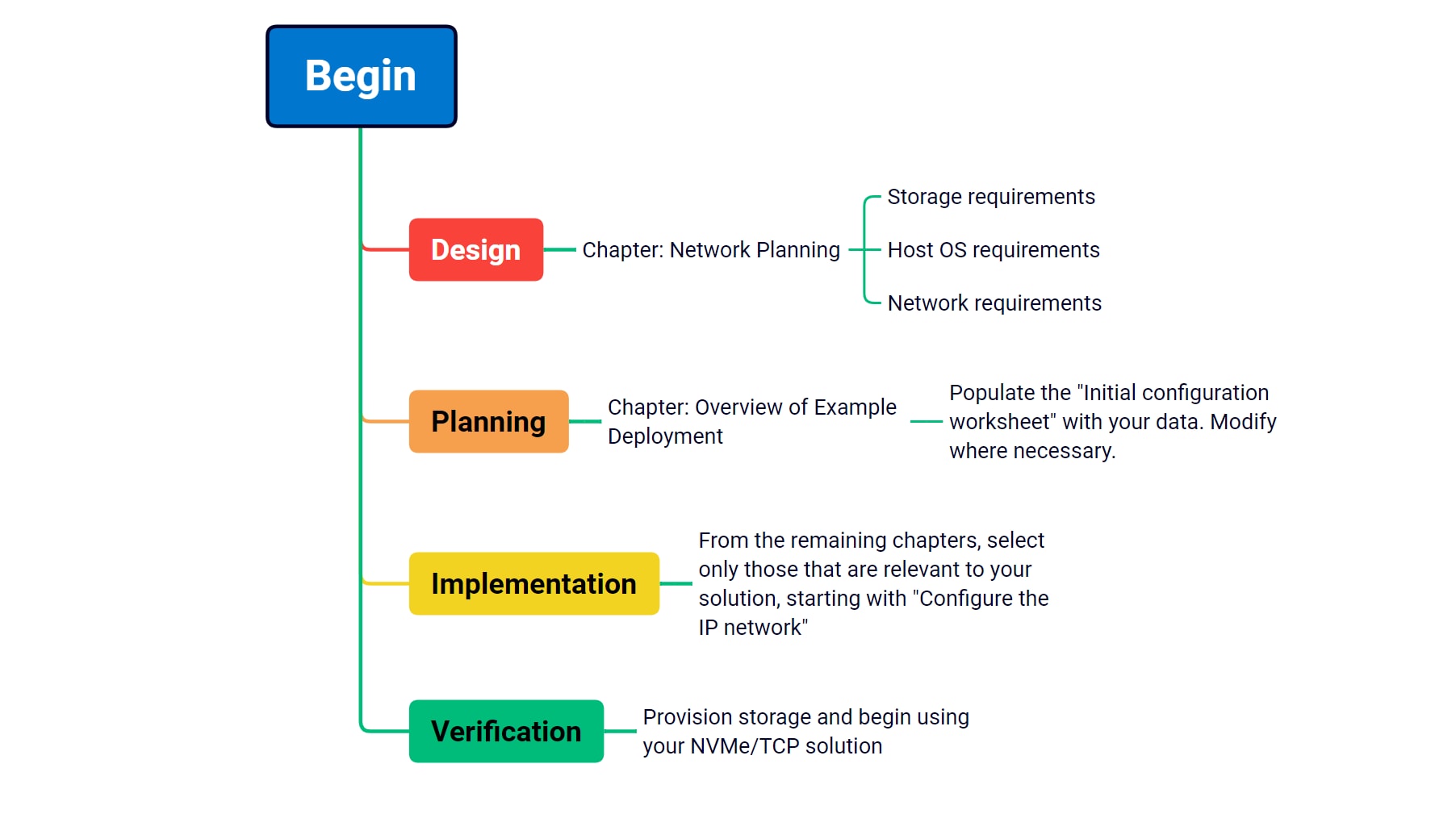
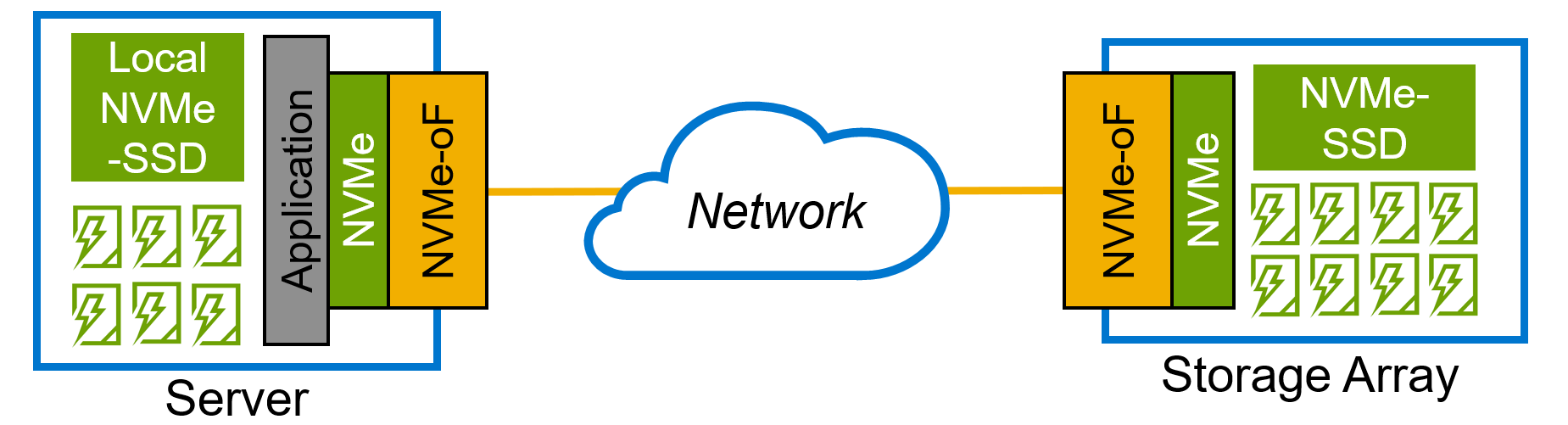

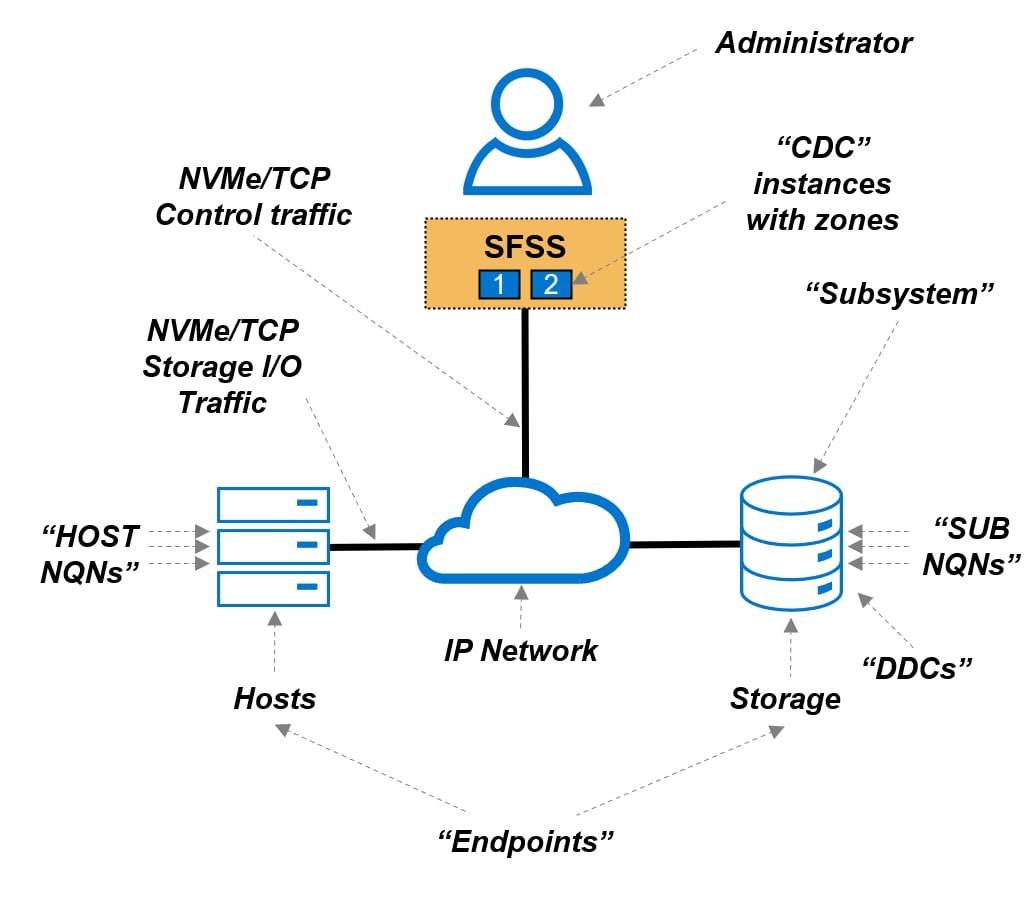
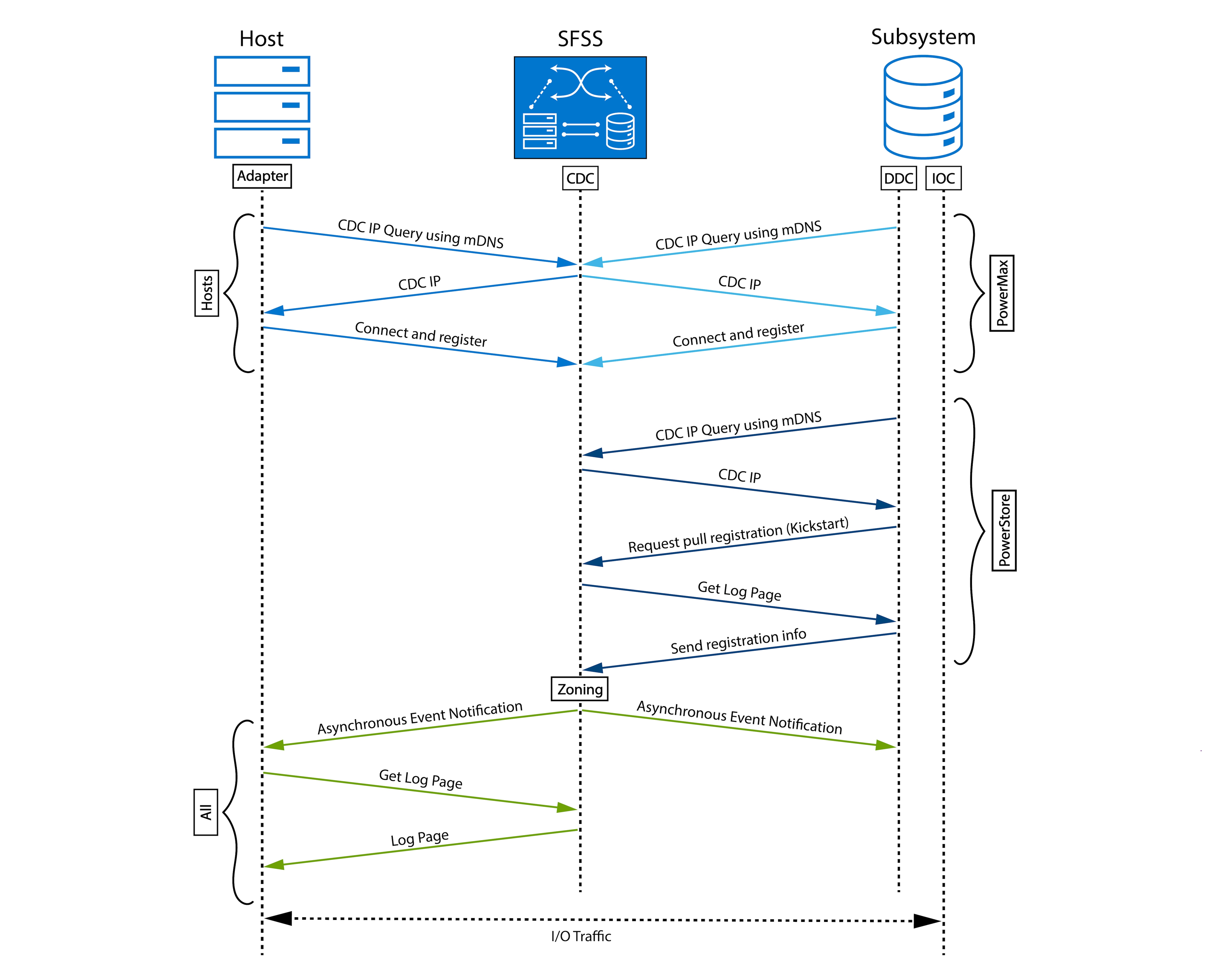
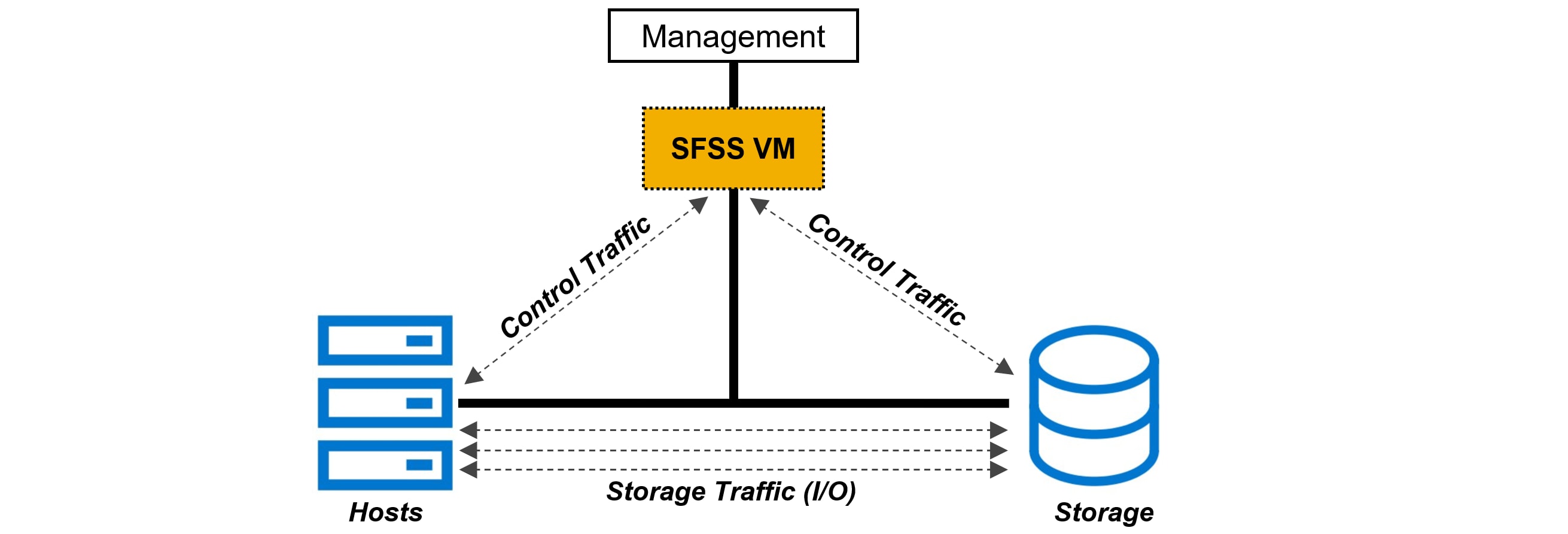
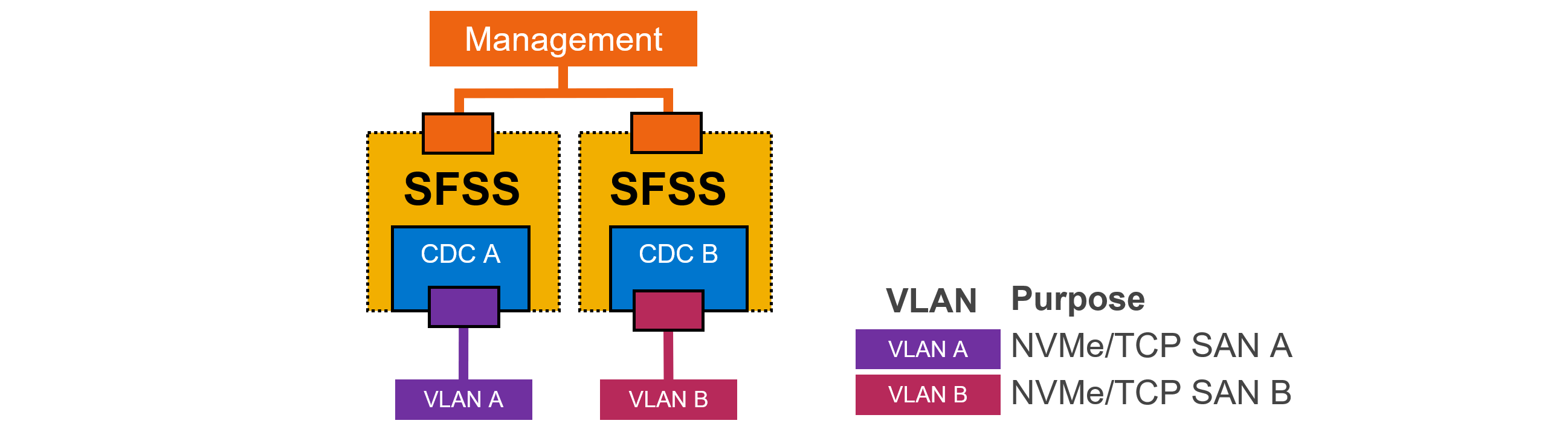
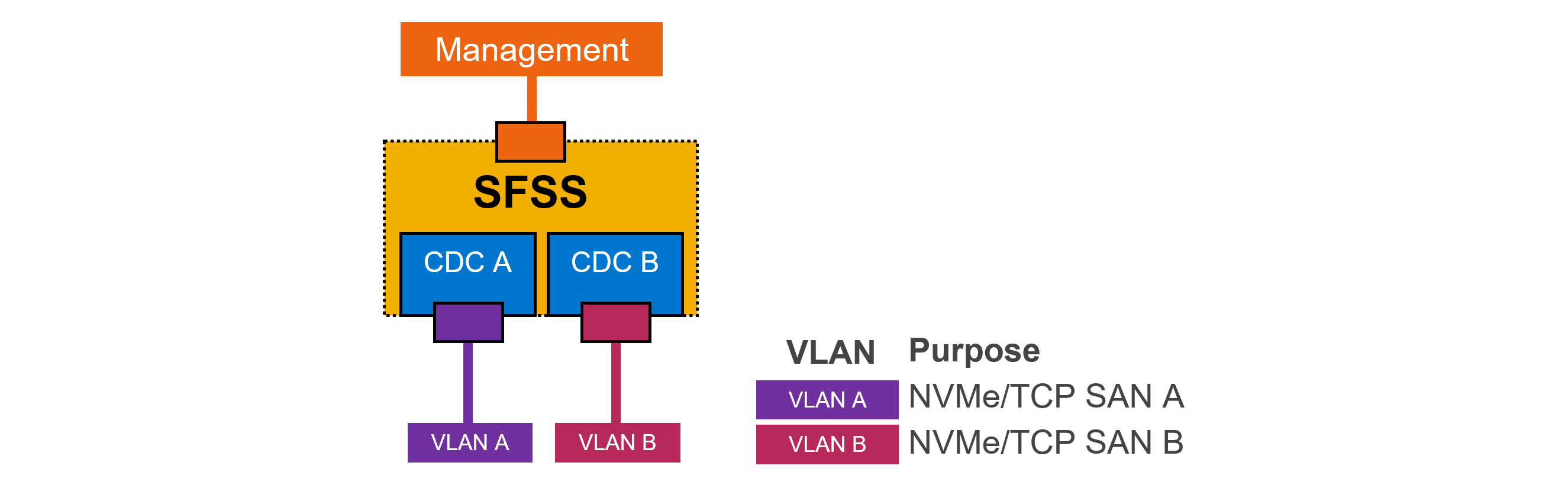
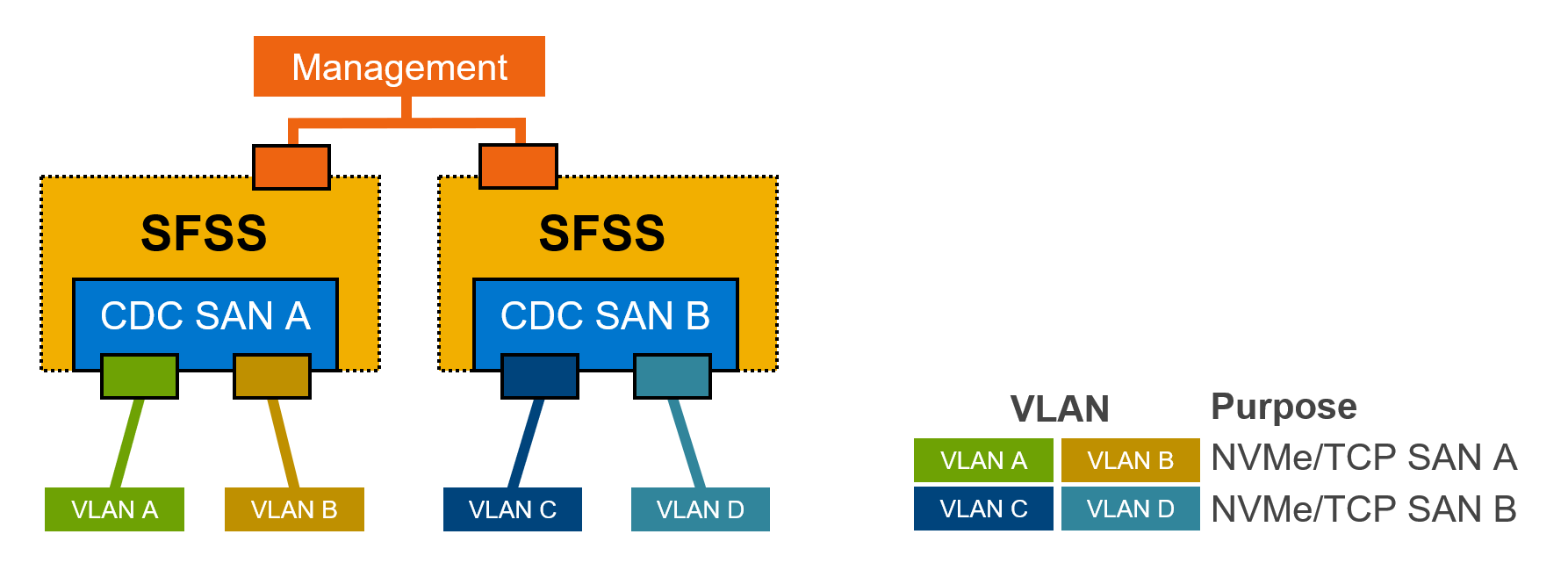
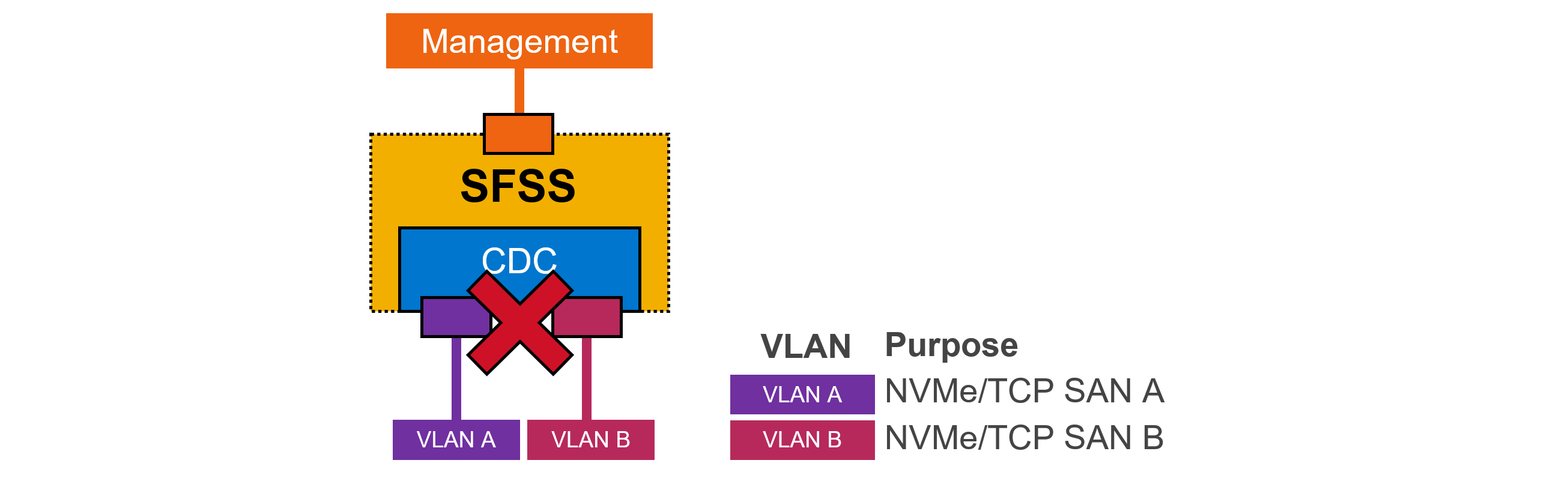
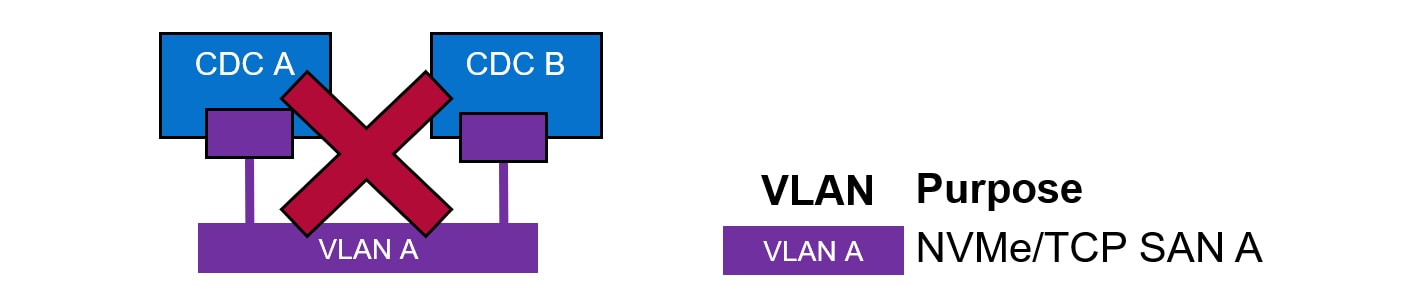
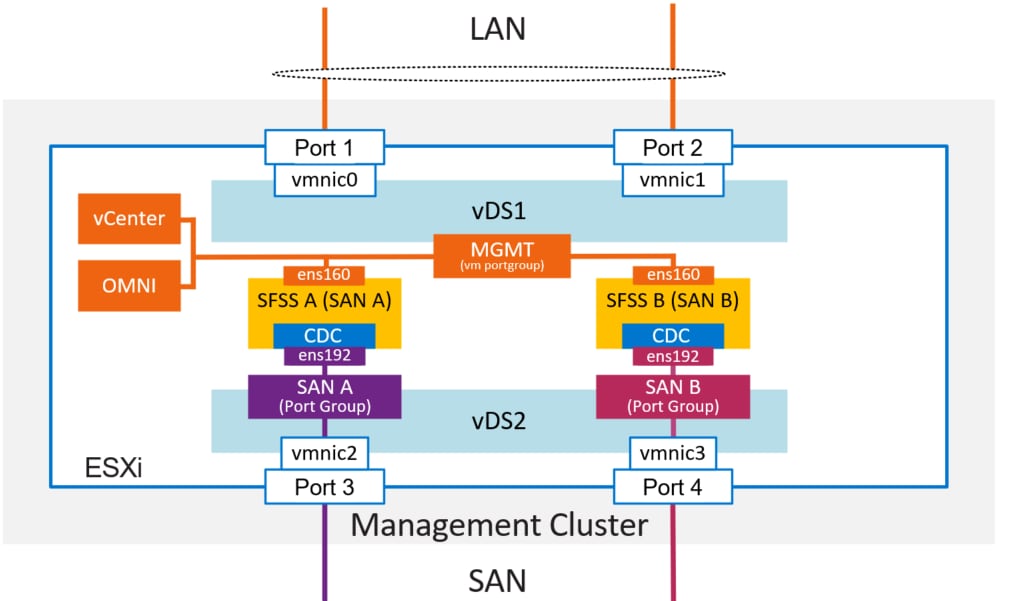
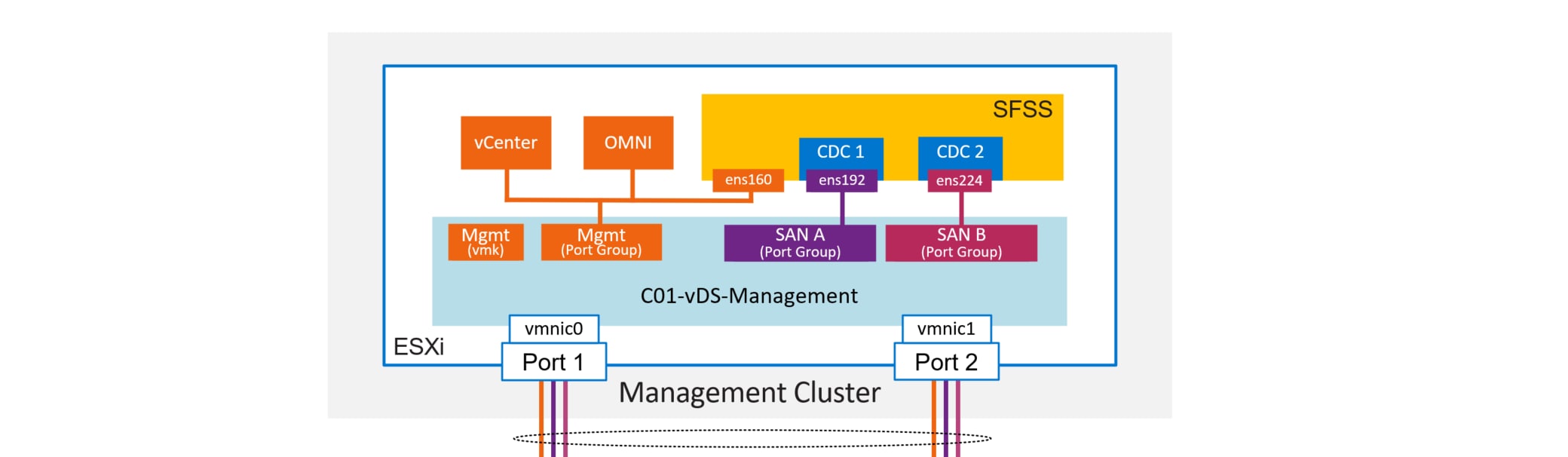
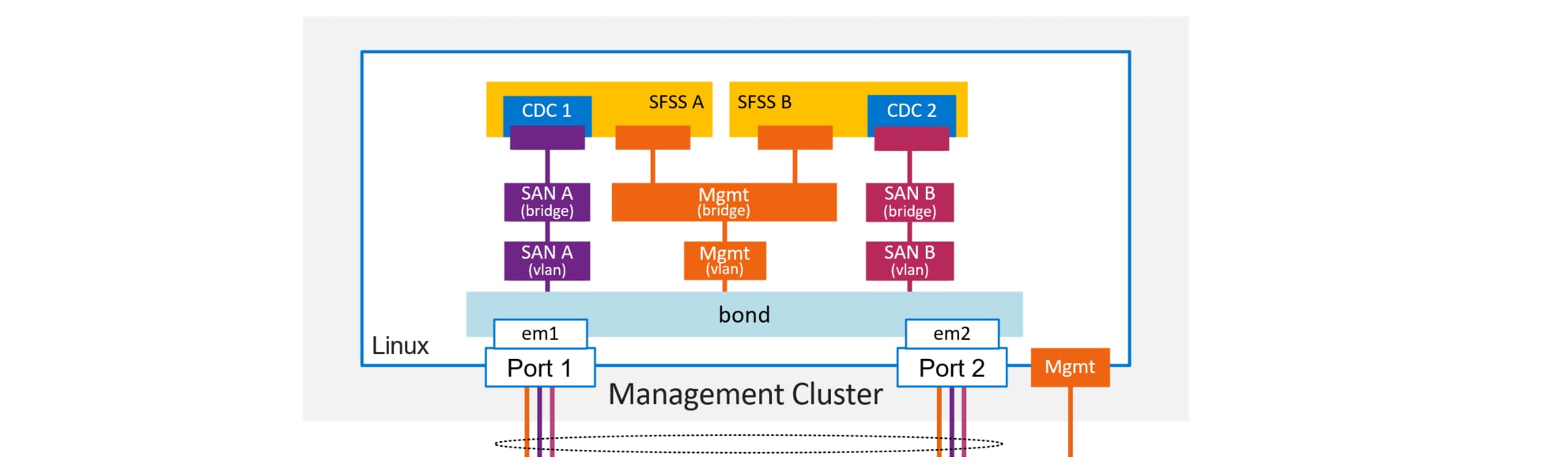
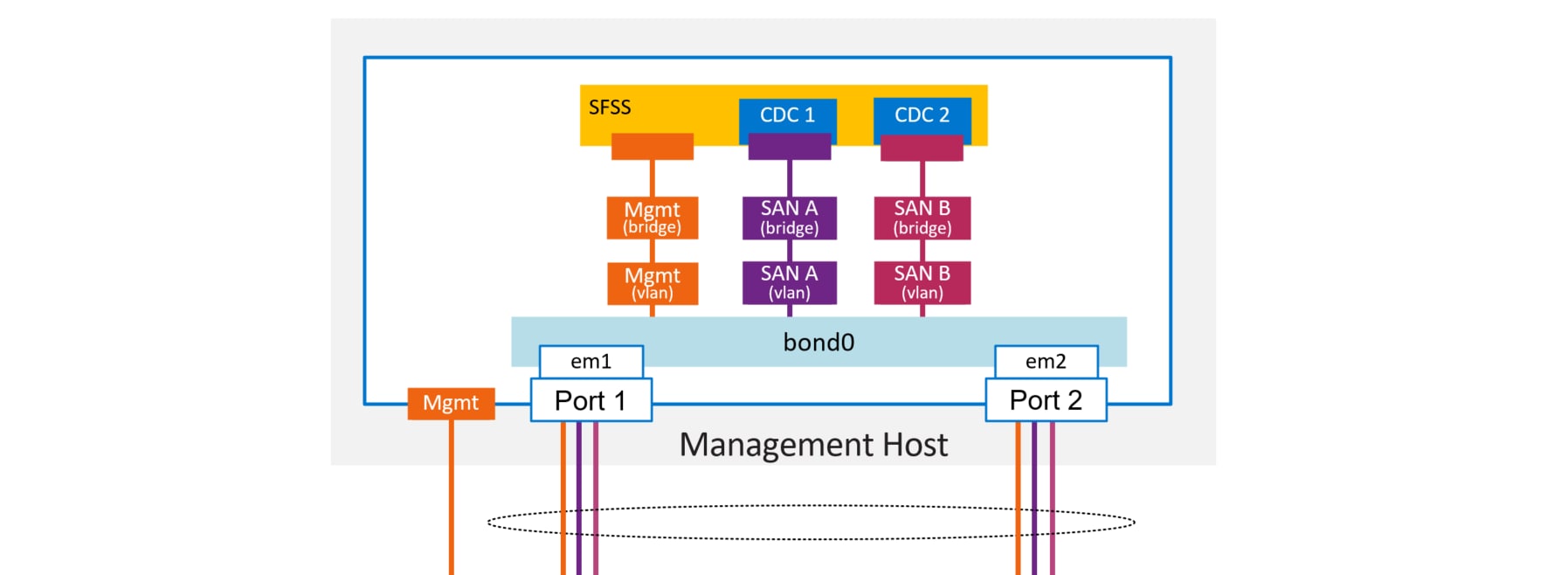
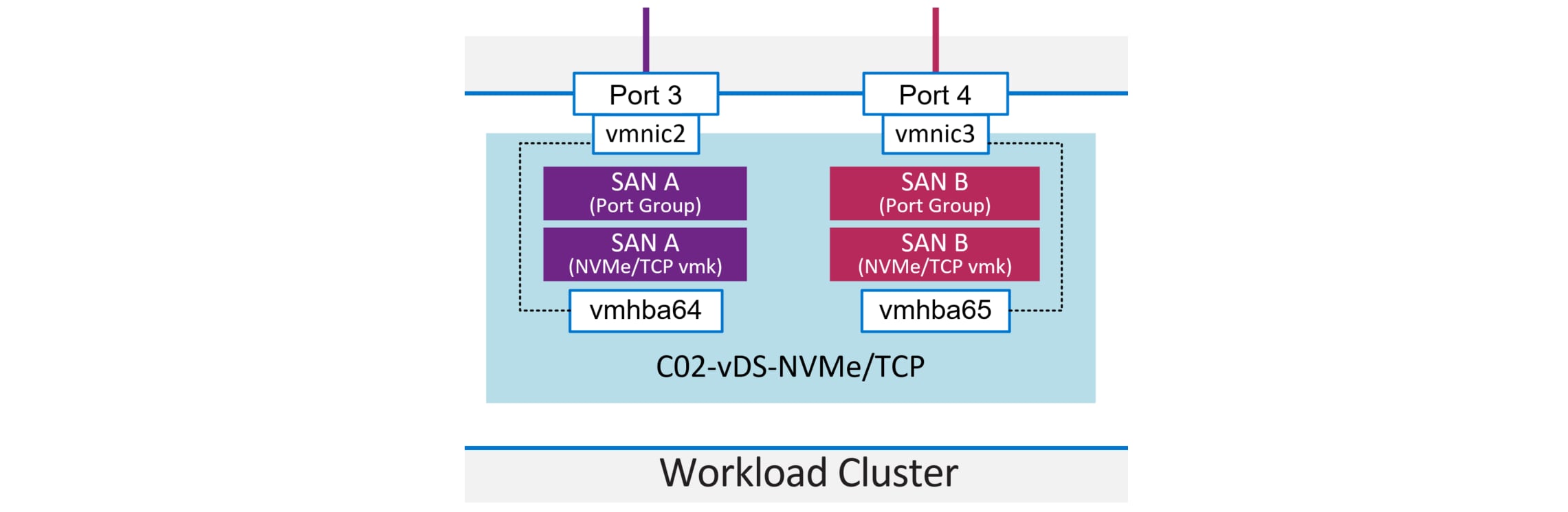
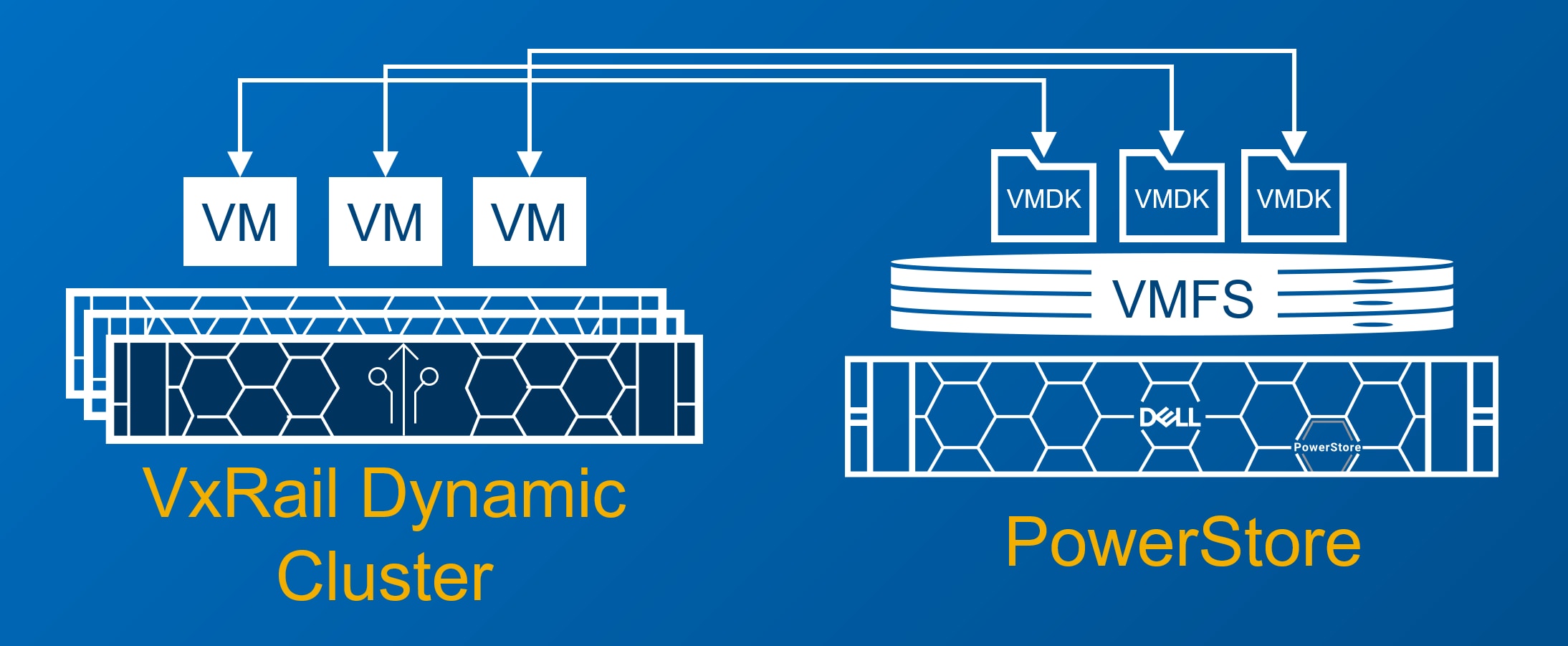
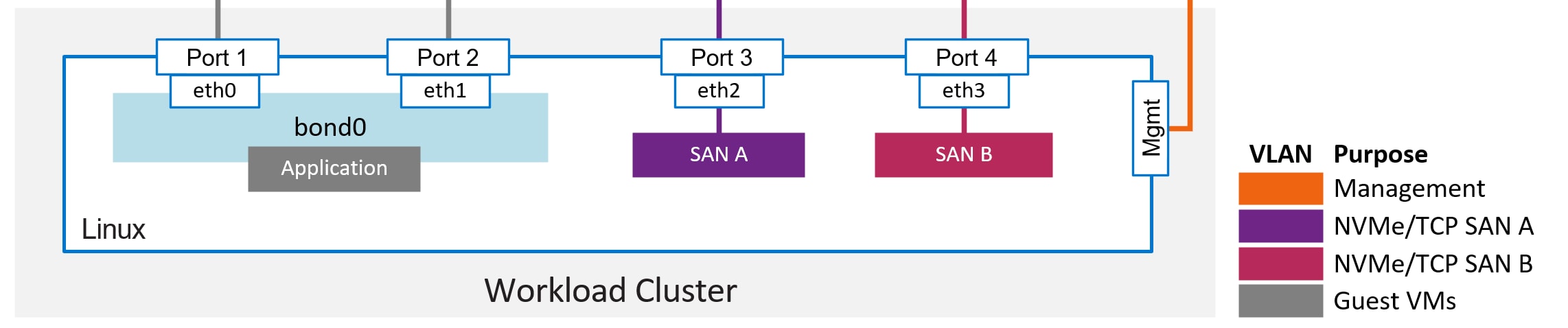
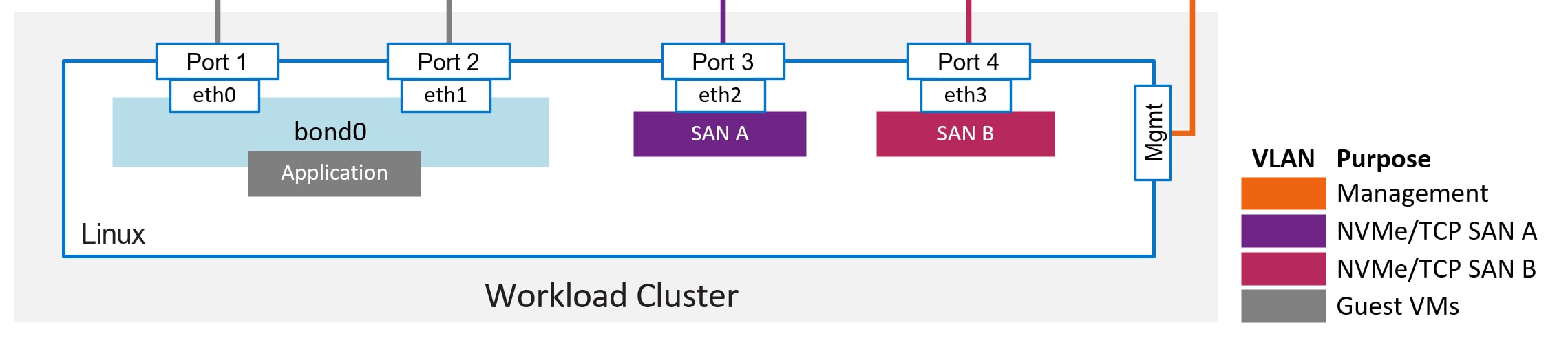


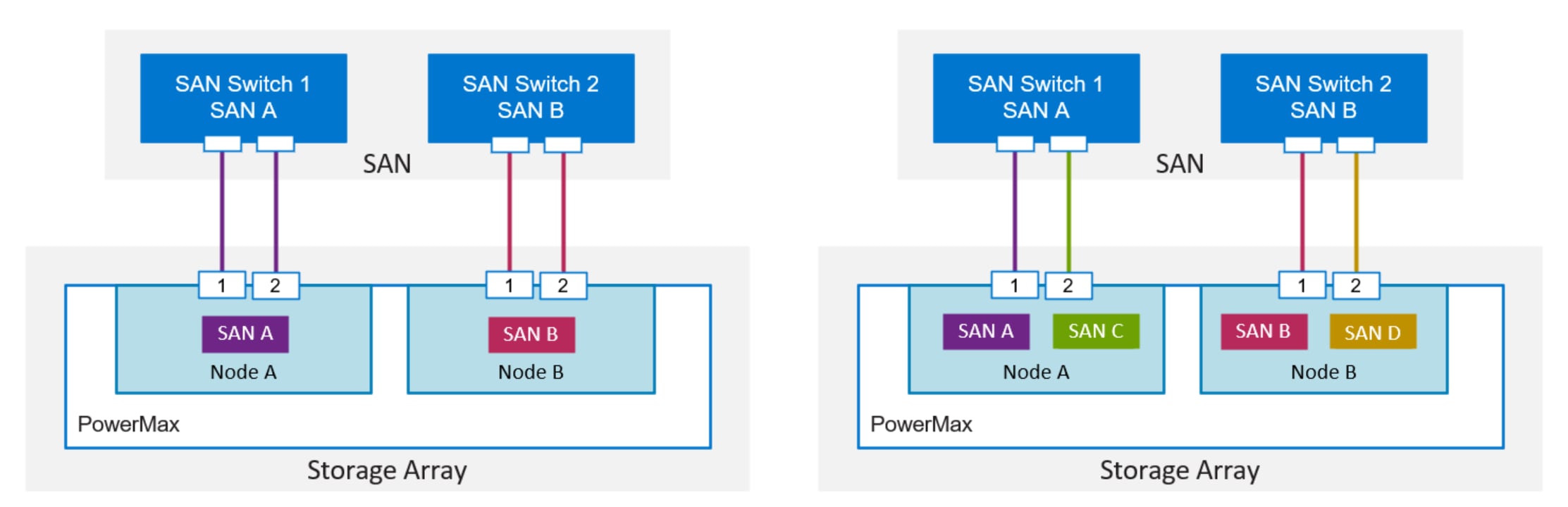
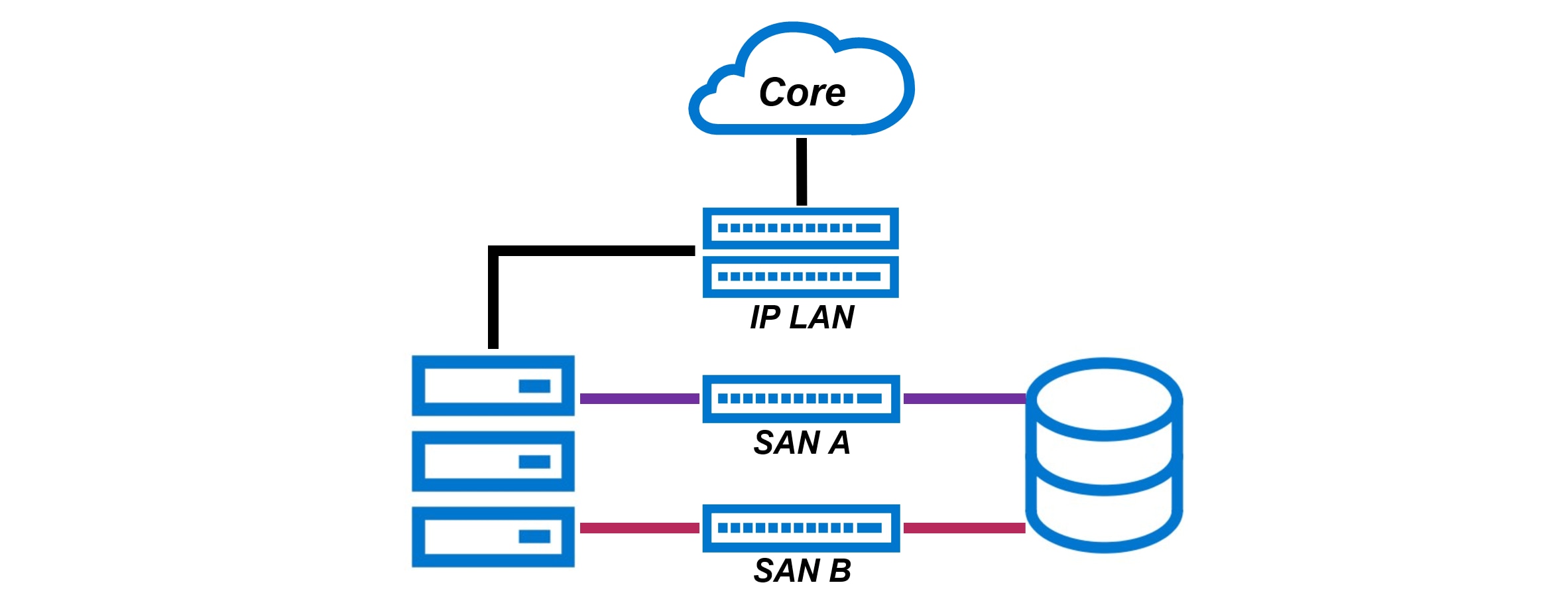
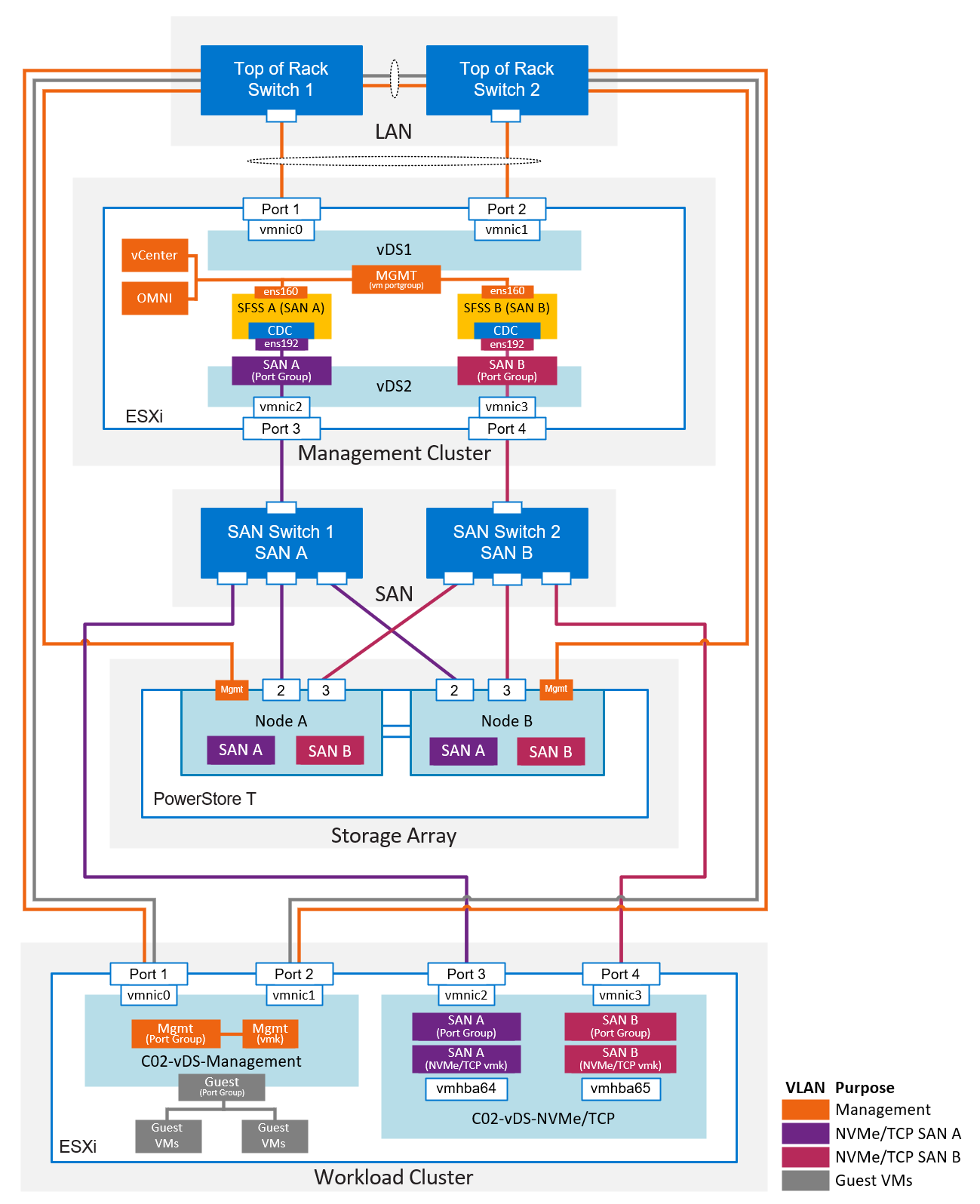
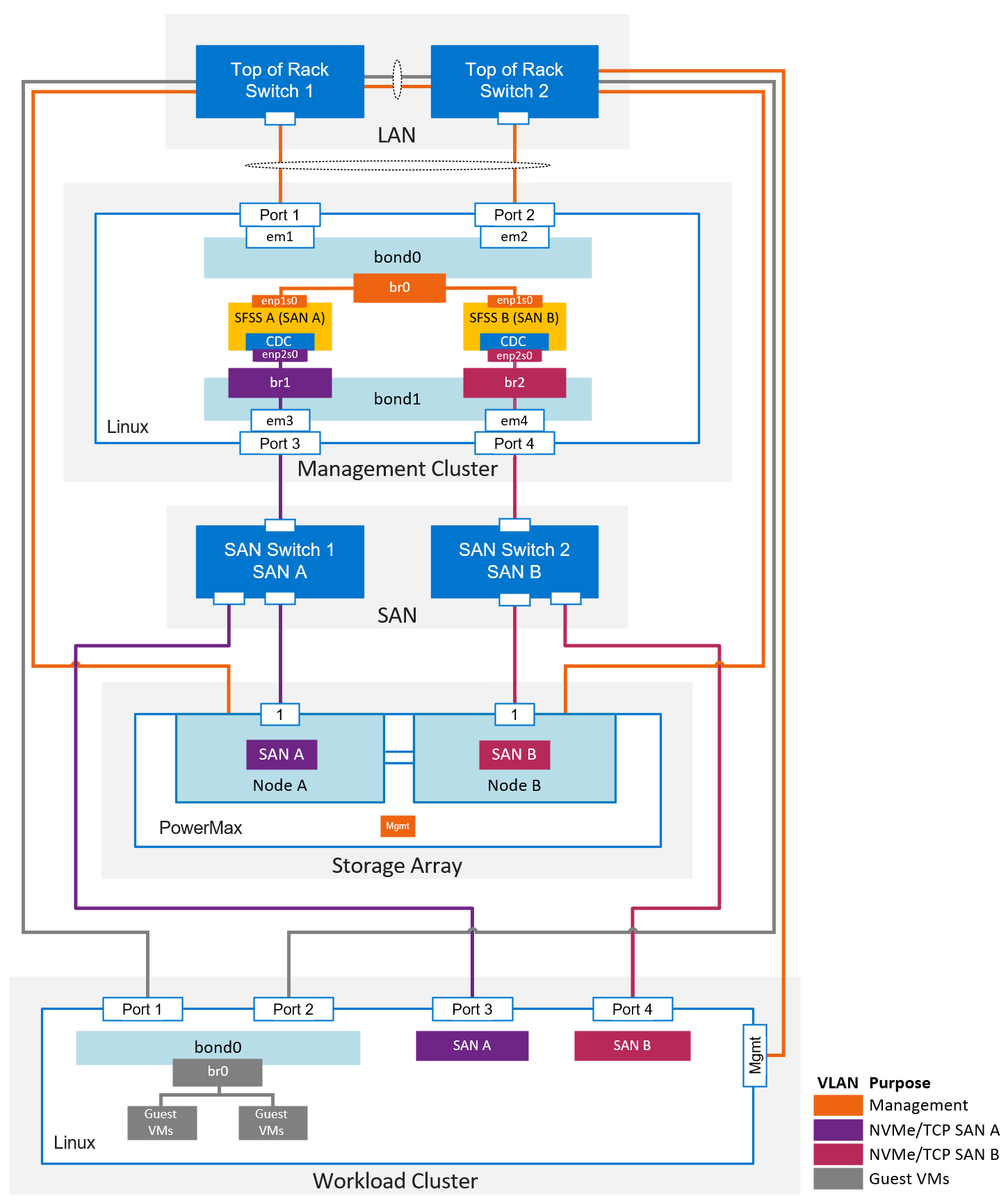

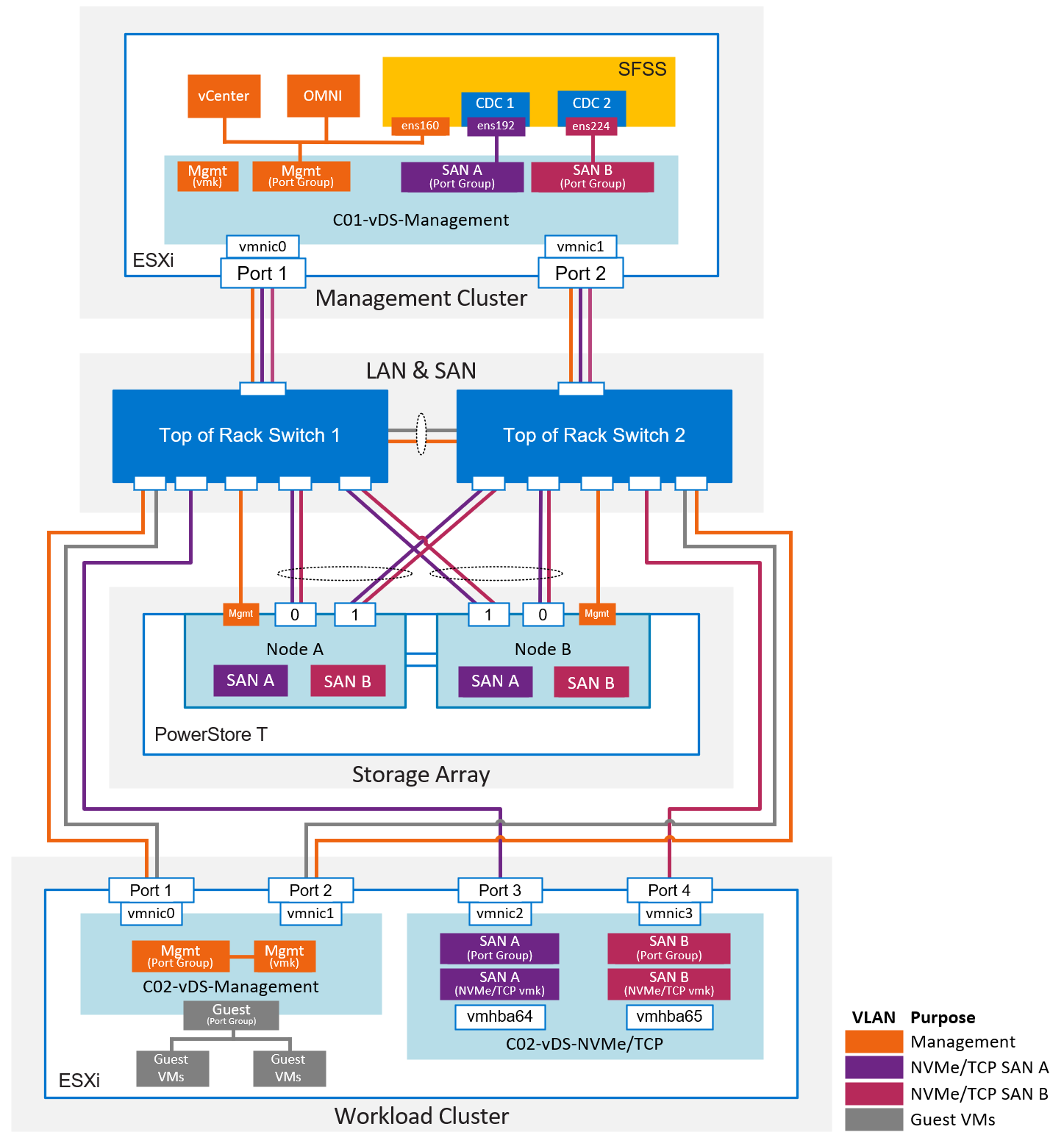
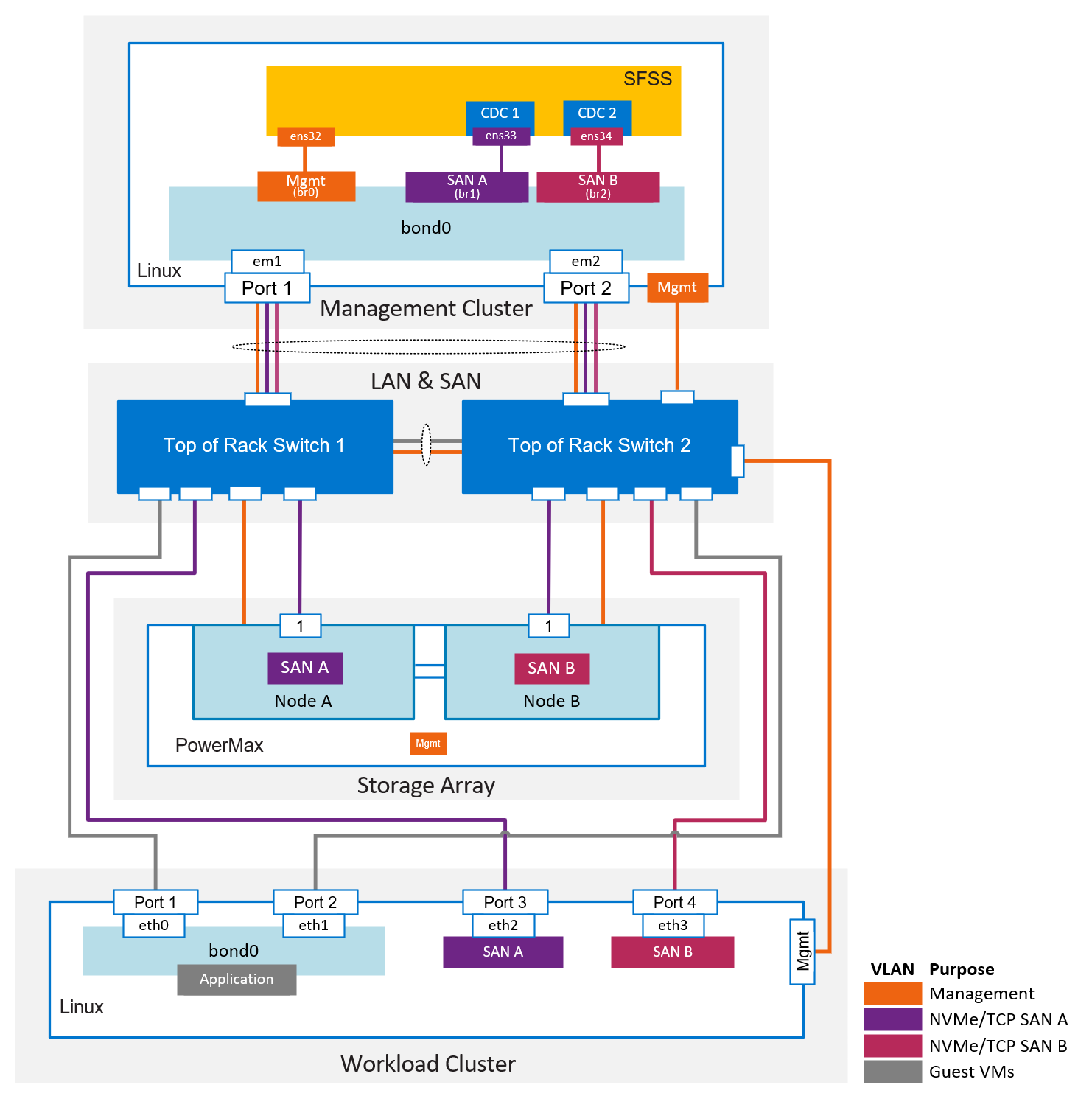

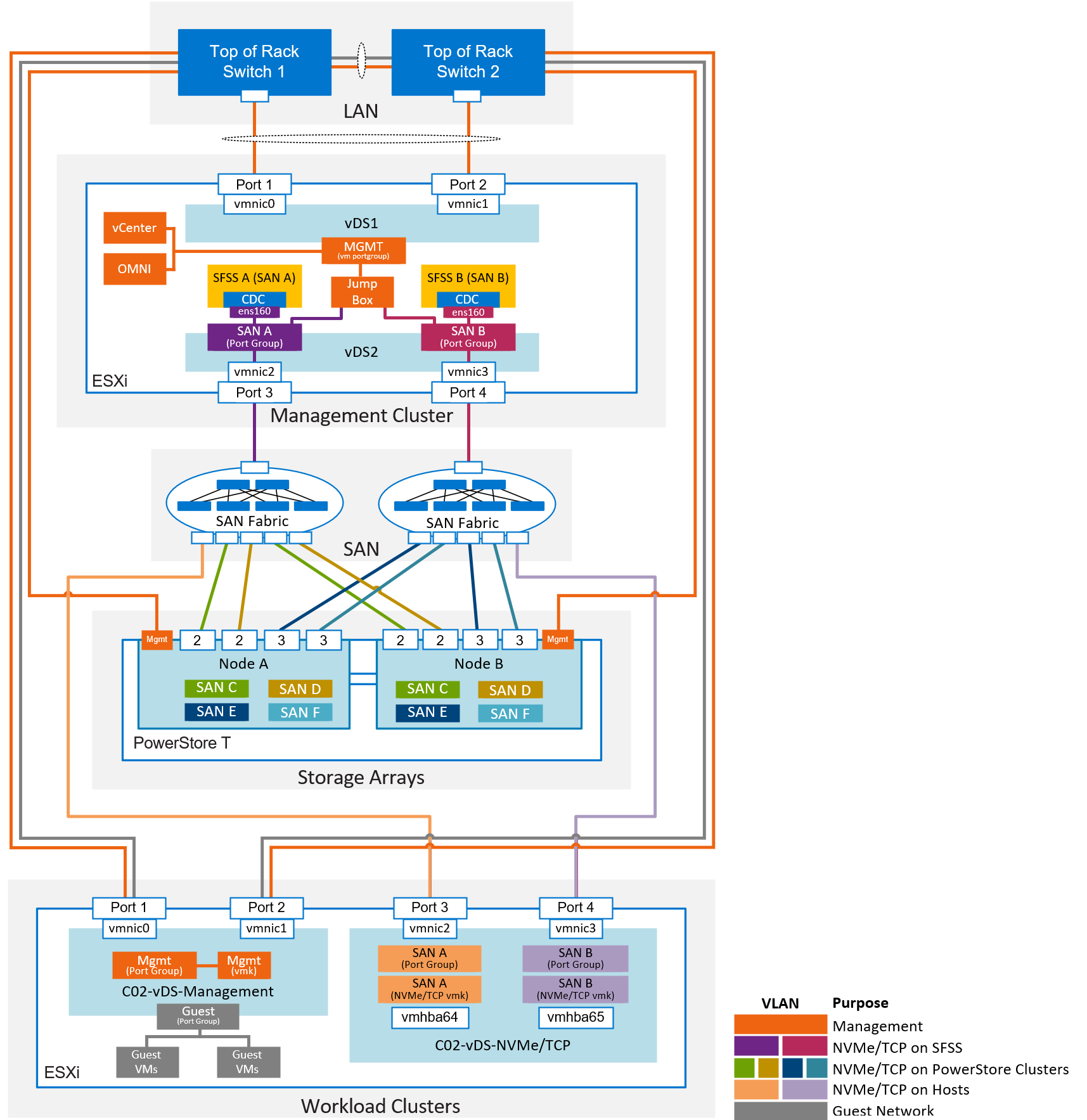
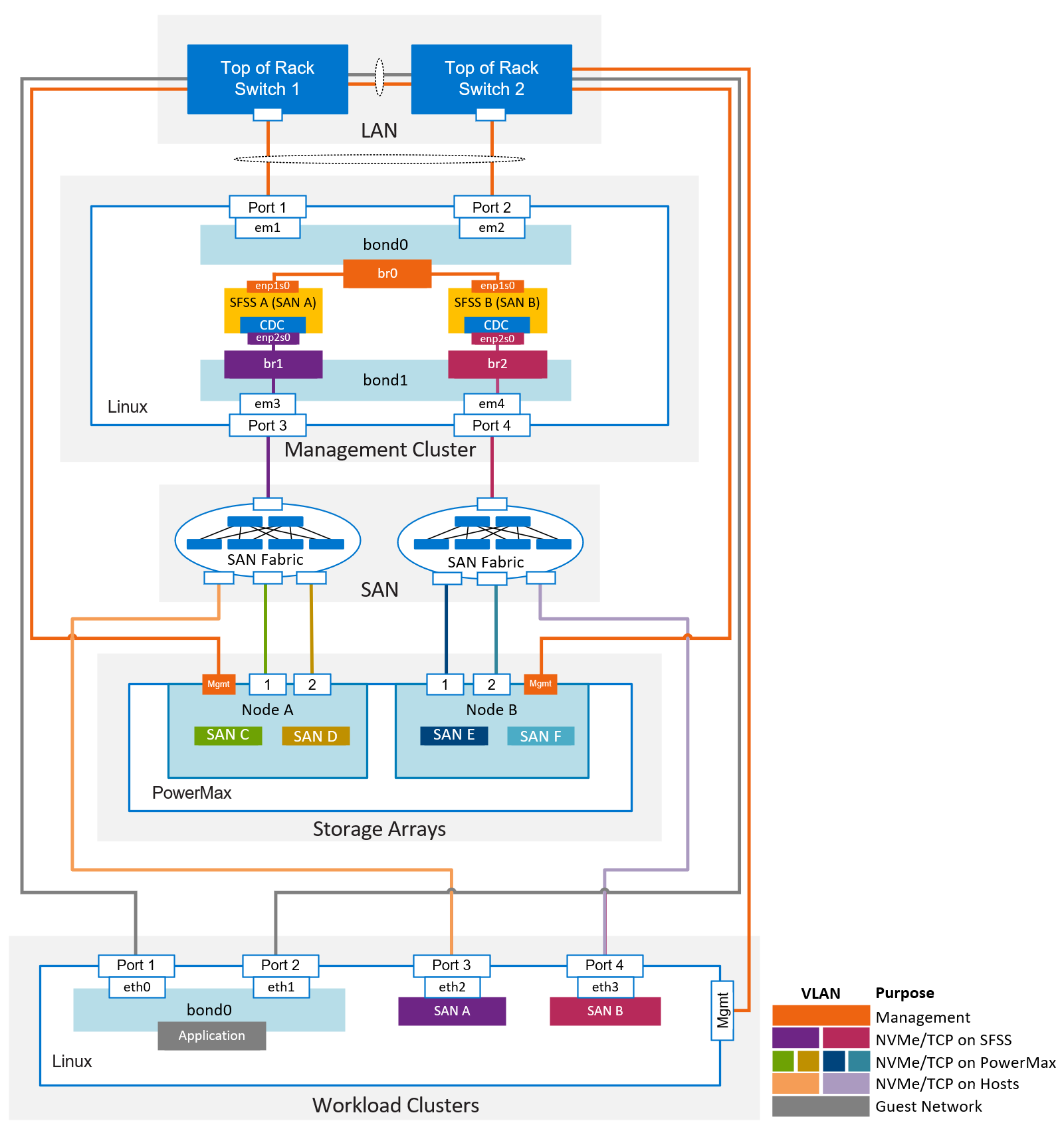
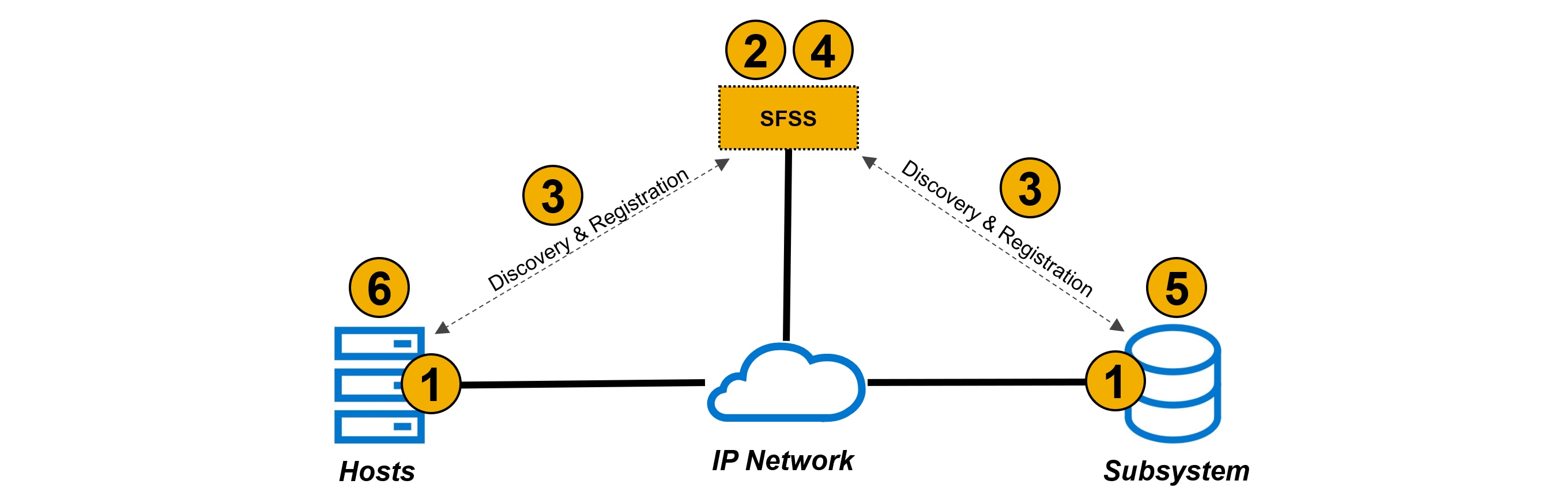
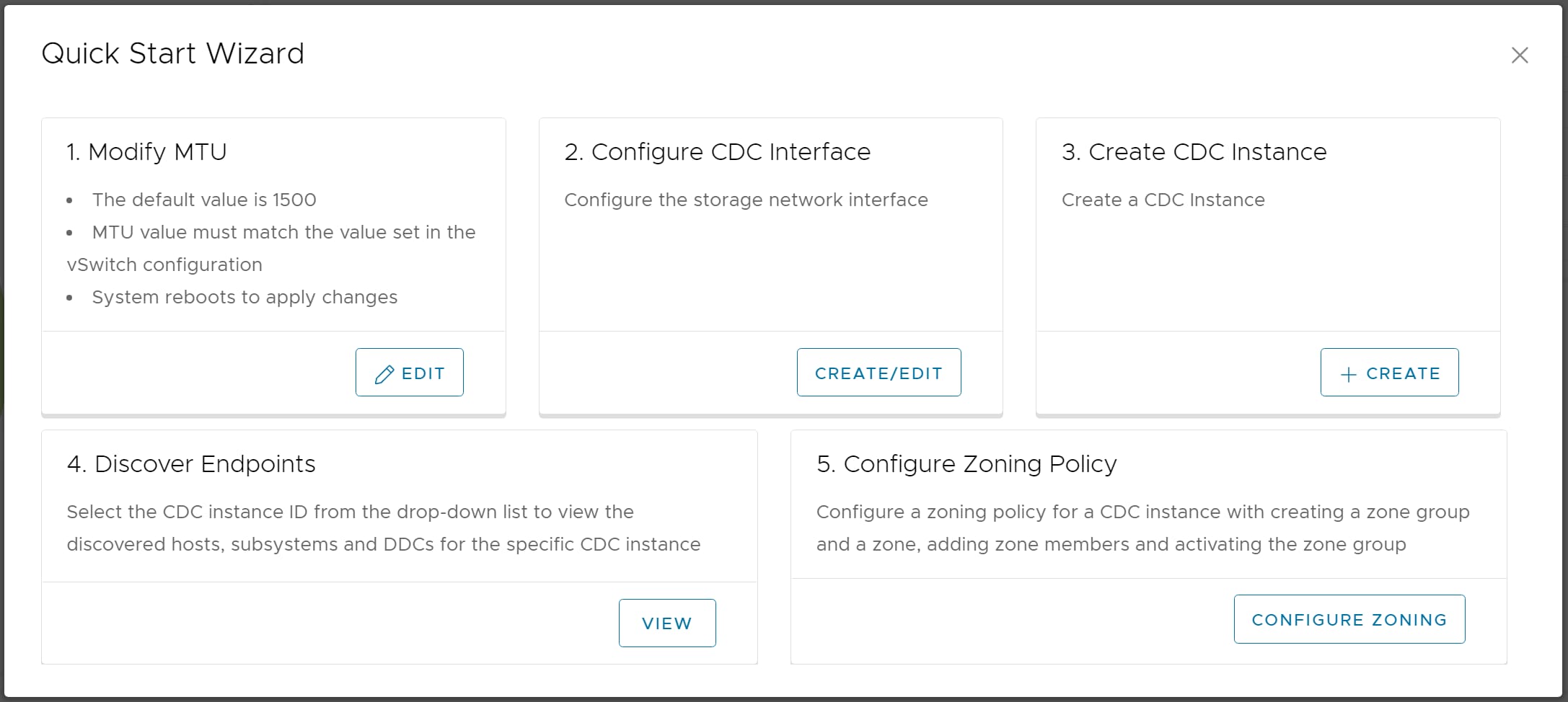
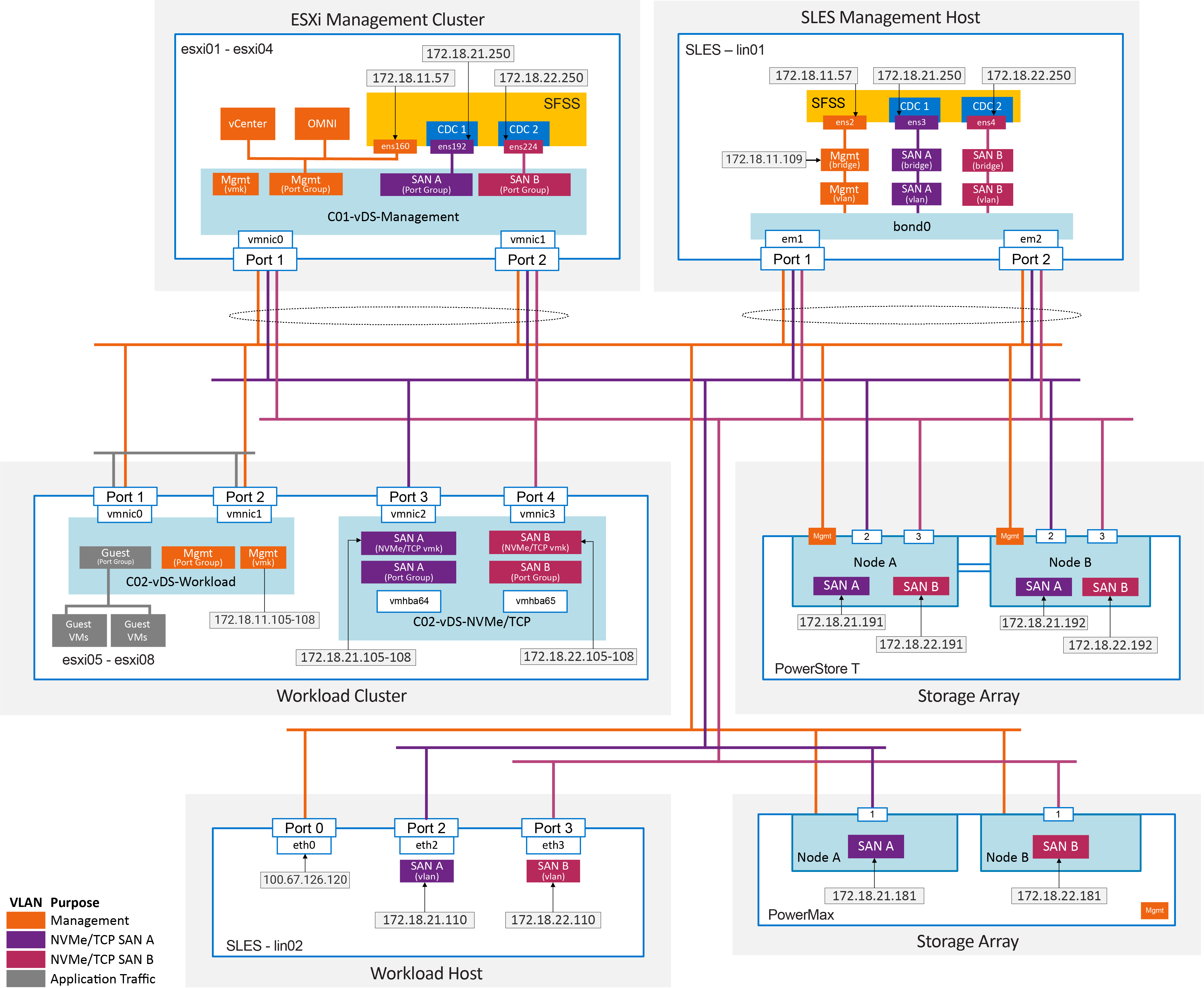
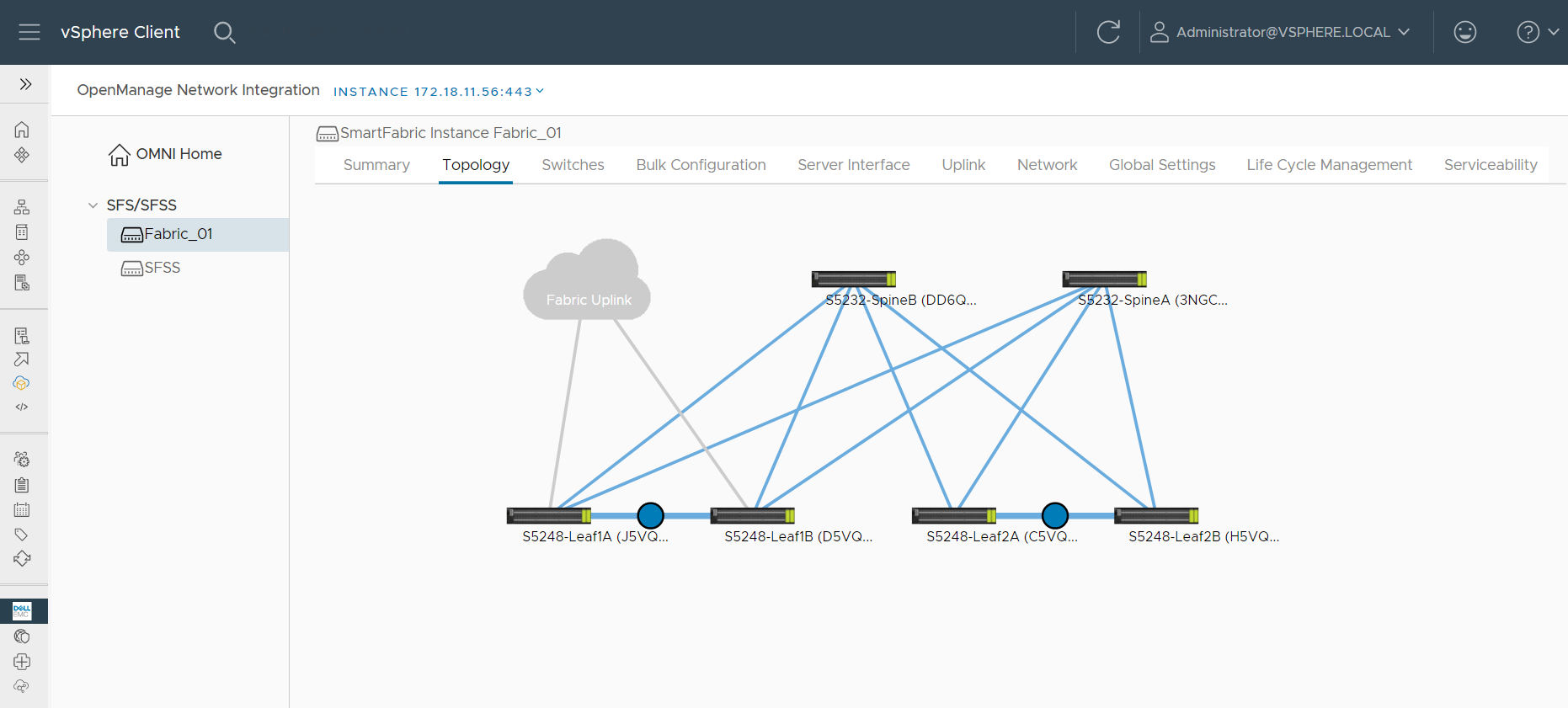
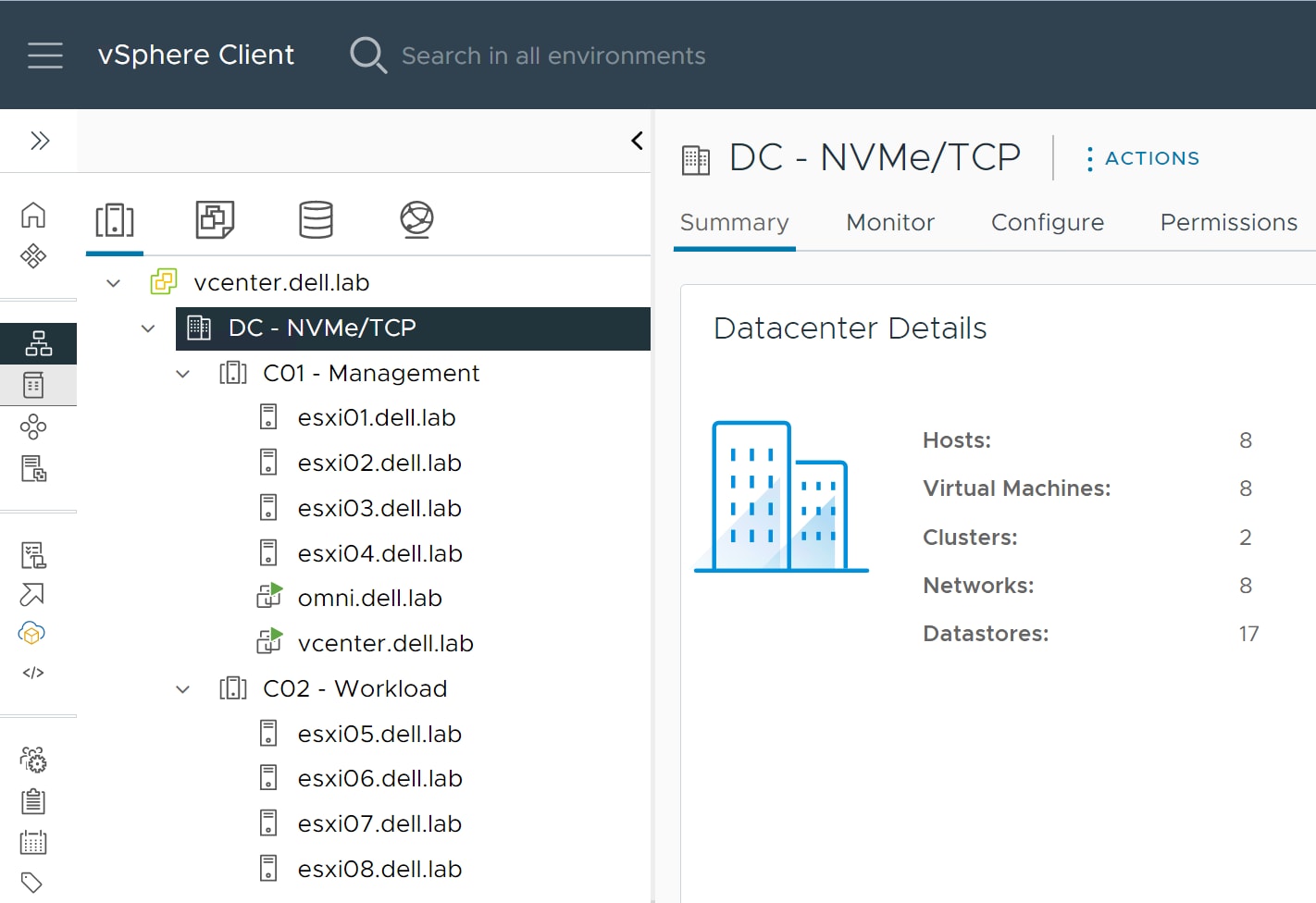
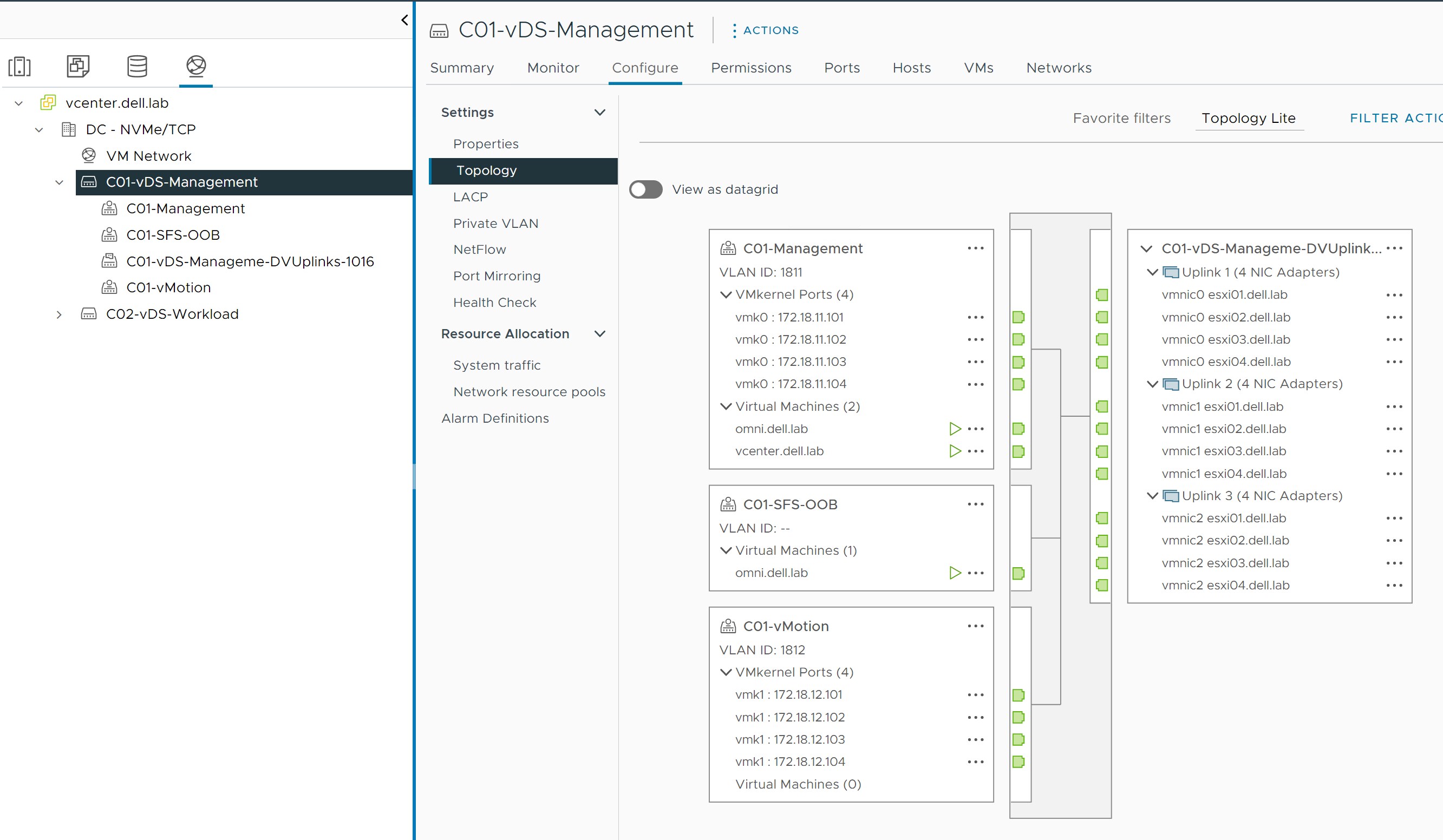
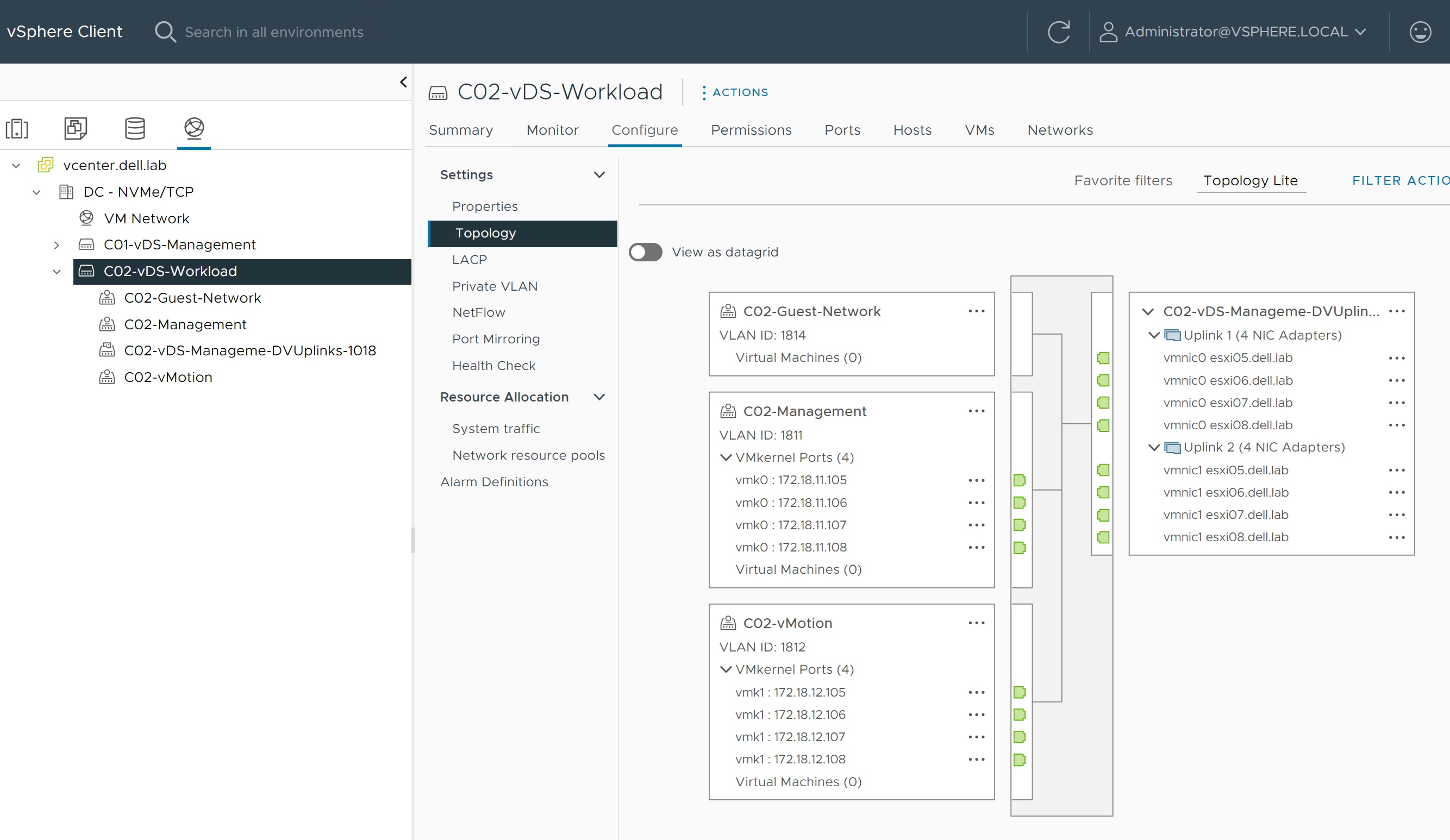
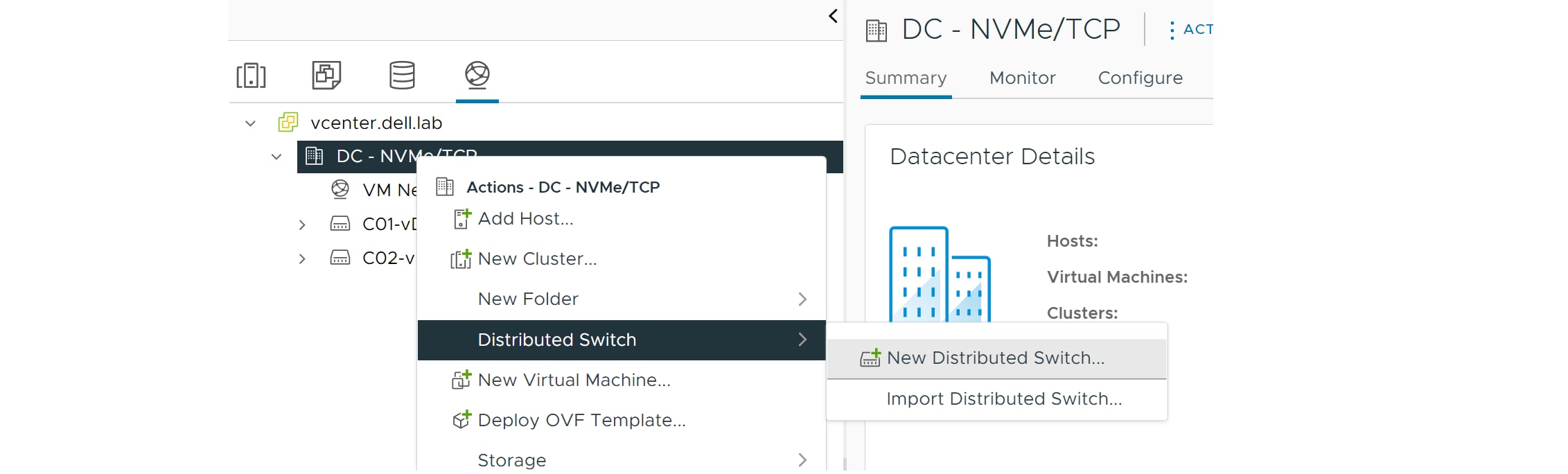

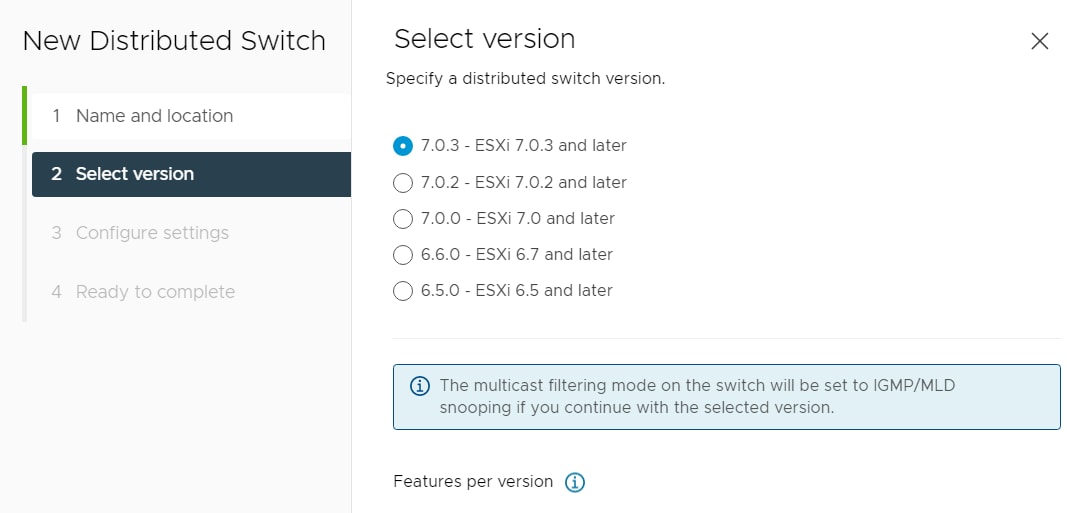
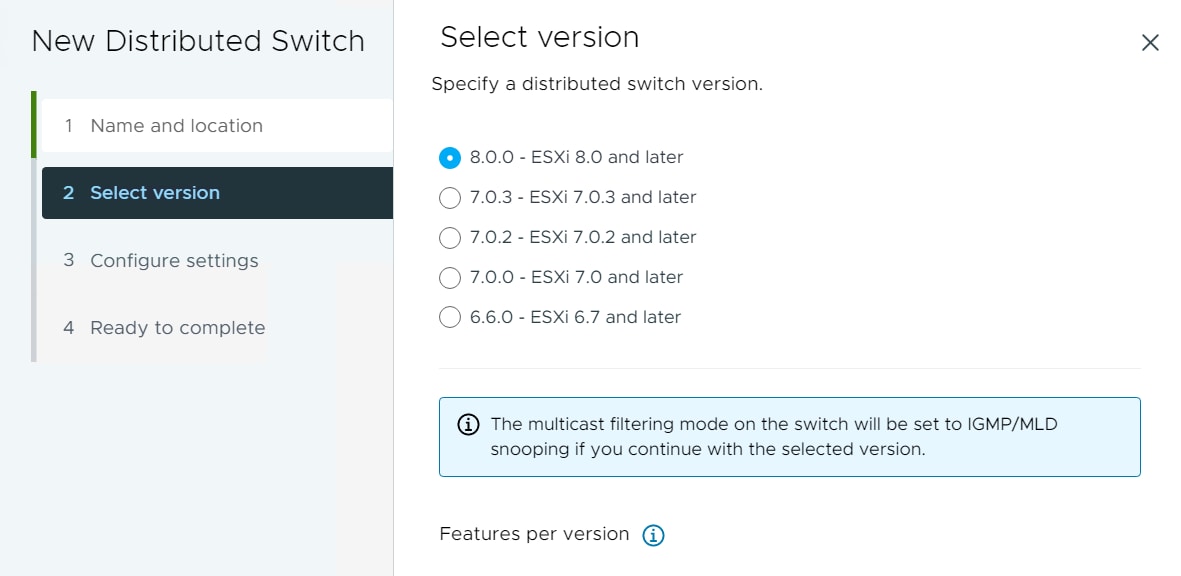
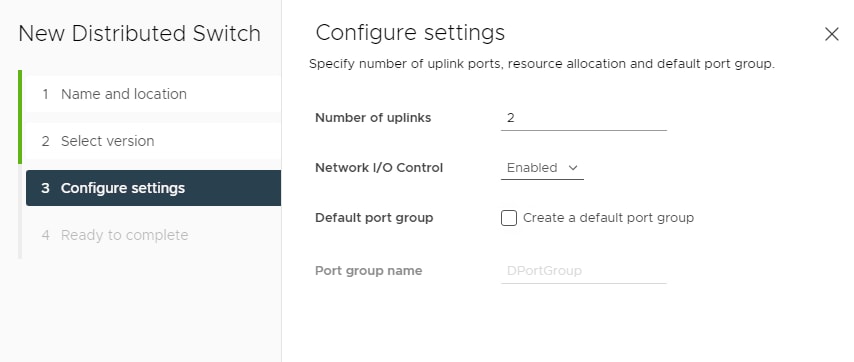
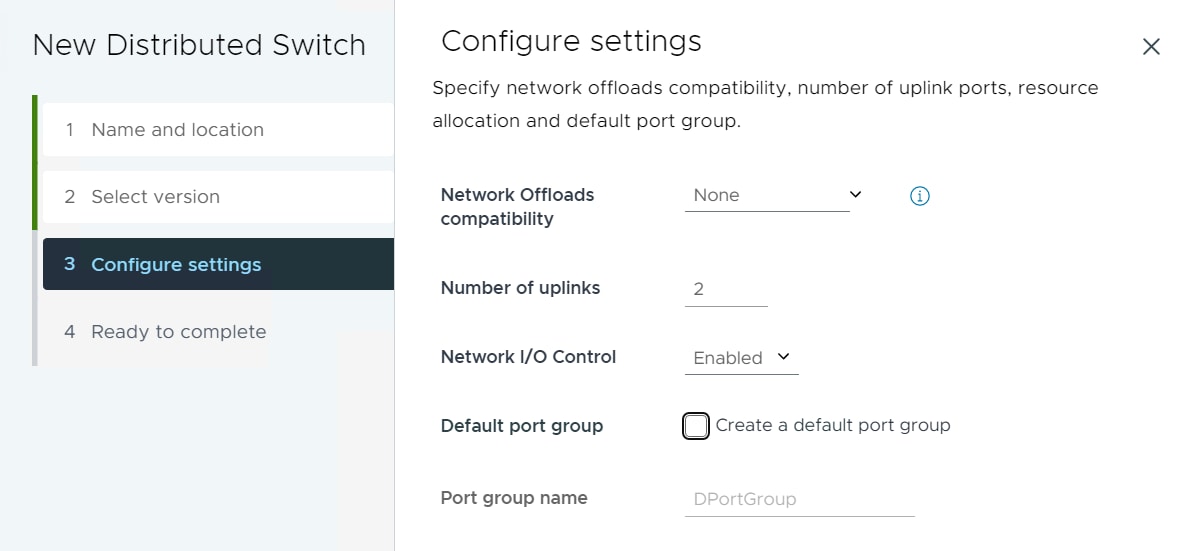
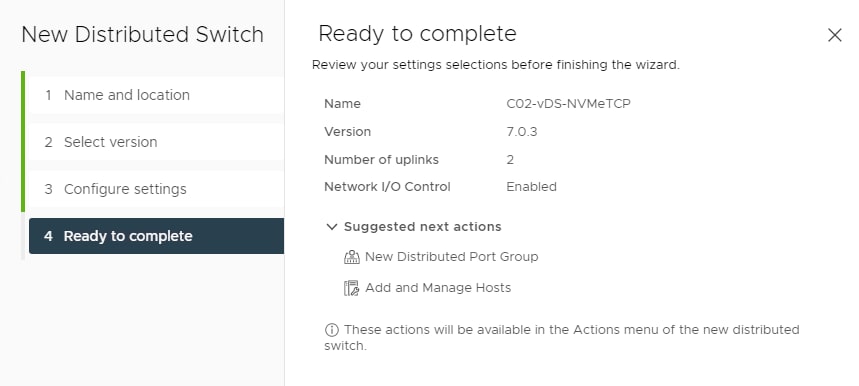
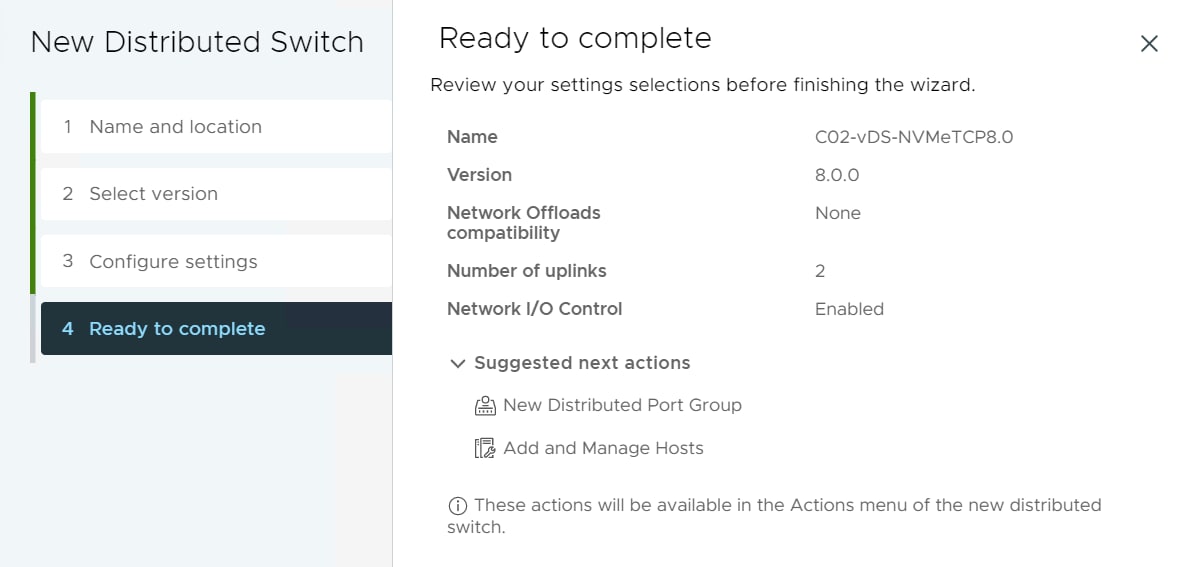
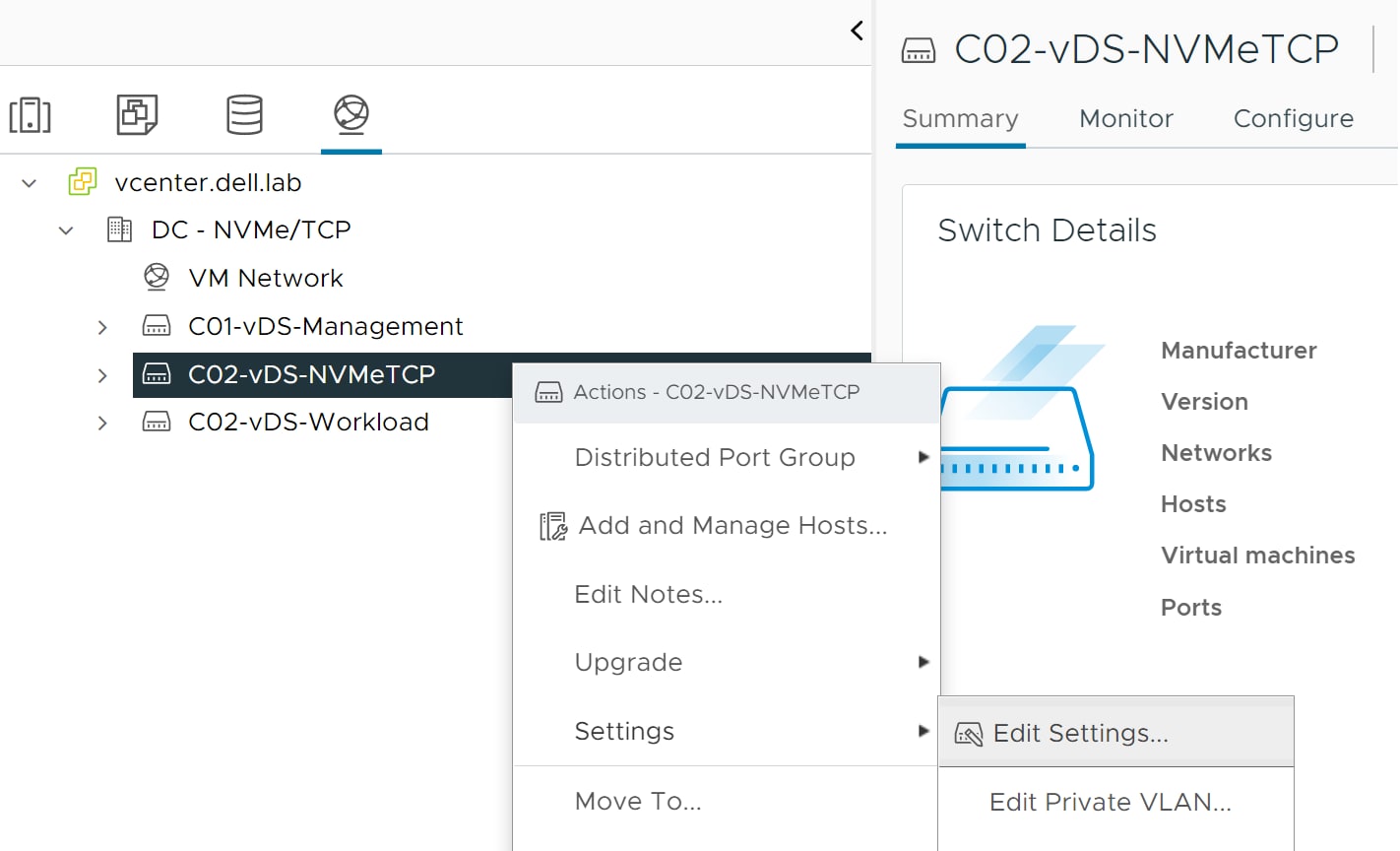
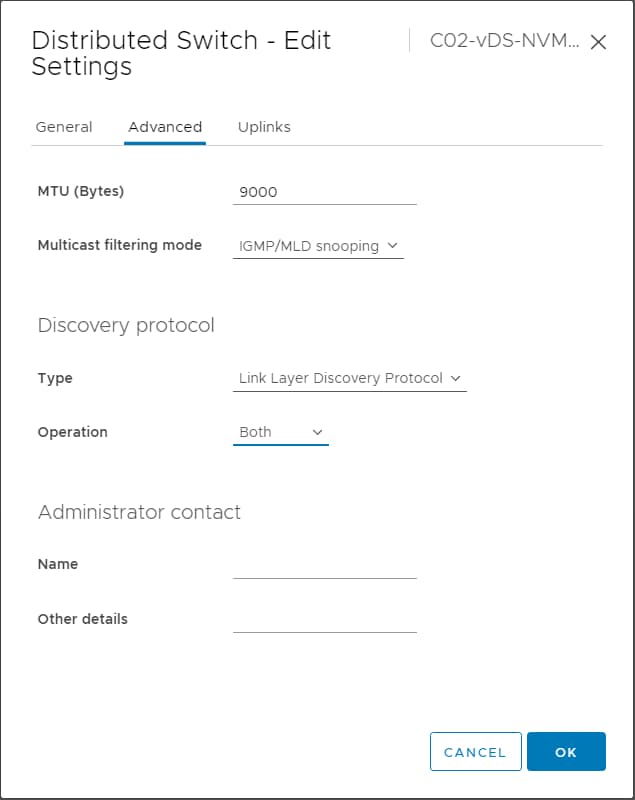
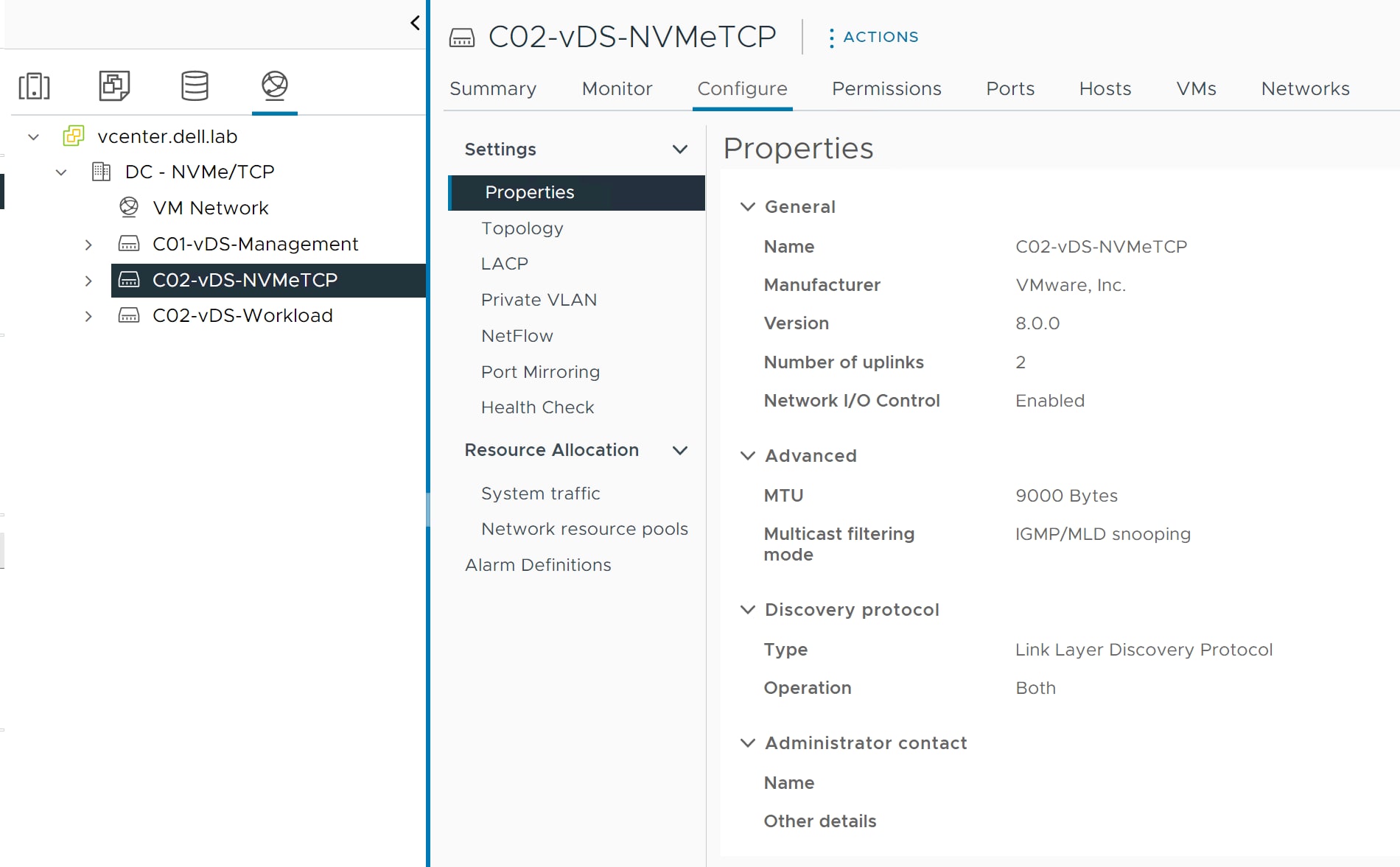
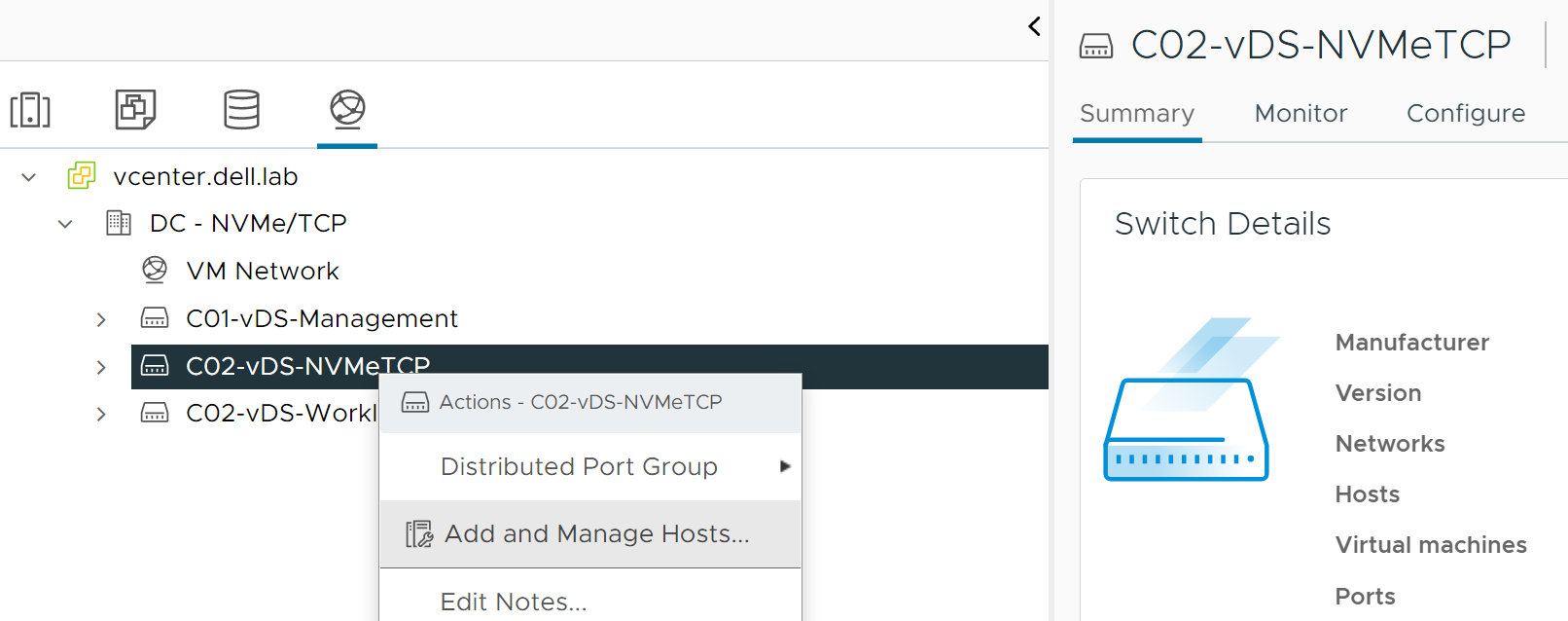
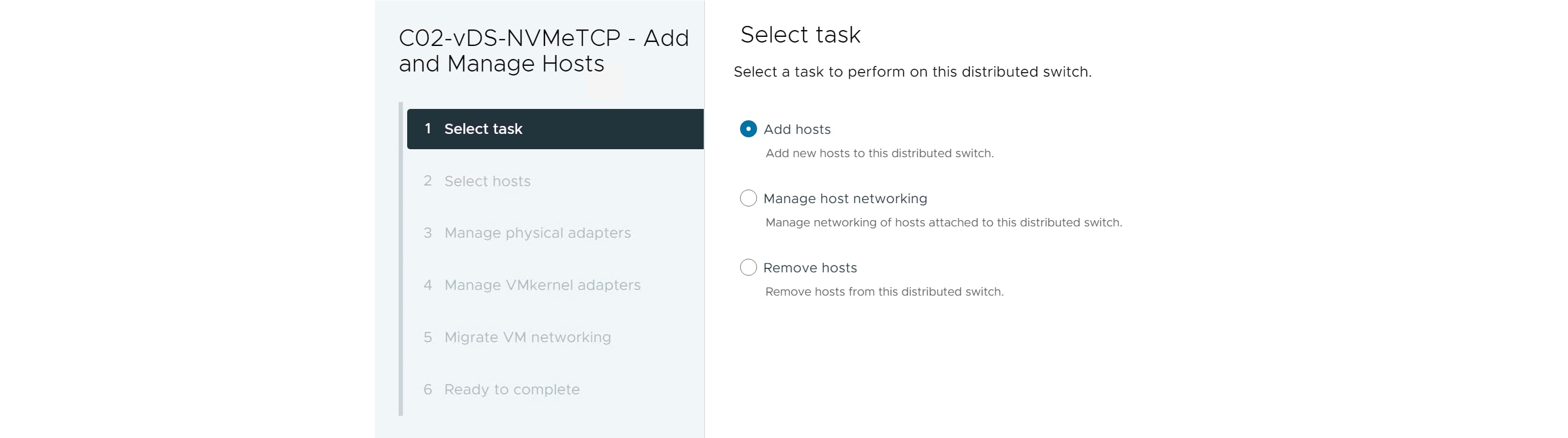
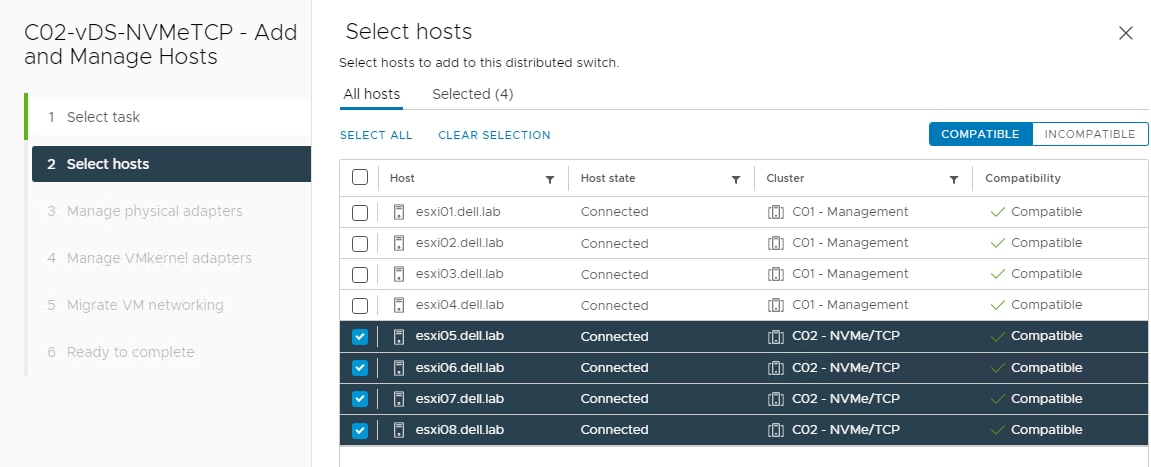
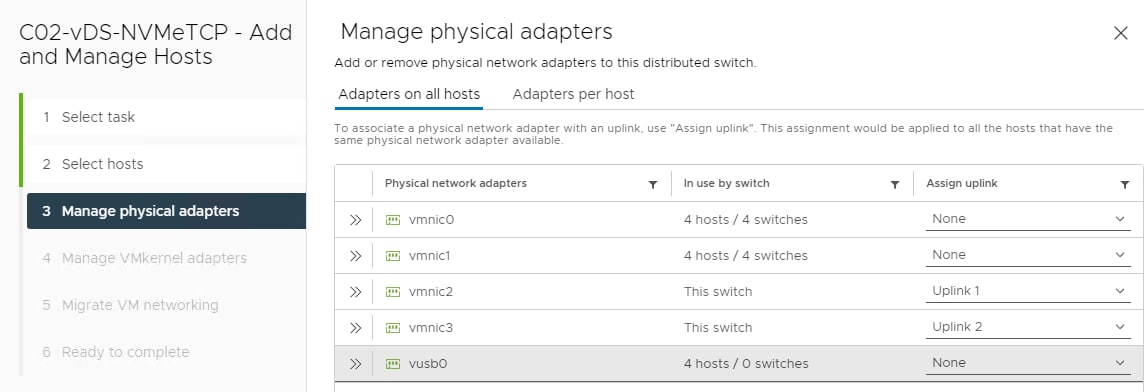
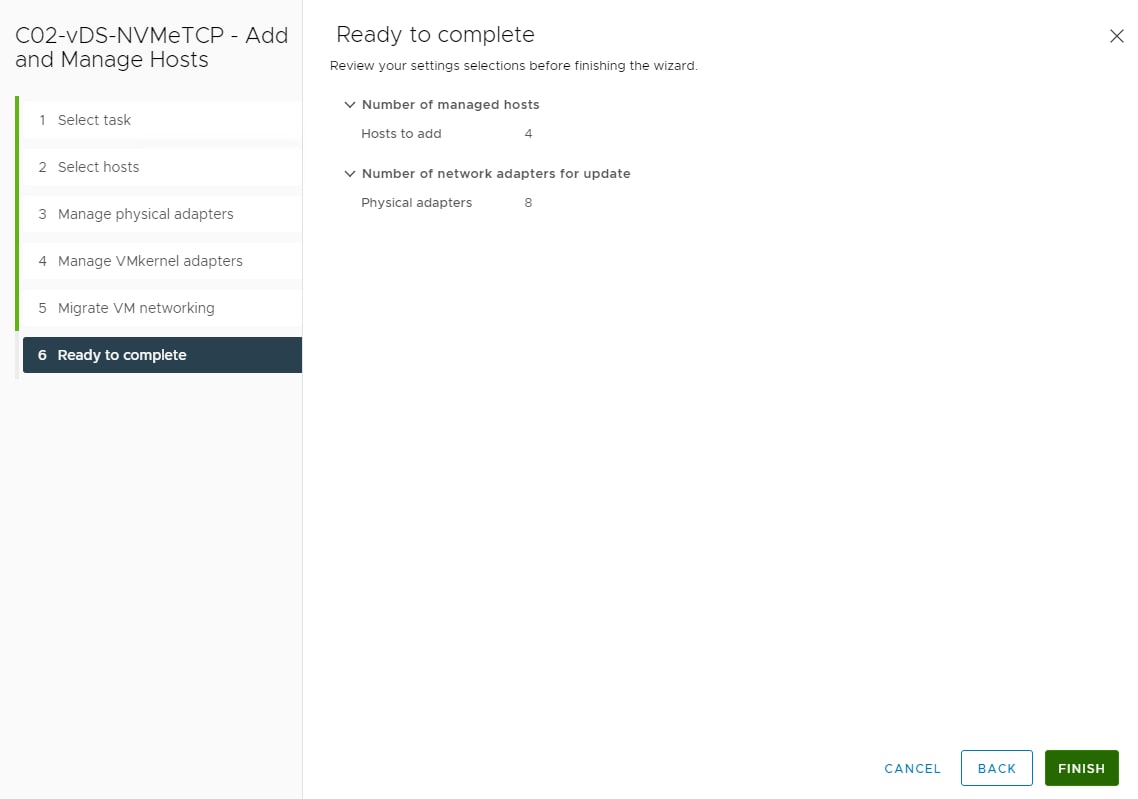
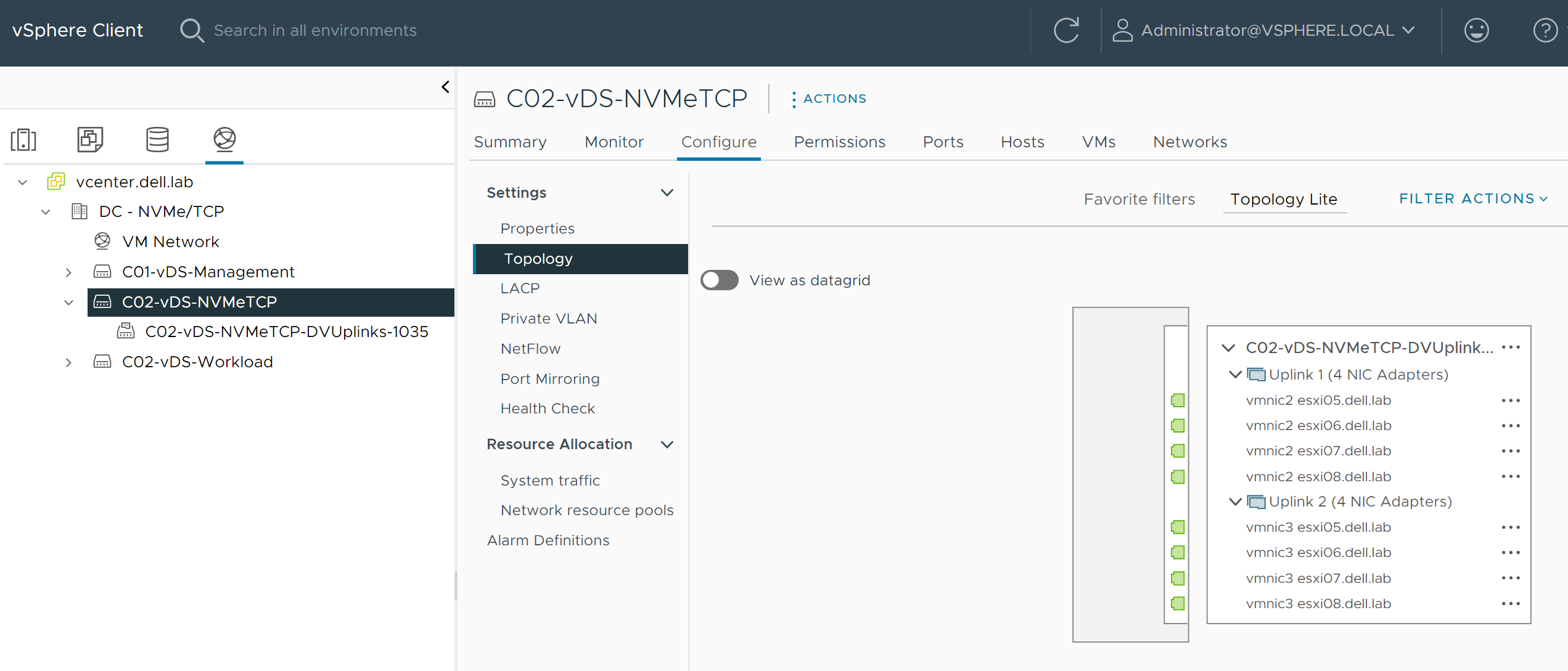

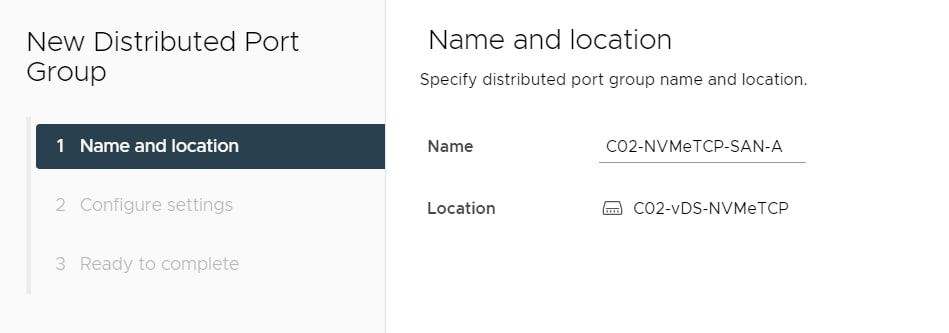
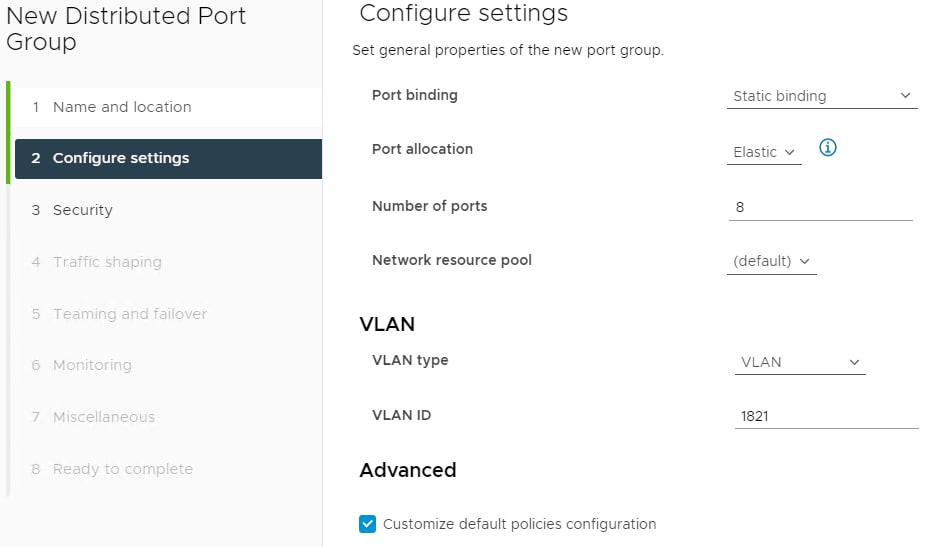
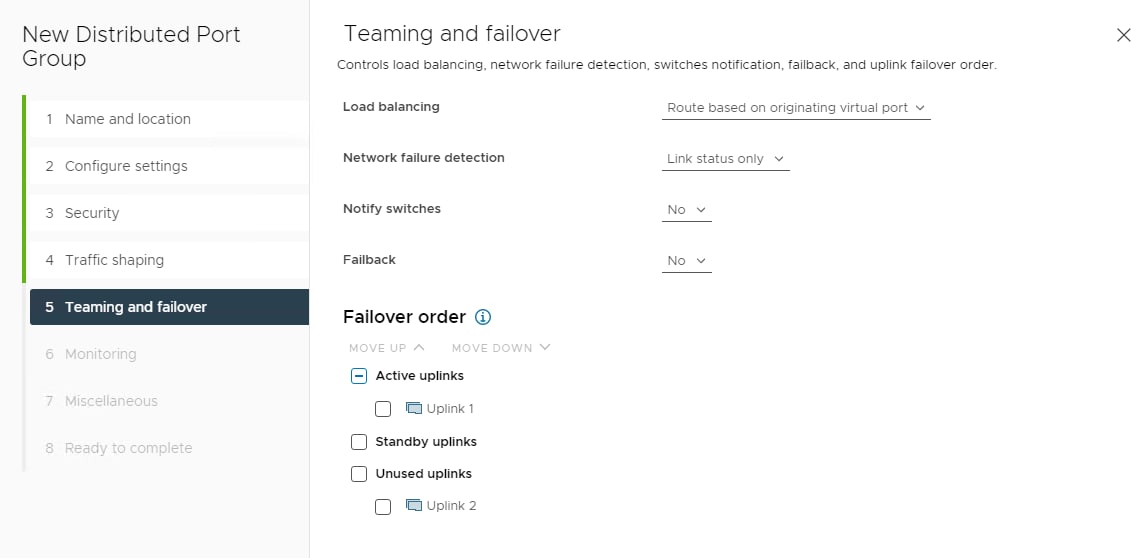
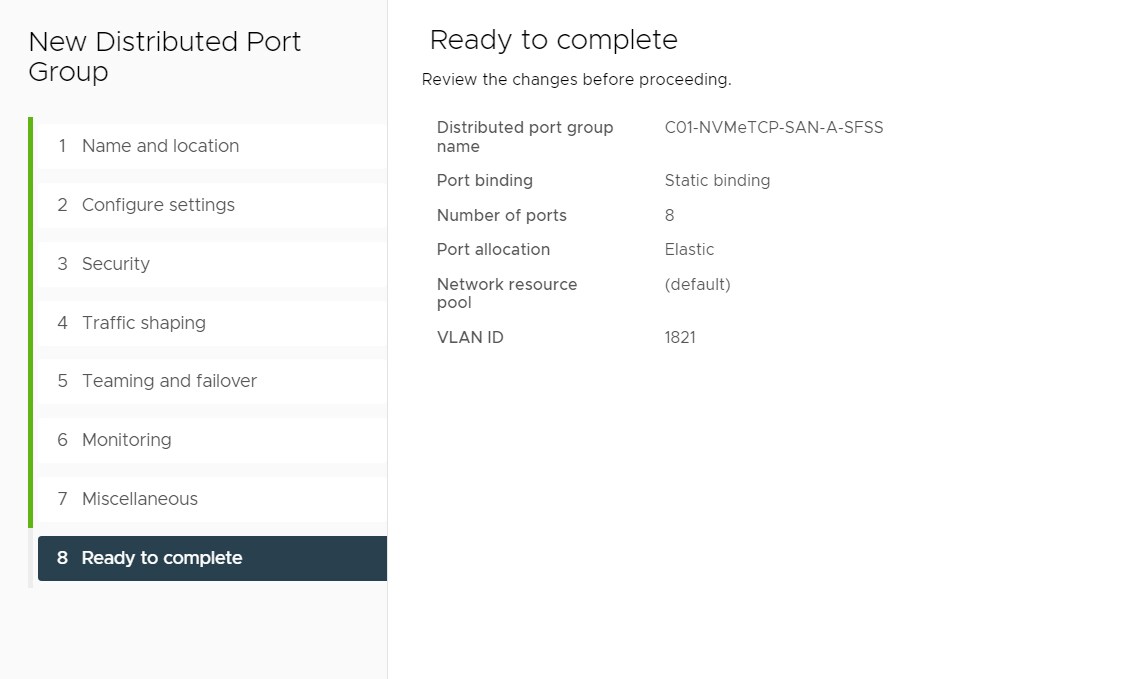
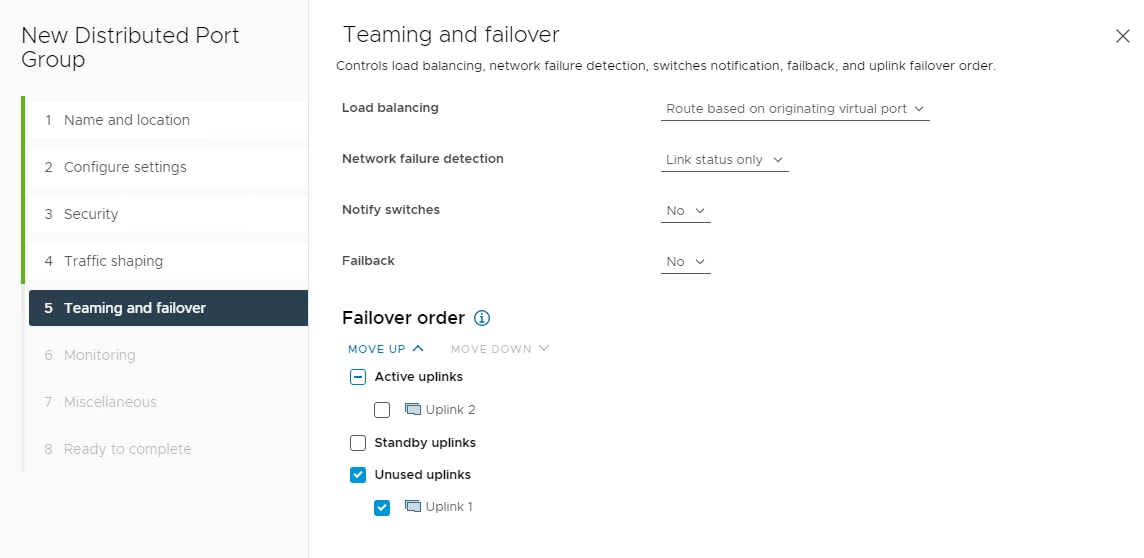
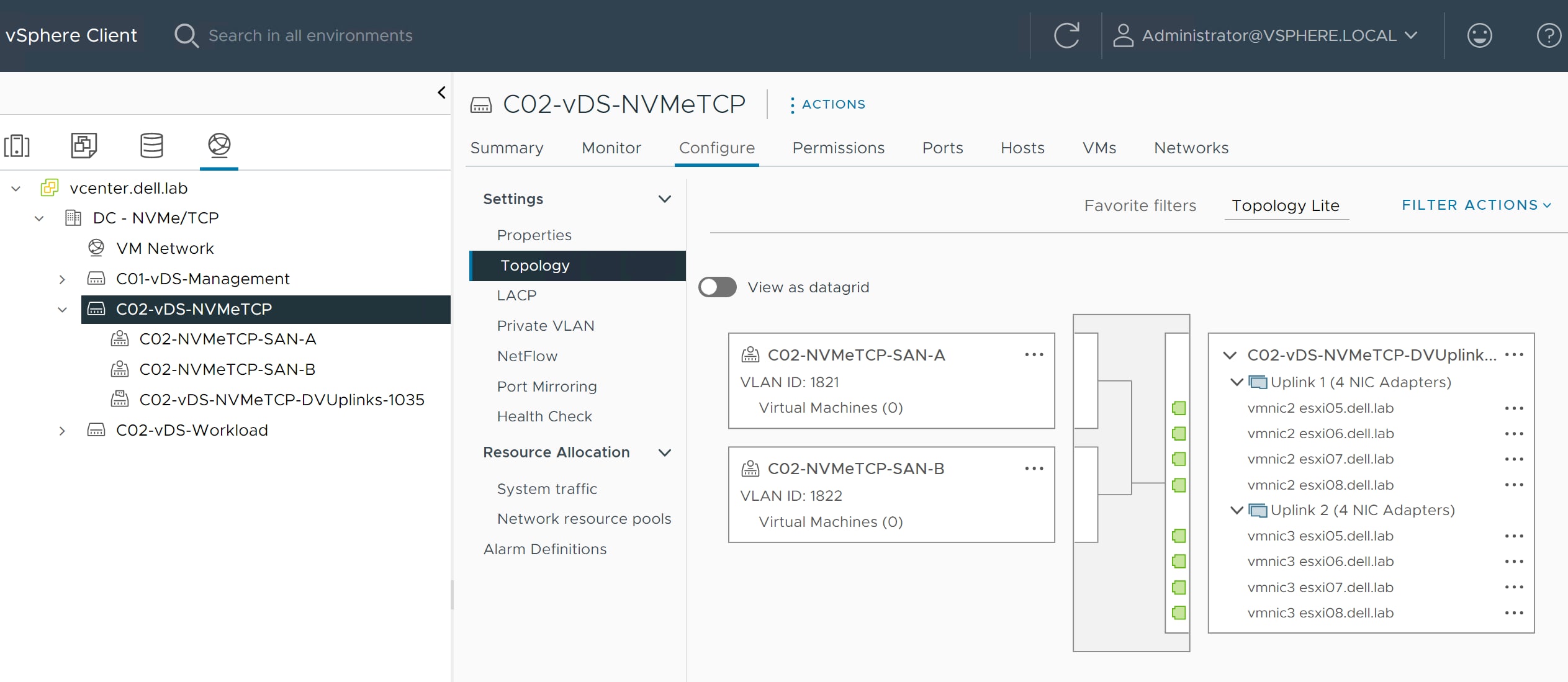
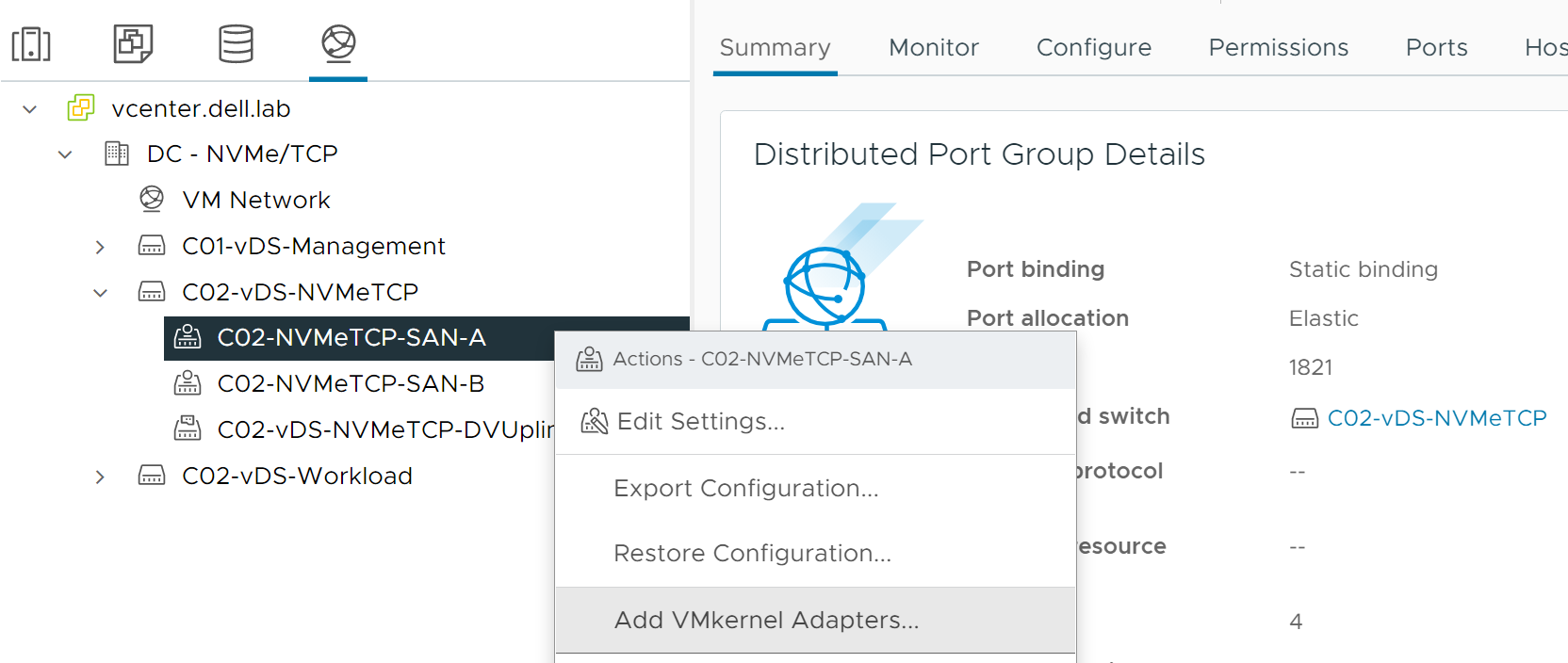
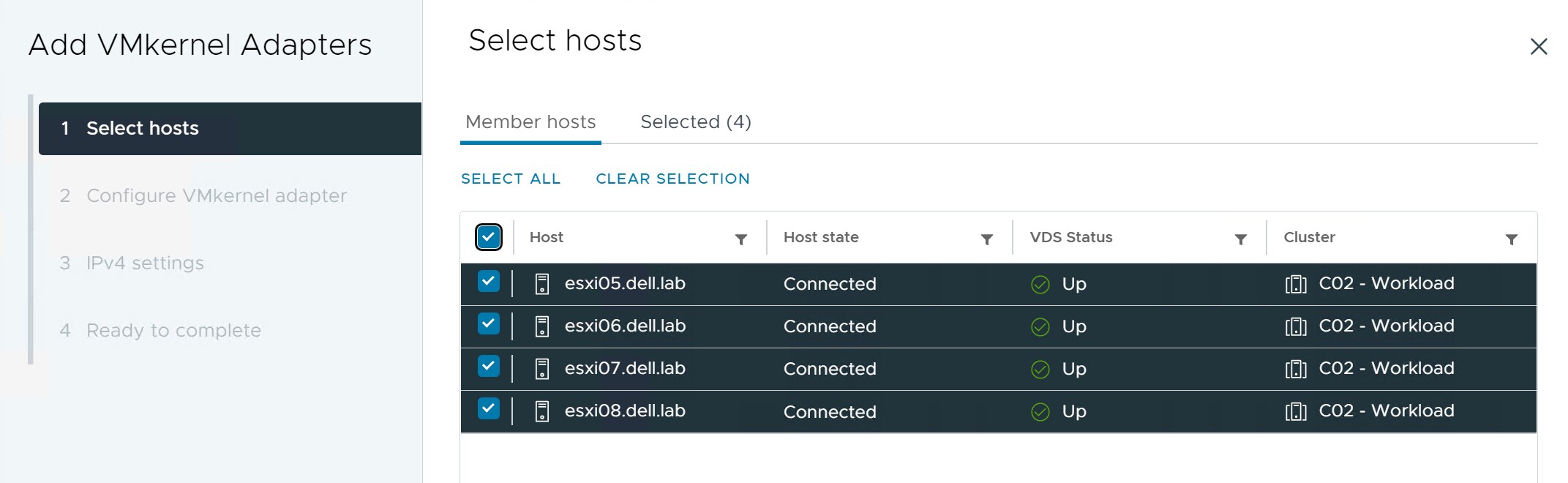
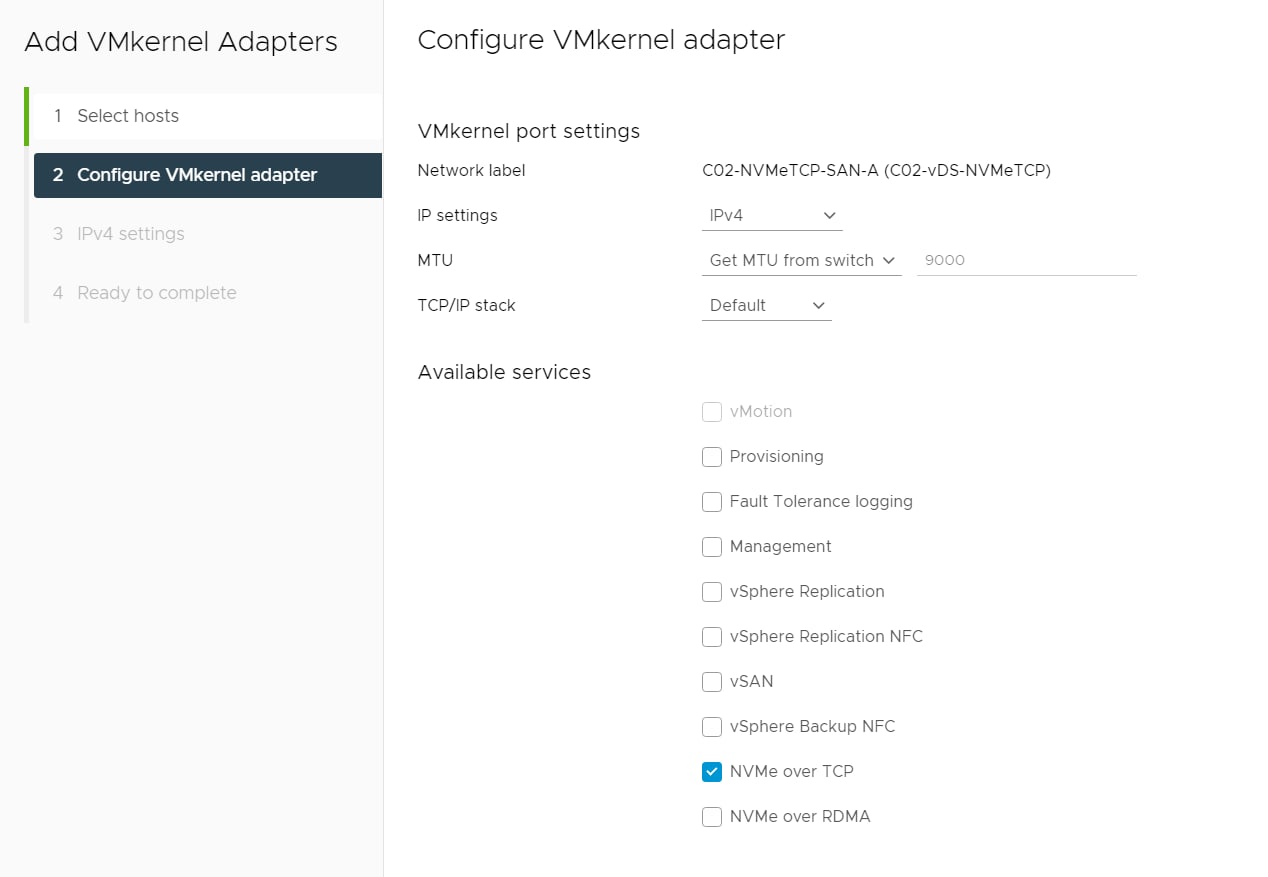
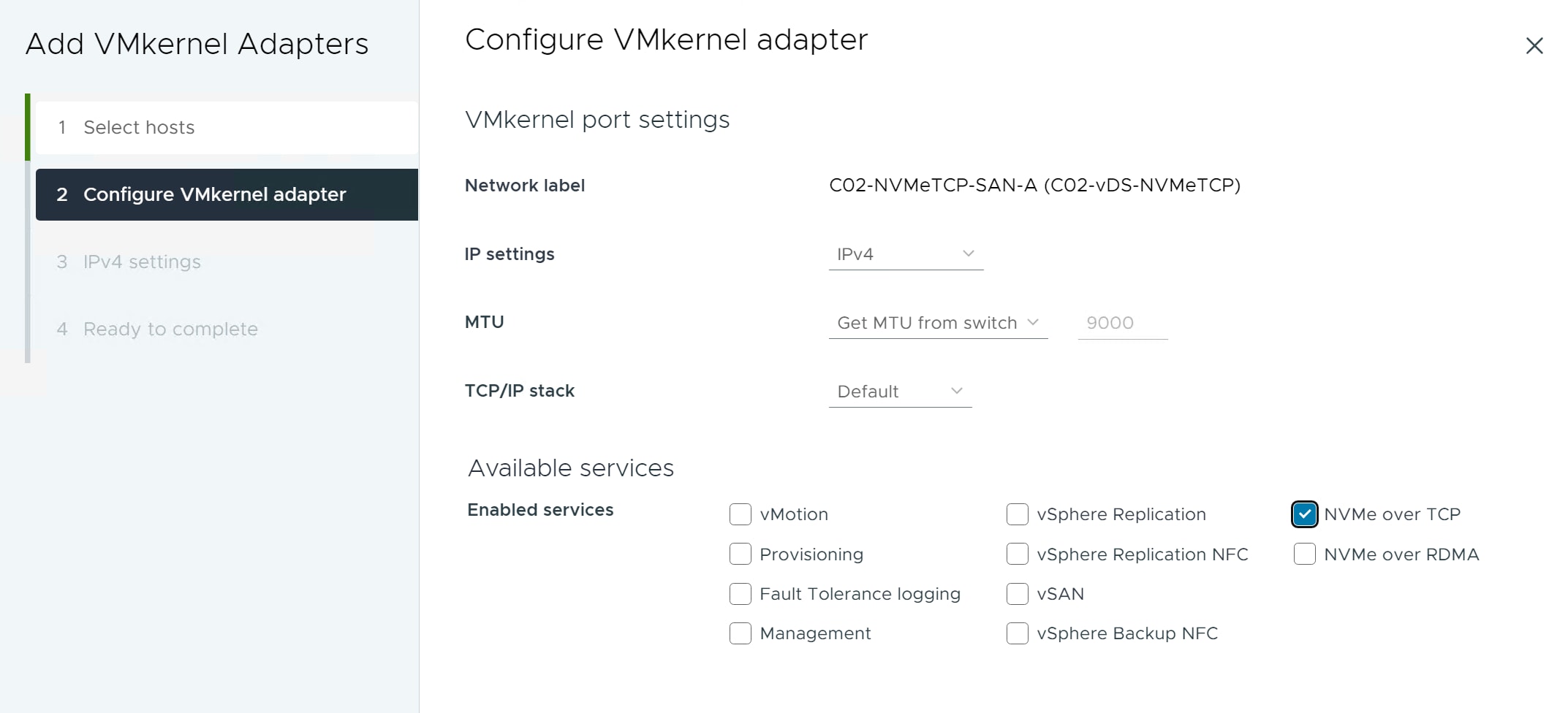

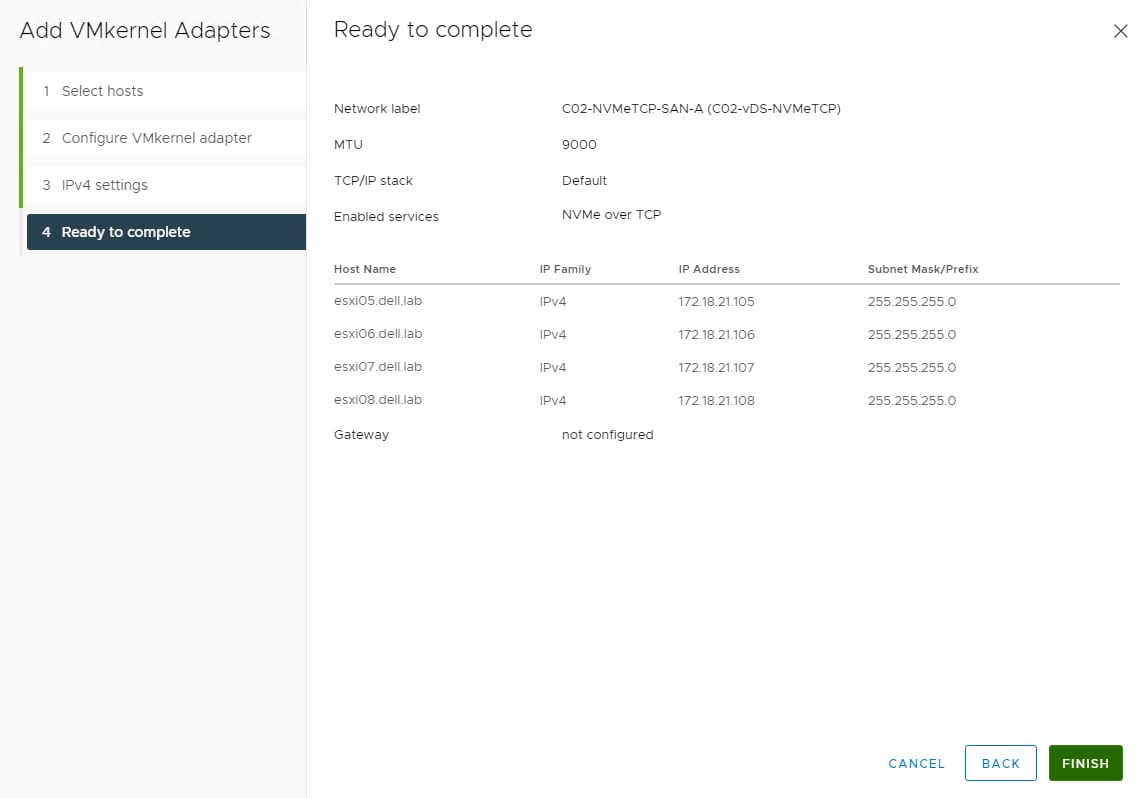
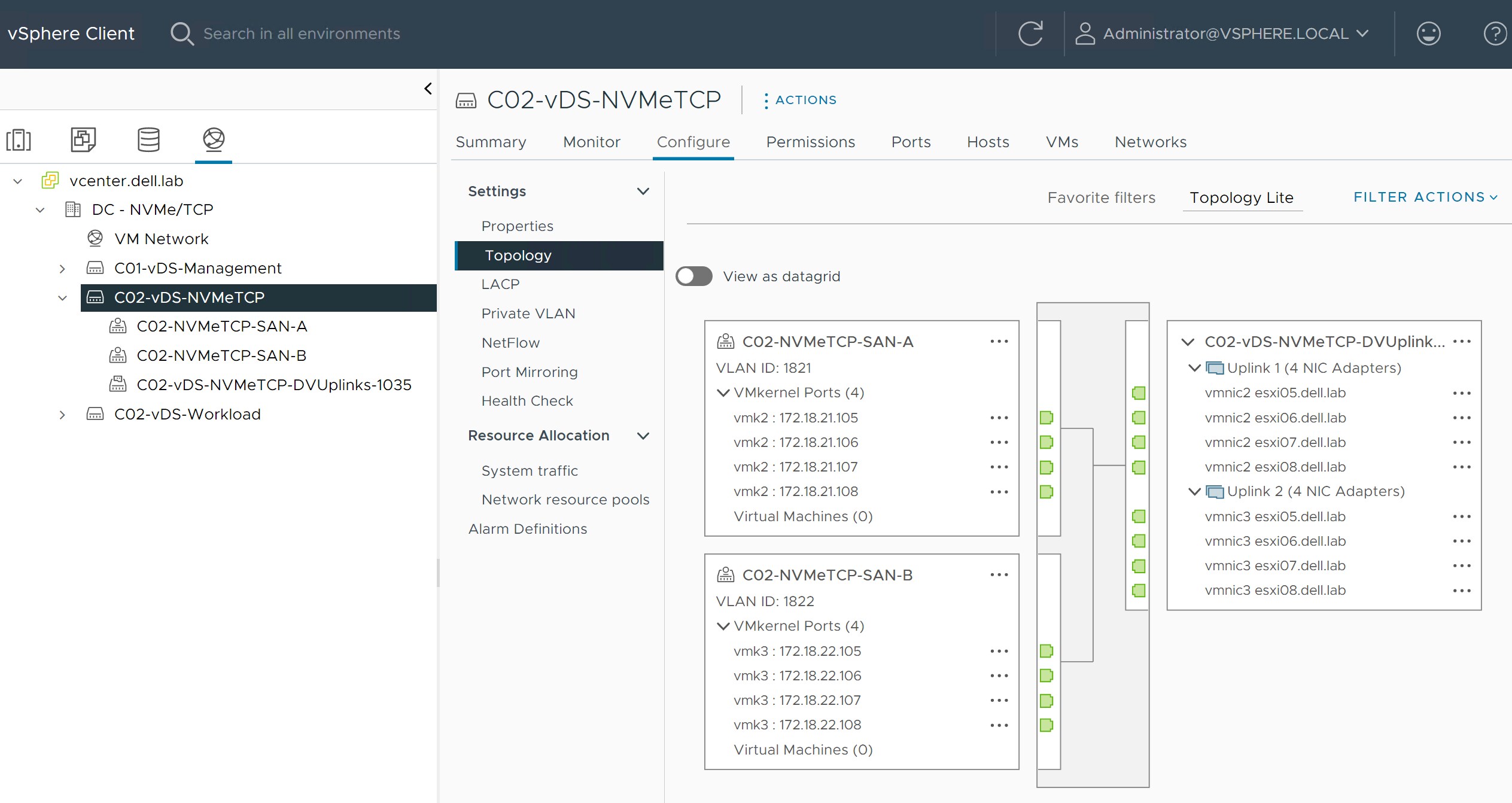
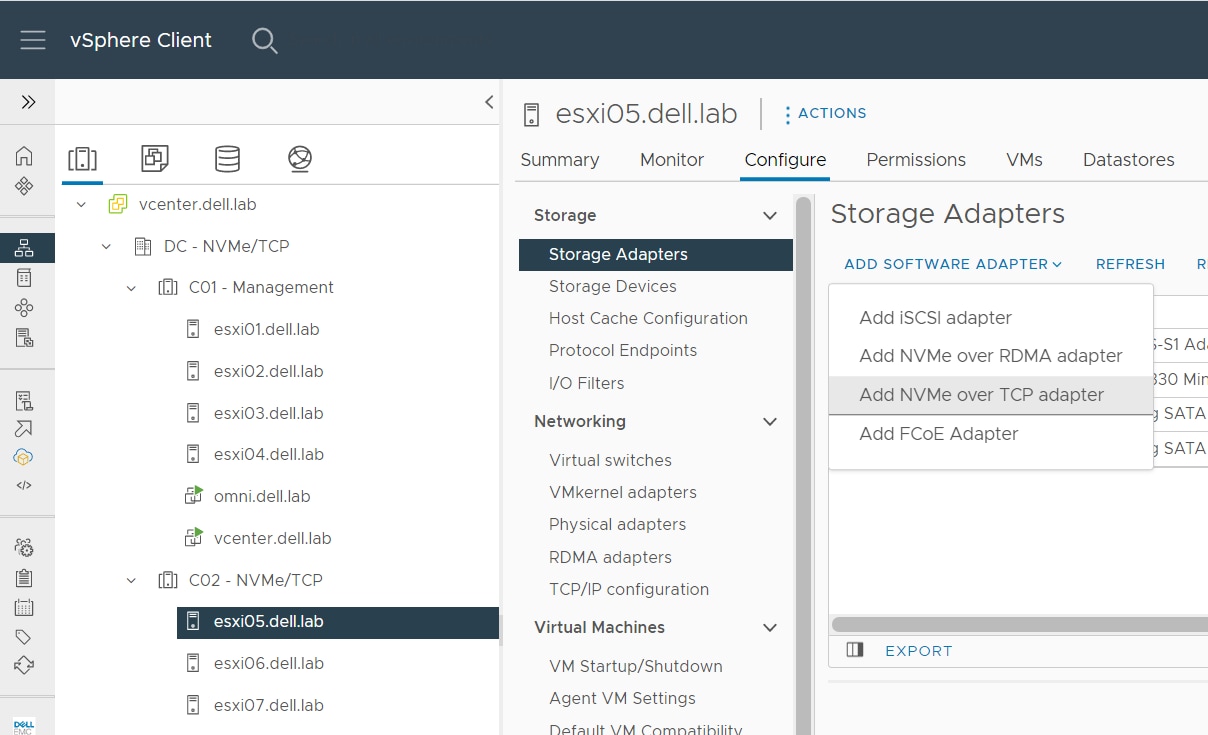

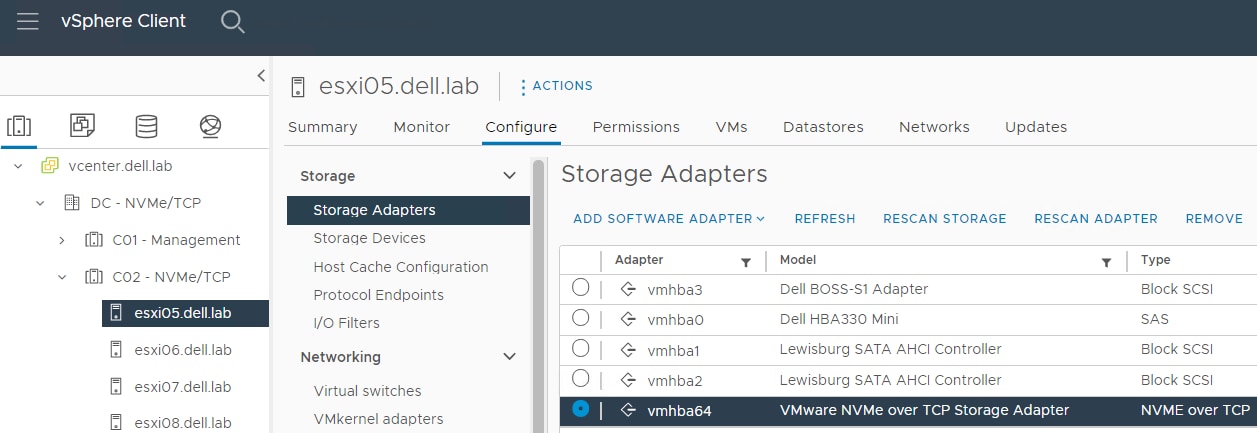

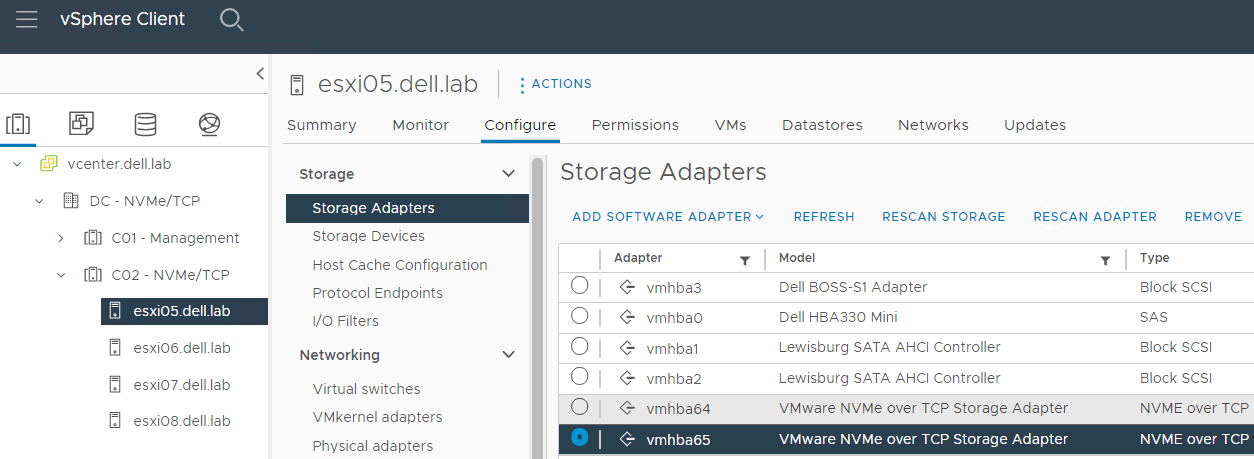 Note: There is a limit of two NVMe/TCP vmhba per host.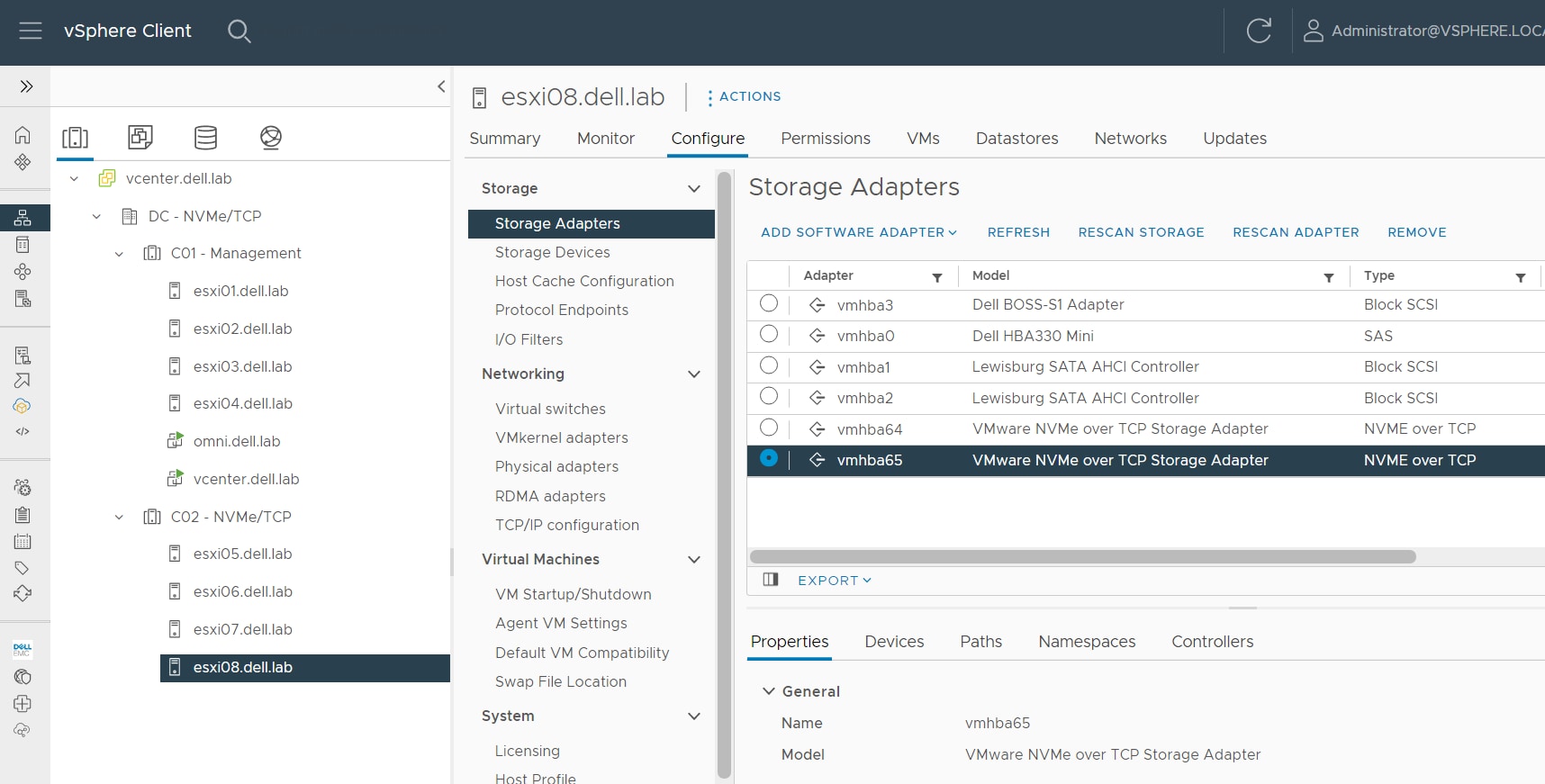
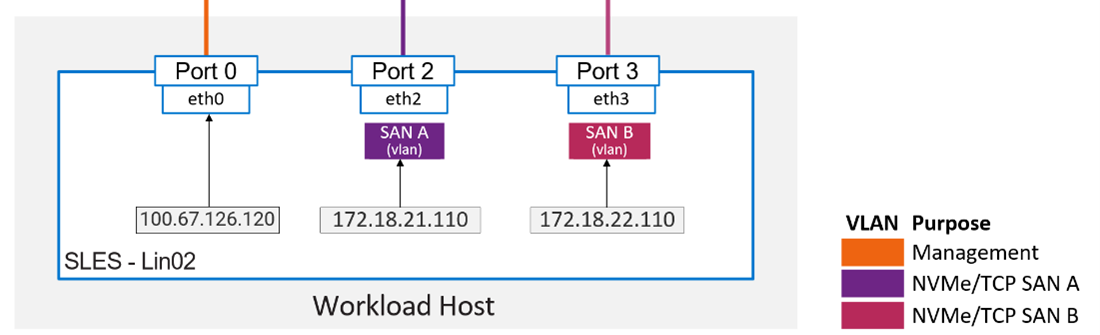
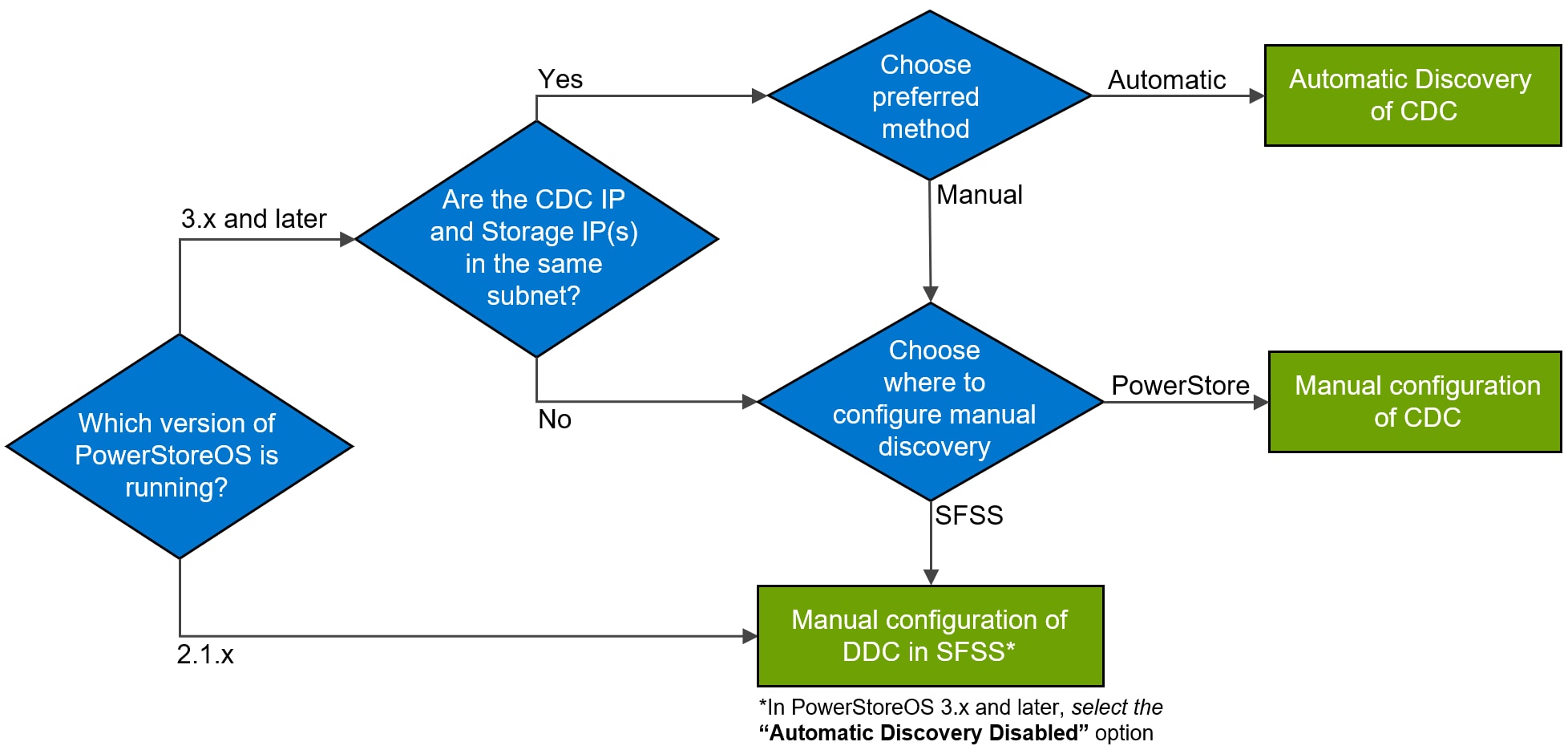
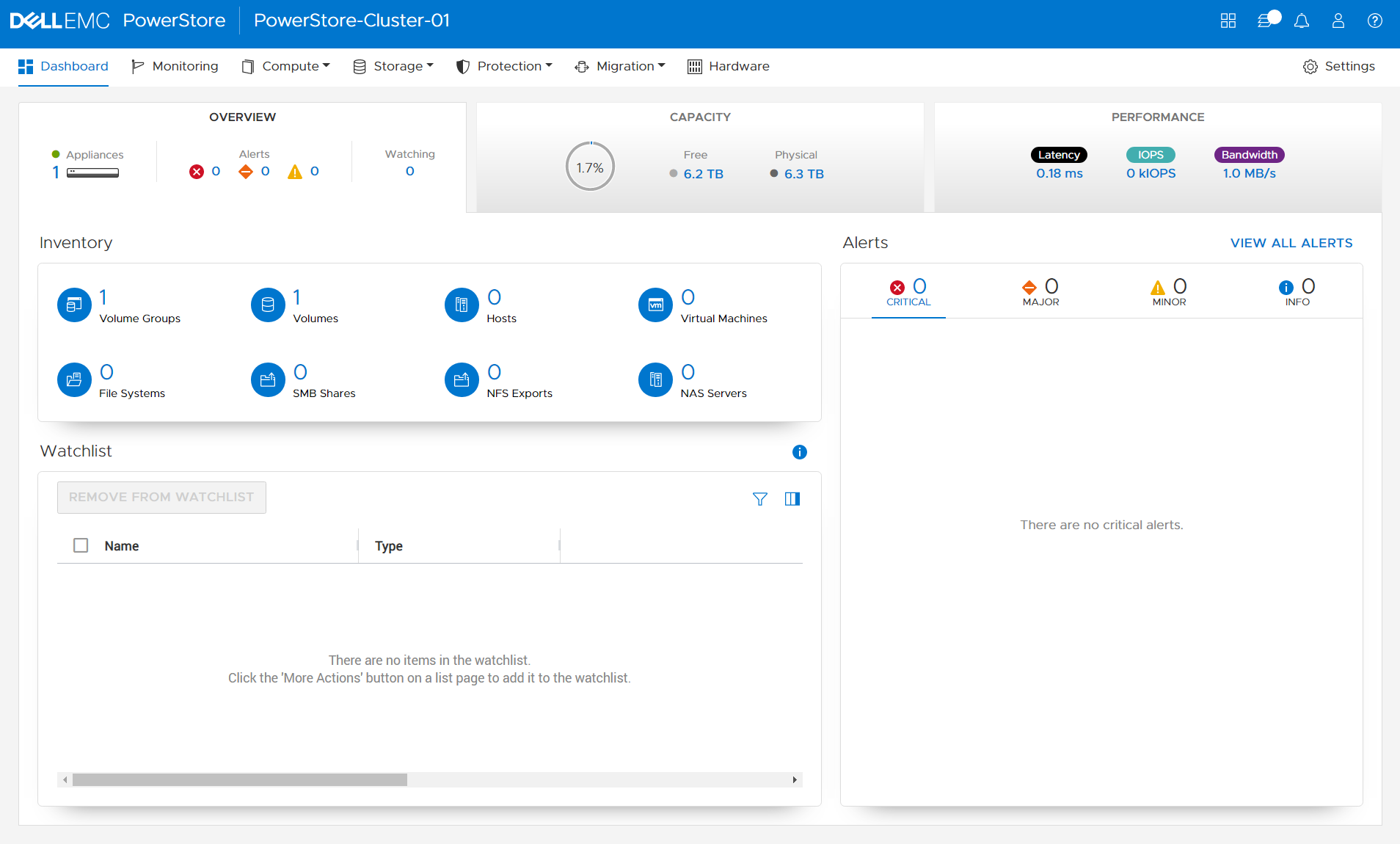
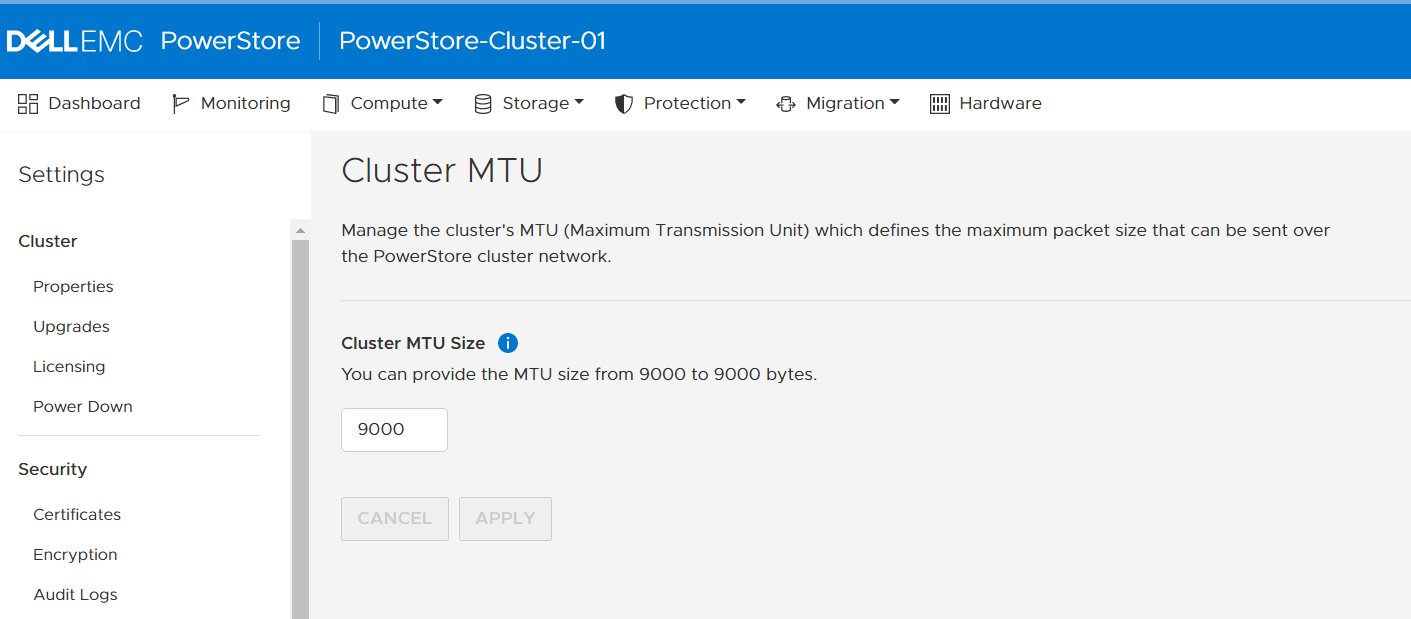
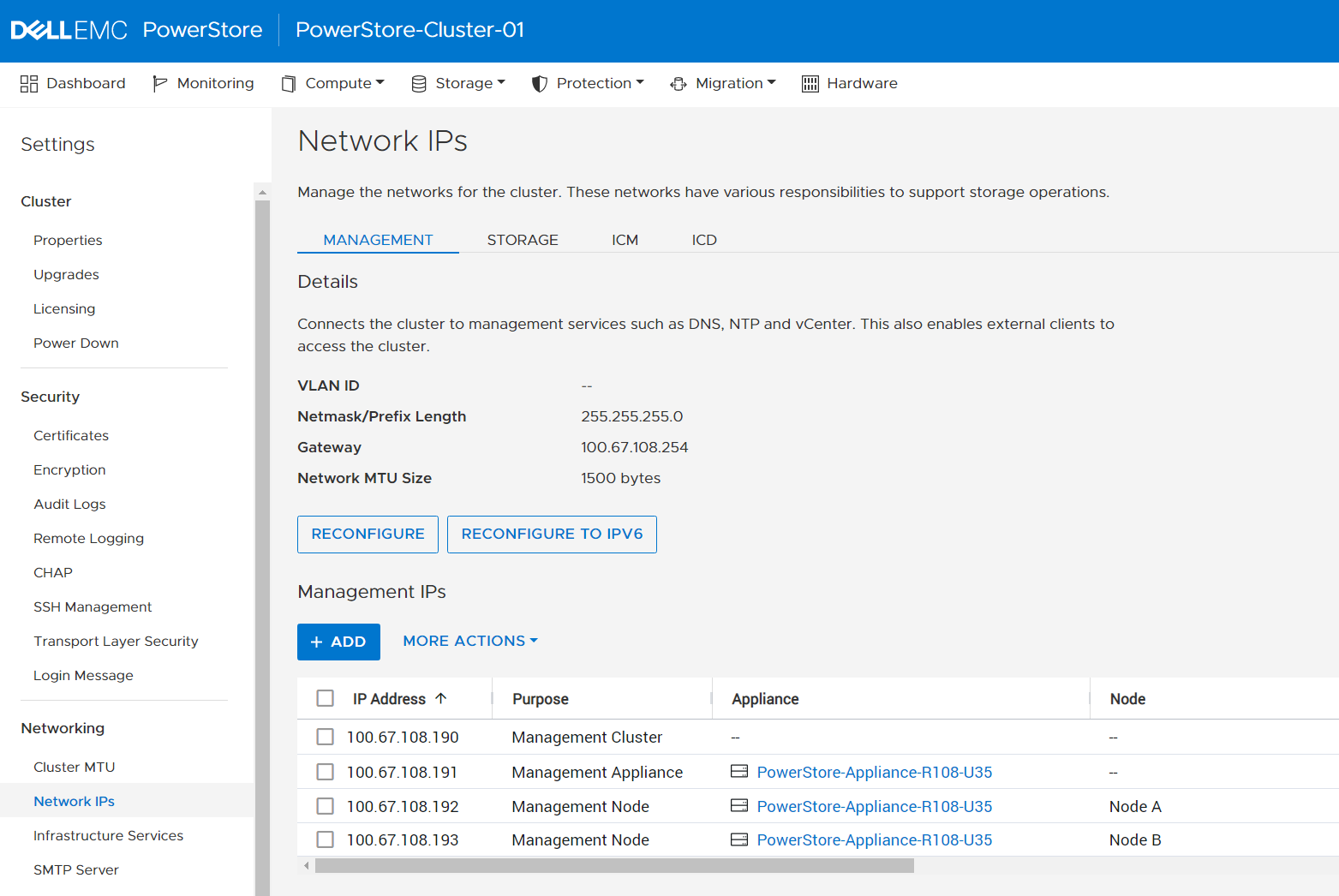
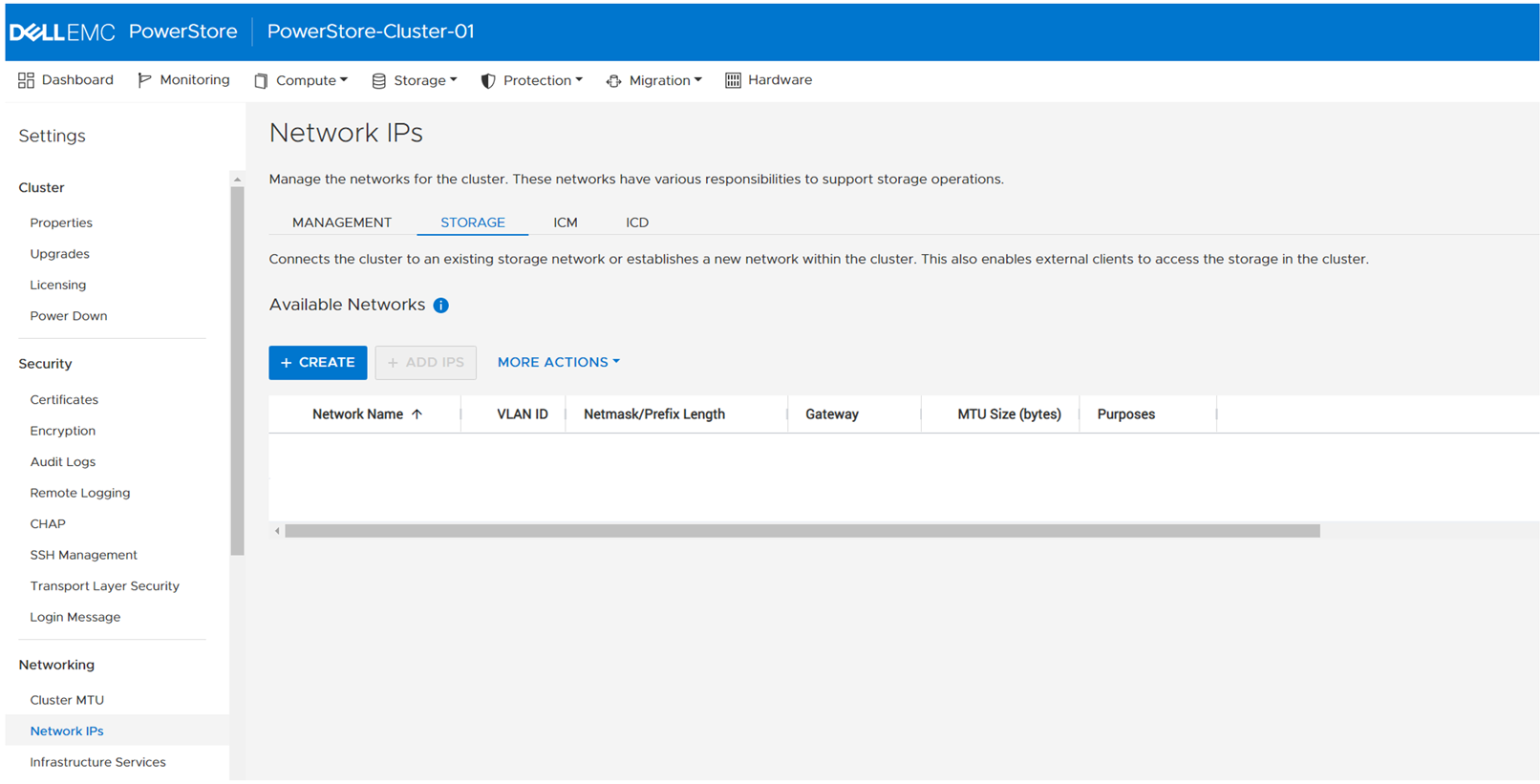

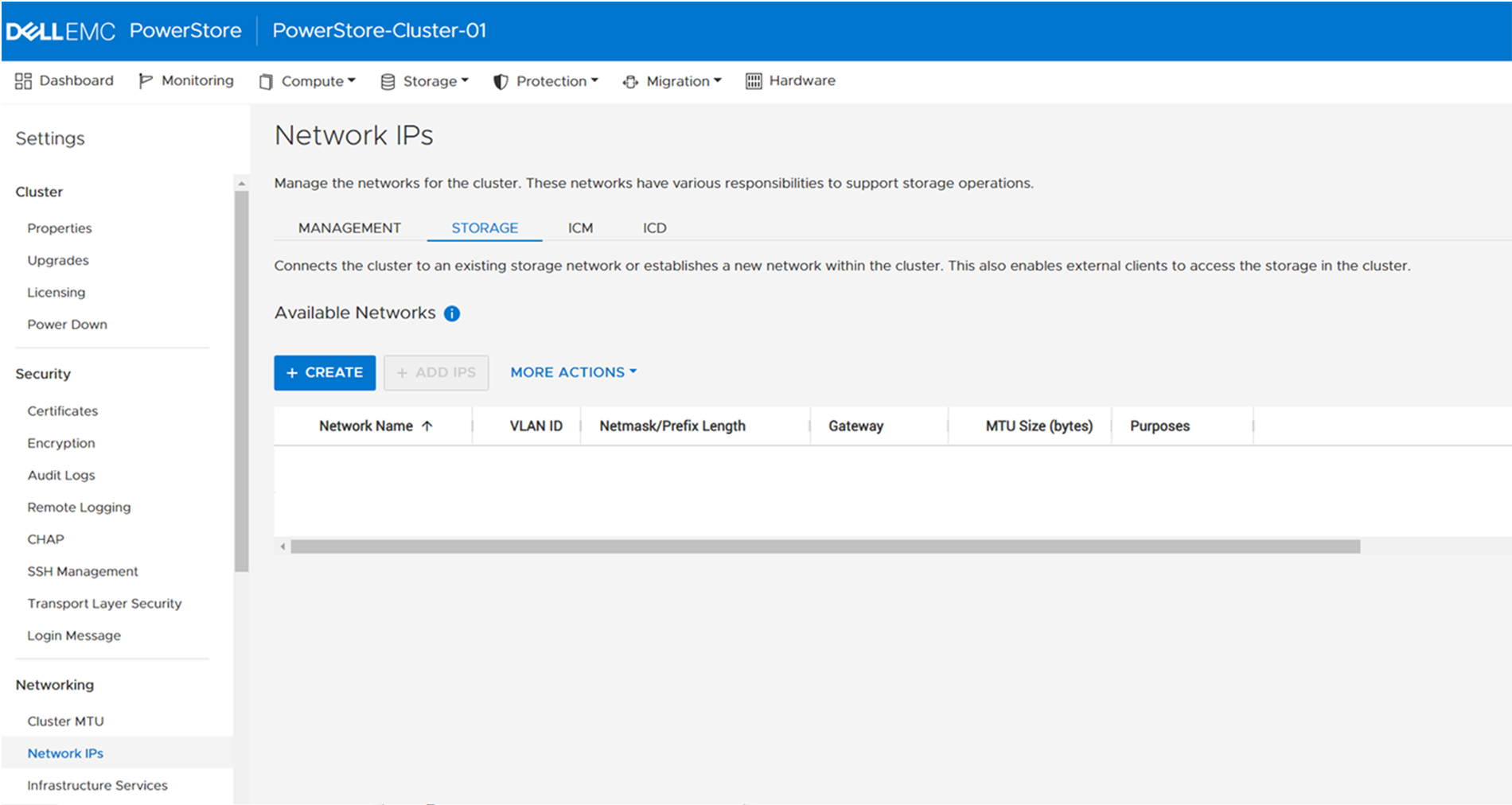
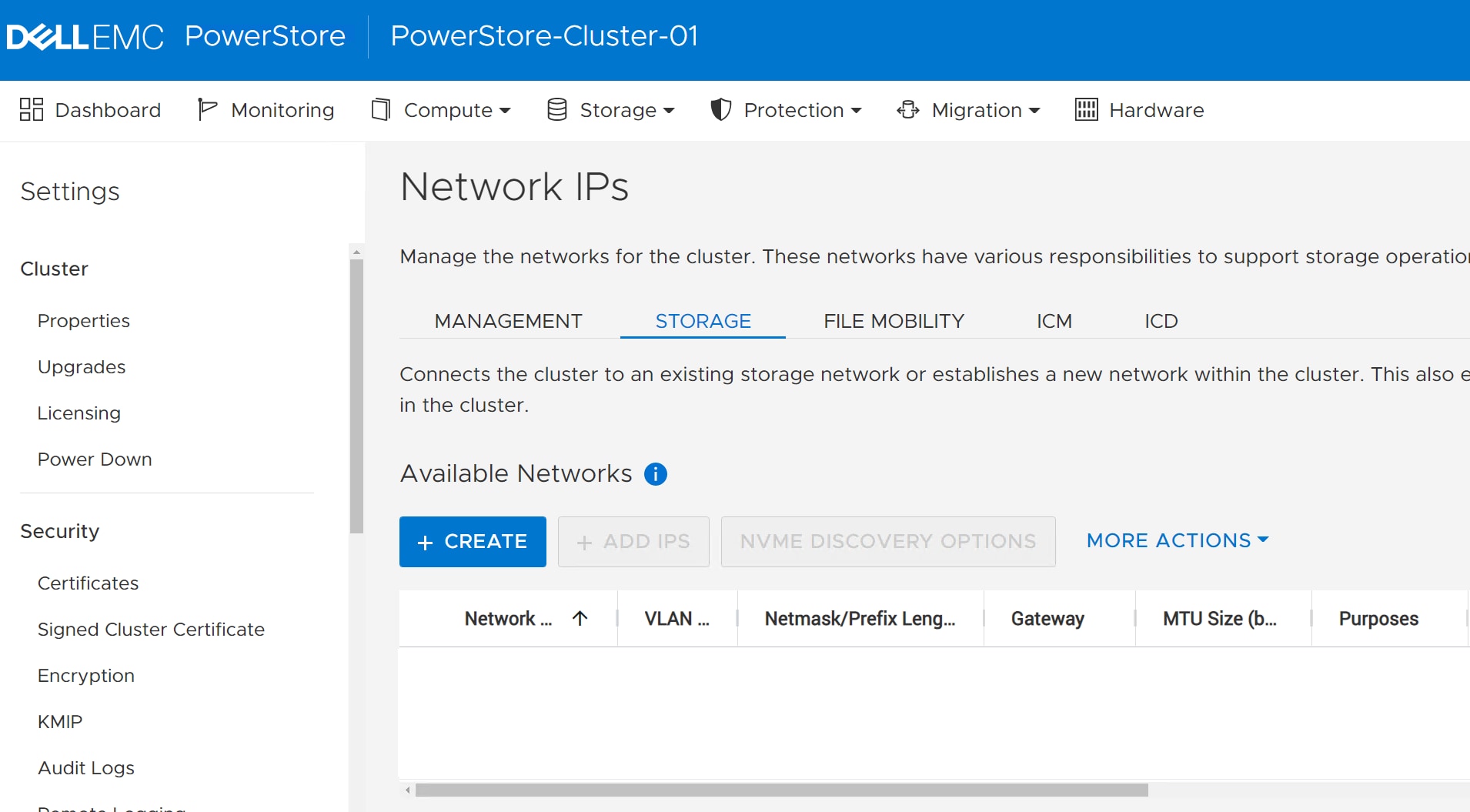
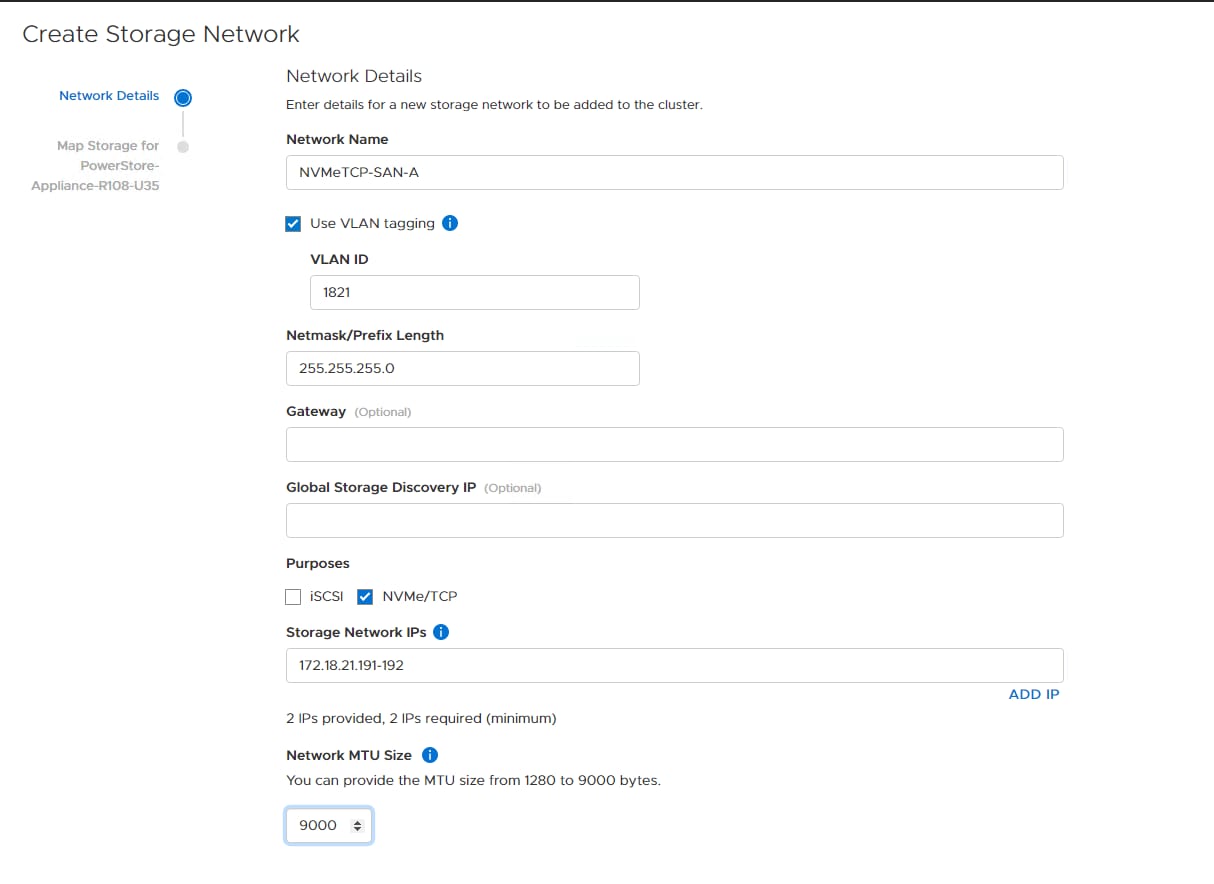
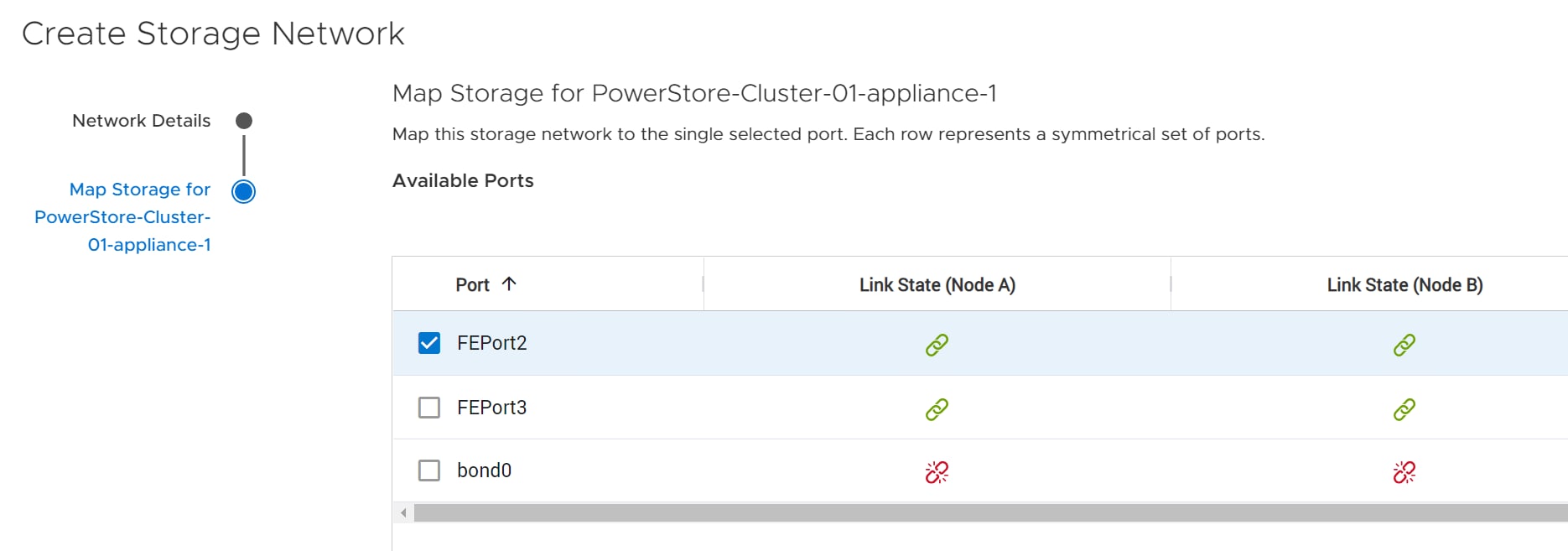 Note: For air-gapped SAN switches, do not use FEPort0 and FEPort1 as they are in a bond. See the PowerStore Networking Guides page for more information.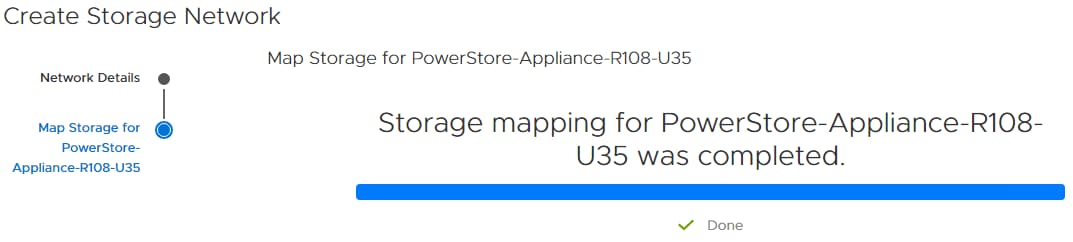
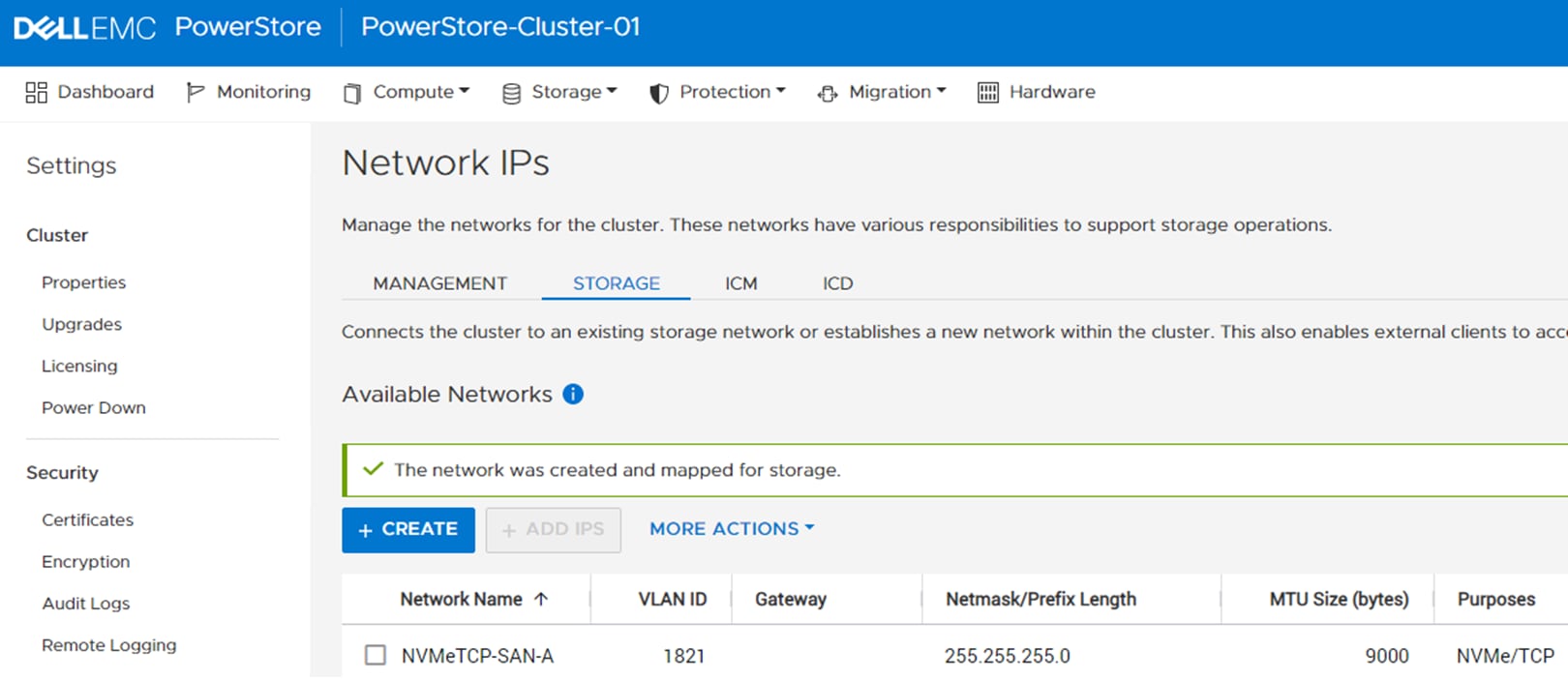
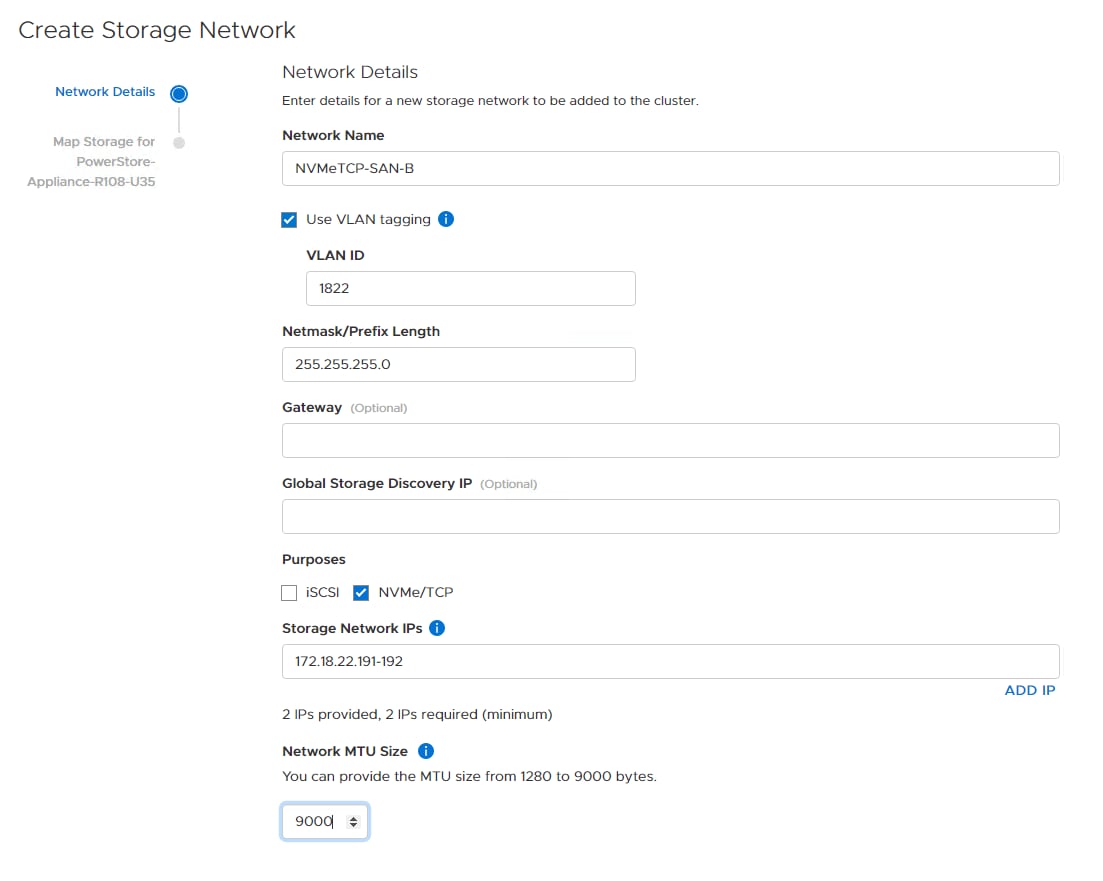
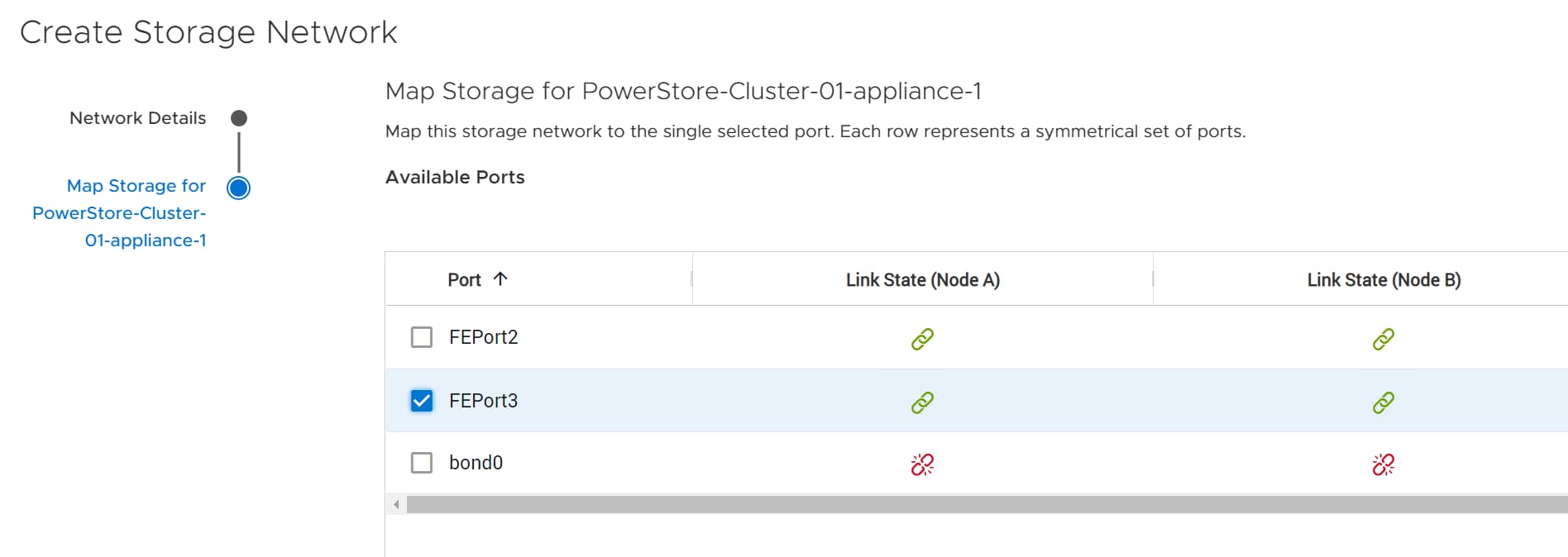
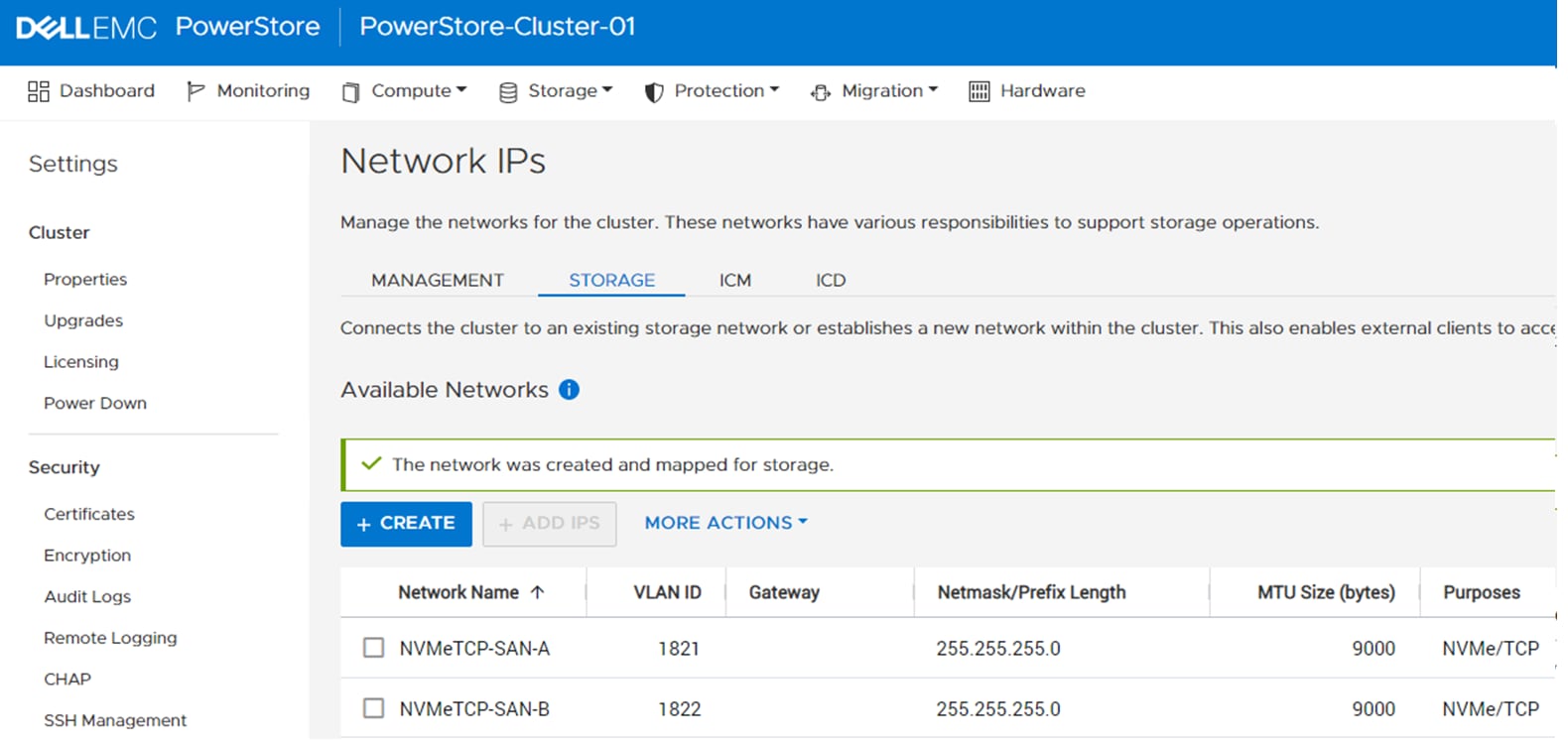
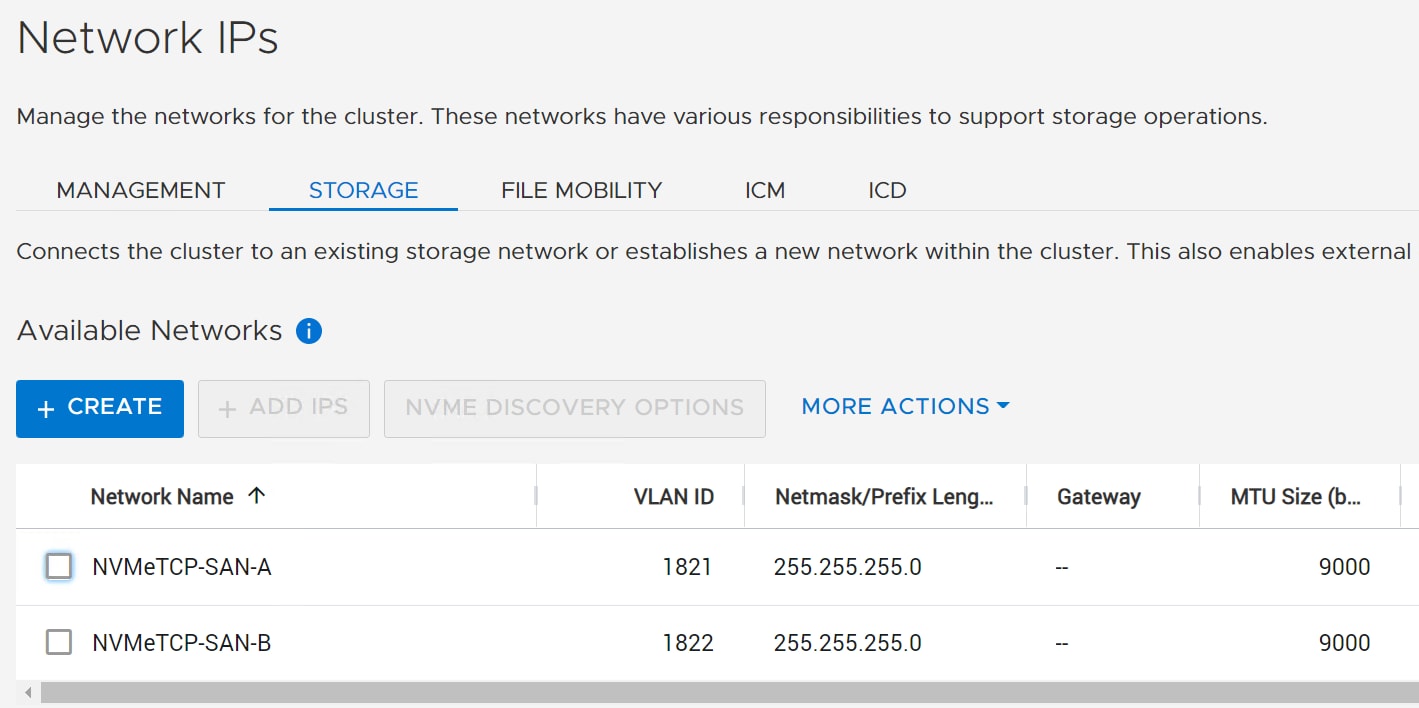
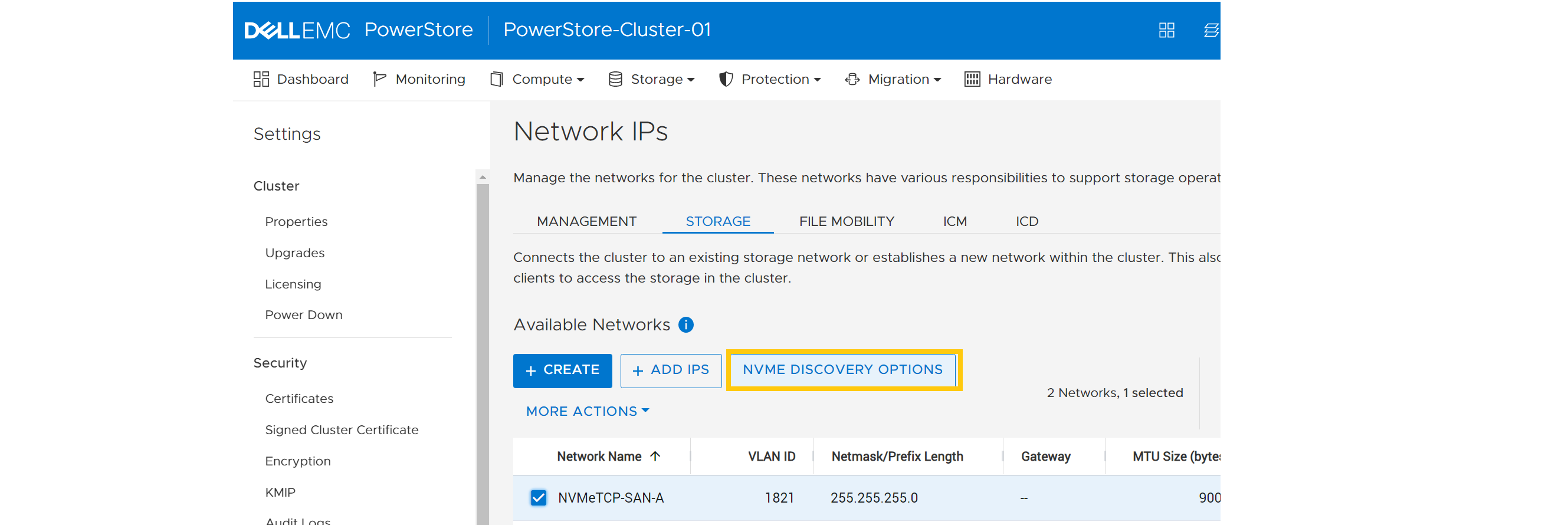
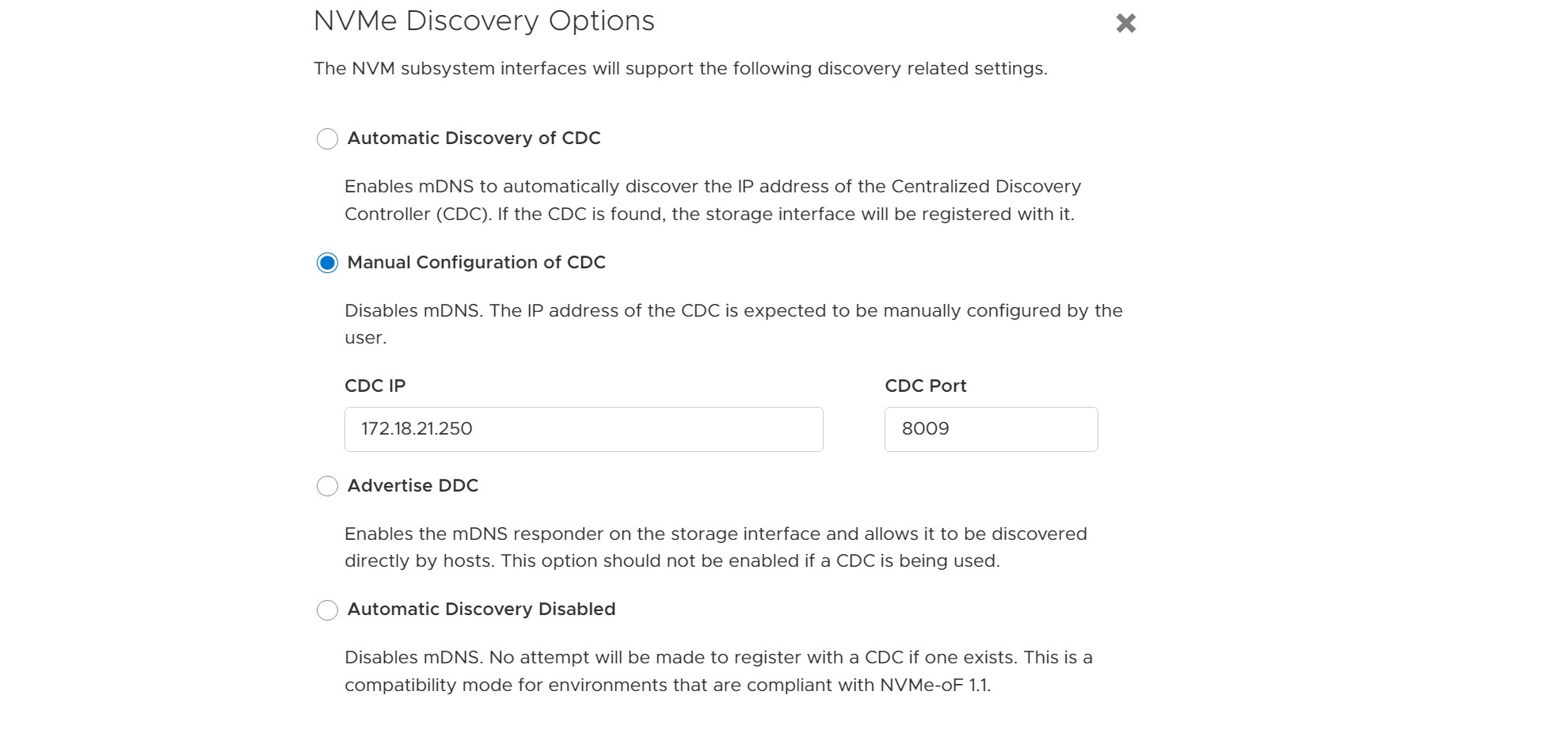
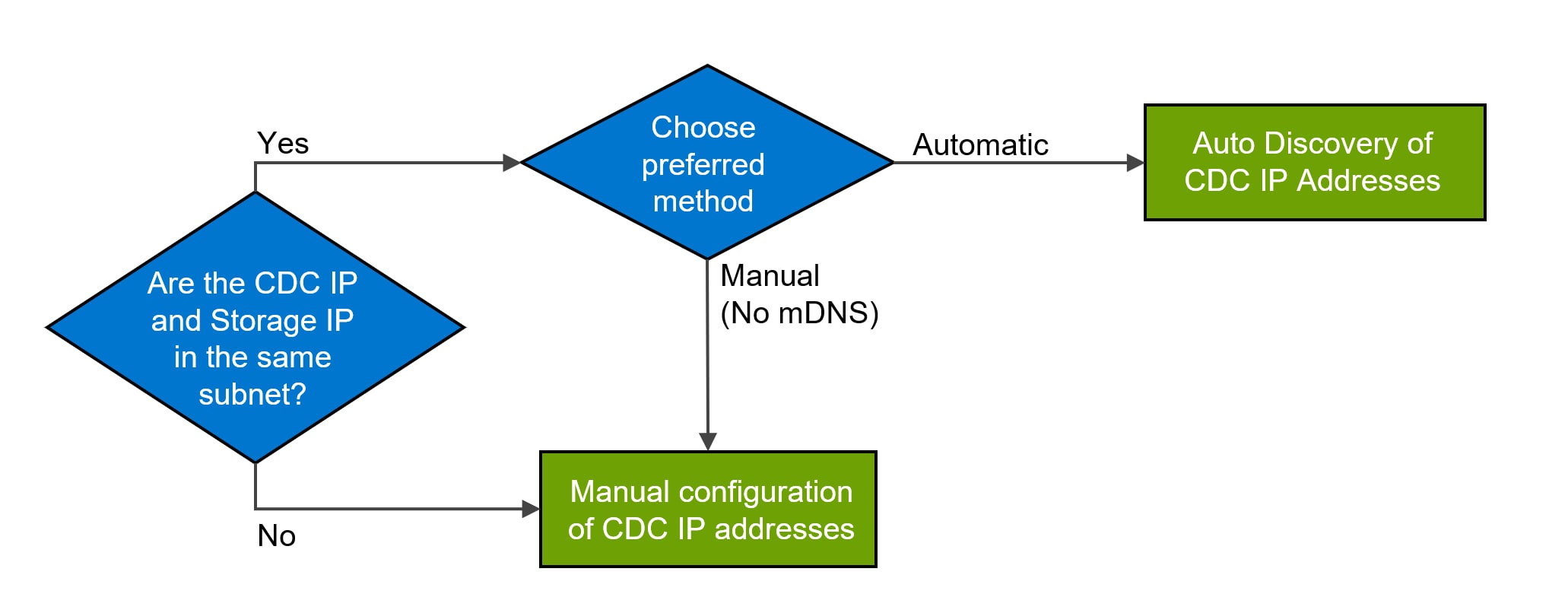
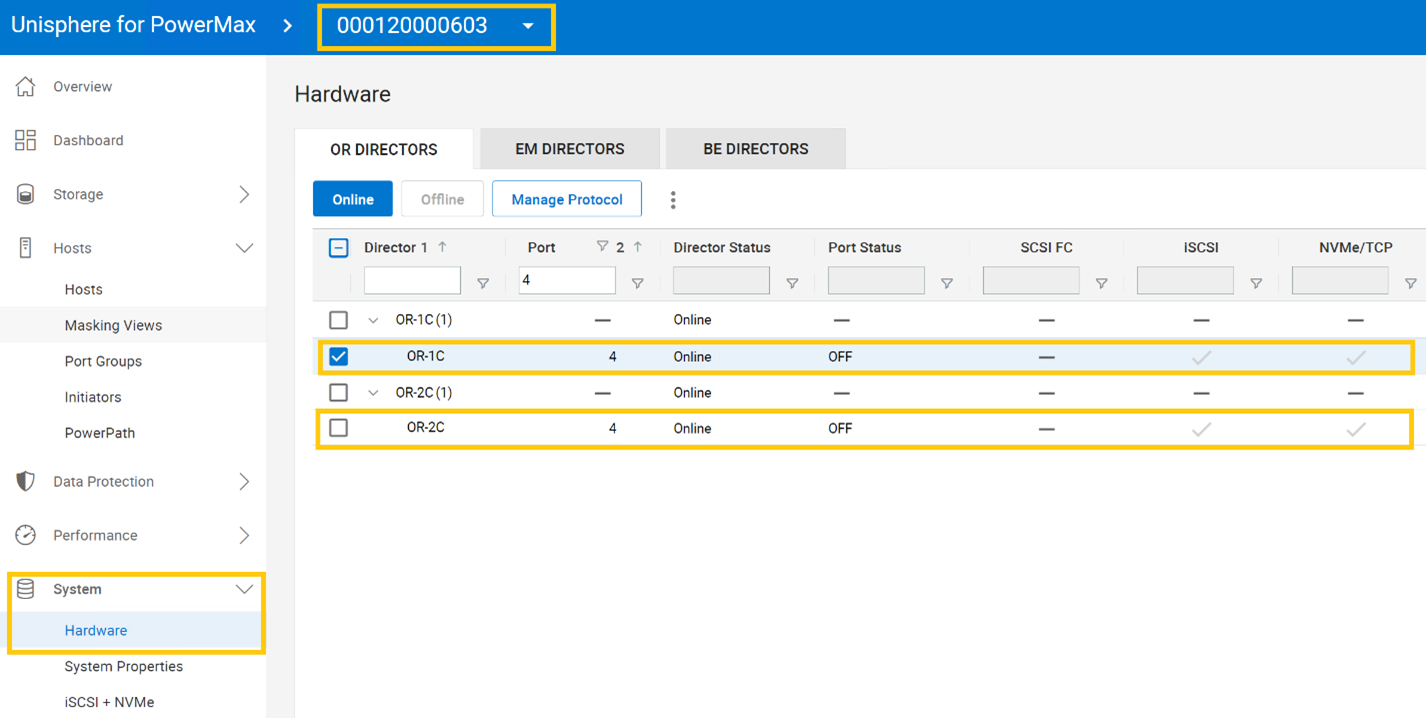
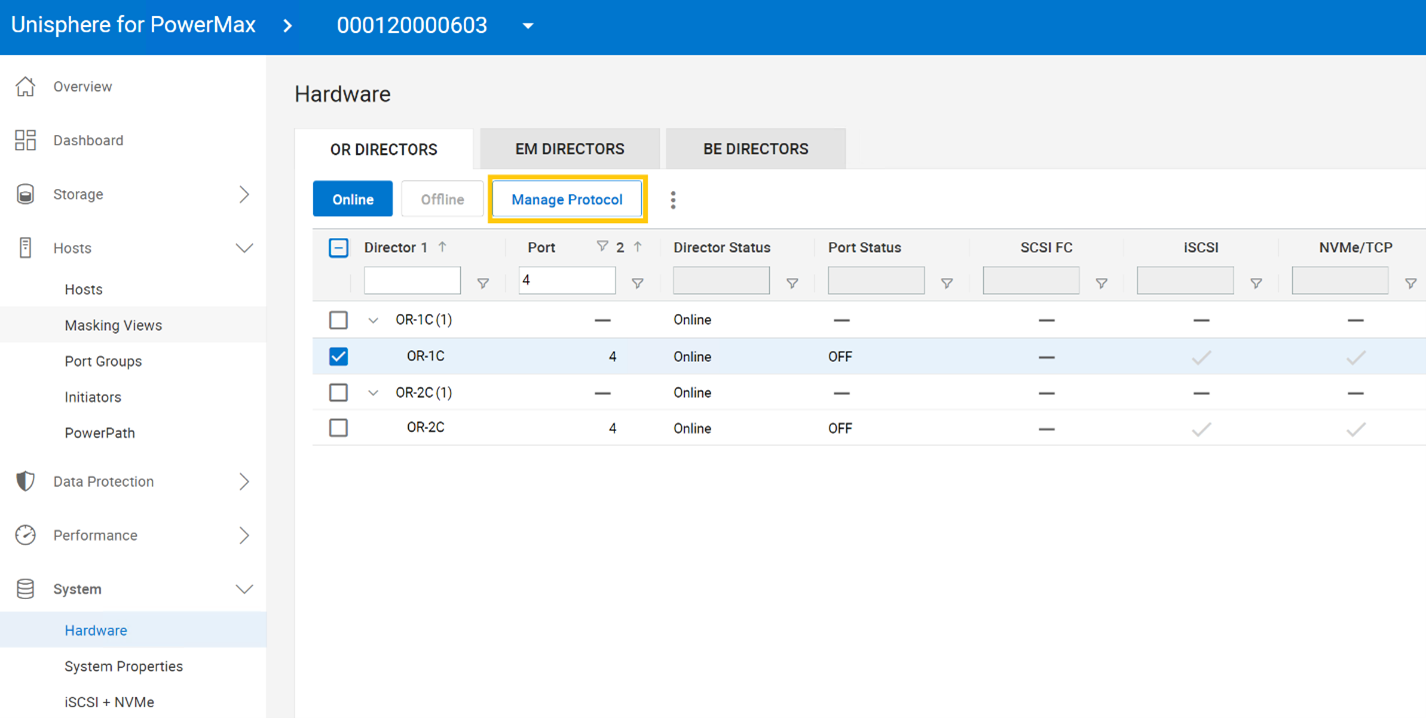
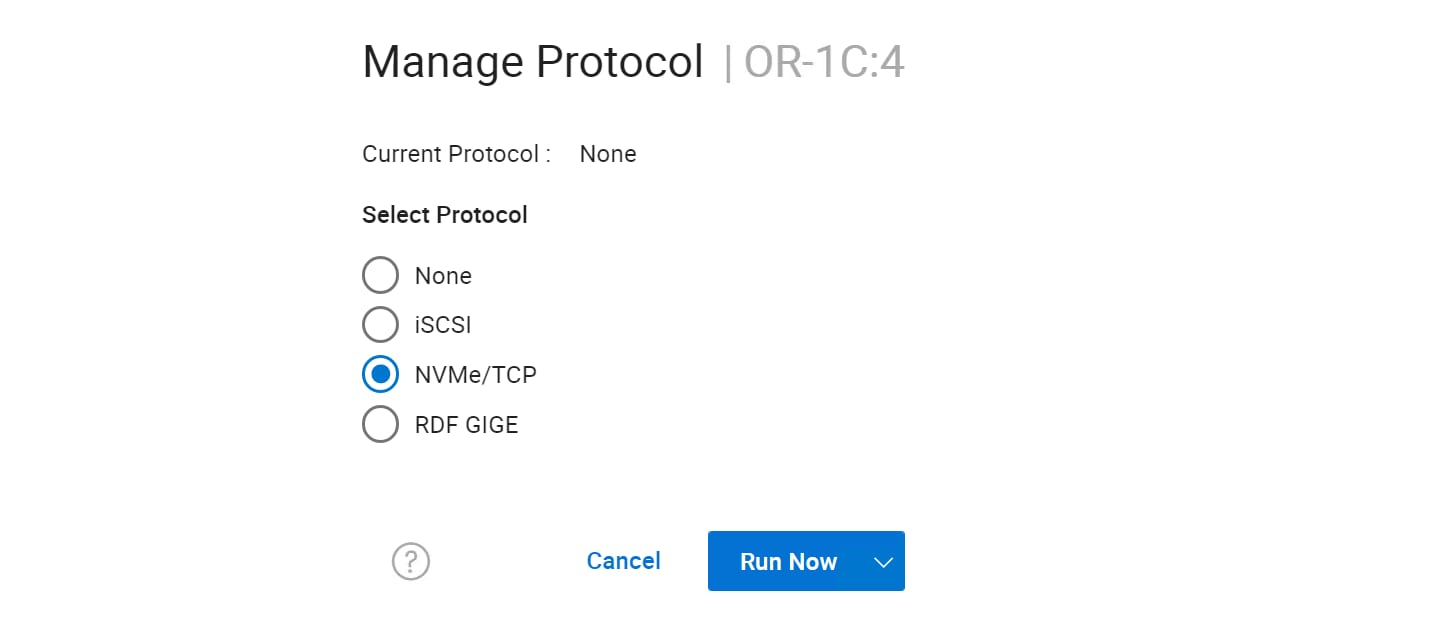
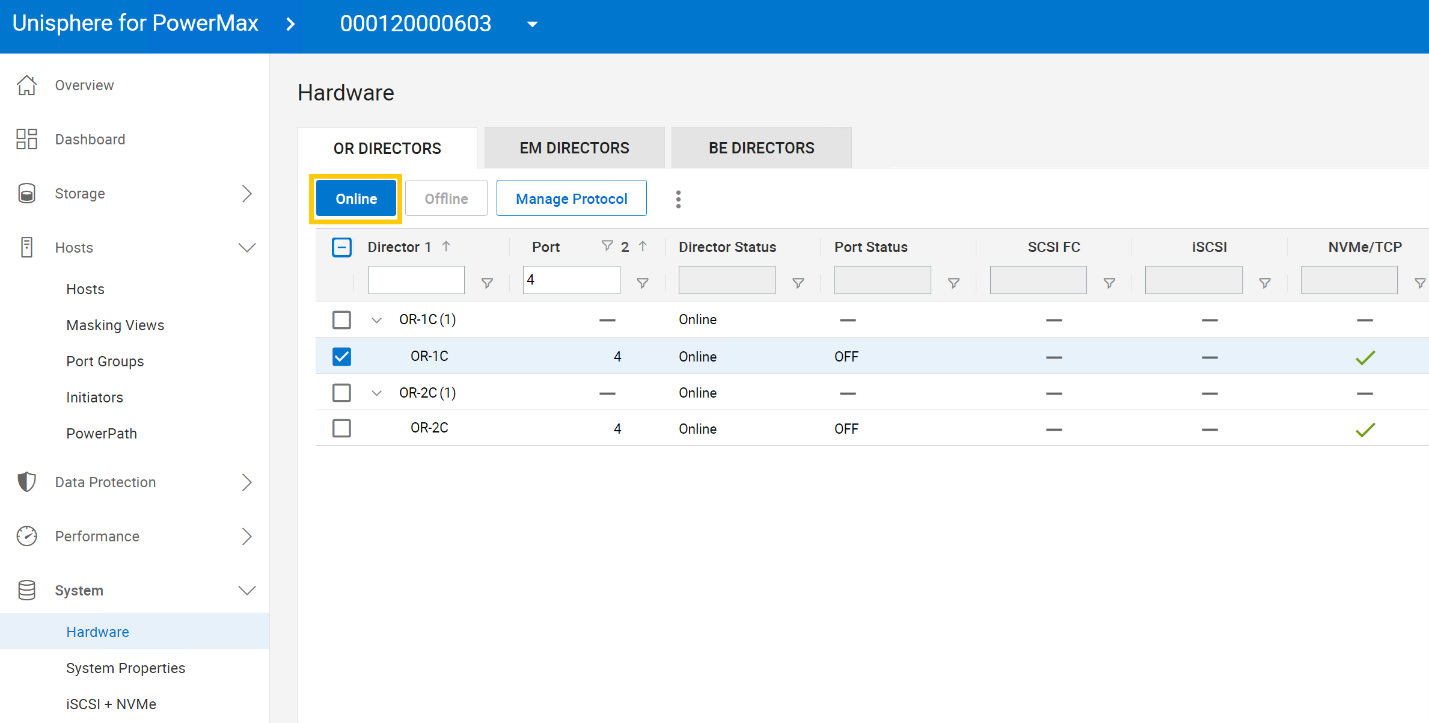
 The port status changes from OFF, to PendOn, to On.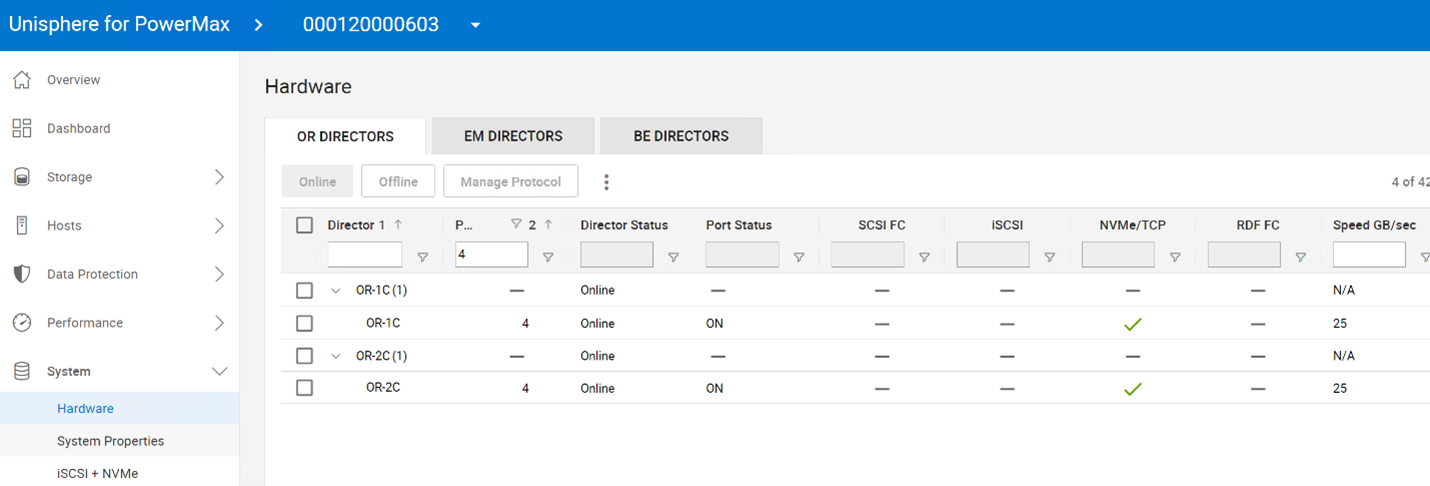
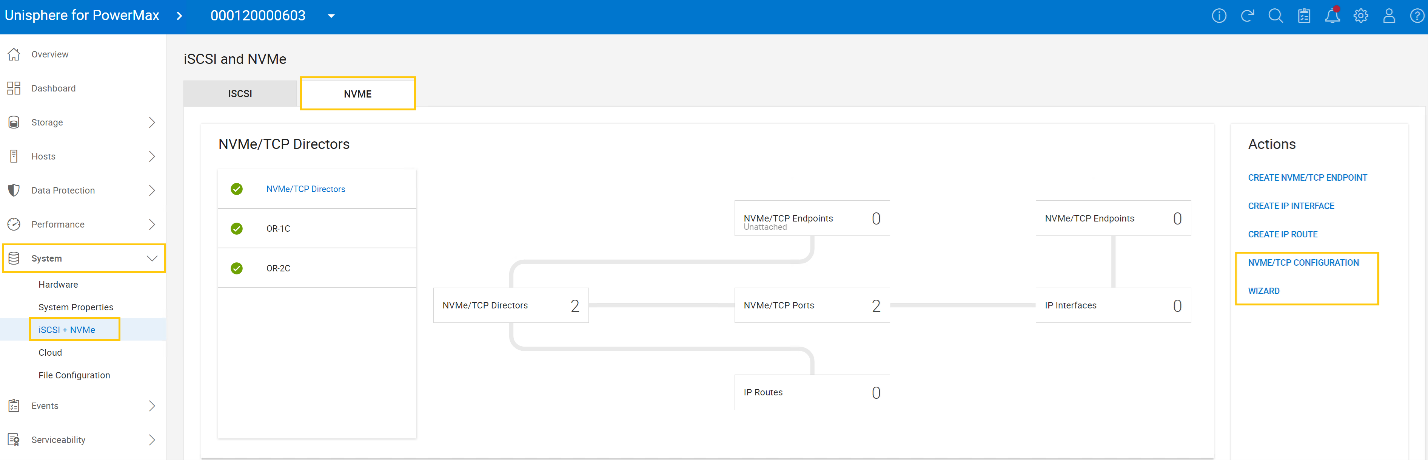
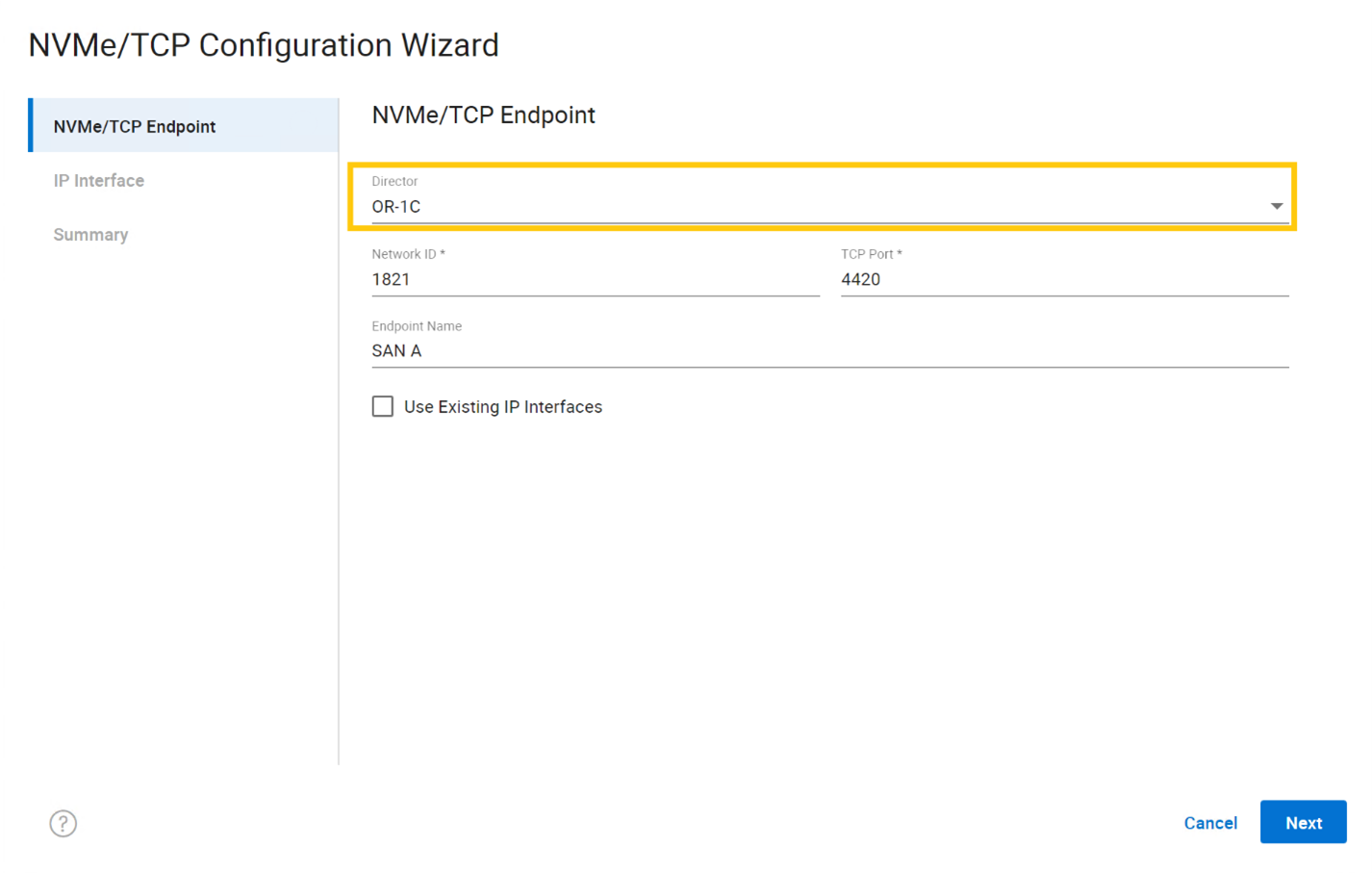
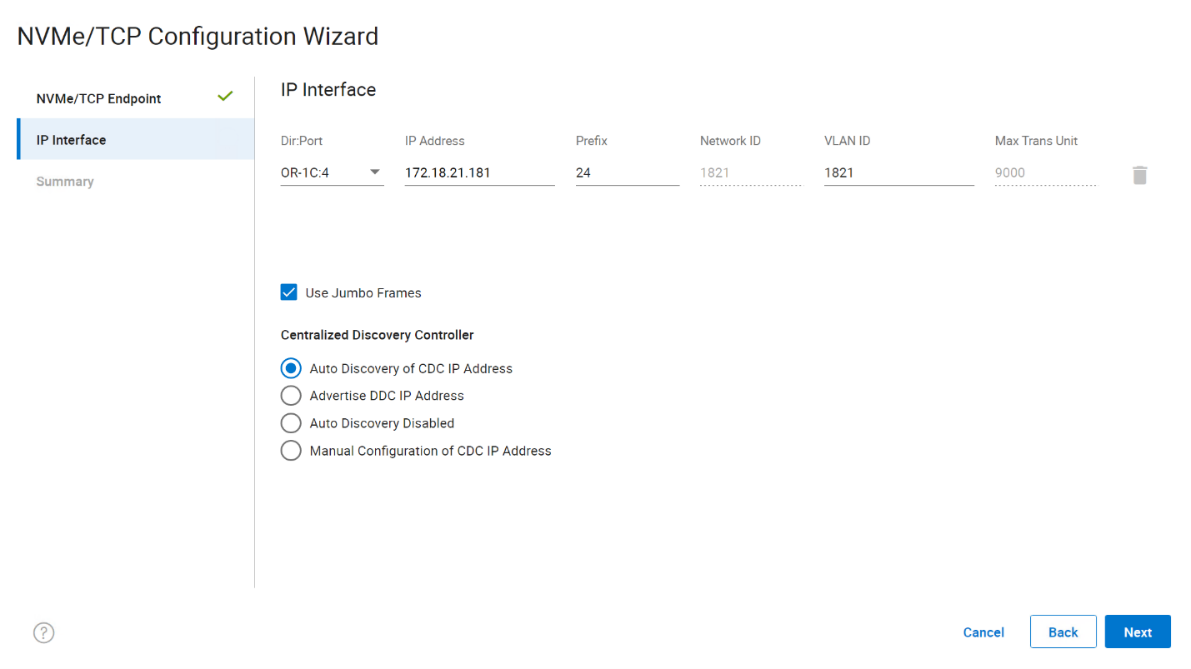
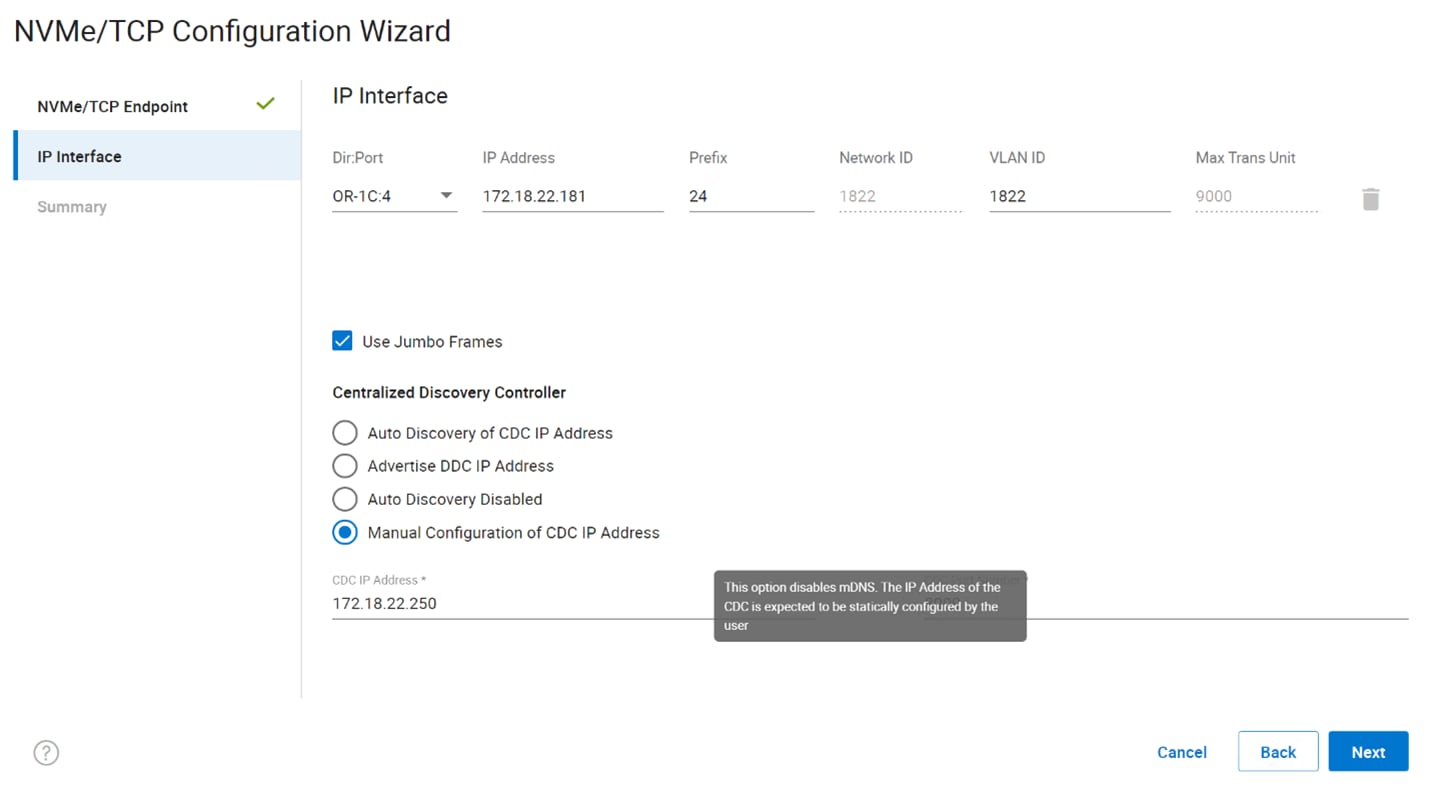
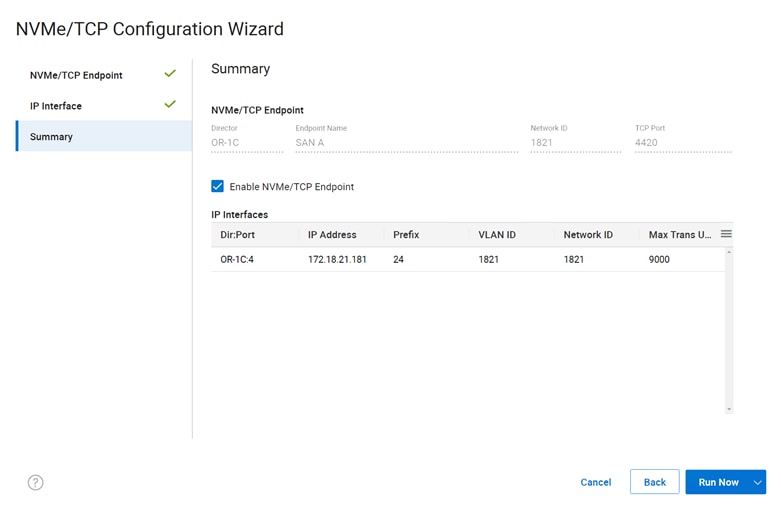
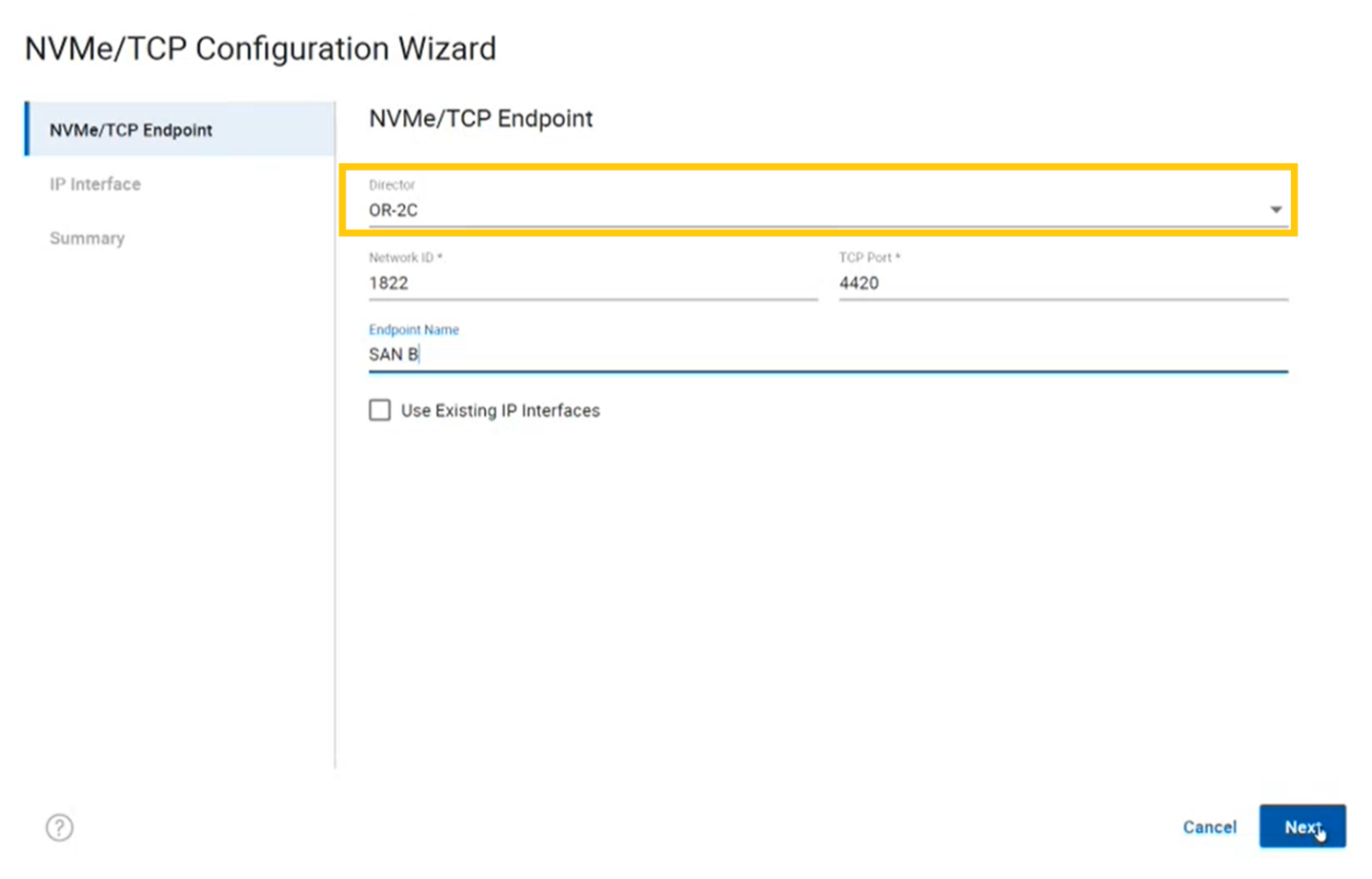

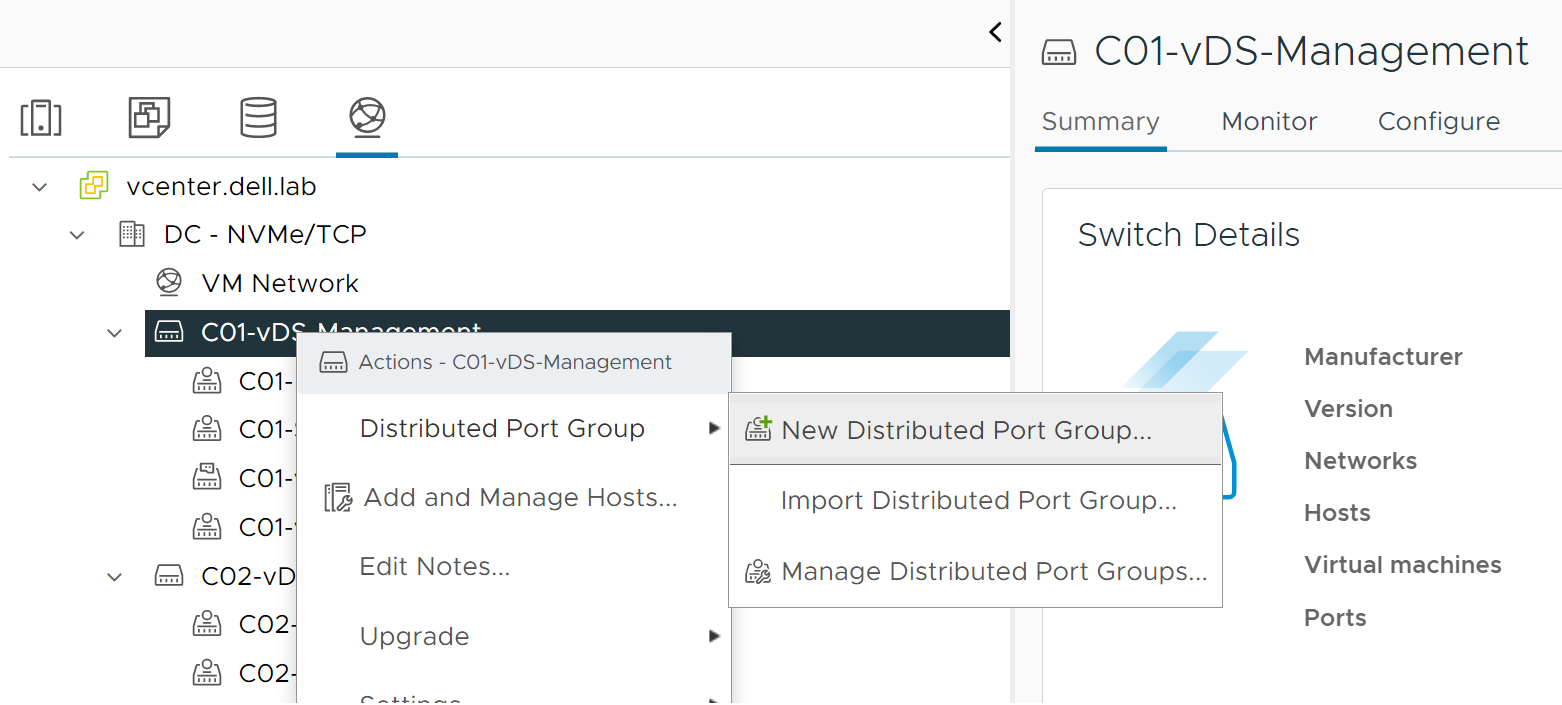
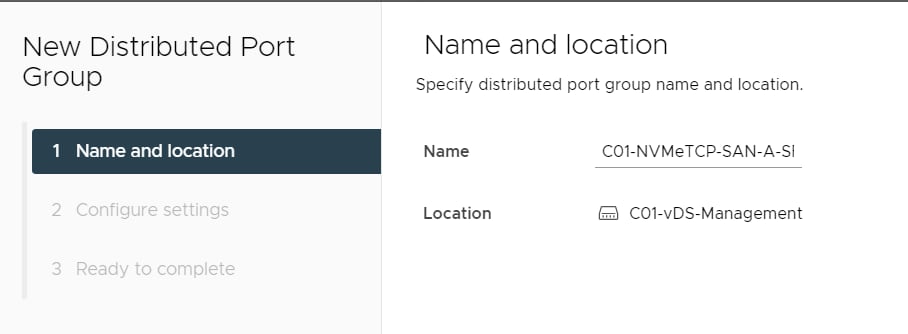
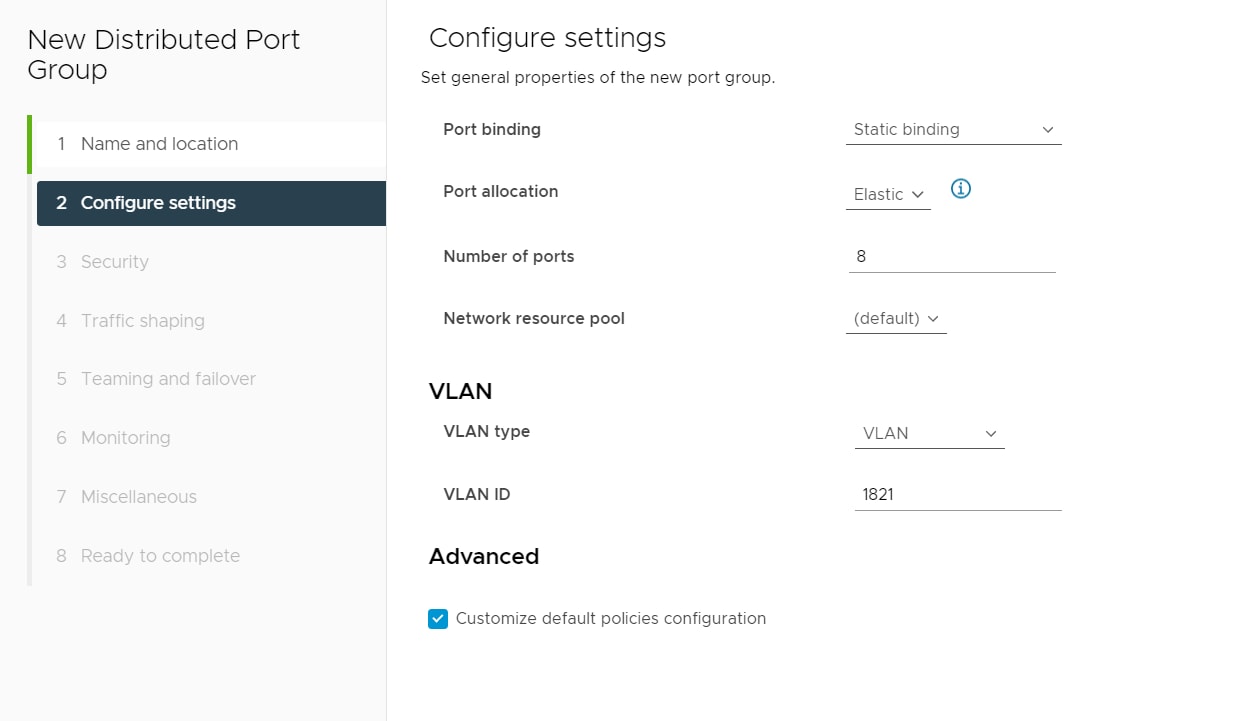
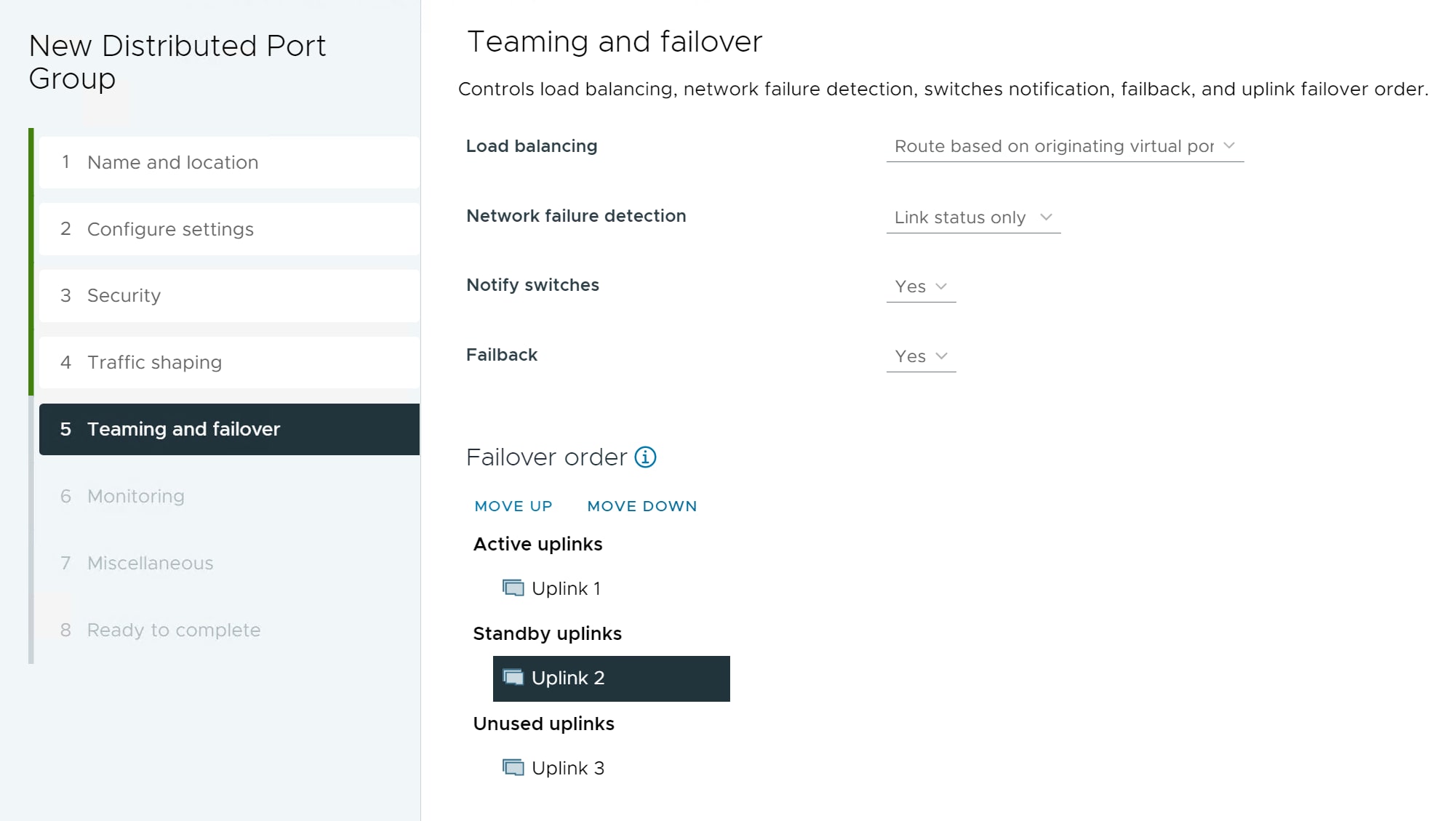
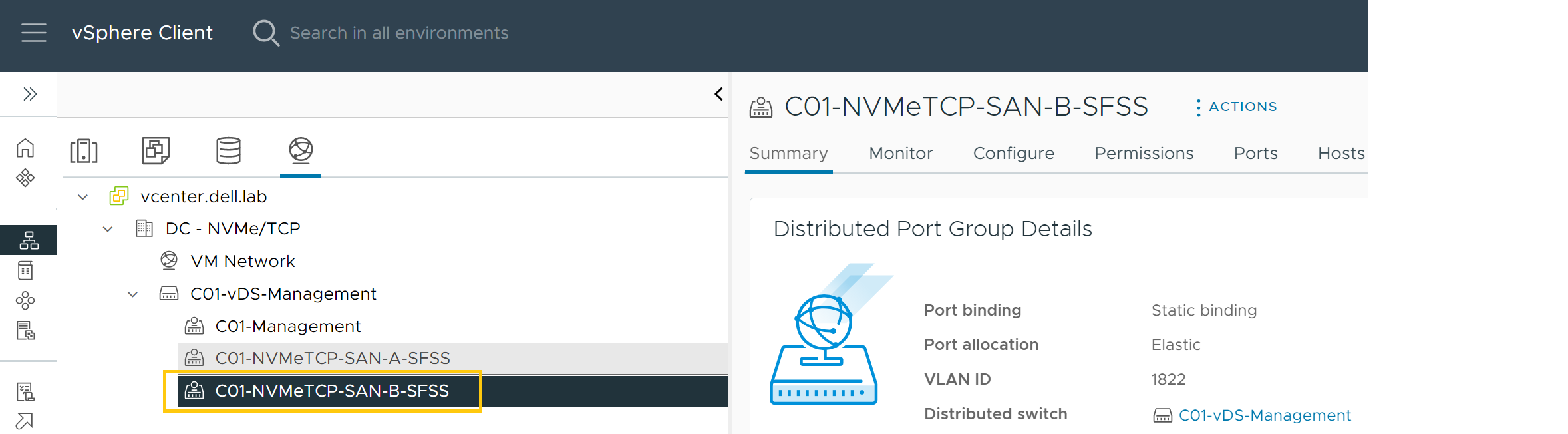
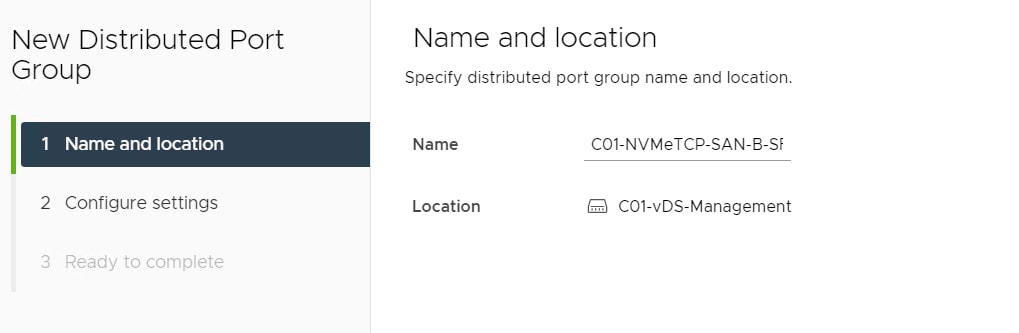
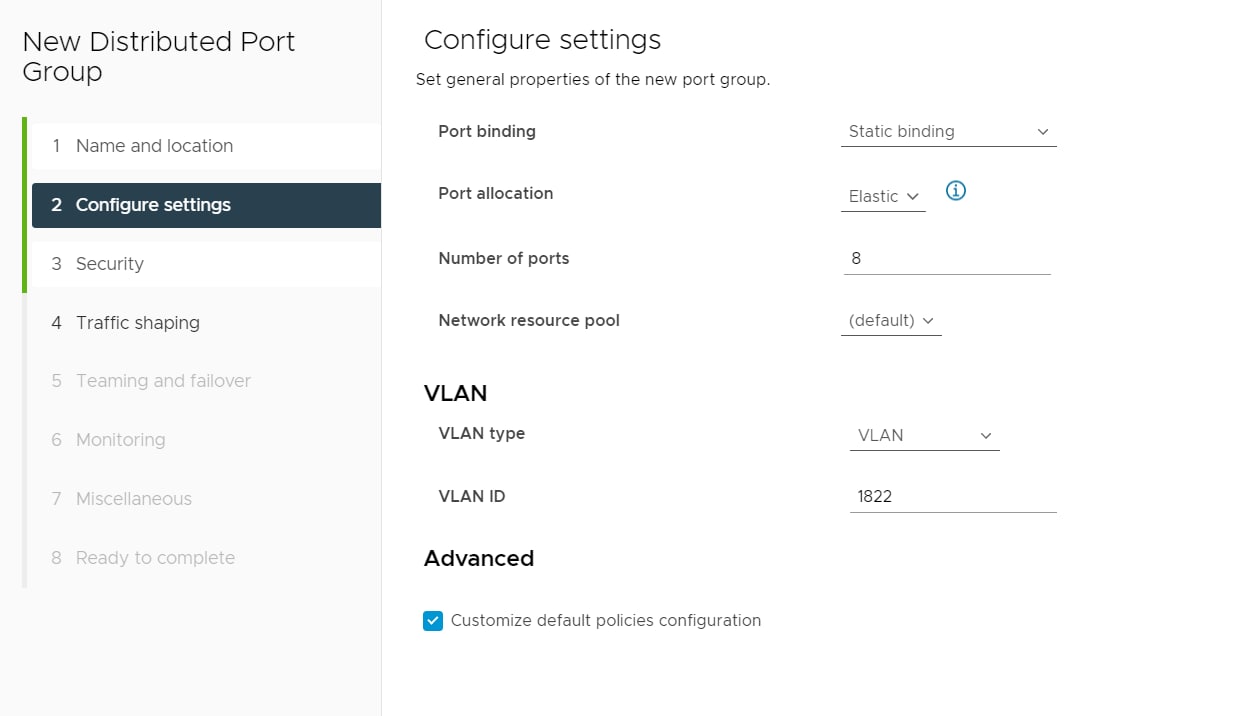
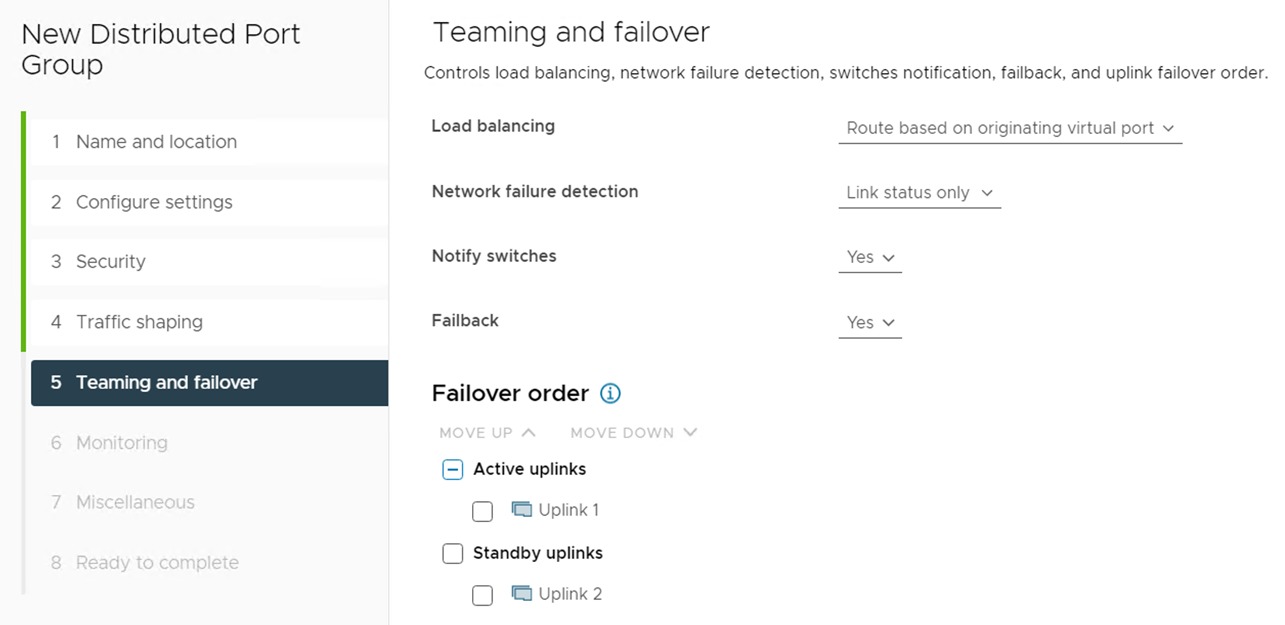
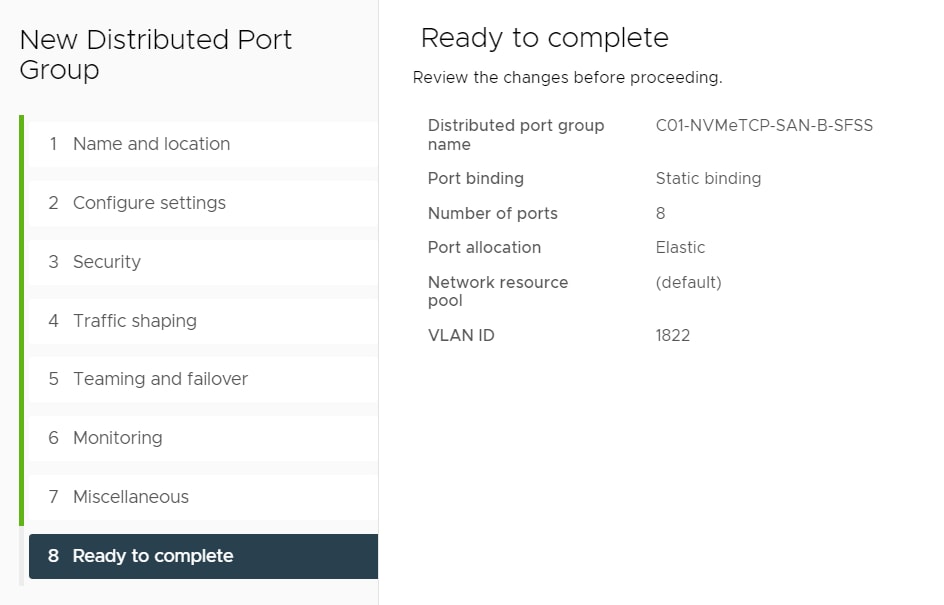
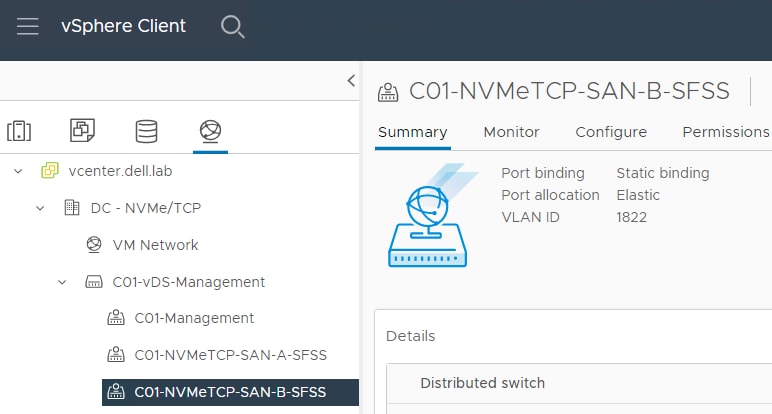
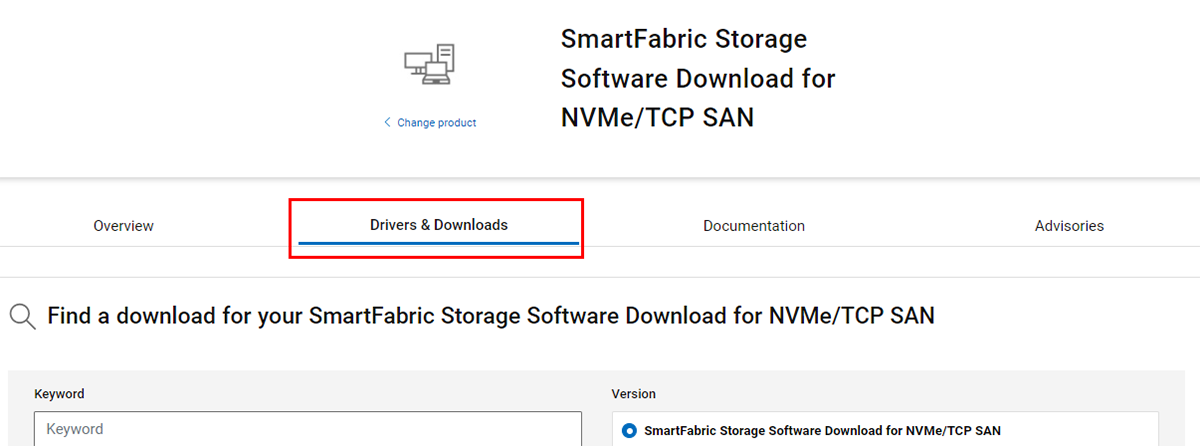
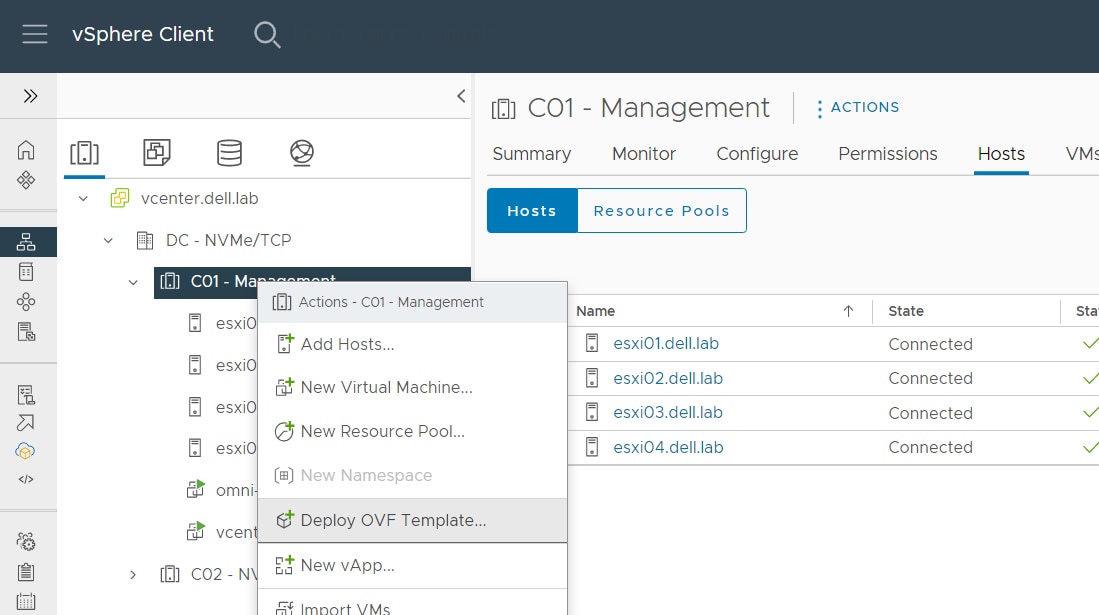
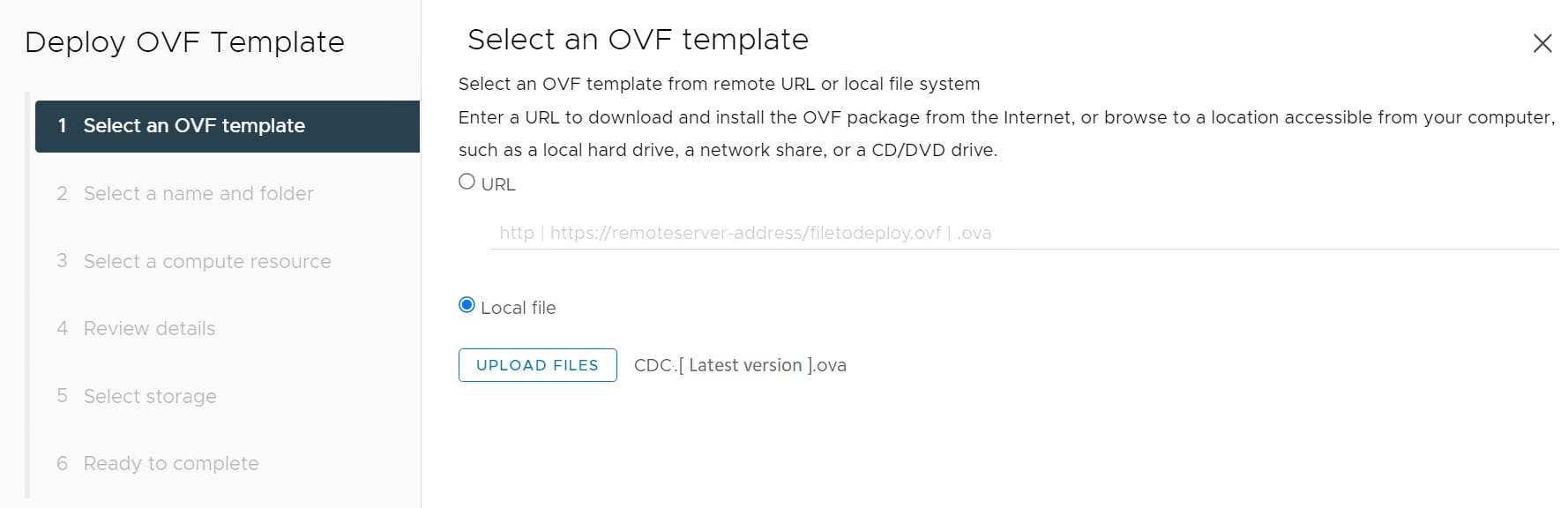
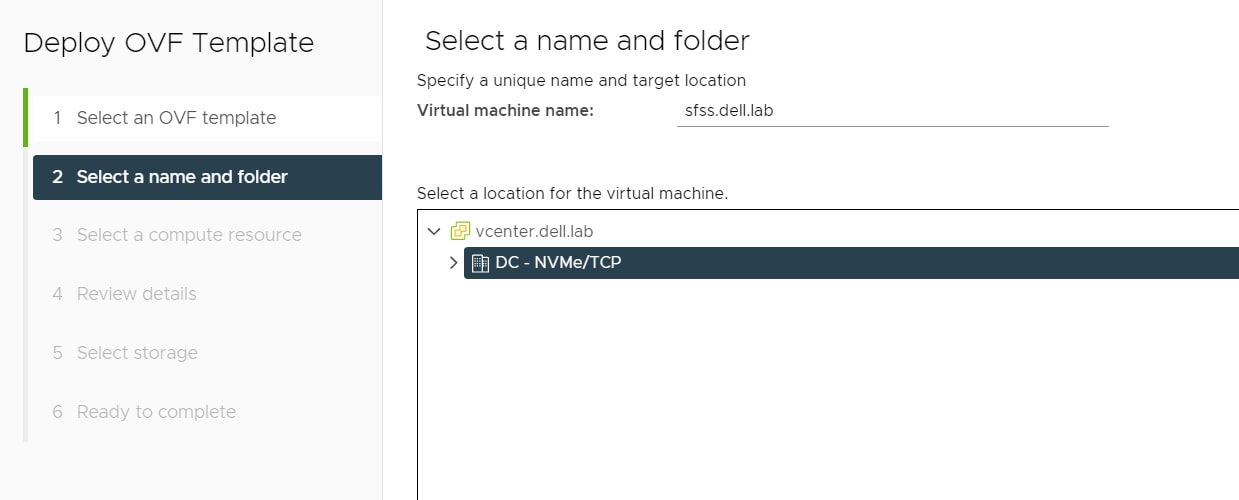
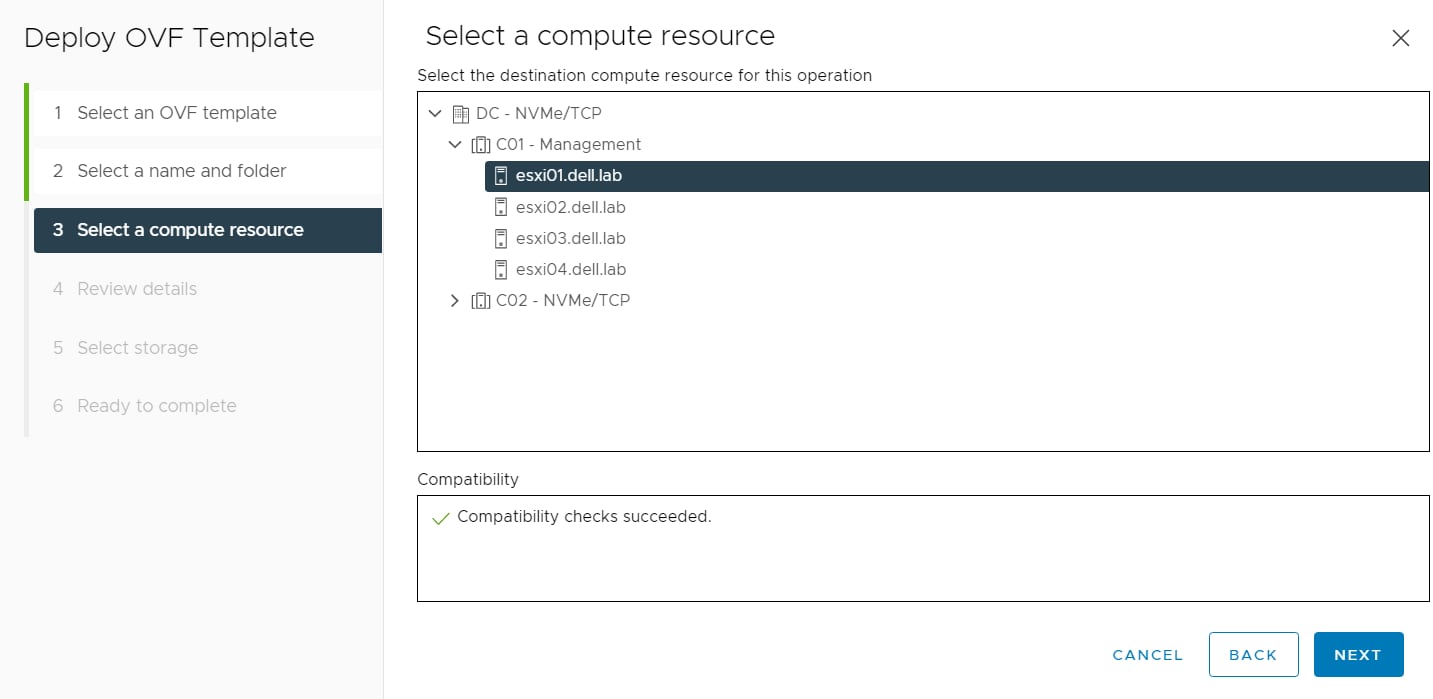
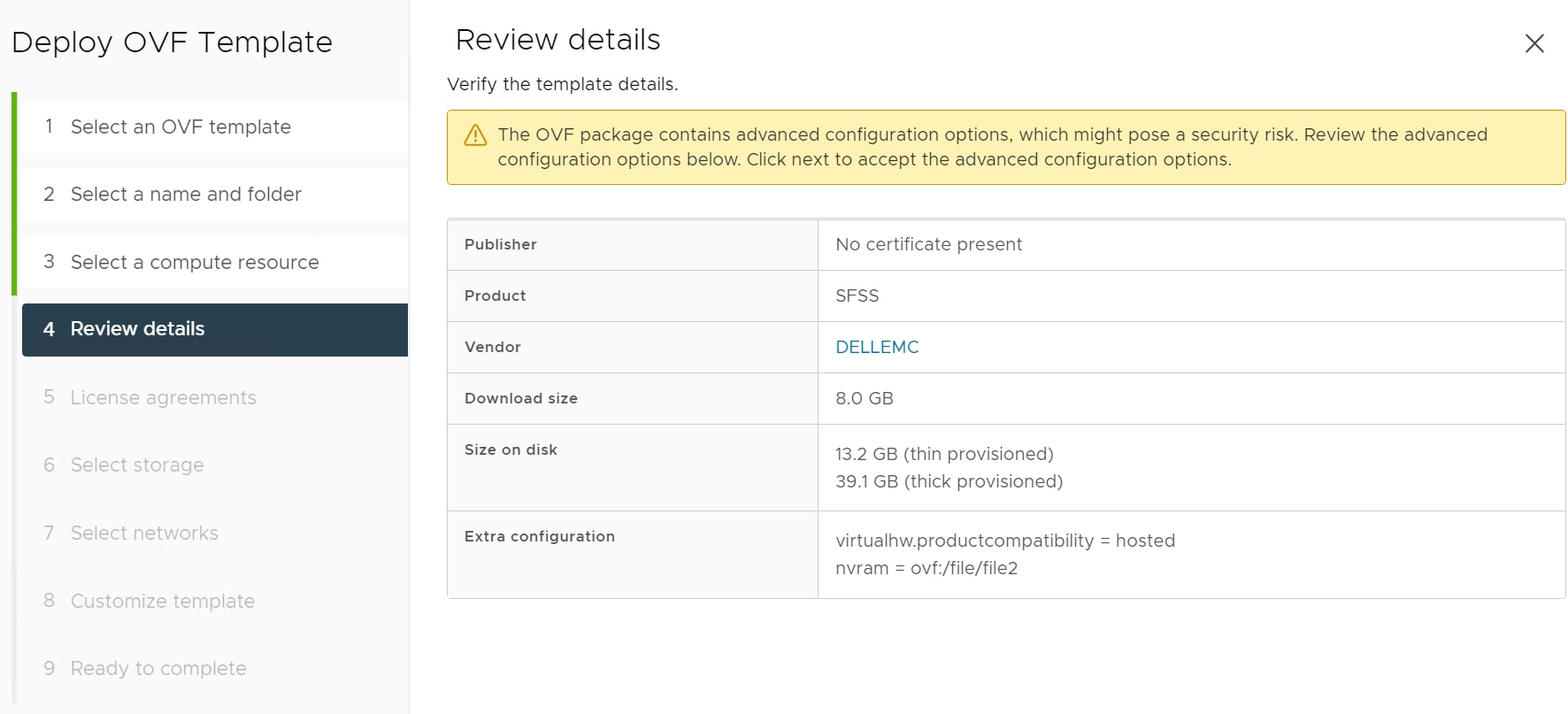
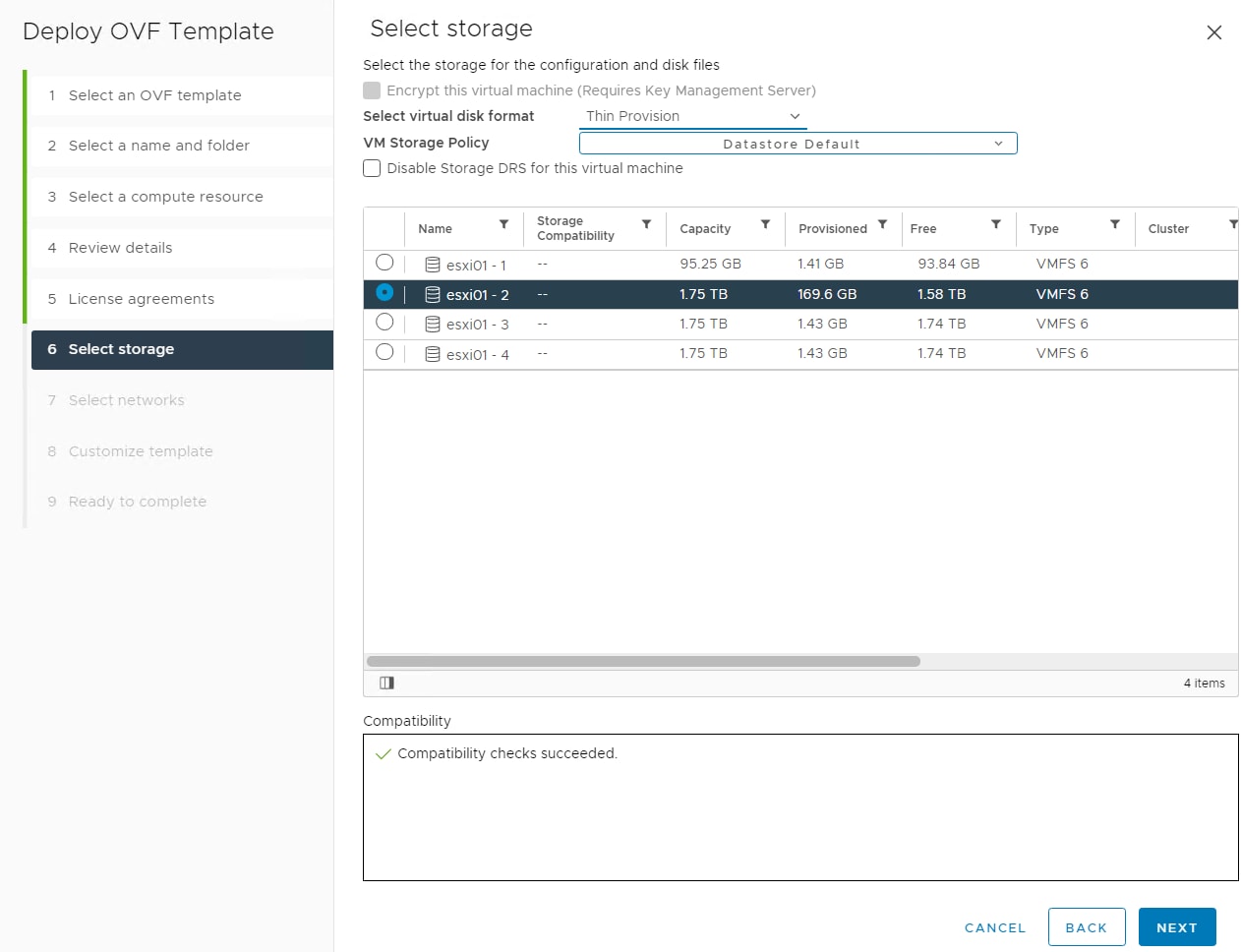
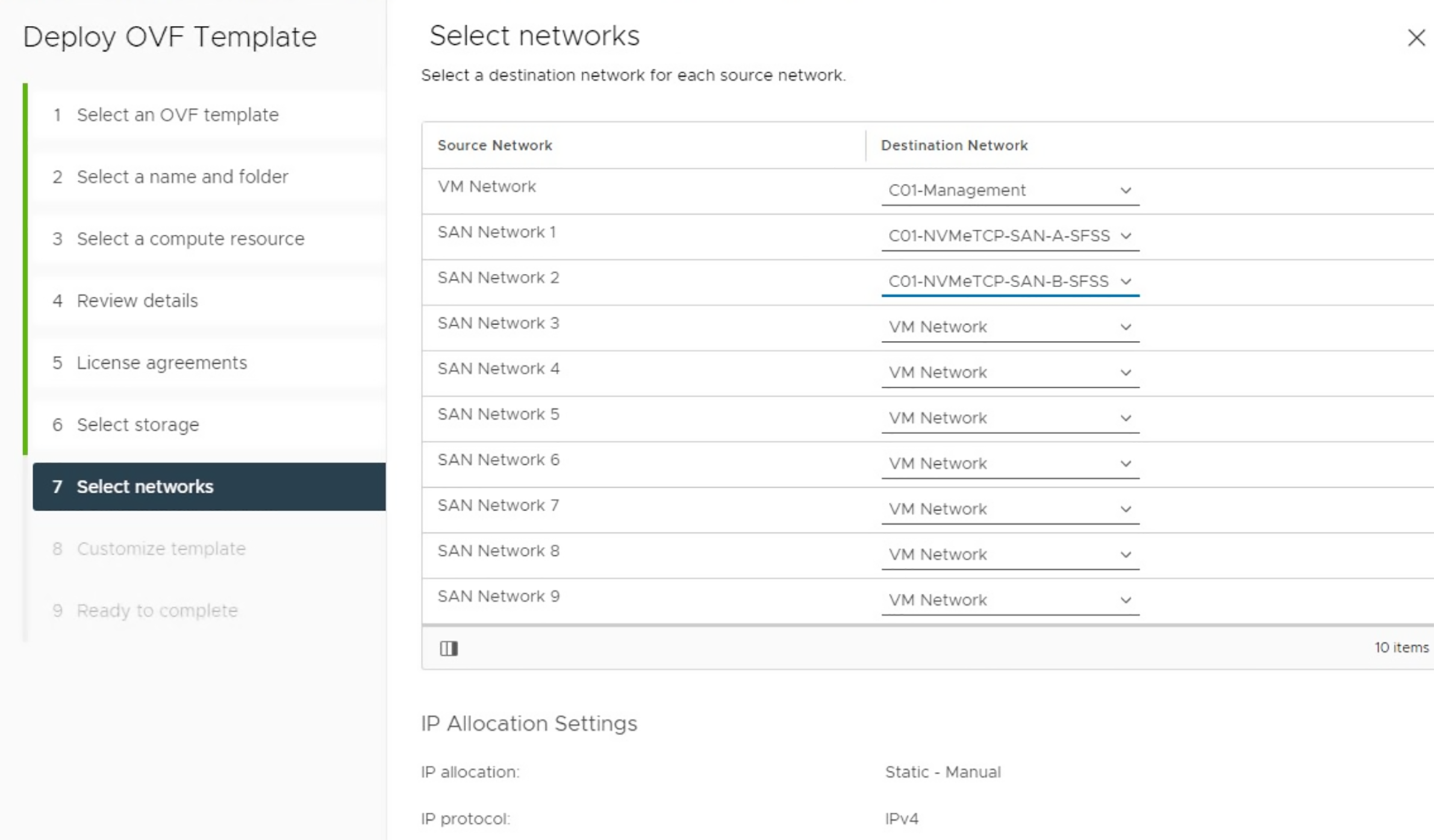
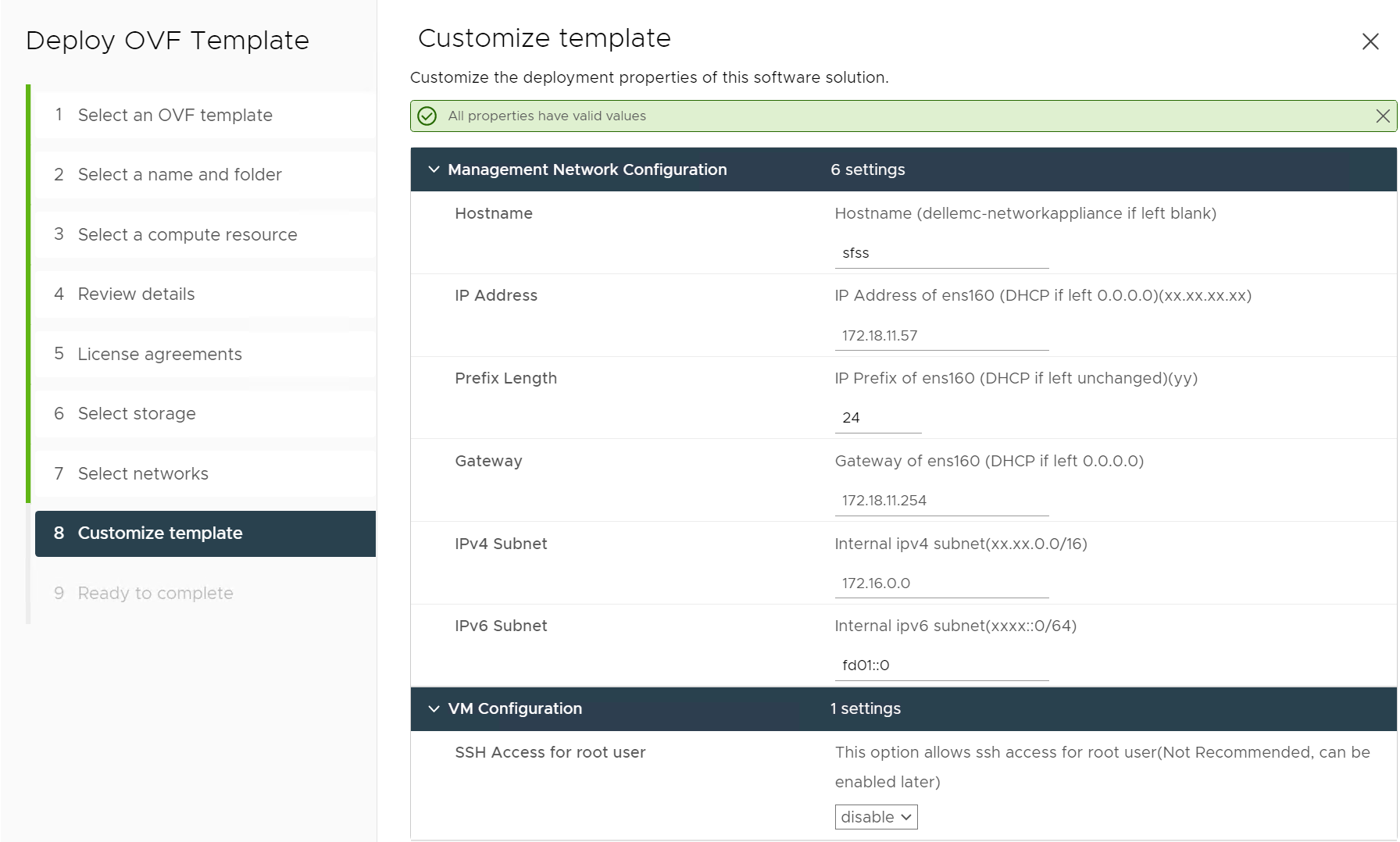
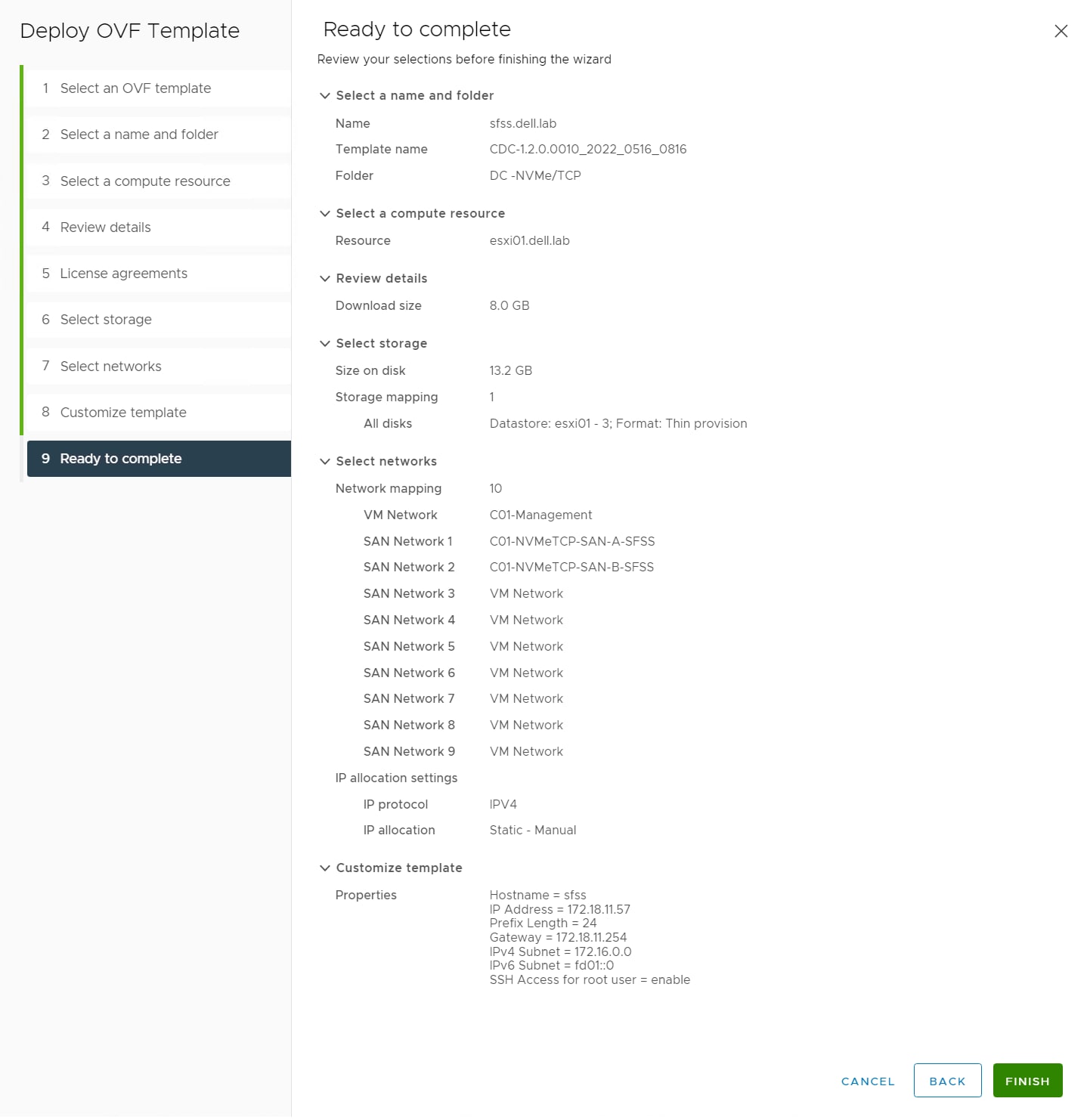
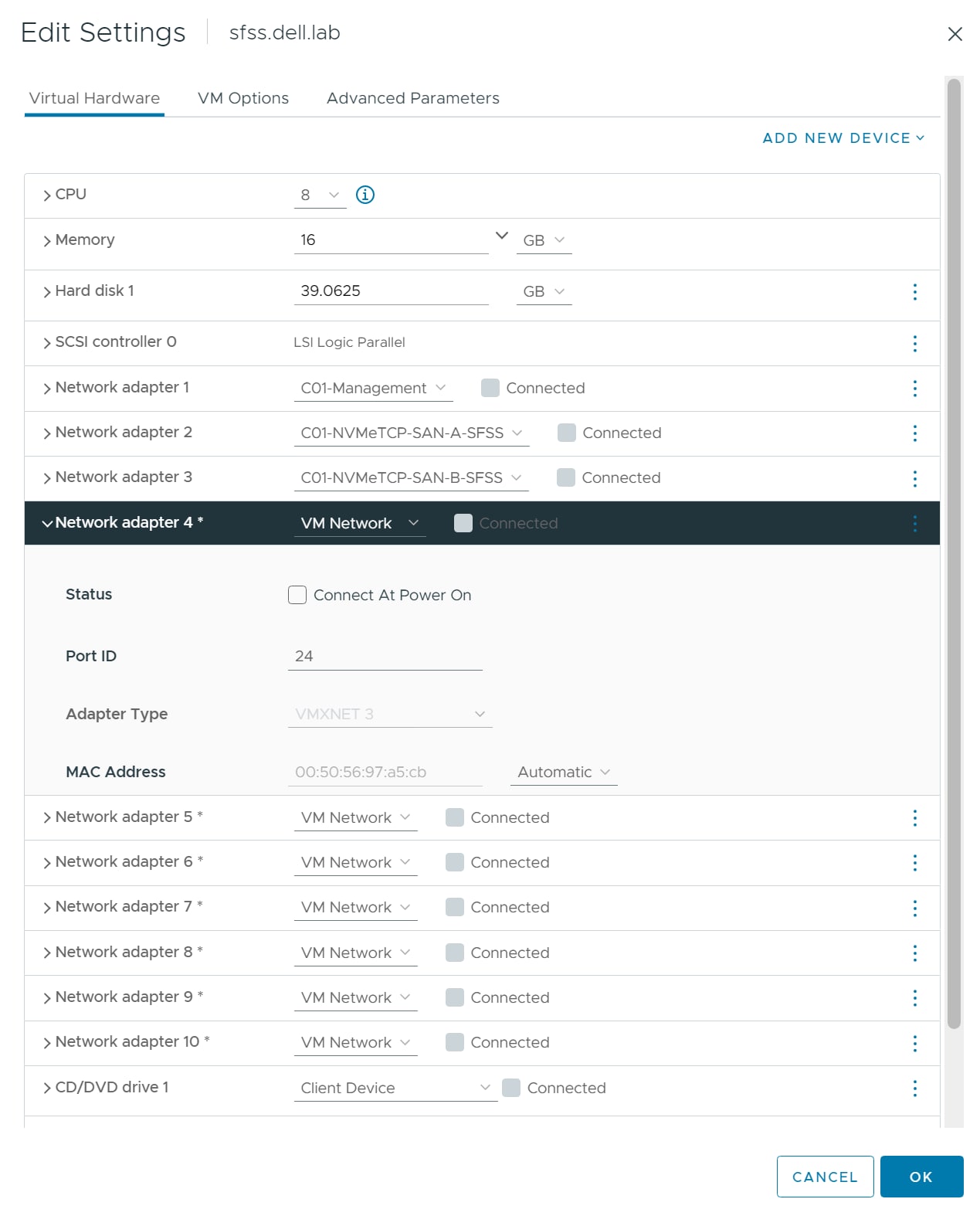
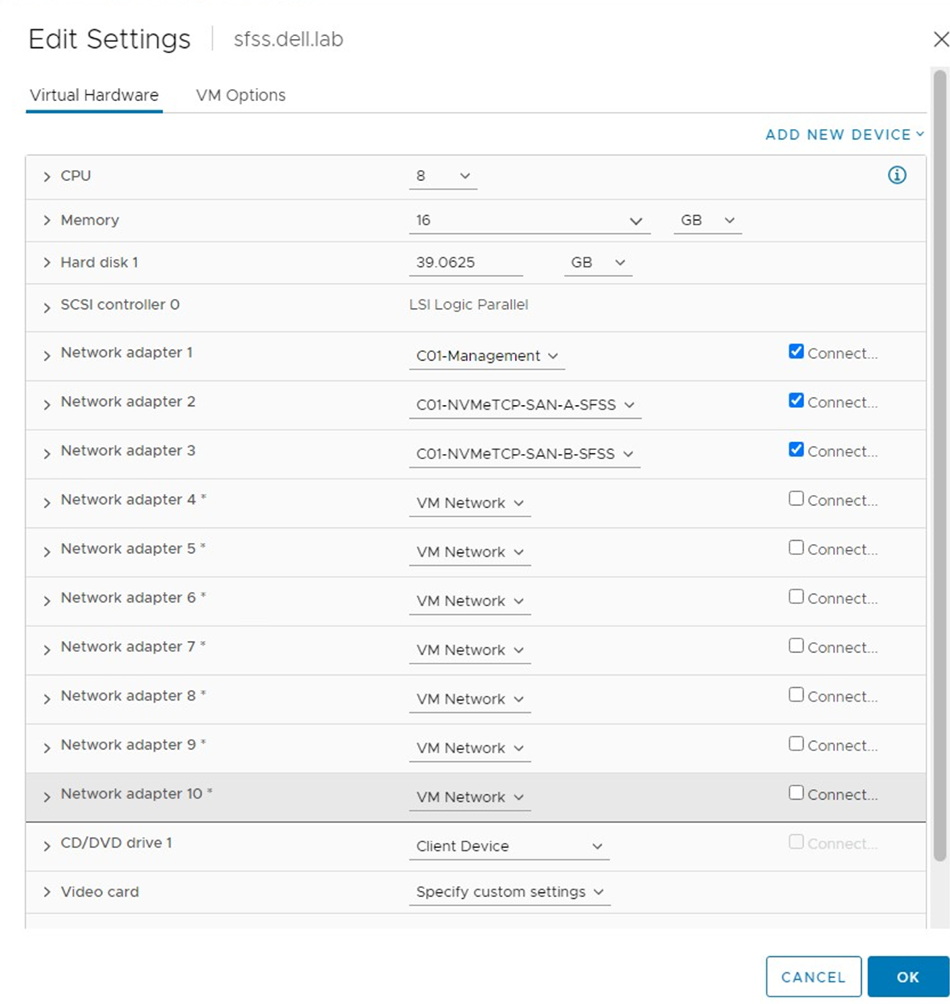
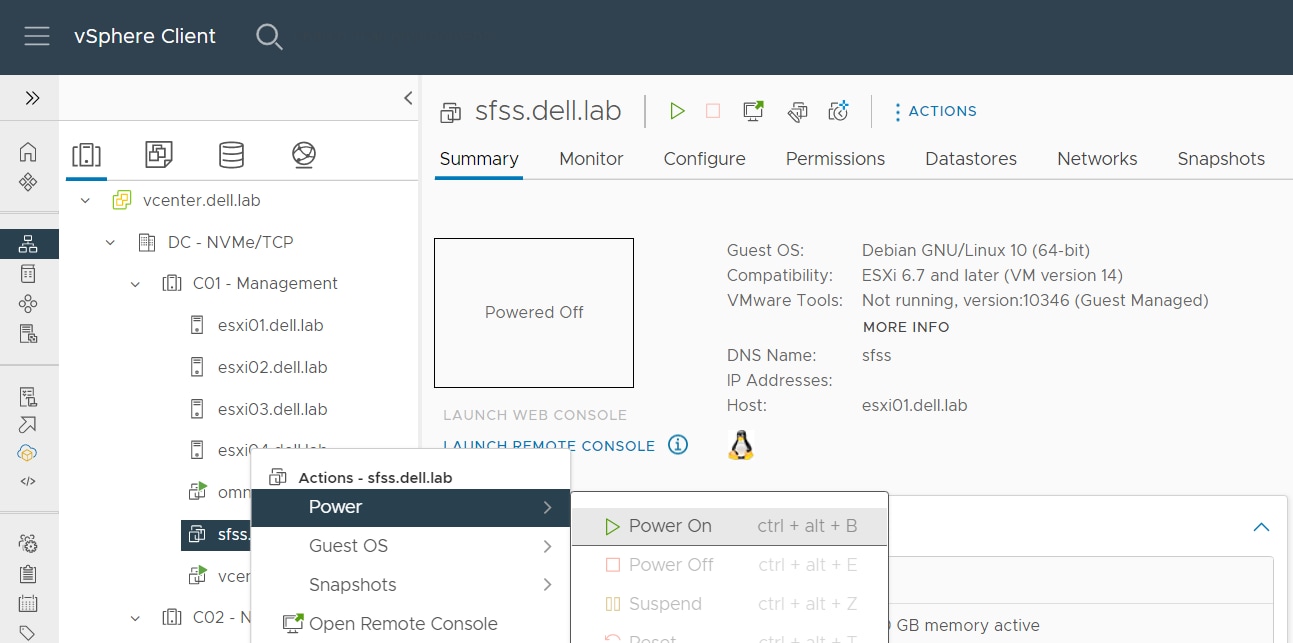
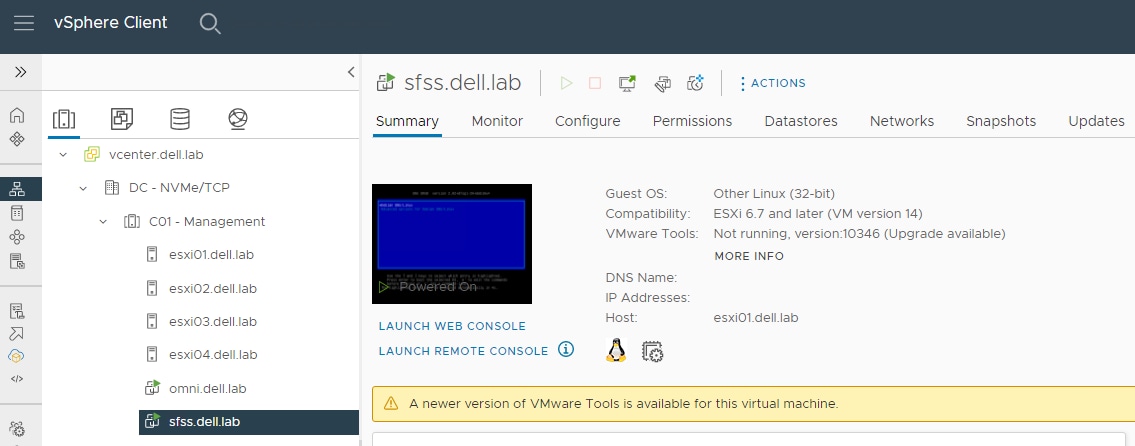
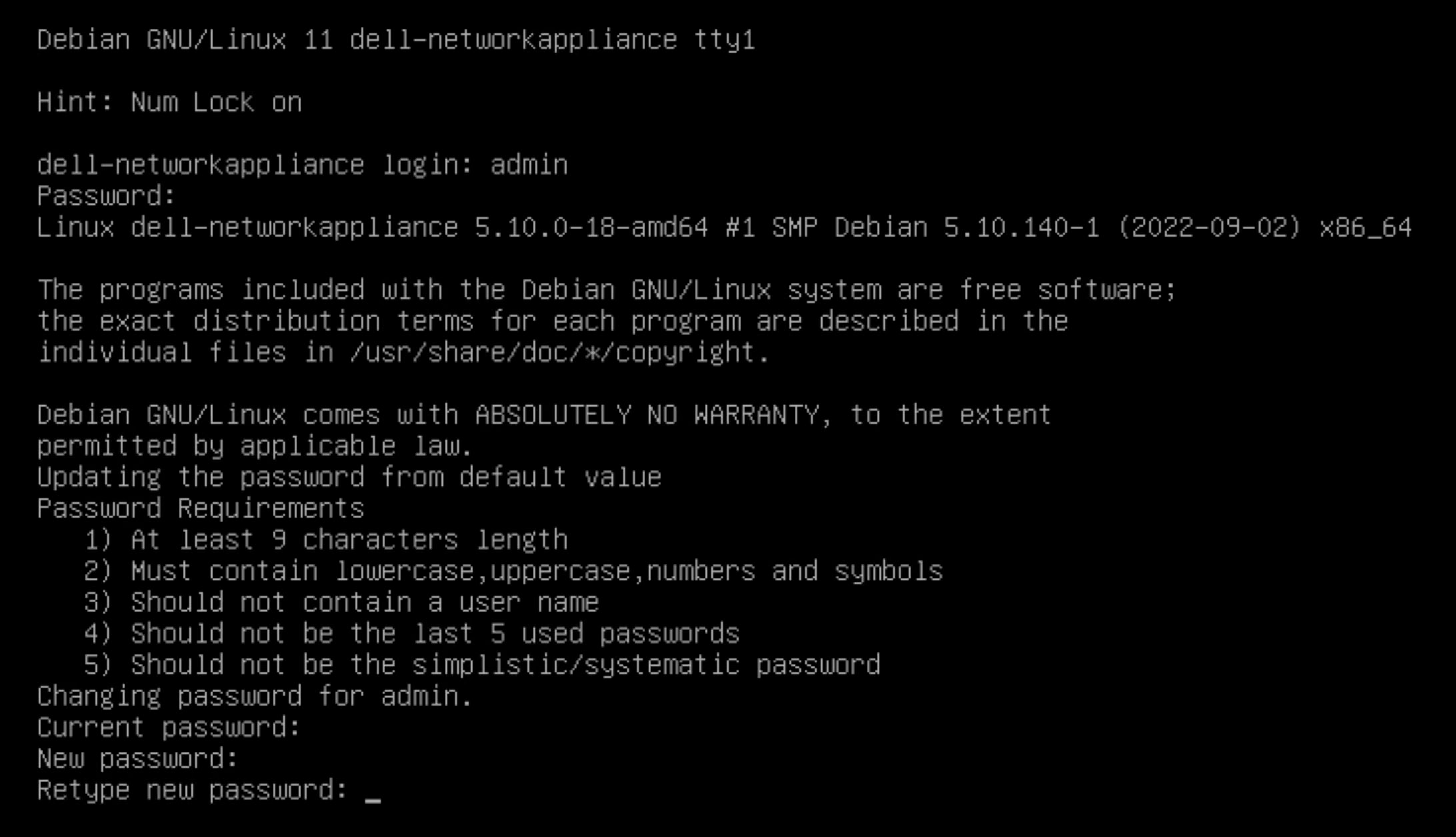 Note: The initialization of the services may take a few minutes to complete. If initialization has not completed after five minutes, see the Check the CDC Infrastructure section in this guide, or the SmartFabric Storage Software Troubleshooting Guide Alerts and Events Reference on the SmartFabric Storage Software Download for NVMe/TCP SAN Documentation page.Proceed to Configure SFSS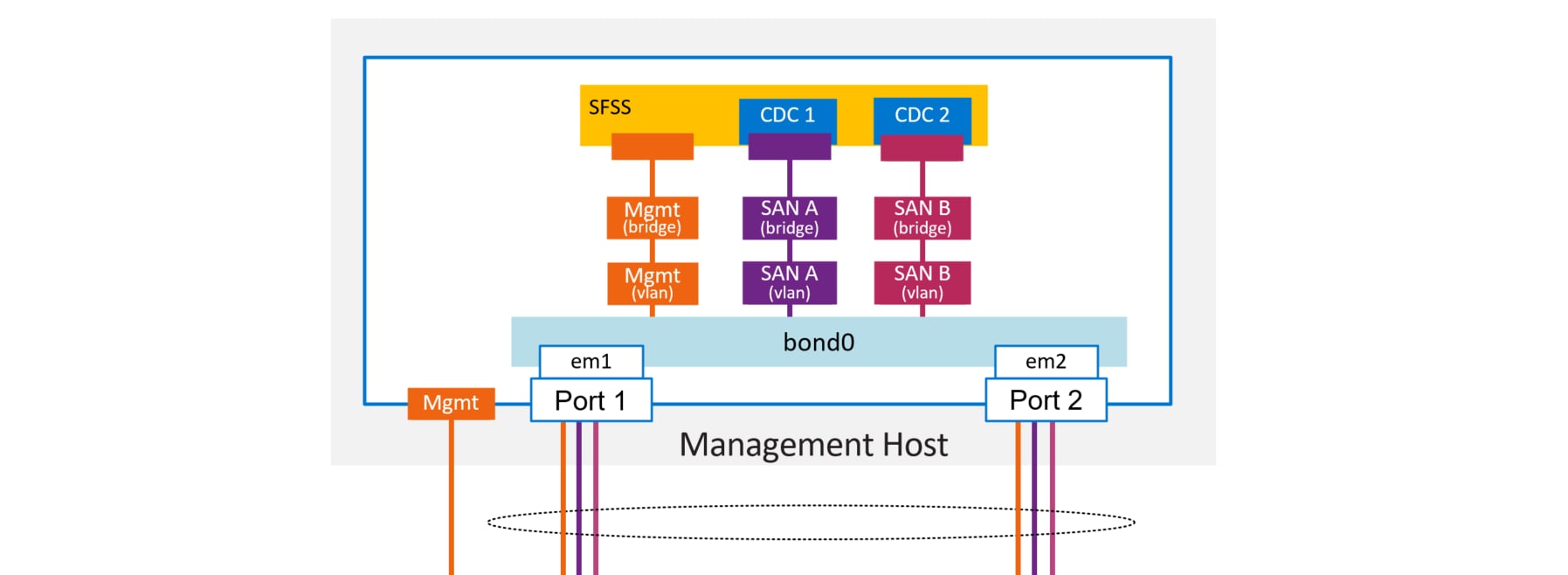
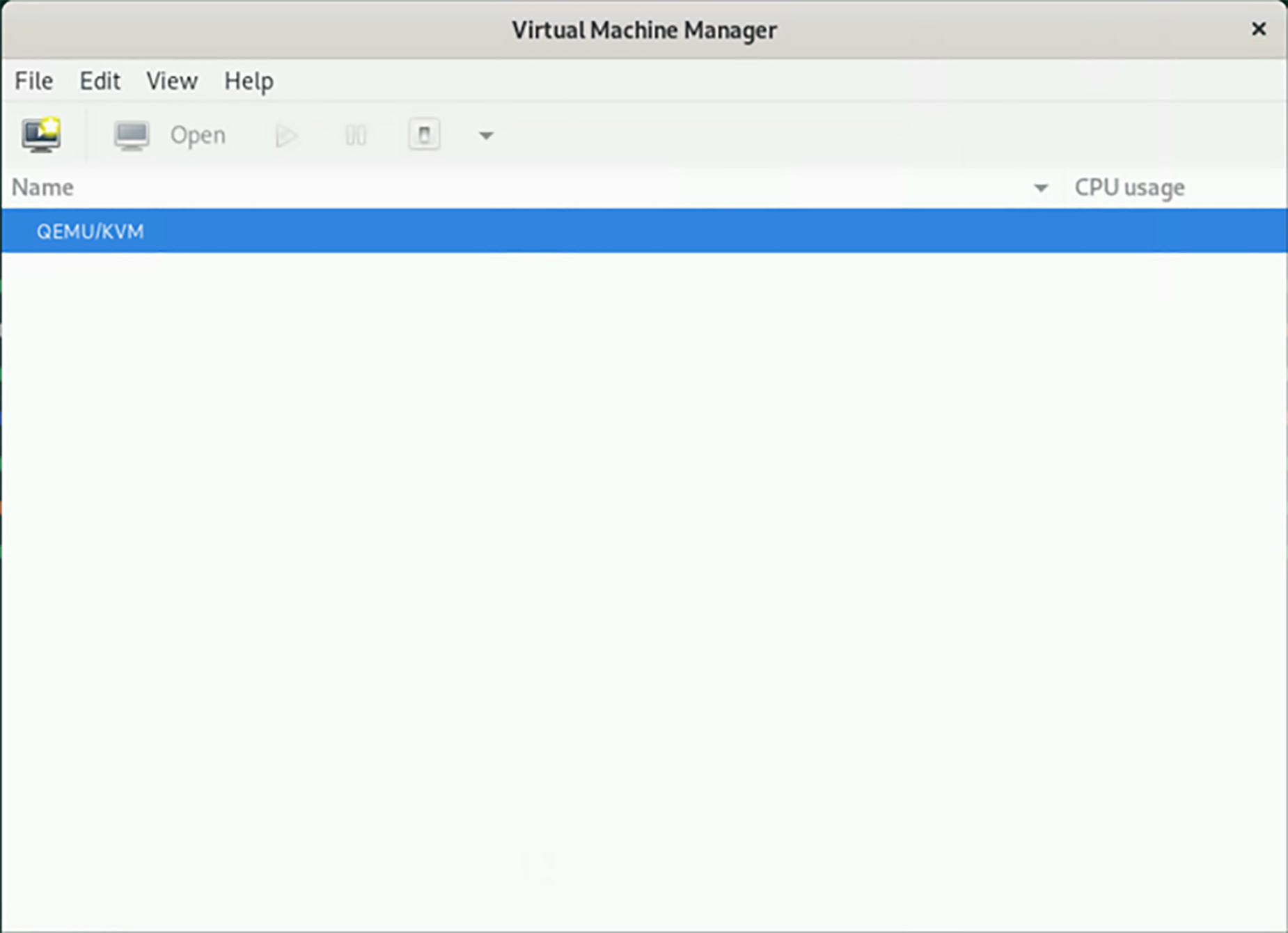
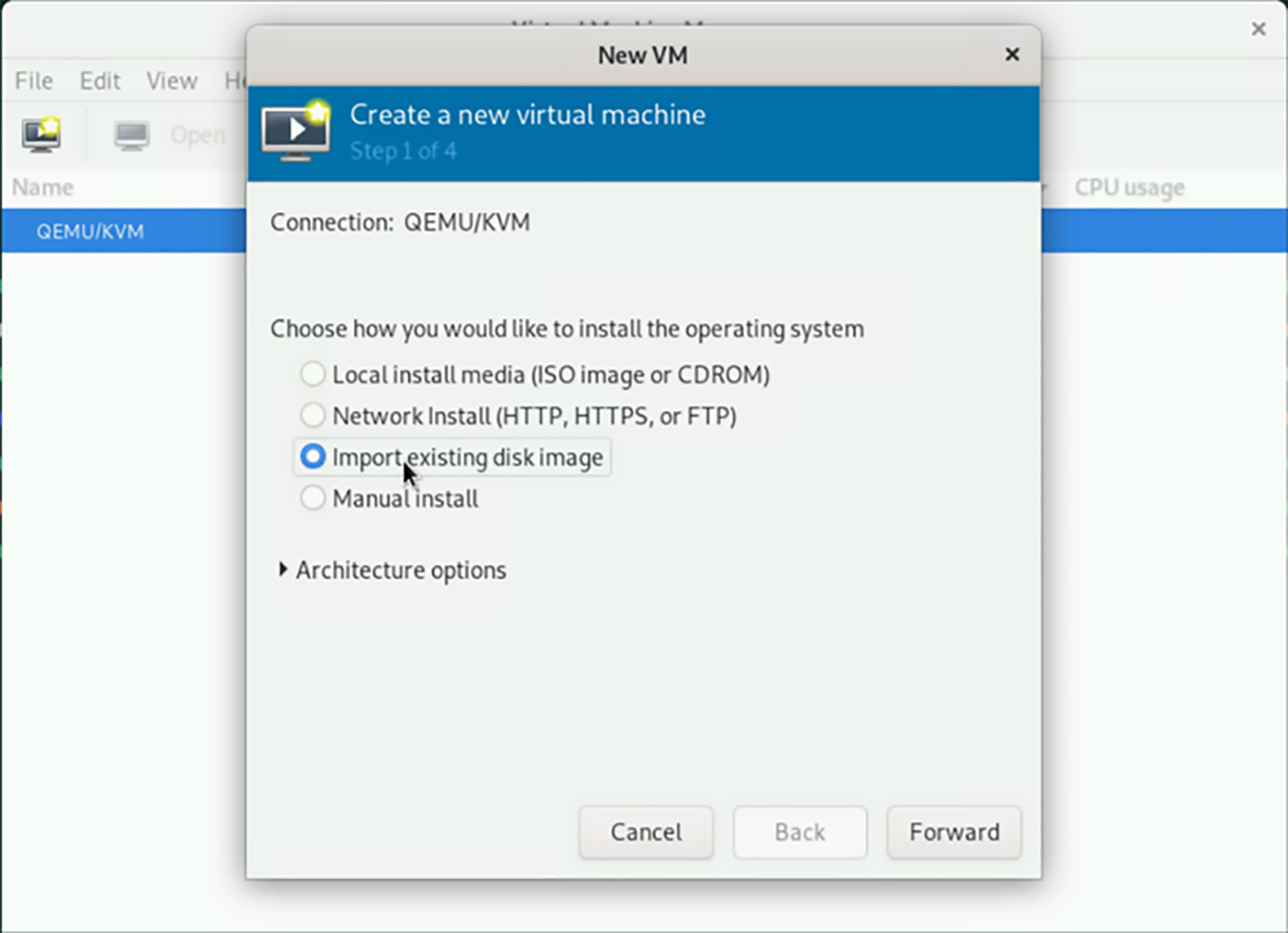
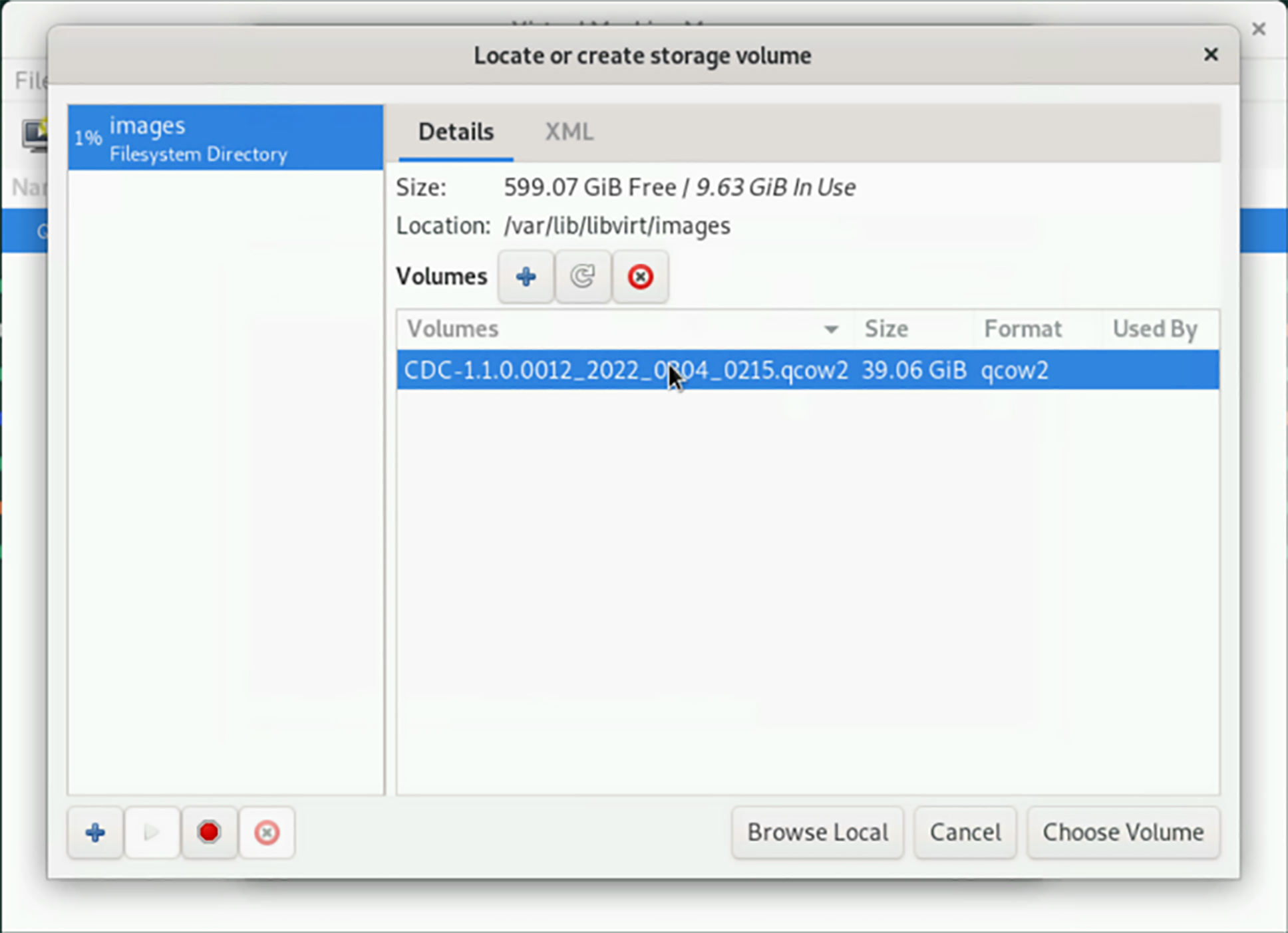
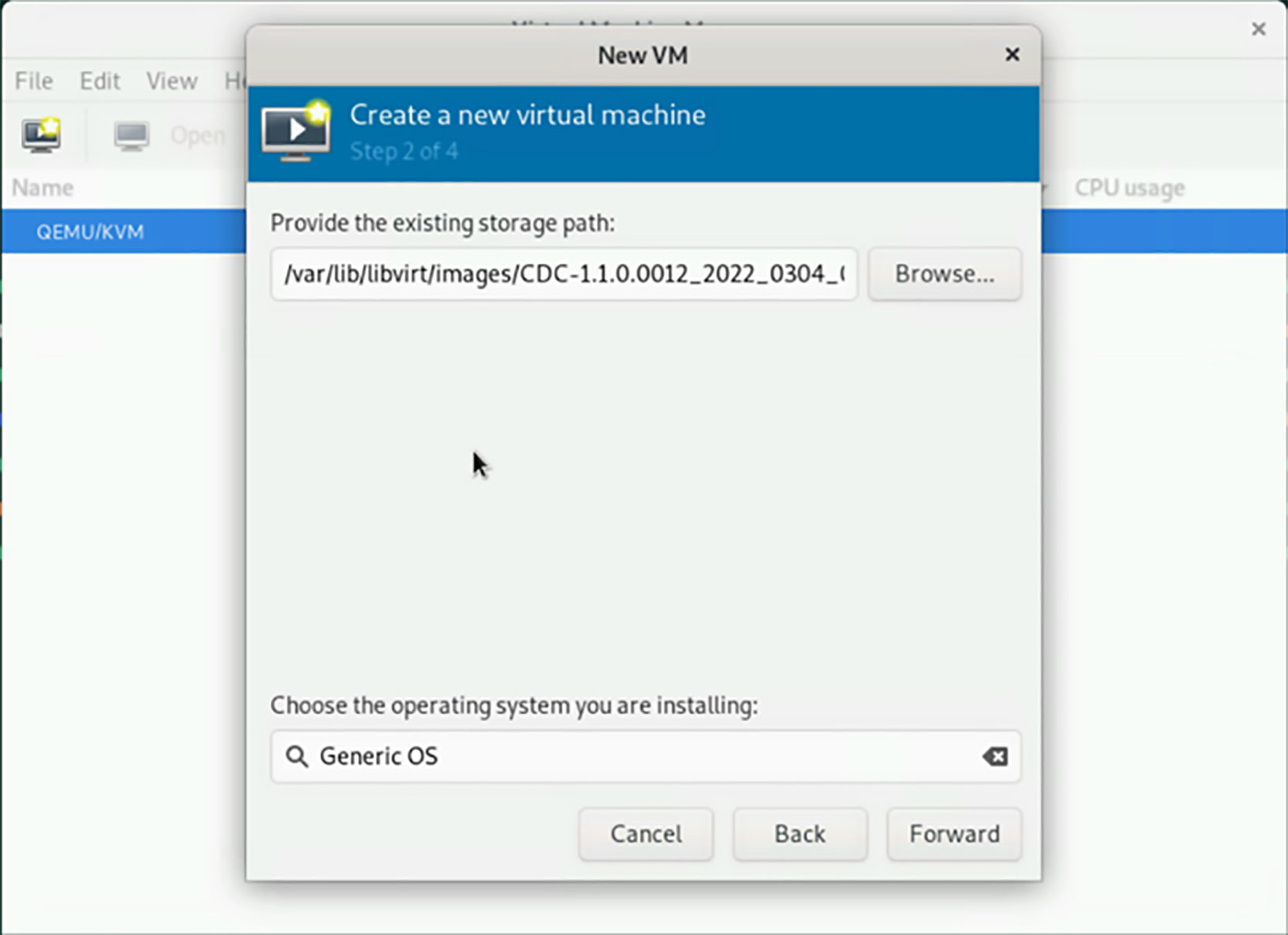
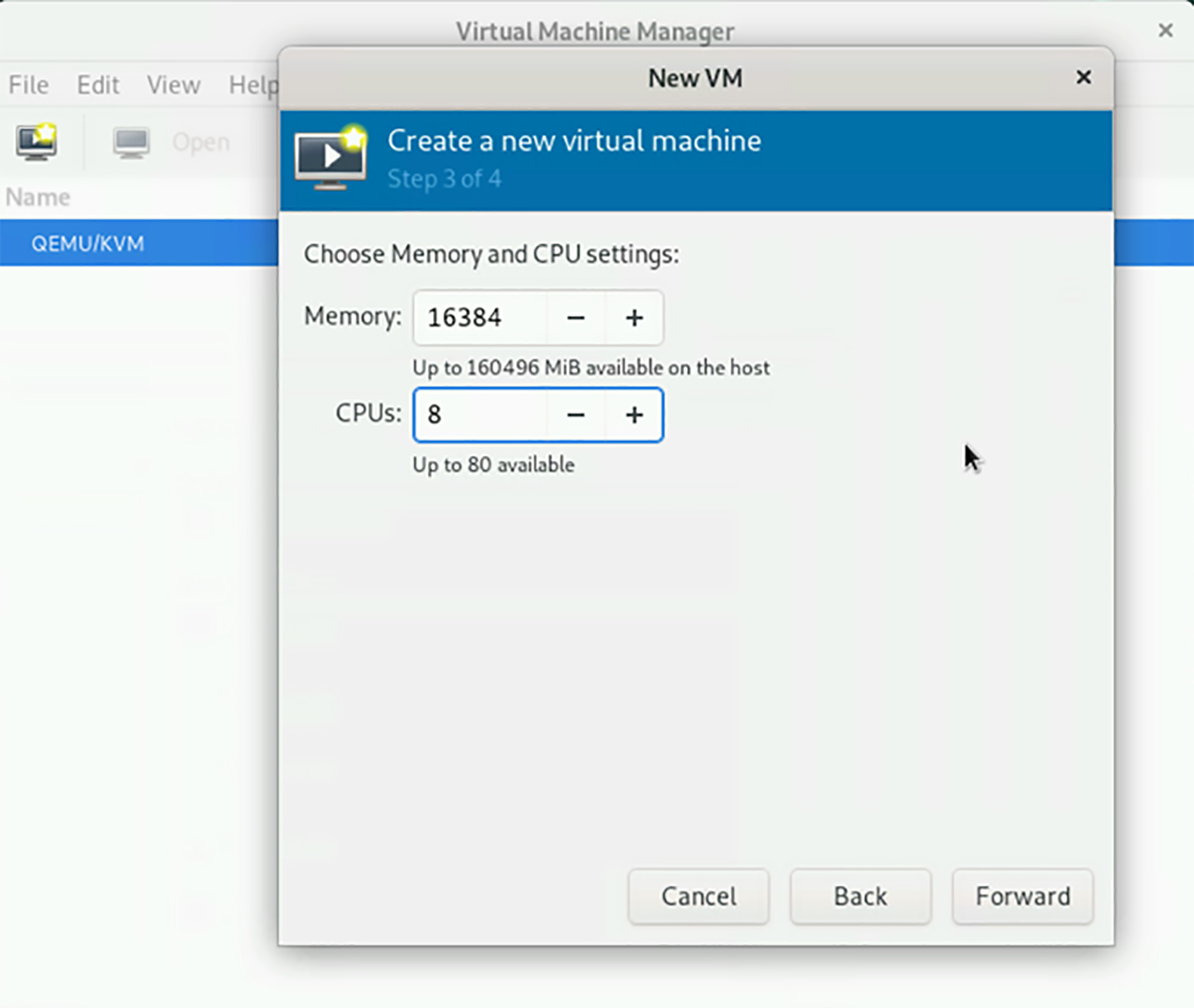
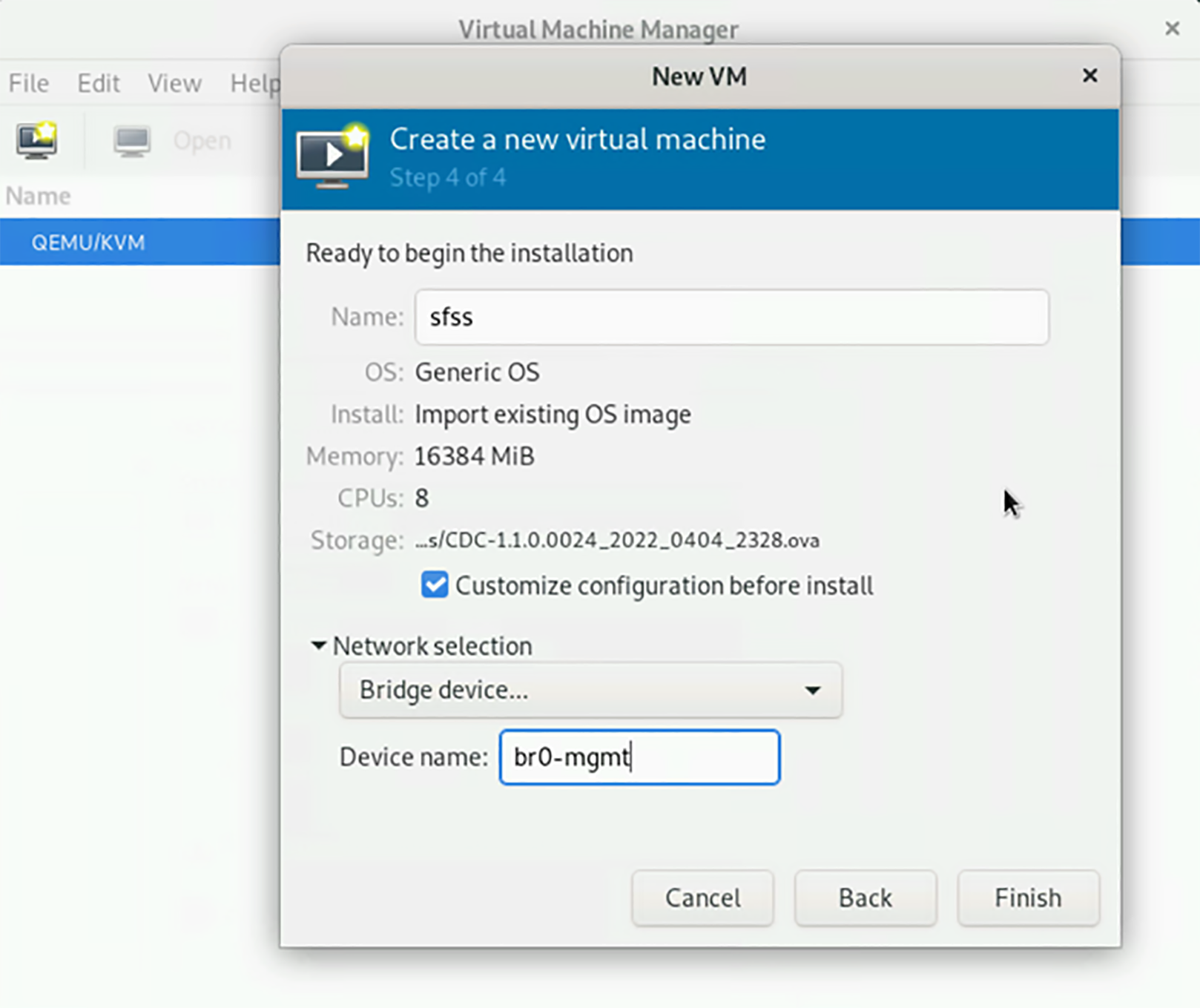
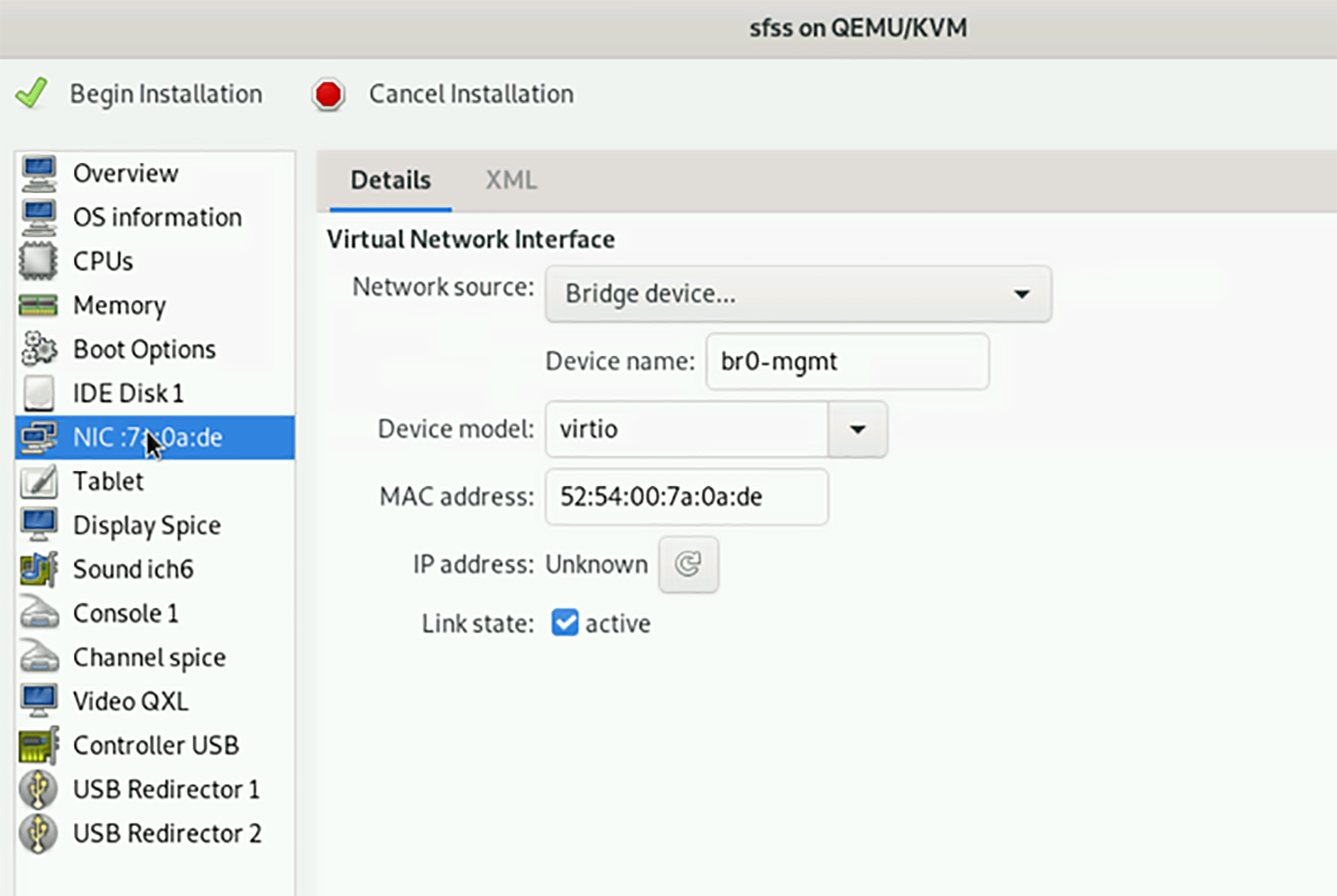
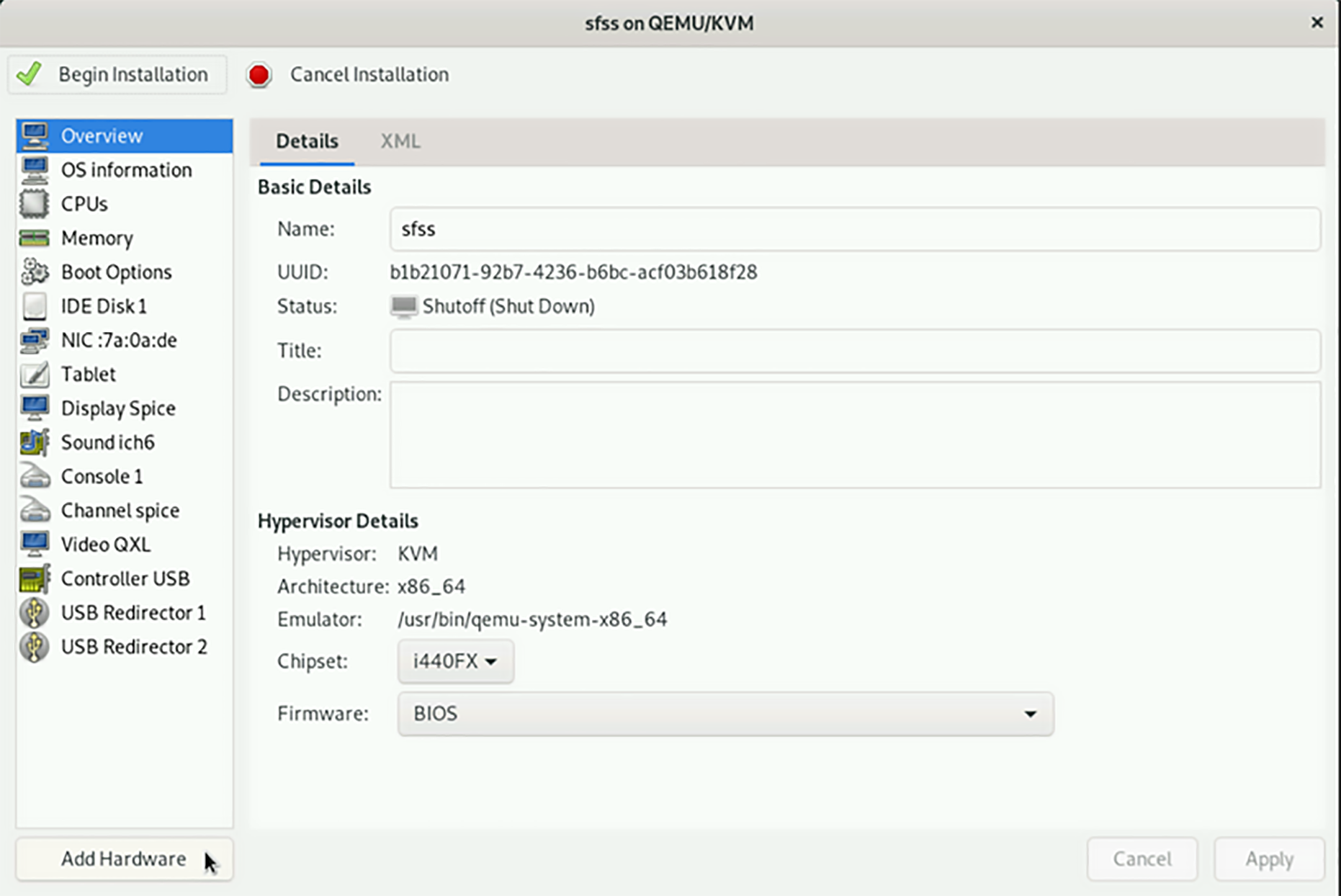
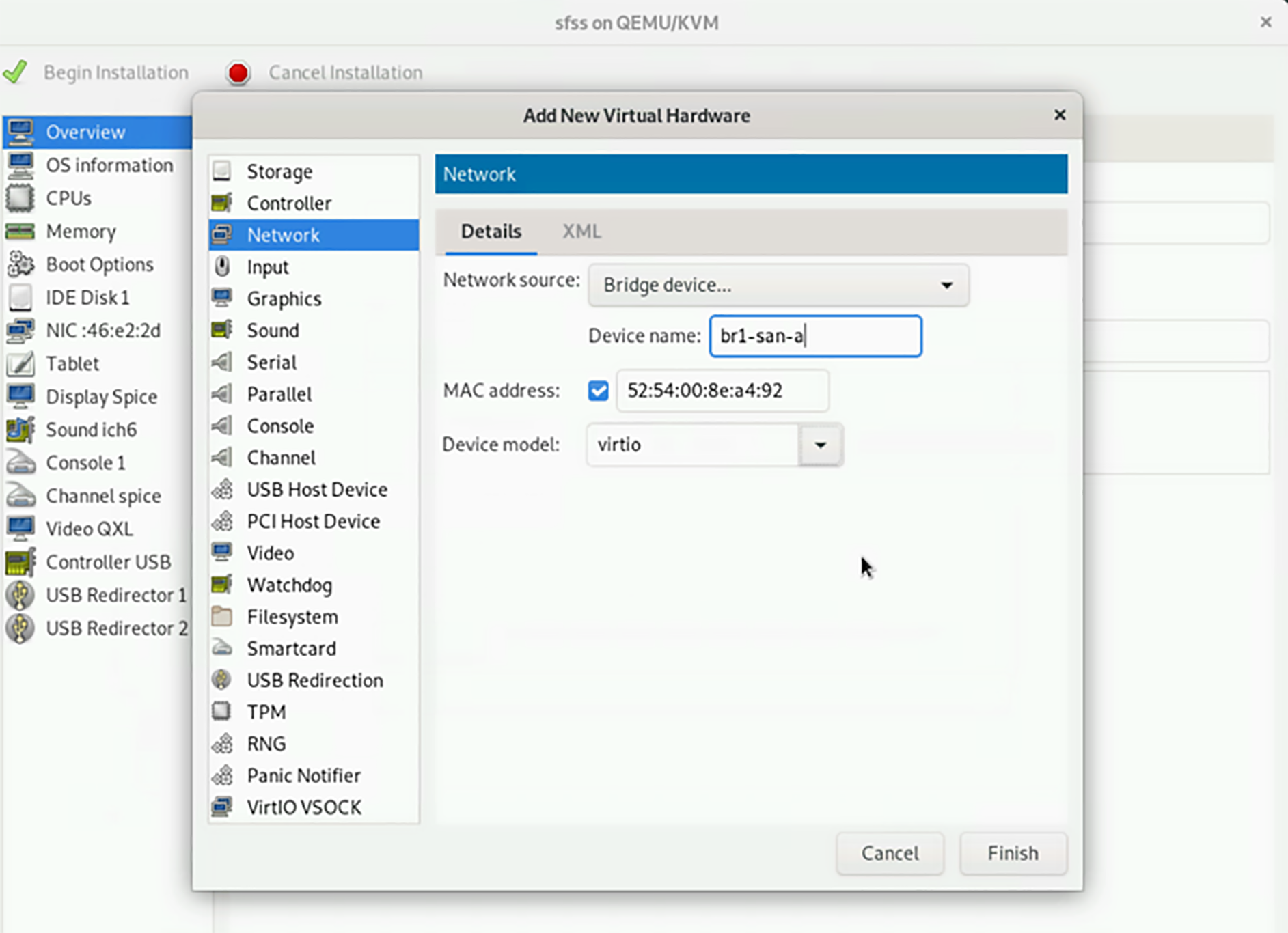
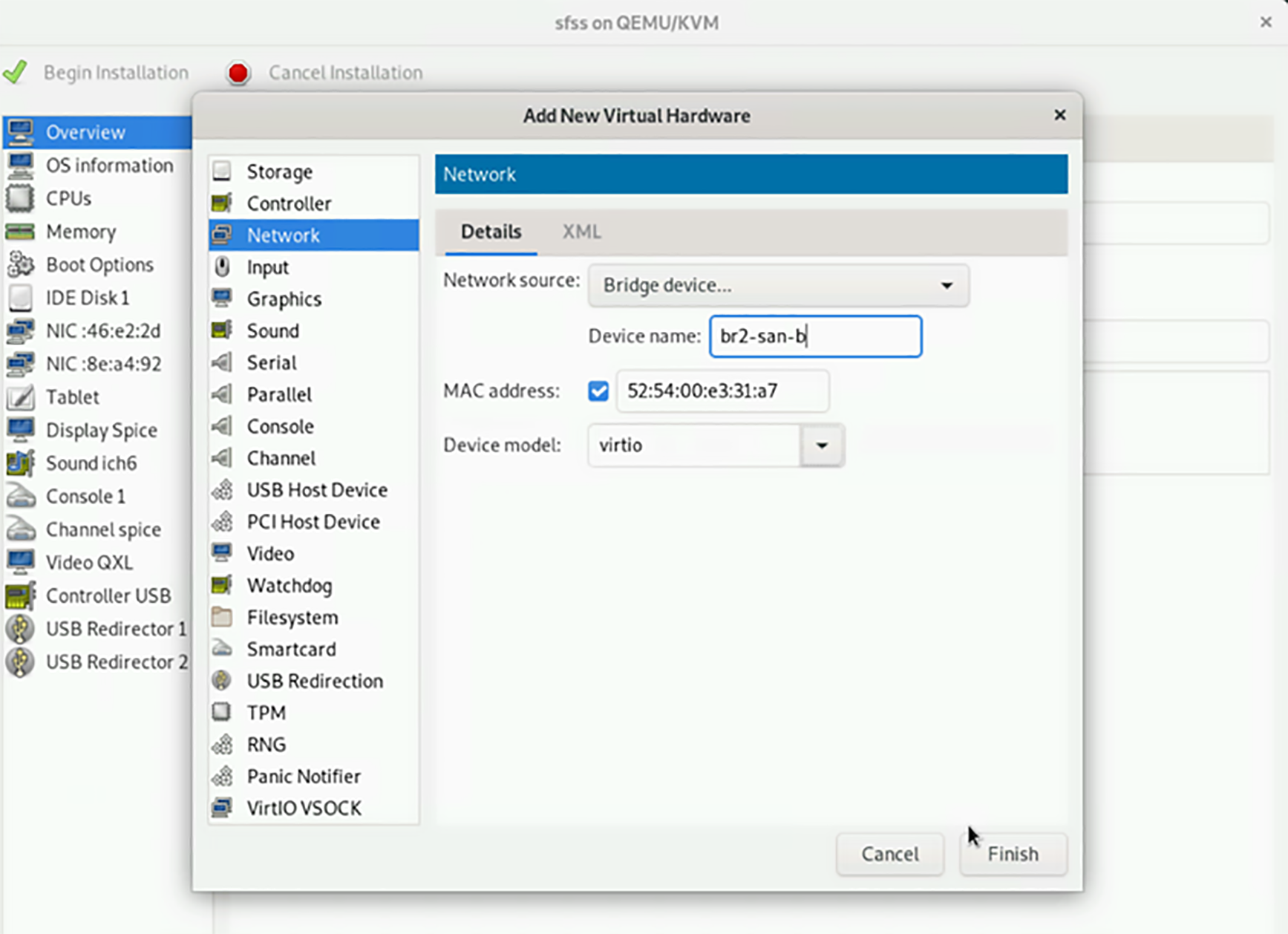
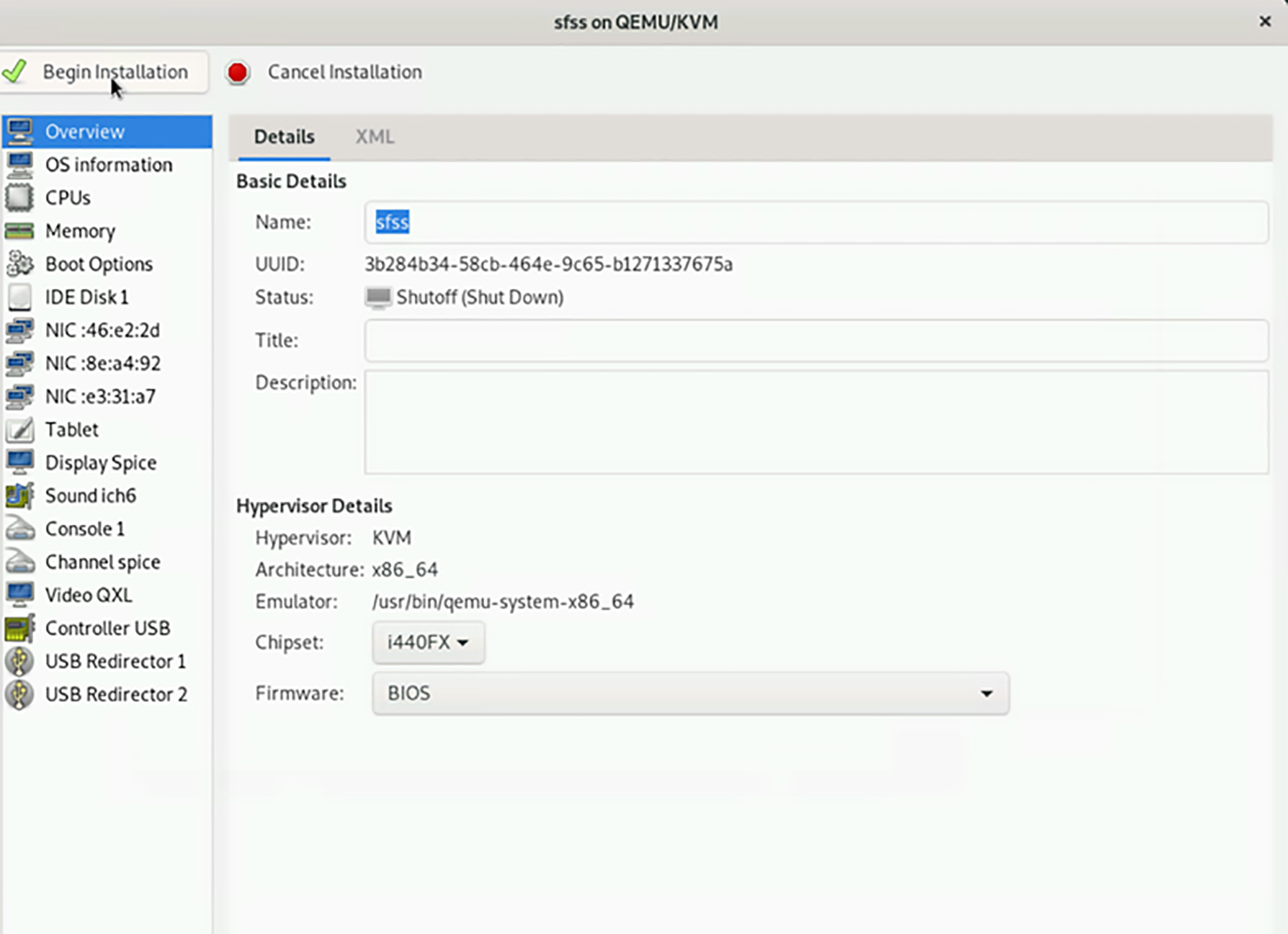
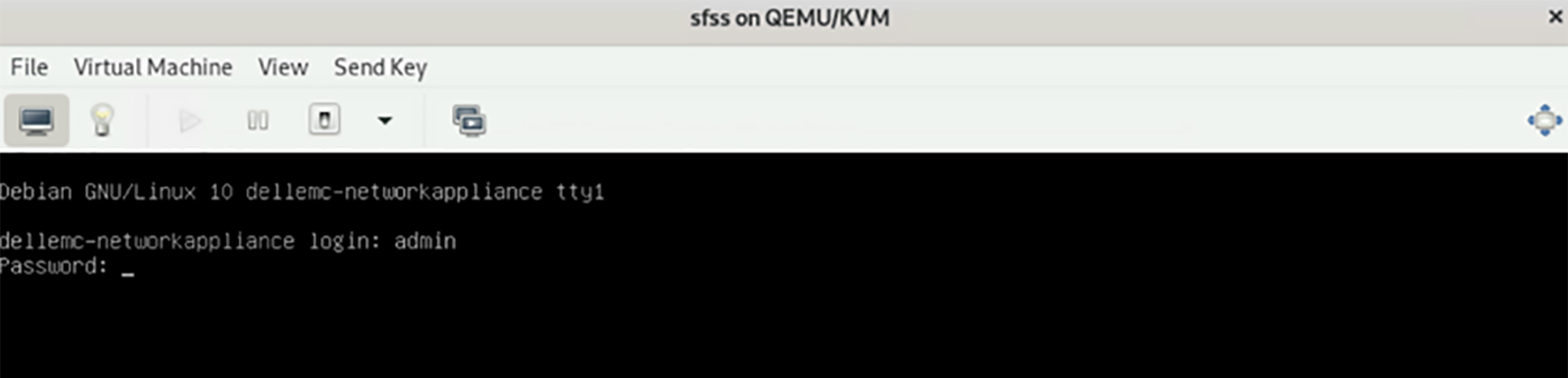


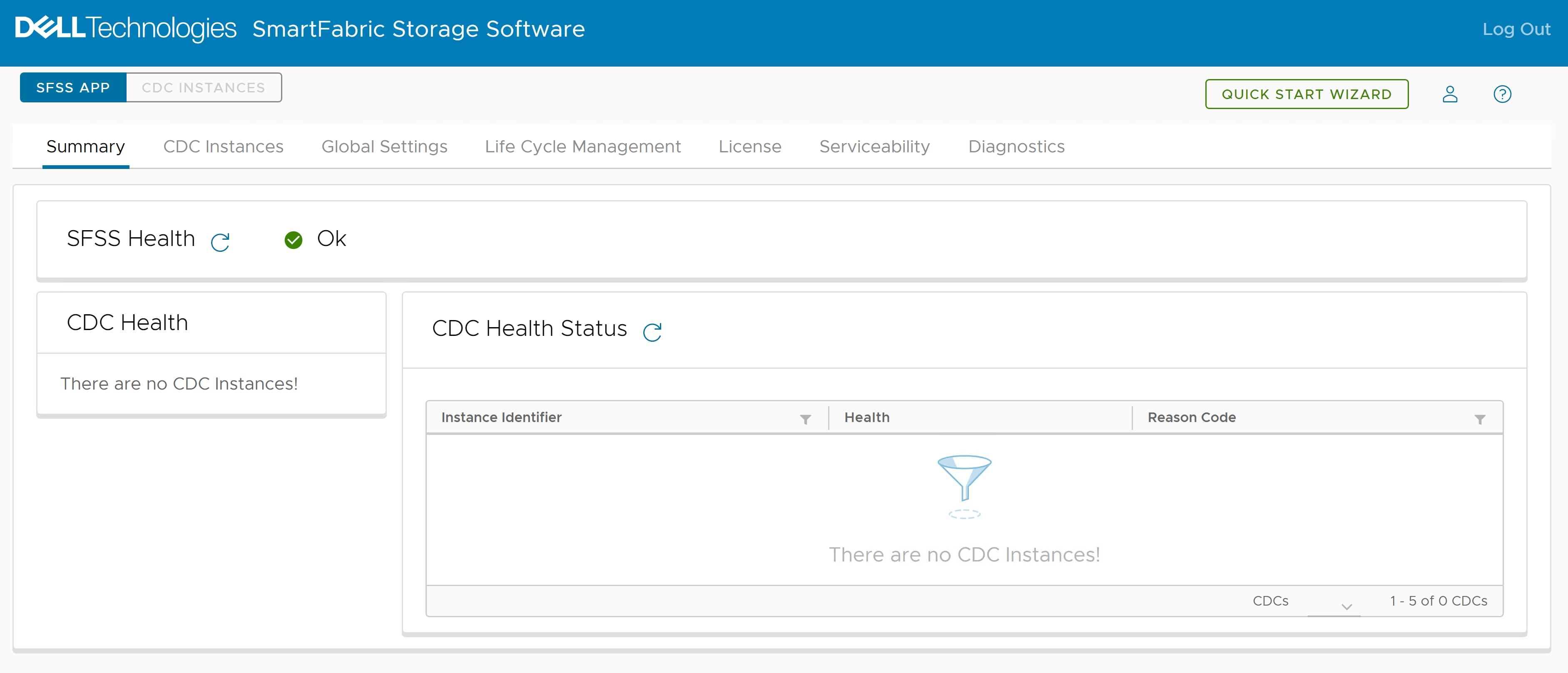
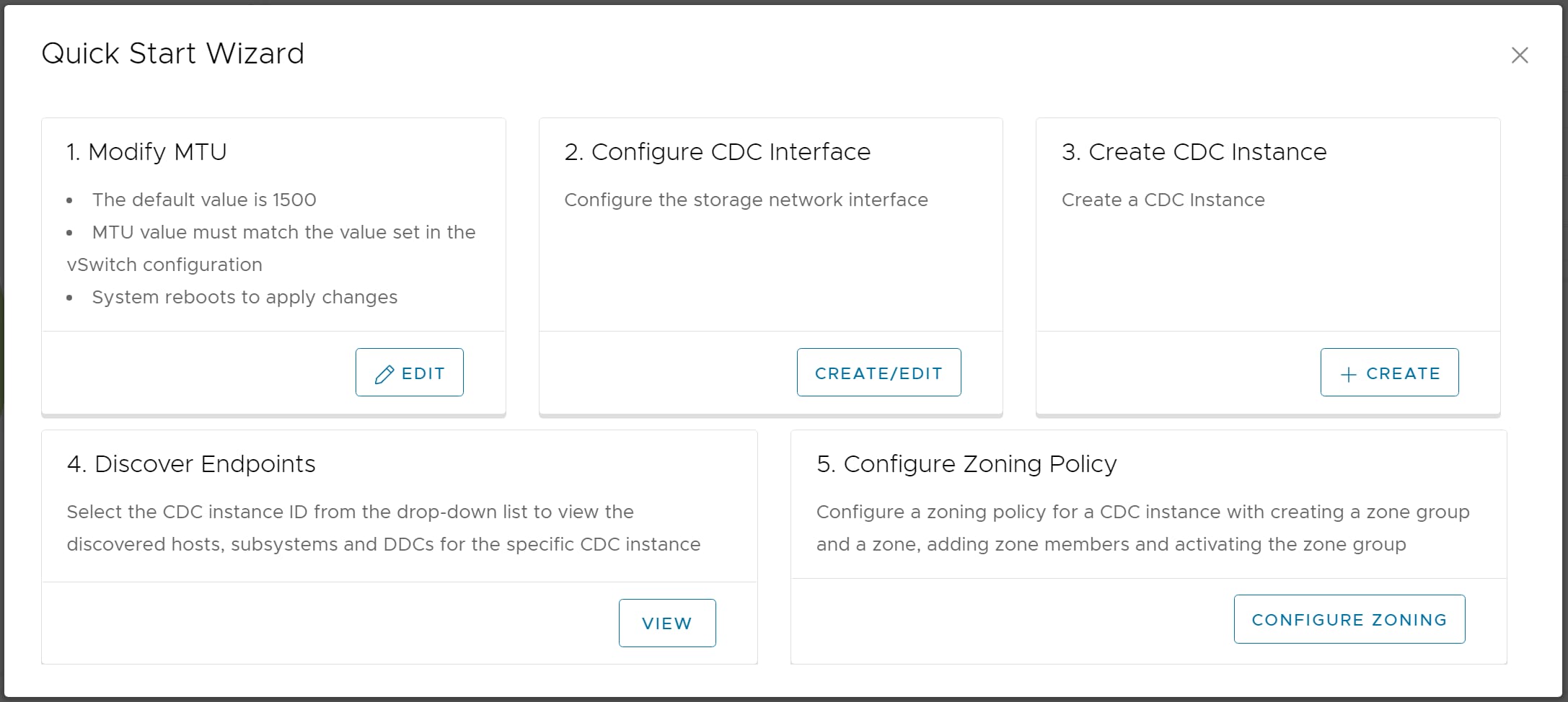
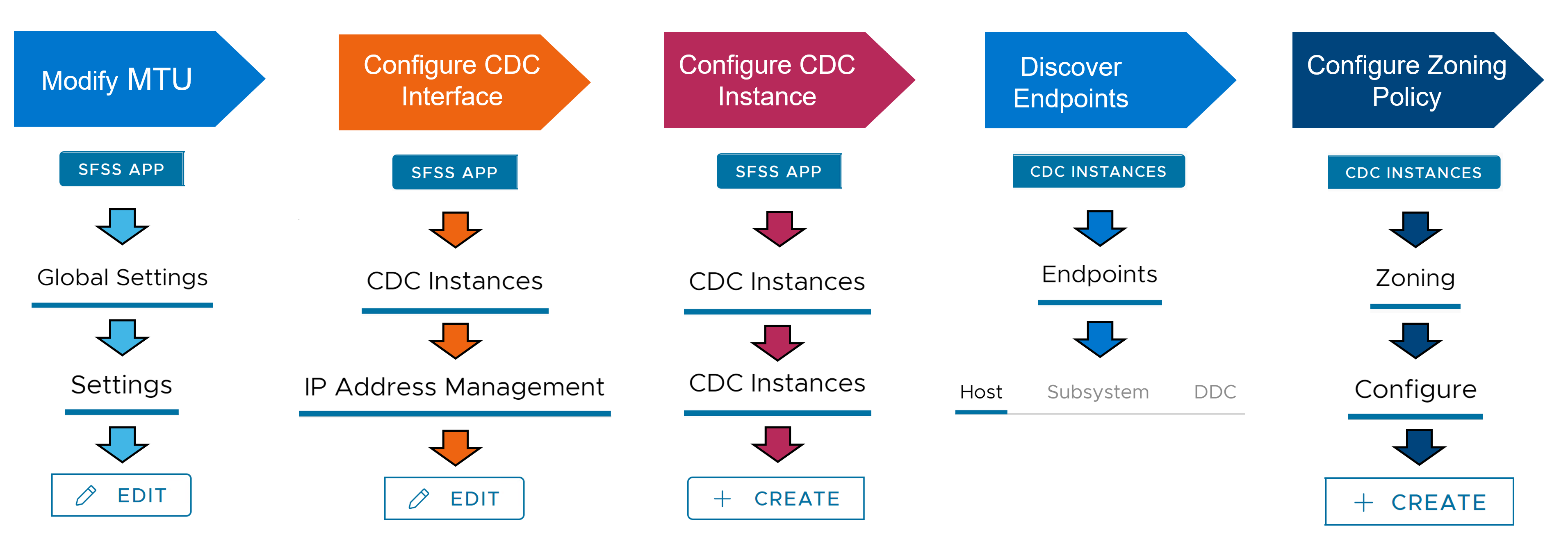

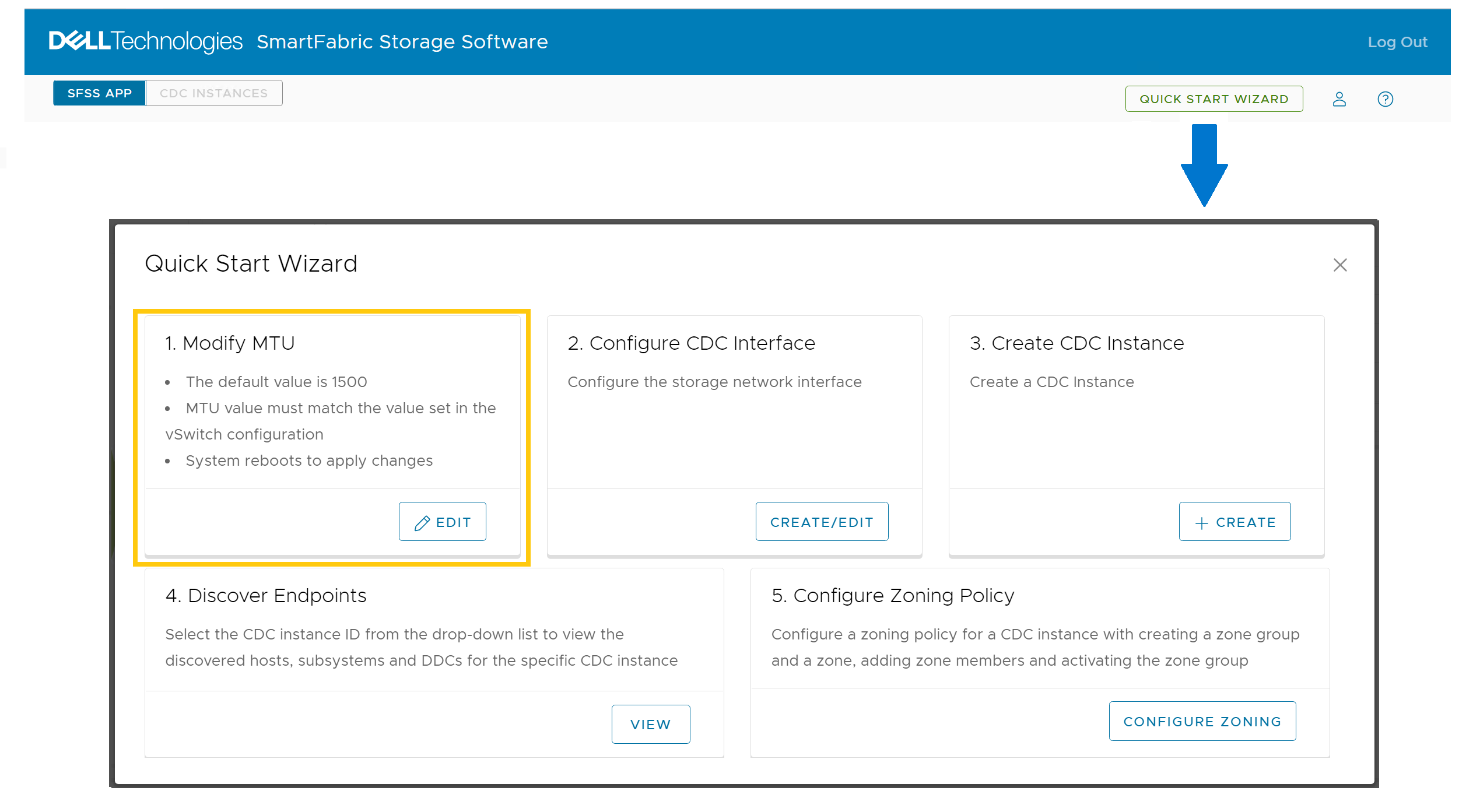
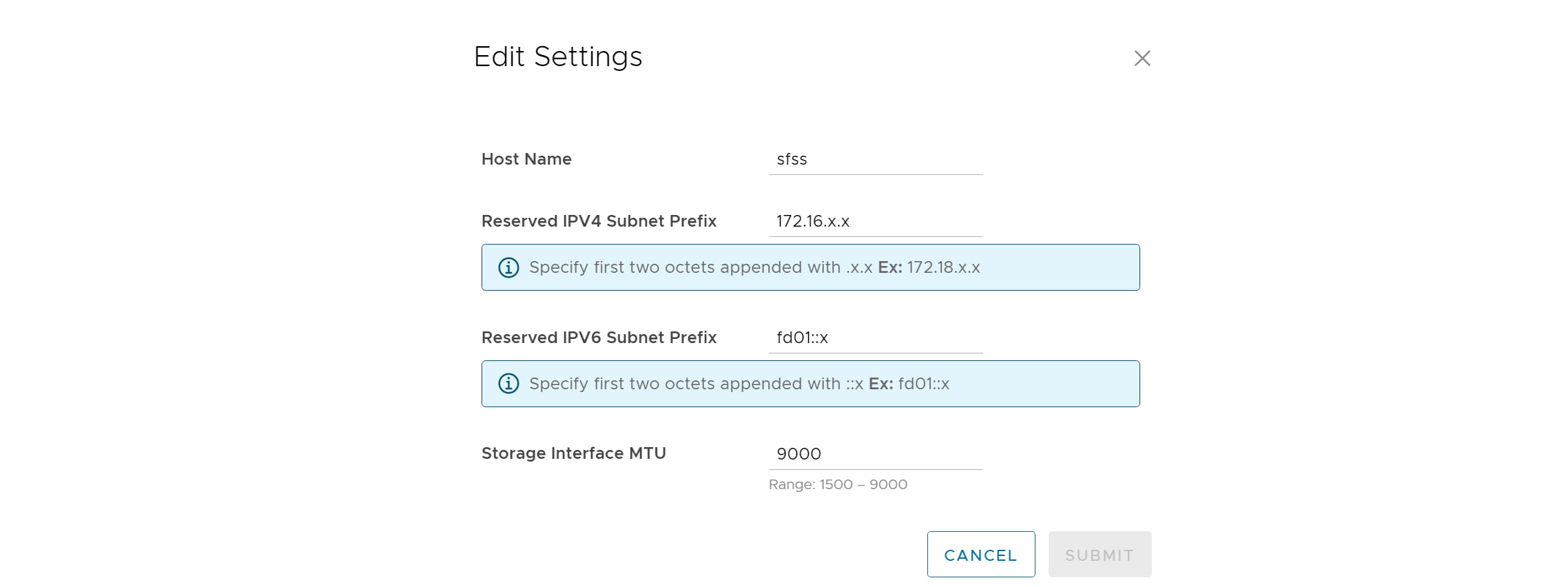 Note: MTU changes are only applied to storage interfaces after they have been applied to a CDC.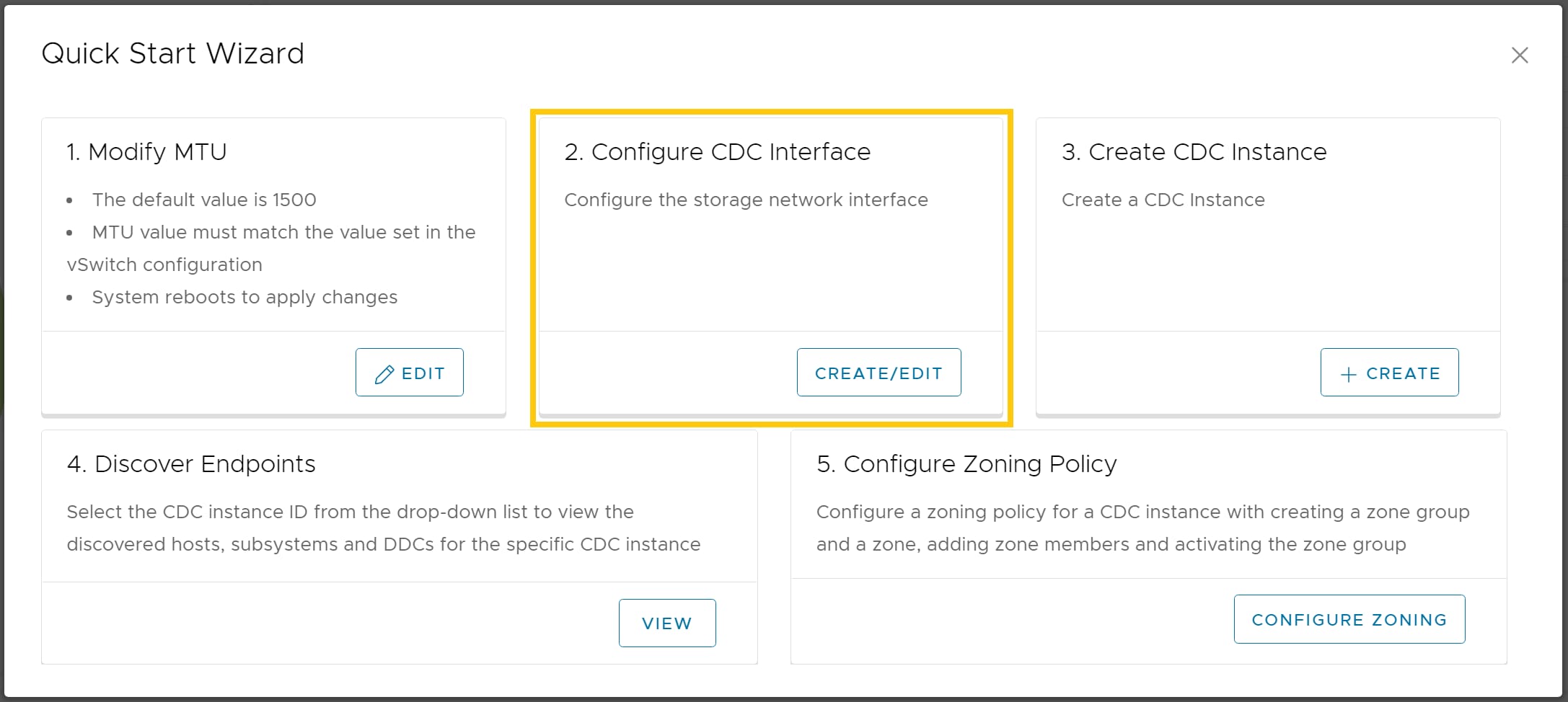
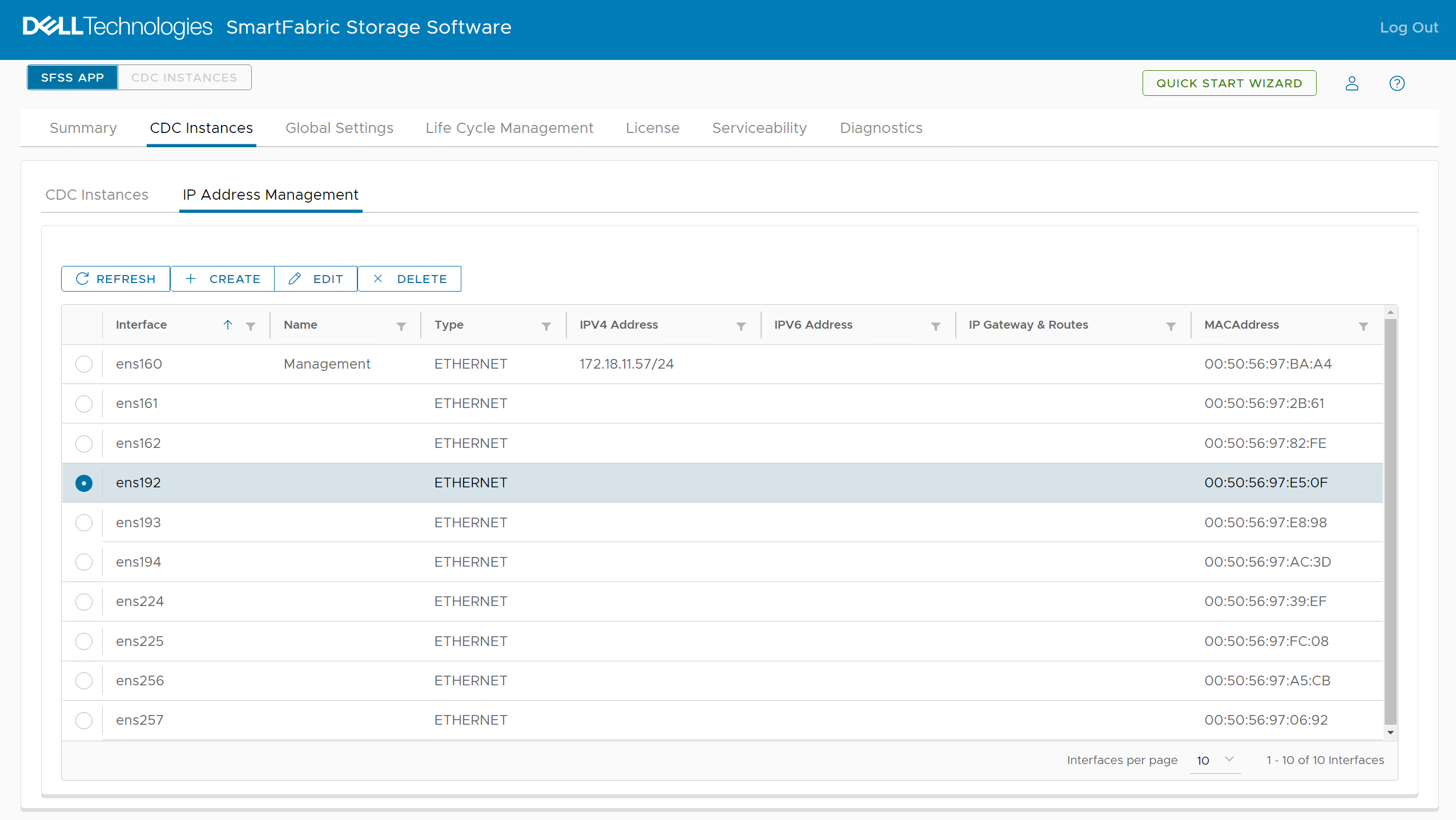
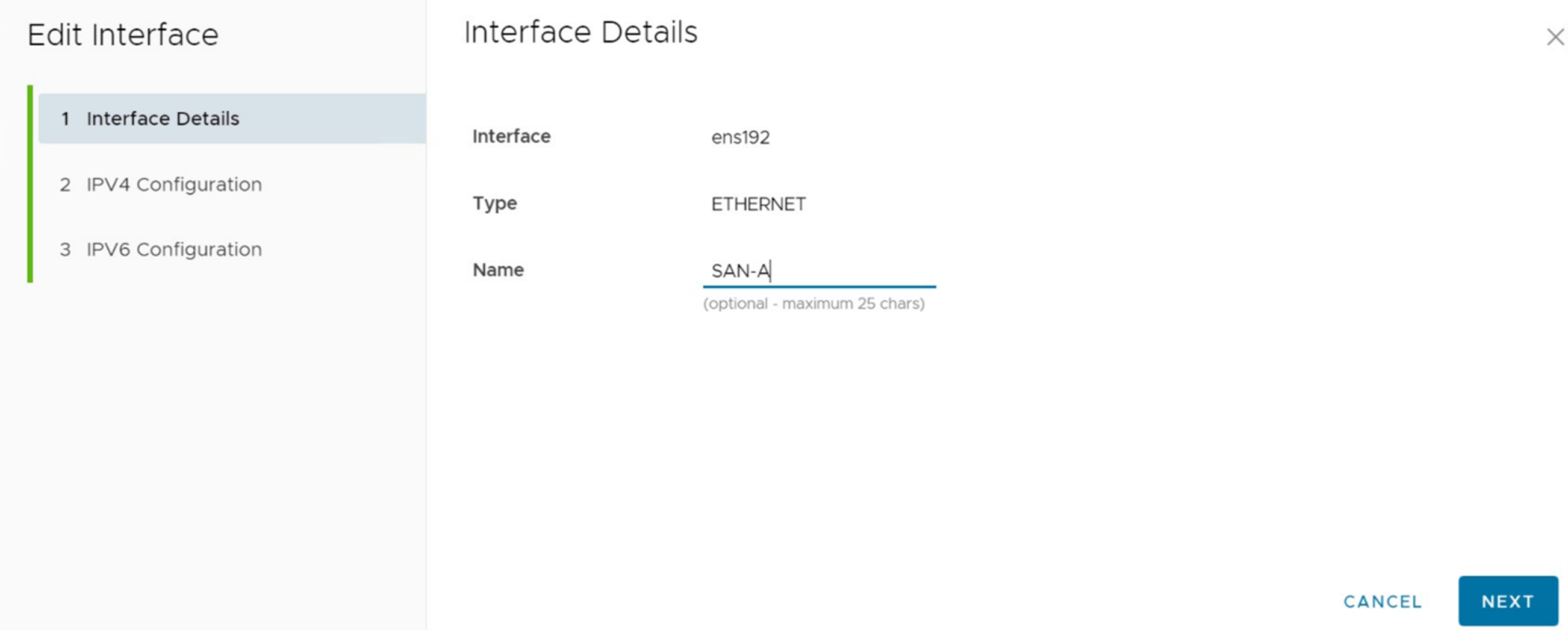
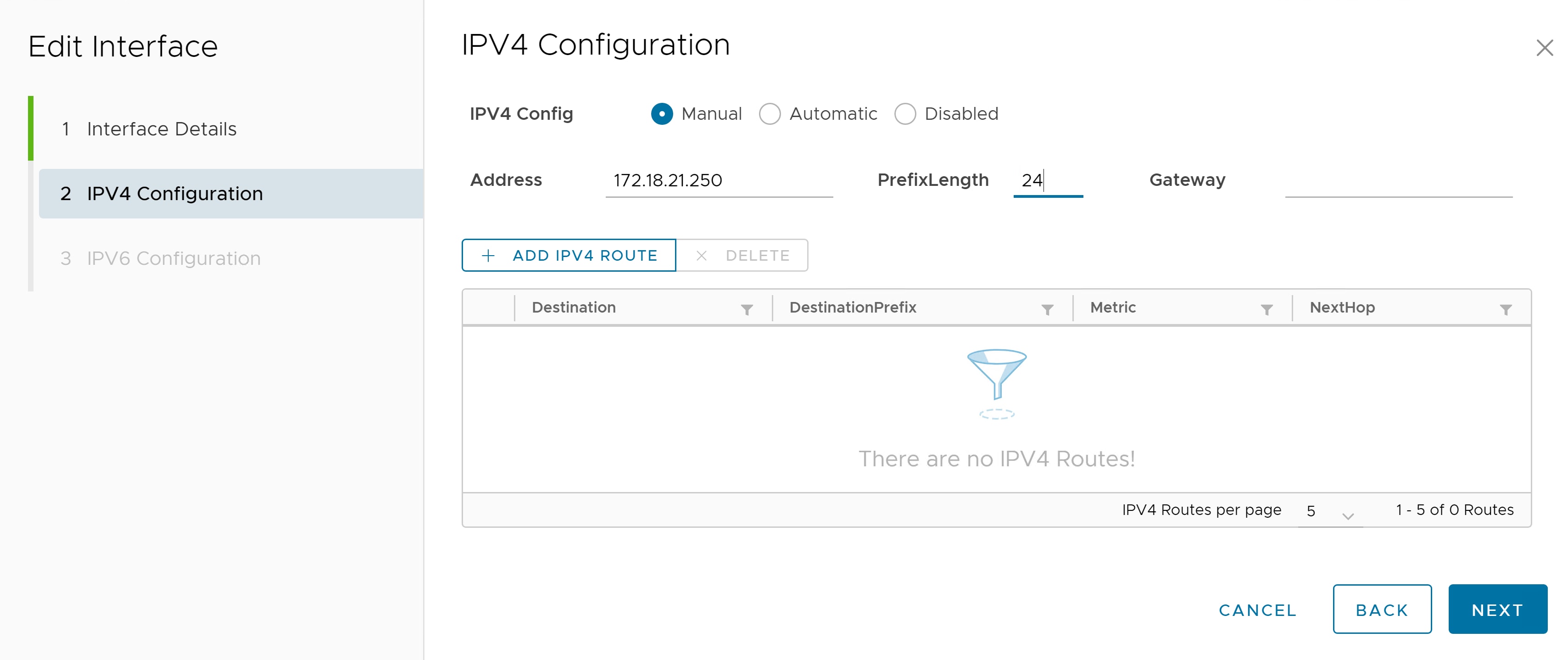
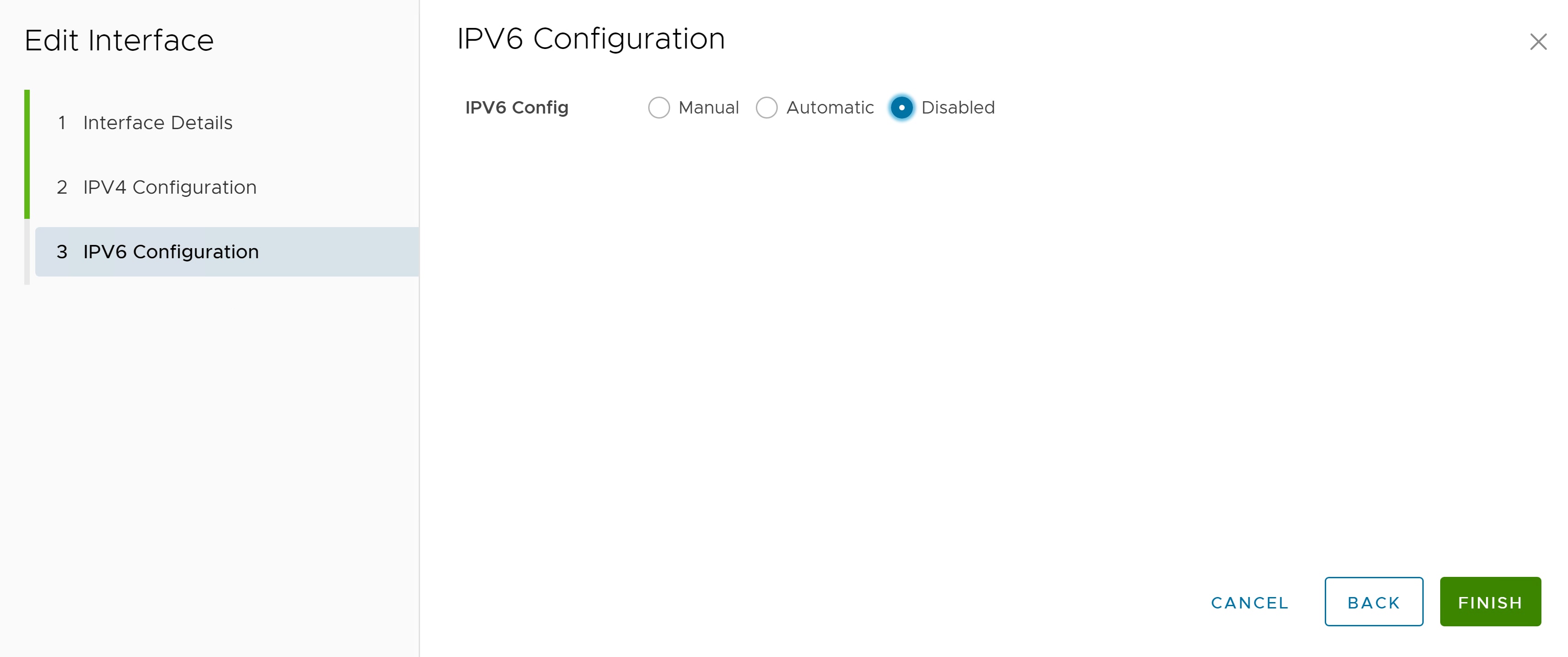
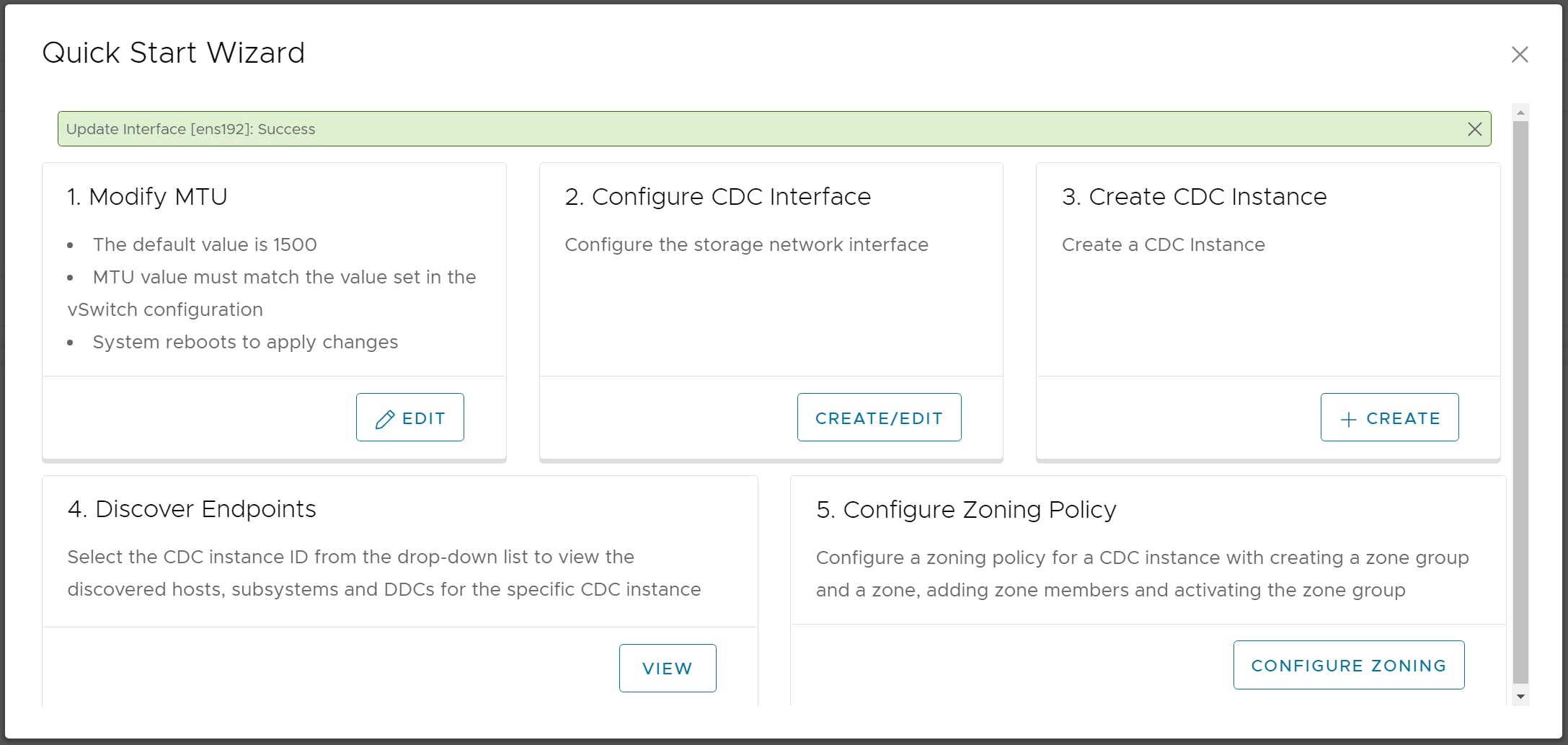
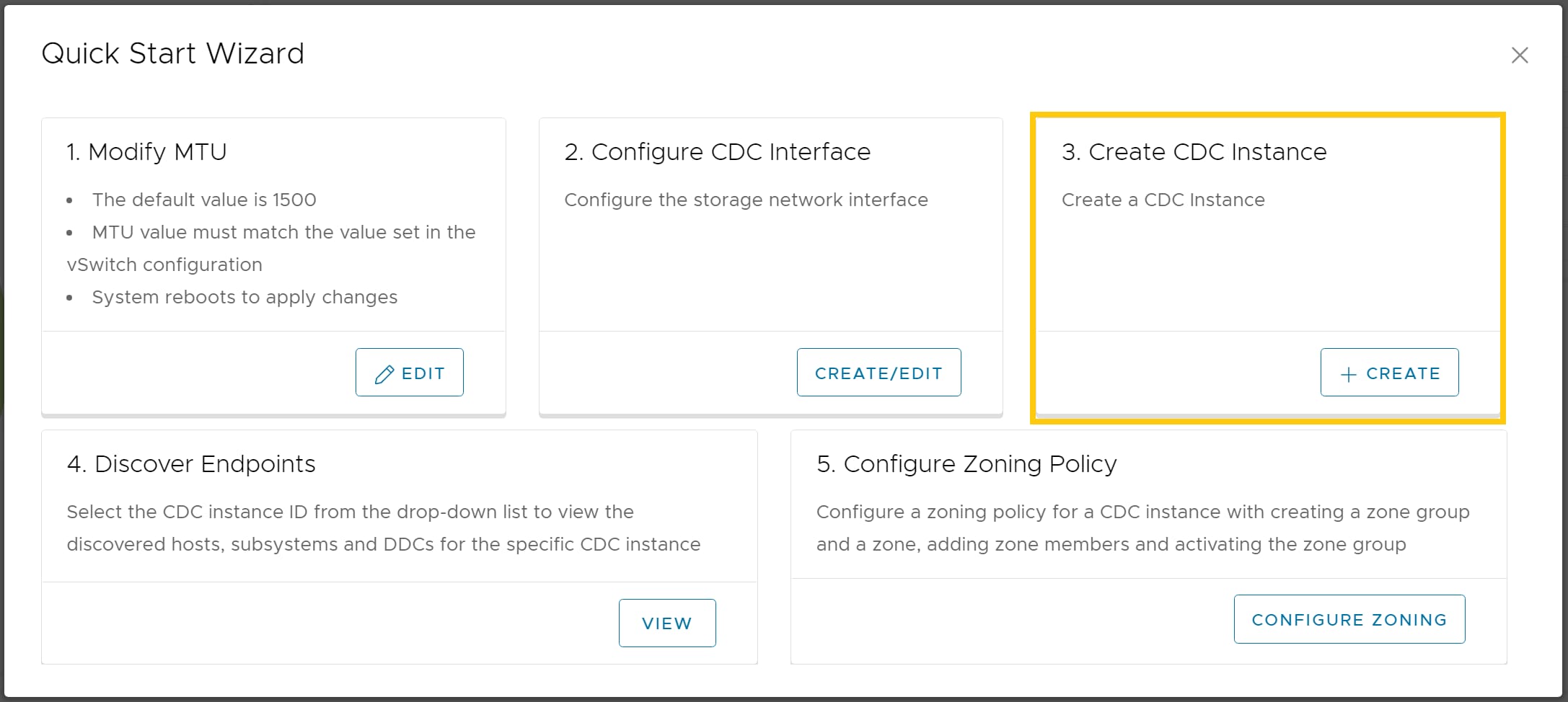
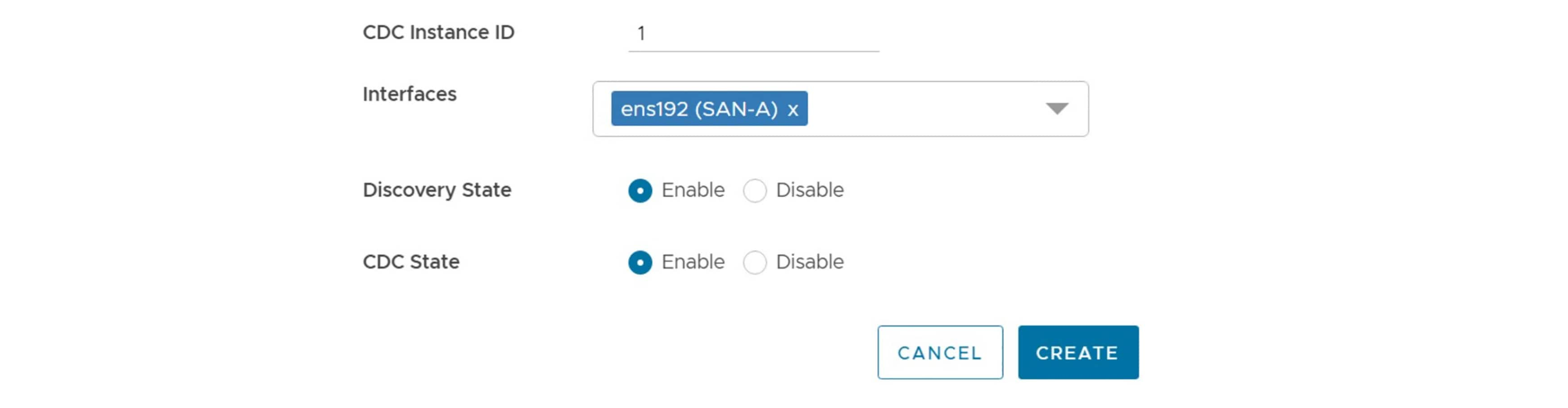
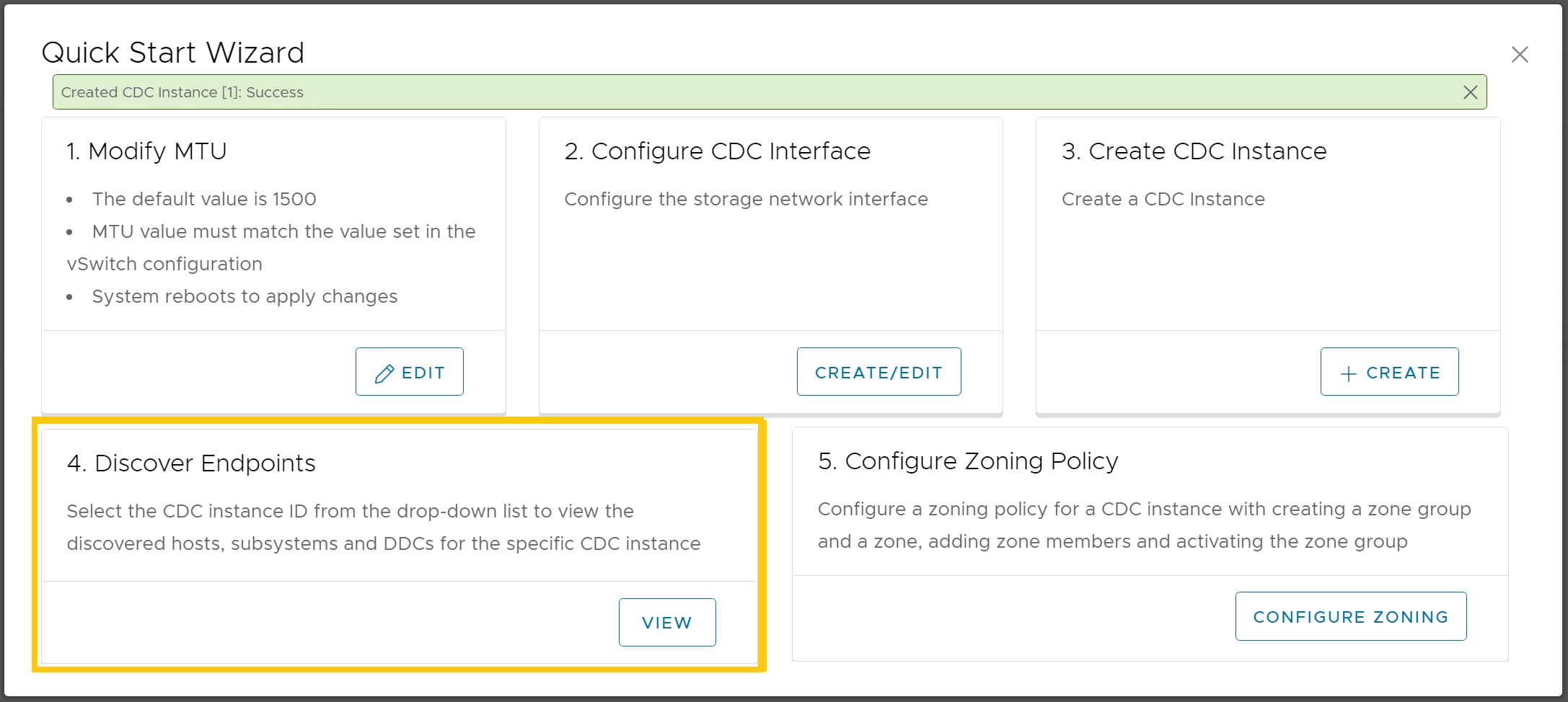
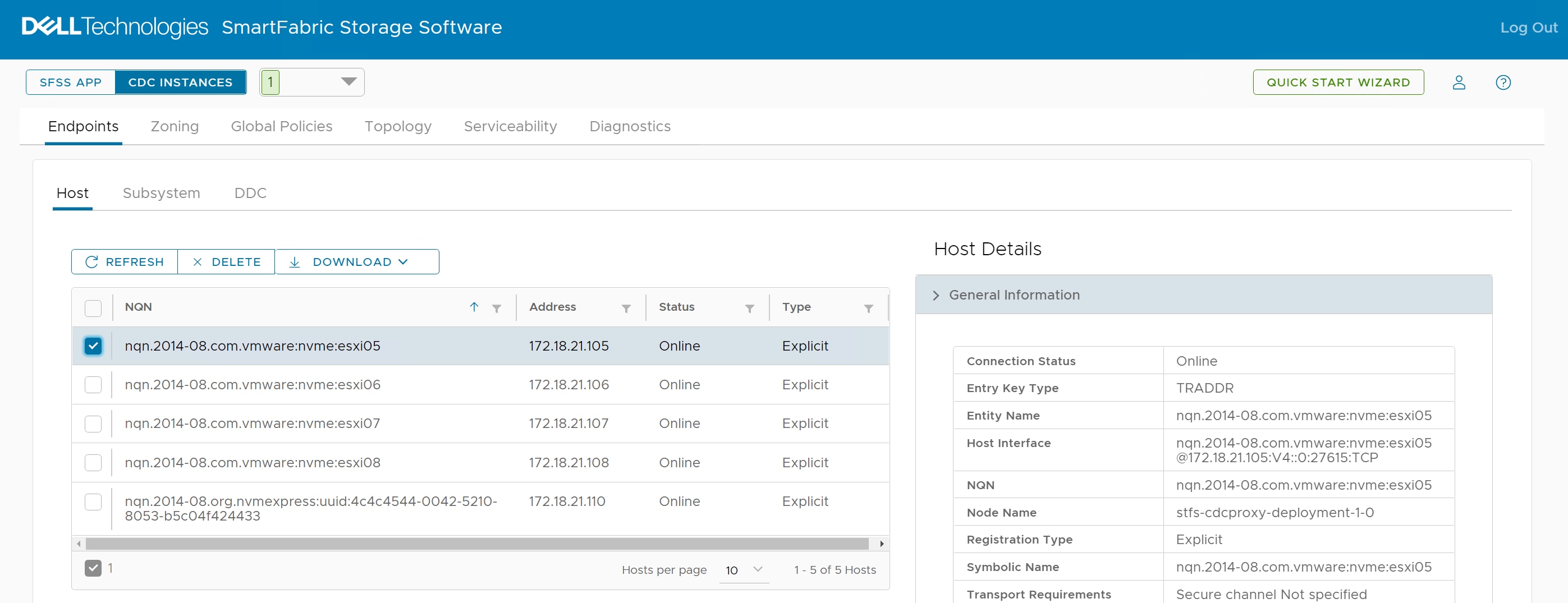
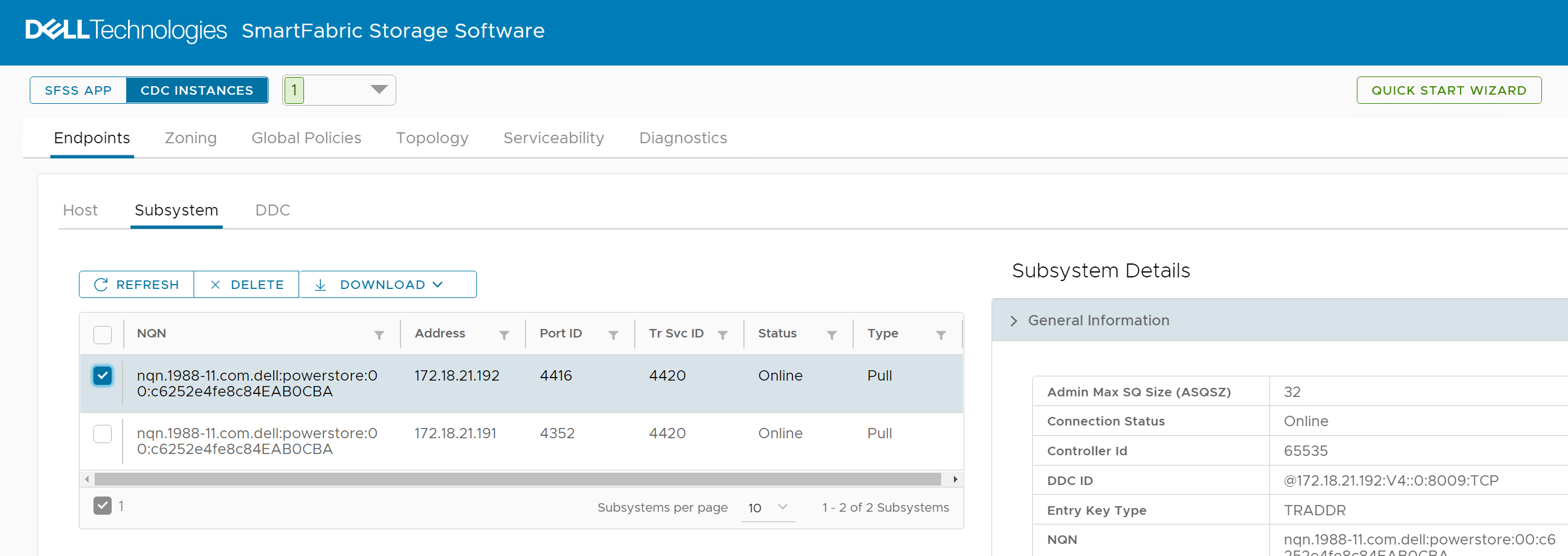
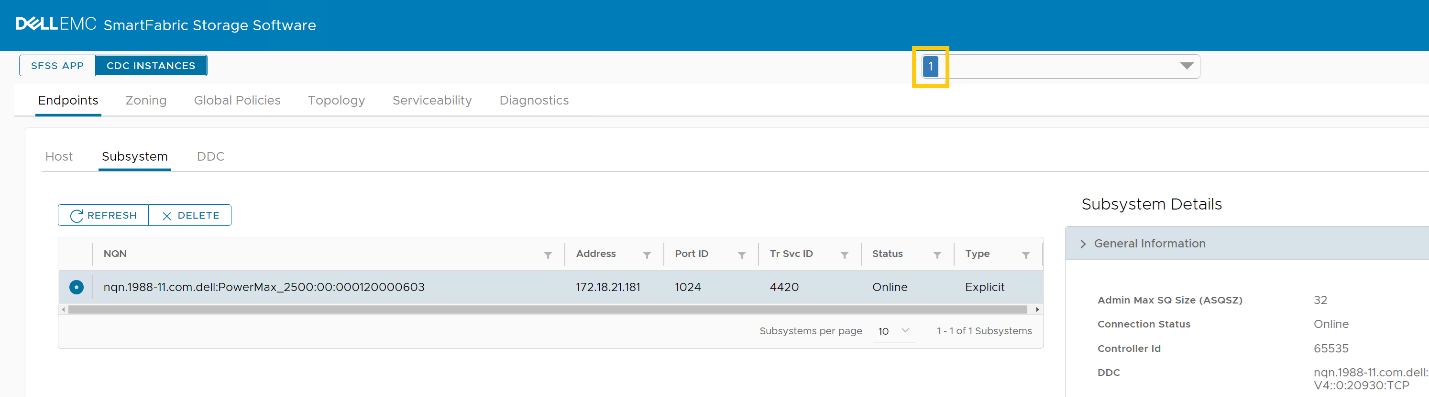
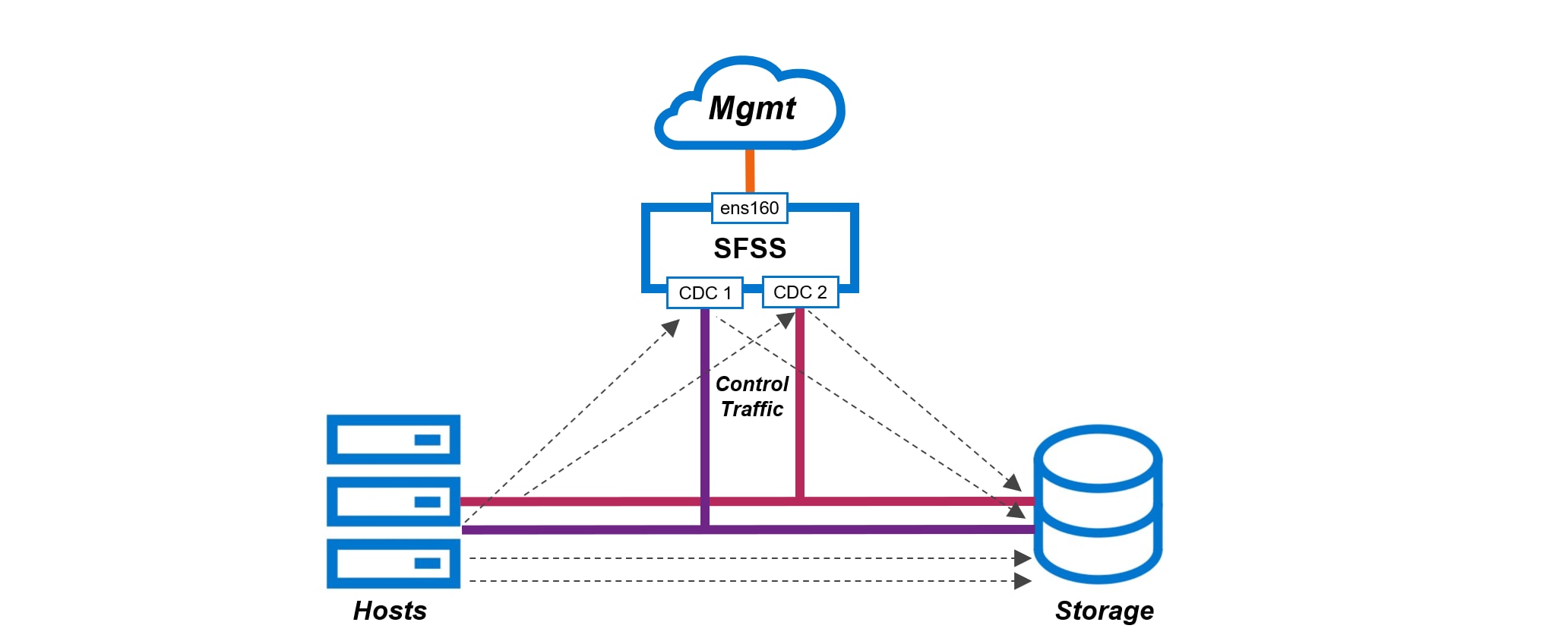
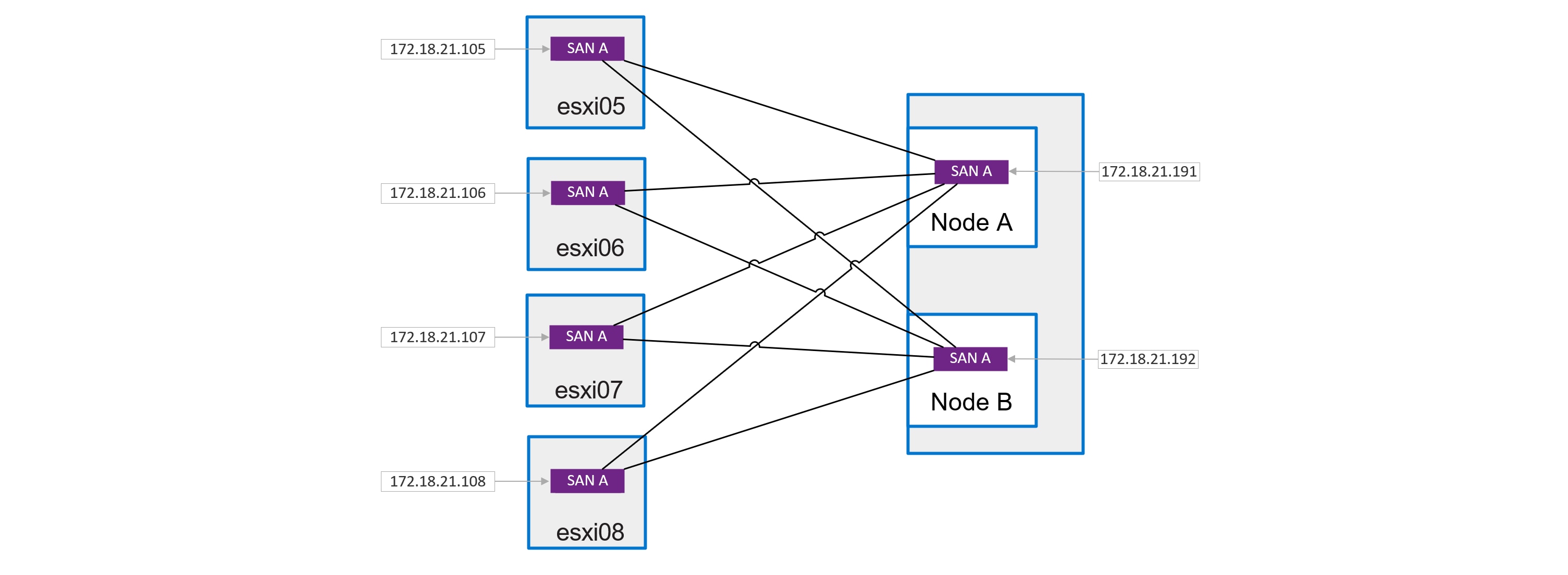

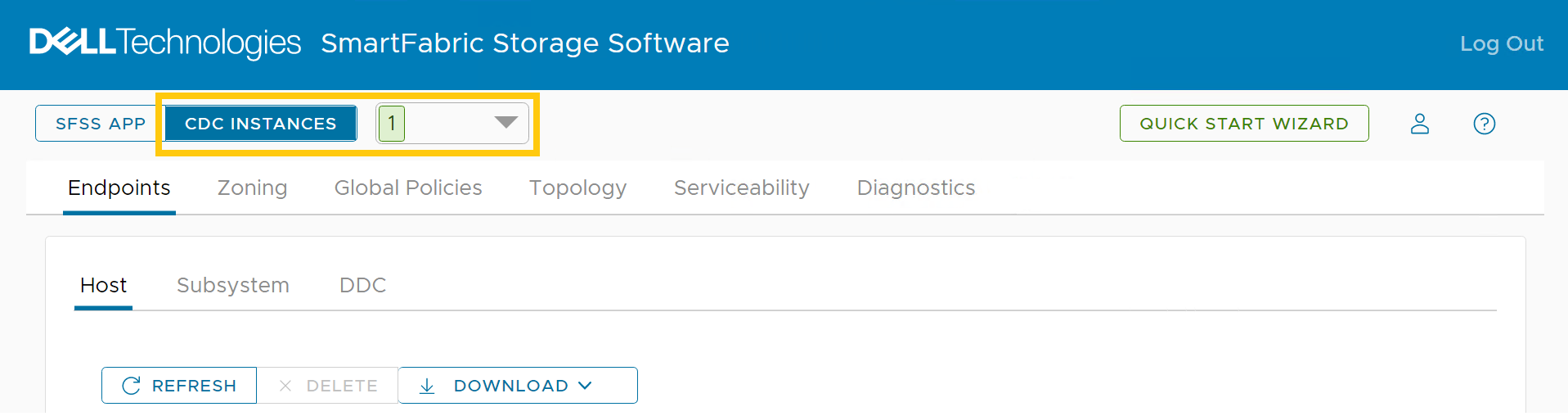
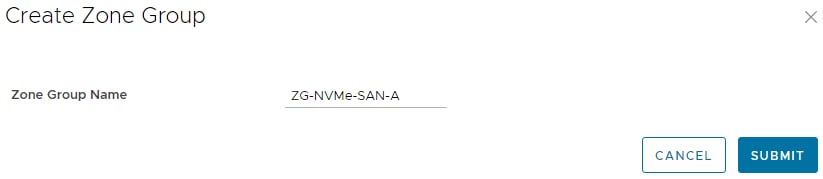
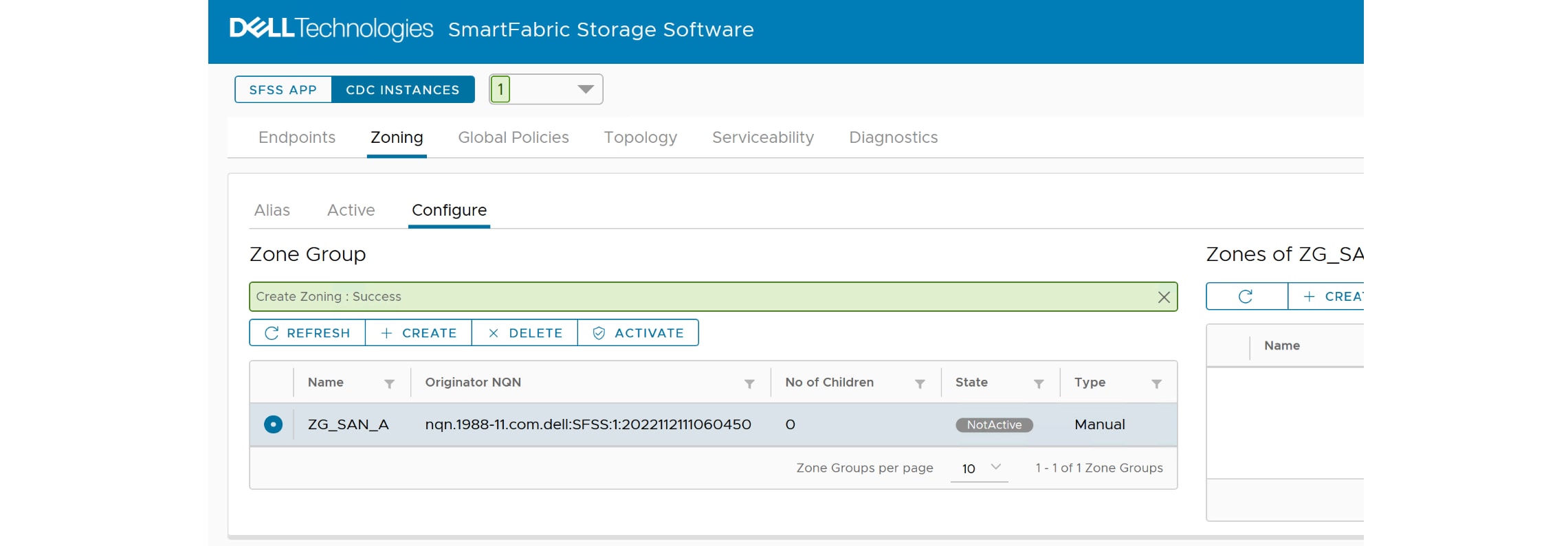

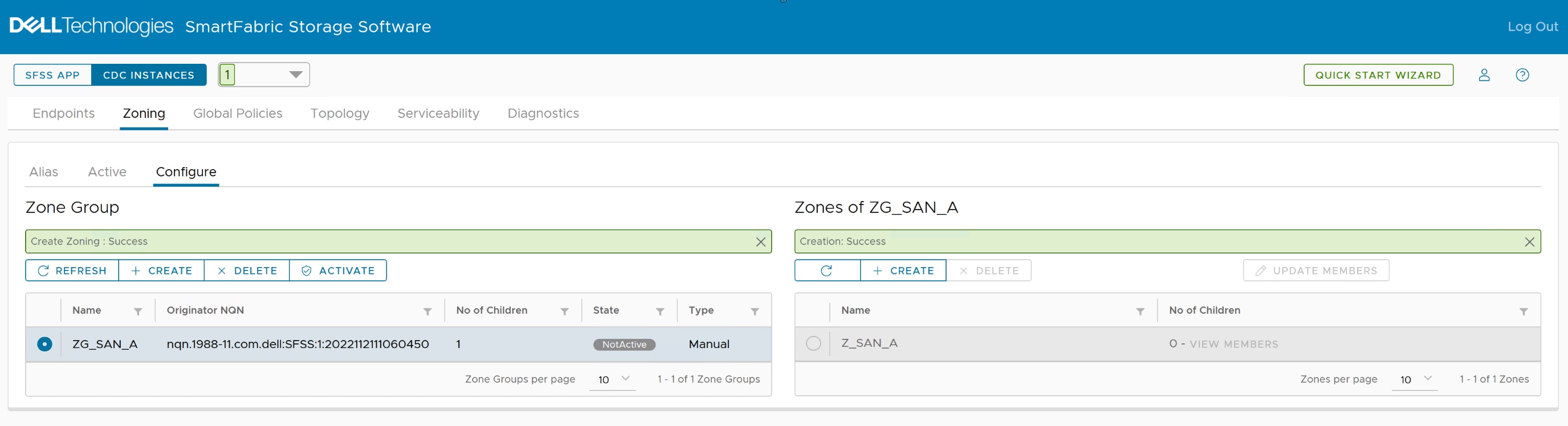

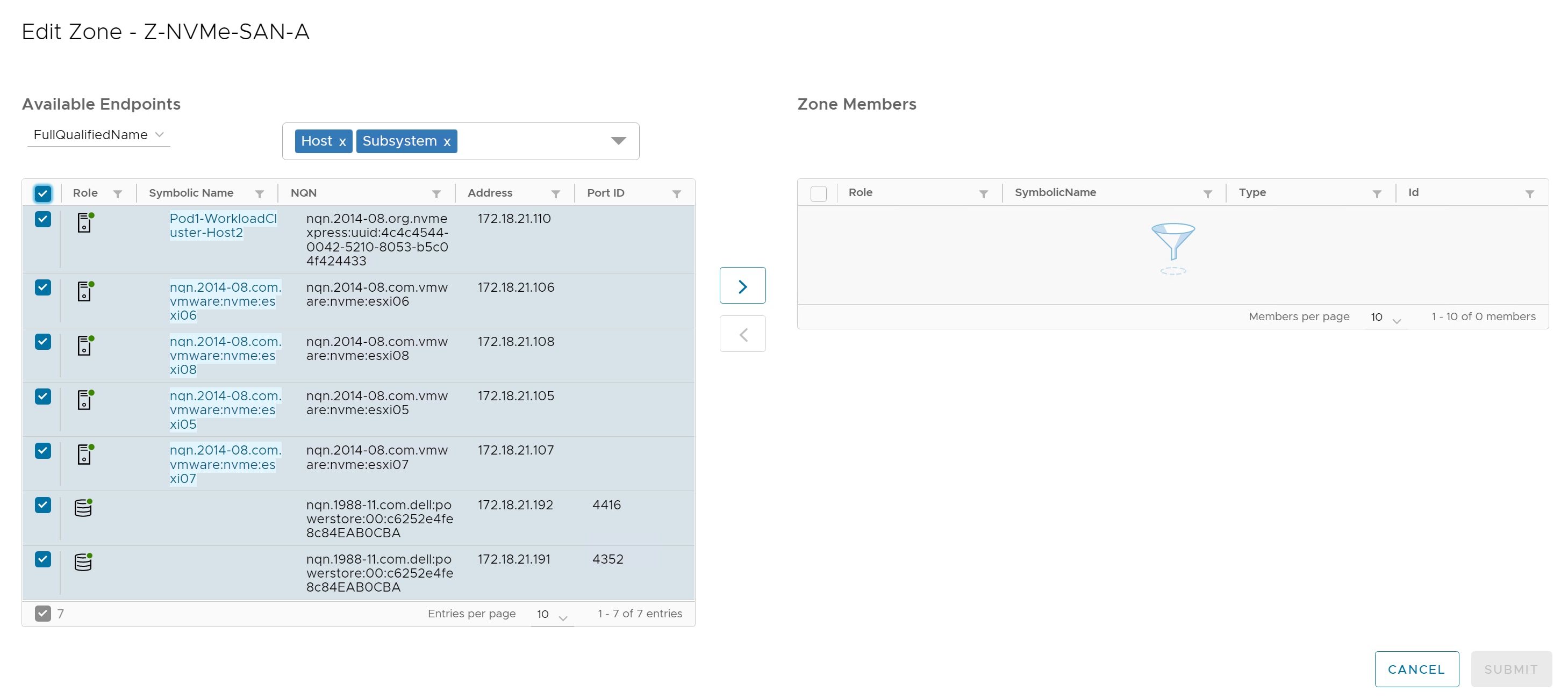
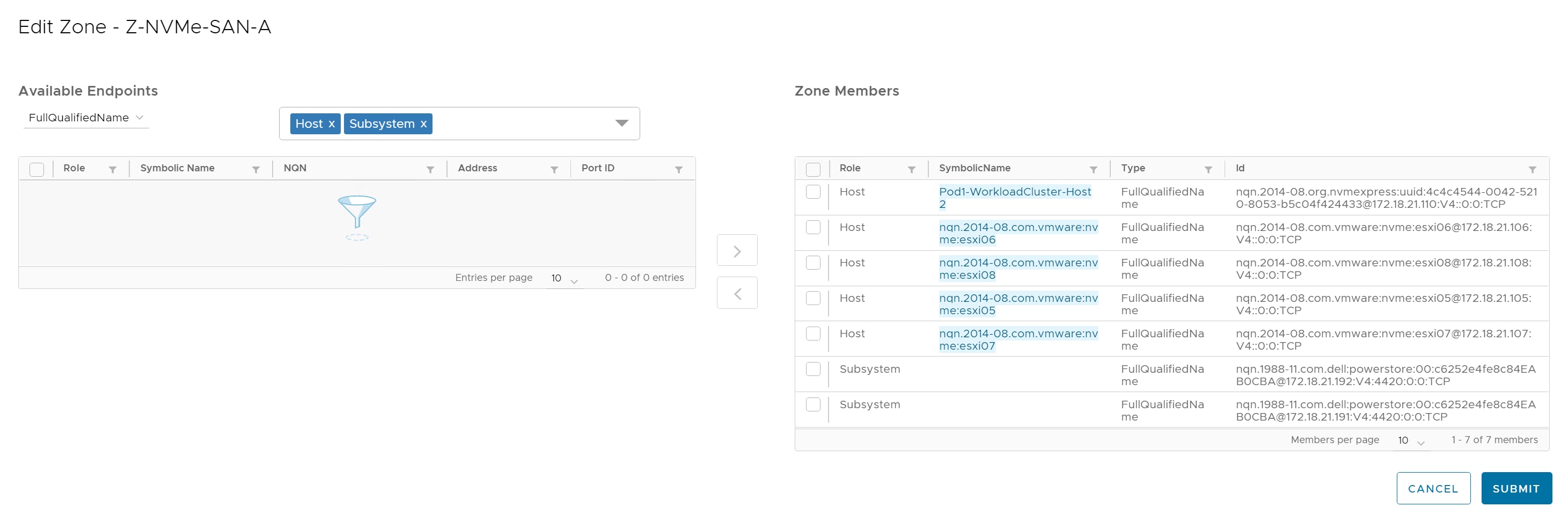
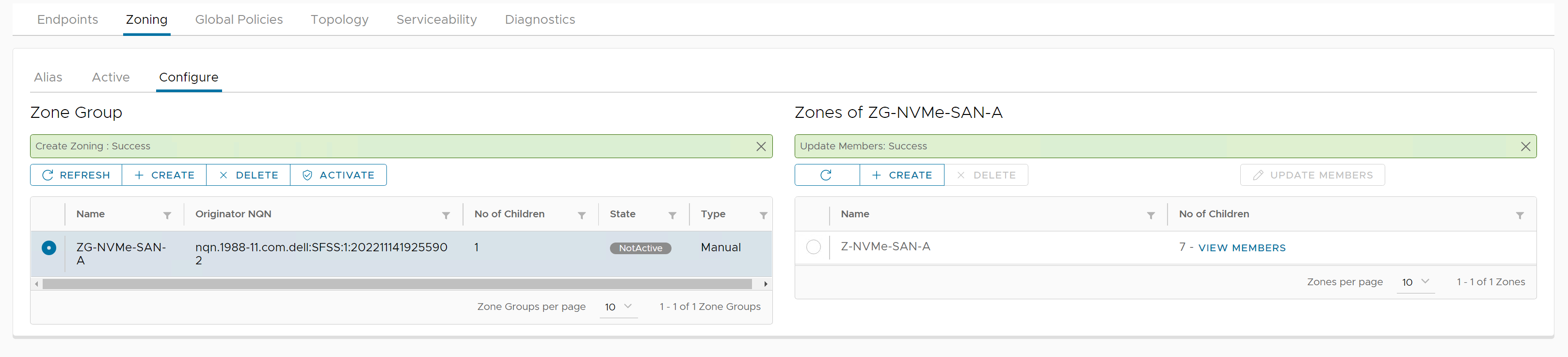
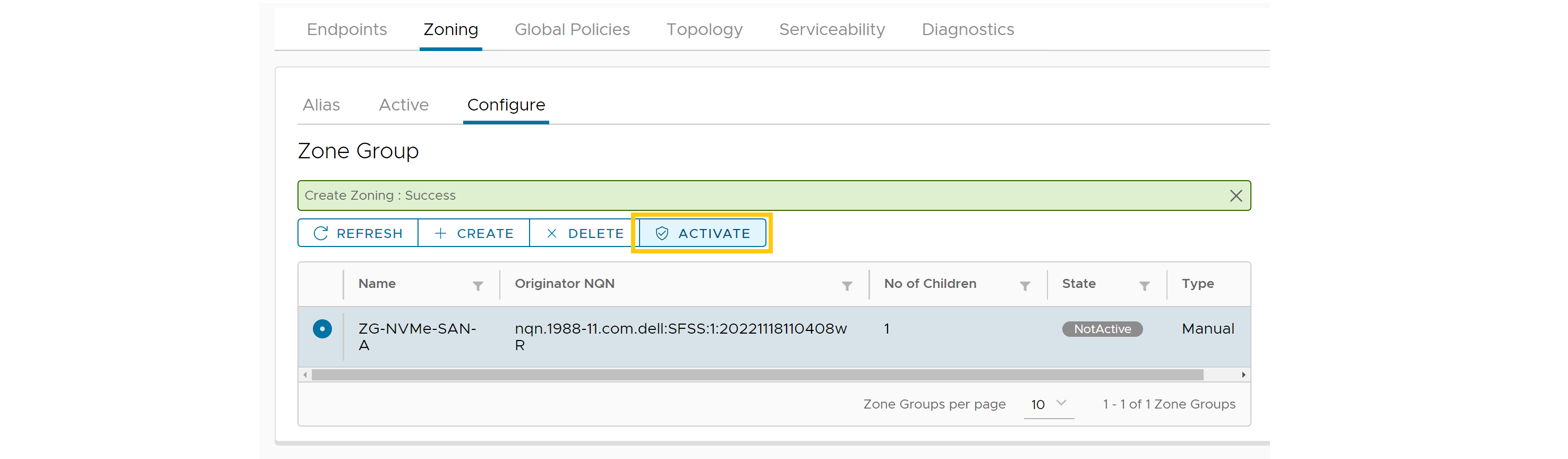

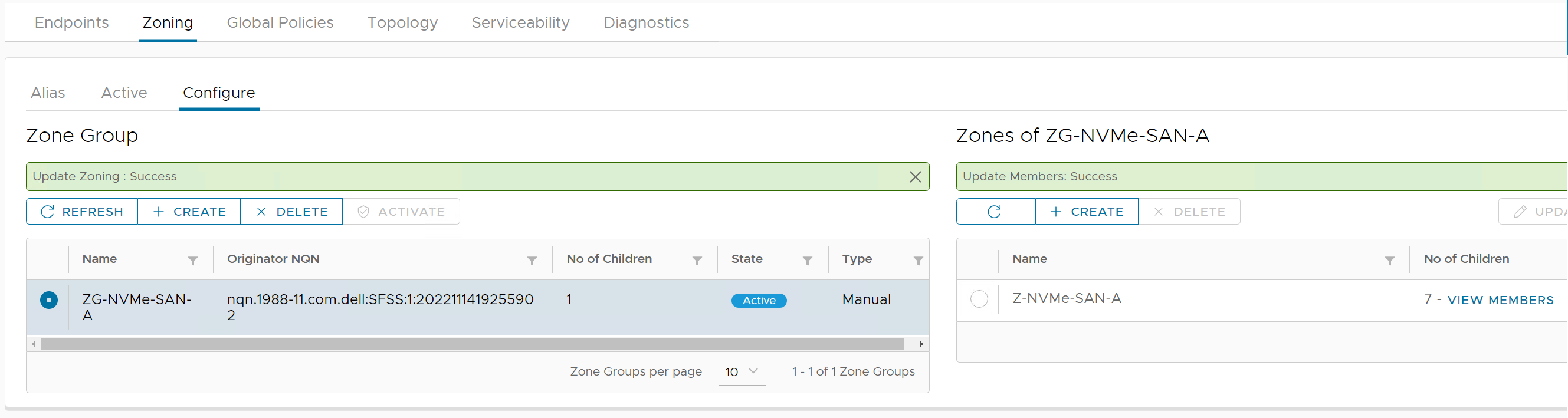
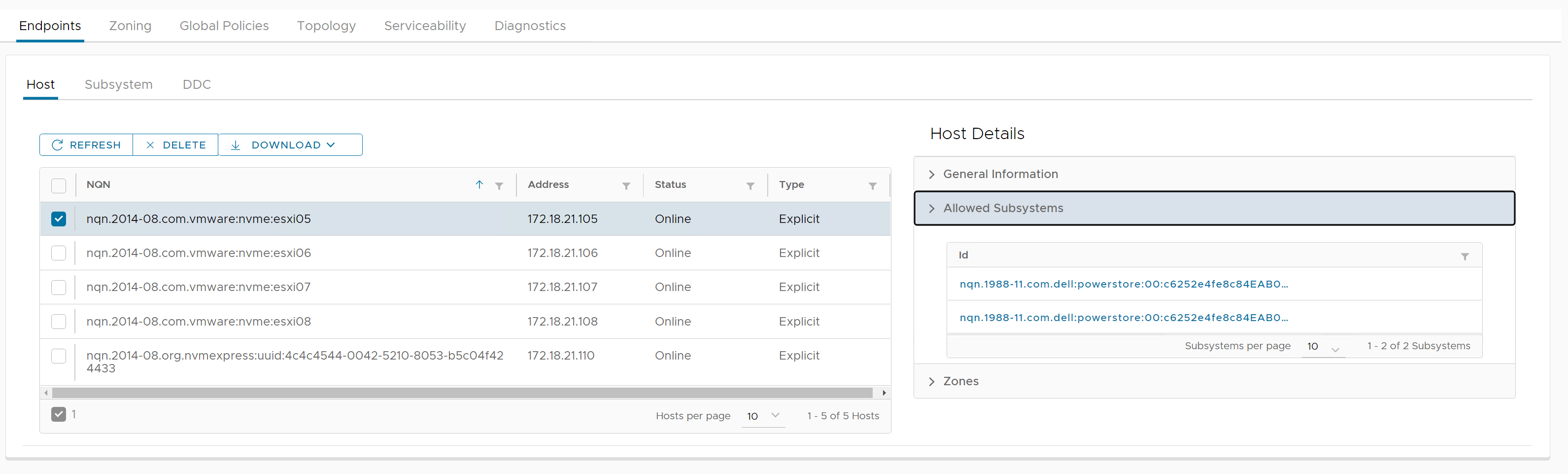
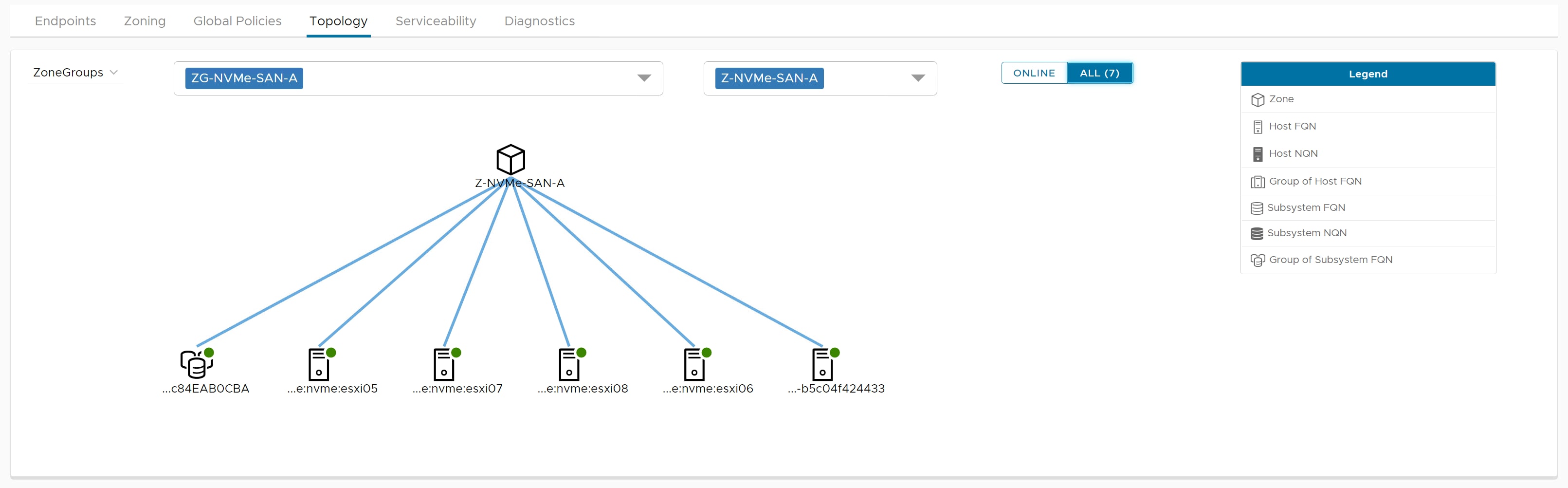
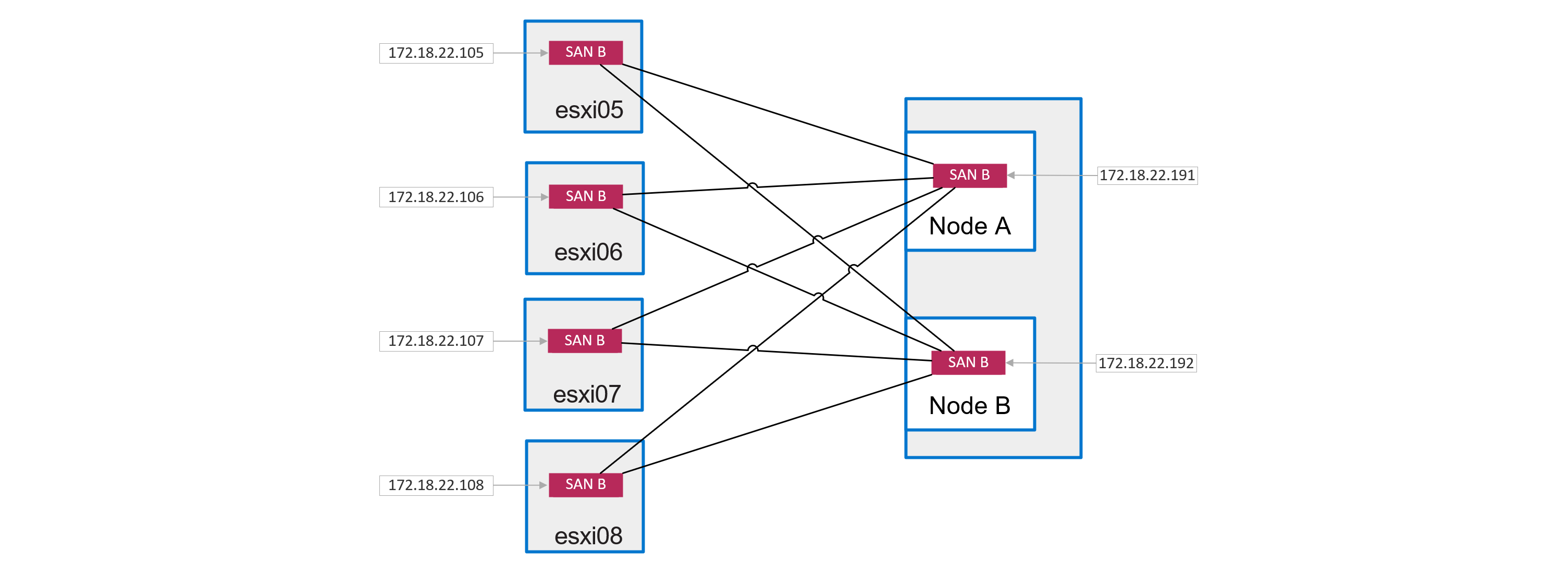
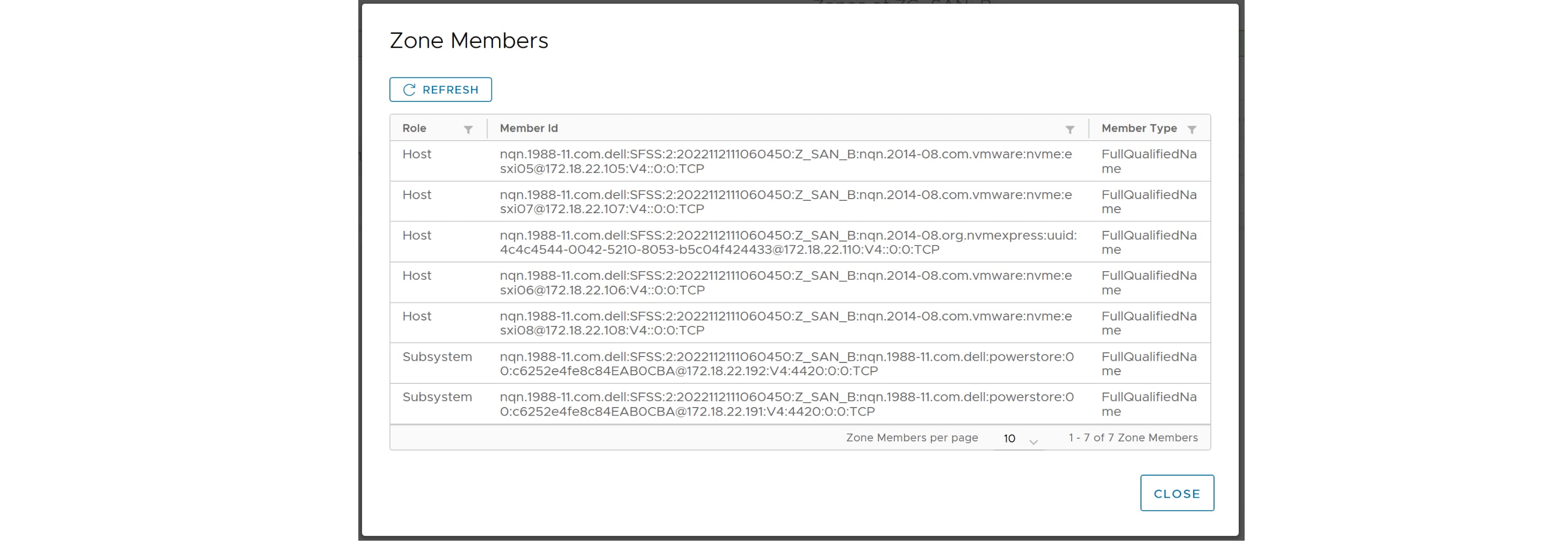


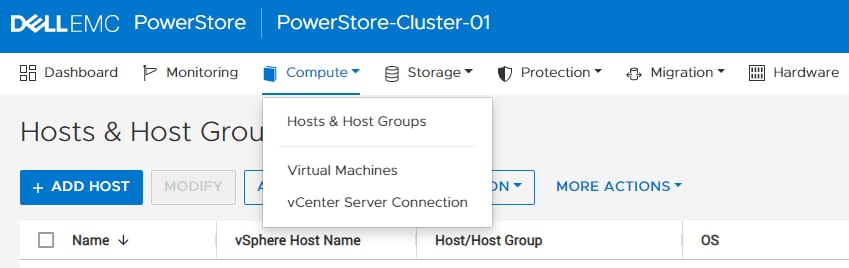

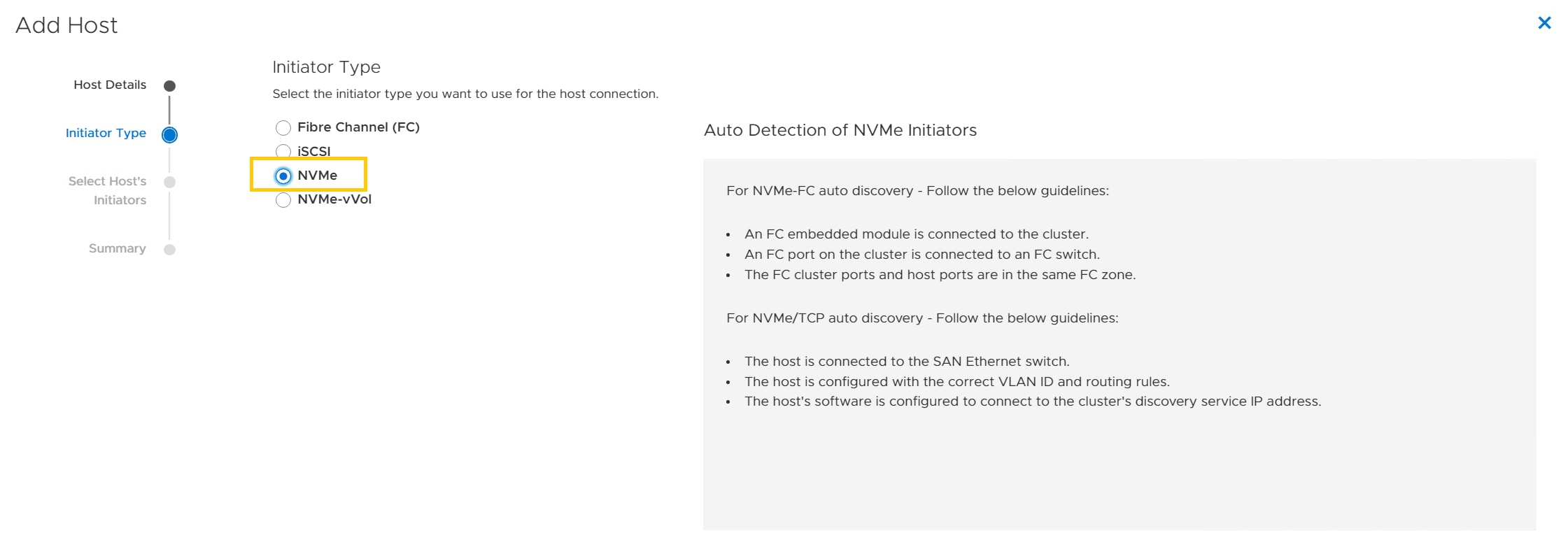 Note: If PowerStore 3.0 displays a warning that no initiators were auto-discovered. Ignore this warning and click next to see auto-discovered initiators.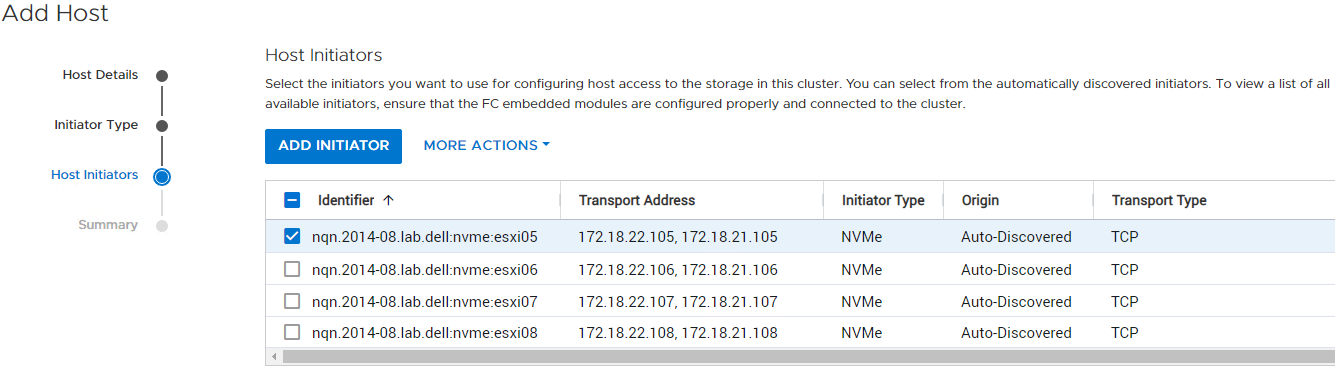
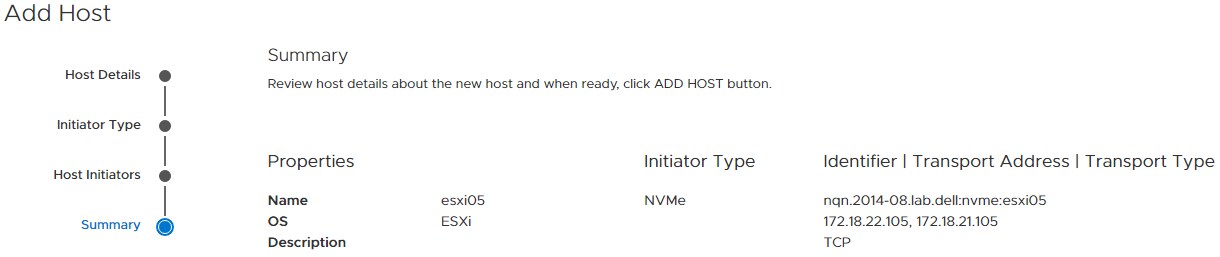 Note: Both of the host NVMe/TCP IP addresses are listed as the host can access storage using SAN A and SAN B.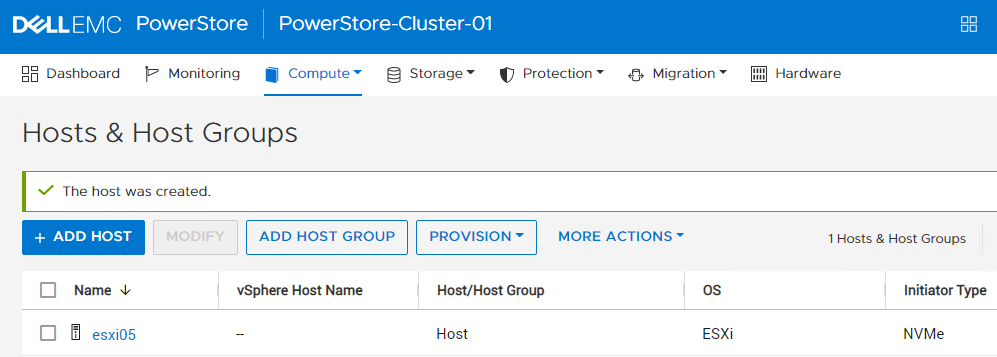
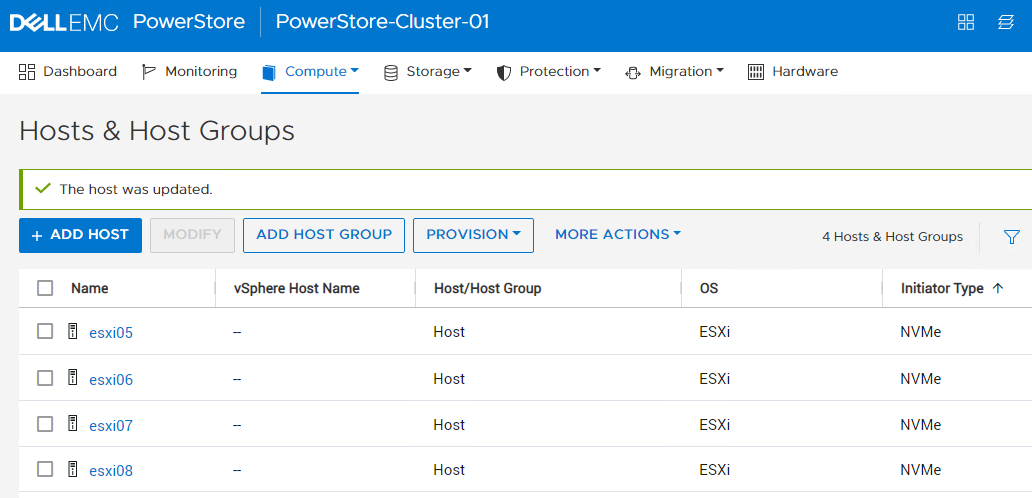
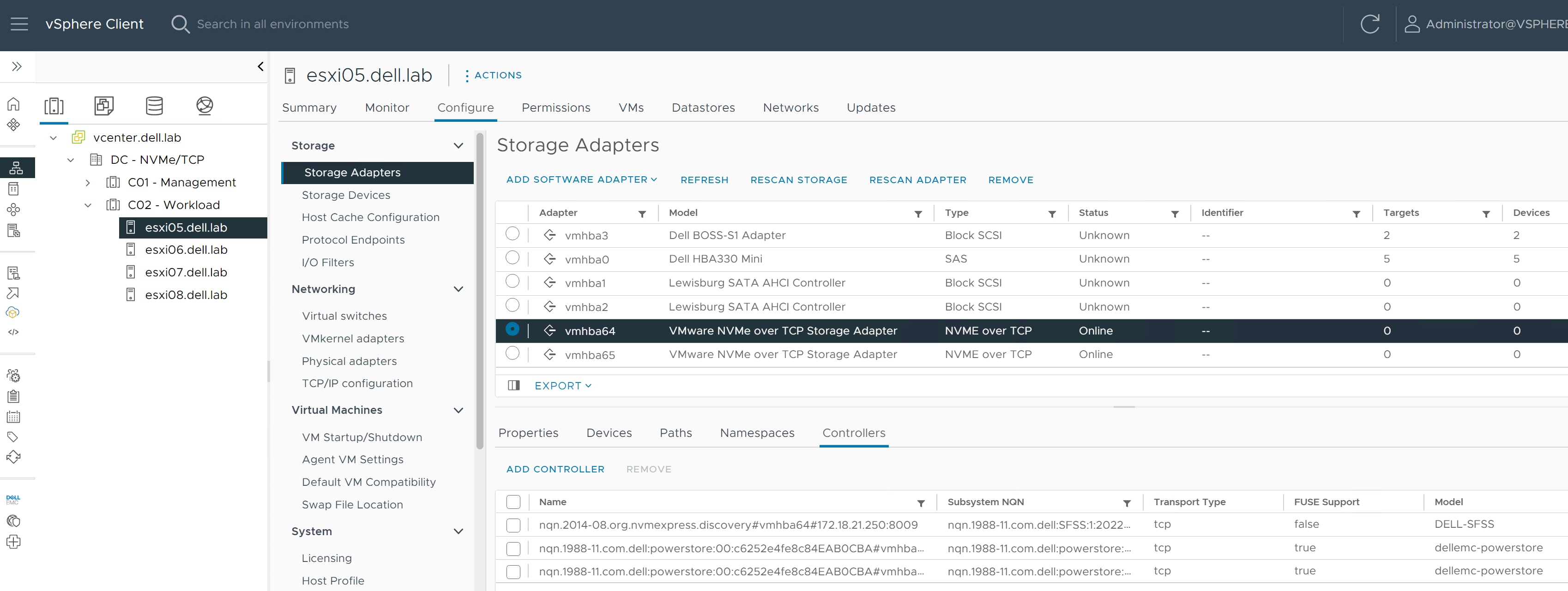
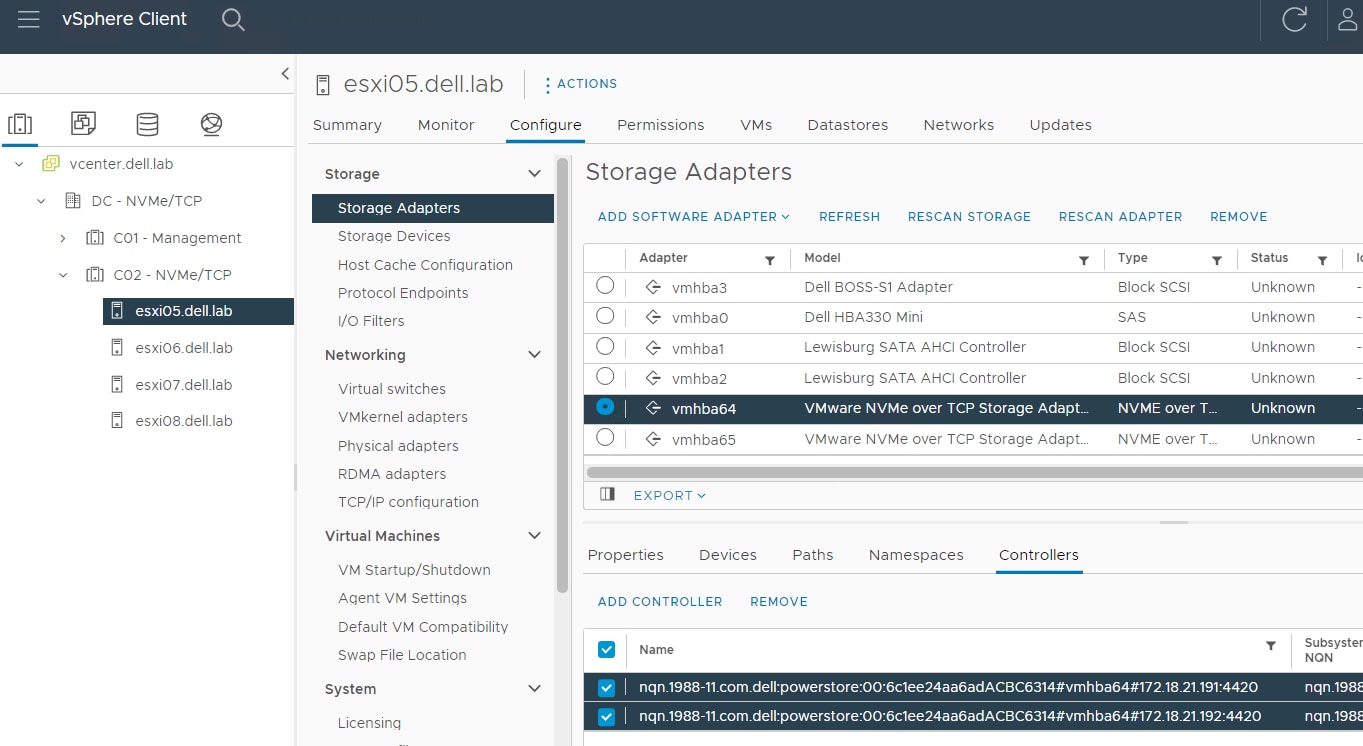
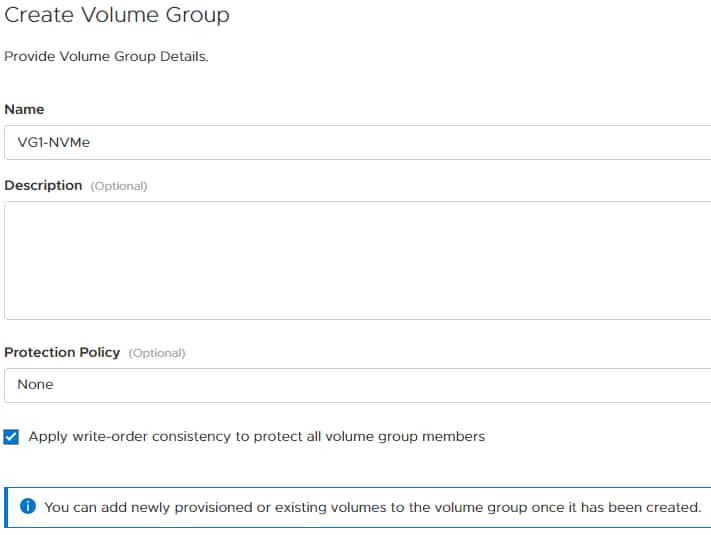
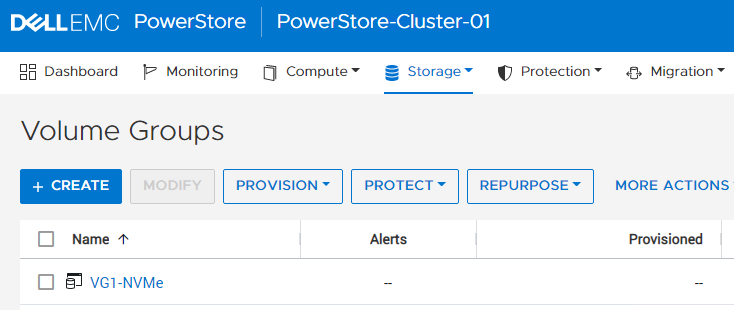
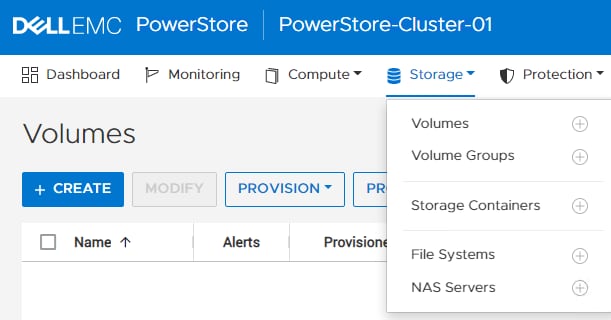
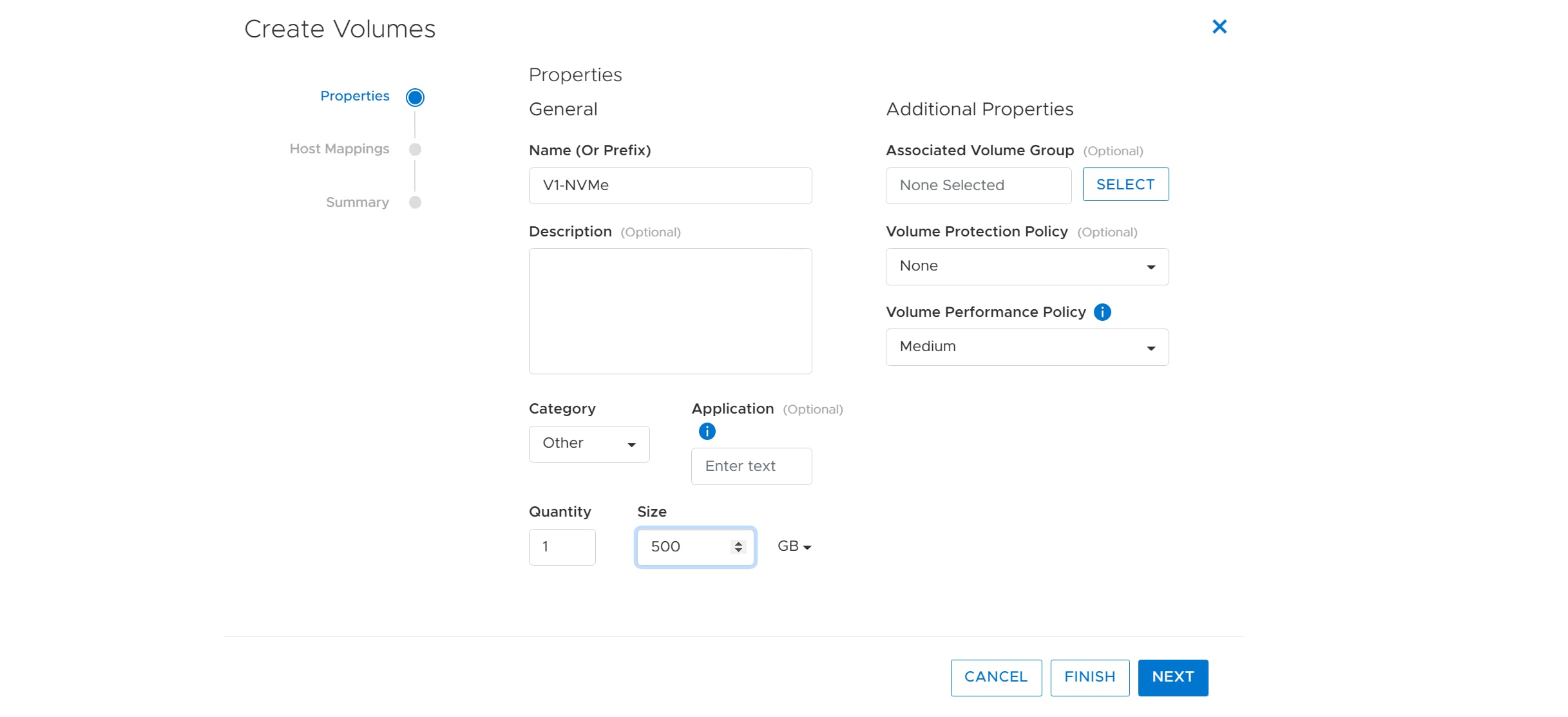
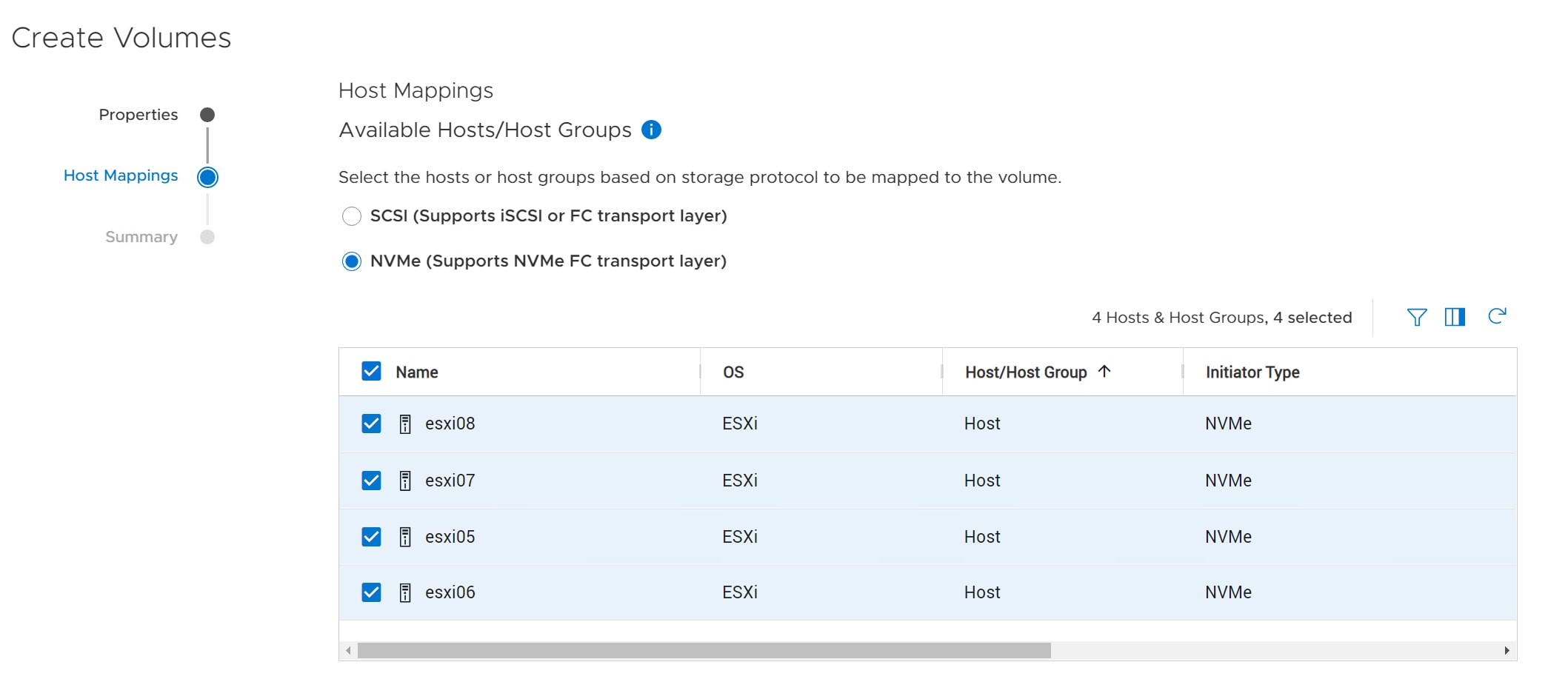
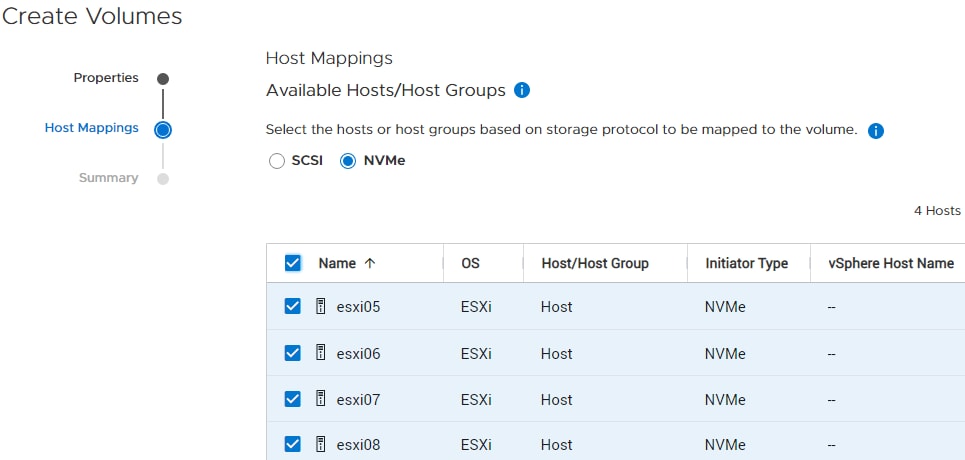
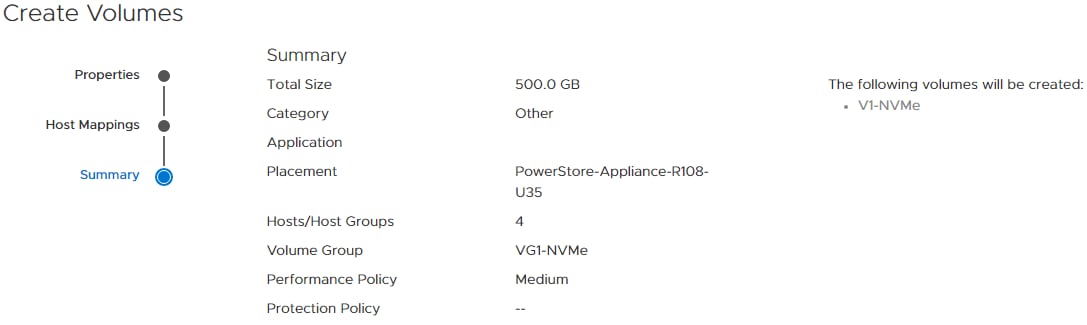
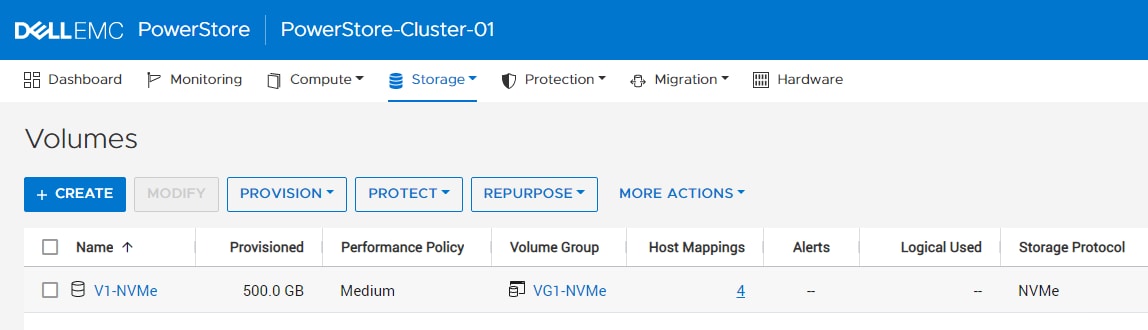
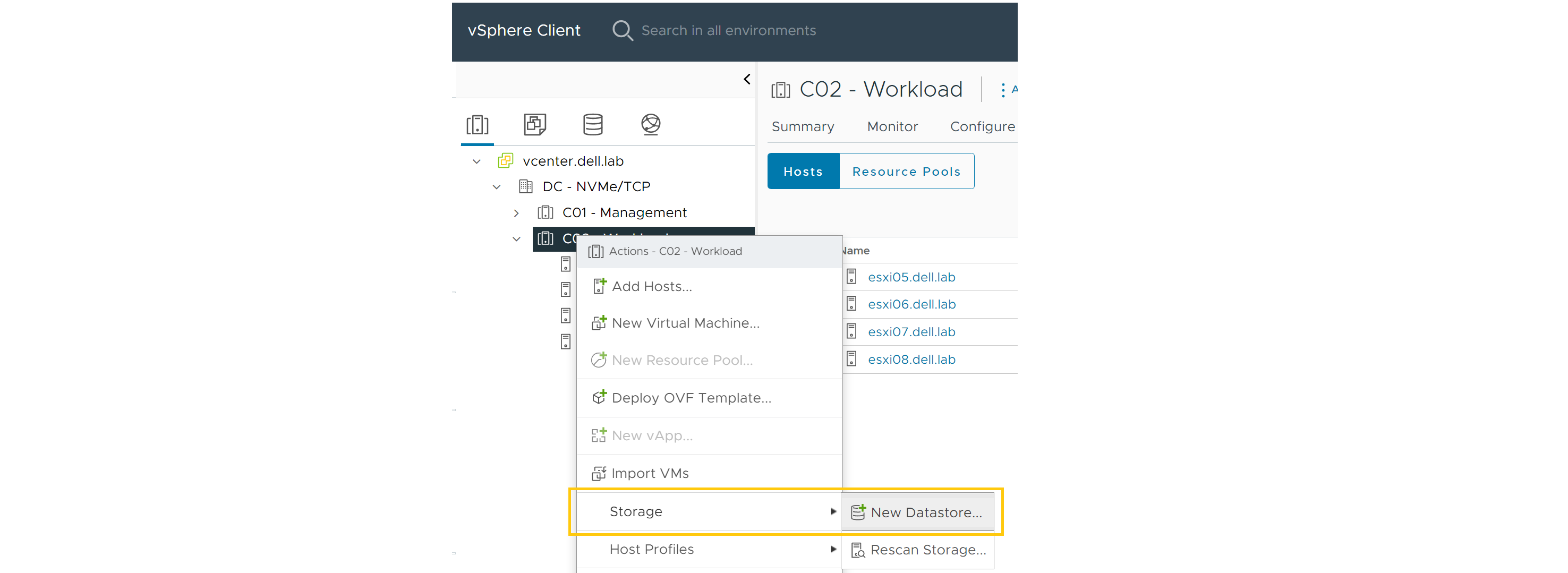
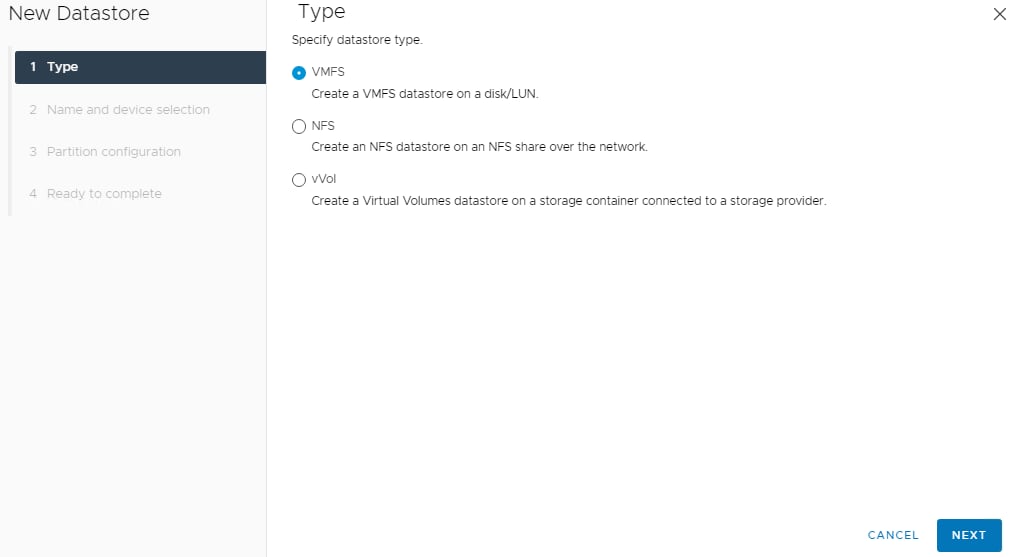
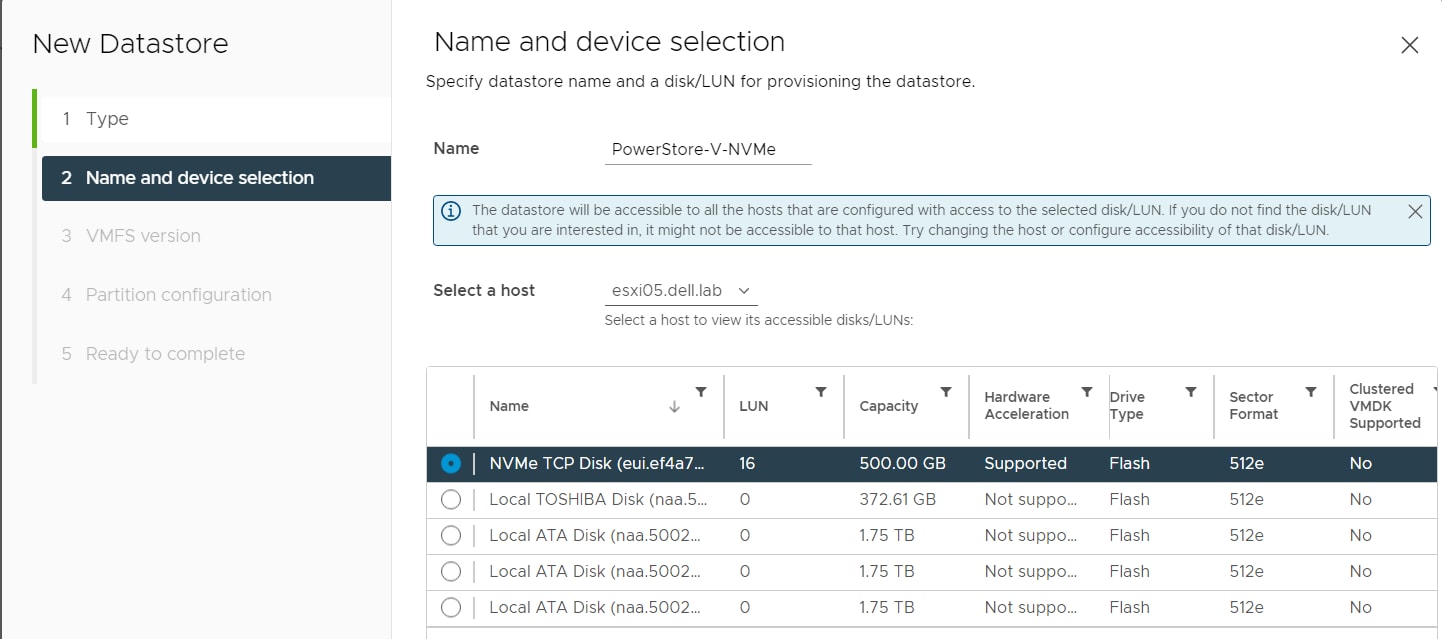
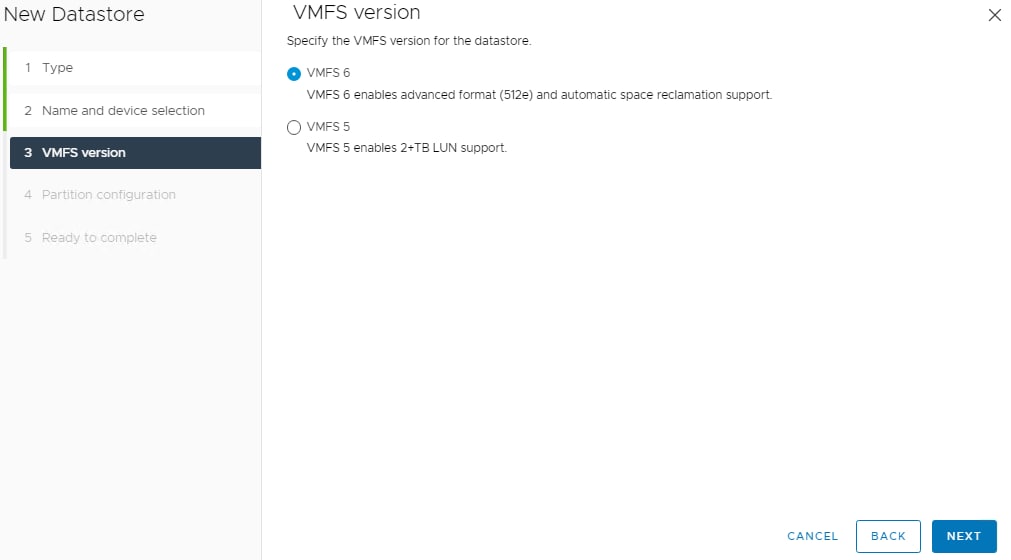
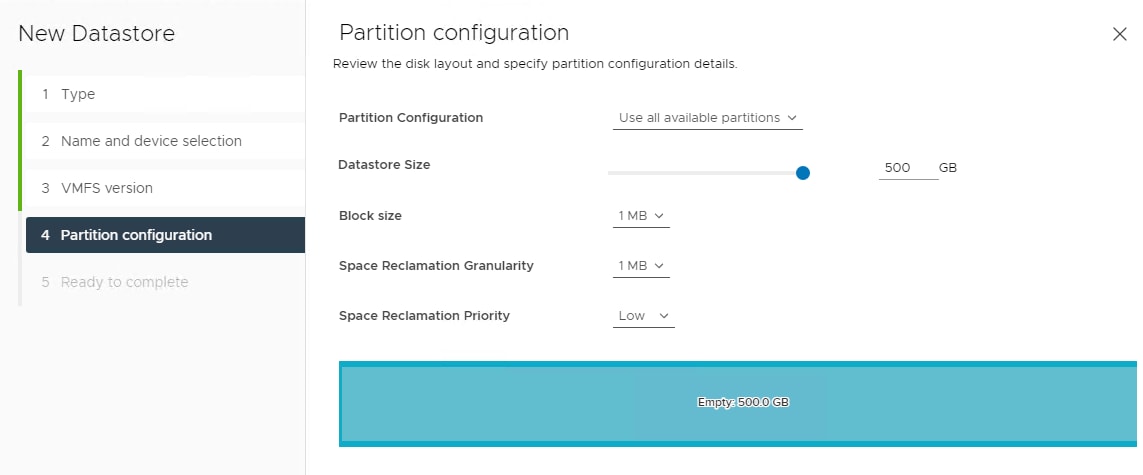
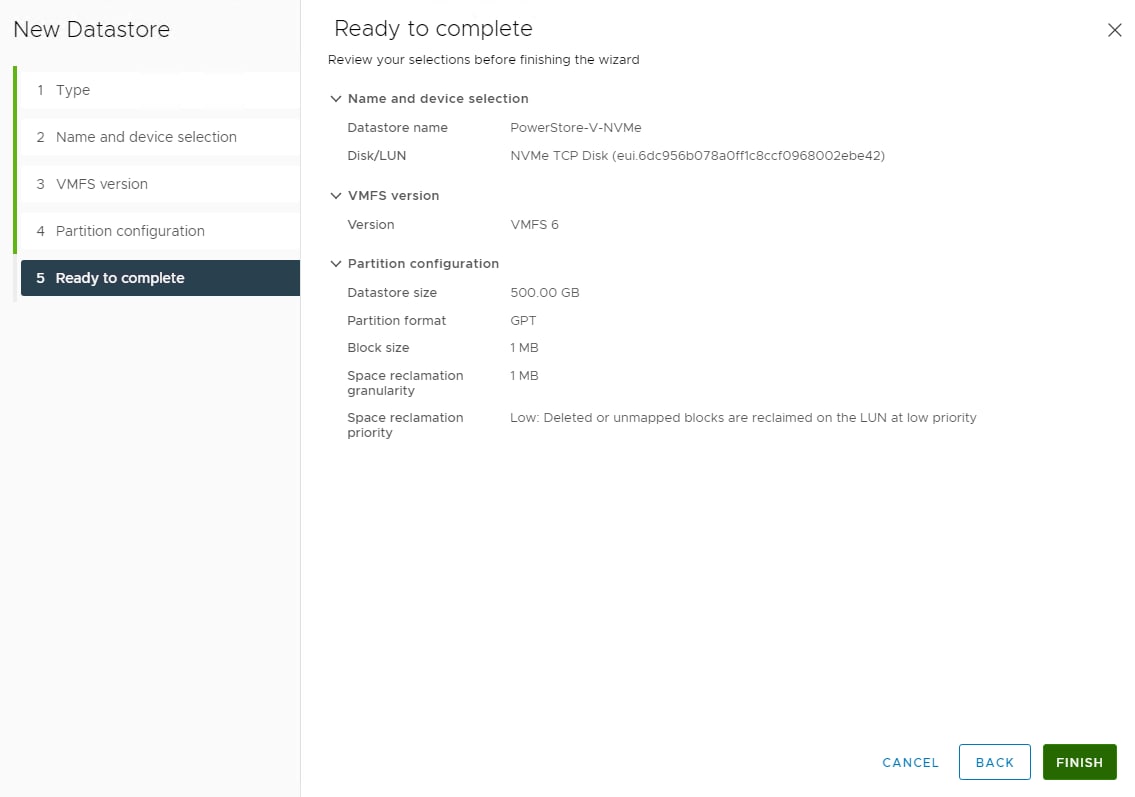
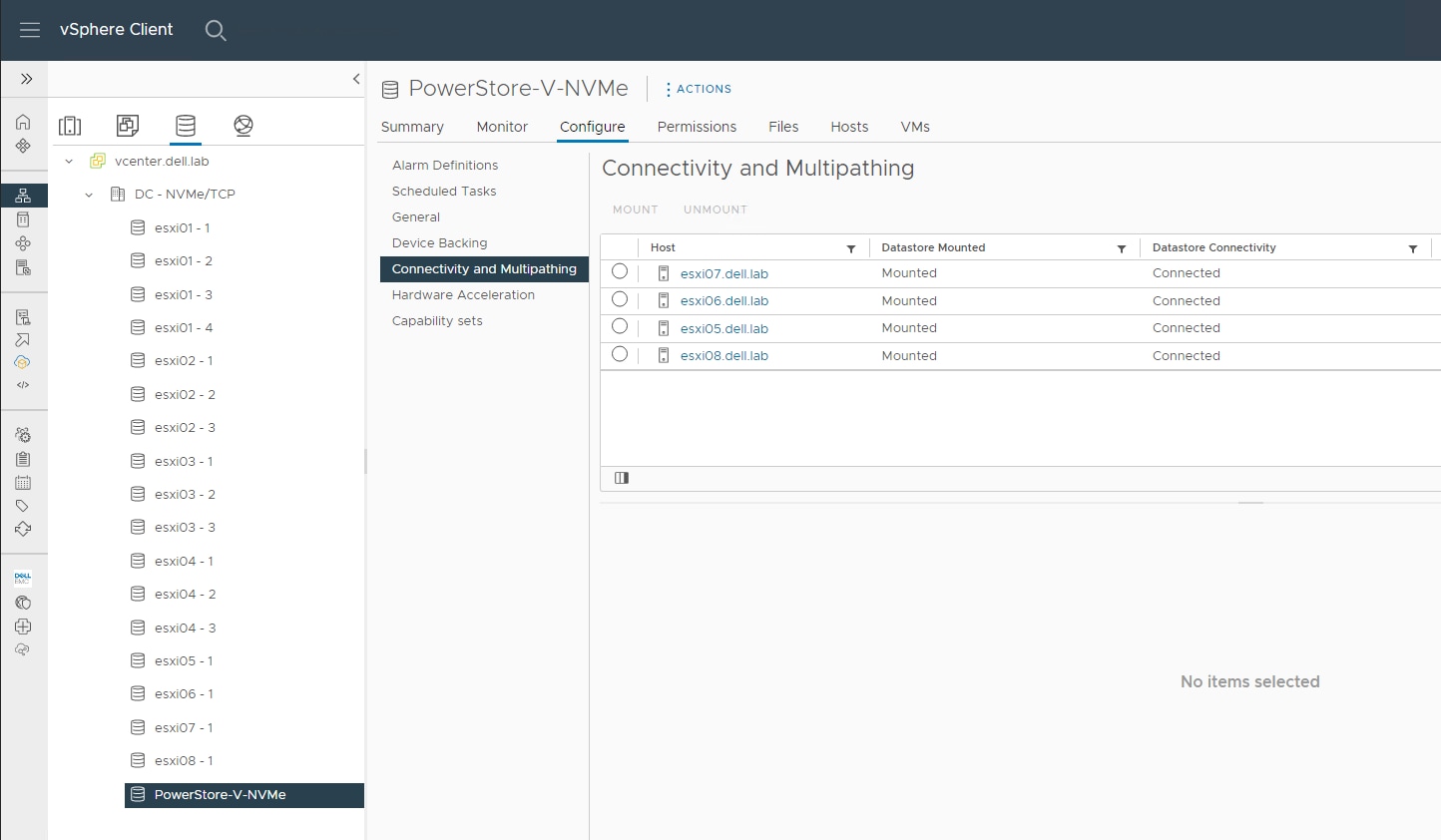
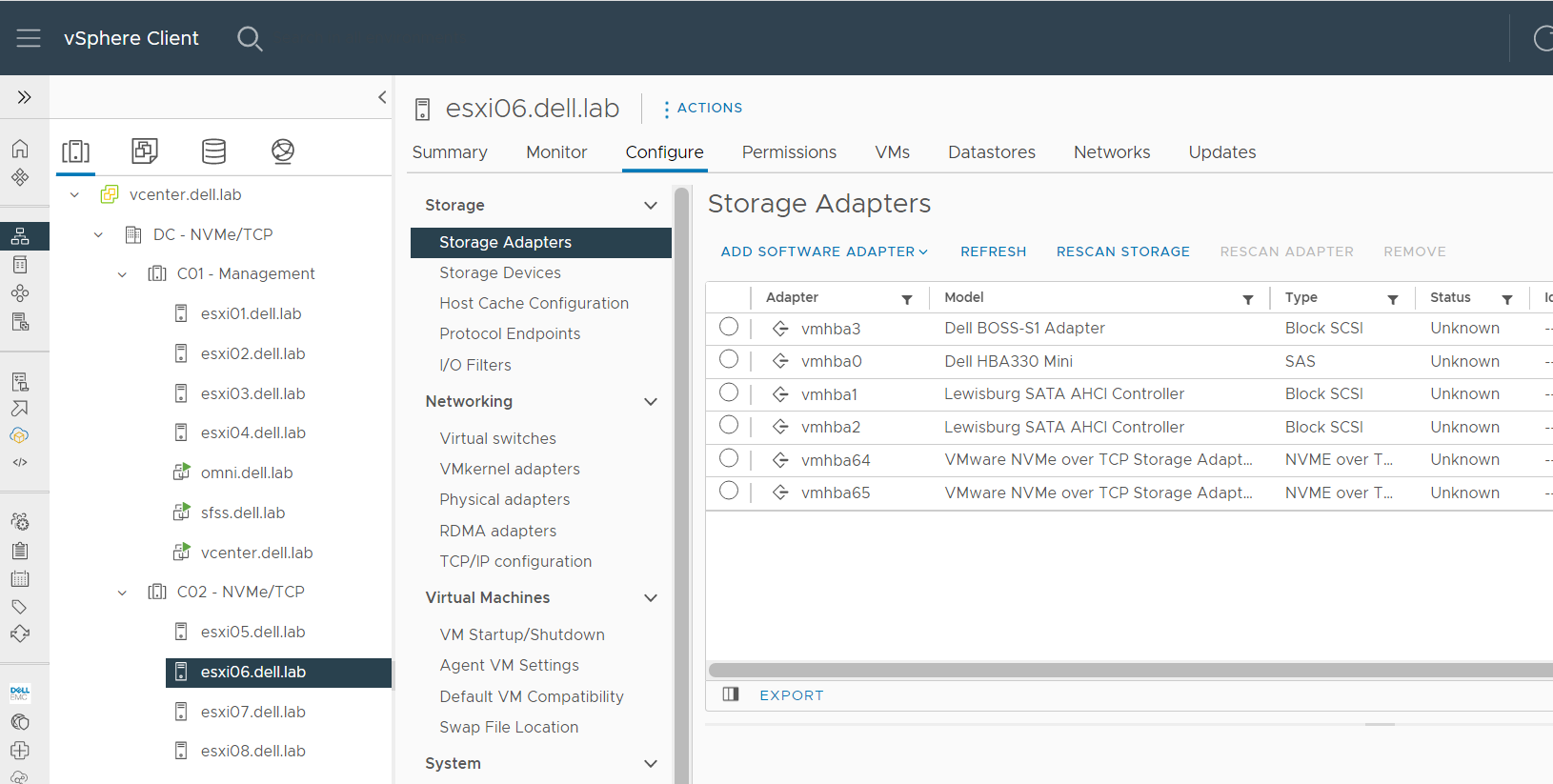
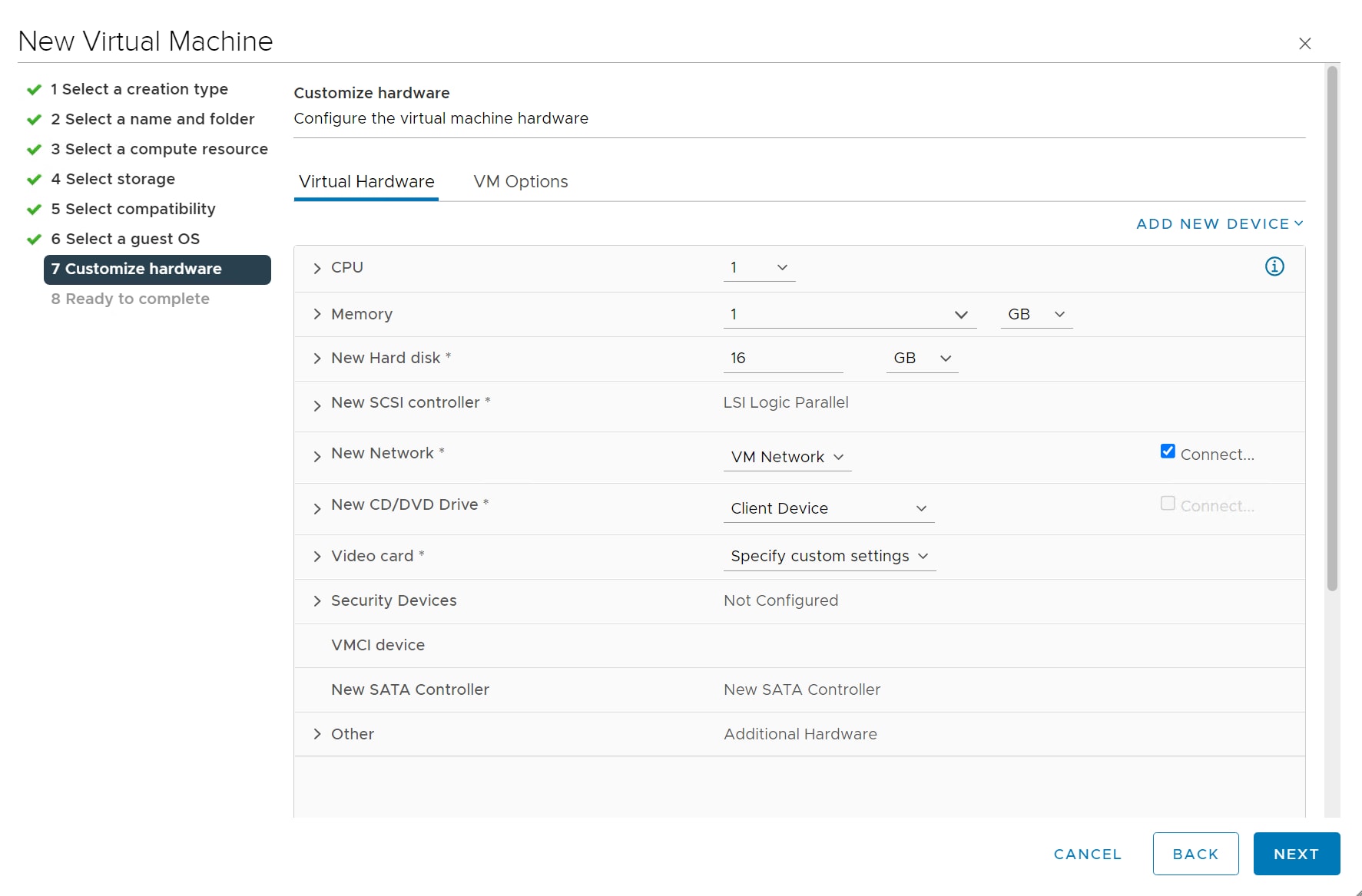
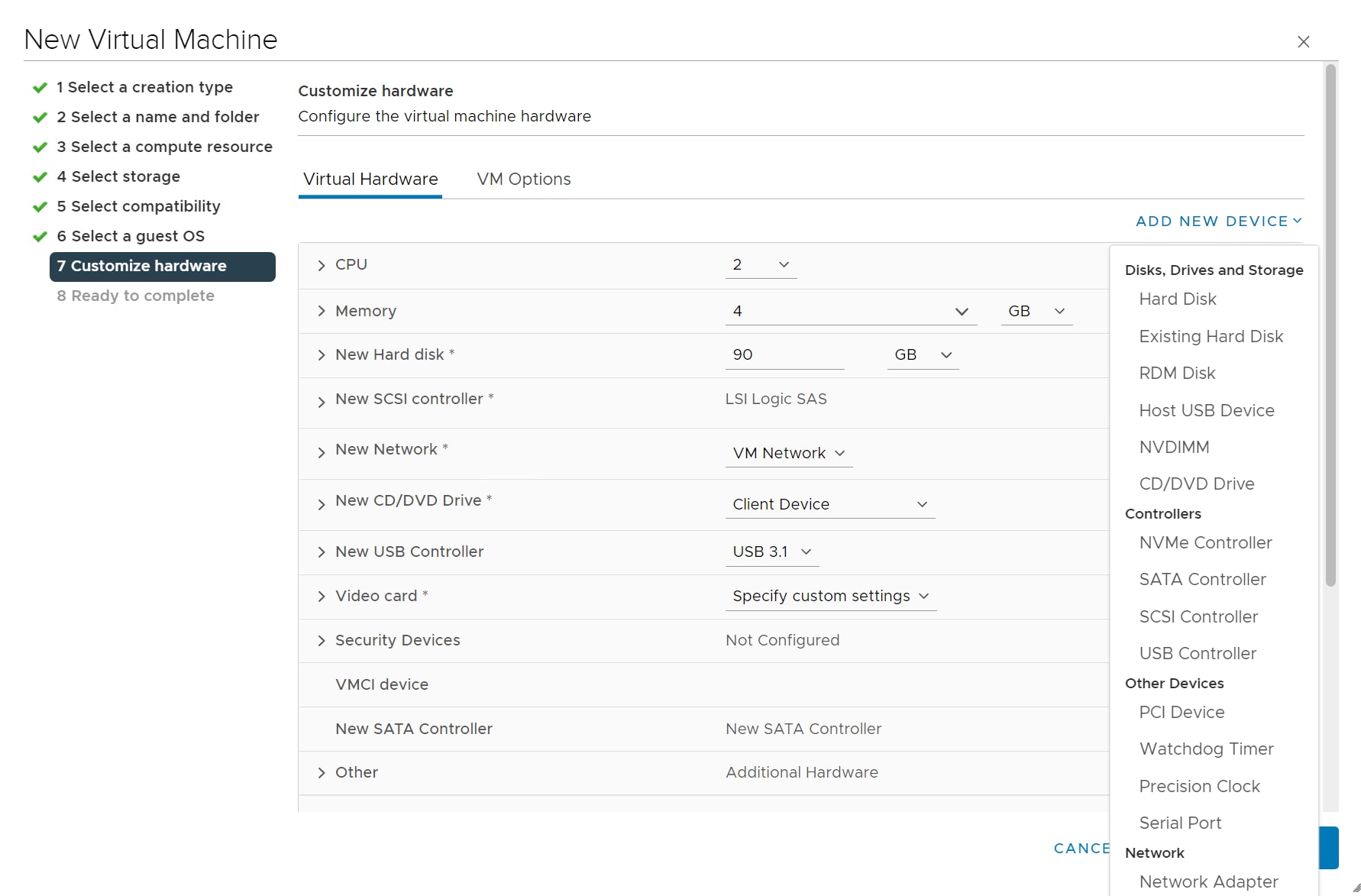
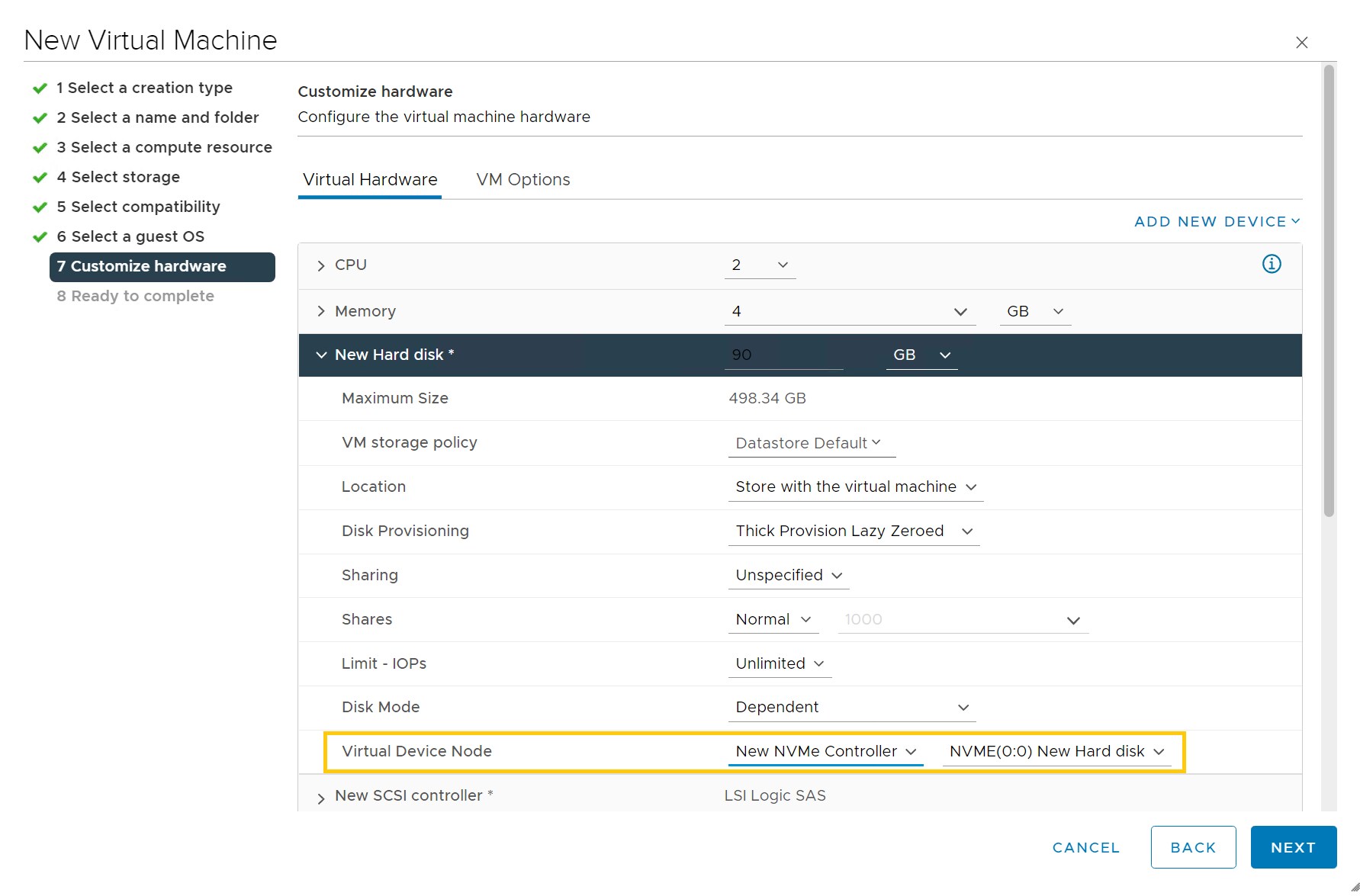
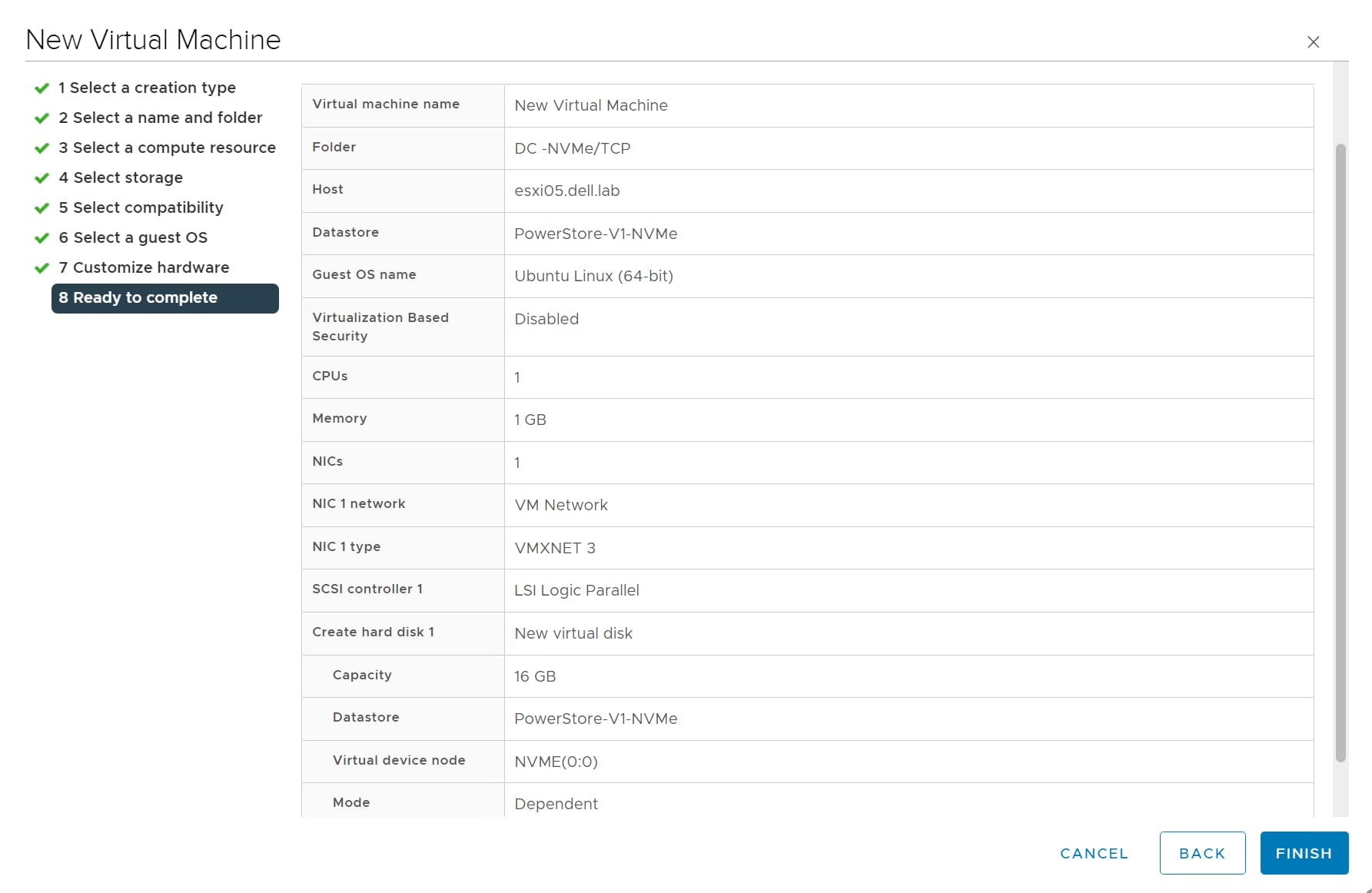 Note: In vSphere versions 7.0U3c to 7.0U3e, set the guest VM virtual disks to the default SCSI controller.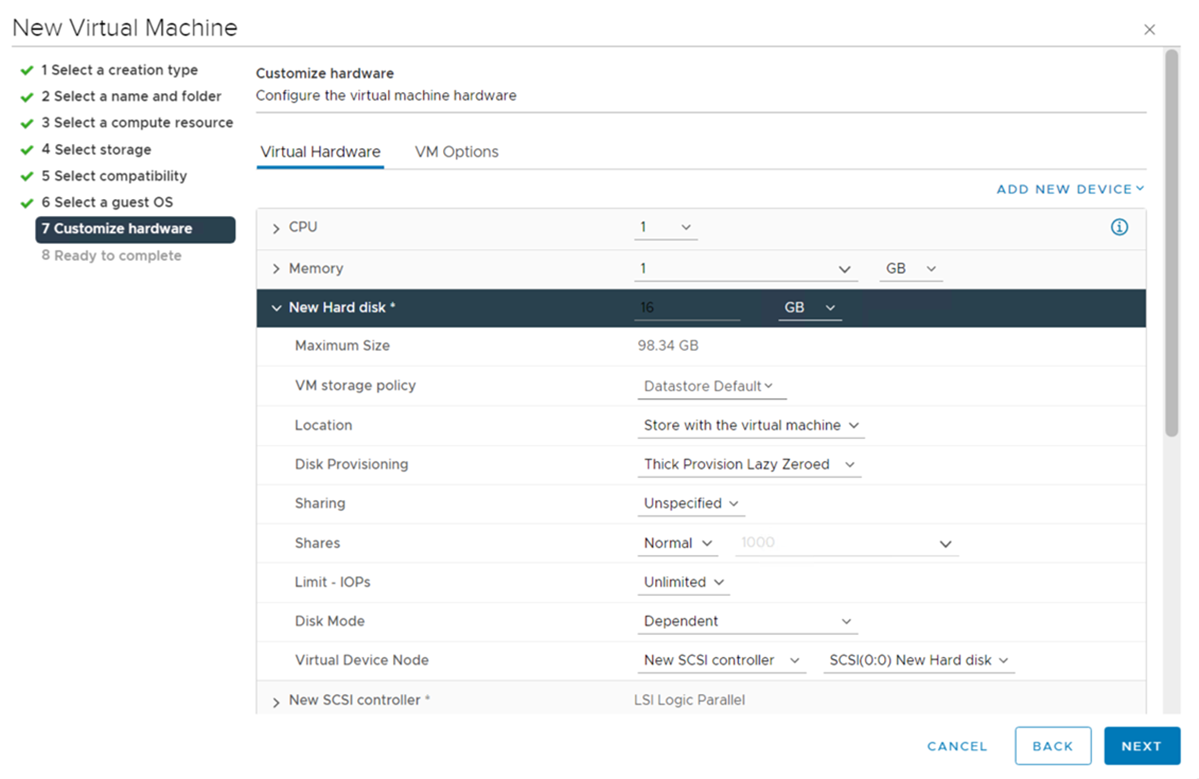







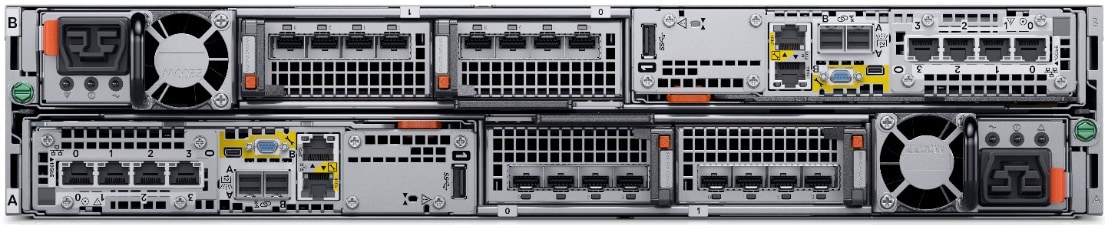

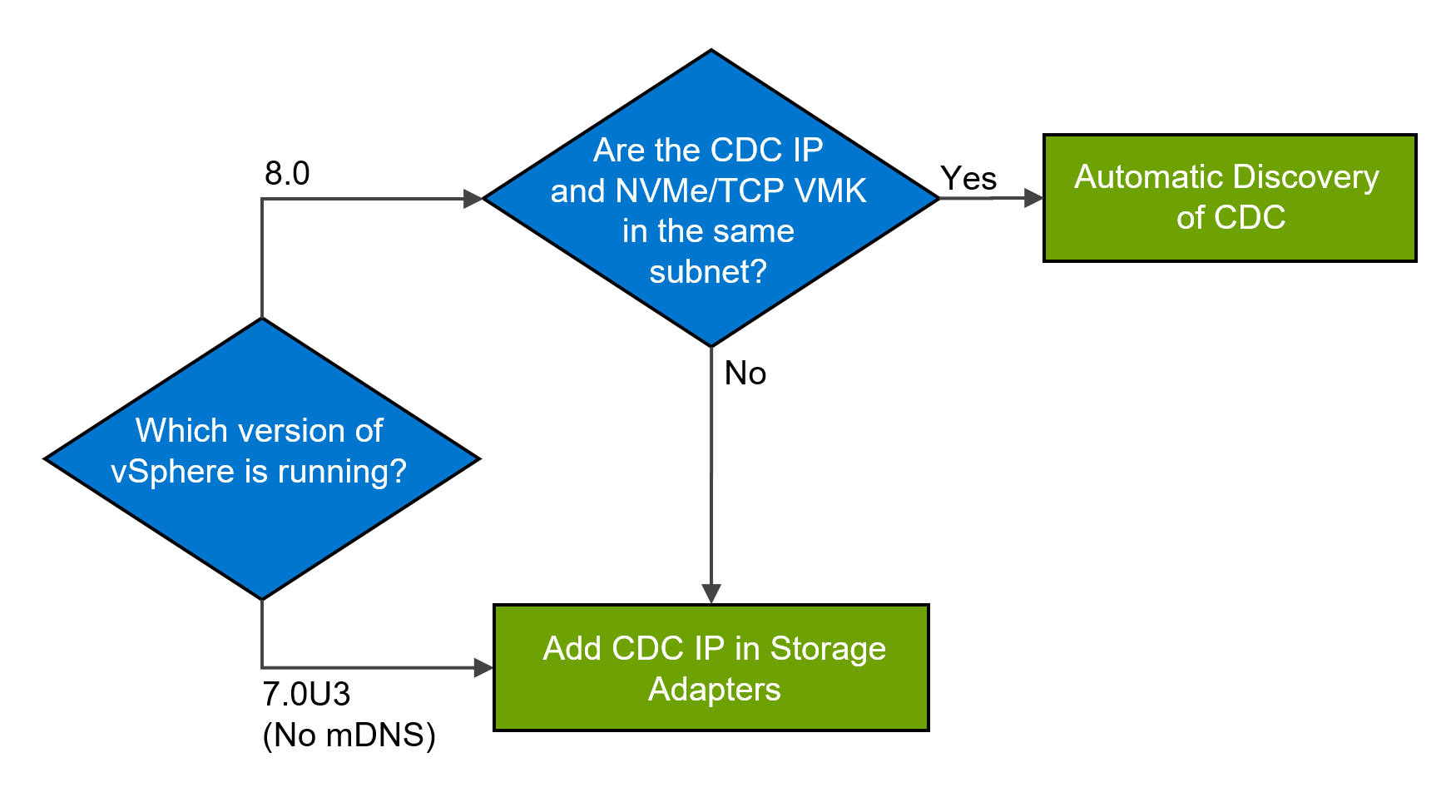
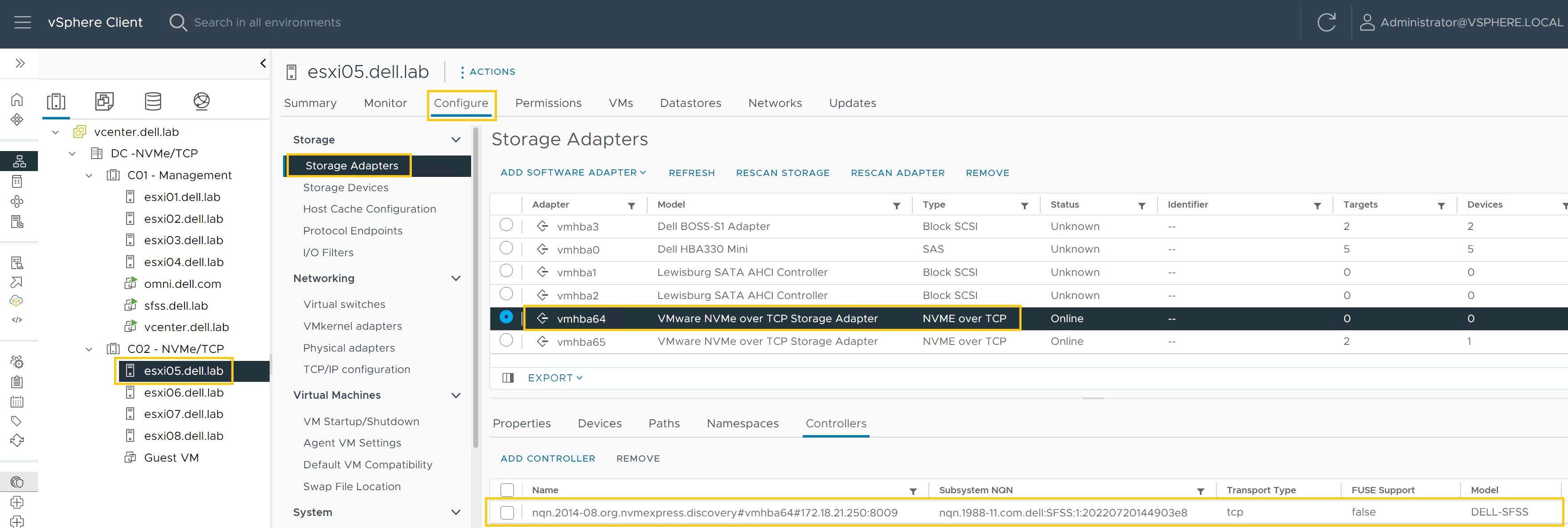
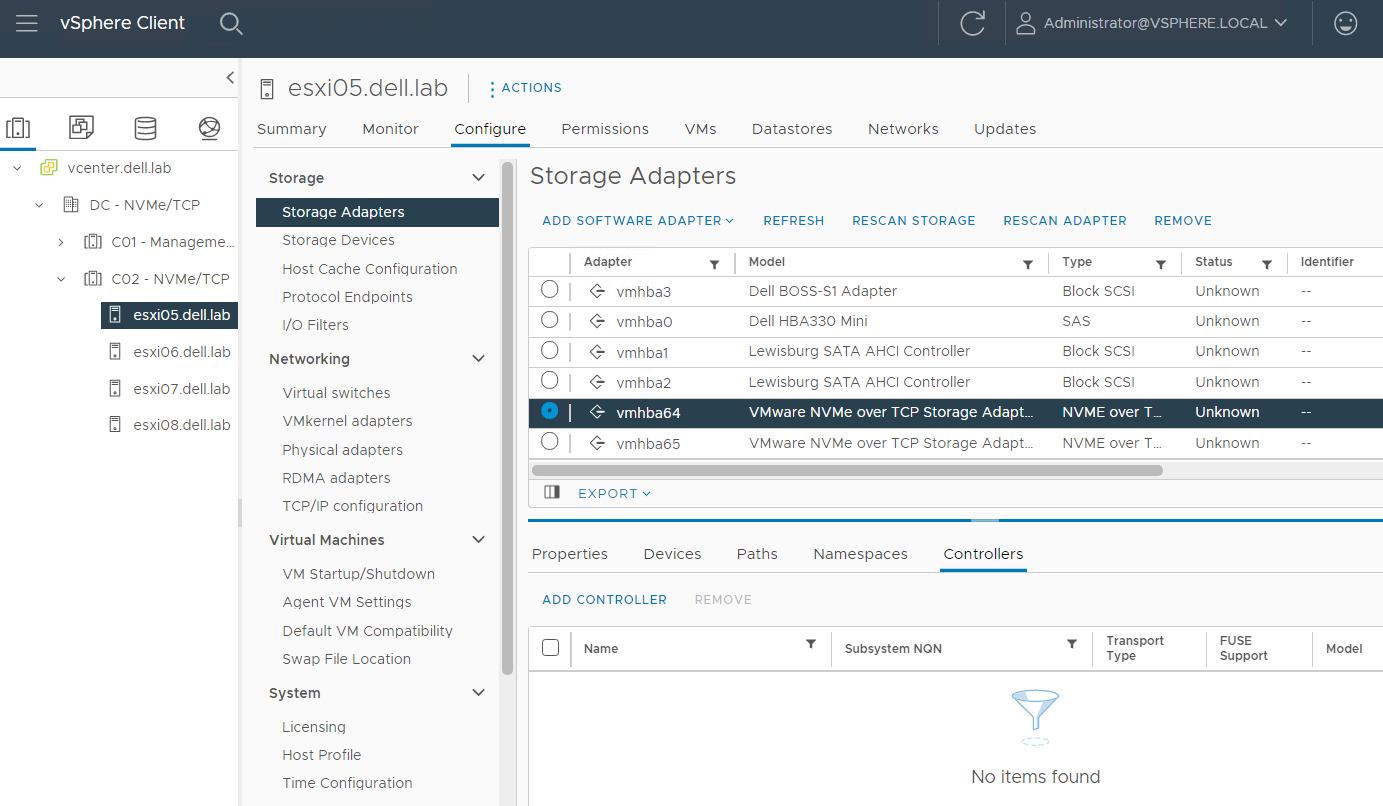
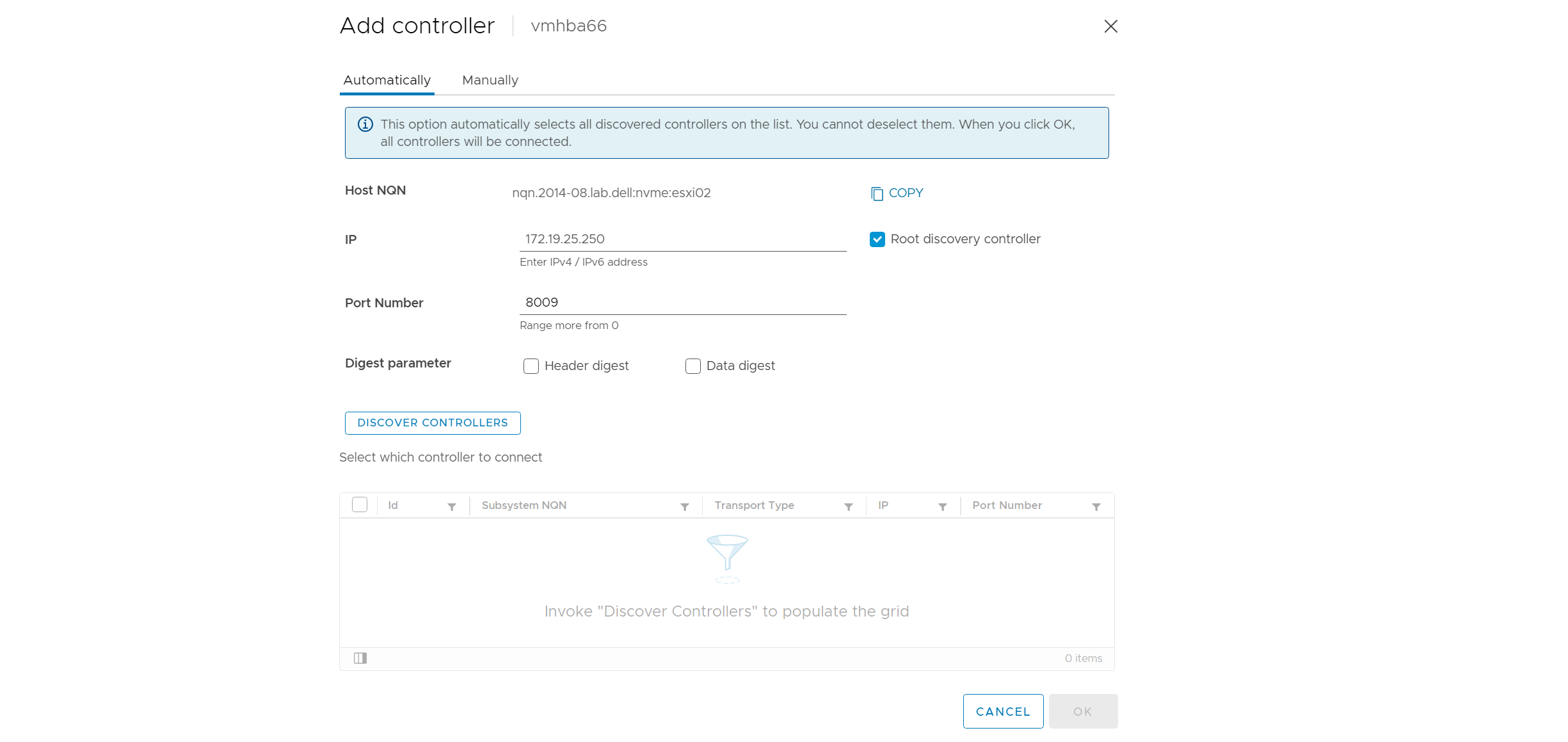
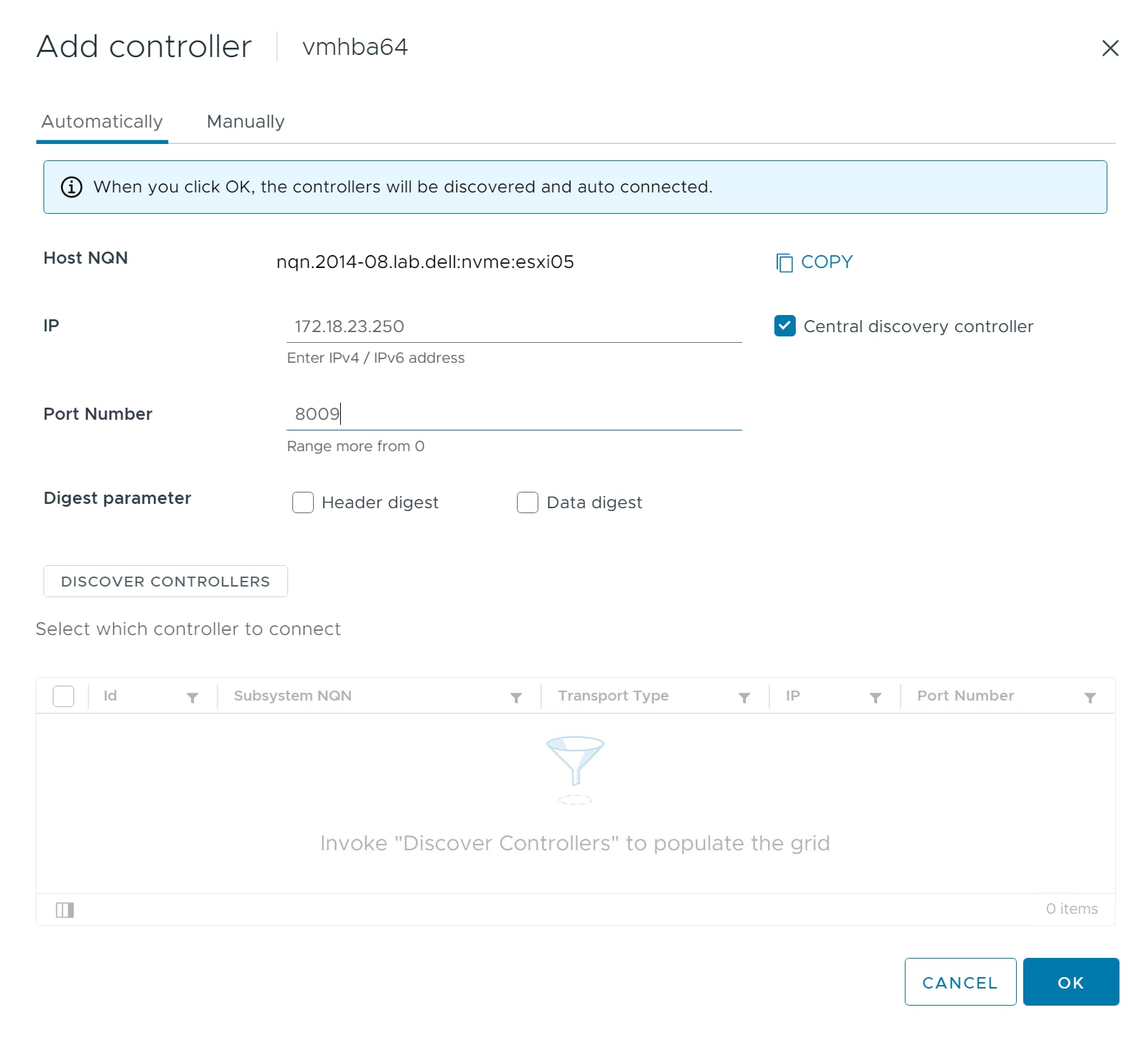
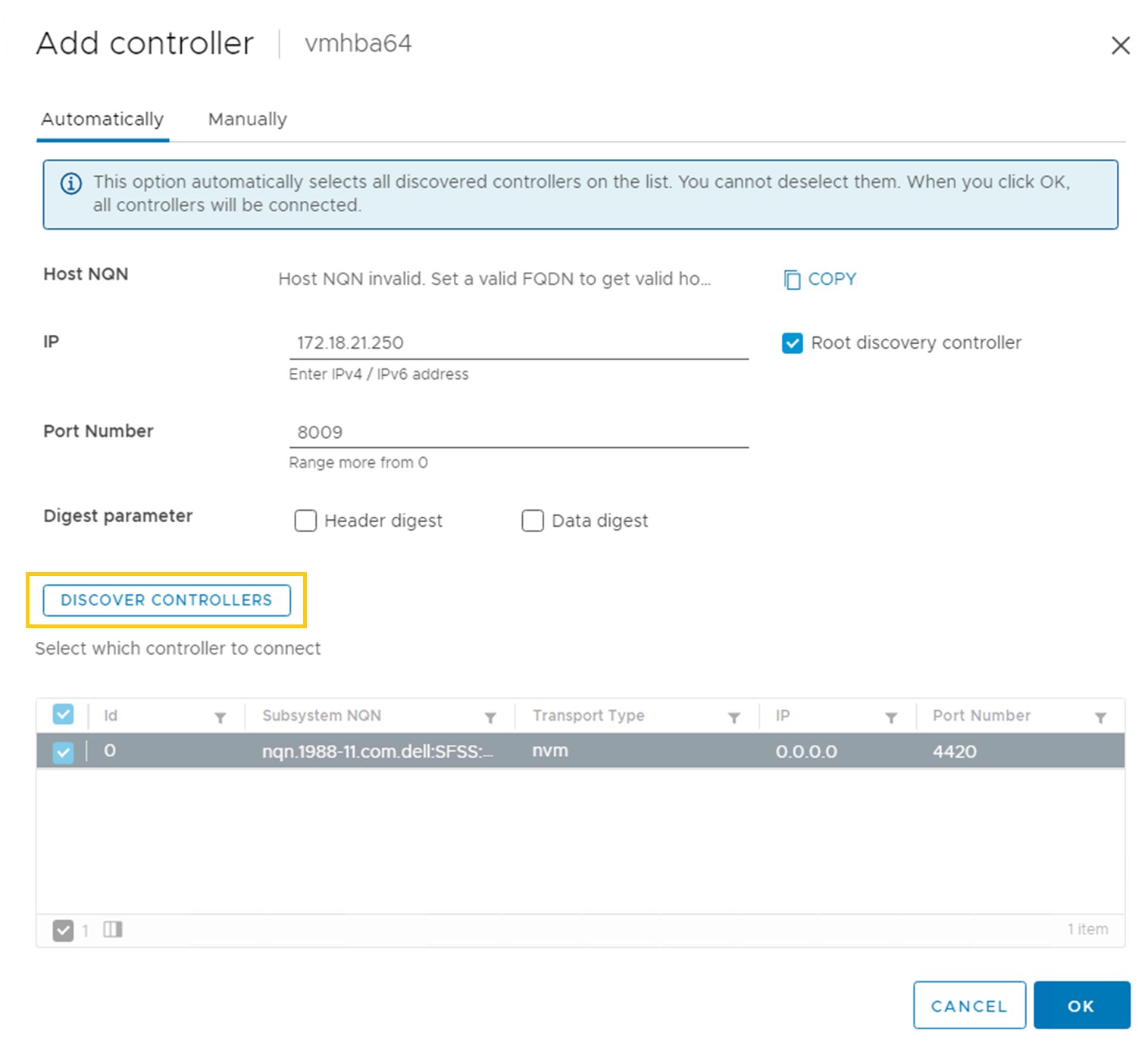
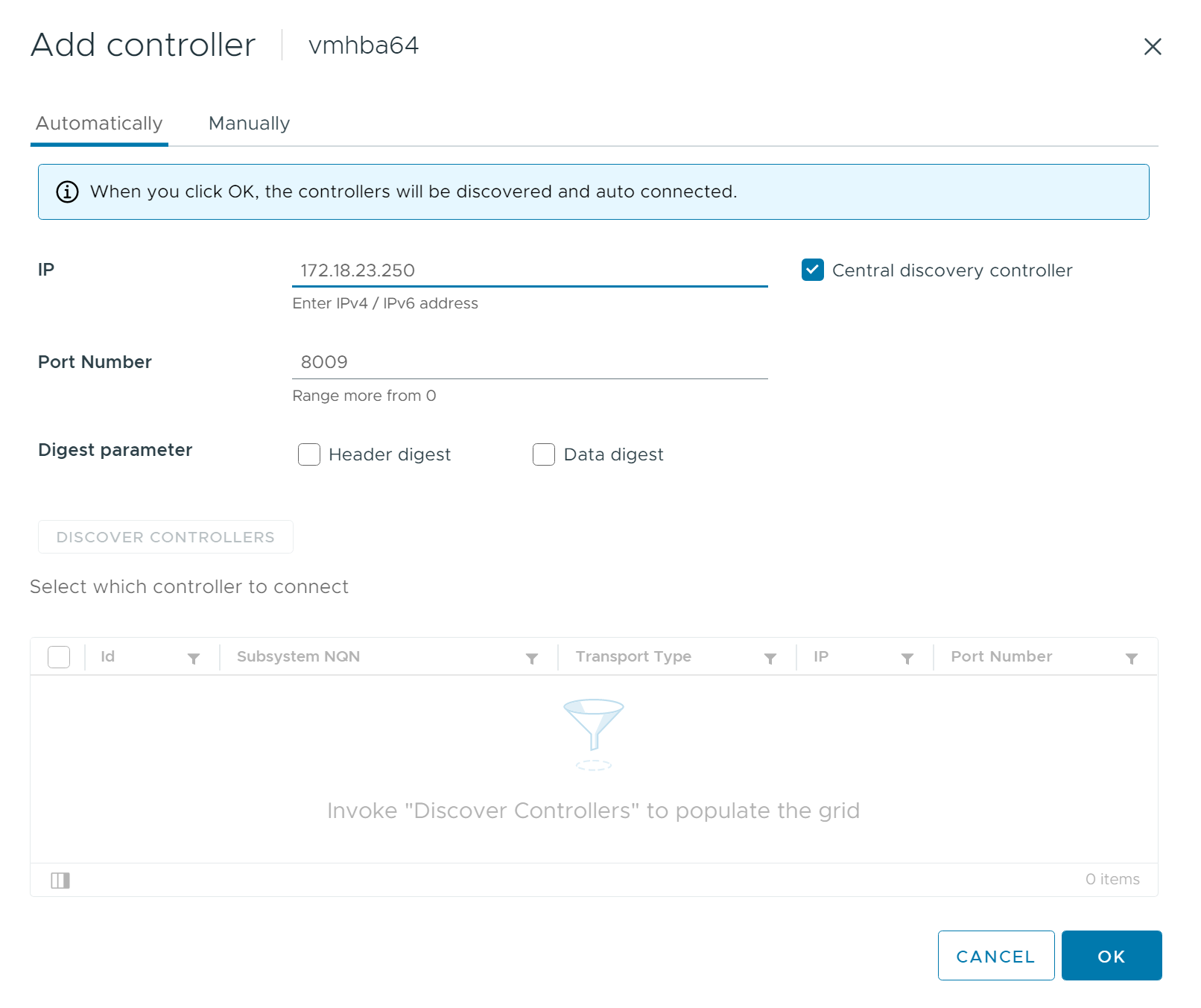 Note: The subsystem NQN is that of SFSS rather than that of a storage subsystem.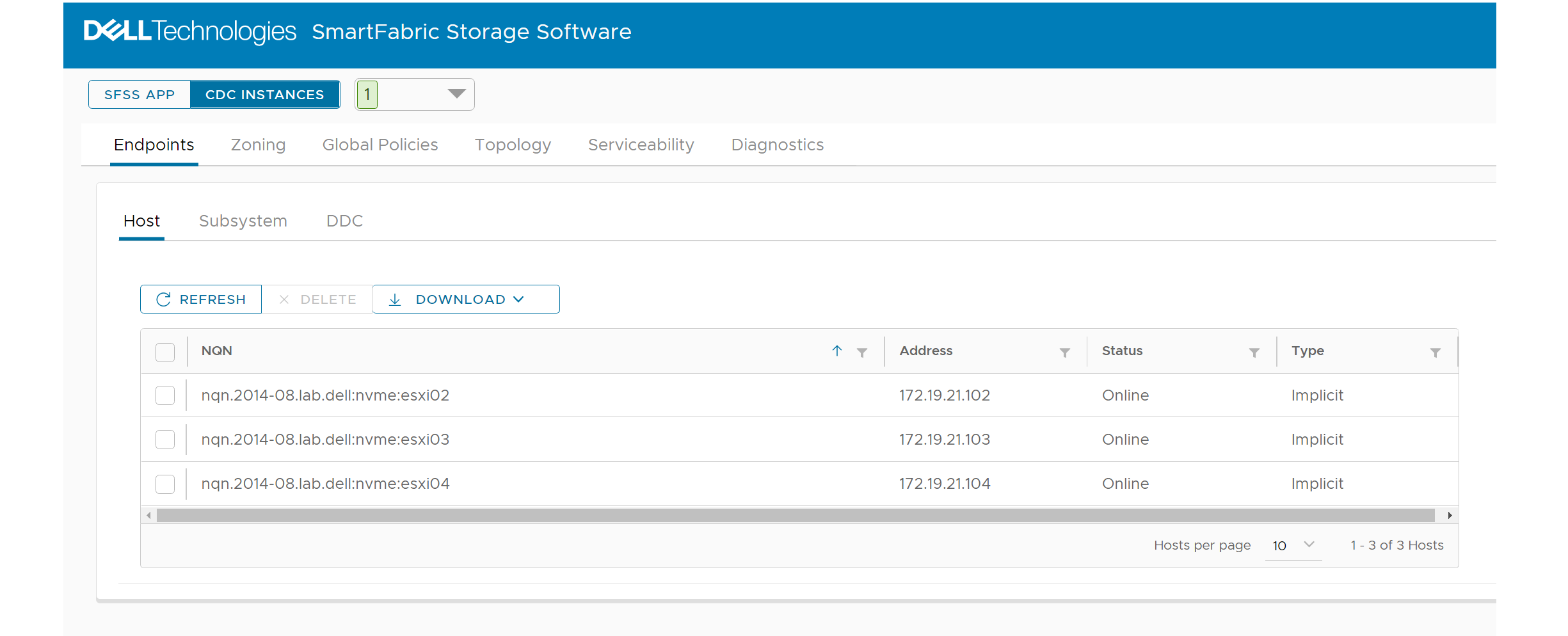
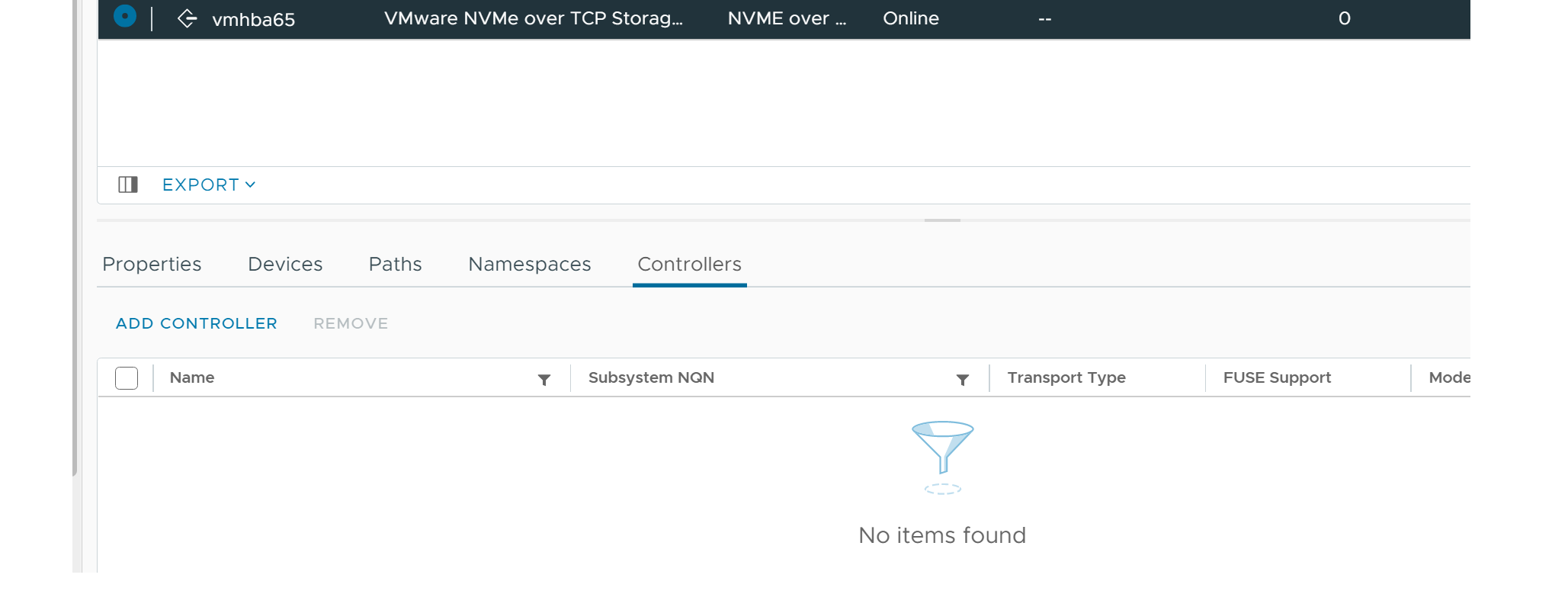
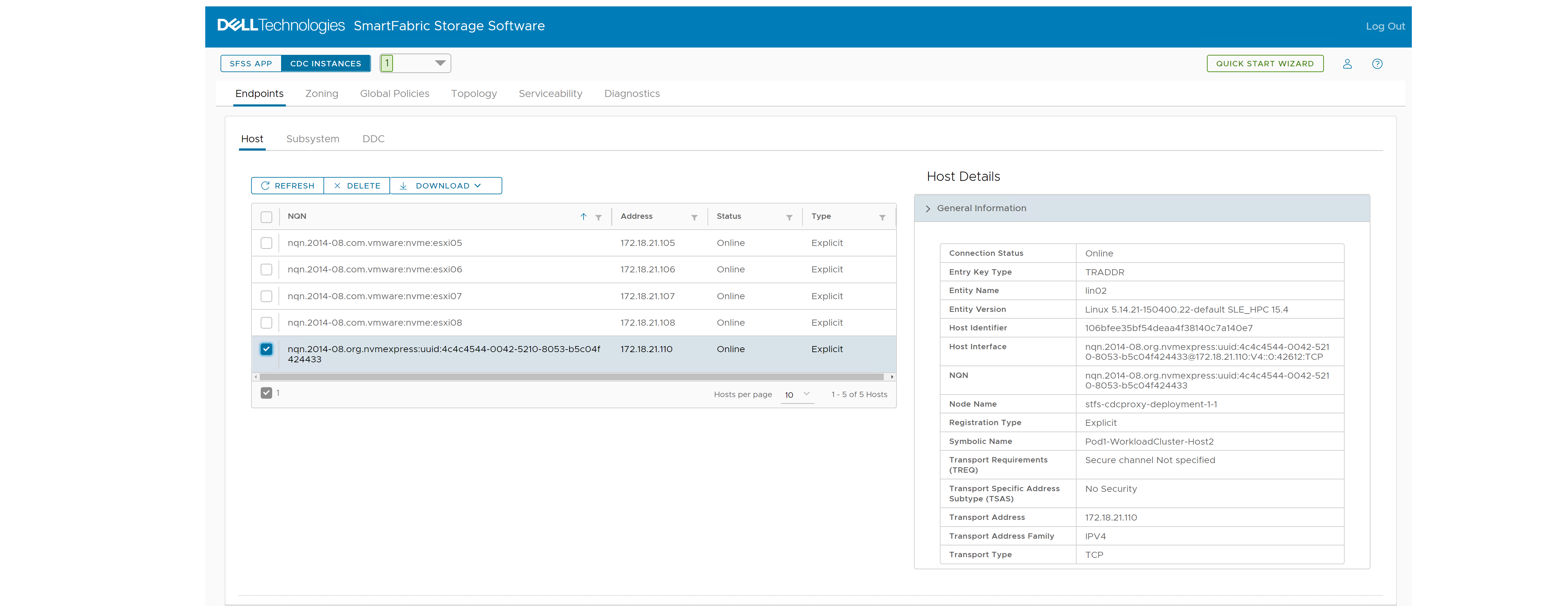 If hosts do not appear as expected, see Troubleshooting discovery of CDC in Linux.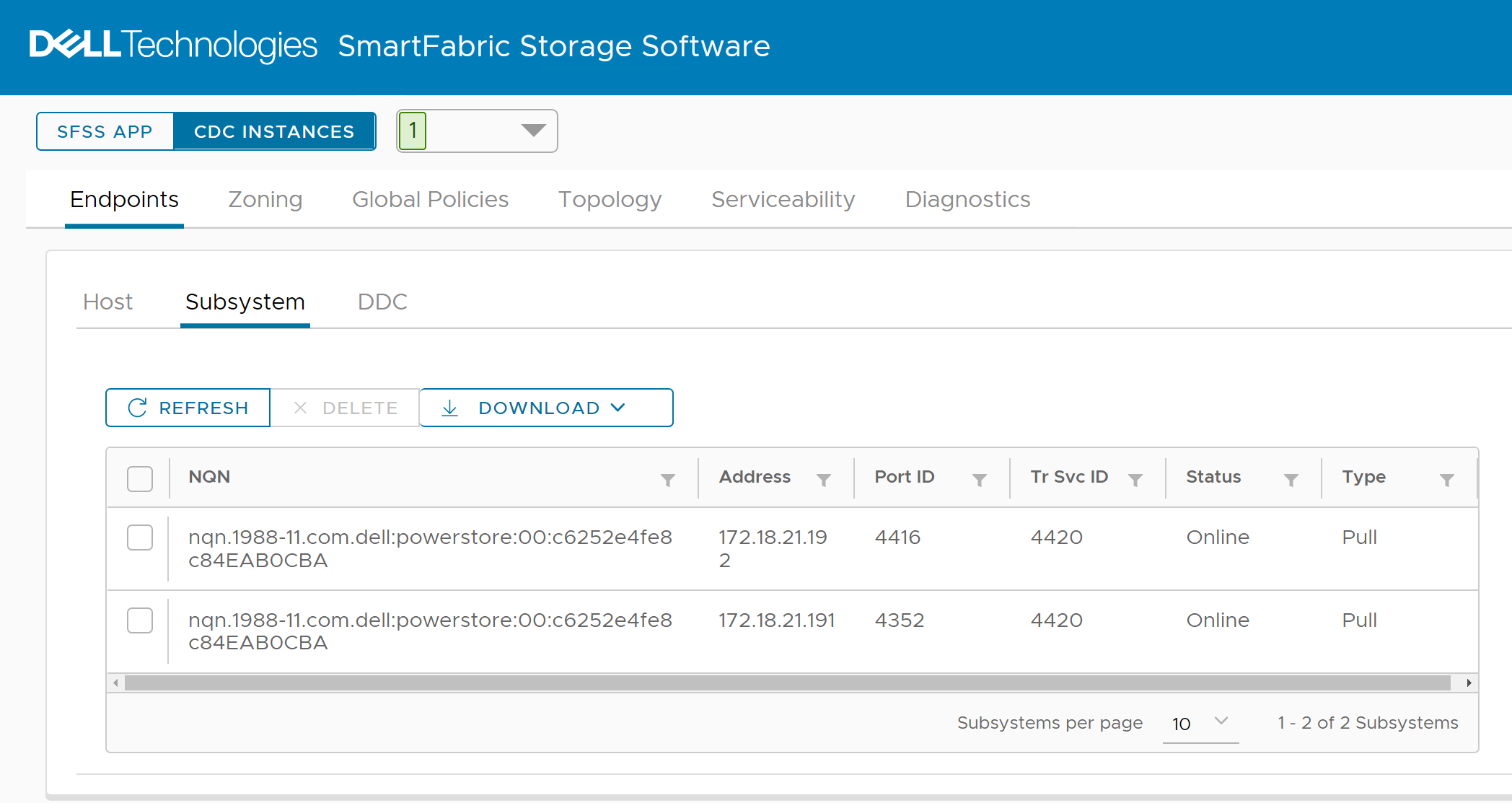
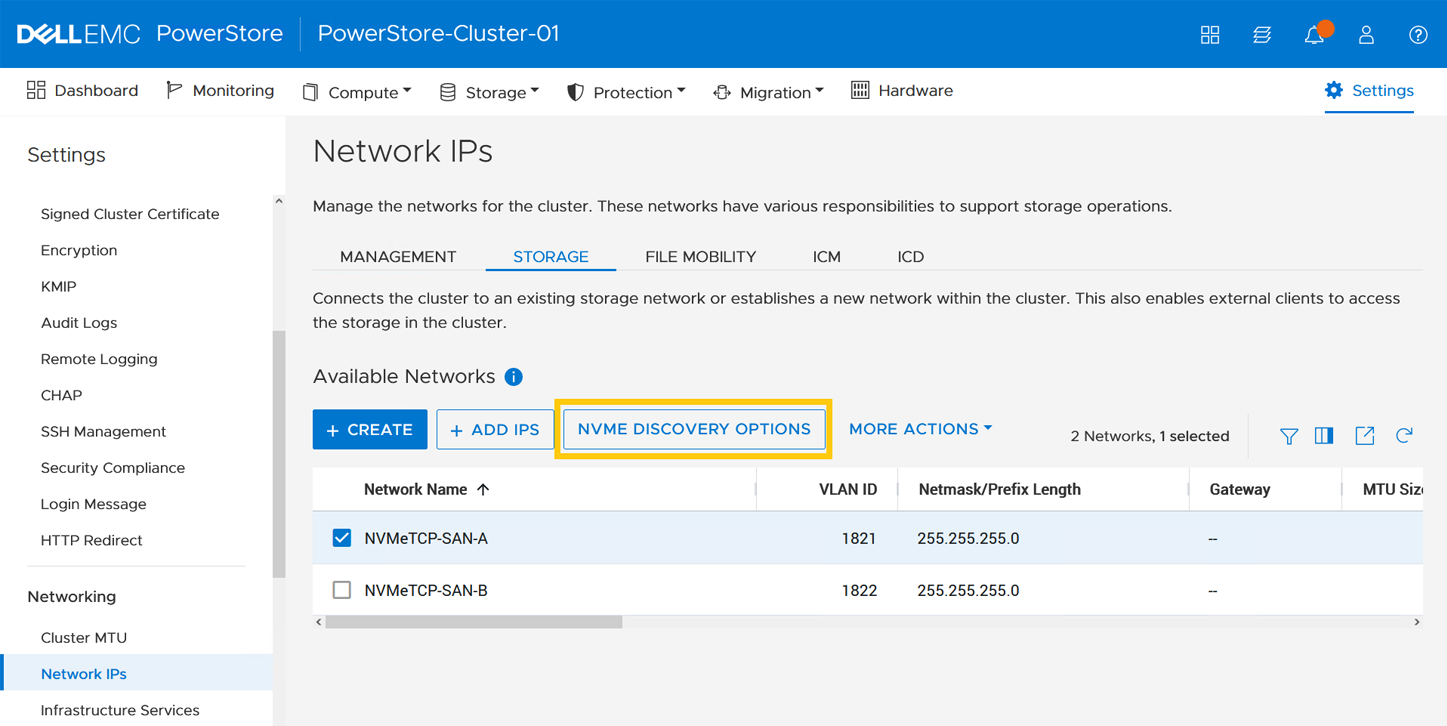
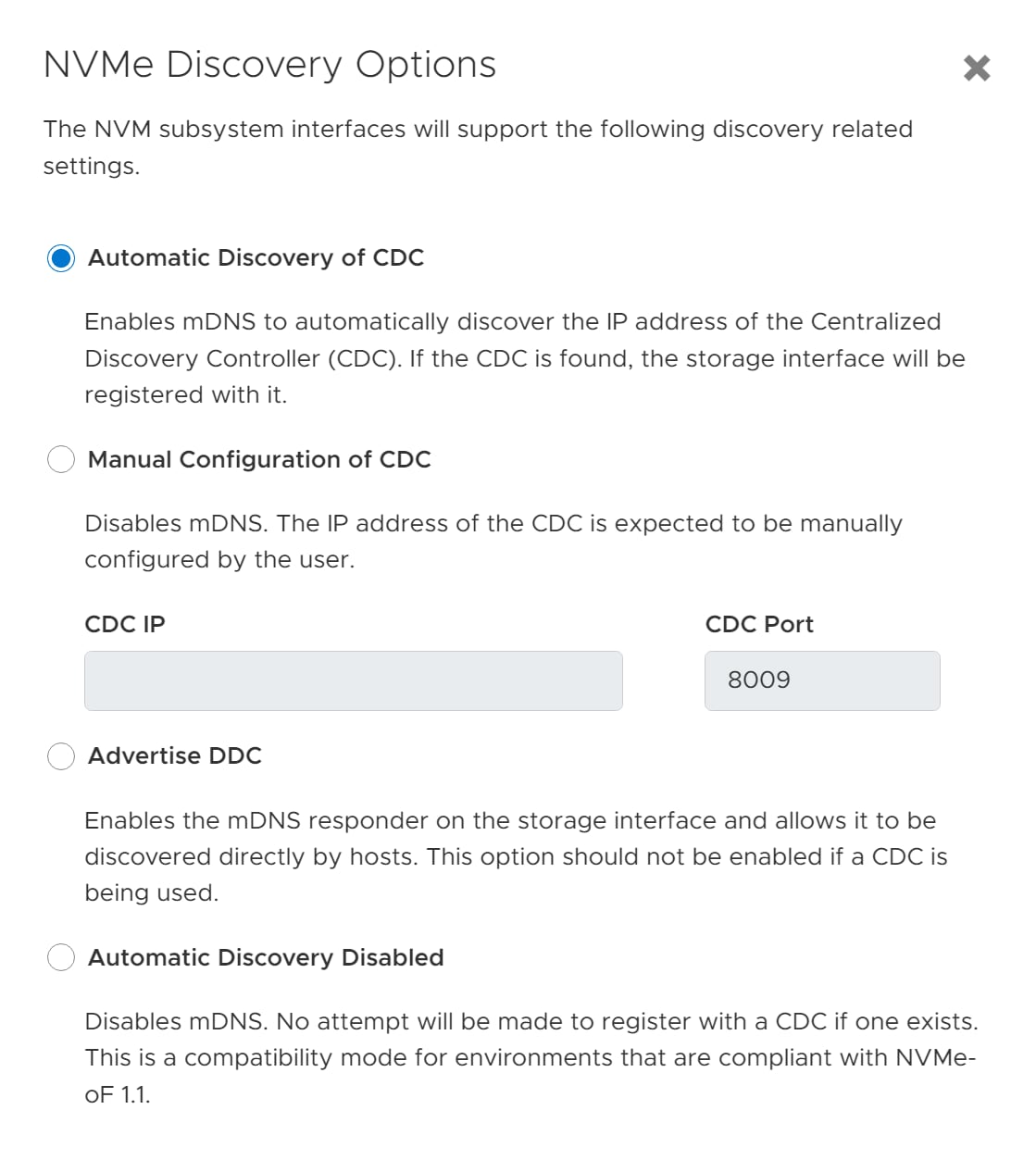
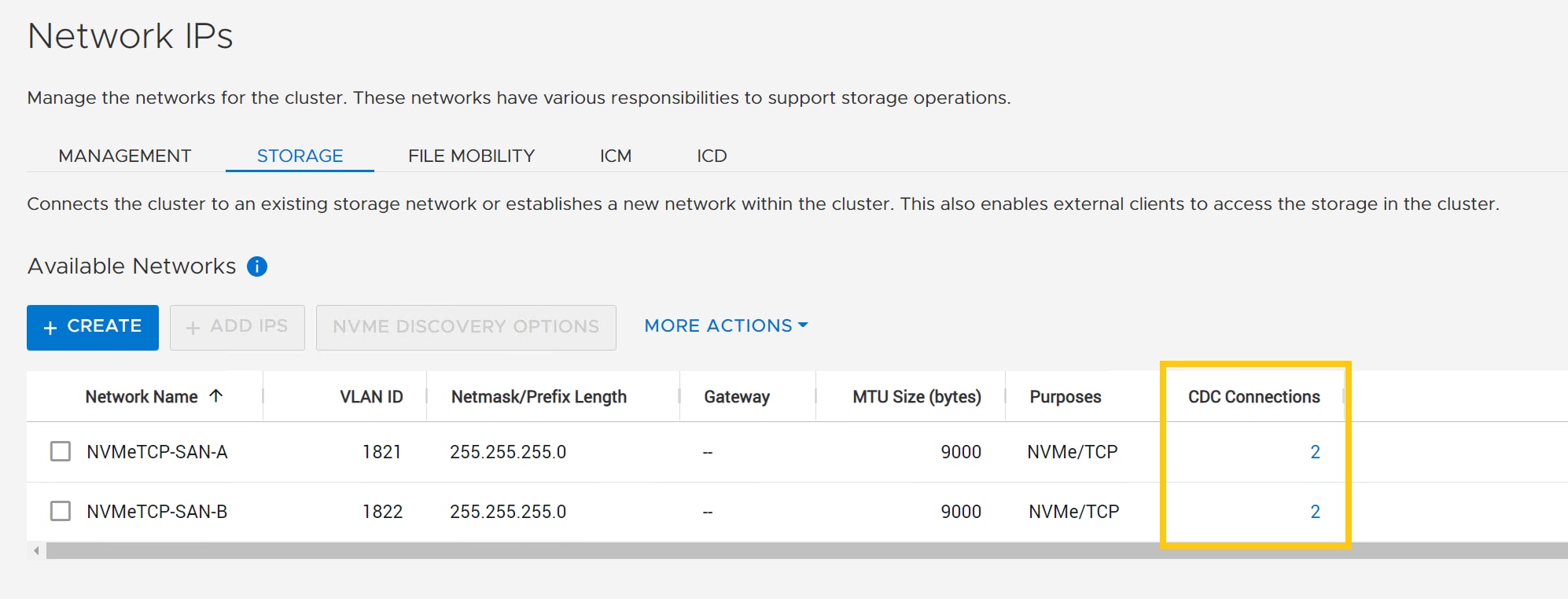
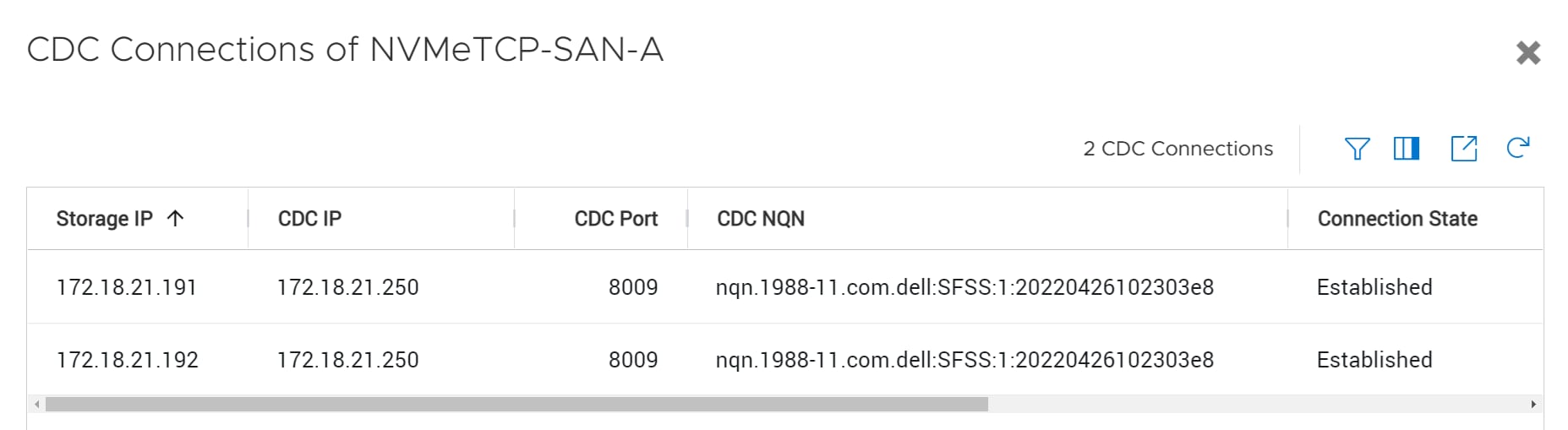
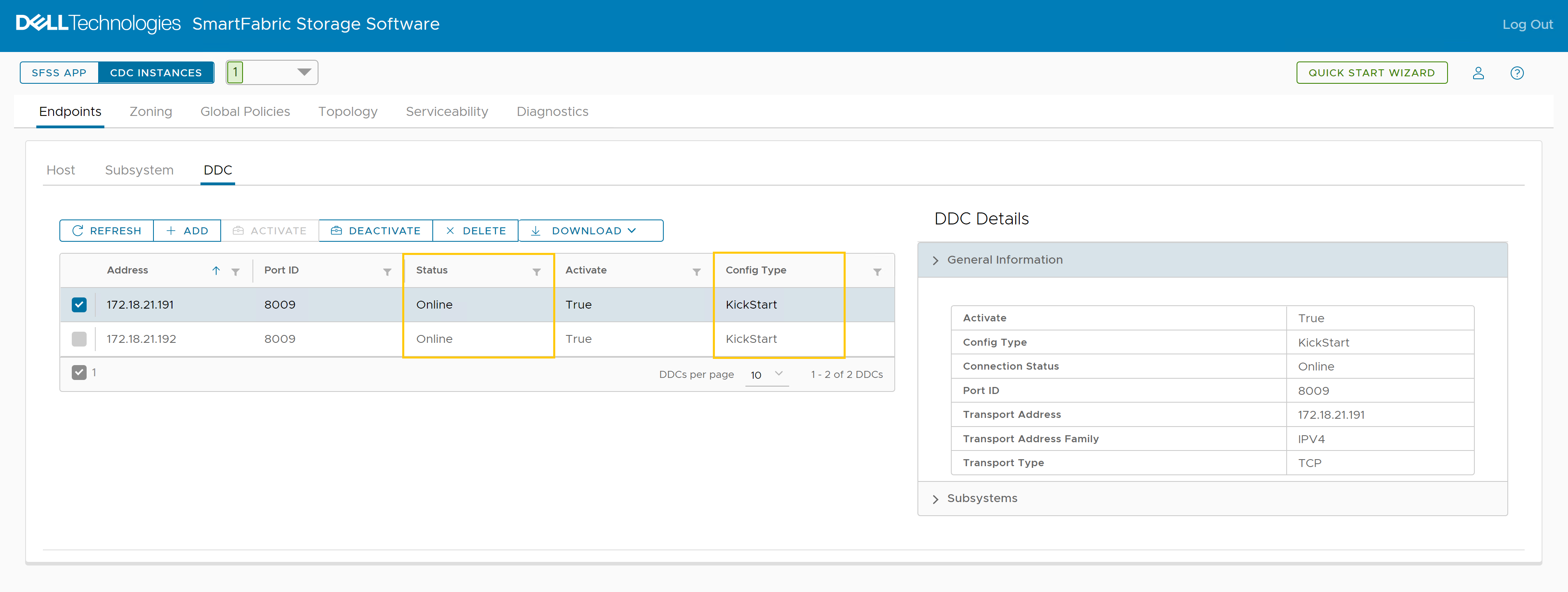

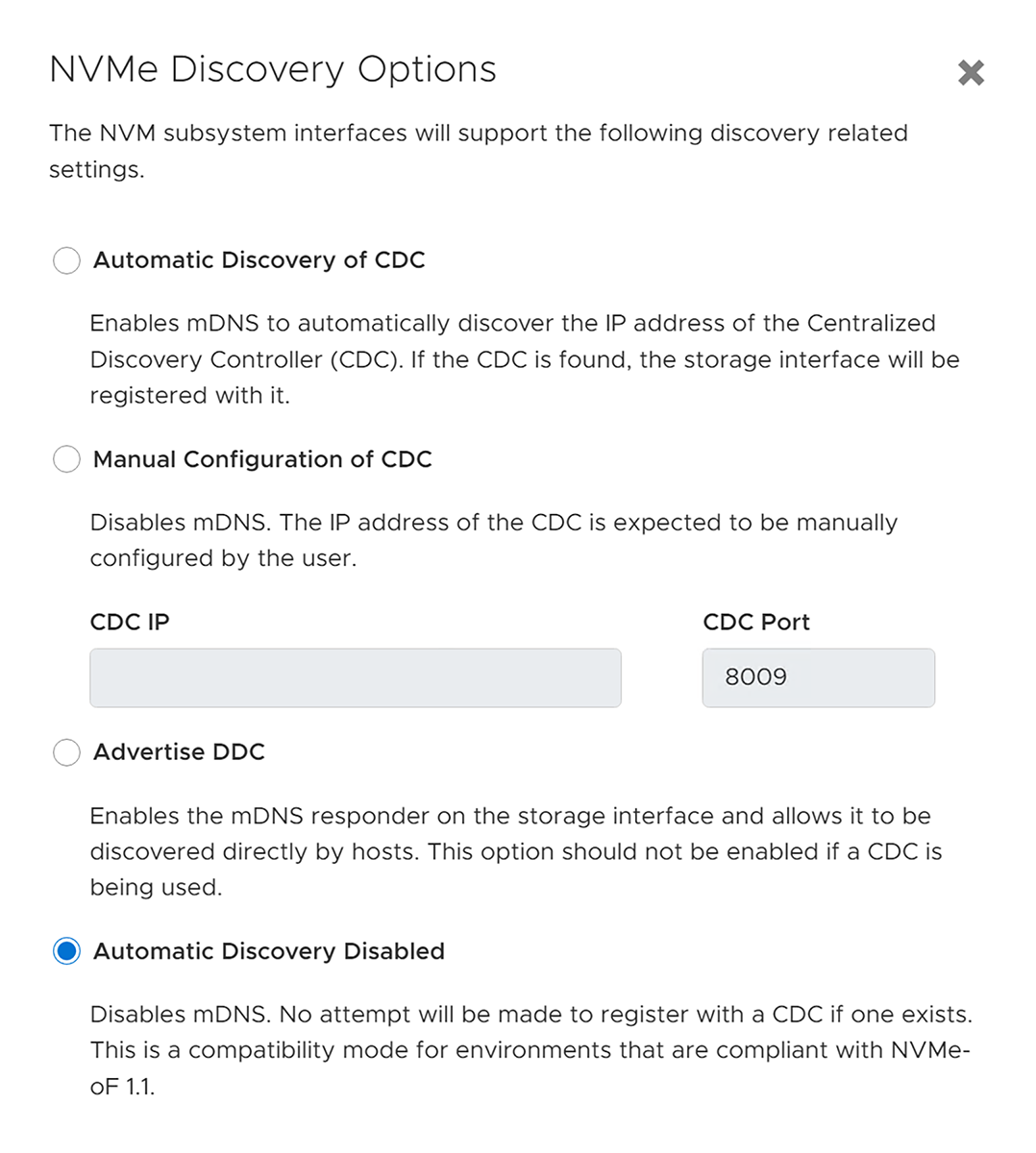
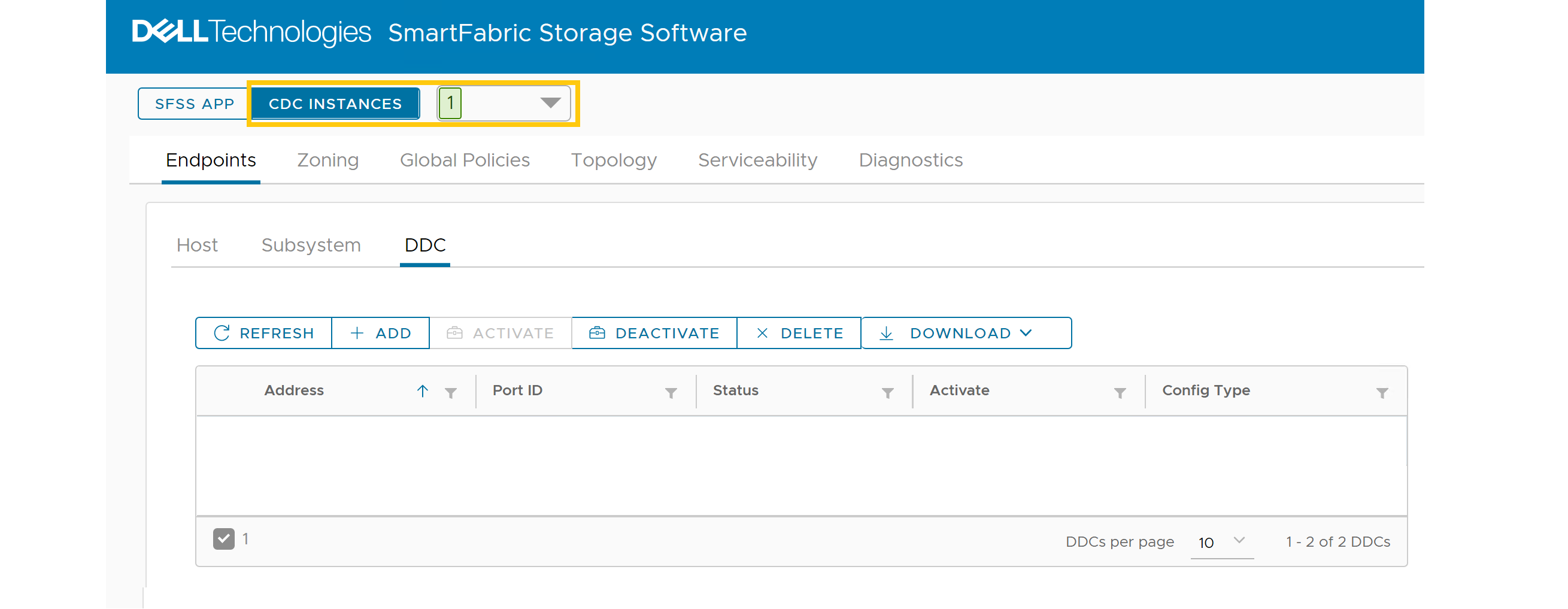
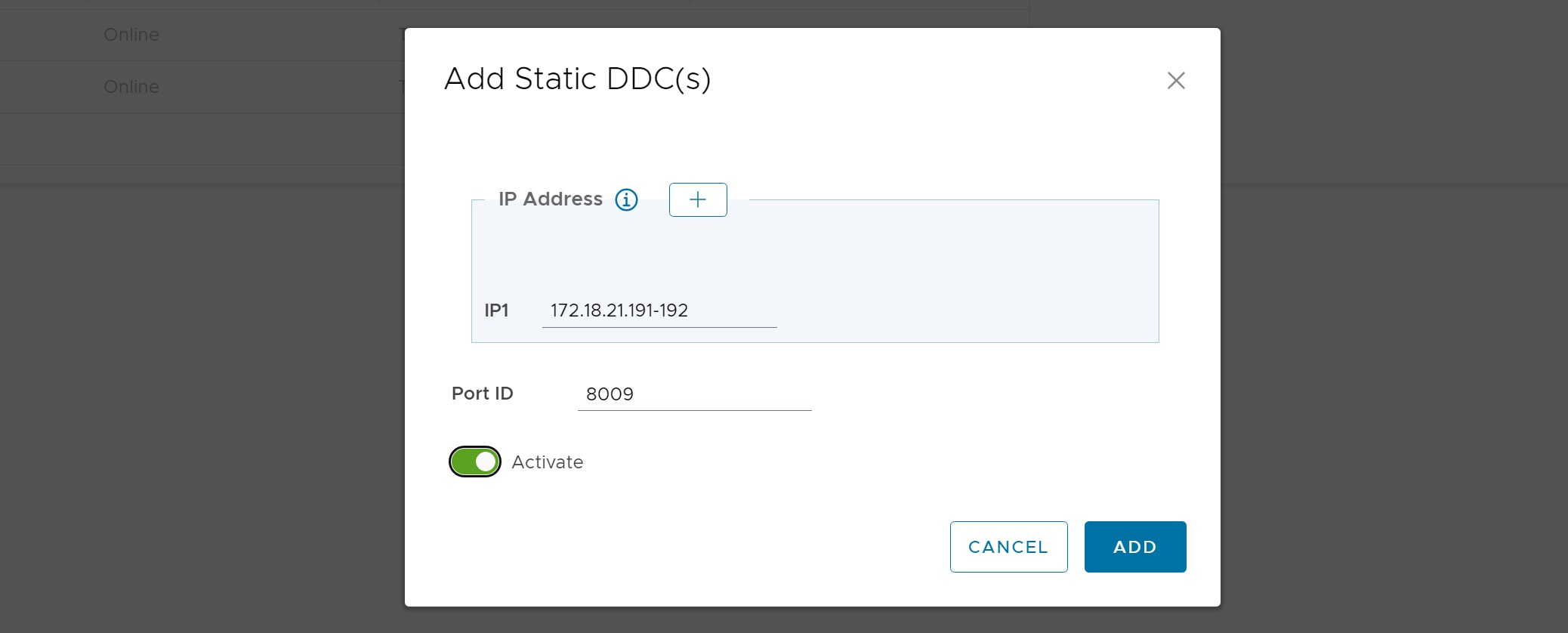
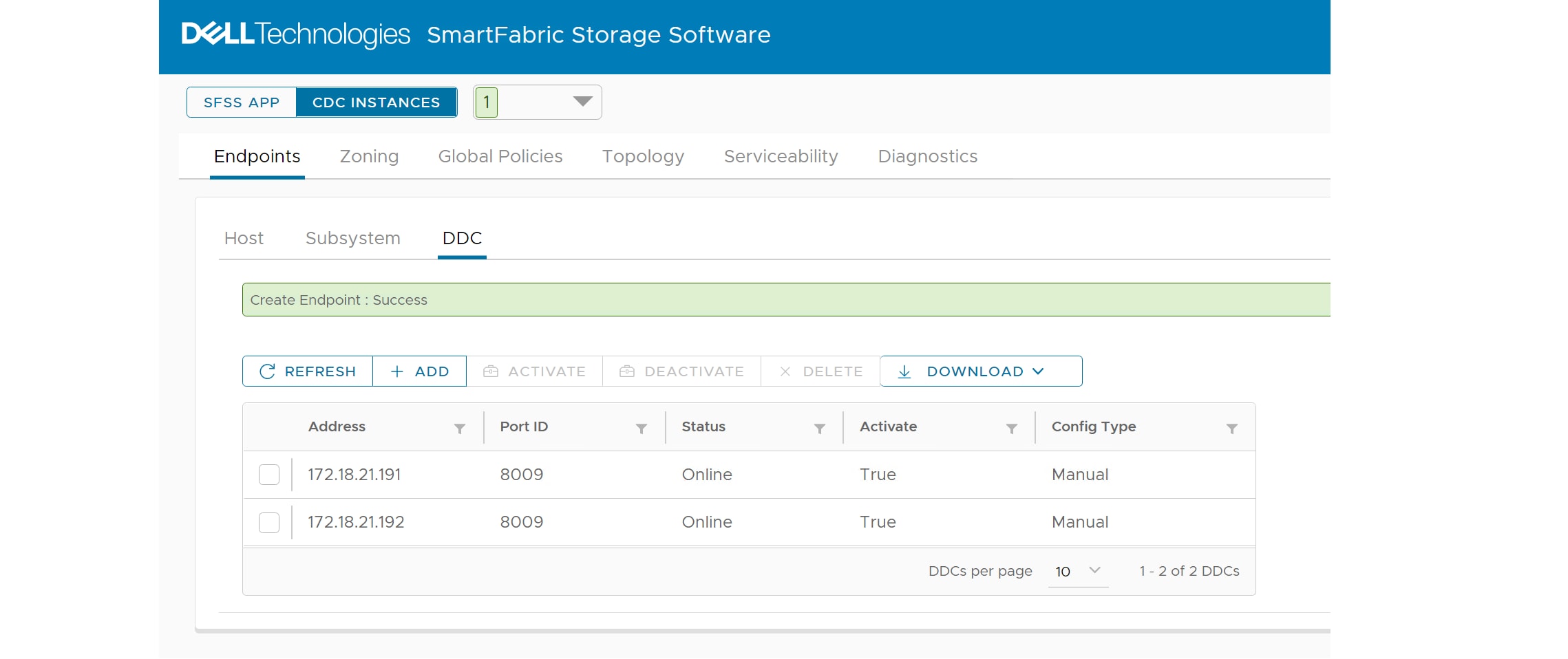
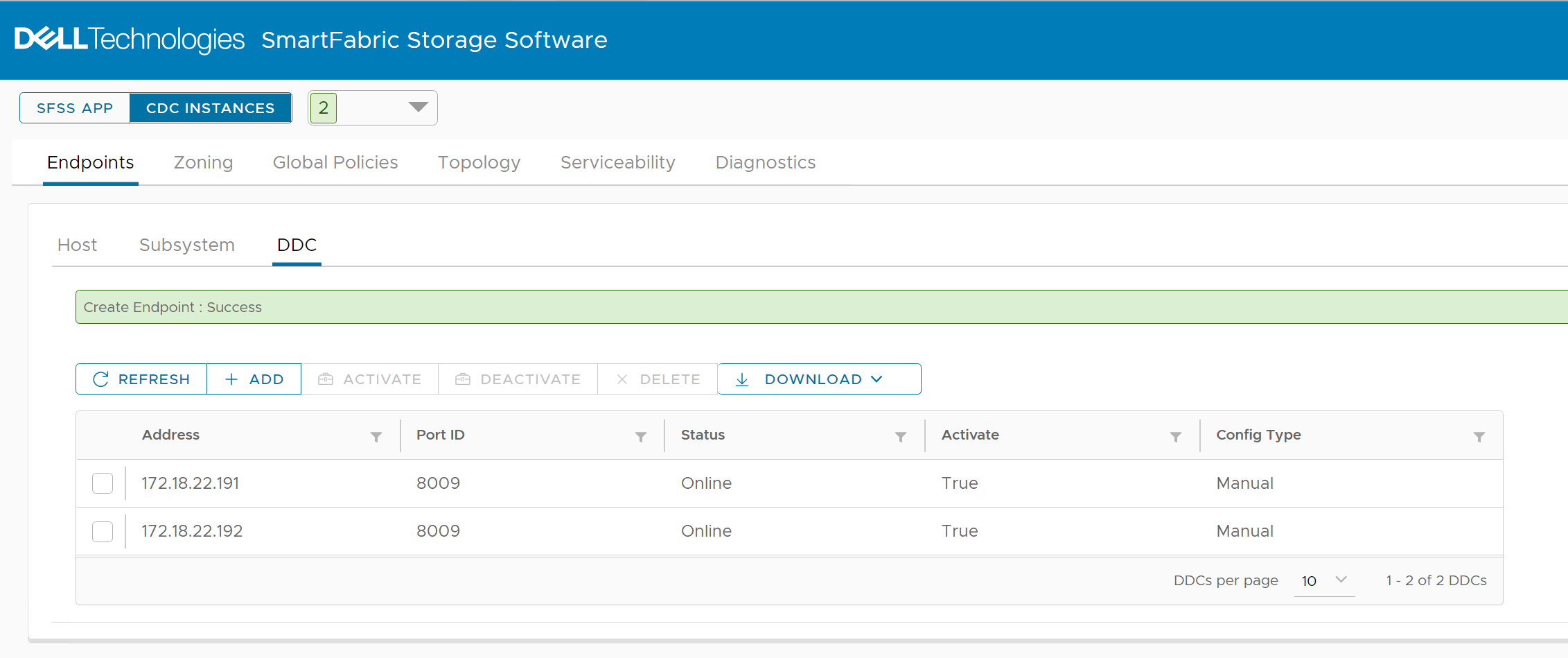
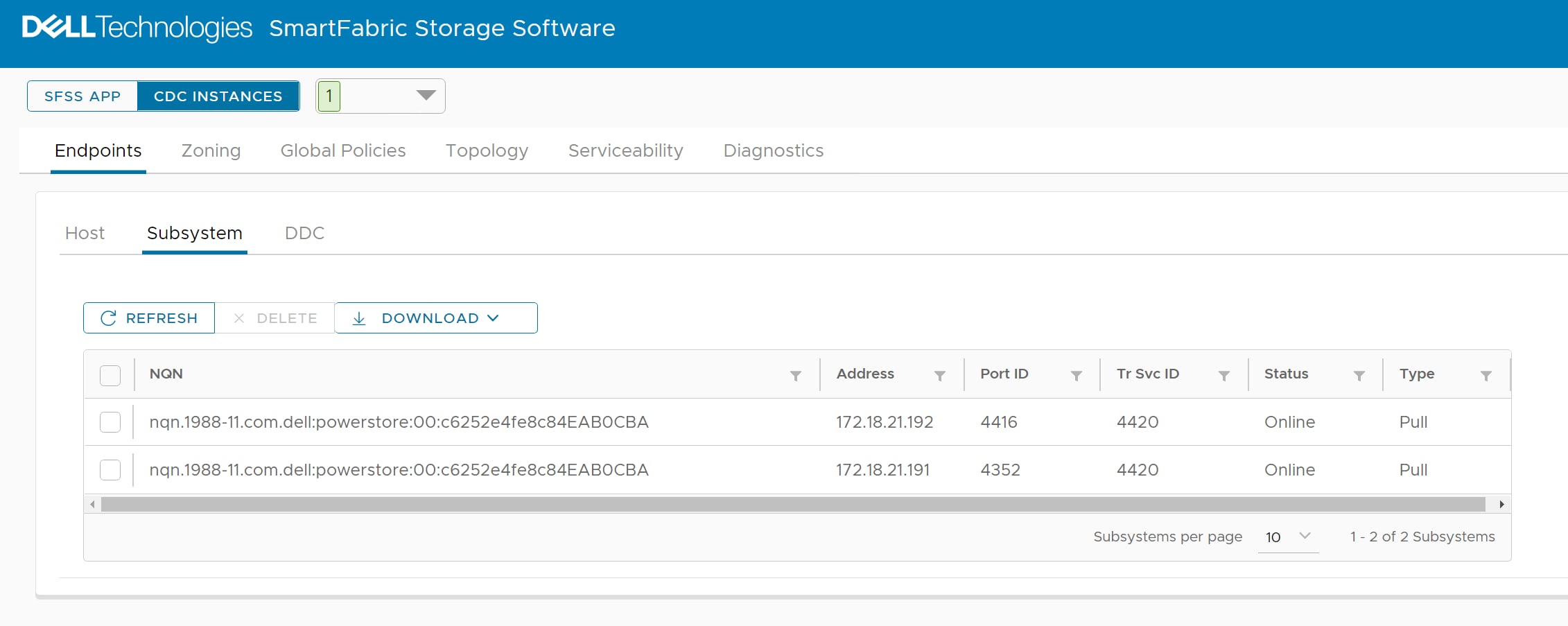
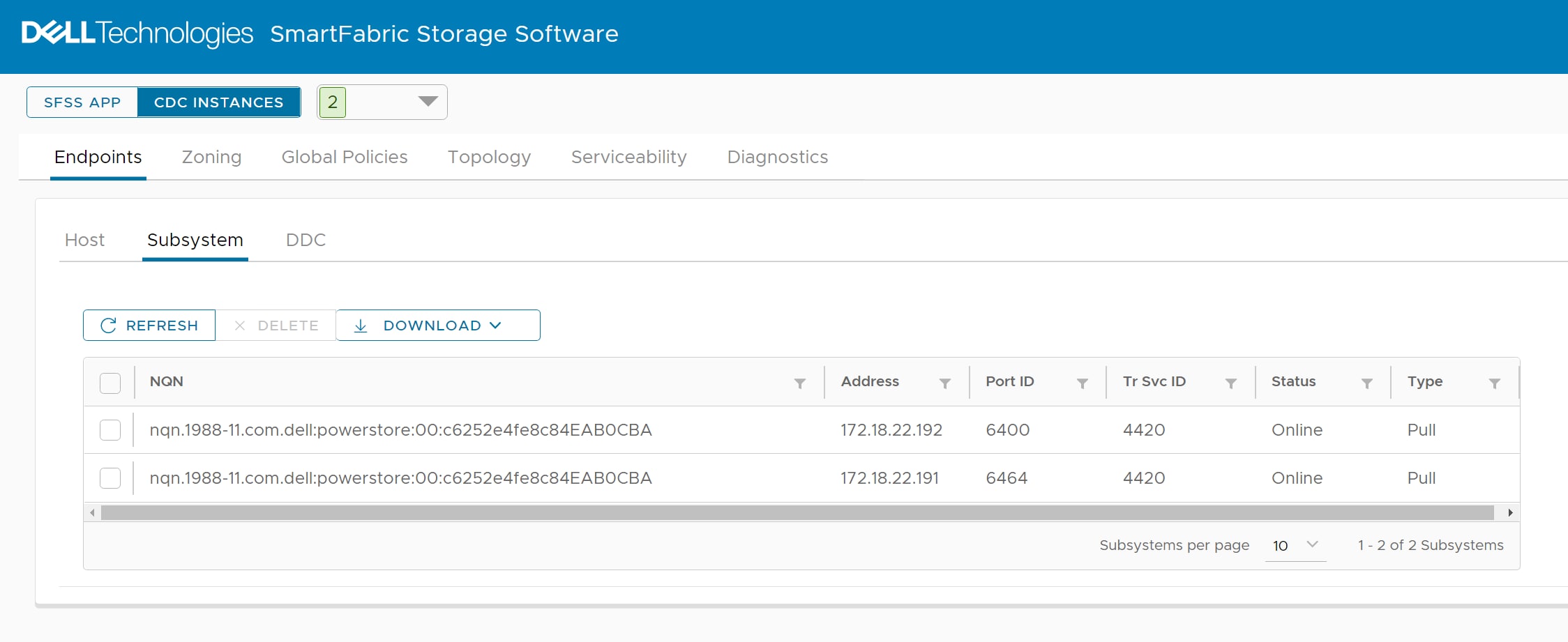 Note: If the output is not as expected, see the SmartFabric Storage Software Troubleshooting Guide Alerts and Events Reference on the SmartFabric Storage Software Download for NVMe/TCP SAN Documentation page for assistance.