SONiC SmartFabric Manager for PowerScale Deployment Guide

Oct 19, 2026
SONiC SmartFabric Manager for PowerScale Deployment Guide This deployment guide covers using Dell Technologies SONiC SmartFabric Manager to configure a leaf-spine topology for single or multirack PowerScale frontend network deployments.

Introduction

Introduction

This deployment guide covers Dell Technologies PowerSwitch configuration for PowerScale using SmartFabric Manager for SONiC (SFM). It applies to single rack and multirack greenfield deployments. The focus of this guide is on the PowerScale frontend (external) network for storage clients to access the PowerScale storage resources.

Note: This guide does not cover the PowerScale backend (internal) network that is used for PowerScale node-to-node communication. The PowerScale backend network uses separate Dell PowerSwitch systems running Dell OS10 SmartFabric Services. No user configuration is required on the backend network.

For the frontend network, Dell PowerSwitch systems running Enterprise SONiC are configured using SFM. SFM automates the configuration of the leaf-spine fabric that is used in this deployment. The leaf-spine fabric uses EVPN VXLAN, which enables a virtual Layer 2 overlay network to run over a physical Layer 3 underlay network. Use of a VXLAN leaf-spine fabric is a best practice in the data center.

Enterprise SONiC Distribution by Dell Technologies

SONiC is an open-source, Linux-based network operating system that runs on switches from multiple vendors and ASICs. Enterprise SONiC Distribution by Dell Technologies is a hardened and validated version of SONiC that is supported on certain Dell PowerSwitch platforms. Dell Enterprise SONiC supports an intuitive command-line interface, object-based administration through a REST interface, Google’s gRPC Network Management Interface (gNMI), and SmartFabric Manager.

SmartFabric Manager for SONiC

SmartFabric Manager for SONiC (SFM) simplifies network setup and maintenance by automating network deployment and providing an easy-to-use web user interface.

SFM is a virtual machine that runs on VMware ESXi, provided in OVA format, or on Linux KVM, provided in QCOW2 format. SFM configures Dell PowerSwitch systems using REST API commands.

The PowerScale deployment in this guide uses a Border Gateway Protocol (BGP) Ethernet VPN (EVPN) with Virtual Extensible LAN (VXLAN) leaf-spine fabric. Use of a VXLAN leaf-spine fabric is a best practice in the data center. Manually configuring the switches for this fabric would require hundreds of CLI commands. SFM automates the fabric creation, making it fast, easy, and with a lower probability of errors than configuring the fabric manually.

PowerScale

The PowerScale network-attached storage (NAS) platform combines modular hardware with unified software to store massive amounts of unstructured data. The OneFS operating system provides the intelligence behind the highly scalable modular storage solution that can grow with your business.

PowerScale takes a scale-out approach to storage by creating a cluster of nodes that runs a distributed file system. OneFS combines the three layers of storage architecture—file system, volume manager, and data protection—into a scale-out NAS cluster.

Each node adds resources to the cluster. Because each node contains globally coherent RAM, as a cluster becomes larger, it becomes faster. Meanwhile, the file system expands dynamically and redistributes content, which eliminates the work of partitioning disks and creating volumes.

Nodes work as peers to spread data across the cluster. Striping—the process of segmenting and distributing data—protects data. Striping also enables users connecting to any node to take advantage of the performance of the entire cluster.

OneFS uses distributed software to scale data across the PowerScale hardware. Primary devices do not control the cluster, and secondary devices do not invoke dependencies. Each node helps to control data requests, boost performance, and expand cluster capacity.

Typographical conventions

The CLI and UI examples in this document use the following conventions:

Text style

Representation

Monospace text

CLI examples

Bold monospace text

  • CLI examples which wrap the page
  • Highlighted information in CLI output

Italic monospace text

Variables in CLI examples

Bold text

  • UI fields
  • Information which is entered in the UI

We value your feedback

Dell Technologies and the authors of this document welcome your feedback on the solution and the solution documentation. Contact the Dell Technologies Solutions team by email.

Authors: Dell Technologies Network Solutions Engineering, Technical Marketing, and Content Engineering & Translation teams

Hardware used in this guide

Dell PowerSwitch S5248F-ON

The Dell PowerSwitch S5248F-ON is a 1-Rack Unit (1U), multilayer switch with 48x 25 GbE, 4x 100 GbE, and 2x 200 GbE ports. This guide uses two S5248F-ON switches in each rack as leaf switches.

This figure shows a photo of the Dell PowerSwitch S5248F-ON switch.

Figure 1. Dell PowerSwitch S5248F-ON

Dell PowerSwitch S5232F-ON

The Dell PowerSwitch S5232F-ON is a 1U, multilayer switch with 32x 100 GbE QSFP28 ports and 2x 10 GbE SFP+ ports. This guide uses two S5232F-ON switches as spine switches.

This figure shows a photo of the Dell PowerSwitch S5232F-ON switch.

Figure 2. Dell PowerSwitch S5232F-ON

Dell PowerSwitch N3248TE-ON

The Dell PowerSwitch N3248TE-ON is a 1U switch with 48x 1 GbE BASE-T ports and 4x 10 GbE SFP+ ports. This guide uses one N3248TE-ON switch in each rack for out-of-band (OOB) management traffic. 

This figure shows a photo of the Dell PowerSwitch N3248TE-ON switch.

Figure 3. Dell PowerSwitch N3248TE-ON

Note: Other Dell and third-party switches with 1 GbE BASE-T ports and 10 GbE or faster uplink ports can also be used for OOB management traffic.

Dell PowerScale storage nodes

A PowerScale OneFS cluster can be built with a flexible choice of storage platforms. See the PowerScale All-Flash specification sheet for PowerScale node models and specifications.

This figure shows a photo of the Dell PowerSwitch F210 node.

Figure 4. Dell PowerScale F210 node 

Topology

Topology

The topology for this deployment is divided into two parts: 

  1. Production, or in-band
  2. Out-of-band (OOB) management

The production topology contains redundant components and is used for all mission-critical and end-user network traffic. The OOB management network is an isolated network for hardware management.

Production topology

The production topology that is used in this guide is shown in the figure below.

This figure shows the PowerScale leaf-spine production topology.

Figure 5. PowerScale leaf-spine production topology

PowerScale nodes, storage clients, and other devices can be in the same rack or spread across multiple racks as shown in the figure above.

Note: The step-by-step example in this guide uses two spine switches and the equipment that is shown in Racks 1 and 2. The diagram shows how the topology can be scaled to include additional racks. 

Each rack has two leaf switches connected to each other with a multichassis link aggregation group (MC-LAG) peer link. Downlinks from leaf switches to devices in the rack use LACP with MC-LAG. Every leaf switch is connected to every spine switch to form a leaf-spine topology. 

BGP EVPN with VXLAN is used to stretch Layer 2 networks across the Layer 3 leaf-spine fabric. Equal-Cost Multi-Path routing (ECMP) is enabled on the switches to use all available bandwidth on the leaf-spine connections. SFM automates the configuration of this VXLAN fabric. 

The DNS server that is used for PowerScale can be located anywhere that is reachable from the PowerScale frontend network. 

Note: This guide does not cover the PowerScale backend network that is used for PowerScale node-to-node communication. The PowerScale backend network uses separate Dell PowerSwitch systems running OS10 SmartFabric Services. No user configuration is required on the backend network. 

Production topology connection details

Production network connection details for this deployment example are shown in the figure below.
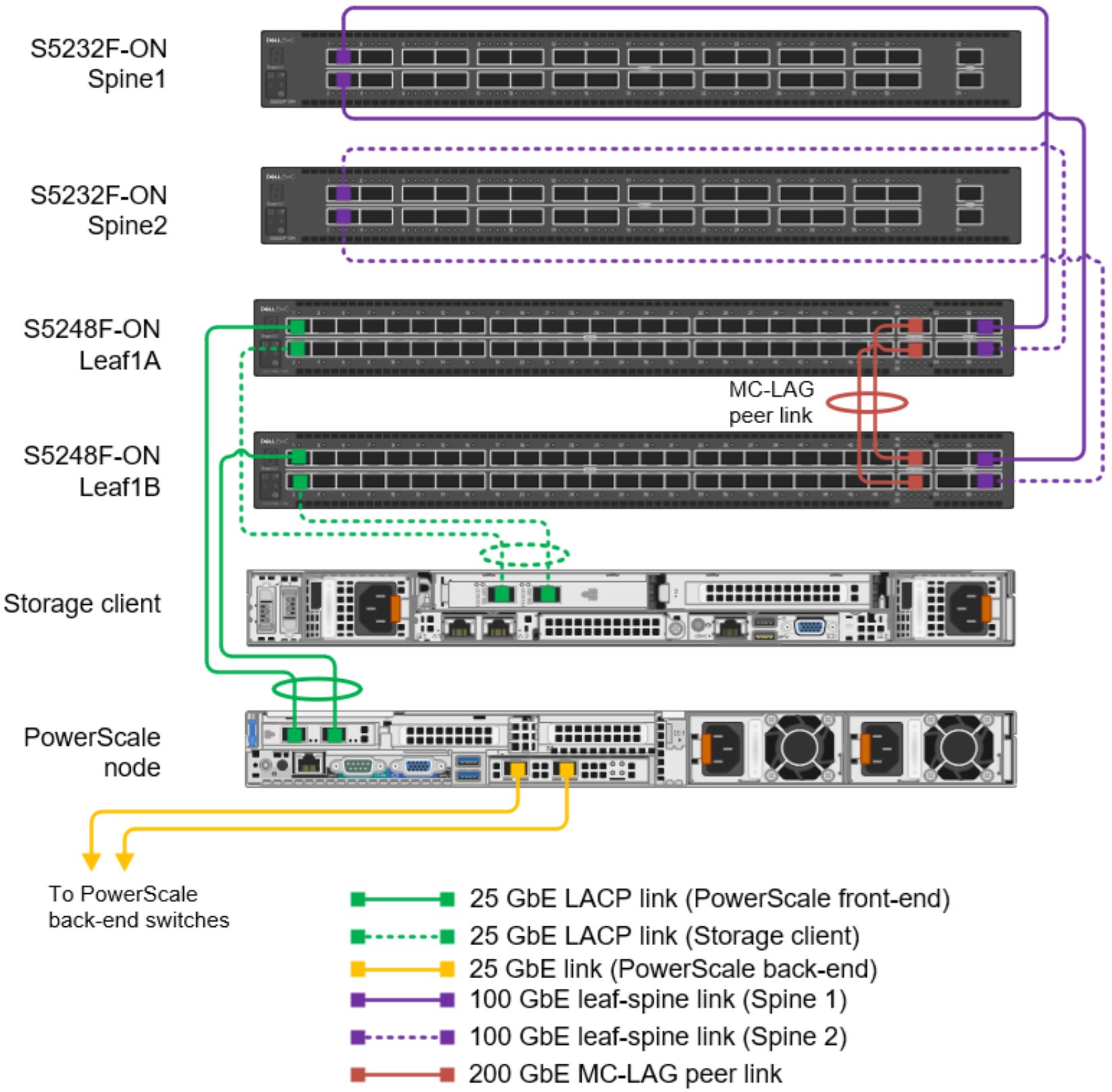
This figure shows the production network connection details for this deployment example.

Figure 6. Production network connection details 

Note: Other PowerScale nodes, leaf switches, and spine switches that are not shown are connected in the same manner. PowerScale node NIC locations and speeds will vary depending on the model.

Each leaf switch has one connection to each spine switch. For this deployment example, all leaf-spine connections are 100 GbE.

All PowerScale nodes have two frontend connections to each leaf. The connections in this example are each 25 GbE. The two 25 GbE connections from each PowerScale node to the leaf switches are configured in an LACP link aggregation group (LAG). 

For the MC-LAG peer link connections, two QSFP28-DD double density ports (2 x 100 GbE interfaces per physical port), are available on S5248F-ON switches. They are used to create a 400 GbE port channel that is the MC-LAG peer link. This connection requires QSFP28-DD DAC cables or optics. On leaf switches without QSFP28-DD ports, QSFP28 100 GbE or SFP28 25 GbE ports are used for peer link connections. Dell Technologies recommends using at least two physical ports on each leaf switch for the peer link. If 25 GbE ports are used, Dell Technologies recommends using at least four connections on each leaf for sufficient bandwidth. Multiple peer link connections provide redundancy and additional bandwidth if a switch is taken offline or if there is a failure. The peer link is used for data traffic only if there is a link failure that requires the peer link to reach the destination.

OOB management topology

The out-of-band (OOB) management network is an isolated network for remote management of hardware such as PowerScale nodes and PowerSwitch systems. It can also include other devices using their dedicated management ports. 

One N3248TE-ON switch is typically installed in each rack for OOB management network connections, as shown in the following figure. Other Dell and third-party switches with 1 GbE BASE-T ports can also be used for OOB management traffic.
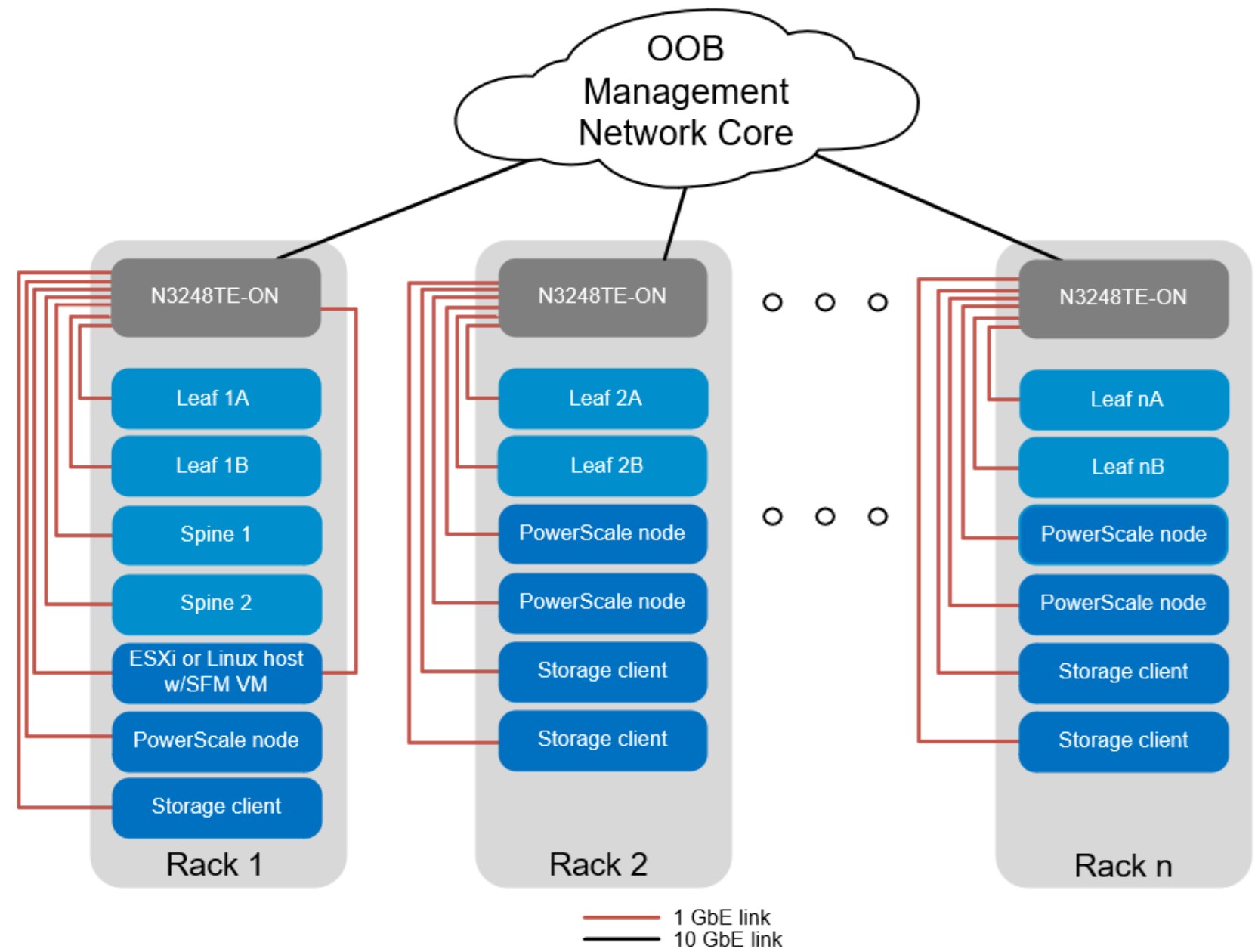
This figure shows the OOB management network topology used in this deployment example.

Figure 7. OOB management network topology

Four 10 GbE SFP+ ports are available on each N3248TE-ON. These ports are used as uplinks to the OOB management network core. 

The 1 GbE 1000BASE-T ports on each N3248TE-ON are connected downstream to hardware management ports on each device in the rack. Those ports include the PowerSwitch management ports and PowerScale node iDRAC ports. Dedicated management ports on other devices in the rack can also be connected to the OOB management switches. 

SFM uses the OOB management network to configure and manage the leaf and spine switches that form the production topology. The ESXi or Linux host with the SFM VM must be accessible on this network. For this reason, the host containing SFM requires a 1 GbE NIC connected to the OOB management network in addition to its iDRAC port.

OOB management switch configuration is not detailed in this guide. The OOB management network can be Layer 2 or Layer 3 and configured as needed to suit your environment. 

Note: For reference, devices on the OOB Management network in this guide use the 100.67.0.0/16 IP address range. All addresses that are used in this guide are examples only. 

OOB management connection details

All PowerSwitch management ports and PowerScale node iDRACs are connected to the OOB management switch in each rack as shown below.
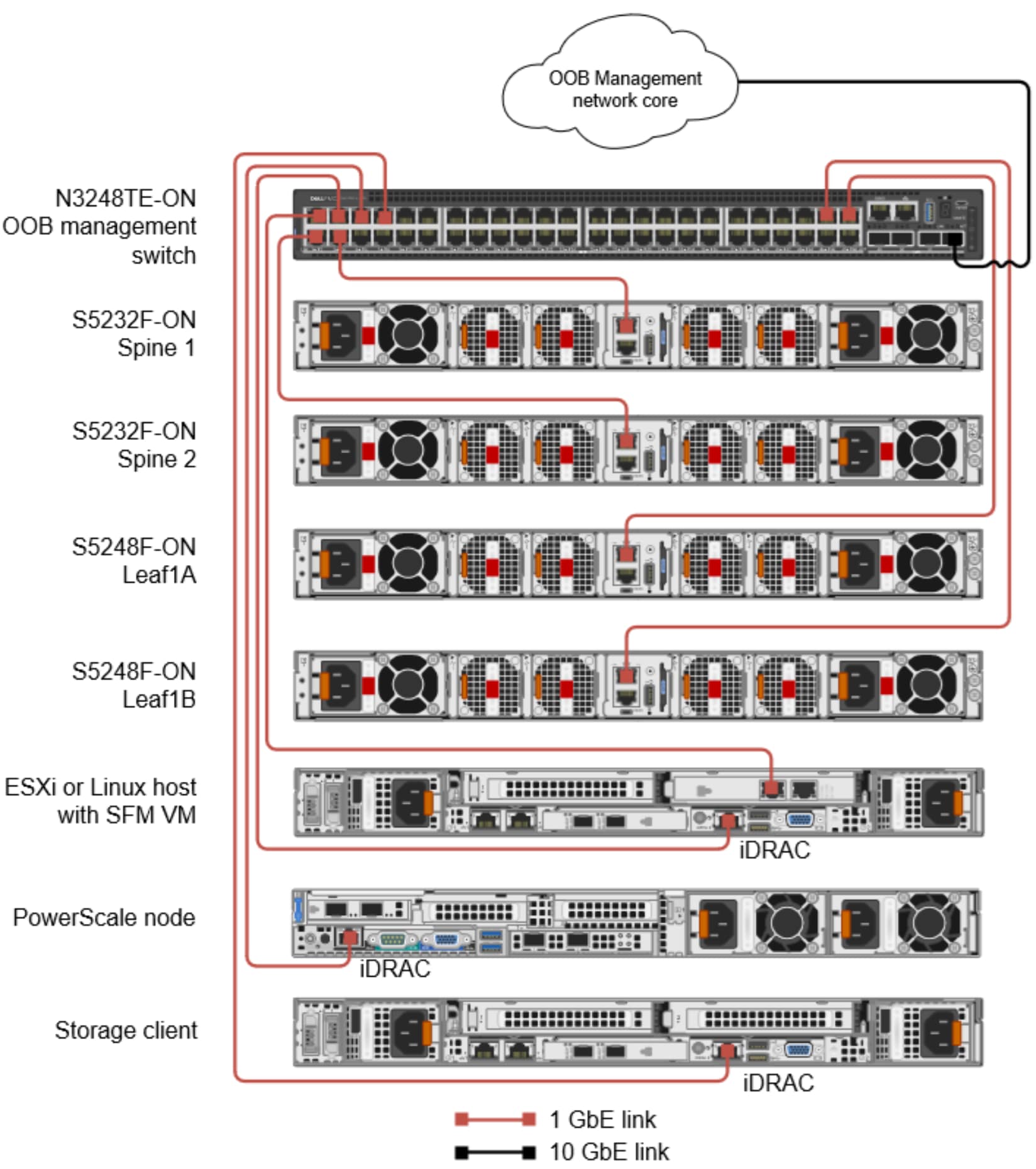
This figure shows the OOB management network connection details for this deployment example.

Figure 8.   OOB management network connection details

The ESXi or Linux host with the SFM VM has two connections to the OOB management network: the 1 GbE iDRAC and an additional 1 GbE connection for SFM communication with the PowerSwitch leaf and spine systems.

Note: Other PowerScale nodes, spines, and leaf switches that are not shown are connected in the same manner. PowerScale node NIC and iDRAC locations will vary depending on the model.

Deployment Planning

Deployment Planning

This chapter covers items to consider before deploying a PowerScale frontend network with SFM.

Minimum networking requirements

Note: In this guide, “single rack” means topologies with only two leaf switches. “Multirack” means topologies with four or more leaf switches.

The minimum frontend networking requirements for PowerScale deployments with SFM include the following:

  • Single rack deployments require two supported Dell PowerSwitch leaf switches of the same model.
  • Multirack deployments require two supported Dell PowerSwitch leaf switches of the same model per rack, plus at least two supported Dell PowerSwitch spine switches.
  • All Dell PowerSwitch leaf and spine systems in the fabric must be running the same version of Dell Enterprise SONiC. (Temporary exceptions are allowed during SONiC OS upgrades.)
  • Dell Enterprise SONiC 4.4.0 or later is required. An Enterprise Standard or Enterprise Premium bundle is required for this deployment.
  • One 1 GbE BASE-T switch for OOB management connections is required. Dell Technologies recommends using one PowerSwitch N3248TE-ON per rack.
  • One DNS server that is reachable from the PowerScale Node frontend network is required.
  • Each PowerScale node requires at least one 25 GbE SFP28 connection to each leaf switch in the rack. Dell Technologies recommends using LACP on these connections as shown in this guide.
  • MC-LAG peer links between leaf switch pairs require at least two connections for fault tolerance. Each link can be 25 GbE SFP28, 100 GbE QSFP28, or 200 GbE QSFP28-DD (available on S5248F-ON). If 25 GbE ports are used, Dell Technologies recommends using at least four connections for sufficient bandwidth.
  • One 1 GbE (1000BASE-T) connection is required for each switch OOB management port.
  • One 1 GbE (1000BASE-T) connection is recommended for each PowerScale node iDRAC port.
  • One server running ESXi 7.0 or later or Linux Kernel-based Virtual Machine (KVM) is required to host the SFM VM. In addition to the iDRAC, this server must have a network connection that allows the VM to reach the OOB management network. This connection is used for SFM to communicate with the leaf and spine switches. The SFM VM requires at least 32 GB RAM, 120 GB free disk space, and 16 virtual CPUs.

Supported Dell PowerSwitch systems

Dell PowerSwitch systems that are supported as leaf or spine switches with SFM for PowerScale frontend are shown in the table below. 

Table 2.Supported switches in leaf or spine roles in VXLAN fabrics

Dell PowerSwitch model

Typical role1

Notes

S5212F-ON

S5224F-ON

S5248F-ON

S5296F-ON

25 GbE leaf

None

S5232F-ON

100 GbE leaf or spine

None

S5448F-ON

100 GbE leaf

None

Z9264F-ON

100 GbE spine

Z9264F-ON is not supported as a leaf.

Z9332F-ON

400 GbE spine

Z9332F-ON is not supported as a leaf.

Z9432F-ON

400 GbE spine

None

Z9664F-ON

400 GbE spine

Z9664F-ON is not supported as a leaf.

1Any Dell PowerSwitch in the table above can be used as a leaf or a spine in a VXLAN fabric except where noted. Breakout cables and other supported port speeds can be used if needed. 

For OOB management, Dell Technologies recommends one PowerSwitch N3248TE-ON per rack. Other Dell and third-party switches with 1000BASE-T ports can also be used for the OOB management network.

PowerScale VLAN and IP addresses

Only one frontend network is required for the PowerScale nodes. In this example deployment, the storage clients that use PowerScale storage are also on this network. You can use SFM to add more networks as needed for other devices that may be connected to the same fabric. Storage clients can also be on other networks.

For the PowerScale frontend storage network, you must allocate a VLAN ID, an IP network, a range of IP addresses to reserve for PowerScale nodes, and a gateway address. Allocate at least one IP address for each PowerScale node in the cluster. Including extra addresses in the range will simplify PowerScale cluster expansion in the future.

Table 3. VLAN ID and network addresses that are used in this guide

VLAN ID

Description 

Network

PowerScale node 
IP address range

Gateway

100

PowerScale frontend storage access 

192.168.100.0/24

192.168.100.201-192.168.100.220

192.168.100.254

Note: The VLAN ID and IP addresses used in this guide are examples only and can be changed as needed. VLAN IDs 1-3446, 3939, and 3961-3966 are available for use. SFM reserves the other VLAN IDs.

Use SFM to create and verify the fabric

Use SFM to create the fabric

This section shows how to use SFM to create the VXLAN fabric for a PowerScale deployment. For other SFM features and additional information, see the SmartFabric Manager for SONiC User Guide.

Prepare switches for SFM

Set the admin password and configure the management interface

For each Dell PowerSwitch that will be a leaf or a spine in the fabric, do the following:

  1. Connect to the switch using the console serial port.
  2. Log in to the CLI as admin.
  3. Change the admin password from the default, YourPaSsWoRd, to a secure password during the first login when prompted. 
  4. Configure the OOB management interface (Management 0). SFM uses this interface to communicate with the leaf and spine switches. For SFM, Dell Technologies recommends using a static IP address instead of DHCP on Management 0 to ensure it does not change. If routing is used on your OOB management network, also specify the gateway address as shown in the configuration example below.

admin@sonic:~$ sonic-cli

sonic# configure

sonic(config)# interface Management 0

sonic(config-if-Management0)# ip address 100.67.112.13/24 gwaddr 100.67.112.254

sonic(config-if-Management0)# end

sonic# write memory

The commands above are the only ones that are required at the switch CLI when using SFM. The IP addresses used are examples only.

Note: If any leaf or spine switches have previously been configured (other than changing the admin password and configuring Management 0), run the write erase command and reboot each applicable switch. The admin password and Management 0 interface configuration will be retained. All other configuration settings on the switch will be reset to the factory defaults. 

Connect the switches and SFM host

Make the switch and SFM host connections as shown in Production network connection details and OOB management network connection details. The PowerScale nodes do not have to be connected now.

Deploy the SFM virtual machine

Deploy the SFM virtual machine to a VMware ESXi or Linux host as shown in the SmartFabric Manager for SONiC User Guide. SFM is available in OVA format for ESXi or in QCOW2 format for QEMU/KVM on Linux.

The host must have network connectivity to the OOB management network for SFM to communicate with the leaf and spine switches. Example network connections are shown in OOB management network connection details.

Add leaf and spine switches to SFM inventory

  1. Connect to the SFM UI in a browser and log in.
  2. In the left pane, select Inventory > Switches.
  3. In the right pane, click the Discovery Requests tab and click +DISCOVER. The Discover Switches dialog box opens. 
    1. Next to Discovery Mode, select either Range or List. Range is selected in this example.
    2. Enter the Management 0 addresses of the leaf and spine switches as a range or a comma-separated list.
    3. Enter the Username and Password for the switches. All switches in one discovery instance must use the same credentials. 
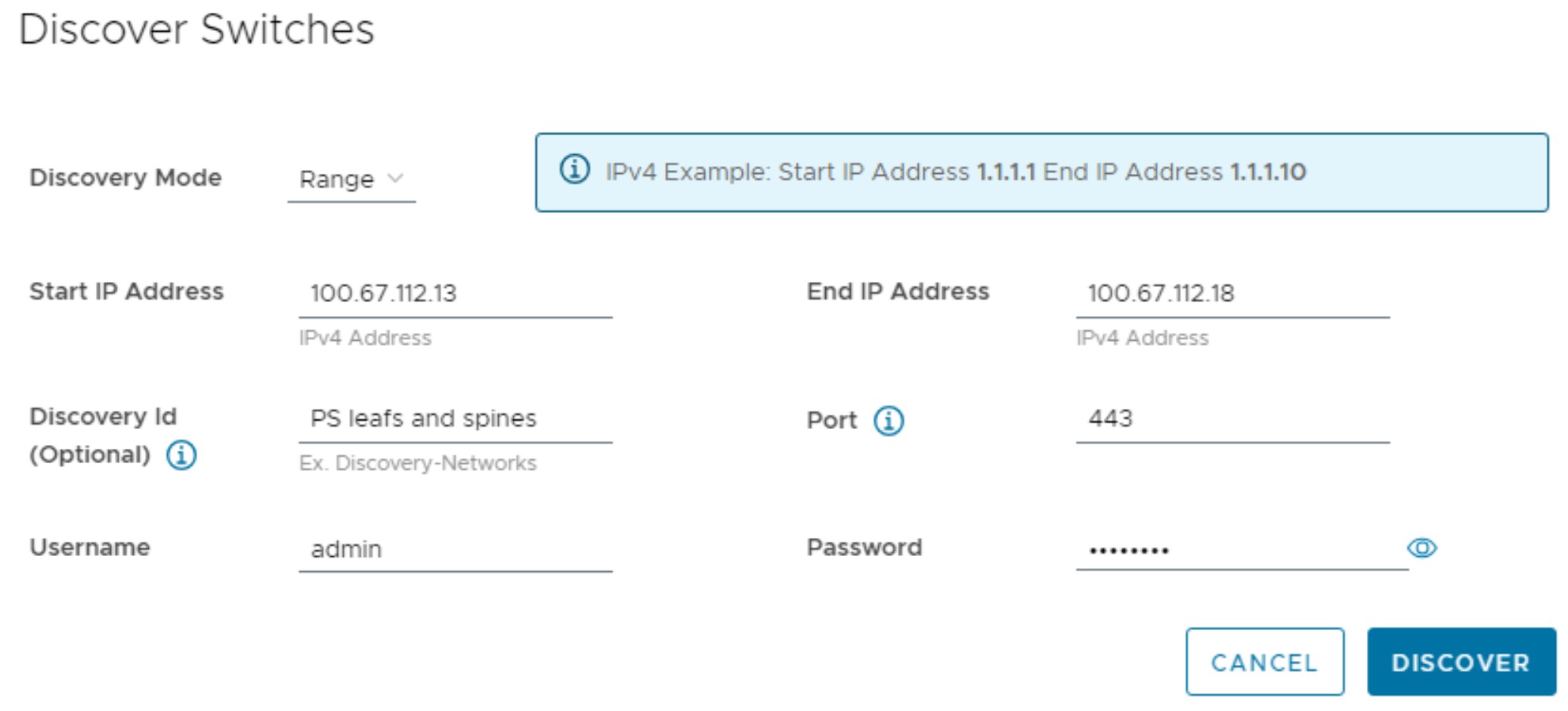
      This figure shows a screenshot of the Discover Switches dialog box.

      Figure 9. Discover switches by IP address range

  4. Click DISCOVER. The discovery process completes in less than two minutes for this example. 
    The switches are listed on the Discovered Switches tab of the Inventory page in SFM.
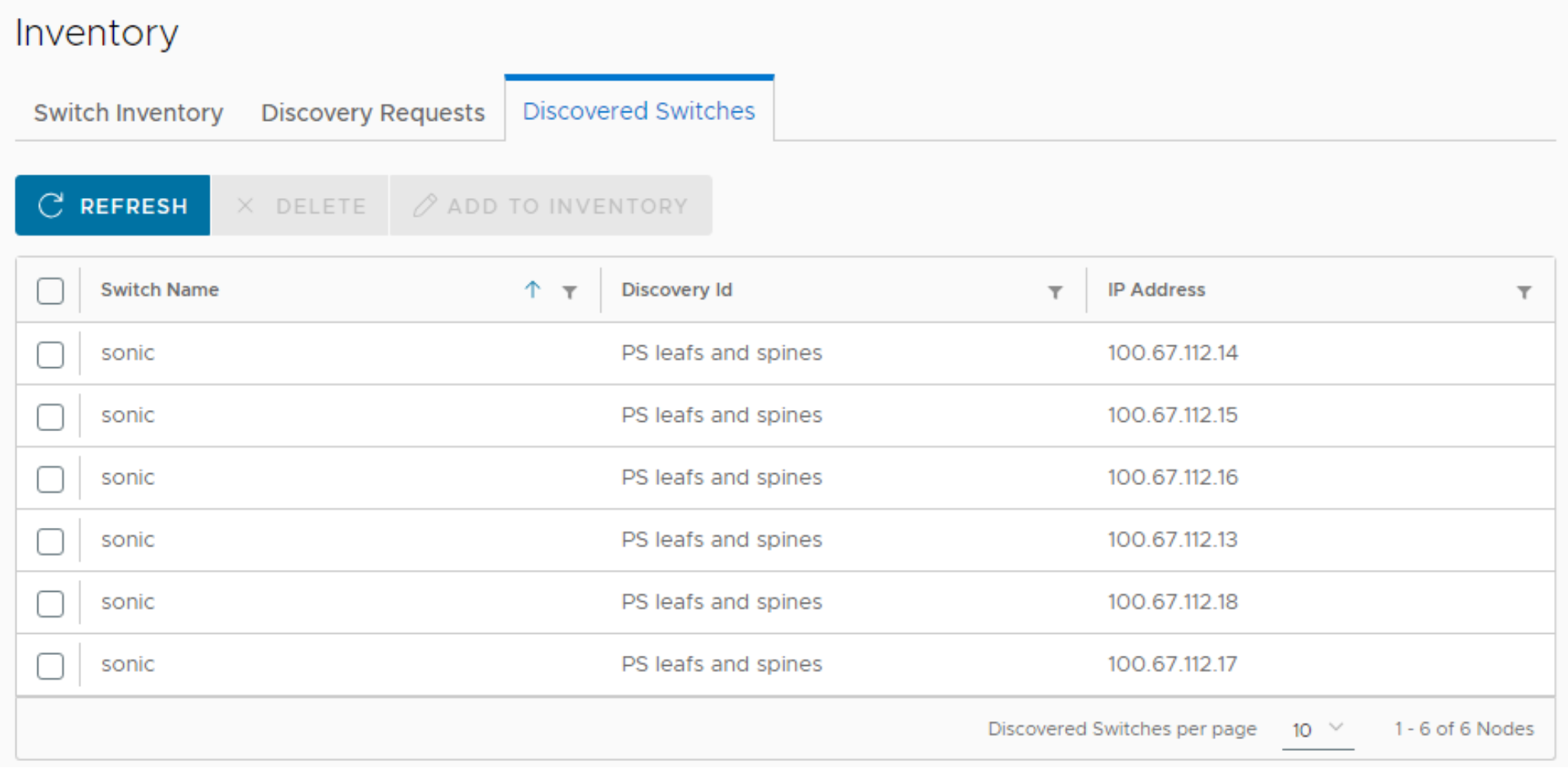
    This figure shows a screenshot of the switches listed on the Discovered switches tab of the Inventory page in SFM.

    Figure 10. Discovered switches

  5. Check the box next to all switches that will be in the leaf-spine fabric and then click ADD TO INVENTORY.
  6. In the Add Switches to Inventory dialog box, enter a hostname and assign a role to each switch. 
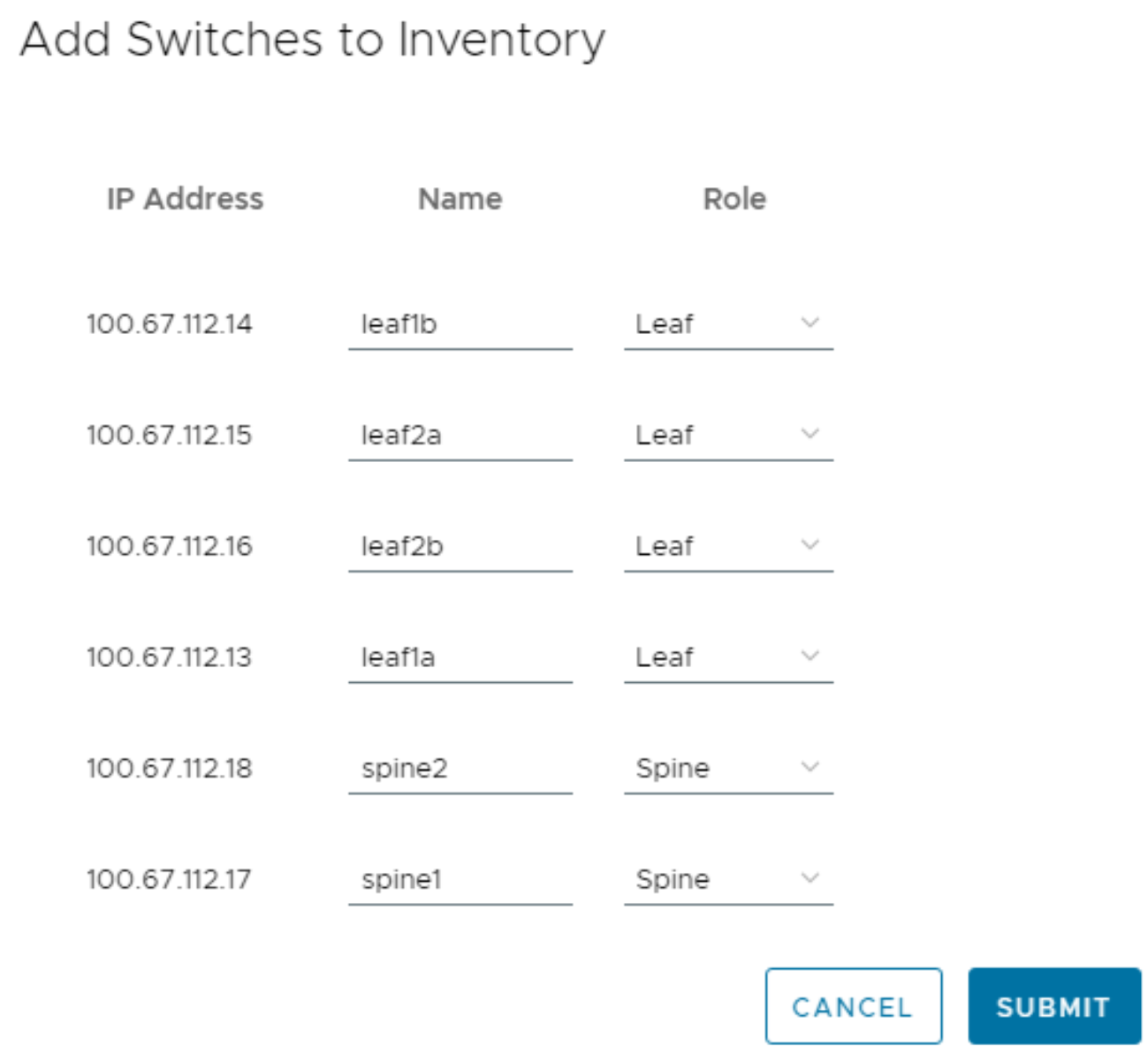
    This figure shows a screenshot of the Add Switches to Inventory dialog box.

    Figure 11. Add switches to inventory

  7. Click SUBMIT to add the switches to the SFM inventory.
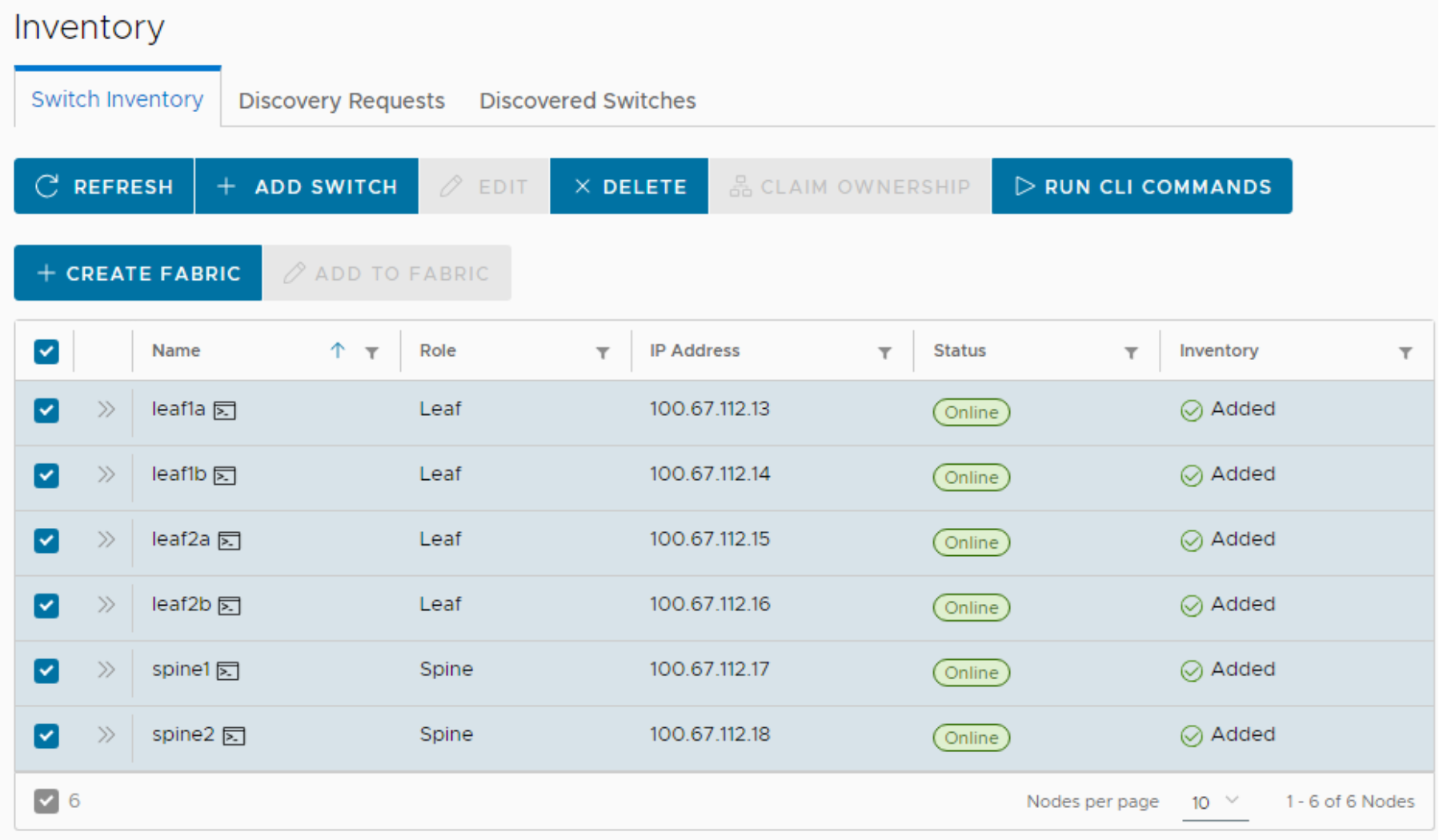
  8. The switches are listed on the Switch Inventory tab with a status of Offline. The status takes less than two minutes to change to Online for this example. 
  9. Click REFRESH to update the Status column as needed.
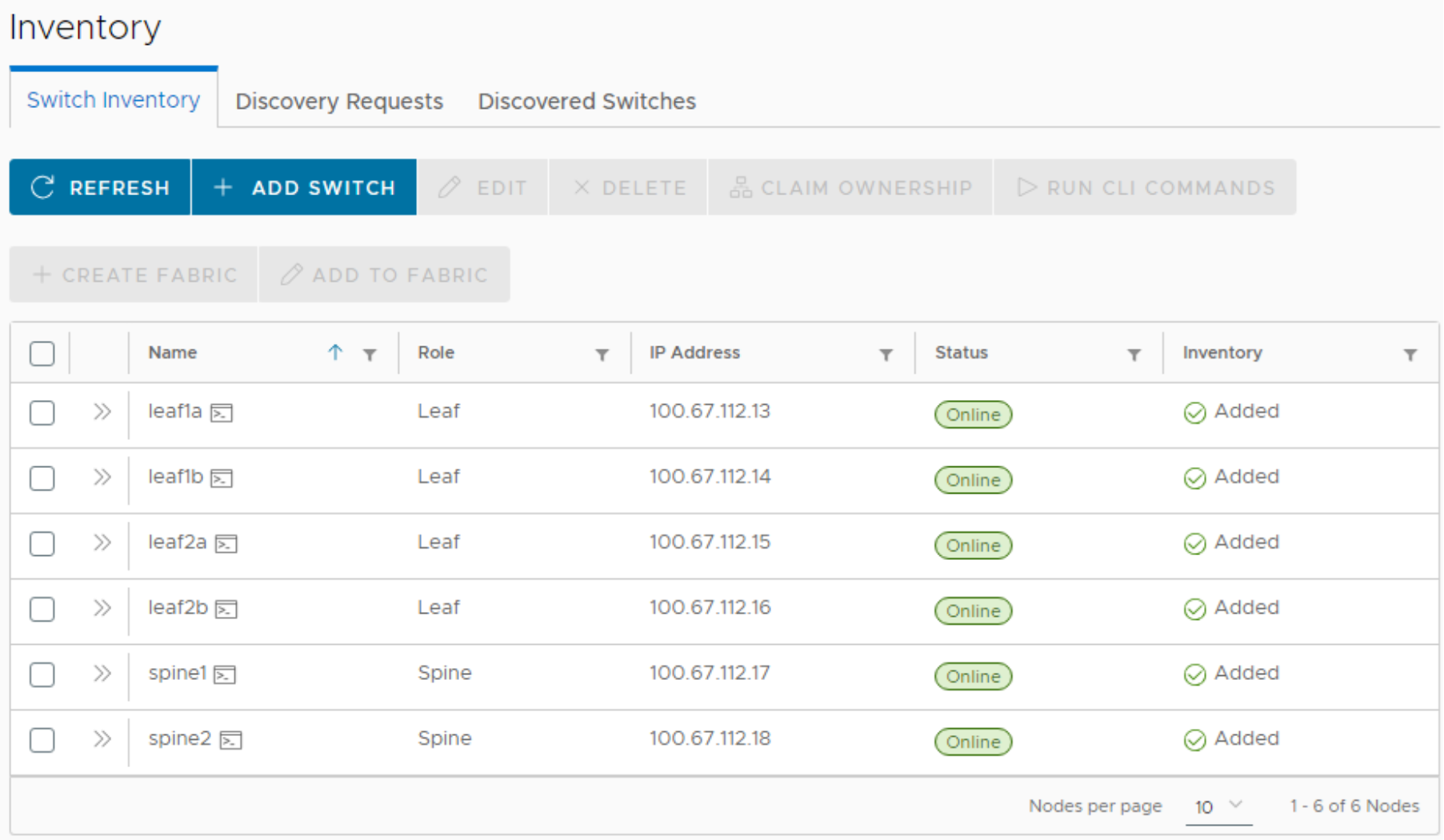
    This figure shows a screenshot of the Switch Inventory tab.

    Figure 12. Switch Inventory tab

Create the fabric

  1. On the Switch Inventory tab, check the box next to each switch that will be part of the fabric.This figure shows a screenshot of the Inventory tab with fabric switches selected.

    Figure 13. Fabric switches selected

  1. Click +CREATE FABRIC. The Create Fabric dialog box opens.
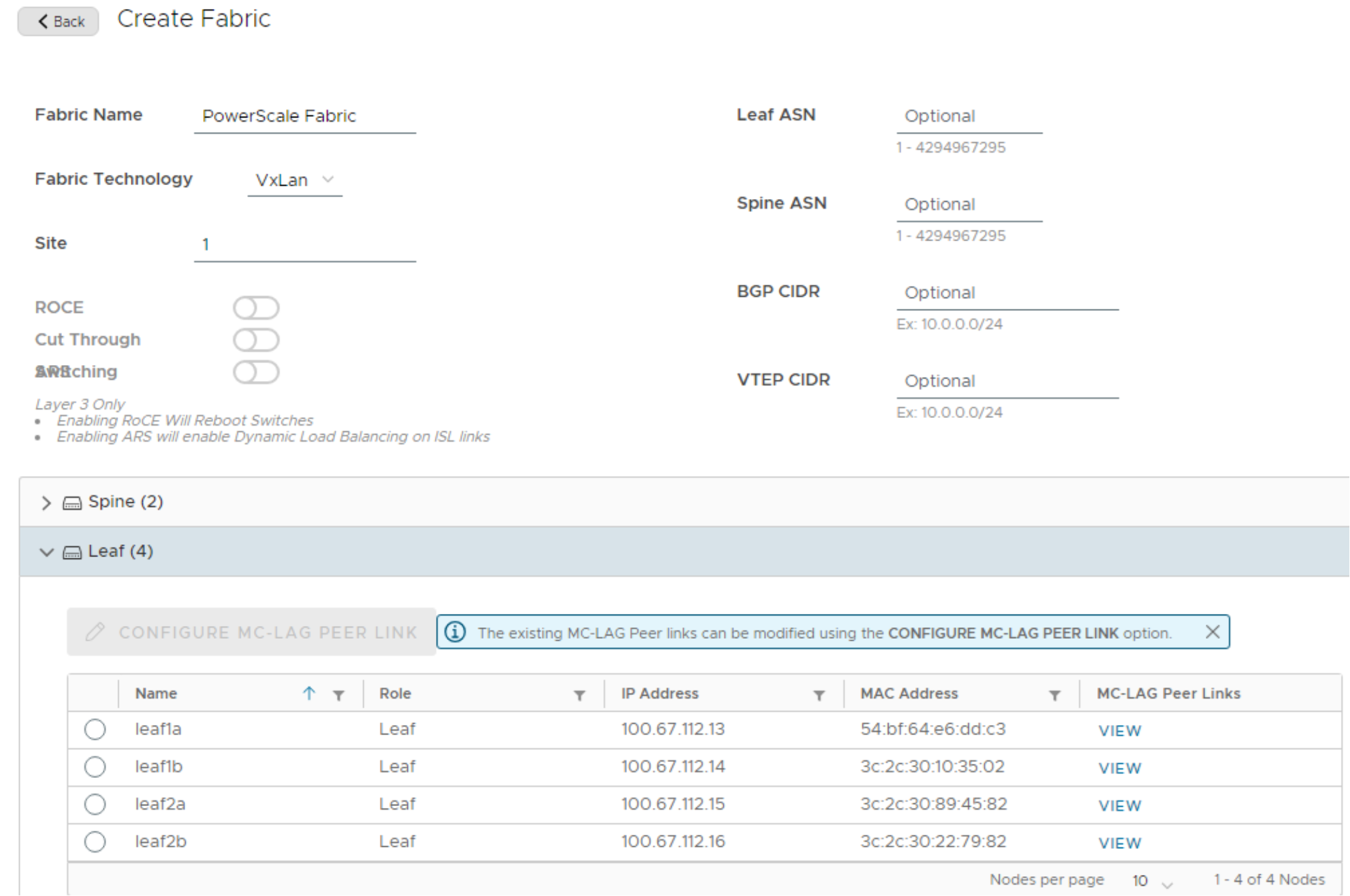
This figure shows a screenshot of the Create Fabric dialog box.

Figure 14.Create fabric dialog box

  1. In the Create Fabric dialog box, do the following:
    1. Enter a Fabric Name.
    2. Leave the Fabric Technology set to the default, VXLAN.
    3. Enter a Site name.
  • The ASN and CIDR IP address blocks are optional and only need to be changed from their defaults if they will conflict with your existing environment. Defaults are documented in the SmartFabric Manager for SONiC User Guide. 
  • The toggle buttons for ROCE, Cut Through Switching, and ARS are for a traditional L3 fabric and are disabled for a VXLAN fabric. 
  • The leaf switch ports that are used for the MC-LAG Peer Links are automatically detected if they are properly connected when adding the switches to SFM. You can view the detected peer link ports by clicking the VIEW button in the table next to the applicable leaf switch. Optionally, the peer link ports can be edited by selecting a leaf and clicking the CONFIGURE MC-LAG PEER LINK button.
  1. Click CREATE FABRIC. A green Success message displays at the top of the page. You may need to click the REFRESH button to see the fabric in the list.  
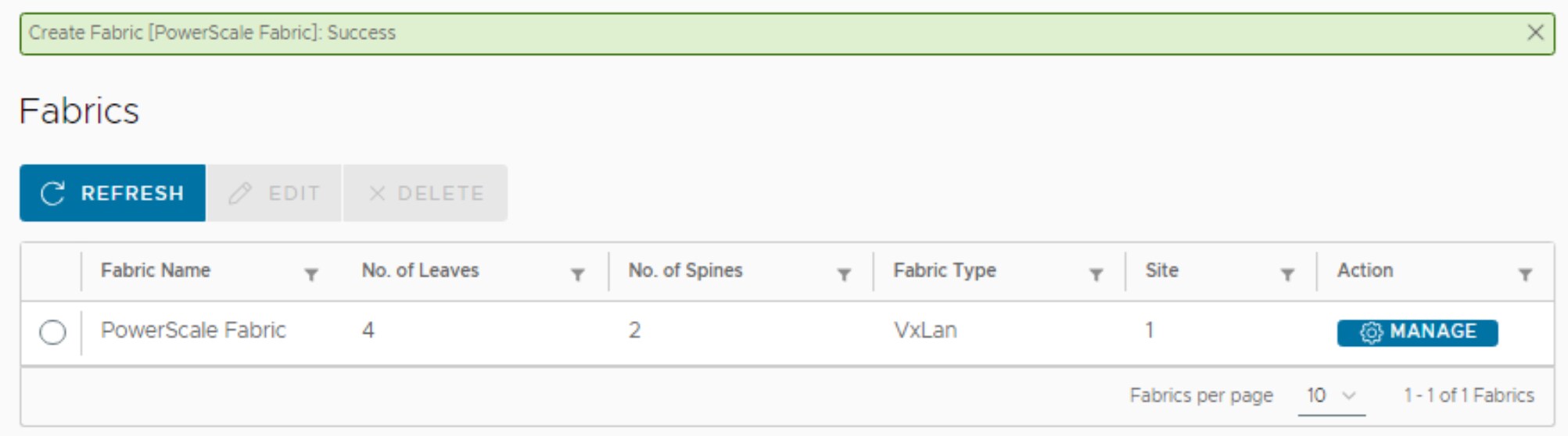
This figure shows a screenshot of the Fabrics page.

Figure 15. Fabric created

  1. To see the fabric layout, click MANAGE. The Fabric: PowerScale Fabric page opens.
  2. Click the Topology tab. The leaf-spine topology of the current fabric displays. Hovering your mouse pointer over a link provides the port numbers of the connection. Hovering your mouse pointer over a switch provides the switch details, as shown in the figure below. 
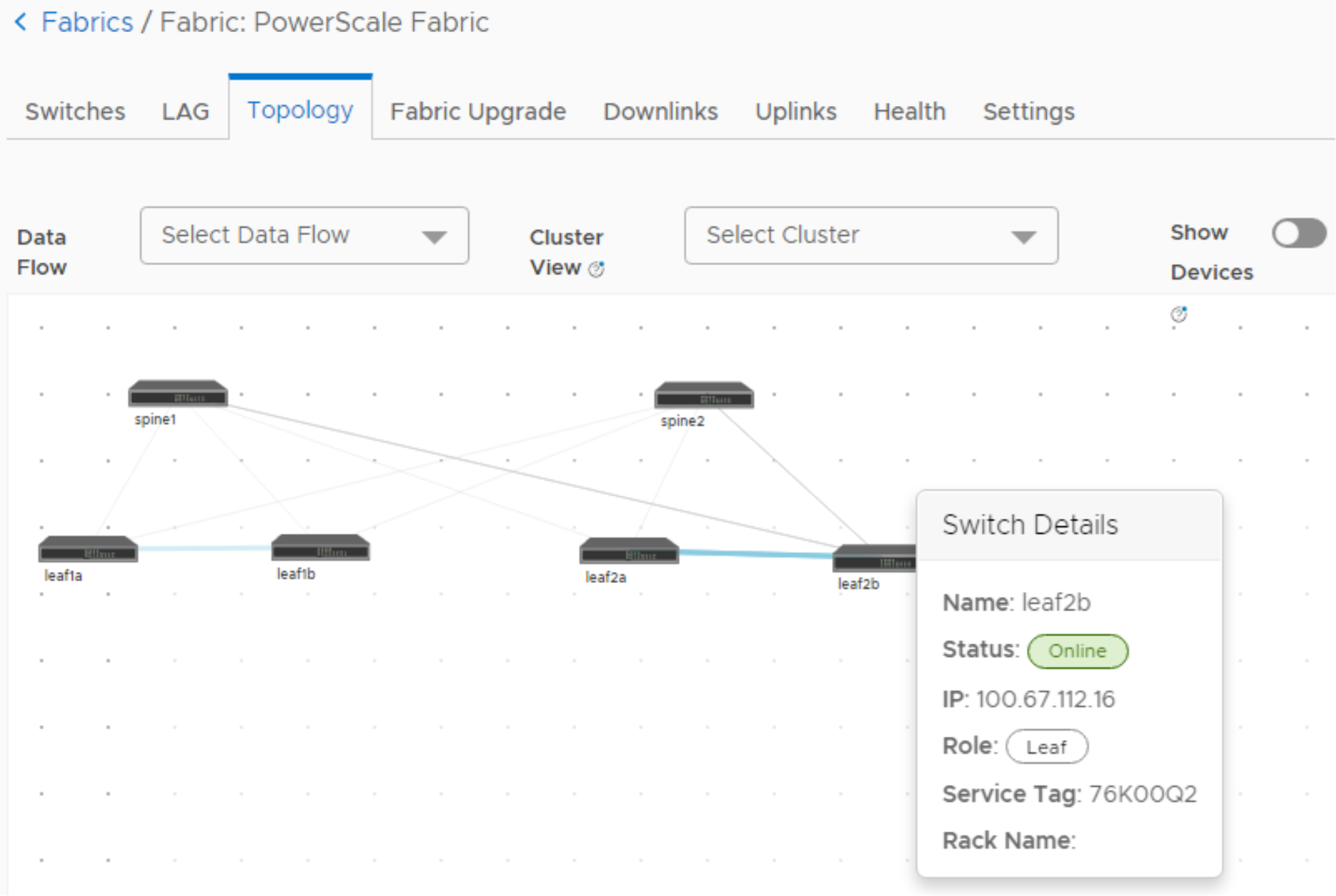
This figure shows a screenshot of the Fabric: PowerScale Fabric page.

Figure 16. Fabric topology view

Create a nondefault tenant

Virtual Routing and Forwarding (VRF) allows multiple instances of independent routing tables to co-exist within the same router simultaneously. SFM refers to VRFs as tenants.

Using a nondefault tenant is a best practice because it enables symmetric integrated bridging and routing (IRB) with VXLAN. In symmetric IRB, both the ingress and egress VTEPs route packets to their destination. The alternative is asymmetric IRB, which does not handle routing as efficiently as symmetric IRB.

To create a nondefault tenant for PowerScale, do the following:

  1. In the SFM left pane, click Resources. The Tenants tab is displayed. The default tenant in SFM is named Global.
  2. Click +ADD. The Add Tenant dialog box displays.
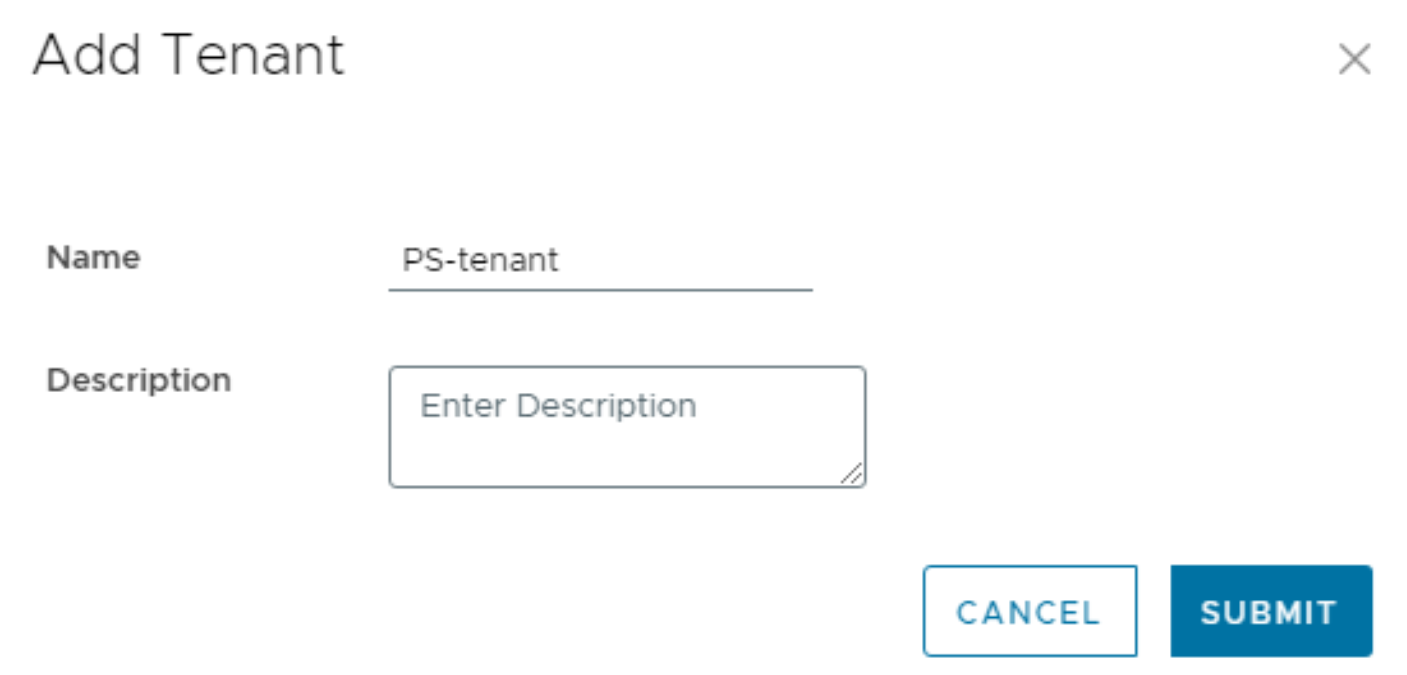
This figure shows a screenshot of the Add Tenant dialog box.

Figure 17. Add tenant

  1. Enter a Name for the tenant. Do not use a space in the tenant’s name.
  2. Click SUBMIT. A green Success message displays, and the new tenant is listed.
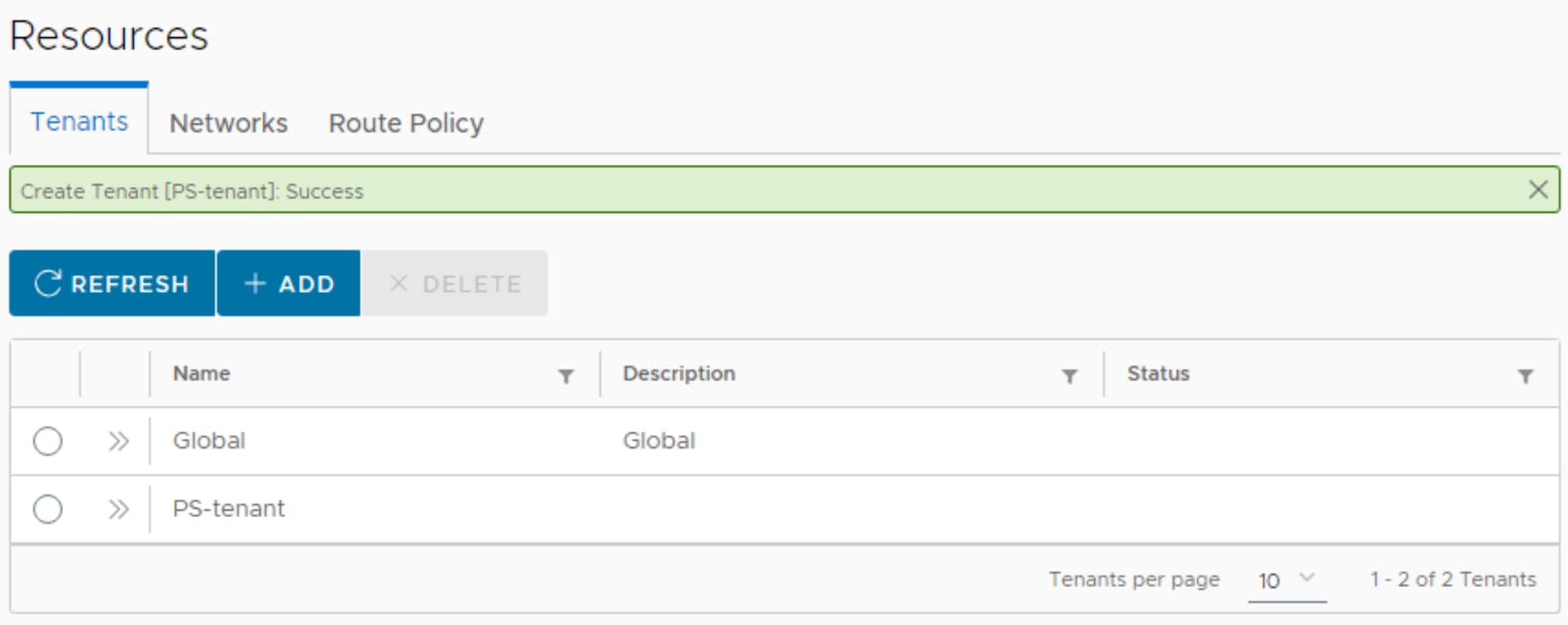
This figure shows a screenshot of the nondefault tenant named PS-tenant that was created.

Figure 18. Nondefault tenant that is named PS-tenant created

Create a storage network

A network for PowerScale frontend storage traffic is created in this section. The values that are used are from VLAN ID and network addresses that are used in this guide.

  1. In the SFM left pane, select Resources.
  2. On the Resources page, click the Networks tab.
  3. On the Networks tab, click +ADD > VxLAN Network.
  4. In the Add VxLAN Network dialog box, enter a Network Name, select the nondefault Tenant that is created in the previous section, and assign a VLAN ID. 

Note: SFM reserves a range of VLAN IDs for internal use. Available VLAN ID numbers are listed under the VLAN entry line on the page.

  1. Click the + next to Anycast Address to expand the box. The anycast address is used as the gateway address for all devices on this network, including the PowerScale nodes. This address is required if the PowerScale nodes will need to communicate with devices on other networks.  

The completed page looks like the following:
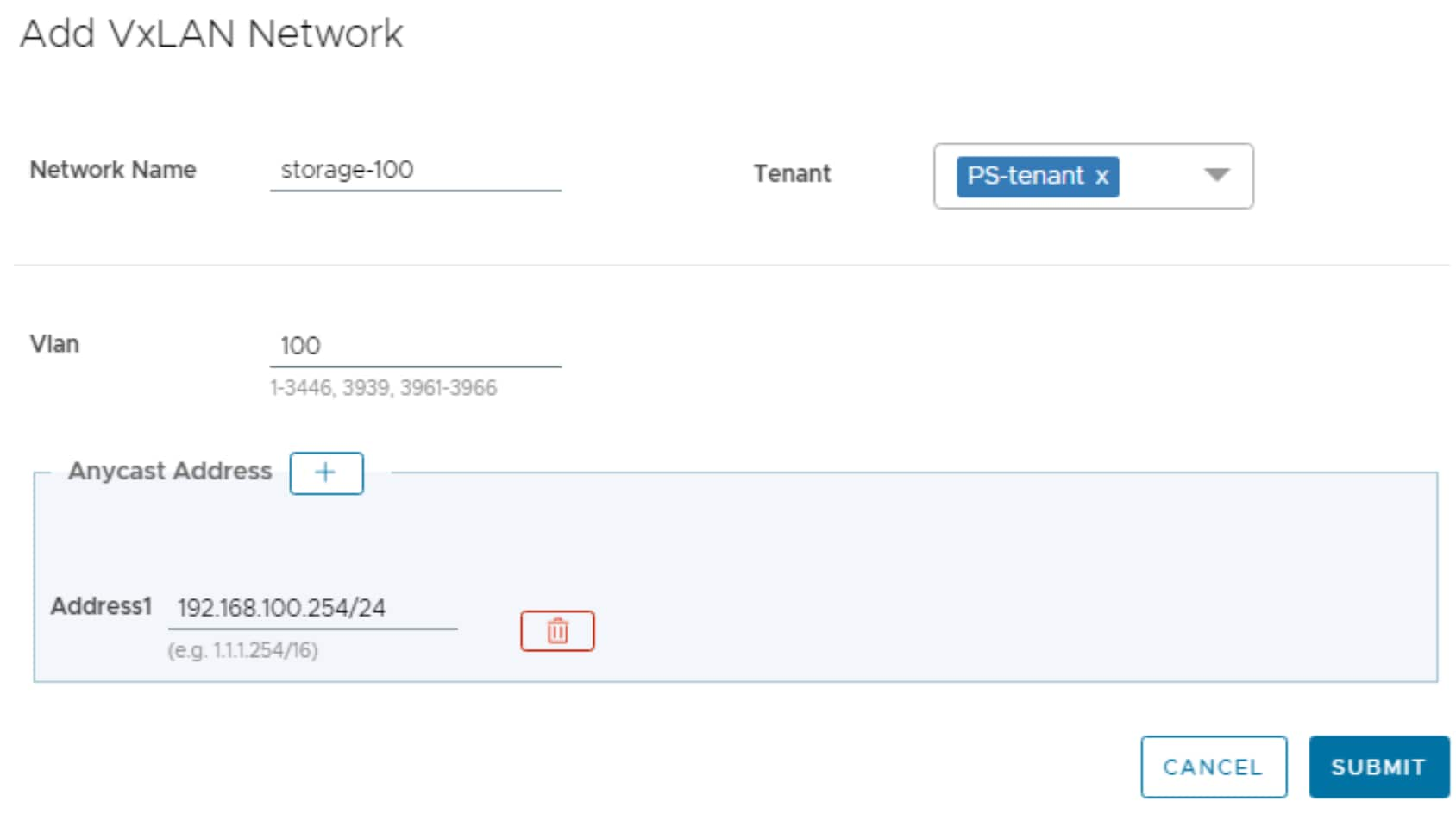
This figure shows a screenshot of the completed Add VXLAN Network dialog box.

Figure 19. Add VXLAN Network dialog box

  1. Click SUBMIT. A green Success message displays, and the storage network is listed.
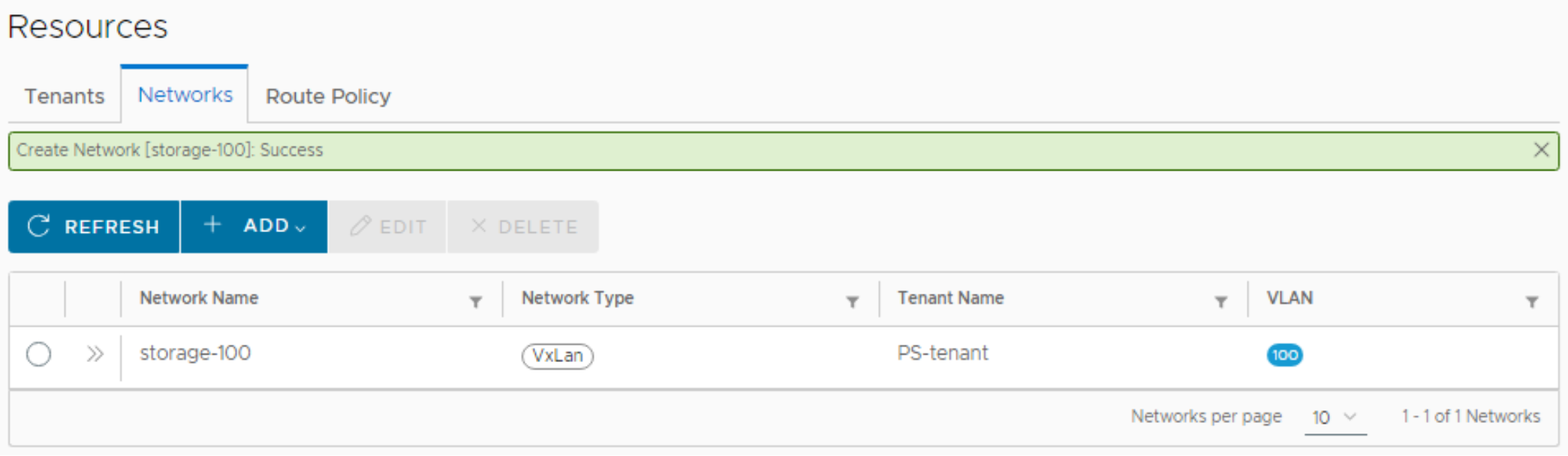
This figure shows a screenshot of the Resources window with the created storage network.

Figure 20. Storage network created

You can configure additional VLANs in the same manner if needed. 

Create a cluster profile

In SFM, a cluster profile is a way to configure downlinks from the leaf switches for multiple devices simultaneously. Every device in the cluster profile should use the same set of VLANs, have the same number of NICs connected to the leaf switches, and use the same bonding method. 

An SFM cluster for the PowerScale nodes is created as follows:

  1. In the SFM left pane, expand Device Onboarding and click Clusters.
  2. On the Clusters page, click +ADD. The Cluster Profile window opens.
  3. On the Cluster Info page, do the following:
  1. Enter a Name (required) and Description (optional).
  2. Next to Cluster Type, select Custom.
  3. Enter the Number of Devices your PowerScale cluster will have.
  4. Next to Tenancy support, choose Multiple Tenant if your cluster will be in more than one tenant. Single Tenant is used in this deployment example. If you select Single Tenant, in the Tenant drop-down list, select the nondefault tenant that you created earlier. 
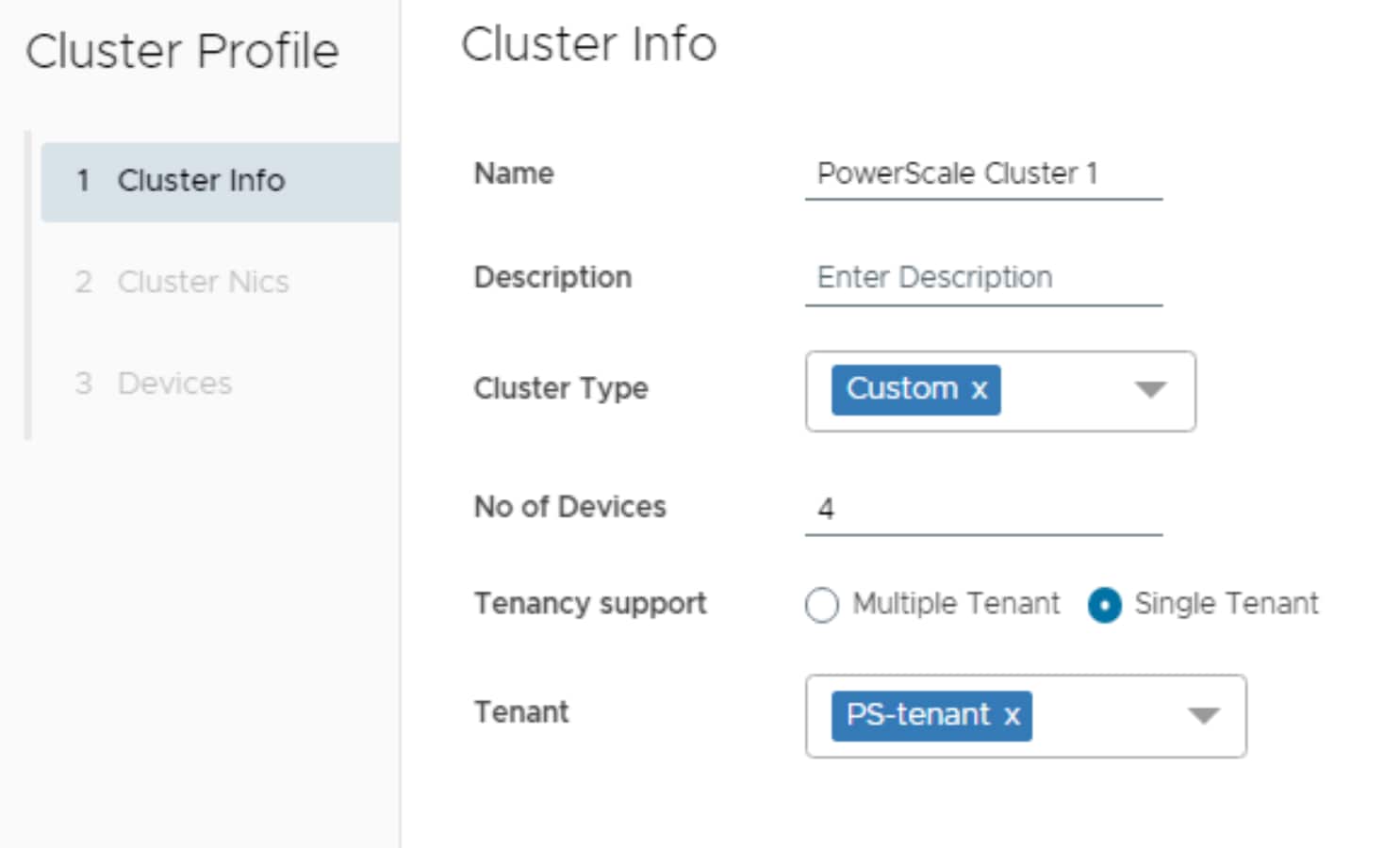
This figure shows a screenshot of the Cluster Info page.

Figure 21. Cluster Profile - Cluster Info page

  1. Click NEXT.
  1. On the Cluster NICS page, do the following:
  1. In the NICS section, enter a Name for each NIC. Do not select networks here. They will be selected under Bonds in the next step. 
  2. Next to Bonds, click + to expand the box.
  3. Enter a bond Name and select both NICs from the drop-down menu. Leave the Type set to MC-LAG and the Mode set to LACP.
  4. Add the storage VLAN as a Tagged or Untagged network. It is untagged in this example.

Note: Tagging allows you to put one switch port in multiple VLANs. Tagging is only necessary if the PowerScale node frontend NICs will be in more than one VLAN. If you set the VLAN to be tagged, you must set the same VLAN ID on the PowerScale node NICs as well as shown in VLAN tagging for PowerScale NICs. If only one VLAN will be used on the PowerScale frontend connections, you can set the VLAN to be untagged. If it is set to untagged, the VLAN ID should not be set on the corresponding PowerScale NICs when configuring the PowerScale nodes.
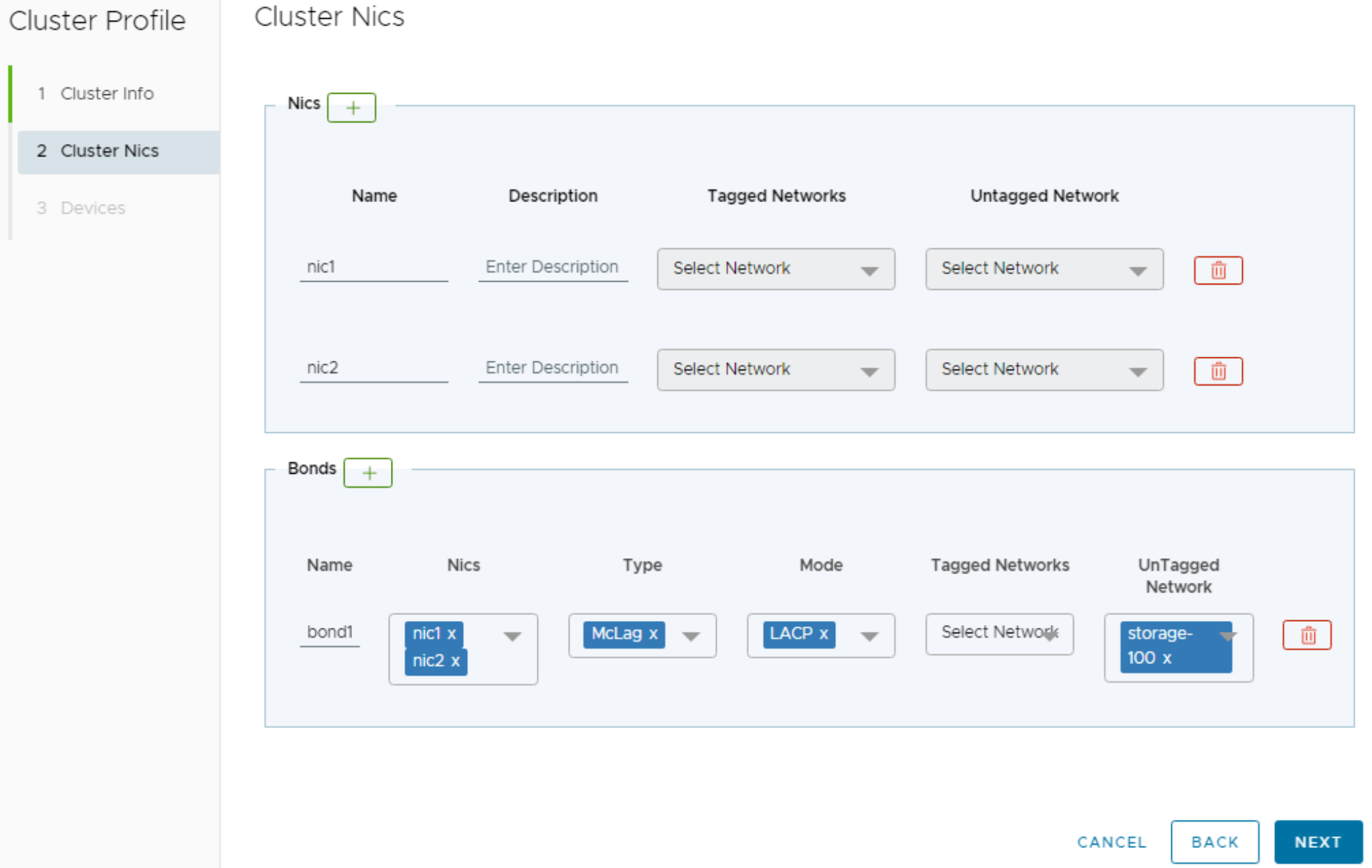
This figure shows a screenshot of the Cluster NICs page.

Figure 22. Cluster Profile - Cluster NICs page

  1. Click NEXT. 
  1. On the Devices page, do the following:
  1. At the top of the Devices page, select the Fabric from the drop-down menu.
  2. In the Device Name column, enter a name for each PowerScale node.
  3. In the Attached Interface column, select the leaf switch and interface that the PowerScale node’s NIC is connected to. 

In this example, Rack 1 contains two PowerScale nodes, and they are connected to leaf1a and 1b. Rack 2 contains two PowerScale nodes, and they are connected to leaf2a and 2b.
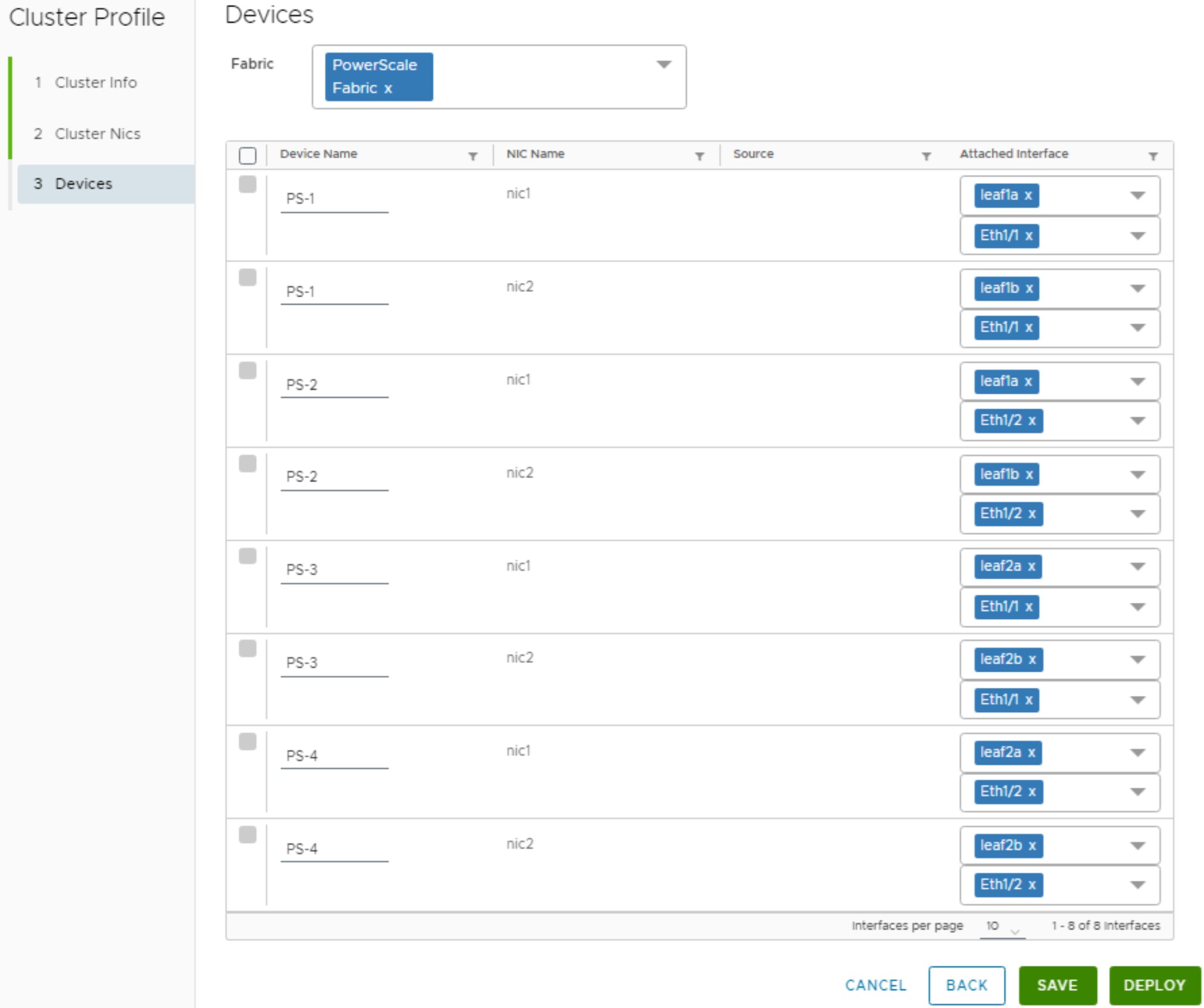
This figure shows a screenshot of the Cluster Profile Devices page.

Figure 23.Cluster Profile - Devices page

  1. Click DEPLOY.

The Clusters page shows Deployment in Progress in yellow in the Deployment Status box. Click the REFRESH button to update the Deployment Status. For this example, the status changes to Deployed in less than a minute.
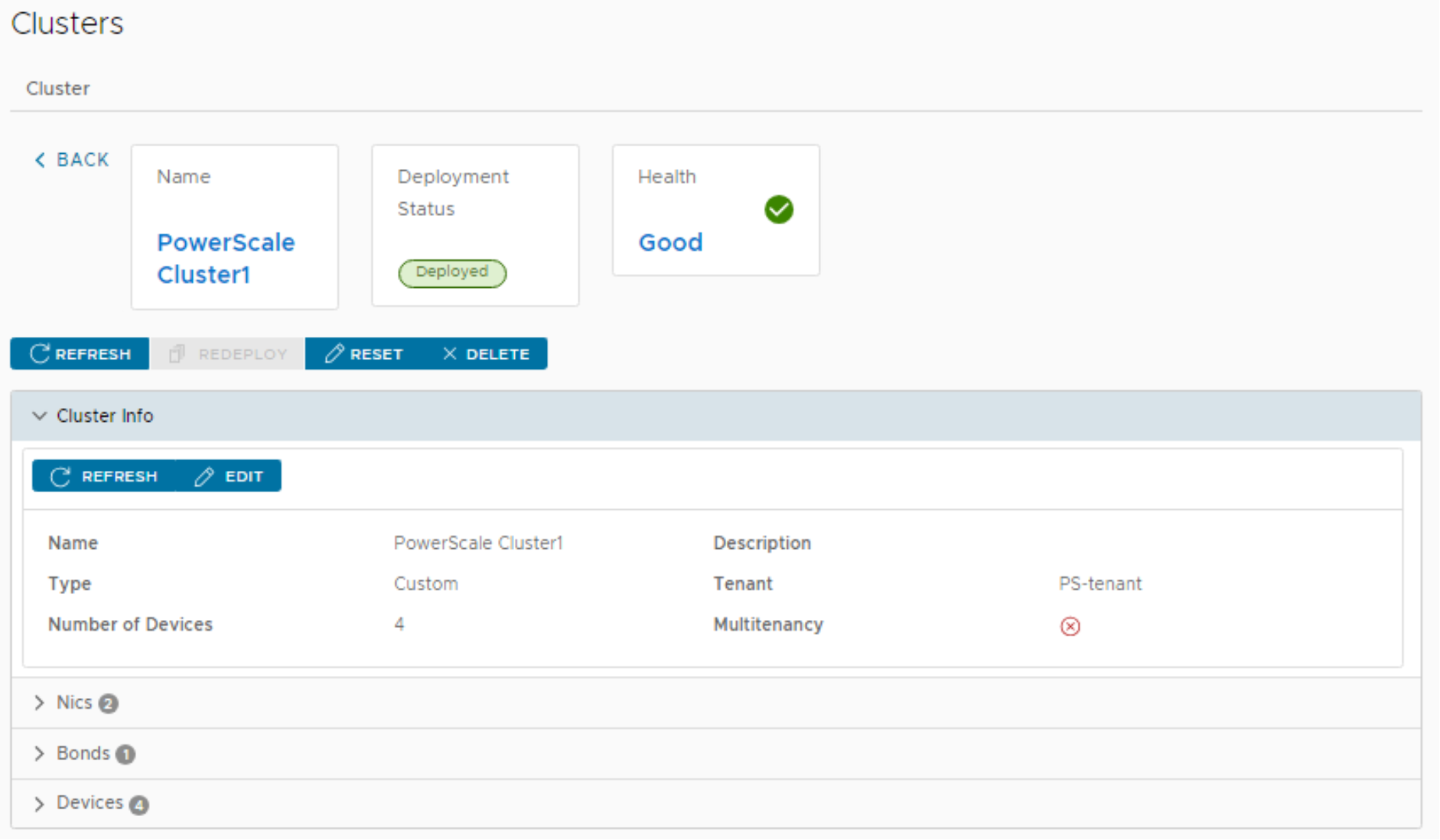
This figure shows a screenshot of the Clusters page with the PowerScale network deployed.

Figure 24.PowerScale network deployed

Add a storage client to the network

In this section, a storage client is added to the storage network for access to PowerScale storage. This example an alternative to creating a cluster profile in SFM and is useful if you only need to add one or two systems to the network.

Note: If you have a group of systems that will be in the same VLANs, use the same bonding, and have the same number of NICs connected, you can add them as a cluster in the same manner as the PowerScale nodes.

The storage client is added as follows:

  1. In the SFM left pane, select Fabric.
  2. In the right pane next to the fabric name, click MANAGE.
  3. On the Fabric: PowerScale Fabric page, click the LAG tab. Like the PowerScale nodes, this storage client will use LACP. Notice the PowerScale node LACP bonds are listed. These bonds were automatically created in the background when the PowerScale cluster profile was created in the previous section.
  4. Click +ADD.
  5. In the Create LAG dialog box, do the following:
    1. Enter a Name for the lag.
    2. Set the Switch Group to MC-LAG Leaf.
    3. Next to Switch, select the leaf switch pair and interfaces the storage client is connected to.
    4. Set the Admin State to Up, set the Port Channel Type to MC-LAG, and set the Port Channel Mode to LACP.
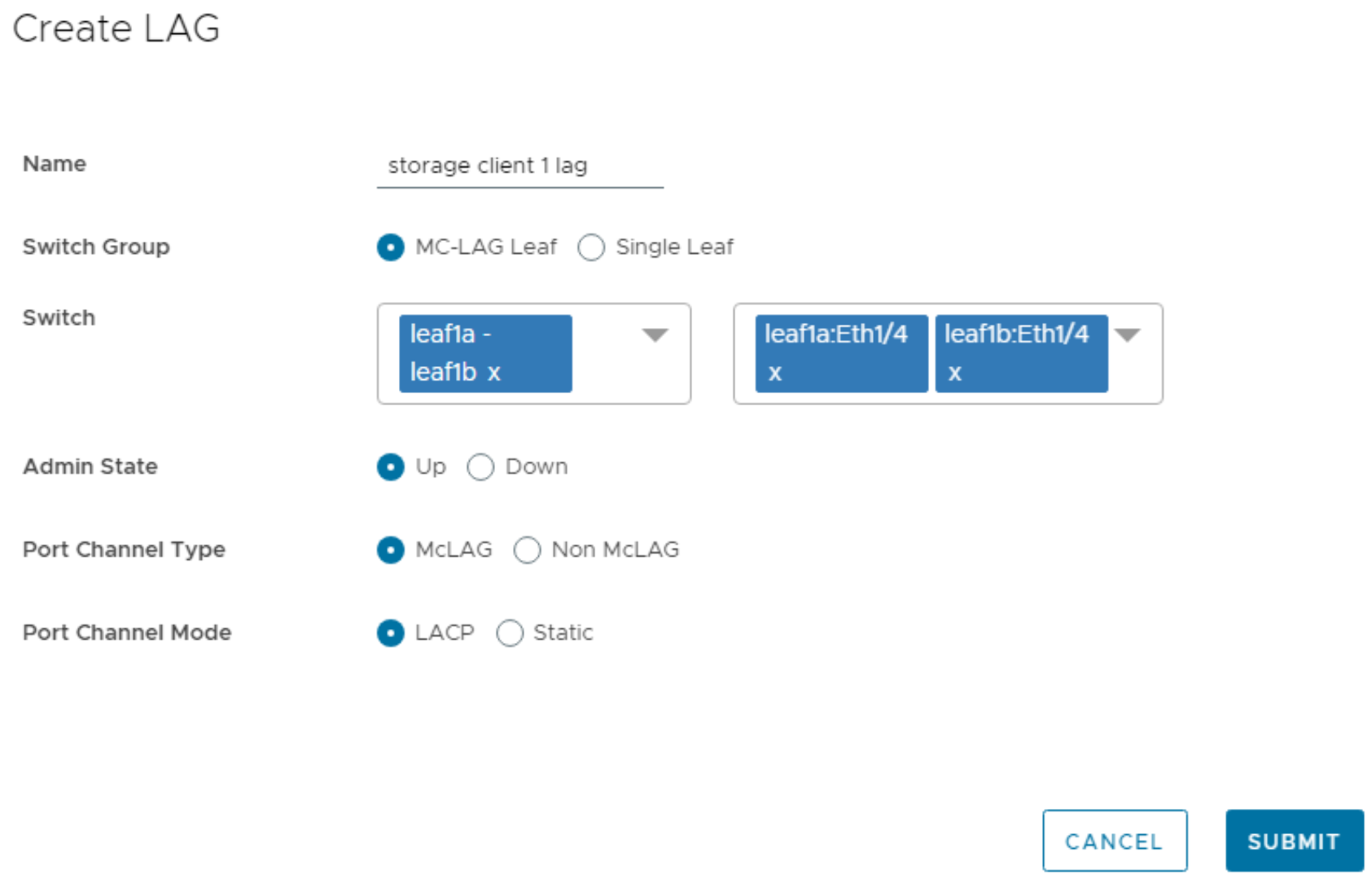
This figure shows a screenshot of the completed storage client Create LAG dialog box.

Figure 25. Storage client Create LAG dialog box

  1. Click SUBMIT. A green Success message displays, and the new LAG appears in the list.
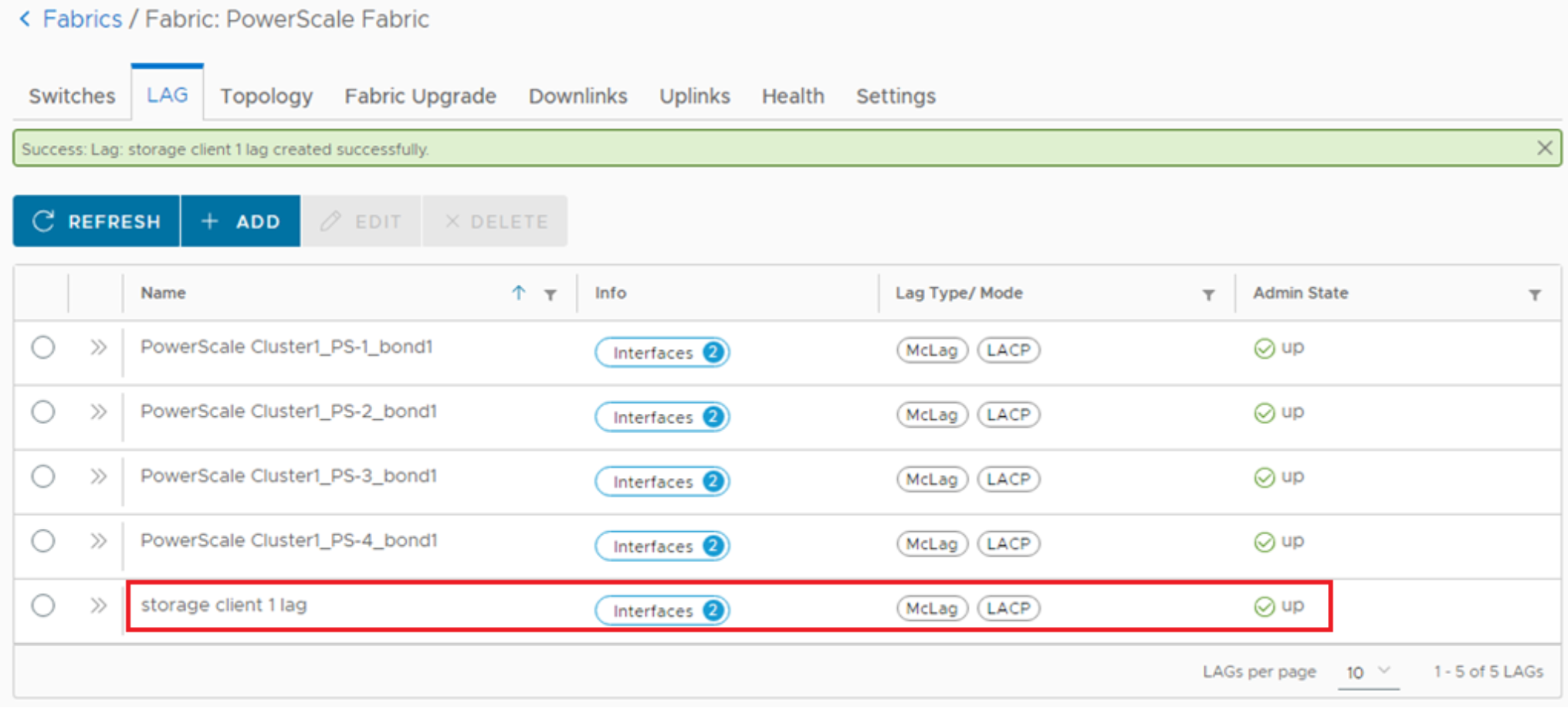
This figure shows a screenshot of the Fabric LAG tab with the storage client lag added.

Figure 26. Fabric LAG tab - storage client lag added

  1. Click the Downlinks tab. Notice that the PowerScale node downlinks created earlier in the cluster profile are listed. 
  2. Click +ADD.
  3. In the Create Downlink dialog box, do the following:
    1. Enter a Name.
    2. Select the same Tenant as the PowerScale nodes.
    3. Set the Interface Type to LAG and select the LAG that you created for the storage client.
    4. Next to Untagged or Tagged Network, select the storage VLAN. If you select Tagged Network, you will also need to configure the VLAN ID on the storage client’s NIC. In this example, it is untagged.
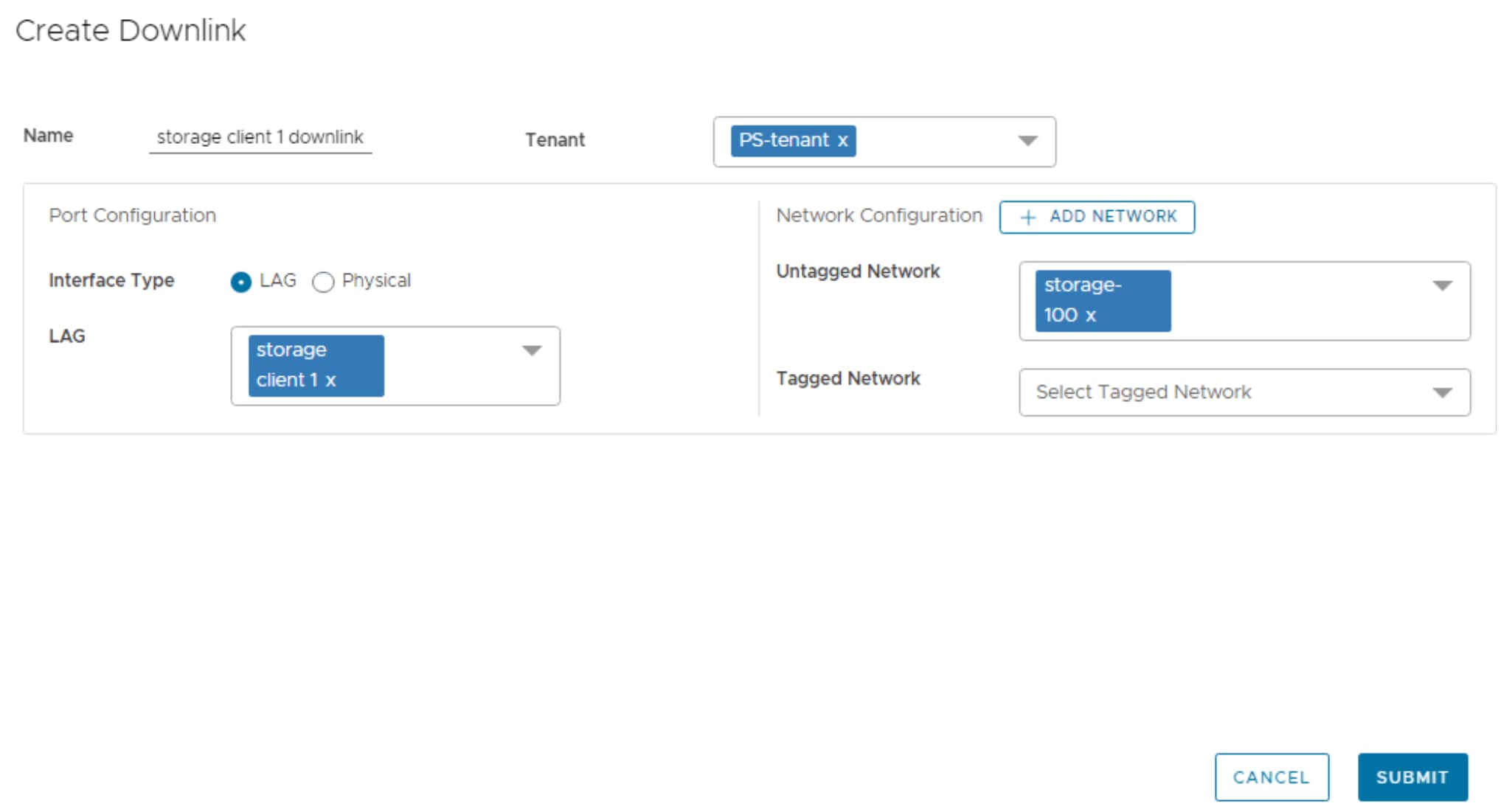
This figure shows a screenshot of the completed Create Downlink dialog box.

Figure 27. Create Downlink dialog box

  1. Click SUBMIT. A green Success message displays, and the new downlink appears in the list.
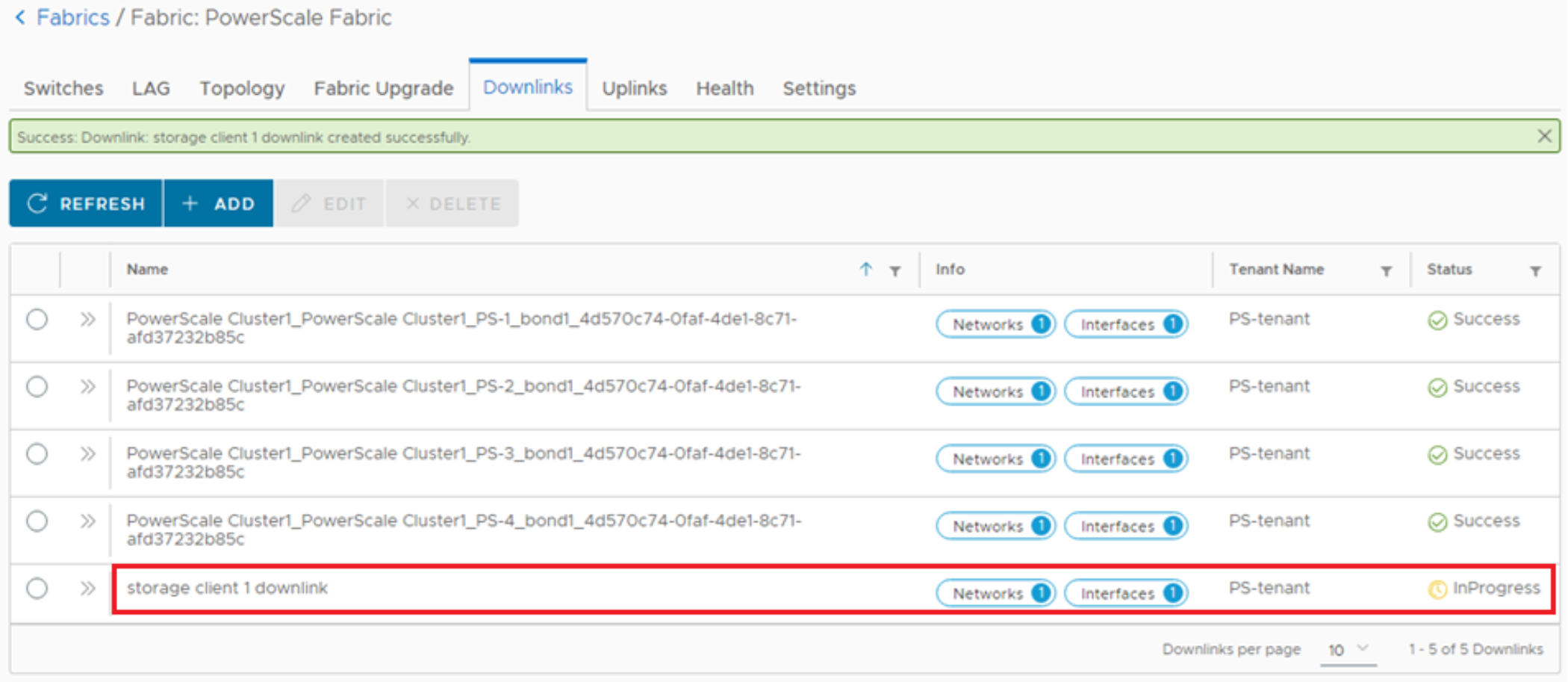
This figure shows a screenshot of the Fabric downlinks tab with the storage client downlink added.

Figure 28. Fabric downlinks tab – storage client downlink added

When SFM has configured the downlink on the switches, the Status changes from In Progress, as shown, to Success. For this example, it took less than a minute for the status to change. Click REFRESH to update the status.

Configure PowerScale nodes

PowerScale configuration wizard

The PowerScale Node Installation Guide on Dell Technologies SolVe Online shows how to run the configuration wizard over a serial connection to each node. It also provides additional information about the setting options.

For the example used in this guide, the following values were entered in the configuration wizard on the first PowerScale node:

Table 4. PowerScale configuration settings used for this example

Setting

Value Used

Notes

Configuration option

[1] Create a new cluster


EULA

yes


Configure root password

************


Configure admin password

************


Cluster name

cluster-01


Cluster encoding

UTF-8

 UTF-8 is the default.

int-a netmask

255.255.255.0


int-a IP range

10.0.1.1-10.0.1.20

Allocate at least one IP address for each PowerScale node in the cluster. Using additional addresses in the range simplifies cluster expansion.

int-b netmask

255.255.255.0


int-b IP range 

10.0.2.1-10.0.2.20

Allocate at least one IP address for each PowerScale node in the cluster. Using additional addresses in the range simplifies cluster expansion.

Failover IP range

10.0.3.1-10.0.3.20


External Interface 25gige-1 netmask

255.255.255.0

From Table 3. This is the same as /24 in CIDR notation.

External Interface 25gige-1 MTU

9000

Set the MTU to 9000 for best performance. 

External Interface 25gige-1 IP range

192.168.100.201-192.168.100.220

Allocate at least one IP address for each PowerScale node in the cluster. Using additional addresses in the range simplifies cluster expansion.

Default Gateway

192.168.100.254

From Table 3.

SmartConnect zone name

sczone1.dell.lab


SmartConnect service IP

192.168.100.200

Use an available IP address on the PowerScale external network

DNS servers

192.168.100.1

The DNS server does not have to be in the same network as the PowerScale nodes if it is reachable from the external network.

Search domains

dell.lab


Cluster date and time

Current


Cluster Join mode

Manual


Commit changes

yes


Run the wizard on the remaining nodes to add them to the cluster. The only options that are needed on the remaining nodes are [2] to join an existing cluster followed by [1] to join to cluster-01.

Enable link aggregation on PowerScale nodes

The configuration wizard does not enable link aggregation on the PowerScale NICs by default. This section shows how to enable link aggregation with LACP on the PowerScale nodes.

Note: All CLI commands in this section are run on one PowerScale node in the cluster. They do not need to be repeated on the other nodes.

To view the initial network settings, first determine the pool ID with the command isi network pools list at the CLI of one of the nodes using the serial connection.

cluster-01-1# isi network pools list

ID                      SC Zone          IP Ranges               Allocation Method

----------------------------------------------------------------------------------

groupnet0.subnet0.pool0 sczone1.dell.lab 192.168.100.201-192.168.100.220 static

----------------------------------------------------------------------------------

Total: 1

Next, view the pool details with the command isi network pools view pool_ID. For this example, the pool ID is groupnet0.subnet0.pool0. This pool ID will be used in subsequent commands as well.

cluster-01-1# isi network pools view groupnet0.subnet0.pool0

                 ID: groupnet0.subnet0.pool0

           Groupnet: groupnet0

             Subnet: subnet0

               Name: pool0

              Rules: rule0

        Access Zone: System

  Allocation Method: static

   Aggregation Mode: lacp

        Description: Initial 25gige-1 pool

    Firewall Policy: default_pools_policy

             Ifaces: 1:25gige-1, 2:25gige-1, 3:25gige-1, 4:25gige-1

          IP Ranges: 192.168.100.201-192.168.100.220

   IPv6 Perform DAD: No

   Rebalance Policy: auto

 SC Failover Policy: round_robin

      Static Routes: -

NFS RDMA RRoCE only: No

SmartConnect DNS Settings:

 SC Suspended Nodes: -

  SC Connect Policy: round_robin

            SC Zone: sczone1.dell.lab

SC DNS Zone Aliases: -

          SC Subnet: subnet0

             SC TTL: 0

The Aggregation Mode, which is shown in bold in the command output above, is lacp by default and no changes are needed. The Ifaces, which are shown in bold, are in the format node_number:interface_name. The output in this example shows that there are four nodes, and each node uses an interface that is named 25gige-1. To enable link aggregation, we need to change the interfaces used from “25gige-1” to “25gige-agg-1”.

Note: If you are using 10 GbE or 100 GbE NICs, the aggregation interface names are 10gige-agg-1 or 100gige-agg-1 respectively.

To change to the aggregation interfaces named 25gige-agg-1, first clear the existing interfaces by running the following command:

cluster-01-1# isi network pools modify groupnet0.subnet0.pool0 --clear-ifaces

To use the aggregation interfaces, run the following command:

cluster-01-1# isi network pools modify groupnet0.subnet0.pool0 --add-ifaces=1-4:25gige-agg-1

Note: The command above applies the changes to nodes 1 through 4, listed as “1-4” in the command syntax. There are four nodes in this example. Be sure that the command covers the number of nodes in your cluster.

Verify that the changes have been applied by running the isi network pools view groupnet0.subnet0.pool0 command again.

cluster-01-1# isi network pools view groupnet0.subnet0.pool0

                 ID: groupnet0.subnet0.pool0

           Groupnet: groupnet0

             Subnet: subnet0

               Name: pool0

              Rules: rule0

        Access Zone: System

  Allocation Method: static

   Aggregation Mode: lacp

        Description: Initial 25gige-1 pool

    Firewall Policy: default_pools_policy

             Ifaces: 1:25gige-agg-1, 2:25gige-agg-1, 3:25gige-agg-1, 4:25gige-agg-1

          IP Ranges: 192.168.100.201-192.168.100.220

   IPv6 Perform DAD: No

   Rebalance Policy: auto

 SC Failover Policy: round_robin

      Static Routes: -

NFS RDMA RRoCE only: No

SmartConnect DNS Settings:

 SC Suspended Nodes: -

  SC Connect Policy: round_robin

            SC Zone: sczone1.dell.lab

SC DNS Zone Aliases: -

          SC Subnet: subnet0

             SC TTL: 0

The output confirms that the Ifaces, in bold above, have been changed to node_number:25gige-agg-1 on each of the four nodes. The LAGs between the nodes and the leaf switches should now be up.

VLAN tagging for PowerScale NICs

If the PowerScale interfaces are untagged in the storage VLAN in SFM as shown in Cluster Profile - Cluster NICs page, skip this section.

If the PowerScale interfaces are tagged in the storage VLAN in SFM, the interfaces must be tagged in the same VLAN ID on the PowerScale NICs. To tag the interfaces in the storage VLAN, VLAN 100 in this example, run the following command on one of the PowerScale nodes: 

cluster-01-1# isi network subnets modify groupnet0.subnet0 --vlan-enabled=1 --vlan-id=100

To confirm the change, run the following command:

cluster-01-1# isi network interfaces list

LNN  Name         Status  VLAN ID  Owners                 Type     IP Addresses

----------------------------------------------------------------------------------

1    25gige-1     Up      -        -                       -       -

1    25gige-2     Up      -        -                       -       -

1    25gige-agg-1 Up      -        -                       -       -

1    25gige-agg-1 Up      100      groupnet0.subnet0       SSIP    192.168.100.200

                                   groupnet0.subnet0.pool0 Static  192.168.100.201

2    25gige-1     Up      -        -                       -       -

2    25gige-2     Up      -        -                       -       -

2    25gige-agg-1 Up      -        -                       -       -

2    25gige-agg-1 Up      100      groupnet0.subnet0.pool0 Static  192.168.100.202

3    25gige-1     Up      -        -                       -       -

3    25gige-2     Up      -        -                       -       -

3    25gige-agg-1 Up      -        -                       -       -

3    25gige-agg-1 Up      100      groupnet0.subnet0.pool0 Static  192.168.100.203

4    25gige-1     Up      -        -                       -       -

4    25gige-2     Up      -        -                       -       -

4    25gige-agg-1 Up      -        -                       -       -

4    25gige-agg-1 Up      100      groupnet0.subnet0.pool0 Static  192.168.100.204

----------------------------------------------------------------------------------

Total: 17

The information in bold in the output above confirms that the aggregation interfaces are tagged in VLAN 100 on all four PowerScale nodes.

Verify connectivity

If there are any issues with connectivity, see Verify the infrastructure.

Ping tests

From the CLI of one of the PowerScale nodes, verify that it can ping the other PowerScale nodes.

cluster-01-1# ping 192.168.100.202

PING 192.168.100.202 (192.168.100.202): 56 data bytes

64 bytes from 192.168.100.202: icmp_seq=0 ttl=64 time=0.273 ms

64 bytes from 192.168.100.202: icmp_seq=1 ttl=64 time=0.063 ms

^C

--- 192.168.100.202 ping statistics ---

2 packets transmitted, 2 packets received, 0.0% packet loss

round-trip min/avg/max/stddev = 0.063/0.168/0.273/0.105 ms

cluster-01-1# ping 192.168.100.203

PING 192.168.100.203 (192.168.100.203): 56 data bytes

64 bytes from 192.168.100.203: icmp_seq=0 ttl=64 time=0.339 ms

64 bytes from 192.168.100.203: icmp_seq=1 ttl=64 time=0.061 ms

^C

--- 192.168.100.203 ping statistics ---

2 packets transmitted, 2 packets received, 0.0% packet loss

round-trip min/avg/max/stddev = 0.061/0.200/0.339/0.139 ms

cluster-01-1# ping 192.168.100.204

PING 192.168.100.204 (192.168.100.204): 56 data bytes

64 bytes from 192.168.100.204: icmp_seq=0 ttl=64 time=0.300 ms

64 bytes from 192.168.100.204: icmp_seq=1 ttl=64 time=0.066 ms

^C

--- 192.168.100.204 ping statistics ---

2 packets transmitted, 2 packets received, 0.0% packet loss

round-trip min/avg/max/stddev = 0.066/0.183/0.300/0.117 ms

cluster-01-1#

You can also verify that the PowerScale nodes can ping storage clients or other devices that are reachable from the frontend network.

OneFS Storage Administration web interface

From a storage client or management station, connect to the OneFS Storage Administration web interface in a browser by going to https://PowerScale_node_IP_Address:8080. The login page displays as shown.
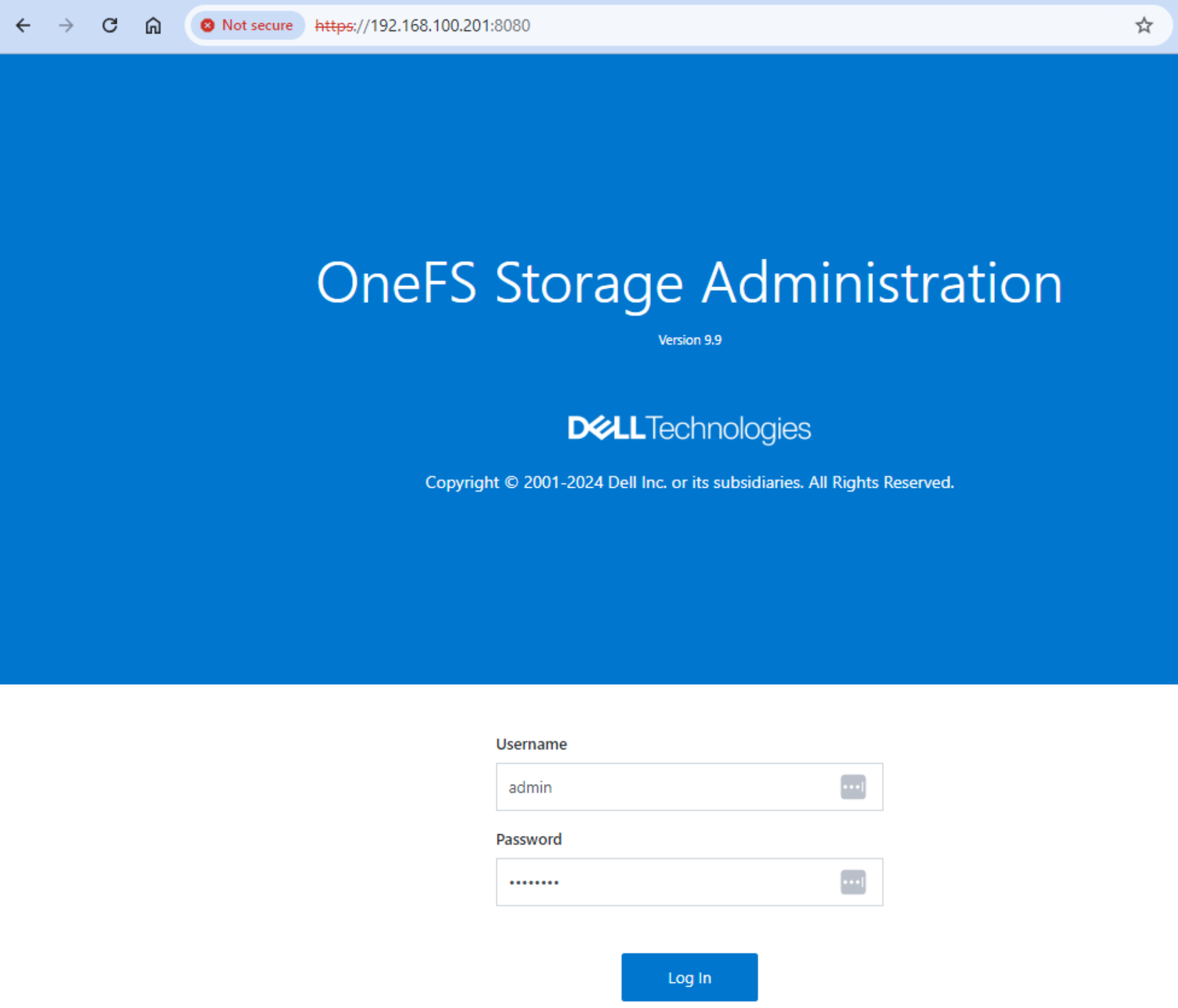
This figure shows a screenshot of the OneFS Storage Administration web UI.

Figure 29. OneFS Storage Administration web UI

You can now use the web interface to configure and manage your PowerScale storage resources. See the PowerScale OneFS documentation for instructions.

Verify the infrastructure

Verify the infrastructure

SFM can be used to verify that the fabric and node connections are configured and working properly. This chapter shows how to validate the fabric for this deployment.

  1. In the SFM UI, click Fabric in the left pane. The Fabrics page opens in the right pane.
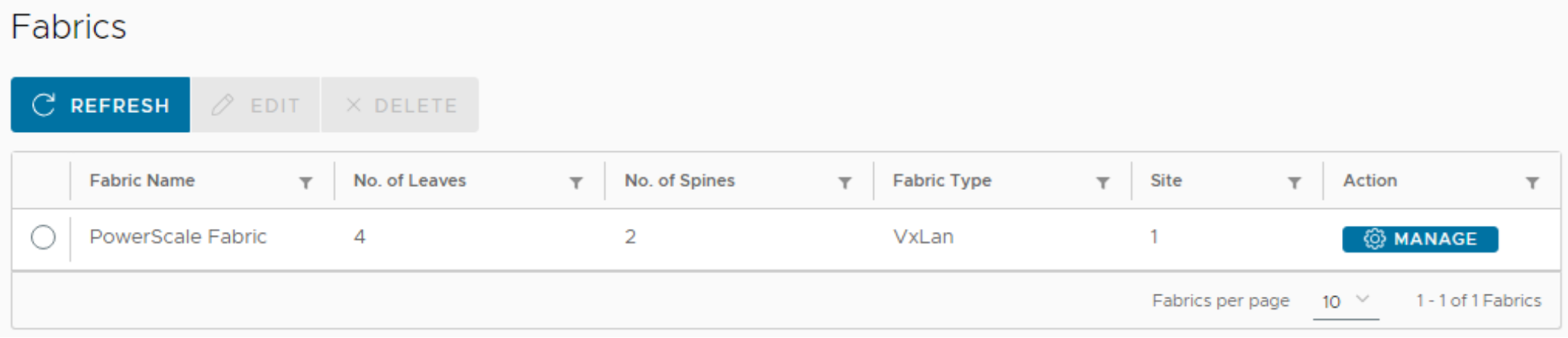
This figure shows a screenshot of the Fabrics page.

Figure 30. Fabrics page

  1. Next to the PowerScale fabric name, click MANAGE. The Fabric: PowerScale Fabric page opens, and the Switches tab displays. 
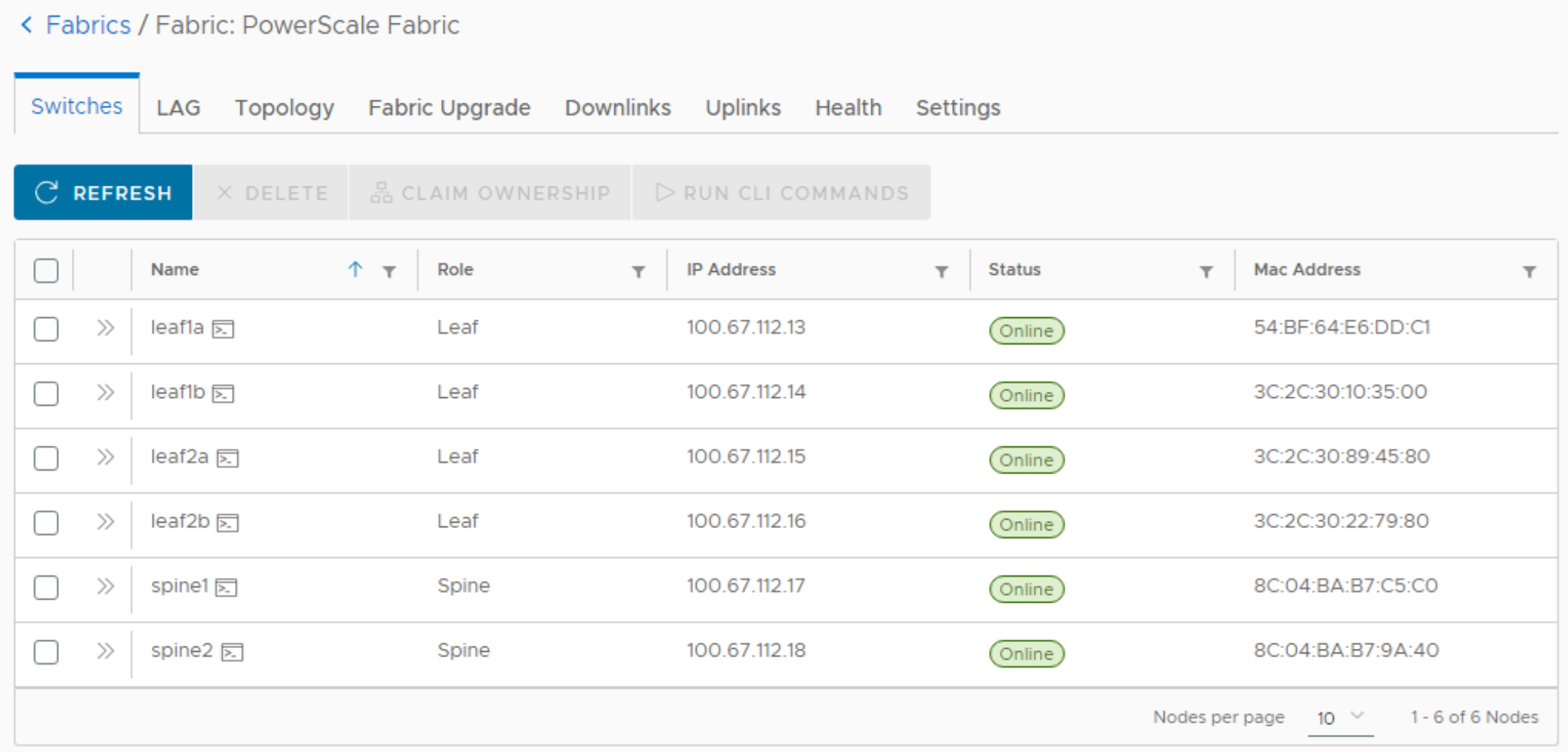
This figure shows a screenshot of the Switches tab on the Fabric: PowerScale Fabric page.

Figure 31. Switches tab

  1. Ensure that all leaf and spine switches in the fabric are listed and are Online.
  2. To view more information, click the >> next to a switch name. In the new pane that opens to the right, there are tabs that are named Switch Details, Interfaces, and Health, outlined in red in the figure below.  
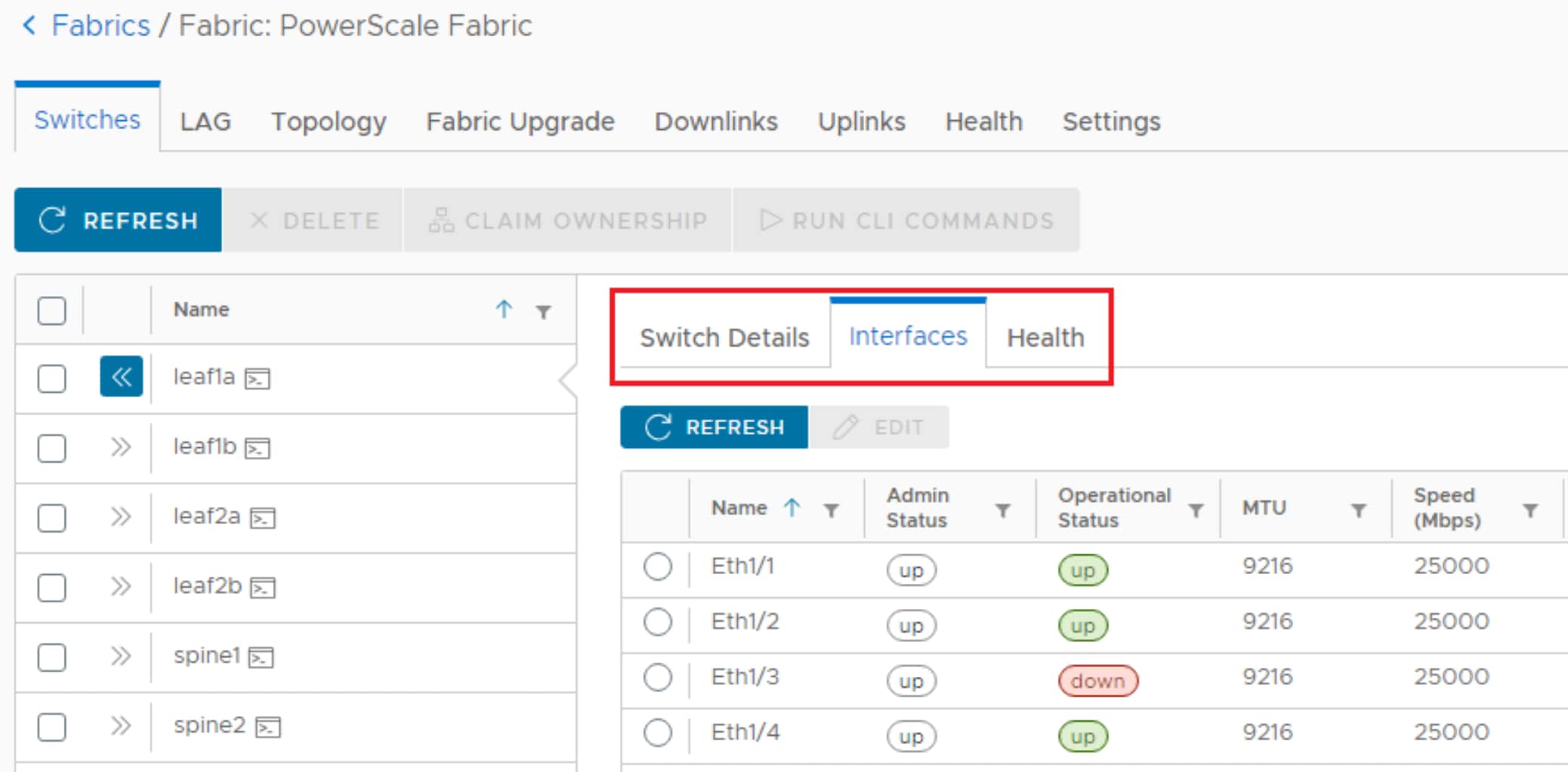
This figure shows a screenshot of the Interfaces tab on the Fabric: PowerScale Fabric page.

Figure 32. Switch Interfaces for leaf1a

  1. The Switch Details tab provides information such as the model, service tag, and SONiC software version. 
  2. The Interfaces tab, selected above, shows port Operational status and other settings. If the switches and PowerScale nodes are configured properly, the port Operational Status should be up for the connected ports. Individual ports can be selected and edited to change settings such as admin state and MTU. Other settings may also be available depending on the PowerSwitch model.  
  3. The Health tab provides software and hardware health scores for the switch. 
  1. At the top of the Fabrics page, click the LAG tab. All LAGs in the topology are listed. Verify that all PowerScale node LAGs have two interfaces, are configured for MC-LAG and LACP, and the Admin State is up.
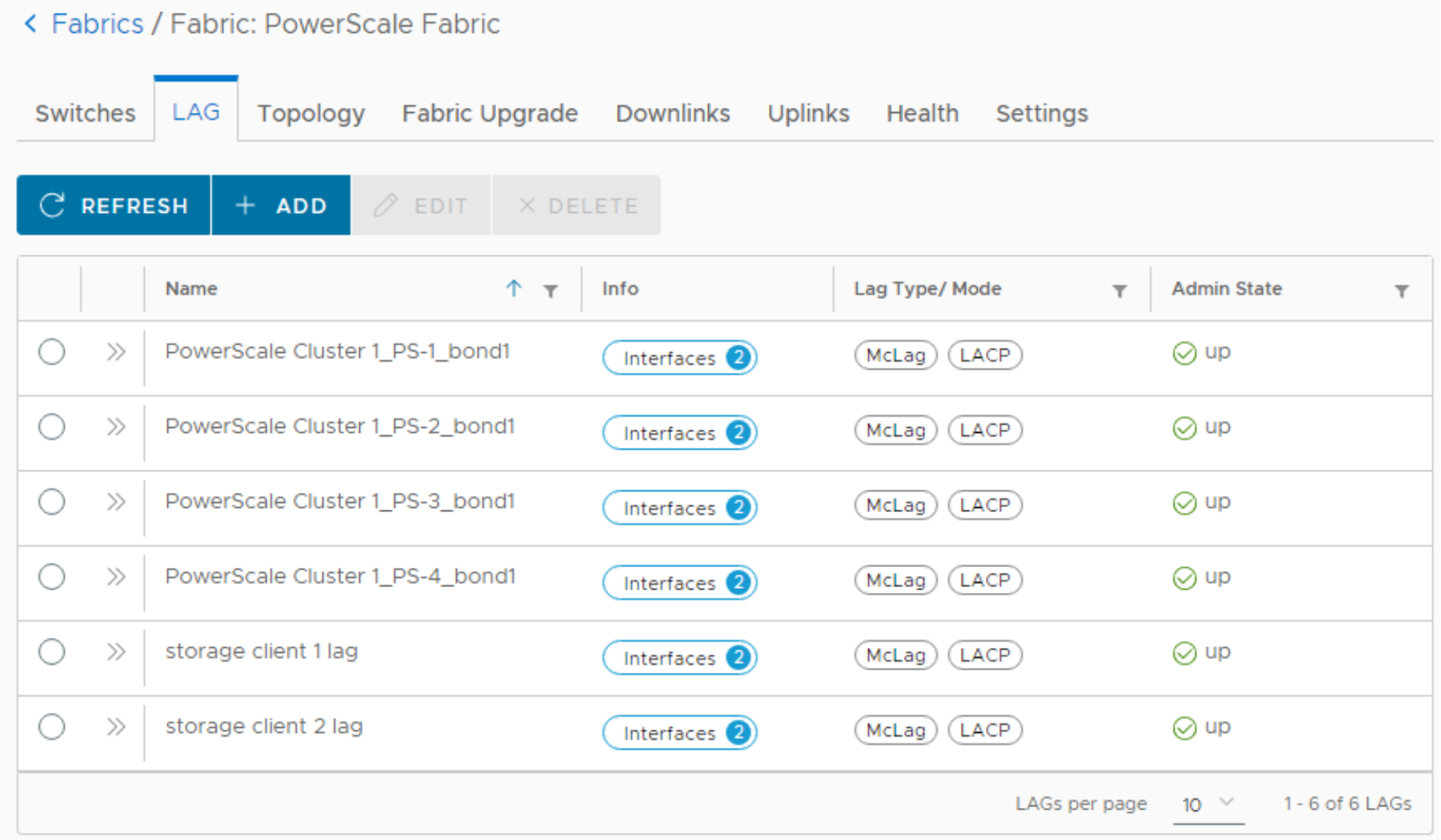
This figure shows a screenshot of the LAG tab on the Fabric: PowerScale Fabric page.

Figure 33. LAG tab 

  1. Click the >> next to a PowerScale LAG name. The LAG Details pane opens to the right.
  2. Click the > next to Interfaces. The switch, interface, and port channel ID for the LAG is shown. Make sure that the Operational State is up on both leafs, outlined in red in the figure below.
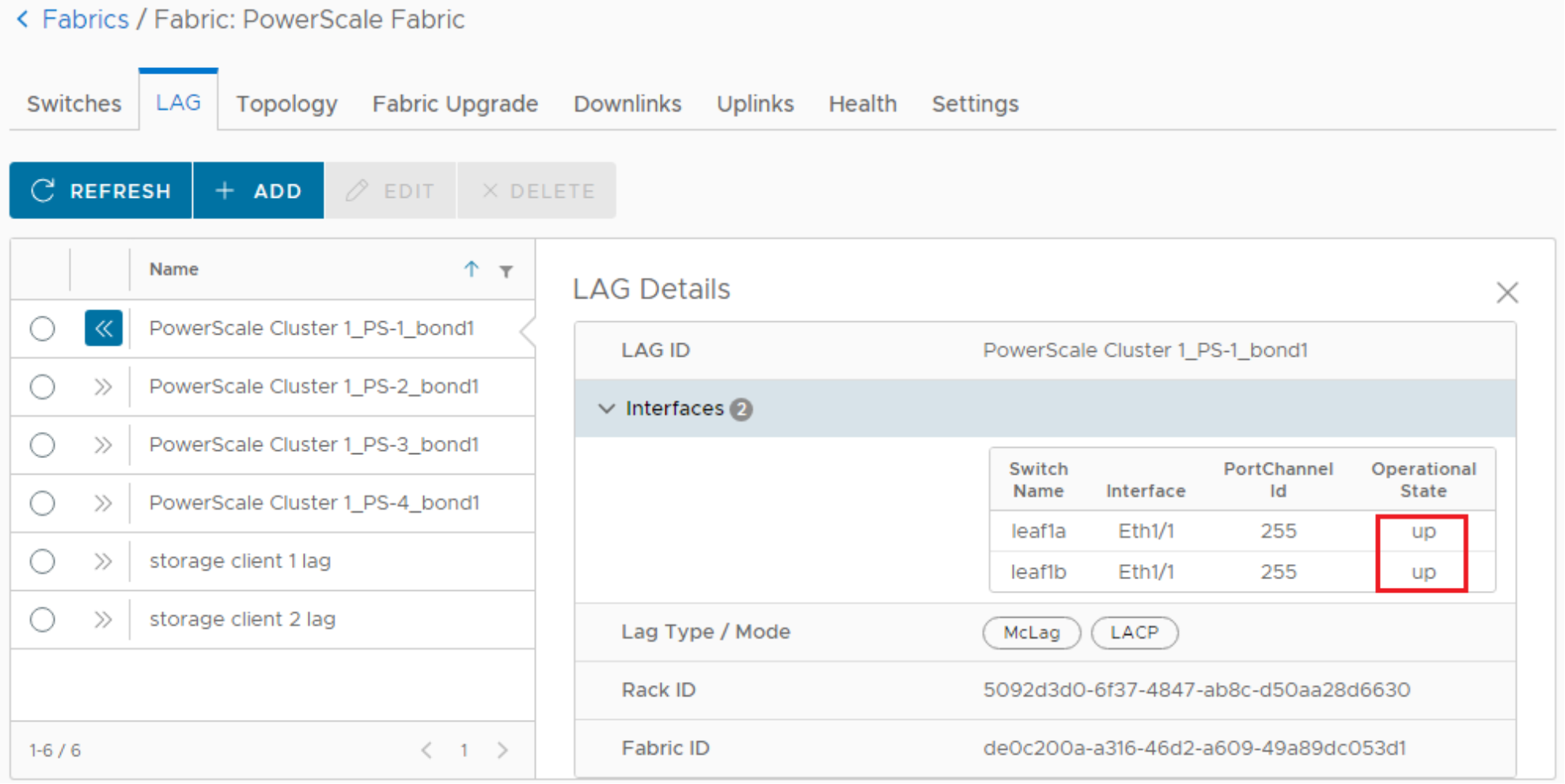
This figure shows a screenshot of the LAG details on the LAG tab on the Fabric: PowerScale Fabric page.

Figure 34. LAG details

  1. Click the Topology tab at the top of the Fabrics page. The fabric topology is shown. 
  2. On the Topology tab, next to Cluster View, select the PowerScale cluster. The PowerScale cluster nodes and locations are added to the diagram. Ensure that all connections are shown. A missing connection indicates that a link is down or is not physically connected.
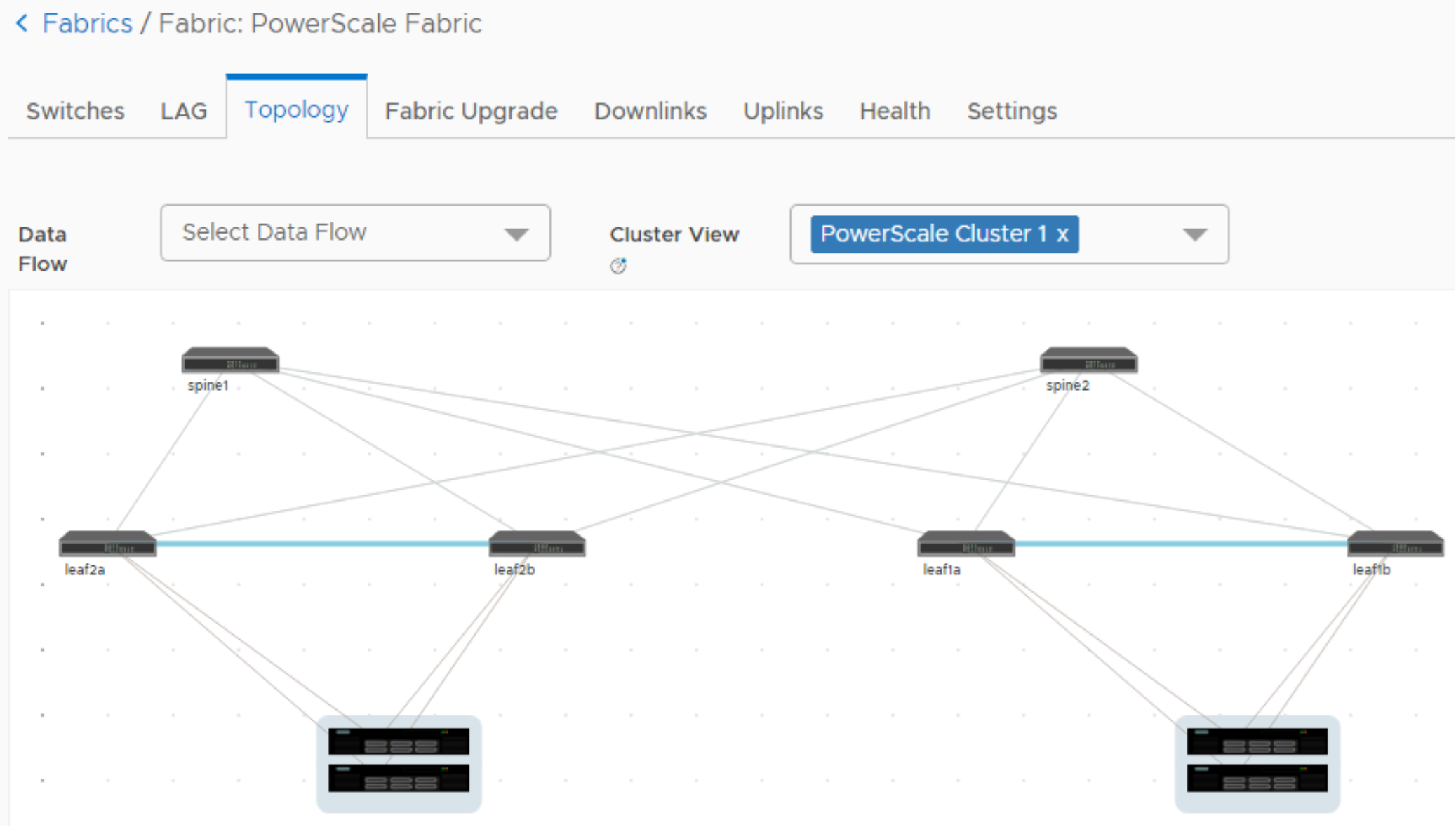
This figure shows a screenshot of the Topology tab on the Fabric: PowerScale Fabric page.

Figure 35. Topology view with PowerScale nodes

  1. Click the Downlinks tab at the top of the Fabrics page. All downlinks in the topology are listed. 

This figure shows a screenshot of the Downlinks tab on the Fabric: PowerScale Fabric page.

Figure 36. Downlinks tab 

  1. Click the >> icon next to a downlink name to view additional details. The Downlink Details pane displays on the right. Make sure the interface is in the correct VLAN. VLAN 100 is used in this guide.
  1. If the VLAN is tagged, click the > next to Tagged Networks to expand the list of tagged VLANs. Also, if it is tagged, make sure that the NIC that is connected to the switch is configured for the same VLANs.
  2. If the VLAN is listed as an Untagged Network, as in this example, do not configure the VLAN on the NIC that is connected to the switch.
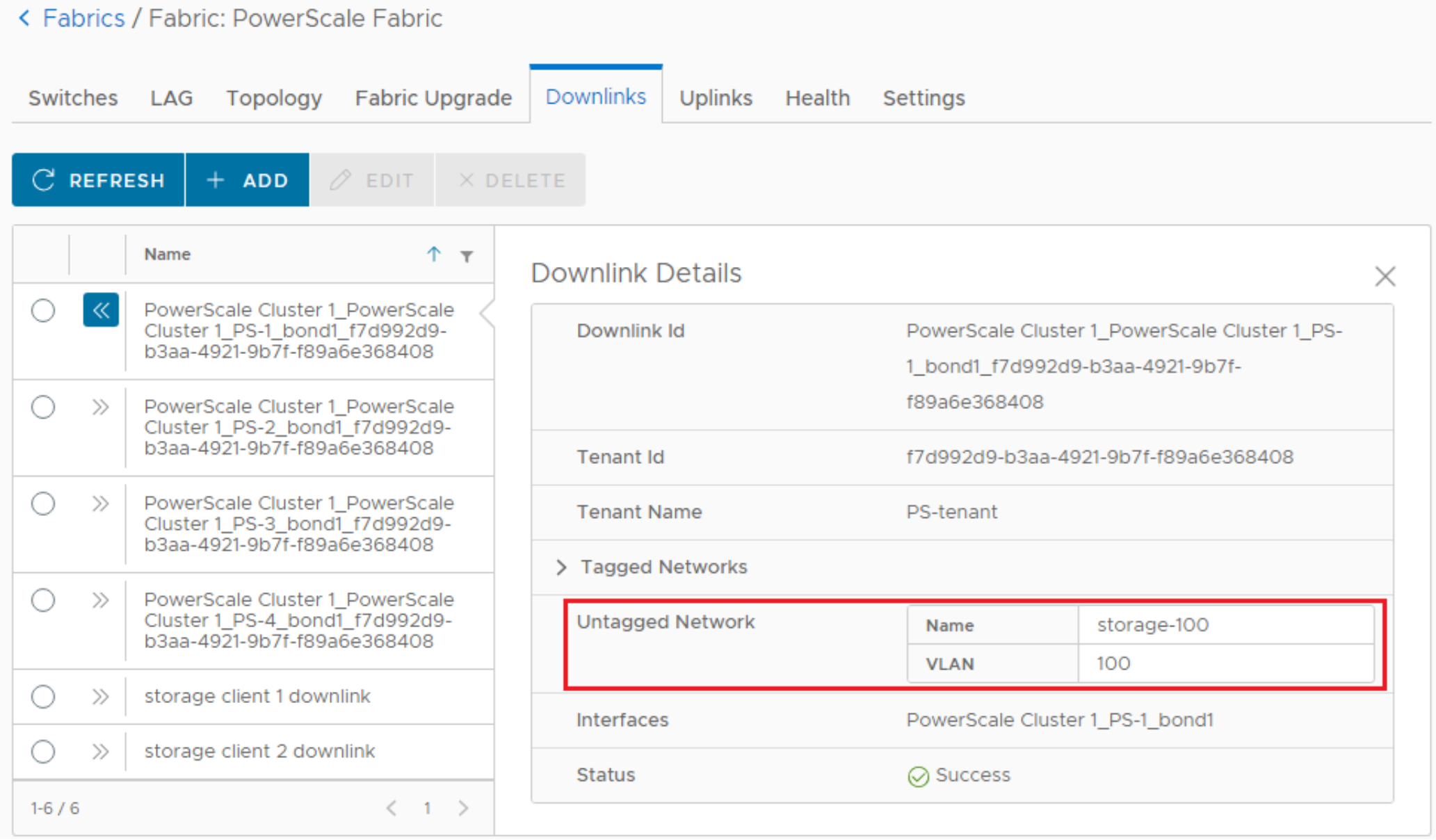
This figure shows a screenshot of the Downlinks tab on the Fabric: PowerScale Fabric page.

Figure 37. Downlink details

  1. Click the Health tab to display the fabric health. 
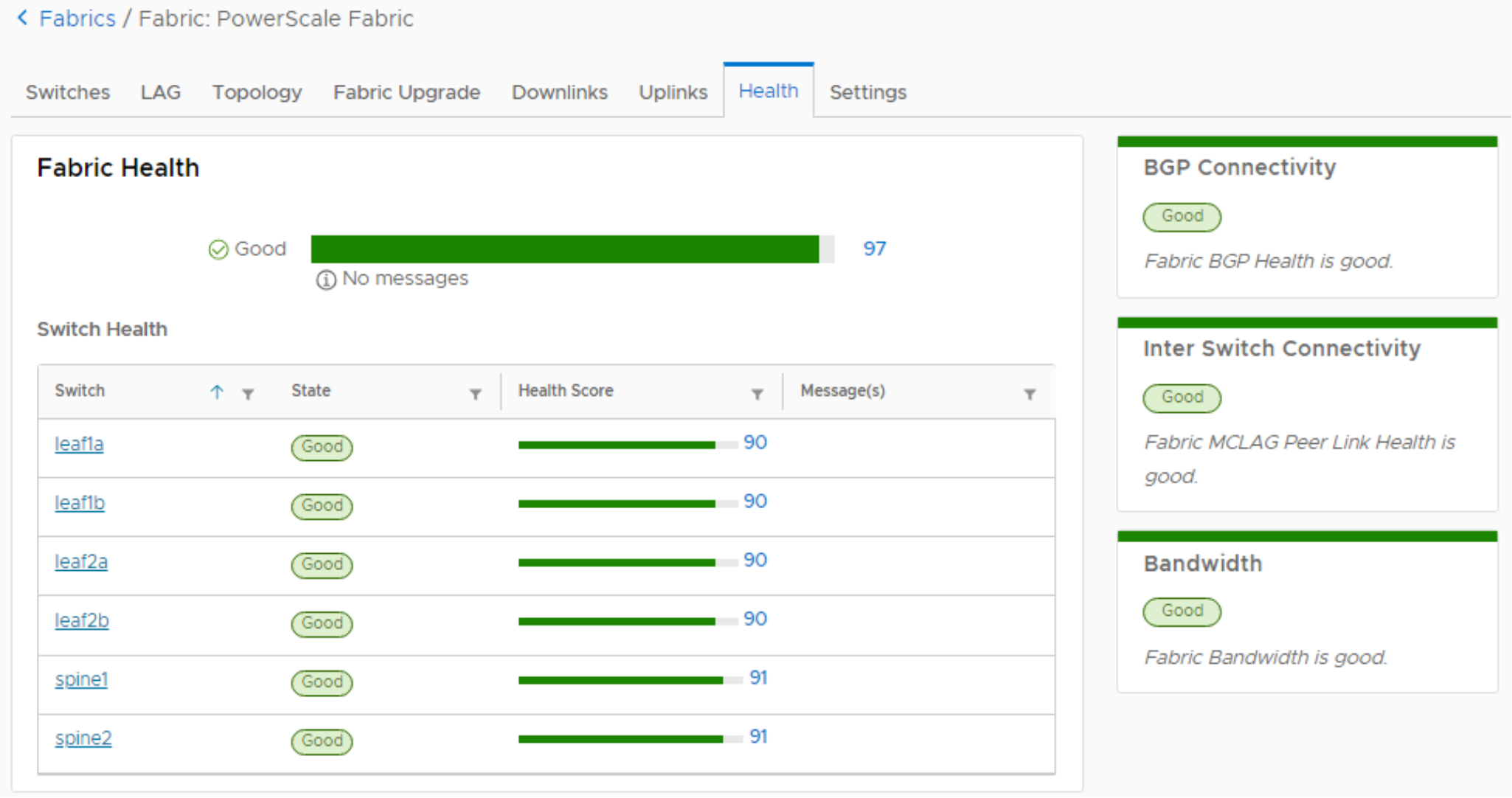
This figure shows a screenshot of the Health tab on the Fabric: PowerScale Fabric page.

Figure 38. Fabric Health tab 

  1. Ensure that the State is Good, and that the Health Score is green for each switch. If any switches have a yellow or red Health Score, see the Messages column for the cause.

Appendix A: BGP EVPN with VXLAN overview

Appendix A: BGP EVPN with VXLAN overview

BGP EVPN with VXLAN stretches virtual (overlay) Layer 2 networks across a physical (underlay) Layer 3 leaf-spine fabric. This architecture allows for the scalability of Layer 3 networks with the mobility benefits of a Layer 2 network. For example, a VM or physical host can be moved from one rack to another without the need to change its IP address and gateway information. All paths in the fabric are active and no connections are blocked by the spanning tree protocol.

EVPN uses BGP to exchange endpoint MAC and IP address information between VXLAN tunnel endpoints (VTEPs). In this topology, each pair of leaf switches in a rack is one logical VTEP. Packets destined to a remote device are sent to the local VTEP as the first hop. The packet is encapsulated with a VXLAN header that includes the Virtual Network Identifier (VNI) and the IP address of the destination host. See the figure below. 
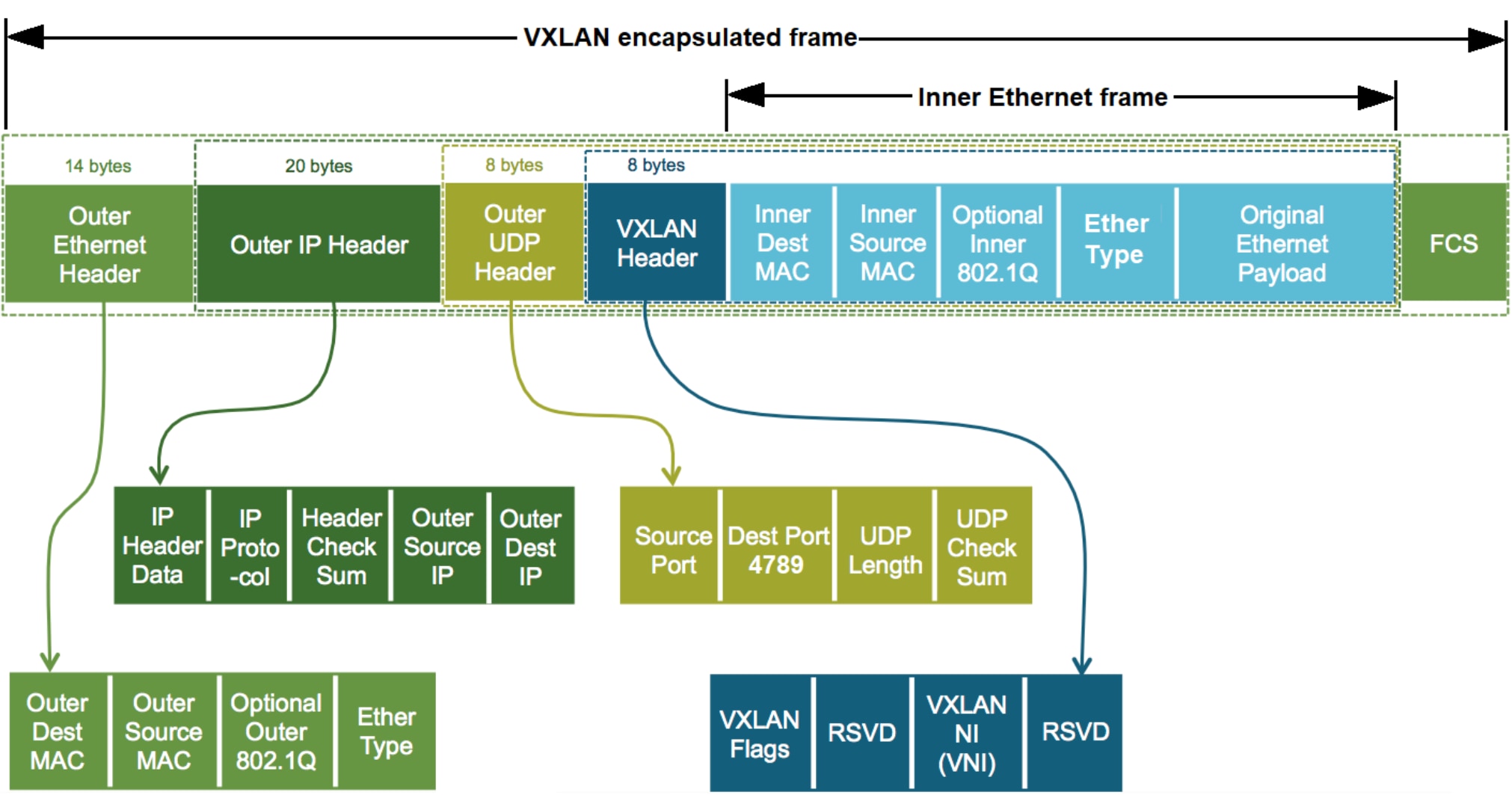
This figure shows a topology diagram of the VXLAN encapsulated frame.

Figure 39. VXLAN encapsulated frame

The destination VTEP extracts the original packet and routes it to the destination. VXLAN encapsulation adds approximately 50 bytes of overhead to each Ethernet frame. As a result, all switches in the underlay (physical) network must be configured to support an MTU of at least 1600 bytes on all participating interfaces.

Note: In this deployment, switch interfaces are automatically set to their maximum supported MTU size of 9216 bytes by SFM for best performance.

Anycast gateways with the same IP address are configured on each leaf pair. An anycast gateway IP address is set as the default gateway for hosts and VMs on that virtual network. Hosts and VMs on the same virtual network use the same gateway address while behind different leaf pairs. This configuration replaces the Virtual Router Redundancy Protocol (VRRP) and enables hosts and VMs to migrate from one leaf pair to another without changing the network configuration.

Appendix B: Validated components

Appendix B: Validated components

The following tables include the hardware, software, and firmware that was used to validate the example in this guide. Other supported hardware, software, and firmware can be used.

Dell PowerSwitch systems

The switches used to validate the deployment in this guide are listed in the table below. 

Table 5. Dell PowerSwitch models and operating systems

Qty

Item

Role

SONiC version

4

Dell PowerSwitch S5248F-ON 

Leaf switch

4.4.0

2

Dell PowerSwitch S5232F-ON 

Spine switch

4.4.0

1

Dell PowerSwitch N3248TE-ON

OOB management switch

4.4.0

SONiC SmartFabric Manager

A Dell PowerEdge server running VMware ESXi was used as the host for the SONiC SmartFabric Manager virtual machine. 

Table 6. SmartFabric Manager software

Item

Version

SONiC SmartFabric Manager

1.0.0.0454

VMware ESXi host

8.0.2 build 23305546 Dell customized A06

PowerScale nodes

Four PowerScale F200 nodes were used to validate the deployment in this guide. Each node was configured as shown.

Table 7. PowerScale F200 node configuration

Qty per node

Item

Version

1

PowerScale OneFS software

9.9.0.0

1

Intel Xeon Silver 4210 CPU @ 2.20 GHz, 10 cores


7

16 GB DDR4 DIMM (112 GB total)


4

1788.5 GB SAS SSD


1

Dell HBA330 Mini Storage Controller

16.17.01.00

2

Mellanox ConnectX-4 LX 25 GbE dual-port SFP28 adapter

14.32.20.04

-

BIOS

2.21.2

-

CPLD

1.0.6

-

iDRAC with Lifecycle Controller

7.00.00.173

-

Backplane

4.35

Appendix C: Resources

Dell Networking resources

Dell Technologies Networking Solutions Info Hub - This site provides guides to assist with planning and deploying various solutions with Dell Networking.

Dell Technologies Enterprise SONiC Distribution (account required) – This site includes SONiC user guides and software.

SmartFabric Manager documentation (account required)

SmartFabric Manager software (account required)

Dell PowerSwitch N3200-ON Series Documentation

Dell PowerSwitch S5212F-ON Documentation

Dell PowerSwitch S5248F-ON Documentation

Dell PowerSwitch S5232F-ON Documentation

Dell Networking Transceivers and Cables