SQL Server 2022 on Dell PowerFlex Using Microsoft Hyper-V
Executive Summary
Document Purpose
Revision History
Audience
Terminology
We value your feedback
Product Overview
PowerFlex family
PowerFlex software-defined infrastructure enables broad consolidation across the data center, encompassing almost any type of workload and architecture. The software-defined architecture offers automation and programmability of the complete infrastructure and provides scalability, performance, and resiliency to enable effortless adherence to stringent workload SLAs.
The PowerFlex family provides a foundation that combines compute and high-performance storage resources in a managed unified fabric. PowerFlex comes in flexible deployment options (rack, appliance, or custom nodes and in the public cloud) that enable independent (two-layer), HCI (single-layer), or mixed architectures. PowerFlex is ideal for high-performance applications and databases, building an agile private/hybrid cloud, or consolidating resources in heterogeneous environments.
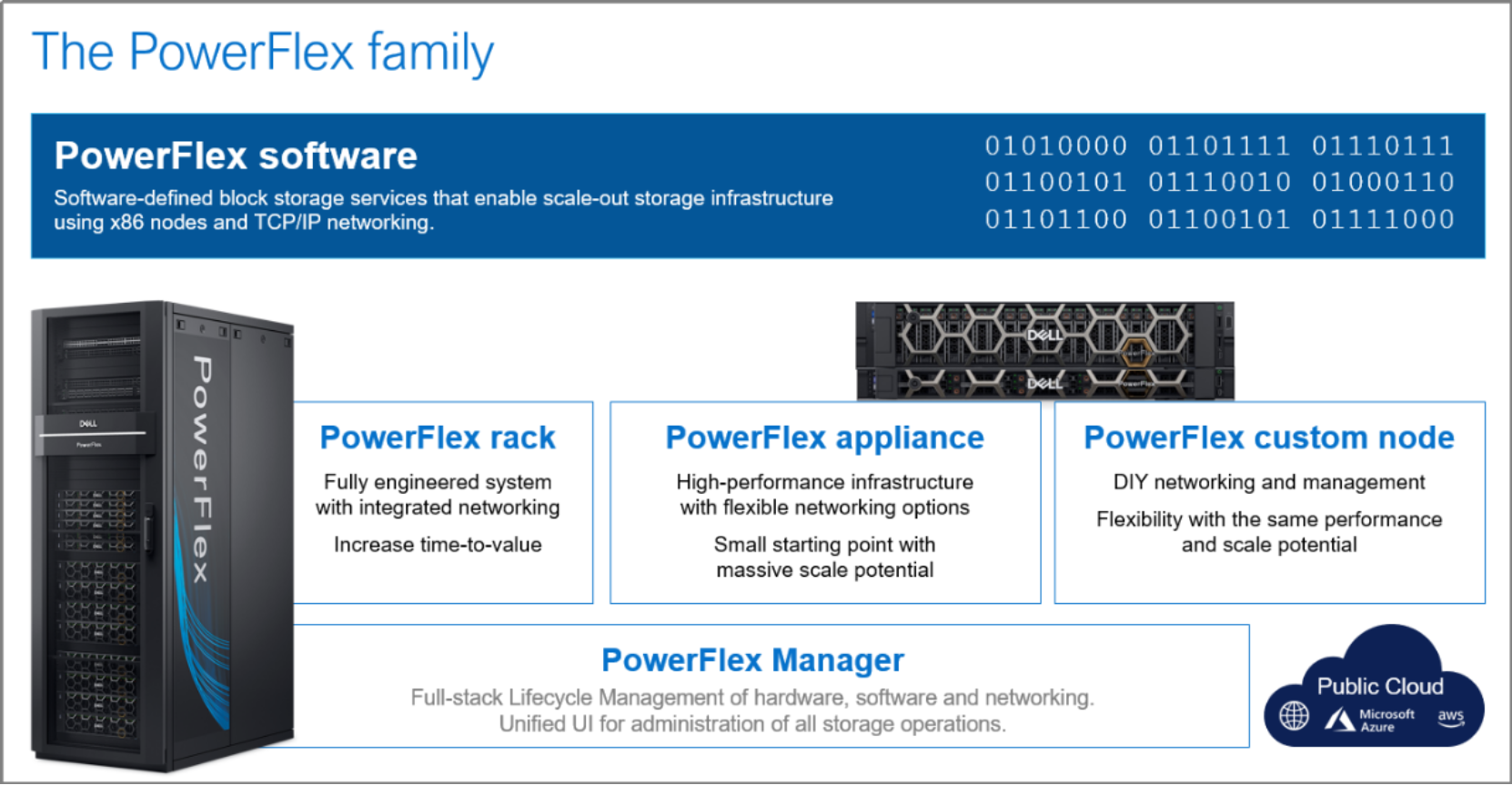
Figure 1. PowerFlex Family
PowerFlex with NVMe over TCP (NVMe/TCP)
NVMe is a family of open specifications that defines an industry standard for both a logical interface and a communication protocol for accessing block storage across an internal PCIe fabric or through external fabrics such as TCP/IP and FC. NVMe is designed to take advantage of the internal parallelism and low latency inherent in flash-based media SSDs.
NVMe/TCP is an extension of the NVMe base specification that defines the binding of the NVMe protocol to message-based fabrics using TCP. By binding the NVMe protocol to TCP, NVMe/TCP enables the efficient end-to-end transfer of commands and data between NVMe hosts and NVMe controller devices by any standard Ethernet-based TCP/IP networks.
From PowerFlex release 4.x onwards, support for NVMe/TCP is available for on-premises deployment with the introduction of a new Storage Data Target (SDT) component installed in the storage layer. The NVMe initiator in the operating system or hypervisor communicates with the SDT, which then communicates with the Storage Data Server (SDS). The NVMe initiator is part of the kernel of the application host operating system or hypervisor.
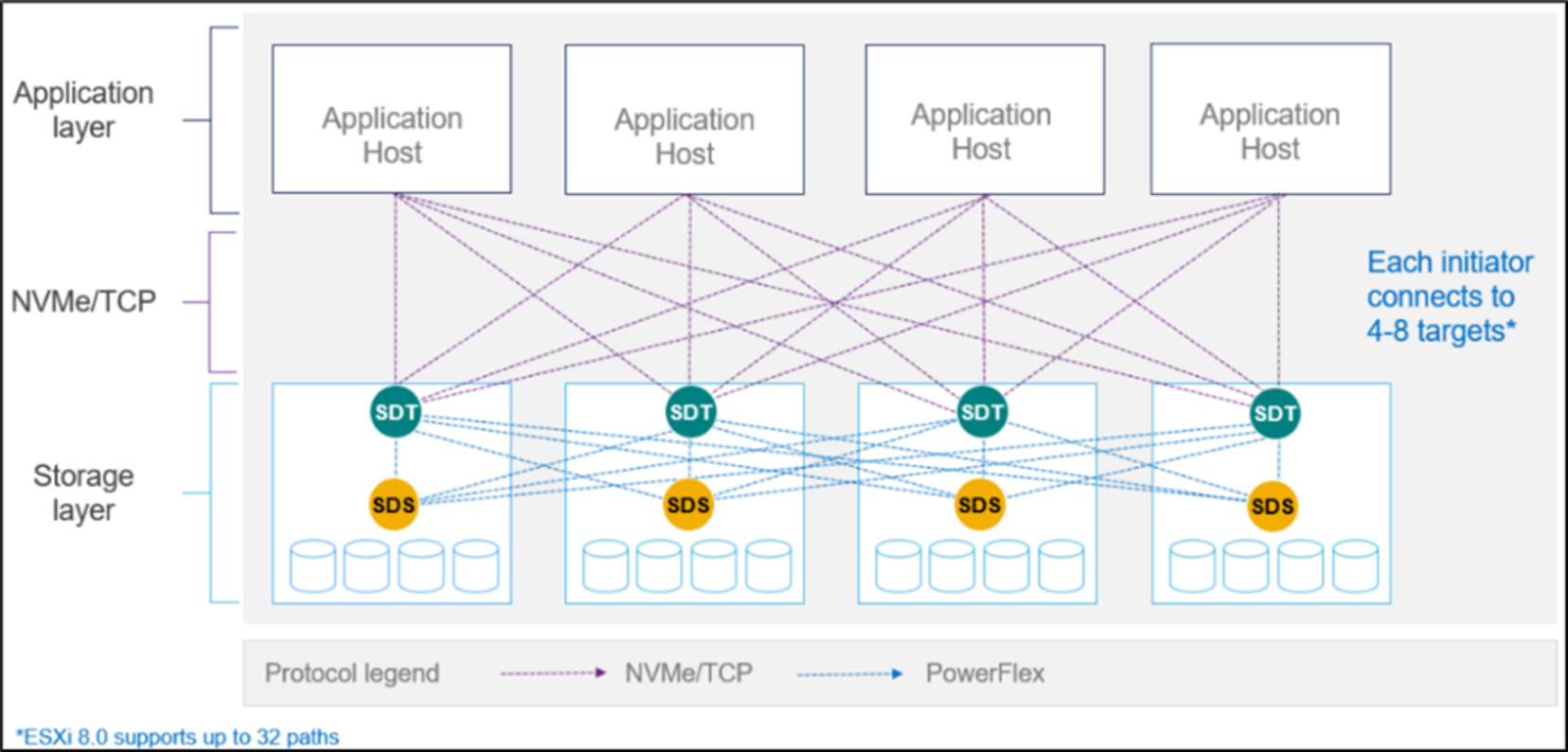
Figure 2. PowerFlex with NVMe/TCP
For more information, see PowerFlex with NVMe over TCP.
PowerFlex deployment architectures
PowerFlex software-defined storage offers flexibility of deployment architecture to help best meet the specific deployment and architectural requirements. PowerFlex can be deployed in a two-layer (Independent), single-layer (Hyperconverged/HCI), or a mixture of the two architectures (Mixed). OpenShift environments on PowerFlex use a two-layer (independent) architecture.
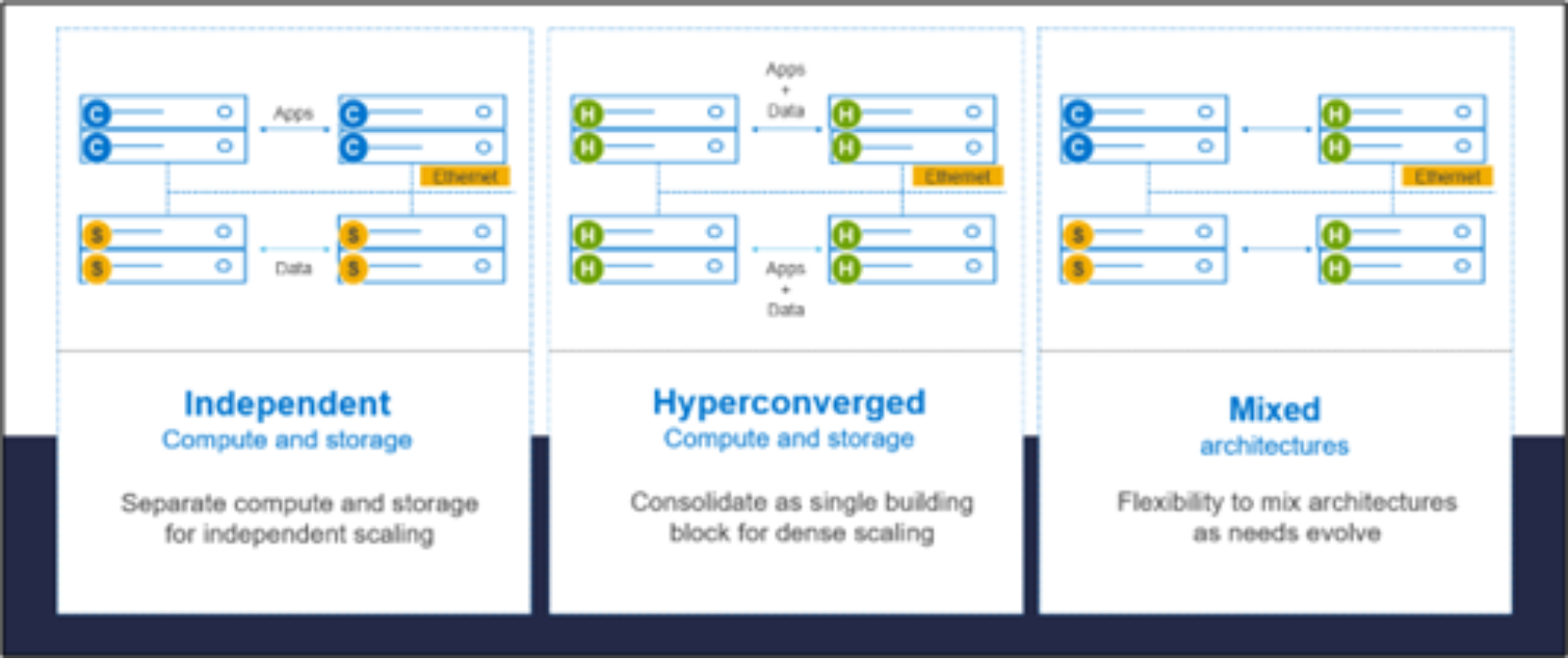
Figure 3. PowerFlex deployment architectures
PowerFlex consumption options
PowerFlex CSI/CSM
An important component outside of PowerFlex that enables a flexible consumption model for Kubernetes is the PowerFlex CSI driver, developed as a part of the Dell Kubernetes strategy. After loading the CSI driver for PowerFlex into Kubernetes, it can be used to provision persistent volumes from the underlying PowerFlex storage resource. If the Kubernetes deployment is running low on PowerFlex storage resources, you can add PowerFlex storage nodes to increase the system capacity and performance.
The CSI driver connects the PowerFlex system and Kubernetes deployments. It is a storage broker which dynamically provisions volumes from PowerFlex through the PowerFlex API gateway to the Kubernetes cluster. Once the volume is available on PowerFlex, it is immediately mapped to the requesting pod. If a pod is destroyed or rescheduled, the CSI plug-in ensures that the volumes are remapped upon rescheduling of that pod.
- Customers running Kubernetes clusters on PowerFlex use the Dell Container Storage Modules (CSM), which extend the CSI driver capabilities. These modules:
- Provide enterprise storage capabilities to Kubernetes for cloud-native stateful applications.
- Reduce management complexity, so that developers can independently use enterprise storage with ease and automate daily operations.
- Extends storage functionality and capabilities beyond using the CSI driver alone.
These modules include snapshot, observability, authorization, application mobility, and resiliency.
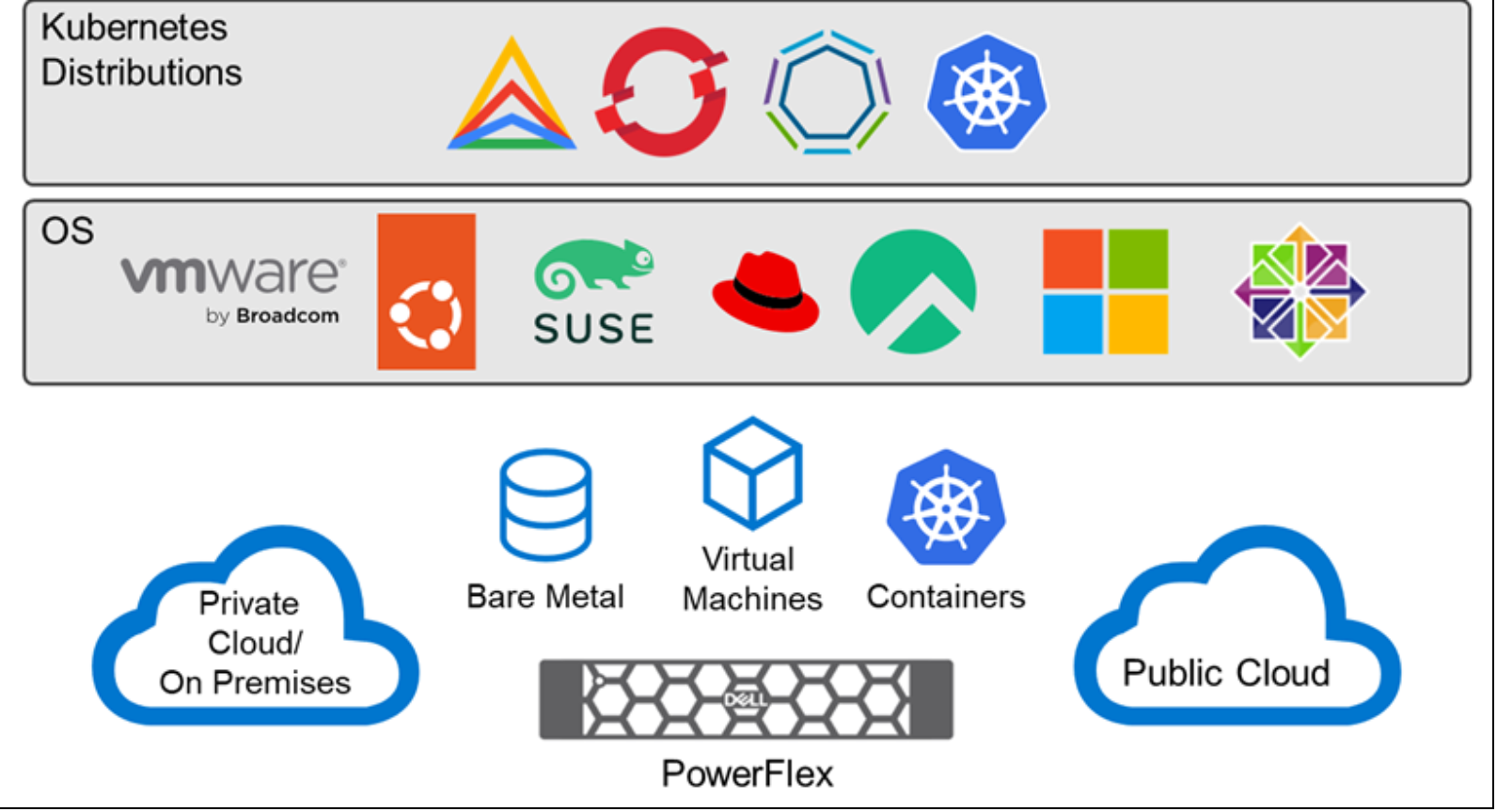 PowerFlex supports multiple operating systems, different deployment options on-premises and public cloud deployment models (available in AWS and Azure). PowerFlex is validated with leading Kubernetes distributions as shown in Figure 4.
Solution Overview
Solution Overview
System Architecture
The following diagram depicts the logical architecture of a Microsoft SQL Server 2022 database hosted on PowerFlex storage using Microsoft Hyper-V. The diagram incorporates a failover cluster with two Hyper-V hosts. The solution has three primary components, as shown:
- PowerFlex storage
- Microsoft Hyper-V hypervisor
- SQL Server 2022 database
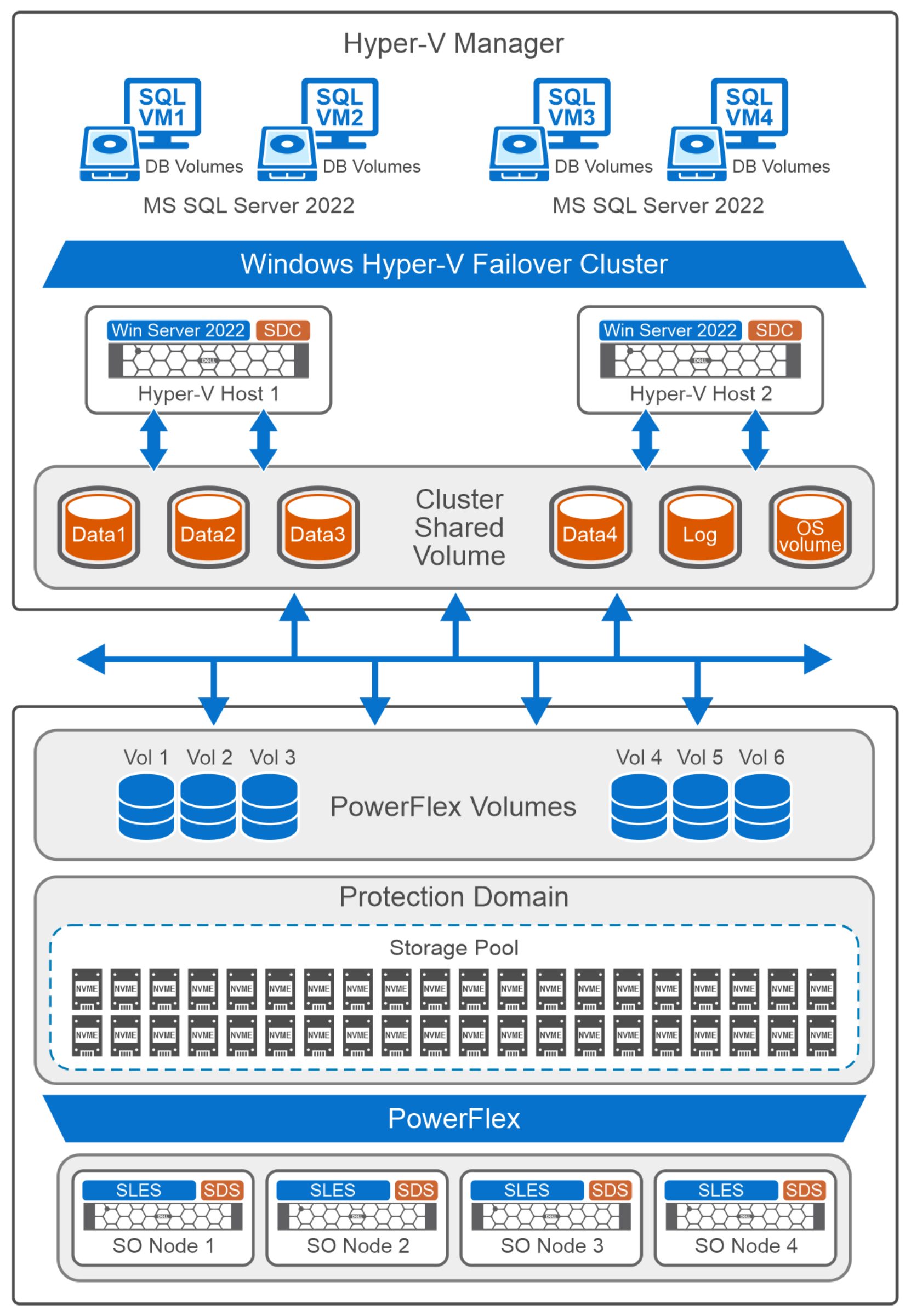
Figure 5. System architecture diagram
PowerFlex storage is deployed using a two-layer configuration, consisting of four storage nodes and two compute nodes.
Each storage node is equipped with 10 NVMe drives, each with a capacity of 1.7 TB. The drives from all four storage nodes (a total of 40 drives) are aggregated into a single resilient storage pool. Host-usable storage volumes are then allocated as needed from this pool.
These storage volumes are mapped to the Windows Server compute nodes using the PowerFlex SDC. Mapped volumes are used by Microsoft Hyper-V hosts to store virtual disks of SQL Server VMs, ensuring efficient and reliable VM operations.
The Windows Server 2022 compute nodes are configured as Hyper-V hosts, which are integrated into a Windows Server Failover Clustering (WSFC). The failover cluster leverages PowerFlex volumes as cluster shared volumes (CSV) to ensure high availability (HA), consistent naming, and fast failover. All the necessary services for establishing the failover cluster, including DNS, Active Directory, and NTP servers, are configured on a separate host. These Hyper-V nodes exclusively host SQL Server VMs, utilizing their full CPU capacity for OLTP workloads.
A management virtual switch is established to enable communication between the SQL Server VMs. Each Hyper-V hosts two SQL Server VMs. Data and log volumes from PowerFlex storage are mapped as raw disks to the Hyper-V hosts. These disks store the virtual disks (VHDx) of SQL Server VMs.
For more comprehensive information, see the Hyper-V storage layout documentation.
SQL Server 2022 is installed on Windows Server 2022 VMs. The SQL binaries are stored on OS volumes. Four volumes are created to store the data files of the database, and a single volume is created to store the log file of the database.
The SQL VMs are standalone VMs, operating independently and not part of any cluster environment. The database contains initial data to support OLTP workloads. For more information, see the SQL Server database layout documentation.
Network Architecture
Network Architecture
The following diagram shows the network architecture of a PowerFlex deployment that includes storage and compute nodes:
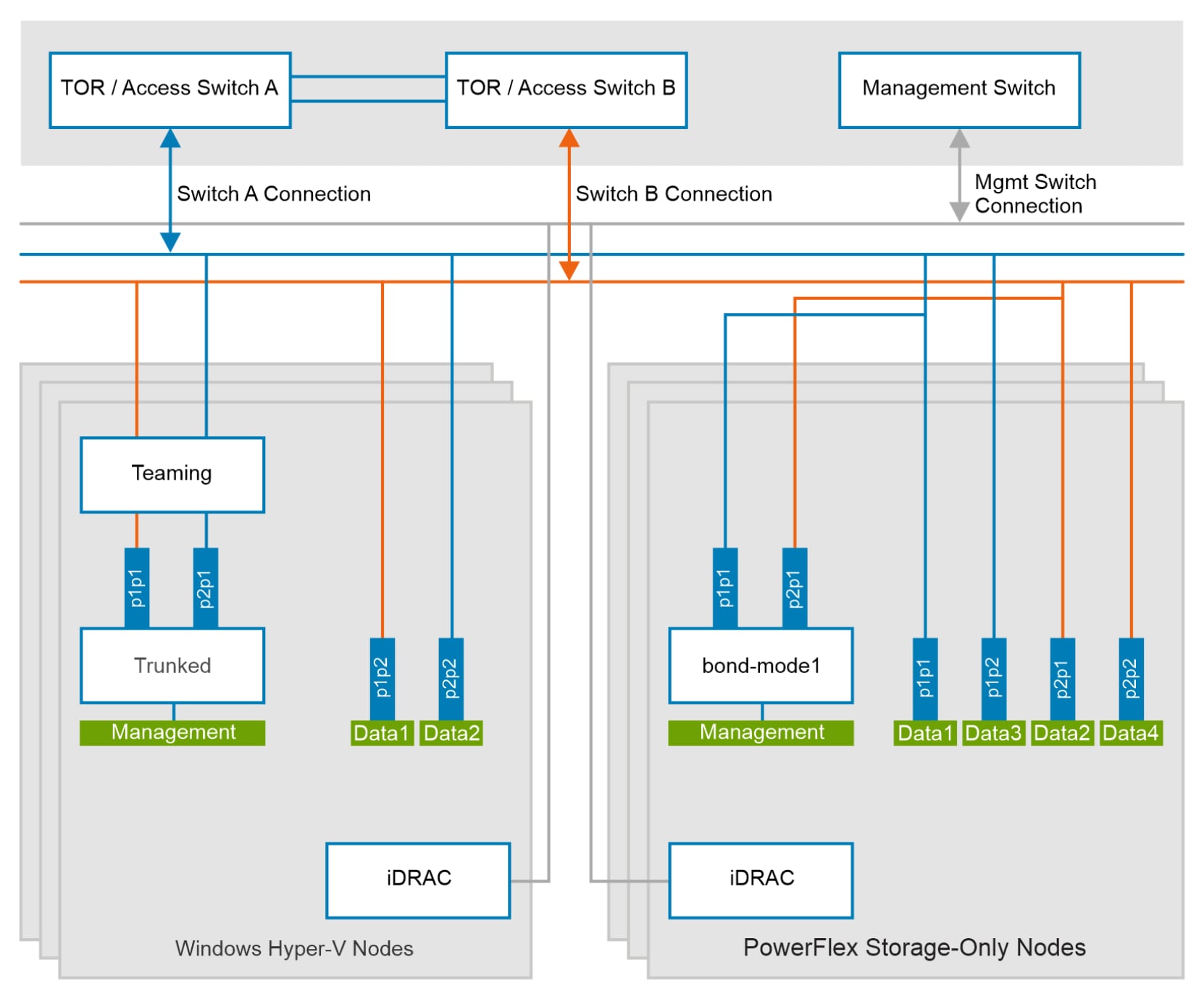
Figure 6. PowerFlex Network Architecture
Each PowerFlex storage-only node is connected to the TOR switches. All nodes are equipped with 25 GB dual-port NICs. These network ports are trunked with the TOR switches. The NICs handle management, data1, data2, data3, and data4 network traffic for PowerFlex. The management network operates in active-backup (mode1) bonding with the data1 and data2 networks, while the data3 and data4 networks are dedicated SDS network and are not bonded. This network configuration provides redundancy and fault tolerance, with two dedicated networks for PowerFlex data transfer.
Dedicated VLANs are used to separate management and data network traffic. The following table shows the different VLANs that are used for PowerFlex storage-only nodes and their purposes:
Table 2. Network VLAN details of PowerFlex storage-only nodes
|
Network type |
VLAN |
Configurations |
|
Management |
150 |
Mode1 bond - (interface1 port1 and interface2 port1) |
|
PowerFlex Data 1 |
151 |
interface1 port1 |
|
PowerFlex Data 2 |
152 |
interface1 port2 |
|
PowerFlex Data 3 |
153 |
Interface2 port1 |
|
PowerFlex Data 4 |
154 |
Interface2 port2 |
Two Hyper-V compute nodes equipped with 25 GB dual-port NICs are connected to the TOR switches. The two network ports, interface 1 port 1 and interface 2 port 1, are teamed in switch-independent mode and carry management traffic. This teaming mode uses a built-in Hyper-V switch to distribute traffic across the member NICs and is configured with Hyper-V port load balancing. This mode is not dependent on any TOR switch configuration to distribute the traffic inside the Hyper-V environment. A teamed network interface also handles VM migration traffic. The PowerFlex data1 network is configured on interface 1 port 2, while data2 network is configured on interface 2 port 2 of the Hyper-V hosts. Data networks are not teamed, and they carry dedicated SDS-SDC traffic. The following table shows the network VLAN details of Hyper-V nodes:
Table 3. Network VLAN details of Hyper-V nodes
|
Network type |
VLAN |
Configurations |
|
Management |
105 130 |
Switch Independent Teaming - (interface1 port1 and interface2 port1) VLAN 105 for Hyper-V VMs VLAN 130 for VM migration |
|
PowerFlex Data 1 |
151 |
Interface1 port2 |
|
PowerFlex Data 2 |
152 |
Interface2 port2 |
Microsoft Hyper-V Configuration
Microsoft Hyper-V Configuration
Microsoft Hyper-V, when integrated with PowerFlex storage, leverages the scalability and reliability offered by the advanced storage options of PowerFlex. The storage infrastructure can be scaled to suit the needs of businesses, ranging from individual workloads to enterprise-wide storage requirements.
This section explains about Hyper-V setup that this solution uses, encompassing the failover clustering, cluster networks, and cluster storage.
Windows Server Failover Clustering (WSFC) enhances the availability and reliability of Hyper-V hosts and their VMs. Two independent Hyper-V hosts are combined into a single failover cluster. VMs on the hosts are configured as clustered roles. If any cluster server fails, VMs automatically move to the other server and resume operations.
The following figure shows the failover cluster networks:
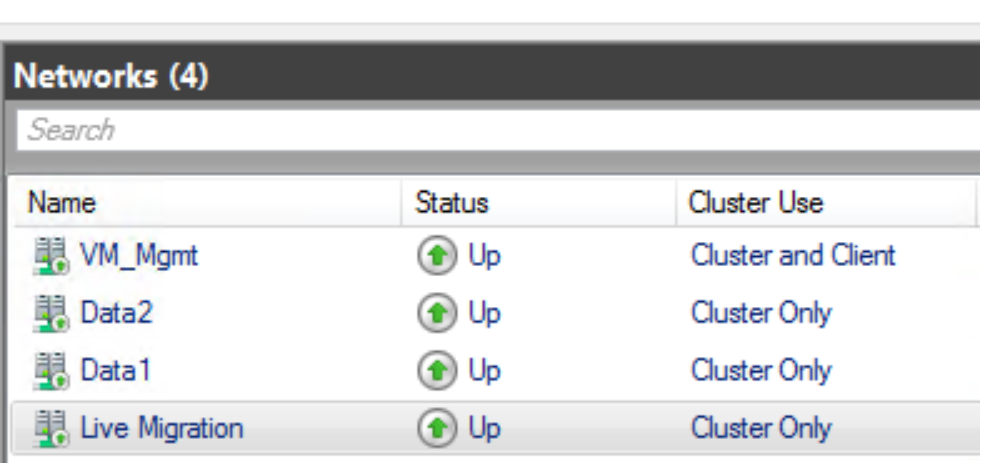
Figure 7. Cluster network details
Management and data networks are part of the failover cluster network. This design provides high availability for both VMs, and the volumes that are configured on the Hyper-V host. The management network is also used for cluster and client communication, whereas all the other networks are configured for cluster communication only. Multiple cluster networks provide redundancy to the Hyper-V infrastructure.
Eight volumes are mapped from PowerFlex to both Hyper-V hosts using the SDC driver. The failover cluster uses these volumes as follows:
- Disk 1 is a quorum disk and is used for failover cluster operation.
- Disk 2 (Vm_win_os_volume) contains all the Hyper-V VMs operating system virtual disks. The disk is configured as a clustered shared volume (CSV) and provides HA to the VMs in a failover scenario.
- Disk 3 (root_volume) is a shared storage volume that mounts all the PowerFlex volumes that are meant for storing data files and log files. Disk 3 is a small disk created to mount the data disks to NTFS volume under different sub-folders.
- All other disks are VM2 data and log disks mounted as an NTFS mount point on the sub-folders of the root volume.
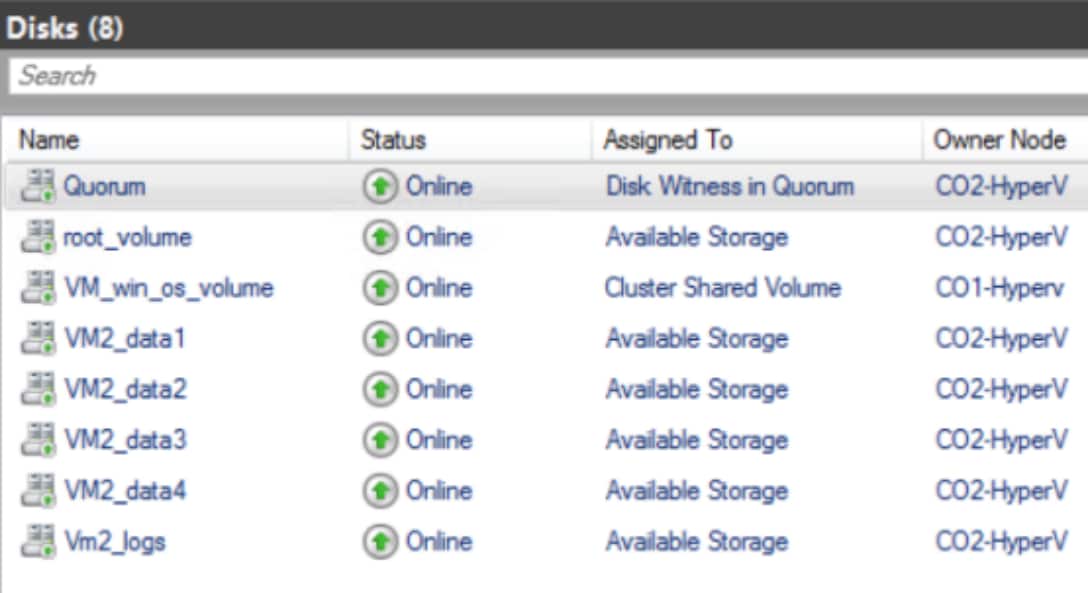
Figure 8. Cluster storage disks
The disk configurations are made for successful failover of VM and its volume in the failover cluster. For more information about how these disks are mounted and formatted, see Microsoft Hyper-V storage layout.
Storage Layout
Storage Layout
Windows Storage Considerations
Microsoft Hyper-V storage layout
As shown in the following image, PowerFlex volumes are formatted with an NTFS 8 KB cluster size and are mounted as a data disk on the root mount volume of the D:\VM2_mounted_disks\ NTFS folder. A similar approach is taken for the log and temp volumes.
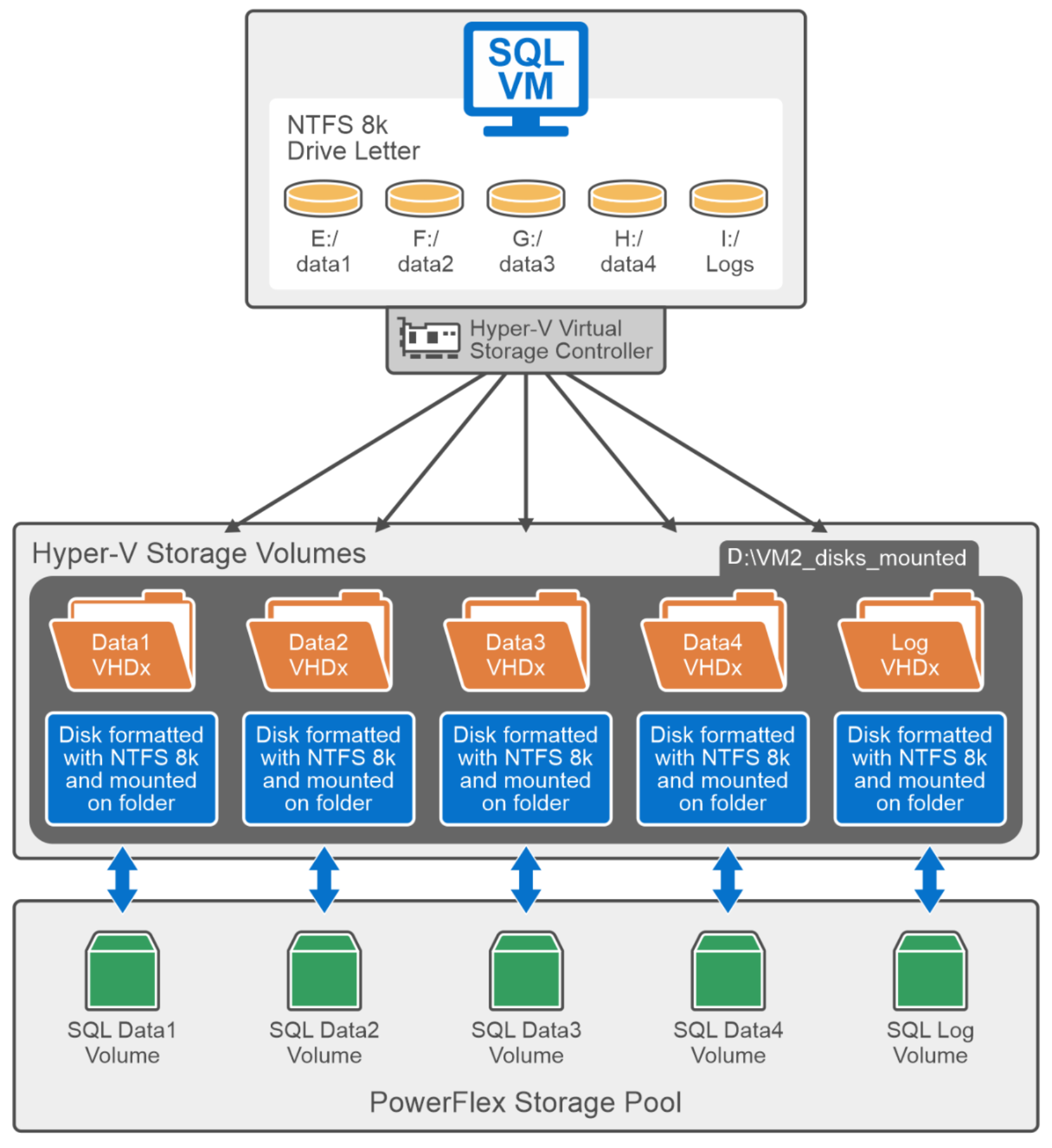
Figure 9. Hyper-V Storage Layout
The D:\ drive is a shared storage mount between two Hyper-V hosts and is a root mount for all the NTFS mount points. Each sub-folder under the VM2_disks_mounted directory is a PowerFlex data storage volume.
Also, both the root volume (D:\) and all the sub-folders under the NTFS mount points are part of the failover cluster. When one node fails, failover cluster automatically moves the root volume and its sub-folders to the other node and resumes the operation. This strategy helps achieve storage HA without using CSV.
All the data and log volume VHDx are stored in respective NTFS folders, as shown in the preceding image.
SQL Server database layout
To ensure optimal database performance, it is imperative to design the database layout with precision. The database team must work closely with the development and product teams to determine the capacity requirements for various databases, with careful consideration given to different table sizes, IOPS, and latency.
For high-IOPS SQL Server databases, it is recommended to use a storage layout with multiple disks to store database files. While a single disk may suffice for general-purpose applications, it is crucial to distribute files across multiple disks for mission-critical applications. Although there is no strict limit on the number of disks, it is essential to consider factors such as file system, cluster size, and file distribution to achieve optimal performance. To maximize performance and resilience, ensure that data, log, and temp files are spread across multiple disks.
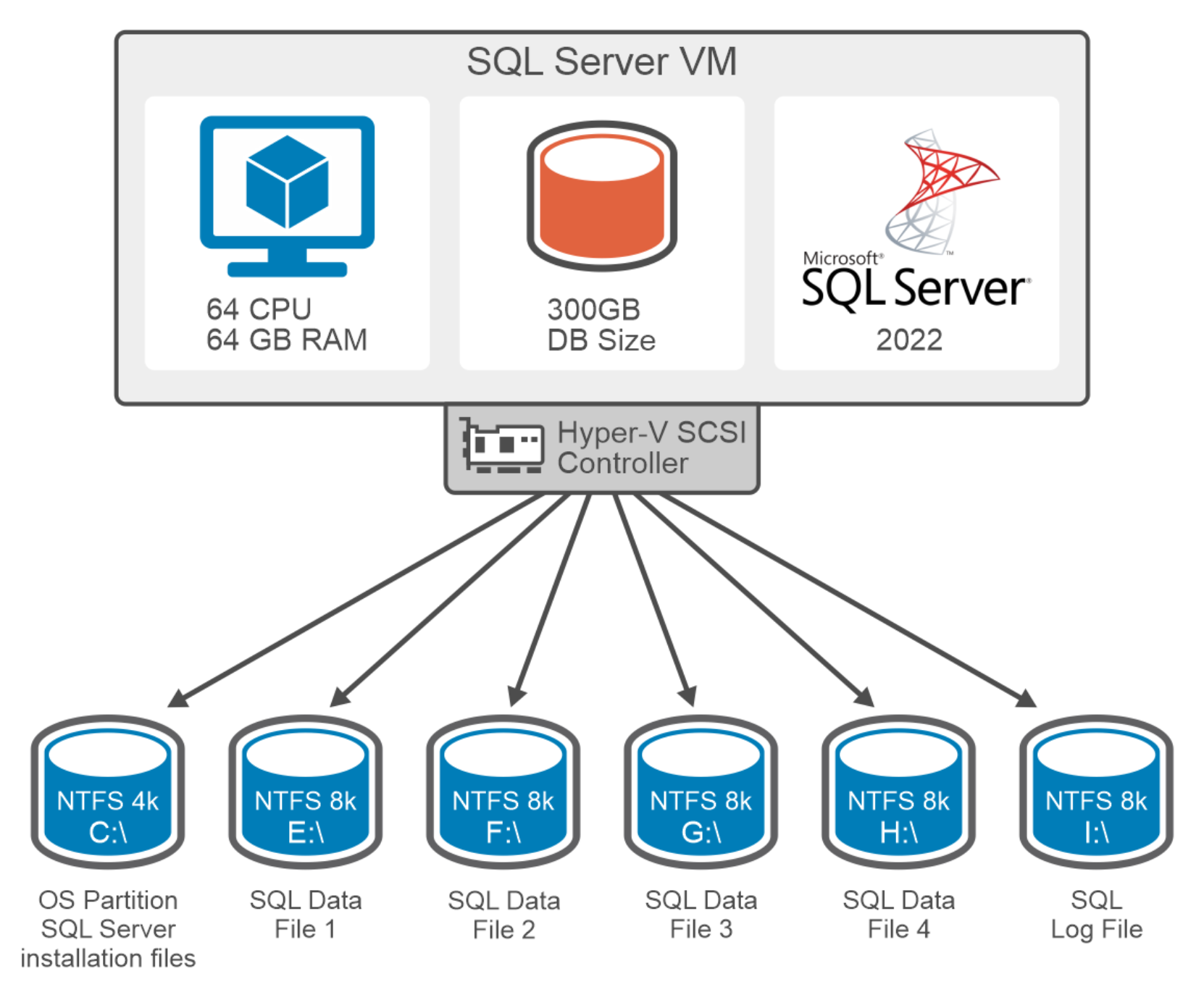
Figure 10. SQL Server database layout
As shown in the preceding figure, data files are distributed across multiple disks, while a dedicated volume is provided for transaction log files. This separation prevents the mixing of random and sequential I/O patterns for data and log files, resulting in efficient I/O distribution across data and log volumes and elevating overall database performance.
To further optimize performance, size data and log files adequately on the expected growth of the database, which reduces the frequency of operating system calls related to the database, consequently boosting database response times.
The following table shows the partition size and file system used for the database:
Table 4. SQL Server file layout
|
Drive letter |
Size (GB) |
File system |
Allocation size |
Purpose |
|
C |
200 |
NTFS |
4 K |
OS partition and SQL Server installation files |
|
E |
280 |
NTFS |
8 K |
Data files partition |
|
F |
280 |
NTFS |
8 K |
Data files partition |
|
G |
280 |
NTFS |
8 K |
Data files partition |
|
H |
280 |
NTFS |
8 K |
Data files partition |
|
I |
480 |
NTFS |
8 K |
Log files and TempDB files |
The operating system volume is formatted with a 4 KB cluster size, whereas the other disk partitions are formatted with an 8 KB cluster size.
Testing and Validation
Testing and Validation
Test Methodology
To validate the performance of Microsoft SQL Server on Hyper-V VMs using PowerFlex storage, the Dell team used a TPROC-C workload profile in the HammerDB tool. The TPROC-C workload generates a transactional workload that runs a specific set of queries against a SQL Server database. These database transactions are measured in Transactions Per Minute (TPM).
This paper describes how the team used the HammerDB tool to run a series of OLTP workload tests against a SQL Server database. The procedure involved multiple iterations, running for a duration of 15 minutes each, with the aim of generating OLTP transactions from different virtual users. The primary objective of this test case was to evaluate the SQL Server database performance and identify the optimal TPM value when operating under a storage latency of less than 1 millisecond.The team set up the lab as described in System Architecture. For more information about the configuration of the SQL Server and HammerDB VM, A3 in Appendix A – Hardware and Software Resources.
The team deployed a separate load generation VM with Windows Server 2022 to run the HammerDB clients that connects to the database over the network and generate the transactions. The HammerDB VM is hosted on a separate ESXi host and does not use any storage or compute resources from the PowerFlex cluster. A single HammerDB VM is used to run four instances of HammerDB software, each connecting to individual SQL Server VM, as shown in the following figure. The team conducted multiple tests using different numbers of virtual users.
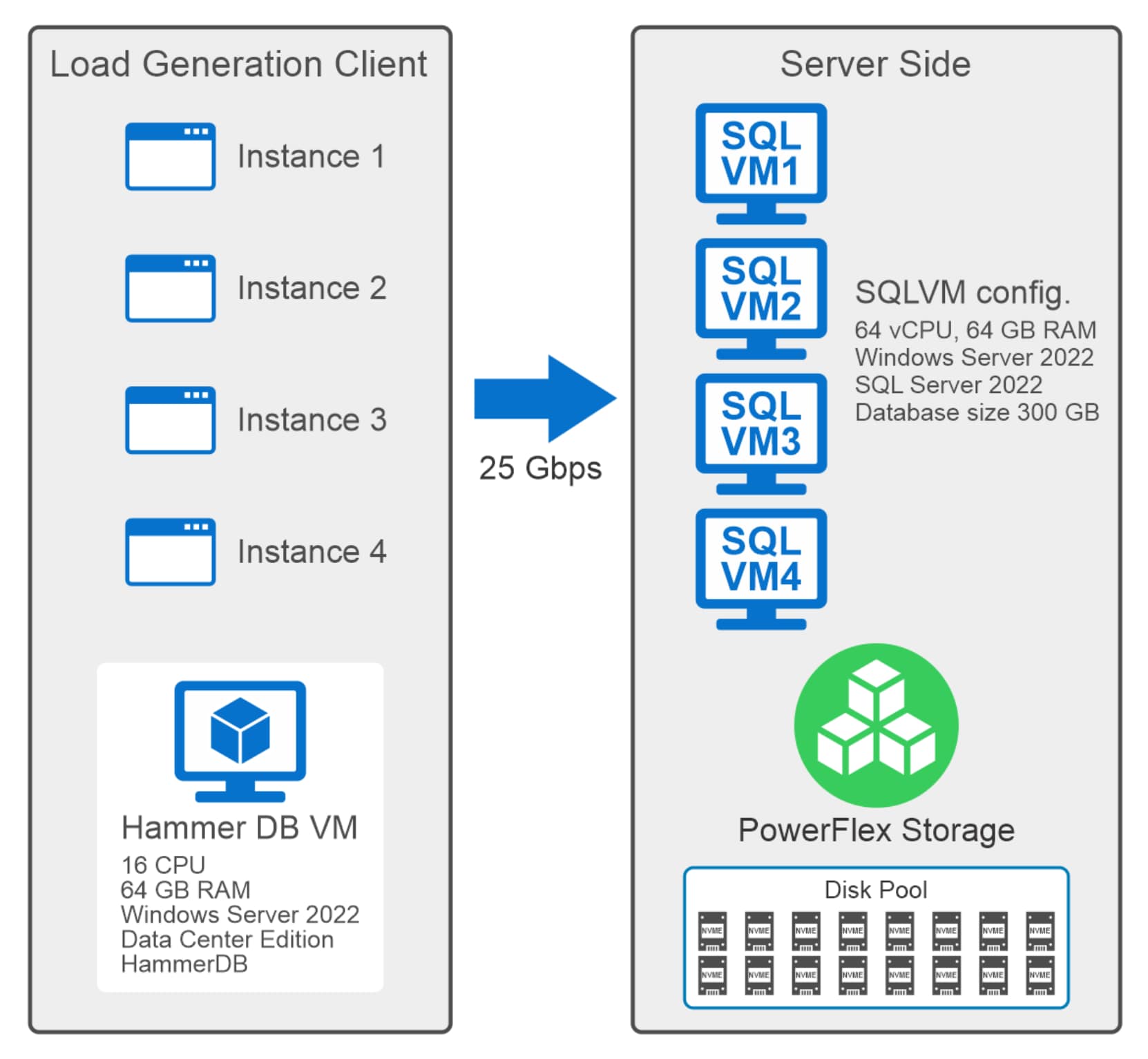
Figure 11. OLTP workload generation with HammerDB tool
Test Results
Single VM Test
The objective of this test was to measure database performance on a single SQL Server VM hosted on Windows Hyper-V host.
The following figure shows the single VM test performance results:
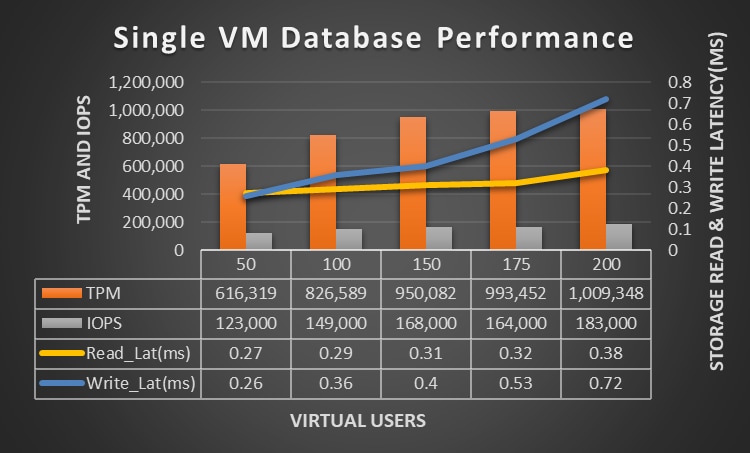
Figure 12. Single Hyper-V VM database performance
As demonstrated by the test results, the SQL Server database achieved above 1 million TPM with 200 virtual users. The system generated a total of 183K IOPS while maintaining a constant average read and write I/O latency under 1 millisecond. The read and write IOPS ratio observed for this test was 50:50 on the PowerFlex storage.
CPU utilization of VMs during these tests was in the range of 32 to 95 percent
Note: The database size for this test was 300 GB. Only 20 GB memory was assigned for the SQL Server database from the total 64 GB of available memory on the server.
Linear Scaling
This section focuses on the scalability test of SQL Server VMs on two node Hyper-V cluster. Database layout was configured as described in SQL Server database layout.
The test commenced with two VMs, in each subsequent iteration, additional VMs were deployed, as described in the following table:
Table 5. VM scaled on a PowerFlex storage cluster
|
|
Hyper-V Host 1 |
Hyper-V Host 2 |
||
|
Test Iteration |
VM1 |
VM3 |
VM2 |
VM4 |
|
Iteration 1 |
Active |
|
Active |
|
|
Iteration 2 |
Active |
Active |
Active |
|
|
Iteration 3 |
Active |
Active |
Active |
Active |
The table describes the test sequence, starting with two VMs in the first iteration. In the second iteration, the team added another VM, making a total of three VMs active on the Hyper-V cluster. With each subsequent iteration, the team incrementally added one VM, ultimately scaling the system to four active VMs.
The following graph shows the TPM performance with linear scaling of two, three and four VMs hosted on the PowerFlex storage. The system is scaled by adding resources and capacity, while the load is simultaneously increased by adding 10 virtual users after each iteration.
As a result, the database transactions scaled from 1 million to 2 million TPM. The PowerFlex storage also scaled from 215K to 470K IOPS for the same OLTP test while maintaining constant read and write I/O latency under 1 millisecond, when all the four VMs were active. The read and write IOPS ratio observed for this test was 50:50 on the PowerFlex storage.
CPU utilization of VMs during these tests was in the range of 21 to 26 percent for different virtual users.
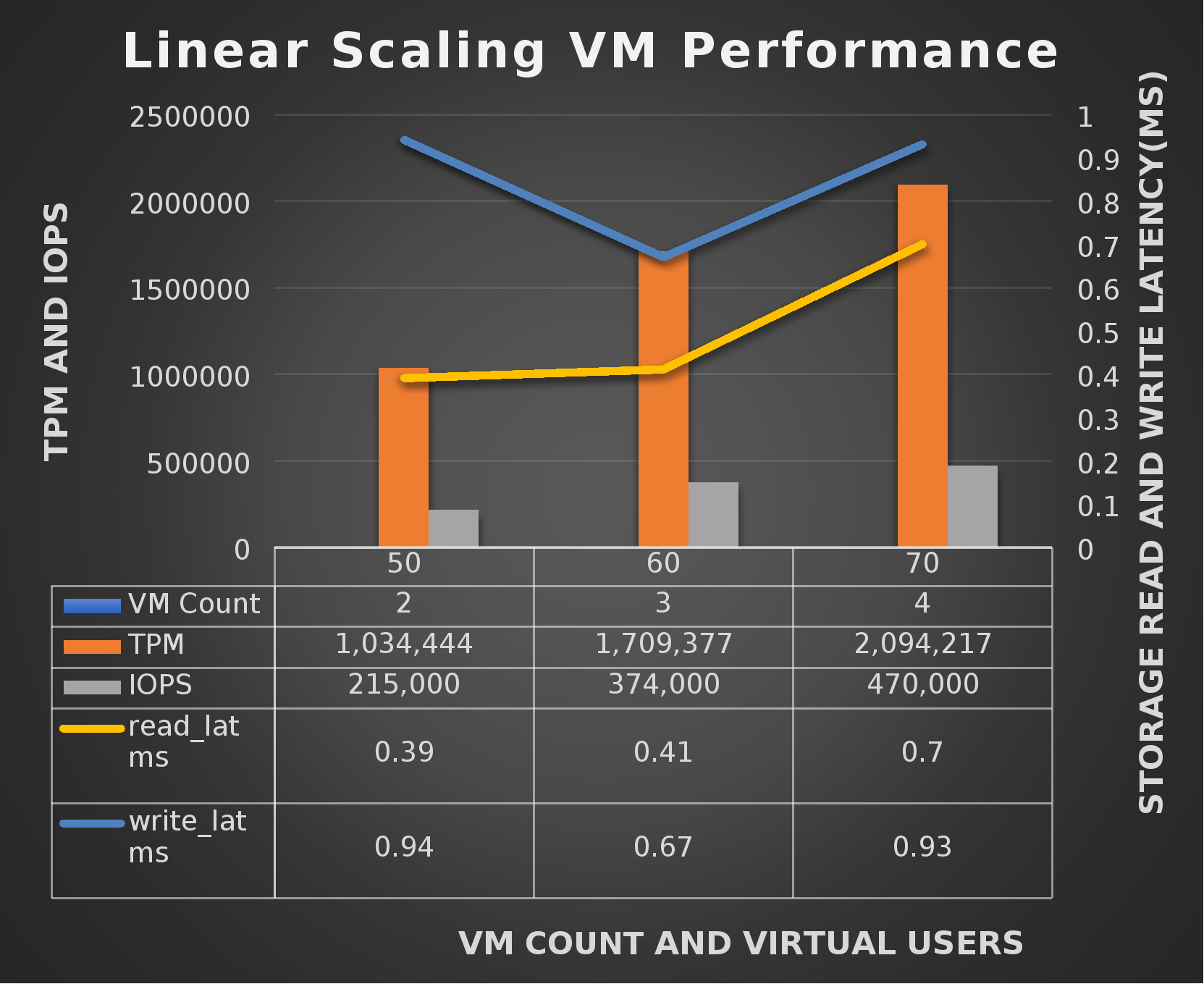
Figure 13. Linear scaling of TPM and IOPS of four SQL VMs
This test demonstrates that database and storage performance scales efficiently even as the system load increases linearly.
Note: The database size for this test was 300 GB. Only 20 GB memory was assigned for the SQL Server database from the total 64 GB available memory on the server.
Best Practices
Windows Server and Hyper-V considerations
For efficient operation and optimal performance of the system, apply the following best practices for Microsoft Windows Server and Hyper-V:
- Enable Virtual Machine Queue (VMQ) on the physical NIC for efficient network connectivity on all Hyper-V hosts.
- Create dedicated networks for management, live migration, and Microsoft failover cluster traffic to avoid conflicting with the PowerFlex data network.
- Ensure that jumbo frames are turned on and set to 9014 MTU for the networks for all the Hyper-V hosts.
- Disable the delay ack (delayed acknowledgment) feature on every SDC network interface. Dell recommends this because delayed acknowledgment causes high latencies for low I/O rates.
To modify each SDC interface aside from the management IP address, add the following registry entries:
HKEY_LOCAL_MACHINE\SYSTEM\CurrentControlSet\Services\Tcpip\Parameters\Interfaces\<SAN interface GUID>
Entries: TcpAckFrequency TcpNoDelay
Value type: REG_DWORD, number
Value to disable: 1
For more information, see TCP Acknowledgement behavior.
- Ensure that the Windows power plan is customized and set to high performance for both Hyper-V hosts and SQL Server VMs.
- To improve Hyper-V performance and to minimize unnecessary resource consumption consider the following settings:
- Disable NUMA spanning on Hyper-V hosts, as shown in the following figure:
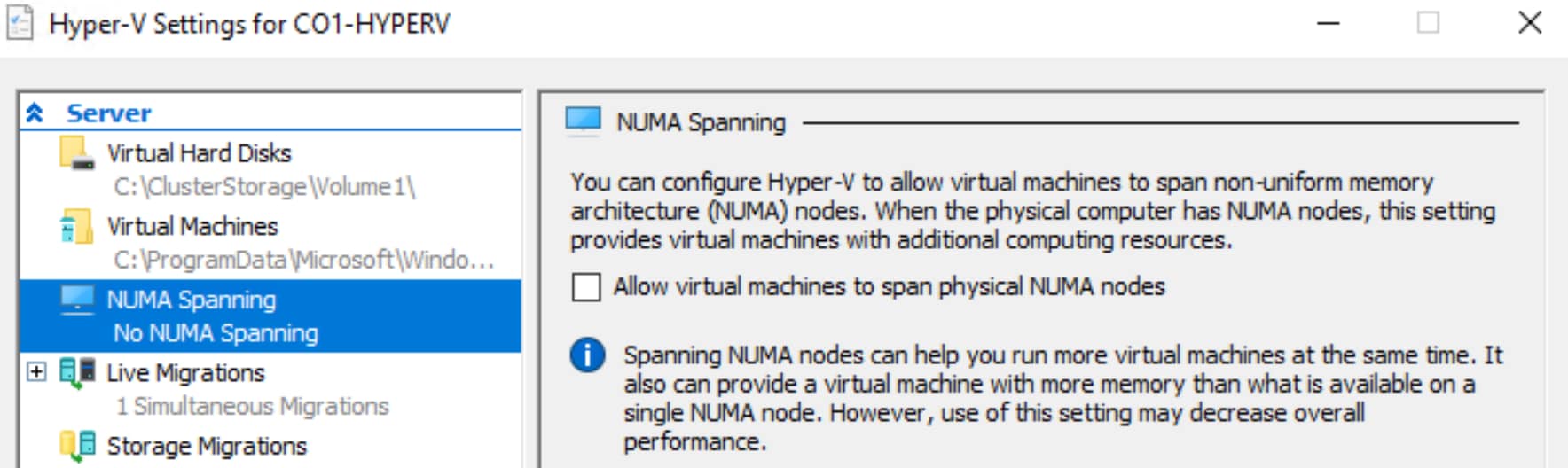
Figure 14. NUMA spanning settings
- Install SDC on the root partition.
- Do not create any virtual switches on the data network.
- Enable jumbo frames on virtual switches.
- Disable the network card offloading feature of the interface for network stability and to improve connectivity. To do this, disable the following settings in the network adapter advance configuration for all the Hyper-V hosts.
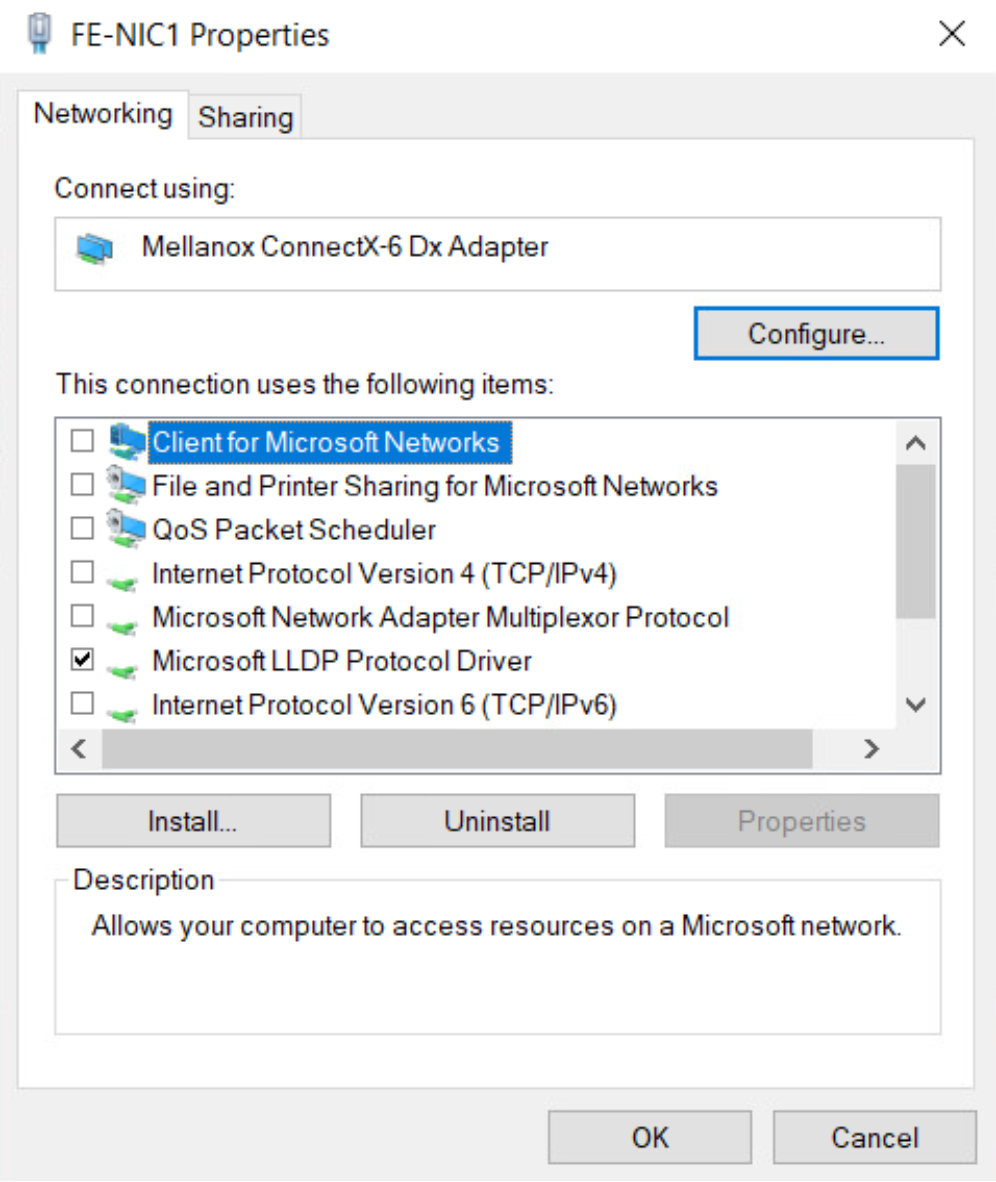
Figure 15. Network card settings
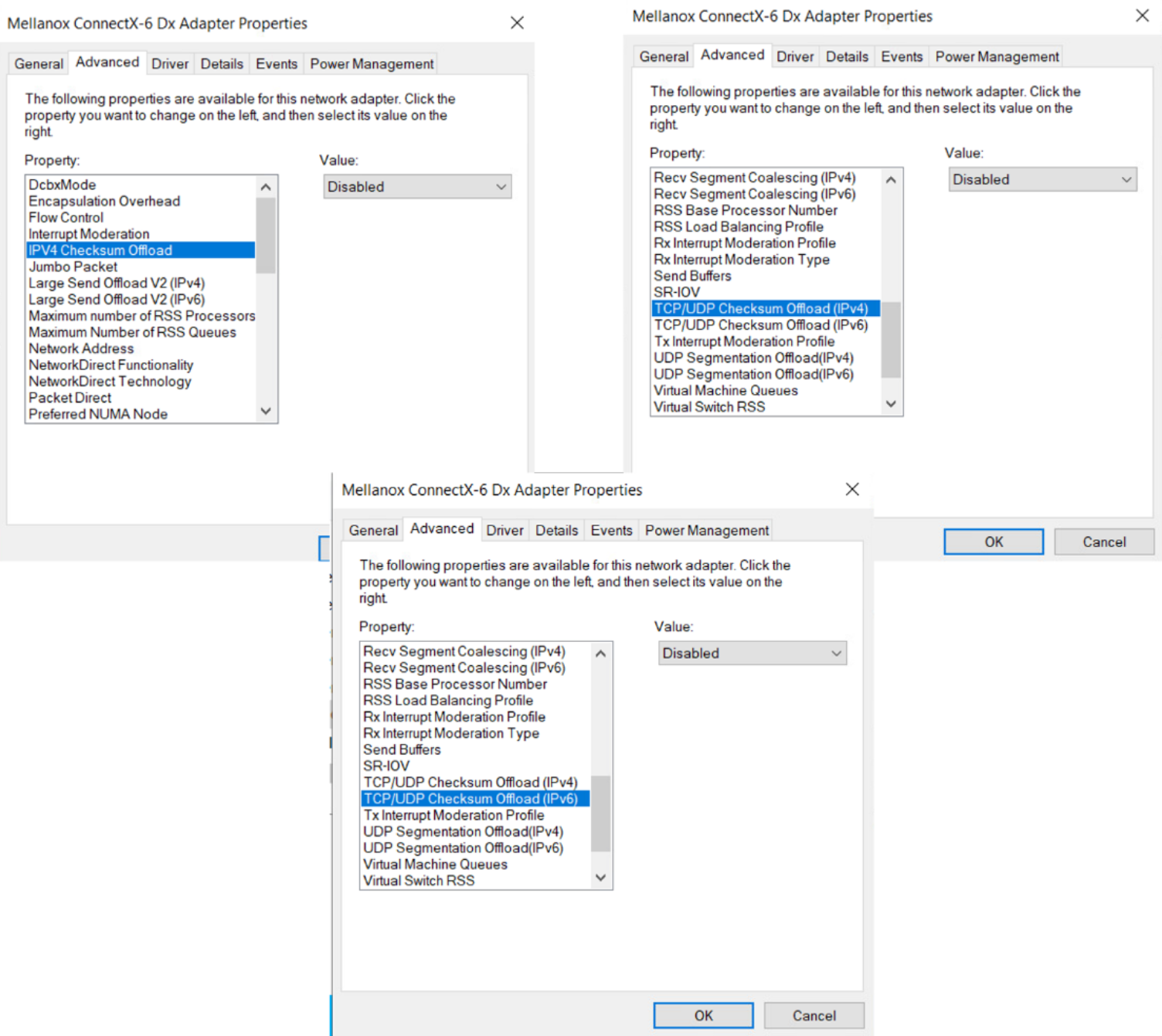
Figure 16. TCP/UDP checksum offload
- Enable the lock pages in the memory to prevent the system from paging the data to virtual memory for SQL Server VMs. Make the necessary changes in the group edit policy to enable the lock pages. For more information, see Enable the Lock Pages in Memory Option.
- Evaluate storage performance by considering different Windows storage options before finalizing the storage infrastructure for the Hyper-V environment. For more information, see Windows Storage Consideration.