SQL Server 2025 on Dell PowerMax with Failover Cluster Instance
Executive summary
Executive summary
Overview
As organizations deploy mission-critical, data-intensive workloads, they require robust database architectures that guarantee high availability and consistent high performance. To address these business challenges, this white paper provides guidance for deploying Microsoft SQL Server 2025 Failover Cluster Instances (FCIs) on Windows Server 2025 using Dell PowerMax storage. By combining Microsoft's enterprise-grade relational database management system with the performance, services, and resilient architecture of Dell PowerMax, organizations can ensure seamless automatic failover to maintain continuous availability. The document also provides design strategies and guidance on scaling the FCI deployment to achieve maximum resource utilization.
Further, the paper describes how administrators can leverage native PowerMax features to simplify database management and improve infrastructure efficiency. This includes using inline data reduction (deduplication and compression) to maximize storage capacity, Microsoft Offloaded Data Transfer (ODX) to minimize host overhead during large copy operations, and service levels to dynamically control I/O latency and prioritize critical workloads.
Revision history
| Date | Part number | Description |
| June 2026 | H04713 | Initial release |
Audience
This document is intended for storage administrators, system administrators, database administrators, field consultants, DevOps engineers, system engineers, and partners who are interested in deploying Windows Server Failover Cluster 2025 on PowerMax storage to host Microsoft SQL Server database in a clustered environment.
Readers of this document are expected to be familiar with:
- Dell PowerMax system operation including Unisphere and Solutions Enabler (SE)
- Dell PowerMaxOS
- General storage concepts
- General database concepts
- Microsoft Windows system administration
- SQL Server databases
Terminology
The following table provides definitions for some of the terms that are used in this document:
| Term | Definition |
| ACID-compliant | ACID stands for data atomicity, consistency, isolation, and durability. One aspect of ACID-compliant databases is that they can restart after a power failure or crash without loss of committed transactions. |
| AD | Active Directory |
| CSV | Cluster Shared Volume |
| DNS | Domain Name System |
| DiskSpd | A robust and customizable storage benchmarking tool from Microsoft that is specifically designed to generate synthetic storage workloads and test the performance of Windows, Windows Server, and SQL Server storage environments. |
| EDC | Extended Data Compression |
| FC | Fibre Channel |
| FCI | Failover Cluster Instances. FCI is how SQL Server uses Windows Server Failover Cluster (WSFC) to fail over SQL Server instances between WSFC nodes spontaneously or automatically. |
| FIO | Flexible I/O Tester is an open-source, highly versatile I/O benchmarking and stress-testing tool that is capable of simulating complex storage workloads across various operating systems. |
| HBA | Host Bus Adapter |
| IOmeter | An open-source workload generator and measurement tool originally developed by Intel that is used to measure the I/O performance and network throughput of single or clustered storage systems. |
| IOPS | Input/Output Operations per Second |
| LUN | Logical Unit Number. Refers to PowerMax LUNs |
| LQD | Least Queue Depth |
| MPIO | Multipath I/O. A Windows I/O multipathing solution that allows storage I/O operations to the same storage volumes through different I/O paths |
| NTP | Network Time Protocol |
| NTFS | NTFS is a native file system type on Microsoft Windows. PowerMax best practices include formatting NTFS with a 128 KB allocation unit matching the PowerMax cache and storage track size. |
| ODX | Offloaded Data Transfer. The Microsoft ODX protocol allows offloading of data copy operations in Windows NTFS and Hyper-V to be performed internally in the storage system, making the copy faster and more efficient. |
| OLTP and DSS | Online Transaction Processing (OLTP) refers to workloads that focus on short transactions when users make frequent data inquiries and updates. Decision Support Systems (DSS) are workloads that focus on long data (batch) updates and sequential reads spanning large segments of the database to produce reports. |
| PowerMaxOS 10 | The PowerMax operating system |
| SE | Solutions Enabler |
| SG | Storage Group |
| SL | Service Levels |
| SRP | Storage Resource Pool |
| VIP | Virtual IP |
| WSFC | Windows Server Failover Cluster (WSFC) is a Microsoft Windows clustering technology which is integrated with SQL Server. |
| WSFCM | Windows Server Failover Cluster Manager |
| PowerMax storage devices (or volumes) | Used interchangeably, the PowerMax storage devices (or volumes) are logical constructs made of a set of pointers that are associated with physical storage structures in the PowerMax SRP. One outcome is that user applications never write directly to the backend storage media, and instead perform I/O operations that are intercepted by the PowerMaxOS to allow optimizations such as deduplication, replications, protected writes, and more. |
We value your feedback
Dell Technologies and the authors of this document welcome your feedback on the solution and the solution documentation. Contact the Dell Technologies Solutions team by email.
Author: Anup Bharti
Contributor: Yaron Dar
Product overview
Product overview
PowerMax
Dell PowerMax operates as a unified storage platform that supports both block and file services. This solution uses block storage exclusively. PowerMax systems are preconfigured with initial storage capacity, connectivity, and RAID protection, while also remaining modular so that additional storage can be added to meet future needs. This design shortens deployment time and shifts the focus to application requirements rather than low-level storage task configuration, helping IT administrators to quickly set up the host connectivity, zoning, and volume provisioning for the database servers.
The PowerMax family represents the flagship product of the Dell Technologies enterprise storage business. It is a multi-node, active/active scale-out architecture using industry standard, end-to-end NVMe components. The platform features native thin-provisioning and RAID protection, along with inline deduplication and compression, providing customers with high storage efficiency even as the system scales. The PowerMax family also provides what many consider to be the gold standard in data services, proven high availability and resiliency, and advanced security that adheres to stringent government regulations and corporate compliance requirements such as FIPS 140-2 and FIPS 140-3. A core strength of the PowerMax family is its ability to consolidate workloads. You can use a single PowerMax system to consolidate from one-to-many types of workloads, supporting both block and file storage services.
PowerMax systems are modular, enabling them to expand to meet the future needs of the customer. The PowerMax family of arrays has four models:
- PowerMax 2500 with a maximum effective capacity of 8 PBe (petabytes)
- PowerMax 2000 with a maximum capacity of 1.2 PBe
- PowerMax 8500 with a maximum capacity of 18 PBe
- PowerMax 8000 with a maximum capacity of 4.5 PBe
Dell configures the PowerMax at the factory with a single SRP, which is comprised of the physical disks in the array, managed as data pools. The array uses this collection of data pools for capacity and performance management. All host devices are thin (pointer-based), consuming physical capacity in an SRP.
PowerMax for Open Systems provides support for the following protocols:
- Fibre Channel (FC) and NVMe over FC (NVMe/FC) with speeds of 8 GB/s, 16 Gb/s, 32 GB/s, and 64 GB/s
- iSCSI and NVMe over TCP (NVMe/TCP) with speeds of 10 GB/s, 25 GB/s, and 100 GB/s
- SRDF over FC with speeds of 8 GB/s, 16 GB/s, 32 GB/s, and 64 GB/s
- SRDF over IP with speeds of 10 GB/s, 25 GB/s, and 100 GB/s
PowerMaxOS operating system
PowerMaxOS is an advanced operating system that powers Dell PowerMax storage arrays, delivering a performance-optimized platform that is purpose-built for mission-critical enterprise workloads. It is a modern modular, container-based architecture that is tightly integrated with end-to-end NVMe hardware to offer ultra-low latency, high throughput, and high efficiency.
PowerMaxOS supports inline compression and deduplication, ensuring space efficiency. With native encryption, secure snapshots, and multi-tenancy features, PowerMaxOS also ensures strong data protection and isolation.
PowerMax replication
PowerMax local replication includes TimeFinder/SnapVX (snapshots) and TimeFinder/Clone (clones), while PowerMax remote replication includes the SRDF product line. TimeFinder provides point-in-time local replication and data protection, while SRDF provides continuous remote replication, high availability, and disaster recovery.
You can initiate or restore PowerMax TimeFinder snapshots or clones on SRDF target devices. One benefit of this integration is that it allows the creation of remote copies of the source application without interrupting remote replication. If the source application data is corrupted, the remote snapshot (or clone) and SRDF can restore the data in parallel to the source volumes.
Unisphere for PowerMax
Unisphere for PowerMax is an HTML5 web-based application that enables you to provision, operate and maintain PowerMax, VMAX All Flash, and VMAX storage systems.
Unisphere for PowerMax supports:
- PowerMax storage systems running PowerMaxOS 10
- PowerMax and VMAX All Flash storage systems running PowerMaxOS
- VMAX storage systems running HYPERMAX OS
Unisphere for PowerMax also has an integrated Representational State Transfer (REST) API. The REST APIs enable you to access diagnostic, performance, and configuration data, as well as perform provisioning operations on the storage system through interfaces such as the Dell CSI driver. Full documentation for the Unisphere for PowerMax REST APIs is available at developer.dell.com or from the Help menu in the Unisphere for PowerMax user interface.
Solutions Enabler
Solutions Enabler (SE) is a powerful command-line interface (CLI) tool that is designed for managing, automating, and monitoring PowerMax storage systems. SE provides granular control over a wide range of storage operations, including operations that are unavailable in Unisphere for PowerMax. SE is especially well suited for advanced users who require scriptable, dependable, and automation-friendly interfaces for enterprise-scale storage environments. Administrators can use SE to provision storage, manage replication (including SRDF and SnapVX), configure access control and masking views, and pull real-time performance and health metrics.
Available for a Windows, Linux, or UNIX storage management host, SE can communicate with arrays using either in-band (over HBA) or out-of-band (over IP) connections. It is frequently used in automated workflows, batch jobs, and integrations with orchestration platforms such as Ansible.
Windows Server and Failover Cluster
Windows Server 2025 is Microsoft’s enterprise‑class server operating system designed to support modern IT workloads across on‑premises, hybrid, and cloud‑integrated environments. As part of the Windows Server family, it delivers a robust foundation for virtualization, database platforms, and mission‑critical applications. Windows Server 2025 enhances hybrid cloud integration with Azure, strengthens integrated security controls, expands container and virtualization capabilities, and introduces resiliency improvements that are aimed at maintaining application availability and operational continuity in large‑scale enterprise deployments. For more information about Windows Server 2025, see What's new in Windows Server 2025.
Windows Server Failover Clustering (WSFC) is a core high-availability feature in Windows Server 2025 that enables reliability and fault tolerance for applications, services, and workloads. WSFC allows multiple physical or virtual servers to operate together as a unified cluster. In the event of a node or resource failure, WSFC automatically transfers affected workloads to another healthy node, helping to minimize service disruption and reduce planned or unplanned downtime. This active/passive clustering model is widely used to safeguard business‑critical applications and databases such as Microsoft SQL Server.
WSFC Architecture and Key Components
A WSFC configuration consists of the following fundamental components:
- Cluster nodes – Physical or virtual servers that participate in the cluster and host clustered workloads.
- Shared storage – Storage that is accessible by all cluster nodes, such as SAN‑based block storage (for example, iSCSI or Fibre Channel, NVMe/TCP), required for applications such as SQL Server.
- Cluster roles – Applications or services that are configured to run within the cluster environment, for example, SQL Server instances or file services.
- Cluster quorum – A voting mechanism used to maintain cluster consistency and prevent split‑brain scenarios, typically implemented using disk‑based or file‑share quorum models.
- Failover mechanism – The automatic or manual transfer of clustered roles from one node to another in response to failures or maintenance events.
- Heartbeat communication – Ongoing health monitoring between cluster nodes to detect failures and trigger failover actions when necessary.
For more information about WSFC, see Failover Clustering.
TRIM/UNMAP feature of Windows
TRIM and UNMAP enable Windows Server to inform the underlying storage system when blocks no longer contain valid data. At the operating system level, Windows issues TRIM commands to the file system when data is deleted, files are truncated, or volumes are formatted. These commands translate into SCSI UNMAP requests that notify the storage array that specific logical blocks are no longer in use. On storage systems that support UNMAP, this mechanism allows the array to reclaim unused space and maintain thin‑provisioned efficiency.
Dell PowerMax fully supports UNMAP for thin‑provisioned volumes. When UNMAP is enabled on the host operating system, PowerMaxOS processes the delete request from Windows and returns freed blocks to the SRP. This behavior improves capacity utilization and aligns well with SQL Server operations such as index maintenance and database life cycle management. Without UNMAP support at the storage layer, deleted or deallocated blocks remain allocated on the array, even though the operating system no longer uses them, which can lead to inefficient capacity consumption over time.
Managing TRIM/UNMAP using the fsutil command
The fsutil utility performs management of TRIM/UNMAP behavior in Windows Server. While the automatic delete notification feature is configured globally for all supporting volumes, it is possible to initiate manual space reclamation on a per-volume basis. The following commands show the enable and disable steps:
Verify the current setting
fsutil behavior query
DisableDeleteNotify A return value of 0 indicates that delete notifications (TRIM/UNMAP) are enabled.
A return value of 1 indicates that delete notifications are disabled.
Enable TRIM/UNMAP (delete notifications on)
fsutil behavior set
DisableDeleteNotify 0
This is the default and recommended state for normal operations. With delete notifications enabled, Windows issues SCSI UNMAP commands to the PowerMax array whenever blocks are released, supporting ongoing capacity reclamation.
Disable TRIM/UNMAP (delete notifications off)
fsutil behavior set
DisableDeleteNotify 1
Disabling delete notifications suppresses SCSI UNMAP issuance. This setting prevents the host from signaling freed blocks to the array. Use this setting only in specific, controlled scenarios, as described below.
Windows storage consideration
PowerMax volumes can be configured in Windows Server as a drive letter or mount point using Disk Management, or as a Cluster Shared Volume (CSV) in Failover Cluster Manager. Each option has its own set of considerations, advantages, and potential limitations:
- Drive letters are the simplest way to identify the storage volumes in Windows operating systems. Drive letters provide an easy way for users and applications to access storage volumes. As a result, drive letters are universally recognized and compatible with most Windows applications and services. The finite number of available letters (26) limits the overall scalability of various storage volumes that are mounted on a single host, however. In addition, the use of drive letters in clustered configurations can lead to complications if nodes are added where such drive letters are already occupied.
- Mount points allow you to format and assign a volume to a folder on an existing NTFS volume rather than assigning it a drive letter. Mount points are sub-directories of the root mount-point (root directory). Volumes are mounted like a directory structure, making it easier to organize data logically. Mount points enable more flexibility and scalability by mounting each volume to its sub-folder under the root mount-point. While most modern applications support mount points, legacy applications may have compatibility issues. When using mount points for the database files, ensure that the root directory is also located on a PowerMax volume so they can all fail over and back between cluster nodes as a unit.
- Cluster Shared Volumes (CSVs) are a feature of failover clustering that allows shared storage to be accessed concurrently on all the nodes in a cluster. This feature is commonly used in Hyper-V to store VM files. CSVs enhance the availability and reliability of storage in clustered environments. If one node fails, other nodes can still access the shared volume. When a disk is configured as a CSV, that disk is available to all the cluster nodes, making failover of the clustered roles faster. One limitation is that all CSV disks appear under a single root directory on the system drive at C:\ClusterStorage\, without the folder naming flexibility that mount points provide.
Cluster Shared Volumes are widely used across IT organizations, particularly for virtualization and scale‑out workloads, and are a common default choice in many Windows Server Failover Cluster deployments. For more information about Clustered Share Volumes, see Cluster Shared Volume Overview.
- File system options: Along with the Windows storage volume options, it is essential to understand the different file system options that are available, primarily the New Technology File System (NTFS) and the Resilient File System (ReFS). Each file system has its own unique features, advantages, and recommended use cases, including considerations for allocation unit size.
- NTFS is the default file system for Windows operating systems and has been the fundamental of Windows storage management for a long time. NTFS provides robust performance, security, and reliability features. NTFS uses a journaling feature to maintain data integrity in the event of a system crash. NTFS supports cluster sizes ranging from 512 bytes to 2 MB. A small cluster size (such as 4 KB) is more efficient for storing numerous small files, minimizing wasted space, whereas large cluster sizes are better for large file storage, potentially improving read/write performance. For more information, see NTFS overview.
- ReFS is a newer file system that was introduced to address the limitations of NTFS (before it allowed up to 2 MB cluster size units), offering enhanced resiliency and scalability. ReFS is designed for modern data storage needs and is particularly well suited for large-scale and HA environments. ReFS provides automatic integrity checking by continuously validating checksums that are generated for file data and metadata. ReFS supports only two cluster sizes: 4 KB and 64 KB. A small cluster size is efficient for handling numerous small files, whereas a large cluster size is beneficial for large file storage with fewer fragmentation issues.
Microsoft SQL Server
Microsoft SQL Server 2025 is an enterprise‑grade relational database management system (RDBMS) that is designed to securely store, manage, and process structured data for mission‑critical workloads. SQL Server supports deployment across physical and virtual machines running Windows or Linux, as well as containerized environments, enabling consistent database operations in on‑premises and hybrid infrastructures. Applications typically interact with SQL Server using standard APIs such as ODBC, JDBC, and ADO.NET, while administrators and management tools such as SSMS use both UI and Transact-SQL (T-SQL) scripting. These access methods provide a powerful and mature interface for transactional processing, analytical queries, and data manipulation.
SQL Server 2025 includes built‑in high‑availability and resiliency capabilities that are designed to minimize downtime and maintain data integrity. These capabilities include support for Failover Cluster Instances (FCI) and Always On Availability Groups, enabling continuity for business‑critical applications and databases. The platform integrates closely with Windows Server clustering technologies and shared‑storage architectures to ensure predictable availability and rapid recovery from infrastructure or node‑level failures.
SQL Server 2025 integrates AI‑assisted intelligence to automatically optimize query execution plans, dynamically adapt execution strategies at runtime, and intelligently manage workloads to improve concurrency and overall resource utilization. Comprehensive data protection capabilities including database mirroring, replication, and advanced backup and restore optimization ensure high availability, fast recovery, and robust disaster‑recovery support for mission‑critical business workloads.
SQL Server 2025 introduces native support for vector data, enabling organizations to store, process, and search high‑dimensional data directly within the SQL Database Engine. Vector data is commonly used in modern AI and machine learning (ML) scenarios such as similarity search, recommendation systems, semantic search, and embeddings generated from large language models. By bringing vector capabilities into the database engine, SQL Server simplifies AI‑driven application architectures and reduces the need for external vector databases.
For more information about Microsoft SQL server, see SQL Server Technical Documentation.
Solution overview
Solution overview
This section describes the deployment architecture of SQL Server 2025 FCI on PowerMax storage to deliver high availability and consistent performance. The deployment uses three bare metal compute hosts running Windows Server 2025. All database volumes, including the shared storage that is required for configuring WSFC, are provisioned and managed through Unisphere for PowerMax. This solution uses the PowerMax 2500 storage array, running PowerMaxOS version 10.3, as the underlying storage platform.
System architecture
The logical architecture, as shown in the following figure, uses a three-node WSFC with shared storage over FC. Each node accesses the shared storage, which enables SQL Server to fail over between nodes to minimize service disruption and reduce downtime.
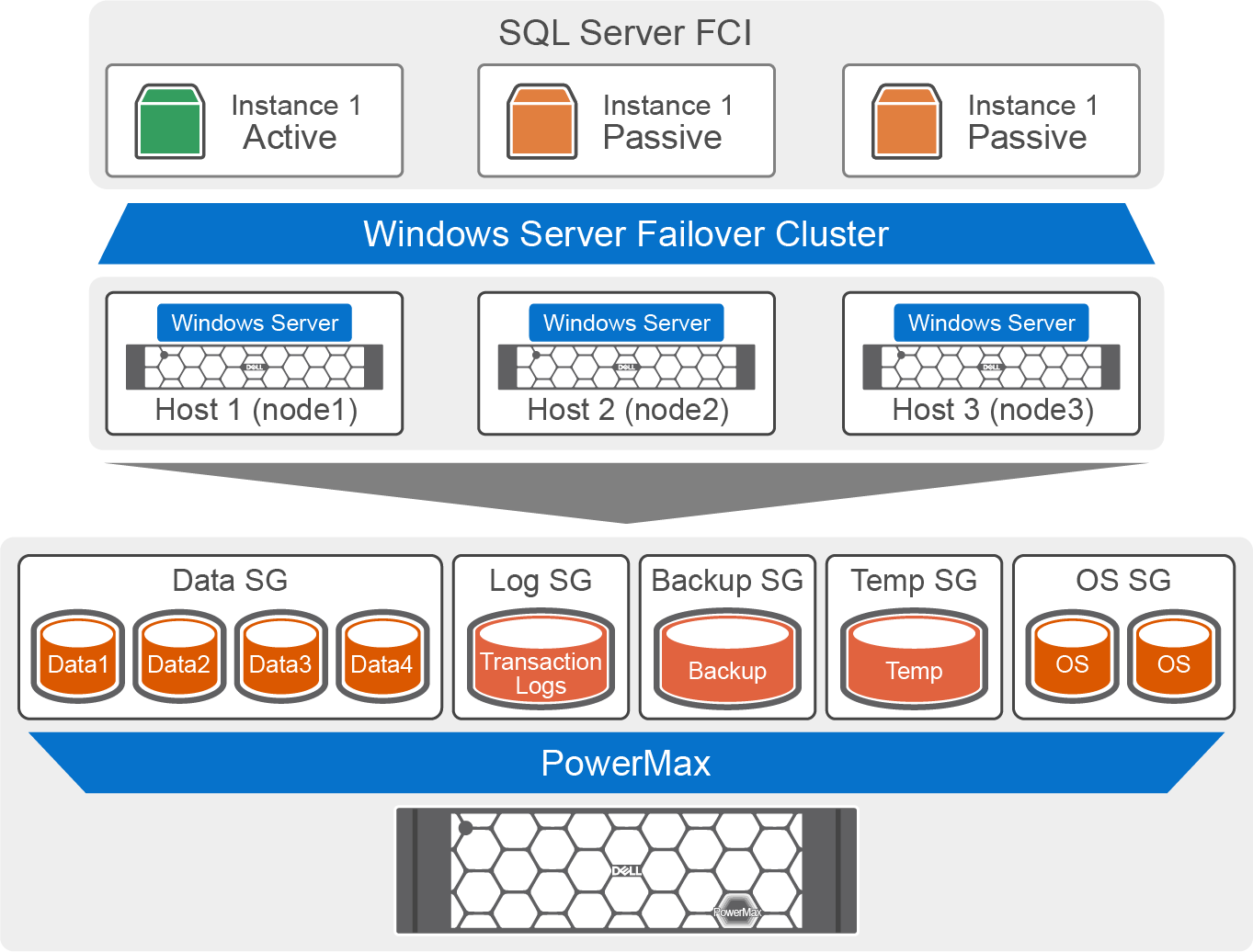
As a recommended best practice, database files are distributed across multiple LUNs to distribute the I/O and together with Windows MPIO, achieve high throughput from the storage system. Three storage groups are provisioned on the PowerMax system for the database data files, log file, and the system and tempdb. This separation improves performance, enables I/O type isolation, and allows SnapVX‑based backup and restore of database files without overwriting log files. For more information, see SQL Server database layout.
The data storage group consists of four volumes, while the log and the system/tempdb storage groups each contain a single volume, all of which are mapped to three Windows compute hosts using a masking view. In this test environment, the array is configured with four FC front‑end ports providing four active paths per volume for redundancy and fault tolerance, whereas production environments typically use a higher number of connected ports.
Each database host runs Windows Server 2025 and uses Windows MPIO to present the storage LUNs as a single logical disk while leveraging multiple paths for resiliency and fault tolerance. MPIO improves availability and balances I/O across available paths during normal operation and fault conditions.
SQL Server failover cluster deployment
This section outlines the deployment of a WSFC with the SQL Server database role configured. It also provides guidance on designing the database layout for SQL Server FCI deployments and outlines key storage considerations for database volumes to maximize performance.
Windows Server Failover Cluster
All the services that are required for deploying the failover cluster, including DNS, AD, and NTP servers, are hosted on a separate host. These services do not share any resources with the hosts where the SQL Server database workload is running.
The following figure shows the cluster that is built from the three nodes:
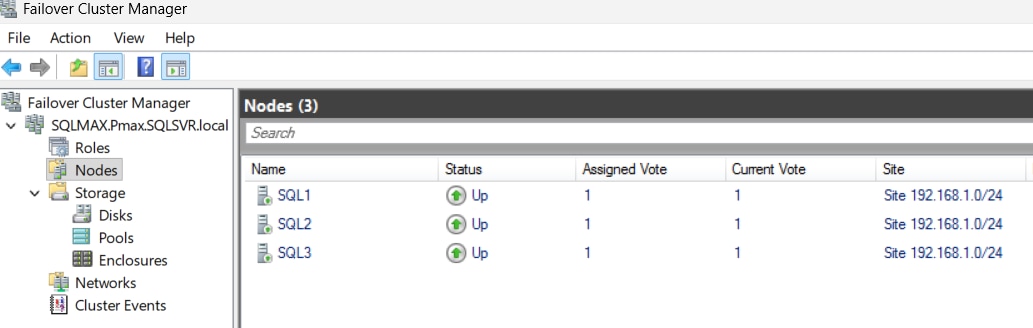
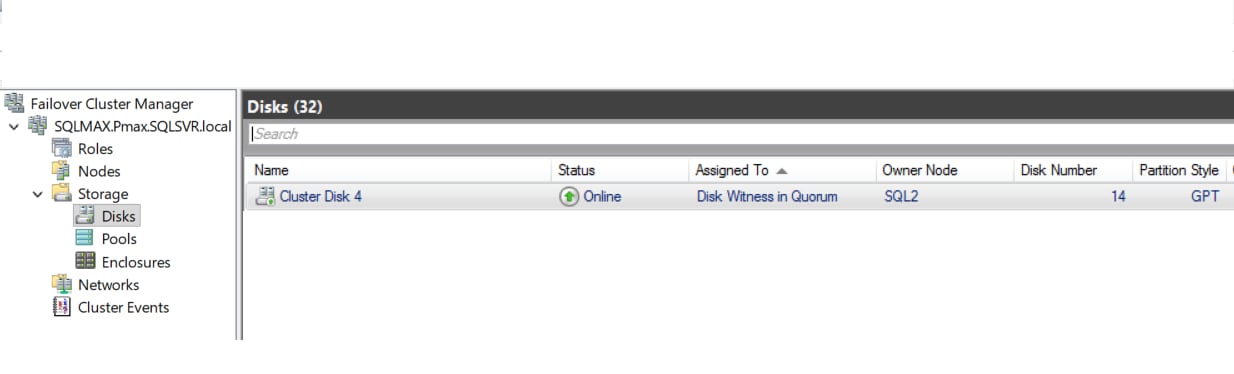
WSFC requires a quorum to maintain cluster availability and avoid split‑brain conditions; in this design the quorum is provided by a shared disk witness that is hosted on a dedicated WSFC_Witness storage group on PowerMax. This disk witness acts as a tiebreaker, enabling the cluster to make consistent and reliable failover decisions.
All storage required for the WSFC deployment, including the quorum witness drive and the SQL Server database volumes, is provisioned and managed through Unisphere for PowerMax. To grant the WSFC cluster nodes access to the storage, Unisphere uses masking views to map and share the volumes.
One of the important steps in a WSFC deployment is selecting the preferred owners for the clustered role to explicitly define which nodes can host the workload during a failure. Properly configuring these preferred owners is critical, as an incomplete or incorrect selection can prevent a successful failover.
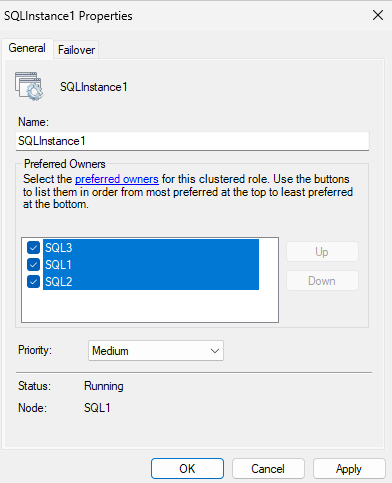
As shown in the preceding figure, all three cluster nodes are selected as preferred owners for the SQL Server FCI. This configuration allows WSFC to fail over the SQL Server FCI role to any available node, ensuring resiliency during node failures or maintenance events.
SQL Server FCI deployment
This solution incorporates SQL Server FCI to leverage its inherent high availability, fault tolerance, and seamless failover capabilities for database workloads. The following essential cluster components are required to build a highly available SQL Server (FCI):
- Dedicated Cluster Network: A dedicated network isolates cluster communication and ensures reliable heartbeat monitoring between the nodes.
- Virtual IP (VIP): A specifically assigned VIP provides consistent client connectivity regardless of which cluster node currently hosts the active database instance.
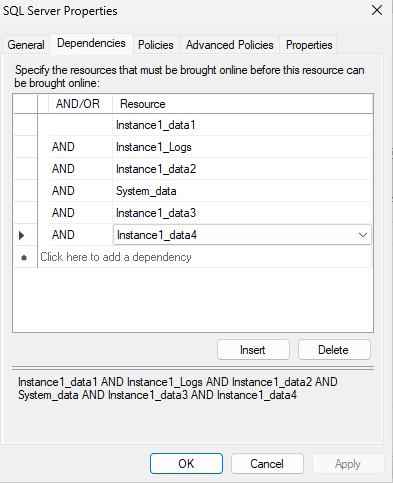
- Storage Dependencies: SQL Server FCI depends heavily on storage resources for a successful failover. These dependencies are defined using the WSFCM and dictate the exact order in which the system brings resources online during startup or failover operations.
The following figure shows the active SQL Server FCI. The role, named "SQLInstance1," is currently online and relies on its associated cluster resources to maintain high availability and coordinate failover. When a node failure occurs, WSFC automatically transitions the SQL Server role and all dependent resources to a healthy node.
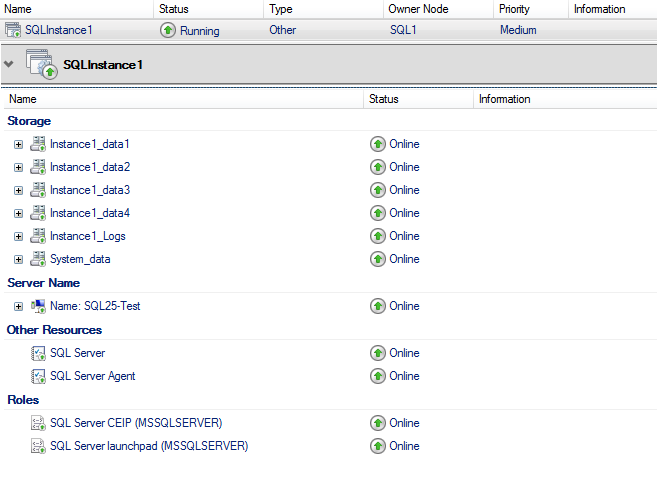
The preceding figure illustrates "SQLInstance1" and its explicit dependency on six storage volumes. The cluster must verify and bring all six storage volumes online before the SQL Server role can successfully start.
SQL Server database layout
To achieve optimal database performance, the database team must work closely with development and product teams to determine specific capacity requirements. This collaboration ensures that the database layout properly accounts for different table sizes, expected IOPS, and specific PowerMax service levels.
General guidelines for database layout design
When designing the database layout, apply the following general guidelines:
- Volume Count and I/O Concurrency: For high-IOPS workloads, spread data files across multiple storage volumes to maximize I/O concurrency.
- I/O Isolation: Provision dedicated and separate volumes for the transaction log and the
system/tempdbfiles (in larger deployments, the system andtempdbfiles can be placed on separate volumes). This isolation prevents the mixing of random data access patterns with sequential log access patterns, resulting in efficient I/O distribution. It also allows use of the PowerMax SnapVX feature to create T-SQL based backups where the database files can be restored without overwriting the transaction log. - Capacity Planning and Future Growth: Storage sizing requires establishing a standardized building block, such as 2 TB or 5 TB volumes. When a database grows and requires additional capacity, administrators can add new volumes that match the size and count of the existing deployment to maintain an even I/O distribution. For example, if a deployment starts with four 10 TB devices, future expansions should use an additional four 10 TB devices. Alternatively, administrators can provision initial volumes that are sized for near-term to medium-term requirements and dynamically expand those existing volumes as data grows. Both methods are effective, allowing storage teams to choose the expansion strategy that best aligns with their infrastructure management practices.
- File System Formatting: Format all SQL Server database volumes on PowerMax storage with the NTFS file system using a 128 KB allocation unit size. This exact size matches the PowerMax track size, which improves storage data reduction efficiency, ensures proper alignment for Microsoft ODX operations, and delivers optimal integration between the database and the storage platform.
Based on the preceding guidance, this solution database is configured with a specific capacity layout optimized for a 300 GB dataset, as illustrated in the following figure:
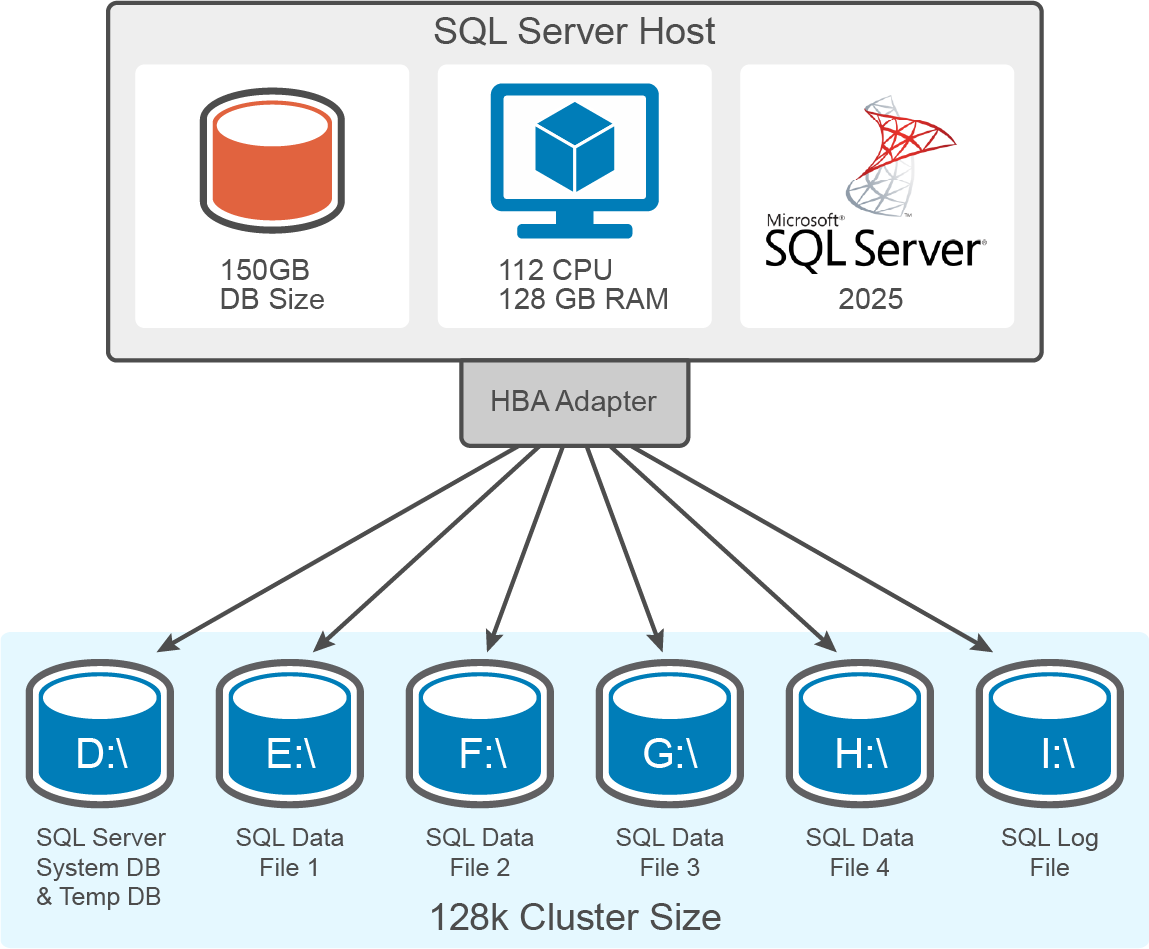
This layout spreads the data files equally across four separate 300 GB data volumes (Drives E, F, G, and H). A 600 GB volume (Drive I) is used for log file and a 100 GB volume (Drive D) is used for SQL Server system and tempdb files. To support the I/O demands of this configuration, the deployment uses two host initiators for each volume, connected to two storage targets, for a total of four paths per volume.
The following table specifies the volume size and file system for a 300 GB SQL Server database:
| Drive letter | Volume size (GB) | File system | Allocation size | Purpose |
| D | 100 | NTFS | 128 K | SQL server System and TempDB files |
| E | 300 | NTFS | 128 K | Data file 1 |
| F | 300 | NTFS | 128 K | Data file 2 |
| G | 300 | NTFS | 128 K | Data file 3 |
| H | 300 | NTFS | 128 K | Data file 4 |
| I | 600 | NTFS | 128 K | Log files |
Scaling the SQL Server FCI deployment
When organizations deploy large‑scale SQL Server environments to support multiple applications, a multi-FCI environment allows administrators to consolidate these applications onto a shared infrastructure rather than dedicating a separate physical cluster node for each application. For this solution, deploying a multi-FCI environment enabled effective stress testing of both SQL Server workloads and the PowerMax storage platform. This section demonstrates how to deploy multiple independent SQL Server Failover Cluster Instances (FCIs) within the WSFC environment.
To provide an example, the solution uses three independent SQL Server FCIs. Each FCI operates with its own active and passive nodes. Deploying multiple FCIs does not require separate SQL Server software installations or clusters. Instead, as shown in the following example, multiple named instances are configured across the same cluster nodes:
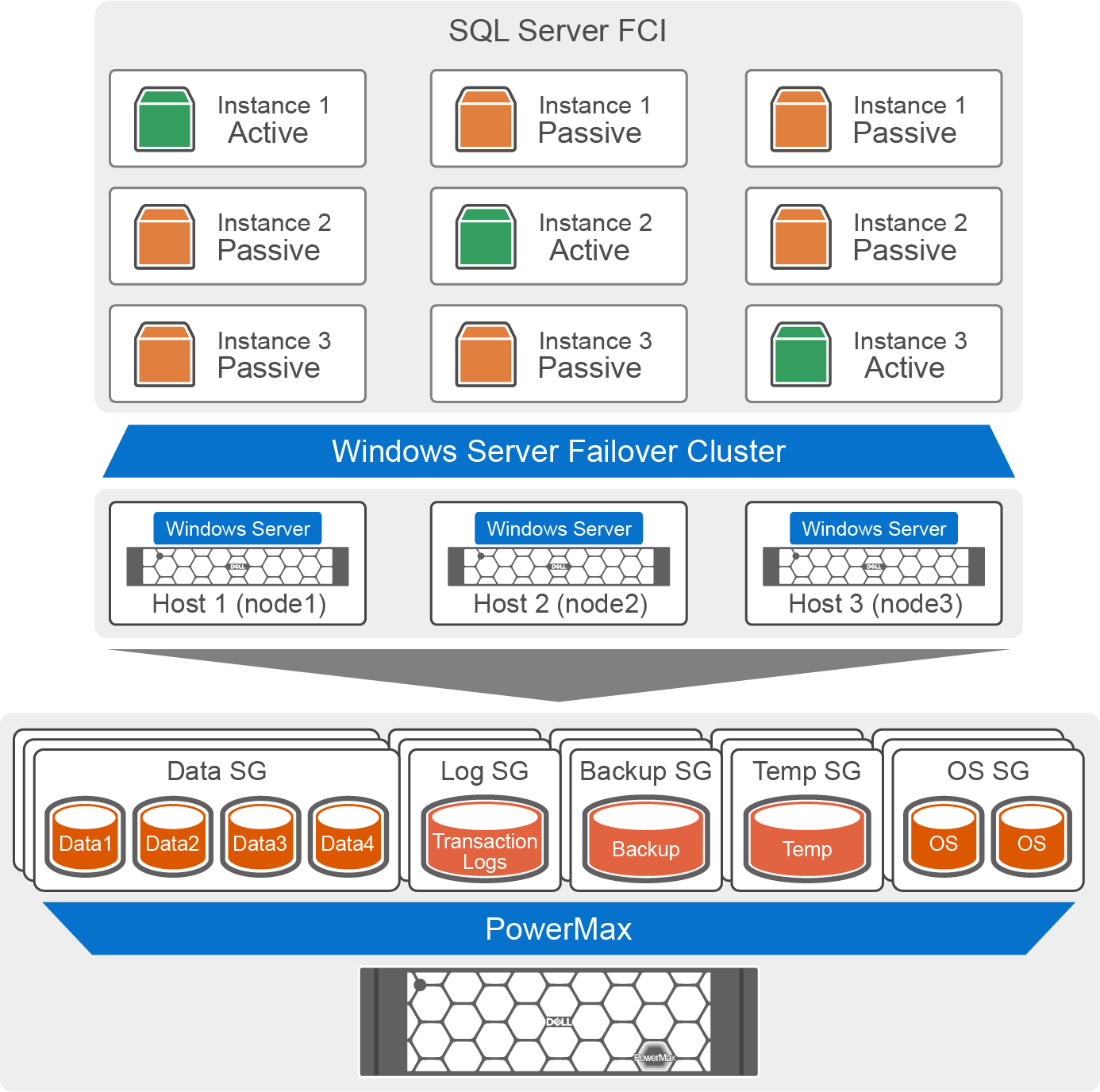
The preceding image illustrates a three-node WSFC setup and outlines the active-passive configuration of each SQL Server FCI.
Each SQL Server FCI in the WSFC setup uses its own dedicated shared storage for data, log, system, and tempdb files, allowing for better scale, performance, and resource isolation. For ease of storage management, the volumes for each FCI are configured in their own dedicated storage group. Storage groups provide logical grouping of volumes, enabling administrators to easily provision, map, and manage storage resources (such as service levels, capacity forecast, performance monitoring, replications, and more) for clustered SQL Server workloads.
In this configuration, node 1 hosts the active SQL Server instance for FCI 1, node 2 hosts the active instance for FCI 2, and node 3 hosts the active instance for FCI 3. Because the WSFC includes all three nodes, the other two nodes automatically serve as passive standby for each FCI. If an active node experiences a failure, the affected FCI and its resources seamlessly fail over to any of the remaining available nodes in the cluster.
Performance Validation Tests
This section describes the tests that the team performed to validate SQL Server 2025 database performance on the PowerMax storage system. The tests use the HammerDB benchmarking tool, which provides schema creation, data loading and simulation of transactional (OLTP) and Analytics (OLAP) workloads. The results of these tests provide information about the infrastructure’s ability to support expected workloads, such as comparing hardware performance and validating software configurations. For more information, see the HammerDB Blog.
The TPROC-C HammerDB workload profile is used to validate the performance of an SQL Server database. The TPROC-C workload generates a transactional workload that runs a specific set of queries against a SQL Server database. These database transactions are measured in Transactions Per Minute (TPM).
Test validation
HammerDB tool is used to run the OLTP workload tests against multiple SQL Server FCI deployments. The SQL Server FCI databases are first populated with a data set of 1,556 warehouses, resulting in approximately 150 GB per database instance. Multiple test runs are then conducted, each lasting 30 minutes. In each test run, 30 virtual users are used.
The primary objective of this test is to evaluate the available lab configuration in a multi-FCI environment. The dataset is large enough not to fit in either host or storage cache, allowing the SQL Server workload to push more IOPS, while operating under a storage latency of less than 1 millisecond. As described in the System Architecture section, the lab setup used the Least Queue Depth (LQD) Windows multipath policy to optimize path selection and balance I/O across the available storage paths for the benchmark runs.
A dedicated load-generation VM was provisioned with the Windows Server 2025 operating system to launch the HammerDB tool, which connected to the database over the network and generated transactions. This HammerDB VM was hosted on a separate host and did not use any storage or compute resources from the SQL Server hosts.
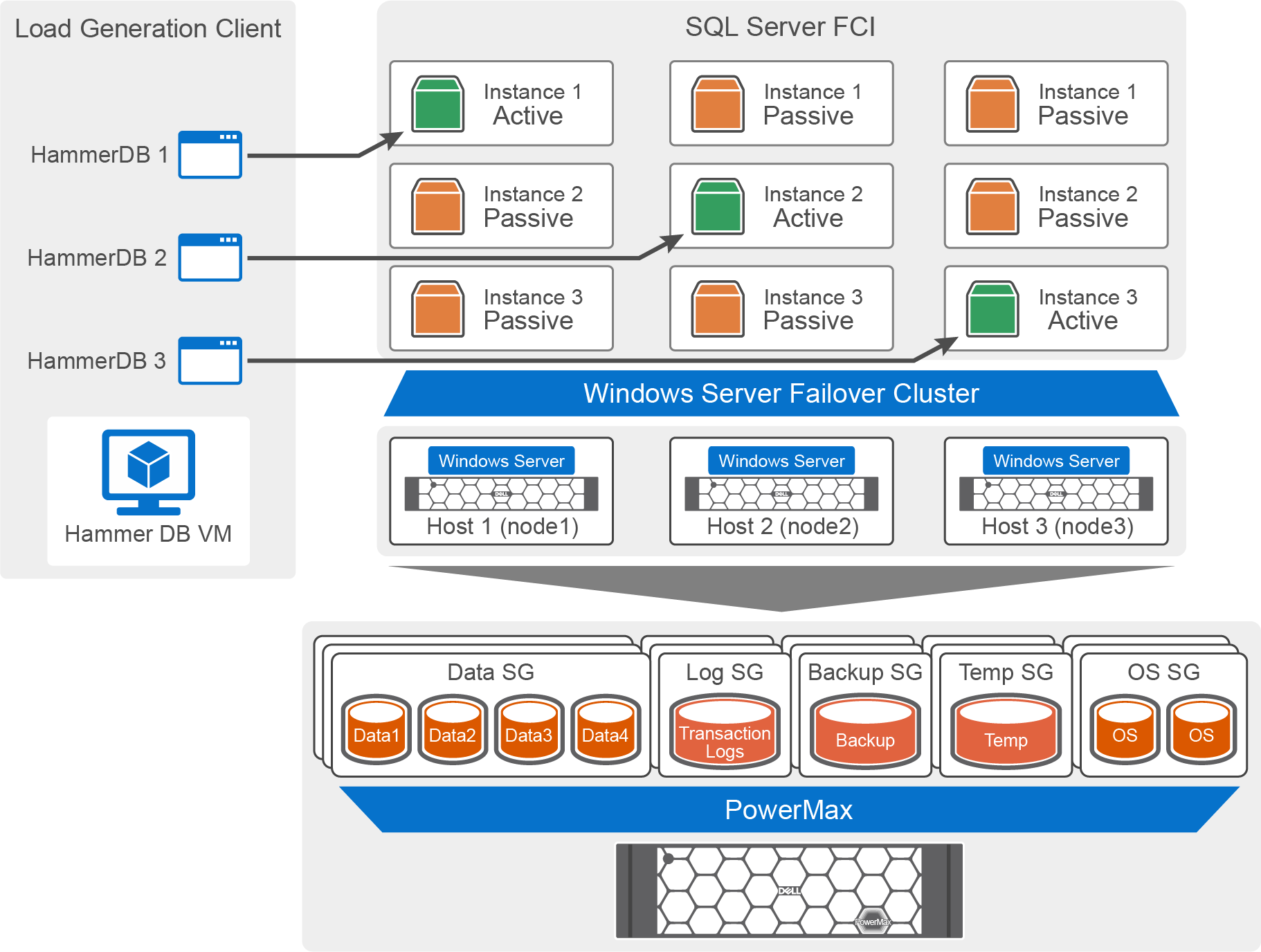
In this solution, a VM launches three clients of HammerDB software, each connects to an individual SQL Server FCI active node. As illustrated in the image above, HammerDB client 1 connects to the active node of SQL Server Instance 1 on FCI 1, client 2 connects to the active node of SQL Server instance 2 on FCI 2, and so on As a result, each SQL Server FCI generates an OLTP workload on its respective SQL Server database instance, driving IOPS to its dedicated storage groups.
The team conducted multiple tests using different virtual user counts and finalized 30 virtual users. The ‘think-time’ option is not used by the HammerDB clients, so each of these virtual users is running transactions as fast as possible, and the transactions are allowed to run against all warehouses, ensuring that the virtual users exercise the full dataset. With this lab configuration and virtual user count, this design delivers the optimal database performance while maintaining sub‑millisecond storage latency.
Test results
The performance test results demonstrate the ability of PowerMax to scale IOPS while maintaining sub‑millisecond latency as the SQL Server workload scales. All SQL Server database volumes that are used for this test are configured with the Diamond service level.
The workload is generated using HammerDB and is scaled incrementally. In the first scenario, a single HammerDB client generates an OLTP workload to one SQL Server FCI, using 30 virtual users across all 1,556 warehouses. In the next phase, two HammerDB clients simultaneously generate identical workloads against two separate SQL Server FCI’s, again using 30 virtual users per instance and the same warehouse configuration. In the final scenario, three HammerDB clients run concurrently against three separate SQL Server FCIs, each with 30 virtual users across all warehouses.
As shown in the following figure, increasing the number of active database workloads results in incremental TPM and IOPS scaling, while consistently maintaining sub-millisecond read and write latency.
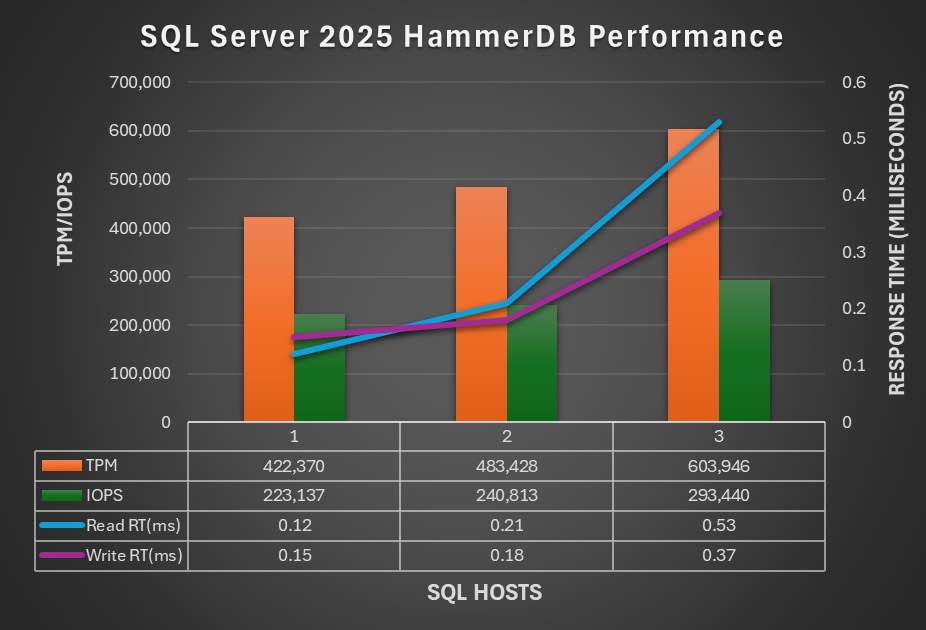
During the simultaneous run of three SQL Server FCIs, the overall resource utilization of the one node-pair PowerMax 2500 lab configuration was high. While this specific lab setup was fully utilized by the test, larger-scale workloads can be easily accommodated by scaling out with additional PowerMax node-pairs or using the larger scale PowerMax 8500 system.
Best practices
Best practices
The following key practices across the technology stack that this solution uses ensure efficient operation and consistent system performance.
Windows Server and SQL Server 2025
Consider the following best practices:
- Ensure that the Windows Server power plan is customized and set to high performance.
- Evaluate available Windows MPIO policies, as multipath behavior varies based on workload characteristics and performance objectives. Windows MPIO offers several load-balancing policies that behave differently depending on whether the storage paths operate under normal or faulty conditions. Some commonly used multipathing policies are:
- Round Robin (RR): Distributes I/O evenly across all active paths, offering highly effective fault tolerance under normal conditions, but lacks the intelligence to adjust for real-time path latency. In topologies such as SRDF/Metro, when the distance between the host and the two storage systems is not even, it may not be a good choice (compared to a more intelligent policy). However, in local deployments it could provide a predictable, even I/O distribution across all paths.
- Least Queue Depth (LQD): Dynamically routes I/O to the path with the fewest outstanding requests, allowing it to adapt intelligently to path degradation and congestion, although carrying a slight processing overhead. This policy can be a better choice when not all paths have the same performance, such as an SRDF/Metro configuration with distance between systems
- Least Blocks (LB): Dynamically selects the path with the fewest pending data blocks but can result in uneven I/O distribution across storage ports and lower overall performance depending on the workload. Although this policy is also more intelligent about paths with different performance characteristics, the tests pointed to LQD as having an overall better performance.
- Enable the lock pages in memory to prevent the system from paging the data to virtual memory for SQL Server VMs. Make the necessary changes in the Group Edit policy to enable the lock pages. For more information, see Enable the Lock Pages in Memory Option.
- Always use the WSFC cluster validation wizard before deployment or after any hardware changes for smooth operation of the cluster.
- Regularly test failover scenarios to ensure that SQL clustered roles recover as expected.
- Move the
tempdbfiles from the default location to a separate shared volume to avoid page contention. This action substantially improves the database latency performance in cases when temp files are busy. - Increase the number of datafiles in the
tempdbto maximize the bandwidth and reduce contention in allocating structures. Monitor the contention level and increase the number of datafile by multiples of four, to the maximum number of available logical processors. - Consider different storage options and file systems before choosing the storage for the SQL Server database. For more information, see Windows storage consideration.
- For a SQL Server database application, evaluate storage performance using benchmarking tools such as DiskSpd, IOmeter, and FIO.
- When TRIM/UNMAP is enabled, formatting a large NTFS volume on a PowerMax LUN can result in significantly extended format times. This occurs because the format operation generates UNMAP commands for the entire volume address range, and the array must process each deallocation request. To mitigate this, consider temporarily disabling delete notifications prior to initial volume formatting or large-scale provisioning activities. Once the format operation is completed, immediately re-enable delete notifications to restore normal space reclamation behavior. TRIM/UNMAP feature of Windows.
- Set proper dependencies between the SQL Server FCI, such as a SQL Server service name, and their associated storage resources, for example, data and log volumes. This helps to ensure that the required disks are brought online first, reducing the risk of service startup failures.
For more information about SQL Server best practices, see SQL Server Design Considerations.
PowerMax best practices
Take account of the following best practices and recommendations for the PowerMax Storage system:
Storage design and connectivity considerations
- Configure parent/child storage groups (SGs). The parent storage group is used in the masking view for storage access. Logical separation of database components is achieved with child storage groups for each of the specific database components, such as data files, transaction log file, temp/system DB, and so on Using this design methodology, performance monitoring is easily achieved for database components (as they each have logical containers for their associated devices). This design also enables storage-based T-SQL backups. Also, if a restore is needed, restoring the data files storage snapshot will not overwrite the log volume.
- Use host-groups when WSFC is used, so that the hosts (cluster nodes) are aggregated into a host-group. In this design, it is easy to add or remove hosts from the cluster by adding or removing hosts in the host-group.
- Design host‑to‑storage connectivity using a wide distribution model by spreading connections across storage ports on multiple PowerMax nodes (directors), rather than concentrating connections on a single node. This approach ensures better utilization of storage CPU resources and improves availability in the event of a component or path failure.
- Plan host connectivity by considering both port count and speed. For example, a 32 Gb FC port can deliver up to 3 GB/s of bandwidth. If a host uses only two initiators or connects to only two storage front‑end ports, aggregate bandwidth from that host will not exceed above 6 GB/s. As a general guideline, a two‑socket server benefits from using two dual‑port HBAs connected to four or eight storage ports. Adapt the customer design based on specific performance requirements and data center standards.
- For performance‑critical SQL Server databases, configure a minimum of four paths per volume using multipath software (Windows multipathing). Multipath I/O provides both load balancing across available paths and resiliency in the event of path or component failures
HammerDB best practices
HammerDB recommends the following best practices for Microsoft SQL Server.
HammerDB is used in this paper only to simulate user workloads, and therefore the following guidance applies only when you use the tool for such simulations:
- Set the maximum degree of parallelism to 1 to prevent excessive parallelism. A setting of 0 in this solution has shown noticeable performance improvement during the workload tests.
- Configure maximum worker threads between 900 tand 3,000. The number is subject to change based on the available logical processor. Higher CPU can accommodate higher worker threads.
- Keep the initial data file size sufficiently large to ensure that files are not growing rapidly in the middle of a workload run.
- To avoid a performance impact, set larger auto growth increments to reduce the frequency of growth operations and enable instant file initialization to speed up the allocation process.
For more information about HammerDB best practices, see HammerDB Best Practice for SQL Server Performance and Scalability – HammerDB Blog.
To generate a more transactional workload, HammerDB recommends the following best practices:
- Use the all warehouses option in HammerDB to spread the transactions across all the warehouses. Changing this option prevents contention over just a few tables in the warehouse.
- Select the checkpoint when complete option to force the database to write everything to the disk at the end of the test. This is useful when running multiple tests in a row to avoid a checkpoint in the middle of a run.
- Use the autopilot option to run multiple tests in a row when automation of multiple test cases is required.
PowerMax service levels and SQL Server
Service levels overview
PowerMax storage systems are often used to consolidate multiple databases and applications on a single storage system. To manage performance effectively and align it with business priorities, PowerMax uses service levels (SLs) to control I/O latency and resource allocation for storage groups (SGs). Service levels provide a structured way to prioritize workloads and ensure consistent performance for critical applications.
Common use cases for service levels include restricting noisy‑neighbor workloads (Tier 2 Application), prioritizing production databases over development and test systems, and supporting service provider or chargeback models where different applications or tenants require tiered performance.
By default, the PowerMax system assigns newly created storage groups to the Diamond service level. This service level delivers the best performance. Each service level has a defined performance range (and expected average response time). If it cannot maintain this performance range, it will cause service levels with lower priority to slow down (as shown in the following figure).
How service levels work
When using service levels, you can assign higher service levels (such as Diamond, Platinum, or Gold) to mission‑critical applications so that they receive priority over Tier‑2 applications that are assigned to lower service levels (such as Silver, Bronze, or Optimized).
The following figure shows the service level order and the performance offerings that are associated with each level:
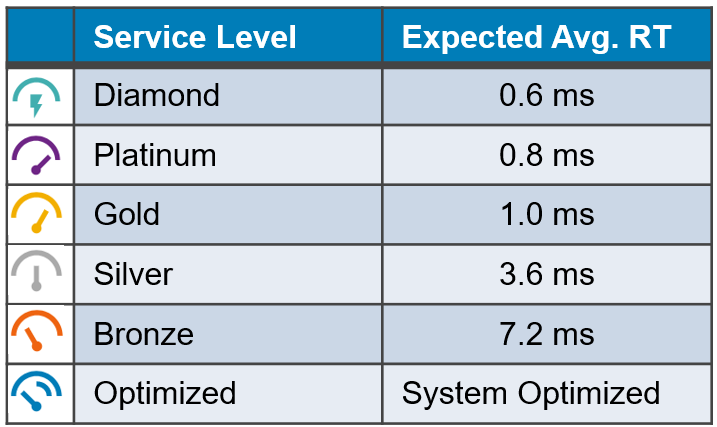
PowerMax enforces service level priorities by managing I/O latency between storage groups. If a higher-priority storage group cannot meet its expected performance, latency may increase for lower-priority storage groups, so that mission-critical workloads continue to perform as expected. For example, Diamond storage groups can impact Platinum storage groups, which can in turn affect Gold storage groups, and so on. Any storage group assigned a non‑optimized service level can influence optimized storage groups, ensuring that higher‑priority applications take precedence when resources are constrained.
Single database workloads with service levels
The following figure demonstrates how PowerMax service levels influence the performance of a single SQL Server database workload. Throughout this test, the HammerDB workload remained unchanged, ensuring a continuous load. The only variable that was introduced was the service level change to the user database storage group (AB_Instance3_SQL_data) after every 30-minute interval.
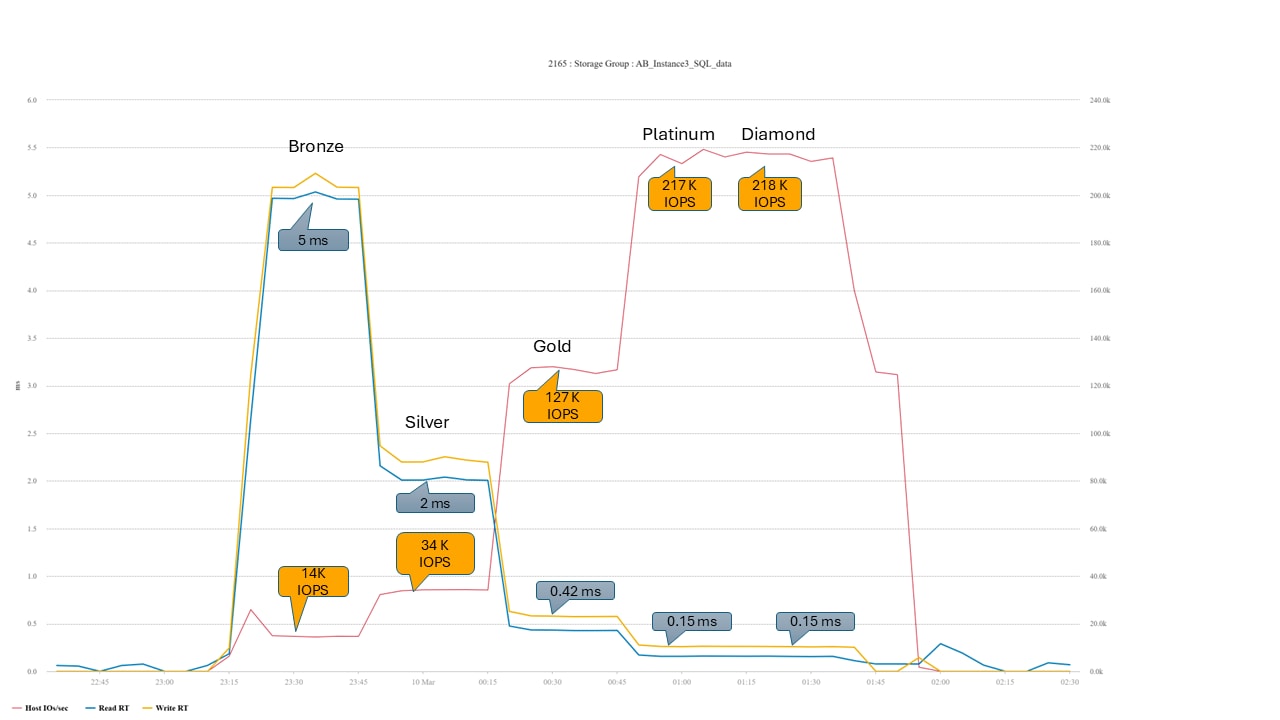
At the Bronze service level, the database experienced an average latency of approximately 5 ms and around 14,000 IOPS. When the service level was increased to Silver, latency dropped to 2 ms, and IOPS increased by more than 50 percent to approximately 34,000. Assigning the Gold service level further reduced latency to about 0.42 ms and increased throughput to 127,000 IOPS. Both Platinum and Diamond service levels delivered similar results, maintaining latency near 0.15 ms and achieving approximately 218,000 IOPS.
Service level changes take effect immediately because they are enforced at the PowerMaxOS software layer. These results also show that service level settings influence both read and write latency, directly affecting overall SQL Server database performance.
Conclusion
Conclusion
This white paper highlights how PowerMax and SQL Server work together to deliver high performance and operational simplicity. Testing with HammerDB shows that the solution can handle demanding OLTP workloads on PowerMax storage. The paper also highlights how PowerMax service levels influence I/O latency and throughput, while integrated data reduction improves storage efficiency. The paper also highlights how Microsoft ODX reduces host overhead during large data copy operations.
PowerMax brings enterprise-class storage with unmatched reliability, always-on availability, and advanced data protection capabilities. Its intelligent automation, resilient architecture, and integrated data services help safeguard critical data, reduce risk, and keep applications running without disruption. PowerMax is designed to handle the most demanding workloads with consistent performance and minimal management effort.
Combining PowerMax with SQL Server, this solution delivers predictable performance for business-critical applications, while simplifying operations and maximizing efficiency for modern, data-intensive environments.
.
Appendix A: Additional PowerMax features enhancing Windows and SQL Server deployments
PowerMax compression and deduplication
The PowerMax storage system delivers data reduction capabilities while maintaining consistent performance. PowerMax data reduction consists of:
- Hardware acceleration—Each PowerMax node is configured with a hardware compression module that handles data compression and decompression. These hardware modules are also capable of generating Hash IDs that enable deduplication.
- Activity-Based Reduction (ABR)—Typically, the most recent data is the most active, creating an “access skew.” ABR relies on that skew to prevent constant compression and decompression of data extents that are frequently accessed. The ABR function uses ML algorithms to mark the busiest 20 percent of all allocated data extents in the system to skip the data reduction workflow. Data extents that are highly active remain uncompressed, even if their storage group has data reduction enabled. As the data extents become less active, they are automatically compressed while newly active extents become part of the “hottest” 20 percent (if enough free storage capacity is available).
- Deduplication—Deduplication is a capacity-savings method that identifies identical copies of data and stores a single instance of each copy. During the data reduction and inline compression process, the hardware acceleration modules generate Hash IDs using the SHA-256 algorithm to 32 KB data blocks created by fine-grain data packing. These Hash IDs are then used in the deduplication process to help identify identical data. ABR affects the deduplication workflow similarly to compression.
- Fine-grain data packing—When PowerMax compresses data, each 128 KB track is split into four 32 KB buffers. All buffers are compressed in parallel. The total of the four buffers yields the final compressed size of the data. This process includes a zero reclaim function that prevents the allocation of buffers with all zeros and no actual data. For small size write or read operations, only the necessary buffers participate.
- Compaction—Compaction is a process that performs data placement. It intuitively places reduced or unreduced data on disk in the best possible location available. The operation of storing data on disk uses write objects. Each object has 6 MB of contiguous back-end data device capacity across the drives that are configured in the system. Write objects are aligned on 1 KB boundaries and are consumed sequentially in a single use. Write objects are spread across full stripes for all supported RAID types to optimize writes. Each object supports reduced or unreduced data. An unreduced write object consists of 48 PowerMax tracks (128 KB each). A reduced write object consists of approximately 1,000 reduced tracks. Reduced entries for write objects range from 1 KB to 96 KB for open systems
- Extended Data Compression (EDC)—If data that is already compressed is enabled for compression and has not been accessed for over 30 days, it is automatically compressed again. This additional compression increases storage efficiency even more.
PowerMax data reduction is managed at the storage group (SG) level, which simplifies administration and provides flexibility based on workload characteristics. In most cases, databases benefit from enabling storage compression. However, customers may choose to disable compression for specific scenarios, such as fully encrypted databases or SGs that contain data with a high overwrite rate, for e.g. SG that hosts SQL Server Transaction log files. When compression is enabled, all new writes are compressed inline using machine learning–based algorithms. By default, new SGs that are created in Unisphere have data reduction enabled.
For more information about PowerMax data reduction, see Dell PowerMax: Data Reduction inline compression and deduplication.
Data reduction example
This is a common enterprise example in which a host-based data copy doubles the logical consumed storage capacity (the original data, and its exact copy), yet PowerMax deduplication prevents such unnecessary storage overhead. The example illustrates a cold backup of a production database, which is used to create a development, test, or quality‑assurance environment copies that resemble the production database. In many organizations, these backup files are large and can consume significant storage capacity, especially when multiple copies are used to create non‑production environments. In the example, a cold backup of the HammerDB database from the earlier performance tests is created, representing a production backup.
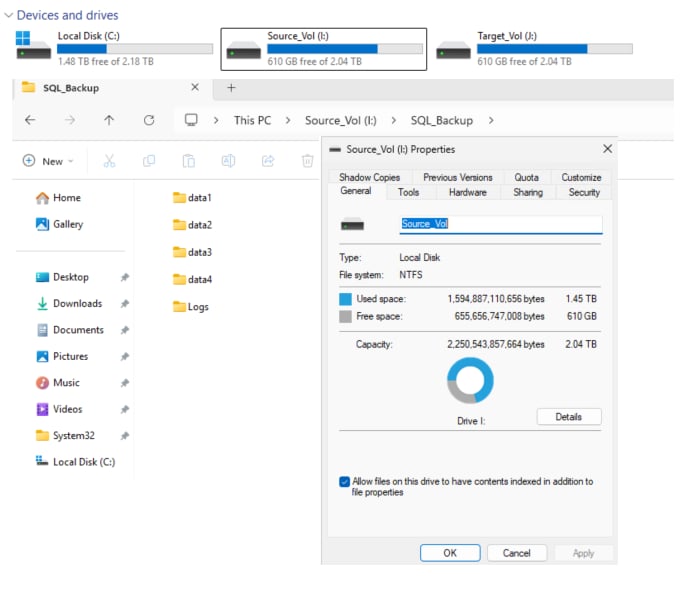
A Windows host‑based file copy is used to copy the backup files from one NTFS‑formatted volume to others, all provisioned from the PowerMax system with a 128 KB allocation unit size. One copy target volume has data reduction enabled while the other does not. When the data copy occurs, alignment with the PowerMax 128 KB track size allows the storage deduplication feature to recognize the identical data blocks without having to physically consume that storage capacity again, significantly reducing overall storage consumption.
In this scenario, the cold backup data resides on the source volume Source_Vol (I:) , which is a PowerMax LUN without data reduction enabled. This volume contains the full set of HammerDB data and log files that are associated with the user database, totaling approximately 1.45 TB of stored data.
The target volume, Target_Vol (J:), is a newly provisioned PowerMax LUN with data reduction enabled and represents the SQL Server instance supporting a development or QA database environment.
Before performing the copy operation, storage metrics were verified using the SE CLI. At this stage, the SRP reported 9,591 GB of used capacity, while the target volume showed 0 GB of effective used capacity. Because the target volume was empty, no data reduction ratio (DRR) is applicable at this point.
symcfg list -srp -detail -gb
STORAGE RESOURCE POOLS
Symmetrix ID : 000120002165
C A P A C I T Y
-------------------------------- --- --------------------------------------------
Flag Physical Physical Physical Provisioned
Name DRR (GB) Used(GB) Free(GB) (GB)
-------------------------------- --- ---------- ---------- ---------- -----------
SRP_1 FXO 100509.4 9591.2 90918.2 88249.1
---------- ---------- ---------- -----------
Total 100509.4 9591.2 90918.2 88249.1
symcfg -sid 2165 list -sg_compression -all
-------------------------------- --- --------------------------------------------
Flags Number Effective Physical Estimated
Storage Group Name C Devices Used(GB) Used(GB) Ratio
-------------------------------- --- --------------------------------------------
Target_DRR_Volume x 1 0.0 0.0 26.9:1
The backup data and log folders are copied at the host level from
Source Vol
(I:)to Target Vol (J:) using Windows Explorer. After the copy operation is completed, storage metrics are verified again using the SE CLI.
symcfg list -srp -detail -gb
STORAGE RESOURCE POOLS
Symmetrix ID : 000120002165
C A P A C I T Y
-------------------------------- --- --------------------------------------------
Flg Physical Physical Physical Provisioned
Name DRR (GB) Used(GB) Free(GB) (GB)
-------------------------------- --- ---------- ---------- ---------- -----------
SRP_1 FXO 100509.4 9728.4 90781.0 88249.2
---------- ---------- ---------- -----------
Total 100509.4 9728.4 90781.0 88249.2
symcfg -sid 2165 list -sg_compression -all
----------------------------------------------------------------------
Flags Number Effective Physical Estimated
Storage Group Name C Devices Used (GB) Used(GB) Ratio
----------------------------------------------------------------------
Source_DRR_Voume . 1 685.7 685.7 1.0:1
Target_DRR_Volume X 1 685.7 137.9 4.9:1
After the copy operation, the SRP used capacity increased by approximately 137 GB. The target volume reported 685 GB of effective used capacity while consuming only 137 GB of physical capacity, resulting in a data reduction ratio (DRR) of approximately 4.9:1. This difference highlights the effectiveness of PowerMax deduplication, where identical data blocks are stored only once, significantly reducing the physical storage required on the target volume.
As shown in the preceding output, complete data reduction was not immediately achieved because Activity-Based Reduction (ABR) kept data extents uncompressed due to the copy operation being the hottest activity in the test storage system.
Also, Dell best practice is to use snapshots or clones for the most efficient time and capacity savings when the DBAs still require a host-based copy. This approach still allows storage capacity optimization benefits without proportionally increasing storage consumption.
Windows ODX feature
Microsoft ODX allows Windows Server to offload large data copy operations from the host to the underlying storage system. Instead of reading data from the source volume to the host just to write it back to the target volume, consuming host CPU, memory, and I/O resources, Windows uses ODX tokens to instruct the storage system to perform the copy internally. PowerMax supports ODX offloaded copy operations and delivers optimal performance when NTFS file systems are formatted with a 128 KB allocation unit size, which aligns with the PowerMax track size.
ODX status
ODX is enabled by default on Windows Server beginning with Windows Server 2012 and later. When ODX Is enabled, Windows automatically uses ODX for eligible copy operations without requiring application changes.
PS C:\> Get-ItemProperty -Path 'hklm:\system\currentcontrolset\control\filesystem' -Name 'FilterSupportedFeaturesMode'
FilterSupportedFeaturesMode : 0
PSPath : Microsoft.PowerShell.Core\Registry::HKEY_LOCAL_MACHINE\system\currentcontrolset\control\filesystem
PSParentPath : Microsoft.PowerShell.Core\Registry::HKEY_LOCAL_MACHINE\system\currentcontrolset\control
PSChildName : filesystem
PSDrive : HKLM
PSProvider : Microsoft.PowerShell.Core\Registry
Enable or disable ODX
Administrators can control ODX behavior by modifying the Windows file system setting that governs supported feature modes. This setting allows administrators to explicitly enable or disable ODX to compare host‑based copy behavior with offloaded copy behavior.
Change the FilterSupportedFeaturesMode value using the set-itemproperty cmdlet to :
- 1 to disable ODX
- 0 to enable ODX
PS C:\> Set-ItemProperty -Path 'hklm:\system\currentcontrolset\control\filesystem' -Name 'FilterSupportedFeaturesMode' 1
PS C:\> Set-ItemProperty -Path 'hklm:\system\currentcontrolset\control\filesystem' -Name 'FilterSupportedFeaturesMode' 0
ODX copy example
In this example, two NTFS volumes, X: and Y:, are provisioned from separate PowerMax LUNs and formatted with a 128 KB allocation unit size. The source volume (X:) contains an SQL Server backup file of approximately 700 GB, while the target volume (Y:) is empty.
Copy test with ODX disabled
With ODX disabled, the backup file is copied from the X: to the Y: volume using a multithreaded robocopy operation.
C:\ > Set-ItemProperty -Path 'hklm:\system\currentcontrolset\control\filesystem' -Name 'FilterSupportedFeaturesMode' 1
Robocopy /MIR /MT X:\ Y:\
------------------------------------------------------------------------------
100% New File 676.5 g X:\oltp_backup
------------------------------------------------------------------------------
Total Copied Skipped Mismatch FAILED Extras
Dirs : 4 3 4 0 0 0
Files : 2 1 1 0 0 0
Bytes : 676.530 g 676.530 g 129 0 0 0
Times : 0:25:31 0:06:22 0:00:00 0:06:22
Speed : 1,897,487,642 Bytes/sec.
Speed : 108,575.117 MegaBytes/min.
When ODX is disabled, the copy operation relies entirely on host‑based reads and writes. In this test, copying the 700 GB file took approximately six minutes, with a transfer rate of about 1.8 GB/s.
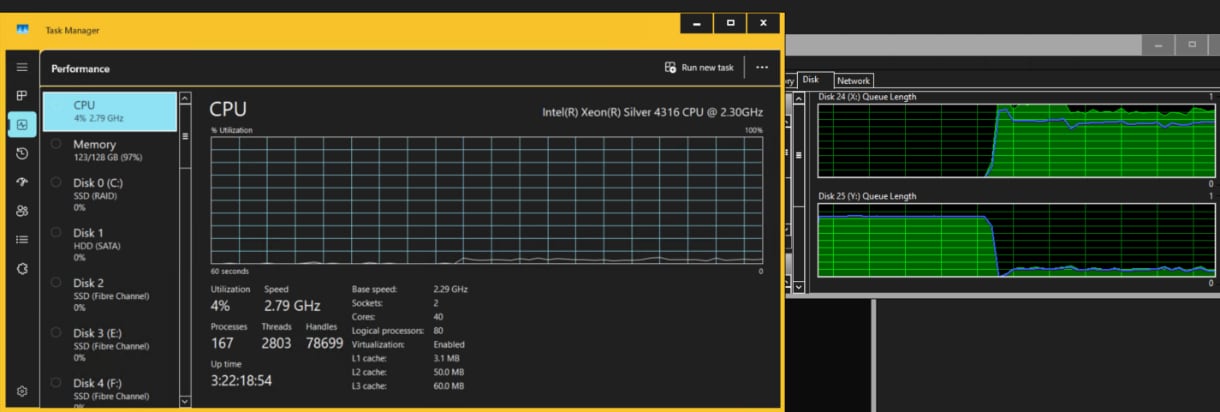
During the operation, the host experienced a noticeable increase in CPU utilization and disk activity, indicating that Windows processed the data movement through the host I/O stack rather than offloading it to the storage system. This behavior highlights the additional host overhead that is associated with traditional copy mechanisms when ODX is not in use.
Copy test with ODX enabled
With ODX enabled, the backup file is copied from the X: to the Y: volume using the same multithreaded robocopy operation.
C:\ > Set-ItemProperty -Path 'hklm:\system\currentcontrolset\control\filesystem' -Name 'FilterSupportedFeaturesMode' 0
Robocopy /MIR /MT X:\ Y:\
------------------------------------------------------------------------------
100% New File 676.5 g X:\oltp_backup
------------------------------------------------------------------------------
Total Copied Skipped Mismatch FAILED Extras
Dirs : 4 3 4 0 0 0
Files : 2 1 1 0 0 0
Bytes : 676.530 g 676.530 g 129 0 0 0
Times : 0:00:16 0:00:04 0:00:00 0:00:04
Speed : 181,287,494,149 Bytes/sec.
Speed : 10,373,354.000 MegaBytes/min.
With ODX enabled, the same 700 GB file copy completed in approximately four seconds, with a transfer rate of 181 GB/s.
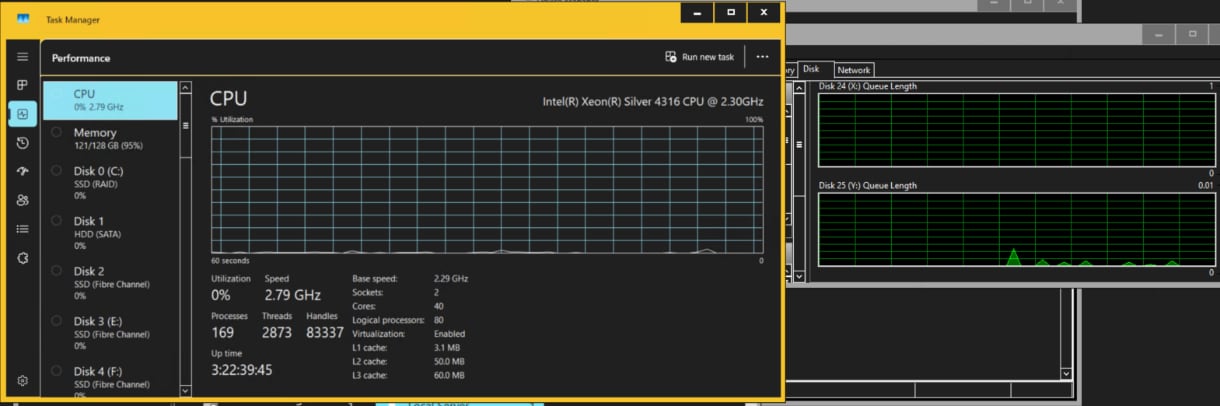
During the copy operation, CPU utilization remained low and disk activity was minimal, indicating that Windows did not perform the copy through host‑based read and write operations, but instead relied on the underlying storage system to handle the data movement, as shown in the preceding figure.
This example highlights the practical value of the ODX feature for managing multiple databases restore requests. With ODX enabled, DBAs can efficiently copy cold database backups, such as physical data and log files, from a source backup volume to multiple target SQL Server volumes without incurring host‑based copy overhead. After the copy operation completes, the databases can be quickly attached to the appropriate SQL Server instances, avoiding the need for time‑consuming restore operations.
Appendix B: SQL Server tuning parameters
The following code sample shows the SQL Server tuning parameters that the team used to optimize the database performance for the OLTP workload test:
EXEC SP_CONFIGURE 'SHOW ADVANCED OPTIONS', '1'
RECONFIGURE WITH OVERRIDE
EXEC SP_CONFIGURE 'MIN SERVER MEMORY', 2048
EXEC SP_CONFIGURE 'MAX SERVER MEMORY', 4096
EXEC SP_CONFIGURE 'MAX DEGREE OF PARALLELISM','0'
EXEC SP_CONFIGURE 'LIGHTWEIGHT POOLING','1'
EXEC SP_CONFIGURE 'DEFAULT TRACE ENABLED', 0
EXEC SP_CONFIGURE 'COST THRESHOLD FOR PARALLELISM', 50
EXEC SP_CONFIGURE ‘NETWORK PACKET SIZE’, 8192
GO
RECONFIGURE WITH OVERRIDE
ALTER DATABASE OLTP SET RECOVERY FULL
GO
ALTER DATABASE OLTP SET TARGET_RECOVERY_TIME = 300 SECONDS.
GO
ALTER DATABASE OLTP SET TORN_PAGE_DETECTION OFF
GO
ALTER DATABASE OLTP SET PAGE_VERIFY NONE
GO
Appendix C: Lab server and storage configuration
The following table shows the server and storage configuration for this solution:
| Hostname | Operating system | Hardware | Purpose |
| HammerDB VM |
Win Server 2025 |
64vCPUs, 16GB RAM 150GB Disk |
HammerDB Clients |
| Host1 |
PowerEdge 750 2 X Intel Silver 4316 CPU 2.30 GHz (20 cores) 128GB RAM |
SQL Server Instance 1 | |
| Host2 |
PowerEdge 750 2 X Intel Gold 6330 CPU 2.00GHz (28 cores) 512GB RAM |
SQL Server Instance 2 | |
| Host3 | SQL Server Instance 3 | ||
| PowerMax 2500 | PowerMaxOS 10.3 | 2-node (single engine) PowerMax 2500, 230 GB raw DRAM | - |
Appendix D: Software and hardware version
The following table shows the software versions used for the performance tests:
| Hostname | Version |
| SQL Server hosts operating system | Windows Server 2025 |
| HammerDB host operating system | Windows Server 2025 |
| HammerDB software | HammerDB v5.0 for Windows operating system |
| PowerMax 2500 | PowerMaxOS 10.3 |
| SQL Server software | SQL Server 2025 |
| Multipathing Software | Windows Multipathing |
References
References
Dell Technologies documentation
The following Dell Technologies documentation provides additional relevant information. Access to these documents depends on your login credentials. If you do not have access to a document, contact your Dell Technologies representative.
Microsoft documentation
The following Microsoft documentation provides additional relevant information:
HammerDB Documentation
The following HammerDB documentation provides information about the HammerDB tool and best practices for performing OLTP workload stress tests on Microsoft SQL Server: