Using Dell PowerFlex with Linux KVM
Introduction
Executive summary
Document purpose
Audience
Terminology
Product overview
PowerFlex family overview
PowerFlex software-defined infrastructure enables broad consolidation across the data center, encompassing almost any type of workload and architecture. The software-defined architecture offers automation and programmability of the complete infrastructure and provides scalability, performance, and resiliency to enable effortless adherence to stringent workload SLAs.
The PowerFlex family provides a foundation that combines compute and high-performance storage resources in a managed unified fabric. PowerFlex comes in flexible deployment options (rack, appliance, or custom nodes and in the public cloud) that enables independent (two-layer), HCI (single-layer), or mixed architectures. PowerFlex is ideal for high-performance applications and databases, building an agile private-hybrid cloud, or consolidating resources in heterogeneous environments.
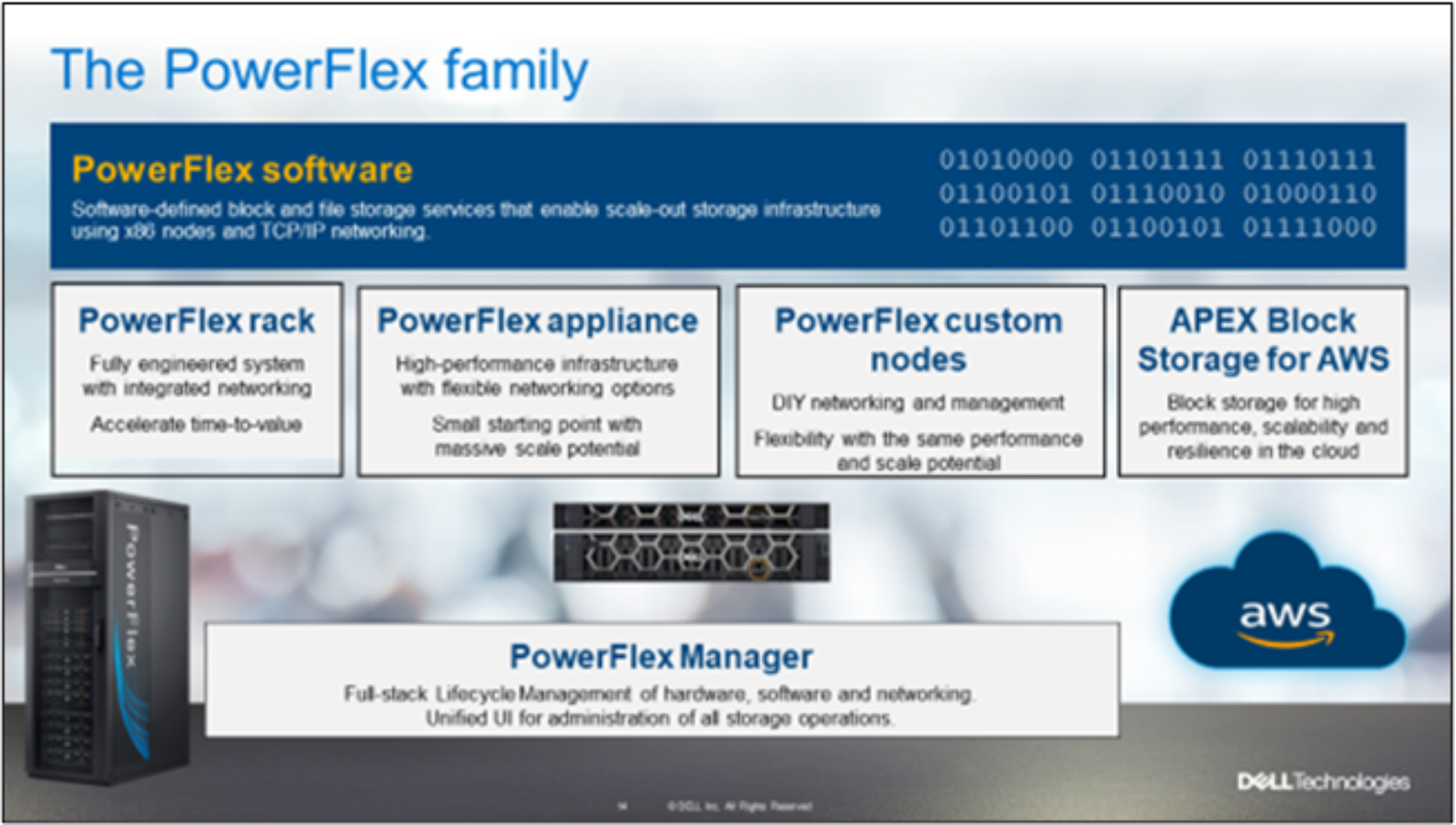
Figure 1. PowerFlex family
PowerFlex software components
Software is the key differentiation in the PowerFlex offering. PowerFlex software components not only provide software-defined storage services, but also help simplify infrastructure management and orchestration. This software enables comprehensive IT Operational Management (ITOM) and Life Cycle Management (LCM). These capabilities span compute and storage infrastructure, from BIOS and Firmware to nodes, software, and networking.
PowerFlex
PowerFlex is the software foundation of PowerFlex software-defined infrastructure. It is a scale-out block and file storage service that is designed to deliver flexibility, elasticity, and simplicity with predictable high performance and resiliency at scale.
PowerFlex Manager
PowerFlex Manager is the software component in the PowerFlex family that enables ITOM automation and LCM capabilities for PowerFlex systems. Starting with PowerFlex 4.0, the unified PowerFlex Manager brings together three separate components from previous releases: PowerFlex Manager, the core PowerFlex UI, and the PowerFlex gateway. The new PowerFlex UI runs in Kubernetes and embraces a modern development framework.
PowerFlex file services
PowerFlex File Controllers, also known as File Nodes, are physical nodes that enable PowerFlex software defined File Services. They host the NAS Servers, which in turn host tenant namespaces and file systems, mapping PowerFlex volumes to the file systems presented by the NAS Servers. All major protocols are supported, such as NFS, SMB-CIFS, FTP, and NDMP. Both NFS 3 and 4 are supported. PowerFlex file service is supported from PowerFlex 4.0.
PowerFlex CSI and CSM
An important component outside of PowerFlex that enables a flexible consumption model for Kubernetes is the PowerFlex CSI driver. It was developed as a part of the Dell Kubernetes strategy. After the CSI driver for PowerFlex is loaded into Kubernetes, it can be used to provision persistent volumes from the underlying PowerFlex storage resource. If the Kubernetes deployment is running low on PowerFlex storage resources, you can add PowerFlex storage nodes to increase the system capacity and performance.
The CSI driver connects the PowerFlex system and Kubernetes deployments. It is a storage broker agent which dynamically provisions volumes from PowerFlex through the PowerFlex API gateway to the Kubernetes cluster. Once the volume is available on PowerFlex, it is immediately mapped to the requesting pod. If a pod is destroyed or rescheduled, the CSI plug-in ensures that the volumes are remapped upon rescheduling of that pod.
Customers running Kubernetes clusters on PowerFlex use the Dell Container Storage Modules (CSM), which extend the CSI driver capabilities. These modules:
- Provide enterprise storage capabilities to Kubernetes for cloud-native stateful applications.
- Reduce management complexity, so that developers can independently use enterprise storage with ease and automate daily operations.
- Extend storage functionality and capabilities beyond using the CSI driver alone.
These modules include snapshot, observability, authorization, application mobility, and resiliency.
PowerFlex supports multiple operating systems and different deployment options for on-premises and public cloud deployment models (available in AWS). PowerFlex is validated with the leading Kubernetes distributions as shown in Table 2.
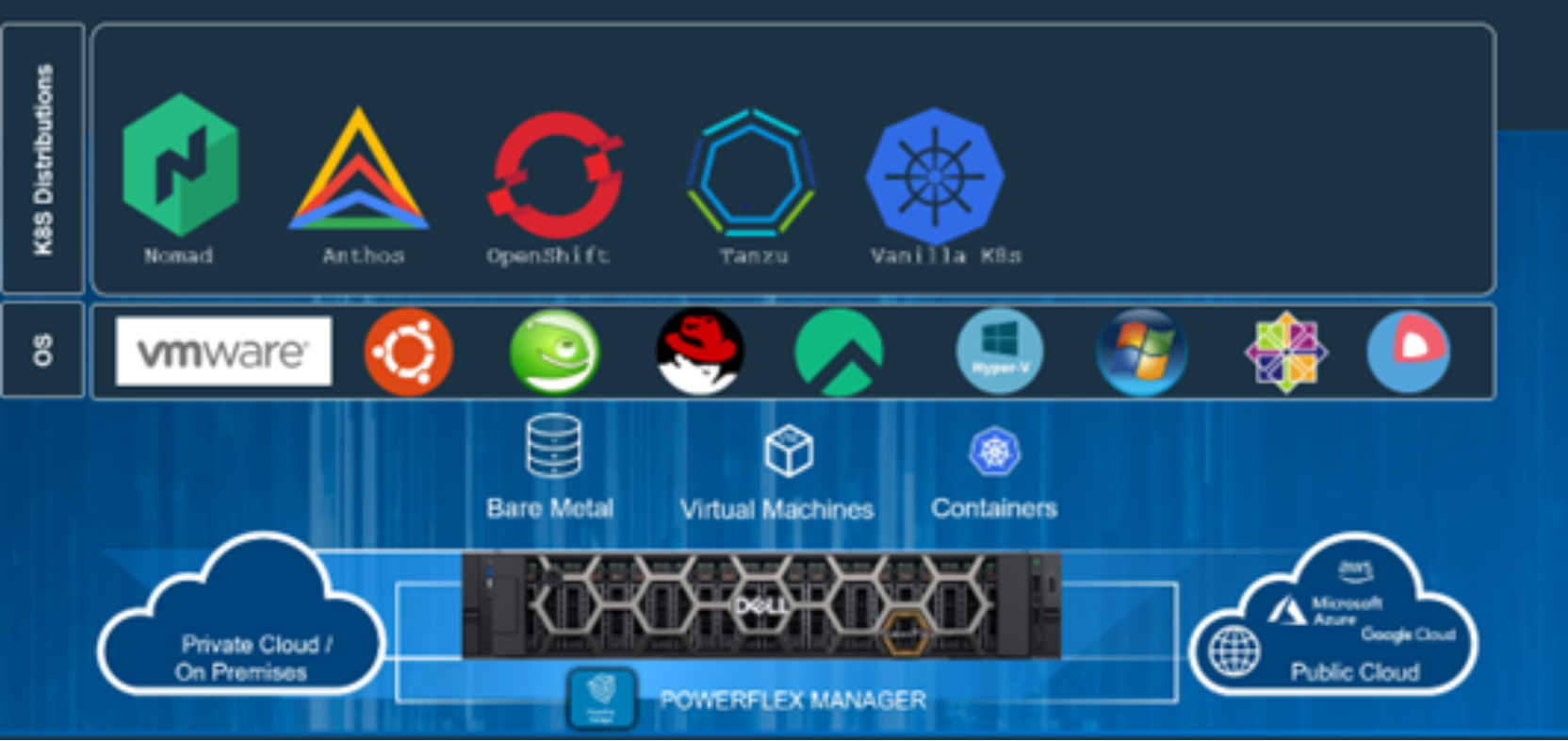
Figure 2. PowerFlex for different Kubernetes distributions
PowerFlex deployment architectures
PowerFlex software-defined infrastructure excels in deployment flexibility. PowerFlex can be deployed in a two-layer (independent compute and storage layers), single-layer (Hyperconverged Infrastructure, or HCI), or a mixture of the two architectures (Mixed).
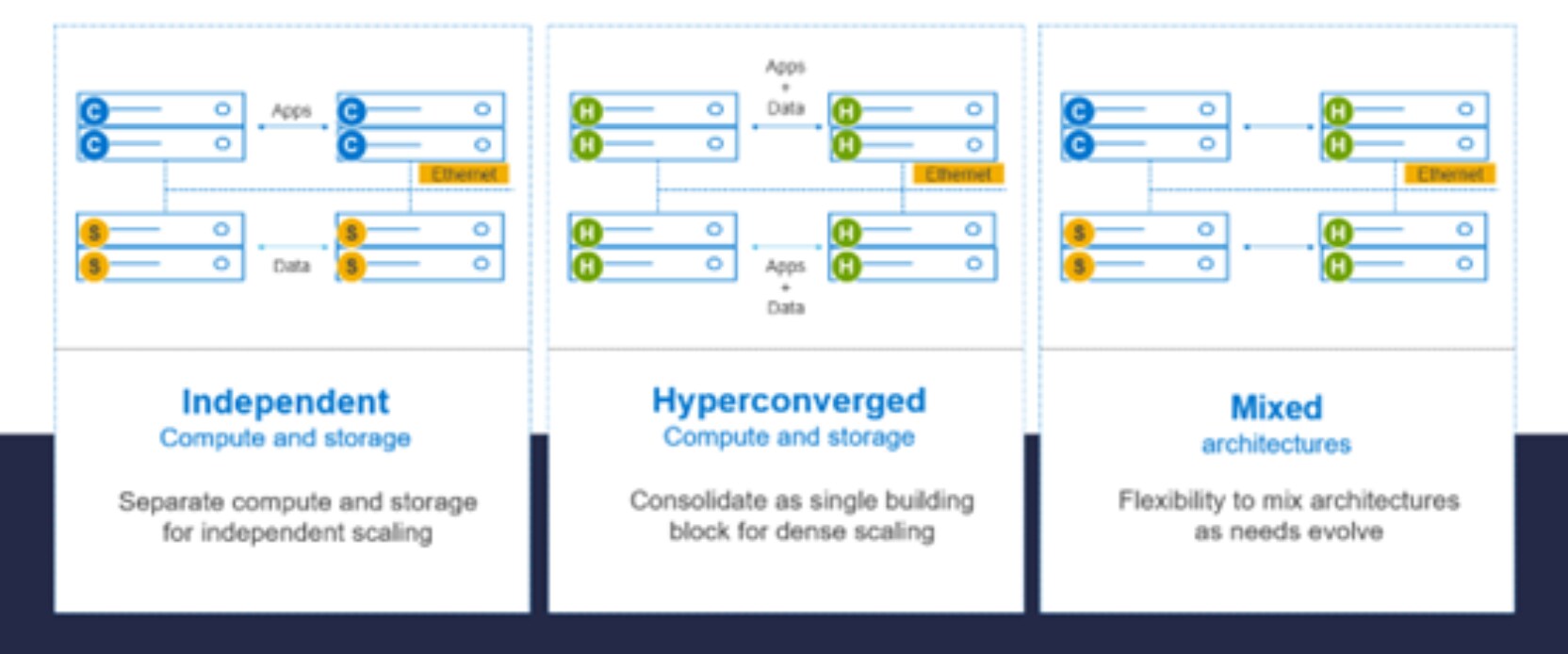
Figure 3. PowerFlex architectures
Independent architecture
In an independent architecture or two-layer architecture, some nodes provide storage capacity for data in applications. Other separate and independent nodes provide compute resources for applications and workloads. Compute and storage resources can be scaled independently by adding nodes to the cluster while it remains active. This separation of compute and storage resources helps to minimize software licensing costs in certain situations. This architecture can be ideal for high-performance databases and application workloads.
Hyperconverged architecture
In an HCI architecture, each node in the cluster contributes storage and compute resources simultaneously to the applications and workloads. This architecture allows you to scale your infrastructure uniformly with building blocks that add both storage and compute resources. This architecture is appropriate for data center and workload consolidation.
Mixed architecture
A mixed architecture has a combination of both the HCI and Independent architectures. As shown previously in Figure 3, there would be some storage only nodes, compute only nodes, and hyperconverged nodes as part of the same PowerFlex cluster. This architecture is desirable when working with an existing compute infrastructure and adding high-performance software-defined infrastructure. This architecture can also be a starting point for a two-layer deployment design as external workloads are migrated to PowerFlex.
PowerFlex consumption options
Kernel-based virtual machine
Kernel-based virtual machine, or KVM is an open-source virtualization infrastructure for the Linux kernel that allows it to act as a hypervisor. A hypervisor, or virtual machine monitor (VMM), is a hardware, software, or firmware layer that runs virtual machines on a physical host. It does this by virtualizing the hardware, enabling one system to become many. There are two types of hypervisors: Type 1 which runs directly on the physical host; and Type 2 that runs on top of the operating system of the physical host. KVM is a Type 1 hypervisor as it manages the hardware resources directly rather than Type 2 which relies on the operating system device drivers.
Because KVM is part of the Linux kernel, it can use the hardware virtualization features that are available in Intel VT-x or AMD-V CPUs to create and manage virtual machines. A basic representation of the KVM architecture is shown in Figure 4.
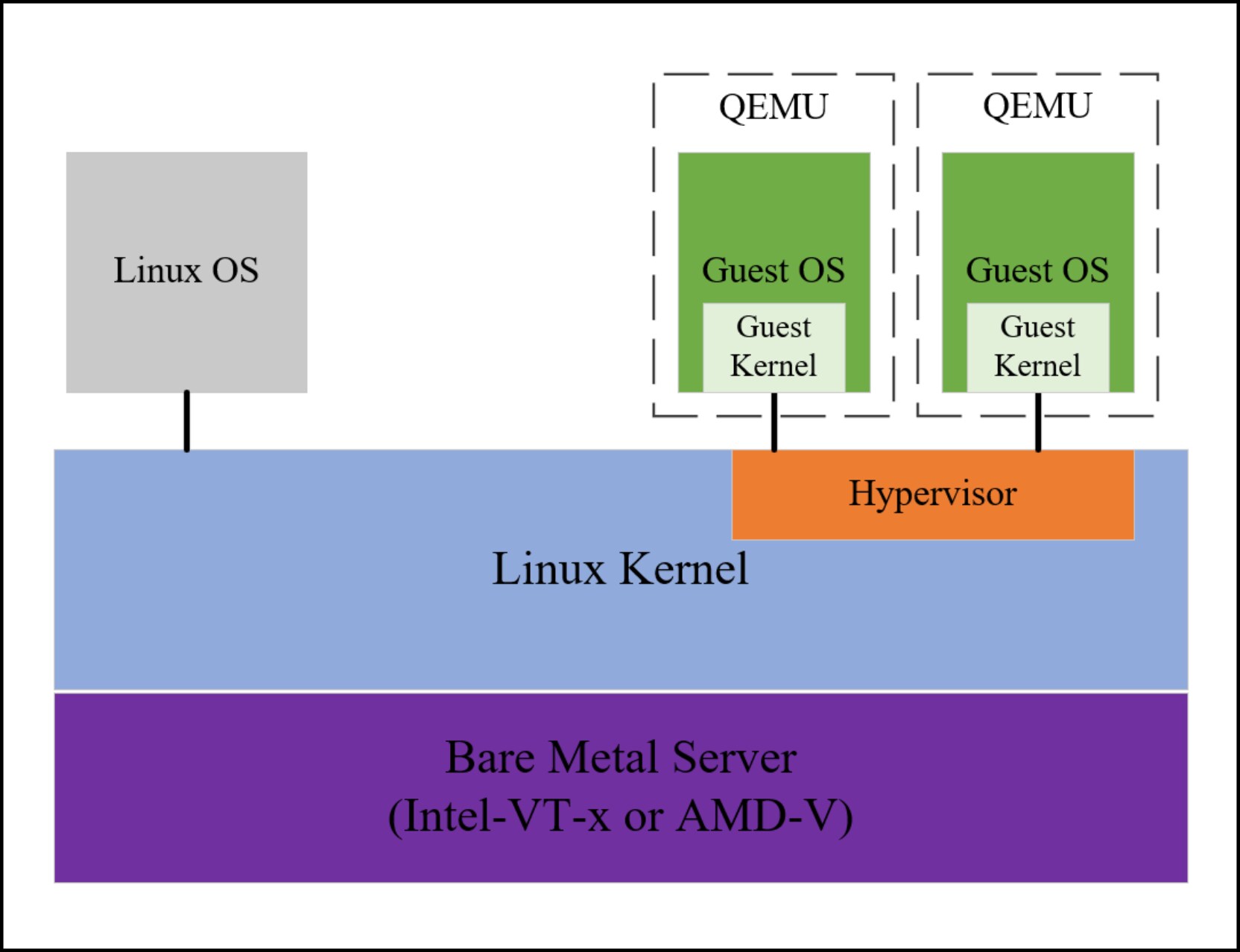
Figure 4. KVM architecture
KVM has several common components which are defined below:
- Quick Emulator (QEMU): Quick Emulator is an open-source emulator for hardware and virtualization. It is used with KVM to run and manage virtual machines.
- libvirt: A toolkit/API for managing virtualization technologies like KVM and other hypervisors.
- virsh: A CLI which can manage virtual machines
- Guest OS: The OS that runs on a VM in a KVM environment, for example Linux or Windows.
- Emulated devices: Virtualized versions of physical hardware.
- Virtio devices: Paravirtualized devices specifically for KVM.
While KVM virtualization is essentially the same across Linux distributions – running KVM on Red Hat looks and feels the same as running it on Ubuntu – how a business chooses to manage it can vary greatly. Unlike some of the other commercial hypervisors which have their own management solution as part of the virtualization environment, such as VMware vCenter, since KVM is open-source there are many management options available – both licensed and free. One of the more straightforward open-source implementations is oVirt.
oVirt
oVirt is a management framework consisting of what it terms the oVirt node. This node runs the libvirt service (previously defined) and offers web-based management through the foundation of oVirt called the oVirt Engine. The management interface of the oVirt Engine offers virtualization administrators the ability to create and manage VMs, allocate memory and storage resources, and setup all the required networking. Beyond the basics, administrators can migrate VMs through the interface, manage high availability, and even setup storage quotas or performance limitations (throttling). There are three options for UI views: Administration Portal, VM Portal, and Monitoring Portal.
Administration Portal
An example of the oVirt Open Virtualization Management (OVM) UI for the Administration Portal is shown in Figure 5. It provides a high-level view of all components in the KVM environment.
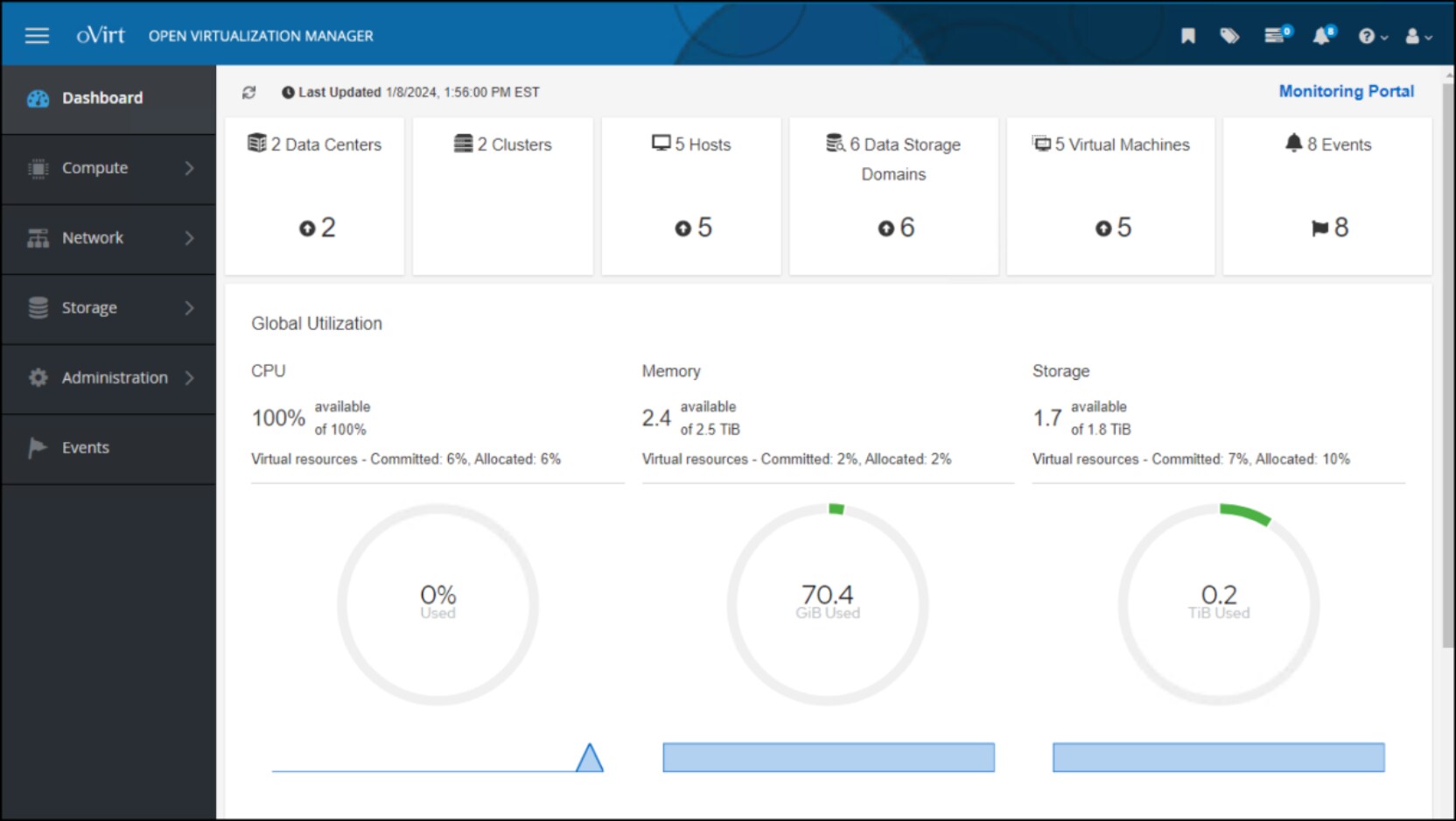
Figure 5. oVirt Open Virtualization Management
VM Portal
The VM Portal allows the user to drill down into each virtual machine in the environment and make changes at that level. Figure 6 shows the detail of one particular VM, austin20.dellhcilab.com.
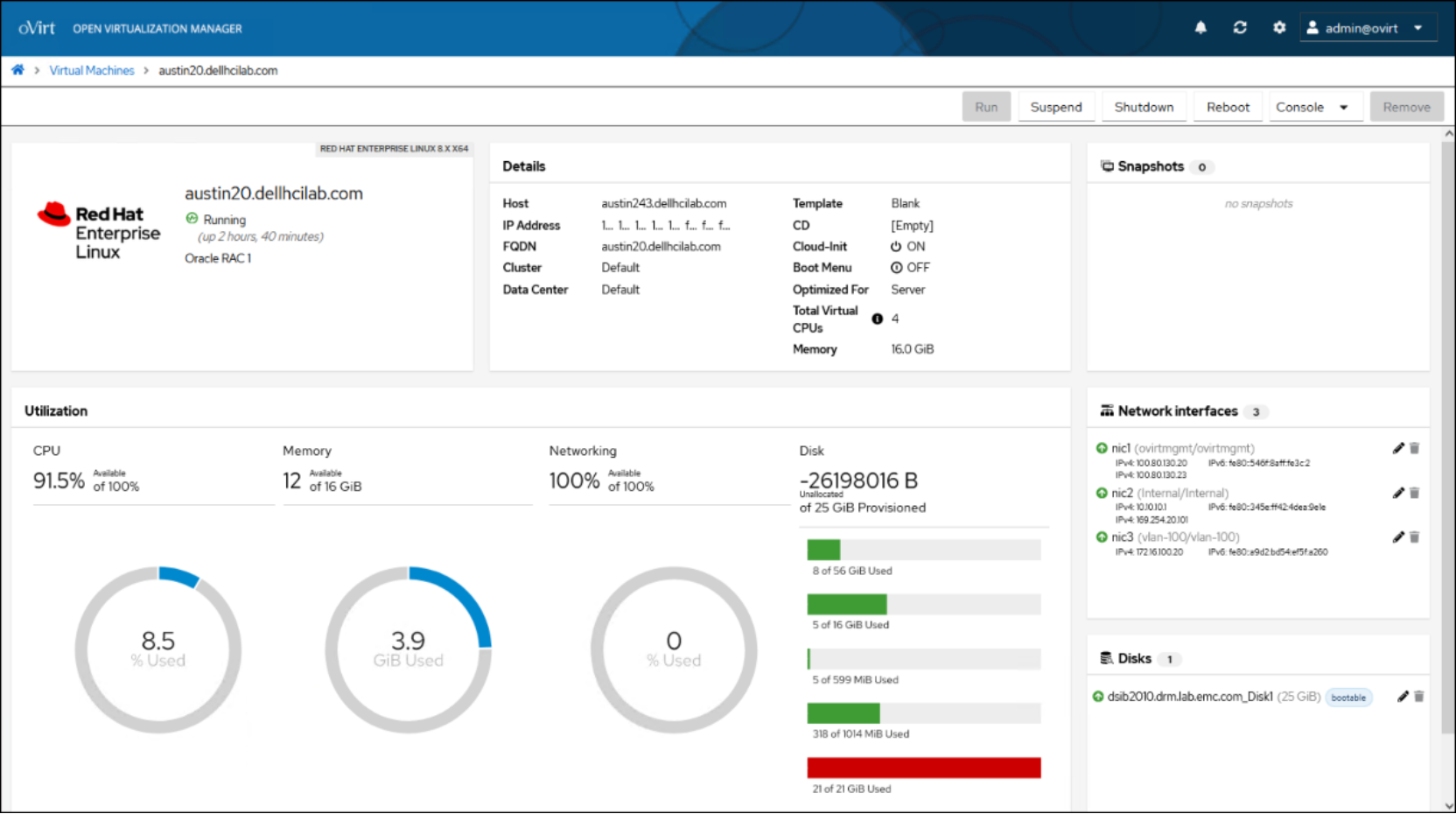
Figure 6. VM Portal
Monitoring Portal
The final option is the Monitoring Portal which has Grafana at its foundation. Grafana is an open-source analytics and monitoring platform that integrates with oVirt and provides dashboards, alerting, and monitoring capabilities. It is a highly customizable platform permitting users to modify and share dashboards. Grafana comes preconfigured with a selection of dashboard categories and dashboards for oVirt shown in Figure 7.
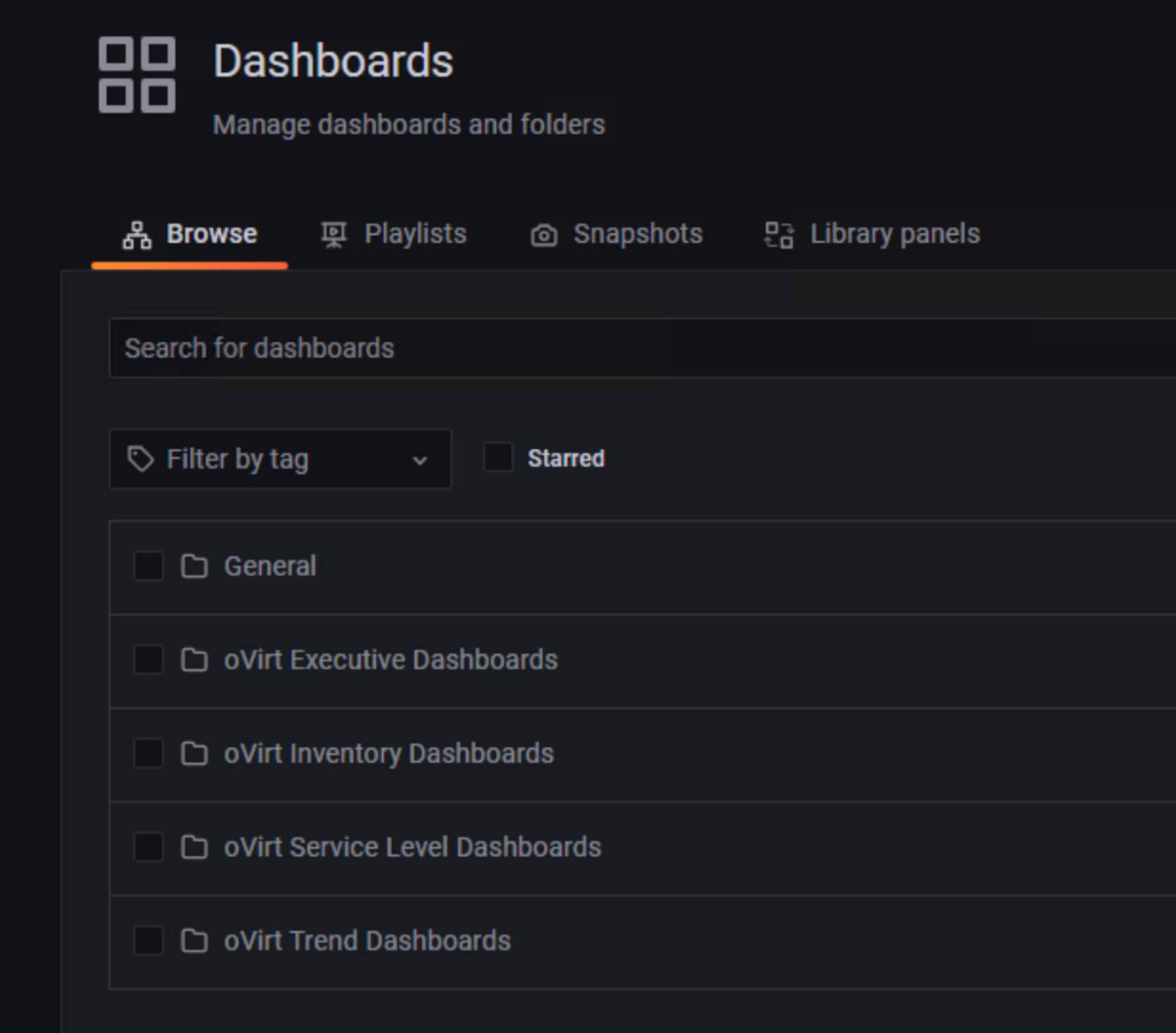
Figure 7. oVirt dashboards
The individual dashboards offer great detail into the clusters, hosts, and individual VMs running in the environment. The host level dashboard is shown in Figure 8.
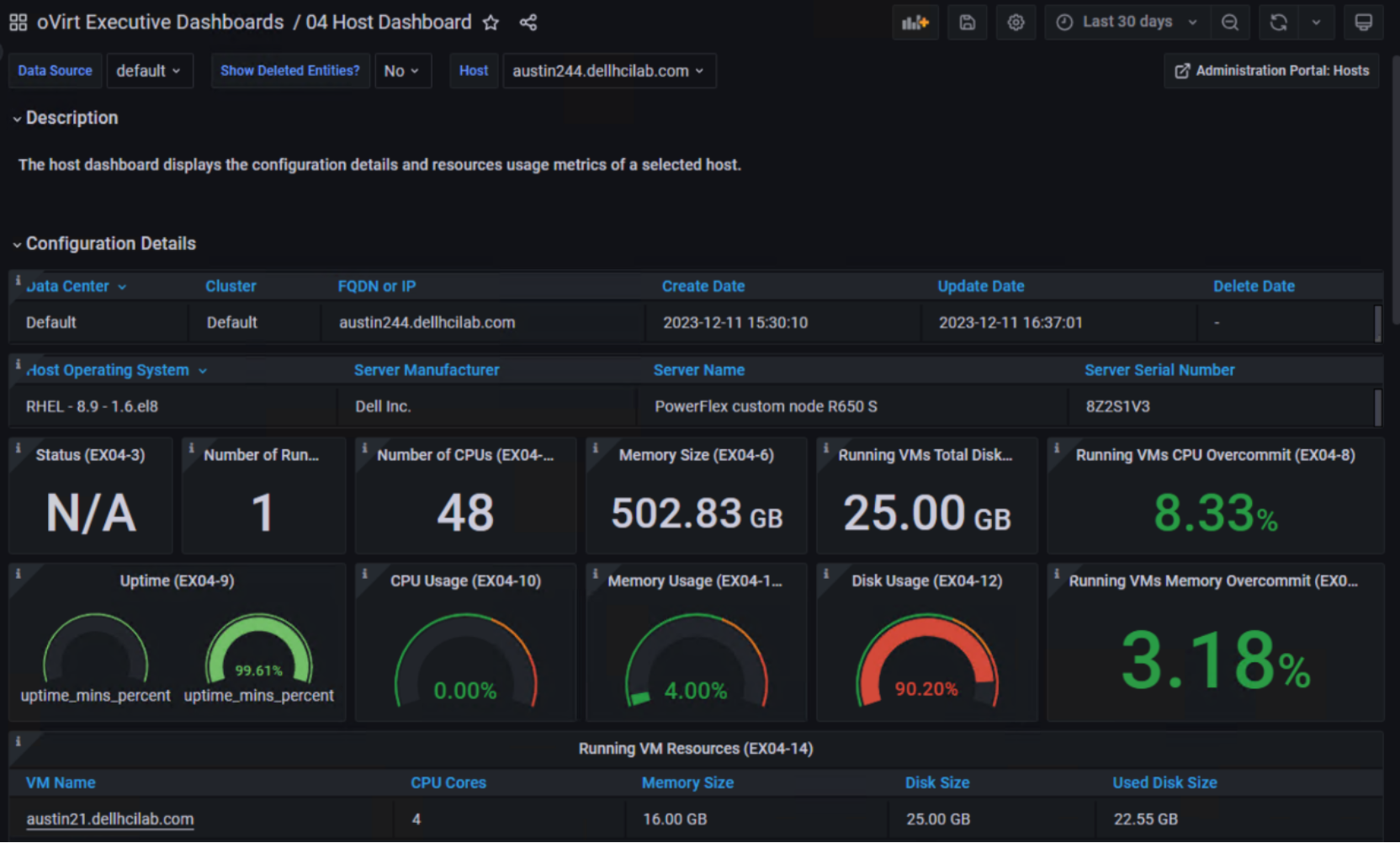
Figure 8. Host dashboard
VDSM
An essential component of the oVirt Engine is the Virtual Desktop Server Manager or VDSM. VDSM is the component of the oVirt platform responsible for managing and monitoring the virtualization hosts. It handles the life cycle management of the VMs – creation, resource allocation, monitoring, migration, and deletion. VDSM runs as a host agent and communicates with the oVirt Engine from each virtualization host in the cluster to ensure proper management of the environment.
oVirt Engine
The oVirt Engine can be implemented on one or two physical hosts, or it can be deployed as a VM either in a separate virtualization environment or within the KVM environment itself. If the oVirt Engine is separate from the KVM environment, it is called a stand-alone implementation. In such a configuration the VM could be hosted in a non-KVM virtualization environment. If the oVirt Engine is run in the KVM environment, it is known as self-hosted.
Both installation types require Enterprise Linux 8 of any distribution. When it is self-hosted, the Engine Appliance is used to automate the Guest OS installation. A VM implementation, either stand-alone or self-hosted, uses the virtualization environment’s ability to support high availability. The stand-alone implementation, however, requires an external HA management such as Red Hat’s High Availability Add-On.
Note: In order for oVirt to support HA for the self-hosted implementation, a second KVM host in the cluster must be enabled as a Hosted Engine. See section Adding a KVM host to a cluster for more detail.
Figure 9 is an example of a stand-alone implementation from the oVirt documentation where two physical hosts access the same shared storage. The oVirt Engine only runs on a single host, with the second providing high availability if there is external HA management, hence the requirement for the hosts to see the same storage.
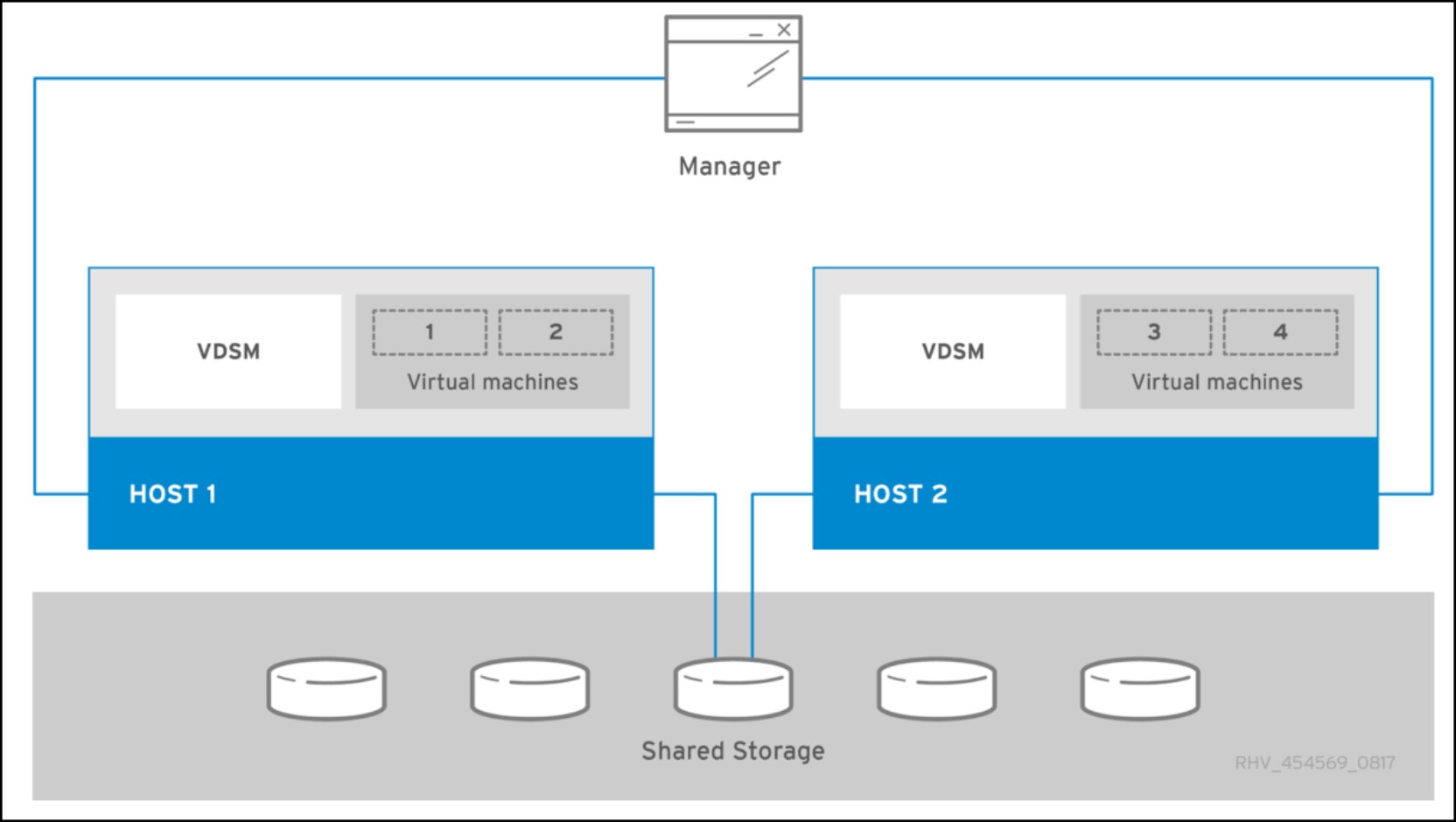
Figure 9. Standalone oVirt Engine[1]
Figure 10 shows the self-hosted example where the oVirt Engine is deployed directly in the KVM environment.
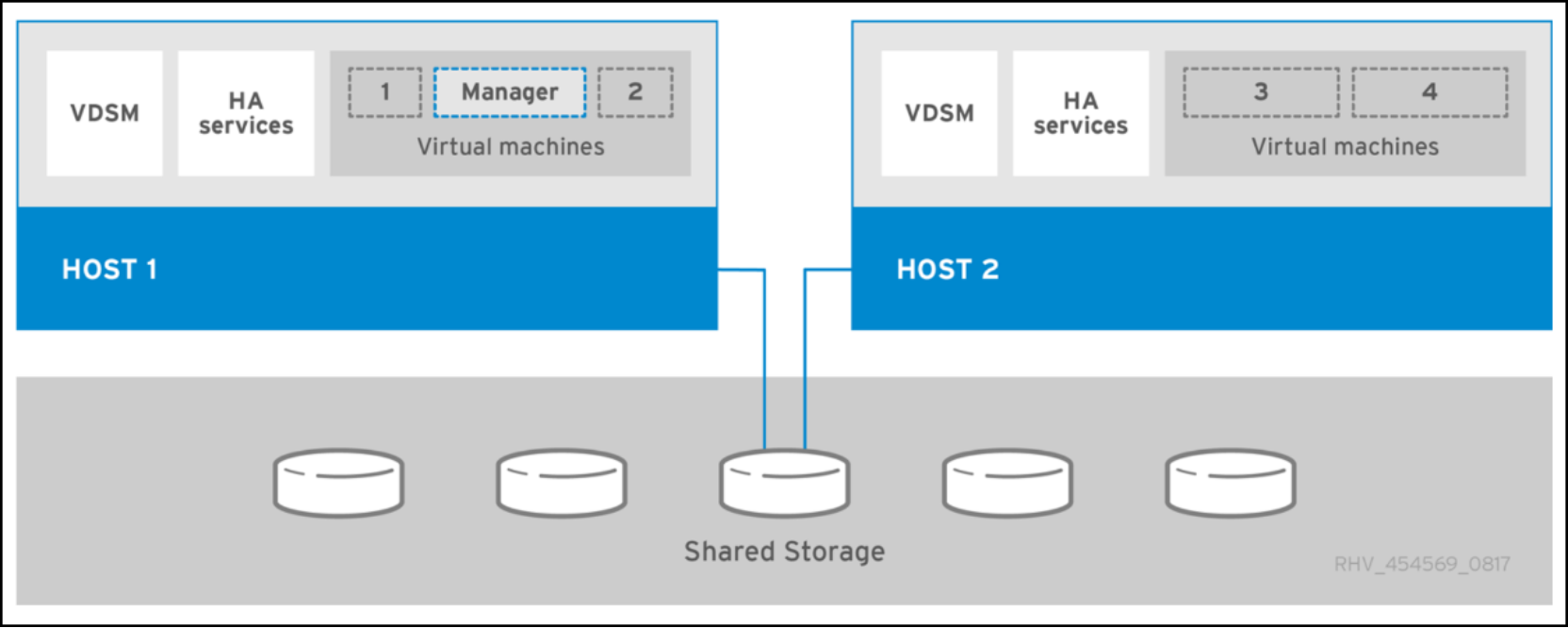
Figure 10. Self-hosted oVirt Engine[2]
The oVirt community generally recommends a stand-alone configuration since that separates management from the KVM environment. This recommendation is similar to VMware’s recommendation of not running vCenter on the same ESXi hosts which it is managing.
For the environment detailed in this paper, however, a self-hosted oVirt Engine is used due to resource limitations. The hosted engine appears like any other VM in the UI in Figure 11.
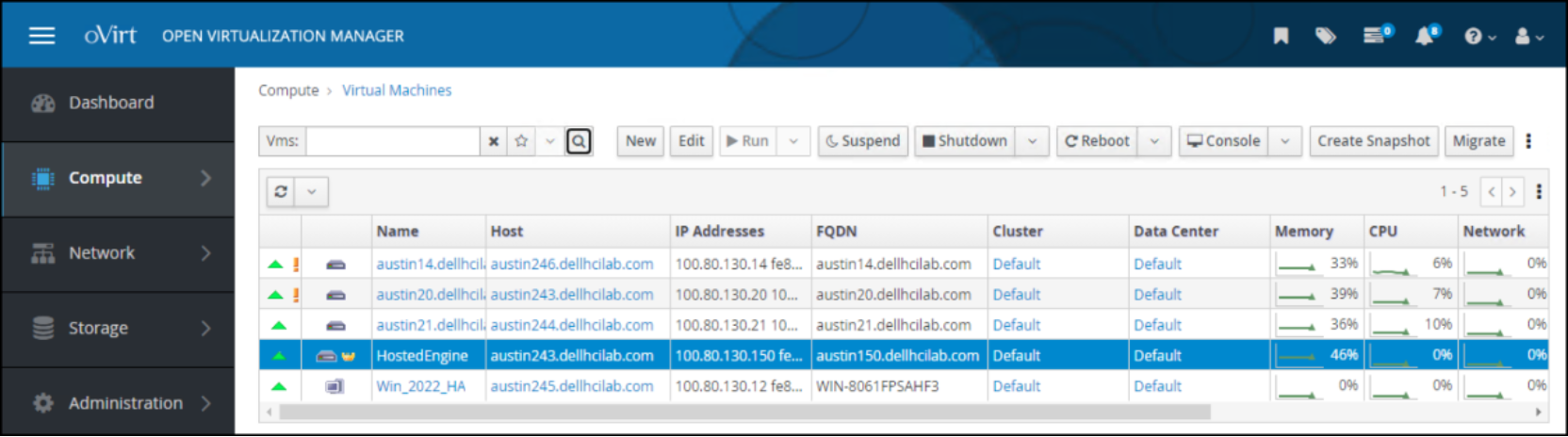
Figure 11. Self-hosted oVirt Engine VM
Hosts
oVirt supports two types of hosts: oVirt node and Enterprise Linux.
Environment and system requirements
Introduction
Prerequisites
oVirt components
Table 3 lists the oVirt software version and the versions for both the oVirt Engine and hosts.
Table 3. oVirt components
|
Software Component |
Version |
|
oVirt software |
4.5.5 or nightly build |
|
Engine |
|
|
8.x |
|
8.x |
|
Hosts |
|
|
8.x |
|
8.x |
|
8.x |
|
9.x |
|
9.x |
|
9.x |
Network topology
At the physical layer, two Top of Rack (TOR) switches are used for redundancy and load-balancing purposes. There are four connections from each Dell host, two to TOR A and two to TOR B.
The following table shows the different networks that are configured for this solution.
Note: All VLANs are tagged except for management (1109).
Table 4. Network VLANs
|
Network type |
VLAN ID |
|
PowerFlex Management/oVirt Management/VMs |
0 |
|
PowerFlex Data |
50 |
|
PowerFlex Data |
100 |
PowerFlex topology
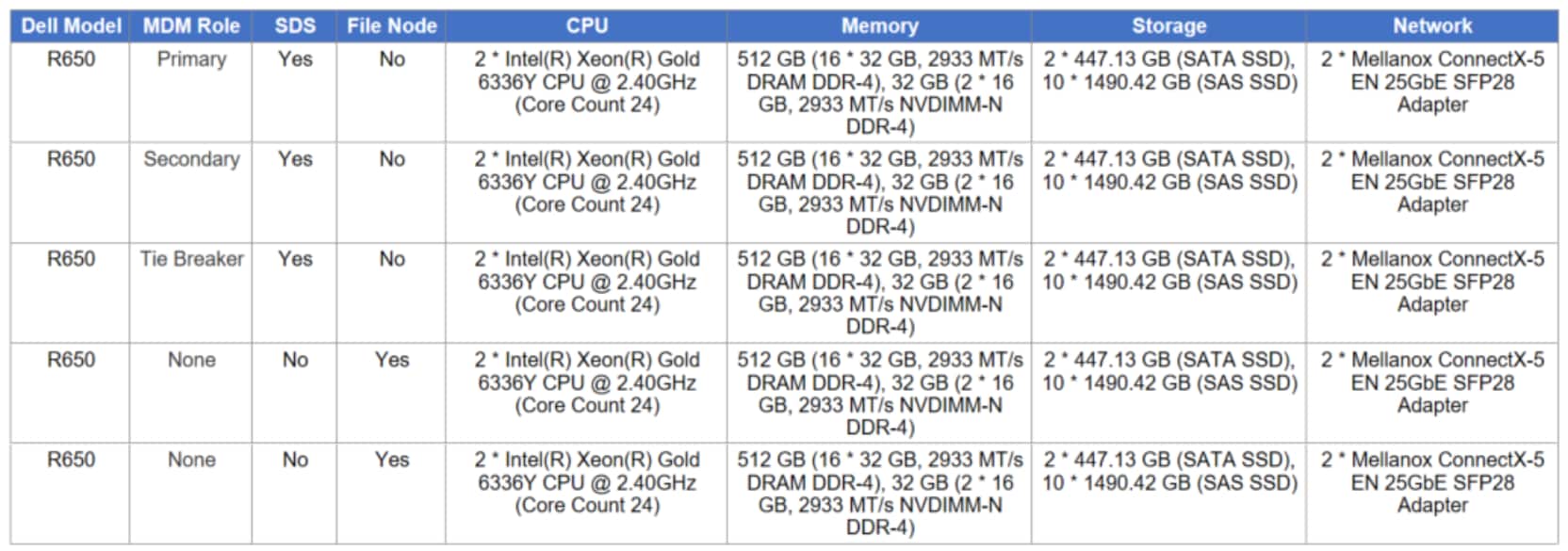
The PowerFlex 4.x system that is used in this solution consists of five nodes, three for the MDM cluster and two for File. The characteristics of these servers are covered in Table 5.
Table 5. PowerFlex node configurations
KVM servers
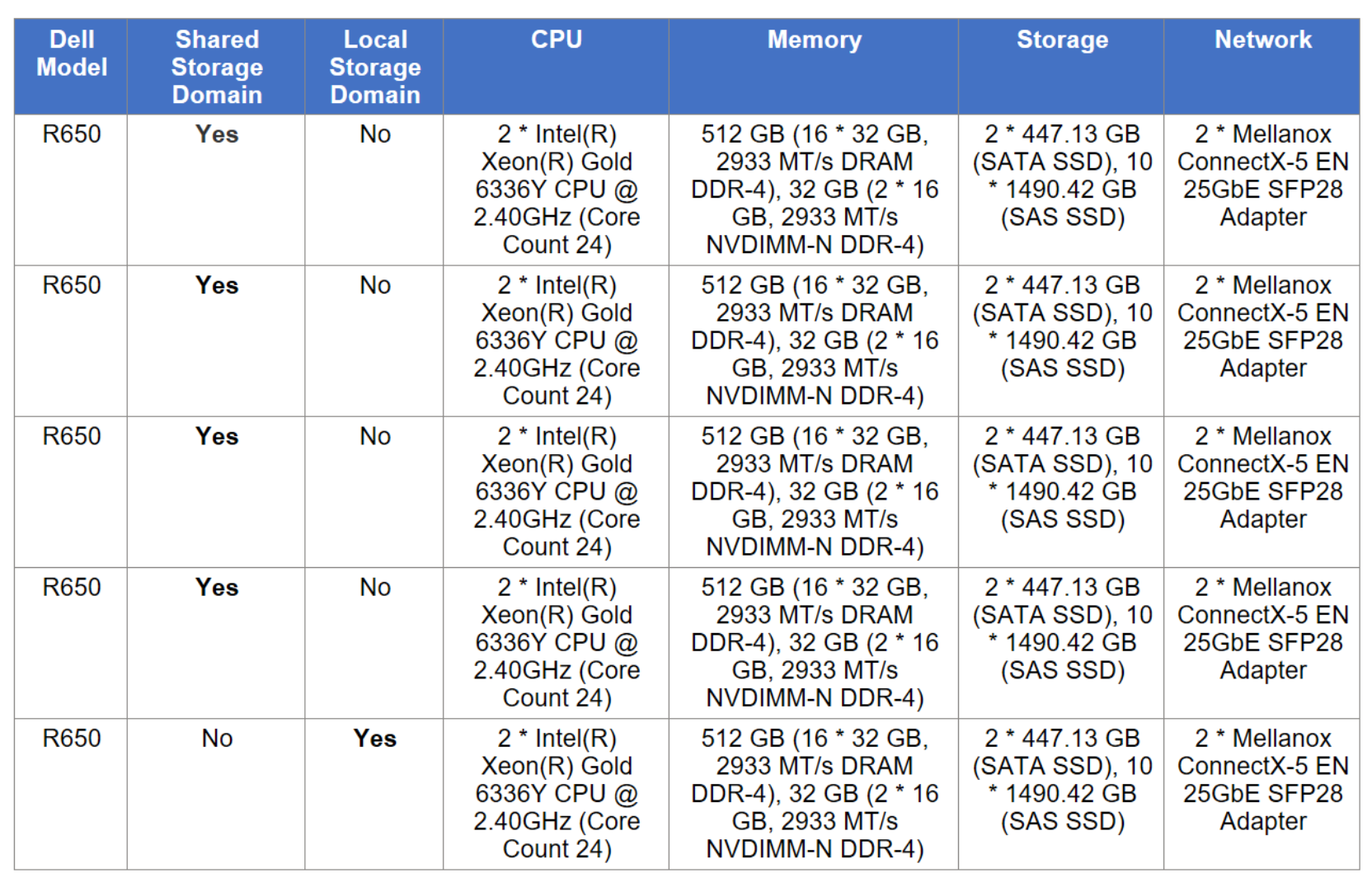
The KVM environment as described in this paper consists of five servers. Although the specifications of all servers are the same, they are listed below in Table 6 for completeness.
Table 6. KVM server configurations
Deployment
Introduction
Storage domains
Storage plays an essential role in the KVM implementation The storage dictates the type of cluster: shared or local. Shared storage is the more common KVM cluster, enabling features such as HA and migration. During the oVirt Engine installation outlined in this paper, an initial shared storage domain was required and created on PowerFlex. Dell Technologies recommends creating additional storage domains on PowerFlex for objects such as VMs and ISOs either on FC (SDC) or NFS. The process for doing so follows next.
Storage types
When creating new shared storage domains in a KVM environment, the user is limited to certain storage types. They are the following and appear in Figure 39:
- NFS
- POSIX-compliant FS (global file system)
- GlusterFS
- iSCSI
- Fibre Channel
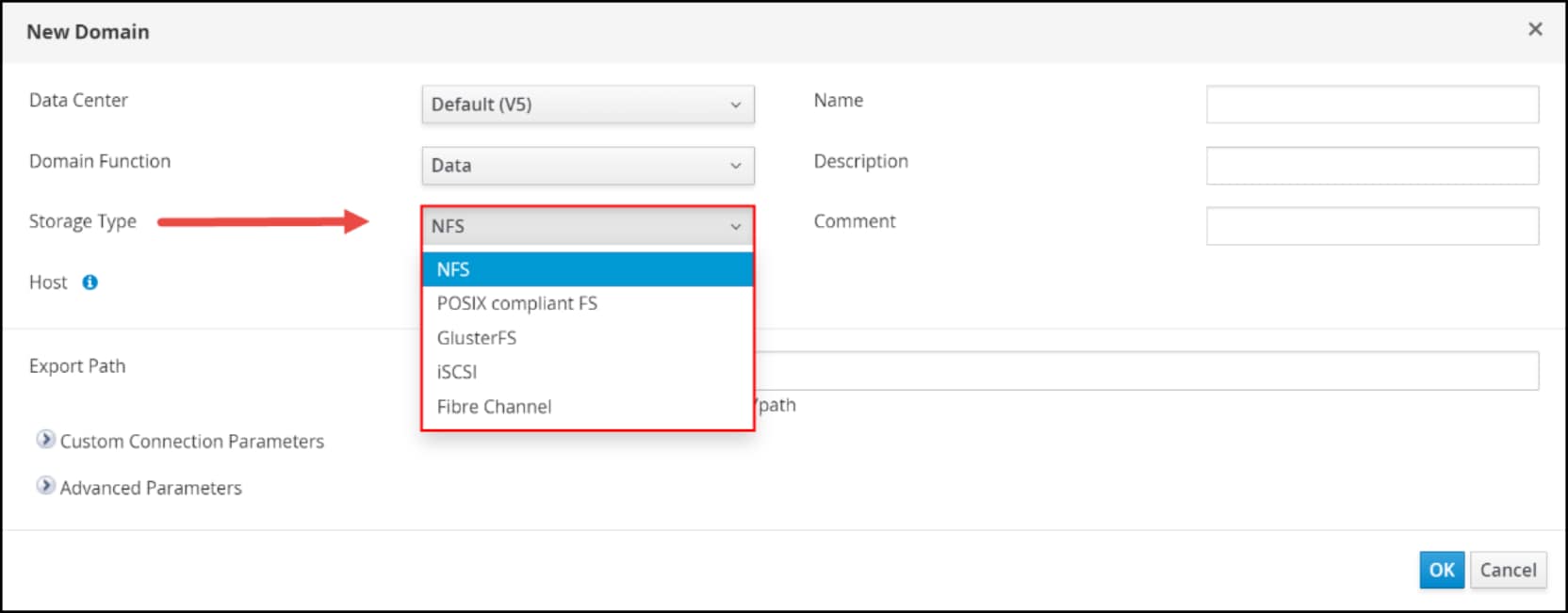
Figure 39. Storage type options for a storage domain
Putting aside GlusterFS, PowerFlex supports two of these protocols, NFS and Fibre Channel (FC). While PowerFlex has native NFS support, it does not have FC support. Technically, however, oVirt is simply looking for SCSI devices, so despite PowerFlex presenting volumes over the IP network, if the KVM host is configured properly, OVM finds PowerFlex volumes that are mapped to the hosts through the Storage Data Client, or SDC. These volumes are regular SCSI devices, just like those presented with iSCSI or FC. KVM thus treats PowerFlex devices that SDS presents as legitimate storage for the shared storage domain.
KVM has specific requirements for each storage type that is used in a storage domain. The next sections cover the types that are supported with PowerFlex.
NFS
Network File System (NFS) is a distributed file system protocol that allows users to access files over a network. NFS is a common choice for storage domains because it is simple to implement and manage. When using NFS storage with KVM, it is important to pick a platform that meets the performance and scalability requirements of your workloads. PowerFlex is the perfect solution for KVM as its NAS implementation can scale up to 16 nodes, supports both NFS 3 and 4.1, and delivers superior performance when matched with a high performance, low latency network.
For NFS, the permissions and the ownership of the share must be altered so that the oVirt Engine can use it. The available ownership and permissions on the PowerFlex NFS export are limited and do not meet the requirements of KVM. It is necessary, therefore, to manipulate the share either on an existing KVM node, or on a separate host altogether. In the following example, a Linux host was configured for the sole purpose of meeting the prerequisites of NFS storage. This example sets up the storage for the self-hosted oVirt Engine. It is the same process as is required for creating an NFS storage domain after the oVirt Engine deployment completes. The procedure to create the NFS and make it available to the KVM node is as follows.
Protection
Introduction
Hosted engine backup
It is important to take regular backups of the oVirt Engine if there is a failure. While PowerFlex snapshots are an available option, oVirt offers a simple CLI tool, engine-backup, that dumps the engine to a single file which can be used for various restore operations. In fact, if backups are not taken regularly, OVM warns the user in the event log with the following message: “There is no full backup available, please run engine-backup to prevent data loss in case of corruption.”
The engine-backup utility is not installed by default, even on an oVirt node, but it is readily available in the repository. It does, however, require PostgreSQL. Follow these steps to install the utility:
- Enable and install the PostgreSQL repository:
dnf install -y https://download.postgresql.org/pub/repos/yum/reporpms/EL-8-x86_64/pgdg-redhat-repo-latest.noarch.rpm
- Disable the integrated PostgreSQL module:
dnf -qy module disable postgresql
- Install PostgreSQL:
dnf install -y postgresql12-server
- Install the backup tools:
yum install ovirt-engine-tools-backup
Once installed, take a full backup of the environment. Although there are many options for backing up using the utility, including adding config files, the simplest operation is to run a full backup, ensuring everything is added. It is best to save the backup file to a location off the hosted engine server. In this environment, a separate PowerFlex NFS mount, engine_backup, is used for this purpose.
Run the following command as root, modifying the file locations:
engine-backup --scope=all --mode=backup --file=/engine_backup/engine_backup_1-18-2024 --log=/engine_backup/engine_backup.log
The backup runs quickly. The results are shown in Figure 61.
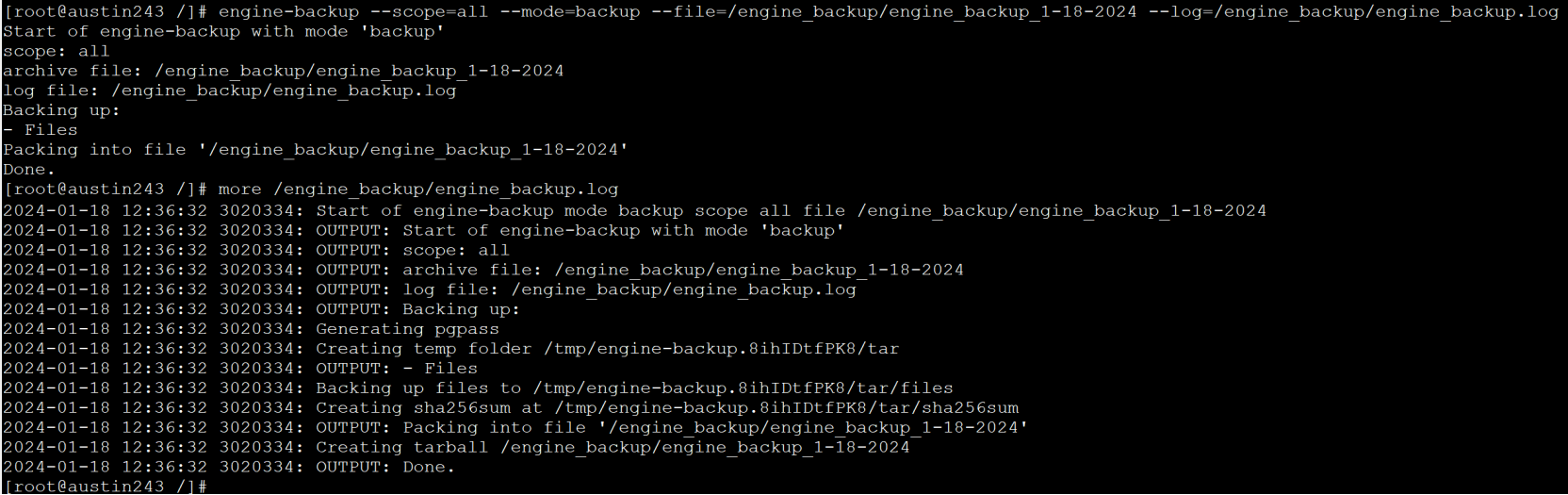
Figure 61. Full backup using utility engine-backup
Dell Technologies recommends taking regular backups to ensure restore capabilities.
Protection for KVM on PowerFlex
One of the benefits of using array-based storage for KVM is the ability to use the features of the array, such as local and remote replication. KVM does offer VM-based snapshots, but they are unable to offer a consistent copy of all objects that are part of the storage domain like array technology can. Such copies can serve multiple purposes, from cloning, to restores and backups. And as storage domains are used to run production applications, it is essential to have a backup strategy in case there is a failure.
PowerFlex offers snapshot capability for block and file storage through both UI and CLI, and remote replication for block storage. While remote replication is beyond the scope of this paper, the following sections walk through creating a snapshot in the PowerFlex UI for both a block volume and a file system which are in use as storage domains. In addition, snapshot policies are demonstrated which enable regular backups.
Block snapshot
In the PowerFlex UI, log in and navigate to Block > Volumes. Using the check box, select the wanted volume where the storage domain is provisioned, in this case Volume-for-oVirt-KVM. From the More Actions menu select Create Snapshot from the menu as in Figure 62.
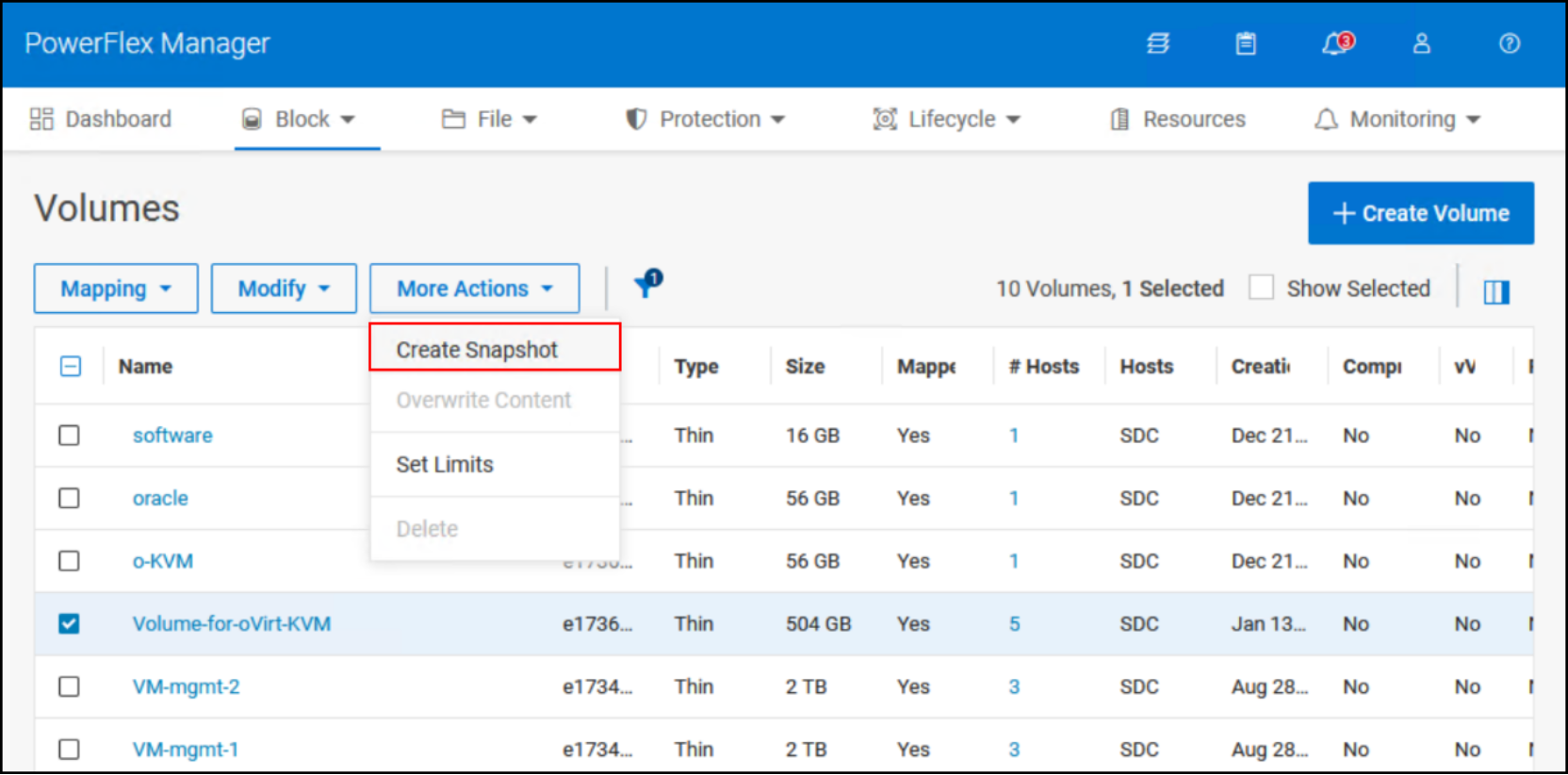
Figure 62. Volume snapshot
PowerFlex presents the following dialog in Figure 63. The user can select to create a Read/Write snapshot or Read Only. In addition, the Use secure snapshot option, which is checked here, prohibits deletion of the snapshots until the defined expiration period has elapsed. Click Create to start the task.
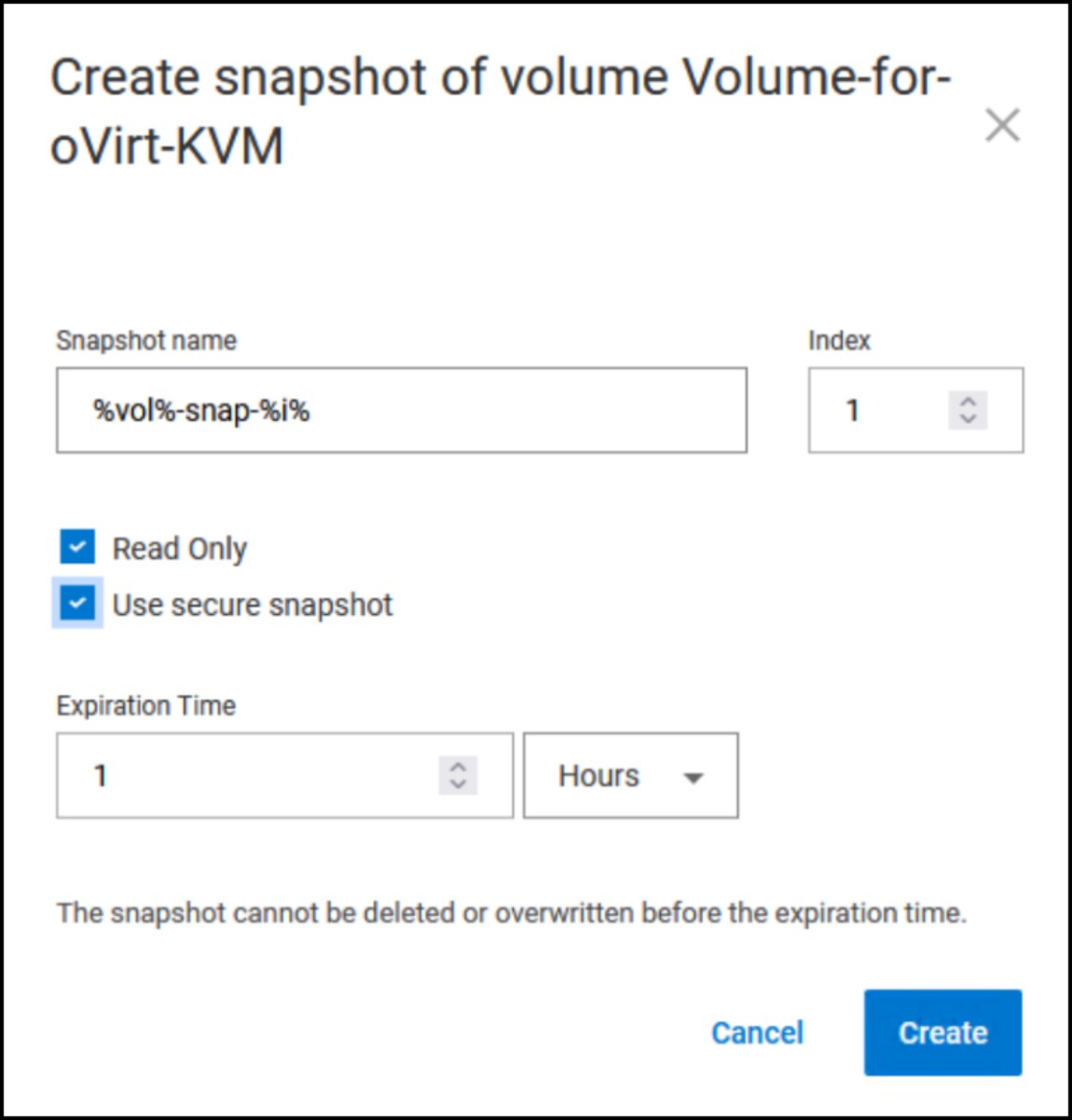
Figure 63. Snapshot options for block storage
Successful completion results in the message in Figure 64.
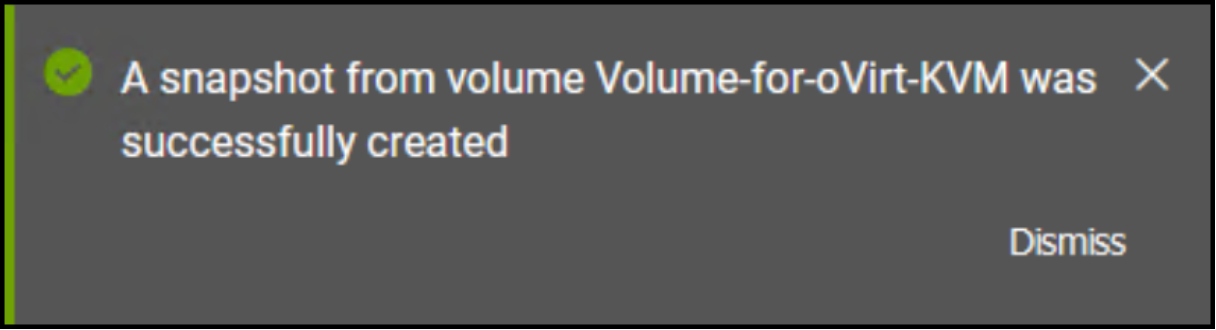
Figure 64. Successful snapshot
After the snapshot is created, it is available for use with the oVirt functionality such as importing the storage domain.
File snapshot
In the UI, log in and go to File > File Systems. Select the wanted file system in use as a storage domain, in this case isorepo. Select Protection > Create Snapshot from the menu as in Figure 65.
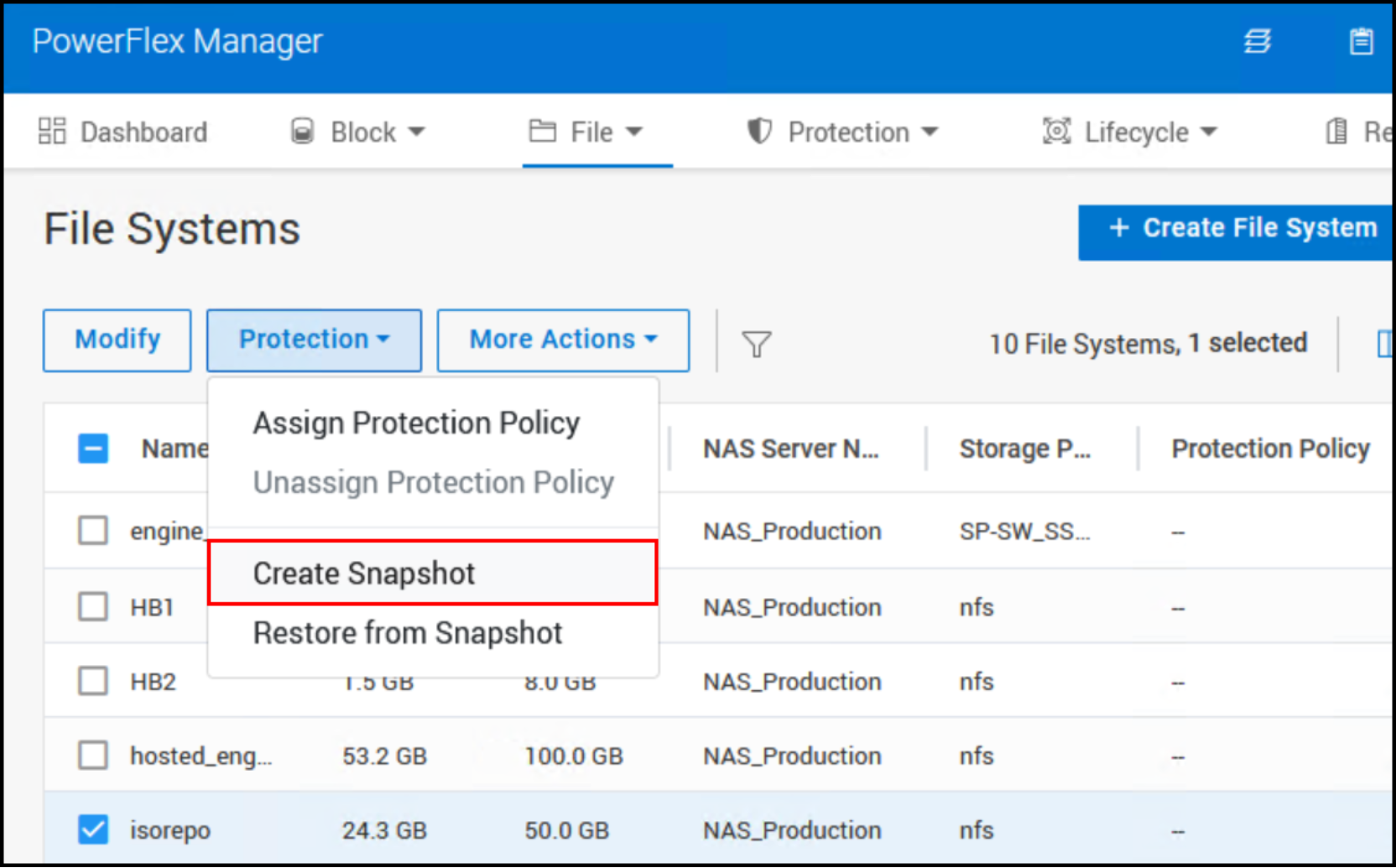
Figure 65. File system snapshot
PowerFlex presents the following three types of snapshots that are shown in Figure 66.
- Protocol (read-only): Creates a read-only snapshot that can be mounted and accessed later through NFS export or SMB share.
- Snapshot: Creates a read-only auto-mounted snapshot accessible through the snapshot directory in the file system.
- Protocol (read/write): Creates a read/write snapshot that can be mounted and accessed later through NFS export or SMB share.
The retention period is set to one week by default. One can set a different retention period or select the No Automatic Deletion for indefinite retention.
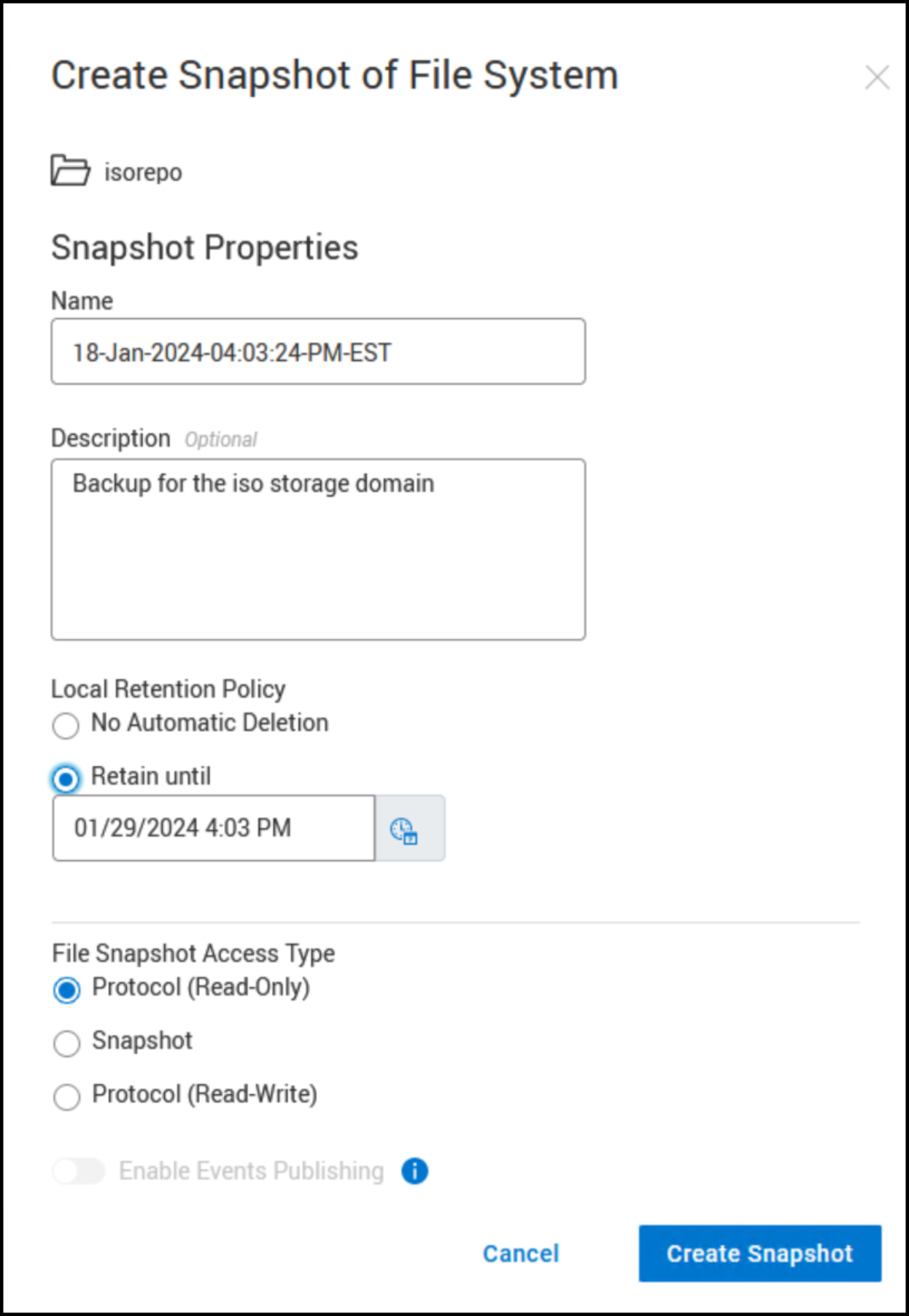
Figure 66. Snapshot options
For the purposes of backup and restore, a protocol (read-only) snapshot is the best option because it is only mounted when required and does not permit overwriting the data. A protocol (read/write) snapshot would be useful for test or development purposes. Finally, the “snapshot” snapshot, unlike the other two, is made available immediately to the system through the existing NFS file system. This type of snapshot is useful to do a quick restore of objects in the file system. In Linux, the way to access it is through the “.snapshot” directory of the NFS datastore. This directory does not show up, even when listing hidden files. The user must know that the snapshot exists, and they must change the directory into .snapshot. Alternatively, if the same NFS datastore is also available as an SMB share, the snapshot is available by right clicking the share, selecting Properties and then the Previous Versions tab as seen in Figure 67.
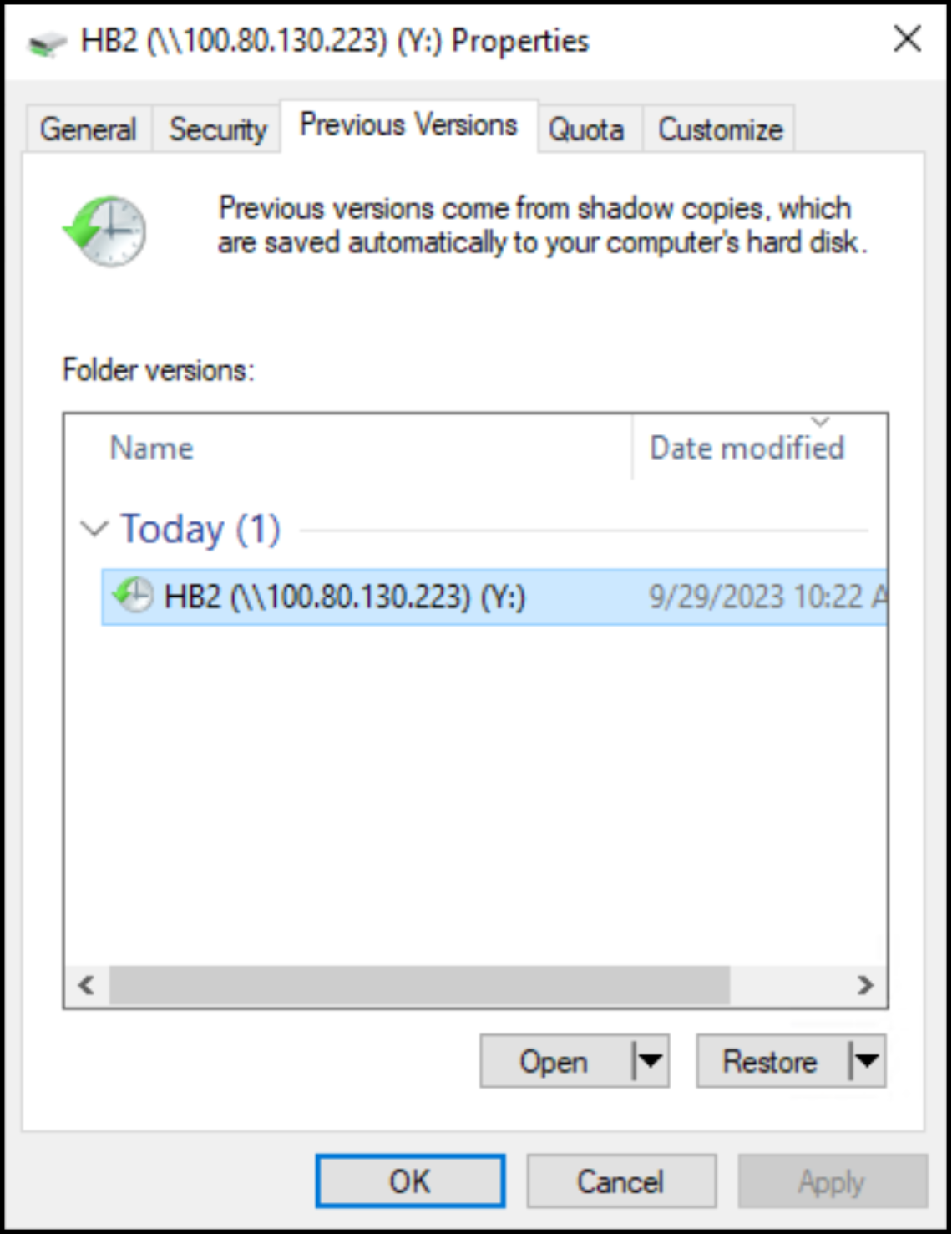
Figure 67. Snapshot access in an SMB share
By opening the folder, the objects in the snapshot are available for restore.
Protection policies
In additional to individual snapshots, PowerFlex provides the ability to setup protection policies which consist of snapshot rules that automate how often to take a snapshot of a block volume or file system and how long to retain them. A volume or file system may only have a single protection policy that is assigned to it. As both block and file protection policies are similar, it is unnecessary to include both. This example uses a block volume. To create a protection policy:
- Navigate to Protection -> Snapshot Policies.
- In the right corner, click + Create Snapshot Policy.
- Enter the following information in Figure 68.
- Policy Name
- Snapshot Rules – specify by Minute, Hour, Day, or Week
- Retention Rules – this defaults to a single rule based on the measure specified in the base rule, but two additional rules are possible, each modifying the length of the previous. In this example, the system creates a snapshot every hour for 24 hours, and then retains 7 days’ worth continuously.
Upon completion, click Create and Activate. If only Create is clicked, the policy enters a paused state, even if a volume is assigned to it. It would then require activation.
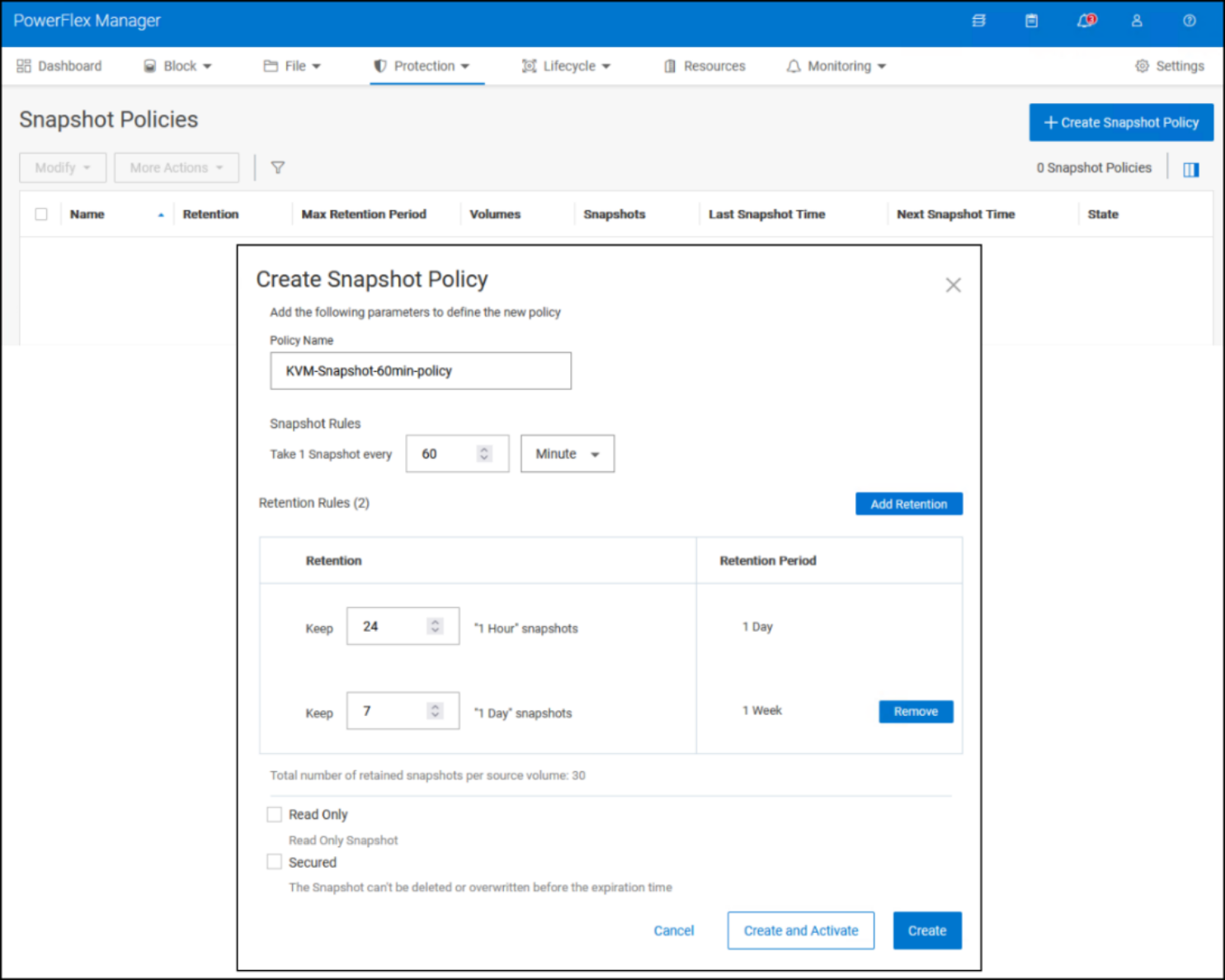
Figure 68. Create protection policy
- Assign a volume by using the check box next to the policy and navigating to More Actions -> Assign Volumes in Figure 69.
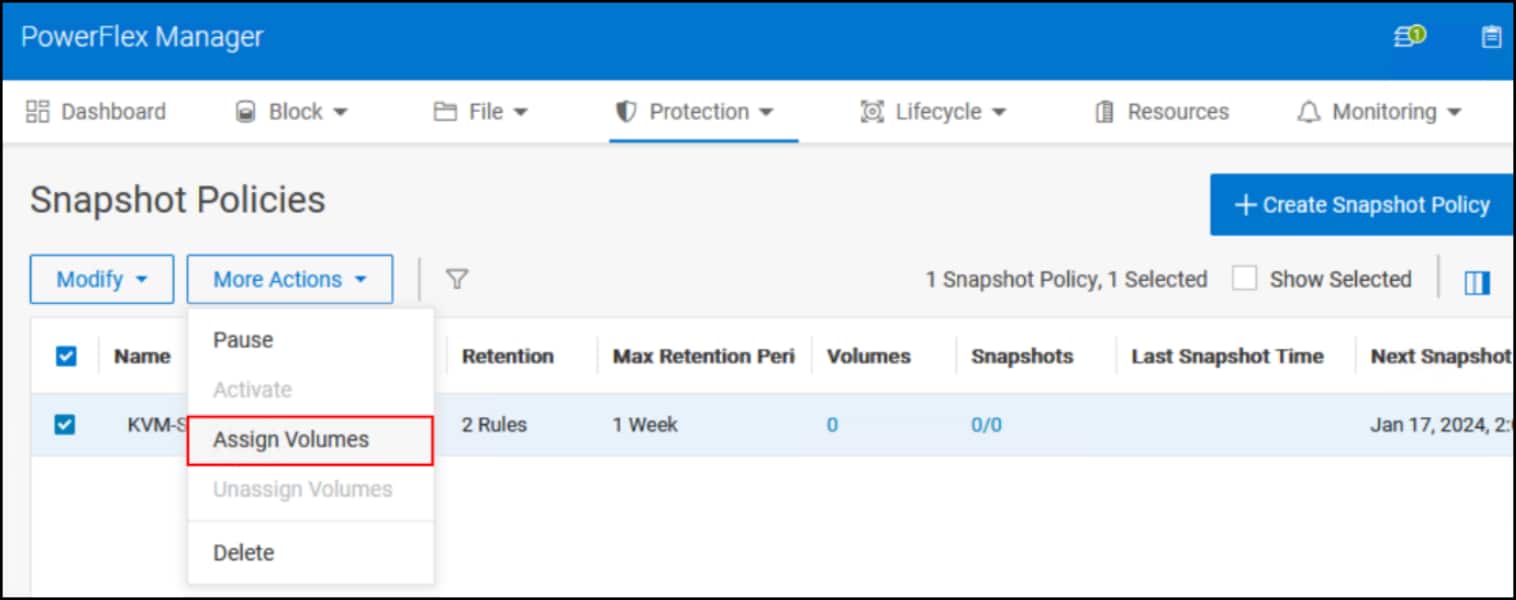
Figure 69. Assign volumes
- Using the check boxes in Figure 70, highlight the previously snapshotted volume and click Assign Policy.
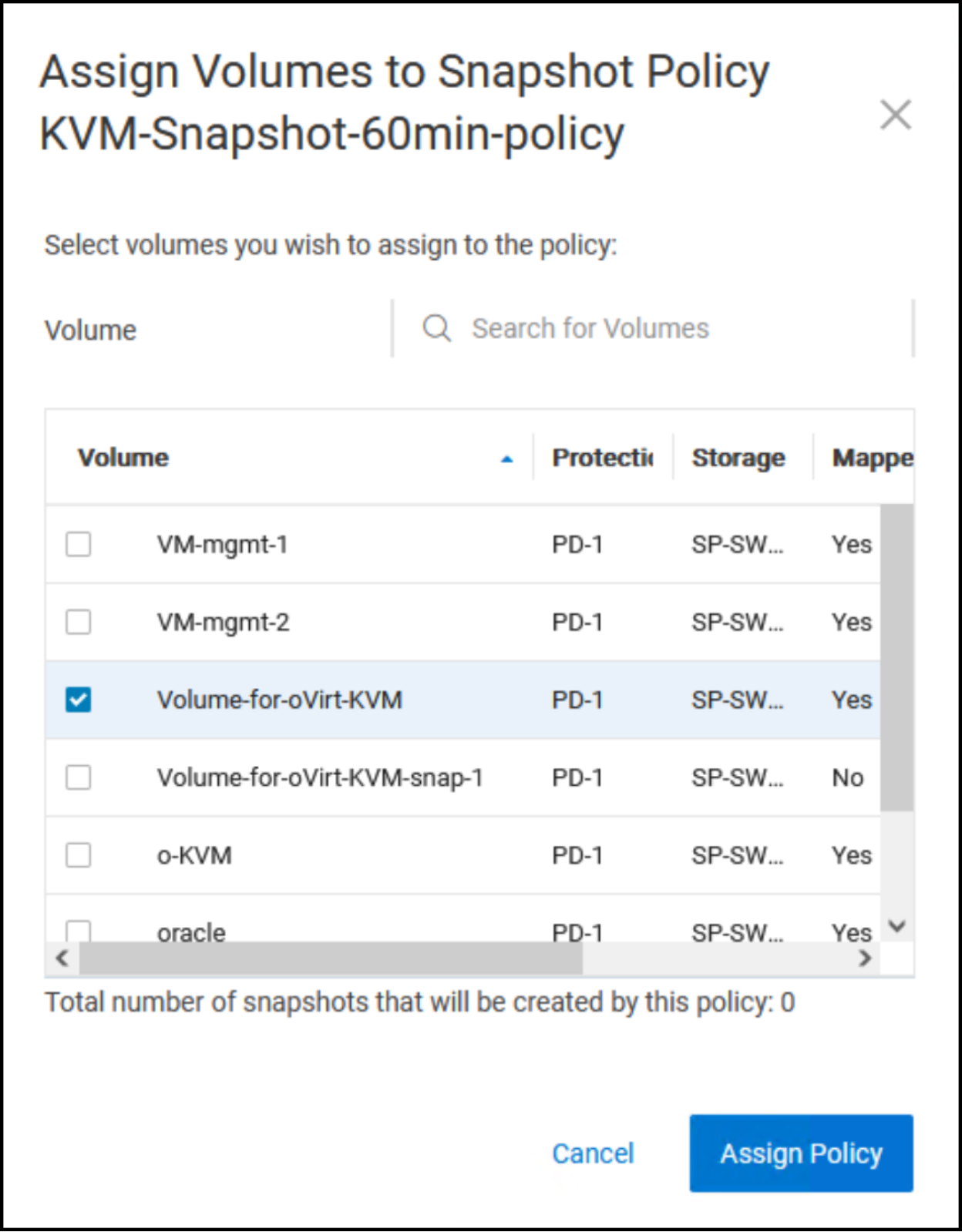
Figure 70. Assign snapshot policy
The policy remains in effect for that volume until it is paused or removed.
Virtual Machines
Introduction
Prerequisites
Complete the following prerequisites prior to creating the first virtual machine in the environment.
Image upload
In order to create a virtual machine with an operating system, the user must add OVAs and/or ISOs to a storage domain. There is no ability to load an iso from the local system during new VM creation. Dell Technologies recommends using an NFS storage domain on the PowerFlex for this file type. In the example in Figure 71, the isorep NFS storage domain is designated for this purpose.
- Highlight the domain in Figure 71 and click the name which is a hyperlink.
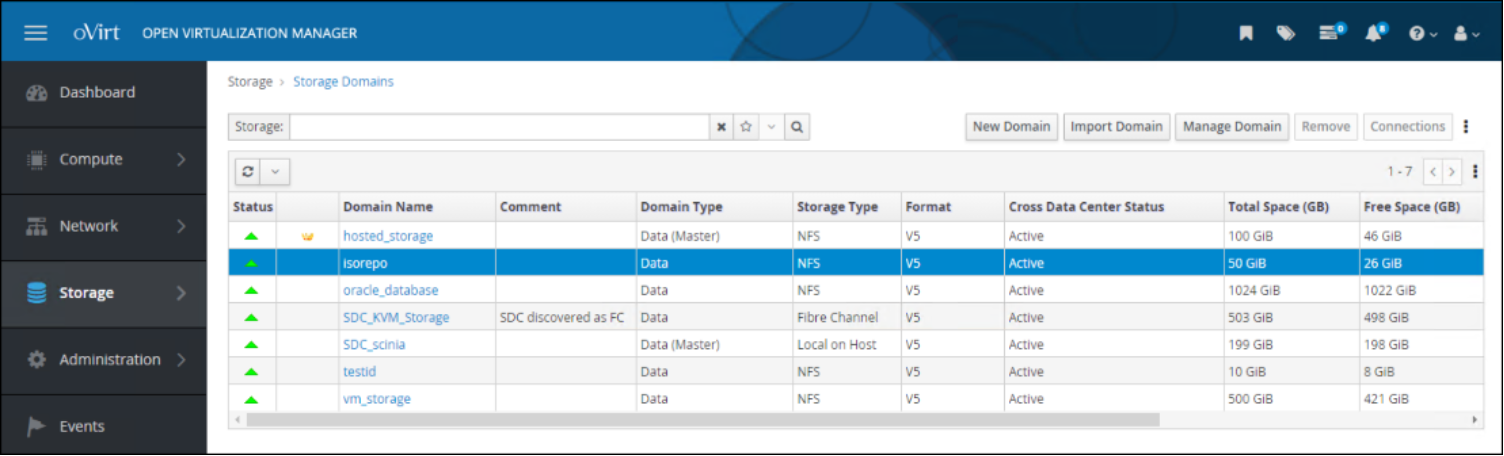
Figure 71. ISO repository
- The details of the domain offer several tabs in Figure 72. Click the Disks and on the right side use the Upload drop-down box and select Start.
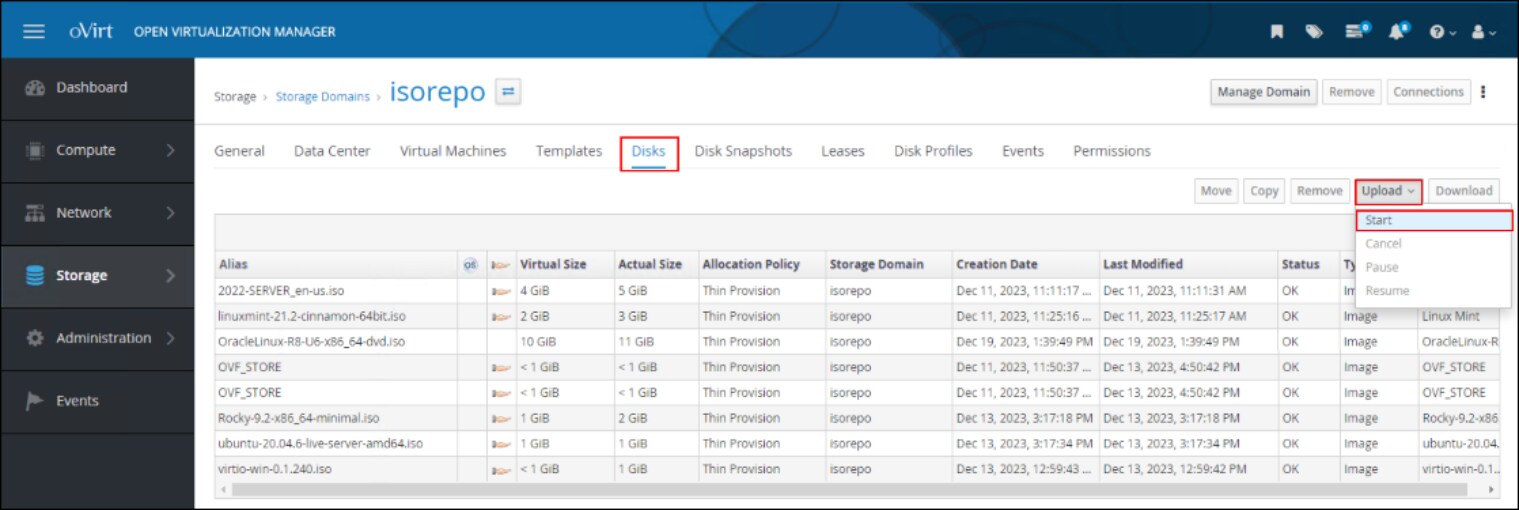
Figure 72. Upload ISO – step 1
- Select the wanted ISO with the Choose File button in Figure 73, run a Test Connection, and then click OK. In this example, the upload fails because of a certificate issue. This is a common problem with the first upload which, as the error message notes, can be resolved by uploading the certificate to the browser in use. To this end, oVirt provides a hyperlink to the certificate in the error message. Click that link, which prompts the user to save a file called pki-resource. Save this file on the local system, renaming if wanted.
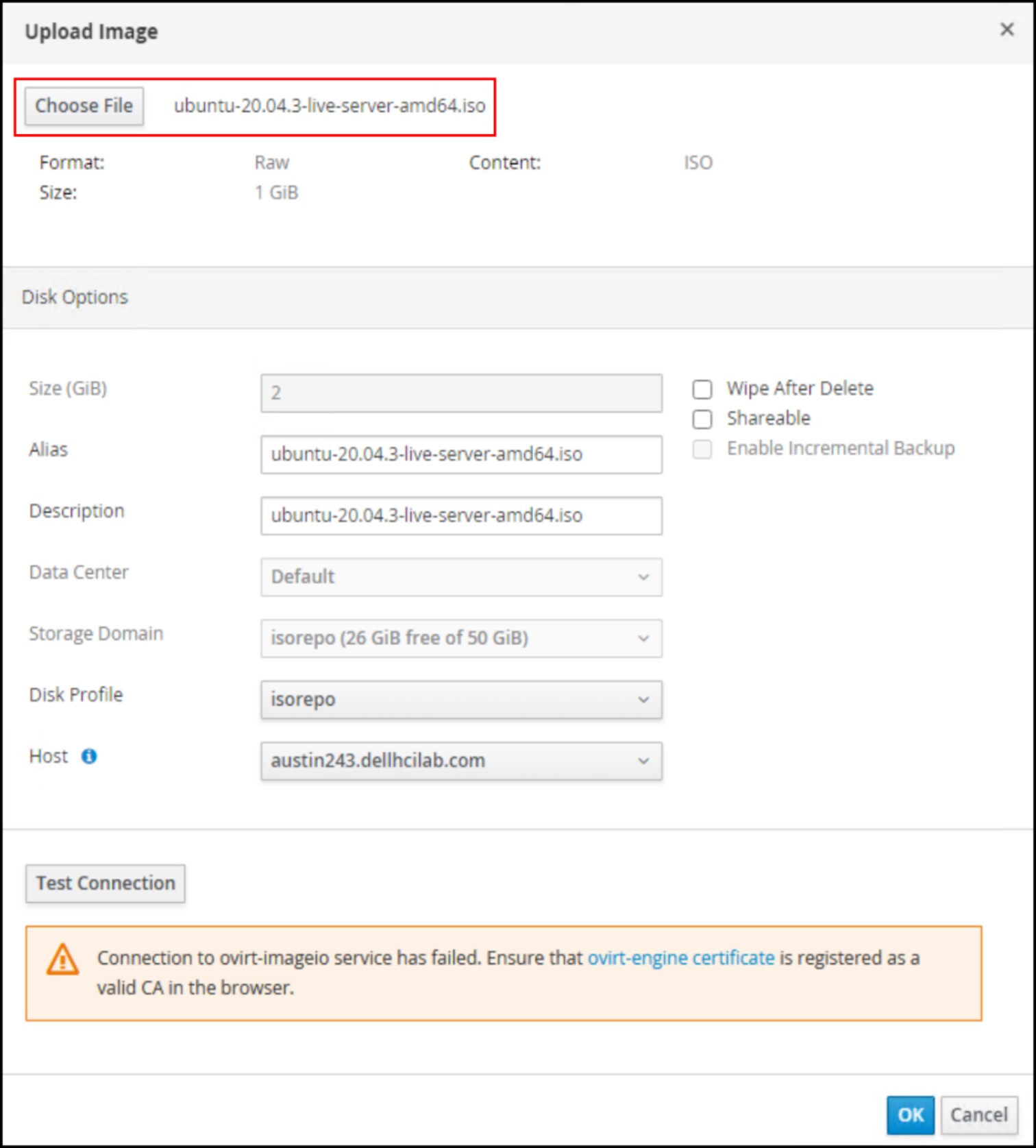
Figure 73. Failed connection to ovirt-imageio service
- Next, open the utility within the chosen browser that handles certificates. In Figure 75, the browser is Mozilla Firefox and thus Certificate Manager is the utility. Under the Authorities tab, click Import. Select the previously saved certificate file. An example is shown in Figure 74.
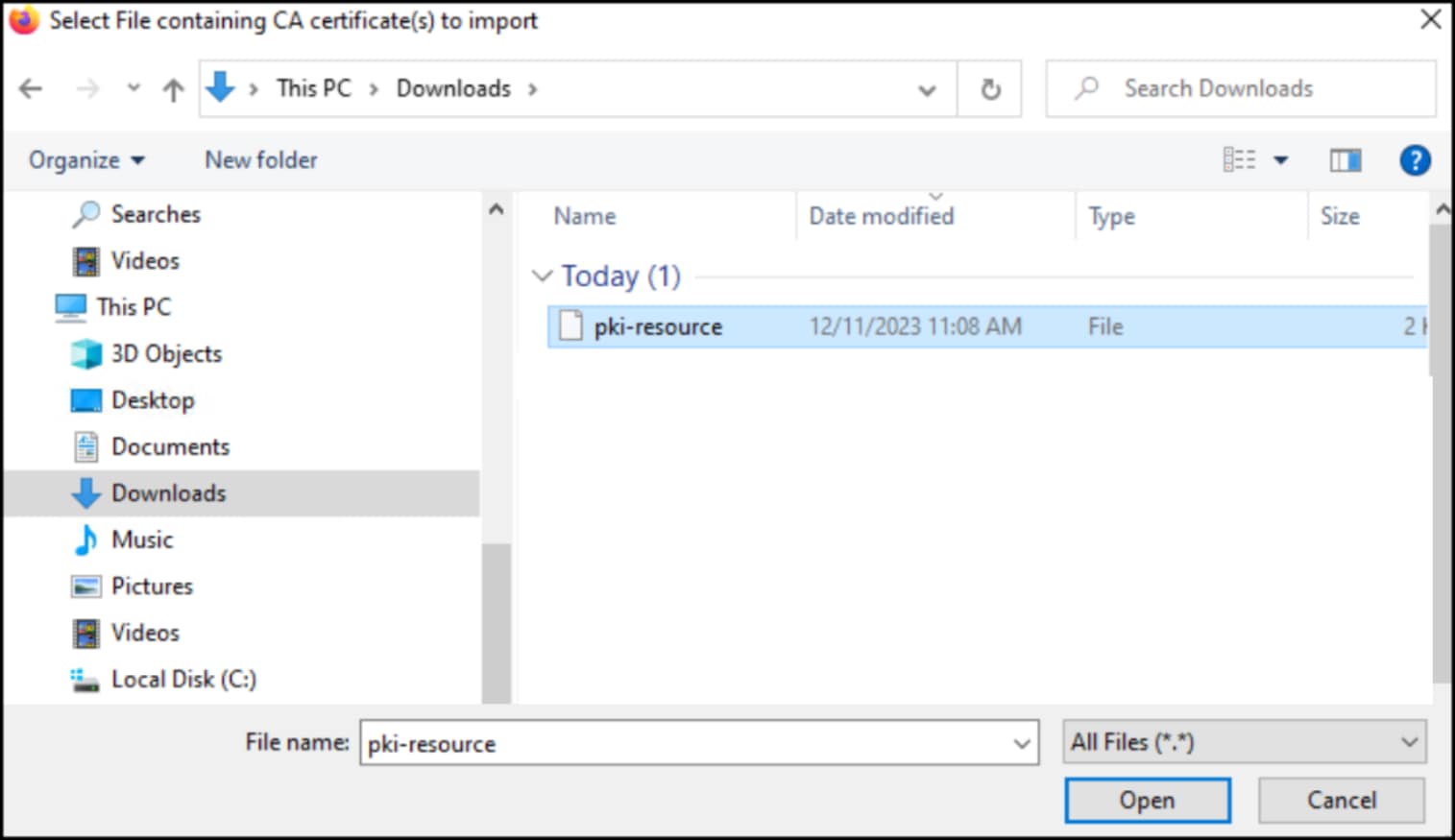
Figure 74. Import certificate
- The utility asks the user if they want to trust the CA certificate. Check the appropriate boxes in Figure 75, and click OK.
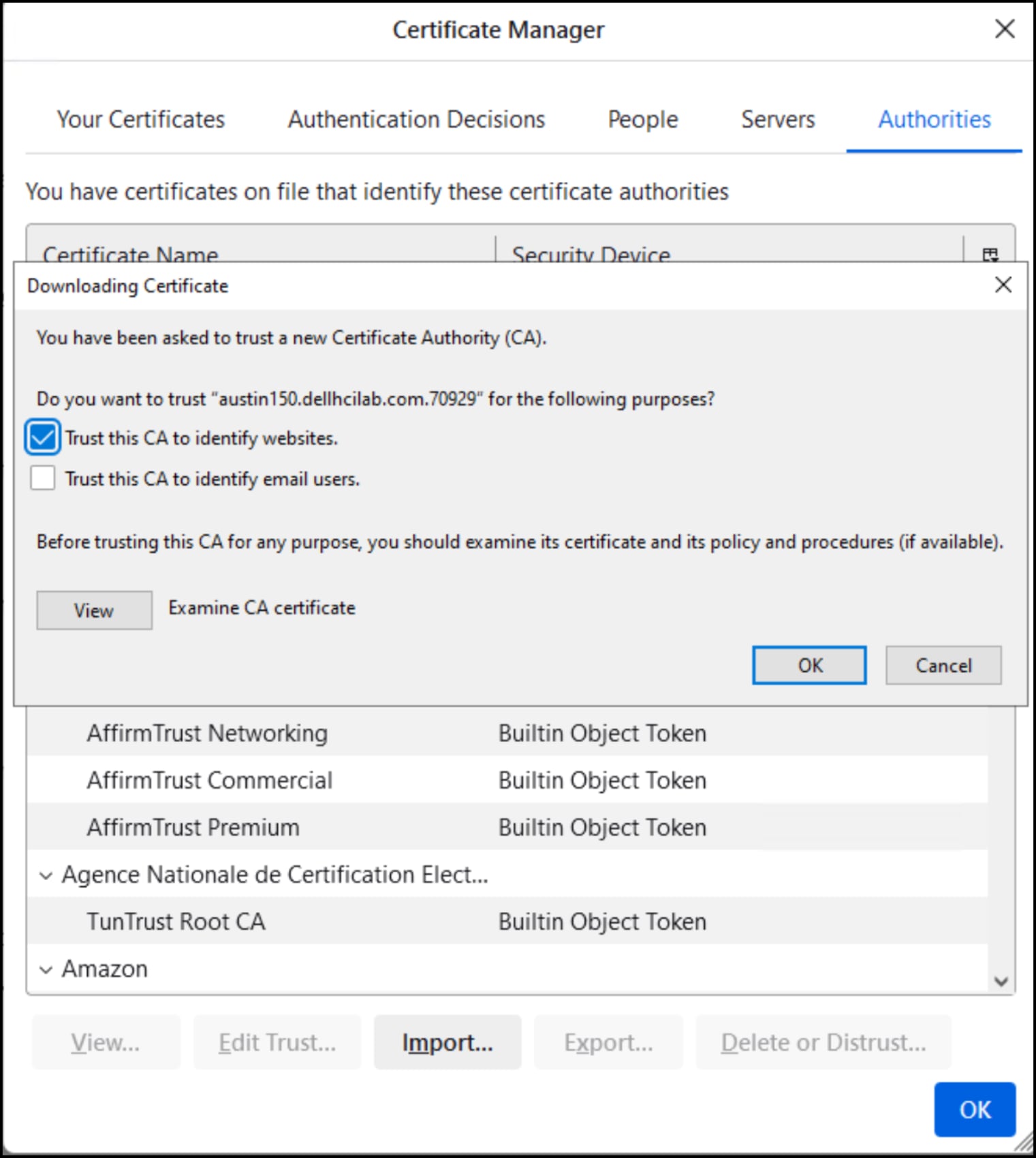
Figure 75. Browser Certificate Manager
- Once the import is complete, retry the ISO upload operation. The operation succeeds as shown in Figure 76.
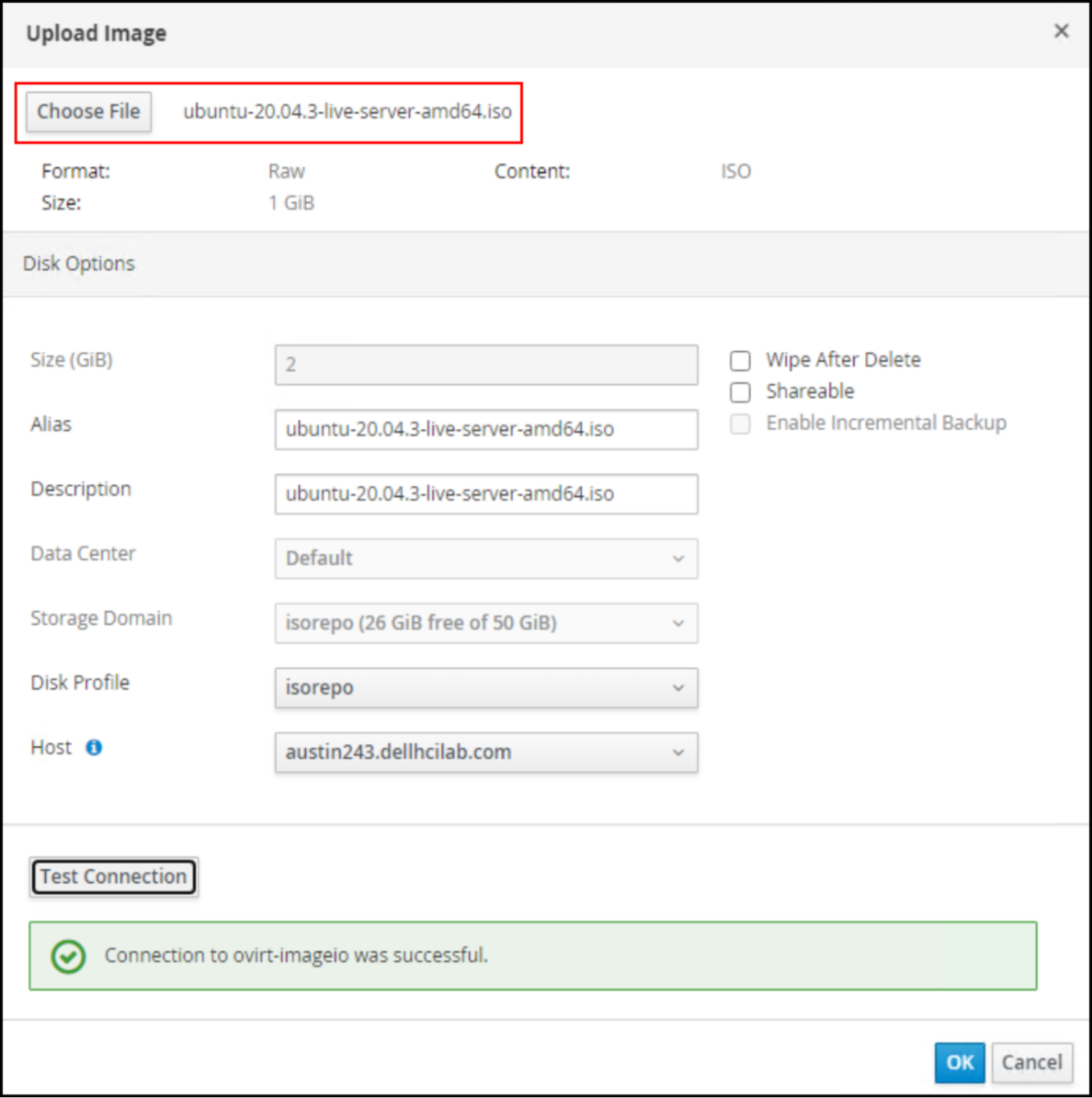
Figure 76. Upload ISO – step 2
The user can watch the status until it completes in Figure 77. It is acceptable to upload multiple ISOs at once.
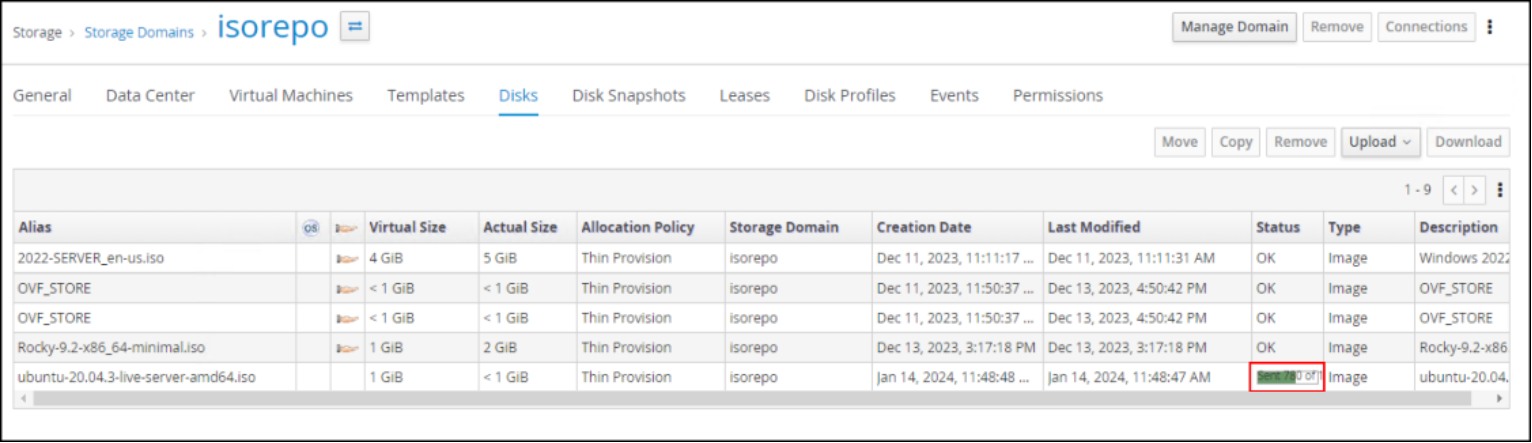
Figure 77. Upload ISO - status
- Repeat the upload process for all desired ISOs/OVAs. Note that importing the certificate is a one-time operation if the same browser is used for all files.
Virtual Machine Viewer
Prior to creating a VM, an additional software, Virtual Machine Viewer, should be installed on the host where the KVM environment is accessed. This software allows the user to connect to the console of the VM and thus install the operating system. The software is available at the following URL: https://virt-manager.org/download.html.
Create virtual machines
- Navigate in OVM to Compute -> Virtual Machines. Here, in Figure 78, click on New to open the VM wizard.
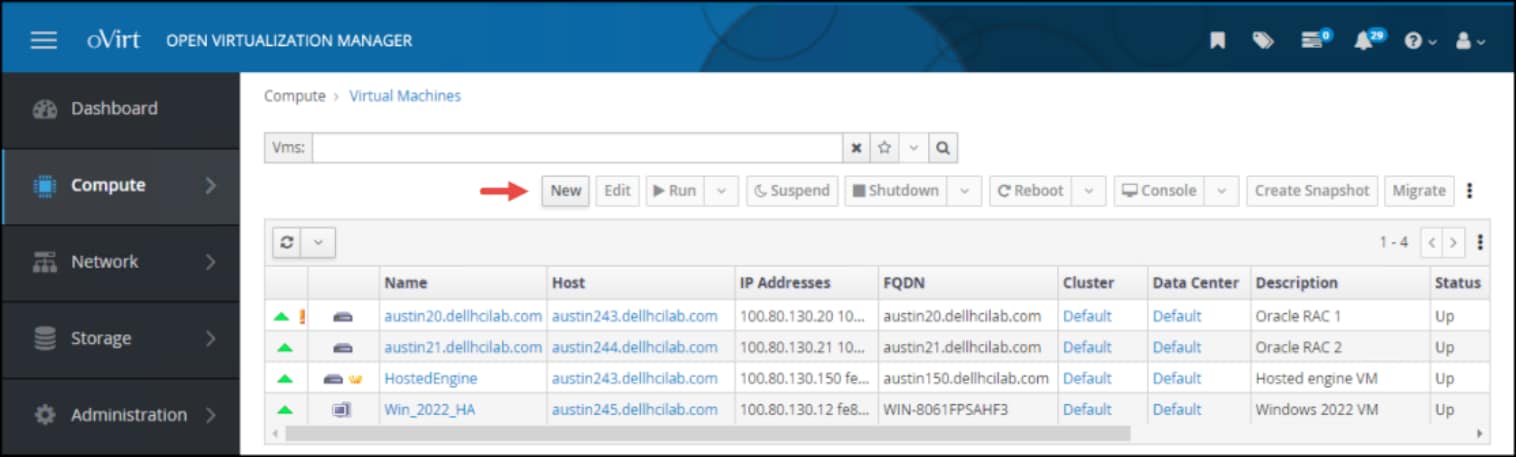
Figure 78. OVM VM creation – step 1
- The General tab appears next in Figure 79 where the user should complete the following fields:
- Operating System
- Name
- Description (optional)
- nic1
Then, click the Create button to bring up the virtual disk dialog.
Note: A Microsoft Windows OS requires additional steps as the VirtIO drivers are not present to discover the virtual disk for install. These drivers are available in any number of repositories online along with instructions on how to implement them.
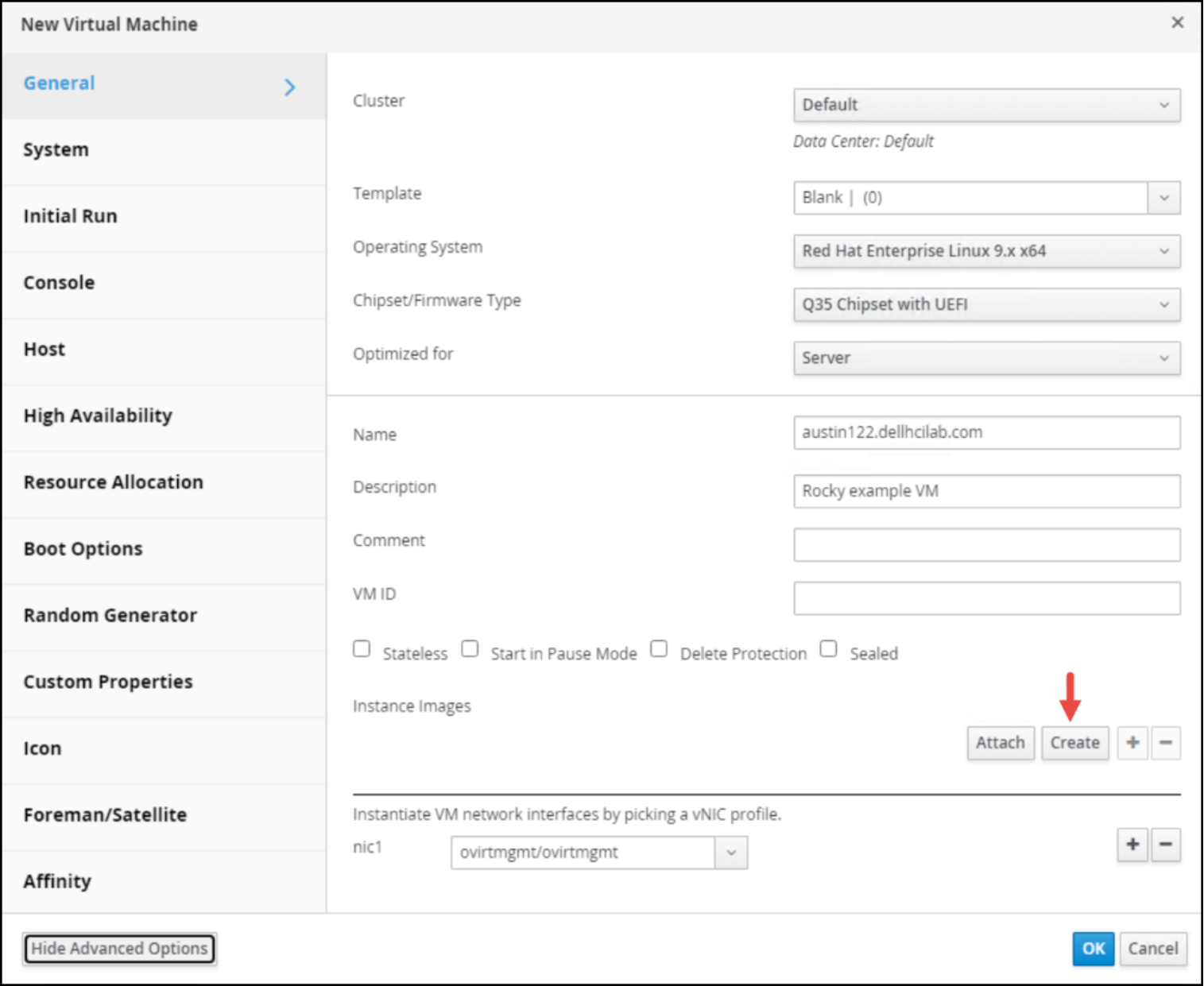
Figure 79. OVM VM creation – step 2
- In the New Virtual Disk dialog in Figure 80, enter the following information:
- Description (optional)
- Storage Domain
- Allocation Policy (defaults based on storage domain type)
The check boxes are left in their default state. Click OK to return to the General dialog.
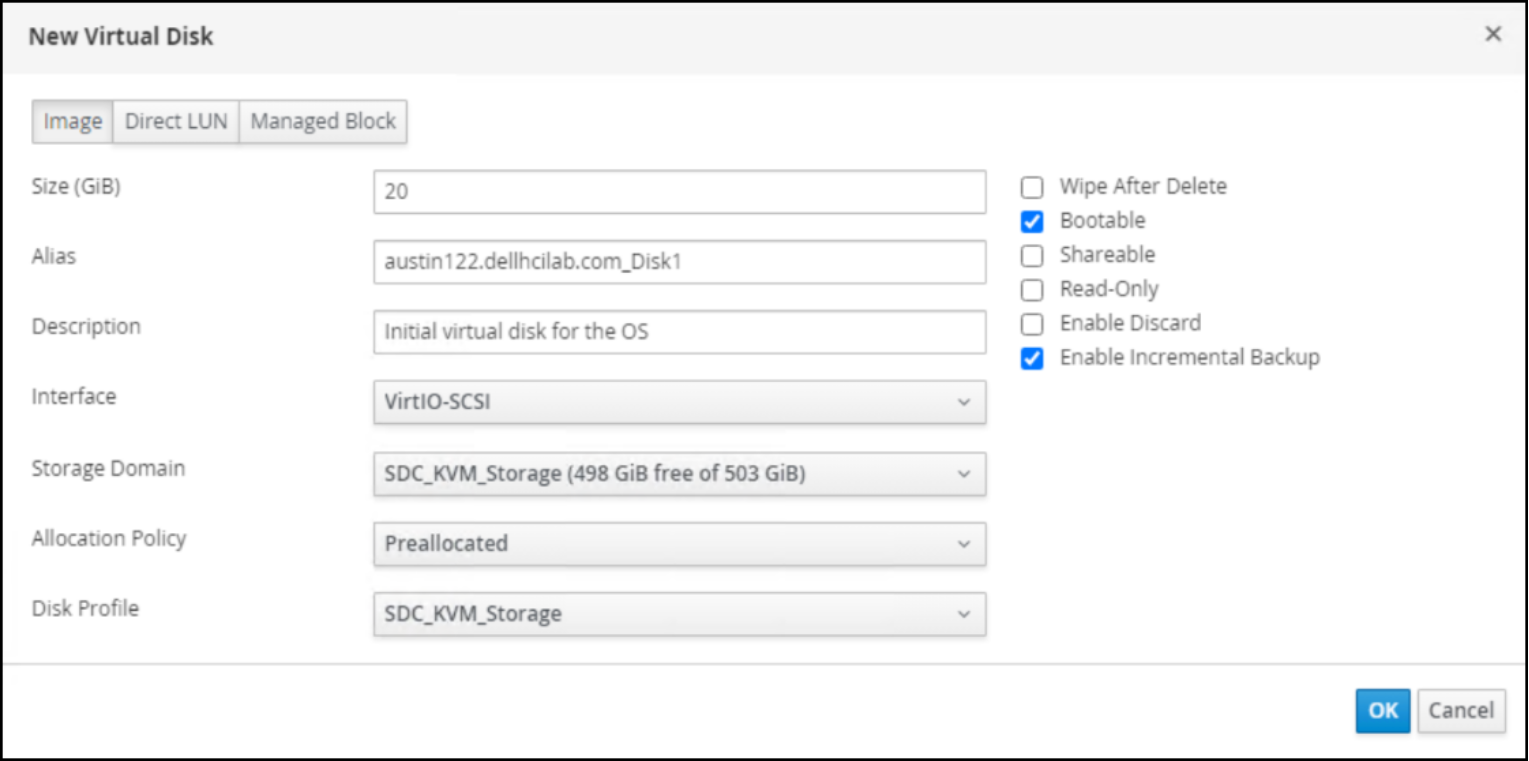
Figure 80. OVM VM creation – step 3
- The new Instance Images displays in Figure 81. The user can add as many disks as wanted, though only one should be Bootable. The VM defaults to 1 vCPU and 1 GB RAM. Click OK to create the VM.
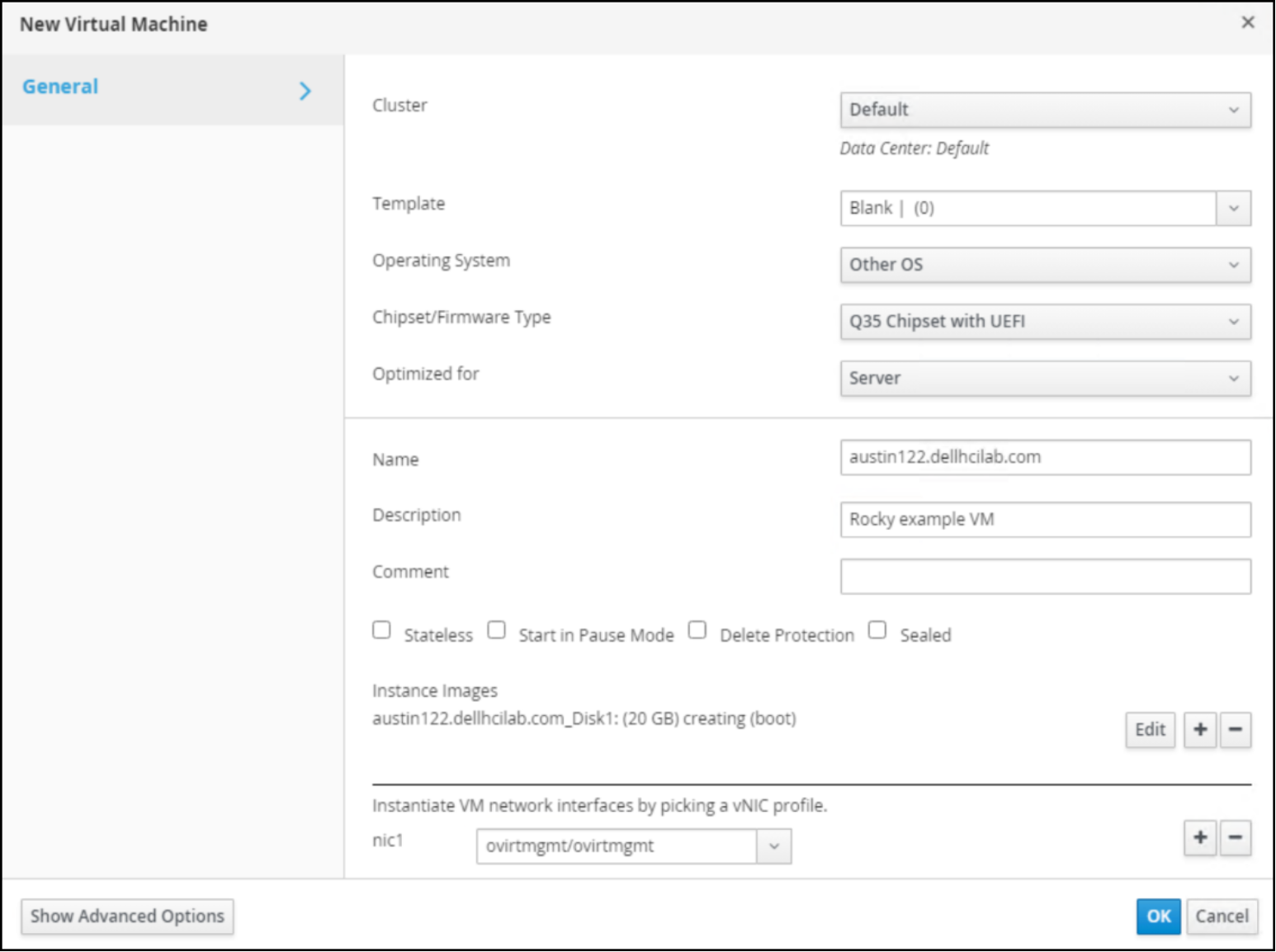
Figure 81. OVM VM creation – step 4
- The VM creation time depends on the number of virtual disks that are created, their size, and whether they are pre-allocated. When completed, the user should attach the appropriate bootable ISO to the VM. Although it can be assigned during the VM creation, OVM offers the ability to attach the ISO so it is only used for the first power on. To enable this, highlight the newly created VM. Find the Run button and use the drop-down to select Run Once. The following dialog appears in Figure 82. Expand the section Boot Options. Check the box Attach CD and use the drop-down next to it to pick the correct ISO file. Then click OK which will immediately power on the VM.
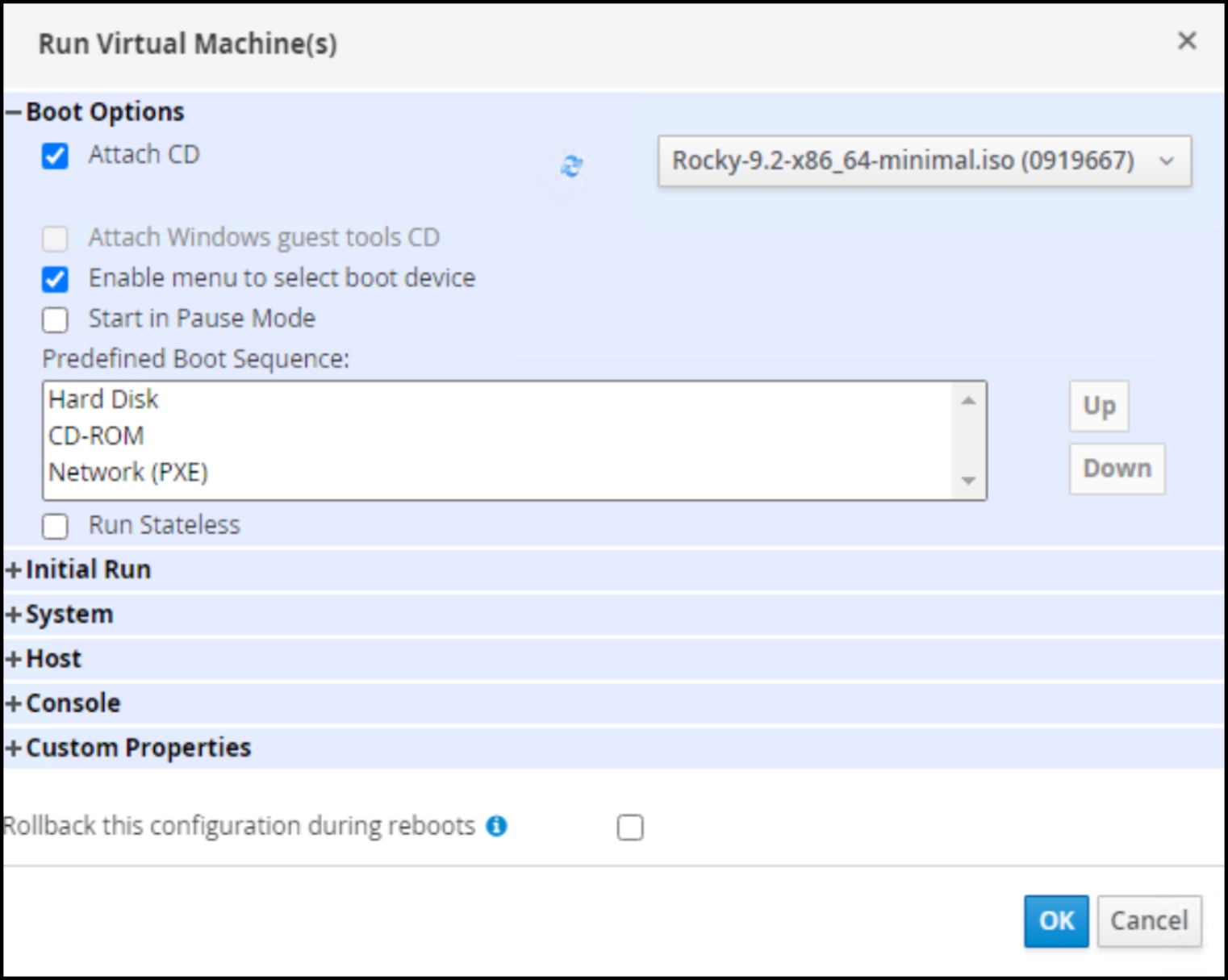
Figure 82. OVM VM creation – step 5
- The VM boots to the ISO. Highlight the VM in Figure 83 and note that it has been assigned a Host. Find and click the Console button, which displays the Virtual Machine Viewer in Figure 84. Note that if the Virtual Machine Viewer is not associated with the .vv extension, the browser asks the user to save a file named console.vv. The user would then have to associate the file extension with the console viewer.
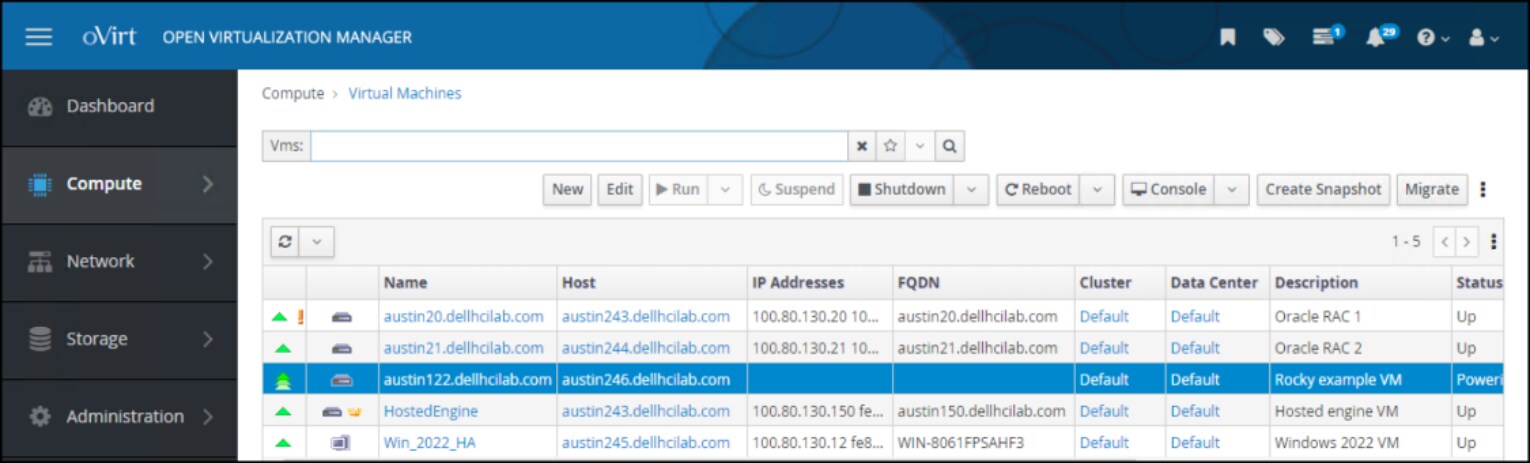
Figure 83. OVM VM creation – step 6
The user can now proceed with the OS installation.
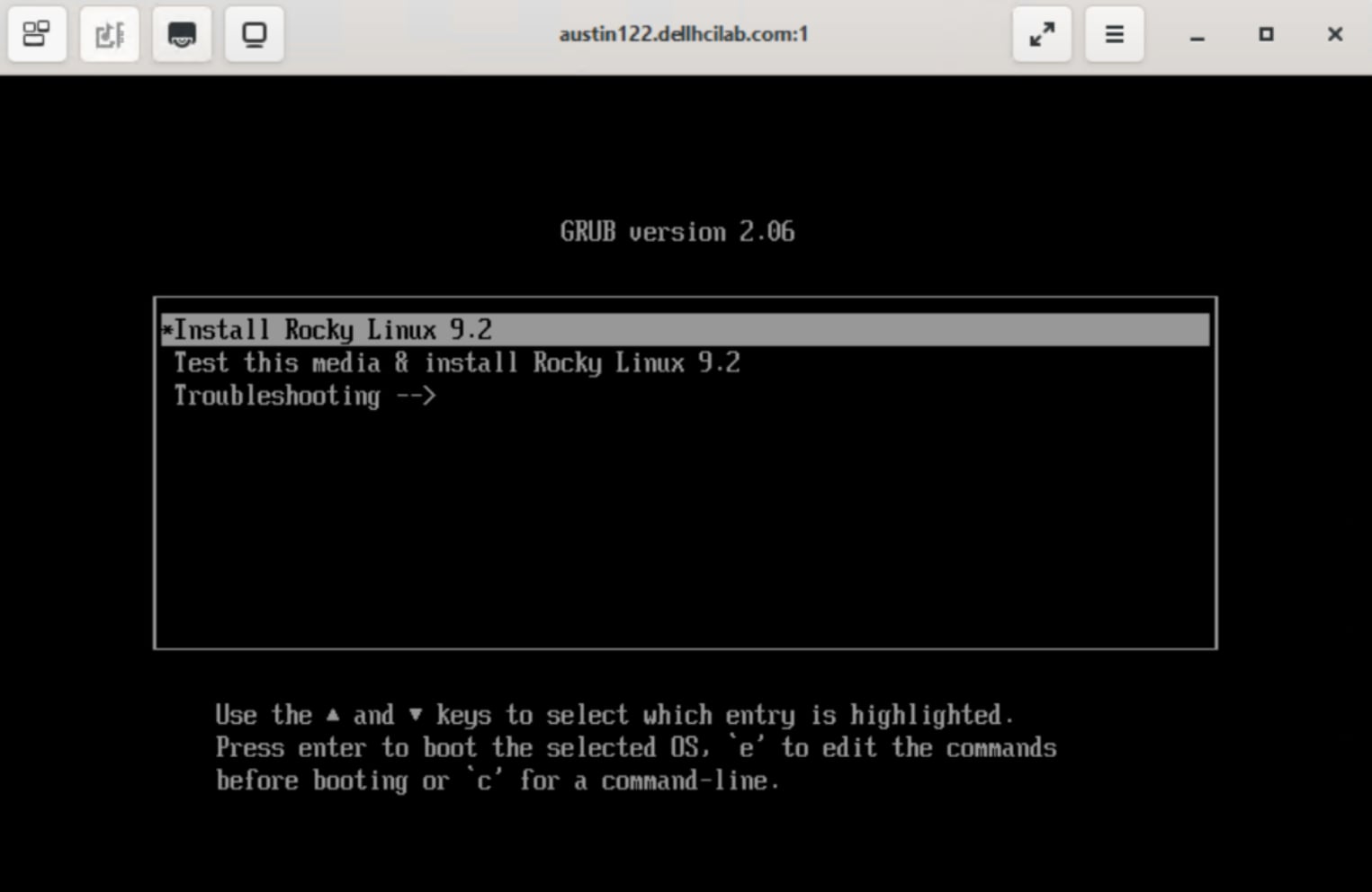
Figure 84. OVM VM creation – complete
Conclusion
Summary
We value your feedback
References
Dell Technologies documentation
oVirt and KVM documentation
REST API
REST API
One of the benefits of an oVirt implementation is a robust REST API delivered through the oVirt Engine. This permits developers or sysadmins the ability to use custom scripts or integrate third party applications which can issue the REST calls. A REST client sends a request with standard HTTP methods: GET, POST, PUT, and DELETE. The oVirt API uses HTTPS with client software which requires obtaining the CA certificate from the oVirt Engine and importing into the client host/browser. Authentication requires either OAuth or basic authentication, though OAuth is preferred since as of oVirt 4.0 basic is deprecated. Once the user obtains the bearer token, it can be used to make calls.
For example, a popular REST client is Postman, a software that has both a free and paid version. Using the free version, the user can still make any REST calls to the oVirt environment. The steps are as follows:
- The user starts by obtaining the bearer token. In Figure 92, the POST call contains all the values for simplicity, rather than using variables. The format of the call is:
https://<FQDN of oVirt Engine>/ovirt-engine/sso/oauth/token?grant_type=password&scope=ovirt-app-api&username=admin@ovirt@internalsso&password=<password>
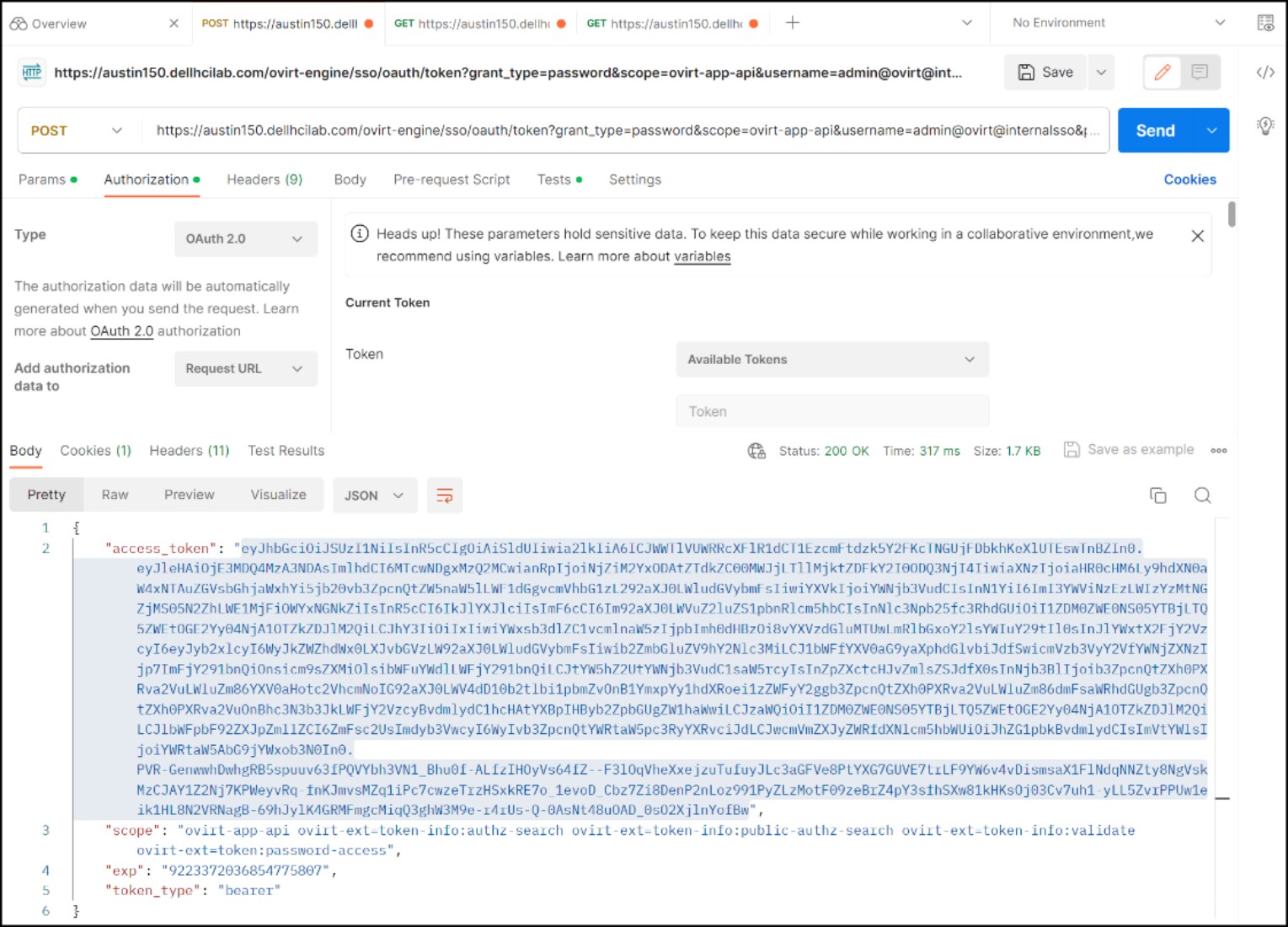
Figure 92. Obtain bearer token for REST API calls
- Next, copy the access_token value (highlighted in Figure 92) and place it in the token field under the Authorization tab of a new GET call. In the example in Figure 93, the user is asking for all the hosts in the oVirt environment. The hosts are returned to the user in the Body output field.
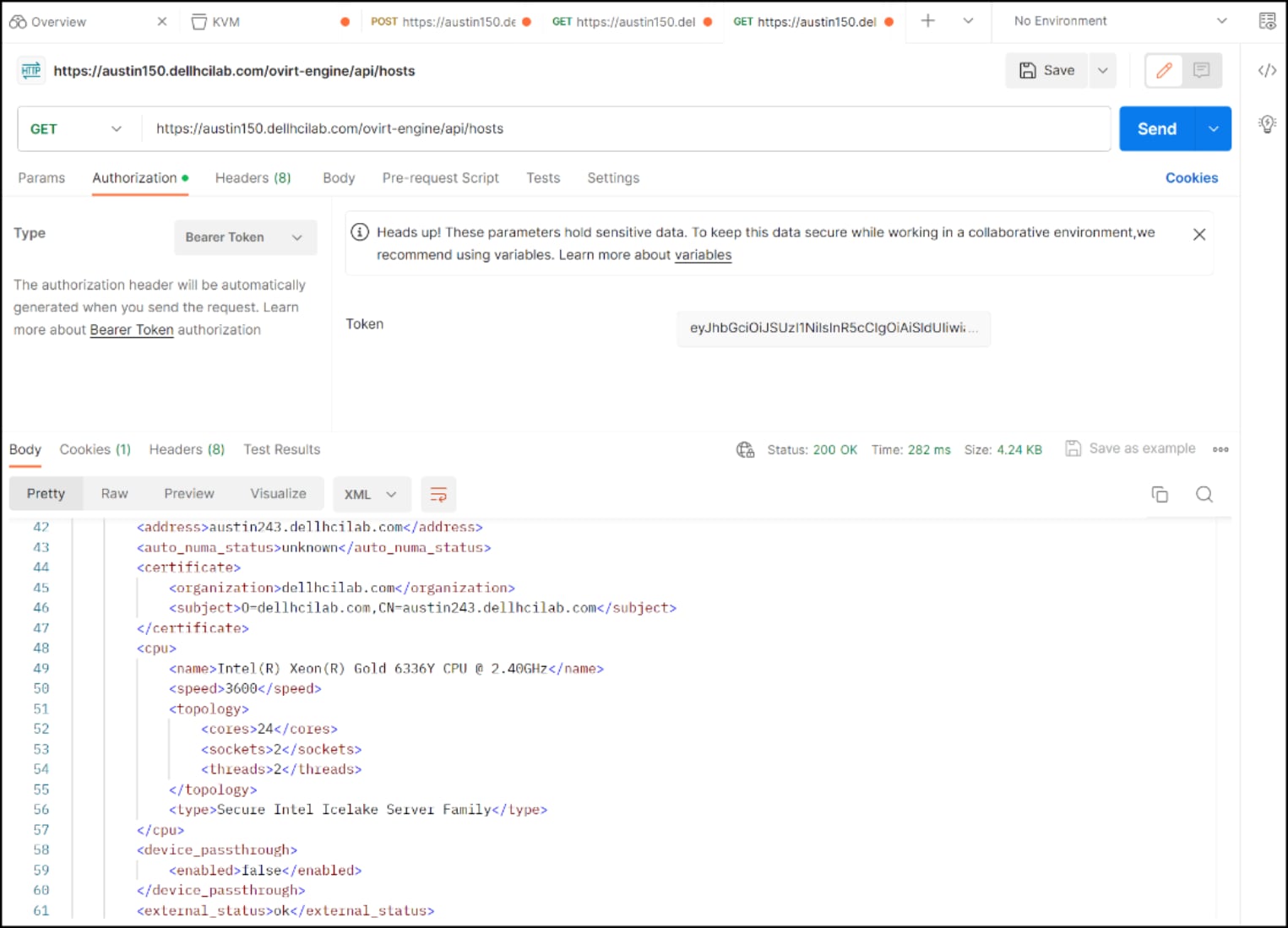
Figure 93. REST API call gathering the hosts in the oVirt environment
Note that the token itself is time sensitive and will expire. Expiration results in an HTTP/1.1 401 Unauthorized error. At that point, the user should re-run the step in Figure 78 and obtain a new token. To avoid expiration, the user can add a Pre-request script for the token, and thus every REST call would get a valid token. Using the oVirt REST a customer could manage the entire environment without a UI if they so wanted.
Troubleshooting
Introduction
Failed oVirt Engine script
Existing NFS storage domain
Reusing an existing block device or file system with KVM is common. When KVM creates a storage domain, an ID is assigned. If that ID is not removed prior to reuse, KVM fails to create the storage domain. For block volumes, wiping the signature with fdisk or dd is straightforward. For NFS, however, a customer may want to keep the existing file system instead of destroying and re-creating it. For example, here in Figure 94, one can see the ID of the storage domain that is highlighted in the UI.
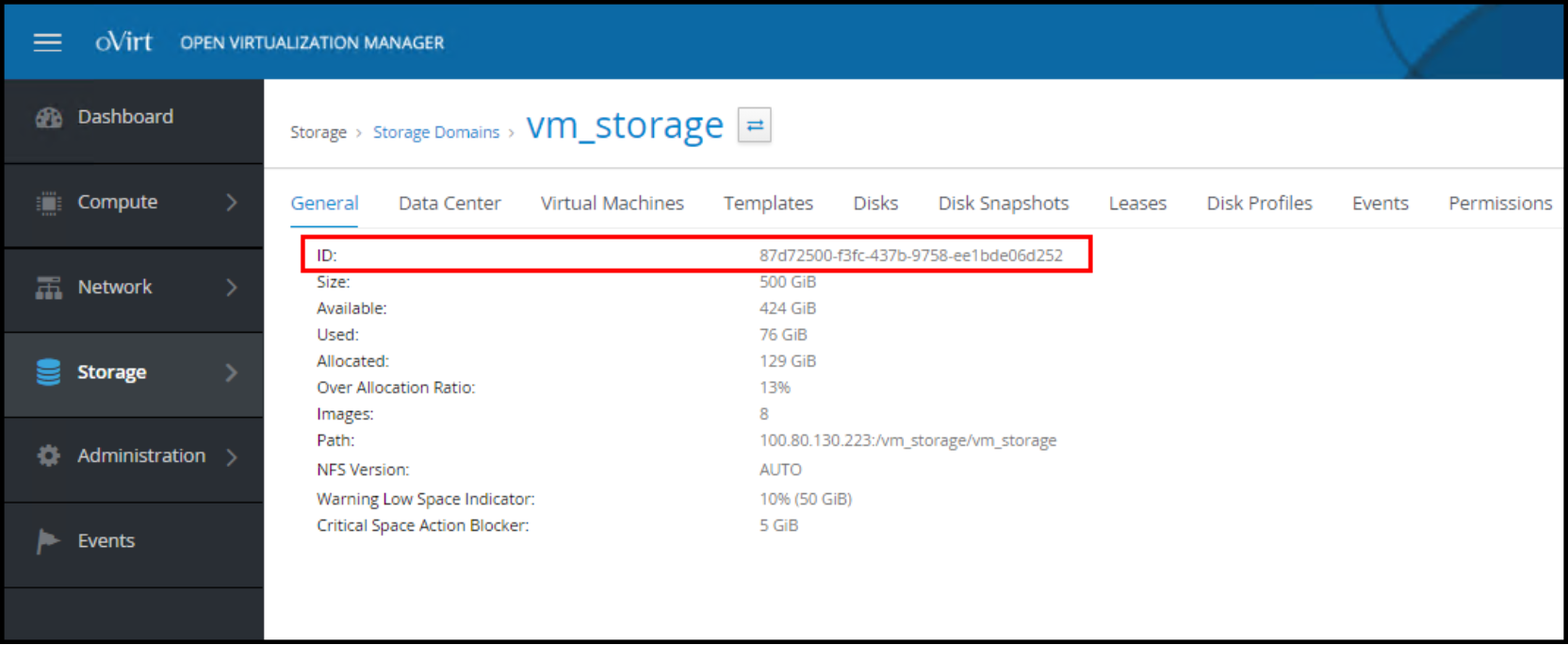
Figure 94. Storage domain ID
This ID is represented by a folder on the file system as demonstrated in Figure 95.

Figure 95. The “ID folder” for the NFS storage domain
Each storage domain, therefore, is unique. If an attempt is made to mount an NFS export that already has an “ID folder,” it fails and generates the error in Figure 96.
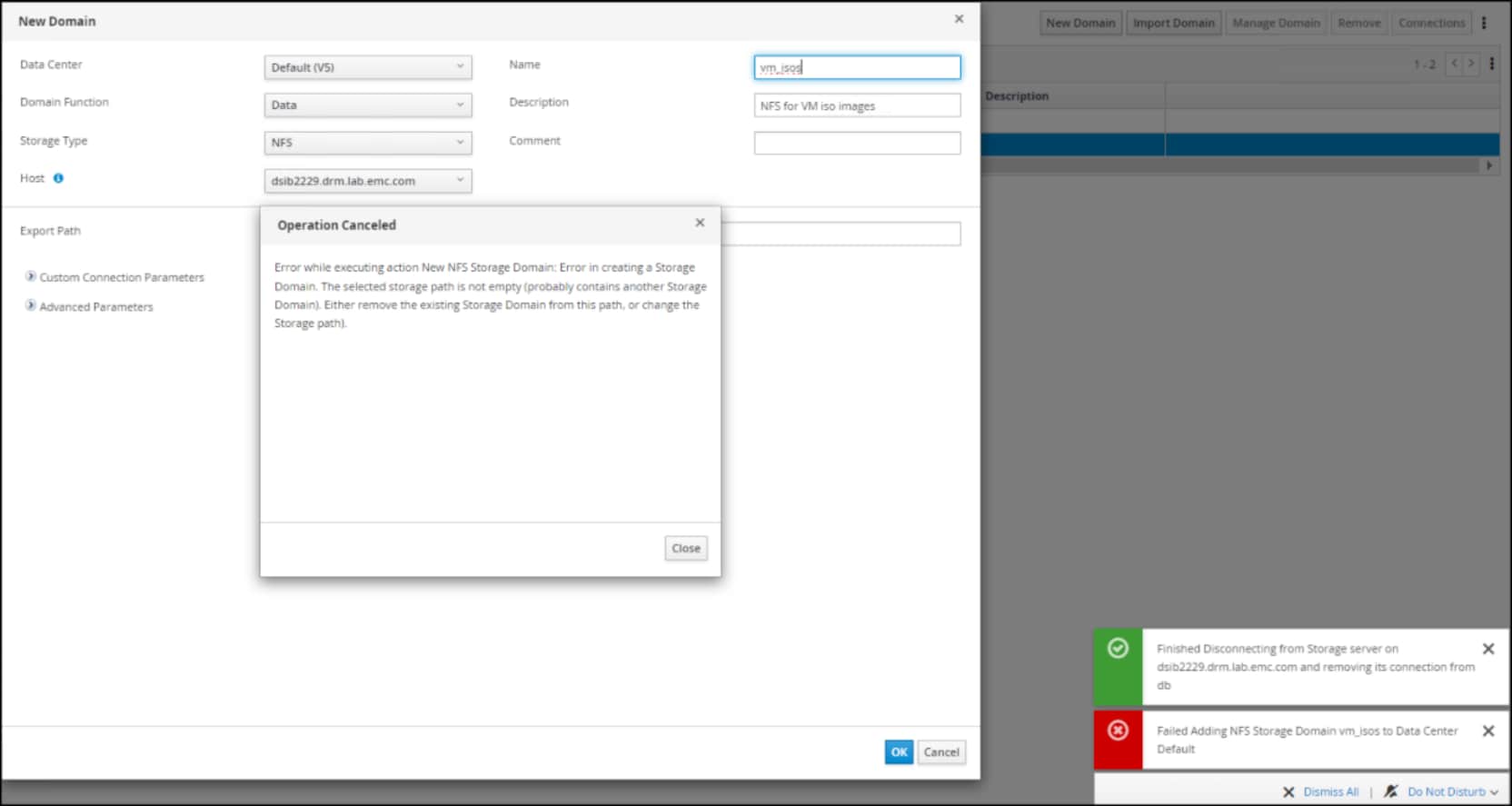
Figure 96. Error creating NFS storage domain
If the user receives this error but knows that they want to reuse the file system, they can remove the folder. This is most easily accomplished by mounting the NFS export on another host, Windows or Linux, and deleting the “ID folder.” Once the folder is removed, a retry of the operation succeeds.
Note: The file system does not have to be empty before creating a storage domain on it, but it cannot contain an “ID folder.”
Local storage data center
A data center with local storage can only support a single host. If the user attempts to add a second host, the following error appears in Figure 97.
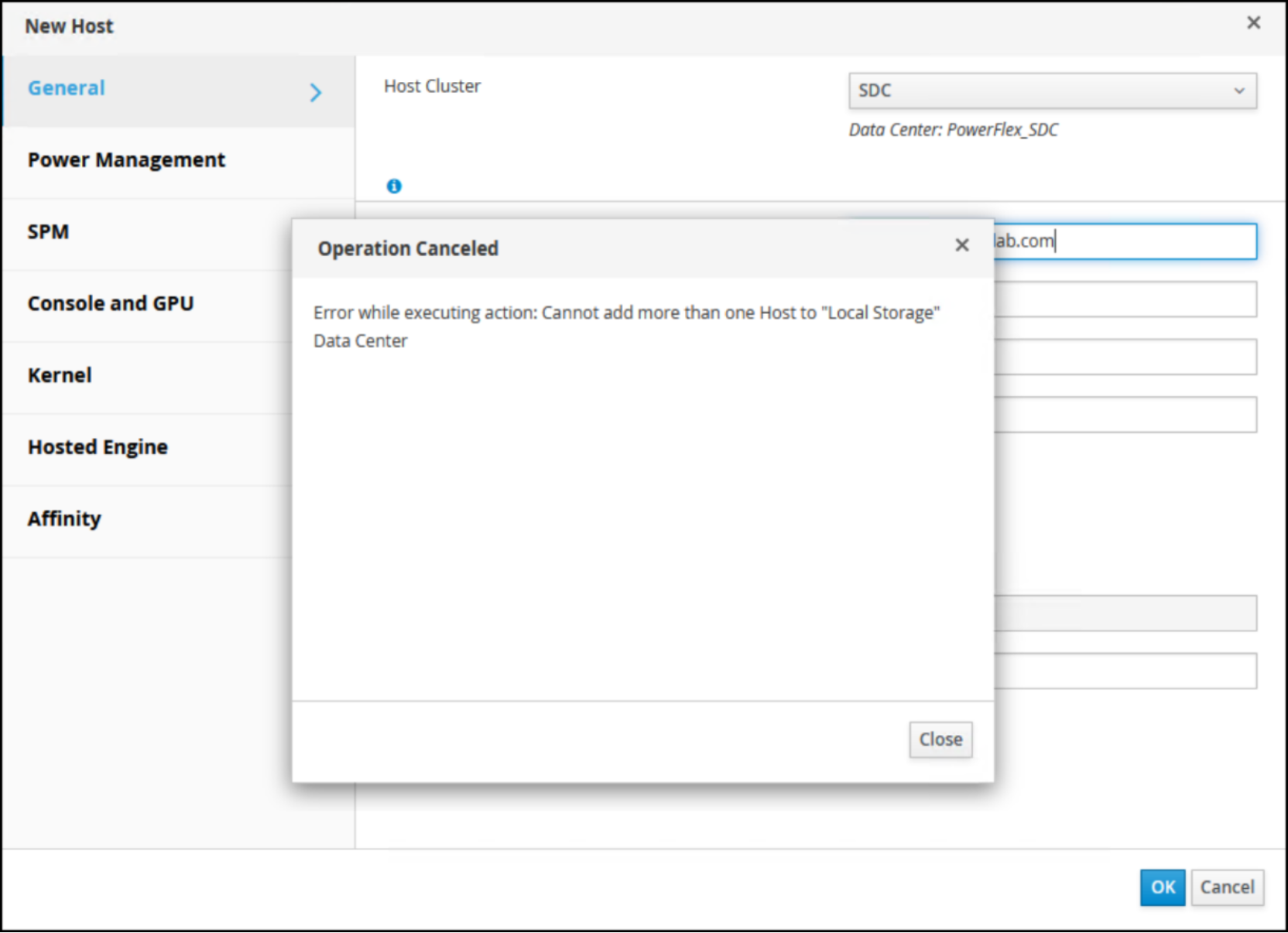
Figure 97. Adding a second host to a local storage cluster
Empty attach CD
When creating a new virtual machine, under the Boot Options menu on the left, there is an Attach CD option where the user can specify an ISO for booting (for OS installation). If the user checks the box and there are no entries in the drop-down, as seen in Figure 98, this means that no ISOs are available in any storage domains.
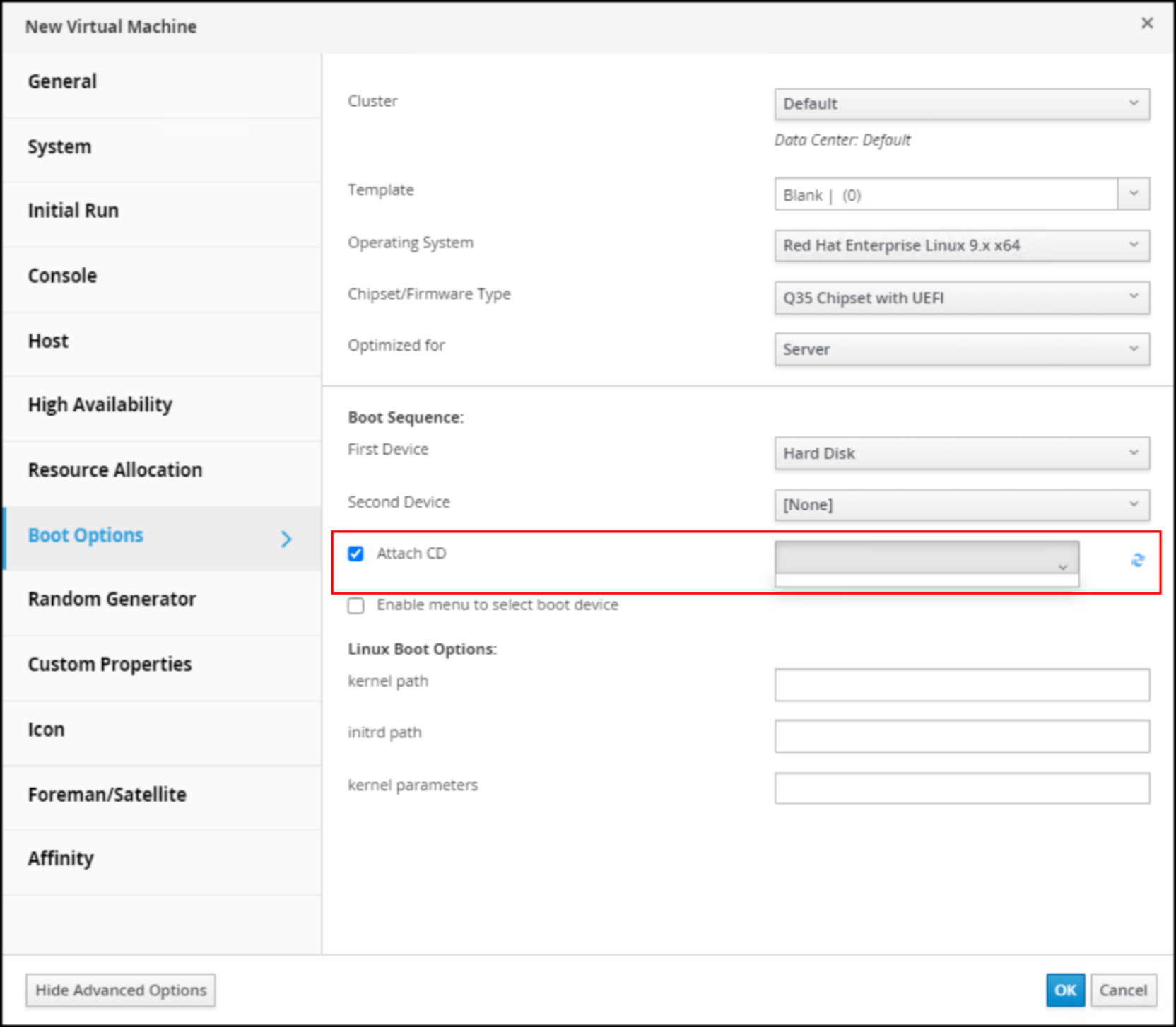
Figure 98. Attach CD
To resolve, follow the instructions in the section Image upload. Boot options can also be specified at the time of initial power on of the VM. If choosing that route, be sure to clear the Attach CD box, or OVM generates an error.