Using Dell PowerFlex with Nutanix
Introduction
Introduction
Executive summary
Audience
Terminology
Product Overview
Product Overview
Dell PowerFlex family
Dell PowerFlex software-defined storage enables broad consolidation across the data center, encompassing almost any type of workload and architecture. The software-defined architecture offers automation and programmability of the complete infrastructure and provides scalability, performance, and resiliency to enable effortless adherence to stringent workload SLAs.
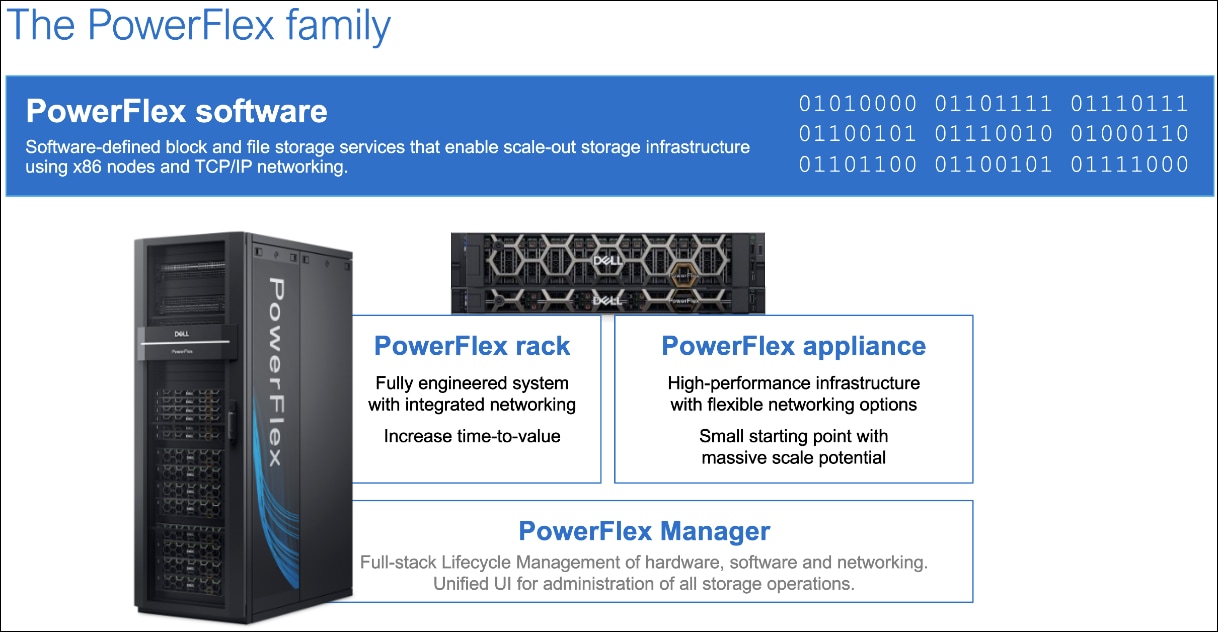
The Dell PowerFlex family provides a foundation that combines compute and high- performance storage resources in a managed unified fabric. Dell PowerFlex comes in flexible deployment options (rack, appliance, or custom nodes and in the public cloud) that enable independent (disaggregated), HCI (single-layer), or mixed architectures. Dell PowerFlex is ideal for high-performance applications and databases, building an agile private/hybrid cloud, or consolidating resources in heterogeneous environments.
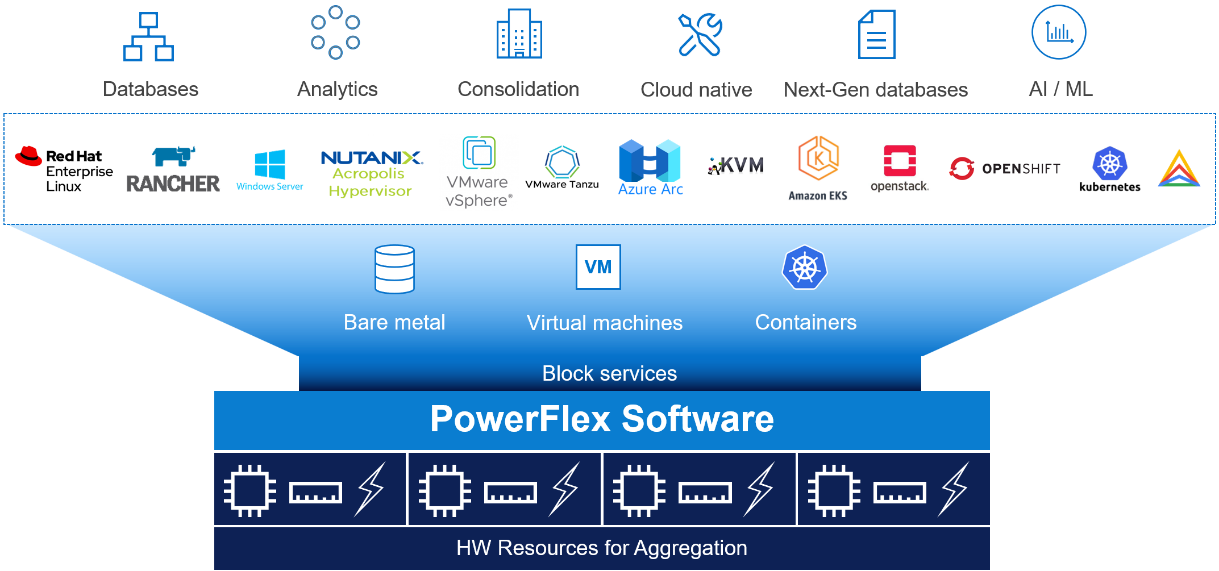
The platform supports a broad range of operating environments – bare metal operating systems, hypervisors, and container platforms – simultaneously with a unified infrastructure platform and management. By allowing users to flexibly mix these architectures in a single deployment, PowerFlex enables you to deploy, scale, and evolve all your applications to meet your business objectives.
Dell PowerFlex deployment architecture
Dell PowerFlex consumption options
Dell PowerFlex and Nutanix Cloud Platform
Dell PowerFlex with Nutanix Cloud Platform architecture
Dell PowerFlex with Nutanix Cloud Platform (NCP) is deployed using a disaggregated architecture, as shown in the following figure.
- Compute Layer: A Nutanix Cloud Infrastructure Compute (NCI-C) cluster with AOS and AHV running on Dell PowerFlex compute-only nodes.
- Storage Layer: A Dell PowerFlex cluster operating in a storage-only model, compatible with PowerFlex configurations. This cluster provides block storage and related services as shown in the dashed blue box in the following figure.
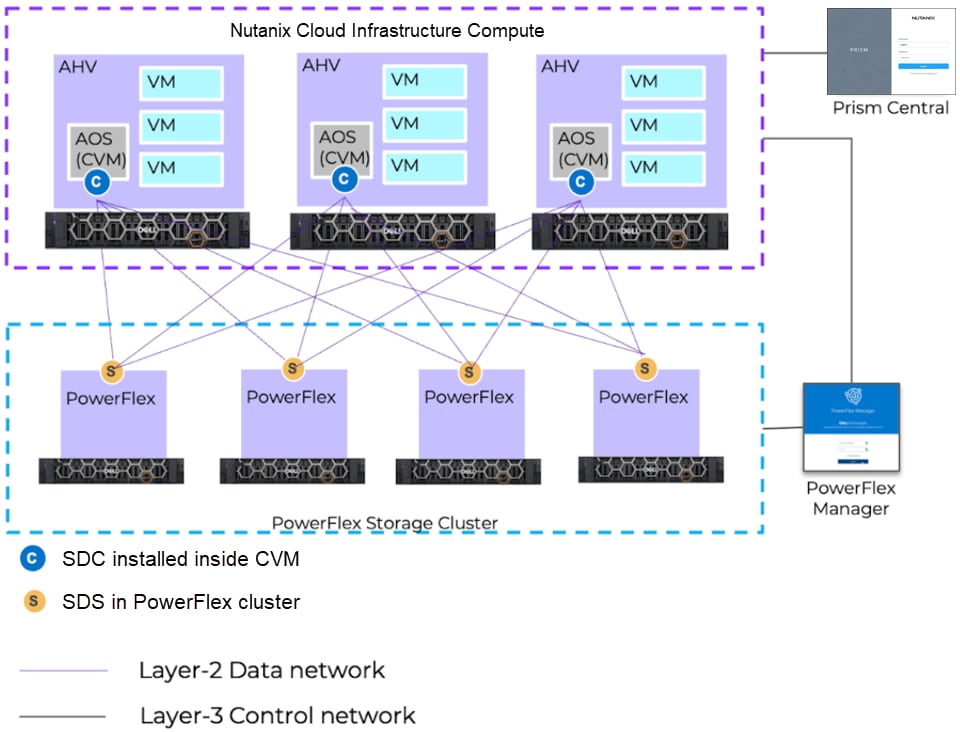
The Dell PowerFlex with Nutanix Cloud Platform architecture contains no internal storage within the Nutanix compute only nodes. In this disaggregated architecture, the compute cluster accesses storage over the Ethernet fabric from the external PowerFlex storage cluster using the SDC that is installed on every node of the NCI-C cluster.
When Dell PowerFlex with Nutanix Cloud Platform is deployed, the Nutanix software stack is hosted on the PowerFlex compute only nodes. The NCI-C cluster nodes consume storage from the PowerFlex storage cluster.
Lifecycle Management
Both Dell PowerFlex and Nutanix Cloud Platform offer fully integrated and comprehensive Lifecycle Management (LCM) of qualified components for their respective architectures. These powerful features combine to provide end to end Lifecycle Management of both software and hardware across storage and compute nodes.
PowerFlex storage only nodes
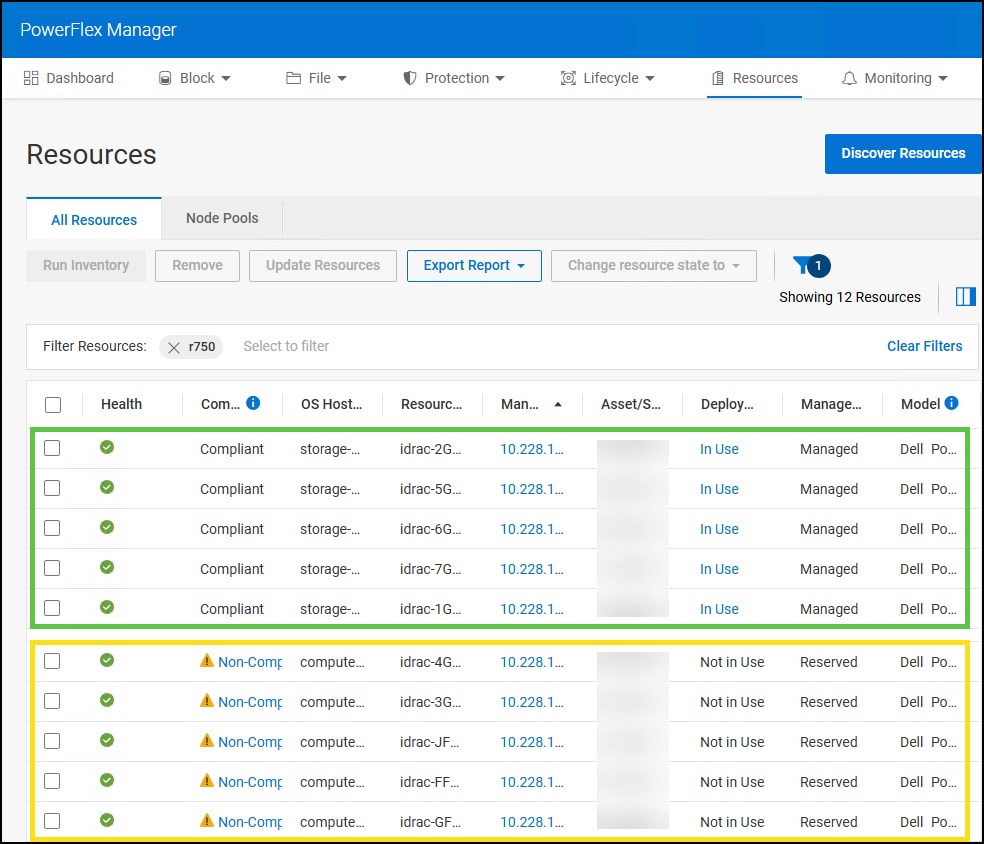
In the PowerFlex Manager UI, storage only nodes have a managed state of Managed. This indicates that PowerFlex Manager controls PowerFlex software and firmware in a turnkey fashion with no interruption to workloads. The state of the nodes can be seen in the figure below.
Nutanix compute only nodes
In PowerFlex Manager, NCI-C nodes have a managed state of Reserved. This indicates that PowerFlex Manager can upgrade the firmware on a compute node after it has been placed in maintenance mode, bringing it into compliance with a Release Certification Matrix/Intelligent Catalog (RCM/IC). Maintenance mode evacuates the workloads so they are not impacted by the LCM process. Prism Central LCM manages Nutanix software on NCI-C nodes including AOS and AHV. At the time of this writing, the PowerFlex SDC is signed by Nutanix, downloaded from https://portal.nutanix.com, and deployed to the NCI-C cluster using Prism Element. The Nutanix software and the PowerFlex SDC are qualified and upgraded together in lock step with each other.
Note: Compute only nodes should be placed in maintenance mode before software or firmware updates are applied.
Microsoft Windows Server and Failover Cluster
SQL Server
Environment and system requirements
Environment and system requirements
Introduction
Hardware/Software
Solution components
Deployment
Deployment
Introduction
Installation
Nutanix Foundation
Foundation can be installed on an OS or deployed as a VM. In this example, Foundation is deployed as a VM running on an existing KVM virtual infrastructure. The deployment requires a single IP address from which the designated Nutanix nodes should be accessible. If the management IP is different than the host IP, you will be given the opportunity to add another IP address to the VM during deployment.
Once the VM is deployed, access the console. Start Mozilla Firefox which is available in the status bar at the top. The default web page is http://localhost:8000/gui/index.html. Note that this is unsecure. Secure HTTP will not work. This website activates the deployment wizard. The deployment wizard defaults many settings which ease the installation. The following steps guide you through a typical installation.
- The following figure shows the first page of the wizard. Here you enter the subnets for the nodes as well as the management interface, or IPMIs. In this example these fields are the only ones supplied; all others are left at default. Click Next to move to step 2.
Figure 5. Deployment wizard – step 1 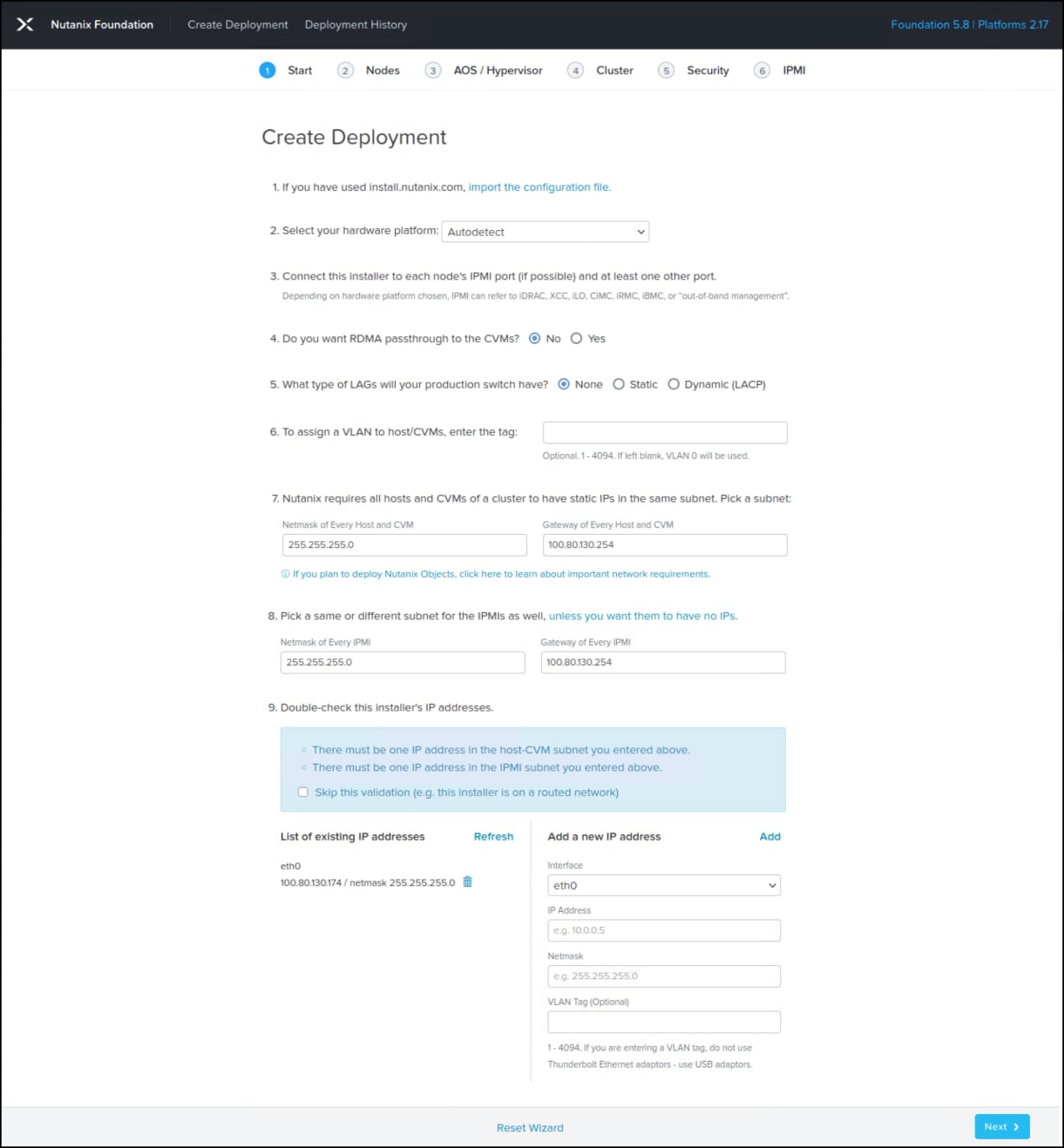
- In step 2 in the following figure, begin by checking the box at the top of the table labeled “The selected nodes will be used for a cluster that will have external storage.” This setting changes the NODE ROLE to “Compute.” Next, enter the IP addresses. The NODE type is “A” and NODE ROLE is “Regular.” Three nodes are required, but more can be added. The column headings are defined as follows:
- IPMI IP – the IP for the management interface, such as iDRAC
- HOST IP – the IP assigned to the node itself
- CVM IP – these IPs will be assigned to the CVM on the node so they must be available IPs
- HOSTNAME OF HOST – this should be associated with the HOST IP above
In the right-hand corner of the image note that under the Tools drop-down there are a number of options available. One of these is Range Autofill which will sequence the IPs if you start at the top. This can ease the filling of the tables in multiple screens during deployment. Click Next.
Figure 6. Deployment wizard – step 2 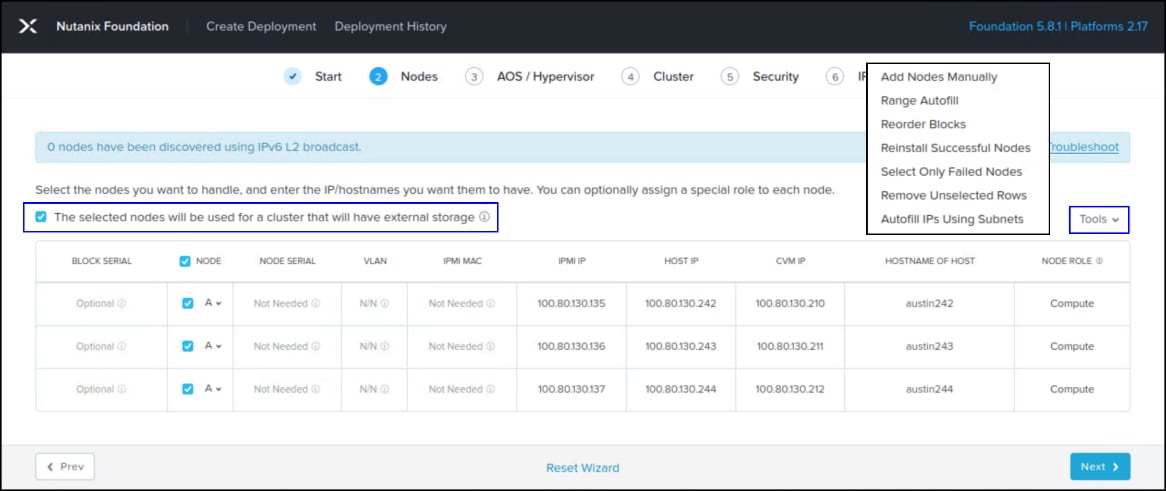
- In the AOS/Hypervisor step you must provide the software to install. At the top select Upload New AOS Binary and provide the .tar file. Nutanix will take some time to validate it. You must wait for that to complete. Next, select the Hypervisor Type, in this example AHV is used. Finally, click the Upload New AHV Binary and provide the .iso file. Again, Nutanix will validate the file. Once both validations are complete, and each software is selected using the drop-down boxes, click Next in the following figure to proceed.
Figure 7. Deployment wizard – step 3 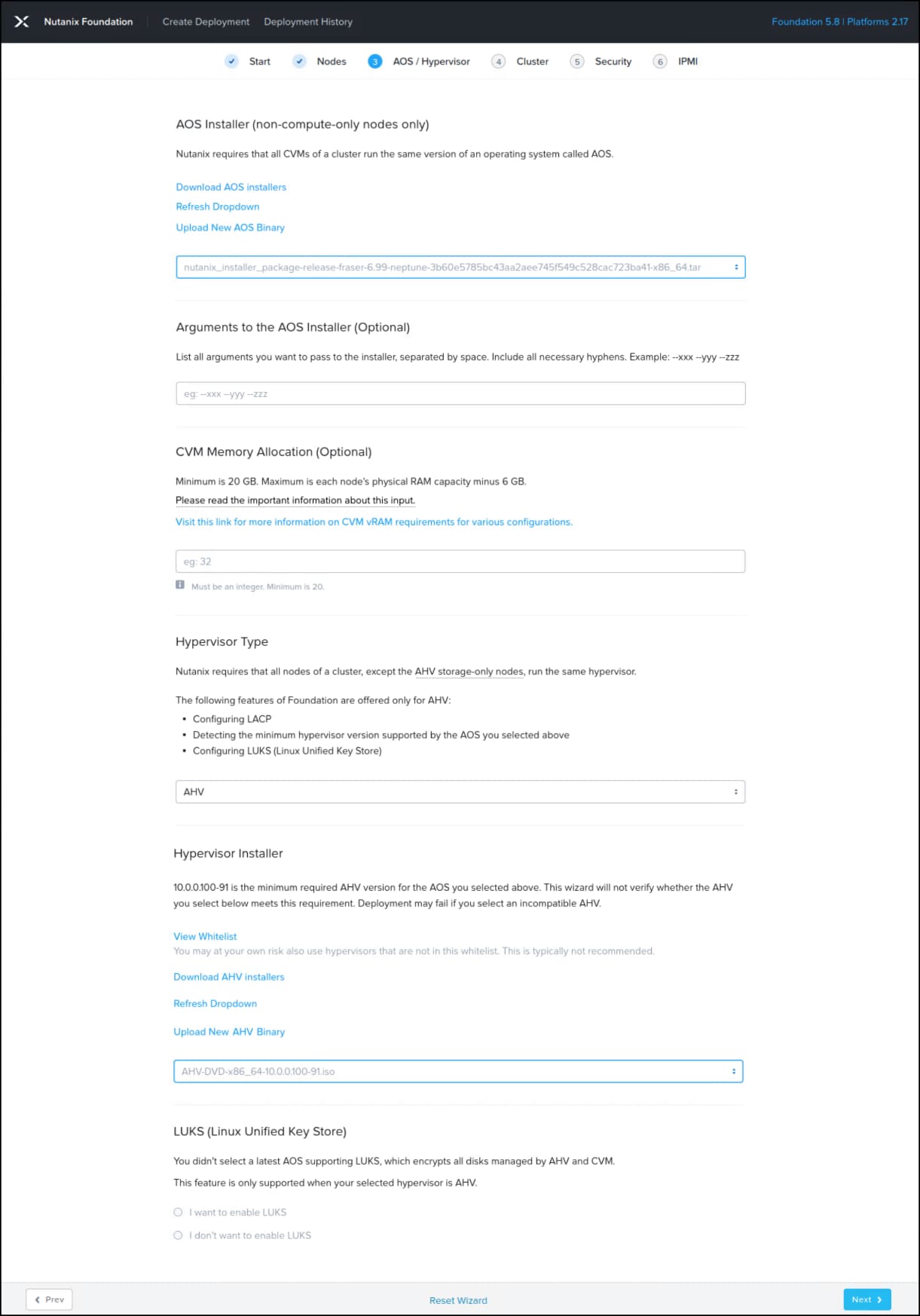
- In step 4 provide a Cluster Name, Cluster Fault Tolerance (depends on the number of nodes deployed), Cluster Virtual IP if desired, NTP Servers, and finally DNS Servers. Click Next.
Figure 8. Deployment wizard – step 4 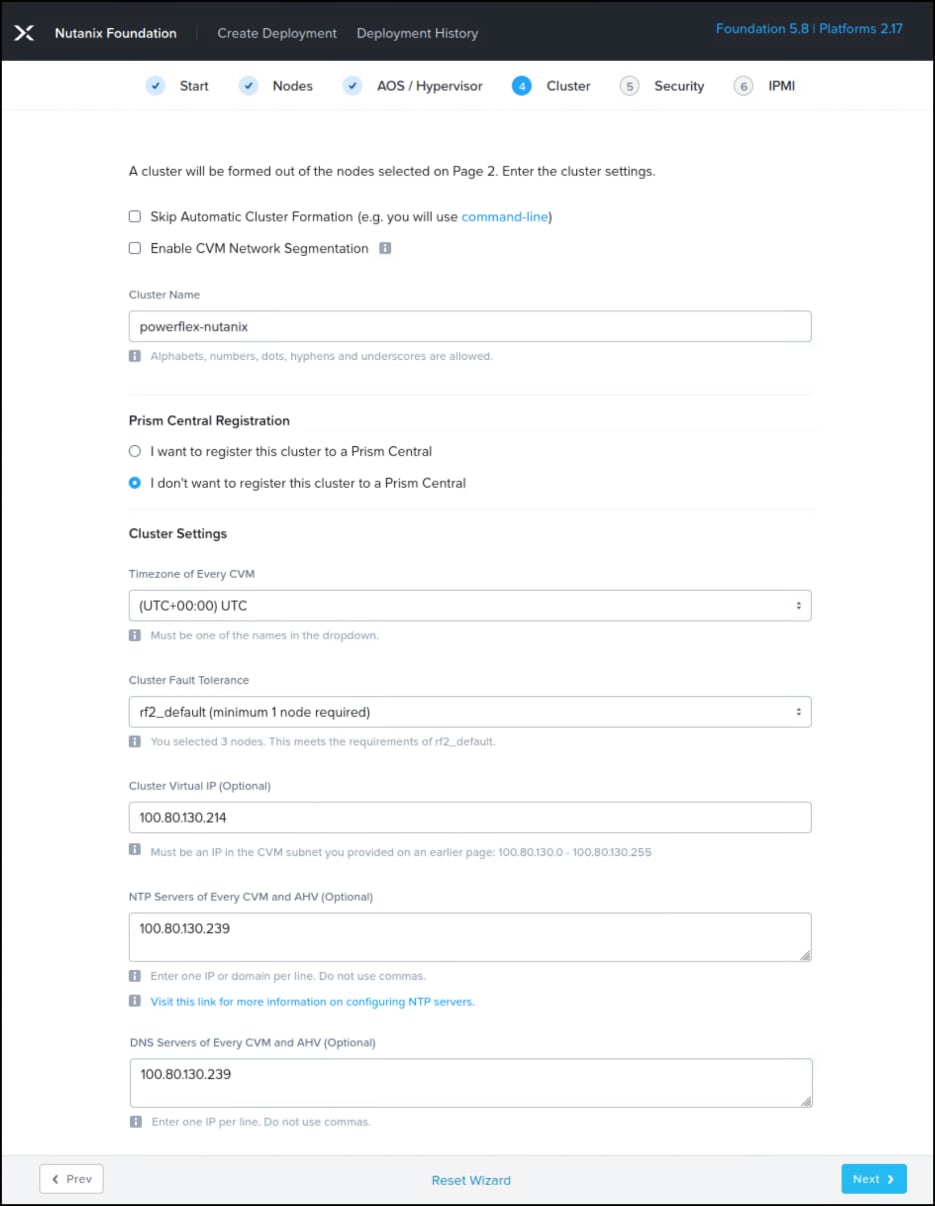
- In the following figure, the Cluster Lockdown section is required. Choose the desired method, in this example the password is chosen, though method 1 is recommended. Click Next.
Figure 9. Deployment wizard – step 5 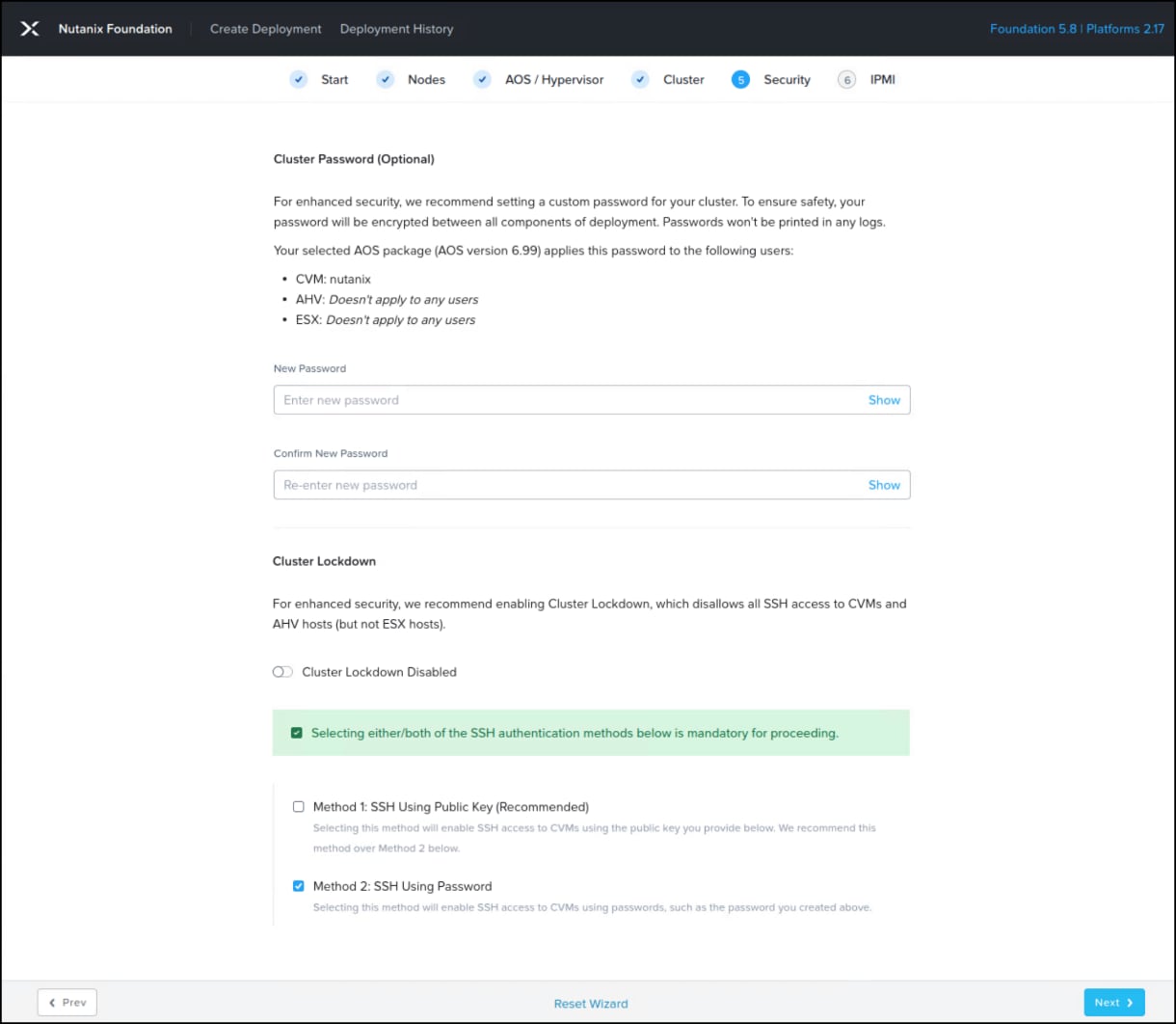
- The final step of the wizard is where you add credentials for the node management interface. All the servers in this deployment use iDRAC so those are the credentials supplied. Once added, click Start to begin the installation. You will be warned to ensure that the screen will not sleep during the installation (not shown).
Figure 10. Deployment wizard – step 6 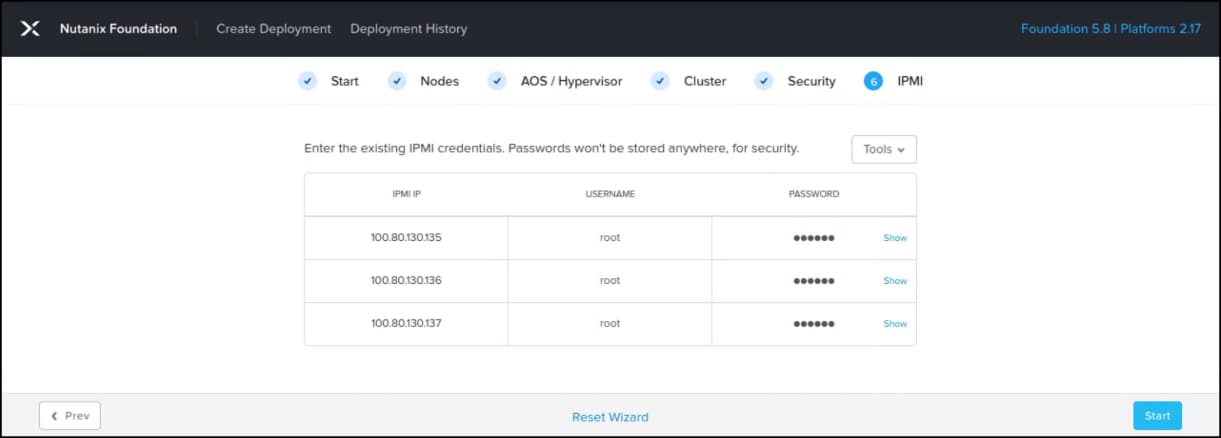
The deployment takes a couple of hours more or less depending on the number of nodes. At completion you will get a summary screen as in the following figure.
Figure 11. Deployment history 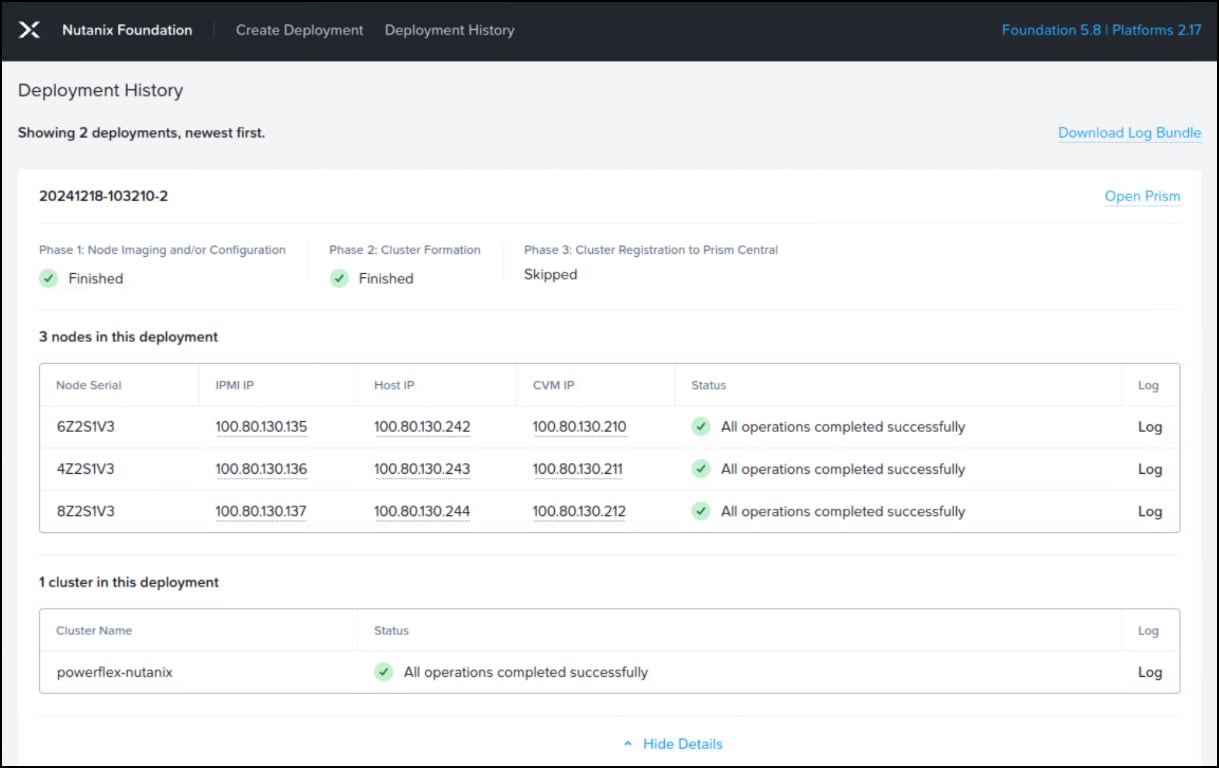
Initial Login
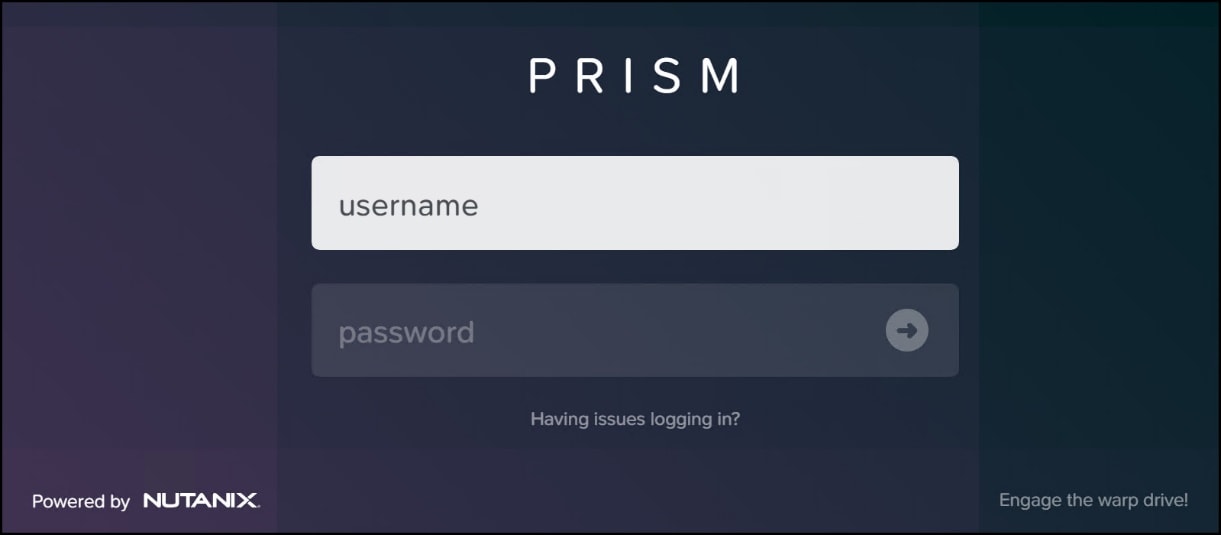
To access the Prism Element UI, navigate to the following URL: https://<ANY_CVM_IP_OR_CLUSTER_IP>:9440/console/#login. When you log in to Prism Element after deployment in the following figure, Nutanix prompts you to setup a new password for admin, accept a user license, and decide whether or not to enable Pulse (default).
After navigating through these screens, the dashboard appears with another pop-up dialog to setup external storage in the following figure. Because of the additional network steps needed, click I’ll do this later.
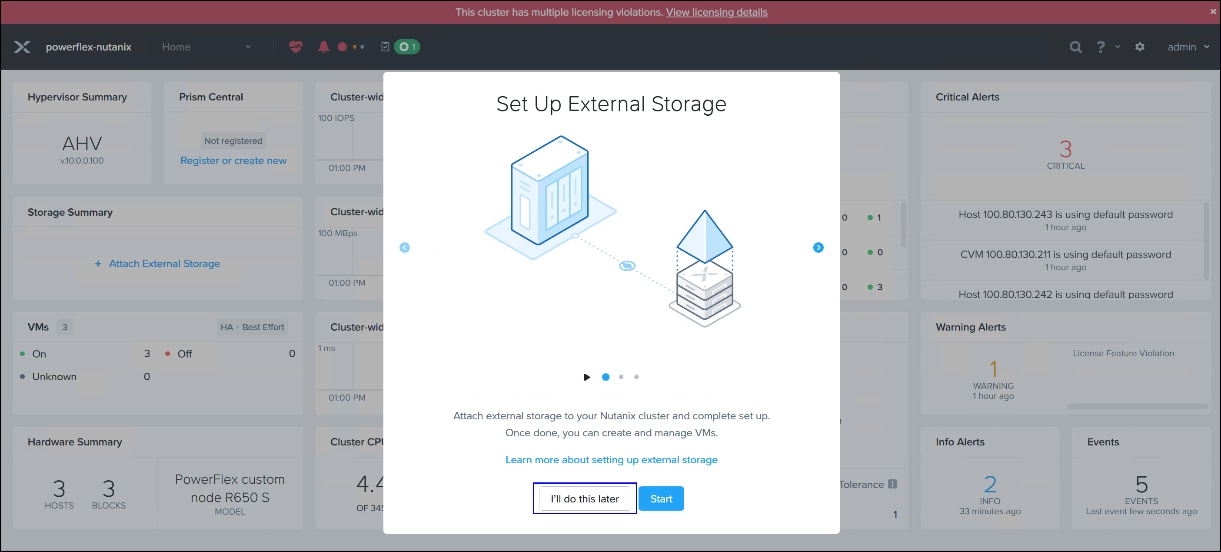
The next section covers all the steps necessary to add external storage.
Dell PowerFlex as external storage
Modify Virtual Switch
When Nutanix installs, it can acquire all available NIC ports on a host and assign them to the default virtual switch. It is not possible to restrict the ports for the virtual switch as part of the deployment wizard. In a typical Dell PowerFlex/Nutanix configuration, one or more of the active NIC ports will be used to communicate with the storage. After installation it may be necessary to modify the virtual switch to remove any active ports that will be required for another function, namely the external network to the Dell PowerFlex. The instructions below guide the user through this process in such an environment.
- Navigate to the home screen in Prism Central and use the drop-down menu to select Settings. On the left-hand side, select Network Configuration from Network menu. Then click the Virtual Switch tab on the right-hand side. Next select the edit pencil which is boxed in green in the following figure.
Figure 14. Edit virtual switch – step 1 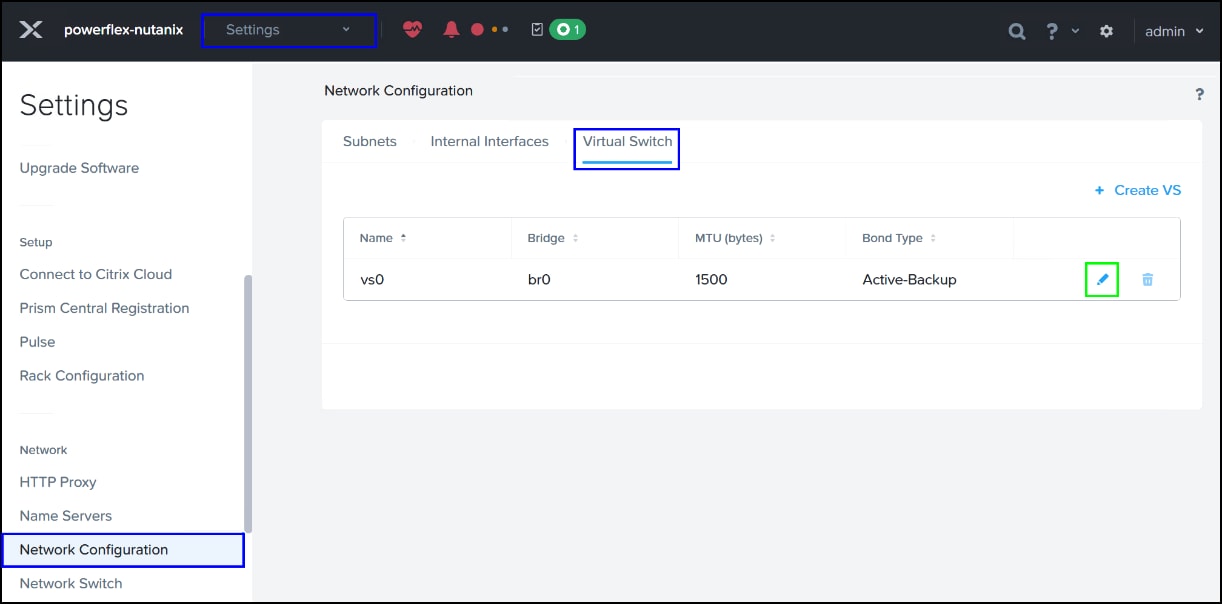
- In the Edit Virtual Switch screen in the General tab, modify the MTU to 9000 if your environment supports it. Then click Next. In the Uplink Configuration screen scroll down to the hosts and use the arrow at the end of the host row which will expand all the NIC ports. Clear the ports you do not want to be part of the management network. In the following figure, eth4 and eth5 are cleared. Repeat this process for each host before clicking Save to finalize the modification. The operation takes some time as Nutanix must put each host in maintenance mode in a rolling manner. The user can watch the progress by navigating to the Tasks menu in the drop-down menu at the top.
Figure 15. Edit virtual switch – step 2 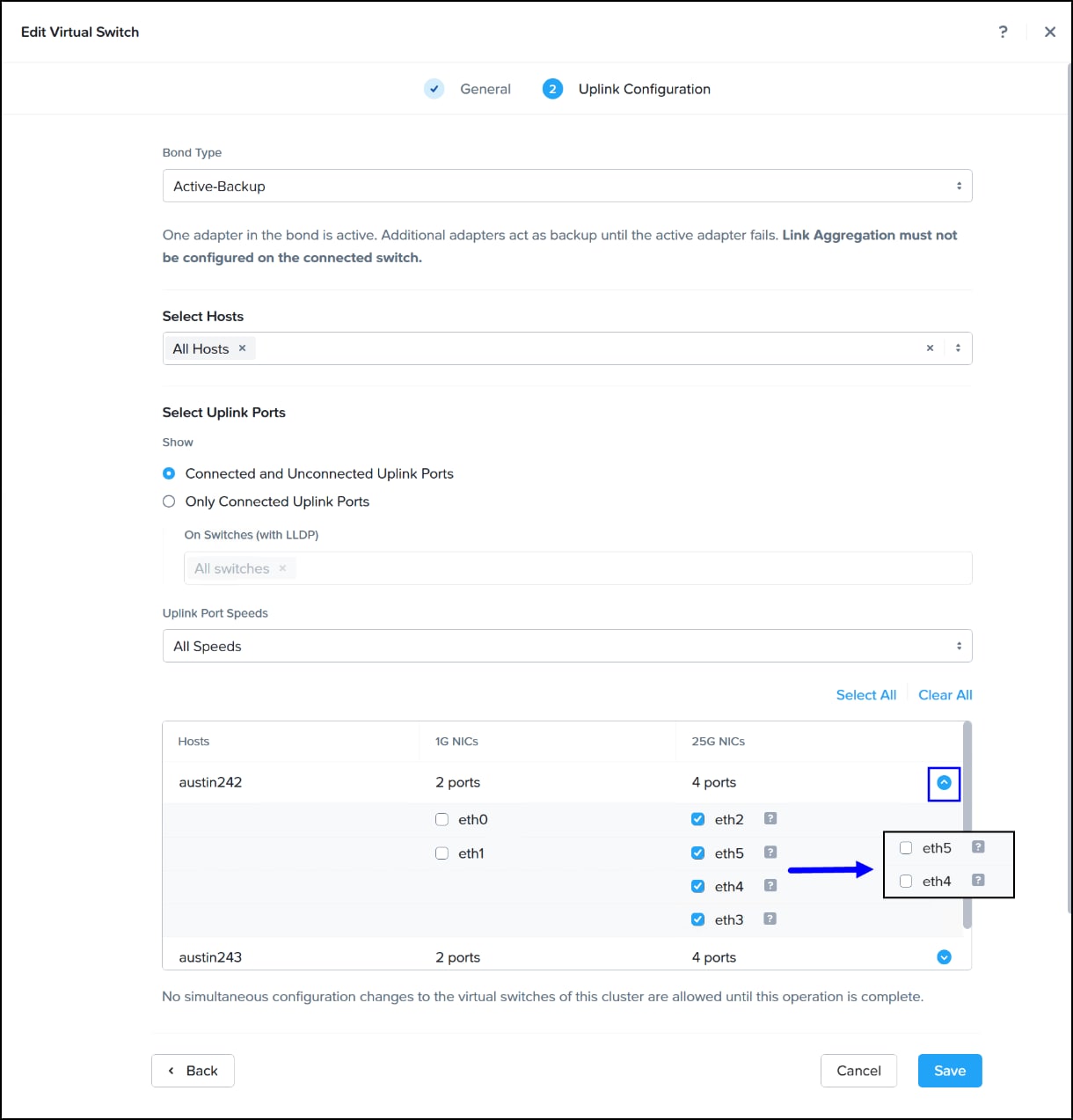
Once complete, return to the virtual switch screen in the figure Edit virtual switch – step 1 so you can create a new virtual switch using one or more of the now freed ports.
Create New Virtual Switch
Follow these steps to create a new virtual switch. In this example, the new virtual switch is specifically for SDC communication with the Dell PowerFlex array.
- In the virtual switch screen, select + Create VS in the following figure.
Figure 16. Create virtual switch – step 1 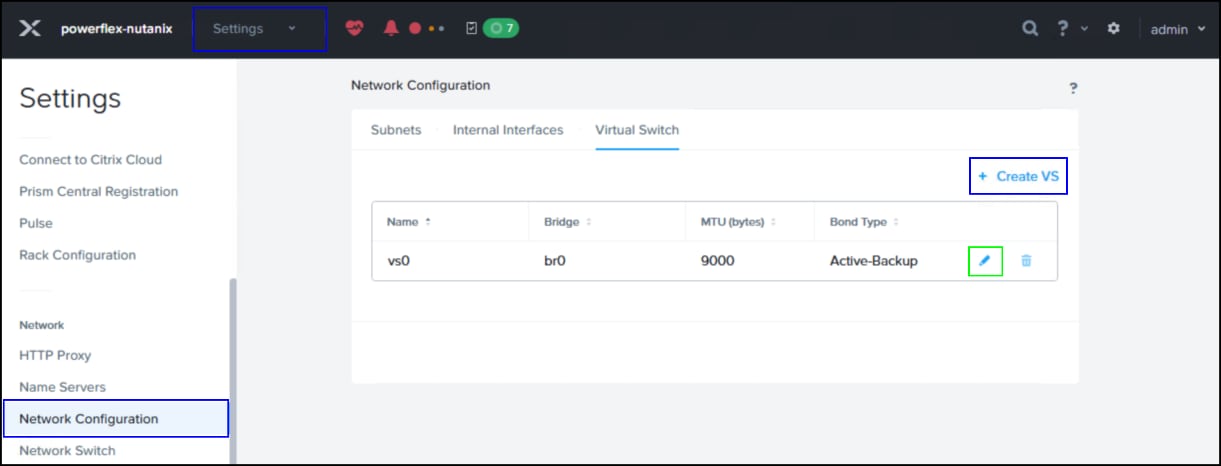
- In the first screen add in a Virtual Switch Name, Description, and change the default MTU to 9000 if supported. The Standard configuration is the default and is recommended as you can see. Click Next.
Figure 17. Create virtual switch – step 2 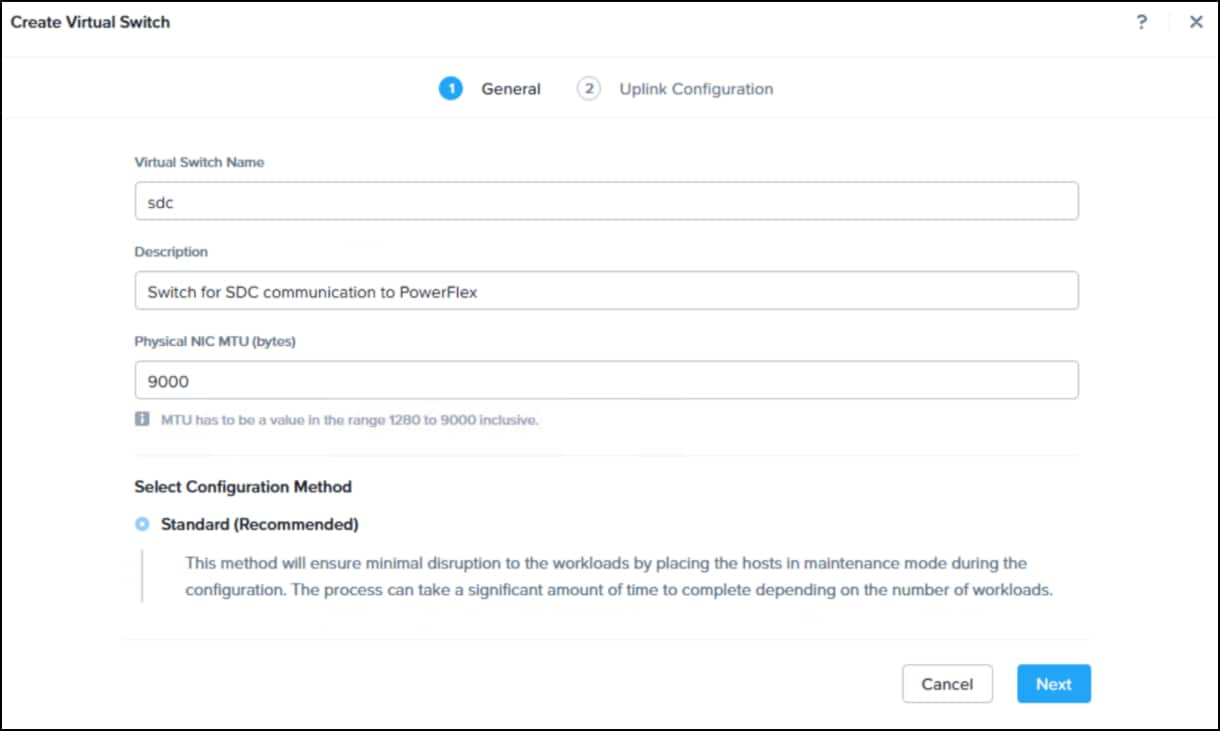
- In step 3 select the Bond Type (default Active-Backup), Select Hosts (default All Hosts), and using the check boxes next to each host, select the NICs. In the example in the following figure, eth4 and eth5 are selected which are the NICs previously.
Figure 18. Create virtual switch – step 3 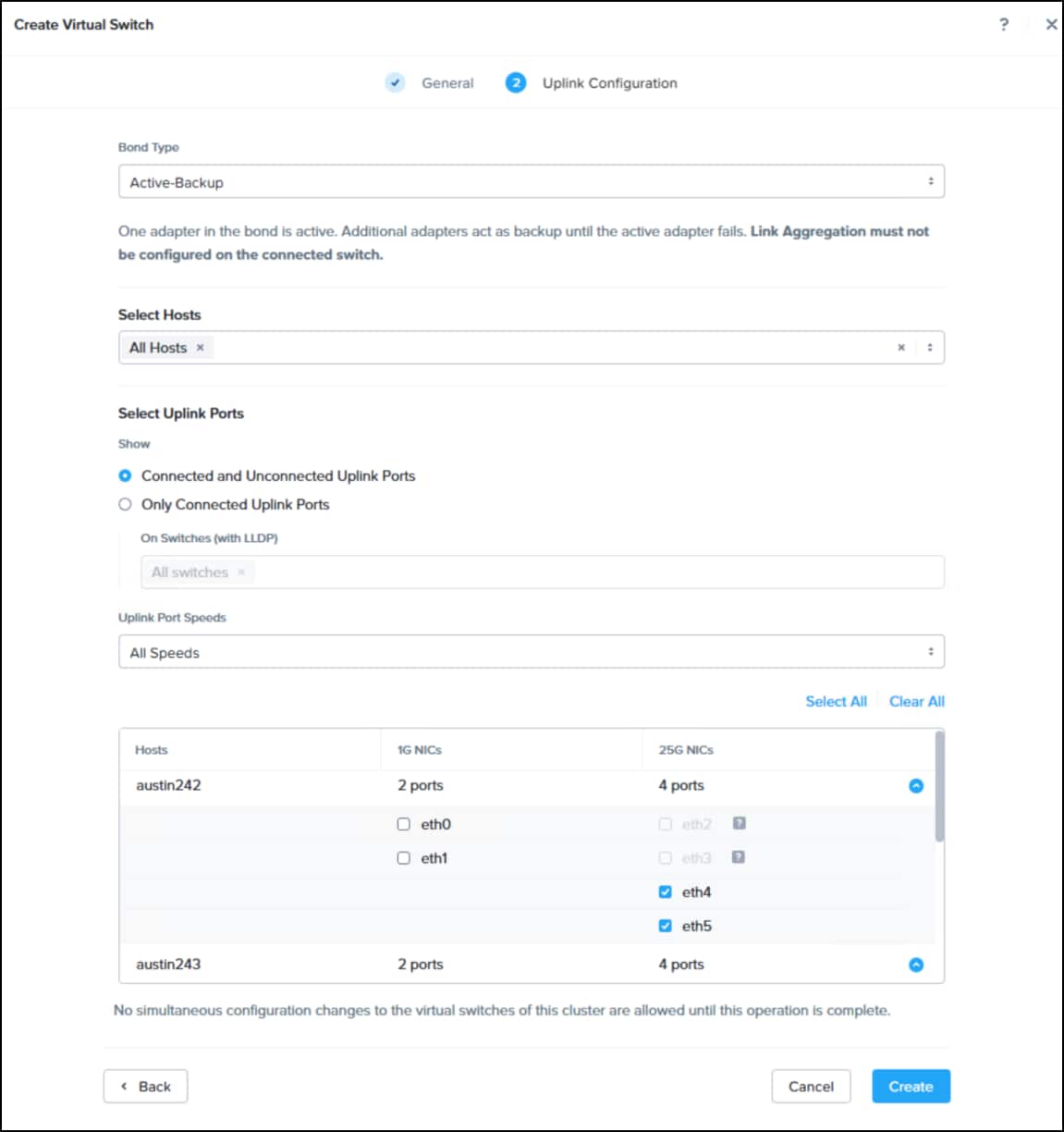
Use the newly created virtual switch to setup the external networks for Dell PowerFlex SDC. This is covered next.
External Networks
Before adding the Dell PowerFlex as external storage, create the data networks necessary for communication with the SDC.
Navigate to the home screen of Prism Element and use the drop-down menu to select Settings. On the left-hand side, select Network Configuration from Network menu. Then select the Internal Interfaces tab on the right-hand side. Click Create New Interface.
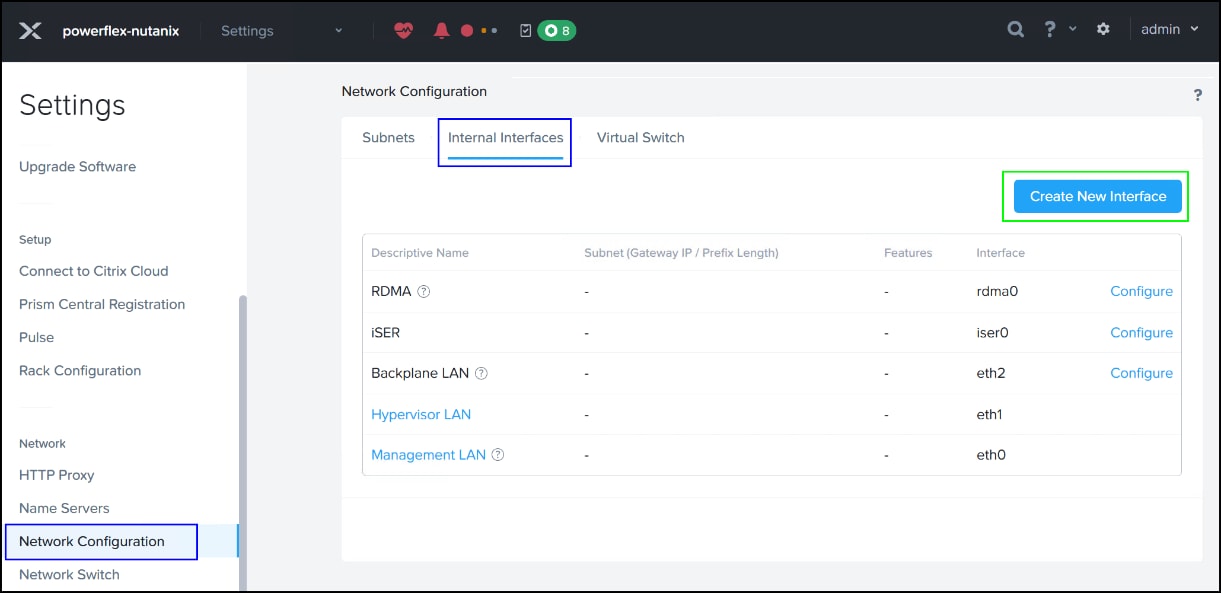
For steps 1-5 below please reference the image below.
- In the Interface Details tab enter a Descriptive Name and VLAN ID. Using the drop-down menu for the Virtual Switch, select the newly created virtual switch for SDC communication. Next click + Create New IP Pool identified as step 1.
- Enter a Pool Name and Netmask and then click + Add an IP range.
- Enter a Start IP and End IP and click Save. This returns you to the IP Pool dialog and click Save again to return to the Create New Interface dialog.
- Click Next which moves to the Feature Selection tab.
- Toggle the External Storage button, modify the MTU if appropriate, and click Save to complete the interface.
Repeat the process for additional VLANs. In this setup, as documented in the Network VLANs table, SDC required two VLANs in the figure External storage interfaces below.
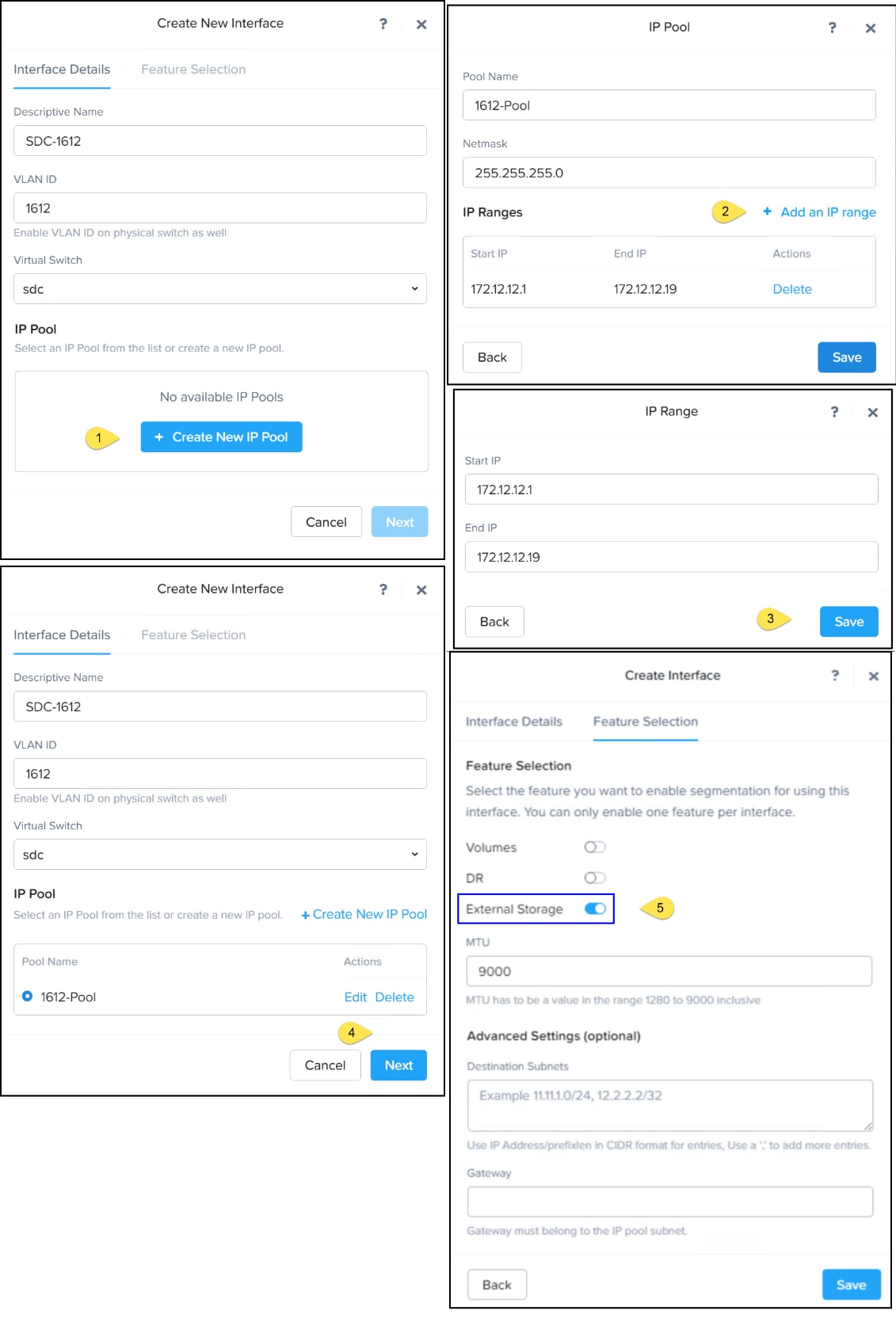
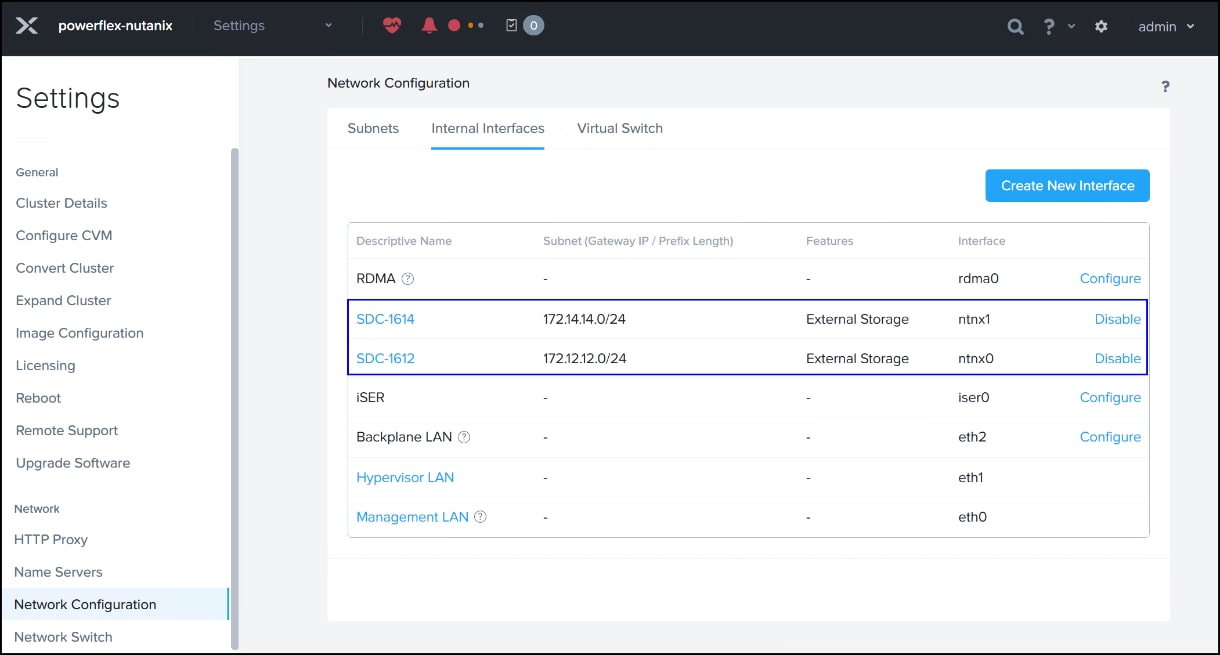
Add External Storage
Now, to add the Dell PowerFlex as external storage, follow the steps below.
- Navigate to the home screen of Prism Element and under Storage Summary on the left-hand side, select + Set up External Storage in the following figure.
Figure 22. Attach External Storage – step 1 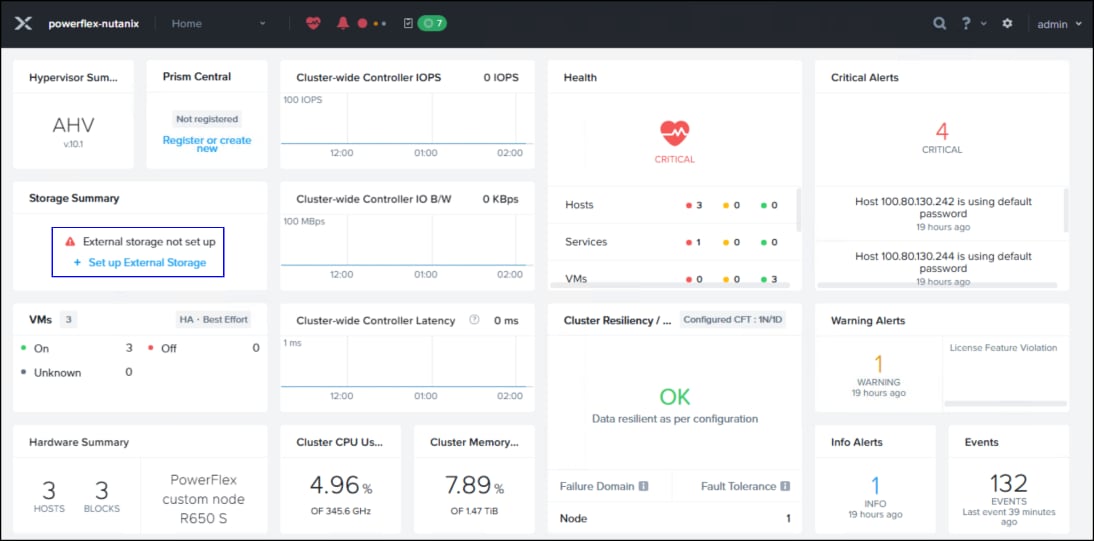
- You will be redirected to the Hardware page. At the top of the screen click + Attach External Storage.
Figure 23. Attach External Storage – step 2 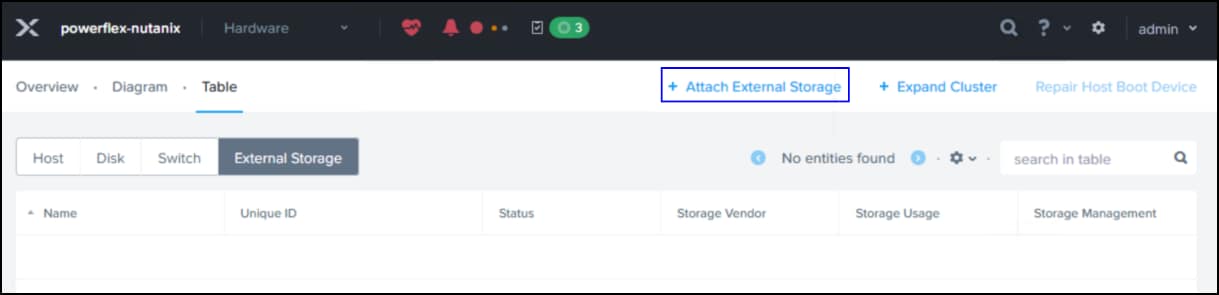
- When entering the wizard, the External Storage Vendor will default to Dell PowerFlex as the code only supports that array. First, be sure that network segmentation is set up specifically for external storage. This should have been completed prior to adding external storage.
See the External Networks section for more detail. The networks are displayed in the Network Setup (Optional) section at the bottom, though it will not be optional in a properly configured Dell PowerFlex since the SDC should be on a separate network/VLAN. This network is specifically for SDC communication back to the Dell PowerFlex cluster. In the example in the following figure there are two data networks, SDC-1612 and SDC-1614.
In the SDC Installation section, add the .json and .zip files and click Install.
Figure 24. Attach External Storage – step 3 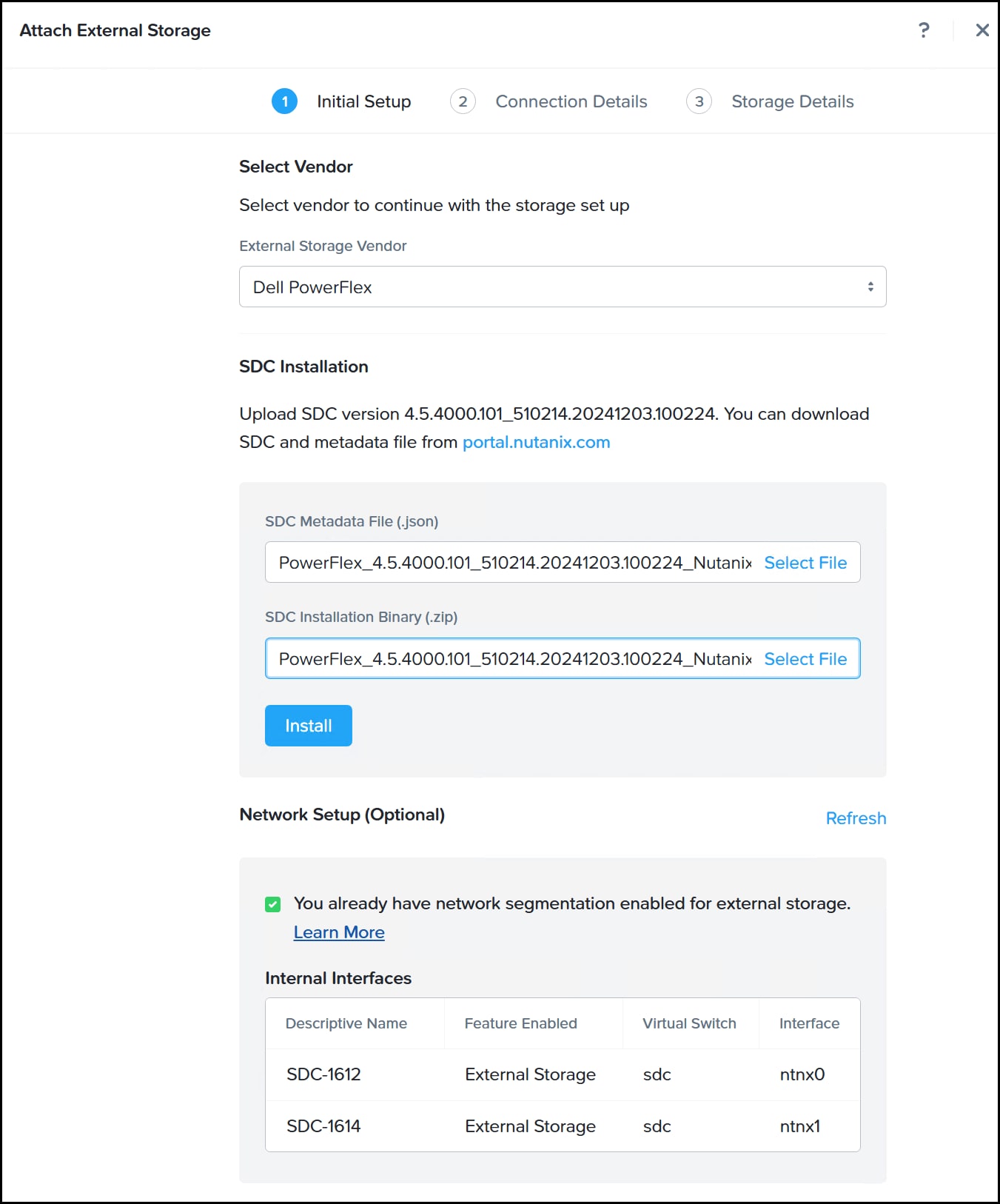
Once installation of the SDC completes, there will be a green checkmark next to each field as in the following figure. Click Next.
Figure 25. Attach External Storage – SDC installed 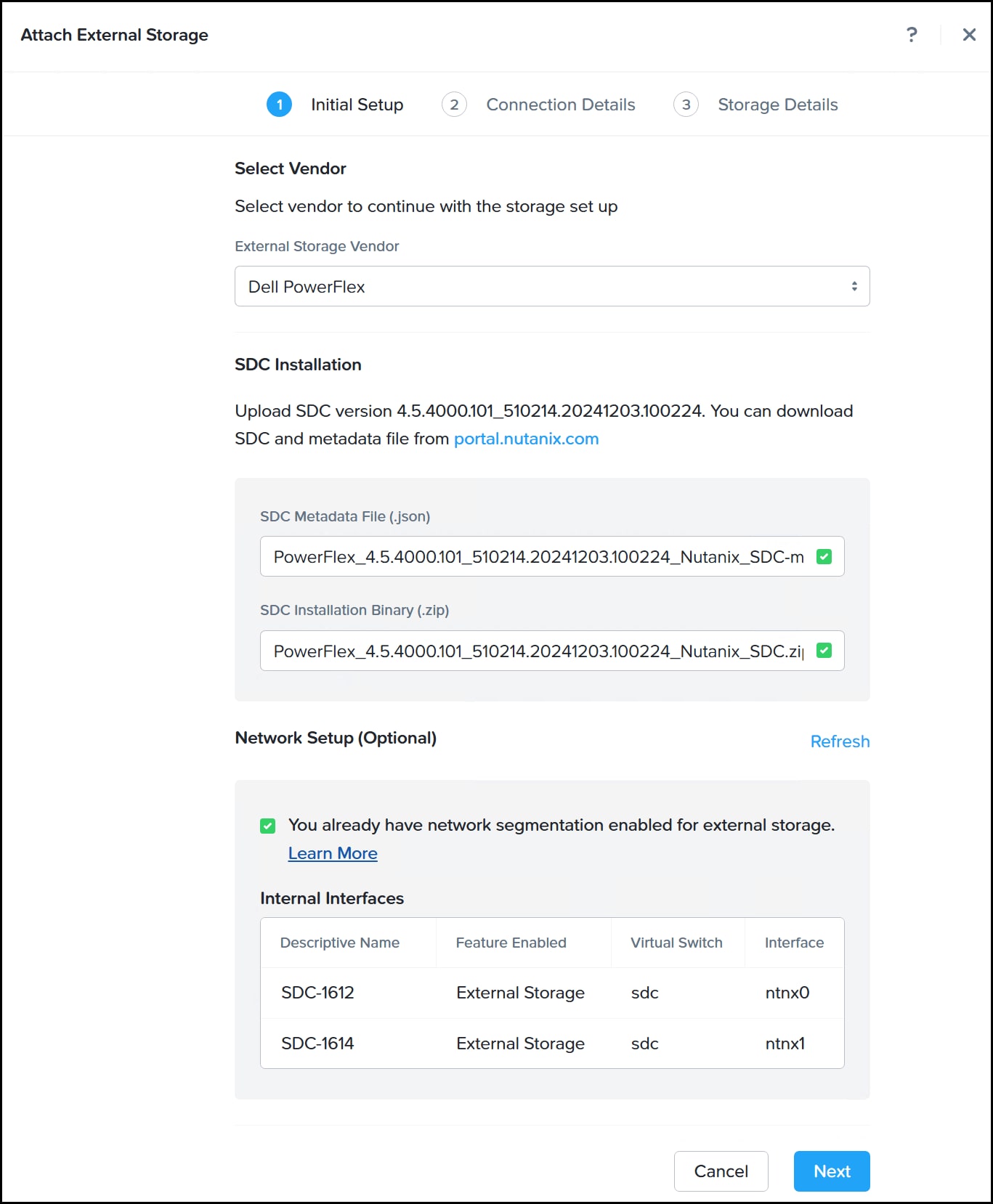
- In the Connection Details shown in the following figure, enter a Name for the Dell PowerFlex, the IP address of the PowerFlex Manager API endpoint and an administrator Username and Password. Click Next. Nutanix will attempt to connect to the UI. If it fails an error message appears. Resolve before proceeding.
Figure 26. Attach External Storage – step 4 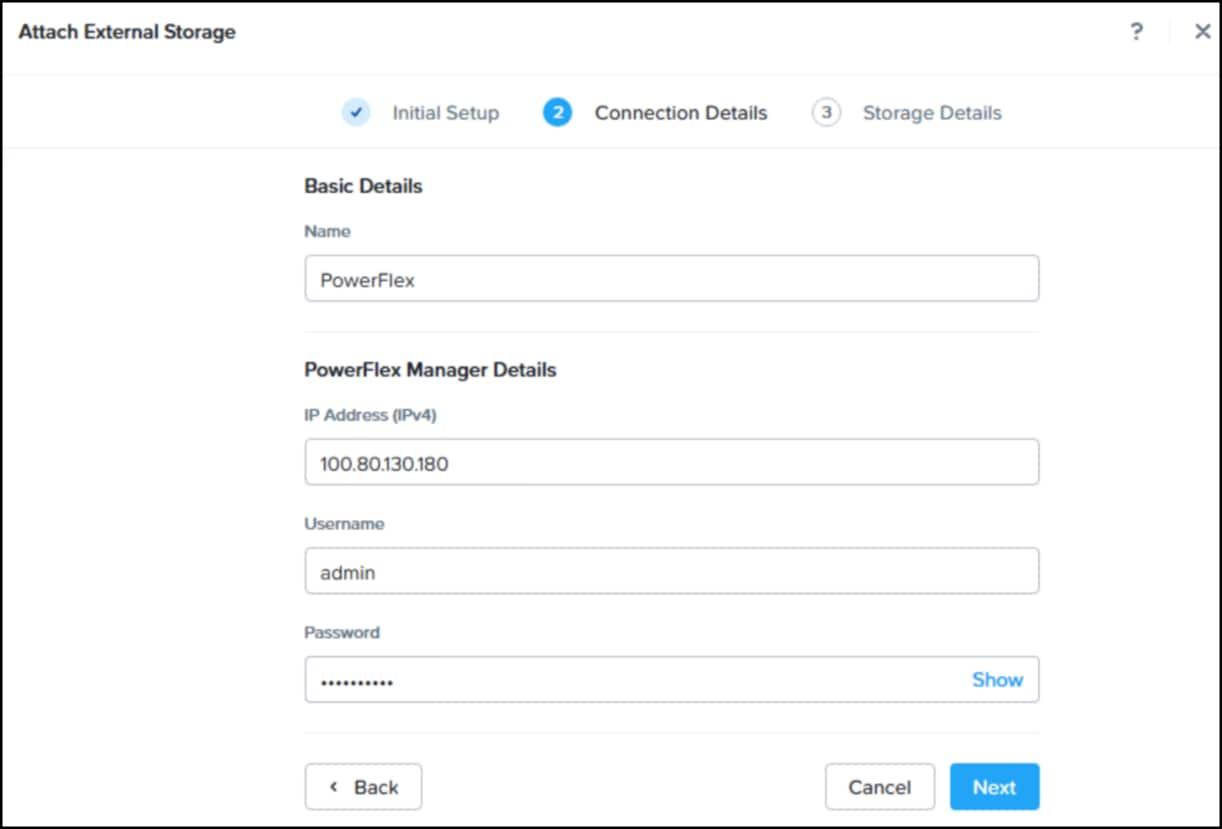
- In the Storage Details screen in the following figure, use the drop-down menus to select the PowerFlex Protection Domain and the Storage Pool Name. If there are multiples, you may only select one of each. Click Attach to complete.
Figure 27. Attach External Storage – step 5 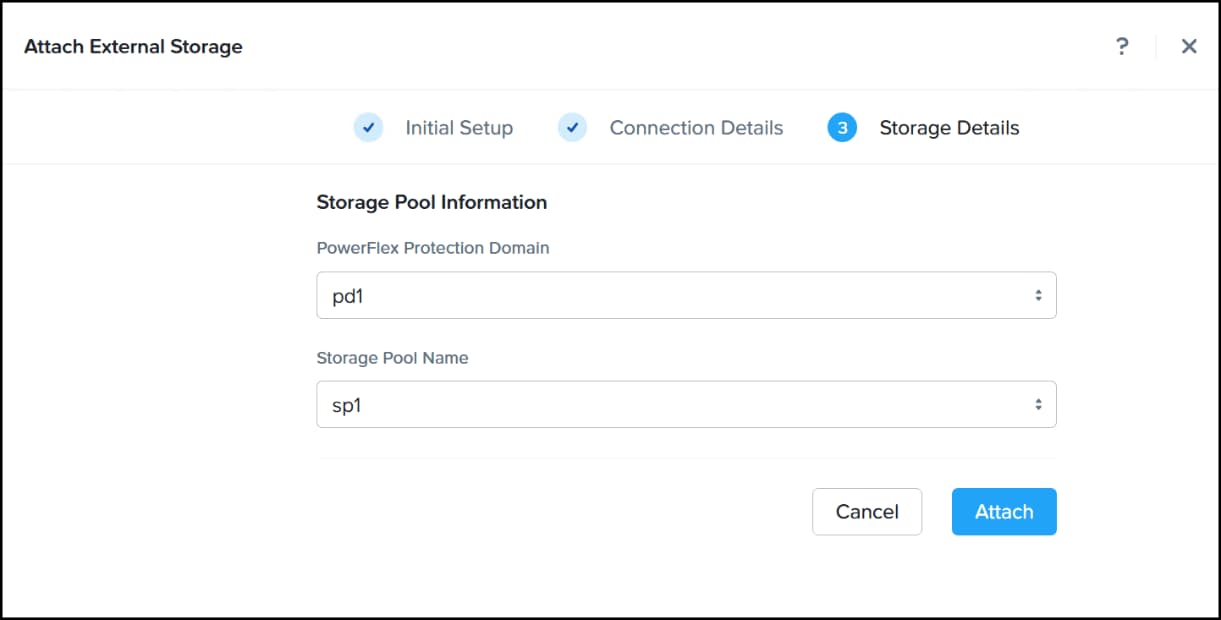
A successful attempt results in a pop-up message and the storage appearing in the table as in the following image.
Figure 28. Attach External Storage complete 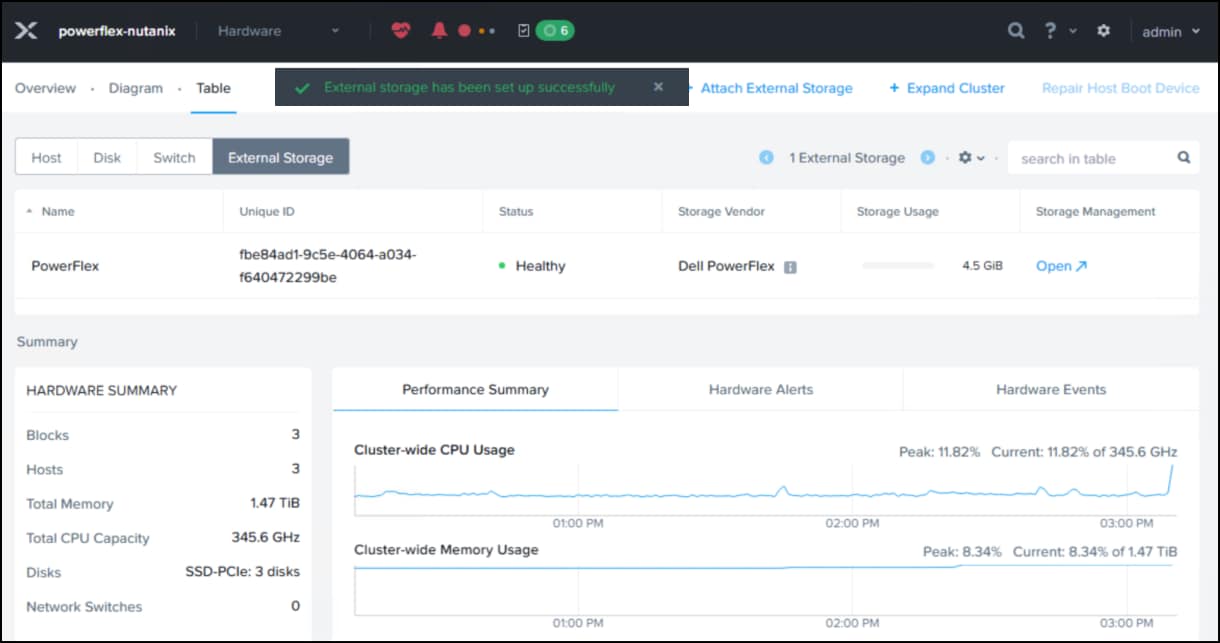
Note that it is not possible to add more than one Dell PowerFlex nor add more Protection Domains/Storage Pools to an existing Dell PowerFlex. If the user attempts to do so the following error message appears:
Figure 29. Additional Dell PowerFlex 
If you have multiple Nutanix deployments, it is possible, however, to use the same PowerFlex with those.
Prism Central
Subnets
Either during or prior to Prism Central deployment, you must create a subnet where Prism Central VMs will be employed. The following steps walk through creating the subnet prior to deployment. Note that the wizard differs if activated from the deployment screen in that you cannot choose the virtual switch. It defaults to the first one. Therefore it is advisable to create it first, using these steps.
- In the dialog in the following figure, enter a Subnet Name, select a Virtual Switch, and enter in a VLAN ID. If you want AHV to control the network, click the box and then provide the network prefix and the gateway. The example below uses the VLAN ID of 0 which is the public network and does not enable IP management. Click Save.
Figure 30. Create subnet for Prism 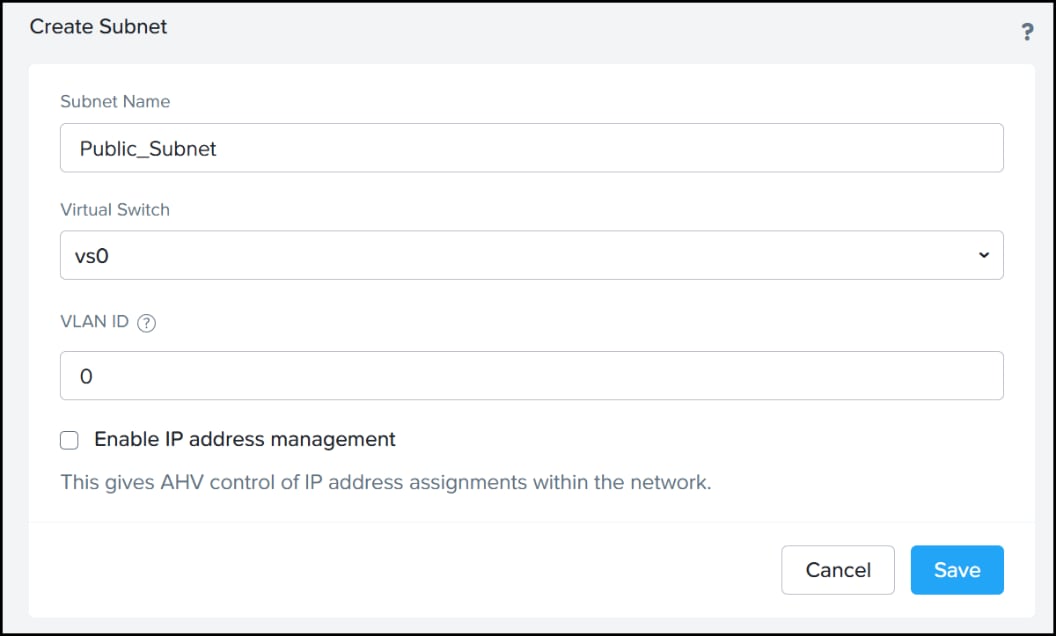
Prism Deployment
The following includes the steps to deploy Prism Central from an existing Nutanix cluster.
- From the Home dashboard of Prism Element in the following figure, find the Prism Central widget and select Register or create new.
Figure 31. Start Prism deployment 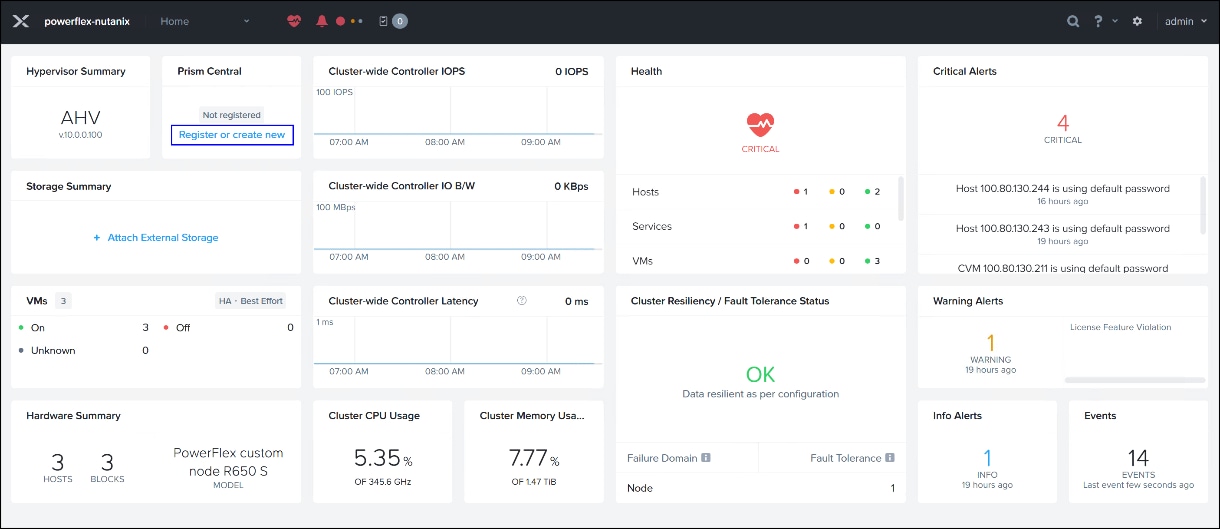
- In the initial dialogue in the following image select Deploy.
Figure 32. Deploy new instance 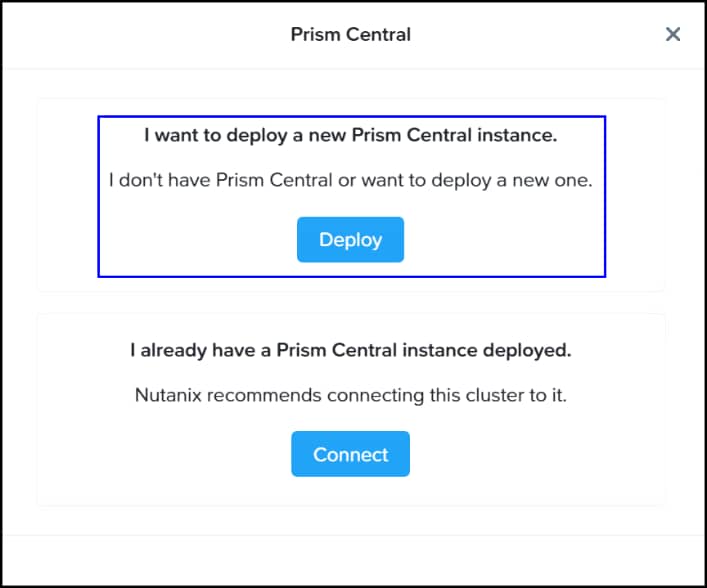
- For viewing ease, steps 1 through 4 are present in the following image. Begin by clearing the box next to Only show compatible versions. This is required since a custom build is used in this setup. Next, select Upload Installation Binary. Select the appropriate json and tar file and click Upload. Once it completes, the new version appears as in the Available versions table. Highlight the radio button and click Next. Note you can watch the progress of the upload in the Tasks screen.
Figure 33. Prism deployment – steps 1 - 4 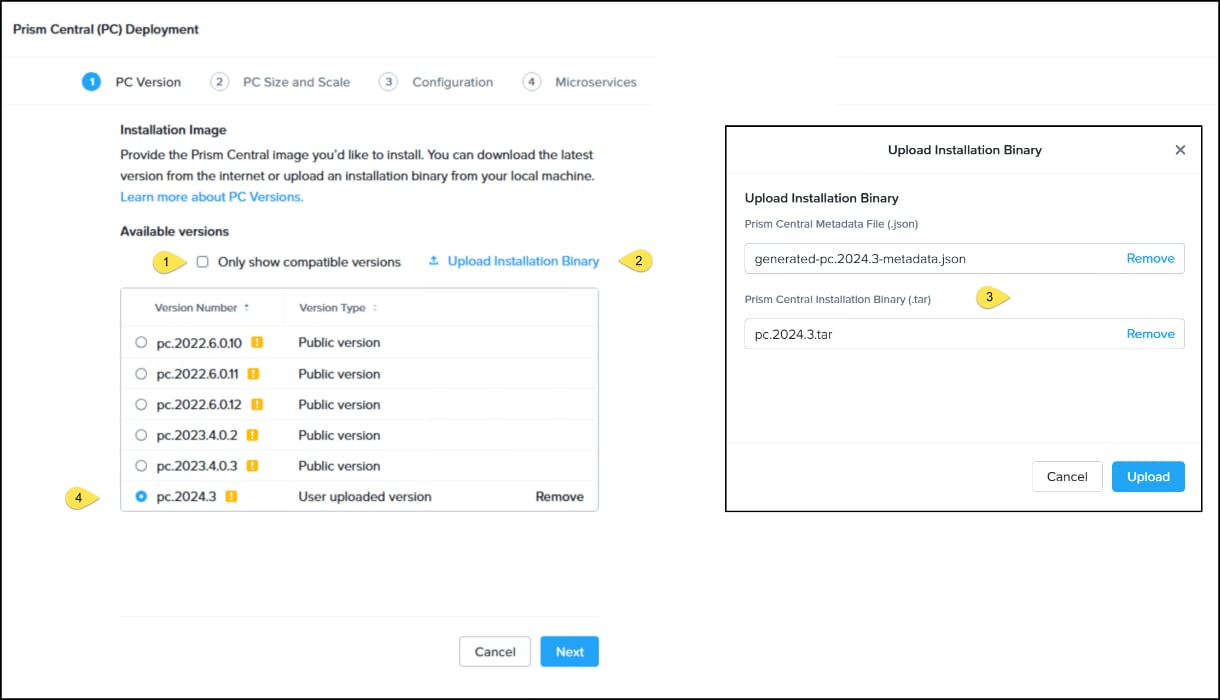
- In the PC Size and Scale screen decide how large to make the Prism implementation and click Next.
Figure 34. Prism deployment – step 5 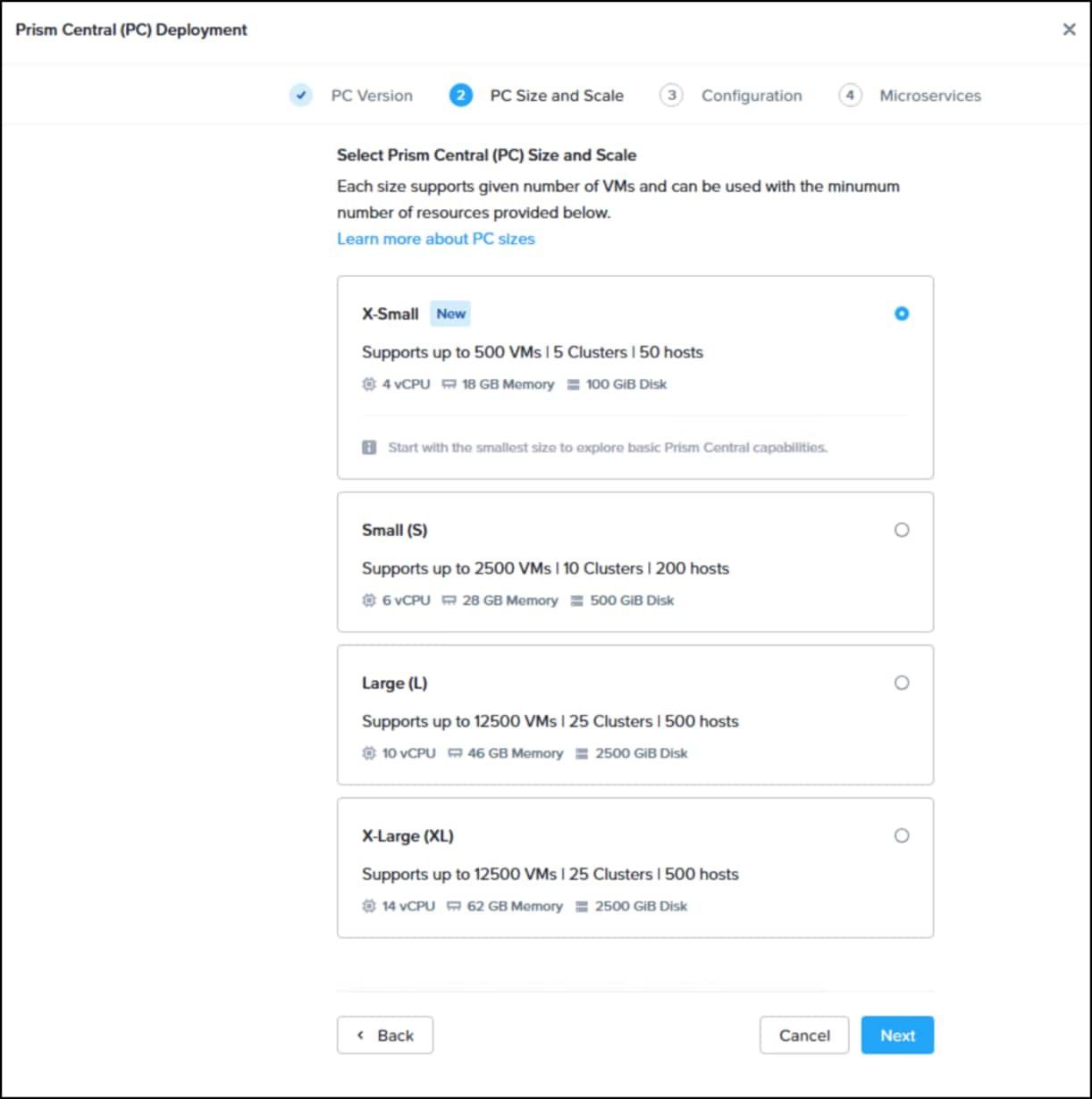
- In the configuration page in the following figure select the previously created network in the Subnets section. Enter in the required network information, select the Dell PowerFlex as the Container, give a VM Name and IP Address.
Figure 35. Prism deployment – step 6 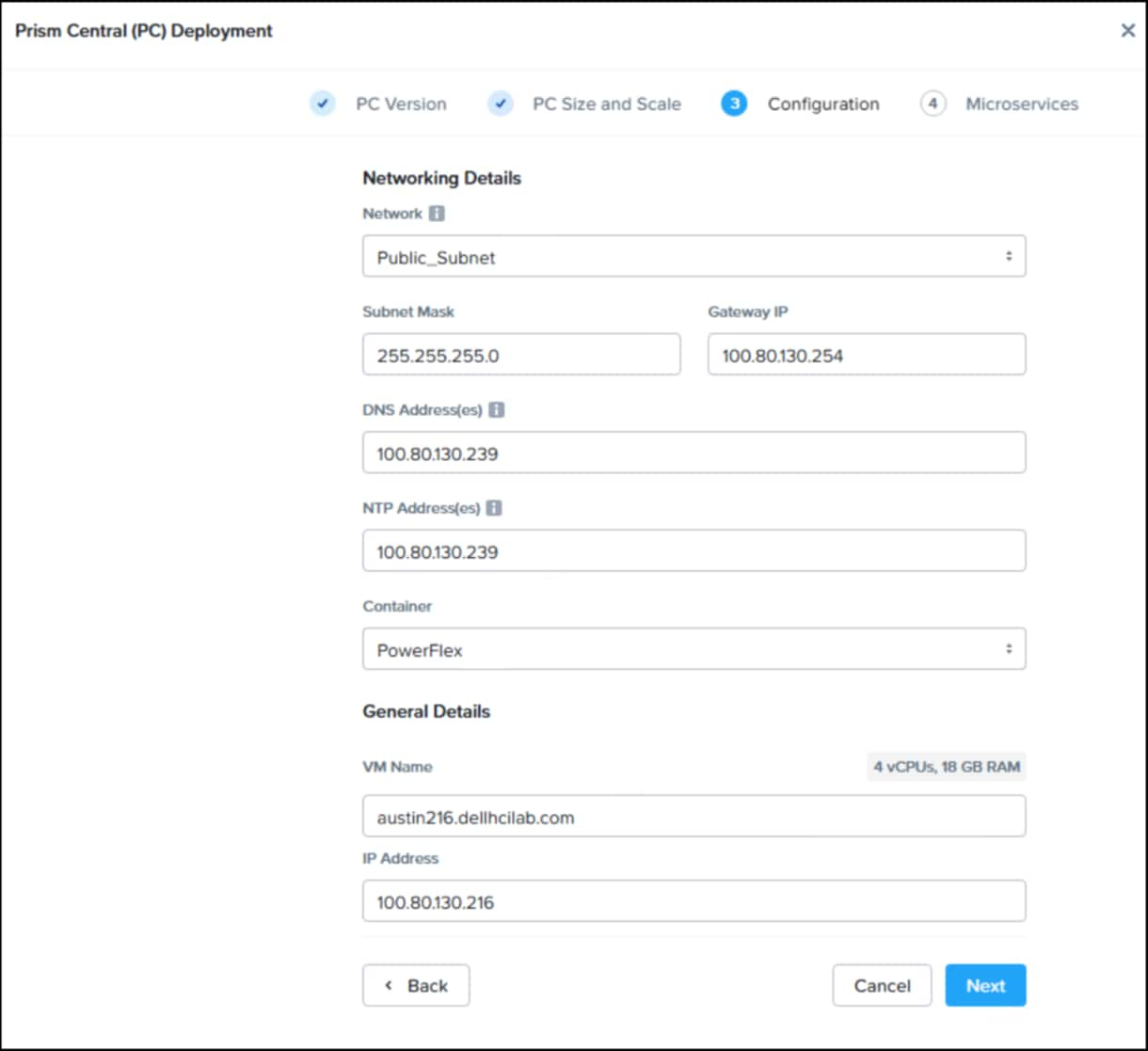
- In the final step Nutanix presents the Microservices infrastructure. Dell Technologies recommends using the default settings as shown in the following image.
Figure 36. Prism deployment – step 7 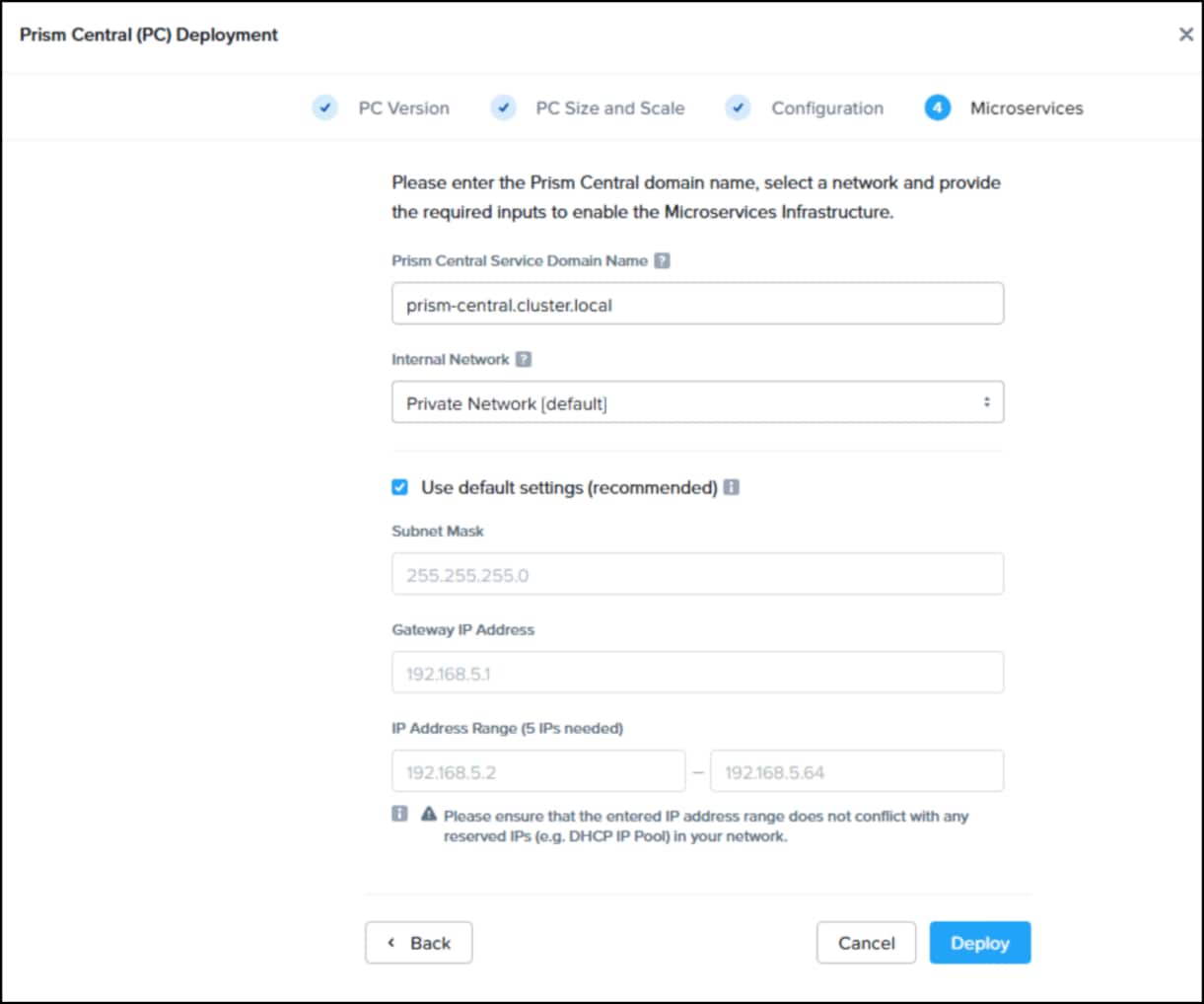
Upon completion, the link to Prism Central should be available in the Prism Element dashboard in the following image.
Figure 37. Prism Central link in Prism Element 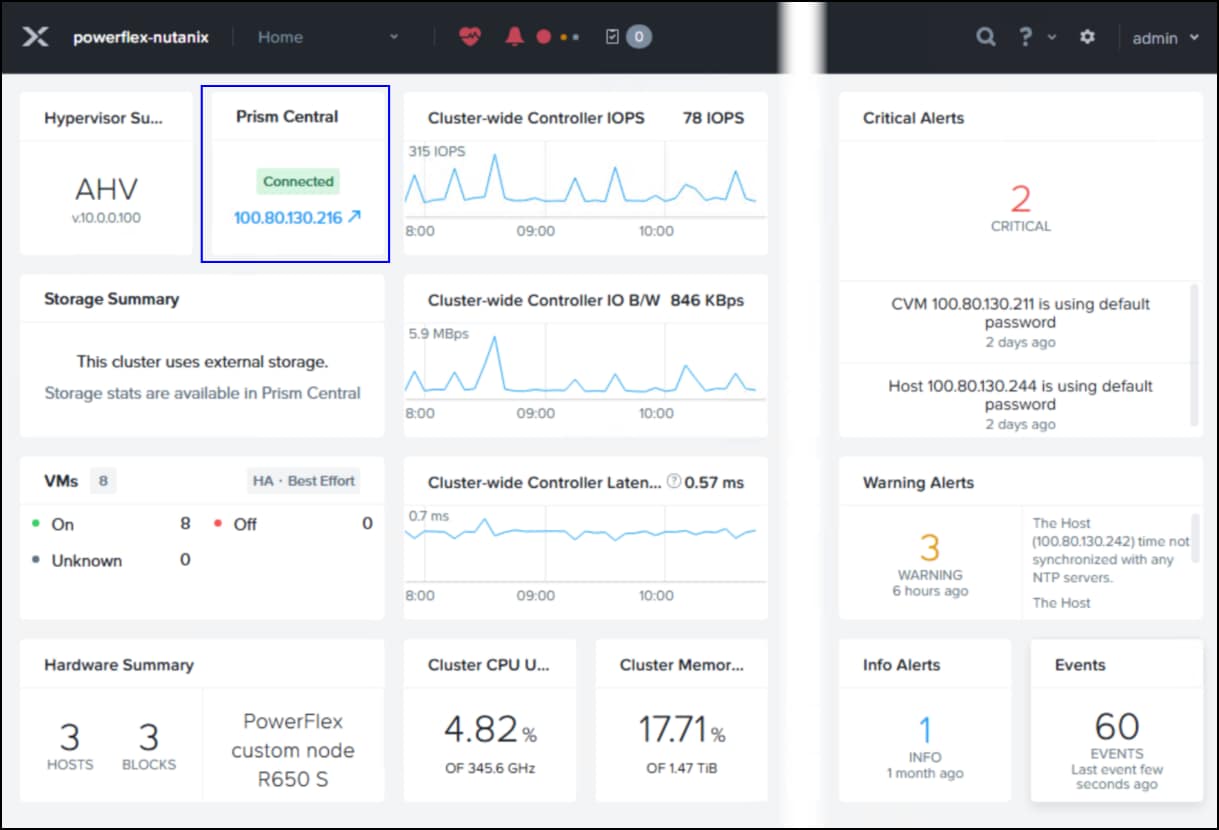
If the IP is not present, follow these steps:
- In the Connect info screen simply click Next.
Figure 38. Register Prism Central – step 3 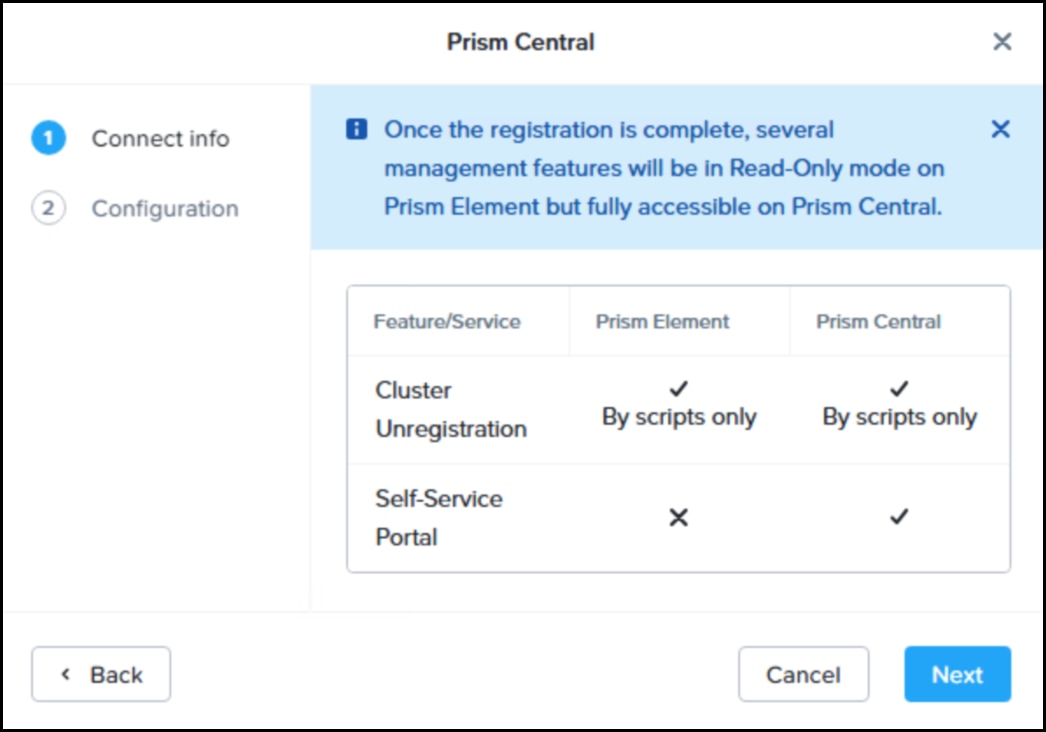
- In step 4 in the following image enter in the Prism Central VM detail. Click Connect to complete the registration. The link will now be present in Prism Element.
Figure 39. Register Prism Central – step 4 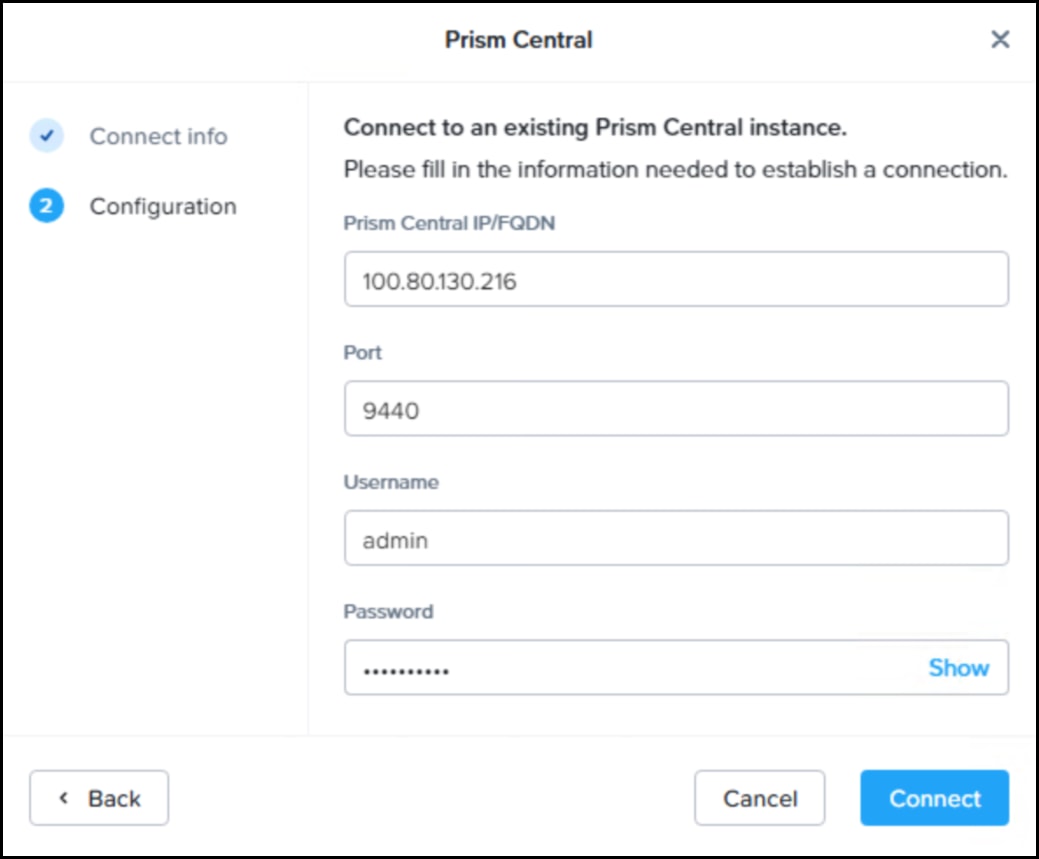
- In the Connect info screen simply click Next.
Provisioning
Provisioning
Introduction
Nutanix Dell PowerFlex volumes
All Nutanix volumes created on the Dell PowerFlex start with the prefix “nx_” as shown in the figure below. Note these volumes can be filtered. The suffix designates the type of volume:
- .dt are data or snapshot volumes – these are sized according to the request from within Nutanix but must adhere to the Dell PowerFlex sizing rules of the power of 8. For example, in this paper the SQL Server database is comprised of 100 GB data devices. In Dell PowerFlex, however, these volumes will be 104 GB.
- .md are metadata volumes – an 8 GB metadata volume is created every time a data disk is created. Nutanix uses these volumes to store information related to the data volume. For most of the time, these volumes are unmapped but Nutanix will map them when it needs to record data. For example a volume under heavy activity or one involved in snapshots would prompt a mapping. That mapping will be removed after some idle time to avoid exceeding the SDC limit per node.
- .nd are metadata volumes – these are cluster management metadata volumes. Two are created and mapped to each CVM.
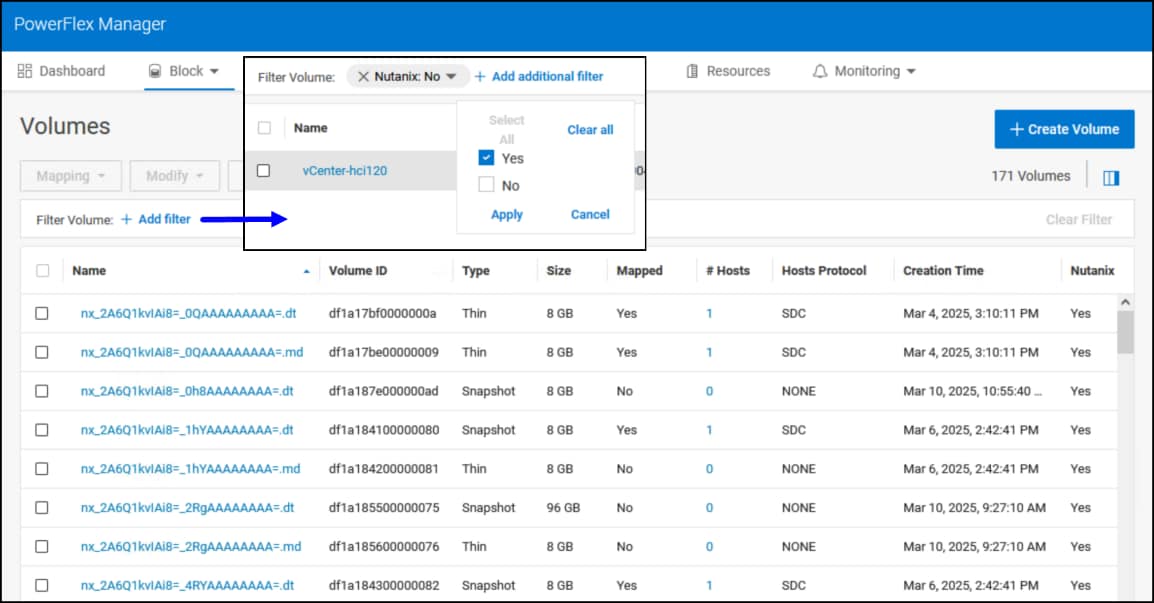
Each new volume that Nutanix creates will be accompanied by another 8 GB volume which is for metadata.
Virtual disk
To add a virtual disk to a virtual machine from the PowerFlex storage, take the following steps.
- Navigate to the Prism Element dashboard in the following figure and use the drop-down menu at the top to select VM. Right-click the selected VM and select Update.
Figure 41. Add virtual disk – step 1 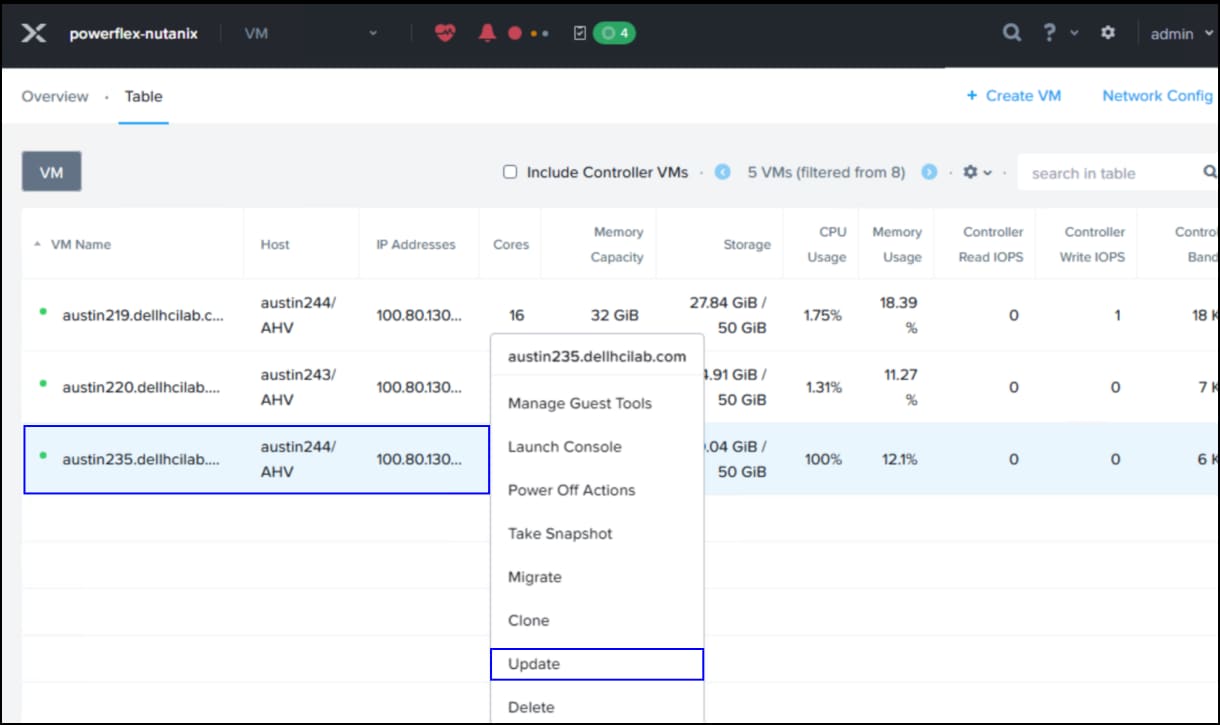
- In the dialog box Update VM in the following figure scroll down to the Disks section. Click + Add New Disk. In the Add Disk dialog select the PowerFlex storage from the drop-down list of the Storage Container and enter a size, here 10 GB. Click Add to complete the task. It is unnecessary to click Save as the task will be done so click Close to end the dialog.
Figure 42. Add virtual disk – step 2 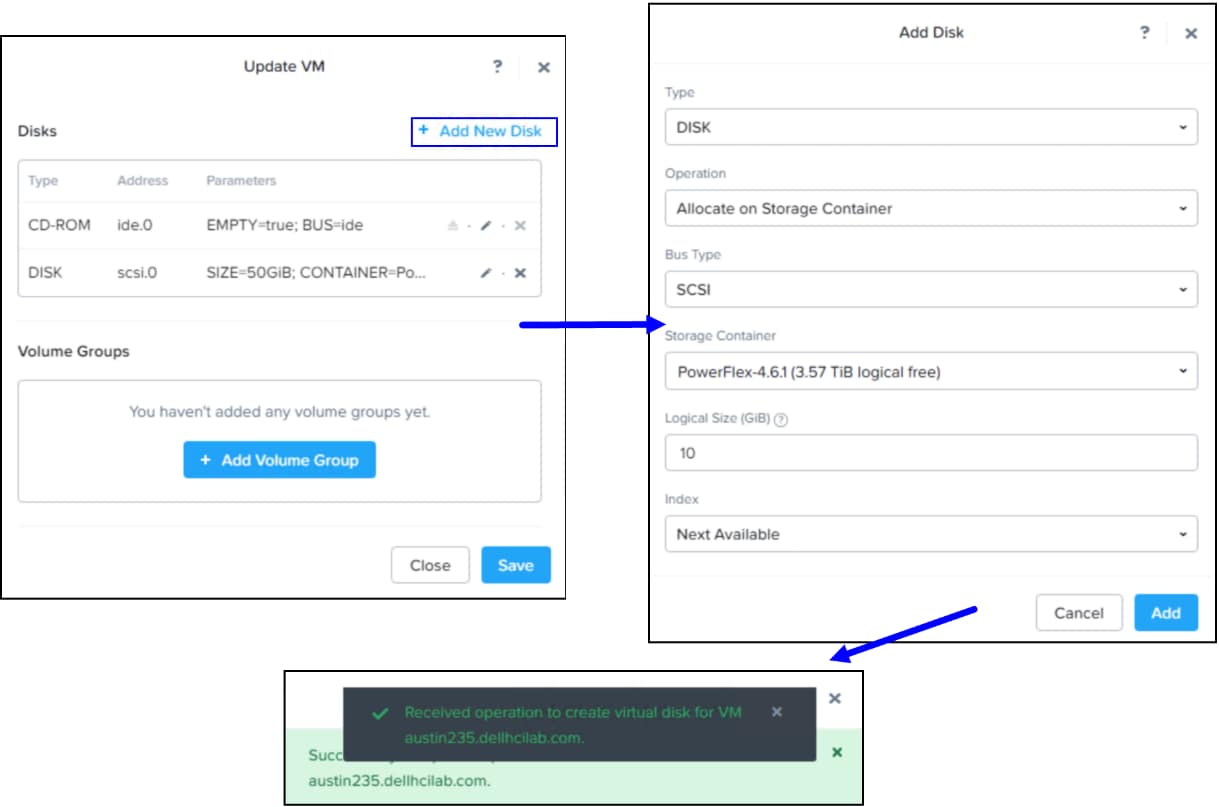
Volume Creation
To provision volumes from Dell PowerFlex to virtual machines for use in SQL Server, you can use Prism Element, Prism Central, or the CLI/API. The following example uses Prism Element.
- Navigate to the Prism Element dashboard and use the drop-down menu to select Storage. Click + Volume Group to start the wizard.
Figure 43. Create a new Volume Group – step 1 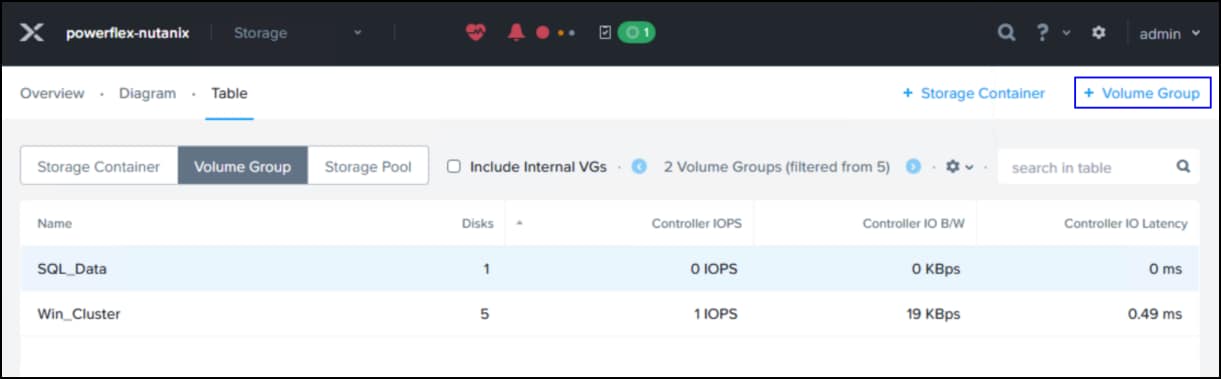
- In the upper part of the dialog enter in a Name and Description for the group. Note that the iSCSI Target Name Prefix is generated automatically, though it can be changed. Next click on + Add New Disk under the Storage section.
Figure 44. Create a new Volume Group – step 2 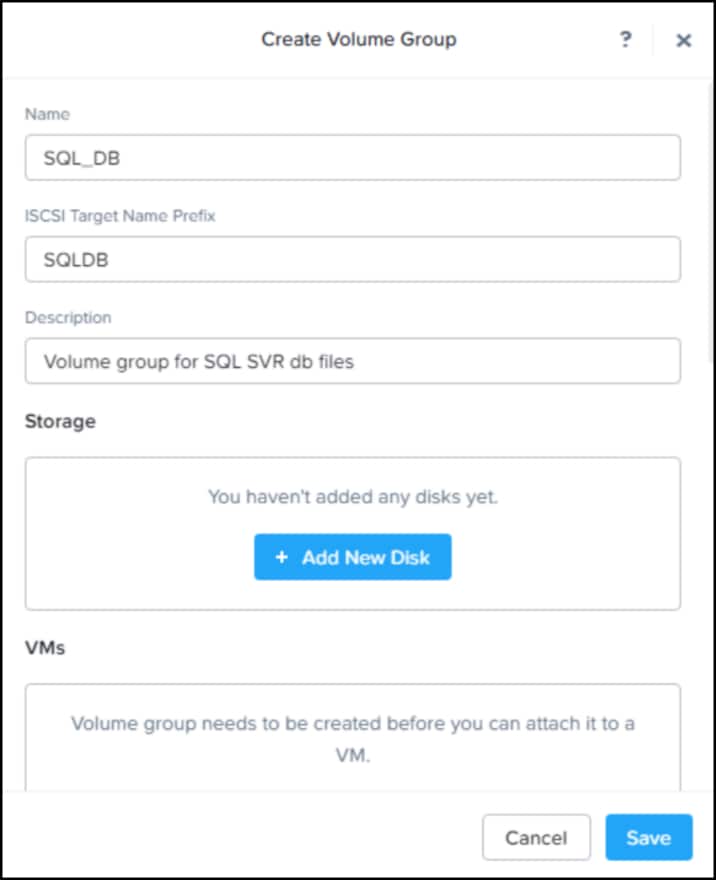
- The Add Disk dialog requires you to select the Storage Container and size. Select the Dell PowerFlex storage and enter a Logical Size then click Add. This process can be repeated as many times as necessary to include additional disks in the volume group.
Figure 45. Create a new Volume Group – step 3 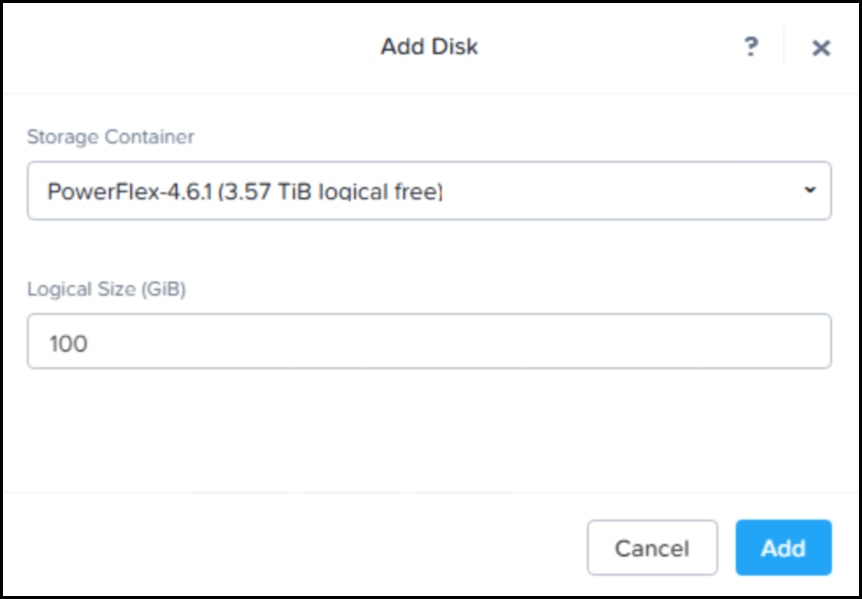
- Once the desired number of disks are added to the volume group, in this example three, 100 GB disks, click Save. The disks cannot be attached to VMs until the volume group exists.
Figure 46. Create a new Volume Group – step 4 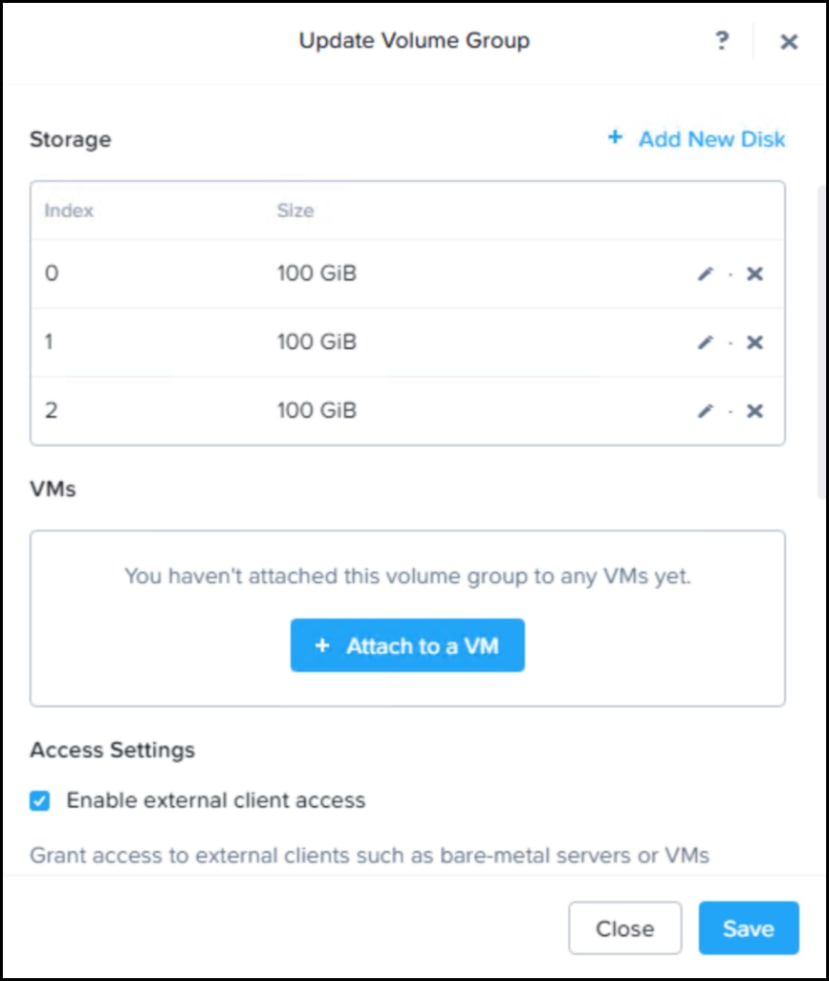
- With the volume group created, you can now attach the disks to the VMs. When you return to the Storage screen, right-click the newly created volume group and select Update as in the following image.
Figure 47. Create a new Volume Group – step 5 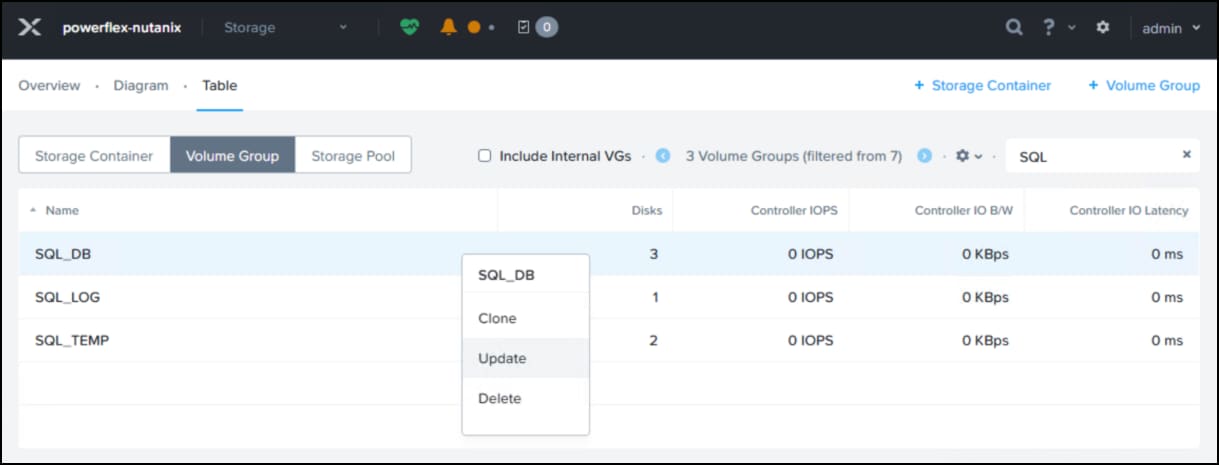
- There are two options for attaching the devices to the virtual machines. The first option is to use the + Attach to a VM function which is direct attach. This presents the disks to the virtual machines as virtual disks. The second option is to use the Client section and check the boxes next to the virtual machines so the device is mapped directly with iSCSI. Although either option is possible, using virtual disks provides greater ease and flexibility. Therefore start by clicking + Attach to a VM as shown in the previous figure Create a new Volume Group – step 4. Choose one of the SQL Server VMs from the drop-down menu and click Attach. You should see a successful message in the Update Volume Group dialog in the following figure.
Figure 48. Create a new Volume Group – step 6 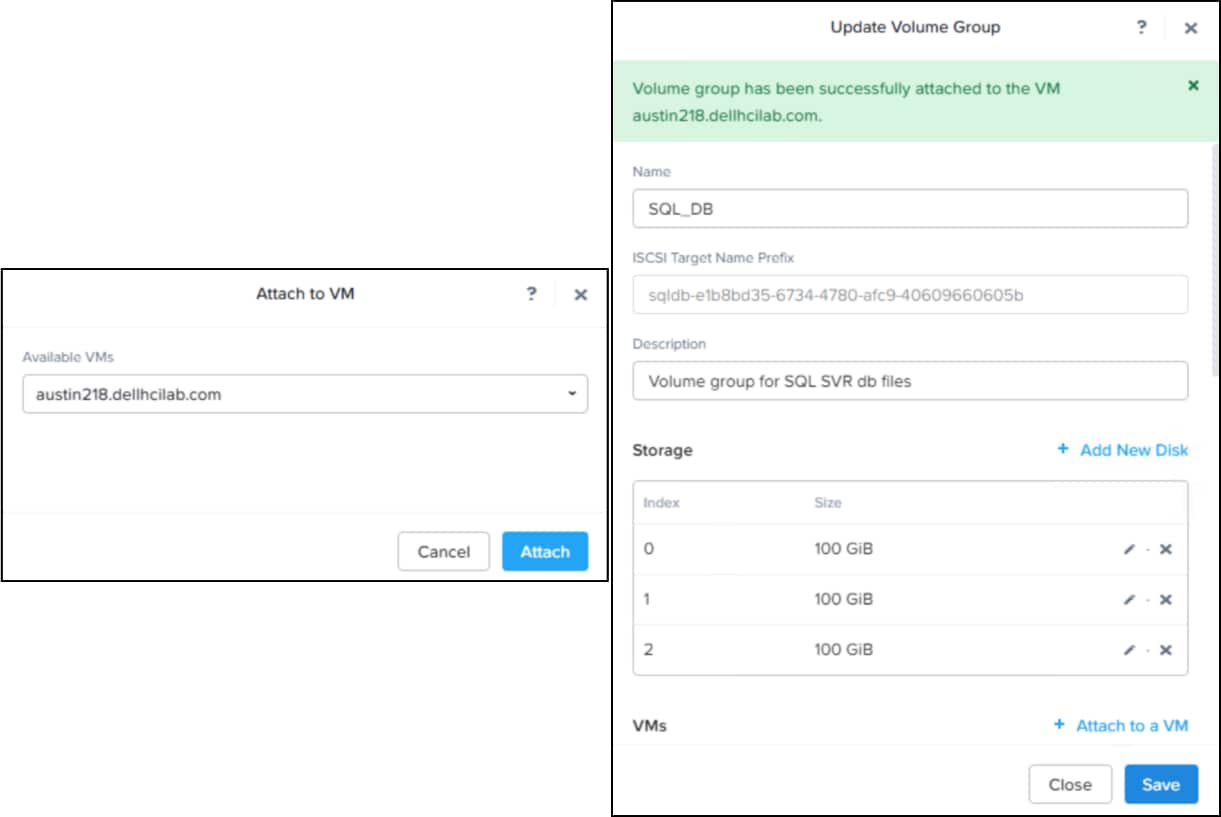
- Repeat this process for each SQL Server VM. When adding the second VM, Nutanix will produce a warning about clustering in the following figure. Click Allow as this is indeed for a Microsoft Failover Cluster. Click Close or Save to exit the dialog.
Figure 49. Create a new Volume Group – step 7 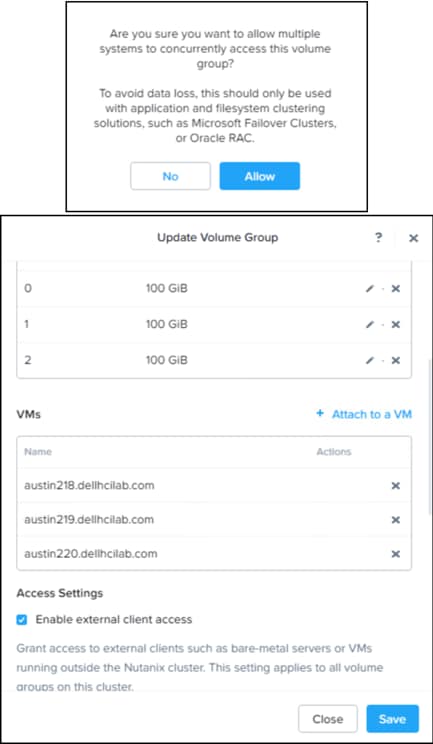 Using Prism Central you can view the VMs attached to the Volume Group SQL_DB in the following figure.
Figure 50. Volume Group SQL_DB and the 3 SQL Server VMs 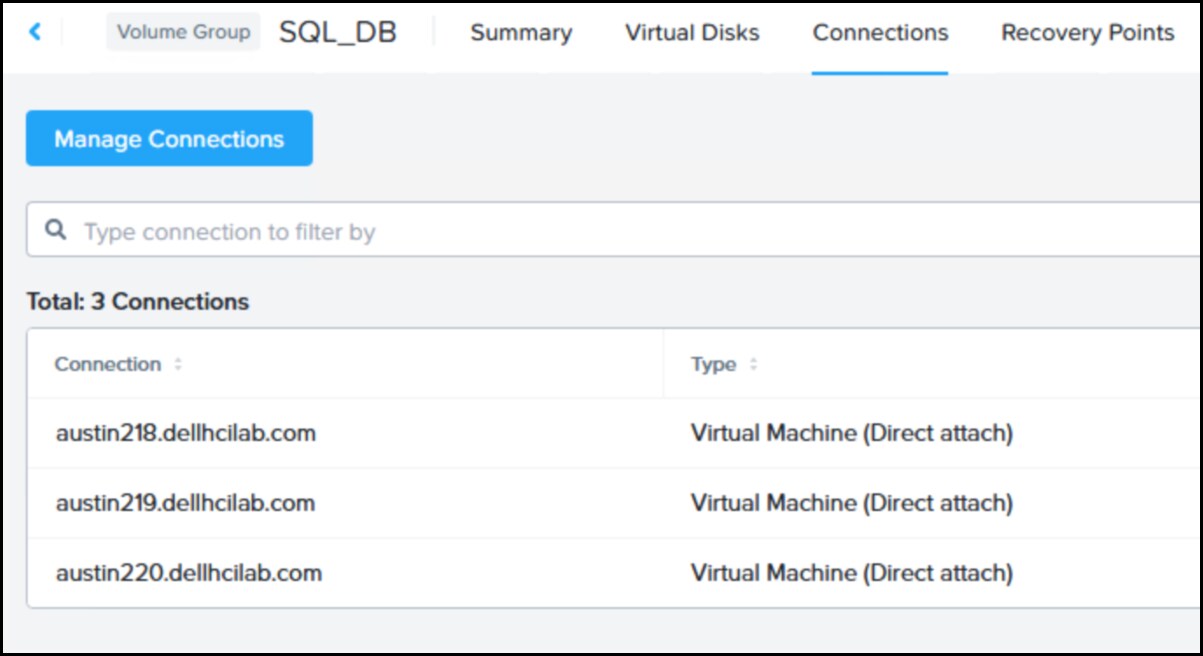
In the virtual machines the Windows OS recognizes the new disks. The user must online the disk on only one of the three nodes, initialize it with a GPT, create a new simple volume, and format it. This is covered in the next chapter.
Applications
Applications
Introduction
Windows Server Failover Cluster
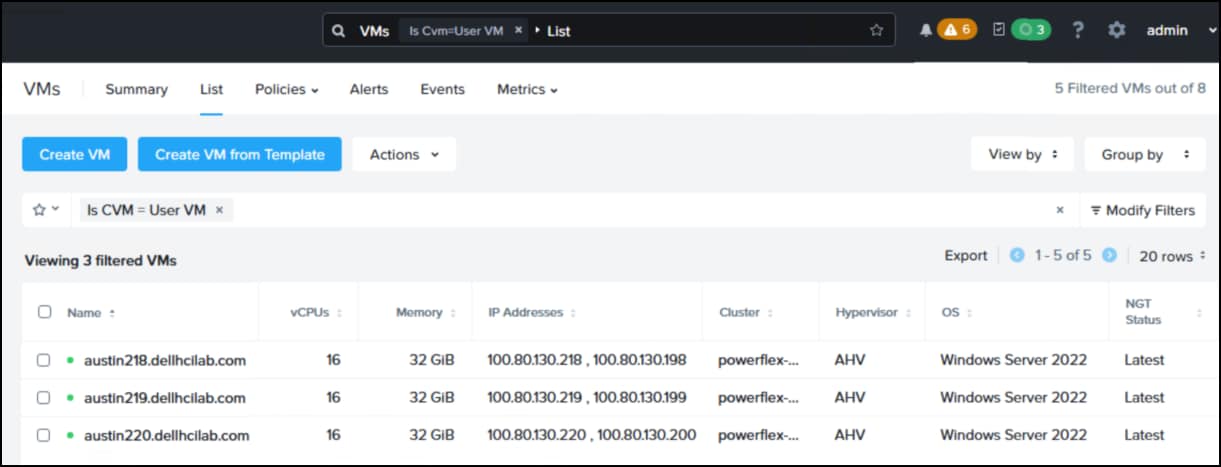
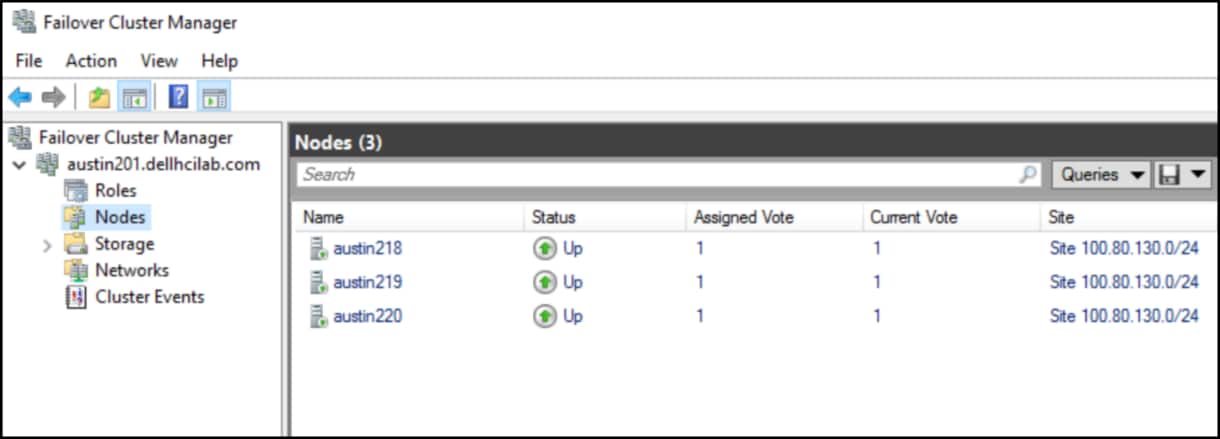
The WSFC is comprised of three virtual machines running Windows Server 2022 on the Nutanix AHV hypervisor. A fourth VM runs Active Directory and the DNS and NTP servers which the Windows Servers use to establish the cluster. Nutanix load balances the VMs across the AHV cluster. Each VM has 16 vCPUs and 32 GB of RAM with a single 50 GB virtual disk for the local software. The VMs are shown in the following figure in Prism Central.
The cluster created from these VMs is shown in the following figure.
SQL Server
WSFC post-configuration
Disk witness
First, setup a disk witness. Be sure there is a shared disk assigned to the cluster before proceeding. In WSFCM in the following figure, highlight the cluster in the left-hand panel and then in the right-hand Actions menu select . Using the wizard, select the option to Configure a disk witness. Choose an existing disk in the cluster.
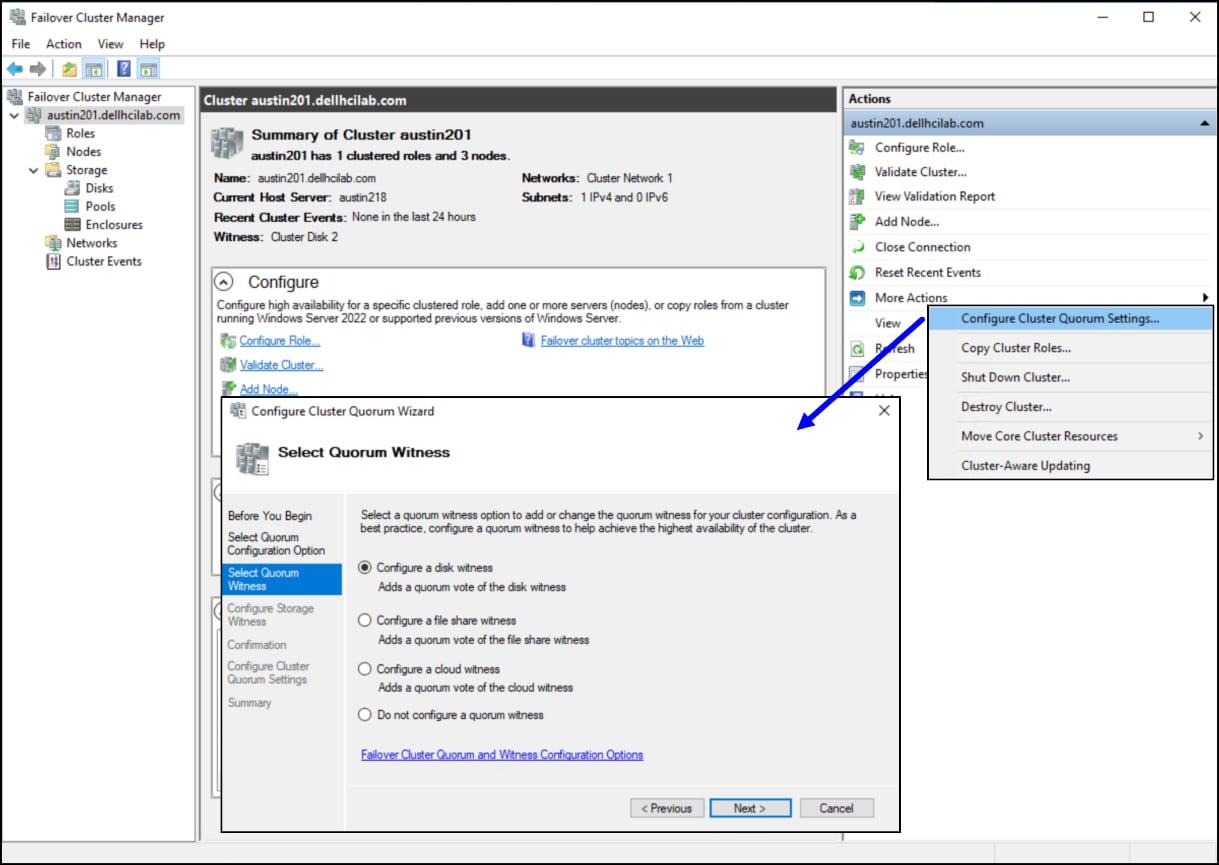
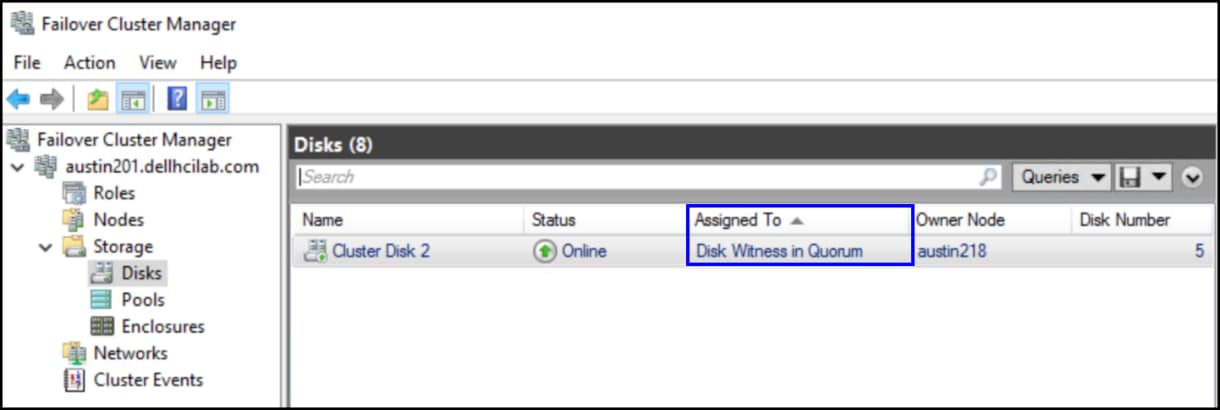
Here, Cluster Disk 2 is set to the witness.
Preferred owner
WSFC uses the concept of a preferred owner for failover; however, the nodes of the cluster are not automatically assigned as available for failover. They must be assigned at the SQL Server role level. If you do not make a change, failover cannot occur properly. You need to be sure to set the preferred owners for the SQL Server role, SQLServerCRG in this example, to enable failover to the other nodes.
- Begin by highlighting the SQL Server role in WCFM and right-click, selecting Properties.
Figure 55. Assigning the preferred node owners – step 1 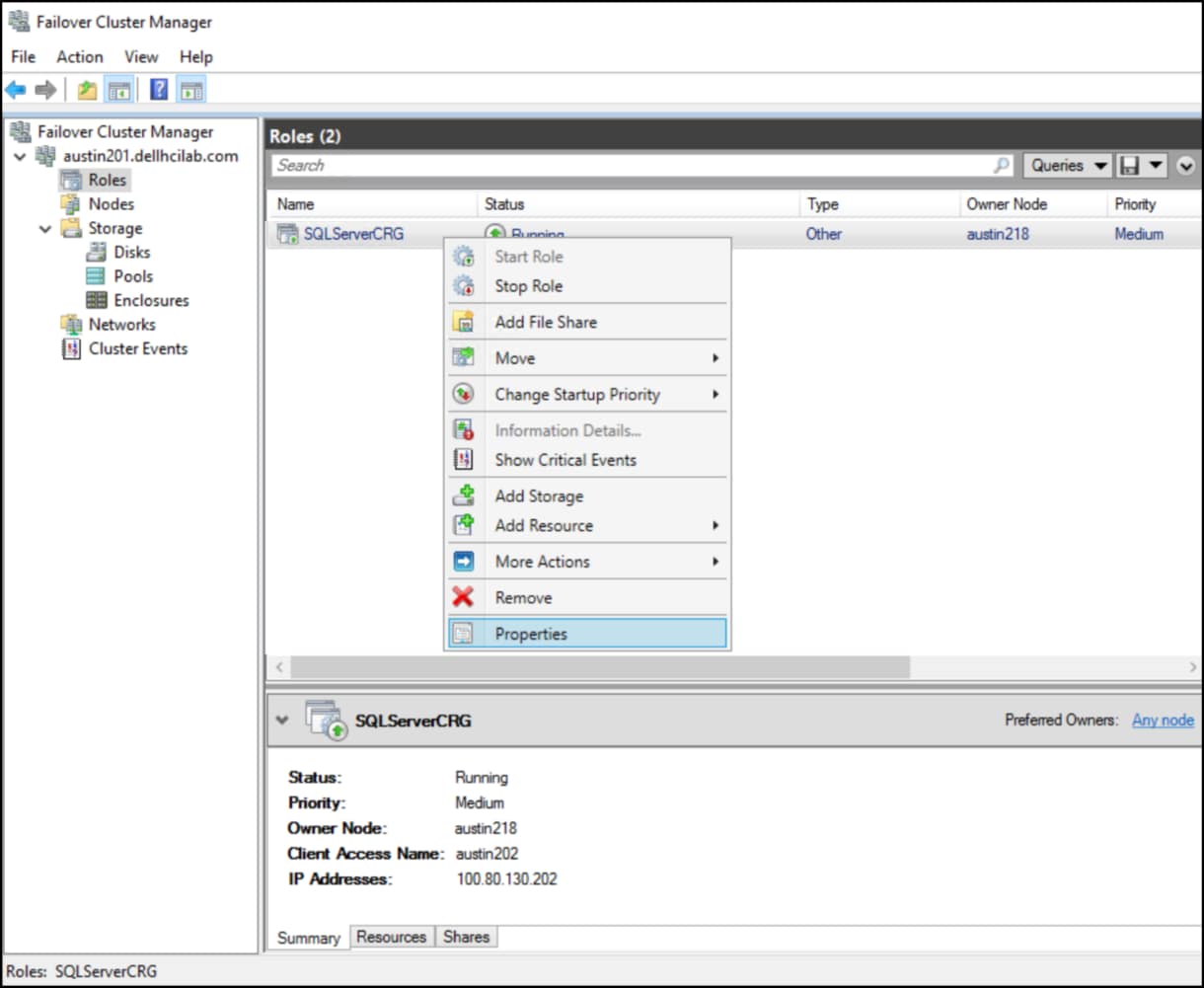
- Using the check boxes in the following figure, select the two remaining nodes as Preferred Owners and click OK. This ensures that the WSFC can use any node for failover.
Figure 56. Preferred owners of SQL Server role 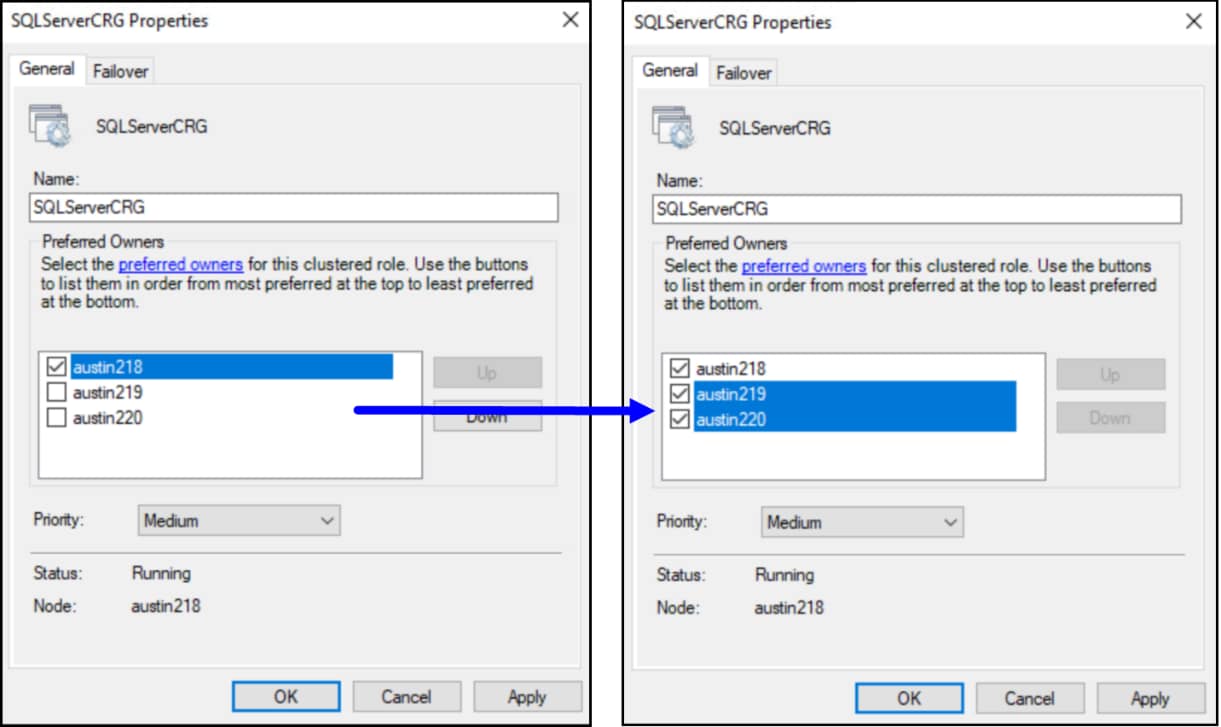
With the initial cluster configuration complete, for WSFC and SQL Server, you can create a database. This database will be comprised of PowerFlex volumes that are provisioned within Nutanix. Volumes presented to Windows must be formatted which is addressed next.
Windows disk formatting
SQL Server Database
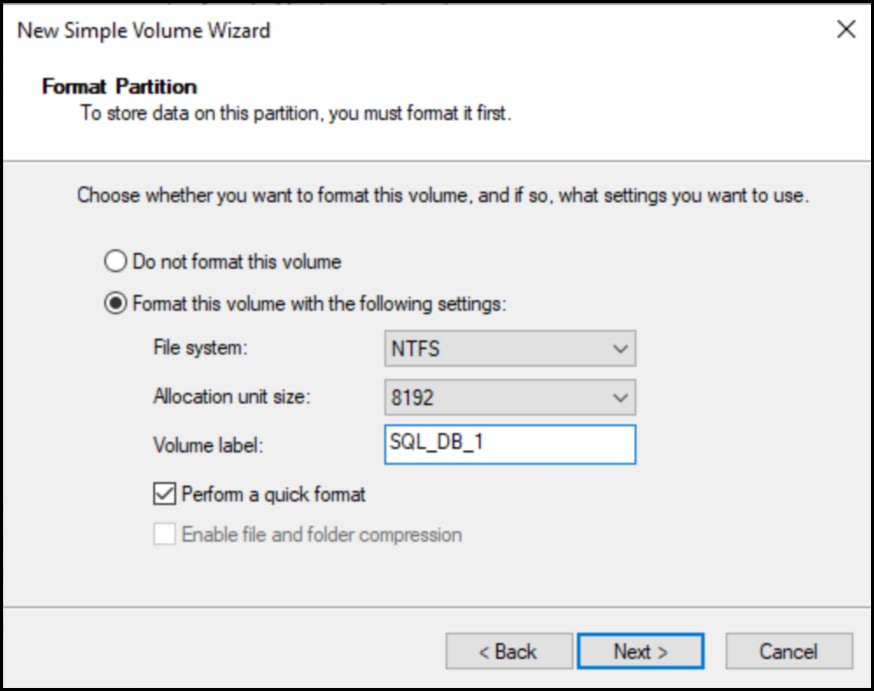
To enable testing of Nutanix and the WSFC, an example database, NutanixPF, is built. This database is comprised solely of PowerFlex volumes, presented as virtual disks to the Windows nodes. Each volume is formatted per best practice with NTFS and an 8 KB AU as in the following figure.
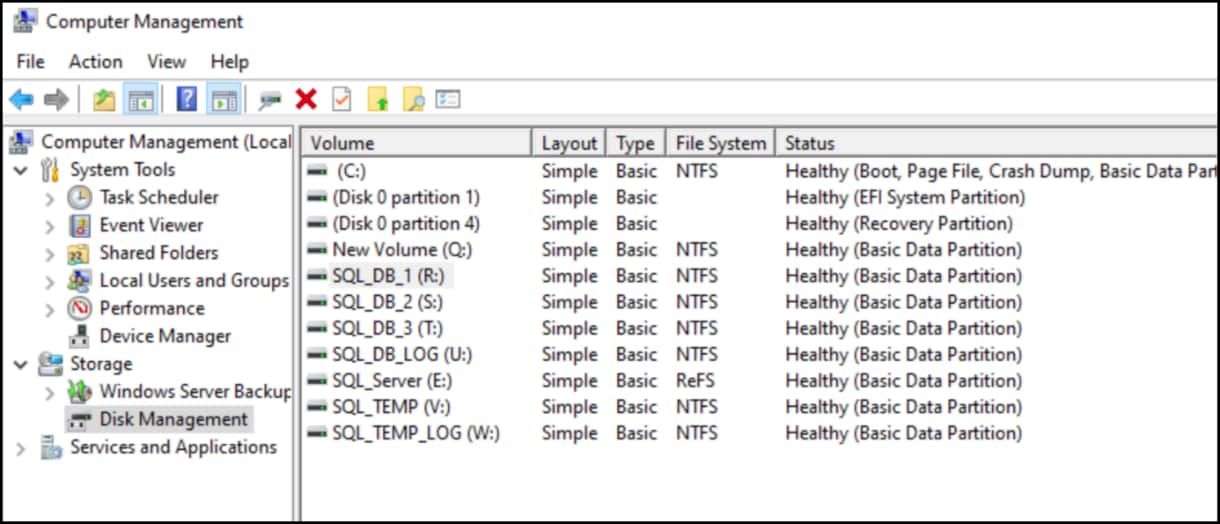
The following volumes comprise the NutanixPF database. The last two volumes are not part of the database, rather they allow the temp files of SQL Server to be moved from the local drive to a shared, PowerFlex-backed drive. This improves performance when temp space is required.
| Volume name | Size and purpose |
| SQL_DB_1 | 100 GB data file |
| SQL_DB_2 | 100 GB data file |
| SQL_DB_3 | 100 GB data file |
| SQL_LOG | 20 GB log file |
| SQL_TEMP | 50 GB temp file |
| SQL_TEMP_LOG | 20 GB temp log file |
The volumes are separated into three volume groups in Nutanix, one for data, one for log, one for temp. These volumes are then mapped directly to the virtual machines as previously explain in the Volume Groups section. The following figures show these groups and their sizes.
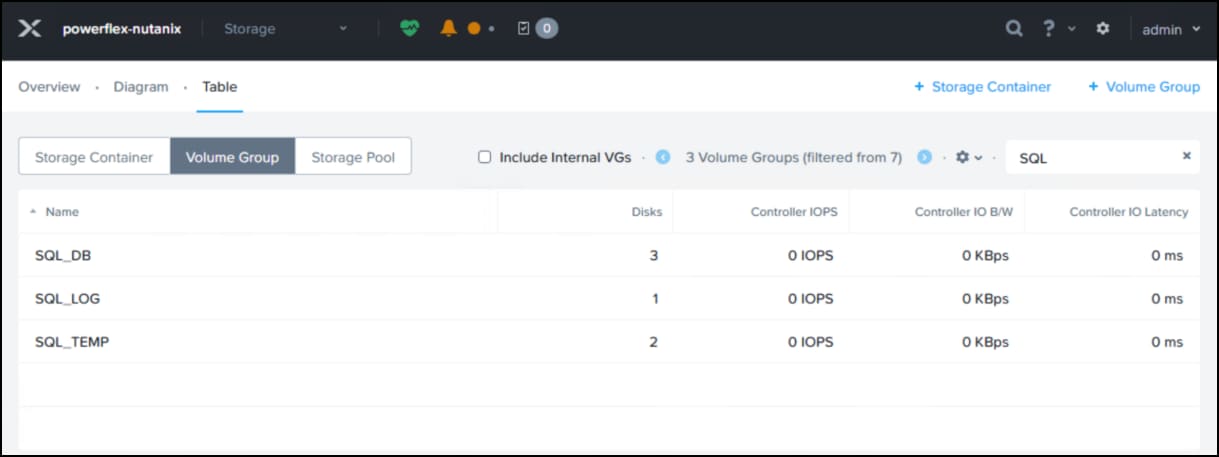
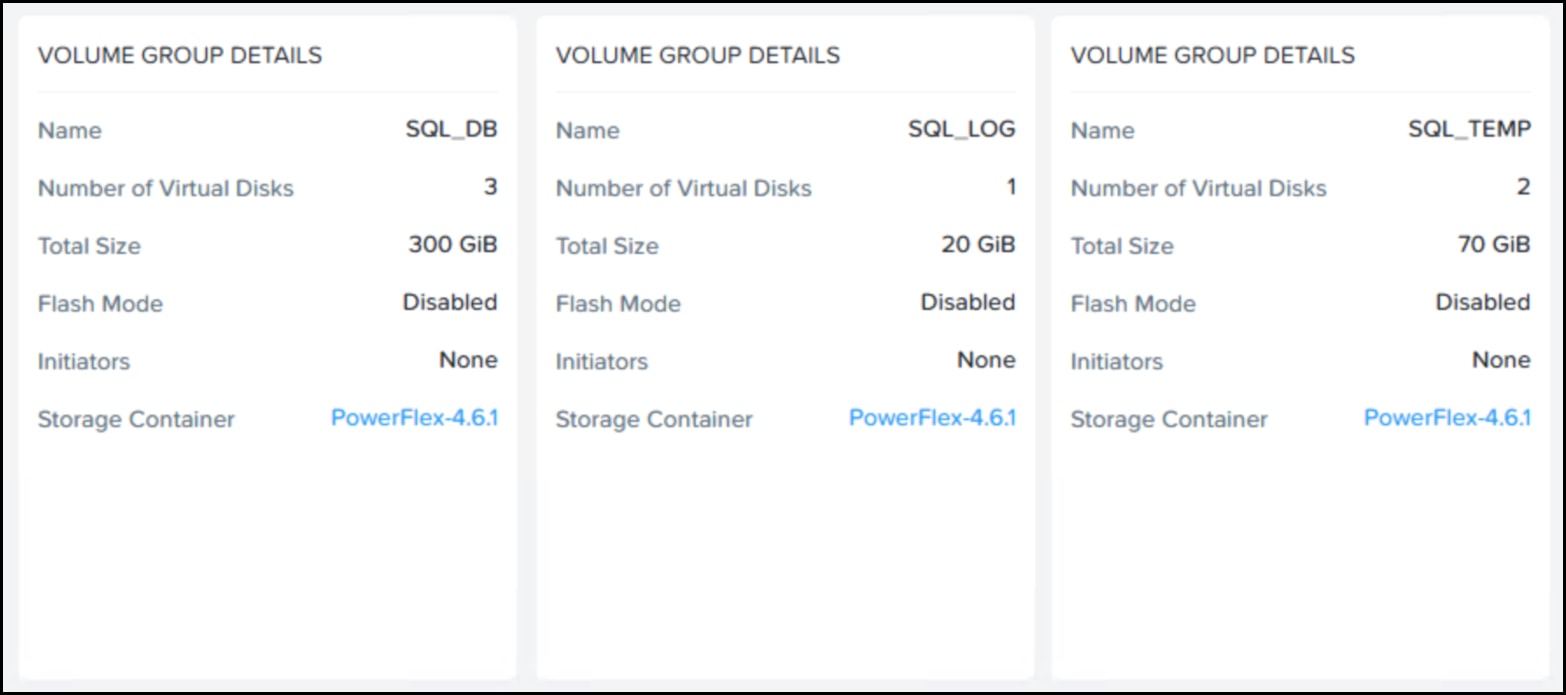
The formatted volumes on Windows are seen in the following figure.
Temp
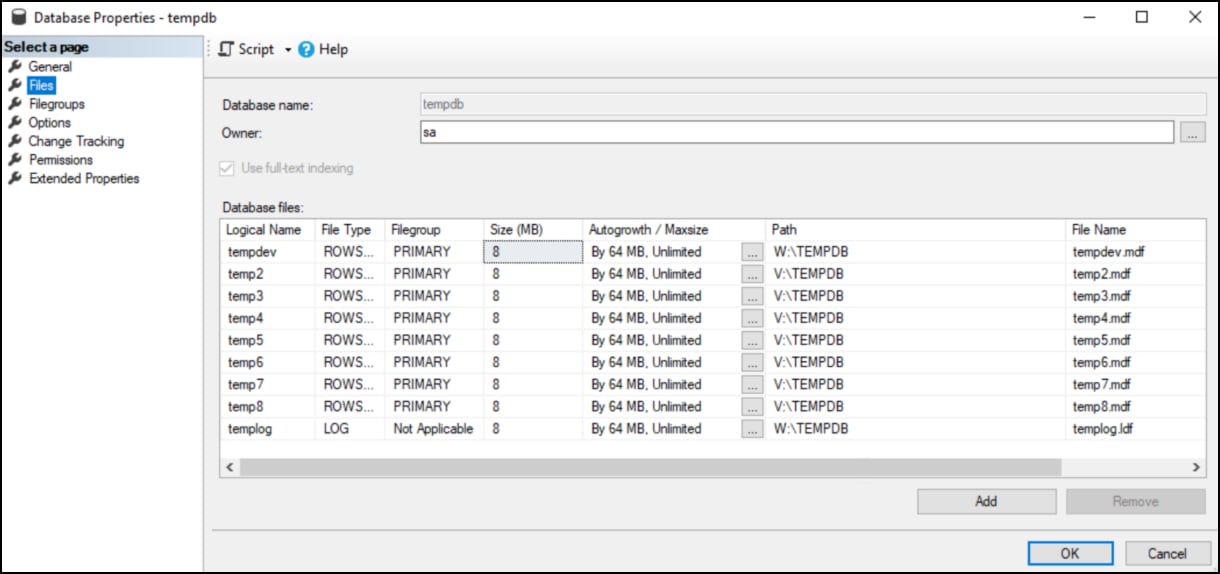
The temp files, including the log, need to be moved through an ALTER DATABASE command. After all SQL commands are complete, restart SQL Server and the files will be recreated in the new location as in the following figure:
Volumes on PowerFlex
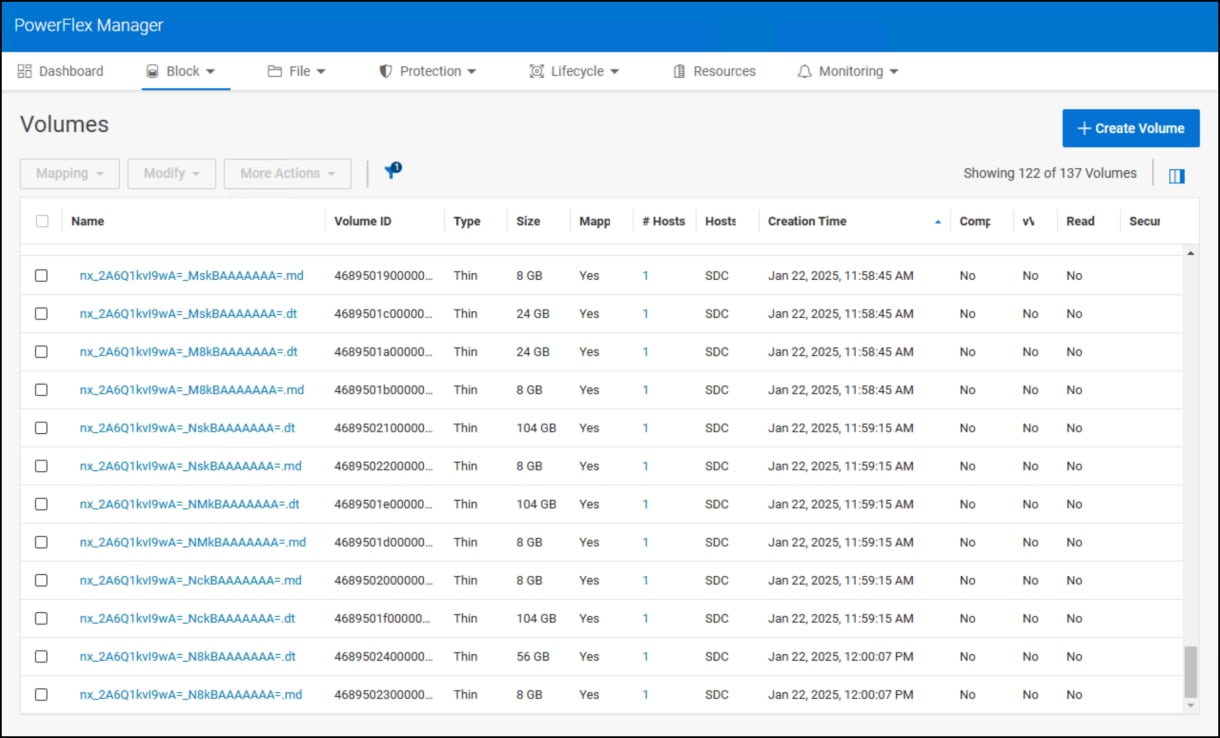
If we look at the Dell PowerFlex, we can see the newly created volumes. Note the size difference since Dell PowerFlex uses a factor of 8: 24 GB for 20 GB, 104 GB for 100 GB, and 56 GB for 50 GB. Since Dell PowerFlex uses thin provisioning, the larger device sizes are not a concern because the PowerFlex will not allocate space unless data is written.
WSFC and database disks
Adding disks to WSFCM
To add disks to WSFC follow these steps.
- In WSFCM expand the Storage folder and highlight Disks. Right-click it and select Add Disk.
Figure 63. Add disk – step 1 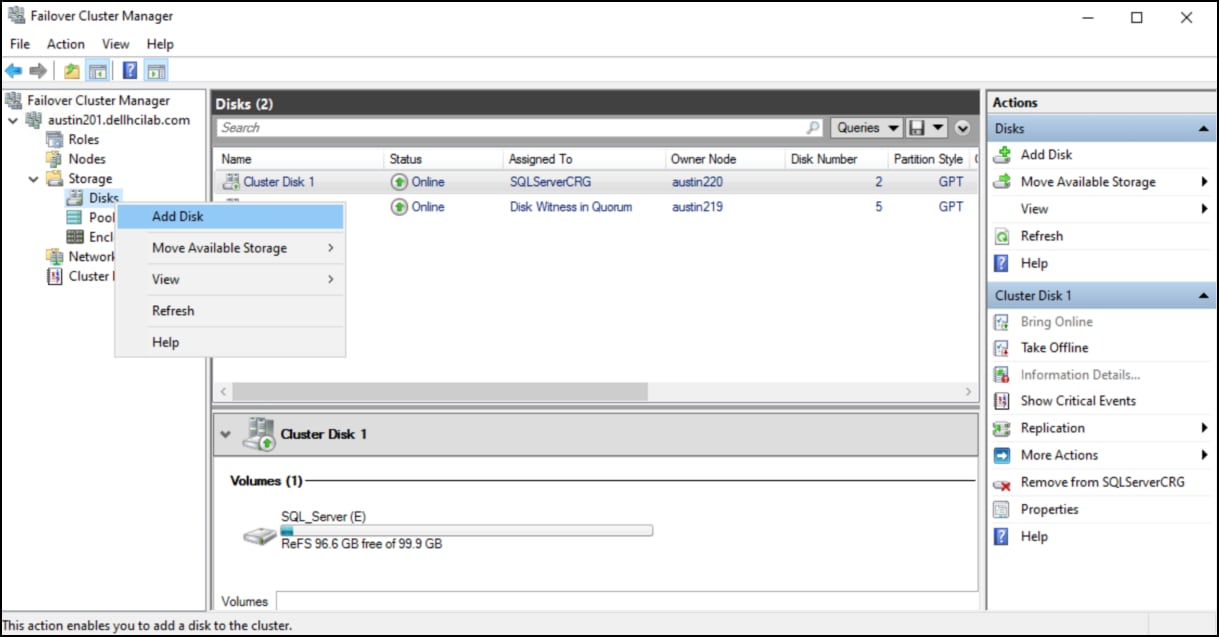
- Use the check boxes to select the disks you want to add to the failover cluster. In this example, all six disks are part of the SQL Server environment and so are included. Click OK to complete.
Figure 64. Add disk – step 2 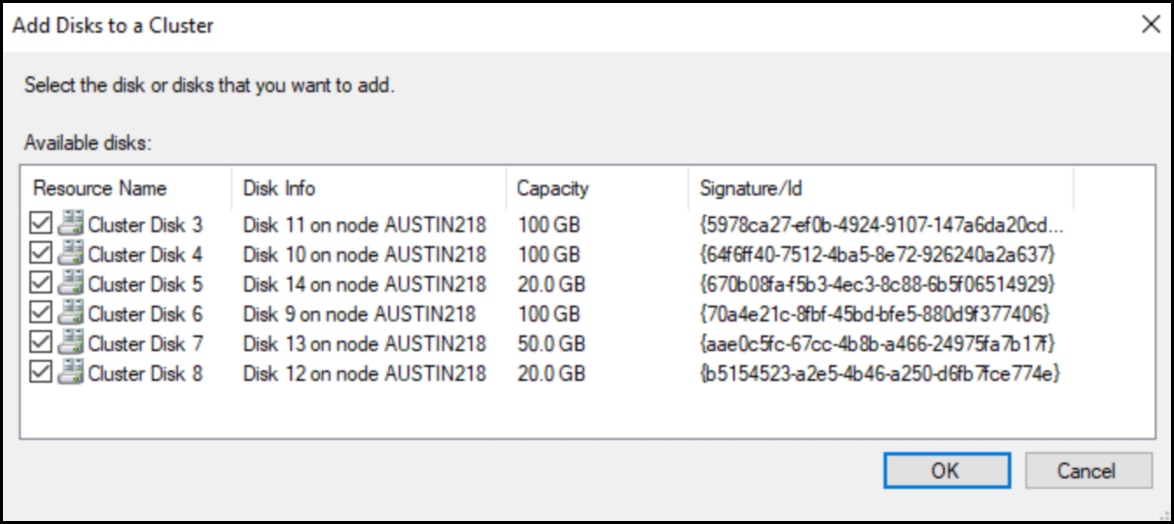
Once complete, the disks will appear as Available Storage under Assigned To and thus permits the next step of assignment to the SQL Server role.
Figure 65. Add disk 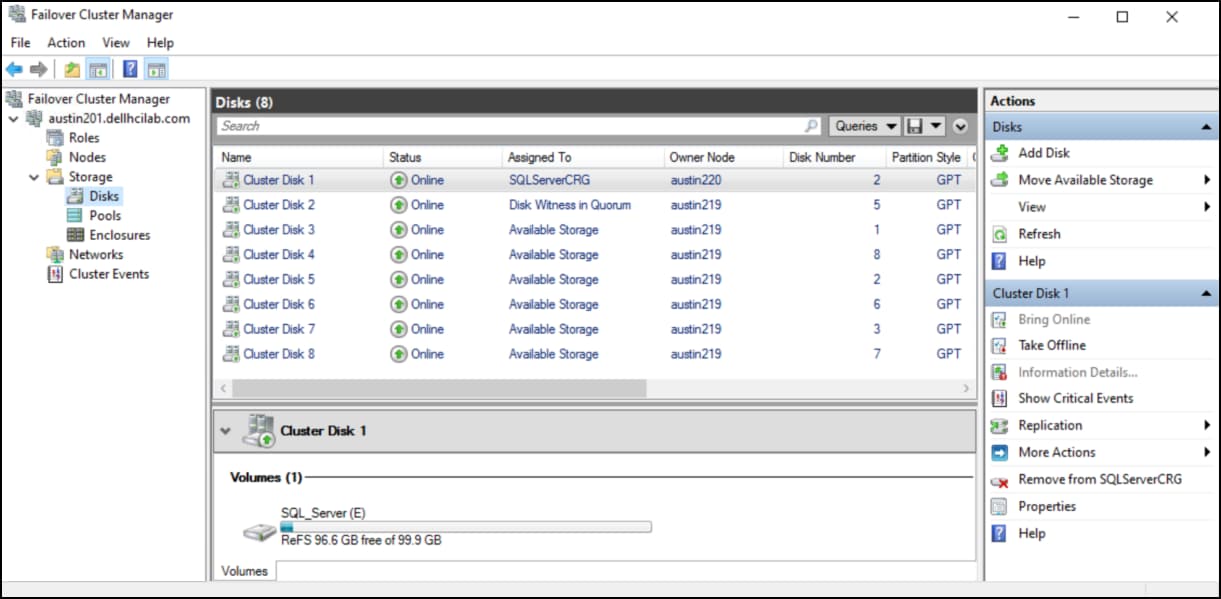
Assigning disk to WSFC role
Follow these steps to assign the disks to the SQL Server role.
- In WSFCM highlight the Roles folder and highlight the SQL Server role in the right-hand panel, in this example SQLServerCRG. Right-click it and select Add Storage.
Figure 66. Add storage to the SQL Server role – step 1 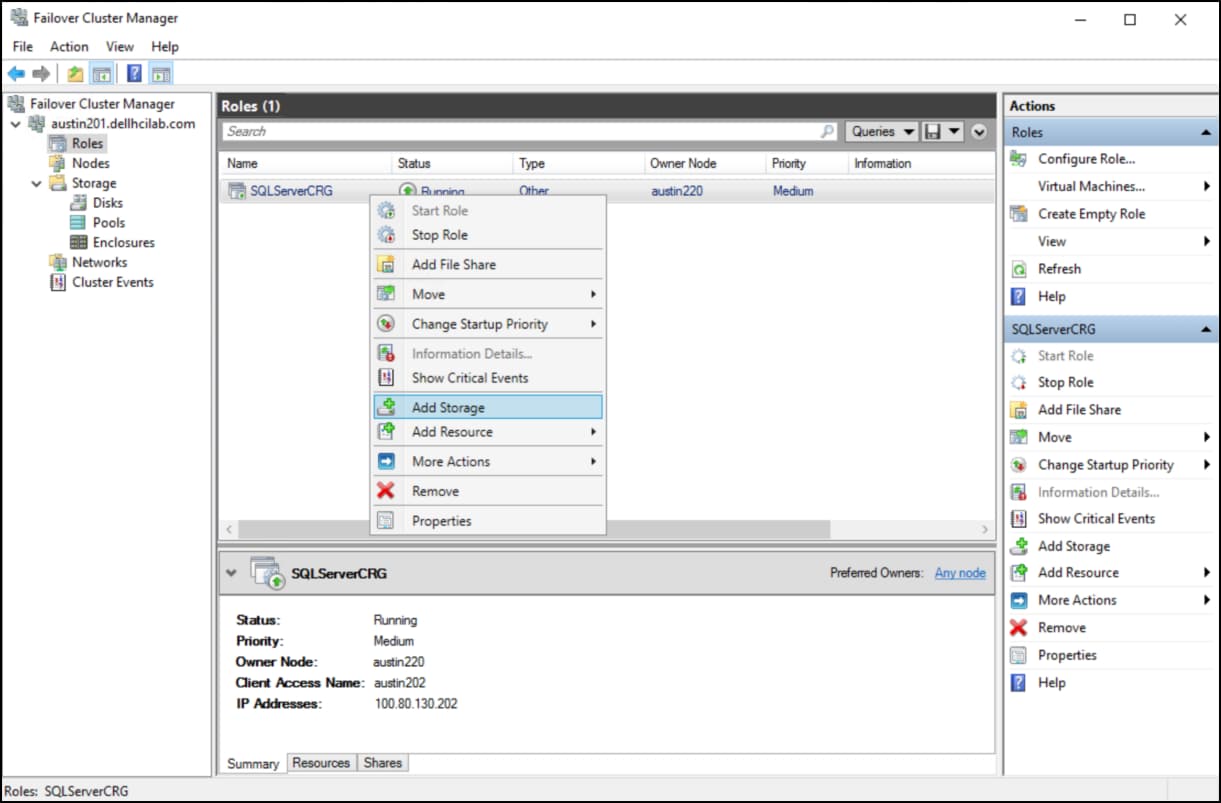
- In the following image, all available disks will appear. Use the check boxes to select the SQL Server disks. In this example, all available disks are selected which match those added in the figure Add disk – step 2.
Figure 67. Add storage to the SQL Server role – step 2 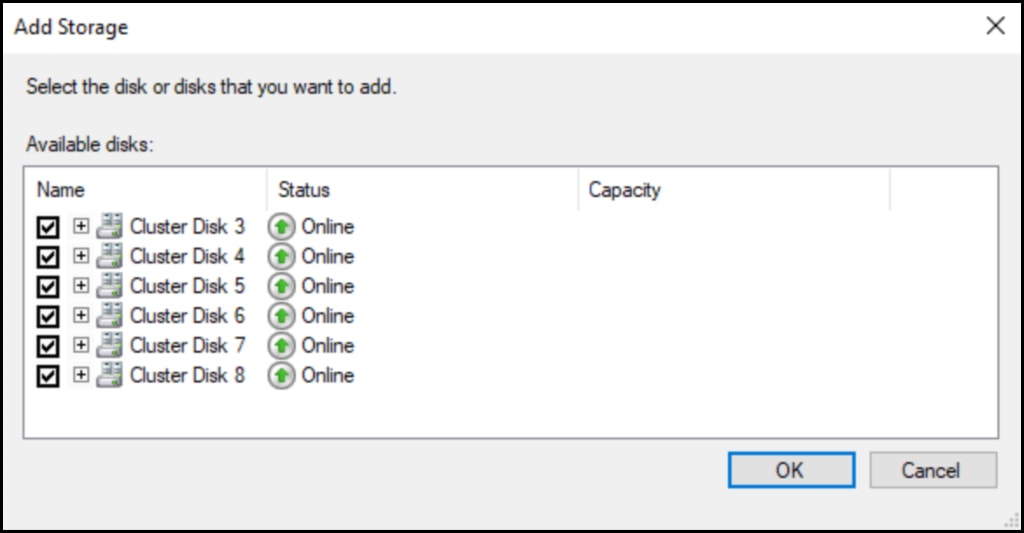
The end result in the following figure shows that the Assigned To is now tied to the SQLServerCRG role.
Figure 68. Add storage to the SQL Server role 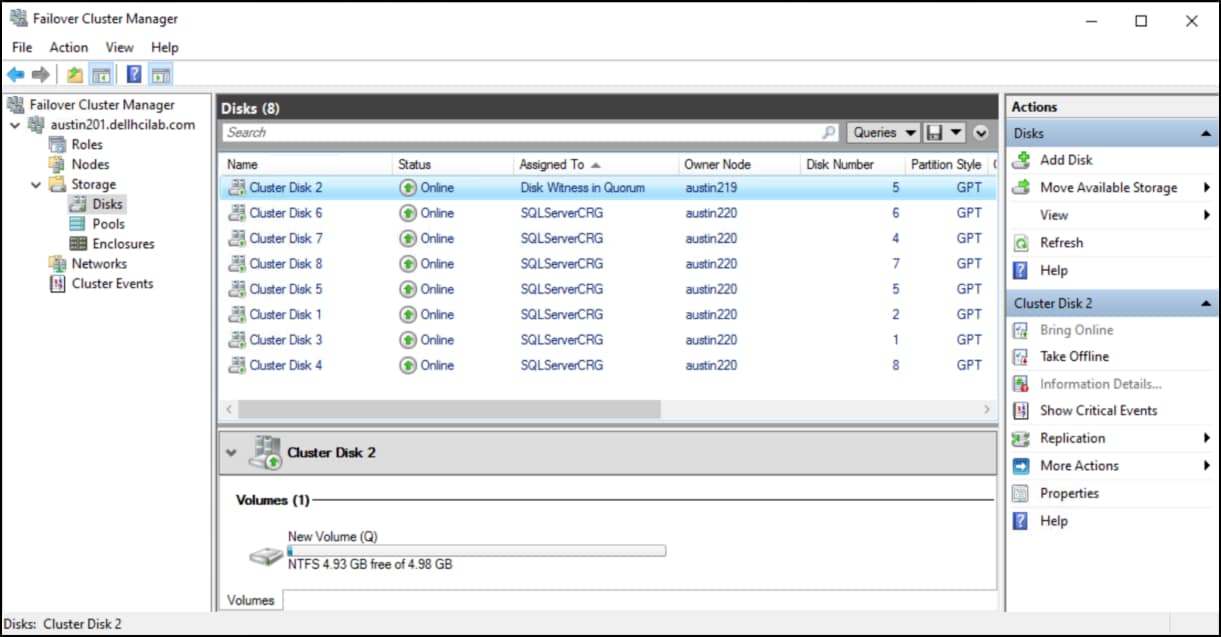
Assigning disk dependencies to WSFC role’s SQL Server resource
In order to failover SQL Server database successfully, you must attach the disks to the SQL Server resource. This ensures the database can move to another node. This is a multi-step process.
- Begin by highlighting the Roles folder in FCM. In the right-hand panel, select the SQL Server role. The name will be whatever was set during installation. In the following figure the name is SQLServerCRG. Right-click it and select Properties.
Figure 69. SQL Server resource dependencies – step 1 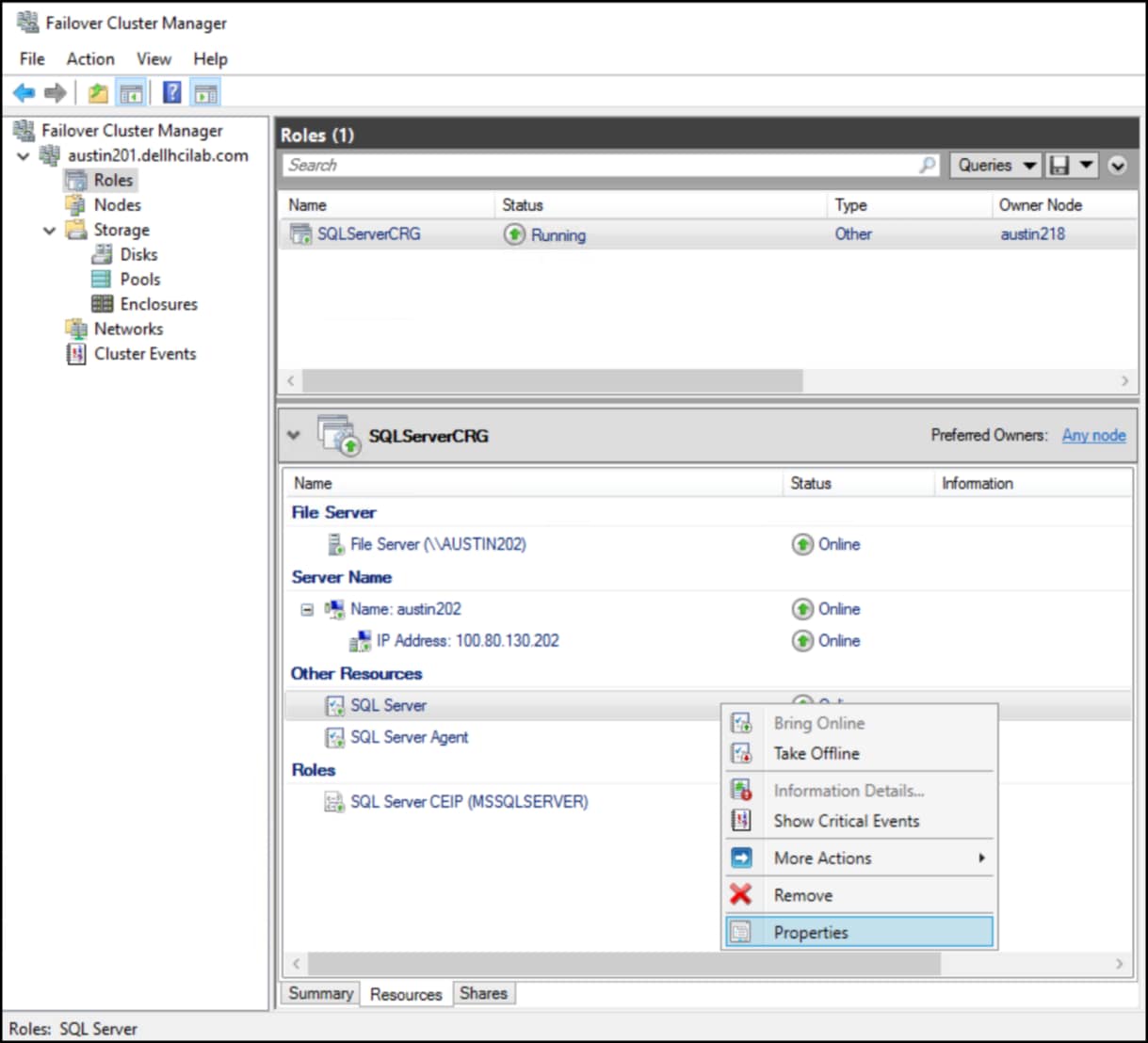
- In step 2 select the Dependencies tab then Insert in the following figure.
Figure 70. SQL Server resource dependencies – step 2 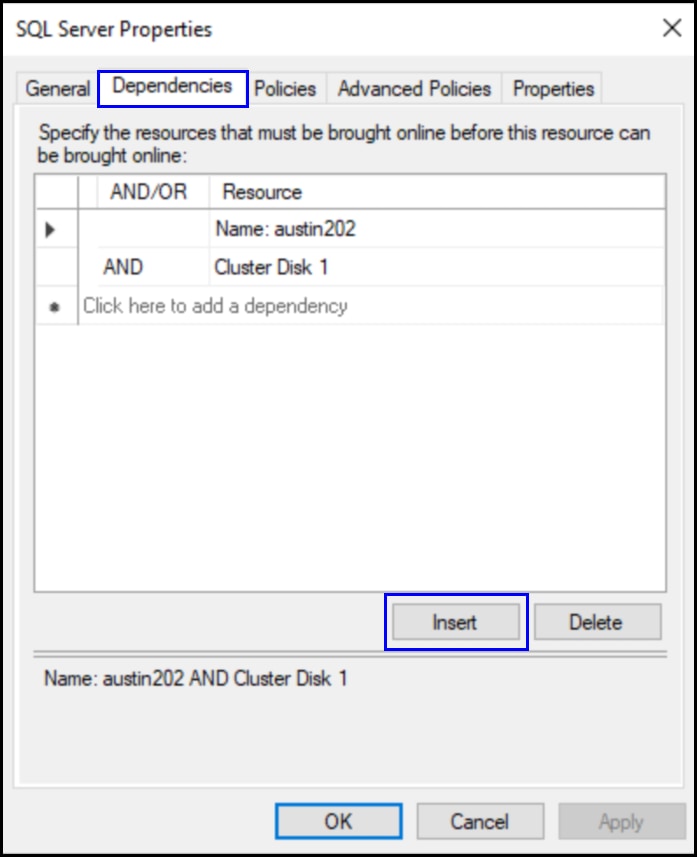
- In step 3 in the following figure, select one of the cluster disks. Repeat the Insert command for each cluster disk until they are all added. Note that because temp is now redirected to a shared disk, it must be included. Then click OK.
Figure 71. SQL Server resource dependencies – step 3 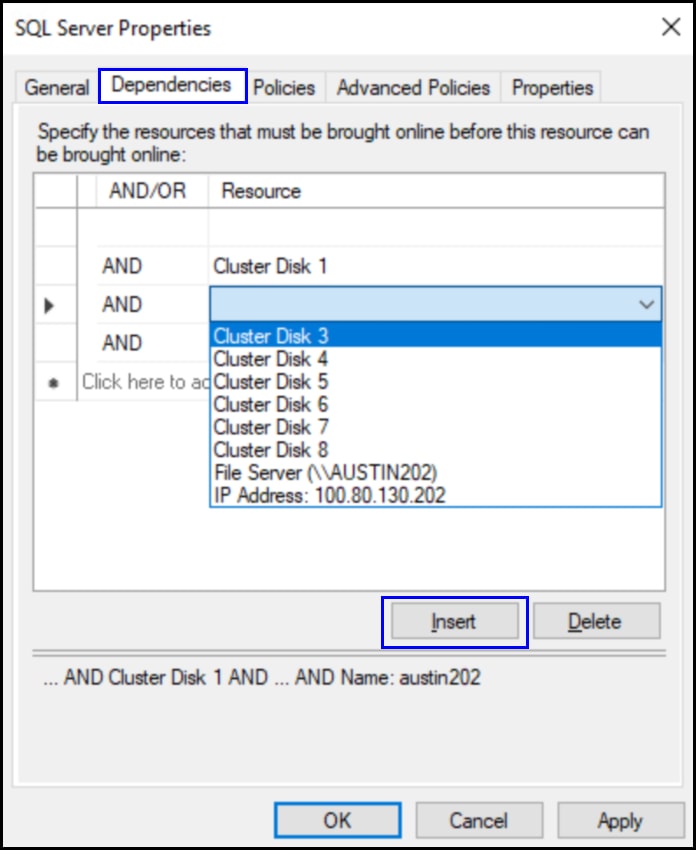
The following figure shows the final result where all disks used for SQL Server are included as resource dependencies for the SQL Server role.
Figure 72. SQL Server resource dependencies – complete 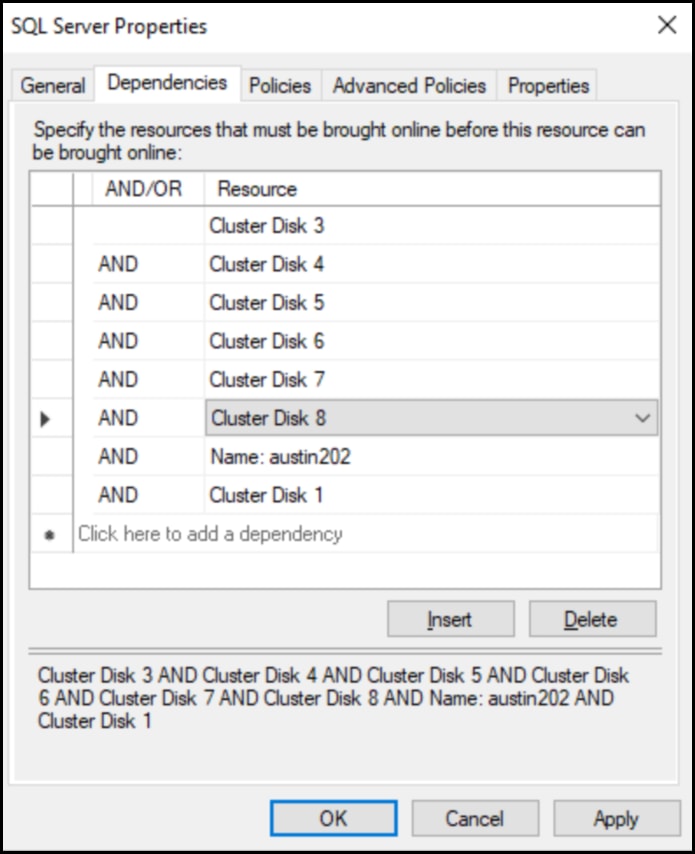
With the completion of these tasks, the SQL Server environment is now configured as highly available.
NutanixPF database
When creating a new database, named NutanixPF in this example, each new mount is used as part of the database. The database is comprised of data and log files, with the paths mapping those present in the following figure.
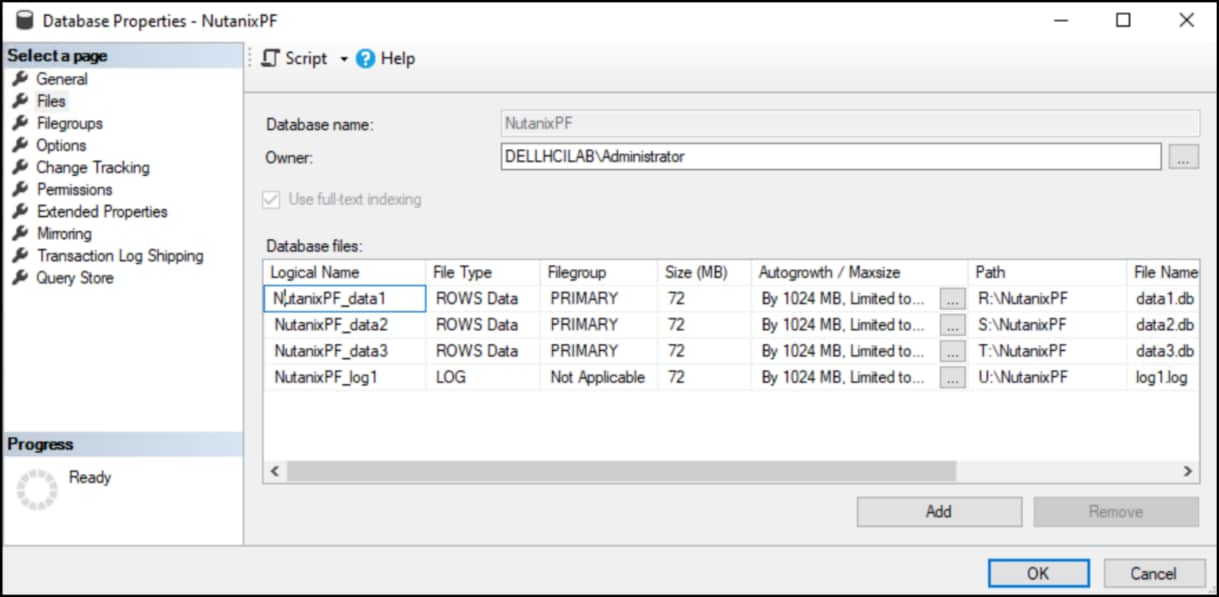
The environment is now fully configured.
Conclusion
Conclusion
Summary
We value your feedback
References
References
Dell Technologies documentation
Nutanix documentation
WSFC test failover
WSFC test failover
Test failover
The following steps walk through a failover test of SQL Server using WSFCM. This is achieved with the Move functionality. Recall that this is an active/passive configuration so this does result in down time for the database, regardless of it being a test.
- Begin in WSFCM in the following figure by highlighting the Roles folder and then the SQL Server role on the right-hand panel. Right-click the role and select .
Figure 74. Failover cluster – step 1 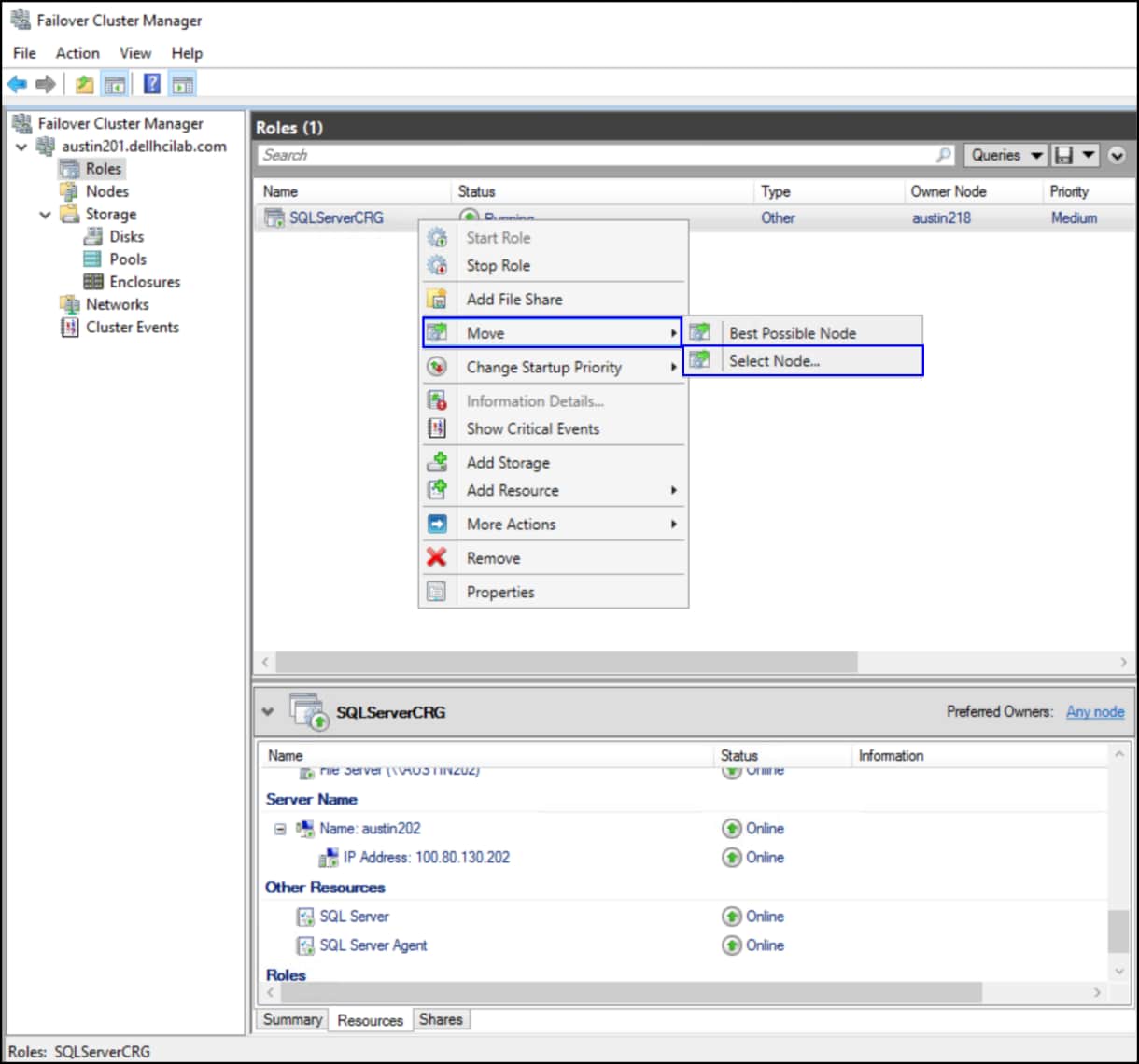
- You are presented with the two available nodes in the cluster. Both should be listed as Up. Select one of the nodes, in this case austin219, and click OK.
Figure 75. Failover cluster - step 2 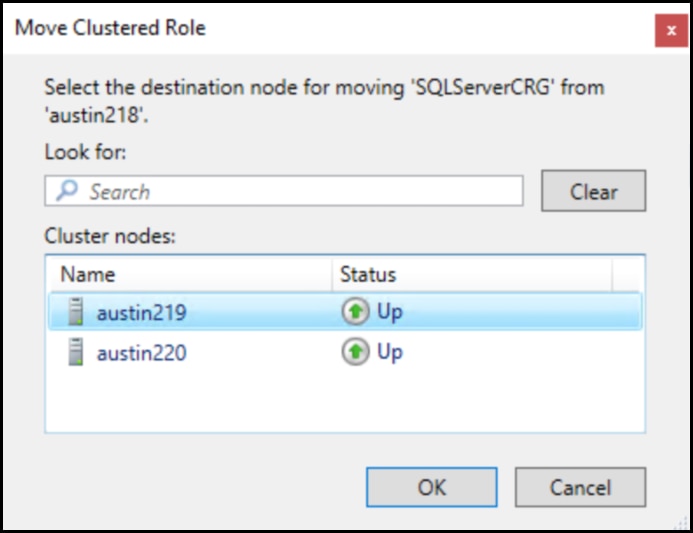
- In step 3 in the following image the Status moves to Pending. In the bottom panel you can see the resources move to Offline before coming back Online on the new node.
Figure 76. Failover cluster – step 3 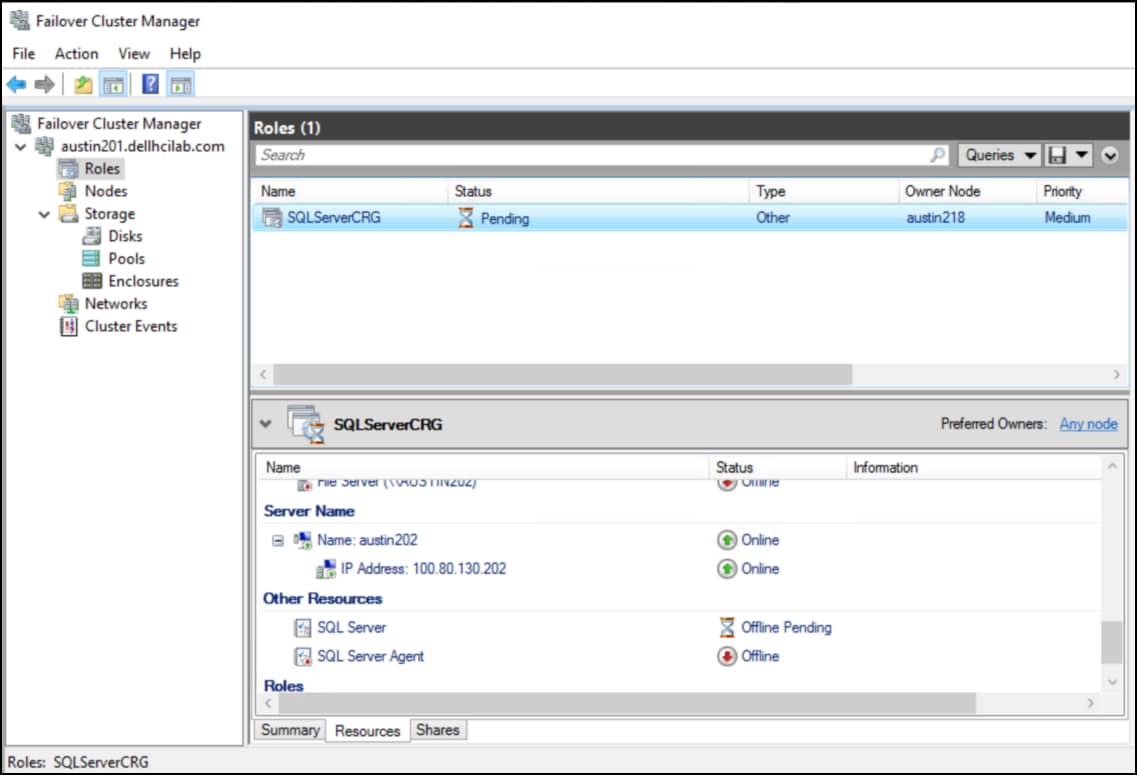
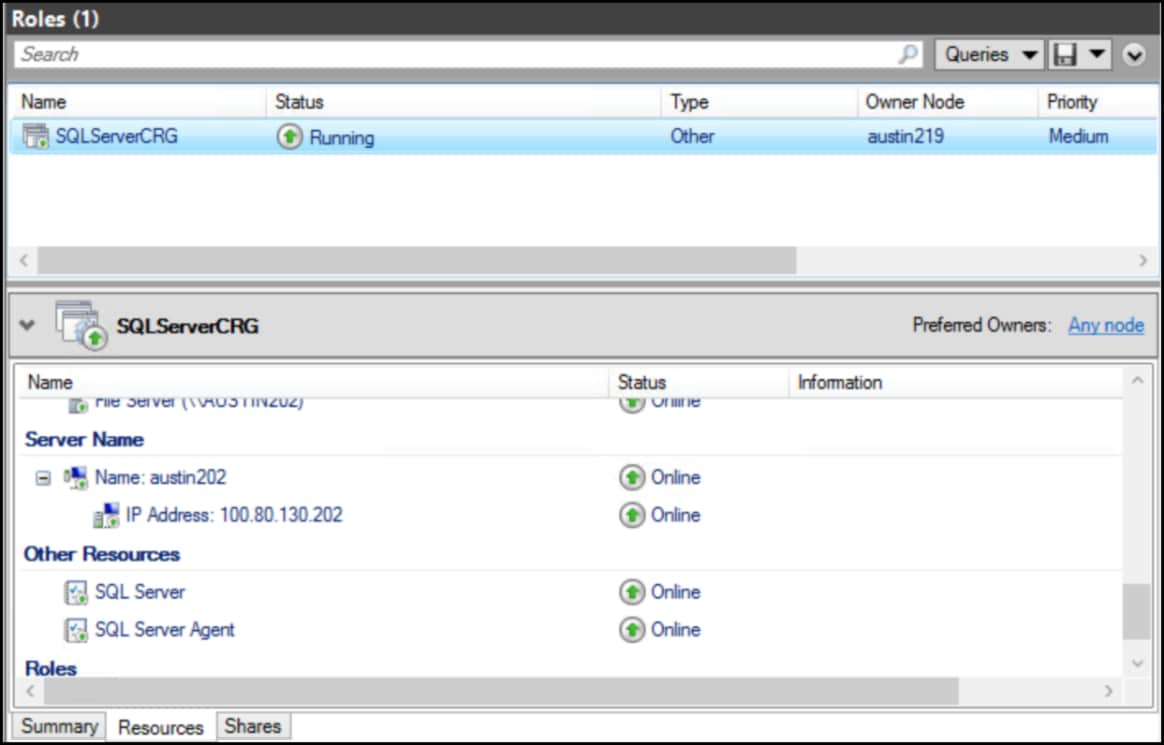
In this test the process took less than ten seconds to move SQL Server. In the following figure it is now running on the new Owner Node, austin219.
Figure 77. Failover cluster – complete