Using Dell PowerFlex with VMware Cloud Foundation
Introduction
Executive summary
Document purpose
Audience
Revision history
Wizard walkthroughs
Terminology
Product overview
PowerFlex family
PowerFlex software-defined infrastructure enables broad consolidation across the data center, encompassing most workloads. The software-first architecture enables automation and programmability of the complete infrastructure stack. PowerFlex provides scalability, performance, and resiliency to enable effortless adherence to stringent workload SLAs.
The PowerFlex family provides a foundation that combines compute and high-performance storage resources in a managed unified fabric. PowerFlex comes in flexible consumption options (rack, appliance, custom nodes, or in the public cloud) that enable independent (disaggregated) architectures. PowerFlex is ideal for high-performance applications and databases, building an agile private/hybrid cloud, or consolidating resources in heterogeneous environments.

Figure 1. PowerFlex family
PowerFlex software components
PowerFlex deployment architectures
PowerFlex consumption options
PowerFlex CSI/CSM
VCF
VMware Cloud Foundation (VCF) is a complete software-defined management solution that consists of VMware vSphere, VMware NSX Data Center, VMware vSAN, and VMware Aria Suite. VMware Cloud Builder drives the installation of VCF. The various components serve the following roles:
- VMware Cloud Builder: A virtual appliance that the user deploys that automates the building of the management domain of VCF by accepting the Deployment Parameters Workbook (xls) as input. Subsequent domains are provisioned through the SDDC Manager.
- SDDC Manager: Automates the life cycle management of VCF. It enables updating and upgrades, firmware application, and the general day to day operation of VCF.
- VMware vSphere: Virtualizes the bare-metal servers using the ESXi software and aggregates them in the vCenter Server.
- VMware NSX Data Center: Provides the networking for the VCF solution along with security and automation. NSX is designed for both private and public clouds.
- VMware vSAN: Aggregates local or direct-attached storage in a single pool that can be shared across all ESXi hosts in the VCF environment. vSAN is a required component of the management domain.
- VMware Aria Suite Lifecycle: An optional component of VCF which, when deployed, can be used to enable other VMware Aria Suite products. These products can manage infrastructure and applications in the private or public cloud.
VMware portrays the high-level VCF implementation as depicted in Figure 3.
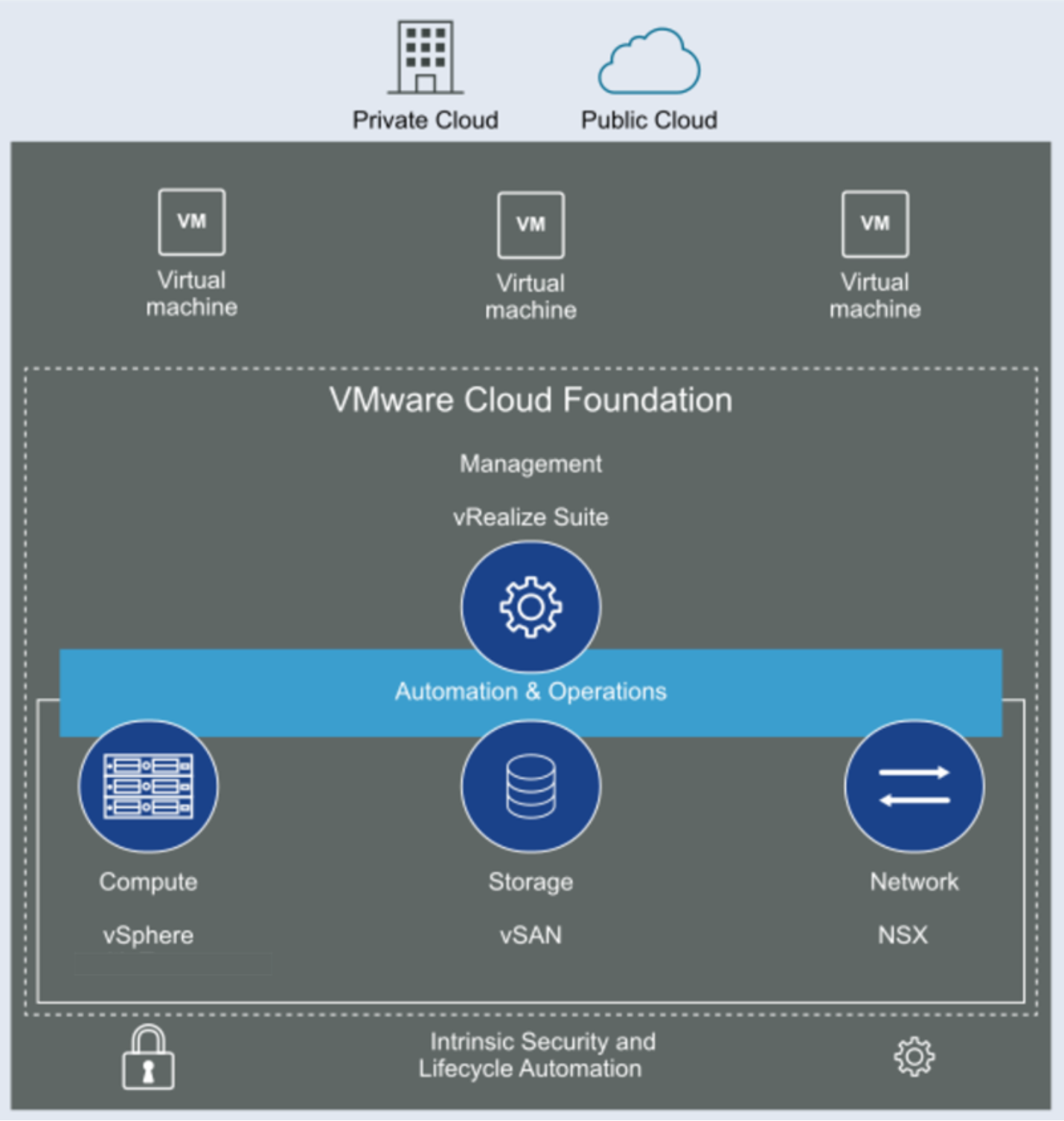
Figure 3. VMware Cloud Foundation
Environment and system requirements
Introduction
Prerequisites
VCF components
Network topology
PowerFlex topology
Storage nodes
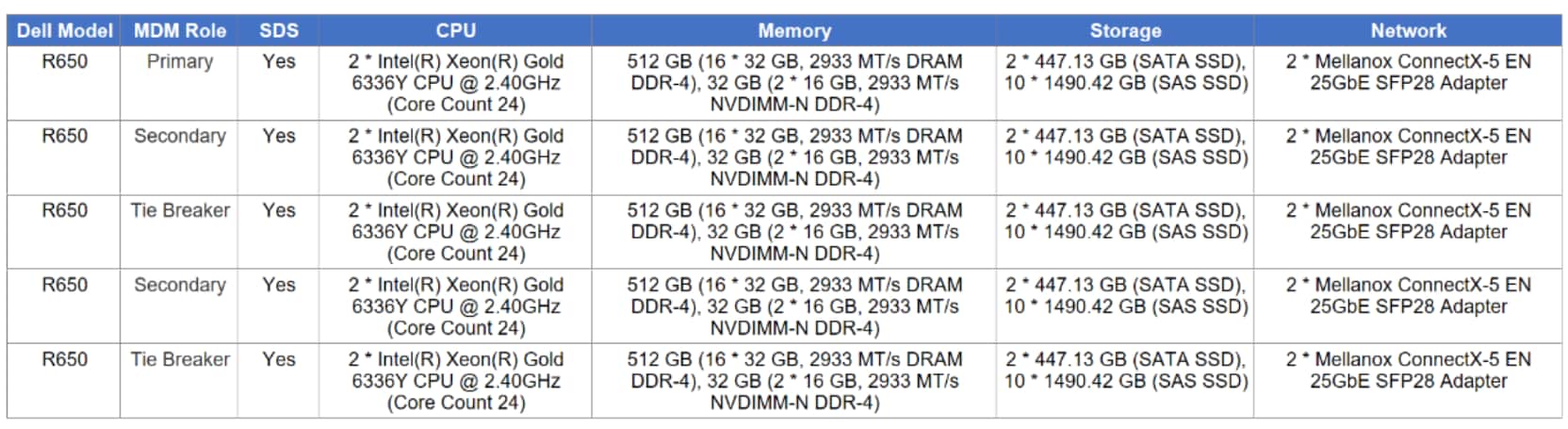
There are five nodes for the storage-only configuration. The characteristics of these servers are covered in Table 5.
Table 5. PowerFlex storage node configurations
VCF and compute nodes
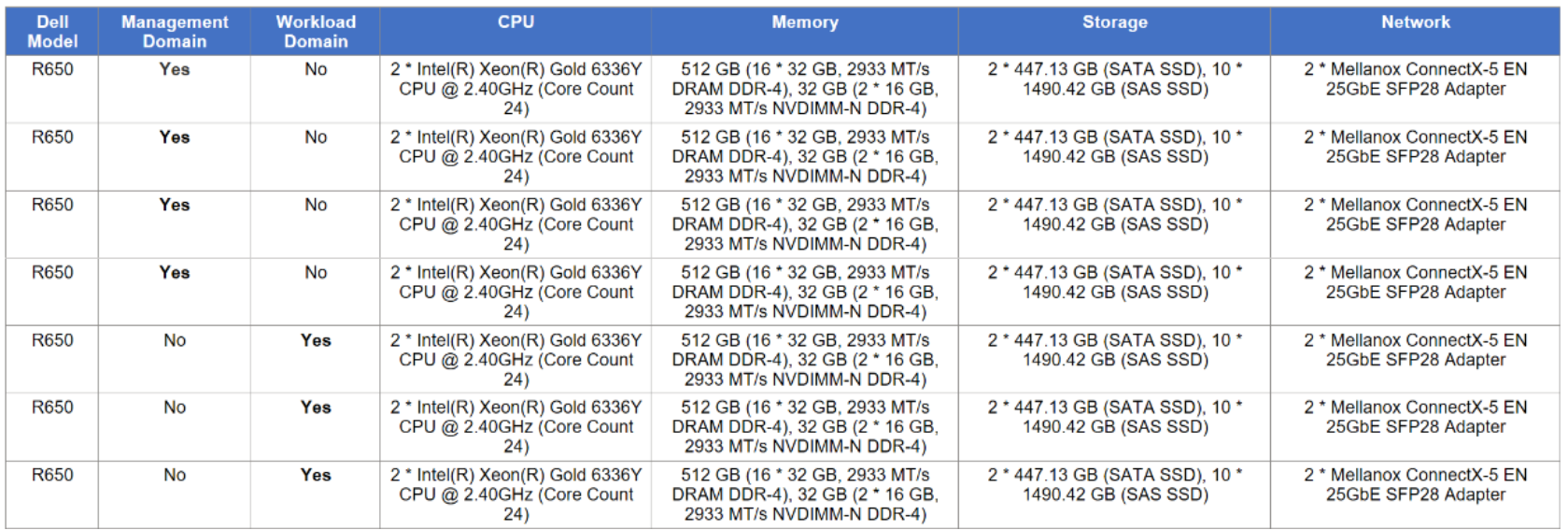
The VCF environment consists of seven servers:
- Four for the management domain, which has no PowerFlex components.
- Three for the workload domain. These servers are also the PowerFlex compute nodes.
Although the specifications of all servers are the same, they are listed below in Table 6 for completeness.
Table 6. VCF server configurations
vSAN
vSAN OSA setup
The following are the prerequisites to build the required vSAN storage setup for VCF:
- One SAS or SATA host bus adapter (HBA), or a RAID controller that is in passthrough mode or RAID 0 mode.
- For cache storage: One SAS or SATA solid-state disk (SSD) or PCIe flash device.
- For capacity storage: An All-flash disk group configuration that must have at least one SAS, or SATA solid-state disk (SSD), or PCIe flash device.
Generally, the first bullet point is standard for most servers so that is unlikely to cause a problem with vSAN. For the other two, a known issue exists where VMware is unable to identify devices for use with vSAN during the validation of the Planning Guide. VCF requires a ratio of one cache device to seven capacity devices. If the disks are available and visible on ESXi, but they are not recognized, it is possible to manually assign them as vSAN-eligible. This process consists of two steps, which are outlined below.
Formatting
The first issue is common during the validation step of the install. VMware reports that the devices on the servers have existing partitions, which render them ineligible for vSAN. To determine which devices are problematic, issue the command vdq -qH in ESXi to view all the devices and check the State row. An example is shown in Figure 4:
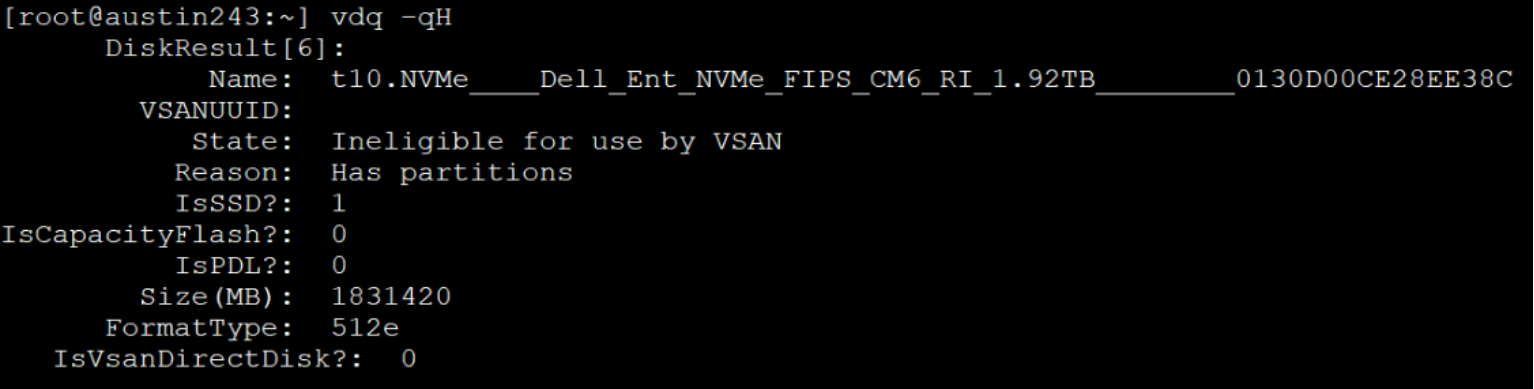
Figure 4. Ineligible for vSAN due to existing partitions
For this particular issue, the solution is to wipe the existing partition. This operation can be achieved by using the utility partedUtil to create a gpt partition on the disk, clearing out the existing ones. The following is an example of the CLI command:
partedUtil mklabel /vmfs/devices/disks/t10.NVMe____Dell_Ent_NVMe_FIPS_CM6_RI_1.92TB________0130D00CE28EE38C gpt
While the command itself does not return any response, running the vdq command once more shows that the State of the disk is now eligible. See Figure 5.
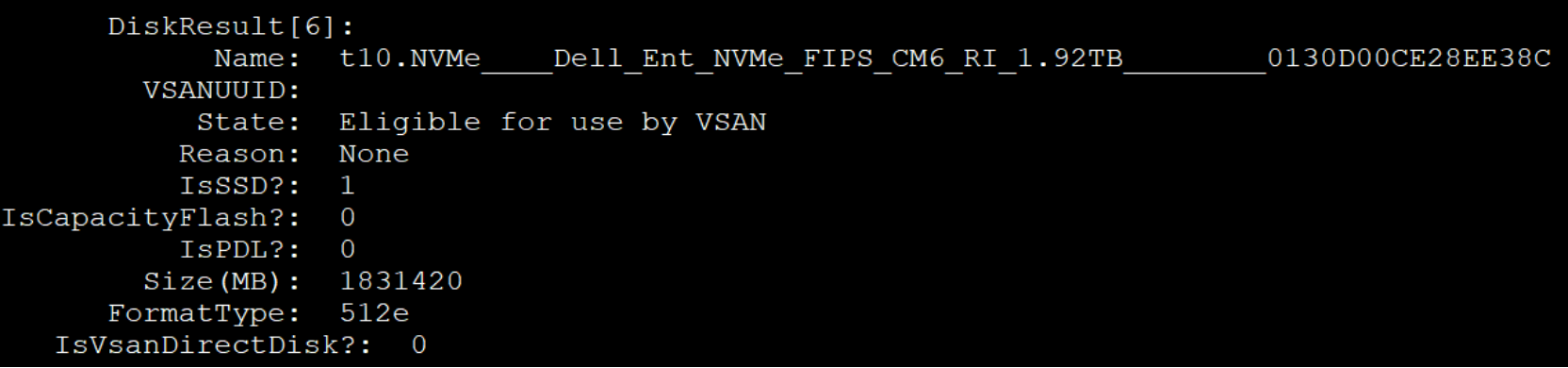
Figure 5. Eligible for vSAN
Capacity compared with cache
The second issue for vSAN occurs when the devices are all the same type, as they are on the servers in this environment. In such cases, VMware treats all the devices as cache storage and leaves no devices for capacity, which is required. This issue appears to be the most common of the two, and impacted the environment detailed in this paper. Fortunately, VMware provides a CLI command to “tag” devices as “capacityFlash” so that VCF claims all tagged devices as capacity devices. It also claims any nontagged devices as cache, satisfying the requirements for building the vSAN cluster. Since vSAN needs at least one cache device, it is best to tag all available devices for capacity, save one. Use the following command to tag devices:
esxcli vsan storage tag add -t capacityFlash -d t10.NVMe____Dell_Ent_NVMe_FIPS_CM6_RI_1.92TB________0130D00CE28EE38C
After running the command in Figure 6 and querying the disk, the “IsCapacityFlash?“ row now shows a positive ‘1’.

Figure 6. Setting the vSAN capacity tag
With the devices tagged, the Cloud Builder installer can create the vSAN cluster. In this environment, which includes 11 devices, VCF creates three vSAN disk groups for each host. Two of the disk groups have three capacity devices and one cache device. One of the disk groups has two capacity devices and one cache device. One of these hosts is shown in Figure 7.
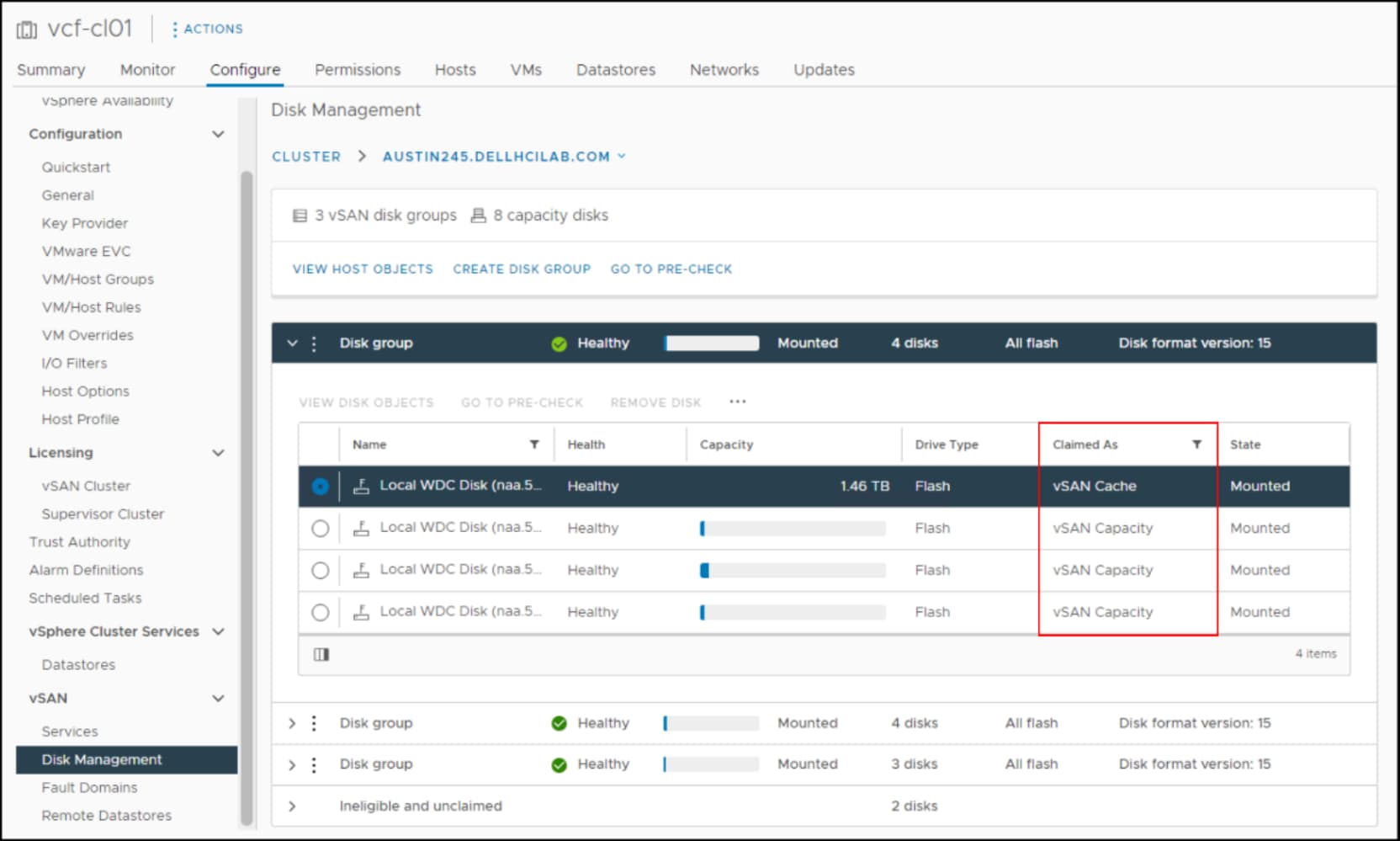
Figure 7. vSAN disk groups in VCF
Domains
VCF uses a concept that is known as “domains.” Domains are essentially a set of resources such as servers, storage, and software. There are two types of domains in VCF: management and workload. There is one management instance per VCF. The management domain is the set of resources that runs VCF. The management domain is the control center of the environment and is responsible for hosting the management plane VMs. The basic management functions are handled through the SDDC Manager, which is the interface to VCF, similar to how vCenter is to clusters of ESXi. The vCenter cannot manage VCF.
Workload domains are deployed from the SDDC Manager and consist of their own vCenter, cluster, hosts, and storage. These workload domains are typically used to run the applications for a business. Unlike the management domain, the workload domain offers great flexibility in storage. Customers with array storage can take full advantage of the features of an array for their applications. The number of workload domains is only limited by the resources available to support them. An example of a VCF instance with two workload domains is shown in Figure 8.
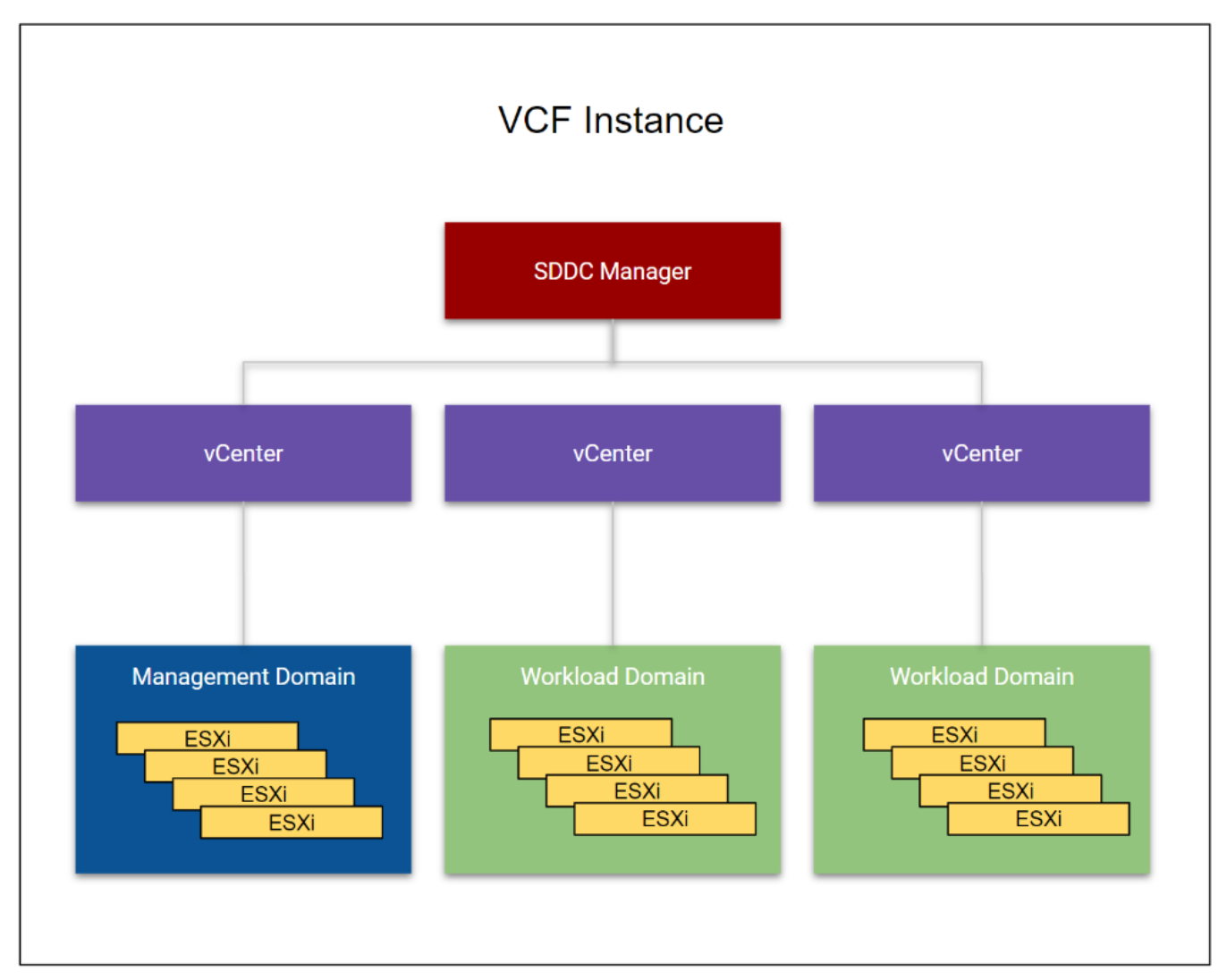
Figure 8. VCF instance with two workload domains
The management and workload domains typically include separate hardware. For customers with fewer server resources or who want a smaller footprint or a POC lab, the management domain can also be a workload domain. This configuration is known as a consolidated architecture and can host customer workloads.
Storage
Storage plays an important role in VCF as vSAN is part of the solution. There are two different categories of storage in VCF, each serving different functions in the solution. They are called principal and supplemental. Principal storage is what is required to deploy a management (vSAN only) or workload domain. It is also required to deploy a new cluster in an existing workload (including the management domain). It can be of type vSAN, VMFS on FC, vVols, or NFS. On the PowerFlex, the SDC qualifies as FC because it installs a software storage adapter which VCF treats like FC. Customers wanting to use SDC for the workload domain would map a device to the ESXi hosts and create a datastore. This datastore is then used in the workload domain wizard when VMFS on FC is the chosen storage. Supplemental storage is the storage that can be added to any existing management or workload domain to offer more space post deployment. Supplemental storage supports all the types of principal storage, including iSCSI and SDC. These storage options are shown in Figure 9.
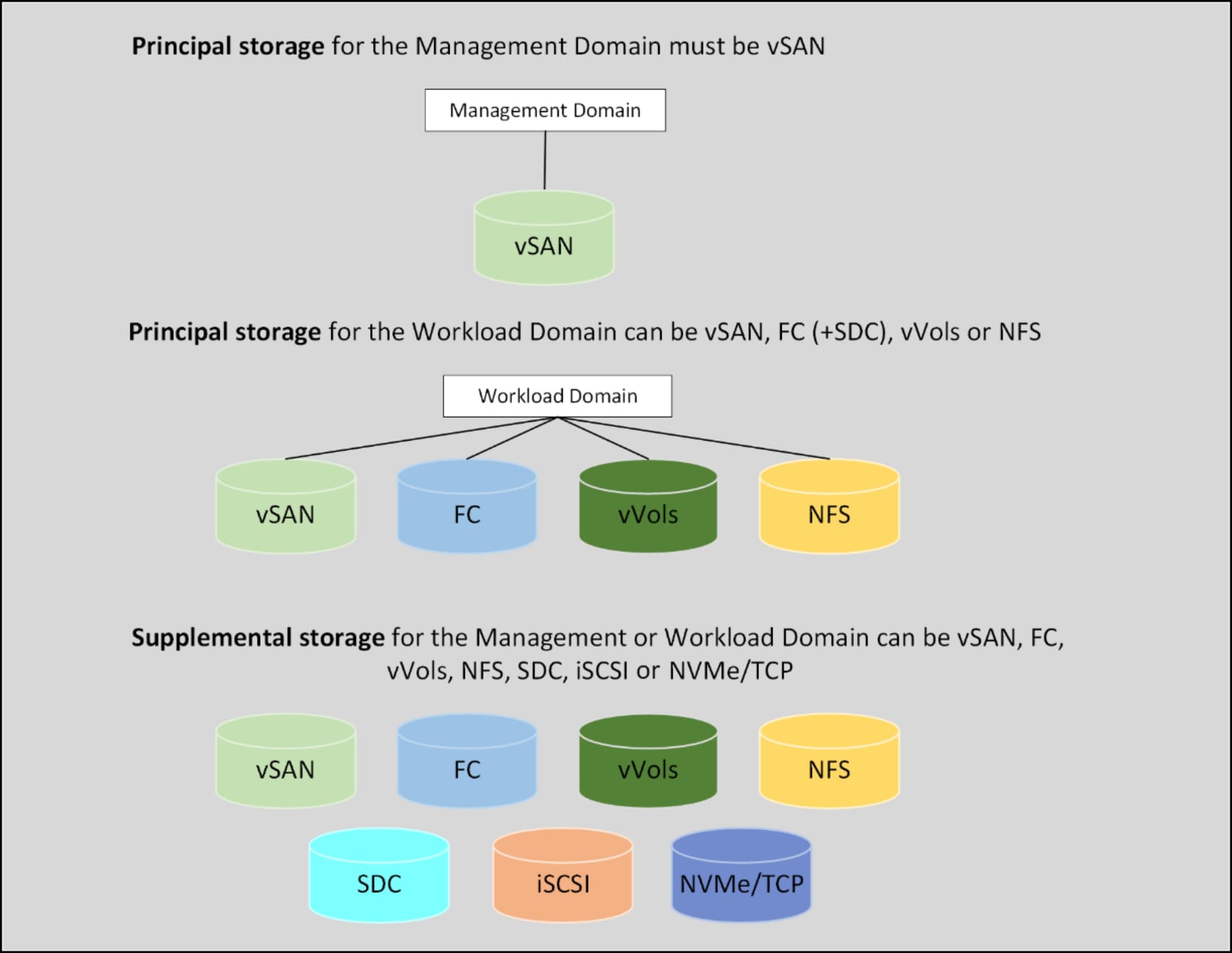
Figure 9. VCF storage options
Note: The SDC is not listed separately in the workload domain since it is acting as FC. It is not shown as a separate option in the workload domain wizard.
As noted, vSAN is the only supported principal storage for the management domain. VMware requires vSAN in the management domain in order to have full control over storage life cycle management from creation to deletion. VCF does not provide this level of control for non-vSAN storage and thus requires the user to manage the life cycle. The entire VCF solution can run on vSAN with no other storage, but at a minimum vSAN must be used to deploy the management domain.
Vendor storage support
Lifecycle management
VCF has an integrated life cycle management function that facilitates the automation of upgrades to new versions. Because each version of VCF has a specific bill of materials, it is essential to use this function to maintain compliance. The interface is shown in Figure 10.
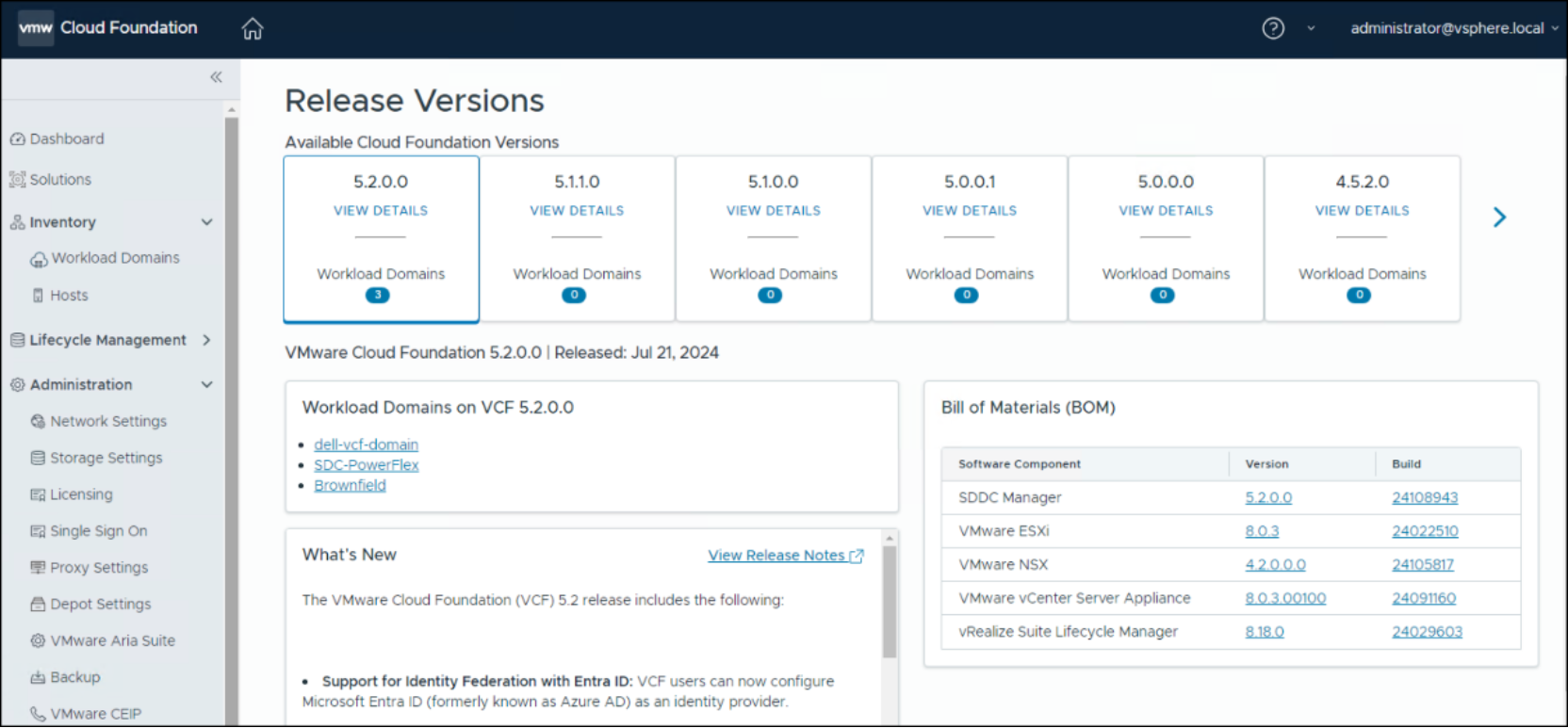
Figure 10. Lifecycle management
PowerFlex
When the workload domain consists of servers that are also compute-only nodes of a two-layer PowerFlex deployment, as in this document, VCF must still control life cycle management of the operating system. This requirement is due to the strict requirements of the BOM, and in particular the ESXi version. If PowerFlex is allowed to upgrade ESXi outside of VCF, it can render the environment unsupported.
The compute nodes may still be added to PowerFlex manager in “Reserved” Managed State in the Resources page. In this way PowerFlex manager will be alerted to any hardware failures and can manage the firmware, BIOS, and hardware aspects of the node. An example is seen in Figure 11.
Figure 11. 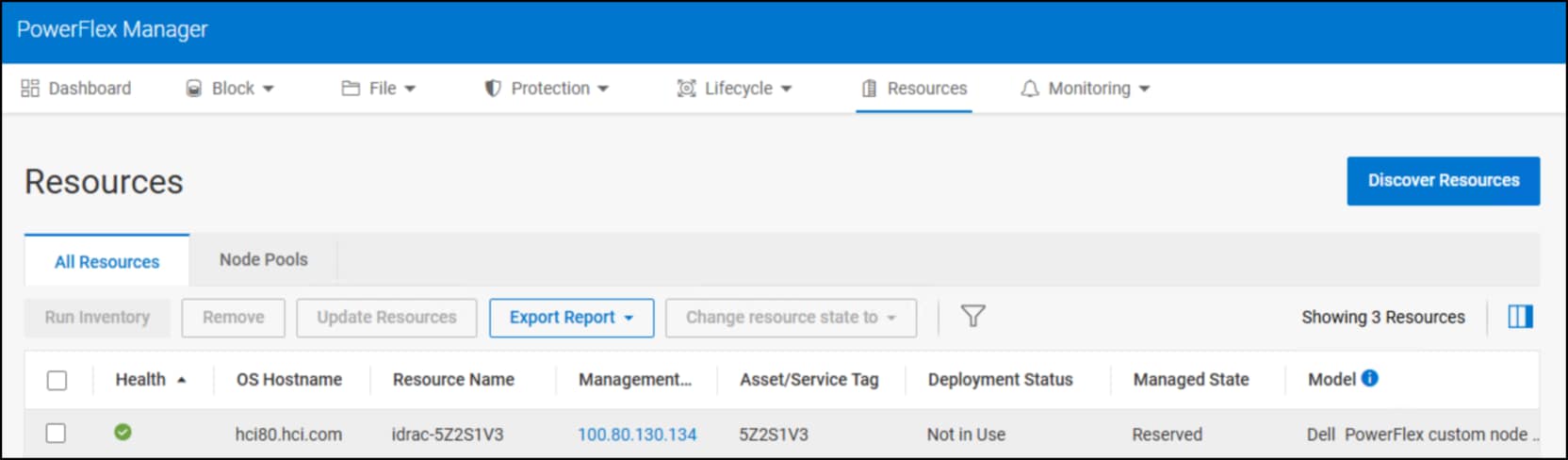 Reserved Managed State for VCF compute node
SDC
Components like the SDC must be upgraded manually. VCF recognizes the SDC as a third-party VIB as shown in Figure 12. Unless the major ESXi version is changing, a new SDC is unnecessary as they are backward compatible.
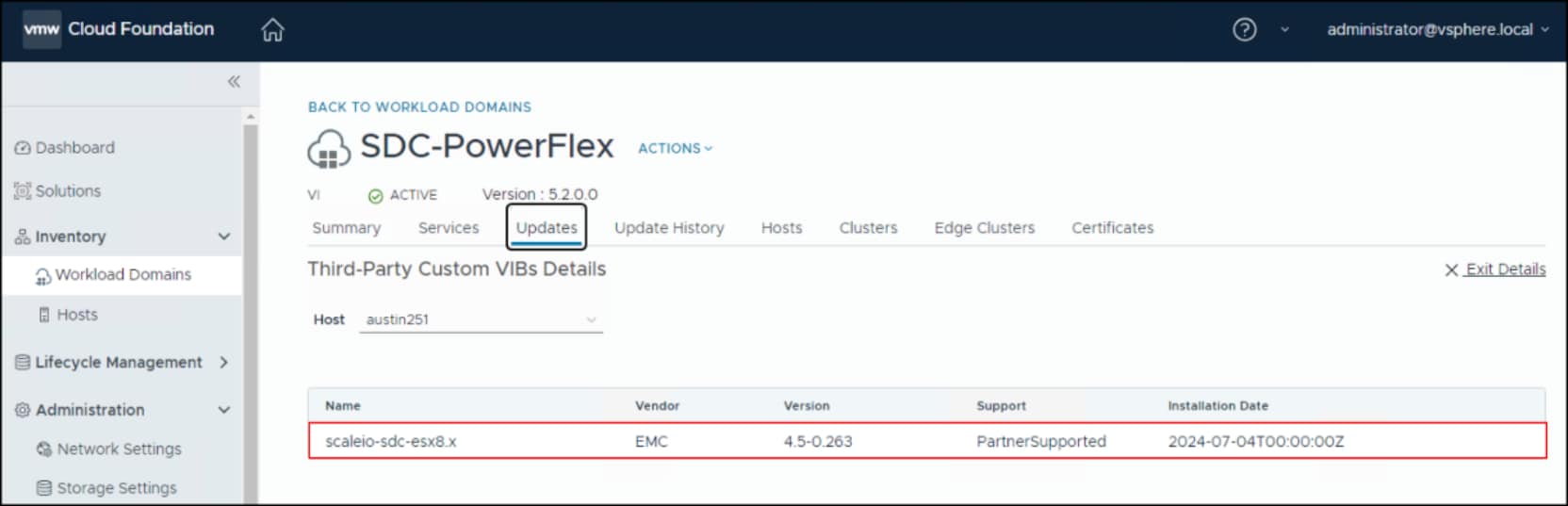
Figure 12. Third-Party Custom VIBs Details
If moving from ESXi 7 to ESXi 8, the SDC must be upgraded before the VCF ESXi upgrade. To do so, prepare each ESXi host by migrating or shutting down any VMs running on datastores that SDC presents. Upgrade the VIB by using the –force option. Here is an example:
esxcli software vib update -d /vmfs/sdc-4.5.0.263-esx8.x.zip –-force
Then upgrade ESXi with VCF.
Chapter 4 Deployment
This chapter presents the following topics:
Deployment
Introduction
VCF installation
VMware Cloud Builder
The VMware Cloud Builder is a virtual appliance with a UI that guides the user through the VCF installation using the vcf-ems-deployment-parameter.xls spreadsheet. VMware calls it the Planning and Preparation Workbook. The appliance is best deployed on an existing ESXi host or vCenter with access to the networking of the VCF environment. Once deployed, log in as the admin user. The screen in Figure 13 appears, providing the user with two options for a VCF installation: standard or VxRail. As this setup includes independent servers, leave the default radio button selected.
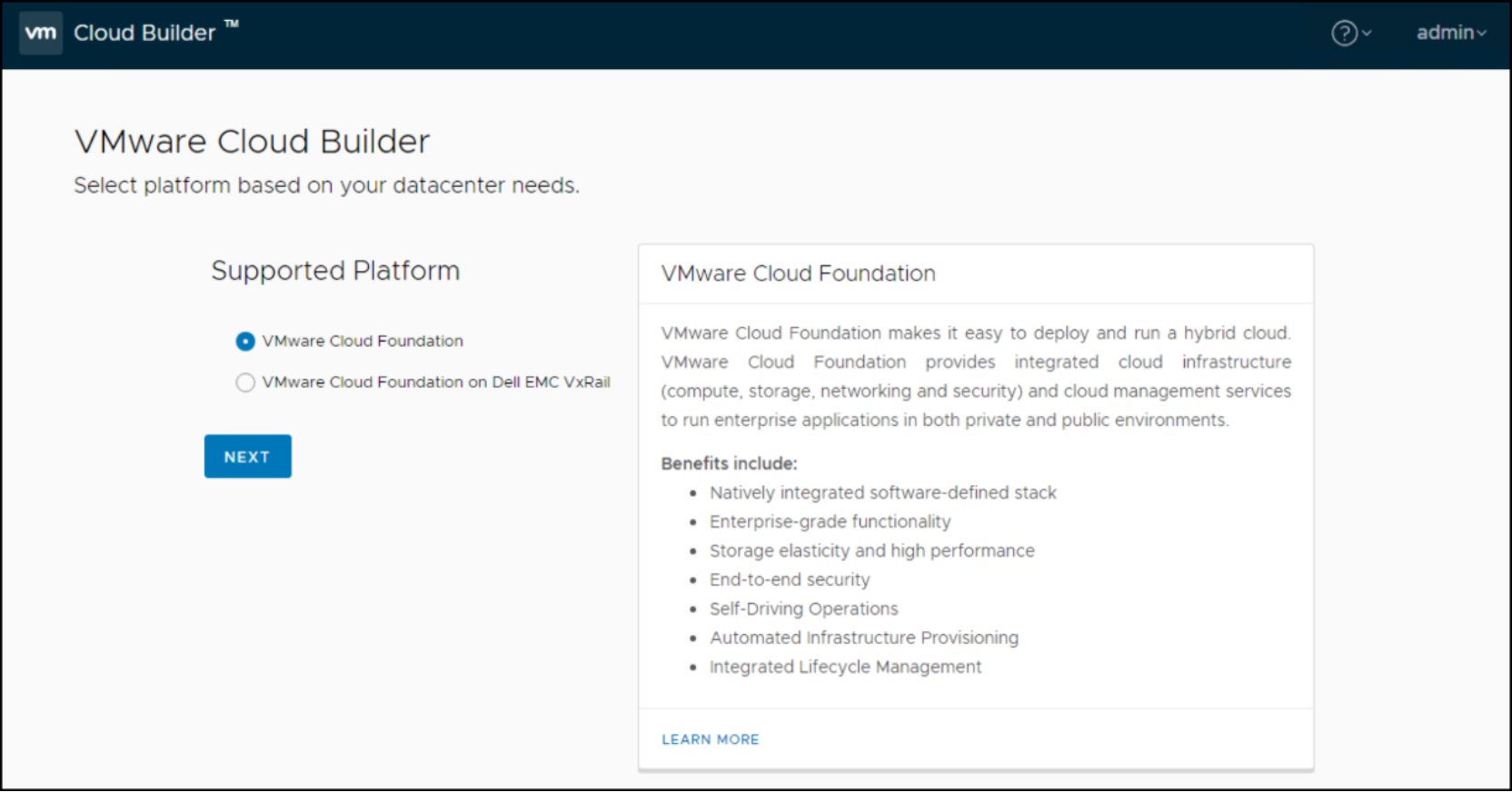
Figure 13. VCF installation initial screen
Note: While the VMware Cloud Builder is the preferred method for a VCF installation, there is a VCF CLI which can be used. The major difference between the UI and CLI is the ability to highly customize a CLI installation. Environments with unique networking requirements, for example, may require the use of the CLI.
In the next page, as shown in Figure 14, VMware lists all the prerequisites for a VCF installation. Dell Technologies recommends using the available DOWNLOAD or PRINT options in the upper right corner to save a copy. Review it before checking the box and proceeding. The Cloud Builder does not validate every prerequisite before installing, so failure to complete them can result in installation failure. Although the installer can be re-tried at the point of failure after fixing the issue, there is no guarantee that it will succeed. Manually cleaning up a failed install is a time-consuming, and error-prone task so it should be avoided.
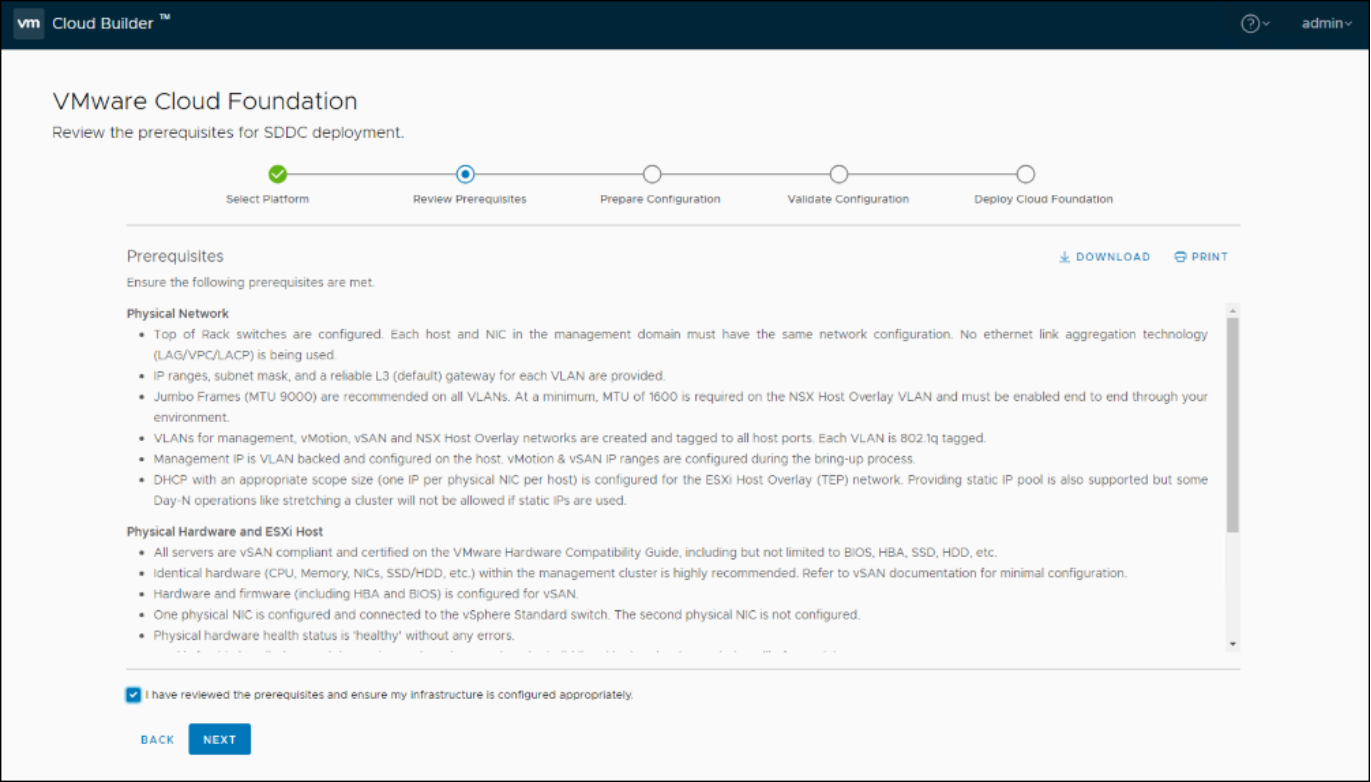
Figure 14. VCF installation prerequisites
Once the prerequisites are user-validated, there are three steps the UI walks the user through:
- Download Workbook – if not already done VMware enables downloading it here.
- Complete Workbook – an acknowledgment by the user.
- Upload File – upload the completed workbook.
These three steps are shown completed in Figure 15.
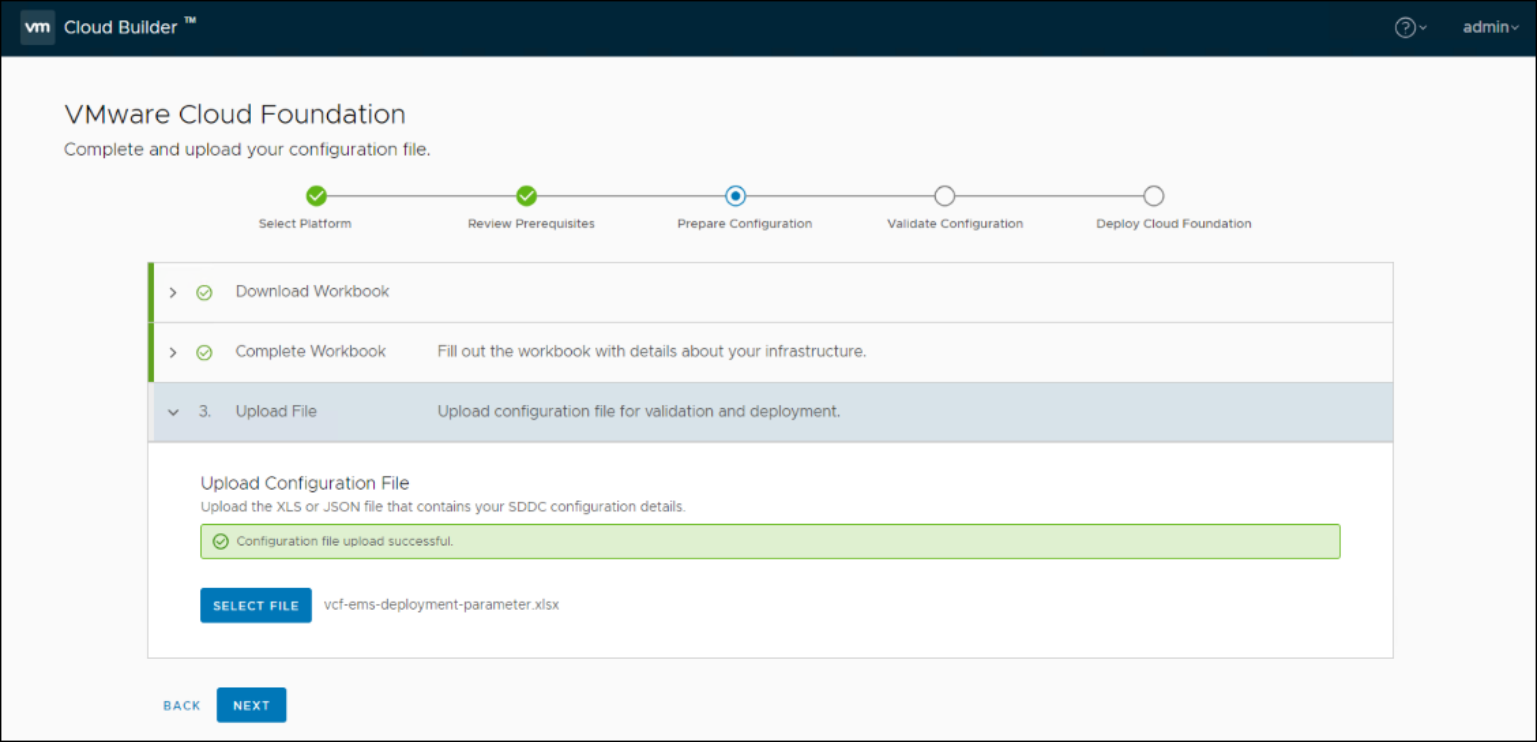
Figure 15. VCF installation – File upload
If the user selects NEXT, VMware then attempts to validate the workbook against the environment as shown in Figure 16. As previously mentioned, it does not validate all prerequisites, though it endeavors to cover most. When failures occur, they must be fixed and the validation retried. For example, the vSAN configuration is a common problem area and may need a manual resolution as explained in the section titled vSAN.
Note: VMware does not prevent installation for warnings. In a lab setup, warnings may be acceptable. However, they should not be present for a production installation.
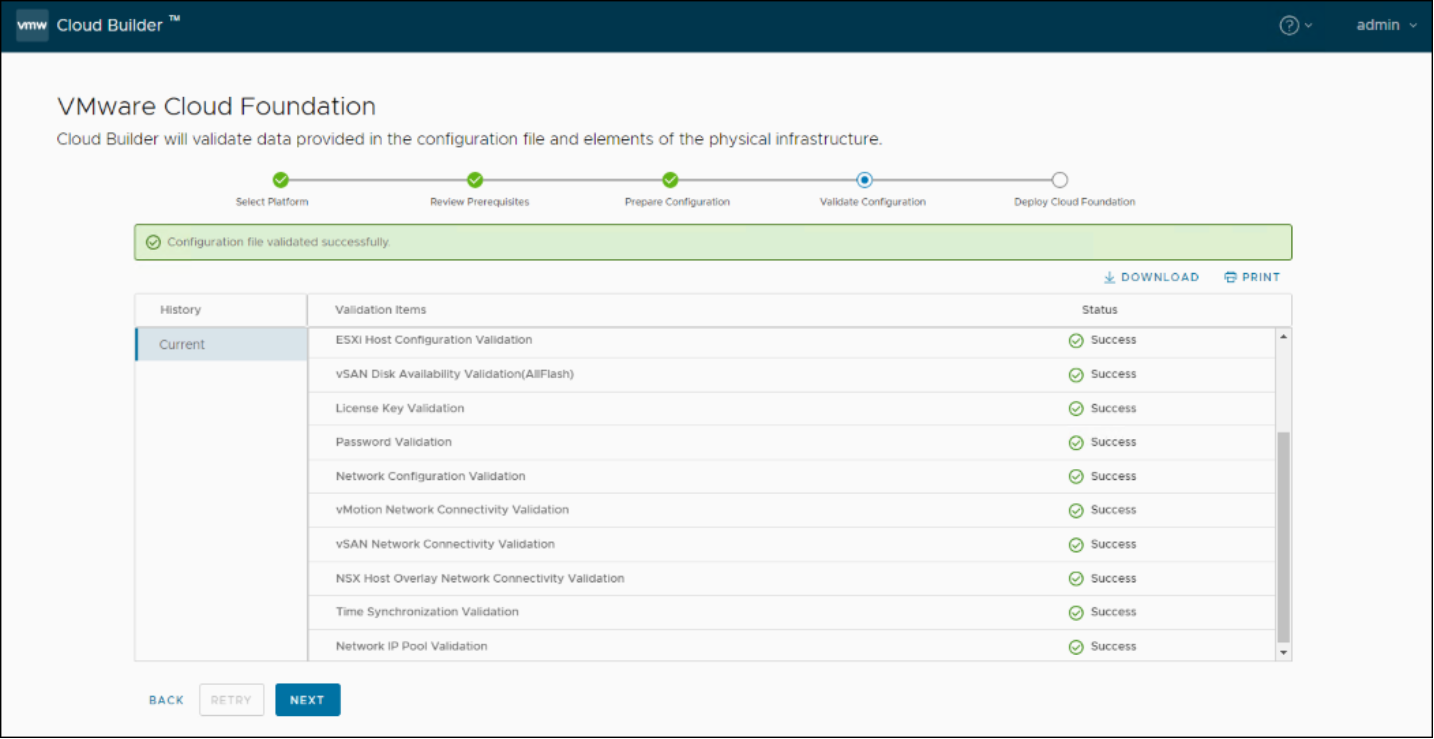
Figure 16. VCF installation - Validation
With validation complete, a final warning is given as in Figure 17. Before proceeding, ensure that all prerequisites are complete in addition to the validation. Although the dialog box indicates that only SDDC is being installed, it does include all the VCF components.
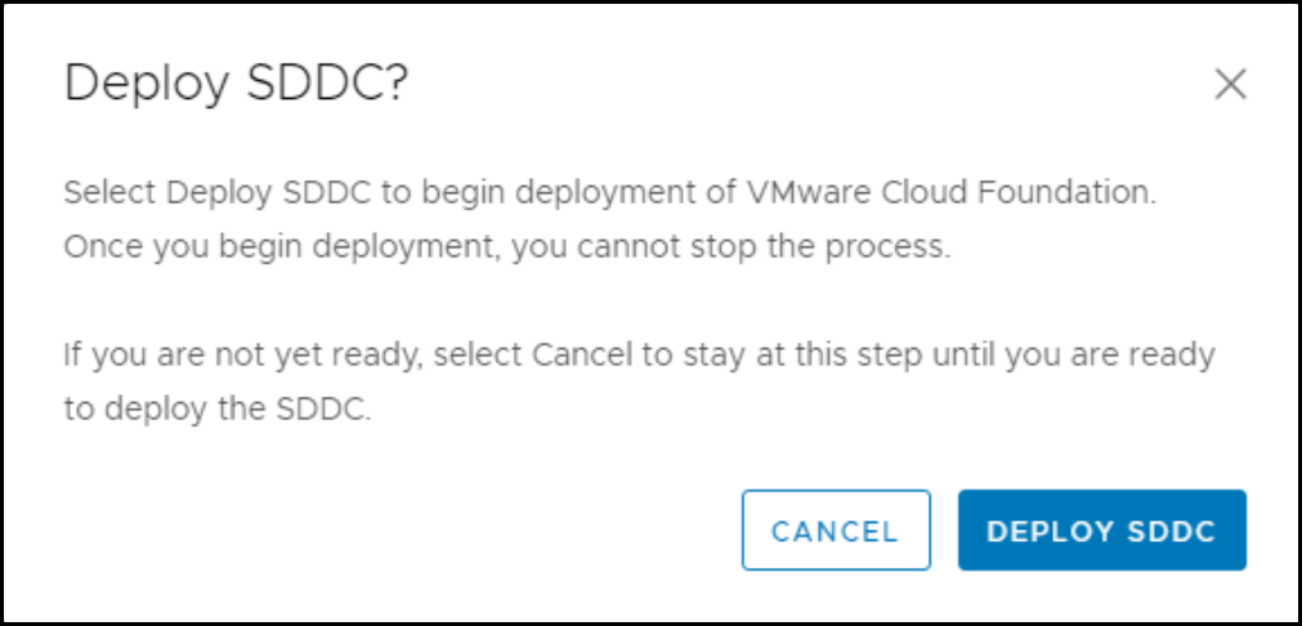
Figure 17. VCF installation – Deployment warning
The deployment time varies according to the environment and is measured in hours. Any errors during installation must be resolved, and the deployment re-tried. There is no cleanup or reset.
The UI times out during deployment but logging back in always returns the user to the current status. A completed installation is seen in Figure 18. Selecting FINISH brings up the SDDC Deployment Complete dialog box where SDDC Manager can be launched.
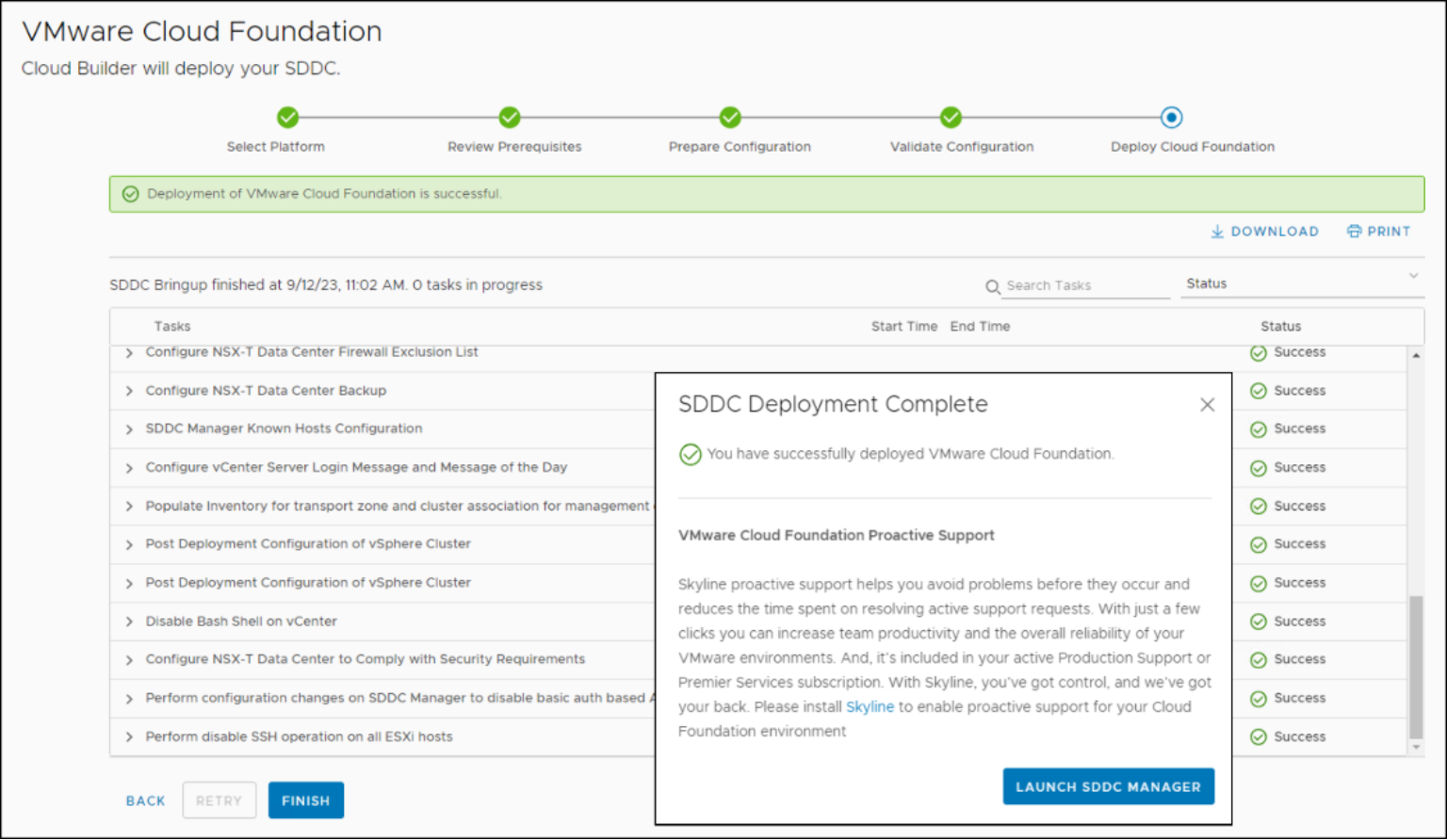
Figure 18. VCF installation - Complete
The SDDC Manager Dashboard appears as in Figure 19. From here, the workload domain can be deployed. This procedure is covered in the subsequent sections.
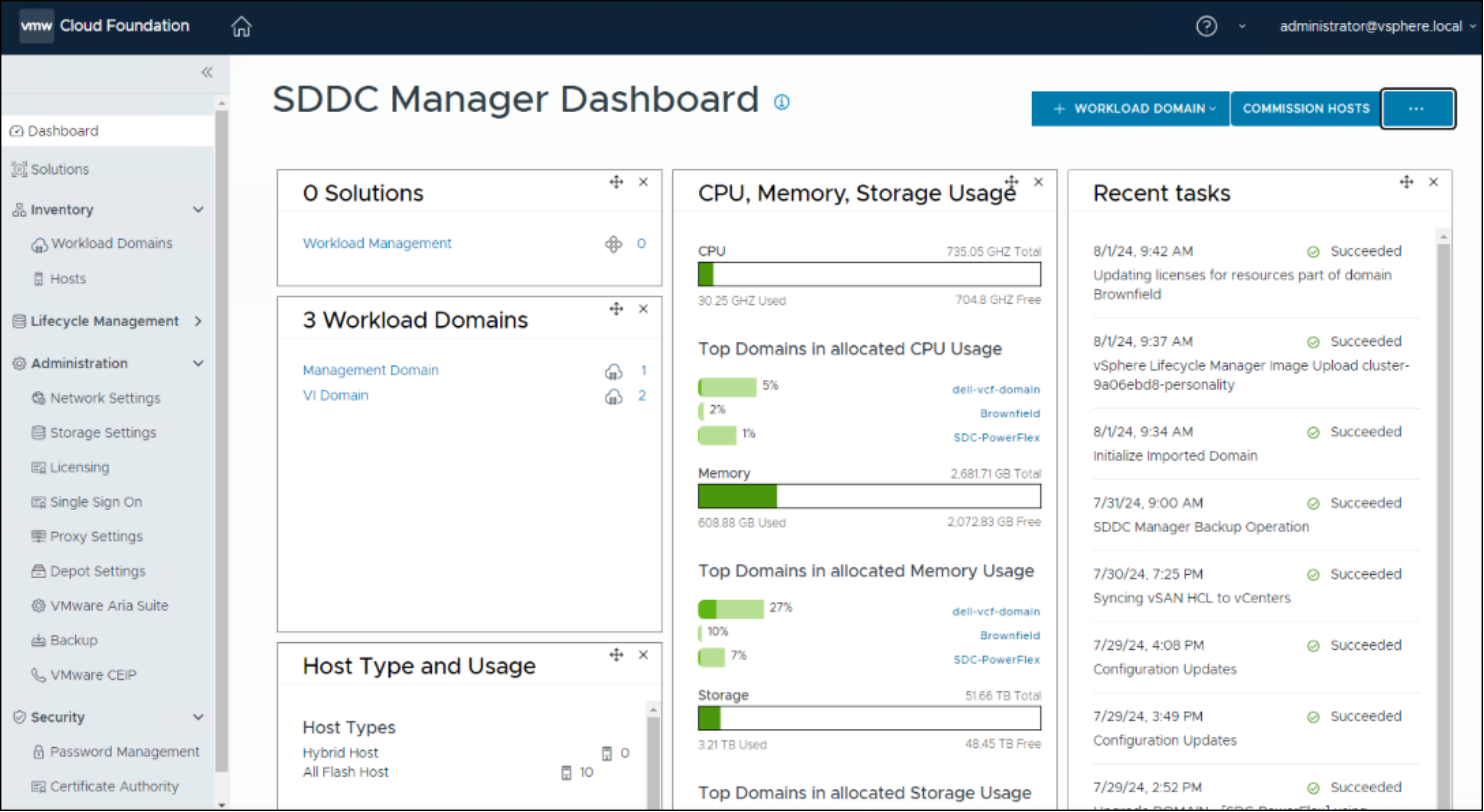
Figure 19. SDDC Manager Dashboard
Deploying a VCF workload domain on SDC
Introduction
Networking limitations for the workload domain
ESXi and SDC installations
Manual SDC installation
Locate the correct version of the SDC for ESXi 8: sdc-4.5.0.263-esx8.x.zip. Copy this .zip file to the local datastore on each ESXi host. Then perform the following steps as root:
- Set the acceptance level for the .zip install: esxcli software acceptance set --level PartnerSupported
- Install the SDC package: esxcli software component apply -d /vmfs/volumes/datastore/sdc-4.5.0.263-esx8.x.zip
- Reboot the host.
- Generate a unique GUID: http://www.guidgen.com
- Set the MDM IPs and GUID for the ESXi host: esxcli system module parameters set -m scini -p "IoctlIniGuidStr=<GUID> IoctlMdmIPStr=<comma separated MDM IPs>"
- For example, esxcli system module parameters set -m scini -p "IoctlIniGuidStr=40b7f5f7-1f42-4c2f-9cb4-77a6ad56086d IoctlMdmIPStr=100.80.130.10, 100.80.130.11 ,100.80.130.12"
- Reboot the host.
When the host comes back up, it should appear in the Block -> Hosts list in the PowerFlex UI as in Figure 20.
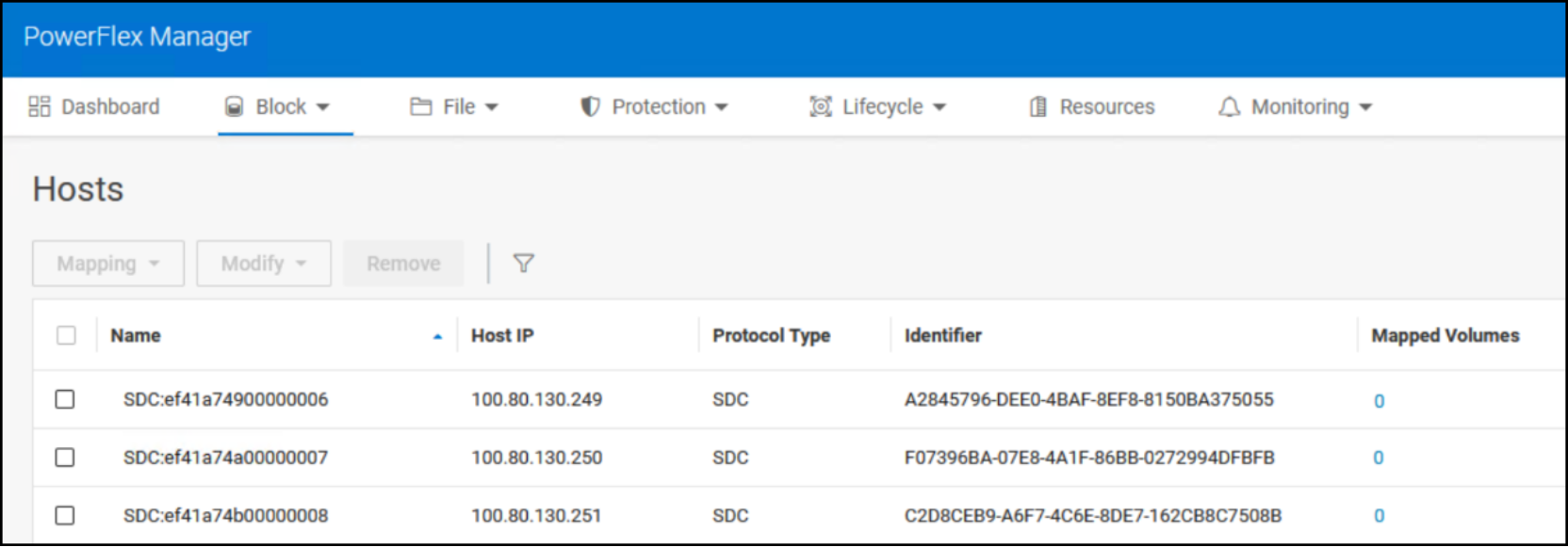
Figure 20. SDC hosts
Once the SDC is installed on each host, create a volume through the PowerFlex UI and map that volume to each of the hosts. This volume serves as the VMFS datastore for the workload deployment.
Volume and VMFS datastore
Begin by navigating in the UI to Block -> Volumes. Select +Create Volume, enter in the required information, and click Create in Figure 21.
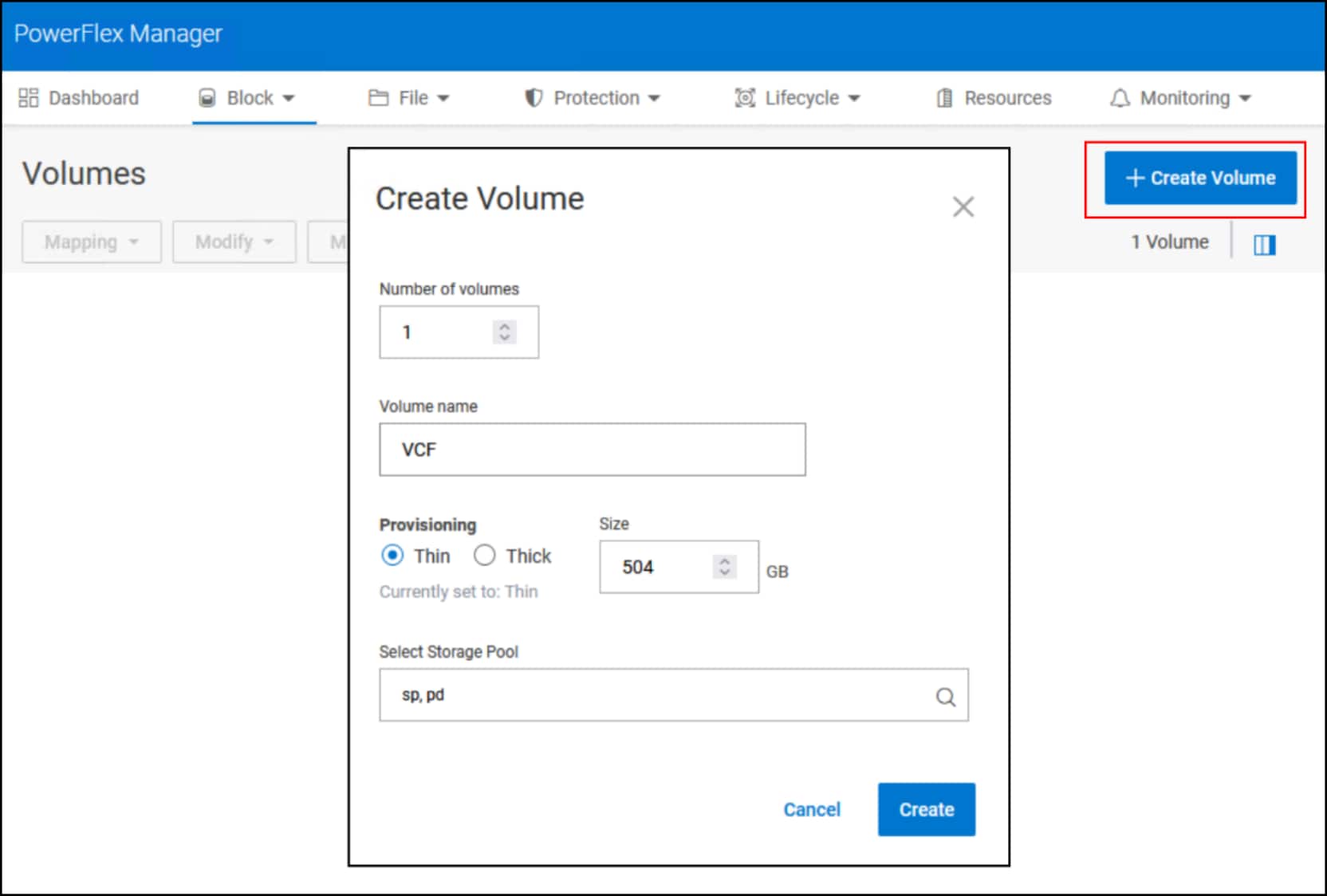
Figure 21. Volume creation for VCF workload domain
Highlight the newly created volume and under the Mapping drop-down select Map in Figure 22.
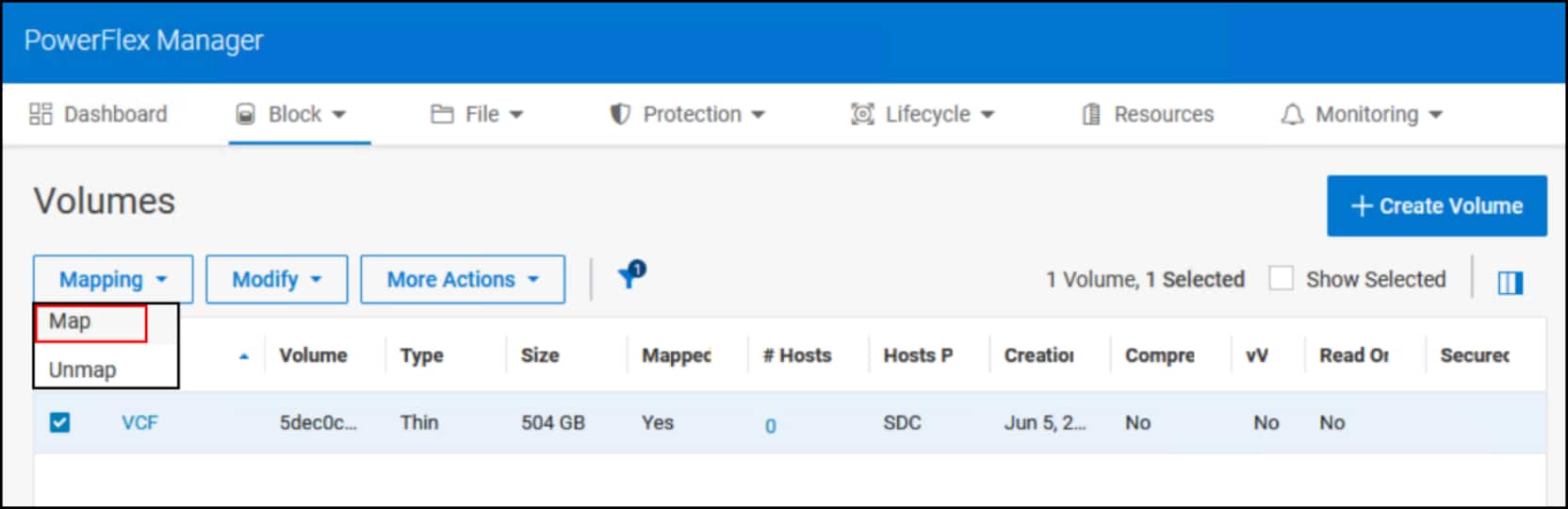
Figure 22. Map volume to workload hosts
In Figure 23, use the check box next to each host to select it for mapping. Then click Map to complete the process.
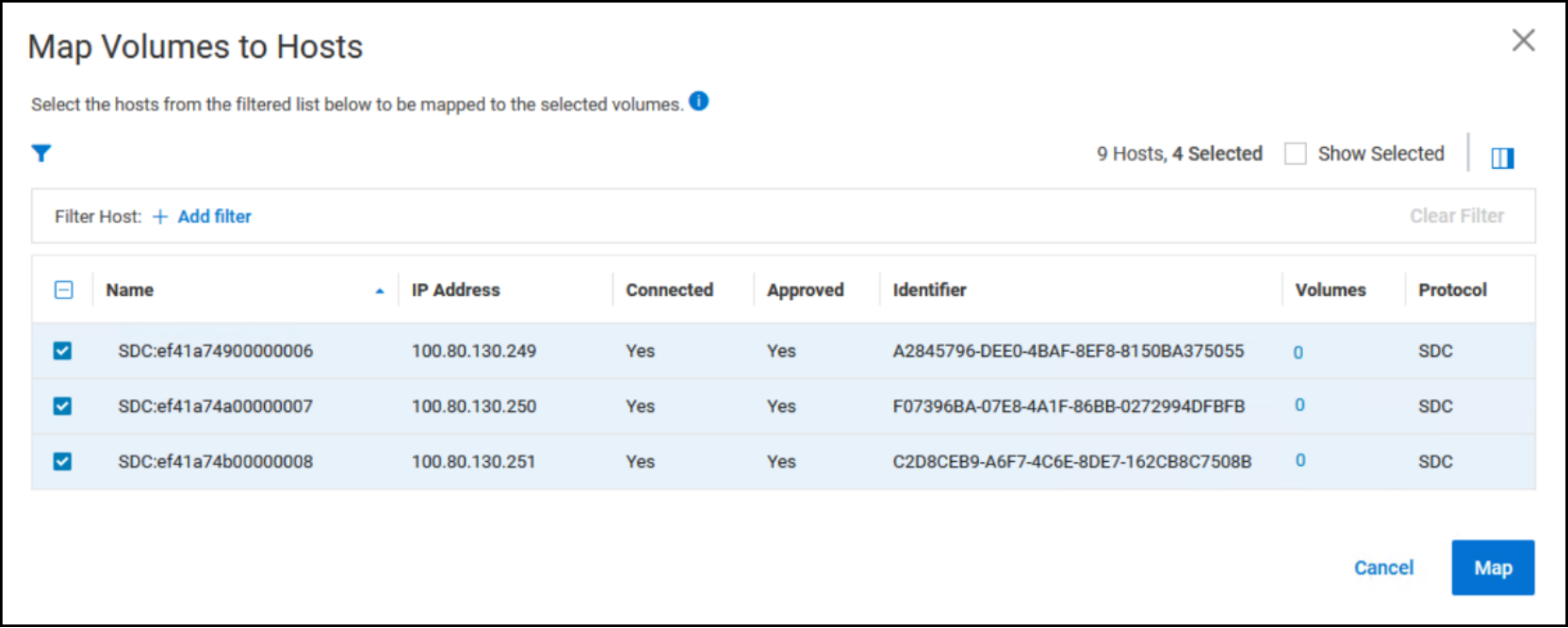
Figure 23. Select VCF ESXi workload domain hosts
The user must create a VMFS datastore on the volume once it is mapped. When using the storage selection of VMFS on FC, the workload domain wizard scans the adapters looking for a viable candidate. Since there is no vCenter as it is part of the workload domain deployment, go to one of the ESXi hosts using the vSphere Client. Then log in as root. Navigate to Storage in the left-menu pane and then the Adapters tab on the right panel. Highlight the vmhba adapter that uses the driver scini. This adapter is the SDC in Figure 24. For all intents and purposes, it presents as an FC adapter. VCF treats any datastores that are created on volumes that are presented to that vmhba as viable for a workload domain.
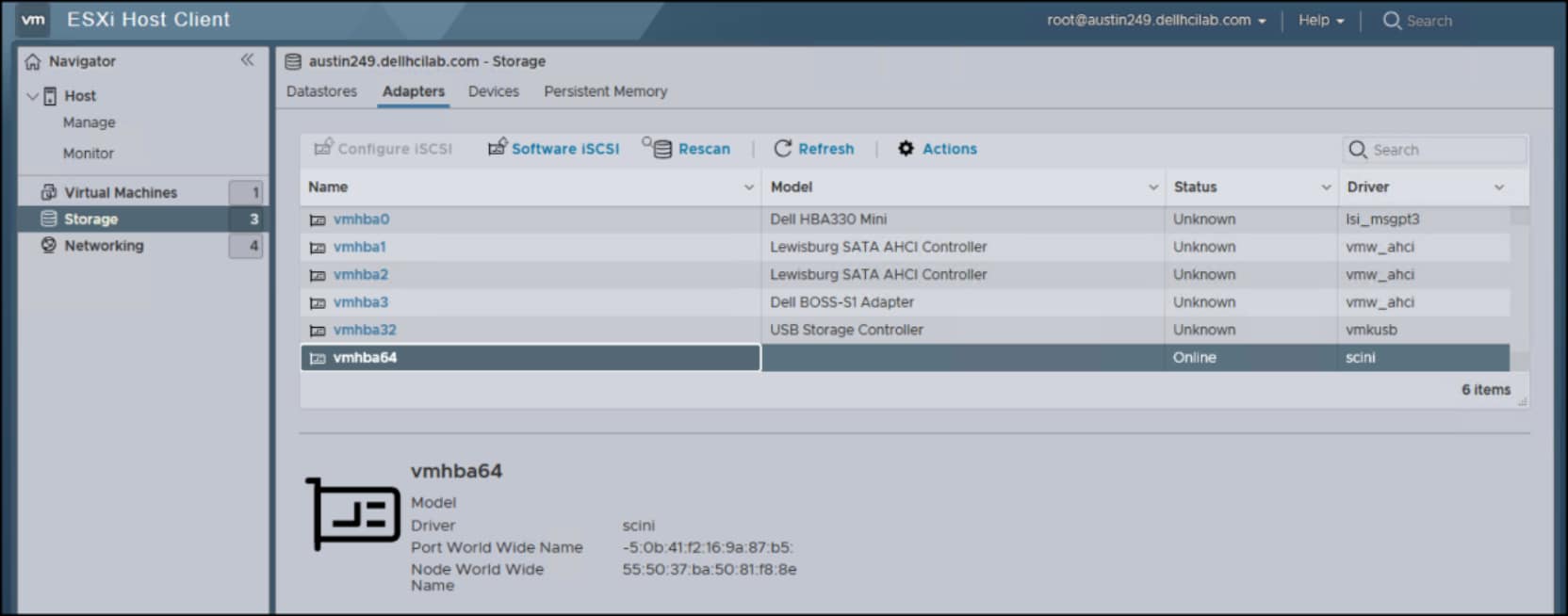
Figure 24. SDC vmhba
Now go to the Datastores tab and click +New datastore in Figure 25.
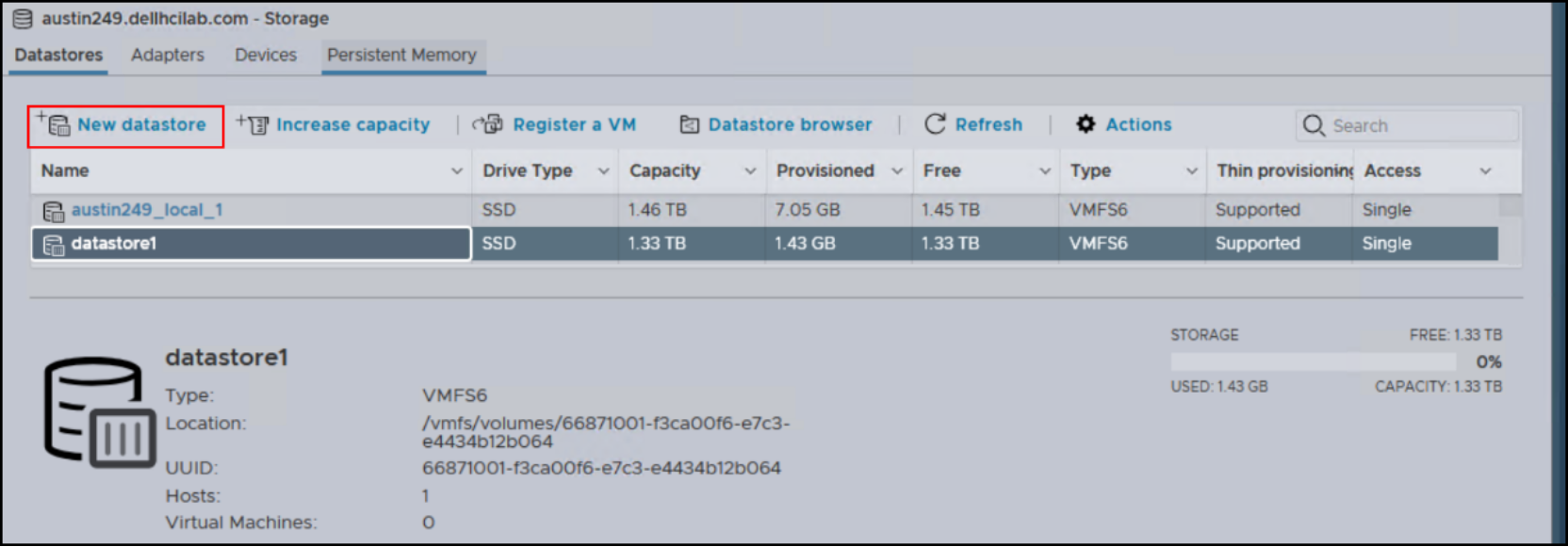
Figure 25. Datastore creation
A volume that is mapped from PowerFlex is identified as an EMC Fibre Channel Disk. Provide a name and complete the wizard in Figure 26. The other hosts that are prepared for the workload domain automatically discover the new VMFS. This process enables the user to initiate the procedure for creating the workload domain.
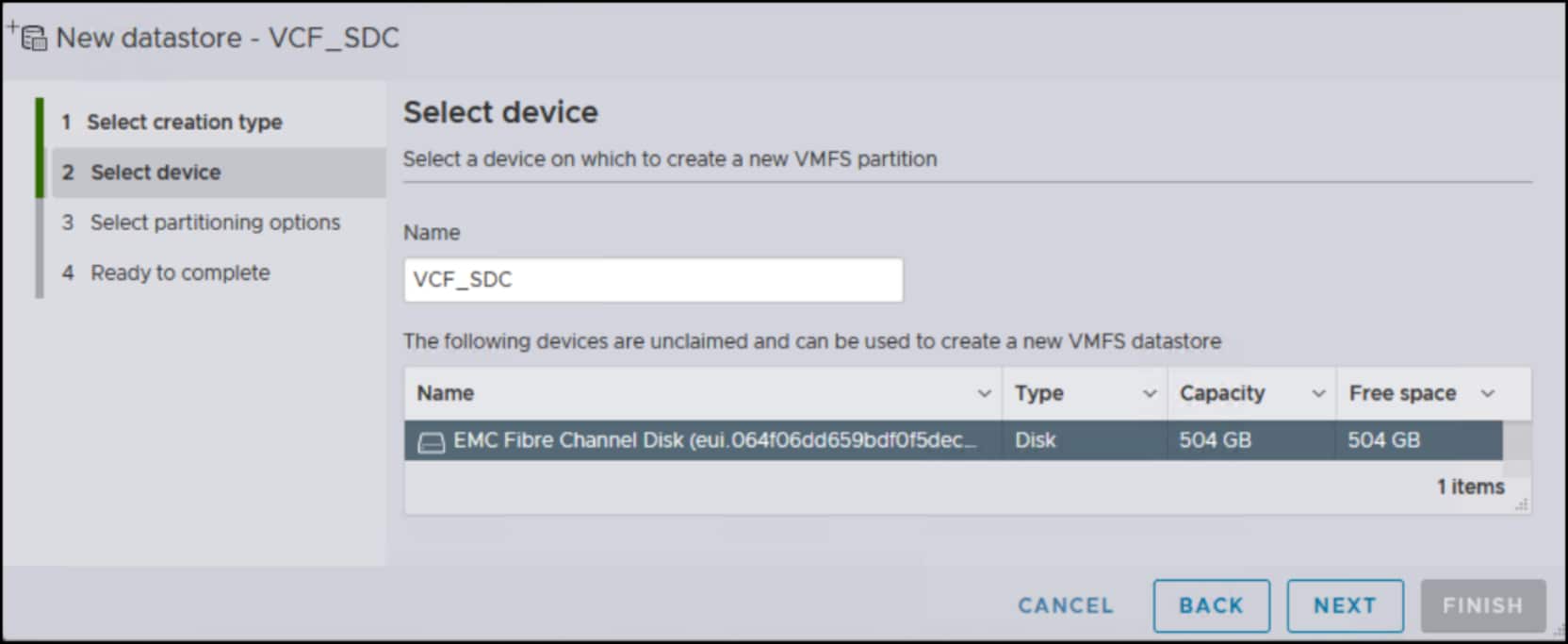
Figure 26. Datastore for the VMFS on FC workload domain on PowerFlex
SDC workload deployment
vMotion network pool
To create a network pool for vMotion, in SDDC Manager:
- Go to Administration > Network Settings. Under the Network Pool tab, select +CREATE NETWORK POOL as in Figure 27.
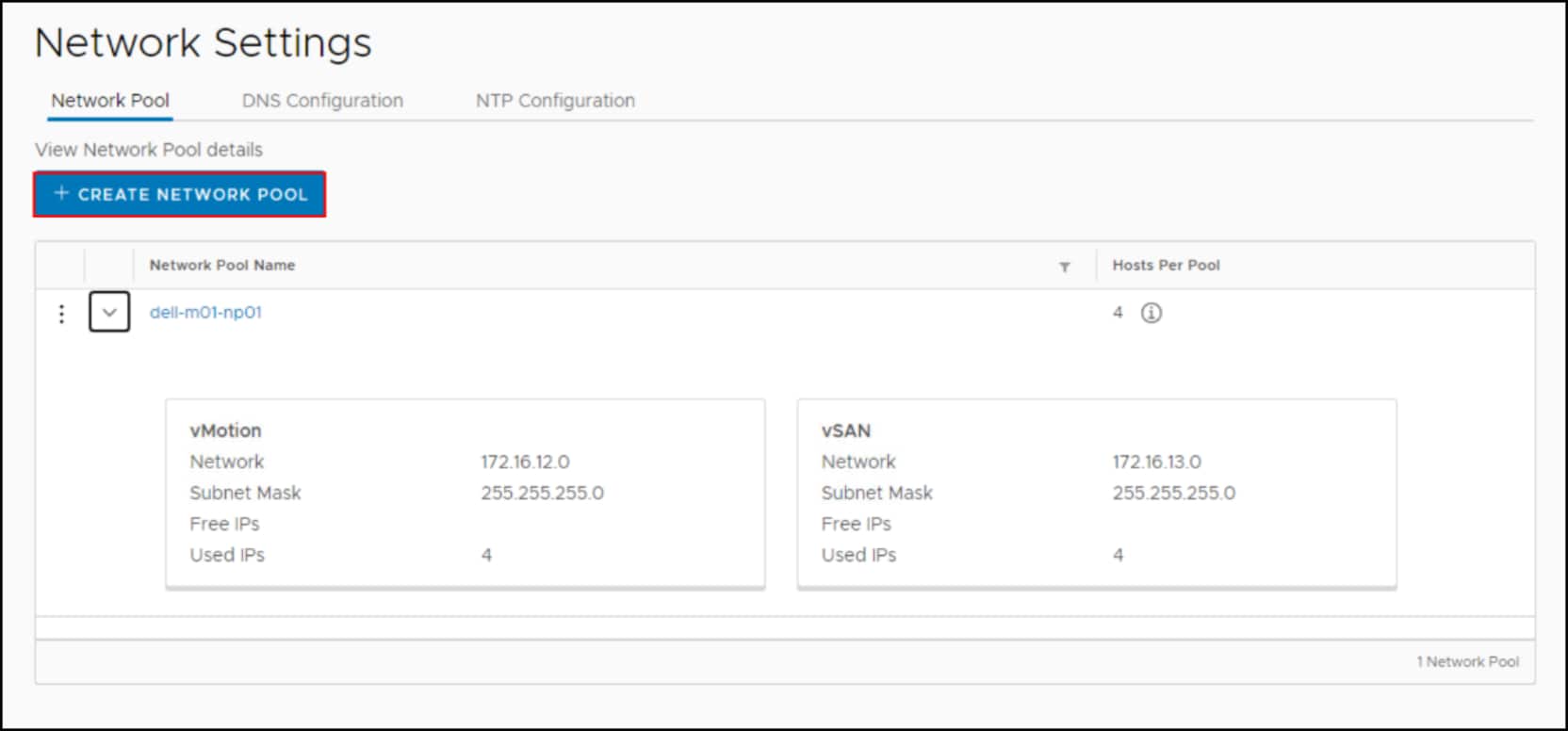
Figure 27. Network pool creation – Step 1
- In the dialog box shown in Figure 28, the vMotion box is checked automatically and is required as part of the pool configuration. Do not check any other box.
- Enter in a network pool name and the IP information for vMotion. The IPs in this example are on the public network for VCF. Select SAVE to complete the wizard.
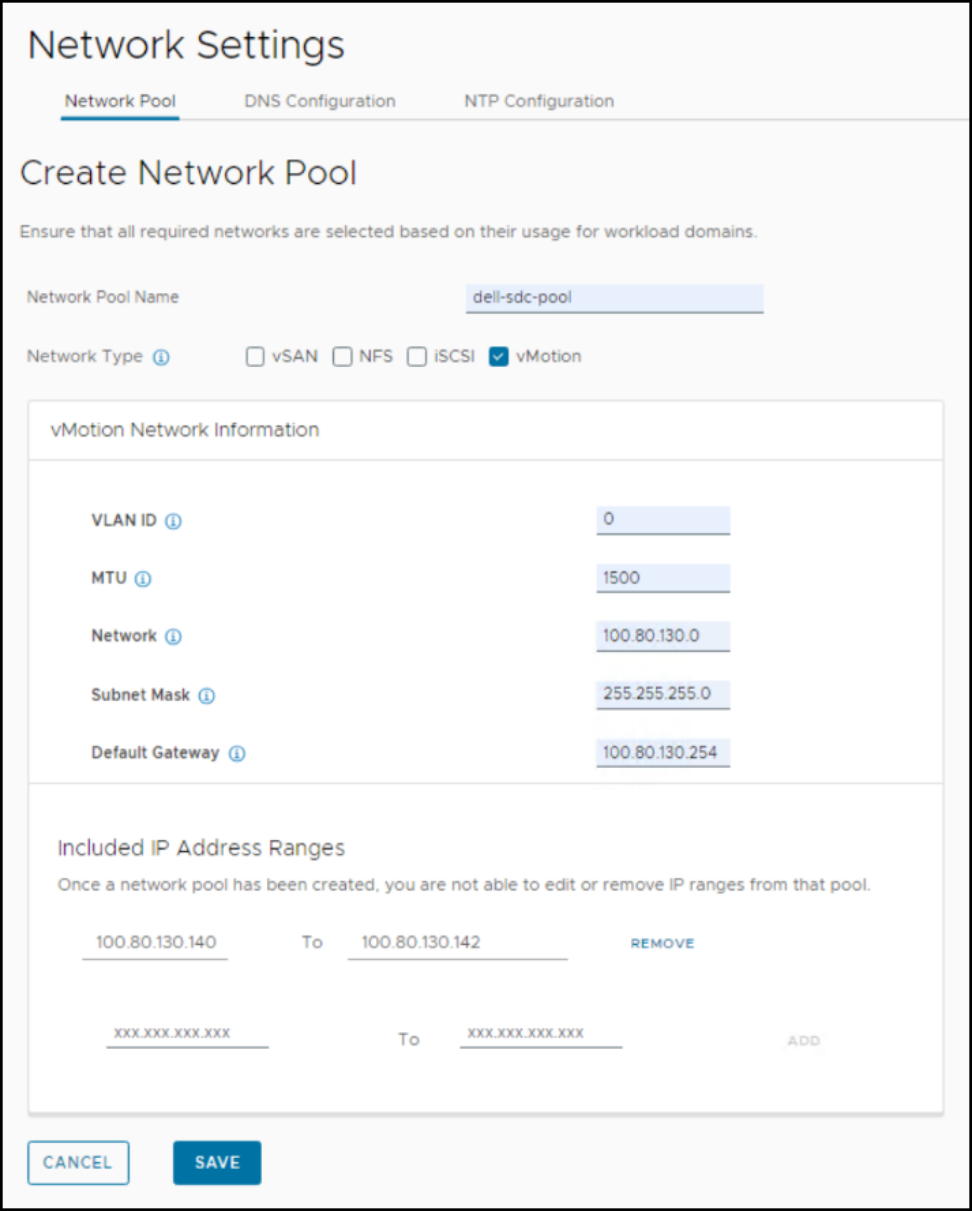
Figure 28. Network pool creation – Step 2
The final result is shown in Figure 29. As there are no hosts that are commissioned, the value for Hosts Per Pool is zero.
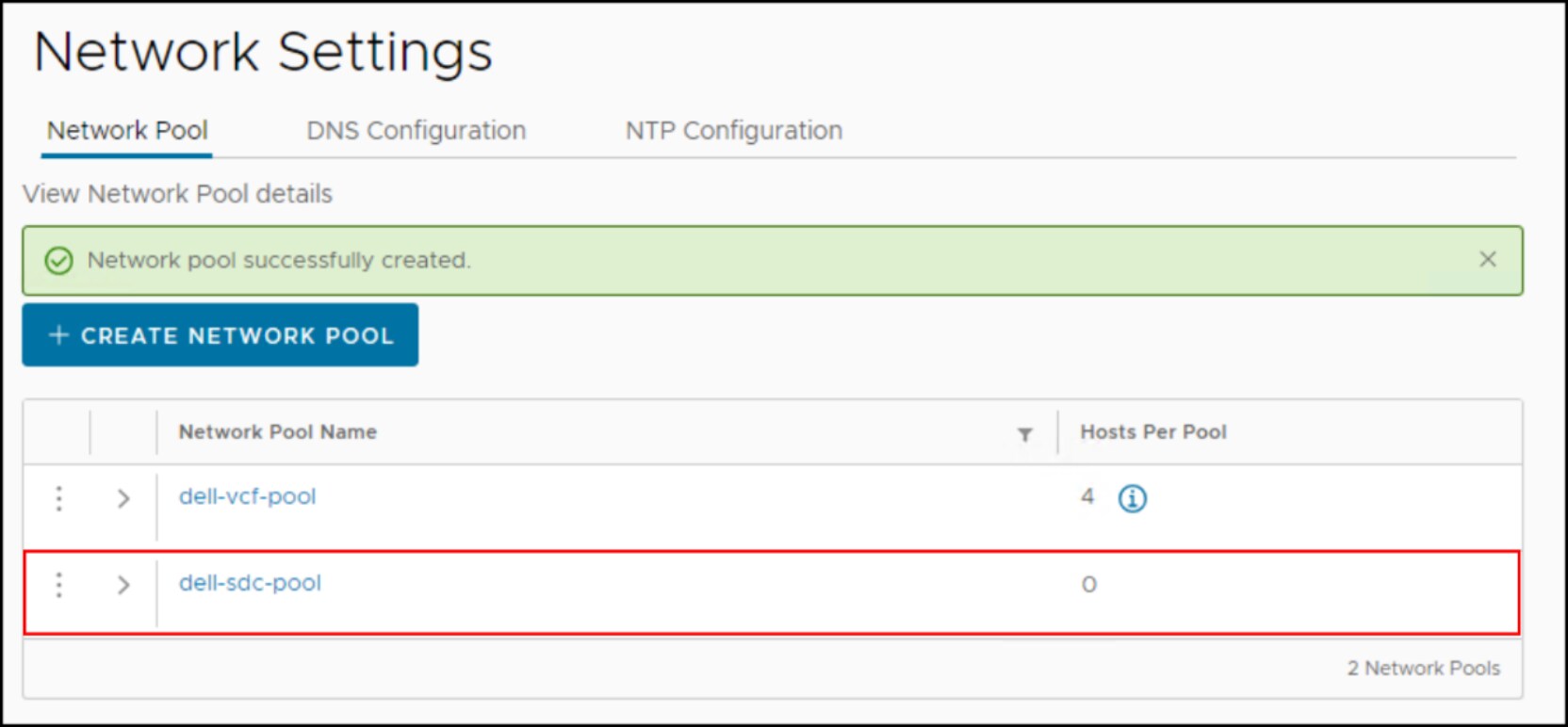
Figure 29. Network pool creation – Result
Commission hosts
Commissioning hosts essentially means adding them to the SDDC Manager inventory so they are available for use in the new workload domain. Hosts must be prepared for commissioning in the same way they were for the VCF base installation. Following the BOM, install the correct version of ESXi and configure hostname and networking. Once complete, in SDDC Manager complete the following steps:
- Go to Inventory > Hosts and select COMMISSION HOSTS in the right-corner as in Figure 30.
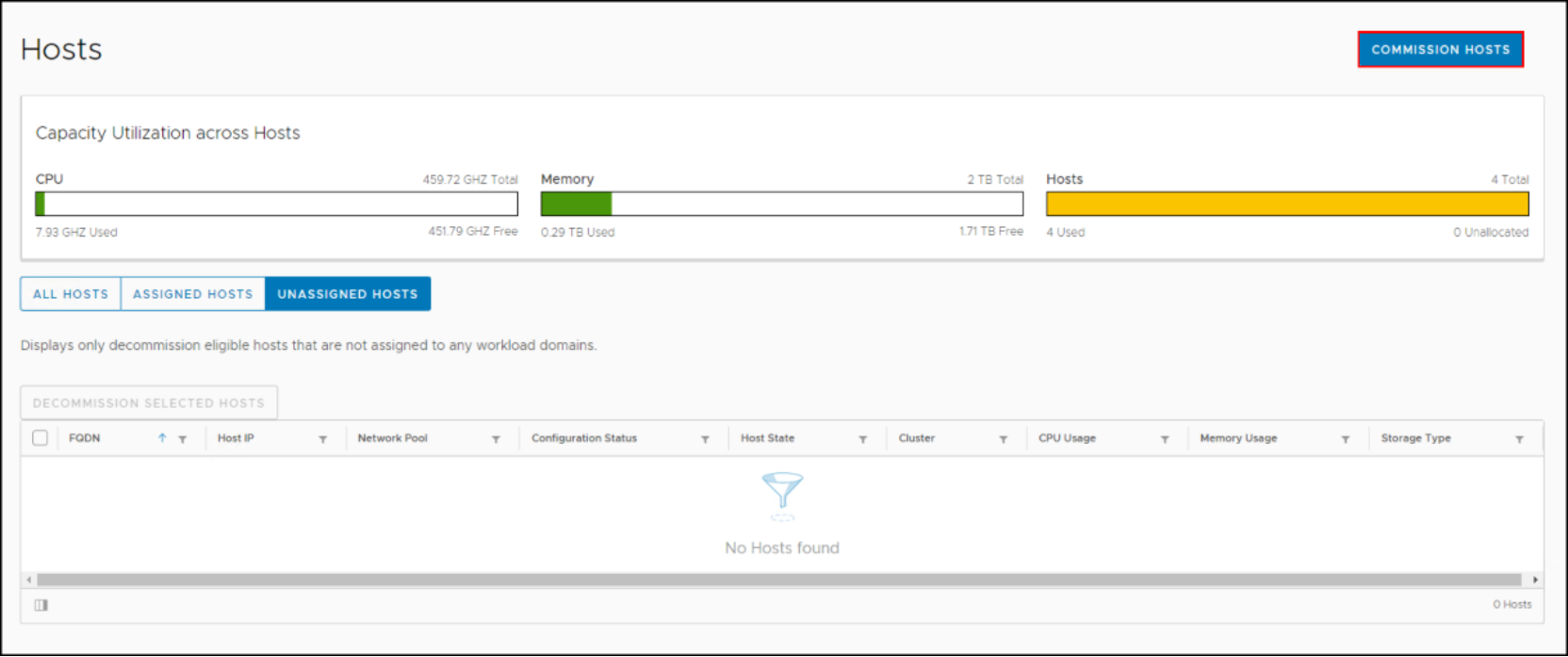
Figure 30. Commission hosts – Step 1
- The first screen that appears is a checklist that the user is required to validate before proceeding. Although VMware calls it a checklist, it is merely a list of prerequisites. This list is not as extensive as the list for VCF but is nevertheless important to validate. Be sure that all items are complete before selecting the PROCEED button as in Figure 31.
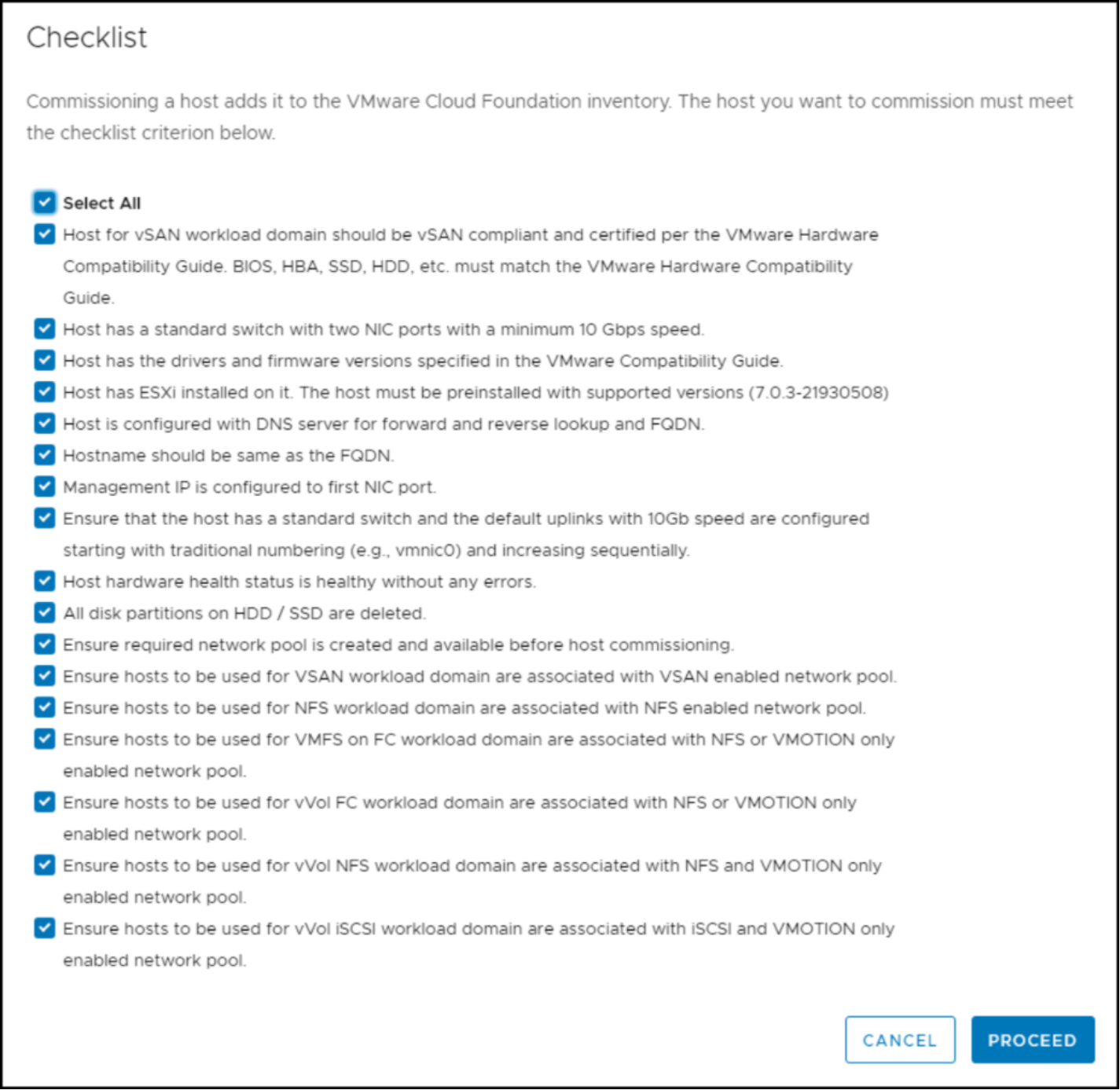
Figure 31. Commission hosts – Step 2
- In the next step, add each host that is to be part of the workload domain on VMFS on FC.
- In Figure 32, several steps are consolidated for brevity. They are:
- Each host gets added as shown in the top half of the image.
- Select the VMFS on FC radio button, enter the hostname, select the previously created network pool, and add the username and password.
- As each host is added, the fingerprint must be confirmed and then the host validated. In the example below both hosts are added with the fingerprint confirmed and the prerequisites validated.
- Select NEXT to move to review.
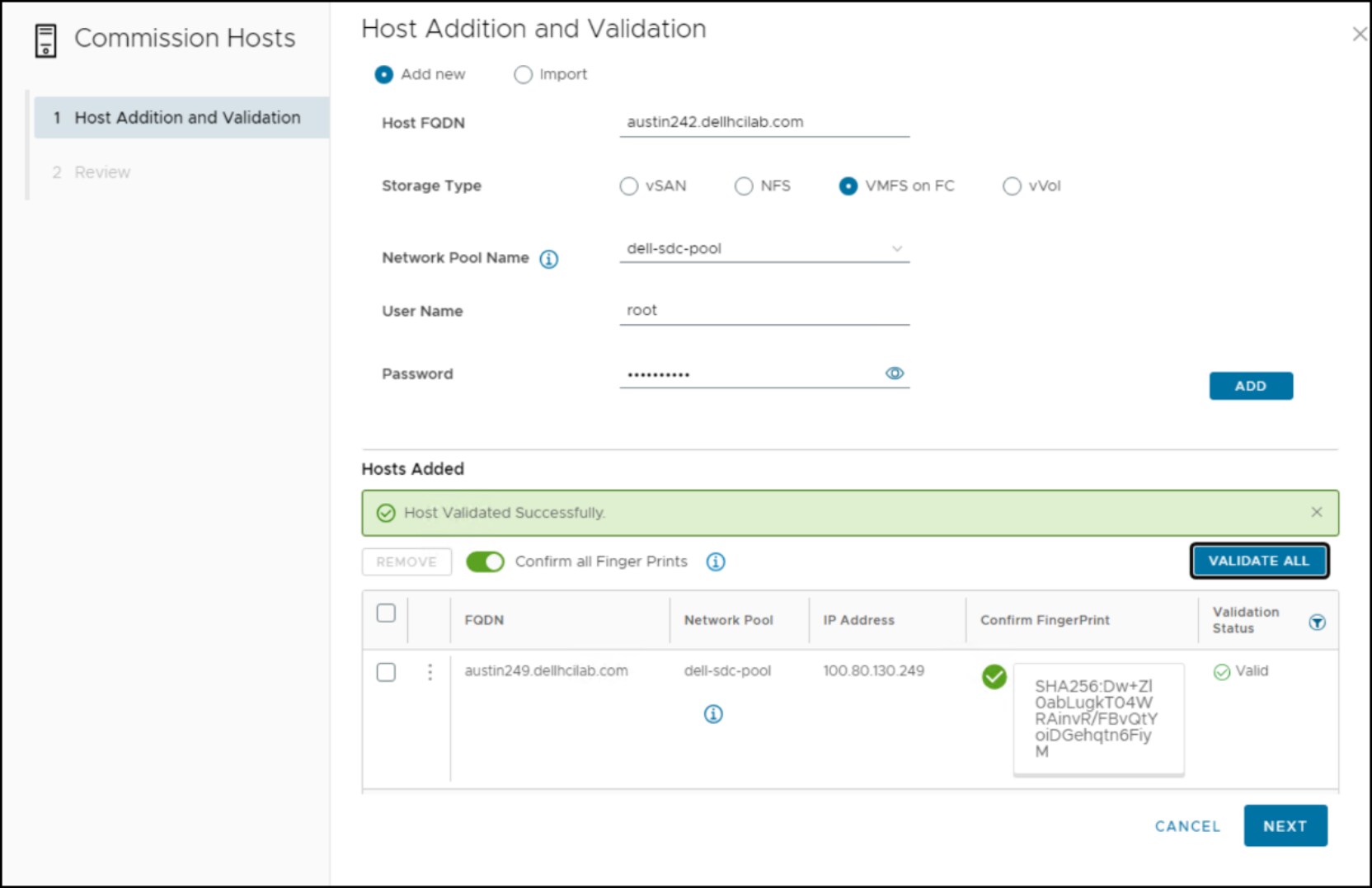
Figure 32. Commission hosts – Step 3
- Before selecting the COMMISSION button in Figure 33, review the validated hosts. Despite the hosts passing validation in the previous step, there is still a chance that a host fails to commission. To that end, VMware offers a toggle at the top which lets the wizard skip failed hosts. Though unlikely, for example a network failure before commission, it is best to leave it set on. A failed host can be repaired and then commissioned again afterwards. The commissioning process does take some time to complete. The SDDC Manager displays the status as the hosts are added.
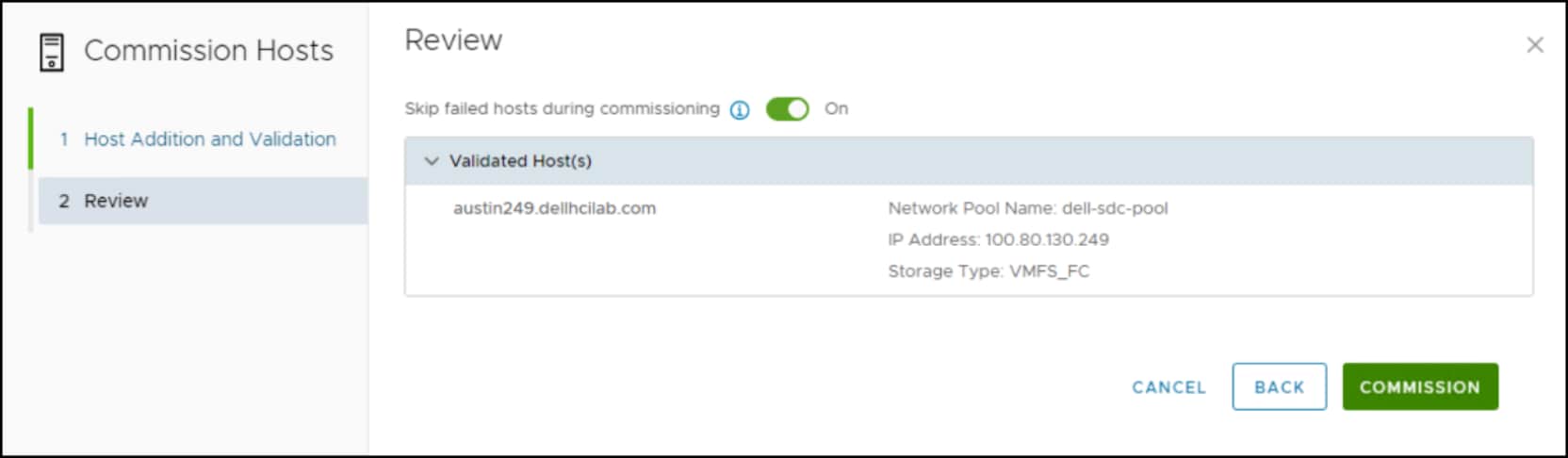
Figure 33. Commission hosts – Step 4
Upon completion, the new hosts display as unassigned in the Hosts panel in Figure 34, and can now be used for the workload domain. This example shows the result from adding the first host only.
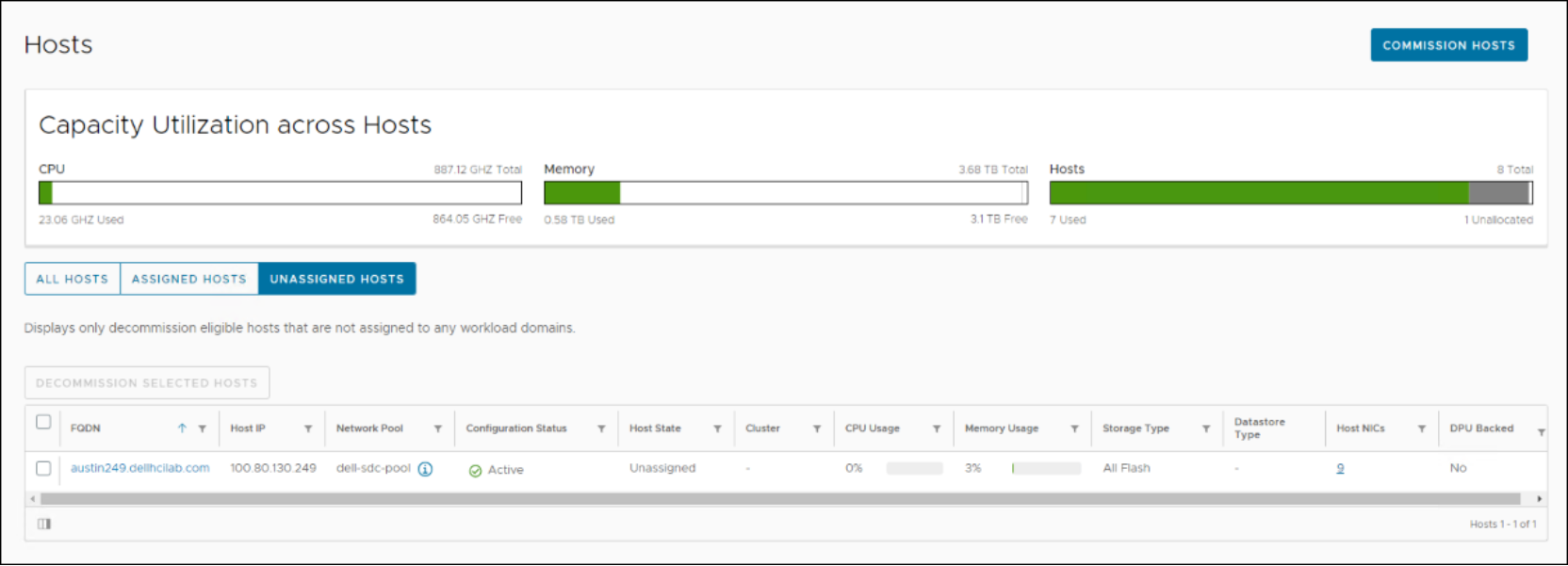
Figure 34. Unassigned hosts
Workload wizard
The following walk-through covers the creation of the workload domain using the SDDC Wizard.
Within SDDC Manager, select Workload Domains from the Inventory menu on the left. Click + WORKLOAD DOMAIN > VI Workload Domain in Figure 35 to initiate the workload wizard.
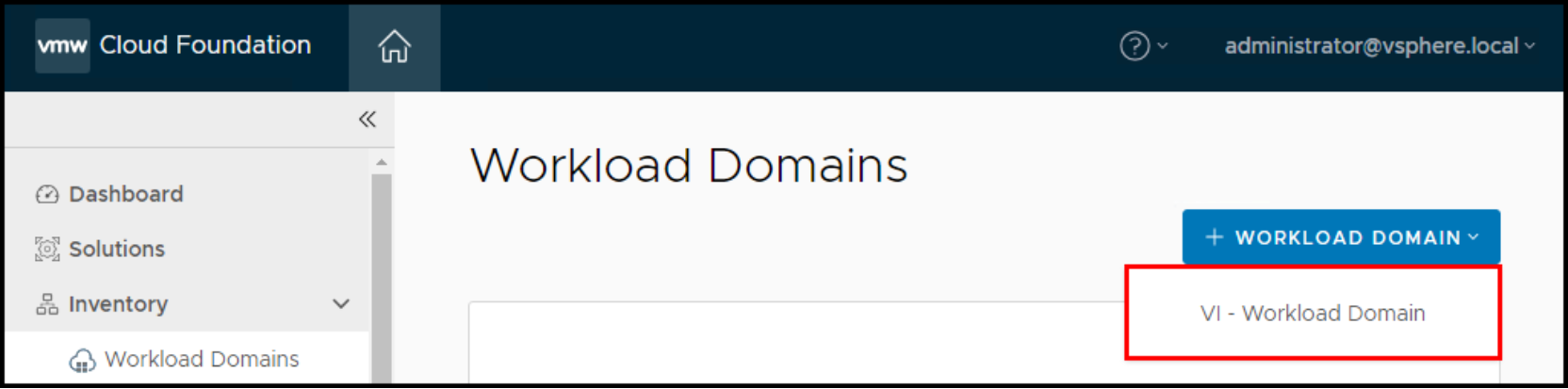
Figure 35. Add VI – Workload Domain
- In the first dialog upon Workload Domain initiation, select the type of storage. For SDC, select VMFS on FC in Figure 36.
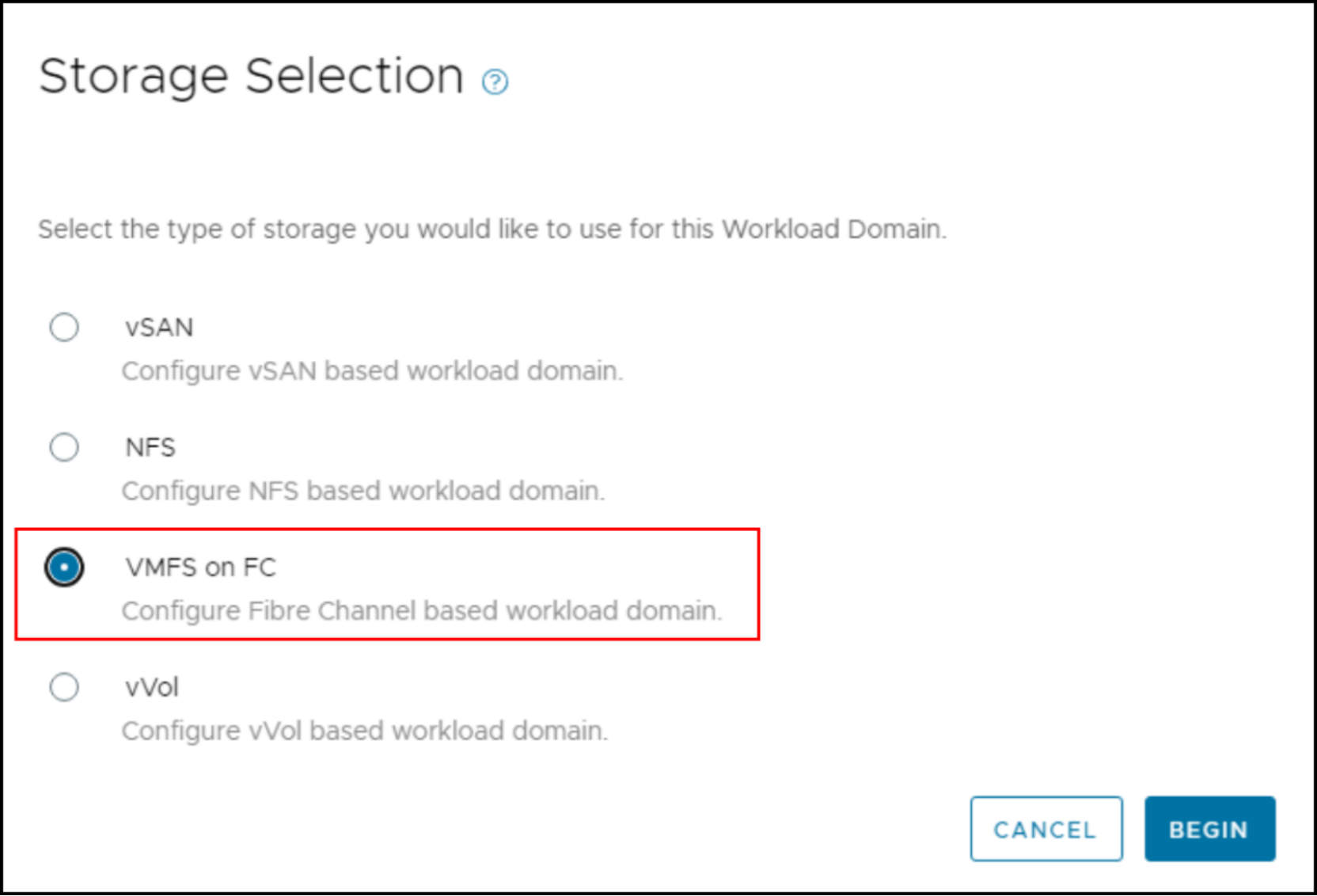
Figure 36. Storage selection for SDC
- In the first step of the wizard, enter in the required information in Figure 37. The user can decide to create an SSO or use linked mode for the vCenter. The Lifecycle Management section cannot be changed.
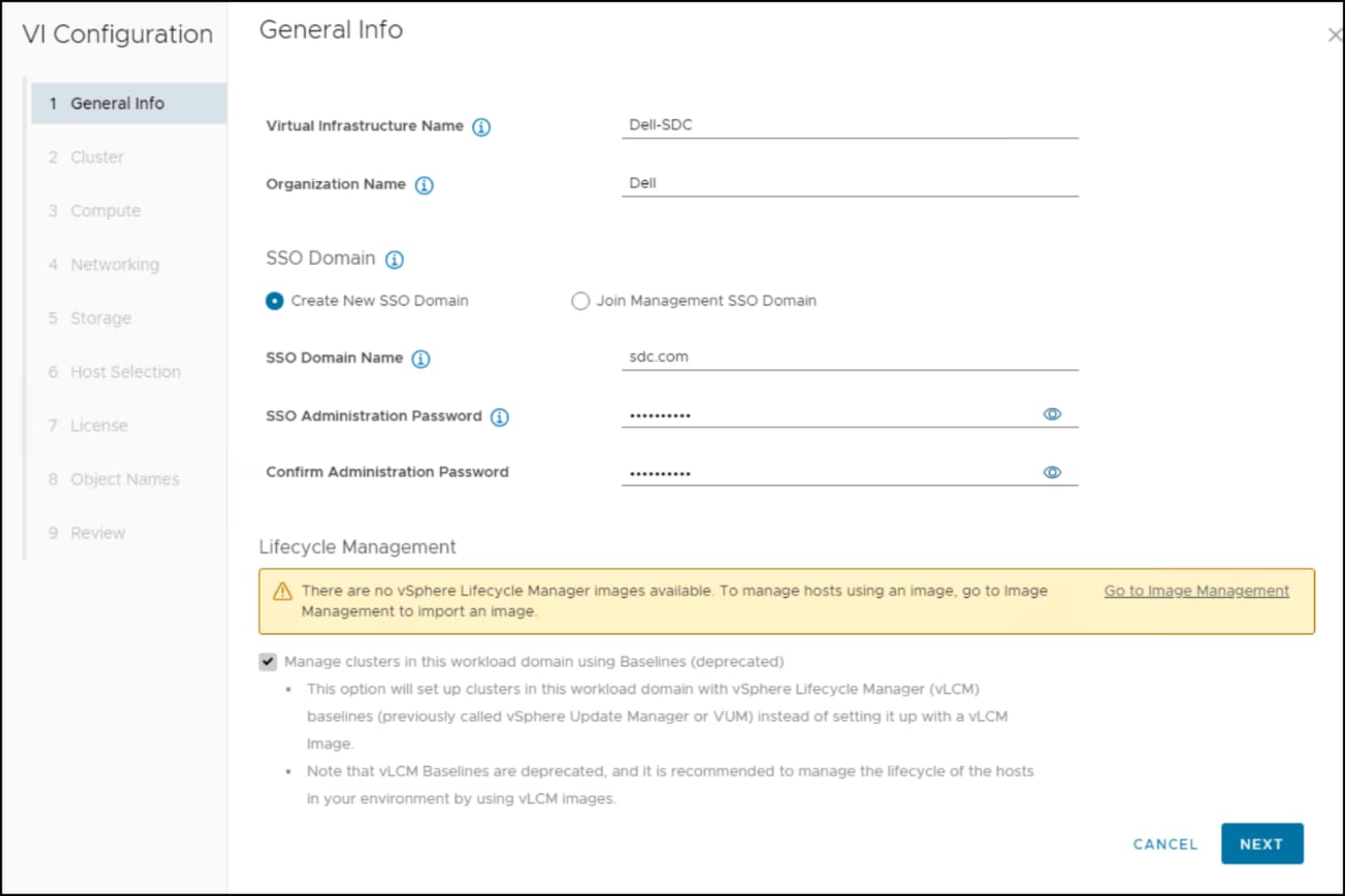
Figure 37. Workload domain – Step 1
- In step 2 of the workload wizard in Figure 38, enter a cluster name.
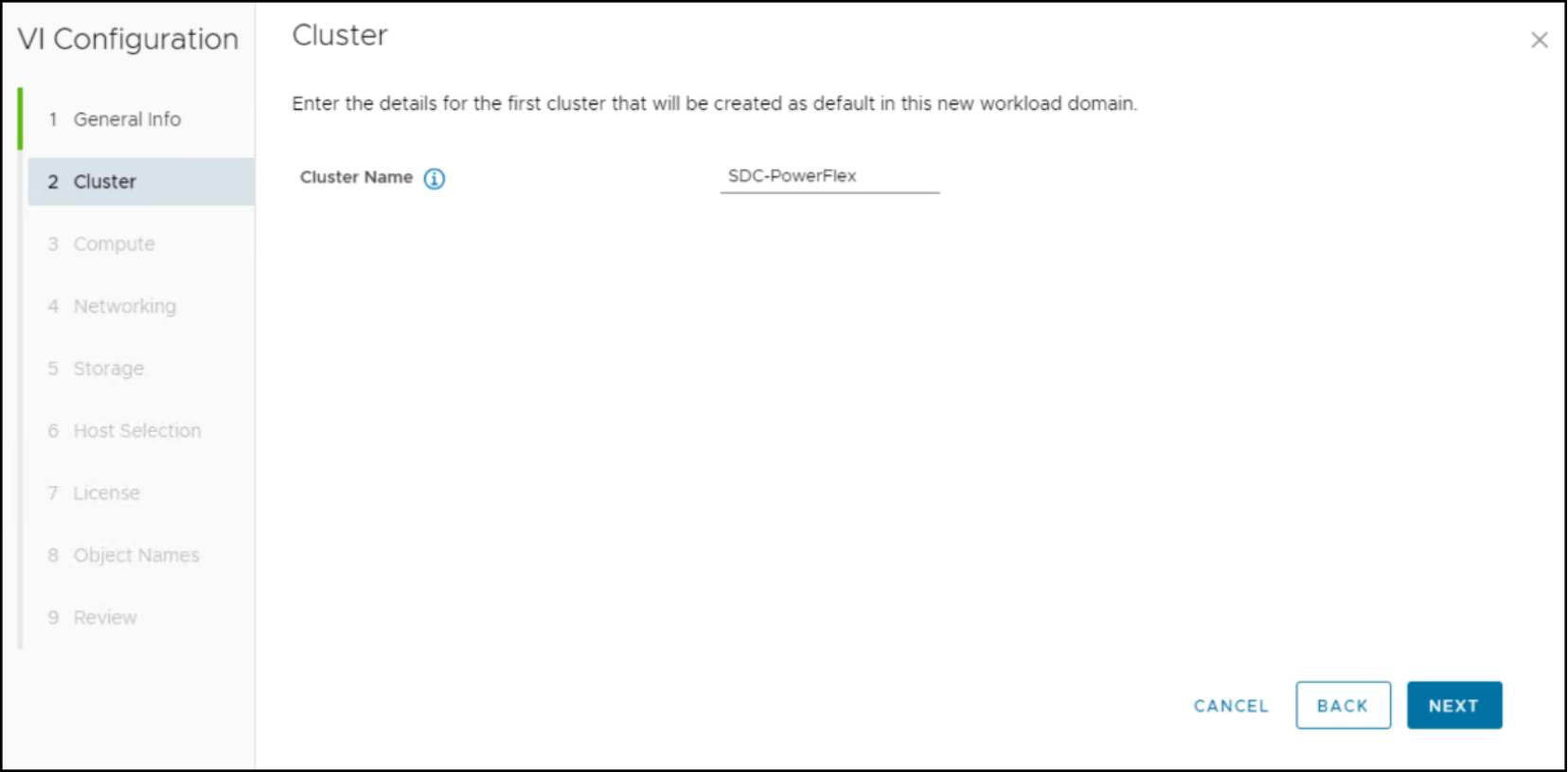
Figure 38. Workload domain – Step 2
- Step 3 is skipped, since a new SSO was selected. In the Networking step, the wizard requires three host FQDNs and IPs for the NSX environment, along with a cluster FQDN. In addition, passwords and an Overlay Network must be entered. As this NSX environment could be independent of the management domain, this overlay network need not be the same, but it can be. Part of the screen is displayed in Figure 39.
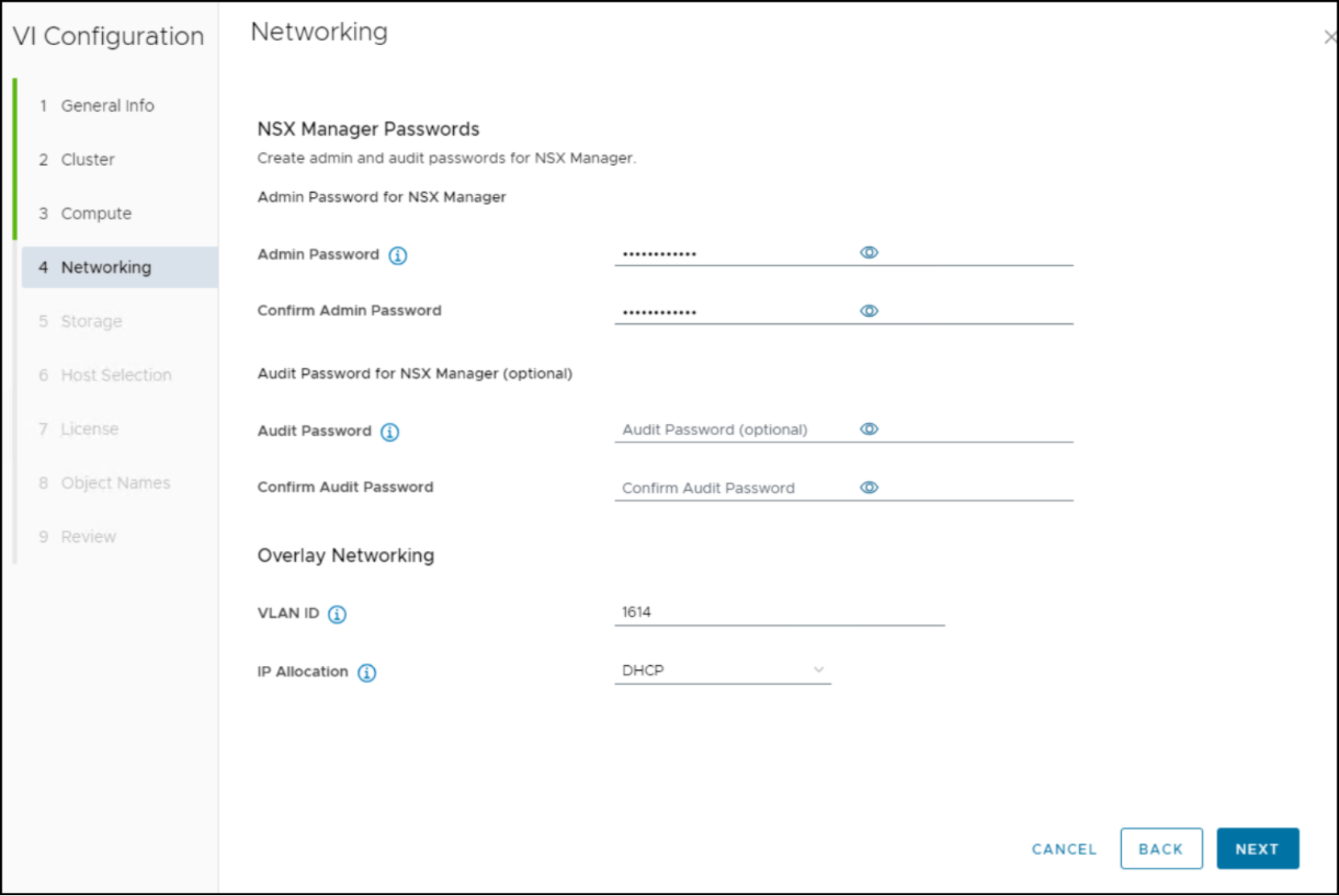
Figure 39. NSX networking
- Step 5 in Figure 40 requires the user to enter in the FC datastore name created in Figure 26. This datastore name must exist on all three commissioned hosts. Otherwise the workload domain creation fails.

Figure 40. VMFS on FC datastore for SDC deployment
- In the hosts step, the user selects the previously commissioned hosts as in Figure 41.
Note: Three or more hosts are required. The wizard will use two NICs during the installation
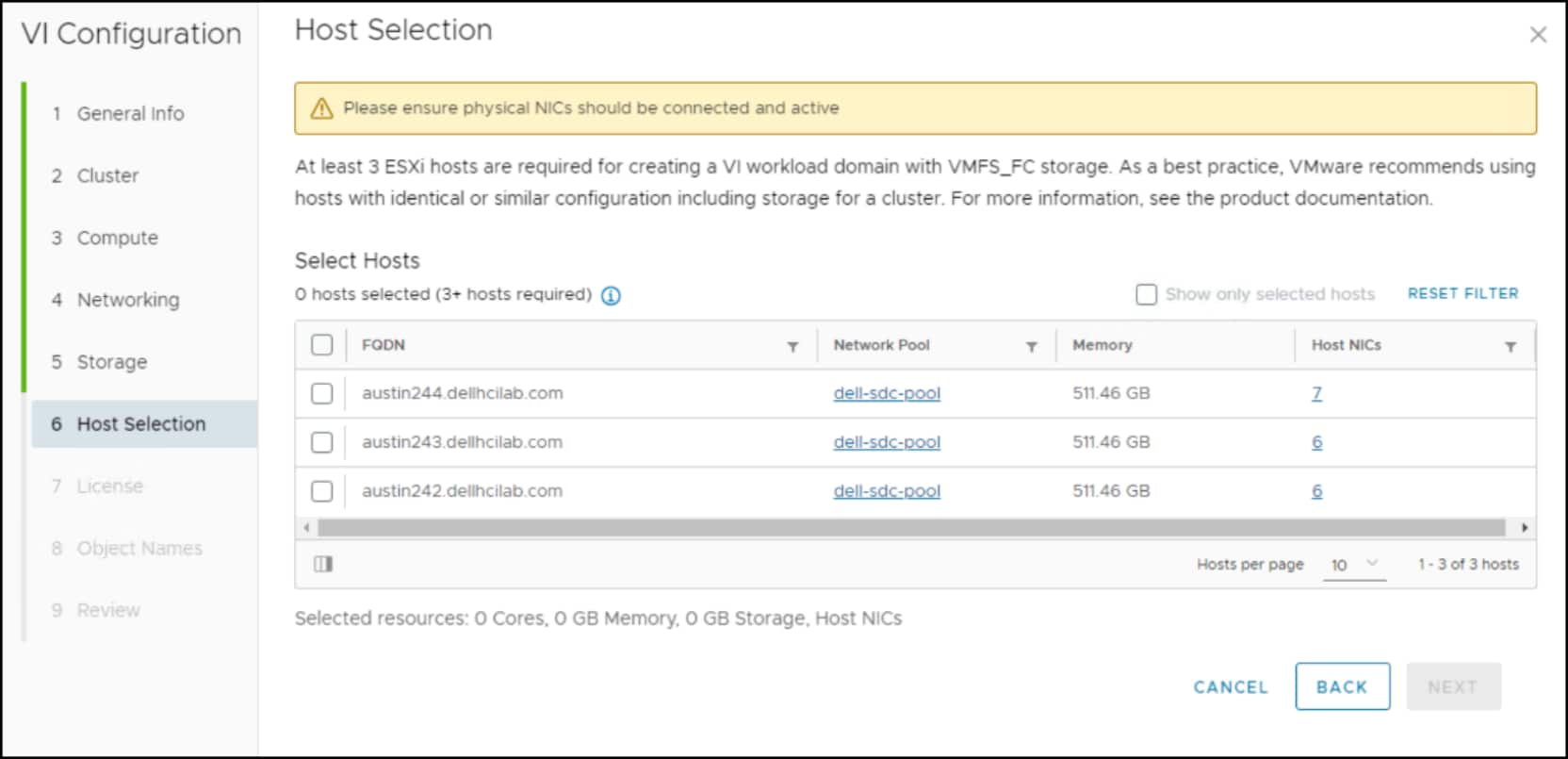
Figure 41. Workload domain – Step 5
- Step 7 displays the existing licenses form the management domain by drop-down box for NSX Data Center and VMware vSphere. The user is not required to manually input a new license unless there are not enough available.
- In Step 8, the wizard summarizes the generated names that it uses for networking. This list is merely informative as the names cannot be altered.
- Finally, review the entries and select FINISH.
The SDDC Manager now undertakes the creation of the workload domain on the datastore that is backed by PowerFlex. The user can watch the progress of creation by checking the Configuration Status column under Inventory > Workload Domains. The creation takes some time and is completed when the Configuration Status is ACTIVE as in Figure 42.
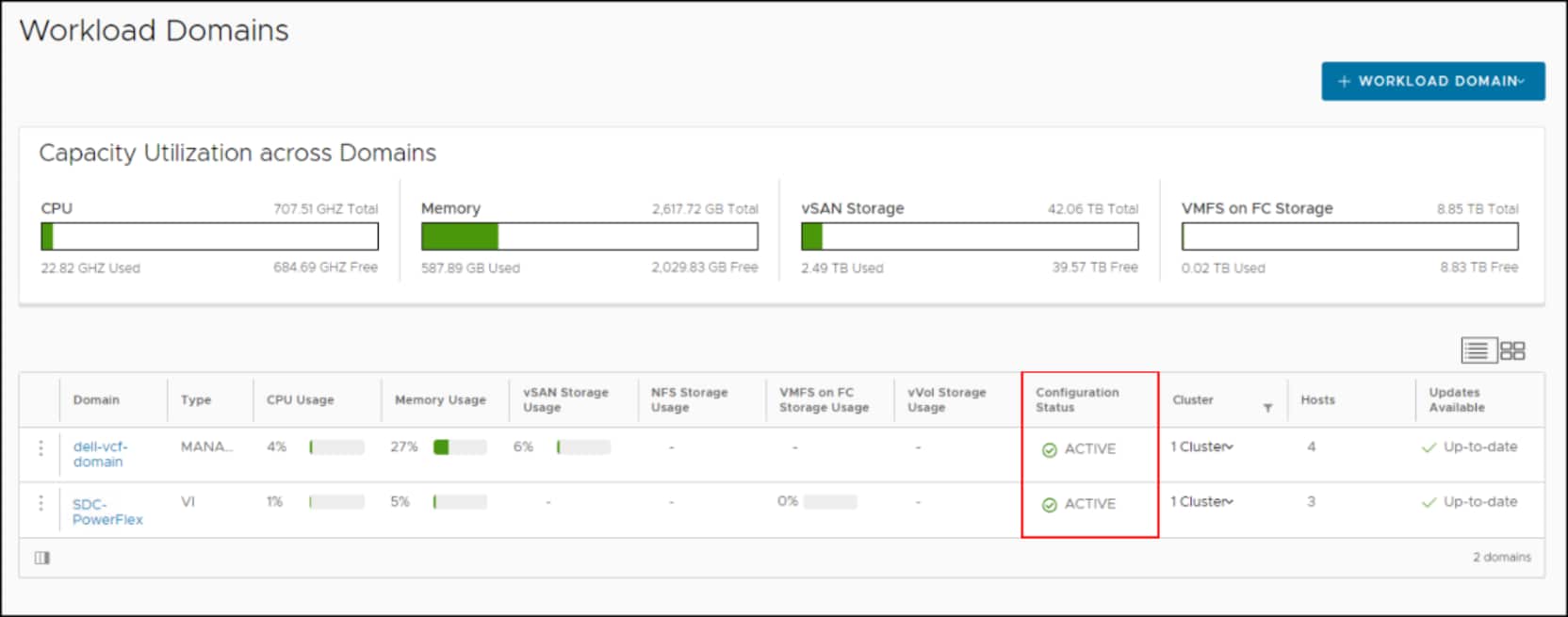
Figure 42. Workload domains ACTIVE
Once complete, use the hyperlink for the SDC-PowerFlex domain to go into the workload domain. Select Hosts to see the ESXi hosts for the domain. Notice that the Datastore Type column is VMFS as in Figure 43. The domain is now ready for application deployment.
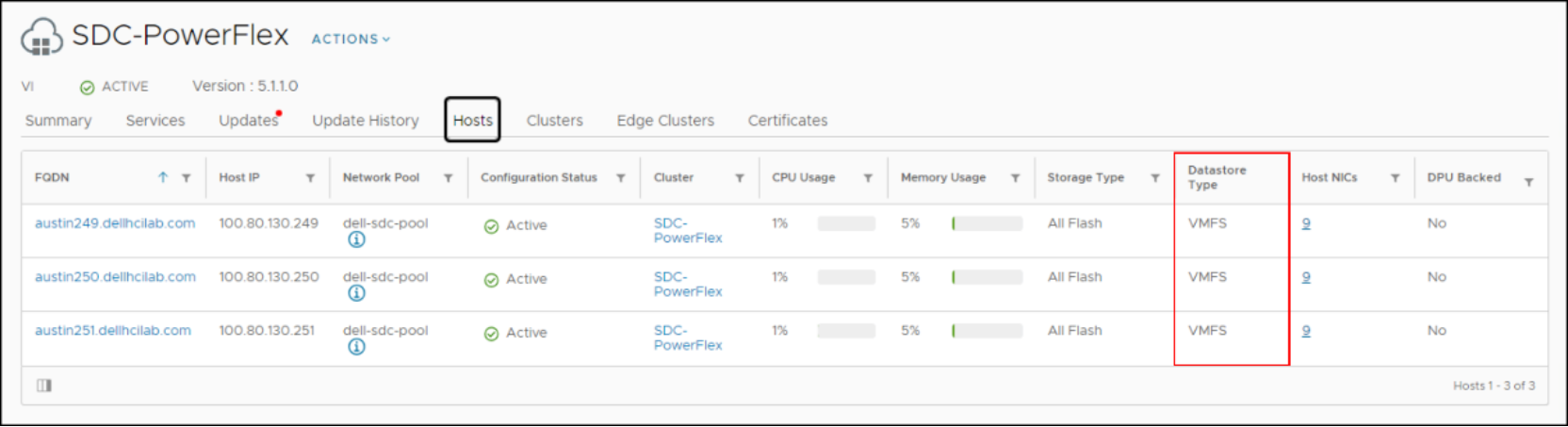
Figure 43. Workload domains in SDDC Manager