Using Dell PowerMax with Linux KVM Implementation Guide
Introduction
Executive summary
Document purpose
Audience
Terminology
Product overview
Introduction to PowerMax
PowerMaxOS operating environment
Kernel-based virtual machine
Kernel-based virtual machine, or KVM is an open-source virtualization infrastructure for the Linux kernel that allows it to act as a hypervisor. A hypervisor, or virtual machine monitor (VMM), is a hardware, software, or firmware layer that runs virtual machines on a physical host. It virtualizes the hardware, enabling one system to become many. There are two types of hypervisors: Type 1 runs directly on the physical host; and Type 2 runs on top of the operating system of the physical host. KVM is a Type 1 hypervisor as it manages the hardware resources directly rather than Type 2, which relies on the operating system device drivers.
Because KVM is part of the Linux kernel, it can use the hardware virtualization features that are available in Intel VT-x or AMD-V CPUs to create and manage virtual machines. A basic representation of the KVM architecture is shown in Figure 1:
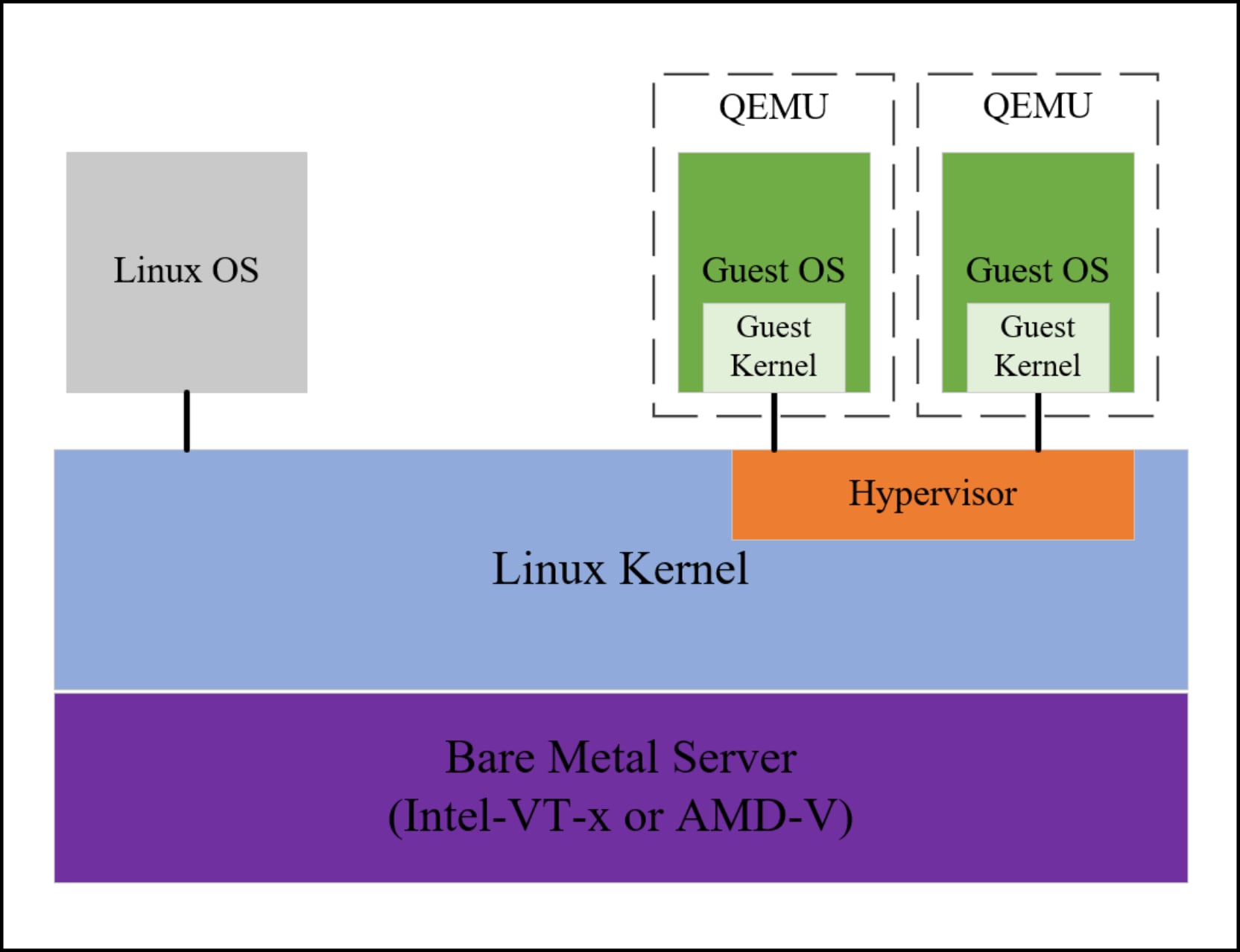
Figure 1. KVM architecture
Several common KVM components include the following:
- Quick Emulator (QEMU)─An open-source emulator for hardware and virtualization. It is used with KVM to run and manage virtual machines.
- libvirt─A toolkit/API for managing virtualization technologies like KVM and other hypervisors.
- virsh─A CLI that can manage virtual machines.
- Guest OS─The operating system that runs on a virtual machine in a KVM environment, for example Linux or Windows.
- Emulated devices─Virtualized versions of physical hardware.
- Virtio devices─Paravirtualized devices specifically for KVM.
While KVM virtualization is essentially the same across Linux distributions, for example, running KVM on Red Hat looks and feels the same as running it on Ubuntu. However, how a business chooses to manage it can vary greatly. Unlike other commercial hypervisors that have their own management solution as part of the virtualization environment, such as VMware vCenter, KVM is open-source and has many management options available – both licensed and free. One of the more straightforward open-source implementations is oVirt.
oVirt
oVirt is a management framework consisting of the oVirt node. This node runs the libvirt service and offers web-based management through the foundation of oVirt called the oVirt Engine. The management interface of the oVirt Engine offers virtualization administrators the ability to create and manage VMs, allocate memory and storage resources, and set up the required networking. Beyond the basics, administrators can migrate VMs through the interface, manage high availability, and even set up storage quotas or performance limitations (throttling). There are three options for UI views: Administration Portal, VM Portal, and Monitoring Portal.
Administration Portal
Figure 2 shows an example of the oVirt Open Virtualization Management (OVM) UI for the Administration Portal, which provides a high-level view of all components in the KVM environment.
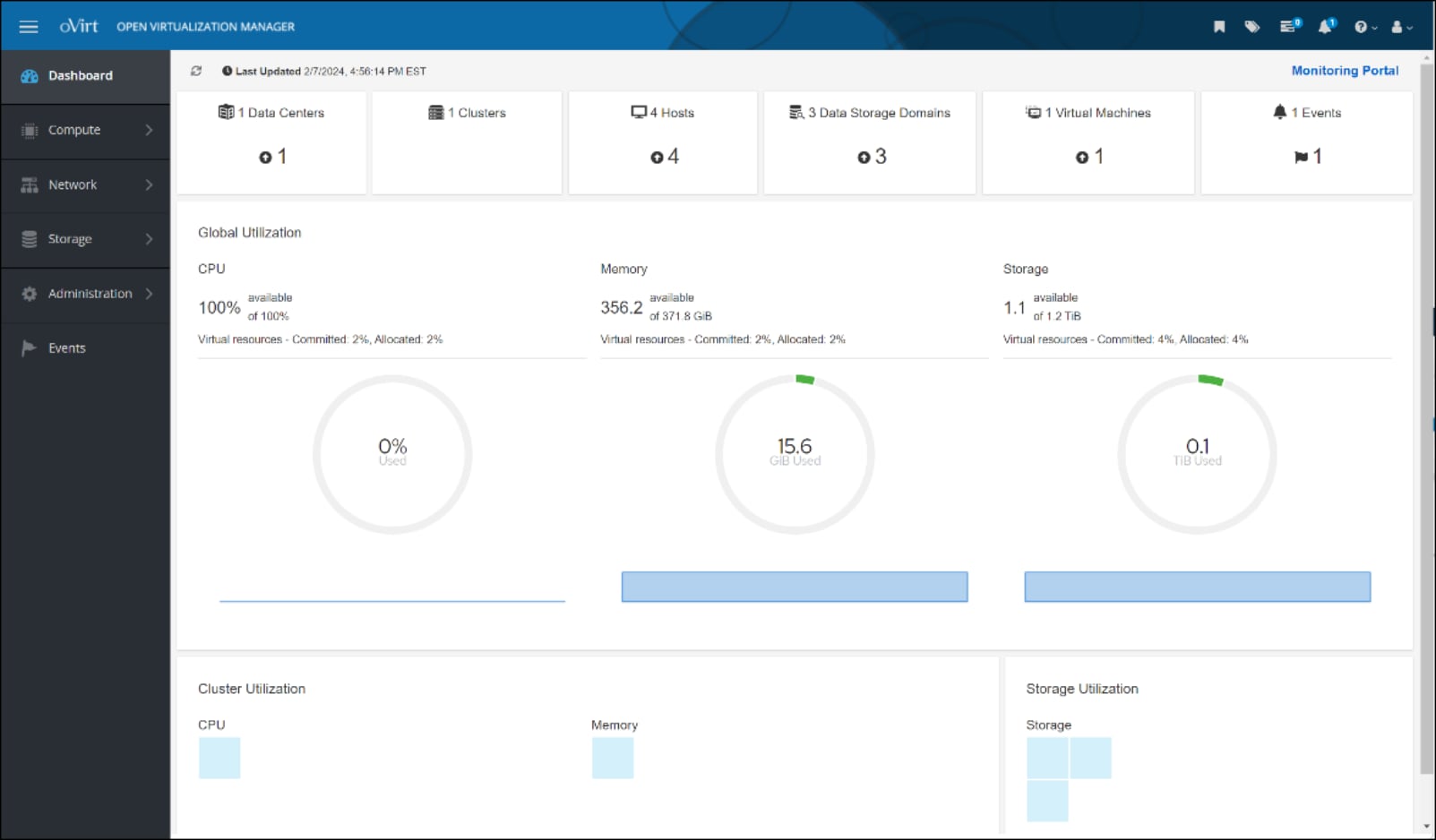
Figure 2. oVirt Open Virtualization Management
VM Portal
The VM Portal enables the user to drill down into each virtual machine in the environment and make changes at that level. Figure 3 shows the details of a particular virtual machine.
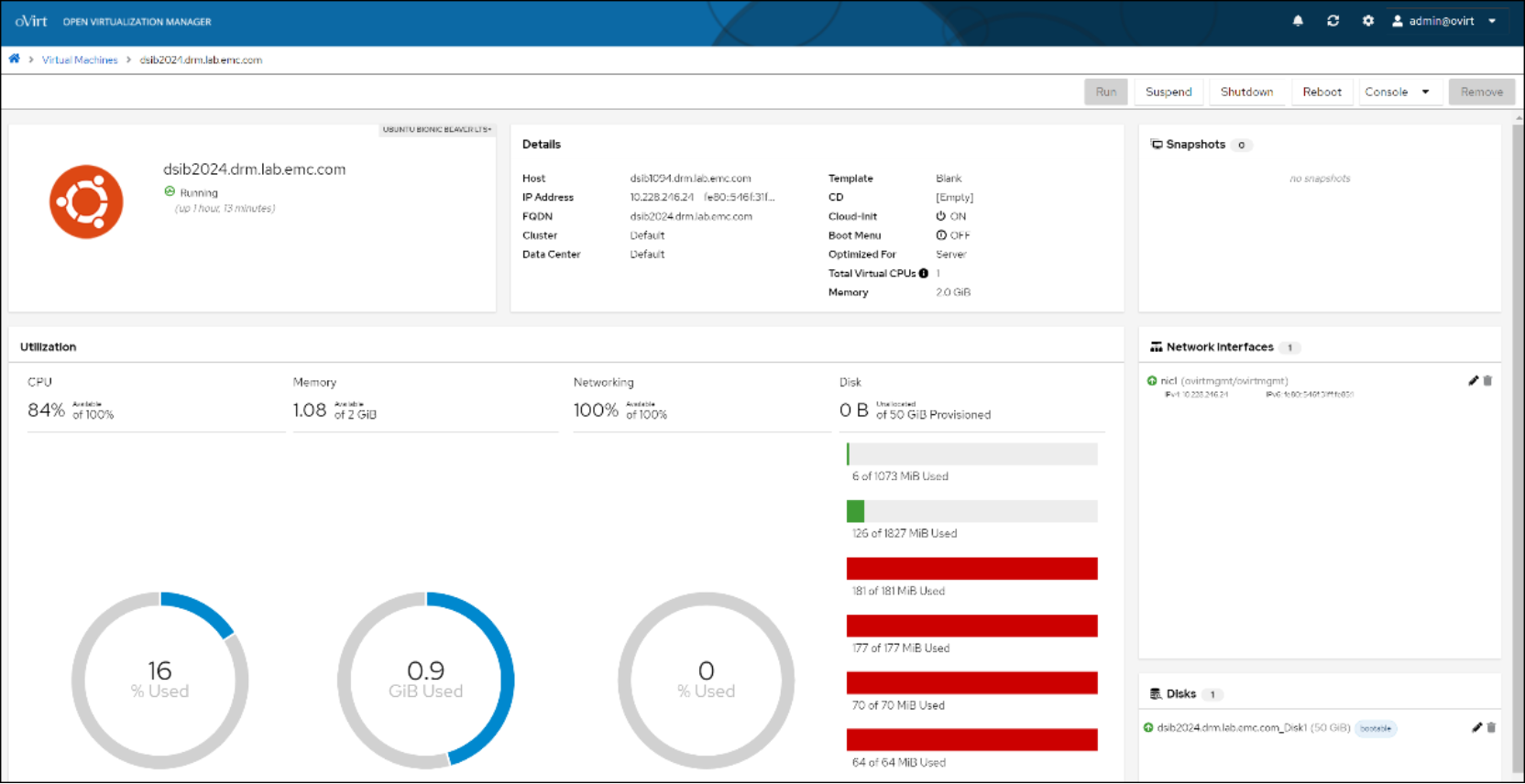
Figure 3. VM Portal
Monitoring Portal
The Monitoring Portal has Grafana at its foundation. Grafana is an open-source analytics and monitoring platform that integrates with oVirt and provides dashboards, alerting, and monitoring capabilities. It is a highly customizable platform that enables the user to modify and share dashboards. Grafana comes preconfigured with a selection of dashboard categories and dashboards for oVirt, as shown in Figure 4:
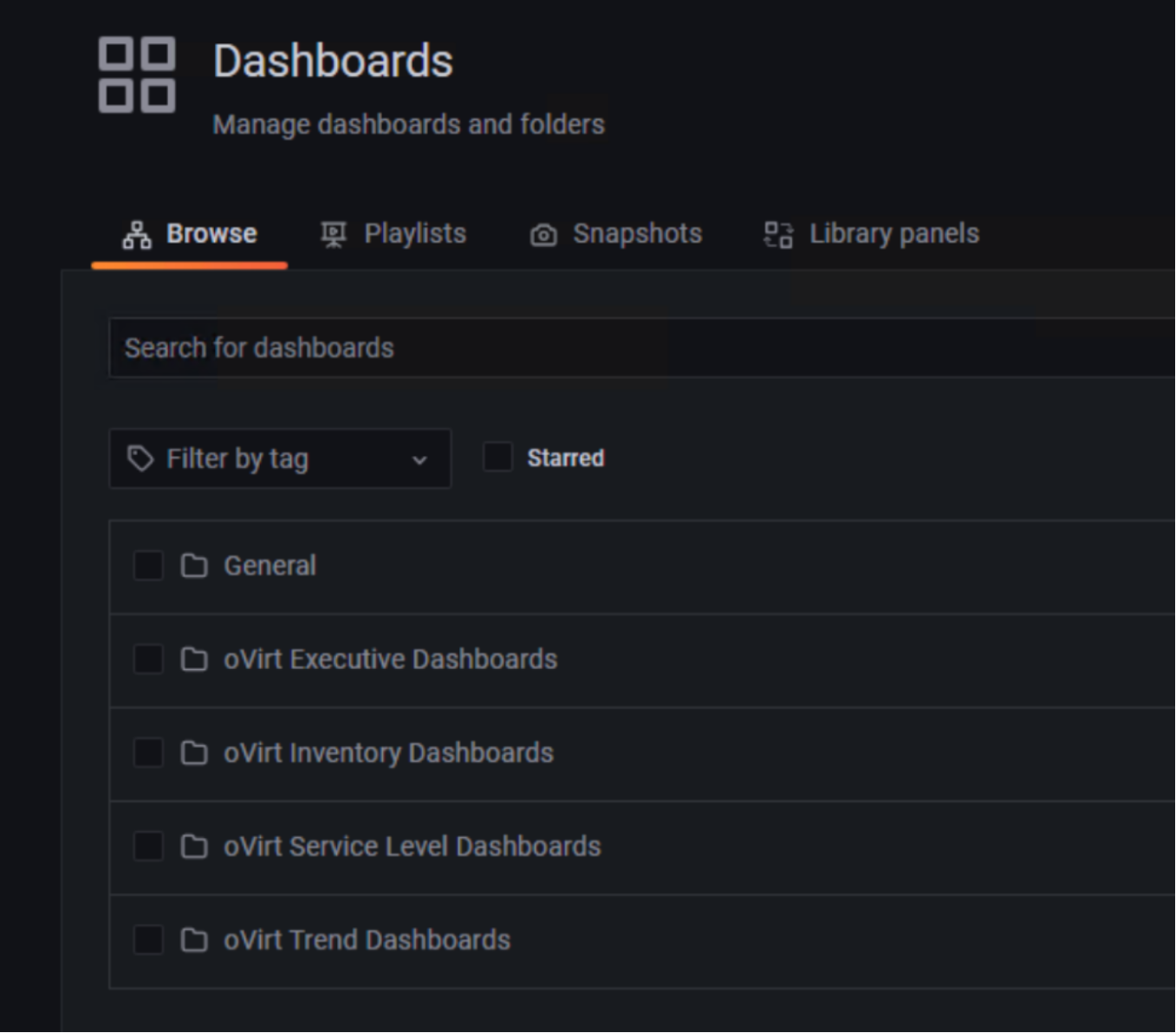
Figure 4. oVirt dashboards
The individual dashboards offer great detail into the clusters, hosts, and individual VMs running in the environment. Figure 5 shows the host-level dashboard:
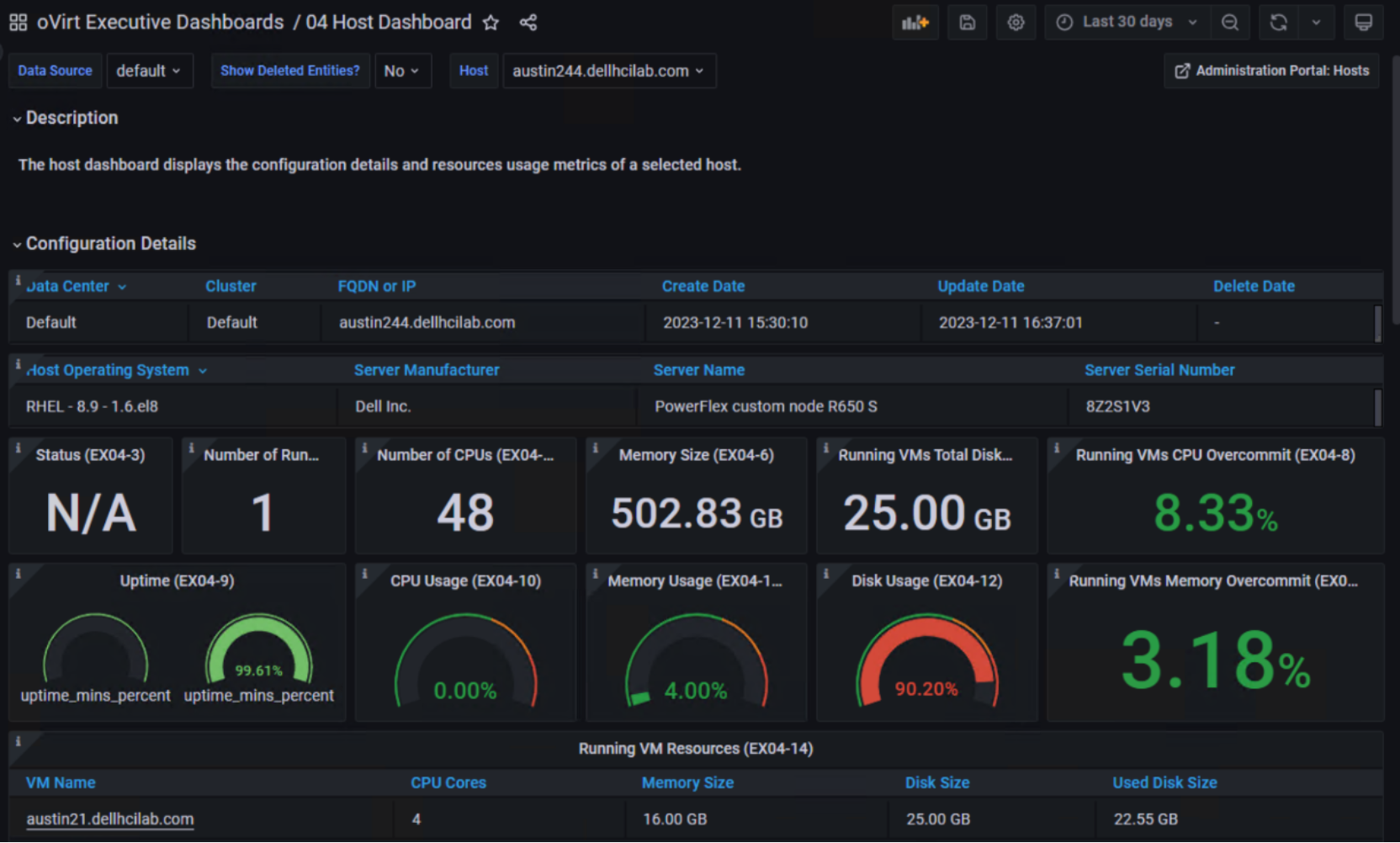
Figure 5. Host dashboard
VDSM
The Virtual Desktop Server Manager (VDSM) is an essential component of the oVirt Engine. VDSM is the component of the oVirt platform responsible for managing and monitoring the virtualization hosts. It handles the life-cycle management of the VMs – creation, resource allocation, monitoring, migration, and deletion. VDSM runs as a host agent and communicates with the oVirt Engine from each virtualization host in the cluster to ensure proper management of the environment.
oVirt Engine
The oVirt Engine can be implemented on one or two physical hosts, or it can be deployed as a virtual machine either in a separate virtualization environment or in the KVM environment itself. If the oVirt Engine is separate from the KVM environment, it is called a stand-alone implementation. In such a configuration, the virtual machine can be hosted in a non-KVM virtualization environment. If the oVirt Engine is run in the KVM environment, it is known as self-hosted.
Both installation types require Enterprise Linux 8 of any distribution. When it is self-hosted, the Engine Appliance is used to automate the Guest OS installation. A virtual machine implementation, either stand-alone or self-hosted, uses the virtualization environment’s ability to support high availability. The stand-alone implementation, however, requires an external HA management such as Red Hat’s High Availability Add-On.
Note: For oVirt to support HA for the self-hosted implementation, a second KVM host in the cluster must be enabled as a Hosted Engine. see Adding a KVM host to a cluster. for more detail.
Figure 6 shows an example of a stand-alone implementation in which two physical hosts access the same shared storage.
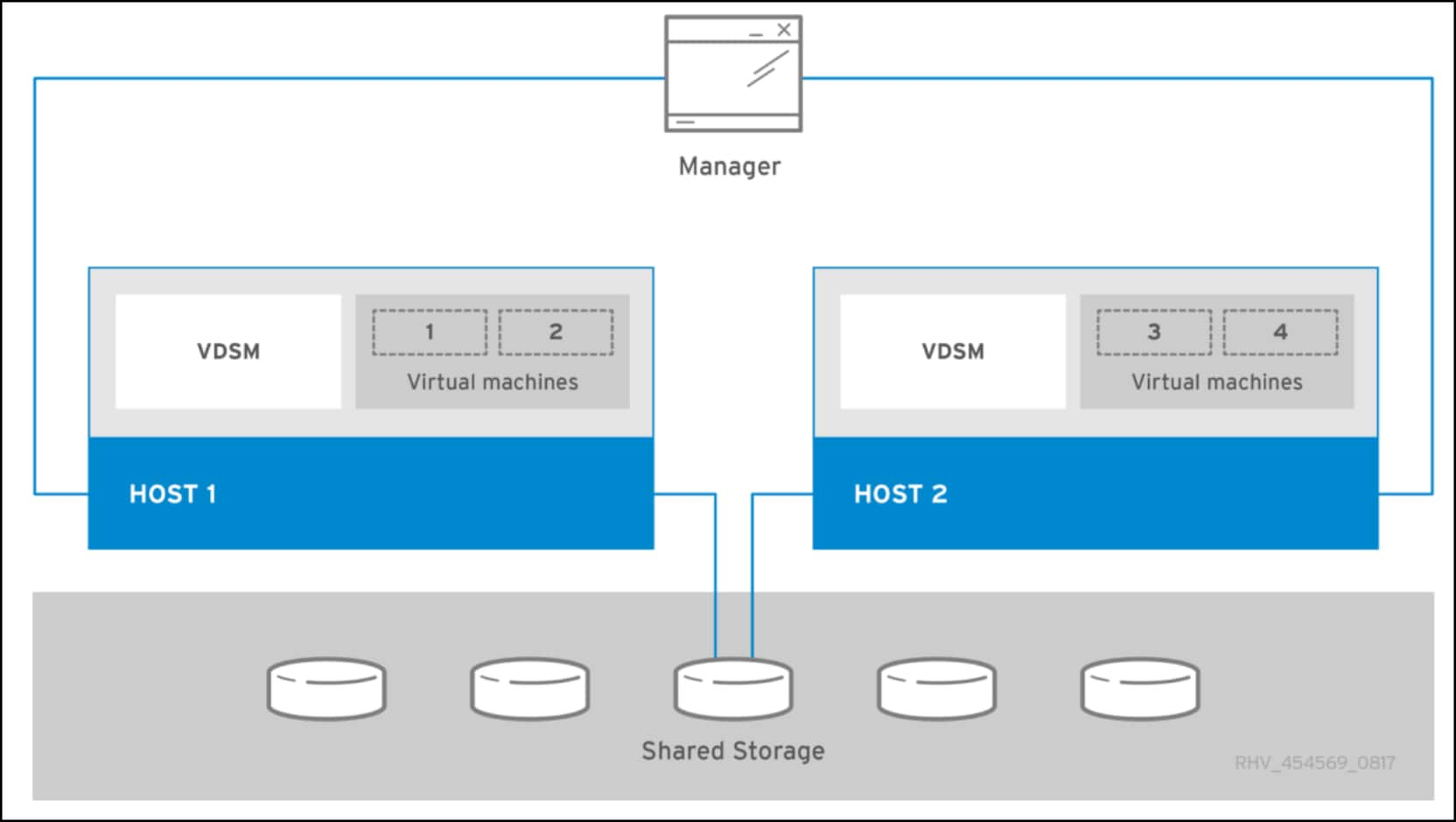
Figure 6. Standalone oVirt Engine
[https://ovirt.org/documentation/installing_ovirt_as_a_standalone_manager_with_local_databases/index.html]
The oVirt Engine only runs on a single host, with the second providing high availability if there is external HA management, hence the requirement for the hosts to see the same storage.
Figure 7 shows the self-hosted example in which the oVirt Engine is deployed directly in the KVM environment:
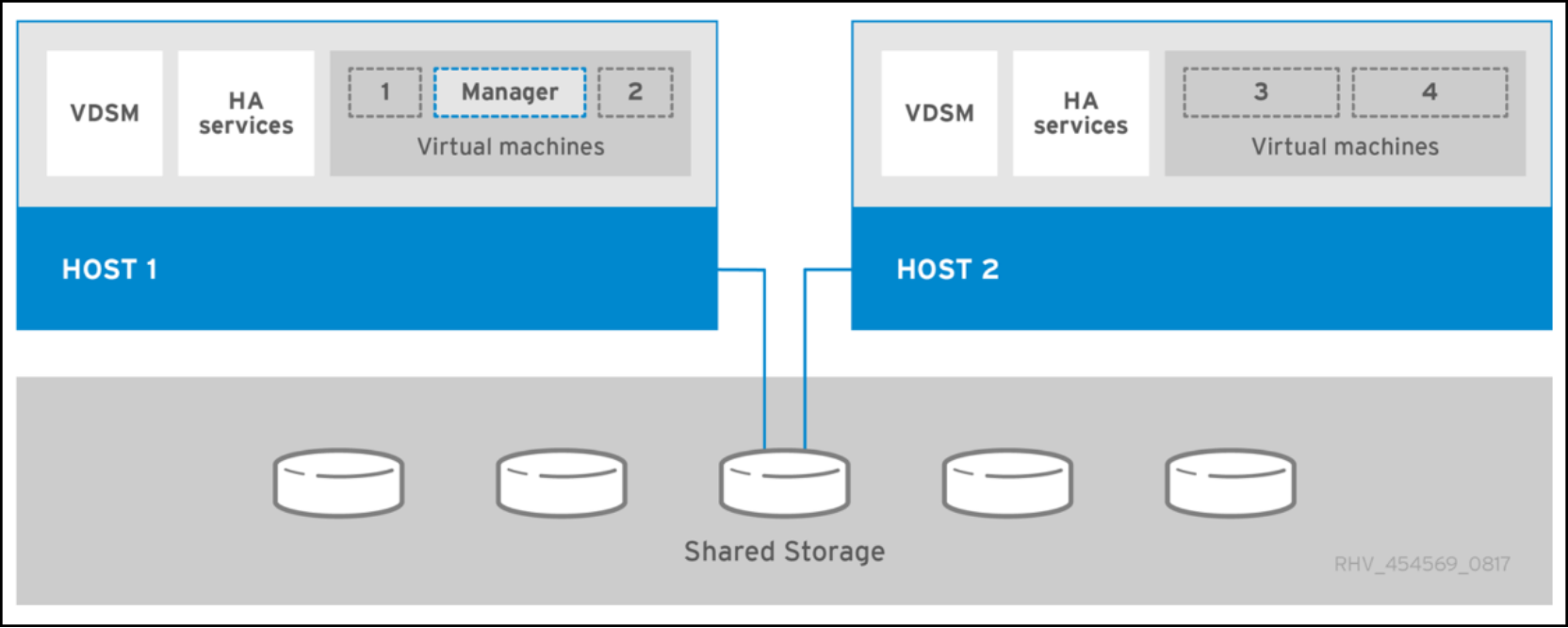
Figure 7. Self-hosted oVirt Engine
[https://ovirt.org/documentation/installing_ovirt_as_a_self-hosted_engine_using_the_command_line/index.html]
The oVirt community generally recommends a stand-alone configuration because it separates management from the KVM environment. This recommendation is similar to VMware’s recommendation of not running vCenter on the same ESXi hosts that it is managing.
For the environment described in this guide, we used a self-hosted oVirt Engine due to resource limitations. Figure 8 shows that the hosted engine is displayed like any other virtual machine in the UI:
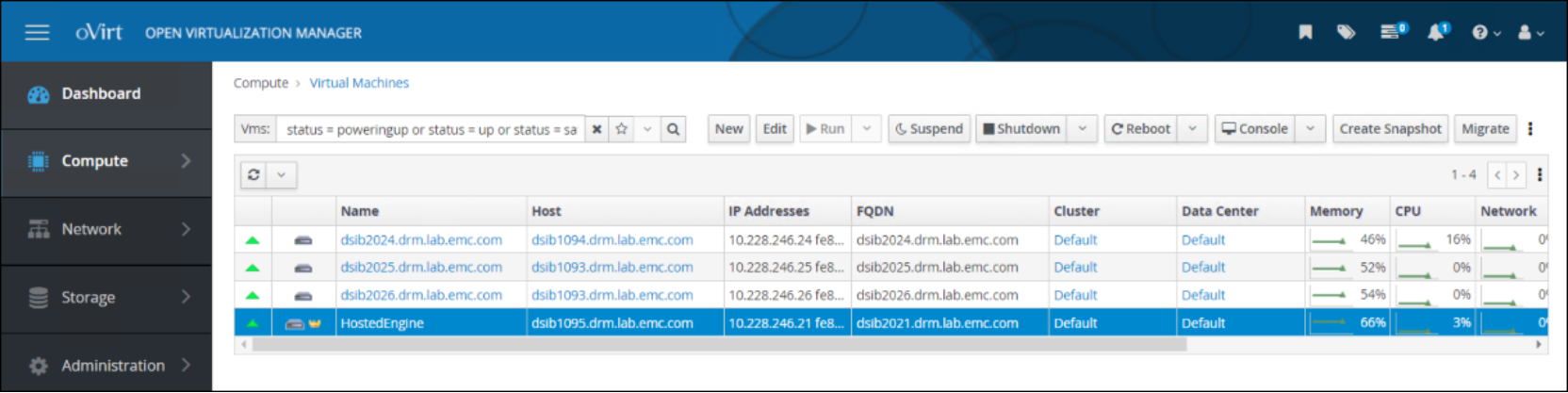
Figure 8. Self-hosted oVirt Engine VM
Hosts
oVirt supports two types of hosts: oVirt node and Enterprise Linux.
oVirt node
An oVirt node is a pared-down Enterprise Linux OS (CentOS) that contains only the packages and enabled repositories that are required for being a virtualization host. oVirt supplies this operating system in a downloadable ISO file, and it is the quickest and easiest way to implement KVM with oVirt as it has been designed specifically for this purpose.
Enterprise Linux host
oVirt also supports using a standard Enterprise Linux OS implementation of any distribution with the properly enabled repositories.
The implementation instructions for each host type vary, with the Enterprise Linux host requiring extra steps. Because Enterprise Linux 9.x continues to have issues, it is best only for test or lab purposes. Use version 8.x for all production implementations.
Distributions
Because KVM is built into the kernel, most Linux distributions are candidates for a virtualization environment; however, the level of commitment to virtualization varies across the distributions. For example, Red Hat Virtualization (RHV) has ceased development and only provides maintenance updates, while Oracle Virtualization continues to develop and issue new releases. Before selecting a Linux distribution, be sure it meets the needs of the business now and in the future.
Environment and system requirements
Introduction
Prerequisites
oVirt components
Table 3 lists the oVirt software version and the versions for both the oVirt Engine and hosts:
Table 3. oVirt components
|
Software component |
Version |
|
oVirt software |
4.5.5 or nightly build |
|
Engine |
|
|
8.x |
|
8.x |
|
Hosts |
|
|
8.x |
|
8.x |
|
8.x |
|
9.x |
|
9.x |
|
9.x |
Network topology
At the physical layer, two Top of Rack (TOR) switches are used for redundancy and load-balancing purposes. There are four connections from each Dell host, two to TOR A and two to TOR B.
Table 4 shows the different networks that are configured for this solution:
Table 4. Network VLANs
|
Network type |
VLAN ID |
|
PowerMax Management, oVirt Management, or virtual machines |
0 |
|
iSCSI |
100 |
|
File |
100 |
PowerMax array
The PowerMax system is a PowerMax 2500 array with iSCSI, FC, and File connectivity. Figure 9 shows the properties:
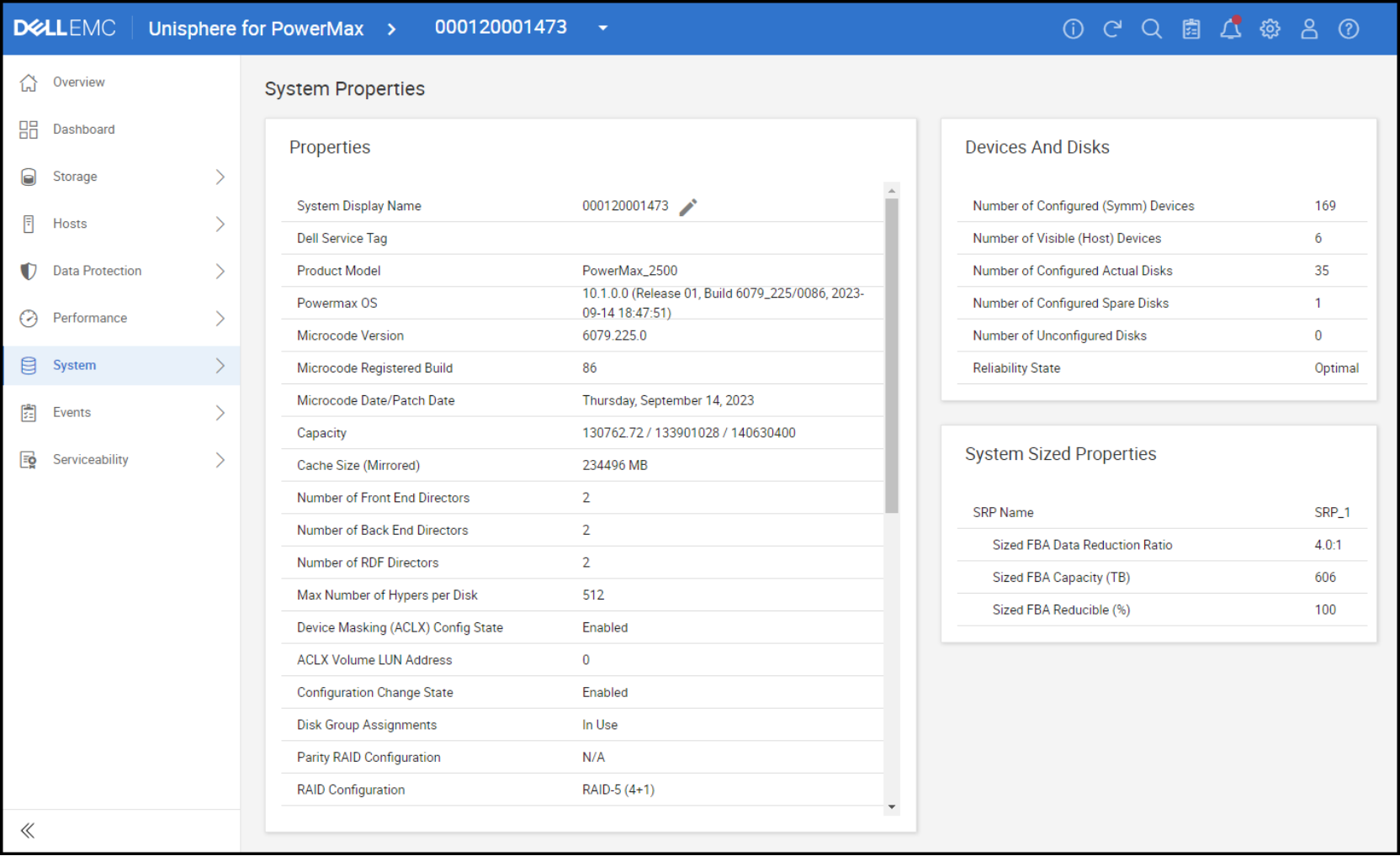
Figure 9. PowerMax 2500 properties
KVM servers
The KVM environment, as described in this guide, consists of four servers. Although the specifications of all servers are the same, Figure 10 lists them for completeness:
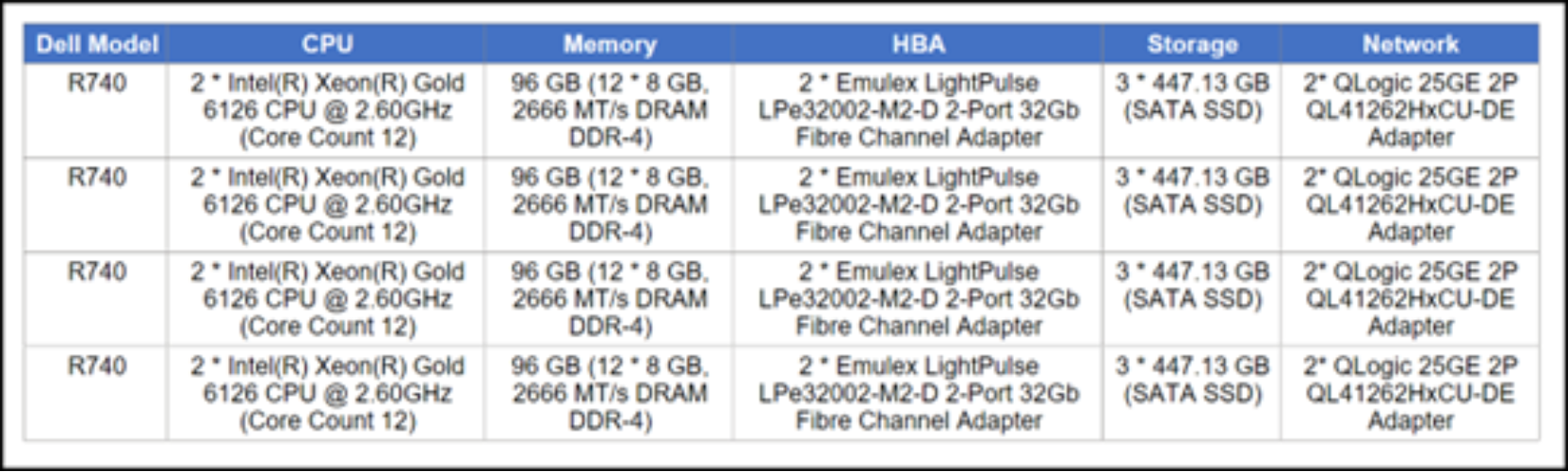
Figure 10. KVM server configurations
Deployment
Introduction
Installation
The oVirt installation begins with selecting a node for the oVirt Engine.
There are three steps to the installation.
- Identify a physical host for the first KVM node of the cluster with sufficient memory, CPU, and PowerMax storage connectivity (iSCSI, FC, or NFS) to support the oVirt Engine.
- Install Enterprise Linux 8.x or use the oVirt Node ISO (CentOS).
- Run the hosted-engine script to deploy the oVirt Engine.
The following sections describe the installation of the oVirt Node and oVirt Engine.
oVirt Node installation
Install the oVirt Node:
- Download the latest available version 8 oVirt Node ISO file from the oVirt website. Figure 11 shows an example using the latest ISO file:

Figure 11. oVirt Node ISO file for Enterprise Linux 8
Note: Version 9 is still under development.
- Mount the ISO file to the chosen physical server and boot. Select Install oVirt Node 4.5.4 (or the latest iso release), as shown in Figure 12:
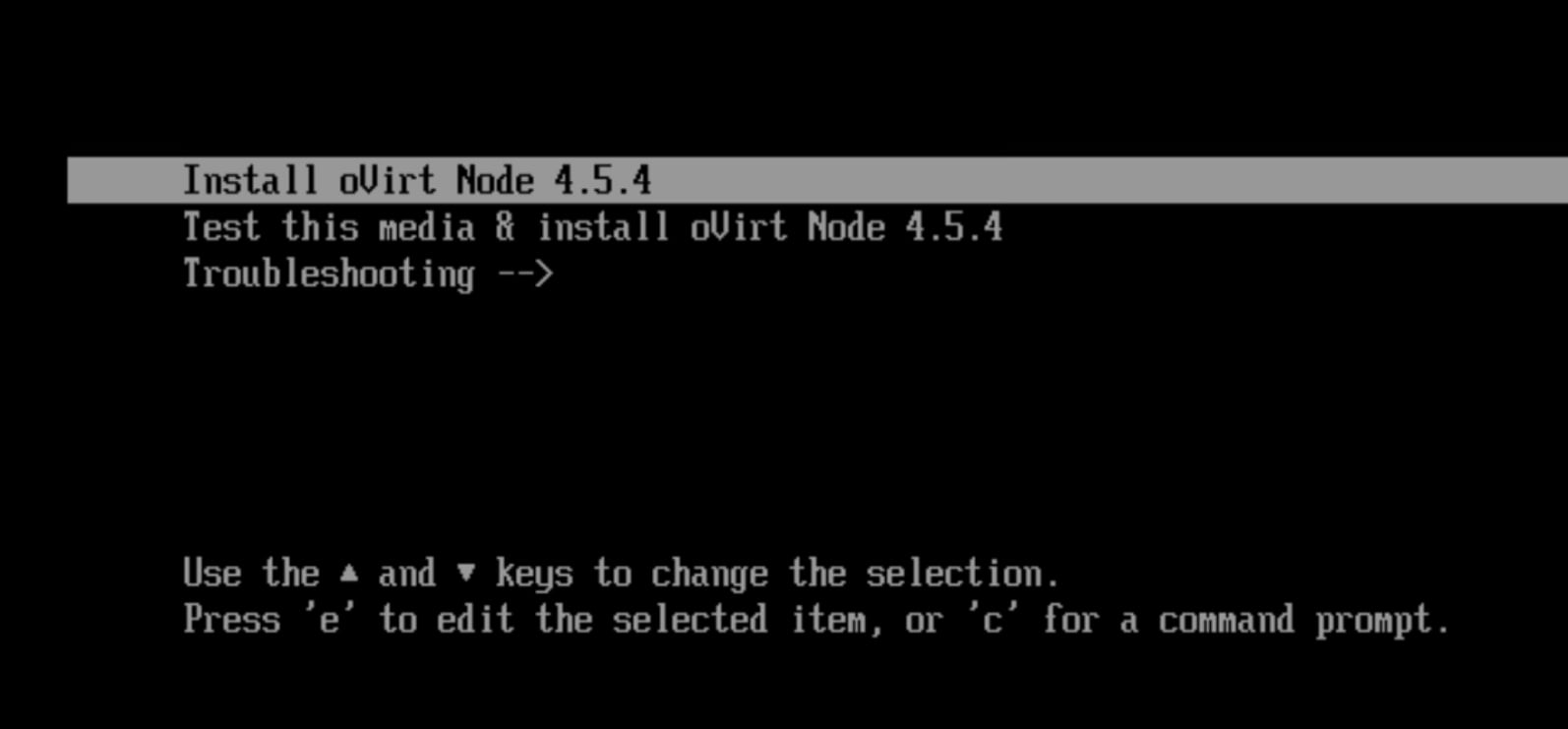
Figure 12. oVirt ISO installation: install oVIrt Node
- Select the appropriate language, as shown in Figure 13:
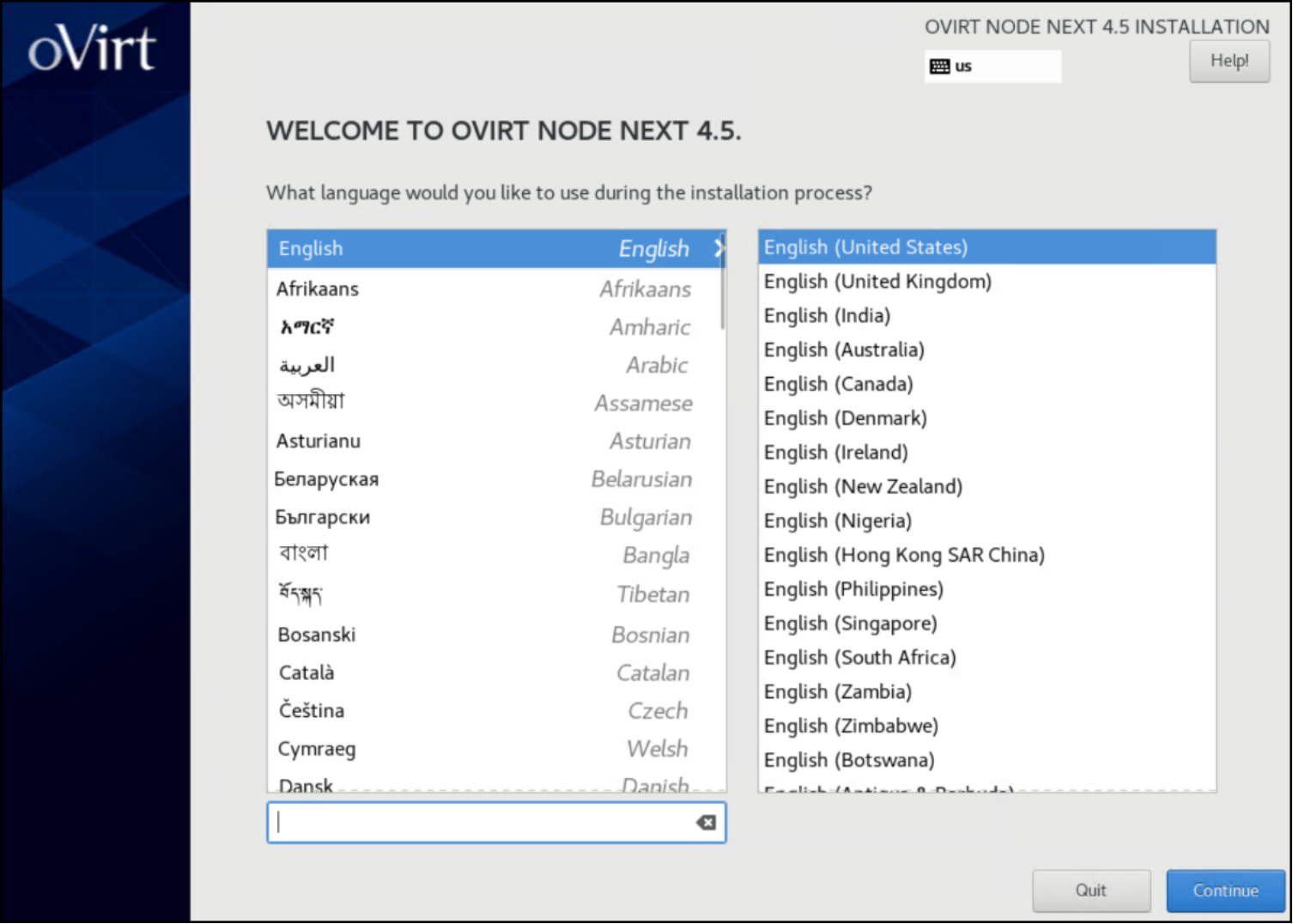
Figure 13. oVirt ISO installation: select language
- Modify the following options and then click Begin Installation, as shown in Figure 14:
- Set the keyboard language.
- Set an installation destination with more than 75 GB of available space (this example uses100 GB). This size accommodates the oVirt Engine virtual machine, which is created on local storage before being moved to shared storage. If an insufficient size is selected, the installer does not continue with the installation.
- Set the network and hostname.
- Set the root password.
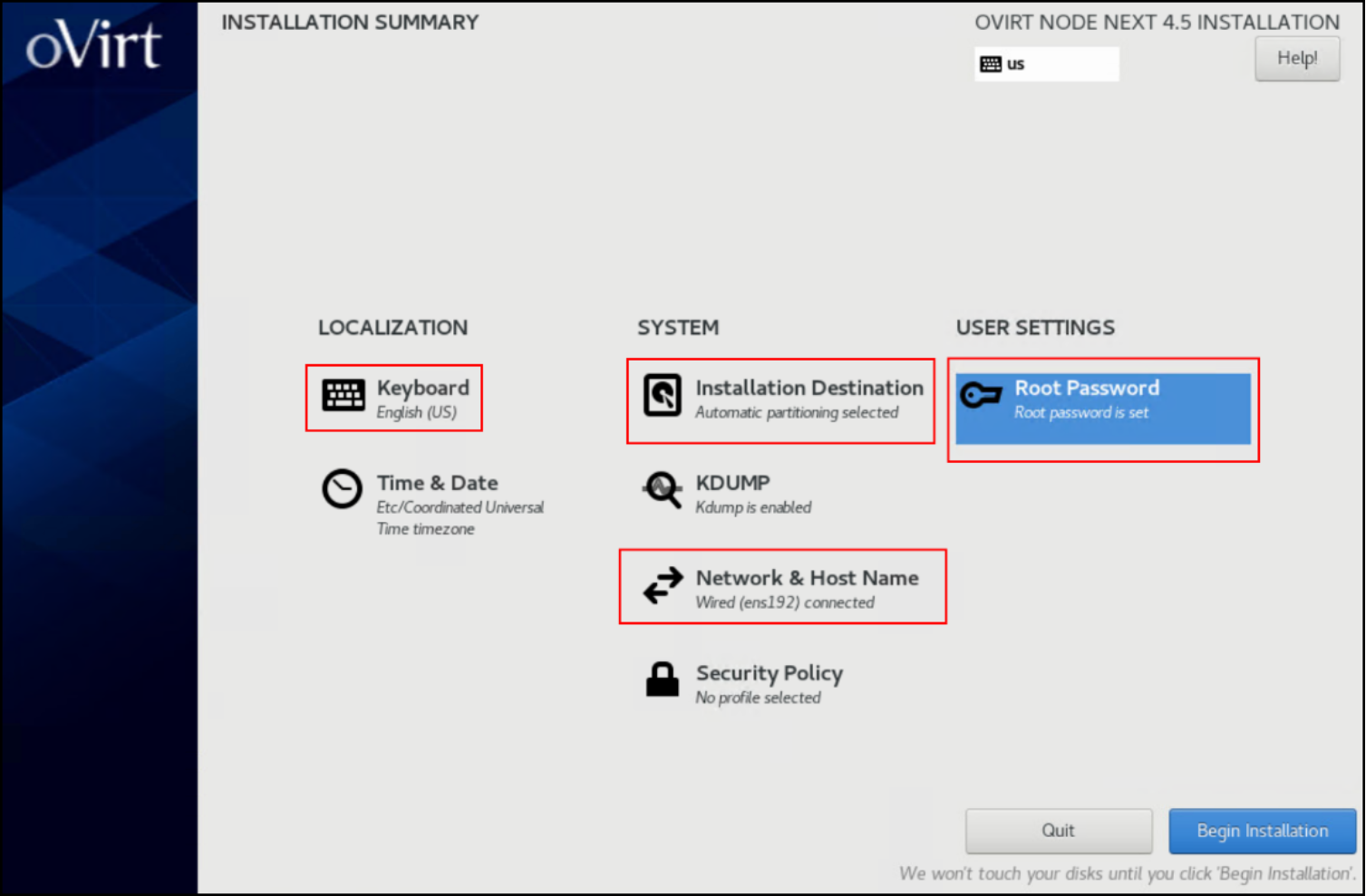
Figure 14. oVirt ISO installation: modify options
Note: The ISO file is preconfigured with the necessary packages.
The installation progresses quickly due to the limited number of packages.
- Click Reboot System, as shown in Figure 15:
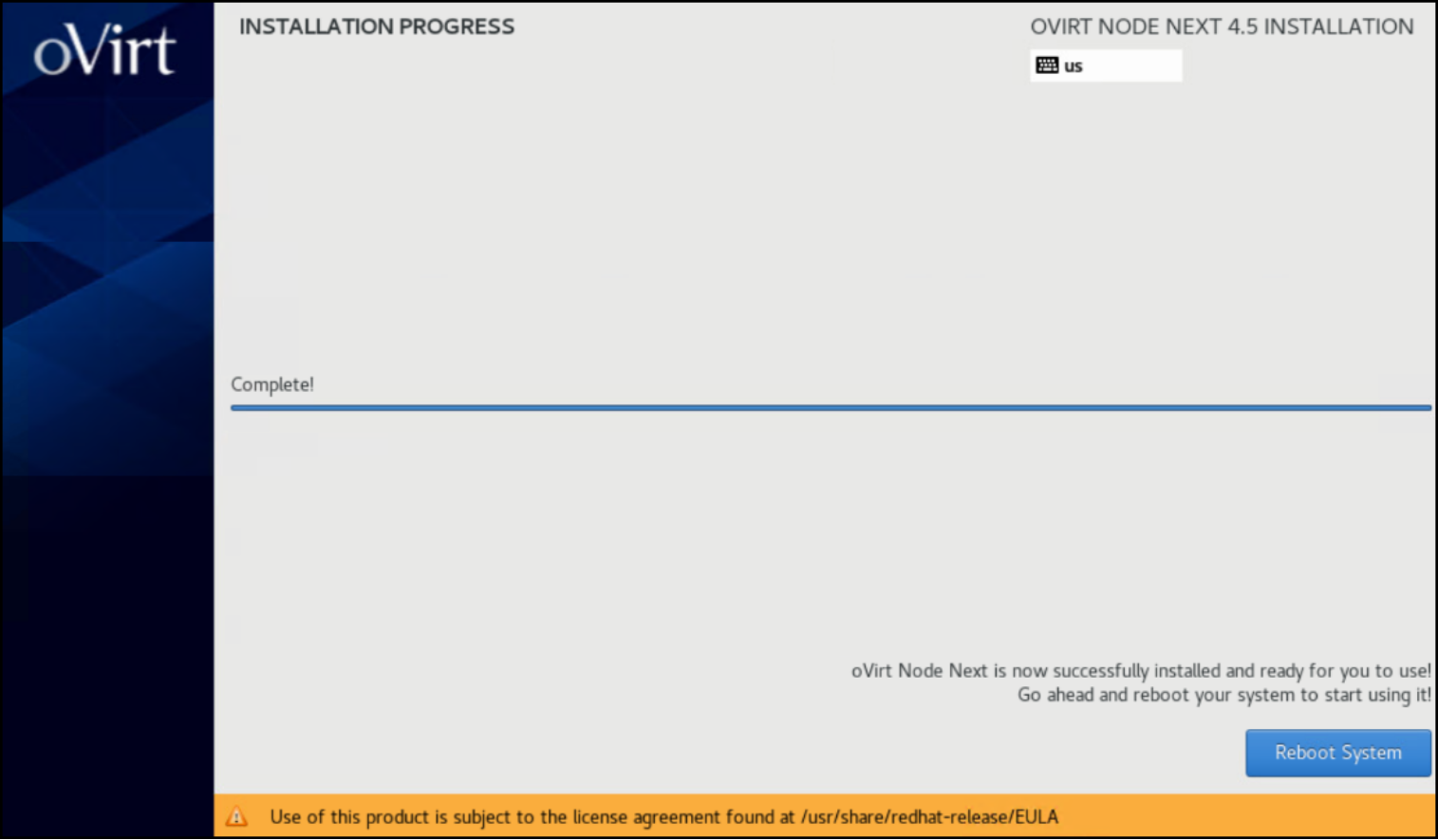
Figure 15. oVirt ISO installation: reboot the system
- After the system reboots, use SSH to access the system and check that the node is healthy by running the nodectl check command, as shown in Figure 16:
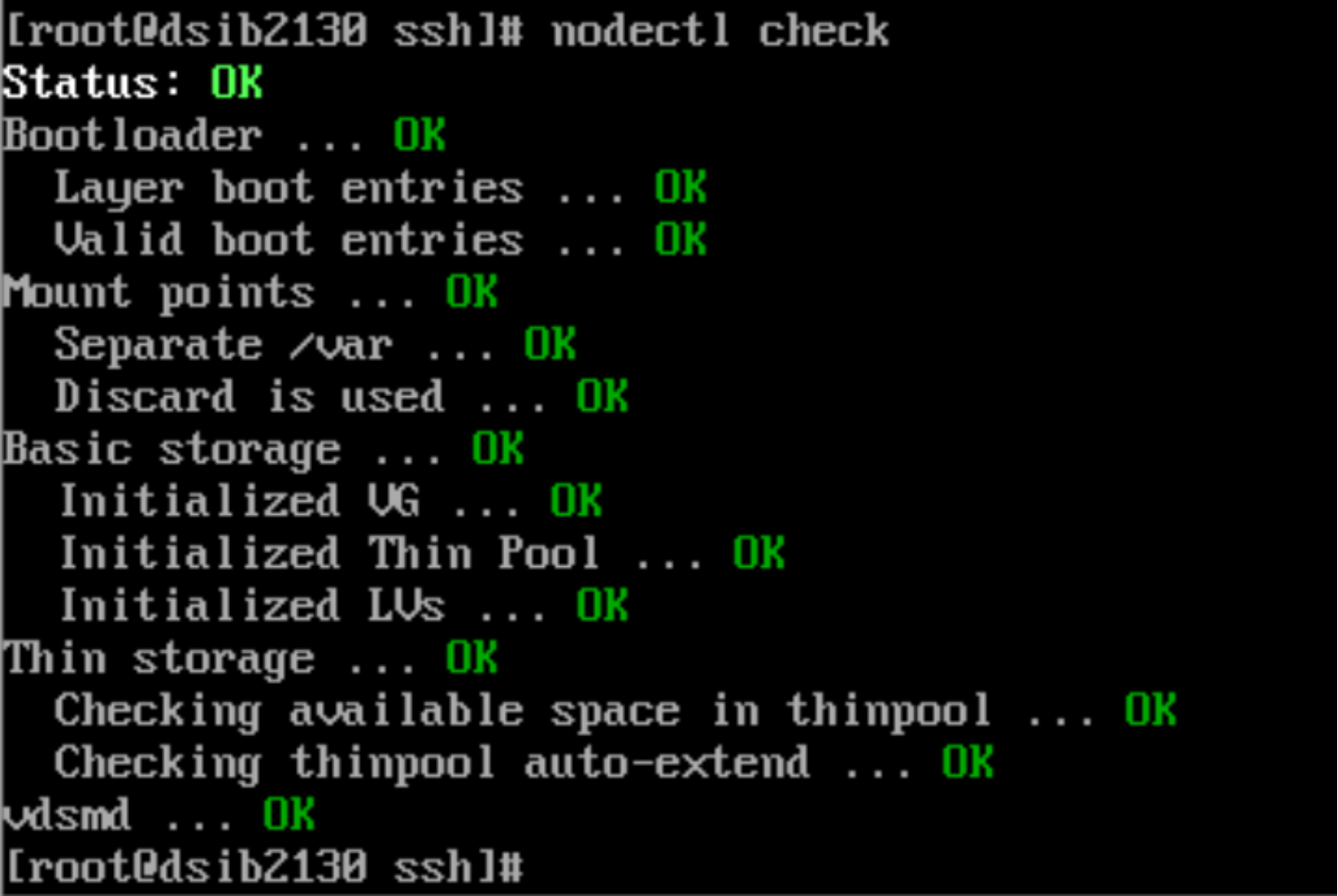
Figure 16. Node health
Install the self-hosted oVirt Engine
The self-hosted oVirt Engine is a virtual machine created on the first node of a KVM cluster. Deploy it by running the hosted-engine –deploy command, which in turn runs Ansible scripts or playbooks to create the oVirt Engine. The script queries for the network, host names, IP addresses, and most importantly, storage. Initially, the virtual machine is deployed on the local mount (/) before being moved to the chosen shared storage. It is essential to use a disk large enough for deployment of the KVM node where the oVirt Engine will be built. By default, the script uses IPV6. If IPV4 is required, the --4 parameter must be passed.
Figure 17 shows the script output:
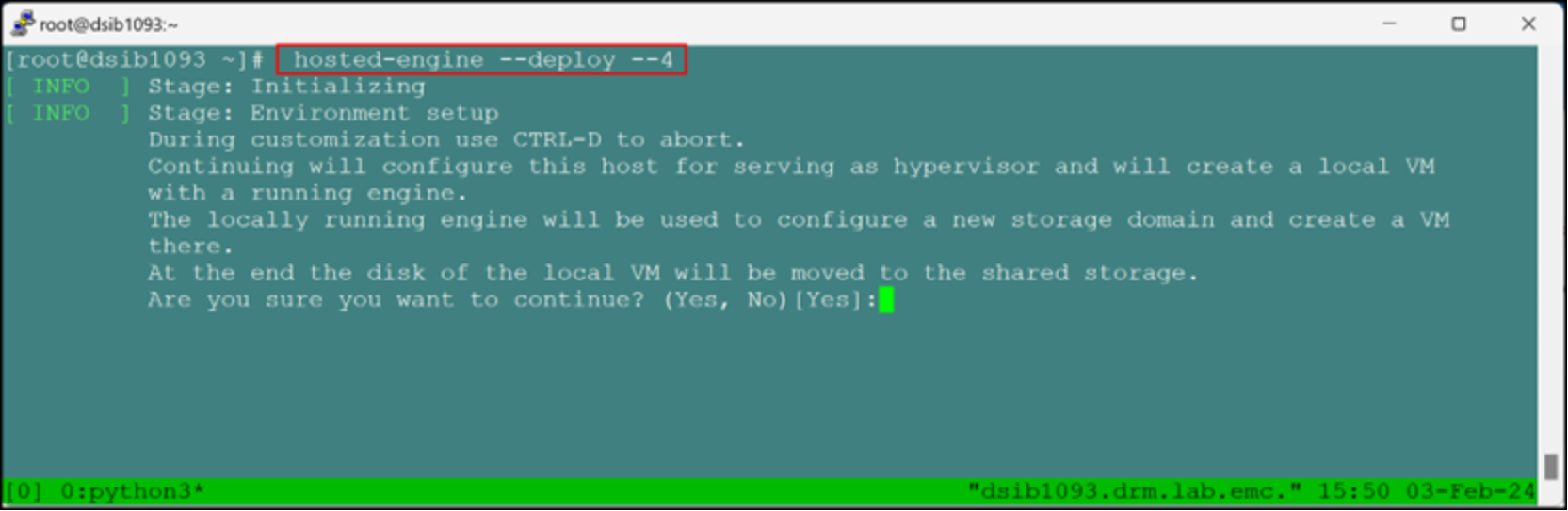
Figure 17. Hosted-engine script execution
Note the reference to shared storage. The virtual machine is copied to a shared storage domain of the user’s choice that is created as part of the script. It cannot be a local storage domain. This limitation narrows the options to: GlusterFS, iSCSI, FC, or NFS. The storage must be presented to the node before running the deployment script for iSCSI and FC. To prepare for an FC storage domain, see Fibre Channel. To prepare for an iSCSI storage domain, see see iSCSI. The user can specify GlusterFS and NFS when prompted.
Note: When running the deployment script, use the tmux utility, which allows a script restart if the user is disconnected.
The script prompts the user for the management network (typically the public adapter of the host), the data center and cluster names, and the CPU, memory, and FQDN of the Engine. The Engine FQDN is not the running host, rather it is an available host/IP address for the virtual machine. The default values for CPU and memory are a percentage of the actual server amounts. They can be adjusted as shown in Figure 18:
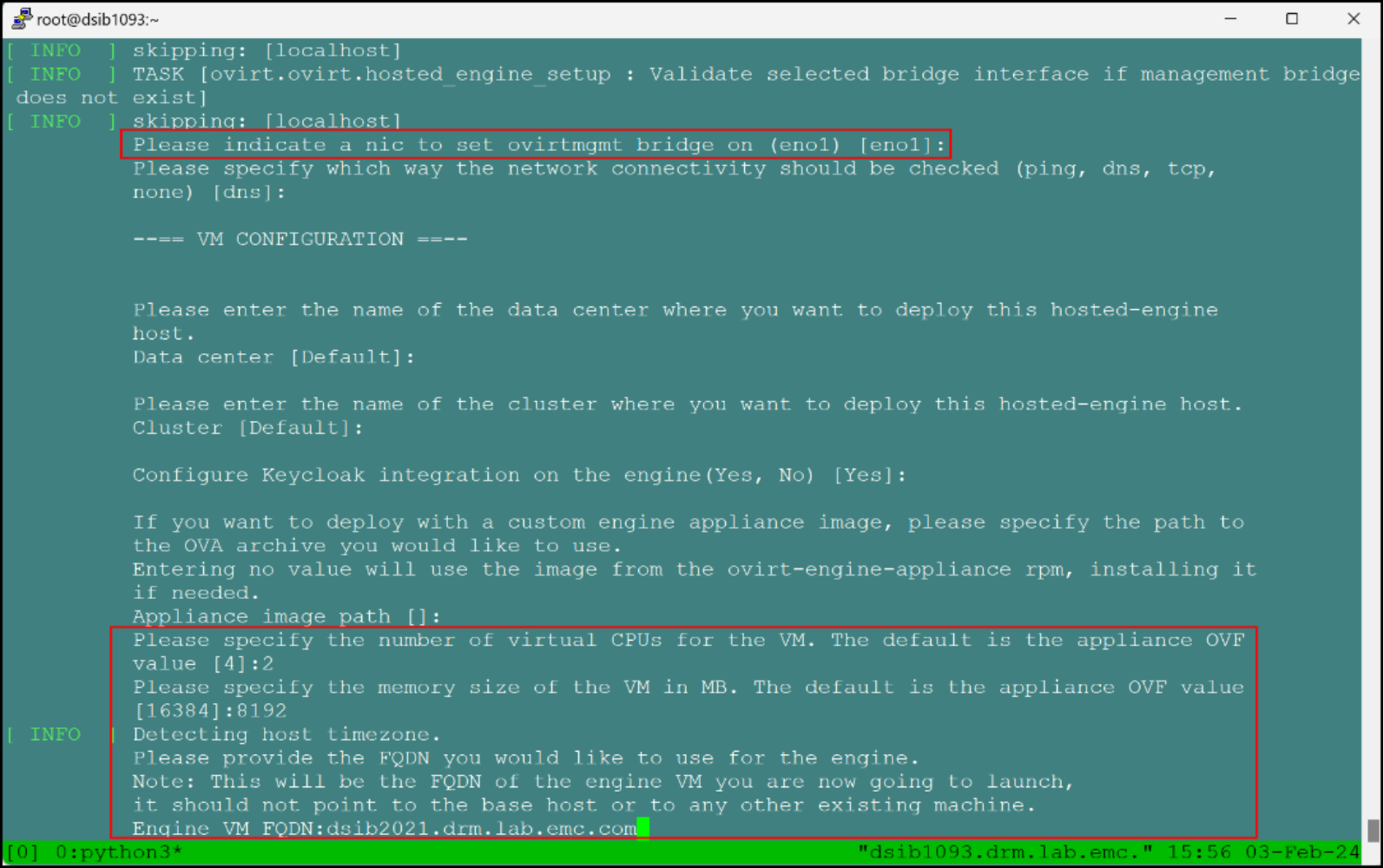
Figure 18. Engine virtual machine specifications
When the user enters the required information, the script deploys the appliance and creates the virtual machine on local storage. After this step is completed, the oVirt Engine is ready.
The final steps in the script move the virtual machine to shared storage. The user is prompted to select the type of storage. At the prompt, NFS is the default option. Figure 19 shows an example in which FC is selected:
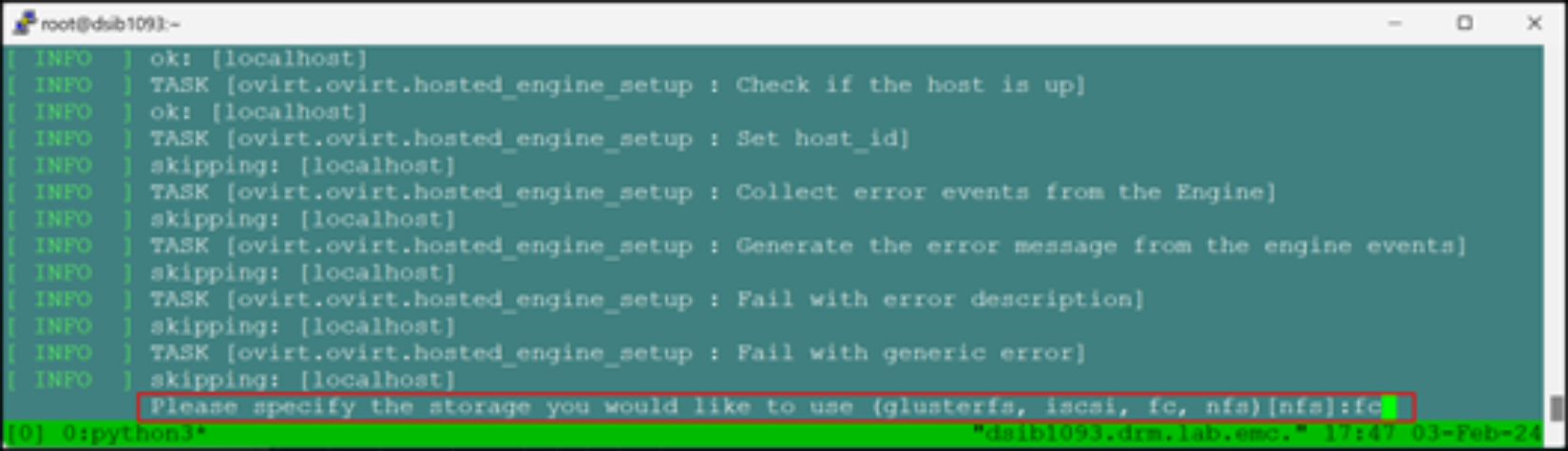
Figure 19. Shared storage prompt
When selecting either iSCSI or FC, the script initiates a storage scan and then presents a list of devices from which to choose. In Figure 20, option [2] is selected, which is a 99 GiB device. The default size of the virtual machine is 51 GB, therefore, the device must be larger than 51 GB.
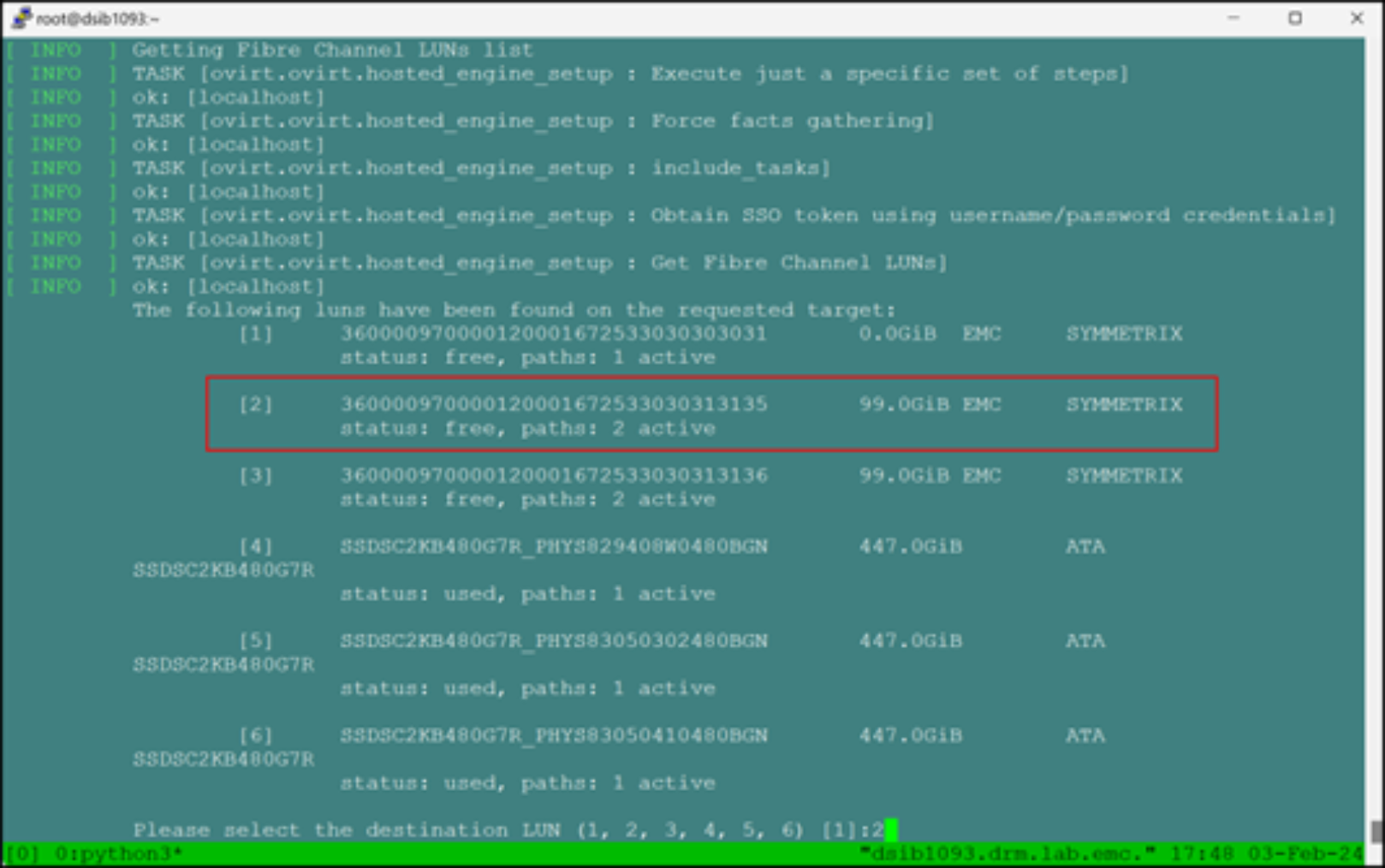
Figure 20. Selecting an FC volume
After the script creates the shared storage domain, it prompts the user for a virtual machine disk size before moving it to shared storage. Because KVM does not support moving live virtual machines across storage domains, there is the opportunity to change the disk size. Unless there is a specific reason to do so, accept the default value of 51 GB. Figure 21 shows these steps:
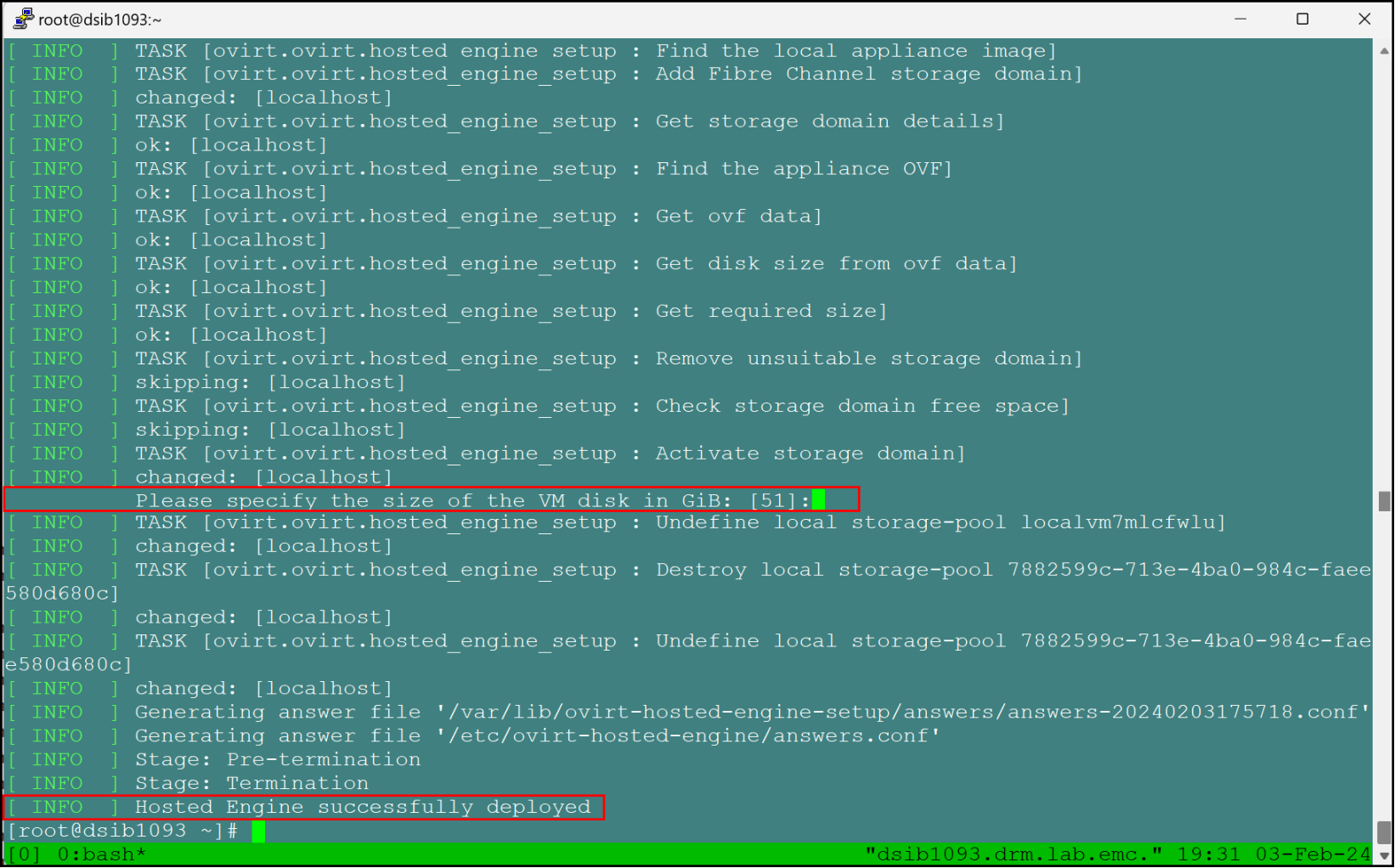
Figure 21. Deployment completion
The script in this example reports a successful completion, which means that the oVirt Engine is up and running on shared storage. If there are errors at any point, the user can address them and the script starts again. Sometimes, the state of the installation is unknown and requires a full reset. See Failed oVirt Engine script, which describes how to rollback a failed installation.
oVirt Manager
The oVirt Engine virtual machine contains the Open Virtualization Manager (OVM), which is the UI of the environment.
To access the OVM:
- Go to the FQDN provided during the deployment script in section Install the self-hosted oVirt Engine.
- Select Administration Portal and then log in as the admin@ovirt user, providing the password from the deployment script, as shown in Figure 22:
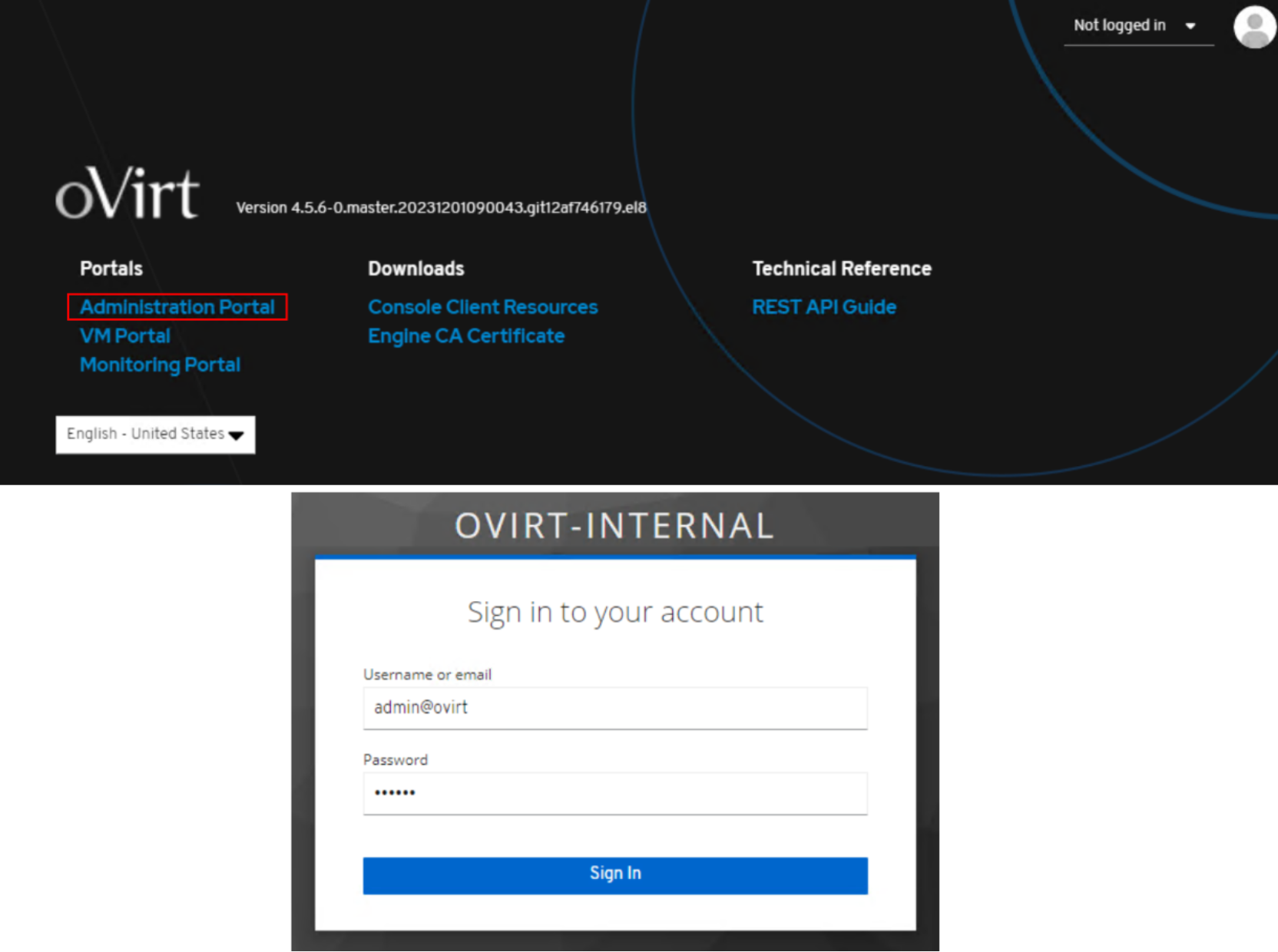
Figure 22. Open Virtualization Manager login
The Dashboard is displayed, as shown in Figure 23:
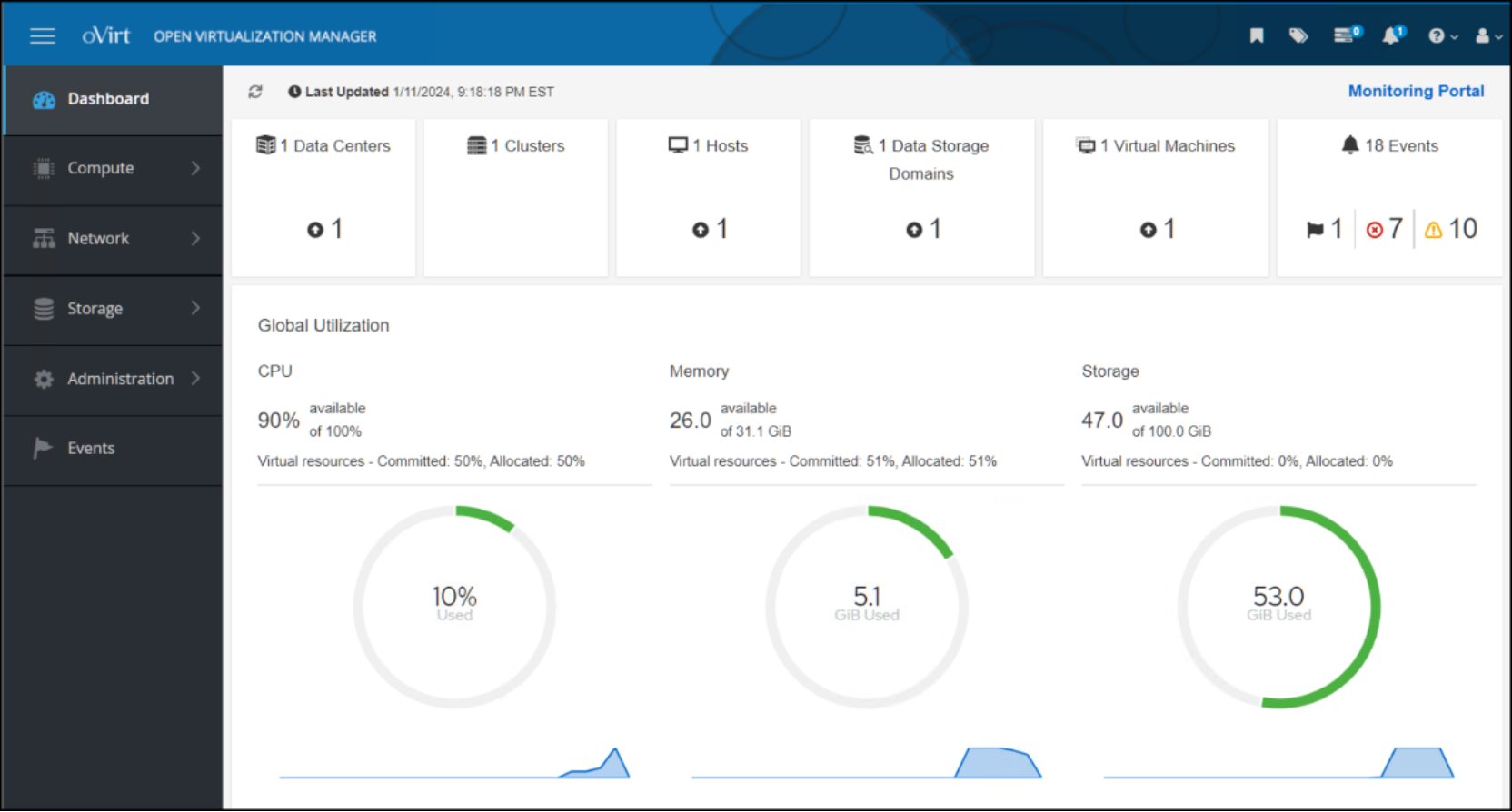
Figure 23. Open Virtualization Manager Dashboard
The Dashboard enables one to access environment components, as well as a link to the Monitoring Portal. Each tile at the top of the dashboard is a hyperlink to the category header. For example, clicking the Hosts tile displays the oVirt node, as shown in Figure 24:
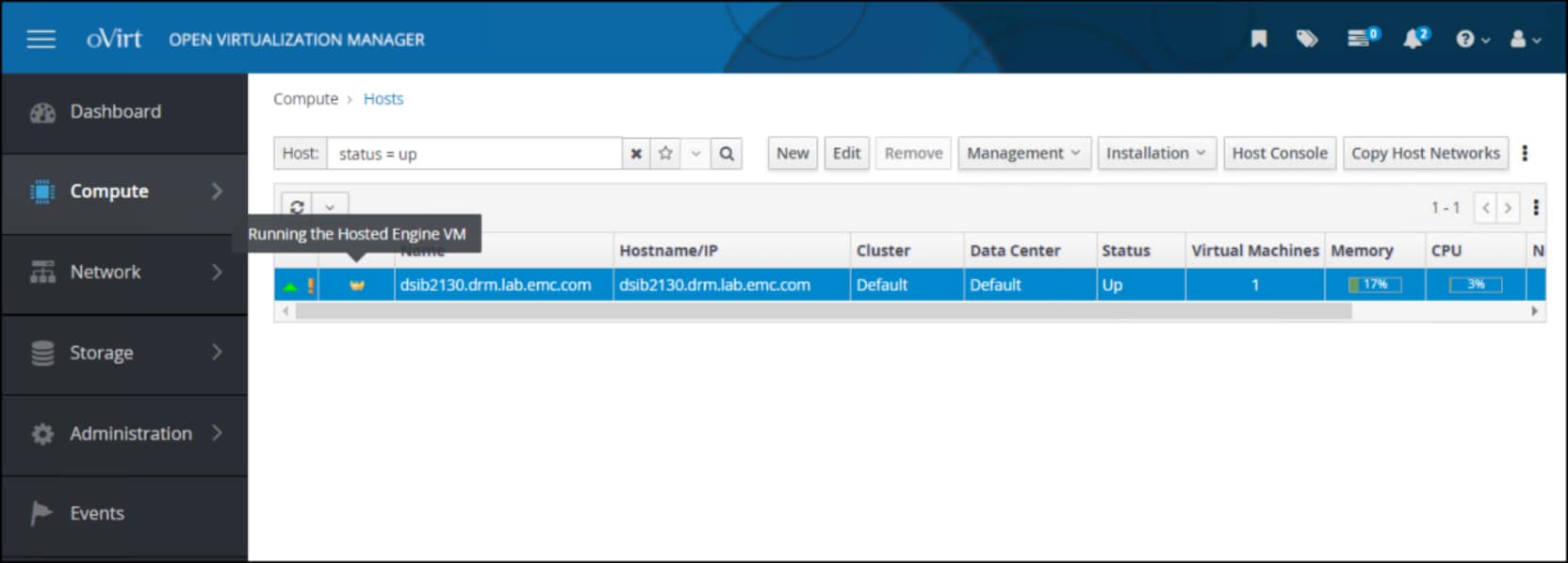
Figure 24. Hosts in Open Virtualization Manager
The crown icon to the left of the hostname indicates that this host is running the Hosted Engine VM.
The exclamation point icon to the left of the crown icon indicates that power management is not active on the host. Power management allows the user to power on and power off the host from the OVM interface. It accomplishes this task through a fencing agent such as iDRAC. This node is the initial node in the configuration. One cannot enable power management on the initial node in the cluster until a second node is added. For information about enabling power management, see Adding a KVM host to a cluster.
With the completion of the script, the user can now add more hosts to the cluster and create more storage domains.
Cockpit
A user will likely see a reference to Cockpit when they log in to a KVM node. Cockpit is part of the build for the oVirt node and can be enabled on each KVM node for a standard server installation. It is a UI that can manage a Linux system, including virtual machines. The user might find it useful to manage the Linux host themselves, however, because the oVirt Engine provides the UI for the KVM environment as a whole, Cockpit is unnecessary for virtualization components. While the Virtualization option in the menu on the left offers the ability to install the oVirt Engine for the cluster, as shown in Figure 25, the UI deployment of the hosted engine is deprecated. Using the UI setup can lead to SSO authentication issues. Both Dell Technologies and the oVirt community recommend using the CLI procedure that is documented in this guide to ensure success.
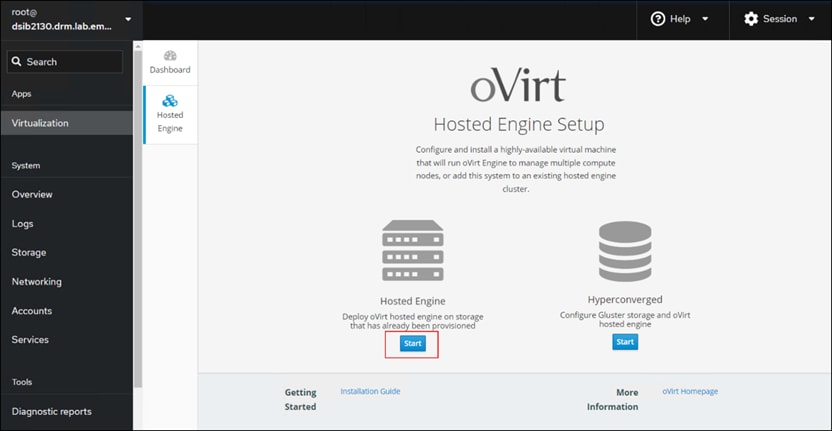 Figure 25. oVirt Engine UI setup
Adding a KVM host to a cluster
After deployment of the oVirt Engine, whether self-hosted or stand-alone, the user can add other Enterprise Linux or oVirt Nodes KVM nodes to the cluster. The oVirt documentation lists the minimal requirements for a KVM node before adding it to a cluster. The following procedure assumes that the user has met these prerequisites.
- From the OVM UI, go to Compute -> Hosts and click New to start the wizard, as shown in Figure 26:
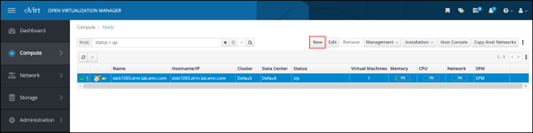 Figure 26. Add the KVM host - start the wizard
 - In the New Host dialog, select the Host Cluster, specify a Name, Hostname/IP, and a Password, as shown in Figure 27:
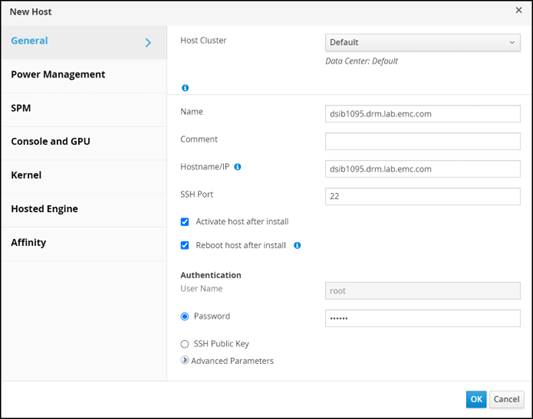 Figure 27. Add the KVM host – define the host cluster
No other changes are required. If using Power Management on the host (such as iDRAC), or enabling HA, continue to the next step. Otherwise, click OK to complete adding the host.
In the Power Management dialog, click the Enable Power Management checkbox and then click the plus sign to Add Fence Agent, as shown in Figure 28: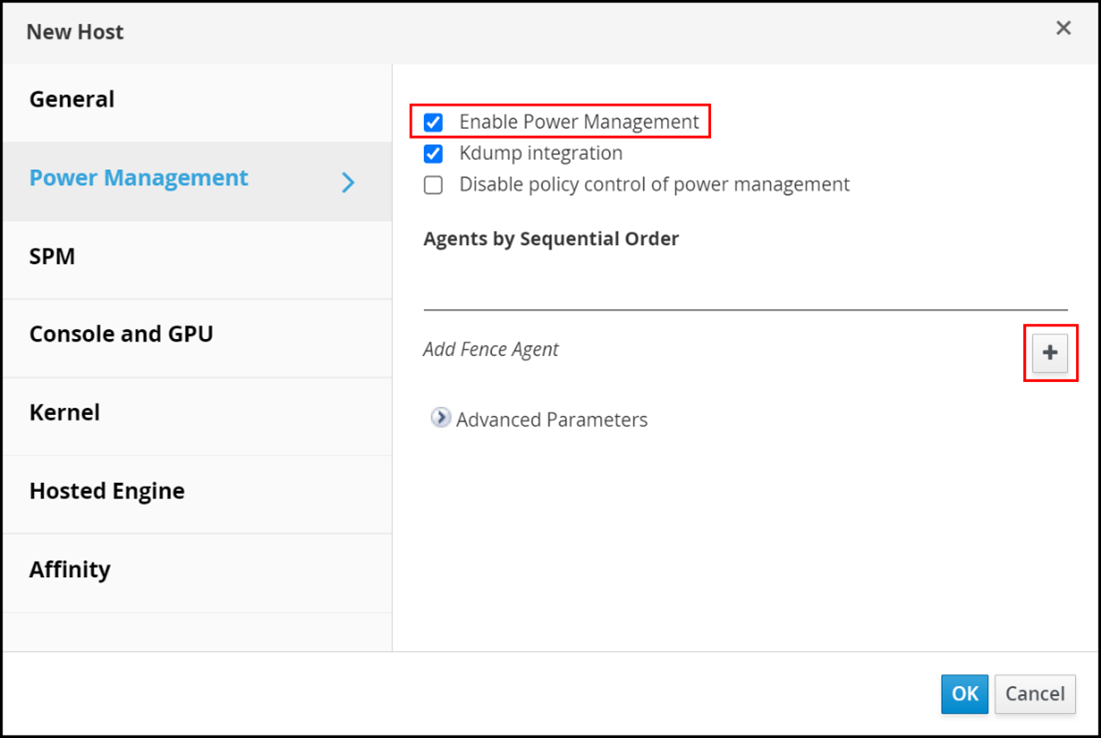 Figure 28. Add KVM host - enable Power Management
 - For the fence agent, as shown in Figure 29:
- Enter the Address, User Name, and Password.
- From the Type drop-down list, select the correct agent used on the host. As shown in the example in the following figure, drac7 is selected for iDRAC.
- Click Test to run the Test functionality in the red box.
- Click OK when ready.
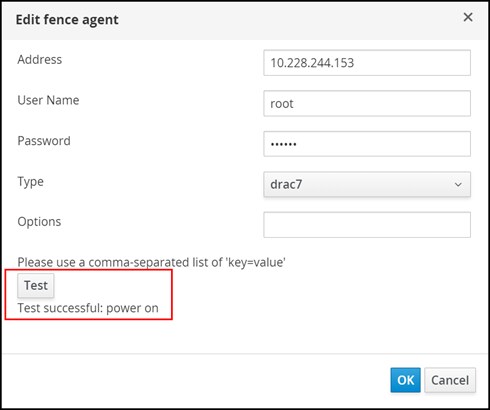 Figure 29. Add KVM host - edit the fence agent
The main Power Management screen is displayed. Figure 30 shows the new agent: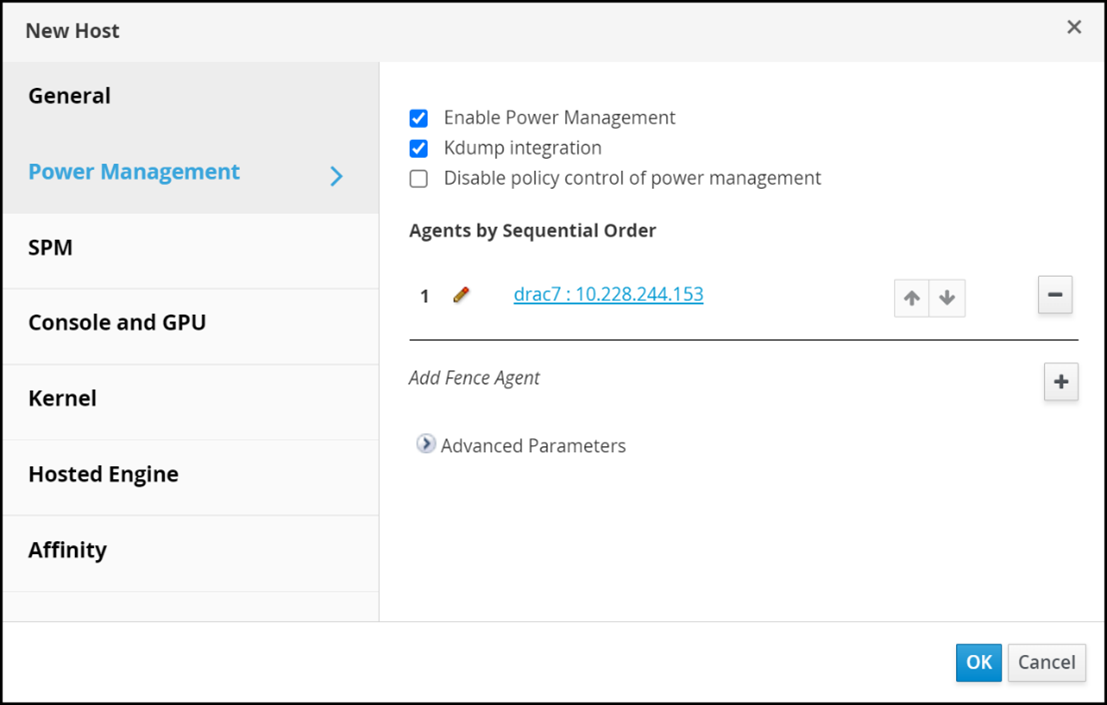 Figure 30. Add KVM host - edit the fence agent
 - If the KVM host will be configured to run the self-hosted engine (to enable HA), click Hosted Engine, select Deploy from the drop-down list, and then click OK to add the host, as shown in Figure 31:
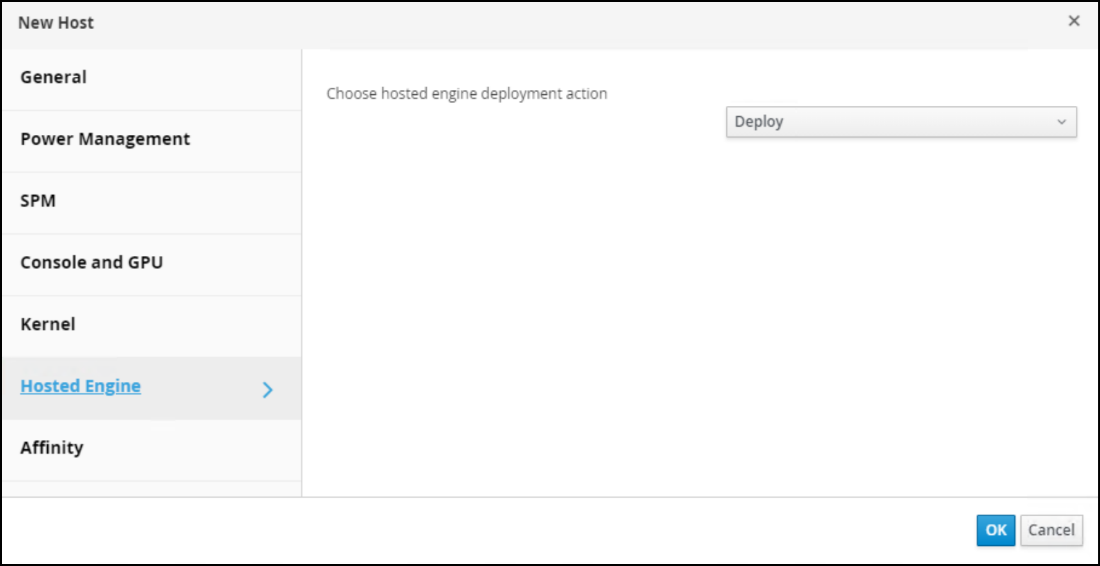
Figure 31. Add KVM host - add the host
After the steps are completed, OVM initiates the operations to add the host to the cluster, including installation of the packages. Figure 32 shows the status of the host as Installing; when the step is completed, the status of the host is Up. 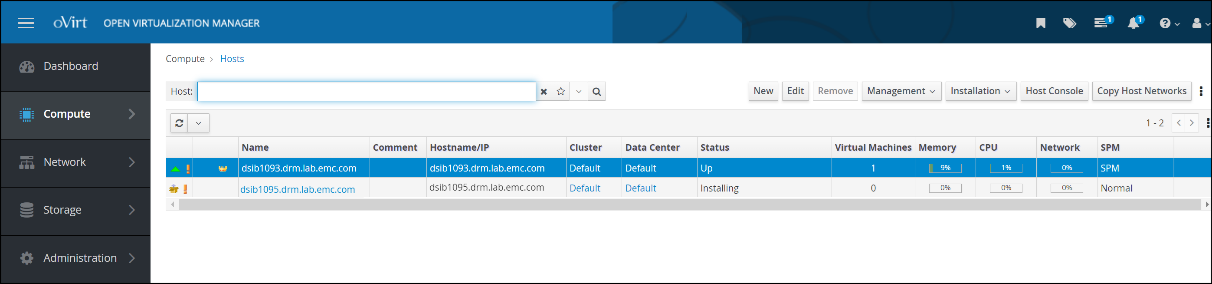 Figure 32. Add KVM host - view the host status
If a host is selected for the self-hosted engine, a gray crown icon to the left of the hostname indicates that the host is allowed to run the self-hosted engine, either because of an HA event or migration, as shown in Figure 33: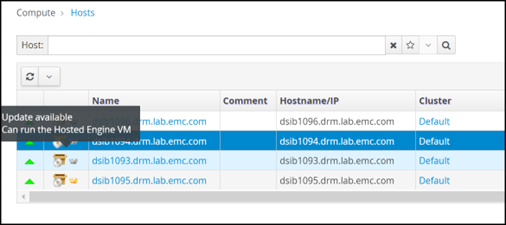 Figure 33. KVM host that can run the Hosted Engine
After the second host is part of the cluster, the user can edit the first host and assign power management. One cannot enable power management for the first host until there is a second host. Repeat the preceding steps to add power management to the first host.
Upgrades
If new oVirt software becomes available, OVM informs the user if any hosts in a cluster can be upgraded. If the user examines the hosts, each host indicates whether it can be upgraded. Figure 34 shows both views:
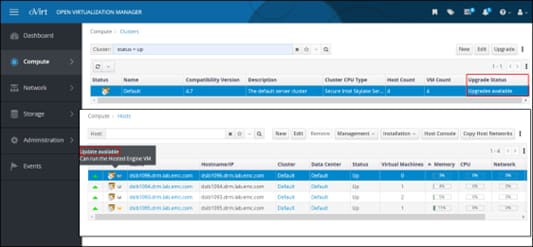
Figure 34. Upgrade status
In the hosts view, the Installation menu also enables the user to check for updates because OVM only checks for updates periodically.
Host upgrade
To upgrade a host:
- Highlight the specific host and from the Installation drop-down list, select Upgrade, as shown in Figure 35:
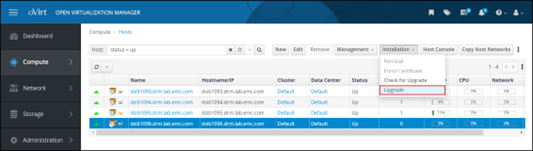
Figure 35. Upgrade the host
- In the Upgrade Host dialog, click OK. Note that the Reboot host after upgrade checkbox is enabled by default, as shown in Figure 36:
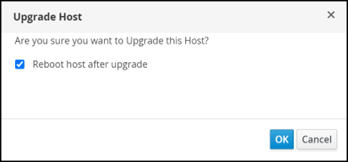 Figure 36. Upgrade host dialog
The status of the host proceeds through the following states:- Installing (host is placed in maintenance mode)
- Reboot
- Up
In Figure 37, the status of the host is shown as Maintenance before the installation and reboot. In the inset, the event log shows a successful upgrade: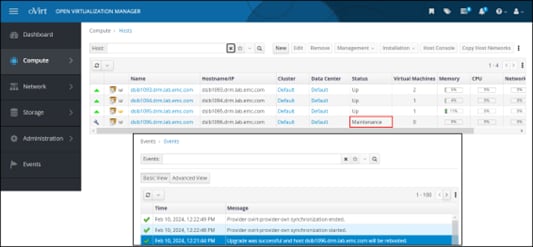
Figure 37. Host event log
Storage domains
Storage plays an essential role in the KVM implementation. The storage dictates the type of cluster: shared or local. Shared storage is the more common KVM cluster, enabling features such as HA and migration. During the oVirt Engine installation that is described in this guide, an initial shared storage domain was required and created on PowerMax. Dell Technologies recommends creating additional storage domains on PowerMax for objects such as virtual machines and ISO. These objects can be on FC, iSCSI, or NFS.
Storage types
When creating new shared storage domains in a KVM environment, the user is limited to these storage types, as shown in Figure 38:
- NFS
- POSIX-compliant FS (global file system)
- GlusterFS
- iSCSI
- Fibre Channel
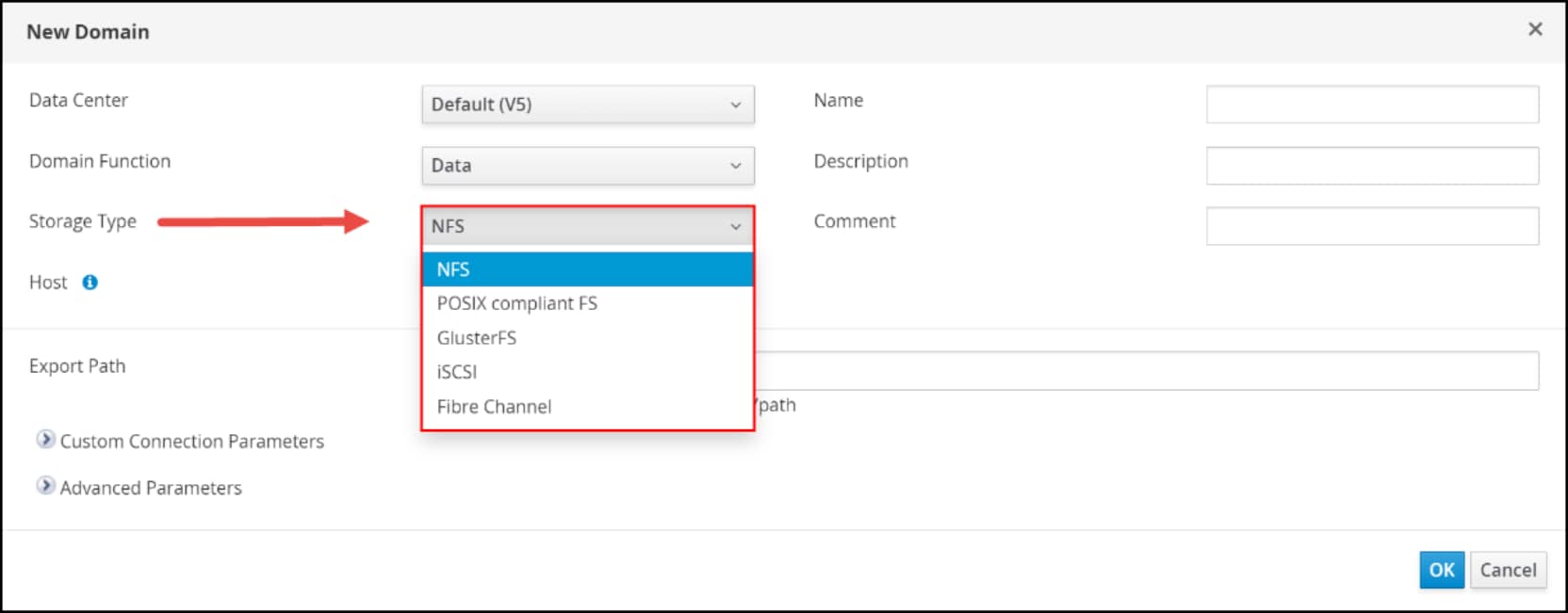
Figure 38. Storage type options for a storage domain
PowerMax supports all these protocols: NFS, iSCSI, and FC. KVM has specific requirements for each storage type that is used in a storage domain.
NFS
NFS is a distributed file system protocol that allows one to access files over a network. NFS is a common choice for storage domains because it is simple to implement and manage. When using NFS storage with KVM, it is important to pick a platform that meets the performance and scalability requirements of user workloads. PowerMax supports both NFS 3 and 4.1 and delivers superior performance when matched with a low-latency network.
For NFS, the permissions and the ownership of the share must be altered so that the oVirt Engine can use it. The available ownership and permissions on the PowerMax NFS export are limited and do not meet the requirements of KVM. Therefore, it is necessary to manipulate the share either on an existing KVM node, or on a separate host altogether. In the following example, a Linux host was configured for the sole purpose of meeting the prerequisites of NFS storage. This example sets up the storage for the self-hosted oVirt Engine. It is the same process as is required for creating an NFS storage domain after the oVirt Engine deployment is completed.
Create the NFS file system
The following steps create the NFS system and make it available to the KVM node. It is assumed that a NAS server is configured and available on a network that the KVM hosts can reach.
- In Unisphere, go to Storage -> File -> File Systems and click Create to start the wizard, as shown in Figure 39:
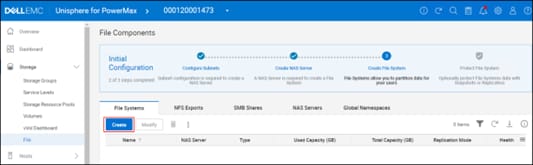 Figure 39. Create NFS file system in PowerMax – start the wizard
 - Because the hosts are physical hosts, keep the default setting of General in the Select Type dialog, as shown in Figure 40:
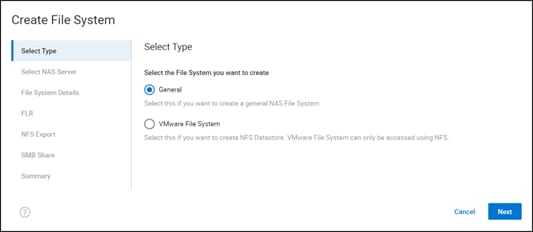 Figure 40. Create NFS file system in PowerMax – select type
 - Select a NAS Server and click Next as shown in Figure 41:
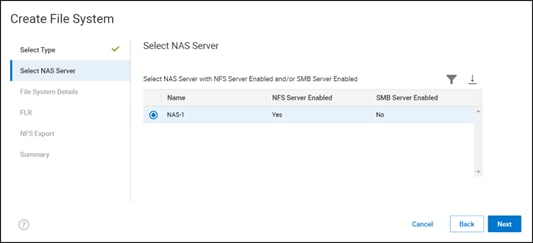 Figure 41. Create NFS file system in PowerMax – select the NAS server
 - In the File System Details dialog, enter a Name, an optional Description, a Size, as shown in Figure 42:
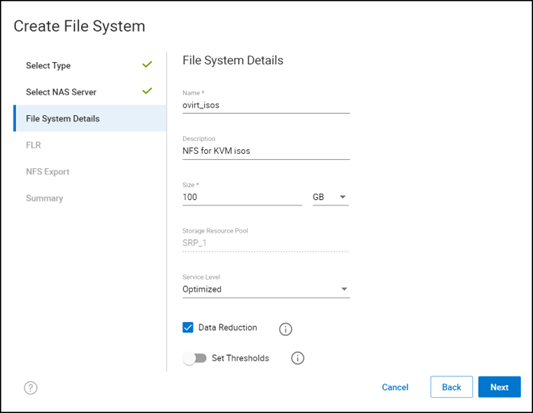 Figure 42. Create NFS file system in PowerMax – define system details
Generally, a PowerMax array only has a single Storage Resource Pool, therefore, no adjustment is needed. Optionally, modify the Service Level and Data Reduction default values, assign Thresholds for alerting and the click Next.
File Level Retention (FLR) is disabled by default. If the user enables either Enterprise or Compliance, additional details are displayed, as shown in Figure 43. Click Next when complete.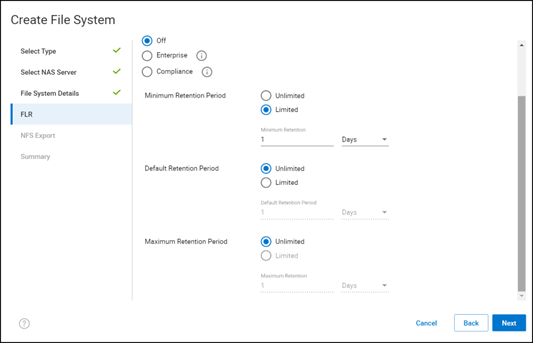 Figure 43. Create NFS file system in PowerMax – enable FLR
 - Swipe the Configure the Initial Export slider right and then optionally enter a Name and Description, as shown in Figure 44:
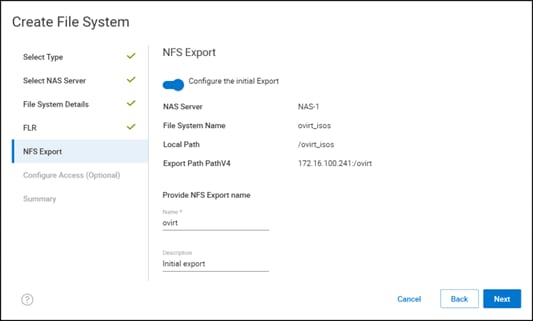 Figure 44. Create NFS file system in PowerMax – define NFS export
 - For KVM hosts to mount the NFS file system, grant the file system access, as shown in Figure 45:
- Set the Minimum Security to System.
The base security, which is the simplest security, is System. The advanced security is in the form of Kerberos. - Set the Default Access to Read/Write, allow Root and then click Next for the hosts to mount the file system. There is no need to add a specific host.
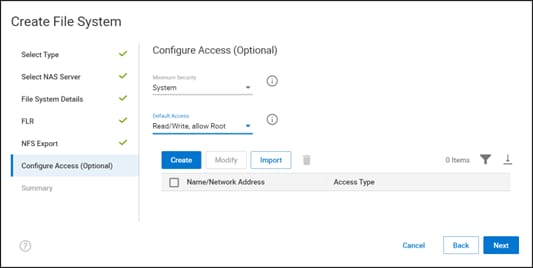 Figure 45. Create NFS file system in PowerMax – configure access
 - Set the Minimum Security to System.
- Go to the Summary page and click Run In The Background to complete the wizard, as shown in Figure 46:
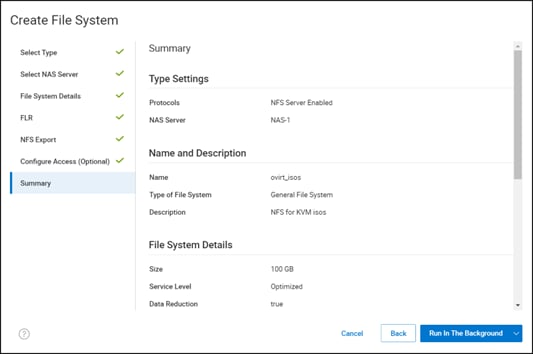 Figure 46. Create NFS file system in PowerMax – complete wizard
The resulting NFS file system is shown in Figure 47: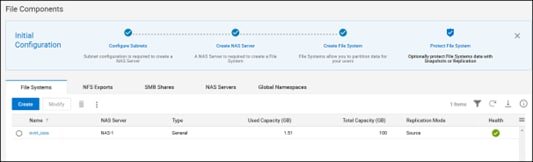 Figure 47. Create NFS file system in PowerMax – summary
Modify the NFS file system for the storage domain
To allow the storage domain to use the NFS file system, modify folder ownership. Create a folder in the NFS file system with the correct ownership (vdsm:kvm) and permissions (0755) for the storage domain.
Note: On most Linux implementations, the kvm group exists with ID 36. If another OS user on the host is already assigned the ID 36, use another host. If the user or group already exists on the host, skip the pertinent step below.
- Log in as the root user.
- Create the kvm group:
groupadd kvm -g 36 - Create the vdsm user in the group kvm group:
useradd vdsm -u 36 -g kvm - Create a mount point:
mkdir /ovirt - Mount the PowerMax NFS share created in section Create the NFS file system..
mount -t nfs 172.16.100.241:/ovirt /ovirt - Create a sub-directory under the NFS share. Modify the access rights to that subfolder, changing the permissions and ownership:
cd /ovirt
mkdir ovarit_isos
chmod 0755 ovirt_isos
chown 36:36 ovirt_isos (or chown vdsm:kvm ovirt_isos) - Unmount the share:
cd /ovirt
unmount /ovirt_install
Figure 48 shows the steps: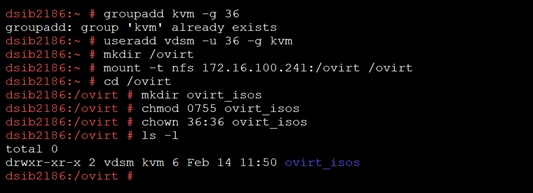 Figure 48. Prepare NFS mount for oVirt
NFS storage domain
If one wants to create an NFS storage domain after deploying the oVirt Engine, follow the steps in Modify the NFS file system for the storage domain.. Then, use the NFS storage domain wizard.
Note: In this example, the created mount is /ovirt/ovirt_isos.
- In the OVM, go to Storage -> Domains, as shown in Figure 49:
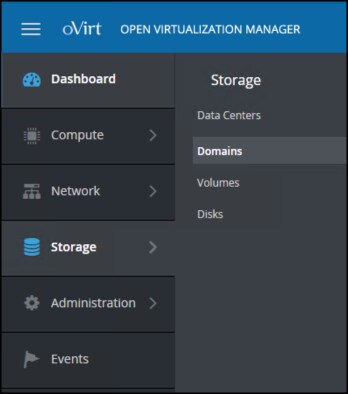 Figure 49. NFS storage domain – create an NFS storage domain
 - In the New Domain page, as shown in Figure 50:
- From the drop-down list next to Storage Type, select NFS.
- Select a KVM host.
- Optionally, enter a Name and Description.
- Enter the Export Path to the previously created mount.
- Keep all other default options (expanded here), unless the business requires a change.
- Click OK
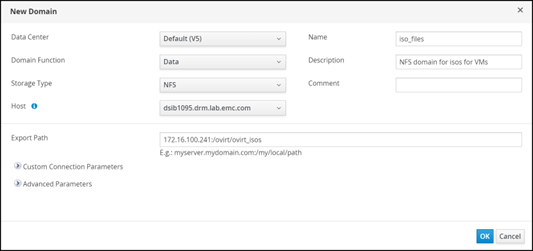 Figure 50. NFS storage domain - define the domain
If the connection to the NFS mount is successful, OVM immediately returns the following notification shown in Figure 51, which does not indicate success yet, only that OVM can mount the export. Figure 51. NFS storage domain - successful connection to the NFS mount
The storage domain remains locked until it is activated and is made available. When the domain is ready, the OVM provides the following notification, as shown in Figure 52: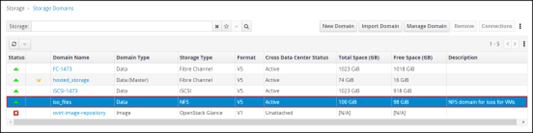 Figure 52. NFS storage domain - complete
Fibre channel
Solutions Enabler or Unisphere for PowerMax enable fibre channel presentation to the KVM environment. It is assumed that the prerequisites for FC are satisfied.
- Create an initiator group or host for each KVM host:
- Log in to Unisphere for PowerMax and go to Hosts -> Hosts and select Create.
- Enter the Host Name.
- Select the radio button Fibre (default) and use the arrows to move over the appropriate initiators.
- Click Run Now.
Figure 53 shows KVM host dsib1093 with two HBA initiators: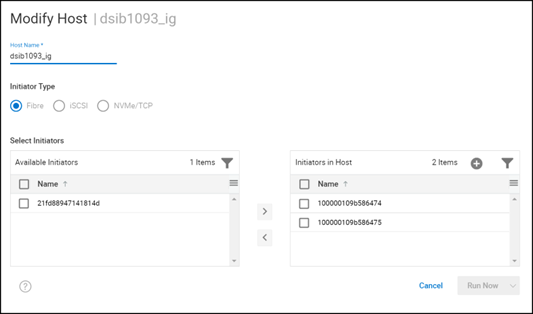 Figure 53. Initiator group or host
- After the user creates all the hosts, create a single parent initiator group, or host group. This group contains all the individual hosts and ensures that all KVM hosts detect the same device in the shared domain, as shown in Figure 54:
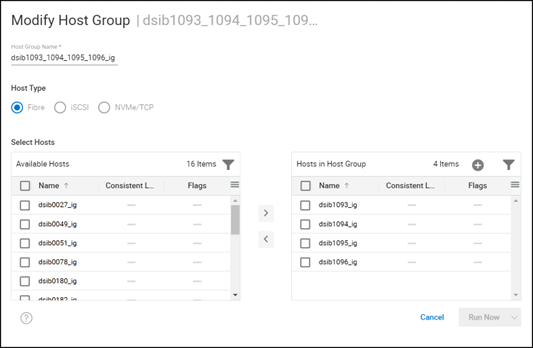 Figure 54. Parent initiator or host group
Provision volume
To provision a volume to the host group:
- Open the Unisphere for PowerMax UI and go to Hosts -> Hosts.
- Using the checkbox, select the KVM host group and click Provision Storage To Host, as shown in Figure 55:
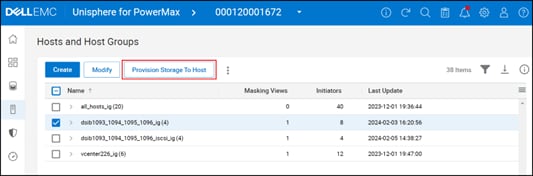 Figure 55. Provision storage to host
 - At a minimum, enter the following information and click Next, as shown in Figure 56:
- Storage Group Name
- Volumes
- Volume Capacity
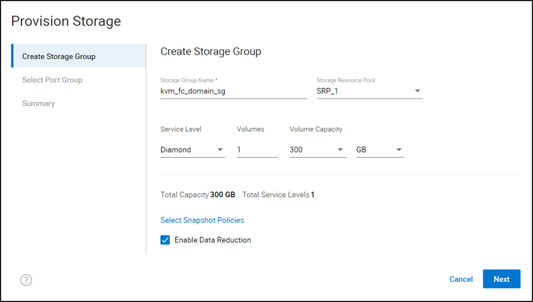 Figure 56. Provision storage to host – create storage group
 - Either create a new port group or select an existing group, and then click Next. Figure 57 shows an example of a new group that is added with two ports:
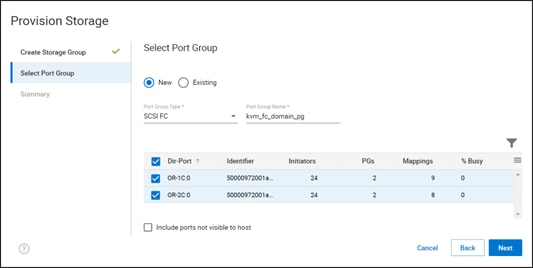 Figure 57. Provision storage to host – select port group
 - Review the summary and click Run Now, as shown in Figure 58:
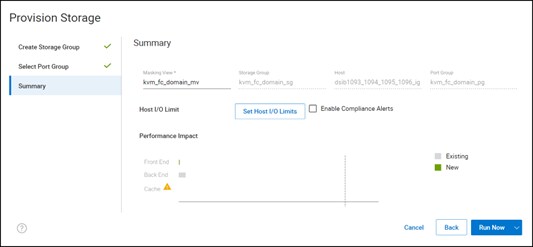 Figure 58. Provision storage to host - summary
This step creates the masking view, presenting the volume to all hosts in the KVM cluster.
FC storage domain
With the volume presented, create the FC storage domain:
- In OVM, go Storage -> Domains, as shown in Figure 59:
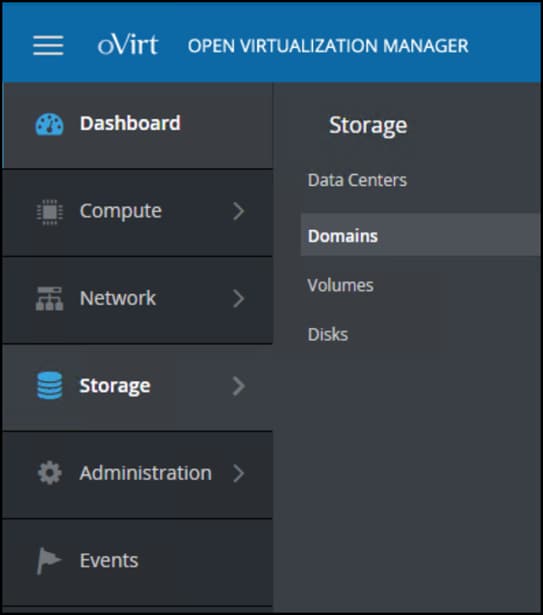 Figure 59. NFS storage domain
 - Select a Host from the drop-down list, as shown in Figure 60. The volume must be presented to all hosts in the cluster or storage domain creation fails.
- From the Storage Type drop-down list, select Fibre Channel.
OVM immediately initiates a scan of the host and returns the available volumes, as shown in the following figure. The PowerMax volumes are clearly identifiable. - As shown for this example, select the 300 GB device.
- Optionally, enter a Name and Description.
- Click Add next to the correct PowerMax volume.
- Keep all other default Advanced Parameters, unless the business requires a change.
- Click OK
- From the Storage Type drop-down list, select Fibre Channel.
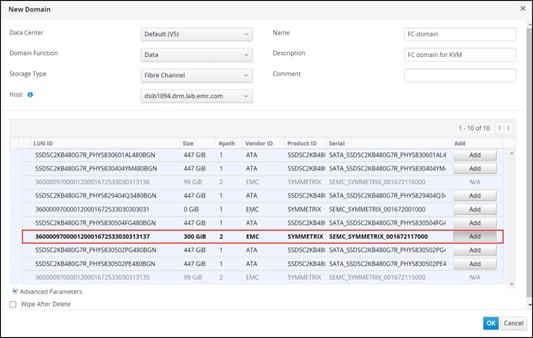
Figure 60. FC storage domain
Note: Although it is possible, Dell Technologies does not recommend selecting multiple devices for use in a single storage domain. Rely on the PowerMax array for performance and present a single volume of the total size required.
OVM initiates the FC storage domain, locking it until completion. When completed, the storage domain displays as Active, as shown in Figure 61: 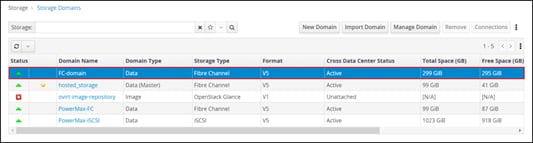 Figure 61. Active FC storage domain
iSCSI
Solutions Enabler or Unisphere for PowerMax enable iSCSI presentation to the KVM environment. It is assumed that the prerequisites for iSCSI are satisfied.
Begin by creating an initiator group or host for each KVM host. The user can choose between two different ways depending on the level of automation wanted.
- First, record the initiator name on the KVM host. The initiatorname.iscsi file is located in the /etc/iscsi directory, as shown in Figure 62.
 Figure 62. iSCSI host initiator name
 - Choose either of the following options:
- Add the initiator manually, which is the simplest method for creating the host, as shown in Figure 63:
- Log in to Unisphere for PowerMax and go to Hosts -> Hosts and select Create.
- Enter the Host Name and select iSCSI as the Initiator Type.
- On the right, click the plus icon and enter the initiator.
- Click OK then Run Now
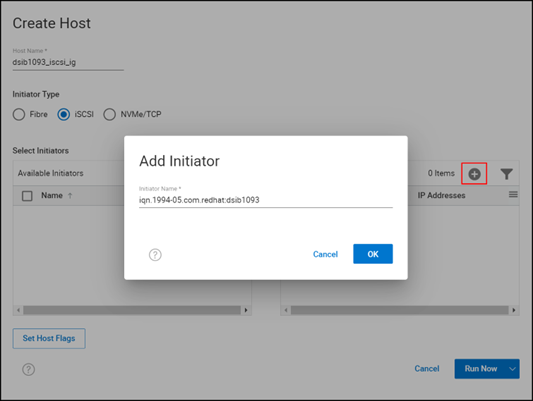 Figure 63. Adding an iSCSI initiator manually
- Inform Unisphere of the initiator before creating the host:
- Using iscsiadm on the KVM host, run a discovery of the iSCSI target on the PowerMax.
Although the command fails, the initiator is passed to Unisphere, as shown in the example in Figure 64: Figure 64. Running an iSCSI discovery
 - If necessary, after the discovery, refresh the PowerMax system in Unisphere. Log in to Unisphere for PowerMax and go to Hosts -> Hosts and select Create.
- Enter the Host Name and select iSCSI as the Initiator Type, as shown in Figure 65.
- Select the initiator name, which is populated on the left, and click the arrow to move it to the right side and then click Run Now.
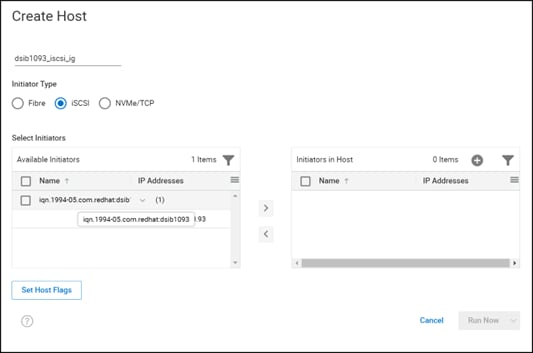 Figure 65. Adding an iSCSI initiator automatically
- Using iscsiadm on the KVM host, run a discovery of the iSCSI target on the PowerMax.
- Add the initiator manually, which is the simplest method for creating the host, as shown in Figure 63:
- After the user creates all the hosts, create a single parent initiator group, or host group. This group contains all individual hosts, which ensures that all KVM hosts see the same device in the shared domain, as shown in Figure 66:
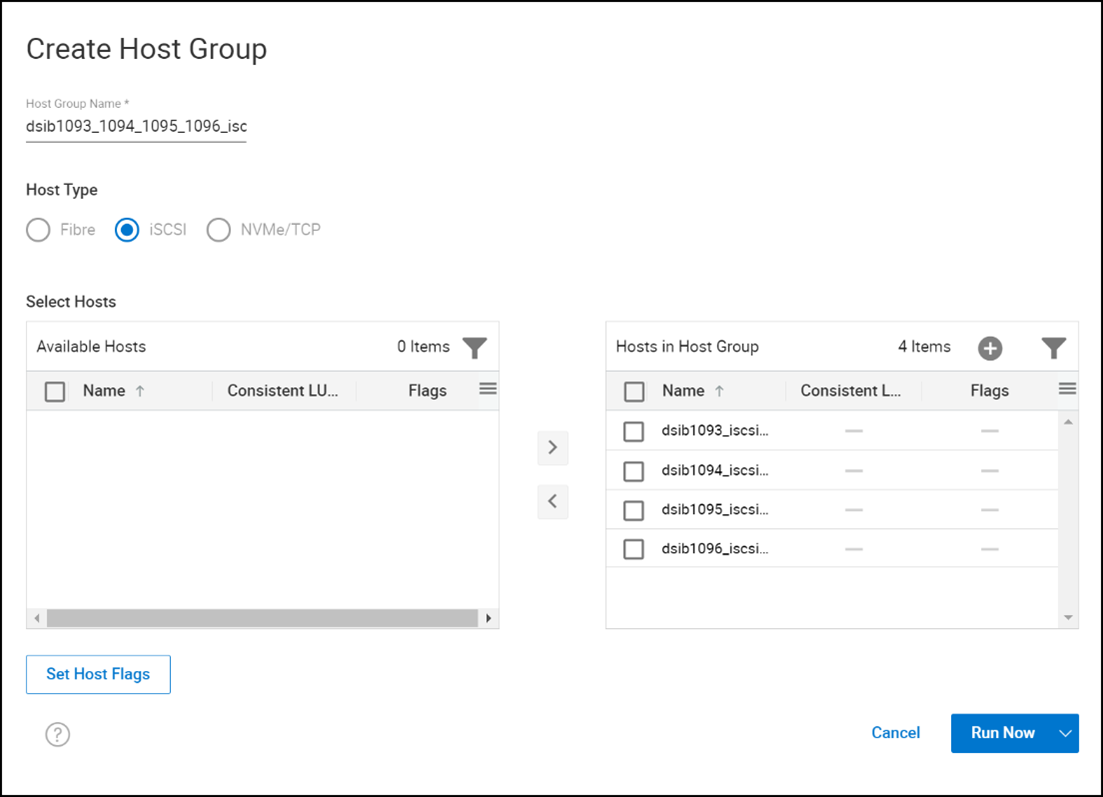 Figure 66. Parent initiator or host group
Provision a volume
To provision a volume to the host group:
- Open the Unisphere for PowerMax UI and go to Hosts -> Hosts. Using the checkbox, select the KVM host group and click Provision Storage To Host, as shown in Figure 67:
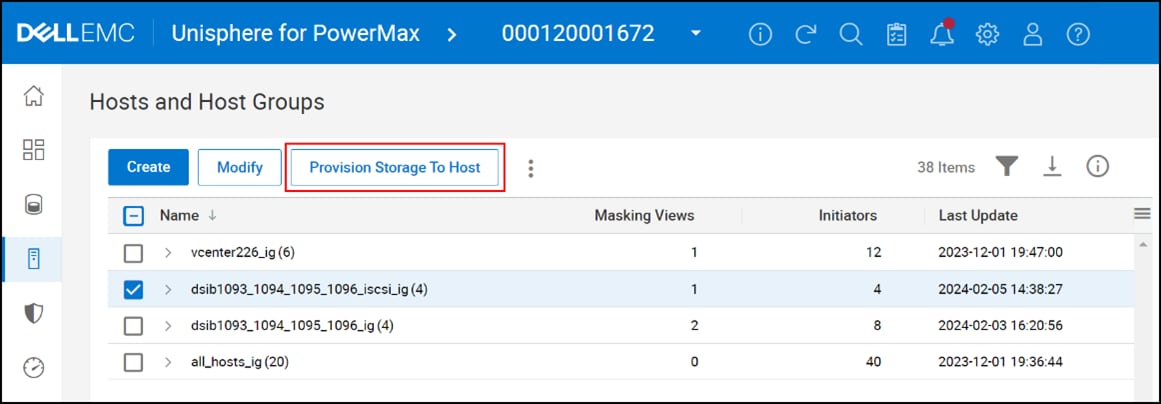 Figure 67: Provision storage to host
 - At a minimum, enter the following information and click Next, as shown in Figure 68:
- Storage Group Name
- Volumes
- Volume Capacity
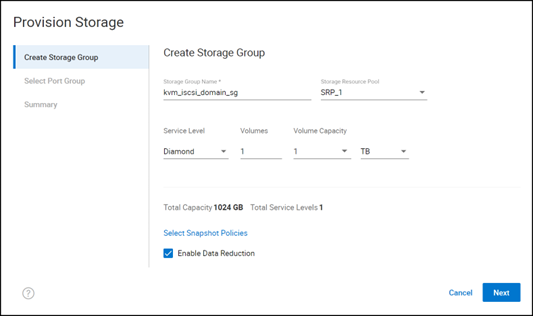 Figure 68. Provision storage to host – create storage group
 - Either create a new port group or select an existing group and the click Next, as shown in the example in Figure 69:
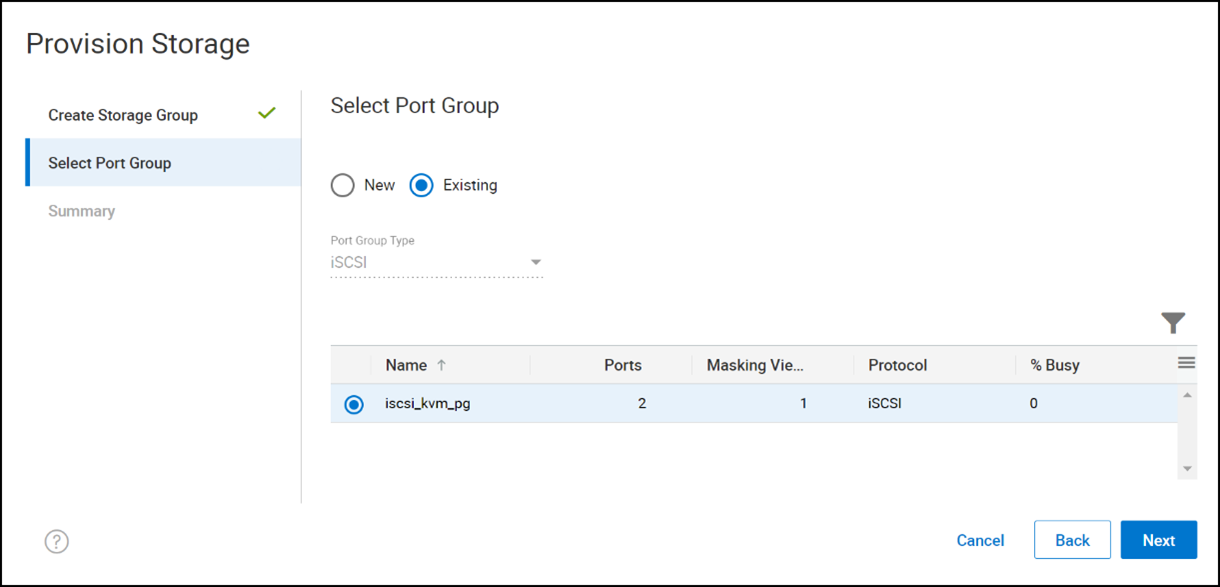 Figure 69. Provision storage to host – select port group
 - Review the summary and click Run Now, as shown in Figure 70:
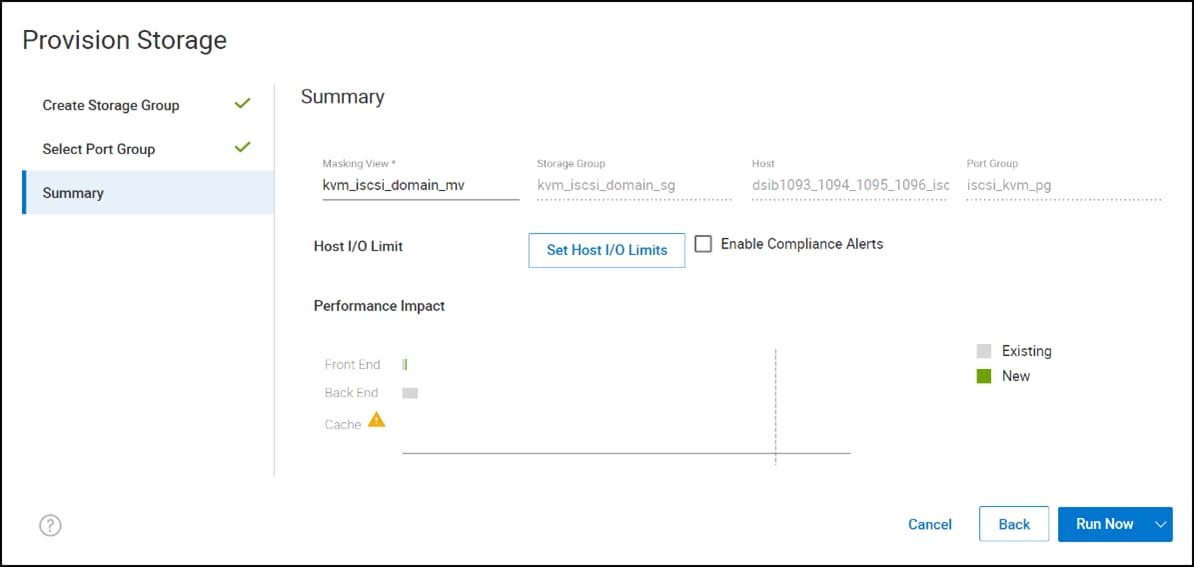 Figure 70. Provision storage to host – view summary
This step creates the masking view, presenting the volume to all hosts in the KVM cluster. - It might be necessary to discover the iSCSI targets (even if previously done) and then log in, as shown in the example in Figure 71:
 Figure 71. iSCSI target discovery and login
 - To confirm the host can now detect the volume, run the multipath -ll command, as shown in Figure 72:
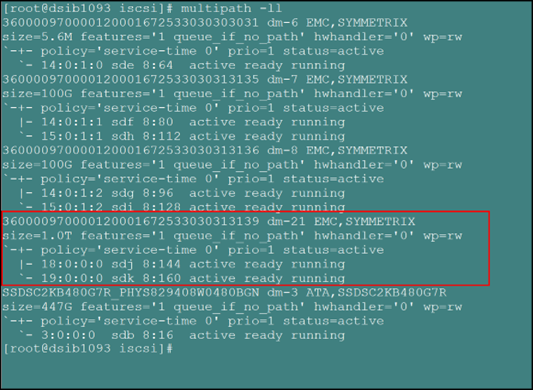 Figure 72. Multipath confirmation
iSCSI storage domain
With the volume presented, create the iSCSI storage domain:
- In OVM, go to Storage -> Domains, as shown in Figure 49.
- Select a Host from the drop-down list.
The volume must be presented to all hosts in the cluster or storage domain creation fails. - Use the Storage Type drop-down list to select iSCSI.
OVM immediately initiates a scan of the host and returns the available volumes. Initially, the screen returns Targets -> LUNs. - Change the screen to LUNs -> Targets to see the volumes, as shown in Figure 73.
In this example, there is only a single 1 TB device. - Optionally, enter a Name and Description
- Click Add next to the PowerMax volume
- Keep all other default Advanced Parameters, unless the business requires a change.
- Click OK.
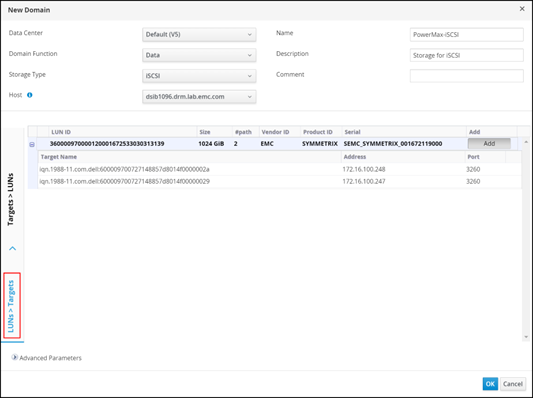 Figure 73. iSCSI storage domain
Note: Although it is possible, Dell Technologies does not recommend selecting multiple devices for use in a single storage domain. Rely on the PowerMax array for performance and present a single volume of the total size required.
OVM initiates the iSCSI storage domain, locking it until completion. When done, the storage domain displays as active, as shown in Figure 74: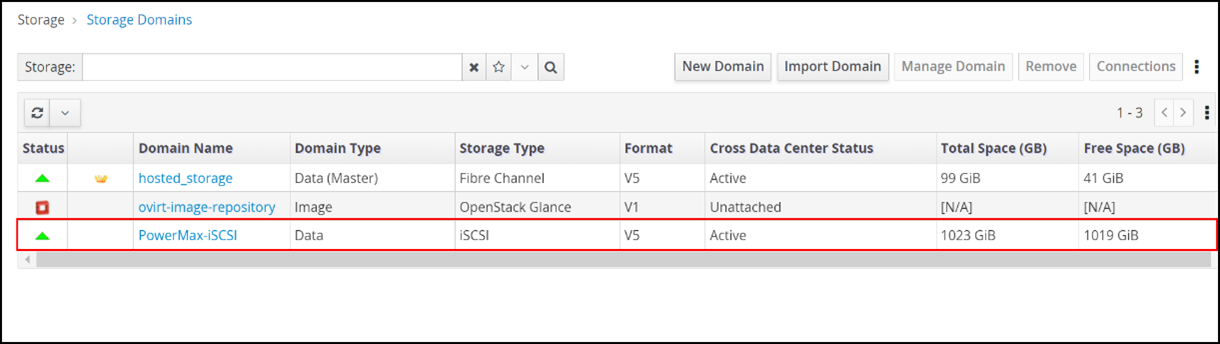
Storage domain OVF_STORE
Regardless of type, each storage domain contains two disks named OVF_STORE by default. These disks contain all the information about the storage domain (such as virtual machines and metadata), which allows KVM to recover the storage domain without needing the oVirt Engine (previous functionality). This information, however, is also shared with the oVirt Engine. The disks are not created at instantiation, rather oVirt generates them through a scheduled process.
The example in Figure 75 shows that the PowerMax-FC storage domain was created at 11:23:25 AM but the OVF_STORE disks were not generated until approximately 33 minutes later. After storage domain creation, OVF_STORE disk creation varies depending on when the oVirt job runs (auto), which might be up to an hour after initial creation of the domain.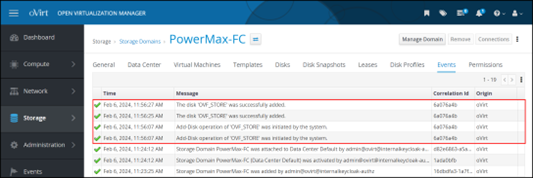
Figure 75. OVF_STORE disks
These disks remain for the life of the storage domain, neither increasing nor decreasing in number, no matter how many virtual disks or ISOs are created in the storage domain.
Protection
Introduction
Hosted engine backup
It is important to take regular backups of the oVirt Engine if there is a failure. While PowerMax snapshots or clones are an available option, oVirt offers a simple engine-backup CLI tool, which dumps the engine to a single file that can be used for various restore operations. If backups are not taken regularly, the OVM event log warns the user with the following message:
There is no full backup available, please run engine-backup to prevent data loss in case of corruption.
The engine-backup utility is not installed by default, even on an oVirt node, but it is readily available in the repository. It does, however, require PostgreSQL.
To install the utility:
- Enable and install the PostgreSQL repository:
dnf install -y https://download.postgresql.org/pub/repos/yum/reporpms/EL-8-x86_64/pgdg-redhat-repo-latest.noarch.rpm
- Disable the integrated PostgreSQL module:
dnf -qy module disable postgresql
- Install PostgreSQL:
dnf install -y postgresql12-server
- Install the backup tools:
yum install ovirt-engine-tools-backup
When the utility is installed, take a full backup of the environment. Although there are many options for backing up using the utility, including adding configuration files, the simplest operation is to run a full backup, ensuring that everything is added. It is best to save the backup file to a location off the hosted engine server. In this environment, a separate PowerMax NFS mount, engine_backup, is used for this purpose.
Run the following command as root, modifying the file locations:
engine-backup --scope=all --mode=backup --file=/engine_backup/engine_backup_1-18-2024 --log=/engine_backup/engine_backup.log
The backup runs quickly. Figure 76 shows the results:
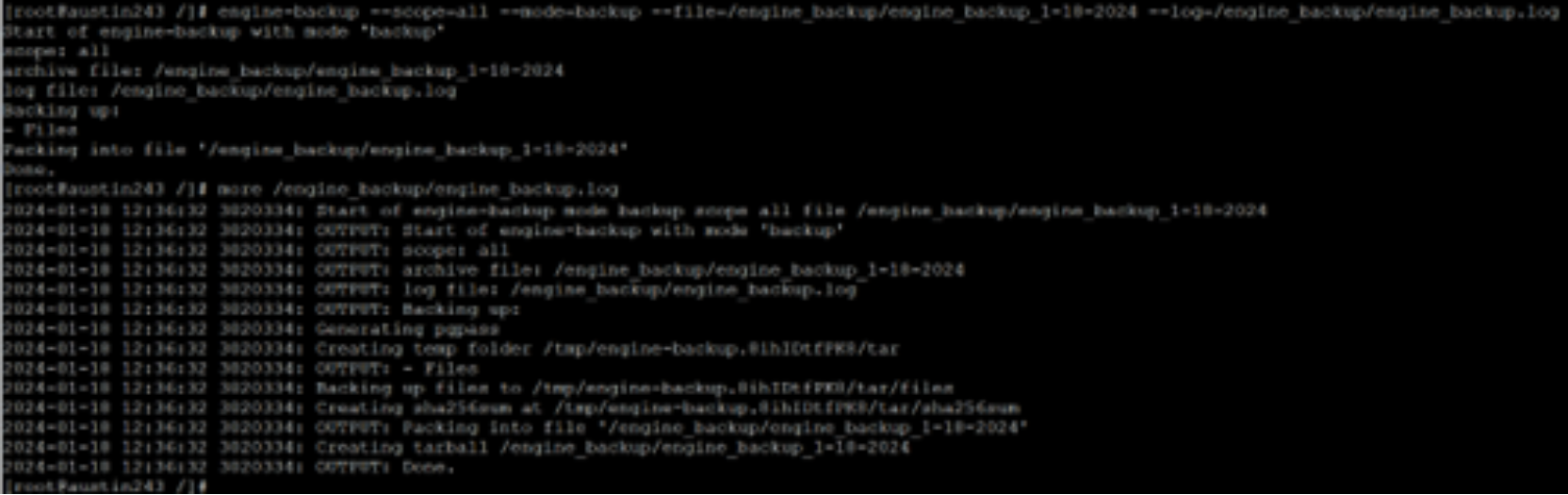
Figure 76. Full backup using utility engine backup
Dell Technologies recommends taking regular backups to ensure restore capabilities.
Protection for KVM on PowerMax
A benefit of using array-based storage for KVM is the ability to use the features of the array, such as local and remote replication. While KVM does offer the ability to take virtual machine-based snapshots, it cannot take a snapshot of the entire storage domain. Such copies can serve multiple purposes, from cloning, to restores and backups. Because storage domains are used to run production applications, it is essential to have a backup strategy in case there is a failure.
PowerMax offers remote replication and snapshot capability for block and file storage through both the UI and the CLI. While remote replication is beyond the scope of this guide, the following sections describe how to create a snapshot in the PowerMax UI for both a block volume and a file system that are in use as storage domains. In addition, snapshot policies are covered.
Block snapshot
FC and iSCSI support block snapshots.
To create a block snapshot:
- In Unisphere for PowerMax, log in and go to Storage > Storage Groups.
- Using the checkbox, select the wanted storage group where the storage domain is provisioned, in this case kvm_fc_domain_sg. Select Protect from the menu, as shown in Figure 77.
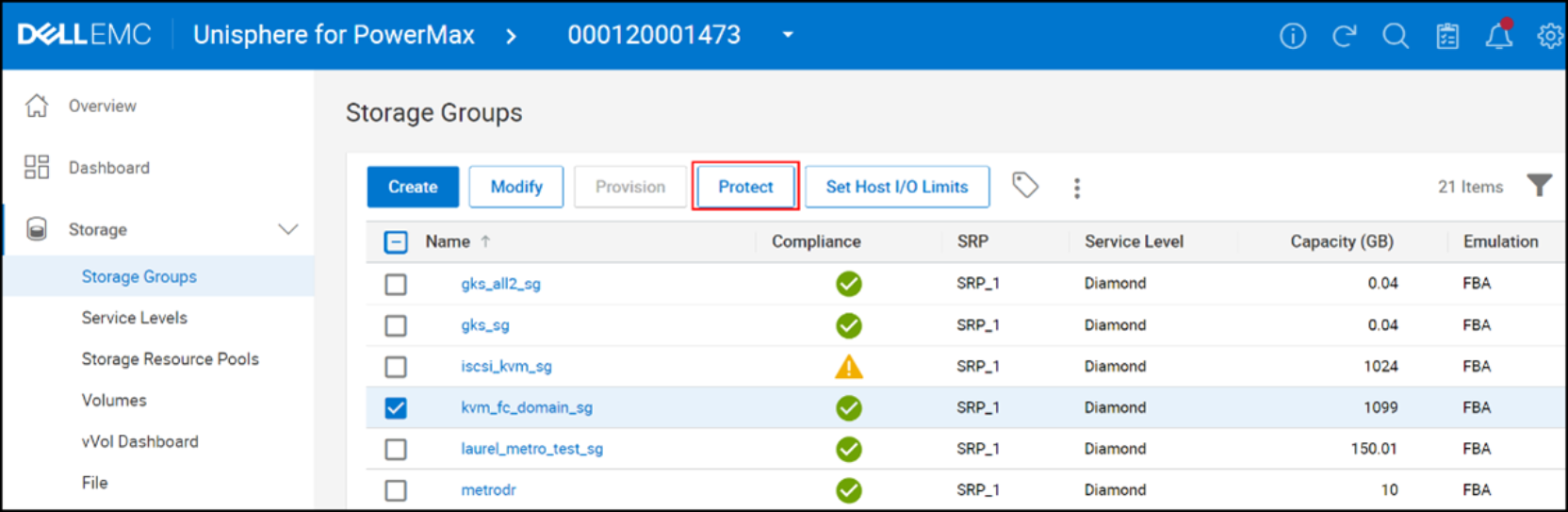
Figure 77. Create snapshot – set protection
- For the Select Technology option, keep the Create a snapshot using SnapVX default, and click Next, as shown in Figure 78:
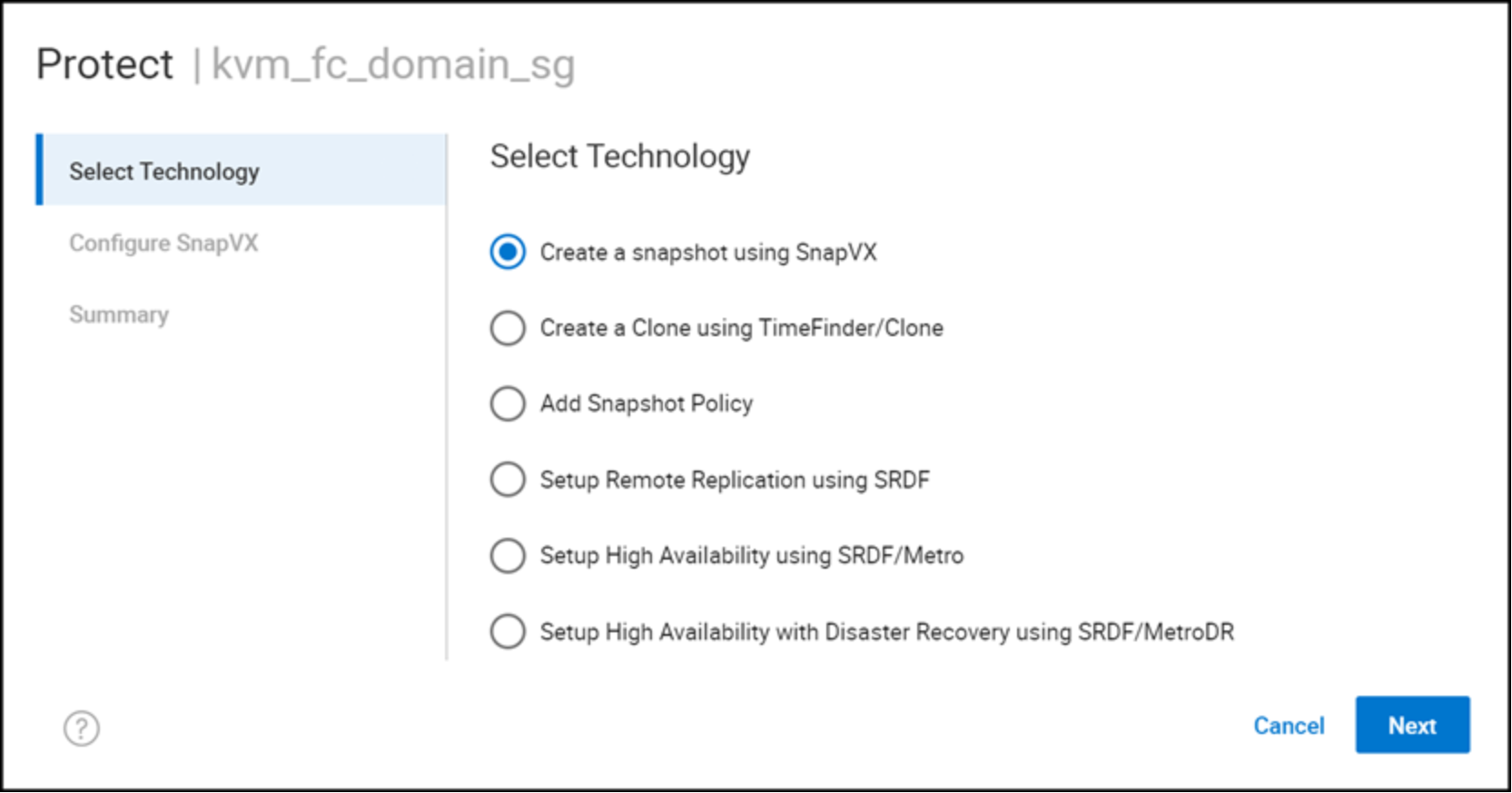
Figure 78. Create snapshot – select technology
- Enter a snapshot name, and optionally, under Expiry Type, a Time to live, as shown in Figure 79. Then the user can set Days or Hours. Otherwise select None. Click Next.
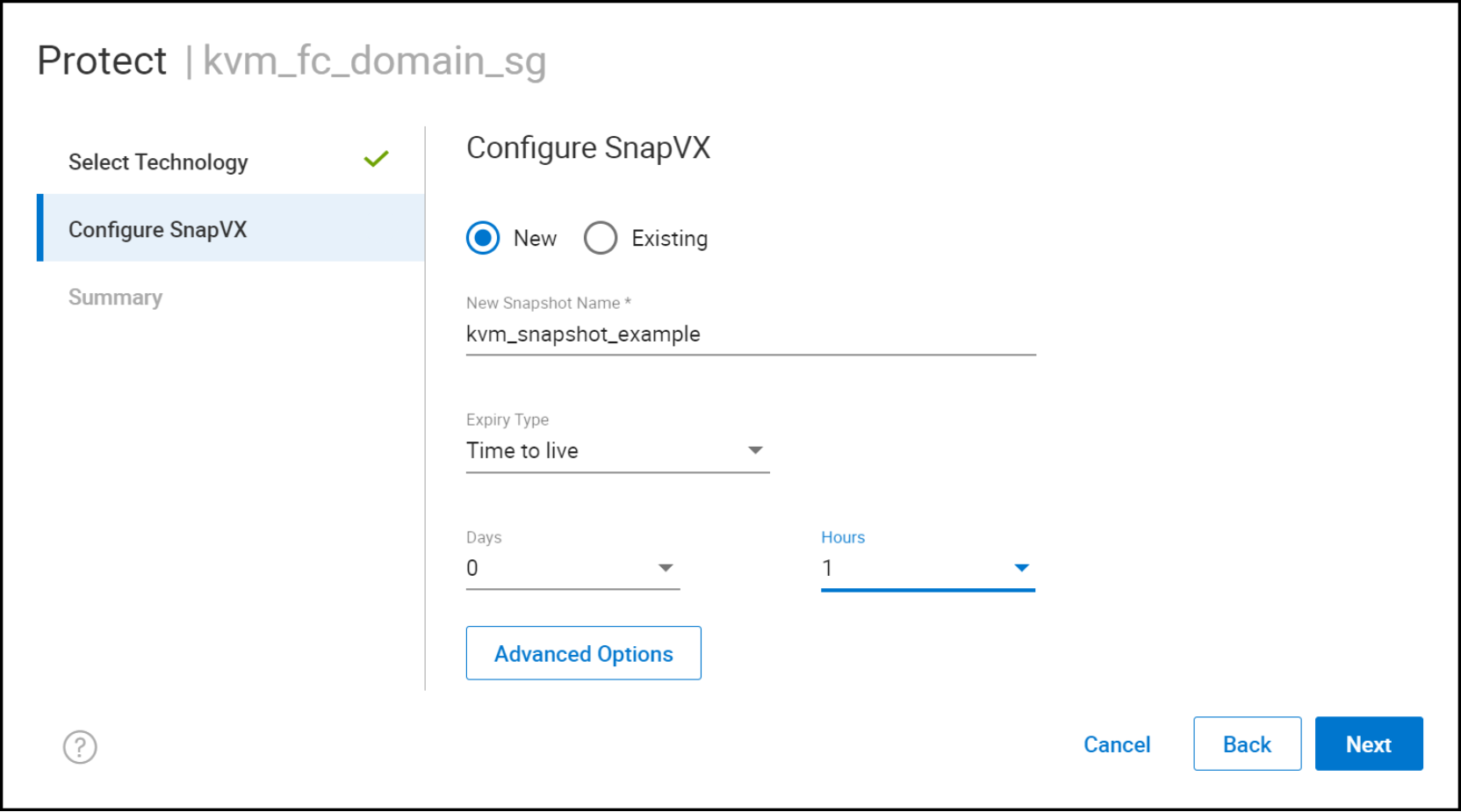
Figure 79. Create snapshot – configure SnapVX
- Review the summary, as shown in Figure 80 and click either:
- Run Now
- Set Schedule, if the user wants to run the job later
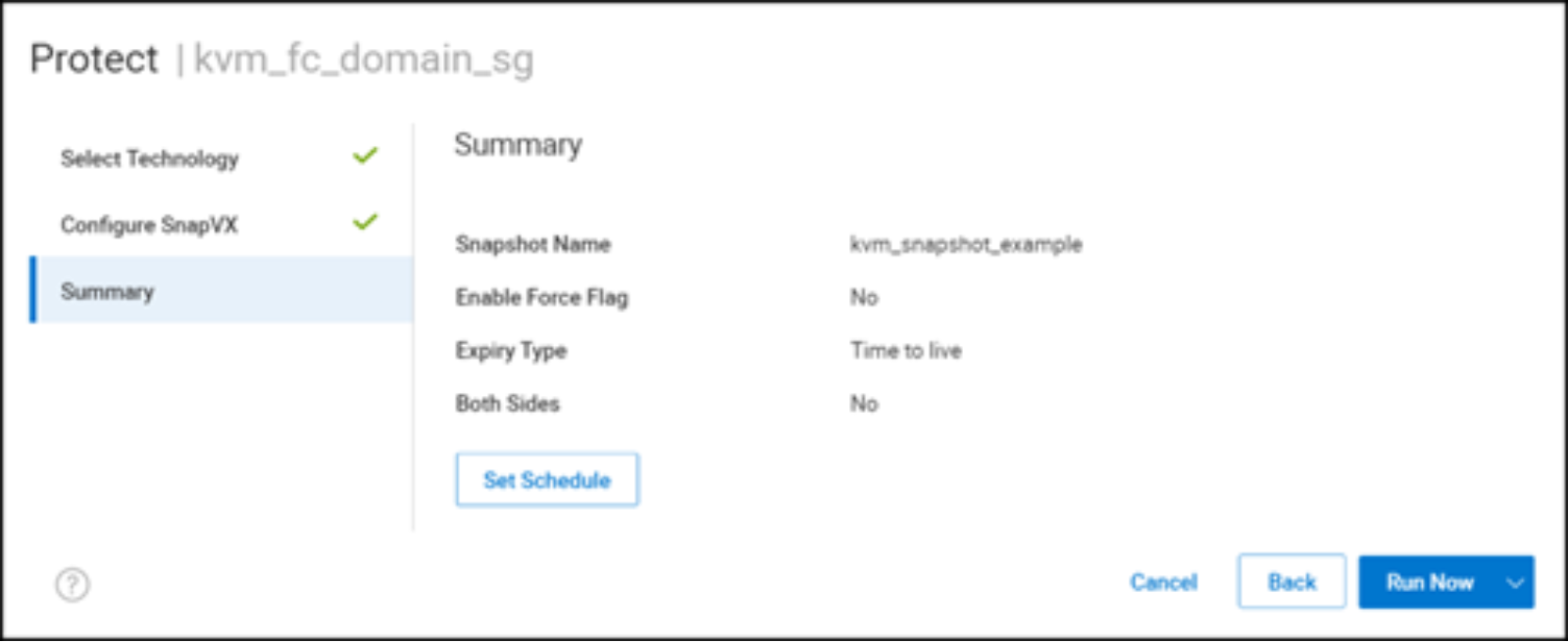
Figure 80. Create snapshot – view summary
Unisphere establishes the snapshot. Figure 81 show the message for a successful completion:
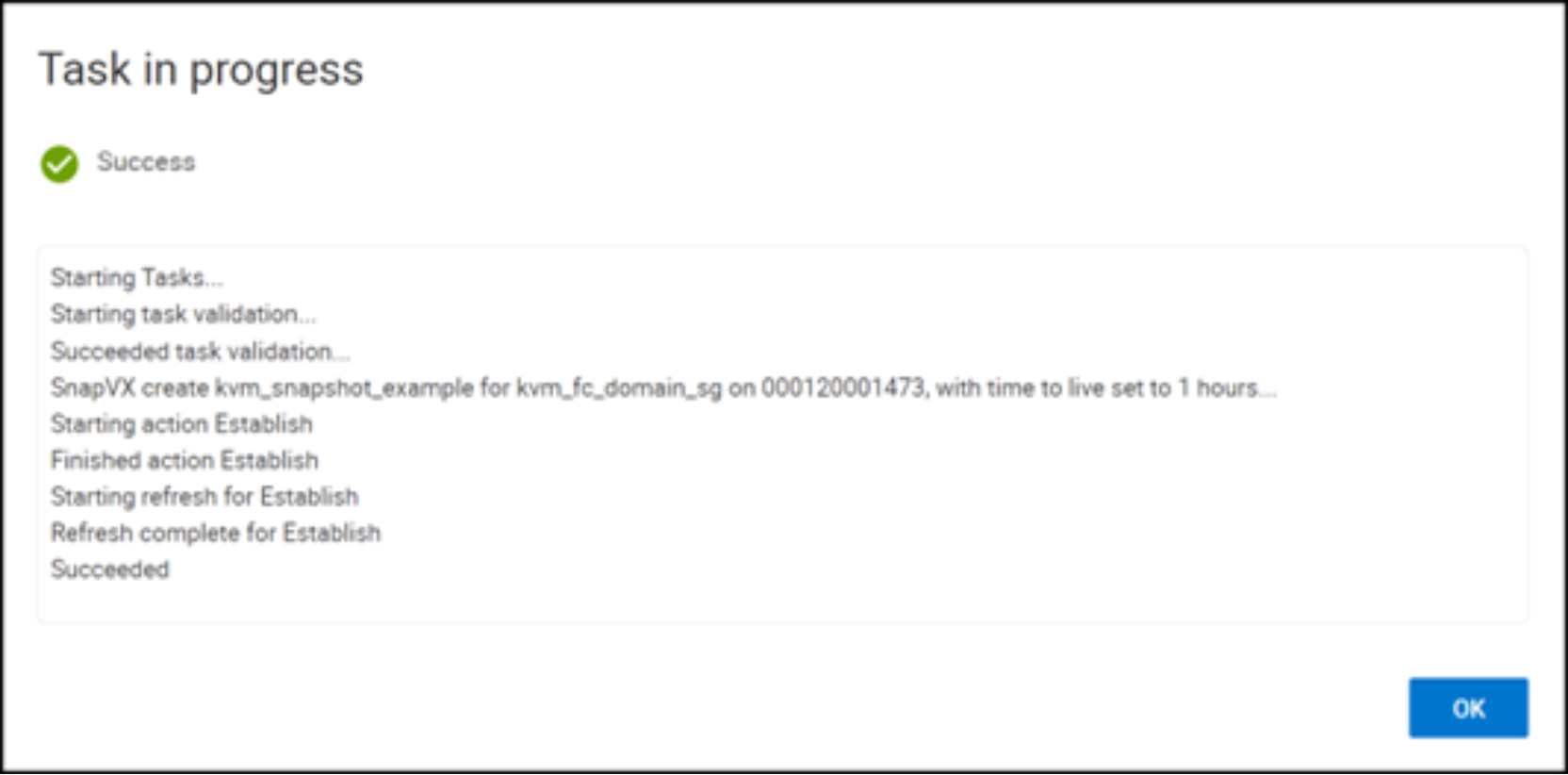
Figure 81. Successful snapshot
After the snapshot is created, it can be linked to a target volume and presented in a masking view to other KVM hosts. Then it is available for use with the oVirt functionality such as importing the storage domain.
File snapshot
To create a file system snapshot:
- Log in to Unisphere and go to Storage -> File -> File Systems.
- Click the chosen file system, which is a hyperlink to its dashboard, in this case ovirt_isos, as shown in Figure 82:
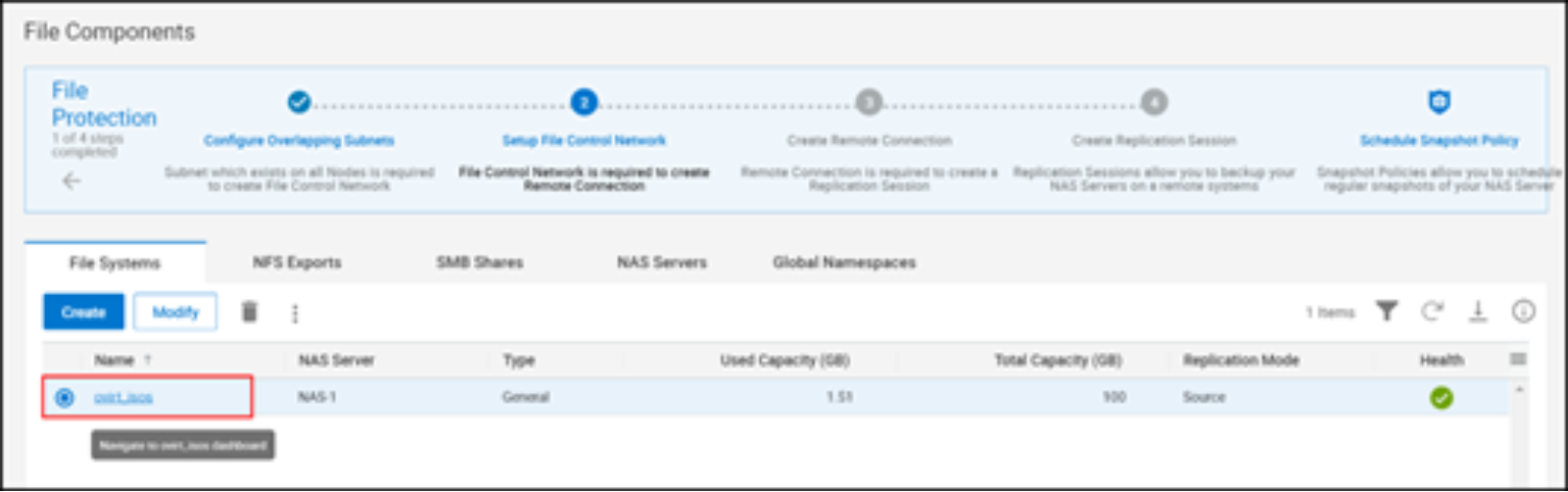
Figure 82. File system snapshot – choose the file system
- Go to Snapshots and select Create, as shown in Figure 83:
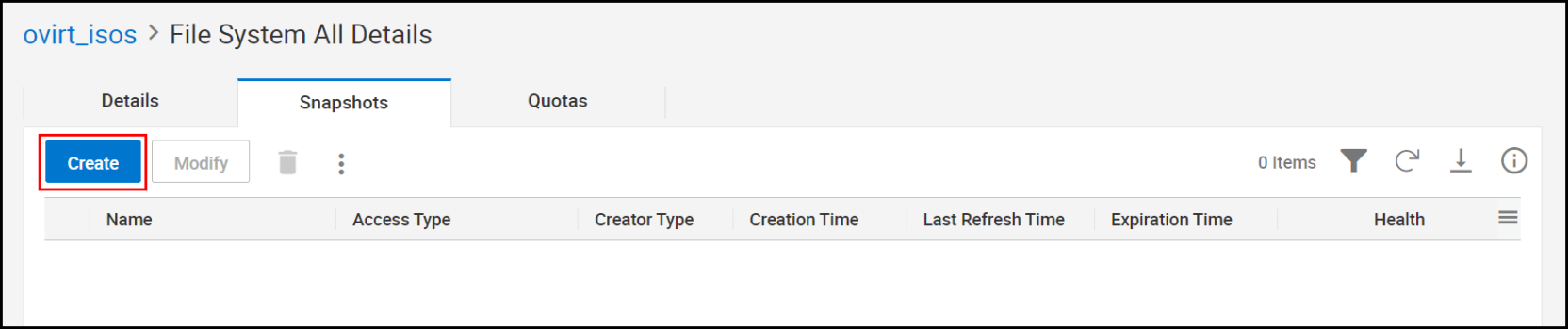
Figure 83. File system snapshot - create snapshot
- In the Create Snapshot of File System window, do the following, as shown in Figure 84:
- Enter a Name, optionally, a Description, and the Service Level.
- The retention period is set to one week by default. The user can set a different retention period or select the No Automatic Deletion Policy for indefinite retention.
- Select one of two types of snapshots that Unisphere presents:
- Protocol (Read-only)─Creates a read-only snapshot that can be mounted and accessed later through NFS export or SMB share. Protocol is selected by default.
- .Snapshot (Read-only)─Creates a read-only automounted snapshot accessible through the snapshot directory in the file system.
- Click Run In The Background to create the snapshot.
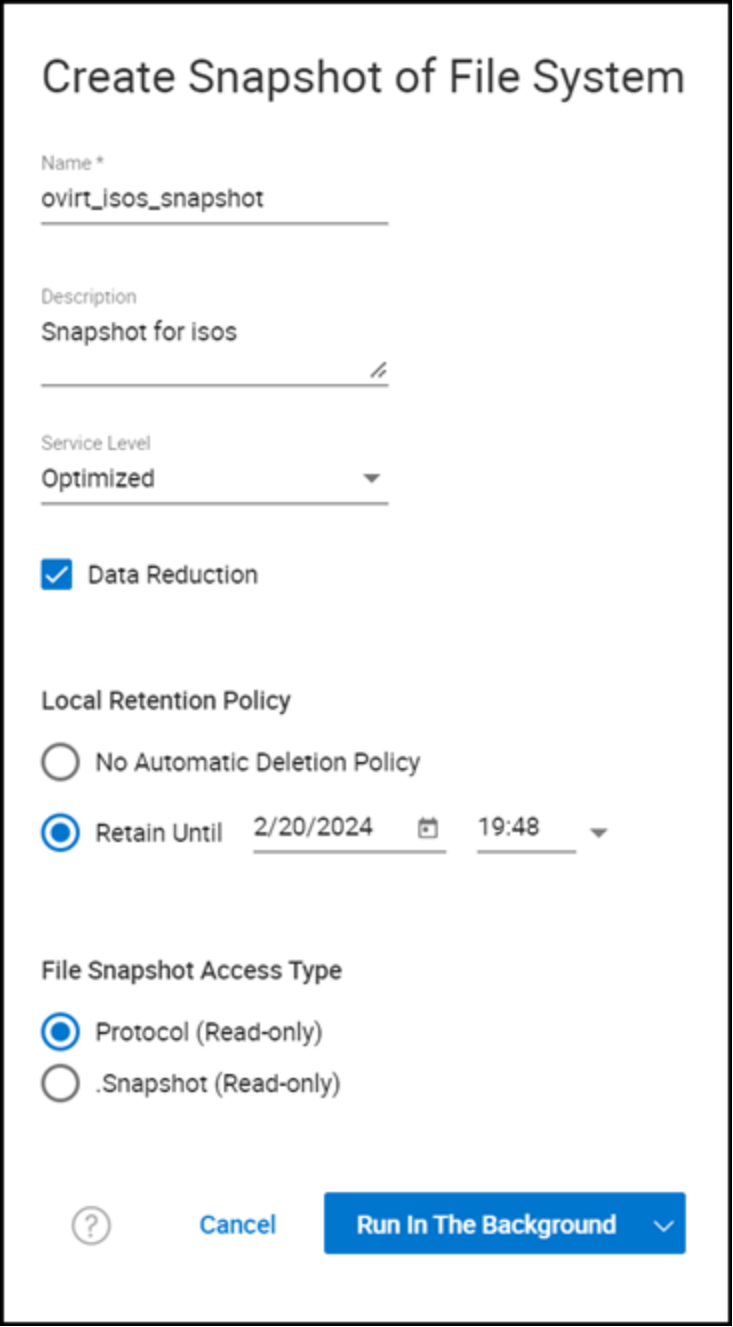
Figure 84. File system snapshot – define the snapshot
For backup and restore purposes, a default protocol snapshot is the best option because it is only mounted when required and does not permit overwriting the data. The .Snapshot snapshot, unlike the Protocol snapshot, is available immediately to the system through the existing NFS file system. This type of snapshot is useful to restore objects quickly in the file system. In Linux, access to the snapshot is through the “.snapshot” directory of the NFS datastore. This directory is not displayed, even when listing hidden files. The user must know that the snapshot exists, and the user must change the directory into .snapshot.
- If the same NFS datastore is also available as an SMB share, access the snapshot by right clicking the share, selecting Properties, and then the Previous Versions tab. Figure 85 shows an unassociated example:
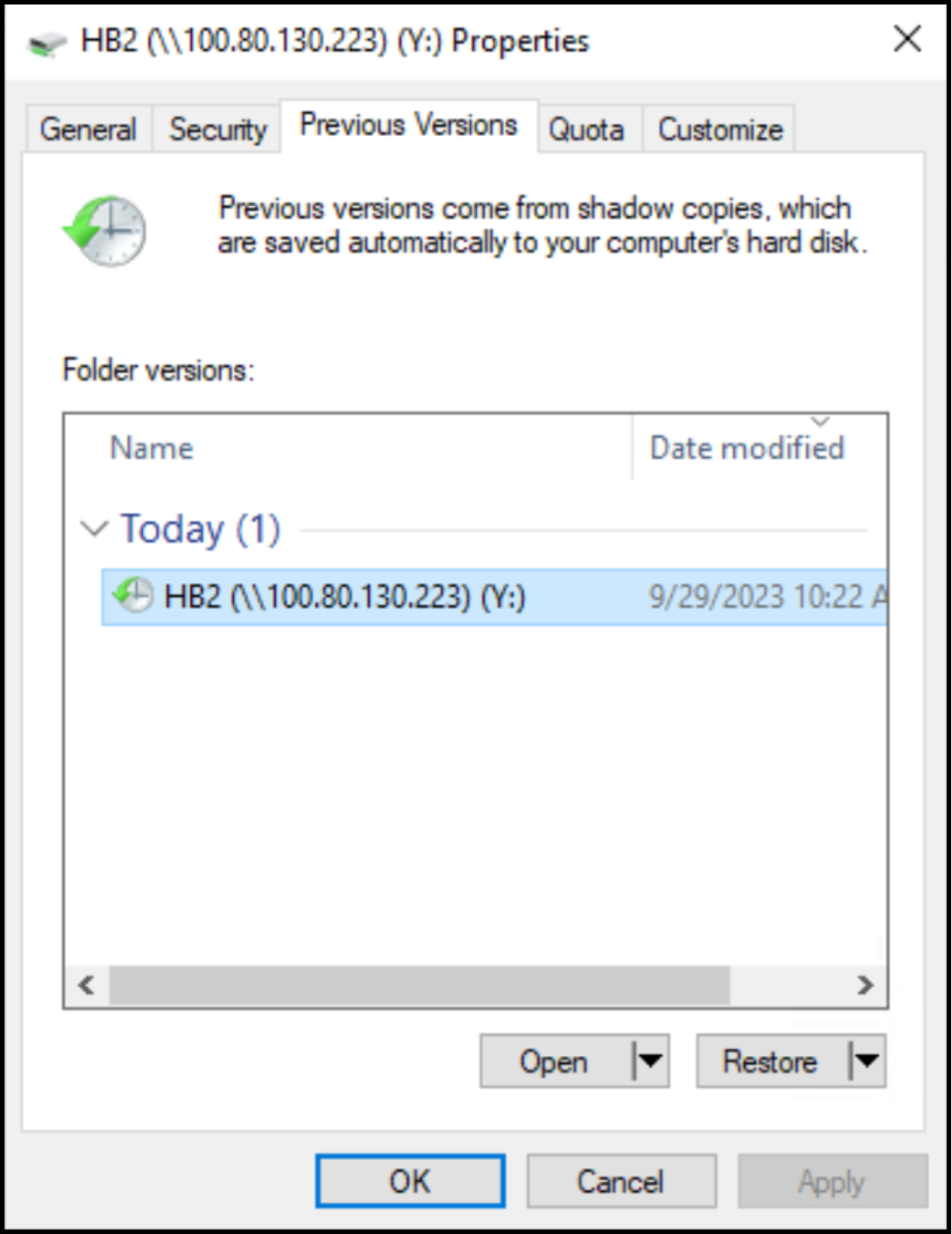
Figure 85. Snapshot access in an SMB share
By opening the folder, the objects in the snapshot are available to restore.
Protection policies
In addition to individual snapshots, in Unisphere the user can set up protection policies that consist of snapshot rules that automate how often to take a snapshot of a storage group or file system, and how long to retain them. A storage group or file system might only have a single protection policy that is assigned to it. Because both block and file protection policies are similar, it is unnecessary to include both.
To create a protection policy for a file system:
- In the Unisphere menu on the left, go to Data Protection -> File Protection -> Snapshot Policy.
- In the Snapshot Policy tab, click Create.
- Enter the following information, as shown in Figure 86 and then click OK:
- NAS Server
- Name
- Recovery Point Objective─The default is one daily snapshot at midnight, retaining 14 copies (two weeks). The drop-down lists offer 10 minutes at minimum, but also hourly, daily, and weekly. Snapshots can be kept for hours, days, weeks, or months.
- File Snapshot Access Type─See the previous section for information about these types.
- Replicate Snapshot Policy─By default, this option is selected.
- Enable Snapshot Policy─By default, this option is selected.
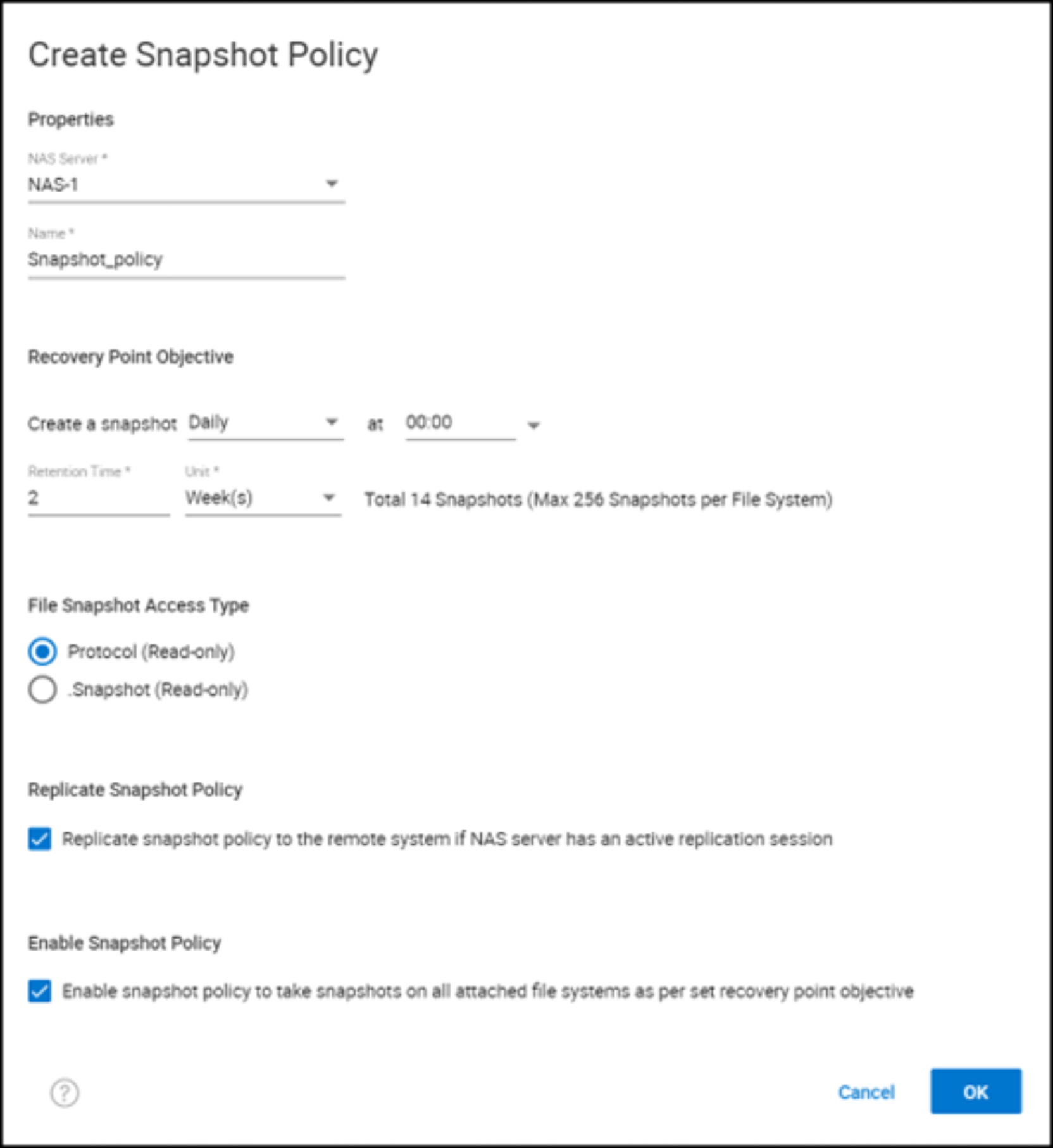
Figure 86. Create protection policy
- Assign a file system, as shown in Figure 87:
- Go to Storage -> File -> File Systems.
- Click the radio button next to the file system to select it.
- Click the three vertical dots and select Attach Snapshot Policies.
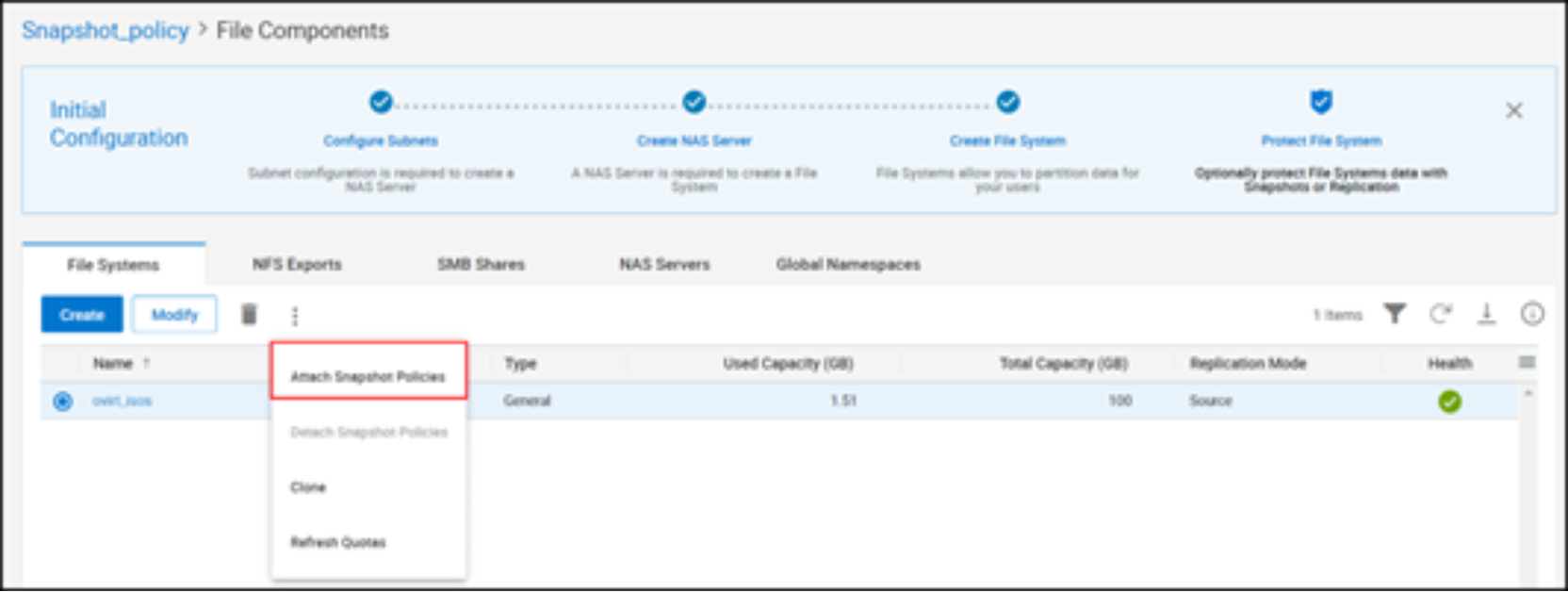
Figure 87. Attach a snapshot policy to the file system
- Using the checkboxes, select the wanted snapshot policy and click Add, as shown in Figure 88:
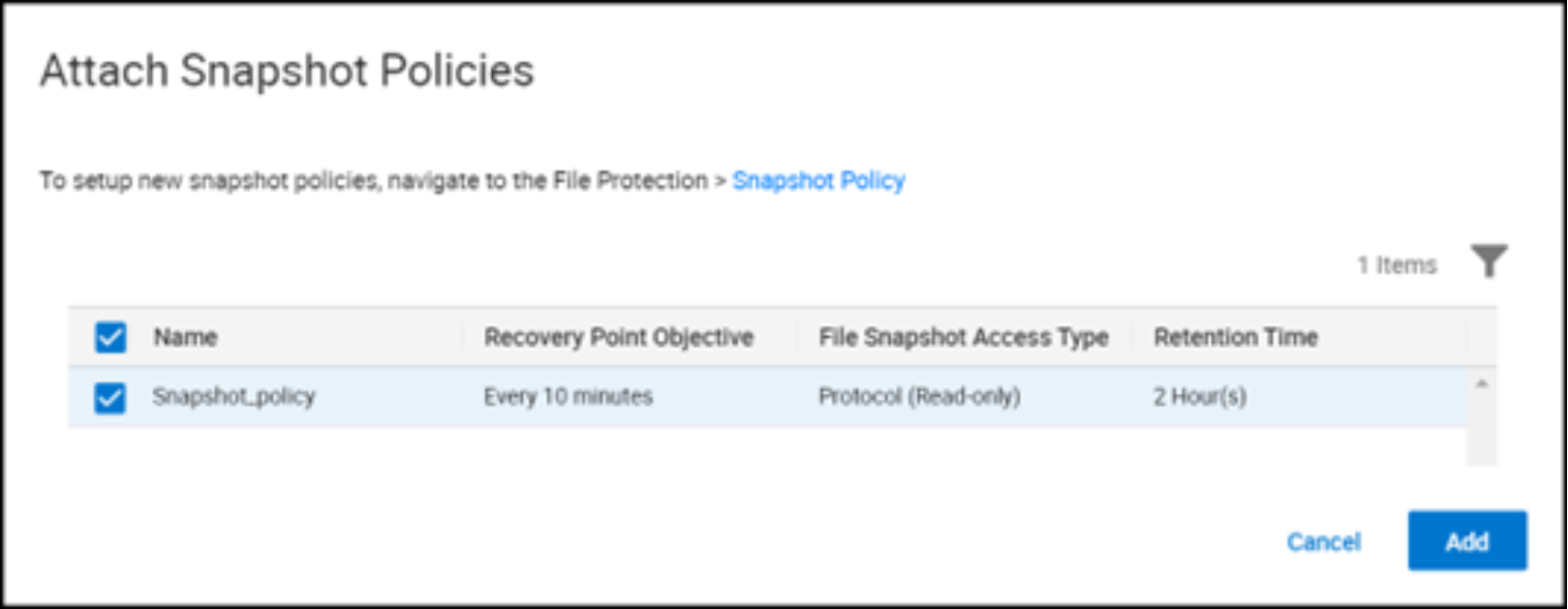
Figure 88. Attach snapshot policy to the file system – select snapshot policy
The policy remains in effect for that file system until it is either detached, or the snapshot policy itself is disabled.
Virtual Machines
Introduction
Prerequisites
Complete the following prerequisites before creating the first virtual machine in the environment.
Image upload
To create a virtual machine with an operating system, the user must add OVAs or ISOs to a storage domain. There is no ability to load an ISO file from the local system when creating a new virtual machine. Dell Technologies recommends using an NFS storage domain on the PowerMax for this file type. In the following example, the isorep NFS storage domain is designated for this purpose.
- Highlight the domain and click the name, which is a hyperlink, as shown in Figure 89:
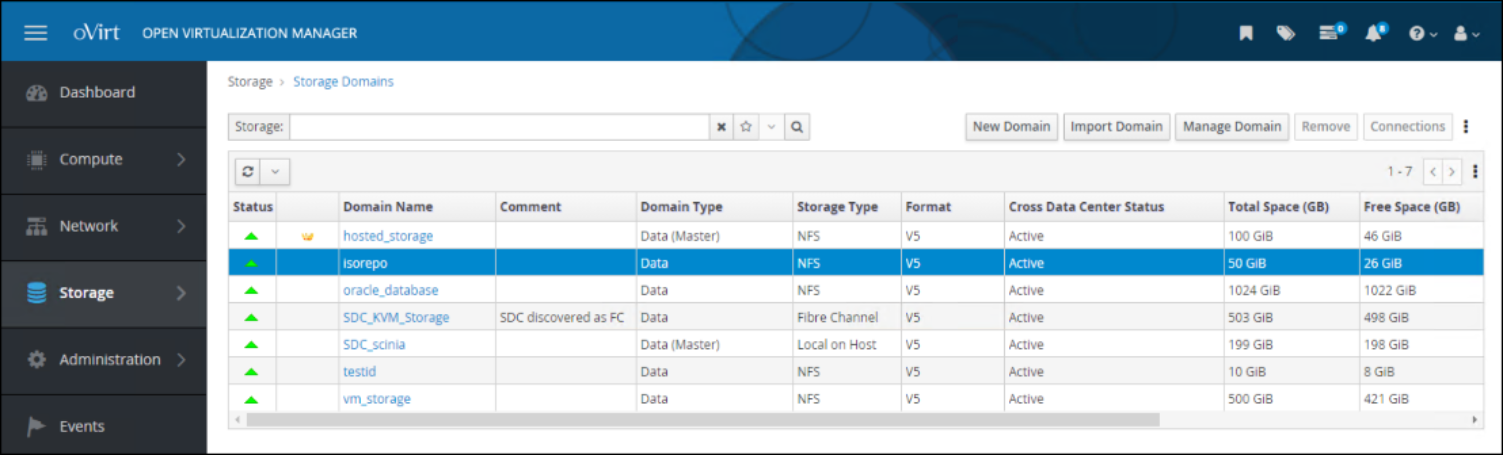
Figure 89. ISO repository
- From the options at the top, click Disks and from the Upload drop-down list on the right, select Start, as shown in Figure 90:
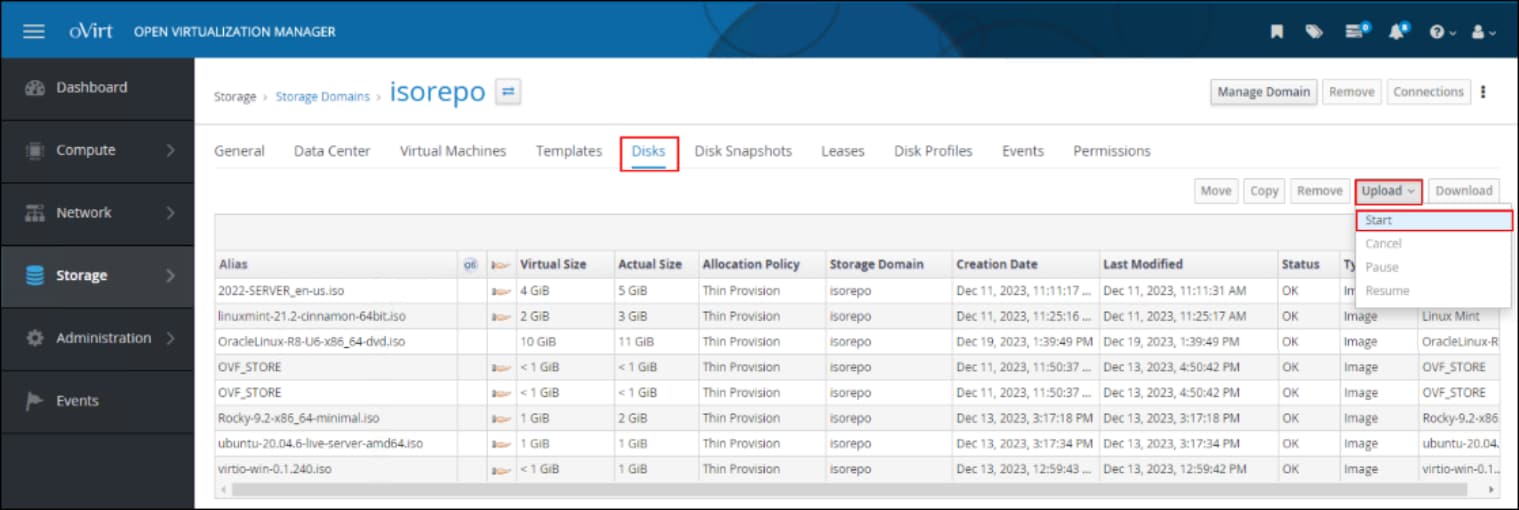
Figure 90. Upload ISO
- Click Choose File to select the wanted ISO, click Test Connection, and then click OK, as shown in Figure 91:
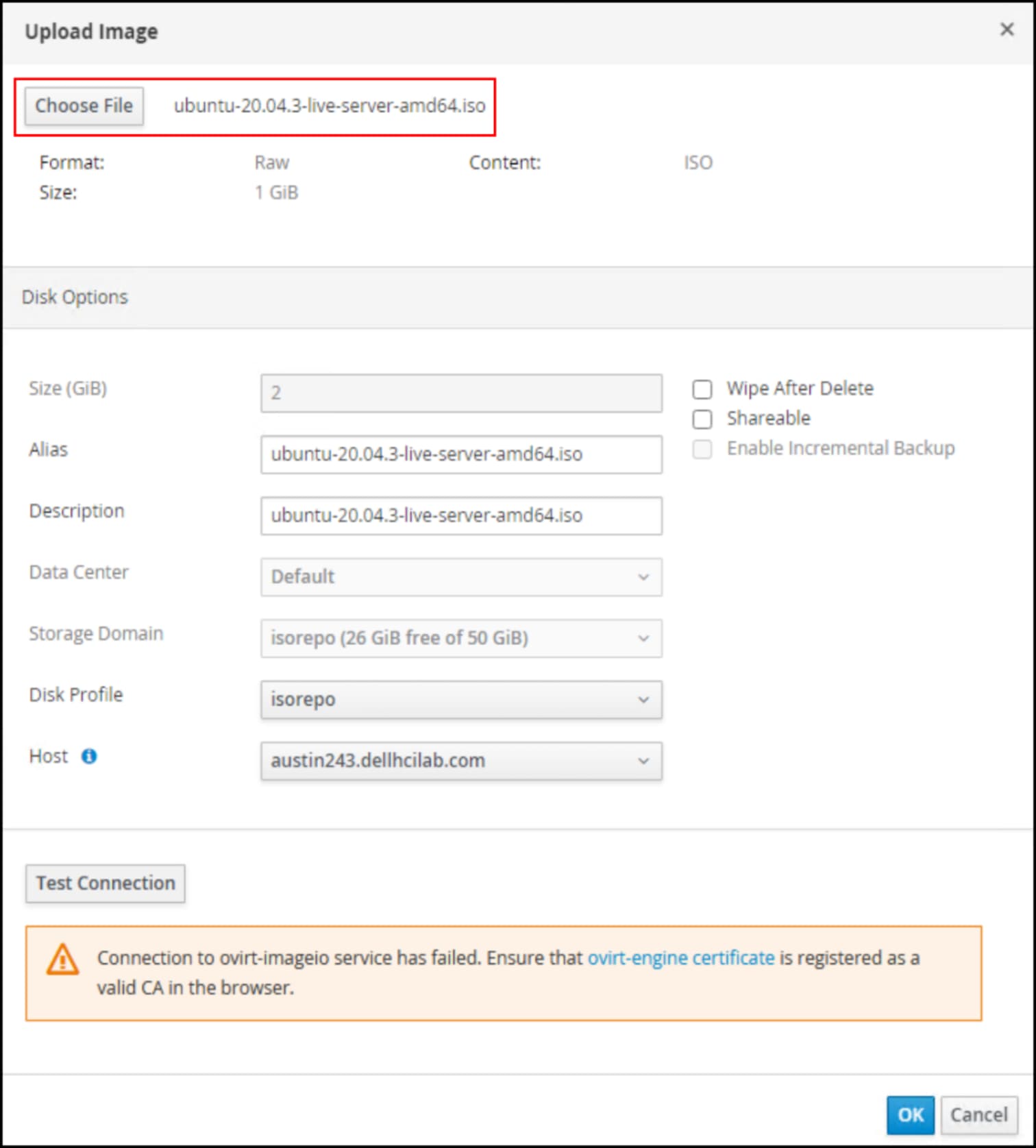
Figure 91. Failed connection to ovirt-imageio service
In this example, the upload fails because of a certificate issue, which is a common problem with the first upload. As the error message notes, the user can resolve the issue by uploading the certificate to the browser in use. oVirt provides a hyperlink to the certificate in the error message. Click the link, which prompts the user to save the pki-resource file. Save this file on the local system and, optionally, rename it.
- Open the utility in the browser that handles certificates. Under the Authorities tab, click Import and select the previously saved certificate file, as shown in the example in Figure 92:
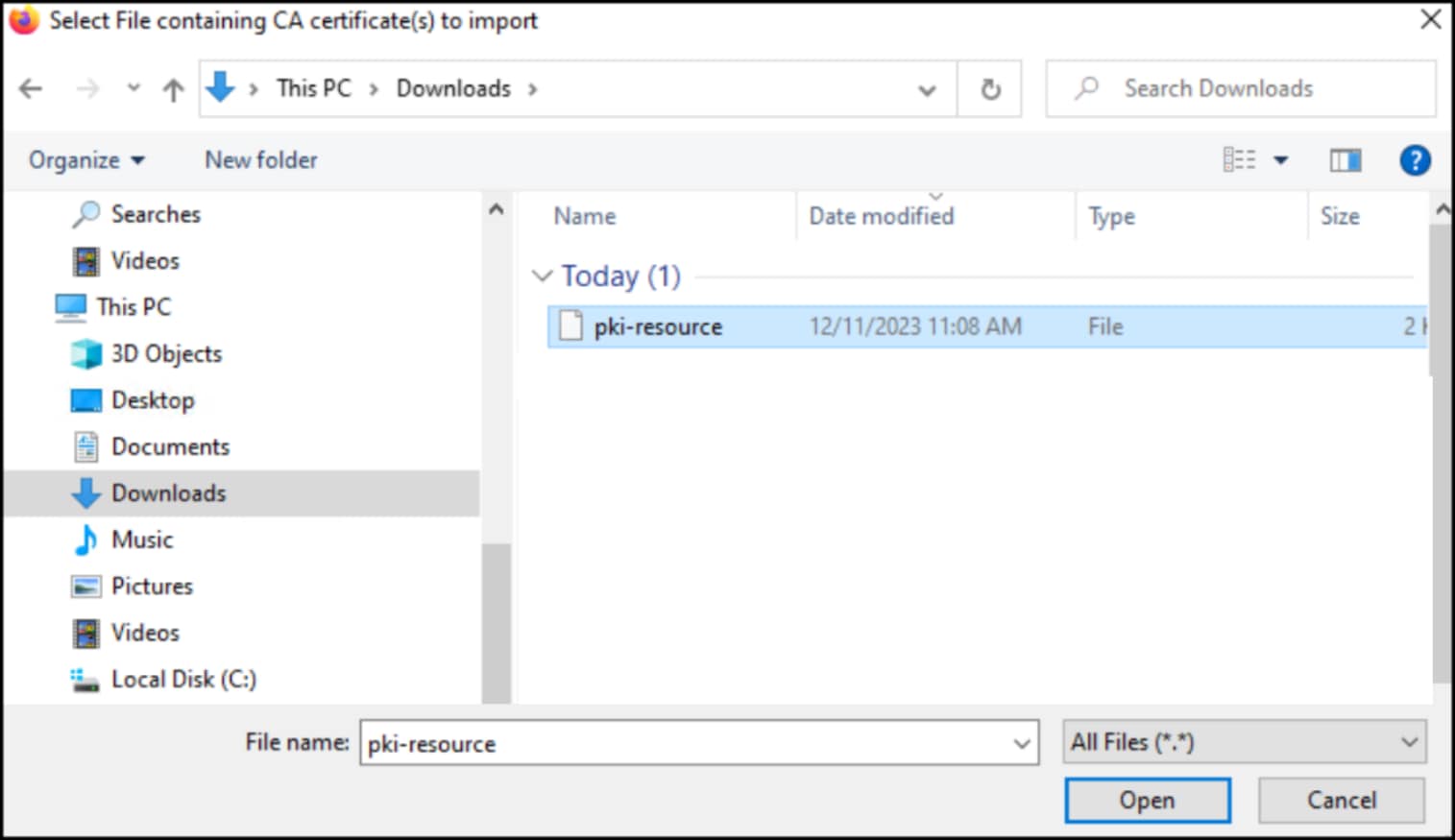
Figure 92. Import certificate
- When the utility prompts if the user wants to trust the CA certificate, select the appropriate checkboxes and click OK as shown in Figure 93.
Note: In this example, the browser is Mozilla Firefox and thus Certificate Manager is the utility.
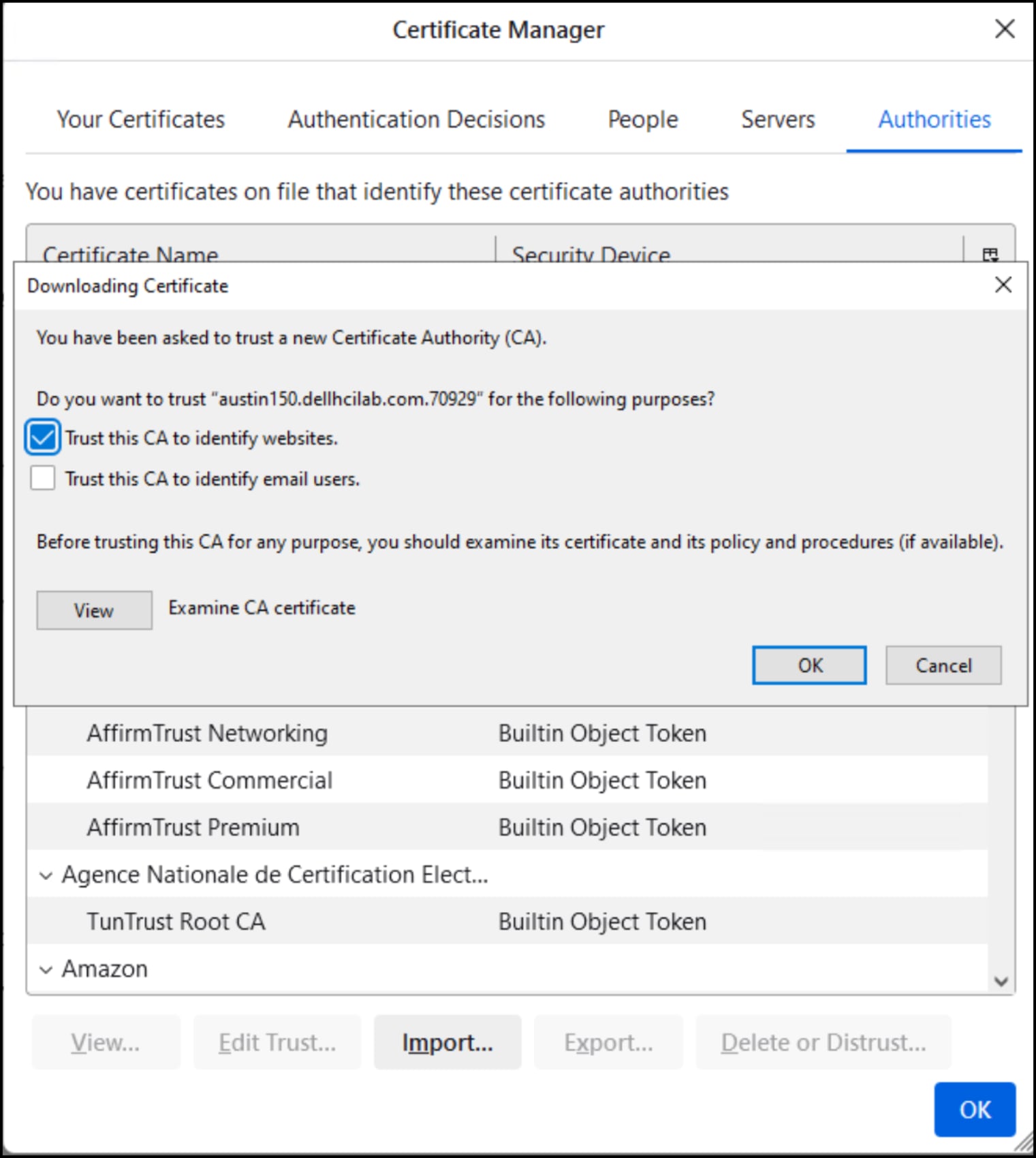
Figure 93. Browser Certificate Manager
- When the import is completed, retry the ISO upload operation.
Figure 94 shows that the operation succeeded:
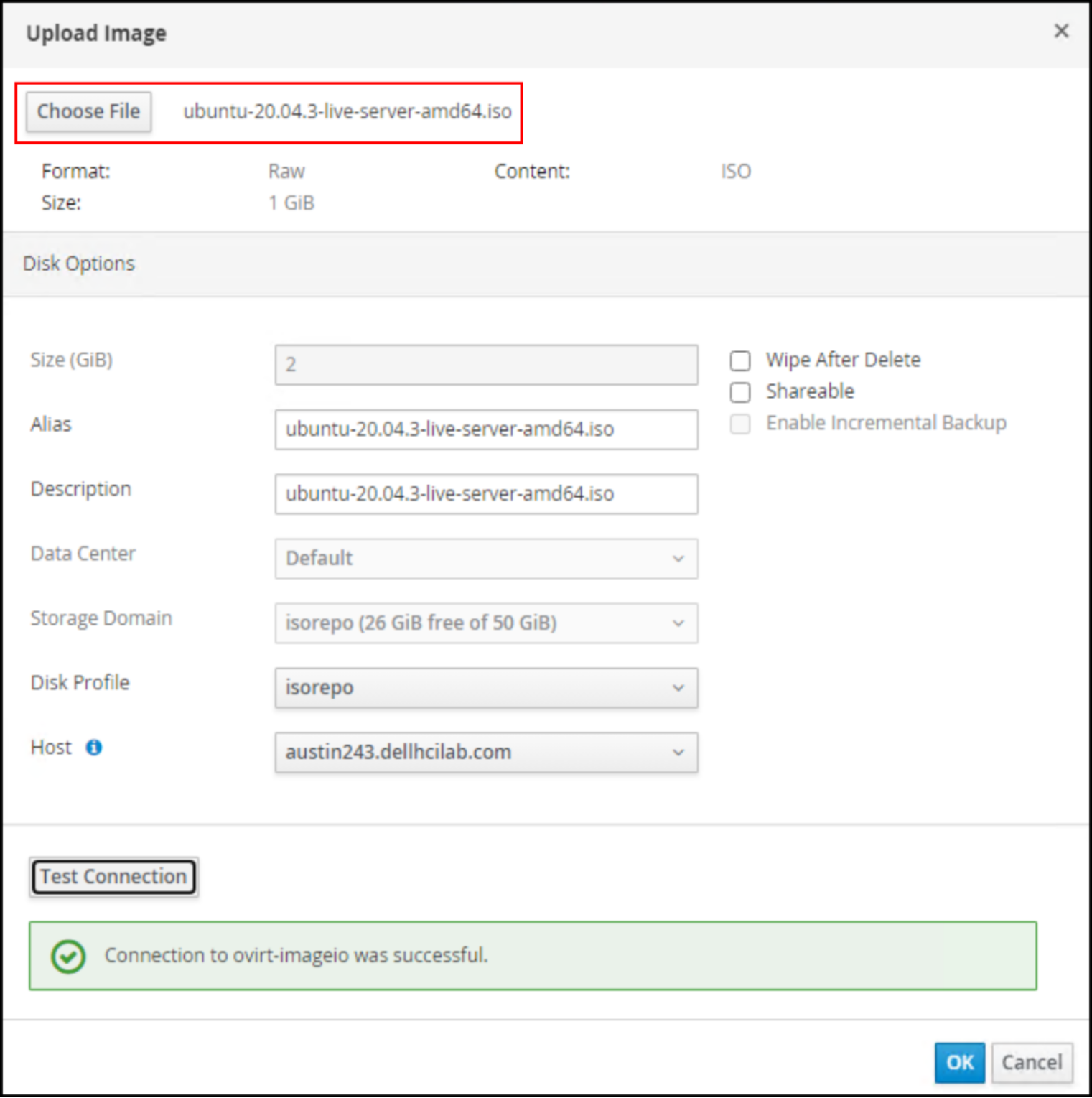
Figure 94. Upload ISO – step 2
The user can watch the status until it completes, as shown in Figure 95. The user can upload multiple ISOs at once.
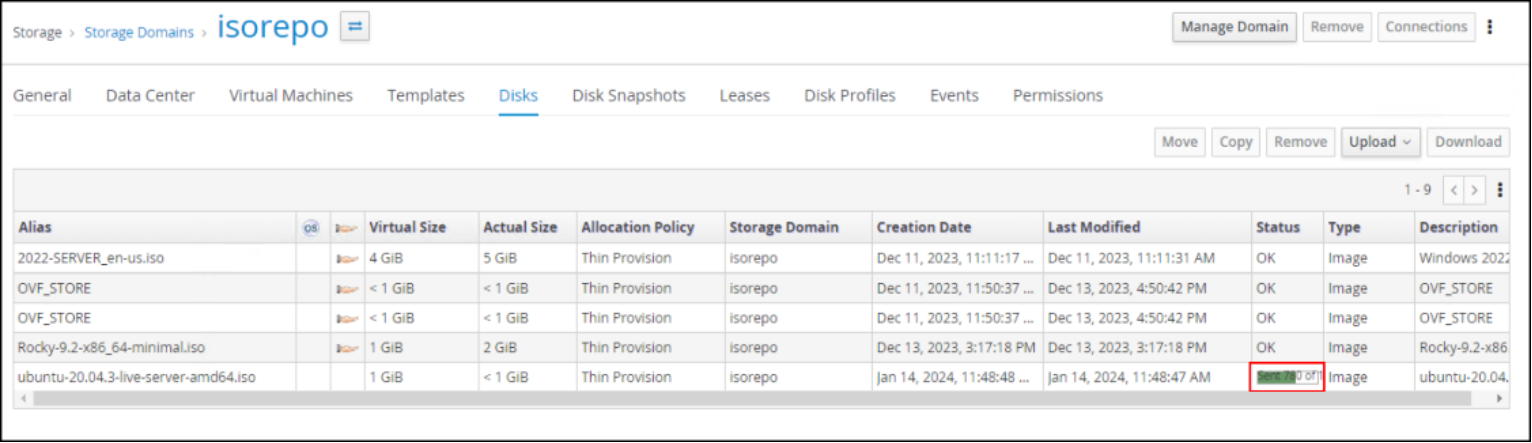
Figure 95. Upload ISO - status
- Repeat the upload process for all wanted ISOs and OVAs. Note that importing the certificate is a one-time operation if the same browser is used for all files.
Virtual Machine Viewer
Before creating a virtual machine, install the Virtual Machine Viewer software on the host where the KVM environment is accessed. This software enables the user to connect to the virtual machine console and install the operating system. The software is available at the following URL: https://virt-manager.org/download.html.
Create virtual machines
To create virtual machines:
- In OVM, go to Compute -> Virtual Machines and click New to open the virtual machine wizard, as shown in Figure 96:
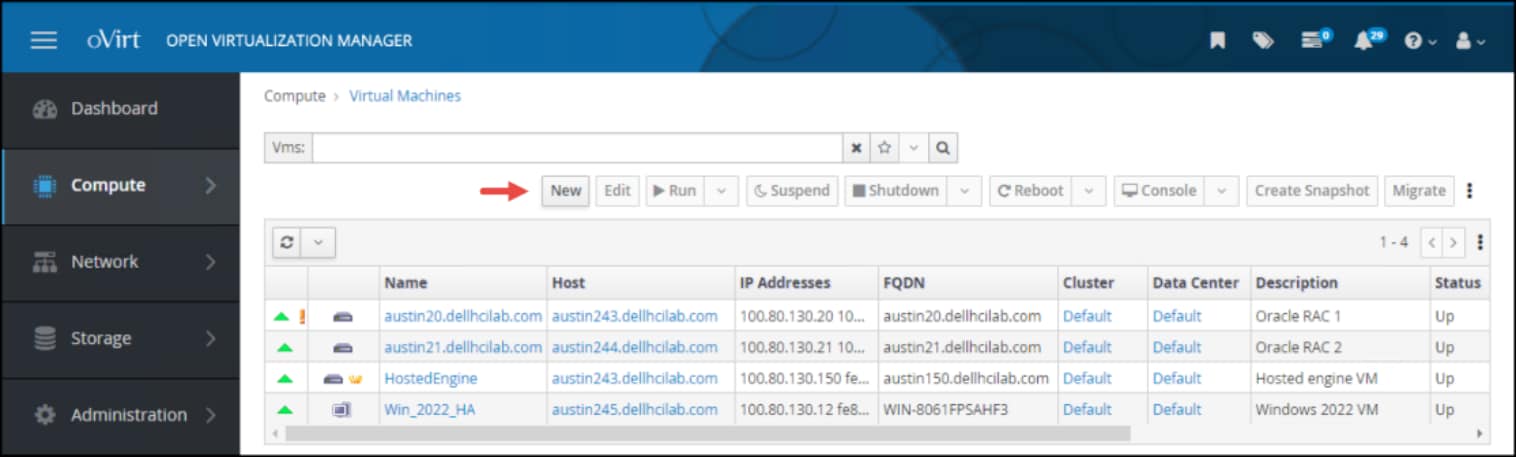
Figure 96. OVM VM creation – open wizard
- In the General window, as shown in Figure 97, complete the following fields and then click Create:
- Operating System
- Name
- Description (optional)
- nic1
Note: A Microsoft Windows operating system requires additional steps because the VirtIO drivers are not present to discover the virtual disk for install. These drivers are available in any number of repositories online along with instructions about how to implement them.
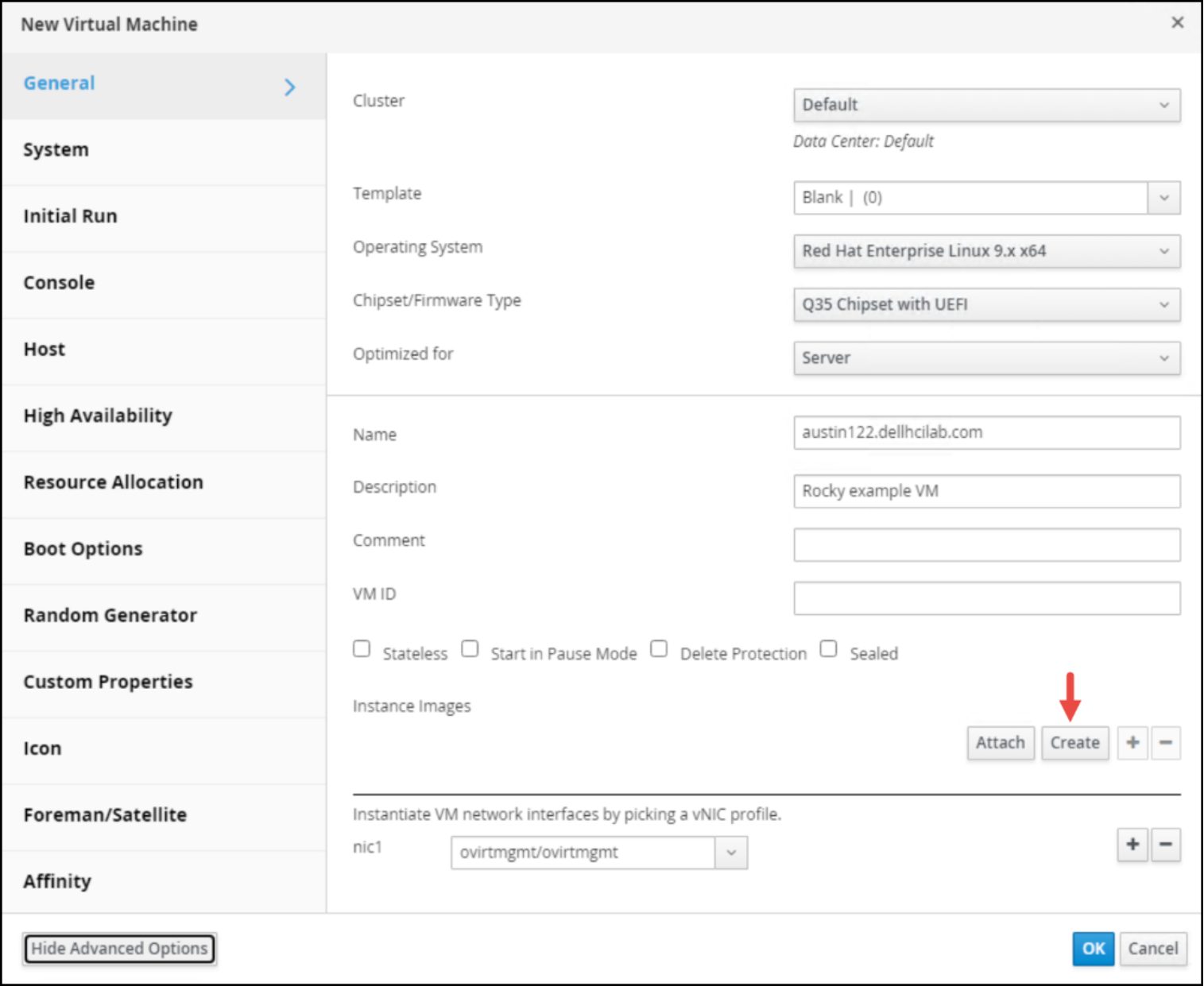
Figure 97. OVM VM creation – define virtual machine
- In the New Virtual Disk dialog, complete the fields, as shown in Figure 98:
- Description (optional)
- Storage Domain
- Allocation Policy (defaults based on storage domain type)
Leave the checkboxes in their default state and click OK to return to the General dialog.
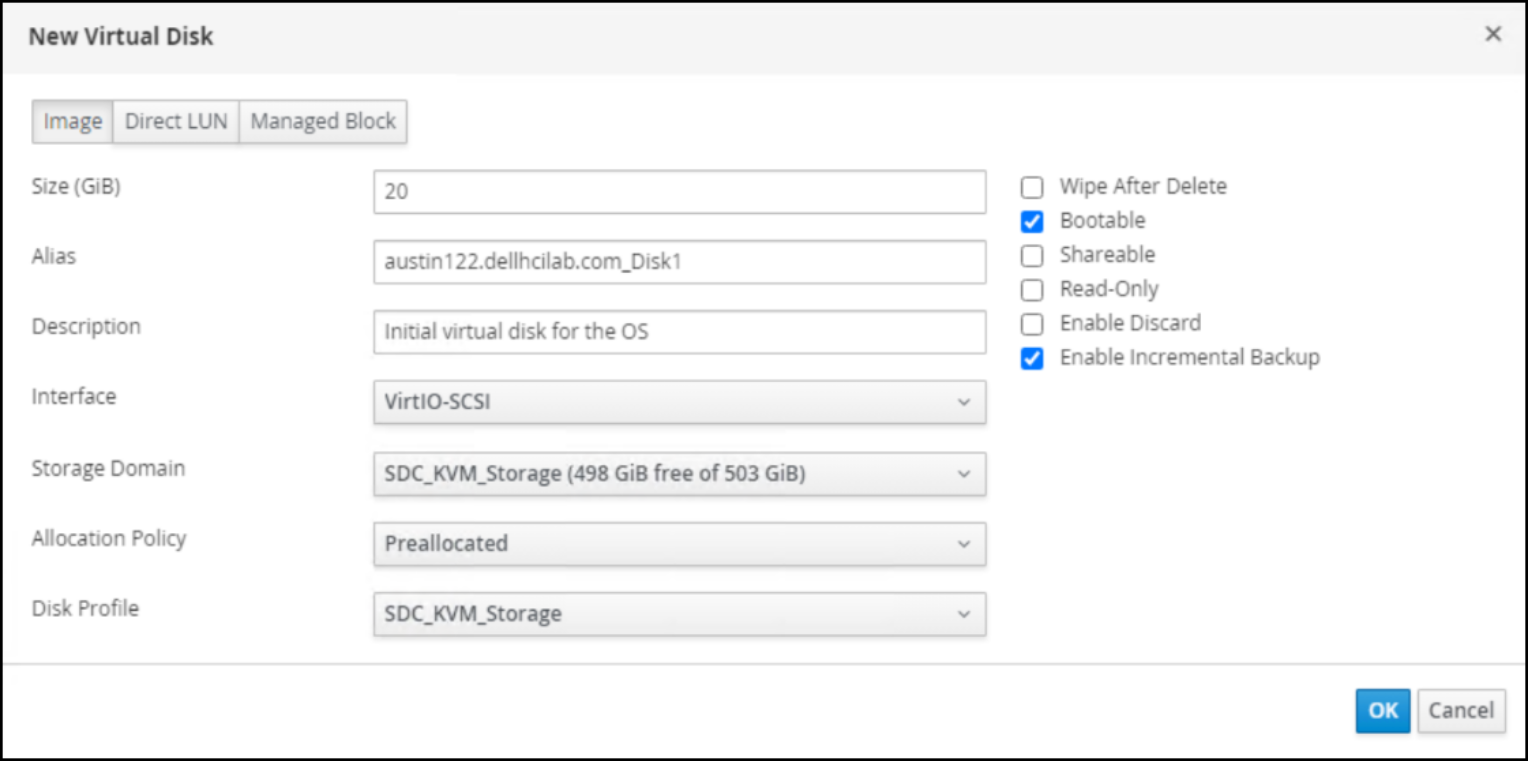
Figure 98. OVM VM creation – define new virtual disk
- Note that the new Instance Images is displayed, as shown in Figure 99, and click OK to create the virtual machine.
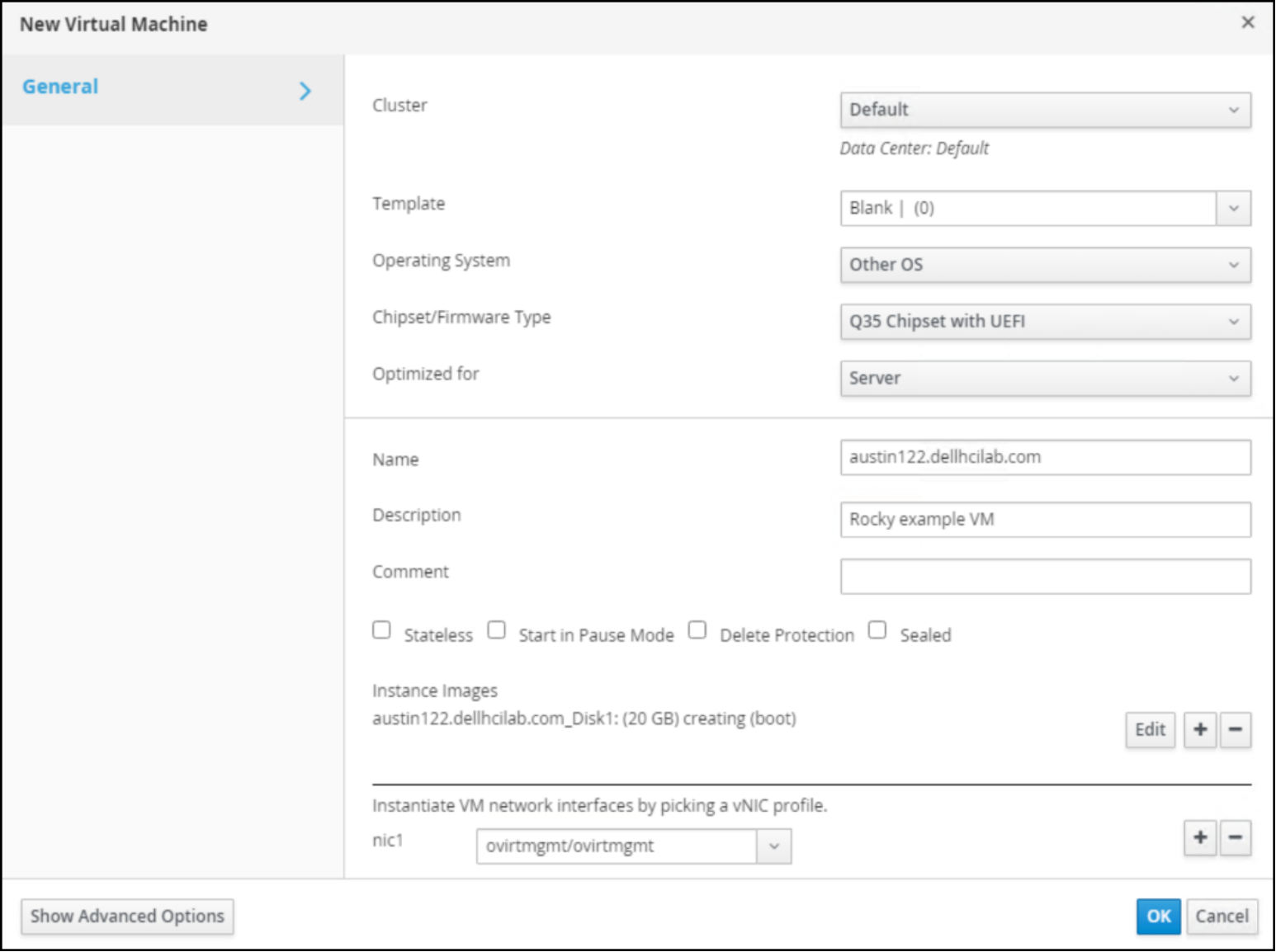
Figure 99. OVM VM creation – view instance image
The user can add as many disks as wanted, though only one can be Bootable. The virtual machine defaults to one vCPU and 1 GB RAM.
The virtual machine creation time depends on the number of virtual disks that are created, their size, and whether they are preallocated.
- Attach the appropriate bootable ISO to the virtual machine:
Note: Although it can be assigned during the virtual machine creation, OVM offers the ability to attach the ISO so it is only used for the first power on.
- To enable this feature, highlight the newly created virtual machine.
- Find the Run button and use the drop-down list to select Run Once.
The following dialog is displayed, as shown in Figure 100:
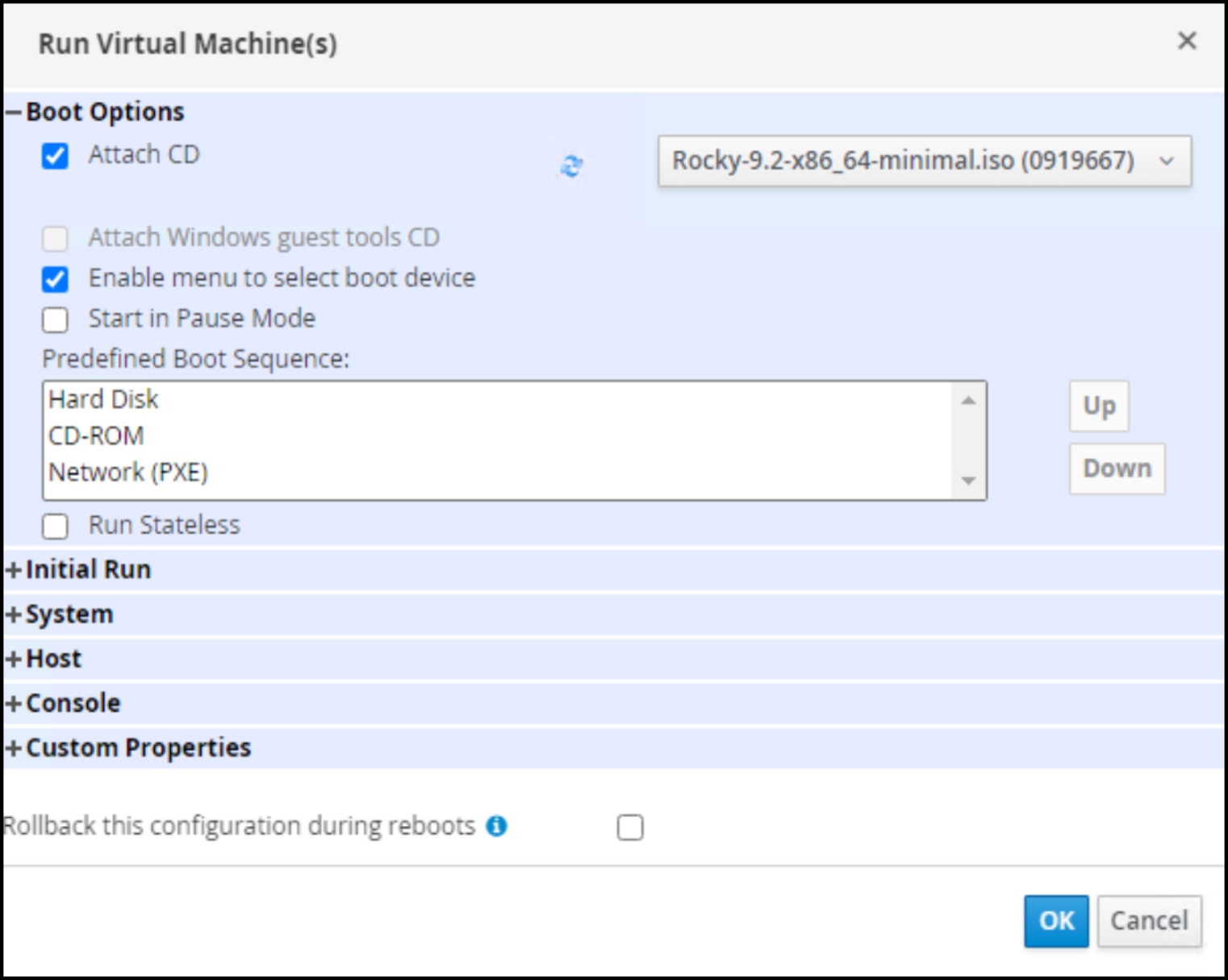
Figure 100. OVM VM creation – attach the bootable ISO
- Expand the Boot Options section.
- Enable the Attach CD checkbox and use the drop-down list next to it to pick the correct ISO file.
- Click OK, which immediately powers on the virtual machine.
The virtual machine boots to the ISO.
- Highlight the virtual machine and note that it has been assigned a host, as shown in Figure 101:
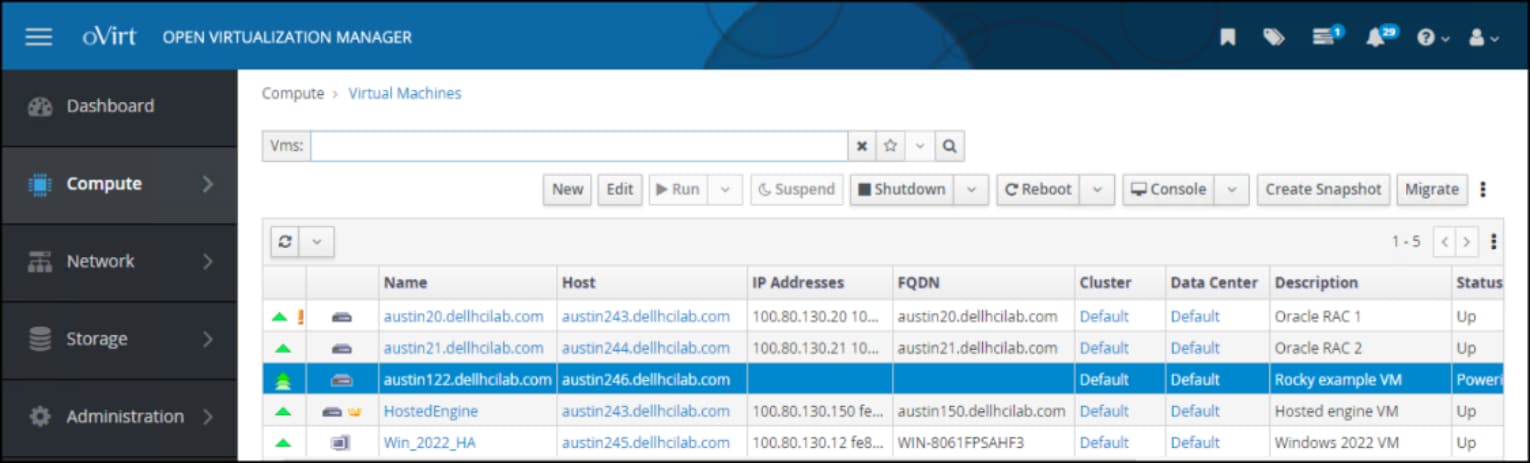
Figure 101. OVM VM creation – step 6
- Click the Console to display the Virtual Machine Viewer as shown in Figure 102:
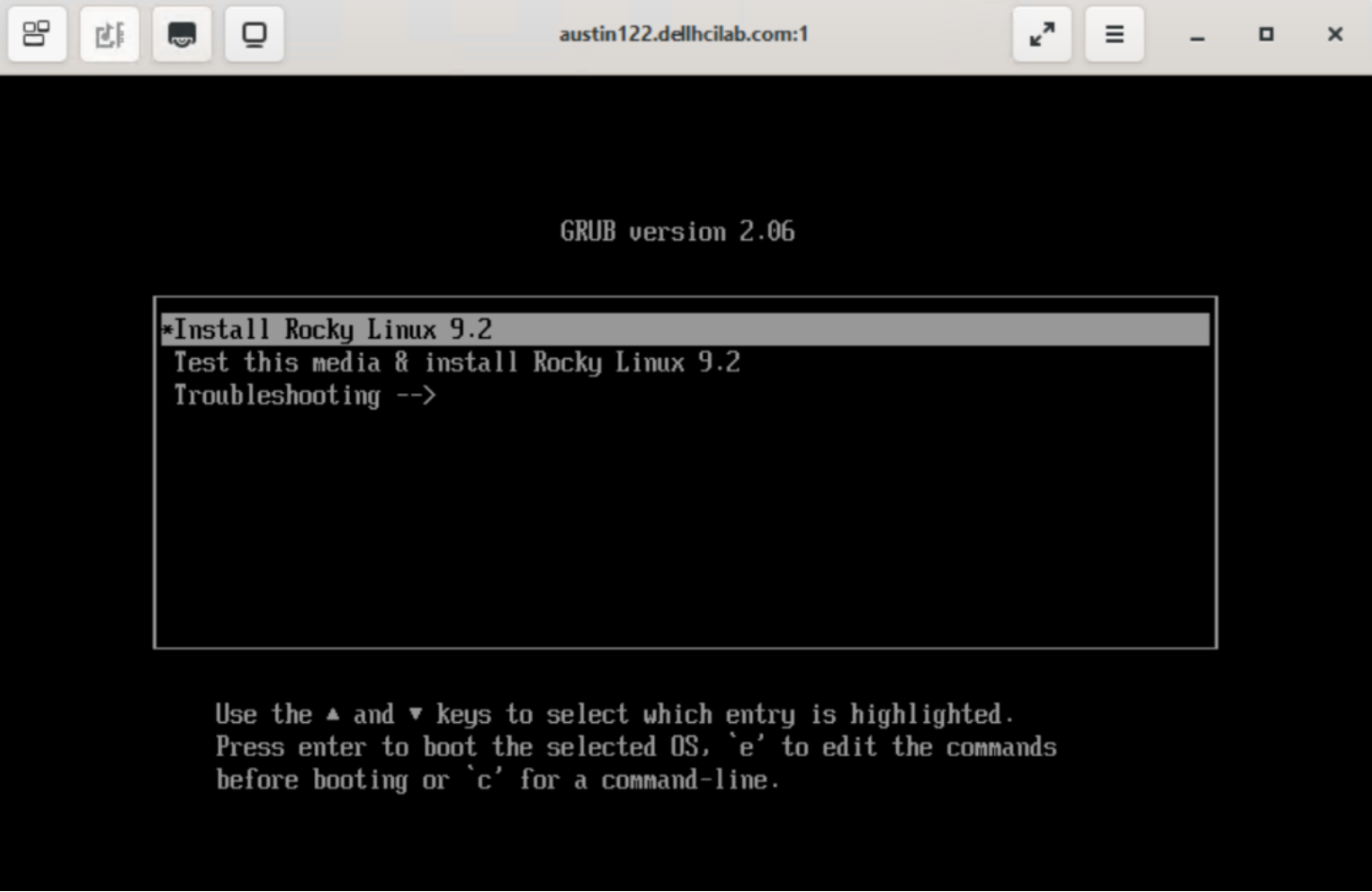
Figure 102. OVM VM creation - complete
If the Virtual Machine Viewer is not associated with the .vv extension, the browser prompts the user to save a file named console.vv. The user must then associate the file extension with the console viewer.
The user can now proceed with the operating system installation.
Guest agent
After the installation completes and the virtual machine reboots, OVM places an exclamation point next to the virtual machine indicating that the latest guest agent must be installed, as shown in Figure 103. The guest agent is required to enable functionality such as displaying the IP/FQDN, gracefully powering off the VM, and providing resource information.
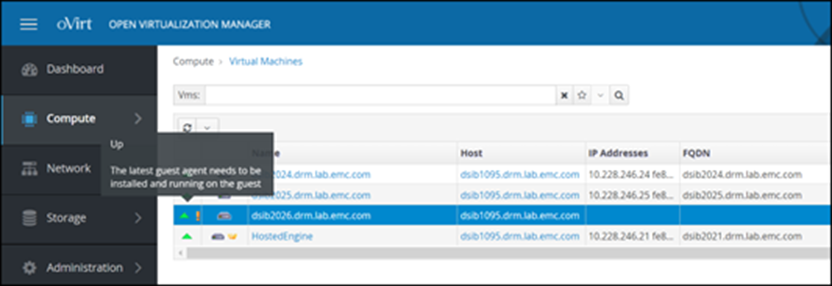
Figure 103. OVM VM creation - complete
The Virtual Machine Management Guide provides instructions for installing the agent depending on the operating system. For Enterprise Linux 8, like Rocky, run the following commands:
yum install qemu-guest-agent
systemctl start qemu-guest-agent
systemctl enable qemu-guest-agent
VLAN tagging
oVirt supports adding multiple logical networks to physical NICs on the KVM node, including those networks with VLAN tagging. Because VLANs are used for file storage in this guide, the following steps show how to add a new logical network with VLAN tagging:
- In OVM, go to Network -> Networks and click New, as shown in Figure 104:
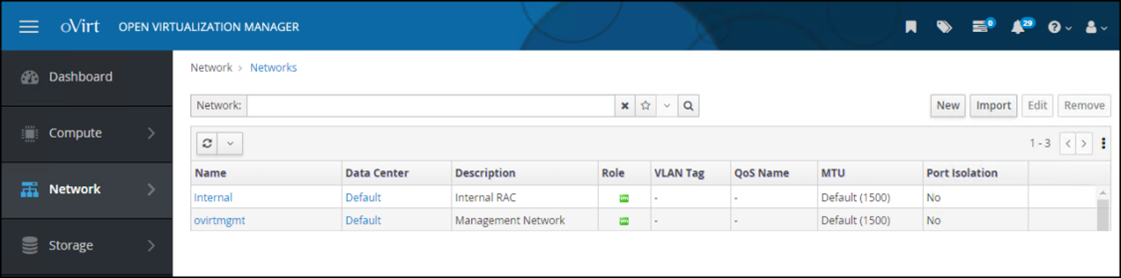
Figure 104. Logical networks - From the General option, enter the following information, as shown in Figure 105:
- Name
- Description
- Network label
- VLAN value after selecting the Enable VLAN tagging checkbox
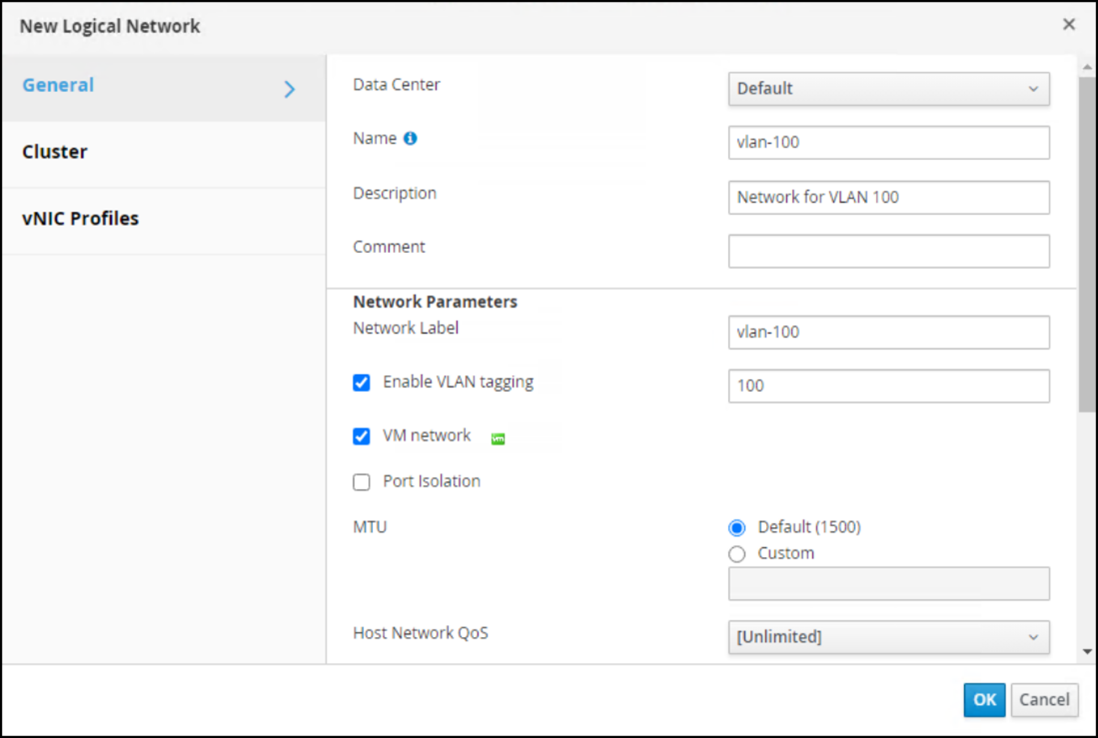 Figure 105. New logical network
 - Go to Network -> Networks and click the newly created hyperlink for the vlan-100 network, as shown in Figure 106:
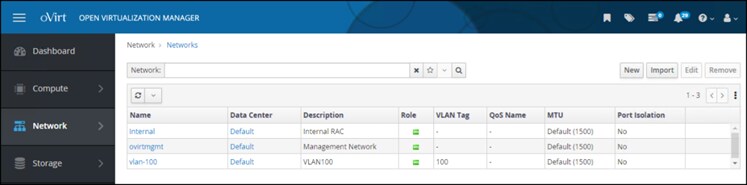 Figure 106. vlan-100 network
 - Click the Hosts tab, select an unattached host, and click Setup Host Networks, as shown in Figure 107:
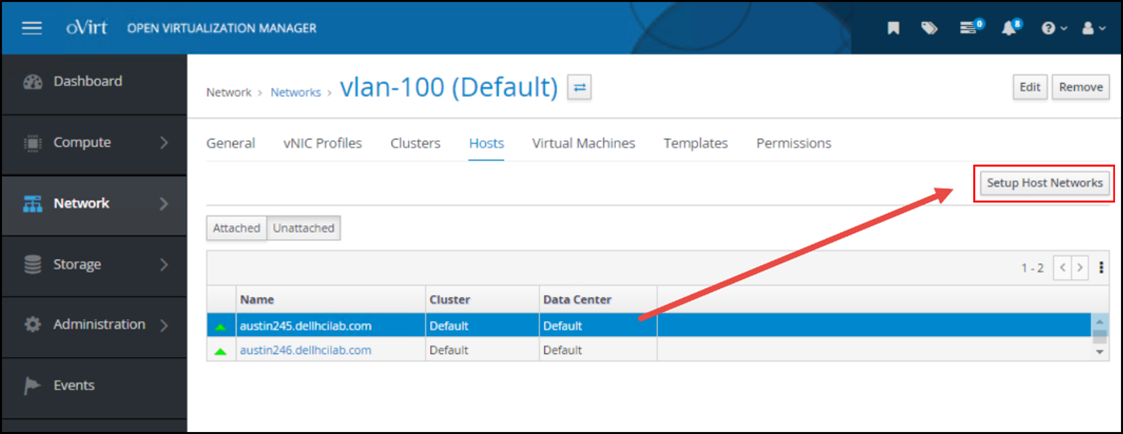 Figure 107. vlan-100 host assignment
 - In the Setup Host Networks dialog, click the new logical network on the right side and drag it to the appropriate physical NIC, as shown in Figure 108. More than one logical network can be assigned to an interface.
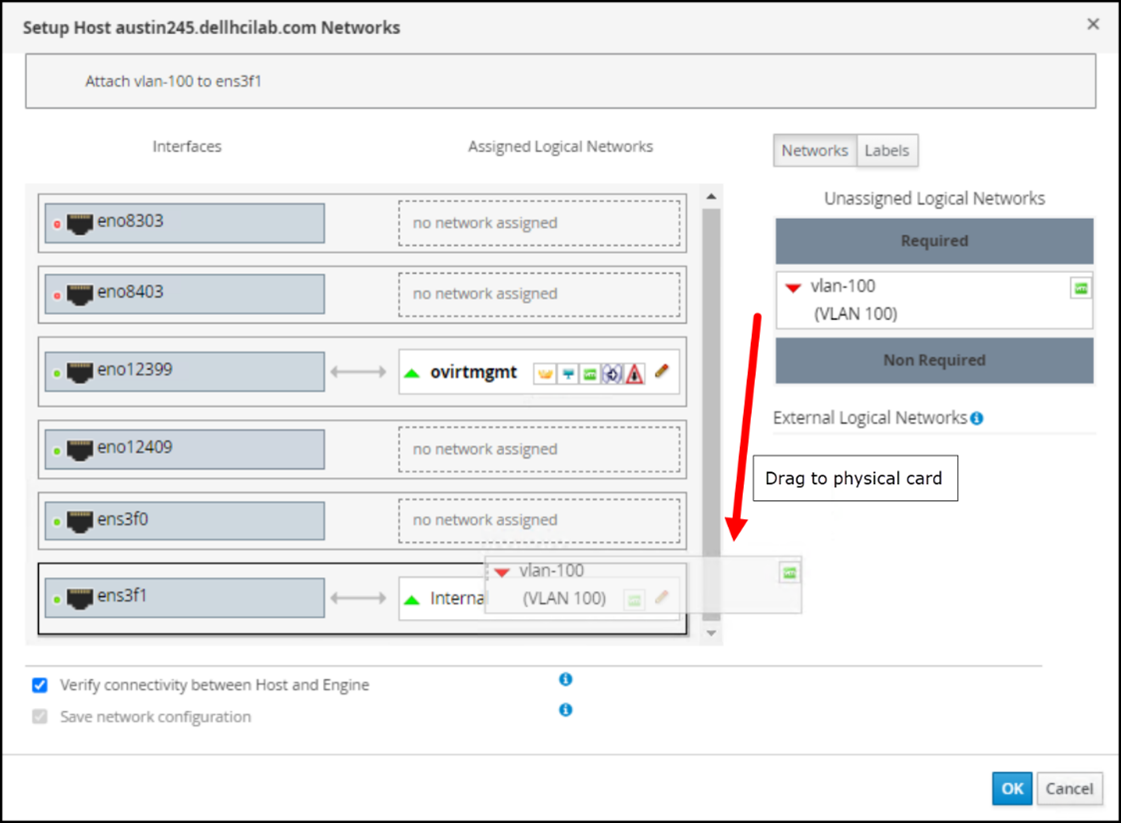 Figure 108. Assign a logical network to the interface
 - Optionally, click the pencil icon in the corner of the logical network to assign an IP address. Choose the appropriate Boot Protocol, add an IP address if required, and click OK, as shown in Figure 109:
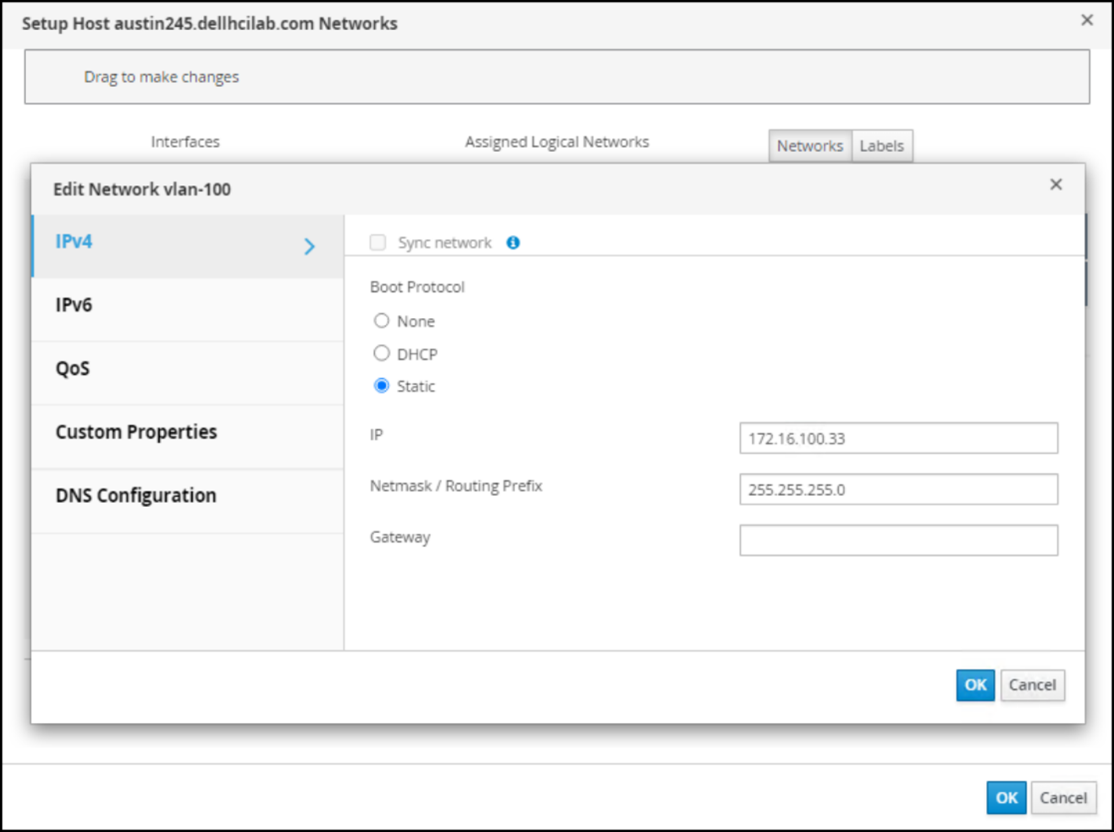 Figure 109. Assign boot protocol IP
oVirt then configures the network on the host.
The logical network is created and configured, as shown in Figure 110:

Figure 110 IP assigned
Conclusion
Summary
We value your feedback
References
Dell Technologies documentation
oVirt and KVM documentation
REST API
REST API
A benefit of an oVirt implementation is a robust REST API delivered through the oVirt Engine. The REST API enables developers or system administrators to use custom scripts or integrate third-party applications that can issue the REST calls. A REST client sends a request with standard HTTP methods: GET, POST, PUT, and DELETE. The oVirt API uses HTTPS with client software, which requires obtaining the CA certificate from the oVirt Engine and importing it into the client host/browser. Authentication requires either OAuth or basic authentication. OAuth is preferred because basic authentication is deprecated as of oVirt 4.0. When the user obtains the bearer token, the user can use it to make calls.
For example, a popular REST client is Postman, software that has both a free and paid version. Using the free version, the user can still make any REST calls to the oVirt environment.
- Obtain the bearer token.
The POST call contains all the values for simplicity, rather than using variables, as shown in Figure 111. The format of the call is:
https://<FQDN of oVirt Engine>/ovirt-engine/sso/oauth/token?grant_type=password&scope=ovirt-app-api&username=admin@ovirt@internalsso&password=<password>
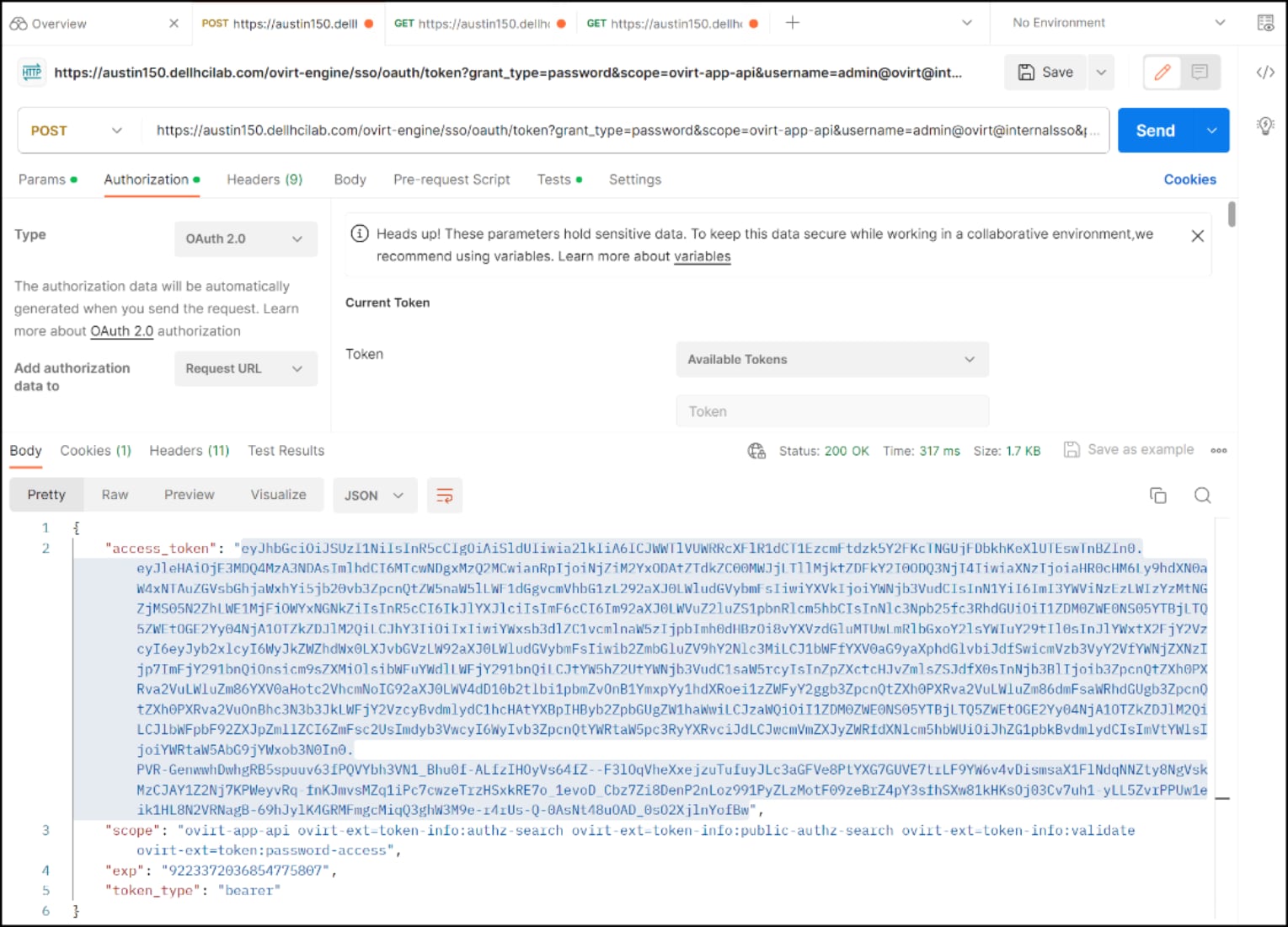
Figure 111. Obtain bearer token for REST API calls
- Copy the access_token value (highlighted in the preceding figure) to the Token field under the Authorization tab of a new GET call. In the example shown in Figure 112, the request is asking for all the hosts in the oVirt environment. The hosts are returned in the Body output field.
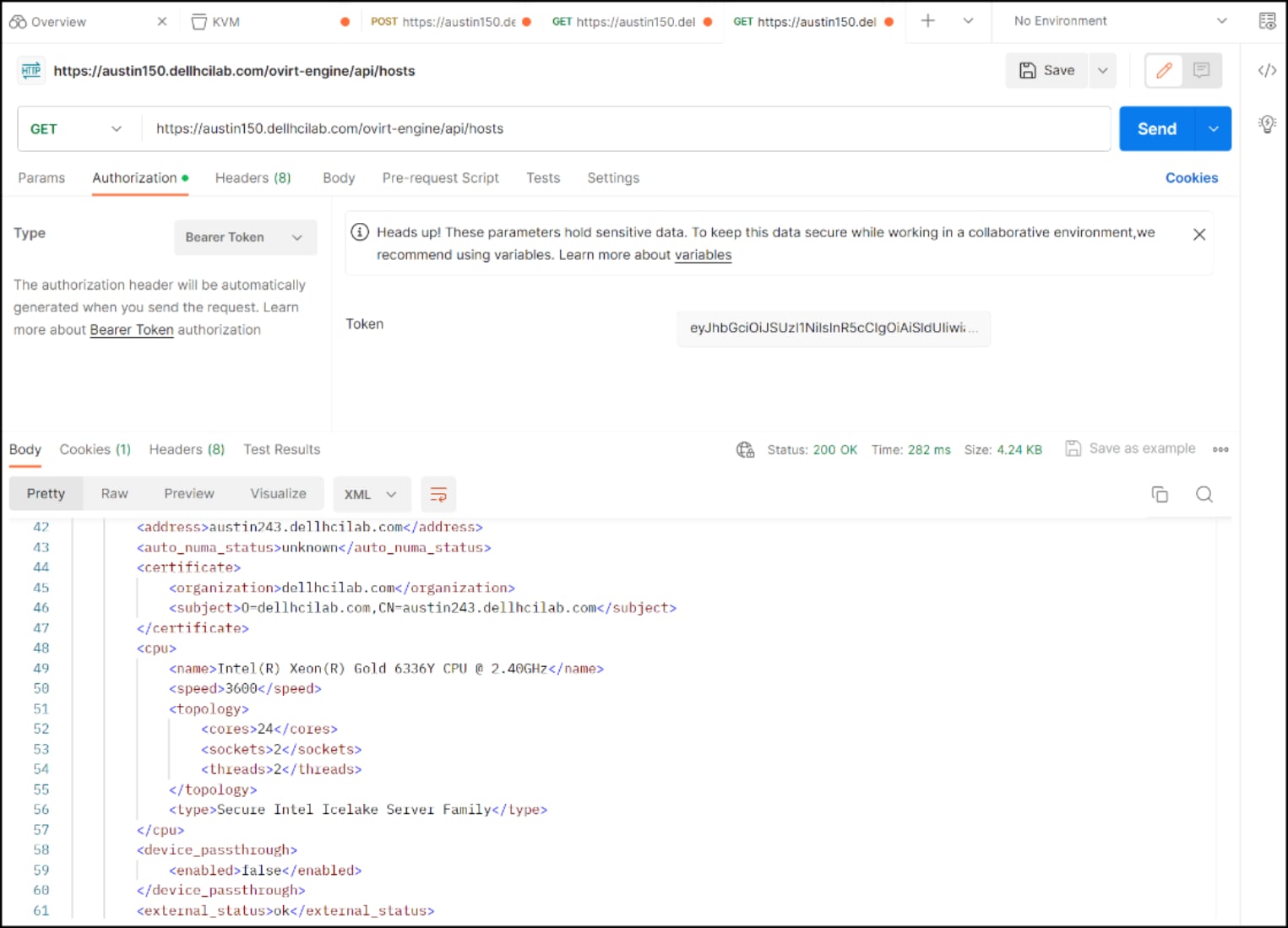
Figure 112. REST API call gathering the hosts in the oVirt environment
The itself is time sensitive and will expire. Expiration results in an HTTP/1.1 401 Unauthorized error. In this case, re-run step 1 and obtain a new token. To avoid expiration, the user can add a Pre-request script for the token so that every REST call gets a valid token. By using the oVirt REST, the user can manage the entire environment without a UI.
Troubleshooting
Introduction
Failed oVirt Engine script
Existing NFS storage domain
Reusing an existing block device or file system with KVM is common. When KVM creates a storage domain, an ID is assigned. If that ID is not removed before reuse, KVM fails to create the storage domain. For block volumes, wiping the signature by using the fdisk or dd commands is straightforward. For NFS, however the user might want to keep the existing file system instead of destroying and re-creating it. In the example in Figure 113, one can see the ID of the storage domain that is highlighted in the UI:
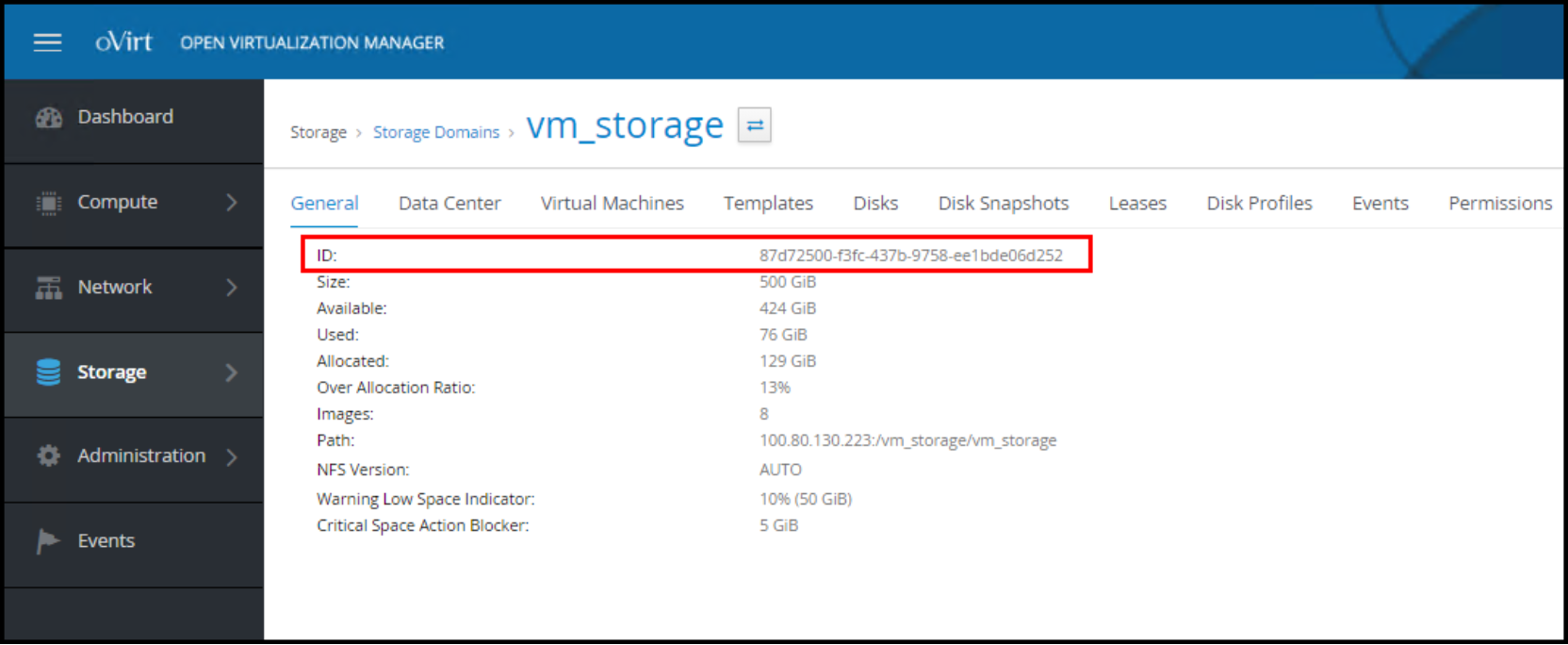
Figure 113. Storage domain ID
A folder on the file system represents this ID, as shown in Figure 114:

Figure 114. The “ID folder” for the NFS storage domain
Each storage domain, therefore, is unique. If an attempt is made to mount an NFS export that already has an “ID folder,” it fails and generates an error, as shown in Figure 115:
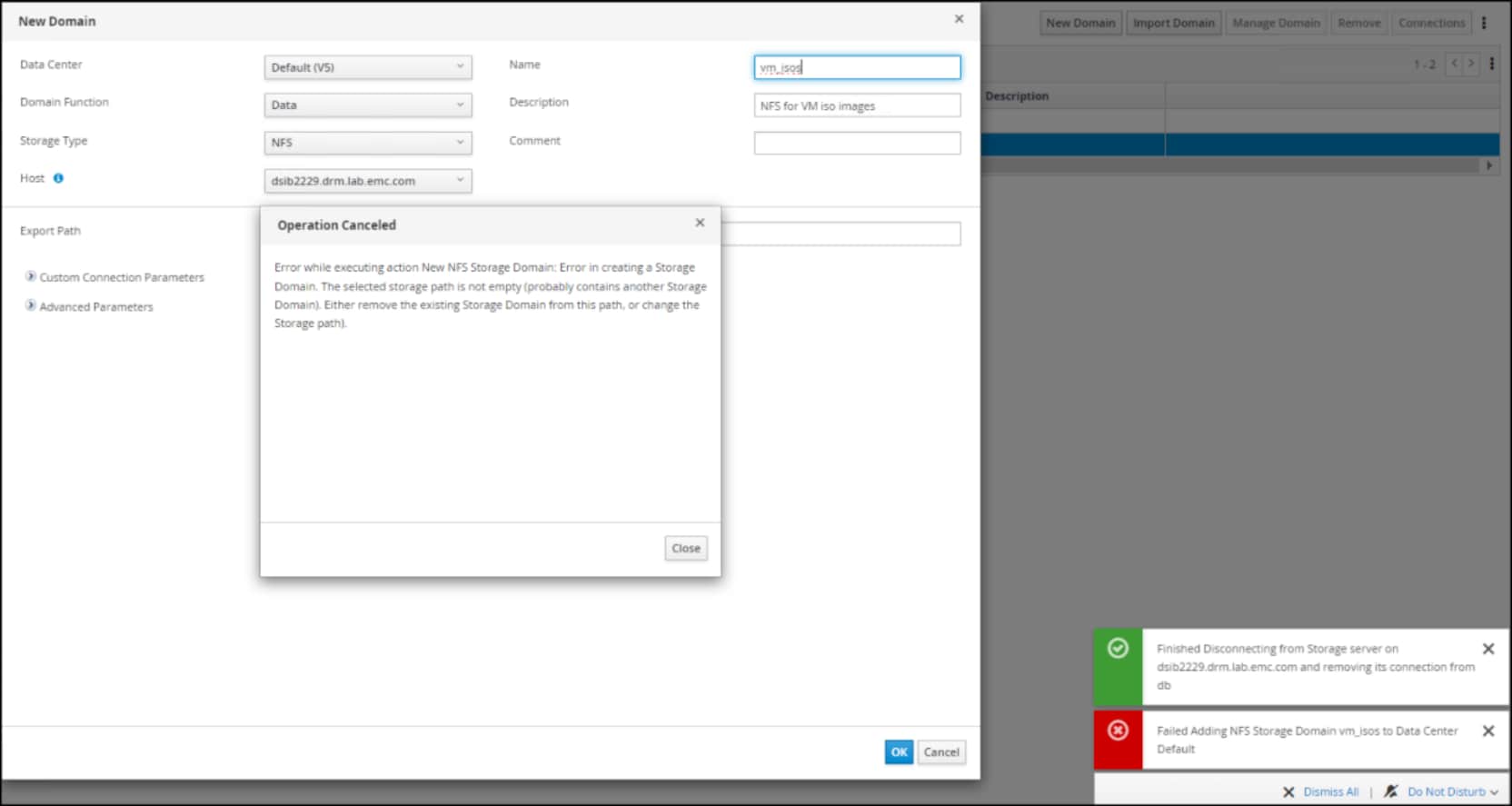
Figure 115. Error creating NFS storage domain
If the user receives this error message but knows that they want to reuse the file system, they can remove the folder. The easiest way is to mount the NFS export on another Windows or Linux host and deleting the “ID folder.” When the folder is removed, retrying the operation succeeds.
Note: The file system does not have to be empty before creating a storage domain on it, however, it cannot contain an “ID folder.”
Local storage data center
A data center with local storage can only support a single host. If a user attempts to add a second host, an error message is displayed, as shown in Figure 116:
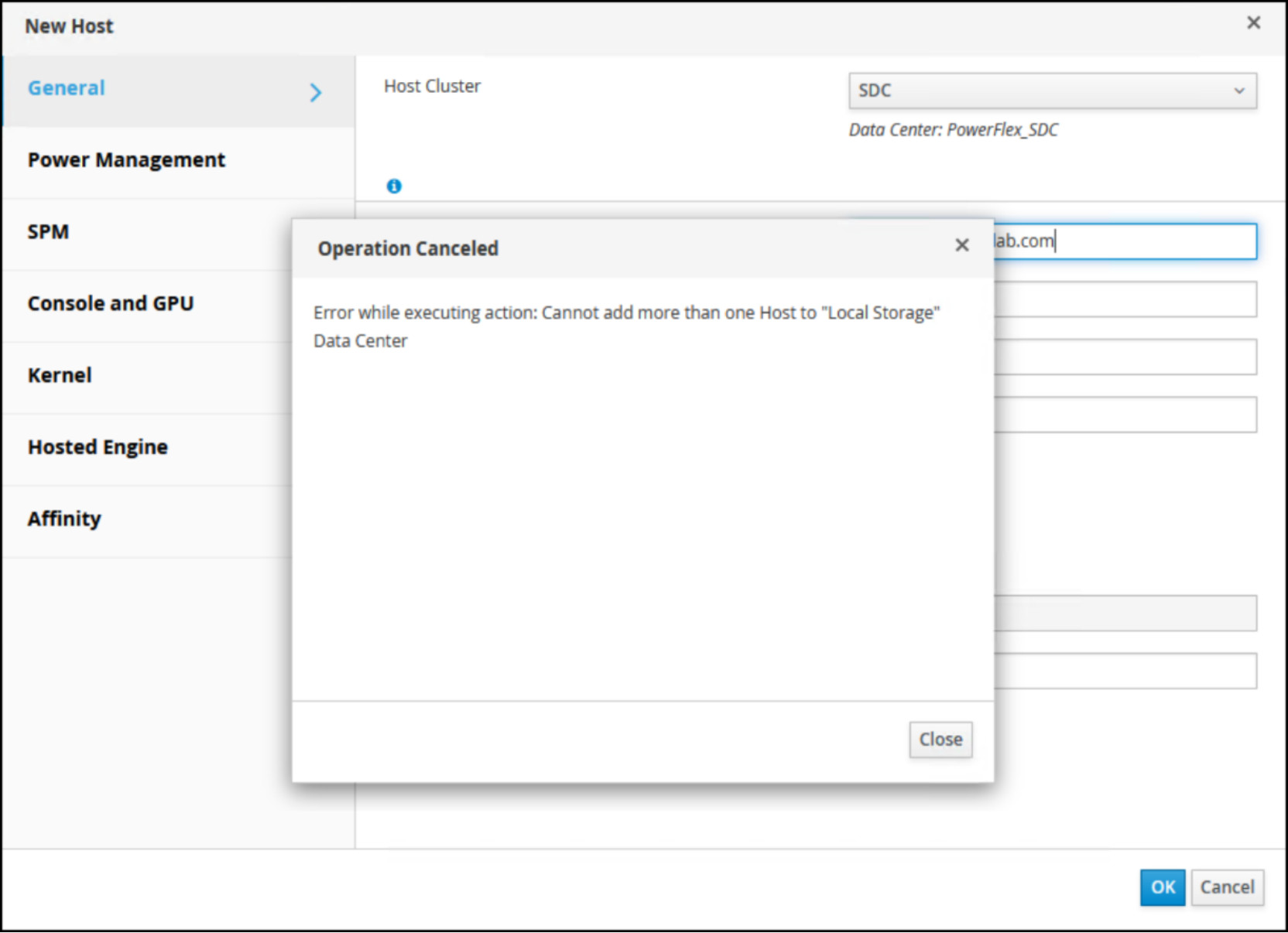
Figure 116. Adding a second host to a local storage cluster
Empty attach CD
When creating a new virtual machine, r the Boot Options page includes an Attach CD option that enables the user to specify an ISO for booting (for operating system installation). If the user selects the checkbox and there are no entries in the drop-down list, as shown in Figure 117, there are no ISOs are available in any storage domains.
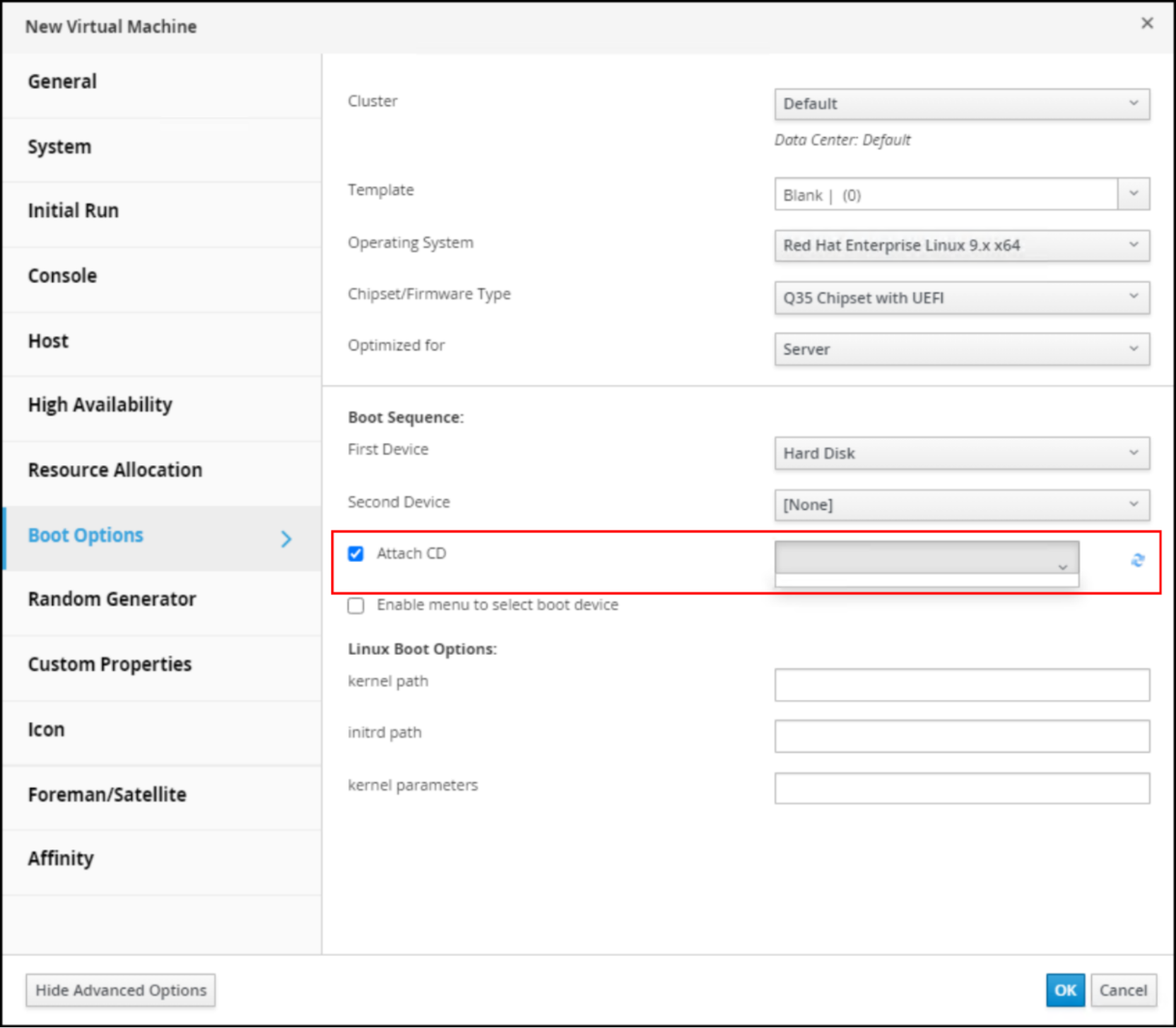
Figure 117. Attach CD
To resolve the issue, follow the instructions in Image upload. The user can also specify boot options at the time of initial power on of the virtual machine. Make sure to clear the Attach CD check box, otherwise OVM generates an error.
VMware testing
One can test KVM on virtual machines in a VMware infrastructure if no physical servers are available. This is similar to doing nested ESXi installations. There are two prerequisites that are necessary to succeed in such an implementation. They are:
- Hardware virtualization
- Distributed port group
Hardware virtualization
When creating a new virtual machine in VMware, by default, hardware virtualization is not enabled. If the user proceeds with the KVM installation, it initially succeeds, but then the hosts constantly disconnect because they cannot run virtualization. After creating the virtual machine and before powering on, to enable virtualization:
- Go to Edit Settings -> Virtual Hardware.
- Expand the vCPU section and select the Hardware virtualization checkbox, as shown in Figure 118:
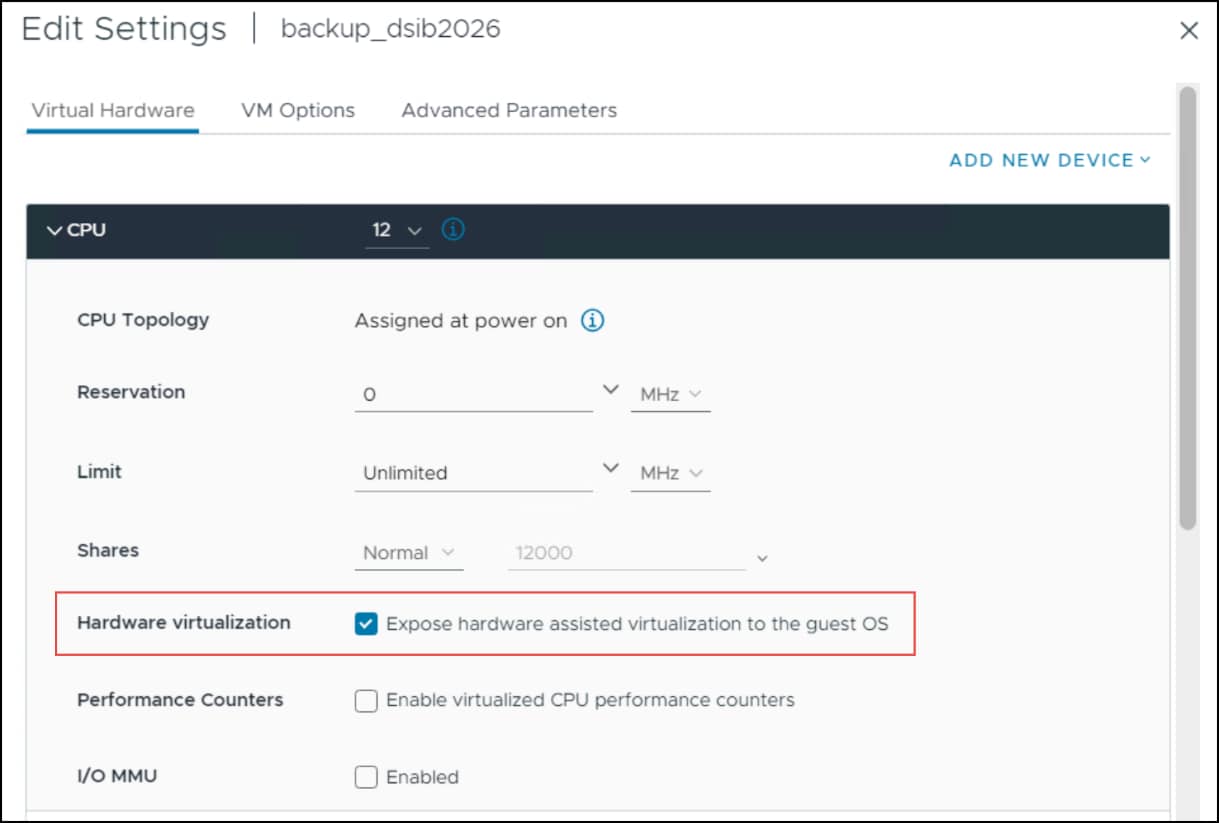
Figure 118. Enable vCPU virtualization
Failure to select the checkbox does not prevent installation of a KVM host; however, the host enters an unusable state, as shown in Figure 119. - If the host enters an unusable state, shut down the Guest OS, enable the feature by repeating step 2, and restart.
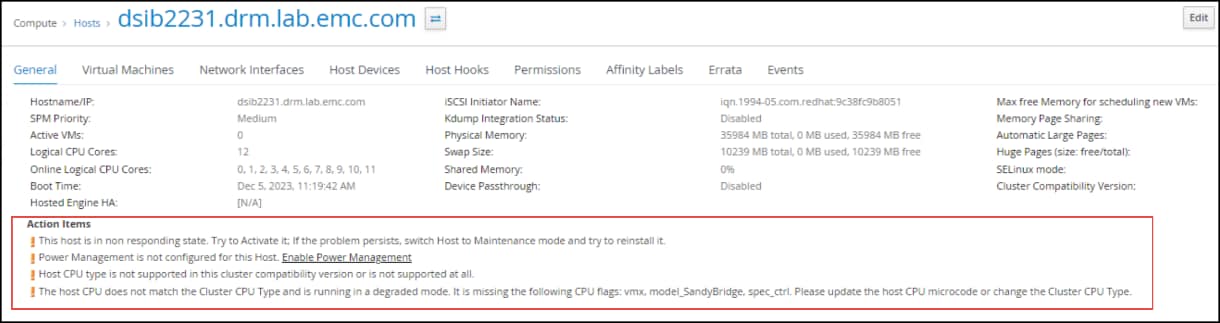
Figure 119. vCPU virtualization disabled
Distributed port group
To run KVM on VMware, one must use a distributed switch and distributed port group for the virtual machines. In addition, that distributed port group must have MAC Learning enabled, which allows the embedded virtual machines running on the host to communicate outside of the host virtual machine.
To enable MAC Learning:
- Select the distributed port group.
- Go to Edit Settings -> Security.
- Under MAC Learning, set the status to Enabled and ensure that the Forged transmits option is set to Accept as shown in Figure 120:
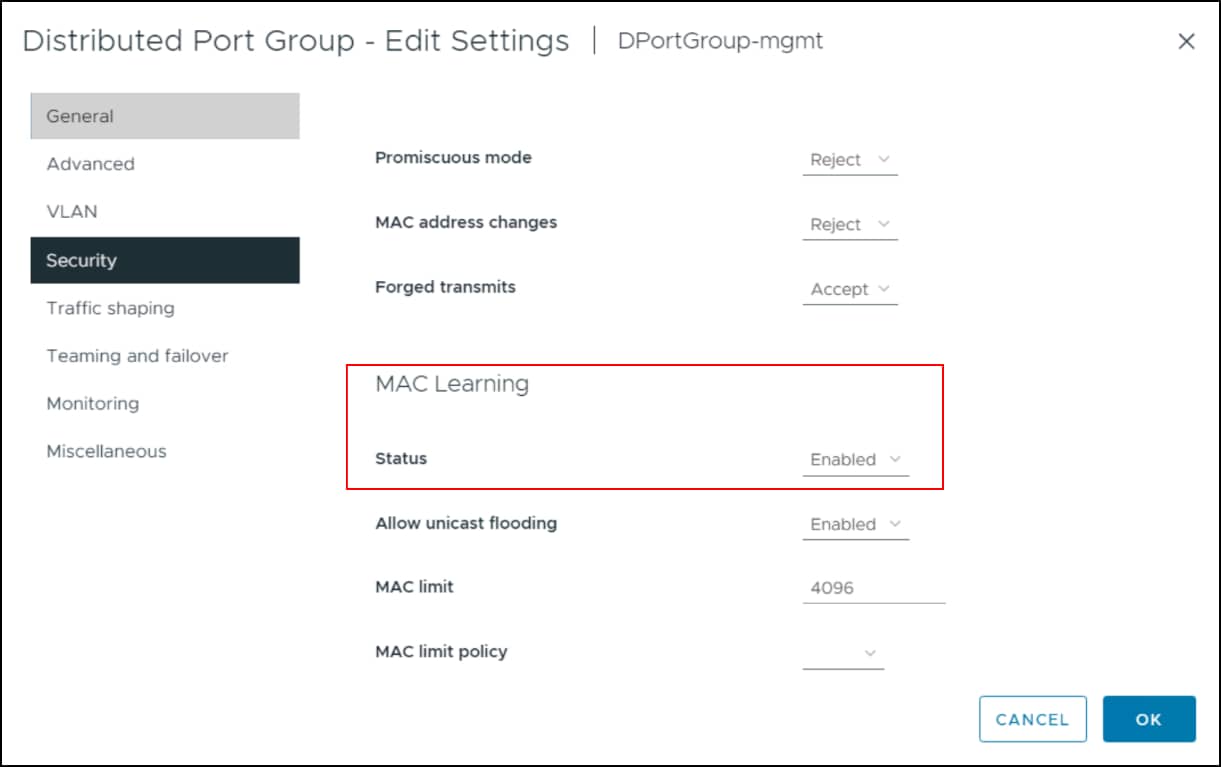
Figure 120. Distributed port group in vSphere 8 - MAC Learning