Using Dell PowerStore with Linux KVM
Introduction
Introduction
Executive summary
Document purpose
Audience
Terminology
Product overview
Product overview
Introduction to PowerStore
The PowerStore platform is a bare-metal unified storage array that can service block, file, and VMware Virtual Volume (vVol) resources along with numerous data services and efficiencies. PowerStore is perfect for traditional and modern workloads, including relational databases, electronic medical recordapplications, and content repositories among many others. Dell PowerStore has multiple purpose-built platforms: the 2U, two-node single-socket Intel® Xeon® platform is used for the PowerStore 500 model; and the 2U, two-node dual-socket upgraded Intel® Xeon® platform is used for the PowerStore 1200, 3200, 5200, and 9200 models. For more information about PowerStore platforms, please refer to Dell PowerStore: Introduction to the Platform.

Organizations that use new applications and solutions require dependable storage and often face the challenge of doing more with less. PowerStore addresses this challenge by packaging a powerful storage system into a cost-efficient and space-efficient profile. PowerStore features and benefits include:
- Active/active architecture
- Multiple protocol support: iSCSI, Fibre Channel, NVMeoF, and SMB/NFS
- Unified offering
- Simplified, modern user interface
- VMware integration
- Inline data reduction
- Local and remote data protection
PowerStore achieves new levels of operational simplicity and agility. It uses a container- based microservices architecture, advanced storage technologies, and integrated machine learning to unlock the power of your data. It offers predictive analytics to easily monitor, analyze, and troubleshoot the environment. PowerStore is highly adaptable, providing the flexibility to host specialized workloads, and fits seamlessly into existing infrastructures to meet industry requirements. No matter where your business strategy takes you, PowerStore’s full-featured, adaptable design can help you build your unique breakthrough.
Note: VMware deprecated vVols in vSphere 9.0. They will be fully removed in vSphere 9.1. Although VMware permits customers to use vVols in vSphere 9.0 on a case-by-case basis (contact Broadcom for more information), Dell Technologies recommends migrating any existing vVol VMs to VMFS or NFS datastores with Storage vMotion.
Kernel-based virtual machine
Kernel-based virtual machine, or KVM is an open-source virtualization infrastructure for the Linux kernel that allows it to act as a hypervisor. A hypervisor, or virtual machine monitor (VMM), is a hardware, software, or firmware layer that runs virtual machines on a physical host. It virtualizes the hardware, enabling one system to become many. There are two types of hypervisors: Type 1 runs directly on the physical host; and Type 2 runs on top of the operating system of the physical host. KVM is a Type 1 hypervisor as it manages the hardware resources directly rather than Type 2, which relies on the operating system device drivers.
Because KVM is part of the Linux kernel, it can use the hardware virtualization features that are available in Intel VT-x or AMD-V CPUs to create and manage virtual machines. A basic representation of the KVM architecture is shown in the following figure.
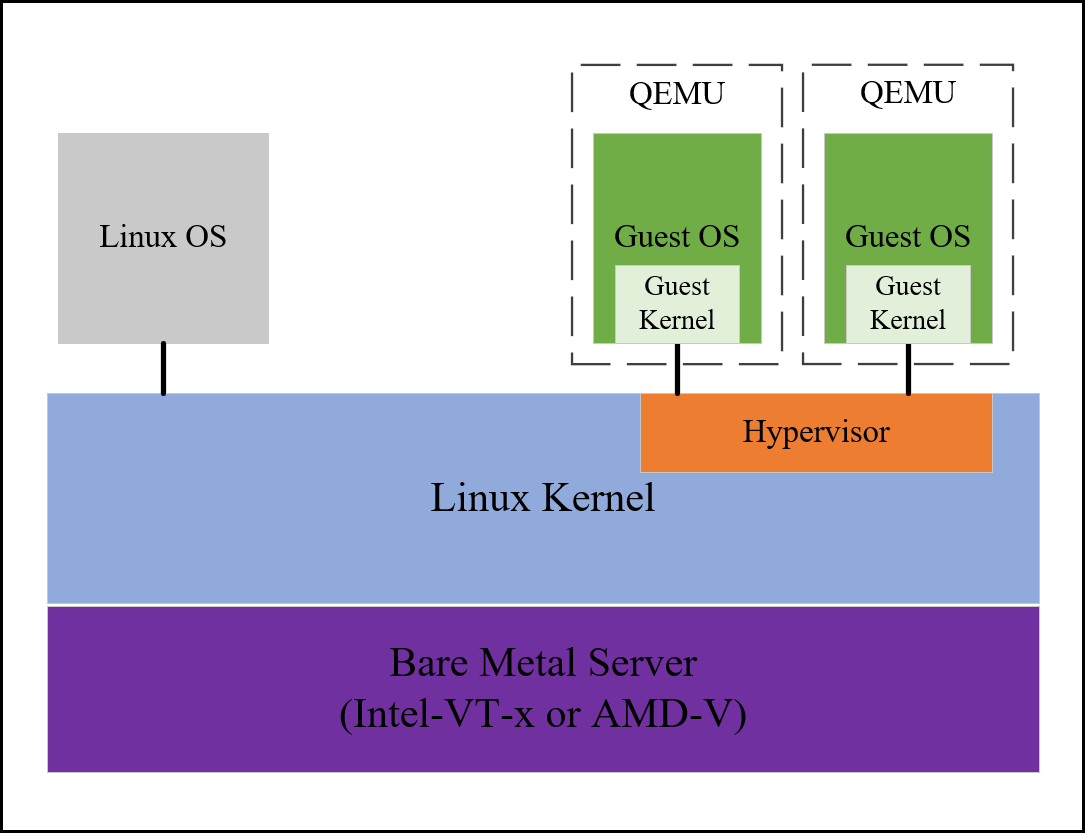
Several common KVM components include the following:
- Quick Emulator (QEMU) – An open-source emulator for hardware and virtualization. It is used with KVM to run and manage virtual machines.
- libvirt – A toolkit/API for managing virtualization technologies like KVM and other hypervisors.
- virsh – A CLI that can manage virtual machines.
- Guest OS – operating system that runs on a virtual machine in a KVM environment, for example Linux or Windows.
- Emulated devices – versions of physical hardware.
- Virtio devices – devices specifically for KVM.
KVM virtualization is essentially the same across Linux distributions, for example, running KVM on Red Hat looks and feels the same as running it on Ubuntu. However, how a business chooses to manage it can vary greatly. Unlike other commercial hypervisors that have their own management solution as part of the virtualization environment, such as VMware vCenter, KVM is open-source and has many management options available – both licensed and free. One of the more straightforward open-source implementations is oVirt.
oVirt
Administration Portal
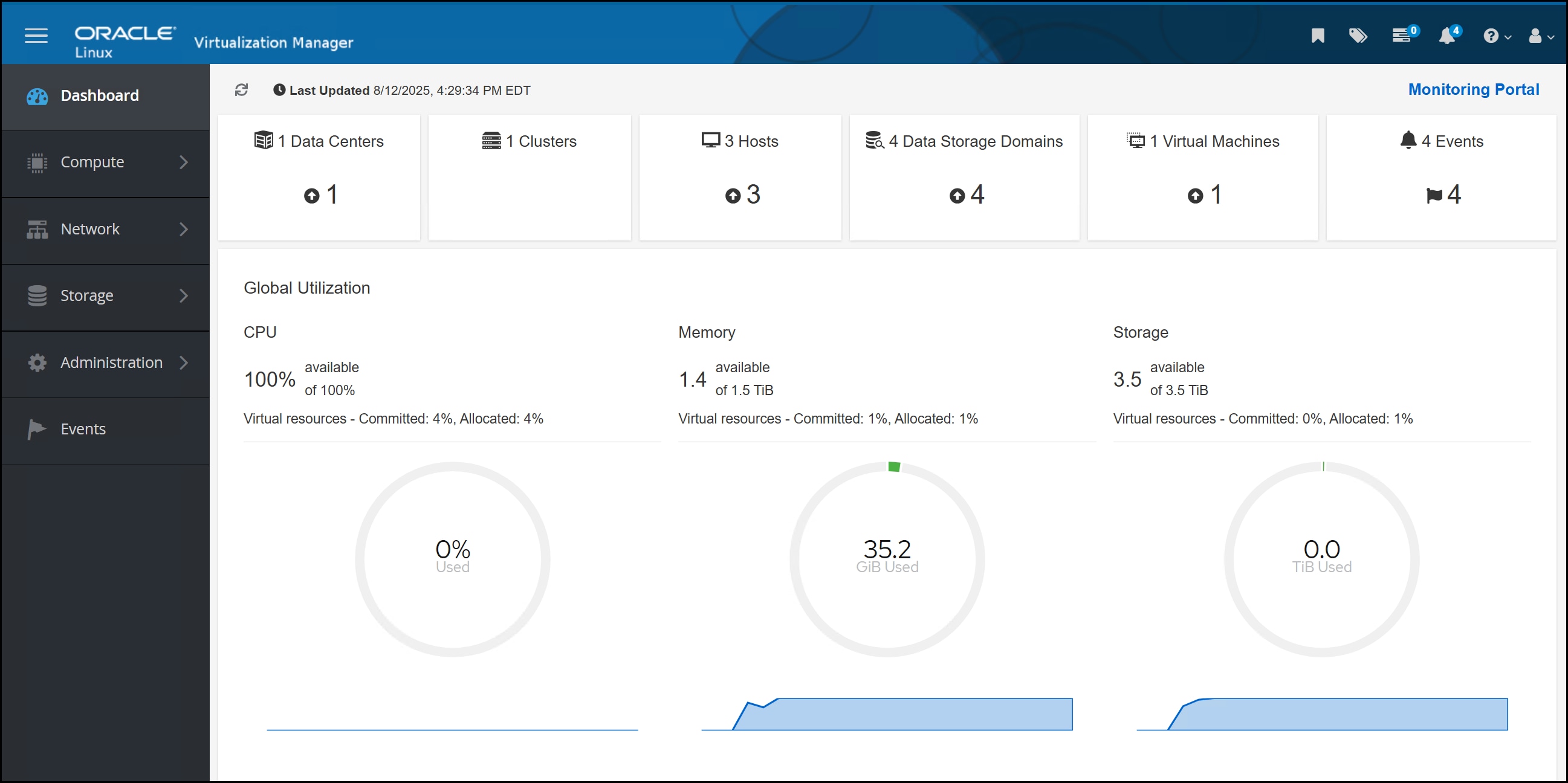
The following figure shows an example of the Oracle Linux Virtualization Manager (OLVM) UI for the Administration Portal, which provides a high-level view of all components in the KVM environment.
VM Portal
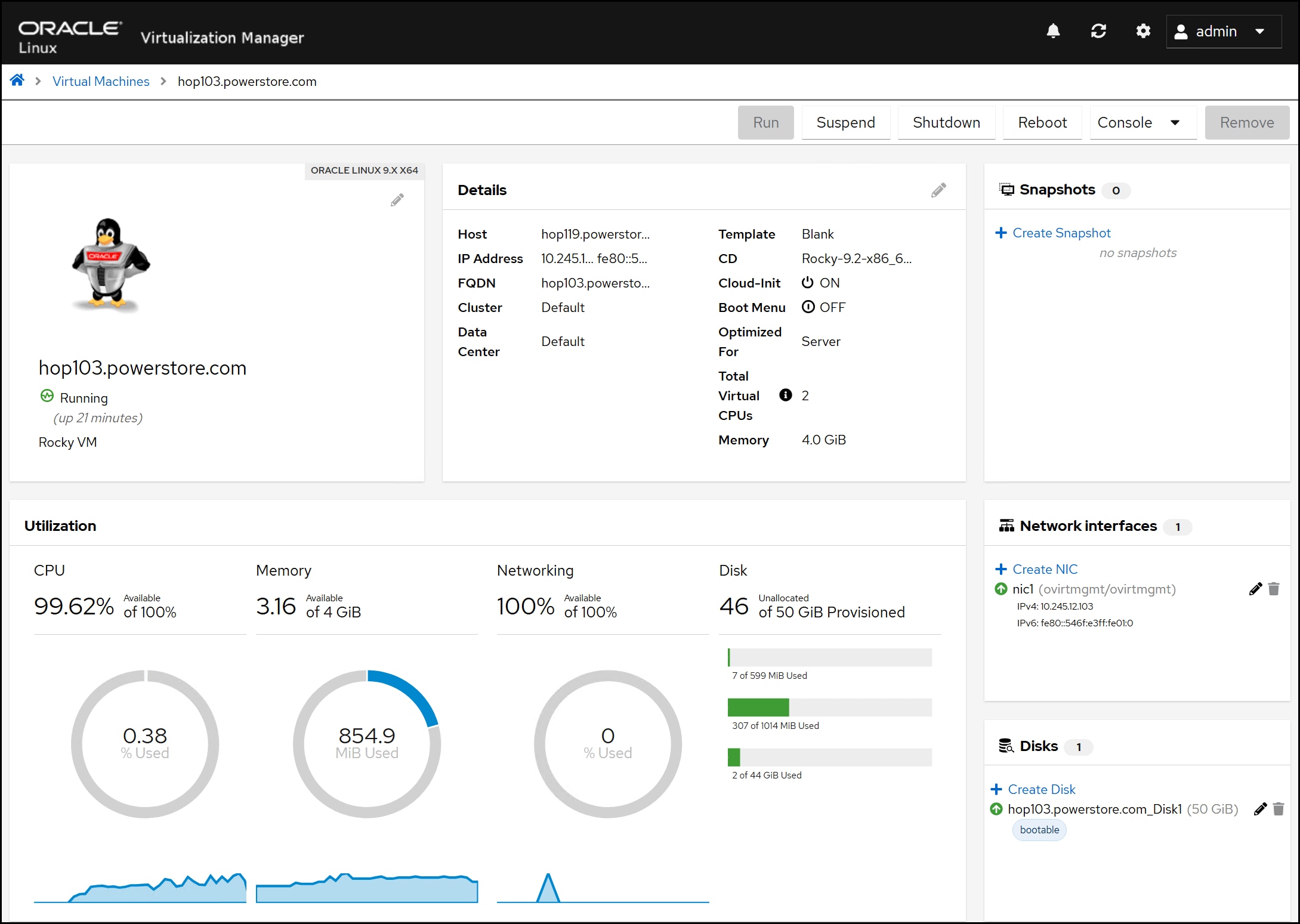
The VM Portal enables the user to drill down into each virtual machine in the environment and make changes at that level. The following figure shows the details of a particular virtual machine.
Monitoring Portal
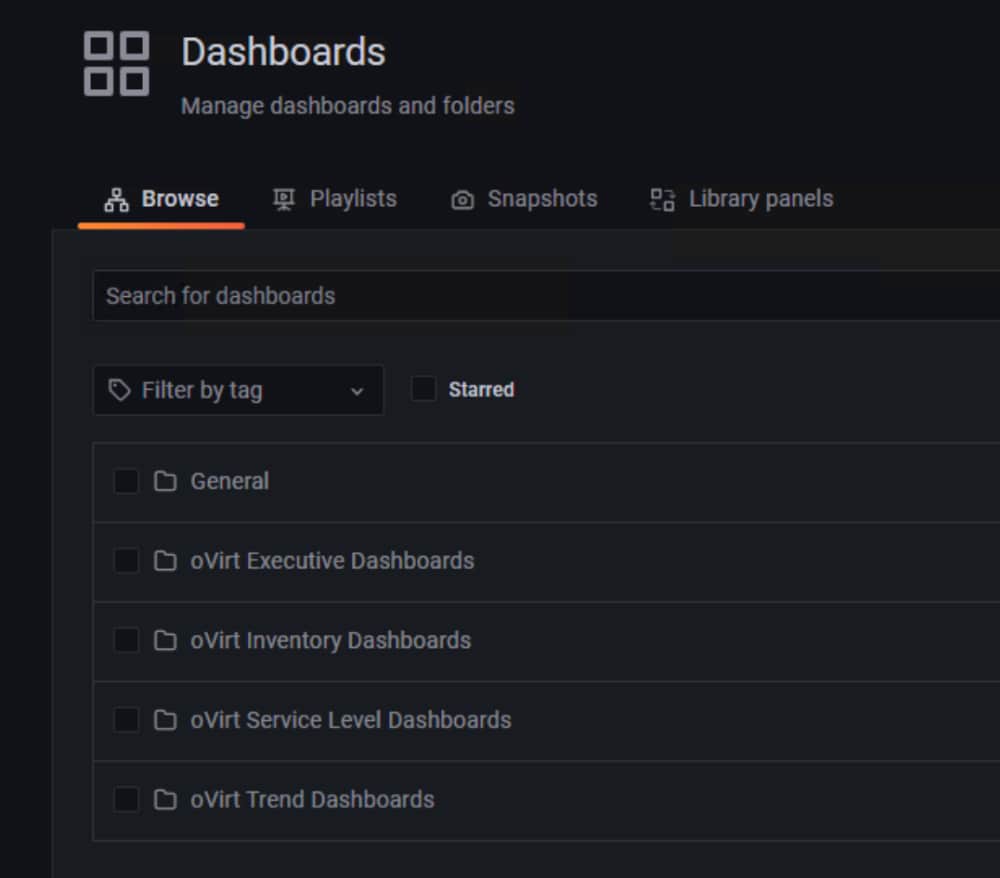
The Monitoring Portal has Grafana at its foundation. Grafana is an open-source analytics and monitoring platform that integrates with oVirt and provides dashboards, alerting, and monitoring capabilities. It is a highly customizable platform that enables the user to modify and share dashboards. One advantage of the monitoring portal over other virtualization solutions is that Grafana comes preconfigured with a selection of dashboard categories and individual dashboards specifically for oVirt, as shown in the following figure.
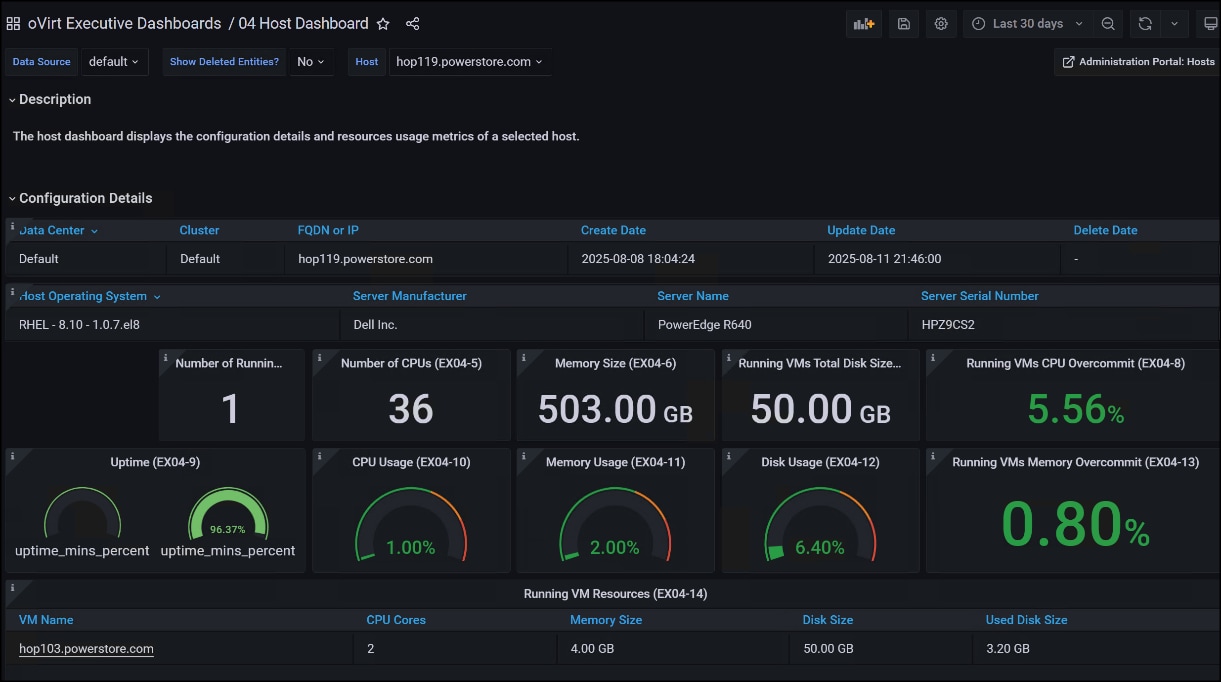
The individual dashboards offer great detail into the clusters, hosts, and individual VMs running in the environment. The following figure shows the host-level dashboard.
oVirt Engine
The oVirt Engine can be implemented on one or two physical hosts, or it can be deployed as a virtual machine either in a separate virtualization environment or in the KVM environment itself. If the oVirt Engine is separate from the KVM environment, it is called a stand-alone implementation. In such a configuration, the virtual machine can be hosted in a non-KVM virtualization environment. If the oVirt Engine is run in the KVM environment, it is referred to as self-hosted.
Both installation types require Enterprise Linux 8 of any distribution. When it is self-hosted, the Engine Appliance is used to automate the Guest OS installation. A virtual machine implementation, either stand-alone or self-hosted, uses the virtualization environment’s ability to support high availability. The stand-alone implementation, however, requires an external HA management such as Oracle Linux High Availability Stack.
Note: For oVirt to support HA for the self-hosted implementation, you must enable a second KVM host in the cluster as a Hosted Engine. See Adding a KVM host to a cluster for more detail.
The following figure shows an example of a stand-alone implementation in which two physical hosts access the same shared storage.1
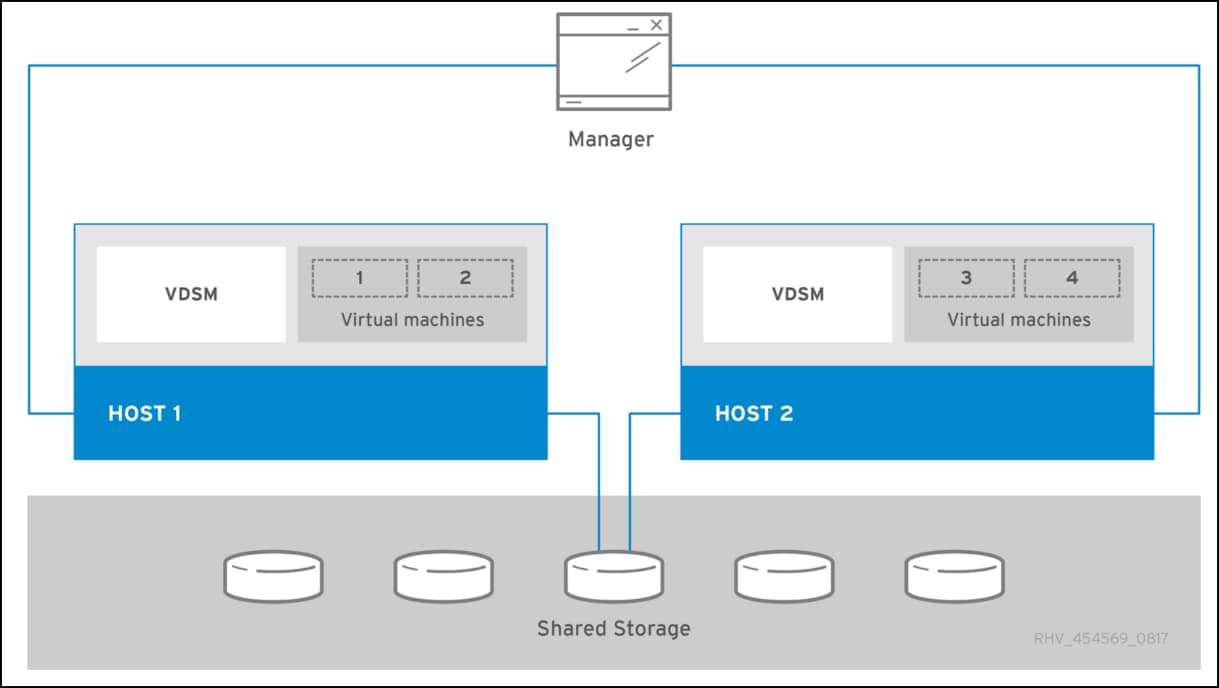
The oVirt Engine only runs on a single host, with the second providing high availability if there is external HA management, hence the requirement for the hosts to see the same storage. For details on sizing requirements for the Engine host, see the following documentation.
The following figure shows the self-hosted example in which the oVirt Engine is deployed directly in the KVM environment as is the case in this paper.2
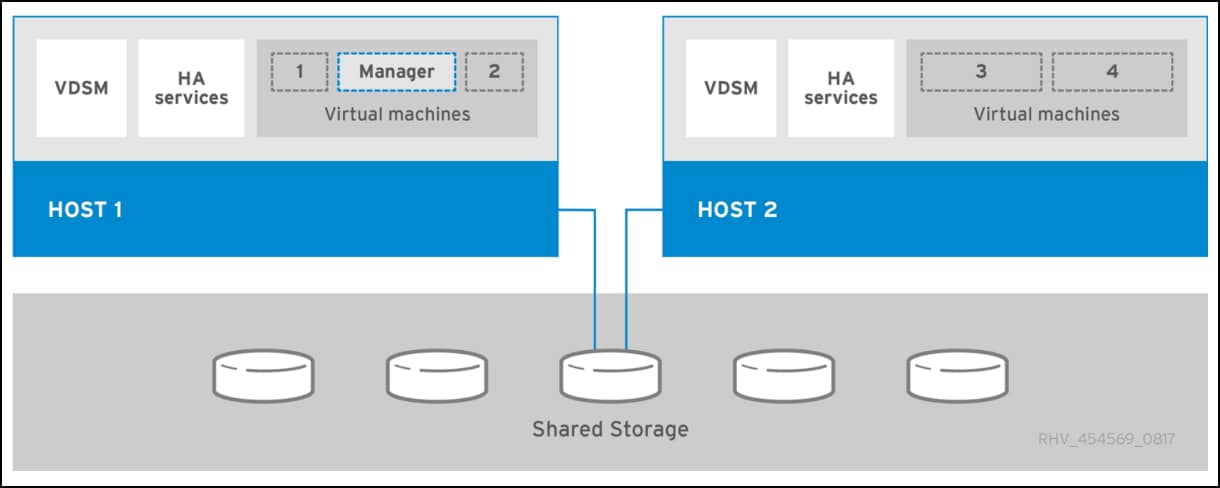
The oVirt community generally recommends a stand-alone configuration because it separates management from the KVM environment. This recommendation is similar to VMware’s recommendation of not running vCenter on the same ESXi hosts that it is managing. For the environment described in this guide, however, we had to use a self-hosted oVirt Engine because of a lack of physical hosts.
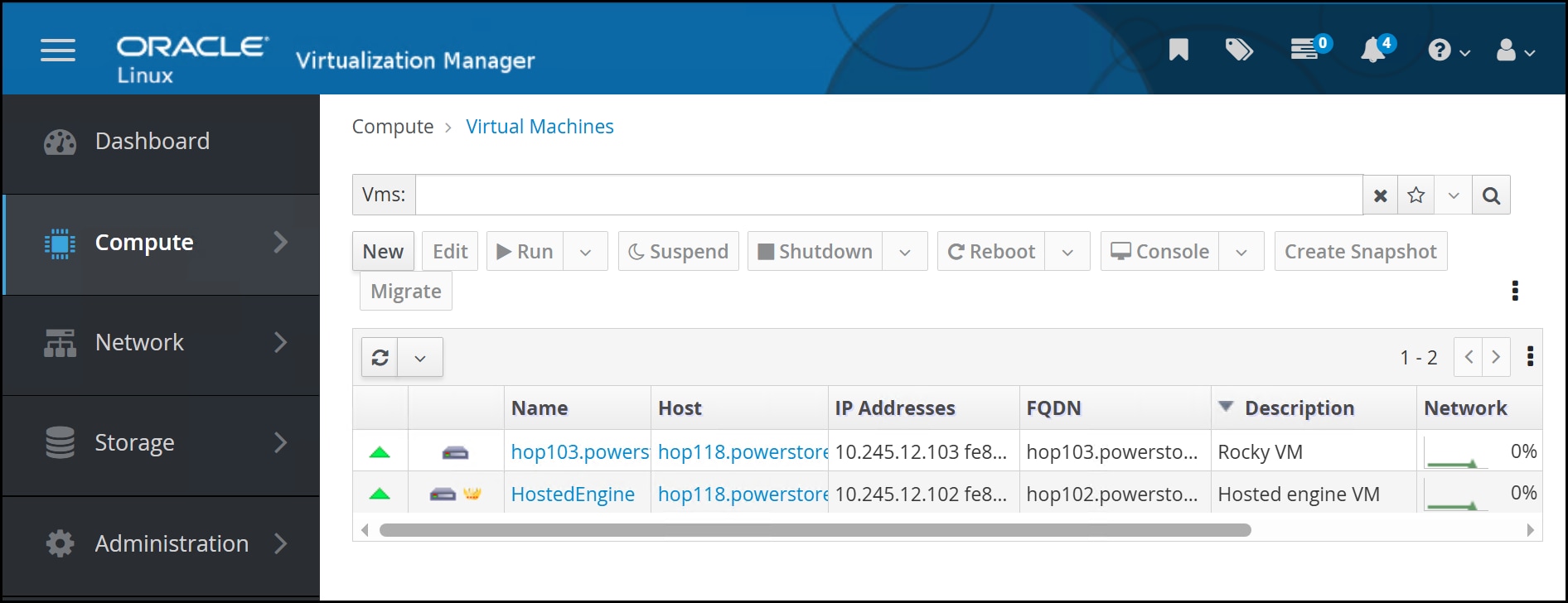
The following figure shows that a self-hosted engine is displayed like any other virtual machine (HostedEngine) in the UI, with the addition of a golden crown.
Environment and system requirements
Environment and system requirements
Introduction
Prerequisites
oVirt components
PowerStore array
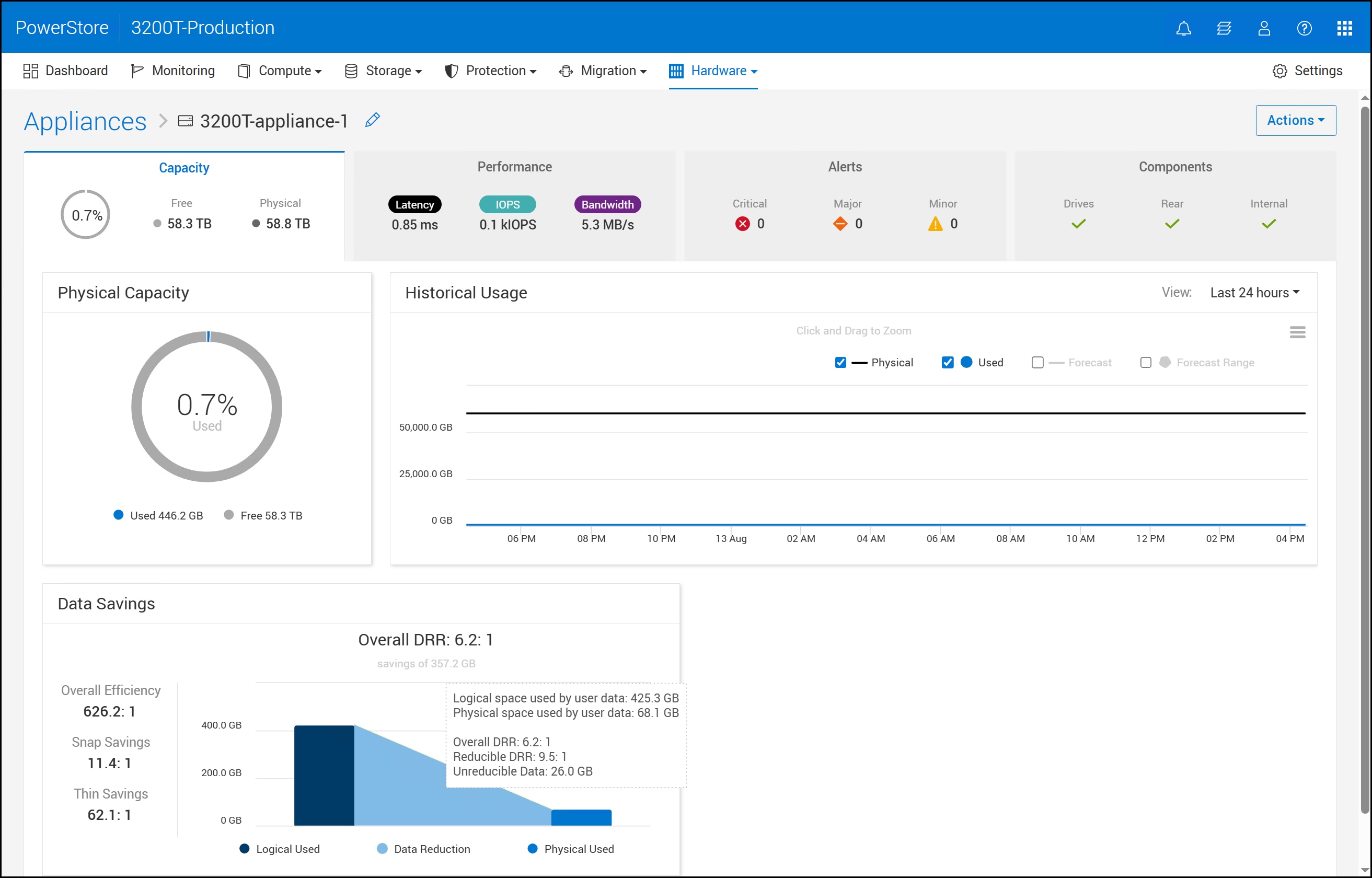
The PowerStore system is a PowerStore 3200T array with iSCSI and File connectivity in a Unified configuration. The following figure shows the appliance Capacity view in PowerStore Manager.
Deployment
Deployment
Introduction
Installation
Oracle Linux installation
Install Oracle Linux on the host.
- Mount the ISO file to the chosen physical server and boot. Select Install Oracle Linux 8.10.0 (or the latest iso release), as shown in the following figure.
Figure 11. Oracle Linux installation – Step 2 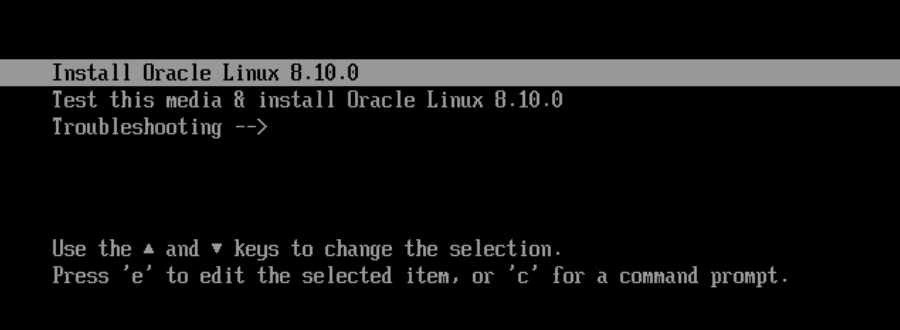
- Select the appropriate language, as shown in the following figure.
Figure 12. Oracle Linux installation – Step 3 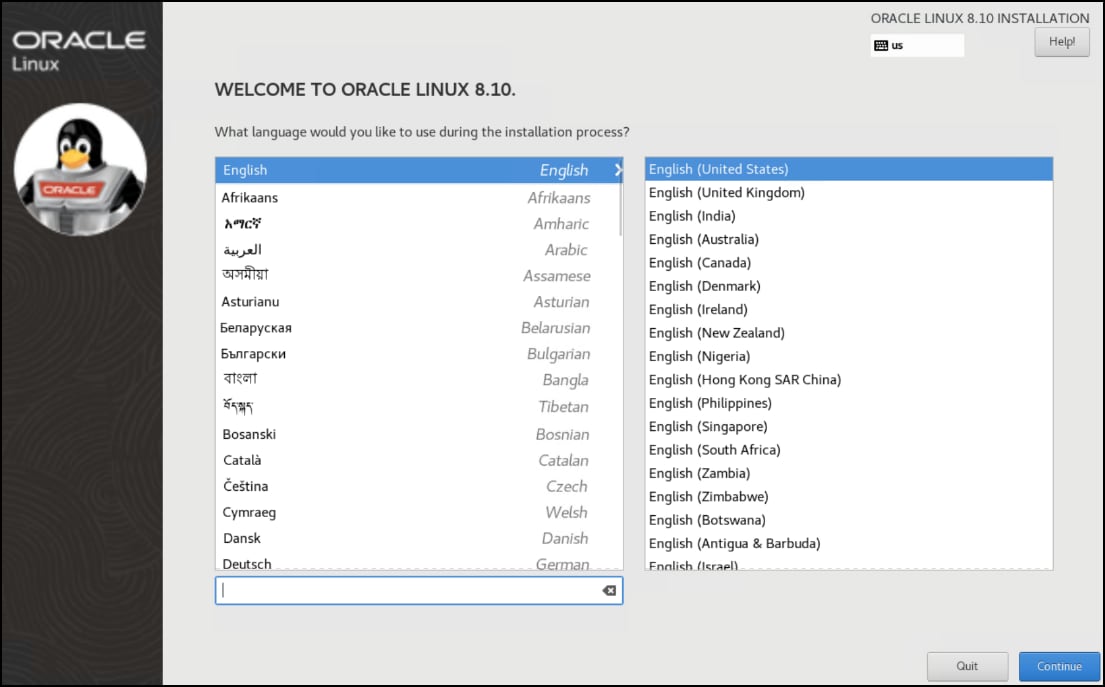
- Modify the following options and then click Begin Installation, as shown in the following figure.
- Set the root password.
- Select a Minimal Install for the Software Selection, shown in the inset. This is critical as any other selection installs the incorrect versions of qemu and libvirt and the virtual machine consoles will not function.
- Set an installation destination that has a minimum of 60 GB of available space. Here the entire 447.13 GB disk is used. This minimum size of 60 GB accommodates the OS and the oVirt Engine virtual machine, which is created on local storage before being moved to shared storage. Note that since this is just an OS installation with no knowledge of oVirt, if you choose a smaller disk there will be no warning. See KVM Host Requirements for more detail.
- Set the network details and hostname.
Figure 13. Oracle Linux installation – Step 4 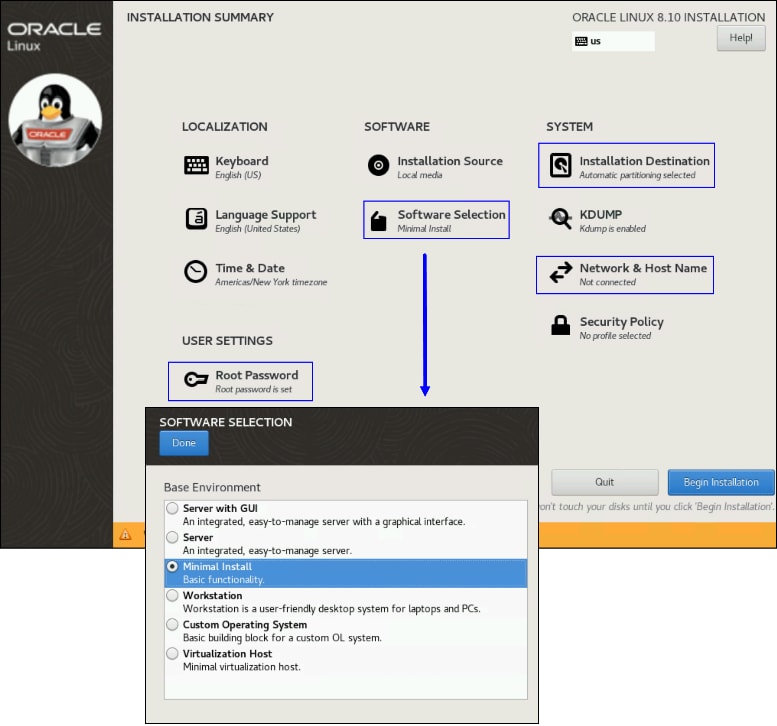
The installation progresses quickly due to the small number of packages.
Oracle Linux Virtualization Manager Release 4.5
Host Configuration Check
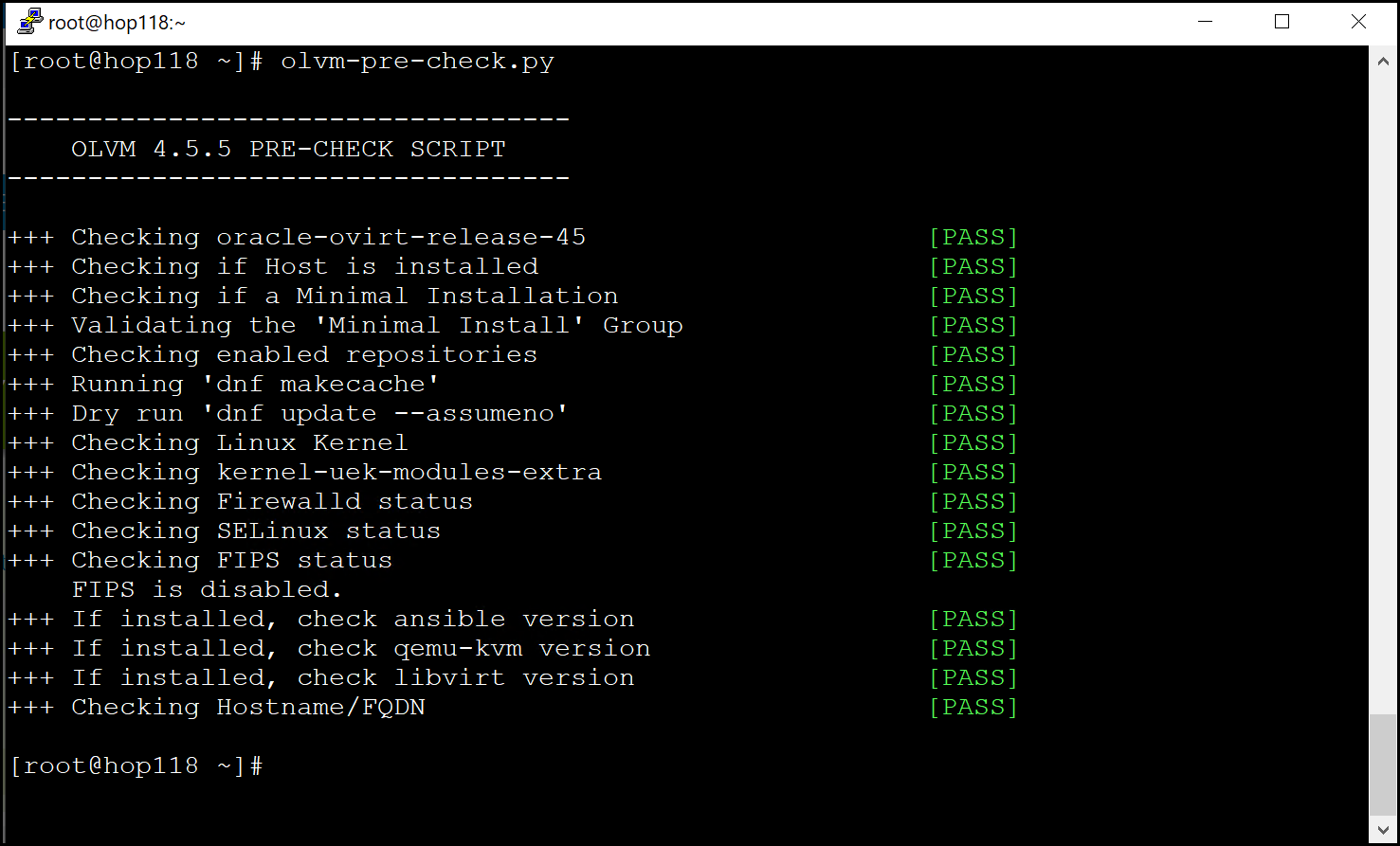
After the host comes up, run the pre-check script to ensure the host is ready for the oVirt Engine deployment.
<sudo> olvm-pre-check.pyAll tests should pass before continuing as in the following figure.
oVirt Engine Appliance
If the pre-check succeeds, install the hosted engine deployment tool and engine appliance by running:
dnf install ovirt-hosted-engine-setup ovirt-engine-applianceIf the tool and appliance install successfully, you can deploy the self-hosted oVirt Engine.
Install the self-hosted oVirt Engine
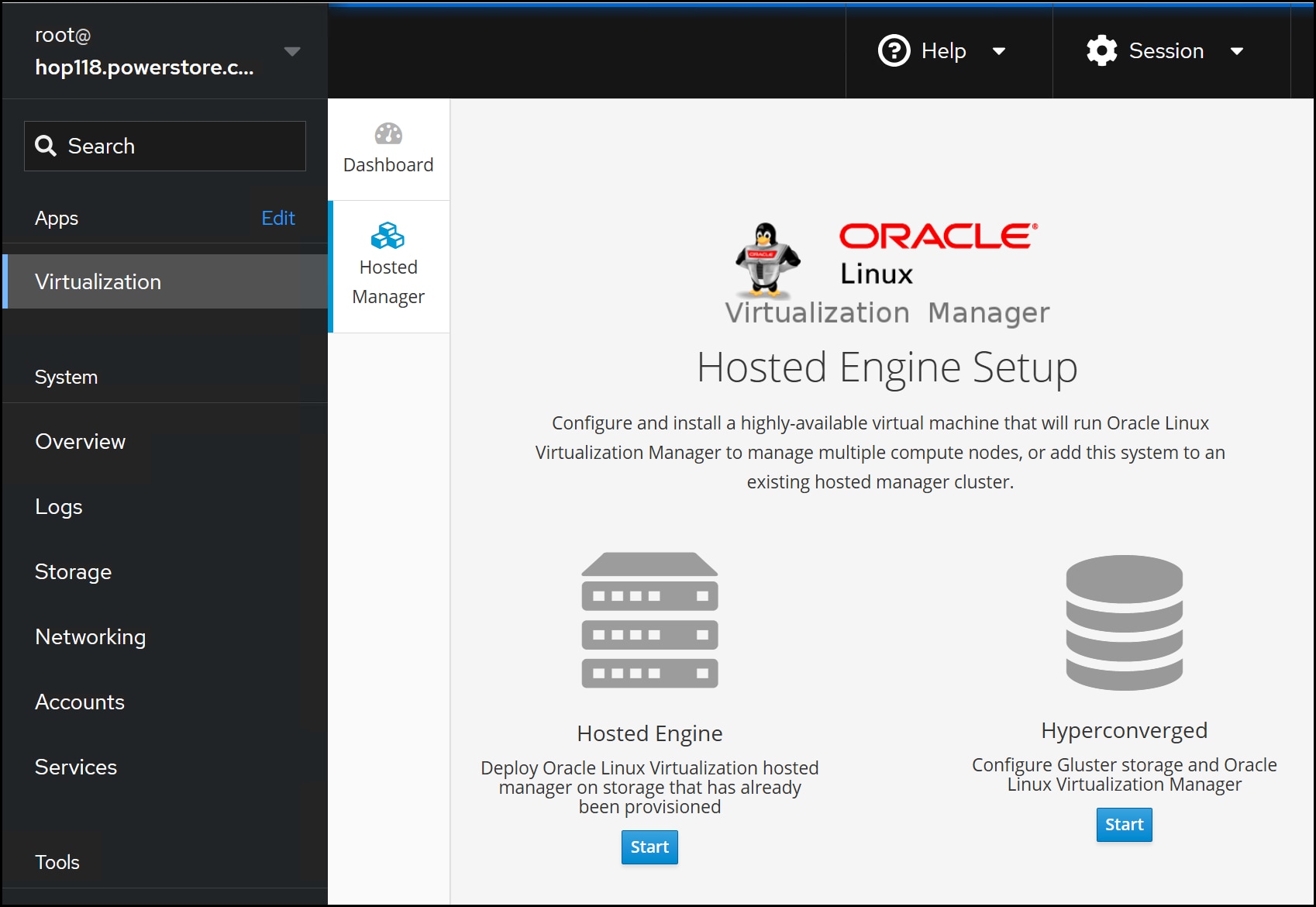
The self-hosted oVirt Engine is a virtual machine created on the first node of a KVM cluster. There are two methods for deploying the oVirt Engine: CLI or UI.
To access the UI, navigate to https://<KVM host>:9090 and log in as root. Next, on the left-hand menu, select page. Click Start to begin deployment in the following figure.
Alternatively, as in this environment, use the CLI to deploy the oVirt Engine by running the hosted-engine –deploycommand, which in turn runs Ansible scripts or playbooks to create the oVirt Engine. The script queries for the network, host names, IP addresses, and most importantly, storage. Initially, the virtual machine is deployed on the local mount (/) before being moved to the chosen shared storage. It is essential to use a disk large enough for deployment of the KVM node where the oVirt Engine will be built (as noted in the section Oracle Linux installation). By default, the script uses IPV6. If IPV4 is required, the --4 parameter must be passed. The following figure shows the execution of the script as run for this paper:

Note the reference above to shared storage – this step cannot be bypassed. The virtual machine is copied to a shared storage domain of the user’s choice that is created as part of the script. It cannot be a local storage domain. This limitation narrows the options to: GlusterFS, iSCSI, FC, or NFS. The storage must be presented to the node before running the deployment script for iSCSI and FC. To prepare for an iSCSI storage domain, see iSCSI. The user can specify GlusterFS and NFS when prompted, though you must create the NFS file system and export on PowerStore, prior to the engine deployment.
Note: When running the deployment script, use the tmux utility, which allows a script restart if the user is disconnected.
The script prompts the user for the management network (typically the public adapter of the host), the data center and cluster names, and the CPU, memory, and FQDN of the Engine. The Engine FQDN is not the running host, rather it is an available host/IP address for the virtual machine. The default values for CPU and memory are a percentage of the actual server amounts. They can be adjusted as shown in the following figure.
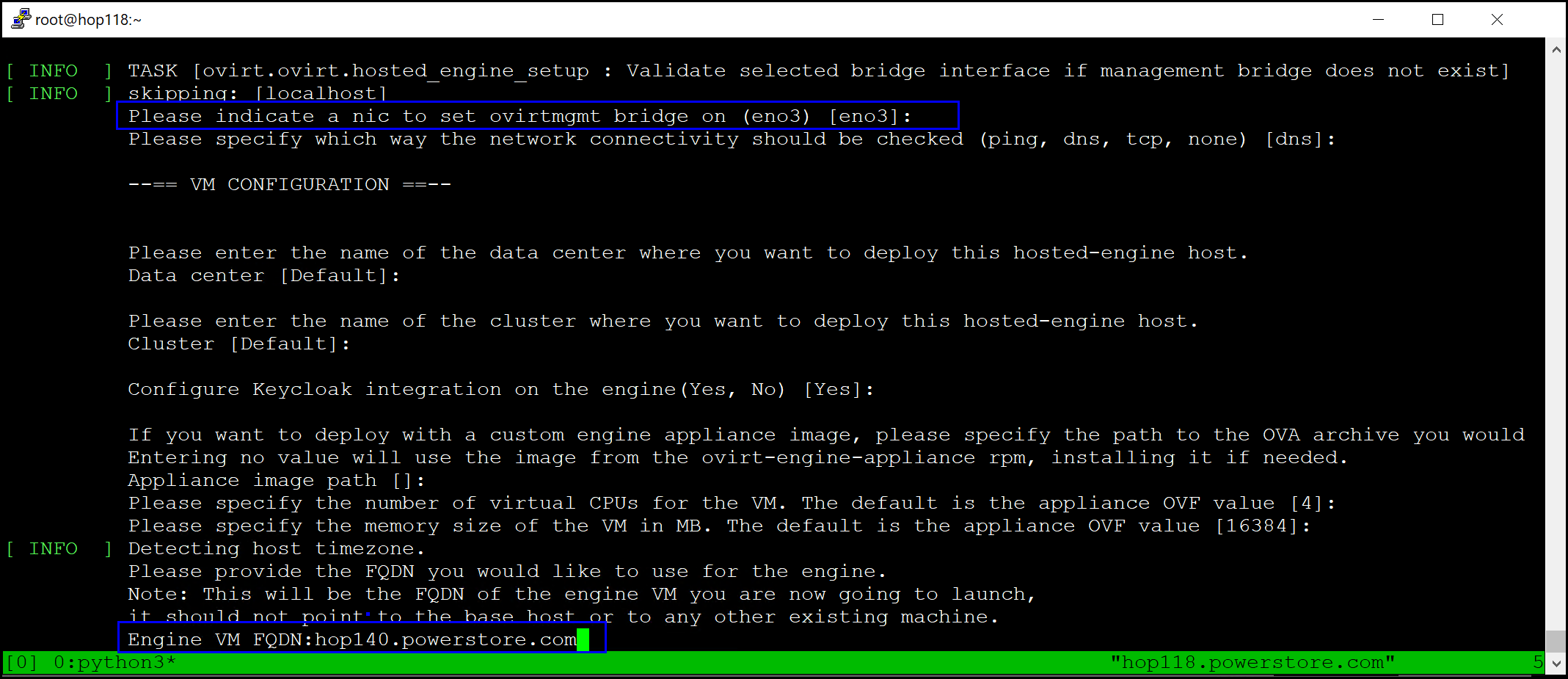
When the user enters the required information, the script deploys the appliance and creates the virtual machine on local storage. After this step is completed, the oVirt Engine is ready.
The final steps in the script move the virtual machine to shared storage. The user is prompted to select the type of storage. At the prompt, NFS is the default option. If you take the default, as here in the following figure, you will be prompted for the export path. For the steps to create an NFS file system and export on PowerStore see the section NFS.
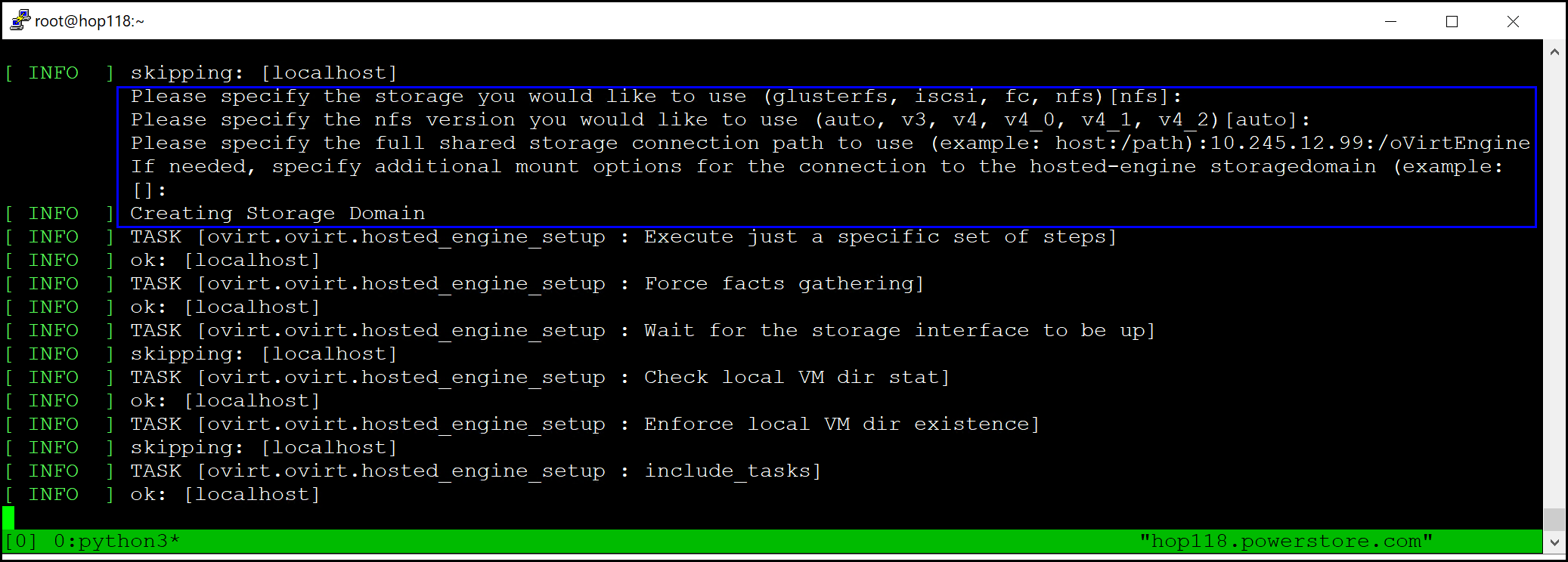
When selecting either iSCSI or FC, the script initiates a storage scan and then presents a list of devices from which to choose. Below is an example when you select fc for the storage. The bolded 99 GiB LUNs in the list are presented through fibre channel from a Dell PowerMax (tagged as EMC SYMMETRIX). This is why the operating system must see the devices prior to running the deployment of the oVirt Engine. The disk should not contain any partitions.
INFO  ->  Getting Fibre Channel LUNs list
INFO  ->  TASK [ovirt.ovirt.hosted_engine_setup : Execute just a specific set of steps]
INFO  ->  ok: [localhost]
INFO  ->  TASK [ovirt.ovirt.hosted_engine_setup : Force facts gathering]
INFO  ->  ok: [localhost]
INFO  ->  TASK [ovirt.ovirt.hosted_engine_setup : include_tasks]
INFO  ->  included: ...
INFO  ->  TASK [ovirt.ovirt.hosted_engine_setup : Obtain SSO token using username/password credentials]
INFO  ->  ok: [localhost]
INFO  ->  TASK [ovirt.ovirt.hosted_engine_setup : Get Fibre Channel LUNs]
INFO  ->  ok: [localhost]

The following luns have been found on the requested target:
[1]  36000097000012000167253300303031       99.0GiB  EMC  SYMMETRIX
     status: free, paths: 1 active
[2]  36000097000012000167253300303135       99.0GiB  EMC  SYMMETRIX
     status: free, paths: 2 active
[3]  3600009700001200016725330030313135     99.0GiB  EMC  SYMMETRIX
     status: free, paths: 2 active
[4]  SSDSC2KB480G7R_PHY8805302408BN         447.0GiB ATA
     status: used, paths: 1 active
[5]  SSDSC2KB480G7R_PHY8805301408BN         447.0GiB ATA
     status: used, paths: 1 active
[6]  SSDSC2KB480G7R                         447.0GiB ATA
     status: used, paths: 1 active

Please select the destination LUN (1, 2, 3, 4, 5, 6) [1]: 2
After the script creates the shared storage domain, it prompts the user for a virtual machine disk size before moving it to shared storage. Unless there is a specific reason to increase the size, accept the default value which is 38 GB in this example. The following figure shows these steps (abbreviated screenshot).
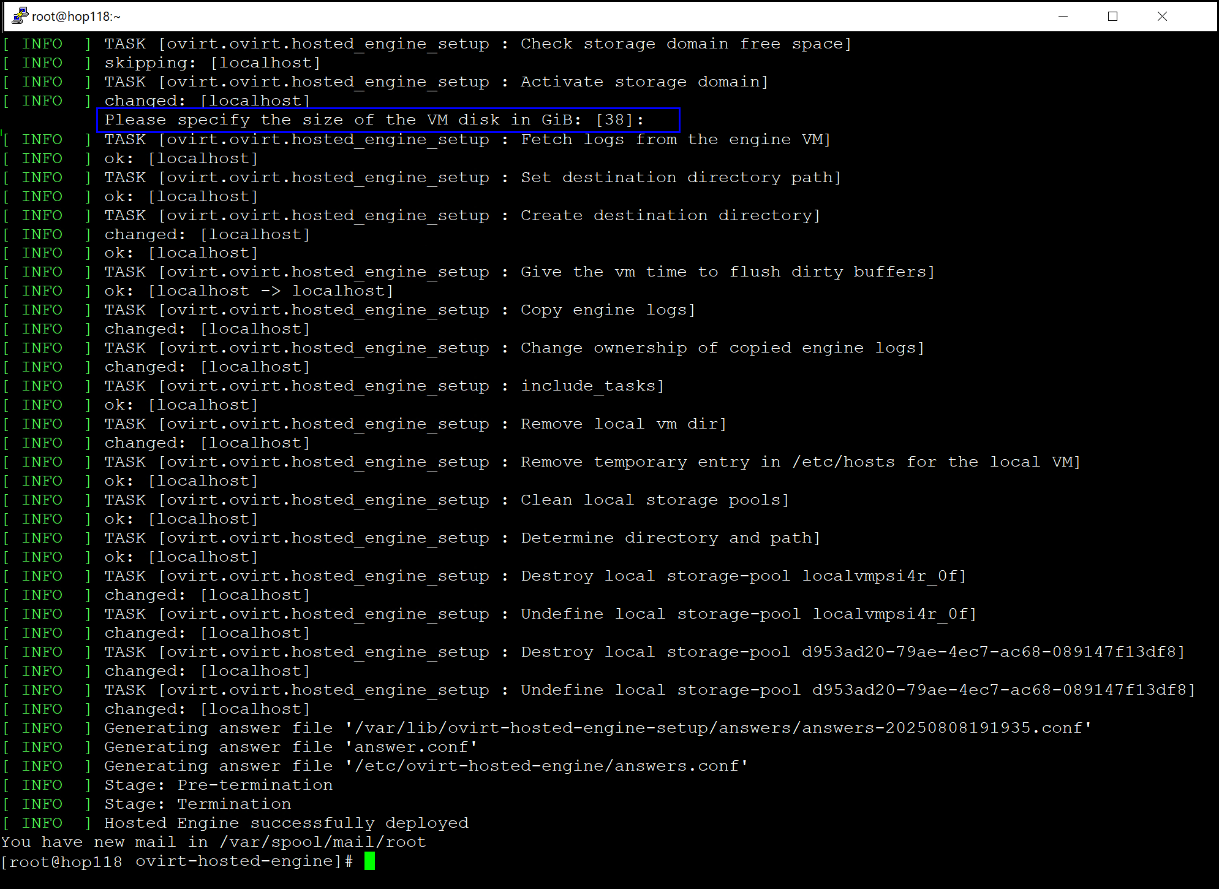
The script in this example reports a successful deployment, which means that the oVirt Engine is up and running on shared storage. If there are errors at any point, the user can address them, and the script starts again. Sometimes, the state of the installation is unknown and requires a full reset. See Failed oVirt Engine script, which describes how to rollback a failed installation for such instances.
Oracle Linux Virtualization Manager
The oVirt Engine virtual machine contains the Oracle Linux Virtualization Manager (OLVM), which is the UI of the environment.
To access the OLVM:
- Select Administration Portal and then log in as the admin user, providing the password from the deployment script, as shown in the following figure.
Figure 20. Oracle Linux Virtualization Manager login 
Upon login, the Dashboard screen is displayed, as shown in the following figure.
Figure 21. Open Virtualization Manager Dashboard 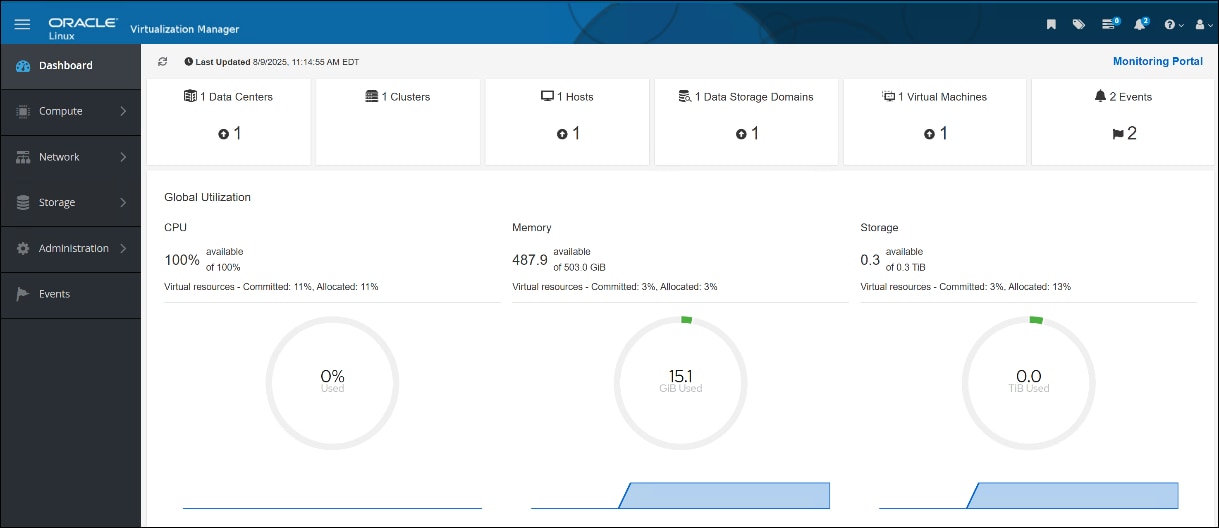
The Dashboard enables you to access environment components, as well as a link to the Monitoring Portal. Each tile at the top of the dashboard is a hyperlink to the category header. For example, clicking the Hosts tile displays the oVirt node, as shown in the following figure.
Figure 22. Hosts in Open Virtualization Manager 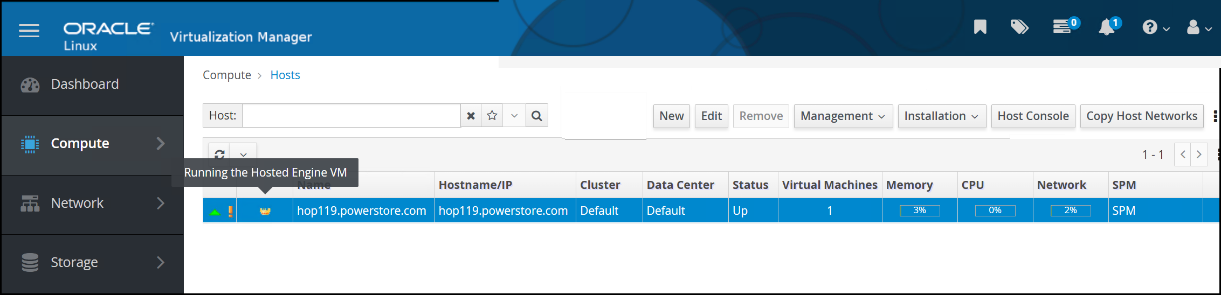
The crown icon to the left of the hostname indicates that this host is running the Hosted Engine VM.
The exclamation point icon to the left of the crown icon indicates that power management is not active on the host. Power management allows the user to power on and power off the host from the OLVM interface. It accomplishes this task through a fencing agent such as iDRAC. This node is the initial node in the configuration. One cannot enable power management on the initial node in the cluster until a second node is added. For information about enabling power management, see Adding a KVM host to a cluster.
With the completion of the script, you can now add more hosts to the cluster and create more storage domains.
Cockpit
A user will likely see a reference to Cockpit if they SSH into a KVM node. Cockpit is part of the build for the oVirt node and can be enabled on each KVM node for a standard server installation. It is a UI that can manage a Linux system, including virtual machines. The user might find it useful to manage the Linux host themselves, however, because the oVirt Engine provides the UI OLVM for the KVM environment as a whole, Cockpit is unnecessary for virtualization components.
Adding a KVM host to a cluster
After deployment of the oVirt Engine, whether self-hosted or stand-alone, the user can add other Enterprise Linux or oVirt Nodes KVM nodes to the cluster. The oVirt documentation lists the minimal requirements for a KVM node before adding it to a cluster. The following procedure assumes that the user has met these prerequisites.
- From the OLVM UI, navigate to and click New to start the wizard, as shown in the following figure.
Figure 23. Add the KVM host – start the wizard 
- In the New Host dialog, select the Host Cluster, specify a Name, Hostname/IP, and a Password, as shown in the following figure.
Figure 24. Add KVM host - define the host cluster 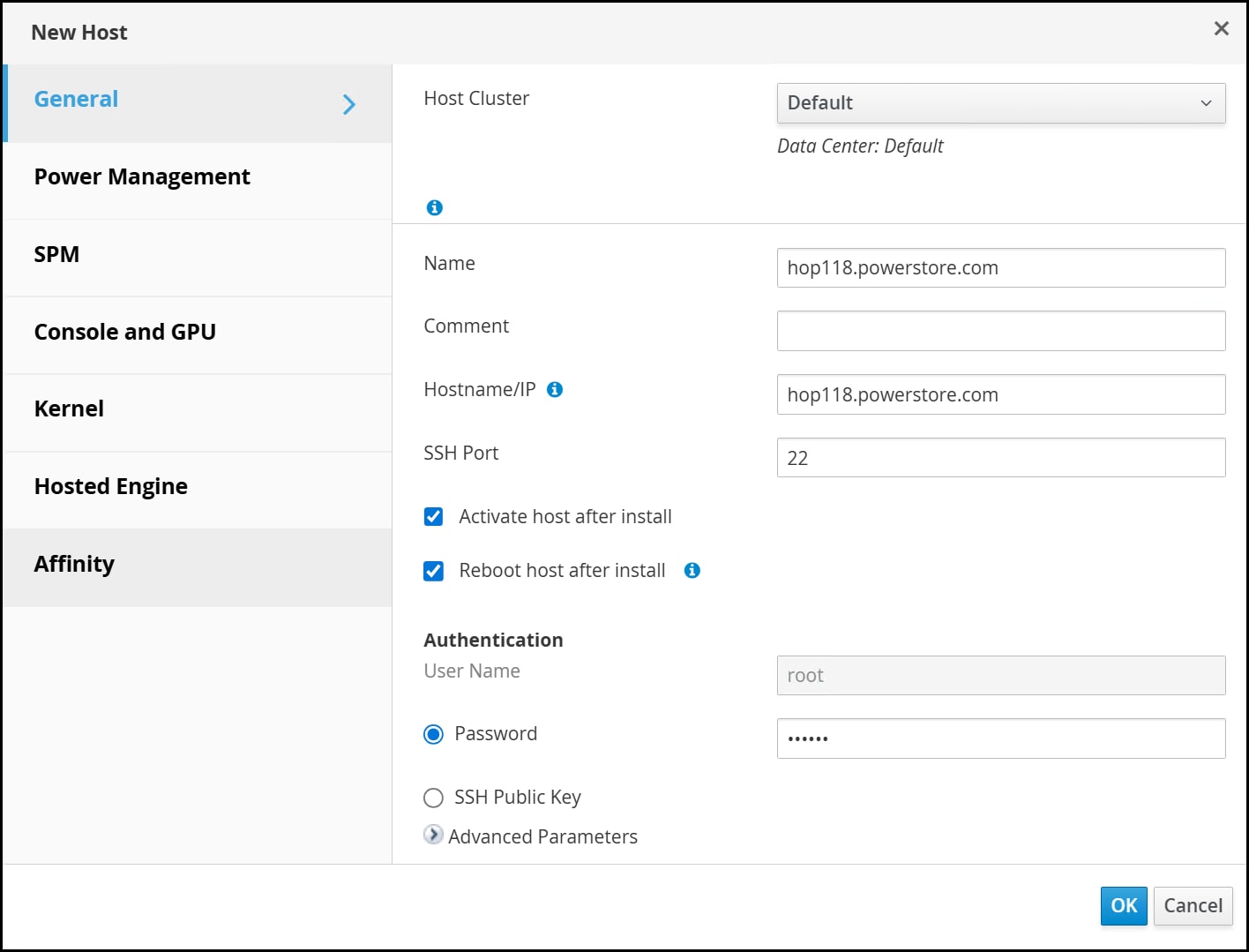
No other changes are required. If using Power Management on the host (such as iDRAC), or enabling HA, continue to the next step. Otherwise, click OK to complete adding the host.
- In the Power Management dialog, click the Enable Power Management checkbox and then click the plus sign to Add Fence Agent, as shown in the following figure.
Figure 25. Add KVM host - enable Power Management  Note: Because power management cannot be enabled without a second host, local storage clusters cannot use this functionality directly. However, it is possible to create a program that runs VDSM locally or write a fence wrapper. These tasks are beyond the scope of this guide.
- For the fence agent, as shown in the following figure, enter the following:
- The Address, User Name, and Password.
- From the Type drop-down list, select the correct agent used on the host. As shown in the example in the following figure,
drac7is selected for iDRAC. - Click Test to run the Test functionality in the red box.
- Click OK when ready.
Figure 26. Add KVM host - edit the fence agent 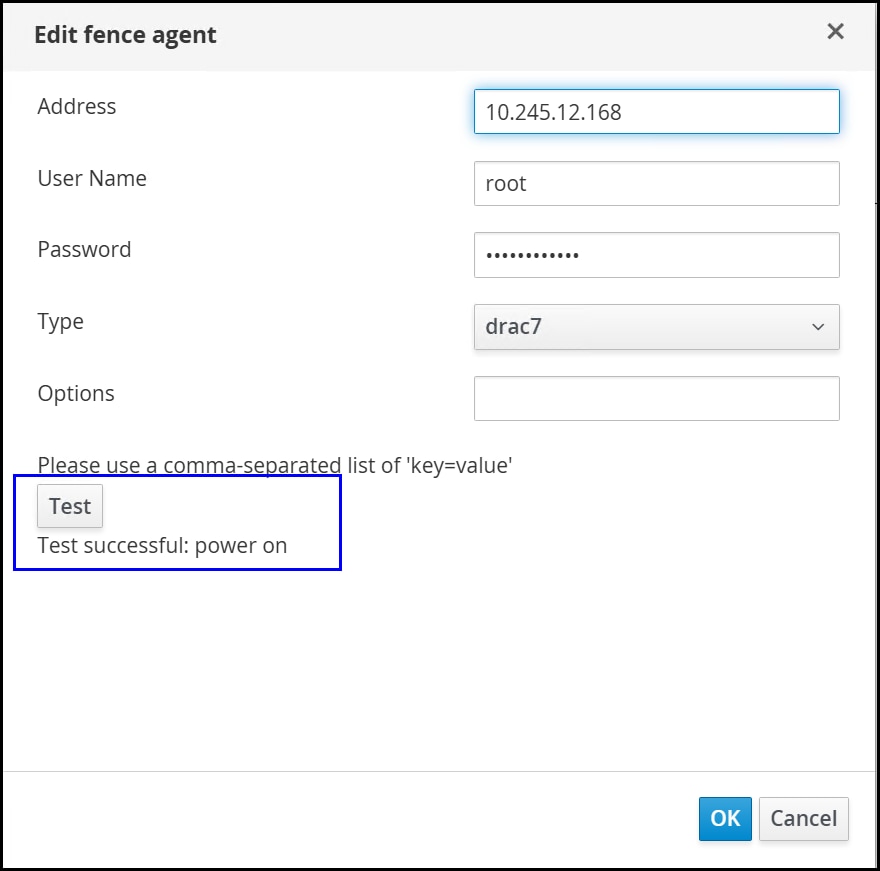
The screen returns to the main Power Management screen. The following figure shows the new agent.
Figure 27. Add KVM host - view the new agent 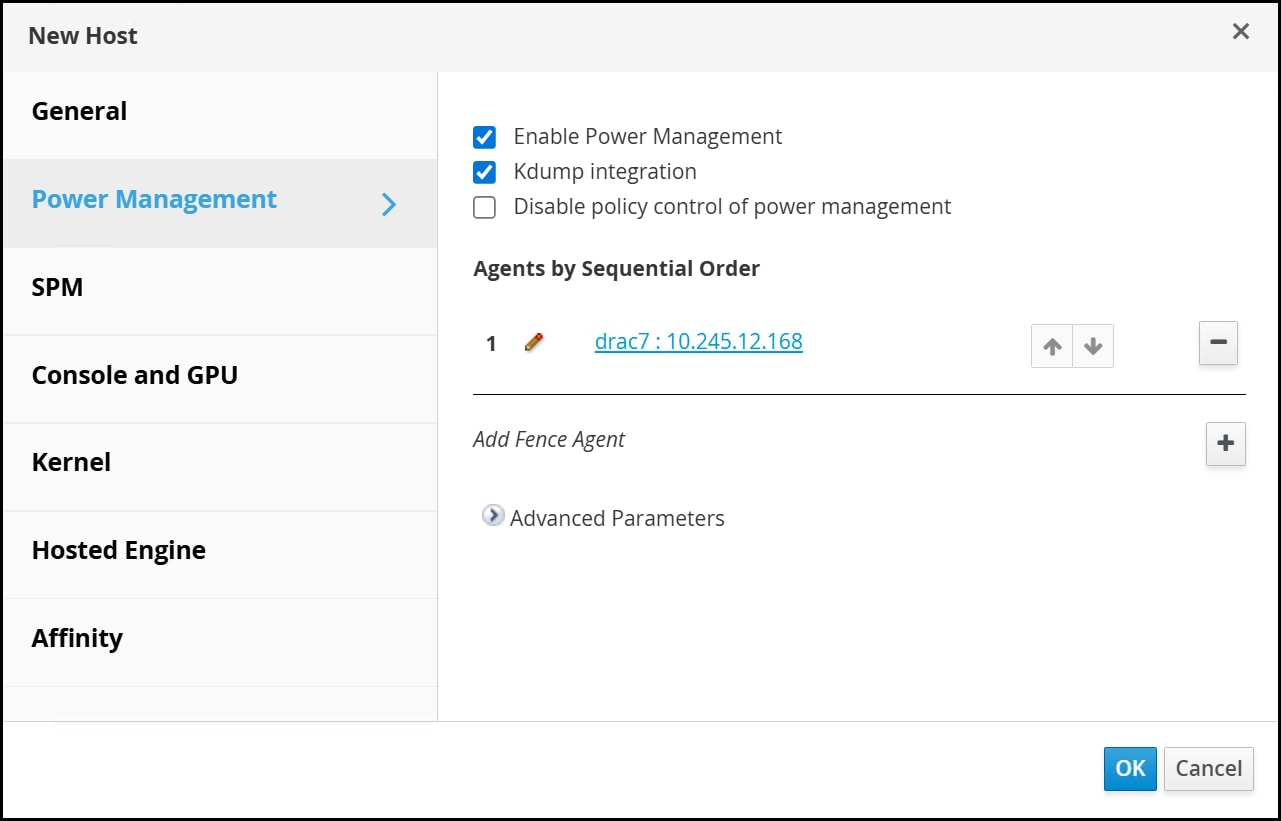
- If the KVM host will be configured to run the self-hosted engine (to enable HA), click Hosted Engine, select Deploy from the drop-down list, and then click OK to add the host, as shown in the following figure. Note this does not deploy another Hosted Engine, it simply allows this host to run the existing Engine should the current host become unavailable.
Figure 28. Add KVM host - add the host 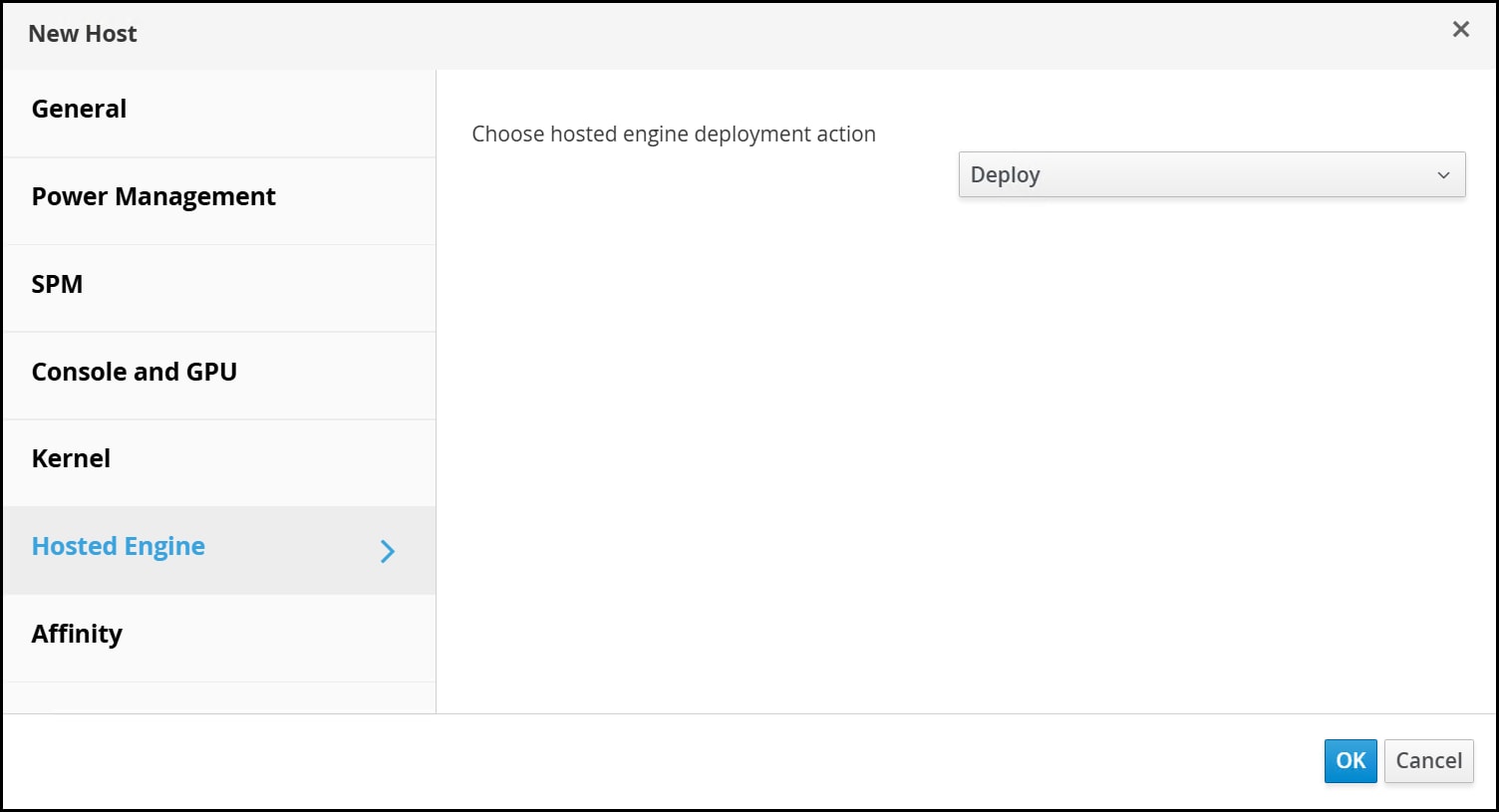
OLVM now initiates the operations to add the host to the cluster, including installation of the packages. The following figure shows the status of the host as Installing; when the steps complete, and after reboot, the status of the host should be Up.
Figure 29. Add KVM host – view the host status 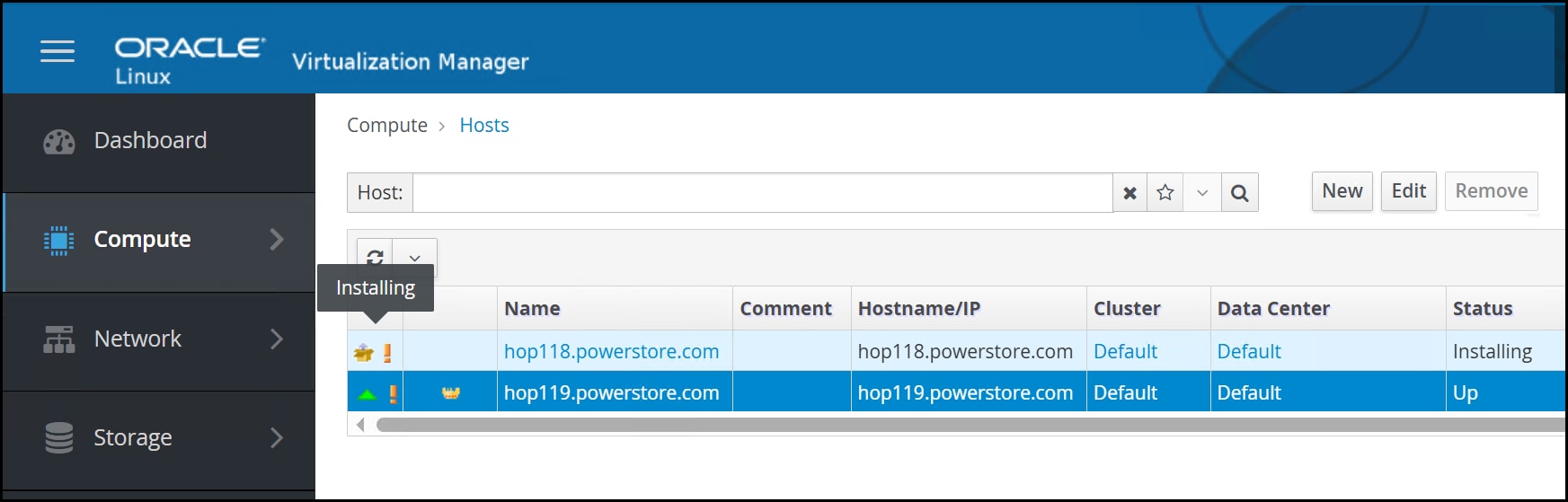
If a host is selected for the self-hosted engine, a silver crown icon to the left of the hostname indicates that the host is allowed to run the self-hosted engine, either because of an HA event or migration, as shown in the following figure.
Figure 30. KVM host that can run the Hosted Engine 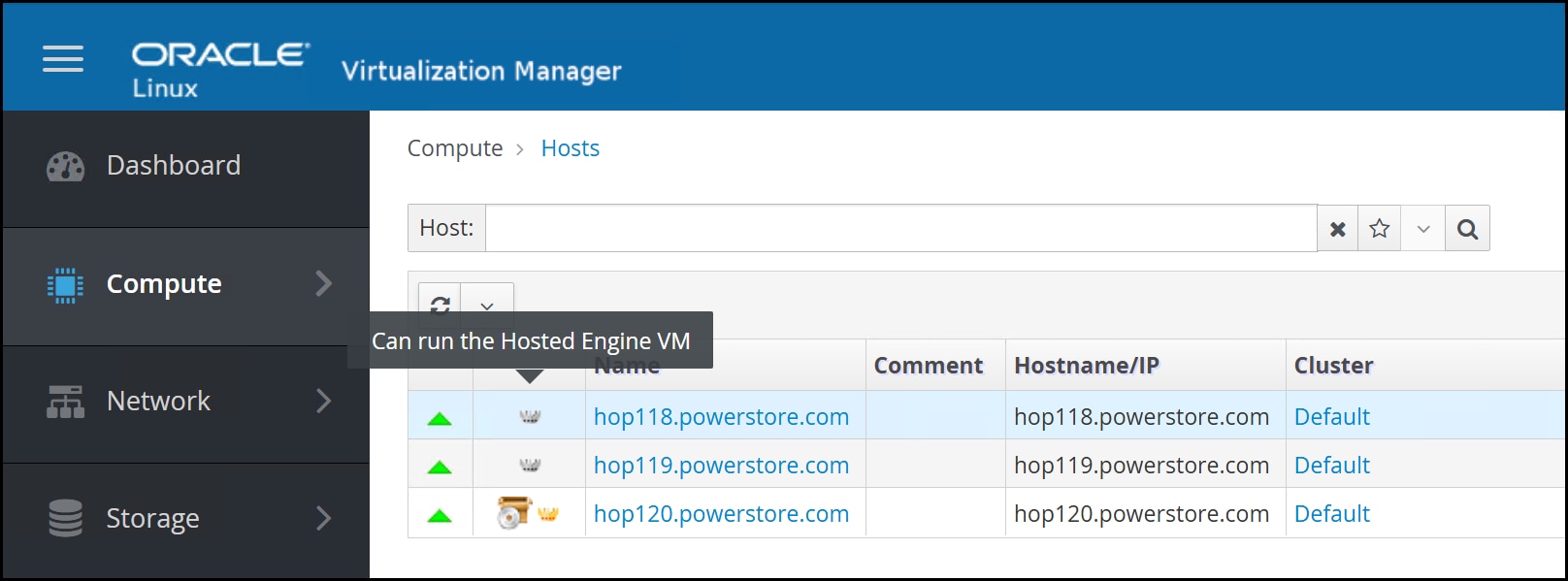
After the second host is part of the cluster, the user can edit the first host and assign power management to it. One cannot enable power management for the first host until there is a second host. Repeat the preceding steps to add power management to the first host.
Upgrades
If new oVirt software becomes available, OLVM informs the user if any hosts in a cluster can be upgraded. If the user examines the hosts, each host indicates whether it can be upgraded by showing the Update available in the following figure.
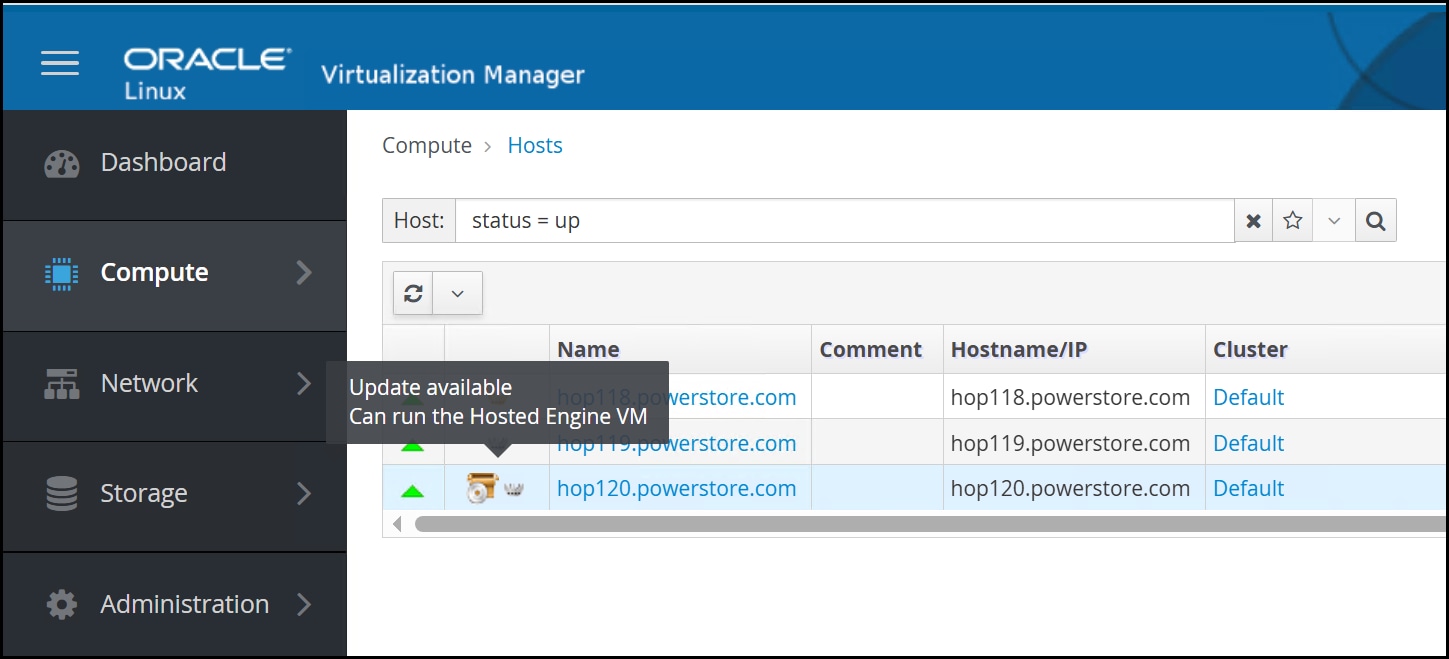
In the hosts view, the Installation menu also enables the user to check for updates because OLVM only checks for updates periodically.
Host upgrade
To upgrade a host:
- Highlight the specific host and from the Installation drop-down list, select Upgrade, as shown in the following figure.
Figure 32. Upgrade the host 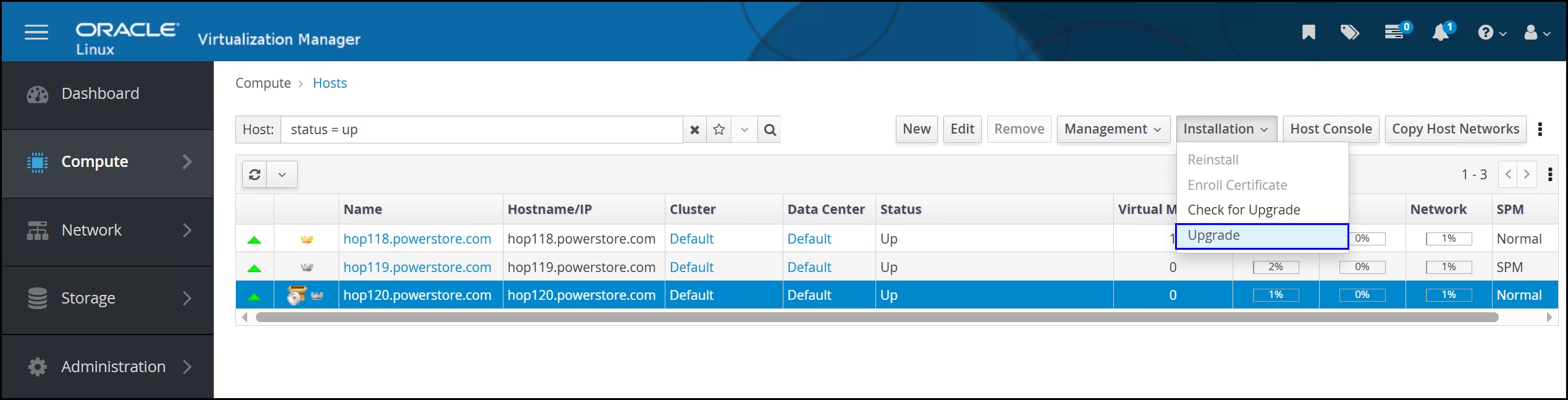
- In the Upgrade Host dialog, click OK. Note that the Reboot host after upgrade checkbox is enabled by default, as shown in the following figure.
Figure 33. Upgrade host dialog 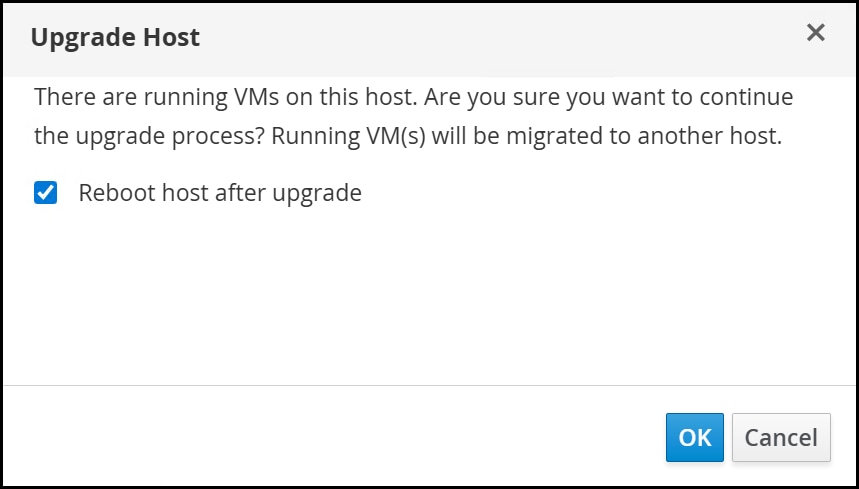
The status of the host proceeds through various states before reboot. Note that if there are VMs on the host, including the oVirt Engine, they will be moved to other hosts before the upgrade. The Events page provides this information in the following figure.
Figure 34. VM migration before host upgrade 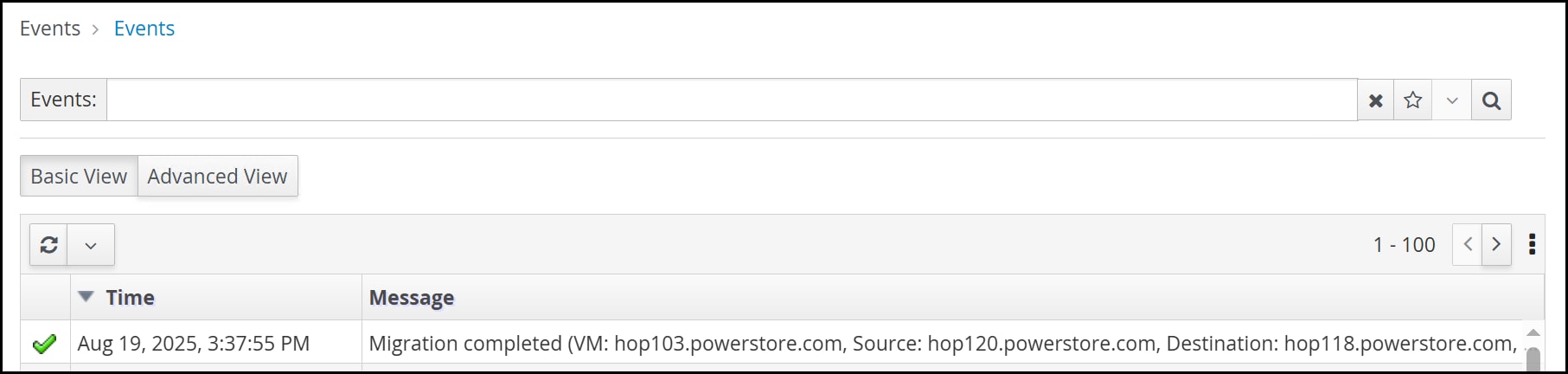
The following figure shows statuses for two of the hosts: Installing and PreparingForMaintenance. The hosts move through a number of steps before reboot. In the inset, the event log shows a successful upgrade.
Figure 35. Host event log 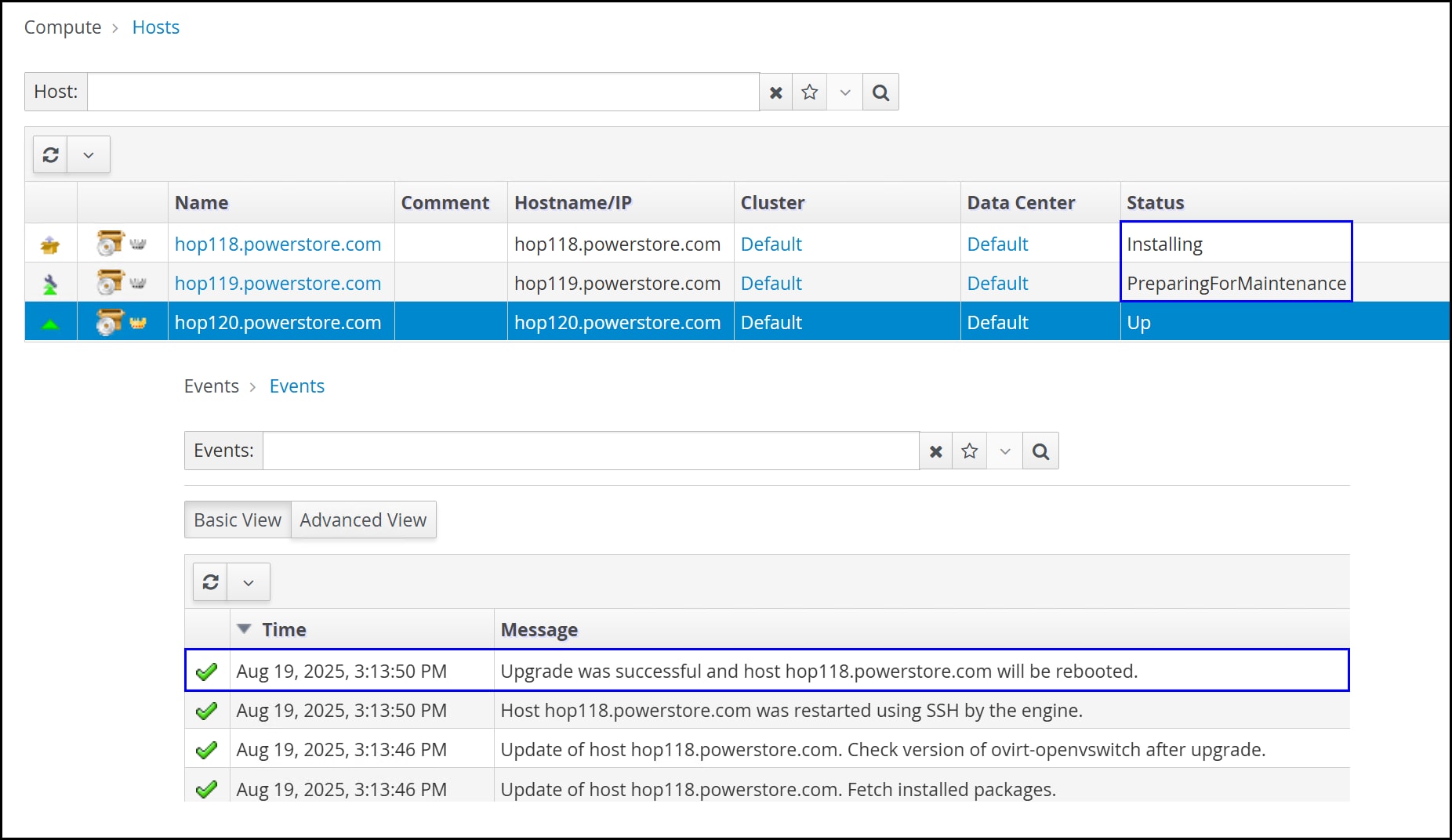
Storage domains
Storage types
When creating new shared storage domains in a KVM environment, the user is limited to these storage types, as shown in the following figure.
- NFS
- POSIX-compliant FS (global file system)
- GlusterFS
- iSCSI
- Fibre Channel
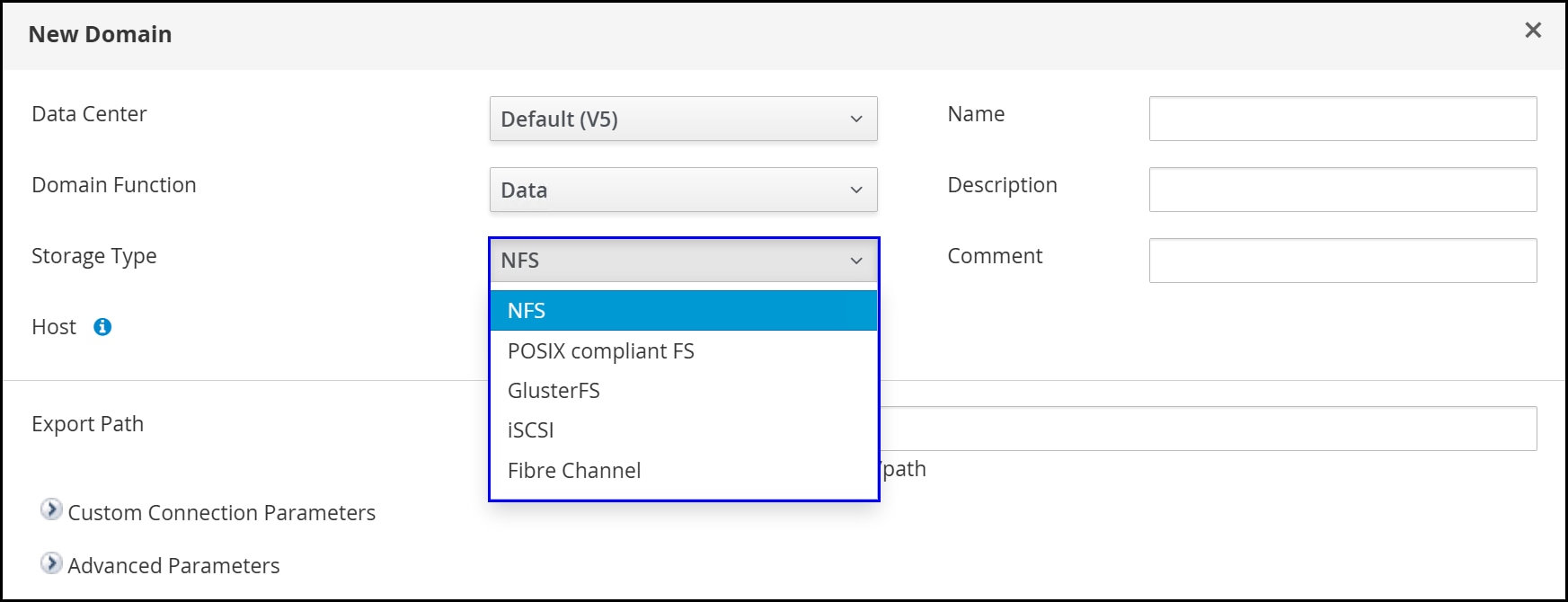
PowerStore supports all these protocols: NFS, iSCSI, and FC. KVM has specific requirements for each storage type that is used in a storage domain. Creating storage domains on NFS and iSCSI is covered next.
NFS
NFS is a distributed file system protocol that allows one to access files over a network. NFS is a common choice for storage domains because it is simple to implement and manage. When using NFS storage with KVM, it is important to pick a platform that meets the performance and scalability requirements of user workloads. PowerStore supports both NFS 3 and 4.1 and delivers superior performance when matched with a low-latency network.
For NFS, the permissions and the ownership of the share must be altered so that the oVirt Engine can use it. The available ownership and permissions on the PowerStore NFS export are limited and do not meet the requirements of KVM. Therefore, it is necessary to manipulate the share either on an existing KVM node, or on a separate host altogether. In the following example, a Linux host was configured for the sole purpose of meeting the prerequisites of NFS storage. This example sets up the storage for the self-hosted oVirt Engine. It is the same process, however, as is required for creating an NFS storage domain after the oVirt Engine deployment is completed.
Create the NFS file system
The following steps create the NFS system and make it available to the KVM node. It is assumed that a NAS server is configured and available on a network that the KVM hosts can reach.
- In PowerStore Manager, navigate to and click + Create to start the wizard, as shown in the following figure.
Figure 37. Step 1 – + Create 
- Because the hosts are physical hosts, keep the default setting of General in the Select Type dialog, as shown in the following figure. Click Next.
Figure 38. Step 2 – Select type 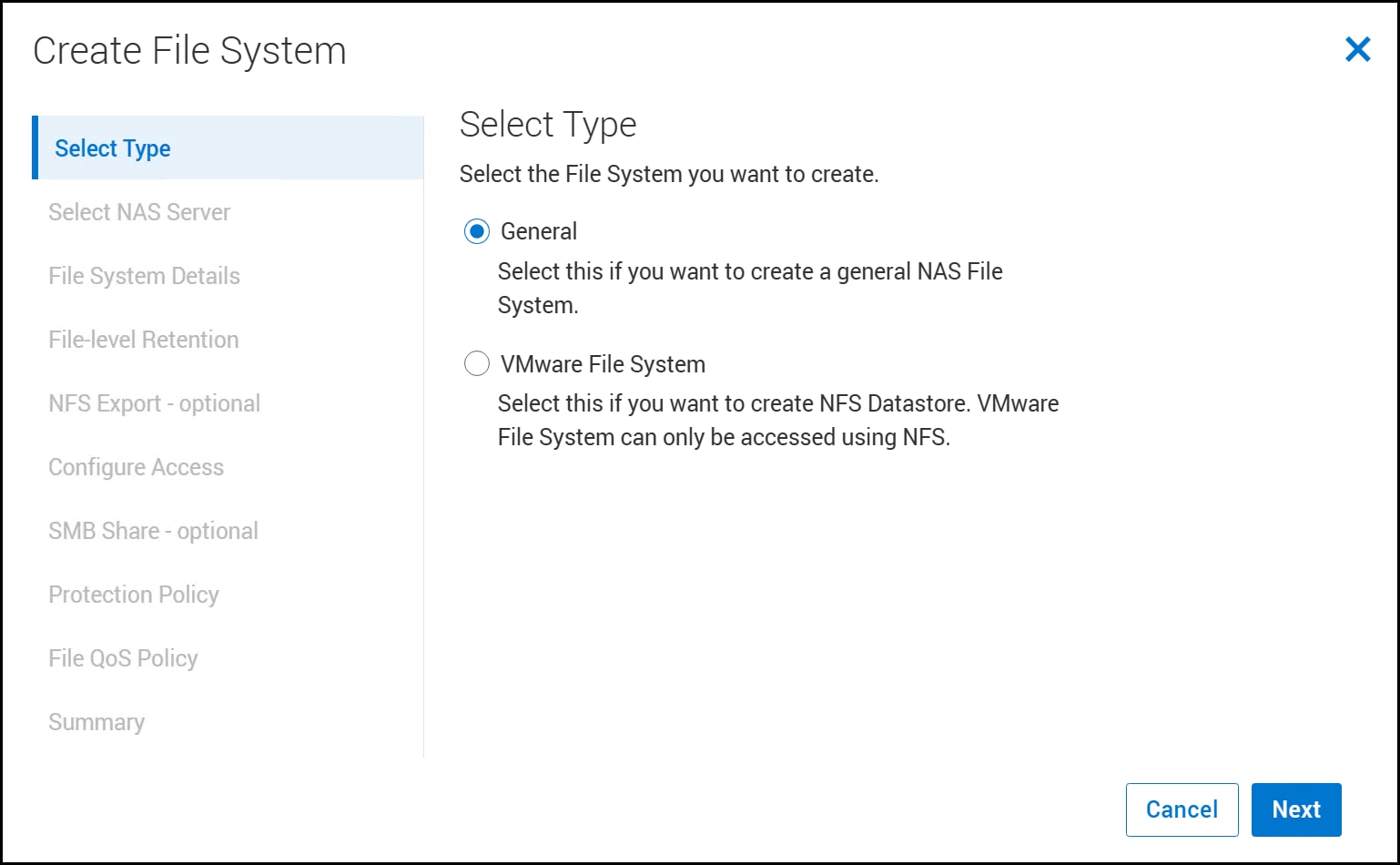
- Select an NAS Server and click Next as shown in the following figure.
Figure 39. Step 3 – Select NAS Server 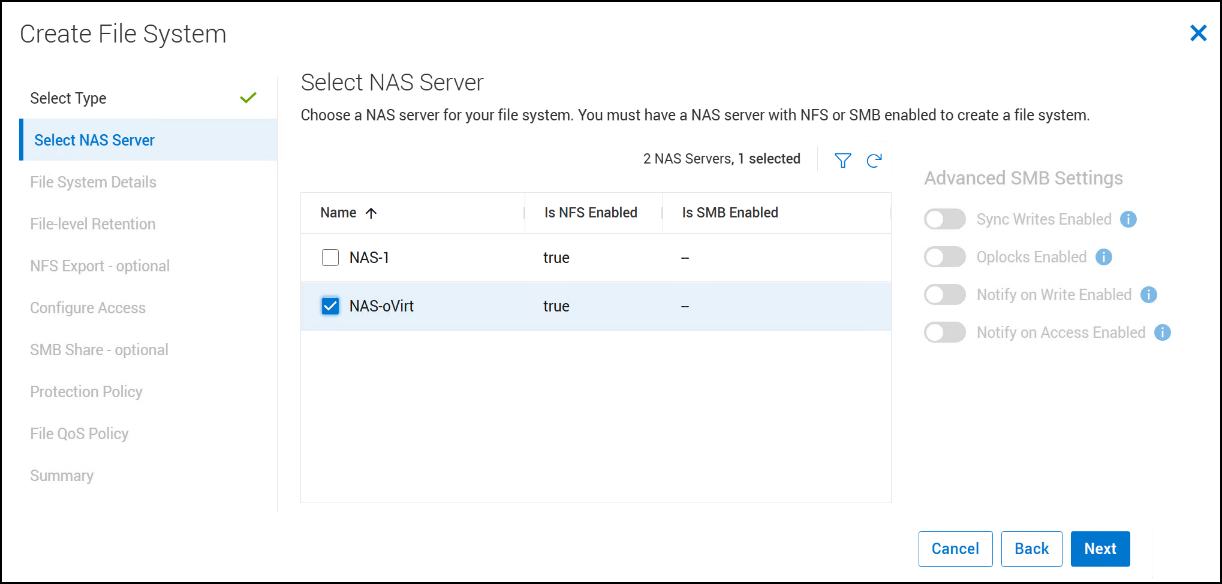
- In the File System Details dialog, enter a Name, an optional Description, and a Size as shown in the following figure. If the file system is being used for the oVirt Engine set the size to at least 75 GB. Click Next.
Figure 40. Step 4 – File System Details 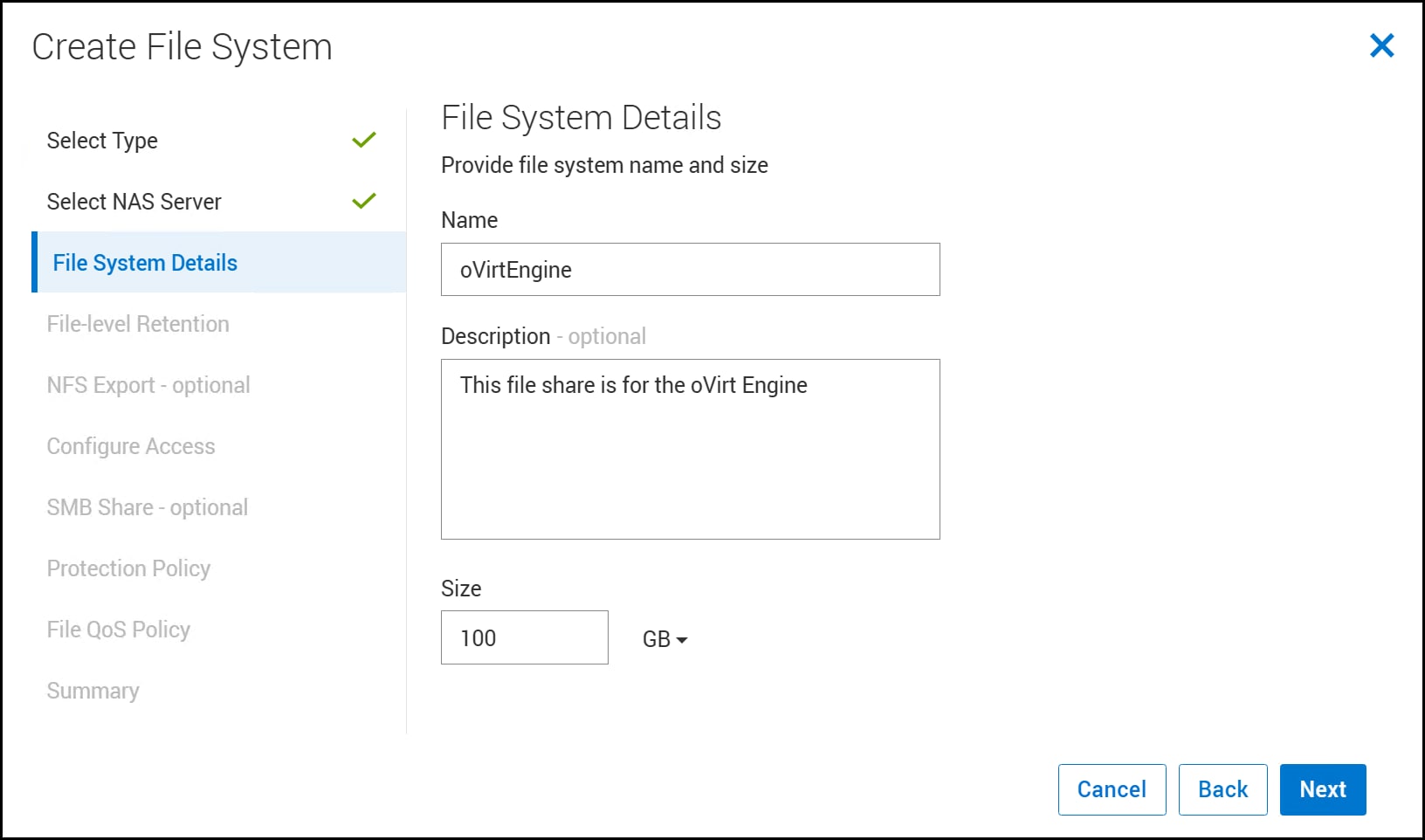
- Configure the NFS export. Provide a Name and optional Description in the following figure. The step is shown as optional since it can be done at a later time.
Figure 41. Step 6 – NFS export - optional 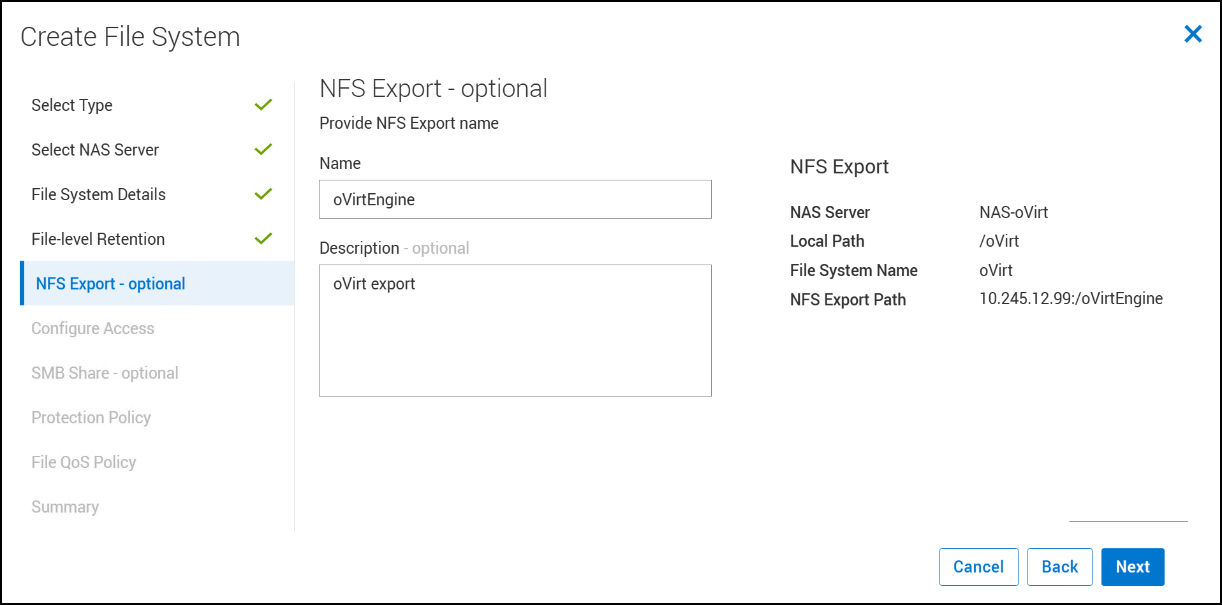
- For KVM hosts to mount the NFS file system, grant the file system access, as shown in the following figure.
- Set the Minimum Security to Sys. This is the default and simplest security. The advanced security is in the form of Kerberos.
- Set the Default Access to Read/Write, allow Root and then click Next. There is no need to add a specific host.
Figure 42. Step 7 – Configure Access 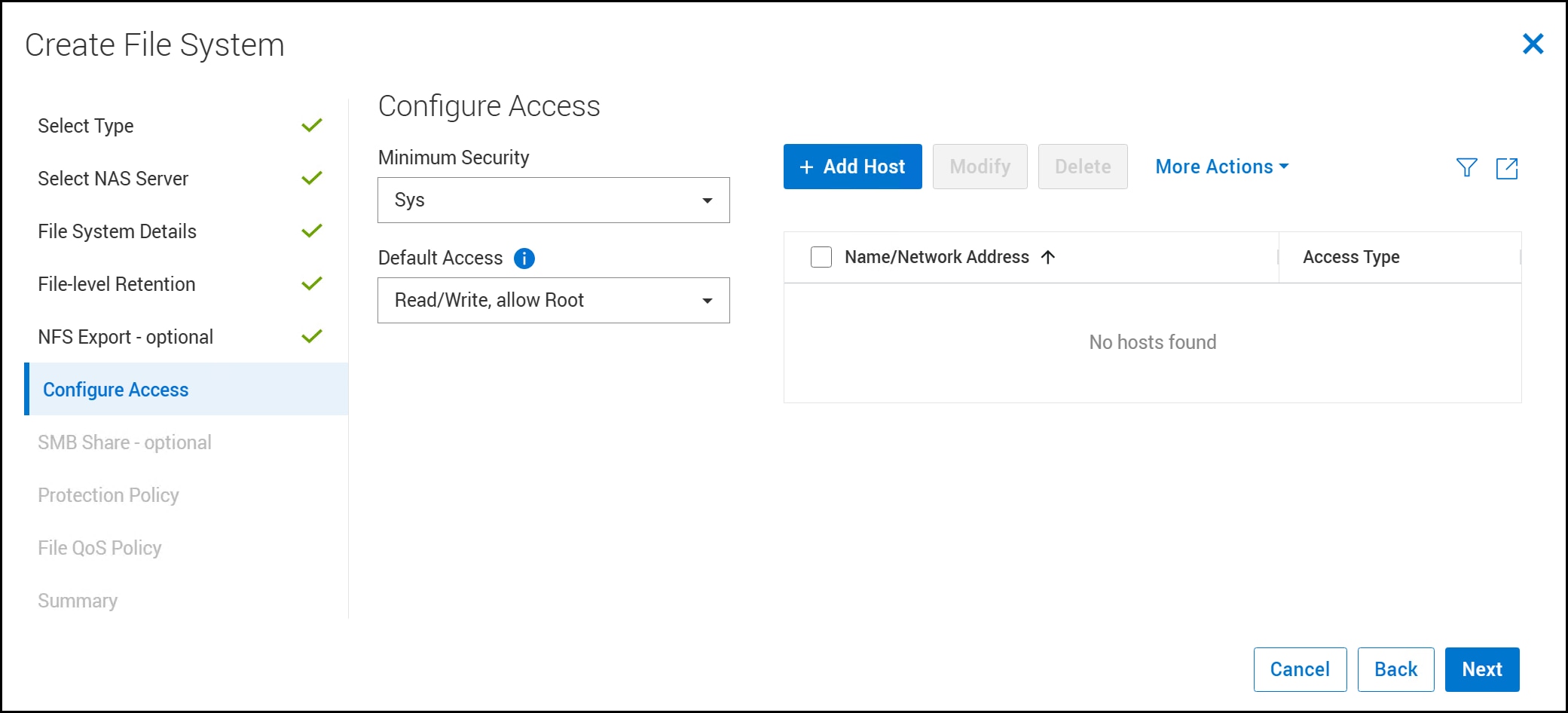
- You can protect the file system by applying a snapshot Protection Policy. The policy in the following figure is set to take a snapshot every day at midnight. For information about the policy see the section Protection Policies. Click Next.
Figure 43. Step 9 – Protection Policy 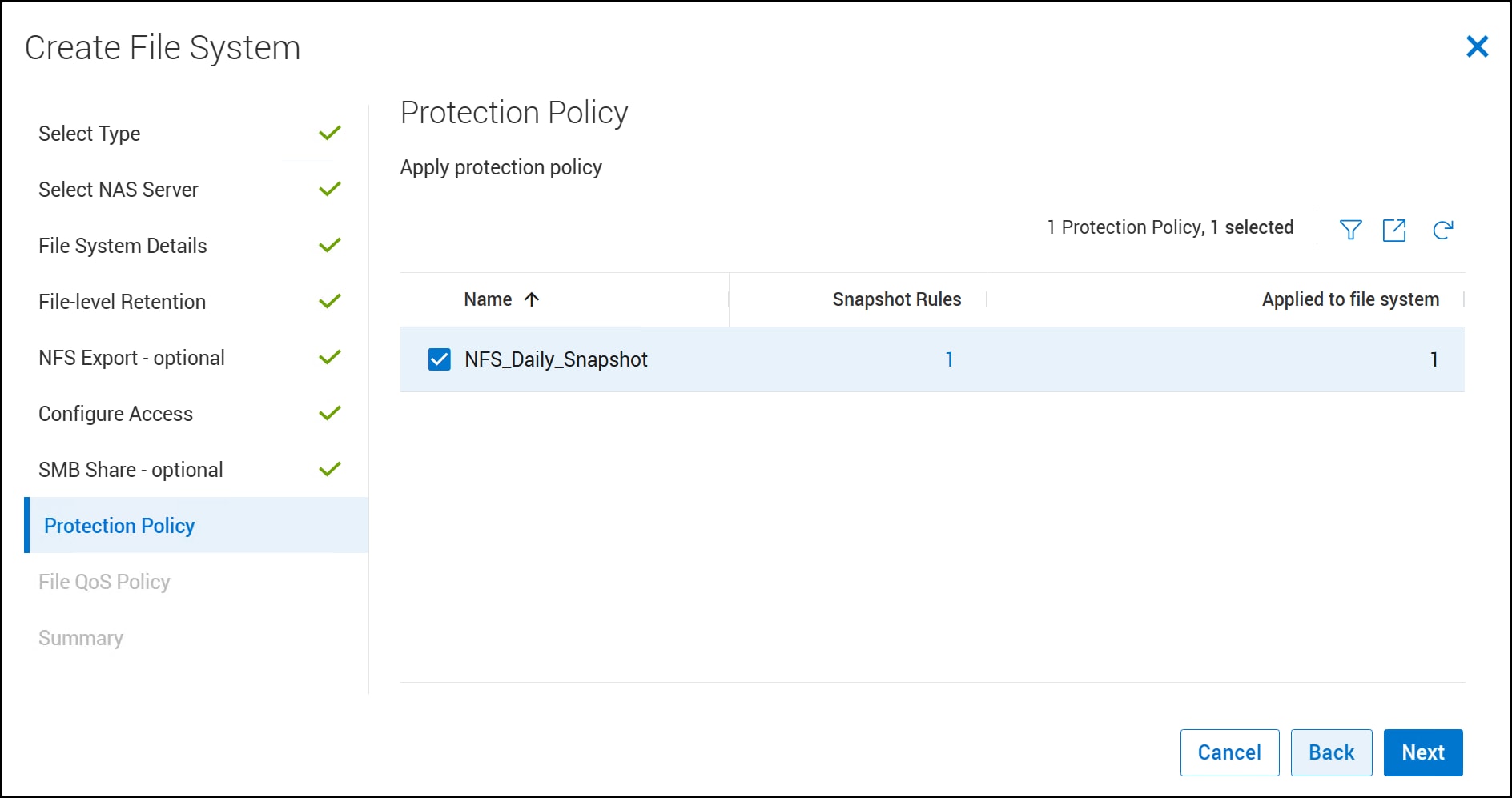
- Review the Summary and click Create File System.
Figure 44. Step 11 – Summary 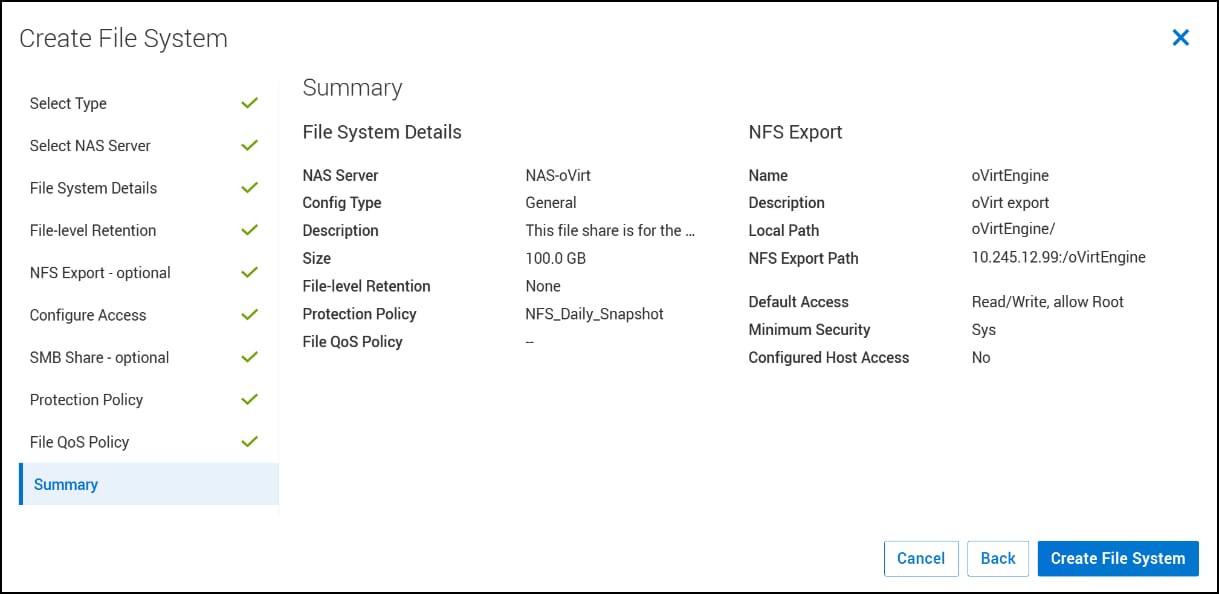
The resulting NFS file system is shown in the following figure.
Figure 45. oVirtEngine file system 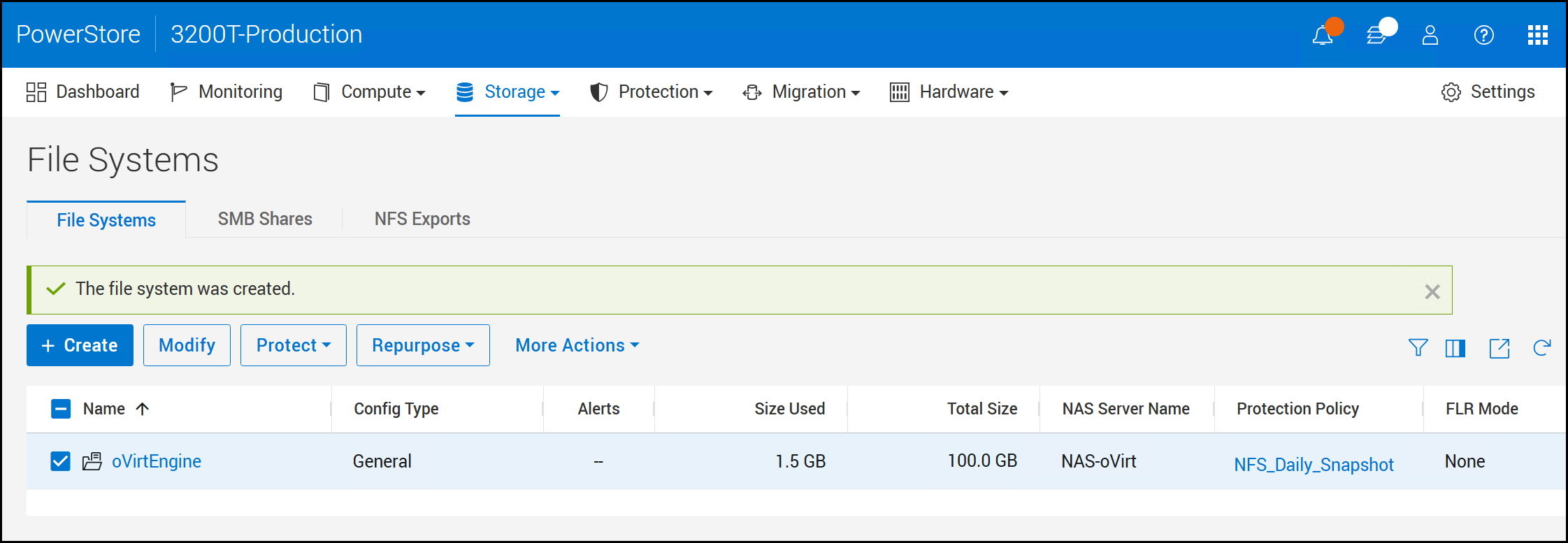
Whether the NFS file system is intended for the oVirt Engine or as a storage domain, you must alter the permissions. Unfortunately this cannot be done on the export directly in PowerStore. You need a host which has access to the NFS network. Follow the steps in the next section.
Modify the NFS file system for the storage domain
To allow the storage domain to use the NFS file system, modify folder ownership. Create a folder in the NFS file system with the correct ownership (vdsm:kvm) and permissions (0755) for the storage domain as it will be used as the path rather than the configured export.
Note: On most Linux implementations, the kvm group exists with ID 36. If another OS user on the host is already assigned the ID 36, use another host. If the user or group already exists on the host, skip the pertinent step below.
- Unmount the share:
cd /
umount /oVirtEngine
The following figure shows steps 1-6.
Figure 46. Prepare NFS mount for oVirt 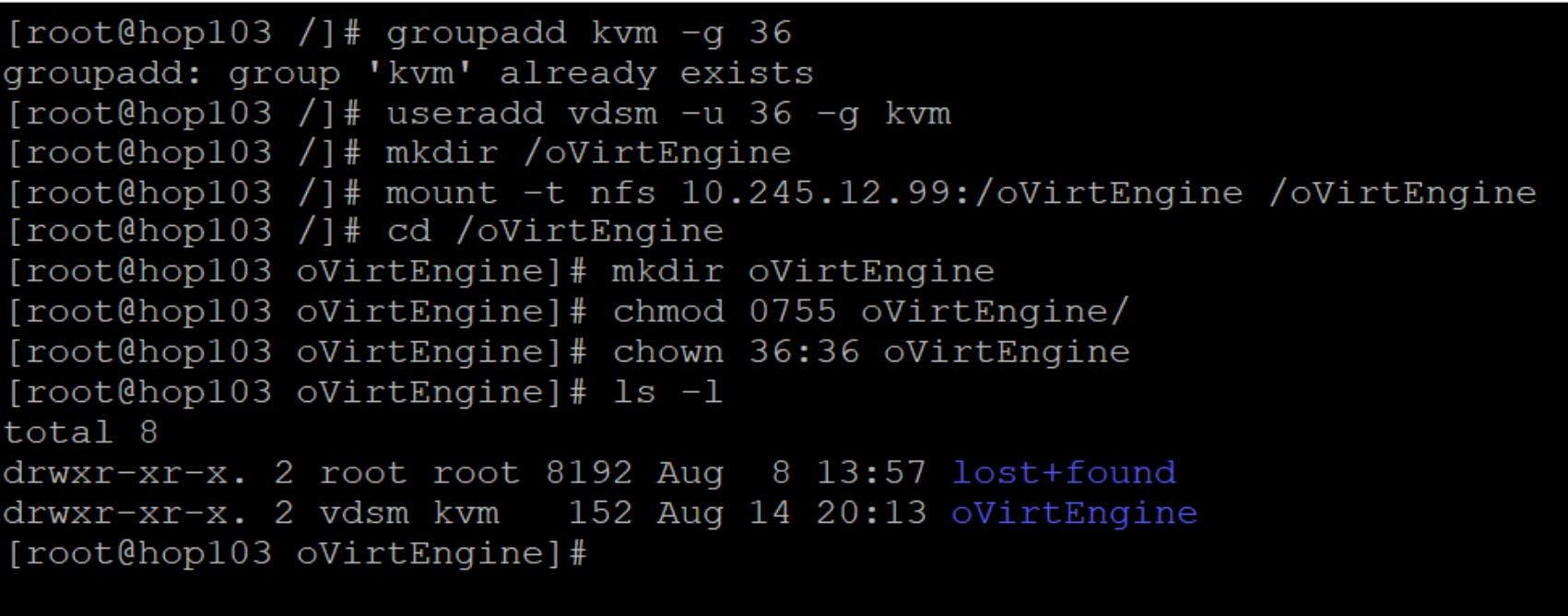
The NFS file system is now available for use in the section Install the self-hosted oVirt Engine.
NFS storage domain
If an NFS file system is intended for use as a storage domain, follow the steps in to prepare the storage and then use the NFS storage domain wizard. In the example below the NFS file system
- In the OLVM, navigate to Storage -> Domains and click New Domain as shown in the following figure.
Figure 47. Step 1 – NFS storage domain 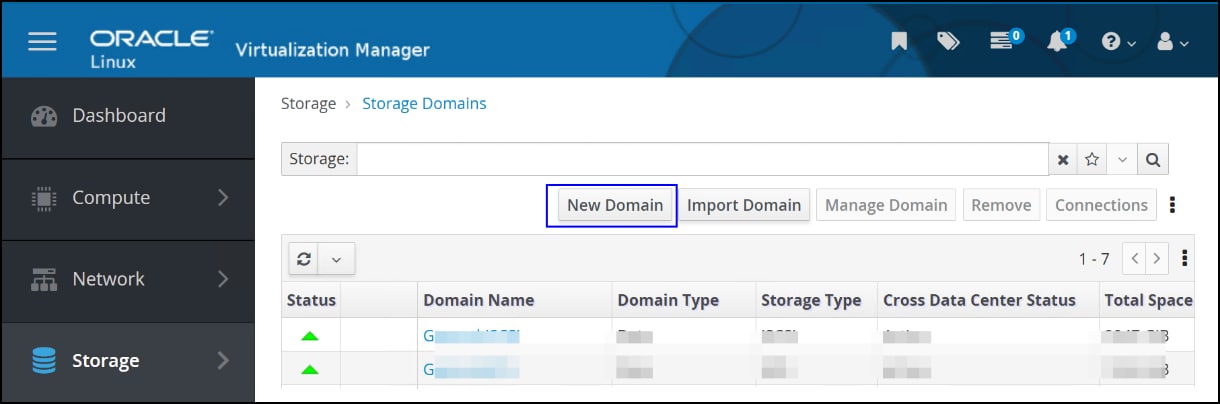
- In the New Domain page, as shown in the following figure, enter the following information.
- From the drop-down list next to Storage Type, select NFS (default).
- Select a KVM host.
- Enter a Name and optionally a Description and Comment.
- Enter the Export Path to the previously created folder with the appropriate permissions.
- Keep all other default options, unless the business requires a change.
- Click OK.
Figure 48. Step 2 – NFS storage domain 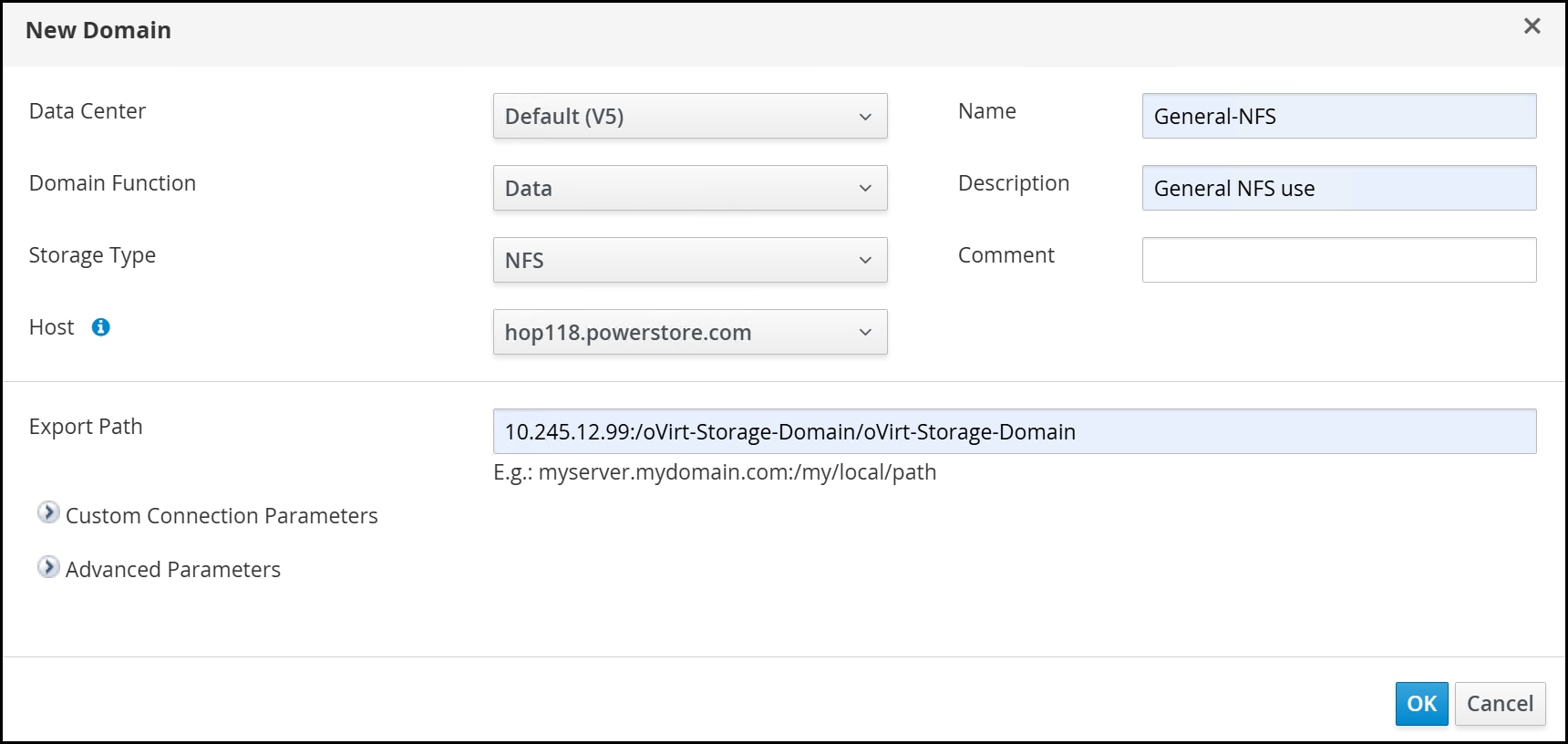
If the connection to the NFS mount is successful, OLVM immediately returns the following notification shown in the following figure, which does not indicate success yet, only that OLVM can mount the export.
Figure 49. NFS storage domain – Successful connection to the NFS mount 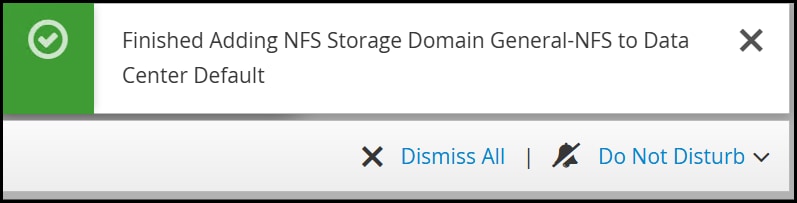
The storage domain remains with a locked Status (lock icon) and a Cross Data Center Status of Activating until the domain is available as shown in the following figure. When the domain is ready, a green up arrow appears in the Status as it does for the hosted_storage domain.
Figure 50. NFS storage domain – Complete 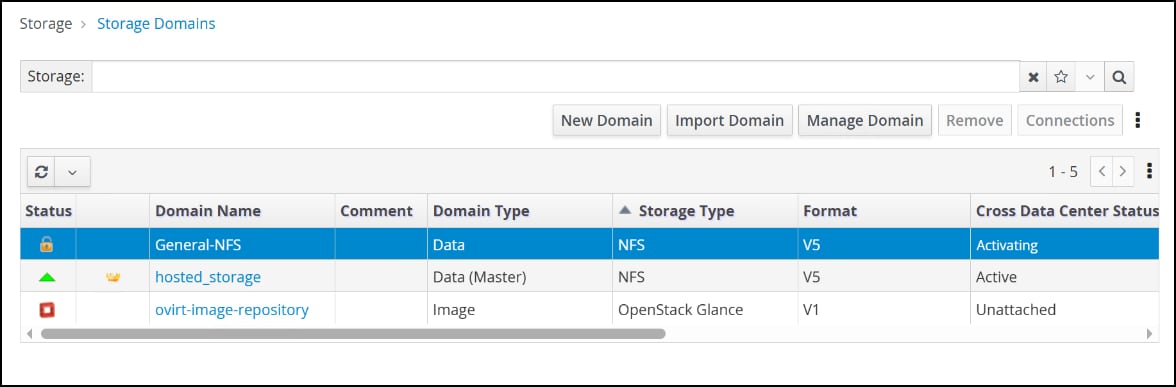
Block storage
iSCSI
To present iSCSI storage to the KVM environment from a PowerStore there are two parts, the host and the array. We’ll start with the host changes and the network configuration. This section assumes the PowerStore is already configured for iSCSI storage with a VLAN-tagged network.
Virtual network
oVirt supports adding multiple logical networks to physical NICs on the KVM node, including those networks with VLAN tagging. The following steps demonstrate how to add a new logical network with VLAN tagging.
- In OLVM, navigate to and click New, as shown in the following figure.
Figure 51. Step 1 – Logical network 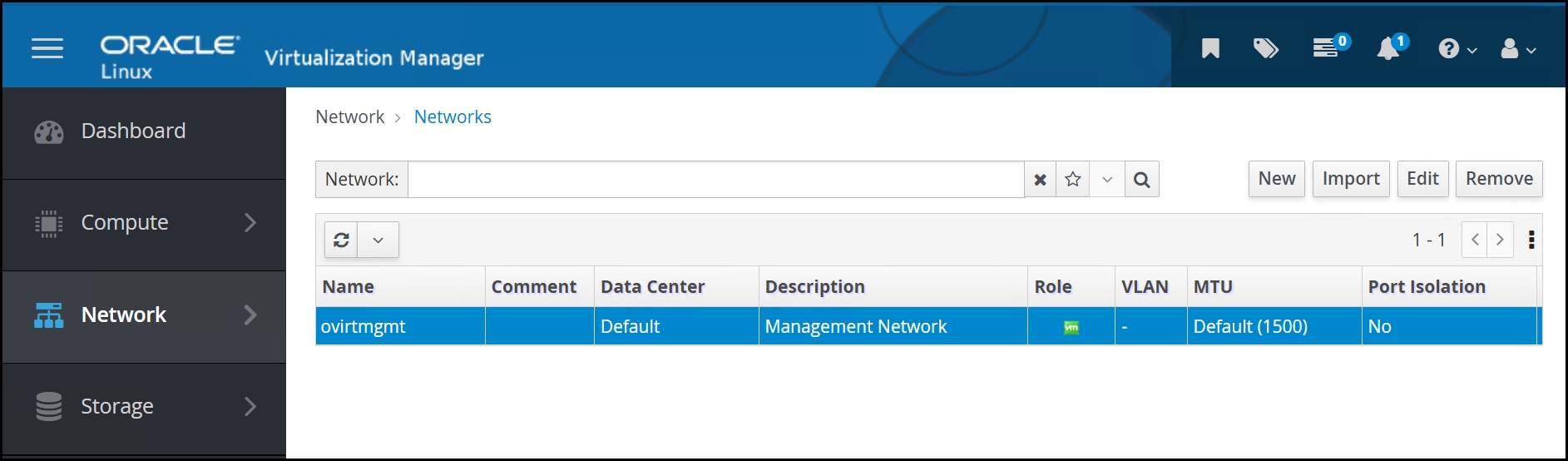
- For the General menu fields, enter the following information, as shown in the following figure.
- Name
- Description (optional)
- Comment (optional)
- Network label
- VLAN value after selecting the Enable VLAN tagging checkbox
Keep the Cluster as default (it attaches automatically), and the vNIC Profiles (the name defaults to the network name). Click OK.
Figure 52. Step 2 – Logical network 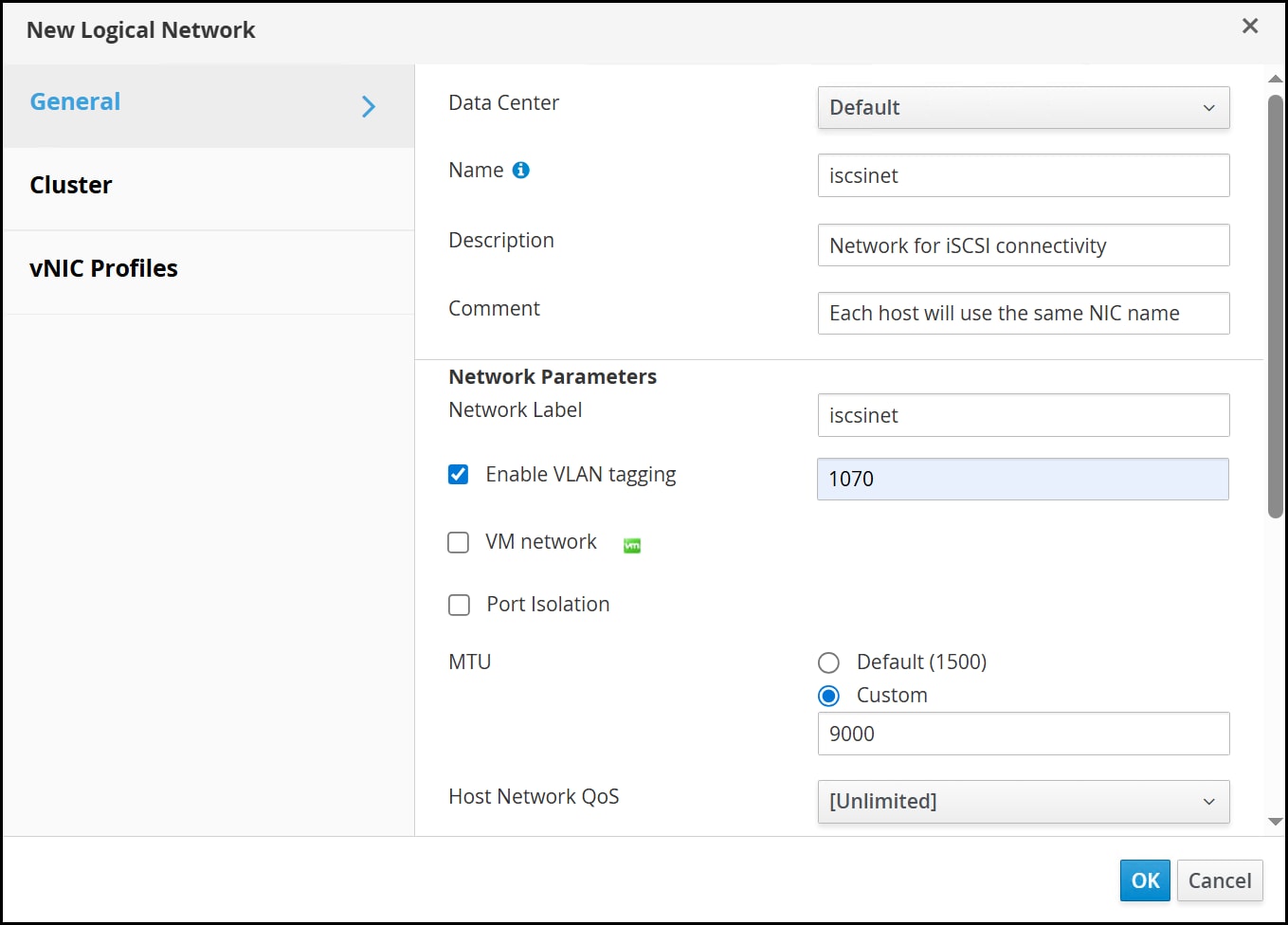
- Navigate to and click the newly created hyperlink for the iscsinet network, as shown in the following figure.
Figure 53. Step 3 – Logical network 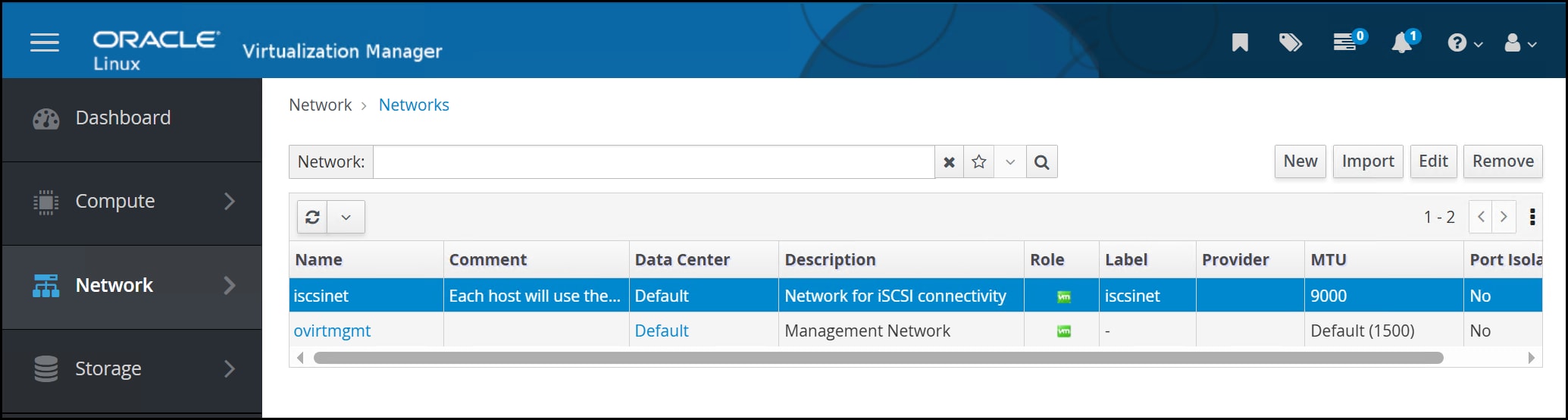
- Click the Hosts tab, select an unattached host from the list, and click Setup Host Networks in the right-hand corner, as shown in the following figure.
Figure 54. Step 4 – Logical network 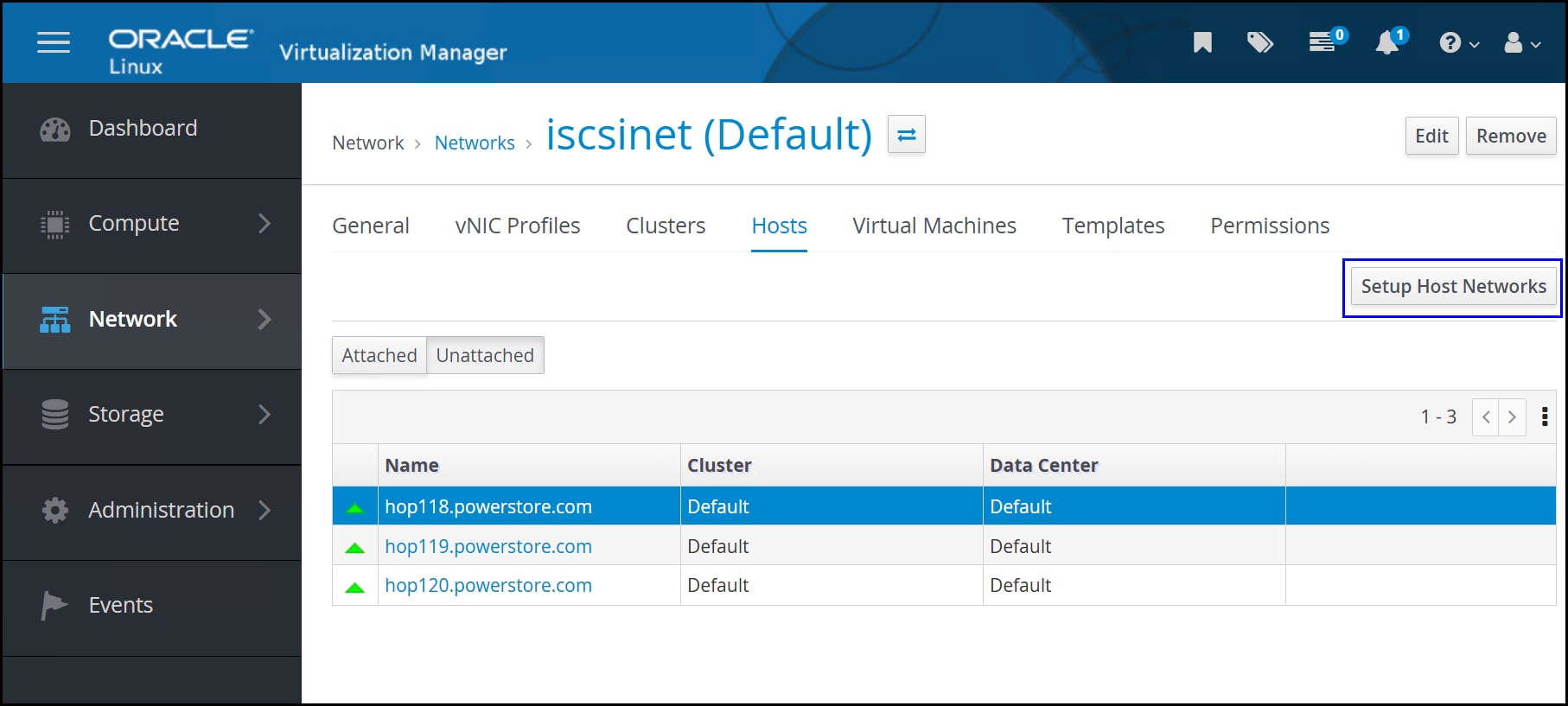
- In the Setup Host Networks dialog, click the new logical network on the right side and drag it to the appropriate physical NIC, as shown in the following figure. More than one logical network can be assigned to an interface.
Figure 55. Step 5 – Logical network 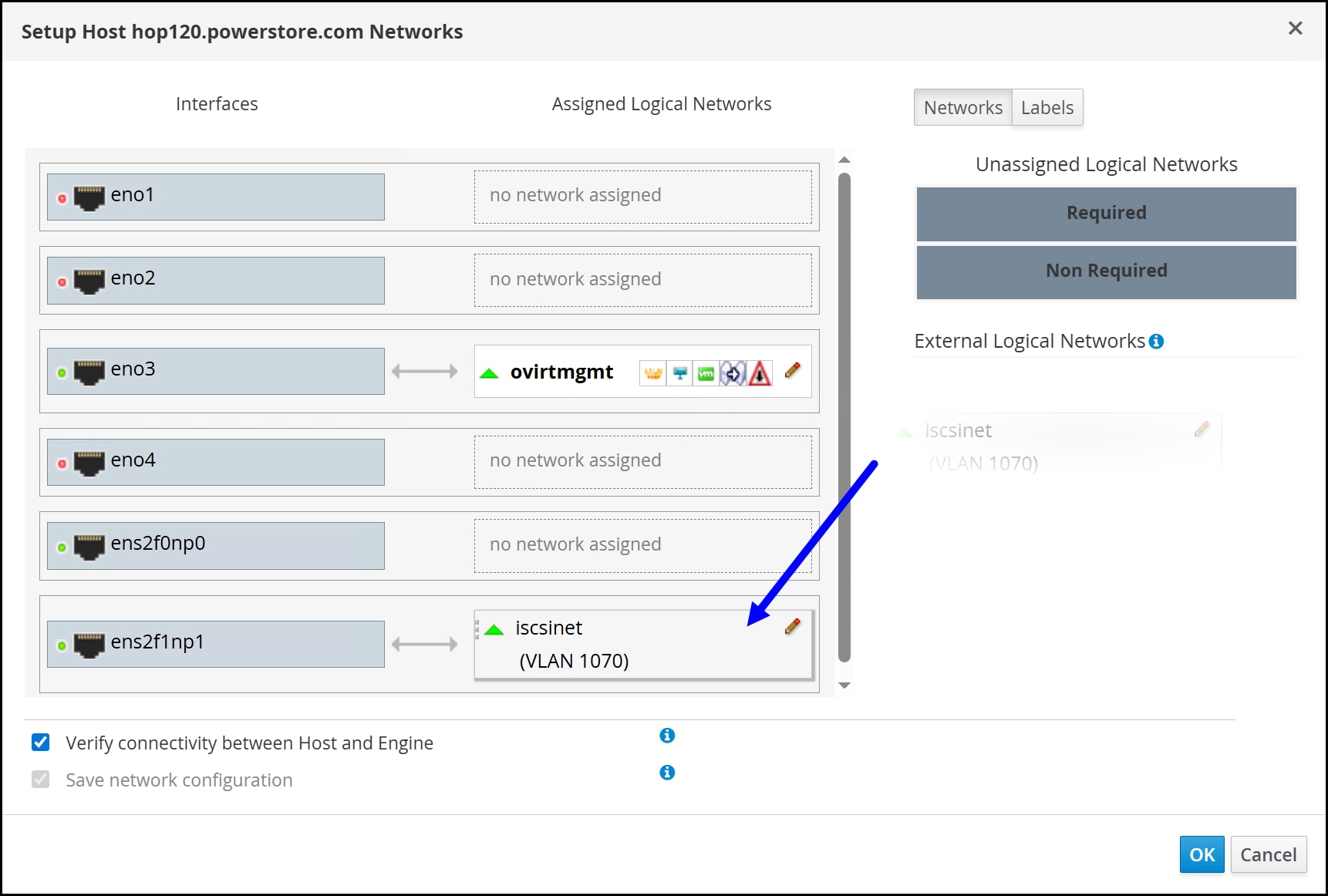
- Click the pencil icon in the corner of the logical network the following figure to assign an IP address. Choose the appropriate Boot Protocol, add an IP address if required, and click OK, as shown in the following figure.
Figure 56. Step 6 – Logical network 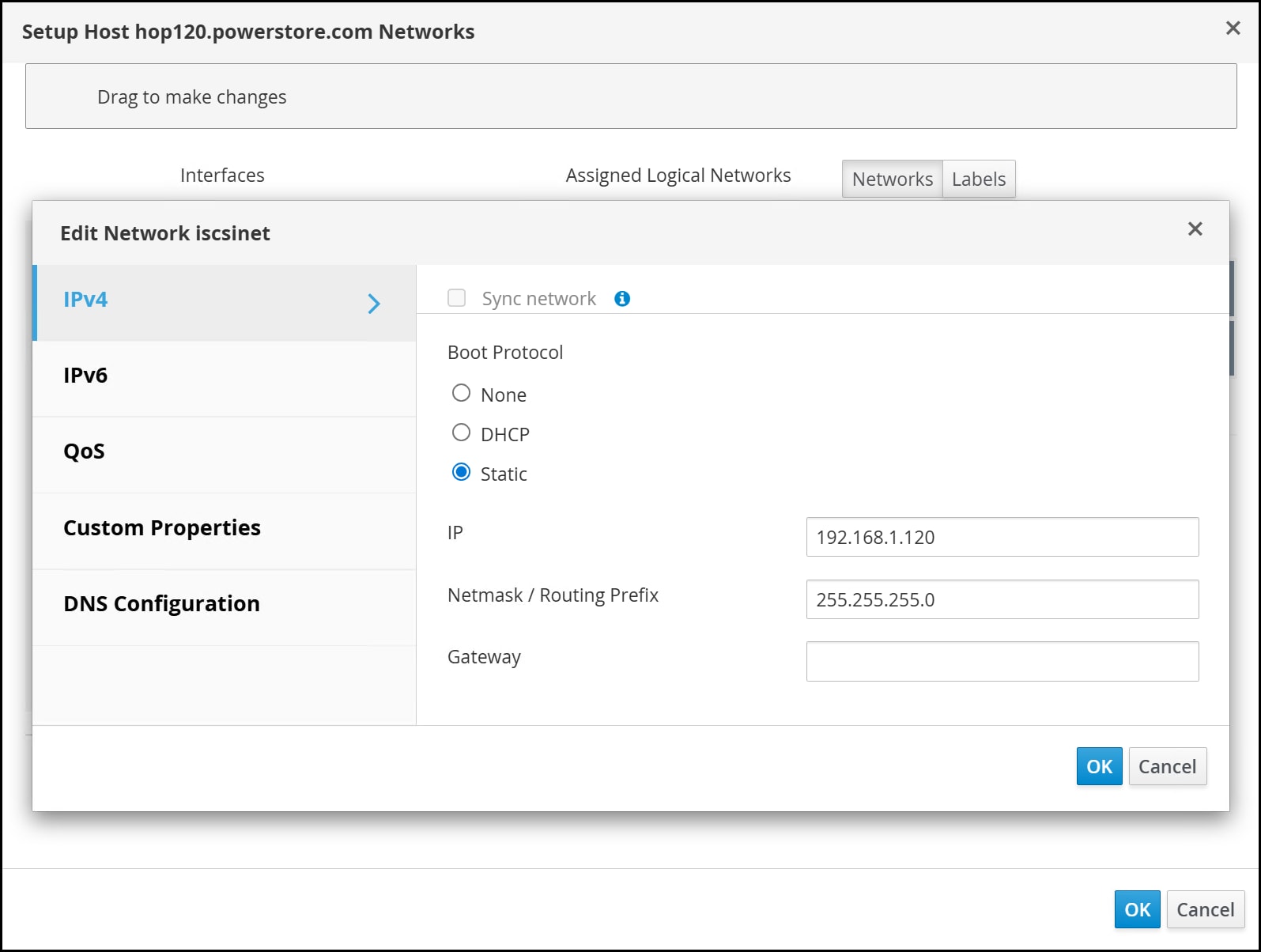
oVirt then configures the network on the host. The logical network is created and configured on the host:
11: ens2f1np1.1070@ens2f1np1: <BROADCAST,MULTICAST,UP,LOWER_UP> mtu 1500 qdisc noqueue state UP group default qlen 1000
    link/ether b4:83:51:02:d5:a3 brd ff:ff:ff:ff:ff:ff
    inet 192.168.1.120/24 brd 192.168.1.255 scope global noprefixroute ens2f1np1.1070
       valid_lft forever preferred_lft forever
Multipath
Multipath is not required but offers redundancy and performance benefits with iSCSI. After installing the multipath packages on the KVM hosts, configure a multipath.conf file. The example below is a basic one for PowerStore. See the Linux Connectivity Guide.
multipath.conf
# PowerStore multipath settings - drop-in for VDSM-managed main config
defaults {
    # keep polling interval small for fast detection
    polling_interval        5
    no_path_retry           3
    fast_io_fail_tmo        5
    dev_loss_tmo            10
    user_friendly_names     no
    # do NOT change user_friendly_names here - VDSM enforces 'no' globally
}

blacklist {
    # example: ignore a single local device 'sda' if needed; change carefully
    # devnode "^sd[a]$"
}

devices {
    device {
        vendor                  .*
        product                 dellemc-powerstore
        path_grouping_policy    group_by_prio
        path_checker            tur
        prio                    alua
        failback                immediate
        no_path_retry           3
        fast_io_fail_tmo        5
        dev_loss_tmo            10
    }
}
Note: If the vdsmd service fails to start at any point, you may need to run the vdsm tool. In testing, Dell found it necessary to run this command which allows the tool to configure multipathing: vdsm-tool configure Running the tool will revert the multipath.conf file to defaults so before running it, copy the current multipath.conf file to /etc/multipath/conf.d/powerstore.conf which ensures the PowerStore settings are taken into account.
Host initiator
Begin by creating an initiator group or host for each KVM host. The steps below use auto-discovery, but the initiator can be entered manually.
First, record the initiator name on the KVM host. The initiatorname.iscsi file is located in the /etc/iscsi directory, as shown in the following image. If you want to rename the initiator so that it includes the hostname, as below, do so before continuing. Then restart the iscsi daemon.

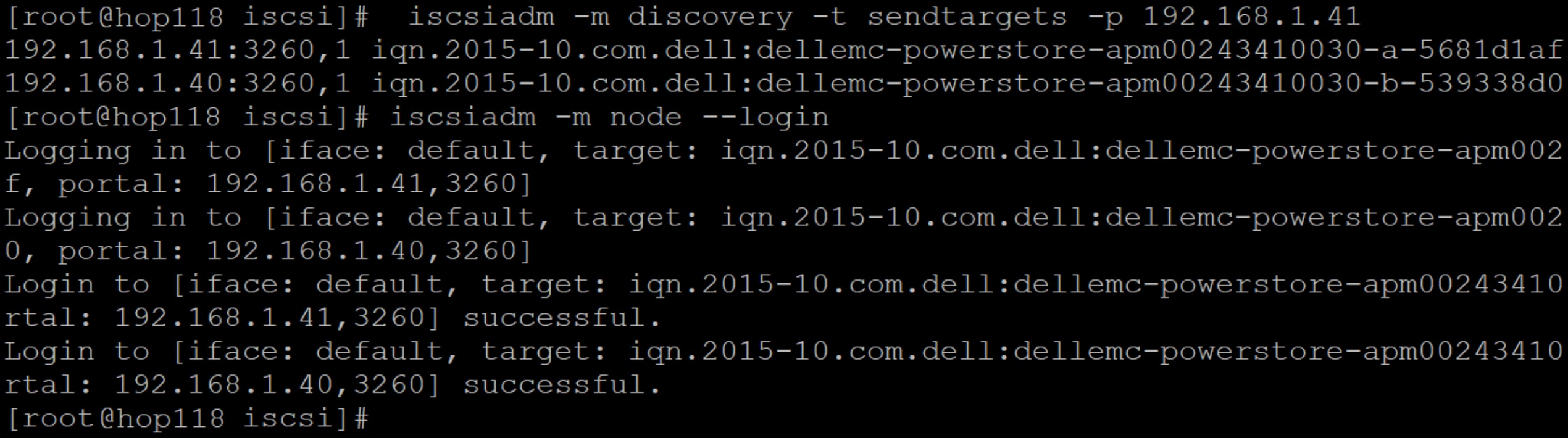
To avoid having to add the initiator manually in PowerStore Manager, run a discover and log in on the target IP addresses. There are two targets on the PowerStore in this environment in the following image but it is only necessary to discover one of the IPs. Both will be discovered. Then, issue a login. Performing this step informs the PowerStore about the host.
Host creation
Login to PowerStore Manager as an administrator and navigate to Compute -> Host Information. Click + Add Host to start the wizard.
- In the Add Host dialog in the following figure enter the Host Details.
- Host Friendly Name
- Choose the Operating System
- Description – optional
Figure 59. Step 1 – Add Host 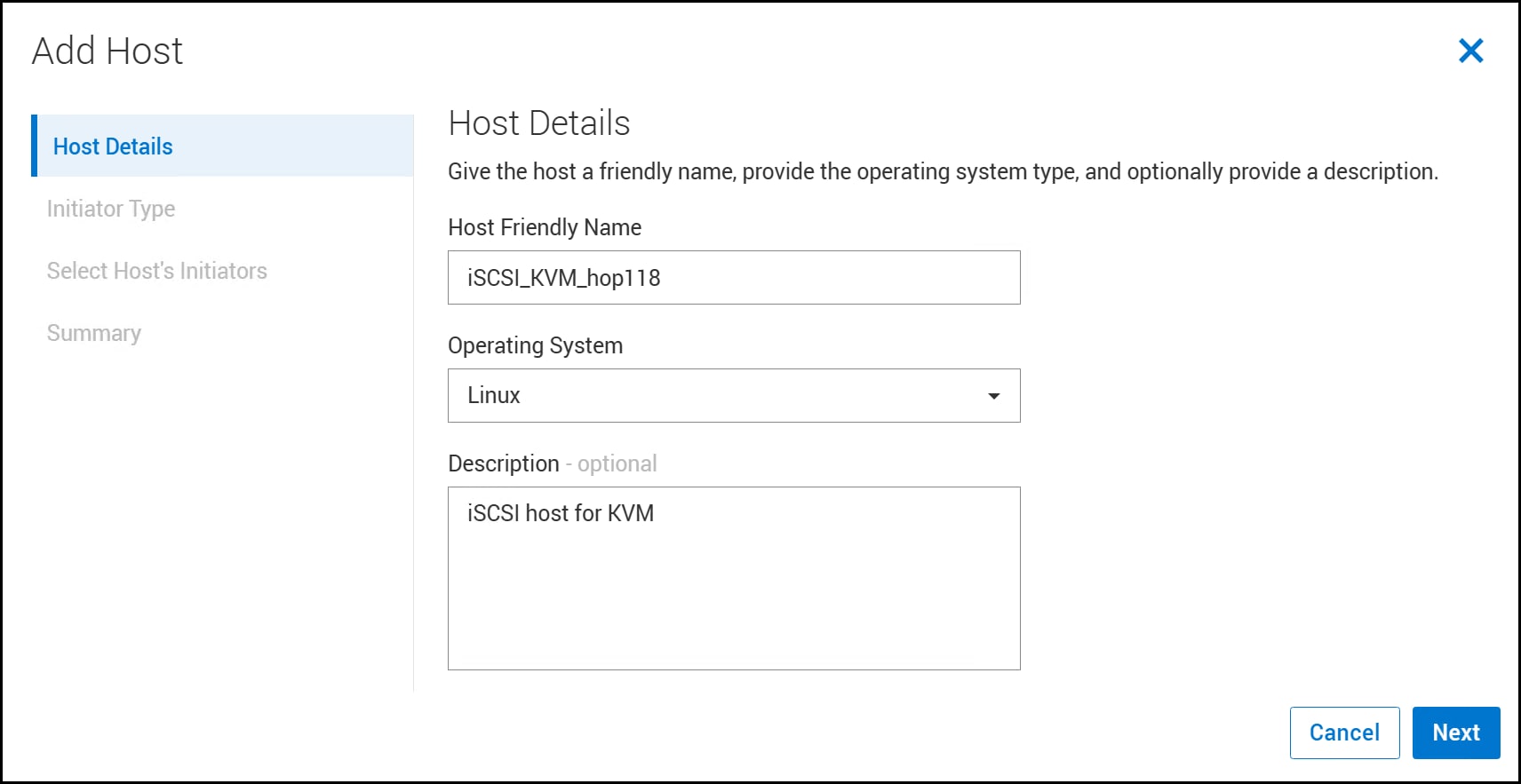
- Use the radio buttons to select iSCSI as the Initiator Type and click Next.
Figure 60. Step 2 – Add Host 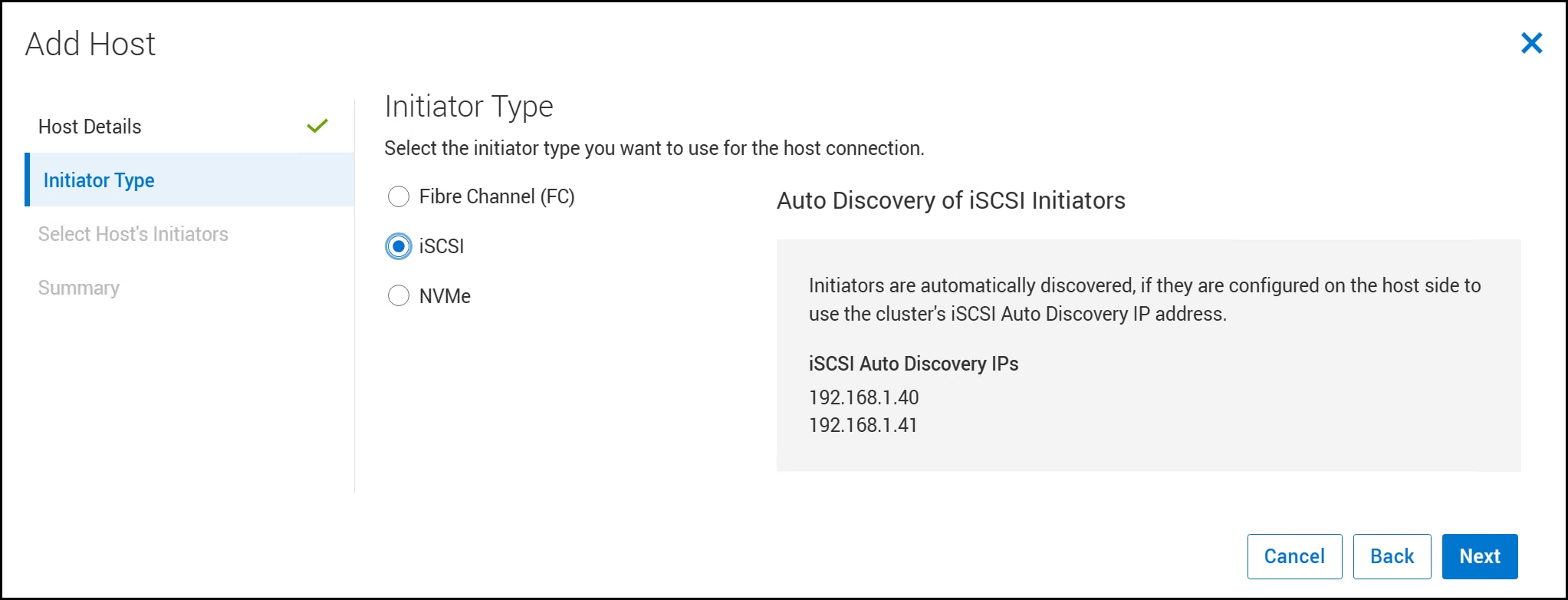
- If you properly performed the iscsiadm discovery and login to the PowerStore, the host initiator should be listed as Auto-Discovered. Use the check box to select the host and click Next in the following figure. Note that if the initiator was not discovered, you can click the Add Initiator and manually enter it.
Figure 61. Step 3 – Add Host 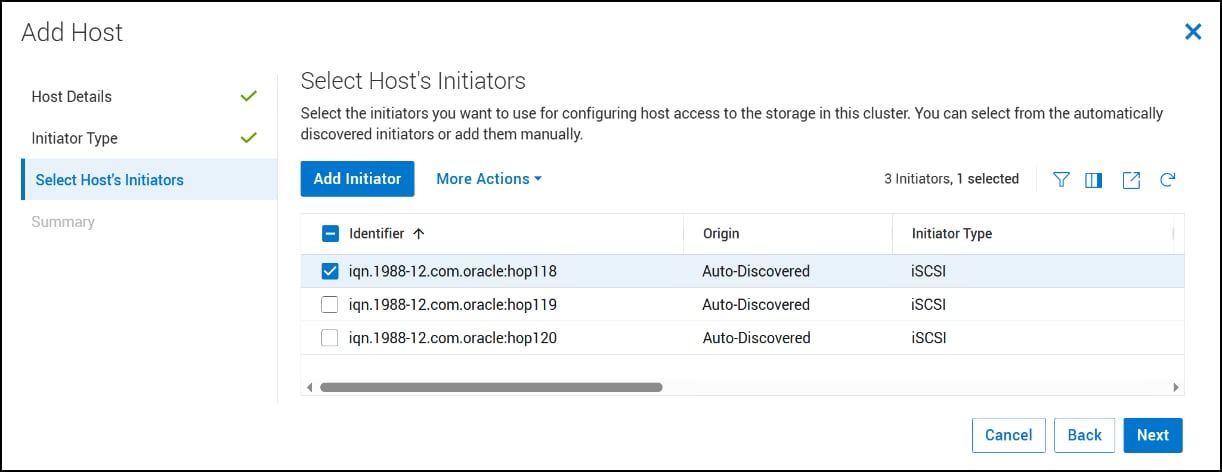
- Select the type of Host Connectivity. Unless using metro volumes, leave the default as Local. Click Next.
Figure 62. Step 4 – Add Host 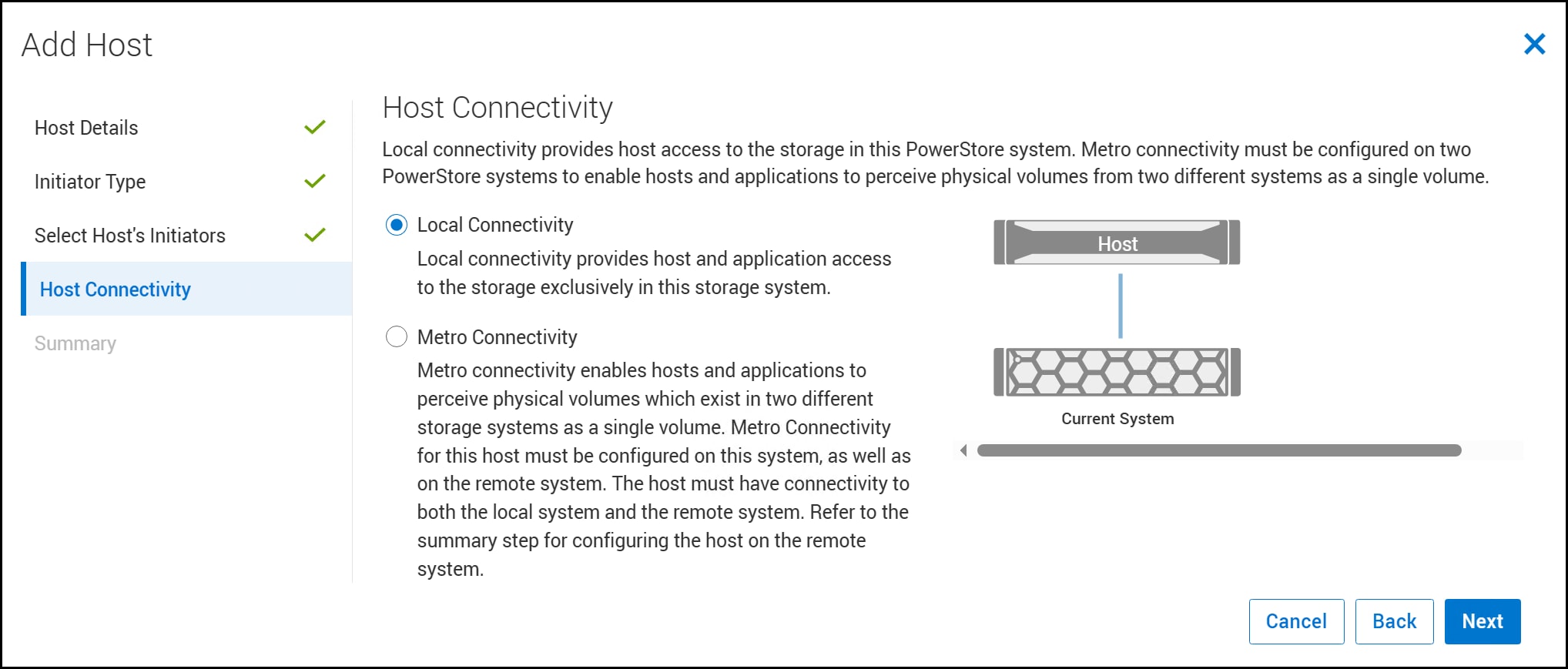
- Review the Summary in the following figure and if correct, click Add Host to complete the wizard. Repeat these steps for each host.
Figure 63. Step 5 – Add Host 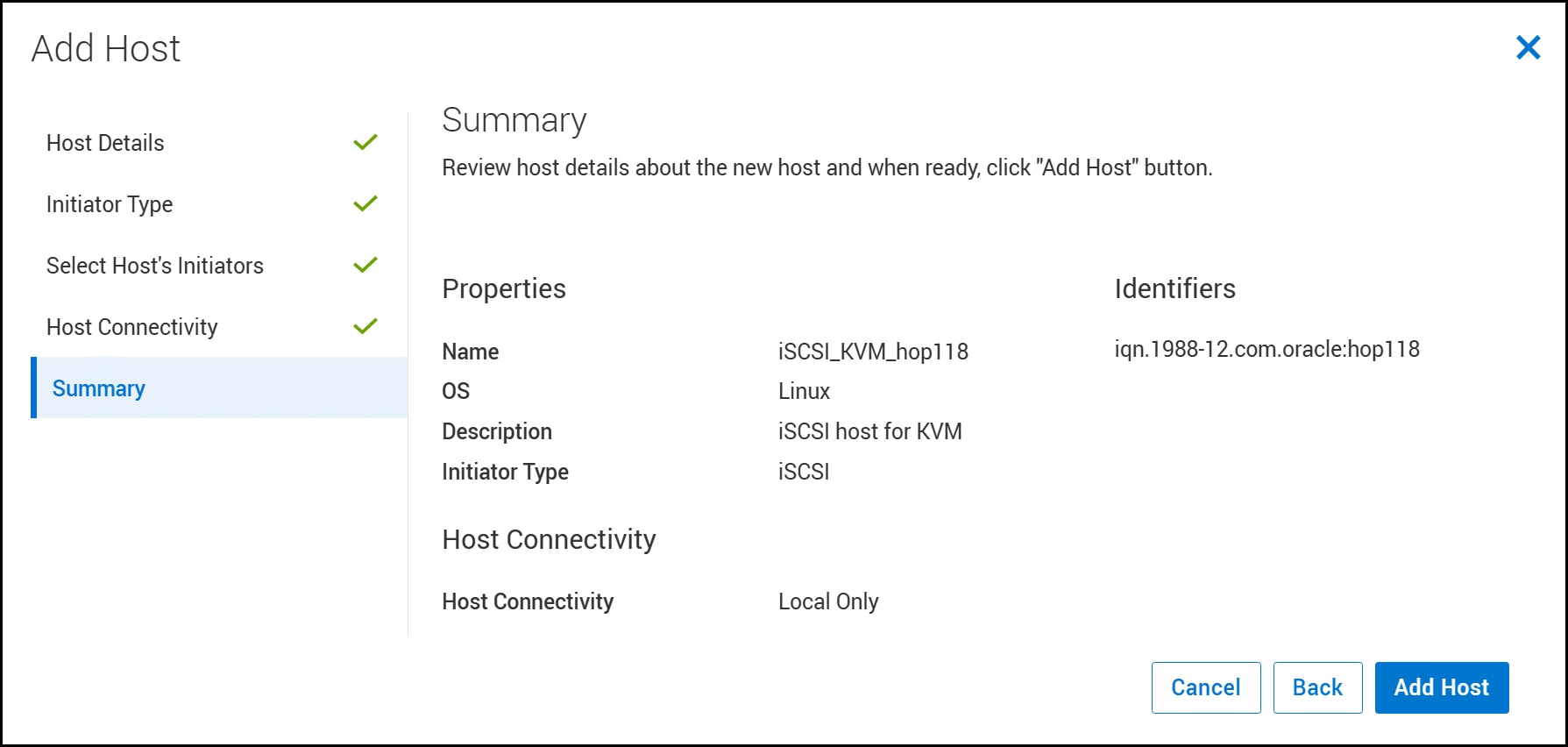
After you create the individual hosts, Dell Technologies recommends creating a host group so that when you provision storage, all KVM cluster hosts are included. In the same screen where you started the host wizard, click Add Host Group. Enter in the required information and select the KVM hosts in the following figure. Click Create.
Figure 64. Step 6 – Add Host Group 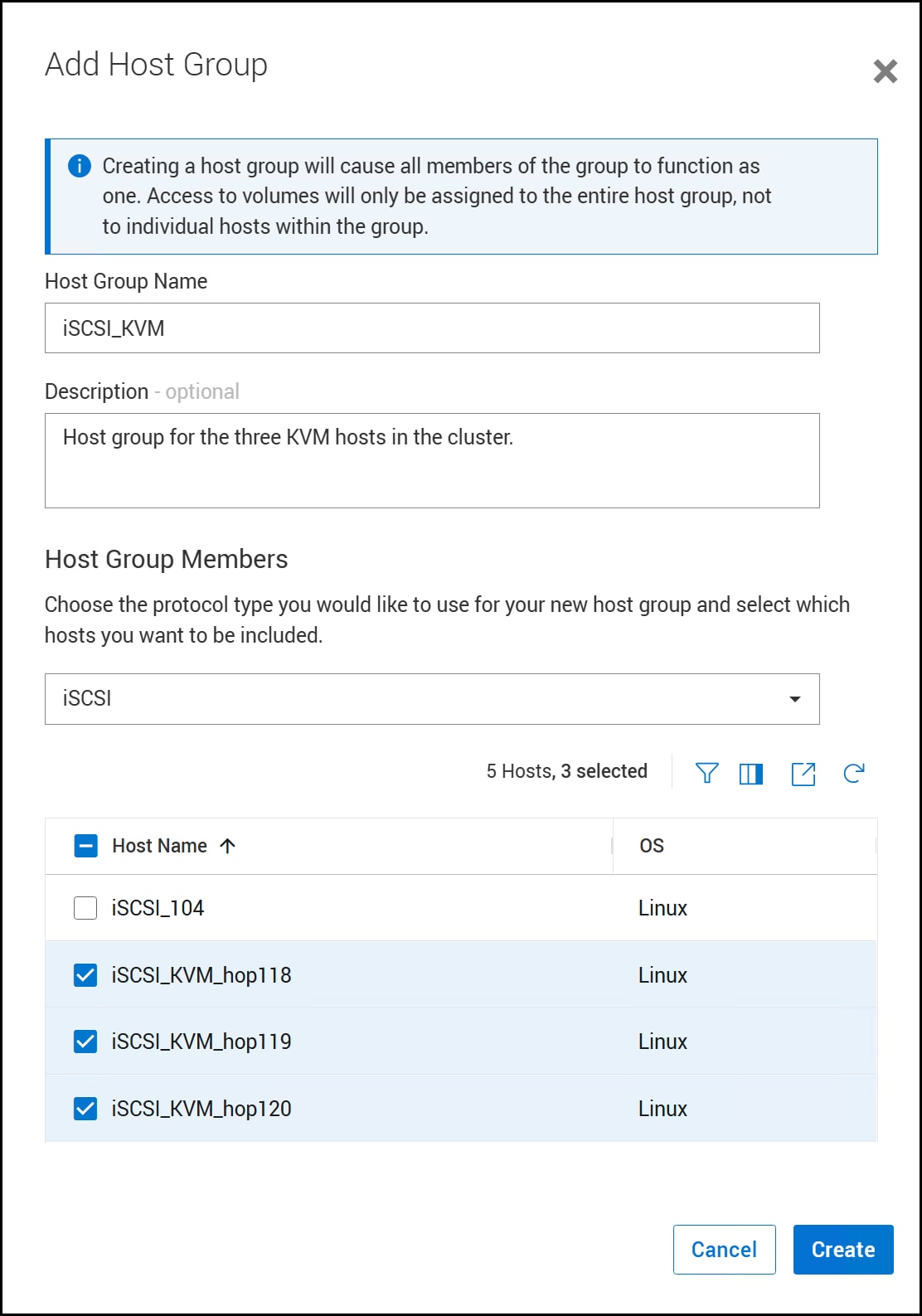
Provision a volume
To provision a volume to the iSCSI host group in PowerStore begin by logging into PowerStore Manager and navigating to Storage -> Volumes and click +Create.
- In step 1, complete the mandatory fields.
- Name
- Category
- Application
- Quantity (defaults to 1)
- Size
- Volume Performance Policy (defaults to Medium)
The other fields are optional. In this environment, all block storage is replicated to another array using synchronous mode. This is set in the Volume Protection Policy in the following figure. Click Next.
Figure 65. Step 1 – Create Volumes 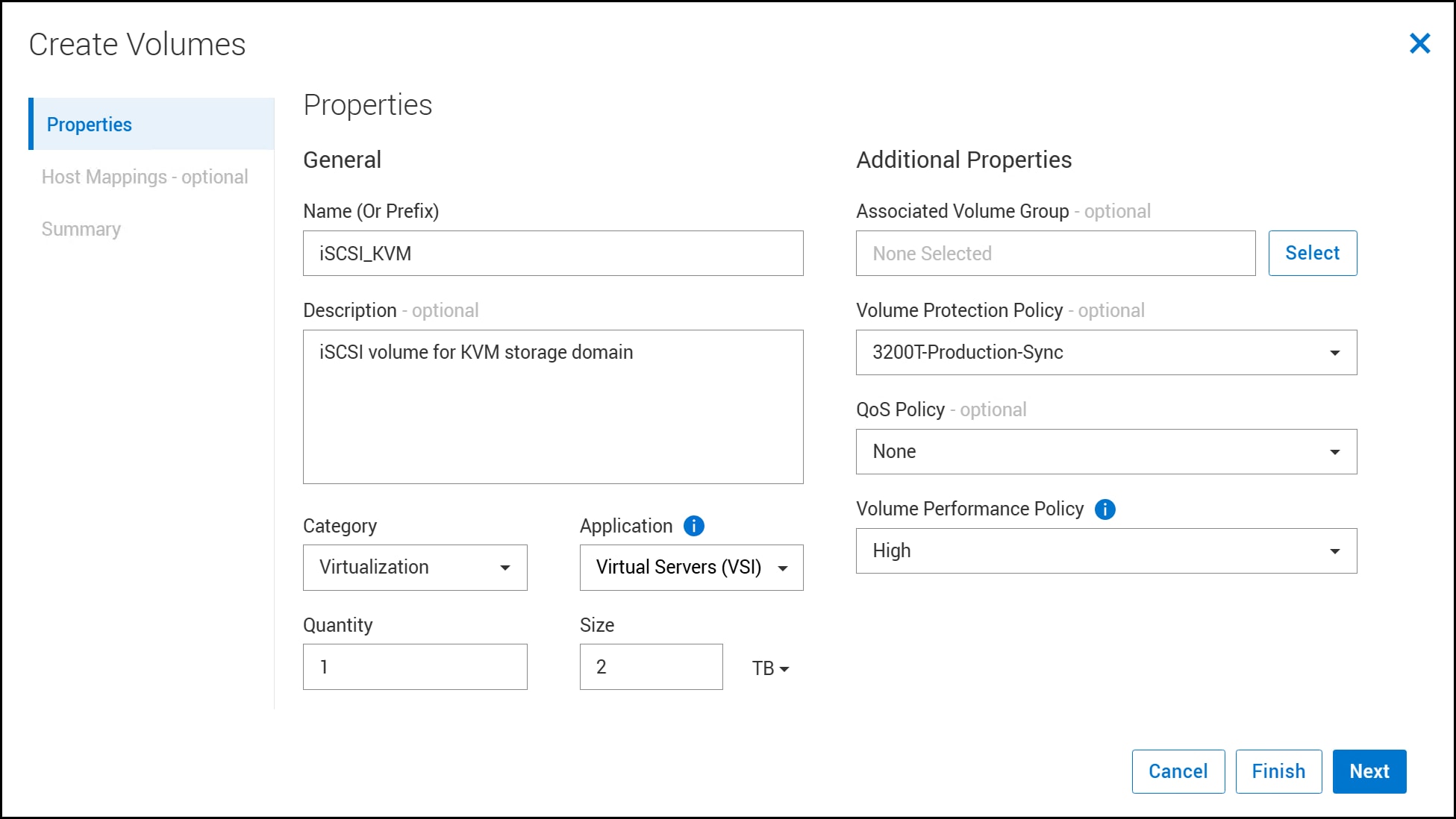
- Check the box next to the KVM host group to map the new volume to all the hosts. Click Next.
Figure 66. Step 2 – Create Volumes 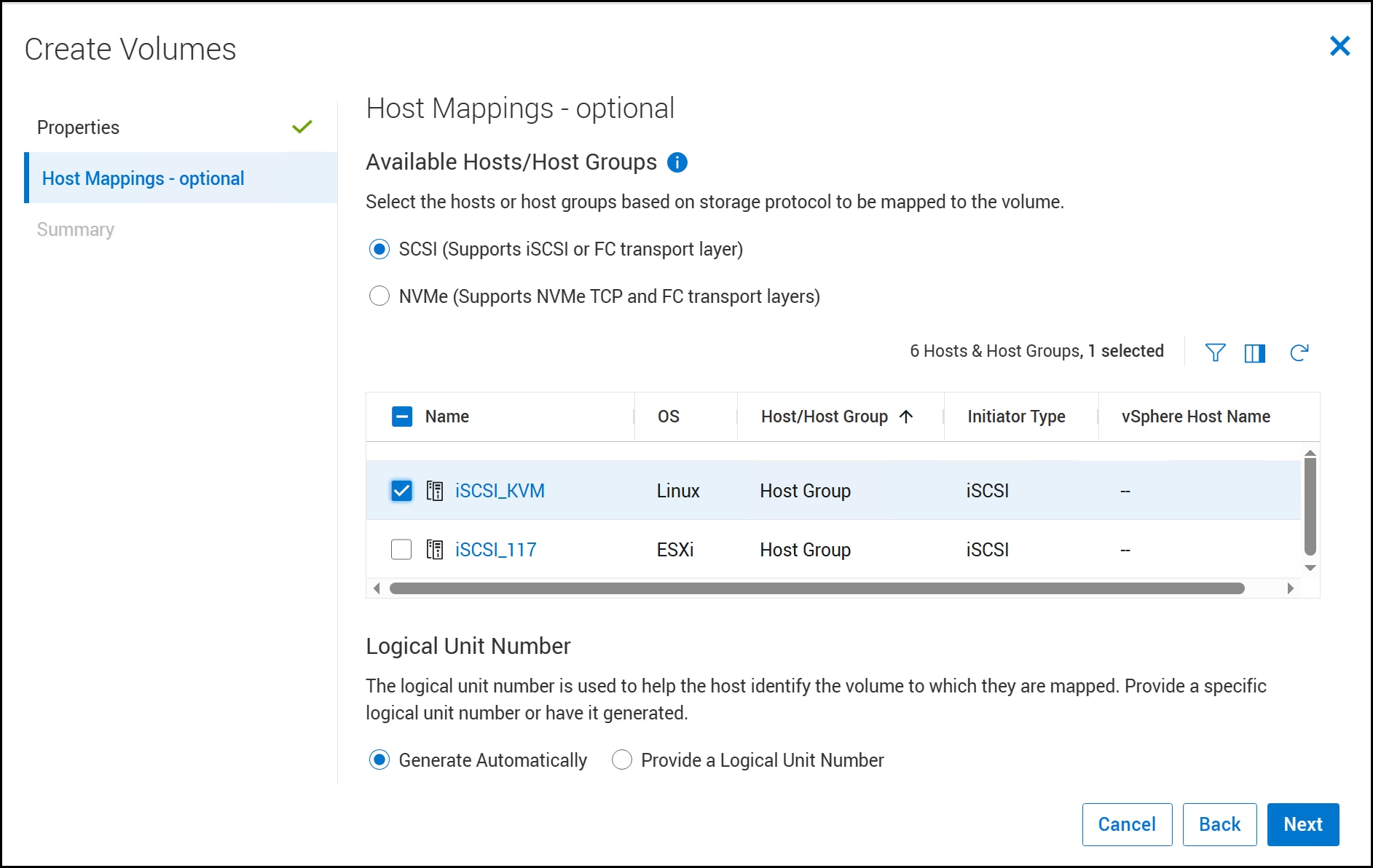
- Review the Summary in the following figure and click Create to provision the volume.
Figure 67. Step 3 – Create Volumes 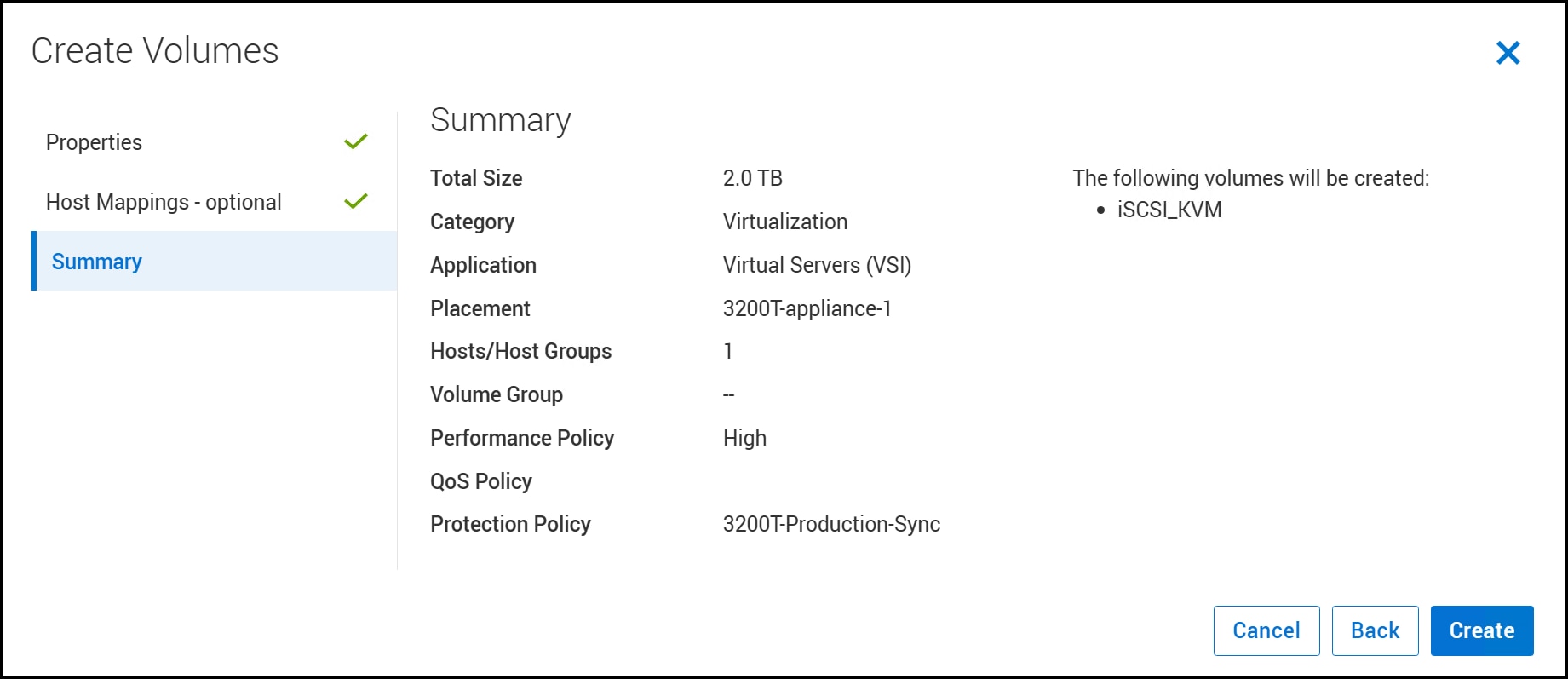
The volume should be available now on each KVM host. If necessary, run a rescan.
iscsiadm -m session –rescanIf you enabled multipathing as recommended, there will be multiple disks listed for the same volume (two in this environment) but a single multipathing device. In the following figure, devices
/dev/sdband/dev/sdcrepresent the 2 TB volume and/dev/mapper/mpathais the multipath device which KVM will use when the user creates the storage domain which is covered next.Figure 68. Multipathing volume presentation 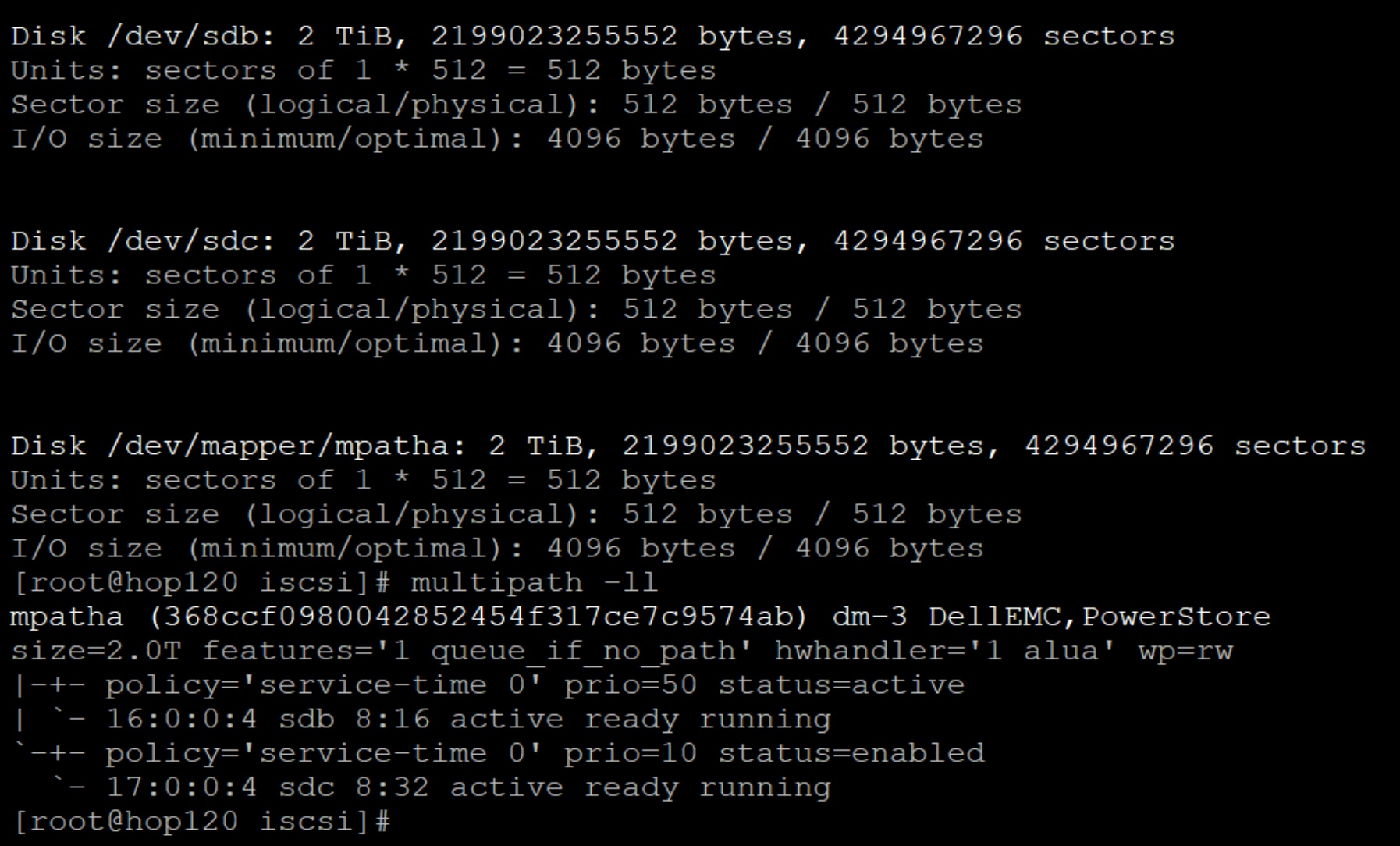
iSCSI storage domain
To create the iSCSI storage domain with the new multipathing device follow these steps.
- In OLVM, navigate to and click New Domain as shown in the following figure.
Figure 69. iSCSI storage domain – New Domain 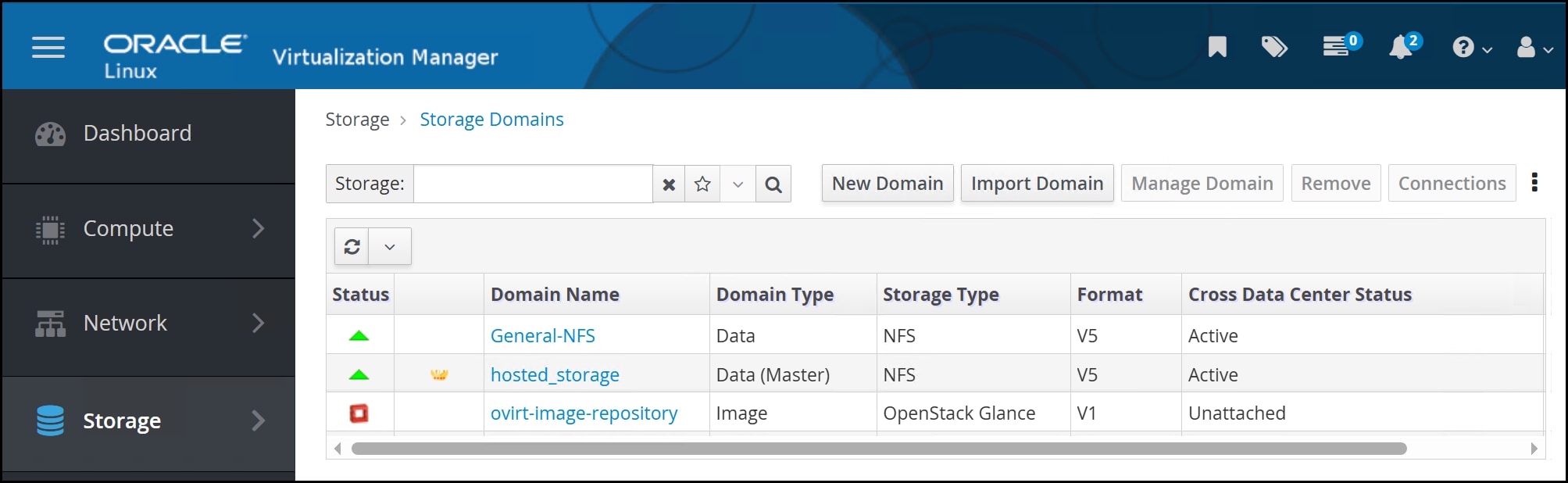
- In the New Domain page, as shown in the following figure, enter the required information.
- Either accept the KVM host default or use the drop-down to select another.
- Enter a Name and optionally a Description and Comment.
- Use the drop-down for Storage Type and select iSCSI. The screen will display a message that querying a large number of LUNs may take time. The screen will return with the presented volumes.
- The view of LUNs defaults to . Click in order to add the volume. A blue arrow in the image points to the tab. It may be necessary to expand the Advanced Parameters box (as shown in figure) to see the LUN completely.
- Click Add next to the chosen LUN. This will bold the selection.
- Keep all other options as default unless the business requires a change.
- Click OK.
Figure 70. iSCSI storage domain – Define the domain 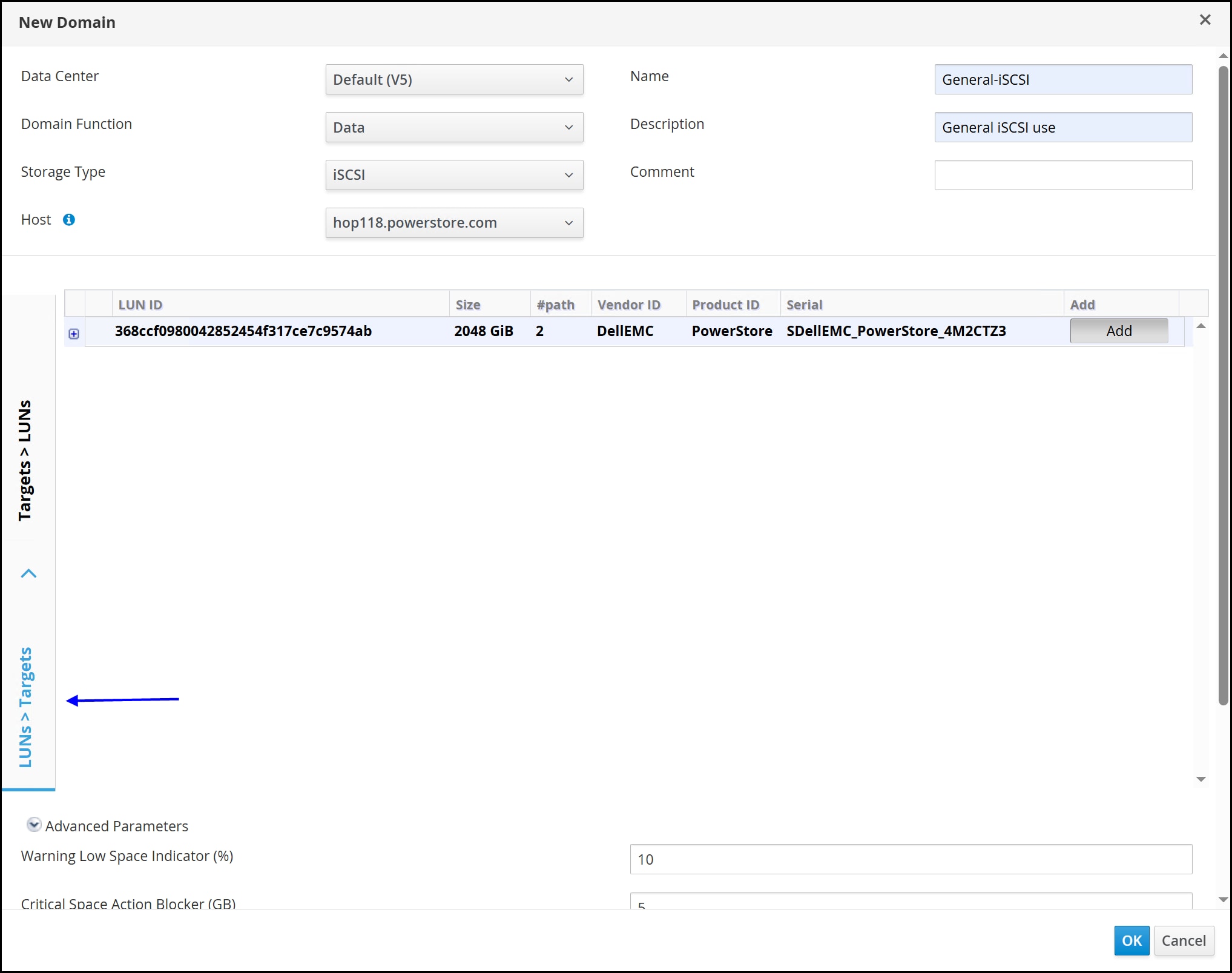 Note: Although it is possible, Dell Technologies does not recommend selecting multiple devices for use in a single storage domain. Rely on the PowerStore array for performance and present a single volume of the total size required.
OLVM initiates the iSCSI storage domain. The status moves from Locked to Activating until reaching Active in the following figure.
Figure 71. iSCSI storage domain - Complete 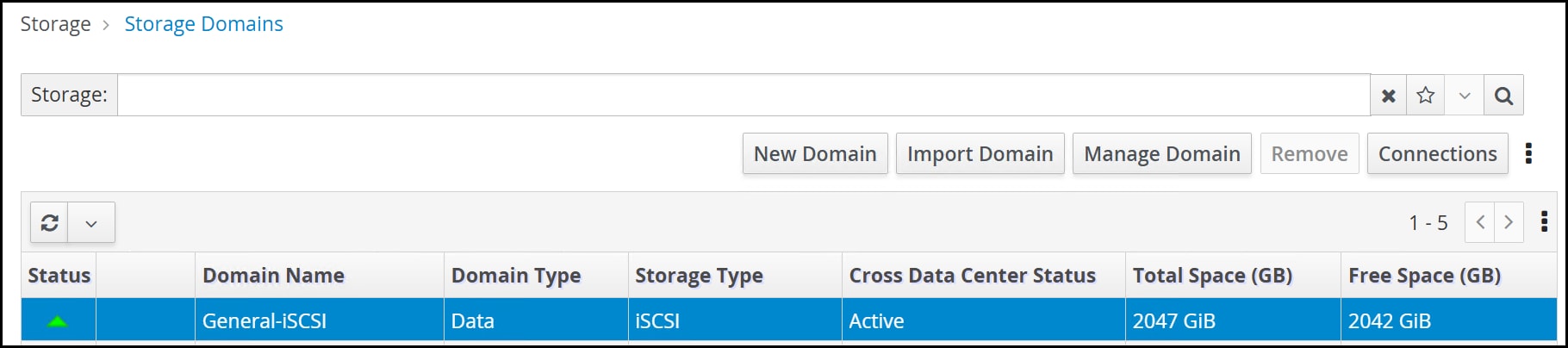
Storage domain OVF_STORE
Regardless of type, each storage domain contains two disks named OVF_STORE by default. These disks contain all the information about the storage domain (such as virtual machines and metadata), which allows KVM to recover the storage domain without needing the oVirt Engine (previous functionality). This information, however, is also shared with the oVirt Engine. The disks are not created at instantiation, rather oVirt generates them through a scheduled process.
The example in the following figure shows that the General-NFS storage domain was created at 4:10:15 PM but the OVF_STORE disks were not initiated until 4:18:02 PM, eight minutes later. After storage domain creation, OVF_STORE disk creation varies depending on when the oVirt job runs (auto), which might be up to an hour after initial creation of the domain.
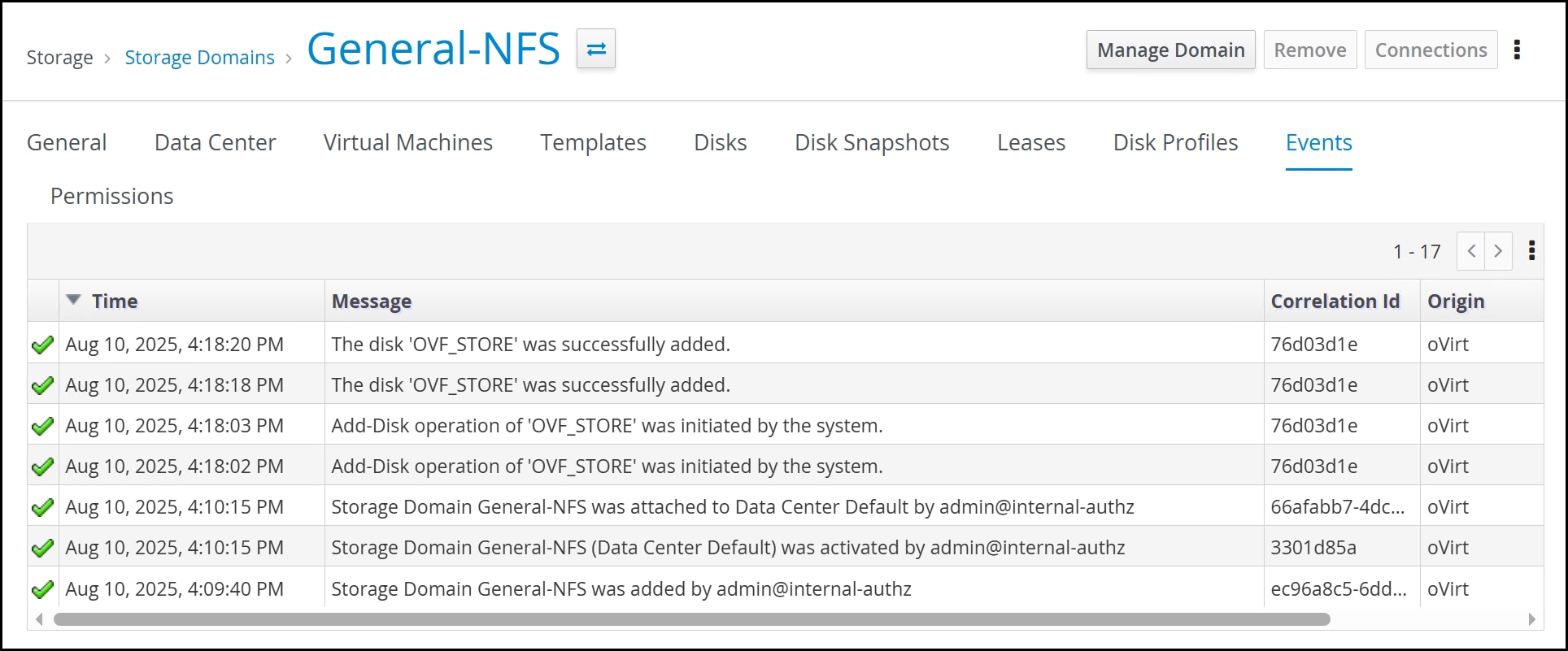
These disks remain for the life of the storage domain, neither increasing nor decreasing in number, no matter how many virtual disks or ISOs are created in the storage domain.
Protection
Protection
Introduction
Hosted engine backup
It is important to take regular backups of the oVirt Engine to protect against a failure. While PowerStore replication is an option at the LUN level, oVirt offers a simple CLI backup tool, engine-backup, which dumps the engine to a single file that can be used for various restore operations.
The engine-backup utility is not installed by default, even on an oVirt node, but it is readily available in the repository. It does, however, require PostgreSQL.
To install the utility:
When the utility is installed, take a full backup of the environment. Although there are many options for backing up using the utility, including adding configuration files, the simplest operation is to run a full backup, ensuring that everything is added. It is best to save the backup file to a location off the hosted engine server. In this environment, a separate PowerStore NFS mount, engine_backup, is used for this purpose.
Run the following command as root, modifying the file locations:
engine-backup --scope=all --mode=backup --file=/engine_backup/engine_backup_8-16-2026 --log=/engine_backup/engine_backup.logThe backup runs quickly and is quite small in size. The following figure shows the results.
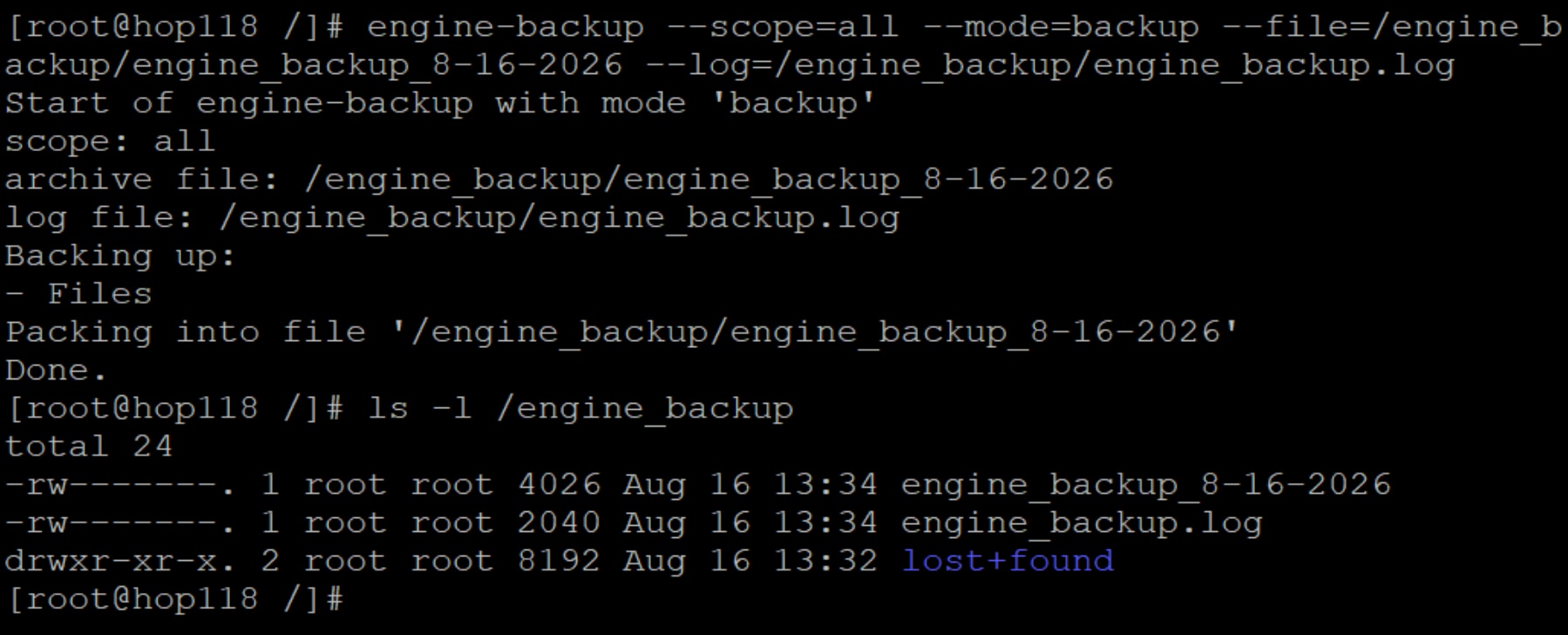
Dell Technologies recommends taking regular backups to ensure restore capabilities.
If backups are not taken regularly, the OLVM event log warns the user with the following message:
There is no full backup available, please run engine-backup to prevent data loss in case of corruption.
Protection for KVM volumes on PowerStore
Protection Policies
PowerStore offers protection through Protection Policies. A Protection policy is comprised of one or more rules that define snapshots (local and remote) and replication. A replication rule is either synchronous or asynchronous and requires a secondary PowerStore array. A snapshot rule defines what time and day to take snapshots, how long to retain them, whether they are secure, and the access type. The PowerStore supports remote replication and snapshots for both block and file storage. For example, in this paper, the NFS storage domain is associated with a daily snapshot policy while the iSCSI storage domain has a synchronous replication policy. While remote replication is a continuous process, individual snapshots can be taken outside of a protection policy at any time.
For example, the NFS daily snapshot rule that is associated with the storage domain in this paper is defined as so:
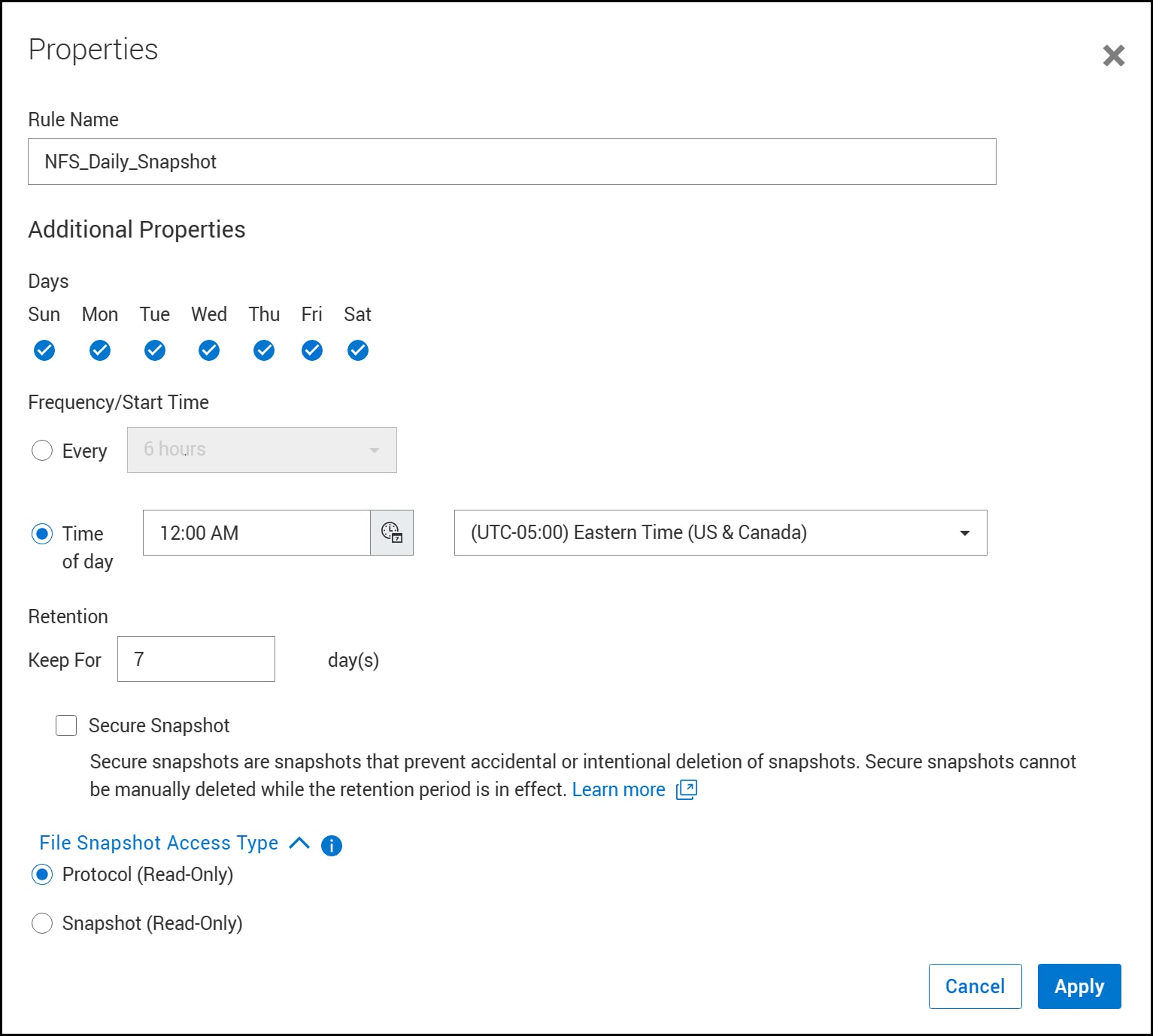
The following sections will discuss block and file snapshots of storage domains. Details on setting up remote replication are beyond the scope of this guide but can be found at support.dell.com.
Block snapshot
FC and iSCSI use block snapshots.
To create a block snapshot:
- In PowerStore Manager, log in and navigate to in the following figure.
Figure 75. Step 1 – Block snapshot 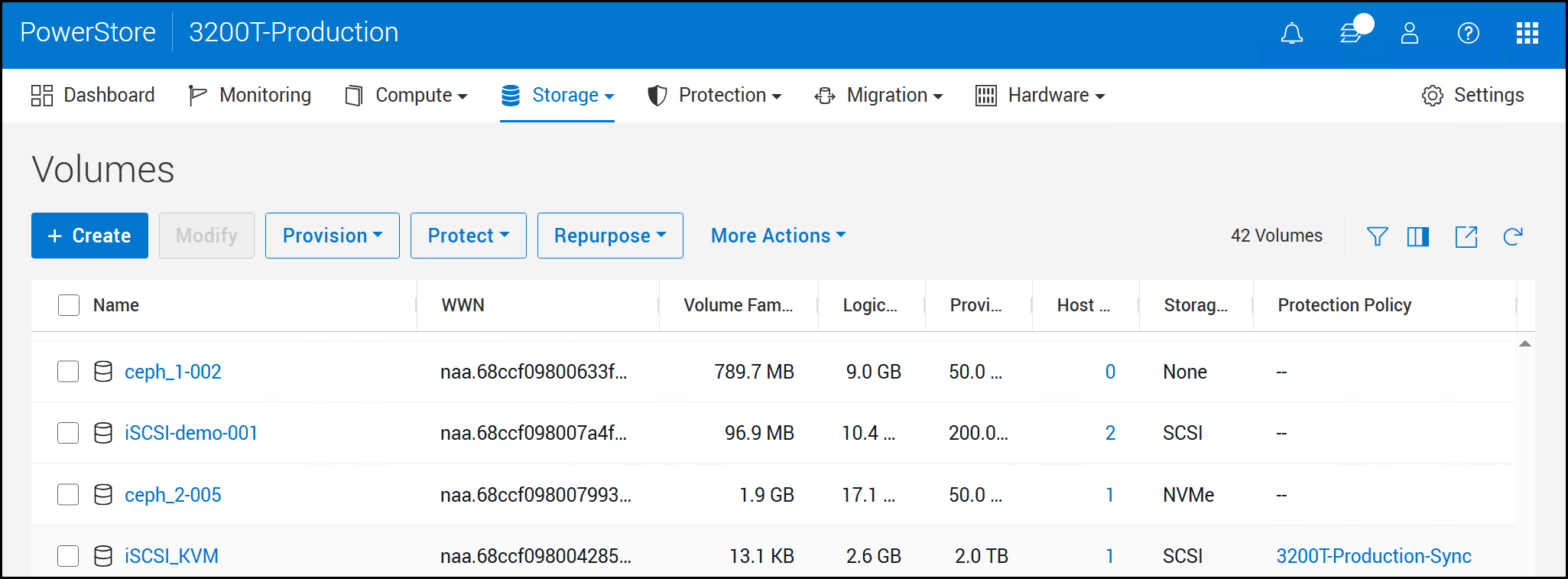
- Using the checkbox, select the volume, iSCSI_KVM, where the storage domain is provisioned and click from the menu, as shown in the following figure. Note under the Protection Policy column the synchronous replication policy that was assigned during volume creation.
Figure 76. Step 2 – Block snapshot 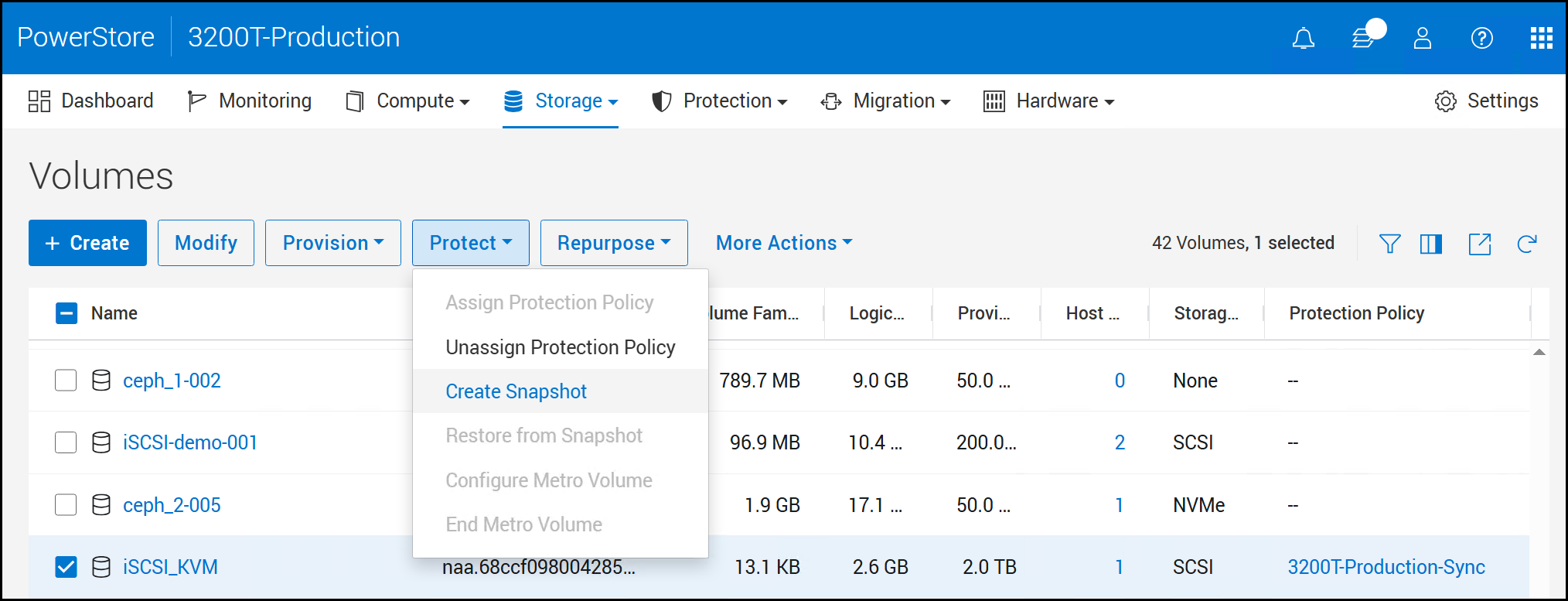
- In the Create Snapshot of Volume dialog, the current datetime is used for the Name, adjust as desired, and enter an optional Description. The Local Retention Policy defaults to seven days. Adjust the date or set to No Automatic Deletion. Finally, decide whether to use a Secure Snapshot. The definition is included below the checkbox. Click Create Snapshot to complete in the following figure.
Figure 77. Step 3 – Block snapshot 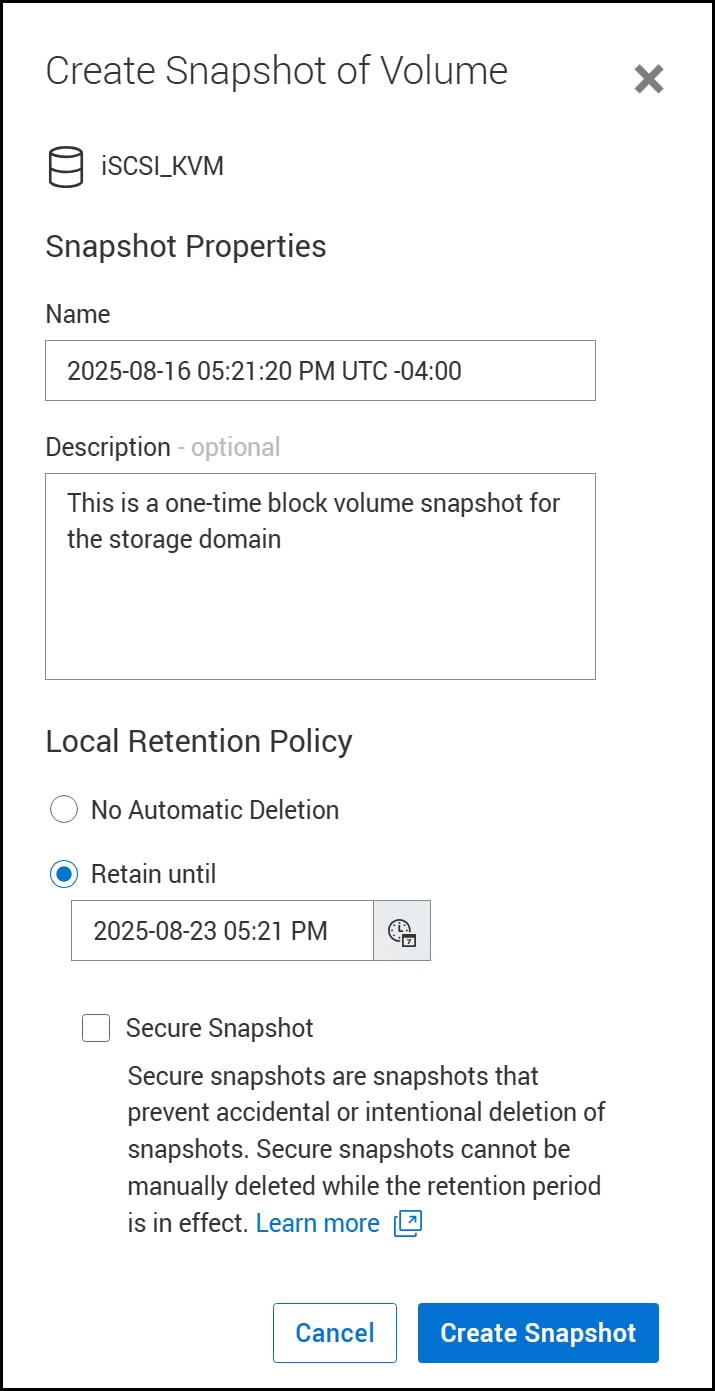
After creation, the Volume screen returns. Click the volume hyperlink and navigate to the Protection tab to view the snapshot in the following figure.
Figure 78. Detail – Block snapshot 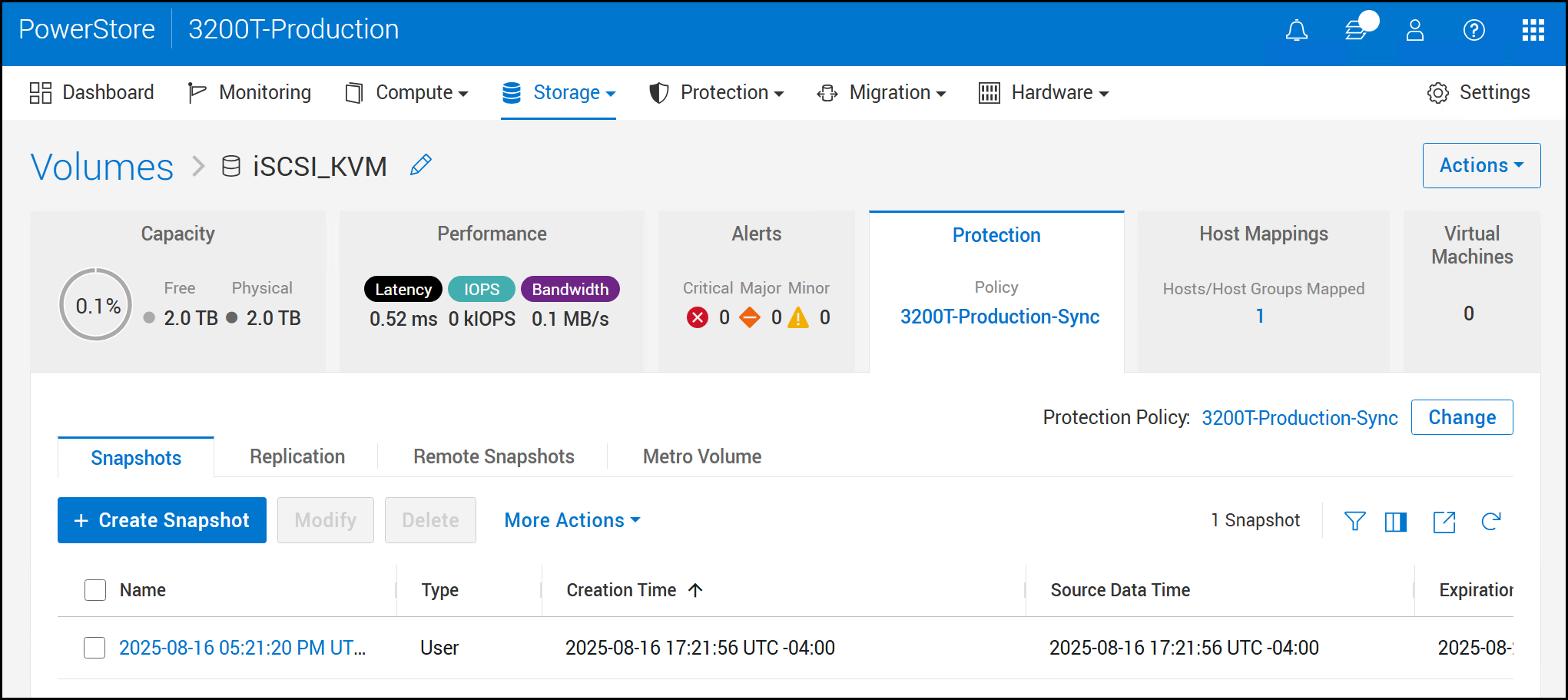
After you create the snapshot you can use it to restore it to the original device or create a thin clone from it and present that to another environment. It is not possible to present it to the same cluster if the original storage domain is still active. Unlike VMware, there is no ability to change the metadata (such as, resignature) to allow this. If restoring, you must detach the storage domain from the cluster first to ensure there is no activity. Note that restoration in PowerStore is not possible if the volume is actively replicating, as is the case here. You must first pause or remove replication.
File snapshot
File systems use file snapshots.
To create a file system snapshot:
- In PowerStore Manager, log in and navigate to in the following figure.
Figure 79. Step 1 – File system snapshot 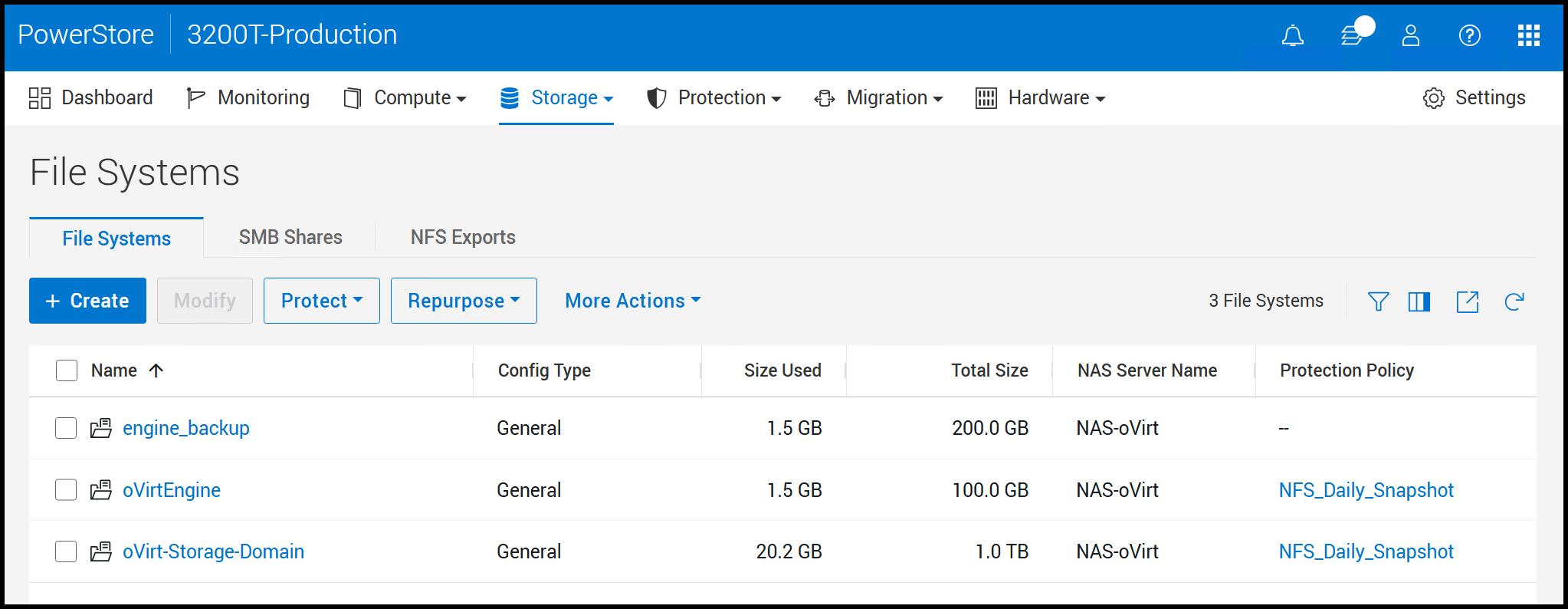
- Using the checkbox, select the file system, oVirt-Storage-Domain, where the storage domain is provisioned and click from the menu, as shown in the following figure. Note under the Protection Policy column the snapshot policy that was assigned during file system creation.
Figure 80. Step 2 – File system snapshot 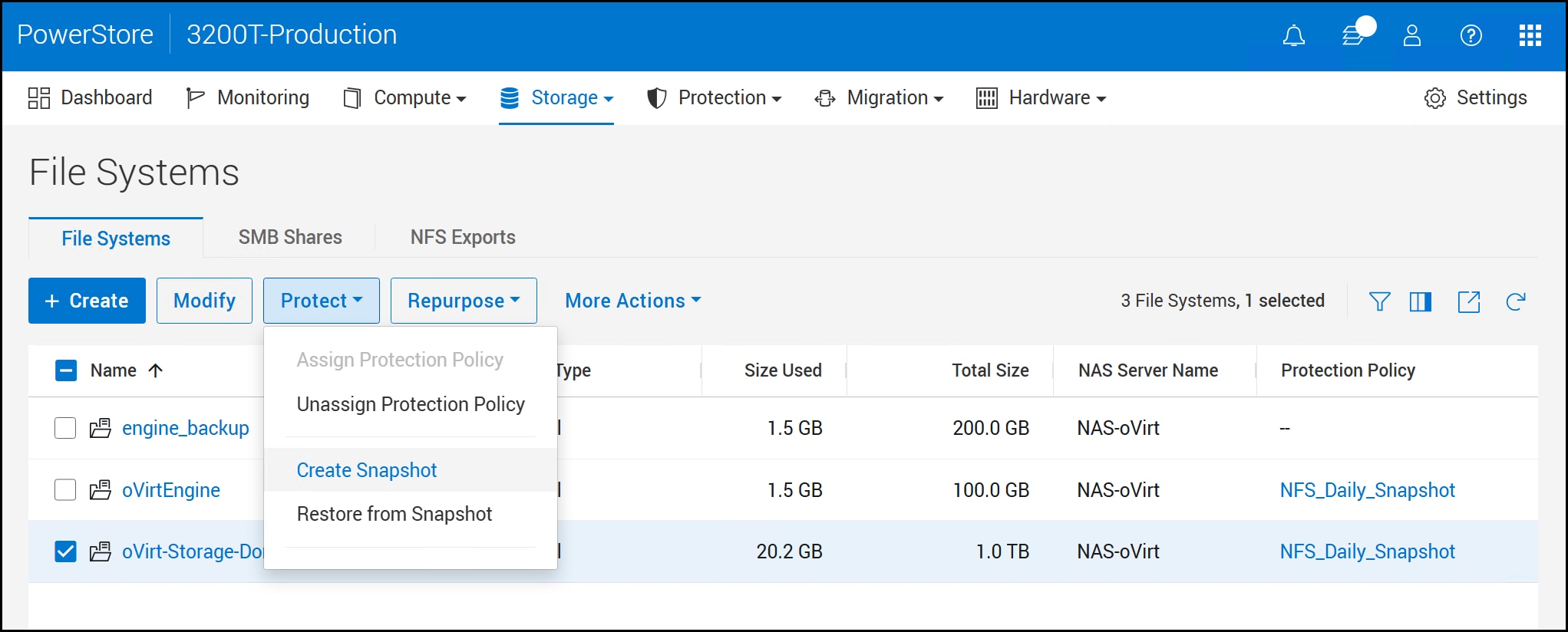
- In the Create Snapshot of File System dialog, the current datetime is used for the Name, adjust as desired, and enter an optional Description. The Local Retention Policy defaults to seven days. Adjust the date or set to No Automatic Deletion. Next, decide whether to use a Secure Snapshot. The definition is included below the checkbox. Finally, select one of the two types of snapshots, Protocol or Snapshot. They are defined as:
Option Description Protocol (Read-only) Creates a read-only snapshot that can be mounted and accessed through an NFS export or SMB share. Protocol is the default. Snapshot (Read-only) Creates a read-only automounted snapshot accessible through the snapshot directory in the file system. For backup and full restore purposes, the Protocol snapshot is the best option because it is only mounted when required and does not permit overwriting of the data. The Snapshot type, unlike the Protocol snapshot, is available immediately to the system through the existing NFS file system. This type of snapshot is useful for a partial restore since you can move individual objects into the existing file system. In Linux, access to the snapshot is through the “.snapshot” directory of the NFS datastore. This directory is not displayed, even when listing hidden files. The user must know that the snapshot exists, and the user must change the directory into .snapshot.
Once you decide on an access type, click Create Snapshot.
Figure 81. Step 3 – File system snapshot
Snapshot access type
If you do choose to use a Snapshot Access Type, you can access the files directly on any of the KVM nodes. For example, if in Step 3 – File system snapshot you select the Snapshot Access Type, you can log in to one of the KVM nodes and navigate to the .snapshot directly. In the following figure note that the .snapshot directory is not included even when requesting hidden files. But you can change into the directory regardless and access the files.
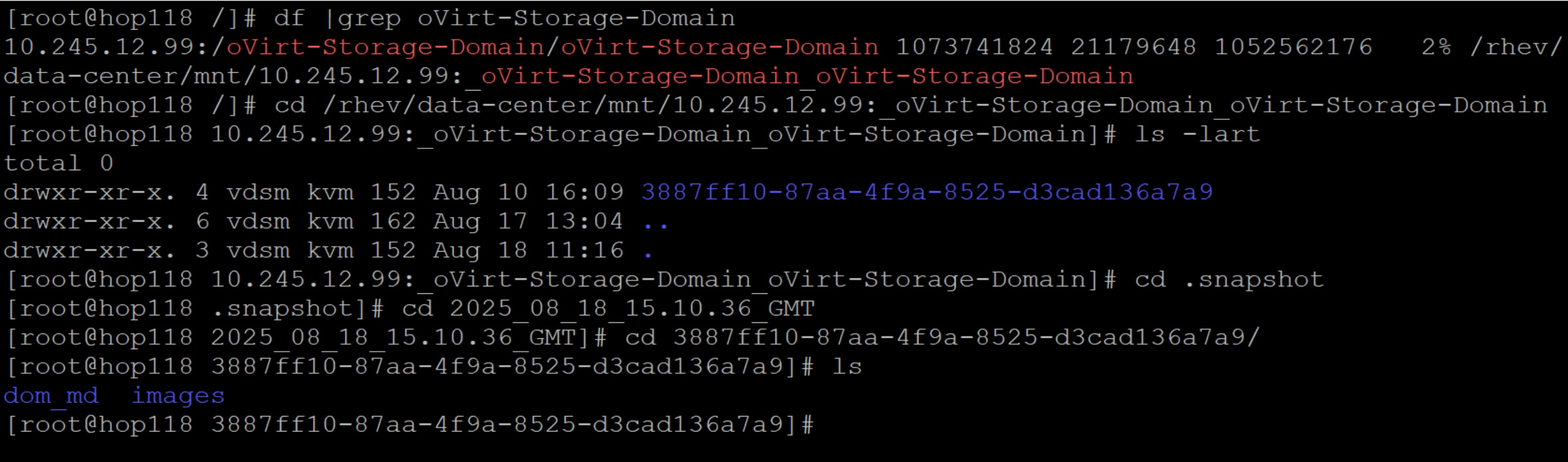
It is also possible to mount the file system on another box and access it that way.
Note: Unlike block storage, it is possible to present a clone of a file snapshot to a KVM cluster that has the source mounted; however it requires manipulation of the file system prior. See Existing NFS storage domain in Appendix B for more information.
Virtual Machines
Virtual Machines
Introduction
Prerequisites
Image upload
To create a virtual machine with an operating system, the user must add OVAs or ISOs to a storage domain. There is no ability to load an ISO file from the local system when creating a new virtual machine. Dell Technologies recommends using an NFS storage domain on the PowerStore for this file type. In the following example, the ISO_repo NFS storage domain is designated for this purpose.
- Highlight the domain and click the name, which is a hyperlink, as shown in the following figure.
Figure 83. Step 1 – Upload ISO 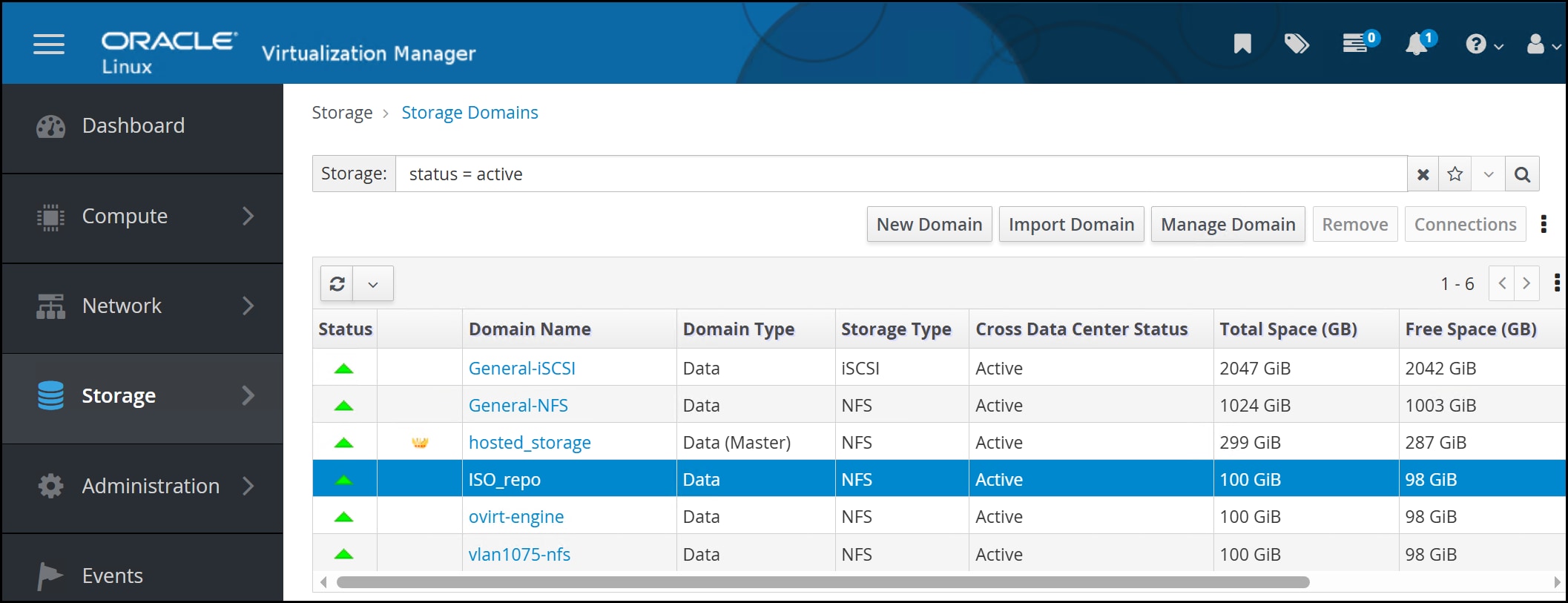
- From the options at the top, click Disks and from the Upload drop-down list on the right, select Start, as shown in the following figure.
Figure 84. Step 2 – Upload ISO 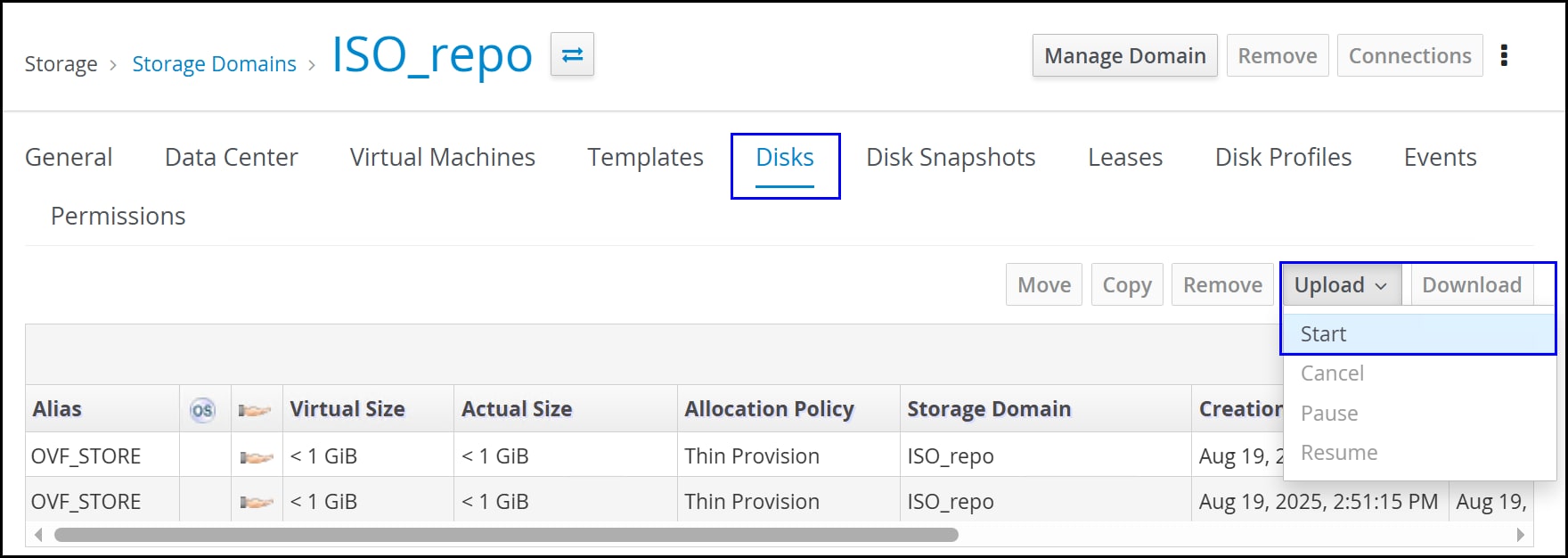
- Click Choose File to select the wanted ISO, click Test Connection, and then click OK, as shown in the following figure.
Figure 85. Step 3 – Upload ISO 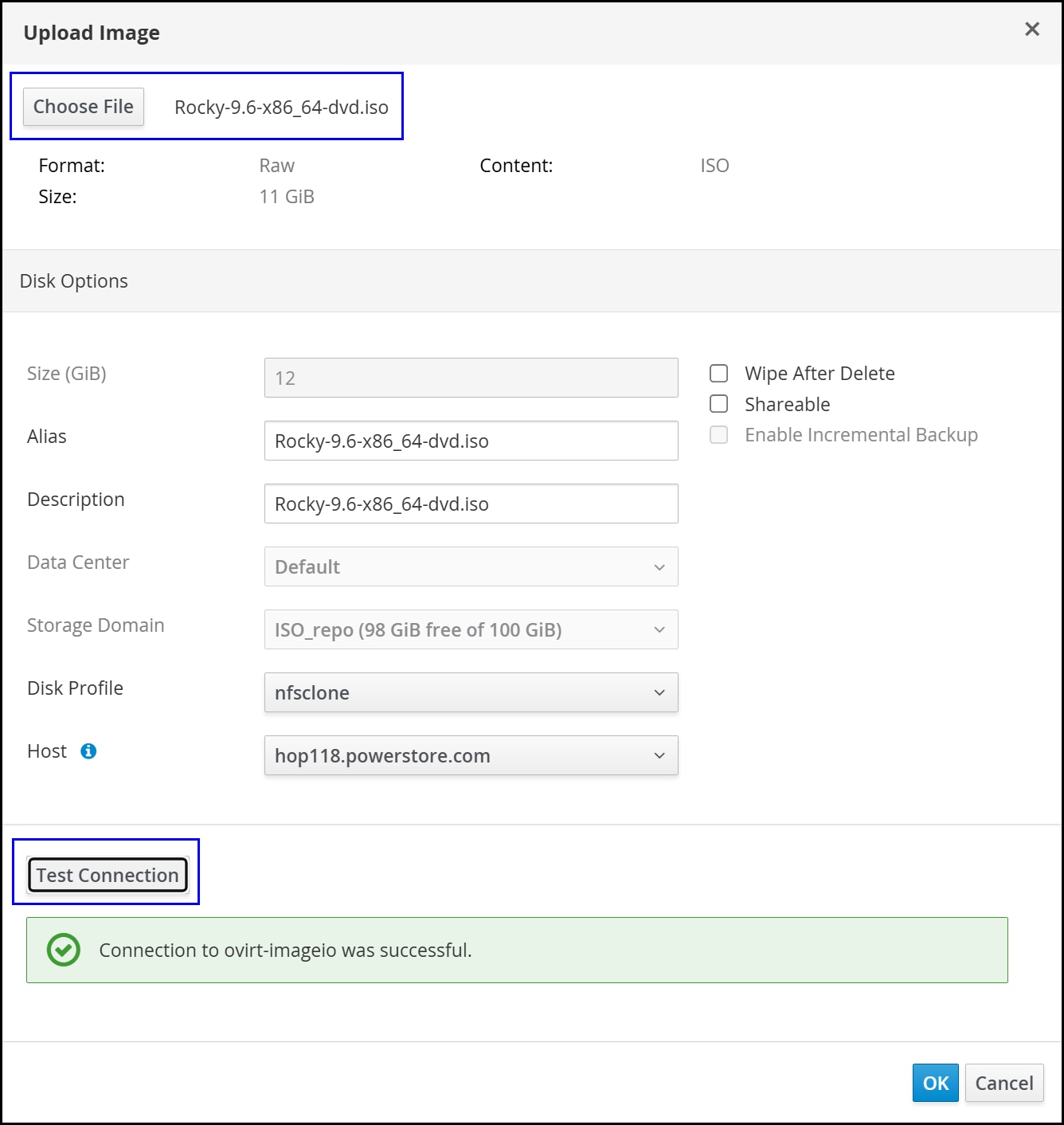
You can watch the status until it completes, as shown in the following figure. The user can upload multiple ISOs at once.
Figure 86. Status – Upload ISO 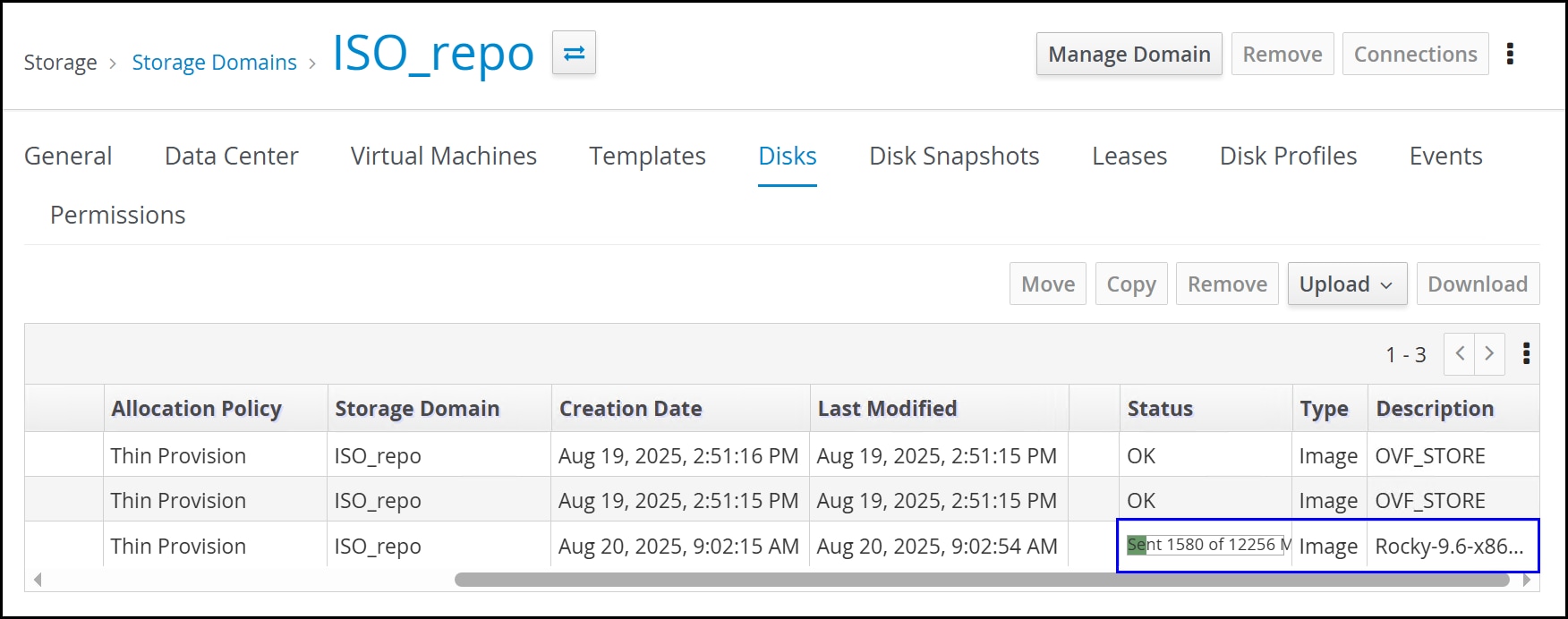
Repeat the upload process for all wanted ISOs and OVAs.
Create virtual machines
To create virtual machines:
- In OLVM, navigate to and click New to open the virtual machine wizard, as shown in the following figure.
Figure 87. Step 1 – OLVM VM creation 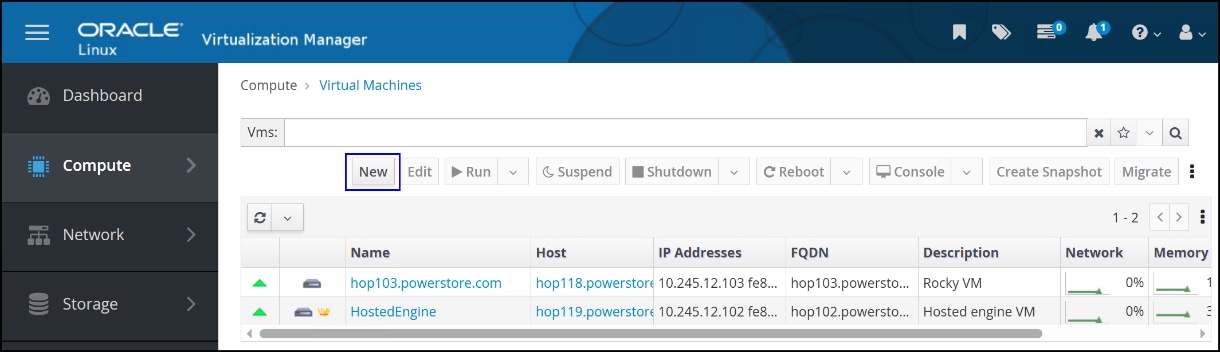
- In the General window, as shown in the following figure, complete the following fields and then click Create.
- Operating System
- Name
- Description (optional)
- nic1
Note: A Microsoft Windows operating system requires additional steps because the VirtIO drivers are not present to discover the virtual disk for install. These drivers are available in any number of repositories online along with instructions about how to implement them.
Figure 88. Step 2 – OLVM VM creation 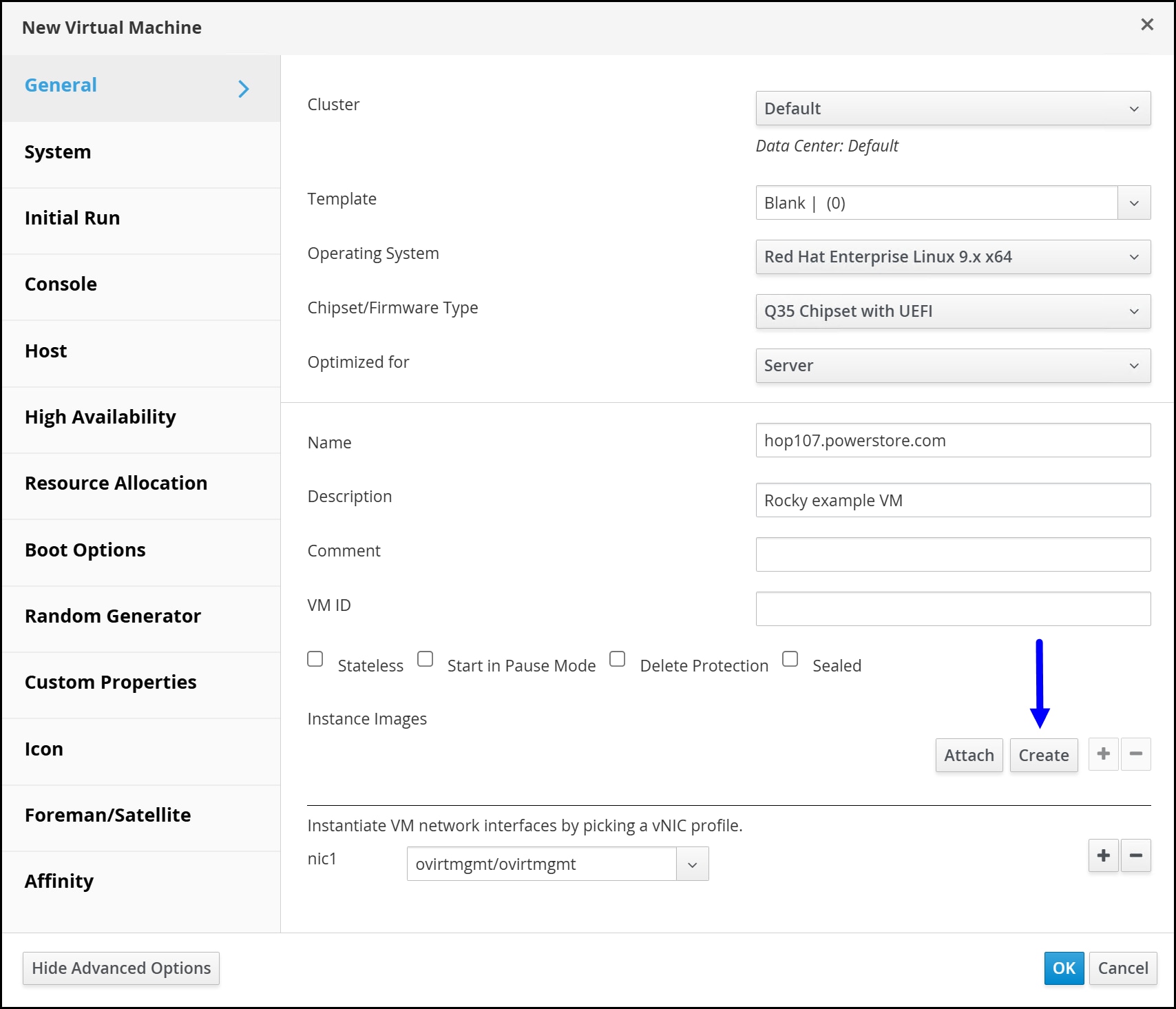
- In the New Virtual Disk dialog, complete the fields, as shown in the following figure.
- Description (optional)
- Storage Domain
- Allocation Policy (defaults based on storage domain type)
Leave the checkboxes in their default state and click OK to return to the General dialog.
Figure 89. Step 3 – OLVM VM creation 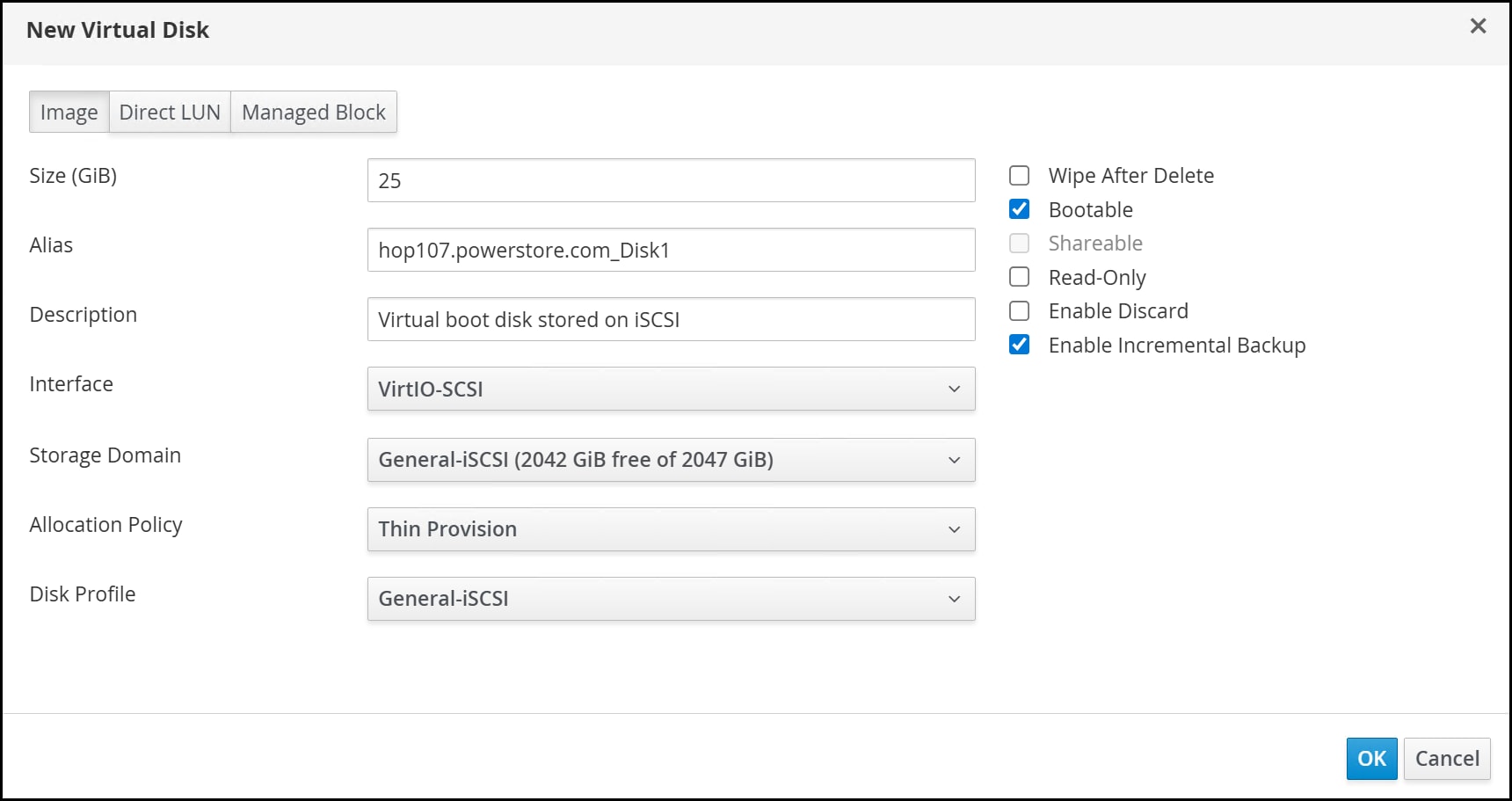
- Note that the new Instance Images is displayed, as shown in the following figure, and click OK to create the virtual machine.
Figure 90. Step 4 – OLVM VM creation 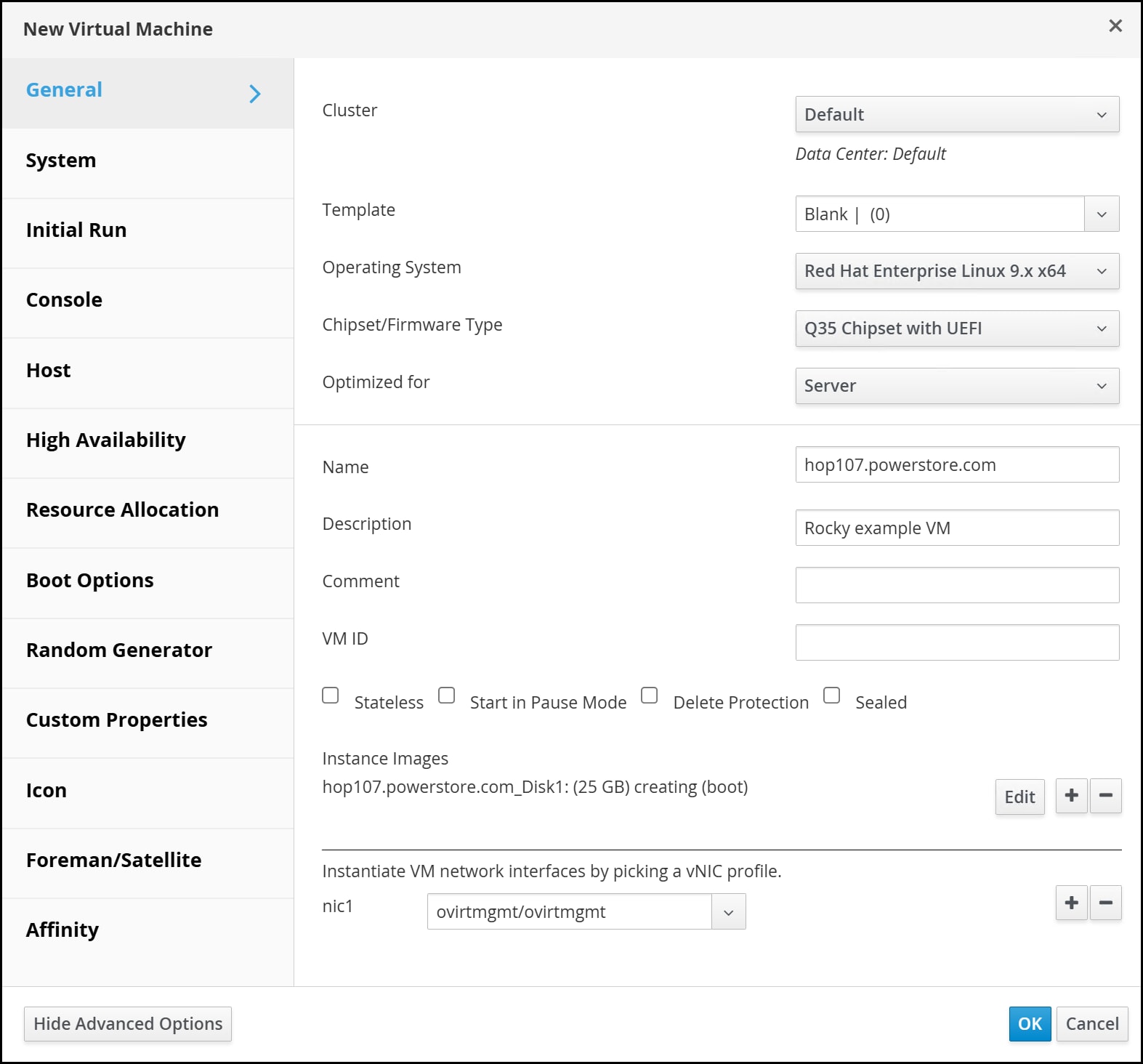
The user can add as many disks as wanted, though only one can be Bootable. The virtual machine defaults to one vCPU and 1 GB RAM so adjust as needed.
The virtual machine creation time depends on the number of virtual disks that are created, their size, and whether they are preallocated.
- Attach the appropriate bootable ISO to the virtual machine.
Note: Although it can be assigned during the virtual machine creation, OLVM offers the ability to attach the ISO so it is only used for the first power on.
- Find the Run button in the menu and use the drop-down list and click Run Once.
Figure 91. Step 5a – OLVM VM creation 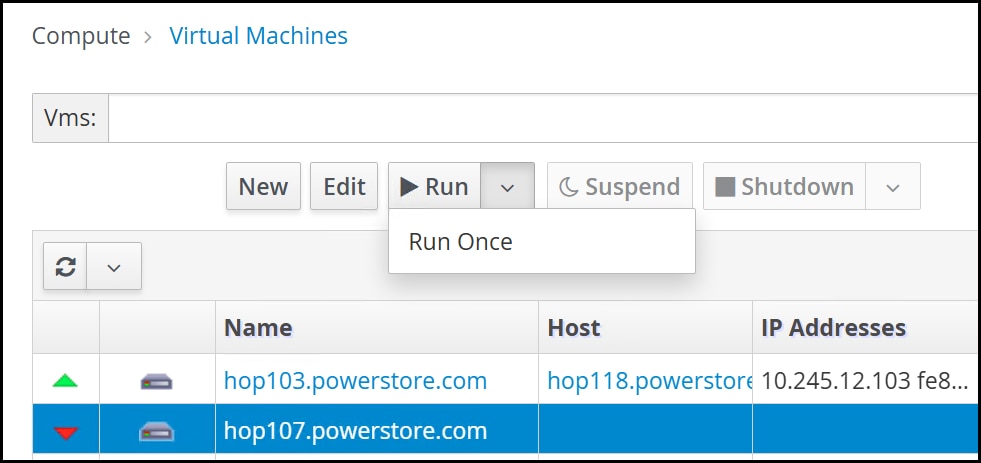
The following dialog is displayed, as shown in the following figure.
Figure 92. Step 5b – OLVM VM creation 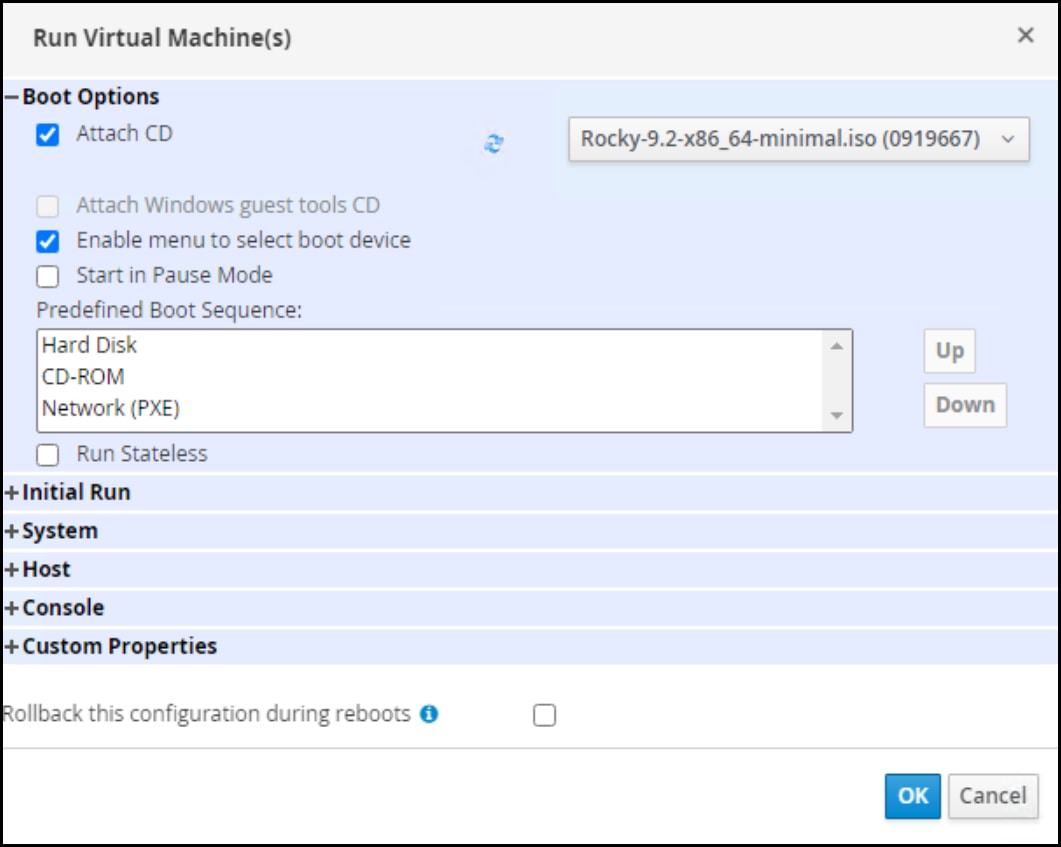
The virtual machine boots to the ISO.
- Find the Run button in the menu and use the drop-down list and click Run Once.
- Highlight the virtual machine noting that it has been assigned a host, as shown in the following figure. Click the Console button from the menu.
Figure 93. Step 6 – OLVM VM creation 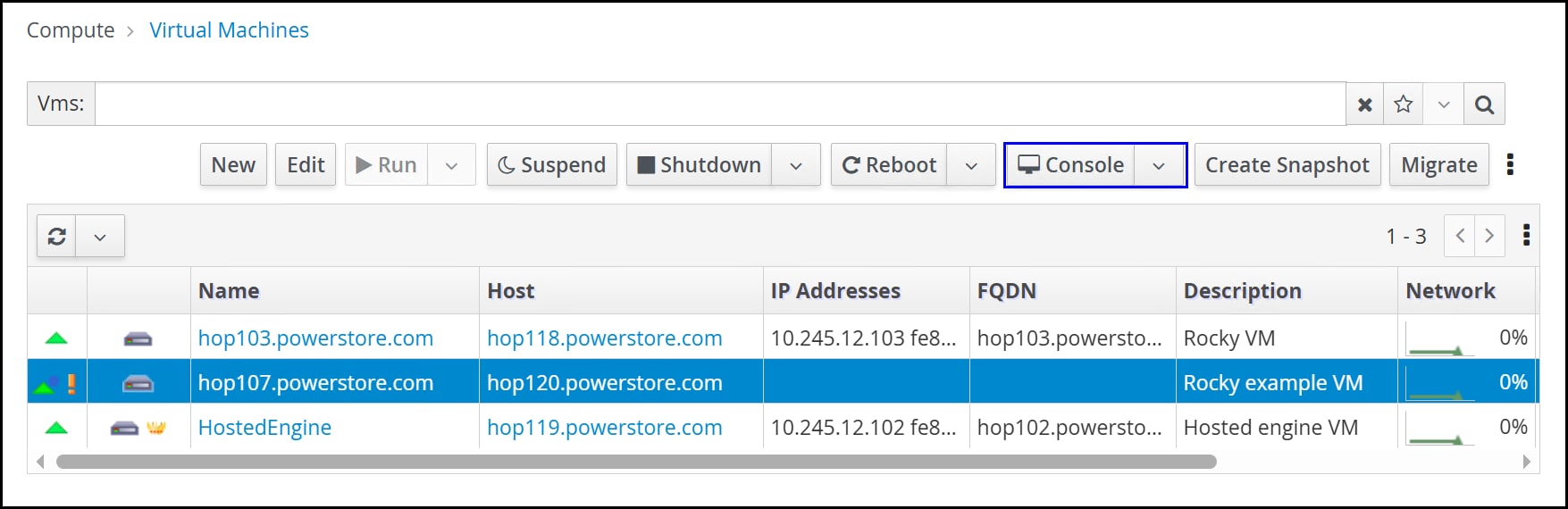
If the Virtual Machine Viewer is not associated with the .vv extension, the browser prompts the user to save a file named console.vv. The user must then associate the file extension with the console viewer. Once done, the Virtual Machine Viewer starts in the following figure.
Figure 94. Complete – OLVM VM creation 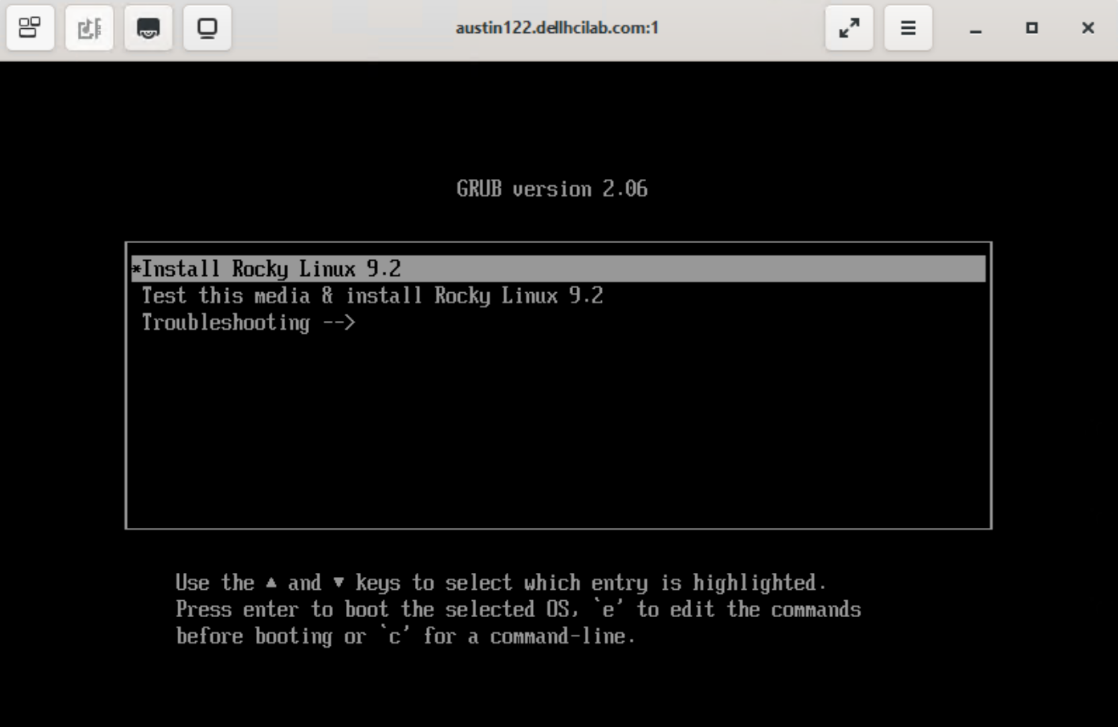
The user can now proceed with the operating system installation.
Guest agent
After the installation completes, reboot the virtual machine. If your operating system does not automatically install a guest agent (as Rocky does), OLVM places an exclamation point next to the virtual machine indicating that the latest guest agent must be installed, as shown in the following figure. The guest agent is required to enable functionality such as displaying the IP/FQDN, gracefully powering off the VM, and providing resource information.
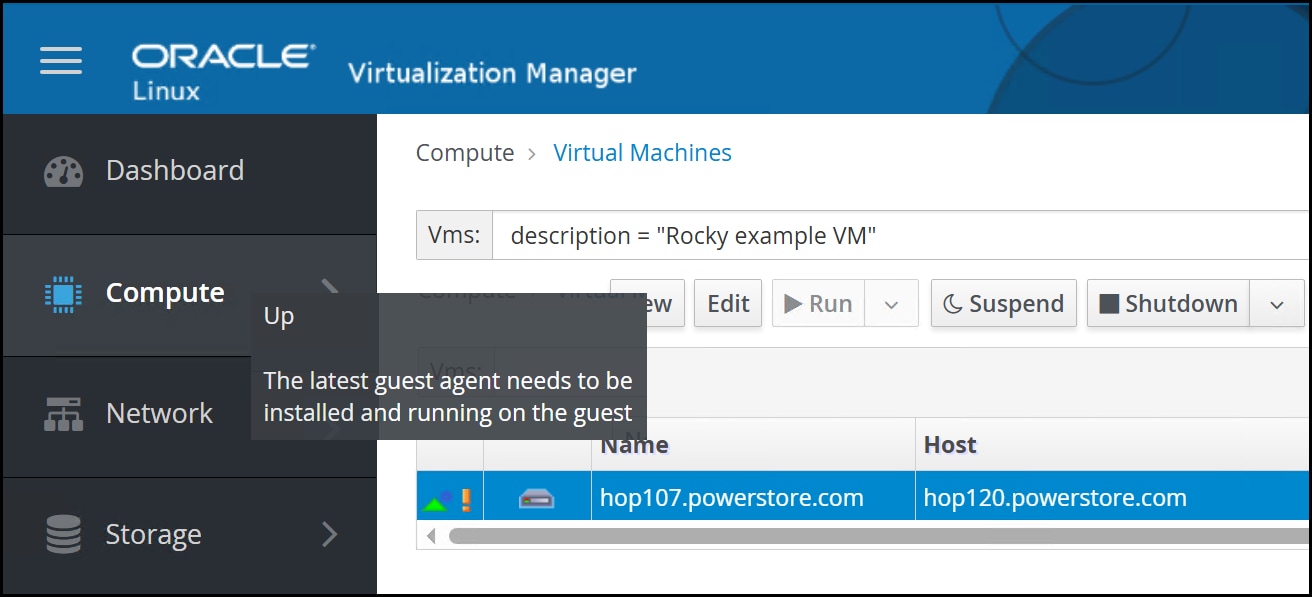
The Virtual Machine Management Guide provides instructions for installing the agent depending on the operating system. Using Enterprise Linux 8 as an example, run the following commands:
yum install qemu-guest-agent
systemctl start qemu-guest-agent
systemctl enable qemu-guest-agent
Conclusion
Conclusion
Summary
We value your feedback
References
References
Dell Technologies documentation
oVirt, Oracle, and KVM documentation
REST API
REST API
REST API
A benefit of an Oracle Linux virtualization implementation is a robust REST API delivered through the oVirt Engine. The REST API enables developers or system administrators to use custom scripts or integrate third-party applications that can issue the REST calls. A REST client sends a request with standard HTTP methods: GET, POST, PUT, and DELETE. The oVirt API uses HTTPS with client software, which requires obtaining the CA certificate from the oVirt Engine and importing it into the client host/browser. Authentication requires OAuth authentication. When the user obtains the bearer token, the user can use it to make calls.
For example, a popular REST client is Postman, a software that has both a free and paid version. Using the free version, the user can make any REST calls to the oVirt environment by taking the following steps.
- Obtain the bearer token.
The POST expects the variables in the Body as shown in the following figure. The format of the call is:
https://<FQDN or IP of the oVirt Engine>/ovirt-engine/sso/oauth/tokenFigure 96. Step 1 - REST API calls 
- Copy the access_token value (highlighted in the preceding figure) to the Token field under the Authorization tab of a new GET call. In the example shown in the following figure, the GET request is asking for all the hosts in the environment. The hosts are returned in the Body output field.
Figure 97. Step 2 - REST API calls 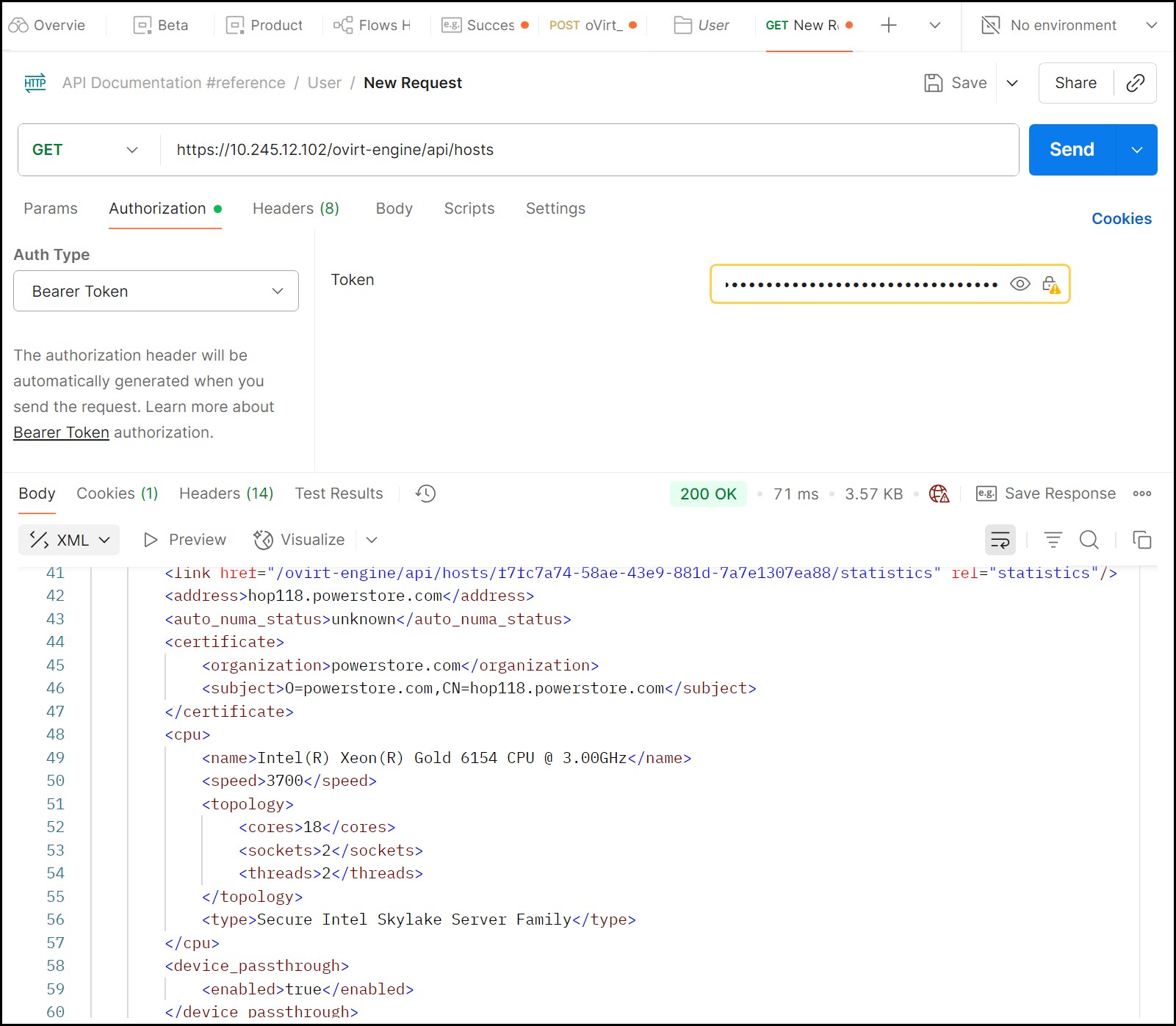
The token itself is time sensitive and will expire. Expiration results in an HTTP/1.1 401 Unauthorized error. In this case, rerun step 1 and obtain a new token. To avoid expiration, the user can add a pre-request script for the token so that every REST call gets a valid token. By using the REST, the user can manage the entire environment without a UI if so desired.
Additional information
Additional information
Introduction
Failed oVirt Engine script
Existing NFS storage domain
When KVM creates a storage domain, an ID is assigned. If that ID is not removed before reuse, KVM fails to create the storage domain. For block volumes, wiping the signature by using the fdisk or dd command is straightforward, though it also prevents accessing any of the old data (importing a storage domain into a different KVM cluster retains data). For NFS, however the user might want to keep the existing file system instead of destroying and re-creating it. If you want to retain the storage domain completely, you must import it into a new cluster.
In the example in the following figure, the ID of the storage domain is shown boxed in the UI.
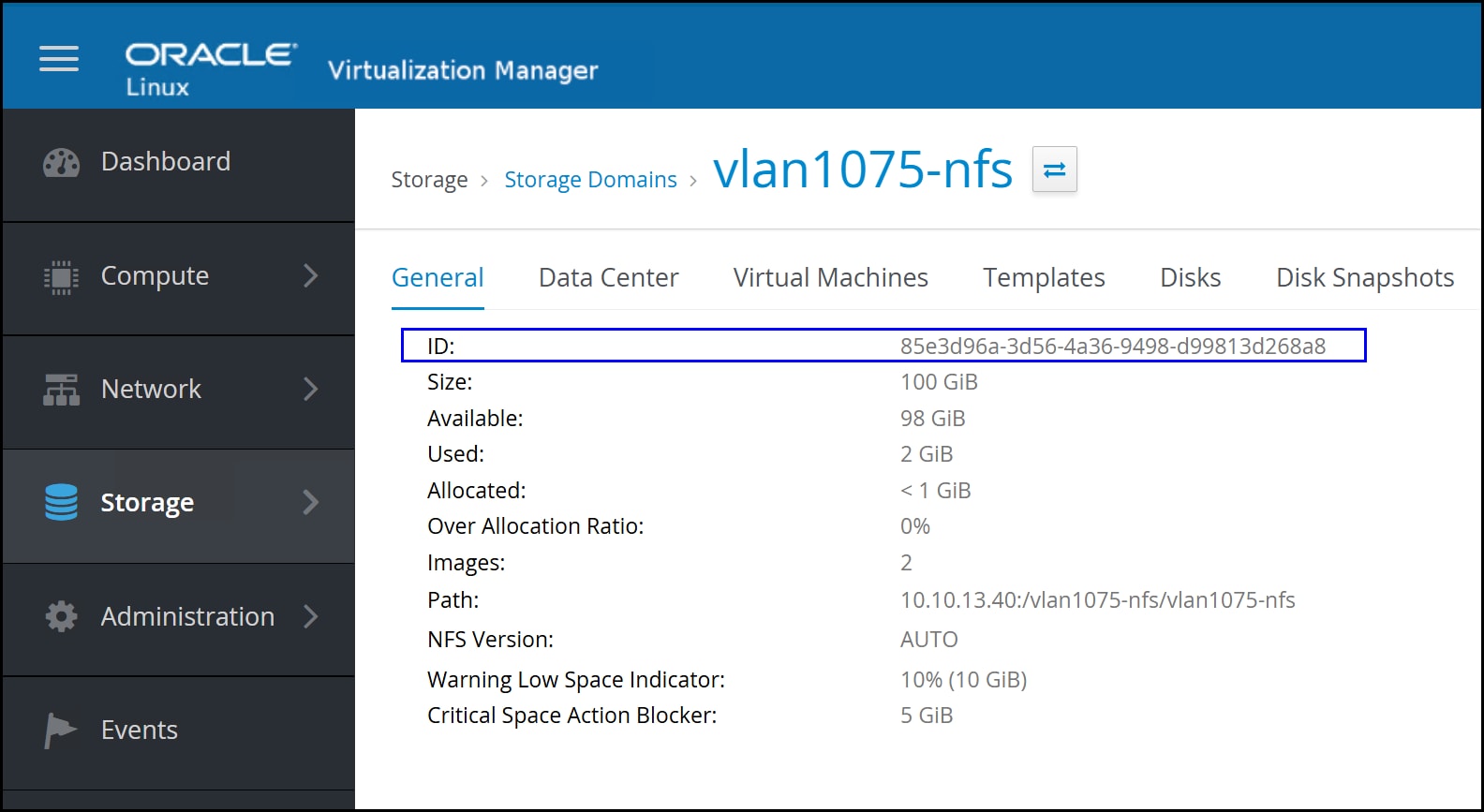
A folder on the file system represents this ID, as shown in the following figure.

If an attempt is made to mount an NFS export that already has an “ID folder,” it fails and generates an error, as shown in the following figure. Note that the existence of the folder is what causes the error, not that the ID happens to match an existing storage domain like block.
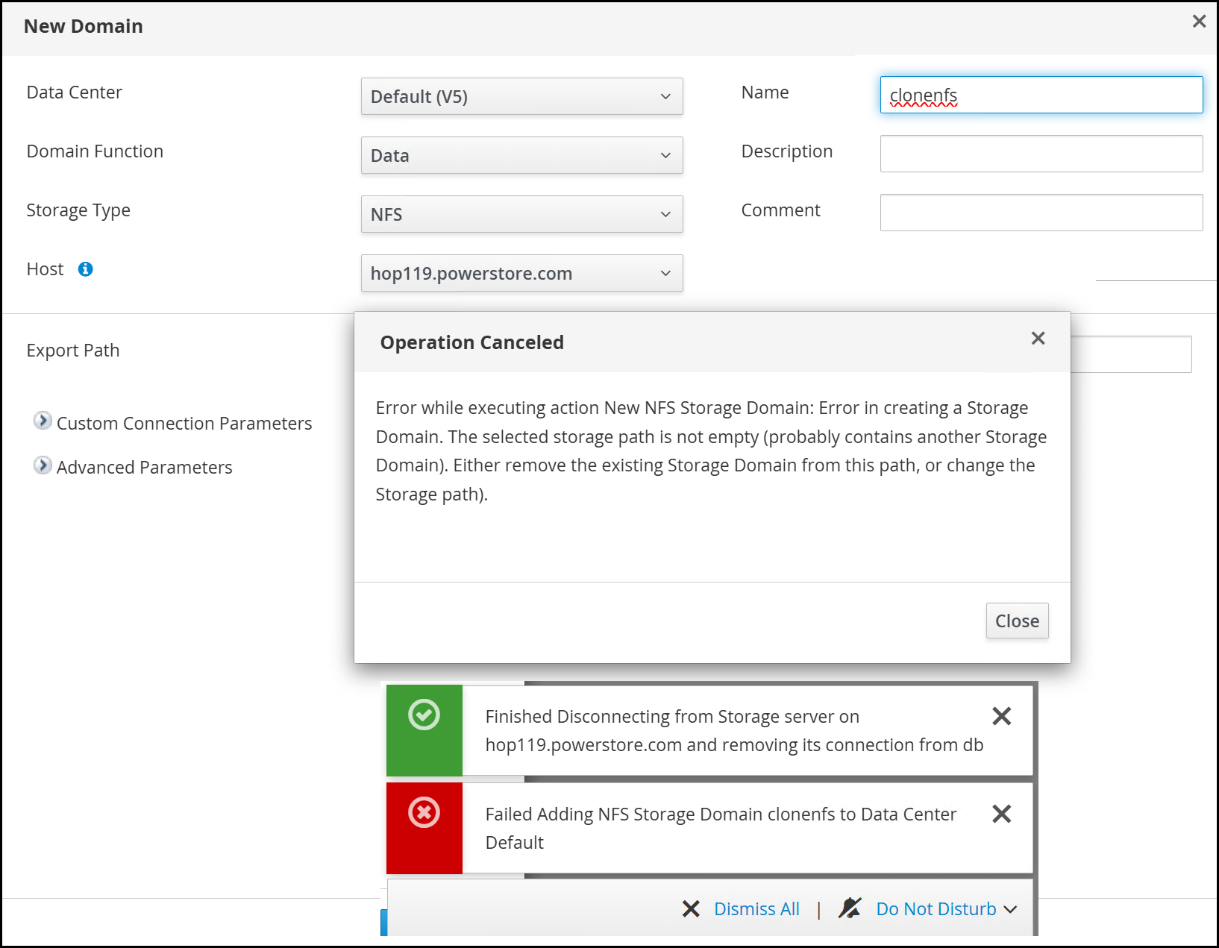
If the user receives this error message but knows that they want to reuse the file system, they can remove the folder and contents. The easiest way is to mount the NFS export on another Windows or Linux host and recursively deleting the “ID folder.” When the folder is removed, retrying the operation succeeds.
Note that the file system does not have to be empty before creating a storage domain on it, however, the mount point should have nothing underneath it. Therefore if you want to keep the existing contents, mount the NFS on a server and create a new folder with the correct ownership and permissions. In the following figure a new mount, new_folder, was added and used.
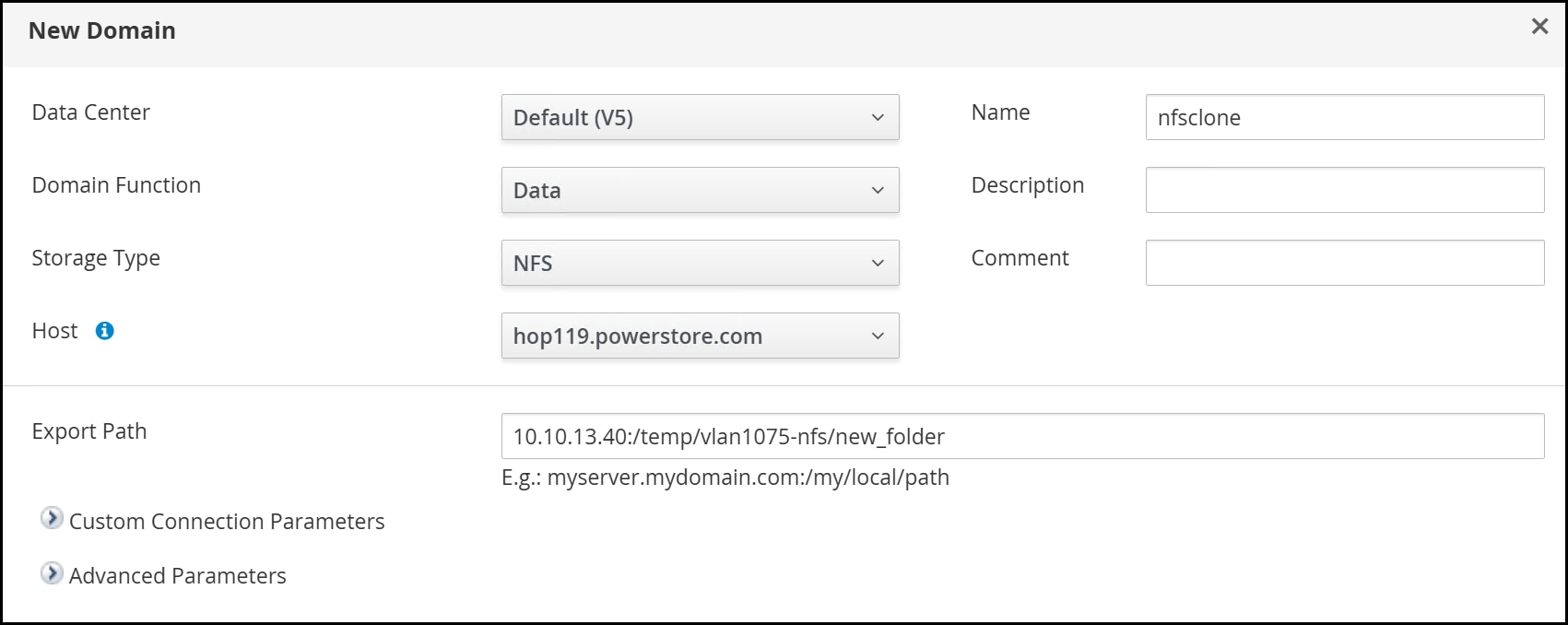
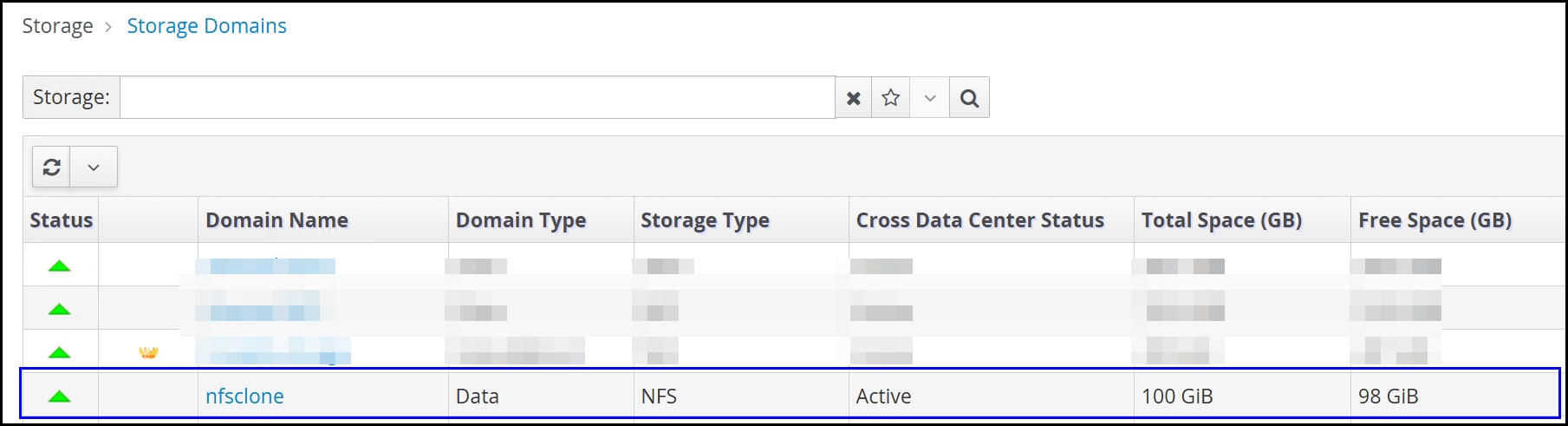
The creation is successful now in the following figure. Note that the old data is only accessible through the previous mount and therefore would require mounting it from another host to access it.
Additional virtual network
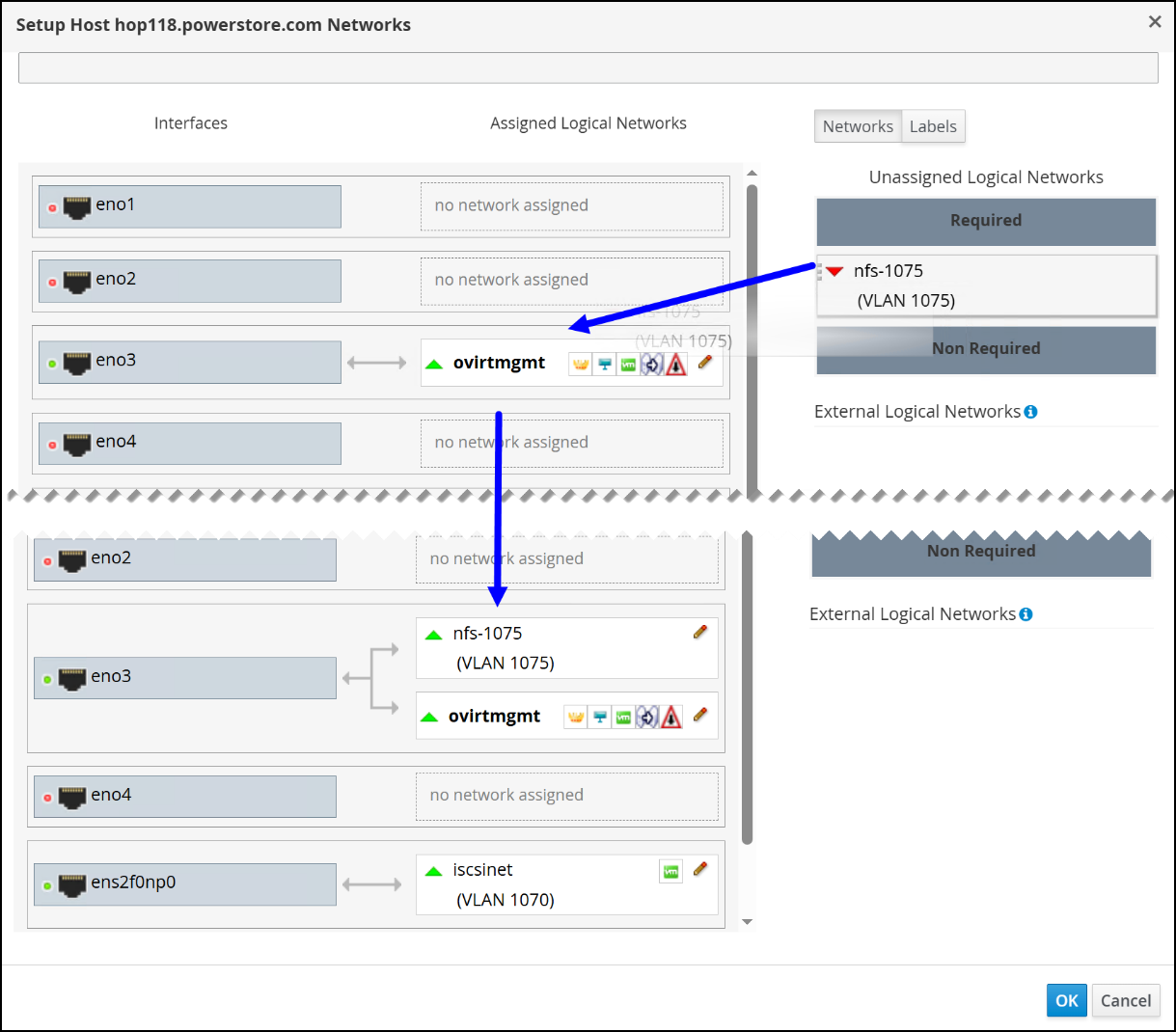
As mentioned in the paper, it is possible for a physical NIC on a KVM host to be associated with multiple virtual networks. For example, if you wished to separate your NFS traffic on a VLAN using the same public network, you would create a virtual network as covered in the section Virtual network, and then drag it to the public NIC in the following figure.
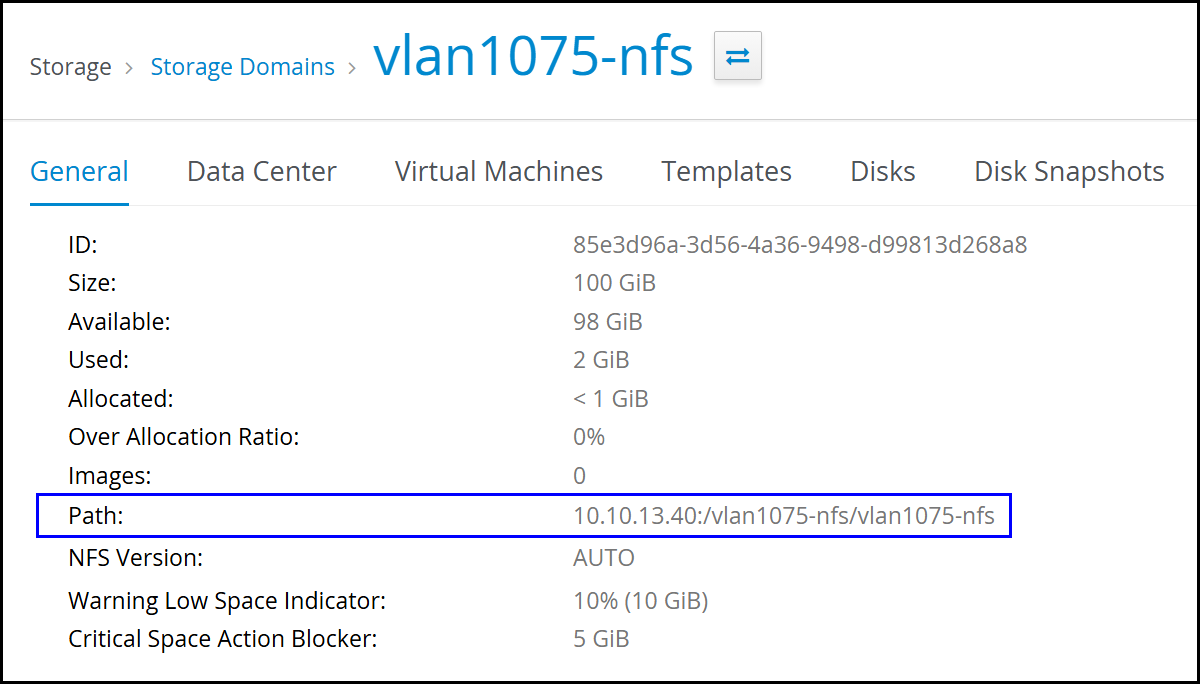
Now you can add a new file system using the VLAN.
Local storage data center
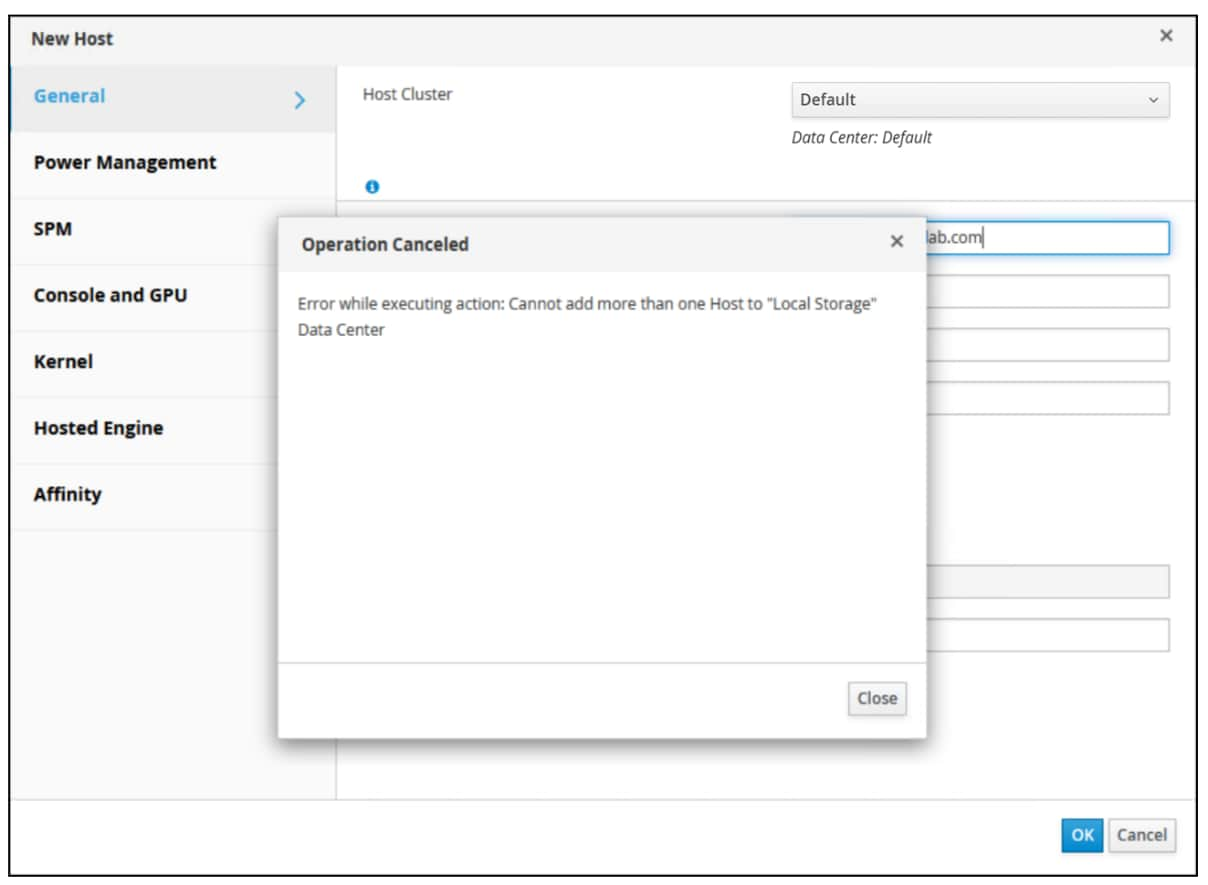
A data center with local storage can only support a single host. If a user attempts to add a second host, an error message is displayed, as shown in the following figure.
Empty attach CD
When creating a new virtual machine, the Boot Options page includes an Attach CD option that enables the user to specify an ISO for booting (for operating system installation). If the user selects the checkbox and there are no entries in the drop-down list, as shown in the following figure, there are no ISOs are available in any storage domains.
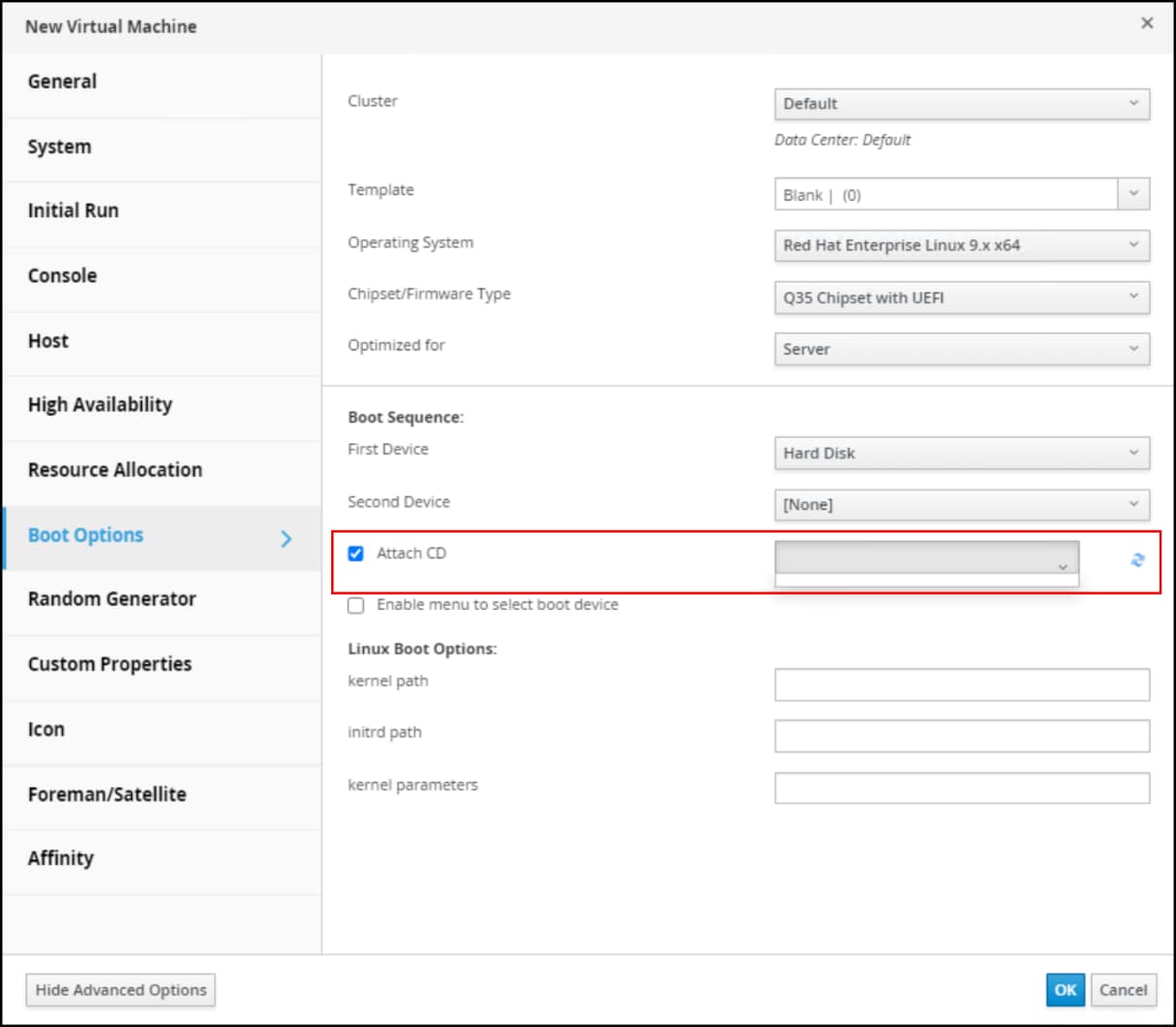
To resolve the issue, follow the instructions in . The user can also specify boot options at the time of initial power on of the virtual machine. Make sure to clear the Attach CD check box, otherwise OLVM generates an error.
VMware testing
Hardware virtualization
When creating a new virtual machine in VMware, by default, hardware virtualization is not enabled. If the user proceeds with the KVM installation, it initially succeeds, but then the host constantly disconnect because it cannot run virtualization. After creating the virtual machine and before powering on, to enable virtualization:
- Expand the vCPU section and select the Hardware virtualization checkbox, as shown in the following figure.
Figure 107. Enable vCPU virtualization 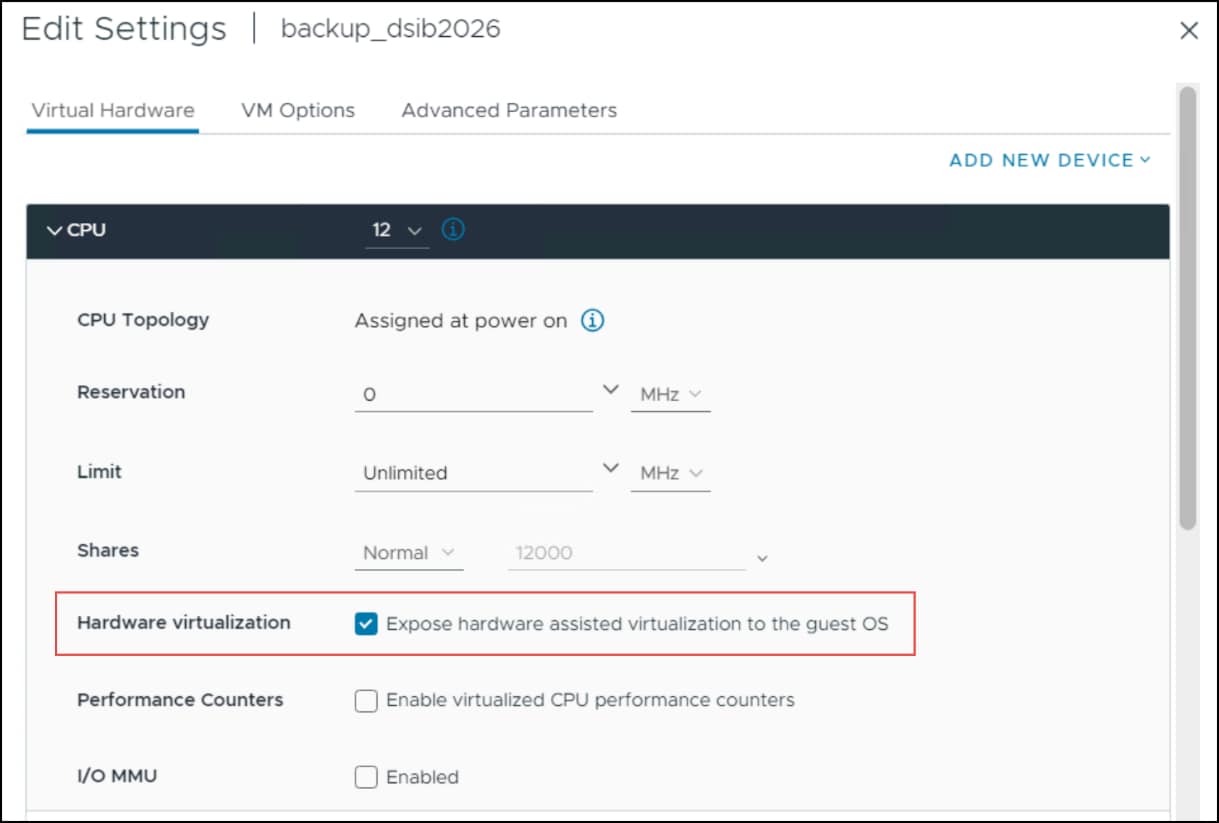
Failure to select the checkbox does not prevent installation of a KVM host; however, the host enters an unusable state, as shown in the following figure.
- If the host enters an unusable state, shut down the Guest OS, enable the feature by repeating step 2, and restart.
Figure 108. vCPU virtualization disabled 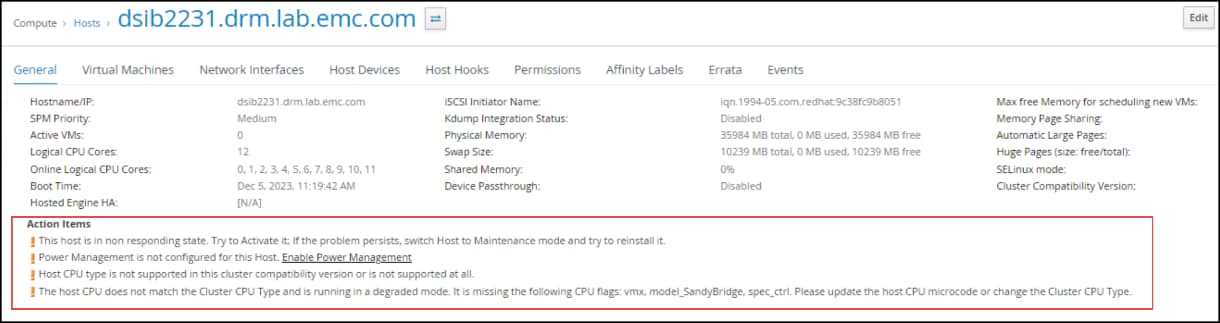
Distributed port group
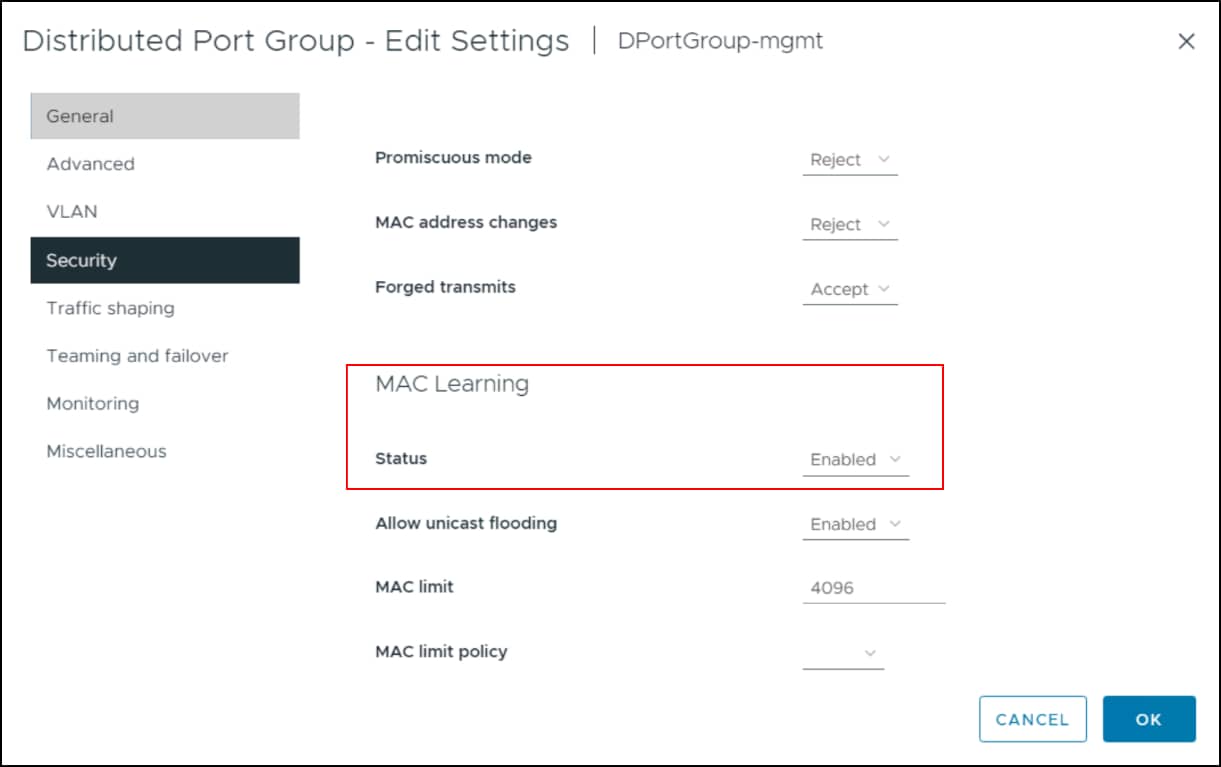
To run KVM on VMware, one must also use a distributed switch and distributed port group for the virtual machines. In addition, that distributed port group must have MAC Learning enabled, which allows the embedded virtual machines running on the host to communicate outside of the host virtual machine.
To enable MAC Learning.
- Under MAC Learning, set the status to Enabled and ensure that the Forged transmits option is set to Accept as shown in the following figure. Leave both Promiscuous mode and MAC address changes to Reject or the VMs created under the KVM host will have issues accessing hosts outside of the server itself.
Figure 109. Distributed port group in vSphere 8 and 9 - MAC Learning