Using Dell PowerStore with VMware Cloud Foundation 9.0 - Implementation Guide
This document provides guidance for implementing Dell PowerStore as Principal Storage for both Management and Workload Domains in VMware Cloud Foundation (VCF) 9.0.
VMware Cloud Foundation 9.0, or VCF, is a complete software-defined infrastructure platform that encompasses all the required components to run a private, public, or hybrid cloud. VCF 9.0 focuses specifically on the private cloud experience using VCF Operations as the central control hub. From VCF Operations, the user can control all aspects of the VCF environment, from day-to-day troubleshooting to new workload deployments. The other components of the VCF platform include vSphere for compute, vSAN for storage, NSX for networking, SDDC Manager, and VCF Automation.
VCF uses the concept of domains. There are two: Management and Workload. The management domain is the heart of the VCF implementation and requires NFS, VMFS on FC, or vSAN storage to deploy. It is responsible for hosting the many management plane VMs, but it can also host customer VMs when employing a consolidated architecture without a separate workload domain. A workload domain is designed specifically to run customer workloads. A single vCenter Server instance manages a workload domain and can consist of one or more vSphere clusters. In VCF 9.0, the workload domain can be deployed on all the same storage options as the management domain. The flexibility in storage options in VCF 9.0 permits the use of more robust storage array solutions like the PowerStore without the need for vSAN in the solution.
This paper provides an overview of how to implement a VCF 9.0 environment on a PowerStore platform using both NFS and VMFS on FC for principal storage. It covers deployment of both the management and workload domains, including PowerStore storage provisioning.
Note: While the wizard in VCF 9.0 still offers Virtual Volumes (vVols) as a viable option for deployment of a workload domain, vVols are deprecated as of this release. Broadcom will provide support on a case-by-case basis if a customer still desires to use them on the PowerStore. In such circumstances, contact your Broadcom representative.
Document purpose
This guide provides configuration details for implementing VMware Cloud Foundation on Dell servers andPowerStore storage. It demonstrates the use of NFS as principal storage for the management domain and VMFS on FC for the workload domain, removing the relianceon vSAN.
Note: Examples that are provided in this guide cover performing various VMware vSphere activities using PowerStore systems and Dell software. These examples were developed for laboratory testing and may need tailoring to suit other operational environments. Any procedures that are outlined in this guide should be thoroughly tested before implementation in a production environment.
Note: The contents of this document are valid for the software and hardware versions described. For information about updated configurations for newer software and hardware versions, contact your VMware or Dell Technologies sales representative.
Audience
This document is intended for use by storage administrators, system administrators, and VMware vSphere administrators.
Readers of this document are expected to be familiar with the following topics:
Dell PowerStore system operation
Dell software including the following: PowerStoreManager and PowerStoreOS 4.2
General storage concepts
VMware Cloud Foundation, including vSphere, NSX, and VCF Operations
VMware vSphere products and their operations
Revision history
Table 1. Revision history
Part number
Release date
Description
H04585
October 2025
Initial release
Wizard walkthroughs
Users are expected to be familiar with the products and technologies that are covered in the guide. Therefore, not every step of each wizard has an associated image. The steps are always documented, however.
Terminology
The following table provides definitions for some of the terms that are used in this document.
Table 2. Terminology
Term
Definition
BOM
Bill of Materials
FC
Fibre Channel
HCI
Hyperconverged Infrastructure
iDRAC
Integrated Dell Remote Access Controller
iSCSI
Internet Small Computer System Interface
ITOM
IT Operational Management
LCM
Life-Cycle Management – automation of updating and upgrades of VCF
Metro Volume
PowerStore synchronous replicated block volume/volume group providing active-active access across storage systems within metro distance
NAS
Network Attached Storage
NFS
Network File System
NIC
Network Interface Controllers
PowerStore base enclosure
Enclosure with node A and node B, and up to 25 NVMe drive slots
PowerStore CLI
Command-line tool for managing PowerStore systems (also known as PSTCLI)
PowerStore cluster
Collection of up to four PowerStore appliances working together as a unified system
PowerStore Manager
Web-based UI used to create and manage storage resources and protection schedules
PowerStore node
Storage controller responsible for I/O and system operations; each appliance contains two nodes
PowerStore REST API
RESTful interface for scripting and automating PowerStore management tasks
PowerStore T model
TLC-based containerized PowerStore system supporting unified workloads
VCF
VMware Cloud Foundation
VCF Fleet
A VCF fleet refers to an environment managed by the same VCF Operations instance and consisting of one or more VCF instances and standalone vCenters.
VDS
vSphere Distributed Switch (defined and managed by vCenter)
VI
Virtual Infrastructure – used regarding a workload domain
VLSR
VMware Live Site Recovery
VM
Virtual Machine
VMFS
VMware File System
Product overview
Product overview
PowerStore
The PowerStore platform is a bare-metal unified storage array that can service block, file, and VMware Virtual Volume (vVol) resources along with numerous data services and efficiencies. PowerStore is perfect for traditional and modern workloads, including relational databases, electronic medical record applications, and content repositories among many others. Dell PowerStore has multiple purpose-built platforms: the 2U, two-node single-socket Intel® Xeon® platform is used for the PowerStore 500 model; and the 2U, two-node dual-socket upgraded Intel® Xeon® platform is used for the PowerStore 1200, 3200, 5200, and 9200 models. For more information about PowerStore platforms, please refer to Dell PowerStore: Introduction to the Platform.
Figure 1. PowerStore appliance
Organizations that use new applications and solutions require dependable storage and often face the challenge of doing more with less. PowerStore addresses this challenge by packaging a powerful storage system into a cost-efficient and space-efficient profile. PowerStore features and benefits include:
Active/active architecture
Multiple protocol support: iSCSI, Fibre Channel, NVMeoF, and SMB/NFS
Unified offering
Simplified, modern user interface
VMware integration
Inline data reduction
Local and remote data protection
PowerStore achieves new levels of operational simplicity and agility. It uses a container- based microservices architecture, advanced storage technologies, and integrated machine learning to unlock the power of your data. It offers predictive analytics to easily monitor, analyze, and troubleshoot the environment. PowerStore is highly adaptable, providing the flexibility to host specialized workloads, and fits seamlessly into existing infrastructures to meet industry requirements. No matter where your business strategy takes you, PowerStore’s full-featured, adaptable design can help you build your unique breakthrough.
Note: VMware deprecated vVols in vSphere 9.0. They will be fully removed in vSphere 9.1. Although VMware permits customers to use vVols in vSphere 9.0 on a case-by-case basis (contact Broadcom for more information), Dell Technologies recommends migrating any existing vVol VMs to VMFS or NFS datastores with Storage vMotion.
PowerStoreOS operating system
PowerStoreOS is the advanced operating system that powers Dell PowerStore storage arrays, delivering a software-defined, performance-optimized platform designed for mission-critical enterprise workloads. It is a modern architecture that is modular, container-based, and tightly integrated with end-to-end NVMe hardware to offer ultra-low latency, high throughput, and automated efficiency.
Through an integrated machine learning engine, PowerStoreOS supports self-optimizing processes. These processes automatically fine-tune the following:
Operational efficiency
Power efficiency
Performance
Availability
It supports inline compression and de-duplication, ensuring space efficiency. With native encryption, secure snapshots, and multi-tenancy features, PowerStoreOS also offers strong data protection and isolation.
PowerStore replication
PowerStore local replication includes both snapshots and thin clones, and PowerStore remote replication supports asynchronous, synchronous, and active-active solutions.
PowerStore local and remote replication are integrated so that remote snapshots or thin clones can be easily taken from target devices. One benefit of this integration is that it allows the creation of remote copies of the source application without interrupting remote replication. If the source application data is corrupted, you can restore a snapshot to the remote target and reverse replication to restore the source in parallel to reduce downtime. Both PowerStore local and remote replication send only changed data when applicable, except when an initial full sync is required.
PowerStore Manager
PowerStore Manager is the centralized, HTML-5-based UI management interface for Dell PowerStore appliances that enables administrators to manage, monitor, configure, and upgrade PowerStore clusters and appliances. It is accessible by browser and supports both local and remote configurations.
A Representational State Transfer (REST) API is also built into Unisphere for PowerStore Manager. The REST API allows you to access diagnostic, performance, and configuration data, as well as perform provisioning operations on the storage system through interfaces like the CSI driver. Full documentation for the PowerStore REST API is available at developer.dell.com or from the Help menu within the Unisphere for PowerStore Manager User Interface.
VMware Cloud Foundation
VMware Cloud Foundation (VCF) is a complete software-defined management solution that consists of VMware vSphere, VMware NSX Data Center, VMware vSAN, and VCF Automation and Operations. VMware Cloud Foundation Installer drives the installation of VCF. The various components serve the following roles:
VMware Cloud Foundation Installer: A virtual appliance that the user deploys that automates the building of the management domain of VCF. Subsequent domains are provisioned through the SDDC Manager within VCF Operations.
SDDC Manager: Automates the life cycle management of VCF. It enables updating and upgrades, firmware application, and the general day-to-day operation of VCF.
VMware vSphere: Virtualizes the bare-metal servers using the ESXi software and aggregates them in the vCenter Server.
VMware NSX Data Center: Provides the networking for the VCF solution along with security and automation. NSX is designed for both private and public clouds.
VMware vSAN: An optional component that aggregates local or direct-attached storage in a single pool that can be shared across all ESXi hosts in the VCF environment.
VMware Cloud Foundation Automation: Empowers IT to deliver self-service cloud experience for AI, Kubernetes, and VM-based applications. It provides a platform for deploying and managing applications and services, enabling end-users to consume and manage resources in a self-service fashion.
VMware Cloud Foundation Operations: Provides a unified interface and set of capabilities to help organizations build, operate, and secure their cloud infrastructures built on VCF.
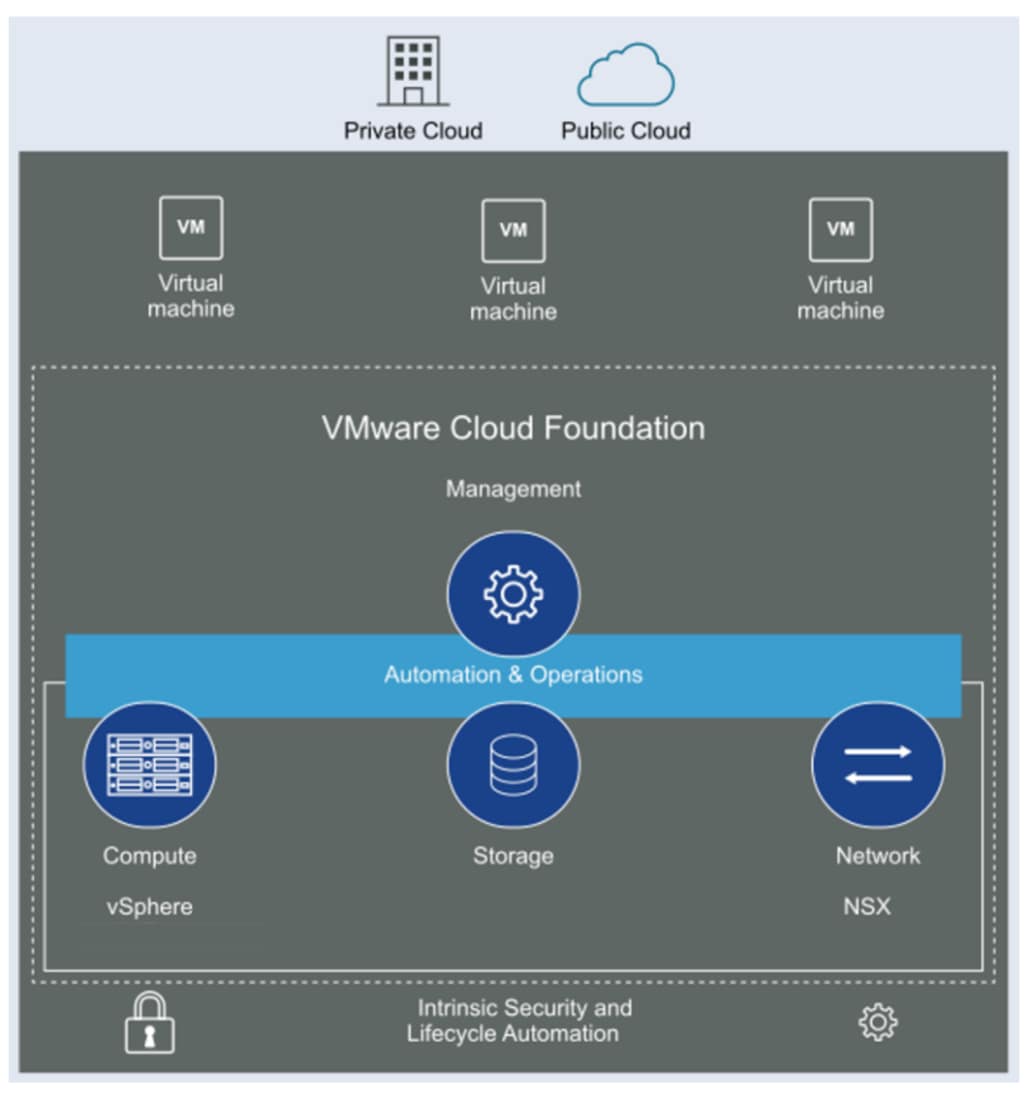
VMware portrays the high-level VCF implementation as depicted in the following figure .
Figure 2. VMware Cloud Foundation
Environment and system requirements
Environment and system requirements
Introduction
The following sections cover the requirements for implementing VCF on a PowerStore array using NFS as principal storage for the management domain and VMFS on FC as principal storage for the and workload domain.
Prerequisites
You must meet the following minimum prerequisites before implementing VCF on PowerStore using NFS and VMFS on FC as principal storage. Storage provisioning is detailed in a later section.
Server requirements for VCF management and workload domains are as follows:
A minimum of four Dell servers with sufficient networking, memory, CPU, and local storage to satisfy the requirements of the VCF management domain.
A minimum of two Dell servers with sufficient networking, memory, CPU, and local storage to satisfy the requirements of a VCF workload domain running on VMFS on FC.
Storage requirements for VCF management and workload domains are as follows:
An installed PowerStore appliance with the following configuration.
A unified configuration that permits both block and file.
Two network switches configured with LACP for NAS to ensure an active/active configuration
At least four (4) front-end ports zoned to each VCF server, preferably in one-to-one zoning to two (2) dual-ported HBAs.
A two (2) TB file system for the management domain on a NAS server network available to the four management domain hosts.
A two (2) TB volume for the workload domain mapped to a minimum of two workload domain hosts.
Licenses must be obtained for the VCF solution. A default evaluation license is in place for 90 days.
VCF components
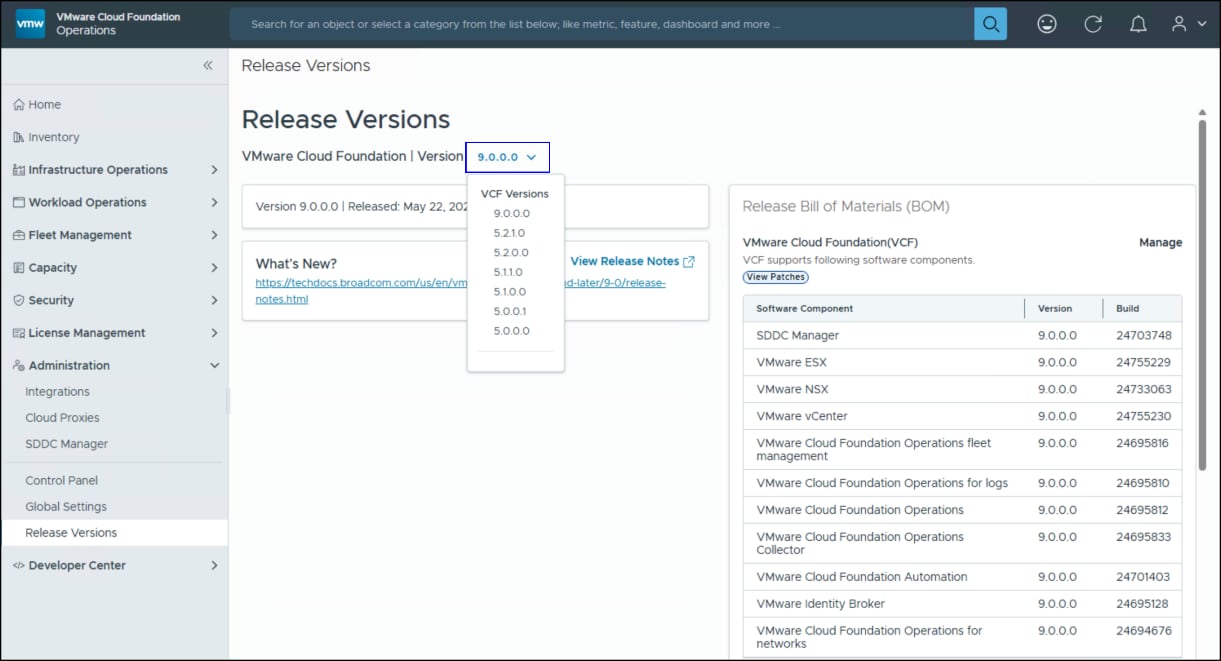
VCF 9.0 includes a Bill of Materials (BOM) which dictates the versions for each component of the solution. VMware offers no ability to substitute. For example, even if there is a newer update for ESXi at the time of installation, VMware requires the version in the BOM. The versions for the primary components used in the solution in this paper are shown in the following table. The complete list is available at Broadcom Tech Docs Portal.
Table 3. Bill of Material
Software Component
Version
Build Number
VCF Installer
9.0.0.0
24755599
VMware ESX
9.0.0.0
24755229
VMware vCenter
9.0.0.0
24755230
VMware NSX
9.0.0.0
24733065
SDDC Manager
9.0.0.0
24703748
VMware NSX
9.0.0.0
24105817
VMware Cloud Foundation Automation
9.0.0.0
24701403
VMware Cloud Foundation Operations
9.0.0.0
24695812
Network topology
For the environment in this paper the following network exists. At the physical layer, two Top of Rack (TOR) switches are used for redundancy and load-balancing purposes. There are two connections from each Dell host NIC used in the solution, one to TOR A and one to TOR B. VCF requires two NICs (minimum 10 GbE) to form the vSphere Distributed Switch (VDS).
The following table shows the different VLANs that are configured for this solution. This environment is entirely private. Customers would likely use different VLANs for each component in a production configuration, though it is not required.
Table 4. Network VLANs
Network type
VLAN ID
iDRAC Management
0
Management, VM, NAS, NSX-Overlay
1075
vMotion
1071
In addition, a domain controller, DNS, and NTP server exist for the VCF deployment.
VCF nodes
The VCF environment detailed in this paper consists of seven servers:
Four (4) for the management domain.
Three (3) for the workload domain.
The specifications of all domain servers are the same. Both management and workload are listed below.
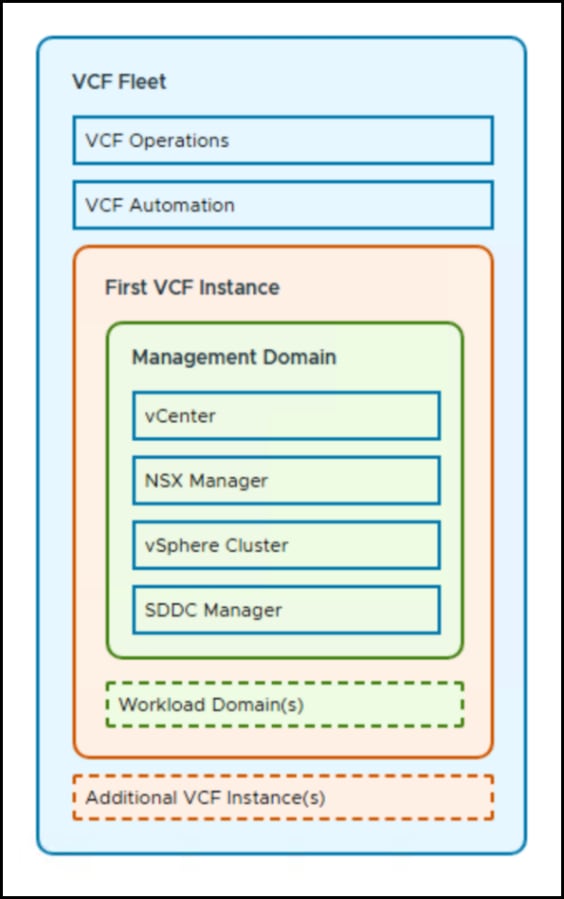
A VCF fleet is a concept in version 9.0 that includes all the infrastructure components: VCF Operations, VCF Automation, vCenter, NSX Manager, vSphere Cluster, SDDC Manager, and management and workload domains. A fleet only has a single implementation of VCF Operations and Automation but can be comprised of multiple VCF instances. The following figure is a visual representation of a VCF fleet.
Figure 3. VCF Fleet
Domains
A domain is part of a fleet and is comprised of the vCenter, NSX Manager, vSphere Cluster (hosts and storage), and SDDC Manager. There are two types of domains in VCF: Management and Workload. The management domain is the set of resources that runs VCF and is the control center of the environment, responsible for hosting the management plane VMs. There is one management domain per VCF instance, though there can be multiple per VCF fleet.
Note: Prior to VCF 9, the SDDC Manager was the central management tool. While it is possible to continue to use SDDC Manager for some tasks, it is not recommended as it is deprecated and will be removed in a future release. VCF Operations is the new interface.
Workload domains are deployed from VCF Operations inventory and consist of the same components as the management domains; however, they have no management VMs. They are part of the VCF instance. These workload domains are typically used to run the applications for a business. The number of workload domains in a VCF instance is limited to 24.
The management and workload domains are usually comprised of separate hardware. For customers with fewer server resources or who want a smaller footprint or a POC lab, the management domain can also be a workload domain. This configuration is known as a consolidated architecture and can host customer workloads.
Storage
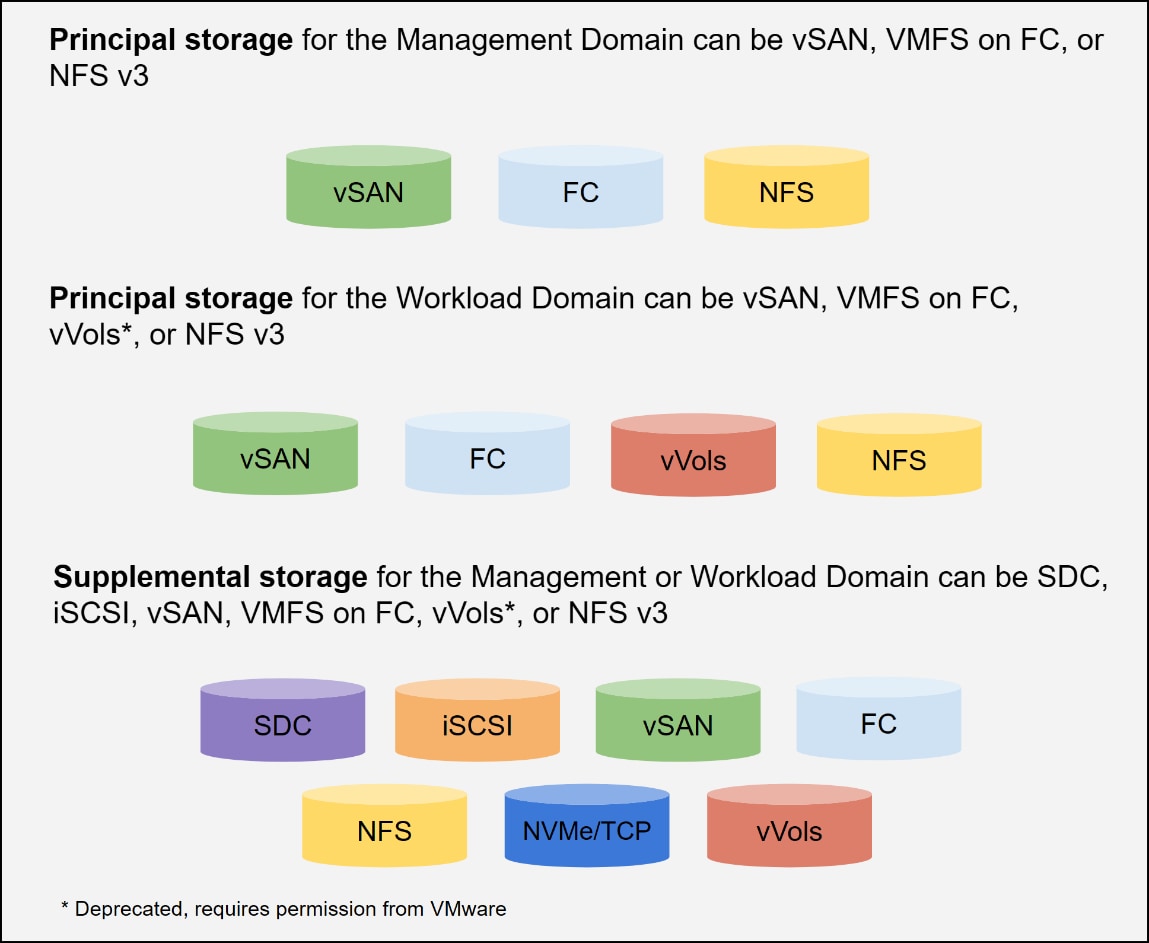
In VCF there are two distinct categories of storage, each serving a separate function in the solution. These categories are designated: Principal and Supplemental. Principal storage is what is required to deploy a management or workload domain or to deploy a new cluster into an existing workload. Supplemental storage, on the other hand, is storage that can be added to any existing management or workload domain post-deployment. Principal storage is restricted to four types: vSAN, VMFS on FC, vVols, or NFS v3. The management domain only supports vSAN, VMFS on FC, or NFS v3. The fourth type, vVols, can be used on workload domains, however. Supplemental storage supports all principal storage types as well as iSCSI and NVMe/TCP. The storage options are shown in the following figure.
Figure 4. VCF 9.0 storage options
It is important to understand that vSAN is the only storage VCF can completely control as part of the life cycle of an instance. If storage is presented using another protocol from an array like Dell PowerStore, the administrator has the responsibility of managing it. For example, if a datastore needs expansion on the PowerStore, the administrator would use PowerStore Manager to expand the device and then expand the datastore in vCenter or the vSphere Client. This function can be accessed through VCF Operations.
Vendor storage support
VMware does not publish storage support for VCF by vendor, rather they rely on the VMware Compatibility Guide for Storage/SAN. If the vendor is listed as supporting the protocol for the version of ESXi in the BOM, then it is supported with VCF.
Life cycle management
VCF has an integrated life cycle management function that facilitates the automation of upgrades to new versions. Because each version of VCF has a specific bill of materials, it is essential to use this function to maintain compliance. The interface is shown in the following figure.
Figure 5. Life cycle management
Upgrades
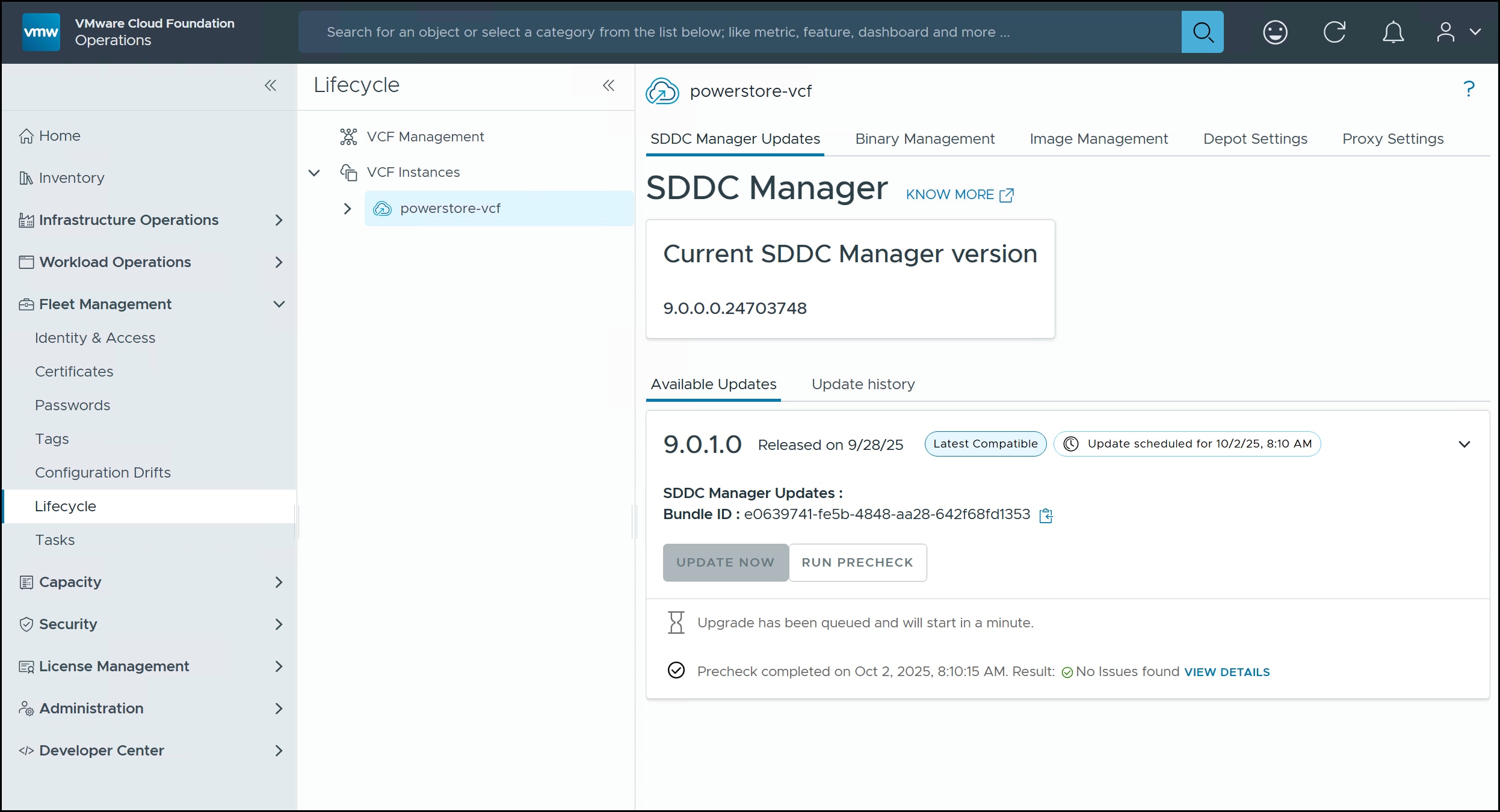
Upgrades are always initiated for the SDDC Manager first. In the following figure an upgrade is in process to VCF 9.0.1. Once the SDDC Manager is upgraded to the latest release, the user can start with upgrading components of the management domain followed by the workload domains. It is not possible to run them concurrently.
Figure 6. SDDC Manager upgrade
Deploying a VCF management domain on PowerStore NFS
Deploying a VCF management domain on PowerStore NFS
Introduction
The following sections detail the installation of the VCF management domain using the VMware Cloud Foundation Installer.
VCF installation
Although VCF consists of multiple software releases, it does not require that each of these components be installed independently. The installation of the base component of VCF, or management domain is accomplished using the VMware Cloud Foundation Installer which includes all the necessary software.
There are three steps to installation.
Prepare the environment. Preparation can be achieved through the Planning and Preparation Workbook that VMware provides. The worksheet is optional but helps guide the user on all the necessary information to complete the deployment wizard.
Image all servers with the ESXi version that is listed in the Bill of Materials. This installation is straightforward, choosing among the available methods, and then minor post installation modifications. ESXi is the only software that the VMware Cloud Foundation Installer does not install.
Install VMware Cloud Foundation and download or upload the BOM software releases. This installation requires first deploying the VMware Cloud Foundation Installer appliance which is a wizard-driven application used to create the management domain.
The next section covers the installation of the management domain, including the prerequisites.
ESXi installation
Each host used in the VCF deployment for the management domain must be imaged with the correct release of 9.0 referenced in the BOM (build 24755229 for 9.0.0 GA release). Be sure to use the same root password for all hosts. Once installed complete these additional tasks.
VCF requires that there is a single vSwitch on the host (default configuration) on one of the NICs you will use when you deploy. (The environment in this paper uses two 25 GbE NICs as the installer will fail unless that minimum speed is used.)
Set the IP, network information, and hostname post-installation.
Login to the vSphere Host Client and enable SSH. Regenerate the certificates so that they match the hostname. To regenerate the certificates, SSH to the host as root and run /sbin/generate-certificates. Then reboot the host. Technically, only hostd and vpxa require restart, but in testing that has not always been effective. A reboot guarantees success. The VCF installer will validate the hostname and certificate during deployment and if regeneration is not done beforehand, validation will fail.
Set and start the NTP server on each ESXi host. You should use the same NTP server in use with the VCF installer. This is an additional check the installer will do, though it will only produce a warning if it fails, which can then be skipped.
Note: The VCF installer requires the root password to be the same for all ESXi hosts for the management domain. The workload domain does not have this requirement.
NFS on PowerStore
The following sections detail the setup of an NFS file system on PowerStore for use with the VCF management domain.
Prerequisites for NFS storage
VMware presents the following prerequisites for using NFS storage as principal storage for a management domain:
A minimum of four ESXi hosts with any management domain.
An NFS Server that meets the NFS Storage Guidelines and Requirements found in the vSphere Storage Guide. Specifically, NFS version 3 is required for principal storage, though version 4 is supported when using NFS as supplemental.
The FQDN/IP and the mount point folder name of the NFS server with the proper permissions set.
NAS server
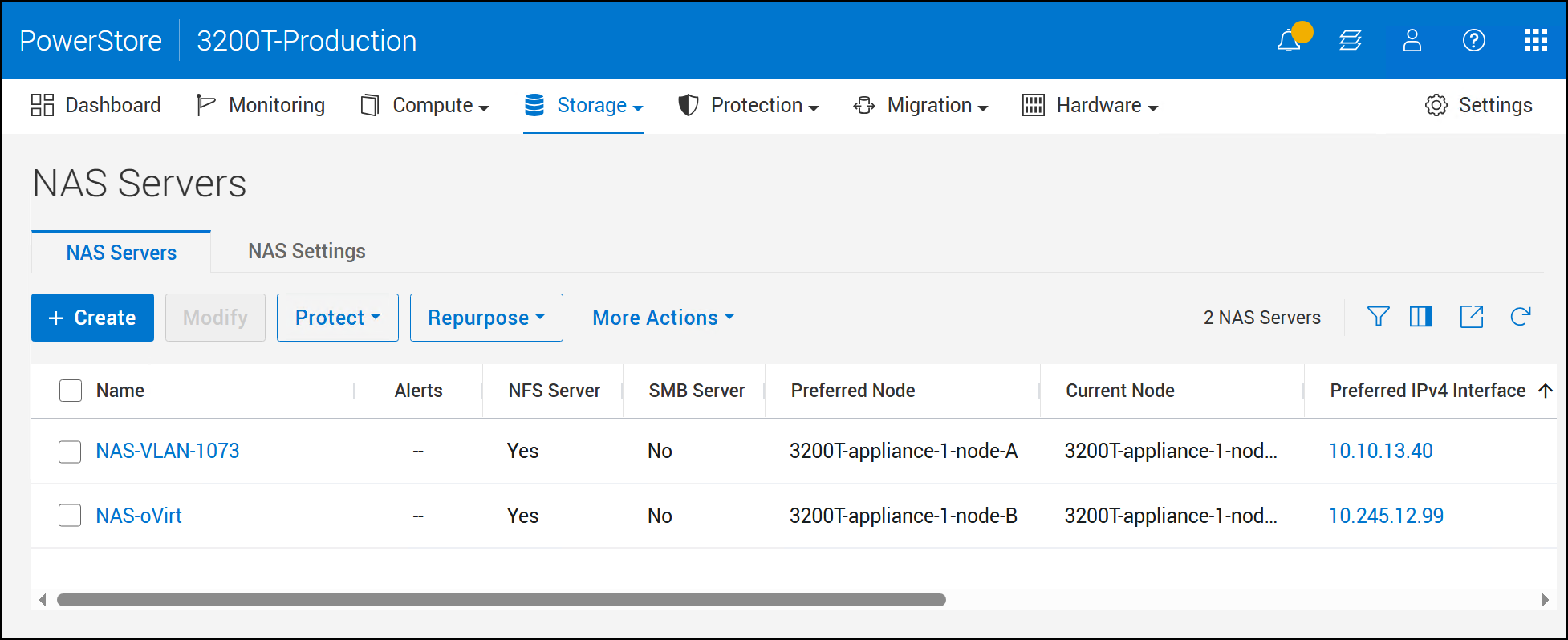
If not already available, create an NFS server specifically for VCF in PowerStore Manager.
Begin by logging into PowerStore Manager as an administrator. Go to Storage > File Systems > + Create in the figure below.
Figure 7. Step 1 – Create NAS Server
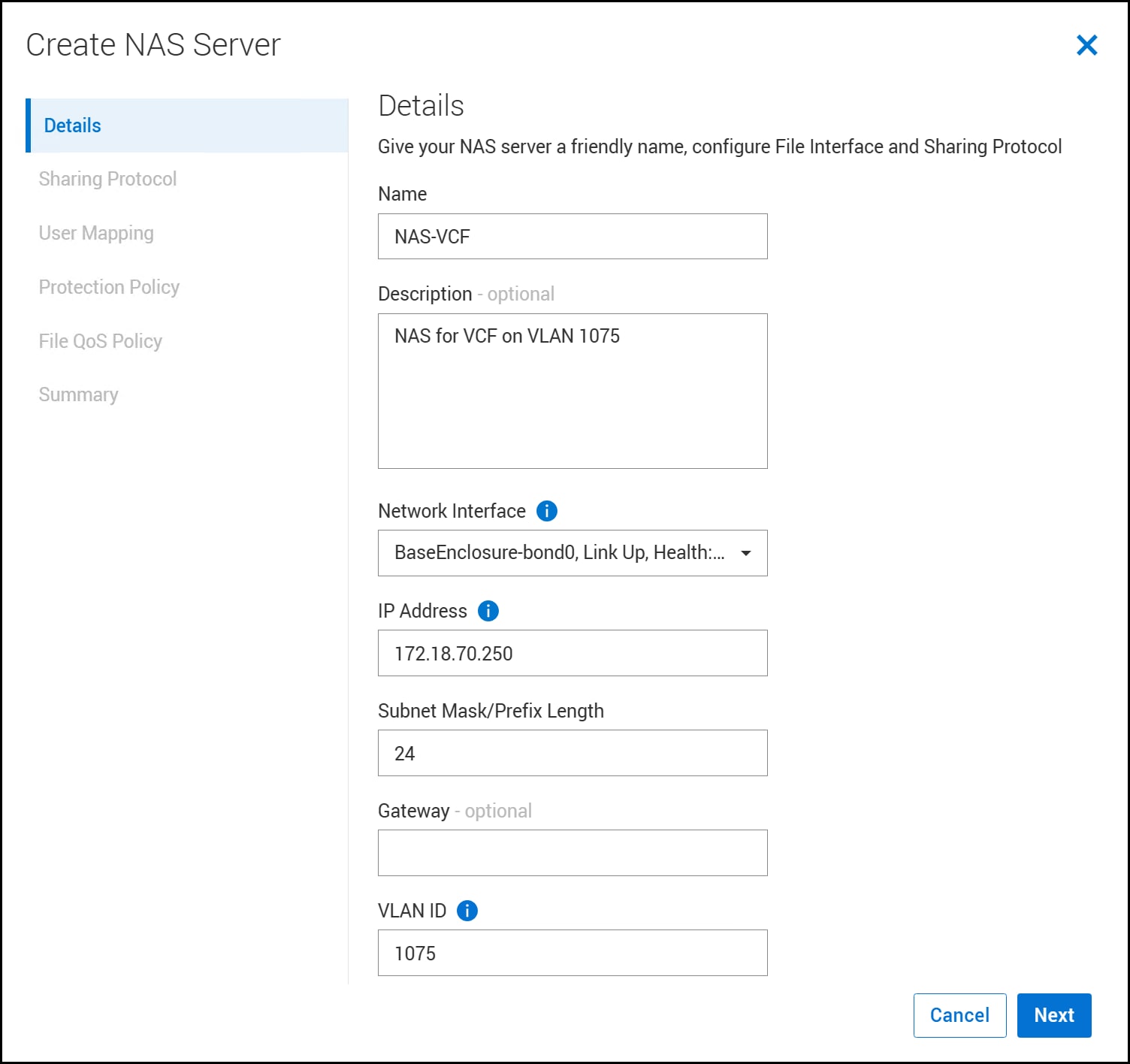
Enter in the details of the NAS Server in the following figure. Provide the following:
Name
Description – if desired
Network Interface
IP Address
Subnet Mask/Prefix Length
Gateway – optional
VLAN ID – if you are not using one, leave it at the default of 0
Click Next to continue.
Figure 8. Step 2 – Create NAS Server
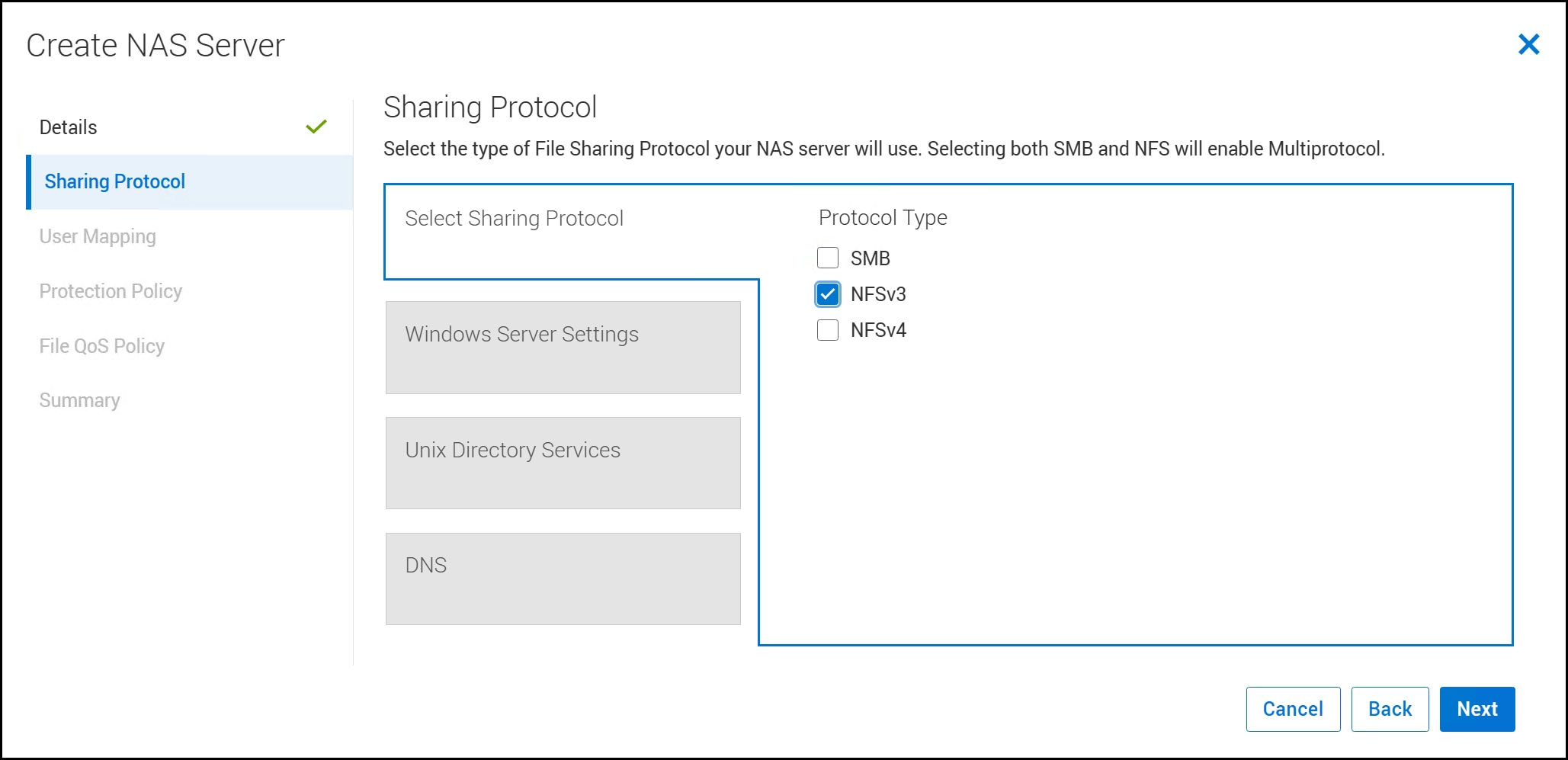
Use the checkboxes in the following figure to select the Sharing Protocol.
At a minimum, NFSv3 is required for the management domain. If you plan on using this NAS Server for supplemental storage in the future, you may also elect to check NFSv4; however, it is not supported for principal storage.
Click Next twice to traverse through the UNIX Directory Services and DNS boxes. They are not modified here. The Windows Server Settings box will only highlight if SMB is checked as a protocol.
Click Next a third time to move to the next step.
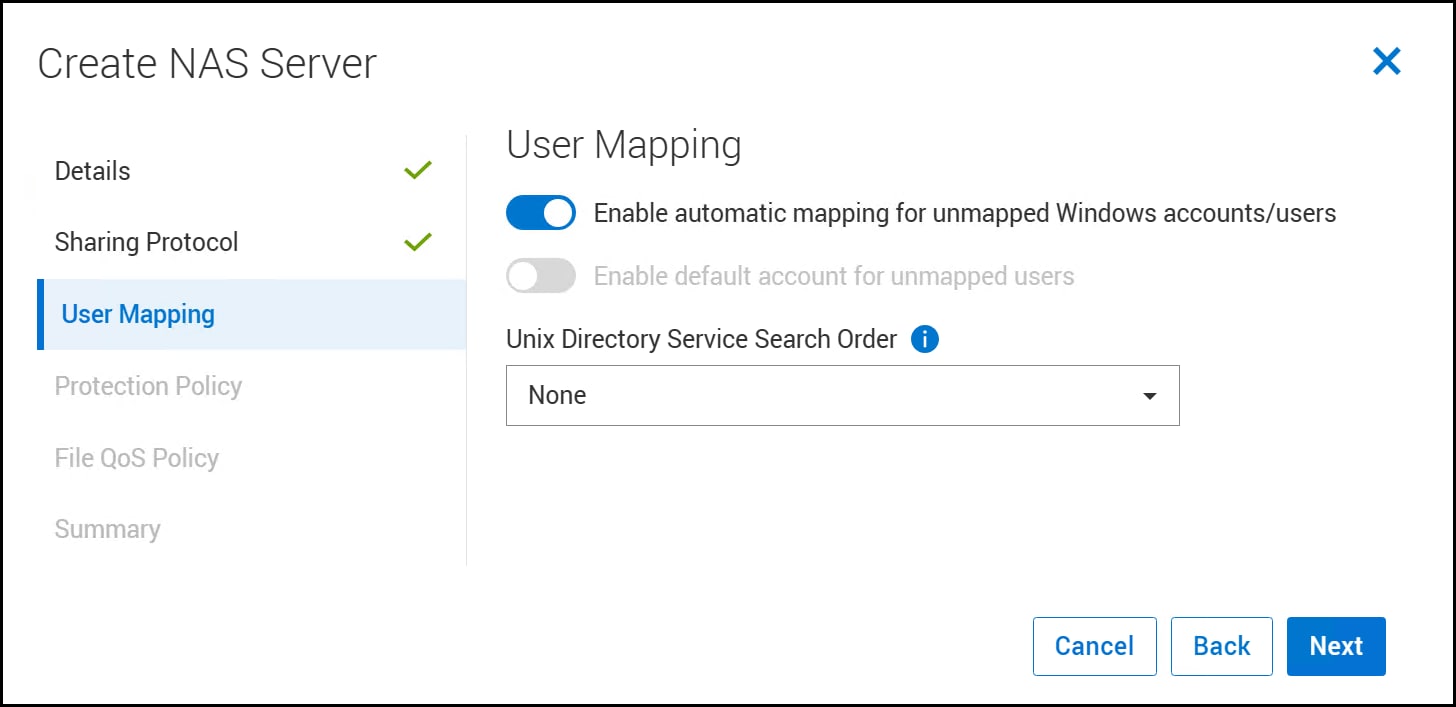
Figure 9. Step 3 – Create NAS Server
Leave the User Mapping page at the default settings and click Next in the figure below.
Figure 10. Step 4 – Create NAS Server
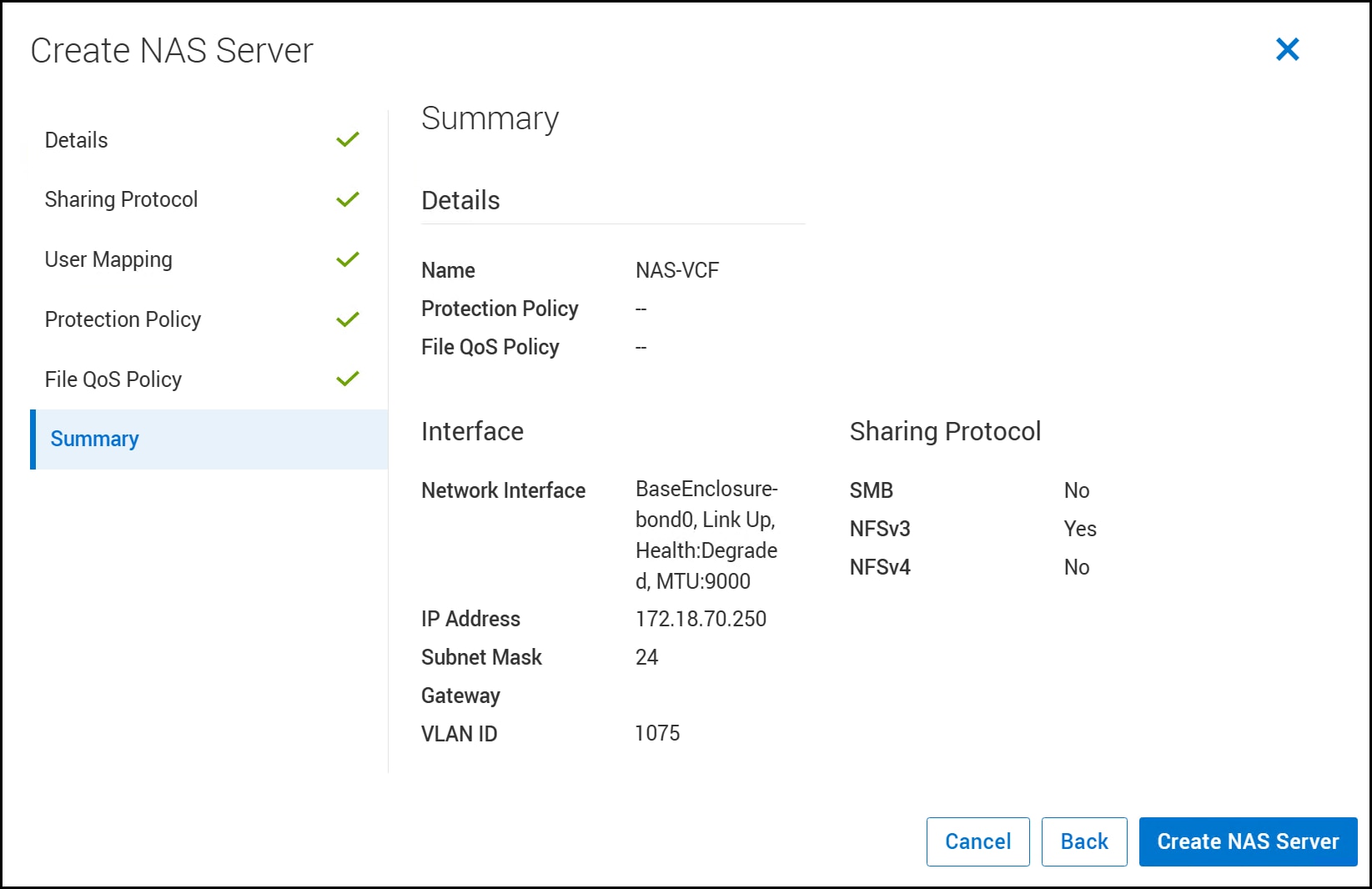
The final two steps – Protection Policy and File QoS Policy – are not used for this NAS Server. You can configure either or both if the business needs require. Protection policies are covered in the section Protection Policies. See the Dell Technologies documentation for more information about QoS. Review the Summary in the following figure and if correct, select Create NAS Server.
Figure 11. Summary – Create NAS Server
NFS file system
Using the newly created NAS Server, or an existing one, create the NFS file system that provides the storage for the management domain.
Log in to PowerStore Manager as an administrator. Go to Storage > File Systems > + Create in the figure below.
Figure 12. Step 1 – Create File system
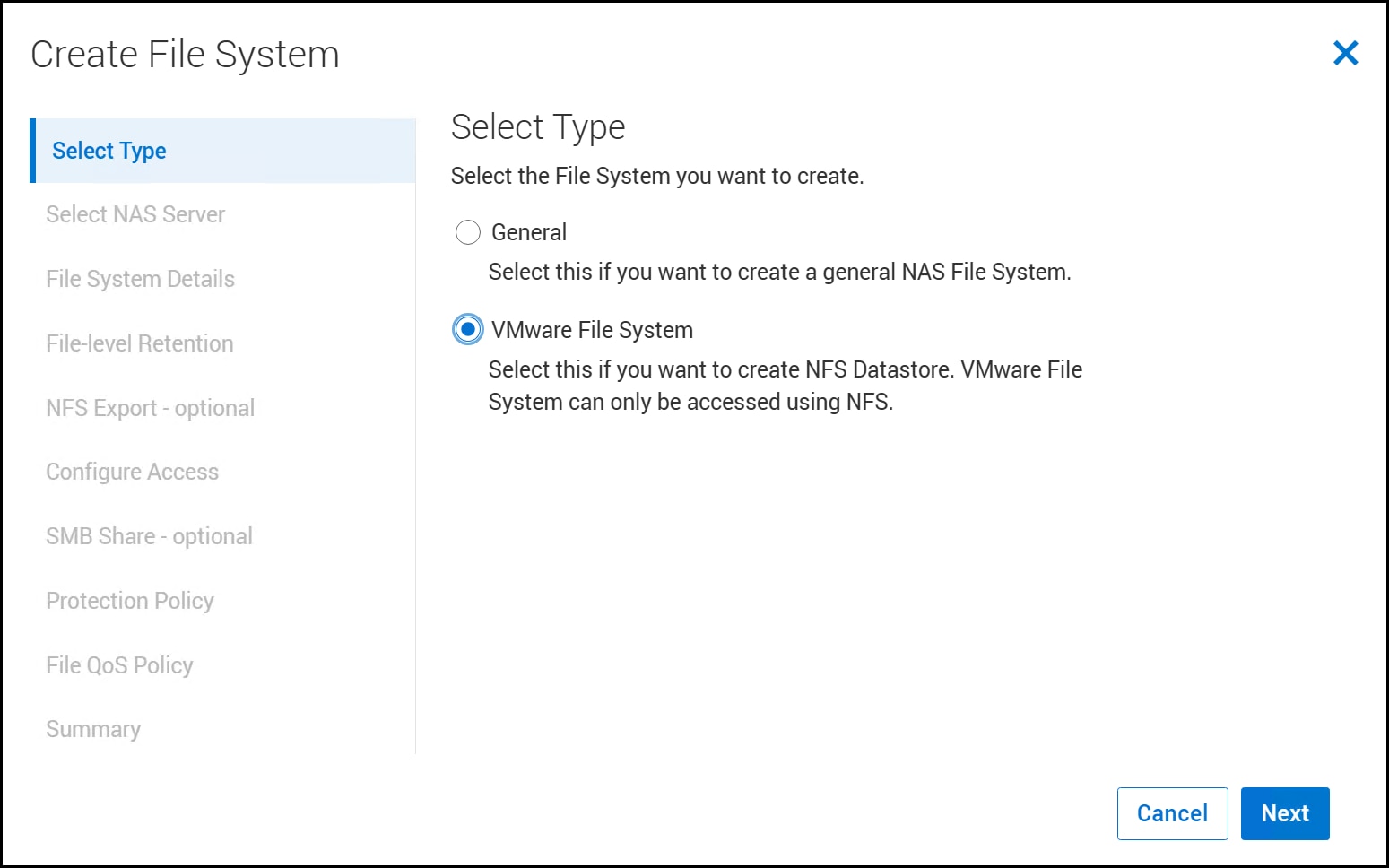
Begin by selecting the Type. PowerStore offers two options. Select the radio button for VMware File System and click Next as in the following figure.
Figure 13. Step 2 – Create File system
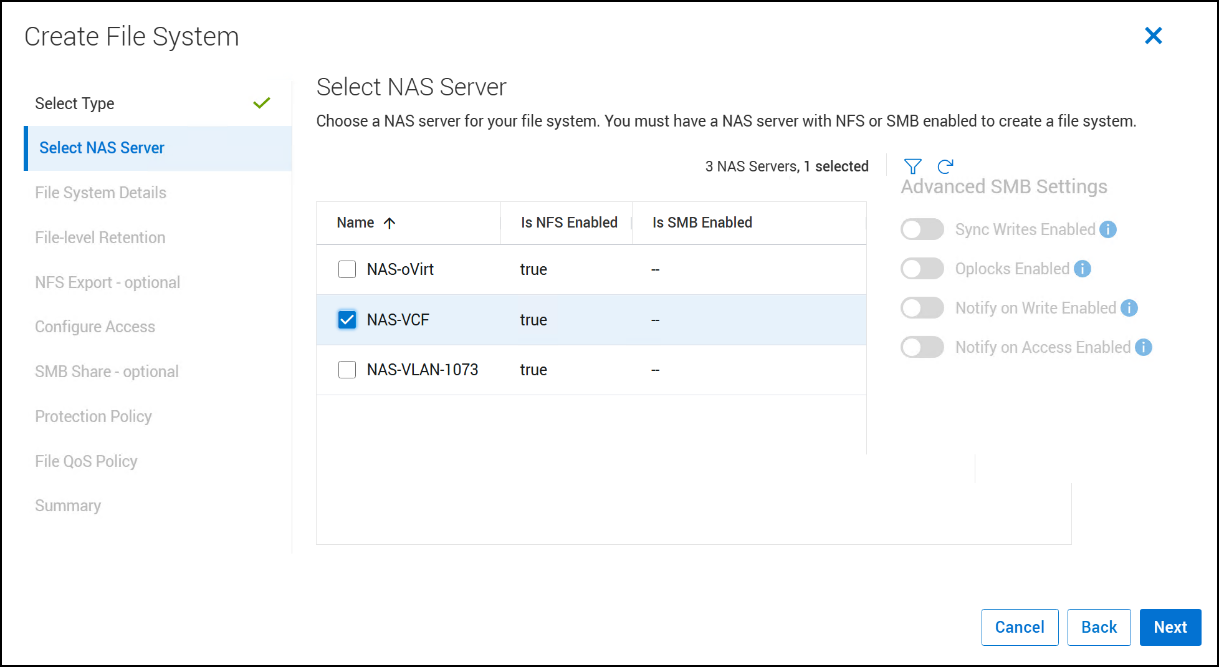
Select a NAS Server using the checkbox and click Next as in the following figure. Here the recently created server, NAS-VCF, is selected.
Figure 14. Step 3 – Create File system
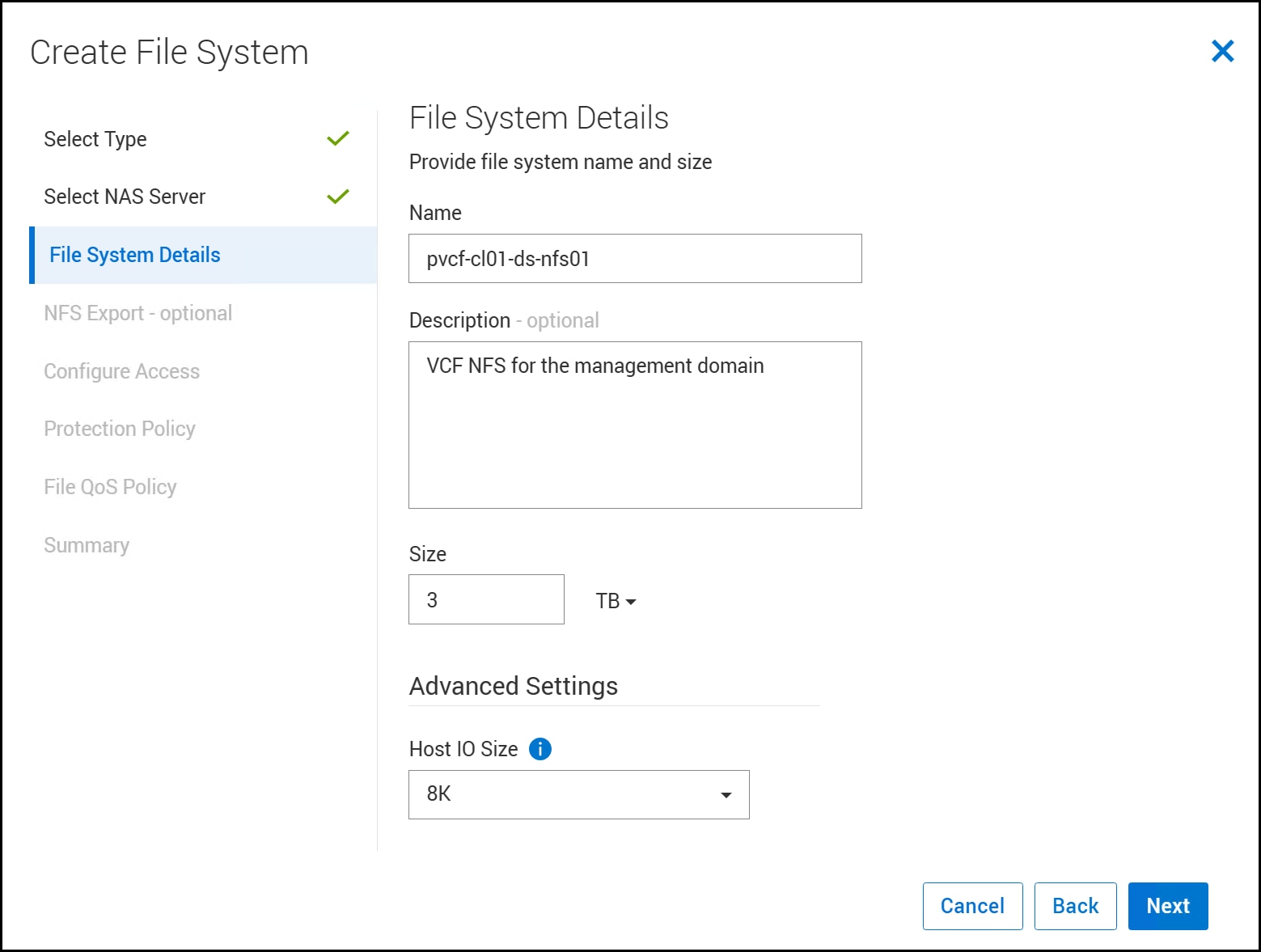
Enter the File System Details which include Name, Description if desired, Size, and Host IO Size. The size of the file system must be at least 2 TB. The Host I/O Size defaults to 8 K for a VMware Type and is thus recommended in Figure 15. Click Next.
Figure 15. Step 4 – Create File system
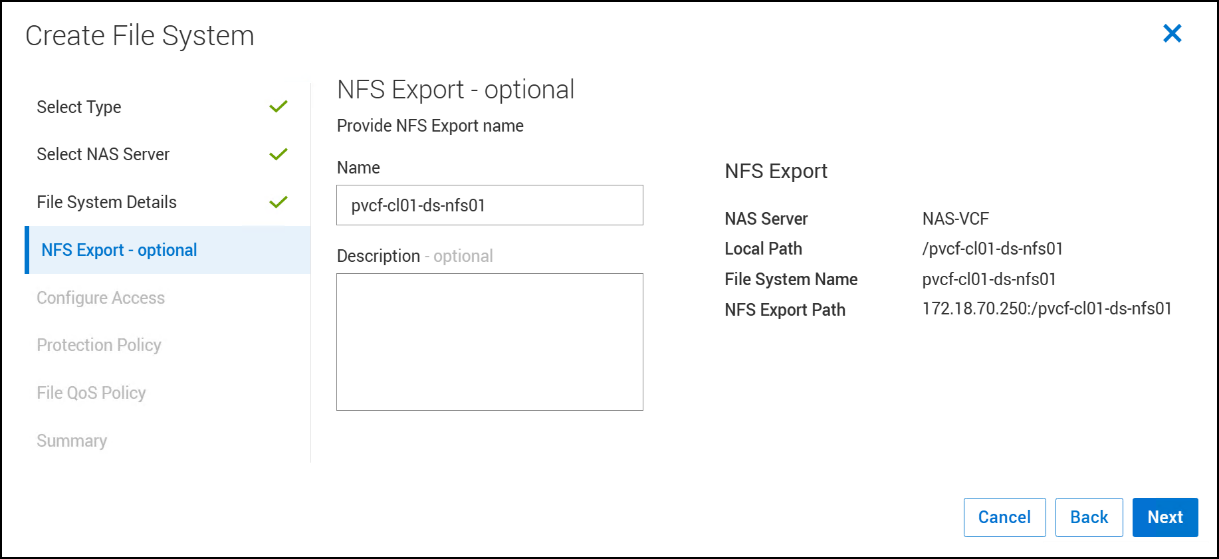
Create an NFS Export for the management domain file system.
This step is listed as optional because it is possible to create an export after you create the file system. It is easiest to do it as part of the wizard, however. Enter a Name and a Description if desired. The values under NFS Export on the right generate automatically in the following figure. Record this information for use in the VCF installer and click Next.
Figure 16. Step 5 – Create File system
Configure Access to the file system.
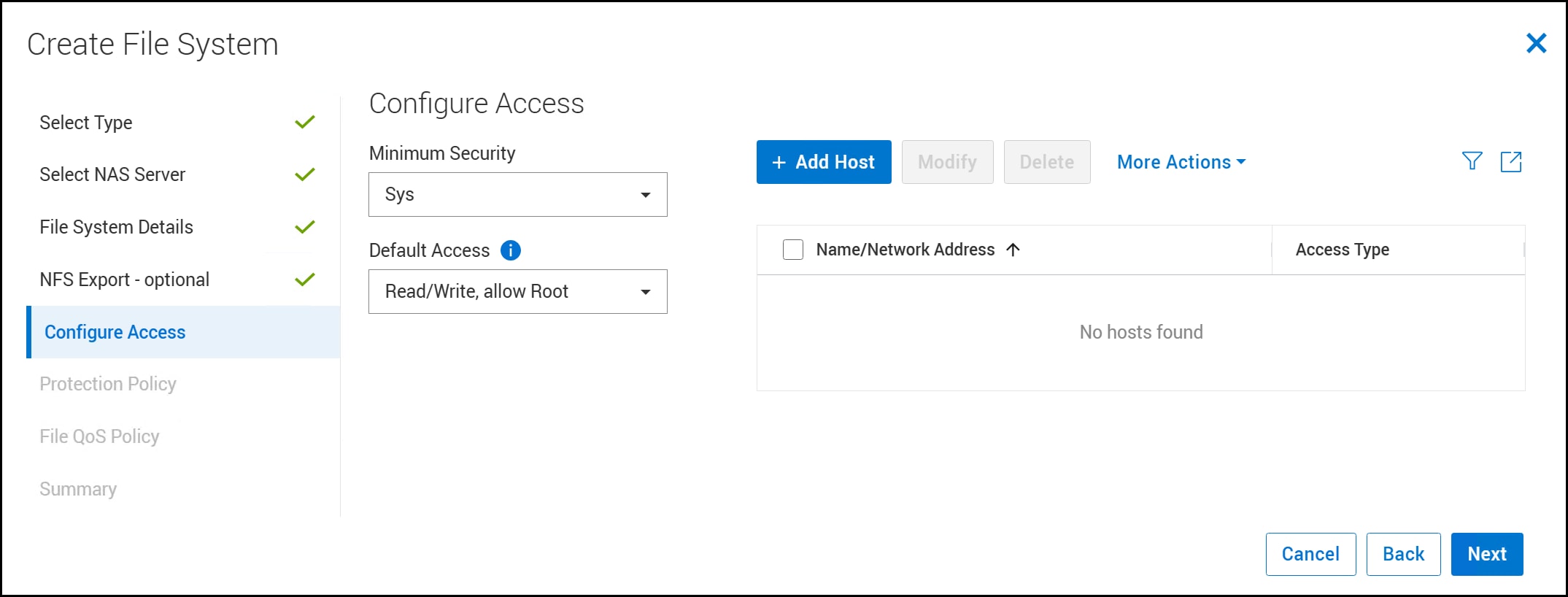
There is a base security, Sys, and advanced security in the form of Kerberos. In the example shown in the following figure, the simplest security is set, Sys. The Default Access must be set to Read/Write, allow Root in order for ESXi to mount the file system. Since VCF requires NFSv3, the more advanced Kerberos security options cannot be used. There is no need to add a specific host on the right-hand side. Click Next.
Figure 17. Step 6 – Create File system
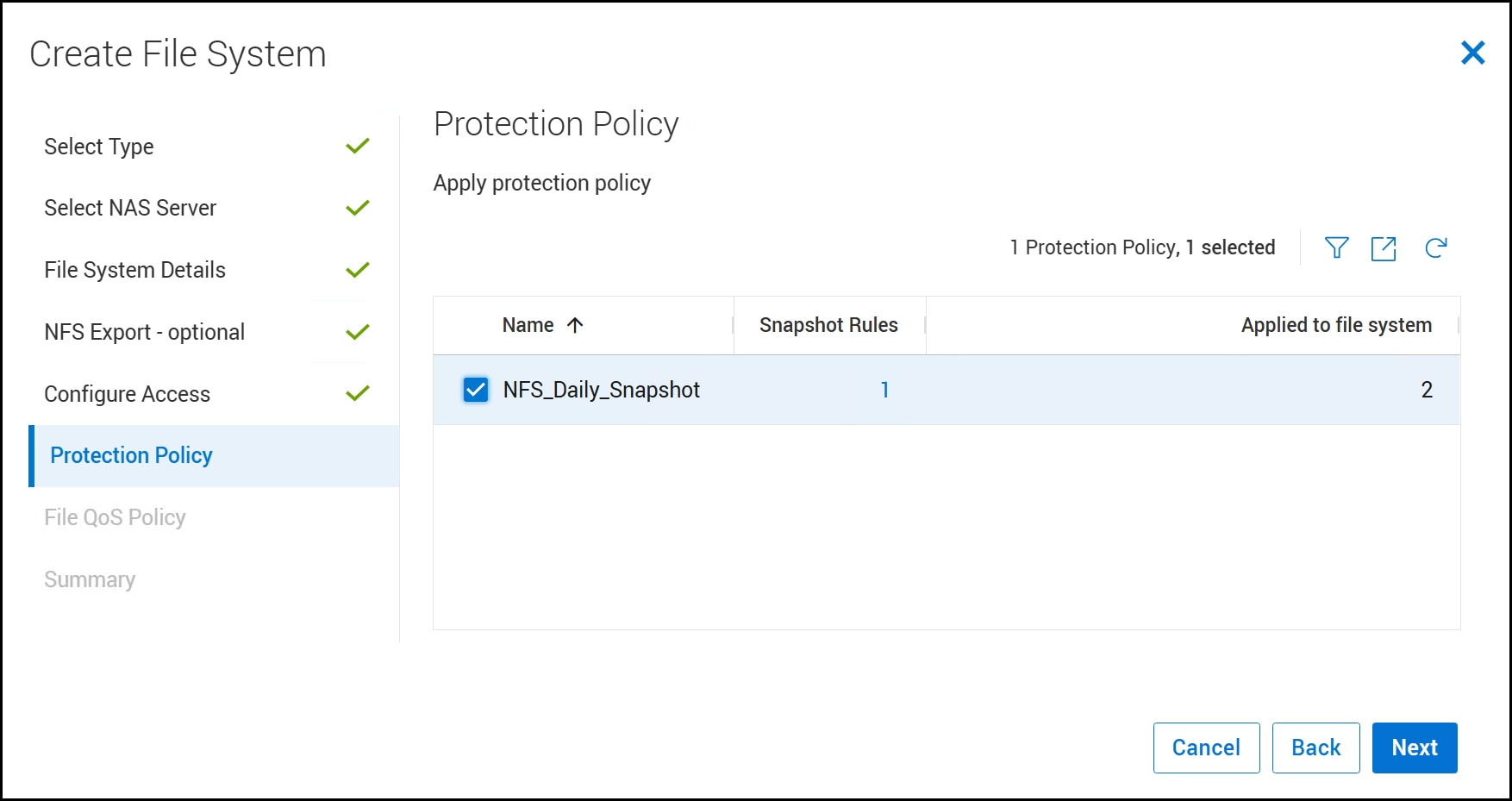
Add a Protection Policy for the new file system.
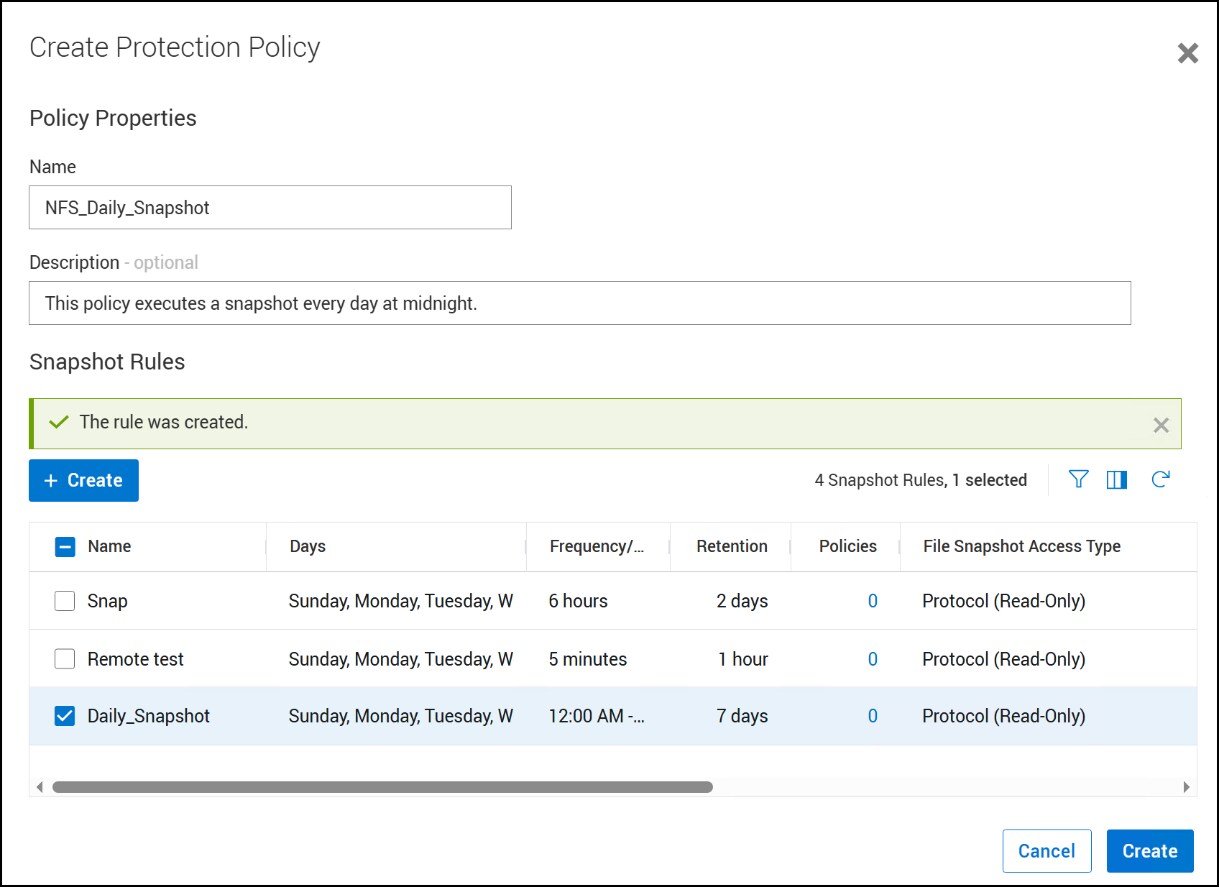
If you have an existing policy that includes local and/or remote replication for file systems (policies for block volumes will not display) you can use the checkbox to select it. In the following figure a protection policy for local replication is assigned to protect the workload with a daily snapshot. Creation of this policy will be covered later in the paper. Click Next.
Figure 18. Step 7 – Create File system
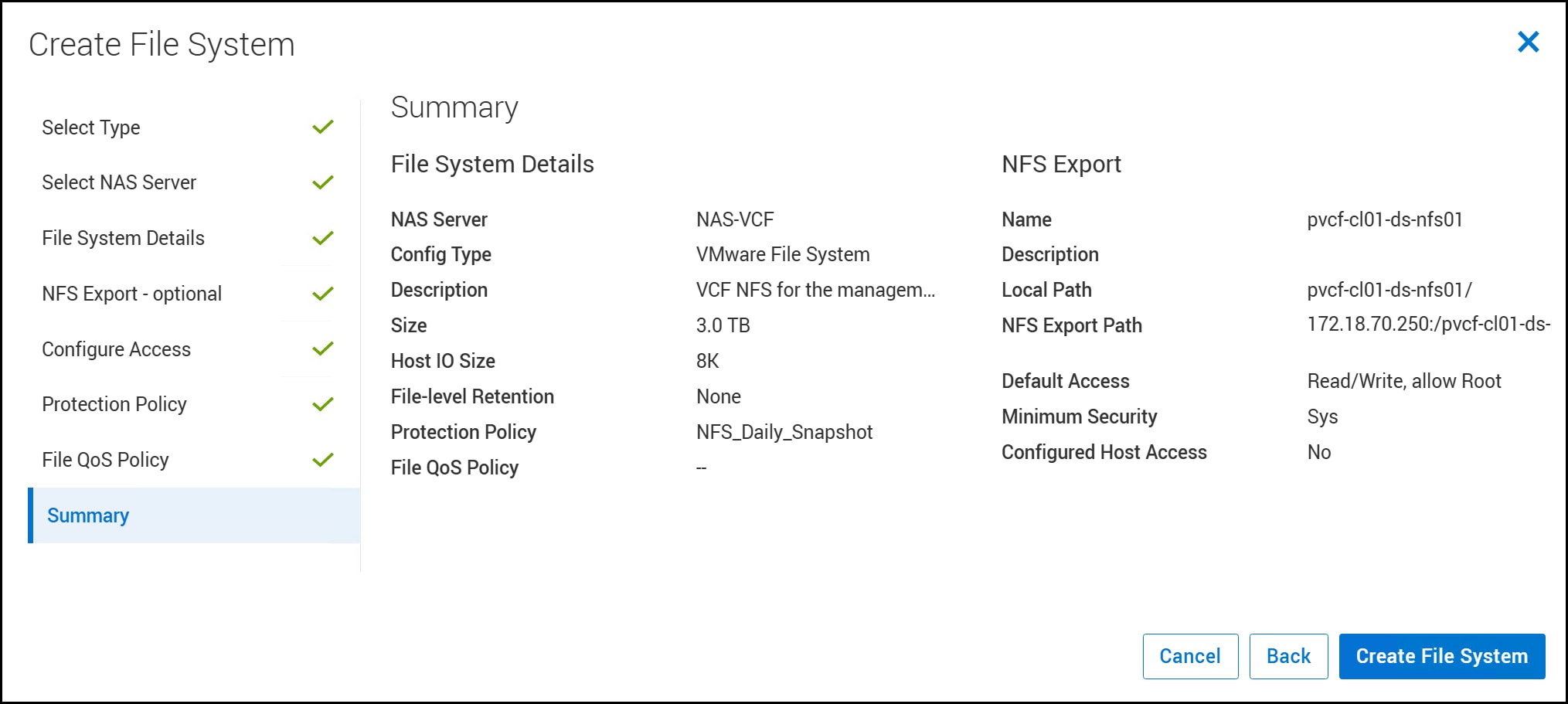
No File QoS Policy is used so click Next to go to the Summary page in the following figure. Review the values for accuracy and click Create File System.
Figure 19. Summary – Create File system
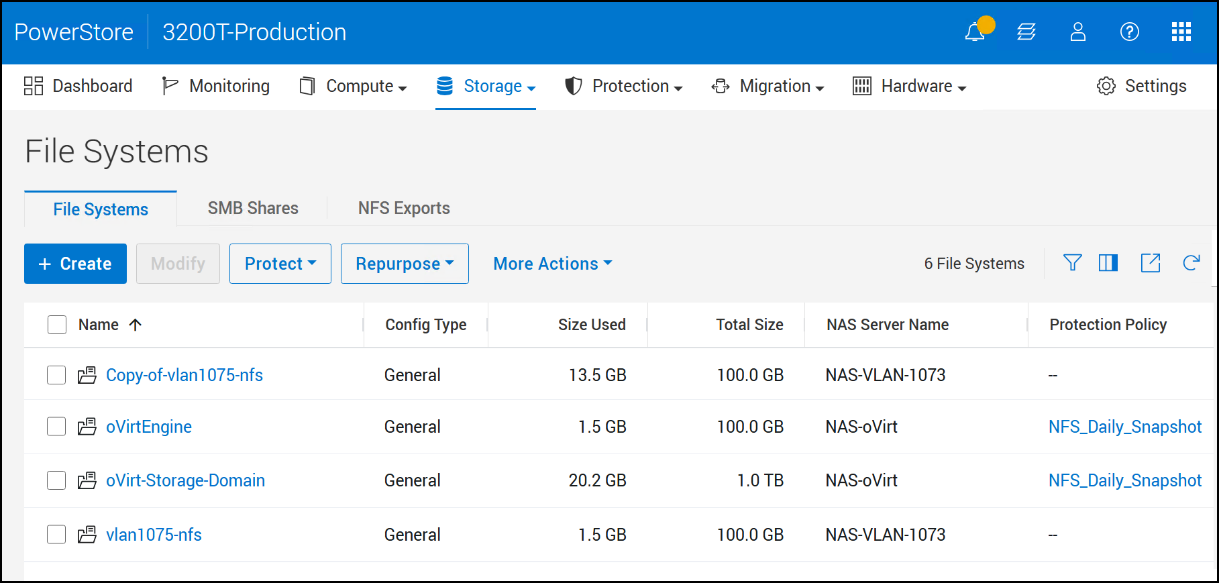
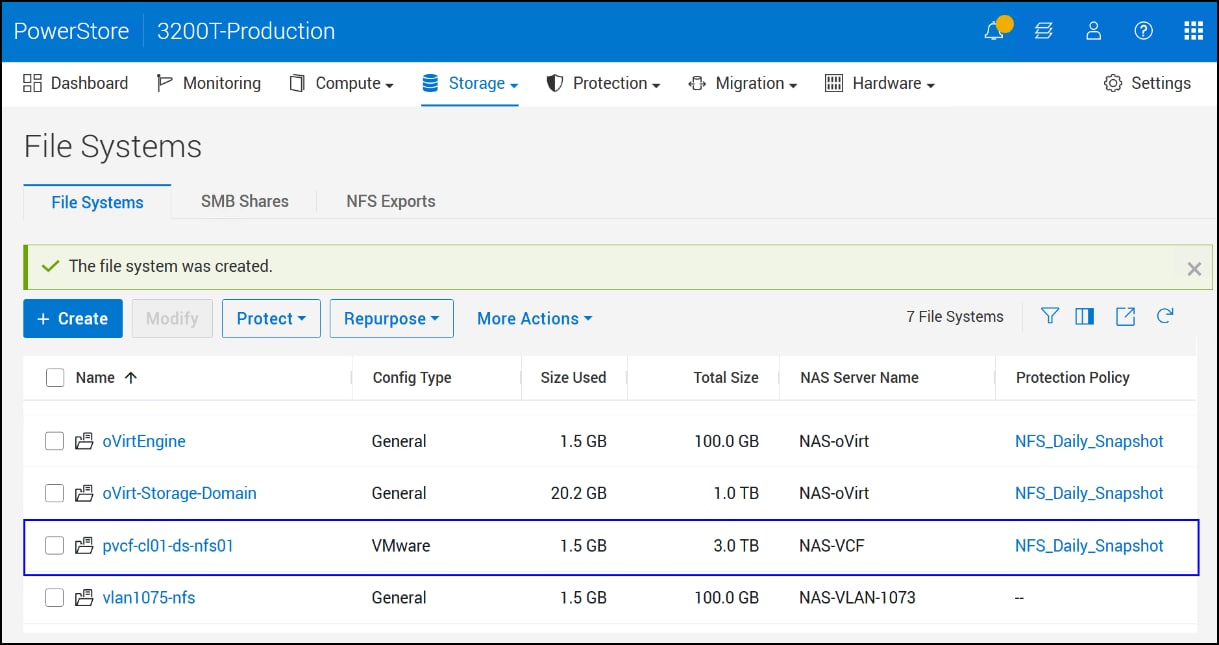
PowerStore creates the file system and export in the following figure.
Figure 20. VCF management domain file system pvcf-cl01-ds-nfs01
NFS best practices
There are a few best practices to follow when using NFS. Some are specific to VMware, while others are generic to NFS storage. In general, however, VCF requirements are going to map to the NFS best practices.
As NFS is IP-based network storage, NFS traffic should be separated from other traffic like management in the VCF environment. Servers should use an MTU of 9000 or Jumbo Frames, to take full advantage of the bandwidth if possible. In addition, a minimum of two 10 GigE NICs are required for VCF. If the environment supports larger networks like 25 GigE, which are present in this environment, it is preferable. VCF will “team” these NICs together when building the workload domain.
VMware restricts the number of NFS mounted datastores to eight for both NFS v3 and v4, however it can be adjusted to 256 with a parameter change.
VMware controls both the heartbeating and locking of the NFS datastore. It has heartbeating parameters which VMware uses to check the health of the NFSv3 datastore. The mechanism is designed such that it allows recovery if a connection is lost for a short time period. The locking is also under the full control of VMware and does not need adjusting.
VMware Cloud Foundation Installer
The VMware Cloud Foundation Installer is a virtual appliance with a UI that guides the user through either a VMware vSphere Foundation or VCF installation. Prior to this release, the installer (aka Cloud Builder) relied on the use of an Excel spreadsheet. The spreadsheet itself still exists for the purpose of planning the installation. It is named vcf-9.0-planning-and-preparation-workbook.xls and can be found at this link VCF Planning and Preparation Workbook. It is useful for recording all the information necessary to complete the wizard.
Note: While the VMware Cloud Foundation Installer is the preferred method for a VCF installation, there is a VCF CLI which can be used. The major difference between the UI and CLI is the ability to highly customize a CLI installation. Environments with unique networking requirements, for example, may require the use of the CLI, though the UI does permit changes to the standard network setup.
Deploy the appliance on an existing ESXi host or vCenter with access to the networking of the VCF environment.
Once deployed, log in as the admin@local user.
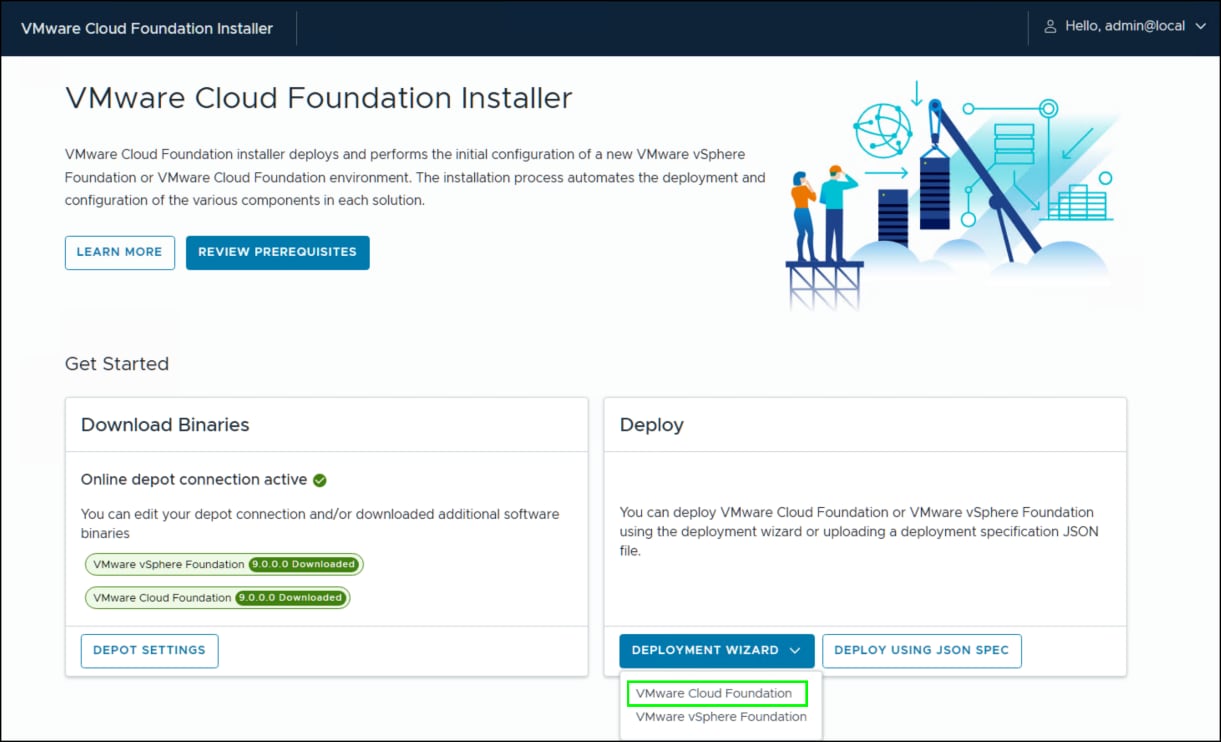
The screen in the following figure appears. Unlike the previous VCF installer, this one requires the user to either download (online depot) or upload (offline) the software products for the chosen deployment type.
Figure 21. VMware Cloud Foundation Installer
Click the DEPOT SETTINGS button in the Download Binaries to configure the depot and download the components for the chosen install.
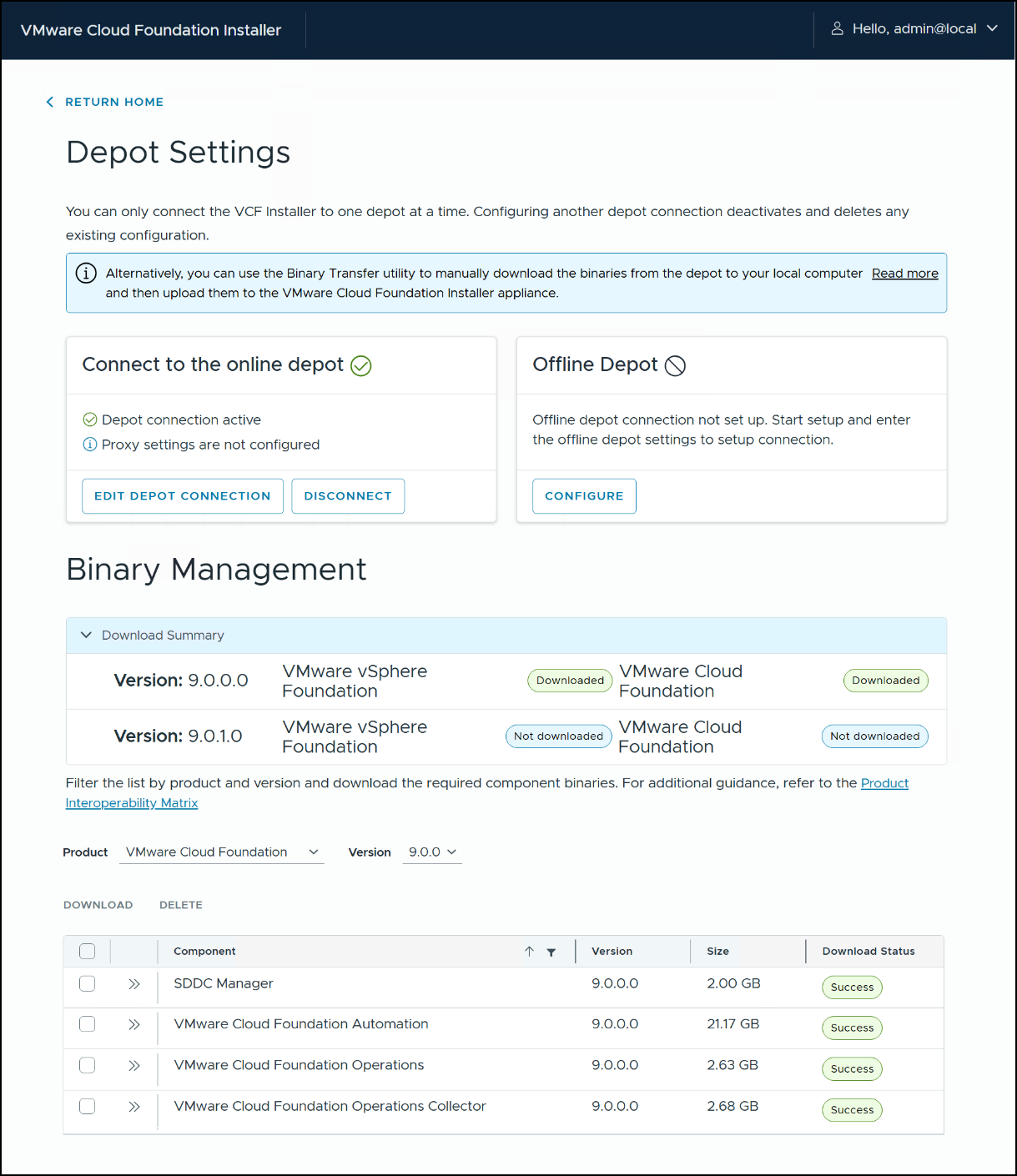
The following figure demonstrates an online depot configuration in which the VCF software is downloaded. The Download status of each component will show either a green circle with Success or a blue circle with Not downloaded. Note that when Broadcom releases new versions or patches of VCF they will be listed under Binary Management as below for 9.0.1.0.
Figure 22. Depot settings for VCF installer
Once you successfully download all components, the Download Summary shows as green Downloaded and the deployment can begin.
In the Deploy box on the right in the following figure, use the drop-down menu of the DEPLOYMENT WIZARD and select VMware Cloud Foundation which is boxed in green.
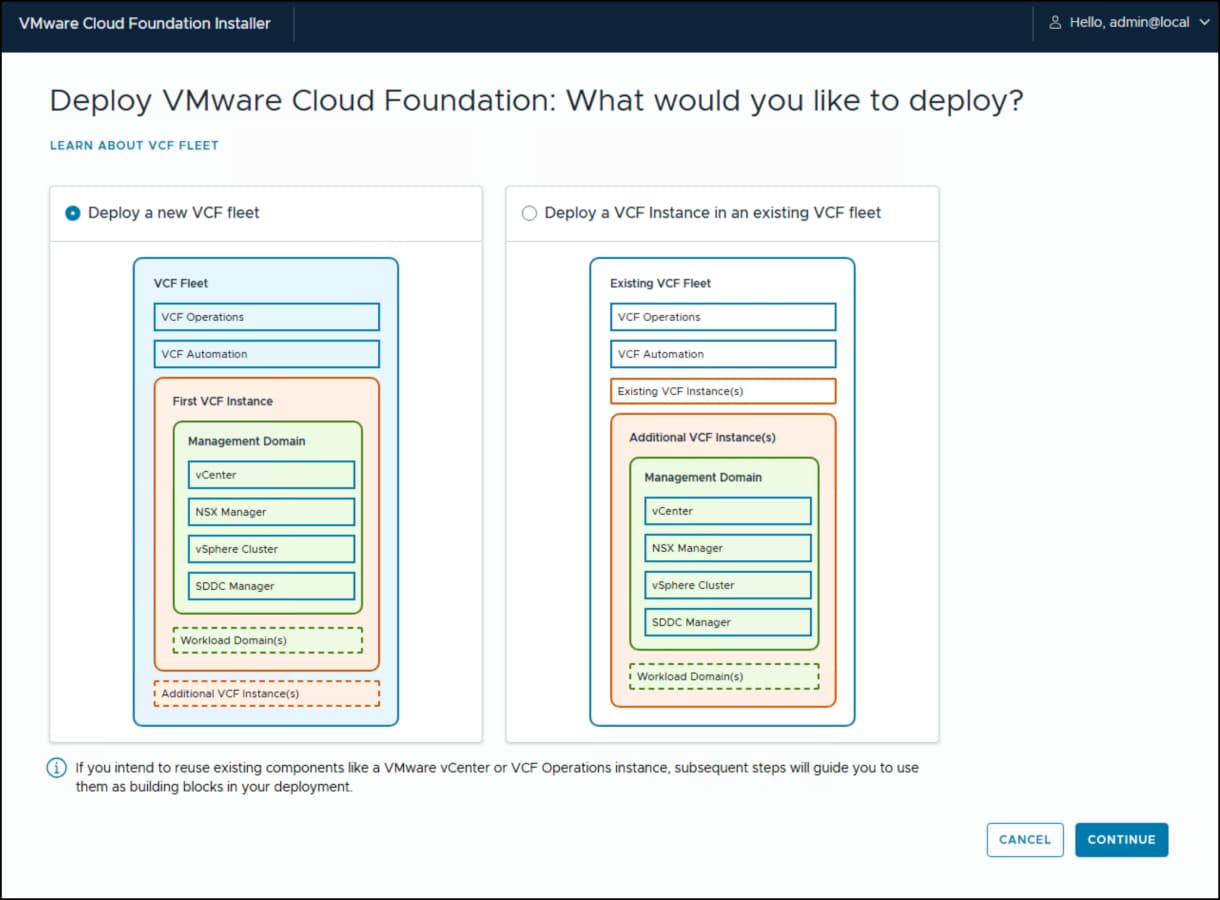
Prior to starting the installation, the user must select whether this is a new VCF Fleet or an installation into an existing VCF implementation. The following figure presents the two options. Use the radio buttons to choose the appropriate installation. This paper documents a new installation and thus the radio button is left at the default. Click CONTINUE to start the wizard in earnest.
Figure 23. VCF fleet deployment options
VMware Cloud Foundation Wizard
The VCF wizard consists of thirteen steps in this implementation, though not all require user input. The steps follow the order of the boxes in , beginning with VCF Operations. Helpfully, the installer saves your steps as you proceed so you can leave the process at any point and return to where you left off. This section walks through those steps. The images are included as it is likely future releases of the installer will change.
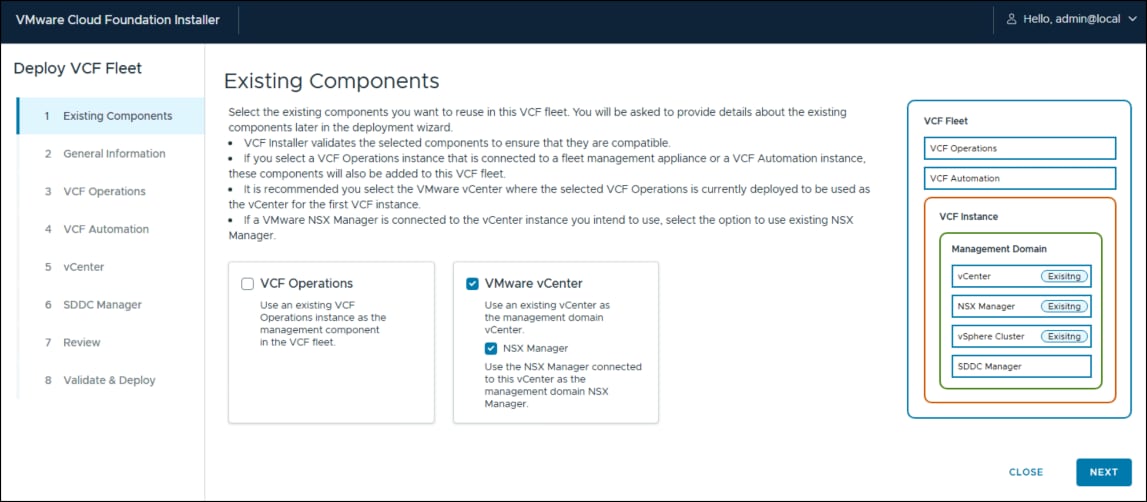
Select Existing Components.
Even if you select to deploy a new VCF fleet, you can choose to incorporate existing software, specifically CF Operations or VMware vCenter. If you select VMware vCenter you will be prompted with a checkbox for a second product, NSX Manager. Select that also if appropriate. The following figure shows these checkboxes selected and note that when you do this, on the right-hand side an "Existing" blue box appears for those components. This also reduces the number of steps from thirteen to eight. There are no existing components in this implementation however, so clear the boxes and click NEXT to continue.
Figure 24. Step 1 – Existing Components
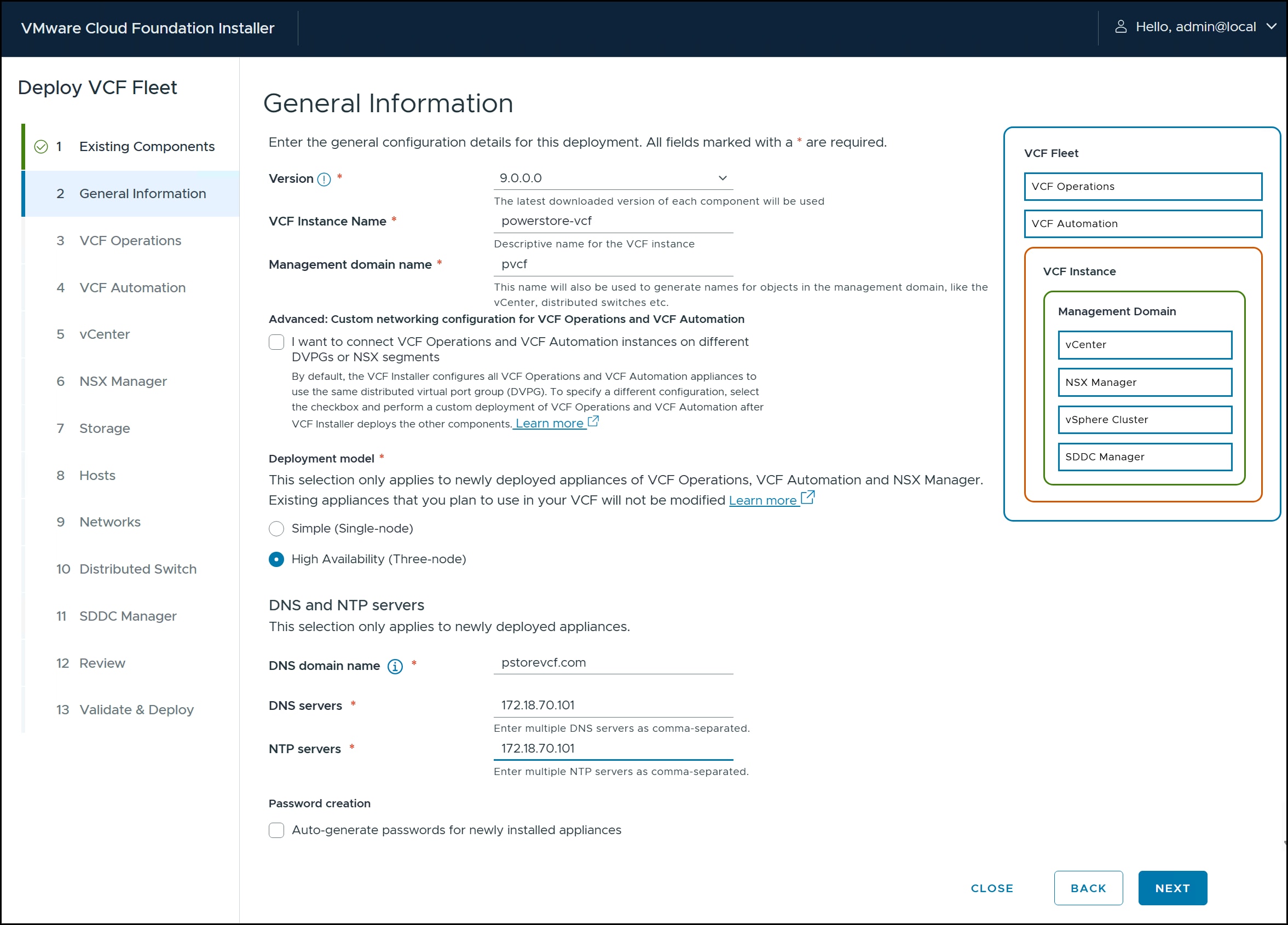
General Information
In step 2 the version defaults to 9.0.0. Supply the VCF instance and management domain names. Be aware that the management domain name is used in all vCenter objects, so it is best to use a descriptive one. Choose whether you want VCF Operations and Automation to use a different network than the rest of the install. If you plan on multiple VCF instances in your fleet, you may want to do that.
Next, select a deployment model. Unless this is a test environment, you should use the HA option. Depending on the selected deployment model, the screens for steps 3, 4, and 6 will appear differently. The HA option requires more host (FQDN) names since there are three nodes, not one, for VCF Operations, VCF Automation, and NSX Manager. Finally supply the DNS and NTP information. Recall that in this environment a server with these components was built prior to running the installer so that information is supplied. Click NEXT.
Figure 25. Step 2 - General information
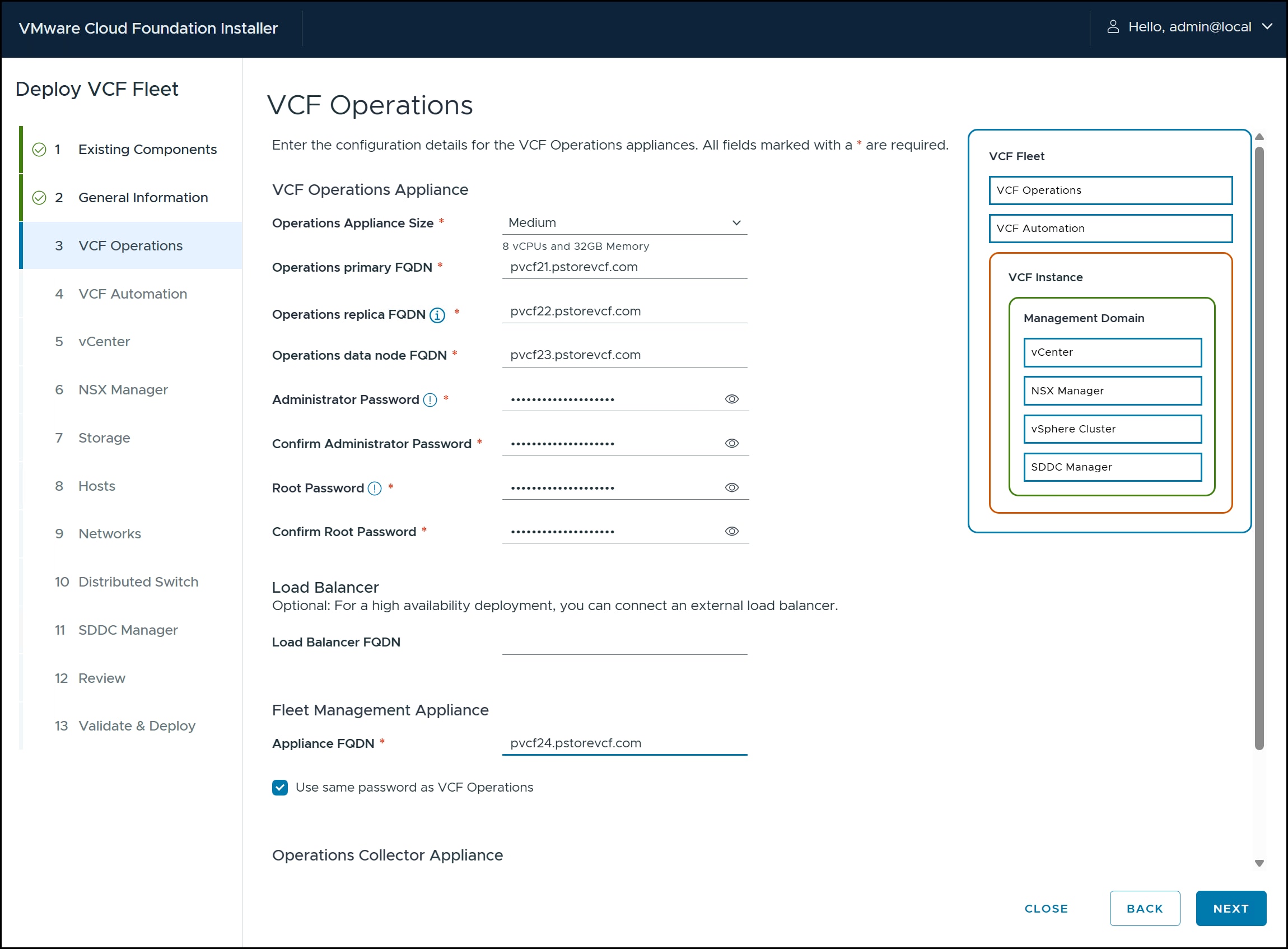
VCF Operations
There are four sections requiring information in step 3: VCF Operations Appliance, Load Balancer (optional), Fleet Management Appliance, and Operations Collector Appliance. Use the checkbox in each section if desired, as here, to set an appliance to the same password as VCF Operations. Click NEXT.
Figure 26. Step 3 – VCF Operations
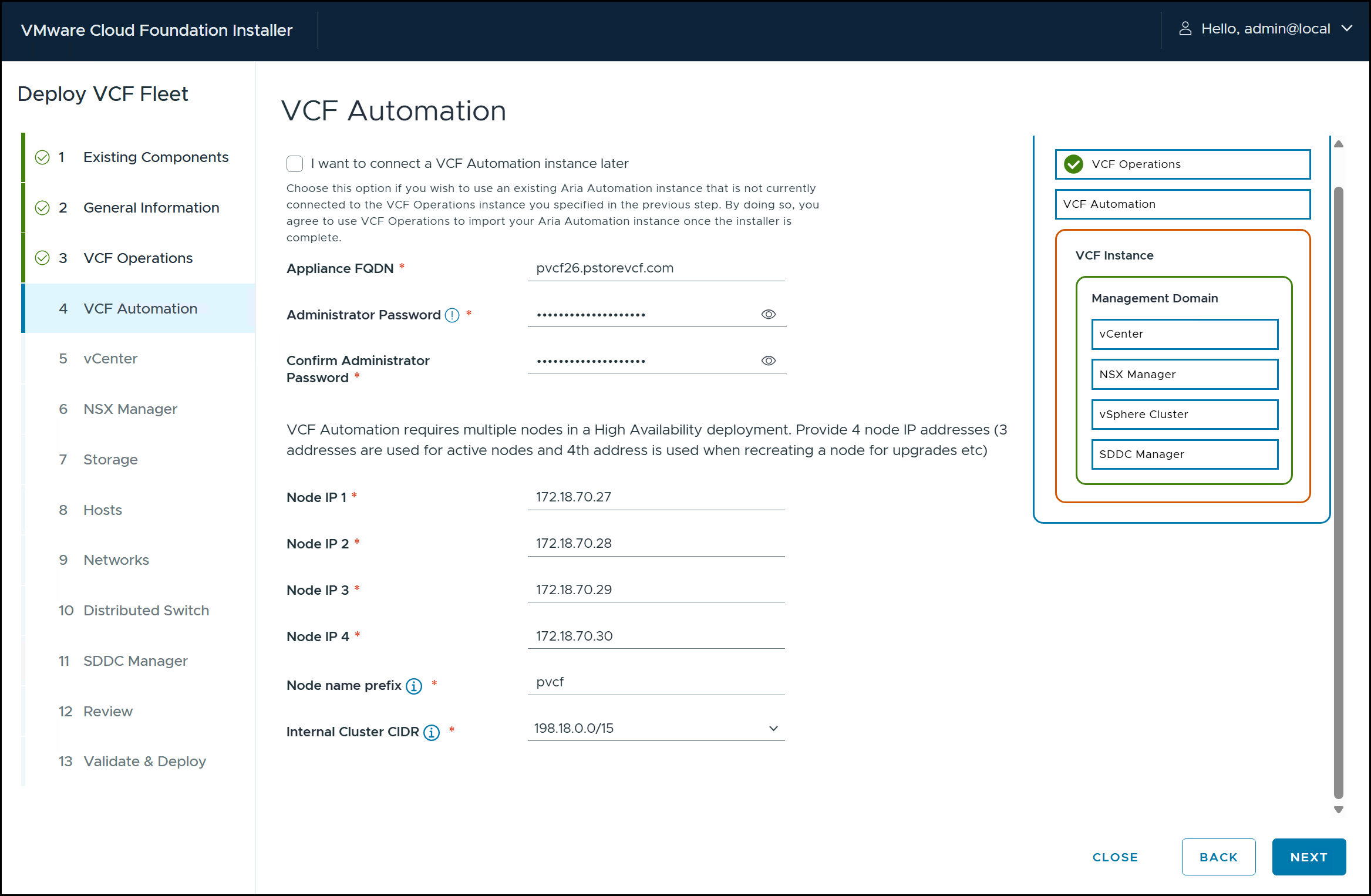
VCF Automation
In step 1 you had the option to choose to use an existing VCF Operations instance. Similarly, in step 4 you can bypass installing VCF Automation and connect one later, otherwise, supply the necessary FQDN and IPs. In the image on the right, a white checkmark in a green circle appears for each step as you move through the wizard. Click NEXT.
Figure 27. Step 4 – VCF Automation
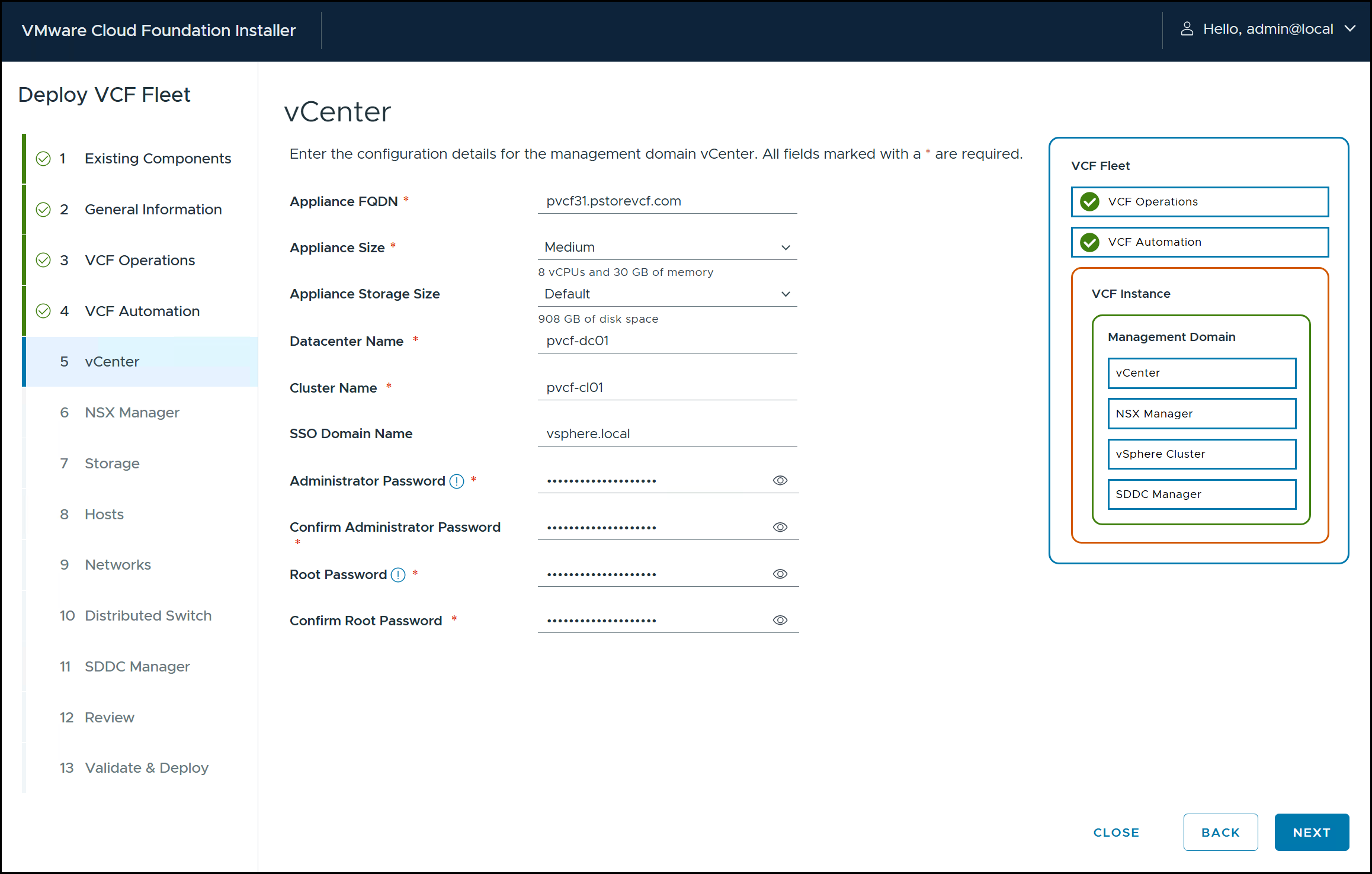
vCenter
For the vCenter supply the FQDN, an appliance compute (CPU/memory) and storage size, the SSO domain name, and passwords. The data center and cluster names will default, using the domain name set in step 2 as the prefix. You can change them, if desired. Click NEXT to continue.
Figure 28. Step 5 - vCenter
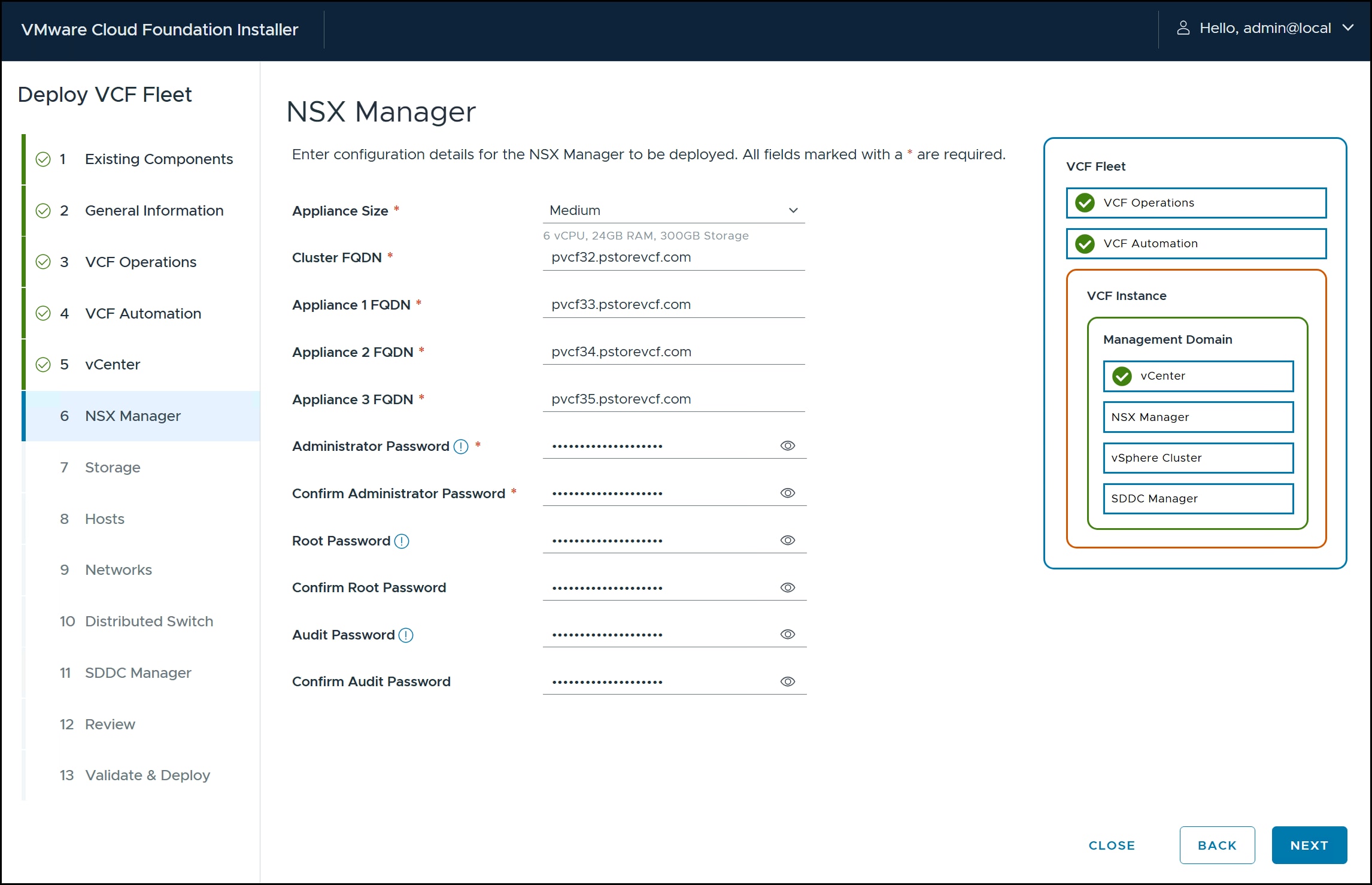
NSX Manager
The NSX Manager requires an appliance size and four FQDNs. Dell Technologies recommends setting the appliance size to the same as that used for the vCenter. Input all necessary passwords and click NEXT.
Figure 29. Step 6 – NSX Manager
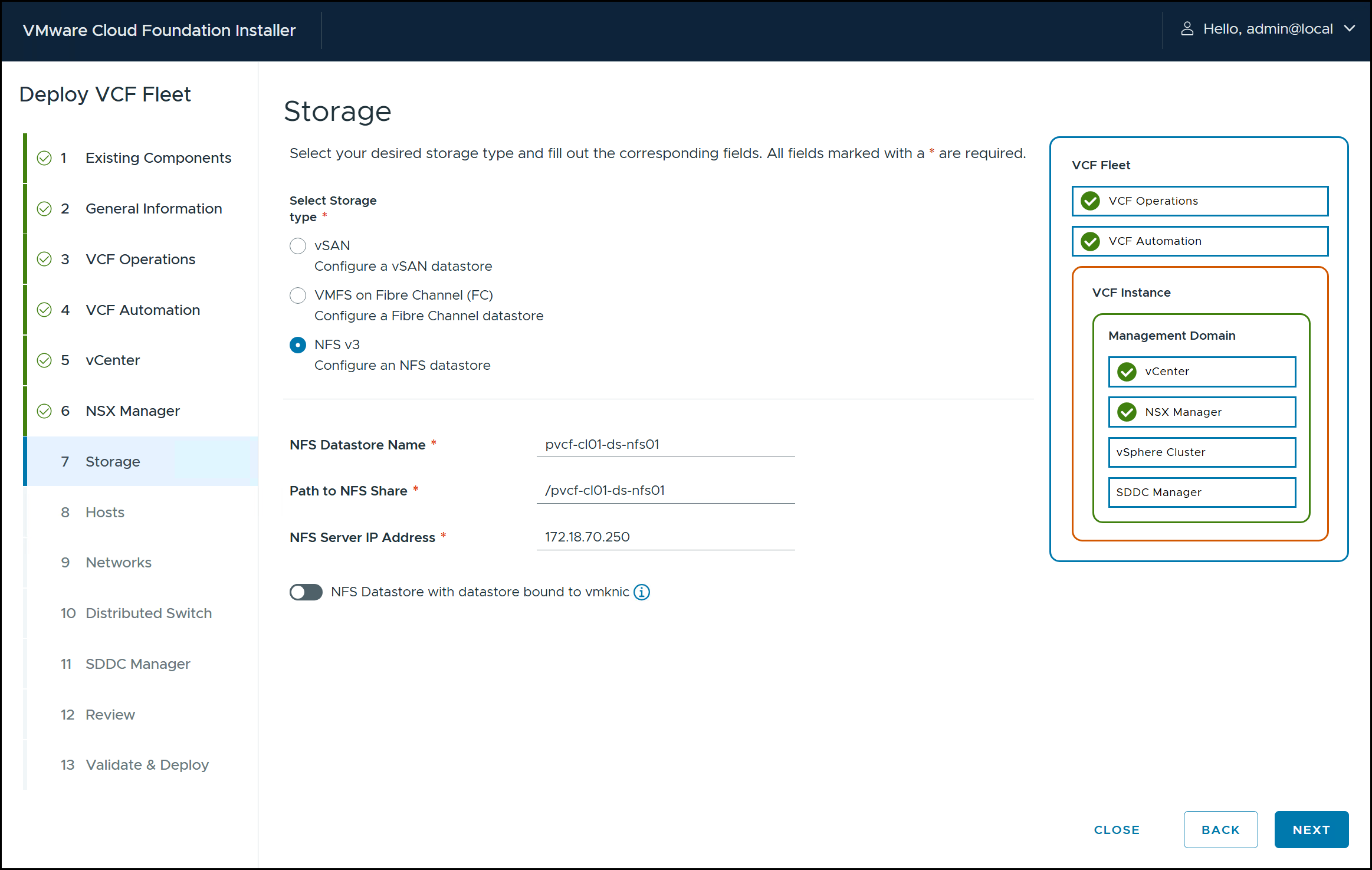
Storage
At the storage step, use the radio button to select NFS v3 and type in an NFS datastore name, path to the NFS share, and the NFS server IP address. The datastore name is arbitrary. The installer mounts it during the deployment. Here the datastore name is set to the share name for the sake of consistency. Be sure the information is correct as the installer will not validate these values until the end of the wizard. Click NEXT.
Figure 30. Step 7 - Storage
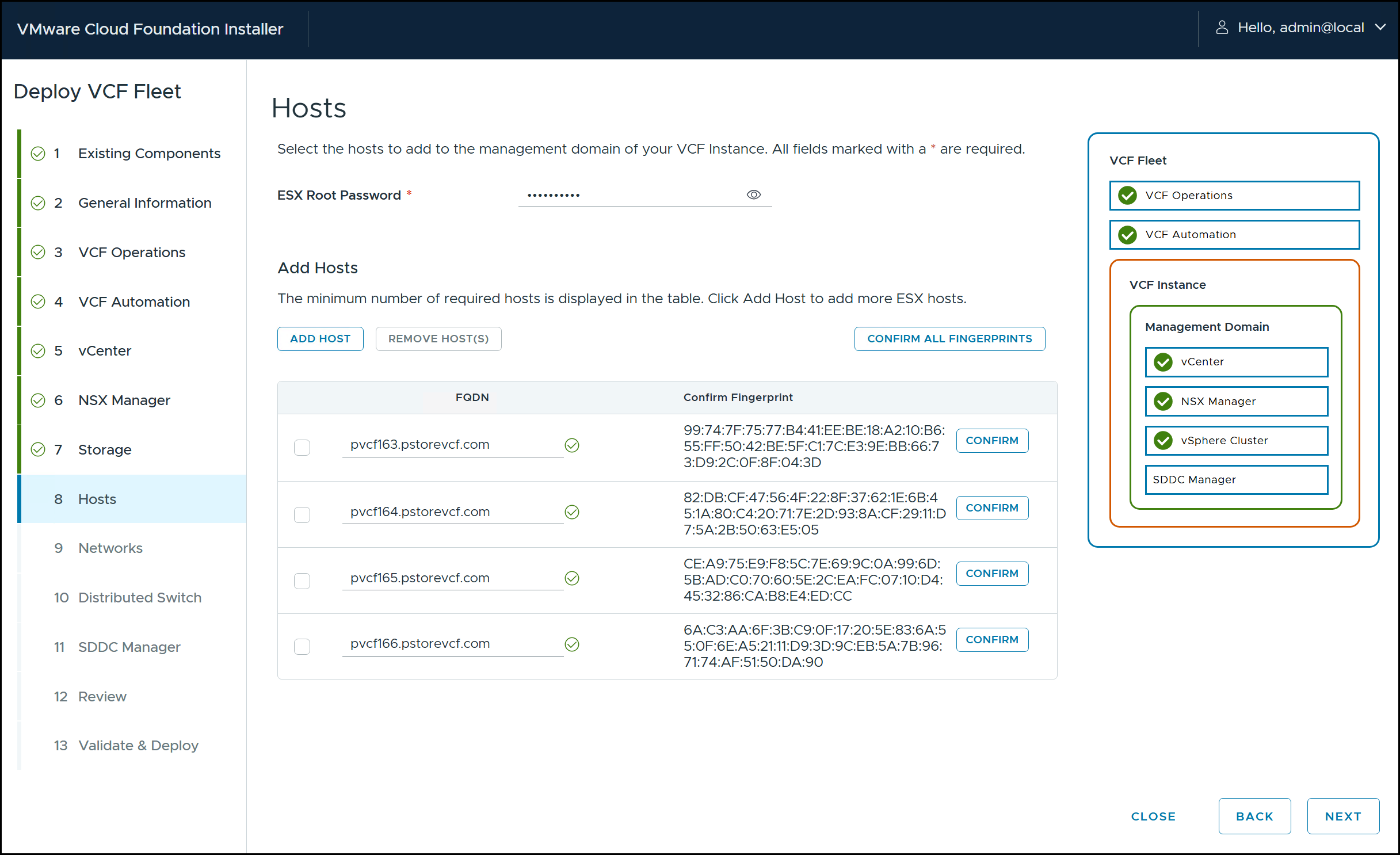
Hosts
In the following figure, enter the root password and the FQDN of at least four ESXi hosts previously configured in the ESXi installation section. You can confirm the fingerprints of each host individually, or all at once using the CONFIRM ALL FINGERPRINTS button. If one or more fingerprints fail to confirm, there is a mismatch between the entered FQDN and the certificate on the host. This typically occurs because the certificates were not re-generated. Review the ESXi installation section, regenerate the certificates, and try to confirm the fingerprints again. Click NEXT when complete.
Figure 31. Step 8 - Hosts
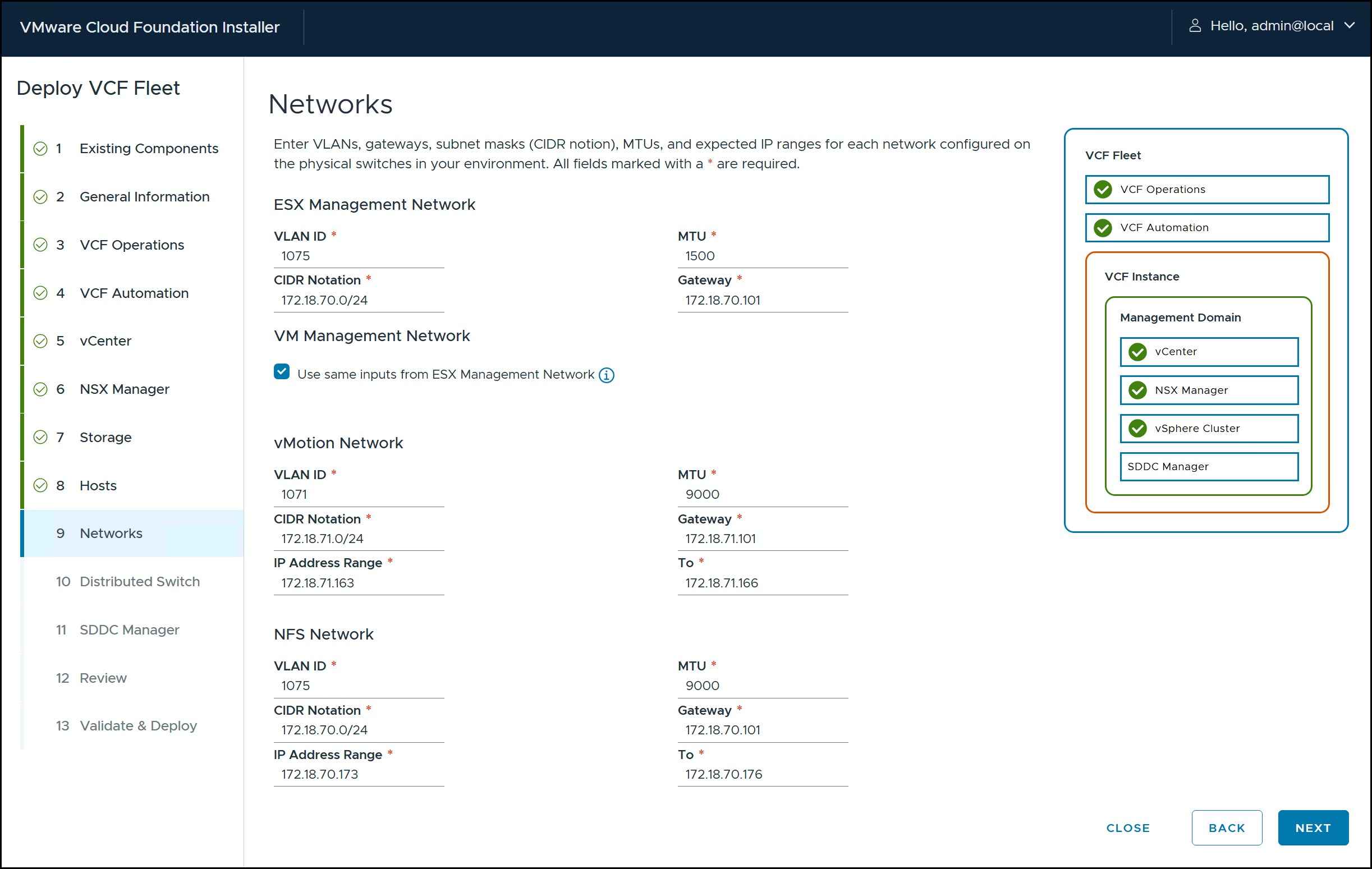
Networks
In step 9 enter in the required information for the ESXi management, VM management, and vMotion networks. By using the checkbox, you can set the VM management network to the ESXi management network as was done in the following figure. Be sure the gateway address is available since it will be validated in step 13. Click NEXT.
Figure 32. Step 9 - Networks
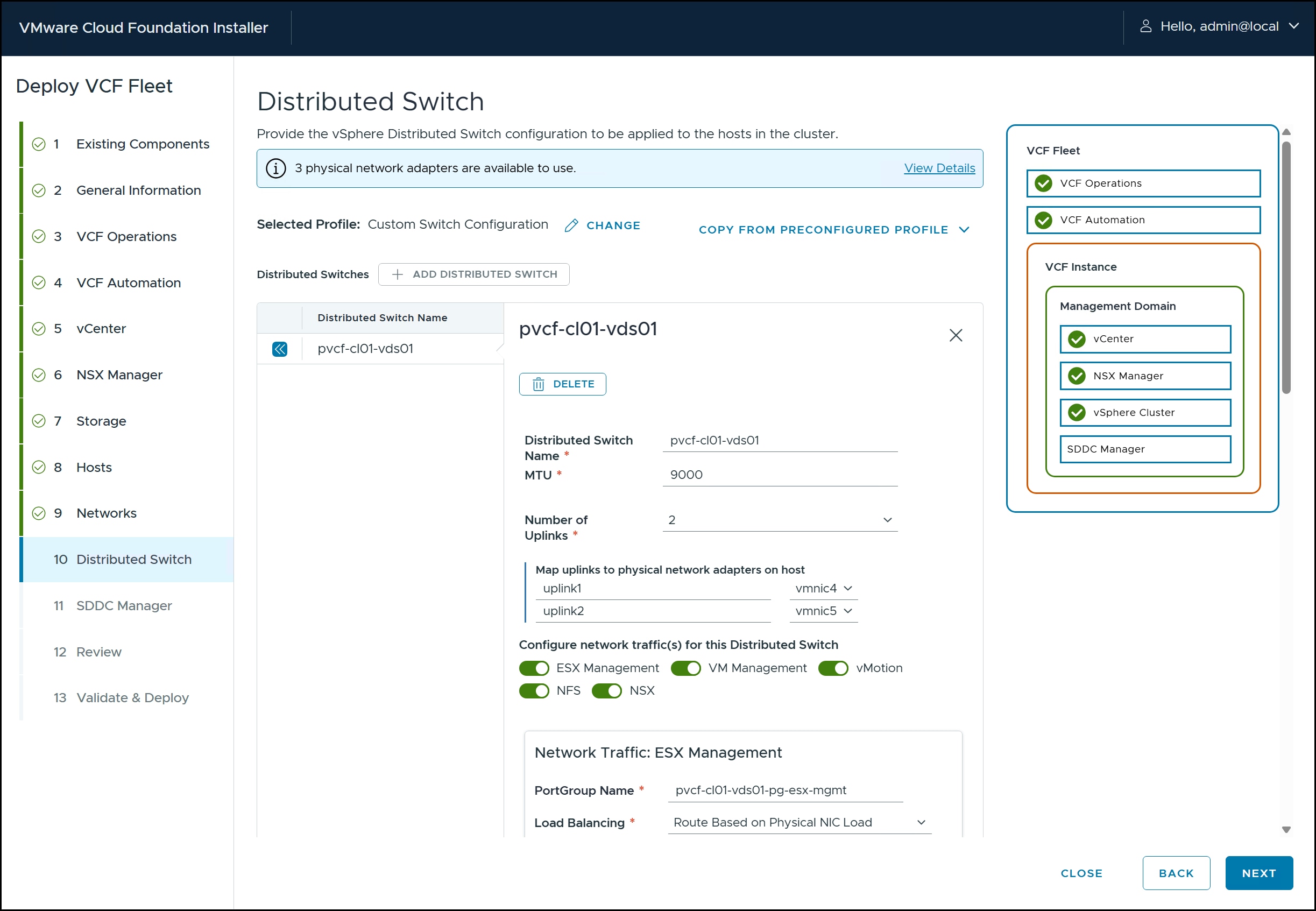
Distributed Switch
In the following figure, decide whether to use the default configuration for the distributed switch or a custom one. Although this environment is not very complicated, even minor changes require a custom solution. There is greater flexibility in VCF 9 than previous releases. Here you can configure multiple distributed switches. If your storage environment separates the data and management paths, that can be achieved. In this setup there is a single distributed switch with two 25 Gb/E NICs. Each component is assigned to a port group. The NSX-Overlay is configured with the default of DHCP. Click NEXT.
Figure 33. Step 10 – Distributed Switch
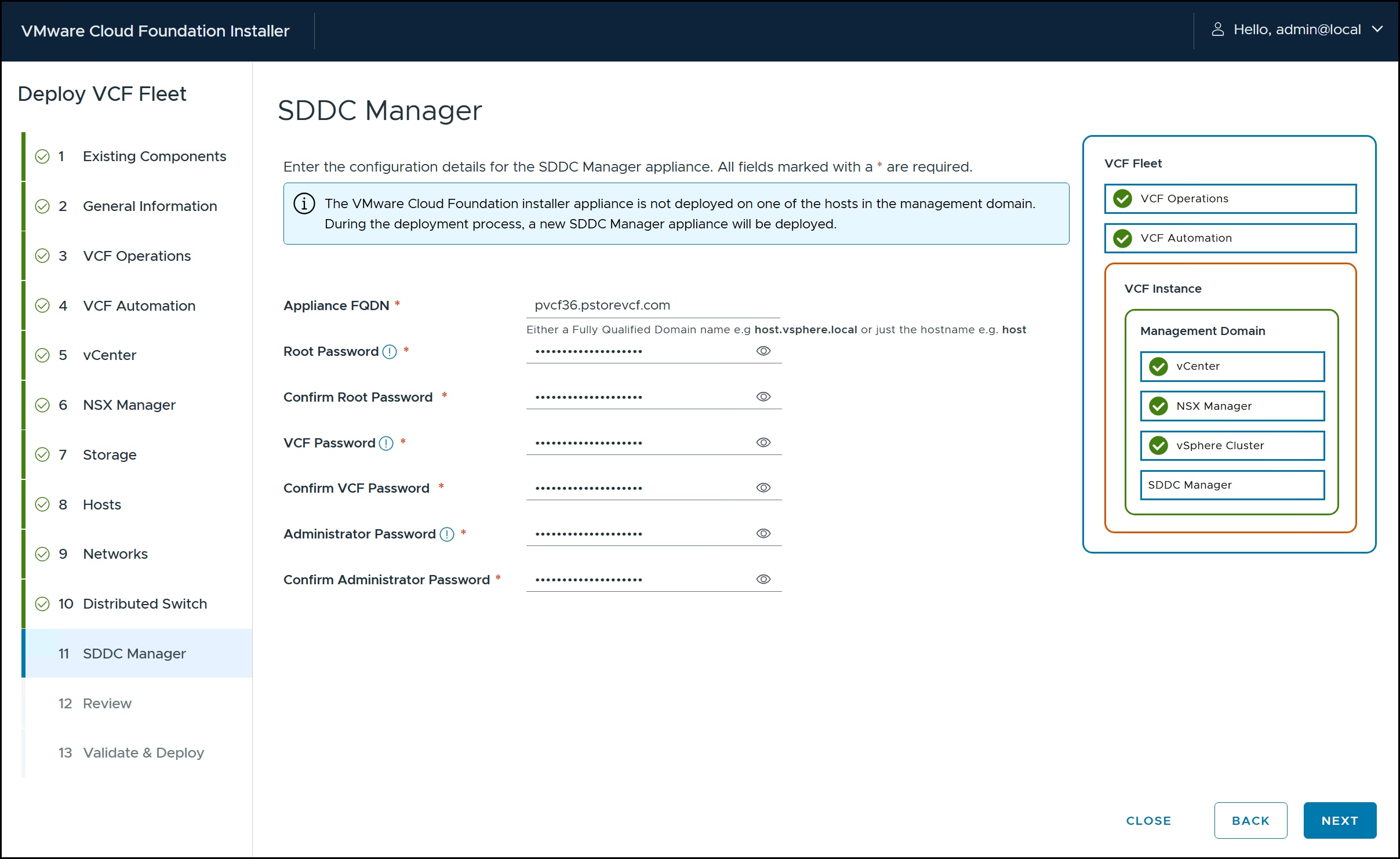
SDDC Manager
The last input screen is for the SDDC Manager. Provide an FQDN and the necessary passwords in the following figure.
Figure 34. Step 11 - SDDC Manager
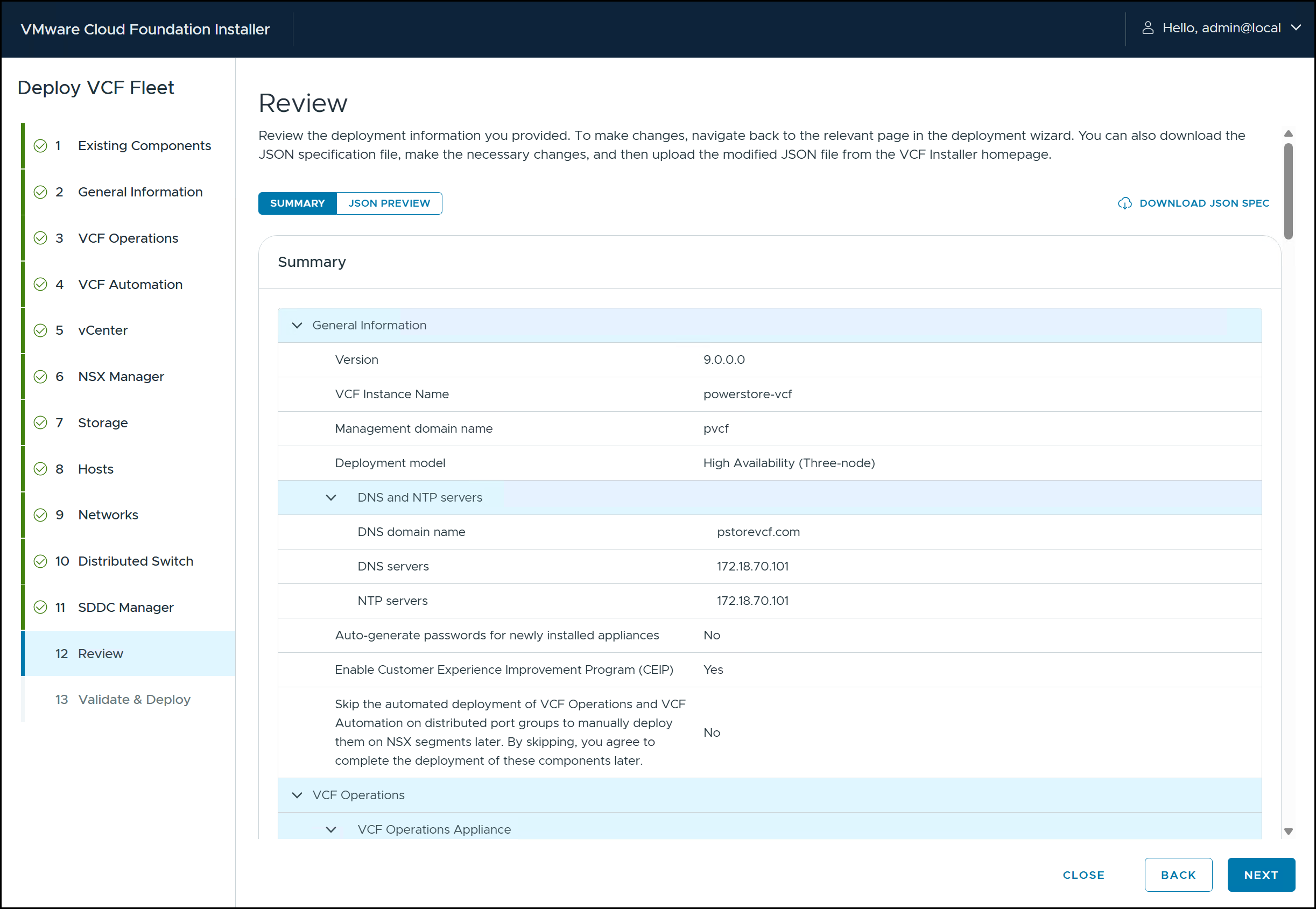
Review
In Step 12 in the following figure, review your answers. If anything is incorrect, you can go back and change it in that step and return to this screen. You will not have to travel all the steps again. If you want, download the JSON spec. This is highly recommended because if you must re-install or start over you can supply the JSON and then edit in the wizard without inputting again. When ready hit NEXT.
Figure 35. Step 12 - Review
Validate and Deploy
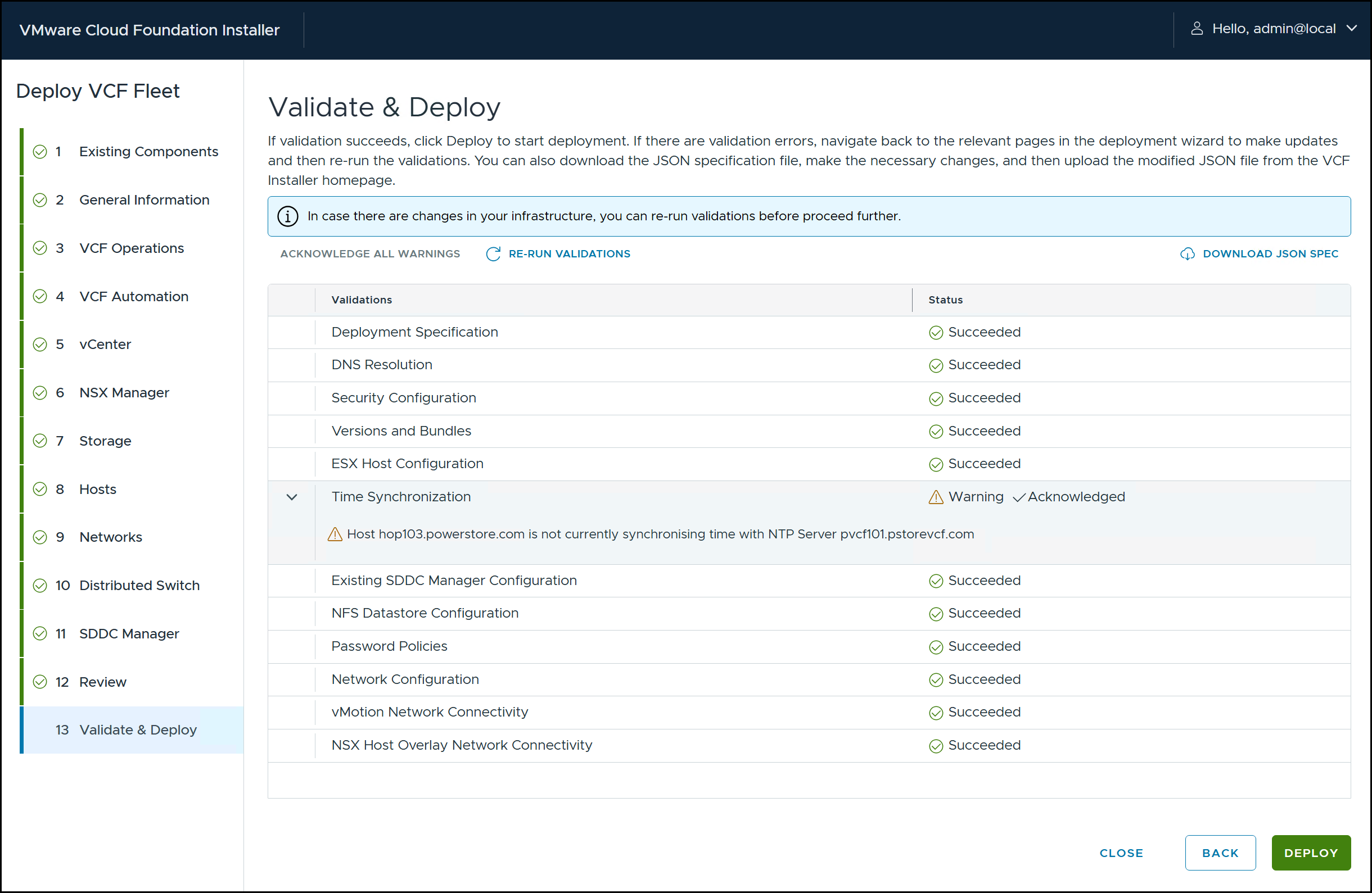
The final screen runs an automatic validation of the previous input values. Any warnings can be acknowledged, while errors must be resolved. Network errors are common such as an inability to reach the DNS or a gateway. An example of a warning would be if the NTP server is not set properly on the VCF installer as in the following figure. This warning can appear even if everything is set properly. You can bypass it by acknowledging it after verifying.
Figure 36. NTP warning
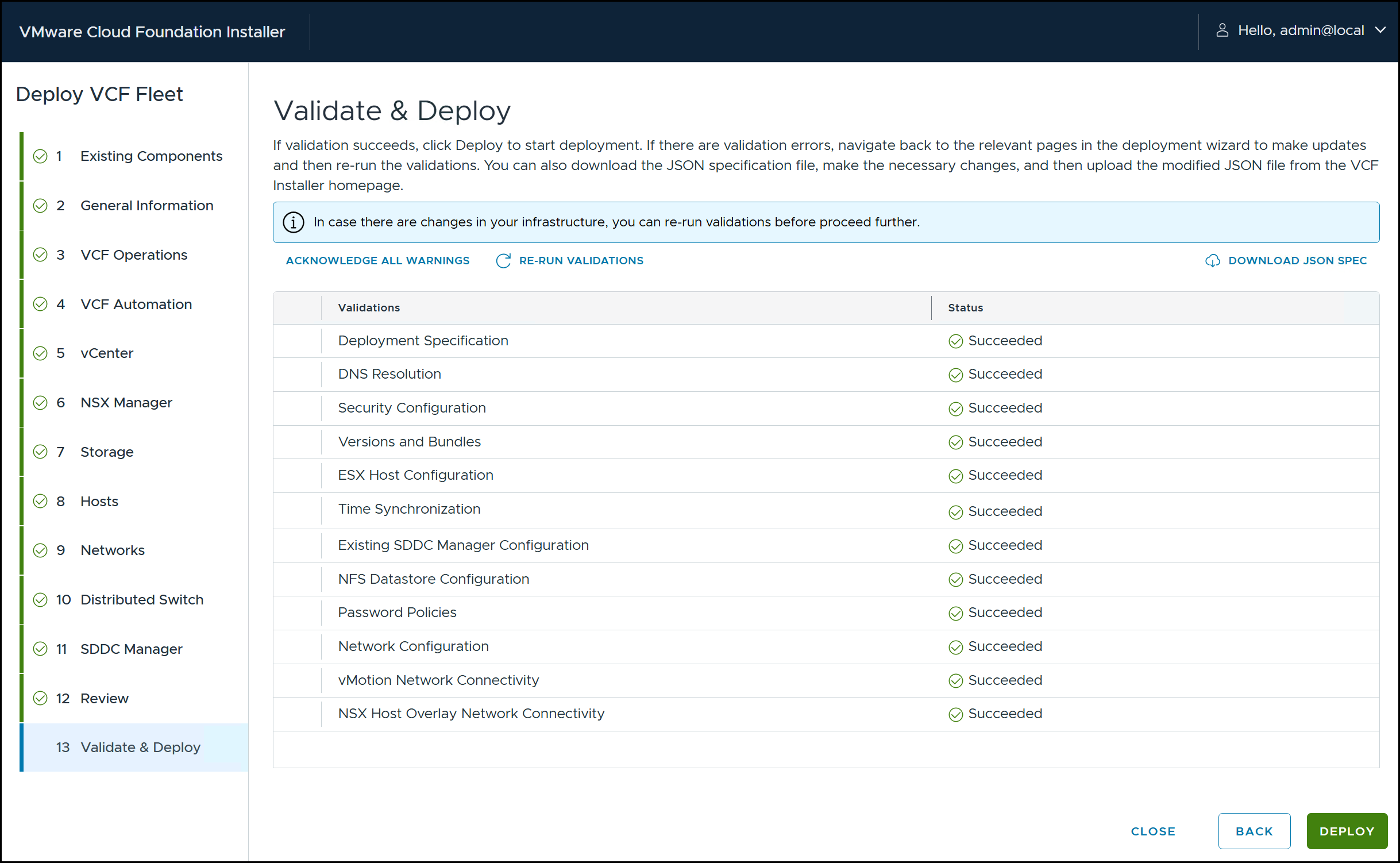
If you have no issues, or resolve them all, you will see the following screen. When ready click DEPLOY to start the install.
Figure 37. Step 13 – Validate & Deploy
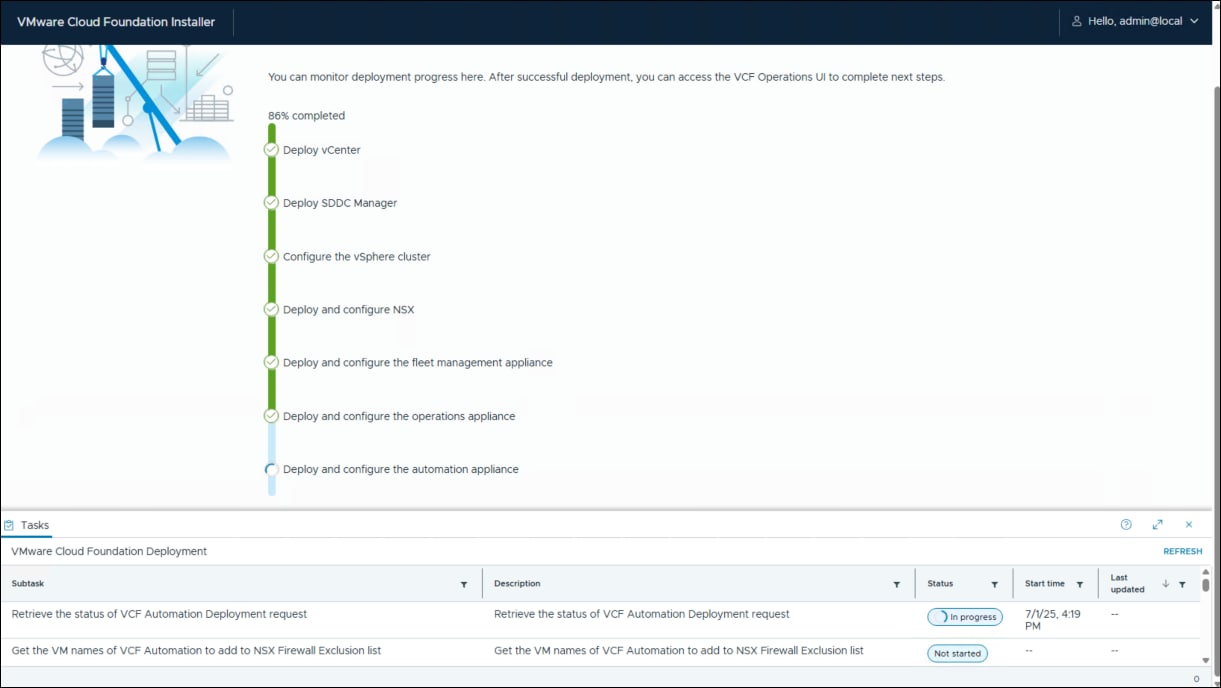
Once you click DEPLOY, you are presented with the progress screen in the following figure where you can actively watch the installation and the current task.
Figure 38. VCF installation progress screen
The deployment time varies according to the environment and is measured in hours. Any errors during the installation must be resolved, and the deployment attempted again. There is no cleanup or reset. Troubleshooting information is available from Broadcom here.
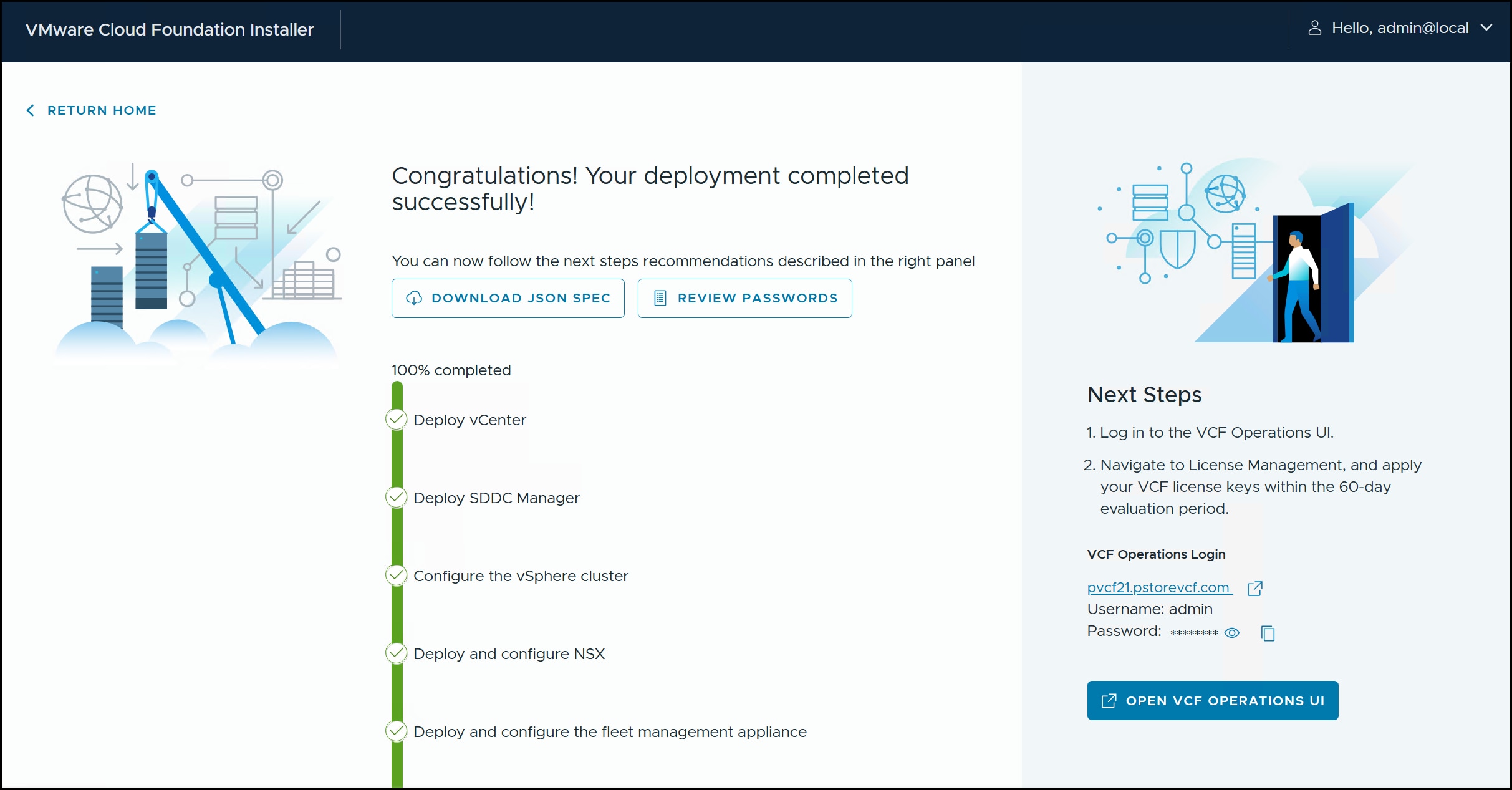
Upon successful completion, you are directed in the right-hand panel in the following figure to log in to VCF Operations to add your licensing information. If you are just evaluating, no further action is required.
Figure 39. VCF successful deployment
VCF Operations
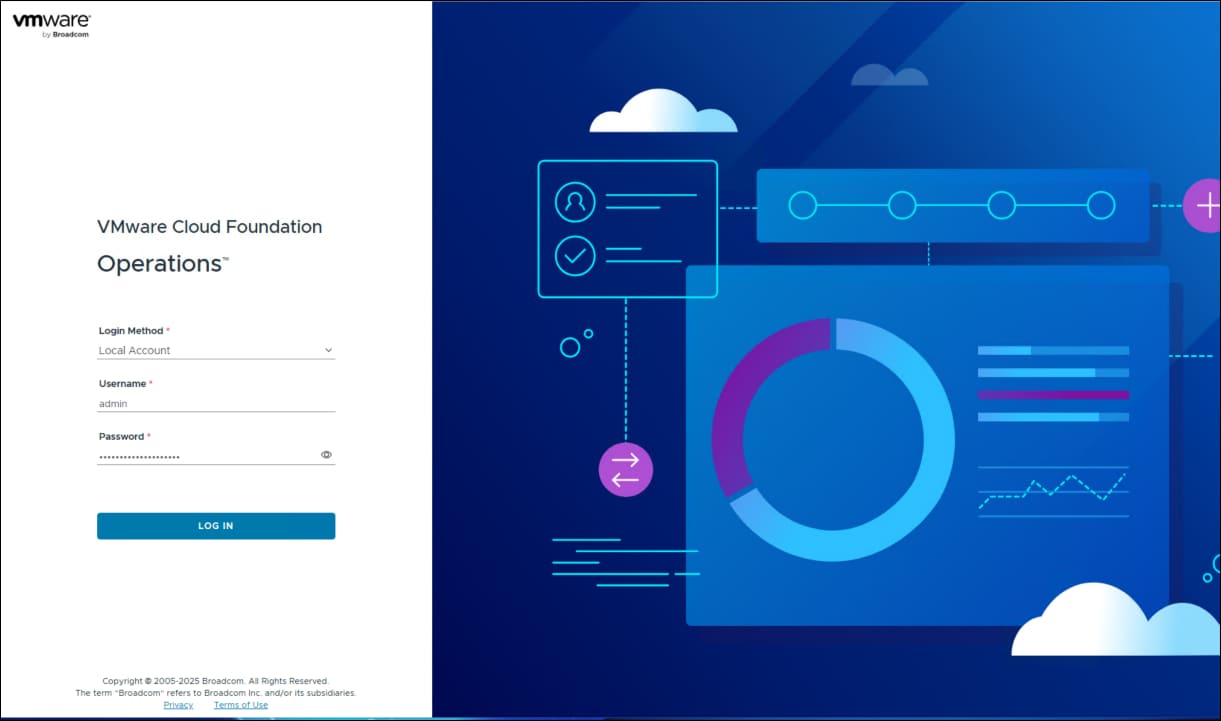
VCF Operations is the heart of VCF 9.0, taking the place of SDDC Manager as the primary management tool. The UI login is in the following figure.
Figure 40. VCF Operations login
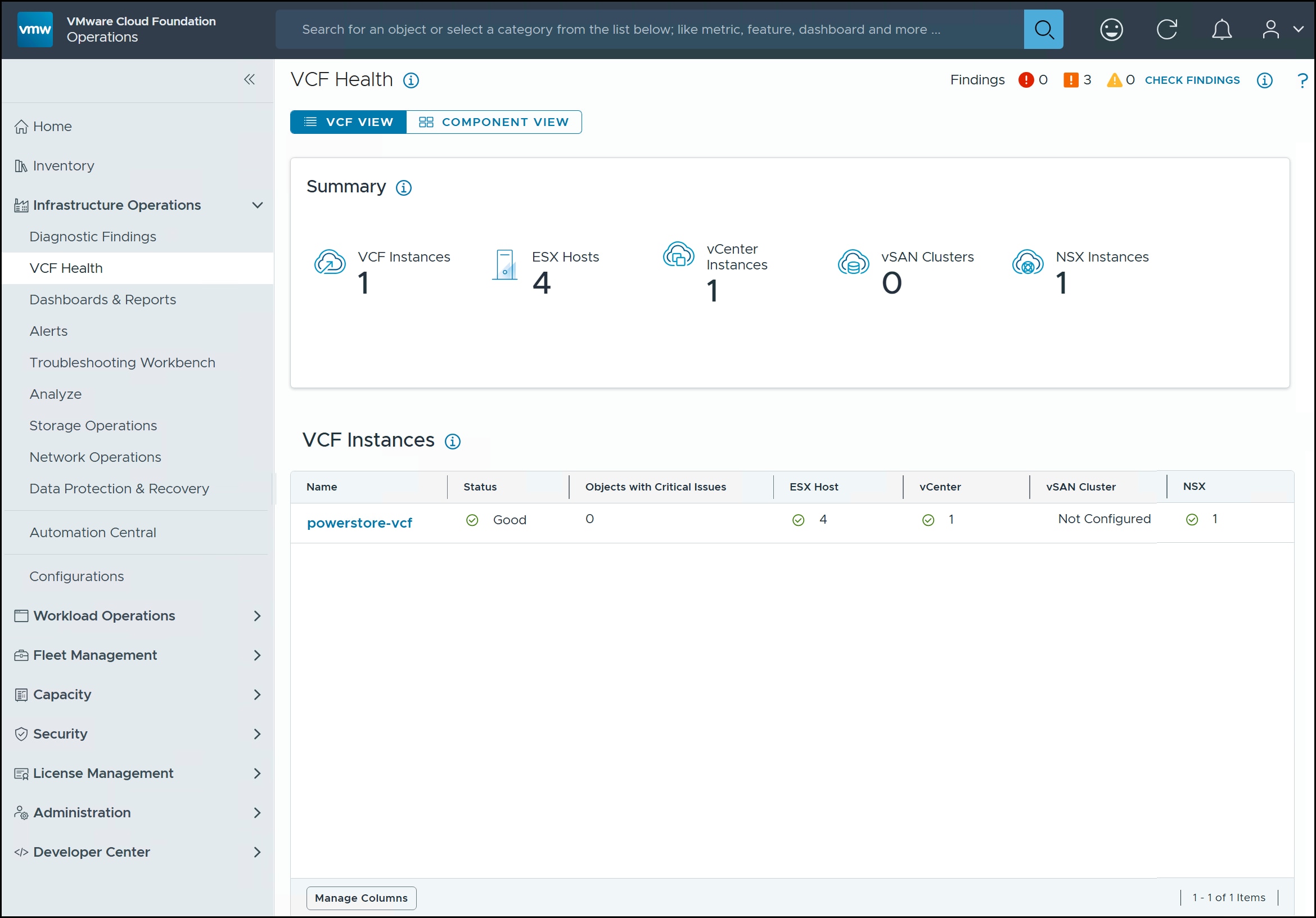
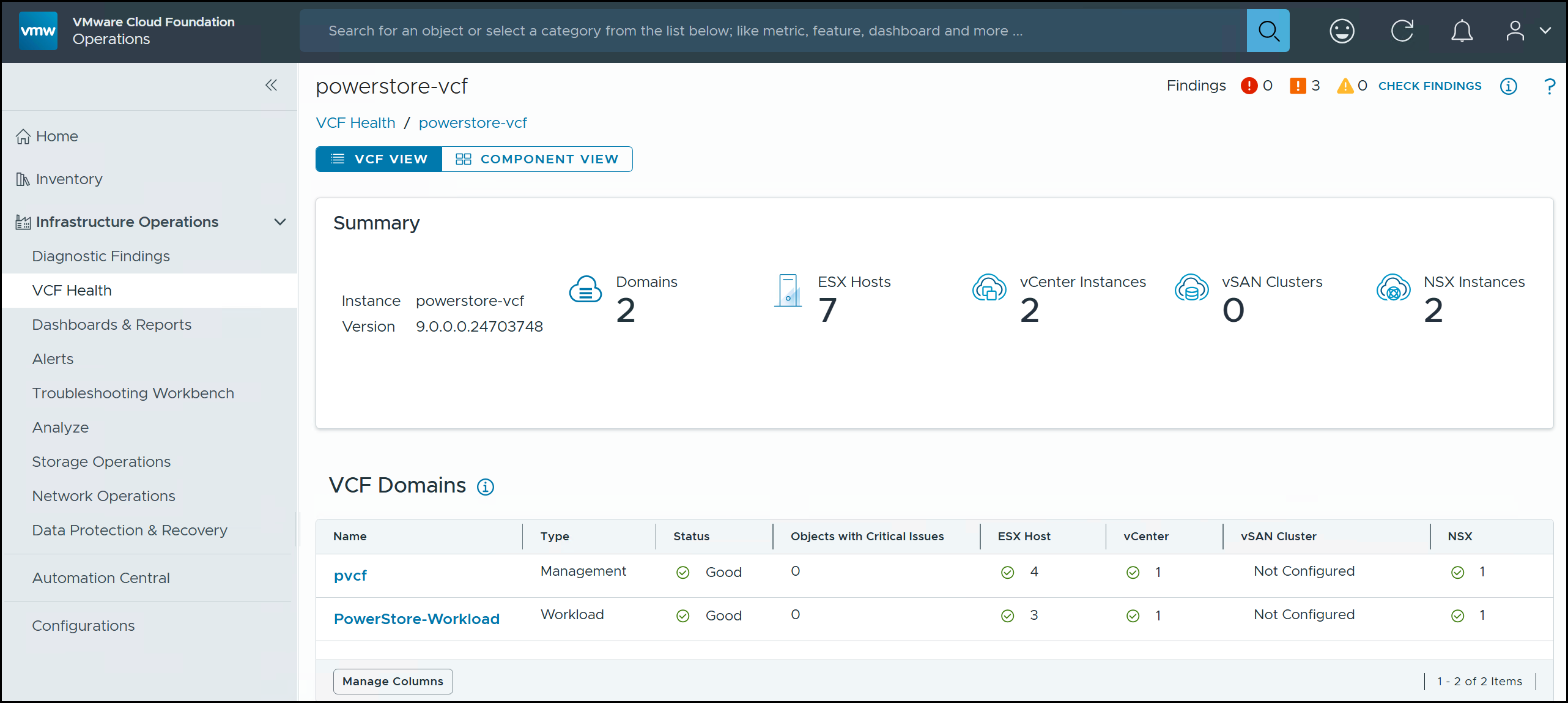
Once accessed, the various screens and sub-screens are shown on the left-hand menu in VCF Operations. If you navigate to Infrastructure Operations > VCF Health in the following figure , it provides an overall summary of the VCF instance. All aspects of the environment are available for monitoring, including the collection of metrics. There is an option to deploy a log appliance if desired. Note that vSAN Cluster is shown as Not Configured which is expected for an array deployment as this one.
Figure 41. VCF health
This completes the management domain deployment. The next chapter will cover adding a workload domain.
Deploying a VCF workload domain on PowerStore FC
Deploying a VCF workload domain on PowerStore FC
Introduction
The following sections detail the installation of the VCF workload domain from within VCF Operations.
ESXi installation
Any node that is part of a VCF deployment requires the user to install the ESXi version as listed on the bill of materials. This includes the workload domain. Therefore, before creation of a workload domain, the user must install ESXi on at least two nodes, the minimum for VMFS on FC (each principal storage type has a minimum number of nodes). The ESXi image must be the 9.0 release referenced in the BOM (build 24755229 for GA release). The workload domain does not require the same root password on each host, unlike the management domain. Once installed, complete these additional tasks.
VCF requires that there is a single vSwitch on the host (default configuration) on one of the NICs you will use when you deploy. The workload domain requires the other physical NIC is free. The environment in this paper uses two 25 GbE NICs, the minimum required amount and speed.
Set the IP, network information, and hostname post-installation.
Log in to the vSphere Host Client and enable SSH. Regenerate the certificates so that they match the hostname. To regenerate the certificates, SSH to the host as root and run /sbin/generate-certificates. Then reboot the host. Technically, only hostd and vpxa require a restart, but in testing that has not always been effective. The VCF installer validates the hostname and certificate during deployment and if regeneration is not done beforehand, validation will fail.
Finally, set and start the NTP server on each ESXi host. You should use the same NTP server in use with the VCF installer This is an additional check the installer does, though it only produces a warning if it fails, which can then be skipped.
PowerStore VMFS on FC
To deploy the VCF management or workload domain on FC, each ESXi host in the cluster must see the same datastore using FC connectivity. VMware refers to this storage type as VMFS on FC. During the VCF validation step, VMware queries each ESXi host for the datastore name the user provides. Therefore, after the ESXi installation is complete on each host, create a new datastore on a PowerStore volume. These steps follow.
Note: Although the following sections refer to the workload domain, the exact same process is followed when deploying the management domain on VMFS on FC.
FC connectivity
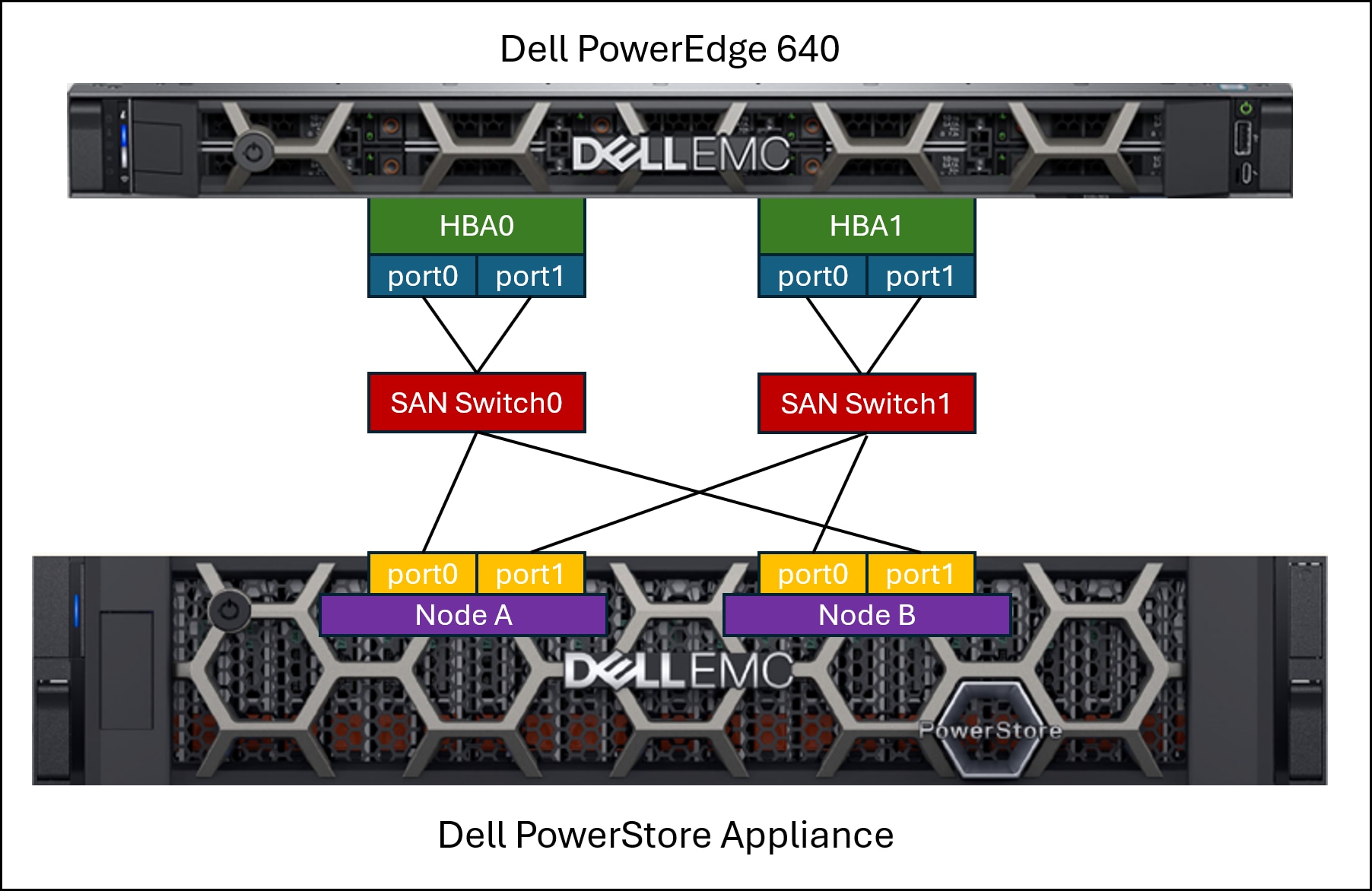
Each ESXi host should have two, two-port HBAs (32 Gb min) with connectivity to the PowerStore array. Zone each HBA port to a port on the appliance so that a single HBA is zoned to two different nodes. A basic rendering is shown in the following figure. Connectivity should be spread over more ports on larger systems. Review the documentation in the Dell Technologies documentation section for best practices on connectivity.
Figure 42. FC connectivity for a Dell PowerEdge server to PowerStore
Storage provisioning
After zoning is complete, you can provision the device from the PowerStore array to serve as the storage for the workload domain. There are two parts to the provisioning in PowerStore Manager: Adding the hosts and creating and mapping a new volume. Be sure to record the WWNs of the HBAs of each host as part of the zoning task as they will be required when adding the host.
Host creation
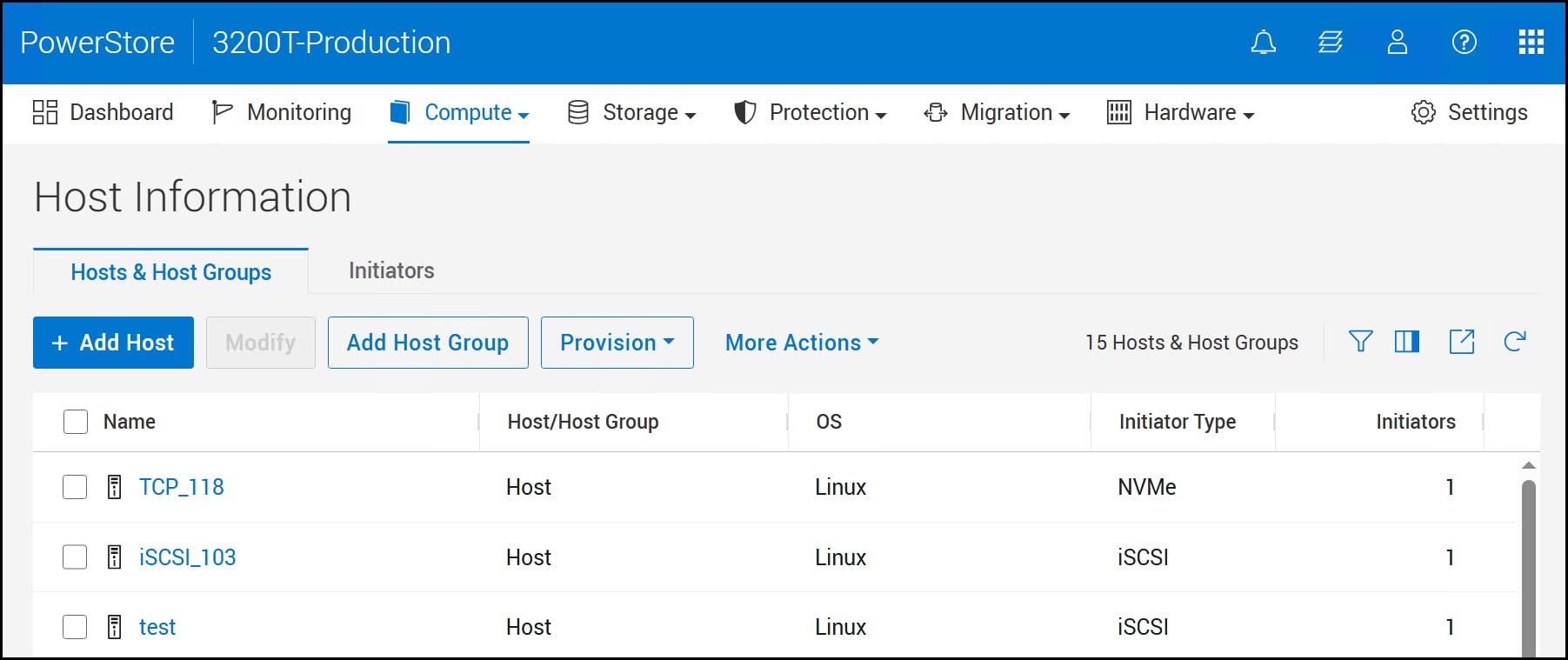
Begin by logging into PowerStore Manager as an administrator. Navigate through the menu across the top to Compute > Host Information > + Add Host as demonstrated in the following figure.
Figure 43. Step 1 – Host creation
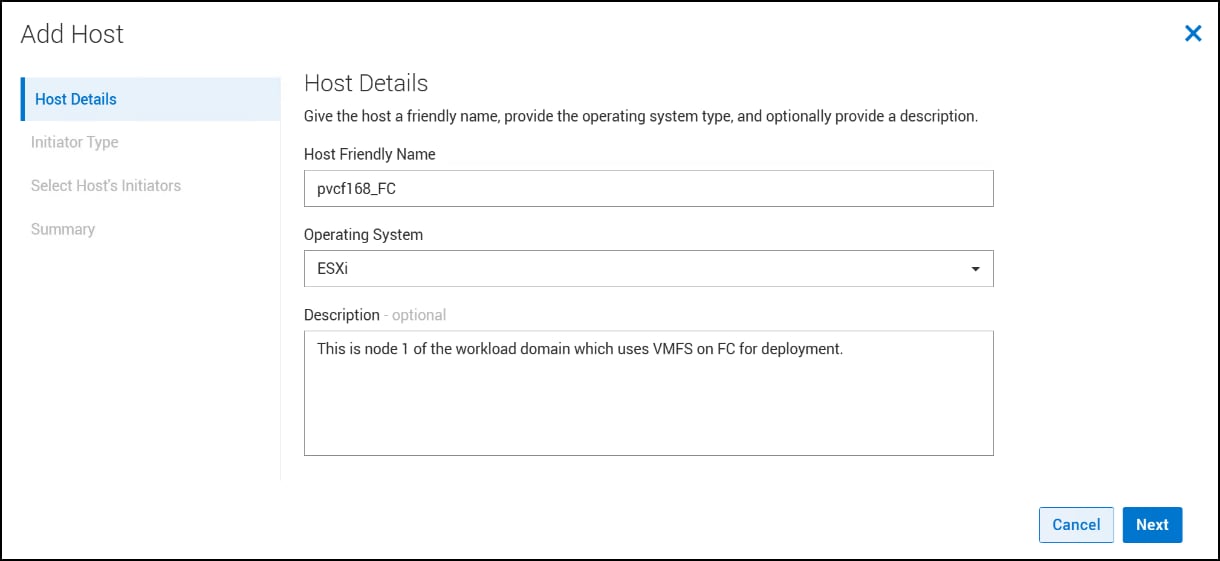
Enter in a Host Friendly Name for the first ESXi host then using the drop-down for the Operating System select ESXi. Enter a Description if desired. Click Next to move to the next page in the wizard in the following figure.
Figure 44. Step 2 – Host creation
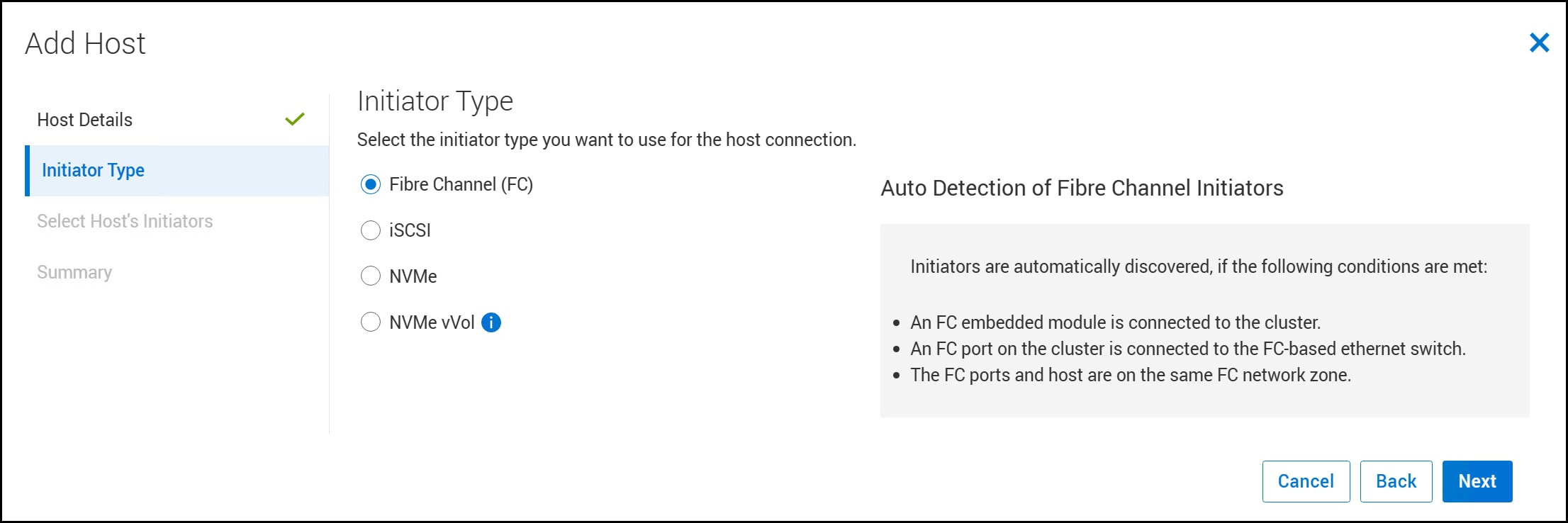
Next, select the Initiator Type for the domain host. In this example in the following figure the radio button for Fibre Channel (FC) is selected by default. Note the message concerning auto detection of FC on the right-hand side of the dialog. If PowerStore determines that auto detection is not working, the box includes a warning message but will not prevent you from continuing. Here, discovery is successful. Click Next.
Figure 45. Step 3 – Host creation
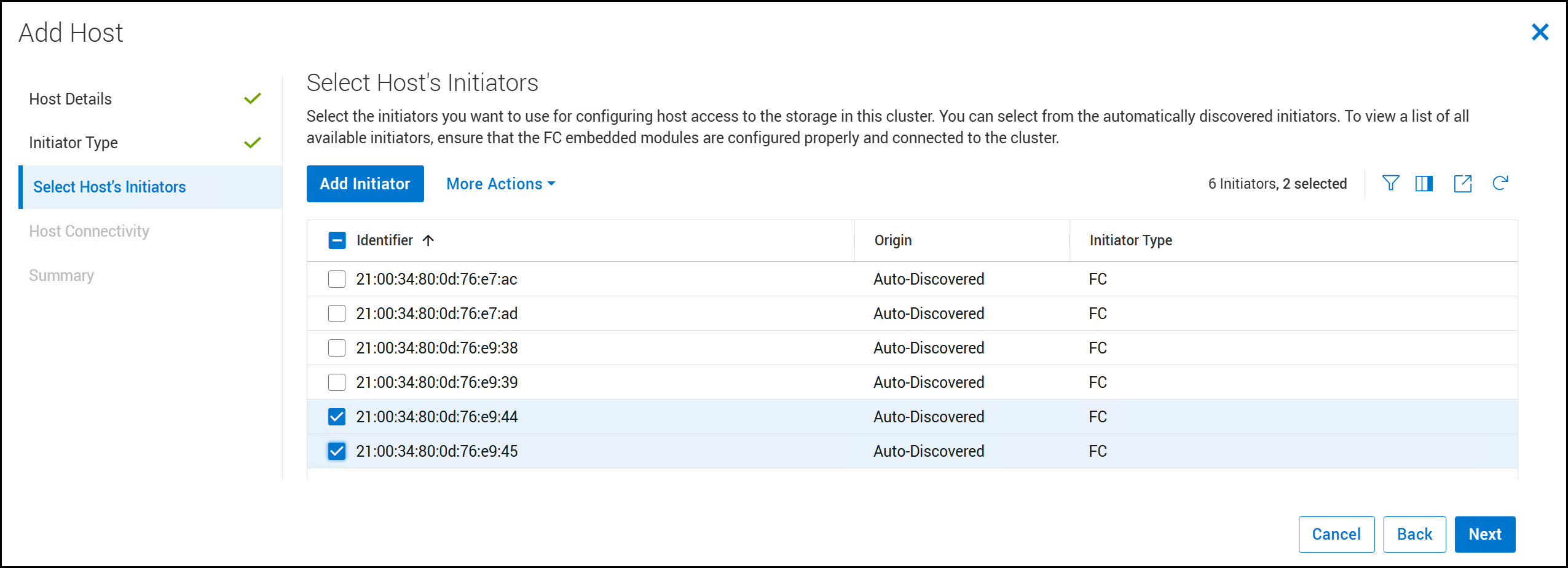
In the following figure, use the checkboxes to select the initiators that are associated with the ESXi node and previously zoned. Note the Origin column shows Auto-Discovered as mentioned in the previous screen.Click Next.
Figure 46. Step 4 – Host creation
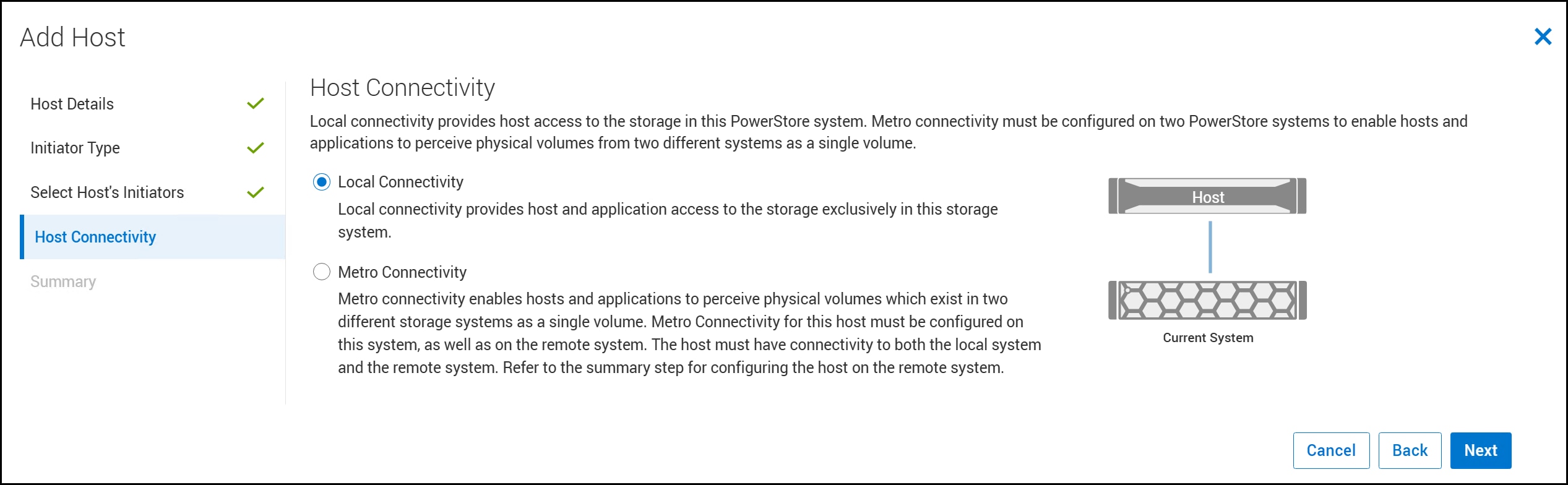
When you create a new host on the PowerStore, you must select the type of Host Connectivity in the figure below. Unless you are using an active-active replication configuration, leave the radio button at the default of Local Connectivity and click Next.
Figure 47. Step 5 – Host creation
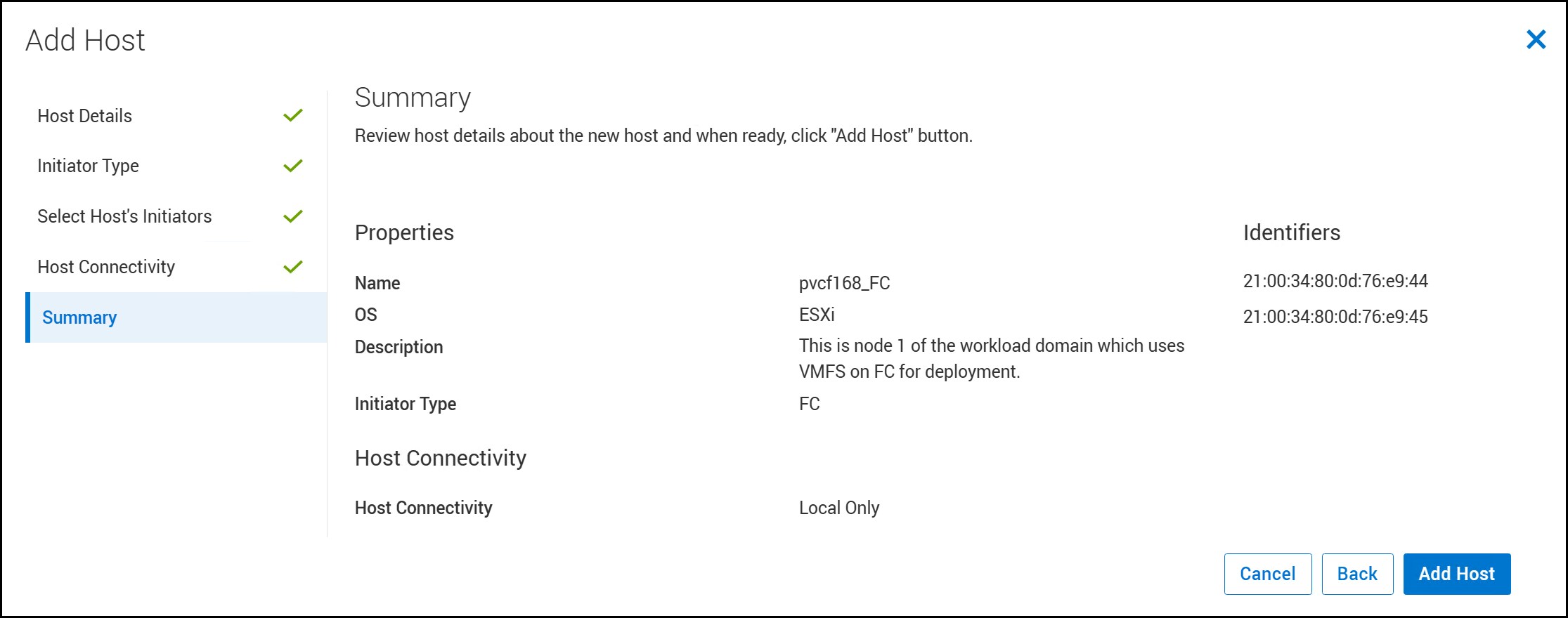
Review the Summary in the following figure and if all values are correct, click Add Host. If anything needs correction, use the Back button to make adjustments.
Figure 48. Summary – Host creation
Repeat steps 1 through 5 for each of the other hosts in the workload domain cluster. In this example there are three.
Host group
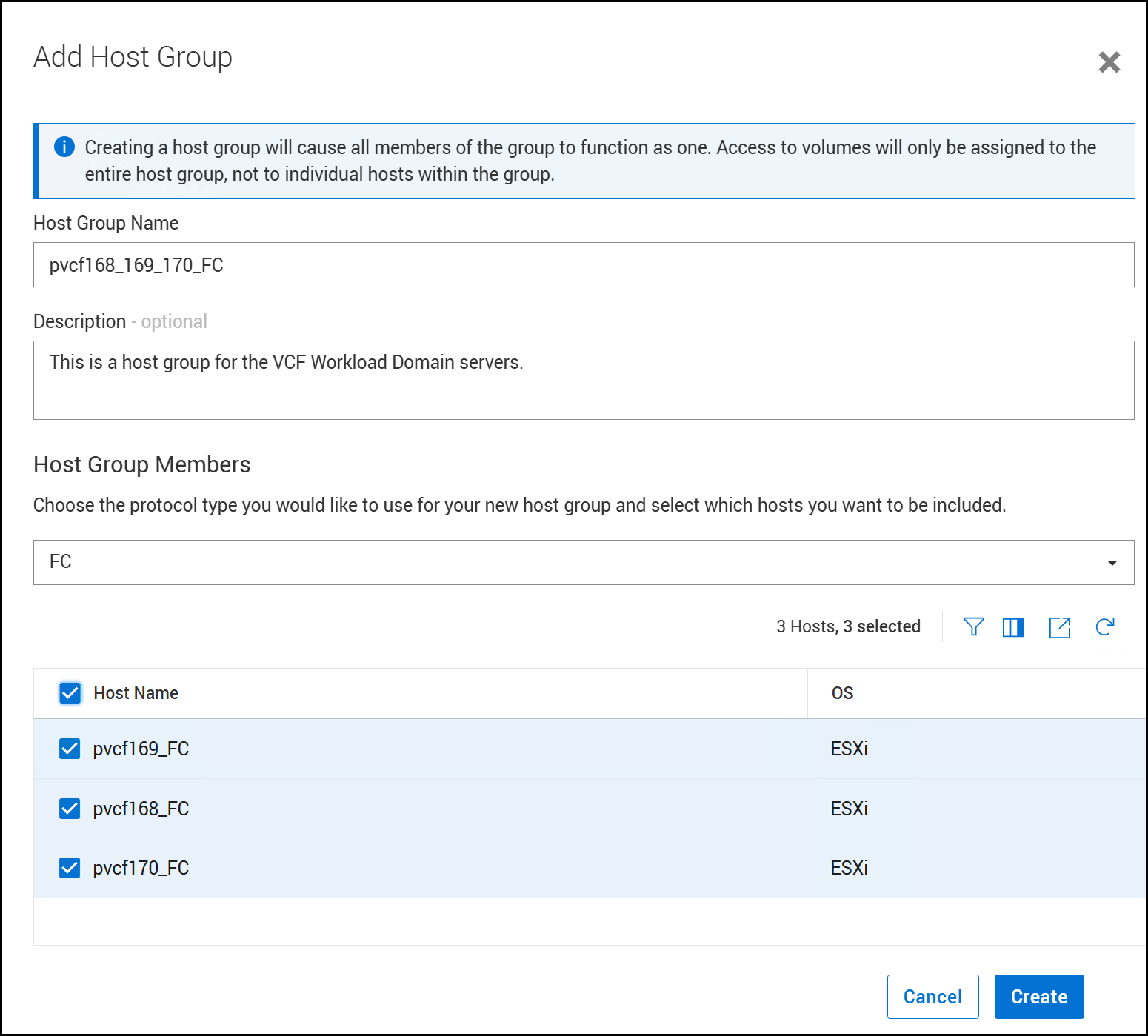
Create a host group to ensure that when you map the volume, all ESXi hosts will see the device/datastore. A host group also makes it easy to expand the workload domain since any newly created hosts can be added to the group and immediately have access to all devices already mapped to the other hosts in the domain. Return to the screen in Step 1 – Host creation above and click Add Host Group. Enter in a Host Group Name and add a Description if desired. Next, use the drop-down menu under Host Group Members to select the FC protocol, and then check the boxes next to the workload domain hosts. Click Create to complete the host group in the following figure.
Figure 49. Host group
Storage provisioning
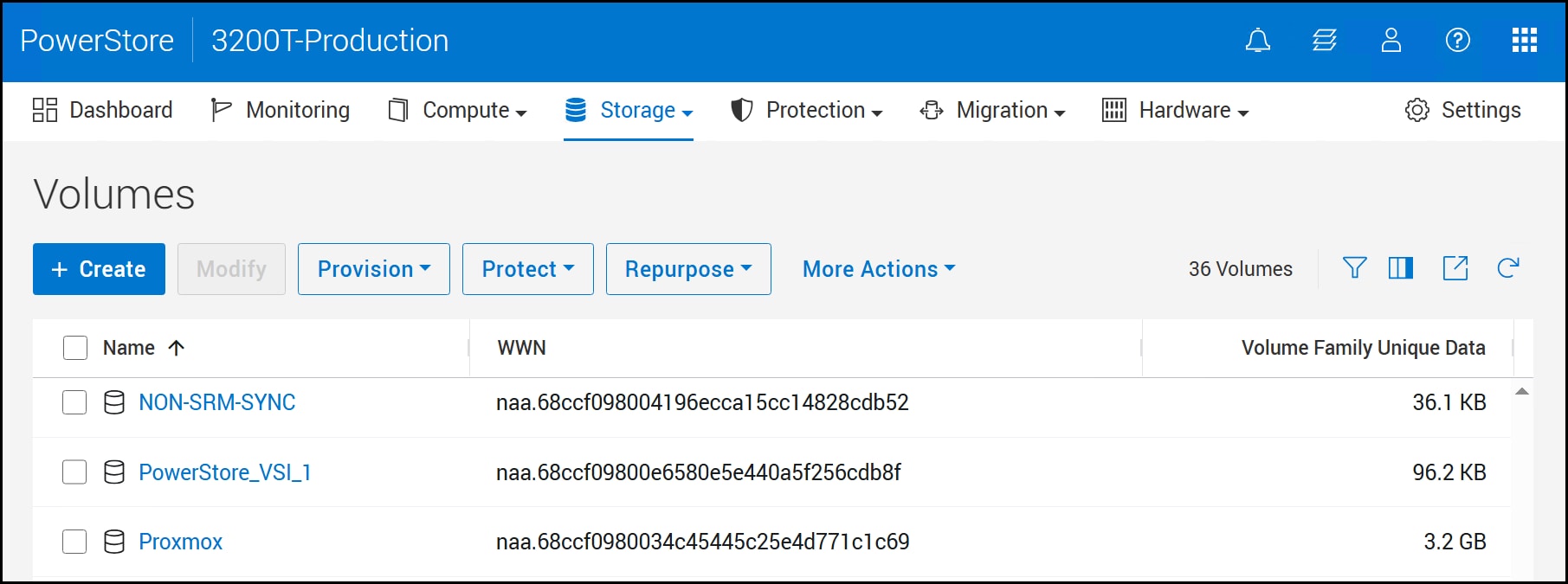
Using the same top-of-menu list, select Storage > Volumes > +Create in the following figure to start the wizard.
Figure 50. Step 1 – Storage provisioning
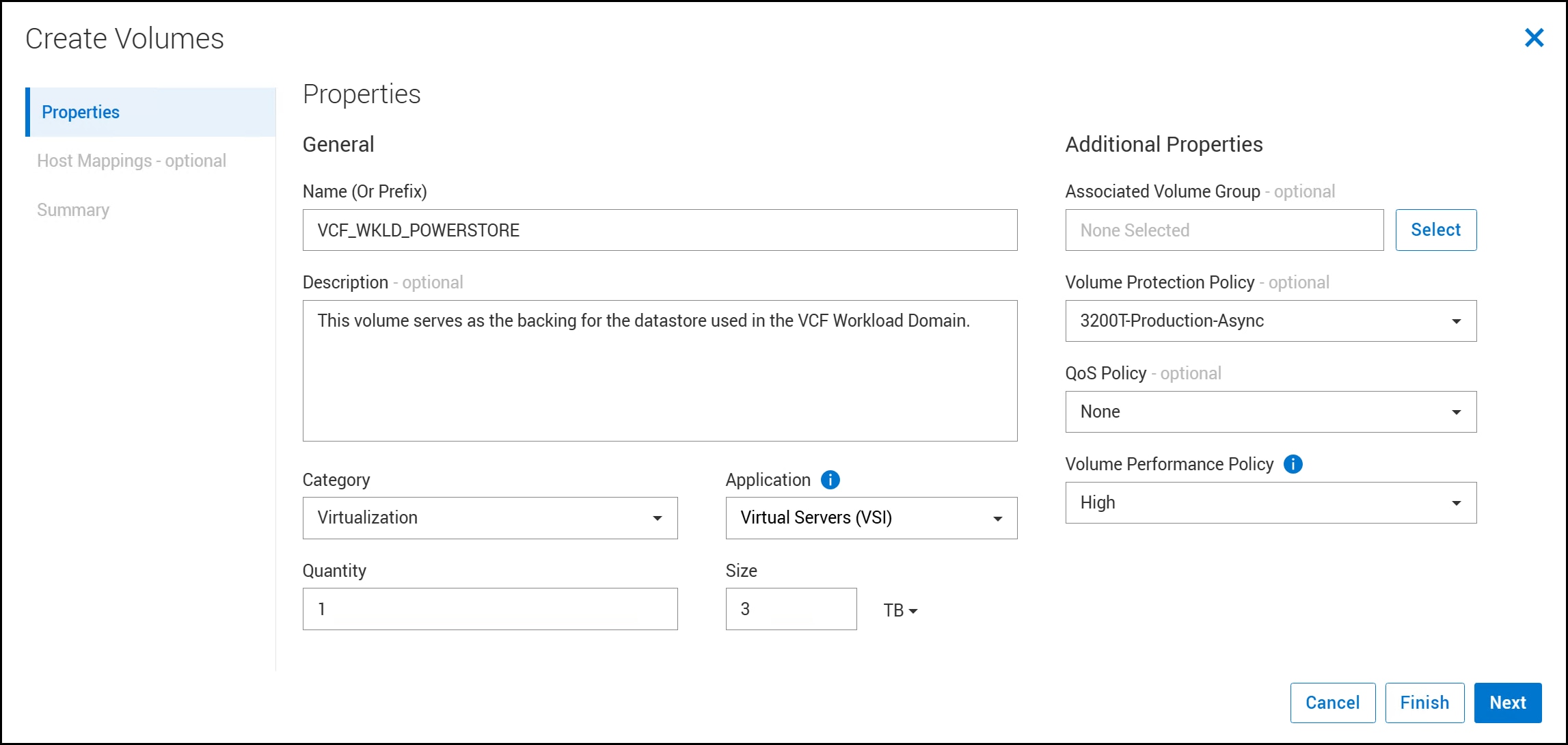
Enter the following information as in figure below:
Name (it is used as a prefix for multiple volumes)
Description if desired
Category – select Virtualization from the drop-down
Application – select Virtual Servers (VSI) from the drop-down
Quantity – 1
Size – at least 2 TB, here 3 TB is used
Additional Properties:
Associated Volume Group – leave default
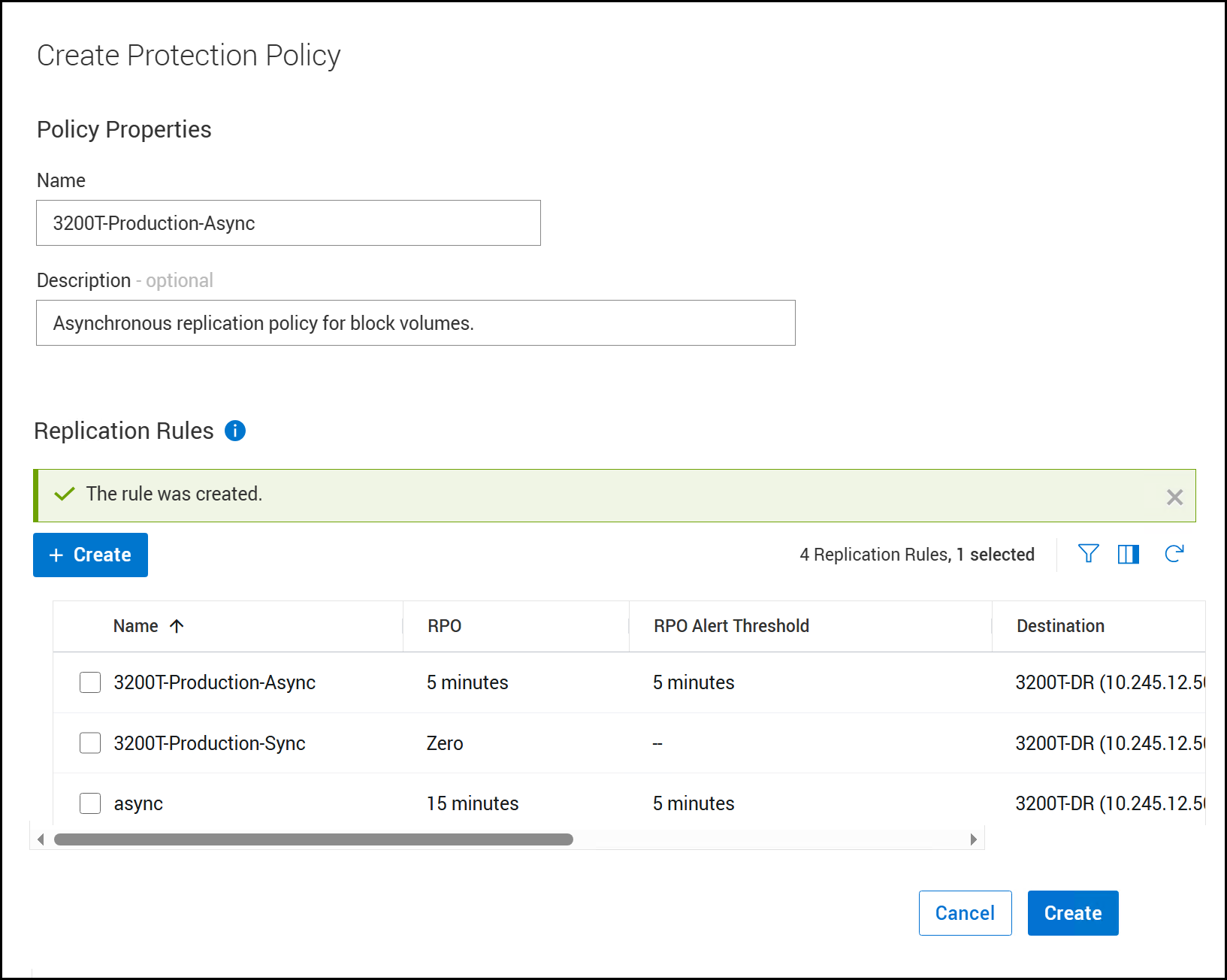
Volume Protection Policy – if you have an existing policy that includes local and/or remote replication you can use the drop-down to select. Here a protection policy for remote asynchronous replication is assigned to protect the workload domain. The creation of the policy will be included later in the paper.
QoS Policy – if you wish to limit IOs by number or size you can use the drop-down to select a previously created policy.
Volume Performance Policy – this defaults to Medium but is adjusted here to High for a production workload.
Click Next.
Figure 51. Step 2 – Storage provisioning
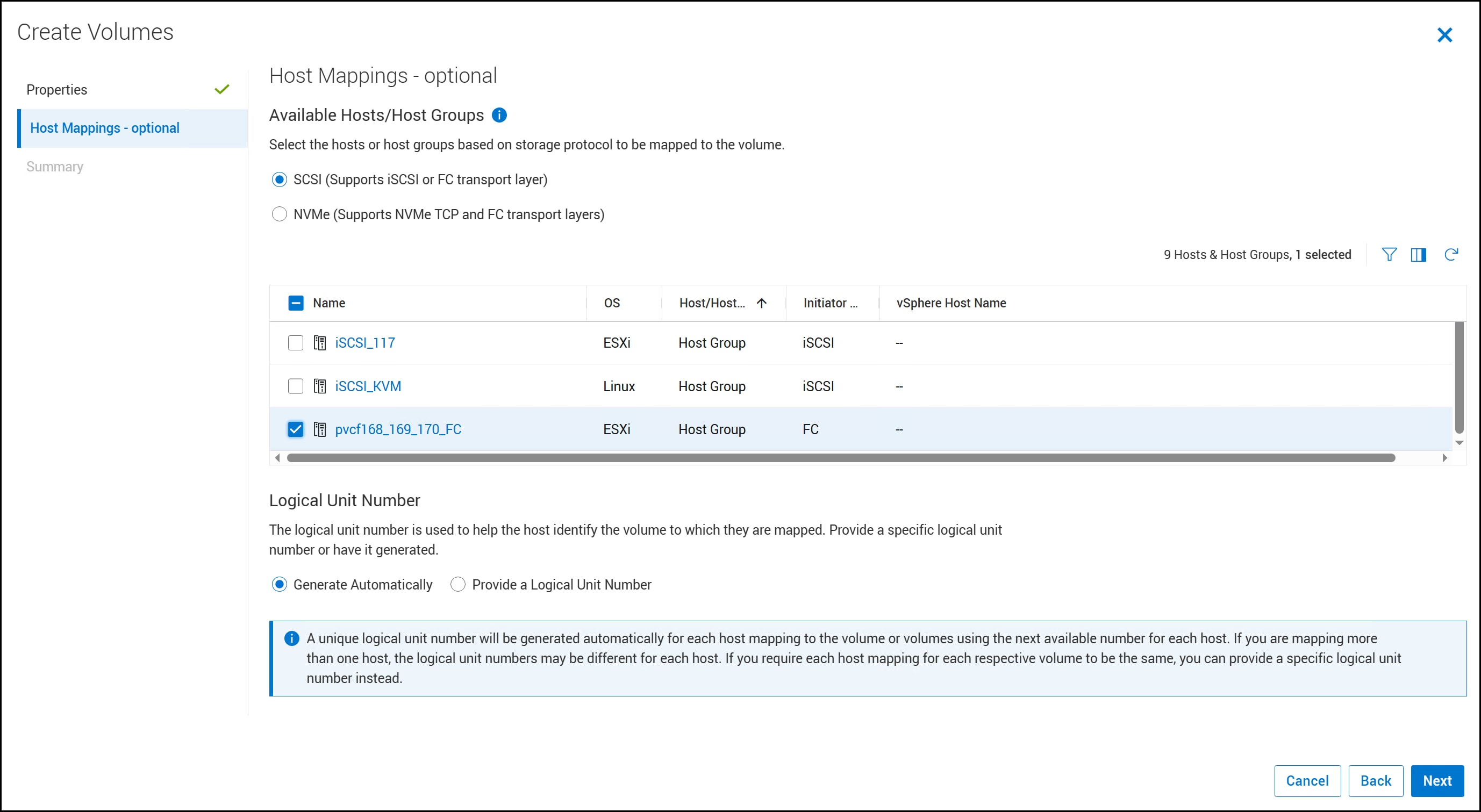
In the following figure, use the checkbox to select the previously created Host Group in the Host group figure. If desired, you can change the Logical Unit Number from the default Generate Automatically. Click Next.
Figure 52. Step 3 – Storage provisioning
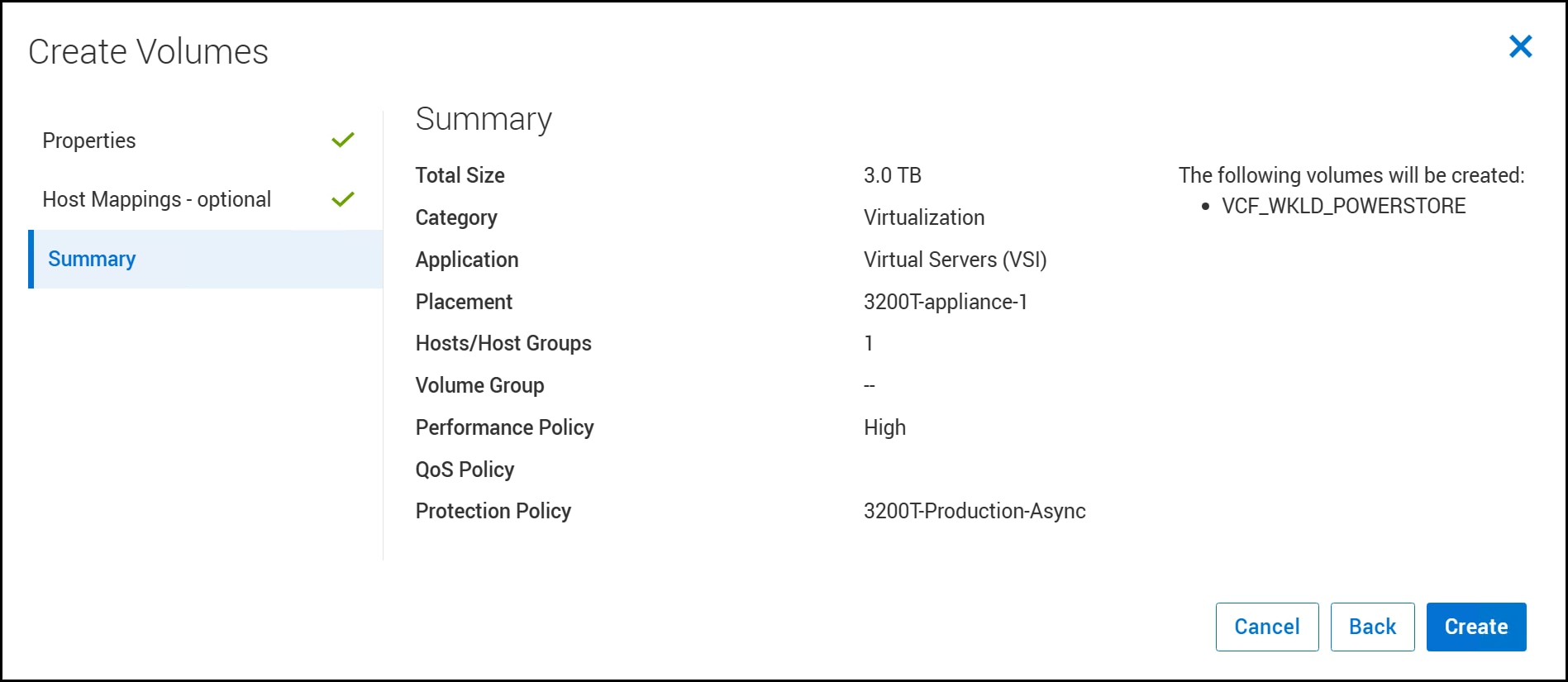
Review the summary in the following figure and click Create to complete the wizard. You will receive a message indicating that PowerStore created the volume and attached (mapped) it to the hosts.
Figure 53. Summary – Storage provisioning
Once the storage is provisioned, the next step is to create the datastore for the workload domain.
Datastore creation
Using one of the workload domain ESXi hosts, create the datastore. Since each ESXi host sees the same device through the host group, it is only necessary to access one host, create the datastore, and then rescan the HBAs on the other hosts to discover the new datastore.
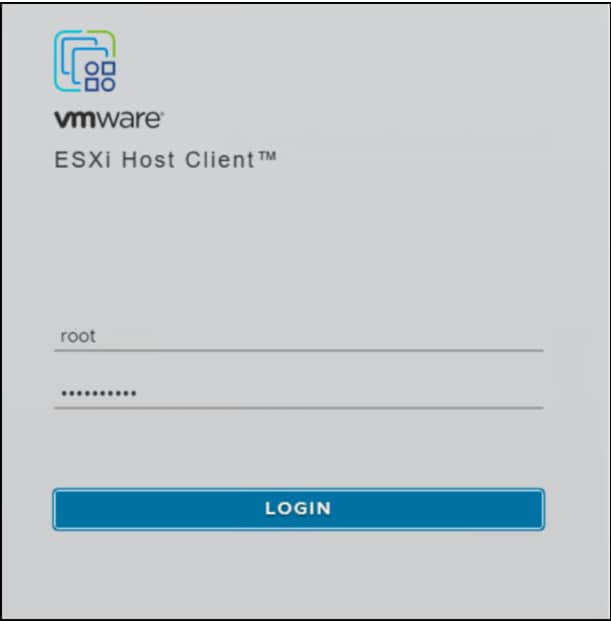
To create the datastore, choose one of the ESXi hosts. Open a browser and enter the IP address to bring up the vSphere Client login screen. Login as root in the following figure.
Figure 54. Step 1 – Datastore creation
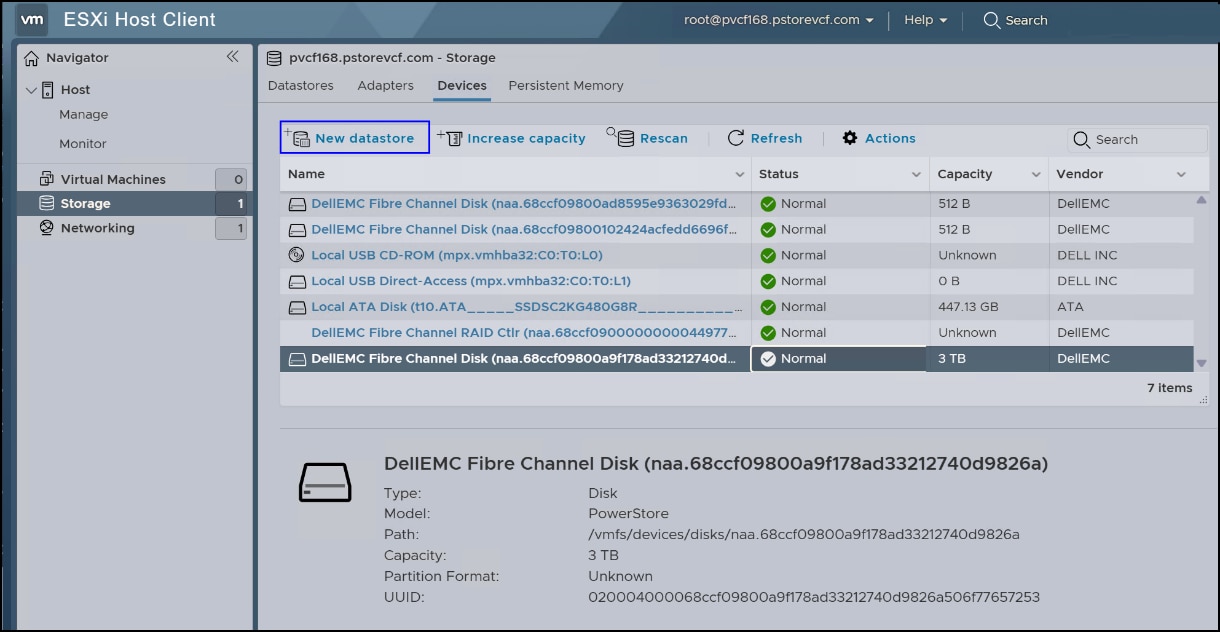
In the client, navigate to Storage in the left-hand menu and then the Devices tab on the right. Highlight the new device as in the following figure. From the menu select + New datastore which is boxed in blue. This starts the wizard.
Figure 55. Step 2 – Datastore creation
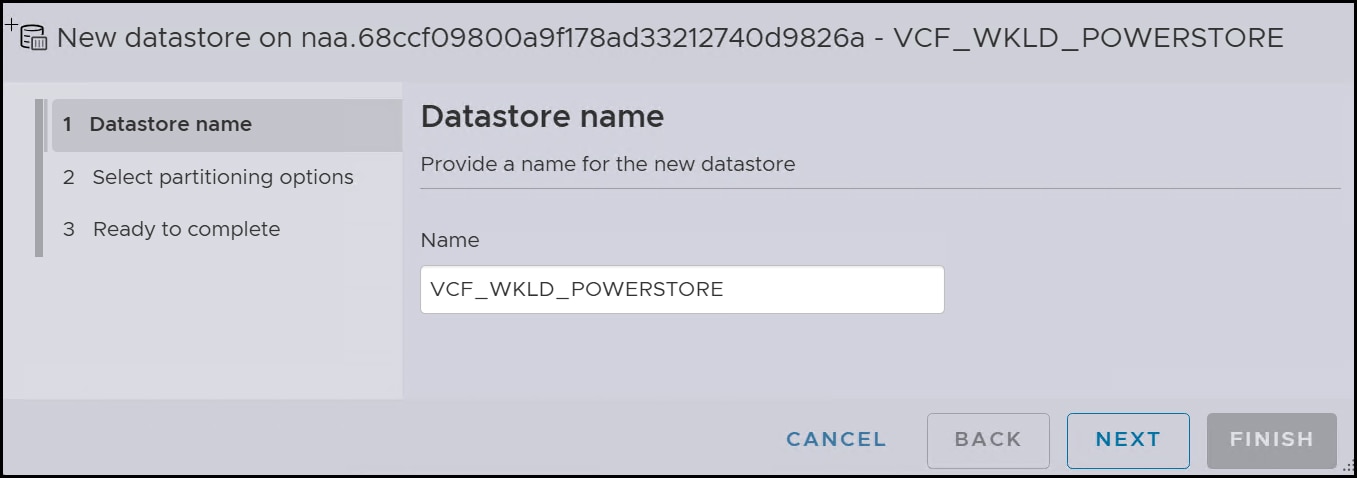
Type in a Datastore name and be sure to record it somewhere as it will be used in the VCF workload domain installation. The VCF installer will not query the ESXi host to validate the datastore name until the very end of the wizard, so it is important to type it correctly at the appropriate step. Click NEXT.
Figure 56. Step 3 – Datastore creation
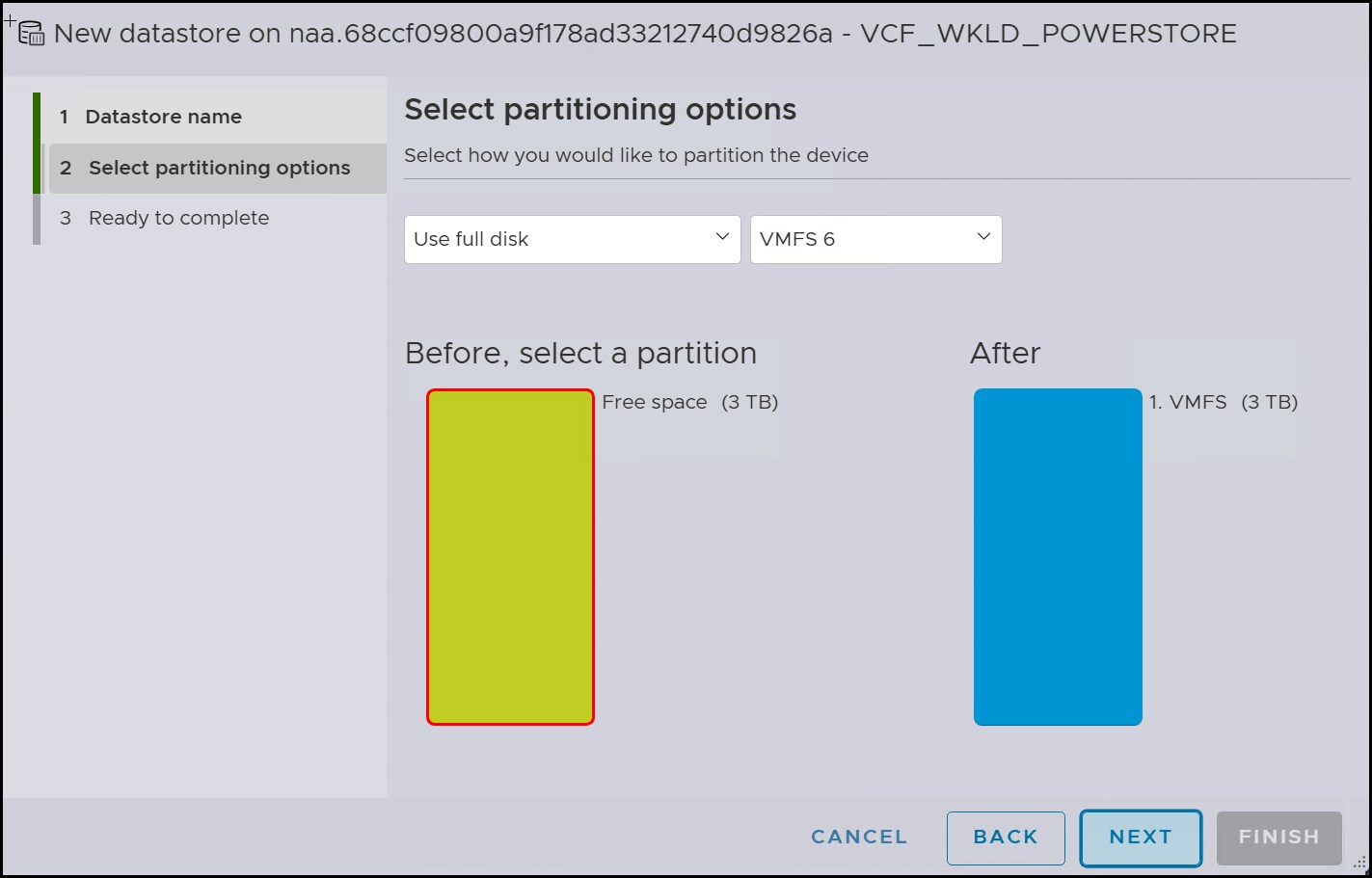
The datastore wizard in the next step allows the user to set a partition size for the datastore that is something smaller than the entire device. This is not recommended. Select all free space in the following figure and click NEXT.
Figure 57. Step 4 – Datastore creation
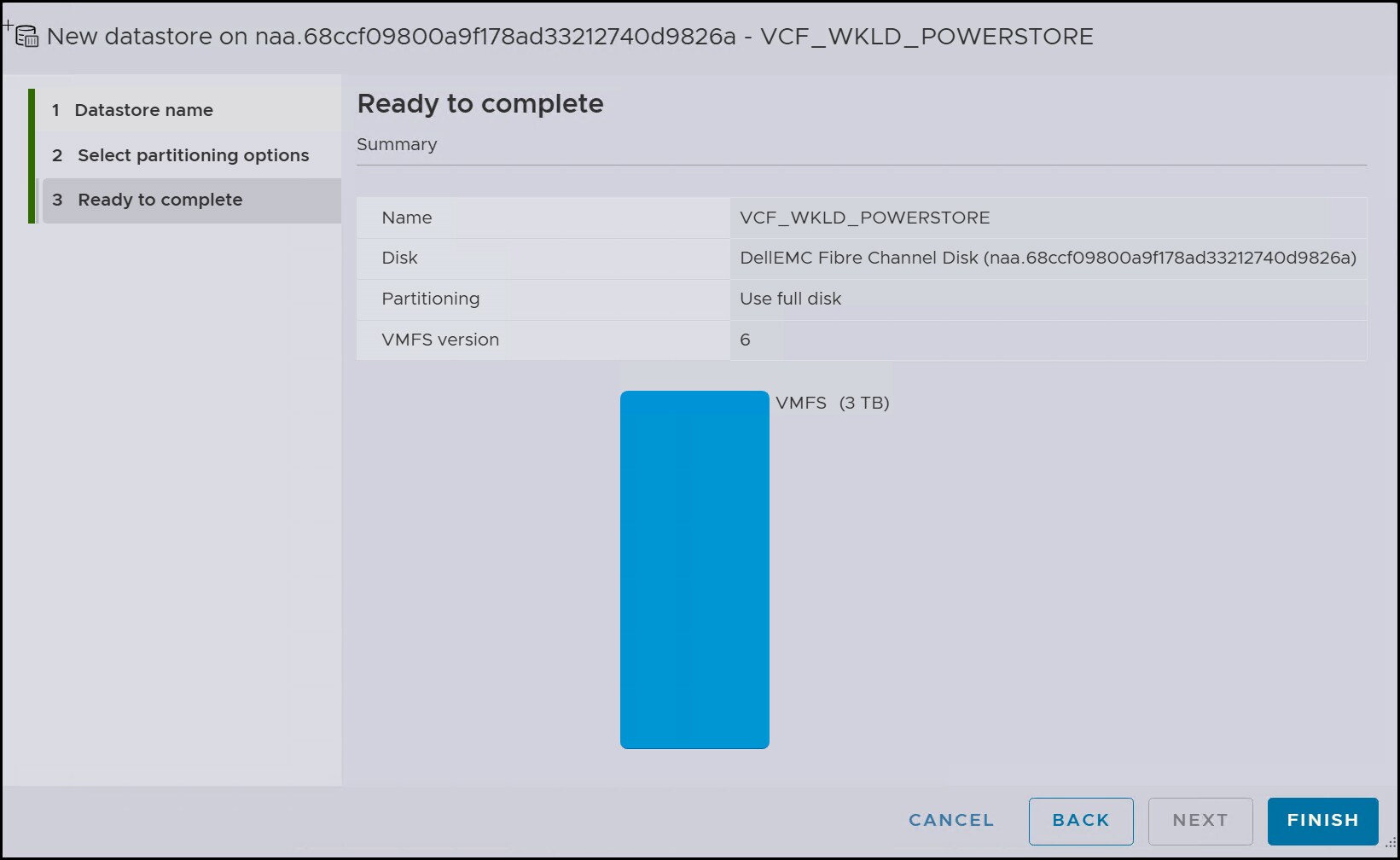
Review the summary screen in the following figure and click FINISH to create the datastore.
Figure 58. Summary – Datastore creation
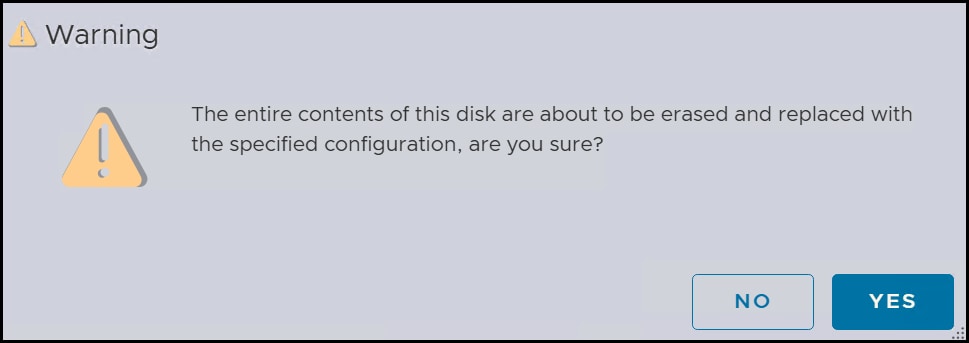
vSphere warns the user before creation. Select YES to continue in the following figure.
Figure 59. Formatting warning
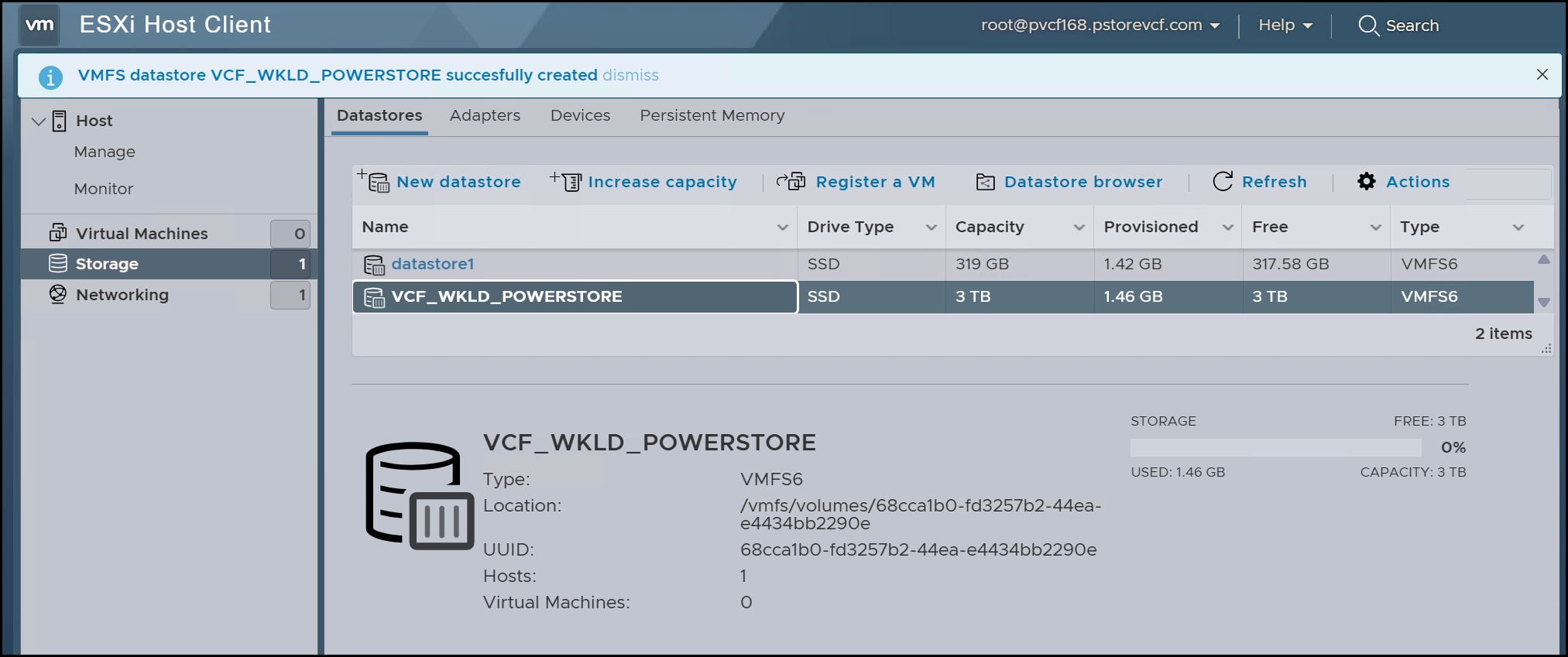
The datastore should now be available in the following figure under the Datastores tab. Be sure to log in to the other ESXi hosts and check that they also see the new datastore. Rescan the adapters if necessary until each host appears as below.
Figure 60. VCF datastore
You may now proceed with the workload domain wizard.
vMotion network pool
A workload domain requires the creation of a static network pool for vMotion. Follow the steps below.
Log in to the management domain vCenter
Click the hamburger menu in the left-hand corner of the client.
Navigate to Global Inventory Lists > Resources > Hosts.
Click the Network Pools tab in the right-hand panel.
Click + CREATE NETWORK POOL in the following figure.
Figure 61. Step 1 - Create network pool
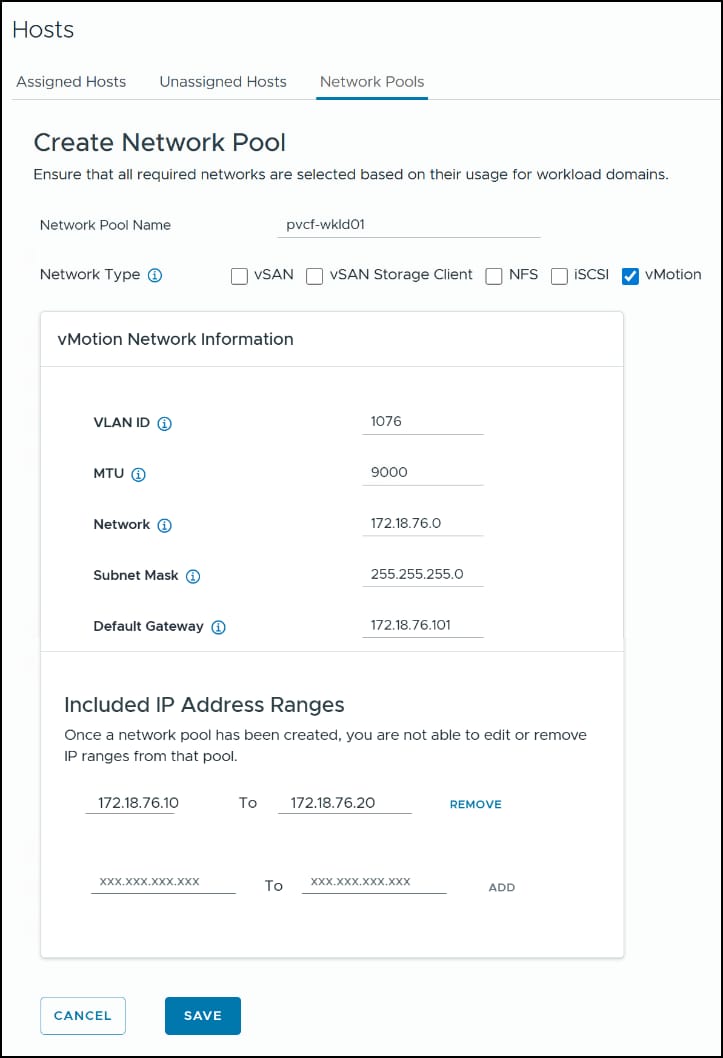
Enter the required information for the network pool.
The vMotion box is checked and is the only required Network Type for VMFS on FC. When setting the IP range, be sure to set enough addresses for the number of hosts in the workload domain and then click ADD. You can add multiple address ranges or add more in the future.
Figure 62. Step 2 - Create network pool
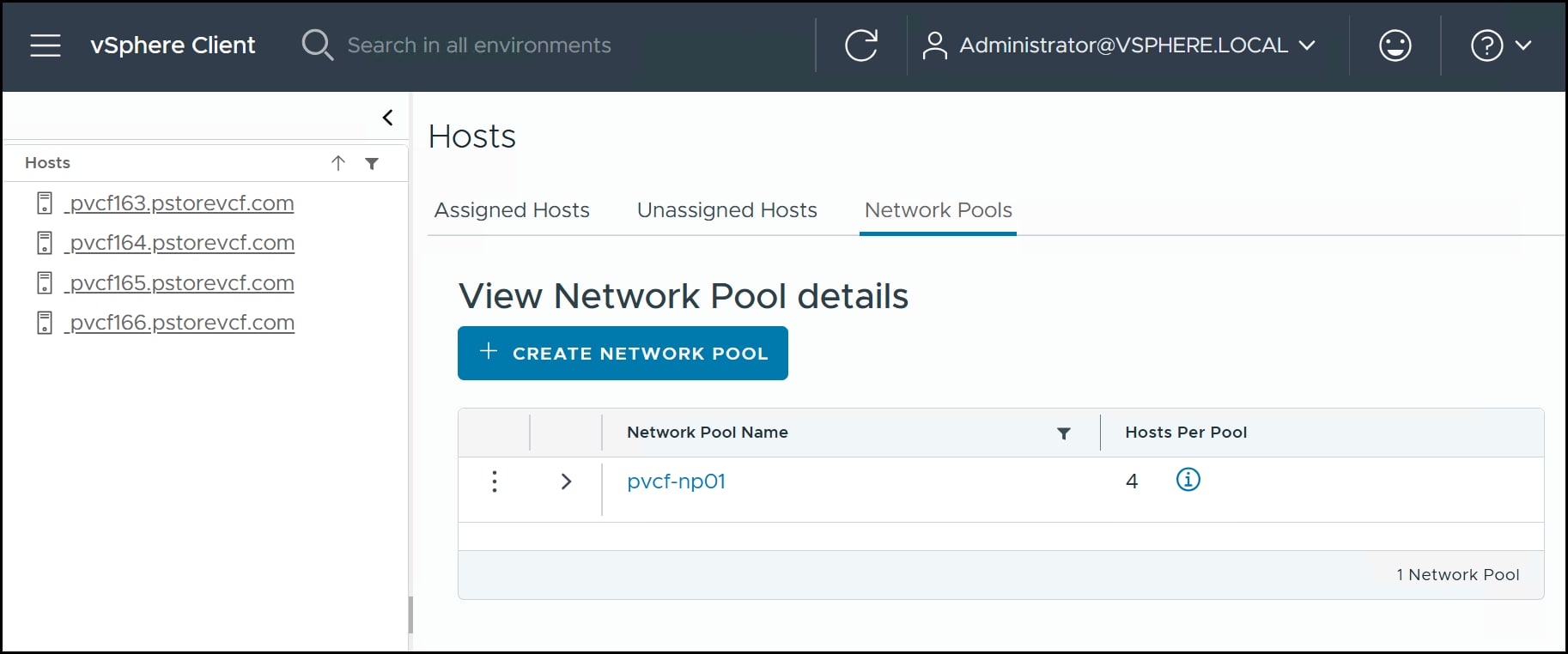
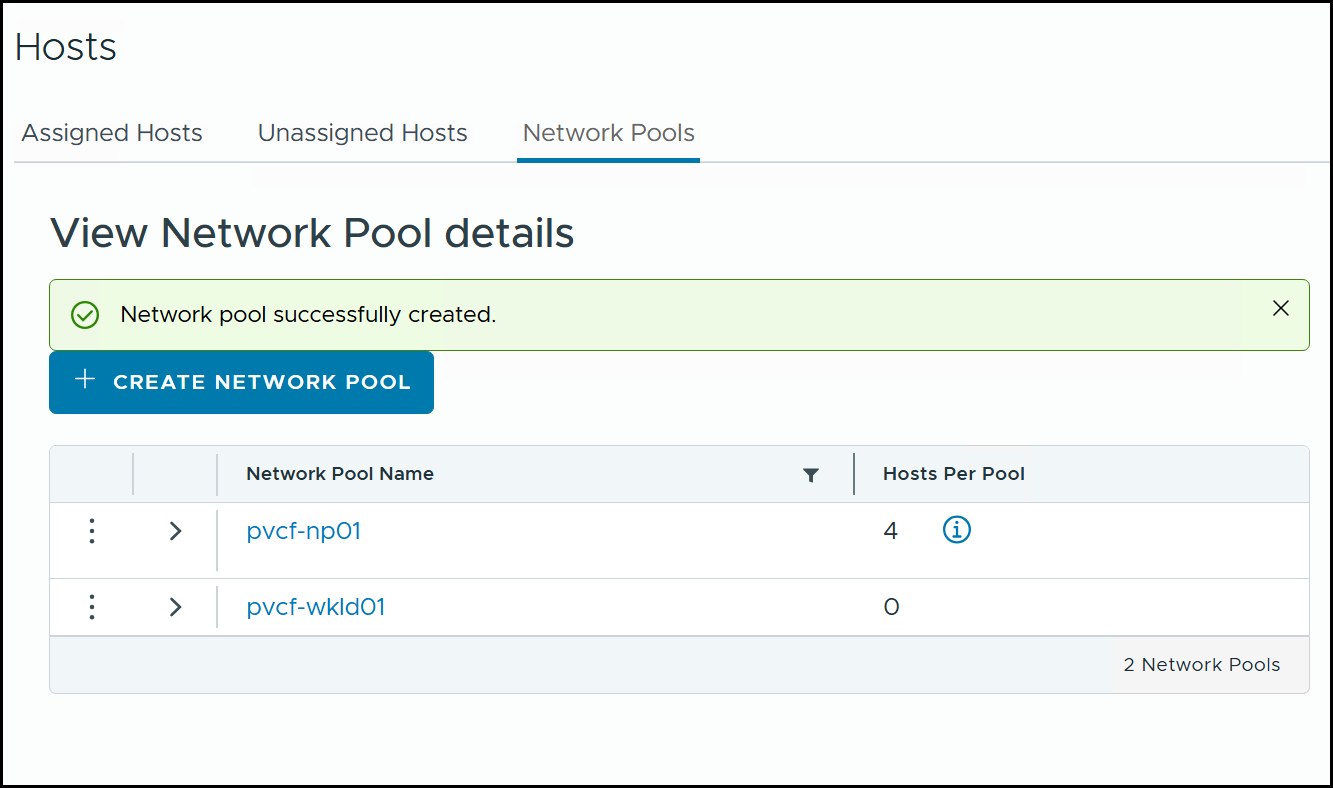
The new pool in will be available and assigned during the commissioning of the ESXi hosts which is covered next.
Figure 63. vMotion pool
Once a suitable range is added, click SAVE to complete.
Commission hosts
To deploy a workload domain, regardless of storage protocol, the user must first commission ESXi hosts. Essentially these hosts are added as inventory which are then available for deployment. Principal storage must be assigned to the hosts to create a new workload domain. Hosts must be prepared for commissioning in the same way they were for the VCF management domain. As noted, VCF requires a minimum of two hosts for VMFS on FC. This environment is deployed using three.
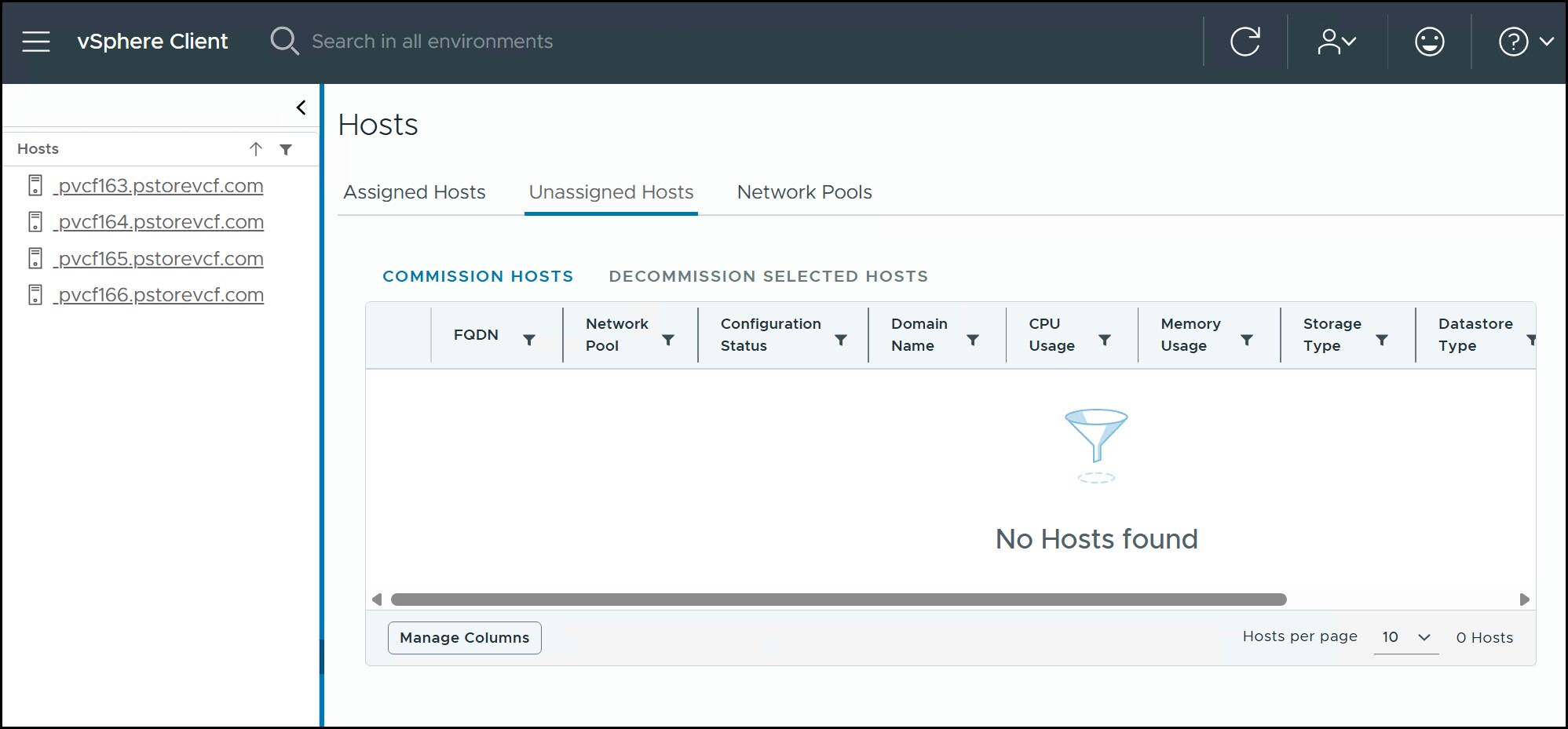
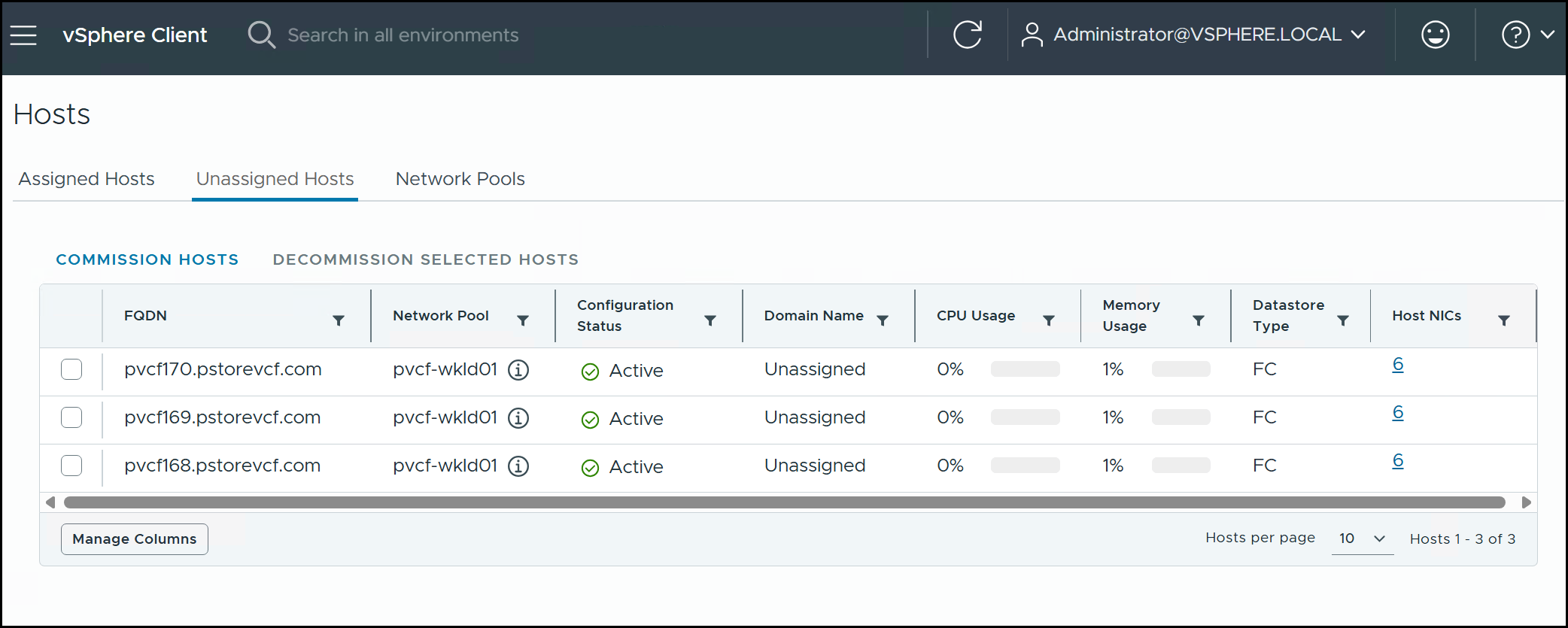
From the same screen in Step 1 - Create network pool, select the Unassigned Hosts tab in the following figure. Select COMMISSION HOSTS.
Figure 64. Step 1 - Commission hosts
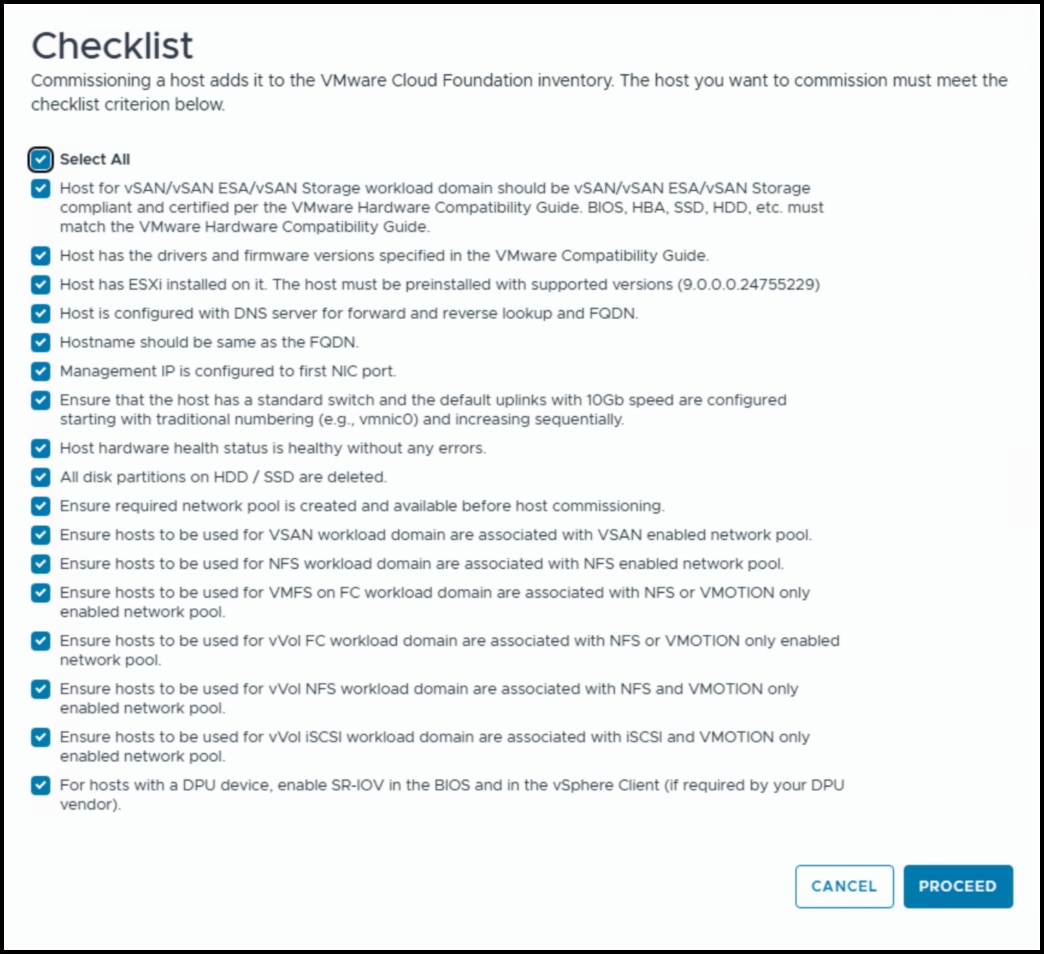
The first screen that appears is a checklist that the user is required to validate before proceeding. Although VMware calls it a checklist, it is merely a list of prerequisites. Be sure that all items are completed before selecting the PROCEED button in the following figure.
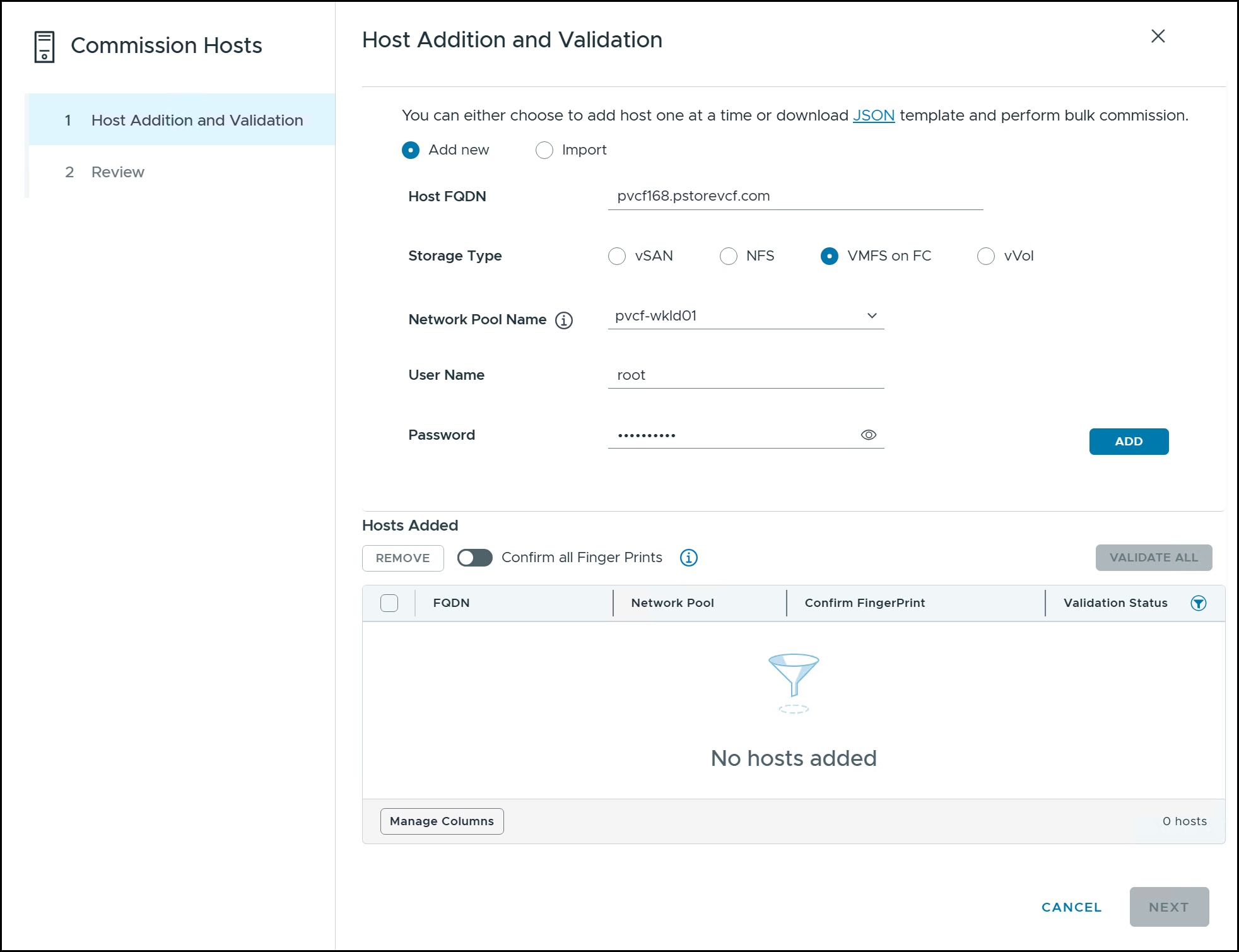
For each host in the workload domain, type in the Host FQDN, use the radio button to highlight the Storage Type VMFS on FC, use the dropdown box to select the Network Pool Name previously created in the section vMotion network pool, and enter a User Name and Password. Then click ADD in the following figure.
Figure 66. Step 3 - Commission hosts
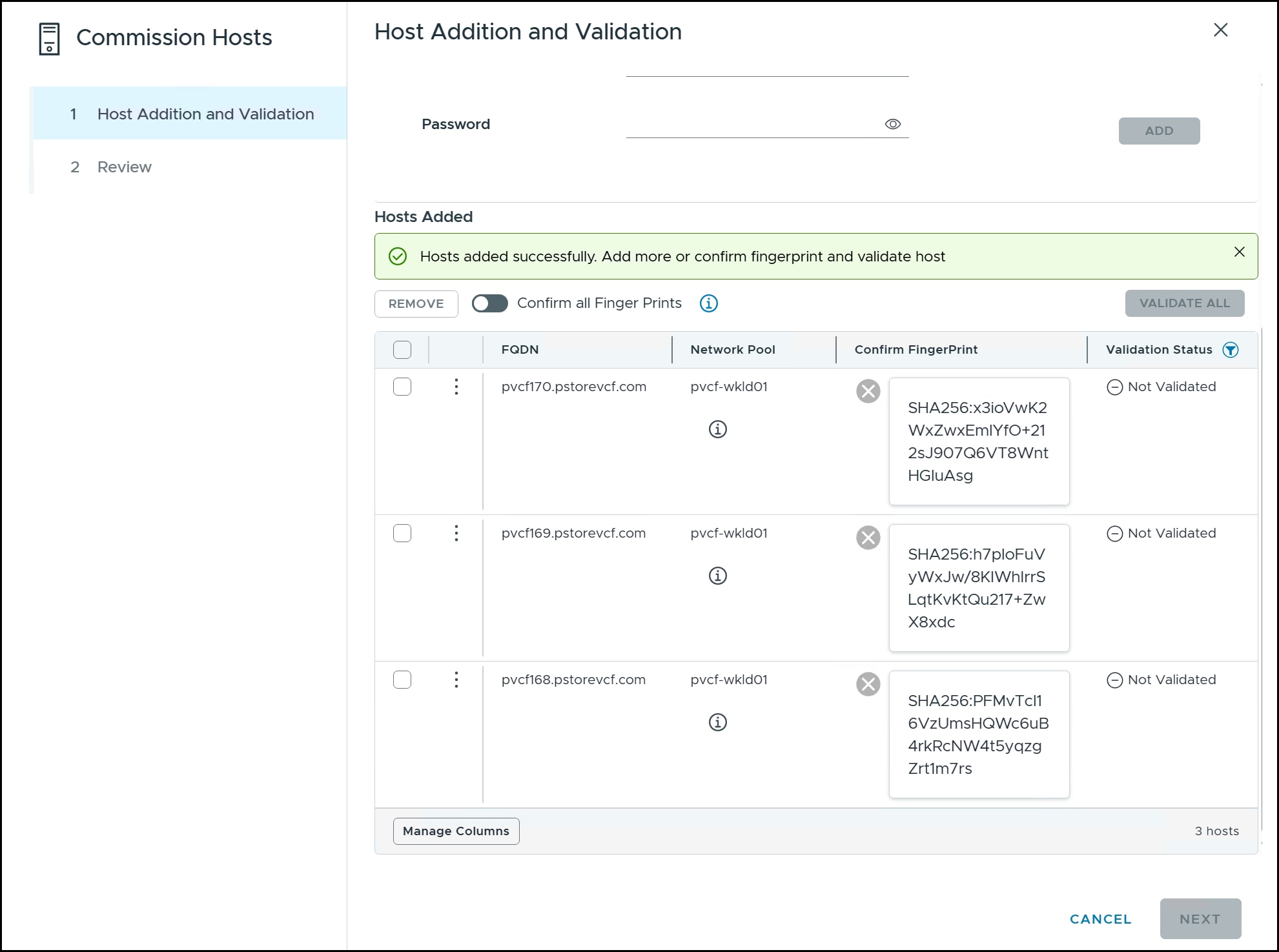
Complete the addition of all the hosts in the following figure.
Figure 67. Step 4 - Commission hosts
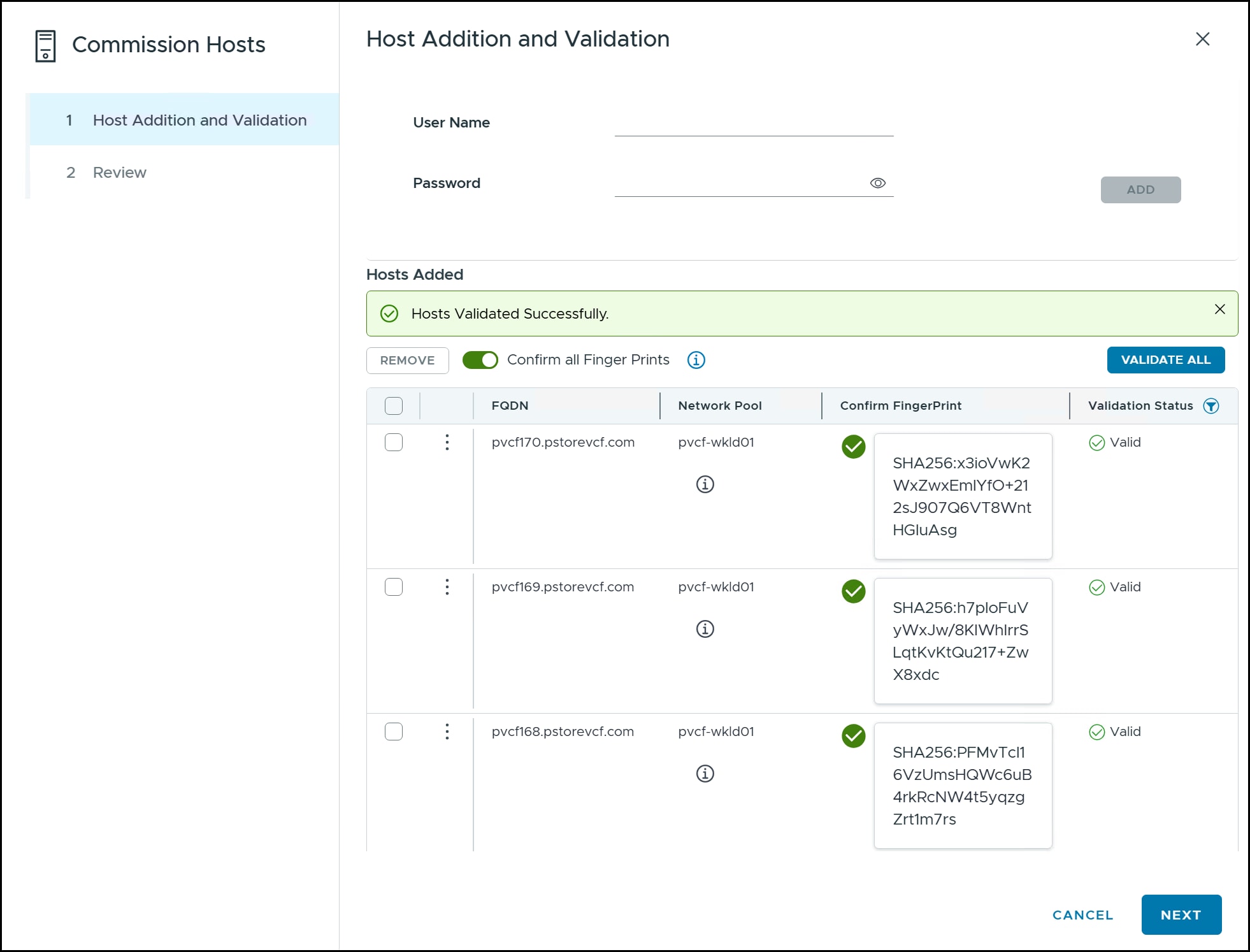
With the hosts added, click the Confirm all Finger Prints and then click VALIDATE ALL in the following figure.
A message should appear at the top that the hosts are validated. If any of the hosts fail to validate, check that the certificates on the ESXi host were regenerated as the failure usually indicates a mismatch between the FQDN and certificate. Click NEXT to continue to the summary page.
Figure 68. Step 5 - Commission hosts
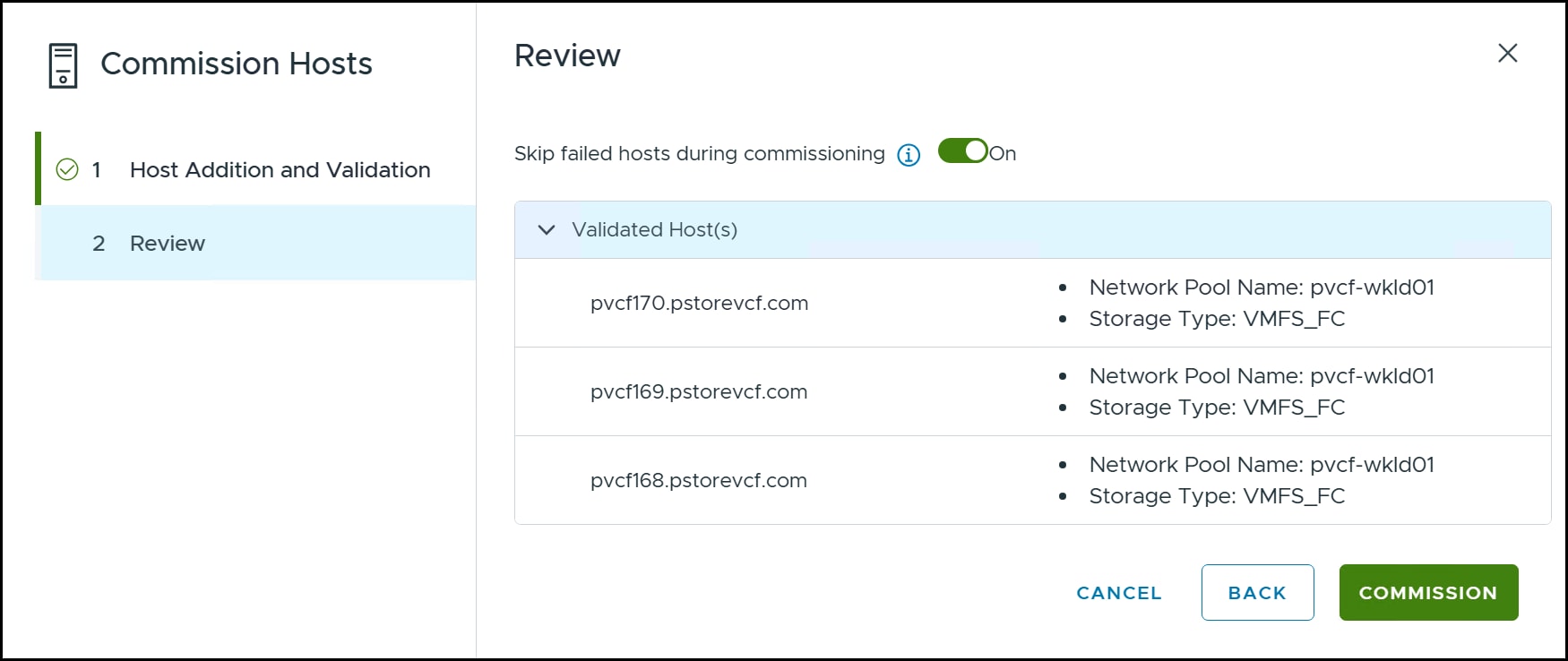
Before selecting the COMMISSION button in the following figure, review the validated hosts. Despite the hosts passing validation in the previous step, there is still a chance that a host fails to commission. To that end, VMware offers a toggle at the top which lets the wizard skip failed hosts. Though unlikely, for example a network failure before commission, it is best to leave it set on. A failed host can be repaired and then commissioned again afterwards. The commissioning process does take some time to complete. Click COMMISSION to complete the wizard.
Figure 69. Step 6 - Commission hosts
Upon completion, the new hosts are displayed in the Unassigned Hosts panel in the following figure, and can now be used for the workload domain.
Figure 70. Unassigned hosts
Workload wizard
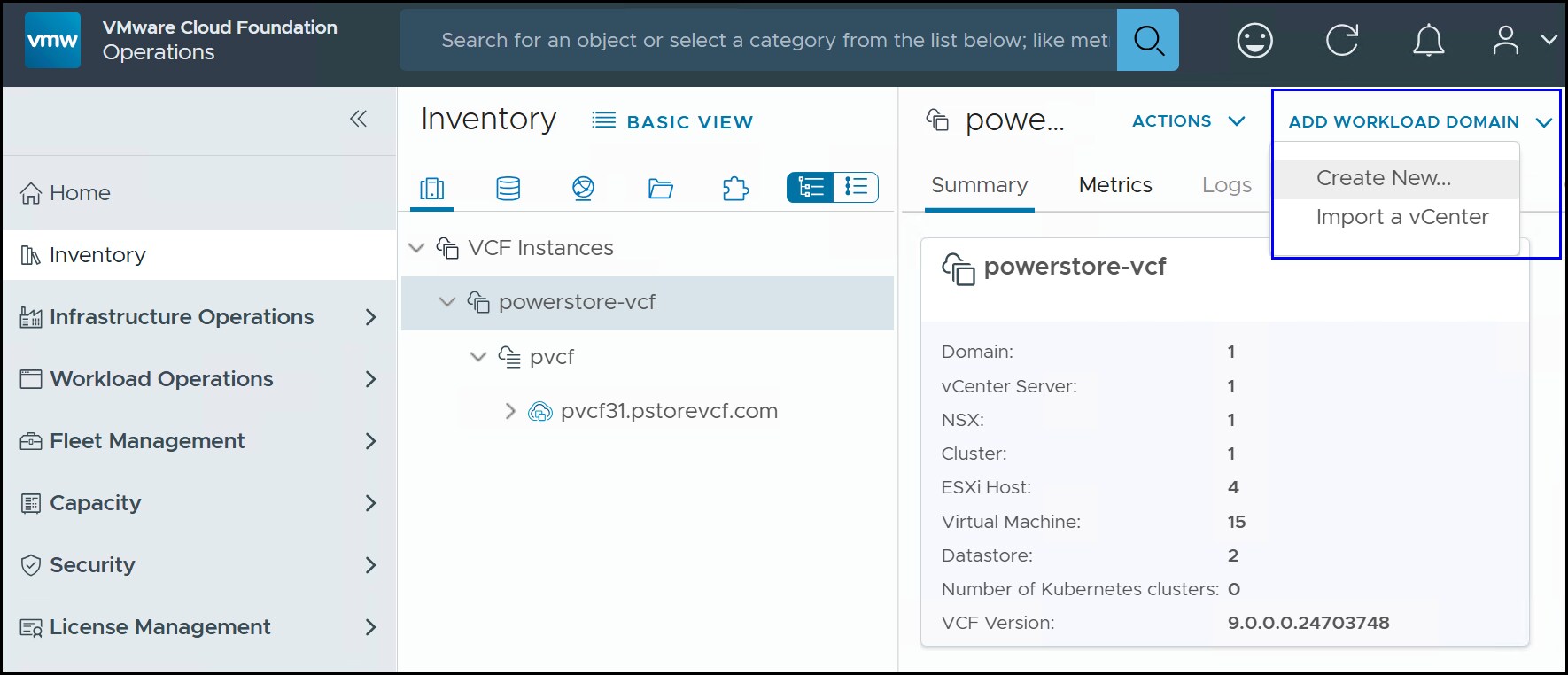
Initiate the workload wizard by navigating in VCF Operations to Inventory > VCF Instances > <instance name>.
After highlighting the instance, the ADD WORKLOAD DOMAIN menu appears in the right-hand panel.
Use the dropdown box in the following figure and select Create New….
Figure 71. Initiate workload domain creation
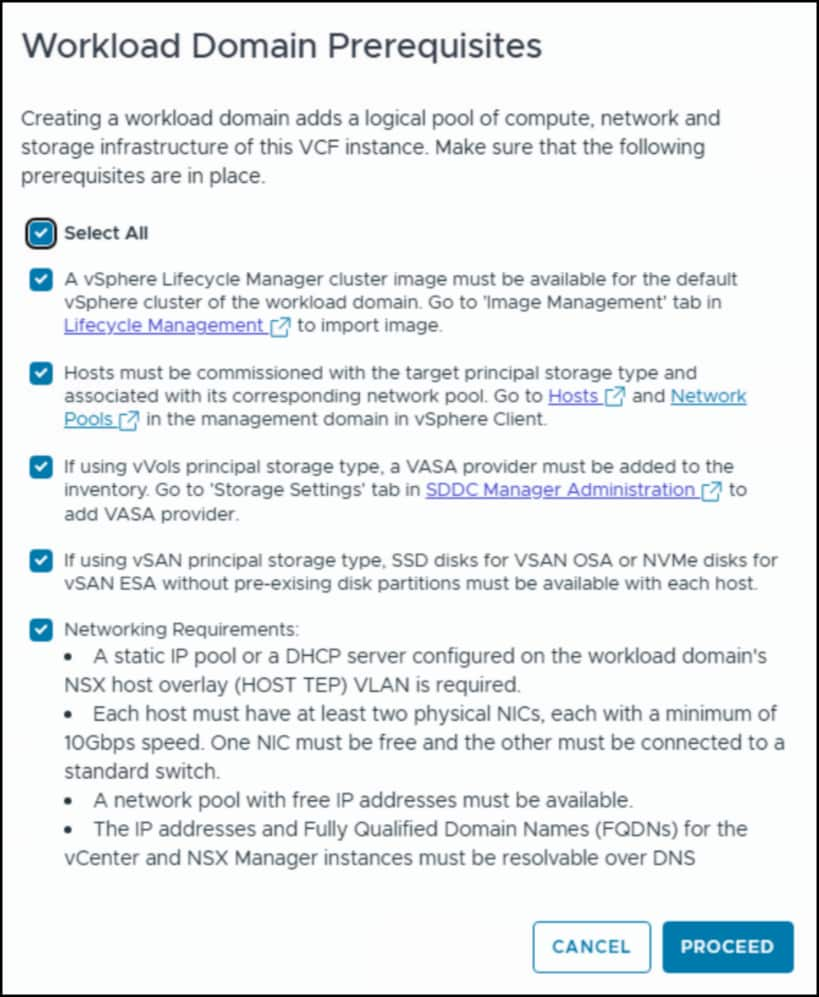
This initiates the wizard. Unlike the management domain installation, there is an initial prerequisite checklist like that seen when commissioning hosts. You must acknowledge all items in the following figure to proceed.
Figure 72. Workload Domain Prerequisites
There are a total of ten steps in the workload domain installation for VMFS on FC. Initially only nine will be present in the images until the Storage stage is passed. They follow here.
General Information.
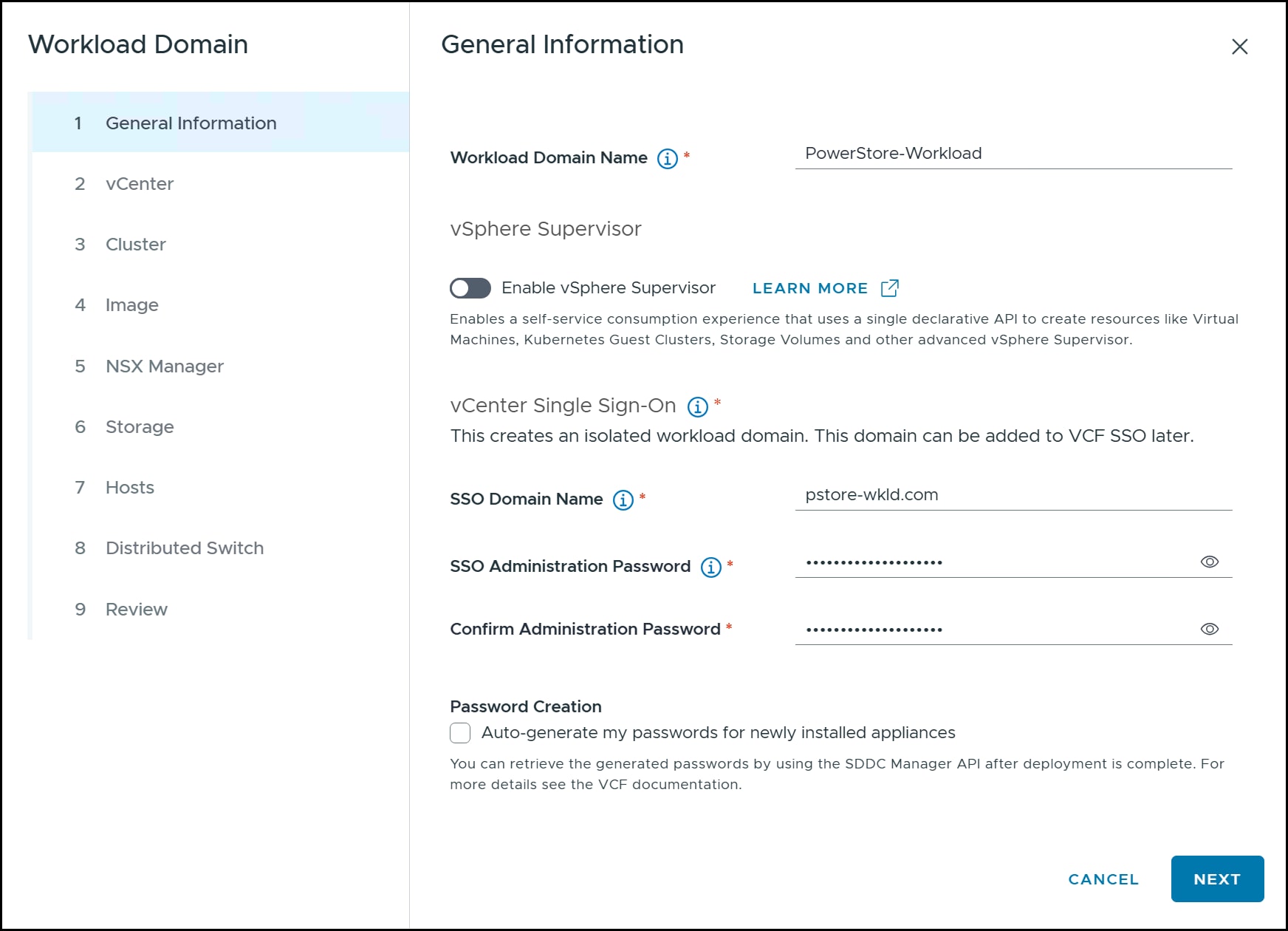
Begin the wizard by providing the required information in the following figure:
Workload Domain Name
SSO Domain Name
SSO Administration Password
Confirm Administration Password
Both Enable vSphere Supervisor and Password Creation are checked on by default. In this implementation they are off. If you choose to use the vSphere Supervisor (containers) you will be required to provide additional networking information. It can be enabled later if desired instead. Click NEXT.
Figure 73. General Information
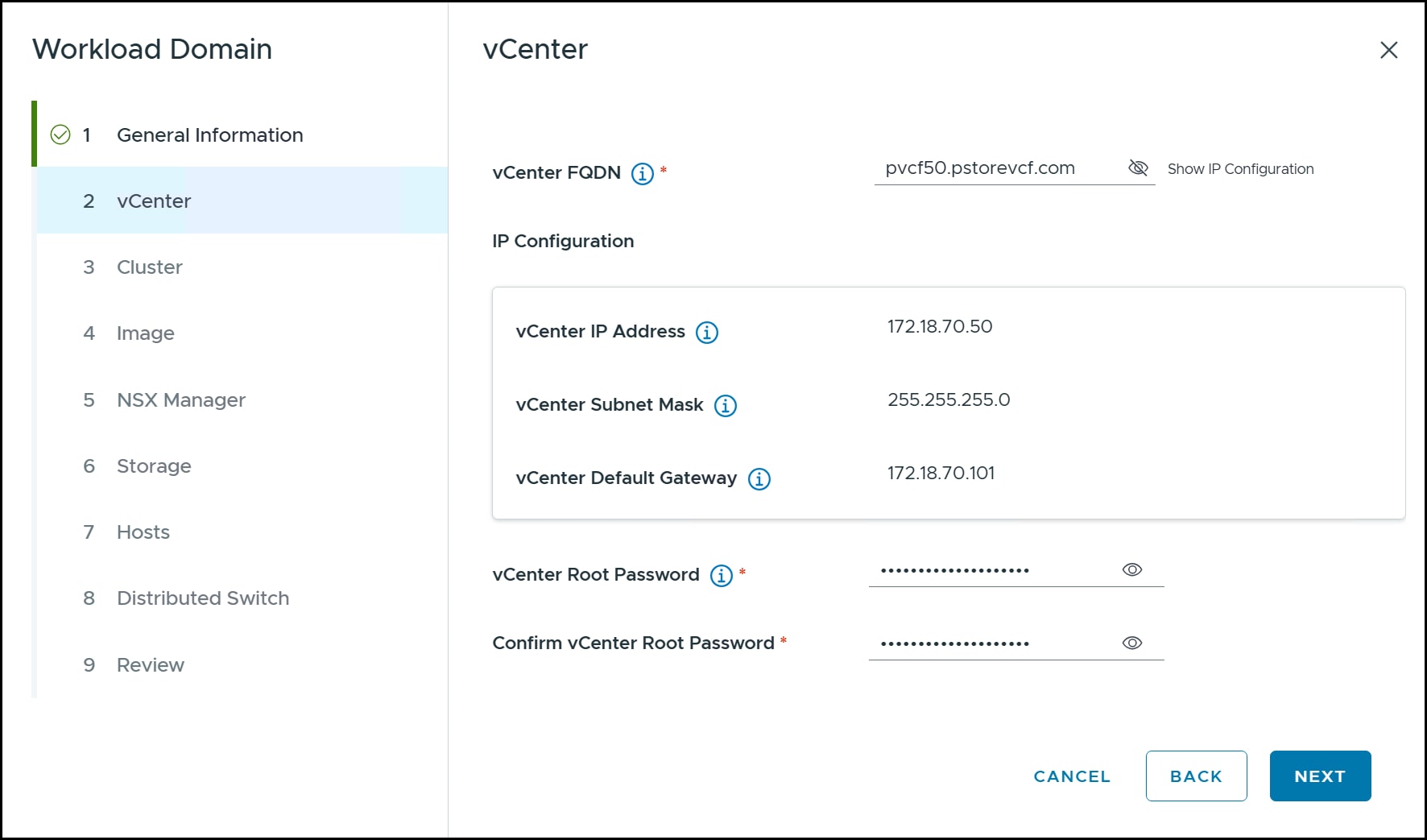
vCenter.
Enter in a vCenter unique FQDN, vCenter Root Password, and the confirmation. If you want to confirm the DNS lookup information, click the eye next to Show IP Configuration as has been done in the following figure. Click NEXT to continue.
Figure 74. vCenter
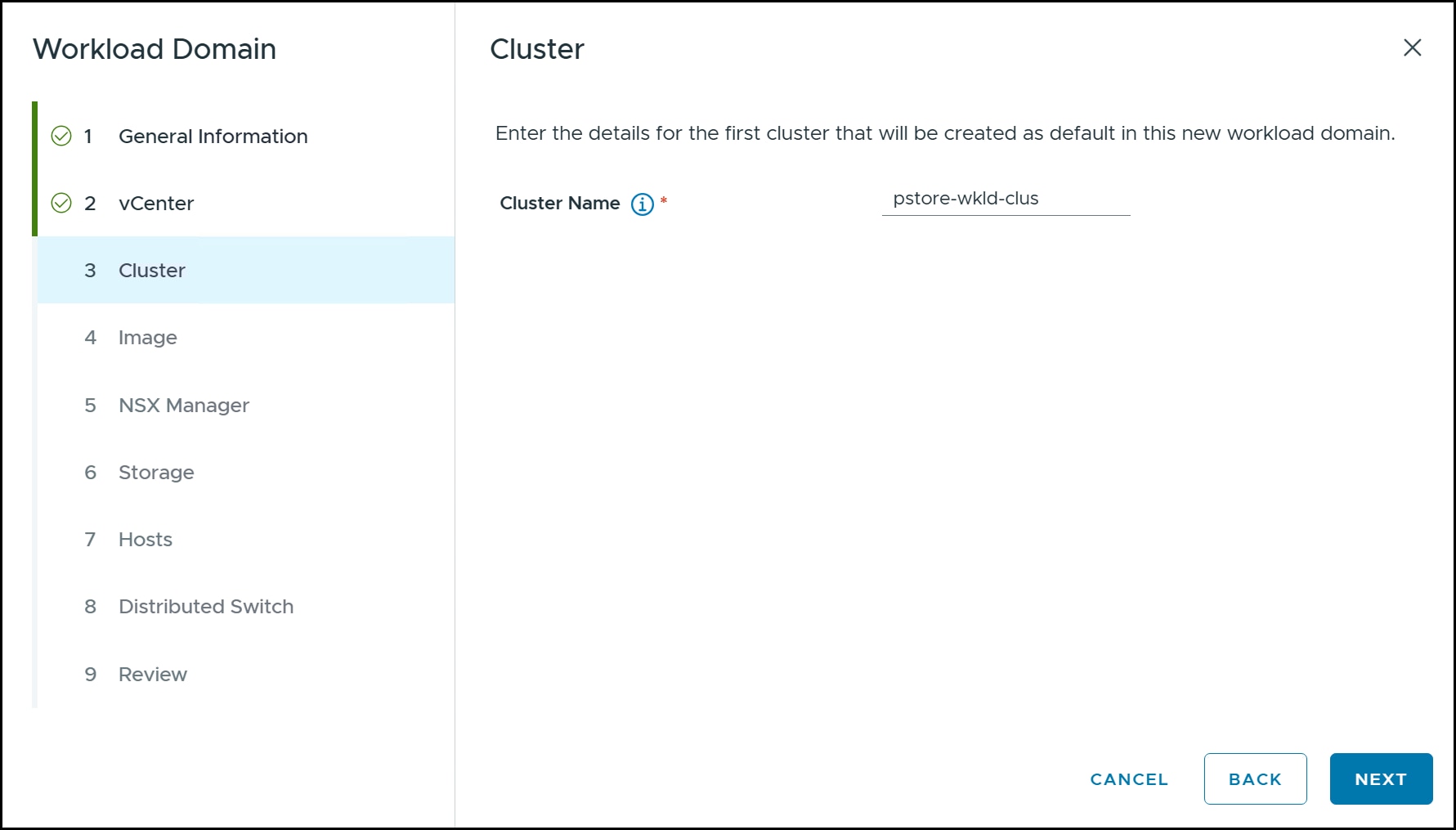
Cluster.
Type in a Cluster Name for the workload domain. Unlike the management domain, the name is not generated from the workload domain name. Click NEXT.
Figure 75. Cluster
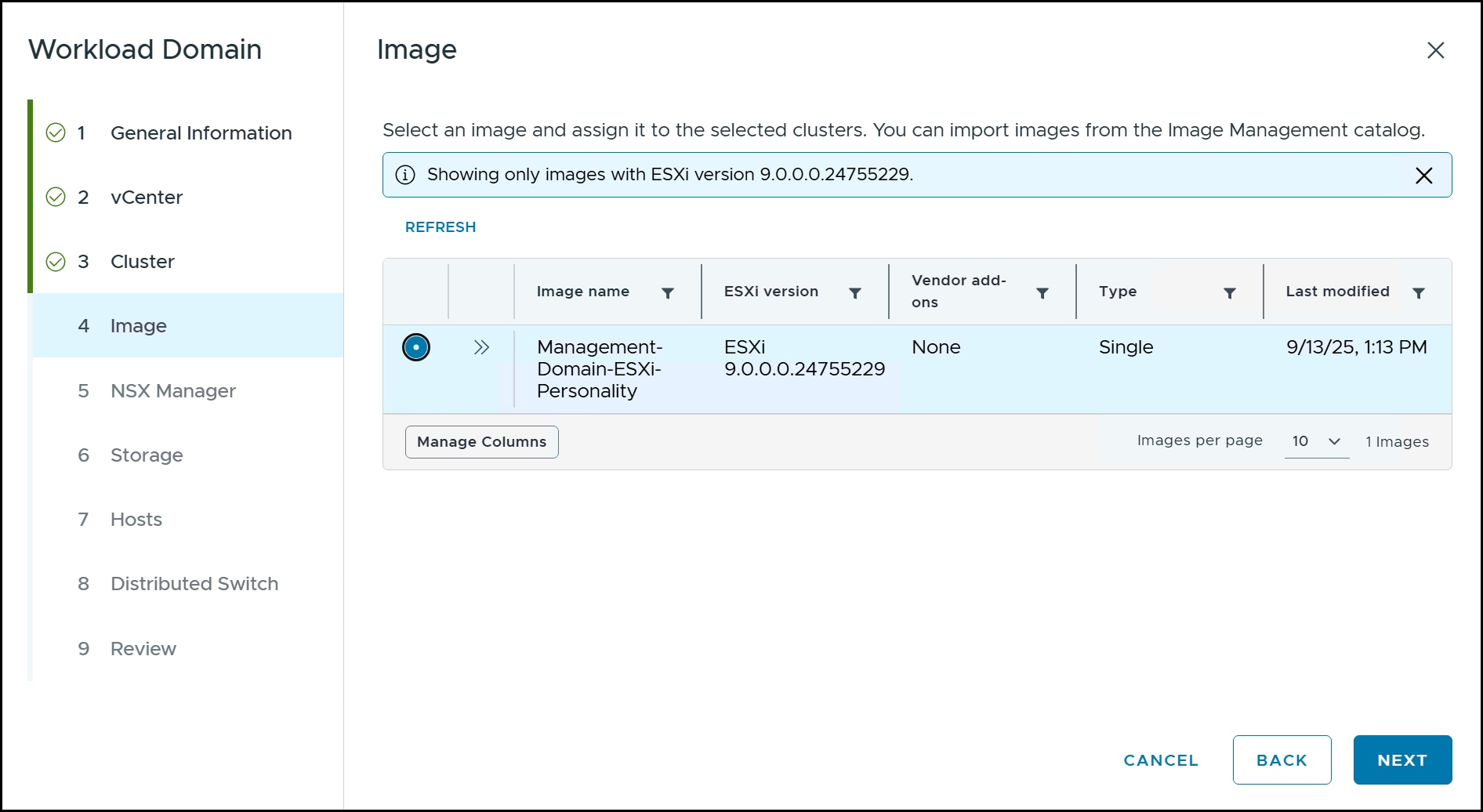
Image.
This next step is one of the prerequisites. In a new implementation there will be a single image listed, the one used in the management domain. The user may elect to create a new one outside the installerand then REFRESH, or as here simply select it in the following figure and click NEXT to move forward.
Figure 76. Image
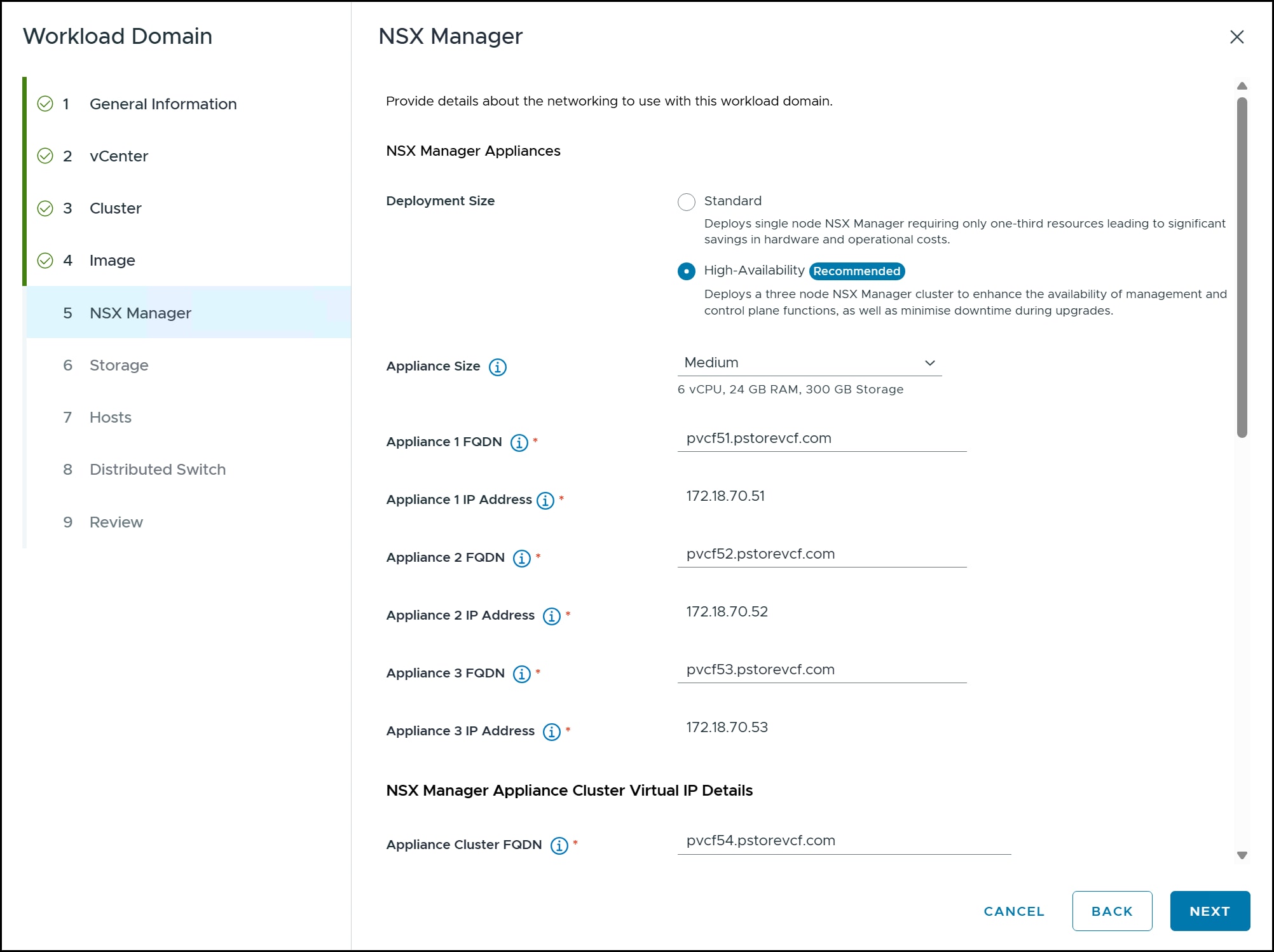
NSX Manager.
In the following figure, choose whether you want to join an existing NSX Manager setup or do a new deployment (default). If you create a new instance, choose a Deployment Size. High-Availability is recommended and selected below. Then fill out the following fields. The appliance IP addresses are generated from the FQDN automatically. Issues with DNS will be apparent if the required lookup fails:
Appliance Size
Appliance 1 FQDN
Appliance 2 FQDN
Appliance 3 FQDN
Appliance Cluster FQDN
Administrator Password and confirmation
Auditor Password and confirmation
Finally, select the type of connectivity. Centralized Connectivity is the default and recommended. This is not shown in the figure below.
Figure 77. NSX Manager
Storage.
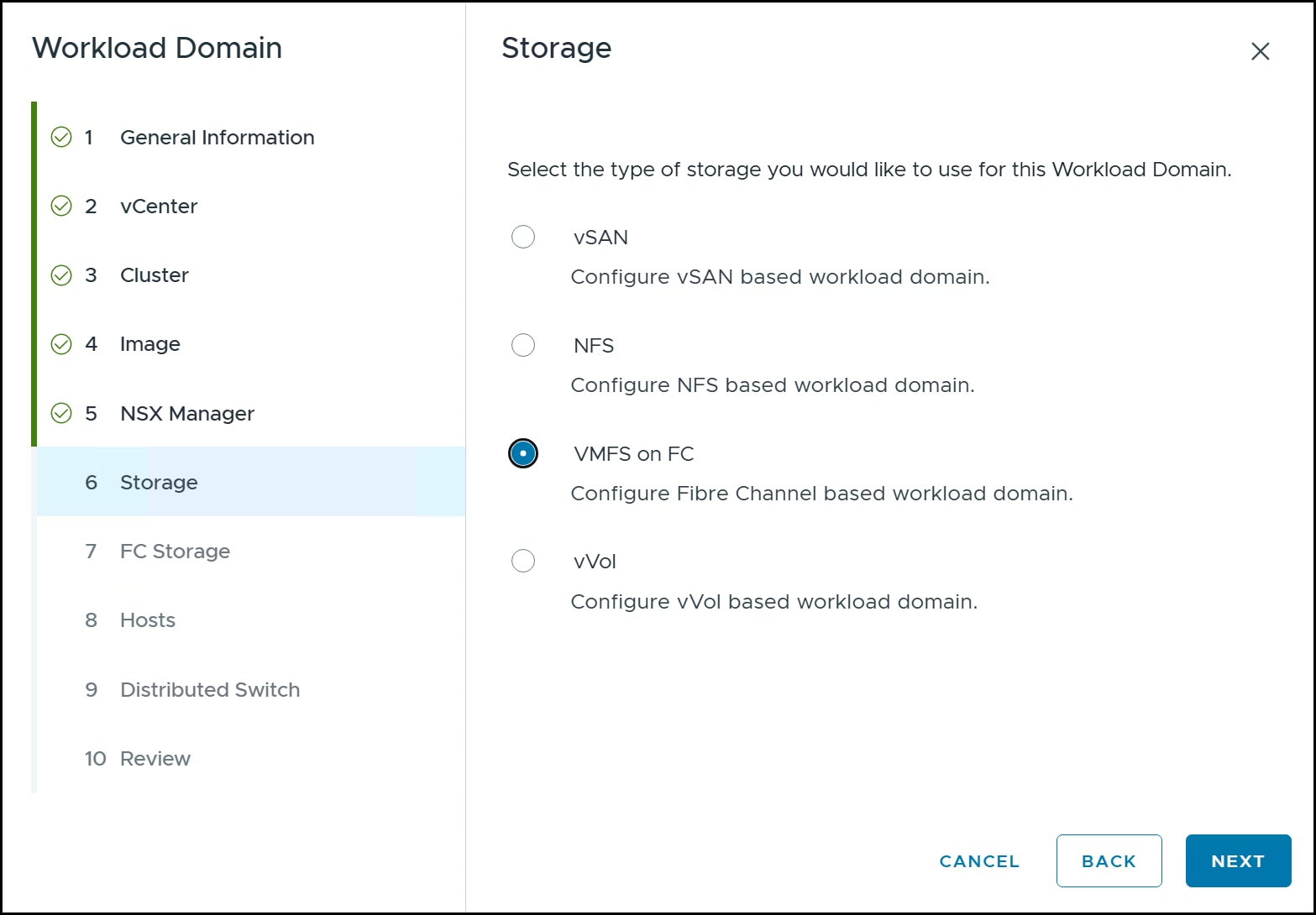
Use the radio buttons to select VMFS on FC and click NEXT in the following figure. Once selected, an additional step appears for FC Storage.
Figure 78. Storage
FC Storage.
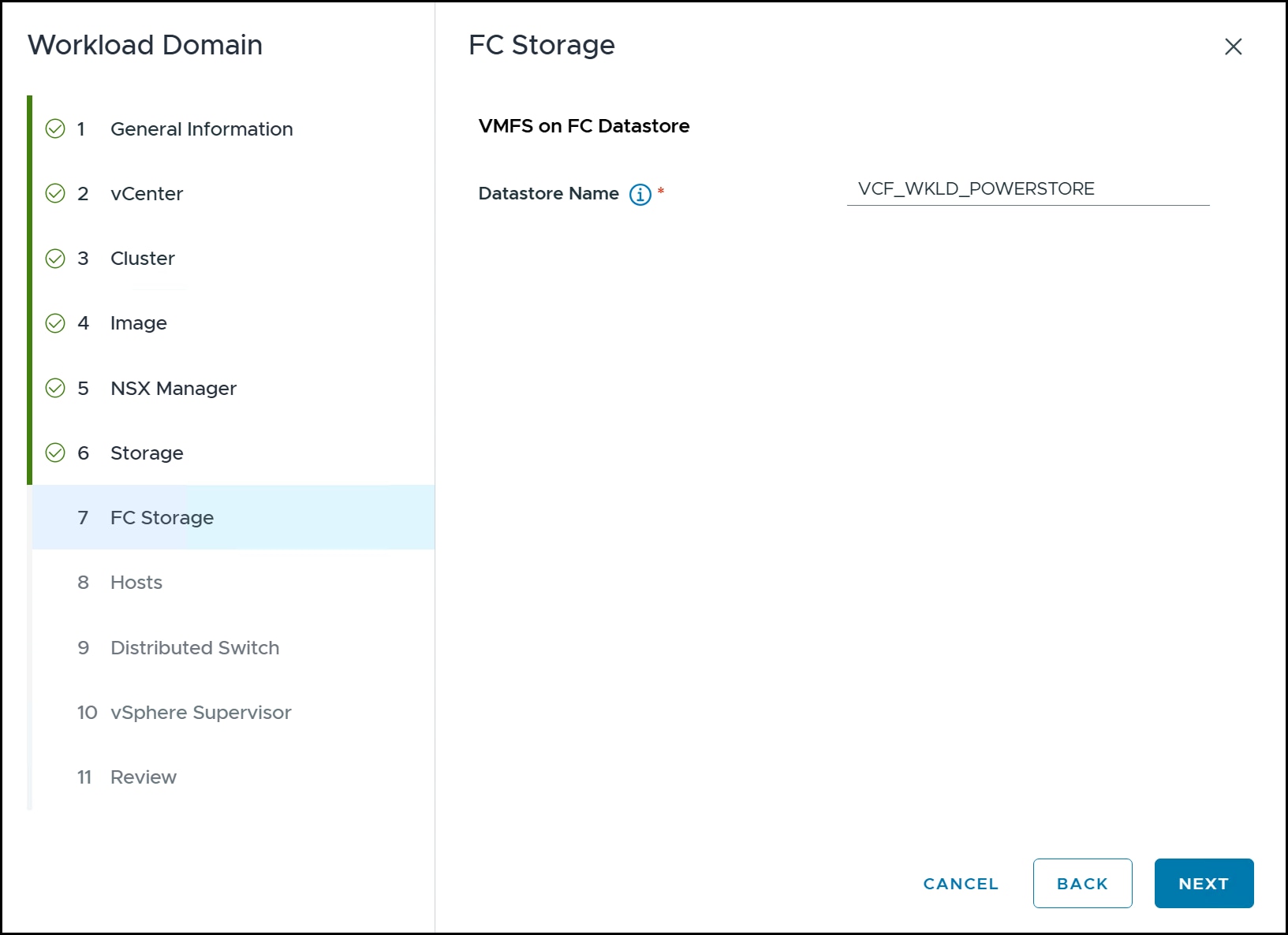
Enter in the datastore name in the following figure created in the section Datastore creation. Be sure to type it in correctly as the wizard will validate it only at the start of the installation of the workload domain
Figure 79. FC Storage
Hosts.
If you commissioned the hosts properly in Commission hosts, then they are available for selection in the following figure. Though there are three hosts here, the wizard reports in parentheses the statement2+ hosts required.
Figure 80. Hosts
Distributed Switch.
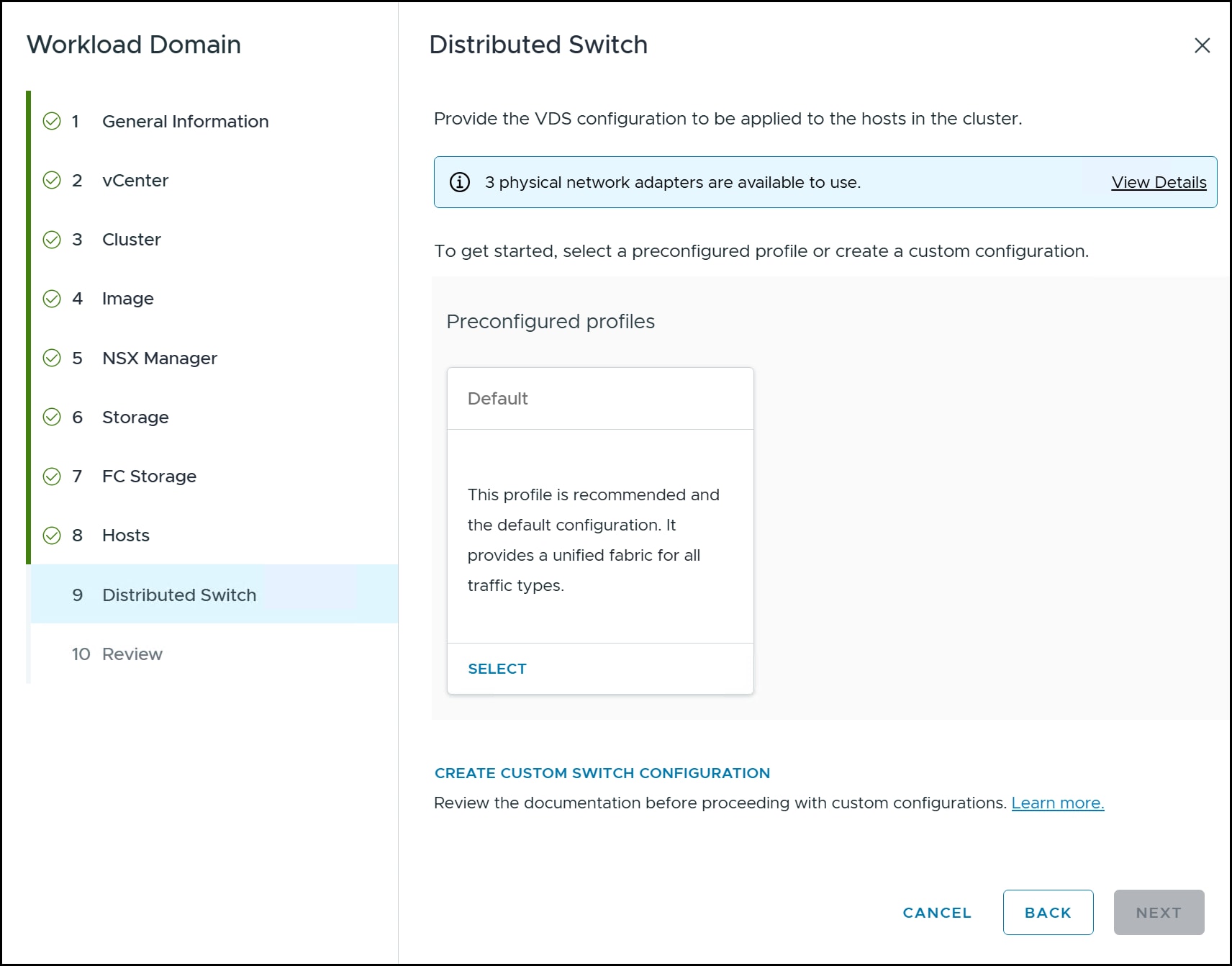
When configuring the distributed switch, you can select the Default configuration which is a preconfigured profile or create a custom switch configuration. A custom switch configuration allows greater flexibility than the default. For example, with a custom switch, a user could separate the data and management paths if they intend on using iSCSI or NVMe/TCP with PowerStore as supplemental storage. The options are in the following figure. The ESXi hosts for the workload domain in this implementation were built like the management domain and therefore the Default configuration is acceptable.
Figure 81. Step 9a – Distributed Switch
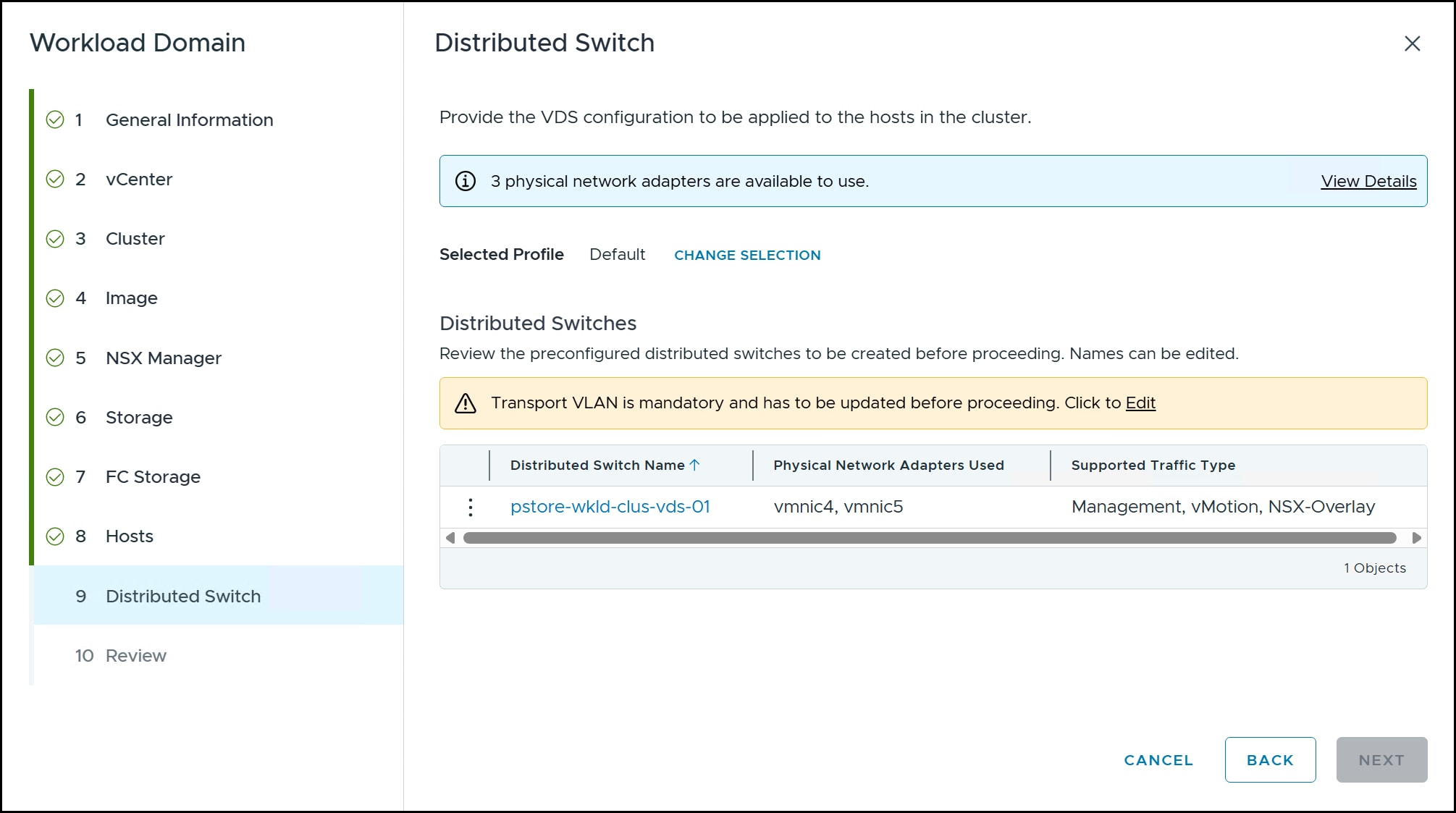
After selecting the default configuration, you will be prompted to set up a Transport VLAN. Use the Edit button in the following figure to set the Transport VLAN.
Figure 82. Step 9b – Distributed Switch
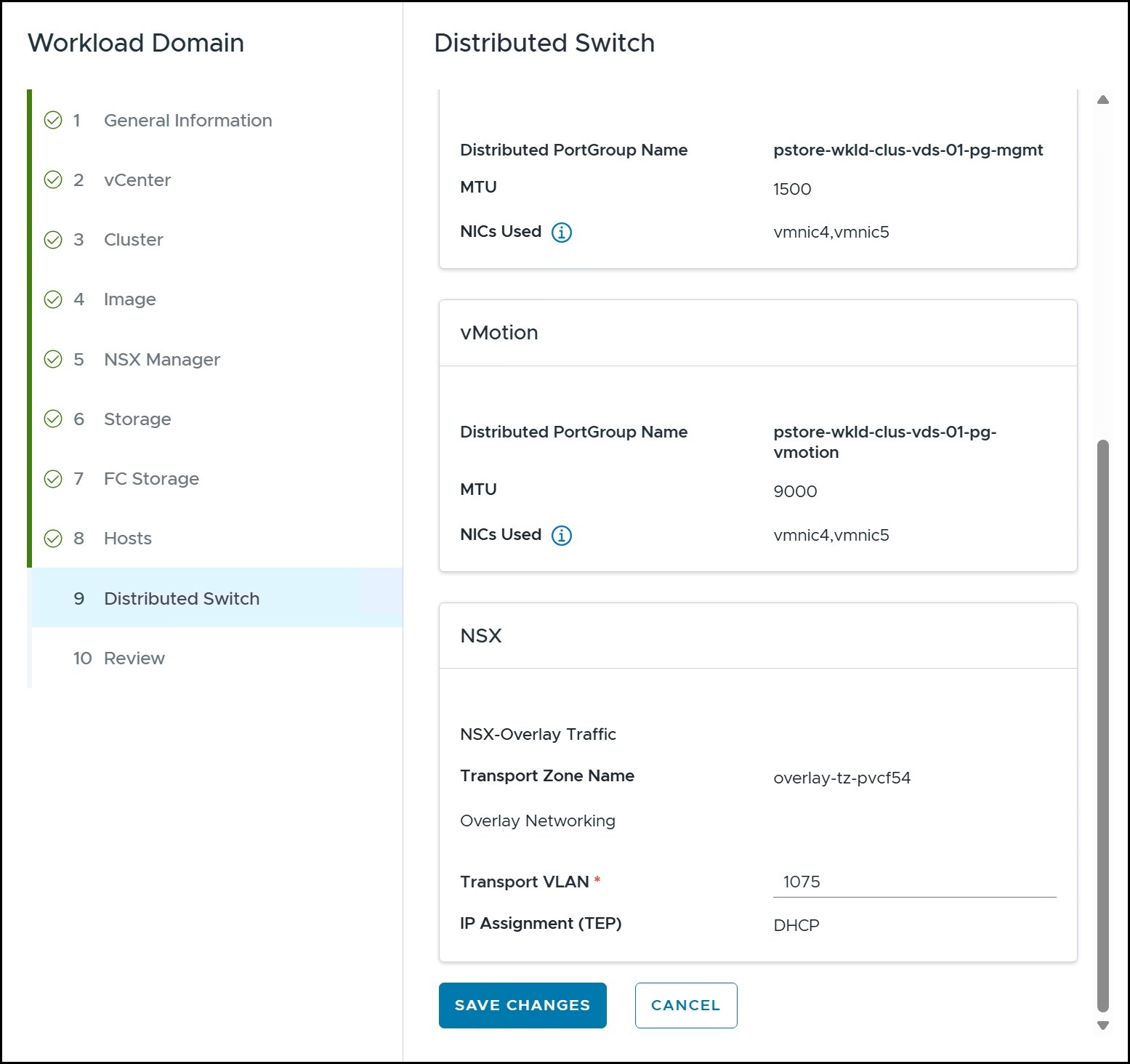
After clicking Edit, scroll down in the screen and type in the Transport VLAN. Click SAVE CHANGES.
Figure 83. Step 9c – Distributed Switch
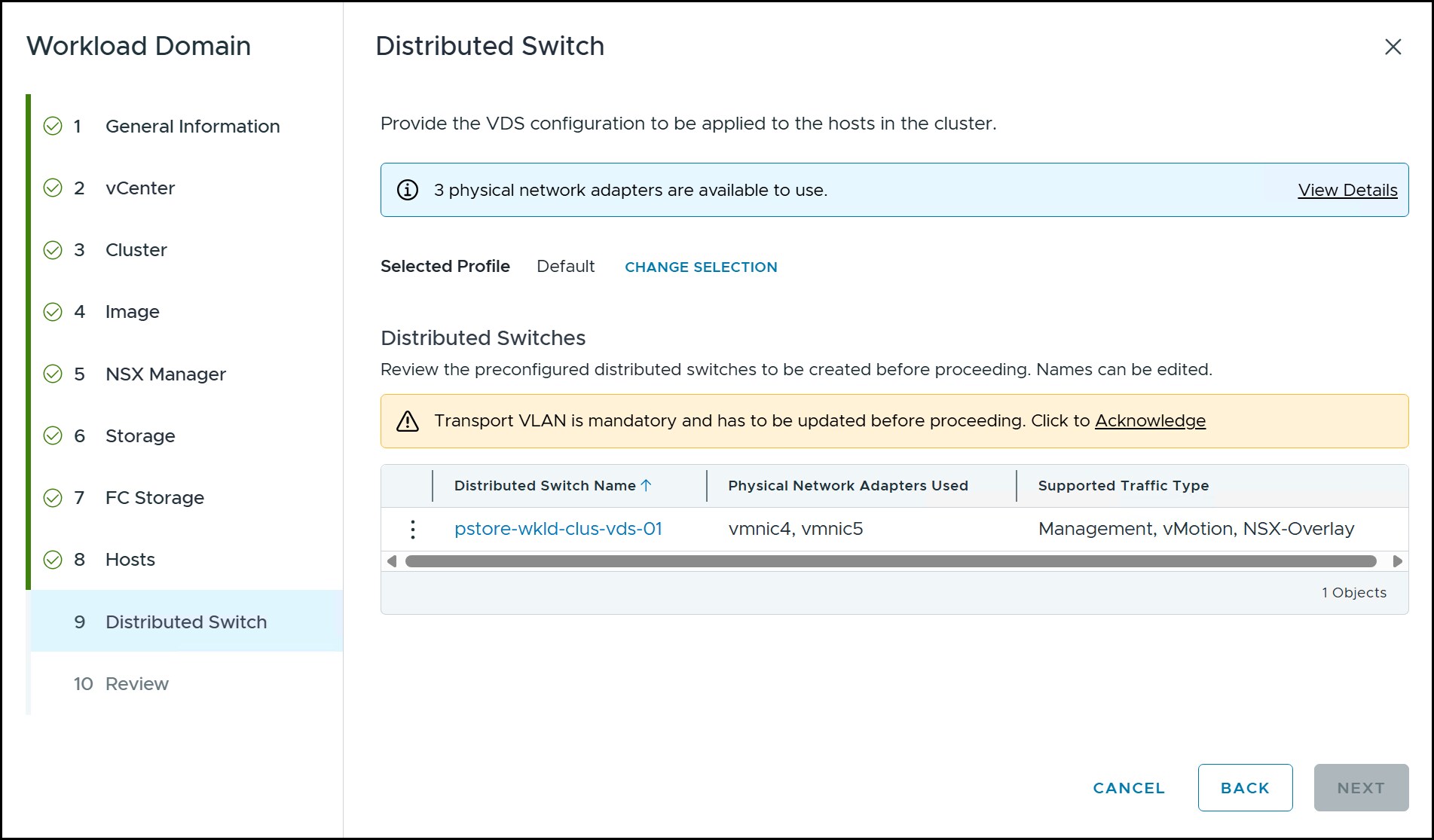
Once complete, you will return to the main screen. The Transport VLAN message will still be present but now you must Acknowledge it, after which the NEXT button is available in the following figure. Click it.
Figure 84. Step 9d – Distributed Switch
Review.
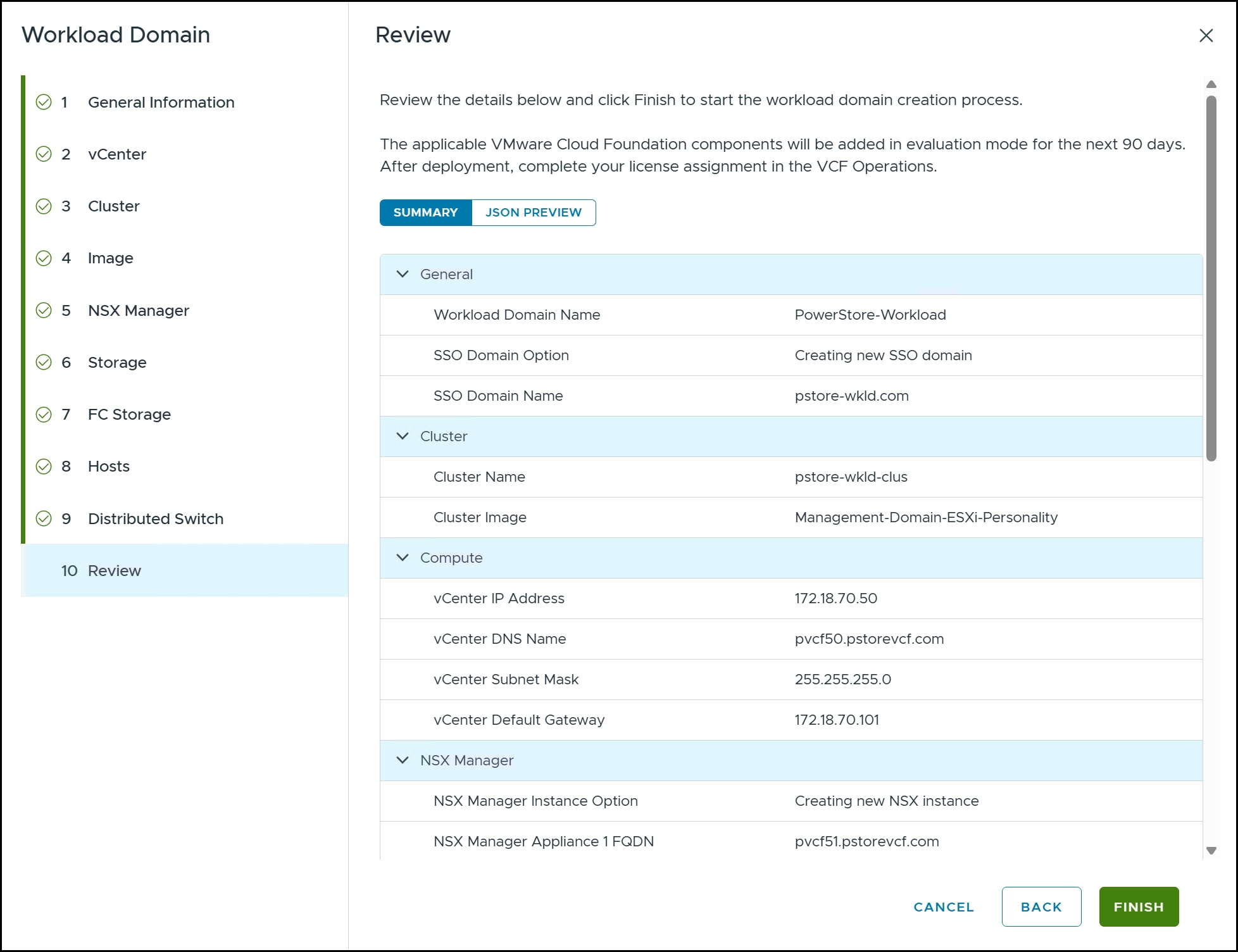
The last screen shows all the step information entered. Review carefully and if anything requires changing, you can click back to any step and fix it. When ready click FINISH in the following figure.
Figure 85. Review
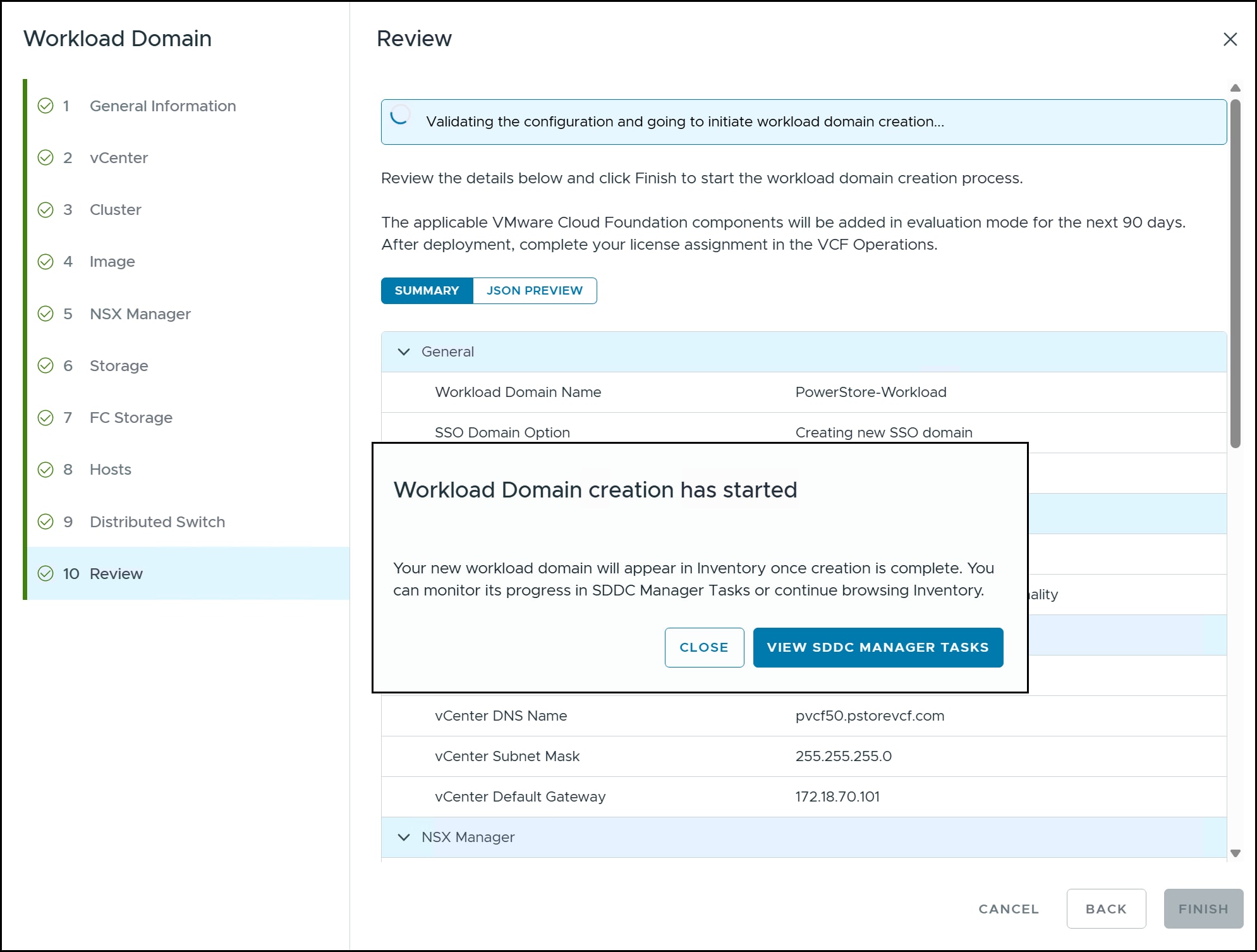
After you click FINISH, the wizard will initiate both the validation and the workload domain creation in the following figure.
Figure 86. Validation and domain creation
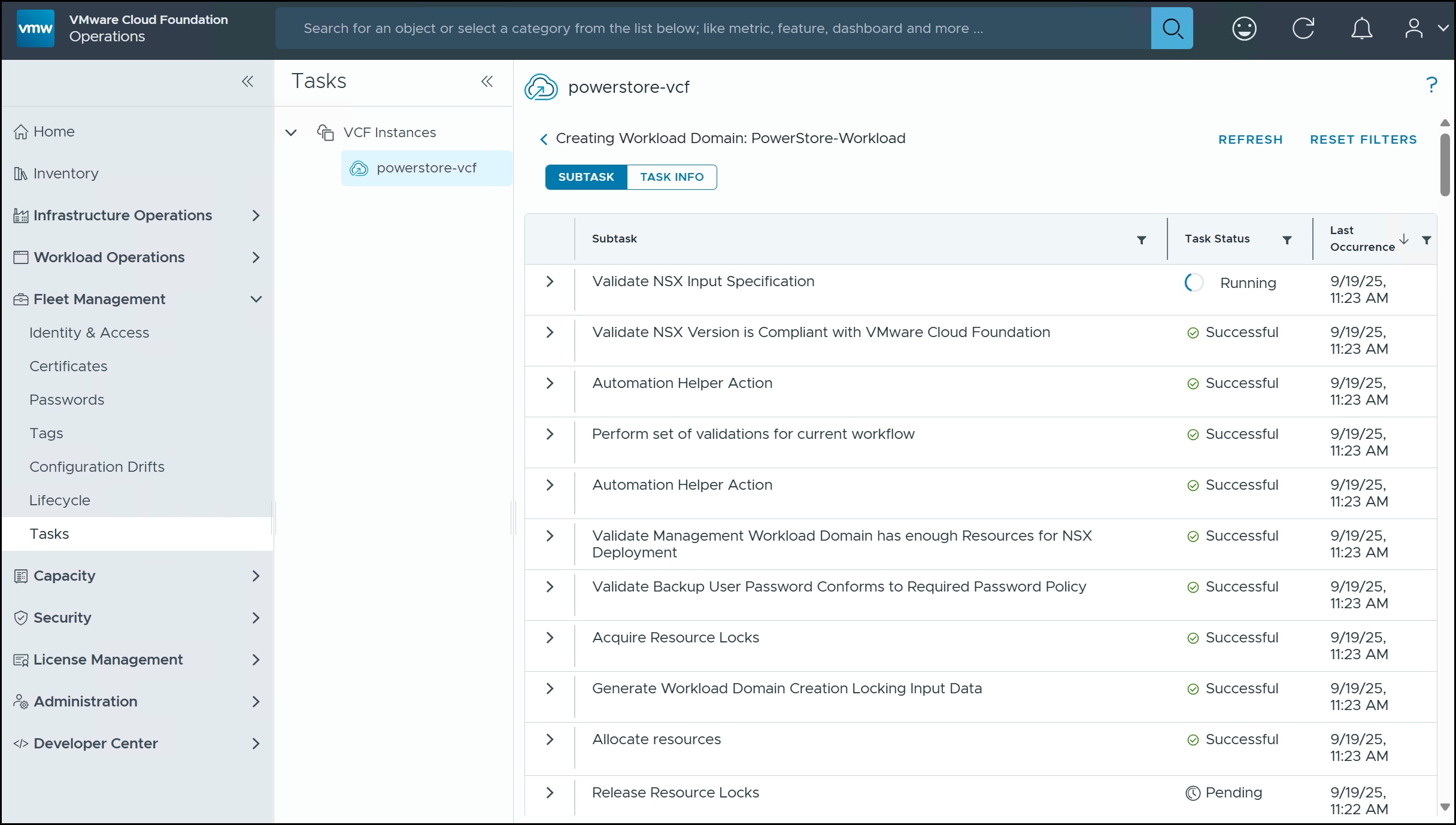
You can view the progress of the creation by clicking VIEW SDDC MANAGER TASKS in the dialog in the #GUID-DEA92A7F-489A-4D61-83C3-18CB8F3EB06B__FIG_Q2F_TRY_HGC figure or, if you clicked CLOSE, then navigate to Fleet Management > Tasks in VCF Operations as shown in the following figure.
Figure 87. Tasks – workload domain creation
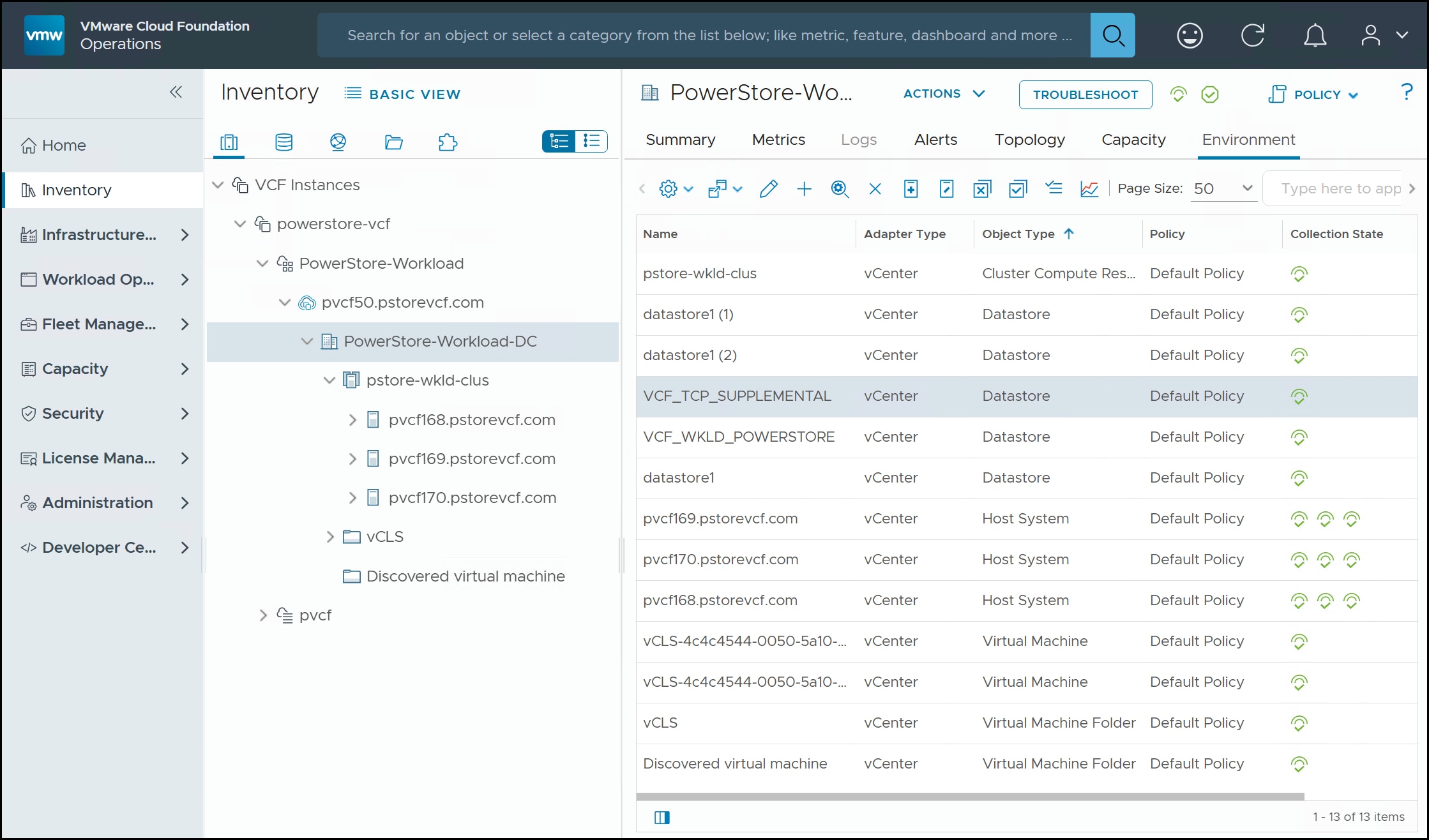
When the workload domain creation is complete, you can view it in Infrastructure Operations > VCF Health in the following figure.
Figure 88. PowerStore-Workload Domain
The domain is now ready for VM deployment of your chosen workloads.
Note: The VMs created as part of a workload domain, unlike the management domain, are not stored in the datastore used for the deployment. The VMFS assigned to the workload domain will still be empty post-installation. The VMs for the vCenter and NSX are stored in the management domain VMFS. The resources of the workload domain hosts, therefore, are fully available to service application workloads.
Supplemental Storage
Supplemental Storage
Introduction
This chapter explains how to present supplemental storage to a workload domain using the NVMe/TCP protocol.
Supplemental storage
Supplemental storage is any storage that is presented to a management or workload domain after initial deployment. It is still considered supplemental storage even if it is the same principal storage type used during the installation. The PowerStore supports all supplemental storage except vSAN as that is a proprietary VMware solution. To demonstrate the flexibility of the PowerStore, the following sections detail provisioning supplemental storage, using the NVMe/TCP protocol, to the previously created workload domain.
NVMe/TCP
NVMe/TCP is a storage protocol that allows NVMe-based flash storage to be accessed over standard TCP/IP networks, offering high performance without the need for specialized hardware like Fibre Channel or RDMA. When used with SAN storage like the PowerStore, NVMe/TCP provides a scalable, low-latency alternative to traditional protocols like iSCSI, making it well-suited for all-flash environments and software-defined infrastructure. In VCF environments, NVMe/TCP enables ESXi hosts to connect to NVMe-capable PowerStore arrays over standard 10/25/100 GbE networks, combining the performance advantages of NVMe with the simplicity and flexibility of IP networking. It integrates with VMware’s native multipathing and supports VMFS and vVols.
NVMe/TCP PowerStore configuration
NVMe/TCP is set up as a storage network on the PowerStore. Once the proper ports are cabled, you can configure a storage network and map it to the front-end ports, supplying the necessary IP addresses for access. The ESXi hosts can discover those controllers through an NVMe/TCP adapter. The NVMe/TCP configuration is driven by a wizard in PowerStore Manager. What follows is an example of configuring one of the ports on Node A and B of an appliance.
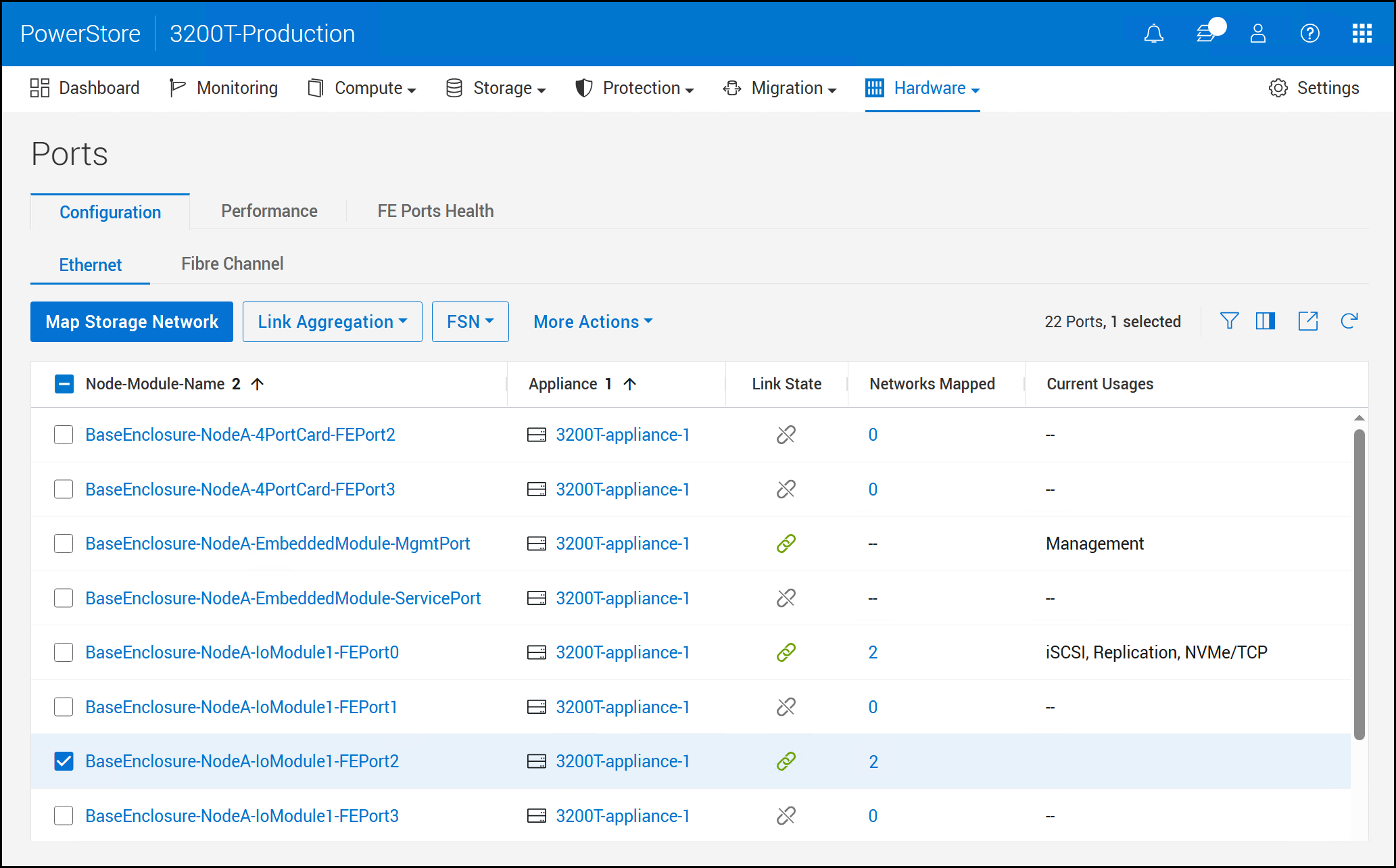
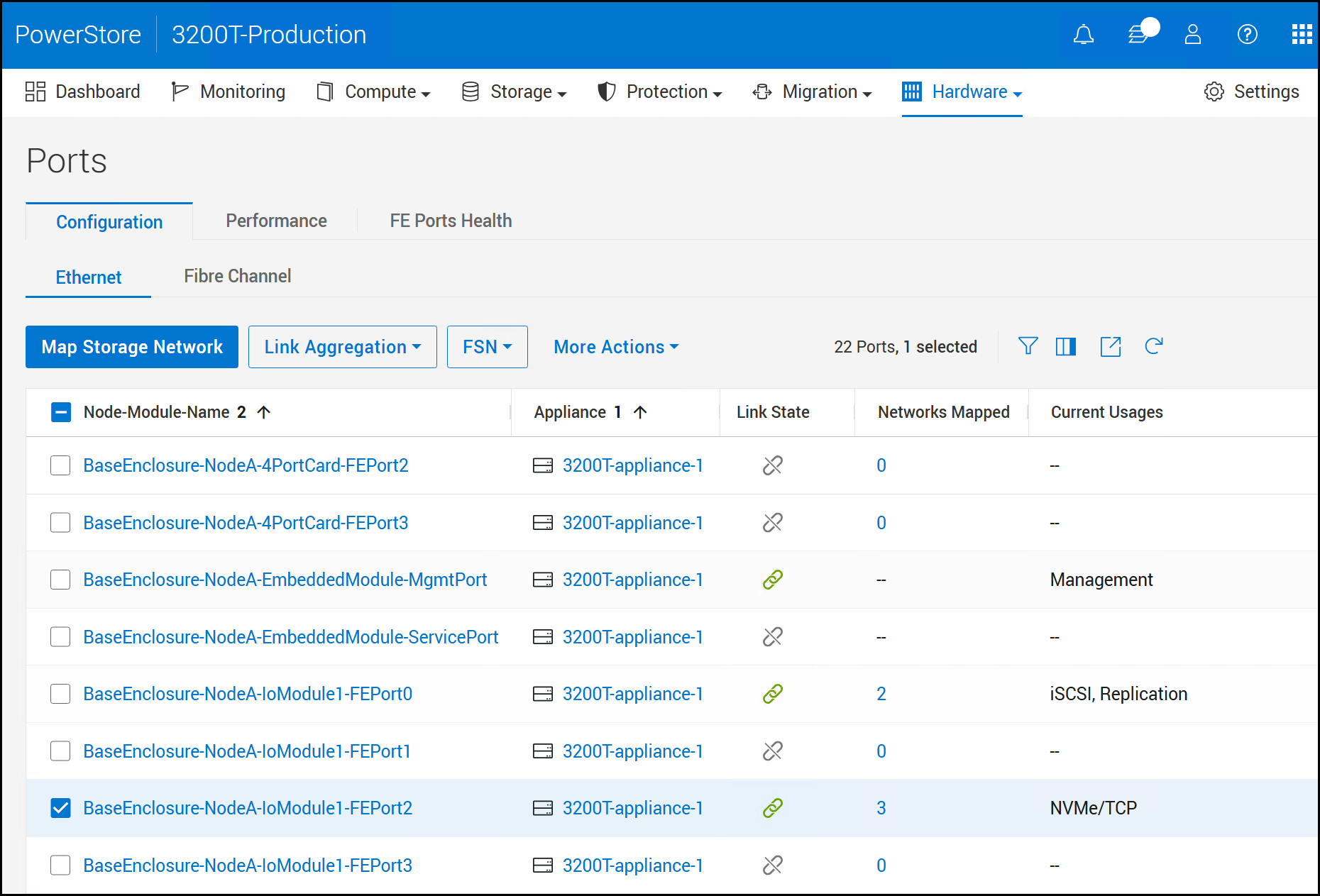
Begin by logging into PowerStore Manager as an administrator and navigate to Hardware > Ports . Click the checkbox next to the desired FE Port. It is only necessary to select the port from one of the Nodes. In the following figure FE Port 2 on Node A is selected. Click Map Storage Network to start the wizard.
Figure 89. Step 1 – NVMe/TCP Map Storage Network
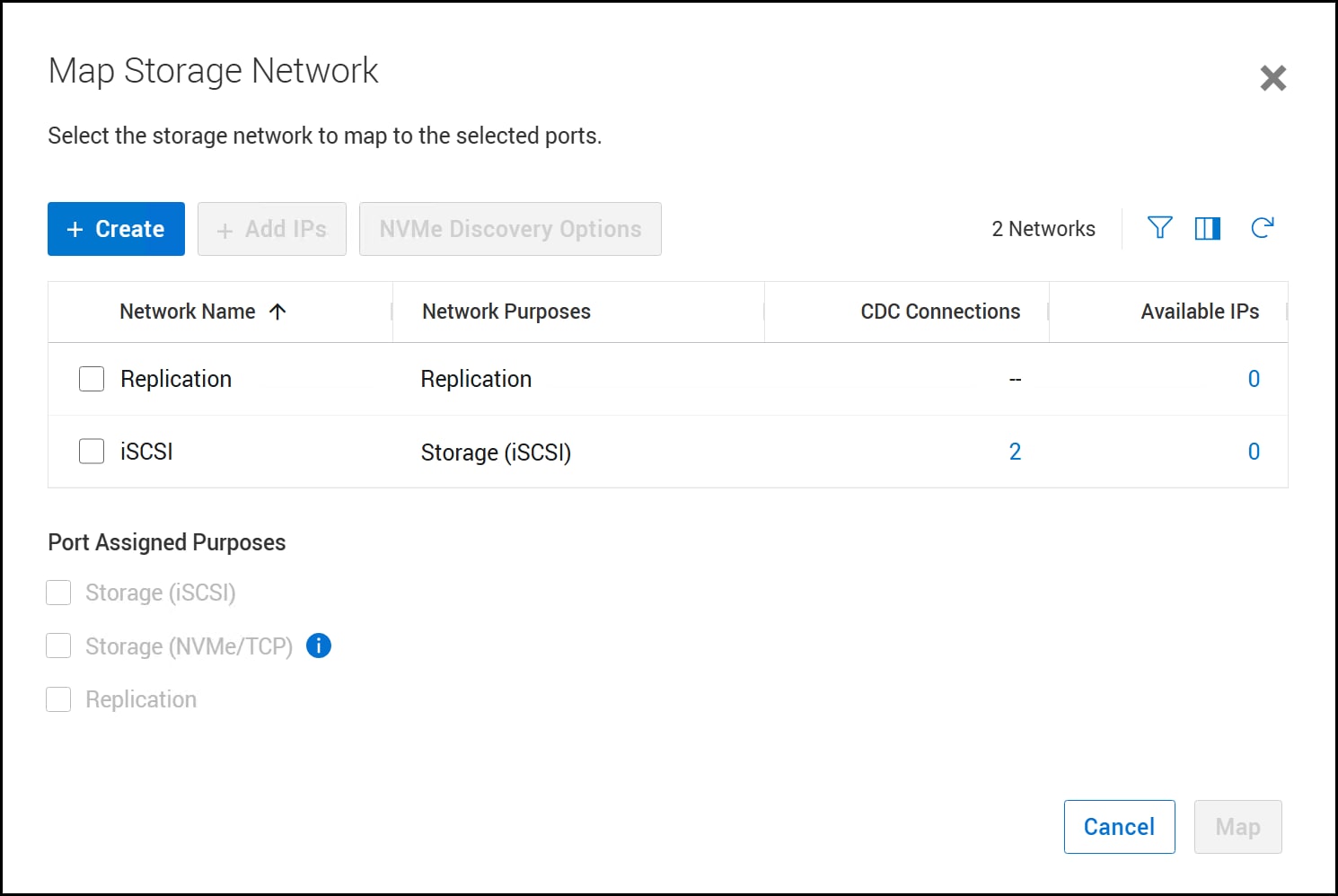
In the Map Storage Network dialog click + Create below.
Figure 90. Step 2 – NVMe/TCP Map Storage Network
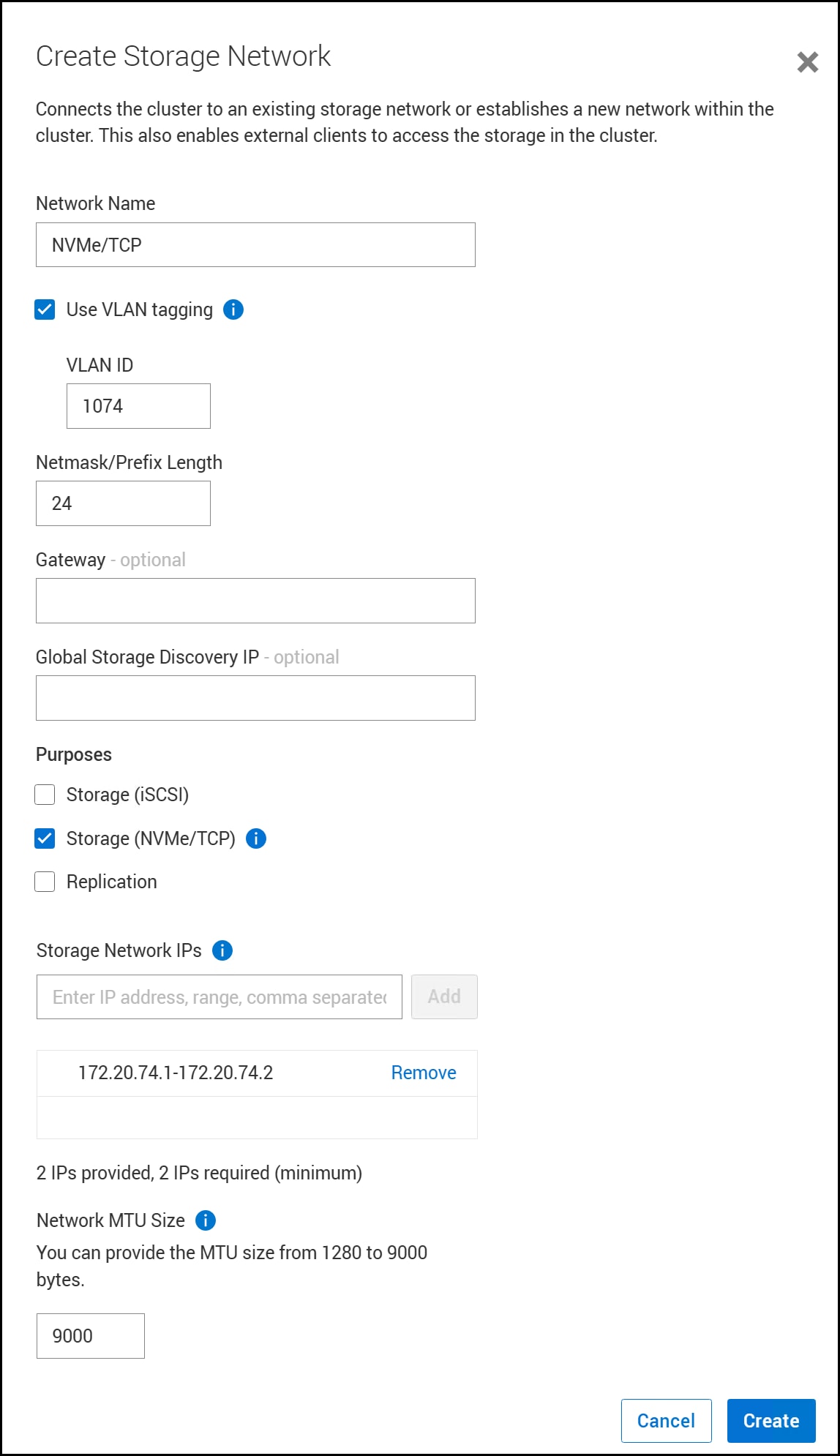
Enter in the information in Figure 91 for the new network. The required fields are Network Name, Netmask, Purposes, Storage Network IPs and MTU. In this example we are setting up the network for NVMe/TCP on a separate VLAN. It is possible, however, to add other storage purposes if you are sharing the VLAN. Click Create.
Figure 91. Step 3 – NVMe/TCP Map Storage Network
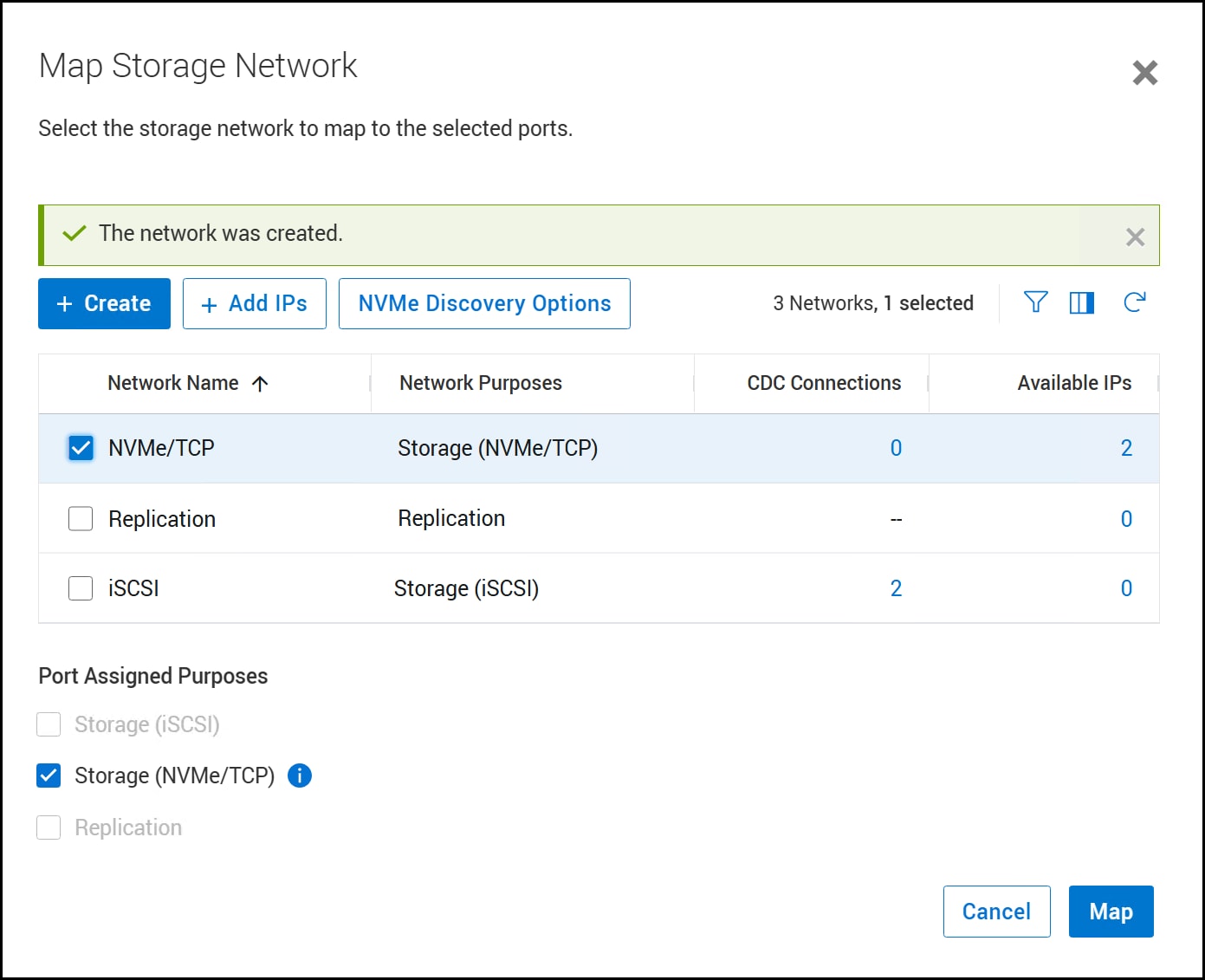
When you return to the Map Storage Network dialog, use the checkbox to select the new network and click Map in the following figure.
Figure 92. Step 4 – NVMe/TCP Map Storage Network
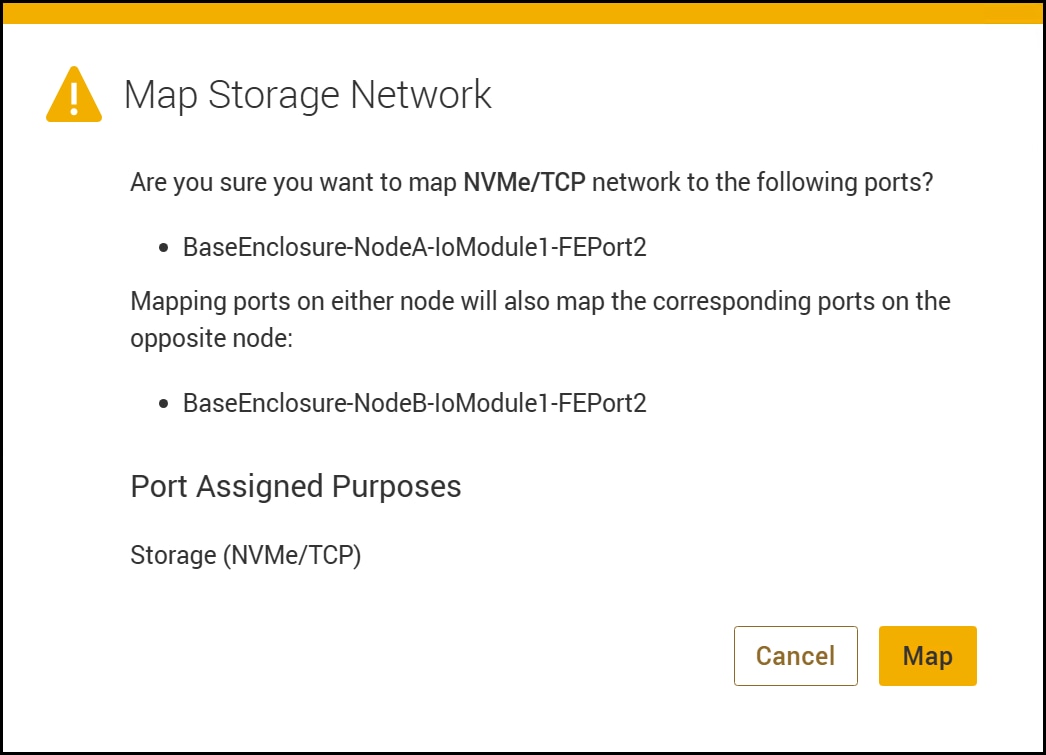
The wizard displays a warning asking you to confirm the map below. Note here, as mentioned above, that the new network is mapped automatically to the other node as well. Click Map to complete adding and mapping the network.
Figure 93. Step 5 – NVMe/TCP Map Storage Network
The new network appears in the following figure.
Figure 94. Summary – NVMe/TCP Map Storage Network
Next, configure vSphere for NVMe/TCP.
vSphere Network
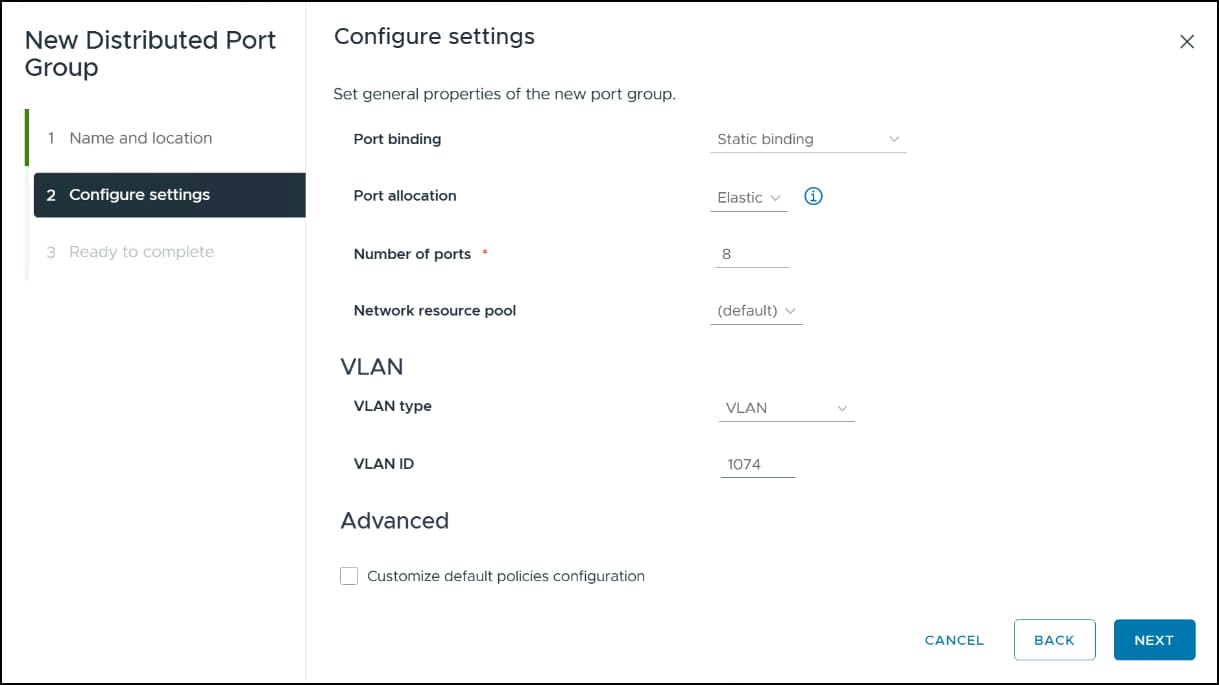
In a customer environment, the NVMe/TCP storage network might be on a separate switch than the management. If that is the case, during the initial network deployment you could create a second distributed switch if desired. In this example, however, the NVMe/TCP network uses the same VDS but on a different VLAN, 1074. Therefore, we need to create a new distributed port group with the proper VLAN on the distributed switch.
NVMe/TCP distributed port group
To create a new distributed port group, you must use login directly to the vCenter. VCF Operations has limited capabilities around network administration and cannot be used to create the group.
First, decide where you want to add supplemental storage – the management or workload domain. In this example we will use the workload domain.
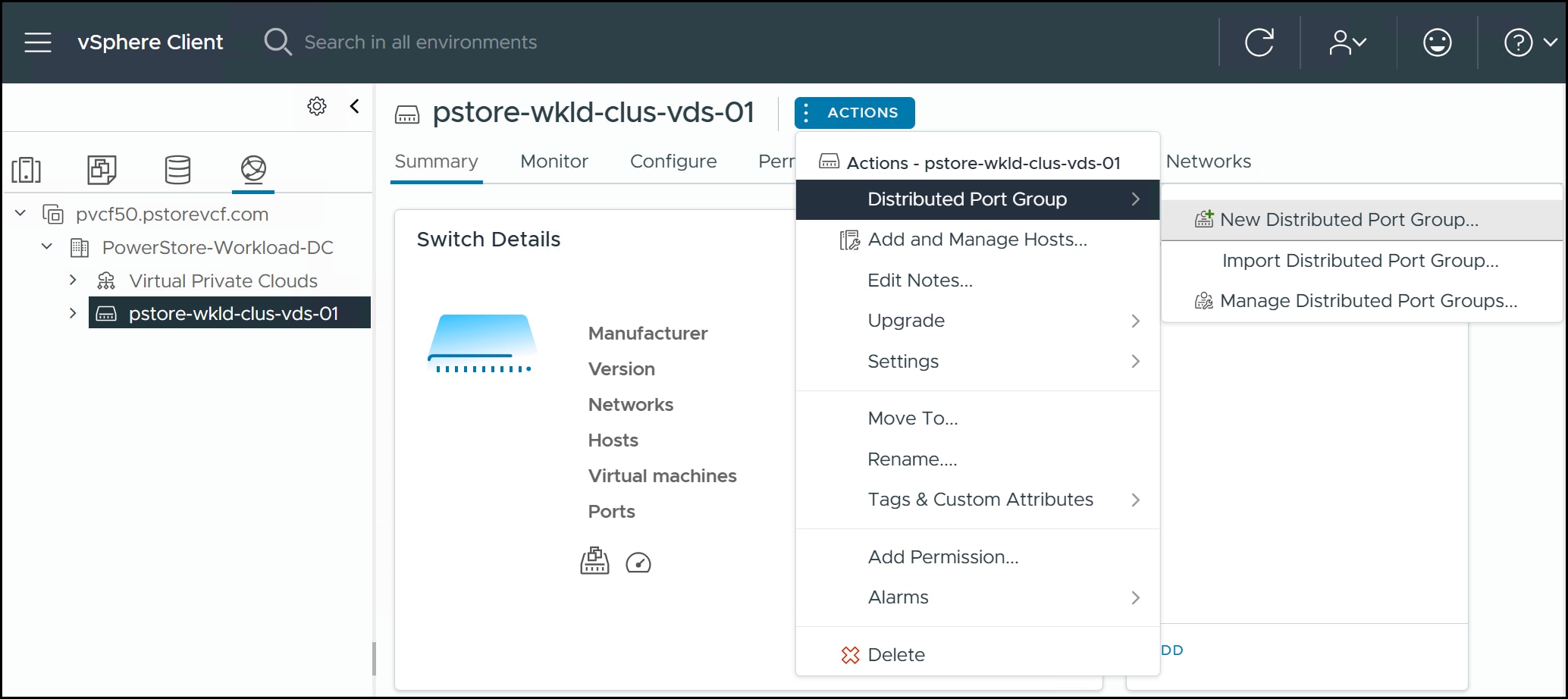
Log in to the workload domain vCenter as the administrator and navigate to the workload domain-distributed network switch in the left-hand screen. In the right-hand screen, click ACTIONS > Distributed Port Group > New Distributed Port Group. This navigation is shown in the following figure.
Figure 95. Step 1 – NVMe/TCP distributed port group
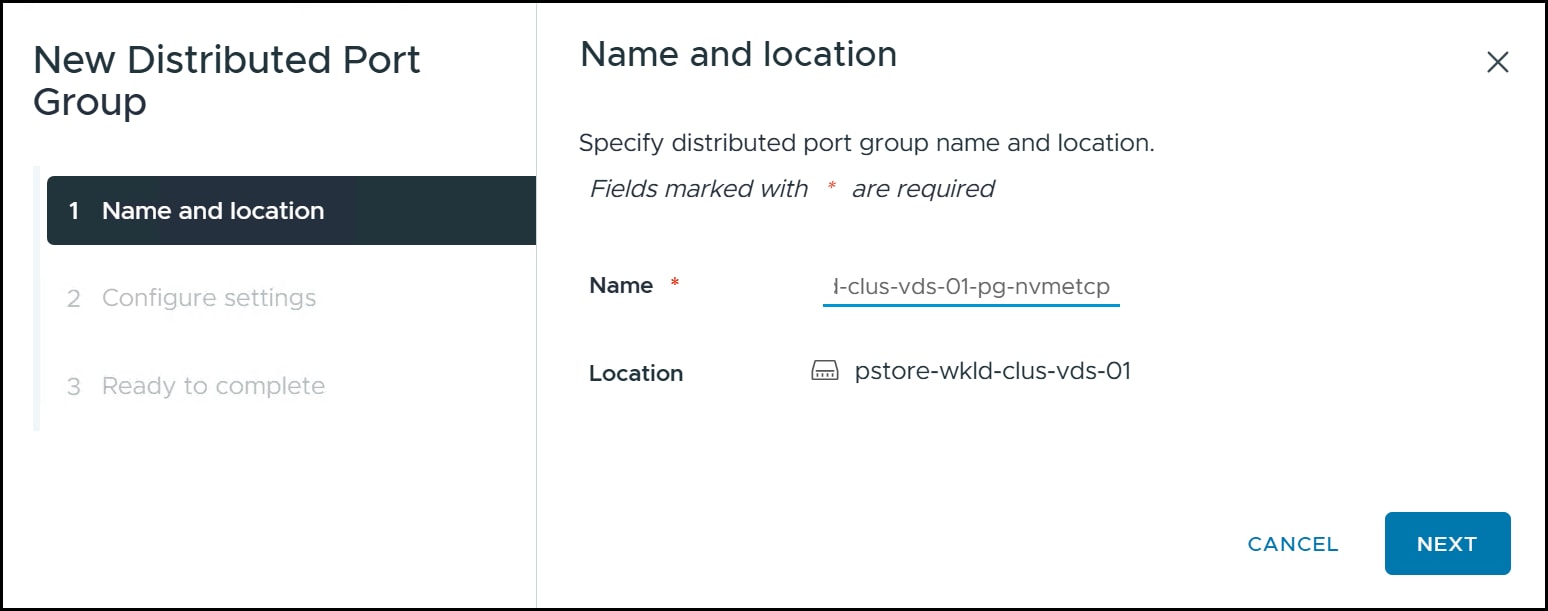
Enter a new port group Name for NVMe/TCP. Dell Technologies recommends using a name that references the function.
In this example, the name used in the following figure is pstore-wkld-clus-vds-01-pg-nvmetcp which uses the same prefix as the other port groups and a suffix that represents the function. The Location cannot be changed since it was already selected for object creation. Click NEXT.
Figure 96. Step 2 – NVMe/TCP distributed port group
In the Configure settings below, use the dropdown for VLAN type and select VLAN.
Then enter a VLAN ID. Click NEXT to continue.
Figure 97. Step 3 – NVMe/TCP distributed port group
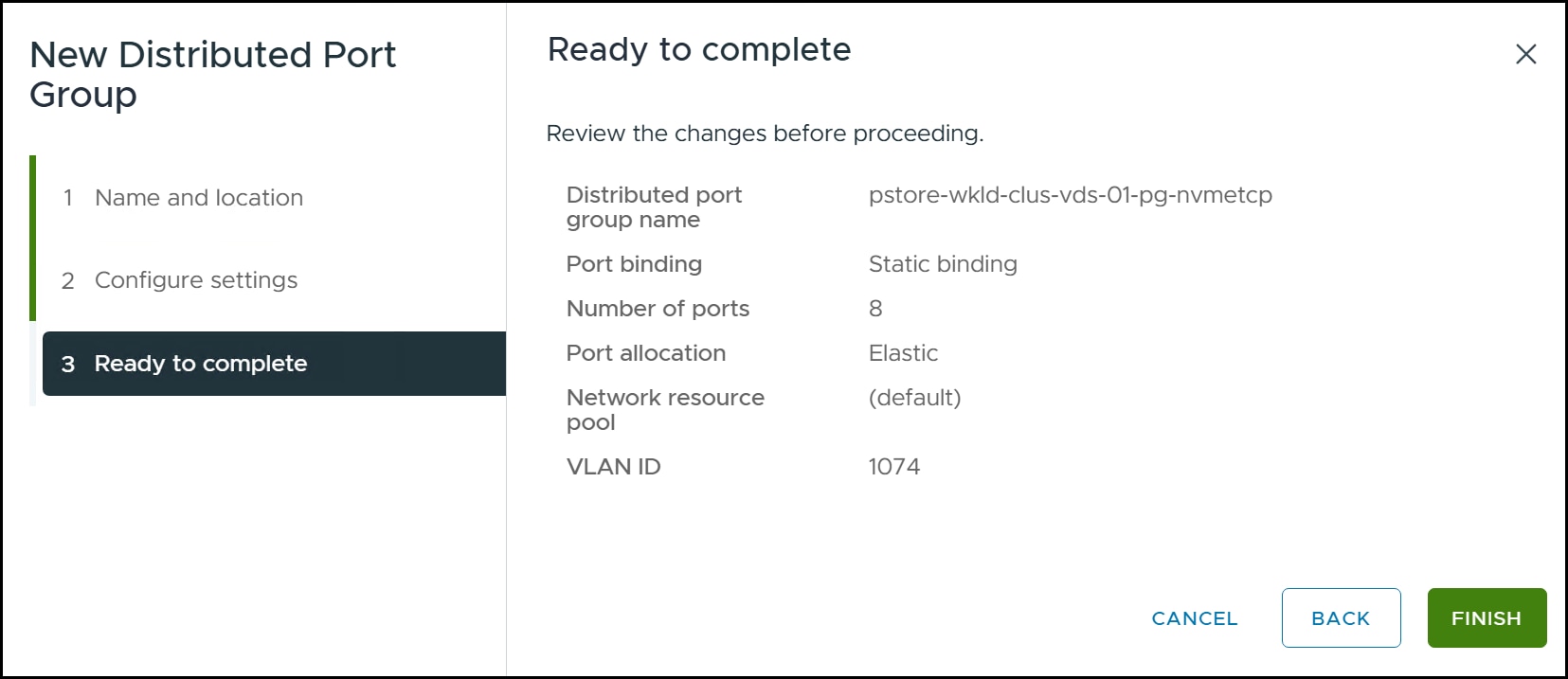
Review the summary page and if correct, click FINISH.
Figure 98. Step 4 – NVMe/TCP distributed port group
Load balancing and failover
The NVMe over TCP adapter does not support such NIC teaming features as failover and load balancing. Instead, it relies on storage multipathing for these functions. Because both NICs are active in the VCF VDS configuration, it is necessary to set one of the uplinks to Unused in the distributed port group.
Before editing the distributed port group, determine the association of physical NIC to uplink. This is critical because when you add the NVMe/TCP adapter to vSphere you must specify a physical NIC, and you must select the one with the active uplink and not the unused uplink.
Uplink NIC association
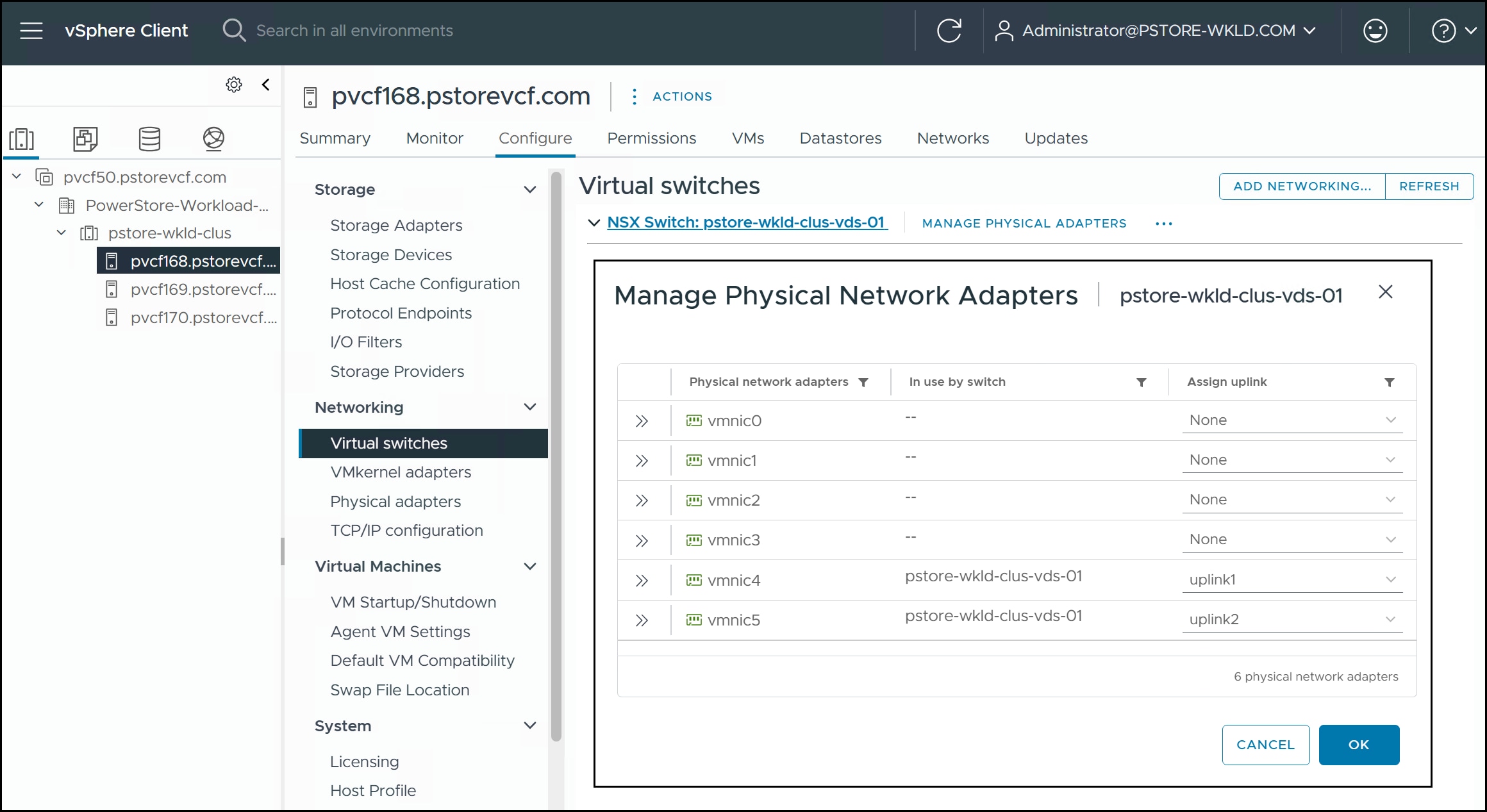
In vCenter, navigate to one of the ESXi hosts in the left-hand screen, then on the right-hand screen select Configure > Networking > Virtual switches. View the NSX VDS and expand the uplinks in the right-hand side of the diagram click on MANAGE PHYSICAL ADAPTERS. Each uplink is associated with a physical NIC. In vCenter, this example in the following figure, uplink1 is associated with vmnic4 and uplink2 is associated with vmnic5. Record this information.
Figure 99. Uplinks and associated NICs
Figure 100. Uplinks and associated NICs
Modify distributed port group
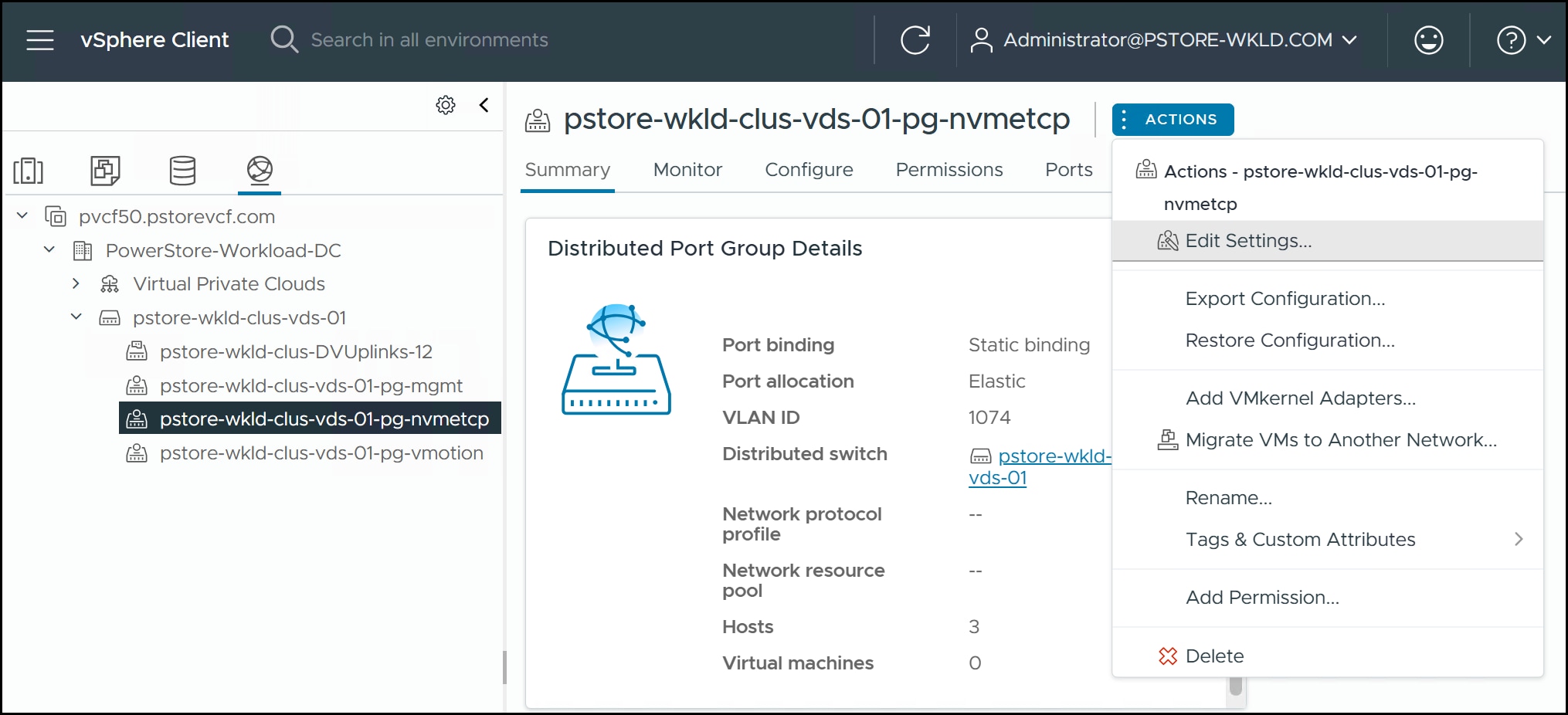
In vCenter, highlight the NVMe/TCP distributed port group in the left-hand screen. In the right-hand screen navigate to ACTIONS > Edit Settings….
Figure 101. Edit settings
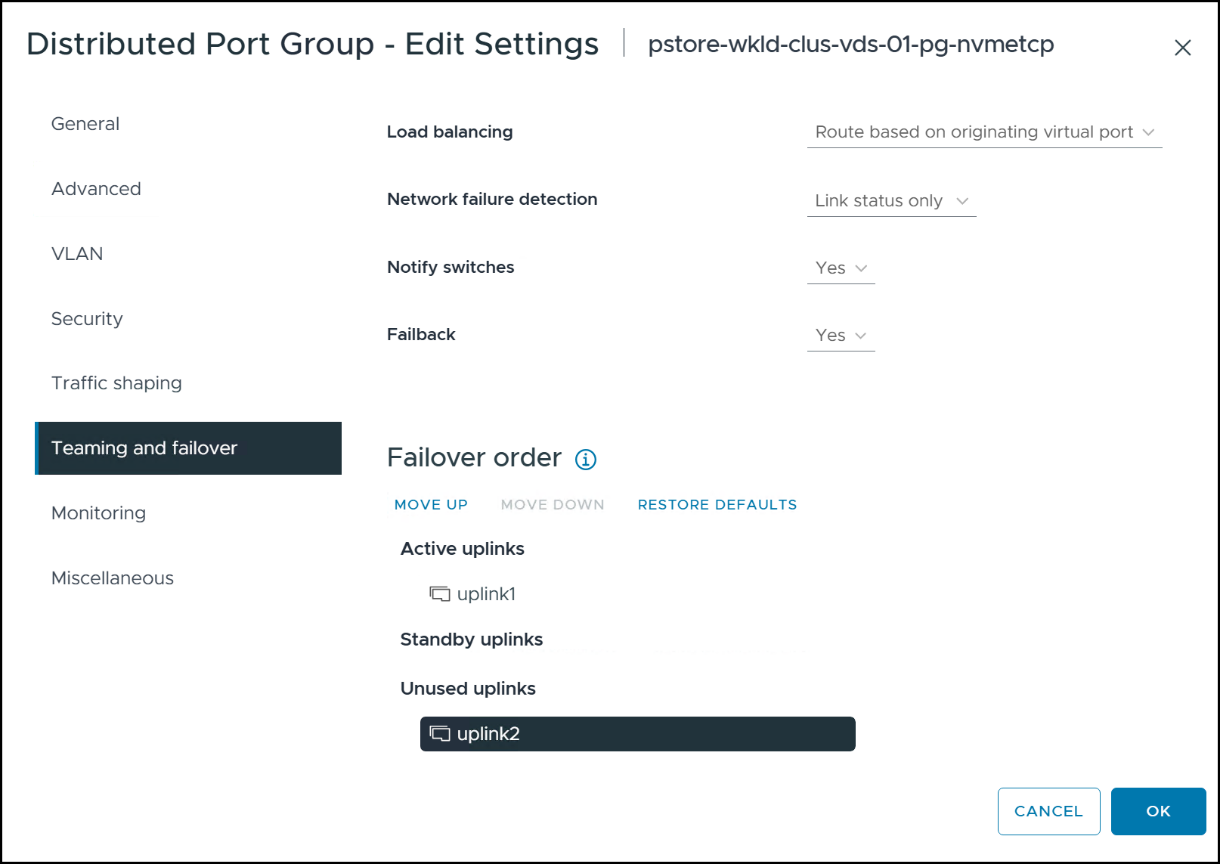
Select Teaming and failover in the left-hand menu in the following figure. Both uplinks display under Active uplinks under Failover order in the right-hand screen. Highlight one of the uplinks of your choice and use the MOVE DOWN button to list it under the Unused uplinks. No other changes are required. Click OK to complete.
Figure 102. Modify uplinks
Remember to note which uplink is active.
VMkernel adapters
After creating and modifying the distributed port group, add a VMkernel adapter for each ESXi host.
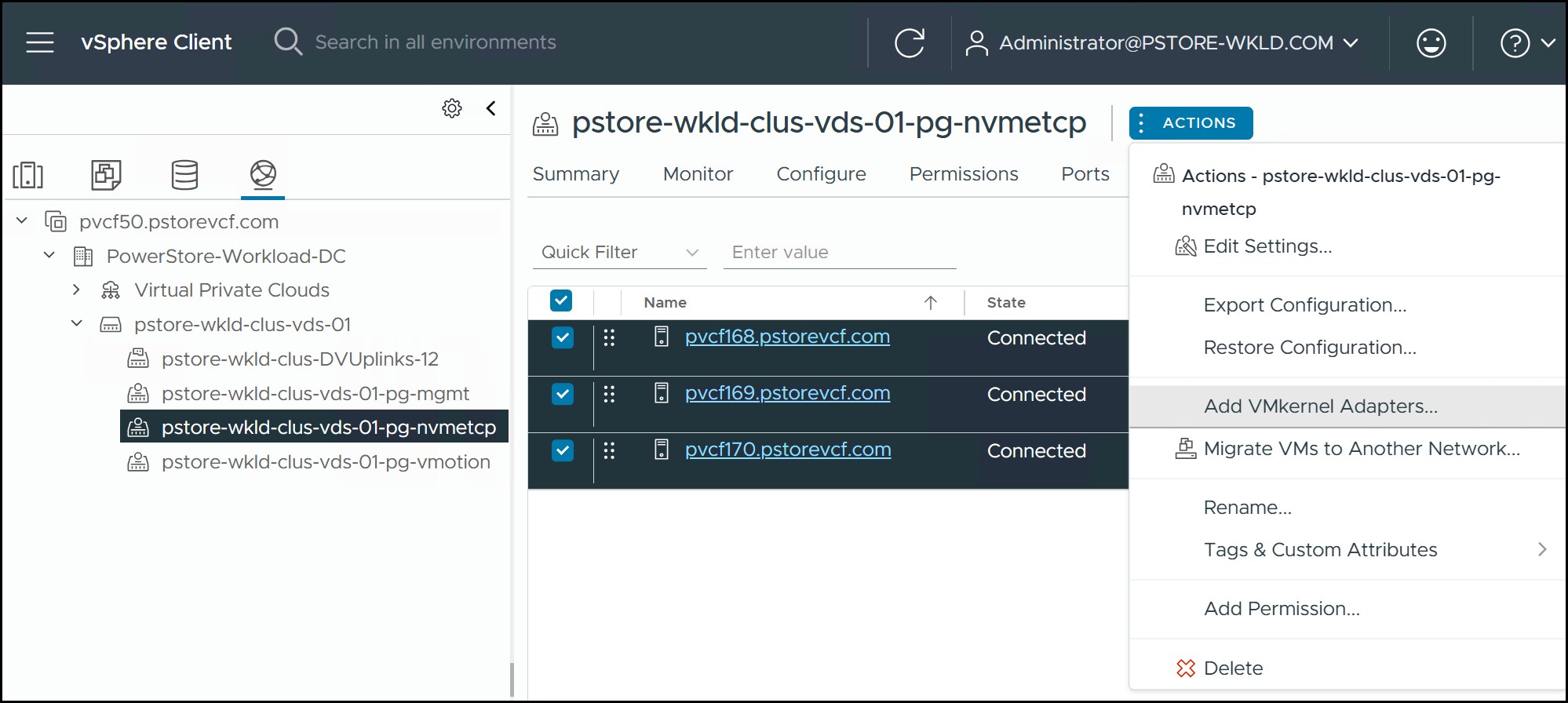
Navigate to the new distributed port group in the left-hand screen and in the right-hand screen select ACTIONS > Add VMkernel Adapters…
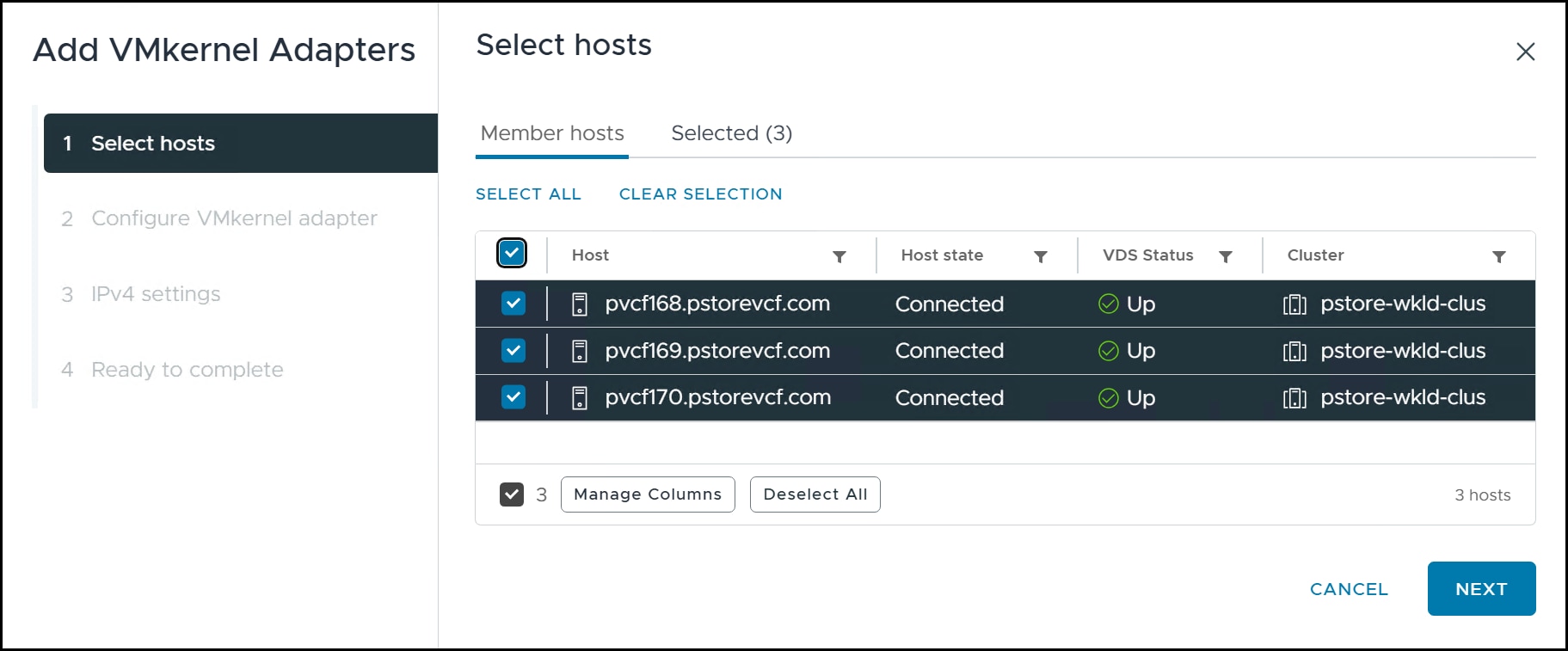
Figure 103. Step 1 – Add VMkernel adapters
Use the checkboxes to select all ESXi hosts in the workload domain. Click NEXT.
Figure 104. Step 2 – Add VMkernel adapters
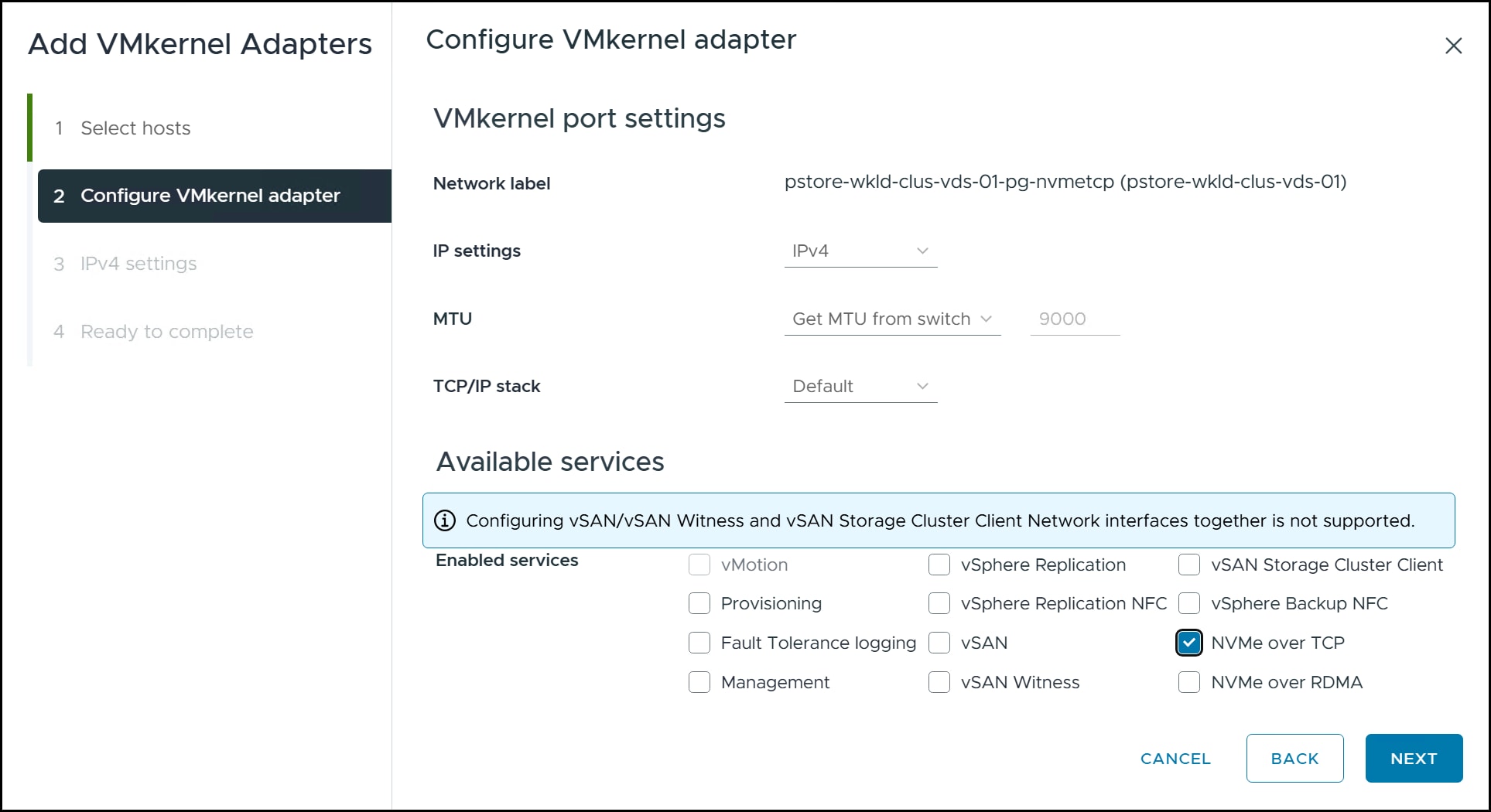
Select the Enabled services for the adapter which is NVMe over TCP.
If you fail to check this box, it will not be possible to add the storage controllers in vSphere for NVMe/TCP even though the VMkernel adapters are there. The box can be checked after creation if you forget. Check the box and click NEXT.
Figure 105. Step 3 – Add VMkernel adapters
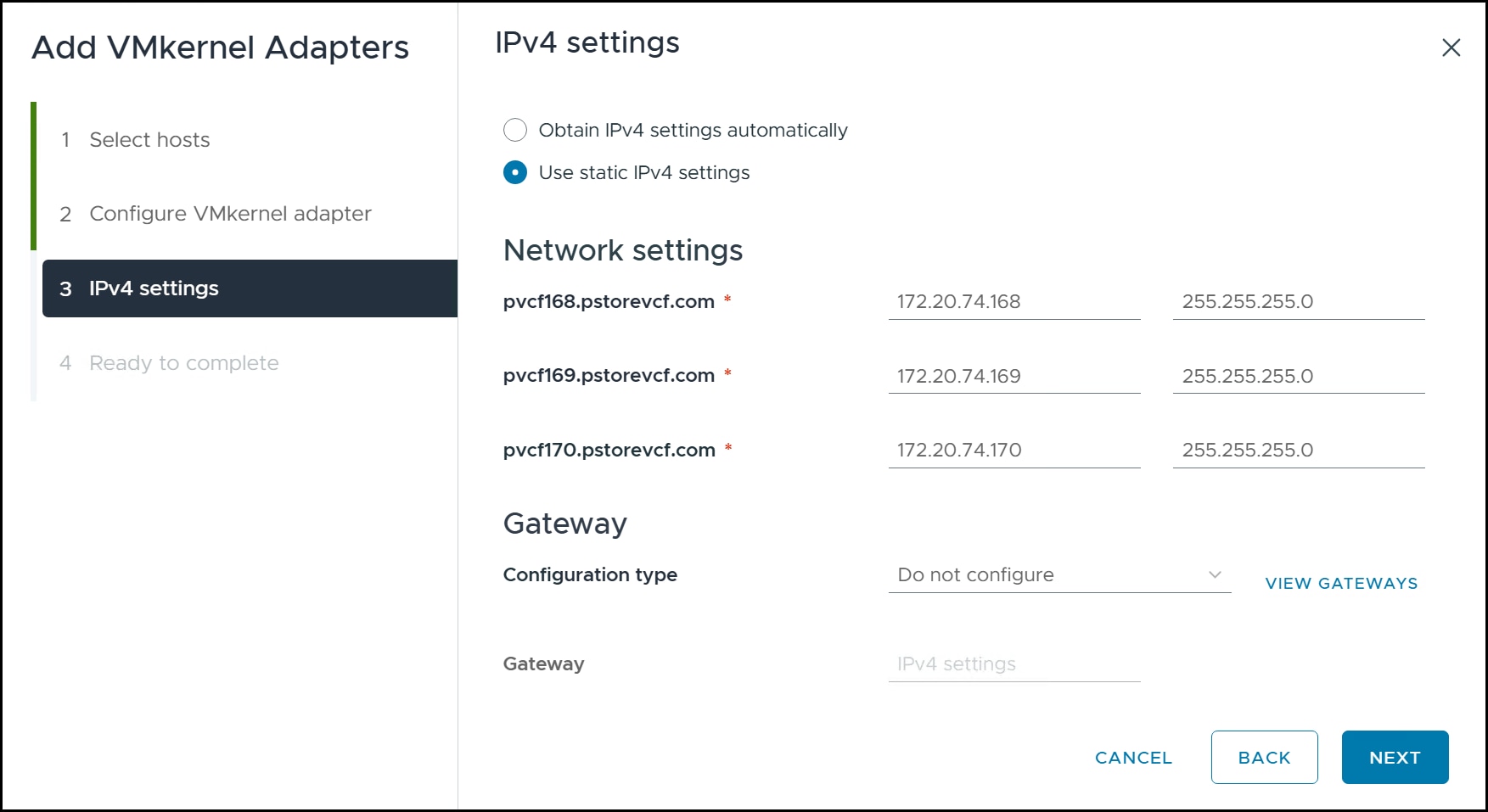
Use either DHCP or assign a static IP to each ESXi host.
If you use static, once you enter the first IP, vSphere offers to auto-fill the other IPs and subnets. A gateway is typically not required. Once complete click NEXT in the following figure.
Figure 106. Step 4 – Add VMkernel adapters
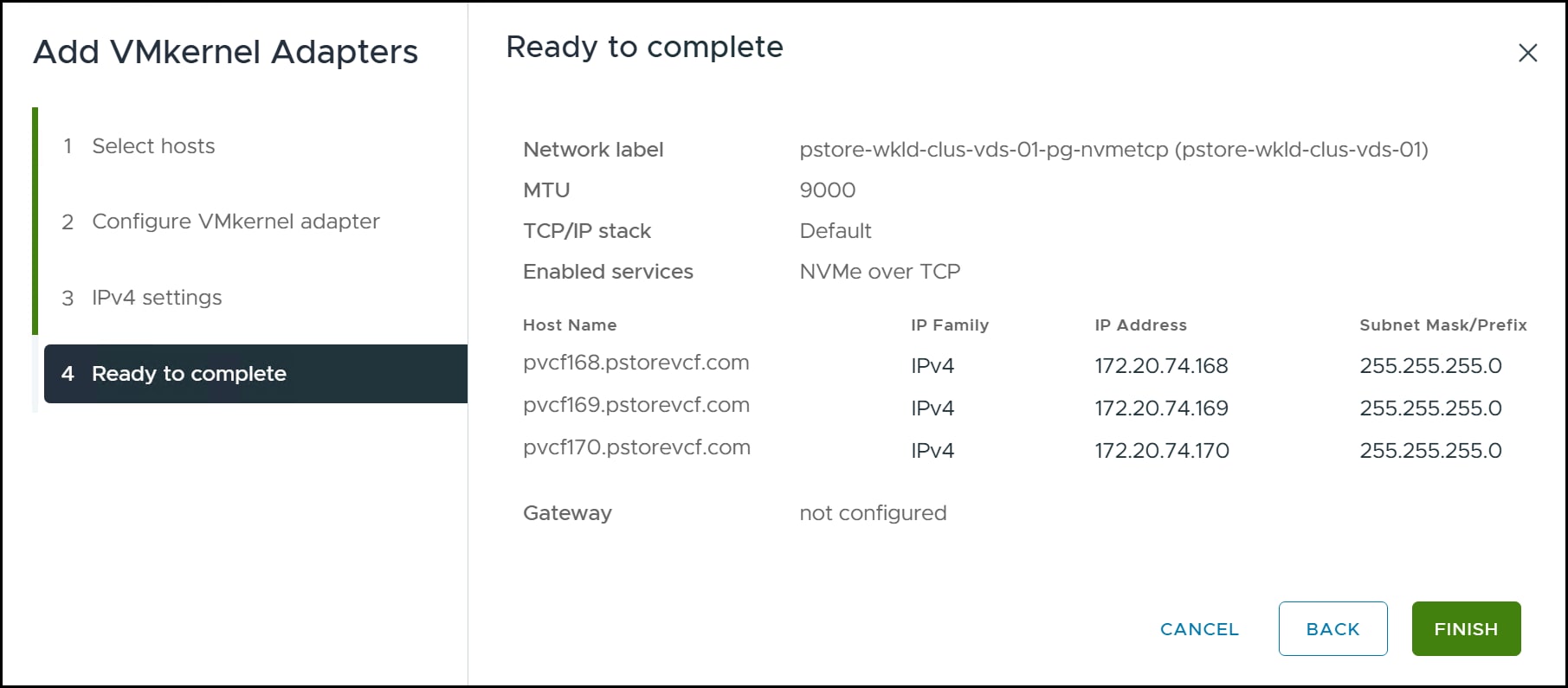
Review the proposed changes and if acceptable click FINISH.
Figure 107. Step 5 – Add VMkernel adapters
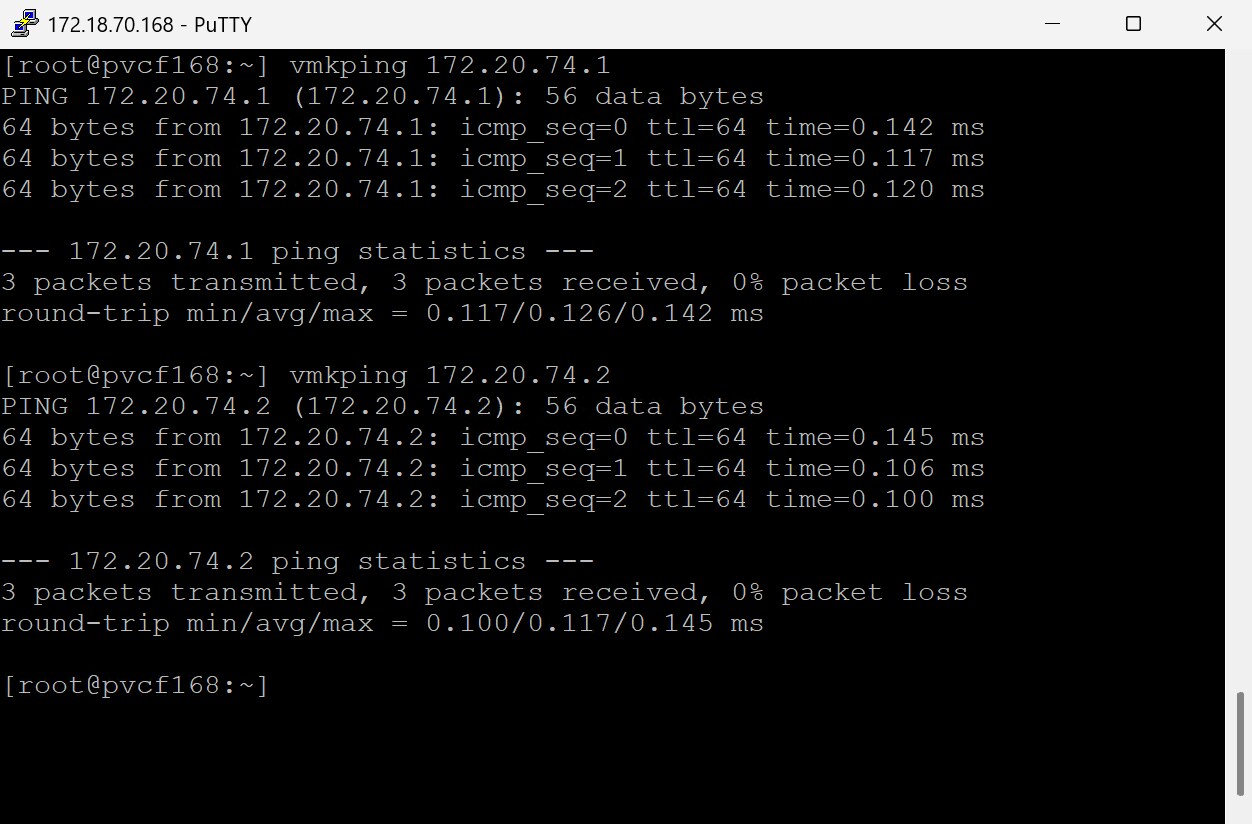
After vSphere adds the VMkernel adapters, it is a best practice to SSH into each ESXi host as root and run a vmkping to the IP interfaces on the array to ensure connectivity. Note that you may have to enable SSH first. An example is shown in the following figure where vmkping is used to check viability from the ESXi host to the NVMe/TCP IPs on the PowerStore.
Figure 108. vmkping the IPs of the PowerStore NVMe/TCP ports
NVMe/TCP adapter
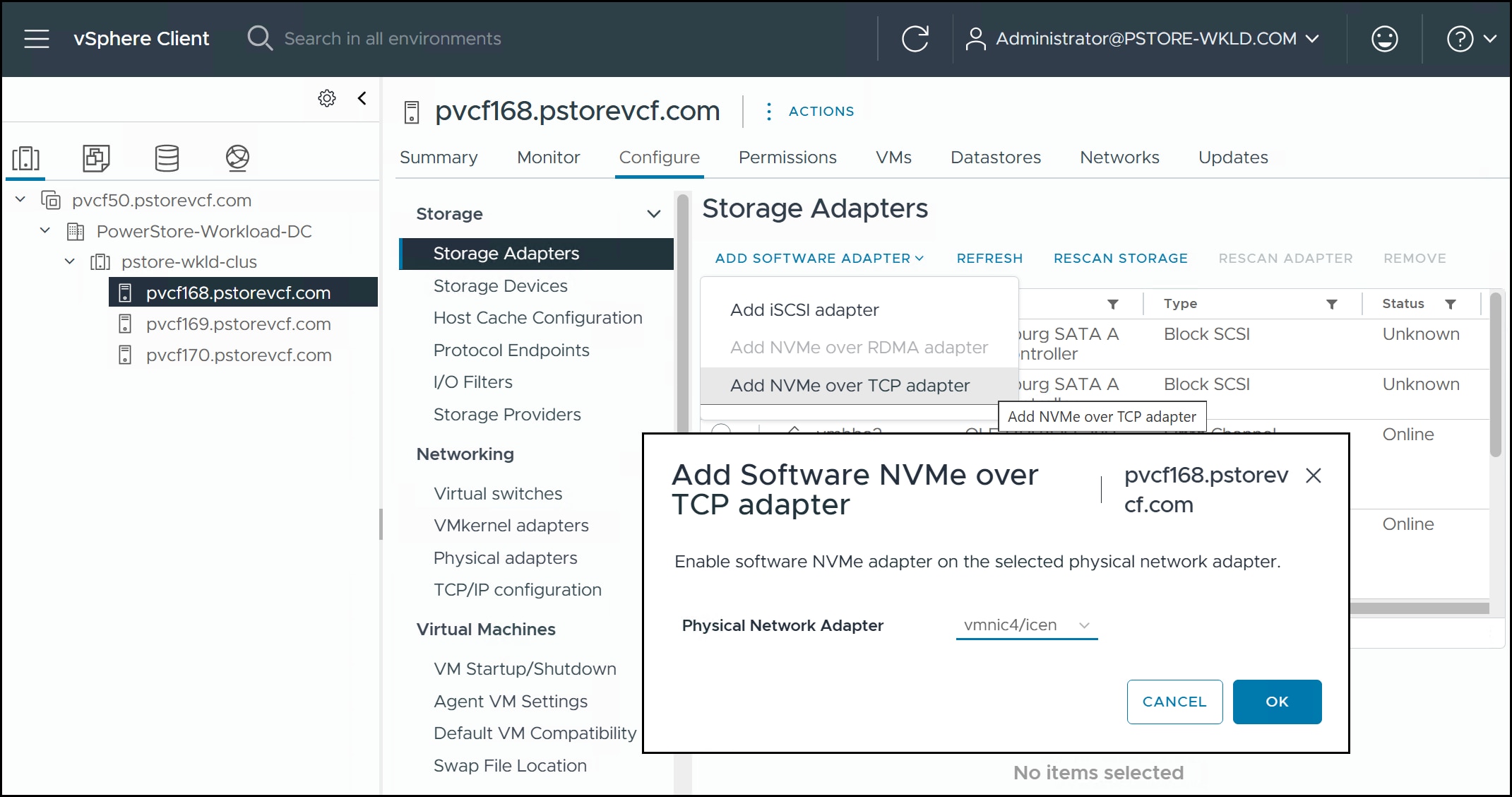
For each ESXi host, add an NVMe/TCP adapter. Do this in vCenter by highlighting an ESXi host in the left-hand screen and navigating toConfigure > Storage > Storage Adapters in the right-hand screen. Use the drop-down list under ADD SOFTWARE ADAPTER to select Add NVMe over TCP Adapter. You will be prompted to select a Physical Network Adapter as in the following figure. Use thedropdownn to select the NIC that is associated with the active uplink you set in Modify distributed port group.
Figure 109. Adding NVMe/TCP adapter
Repeat these steps for the other two ESXi hosts using the same NIC.
Storage controller
It is now possible to add the PowerStore array controllers to each ESXi host in the workload domain.
In vCenter, highlight an ESXi host in the left-hand screen and navigate to Configure > Storage > Storage Adapters in the right-hand screen.
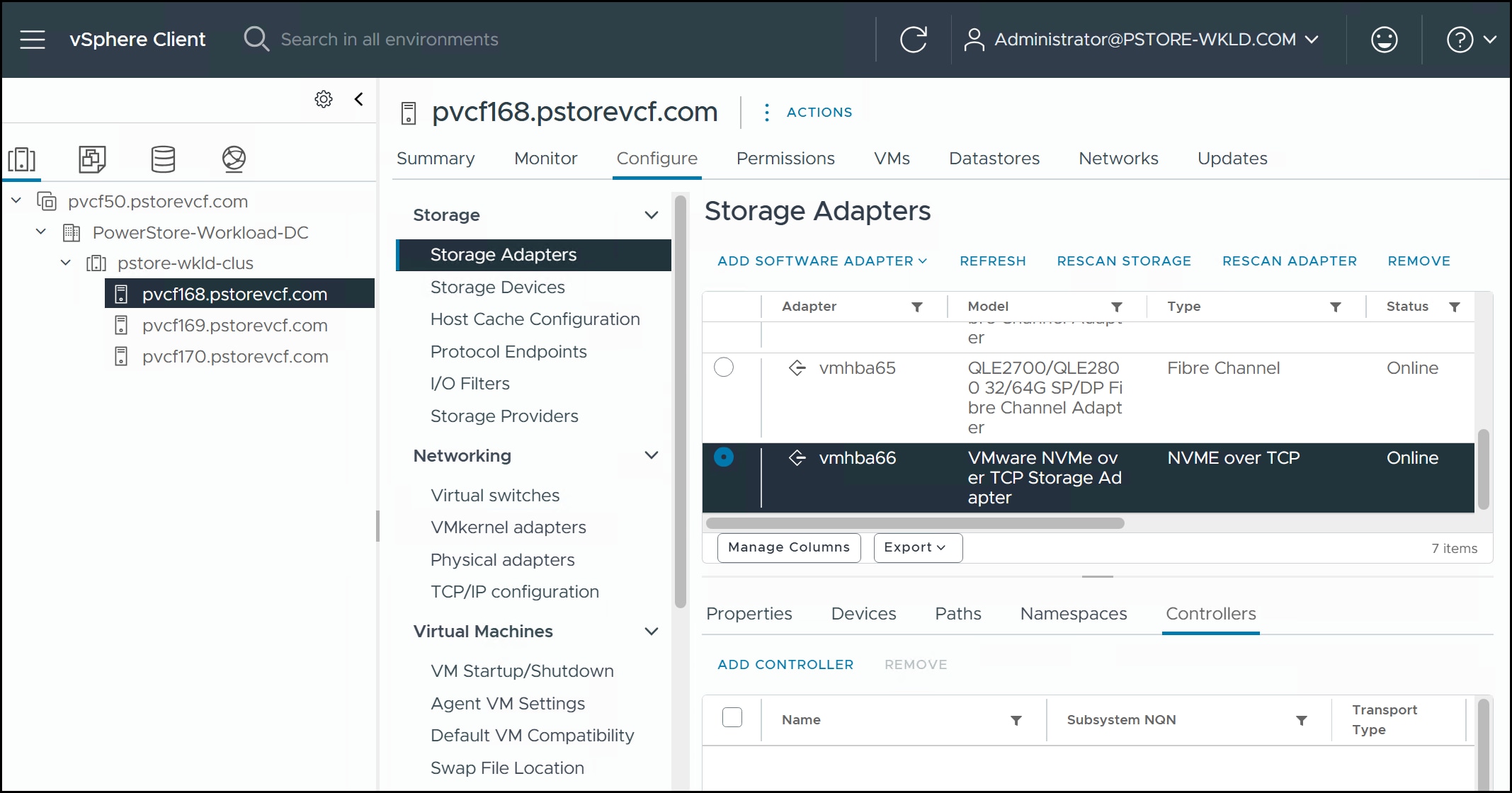
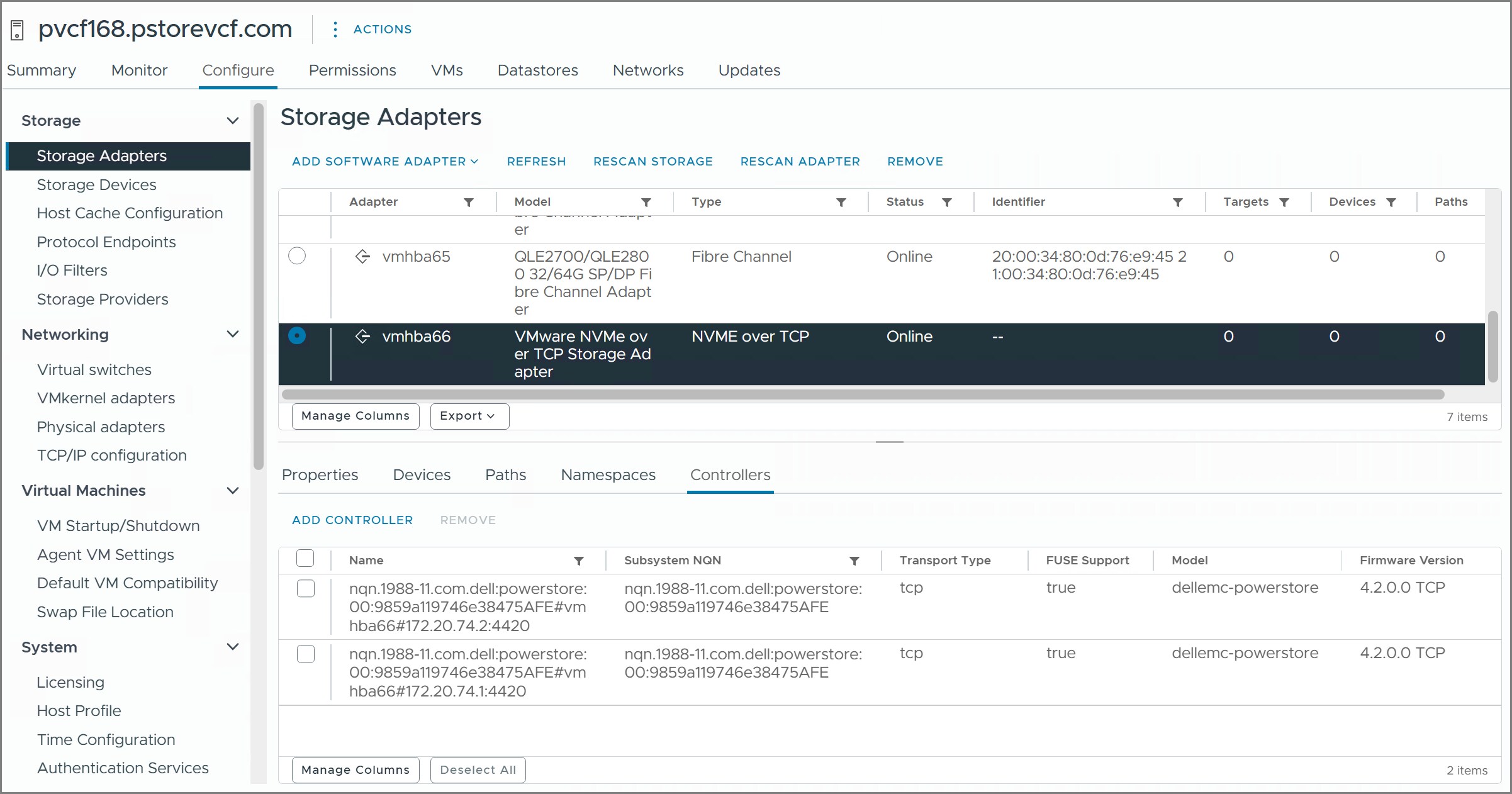
Scroll down the adapters to the bottom and use the radio button next to the newly added NVMe/TCP adapter.In the bottom panel, select the Controllers tab and then click ADD CONTROLLER in the following figure.
Figure 110. Step 1 – Add controller
When adding the controllers, it is easiest to use the auto functionality rather than manual mode.
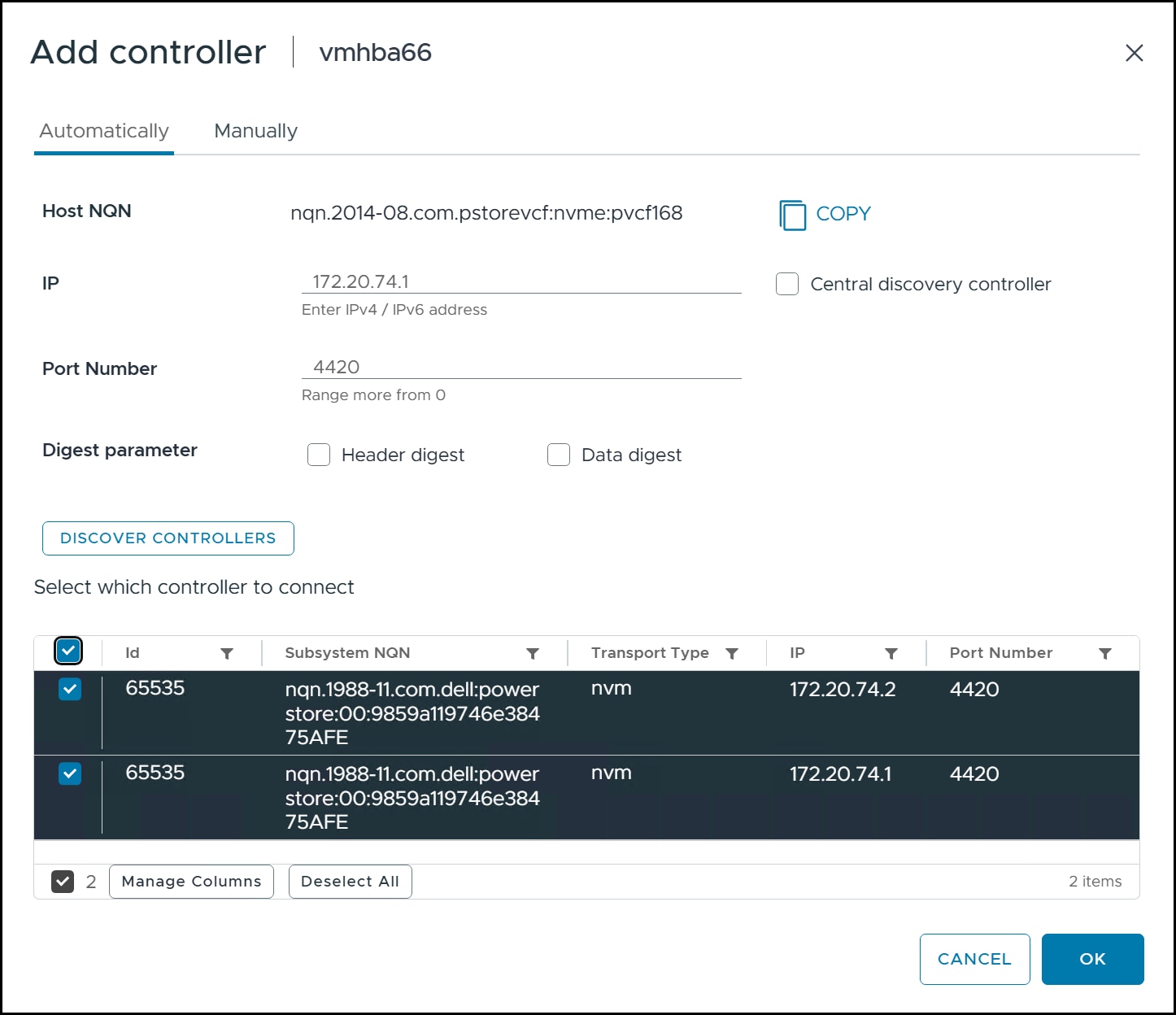
First, be sure the Host NQN is set. In the unlikely event it is not set, a restart of the management agents or reboot of the ESXi will be needed. You cannot add the controllers without a host NQN. Enter the IP address of one of the two IPs previously configured in NVMe/TCP PowerStore configuration and click DISCOVER CONTROLLERS. Both IP addresses should populate the box in the bottom screen. Use the checkboxes to select both and click OK to add them.
Figure 111. Step 2 – Add controller
Review the result in vCenter in the following figure. Repeat for the other hosts.
Figure 112. Summary – Add controller
Storage provisioning
With connectivity established, we can provision storage. As host creation was previously covered in Host creation, this section will be abbreviated, noting only the differences for NVMe/TCP.
Hosts
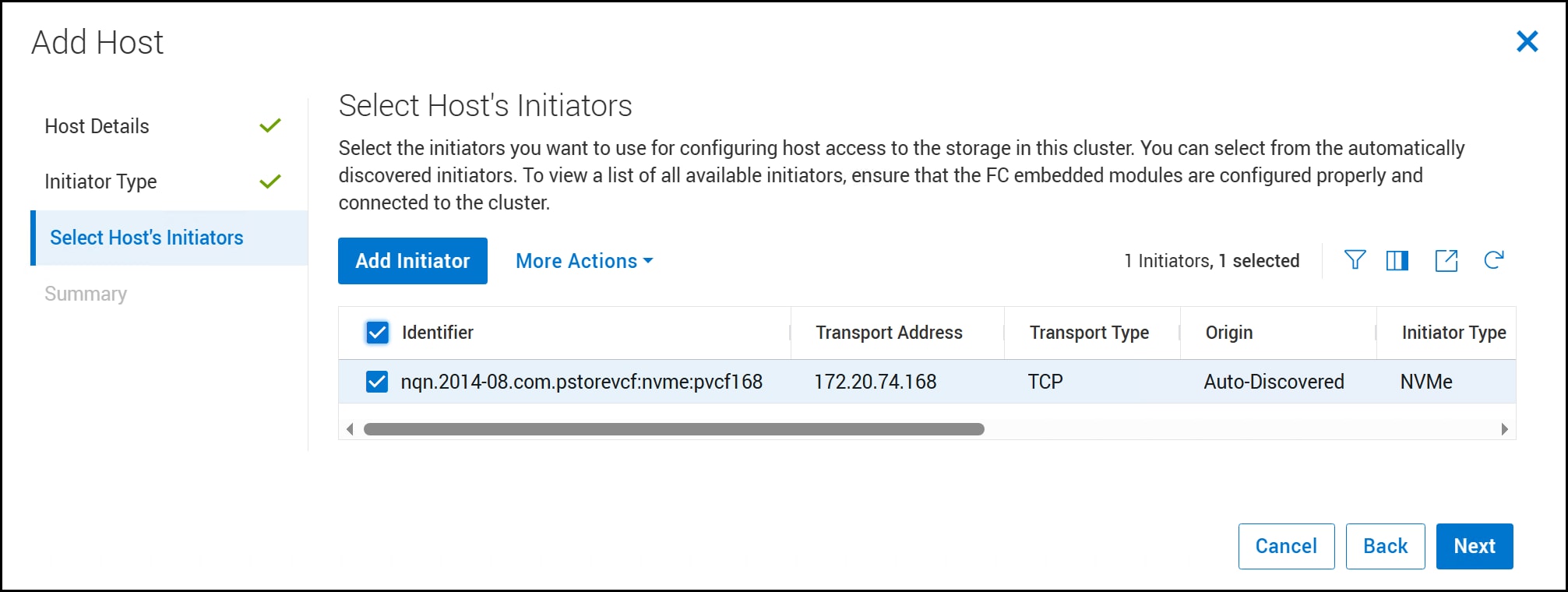
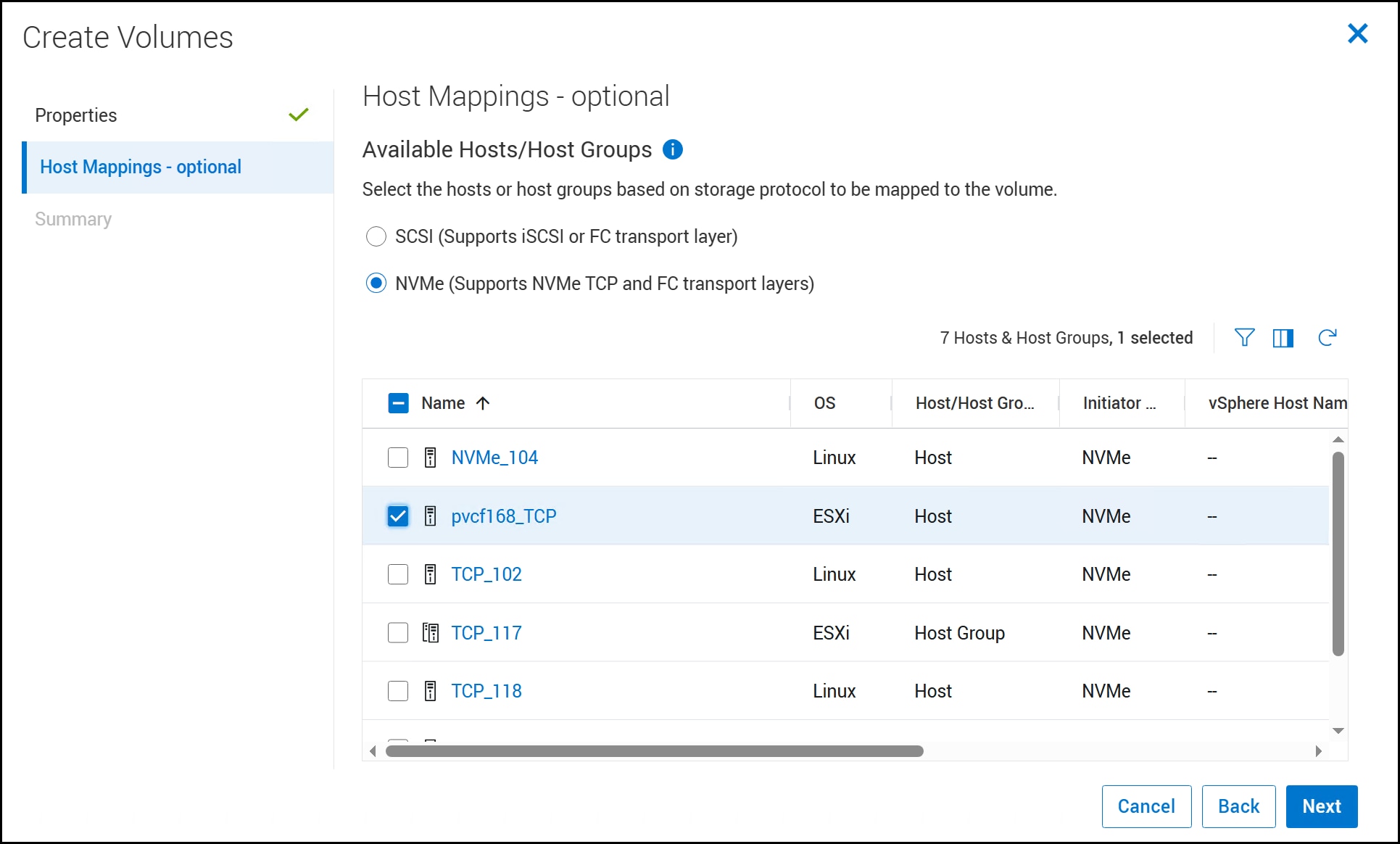
When you add the PowerStore controllers to the NVMe/TCP adapter, the host NQN is automatically provided to PowerStore Manager in much the same way as FC. Therefore, in the first screen, type in a Host Friendly Name and select ESXi as the Operating System. Click Next and use the radio button to select NVMe as the Initiator Type. In the third screen in the following figure the host NQN will display in the list of initiators. Use the checkbox to select it. Click Next and complete the host creation in the final step.
Figure 113. Creating a host for NVMe/TCP
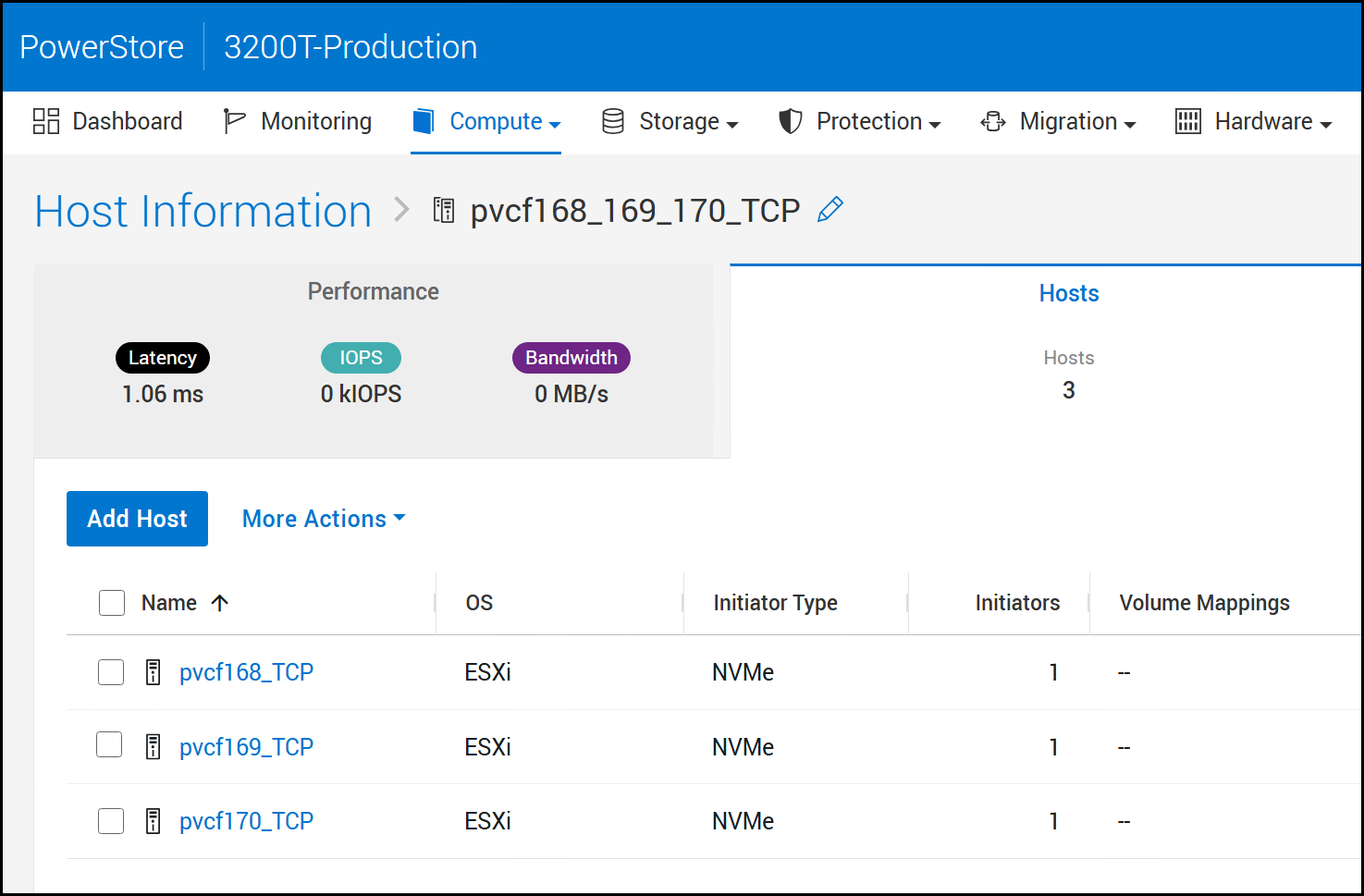
Repeat this process for the other two ESXi hosts. Then create a host group so you can provision storage to all hosts at once. This host group is detailed in the figure below.
Figure 114. NVMe/TCP host group creation
Volume provisioning
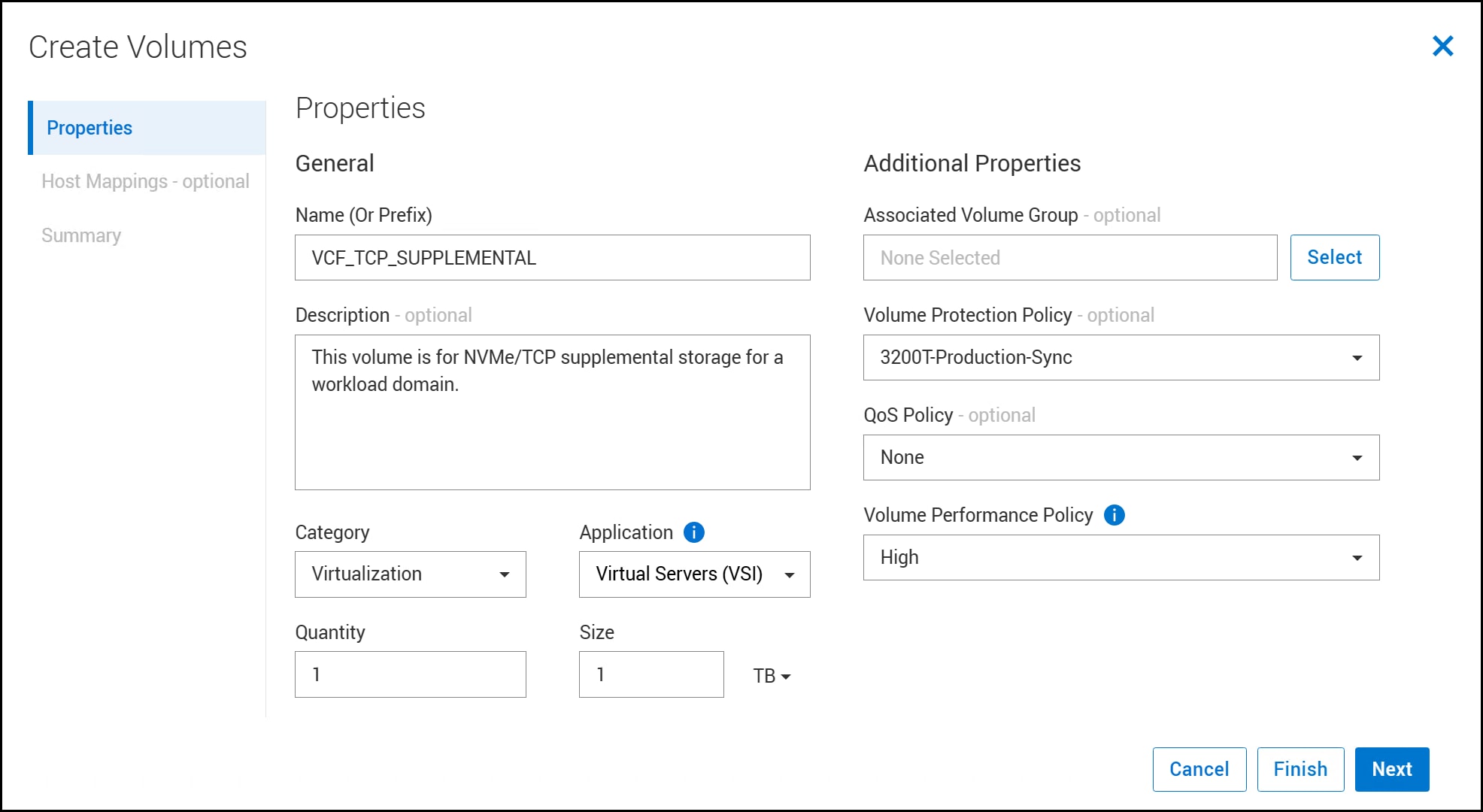
As Storage provisioning was covered earlier in the paper, only the detail of the new volume is shown in the following figure. Supplemental storage has no minimum size requirement so this volume is 1 TB in size with a Volume Protection Policy for synchronous replication to the disaster recovery site, and a Volume Protection Policy of High. The Category and Application values are the same as for the workload domain volume.
Figure 115. Volume for supplemental storage
Map this volume to the host group below so all workload domain hosts discover it.
Figure 116. NVMe/TCP host group mapping
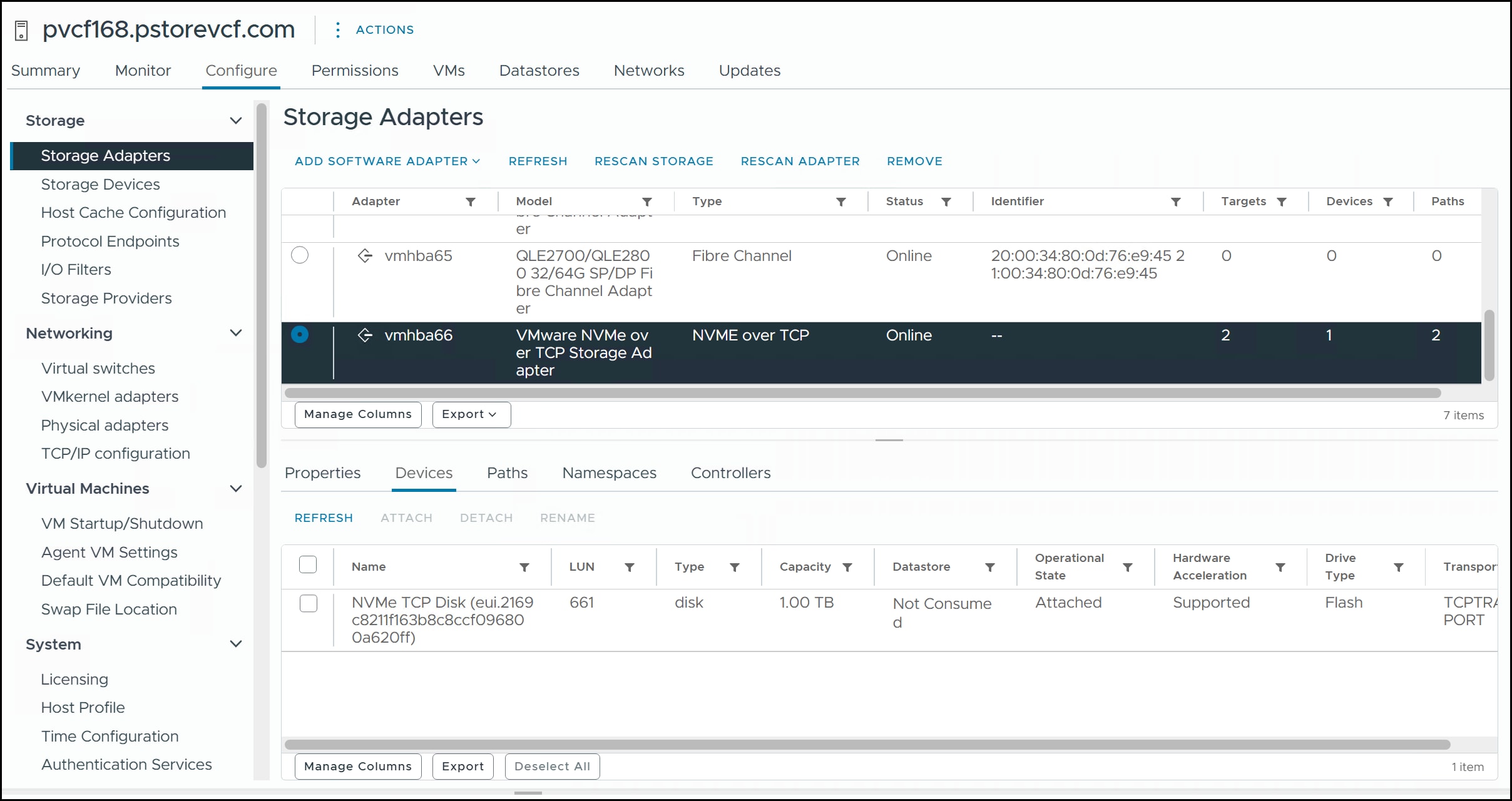
View the new device in vCenter. NVMe/TCP adapters rarely require rescans for the storage to be visible.
Figure 117. NVMe/TCP devices in vCenter
Datastores
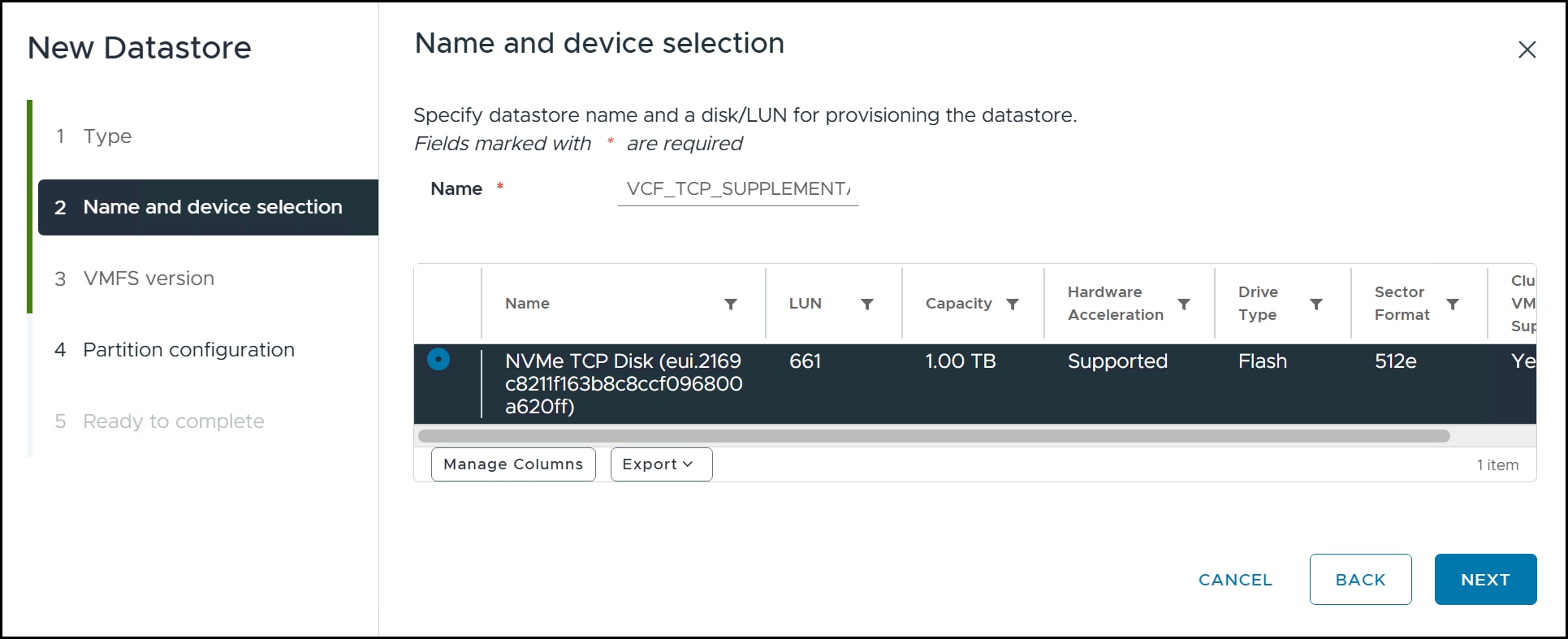
Creating datastores on NVMe/TCP devices does not differ in any way from those created on FC. Using the datastore wizard in the following figure, the NVMe/TCP devices are available for use.
Figure 118. Datastore wizard
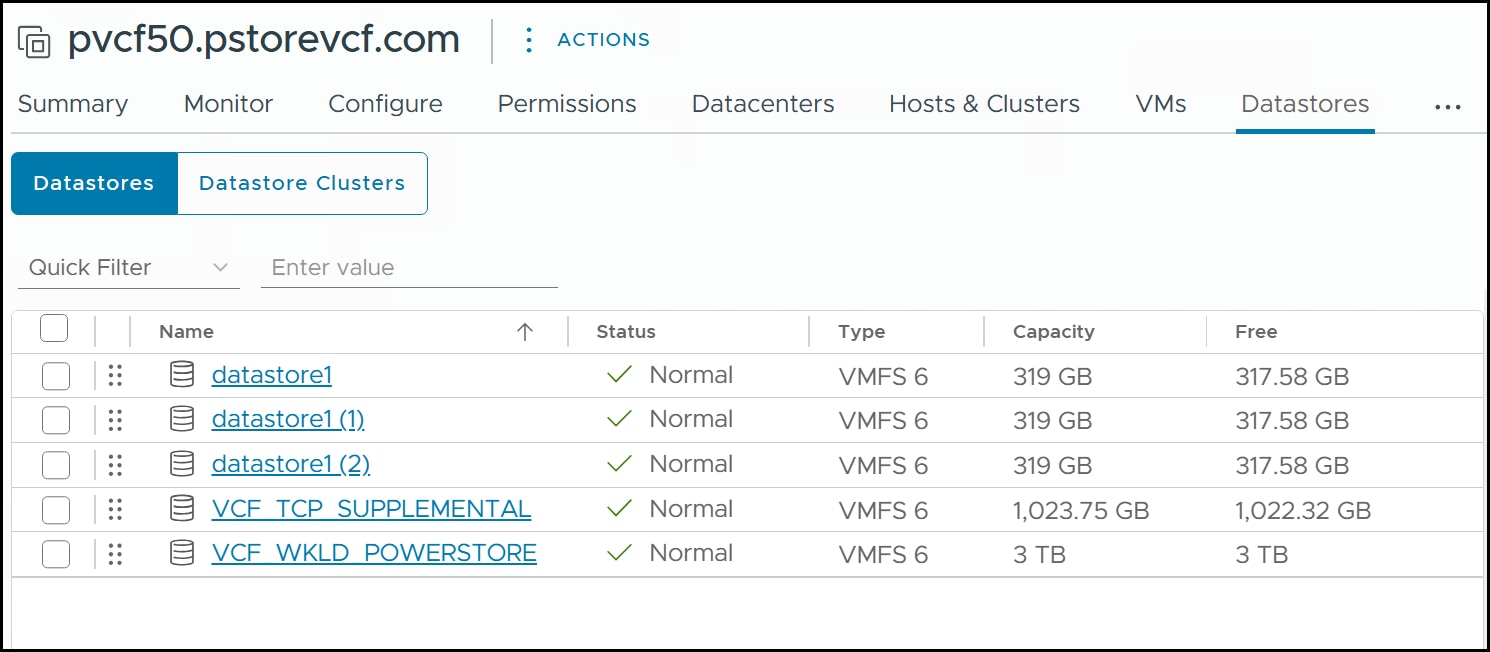
Complete the wizard and the NVMe/TCP datastore will display in vCenter in the following figure vCenter view of supplemental storage and in VCF Operations in the figure VCF Operations view of supplemental storage, alongside the workload domain FC datastore for the cluster.
Figure 119. vCenter view of supplemental storage
Figure 120. VCF Operations view of supplemental storage
The supplemental storage is now available for workload domain applications designated for NVMe/TCP.
Protection
Protection
Introduction
Dell PowerStore offers several technologies to help protect both the management and workload domains when deployed on FC. The chapter serves as an introduction to them and how they can be used in a VCF environment to provide both backup and recovery. This chapter is not meant to serve as an in-depth implementation guide, rather it lays out the different options a customer may explore.
PowerStore replication
Dell PowerStore provides native local and remote replication solutions that can replicate data within a system or remotely. Having remote copies of data protects against outages on the main system. Data protection features in PowerStore also enable quick recovery on a destination system with minimal to no data loss, depending on the replication method selected.
Native replication can be configured and managed in PowerStore Manager, PowerStore CLI, or REST API.
Snapshot and thin clones
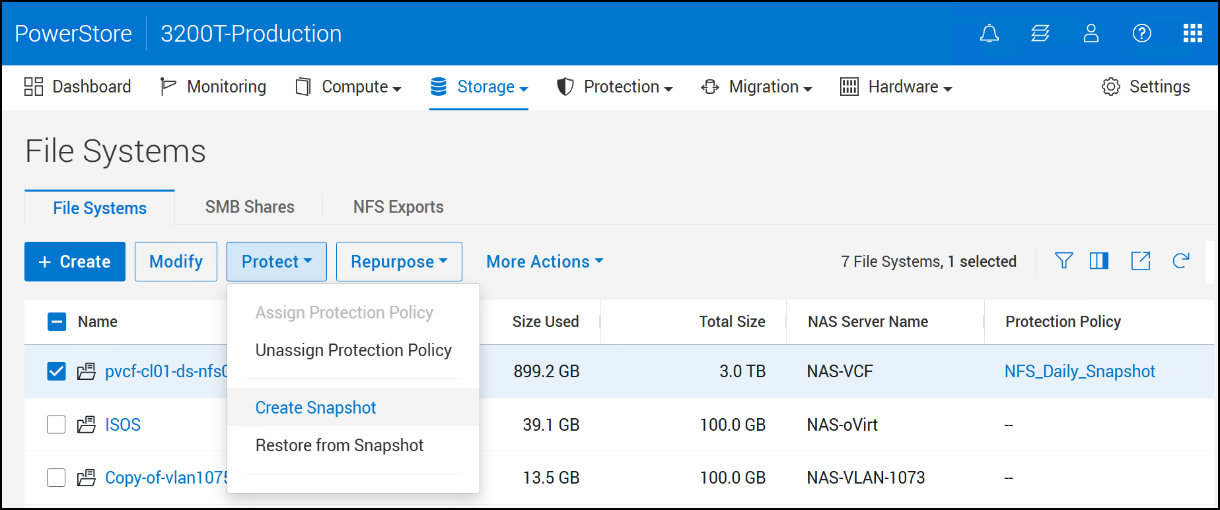
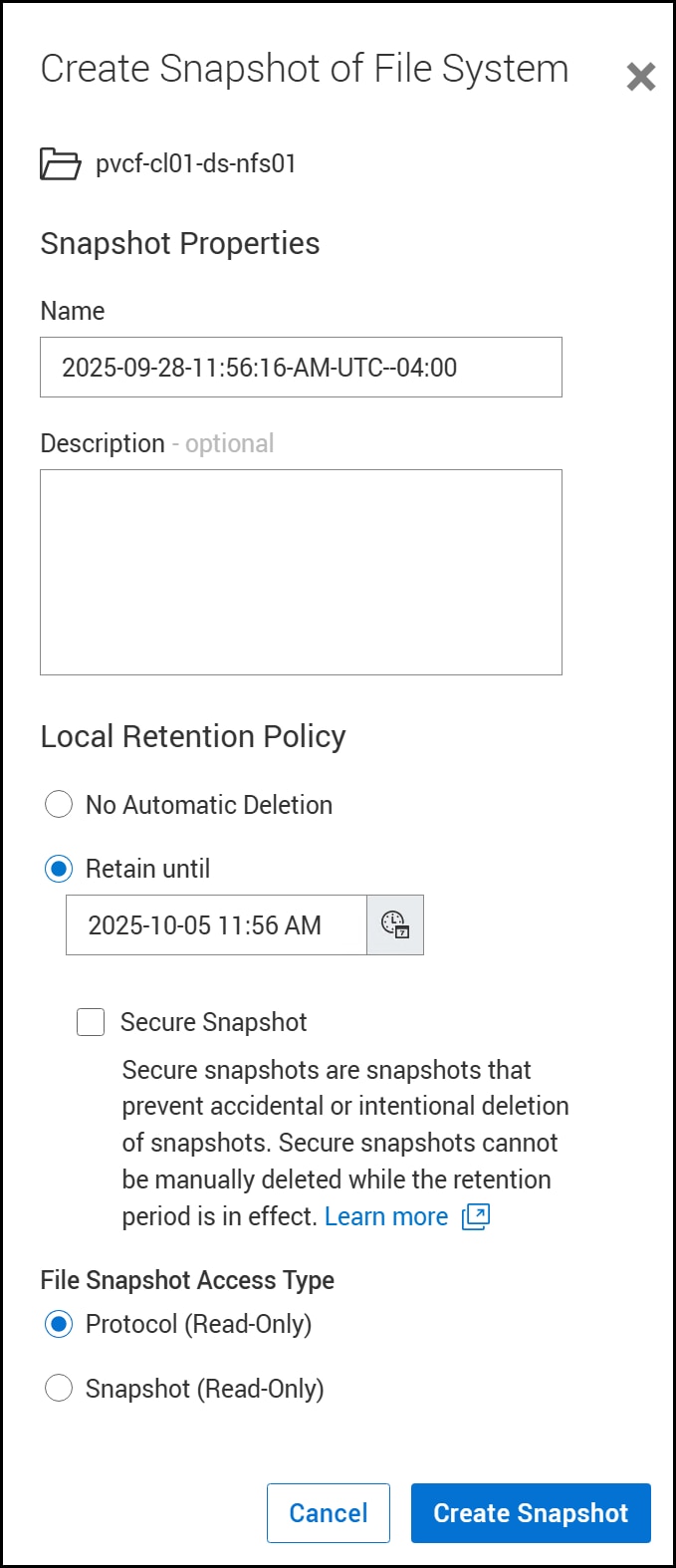
Snapshots are the local data protection solution within a PowerStore system. They provide a method of recovery for data that has been corrupted or accidentally deleted. Snapshots are read-only objects and cannot be modified. This immutable property allows snapshots to serve as ransomware protection in the event production data is compromised. Snapshots are pointer-based objects that provide point-in-time copies of data that is stored in volumes, volume groups, file systems, thin clones, or virtual machines. Snapshots can be created either manually or automatically within a PowerStore system and are considered write-order/crash-consistent. Snapshots can be set to expire and also be secured against deletion.
PowerStore uses redirect-on-write technology for all writes entering the system. When a resource writes to a location which is shared with another resource or by a snapshot, the data is redirected to a new location, and the resource pointers are updated to reference the new location.
Replication configurations for block and file
PowerStore replication offers synchronous, asynchronous, and metro configurations. All configurations use snapshots for common base images, reducing the time to resynchronize.
Synchronous replication
Synchronous replication guarantees data consistency (zero data loss) between the replication source and destination volumes during normal operation. Data consistency is achieved by ensuring write IO commitments at the replication source and destination before a successful write acknowledgment is sent back to the host. Synchronous is an active-passive solution. In the event of a disaster, a failover to the passive site must be initiated.
The workflow of a synchronous write is:
The application or server sends a write request to the source volume.
The write I/O is mirrored to the destination volume.
The mirrored write I/O is committed to the destination volume.
The write commit at the destination volume is acknowledged back to the source volume.
The write I/O is committed to the source volume.
The write acknowledgment is sent to the application or server.
With synchronous replication, any source of latency that impacts the source or destination volume, or the replication link in-between, adversely impacts the hosts accessing those volumes. Therefore synchronous replication is a limited distance solution with the speed of the network being essential to a successful implementation.
Asynchronous replication
Asynchronous replication, like synchronous, is an active-passive solution. It provides a dependent write consistent copy on the target device, which is set at some interval behind the source device. Writes to the source are committed immediately and acknowledgement is set back to the host. That change data is tracked on the source and transferred to the remote PowerStore array in predefined timed cycles. Asynchronous replication is governed by protection policies which are configured with a recovery point objective (RPO). The RPO is the amount of data measured in time that a business can afford to lose in the event of a disaster. The RPO setting directly impacts the amount of data that is replicated during each synchronization.
The workflow of an asynchronous write is:
The application or server sends a write request to the source volume.
The write I/O is committed to the source volume.
The write acknowledgment is sent to the application or server.
Steps 1 through 3 are repeated for each write I/O requested by the application or server.
Periodically, a batch of write I/Os that have already been committed to the source volume are transferred to the destination volume.
The write I/Os are committed to the destination volume.
A batch acknowledgment is sent to the source.
Metro
A Metro Volume provides synchronous replication of spanned block storage volumes or volume groups across two PowerStore clusters in metro distance. It is not supported for file. When enabled, this feature allows a user to configure active-active volumes across two PowerStore clusters. The stretched architecture offers workload mobility and cross-site automated load balancing.
When a Metro Volume is fully synchronized, it provides concurrent host read and write access to the same Metro Volume on both participating PowerStore clusters. An embedded polarization mechanism protects against a split-brain situation during a failure scenario. A witness can be used to add more intelligence to the decision making. After the failure has been corrected, PowerStore starts a self-healing process to turn the Metro Volume back into an active-active state.
The shared identity of the volume means that the devices appear to the application host as a single, virtual device across the two arrays. Using two devices improves the availability of the data that they contain. One device can become unavailable without impacting the host application as the second device continues to operate.
VMware Live Site Recovery Manager can leverage storage array-based replication to protect virtual machines in VCF environments. The interaction between VMware VLSR and storage array replication is governed through a well-defined set of specifications. These VMware-defined specifications are implemented by the storage array vendor as a lightweight application referred to as the storage replication adapter or SRA.
The Dell PowerStore SRA enables VMware VLSR to interact with a Dell storage environment. It allows VMware VLSR to automate storage-based disaster restart operations on PowerStore arrays in replication configuration. The SRDF Adapter for VLSR supports synchronous and asynchronous operations with VCF.
Protection for VCF domains on PowerStore
A benefit of using array-based storage for VCF is the ability to use the features of the array, such as local and remote replication. While VCF does offer the ability to take VM-based snapshots, it cannot take a snapshot of the entire datastore. Such copies can serve multiple purposes such as cloning, restores, and backups. Because VCF datastores are used to run production applications, it is essential to have a backup strategy in case there is a failure.
Protection for NFS on PowerStore
PowerStore offers snapshot capability for both block and file. As the management domain is built on NFS, the following walks through creating a snapshot of the production management domain in the PowerStore Manager interface.
Log in to PowerStore Manager as an administrator and navigate to Storage > File Systems.
Use the checkboxes to select the management domain file system. Select Protect > Create Snapshot from the menu as in the following figure.
Figure 121. Step 1 – Create File system snapshot
In the Create Snapshot of File System dialog in the following figure, the current datetime is used for the Name, adjust as desired, and enter an optional Description.
The Local Retention Policy defaults to seven days. Adjust the date or set to No Automatic Deletion. Next, decide whether to use a Secure Snapshot. The definition is included below the checkbox. Finally, select the File Snapshot Access Type, Protocol or Snapshot. They are defined as:
Protocol (Read-only)
Creates a read-only snapshot that can be mounted and accessed through an NFS export or SMB share. Protocol is the default.
Snapshot (Read-only)
Creates a read-only automounted snapshot accessible through the snapshot directory in the file system.
For backup and full restore purposes, the Protocol snapshot is the best option because it is only mounted when required and does not permit overwriting of the data. The Snapshot type, unlike the Protocol snapshot, is available immediately to the system through the existing NFS file system. This type of snapshot is useful for a partial restore since you can move individual objects into the existing file system. In Linux and ESXi, access to the snapshot is through the “.snapshot” directory of the NFS datastore. This directory is not displayed, even when listing hidden files. The user must know that the snapshot exists, and the user must change the directory into .snapshot as in the following figure on one of the ESXi VCF hosts.
Figure 123. Snapshot directory in the management domain datastore
Alternatively, if the same NFS file system is also an SMB share, the snapshot is available by right clicking the share, selecting Properties and then the Previous Versions tab as seen in the following figure.
Figure 124. Snapshot access in an SMB share
By opening the folder, the objects in the snapshot are available for restore. If restoring VMs, be sure to first shut them down and unregister them, to avoid any issues.
Protection policies
PowerStore offers protection of volumes and file systems through Protection Policies. A Protection policy is comprised of one or more rules that define snapshots (local and remote) and replication. A replication rule is either synchronous or asynchronous and requires a secondary PowerStore array. A snapshot rule defines what time and day to take snapshots, how long to retain them, whether they are secure, and the access type. The PowerStore supports remote replication and snapshots for both block and file storage. For example, in this paper, the NFS management domain is associated with a daily snapshot policy, the workload domain with an asynchronous replication policy, and the NVMe/TCP supplemental storage has a synchronous replication policy. While remote replication is a continuous process, individual snapshots can be taken outside of a protection policy at any time.
The following sections include the creation of the snapshot policy and the asynchronous replication policy used in this paper.
Snapshot policy
To create a protection policy for a daily snapshot follow these steps. Note that an NFS file system may only have a single protection policy assigned to it.
Log in to PowerStore Manager as an administrator and go to Protection > Protection Policies > + Create in the following figure.
This asynchronous replication policy is associated with the workload domain but can also be applied to other block volume datastores in use by VCF.
Conclusion
Conclusion
Summary
VMware Cloud Foundation provides a complete, unified platform to build both a private and public cloud, combining compute, storage, networking, and management. VCF offers the flexibility of using various storage options to take advantage of the power and scalability of external arrays like PowerStore.
VCF supports NFS and VMFS on FC for both the management and workload domains, removing the need for vSAN. The PowerStore provides both superior performance and advanced features like local and remote replication for backup and disaster recovery. When using PowerStore it enables the VCF environment to become highly resilient, scalable, and able to handle the most demanding workload domains.
By following the guidelines outlined in this paper, the user can ensure the successful implementation of VCF 9 running on a PowerStore.
We value your feedback
Dell Technologies and the authors of this document welcome your feedback on the solution and the solution documentation. Contact the Dell Technologies Solutions team by email.
Dell Technologies Content Engineering and Translation team
:
References
References
Dell Technologies documentation
The following Dell Technologies documentation provides additional and relevant information. Access to these documents depends on your login credentials. If you do not have access to a document, contact your Dell Technologies representative.