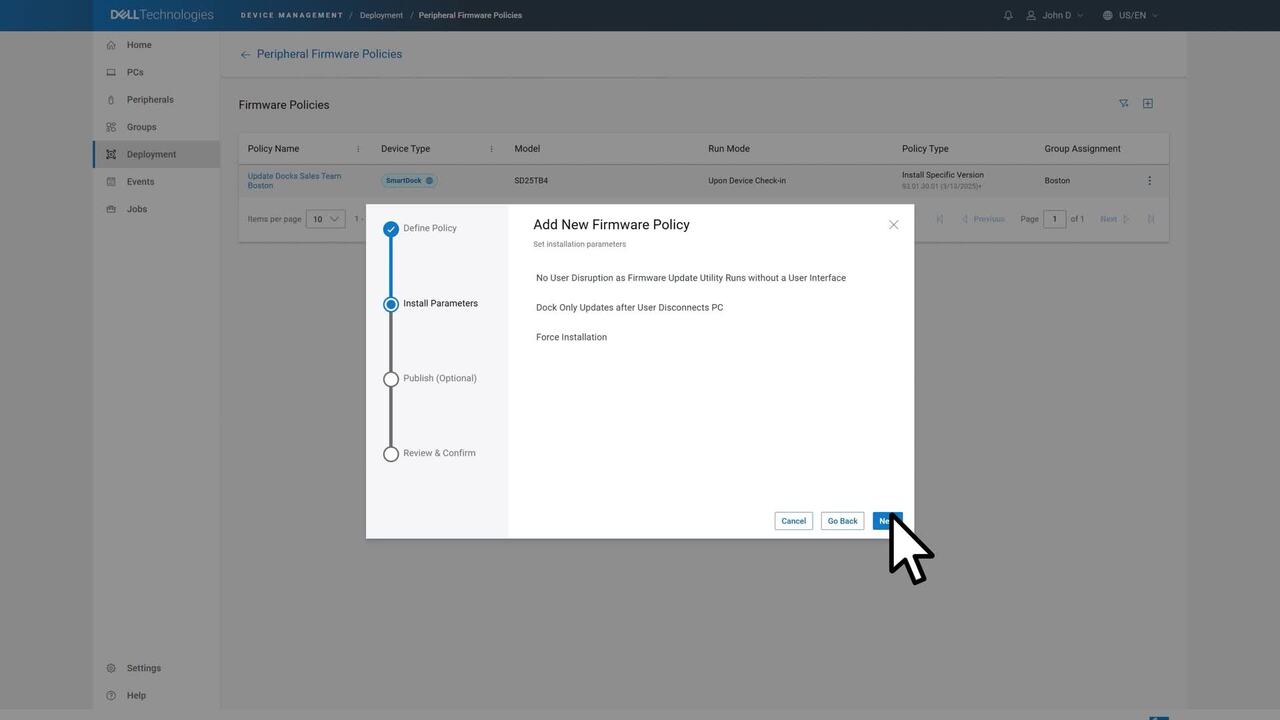
Dell Pro Smart Docks simplify IT management. In this video, we'll cover PC-based enrollment of Dell Pro Smart Docks with Dell Device Management console. To enable host-based provisioning for your Dell Pro Smart Dock, ensure certain requirements have been met.
First, make sure the Dell Pro Smart Doc's wireless configuration policy has been created. Next, verify that your firewall is configured to allow traffic on specific ports. Configure your enrollment validation settings for your PC, smart Docks, and peripherals based on your enrollment preference. Go to settings, manage device configuration, general.
Enrollment validation PCs will be on by default, which signifies that an administrator must approve registration of the Discovered PCs. Turning this off allows discovered PCs to be automatically registered. Note registration of PCs is necessary for managing connected peripherals.
Next, set the enrollment validation setting for the smart Docks and peripherals. Go to settings, manage device configuration. Peripheral management. Keeping enrollment validation. Smart Docks on means an administrator has to approve registration of Discovered Smart Docks. Turning this option off enables Discovered smart Docks to be automatically registered. Smart. must be registered before they can be managed via the Dell Device Management console.
To automatically enroll, Dell peripherals connected to a registered PC enable the auto-enroll peripherals when connected option. To enroll your Dell Pro smart doc through the host PC, you need to install Dell Display and Peripheral Manager and the Dell Device Management agent. Go to deployment, manage available software.
For the Dell display and Peripheral manager DDPM, click software details, download the software based on the installation instructions listed. Next, go to Dell Device Management agent DDMA, click software details, and follow the specific installation instructions to download DDMA. Please note that DDPM must be installed prior to downloading DDMA. After both the software have been installed, the registered PC should be visible upon clicking the PCs tab.
Administrators can also use Intune to deploy DDPM and DDMA. Enroll the Dell Pro smart doc by plugging the DOC cable into the host PC. Verify enrollment by clicking the peripherals tab and ensuring that the DellPro smart doc is listed. Clicking the smart doc service tag in the identifier column should show the host PC under the host name.
It can also be viewed in the PC's recently connected tab. The Dell Pro Smart Doc has been successfully enrolled using the host PC. With Dell Pro Smart Docks and the Dell device management console, managing your PC peripherals ecosystem is simple, secure, and efficient. Experience smarter workspaces today.