Siirry pääsisältöön
  • Tee tilauksia nopeasti ja helposti
  • Tarkastele tilauksia ja seuraa lähetyksen tilaa
  • Luo tuoteluettelo ja käytä sitä
  • Hallitse Dell EMC-sivustoja, tuotteita ja tuote-tason yhteystietoja yrityksen hallinnan avulla.

Dell-laitteen itsekorjaus, ylläpito ja päivitysosat
Itsekorjaus


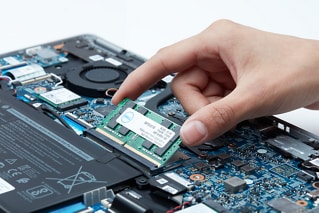
Asiakkaat voivat halutessaan korjata, päivittää ja ylläpitää Dell-laitteitaan itse sen jälkeen, kun alkuperäinen laitteistotakuu on päättynyt. Dell tarjoaa useita vaihtoehtoja, joilla asiakkaat voivat päivittää laitteiston, diagnosoida ongelmia ja vaihtaa osia.

Aloita hakemalla laitteen malli palvelutunnisteen tai sarjanumeron avulla:

Jos olet ostanut Dell-laitteesi sijainnissa, jota Dell ei ylläpidä suoraan, osa- ja korjauspalveluvaihtoehdot eivät näy luettelossa. Ota yhteys jälleenmyyjään ja kysy lisätietoja osista ja korjauspalveluvaihtoehdoista.

MobiiliKäyttöohjeet

AR-avustettu osien vaihto

Käyttöohjeet

Dell AR Assistant auttaa vaihtamaan Dell-tietokoneen osiaKäyttöoppaat ja purkuoppaat
Lisätietoja
Käyttöoppaat
  
VianmääritysLataa

Vianmääritys

Ajurit ja BIOS

Suorita pikatesti tai tunnista tuote nähdäksesi lisää vianmääritysvaihtoehtojaSaat uusimmat päivitykset tunnistamalla tuotteesi
Suorita vianmääritys
Etsi ajureita


Videoresurssit (englanniksi)

Tutorial on Dell AR assistant walkthrough

Dell Technologies has introduced an Augmented Reality (AR) Assistant that allows customers to replace parts with ease. The AR Assistant is a smartphone application that guides customers through the parts replacement process. Customers can download the app from the iOS and Google Play stores and choose their system model and the part that needs to be replaced. The app provides step-by-step instructions and enables customers to view the process from any angle. Once the part is replaced, customers can run Dell diagnostics to confirm the issue is resolved. The app does not require customers to log in or store any personal information. This technology is a helpful resource for customers' hardware replacement.
How to scan your system hardware using SupportAssist for Home PCs

The video explains how to use SupportAssist to scan your system hardware for identifying and resolving hardware issues. You can perform a quick hardware scan, scan a specific hardware component, or scan the entire system. The video demonstrates how to perform a quick hardware scan and submit a support request if an issue is detected. If an issue is detected, an appropriate notification is displayed on the tile and the optimization tiles are disabled. To view the details of the issue detected and create a support request, click Fix Now.
Dell Software Diagnostics and Repair

Keep your gear running longer and let Dell help take care of your Dell PC. Out of Warranty systems are not a problem because Dell can still support you! Let us turn issues into solutions and repair your system with Dell certified products. In this video we show you how.

Muut resurssit

SupportAssist for Home PCs
SupportAssist for PCs
Pidä Dell-laitteesi optimoituna SupportAssistilla.
Tukikirjasto
Tukikirjasto
Kaikki tietokanta-artikkelit ovat käytössäsi.
Lataa
Dell Download Center
Asenna ohjelmisto uudelleen tai lataa juuri hankkimasi ohjelmisto.