PowerEdge: M1000e - How to Check Change Power Redundancy Modes via CMC
Summary: This article provided the method of checking and changing the power redundancy modes of M1000e using CMC web interface.
This article applies to
This article does not apply to
This article is not tied to any specific product.
Not all product versions are identified in this article.
Instructions
- Log in to the CMC web interface.
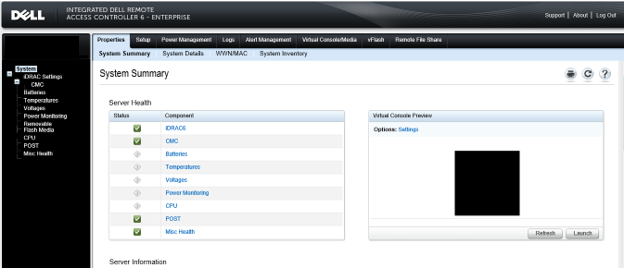
- Choose "Chassis" and click "Power Management."
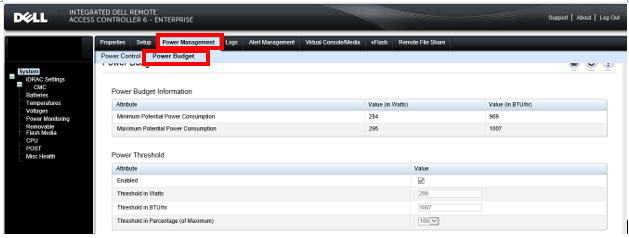
- Click "Configuration," and it displays "Budget/Redundancy Configuration." Check and change the power redundancy mode here.
For further explanation about the power redundancy modes of the PowerEdge M1000e, check Dell M1000e Blade Power Distribution Systemsere.
Note:
1.There are three different power redundancy modes: AC Redundancy, Power Supply Redundancy, Non‐Redundant For more information about this, see Dell M1000e Blade Power Distribution Systems
2.To use this function, administrator rights are required for the chassis.
1.There are three different power redundancy modes: AC Redundancy, Power Supply Redundancy, Non‐Redundant For more information about this, see Dell M1000e Blade Power Distribution Systems
2.To use this function, administrator rights are required for the chassis.
Affected Products
Dell Chassis Management Controller Version 6.21 For Dell PowerEdge M1000e, PowerEdge M1000EArticle Properties
Article Number: 000135717
Article Type: How To
Last Modified: 15 Apr 2025
Version: 6
Find answers to your questions from other Dell users
Support Services
Check if your device is covered by Support Services.