Laptop battery does not charge beyond 55 percent on certain Dell Laptops
Summary: Certain Dell laptop batteries do not charge beyond 55%. Find troubleshooting steps to resolve the battery charge issue when the battery does not charge beyond 55%.
This article applies to
This article does not apply to
This article is not tied to any specific product.
Not all product versions are identified in this article.
Symptoms
You may observe that the battery on your Dell laptop does not charge beyond 55%.
Cause
The Ownership Date being missing in the BIOS setup causes this.
Resolution
Note: Before starting the update, perform the following:
- Back up all personal data. For more information, refer to Back Up and Recovery.
- Connect the AC adapter.
- Update the BIOS to the latest version. To download and install the BIOS, refer to the BIOS Update Guide.
- Restart the laptop and at the Dell logo screen, tap F2 to enter BIOS Setup.
- In the left pane, expand Maintenance and select First Power On Date.
- In the right pane, select Set Ownership Date.
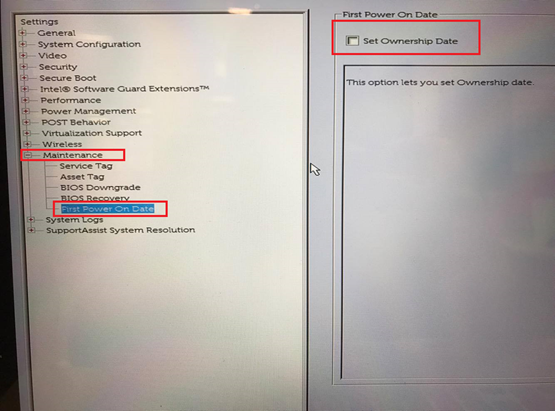
- Click Apply and Exit.
- Restart the laptop and at the Dell logo screen, tap F2 to enter BIOS Setup. Verify that the First Power On Date is no longer listed and the Ownership Date is updated.
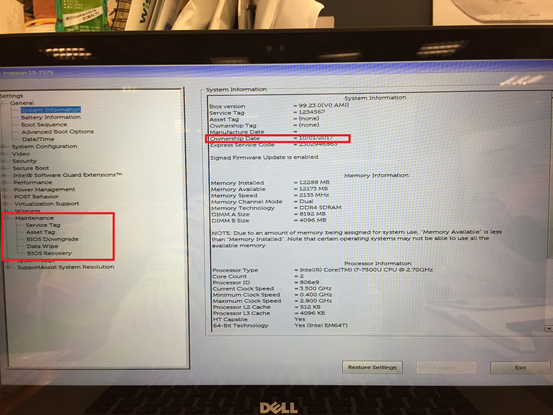
- The laptop charges the battery fully.
Laptop battery does not charge beyond 55 percent on certain Dell Laptops
Duration: 00:02:19 (hh:mm:ss)
When available, closed caption (subtitles) language settings can be chosen using the CC icon on this video player.
Article Properties
Article Number: 000144108
Article Type: Solution
Last Modified: 21 Aug 2026
Version: 12
Find answers to your questions from other Dell users
Support Services
Check if your device is covered by Support Services.