如何在 Dell Security Management Server Administration Console 中管理多因素身份验证
Summary: Dell Security Management Server 可以配置为需要双因素身份验证 (2FA) 才能登录到管理控制台。
This article applies to
This article does not apply to
This article is not tied to any specific product.
Not all product versions are identified in this article.
Instructions
可以为 Dell Security Management Server 或 Dell Security Management Server Virtual 管理多因素身份验证。
受影响的产品:
- Dell Security Management Server
- Dell Security Management Server Virtual
受影响的版本:
- 11.4.0 及更高版本
多因素身份验证可以在用户组或单个用户级别进行管理。有关详细信息,请选择下面的相应部分。
User Group
- 使用具有帐户管理员角色的帐户登录到 Dell Data Security Administration Console。有关更多信息,请参阅 如何访问 Dell Data Security 服务器管理控制台。
注意: 有关管理员角色的更多信息,请参阅 Dell Encryption 支持手册和文档中 AdminHelp - Security Management Server PDF 的管理员角色部分。
- 从左侧菜单窗格中,展开 Populations 选项卡,然后单击 User Groups。

- 从列表中选择 要编辑的用户组 。
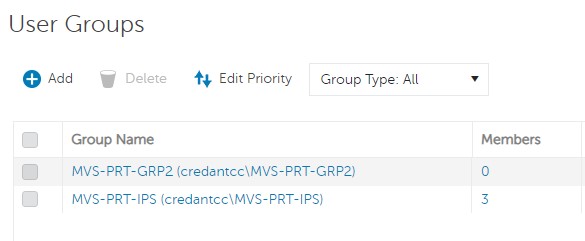 注意: 组在此列表中的位置决定了组的优先级。有关更多信息,请参阅 Dell Encryption 支持手册和文档中 AdminHelp - Security Management Server PDF 的“编辑用户组优先级”部分。
 - 选择 Admin 选项卡。

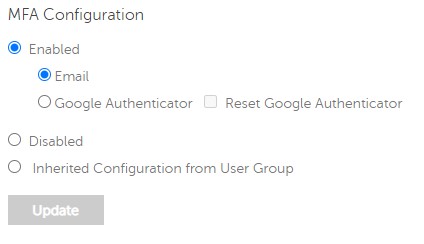
- 从 MFA 配置:
- 选择启用。
- 选择 Email 或 Google Authenticator。
- 单击 Update 按钮。

单个用户
- 使用具有帐户管理员角色的帐户登录到 Dell Data Security Administration Console。有关更多信息,请参阅 如何访问 Dell Data Security 服务器管理控制台。
注意: 有关管理员角色的更多信息,请参阅 Dell Encryption 支持手册和文档中 AdminHelp - Security Management Server PDF 的管理员角色部分。
- 从左侧菜单窗格中,展开 Populations选项卡,然后单击 Users。

- 从列表中选择 要编辑的用户 。
- 选择 Admin 选项卡。

- 从 MFA 配置:
- 选择启用。
- 选择 Email、 Google Authenticator或 Inherited Configuration from User Group。
- 单击Update按钮。
Affected Products
Dell EncryptionArticle Properties
Article Number: 000200440
Article Type: How To
Last Modified: 21 يوليو 2026
Version: 7
Find answers to your questions from other Dell users
Support Services
Check if your device is covered by Support Services.