How to Launch the Windows 11 Task Manager
Shrnutí: Learn step-by-step instructions to open Task Manager in Windows 11. Learn Task Manager shortcuts, hotkeys, and how to open Task Manager with the keyboard.
Tento článek se vztahuje na
Tento článek se nevztahuje na
Tento článek není vázán na žádný konkrétní produkt.
V tomto článku nejsou uvedeny všechny verze produktu.
Pokyny
Windows Task Manager is used to view running processes, end tasks, review computer performance, and more. With the release of Windows 11, some shortcuts to access Task Manager may have changed.
Affected Operating System:
- Windows 11
Launch Task Manager in Windows 11 by using either CTRL + ALT + Delete, Right-Click the Start Button, CTRL + Shift + ESC, Windows Key + X, or the Run Command. Click the appropriate method for more information about how to open task manager with a keyboard or without a keyboard.
CTRL + ALT + Delete
- Press and hold the CTRL, ALT, and Delete keys simultaneously on your keyboard. Once the menu opens, let go of all three keys.
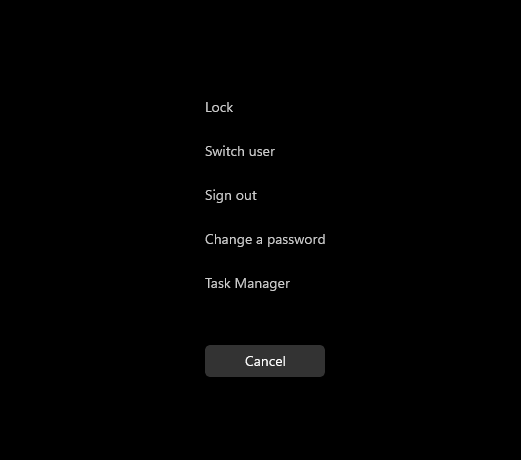
- Click Task Manager.

- Task Manager launches.
Right-Click the Start Button
- From the Taskbar, right-click the Start button.

- From the right-click menu, click Task Manager.

- Task Manager launches.
CTRL + Shift + ESC
- Press and hold the CTRL, Shift, and ESC keys simultaneously on your keyboard. Then let go of all three keys.
- Task Manager launches.
Windows Key + X
- Press and hold the Windows key and the X key simultaneously on your keyboard. Once the Power User menu opens, let go of both keys.

- Click Task Manager.
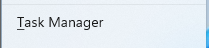
- Task Manager launches.
Run Command
- Click the Start button.
 Note: Alternatively, using your keyboard, press and hold the Windows key and the R key simultaneously to launch the Run command. Once the Run command opens, let go of the keys.
 - When the Start menu appears, type
Run.
- Click Run under Best match.

- Populate
taskmgrin the open dialog and then click OK.
- Task Manager launches.
Další informace
Related Links:
How to Speed Up Windows 11 to Improve Performance Windows 11 Task Manager (Official Dell)

Dotčené produkty
Alienware, Dell All-in-One, Dell Pro All-in-One, Dell Pro Max Micro, Dell Pro Max Slim, Dell Pro Max Tower, Dell Pro Micro, Dell Pro Slim, Dell Pro Tower, Dell Slim, Dell Tower, Inspiron, OptiPlex, Vostro, XPS, G Series, G Series, Alienware
, Dell Plus, Dell Pro, Dell Pro Max, Dell Pro Plus, Dell Pro Premium, Inspiron, Latitude, Dell Pro Rugged, Vostro, XPS, Fixed Workstations, Mobile Workstations, Dell Pro Max Micro XE FCM2250, Dell Pro Max Slim XE FCS1250, Dell Pro Max Tower T2 XE FCT2250, Dell Pro Max 16 XE MC16250, Dell Pro Micro Plus XE QBM1250, Dell Pro Slim Plus XE5 QBS1250, Dell Pro Tower Plus XE5 QBT1250
...
Vlastnosti článku
Číslo článku: 000192107
Typ článku: How To
Poslední úprava: 21 čvc 2025
Verze: 7
Najděte odpovědi na své otázky od ostatních uživatelů společnosti Dell
Služby podpory
Zkontrolujte, zda se na vaše zařízení vztahují služby podpory.