如何執行 Dell Data Security 解除安裝程式
Oversigt: 瞭解如何使用 Dell Data Security 解除安裝程式解除安裝 Dell Data Security 和 Dell Data Protection 產品。
Denne artikel gælder for
Denne artikel gælder ikke for
Denne artikel er ikke knyttet til et bestemt produkt.
Det er ikke alle produktversioner, der er identificeret i denne artikel.
Instruktioner
註:
- 受影響的產品中列出的產品可能未處於使用中狀態。如需支援產品的最新資訊,請參閱 Dell Data Security 的產品生命週期 (支援結束/壽命結束) 原則。如果您對其他文章有任何問題,請聯絡您的銷售團隊或聯絡 endpointsecurity@dell.com。
- 請參考端點安全性,以取得有關目前產品的其他資訊。
Dell Data Security 解除安裝程式可為列出的 Windows Dell Data Security (先前稱為 Dell Data Protection) 提供簡化的移除方法受影響的產品。
受影響的產品:
- Dell BitLocker Manager
- Dell Data Guardian
- Dell Data Protection | Enterprise Edition
- Dell Data Protection | Personal Edition
- Dell Data Protection | External Media Edition
- Dell Data Protection | Secure Lifecycle
- Dell Data Protection | Cloud Edition
- Dell Data Protection | Endpoint Security Suite Enterprise
- Dell Data Protection | Server Edition
- Dell Data Protection | 安全性工具
- Dell Encryption Enterprise
- Dell Encryption External Media
- Dell Encryption Personal
- Dell Endpoint Security Suite Enterprise
- Dell Full Disk Encryption
- Dell Threat Defense
受影響的版本:
- v8.0.0 及更新版本
受影響的作業系統:
- Windows
如何執行 Dell Data Security 解除安裝程式 https://www.dell.com/support/article/sln307791/
影片長度:00:02:25 (hh:mm:ss)
如有提供,您可以使用此影片播放器上的 CC 圖示來選擇隱藏式輔助字幕 (字幕) 的語言設定。
Dell Data Security 解除安裝程式可透過使用者介面 (UI) 或命令行介面 (CLI) 切換值執行。Dell Data 安全性管理員也可以檢閱解除安裝記錄。如需詳細資訊,請按一下適當的標籤。
請參閱如何下載 Dell Data Security 解除安裝程式,以瞭解取得解除安裝程式的詳細資訊。
UI
- 按兩下 DataSecurityUninstaller.exe 以啟動應用程式。
 注意: DataSecurityUninstaller 需要
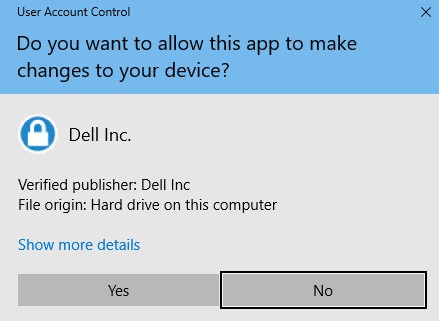
log4net.dllDataSecurityUninstaller 需要 log4net.dll 位於相同資料夾,才能成功執行。 - 如果已啟用使用者帳戶控制 (UAC),請按一下是,以提高系統管理員權限。否則請前往步驟 3。
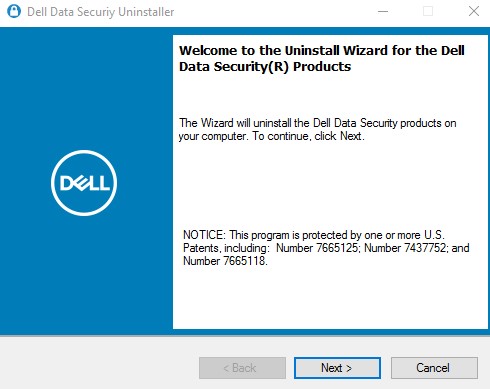
- 在 Dell Data Security 解除安裝程式使用者介面 (UI) 中,按一下下一步以繼續。
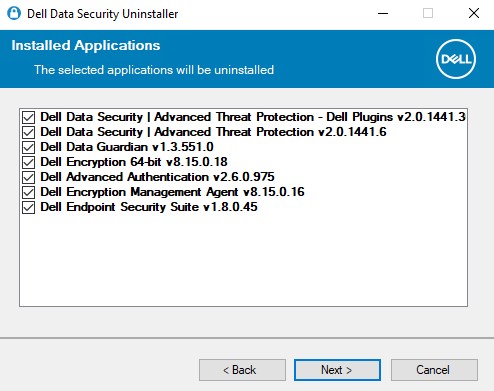
- 您可以選擇清除移除清單中的應用程式核取方塊,然後按一下下一步。
 註:
註:- 系統會自動選取或清除選取所需的相依應用程式。
- 您端點上可用的應用程式可能會與螢幕擷取畫面不同。
- 若具有 Dell Personal Encryption (先前稱為 Dell Data Protection | Personal Edition) 或 Dell Enterprise Encryption (先前稱為 Dell Data Protection | Enterprise Edition) 原則型加密,請前往步驟 6。否則請前往步驟 7。
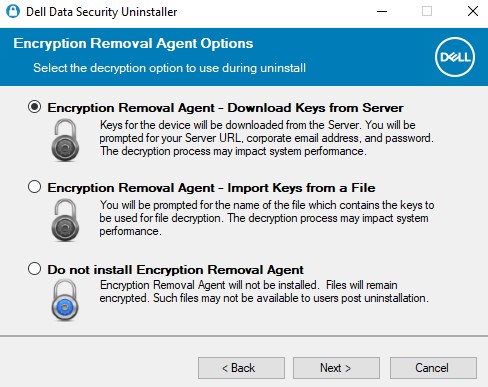
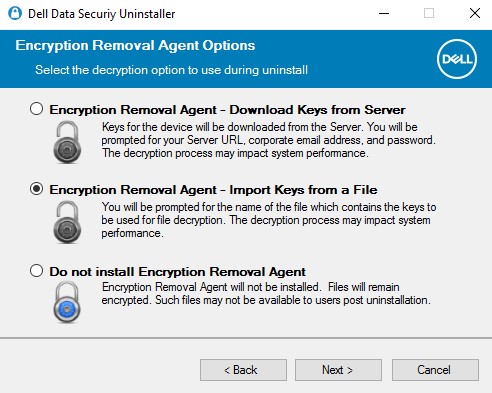
- 在「加密代理程式選項 UI」中,選取下列其中一項: 按一下上方的適當連結,以瞭解特定的安裝步驟。
加密移除代理程式 - 從伺服器下載金鑰
- 選取加密移除代理程式 - 從伺服器下載金鑰,然後按一下下一步。
- 填入所列裝置伺服器的鑑識管理員登入資料。填入後,按一下下一步,然後前往步驟 8。
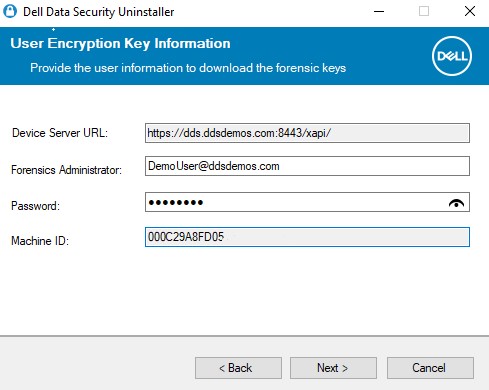 註:
註:- 裝置伺服器 URL 會透過登錄查詢提取至 。
HKLM\SYSTEM\CurrentControlSet\Services\CMGShield REG_SZ: ServletURL。 - 機器 ID 會透過登錄查詢提取至 。
HKLM\SYSTEM\CurrentControlSet\Services\CMGShield REG_SZ: MCID。 - 在您的環境中,裝置伺服器和鑑識管理員會與上方的螢幕擷取畫面不同。
- 鑑識管理員必須以通用主體名稱 (UPN) 格式填入。例如 Jane_Doe@Dell.com 便是 UPN 格式。
- 裝置伺服器 URL 會透過登錄查詢提取至 。
加密移除代理程式 - 從檔案匯入金鑰
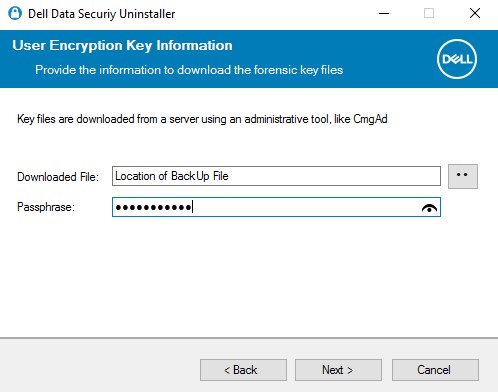
- 選取加密移除代理程式 - 從檔案匯入金鑰,然後按一下下一步。
- 瀏覽至鑑識下載的檔案的位置,然後輸入檔案的密碼片語。填入後,按一下下一步,然後前往步驟 8。
請勿安裝加密移除代理程式
- 選取請勿安裝加密移除代理程式,按一下下一步,然後前往步驟 8。
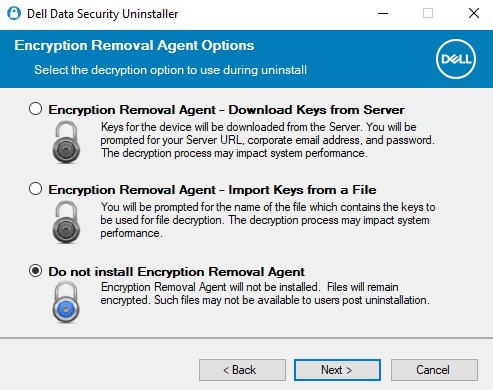 若未安裝加密移除代理程式,會導致端點無法解密。受 SDE 金鑰保護的資料會保持無法使用。在解除安裝之後,將無法受通用或使用者金鑰保護的資料,直到安裝加密移除代理程式。
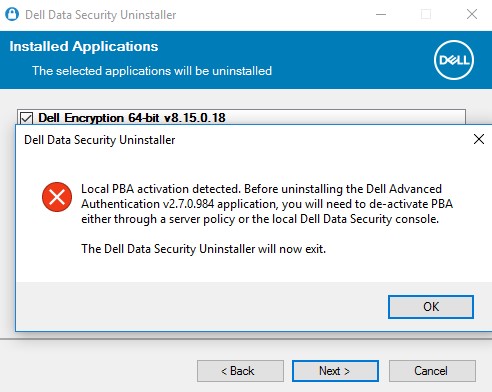
- 如果在端點上佈建了自我加密磁碟機,則必須先停用,才能移除。按一下確定以關閉 Dell Data Security 解除安裝程式。如果已經停用或未使用自我加密磁碟機,請前往步驟 8。
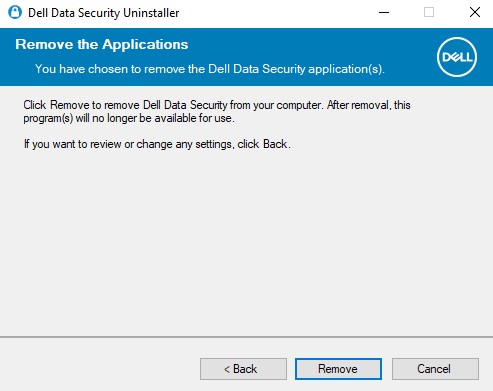
- 按一下移除以解除安裝步驟 4 中所選取的應用程式。
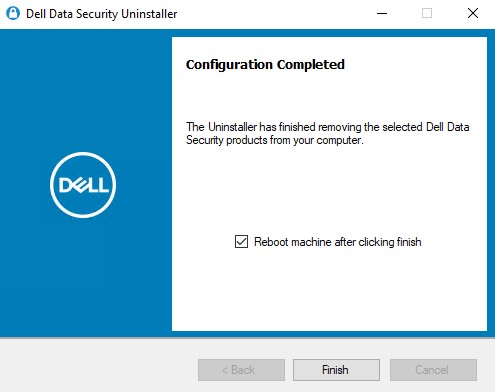
- 完成時,按一下完成以重新開機機器。
 註:
註:- 必須重新開機,才能從開機週期清理移除的應用程式。
- 如果有任何應用程式無法解除安裝,請按一下解除安裝記錄標籤。
- 按一下是以確認您要重新開機機器。

CLI
Dell Data Security 解除安裝程式提供在命令列使用參數與值移除的彈性。
註:
- 參數區分大小寫。
- DataSecurityUninstaller 需要
log4net.dllDataSecurityUninstaller 需要 log4net.dll 位於相同資料夾,才能成功執行。 - 裝置伺服器 URL 會透過登錄查詢提取至 。
HKLM\SYSTEM\CurrentControlSet\Services\CMGShield REG_SZ: ServletURL。 - 機器 ID 會透過登錄查詢提取至 。
HKLM\SYSTEM\CurrentControlSet\Services\CMGShield REG_SZ: MCID。
| 參數 | 值 |
|---|---|
CMG_Decrypt= |
0 0 (不安裝加密移除代理程式) |
CMG_Decrypt= |
1 1 (使用 Dell Security Management Server 下載的金鑰安裝加密移除代理程式) |
CMG_Decrypt= |
2 2 (使用 Enterprise Edition 用戶端鑑識套裝的金鑰安裝加密移除代理程式) |
CMG_Decrypt= |
3 3 (使用 Personal Edition 用戶端鑑識套裝的金鑰安裝加密移除代理程式) |
FORENSIC_ADMIN= |
Dell Security Management Server 的鑑識系統管理員使用名稱。在以下情況下,此選項為必填 CMG_Decrypt 選擇值 1。密碼必須包含在半形引號中 ("")。必須以通用主體名稱 (UPN) 格式填入使用者名稱。例如 Jane_Doe@Dell.com 便是 UPN 格式。 |
FORENSIC_PWD= |
Dell Security Management Server 的鑑識系統管理員密碼。在以下情況下,此選項為必填 CMG_Decrypt 選擇值 1。密碼必須包含在半形引號中 ("")。 |
DA_KM_Path= |
如果發生以下情況,請提供鑑識套裝的位置 CMG_Decrypt 選擇值 2(或 3)。值必須包含在半形引號中。 |
DA_KM_PW= |
如果是鑑識套裝的密碼 CMG_Decrypt 選擇值 2(或 3)。值必須包含在半形引號中。 |
/silent |
在無對話的情況下執行 DataSecurityUninstaller。 CMG_Decrypt 若未定義變數,則預設會設定 CMG_Decrypt 值 3。此參數必須為小寫。 |
NOREBOOT |
解除安裝後不要重新開機。使用 NOREBOOT 旗標不需要交換值或修飾符。 NOREBOOT 旗標 |
LOGFILE_PATH= |
設定解除安裝記錄檔案路徑的選用參數。如果未選擇此選項,則會使用在「解除安裝記錄」標籤下列出的預設位置。密碼必須包含在半形引號中 ("")。 |
LOGFILE_Name= |
若已定義 LOGFILE_PATH,則會用於設定解除安裝記錄的名稱。 LOGFILE_PATH 已定義。密碼必須包含在半形引號中 ("")。 |
CLI 解除安裝範例:
範例 #1
下列範例會執行無 UI 的 DataSecurityUninstaller,並使用鑑識系統管理員 (ExampleUser) 直接從 Dell Security Management Server 下載加密金鑰。解除安裝後,系統會隱藏重新開機的要求。
範例命令列解除安裝:
DataSecurityUninstaller.exe CMG_DECRYPT=1 FORENSIC_ADMIN="ExampleUser" FORENSIC_PWD="Passw0rd" NOREBOOT /silent
範例 #2
下列範例會執行無 UI 的 DataSecurityUninstaller,並使用透過 CMGA 下載之 Dell Security Management Server 預先下載的加密金鑰。CMGAd 是 Dell Encryption 管理公用程式中的一個公用程式,在 Dell Encryption 中可用。解除安裝後,系統會隱藏重新開機的要求。
範例命令列解除安裝:
DataSecurityUninstaller.exe CMG_DECRYPT=2 DA_KM_PATH="C:\Dell\KeyBundle\DeviceName.Domain.com" DA_KM_PW="Passw0rd" NOREBOOT /silent
記錄
根據預設,Dell Data Security 解除安裝程式會將解除安裝記錄輸出至 C:\ProgramData\Dell\Dell Data Protection)。會為每個選取要移除的應用程式產生解除安裝記錄。
DDP_AdvancedThreatProtection_Plugins_Uninstall_MSI.logDDP_AdvancedThreatProtection_Plugins_Uninstall_MSI.log - 包含解除安裝 Dell 附掛程式的相關資訊,這些附掛程式用於從 Advanced Threat Protection 代理程式與 Dell Client Security 架構的通訊。DDP_AdvancedThreatProtection_Uninstall_MSI.logDDP_AdvancedThreatProtection_Uninstall_MSI.log - 包含解除安裝 Advanced Threat Protection 代理程式的相關資訊。DDP_Authentication_Uninstall_MSI.logDDP_Authentication_Uninstall_MSI.log - 包含解除安裝 Advanced Authentication 元件的相關資訊。DDP_ClientSecurityFramework_Uninstall_MSI.logDDP_ClientSecurityFramework_Uninstall_MSI.log - 包含移除 Dell Client Security Framework (Encryption Management Agent) 的相關資訊。DDP_Data_Guardian_Uninstall_MSI.logDDP_Data_Guardian_Uninstall_MSI.log - 包含有關移除 Dell Data Guardian 的相關資訊。DDP_Encryption_Uninstall_MSI.logDDP_Encryption_Uninstall_MSI.log - 包含移除 Dell 原則式加密應用程式的相關資訊。DDP_ESSE_Uninstall.logDDP_ESSE_Uninstall_MSI.log - 若使用 Suite 安裝程式,便會包含移除該安裝程式的相關資訊。DDP_ESSE_Uninstall_MSI.logDDP_ESSE_Uninstall_MSI.log - 若使用 Suite 安裝程式,便會包含移除該安裝程式的相關資訊。DDPUninstall_Main.logDDPUninstall_Main.log - 包含所有嘗試運用 DDS 解除安裝程式的相關解除安裝資訊。DDP_McAfee_Endpoint_Security_Firewall_Uninstall_MSI.logDDP_McAfee_Endpoint_Security_Firewall_Uninstall_MSI.log - 包含解除安裝 Dell Endpoint Security Suite Pro 和 Endpoint Security Suite Enterprise 防火牆元件的相關資訊。DDP_McAfee_Endpoint_Security_Security_Platform_Uninstall_MSI.logDDP_McAfee_Endpoint_Security_Security_Platform_Uninstall_MSI.log - 包含解除安裝 Dell Endpoint Security Suite Pro 和 Endpoint Security Suite Enterprise 基礎 McAfee 元件的相關資訊。DDP_McAfee_Endpoint_Security_Web_Control_Uninstall_MSI.logDDP_McAfee_Endpoint_Security_Web_Control_Uninstall_MSI.log - 包含解除安裝 Dell Endpoint Security Suite Pro 和 Endpoint Security Suite Enterprise Web 控制元件的相關資訊。DDP_ThreatProtection_Uninstall_MSI.logDDP_ThreatProtection_Uninstall_MSI.log - 包含解除安裝 Dell Endpoint Security Suite Pro 和 Endpoint Security Suite Enterprise 的 McAfee 和 Dell Client Security Framework 附掛程式的相關資訊。
Flere oplysninger
Videoer
Berørte produkter
Dell Data Guardian, Dell Encryption, Dell Security Tools, Dell Threat Defense, Dell Endpoint Security Suite EnterpriseArtikelegenskaber
Artikelnummer: 000125052
Artikeltype: How To
Senest ændret: 06 aug. 2026
Version: 22
Find svar på dine spørgsmål fra andre Dell-brugere
Supportservices
Kontrollér, om din enhed er dækket af supportservices.