Sådan tilføjer du CrowdStrike Falcon Console-administratorer
Oversigt: Få mere at vide om, hvordan du opretter en administratorkonto eller tilføjer flere administratorer til CrowdStrike Falcon Console ved at følge disse instruktioner.
Denne artikel gælder for
Denne artikel gælder ikke for
Denne artikel er ikke knyttet til et bestemt produkt.
Det er ikke alle produktversioner, der er identificeret i denne artikel.
Instruktioner
Falcon-administratorer kan få adgang til alle funktioner i CrowdStrike Falcon-konsollen undtagen visse RTR-funktioner (Real Time Response). Denne artikel beskriver, hvordan du tilføjer yderligere administratorer til CrowdStrike Falcon-konsollen.
Påvirkede operativsystemer:
- Windows
- Mac
- Linux
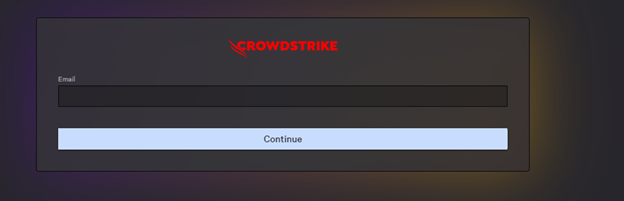
- I en Google Chrome- eller Microsoft Edge-browser skal du gå til din Falcon-konsol-login-URL.
- Falcon US-1: https://falcon.crowdstrike.com/login/
- Falcon US-2: https://falcon.us-2.crowdstrike.com/login/
- Falcon EU-1: https://falcon.eu-1.crowdstrike.com/login/
- Falcon US-GOV-1: https://falcon.laggar.gcw.crowdstrike.com/login/
- Falcon US-1: https://falcon.crowdstrike.com/login/
- Log ind på Falcon Console.
- I venstre menurude skal du klikke på Værtsopsætning og -administration og derefter vælge Brugeradministration.
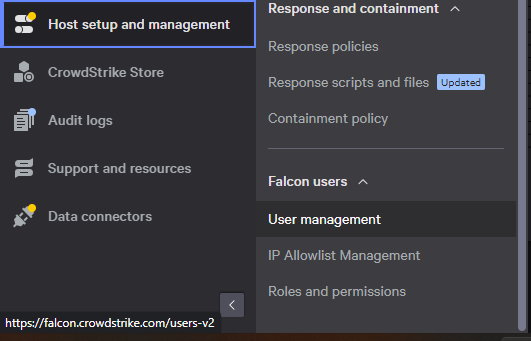 Bemærk: Layoutet i eksemplet kan afvige en smule fra dit miljø.
 - Klik på Opret bruger øverst til højre.

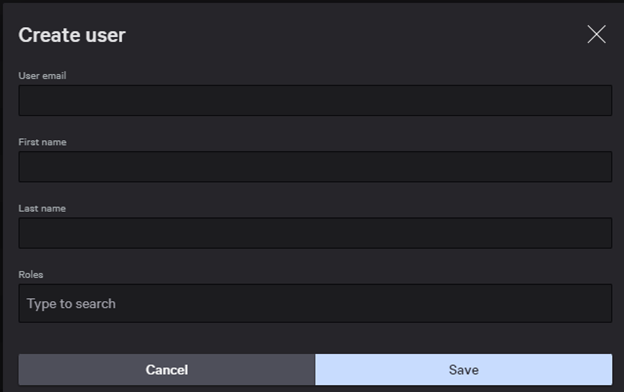
- I menuen Opret bruger :
- Udfyld e-mail.
- Udfyld fornavn.
- Udfyld efternavn.
- Søg efter mindst én administrationsrolle.
- Klik på Gem.
 Bemærk: Du kan finde flere oplysninger om administrationsrollefunktioner ved at vælge oplysningsikonet (
 ) ud for den valgte rolle.

For at kontakte support kan du bruge internationale supporttelefonnumre til Dell Data Security.
Gå til TechDirect for at oprette en anmodning om teknisk support online.
Hvis du vil have yderligere indsigt og ressourcer, skal du tilmelde dig Dell Security Community-forummet.
Videoer
Berørte produkter
CrowdStrikeArtikelegenskaber
Artikelnummer: 000130804
Artikeltype: How To
Senest ændret: 19 apr. 2026
Version: 16
Find svar på dine spørgsmål fra andre Dell-brugere
Supportservices
Kontrollér, om din enhed er dækket af supportservices.