PowerEdge: How to Update Hard Drive Firmware on PowerEdge Servers Using a Windows System
Oversigt: The firmware of PowerEdge server hard drives is a critical component in the server system. Regularly updating and maintaining this firmware is essential for server performance, security, and compatibility. Hard drive firmware updates can often fix known hardware faults and issues, address identified vulnerabilities and security problems, and potentially introduce new features, improvements, and enhancements. ...
Denne artikel gælder for
Denne artikel gælder ikke for
Denne artikel er ikke knyttet til et bestemt produkt.
Det er ikke alle produktversioner, der er identificeret i denne artikel.
Instruktioner
These firmware updates can reduce the risk of hardware failures and improve the overall reliability of the server.
Note: Before updating hard drive firmware, please ensure that you have a full data backup. Schedule the firmware update during a period of low I/O activity. Do not power off the system or force an interruption during the firmware update process.
Steps to Update Hard Drive Firmware on Windows:
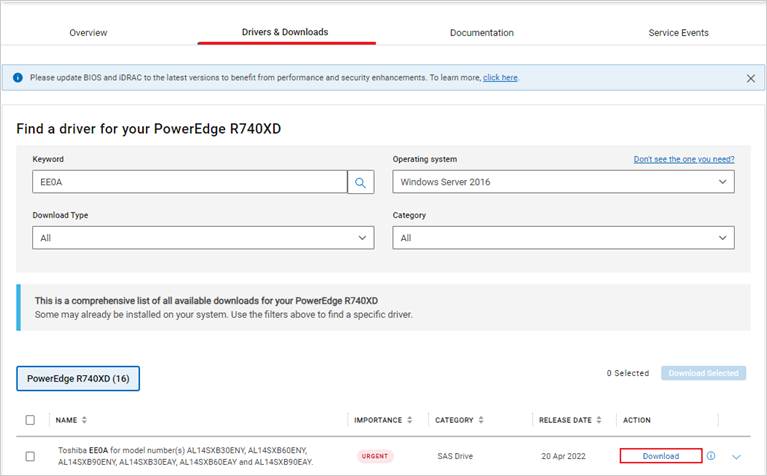
- Navigate to the "Drivers & Downloads" section, enter your Dell service tag or click "Browse all products" to select your server model.
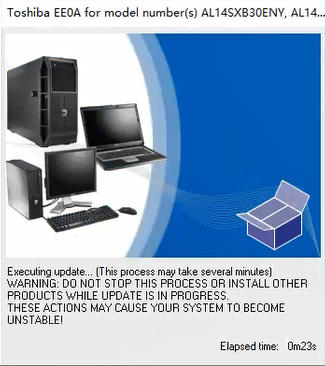
- Search for the keyword "hard drive firmware" and download the corresponding BIN file. (The example image shows the Toshiba EE0A hard drive firmware.)
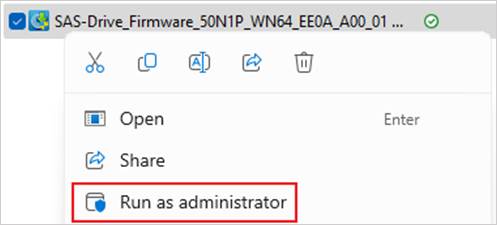
- Right-click and run the EXE file as an administrator.
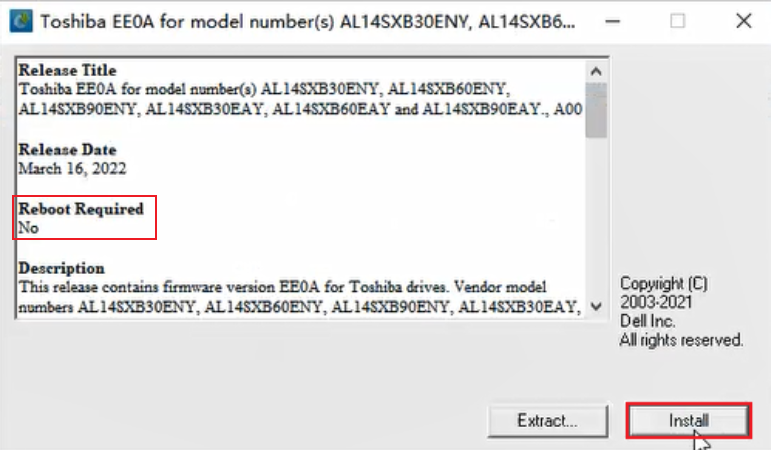
- Based on the "Reboot Required" prompt, confirm if a reboot is necessary.
If a reboot is required, please perform the update during a scheduled maintenance window when the machine can be taken offline. Click "Install" to begin the installation.
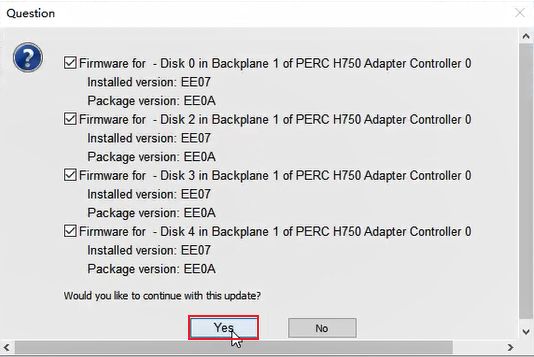
- The prompt indicates that the firmware versions for Disks 0, 2, 3, and 4 will be synced and updated. Click "Yes" to proceed.
- Run the update operation until the prompt displays
"The update completed successfully."Click "OK" to finish the firmware update.
If any of the following conditions exist, the firmware update cannot be run:
- RAID status is abnormal in the process of rebuilding, reconstructing, or write-back.
- RAID is performing background initialization (BGI), consistency check (CC), or patrol read (PR).
- Hard drive status is abnormal: Failed, Missing, Bad block, Foreign, 0GB.
Flere oplysninger
Refer to this video:
PowerEdge: How to Update Hard Drive Firmware Using a Windows System
Duration: 00:02:26 (hh:mm:ss)
When available, closed caption (subtitles) language settings can be chosen using the CC icon on this video player.
You can also view this video on YouTube.
Berørte produkter
C Series, HS Series, Modular Infrastructure, Rack Servers, Tower Servers, XE Servers, XR Servers, OEM Server Solutions, Microsoft Windows Server 2016, Microsoft Windows Server 2019, Microsoft Windows Server 2022, Microsoft Windows Server 2025Artikelegenskaber
Artikelnummer: 000226155
Artikeltype: How To
Senest ændret: 13 aug. 2026
Version: 8
Find svar på dine spørgsmål fra andre Dell-brugere
Supportservices
Kontrollér, om din enhed er dækket af supportservices.