Live Optics | Upload an SIOKIT File using the Live Optics Collector
Oversigt: How to upload an SIOKIT file using the Live Optics collector.
Denne artikel gælder for
Denne artikel gælder ikke for
Denne artikel er ikke knyttet til et bestemt produkt.
Det er ikke alle produktversioner, der er identificeret i denne artikel.
Instruktioner
The Live Optics collector sends data to the Live Optics web portal for analysis in two ways:
- Automatically, while a Live Optics collector run is in progress
- Manually, by uploading an encrypted SIOKIT file which is created and saved locally to the machine on which it is run.
This article describes how to manually upload an SIOKIT file using the Live Optics collector.
- Open the Live Optics collector and select Upload SIOKIT.
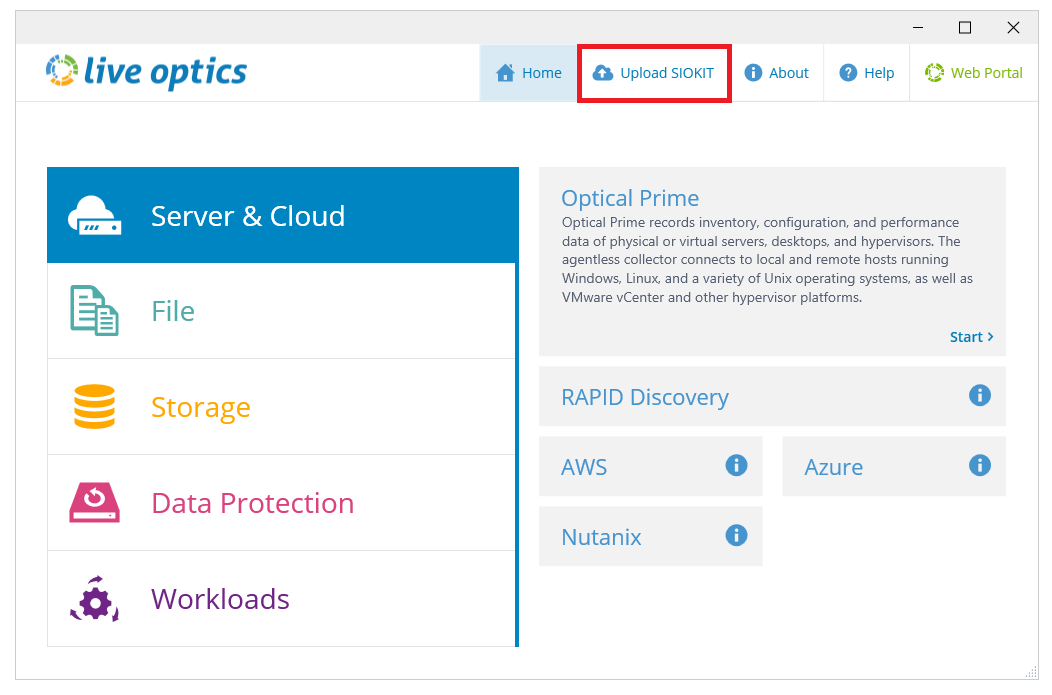
- Click Browse for File and choose the SIOKIT file you want to upload. Enter a project name and click Upload to continue.
- The file is uploaded to the Live Optics web portal. During the upload, a status bar indicates the progress. The upload may take some time to complete depending on the speed of your Internet connection and size of the file. When the upload is complete, the following screen displays. A confirmation email follows, when your project is ready to view on the Live Optics web portal.
- Click Quit to close the Collector.
Flere oplysninger
If you have any questions, reach out to Live Optics Support at liveoptics.support@dell.com.
Berørte produkter
AnalyticsArtikelegenskaber
Artikelnummer: 000228710
Artikeltype: How To
Senest ændret: 21 okt. 2025
Version: 3
Find svar på dine spørgsmål fra andre Dell-brugere
Supportservices
Kontrollér, om din enhed er dækket af supportservices.