PowerFlex: CloudLink: SVM Status Connection Is Showing Both Cloudlink Nodes as Inaccessible
Oversigt: Running command svm status connection is showing both CloudLink nodes as Inaccessible due to blocked port UDP 1194.
Denne artikel gælder for
Denne artikel gælder ikke for
Denne artikel er ikke knyttet til et bestemt produkt.
Det er ikke alle produktversioner, der er identificeret i denne artikel.
Symptomer
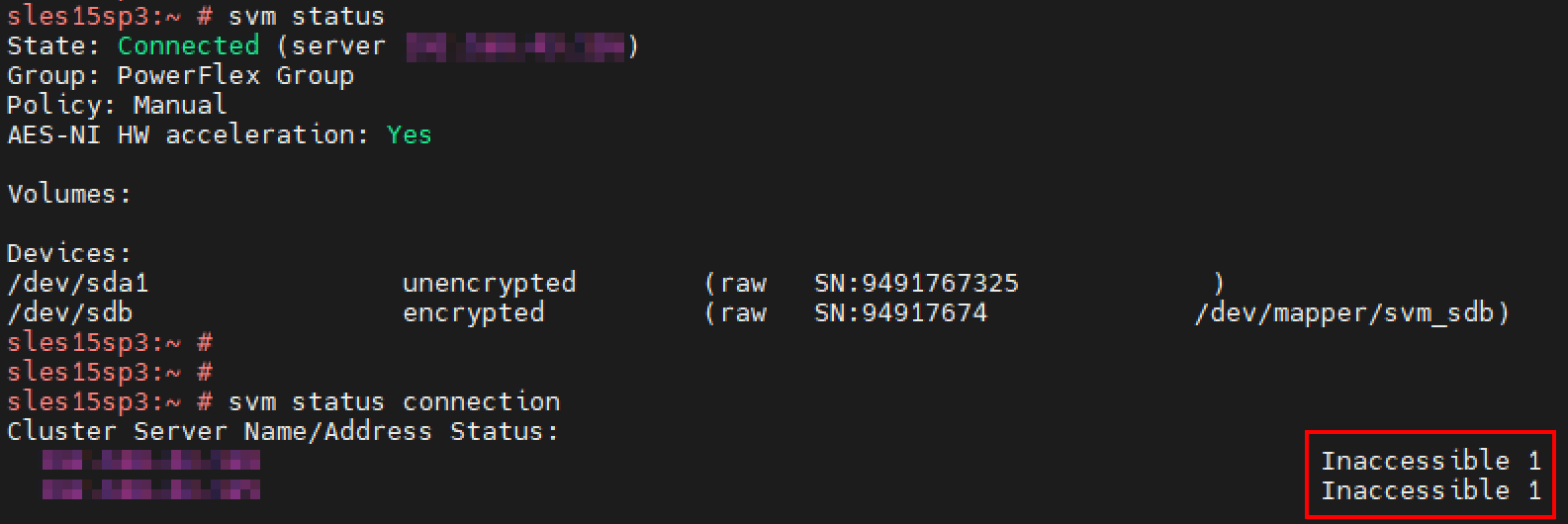
When running command svm status it shows the State as Connected.
svm status
However, when running command svm status connection it's showing both CloudLink nodes as Inaccessible.
svm status connection
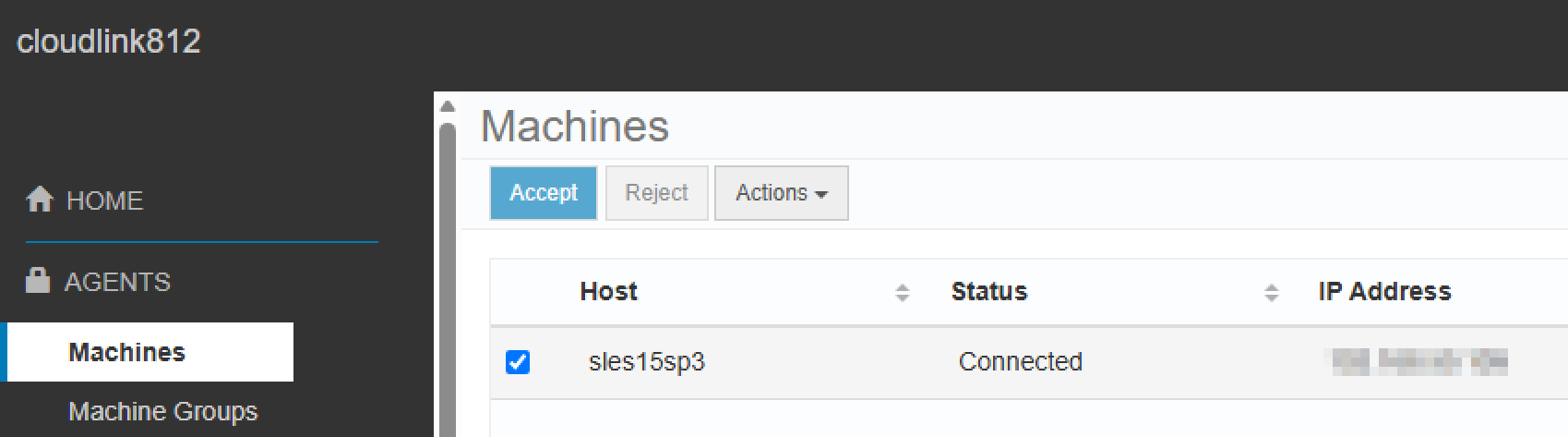
In the CloudLink webUI > AGENTS > Machines the status of the agents is showing Connected.
Årsag
Try restarting the CloudLink agent on the SDS node to refresh the connection by restarting the svmd service (non-impactful):
systemctl restart svmd
If the CloudLink nodes are showing as Inaccessible when running svm status connection, this could indicate that UDP port 1194 is getting blocked by a firewall.
The CloudLink agents installed on the SDS nodes must be able to reach CloudLink over port 1194 for both TCP and UDP.
If TCP port 1194 is blocked, it will say State: Disconnected when running svm status and this would be impactful as the SDS nodes would not be able to unlock their disks after a reboot.
If UDP port 1194 is blocked, the Cloudlink nodes will say Inaccessible when running svm status connection but this would not be impactful as the SDS nodes should still be able to unlock their disks after a reboot.
As a precaution, DO NOT reboot any SDS nodes if you suspect any connectivity issues related to Cloudlink. This should get fixed ASAP.
Løsning
Run one of the following commands on the SDS nodes to check connectivity for TCP port 1194:
nc -zv cloudlink.ip 1194curl -v telnet://cloudlink.ip:1194There are several tools for checking UDP ports that aren't reliable:
nmap -sU -p 1194 cloudlink.ipnc -zvu cloudlink.ip 1194
For example, we've added the -u option to this netcat command to check UDP port 1194 but it's not reliable. If you don't get a response, then you can assume UDP port 1194 is getting blocked by a firewall.

However, you may get a Connection succeeded! response even if the port is getting blocked.

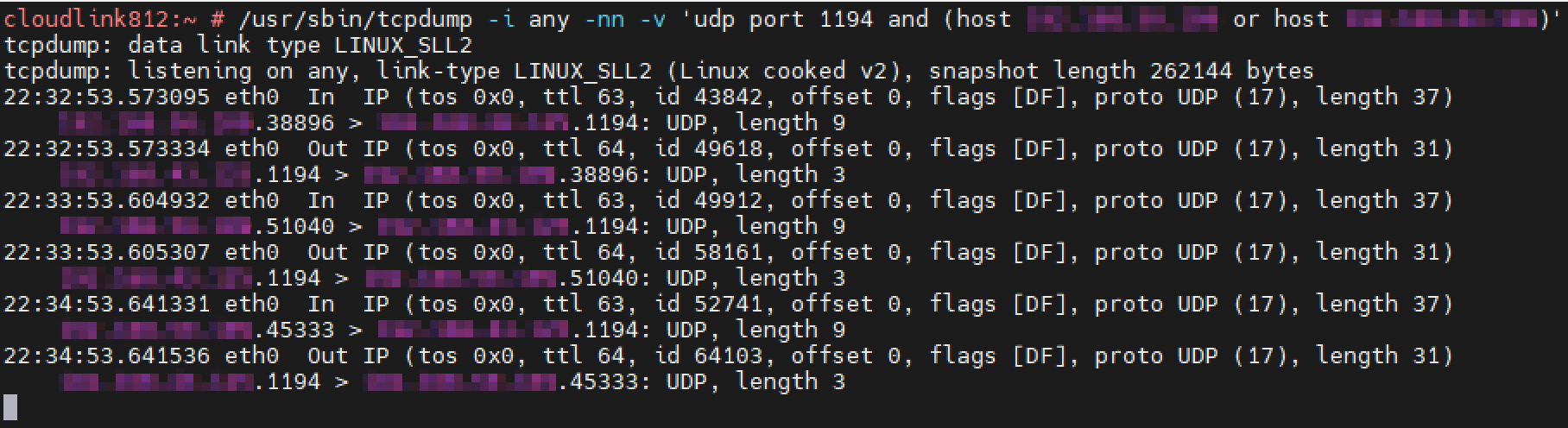
tcpdump is a more reliable way to check UDP traffic. We ran tcpdump on the CloudLink appliance and did not see any UDP packets from the SDS nodes so it's likely UDP port 1194 was getting blocked. The customer worked with their firewall team to open UDP port 1194. Source is SDS nodes, and the destination is CloudLink appliances. CloudLink Engineering must be engaged to gain access to the CloudLink console since it is locked down.
/usr/sbin/tcpdump -i any -nn -v 'udp port 1194 and (host sdsnode1.ip or host sdsnode2.ip)'

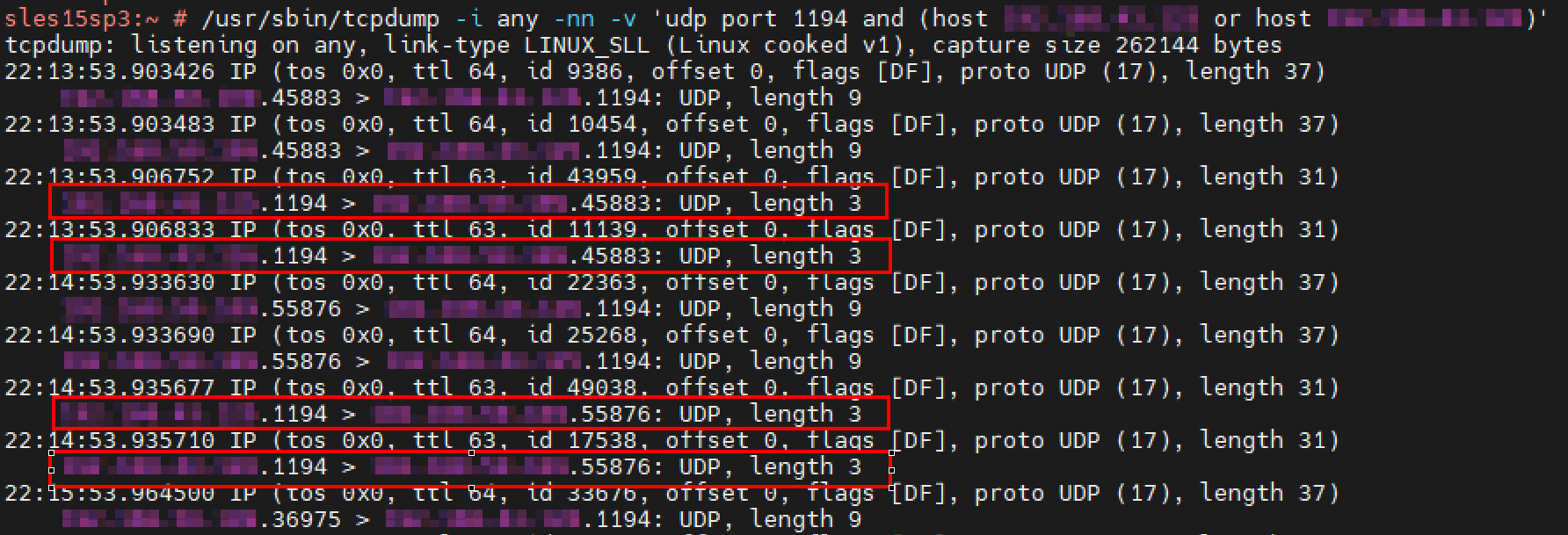
This is what we would expect to see if UDP port 1194 is open.
Since the CloudLink console is locked down, you could instead run tcpdump on the SDS nodes.
/usr/sbin/tcpdump -i any -nn -v 'udp port 1194 and (host cloudlink1.ip or host cloudlink2.ip)'
If UDP port 1194 is being blocked, we only see UDP packets going from SDSnode.xxxxx(source) to Cloudlink.1194(destination).
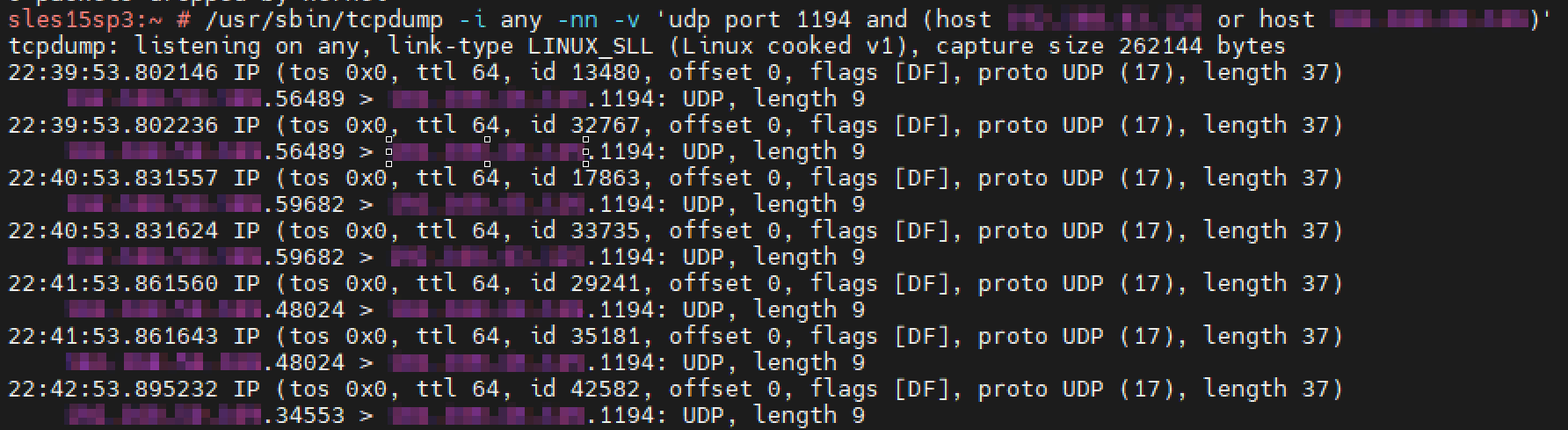
If UDP port 1194 is open, we will also see UDP reply packets going from Cloudlink.1194 (destination) to SDSnode.xxxxx (source)
Berørte produkter
CloudLink SecureVM, PowerFlex rack, ScaleIO, CloudLink, PowerFlex SoftwareArtikelegenskaber
Artikelnummer: 000384973
Artikeltype: Solution
Senest ændret: 27 aug. 2026
Version: 5
Find svar på dine spørgsmål fra andre Dell-brugere
Supportservices
Kontrollér, om din enhed er dækket af supportservices.