System Pool Configuration, Modes, and Alerts in OneFS 9.15+
Oversigt: Describes System Pool mode behavior in OneFS 9.15+ and explains the associated alerts to help interpret cluster state and identify potential issues.
Denne artikel gælder for
Denne artikel gælder ikke for
Denne artikel er ikke knyttet til et bestemt produkt.
Det er ikke alle produktversioner, der er identificeret i denne artikel.
Symptomer
1. All-Flash System Pool Recommendation Alert
System pool is not configured optimally. Configure the system pool strategy to use all-flash. Please see System Pool Configuration KB article.
2. System Pool Capacity Threshold Alert
2. System Pool Capacity Threshold Alert
System pool has available space below the required threshold. Please see System Pool Configuration KB article.
3. Degraded System Pool Alert
System pool has degraded nodepools:
System pool has degraded nodepools:
s200_25gb_6gb.
Årsag
1) All-Flash System Pool Recommendation Alert
This alert appears when:
-
The cluster contains SSD‑capable node groups, but the system pool is currently using hybrid or HDD‑based node groups instead.
2) System Pool Capacity Threshold Alert
This alert appears when:
- The system pool's available capacity share falls below the minimum recommended threshold (typically 2.8% for SSD and 1.5% for HDD).
- The capacity share is the ratio of the available space in system pool to the total available space in cluster.
i.e.
3) Degraded System Pool Alert
This alert appears when:
-
when the system is relying on a group of nodes that no longer has enough nodes to operate safely (fewer than three).
-
This may happen when:
-
A node in a system pool has been smartfailed or removed
-
Node hardware failures reduce the active node count in a system pool below the minimum threshold
-
Løsning
1) SSD System Pool Recommendation Alert
Review the active mode:
isi storagepool settings view
To prioritize SSDs, switch to:
isi storagepool settings modify --system-pool-mode=all-flashWhen the System Pool Strategy is set to all-flash, OneFS will automatically select flash nodes in the system pool when available, and the alert gets resolved on the next CELOG evaluation cycle.
Note: If administrators intentionally choose to keep non‑flash nodes in the system pool, the alert can be acknowledged or ignored in the WebUI.
(WebUI → Cluster Management→ Events and alerts→ Locate the event in the list, then use the available Resolve or Ignore actions)
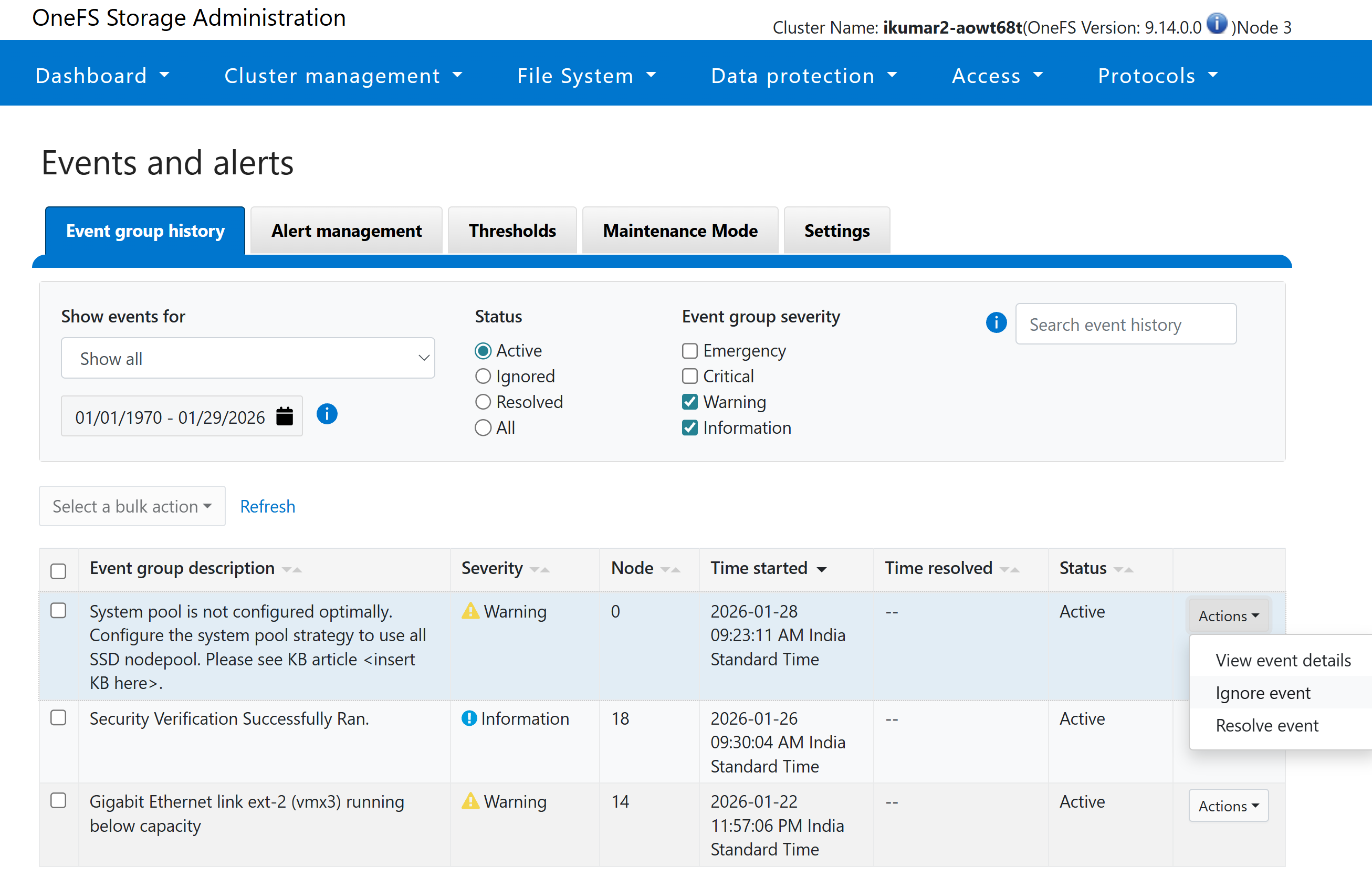
(WebUI → Cluster Management→ Events and alerts→ Locate the event in the list, then use the available Resolve or Ignore actions)
2) System Pool Capacity Threshold Alert
Verify nodepool capacity (WebUI):
Navigate to:
WebUI → File System → Storage Pools → SmartPools
Under the listed nodepools, review Capacity:
- Used capacity
- Available capacity
- Nodepool type
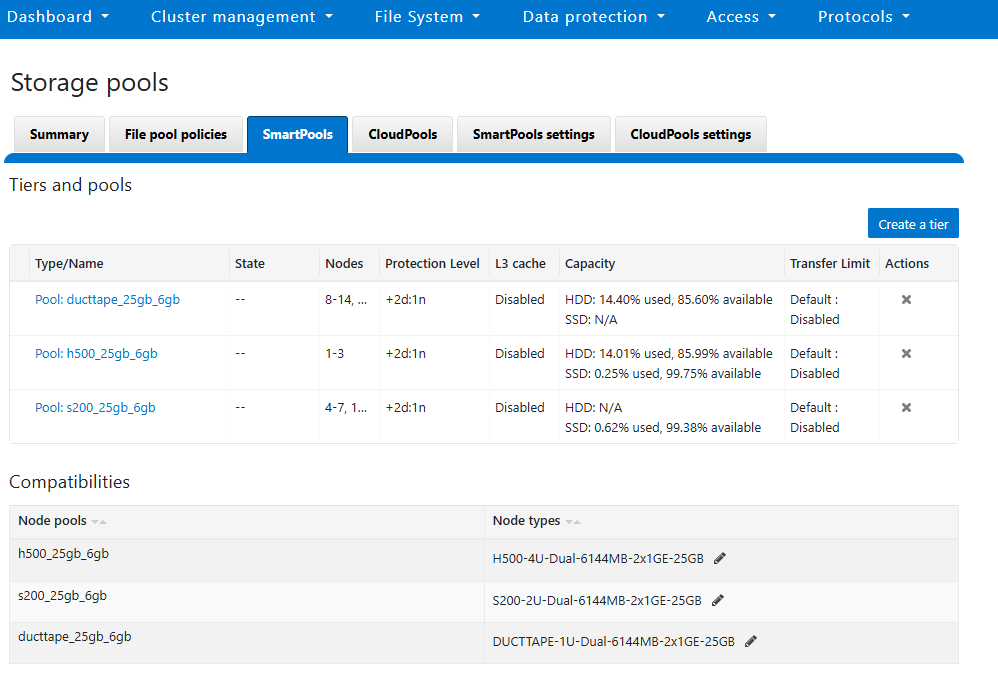
Add capacity, add nodes, or rebalance data where needed to restore healthy available capacity levels.
Also review current system‑pool mode to verify whether a different mode better suits cluster's layout and capacity distribution:
isi storagepool settings view
For example:
- Switching to all node may provide a larger set of eligible nodepools when SSD/hybrid pools are low on space.
- Keeping the mode as all-flash ensures performance prioritization but may require additional SSD capacity.
If a nodepool within the System Pool is nearing capacity, administrators should take appropriate capacity‑management actions (such as expansion or rebalancing).
For detailed guidance on handling capacity‑related issues, refer to the appropriate Dell Knowledge Base article: https://www.dell.com/support/kbdoc/en-us/000356789/clustername-1-cluster-is-running-low-on-free-space-free-space-1-99xxx-job-config-core-free-blocks-pct-threshold-lo-2?lang=en
Note: If the existing system pool configuration is intentional, the alert can be acknowledged or ignored in the WebUI.
3) Degraded System Pool Alert
Check node health and cluster state:
isi status
Restore or replace failed/smartfailed nodes, or add nodes of the same type to return the group to at least 3 nodes.
Additionally, review the active system‑pool mode:
isi storagepool settings view- If certain pools remain degraded or specific node types are unavailable, consider all node to let OneFS select healthier, non‑degraded pools across media types.
- If staying with
ssdorhybridfor policy/performance reasons, prioritize restoring nodes or adding capacity in those media classes.
If the node is unavailable, add a replacement node to the cluster using the documented procedure:
KB: Isilon: How to reset and add repurposed Isilon nodes to an existing cluster
Isilon: How to Reset and Add Repurposed Isilon Nodes to an Existing Cluster
If assistance is required or if the node cannot be recovered or joined successfully, contact Dell Technical Support.
Videoer
Beginning with OneFS 9.15 and later, the method of choosing which nodes form the system pool has become more flexible, introducing user-facing strategy options that allow administrators to control system pool selection based on their cluster's storage characteristics. These groups are selected based on the type of storage the nodes provide, such as SSD, Hybrid, or HDD‑based nodes.
To help the system select the best group of nodes, OneFS offers different system‑pool modes:
- all-flash – Uses flash storage (SSD diskpools) from all‑flash nodes.
- any-flash – Uses SSD diskpools from all-flash nodes and hybrid nodes; excludes HDD‑only pools.
Note: SSDs used for L3 cache are not storage diskpools and are not included in theany-flashstrategy selection. Only SSD diskpools used for data storage are considered. - all– Uses any non‑degraded diskpool (SSD, hybrid, HDD).
- legacy – Follows the traditional (N/2)+1 node behavior from earlier OneFS versions.
Default behavior in OneFS 9.15+
- New installed clusters: Default mode = all-flash
- Upgraded clusters: Default mode remains legacy to preserve the previous pool selection behavior
Viewing/Changing System Pool Mode
# isi storagepool settings view
# isi storagepool settings modify --system-pool-mode {all-flash | any-flash | all | legacy}
Licensing
No additional license is required beyond the standard SmartPools/Storage Pools license already applicable to cluster.
System Pool–Related Alerts in OneFS 9.15+
OneFS 9.15+ introduces warning‑level CELOG alerts when the system pool is not configured optimally, when capacity is running low, or includes an unhealthy node group.
Berørte produkter
Isilon, PowerScale OneFSArtikelegenskaber
Artikelnummer: 000474810
Artikeltype: Solution
Senest ændret: 14 sep. 2026
Version: 2
Find svar på dine spørgsmål fra andre Dell-brugere
Supportservices
Kontrollér, om din enhed er dækket af supportservices.