ECS: How to Change the Web Interface Timeout Value
Summary: How to change the web interface timeout value. "For security purposes, the application is logged out after 15 minutes of inactivity."
Αυτό το άρθρο ισχύει για
Αυτό το άρθρο δεν ισχύει για
Αυτό το άρθρο δεν συνδέεται με κάποιο συγκεκριμένο προϊόν.
Δεν προσδιορίζονται όλες οι εκδόσεις προϊόντων σε αυτό το άρθρο.
Instructions
Screenshot showing message:
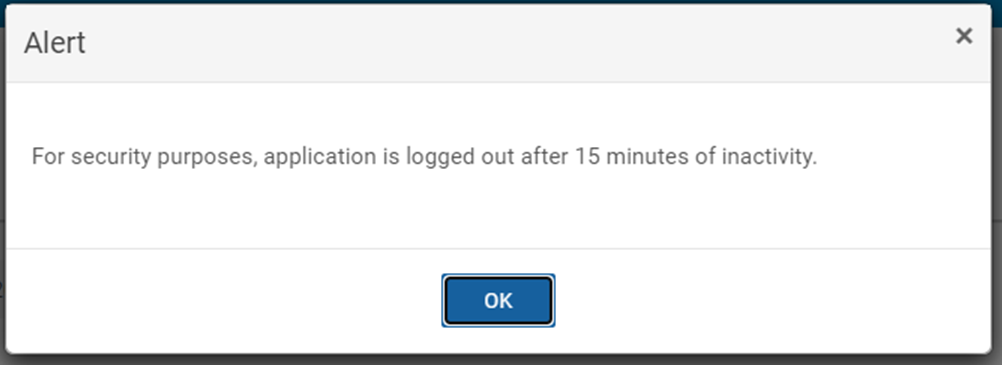
To adjust the timeout value in the user interface (UI), it is necessary to adjust: com.emc.ecs.security.auth.token.max_token_idle_time and com.emc.ecs.security.auth.token.max_token_idle_time_ui.
The Configuration Framework (CF) client displays a timeout default value of 15 minutes:
# sudo docker exec -it object-main /opt/storageos/tools/cf_client --user emcservice --password ChangeMe --list --name com.emc.ecs.security.auth.token.max_token_idle_time
{{{
    "config": [
        {
            "name": "com.emc.ecs.security.auth.token.max_token_idle_time",
            "description": "maximum token idle time",
            "configured_value": "15 minutes",
            "default_value": "15 minutes",
            "audit": "Updated via CMF Admin API by root",
            "modified": "1652874375280"
        },
        {
            "name": "com.emc.ecs.security.auth.token.max_token_idle_time_ui",
            "description": "maximum token idle time for ui -- must be less than or equal to maximum token idle time",
            "configured_value": "15 minutes",
            "default_value": "15 minutes",
            "audit": "Updated via CMF Admin API by root",
            "modified": "1652874375326"
        }
    ]
}
Use the following command to set the timeout to whatever is required, for example if you wanted to set the timeout value to 60 minutes:
# sudo docker exec -it object-main /opt/storageos/tools/cf_client --user <mgmt_user> --password <mgmt_password> --set --name com.emc.ecs.security.auth.token.max_token_idle_time --value "60 minutes" --reason "Customer initiated"
# sudo docker exec -it object-main /opt/storageos/tools/cf_client --user <mgmt_user> --password <mgmt_password> --set --name com.emc.ecs.security.auth.token.max_token_idle_time_ui --value "60 minutes" --reason "Customer initiated"
Example:
# sudo docker exec -it object-main /opt/storageos/tools/cf_client --user emcservice --password ChangeMe --set --name com.emc.ecs.security.auth.token.max_token_idle_time --value "60 minutes" --reason "Customer initiated"
# sudo docker exec -it object-main /opt/storageos/tools/cf_client --user emcservice --password ChangeMe --set --name com.emc.ecs.security.auth.token.max_token_idle_time_ui --value "60 minutes" --reason "Customer initiated"

# sudo docker exec -it object-main /opt/storageos/tools/cf_client --user emcservice --password ChangeMe --list --name com.emc.ecs.security.auth.token.max_token_idle_time
{
    "config": [
        {
            "name": "com.emc.ecs.security.auth.token.max_token_idle_time",
            "description": "maximum token idle time",
            "configured_value": "60 minutes",
            "default_value": "15 minutes",
            "audit": "Customer initiated",
            "modified": "1658317764852"
        },
        {
            "name": "com.emc.ecs.security.auth.token.max_token_idle_time_ui",
            "description": "maximum token idle time for ui -- must be less than or equal to maximum token idle time",
            "configured_value": "60 minutes",
            "default_value": "15 minutes",
            "audit": "Customer initiated",
            "modified": "1658317775472"
        }
    ]
}
Επηρεαζόμενα προϊόντα
Elastic Cloud StorageΠροϊόντα
ECS, ECS ApplianceΙδιότητες άρθρου
Article Number: 000019470
Article Type: How To
Τελευταία τροποποίηση: 03 Οκτ 2025
Version: 10
Βρείτε απαντήσεις στις ερωτήσεις σας από άλλους χρήστες της Dell
Υπηρεσίες υποστήριξης
Ελέγξτε αν η συσκευή σας καλύπτεται από τις Υπηρεσίες υποστήριξης.