NetWorker: Device in Write Protected
Summary: NetWorker devices are in a write-protected (read-only) state. Backups or clone jobs writing to the "read-only" do not start or fail.
Αυτό το άρθρο ισχύει για
Αυτό το άρθρο δεν ισχύει για
Αυτό το άρθρο δεν συνδέεται με κάποιο συγκεκριμένο προϊόν.
Δεν προσδιορίζονται όλες οι εκδόσεις προϊόντων σε αυτό το άρθρο.
Symptoms
- Data Domain disk-volume is mounted in write-protected mode.
- No Backups can be written to the disk.
- The NetWorker Management Console (NMC) alerts window shows the below error.
Error:- media Rd=xxxxxxxxx mounted Data Domain disk xxxxxxxx (write protected)
Cause
The volume is set to "read-only."
The nsrmm command shows the volume as mounted, but "write protected:"
[root@nsr ~]# nsrmm
Data Domain disk nsr.amer.lan.dddefault.002 mounted on ddve01.amer.lan_BackupDevice02, write protected
This can also be seen from the NetWorker Management Console (NMC), under Media -> Disk Volumes: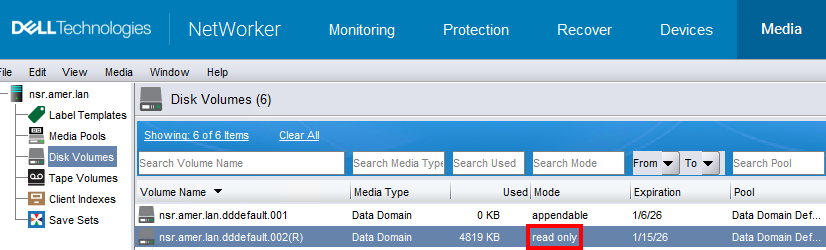
The volume name has a (R) suffix and shows as read-only.
The volume may have been manually set to "read-only" by the backup administrator. Volumes may also be set to "read-only" following a NetWorker Server Disaster Recovery (NSRDR).
Resolution
The volume must be set back to "appendable" in order to write backups. This is possible from the NetWorker server command-line or from the NMC.
NOTE: The device must be unmounted before changing the volume state.
Command-Line:
- Open an elevated command prompt or shell on the NetWorker server.
- Make not of the devices associated with volumes showing "write protected:"
nsmm - Umount the device:
nsrmm -f DEVICE_NAME -u - Set the volume as
notreadonly(which means appendable):nsrmm -o notreadonly VOLUME_NAME - Mount the device:
nsrmm -f DEVICE_NAME -m
Example:
[root@nsr ~]# nsrmm
Data Domain disk nsr.amer.lan.dddefault.002 mounted on ddve01.amer.lan_BackupDevice02, write protected
...

[root@nsr ~]# nsrmm -f ddve01.amer.lan_BackupDevice02 -u
Unmounted device: ddve01.amer.lan_BackupDevice02

[root@nsr ~]# nsrmm -o notreadonly nsr.amer.lan.dddefault.002
Mark Data Domain disk nsr.amer.lan.dddefault.002 as not readonly? y

[root@nsr ~]# nsrmm -f ddve01.amer.lan_BackupDevice02 -m
Data Domain disk nsr.amer.lan.dddefault.002 mounted on ddve01.amer.lan_BackupDevice02, write enabled
NetWorker Management Console (NMC):
- Log in to the NMC as an administrative account. For example, the default "Administrator" account.
- Go to Devices -> Devices and unmount the device associated with the "read-only" volume. Right-click the device and select unmount.
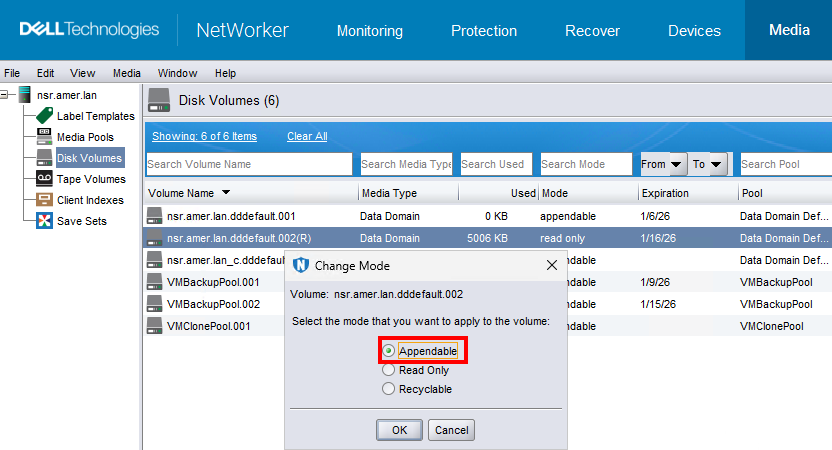
- Go to the Media -> Disk Volumes tap and select the volume marked "read-only." Right-click the volume and select change mode.
- A window appears, displaying the modes.
- Select Appendable in the window, then click OK.
- Return to the Devices -> Devices window and remount the device. Right-click the device and select mount.
Επηρεαζόμενα προϊόντα
NetWorkerΠροϊόντα
NetWorker FamilyΙδιότητες άρθρου
Article Number: 000038283
Article Type: Solution
Τελευταία τροποποίηση: 09 Ιαν 2026
Version: 5
Βρείτε απαντήσεις στις ερωτήσεις σας από άλλους χρήστες της Dell
Υπηρεσίες υποστήριξης
Ελέγξτε αν η συσκευή σας καλύπτεται από τις Υπηρεσίες υποστήριξης.