File Explorer Not Responding in Windows 10
Summary: Having trouble with File Explorer not responding in Windows 10? Follow this guide to resolve issues by clearing history, resetting folders, and restoring default settings. Restart your computer to fix the problem. ...
Αυτό το άρθρο ισχύει για
Αυτό το άρθρο δεν ισχύει για
Αυτό το άρθρο δεν συνδέεται με κάποιο συγκεκριμένο προϊόν.
Δεν προσδιορίζονται όλες οι εκδόσεις προϊόντων σε αυτό το άρθρο.
Symptoms
Affected Operating Systems:
- Windows 10
Does Windows 10 File Explorer fail to respond, continues in a working loop and then the non-responding message appears?
Cause
This problem occurs because of certain applications downloaded to the computer that can cause some settings to be changed, causing FILE EXPLORER locking and slow computer performance. To resolve the issue, follow the steps below:
Resolution
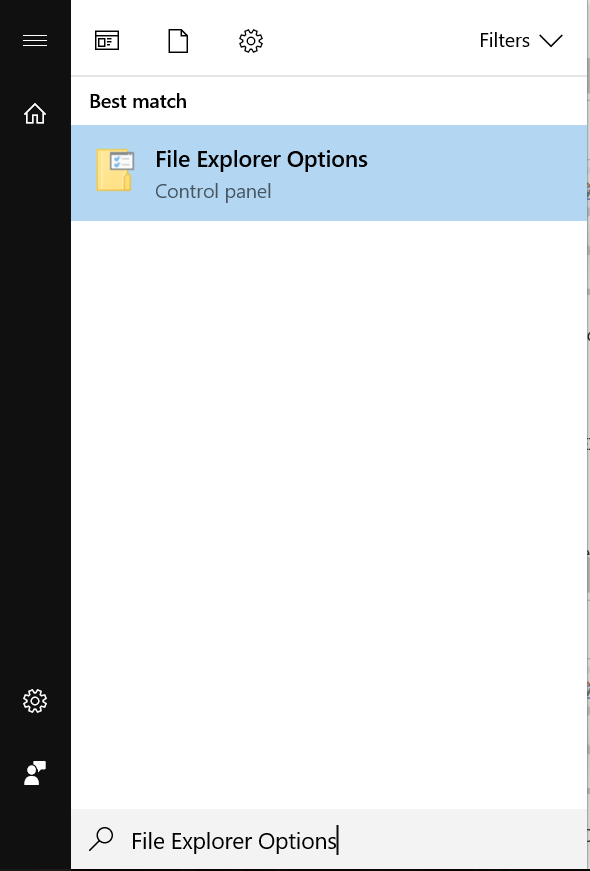
- Click the Start button and type FILE EXPLORER OPTIONS:
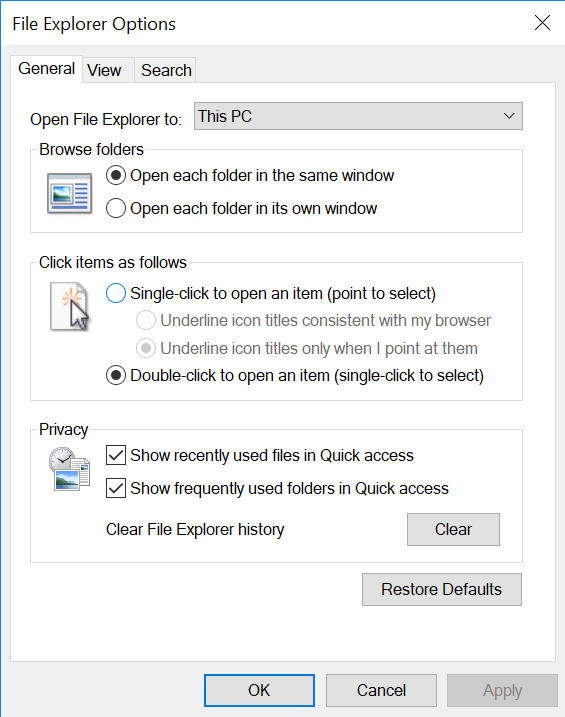
- Click the GENERAL tab, in the Clear File Explorer History option click CLEAR, then click RESTORE DEFAULTS, and finally click APPLY.
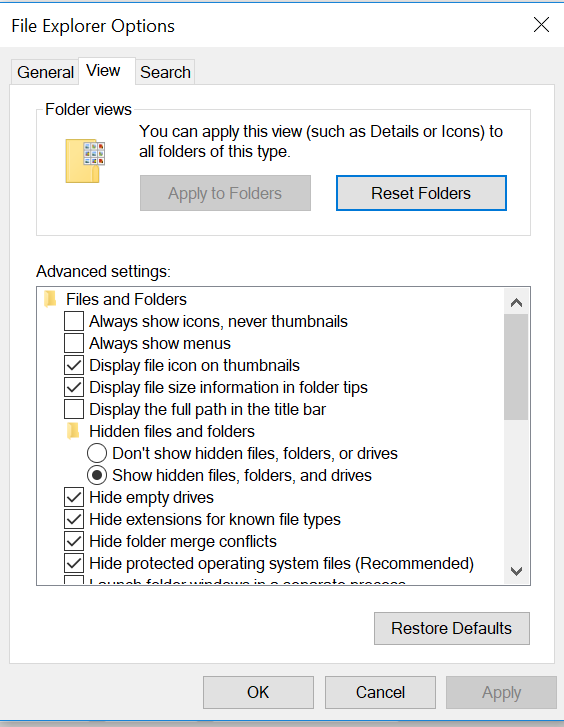
- Now click the VIEW tab, select RESET FOLDERS, and then click YES. Then click RESTORE DEFAULTS, and then APPLY.
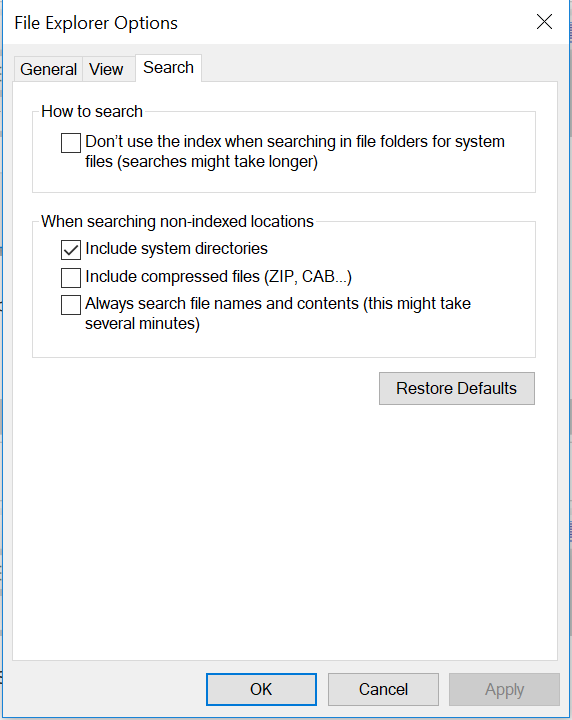
- In the SEARCH tab, click RESTORE DEFAULTS after this click APPLY.
- Once this is done, restart the computer, and the issue should be resolved.
Επηρεαζόμενα προϊόντα
Alienware, Inspiron, Legacy Desktop Models, OptiPlex, Vostro, XPS, G Series, G Series, Alienware, Inspiron, Latitude, Vostro, XPS, Legacy Laptop Models, Fixed Workstations, Mobile WorkstationsΙδιότητες άρθρου
Article Number: 000148462
Article Type: Solution
Τελευταία τροποποίηση: 17 Ιουλ 2025
Version: 8
Βρείτε απαντήσεις στις ερωτήσεις σας από άλλους χρήστες της Dell
Υπηρεσίες υποστήριξης
Ελέγξτε αν η συσκευή σας καλύπτεται από τις Υπηρεσίες υποστήριξης.