ECS: How to set up and accept certificates over LDAPS on ECS
Summary: How to set up and accept certificates over Lightweight Directory Access Protocol Secure (LDAPS) on ECS.
Instructions
LDAPS, also known as Lightweight Directory Access Protocol (LDAP) over Secure Socket Layer (SSL) or Transport Layer Security (TLS), is an encrypted traffic form of LDAP usage for an Active Directory (AD) or LDAP server.
LDAPS depends on a working LDAP connection. Review the ECS Administration Guide and this knowledge article ECS: How to set up an AD or LDAP server connection in the UI
A critical component with SSL or TLS communication is the certificates. Ensure that the certificates used are not expired and invalid. This is important for all the certificates in the complete certificate chain to be correct.
Check with your network team in that regard.
To upload the LDAPS certificate chain and enable LDAPS, note the following steps.
1. A node management IP address is a must to upload the LDAPS certificate chain.
2. UI root user must upload the LDAPS certificate chain to the node management CLI interface.
3A. The LDAPS certificate chain in an XML payload to the node management IP address
3B. The LDAPS enable parameter setting in an XML payload to the node management IP address
4. Use LDAPS in the ECS authentication provider page, with a Fully Qualified Domain Name (FQDN) instead of an IP address.
5. Test the domain user login.
For step 3,
An FQDN is needed instead of an IP address as:
"With SSL certificates, the certificate must have a Subject Alternate Name (SAN) in the certificate to match for the connection that is being connected to, the SAN is presented with only a DNS name to match the configuration on the ECS."
Therefore confirm the ECS authentication provider page, server URL dialog box, is using an FQDN instead of an IP address.
Example: ldaps://ad-or-ldap-fqdn-domain.com
The above steps:
- A node management IP address is a must to upload the LDAPS certificate chain.
To examine the ECS settings regarding the LDAPS certificate settings, first get a Node Management IP to use.
If there is network separation for the UI management, the "getrackinfo -n" displays "MGMT" values.
Use the nodes MGMT IP address. The replication and data network separation are not related to these steps:
admin@node1:~> getrackinfo -n
Named networks
==============
Node ID       Network          Ip Address        Netmask            Gateway            VLAN               Interface
1            repl              10.xxx.xxx.11     255.255.254.0      xxx.xxx.xxx.xxx    14                 public
1            mgmt              10.xxx.xxx.21     255.255.254.0      xxx.xxx.xxx.xxx    13                 public
1            data              10.xxx.xxx.31     255.255.254.0      xxx.xxx.xxx.xxx    15                 public
2            repl              10.xxx.xxx.12     255.255.254.0      xxx.xxx.xxx.xxx    14                 public
2            mgmt              10.xxx.xxx.22     255.255.254.0      xxx.xxx.xxx.xxx    13                 public
2            data              10.xxx.xxx.32     255.255.254.0      xxx.xxx.xxx.xxx    15                 public
3            repl              10.xxx.xxx.13     255.255.254.0      xxx.xxx.xxx.xxx    14                 public
3            mgmt              10.xxx.xxx.23     255.255.254.0      xxx.xxx.xxx.xxx    13                 public
3            data              10.xxx.xxx.33     255.255.254.0      xxx.xxx.xxx.xxx    15                 public
4            repl              10.xxx.xxx.14     255.255.254.0      xxx.xxx.xxx.xxx    14                 public
4            mgmt              10.xxx.xxx.24     255.255.254.0      xxx.xxx.xxx.xxx    13                 public
4            data              10.xxx.xxx.34     255.255.254.0      xxx.xxx.xxx.xxx    15                 public
If there is no network MGMT separation on the VDC, use the node's public IP address instead.
In the following example no MGMT exists in "getrackinfo -n"; therefore, use the public IP address in getrackinfo as the management IP address for the next steps.
admin@node1:~> getrackinfo -n
Named networks
==============
Node ID       Network          Ip Address        Netmask            Gateway            VLAN               Interface admin@node1:~>


admin@node1:~> getrackinfo
Node private      Node              Public                                  BMC
Ip Address        Id       Status   Mac                 Ip Address          Mac                 Ip Address          Node Name
===============   ======   ======   =================   =================   =================   =================   =========
192.1XX.2XX.1     1        MA       a4:bf:xx:xx:xx:74   10.xx.xx.1          a4:bf:xx:xx:xx      192.1XX.2XX.101     provo-red
192.1XX.2XX.2     2        SA       a4:bf:xx:xx:xx:c8   10.xx.xx.2          a4:bf:xx:xx:xx      192.1XX.2XX.102     sandy-red
192.1XX.2XX.3     3        SA       a4:bf:xx:xx:xx:e0   10.xx.xx.3          a4:bf:xx:xx:xx      192.1XX.2XX.103     orem-red
192.1XX.2XX.4     4        SA       a4:bf:xx:xx:xx:56   10.xx.xx.4          a4:bf:xx:xx:xx      192.168.219.104     ogden-red
2. UI root user is required to upload the LDAPS certificate chain to the node management CLI interface.
Use the management IP address acquired to get the root user token. Root user password is required (or a UI user with UI admin privileges):
curl -s -k -v -u <user> https://<NodeManagementIP>:4443/login 2>&1
# curl -s -k -v -u root https://10.xxx.xxx.21:4443/login 2>&1
Enter host password for user 'root':
......

< HTTP/1.1 200 OK
< Date: Thu, 14 Jan 2021 13:51:24 GMT
< Content-Type: application/xml
< Content-Length: 93
< Connection: keep-alive
< X-SDS-AUTH-TOKEN: BAAcdWhGbnVRVjd1WlpmR0xxxxxxxxxxxxxxxxxxxxxxxxxxxxxxxxxxxxxxxxxxxxxxxxxxxxxxxxxxxxxxxxxxxxxxxxxxxxxxxxxxxxxxxxxxxxxxxxxxxxxxxxxxxxxxxxxxxxxxxAgAC0A8=
< X-SDS-AUTH-USERNAME: root
< X-SDS-AUTH-MAX-AGE: 28800
<
* Connection #0 to host 10.xxx.xxx.21 left intact
<?xml version="1.0" encoding="UTF-8" standalone="yes"?><loggedIn><user>root</user></loggedIn>
If the output is not "HTTP/1.1 200 OK," check the password and IP address that is if UI management network separation exists from the "getrackinfo -n." command.
With the root user token, create a token variable.
# export TOKEN='X-SDS-AUTH-TOKEN: BAAcdWhGbnVRVjd1WlpmR0xxxxxxxxxxxxxxxxxxxxxxxxxxxxxxxxxxxxxxxxxxxxxxxxxxxxxxxxxxxxxxxxxxxxxxxxxxxxxxxxxxxxxxxxxxxxxxxxxxxxxxxxxxxxxxxxxxxxxxxAgAC0A8='
To test the token value, run a curl command to check capacity:
# curl -k -X GET -H "$TOKEN" https://10.xxx.xxx.21:4443/object/capacity | xmllint --format -
% Total    % Received % Xferd  Average Speed   Time    Time     Time  Current
                               Dload  Upload   Total   Spent    Left  Speed
100   176  100   176    0     0    249      0 --:--:-- --:--:-- --:--:--   250

<?xml version="1.0" encoding="UTF-8" standalone="yes"?>
<cluster_capacity>
  <totalFree_gb>100657</totalFree_gb>
  <totalProvisioned_gb>447005</totalProvisioned_gb>
</cluster_capacity>
3A. The LDAPS certificate chain in an XML payload to the node management IP address
3B. The LDAPS enable parameter setting. Accept LDAPS parameter in an XML payload to the node management IP address.
The above uses the root user token to gain curl access to the ECS UI truststore where the LDAPS certificate can be uploaded.
See the ECS Admin guide for more information about "Add custom LDAP certificate".
Get the truststore settings with a curl GET command:
curl -s -k -X GET -H Content-Type:application/xml -H "$TOKEN" -H ACCEPT:application/xml https://<NodeManagementIP>:4443/vdc/truststore/settings | xmllint --format -
curl -s -k -X GET -H Content-Type:application/xml -H "$TOKEN" -H ACCEPT:application/xml https://10.xxx.xxx.21:4443/vdc/truststore/settings | xmllint --format -
<?xml version="1.0" encoding="UTF-8" standalone="yes"?>
<truststore_settings>
  <accept_all_certificates>false</accept_all_certificates>
</truststore_settings>
In the above example, the truststore "accept_all_certificates" is set to false. This means that no LDAPS certificates are trusted.
The "accept_all_certificates" term maybe ambiguous, but it is a flag that continues to be used for ECS to determine if LDAPS certificates are to be used.
A user may want this set to true or false, depending on their needs. To test the LDAPS connection, setting it to true and testing the user's login can validate the LDAPS connection.
"accept_all_certificates" turns back to false. So, if you edit the truststore, you must set the "accept_all_certificates" back to true afterwards.
Create an xml file to change the truststore settings using a curl command with an xml payload:
# sudo vi truststoresettings.xml
<?xml version="1.0" encoding="UTF-8" standalone="yes"?>
<truststore_settings_changes>
<accept_all_certificates>true</accept_all_certificates>
</truststore_settings_changes>


# cat truststoresettings.xml | xmllint --format -
<?xml version="1.0" encoding="UTF-8" standalone="yes"?>
<truststore_settings_changes>
  <accept_all_certificates>true</accept_all_certificates>
</truststore_settings_changes>
To set accept_all_certificates to false, edit the payload file to false instead of true, and run the PUT command using the payload file.
Run a curl command with an xml file as the payload with a curl PUT command:
# curl -s -k -X PUT -H Content-Type:application/xml -H "$TOKEN" -H ACCEPT:application/xml https://<NodeManagementIP>:4443/vdc/truststore/settings --data-binary @truststoresettings.xml
To check that "accept_all_certificates" is updated, run the curl GET command:
# curl -s -k -X GET -H Content-Type:application/xml -H "$TOKEN" -H ACCEPT:application/xml https://10.xxx.xxx.21:4443/vdc/truststore/settings  | xmllint --format -
<?xml version="1.0" encoding="UTF-8" standalone="yes"?>
<truststore_settings_changes>
  <accept_all_certificates>true</accept_all_certificates>
</truststore_settings_changes>
To examine the truststore, not just the truststore setting:
# curl -s -k -X GET -H Content-Type:application/xml -H "$TOKEN" -H ACCEPT:application/xml https://<NodeManagementIP>:4443/vdc/truststore | xmllint --format -
An example of an empty LDAP certificate truststore:
# curl -s -k -X GET -H Content-Type:application/xml -H "$TOKEN" -H ACCEPT:application/xml https://<NodeManagementIP>:4443/vdc/truststore | xmllint --format -
<?xml version="1.0" encoding="UTF-8" standalone="yes"?>
<trusted_certificates/>
Multiple certificates may be needed, as ECS requires the whole certificate chain, the root certificate, CA certificate, host certificate, and so forth.
To add a certificate to the truststore, create an xml file of the certificate the user has. A certificate may be file types of .pem, .crt, .cer, and so forth.
To upload the certificates to ECS, they should be in an xml format to act as an xml payload.
Non xml format file of the certificate:
# cat cert.crt
-----BEGIN CERTIFICATE-----
MIIF1DCCA7ygAwIBAgIUdK2Ao2/45jYdQP0q6Dr1/ULmnc8wDQYJKoZIhvcNAQEL
xxxxxxxxxxxxxxxxxxxxxxxxxxxxxxxxxxxxxxxxxxxxxxxxxxxxxxxxxxxxxxxxxxxxxxxxxx
xxxxxxxxxxxxxxxxxxxxxxxxxxxxxxxxxxxxxxxxxxxxxxxxxxxxxxxxxxxxxxxxxxxxxxxxxx
xxxxxxxxxxxxxxxxxxxxxxxxxxxxxxxxxxxxxxxxxxxxxxxxxxxxxxxxxxxxxxxxxxxxxxxxxx
xxxxxxxxxxxxxxxxxxxxxxxxxxxxxxxxxxxxxxxxxxxxxxxxxxxxxxxxxxxxxxxxxxxxxxxxxx
HhrV5ezjYHY=
-----END CERTIFICATE-----
The xml format for a curl add command:
# cat cert.xml | xmllint --format -
<?xml version="1.0" encoding="UTF-8" standalone="yes"?>
<trusted_certificate_changes>
  <add>
    <certificate>-----BEGIN CERTIFICATE-----
MIIG2TCCBMGgAwIBAgITMQAAAATxxxxxxxxxxxxxxxxxxxxxxxxxhkiG9w0BAQsF
ADBbMRIwEAYKCZImiZPyLGQBGRYxxxxxxxxxxxxxxxxxxxxxxxxxFgR2aXRjMRMw
.......................
pkHgxxxxxxxxxxxxxxxxxxxxxxxxxxxxxxxxxxxxxxxxxxxxxxxxxzxhlGh2TaTC
xqz4T/sO4ggWs0Yz5nBmCZMDn6nxxxxxxrjX+ahXI=
-----END CERTIFICATE-----</certificate>
  <certificate>-----BEGIN CERTIFICATE-----
MIIG2TCCBMGgAwIBAgxxxxxxxxxxxxxxxxxxxxxxxxxxxxxxxxxqhkiG9w0BAQsF
ADBbMRIwEAYKCZImiZxxxxxxxxxxxxxxxxxxxxxxxxxxxxxxxxxZFgR2aXRjMRMw
EQYKCZImiZPyLGQBGRxxxxxxxxxxxxxxxxxxxxxxxxxxRW50ZXJwcmlzZS1DQTAe
Fw0yMDA2MDgwNzQwxxxxxxxxxxxxxxxxxxxxxxxxxxxxxxIiMA0GCSqGSIb3DQEB
..........................
8wYIKWr2AqSKKxcBHxxxxxxxxxxxxxxxxxxxxxxxxxxxxx3ykeRMZJk7VpQDQDLN
feFI4rHZ4JOqDWttiHxxxxxxxxxxxxxxxxxxxxxxxxxxxhpXsxyjQIRvrtaCZVXz
GR7Na7Ah1o+9MWenMExxxxxxxxxxxxxxxxxxxxxxxxxxxxxxxxGQlsQ47nZE2YgV
-----END CERTIFICATE-----</certificate>
  </add>
</trusted_certificate_changes>
Upload the cert payload xml format:
curl -i -s -k -X PUT -H Content-Type:application/xml -H "$TOKEN" -H ACCEPT:application/xml https://10.xxx.xxx.21:4443/vdc/truststore --data-binary @cert.xml
To check that the cert has been uploaded, run the GET command, the end line character in the ECS truststore is " ."
# curl -s -k -X GET -H Content-Type:application/xml -H "$TOKEN" -H ACCEPT:application/xml https://10.xxx.xxx.21:4443/vdc/truststore | xmllint --format - <?xml version="1.0" encoding="UTF-8" standalone="yes"?> <trusted_certificates> <certificate>-----BEGIN CERTIFICATE----- MIIG2TCCBMGgAwIBAgITMQAAAATxxxxxxxxxxxxxxxxxxxxxxxxxhkiG9w0BAQsF ADBbMRIwEAYKCZImiZPyLGQBGRYxxxxxxxxxxxxxxxxxxxxxxxxxFgR2aXRjMRMw ....................... pkHgxxxxxxxxxxxxxxxxxxxxxxxxxxxxxxxxxxxxxxxxxxxxxxxxxzxhlGh2TaTC xqz4T/sO4ggWs0Yz5nBmCZMDn6nxxxxxxrjX+ahXI= -----END CERTIFICATE-----</certificate> <certificate>-----BEGIN CERTIFICATE----- MIIG2TCCBMGgAwIBAgxxxxxxxxxxxxxxxxxxxxxxxxxxxxxxxxxqhkiG9w0BAQsF ADBbMRIwEAYKCZImiZxxxxxxxxxxxxxxxxxxxxxxxxxxxxxxxxxZFgR2aXRjMRMw EQYKCZImiZPyLGQBGRxxxxxxxxxxxxxxxxxxxxxxxxxxRW50ZXJwcmlzZS1DQTAe Fw0yMDA2MDgwNzQwxxxxxxxxxxxxxxxxxxxxxxxxxxxxxxIiMA0GCSqGSIb3DQEB .......................... 8wYIKWr2AqSKKxcBHxxxxxxxxxxxxxxxxxxxxxxxxxxxxx3ykeRMZJk7VpQDQDLN feFI4rHZ4JOqDWttiHxxxxxxxxxxxxxxxxxxxxxxxxxxxhpXsxyjQIRvrtaCZVXz GR7Na7Ah1o+9MWenMExxxxxxxxxxxxxxxxxxxxxxxxxxxxxxxxGQlsQ47nZE2YgV -----END CERTIFICATE-----</certificate> </trusted_certificates>
To check that the LDAPS settings have not reverted, run the curl GET command:
# curl -s -k -X GET -H Content-Type:application/xml -H "$TOKEN" -H ACCEPT:application/xml https://10.xxx.xxx.21:4443/vdc/truststore/settings | xmllint --format -
<?xml version="1.0" encoding="UTF-8" standalone="yes"?>
<truststore_settings>
  <accept_all_certificates>false</accept_all_certificates>
</truststore_settings>
If it reverted to false, set it back to true,
As when there is a change to the truststore, the setting may set itself to "false."
Run a curl command with an xml file as the payload with a curl PUT command:
# curl -s -k -X PUT -H Content-Type:application/xml -H "$TOKEN" -H ACCEPT:application/xml https://<NodeManagementIP>:4443/vdc/truststore/settings --data-binary @truststoresettings.xml
To check the LDAPS settings:
# curl -s -k -X GET -H Content-Type:application/xml -H "$TOKEN" -H ACCEPT:application/xml https://10.xxx.xxx.21:4443/vdc/truststore/settings | xmllint --format -
<?xml version="1.0" encoding="UTF-8" standalone="yes"?>
<truststore_settings>
  <accept_all_certificates>true</accept_all_certificates>
</truststore_settings>
4. Use LDAPS in the ECS authentication provider page, with FQDN instead of an IP address.
With the LDAPS certificate chain uploaded to ECS truststore and the accept_all_certificates flag set to true, go to the ECS UI authentication provider page and change the server url from.
ldap://<Domain controller IP or FQDN>
To
ldaps://<Domain controller FQDN>
That is: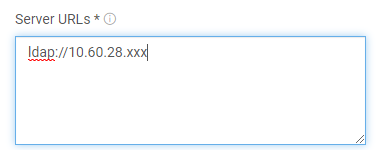
FQDN with the LDAPS protocol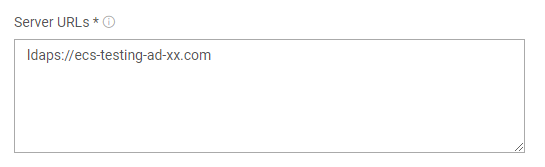
It must be an FQDN for LDAPS usage.
An FQDN is needed instead of an IP address as:
"With SSL certificates, the certificate must have a Subject Alternate Name (SAN) in the certificate to match for the connection that is being connected to, the SAN is presented with only a DNS name to match the configuration on the ECS."
Therefore, confirm the ECS authentication provider page, server URL dialog box, is using an FQDN instead of an IP address.
That is:
ldaps://fqdn-domain-of-the-ad-or-ldap-server.com
Ports:
The default port for LDAP is 389.
The default port for LDAPS is 636.
URL Format if non-default port:
ldap://<Domain controller IP or FQDN>:<port> or ldaps://<Domain controller FQDN>:<port>
5. Test the domain user login.
Then test the domain user login while the LDAPS protocol if the domain users can successfully log in by LDAPS.
Therefore, the ECS-LDAPS protocol connection is working.
Other information:
If needed:
To remove a certificate from the truststore, create an xml file that matches the certificate to remove but instead of
"add" as the payload, use "remove":
# cat cert_remove.xml | xmllint --format - <?xml version="1.0" encoding="UTF-8" standalone="yes"?> <trusted_certificate_changes> <remove> <certificate>-----BEGIN CERTIFICATE----- MIIG2TCCBMGgAwIBAgITMQAAAATxxxxxxxxxxxxxxxxxxxxxxxxxhkiG9w0BAQsF ADBbMRIwEAYKCZImiZPyLGQBGRYxxxxxxxxxxxxxxxxxxxxxxxxxFgR2aXRjMRMw ....................... pkHgxxxxxxxxxxxxxxxxxxxxxxxxxxxxxxxxxxxxxxxxxxxxxxxxxzxhlGh2TaTC xqz4T/sO4ggWs0Yz5nBmCZMDn6nxxxxxxrjX+ahXI= -----END CERTIFICATE-----</certificate> <certificate>-----BEGIN CERTIFICATE----- MIIG2TCCBMGgAwIBAgxxxxxxxxxxxxxxxxxxxxxxxxxxxxxxxxxqhkiG9w0BAQsF ADBbMRIwEAYKCZImiZxxxxxxxxxxxxxxxxxxxxxxxxxxxxxxxxxZFgR2aXRjMRMw EQYKCZImiZPyLGQBGRxxxxxxxxxxxxxxxxxxxxxxxxxxRW50ZXJwcmlzZS1DQTAe Fw0yMDA2MDgwNzQwxxxxxxxxxxxxxxxxxxxxxxxxxxxxxxIiMA0GCSqGSIb3DQEB .......................... 8wYIKWr2AqSKKxcBHxxxxxxxxxxxxxxxxxxxxxxxxxxxxx3ykeRMZJk7VpQDQDLN feFI4rHZ4JOqDWttiHxxxxxxxxxxxxxxxxxxxxxxxxxxxhpXsxyjQIRvrtaCZVXz GR7Na7Ah1o+9MWenMExxxxxxxxxxxxxxxxxxxxxxxxxxxxxxxxGQlsQ47nZE2YgV -----END CERTIFICATE-----</certificate> </remove> </trusted_certificate_changes>
To use the payload file, that is add or remove, use this command:
# curl -s -k -X PUT -H Content-Type:application/xml-H "$TOKEN" -H ACCEPT:application/xml https://10.xxx.xxx.21:4443/vdc/truststore --data-binary @cert_remove.xml
To check if the payload was successful, run the GET command:
# curl -s -k -X GET -H Content-Type:application/xml -H "$TOKEN" -H ACCEPT:application/xml https://10.xxx.xxx.21:4443/vdc/truststore | xmllint --format -
<?xml version="1.0" encoding="UTF-8" standalone="yes"?>
<trusted_certificates/>
If you are uncertain of the LDAPS server not matching the provided certificate, run the following command to check the expected reply from the LDAPS server request for a matching certificate.
"verify error:num=21:unable to verify the first certificate".
In this example, the LDAPS server is a self-signed certificate, rather than a third-party certificate so it may generate an extra warning that it is self-signed:
# sudo openssl s_client -connect LDAPS_server_IP:636 < /dev/null
CONNECTED(00000003)
depth=0 CN =
verify error:num=20:unable to get local issuer certificate
verify return:1
depth=0 CN =
verify error:num=21:unable to verify the first certificate
verify return:1
---
Certificate chain
........
---
Server certificate
-----BEGIN CERTIFICATE-----
.......
A cert that it expects.
.......
-----END CERTIFICATE-----
No client certificate CA names sent
Client Certificate Types: RSA sign, DSA sign, ECDSA sign
Requested Signature Algorithms: RSA+SHA512:ECDSA+SHA512:RSA+SHA256:RSA+SHA384:RSA+SHA1:ECDSA+SHA256:ECDSA+SHA384:ECDSA+SHA1:DSA+SHA1
Shared Requested Signature Algorithms: RSA+SHA512:ECDSA+SHA512:RSA+SHA256:RSA+SHA384:RSA+SHA1:ECDSA+SHA256:ECDSA+SHA384:ECDSA+SHA1:DSA+SHA1
Peer signing digest: SHA1
Server Temp Key: ECDH, P-256, 256 bits
---
SSL handshake has read 2223 bytes and written 487 bytes
---
New, TLSv1/SSLv3, Cipher is ECDHE-RSA-AES256-SHA384
Server public key is 4096 bit
Secure Renegotiation IS supported
Compression: NONE
Expansion: NONE
No ALPN negotiated
SSL-Session:
    Protocol  : TLSv1.2
.......................
    SRP username: None
    Start Time: 1610452553
    Timeout   : 300 (sec)
    Verify return code: 21 (unable to verify the first certificate)
---
DONE
Check the certificate file connecting to the LDAPS server and if there is a matching cert to be used, that is Verify return code: 0 (ok):
# openssl s_client -connect LDAPS_server_IP:636 -CAfile /home/admin/cert_file_to_be_used.crt
CONNECTED(00000003)
.......
---
Server certificate
-----BEGIN CERTIFICATE-----
.....
.....
-----END CERTIFICATE-----
.......
---
No client certificate CA names sent
Client Certificate Types: RSA sign, DSA sign, ECDSA sign
Requested Signature Algorithms: RSA+SHA512:ECDSA+SHA512:RSA+SHA256:RSA+SHA384:RSA+SHA1:ECDSA+SHA256:ECDSA+SHA384:ECDSA+SHA1:DSA+SHA1
Shared Requested Signature Algorithms: RSA+SHA512:ECDSA+SHA512:RSA+SHA256:RSA+SHA384:RSA+SHA1:ECDSA+SHA256:ECDSA+SHA384:ECDSA+SHA1:DSA+SHA1
Peer signing digest: SHA1
Server Temp Key: ECDH, P-256, 256 bits
---
SSL handshake has read 2223 bytes and written 487 bytes
---
New, TLSv1/SSLv3, Cipher is ECDHE-RSA-AES256-SHA384
Server public key is 4096 bit
Secure Renegotiation IS supported
Compression: NONE
Expansion: NONE
No ALPN negotiated
SSL-Session:
    Protocol  : TLSv1.2
 .........
    Verify return code: 0 (ok)
---
To check this use this command:
# cat /home/admin/cert.crt | openssl x509 -dates -noout
notBefore=Jan 12 13:43:52 2021 GMT
notAfter=Jan 12 13:43:52 2022 GMT
JSON version of the commands example.
If not using the above XML commands (note, XML is preferred):
curl -s -k -X GET -H Content-Type:application/json -H "$TOKEN" -H ACCEPT:application/json https://<NodeManagementIP>:4443/vdc/truststore/settings
curl -s -k -X GET -H Content-Type:application/json -H "$TOKEN" -H ACCEPT:application/json https://10.xxx.xxx.21:4443/vdc/truststore/settings
{"accept_all_certificates":false}
To create a JSON file to change the truststore settings using a curl command with a JSON payload:
# sudo vi truststoresettings.json
# sudo cat truststoresettings.json
{"accept_all_certificates": "true"}
The json.tool module on python can validate a JSON file format. If there is an error that the file may not be a JSON file. In this example, there are no errors and outputs the file so it is a formatted JSON file:
# python -m json.tool truststoresettings.json
{
    "accept_all_certificates": "true"
}
Run a curl command with a JSON file as the payload with a curl PUT command:
# curl -s -k -X PUT -H Content-Type:application/json -H "$TOKEN" -H ACCEPT:application/json https://<NodeManagementIP>:4443/vdc/truststore/settings -d @truststoresettings.json
XML payload PUT uses --data-binary in the curl command while the JSON payload PUT uses
-d in the curl command:
--data-binary
(HTTP) This posts data exactly as specified with no extra processing:--data-ascii aka -d
(HTTP) This is an alias for -d, --data.
To check that it is updated, run the curl GET command:
# curl -s -k -X GET -H Content-Type:application/json -H "$TOKEN" -H ACCEPT:application/json https://10.xxx.xxx.21:4443/vdc/truststore/settings
{"accept_all_certificates":true}
Test the domain user's login on the ECS UI with the LDAPS certificates now being allowed.
To examine the truststore:
# curl -s -k -X GET -H Content-Type:application/json -H "$TOKEN" -H ACCEPT:application/json https://<NodeManagementIP>:4443/vdc/truststore
Example of an empty LDAP certificate truststore:
# curl -s -k -X GET -H Content-Type:application/json -H "$TOKEN" -H ACCEPT:application/json https://10.xxx.xxx.xxx.21:4443/vdc/truststore
{"certificate":[]}
The JSON format for a curl add command, a single-line file with newline characters replaced with \n and \r\n:
{"add":["-----BEGIN CERTIFICATE-----\nxxxxx\r\n---END CERTIFICATE-----"]}
# cat cert.json
{"add":["-----BEGIN CERTIFICATE-----\nMIIF1DCCA7ygAwIBAgIUdK2Ao2/45jYdQP0q6Dr1/ULmnc8wDQYJKoZIhvcNAQEL\r\nxxxxxxxxxxxxxxxxxxxxxxxxxxxxxxxxxxxxxxxxxxxxxxxxxxxxxxxxxxxxxxxxxxxxxxxxxx\r\nxxxxxxxxxxxxxxxxxxxxxxxxxxxxxxxxxxxxxxxxxxxxxxxxxxxxxxxxxxxxxxxxxxxxxxxxxx\r\nxxxxxxxxxxxxxxxxxxxxxxxxxxxxxxxxxxxxxxxxxxxxxxxxxxxxxxxxxxxxxxxxxxxxxxxxxx\r\nxxxxxxxxxxxxxxxxxxxxxxxxxxxxxxxxxxxxxxxxxxxxxxxxxxxxxxxxxxxxxxxxxxxxxxxxxx\r\nHhrV5ezjYHY=\r\n---END CERTIFICATE-----"]}
See the ECS Administration Guide "Add custom LDAP certificate". Use this command to add or remove:
# curl -s -k -X PUT -H Content-Type:application/json -H "$TOKEN" -H ACCEPT:application/json https://10.xxx.xxx.21:4443/vdc/truststore -d @cert.json
To check the upload:
# curl -s -k -X GET -H Content-Type:application/json -H "$TOKEN" -H ACCEPT:application/json https://10.xxx.xxx.xxx.21:4443/vdc/truststore
{"certificate":["-----BEGIN CERTIFICATE-----\nMIIF1DCCA7ygAwIBAgIUdK2Ao2/45jYdQP0q6Dr1/ULmnc8wDQYJKoZIhvcNAQEL\r\nxxxxxxxxxxxxxxxxxxxxxxxxxxxxxxxxxxxxxxxxxxxxxxxxxxxxxxxxxxxxxxxxxxxxxxxxxx\r\nxxxxxxxxxxxxxxxxxxxxxxxxxxxxxxxxxxxxxxxxxxxxxxxxxxxxxxxxxxxxxxxxxxxxxxxxxx\r\nxxxxxxxxxxxxxxxxxxxxxxxxxxxxxxxxxxxxxxxxxxxxxxxxxxxxxxxxxxxxxxxxxxxxxxxxxx\r\nxxxxxxxxxxxxxxxxxxxxxxxxxxxxxxxxxxxxxxxxxxxxxxxxxxxxxxxxxxxxxxxxxxxxxxxxxx\r\nHhrV5ezjYHY=\r\n---END CERTIFICATE-----"]}
To check that the LDAPS settings have not reverted, run the curl GET command:
# curl -s -k -X GET -H Content-Type:application/json -H "$TOKEN" -H ACCEPT:application/json https://10.xxx.xxx.21:4443/vdc/truststore/settings
{"accept_all_certificates":false}
If it reverted to false, set it back to true. When there is a change to the truststore, the setting may set itself to "false."
Run a curl command with a JSON file as the payload with a curl PUT command:
# curl -s -k -X PUT -H Content-Type:application/json -H "$TOKEN" -H ACCEPT:application/json https://<NodeManagementIP>:4443/vdc/truststore/settings -d @truststoresettings.json
To check the LDAPS settings:
# curl -s -k -X GET -H Content-Type:application/json -H "$TOKEN" -H ACCEPT:application/json https://10.xxx.xxx.21:4443/vdc/truststore/settings
{"accept_all_certificates":true}
To remove a certificate from the truststore, create a JSON file that matches the certificate to remove but instead of "add" as the payload, use "remove":
# cat cert.json
{"remove":["-----BEGIN CERTIFICATE-----\nMIIF1DCCA7ygAwIBAgIUdK2Ao2/45jYdQP0q6Dr1/ULmnc8wDQYJKoZIhvcNAQEL\r\nxxxxxxxxxxxxxxxxxxxxxxxxxxxxxxxxxxxxxxxxxxxxxxxxxxxxxxxxxxxxxxxxxxxxxxxxxx\r\nxxxxxxxxxxxxxxxxxxxxxxxxxxxxxxxxxxxxxxxxxxxxxxxxxxxxxxxxxxxxxxxxxxxxxxxxxx\r\nxxxxxxxxxxxxxxxxxxxxxxxxxxxxxxxxxxxxxxxxxxxxxxxxxxxxxxxxxxxxxxxxxxxxxxxxxx\r\nxxxxxxxxxxxxxxxxxxxxxxxxxxxxxxxxxxxxxxxxxxxxxxxxxxxxxxxxxxxxxxxxxxxxxxxxxx\r\nHhrV5ezjYHY=\r\n---END CERTIFICATE-----"]}
To add or remove, use this command:
# curl -s -k -X PUT -H Content-Type:application/json -H "$TOKEN" -H ACCEPT:application/json https://10.xxx.xxx.21:4443/vdc/truststore -d @cert.json
To check the upload:
# curl -s -k -X GET -H Content-Type:application/json -H "$TOKEN" -H ACCEPT:application/json https://10.xxx.xxx.xxx.21:4443/vdc/truststore
{"certificate":[]}