How to Change the Windows 11 Taskbar Alignment
Summary: Learn how to change the default center-aligned taskbar in Windows 11 to be left-aligned. Follow this guide to customize the Windows 11 taskbar placement.
Αυτό το άρθρο ισχύει για
Αυτό το άρθρο δεν ισχύει για
Αυτό το άρθρο δεν συνδέεται με κάποιο συγκεκριμένο προϊόν.
Δεν προσδιορίζονται όλες οι εκδόσεις προϊόντων σε αυτό το άρθρο.
Instructions
The Windows 11 taskbar is center-aligned by default, but you can change the taskbar placement. This article walks you through the steps to move the Windows 11 taskbar to being left-aligned.
Affected Operating System:
- Windows 11
- From the Windows 11 desktop, right-click any blank space in the taskbar and then select Taskbar settings.

- In the right pane, click Taskbar behaviors.

- Select the Taskbar alignment drop-down and then change it from Center to Left.

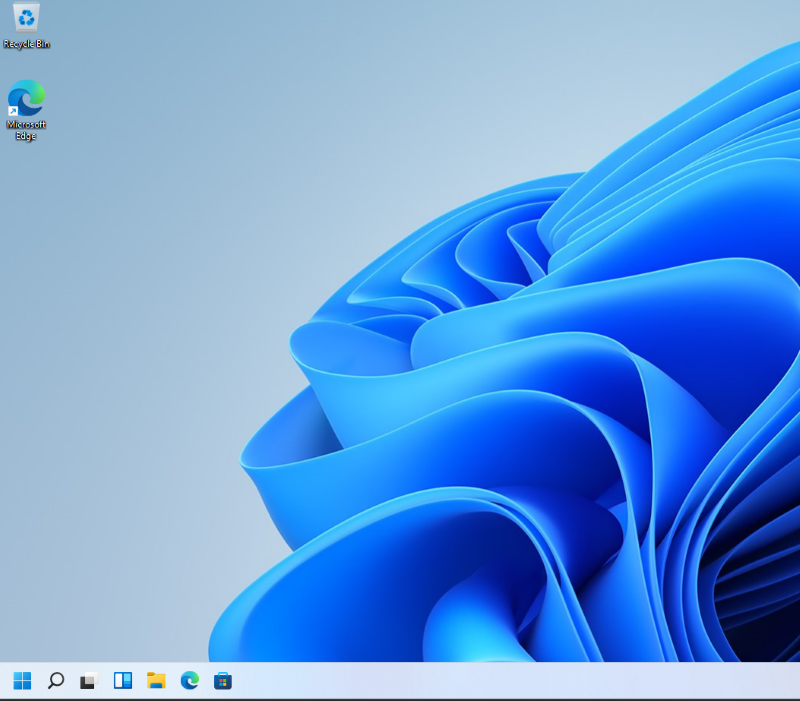
- The taskbar is now left-aligned.
Επηρεαζόμενα προϊόντα
Alienware, Dell All-in-One, Dell Pro All-in-One, Dell Pro Max Micro, Dell Pro Max Slim, Dell Pro Max Tower, Dell Pro Micro, Dell Pro Slim, Dell Pro Tower, Dell Slim, Dell Tower, Inspiron, OptiPlex, Vostro, XPS, G Series, G Series, Alienware
, Dell Plus, Dell Pro, Dell Pro Max, Dell Pro Plus, Dell Pro Premium, Inspiron, Latitude, Dell Pro Rugged, Vostro, XPS, Fixed Workstations, Mobile Workstations, Dell Pro Max Micro XE FCM2250, Dell Pro Max Slim XE FCS1250, Dell Pro Max Tower T2 XE FCT2250, Dell Pro Max 16 XE MC16250, Dell Pro Micro Plus XE QBM1250, Dell Pro Slim Plus XE5 QBS1250, Dell Pro Tower Plus XE5 QBT1250
...
Ιδιότητες άρθρου
Article Number: 000192071
Article Type: How To
Τελευταία τροποποίηση: 12 Μαΐ 2026
Version: 8
Βρείτε απαντήσεις στις ερωτήσεις σας από άλλους χρήστες της Dell
Υπηρεσίες υποστήριξης
Ελέγξτε αν η συσκευή σας καλύπτεται από τις Υπηρεσίες υποστήριξης.