Data Protection Central Internal LDAP is Not Working After IDPA Upgrade
Summary: After the IDPA upgrade, Data Protection Central (DPC) server LDAP is not working.
Αυτό το άρθρο ισχύει για
Αυτό το άρθρο δεν ισχύει για
Αυτό το άρθρο δεν συνδέεται με κάποιο συγκεκριμένο προϊόν.
Δεν προσδιορίζονται όλες οι εκδόσεις προϊόντων σε αυτό το άρθρο.
Symptoms
Internal LDAP is not working:
- Identity Source is there, however shows as disconnected
- The group is also gone from identify source
- A role-mapping error is received when trying to add it
In the /var/log/dpc/iam/iam-provider/keycloak.log (as root), the following certificate errors are seen:
2024-10-21 17:17:53,937 ERROR [org.keycloak.services] (executor-thread-17) KC-SERVICES0055: Error when connecting to LDAP: <ACM FQDN>:636: javax.naming.CommunicationException: <AMC FQDN>:636 [Root exception is javax.net.ssl.SSLHandshakeException: PKIX path validation failed: java.security.cert.CertPathValidatorException: signature check failed]In the /var/log/dpc/iam/iam-service/iam-service.log (as root), the following LDAP group add errors are seen:
2024-10-21 13:22:44,810 INFO https-jsse-nio-9922-exec-9 c.e.c.s.s.IndetitySourceService LDAP instance Id: ae45949d-40dd-46ee-8136-bc40e0d32644 . Adding group role mapping for [cn=dp_admin,ou=Group,dc=idpa,dc=local]In the /var/log/dpc/elg/elg.log, group add errors are also seen:
2024-10-21 13:22:44,949 ERROR https-jsse-nio-9922-exec-9 c.e.c.s.s.GlobalExceptionHnalder IdentitySourceException:com.emc.clp.security.exception.IdentitySourceException: Failed to create group role mapping. Received error for ldap mapper group [MapperGroup(cn=dp_admin,ou=Group,dc=idpa,dc=local] creation.Cause
After upgrading IDPA, the DPC server is unable to connect to ACM LDAP server or add the group.
Resolution
Procedure:
- Log in to the DPC CLI as admin using
SSH or PuTTYandsu -to root user. - Run the following commands:
service dp-iam restart
service msm-elg restart- Log in to the DPC UI and go to Administration > Identity Sources.

- Add the Identity Source for the ACM LDAP server:
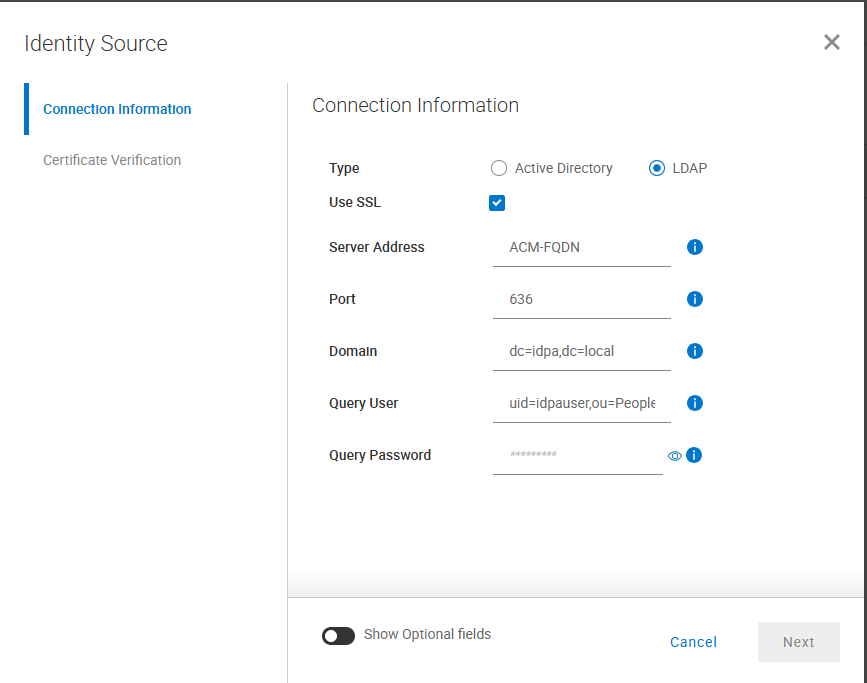
Type = LDAP

Use SSL = select

Server Address = <ACM FQDN> (Use actual ACM Fully Qualified Domain Name)

Port = 636

Domain = dc=idpa,dc=local

Query User = uid=idpauser,ou=People,dc=idpa,dc=local

Query Password = idpauser password- Click the Next button and then the Save button on the next screen.
- Highlight the LDAP server and click the
|<-to open the sidebar. Enter the following for Group Search Name and click the Add Group button:
cn=dp_admin,ou=group,dc=idpa,dc=local
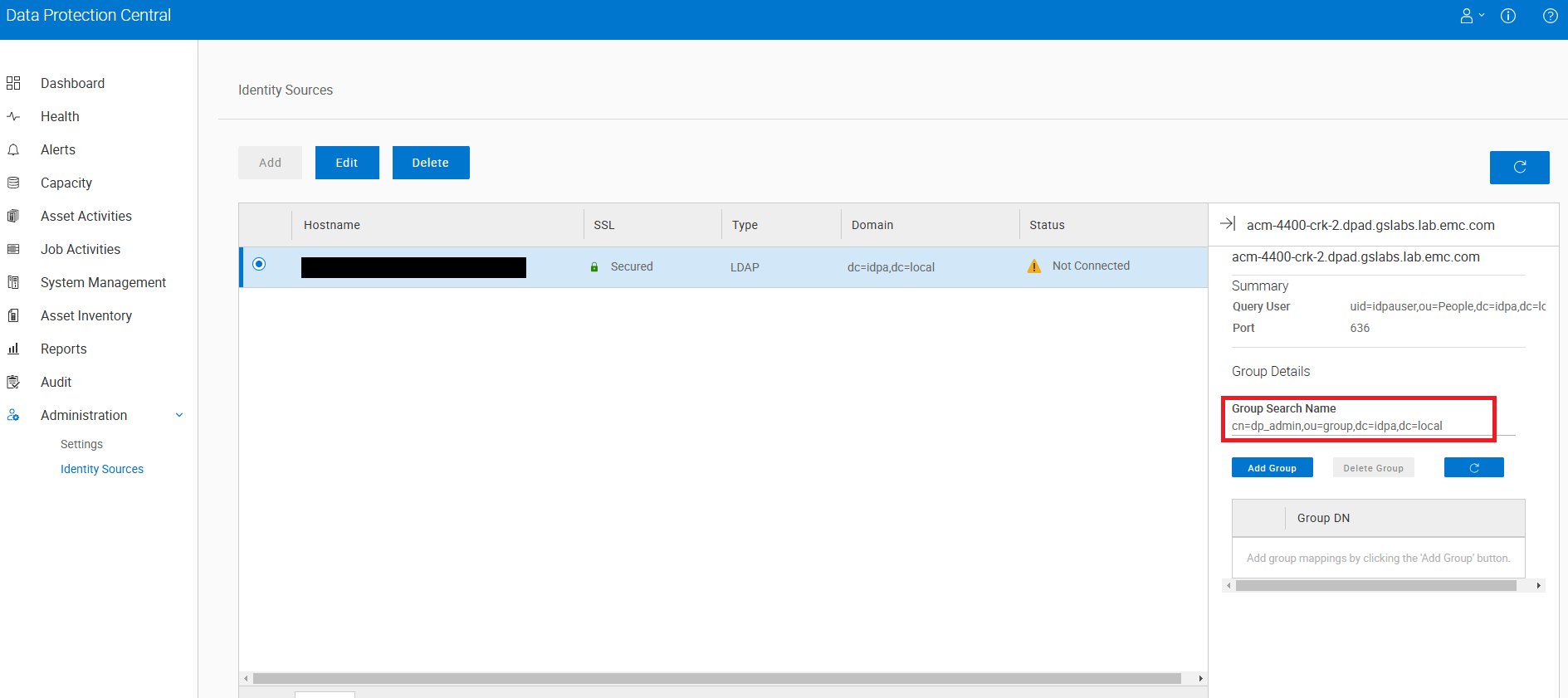
Once the Identity Source and the group are added, update the ldapIntegrationStatus.xml on the ACM server with the following process.
- Log in to the ACM CLI using
PuTTY or SSHas root and move to the following directory:
/usr/local/dataprotection/var/configmgr/server_data/config- Make a backup of the
ldpaIntgrationStatus.xmlwith the following command:
cp ldapIntegrationStatus.xml ldpaIntegrationStatus.xml.backup- Edit
ldpaIntegrationStatus.xmlby opening it invi. Find theDATA_PROTECTION_CENTRALcomponent tag and set it to INTEGRATED if it is not. It should look like the following:
        <component>
            <id>DATA_PROTECTION_CENTRAL</id>
            <status>INTEGRATED</status>
</component>- Save this change by pressing escape and then typing
:x.
Now attempt to log in to DPC UI with idpauser account.
If login fails, contact Dell Support for assistance with this issue.
Ιδιότητες άρθρου
Article Number: 000269136
Article Type: Solution
Τελευταία τροποποίηση: 11 Δεκ 2025
Version: 4
Βρείτε απαντήσεις στις ερωτήσεις σας από άλλους χρήστες της Dell
Υπηρεσίες υποστήριξης
Ελέγξτε αν η συσκευή σας καλύπτεται από τις Υπηρεσίες υποστήριξης.