Dell NetWorker: Unable to check out 'NETWORKER_UPDATE': status - -9 'Invalid host. (-9,57)'
Summary: This article helps in resolving the NetWorker Unserved License related issue. There are two license types Unserved and Served. A Served License file is used with a CLP server.
This article applies to
This article does not apply to
This article is not tied to any specific product.
Not all product versions are identified in this article.
Symptoms
Note: For a detailed licensing guide, see the Dell NetWorker Licensing Guide 19.4.
For all other Dell NetWorker Licensing Questions, refer to the Dell License page.
Also you can reference Dell NetWorker Licensing - Differences between served and unserved license file.
For all other Dell NetWorker Licensing Questions, refer to the Dell License page.
Also you can reference Dell NetWorker Licensing - Differences between served and unserved license file.
After upgrading NetWorker Server and applying a new Update License File, the error is seen.
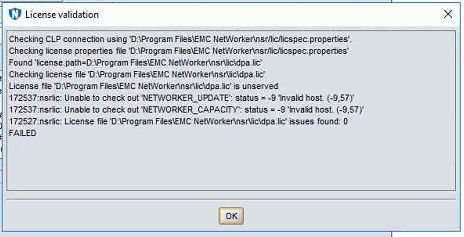
Unserved License validation fails with the following errors:
Checking CLP connection using "D:\Program Files\EMC NetWorker\nsr/lic/licspec.properties".
Checking license properties file "D:\Program Files\EMC NetWorker\nsr/lic/licspec.properties"
Found 'license path=D:\Program Files\EMC NetWorker\nsr\lic\dpa.lic'
Checking license file 'D:\Program Files\EMC NetWorker\nsr\lic\dpa.lic'
License file 'D:\Program Files\EMC NetWorker\nsr\lic\dpa.lic' is unserved
172537:nsrlic: Unable to check out 'NETWORKER_UPDATE': status - -9 'Invalid host. (-9,57)'
172537:nsrlic: Unable to check out 'NETWORKER_CAPACITY': status - -9 'Invalid host. (-9,57)'
172527:nsrlic: License file 'D:\Program Files\EMC NetWorker\nsr\lic\dpa.lic' issues found: 0
FAILED
Cause
NetWorker Server has multiple NICs, and it is unable to identify from which the license has to be read.
"nsrwatch" and "ping" shows different IPs but not the IP for which we have a License file.
IPv6 is enabled.
Resolution
Prioritize the NIC with the IP specified in the License File:
- Open Network and Sharing Center.
- Click Change adapter settings.
- Right click the adapter that has TAP-Win32 Adapter V9 in the description and select Properties.
- Select Internet Protocol Version 4 (TCP/IPv4) and click Properties.
- Click Advanced.
- Clear the Automatic metric option and enter "1" in to the Interface metric box giving High priority.
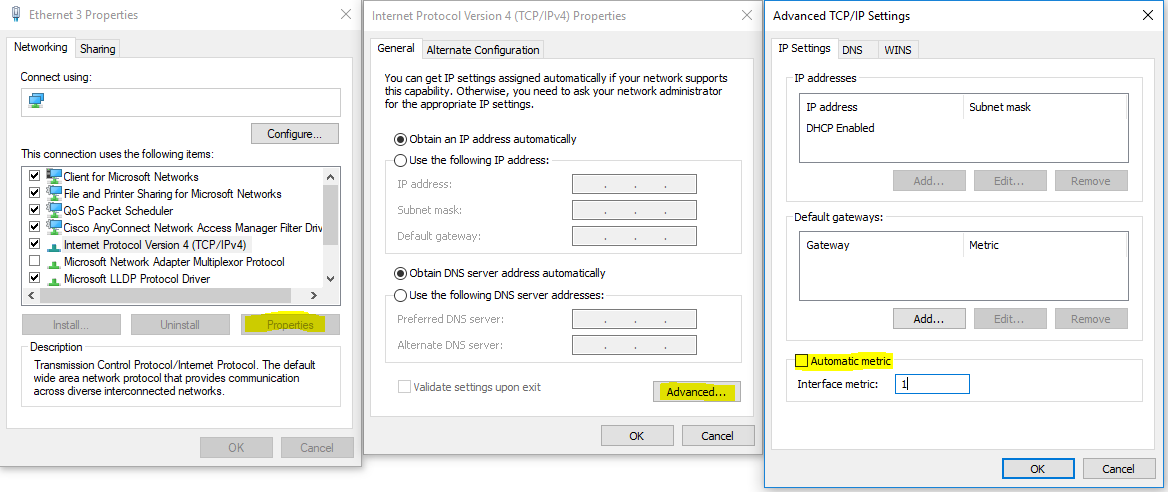
- Follow the same steps for making the other NIC and enter Larger value (for example: 10) giving it Low priority.
- Click OK on all the windows and restart your computer so that the changes can take effect.
Once the above process is completed, validate the License. Now it is applied, and the following type of output is seen if it is applied successfully.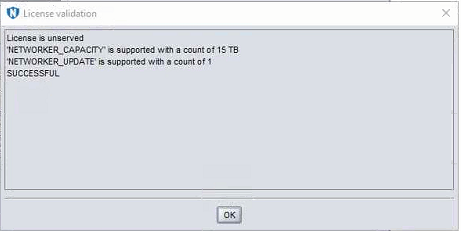
Affected Products
NetWorker FamilyArticle Properties
Article Number: 000060654
Article Type: Solution
Last Modified: 21 Oct 2025
Version: 7
Find answers to your questions from other Dell users
Support Services
Check if your device is covered by Support Services.