Dell Pro Plus Keyboard KB700 Usage and Troubleshooting Guide
Summary: The following article provides information about the Dell Pro Plus Keyboard KB700. You can reference each section to learn more about the features of the Dell Pro Plus Keyboard KB700 and how to use them. ...
This article applies to
This article does not apply to
This article is not tied to any specific product.
Not all product versions are identified in this article.
Instructions
Table of Contents:
- What is in the Dell Pro Plus Keyboard KB700 box?
- Wireless Keyboard Features
- Setting up your Wireless Keyboard
- Troubleshooting
- Additional Information
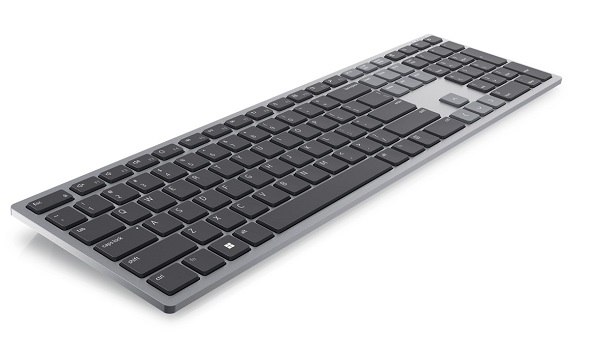
(Figure.1 Work faster and smarter with the Dell Pro Plus Keyboard KB700)
What is in the Dell Pro Plus Keyboard KB700 box?
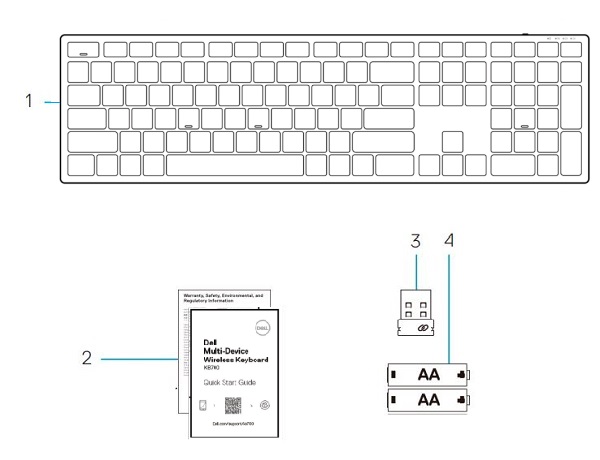
(Figure.2 Dell Pro Plus Keyboard KB700 Box Contents)
| 1 | Wireless Keyboard | 2 | Documents |
| 3 | Universal USB Receiver | 4 | Batteries (AA x2) |
Wireless Keyboard Features
Top View
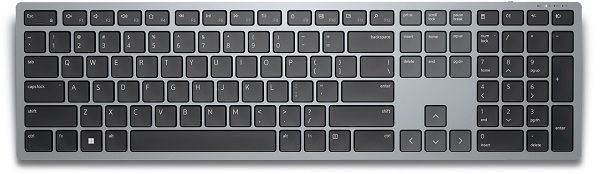
(Figure.3 Dell Pro Plus Keyboard KB700 Top View)
Right-Hand Side View

(Figure.4 Dell Pro Plus Keyboard KB700 Right Side View)
Product Features

(Figure.5 Dell Pro Plus Keyboard KB700 Product Features)
| 1 | Power Switch | 2 | Battery Status LED |
| 3 | Connection Mode LEDs:
|
4 | Connection Mode Switch Button (You can connect up to two Bluetooth devices to the keyboard.) |

(Figure.6 Dell Pro Plus Keyboard KB700 Bottom Features)
| 1 | Keyboard Feet | 2 | Battery Compartment Cover |
| 3 | PPID Label |
Setting up your Wireless Keyboard
Compatibility
Operating Systems:
- Wireless 2.4 GHz and Bluetooth 5.0 (supports Microsoft Switch Pair) Dual Connectivity:
- 2.4 GHz:
- Windows Service 2003, 2008, and 2012
- Windows 11, 10, 8, 7, XP, and Vista
- Mac OS
- Linux Red Hat 8 Enterprise and Ubuntu 18.04
- ChromeOS
- Android OS
- Free DOS
- Bluetooth:
- Windows 11, 10, and 8
- Mac OS
- ChromeOS
- Android OS
- 2.4 GHz:
Using the Dell Peripheral Manager application:
-
Windows 11 and Windows 10.
Connecting the Wireless Keyboard USB Receiver
The Dell Pro Plus Keyboard KB700 uses a USB Type-A receiver dongle to connect to your Desktop or Laptop.

(Figure.7 2.4 GHz Connection USB Type-A Dongle)
Note: You can purchase a USB Type-C to Type-A adapter separately, if your computer does not support USB Type-A connectors.
Connecting the Wireless Keyboard through Bluetooth

(Figure.8 Bluetooth Connection)
Note: Ensure that the distance between your computer and keyboard is under ten meters.
Pressing the Connection-mode button on your keyboard twice (within 3 seconds). When connected with the Dongle, or with Bluetooth, you can add two further devices with Bluetooth and use the connection-mode button to switch between devices.
You can get step-by-step instructions on the following guides:
- Dell Peripheral Manager User's Guide
- Dell Pro Plus Keyboard KB700 Quick Start Guide
- Dell Pro Plus Keyboard KB700 User’s Guide
The guides are on our support site:
Troubleshooting
| Problems | Possible Solutions |
|---|---|
| Unable to use the Wireless Keyboard. |
|
| Unable to pair the Wireless Keyboard to the computer using Bluetooth. |
|
| Unable to pair the Wireless Keyboard to the computer using the wireless dongle. |
|
| Keyboard buttons do not work. |
|
| Wireless connection is lost. |
|
Additional Information
Learn how to use and troubleshoot problems with the Keyboard and Keyboard you use with your computer. You can find information about Troubleshooting steps, How-To guides, and relevant Support Videos for assistance.
For the Dell Pro Plus Keyboard KB700 User Guide, browse to the Dell Pro Plus Keyboard KB700 Online Manual Page. You can then touch or click View PDF to the right of the User Guide, in the Manuals and Documents section.
Affected Products
Dell Pro Plus Keyboard KB700Article Properties
Article Number: 000202178
Article Type: How To
Last Modified: 17 Jul 2025
Version: 4
Find answers to your questions from other Dell users
Support Services
Check if your device is covered by Support Services.