Dell S3225QC 3D Spatial Audio User Self-Test Instructions
Summary: This article provides information about how to run the self-test on the Dell S3225QC 3D Spatial Audio.
This article applies to
This article does not apply to
This article is not tied to any specific product.
Not all product versions are identified in this article.
Instructions
Affected Products:
- Dell 32 Plus 4K QD-OLED Monitor S3225QC
There are three self-tests on the Dell S3225QC 3D Spatial Audio:
Note: To perform the below audio tests, the audio test file needs be download from Drivers & Downloads on the S3225QC product page on Dell Support. Click Download next to Dell S3225QC 3D Spatial Audio Test Files.
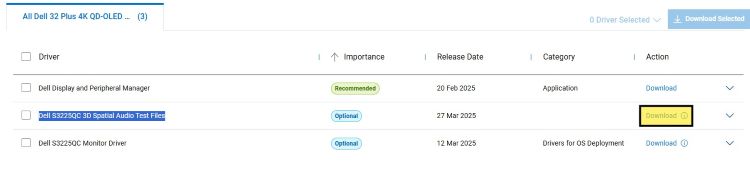
Stereo Audio Content Test:
Users must download the audio test file (Left-Center-Right.wav) from the support page to test. This test file is a 2 channel, 48 kHz, 24-bit wav file for maximum operating system compatibility.
Instructions to perform Stereo Audio Content Test:
- Sit in the center over arms-length from the screen.
- Configure S3225QC in Windows as a Stereo device.
 Note: For Mac User, reference the Apple support site to configure the speakers (https://support.apple.com/guide/audio-midi-setup/set-up-audio-devices-ams59f301fda/mac
).
- Play the Left-Center-Right.wav to begin the test.
- Test track contains a notification tone first in the left channel, then in both left and right channels, then in the right channel only.
- The audible effect should be a source positioned on the left, in the middle, then on the right.
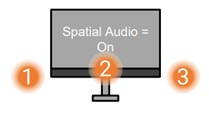
- When 3D spatial audio is ON, the sounds should appear from beyond the edge of the monitor, sounding in symmetrical horizontal positions at all the same volume.
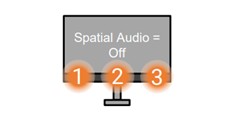
- When 3D Spatial Audio is OFF:
- The left sound should play from the left two speakers.
- The center sound should play from all speakers except the middle.
- The right sound should play from the right two speakers.
Multichannel Audio Content Test
- Users must download the audio test file (multi-channel-announce-v2.wav) from the support page to test. This test file is an 8 channel, 48 kHz, 24-bit wav file for maximum Operating System compatibility
- Sit in the center, over arms-length from the screen.
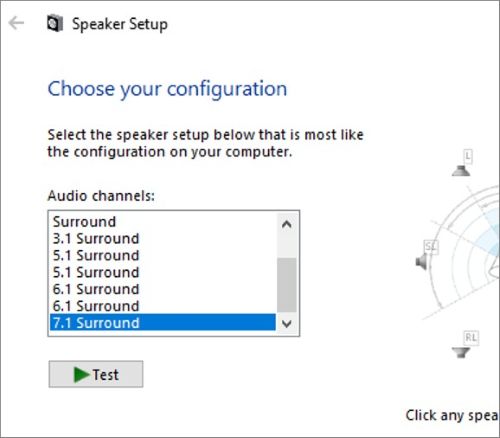
- Configure S3225QC in Windows as a 7.1 Surround device.
 Note: For Mac User, reference the Apple support site to configure the speakers (https://support.apple.com/guide/audio-midi-setup/set-up-audio-devices-ams59f301fda/mac
 - User to play multi-channel-announce-v2.wav to begin the test.
- Each channel is announced in the following order:
- Left (L)
- Center (C)
- Right (R)
- Side Surround Left (SL)
- Side Surround Right (SR)
- Rear Surround Left (RL)
- Rear Surround Right (RR)

- The channel announcements should appear from the corresponding positions around the user.
End-to-End Adaptive (Audio) Test
This is a complete test of both the user-position sensor and the position-adaptive part of the 3D spatial audio algorithm. This test is to find if the adaptive audio is working.
Users can download the audio test file (drum-loop-mono-v2.wav) from the support page to test. Users must select 3D spatial audio mode in the On-Screen Display (OSD) and play the mono drum loop audio file to begin the test.
Test Procedure for End-to-End Adaptive (Audio) Test:
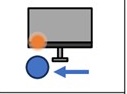
- Move 20 cm (7.8 inches) to the left. The drums should move so that they are playing from straight in front of you.
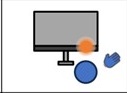
- Cover the sensor with your hand.
- Keep the sensor covered and move so you are 20 cm (7.8 inches) to the right side.
- Uncover the sensor. The computer should react within one second so that the sound appears from in front of you again.
Move Left:
Cover:

Move Right:

Uncover:
Affected Products
Dell 32 Plus 4K QD-OLED Monitor S3225QCArticle Properties
Article Number: 000294124
Article Type: How To
Last Modified: 19 Sept 2025
Version: 3
Find answers to your questions from other Dell users
Support Services
Check if your device is covered by Support Services.