PowerFlex 2.0: How to Reset the Primary MDM Admin Password
Summary: How to reset ScaleIO cluster passwords for ScaleIO version 2.x.
This article applies to
This article does not apply to
This article is not tied to any specific product.
Not all product versions are identified in this article.
Instructions
How to reset the Primary MDM admin password:
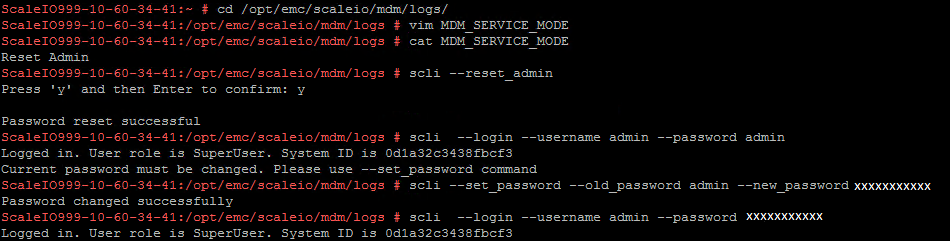
- Create a file named
MDM_SERVICE_MODEon the MDM in the location:/opt/emc/scaleio/mdm/logs/MDM_SERVICE_MODE. - Edit the file and add the text
Reset Adminin the linescli --reset_admin. - After the password is reset, the new password is
admin. - Use
--set_password [--old_password <OLD_PASSWORD>] [--new_password <NEW_PASSWORD>]to change it to the preferred password.
How to reset the LIA password:
See article 24811: How to configure the LIA password manually after the ScaleIO Cluster is deployed.
How to reset the Gateway password:
- Run command:
/opt/emc/scaleio/gateway/bin/SioGWTool.sh --reset_password --password <new_scaleiogateway_password> --config_file /opt/emc/scaleio/gateway/webapps/ROOT/WEB-INF/classes/gatewayUser.properties
Note: Do not use
' ! ' in the password.
- From vCenter Web client:
- Open ScaleIO Gateway, then wait for it to finish navigating.
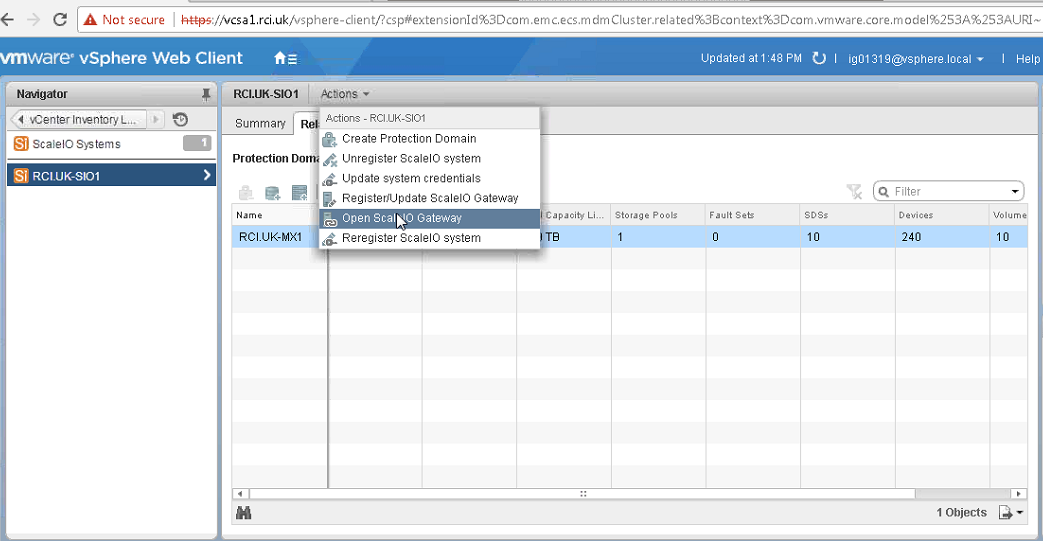
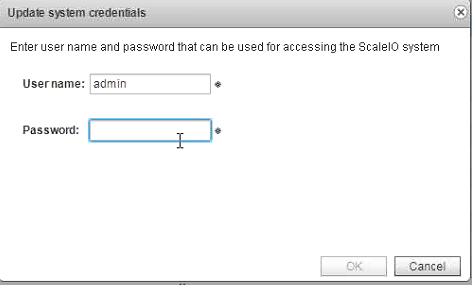
- Open Update System credentials to update System credentials if the Primary MDM admin password has been reset.
- Register or update ScaleIO Gateway:
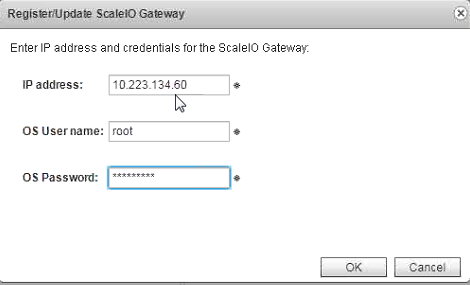
Note: Operating system username and password are the Gateway machine credentials.
Verify new passwords:
Verify new passwords by opening ScaleIO Gateway from vCenter Web client, then access the Installation Manager > Gateway Portal with the new credentials.

Affected Products
VxFlex Product FamilyArticle Properties
Article Number: 000019468
Article Type: How To
Last Modified: 20 Oct 2025
Version: 6
Find answers to your questions from other Dell users
Support Services
Check if your device is covered by Support Services.